
ASCEND P6 - Smartphone HUAWEI - Free user manual and instructions
Find the device manual for free ASCEND P6 HUAWEI in PDF.



| Product type | Smartphone |
| Brand | HUAWEI |
| Model | ASCEND P6 |
| Display | 4.7 inches IPS LCD, resolution 720 x 1280 pixels |
| Processor | Huawei K3V2 Quad-core 1.5 GHz |
| RAM Memory | 2 GB |
| Internal storage | 8 GB (expandable via microSD up to 32 GB) |
| Rear camera | 8 megapixels with autofocus and LED flash |
| Front camera | 5 megapixels |
| Battery | 2000 mAh lithium-polymer integrated, non-removable |
| Operating system | Android 4.2.2 Jelly Bean (Emotion UI 1.6) |
| Network | GSM / HSPA |
| Connectivity | Wi-Fi 802.11 b/g/n, Bluetooth 3.0, GPS, microUSB 2.0, 3.5 mm headphone jack |
| Sensors | Accelerometer, proximity sensor, compass |
| Dimensions | 132.7 x 65.5 x 6.2 mm |
| Weight | 120 grams |
| Power supply | Integrated battery, charging via 5V/1A power adapter or USB cable on computer |
| Main functions | Phone, messaging, web browsing, camera, GPS, multimedia, Android apps |
| Maintenance and cleaning | Clean with a soft, dry cloth. Avoid any contact with water or liquids. |
| Security | Locking via PIN code, password, pattern. No fingerprint sensor. |
| Spare parts and repairability | Non-removable battery. For any repair, contact an authorized service center. |
| General information | Manual available in multiple languages (FR, DE, EN, ES, IT, NL, PT). Free download in PDF format. |
Frequently Asked Questions - ASCEND P6 HUAWEI
User questions about ASCEND P6 HUAWEI
0 question about this device. Answer the ones you know or ask your own.
Ask a new question about this device
Download the instructions for your Smartphone in PDF format for free! Find your manual ASCEND P6 - HUAWEI and take your electronic device back in hand. On this page are published all the documents necessary for the use of your device. ASCEND P6 by HUAWEI.
USER MANUAL ASCEND P6 HUAWEI
Getting to know your phone
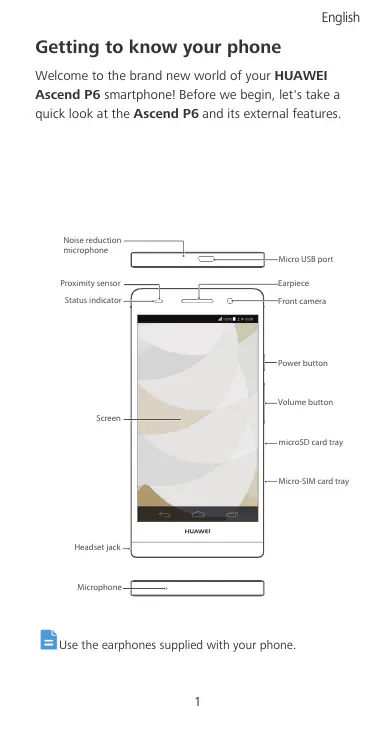
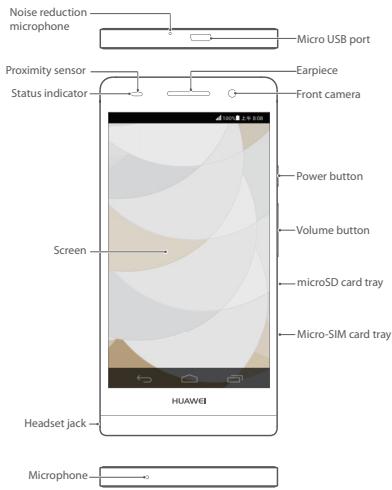
Welcome to the brand new world of your HUWEI Ascend P6 smartphone! Before we begin, let's take a quick look at the Ascend P6 and its external features.

Use the earphones supplied with your phone.
Installing the Micro-SIM and microSD cards
Your Ascend P6 is designed to work with Micro-SIM and Micro SD cards.
To purchase or replace a Micro-SIM card, contact your service provider (network or retailer).
Insert the SIM card following the diagram and instructions below.
Ensure that the phone is NOT POWERED ON.
Before you can install the Micro-SIM or microSD card, you will need the 'Eject tool' – this can be found tucked into the headset jack (see diagram).
Insert the end of the eject tool into the hole next to the Micro-SIM or microSD card tray – this will open the card tray.
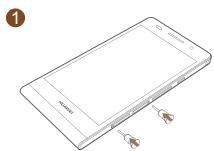
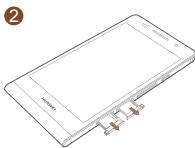
Then follow the directions on the card tray to install the Micro-SIM or microSD card.

Remember to ensure that the phone is not powered on. Be careful not to hurt yourself or damage the phone when using the eject tool.
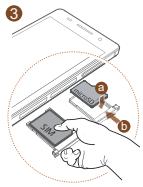
Inserting the SIM card
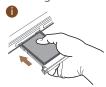
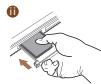
1 Place your SIM card in the SIM Card tray, and gently press (to ensure that it is not protruding). Then slide the tray into the slot as shown in the diagram.
Once the front end of the card has been inserted, apply pressure to the rear end of the card tray to ensure the tray is fully inserted into the slot.
After you have completed these steps, you are ready to use your Ascend P6. Press and hold the power button (the top button on the right hand side of the phone) to power it on. When the Ascend P6 is on, it will briefly vibrate.
Charging the battery
You can charge your Ascend P6 using a charger, or by using a USB cable connected to another powered device. To charge your Ascend P6, connect the micro USB part of the charger/USB cable to the slot on the top edge of the phone.
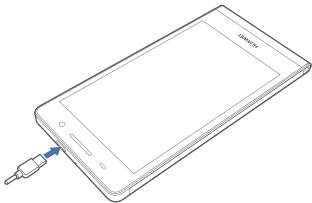

Your phone's built-in battery is not user-removable. To replace the battery, contact an authorised service centre. Do not attempt to remove it yourself.
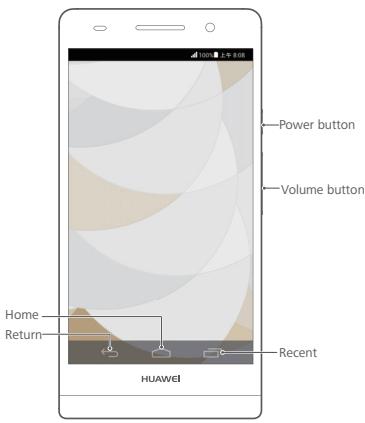
Using the buttons
Your Ascend P6 is designed to be simple to navigate. From any screen, you can:
- Touch to return to the previous screen or exit an application.
- Touch to return to the home screen.
- Touch to display recently used applications.
- Press and release the power button to turn the screen on or off. Press and hold the power button for 10 seconds or more to restart your phone.
- Press the power and volume down buttons together to take a screenshot.
More information
Cover
If you're looking for added protection, you will find a case in the box.
Need more help using Ascend P6?
Ascend P6 has a built in help menu that will guide you through many of the features of the phone. You will find
Help Centre in the Management File marked ?
Want to browse the user guide?
You can download the user guides from www.huaweidevice.co.uk.
Note
This guide is for your reference only. The actual product, including but not limited to the colour, size, and screen layout may vary. All statements, information and recommendations in this guide do not constitute a warranty of any kind, express or implied.
www.huaweidevice.com/worldwide/support/hotline for recently updated hotline and email address in your country or region.
Model: HUAWEI P6-U06
Brand : HUAWEI
Model : ASCEND P6
Category : Smartphone