FULL SPECTRUM-WARRIOR - Video game GAMES PC - Free user manual and instructions
Find the device manual for free FULL SPECTRUM-WARRIOR GAMES PC in PDF.


| Product type | Video game |
| Publisher | THQ |
| Genre | Tactical strategy / Military simulation |
| Platform | PC |
| Format | CD-ROM |
| Manual language | French |
| Game language | English |
| Minimum requirements | Windows 98/ME/2000/XP, 1 GHz processor, 256 MB RAM, 64 MB graphics card, DirectX 9.0c |
| Recommended requirements | 2 GHz processor, 512 MB RAM, 128 MB graphics card |
| Number of players | 1 to 2 (online cooperation) |
| Game modes | Single-player campaign, Online cooperation |
| Main features | Team command, precise/suppressive fire, grenades, air support, satellite positioning system |
| Safety | Epilepsy warning: some people may experience seizures when exposed to light stimulation |
| Maintenance and cleaning | Clean the disc with a soft cloth, avoid scratches |
| Spare parts and repairability | Contact THQ France for replacement under warranty (90 days) |
| General information | Limited 90-day warranty, phone support 0825 069 051 |
Frequently Asked Questions - FULL SPECTRUM-WARRIOR GAMES PC
User questions about FULL SPECTRUM-WARRIOR GAMES PC
0 question about this device. Answer the ones you know or ask your own.
Ask a new question about this device
Download the instructions for your Video game in PDF format for free! Find your manual FULL SPECTRUM-WARRIOR - GAMES PC and take your electronic device back in hand. On this page are published all the documents necessary for the use of your device. FULL SPECTRUM-WARRIOR by GAMES PC.
USER MANUAL FULL SPECTRUM-WARRIOR GAMES PC
Chosen by Games. Loved by Gamers.
SOUNDS BEST ON
Sound BLASTER Audigy2Z5
Sound Blaster® Audigy® 2 ZS blurs the new line between gaming and reality:
- Experience believable audio landscapes in real-time with EAX® ADVANCED HD™
- Accelerated hardware effects create amazing audio with perfect performance
- Hear your enemies, from every direction possible with 7.1 surround sound
- Bring any game to life with the quality sound of 24-Bit ADVANCED HD™
- Clarity that lets you hear your enemy before they hear you with 108dB SNR
- THX® Certified "Movie Theater" sound for all your games
www.soundblaster.com
Get CREATIVE
AU FRONT, IL N'Y A PLUS QU'UN
COMMANDMENT...
TUTUERAS.
WARHAMMER.
40.000
DAWN
OF
WAR
www.dawnofwargame.com
PC
CD-ROM
SOFTWARE
GWI

POWDERED BY

relic
THQ
WWW.THQ-FF
Warhammer 40,000 Dawn of War — © copyright Games Workshop Ltd 2004. All Rights Reserved. Dawn of War, the Dawn of War logo, the GWI logo, Games Workshop, the Games Workshop logo, Space Marine, Space Marine chaper logos, Warhammer, Warhammer 40K Device and all associated races, race insignia, marks, names, characters, illustrations and images from the Dawn of War game and the Warhammer 40,000 universe are either © TM and/or © Games Workshop Ltd 2000-2004, variably registered in the UK and other countries around the world, used under license. Developed by Relic® Entertainment. Game engine code © 2004 Relic Entertainment Inc. Relic, Relic Entertainment and the Relic logo are trademarks and/or registered trademarks of Relic Entertainment Inc. All Rights Reserved. GameSpy and the "Powered by GameSpy" design are trademarks of GameSpy Industries, Inc. All rights reserved. THQ and the THQ logo are trademarks and/or registered trademarks of THQ Inc. All other trademarks, logos and copyrights are property of their respective owners.
CONTRAT DE LICENCE D'UTILISATEUR
THQ and the THQ logo are trademarks and/or registered trademarks of THQ Inc. All rights reserved.
thq@euro-interactive.fr
36 MOUT: Military Operations in Urban Terrain
37 The Conflict
38 Reign of Terror
38 Geopolitical Intelligence Report: Zekistan
39 The HUD
41 Assessing the Environment
42 Commands Overview
44 Moving Your Soldiers
46 Fire Orders
48 Effects of Fire
49 Using Cover Against Threats
50 Grenades
52 Individual Fire Orders
52 Team Leader Tools
52 Reporting with the Radio
53 - The Global Positioning System
54 - Saving your Progress
54 Replays
54·CASEVAC
55·Profiles
55 · Mission Failure
56 Options
57 Co-operative Play
58 Online Menu
58 Online Options
60 Glossary
62 Quickstart in het Nederlands
67 Technical Support
68 Credits
MOUT: Military Operations in Urban Terrain
You command a dismounted light infantry squad, a highly trained group of soldiers who understand how to operate in a hostile, highly populated environment. Everything about your squad – from its soldiers to its equipment to its tactics – is the result of careful planning and years of experience on the battlefield. Respect that experience, soldier, since it's what will keep your soldiers alive.
This field manual provides you with the basics to get you started.
The rest you'll pick up in hands-on training.
The Fireteams
Your squad has two teams, Alpha and Bravo. You'll use these two teams together to move safely through dangerous environments that would be deadly for a single team.
Each team has four soldiers in distinct positions. They have been taught to work together, each with assigned duties and set scanning sectors. Your job is not to tell each man his responsibilities on the team. We spent years training them so you can focus on larger issues.
Team Leader (TL)
The Team Leader is the highest ranking infantryman on your team. He's an experienced soldier who has served in all three fireteam roles. He issues commands to the team: both the commands you give and other spontaneous commands that will save his men's lives under fire. Your TL performs several special functions explained later in this guide, including checking corners, reporting to the platoon leader, and consulting the Global Positioning System.
Automatic Rifleman (AR)
The Automatic Rifleman, or SAW gunner, wields the M249 Squad Automatic Weapon. The AR has field experience, and steps up as the Team Leader if the TL is incapacitated. In addition, the high powered SAW enables the AR to tie down enemies and help your team move safely under fire.
M203 Gunner or Grenadier (G)
The M203 Gunner carries an M class rifle with the M203 Grenade Launcher attachment. This enables him to fire normal rounds as well as more specialised, powerful M203 shaped charges. He can send these grenades down-range much farther than a soldier can throw frag grenades, and they can take down an enemy's cover with a single strike.
Rifleman (R)
The Rifleman has the least experience of soldiers on the fireteam, but don't underestimate him – he's had extensive training. The Rifleman fires rounds from his M class rifle where you direct him, and he also gives aid to downed soldiers in the field.
The Conflict
A devastating wave of terrorist attacks spreads across Europe and Southeast Asia, targeting specifically U.S. and U.K. interests, including embassies, regional corporate headquarters, and even western retail and restaurant chains. After months of intense hunting, U.S. intelligence tracks the source of the attacks to the tiny eastern nation of Kazakhstan.
A devastating wave of terrorist attacks spreads across Europe and Southeast Asia, targeting specifically U.S. and U.K. interests, including embassies, regional corporate headquarters, and even western retail and restaurant chains. After months of intense hunting, U.S. intelligence tracks the source of the attacks to the tiny eastern nation of Kazakhstan.
After the U.S.-led operations in Afghanistan and Iraq, thousands of ex-Taliban and Iraqi loyalists crossed the borders of Kazakhstan seeking asylum by invitation of the nation's dictator, Al Afad. It wasn't long before the same terrorist training facilities and death-camps that the U.S. fought to remove in Afghanistan were operating again under full sponsorship by Al Afad's government. After repeated warnings and failed diplomatic resolutions in the UN, NATO votes to invade Kazakhstan to depose Al Afad, eliminate the terrorist element, and stop the ethnic cleansing of the Zeki people.
Pakistan grants the U.S. fly-through access to their airspace, and the operation begins. For several consecutive nights, carrier groups USS Carl Vinson and USS Ronald Reagan in the Arabian Sea launch thousands of sorties to take out air defense, armour, and enemy bases. With the dust barely settled, Infantry and Armour from seven NATO nations begin to land at captured air bases in southern Zekistan.
The land invasion is underway...
Profile: Mohammad Jabbour Al Afad
Al Afad was born in Lebanon before the war to wealthy parents who sent him to study abroad. He spent time growing up in England, France, and eventually attended university in the U.S. Sometime in the late seventies, Al Afad moved to Pakistan. His whereabouts during this time are unknown, but he resurfaced three years later in Afghanistan, fighting the Soviet occupiers alongside Afghan Mujahideen. Trained by the CIA he swiftly climbed the ranks of the Afghan freedom fighters and gained a formidable reputation amongst the Soviet commanders, earning the nickname "The Lion of Khyber". A narrow escape from Soviet capture found him fleeing across the border into Kazakhstan where he was embraced by the ZLF and given command of his own unit. His actions in the ZLF made him a folk hero to the Zekis, but his bid for power was hindered by Western involvement. The CIA had watched Al Afad's assent closely, and feared that his ties to terrorist groups and radical fundamentalists would prove perilous to western interests in the region.
Reign of Terror
As soon as Al Afad seized control of Zekistan, he began a steady process of converting the country to his own brand of fundamentalist worship. While many foreign settlers were driven out and persecuted, the group that fared by far the worst was the ethnic Zekis, the nomadic mountain people that had originally settled the region thousands of years ago. During the Soviet occupation, Al Afad accused the ethnic Zekis of serving their own interests and aiding the Soviets. In 1996, the UN met to discuss the allegations that Al Afad was ordering genocide of the ethnic Zeki males and sponsoring forced sterilisation of ethnic Zeki women.
The UN agreed to levy sanctions against the country, which resulted in little more than exacerbating the already dangerous levels of poverty and famine that were sweeping the country.
Geopolitical Intelligence Report: Zekistan
Excerpt from Under the Gun – A Brief History of the War on Terror, by Liam A. Gomez, Harper Jones Press, London 2004.
A Cultural Crossroads
The tiny desert nation of Kazakhstan is nestled between modern day Afghanistan, Pakistan, and China, occupying an arid landscape of desert plains and rugged mountains. Once a cultural crossroads, it has been located at the edge of Arab, Chinese, Indian and European civilisation for three thousand years and has served as a meeting place for scholars, merchants, pilgrims, and invaders. Its history has always been punctuated by violence and bloodshed. At various points it has been conquered by the Mongols, Alexander the Great, the Roman Empire, the Ottoman Turks and the British Empire.
Zekistan
The greatest threat, however, emerged in 1917 with the Bolshevik Revolution. Just as the October Revolution signaled doom to the Romanov Empire, so did it cast a foreboding shadow over Kazakhstan and its neighbors. It wasn't long before the tiny nation was absorbed into the Soviet Union, occupied by yet another foreign army.
The Soviet Era
The ethnic Zekis proved to be ferocious mountain fighters, and for fourteen years they managed to hold off the Soviet invaders. The resistance movement resulted
Geopolitical Intelligence Report: Zekistan
in artificial famine, the removal of entire villages and the destruction of a cultural identity. Once under the yoke of Soviet rule, the U.S.S.R. made sure that the Zeki rebels would never stand a chance of reorganising. Funding for agriculture, education, industry and infrastructure was perilously low, while the Soviets used Kazakhstan as a veritable slave camp to mine the region's rich deposits of coal, zinc, silver and natural gas. It wasn't until the late 60's that the Zekistan Liberation Front was secretly formed and began waging guerilla warfare against the Soviets. For twenty years the ZLF and Soviet Army launched tit-for-tat retaliatory strikes against one another as the Zekis attempted to seek international support for their plight. In the early 80's, the CIA provided training and funding to the ZLF while simultaneously aiding guerillas in Afghanistan, hoping to squeeze the Soviets out of the region from both sides.
Civil War
In December of 1991, Kazakhstan awoke to find itself an independent nation once again. With the dissolution of the Soviet Union, the tiny country was at the center of a power vacuum with Pakistan, Afghanistan and China all manoeuvring to seize land and resources for itself. To make matters worse, old rivalries and cultural differences between the various ethnic tribes and foreign settlers began to resurface as at least a dozen factions and splinter groups attempted to assert control of the fledgling republic. The power scramble resulted in a decade long civil war, with guerilla leader Mohammad Jabbour Al-Afad and his Mujahideen fighters reigning supreme.
The HUD
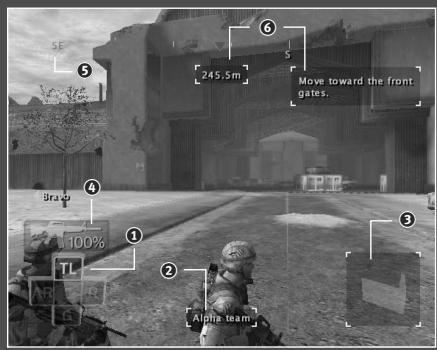
① Soldier Selector
② Info Bar
③ Formation Icon
④ AMMO
⑤ The Compass
Objective Information
The HUD
The Heads Up Display on your command screen is your interface to the world and your soldiers. It gives you information about your squad's status and limited information about enemy combatants. Understanding the HUD and using it to your advantage is key to success in the field.
Soldier Selector
The Soldier Selector is on the bottom left corner of the screen. It maps the four soldiers on each team to the W, S, A and D Keys on your keyboard. Pressing one of these keys selects that soldier and moves the camera to his point of view. Specifically, the W Key selects the Team Leader, S Key selects the Grenadier, the A Key selects the Automatic Rifleman, and the D Key selects the Rifleman.
TIP
Select a soldier if he has a better view of the action. You can issue commands to the team from any soldier.
Info Bar
The Info Bar at the bottom of the screen updates to show you information as needed. By default, it displays the currently selected team. When you select a soldier, the info bar displays his name, and it will also display the name of a soldier who has been injured.
Formation Icon
The small square on the bottom right of the HUD displays information about the formation your team will assume when it moves to the selected location. Under certain circumstances, other icons may appear in this section of the HUD as well. If you are in a position to save your progress, the save-game icon will display (see page 54 for more information). If you are in a CASEVAC position, a cross icon will display (see page 54 for more information). If the following icon is displayed, it means you cannot move your team to the intended area. If appears, it means you cannot move your team to the intended area until first completing certain in-game objectives.
AMMO
The ammo indicator above the team selector indicates the percentage of ammo remaining for the currently selected team. Suppression fire exhausts more ammo than point fire, so use it carefully! When a team is running low on ammo, you can bring them to a CASEVAC for resupply, as described in the CASEVAC section later in this guide.
The HUD
The Compass
Your compass is displayed across the top of the screen. It updates as you rotate the camera to indicate the direction you're currently facing. In addition, it has markers on it to represent different mission goals.

Blue triangles point toward your current mission objective location.

Red triangles point toward soldiers who have been incapacitated and are waiting for your team to aid them, and remove them from the field of combat.

Red triangles with a cross symbol point toward the closest CASEVAC, or treatment facility. When you're carrying an incapacitated soldier, this marker will appear.
Objective Information
When the objective marker on the compass is centered on your HUD, you can get more information. The distance readout tells you how far away the objective marker is, in meters. The objective text gives you a brief description of your current goal relating to the objective.
Assessing the Environment
Several tools let you become better aware of your environment and potential risks to your soldier.
The Camera
Moving the Mouse around lets you rotate the camera to get a 360 degree view on the world. This is especially important at corners, where turning the camera means you can look around the corner.
Zoom
You can zoom in on your current view by pressing and holding the SHIFT Key or moving the Mouse Wheel up. You can still move the Mouse while zoomed to look around.
TIP
Zooming can also help you aim the M203 toward distant targets.
Assessing the Environment
Fog of War
When you press and hold the W, S, A, or D Keys, you activate the 3D fog of war. The world is clear and bright where a soldier is looking, and out of focus in areas where no one is scanning for targets. By checking the fog of war, you can get a good idea of where you're vulnerable to attack.
Commands Overview
Pressing and holding the W, S, A, or D Keys also puts you in individual command mode, explained in Individual Fire Orders (page 52).
You issue most commands in Full Spectrum Warrior™ using the Mouse Buttons. Each Mouse Button has a press function as well as a press and hold function. The press and hold function is a more advanced or specialised version of the press function.
The Left Mouse Button issues an order based on which cursor you currently have open. See Cursors, on page 43. If you press and hold the Left Mouse Button, you'll issue the alternate version of the order, still based on the current Cursor.
The X or ~ (Tilde) Key cancels an order you've issued to a team. It is context sensitive, so pressing the X or ~ (Tilde) Key while a team is firing cancels their fire, and pressing the X or ~ (Tilde) Key while a team is moving cancels the move order. Pressing the Space Key issues the Take Cover order, which causes soldiers to search for the closest cover against a threat, or go prone if there is no cover.
Pressing the Left Mouse Button or the Right Control Key activates the fire sector cursor, which lets you set targets for your teams.
The Tab Key or Middle Mouse Button moves the camera and your control from Alpha team to Bravo team, or vice versa. At some points during your service as Squad Leader, you will gain command of a third team which will be called your Charlie team.
Commands Overview
Cursors
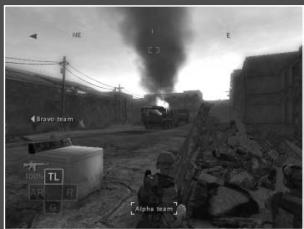
There are three cursor states in Full Spectrum Warrior, shown below. The current cursor state determines what command you are issuing if you press the Left Mouse Button or Right Control Key. The default state is no cursor. In this state, pressing the F Key will cause your team to turn toward the direction you're facing.
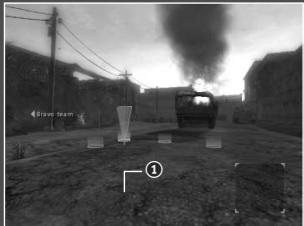
When you have the movement cursor active (①), (activated by pressing the Right Mouse Button or 0 Key on the number pad) pressing the Left Mouse Button or Right Control Key will issue a Rush order to that location, where your soldiers will take up the formation indicated. If you press and hold the Left Mouse Button or Right Control Key the soldiers will Bound rather than Rush, as detailed in the section "Moving Your Soldiers" of this guide.
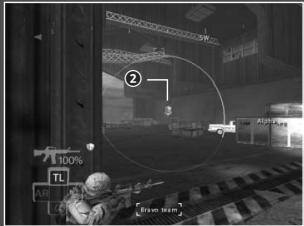
When you have the fire sector cursor active (activated by pressing the Left Mouse Button or Right Control Key), pressing the Left Mouse Button or Right Control Key will issue a point fire order. If you press and hold the Left Mouse Button or Right Control Key you will issue a suppression fire order instead. See the "Fire Orders" section for more information.
Commands Overview
Moving safely in the environment is the most important element of successful command. The soldiers on your teams have been trained in movement formations, so your role is to select the best position for them on the field. They will automatically move to the formation selected and take up their scanning sectors, each man covering an arc of view.
Moving Your Soldiers
Movement Cursor
Pressing the Right Mouse Button or 0 Key on the number pad will bring out the movement cursor. You can continue to use the Mouse to move the cursor around the environment. The movement cursor continually updates to show you the formation a team will take when it reaches the destination. This formation information is conveyed to you in two ways.
Formation Circles
The circles that make up the movement cursor show exactly where your soldiers will stand in the environment. The bright yellow circle shows where your Team Leader will stand, which is valuable information since placing your Team Leader at a corner enables him to corner fire. For more information about firing from corners and other cover objects, see the "Cover" section in this guide.
Formation Icon
When the movement cursor is at a position that offers good cover for your soldiers, you will see an icon of the formation at the bottom right corner of your HUD. Possible formations include:
Moving Your Soldiers
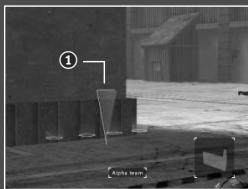
Corner (①): A corner formation is one of the most powerful formations for protecting your men. Unfortunately, while corners are very safe positions, only two men on your team will be able to point fire, which limits your strength.
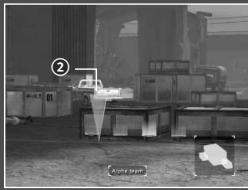
Cover Object, Line (②): Here, your soldiers will line up in a row along the cover object. This means all four soldiers will be able to fire at the target.
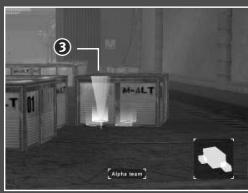
Cover Object, Stack (3): In contrast to the Cover Object, Line formation, this icon means your soldiers will stack (or form two rows) at the cover object. Depending on the height of the object, you may have all four soldiers able to fire, or only two of them.
Bounding Versus Rushing
The standard press version of a move order is the Rush. It is the fastest way to move since all four soldiers move toward the destination simultaneously. Well trained U.S. soldiers never fire a weapon without stopping their movement and going sighted (raising the gun to a firing position). In other words, Rushing soldiers never fire while moving, so they will not engage targets until they finish the move and you issue a fire order.
The hold version of a move order is the Bounding Over Watch or Bound. Bounding is the safest way to move when your team is going into unknown territory or moving against one or more enemies that are close together because your soldiers are sighted and return fire as they move.
Issuing a bound order has two steps. First, you press and hold the Left Mouse Button or Right Control Key while the movement cursor is out to order the bound. This automatically opens the fire sector cursor so you can set the area for your soldiers to cover. Pressing the Left Mouse Button or Right Control Key again completes the Bound order.
Moving Your Soldiers
Once they receive a Bound order, the soldiers will move into position. The first two soldiers will start toward the destination while the rear two soldiers provide cover fire. Once the first two soldiers finish their movement, they cover the rear soldiers' move. When soldiers fire while Bounding, they automatically suppress to keep the target's head down. Note that Bounding is very unsafe if there are enemies who are too far apart to be in the same fire sector. If you Bound under these circumstances, you are very likely to lose one of your soldiers.
| Situation | Best Move |
| One team covering, other team moves | Rush |
| Enemies in same fire sector or unknown enemies | Bound |
| Enemies not in the same fire sector | Get your other team – it is unsafe to move a team by itself under these conditions! |
Fire Orders
Your soldiers are trained to wait for your orders before taking action. If soldiers have cover against an enemy, they will not open fire until you give them an order. The only time your soldiers will open fire without waiting for your command is when their lives are in danger, i.e. they don't have cover against a threat.
Fire Sector Cursor
Pressing the Left Mouse Button or Right Control Key opens the fire sector cursor, which you can reposition using the Mouse. All enemies within the circle are considered to be within the fire sector. Note, however, that the number of enemies that actually come under fire when you issue the order varies depending on your team's formation and the type of fire order you issue, as explained on the next page.
Fire Orders
Point Fire Orders
Pressing the Left Mouse Button or Right Control Key when the fire sector cursor is open issues a point fire order in that direction. A point fire order causes your soldiers to open fire on enemies within that sector. They will ignore enemies outside of that fire sector, even if those enemies are shooting at them.
Soldiers choose their targets carefully within the fire sector. They will choose targets out of cover first, since they can be eliminated immediately. They will also split their fire to take advantage of Engagement (explained in the next section, Effects of Fire). If there are more than two enemies in a fire sector, however, some enemies will not be under fire and will remain free to return fire at your teams.
TIP
If a team with a fire sector comes under fire, press the X or ~ (Tilde) Key and cancel the sector. They will return fire at the enemy, giving you a few seconds to issue a move or suppression order to get them out of danger.
Suppression Fire Orders
If you press and hold the Left Mouse Button or Right Control Key when the fire sector cursor is open, you issue a suppression fire command. Ordering a team to suppress causes them to fire continuously at all enemies within the sector. In order to get all four guns at maximum firing rate, your soldiers will step out of cover to suppress the enemies. The result is that all enemies within the fire sector will become Pinned, as explained in the next section.
TIP
Never order suppression if you can't fit all of the enemies into the fire sector. The team suppressing will lose cover, and enemies not in the fire sector will kill them.
Effects of Fire
Incoming fire can affect soldiers and enemies in three distinct ways.
Under Fire
Soldiers and enemies who are under fire have a reduced rate of fire because they are forced to duck behind cover at intervals. Other than the reduced firing rate, being under fire has no other consequences as long as soldiers have cover. If they do not have cover, being under fire causes soldiers to go prone and return fire.
Engaged
One advantage the U.S. Army has over most combatants is the extensive training given to our soldiers. They have experience under fire, and that experience lets them keep their cool and stay focused. Enemy combatants usually do not have that level of experience and as a result, being under heavy fire causes the enemy to become unfocused.
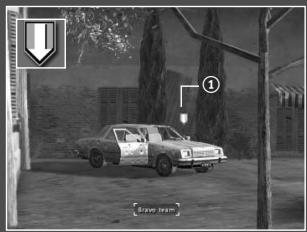
When three M class rifles or the SAW fires at an enemy, that enemy becomes Engaged. You can tell an enemy is Engaged because he shows the Engaged symbol (①) in his indicator. Engaged enemies will not shoot at anyone other than the soldier engaging them, unless they spot a team standing still without cover. In other words, when one team
has an enemy Engaged, you can safely Rush the other team from one piece of cover to the next, as long as you don't stop out in the open.
Because of their training and expertise, your soldiers never become Engaged.
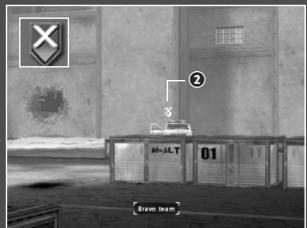
Pinned
Soldiers and enemies can come under extremely heavy fire. This occurs with heavy weapons, such as .50 caliber machine guns, BMPs or Bradleys, or when a unit suppresses with a weapon on full or semi-automatic.
Enemies show the pinned symbol (②)
when they are under suppression or heavy weapon fire. When an enemy is pinned, it means he is ducked down and will not return fire until several seconds after the heavy fire ceases.
Effects of Fire
Soldiers under heavy fire also duck down and will not return fire. They are unable to do anything but move under these conditions.
TIP
If you're desperate to move a team under enemy fire, suppress the enemy and place the movement cursor at the team's destination while the team is still firing. Issue the move order without canceling the suppression fire, and the team will "suppress and run." The enemy will keep his head down for a few seconds, which is often enough time for your team to reach safe ground.
Using Cover Against Threats
Successful performance in an urban setting requires you to assess and interpret the environment. An important part of the environment is the cover it provides for your soldiers. A team without cover can lose soldiers before you are even aware of enemy presence.
The formations displayed on the bottom right of your screen confirm when your team will enter cover at the end of a move. Note that cover is directional - it only provides defense against enemies from certain angles.
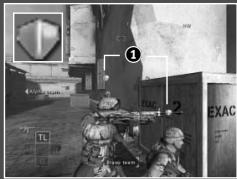
Cover Symbols
When your team becomes aware of a threat, icons over their heads (1) indicate whether they have cover against that threat. If an enemy is shooting at your soldiers and you don't see the shield icon above their heads, it means your soldiers don't have cover against an enemy who is targeting them.
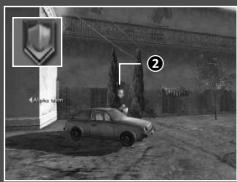
When an enemy has cover against the team you're controlling, the enemy shield symbol appears over his head (②). In order to kill that enemy, you will have to find a position to flank him. Flanking an enemy means moving around the environment to find an angle from which he has no cover against the team's fire.
Using Cover Against Threats
Cover Degradation
Not all cover is created equal. Some objects degrade under fire. You can tell visually by watching the object react to bullet fire. For example, the image below shows a car as it degrades from full cover to partial cover.
When cover degrades while your soldiers are using it, you'll see the soldiers' cover shields slowly drain to black (③).
Black shields mean the cover only offers partial protection - it's better than no cover, but not by much. The draining shields give you an indication of how long that cover object will last.
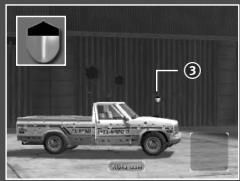
Naturally, some objects last longer than others. A refrigerator lasts quite a while as a cover object because it's heavy porcelain and metal. A sofa, on the other hand, only lasts a few seconds. Choose your cover carefully!
Grenades
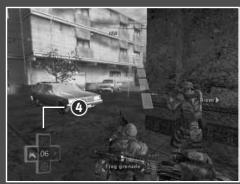
You may select to use one of three grenade types or call in indirect fire by pressing the Numerical Keys 1 through 4 on your keyboard. Key 1 calls up Frag Grenades, Key 2 the M203 Grenade, Key 3 Smoke Grenades, and Key 4 the indirect fire, or Airstrike
Frag Grenades
The M67 Frag Grenade does damage in a radius around its point of explosion.
Grenades
To command a soldier to throw a frag grenade, use the Mouse or the Arrow Keys on your keyboard to aim the visible arc so that it ends on the spot where you would like the grenade to land. If the arc is red, the destination may be too close to your team, so be careful! When you have the arc aimed correctly, press the Left Mouse Button or Right Control Key to issue the order.
M203 Grenades
The M203 Grenade is a direct fire weapon and does damage on a single target at its point of explosion. To select the M203, press the 2 Key on your keyboard.
You will have a new cursor indicating you have selected the M203. Use either the Mouse or the Arrow Keys on the keyboard Ito move the cursor over the target. You can also zoom in with the SHIFT Key or Mouse Wheel. When you're ready to issue the order, press the Left Mouse Button or Right Control Key.
Smoke Grenades
The Smoke Grenade is used to conceal your team from hostiles. Deploy it when you need to traverse open or enemy controlled terrain. To select the smoke grenade, press the 3 Key on your keyboard.
To command a soldier to throw a smoke grenade, use either the Mouse or the Arrow Keys on your keyboard to aim the visible arc so that it ends on the spot where you would like the grenade to land. When you have the arc aimed correctly, press the Left Mouse Button or Right Control Key to issue the order.
Indirect Fire
When available, Indirect Fire is used to defeat enemies such as heavy armour. Most Indirect Fire is handled by air strikes or mortar strikes. To use Indirect Fire you must first indicate the target's position. Press the 4 Key on your keyboard and then use either the Mouse or the Arrow Keys on your keyboard to place the cursor over the target.
When you've got a valid target, the cursor turns green. Press the Left Mouse Button or Right Control Key to upload the coordinates to the gunship or mortar team, then stand back!
Individual Fire Orders
Holding the W, S, A, or D Key not only displays the fog of war – it also lets you issue individual fire orders. When you press the Left Mouse Button or Right Control Key to open a fire sector while still holding the W, S, A or D Keys, you're giving that fire sector only to the currently selected soldier. If you select a different soldier while in individual mode, the camera stays with the current soldier so you can issue the order from your current point of view.
TIP
Giving an individual fire order lets you split your team's fire. If you have two enemies who are too far apart to fit inside a single fire sector, you can use individual fire orders to engage both enemies with a single team. Issue a team fire sector on one enemy, then give your Automatic Rifleman an individual fire order on the other enemy. The AR can engage an enemy by himself.
Team Leader Tools
Each Team Leader has two tools that give him information about the mission and the city surroundings.
Reporting with the Radio
The radio pack lets Team Leaders communicate with Lt. Phillips, your platoon's leader. While some reporting happens automatically at save points and incinemas, you can also press either the Q or the F1 Key on your keyboard to report in at any time. Lt. Phillips can give you advice about the best way to proceed toward your objective.
At times, Lt. Phillips will call you on the radio to give you information or new objectives. When he's expecting you to report in, the red light on the radio pack will blink, and you'll hear him on the radio. Press either the Q or F1 Key and your Team Leader will contact the Lieutenant for you.
TIP
Get your Team Leader safely behind cover or he will be unable to complete his report.
Team Leader Tools
The Global Positioning System
Your Team Leader also carries a Global Positioning System receiver that lets him access satellite data about the current area. Pressing the E Key on your keyboard orders your Team Leader to consult the Global Positioning System, which has several functions.
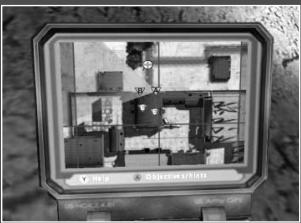
City Map
The default screen of the Global Positioning System is the city map, with a detailed view of several blocks around the Team Leader. Your two teams are marked on the map with A and B icons, and the current Team Leader's field of view is displayed as a green cone.
This screen shows any enemies currently in view of either team. CASEVACs, objectives and save points are also marked with icons matching their in-game appearance.
Objective Screen
Pressing the Left Mouse Button or the 1 Key while the Global Positioning System is open displays the objective screen, which has information about the overall objective for the current chapter, as well as the most current objective.
Recon
Pressing the Right Mouse Button or the 2 Key while the Global Positioning System is open calls in a recon flight. If a flight is available, the pilot will confirm her approach. As she passes overhead, she'll mark enemies she spots on your Global Positioning System and let you know if enemy presence is heavy or light. Recon flights are limited, so don't waste them.
TIP
Use the Global Positioning System to find a way to flank enemies. The map shows you alleys and other routes you can use to find an angle on enemies behind cover.
Team Leader Tools
Saving your Progress
As you move through the city, your team will reach breaks in the action where they consider it safe to report a situation report, or SITREP. You'll see the SITREP symbol when it's safe to report in. Be sure to take these opportunities when they arise, because your soldiers will not report a SITREP when they encounter additional enemies.
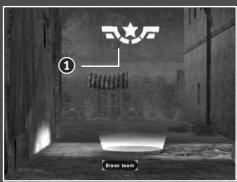
To give the Lieutenant a sit-rep and save your progress, watch for the sit-rep symbol (1) . Lt. Phillips will also tell you when a sit-rep is available. Bring both teams to the sit-rep area, and your team leader will automatically call it in.
Replays
You can save and replay your game progress, similar to playing back a movie you just recorded onto a VCR. To save a replay, press the ESC Key and choose Save Replay from the menu. You can select a name for the replay, or leave the default name. Replays are also automatically saved each time you save a sit-rep.
When you choose a level to play, you can choose to view the replay instead. You can also load a saved replay by going to the Extra Content menu, then into the Saved Replays area.
CASEVACs
When a soldier is shot, he may be incapacitated. When this happens, a skull icon will appear in his slot on the HUD. You have a limited time in which you can give field aid to the wounded soldier before he dies, indicated by the skull icon losing colour. If you don't give aid to the soldier before the time runs out, he will die and you will fail your mission. The U.S. Army has zero tolerance for casualties!
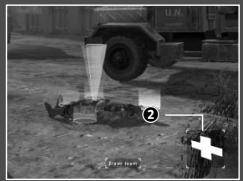
To give aid to a soldier and pick him up, place the movement cursor over the soldier's body on the ground. You will see the CASEVAC icon, which is a cross symbol (②). A soldier on your team will aid the soldier and then pick him up.
Team Leader Tools
Note that your team can still come under fire while aiding a soldier -- the safest approach is to have the other team keep enemies suppressed. Once your team has aided and picked up the wounded soldier, you can carry him to a CASEVAC station for treatment. The closest CASEVAC will be marked on your compass with a cross icon. You will see a cross icon in the world when you reach the CASEVAC. Place the movement cursor in the red circle and press the Left Mouse Button or Right Control Key to order treatment for your soldier. A medic will aid the soldier, who will then come back onto your team. If you bring back a soldier from Alpha with Bravo team or vice versa, the soldier will wait at the CASEVAC for his team.
You can also resupply with ammo at a CASEVAC. Place the movement cursor inside a CASEVAC's red circle then press the Left Mouse Button or Right Control Key. When the team arrives, a soldier will resupply the team's ammo automatically.
Profiles
You must create a profile before playing the game. Profiles are user-defined, custom settings and saved games. To create or delete a profile, simply go into the profile menu from the main menu. If you do not have a profile created, the game will automatically prompt you to create one. You can custom name your profile or simply leave it as "default". Any settings or gameplay changes you make will be saved to the selected profile.
IMPORTANT
Deleting the Profile save from your computer will cause ALL saves and replays to become damaged. These damaged saves and replays will be deleted once within the game. Also, if an individual game save is deleted from your computer, the other game saves that are part of the same timeline will become damaged and will be deleted once within the game.
Mission Failure
Keep your soldiers safe! You will incur a Mission Failed status if you sustain more than one injured soldier, kill a friendly unit like a medic, or let a soldier on your team die.
Options
If your computer has a broadband connection, you can play Full Spectrum Warrior online with a friend.
Options Menu
From the options menu, users are able to customise certain gameplay features.
Audio
Select this option to customise the in-game audio:
Disable Sound
Settings: Check this box to disable all sound settings
Enable EAX: Check this box to enable EAX sound. Note: This option only applies to users who have EAX supported sound cards. EAX® ADVANCED HD™ is used to create reverberation effects and to apply occlusion and obstruction sound filters to the 3D sounds. This allows the game to accurately model different acoustic environments and to muffle sounds that are obstructed by obstacles or occluded by walls. EAX ADVANCED HD is supported by Creative® Labs Sound Blaster® Audigy®2 series of soundcards.
Quality Level: Use to select the level of sound quality for all sound in the game. Note: This option can only be enabled when EAX is NOT enabled.
Sound FX: Use to select a volume level for the in-game sound effects.
Music: Use to select a volume level for the in-game music.
Speech: Use to select a volume level for the in-game speech.
Subtitles: Select to toggle subtitles on/off.
Default: Select this option to revert back to the default sound settings.
Back: Select this option to return to the previous menu screen.
Video
Select this option to customise the in-game audio:
Gamma: Use to select a desired gamma level.
Quality: Use to select an overall visual quality for the game.
Resolution: Use to select a desired resolution at which the game is played.
Anti-Aliasing: Check this box to enable anti-aliasing.
Default: Select this option to revert back to the default video settings.
Advanced: Select this option to view customisable video options for advanced users.
Back: Select this option to return to the previous menu screen.
Options
Controls
Select this option to customise certain aspects of the game controls and view the default control configuration.
Camera
Sensitivity: Use to select a desired camera speed as controlled by the Mouse.
Cursor
Sensitivity: Use this option to select a desired 2d pointer speed.
Camera Y Axis: Select to toggle between a normal and inverted Y Axis.
Camera X Axis: Select to toggle between a normal and inverted X Axis.
Default: Select this option to revert back to the default control configuration.
Back: Select this option to return to the previous menu.
Connecting Online
If you wish to play a game online, select Co-op Host, Co-op Join, or Join IP option from the Play menu on the main menu and follow the on-screen prompts. Co-op Host allows you to host an online game, Co-op Join allows you to join a game hosted by another user and Join IP allows you to join a specified IP address.
Co-operative Play
Full Spectrum Warrior allows squad leaders to pair up and engage in joint military operations. In co-operative mode the task of leading the eight man squad is divided between two squad leaders, each assigned a fire team of four men. The ability to give orders to both fire teams is suspended. Instead, fire team leaders must learn to coordinate actions, divide responsibility for the squad's safety, and work co-operatively to achieve the mission goals. This is further facilitated by the use of the chat window available in Online play. The chat window allows users to chat with their online partner. To enter text, press either the T, /, or \ Keys on your keyboard and enter the text you wish to give your online team-mate.
Online Menu
When you opt to play online, you are taken to the Online menu and presented with several choices:
Co-op Host: Create and host a co-op game.
Co-op Join: Join a game hosted by another user.
Join IP: Search for a particular IP address to join.
Online Options
Co-op Host Options
When you choose to host a co-op game, you choose to start an online game. You have a variety of gameplay parameters to choose from:
Deploy: Select this option when you want to begin hosting an online game.
Chapter: Scroll through this tab and choose a starting level for your game.
Save Section: Scroll through this tab to begin a game from a particular save point within a level.
Load Replay: Choose this option to load and view a previously saved game replay.
Server Name: Insert a custom game name in this section
Password: Check this box and enter a custom password if you want your online game to be private.
Back: Select this option to return to the previous menu.
Online Options
Co-op Join Options
When you choose to join a co-op game, you are able to set certain game parameters to search for before joining a game. After you have set your desired parameters, select the Search option to look for available games that match your search criteria.
Chapter: Choose a particular chapter to play online.
Connection: Choose a particular online connection to search for.
Voice Enabled
Only: Check this box to search only for games that support voice communication through computer head sets.
Public Games
Only: Check this box to search for non-private games (games that don't require a password to join).
Search: Select this option when you are ready to look for available games based on your preferred parameters.
Back: Select this option to return to the previous menu.
Join IP Options:
Join IP: Enter the IP address you wish to join
Join: Select this option to join the game.
Back: Select this option to return to the previous menu.
Note: If you attempt to join a private game, you will be prompted to enter the host's specified password.
Saving & Continuing in Co-Op Games
During co-op play, if you and your fellow fire team leader successfully complete the mission goals without losing any men, you can continue on to the next chapter in the narrative. In fact, it's possible to play through the entire solo campaign in co-op mode!
Glossary
50 cal Short for .50 caliber emplaced heavy machine gun
AA Team Soldiers equipped with anti-armour weaponry such as demolition charges
AH-6J The U.S. Army's only light assault helicopter, used primarily for special forces operations, as well as insertion/extraction and recon and surveillance operations.
AR Automatic Rifleman
BMP The Boyevaya Mashina Pyekhota is the Soviet equivalent of the U.S. Bradley Infantry Fighting Vehicle, designed to transport enemy troops and to provide support for dismounted enemy infantry teams. Usually seen in Zekistan armed with a heavy machine gun.
Bounding Overwatch A movement order that splits the fire team into pairs, with the first pair moving cautiously with eyes sighted while the second pair provides cover. Once arriving at their destination, the pairs switch roles until the fire team is regrouped at the new destination.
Bradley The Bradley Infantry Fighting Vehicle transports infantry on the battlefield and provides cover fire to dismounted troops and to suppress enemy armour and fighting vehicles.
CASEVAC Casualty Evacuation. A designated safe area to heal wounded soldiers and replenish a team's ammunition.
Charlie 90 Designated in-game nomenclature for the player's squad
Charlie 32 Designated in-game nomenclature for the Platoan Leader
Charlie Team Designated in-game nomenclature for any user controlled 3rd asset or team
Cpl Corporal
Fire Sector An imaginary cone-shaped boundary designated to a fire team in which to concentrate fire, usually to provide cover or suppression fire on a known enemy position.
Friendlies Civilian or military forces in a combat zone that are sympathetic to the U.S. or its allies.
G Grenadier
Helping Hands Independent organization of medical personnel who lend their assistance in war zones.
JSTARS Joint Surveillance Target Attack Radar System, carried on a jumbo jet, funded by the U.S. Army and the U.S. Air Force. A long-range, air-to-ground surveillance system designed to locate, classify and track ground targets in all weather conditions.
M1025 Armoured Personnel Carrier.
M203 Rifle-mounted grenade launcher used by the U.S. Army
M67 U.S. Army fragmentation grenade
Magazine A small, detachable box that holds cartridges and feeds them into the firing chamber of a firearm.
Glossary
MOUT Military Operations in Urban Terrain
NATO North Atlantic Treaty Organization
On Station Term often used by helicopter pilots when they are in the area and ready to assist ground units.
OPFOR Opposing Force. Designation for enemy.
PFC Private First Class
PL Platoon Leader
Pvt Private
R Rifleman
Rangers U.S. Army Rangers: Elite military force of the U.S. Army who take on special missions.
Recon Abbreviation for Reconnaissance. Used in-game for Recon chopper flights, ordered while in Global Positioning System mode.
RPG Rocket Propelled Grenade. A light, man-portable dumb-fire weapon used extensively throughout the Middle East in guerilla attacks, usually of Soviet origin, against armour and personnel alike.
SAW Squad Automatic Weapon
Sgt. Sergeant
Sit Rep Situational Report. In Full Spectrum Warrior, designated save areas.
Stinger U.S. man-portable ground-to-air missiles
Suppression Fire A military tactic where large volumes of gunfire are focused on an enemy position in order to keep the enemy pinned down and unable to return fire, usually used to allow another team the opportunity to maneuver or retreat safely.
Tango Slang term for enemy. Often vocalised by soldiers when an enemy is spotted
Technical/Technical Civilian vehicle used as improvised mobile heavy weapons vehicle platform
TL Team Leader
UH-60 A U.S. Army troop transport helicopter
ZLF Zekistan Liberation Front
Your use of the file is evidence of your agreement to be bound by the terms
- OWNERSHIP. The Software is and shall remain a proprietary product of THQ and its suppliers. THQ and its suppliers shall retain ownership of all patents, copyrights, trademarks, trade names, trade secrets and other proprietary rights relating to or residing in the Software. Except as provided in Section 2, you shall have no right, title or interest in or to the Software. The Software is licensed, not sold, to you for use only under the terms of this Agreement. If you agree to be bound by all of the terms of this Agreement, you will only own the media on which the Software has been provided and not the Software itself.
- GRANT OF LICENCE. THQ grants you a non-exclusive, non-transferable right to use one copy of the Software in the country in which you acquired the Software for your own personal use. All other rights are expressly reserved by THQ. You may not: (a) install the Software on multiple computers, timeshare the Software, or make it available to multiple persons, (b) reverse-engineer or decompile the Software, or (c) export the Software. You may make one copy of the Software solely for purposes of having a backup copy, provided that you reproduce on that copy all copyright notices and any other confidentiality or proprietary legends that are on the original copy of the Software. You understand that THQ or its suppliers may update the Software at any time and in doing so incurs no obligation to furnish such updates to you pursuant to this Agreement.
- LIMITED WARRANTY. THQ (UK) LIMITED warrants to the original purchaser of this THQ (UK) LIMITED product that the medium on which the computer program is recorded is free from defects in materials and workmanship for a period of ninety (90) days from the date of purchase. This THQ (UK) LIMITED software is sold "as is", without express or implied warranty of any kind resulting from use of this program. THQ (UK) LIMITED agrees for a period of ninety (90) days to either repair or replace, at its option, free of charge, any THQ (UK) LIMITED product, postage paid, with proof of purchase, at its Customer Service centre. Replacement of this Game Pak, free of charge to the original purchaser is the full extent of our liability. Please mail to THQ (UK) LIMITED, Ground Floor; Block A, Dukes Court, Duke Street, Woking, Surrey, GU21 5BH. Please allow 28 days from dispatch for return of your Game Disc. This warranty is not applicable to normal wear and tear. This warranty shall not be applicable and shall be void if the defect in the THQ (UK) LIMITED product has arisen through abuse, unreasonable use, mistreatment or neglect. THIS WARRANTY IS IN LIEU OF ALL OTHER WARRANTYES AND NO OTHER REPRESENTATIONS OR CLAIMS OF ANY NATURE SHALL BE BINDING OR OBLIGATE THQ (UK) LIMITED. ANY IMPLIED WARRANTY OF APPLICABILITY TO THIS SOFTWARE PRODUCT, INCLUDING WARRANTY OF MERCHANTIBILITY AND FITNESS FOR A PARTICULAR PURPOSE, ARE LIMITED TO THE NINETY (90) DAY PERIOD DESCRIBED ABOVE. IN NO EVENT WILL THQ (UK) LIMITED BE LIABLE FOR ANY SPECIAL, INCIDENTAL OR CONSEQUENTIAL DAMAGES RESULTING FROM POSSESSION, USE OR MALFUNCTION OF THIS THQ (UK) LIMITED PRODUCT. THIS IN NO WAY AFFECTS YOUR STATUTORY RIGHTS. This computer program and its associated documentation and materials are protected by both National and International copyright law. Storage in a retrieval system, reproduction, translation, hiring, lending, broadcasting and public performances are prohibited without express written permission of THQ (UK) LIMITED.
License Agreement
- LIMITATION OF LIABILITY. IN NO EVENT SHALL THQ AGGREGATE LIABILITY IN CONNECTION WITH THIS AGREEMENT AND THE SOFTWARE, REGARDLESS OF THE FORM OF THE ACTION GIVING RISE TO SUCH LIABILITY (WHETHER IN CONTRACT, TORT OR OTHERWISE), EXCEED THE LICENSE FEES RECEIVED BY THQ FOR THE SOFTWARE. NO THQ SUPPLIER SHALL HAVE ANY LIABILITY WHATSOEVER UNDER THIS AGREEMENT. IN NO EVENT SHALL THQ OR THQ SUPPLIERS BE LIABLE FOR ANY INDIRECT, EXEMPLARY, SPECIAL, CONSEQUENTIAL OR INCIDENTAL DAMAGES OF ANY KIND (INCLUDING WITHOUT LIMITATION LOST PROFITS), EVEN IF THQ OR SUCH SUPPLIER HAS BEEN ADVISED OF THE POSSIBILITY OF SUCH DAMAGES. SOME JURISDICTIONS DO NOT ALLOW THE LIMITATION OR EXCLUSION OF LIABILITY FOR CONSEQUENTIAL OR INCIDENTAL DAMAGES SO THE ABOVE LIMITATION OR EXCLUSION MAY NOT APPLY TO YOU. THQ SHALL NOT BE LIABLE FOR ANY CLAIMS OF THIRD PARTIES RELATING TO THE SOFTWARE. THE LIMITED WARRANTY, LIMITED REMEDIES AND LIMITED LIABILITY PROVISIONS CONTAINED IN THIS AGREEMENT ARE FUNDAMENTAL PARTS OF THE sBASIS OF THQ BARGAIN HEREUNDER, AND THQ WOULD NOT BE ALLOW TO PROVIDE THE SOFTWARE TO YOU WITHOUT SUCH LIMITATIONS. SOME JURISDICTIONS DO NOT ALLOW THE LIMITATION OR EXCLUSION OF LIABILITY, SO THE ABOVE DISCLAIMER MAY NOT APPLY TO YOU, IN WHICH CASE THE DURATION OF ANY SUCH LIMITATION OR EXCLUSION OF LIABILITY IS LIMITED TO NINETY (90) DAYS FROM THE DATE THE SOFTWARE IS RECEIVED BY YOU. THIS WARRANTY GIVES YOU SPECIFIC LEGAL RIGHTS. YOU MAY HAVE OTHER LEGAL RIGHTS WHICH VARY FROM JURISDICTION TO JURISDICTION.
- TERMINATION. You may terminate this Agreement at any time. This Agreement shall terminate automatically upon your breach of any term of this Agreement. Upon termination, you shall destroy the Software and the backup copy, if any, you made pursuant to the Agreement.
THQ (UK) Limited
Ground Floor, Block A
Dukes Court, Duke Street
Woking, Surrey, GU21 5BH
Technical Support
If you are experiencing technical problems with this game, please contact UK technical support:
Online
Visit the www.thq.co.uk website and click on Help
Telephone
+44 (0) 870 608 0047 (national/international call rates apply)
Mon - Fri 08:00 to 19:00 GMT
Sat - 09:00 to 17:00 GMT
Générique/Credits
FULL SPECTRUM WRIOR TEAM
PROJECT DIRECTOR William Henry Shah
SENIOR PRODUCER Raphael Hernandez
TECHNICAL DIRECTOR Fredrik Fidder Pessner
LEAD PROGRAMMER Alexander Boczar
ART DIRECTORS Christopher M. Hunt Rosita Rosi Zagortcheva
LEAD DESIGNER
Richard Wyckoff
PRODUCTION COORDINATOR Kim Marlis
Engineering Department
SENIOR PROGRAMMERS Alexander Boczar Iyavo Ivo Betchev Niklas Westberg
ENGINE/GRAPHICS Niklas Smedis' Smedberg
GRAPHICS Daniel Mooney
Al Quinn 'Bonlide' Dunki
UI John Giors Priti Aggarwal
NETWORK Jon 'Heina' Heiner
LEAD GAMEPLAY Adam Pino
GAMEPLAY
Justin Truman
Aaron Lee
Leyland 'Lee' Needham
TOOLS Lilli Thompson
ADDITIONAL PROGRAMMING
Kevin Ashley Julio Jerez
Art Department
LEAD ANICITOR
Pete p331 Meihuizen
ENVIRONMENTAL Michael Allamirano Ivan Bounatchov
Andrew Kelle Han Lee Timo Pihijam Sean Sullivan
CHARACTER Huan Phan
2D/CONCEPT Tony Ianrio RC Montesquiki
ANIMATORS James Crows Ben desktop Stephan Holl Greenburg
Design DepartmentCAD TUTORIAL DESIGNER
Brian Gomez
DESIGNERS
Rick Ernst
Kristine Kleia
Peter Bartho
Javen Simmons
WRITING Paul Robinson
Sound Department
SOUND PRODUCER & LEAD DESIGNER David Rovin
SOUND ASSISTANT Andrew Waegonen
PANDEMIC STUDIOS
CEO Andrew Goldman
PRESIDENT Josh Resnick
EXECUTIVE PRODUCER
Gogo Borru
EXECUTIVE ART DIRECTOR
Carley Chico
PRODUCTION SUPPORT Joseph Donaldson Kent Schuelke
WEB DESIGNER Steven Leff
MILITARY CONSULTANT CPT John M. Spanberg
THO Inc. Marketing
SENIOR VICE PRESIDENT - WORLDWIDE MARKETING Peter Dille
DIRECTOR- GLOBAL BRAND MANAGEMENT
Alison Quirion
SENIOR BRAND MANAGER Brad Carraway
INTERNATIONAL MARKETING SERVICES MANAGER Sarah Nicholson
MARKETING COORDINATOR Damian Garcia
Media Relations
DIRECTOR OF MEDIA RELATIONS Liz Pieri
MEDIA RELATIONS MANAGER Tom Stratton
ASSOCIATE MEDIA RELATIONS MANAGER
Kyle Walker
MEDIA RELATIONS COORDINATOR Rob Cassel
Creative Services
DIRECTOR - CREATIVE SERVICES Howard Liebeskind
MANAGER-CREATIVE SERVICES
Kirk Somdal
VIDEO PRODUCTION MANAGER Christopher Folino
VIDEO PRODUCTION COORDINATOR
Paul Reese
VIDEO LEAD DESIGNER
David Stroner
VIDEO GRAPHIC CONSULTANT Eyad Orabti
VIDEO EDITOR Shawn Goodric
PACKAGING DESIGN Origin Studios
ADVERTISING CREATIVE GSM Plumbing
Quality Assurance
DIRECTOR, QUALITY ASSURANCE Monica Vallejo
TEST SUPERVISOR David Sapienza
LEAD TESTERS
Mark Aviles
Mark Wagon
TESTERS T. Ryan Arnold
Jon Bloch
David Choe Tim Fielder
Carlo Gonzales
Andrew Herman Patrick Keller
Shinyan Liu Greg Platt
Scott Tomashek James Wahlquist
Eric Weiss David Wils
TRANSLATORS
Grace Lieu
Junko Sekine
Production
EXECUTIVE VICE
PRESIDENT - WORLDWIDE
STUDIOS
Jack Sorensen
VICE PRESIDENT - PRODUCTION
Philip Hott
DIRECTOR - PROJECT MANAGEMENT
Richard Browne
MANAGER, PRODUCTION RESOURCES
Jenae Pash
CREATIVE MANAGER Greg Donovan
THO ENTERTAINMENT GMBH
IN-GAME TRANSLATIONS AND PROOF READING SimuTrans Ltd.
SENIOR PROJECT MANAGER
(SIMULTRANS Ltd.)
Lilian Ospshore
ADDITIONAL TRANSLATIONS Binnari Sonori
Internal Creative Department
SENIOR PROJECT MANAGER ART Till Enzmann
DTP OPERATOR
Anja Untiet Jens Spangenberg
INSTITUTE FOR CREATIVE TECHNOLOGIES
University of Southern California
CREATIVE DIRECTOR, PROJECT LEADER James H. Kornis
RESEARCH SCIENTIFICs Michael van Leen Ph.D.
PROJECT MANAGER Matthew Trimmer
PROJECT MANAGER
Troy R. Hawkins
Générique/Credits
EXECUTIVE DIRECTOR
Richard D. Lindheim
SONY
IMAGEWORKS
Imageworks
Art Team FCS
CHARACTER ANIMATOR
Alfonso Alpuerto
LEAD ENVIRONMENT
ARTIST
Gary Brunetti
CHARACTER ANIMATOR
Thomas Bruno
ANIMATION DIRECTOR
Jeremy Cantor
TOOLS PROGRAMMER
Paolo Costabel
ASSET MANAGER
Christopher Doyle
EXECUTIVE PRODUCER
Thomas Hershey
PRODUCTION
SERVICES TECHNICIAN
Rajeev Joshi
CHARACTER ANIMATOR
Kurt Peterson
ENVIRONMENT &
CHARACTER ARTIST
Huan Phan
ENVIRONMENT ARTIST
Erika
PRODUCER
Sande Scoredos
ENVIRONMENT ARTIST
Tricia Vitug
ADDITIONAL
CHARACTER ANIMATORS
Paul Jesse
Kenn McDonald
Noel McGinn
Sean Mullen
Brian Schindler
Chad Stewart
William Tessier
Roger Vizard
Jim VanDerKyle
Todd Wilderman
Reference Shoot
ARMY SUB
MATTER EXPERT
SGT. Jack Batten US
PRODUCTION
COORDINATOR
Steve Prawat
STUNT ACTOR
Prasong Kreng
STUNT ACTOR
Marko Zaron
SCORPIO SOUND
SAG VOICE OVER
CASTING & RECORDING
by SCORPIO SOUND, LLC
VOICE OVER/
DIALOGUE EDITING
by SCORPIO SOUND, LLC
VOICE OVER DIRECTOR
David Rovin
Supervising
Dialogue
EDITOR AND MIXER
Gregory J. Hainer, MPSE
DIALOGUE EDITORS
Gregory J. Hainer, MPSE
Jonathan "Mongo" Ross
Jaques Slade
James Warren
Henri Yonet
Micahel Zick
ARABIC VOICE COACHING
AND ADDITIONAL
TRANSLATION
Toufig Tulsiram
Voice Over Cast
Platoon Leader
Lex Lang
Devereux
Svon
Uta
BENDISKIN
Mendez
ARMANDO VALDES
KENNDY
Picoli
IAN KESSLER
Shehadi
J.D.CULLUM
Shimenski
MIKEY KELLEY
Silverman
Ben Spies
Williams
BILLY BROWN
Arab Civilian Female
EKTIMAL SHBIB
OPFOR #01 & AI Afad
Assistant
TOUFIQ TULSIRAM
Arab Civilian Male 1, Al
Affad, Propaganda Guy
GINOSALVANO
Arab Civilian Male 2 (Old
Man),OPFOR #02
AHMAD ALSUNDOS
OPFOR #03
HUGH MUN
Recon Pilot, Dr. Alvarez
NIKA FUTTERMAN
NATO British Officer
JD CULLUM
CREAT STUDIOS
EXECUTIVE PRODUCERS
Anton Petrov
Daniel Prousline
PROJECT LEADER
Avenir Sniatkov
DIRECTOR
Vladimir Alexandrov
ADDITIONAL MODELING
& TEXTURE MAPPING
Michail Budkin
Ekaterina Fedorova
Natalia Gracheva
Andrej Gromov
Irina Pleshak
Irina Shostik
Sergey Zubakov
LIGHTING
Blagoy Borisov
Yury Tchernych
3D ANIMATION AND
SPECIAL EFFECTS
Akzhol Abdulin
Artem Artemiev
Artur Kaifovich
Anton Oparin
Ilya Popenker
Alexey Popov
Vladimir Uriashov
COMPOSING
Sergey Belik
RENDERING
Olga Cheremissova
PROGRAMMING AND
TECHNICAL SUPPORT
Stanislav Volodarskiy
MOTION CAPTURE
SERVICES
House Of Moves
MACHINE HEAD
Musical Score
by Machine Head
COMPOSER
Tobias Enhus
Chris Neiman
MUSIC SUPERVISOR
Jason Bentley
SCORE PRODUCER
Vicki Ordeshook
SCORE MIXED BY Adam
Schiff
SPECIAL
THANKS TO
zLib © 1995-2003
Jean-Ioup Gailly and Mark
Adler
Havok.com
Copyright 1999-2002
Havok.com Inc. (and its
Licensors). All Rights
Reserved
See www.havok.com for
details.
Karen Williams
Michael Macedonia
James Blake
MAJ. Brent Cummings
CPT. Lance Oskey
Ari Arad
James Boone
Heather Desurvire -
Behavioristics, Inc.
Dan Kelly
James Ytuite
Référence rapide
COMMANDES ÉLÉMENTAIRES
- CHOSEN BY GAMES. LOVED BY GAMERS
- SOUND BLASTER AUDIGY2Z5
- AU FRONT, IL N'Y A PLUS QU'UN
- COMMANDMENT
- TUTUERAS
- DAWN
- WAR
- CONTRAT DE LICENCE D'UTILISATEUR
- MOUT: MILITARY OPERATIONS IN URBAN TERRAIN
- THE FIRETEAMS
- TEAM LEADER (TL)
- AUTOMATIC RIFLEMAN (AR)
- M203 GUNNER OR GRENADIER (G)
- RIFLEMAN (R)
- THE CONFLICT
- PROFILE: MOHAMMAD JABBOUR AL AFAD
- REIGN OF TERROR
- GEOPOLITICAL INTELLIGENCE REPORT: ZEKISTAN
- A CULTURAL CROSSROADS
- ZEKISTAN
- THE SOVIET ERA
- CIVIL WAR
- THE HUD
- SOLDIER SELECTOR
- TIP
- INFO BAR
- FORMATION ICON
- AMMO
- THE COMPASS
- OBJECTIVE INFORMATION
- ASSESSING THE ENVIRONMENT
- THE CAMERA
- ZOOM
- FOG OF WAR
- COMMANDS OVERVIEW
- CURSORS
- MOVING YOUR SOLDIERS
- MOVEMENT CURSOR
- FORMATION CIRCLES
- BOUNDING VERSUS RUSHING
- FIRE ORDERS
- FIRE SECTOR CURSOR
- POINT FIRE ORDERS
- SUPPRESSION FIRE ORDERS
- EFFECTS OF FIRE
- UNDER FIRE
- ENGAGED
- PINNED
- USING COVER AGAINST THREATS
- COVER SYMBOLS
- COVER DEGRADATION
- GRENADES
- FRAG GRENADES
- M203 GRENADES
- SMOKE GRENADES
- INDIRECT FIRE
- INDIVIDUAL FIRE ORDERS
- TEAM LEADER TOOLS
- REPORTING WITH THE RADIO
- THE GLOBAL POSITIONING SYSTEM
- CITY MAP
- OBJECTIVE SCREEN
- RECON
- SAVING YOUR PROGRESS
- REPLAYS
- CASEVACS
- PROFILES
- IMPORTANT
- MISSION FAILURE
- OPTIONS
- OPTIONS MENU
- AUDIO
- DISABLE SOUND
- VIDEO
- CONTROLS
- CONNECTING ONLINE
- CO-OPERATIVE PLAY
- ONLINE MENU
- ONLINE OPTIONS
- CO-OP HOST OPTIONS
- CO-OP JOIN OPTIONS
- JOIN IP OPTIONS
- SAVING & CONTINUING IN CO-OP GAMES
- GLOSSARY
- LICENSE AGREEMENT
- TECHNICAL SUPPORT
- GÉNÉRIQUE/CREDITS
- FULL SPECTRUM WRIOR TEAM
- ART DEPARTMENT
- DESIGN DEPARTMENTCAD TUTORIAL DESIGNER
- SOUND DEPARTMENT
- PANDEMIC STUDIOS
- THO INC. MARKETING
- MEDIA RELATIONS
- CREATIVE SERVICES
- QUALITY ASSURANCE
- TRANSLATORS
- PRODUCTION
- THO ENTERTAINMENT GMBH
- INTERNAL CREATIVE DEPARTMENT
- INSTITUTE FOR CREATIVE TECHNOLOGIES
- UNIVERSITY OF SOUTHERN CALIFORNIA
- RÉFÉRENCE RAPIDE
- COMMANDES ÉLÉMENTAIRES
Brand : GAMES PC
Model : FULL SPECTRUM-WARRIOR
Category : Video game