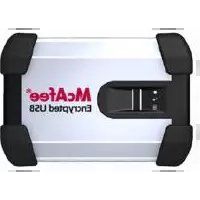
USB-HDDK-500GBFG - External hard drive MCAFEE - Free user manual and instructions
Find the device manual for free USB-HDDK-500GBFG MCAFEE in PDF.


Pick your language and provide your email: we'll send you a specifically translated version.
| Product type | External hard drive |
| Brand | McAfee |
| Model | USB-HDDK-500GBFG |
| Storage capacity | 500 GB |
| Interface | USB 3.0 (backward compatible with USB 2.0) |
| Form factor | Portable 2.5-inch |
| Dimensions | Approximately 120 x 80 x 15 mm |
| Weight | About 150 g |
| Power supply | Bus-powered via USB (5V, no external adapter required) |
| Compatibility | Windows, macOS, and most operating systems with USB support |
| Main functions | Data storage, file backup, and data transfer |
| Data transfer speed | Up to 5 Gbps (USB 3.0) |
| Maintenance | Clean with a soft, dry cloth; avoid moisture and direct sunlight |
| Safety precautions | Do not expose to extreme temperatures, drops, or magnetic fields; do not disassemble |
| Spare parts and repairability | No user-serviceable parts; contact manufacturer support for servicing |
| System requirements | Available USB port; formatting may be required for certain devices |
| Accessories included | USB cable (typically) and quick start guide |
| Warranty | Standard manufacturer warranty (see manual for details) |
Frequently Asked Questions - USB-HDDK-500GBFG MCAFEE
How do I connect the McAfee USB-HDDK-500GBFG to my computer?
Connect the included USB cable to the drive's USB port and the other end to an available USB port on your computer. On Windows or macOS, the drive should be automatically recognized and appear as an external storage device.
Why is my drive not showing up on my computer?
Check that the USB cable is firmly connected and the port is working. Try a different USB port or cable. On Windows, open Disk Management to verify the drive is detected; on macOS, use Disk Utility. If the drive still isn't visible, it may need to be formatted or initialized.
Can I use this drive with a game console or smart TV?
Yes, the drive is generally compatible with devices that support external USB storage via USB Mass Storage Class (MSC), such as PlayStation, Xbox, and many smart TVs. However, the device must support USB drives of 500GB capacity and may require specific formatting (e.g., FAT32 or exFAT).
How do I format the McAfee USB-HDDK-500GBFG?
Windows: Right-click the drive in File Explorer, select 'Format', choose a file system (NTFS, exFAT, or FAT32), and click Start. macOS: Use Disk Utility, select the drive, click Erase, choose APFS, Mac OS Extended, exFAT, or MS-DOS (FAT), and click Erase. Formatting erases all data.
What is the maximum file size supported?
It depends on the file system. With FAT32, the maximum file size is 4GB. With NTFS or exFAT, the maximum file size is much larger, making these file systems suitable for high-definition videos and large backups.
Is the drive compatible with Time Machine on macOS?
Yes, you can use it as a Time Machine backup drive. Connect the drive, then go to System Preferences > Time Machine and select it as the backup disk. The drive may need to be formatted as Mac OS Extended (Journaled) or APFS for best compatibility.
Does the drive require an external power adapter?
No, the drive is powered entirely via the USB port (bus-powered). It typically requires a USB port that provides sufficient power, such as a direct port on your computer rather than a USB hub.
What should I do if the drive is making unusual noises?
Unusual clicking or grinding noises may indicate a mechanical issue. Immediately back up your data and stop using the drive. Contact McAfee customer support or the retailer for service or replacement if under warranty. Do not attempt to open the drive yourself.
How can I safely eject the drive from my computer?
On Windows, click the 'Safely Remove Hardware' icon in the system tray and choose 'Eject'. On macOS, drag the drive icon to the Trash or use the Eject button in Finder. Wait until the system confirms it's safe to disconnect before unplugging.
Does the drive come with any backup software?
This depends on the retail package. Many external hard drives include basic backup utilities or security software. If not included, you can use built-in backup tools like Windows File History or macOS Time Machine, or download free backup software.
User questions about USB-HDDK-500GBFG MCAFEE
0 question about this device. Answer the ones you know or ask your own.
Ask a new question about this device
No questions yet. Be the first to ask one.
Download the instructions for your External hard drive in PDF format for free! Find your manual USB-HDDK-500GBFG - MCAFEE and take your electronic device back in hand. On this page are published all the documents necessary for the use of your device. USB-HDDK-500GBFG by MCAFEE.
USER MANUAL USB-HDDK-500GBFG MCAFEE

Manual assistant
Powered by Anthropic
Waiting for your message
Product information
Brand : MCAFEE
Model : USB-HDDK-500GBFG
Category : External hard drive