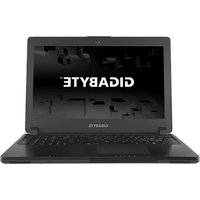
P34W V5 - Laptop GIGABYTE - Free user manual and instructions
Find the device manual for free P34W V5 GIGABYTE in PDF.


Pick your language and provide your email: we'll send you a specifically translated version.
| Brand | Gigabyte |
| Model | P34W V5 |
| Product Type | Gaming Notebook |
| Display Diagonal | 14 inches |
| Display Resolution | Full HD (1920 x 1080) |
| Display Panel | IPS anti-glare |
| Processor | Intel Core i7-6700HQ (quad-core, 2.6-3.5 GHz) |
| Graphics Card | NVIDIA GeForce GTX 970M (6 GB GDDR5) |
| Memory | 16 GB DDR4 (up to 32 GB) |
| Storage | 128 GB M.2 SSD + 1 TB HDD |
| Operating System | Windows 10 Home |
| Keyboard | Backlit island-style keyboard |
| Connectivity | Wi-Fi 802.11ac, Bluetooth 4.1 |
| Ports | 3 x USB 3.0, HDMI, mini DisplayPort, RJ-45, SD card reader |
| Battery | 4-cell 48 Wh lithium-ion |
| Power Adapter | 150 W |
| Dimensions | 340 x 240 x 23 mm |
| Weight | 1.7 kg |
| Audio | Stereo speakers with Dolby Digital Plus |
| Webcam | HD webcam |
| Cooling System | Dual-fan cooling |
| Cleaning | Wipe with a soft dry cloth - avoid liquids and solvents |
| Maintenance | Keep air vents clear and clean dust regularly |
| Safety | Do not block ventilation or use on soft surfaces |
| Repairability | RAM and storage are user-upgradeable; other repairs by authorized service |
Frequently Asked Questions - P34W V5 GIGABYTE
How do I clean my Gigabyte P34W V5 laptop safely?
Use a soft dry cloth to wipe the screen and body. Do not apply liquids directly - dampen the cloth slightly if needed. Avoid solvents or abrasive cleaners.
Can I upgrade the RAM on the P34W V5?
Yes, the P34W V5 has two SODIMM slots supporting DDR4 memory. It comes with 16 GB but can be expanded up to 32 GB.
How can I replace the battery?
The battery is internal but replaceable. Remove the bottom cover, disconnect the battery connector, and swap in a compatible 4-cell 48 Wh unit. If you are unsure, contact a technician.
What is the battery life of the P34W V5?
Battery life varies with usage. For moderate tasks, expect around 4-5 hours. Gaming will reduce it significantly, and heavy loads may require plugging in.
Why is my laptop overheating and how do I fix it?
Overheating is often caused by dust in the cooling fans or blocked vents. Clean the vents with compressed air, ensure the laptop is on a hard surface, and consider using a cooling pad.
How do I reset my Gigabyte P34W V5 to factory settings?
Go to Settings > Update & Security > Recovery and select Reset this PC. Choose 'Remove everything' to restore to factory state. Backup important files first.
Can I play modern games with the GTX 970M?
The GTX 970M handles many modern games at medium to high settings in Full HD. For very demanding titles, lower settings or resolution for smooth gameplay.
How do I connect an external monitor?
Use the built-in HDMI or mini DisplayPort to connect a monitor. Extend or duplicate the display via Windows display settings. Use a compatible adapter if needed.
How do I update the graphics driver?
Download the latest driver from the NVIDIA website or use Gigabyte's support page. Uninstall the old driver and then install the new one for best stability.
Where can I find spare parts for the P34W V5?
Authorized Gigabyte service centers and online retailers sell genuine parts like keyboards, fans, and screens. Check your regional Gigabyte website for suppliers.
User questions about P34W V5 GIGABYTE
0 question about this device. Answer the ones you know or ask your own.
Ask a new question about this device
No questions yet. Be the first to ask one.
Download the instructions for your Laptop in PDF format for free! Find your manual P34W V5 - GIGABYTE and take your electronic device back in hand. On this page are published all the documents necessary for the use of your device. P34W V5 by GIGABYTE.
USER MANUAL P34W V5 GIGABYTE



Manual assistant
Powered by Anthropic
Waiting for your message
Product information
Brand : GIGABYTE
Model : P34W V5
Category : Laptop