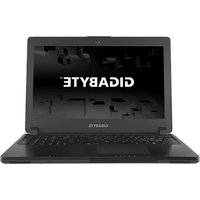
T1125N - Laptop GIGABYTE - Free user manual and instructions
Find the device manual for free T1125N GIGABYTE in PDF.


Pick your language and provide your email: we'll send you a specifically translated version.
| Product Type | Laptop |
| Brand | Gigabyte |
| Model | T1125N |
| Processor Type | Intel Atom N450 |
| Processor Speed | 1.66 GHz |
| Memory (RAM) | 1 GB DDR2 |
| Storage | 160 GB SATA HDD |
| Display Size | 11.6 inches |
| Display Resolution | 1366 x 768 |
| Graphics | Intel GMA 3150 |
| Operating System | Windows 7 Starter |
| Wireless Connectivity | WiFi 802.11b/g/n, Bluetooth 2.1 |
| Ports | USB 2.0 x3, VGA, Ethernet, Headphone/Mic |
| Battery | 3-cell Li-Ion, 2200 mAh |
| Power Supply | AC Adapter 100-240V, 40W |
| Dimensions (W x D x H) | 285 x 195 x 28 mm |
| Weight | 1.3 kg |
| Webcam | 0.3 MP |
| Card Reader | SD/MMC |
| Warranty | 1 year |
Frequently Asked Questions - T1125N GIGABYTE
How do I clean my Gigabyte T1125N laptop?
Turn off and unplug the laptop. Use a soft, lint-free cloth slightly dampened with water or isopropyl alcohol to gently wipe the exterior. Do not spray directly. Use compressed air to clean the keyboard and vents.
Can I upgrade the RAM on the T1125N?
Yes, the T1125N has one SO-DIMM slot. It supports up to 2 GB DDR2 667 MHz RAM. Remove the bottom cover to access the slot.
How do I enter the BIOS on my Gigabyte laptop?
Press the F2 key repeatedly during startup before the Windows logo appears. You can change boot order, enable/disable devices, and adjust other settings.
My laptop battery is not charging. What should I do?
First, check the power adapter connection and try a different outlet. If still not charging, the battery may need recalibration or replacement. Calibration: charge to 100%, then fully drain until shutdown, then recharge to 100%.
How do I perform a factory reset?
Restart the laptop and press F9 during boot to enter the recovery partition. Follow on-screen instructions to restore to factory settings. This will erase all data, so back up important files first.
Is the Gigabyte T1125N compatible with Windows 10?
Officially, it supports Windows 7. However, Windows 10 may run with basic functionality but drivers might be limited. Intel GMA 3150 and Atom processor may not provide full support.
How do I connect to Wi-Fi?
Ensure the wireless switch (if any) is on. Click the network icon in the taskbar, select your Wi-Fi network, enter the password, and click Connect. For troubleshooting, update the WiFi driver from Gigabyte's support site.
What are the optimal display settings?
Right-click on desktop, select Screen Resolution. Set resolution to 1366 x 768 (recommended). For better battery life, reduce brightness. Adjust text size if needed.
My laptop overheats and shuts down. How can I fix it?
Overheating is often due to dust clogging vents. Clean the vents with compressed air. Ensure the laptop is on a hard surface. If issue persists, the thermal paste may need replacement or the fan may be failing.
Where can I find replacement parts for the T1125N?
Check Gigabyte's official website for spare parts or contact authorized service centers. Common parts like batteries, chargers, and keyboards are available on third-party sites like Amazon or eBay. Always verify compatibility.
User questions about T1125N GIGABYTE
0 question about this device. Answer the ones you know or ask your own.
Ask a new question about this device
No questions yet. Be the first to ask one.
Download the instructions for your Laptop in PDF format for free! Find your manual T1125N - GIGABYTE and take your electronic device back in hand. On this page are published all the documents necessary for the use of your device. T1125N by GIGABYTE.
USER MANUAL T1125N GIGABYTE



Manual assistant
Powered by Anthropic
Waiting for your message
Product information
Brand : GIGABYTE
Model : T1125N
Category : Laptop