OPTOMA X304M - Projector

X304M - Projector OPTOMA - Free user manual and instructions

Find the device manual for free X304M OPTOMA in PDF.

📄 2 pages English EN Download 💬 AI Question 10 questions ⚙️ Specs
Notice OPTOMA X304M - page 1
Pick your language and provide your email: we'll send you a specifically translated version.
Product type DLP Projector
Brand OPTOMA
Model X304M
Native resolution XGA (1024 x 768)
Display technology DLP® Texas Instruments
Computer compatibility PC, Apple Macintosh, VESA standards (UXGA, SXGA+, SXGA, WXGA, WUXGA, XGA, SVGA, VGA)
Video compatibility NTSC, PAL, SECAM, SDTV, EDTV, HDTV (720p, 1080i, 1080p)
Keystone correction Vertical digital, ±30°
Built-in speaker 1 Watt
Advanced features AV Mute, Eco Mode, 3D Support (DLP Link / IR)
Remote control IR with laser pointer (Class II)
Optical adjustments Manual zoom and focus
Security Kensington lock, user password, clock security
Power supply Mains (AC)
Connectivity VGA, HDMI, audio input/output, USB (service), composite video
Included accessories Remote control with batteries, power cord, VGA cable, carrying case, user manual
Mounting Desktop, ceiling (front/rear)
OSD languages Multilingual
Cleaning Soft cloth for casing, optical cleaner for lens
Lamp replacement Procedure described in the manual, hour counter must be reset

Frequently Asked Questions - X304M OPTOMA

How to turn on the projector?
Connect the power cord, turn on the peripheral devices, then press the Power button on the projector or remote control. The power indicator must be solid green before powering on.
How to adjust keystone?
Use the Keystone + and Keystone - buttons on the control panel or remote control to correct vertical image distortion caused by projector tilt.
What to do if the image is blurry?
Remove the lens cap, adjust the Focus ring on the lens and ensure the projector is at the appropriate distance from the screen. Avoid excessive keystone correction.
How to replace the lamp?
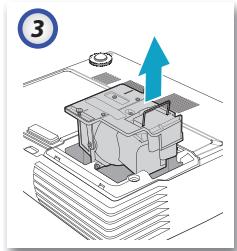
Turn off and unplug the projector at least one hour before. Open the lamp compartment cover, remove the screws and lamp module. Insert a new certified lamp, then reset the hour counter in the Options | Lamp Settings menu.
How to clean the lens?
Use a specialized optical cleaner applied to a soft cloth, then gently wipe the lens in circular motions. Never apply liquid directly to the lens.
The remote control is not working, what to do?
Check the angle (max ±15°) and distance (max 7 m) from the projector, remove obstacles, replace the batteries (AAA) respecting polarity, or point directly at the front IR receiver.
How to connect a computer?
Use a VGA or HDMI cable to connect the computer to the projector. Turn on the projector, then select the corresponding source. On the computer, press the key combination Fn + [display toggle key] (e.g., F4, F7, F8 depending on brand) to duplicate the display.
How to enable 3D mode?
In the OSD menu, go to Display | 3D and select On. Choose the 3D mode (DLP Link or IR) and format (Auto, SBS, Top-bottom, Over/Under) according to your content. Wear compatible 3D glasses.
How to lock the projector with a password?
In the Settings | Security menu, set Security Settings to On. Enter a password (5 digits by default) using the numeric keypad on the remote control. Once enabled, the password will be requested at every power-on.
Where to find the serial number?
The serial number is usually located on a label at the bottom of the projector. It can also be displayed in the OSD menu under Options | Information (if available).

User questions about X304M OPTOMA

0 question about this device. Answer the ones you know or ask your own.

Ask a new question about this device

The email remains private: it is only used to notify you if someone responds to your question.

No questions yet. Be the first to ask one.

Download the instructions for your Projector in PDF format for free! Find your manual X304M - OPTOMA and take your electronic device back in hand. On this page are published all the documents necessary for the use of your device. X304M by OPTOMA.

USER MANUAL X304M OPTOMA

natural_image Line drawing of a projector with a small inset showing lens and ear (no text or symbols)
natural_image Line drawing of a remote control with two batteries (no text or symbols)
natural_image Line drawing of a closed suitcase with open lid and side buttons (no text or symbols)

Mallette de transport

Diagram showing connections between a desktop computer, laptop, and audio equipment with labeled components

Technical diagram showing a mechanical assembly with labeled components A and B, likely illustrating a machining or assembly process.

OPTOMA X304M - 3

natural_image Isometric view of a mechanical component with an upward arrow indicating motion (no text or symbols present)
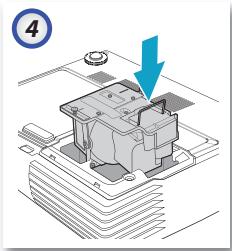
OPTOMA X304M - 4

natural_image Illustration of a mechanical component with a blue arrow pointing to a section, no text or symbols present.

42 Caxton Way, The Watford Business Park

Watford, Hertfordshire, WD18 8QZ, UK

E-mail : info@osscreen.com

www.os-worldwide.com

Taiwan

12F., No.215, Sec. 3, Beixin Rd., Xindian Dist.,

New Taipei City 231, Taiwan (R.O.C.)

Tél : +886 2 8911 8600

Télécopie :+886 2 8911 6550

www.optoma.com.tw

asia.optoma.com

Service : services@optoma.com.tw

Hong Kong

Unit A, 27/F Dragon Centre, 79 Wing Hong Street,

Cheung Sha Wan, Kowloon, Hong Kong

Tél : +852-2396-8968

5F, No. 1205, Kaixuan Rd., Changning District

Shanghai, 200052, China

Tél : +86-21-62947376

Table of contents Click a title to access it
Manual assistant
Powered by Anthropic
Waiting for your message
Product information

Brand : OPTOMA

Model : X304M

Category : Projector