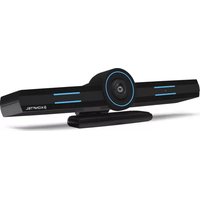
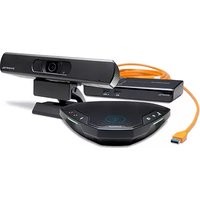
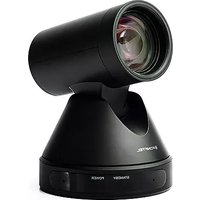
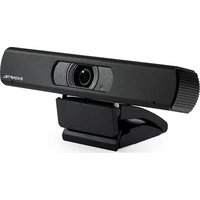
C2070 Attach - Video Conferencing System KONFTEL - Free user manual and instructions
Find the device manual for free C2070 Attach KONFTEL in PDF.


Pick your language and provide your email: we'll send you a specifically translated version.
| Product Type | Video Conferencing System |
| Brand | Konftel |
| Model | C2070 Attach |
| Camera Resolution | 4K Ultra HD |
| Field of View | 120° diagonal |
| Microphone Type | Omnidirectional MEMS array |
| Speaker Output | 5W RMS |
| Connectivity | USB-C, Bluetooth, Wi-Fi |
| Power Supply | USB-C PD (Power Delivery) |
| Dimensions (WxDxH) | 200 x 100 x 80 mm |
| Weight | 950 g |
| Mounting Options | Desktop stand, wall mount, tripod |
| Compatibility | Zoom, Microsoft Teams, Webex, Google Meet |
| Maintenance | Clean with soft dry cloth; avoid liquids |
| Safety | Do not expose to moisture or extreme temperatures |
| Warranty | 2 years |
| Included Accessories | USB-C cable, remote control, wall mount kit |
Frequently Asked Questions - C2070 Attach KONFTEL
How do I connect the Konftel C2070 Attach to my computer?
Use the included USB-C cable to connect the device directly to your computer. For Bluetooth or Wi-Fi, go to your computer's settings and pair or connect to the network.
Is the Konftel C2070 Attach compatible with Zoom?
Yes, it works with Zoom, as well as Microsoft Teams, Webex, and Google Meet. It is a plug-and-play device with no additional drivers required.
How do I update the firmware on the C2070 Attach?
Download the latest firmware from the Konftel support website. Connect the device via USB-C, then run the updater tool. Follow the on-screen instructions.
Can I mount the C2070 Attach on a wall?
Yes, it comes with a wall mount kit. Alternatively, it can be placed on a desk using the included stand or attached to a tripod.
What is the recommended distance for optimal audio pickup?
The omnidirectional microphone array captures audio clearly up to 3 meters (10 feet) from the device. For best results, position it centrally in the room.
How do I pair the remote control?
Insert the provided battery into the remote. It should pair automatically via IR. If not, point the remote at the device and press the 'Connect' button on the bottom of the device.
What should I do if the camera is not detected?
Ensure the USB-C cable is securely connected. Try a different USB port. Restart your computer. If still not detected, check for driver updates or contact Konftel support.
Can I use the C2070 Attach without an internet connection?
No, it requires an internet connection for video conferencing. However, it can function as a USB speakerphone for audio calls without internet if connected to a phone or computer.
How do I clean the device?
Use a soft, dry cloth to wipe the surface. Do not use liquids or abrasive cleaners. Avoid cleaning the camera lens with rough materials.
What are the power requirements?
The device powers via USB-C Power Delivery (PD). It is recommended to use a 5V/3A adapter or connect to a USB-C port that supports PD.
User questions about C2070 Attach KONFTEL
0 question about this device. Answer the ones you know or ask your own.
Ask a new question about this device
No questions yet. Be the first to ask one.
Download the instructions for your Video Conferencing System in PDF format for free! Find your manual C2070 Attach - KONFTEL and take your electronic device back in hand. On this page are published all the documents necessary for the use of your device. C2070 Attach by KONFTEL.
USER MANUAL C2070 Attach KONFTEL
Manual assistant
Powered by Anthropic
Waiting for your message
Product information
Brand : KONFTEL
Model : C2070 Attach
Category : Video Conferencing System