
MA570 - Mp3 player Nextar - Free user manual and instructions
Find the device manual for free MA570 Nextar in PDF.



| Product Type | MP3 Player |
| Brand | Nextar |
| Model | MA570 |
| Storage Capacity | 1 GB (estimated) |
| Power Source | 1x AAA battery (not included) |
| Dimensions | Approximately 90 x 30 x 15 mm |
| Weight | Approximately 30 g (with battery) |
| Audio Formats Supported | MP3 |
| Playback Modes | Normal, Repeat, Shuffle |
| Connectivity | USB 2.0 for data transfer and charging |
| FM Radio | Not available (estimated) |
| Voice Recording | Available (estimated) |
| Display | LCD with backlight |
| Controls | Physical buttons for play/pause, volume, skip, menu |
| Compatibility | Windows 98/ME/2000/XP/Vista/7/8/10, Mac OS |
| Cleaning | Use a soft, dry cloth to clean the exterior. Do not use liquid cleaners. |
| Safety | Do not expose to moisture or extreme temperatures. Remove battery if not used for extended periods. |
| Spare Parts | Contact Nextar support for battery replacement. No other user-serviceable parts. |
Frequently Asked Questions - MA570 Nextar
User questions about MA570 Nextar
0 question about this device. Answer the ones you know or ask your own.
Ask a new question about this device
Download the instructions for your Mp3 player in PDF format for free! Find your manual MA570 - Nextar and take your electronic device back in hand. On this page are published all the documents necessary for the use of your device. MA570 by Nextar.
USER MANUAL MA570 Nextar
Instruction Manual
THANK YOU
Thank you for purchasing our Digital MP3 Player. This uniquely designed device combines an MP3 Player and removable Flash Memory drive all in one unit. You can move and store files between computers and enjoy your MP3 music collection anytime and anywhere.
1. FEATURE SUMMARY
Multiple Format Support
Supports MP3 and WMA (Windows Media Audio) files
Voice recorder
Voice recording for voice notes capability
19 Preset equalizer
Built-In equalizer can be set to 19 different preset and customized settings.
Multiple Playback Modes
Unique A-B repeat function allows users to specifically select playback
USB Connection
Quick connection to high-speed USB 2.0 port.
rechargeable Battery
Li-Ion rechargeable battery with up to 15 hour playback time
2. INTRODUCTION
Before using the unit please read this manual carefully to obtain the best possible performance from your player. Keep this manual for future reference
3. INSTALLATION INSTRUCTIONS
Installing driver for Windows 98. (driver is not required for Windows Me or above)
a. Connect the MP3 Player to the USB port of PC, "Find new hardware"
appears on the screen, click "Search latest driver for this device".
b. Insert the driver CD in to CD-ROM, and then click "Next". Select "Look in" to direct the installation directory to the "Drivers" files in driver CD, then click Yes. PC will install the Win 98 driver automatically.
4. USB MODE
We suggest the player to be charged for 12 hours for the initial use and 2 to 3 hours next time.
Connecting a PC as USB
Before operation, plug one end of the USB cable into your PC and the other end into the MP3 player.


downloading MP3 music
a. Writing refers to copying files from the computer and pasting them into the device.
b. Reading refers copying files from the device and pasting them into the computer.
Writing

Reading

Attention: The MP3 player with memory under 128MB cannot be formatted to FAT-32 in the operation system, since the original software has the high speed flash feature.
Removing USB device
a. Double click the Safely Remove Hardware icon in taskbar:
b. From Safely Remove Hardware screen, highlight the "USB
Mass Storage Device "item, then click the "Stop" button. "Stop to Hardware Device" window appears on the screen as shown below.


notice: Never unplug the USB cable during data transmitting to avoid any failure to the player; after data transmitting, please do not disconnect the player from PC until "Device can now be safely removed" appears; while using USB function, all other buttons will be nonfunctional. Refer to the FAQ for any lost files, I/O
3. BASIC OPERATION
Buttons and functions
1 A-B/REP
2 Play/Pause/Stop
3 M button
4 REC
5 Vol+
6 Reset
7 Next
8 Vol
9 USB port
10 Last
11 Hold
12 EQ
13 LCD display
14 Microphone

- BASIC OPERATION
Turning on/off
a. From shutdown mode, press the ▶|| button to power the player on and display the "welcome" text, then enter into MP3 standby mode.
b. From MP3 standby, pause and play mode, keep pressing ▶||
button, the system will save the data and enter shutdown mode.
![graph TD A["Welcome"] --> B["Welcome !"] B --> C["Take me to your heart"] C --> D["MP3 002/012 128 00:01/04:12"] D --> E["ROCK"] F["MP3 Standby Mode"] --> C](/content/2026/07/1526786/images/f0dee52c1b3519618ea36398a36bd4faee1522326e9bb0d699894f19d74236bf.jpg)
Power Off

3. BASIC OPERATION
Menu function
From standby, pause or play mode, keep pressing M button to enter main setting mode.
Press the ▶▶ or ◀◀ button to select: Music, Voice, FM Radio, Songbydir, Delete, Utility, Settings. Repress the M button to enter the appointed option.
4. HOW TO USE THE MP3 PLAYER
Play MP3 files
From standby, play or pause mode: keep pressing the M button to enter the main menu, press the ☐or ☐ button to select the music mode, repress the M button to enter.
a. .. From MP3 standby mode, you can press the ▶|| button to play MP3 music as well as pause and resume playing.
b. From MP3 standby or play mode, you can press the ▶▶ or ◀◀ button to select last or next ... music.
c. From play mode, you can press the ▶▶ or ◀◀ button to fast backward or forward this music.
d. From play mode, you can press V + or V- button to adjust volume.
e. From MP3 any mode, keep pressing ▶|| button. The player will save the data and enter shut ..... down mode.
f. Press the EQ button to change the sound effect quickly. Keep pressing the EQ button to change the play mode quickly.
g. A-B play mode Under the MP3 or voice play mode:
4. HOW TO USE THE MP3 PLAYER


Press the A-B button to select start point A. Press the A-B button to select end point B. MP3 will play between A-B.
Press the A-B button again to cancel the setting and resume playing MP3 or voice.

- VOICE MODE
Record Mode
From MP3 or voice standby mode, keep pressing the REC button to enter the record .....standby mode.
Press the ▶|| button to begin recording, repress to pause recording. Press the ▶|| button third time to resume recording.
Keep pressing the ▶|| button to stop and save recording in WAV format then enter into ...voice standby mode
Press the▶|| button to play the voice file, repress this button to pause, and repress a third time to resume.

Play Mode
From MP3 standby, play or pause mode: keep pressing the M button to enter the main menu, press the ▶▶ or ◀◀ button to select the Voice mode, repress the M button to enter.
5. VOICE MODE
From voice, or any mode, keep pressing ▶|| button the player will save data and enter ... shutdown mode.
Keep pressing the EQ button to change the play mode quickly.

note: The EQ selection will be unavailable when playing the voice files.
6. FM RADIO MODE
From play or pause mode: keep pressing the M button to enter the main menu, press the ▶▶ or ◀◀ button to select the FM radio mode, repress the M button to enter. The player will play under the FM default channel.
a. Keep pressing the EQ button to enter the auto scan function. It will save the station .... automatically after scanning the station. If tuning is still inadequate, you can keep press-ing the ▶|| button to enter the manual tuning mode. A hand icon appears on the screen. Then press the ▶▶ or ◀◀ button to adjust FM frequency by 0.1 MHz / each time.
6. FMRADIO MODE

b. Under the FM playing mode, press the ▶▶ button to auto scan to the next available station, press the ◀◀ button to auto scan the last available station.
c. Under the manual tuning mode: if there is no operation for 5s, it will play the last ...... FM station as default station.
d. Press the A-B button to skip to the last FM station. Press the REC button to skip to the next FM station.
reminder: At least 30 stations can be saved.
FM recording
Under the FM playing mode, keep pressing the REC button to enter the record stand by mode, press the ▶|| button to begin recording, press again to pause, keep pressing the
▶|| button to stop and save recording in WAV format then return to the FM
playing mode.
6. FM RADIO MODE

7. SONG DIRECTORY MODE
"Songbydir" function
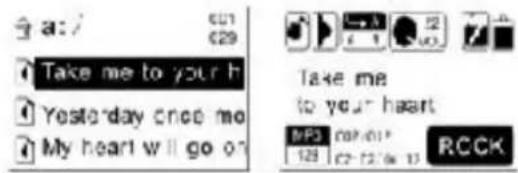
From play or pause mode: keep pressing the M button to enter the main menu, press the ▶▶ or ◀◀ button to select the Songbydir mode, repress the M button to enter. The music and folder under the root directory appears on the screen.
a. Select to play the music under root directory:
..... 1. You can press the V+ or V- button to find the root directory and press the M button to confirm playing all the songs under this root directory of a:/.


7. SONG DIRECTORY MODE
"Navigation" function
From play or pause mode: keep pressing the M button to enter the main menu, press the ▶▶ or ◀◀ button to select the Navigation mode, repress the M button to enter. The music and folder under the root directory appears on the screen.
a. Select to play the music under root directory:
..... 1. You can press the V+ or V- button to find the root directory and press the M button to confirm playing all the songs under this root directory of a:/.


.... 2. Or press the V+ or V- button to select the song which you want to listen. Press the M button to confirm playing the selected song firstly
7. SONG DIRECTORY MODE
b. Select to play the music in the folder and sub-folder:
- You can press the V+ or V- button to find the relative folder and press M to confirm ... playing all songs in this folder.

- You can press the V+ or V- button to find a certain folders and press M to enter. .... Press the ▶▶ button to enter it's sub-folder, repress the M button to confirm playing all songs in this sub-folder. If you select a certain song in this sub-folder to play, the . ...... songs in the folder of this selected sub-folder can not be played.

7. SONG DIRECTORY MODE
Delete function
From MP3 standby, play or pause mode: keep pressing the M button to enter the main
menu, press the ▶▶ or ◀◀ button to select the Delete mode, repress the M button to enter. It includes: delete one, delete all and exit. Select the exit to return to the upper setting.
![graph TD A["Particle"] --> B["Recycle"] B --> C["Waste"] style A fill:#f9f,stroke:#333 style C fill:#bbf,stroke:#333](/content/2026/07/1526786/images/1e6444b5a9575dcdb13fef47bd978420d711354eb18b89ba12dbe6dad452b8a6.jpg)

DELETE ONE: Under the Delete mode, press the ▶▶| or |◀◀ button to select "delete one", press the M button to enter the songs list, repress the □ or □ button to select the song you want to delete, repress the M button to confirm deletion.


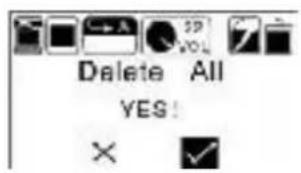
DELETE ALL: Under the Delete mode, press the ▶▶| or |◀◀ button to select "delete all", press the M button to enter the delete selection mode, repress the ▶▶| or |◀◀ but-ton to select YES or NO, If you select YES, repress the M button to confirm deleting all the files in this device. Select NO to exit.
7. SONG DIRECTORY MODE
DELETE ALL
Delete function


8. UTILITY FUNCTIONS
From play or pause mode: keep pressing the M button to enter the main menu, press the ▶▶| or |◀◀ button to select the Utility mode. It includes: pedometer, stopwatch and exit. Repress the M button to enter. Select the exit to return to the upper setting.
Pedometer
Under the Utility mode, press the ▶▶| or |◀◀ button to select the pedometer, press the M button to enter. The pedometer will record the steps one by one with the player is shaken once time. You can press
the EQ button to reset the data. Press the MENU button to exit.
8. UTILITY FUNCTIONS
Pedometer

How to listen to music and use Pedometer at the same time, and what are steps?
From the Music function consumer has to press M button, then press right button to get to Utility. Press M, then select Pedometer.
Pedometer will shut off automatically if there is no movement.
It depends on how you set up the Stop off timing and you can adjust the automatic shut off in the SETTINGS function under Stop Off.
Can the number of steps be saved/paused and then restarted?
No, it can't save the steps.
Stopwatch
Under the Utility mode, press the ▶▶| or |◀◀ button to select the stopwatch, press the M button to enter. You can press the A-B button to begin work and repress the A-
B button to pause. Press the EQ button to reset and press the MENU button to exit.

9. SETTINGS
From play or pause mode: keep pressing the M button to enter into main menu, press the ▶▶ or ◀◀ button to select the Settings mode, repress the M button to enter submenu. It includes Language, EQ, Play mode, FM band, Record type, Contrast, Timer off, Music resume, Reset, About, Exit. Press the M button to enter the appointed submenu.
Language
Under the settings mode, press the ▶▶| or |◀◀ button to select the languages, press the M button to enter, and repress the ▶▶| or |◀◀ button to select the language options. They are English, German, French, Spanish, Italian, Portuguese, Dutch, and Russian. Repress the M button to save. Select the exit to return to the upper setting.
EQ
Under the settings mode, press the ▶▶| or |◀◀ button to select the equalizer, press the M button to enter, and repress the ▶▶| or |◀◀ button to select the equalizer options. They are Dance, Full Bass & Treble, Full Treble, Large Hall, Live, Party, Reggae, Ska, Soft Music, Soft Rock, Techno. Press the M button to save and
select exit to return to the upper setting.
9. SETTINGS
Play mode
Under the settings mode, press the ▶▶| or |◀◀ button to select the play mode, press the M button to enter, and repress the ▶▶| or |◀◀ button to select the play mode options. They are Normal, Repeat one, repeat all, Random, Random & Rep. Press the M button to save.
Reminder: The Random and Random & Repeat cannot be used when you play the voice files.
FM band
Press the ▶▶ or ◀◀ button to select the Europe Band and Japan Band. Press the M button to save and select exit to return to the upper setting.
Record type
Press the ▶▶ or ◀◀ button to select the bit rate of recording. The recording frequency includes: 7KHZ, 11KHZ, 16KHZ, 22KHZ, 32KHZ, 44KHZ, 48KHZ and
Exit. Press the MENU button to save and select exit to return to the upper setting.
9. SETTINGS
Contrast
Press the ▶▶ or ◀◀ button to adjust the brightness, after which you can press the MENU button to save.
Timer off (To choose Stop off and Sleep off functions)
Select from Stop off, Sleep off, exit. Press the M button to enter.
Stop off
When the player is not playing music, it will turn off automatically to save the power by certain time.
Under Timer Setting press>> or << button to select The time you want the unit to go off from 00 MIN to 30 MIN.
Sleep off
When you want your player to automatically Stop Playing after a certain amount of time, 00 up to 3 Hours you can adjust with this setting. Under the
Timer setting press the >> or << button to select the time you want it to automatically shut off 10 MIN, 15 MIN, 30 MIN, 60MIN, 90MIN, 2HR, 3HR.
9. SETTINGS
Backlight setting
Under the Timer setting, press the ( or ( button to select the backlight setting. Backlight setting includes: Always on, 10s off, 20s off, 30s off, 40s off, 50s off , 60s off and 2mins. Press the M button to save.
Exit return to the upper menu.
Music resume
Select YES to use this function. Select NO to exit.
Reset
Select YES return to the default setting. Select NO to exit.
About
You can check the total memory of the unit and available memory capacity.
Exit Return to the SETTINGS menu.
10. OTHER FUNCTIONS
Lock function
On any playback mode, Keep pressing the Hold button until there is a LOCK icon appears on the screen. It means the buttons are locked. You must keep pressing the Hold button again until an UNLOCK icon appears on the screen and then the buttons can be used available.
Locked: Unlocked:


Reset function
If the player can't be used normally, please use a small
plastic stick or dielectric to reset the player.

10. OTHER FUNCTIONS
Rechargeable Mode
Built in environmental protection chargeable battery in the player, Insert one end of the USB cable to the PC and the other end into the MP3 player; the MENU button indicator light will always on while charging. The play time is more than 10 hours after charge.


plug into ports
lyric sync
This player supports lyric sync function.
Notice: The lyric name shall be the same as music with extension of *. LRC and saved in the same directory, and only the lyrics with time indication can be displayed properly.
11. SPECIFICATIONS
Technical specifications
Bit rate: 32\~320Kbps (Mp3) 32\~192Kbps (WMA)
SNR: >90db
Dynamic range: >80(1KHZ)
Distortion: <0.05% (REFERENCE LEVEL: 0dB (MP3) 1 mW
4mW -52dB/-62dB (VOICE, REFERENCE FREQUENCY:1KHZ)
USB interface: USB2.0 full speed
Memory: 128MB/256MB/512MB/1GB
Size: 80.3*38.8*28mm
Working condition: Humidity <85%, -10\~40
Condition of storage: Humidity<90%, normal temperature
Output: 5mW*2
Battery life: >10h, (display on)
Weight: <45g
Language: English, German, French, Spanish,
Italian Portuguese, Dutch, Russian Lyric sync ID3 information display.
12. TROUBLESHOOTING
| Symptoms | Causes | Solutions |
| No display or display LOW BATTERY after pressing the ▶|| button. | The battery is out of power. | Please charge. |
| No sound during playing. | 1. Volume is too low, or without music in the player, or battery low. 2. The MP3 or WMA file is broken. | 1. Adjust the volume, or charge during downloading. 2. Download the documents again. Be sure to “Safely Remove Hardware”. |
| Unable to write or read files after connection or MP3 player can not be recognized by PC. | The USB is not connected to PC properly. | Connect to the USB interface again and verify PC identified the removable disk. |
12. TROUBLESHOOTING
| Symptoms | Causes | Solutions |
| The individually compressed MP3 files can not be played. | The MP3 files currently are compressed with different compress rate and format, while this player supports the standard compressed MP3 only, please do not adopts layer one or two compression. | Download the standard MP3 files again. |
| No response after pressing button. | HOLD switch is on, buttons are locked. | Keep pressing the HOLD button to unlock |
| Can not open the disk or prompt I/O error after connecting PC. | Caused by some improper operation. Firstly, | connect USB cable and click relative upgrad-ing process.Secondly, keep pressing the PLAY button and release until the upgrading dialog box appears after scanning, then press START to format and upgrade will solve the problem. |
13. USING DRM
drM function
Warning : Download operation of WMA music with DRM protection On Window 98SE/ Window ME / Windows 2K/ Windows XP, music with DRM should be transferred by Windows Media Player 9.0 and 10.0 version (10.0 version for Windows XPonly) to player.
Other download operation will probably cause player to not read the music with DRM file.
Operation introduction
On Window 98SE/ Window ME / Windows 2K/ Windows XP, user should upgrade Windows Media Player to 9.0 or 10.0 version (10.0 version only for Windows XP).
System may request to download the license in case user does not download the music with DRM properly from the website.
In this case, user needs to download the license from music publisher as instructed of Microsoft® website, shown in the operating window.
13. USING DRM
On Windows Media Player 10.0 version (Windows XP only)
1) Connect player to PC2) Choose the desired WMA music with DRM.3) Click Right button of mouse and choose "Add to Sync list"


13. USING DRM
4) On the open windows, choose "Sync" option.5) On "Sync" window, choose the desired WMA music with DRM as step 2) And choose "Removable Disk" 6) Click "start Sync" to transfer the WMA music with DRM to player.


14. PRECAUTIONS
1). Never use the player while driving or operating a vehicle to avoid traffic accidents, which may also be against the law in some districts. Take care while walking, especially crossing the street. 2). Please also do not listen in extremely high volume to avoid hearing loss. Wherever with potential risks, please stop using the player for safety purpose.
3). Please insert the earphone prior to turn on the player, which can not only avoid damaging the earphone but keep the player in good condition.
4). Keep the player clean and never store the player close to a heat source or dirty, humid or rainy places and avoid direct sunlight.
5). If the surface is dirty, please clean with soft cloth, wet with clean water or soft abluent and never clean the case with alcohol or diluents. 6). Never use the player in extremely dry environment to avoid static. 7). Never disconnect the player from PC abruptly during downloading, uploading and formatting to avoid program failure.
Warning: When the player is used as removable disk, please follow the proper file download and upload procedures. Our company assumes no responsibility for any file lost due to misuse.
No part of this manual may be copied, republished, reproduced, transmitted or distributed in any way without prior written consent of Nextar, Inc. Any unauthorized distribution of this manual is expressly forbidden.
Nextar may find it necessary to modify, amend or otherwise change or update this manual. We reserve the right to do this at any time, without any prior notice. All specifications and features are subject to change without notice. All screen shots shown are simulated and may not represent the actual screen on production units sold to consumers.
For instruction manuals, updated drivers or other information, be sure to visit our website at:
www.Ncxtar.com
Or write us at:
Nextar
1661 Fairplex Dr.
La Verne, CA USA 91750
Copyright © 2006



- INSTRUCTION MANUAL
- THANK YOU
- FEATURE SUMMARY
- MULTIPLE FORMAT SUPPORT
- VOICE RECORDER
- PRESET EQUALIZER
- MULTIPLE PLAYBACK MODES
- USB CONNECTION
- RECHARGEABLE BATTERY
- INTRODUCTION
- INSTALLATION INSTRUCTIONS
- INSTALLING DRIVER FOR WINDOWS 98. (DRIVER IS NOT REQUIRED FOR WINDOWS ME OR ABOVE)
- USB MODE
- CONNECTING A PC AS USB
- DOWNLOADING MP3 MUSIC
- REMOVING USB DEVICE
- BASIC OPERATION
- BUTTONS AND FUNCTIONS
- TURNING ON/OFF
- MENU FUNCTION
- HOW TO USE THE MP3 PLAYER
- PLAY MP3 FILES
- RECORD MODE
- PLAY MODE
- VOICE MODE
- FM RADIO MODE
- FMRADIO MODE
- FM RECORDING
- SONG DIRECTORY MODE
- SONGBYDIR" FUNCTION
- NAVIGATION" FUNCTION
- DELETE FUNCTION
- UTILITY FUNCTIONS
- PEDOMETER
- STOPWATCH
- SETTINGS
- LANGUAGE
- EQ
- FM BAND
- RECORD TYPE
- CONTRAST
- TIMER OFF (TO CHOOSE STOP OFF AND SLEEP OFF FUNCTIONS)
- STOP OFF
- SLEEP OFF
- BACKLIGHT SETTING
- MUSIC RESUME
- RESET
- ABOUT
- OTHER FUNCTIONS
- LOCK FUNCTION
- RECHARGEABLE MODE
- THIS PLAYER SUPPORTS LYRIC SYNC FUNCTION
- SPECIFICATIONS
- TROUBLESHOOTING
- USING DRM
- DRM FUNCTION
- OPERATION INTRODUCTION
- PRECAUTIONS
Brand : Nextar
Model : MA570
Category : Mp3 player