
PRO 9465 DUO - Wireless Headphones JABRA - Free user manual and instructions
Find the device manual for free PRO 9465 DUO JABRA in PDF.


| Product Type | DECT Wireless Headset |
| Brand | Jabra |
| Model | PRO 9465 DUO |
| Wireless Technology | DECT 6.0 (CAT-iq) and Bluetooth® 2.1 Class 2 |
| DECT Range | Up to 150 m from base |
| Bluetooth Range | Up to 10 m (Class 2) |
| Talk Time | Up to 10 h (narrowband mode), 8 h (wideband mode) |
| Standby Time | At least 100 h |
| Charging Time | 2 hours |
| Microphone Type | Noise-canceling microphone (single) |
| Noise Reduction | DSP, echo cancellation, tonal control |
| Hearing Protection | SafeTone™ with PeakStop™ and IntelliTone™ (4 levels) |
| Touch Screen | 2.4" TFT color, Q-VGA resolution |
| Base Connections | RJ-11 (handset/phone), RJ-45 (AUX), Mini USB, power adapter socket, occupancy indicator output |
| Bluetooth® | Profiles HSP 1.1, HFP 1.5, DIP 1.3; 1 paired device |
| Included Accessories | Headset, base, charging cradle, power adapter, phone cable, USB cable, software CD, quick start guide, microphone foam |
| Base Dimensions | 160 x 94 x 82 mm |
| Operating Temperature | -10°C to +55°C (charging between 0°C and +40°C) |
| Care and Cleaning | Clean the screen with a computer screen cleaner; the headset and accessories with a dry cloth; the leather ear cushions with a damp cloth |
| Spare Parts and Repairability | Optional accessories: GN1000 RHL, EHS adapter, headband, ear hook, ear cushions, microphone foam. Replaceable battery (contact your dealer) |
| Certifications | CE, FCC, Industry Canada |
Frequently Asked Questions - PRO 9465 DUO JABRA
User questions about PRO 9465 DUO JABRA
0 question about this device. Answer the ones you know or ask your own.
Ask a new question about this device
Download the instructions for your Wireless Headphones in PDF format for free! Find your manual PRO 9465 DUO - JABRA and take your electronic device back in hand. On this page are published all the documents necessary for the use of your device. PRO 9465 DUO by JABRA.
USER MANUAL PRO 9465 DUO JABRA
- INTRODUCTION 6
- IMPORTANT SAFETY INFORMATION 7
2.1 READ THE SAFETY BOOKLET 7
2.2 PROTECTING YOUR HEARING WITH SAFETONE™
2.3 CARE AND MAINTENANCE 8
2.4 OTHER SPECIFICATIONS 8
- PRODUCT OVERVIEW 9
3.1 PACKAGE CONTENTS 9
3.2 OPTIONAL ACCESSORIES 10
3.3 HEADSET DIAGRAMS 11
3.4 BASE DIAGRAM 13
- SYSTEM SETUP AND CONNECTIONS 14
4.1 SETUP OVERVIEW AND BACKGROUND 14
4.2 THE QUICK-START SETUP WIZARD 15
4.3 PREPARING THE BASE AND AND ASSEMBLING THE HEADSET 15
4.4 CONNECTING THE BASE TO YOUR DESK PHONE 17
4.5 CONFIGURING THE Jabra PRO BASE FOR YOUR DESK PHONE 19
4.6 USING A HANDSET LIFTER OR ELECTRONIC HOOKSWITCH 23
4.7 CONNECTING THE BASE TO YOUR COMPUTER 26
4.8 CONFIGURING THE BASE FOR YOUR SOFTPHONE 26
4.9 CONNECTING Jabra PRO 9465 DUO OR Jabra PRO 9470 TO A MOBILE PHONE
4.10 USING A REMOTE BUSY LIGHT INDICATOR 27
- INSTALLING AND RUNNING THE Jabra PC SUITE 28
5.1 Jabra PC SUITE FEATURES 28
5.2 INSTALLING THE Jabra PC SUITE 28
5.3 Jabra PC SUITE DOCUMENTATION 28
5.4 FIRMWARE UPDATES 28
5.5 CENTRAL ADMINISTRATION AND MASS DEPLOYMENT 29
6. DAILY USE — CALLING, ANSWERING AND HANGING UP 30
6.1 HEADSET CONTROLS AND INDICATORS 30
6.2 THE TARGET PHONE CONCEPT 30
6.3 HOW TO MAKE A CALL 31
6.4 HOW TO ANSWER A CALL 33
6.5 HANGING UP 34
6.6 CONTROLLING THE SPEAKER VOLUME AND MICROPHONE 35
6.7 SWITCHING BETWEEN YOUR PHONE AND HEADSET 35
6.8 LAST NUMBER REDIAL 36
6.9 MANAGING CALL COLLISIONS AND CALL WAITING 36
6.10 LISTENING TO MUSIC 37
7. THE Jabra PRO HEADSET 38
7.1 HOW TO WEAR THE HEADSET 38
7.2 ATTACHING OR DETACHING A WEARING STYLE 39
7.3 HEADSET CONTROLS AND SIGNALS 41
7.4 BATTERY INDICATORS, RECHARGE AND REPLACEMENT 45
7.5 STAYING WITHIN RANGE 47
7.6 NOISE BLACKOUT™ MICROPHONE (Jabra PRO 9470) 47
7.7 NOISE-CANCELLING MICROPHONE (Jabra PRO 9460,Jabra PRO 9460 DUO AND Jabra PRO 9465 DUO) 47
8. THE Jabra PRO TOUCHSCREEN BASE 48
8.1 BASE CONNECTIONS AND SETUP 48
8.2 USING THE TOUCHSCREEN 48
8.3 STANDARD OPERATION 49
8.4 PAIRING AND CONNECTING THE BASE AND HEADSET 50
8.5 CALL OPTIONS MENU 50
8.6PHONE MENU 51
8.7 MSH PHONE ACTIVE CALL SCREEN 52
8.8 MANAGING CALL COLLISION 52
8.9 MANAGINGCALLWAITING 53
8.10 SETTINGS MENU 55
8.11 ADVANCED SETTINGS MENU 56
8.12 BASE AUDIO INDICATORS 57
8.13 NARROWBAND VS.WIDEBAND AUDIO 57
8.14 CONFERENCE CALLING 57
8.15 HEADSET DOCKING-OPERATION 58
8.16 THEFT PROTECTION 58
8.17 DEALING WITH DENSITY ISSUES 58
8.18 WEB CONFERENCING 59
9. USING Jabra PRO 9465 DUO OR Jabra PRO 9470 WITH A MOBILE PHONE 61
9.1 Jabra PRO BLUETOOTH® SUPPORT 61
9.2 PAIRING AND CONNECTING WITH OTHER BLUETOOTH® DEVICES. 61
9.3 FORCING RECONNECTION/DISCONNECTION VIA THE TOUCHSCREEN... 62
10. RECORDING YOUR CALLS 64
10.1 ENABLING THE RECORDING FEATURE 64
10.2 USING WINDOWS SOUND REORDER TO RECORD A CONVERSATION... 65
11. CALL MERGING AND SWITCHING 66
11.1 OVERVIEW - WHAT IS POSSIBLE? 66
11.2 CALL MERGING 66
11.3CALL SWITCHING. 68
11.4 AUDIO ON-HOLD 68
12. FAQs AND TROUBLESHOOTING 70
13. GETTING ASSISTANCE 73
13.1 EUROPE 73
13.2 MIDDLE EAST/AFRICA 73
13.3 USA AND CANADA 73
13.4 ASIA/PACIFIC 73
14. TECHNICAL SPECIFICATIONS 74
14.1 ALL Jabra PRO HEADSETS 74
14.2 Jabra PRO MIDI HEADSET 74
14.3 Jabra PRO FLEX HEADSET 74
14.4 Jabra PRO 9460 DUO AND Jabra PRO 9465 DUO HEADSETS 75
14.5 HEADSET HEARING PROTECTION 75
14.6 HEADSET BATTERY 75
14.7 MATERIALS AND ALLERGIES 75
14.8 TOUCHSCREEN BASE 76
14.9 Jabra PRO 9465 DUO AND Jabra PRO 9470 BASE BLUETOOTH® SUPPORT......77
14.10 PRODUCT DISPOSAL 77
14.11 CERTIFICATIONS AND SAFETY APPROVALS 77
15. GLOSSARY 78
1. INTRODUCTION
Thank you for selecting a Jabra PRO™ headset. We are sure that you will enjoy its wide range of features and find it comfortable to wear and easy to use.
Jabra PRO headsets are available in a wide range of configurations, including several different headset designs, wearing styles, connectivity options and control features. All of the models in the Jabra PRO family feature a DECT-based wireless headset and base station. They all share hands-free working efficiency, wireless mobility, and many customization and accessory options.
All Jabra PRO headsets feature a dual Noise Blackout™ or single noise-cancelling microphone, one or two speakers, easy-to-use controls and wireless communication. The headset is very lightweight and sits next to your ear, with the microphone extended towards your mouth by a short boom arm. Several wearing styles are available, including ear hook, headband, neckband and/or dual-mono; the options available to you will depend on which model you have purchased.
The Jabra PRO Touchscreen Base connects to your desk telephone and PC and manages the wireless link to your headset; it also recharges the headset battery while you are not using it. The touchscreen makes it easy to view information, connect to your various phones, configure the solution and more. The Jabra PRO 9465 Duo and Jabra PRO 9470 Bases also feature Bluetooth® wireless technology, so they can connect to your mobile phone, too.
This manual describes the Jabra PRO 9460, Jabra PRO 9460 Duo, Jabra PRO 9465 Duo and Jabra PRO 9470 headset solutions. Model differences, where they exist, are noted in this document.
Jabra PRO Headset Features
All Jabra PRO headsets described in the manual provide the following:
Range from base to headset up to 150m
- Wideband audio for extra audio quality (when also supported by the connected phone)
- Touch-panel volume and mute control
- Intuitive headset control via adaptive multifunction button for answer/end call, call-waiting control and other functions
Status LED and audio feedback
- Advanced hearing protection with SafeTone™ noise-exposure controls
The Jabra PRO 9460 headset also features the following:
- Jabra PRO Flex boom design
- Single noise-cancelling microphone
- Choice of ear-hoek or headband wearing style (neckband also available as an accessory)
The Jabra PRO 9460 Duo and Jabra PRO 9465 Duo headsets also feature the following:
Jabra PRO Flex boom design
- Single noise-cancelling microphone
- Headband wearing style with a speaker for each ear (dual mono, which means that the same signal comes out of both speakers)
The Jabra PRO 9470 headset also features the following:
- Jabra PRO Midi boom design
Dual Noise Blackout™ microphones - Choice of ear-hook, headband or neckband wearing style
Jabra PRO Touchscreen Base Features:
- 2.4" color touchscreen
- Touchscreen-guided set up of desk phone, mobile phone and PC connections
- Touchscreen control of calls and connections to all connected phones (including desk phone, mobile phone and/or soft phone)
- Desk phone support, with optional electronic-hookswitch support for selected phones (for remote desk phone operation using the headset)
Bluetooth® wireless technology support (Jabra PRO 9465 Duo and Jabra PRO 9470 only) links the base to your mobile phone. Supports both the standard headset Bluetooth® wireless technology headset profile and the more advanced hands-free profile to provide voice-activated dialing (depending on mobile phone model) - Advanced softphone support and control
- On-screen caller ID (mobile phones and soft phones only)
- Wideband audio for extra audio quality (when also supported by the connected phone)
- Headset recharge cradle
- Call-waiting control (for managing multiple calls to your softphone or mobile phone)
- Call-collision control (for managing multiple calls to different phones, such as desk and soft phones)
- Mass-deployment features enable IT managers to load identical settings onto any number of bases via the USB connection
2. IMPORTANT SAFETY INFORMATION
2.1 READ THE SAFETY BOOKLET
WARNING: Your headset includes a Warning & Declaration guide. Do not attempt to assemble or use your headset before you have thoroughly read and understood the Warning & Declaration booklet. If you did not receive the booklet, please contact your Jabra representative before continuing.
2.2 PROTECTING YOUR HEARING WITH SAFETONE™
WARNING: Because a headset is held firmly against your ear, sudden, loud sounds pose a potential hearing risk. Furthermore, the more you use your headset each day, the lower the maximum volume must be to protect against eventual hearing loss. Jabra PRO headsets provide effective measures that protect you against both of these types of dangers (see below).
SafeTone™ consists of two components — PeakStop™ and Intellitone™:
- PeakStop™ Acoustic-Shock Protection
Your Jabra PRO headset automatically suppresses sudden loud sounds (over 118dB(A)), thereby protecting your ears from acoustic shock. This system is called PeakStop™, which is only available from Jabra.
- Intellitone™ Noise-Exposure Protection
Jabra PRO headsets offer a choice of four protection levels (all of which also include the standard PeakStop™ protection described above). These features protect your hearing by preventing acoustic shocks and limiting the maximum noise exposure from the headset during your workday to 85dB(A). This system is called IntelliTone™, which is only available from Jabra.
The table below summarizes the protection levels available.
Table 1: Levels of IntelliTone TM hearing protection
| Protection level | Criteria for selecting |
| Level 0 | Basic protection against sound spikes [118 dB(A)]; auto volume disabled |
| Level 1* | Less than 4 hours on telephone/day |
| Level 2* | 4-8 hours on telephone/day |
| Level 3* | More than 8 hours on telephone/day |
| Level 4 (TT4) | Recommended Australian protection level (Telstra) |
It is possible to lock the IntelliToneTM setting.
For details about how to configure IntelliTone™ for your headset, please see one of the following:
- To set the IntelliTone™ level using the touchscreen, please see the section "Settings menu".
- To set the IntelliTone™ level using Jabra Control Center on your PC, please see the Jabra PC Suite online help.
- To set a password and lock or unlock the IntelliTone™ settings, use the Jabra Control Center on your PC; please see the Jabra PC Suite online help.
Important: Check your local laws or regulations to find out whether a specific protection level is mandated in your area. Note also that your headset settings do not affect the sound level of your desk phone handset, so you may be receiving less protection when using the handset.
- Compliant with Directive 2003/10/EC of the European Parliament and Council of 6 February 2003.
2.3 CARE AND MAINTENANCE
Protect your base and headset just as you would any other type of sensitive electronic equipment. If your Jabra devices require cleaning, then consider the following advice:
- If necessary, clean the touchscreen with a standard computer-screen cleaning solution, such as dry wipes, anti-static screen cleaner and/or prepackaged towelettes.
- The headset, headband neckband and ear hook can be wiped clean with a dry cloth if needed.
- The cords and base unit can be dry-dusted as required.
- The leatherette ear cushion(s) can be cleaned or replaced. When cleaning, remove them and wipe with a damp cloth.
- Avoid getting moisture or liquids into any button ports, receptors or other openings.
- Avoid exposing the product to rain.
2.4 OTHER SPECIFICATIONS
For complete technical specifications, see Chapter 13: Technical Specifications.
3. PRODUCT OVERVIEW
3.1 PACKAGE CONTENTS
1 Base
2 Headset cradle
3 Headset appropriate for your Jabra PRO model
4 Ear hook with earbud mounted (not included with Jabra PRO 9460 Duo or Jabra PRO 9465 Duo) and two alternative earbuds
5 Headband (not included with Jabra PRO 9460 Duo or Jabra PRO 9465 Duo)
6 Power adapter
7 Telephone cable
8 USB cable
9 Installation CD with Jabra PC Suite Software, user's guide and other tools
10 Warning & Declaration guide and quick-start guide
11 Neckband (included as standard for Jabra PRO 9470 only)
12 Setup Poster
13 Microphone foam
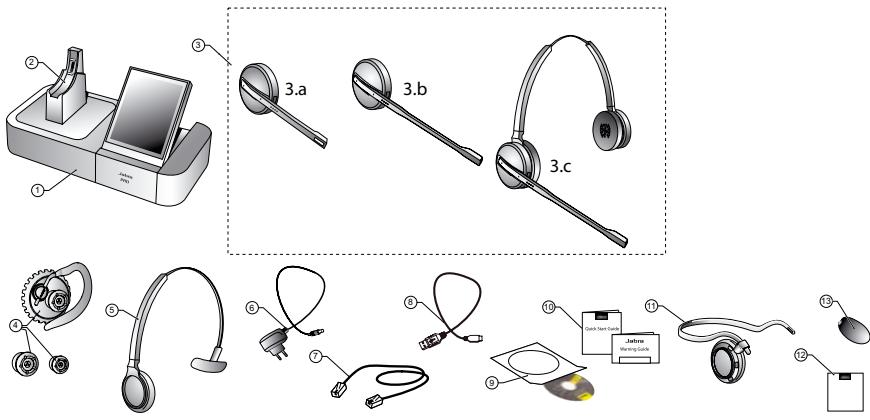
Figure 1: Components included with Jabra PRO models that feature a touchscreen base
Product variants contain:
Jabra PRO 9460
1 Base
2 Headset cradle
3b Headset
4 Ear hook
5 Headband
6 Power adapter
7 Telephone cable
8 USB cable
9 Installation CD with Jabra PC Suite Software
10 Warning & Declaration guide and quick-start guide
12 Setup Poster
13 Microphone foam
Jabra PRO 9465 Duo
1 Base
2 Headset cradle
3c Headset
6 Power adapter
7 Telephone cable
8 USB cable
9 Installation CD with Jabra PC Suite Software
10 Warning & Declaration guide and quick-start guide
12 Setup Poster
13 Microphone foam
Jabra PRO 9460 Duo
1 Base
2 Headset cradle
3c Headset
6 Power adapter
7 Telephone cable
8 USB cable
9 Installation CD with Jabra PC Suite Software
10 Warning & Declaration guide and quick-start guide
12 Setup Poster
13 Microphone foam
Jabra PRO 9470
1 Base
2 Headset cradle
3a Headset
4 Ear hook
5 Headband
6 Power adapter
7 Telephone cable
8 USB cable
9 Installation CD with Jabra PC Suite Software
10 Warning & Declaration guide and quick-start guide
11 Neckband
12 Setup Poster
3.2 OPTIONAL ACCESSORIES
The following accessories for Jabra PRO are available separately and are occasionally mentioned in the other chapters of this manual. You may have ordered one or more of these together with your headset.
1 Remote Handset lifter GN1000 RHL
2 Electronic-hookswitch adapter for your desk-phone model
3 Neckband (not compatible with Jabra PRO 9460 Duo or Jabra PRO 9465 Duo)
4 Replacement headband (not compatible with Jabra PRO 9460 Duo or Jabra PRO 9465 Duo)
5 Replacement ear hook (not compatible with Jabra PRO 9460 Duo or Jabra PRO 9465 Duo)
6 Replacement ear cushion
7 Microphone foam
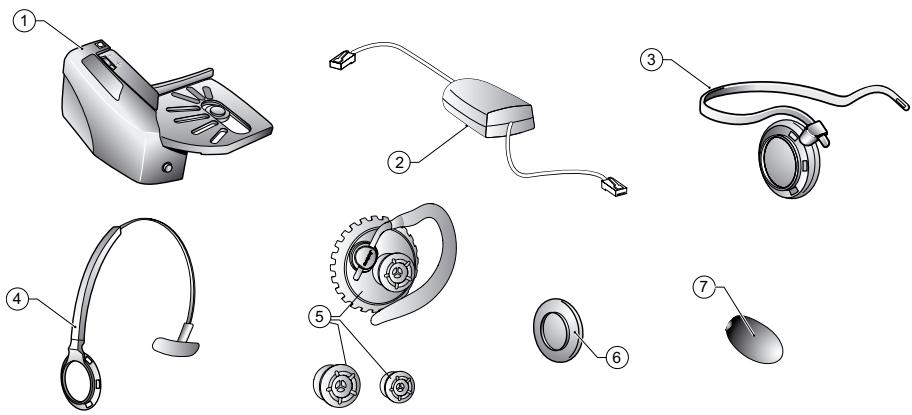
Figure 2: Jabra PRO accessories (available separately)
Accessory variants contain:
Jabra PRO 9460
1 01-0369 Remote Handset lifter GN1000 RHL
2 * Electronic-hookswitch adapter
3 14121-24 Neckband
4 14121-25 Replacement headband
5 14121-26 Replacement ear hook
6 14101-19 Replacement ear cushions
7 0436-86S Microphone foam (10x)
Jabra PRO 9465 Duo
1 01-0369 Remote Handset lifter GN1000 RHL
2 * Electronic-hookswitch adapter
6 14101-19 Replacement ear cushions
7 0436-865 Microphone foam (10x)
Jabra PRO 9460 Duo
1 01-0369 Remote Handset Lifter GN1000 RHL
2 * Electronic-hookswitch adapter
6 14101-19 Replacement ear cushions
7 0436-86S Microphone foam (10x)
Jabra PRO 9470
1 01-0369 Remote Handset lifter GN1000 RHL
2 * Electronic-hookswitch adapter
3 14121-24 Neckband
4 14121-25 Replacement headband
5 14121-26 Replacement ear hook
6 14101-19 Replacement ear cushions
3.3 HEADSET DIAGRAMS
Jabra PRO models are available with several headset options, each of which is illustrated below. The following key applies to all three headset illustrations:
1 Multifunction button (answer/end call, among other functions)
2 Touch panel for volume and mute control
3 Activity and status indicator (multicolor LED)
4 Two Noise Blackout™ microphones (Jabra PRO 9470) or a single noise-cancelling microphone (Jabra PRO 9460, Jabra PRO 9460 Duo and Jabra PRO 9465 Duo)
5 Boom arm (flex or midi)
6 Recharge contact
7 Mount for wearing-style attachments (Jabra PRO 9460 and Jabra PRO 9470 only)
8 Speaker
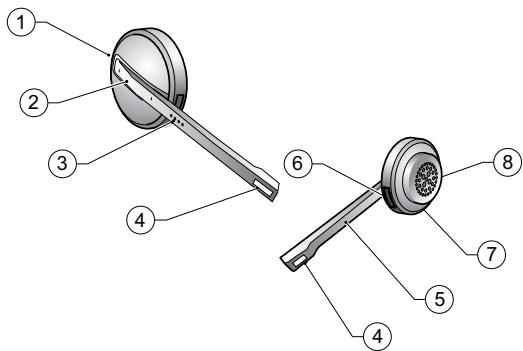
Figure 3: Jabra PRO Midi headset (included with Jabra PRO 9470) as seen from the outer and inner sides, respectively
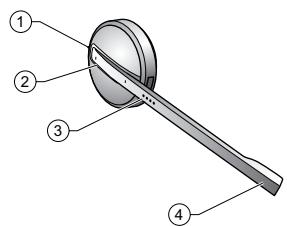
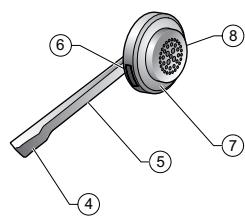
Figure 4: Jabra PRO Flex headset (included with Jabra PRO 9460) as seen from the outer and inner sides, respectively
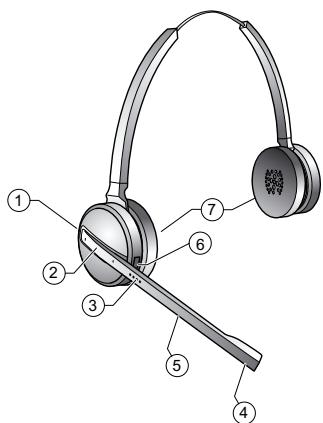
Figure 5: Jabra PRO 9460 Duo and Jabra PRO 9465 Duo headset
Note: most of the other illustrations in this manual show the Jabra PRO Midi headset; all other headset models feature similar controls at similar locations, as illustrated in the figures above.
3.4 BASE DIAGRAM
1 Headset cradle
2 Recharge contact
3 Touchscreen
4 Desk-phone clear dial-tone switch
Note: Not included on the Jabra PRO 9465 Duo or Jabra PRO 9470 bases, where this is software controlled (set up automatically)
5 Cover for desk-phone control
Note: There is no clear dial-tone switch underneath on the Jabra PRO 9465 Duo or Jabra PRO 9470 bases
6 Telephone port
7 Handset port
8 AUX port AUX
9 USB port
10 Power adapter port
11 Remote busy-light indicator port
12 Security slot 1
13 Speaker for ring tones and touchscreen audio feedback
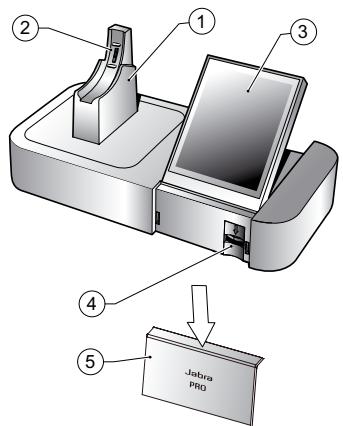
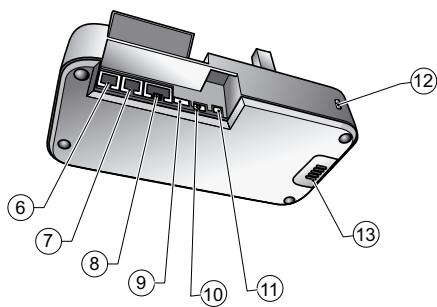
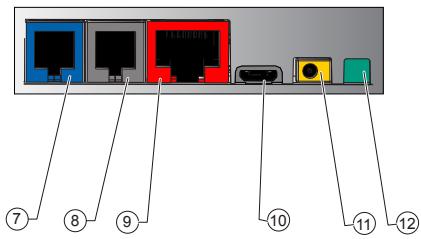
Figure 6: Jabra PRO Touchscreen Base, seen from the front and back, respectively
4. SYSTEM SETUP AND CONNECTIONS
This chapter explains how to assemble your Jabra PRO solution and connect it to your other office equipment.
4.1 SETUP OVERVIEW AND BACKGROUND
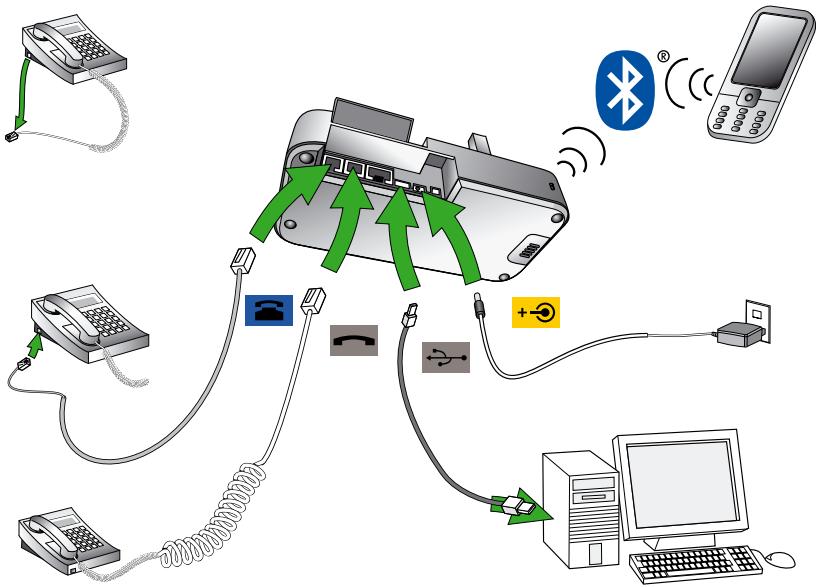
Connection Diagram (for no headset port)
Figure 7: Jabra PRO base connections (Bluetooth® available with Jabra PRO 9465 Duo and Jabra PRO 9470 only)
Using a Headset with a Desk Phone
To accommodate the full range of desk phones in use, Jabra PRO is able to adapt itself to your phone by offering the following settings:
Termination standard
Though all desk phones use the same type of cable to connect the handset to the phone body, the internal wiring standard for this cable varies according to desk-phone model. Jabra PRO supports all of the possible combinations — you will adjust the clear dial-tone switch on the Jabra PRO base until you find the right one. Note that there is no clear dial-tone switch on the Jabra PRO 9465 Duo or Jabra PRO 9470 base — here the right combination is found automatically.
- Microphone level
The sound volume sent from your Jabra PRO base must be adjusted to ensure that it is neither too quiet nor too loud for your desk-phone model (as it must be neither too quiet nor too loud for the person you are talking to).
- Electronic-hookswitch or handset lifter
An electronic hookswitch adapter or handset lifter will enable you to answer the phone or hang up using only the button on your headset or its docking operations. These are available as optional accessories for Jabra PRO; the best choice for you will depend on your desk-phone model.
The Jabra PRO setup wizard will help you to make each of the above settings.
Using a Headset with a Softphone
To use Jabra PRO with a softphone, you must connect the Jabra PRO base to your PC via a USB cable and install the Jabra PC Suite collection of software and softphone drivers on your PC. The Jabra PRO setup wizard will remind you to do this.
Using a Jabra PRO 9465 Duo or Jabra PRO 9470 Headset with a Mobile Phone
The Jabra PRO 9465 Duo and Jabra PRO 9470 Bases can connect to a mobile phone using Bluetooth® wireless technology (the headset itself does not use Bluetooth®). To enable Bluetooth® wireless technology headset communication, you must pair the two units. The Jabra PRO setup wizard will help you to do this.
4.2 THE QUICK-START SETUP WIZARD
To get started, just power the base and then follow the set-up-wizard instructions on the touchscreen.
To run the setup wizard:
- Review the information outlined in Section 4.1: Setup Overview and Background. It will help you understand the types of tasks that the setup wizard will ask you to do.
- Assemble the base and apply power to it. (See also Section 4.3: Preparing the base and and Assembling the Headset).
-
The base automatically launches the setup wizard the first time you turn it on. On each page of the wizard, follow the instructions shown and then touch the "next" icon (see also Section 8.2: Using the Touchscreen).
-
Note: When the wizard is helping you set up your desk phone, it will ask you to call the Jabra test server. This enables the base to test its clear dial-tone switch and mic-level settings by exchanging signals with the test server. See your Jabra PRO Quick Start Guide for a list of Jabra test-server phone numbers (also available on our web site). If, for some reason, the connection to the test server fails, you are prompted to retry; you can retry the automatic setup or try a manual setup. You can also choose to retry the cable setup.
-
Continue until the wizard tells you that you are finished. At this point, all of your phones should be connected and your headset will be fully configured to work with each of them.
The remainder of this chapter provides extra information about each step of the setup process. Refer to this chapter if you have trouble while working through the on-screen setup wizard.
Tip: You can re-start the setup wizard manually at any time, thereby re-initializing some or all base and headset settings. See the section "Advanced Settings menu".
4.3 PREPARING THE BASE AND AND ASSEMBLING THE HEADSET
Adjusting the Headset Cradle
The headset cradle is already attached to the Jabra PRO base when it is delivered but you might want to adjust its angle in order to optimize for left- or right-handed docking. To do this, simply rotate the cradle until it sits at your preferred docking angle. As you rotate the cradle, you will feel it fit into a number of distinct positions on the base. The figure below shows the angular range; -90 to +45 degrees.
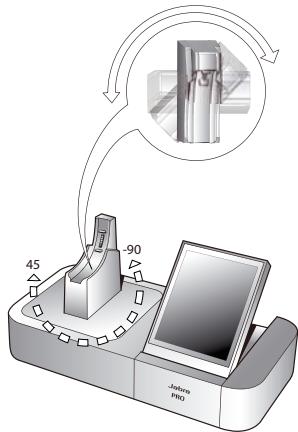
Figure 8: Adjusting the headset cradle angle on the base
If, at a later stage, you need to remove the cradle (for example to replace it with another), simply rotate the cradle clockwise as far as possible, then carefully pull it out from the base.
To attach / re-attach a headset cradle on the base, hold the cradle against the base so that the large and small pins on either side of the cradle post align with the matching slots on either side of the hole on the base. Then simply push it into the base.
Applying Power to the Base
Connect the mains power adapter to the port marked on the base, and then plug the adapter into a mains power socket, as shown in the figure below.
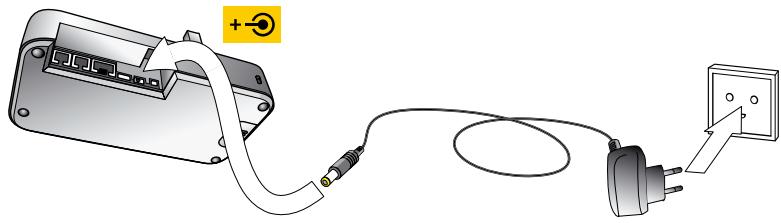
Figure 9: Powering the base
Assembling the Headset
Jabra PRO headsets — other than the Jabra PRO 9460 Duo and Jabra PRO 9465 Duo — can be worn in any of several wearing styles, including headband, ear hook and neckband.
Ear hook and headband wearing-style attachments are included in the standard packages. The neckband is included as standard for Jabra PRO 9470 but must be ordered separately for Jabra PRO 9460. Jabra PRO 9460 Duo and Jabra PRO 9465 Duo are always worn as headbands and do not require any assembly.
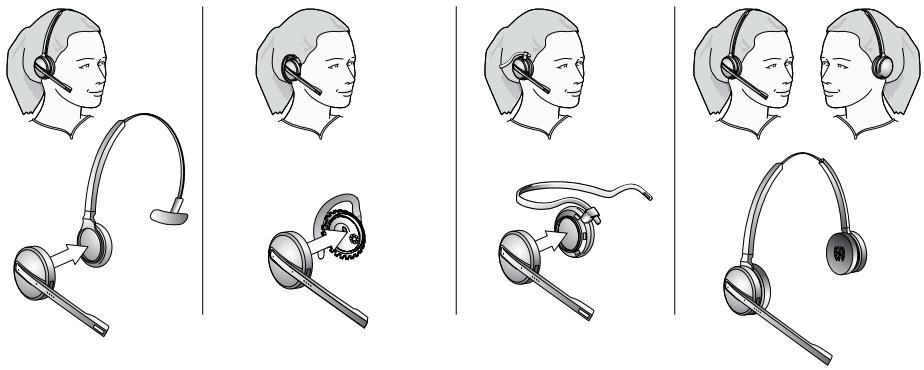
Figure 10: Assembling and wearing the Jabra PRO headset in various styles
Choose a style and assemble the headset so that it will fit to your preferred ear. See Section 7.2: Attaching or detaching a Wearing Style for detailed instructions.
Important: Regardless of which wearing style you choose, always be sure to adjust the headset so that the microphone is positioned as close to your mouth as possible. This will maximize the noise-cancelling effect of the microphone and make sure that you voice comes through loud and clear.
Placing the Headset in its Cradle
Whenever you are not using your headset, you should keep it in its recharge cradle as shown in the figure below. It is held firmly in place by a magnet. Note that placing it in its cradle is sometimes called docking the headset. When the headset is docked correctly in the cradle, an extra icon is displayed in the touchscreen's status bar. See the section "Using the Touchscreen".
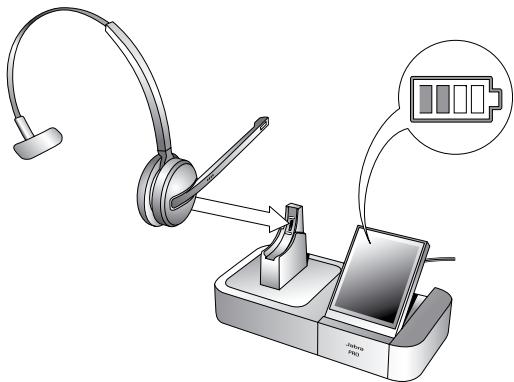
Figure 11: Inserting the headset into the cradle for storage and charging
4.4 CONNECTING THE BASE TO YOUR DESK PHONE
Identifying Your Desk Phone Features
The way you connect and configure the Jabra Pro base will vary according to the type of desk phone you are using. Check your phone (by looking at its connectors and/or documentation) to see which of the following features it has, then see the appropriate section below to learn how to connect your Jabra PRO base to the phone:
Standard desk phone
This type of phone does not include any built-in support for adding a headset. You will therefore connect the Jabra PRO base between your desk phone's handset and body, enabling you to use either the handset or headset. All desk phones can be connected in this way.
- Desk phone with headset port
This type of phone provides a dedicated headset port (usually at the back of the phone). These phones typically also have a button on the front panel for switching between the headset and handset.
- Desk phone with electronic hookswitch
This type of phone is able to place or answer a call automatically when you press the multifunction button on your headset. This requires a desk phone that includes an electronic hookswitch feature and also requires an extra adapter cable from Jabra. Please see our web site and/or refer to your telephone's user manual for details about electronic hookswitch compatibility.
- Desk phone with GN1000 Remote Handset Lifter
A handset lifter physically lifts your handset from your desk phone when needed, thereby creating a solution that works similarly to an electronic hookswitch. The GN1000 Remote Handset Lifter is available separately; please speak to your Jabra dealer for details.
Connecting to a Desk Phone without a Headset Port
If your desk phone does not include any built-in support for adding a headset, then connect the Jabra PRO base between the handset and the desk-phone body as described below.
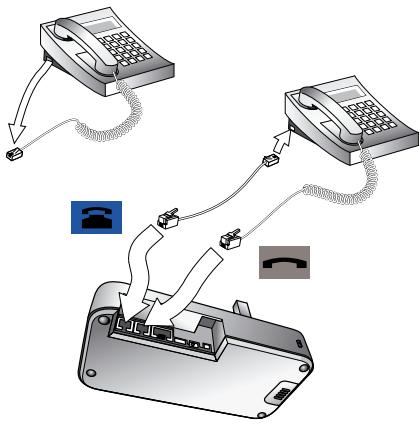
Figure 12: Connecting to a desk phone without a headset port
- On your desk phone, unplug the handset cable from the phone body at the phone-body side.
- Plug the loose end of your handset cord to the port marked on the base.
- Connect the telephone cord included with your headset from the port marked on the Jabra PRO base to the handset port on your desk phone body.
- Your base and desk phone are now connected. Note, however, that you must still configure the base for your specific desk-phone model using the desk phone setup wizard. See the section "Configuring the Jabra PRO Base for your Desk Phone".
Connecting to a Standard Headset Port
If your desk phone includes a dedicated headset port, then take advantage of this feature by connecting the Jabra PRO base as follows:
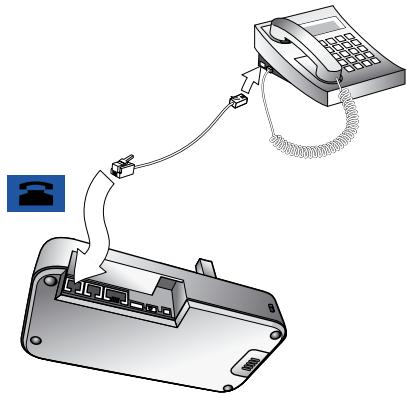
Figure 13: Connecting to a desk phone with a headset port
- Connect the telephone cord included with your headset (marked with a blue band) from the port marked on the Jabra PRO base to the headset port on your desk-phone body. See your desk-phone documentation if you are not sure where this port is. If the supplied cord does not fit the port of your desk phone, then see "Connecting to a Proprietary Headset Port," below.
- Your base and desk phone are now connected. Note, however, that you must still configure the base for your specific desk-phone model using the desk phone setup wizard. See the section "Configuring the Jabra PRO Base for your Desk Phone".
Note: Do not connect the base to a dedicated headset port if you want to use a GN1000; connect it in line with the handset instead (see also "Connecting to a Desk Phone without a Headset Support," above). One reason to use the GN1000 instead of the headset port is that the GN1000 has a ring detector, thereby enabling the base and headset to target the desk phone automatically when it rings (many electronic-hookswitch solutions also provide ring detection).
Connecting to a Proprietary Headset Port
Some types of desk phones provide a non-standard headset port. This is usually part of an advanced solution that also provides an electronic hookswitch. These types of phones normally also include the standard handset ports described above, but you should consider taking advantage of the proprietary connection if possible.
To use this type of connection, you must purchase a special adapter designed to match the requirements of your desk phone and headset. The adapter comes with instructions for how to connect it. See also Section 4.6: Using a Handset Lifter or Electronic Hookswitch for more information about this type of solution.
4.5 CONFIGURING THE Jabra PRO BASE FOR YOUR DESK PHONE
When the touchscreen wizard is helping you set up your desk phone, it will ask you to call a Jabra test server. This enables the Jabra PRO base to test its clear dial-tone switch and microphone level settings by exchanging signals with the test server.
Important: Your headset will not work correctly with your desk phone until you have set both the clear dial-tone switch and microphone level as described in this section. You must repeat these procedures if you move the headset to a new type of desk phone.
Setting the Clear Dial-tone Switch to find a Clear Dial-tone
Follow the procedure below to find the best position for the clear dial-tone switch on the Jabra PRO base; the correct position varies by desk phone model.
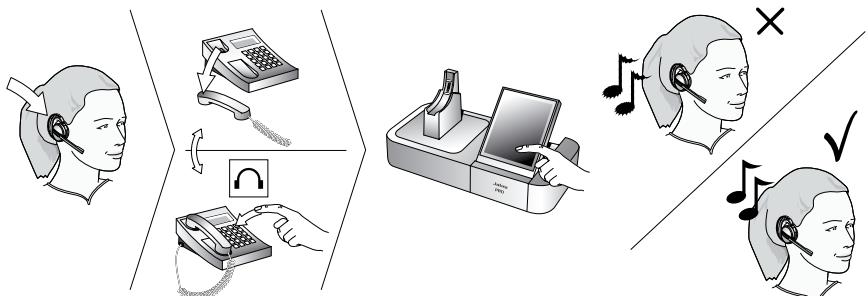
Figure 14: Setting the clear dial-tone switch
For Jabra PRO 9460:
- The touchscreen wizard prompts you to select either a manual or a guided setup, as shown in the figure below:
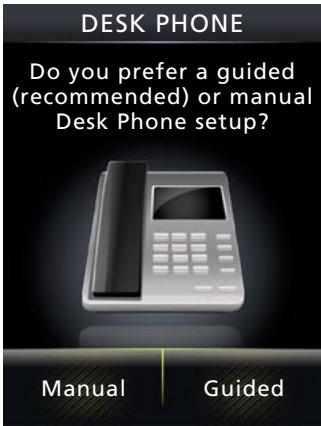
Figure 15: Manual or guided setup available
If you know exactly which clear dial-tone position and mic. level you need (you probably work in the IT dept.), you can select Manual. Otherwise, we strongly recommend you select Guided.
In the manual setup, the wizard prompts you first to select a clear dial-tone position on the base's switch and then a mic. level. Neither one of your selections will be tested by the Jabra test server.
Note: For both the manual and guided setup procedures, you just need to follow the on-screen instructions. The guided setup procedure is outlined in the following steps.
- Put on the headset.
Note: If your setup includes an EHS or RHL, you do not use the headset in this procedure as you do not listen for a dial tone (it is detected automatically). However, you still need to select switch positions manually for testing, when prompted to do so by the wizard.
- Open the panel on the front-right of the Jabra PRO base by slipping your fingernail under the bottom edge of the panel and pulling forward and up. This reveals the clear dial-tone switch. It is labelled with the letters A to G.
- Press the headset button on your desk phone (or lift the handset from your desk phone). This connects your desk phone to the phone network.
- The wizard prompts you to select a position (A - F) manually on the base's clear dial-tone switch. Listen for a dial tone in your headset at each position. Find the setting where the dial tone is strong, clear and undistorted.
- Press the headset button on your desk phone (or hang up the handset) to disconnect from the phone network.
- Set the microphone level, as described in the section below.
For Jabra PRO 9465 Duo and Jabra PRO 9470:
The touchscreen wizard prompts you to select either a manual or a guided setup — see above as described for Jabra PRO 9460. For both the manual and guided setup procedures, you just need to follow the on-screen instructions.
In the guided setup, you are prompted to select your country from a list. This determines which Jabra test server number is displayed for you to dial. If your country is not listed, select a neighbouring country.
Note: There is no clear dial-tone switch accessible to the user on the base — stepping through positions A – F to find the best one occurs automatically in the guided setup, or on the touchscreen in the manual setup.
If the Jabra PRO 9465 Duo or Jabra PRO 9470 base cannot contact the Jabra test server:
In this case, you can choose to set the switch manually. Follow the same procedure as given above for Jabra PRO 9460 except that you must step through the switch positions using the touchscreen (no switch is accessible to the user on the base). The desk phone part of the setup wizard guides you through.
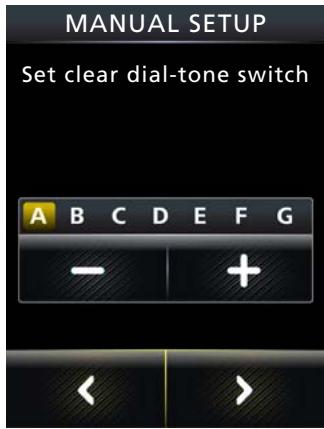
Figure 16: Manual clear dial-tone switch position selection for Jabra PRO 9465 Duo / Jabra PRO 9470
Setting the Microphone Level:
Follow the procedure below to find the best microphone level for your desk phone. The correct setting varies by desk phone model.
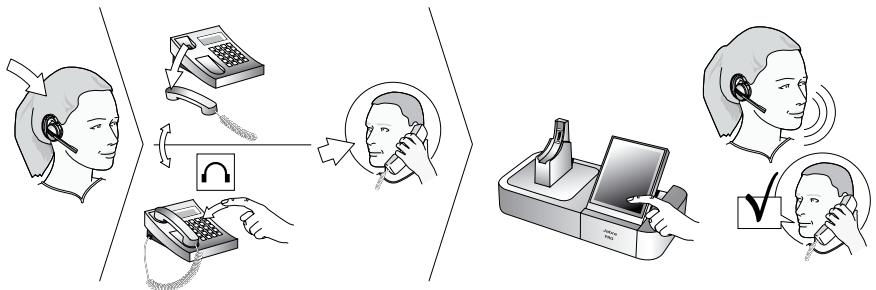
Figure 17: Setting the microphone level manually
- If you have not already done so, then set the clear dial-tone switch as described above.
- The touchscreen wizard prompts you to call the Jabra test server. Follow the on-screen instructions. The base will determine the optimal microphone level automatically.
For Jabra PRO 9465 Duo / Jabra PRO 9470, the base already has contact with the test server from setting the clear dial-tone switch.
If the base cannot contact the test server, you can re-try or you can try to set the mic-level manually — see the procedure below.
If the Jabra PRO base cannot contact the Jabra test server:
In this case, you can choose to set the mic-level manually:
- If you have not already done so, then set the clear dial-tone switch as described above.
- Make arrangements to call a friend who is not sitting nearby. Tell your friend that you will be testing your headset and ask him or her not to adjust his or her own telephone volume during the test.
-
Call your friend by doing the following:
-
Wear the headset and position its microphone close to your mouth.
- Press the headset button on your desk phone (or lift the handset) to connect to the phone network.
-
Dial your friend's number using your desk-phone buttons.
-
As you speak with your friend, adjust the mic-level control on the Jabra PRO touchscreen (Desk phone setup wizard, manual setup) until your friend tells you that your voice sounds clear (loud enough) but not distorted (too loud).
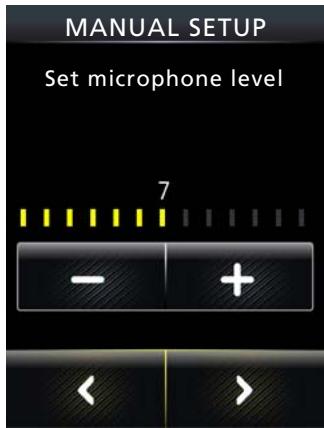
Figure 18: Manual mic. level selection for Jabra PRO 9465 Duo / Jabra PRO 9470
The desk phone part of the setup wizard guides you through. Remind your friend not to adjust his or her own volume during the test.
If your best mic.-level setting turns out to be the loudest possible and you found more than one best position for the clear dial-tone switch, then move the clear dial-tone switch to the alternative setting and try again to find the best mic.-level together with your friend. If this time the mic.-level is not set to the maximum, then keep this new combination of settings.
- Press the headset button on your desk phone (or replace the handset) to hang up. Then dock the headset (the audio link from the headset to your desk phone closes automatically when you dock the headset).
Your headset is now ready for use.
4.6 USING A HANDSET LIFTER OR ELECTRONIC HOOKSWITCH
With traditional desk phones, you must lift the handset (or press a desk phone headset button, if present) whenever you want to place or receive a call. However, you can automate this connection by adding one of the following:
Jabra GN1000 Remote Handset Lifter, which will work with nearly any phone.
- An electronic hookswitch connection, which requires a supported desk phone and a phone-specific adapter from Jabra.
In the desk phone setup wizard, you can select between DHSG, MSH, Cisco or RHL adapter types.
Electronic solutions such as these enable you to answer an incoming call when away from your desk simply by pressing a button on the headset. They also tell the base when your desk phone is ringing, thereby setting the desk phone as the current target phone automatically. The GN1000 and most electronic hookswitch solutions support ring detection.
Connecting to the GN1000 Remote Handset Lifter
A remote handset lifter gives you remote call control with a Jabra PRO headset up to 150 m away from your desk. It lets you answer calls, end calls and transfer ring tones to the headset.
The GN1000 Remote Handset Lifter is an accessory available from Jabra. It is a motorized device that physically lifts the handset when you use controls of your headset or base. You can use the handset lifter with nearly any type of desk phone — including phones that also happen to have electronic hookswitch support.
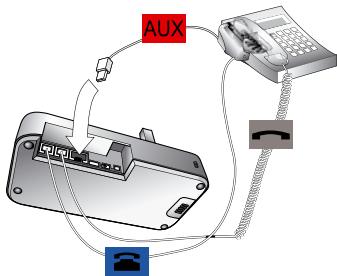
Figure 19: Connecting to a GN1000 Remote Handset Lifter
To connect the Jabra PRO base to a GN1000 RHL handset lifter, follow the instructions in the desk phone setup wizard, as given below:
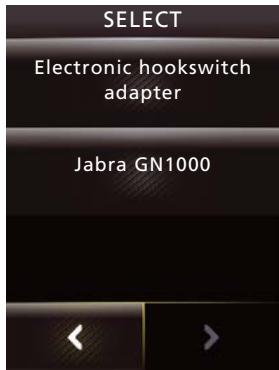
Figure 20: Select Jabra GN1000
1. When you reach the screen shown left, select Jabra GN1000.
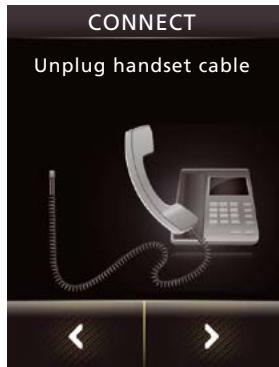
Figure 21: Unplug handset cable
2. In the first CONNECT screen, shown left, unplug handset cable.
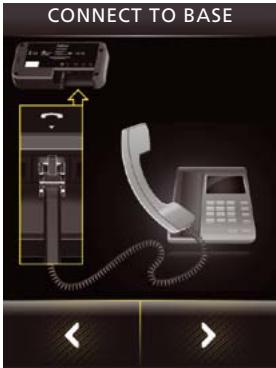
Figure 22: Connect as shown here
- In the (first) CONNECT TOBASE screen, shown left, connect the handset as shown.
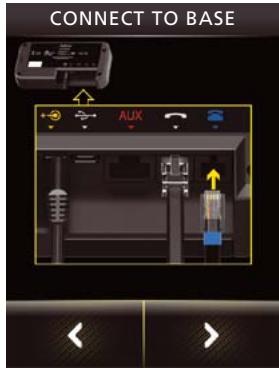
Figure 23: Connect as shown here
- In the (second) CONNECT TO BASE screen, shown left, connect the cable with the blue marking to the base port, as indicated in the wizard.
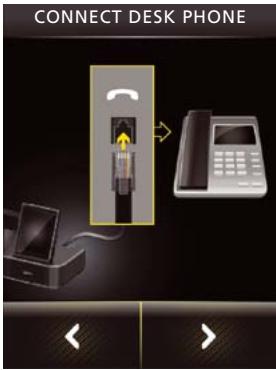
Figure 24: Connect to the handset port
- In the CONNECT DESK PHONE screen, shown left, connect to the handset port.
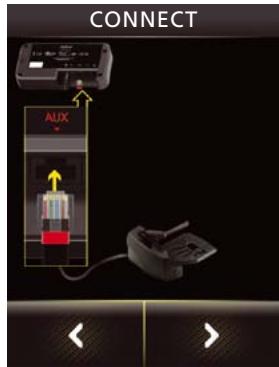
Figure 25: Connect control cable to AUX port on the base
- In the (second) CONNECT screen, shown left, connect the control cable attached to the GN1000 to the base's AUX port.
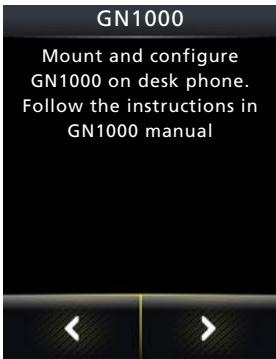
Figure 26: Mount and configure on the desk phone
- In the (first) GN1000 screen, shown left, mount and configure the GN1000 on the desk phone.
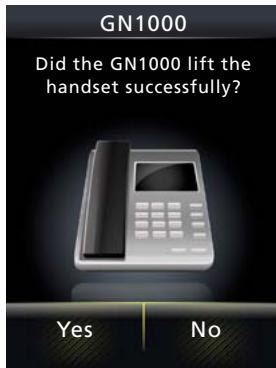
Figure 27: Touch Yes if the handset was lifted
- In the (second) GN1000 screen, shown left, you must determine whether the desk phone went off-hook. If so, touch Yes.
If the handset was not lifted, touch No. In this case, you can choose to Retry or Cancel. If you choose to retry, the touchscreen takes you back to a point in this flow just after step1 (where Jabra GN1000 has been selected). If you choose to cancel, the setup is aborted and the touchscreen takes you to the start of the cabling procedure for configuration without EHS or GN1000. You can return to the GN1000 setup later.
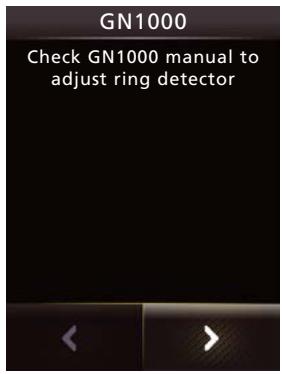
Figure 28: Adjust the ring detector
- In the (third) GN1000 screen, shown left, check the GN1000 manual to adjust the ring detector.
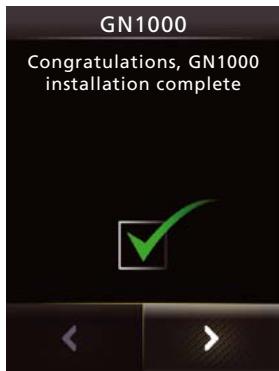
Figure 29: A successful setup
- The (fourth) GN1000 screen, shown left, lets you know that the setup is completed successfully. Just go to the next screen.
The wizard now leads you through the clear dial-tone and mic. level configuration. See the section "Configuring the Jabra PRO Base for your Desk Phone" for more.
Connecting to a Phone with an Electronic Hookswitch
If your desk phone includes an electronic hookswitch, then you can take advantage of this feature by purchasing and installing the appropriate type of electronic hookswitch adapter for your phone. Adapter requirements can be very different between desk phone models. Please see our web site and/or refer to your telephone's user manual for details about electronic hookswitch compatibility. You can configure the connection using either the touchscreen wizard or the Jabra PC Suite.
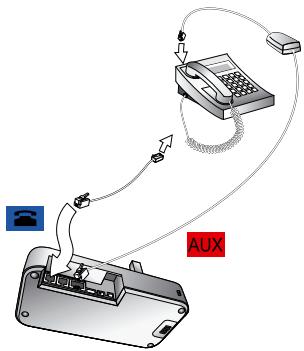
Figure 30: Connecting using an electronic-hookswitch adapter (Jabra LINK series)
To connect the Jabra PRO base to an electronic hookswitch port:
- Make sure that you have purchased the correct electronic hookswitch adapter for your desk phone model from Jabra.
- Connect the electronic hookswitch adapter as described in the cabling guide included with the adapter.
- Configure the Jabra PRO base to communicate correctly with your model of desk phone. The required standard is clearly printed on a label attached to the hookswitch cable. The desk phone setup wizard prompts you to select this during initial setup.
- Check the documentation for your desk phone to see which (if any) steps are required to configure your desk phone to use the electronic hookswitch.
Connecting to a Load-detect equipped Phone
Any load-detect equipped desk phone requires an electronic hookswitch adapter that uses RHL protocol. This means that you must select Electronic hookswitch adapter, then RHL for remote call control in the desk phone setup wizard. This is in contrast to the other EHS adapters, which use MSH, DHCP or Cisco protocols. Examples of such phones are from Toshiba and ShoreTel.
Connecting to a Phone using RHL Mode
In the case of a phone that uses RHL mode directly — for example, an NRX or Forte phone — no EHS adapter is used.
With these phones, you must select Electronic hookswitch adapter, then RHL protocol for remote call control in the desk phone setup wizard. Use the designated cable supplied with the phone to connect the phone's EHS port to the base's AUX port — no adapter is needed.
4.7 CONNECTING THE BASE TO YOUR COMPUTER
Connect the touchscreen base to your computer if you would like to use your headset together with a softphone running on the PC. You can also use this connection to configure your headset and base and to update their firmware.
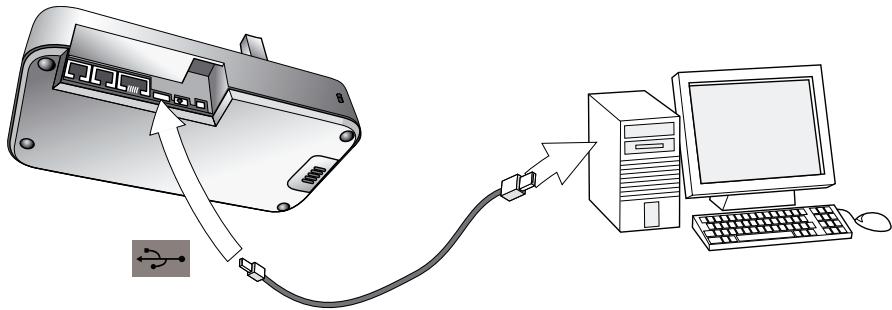
Figure 31: Connecting to a computer
To connect the Jabra PRO base to your computer:
- Connect the small connector of the supplied USB cable to the port marked α on the Jabra PRO base.
- Connect the other end of the USB cable to any free USB port on your computer.
- Install the Jabra PC Suite software on your computer (see Chapter 5: Installing and Running the Jabra PC Suite).
4.8 CONFIGURING THE BASE FOR YOUR SOFTPHONE
The touchscreen base includes a softphone setup wizard, which follows the desk phone setup wizard if you run the whole configuration setup wizard as one (which is the case if you are configuring the base for the first time).
- Simply read the information and follow the softphone wizard's instructions.
- In the Select Softphone screen, you are prompted to select your softphone type from a list. Select one of the following:- Microsoft OC, Cisco IPC (CIPC), Avaya, Siemens, Alcatel, IBM, Astra, Skype or Other. If you select Microsoft OC, the softphone identifies the headset as a Microsoft OC-compliant device. If you select one of the other types, the base works with the Jabra Control Center (that you install) to ensure that calls are routed to the correct softphone.
- The remainder of the softphone setup must be completed on your PC. The setup wizard prompts you to do this — see the online help of the Jabra PC Suite for more on how to do this, including specific instructions on how to enable your softphone type.
Note: For default softphones other than Microsoft OC, you can choose to change the microphone level directly from Windows Control Center. To do this, first select Sounds and Audio Devices in the Control Center, then Audio tab. Select your Jabra PRO device as the default device in Sound Recording. Click Volume. You can now adjust the microphone level in 1dB increments within the range +3dB and -6dB from the nominal softphone mic. level.
4.9 CONNECTING Jabra PRO 9465 DUO OR Jabra PRO 9470 TO A MOBILE PHONE
The Jabra PRO 9465 Duo and Jabra PRO 9470 Touchscreen Bases feature Bluetooth® and can therefore be used with any mobile phone that also supports Bluetooth® wireless technology. You must set up the wireless communication between the two devices by pairing them. The setup wizard helps you to do this during initial setup and can repeat the procedure at any time later.
See Chapter 9: Using Jabra PRO 9465 Duo or Jabra PRO 9470 with a Mobile Phone for details.
4.10 USING A REMOTE BUSY LIGHT INDICATOR
A remote busy light indicator connects to your base via a cable and lights up to show colleagues when you are on the phone.
To connect a busy light indicator to your base:
- Unpack and assemble your busy light indicator as described in its documentation.
- Connect the cable from your busy light indicator to the port marked on the Jabra PRO base.
See also the documentation that came with your busy light indicator for more information about that product.
5. INSTALLING AND RUNNING THE Jabra PC SUITE
5.1 Jabra PC SUITE FEATURES
The Jabra PC Suite is a collection of programs that support and expand your headset's features. It enables you to:
- Control several types of softphone programs from your headset
- Configure the base and headset from your PC
- Update the firmware for your base and headset
- Save and recall headset configuration to/from your PC
- Upload language packs for touchscreen menus
5.2 INSTALLING THE Jabra PC SUITE
Installation instructions and a setup program for Jabra PC Suite are included on the CD ROM that came with your Jabra PRO headset. You can also download the latest version of the package from the Jabra web site. Please see the documentation included on the CD or in the download package for instructions and system requirements.
5.3 Jabra PC SUITE DOCUMENTATION
All programs of the Jabra PC Suite include complete online help. Where appropriate, this manual refers to settings and features provided by the Jabra PC Suite, but please see the online help for complete details about all software features.
5.4 FIRMWARE UPDATES
Firmware is software that runs inside many types of electronic devices, including your Jabra PRO base and headset. Sometimes, Jabra releases updates that can improve performance and/or add new functionality to your base and headset.
Checking for Firmware Updates
To check whether any newer firmware is available for your Jabra device(s), open Jabra Control Center and select Help > Check for updates.
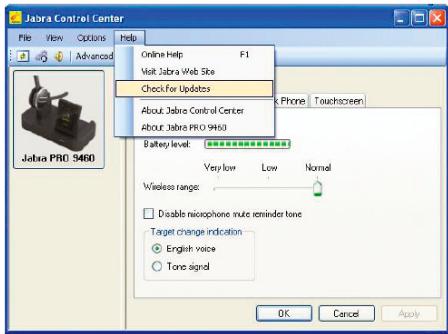
Figure 32: Checking for updates from Jabra Control Center
Alternatively, you can visit the Jabra website directly to find out whether firmware updates are available for any of your Jabra PRO products. You can also receive e-mail about firmware updates if you register your devices with Jabra (which we recommend).
Applying Firmware Updates
To install new firmware:
In the Check for Updates result window shown below, click the Update button:
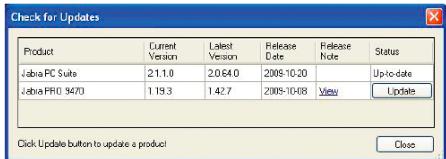
Figure 33: Check for Updates result window in Jabra Control Center
This starts the Jabra Firmware Updater, as shown below:
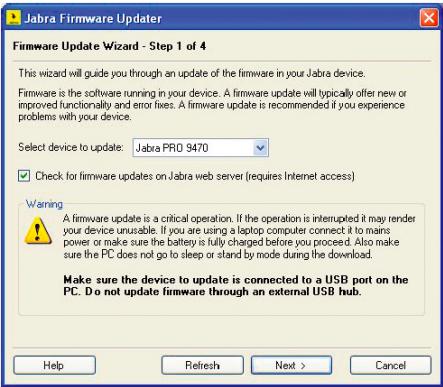
Figure 34: Jabra Firmware Updater; first screen
The Firmware Updater program provides a wizard that guides you through the steps required to update your Jabra device. It is a stand-alone application that does not depend on the Device Service or other Jabra PC Suite components.
See the Jabra PC Suite online help for complete details.
Note: While a device is in firmware update mode, it is not visible in Jabra Control Center or listed in the Device Service window.
5.5 CENTRAL ADMINISTRATION AND MASS DEPLOYMENT
If you are an IT manager of an organization that is rolling out a large number of Jabra PRO solutions, then you might wish to use the Jabra Control Center, which is part of the Jabra PC Suite.
For advanced Jabra products with many configuration parameters, the Jabra Control Center lets you save a device's complete configuration to a file on disk and load it into the same, or a similar device at a later point in time. This feature enables you to make a snapshot or backup of your device's current configuration.
A configuration file can be used to restore your device's configuration at a later time if you wish to revert to a previous snapshot, or if you need to clone your settings to a new device.
For mass deployment, you can save a copy of configuration settings from one Jabra PRO device on PC and quickly apply this configuration to new Jabra PRO devices when you connect them to the administrator PC.
The ability to clone the configuration of one device to other similar devices is useful for mass deployment of many devices in an organization. This means that an administrator only needs to manually go through the setup of a single device and save its configuration to a file. This master configuration file can then be loaded into all devices that are deployed in the organization.
Access to a device from Jabra Control Center can be password protected, ensuring that only authorized users can change settings. Select Options > Set Password to do this. Once password protected, the entire device configuration, e.g. IntelliTone settings, desk phone and softphone settings, are protected in Jabra Control Center. The setup wizard cannot be run, the configuration cannot be reset without first entering the password.
Note: Even if the entire device configuration is protected in Jabra Control Center, settings can still be changed via the touchscreen. However, the Recording setting and IntelliTone settings cannot be changed (and are removed from display). From the Advanced menu, the Setup Wizard, Setup Desk Phone, Setup Softphone and Reset Configuration menu items cannot be used (and are also removed from display).
6. DAILY USE — CALLING, ANSWERING AND HANGING UP
6.1 HEADSET CONTROLS AND INDICATORS
The Multifunction Button
This button is located near the back of the headset. Through a combination of taps, double-taps and presses, you will be able to execute all of the most-needed functions, including answering a call, hanging up, switching between held calls, and more.
See the section "Headset Controls and Signals" for more.
Headset Visual and Audio Indicators
The headset provides status messages using both lights and audio signals. For example, the LED lights various colors to indicate battery level, incoming calls, on/off operations, etc. Audio signals tell you when you have pressed a button, selected a new target phone or changed the volume; in-ear ring tones are also provided.
See the section "Headset Controls and Signals" for more.
6.2 THE TARGET PHONE CONCEPT
The target phone is the phone to which the audio link for your (outgoing) call is activated when you tap the multifunction button (MFB) on the headset or touch the green handset icon on the touchscreen. You can select a different target phone by touching a phone icon or pressing the headset MFB.
The large foreground phone icon indicates the current target phone.
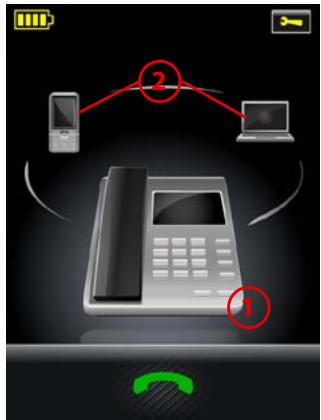
Figure 35: The current target phone is indicated by the large icon on the touchscreen; change the target by touching on one of the other icons
- Current target phone: this large icon indicates the phone to which you will open a connection if you tap the headset multifunction button or touch the green handset icon at the bottom of the screen. Double-tap the headset multifunction button to redial on this phone (selected mobile and softphones only).
Double-tap the headset multifunction button to redial on this phone (selected mobile and softphones only).
- Other phones: touch the appropriate icon here to change the current target phone — or press the headset multifunction button when no call is active.
The effect of activating the audio link to an idle target phone varies depending on the gesture you use on the MFB, on your set-up and on the features supported by your phone — for mobile phones you can activate voice-activated dialing or radial, for desk phones with a hook lifter you lift the handset off-hook, for softphones you can open the audio link and for some softphones radial.
If you initiate an outgoing call from a mobile- or softphone, the audio link opens automatically when the phone goes off-hook. This phone-initiated outgoing call does not affect your choice of target phone.
For incoming calls on phones with ring detection — as is the case with mobile phones, most softphones and desk phones with a hook lifter or electronic hookswitch (EHS) — the ringing phone is indicated by a large ringing icon and activating MFB/green handset icon accepts the call. When the incoming call ends, the target phone returns to the selected target phone before the incoming call.
For phones where ring detection is not possible, you have to change the target phone manually before you can accept the call. In this case, when the call ends the target phone is the phone for which you accepted the call.
For maximum convenience, set the target phone to the phone which you are most likely to use for outgoing calls.
Note: if the target phone is shown greyed out on the touchscreen, it means that the phone has become disconnected. This can only occur with mobile- or softphones and Cisco desk phones. You need to either re-connect the phone or touch another phone on-screen to select a different target. See the figure below.
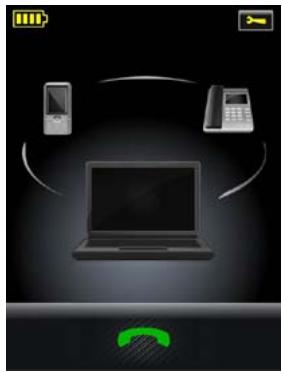
Figure 36: A disconnected target phone is shown greyed out on the touchscreen
6.3 HOW TO MAKE A CALL
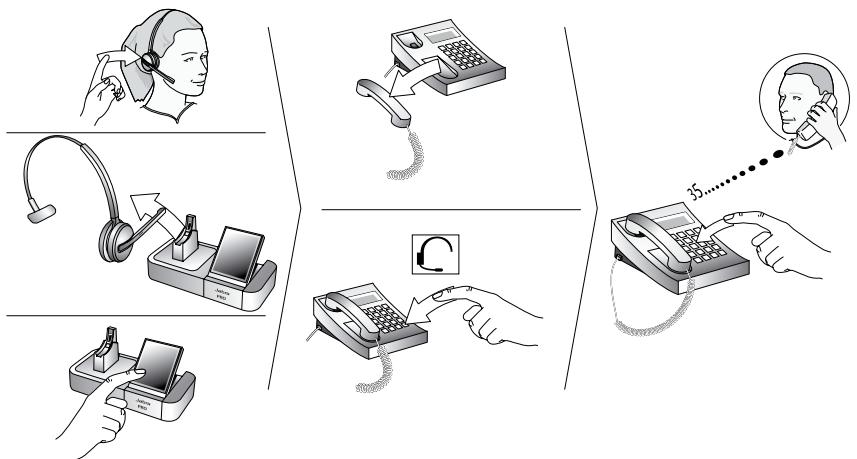
Calling through a Desk Phone
Figure 37: Placing a call with your headset and desk phone
To place a call through your desk phone:
- If necessary, set the desk phone as the current target for your headset (see also Section 6.2: The Target Phone Concept.)
- To get a dial tone:
If you are using a handset lifter or electronic-hookswitch:
Open the audio link to the headset by doing one of the following:
- tap the headset's multifunction button, or
- touch the call icon on the base touchscreen, or
- lift the headset from the cradle on the base (if automatic opening of the audio link is enabled, see the section "Headset Docking-Operation").
You should now hear a dial tone.
If you do not have a handset lifter or electronic-hookswitch:
- open the audio link in one of the ways described above for handset lifter or electronic hookswitch.
- lift your desk phone handset from the receiver, setting it aside — or press the headset button, if your desk phone has one.
You should now hear a dial tone.
- Dial the number using your desk phone's buttons.
Calling through a Softphone
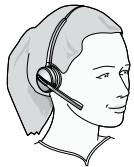
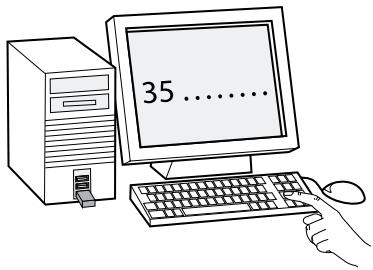
Figure 38: To make a call on your softphone, simply dial as usual while wearing the headset
To place a call through your softphone, dial the number or choose a contact using your softphone program. The audio connection to your headset will open automatically as soon as your recipient's phone begins ringing.
Notes:
- If you are using an unsupported softphone, you need to manually open a PC audio communication link from your softphone to your headset before dialing. You can either do this via the base touchscreen — in the PC & Softphone menu — or you can use Jabra Control Center (see the PC Suite online help for details. See also Chapter 5: Installing and Running the Jabra PC Suite).
- Jabra PRO includes call handling (e.g. ringtone detection, accept call, hang up) for supported softphones only.Unsupported softphones see the headset as a standard sound card.
Standard Mobile Phone Dialing (Jabra PRO 9465 Duo and Jabra PRO 9470 Only)
To place a call through your mobile phone, dial the number as usual and then press the call button on the mobile. On most phones, the audio link from the mobile phone to your headset opens automatically.
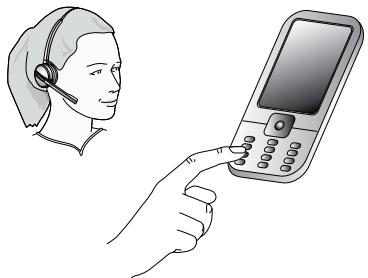
Figure 39: To make a call on your mobile phone, simply dial as usual while wearing the headset
Note: some mobile phones might work differently and/or require you to configure them to work as described above. Please see your mobile phone documentation for complete details about how to use it with a Bluetooth® headset.
Voice-Activated Mobile Phone Dialing (Jabra PRO 9465 Duo and Jabra PRO 9470 Only)
This feature requires that your mobile phone supports the hands-free Bluetooth® wireless technology profile. See your mobile phone's documentation for details about how to set up voice-activated dialing and whether this feature is supported over Bluetooth® wireless technology.
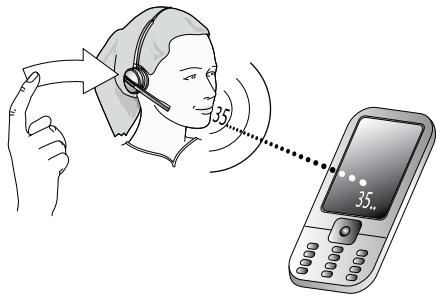
Figure 40: To use voice-activated dialing, tap the multifunction button and speak the appropriate voice tag
To use voice-activated dialing with a mobile phone that supports it:
- If necessary, set the mobile phone as the current target for your headset (see also Section 6.2: The Target Phone Concept).
- Tap the headset's multifunction button or touch the open-connection icon on the touchscreen. You will then hear the voice-dialing prompt generated by your mobile phone. Speak the trigger for the number you want and allow the phone to dial.
Tip: Your voice tags may work better if you record them using the headset rather than your phone's built-in microphone. This will make sure that the sound the phone "hears" coming from the headset when dialing will be the closest possible match to the recorded voice tag.
6.4 HOW TO ANSWER A CALL
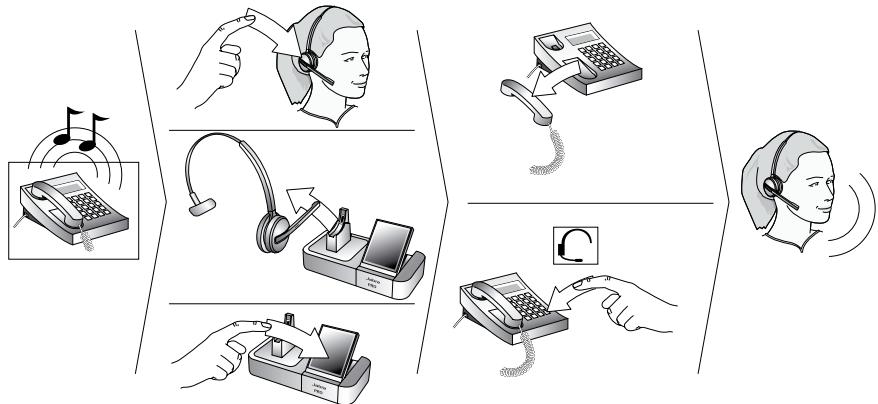
Figure 41: Answering a call
To answer a call from any connected phone:
-
You will hear a ring tone from the target phone, Jabra PRO base and/or headset. In most cases (see below) the touchscreen indicates which phone is ringing and (if possible) shows the incoming phone number. The ringtone played in the headset also indicates which phone is ringing (see also Section 7.3: Headset Controls and Signals). Do one of the following:
-
For desk phones without automatic ringtone detection
In this situation, you will hear your desk phone ring but will not hear a ringtone in your headset or see a ring indicator on the touchscreen. Set the desk phone as the current target by touching the desk phone icon on the touchscreen or pressing the headset's multifunction button until you hear the desk phone audio indicator (see also Section 6.2: The Target Phone Concept). This is not necessary if you have a GN1000 handset lifter or electronic hookswitch connection that supports ring detection.
- For all other types of phone
The base automatically switches the target phone to the one that is ringing, as indicated by the touchscreen icon and ringtone in the headset. You do not need to change the target manually.
-
Do one of the following to answer the call:
-
Open the audio link to the headset by doing one of the following:
- tap the headset's multifunction button, or
- touch the answer-call icon on the base touchscreen, or
- lift the headset from the cradle on the base (if automatic opening of the audio link is enabled, see the section "Headset Docking-Operation").
- Then (for desk phones without handset lifter or electronic hookswitch) lift your handset from the receiver, setting it aside — or press the headset button, if your desk phone has one.
6.5 HANGING UP
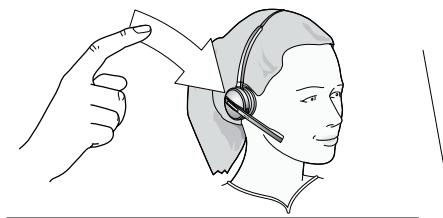
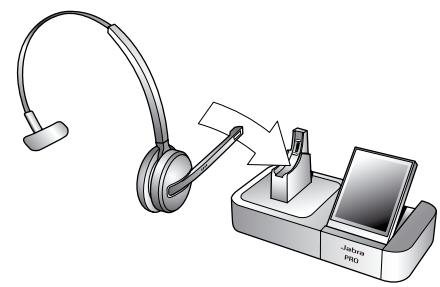
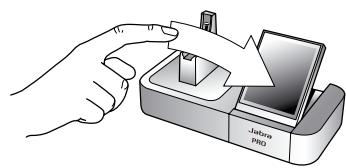
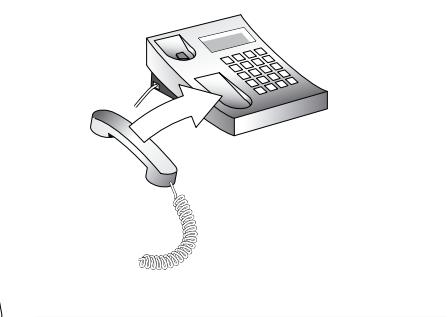
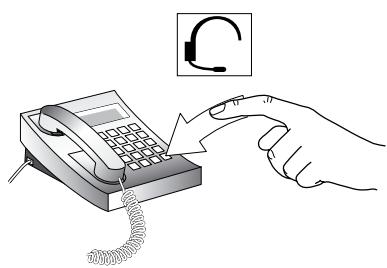
Figure 42: Hanging up
To terminate the current call when no calls are on hold, do one of the following:
- For desk phones without a handset lifter or electronic-hookswitch:
Place the desk phone handset back onto its receiver or press the desk-phone headset button (if present) to terminate the call. Then close the audio link to the headset by doing one of the following: tap the headset multifunction button, touch the end-call icon on the base touchscreen, or dock the headset to the base.
- For all other types of phones:
Tap the headset multifunction button, touch the end-call icon on the base touchscreen, or dock the headset to the base.
6.6 CONTROLLING THE SPEAKER VOLUME AND MICROPHONE
The headset features a touch panel that is similar to the touch pad included with many laptop computers. Use it to adjust the volume you hear in your headset and to mute/enable the microphone.
- Slide your finger up the touch panel (away from your mouth) to increase the volume.
- Slide your finger down the touch panel to decrease the volume.
- Double-tap on the touch panel to mute or unmute the microphone.
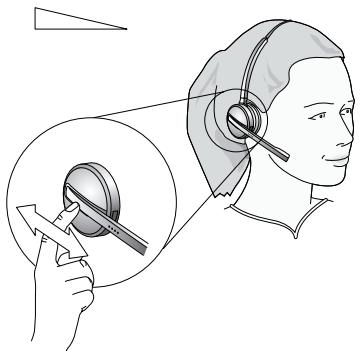
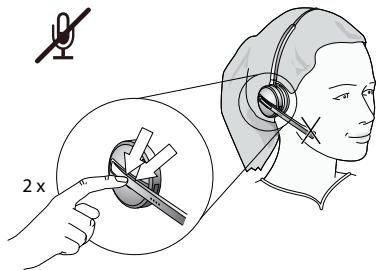
Figure 43: Use the headset's touch panel to control listening volume and microphone mute
You can also control the volume and mute functions using the touchscreen. See the section "Call Options" for more.
Note:
- Unique double-tones in the headset indicate that you have reached maximum or minimum volume. See also the section "Headset Signal Tones"
- A unique double-tone indicates that microphone muting is active. This signal repeats occasionally until you unmute the microphone. If you end the call while the microphone is muted, it is automatically umuted the next time you place or answer a call.
- The speaker volume adjustment screen is shown automatically on the base if you use the headset's touch panel to adjust the volume. See the section "Call Options" for more.
6.7 SWITCHING BETWEEN YOUR PHONE AND HEADSET
It is possible to enable or disable the headset without interrupting your current call.
Desk Phones
To go from desk-phone handset to your headset:
- If necessary, set the desk phone as the current target for your headset (see also Section 6.2: The Target Phone Concept.)
- Open the audio link to the headset by doing one of the following: tap the headset's multifunction button; touch the call icon on the base touchscreen; or lift the headset from the base (if enabled, see the section "Headset Docking-Operation").
- Listen to hear if you are now connected through the headset. If you are not connected, then you may need to press the desk-phone headset button. See also your desk-phone documentation.
- Place the handset on your desk, but do not hang up, because this will terminate your call.
To go from headset to desk-phone handset:
- Lift the handset to your ear.
- Do one of the following:
If you are using a traditional phone without a headset button or electronic hookswitch, then close the audio connection to your headset by tapping the headset multifunction button, docking the headset in its cradle on the Jabra PRO base or touching the close-connection icon on the base touchscreen. (This applies also if you are using a GN1000 handset lifter.)
If your desk phone has a dedicated headset port and/or electronic hookswitch, then please see your desk-phone documentation for details. In some cases, you must press a button on your desk phone, while in others it will be automatic. Also, some solutions may terminate the connection if you close the audio link to the headset (e.g., by tapping its multifunction button or docking it in its charge cradle), while others may require you to do this before you can speak on the handset. Experiment to find out what works best for you.
Softphones
For softphones, your headset is likely to be your only option, but if other audio devices are connected to your PC, you might be able to switch to them by changing the audio preferences for Windows and/or your smartphone program.
Mobile Phones
For mobile phones (Jabra PRO 9465 Duo and Jabra PRO 9470 only), the procedure varies by phone model. Please see your mobile phone documentation for details.
6.8 LAST NUMBER REDIAL
Jabra PRO is able to send a radial command to the current target phone. This feature requires that the target phone supports the radial command; check your phones' documentation for details.
To use last-number redial with a phone that supports it:
- If necessary, set the appropriate phone as the current target for your headset (see also Section 6.2: The Target Phone Concept.)
- Double-tap the headset's multifunction button. Jabra PRO sends the radial command to the selected target phone and opens the audio link.
6.9 MANAGING CALL COLLISIONS AND CALL WAITING
Call collision and call waiting both refer to situations in which you are already on the phone when another call comes in.
Call Collision
This occurs when you are talking on one phone and a call comes in on a different phone that is also connected to your headset. Two different phones compete for access to your headset.
Call collision can be managed on the base touchscreen or from the UI of the phone receiving the call:
Managed from the touchscreen
If the incoming call is accepted on the base touchscreen, then the current call is put on audio-hold (in the background, but not ended) and the incoming call is routed to headset. The call put on audio-hold is shown on the touchscreen marked with a yellow handset to indicate activity on a phone whose audio is not currently routed to the headset.
If the incoming call is rejected on the base touchscreen (assuming this is supported by the phone), then the current call continues.
See the section "Managing Call Collision" for more.
Managed from the phone UI
If the incoming call is accepted on the UI of the phone receiving the call, then it is routed to the headset and the current call is put on audio-hold. The call put on audio-hold is shown on the touchscreen marked with a yellow handset to indicate activity on a phone whose audio is not currently routed to the headset.
If the incoming call is rejected on the phone UI (assuming this is supported by the phone), then the current call continues.
Managed from the headset
A double-tone sounds in the headset to indicate the incoming call (see the section "Headset Signal Tones").
- Tap the headset MFB to end the current call and accept the incoming call.
- Double-tap the headset MFB to remain on your current call and reject the incoming call.
- Press the headset MFB to accept the incoming call and put your current call on audio-hold.
The incoming call is routed to the headset, while the current call is put into the background, but not ended. The call put on audio-hold is shown on the touchscreen marked with a yellow handset to indicate activity on a phone whose audio is not currently routed to the headset.
Call waiting
Call waiting lets you place a current call temporarily on hold to answer another incoming call on the same phone. This feature is available for selected softphones and mobile phones only.
Call waiting is provided by your phone company or softphone program, which means that it is largely external to the base or headset. However, you are able to manage call waiting using your headset multifunction button and/ or touchscreen for the following types of phones:
- Mobile phones with call-waiting features and full support for the hands-free Bluetooth® wireless technology profile. Support also depends on your network operator and subscription type.
- Softphones that support call waiting.
Note: You cannot manage call waiting on a desk phone from the Jabra base or headset. In this case, you must use the physical controls of your desk phone — if it supports call waiting. Similarly, if you are using an unsupported softphone, then you must use your softphone's native interface to manage its call-waiting features.
Managed from the headset
You can use your headset to manage call waiting in the same way as described for call collision (see the previous section)
Managed from the touchscreen
For details on managing call waiting from the touchscreen, see the section "Managing Call Waiting".
Note: In order to listen to music, you must have a softphone enabled. This sets up the USB audio connection from the PC to the base.
To listen to music from your PC, use the Jabra Control Center and/or its icon in the Windows notification area to open the audio link from the PC to the Jabra PRO base. Provided no other phone lines are active, your headset will then begin to play all of the sounds generated by your PC, including music from your media player.
Alternatively, you can use the Jabra PC Suite to set the audio link to open automatically when sound is detected on the USB interface. See also the Jabra PC Suite online help for details.
To listen to music from a mobile phone, use the controls provided by your phone as described in its user manual. Note also the following:
- Music sounds best when you use wideband audio when possible. See the section "Narrowband vs. Wideband Audio".
If you are using a supported media player and softphone on your PC, then the Jabra softphone driver will automatically pause the music when a call comes in. You must manually restart the music, however.
7. THE Jabra PRO HEADSET
This chapter provides in-depth details about the Jabra PRO headset. See also Chapter 3: Product Overview for detailed diagrams.
7.1 HOW TO WEAR THE HEADSET
Jabra PRO headsets are available in a variety of styles, which affect both the headset functionality and the wearing options available to you. Depending on your model, you may be able to wear your headset in any of several styles by attaching accessories to the basic unit.
Table 2: Wearing styles available for each model of Jabra PRO headset
| Headset Style | Jabra PRO Model | Wearing Style Options |
| Flex | 9460 | Ear hook Headband Neckband |
| Flex Duo | 9460 Duo and 9465 Duo | Dual-speaker headband |
| Midi | 9470 | Ear hook Headband Neckband |
All styles can be worn on either the left or right ear (except for the flex duo, which is a headband that provides a speaker for each ear).

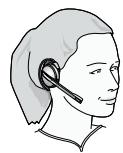
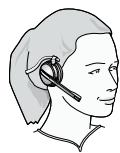

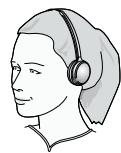
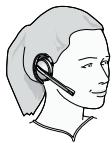
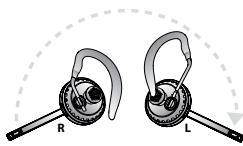
Figure 44: Assembling and wearing the Jabra PRO headset in various styles
Important: Regardless of which wearing style you choose, always be sure to adjust the headset so that the microphone is positioned as close to your mouth as possible. This will maximize the noise-cancelling effect of its microphone and make sure that you voice comes through loud and clear.
Note: If you choose the ear hook, it is important that you adjust its height to suit your ear. This will make a big difference in your comfort when wearing the headset. To do this, slide the attachment up or down until the headset fits most comfortably to your ear.
In addition, a choice of small, medium or large earbuds are provided for maximum comfort with the ear hook.
Note: Jabra PRO 9460 Duo and Jabra PRO 9465 Duo headsets are always worn as headbands.
Attaching the headband
- Align the mounting surface of the headset with matching socket on the headband attachment.
- Press the headset assembly firmly onto the outer side of the headband attachment until it clicks into place (snap-to-click). If you have trouble pressing them together, try to rotate the boom arm about 30° and try again. Refer to the figure in the section 4.3: "Assemble the Headset" earlier in this manual.
- Rotate the headset boom arm for left- or right-ear use as needed. Always position the microphone so that it sits as close to the corner of your mouth as possible when you wear the headset.
- Adjust the length of the headband to fit snugly around your head. See also Section 7.1: How to Wear the Headset for illustrations.
Detaching the headband
- Hold the assembly firmly in both hands, with the headset in one hand and the ear-cushion assembly of the wearing-style attachment in the other.
- Gently pull the headset away from the headband attachment until it comes free. If you have trouble pulling them apart, try to rotate the boom arm about 30° and try again.
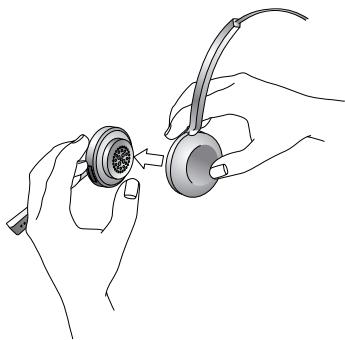
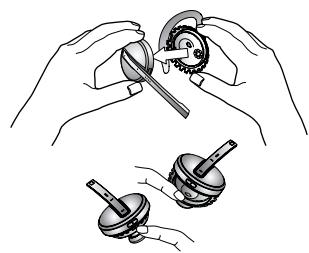
Figure 45: Detaching a wearing-style attachment from the headset
Attaching the ear hook
Note: The ear hook is delivered pre-assembled for wearing on your right ear with the medium sized earbud mounted.
- Decide whether you want to wear the ear hook on the left or right ear — you might need to pull out the hook itself from its attachment, rotate it 180 degrees and then push it back in to change left/right orientation. Left and right assemblies are shown on the previous page in the figure "Assembling and wearing the Jabra PRO headset in various styles":
The point at which the hook is attached — marked with the text "Jabra" — must always be in front of the hook itself.
- Try placing the ear hook with an earbud mounted in your ear. If it does not fit snugly in your ear, pull the earbud off the attachment and put on another size (small, medium and large earbuds are delivered as standard.)
-
Try to wear the ear hook and adjust it to fit snugly around your ear. Remember that:
-
the hook itself rotates on the attachment.
-
the hook itself is flexible and can be easily bent to wrap snugly around your ear.
- the height of the hook relative to its attachment can be adjusted to suit your ear. To do this, slide the attachment up or down.
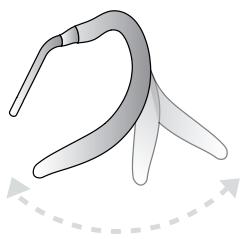
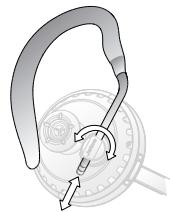
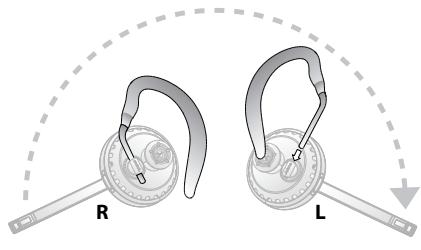
Figure 46: Adjusting the ear hook
- Take off the ear hook assembly.
- Align the mounting surface of the headset with the matching socket on the ear-hook attachment. Press the headset assembly firmly onto the outer side of the attachment until it clicks into place (snap-to-click). Refer to the figure in the section 4.3: "Assemble the Headset" earlier in this manual.
- Turn the headset in the socket to ensure that it is mounted correctly.
- Put on the ear hook and headset assembly.
- Turn the headset boom arm so that the microphone is right in front of the corner of your mouth.
See also Section 7.1: How to Wear the Headset for illustrations.
Detaching the ear hook
- Hold the headset in one hand and turn the whole assembly to find the one slot on the ear-hook attachment socket that is larger than the others.
- Apply your thumbnail to the slot and pull the entire ear hook assembly away from the headset.
Attaching the neckband
- Decide whether you want to wear the neckband on the left or right ear — you might need to pull out the neckband itself from the ear-cushion attachment, rotate the attachment 180 degrees and then push the other end of the band back in to change left/right orientation. Left and right assemblies are shown below:
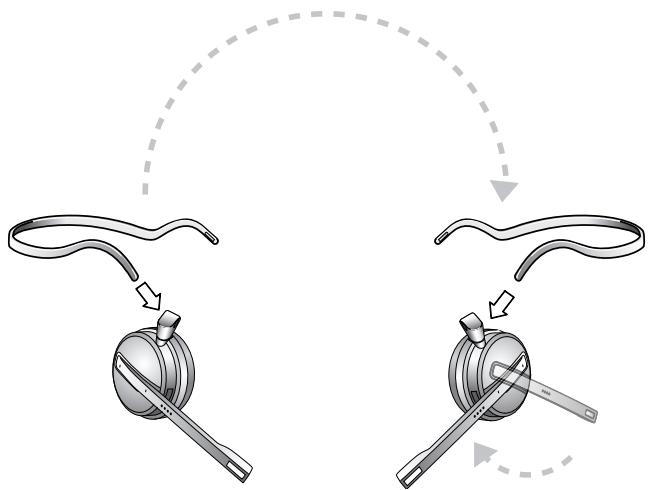
Figure 47: Neckband ready for wearing on the left and right ears
Each end of the neckband has a slot. This slot must be aligned with the notch inside the loop of the ear-cushion attachment when you insert the band.
-
Align the mounting surface of the headset with the matching socket on the ear-cushion attachment. Press the headset assembly firmly onto the outer side of the attachment until it clicks into place (snap-to-click). Refer to the figure in the section 4.3: "Assemble the Headset" earlier in this manual. If you have trouble pressing them together, try to rotate the boom arm about 30° and try again.
-
Turn the headset in the socket to ensure that it is mounted correctly.
- Put on the neckband and headset assembly.
- Turn the headset boom arm so that the microphone is right in front of the corner of your mouth.
See also Section 7.1: How to Wear the Headset for illustrations.
Detaching the neckband
- Hold the assembly firmly in both hands, with the headset in one hand and the ear-cushion assembly of the neckband attachment in the other.
- Pull the headset away from the ear-cushion assembly of the neckband attachment until it comes free. If you have trouble pulling them apart, try to rotate the boom arm about 30° and try again.
7.3 HEADSET CONTROLS AND SIGNALS
All Jabra PRO headsets feature a collection of controls and indicators that enable you to manage and monitor your calls. These are:
1. Multifunction button
This button is located near the back of the headset. Through a combination of taps, double-taps, short presses and long presses, you will be able to execute all of the most-needed functions, including answering a call, hanging up, switching between held calls, and more.
2. Touch panel
This touch-sensitive panel is similar to the touch pad included with many laptop computers. It enables you to adjust the speaker volume and mute/unmute the microphone.
3. Headset visual indicator
A multicolor LED lets others see when you are on the phone and also gives feedback for certain types of events, such as low battery, incoming call, etc.
4. Audio signal tones
The headset generates several types of soft signal tones to let you know when you have an incoming call, muted call, call on hold, low battery, or other type of event. It also responds each time you use the multifunction button.
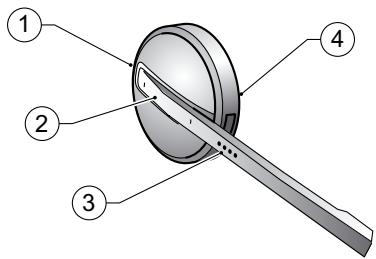
Figure 48: Jabra PRO headset controls and indicators
The Multifunction Button
The table below summarizes the various gestures recognized by the multifunction button. The terms listed in the table are often used in this manual when describing how to use the headset.
Table 3: Gestures for using the headset multifunction button; the terms here are used throughout this manual
| Gesture name | How to make it |
| Tap | Tap and release instantly (not longer than 0.8 seconds). |
| Double tap | Two quick taps (less than half a second between them). |
| Press | Press and hold the button for 1 - 3 seconds. |
Note: You can hear whether you have tapped / double-tapped / pressed the button as each gesture is identified by a unique tone / series of tones played in the headset. See the table "Headset signal tones and their meanings" for more.
The precise effect of each type of gesture depends on what you are currently doing (e.g., if you are already on a call, which phone is the current target, etc.). The table below summarizes all of the control possibilities presented by the multifunction button.
Table 4: All multifunction button commands
| Function | Tap | Double-Tap | Press(hold 1-3 sec) |
| Answer incoming call | ✓ | ||
| Open a connection on current target phone(e.g., go to dial tone; voice-activated dialing) | ✓ | ||
| Enable voice-activated dialing (when target is a cell phone that supports this) | ✓ | ||
| End current call (and activate held or incoming call, if any) | ✓ | ||
| Call the last number dialed on current target phone(supported softphones and mobile phones only) | ✓ | ||
| Reject incoming call (when already on a call) | ✓ | ||
| Switch target phone (when no call is active) | ✓ | ||
| Reject incoming call (when no call is active) | ✓ | ||
| Hold current call and switch to held or incoming call(supported softphones and mobile phones only) | ✓ | ||
| Power off / power on | (hold 5 secs) |
The Touch Panel
The headset features a touch panel that is similar to the touch pad included with many laptop computers. Use it to adjust the volume you hear in your headset and to mute/enable the microphone.
- Slide your finger up the touch panel (away from your mouth) to increase the volume.
- Slide your finger down the touch panel to decrease the volume.
- Double-tap on the touch panel to mute or unmute the microphone.
See also Section 6.6: Controlling the Speaker Volume and Microphone.
Headset Signal Tones
The headset uses a variety of soft tones to alert you to events such as an incoming call, multifunction button presses, volume changes, and more. These enable you to keep track of what is going on while you are wearing the headset.
Table 5: Headset signal tones and their meanings
| State or event | Tone description | Sample (click to play) |
| Button tap | A quick medium tone | |
| Button double-tap | Two button-tap tones | |
| Button press | The button-tap tone followed by a longer tone | |
| Maximum volume reached | Two short, high notes | |
| Minimum volume reached | Two short, low notes | |
| Mute | A quick medium tone, rest and quick low tone; repeats occasionally | |
| Incoming desk phone call | A very fast, high-pitch melody | |
| Incoming softphone call | A very fast, medium-pitch melody | |
| Incoming mobile phone call | A very fast, low-pitch melody | |
| Incoming call on another phone while on call (call collision) | Two short tones, played in quick succession, that repeat every time the ring signal is received by the base. | |
| Incoming call on the same phone while on call (call waiting) | Generated by the phone system | |
| Target changed to desk phone | A slow, high melody; or a human voice announcing "desk phone" in English | |
| Target changed to softphone | A slow, medium melody; or a human voice announcing "softphone" in English | |
| Target changed to mobile phone | A slow, deep melody; or a human voice announcing "mobile phone" in English | |
| Call ended | A quick melody ending on a low note | |
| Battery low | Two very quick, low tones; repeats occasionally | |
| Pairing succeeded | Three slow tones ending on a medium-high note | |
| Error (such as pairing failed) | Three quick tones followed by a lower long tone | |
| Start conference — prompts you to accept pairing of a secondary headset for a conference-call connection | Two tones of equal length and pitch followed by a longer, higher tone | |
| End conference — signals the end of secondary pairing | Two tones of equal length and pitch followed by a longer, lower tone | |
| Out of range — the headset is out of range of the base and the DECT signal is lost | Three quick, descending tones. The sequence repeats every 4 seconds while the headset is out of range |
Choosing Voice or Tones for Target indicators
The headset is capable of playing either a tone or a human voice when you change the target phone, thus telling you what the new target is. The human voice is always in English, regardless of your other language settings. By default, the human voice will be played. However, if you do not like hearing the English voice, you can switch to using the tones.
To change this setting, use the Jabra Control Center program of the Jabra PC Suite running on your PC. See the online help for complete details.
Headset Visual Indicators (LED)
The headset includes a multicolor LED which indicates the state of the headset, as outlined in the table below. During charging, the headset state LED indication is shown interspersed with a constant yellow light (which shows the headset is charging). Once fully charged, only the state LED indication is shown (no charging light while fully charged).
| Headset state | LED when battery level is good | LED when battery level is low |
| Idle | Blue 200ms Off 4800ms Repeats for 60 seconds | Red 100ms Off 4900ms Repeats indefinitely |
| ○ | ○ | |
| Not connected | Green 300ms Off 300ms Green 300ms Off 300ms Green 300ms Off 1500ms Repeats for 60 seconds | Red 100ms Off 500ms Red 100ms Off 500ms Red 100ms Off 1700ms Repeats indefinitely |
| ○ | ○ | |
| Out of range | Green 300ms Off 300ms Green 300ms Off 300ms Green 300ms Off 1500ms Repeats for 60 seconds | Red 100ms Off 500ms Red 100ms Off 500ms Red 100ms Off 1700ms Repeats indefinitely |
Table 6: Headset visual signals and their meanings
| Headset state | LED when battery level is good | LED when battery level is low |
| Power turned on | Green 100ms Off 100ms Repeats to a total of 4 times | Green 100ms Off 100ms Repeats to a total of 4 times |
| Power turned off | Red 100ms Off 100ms Repeats to a total of 4 times | Red 100ms Off 100ms Repeats to a total of 4 times |
| Pairing | Constant blue | Constant red |
| ○ | ○ | |
| Pairing succeeded | Blue 100ms Off 100ms Repeats to a total of 5 times | Red 100ms Off 100ms Repeats to a total of 5 times |
| ○ | ○ | |
| Charging | Constant yellow | |
| ○ | ○ | |
| Fully charged in cradle | no light | N/A |
7.4 BATTERY INDICATORS, RECHARGE AND REPLACEMENT
Battery indicators
The headset and touchscreen base indicate the current headset battery level as follows:
- Whenever the battery is low, the headset multicolor LED will display red for all of its usual signals.
While the battery is low, you will hear an audio signal (two quick, low tones) every minute or so in the headset. - When the headset is paired with a touchscreen base, you can read the current battery level on the touchscreen.
Recharging the Headset
To recharge your headset battery, place the headset in its cradle on the base. See also Section 4.3: Preparing the base and Assembling the Headset.
How to replace the battery
If you begin to notice that you get significantly less talk time between battery charges, it might be time to replace the battery.
To replace the headset battery:
- Order a Jabra PRO battery-replacement kit from Jabra (contact your Jabra representative or see our web site for details).
- Remove the wearing-style attachment from your headset (see also Section 7.2: Attaching or detaching a Wearing Style).
- Place the headset down on a table with the speaker facing up.
- Use the screwdriver supplied with the battery-replacement kit to remove the three screws indicated in the figure below.
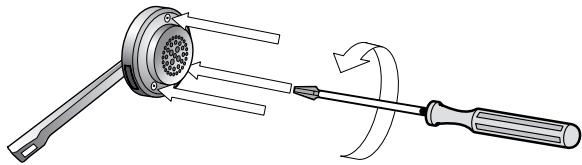
- Carefully tilt the speaker plate up, allowing it to rotate around the edge where the boom arm sticks out.
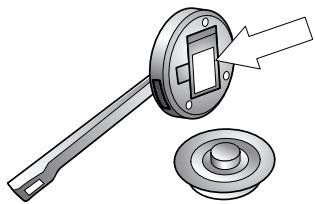
- The battery is the rectangular component now visible in the center of the headset body. Gently pry the battery up and out of the headset. The battery will remain attached to the headset by a pair of very thin wires.
- Grab the two wires that connect the old battery to the headset and gently pull them straight away from the socket inside the headset until they are free.
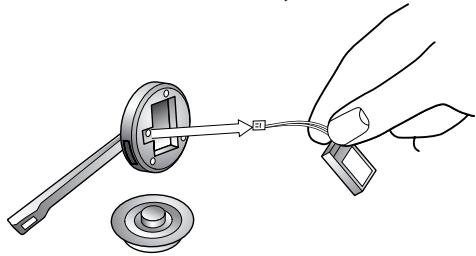
- Align the wired connector for your new battery with the socket inside the headset and press it all the way in. If you have trouble, you might have the connector upside down — try the other way.
- Fold the wires beside the new battery in the wire groove and press the battery down into place in the headset. Ensure that the battery label faces upwards for the correct orientation.
- Replace the speaker plate and insert and tighten each of the three screws you removed at the start of this procedure.
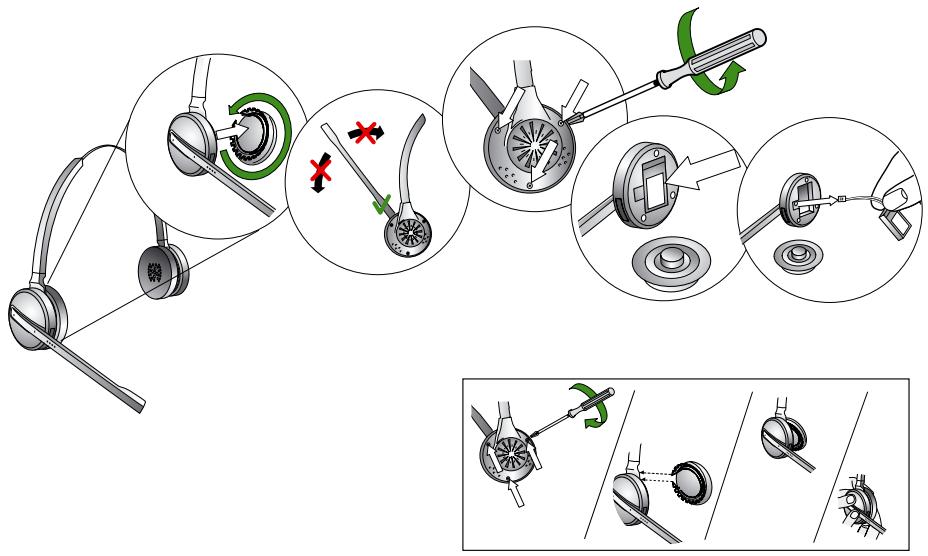
7.5 STAYING WITHIN RANGE
Jabra PRO supports a maximum range of up to 150m . In practice, you will probably find the range to be somewhat shorter due to physical obstructions and electromagnetic interference.
If you move the headset totally out of range of the base so that the DECT signal is lost, a unique tone is played in the headset every few seconds — see the section "Headset Signal Tones" for more.
The sound in your headset will slowly deteriorate as you move farther from the base; move back into range to restore sound quality. If you move all the way out of range while talking, you lose the conversation audio but your call will be held open at the base for 60 seconds, giving you a chance to move back in range; after this time the current call will be terminated.
If you remain out of range for a long time, you may need to re-establish the DECT connection manually when you return (e.g., by docking the headset to the base).
7.6 NOISE BLACKOUT™ MICROPHONE (Jabra PRO 9470)
The Jabra PRO midi headset features an advanced, two-microphone Noise Blackout™ system that will help ensure that your voice will be clear and easy to understand — even when you are sitting in a crowded office or other noisy environment. It works by using a pair of directional microphones: one facing towards your mouth and one facing away. These two signals are combined inside the headset, which subtracts the room-noise signal from the voice signal, leaving only your voice behind.
This system works best when the headset's voice microphone is placed as close as possible to your mouth and when the out-facing microphone is completely unblocked. Avoid covering the out-facing microphone with your hand or any other substance. (Some users assume that blocking the out-facing microphone will reduce noise, but the opposite is true!)
7.7 NOISE-CANCELLING MICROPHONE (Jabra PRO 9460, Jabra PRO 9460 DUO AND Jabra PRO 9465 DUO)
The Jabra PRO 9460, Jabra PRO 9460 Duo and Jabra PRO 9465 Duo feature electronic noise cancelling, which will help reduce the noise transmitted by your headset, making your voice easier to hear and understand. For best results, always make sure to place the microphone as close to your mouth as possible.
8. THE Jabra PRO TOUCHSCREEN BASE
This chapter describes how to work with the features of the Jabra PRO Touchscreen Base. See also Chapter 3: Product Overview for detailed diagrams.
8.1 BASE CONNECTIONS AND SETUP
For details about how to set up the base and connect it to your various phones, please see Chapter 4: System Setup and Connections.
8.2 USING THE TOUCHSCREEN
Jabra PRO Touchscreen Base features a color touchscreen that enables you to configure the solution, set preferences and manage everyday calls. Its display changes to adapt to the task at hand. Touch the screen with your finger to activate icons, scroll down a page, select a target device and execute other tasks.
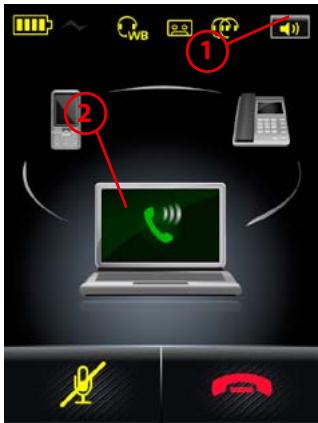
Figure 49: Touchscreen elements
1. Status bar:
-heasdet battery level indicator
- the headset is docked correctly in the base's cradle (a successful electrical connection is made).
- WB (Wideband) audio. The base is set to transmit and receive wideband audio to the headset. See the section "Settings menu".
Notes:
- this "headline icon" is only displayed while there is an open audio link, for example; while there is an active call.
- if the "headset icon" is displayed without "WB", the transmission is narrowband.
- tape icon; call recording is enabled. See "Recording your Calls"
- two headers icon; conference calling is enabled as both a primary and secondary headset are paired with the base. See "Pairing and Connecting the Base and Headset" and "Conference Calling"
-
speaker icon; opens the Call Options menu. See the section "Call Options menu" for more.
-
Activity window: the contents of this area will change depending on what you are doing. Usually it indicates your current call status by displaying icons that show which type of phone you are using (desk, soft or mobile) and whether you have any calls on hold. A number of button icons may also appear here. These will often include target-phone options or forward/back icons when you are working through a series of settings. Touch the screen to "press" any of the button icons here.
The entire area of the touchscreen is fully dynamic, both in terms of what it shows and where you can touch. The touchscreen turns around its bottom-front edge axis so you can adjust it to your preferred viewing angle.
During normal operation, the touchscreen shows status information about your headset, displays the current target phone and indicates its status. From here you can answer an incoming call, end the current call, access your base settings, choose a target phone and open an audio link to the current target phone.
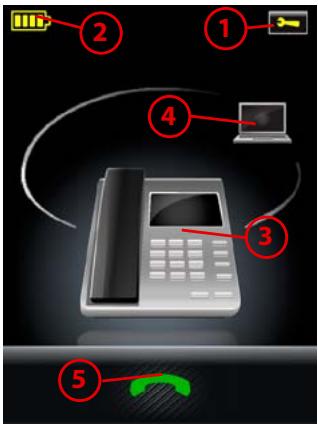
- Settings icon: touch here to go to the settings menu for your base and headset.
- Battery indicator: indicates the current charge level of your headset.
- Current target phone: shows the current target phone and indicates its status (ringing, online, etc.). This is the phone to which you will connect if you tap the headset multifunction button or touch the activate-audio-link icon.
- Other phones: touch the appropriate icon here to change the current target phone — or press the headset multifunction button when no call is active to cycle through available phones.
- Activate audio link: touch here to answer an incoming call or activate the audio link to the current target phone — or tap the headset multifunction button when no call is active.
Figure 50: Touchscreen controls for standard operation
For MSH Users Only
If your desk phone is using the MSH electronic hookswitch standard, the idle screen is a little different, as shown below:
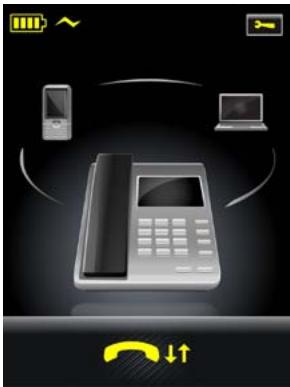
Figure 51: The idle screen for a desktop using MSH
Here, the desk phone is in focus and the headset is docked in its cradle. While the headset is docked, the audio link is closed (inactive).
If you touch the yellow handset icon with the arrows, you toggle the desk phone between on- and off-hook (with MSH, the base and headset cannot determine whether the phone is on- or off-hook).
8.4 PAIRING AND CONNECTING THE BASE AND HEADSET
To enable secure wireless communication between the Jabra PRO headset and its base, you must pair the two units. Once paired, they will find, connect and communicate with each other as needed whenever they are in range and turned on, but they will ignore all other DECT devices in the area.
Pairing the DECT Base and Headset
The headset can only be paired with one base at a time, while the base is able to pair with one primary headset and an optional and temporary secondary headset. The secondary pairing enables you to share your conversation with another headset user to support conference calling (see the section "Conference Calling"). You cannot pair the Jabra PRO base or headset with other types of DECT products.
To pair your base and headset:
- Dock the headset to the charging cradle of the target base.
- If the headset is not already paired with that base, then the touchscreen will ask you if you would like to do one of the following:
- Pri. (Pair as primary): touch this icon to make the current headset the new primary device for the current base. This will remove any previous primary headset.
- Sec. (Pair as secondary): touch this icon to make a temporary connection to the current headset. This connection will only last until the end of the next (or current) call. The current primary headset will be kept and all audio will be shared with both headsets.
- No (Do not pair): touch this icon to charge the current headset without pairing with it.
- Touch the icon of your choice and you are done.
Note: A similar pairing mechanism is also used by Bluetooth® devices. Jabra PRO 9470 supports Bluetooth® for the purpose of adding a mobile phone to your headset solution. However, the Bluetooth® pairing is completely independent of the DECT pairing mechanism described above. See Section 9.2: Pairing and Connecting with Other Bluetooth® Devices for details.
Once you have paired the base and headset, the base manages the connection automatically even as you take the headset out of range and/or turn off the devices from time to time. The connection activates itself again automatically the next time the Jabra PRO Base and headset are turned on and in range.
8.5 CALL OPTIONS MENU
When you are on a call, you can access the Call Options menu by touching the icon in the upper right-hand corner of the screen, as shown below:
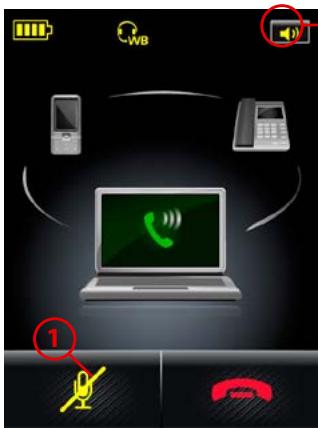
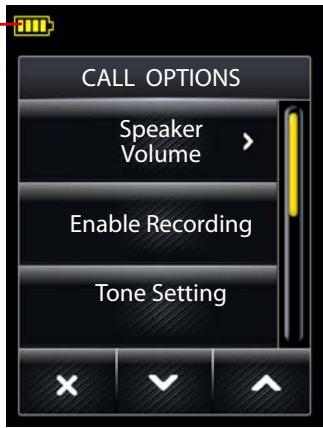
Figure 52: Checking your call options
1 Mute: enables you to mute/unmute the microphone on your headset. You can also do this by double-tapping the touch-panel on the side of your headset.
To view/edit the settings available here, touch one of the following options from the Call Options menu:
- Speaker volume: enables you to adjust the level of the sound you hear. You can also do this using the touch-panel on the side of your headset.
If you select this item, the touchscreen displays the speaker volume adjustment screen, as shown below:
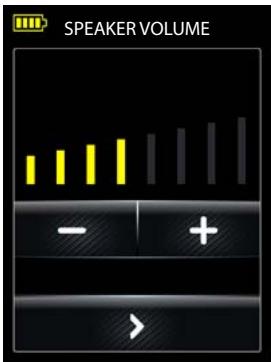
Figure 53: Speaker volume level adjustment
Note: This screen is also shown automatically if you use the headset's touch panel to adjust the volume. See the section "Controlling the Speaker Volume and Microphone" for more.
- Enable Recording: enables you to manage the recording of your conversation to a file on your PC. See also Chapter 10: Recording Your Calls for complete details about this feature. This feature cannot be used for a softphone.
- Tone setting: enables you to select one of three pre-sets for the sound you hear in your headset: Treble, Normal and Bass.
8.6 PHONE MENU
When you are on a call, you can access the phone menu (Desk Phone / PC & Softphone/ Mobile Phone menu) by touching on the phone icon itself, as shown below.
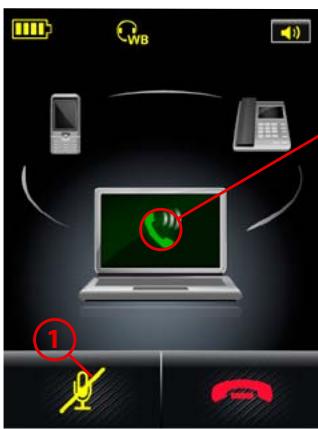
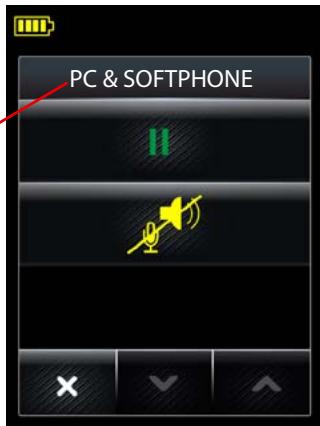
Figure 54: Displaying the phone menu
1 Mute: enables you to mute/unmute the microphone on your headset. You can also do this by double-tapping the touch-panel on the side of your headset.
Note: You can also access the phone menu for a target mobile phone and softphone — but not desktop phone — in the idle state. The menu options are different for an active and an idle phone; see below.
To view/edit the settings available here, touch one of the following options from the Desk Phone / PC & Softphone / Mobile Phone menu:
- Hold: enables you to put your current call on hold. Once you put a call on hold, this menu option is removed. Note that you cannot put a desk phone on hold — this menu option is not available for desk phones.
- Audio on-hold: enables you to put your current call on hold — that is; put it into the background but not end it. The audio link to the headset for this call is broken. See the section "Audio On-Hold" for more.
- PC Audio Communication: This is only shown if your PC is the target phone and it is idle (has no active call). This opens a PC audio communication link — a pseudo call — that is used for web conferencing and non-supported softphones. See the section "Web Conferencing" for more.
- Disconnect / Connect: This is only shown if your mobile phone is the target phone and it is idle (has no active call). This forces the headset to disconnect / connect to the mobile phone. See the section "Forcing Reconnection/Disconnection via the Touchscreen" for more.
8.7 MSH PHONE ACTIVE CALL SCREEN
If your desk phone is using the MSH electronic hookswitch standard, the active call screen is a little different, as shown below:
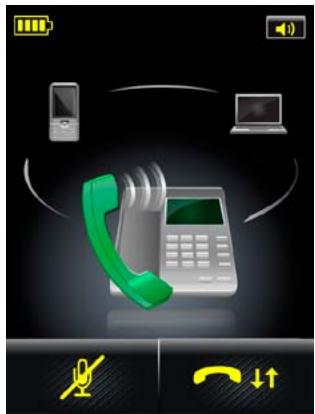
Figure 55: The active call screen for a desktop using MSH
Here, the desk phone is in focus and the headset is undocked from its cradle.
If you touch the yellow handset icon with the arrows, you toggle the desk phone between on- and off-hook (with MSH, the base and headset cannot determine whether the phone is on- or off-hook). This answers/ends calls.
While the headset is undocked, the audio link is open but the base and headset cannot determine whether there is an active call. For this reason, you are able to select a different target phone from this screen with MSH (only).
8.8 MANAGING CALL COLLISION
For a general discussion of call collisions, see the earlier section 6.9: Managing Call Collisions and Call Waiting. This section deals with handling call collisions on the base touchscreen.
In the event of a call collision, the following occurs:
- The touchscreen displays the incoming number (if available).
- The touchscreen shows which other phone is ringing and provides controls for handling the call, as shown in the figure below.
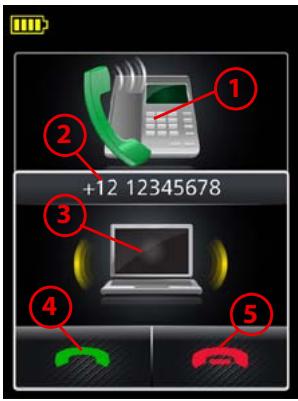
- Current phone: the phone on which you are talking.
- Caller ID: the incoming call number is shown here, if available.
- Ringing phone: the phone on which the incoming call is arriving.
- Accept new: touch here — or press the headset multifunction button — to put your current call on audio-hold and answer the incoming call.
The call on audio-hold is put into the background but not ended. The audio link to the headset for this call is broken.
The call put on audio-hold is shown on the touchscreen marked with a yellow handset to indicate activity on a phone whose audio is not currently routed to the headset. See the chapter "Call Merging and Switching" for more.
- Reject new: touch here — or double-tap the headset multifunction button — to remain on your current call and terminate the incoming call.
Note: You can also tap the headset MFB to end the current call and answer the incoming call.
Figure 56: Handling call collision
Note: Call collision is not the same as call waiting, which is sometimes available when you are talking on one phone and a call comes in on that same phone. See the section "Managing Call Waiting" for details about how this is handled.
8.9 MANAGING CALL WAITING
For a general discussion of call waiting, see the earlier section 6.9: Managing Call Collisions and Call Waiting. This section deals with handling call waiting on the base touchscreen.
When call waiting is triggered by a new incoming call, the following occurs:
- The standard call-waiting tone will sound in your headset.
- The touchscreen displays the incoming number (if available) and provides controls for handling the new call, as shown in the figure below.
- Call-waiting control is enabled for the headset multifunction button. The commands for this are also mentioned in the figure below.
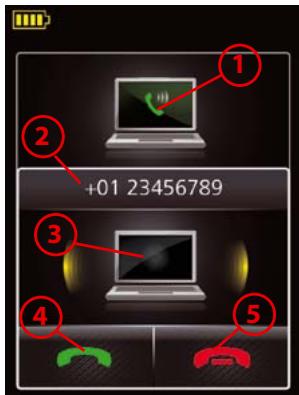
Figure 57: Touchscreen controls for managing call waiting when a new call arrives
- Current phone: the phone on which you are talking.
- Caller ID: the incoming call number is shown here, if available.
- Ringing phone: the phone on which the incoming call is arriving.
- Accept new: touch here — or press the headset multifunction button — to put your current call on hold and answer the incoming call.
- Reject new: touch here — or double-tap the headset multifunction button — to remain on your current call and reject the incoming call.
Note: You can also tap the headset MFB to end the current call and answer the incoming call.
If you touch the green handset icon shown in the figure above, you put a call on hold. While you have one — or more — calls on hold, a plus sign and a shadow are shown on the target phone icon, as shown in the figure below:
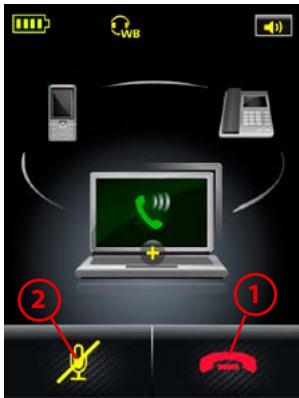
- End and switch: touch here — or tap the headset multifunction button — to terminate your current call and activate the next held call.
- Mute: enables you to mute/unmute the microphone on your headset. You can also do this by double-tapping the touch-panel on the side of your headset.
- Phone menu: touch the phone icon to display the phone menu (PC & Softphone menu, in this case). This allows you to put your call on hold, on audio-hold or to hold-and-switch calls—see Fig. 60 for more.
Figure 58: One or more calls on hold (call waiting)
If you have an active call, with no calls waiting, and you then put the active call on hold, the red (end call) button is removed from display. This means that you must re-activate the held call before you can end it (press the green arrow). See the figure below:
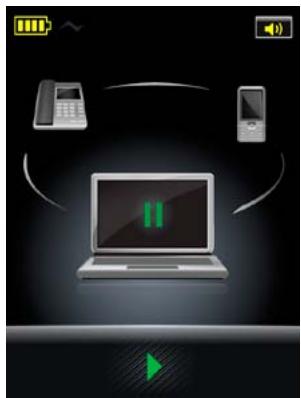
Figure 59: The current (active) call is put on hold; no other calls are waiting
Note: call waiting is not the same as call collision, which is what happens when you are talking on one phone (e.g., your desk phone) and a new call comes in on another phone (e.g., your mobile phone). See the section "Managing Call Collision" for details about how this is handled.
Note: if call waiting is active when a call collision occurs, then the touchscreen will indicate the collision and enable you either to ignore the incoming call or to answer it, thus dropping all of the active and held calls being managed by call waiting. The headset, however, does not provide a tone to inform you of a call collision if you have held calls; it essentially ignores the colliding call until there are no more calls on hold.
Note:
- An incoming call on background phone whose audio is on hold (following a call collision) is NOT shown on the touchscreen.
- An incoming call on a phone whose call is merged is shown on the touchscreen.
If you open the phone menu (touch the target phone icon), you can manage your call(s) waiting, see the figure below:
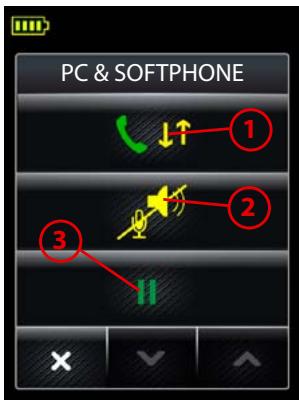
- Hold and switch: touch here — or press the headset multifunction button — to put your current call on hold (at the back of the queue) and activate the first held call in the queue
- Put on audio-hold: touch here to put your current call on audio-hold
- Put on hold: touch here to put your current call on hold.
8.10 SETTINGS MENU
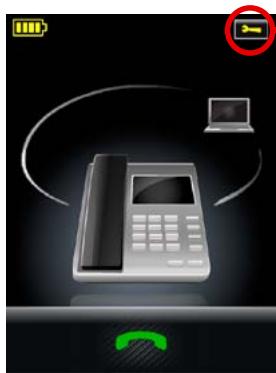
Figure 60: Managing call waiting; one or more calls are on hold
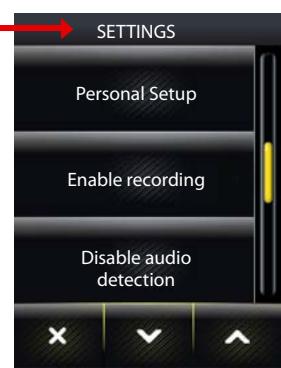
Figure 61: Displaying the Settings menu
To access the Settings menu:
- Wait until you have no active calls and do not need the phone for a few minutes.
- Touch the icon in the upper-right corner of the touchscreen (available only when all connected phones are idle).
- The Settings menu opens. Select one of the following:
- Personal setup: touch here to adjust display brightness, dimming timeout, set base-speaker volume for your desk-, mobile-, and softphone ringtones, adjust touch click-volume and to select tone or voice tags.
-
Enable / Disable recording: Determines whether audio from your desk phone and mobile phone calls are copied to the PC for recording. The equivalent setting is available in the Audio tab for your Jabra device in Jabra Control Center. Note that the recording feature is disabled by default. See also Chapter 10: Recording Your Calls for more on this feature.
-
Disable / Enable audio detection: Determines whether the audio link opens automatically when sound is detected on the USB interface. The equivalent setting is available in the Audio tab for your Jabra device in Jabra Control Center. Audio detection is enabled by default.
- Wideband audio: touch here to view/change the band settings for softphone and desktop (they are set independently of each other). If wideband is enabled, the Jabra PRO base transmits and receives wideband audio to/from the headset. See also the section "Narrowband vs. Wideband Audio" for more.
- IntelliTone: touch here to go to the settings for protecting your hearing. See also Section 2.2: Protecting your Hearing with SafeTone™ for complete details about this feature.
- Language: touch here to change the language displayed for the touchscreen text.
- Advanced: touch here to run parts or all of the setup wizard and access advanced settings. See the section "Avanced Settings menu".
- About: touch here to view a few technical details about the base, such as firmware revision, copyright details, etc.
8.11 ADVANCED SETTINGS MENU
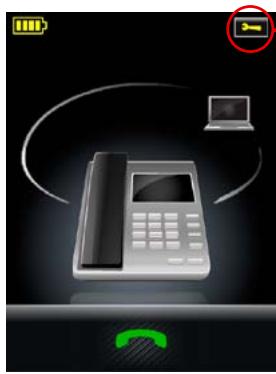
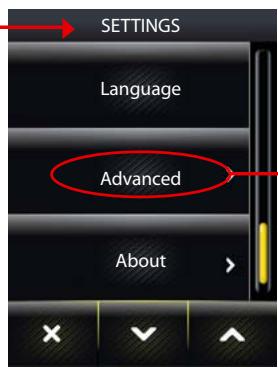
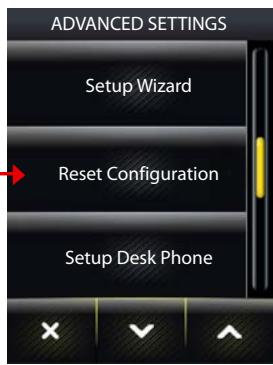
Figure 62: Accessing the Advanced Settings menu
To access the Advanced Settings menu:
- Wait until you have no active calls and do not need the phone for a few minutes.
- Touch the icon in the upper-right corner of the touchscreen (available only when all phones are idle).
- The Settings menu opens. Touch on Advanced here.
-
The Advanced Settings menu opens. Select one of the following:
-
Setup Wizard: touch here to run the whole setup wizard.
The first time you apply power to the base, the setup wizard runs automatically, enabling you to configure the connection to your desk phone, mobile phone and/or smartphone. This menu item lets you re-run the wizard to reconfigure at any later time. The base restarts automatically if you select this item. - Reset Configuration: touch here to reset all base settings to default and run the whole setup wizard.
- Setup Desk Phone: touch here to reset your desk phone configuration (including all clear dial-tone switch, electronic hookswitch and microphone-level settings) and run the desk phone part of the setup wizard. The rest of the configuration remains unchanged. The base restarts automatically if you select this item.
- Setup PC & Softphone: touch here to reset your softphone configuration and run the softphone part of the setup wizard. The rest of the configuration remains unchanged. The base restarts automatically if you select this item.
- Setup Mobile Phone: touch here to reset your mobile phone configuration (Jabra PRO 9465 Duo and Jabra PRO 9470 only) and run the mobile phone part of the setup wizard. The rest of the configuration remains unchanged. The base restarts automatically if you select this item.
- Headset intro: touch here to view a short series of screens that show you how to answer/end a call, adjust volume, and mute/unmute a call just using the headset. Optimal positioning of the headset microphone and rotation of the docking cradle for left ear use are also shown.
- Wireless Range: touch here to view/edit the DECT range setting. This determines the effective distance from the base for which the headset can be used. When you select this item, the touchscreen displays the three options — Normal (selected by default) Low and Very Low. The base restarts automatically if you view/edit this setting. You can choose Low or Very Low if you want to use a larger number of headsets within a given area. See the section "Dealing with Density Issues" for more on density and "Staying within Range" for more on range.
This can also be set from Jabra Control Center.
- Aut. Audio Link Desk Phone / Softphone: touch here to view/edit the setting that determines whether an audio link is automatically opened to the target phone (desk phone or softphone) when you undock the headset. When you select this item, the touchscreen displays the two options — Automatic Audio Link and Manual Audio Link.
Automatic audio link is default-enabled for desktop phones (except those using the MSH electronic hookswitch standard) and default-disabled for softphones. The base restarts automatically if you view/edit this setting. See also the section "Headset Docking-Operation".
This can also be set from Jabra Control Center.
8.12 BASE AUDIO INDICATORS
The base includes a small speaker, which enables it to supply one or both of the following:
- A ringing sound to indicate an incoming call (can be especially useful when you are using a softphone or have the ringer disabled on your desk or mobile phone).
- A soft clicking sound to provide feedback when you use the touchscreen. This can help make using the touchscreen feel more like working with a physical control panel.
You can choose to enable/disable one or both of the above audio features by editing your personal setup. See the section "Settings menu" for more.
8.13 NARROWBAND VS.WIDEBAND AUDIO
The Jabra PRO headset supports both wideband and narrowband audio, but uses narrowband by default. You should consider using wideband if you listen to music from your PC and/or if your voice-communication channels also support it. Note, however, that wideband audio reduces battery talktime.
You are able to configure narrowband/wideband operation individually for each phone type.
Note: If you call have an active call and one or two calls on audio-hold, both calls are filtered down to narrowband if one of them uses narrowband.
Even if the narrowband call is ended, the wideband call remains in narrowband until it is ended.
See the section "Settings menu" for more.
8.14 CONFERENCE CALLING
The Jabra PRO Touchscreen Base enables you to connect a secondary Jabra PRO headset to the base, thereby adding another person to the conversation.
To make a conference call connection:
- Dock the second headset with the base that is to host the call.
You can do this either just before the call or at any time during the call.
The touchscreen asks whether you want to pair the headset as primary or secondary headset (see Section 8.4: Pairing and Connecting the Base and Headset for more).
- Select Sec. on the touchscreen.
The base pairs with the secondary headset (this takes a few seconds). When paired, a tone series is heard once in the primary headset (the start conference tone; see the section "Headset Signal Tones"). - Tap the MFB on the primary headset within 10 seconds of hearing the tone series to accept the secondary headset.
All audio is now shared by both connected headsets until one of the following occurs:
The primary headset user hangs up.
The secondary headset user taps the MFB on his or her headset.
The secondary headset user docks his or her headset to its own base.
When the conference call connection is broken, secondary paring is ended and the end conference tone is heard in the primary headset. The secondary headset is permanently removed from the host base — this means you must repeat the procedure given above in full each time you want to make a conference call.
Whenever the headset is docked correctly in the base's cradle, the successful electrical connection to the base is indicated by an icon in the touchscreen's as shown below:
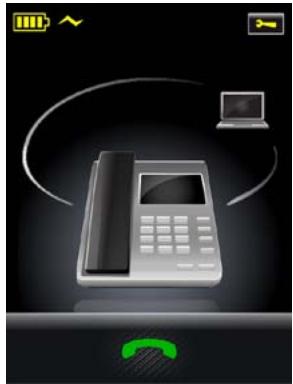
Figure 63: The touchscreen indicates that the headset is docked successfully
Docking operations (lifting and replacing the headset to/from the recharge cradle) simulate the pick-up and hang-up operations of a traditional phone as follows:
- Whenever you dock the headset to the base, all current calls will be terminated.
- Whenever you undock the headset (lift it from the cradle on the base), an audio link is automatically opened to the target softphone or desk phone if the automatic audio link function is enabled.
Notes:
- The automatic audio link function is enabled by default unless your desk phone is using the MSH remote handest leter standard (in which case it is disabled by default). In any case, you can enable/disable this function using the Aut. Audio Link setting via the base touchscreen or from the Jabra PC Suite. See the Advanced Settings menu description for more.
- If the base is able to detect that a connected phone is ringing, lifting the headset opens an audio link to the ringing phone even if the automatic audio link function is disabled. However, not all types of phone support ring detection.
8.16 THEFT PROTECTION
The base includes a slot for attaching a security cable, which can help prevent the base from "accidentally" being removed from your desk while you are not paying attention. The slot meets the Kensington Security Slot standard, which is commonly found on laptops and laptop docking stations.
To secure the base to your desk, purchase any safety cable intended for use with the Kensington Security Slot standard and follow the instructions included with the cable.
8.17 DEALING WITH DENSITY ISSUES
DECT technology uses low-power radio technology for wireless transmission. Because DECT uses a dedicated radio-frequency band, it is relatively immune to interference from other products using radio technologies commonly used in offices such as wireless routers or wireless networks. Likewise, DECT will not interfere with WiFi networks.
You might, however, experience some performance degradation if you install many Jabra PRO headsets in one area – the limits are explained below. DECT has a built-in automatic channel-allocation which attempts to allocate channels in a way which minimizes the likelihood of interference. The number of channels is always limited, which may have some implications for large scale deployment.
Performance issues manifest themselves as audible clicks and pops. In the most severe cases, they manifest themselves as the inability for some headsets to establish the wireless link.
The basic limit you should be aware of is the number of headsets in one area before DECT channels are re-used:
- 80 headsets for EU DECT (normal audio), or 40 headsets for EU DECT (wideband audio)
- 45 headsets for US DECT (normal audio), or 22 headsets for US DECT (wideband audio)
The use of wideband audio gives an additional constraint as wideband audio reduces the number of headsets by a factor of 2.
If the number of headsets in any one area is below the limit indicated above, there should be no performance issues. Even in those lower density situations, you are advised to separate bases from each other by at least 2 - 4m.
If you exceed the density limits, you should configure the products to operate in low-power mode. You must plan using the following conservative average areas per headset and base-to-base distances:
- 25m2 - 49m2 for EU DECT (i.e 5 - 7m between bases).
- 49m2 - 100m2 for US DECT (i.e. 7 - 10m between bases).
Be aware of the fact that large metal objects or large glass windows, especially those covered with a metallic layer, create many radio reflections. This forces you to plan even more conservatively. The average areas are valid for an average headset-to-base distance of < 5m — otherwise more conservative planning is needed.
The area referred to above depends on the building layout. It could be an open space office, or a set of collocated offices separated by lightweight walls. Offices far apart, say >100m apart, or shielded by heavy concrete walls should not be considered one area. The above planning figures are valid if most users are near their bases (< 3m distance). If most users are >5m away from their bases, you should roughly double the recommended area.
8.18 WEB CONFERENCING
There are three possible kinds of audio link between your PC and the headset:
Audio link for music
- PC softphone link.
A two-way audio link for softphone communication (which includes hook commands)
- PC communication link.
A two-way audio link used for non-supported softphones and web conferencing (no hook commands are used) In order that your web conference is not interrupted by incoming phone calls, you need to make a pseudo call for its duration. This means that you need to open a PC communication link manually. Do the following:
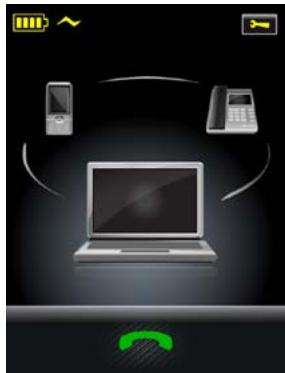
Figure 64: First select the PC as the target phone.
- On the base touchscreen, select PC as the target phone, as shown.
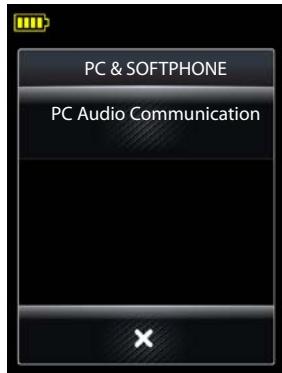
Figure 65: Start PC audio communication.
- Touch the PC phone icon to display the PC & Softphone menu, as shown. Touch the PC Audio Communication menu item.
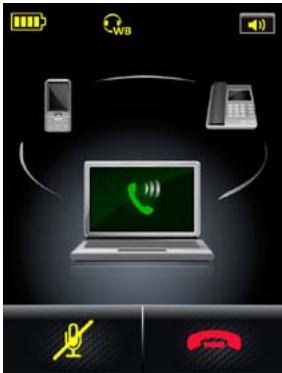
Figure 66: Pseudo PC softphone call started.
- The touchscreen shows an active softphone call (though in reality there is none).
- Hold your web conference. When the web conference is over, touch the red handset icon to end the PC audio communication (end the pseudo call).
Note:
- If another (real) call comes in on your softphone while PC audio communication is active, call waiting occurs (see the earlier section "Managing Call Waiting"). The incoming (real) call is indicated on the touchscreen by a ringing PC icon in the usual way (see the figure "Touchscreen controls for managing call waiting when a new call arrives").
- You cannot both accept the new call and keep running the web conference — reject (red handset icon) the incoming call and keep running the web conference or accept (green handset icon) the incoming call and end the web conference on the PC.
- If you accept the incoming call but you forget to end the web conference on the PC, the audio from both is merged by the PC.
- If you accept the incoming (real) call, any new PC softphone calls can be put on hold and switched in the usual way (as described in the earlier section "Managing Call Waiting").
- If a call comes in on either the desk phone or the mobile phone, there is a call collision, which can be handled in exactly the same way as for a real active softphone call.
9. USING Jabra PRO 9465 DUO OR Jabra PRO 9470 WITH A MOBILE PHONE
Note: this chapter applies only to Jabra PRO 9465 Duo and Jabra PRO 9470.
9.1 Jabra PRO BLUETOOTH® SUPPORT
The Jabra PRO 9465 Duo and Jabra PRO 9470 Bases feature Bluetooth® support, which means that you can place and receive calls through your Bluetooth®-enabled mobile phone using your headset. The headset, however, is based on DECT wireless technology, which means that you cannot pair it directly with your mobile phone.
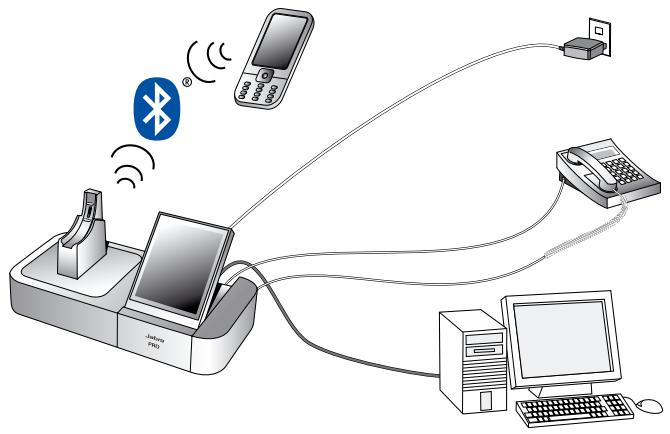
Figure 67: Jabra PRO 9470 Base connections with Bluetooth®
From the mobile phone's point of view, the Jabra PRO 9465 Duo or Jabra PRO 9470 Base looks just like a standard Bluetooth® headset with hands-free, headset and phone-book access profile support. The features available to you will depend on which of these are also supported by your mobile phone.
When using your headset with your mobile phone, you should keep the mobile phone on your desk somewhere close to the base. Most mobiles use Bluetooth® wireless technology Class 2, which supports a range of up to 10m. The Jabra PRO 9465 Duo and Jabra PRO 9470 Bases also support Bluetooth® wireless technology Class 2.
See Chapter 6: Daily Use — Calling, Answering and Hanging Up for complete details about how to use your headset together with your mobile phone and other types of phones for day-to-day calling.
9.2 PAIRING AND CONNECTING WITH OTHER BLUETOOTH® DEVICES
Pairing the Base with a Mobile Phone
To use Bluetooth® wireless technology, you must set up the wireless communication between the Jabra PRO 9465 Duo or Jabra PRO 9470 Base and your mobile phone by pairing them. The setup wizard helps you to do this during the initial setup but you can run the wizard at any later time.
- Run the mobile phone part of the setup wizard on the Jabra PRO base. See the section "Advanced Settings menu". This puts the base into pairing mode, which causes it to advertise itself as available for pairing.
- Make sure that Bluetooth® is active on your mobile phone and put your phone into Bluetooth® pairing mode. The exact procedure for doing this varies by mobile phone manufacturer and model — see your mobile phone manual for details.
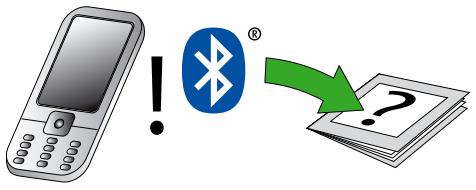
- Your phone now looks to see if any nearby Bluetooth® devices are advertising themselves for pairing. Use your phone's controls to identify and select the "Jabra PRO 9465 Duo/Jabra PRO 9470" device. Your phone might also ask for the headset's pass code. The pass code for all Jabra devices is 0000 (four zeros).
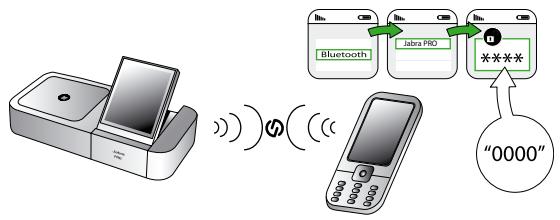
- Your phone attempts to connect to the base and then shows you the result of the attempt. If the attempt fails, please try again. If you are still having trouble, please check your mobile phone documentation and/or contact technical support for Jabra and/or your mobile phone.
Note:
- All communications between your Jabra PRO 9470 Base and your mobile phone are encrypted, so others will not be able to intercept and understand your conversation. Establishing this encryption is an important part of the pairing process.
- Just because two devices are paired, does not necessarily mean they are connected (which means that the link between them is active). Typically, connection occurs automatically once your mobile phone is paired but you might need to connect manually using the menu system on your mobile phone (as described in your phone's documentation).
Managing Bluetooth Connections
Usually, the base manages its Bluetooth® connection automatically even as you take the mobile phone out of range and/or turn off the devices from time to time. However Jabra PRO does provide controls for managing the connection manually if necessary, as described below.
If two paired devices are turned on and in range but fail to connect automatically, you can connect manually. Do the following, as needed:
- Use the base touchscreen, as described in the section "Forcing Reconnection/Disconnection via the touchscreen".
- Use the menu system on your mobile phone, as described in your phone's documentation. Note that you cannot do this if you disconnected the phone from the base touchscreen.
You can drop the connection from the headset to your mobile phone (for example, because you would like to connect your mobile phone to another device) in a similar way.
9.3 FORCING RECONNECTION/DISCONNECTION VIA THE TOUCHSCREEN
If the base — and therefore also the headset — loses the connection to the mobile phone (e.g. if you take it out of range) it periodically attempts to reconnect — every 15 secs for the first 3 hours and then every 40 secs indefinitely. You can instead force the headset to reconnect with it via the touchscreen base. The headset must be within range of the base for this to happen.
Consider the figure below:
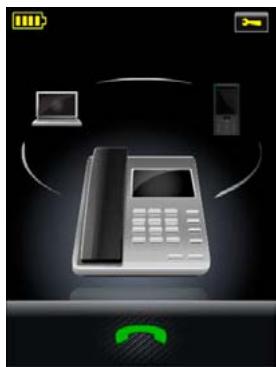
Figure 68: Mobile phone connection is lost
- The mobile phone icon is greyed out, indicating that the connection is lost. To reconnect manually, do the following.
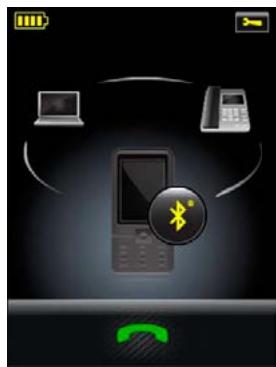
Figure 69: Mobile phone is the target
- Touch the greyed out mobile phone icon to make it the target. See figure left.
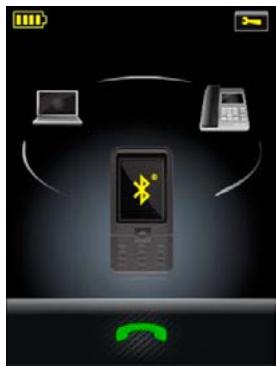
Figure 70: Mobile phone is the target
- Touch the Bluetooth® button on the mobile phone icon. This causes the base to start reconnecting to the mobile phone, indicated by the flashing Bluetooth® icon. See figure left.
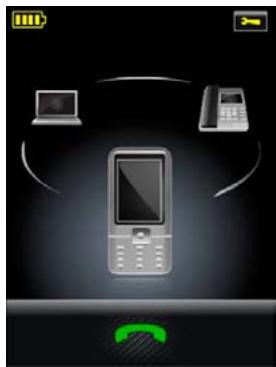
Figure 71: Mobile phone and base are reconnected
- When the mobile and base are reconnected — which means that the connection to the headset is also restored via the base — the mobile phone target icon is no longer greyed out, as shown in figure to the left.
Conversely, if you want to force the headset to disconnect the mobile phone, do the following:
- Touch the mobile phone target icon to view the Mobile Phone menu. See the figure below:
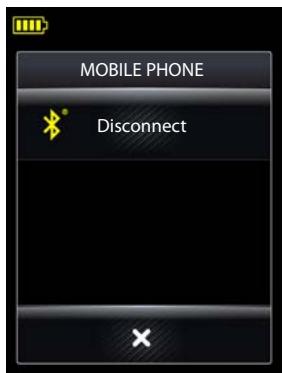
Figure 72: Mobile Phone menu
- Touch Disconnect. This causes the base (and also the headset) to disconnect the mobile phone, indicated by greyed out target icon with the Bluetooth® button. See figure left.
- Touch a different phone icon to select a different (connected) target. Suppose you select the desk phone as the new target; the touchscreen is as shown in figure to the left.
Note:
If you touch Disconnect, there is no automatic reconnection as Bluetooth® is disabled on the base. This means that you must touch the Bluetooth® button on the mobile phone icon (see Fig. 69 on the previous page) if you want to reconnect. You cannot force reconnection from the mobile phone in this case.
10. RECORDING YOUR CALLS
10.1 ENABLING THE RECORDING FEATURE
The Jabra PRO 9460/Jabra PRO 70 enables you to record your conversations from your desk or mobile phone via USB to your PC, using third-party software on your PC.
Note: You must first ensure that the Softphone present box is checked in Jabra Control Center (Softphone tab for the device) or that a softphone is set up via the touchscreen in order to use the Recording feature.
IMPORTANT: Never record conversations with people without first informing them that you are doing so and getting their permission. Recording people surreptitiously may be against the law and can also lead to law suits.
There are settings to enable recording both in the Settings (see the section "Settings menu") and in the Call Options (see the section "Call Options menu"). Refer to the menus shown here on this page.
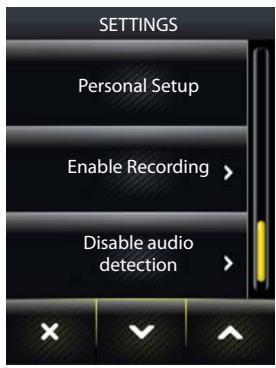
The setting in the Settings menu is the default value (recording enabled or recording disabled) that applies to any call.
Note: The equivalent setting is available in the Audio tab for your Jabra device in Jabra Control Center. Check/uncheck the Forward mobile and desk phone conversations to PC for recording box to enable/disable.
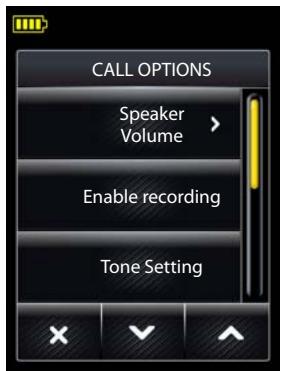
For an active call it is then possible to "override" this default by accessing the Call Options menu and either enable or disable recording. Note that the setting in Call Options only applies to the current active call.
The following is an example of recording a conversation using the Windows Sound Recorder application.
- From the Windows Control Panel, open Sound and Audio Devices Properties and select the Audio tab. Ensure that your Jabra PRO 9460/Jabra PRO 70 device is selected in Sound recording.
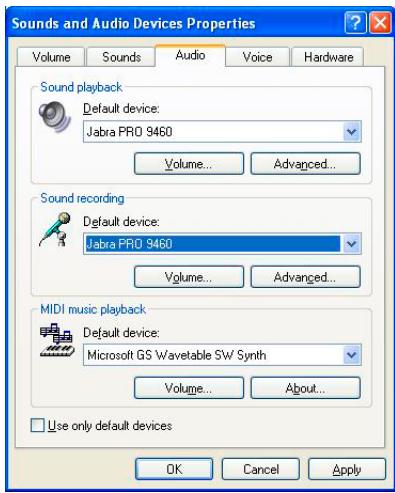
Figure 73: Sound and Audio Devices Properties in Windows
- Open Windows Sound Recorder (select Start > All Programs > Accessories > Entertainment > Sound Recorder).
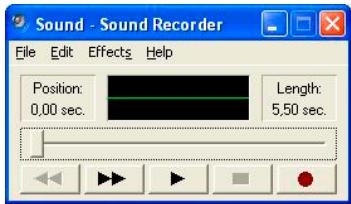
Figure 74: Windows Sound Recorder
- Enable voice recording in the touchscreen Settings menu.
- Initiate a desk phone call using the touchscreen and desk phone.
- Inform the call participant that it is a recorded conversation.
- Click the red record button in Windows Sound Recorder.
- Now you can record the conversation (Windows XP up to 60 seconds) no limitation in Windows Vista and 7).
- After the call has ended — and if you choose to save the recorded file — you can listen to your conversation in Windows Media Player.
11. CALL MERGING AND SWITCHING
11.1 OVERVIEW — WHAT IS POSSIBLE?
You can choose to create a conference call using two or three of the phones to which the base is connected — that is, a conference call between you and callers on your desktop phone, softphone and mobile phone. This is termed call merging. Here, audio from the headset's microphone is routed to all the other phones in the conference and audio from any one phone is routed to the headset's speaker and to the other phones.
Also, a merged call (or any active call for that matter) can be put on audio-hold at any time. This means that audio from that phone is no longer routed to the headset; the audio link between the phone and the headset is broken. The call is unmerged. You can later choose to re-establish the audio link; the call is then merged again and joins the currently active call(s).
You can switch your headset's audio between a call that is on audio-hold and one that is active (in the foreground on the Jabra base touchscreen) — for example between a held call on your desktop phone and a current call on your mobile phone. This is termed call switching.
Note: Putting an active call on audio-hold is NOT the same as putting a call on hold in the usual (telephony) sense of the term. You put a call on audio-hold on the Jabra base, breaking the audio link between the phone that has the call and the headset. The call's audio is disconnected internally in the Jabra base.
In the telephony sense of the term, you put an active call on hold in the phone system; here the audio link remains open. This is a function of the telephone system.
11.2 CALL MERGING
You can merge calls as described in this section.
Consider the figures below:
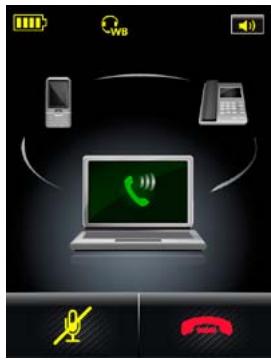
Figure 75: You have a single active call.
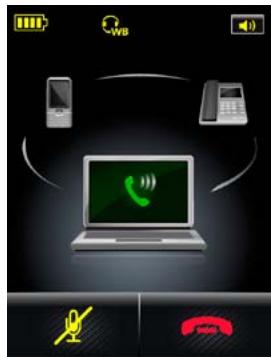
1. You have an active call on your softphone. A desk phone and mobile phone are also connected to the Jabra base.
Figure 76: There is an incoming call on your desk phone.
- While you are on call, another phone (in this case your desk phone) starts ringing. This situation is termed a call collision. See also the section "Managing Call Collision". You can now choose either to accept or reject the incoming call.
You touch the green handset icon and accept the call.
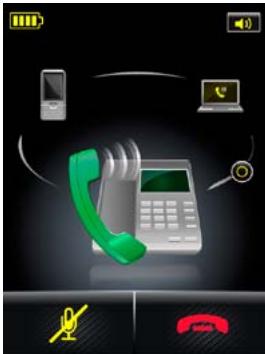
Figure 77: You accept the incoming call, which puts the softphone call on audio-hold.
- The call on your softphone is put on audio-hold (audio link broken in the Jabra base). This is indicated by its yellow handset. The yellow button indicates that these calls can be merged for a group call.
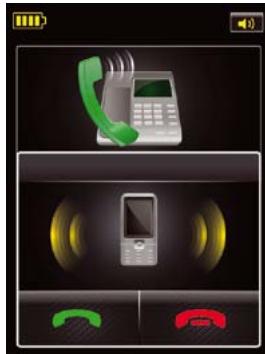
Figure 78: There is a third incoming call, which you accept.
- While you are talking on your desk phone, a third call comes in; this time on your mobile phone. You choose to touch the green handset icon to accept the call.
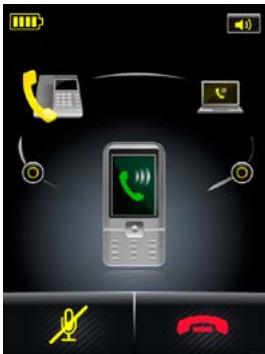
Figure 79: Two calls on audio-hold; the last accepted call is active.
- The softmax and desk phone calls are now both on audiohold (yellow handsets); the mobile phone call is active.
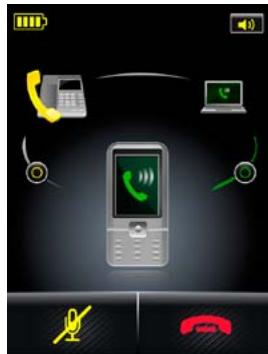
Figure 80: Two of the three calls are merged.
- Touch the yellow button between the softphone and mobile phone to merge the calls. You and two of the three callers are now in a group call. This is indicated by a green arc between the phone icons.
Note that if you were to touch the green button, you would put the softphone on audio-hold but stay on call on your mobile phone. That is, you touch the green/yellow button to unmerge/merge calls.
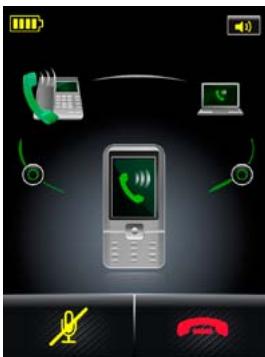
Figure 81: All three calls are merged.
- Assuming that you want to include all three calls in a group call, touch the yellow button between the desk phone and mobile phone. This merges the calls and thereby creates a group call using all three phones.
Note: If just one of the merged calls — or calls on audio-hold — uses narrowband audio, all of the calls are filtered to narrowband (even if the others use wideband).
Once a call's audio stream is filtered down to narrowband audio, it remains so for the duration of the call — even if it is removed from the group call.
11.3 CALL SWITCHING
You can switch calls as described in this section.
Consider the figures below:
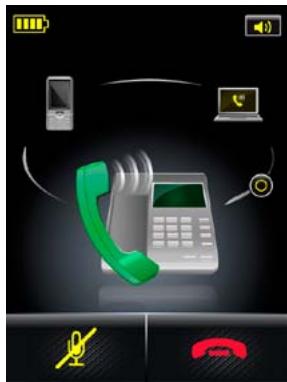
Figure 82: You have a single active call and one on audio-hold.
- You have an active call on your desk phone. Your sophone has its audio on hold - that is, has its audio disconnected to the headset. This is shown in the background with a yellow handset.
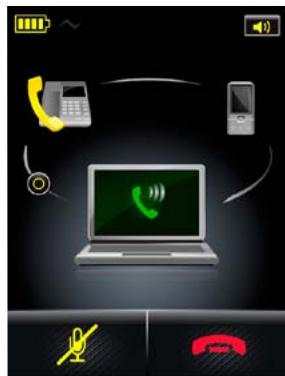
Figure 83: The active call and call on hold are switched.
- You now decide to switch the calls, so that the desk phone has its audio on hold and the softphone has the active call. To do this, simply touch the phone icon with audio on-hold (yellow handset). Now the desk phone call is on hold and the softphone call is active, as shown — the call in the headset has been switched.
Similarly, if you have three connected phones where two are on audio-hold and one is active, you can switch the active and either one of the phones on hold (touch a yellow handset phone icon to make it active).
11.4 AUDIO ON-HOLD
If you initiate an outgoing call while you are on a call on another phone, the current call is automatically put on audio-hold. It remains on audio-hold even after the new call is ended — you need to manually re-activate the call to resume it.
You can put active calls (including merged calls) on audio-hold as described in this section.
Consider the figures below:
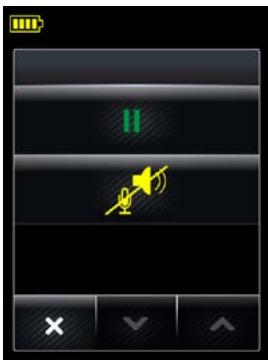
Figure 84: Displaying the phone menu.
- You have only one current call — on your mobile phone. You decide that you want to take a break; touch the mobile phone icon to display the Mobile Phone menu, as shown (see the section "Phone menu" for more). Select audio on-hold (microphone and speaker icons).
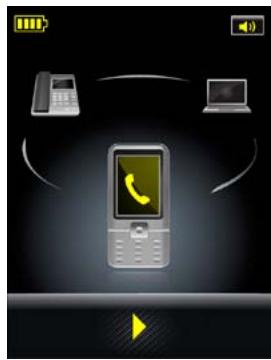
Figure 85: The target call is put on audio-hold.
- Now the mobile phone call is on audio-hold (yellow handset) but still in the foreground on the touchscreen, as shown. The audio link is to the headset is broken.
To restore the audio link and resume the call, touch the yellow play button underneath the phone icon or touch the phone icon itself.
As another example, consider the figures below:
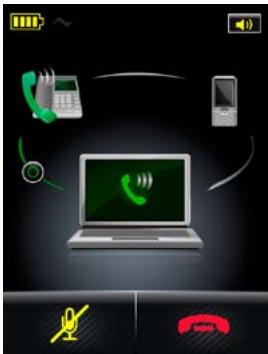
Figure 86: You have two merged calls.
- You have two merged calls, as shown.One on your desk phone and one on your softphone.You and the other two callers are now in a group call. This is indicated by a green arc between the phone icons
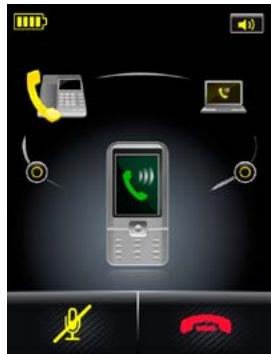
Figure 87: The merged calls are put on audio-hold when the new call is accepted.
- A third call comes in on your mobile phone. You touch the green handset icon at the bottom of the screen to accept this call. Now the desk phone and softphone calls are on audiohold (yellow handsets) and in the background; the group call is ended. The mobile phone call is now active, as shown. Note that there is no merge calls button between background phones.
12. FAQs AND TROUBLESHOOTING
Q HOW CAN I USE MY HEADSET WITH MY MOBILE PHONE? (Jabra PRO 9465 DUO AND Jabra PRO 9470 ONLY).
A To be able to do this, you need to pair the Jabra PRO 9465 Duo or Jabra PRO 9470 base with your mobile phone (your headset is based on DECT and cannot be paired directly with your mobile phone). Do the following:
- Refer to the section "Advanced Settings menu" which explains how to run the mobile phone part of the setup wizard. This puts the headset's base into pairing mode, which causes it to advertise itself as 'available for pairing'.
- Make sure that Bluetooth® is active on your mobile phone and put it into Bluetooth® pairing mode. The exact procedure for doing this varies according to brand and model. See your user manual for details.
- Remember that the headset identifies itself as "Jabra PRO 9465 Duo/Jabra PRO 9470" — you need to find and select this on your phone. You might also be prompted to enter the pass code "0000" (four zeros) to accept pairing. If you need more on this, see the section called "Using Jabra PRO 9465 Duo or Jabra PRO 9470 with a mobile phone" in the user manual.
Q HOW MANY BLUETOOTH° DEVICES CAN I HAVE CONNECTED TO THE Jabra PRO 9465 DUO OR Jabra PRO 9470 BASE?
A Only one. The Jabra PRO 9465 Duo and Jabra PRO 9470 bases support Bluetooth® so that you can use your mobile phone with your headset.
Q HOW DO I PAIR MY HEADSET WITH THE Jabra PRO 9400 BASE?
A If you dock a Jabra PRO 9400 base and headset that are not paired, the touch screen asks if you would like to pair the headset — either as a primary or secondary device. If you choose to pair it as secondary, the connection is temporary, lasting only until the end of the next (or current call). This feature is meant to facilitate conference calling.
Touch the 'confirm' icon to pair them; touch the 'cancel' icon to prevent pairing (while still charging the headset). If you dock a headset to a Jabra PRO 9400 base with which it is already paired, no pairing notification appears. For more information, see the section called "Pairing and Connecting the Base and Headset" in the user manual.
Q CAN I PAIR MY HEADSET DIRECTLY WITH A THIRD-PARTY DECT PHONE?
A No, you can only pair the headset with a Jabra PRO 9400 base (it is not Generic Access Profile (GAP) compliant). This is because Jabra PRO 9400 uses an enhanced version of the DECT standard, thereby enabling many of its advanced call-handling features. These enhancements are not supported by third-party manufacturers.
Q WHY DOESN'T MY COMPUTER DETECT THE Jabra PRO 9400 BASE?
A Try connecting the base to another USB port on the PC. Also, please note that it is recommended to have a direct connection - i.e. with no USB hub in between.
Q WHY DOESN'T MY HEADSET WORK WITH MY DESK PHONE / SOFTPHONE / MOBILE PHONE (Jabra PRO 9465 DUO AND Jabra PRO 9470 ONLY)?
A Please check the following:
- Make sure the headset is charged. The LED lights a constant yellow color while charging, then shows no light at all (only state indication) when fully charged.
- Make sure the headset is within range of the base (up to 150m) and that the mobile is within range of the base (up to 10m).
- The base / mobile phone and the headset may no longer be paired. Refer to the questions about pairing these devices, above.
Q NOTHING HAPPENS WHEN I TRY TO USE MY DESK PHONE.
A Check the following:
- Make sure the Jabra PRO 9400 base is powered on (check that the touch screen is on).
- Make sure the desk phone is the current target. See the section called "The Target Phone Concept" for more.
- Make sure the audio link to the desk phone is active (e.g., by tapping the headset multifunction button or touching the activate-audio-link icon on the touch screen)
- Make sure that the telephone has an active connection to the phone network (i.e. its handset is off the hook or its headset button is pressed).
- Re-run the desk phone set-up wizard.
Q I CANNOT HEAR ANYTHING IN MY HEADSET WHEN USING MY MOBILE PHONE. (Jabra PRO 9465 DUO AND Jabra PRO 9470 ONLY)
A Try the following:
- Make sure the two devices are paired and connected. See the section "Using Jabra PRO 9465 Duo or Jabra PRO 9470 with a mobile phone" in the user manual for more information.
- Increase the speaker volume on the headset by sliding your finger up the touch-sensitive panel on the side of the headset.
Q I HEAR A LOW NOISE IN THE HEADSET WHEN THERE IS SILENCE AT THE OTHER END?
A Your headset is probably using one of the highest volume settings. Decrease the speaker volume on the headset by sliding your finger down the touch-sensitive panel on the side of the headset.
Q I HEAR MYSELF WHEN I TALK USING MY DESK PHONE. WHAT CAN I DO?
A This probably means your transmission volume is too high. Set the transmission volume on your desk phone to a lower level.
Q THE SOUND IN THE HEADSET IS POOR QUALITY OR THE PERSON AT THE OTHER END CANNOT HEAR ME WHEN I TALK USING MY DESK PHONE
A The clear dial-tone switch and/or microphone-level setting in the Jabra PRO 9400 base may be set incorrectly. Correct by re-running the desk phone setup wizard. See the section "Advanced Settings menu" in the user manual for more information.
Q I AM GETTING A BUZZING SOUND IN MY HEADSET.
A If the device has been set up correctly, your telephone may not be fully immune to the radio signals the headset uses. To overcome this problem, move the headset base at least 30cm away from the telephone. Alternatively, you can reduce the range of your unit by adjusting the settings on the touch screen.
Q I CAN'T HEAR SOUND OR LISTEN TO MUSIC FROM MY PC IN MY HEADSET.
A Please check the following:
-
Make sure that the Jabra PRO 9400 base is selected as the current audio device both in the Windows sound control panel and in the application you are using.
-
Make sure the audio link to the PC is open (e.g., by right-clicking on the Jabra Device Service icon in the Windows notification area on your PC).
-
Make sure softphone is enabled in Jabra PC Suite.
Q I HAVE MOVED TO A NEW DESK AT WORK. IS IT POSSIBLE TO PUT MY HEADSET ON ANOTHER Jabra PRO 9400 BASE?
A Yes. Just place your headset in the cradle on the new Jabra PRO 9400 base. The two devices will pair and connect automatically.
Q WHEN I TRY TO MAKE A CALL ON MY DESK PHONE, THE GN1000 RHL LIFTS, BUT THE CALL IS NOT CONNECTED.
A The GN1000 cannot be used in conjunction with a headset port. Make sure that the Jabra PRO 9400 base is connected to your desk phone's handset port and not its headset port (if it has one).
Q IS IT POSSIBLE TO AUTOMATE CALLING AND ANSWERING ON MY DESK PHONE WITHOUT USING A HANDSET LIFTER?
A Yes, if your desk phone has an electronic hook switch feature. Check with your supplier for compatibility with your phone, and/or consult the support area at www.jabra.com.
Q MY TELEPHONE INCLUDES AN ELECTRONIC HOOK SWITCH FEATURE THAT SHOULD WORK WITH MY HEADSET, BUT I CAN'T MAKE IT FUNCTION.
A Please check your desk phone documentation to see if any special configuration settings or software updates are required. See also the Jabra website for more information, including compatibility and the correct, clear dial tone switch setting - www.jabra.com/PRO9400
Q DOES WI-FI INTERFERE WITH Jabra PRO 9400 IF YOU HAVE THEM IN THE SAME PLACE?
A No, the Jabra PRO 9465 Duo and Jabra PRO 9470 Bluetooth® ports use adaptive frequency hopping, thereby avoiding channels that are blocked by Wi-Fi. To ensure good sound quality, only the free channels are used.
Q IS IT POSSIBLE TO LISTEN IN ON CALLS WITH THE Jabra PRO 9400 SOLUTION?
A The risk of unauthorized access to communication via a Jabra PRO 9400 headset is very limited as 64-bit encryption is used for the data stream.
Q WHAT IS THE RANGE ON THE Jabra PRO 9400 SOLUTION?
A Jabra PRO 9400 supports a maximum range of up to 150m^* (base to headset). In practice, you may find the range to be somewhat shorter due to physical obstructions and electromagnetic interference. The sound in your headset will slowly deteriorate as you move farther from the base. Move back into range and sound quality is restored. If you move all the way out of range while talking, you will lose all sound, but your call will be held open at the base for 60 seconds. This gives you the chance to move back in range. However, after 60 seconds the current call will be terminated. If you remain out of range for a longer time, you may need to re-establish the DECT connection manually when you return (i.e. dock the headset to the base).
Q WHAT ABOUT CONFERENCE CALLS?
A The Jabra PRO 9400 base is able to pair with one primary headset plus an optional and temporary secondary headset. This allows you to share your conversation with another headset user for conference calling.
Q CAN I TURN THE HEADSET OFF TO SAVE POWER WHEN I'M AWAY FROM THE BASE?
A Yes. Press and hold down the headset's multifunction button down for 5 seconds. To turn the headset back on again, simply dock it in its cradle or press the multifunction button. Please note that this power cycle is the equivalent of resetting the headset.
Q WHAT IS THE TALK TIME FOR A Jabra PRO 9400 HEADSET?
A About 8h for wideband talk mode and up to 10h for narrowband talk mode.
Q MY HEADBAND / EARHOOK / NECKBAND IS BROKEN. HOW DO I GET ANOTHER ONE?
A Simply contact your local Jabra supplier and place an order. You can find the part numbers in the section called "Optional Accessories" in the user manual.
Q I CAN'T CONTACT THE DIAL-IN SERVER. WHAT SHOULD I DO?
A Let the touch screen wizard guide you — you can retry the automatic setup or try a manual setup of your desk phone. You can also choose to retry the cable setup. See the section called "Configuring the Jabra PRO 9400 base for your desk phone" in the user manual for more information.
- Range varies according to the environment in which the headset is used
13. GETTING ASSISTANCE
If you are having problems with your headset solution that are not addressed by the information in this manual, then please feel free to contact Jabra technical support at any the locations listed below.
13.1 EUROPE
Web (for the latest support info and online User Manuals): www.jabra.com
| Phone: | E-mail: | |
| Belgique/Belgium | + 49 (0)8031 2651 72 | techsupport@gn.com |
| Czech Republic | + 420 800 522 722 | support.cz@gn.com |
| Danmark | + 45 45 75 99 99 | support.dk@gn.com |
| Deutschland | + 49 (0)8031 2651 72 | techsupport@gn.com |
| Espana | + 34 916 398 064 | |
| France | + 33 (0) 130 589 075 | techsupport@gnnetcom.fr |
| Italia | + 39 02 5832 8253 | |
| Luxembourg | + 49 (0)8031 2651 72 | techsupport@gn.com |
| Nederland | + 49 (0)8031 2651 72 | techsupport@gn.com |
| Norge | + 47 32 22 74 70 | support.no@gn.com |
| Österreich | + 49 (0)8031 2651 72 | techsupport@gn.com |
| Poland | + 48 12 254 40 15 | |
| 0 801 800 550 | support.pl@jabra.com | |
| Russia | gkarsson@gn.com | |
| Suomi | + 358 204 85 6040 | support.fi@gn.com |
| Sverige | + 46 (0)8 693 09 00 | info@jabra.se |
| United Kingdom | + 44 (0)1784 220 172 | info_uk@jabra.com |
13.2 MIDDLE EAST/AFRICA
E-mail Support: support.mea@gn.com
13.3 USA AND CANADA
Web (for the latest support info and online User Manuals): www.jabra.com
Technical support: techsupport@gnnetcom.com
Information: info@jabra.com
Phone (toll-free in USA and Canada):
| Canada | 1-800-489-4199 |
| USA | 1-800-826-4656 |
13.4 ASIA/PACIFIC
Web (for the latest support info and online User Manuals): www.jabra.com
E-mail Information: support.apac@jabra.com
Phone:
Australia 1-800-636-086 (local distributor)
China +86-21-5836 5067
Hong Kong 800-968-265 (Toll free)
India 000-800-852-1185 (Tollfree)
Indonesia 001-803-852-7664
Japan +81-3-5297-7976
Malaysia 1800-812-160 (Tollfree)
New Zealand 0800-447-982 (Toll free)
Philippine +63-2-2424806
Singapore 800-860-0019 (Toll free)
Taiwan 0080-186-3013 (Toll free)
14. TECHNICAL SPECIFICATIONS
14.1 ALL Jabra PRO HEADSETS
Operating environment:
-10°C to +55°C (0°C to +40°C when charging); Up to 95% RH non condensing
Call control:
multifunction button supporting answer call, end call, voice-activated dialing, reject call, radial, swap held calls; docking operations can also answer and end calls
Volume control and microphone mute:
controlled via touch-panel on headset
Visual indicator:
multi-color LED indicates call status, battery level, pairing status and other events
Audio indicators:
Tones to indicate incoming calls, low battery, volume level, microphone muting and other events; target phone can be indicated by English voice tag or target-specific melody
Sound quality:
DSP noise reduction; echo cancellation; tone control; narrowband and wideband audio (selectable per phone type)
Firmware update:
Downloadable from PC
Recharge:
While docked in the Jabra PRO base
PC-based configuration:
All settings can be stored and loaded from a PC for backup and mass deployment
Wireless standard:
DECT and DECT 6.0 (CAT - iq)
DECT range:
up to 150m from Jabra PRO base to headset
DECT Frequencies:
US DECT: 1.88 - 1.90
EU DECT: 1.92 - 1.93
Wearing styles:
Ear hook or headband (neckband is available as an accessory)
Boom style:
Midi
Microphone:
Single noise-cancelling microphone
14.2 Jabra PRO MIDI HEADSET
The Jabra PRO Midi Headset is included with Jabra PRO 9470. In addition to the specifications listed above, this headset provides the following:
Wearing styles:
Ear hook, headband, neckband (either included or available as accessories, depending on model)
Speakers:
1
Boom style:
Midi
Microphone:
Dual Noise Blackout™ microphones
14.3 Jabra PRO FLEX HEADSET
Wearing styles:
Ear hook, headband, neckband (either included or available as accessories, depending on model)
Speakers:
1
Boom style:
Flex
Microphone:
Single noise-cancelling microphone
14.4 Jabra PRO 9460 DUO AND Jabra PRO 9465 DUO HEADSETS
Wearing style:
headband
Speakers:
2 (dual mono)
Boom style:
flex
Microphone:
single noise-cancelling microphone
14.5 HEADSET HEARING PROTECTION
All Jabra PRO 9460, Jabra PRO 9465 Duo and Jabra PRO 9470 headsets can be configured to provide any of several levels of protection, depending on how long you use the headset each day. A specific setting may be required in some jurisdictions. See also Section 2.2: Protecting your Hearing with Safetone™.
All four IntelliTone™ levels above zero meet and exceed de facto global protection levels, and are compliant with NIOSH standards and EU health and safety codes of 85 dB(A). The are also compliant with Directive 2003/10/EC of the European Parliament and Council of 6 February 2003.
The TT4 protection level is compliant with pertinent Australian recommendation.
14.6 HEADSET BATTERY
All Jabra PRO headsets use the same type of battery, which has the following specifications:
Battery type:
Lithium Ion
Battery capacity:
315 mA/h, typical
Battery talk time:
Up to 10h
Battery lifetime:
Minimum 500 charge cycles (over 3 years when used for 8 hours a day)
Battery standby time:
At least 100h
Operating temperature range:
at -10°C to +60°C
Note: The headset features an temperature-dependant charging algorithm that prevents the battery from being charged during extreme temperatures (about 0 to 45 deg. C)
Battery charge time:
2 hours
Shelf life:
Holds a charge for at least 6 months in the off state before recharge is required
Replacement:
Battery lifetime is usually about 3 years with regular use. Contact your Jabra dealer for details about how to order a battery-replacement kit for your headset
14.7 MATERIALS AND ALLERGIES
The headband attachment is made of stainless steel and does not have a nickel-coated surface. Nickel release from the headband is 0.02µg / cm2 / week, which is well below the 0.50 µg / cm2 / week limit established by EU Directive 94/27/EF. The stainless steel alloy was tested for nickel release in accordance with the European standard EN 1811:1998.
Other wearing-style attachments are made of plastic and contain no known allergens.
The leatherette ear cushions do not contain vinyl.
The products contain no nickel, chrome or natural rubber that can come into contact with users' skin.
14.8 TOUCHSCREEN BASE
All Jabra PRO bases described in this manual meet the following specifications (model differences are noted where relevant). The Jabra PRO 9465 Duo and Jabra PRO 9470 bases also support Bluetooth®, which is specified in the next section.
Dimensions:
160mm x 94mm x 82mm
Wireless standard:
DECT and DECT 6.0 (CAT - iq)
DECT range:
Up to 150m from base to headset
Operating environment:
-10°C to +55°C (0°C to +40°C when charging); Up to 95% RH non condensing
Touchscreen:
2.4" touch-sensitive TFT; Q-VGA resolution
Touchscreen functions:
Detailed call handling, system configuration and setup wizard; can fetch and radial from mobile-phone call history (incoming, outgoing and missed calls)
Recharge cradle:
Fits supplied Jabra PRO headset; features magnetic coupling; easily replaced to accommodate future headset upgrades
Audio:
Built-in speaker can provide ring tones and/or audio feedback for touchscreen operation
Audio bandwidth:
Narrowband or wideband
Desk phone connections:
RJ-11 for handset, RJ-11 for phone body (or headset port), RJ-45 for AUX (for electronic hookswitch or GN1000 handset lifter)
Clear dial-tone switch and microphone calibration:
Software controlled and adjusted automatically by calling your local Jabra test server
Electronic-hookswitch standards:
GN1000, Cisco, DHCP, MSH, (each requires additional cabling and/or equipment available separately; more may become available in future and added via firmware upgrade)
Busy light indicator:
2,5 mm jack connector (available as an accessory)
PC connector:
Mini USB
Firmware update:
Downloadable from PC; also can include language packs for touchscreen display
PC-based configuration:
All settings can be stored and loaded from a PC for backup and mass deployment
Softphone support:
Full call handling for Skype, Microsoft Office Communicator and Cisco IP Communicator; other softphones see headset as a standard sound card; support for additional softphones may be added via driver updates for the PC. For the latest updates, see jabra.com/pcsuite on the web
Theft protection:
Kensington Security Slot standard
This product contains font software programs which generate human readable typeface designs ("Font Software") on base display. The Font Software family is Frutiger® Next licensed to GN Netcom by Linotype®.
14.9 Jabra PRO 9465 DUO AND Jabra PRO 9470 BASE BLUETOOTH® SUPPORT
In addition to the common specifications listed above, the Jabra PRO 9465 Duo and Jabra PRO 9470 Bases also include Bluetooth® support with the following specifications:
Bluetooth® version:
BT 2.1 Class 2
Bluetooth® range:
Up to 10m (Class 2)
Bluetooth® profiles:
Headset profile (HSP 1.1), hands-free profile (HFP 1.5), device-identification profile (DIP 1.3)
Bluetooth® paring table:
1 trusted device (headset)
Simultaneous Bluetooth® connections:
1 (headset)
14.10 PRODUCT DISPOSAL
Please dispose of the headset according to local regulations and recycle when possible. Do not dispose as household waste. Do not dispose of the headset in a fire as the battery may explode. Batteries may also explode if damaged.
14.11 CERTIFICATIONS AND SAFETY APPROVALS
CE
This product is CE marked according to the provisions of the R & TTE Directive (99/5/EC). Hereby, GN declares that this product is in compliance with the essential requirements and other relevant provisions of Directive 1999/5/EC. For further information, please consult http://www.jabra.com.
Within the EU, this device is intended for use in Austria, Belgium, Cyprus, Czech Republic, Denmark, Estonia, Finland, France, Germany, Greece, Hungary, Ireland, Italy, Latvia, Lithuania, Luxembourg, Malta, Poland, Portugal, Slovakia, Slovenia, Spain, Sweden, The Netherlands, United Kingdom, and within EFTA in Iceland, Norway and Switzerland.
FCC
This device complies with part 15 of the FCC Rules. Operation is subject to the following two conditions: (1) This device may not cause harmful interference, and (2) this device must accept any interference received, including interference that may cause undesired operation.
Users are not permitted to make changes or modify the device in any way. Changes or modifications not expressly approved by Jabra will void the user's authority to operate the equipment.
This equipment has been tested and found to comply with the limits for a Class B digital device, pursuant to part 15 of the FCC Rules. These limits are designed to provide reasonable protection against harmful interference in a residential installation. This equipment generates, uses and can radiate radio frequency energy and, if not installed and used in accordance with the instructions, may cause harmful interference to radio communications. However, there is no guarantee that interference will not occur in a particular installation. If this equipment does cause harmful interference to radio or television reception, which can be determined by turning the equipment off and on, the user is encouraged to try to correct the interference by one or more of the following measures:
Reorient or relocate the receiving antenna.
- Increase the separation between the equipment and receiver.
- Connect the equipment into an outlet on a circuit different from that to which the receiver is connected.
- Consult the dealer or an experienced radio/TV technician for help.
The user must place the base 8'' (20 cm) or more from any personnel in order to comply with FCC RF exposure requirements.
Industry Canada
Operation is subject to the following two conditions: (1) This device may not cause interference and (2) This device must accept any interference, including interference that may cause undesired operation of the device. The term "IC:" before the certification/registration number only signifies that registration was performed based on a Declaration of Conformity indicating that Industry Canada technical specifications were met. It does not imply that Industry Canada approved the equipment.
Patents and design registration pending international
15. GLOSSARY
Bluetooth®
An open wireless protocol for exchanging data over short distances from fixed and mobile devices, such as mobile phones and headsets. It is primarily designed for low power consumption, with a short range (power-class-dependent: 1 meter, 10 meters, 100 meters) based on low-cost transceiver microchips in each device.
Bluetooth® wireless technology makes it possible for these devices to communicate with each other when they are in range. Because the devices use a radio (broadcast) communications system, they do not have to be in line of sight of each other.
DECT
(Digital Enhanced Cordless Telecommunications). DECT is an ETSI standard for digital portable phones (cordless home telephones), commonly used for domestic or corporate purposes. DECT can also be used for wireless broadband data transfers.
Dual microphones
Dual microphones increase the amount of captured sound data, enabling the device to more intelligently filter the background noise. DSP technology then uses the microphones to determine the direction of the sound or noise based on the sound delay between the two microphones, making it possible to filter out unwanted noise. The DSP also uses the dual microphone system to significantly reduce stationary noise. To eliminate the "tinny" effect, sound emanating from the mouth is enhanced and transmitted while all other sound is classified as noise and is filtered out.
DSP
Digital Signal Processing.
Firmware
The software that is embedded in a hardware device, for example any Jabra headset or base.
Hookswitch
The control mechanism that answers and hangs up a call on a telephone. When you place the handset in the telephone cradle, it depresses the switch hook's button and hangs up (puts the phone "on hook").
Jabra® PC Suite
A collection of PC programs that enable you to configure your Jabra device, update its firmware and control supported softphones using the buttons on your headset. The Jabra PC Suite also includes drivers for various softphones on the market.
Narrowband audio
Narrowband refers to a situation in radio communications where the bandwidth of the message does not significantly exceed the channel's coherence bandwidth. It is a common misconception that narrowband refers to a channel which occupies only a "small" amount of space on the radio spectrum. Narrowband can also be used with the audio spectrum to describe sounds which occupy a narrow range of frequencies. In telephony, narrowband is usually considered to cover frequencies 300-3400 Hz.
Noise Blackout
Developed by GN Netcom engineers, Noise Blackout™ applies a directional principle to noise cancellation, reducing only surrounding noise and not distorting the user's voice. The technology uses dual microphones to capture sound, intelligently filtering background noise only. Other noise cancellation headsets cancel noise by cutting away audio frequency and reducing sound quality. Used together with advanced DSP technology and Peakstop™ (audio shock protection) that monitors incoming audio volume, sound is balanced to filter out background noise, leaving both sides of the call with a natural sounding voice quality.
Pairing
Creates a unique and encrypted link between two Bluetooth® wireless technology devices and enables them to communicate with each other. Bluetooth® wireless technology devices will not communicate if they have not been paired.
Softphone
A piece of software for making telephone calls over the Internet using a general purpose computer, rather than using dedicated hardware. Often a smartphone is designed to behave like a traditional telephone, sometimes appearing as an image of a phone, with a display panel and buttons with which the user can interact. A smartphone is usually used with a headset connected to the sound card of the PC, or with a USB phone.
Softphone driver
Establishes a control link between a softphone and your Jabra headset, so you can answer and end, mute and un-mute, and hold and resume calls using the buttons on your headset. The actual call control functions available from your headset depend on the capabilities of the softphone and the Jabra headset model.
USB Bluetooth® adapter
Sometimes also called a dongle (see above). A PC must have a Bluetooth® adapter in order to communicate with other Bluetooth® wireless technology devices. While some desktop computers and most recent laptops come with a built-in Bluetooth® adapter, others require an external one. Bluetooth® wireless technology allows multiple devices to communicate with a computer over a single adapter.
Wideband audio
Sometimes also called HD Audio, this is an audio technology used in telephony. It extends the frequency range of sound travelling over telephone lines, resulting in higher quality voice transmission. The range of the human voice extends from 80 hertz to 14,000 hertz. Traditional, or narrowband telephone calls, limit audio frequencies to the range of 300 to 3400 hertz. Wideband audio eliminates the majority of bandwidth limitations and transmits in the range of 30 hertz to 7000 hertz or higher.
Jabra®
A BRAND BY
GNNetcom
© 2010 GN Netcom A/S. All rights reserved. Jabra® is a registered trademark of GN Netcom A/S. All other trademarks included herein are the property of their respective owners. The Bluetooth® word mark and logos are owned by the Bluetooth SIG, Inc. and any use of such marks by GN Netcom A/S is under license. (Design and specifications subject to change without notice).
MADE IN CHINA
TYPE:9400HS/BS


- DAILY USE — CALLING, ANSWERING AND HANGING UP 30
- THE JABRA PRO HEADSET 38
- THE JABRA PRO TOUCHSCREEN BASE 48
- USING JABRA PRO 9465 DUO OR JABRA PRO 9470 WITH A MOBILE PHONE 61
- TECHNICAL SPECIFICATIONS 74
- INTRODUCTION
- JABRA PRO HEADSET FEATURES
- ALL JABRA PRO HEADSETS DESCRIBED IN THE MANUAL PROVIDE THE FOLLOWING
- THE JABRA PRO 9460 HEADSET ALSO FEATURES THE FOLLOWING
- THE JABRA PRO 9460 DUO AND JABRA PRO 9465 DUO HEADSETS ALSO FEATURE THE FOLLOWING
- THE JABRA PRO 9470 HEADSET ALSO FEATURES THE FOLLOWING
- JABRA PRO TOUCHSCREEN BASE FEATURES
- IMPORTANT SAFETY INFORMATION
- 2.1 READ THE SAFETY BOOKLET
- 2.2 PROTECTING YOUR HEARING WITH SAFETONE™
- SAFETONE™ CONSISTS OF TWO COMPONENTS — PEAKSTOP™ AND INTELLITONE™
- PEAKSTOP™ ACOUSTIC-SHOCK PROTECTION
- INTELLITONE™ NOISE-EXPOSURE PROTECTION
- 2.3 CARE AND MAINTENANCE
- 2.4 OTHER SPECIFICATIONS
- PRODUCT OVERVIEW
- 3.1 PACKAGE CONTENTS
- PRODUCT VARIANTS CONTAIN
- JABRA PRO 9460
- JABRA PRO 9465 DUO
- JABRA PRO 9460 DUO
- JABRA PRO 9470
- 3.2 OPTIONAL ACCESSORIES
- 3.3 HEADSET DIAGRAMS
- 3.4 BASE DIAGRAM
- SYSTEM SETUP AND CONNECTIONS
- 4.1 SETUP OVERVIEW AND BACKGROUND
- USING A HEADSET WITH A DESK PHONE
- TERMINATION STANDARD
- MICROPHONE LEVEL
- ELECTRONIC-HOOKSWITCH OR HANDSET LIFTER
- USING A HEADSET WITH A SOFTPHONE
- USING A JABRA PRO 9465 DUO OR JABRA PRO 9470 HEADSET WITH A MOBILE PHONE
- 4.2 THE QUICK-START SETUP WIZARD
- 4.3 PREPARING THE BASE AND AND ASSEMBLING THE HEADSET
- ADJUSTING THE HEADSET CRADLE
- APPLYING POWER TO THE BASE
- ASSEMBLING THE HEADSET
- PLACING THE HEADSET IN ITS CRADLE
- 4.4 CONNECTING THE BASE TO YOUR DESK PHONE
- IDENTIFYING YOUR DESK PHONE FEATURES
- STANDARD DESK PHONE
- DESK PHONE WITH HEADSET PORT
- DESK PHONE WITH ELECTRONIC HOOKSWITCH
- DESK PHONE WITH GN1000 REMOTE HANDSET LIFTER
- CONNECTING TO A DESK PHONE WITHOUT A HEADSET PORT
- CONNECTING TO A STANDARD HEADSET PORT
- CONNECTING TO A PROPRIETARY HEADSET PORT
- 4.5 CONFIGURING THE JABRA PRO BASE FOR YOUR DESK PHONE
- SETTING THE CLEAR DIAL-TONE SWITCH TO FIND A CLEAR DIAL-TONE
- FOR JABRA PRO 9460
- FOR JABRA PRO 9465 DUO AND JABRA PRO 9470
- IF THE JABRA PRO 9465 DUO OR JABRA PRO 9470 BASE CANNOT CONTACT THE JABRA TEST SERVER
- SETTING THE MICROPHONE LEVEL
- IF THE JABRA PRO BASE CANNOT CONTACT THE JABRA TEST SERVER
- 4.6 USING A HANDSET LIFTER OR ELECTRONIC HOOKSWITCH
- CONNECTING TO THE GN1000 REMOTE HANDSET LIFTER
- CONNECTING TO A PHONE WITH AN ELECTRONIC HOOKSWITCH
- CONNECTING TO A LOAD-DETECT EQUIPPED PHONE
- CONNECTING TO A PHONE USING RHL MODE
- 4.7 CONNECTING THE BASE TO YOUR COMPUTER
- 4.8 CONFIGURING THE BASE FOR YOUR SOFTPHONE
- 4.9 CONNECTING JABRA PRO 9465 DUO OR JABRA PRO 9470 TO A MOBILE PHONE
- 4.10 USING A REMOTE BUSY LIGHT INDICATOR
- INSTALLING AND RUNNING THE JABRA PC SUITE
- 5.1 JABRA PC SUITE FEATURES
- 5.2 INSTALLING THE JABRA PC SUITE
- 5.3 JABRA PC SUITE DOCUMENTATION
- 5.4 FIRMWARE UPDATES
- CHECKING FOR FIRMWARE UPDATES
- APPLYING FIRMWARE UPDATES
- 5.5 CENTRAL ADMINISTRATION AND MASS DEPLOYMENT
- DAILY USE — CALLING, ANSWERING AND HANGING UP
- 6.1 HEADSET CONTROLS AND INDICATORS
- THE MULTIFUNCTION BUTTON
- HEADSET VISUAL AND AUDIO INDICATORS
- 6.2 THE TARGET PHONE CONCEPT
- 6.3 HOW TO MAKE A CALL
- IF YOU ARE USING A HANDSET LIFTER OR ELECTRONIC-HOOKSWITCH
- IF YOU DO NOT HAVE A HANDSET LIFTER OR ELECTRONIC-HOOKSWITCH
- CALLING THROUGH A SOFTPHONE
- NOTES
- STANDARD MOBILE PHONE DIALING (JABRA PRO 9465 DUO AND JABRA PRO 9470 ONLY)
- VOICE-ACTIVATED MOBILE PHONE DIALING (JABRA PRO 9465 DUO AND JABRA PRO 9470 ONLY)
- 6.4 HOW TO ANSWER A CALL
- 6.5 HANGING UP
- FOR DESK PHONES WITHOUT A HANDSET LIFTER OR ELECTRONIC-HOOKSWITCH
- FOR ALL OTHER TYPES OF PHONES
- 6.6 CONTROLLING THE SPEAKER VOLUME AND MICROPHONE
- NOTE
- 6.7 SWITCHING BETWEEN YOUR PHONE AND HEADSET
- DESK PHONES
- SOFTPHONES
- MOBILE PHONES
- 6.8 LAST NUMBER REDIAL
- 6.9 MANAGING CALL COLLISIONS AND CALL WAITING
- CALL COLLISION
- MANAGED FROM THE TOUCHSCREEN
- MANAGED FROM THE PHONE UI
- MANAGED FROM THE HEADSET
- CALL WAITING
- THE JABRA PRO HEADSET
- 7.1 HOW TO WEAR THE HEADSET
- ATTACHING THE HEADBAND
- DETACHING THE HEADBAND
- ATTACHING THE EAR HOOK
- DETACHING THE EAR HOOK
- ATTACHING THE NECKBAND
- DETACHING THE NECKBAND
- 7.3 HEADSET CONTROLS AND SIGNALS
- MULTIFUNCTION BUTTON
- TOUCH PANEL
- HEADSET VISUAL INDICATOR
- AUDIO SIGNAL TONES
- THE TOUCH PANEL
- HEADSET SIGNAL TONES
- CHOOSING VOICE OR TONES FOR TARGET INDICATORS
- HEADSET VISUAL INDICATORS (LED)
- 7.4 BATTERY INDICATORS, RECHARGE AND REPLACEMENT
- BATTERY INDICATORS
- RECHARGING THE HEADSET
- HOW TO REPLACE THE BATTERY
- 7.5 STAYING WITHIN RANGE
- 7.6 NOISE BLACKOUT™ MICROPHONE (JABRA PRO 9470)
- 7.7 NOISE-CANCELLING MICROPHONE (JABRA PRO 9460, JABRA PRO 9460 DUO AND JABRA PRO 9465 DUO)
- THE JABRA PRO TOUCHSCREEN BASE
- 8.1 BASE CONNECTIONS AND SETUP
- 8.2 USING THE TOUCHSCREEN
- STATUS BAR
- FOR MSH USERS ONLY
- 8.4 PAIRING AND CONNECTING THE BASE AND HEADSET
- PAIRING THE DECT BASE AND HEADSET
- 8.5 CALL OPTIONS MENU
- 8.6 PHONE MENU
- 8.7 MSH PHONE ACTIVE CALL SCREEN
- 8.8 MANAGING CALL COLLISION
- 8.9 MANAGING CALL WAITING
- 8.10 SETTINGS MENU
- TO ACCESS THE SETTINGS MENU
- 8.11 ADVANCED SETTINGS MENU
- TO ACCESS THE ADVANCED SETTINGS MENU
- 8.12 BASE AUDIO INDICATORS
- 8.13 NARROWBAND VS.WIDEBAND AUDIO
- 8.14 CONFERENCE CALLING
- 8.16 THEFT PROTECTION
- 8.17 DEALING WITH DENSITY ISSUES
- 8.18 WEB CONFERENCING
- USING JABRA PRO 9465 DUO OR JABRA PRO 9470 WITH A MOBILE PHONE
- 9.1 JABRA PRO BLUETOOTH® SUPPORT
- 9.2 PAIRING AND CONNECTING WITH OTHER BLUETOOTH® DEVICES
- PAIRING THE BASE WITH A MOBILE PHONE
- MANAGING BLUETOOTH CONNECTIONS
- 9.3 FORCING RECONNECTION/DISCONNECTION VIA THE TOUCHSCREEN
- RECORDING YOUR CALLS
- 10.1 ENABLING THE RECORDING FEATURE
- CALL MERGING AND SWITCHING
- 11.1 OVERVIEW — WHAT IS POSSIBLE
- 11.2 CALL MERGING
- 11.3 CALL SWITCHING
- 11.4 AUDIO ON-HOLD
- FAQS AND TROUBLESHOOTING
- Q HOW CAN I USE MY HEADSET WITH MY MOBILE PHONE? (JABRA PRO 9465 DUO AND JABRA PRO 9470 ONLY)
- Q HOW MANY BLUETOOTH° DEVICES CAN I HAVE CONNECTED TO THE JABRA PRO 9465 DUO OR JABRA PRO 9470 BASE
- Q HOW DO I PAIR MY HEADSET WITH THE JABRA PRO 9400 BASE
- Q CAN I PAIR MY HEADSET DIRECTLY WITH A THIRD-PARTY DECT PHONE
- Q WHY DOESN'T MY COMPUTER DETECT THE JABRA PRO 9400 BASE
- Q WHY DOESN'T MY HEADSET WORK WITH MY DESK PHONE / SOFTPHONE / MOBILE PHONE (JABRA PRO 9465 DUO AND JABRA PRO 9470 ONLY)
- Q NOTHING HAPPENS WHEN I TRY TO USE MY DESK PHONE
- Q I CANNOT HEAR ANYTHING IN MY HEADSET WHEN USING MY MOBILE PHONE. (JABRA PRO 9465 DUO AND JABRA PRO 9470 ONLY)
- Q WHAT IS THE RANGE ON THE JABRA PRO 9400 SOLUTION
- Q WHAT ABOUT CONFERENCE CALLS
- Q CAN I TURN THE HEADSET OFF TO SAVE POWER WHEN I'M AWAY FROM THE BASE
- Q WHAT IS THE TALK TIME FOR A JABRA PRO 9400 HEADSET
- Q MY HEADBAND / EARHOOK / NECKBAND IS BROKEN. HOW DO I GET ANOTHER ONE
- Q I CAN'T CONTACT THE DIAL-IN SERVER. WHAT SHOULD I DO
- GETTING ASSISTANCE
- 13.1 EUROPE
- 13.2 MIDDLE EAST/AFRICA
- 13.3 USA AND CANADA
- 13.4 ASIA/PACIFIC
- PHONE
- TECHNICAL SPECIFICATIONS
- 14.1 ALL JABRA PRO HEADSETS
- OPERATING ENVIRONMENT
- CALL CONTROL
- VOLUME CONTROL AND MICROPHONE MUTE
- VISUAL INDICATOR
- AUDIO INDICATORS
- SOUND QUALITY
- FIRMWARE UPDATE
- RECHARGE
- PC-BASED CONFIGURATION
- WIRELESS STANDARD
- DECT RANGE
- DECT FREQUENCIES
- WEARING STYLES
- BOOM STYLE
- MICROPHONE
- 14.2 JABRA PRO MIDI HEADSET
- SPEAKERS
- 14.3 JABRA PRO FLEX HEADSET
- 14.4 JABRA PRO 9460 DUO AND JABRA PRO 9465 DUO HEADSETS
- WEARING STYLE
- 14.5 HEADSET HEARING PROTECTION
- 14.6 HEADSET BATTERY
- BATTERY TYPE
- BATTERY CAPACITY
- BATTERY TALK TIME
- BATTERY LIFETIME
- BATTERY STANDBY TIME
- OPERATING TEMPERATURE RANGE
- BATTERY CHARGE TIME
- SHELF LIFE
- REPLACEMENT
- 14.7 MATERIALS AND ALLERGIES
- 14.8 TOUCHSCREEN BASE
- DIMENSIONS
- TOUCHSCREEN
- TOUCHSCREEN FUNCTIONS
- RECHARGE CRADLE
- AUDIO
- AUDIO BANDWIDTH
- DESK PHONE CONNECTIONS
- CLEAR DIAL-TONE SWITCH AND MICROPHONE CALIBRATION
- ELECTRONIC-HOOKSWITCH STANDARDS
- BUSY LIGHT INDICATOR
- PC CONNECTOR
- SOFTPHONE SUPPORT
- THEFT PROTECTION
- 14.9 JABRA PRO 9465 DUO AND JABRA PRO 9470 BASE BLUETOOTH® SUPPORT
- BLUETOOTH® VERSION
- BLUETOOTH® RANGE
- BLUETOOTH® PROFILES
- BLUETOOTH® PARING TABLE
- SIMULTANEOUS BLUETOOTH® CONNECTIONS
- 14.10 PRODUCT DISPOSAL
- 14.11 CERTIFICATIONS AND SAFETY APPROVALS
- CE
- FCC
- INDUSTRY CANADA
- PATENTS AND DESIGN REGISTRATION PENDING INTERNATIONAL
- GLOSSARY
- BLUETOOTH®
- DECT
- DUAL MICROPHONES
- DSP
- FIRMWARE
- HOOKSWITCH
- JABRA® PC SUITE
- NARROWBAND AUDIO
- NOISE BLACKOUT
- PAIRING
- SOFTPHONE
- SOFTPHONE DRIVER
- USB BLUETOOTH® ADAPTER
- WIDEBAND AUDIO
- JABRA®
Brand : JABRA
Model : PRO 9465 DUO
Category : Wireless Headphones