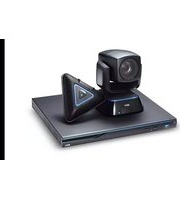
EVC150 - Video Conferencing System AVERMEDIA - Free user manual and instructions
Find the device manual for free EVC150 AVERMEDIA in PDF.


Pick your language and provide your email: we'll send you a specifically translated version.
| Product Type | Video Conferencing System |
| Brand | AVerMedia |
| Model | EVC150 |
| Dimensions (W x D x H) | Approx. 25 x 15 x 5 cm |
| Weight | Approx. 1.2 kg |
| Power Supply | AC 100-240V, 50/60Hz |
| Power Consumption | Max 20W |
| Camera Resolution | Full HD 1080p |
| Field of View | 80° wide angle |
| Microphone | Built-in omnidirectional microphone array |
| Speaker | Built-in full-range speaker |
| Connectivity | HDMI, USB, Ethernet, Wi-Fi |
| Supported Video Standards | H.264, H.265, H.323, SIP |
| Operating System | Embedded Linux |
| Control Interface | IR remote control, Web GUI |
| Mounting Options | Tabletop, wall mount (VESA compatible) |
| Included Accessories | Remote control, power adapter, HDMI cable, user manual |
| Maintenance | Clean lens with soft dry cloth; avoid liquids |
| Safety | CE, FCC, RoHS compliant |
| Spare Parts & Repairability | Contact AVerMedia support for parts; user-replaceable remote batteries |
Frequently Asked Questions - EVC150 AVERMEDIA
How do I connect the EVC150 to my TV?
Use the supplied HDMI cable to connect the HDMI OUT port on the EVC150 to an available HDMI input on your TV. Ensure the TV is set to the correct input source.
Can I use the EVC150 with Zoom or Teams?
Yes, the EVC150 supports standard video conferencing protocols like H.323 and SIP. It can be used with cloud-based services via a computer or directly with compatible platforms through its built-in software.
How do I adjust the camera angle?
You can manually tilt the camera up or down by gently pushing the camera module. For pan, you can rotate the entire unit on its base. Use the remote control for digital pan/tilt/zoom (ePTZ) adjustments.
What is the maximum resolution for video calls?
The EVC150 supports up to Full HD 1080p at 30fps for video calls, ensuring clear and detailed images.
How do I update the firmware?
Download the latest firmware from AVerMedia's support website. Access the web GUI of the EVC150 via its IP address, navigate to Maintenance > Firmware Update, and upload the file.
Can I use an external microphone?
Yes, the EVC150 has a 3.5mm audio input for an external microphone. You may need to enable the external mic in the audio settings via the web GUI.
How do I reset the EVC150 to factory settings?
On the back of the unit, press and hold the Reset button (using a paperclip) for about 10 seconds until the status LED blinks. Alternatively, go to Maintenance > Factory Reset in the web GUI.
What is the power consumption in standby?
In standby mode, the EVC150 consumes less than 1W to save energy while maintaining network connectivity.
Is the EVC150 compatible with wireless presentation systems?
Yes, it supports Miracast and AirPlay for wireless screen mirroring from compatible devices. Ensure both devices are on the same network.
How do I clean the camera lens?
Use a soft, dry microfiber cloth to gently wipe the lens. Do not use any liquids or abrasive cleaners, as they may damage the lens coating.
User questions about EVC150 AVERMEDIA
0 question about this device. Answer the ones you know or ask your own.
Ask a new question about this device
No questions yet. Be the first to ask one.
Download the instructions for your Video Conferencing System in PDF format for free! Find your manual EVC150 - AVERMEDIA and take your electronic device back in hand. On this page are published all the documents necessary for the use of your device. EVC150 by AVERMEDIA.
USER MANUAL EVC150 AVERMEDIA

Manual assistant
Powered by Anthropic
Waiting for your message
Product information
Brand : AVERMEDIA
Model : EVC150
Category : Video Conferencing System