
R8 - Digital recorder ZOOM - Free user manual and instructions
Find the device manual for free R8 ZOOM in PDF.


| Product Type | Digital multitrack recorder |
| Brand and Model | ZOOM R8 |
| Number of Tracks | 8 (mono), up to 2 tracks simultaneous recording |
| Recording Format | Linear WAV 16/24-bit, 44.1/48 kHz |
| Storage Media | SD card (16 MB - 2 GB), SDHC (4 - 32 GB) |
| Dimensions (W x D x H) | 257 x 190 x 51 mm |
| Weight | 780 g (without batteries) |
| Power Supply | ZOOM AD-17 AC adapter (DC 5V 1A) or 4 AA batteries (alkaline or NiMH) |
| Battery Life | Approximately 5.5 hours (alkaline, backlight on, phantom power off) |
| Main Functions | 8-track recorder, sampler with 8 pads, rhythm machine, sequencer, built-in effects, USB 2.0 Hi-Speed audio interface, DAW control surface |
| Analog Inputs | 2 combo XLR/TRS (with 24/48V phantom power, Hi-Z on input 1) |
| Built-in Microphones | Stereo omnidirectional pair (condenser) |
| Outputs | 1 balanced TRS line output, 1 stereo headphone output |
| Effects | 7 insert types, 2 send/return (reverb, chorus/delay), 310 insert patches, 60 send/return patches |
| Display | 128x64 pixel backlit LCD |
| Rhythm Functions | 8 velocity-sensitive pads, 10 drum kits, 511 patterns per project |
| USB Connection | Mini-B USB 2.0 Hi-Speed (2-in/2-out audio interface, up to 96 kHz/24-bit, mass storage) |
| Maintenance and Cleaning | Clean with a soft dry cloth; do not use alcohol, benzene, or thinner |
| Safety | Use only the ZOOM AD-17 adapter; do not expose to moisture, extreme temperatures, or shocks; observe battery polarity |
| General Information | Windows and Mac compatibility, comes with USB cable and SD card containing audio loops and audio interface manual |
Frequently Asked Questions - R8 ZOOM
User questions about R8 ZOOM
0 question about this device. Answer the ones you know or ask your own.
Ask a new question about this device
Download the instructions for your Digital recorder in PDF format for free! Find your manual R8 - ZOOM and take your electronic device back in hand. On this page are published all the documents necessary for the use of your device. R8 by ZOOM.
USER MANUAL R8 ZOOM
Recorder:Sampler Interface:Controller
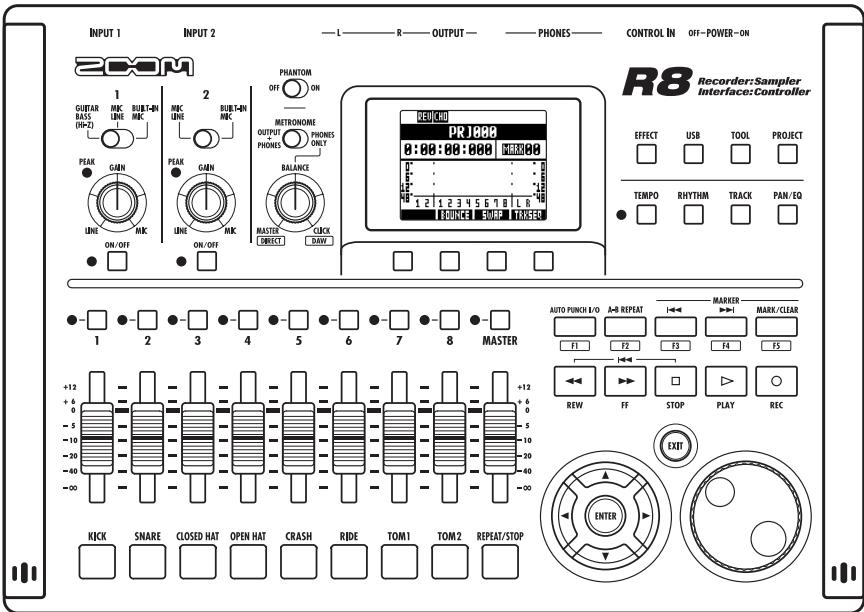
OPERATION MANUAL

SAFETY PRECAUTIONS
In this manual, symbols are used to highlight warnings and cautions that you must read to prevent accidents. The meanings of these symbols are as follows:

Warning
Something that could cause serious injury or death.

Caution
Something that could cause injury or damage to the equipment.
Other symbols

Required (mandatory) actions

Prohibited actions

Warning
Operation using an AC adapter
Use only a ZOOM AD-17 AC adapter with this unit.
Do not use in ways that exceed the ratings of an outlet or wiring or with currents other than 100V
Before using this product in other countries (or regions) where the power voltage differs from AC 100 V, always consult with a store that handles ZOOM products and use a suitable AC adapter.
Operation using batteries
Use 4 conventional 1.5-volt AA batteries (alkaline or nickel-metal hydride).
Read battery warning labels carefully.
Always close the battery compartment cover when using the unit.
Alterations
Never open the case or attempt to modify the product.

Precautions
Product handling
Do not drop, bump or apply excessive force to the unit.
Be careful not to allow foreign objects or liquids to enter the unit.
Operating environment
Do not use in extremely high or low temperatures.
Do not use near heaters, stoves and other heat sources.
Do not use in very high humidity or near splashing water.
Do not use in places with excessive vibrations.
Do not use in places with excessive dust or sand.
AC adapter handling
When disconnecting the AC adapter from an outlet, always pull the body of the adapter itself.
During lightning storms or when not using the unit for a long time, disconnect the power plug from the AC outlet.
Battery handling
Install the batteries with the correct + / - orientation.
Use a specified battery type. Do not mix new and old batteries or different brands or types at the same time.
When not using the unit for an extended period of time, remove the batteries from the unit. If a battery leak should occur, wipe the battery compartment and the battery terminals carefully to remove all battery residue.
Connecting cables with input and output jacks
Always turn the power OFF for all equipment before connecting any cables.
Always disconnect all connection cables and the AC adapter before moving the unit.
Volume
Do not use the product at a loud volume for a long time.
Usage Precautions
Interference with other electrical equipment
In consideration of safety, the R8 has been designed to minimize the emission of electromagnetic radiation from the device and to minimize external electromagnetic interference. However, equipment that is very susceptible to interference or that emits powerful electromagnetic waves could result in interference if placed nearby. If this occurs, place the R8 and the other device farther apart.
With any type of electronic device that uses digital control, including the RB, electromagnetic interference could cause malfunction, corrupt or destroy data and result in other unexpected trouble. Always use caution.
Cleaning
Use a soft cloth to clean the panels of the unit if they become dirty. If necessary, use a damp cloth that has been wrung out well.
Never use abrasive cleansers, wax or solvents, including alcohol, benzene and paint thinner.
Malfunction
If the unit becomes broken or malfunctions, immediately disconnect the AC adapter, turn the power OFF and disconnect other cables. Contact the store where you bought the unit or Zoom service with the following information: product model, serial number and specific symptoms of failure or malfunction, along with your name, address and telephone number.
Copyrights
Except for personal use, unauthorized recording of copyrighted sources, including CDs, records, tapes, video products and broadcasts, is prohibited. Zoom Corporation does not bear any responsibility for consequences related to copyright law infringement.
- The SD and SDHC symbols are trademarks.
- Windows® and Windows Vista® are trademarks or registered trademarks of Microsoft®.
- Macintosh® and Mac OS® are trademarks or registered trademarks of Apple Inc.
- Steinberg and Cubase are trademarks or registered trademarks of Steinberg Media Technologies GmbH Inc.
- All other trademarks, product names and company names mentioned in this documentation are the property of their respective owners.
- All trademarks and registered trademarks mentioned in this manual are for identification purposes only and are not intended to infringe on the copyrights of their respective owners.
Thank you very much for purchasing the ZOOM R8, which we will refer to as the R8 in this manual. The R8 has the following features.
Multitrack recorder that can use up to 32 GB SDHC cards
The R8 can is an 8-track recorder that supports SDHC cards of up to 32 GB. After making linear PCM recordings (WAV format) at 16/24-bit and 44.1 / 48kHz sampling rate, you can transfer recorded files to your computer to use them in DAW software.
Hi-Speed USB 2.0 audio interface
You can use the R8 and its various input and output jacks as a Hi-speed USB 2.0 audio interface that can handle 2 inputs and 2 outputs at up to 24-bit and 96kHz . Its effects can even be used (at 44.1kHz only) and it can also operate using USB bus power.
(See the Audio Interface Manual on the included SD card for details.)
DAW software control surface
The R8 can be connected to a computer by USB cable and used as a control surface for DAW software. You can operate transport functions, including play, record and stop keys and physically control onscreen faders. You can also assign various DAW functions to the F1-F5 function keys. (The assignable functions depend on the DAW software.)
(See the Audio Interface Manual on the included SD card for details.)
- Handles a variety of input sources including guitars, microphones and line-level equipment
The R8 has 2 input jacks that accept both XLR and standard phone connectors. Both can supply phantom power (24 or 48V ) and one can handle high-impedance input. In addition to high-impedance guitars and basses, the inputs can handle all types of sources, including dynamic and condenser microphones, synthesizers and other line level instruments. The built-in high-performance microphones are convenient for recording acoustic guitars and vocals.
(See "Connecting instruments" on P:21.)
Sampler with 8 pads and 8 voices
Use the sampler to assign sounds to each track (pad) and create loops. Play the pads in real-time, and combine loops to create performances for a complete song. By simply lining up drum loops from the included SD card, anyone can easily create professional-quality backing parts and basic tracks. The recorder and sampler work together seamlessly, so you can record audio on other tracks while listening to loop playback.
(See "Using the sampler to make songs" on P.60.)
Usage and safety precautions . . . 2
Introduction 3
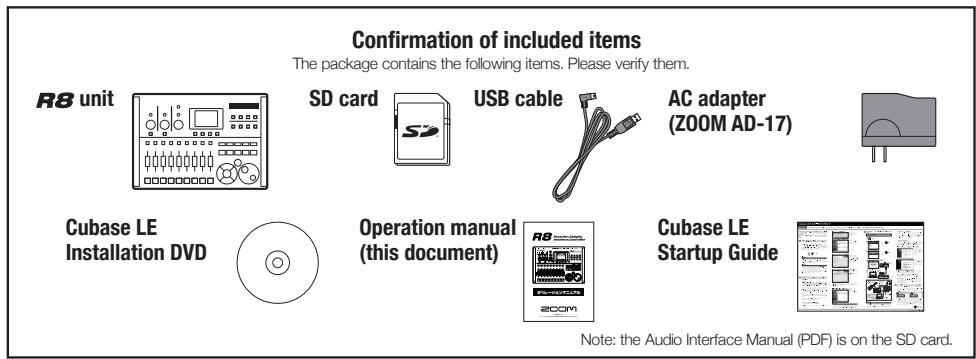
Confirmation of included items 3
Contents 4
Panel layout and functions 6
Switch and key overview 8
Display information 9
Operation overview 10
Connections 12
SD card installation 13
Powering the unit 14
Turning the power on and off. 15
Setting the date and time 15
Recording and playback 16
Recorder overview. 16
Preparations before recording 17
Creating a new project 17
Changing the time signature 18
Setting the tempo 19
Using the metronome 20
Recording the first track 21
Connecting instruments. 21
Adjusting the input gain 22
Using insert effects 23
Adjusting the recording level 24
Selecting tracks for recording 25
Recording 26
Re-recording 26
Recording to a new file 27
Playing back recordings. 27
Overdubbing 28
Stereo recording (stereo link) 29
Changing playback takes 30
Swapping two tracks. 31
Re-recording part of a track (punch-in/out) 31
Manual punch-in/out 32
Automatic punch-in/out 33
Combining multiple tracks into 1-2 tracks (bouncing) 34
Locating to the desired part of a song 36
Repeat playback of a specific section (A-B repeat). 38
Mixing 40
Mixing overview. 40
Setting track level, EQ and pan 42
Using send-return effects 44
Using insert effects on tracks 45
Mixing down 46
Using a mastering effect 46
Mixing down to the master track 47
Using the rhythm function 48
Overview of rhythm functions 48
Rhythm pattern selection. 49
Changing the playback pattern 49
Changing the drum kit 49
Using the pads to play rhythm patterns.. 50
Switching banks. 50
Repeating sounds (drum rolls). 50
Adjusting the pad sensitivity 49
Assigning rhythm patterns to tracks 51
Creating a rhythm pattern 52
Preparing to create a rhythm pattern . . . . . 52
Inputting a pattern in real-time 53
Step input of a rhythm pattern 54
Copying rhythm patterns. 55
Deleting rhythm patterns. 56
Renaming rhythm patterns 57
Importing rhythm patterns from other projects 58
Setting volume and stereo placement . . . 59
Using the sampler 60
Using the sampler to make songs 60
Using the sampler 61
Assigning included drum loops to tracks . 63
Setting loops 64
Setting a track to loop. 64
Setting the loop interval 65
Playing the pads 66
Setting the playback method 66
Set global quantization to control sound timing 66
Changing the BPM of a track. 67
Changing audio tempo without changing pitch. 68
Trimming unnecessary parts of audio files 70
Setting fade-ins and fade-outs 71
Using the track sequencer 72
Track sequencer overview 72
Creating a sequence 73
Creating a sequence in real-time. 73
Creating a sequence using step input 74
Inserting and deleting beats 76
Playing back a sequence. 78
Using effects 80
Overview of effects 80
Selecting effect patches 83
Editing patches 84
Saving patches 86
Importing patches from other projects. . . 87
Changing patch names 88
Using effects only for monitoring 89
Working with projects and audio files 90
Projects and audio files 90
Protecting a project 91
Selecting a project. 91
Viewing project and audio file information 92
Copying projects and audio files 93
Changing project and audio file names . . 94
Deleting projects and audio files 95
Dividing audio files. 96
Setting the recording format (bit length) . 97
Setting the recording mode 97
Sequential playback of projects. 98
Loading audio files from other projects . 100
Using the USB connection 102
USB function overview 102
Exchanging data with a computer (card reader) 103
Audio interface and control surface functions 105
Other functions 108
Using the tuner 108
Adjusting the display 109
Changing the SD card while the power is on 110
Formatting an SD card 111
Checking remaining card capacity. 111
Setting the battery type. 112
Setting phantom power voltage. 112
Using a footswitch 113
Checking the firmware version. 114
Upgrading the firmware. 114
Rhythm pattern list 116
Effect types and parameters 118
Effect patch list 129
Error message list. 135
Troubleshooting 136
Specifications 137
Index 138
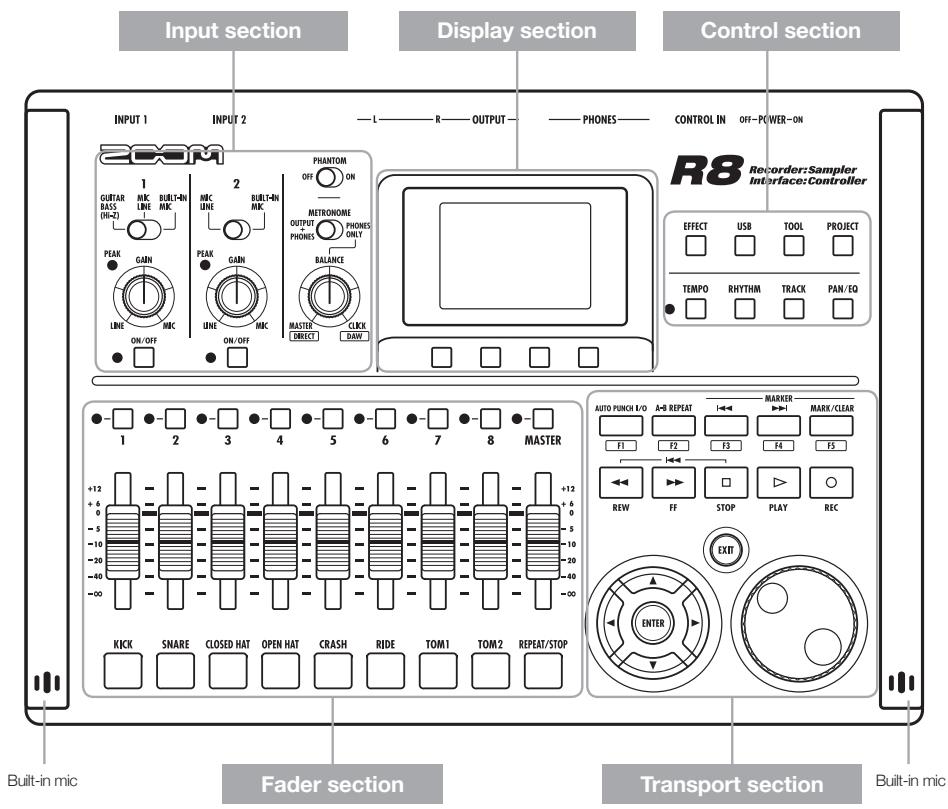
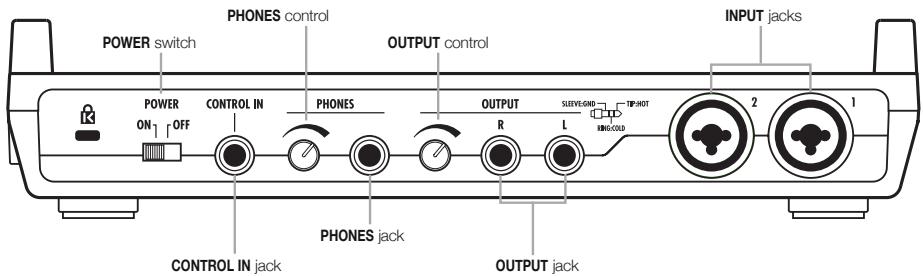
Rear panel
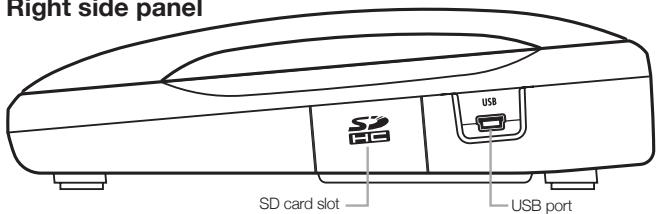
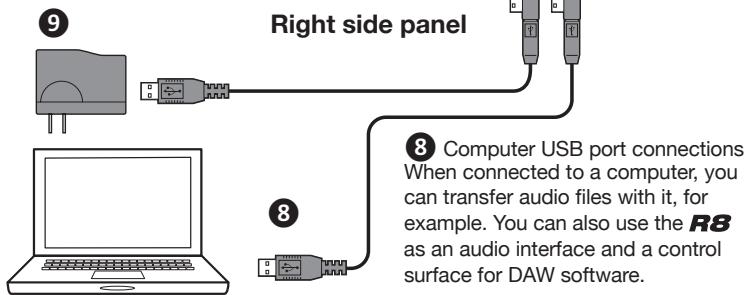
Right side panel
Bottom panel (not shown)
Battery compartment
Input section
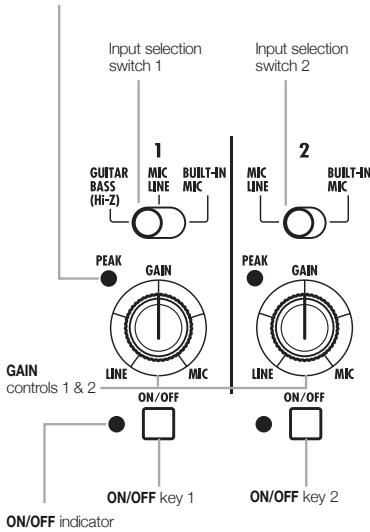
PEAK indicator
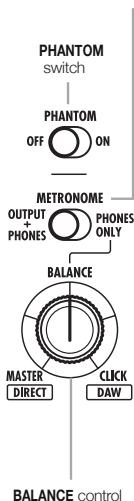
METRONOME switch
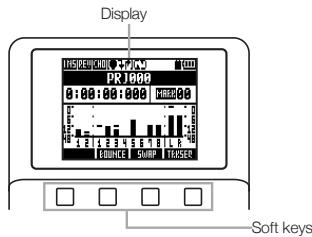
Display section
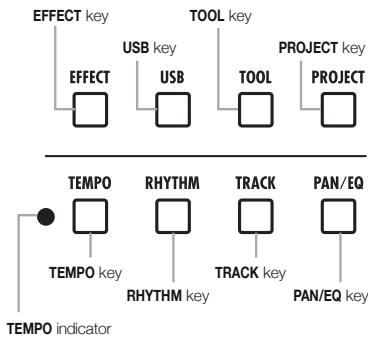
Control section
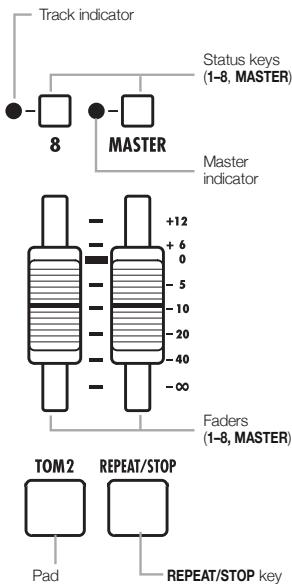
Fader section
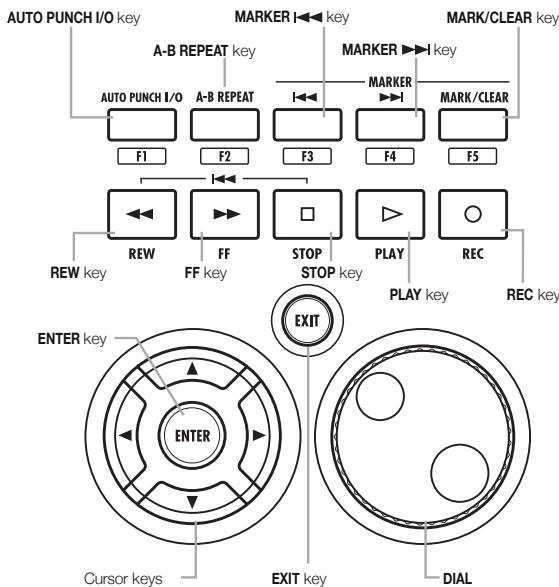
Transport section
Here we explain how to use the keys and switches of the R8.
Transport section
| REC key | Functions only when tracks are in recording standby. • Stopped: starts recording standby • Recording standby: ends standby • Playing: starts recording (manual punch-in/out) |
| PLAY key | • Stopped: starts playback • Recording standby: starts recording |
| STOP key | • During recording: stops recording • During playback: stops playback • Recording standby: stops transport |
| FF key | • When stopped or during playback fast forwards |
| REW key | • When stopped or during playback rewrites • Hold STOP and press REW to return to the top of the song. STOP + REW |
| ENTER ENTER key | ·Confirm an item |
| EXIT EXIT key | ·Press to go back. ·Press and hold to return to the top screen. |
| DIAL | ·Change numbers and move among menus. |
| MARK/CLEAR | ·Set, remove and move to marks |
| AUTO PUNCH I/O A-B REPEAT | ·Set and cancel auto punch-in/out and A-B repeat |
Cursor appearance
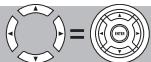
In manual
On unit
| Manual indications | |
| Move in menu | In explanations, the usable directions are shown with dark lines. |
The cursors are used to move up, down, left and right to choose items. They are shown as above in the manual.
Control section
| EFFECT □ EFFECT key | • Set the insert and send- return effects | |
| USB □ USB key | • Use the audio interface, control surface and card reader | |
| TOOL □ TOOL key | • Make metronome, tuner, system and SD card settings | |
| PROJECT □ PROJECT key | • Create, set up and work with projects | |
| TEMPO □ TEMPO key | • Set the tempo (the indicator flashes in time with the tempo) | |
| RHYTHM □ RHYTHM key | • Play, create and set rhythm patterns | |
| TRACK □ TRACK key | • Assign tracks and make settings | |
| PAN/EQ □ PAN/EQ key | • Access track mixer settings | |
Fader section
| ●-TRACK 1-8 status keys | Change track status and check with indicator Green: play • Unit: mute Red: record Orange: loop track or rhythm pattern track playing back |
| ●-MASTER | Change master track status and check with indicator • Green: play • Unit: master • Red: mix down |
Input section
| GUSBAR NOK LINE MIC ON-Z) Input selection switch 1 | • Set for the instrument or mic used |
| NOK LINE MIC ON-Z) Input selection switch 2 | • Set for the instrument or mic used |
| PHANTOM ON OFF PHANTOM switch | • Phantom power ON/OFF |
| METRONOME switch METRONOME switch BALANCE control | • Set metronome output When set to PHONES ONLY, BALANCE control adjusts the performance/metronome balance |
| PEAK LINE MIC ON-Z) GAIN controls 1, 2 PEAK indicators | • Set input sensitivity Indicator lights when input level begins causing distortion |
| ON/OFF ON/OFF key 1, 2 Indicators | • Turn input ON/OFF • Indicator flashes when recording level begins causing distortion) |
The display shows, for example, project data, connection and operation status as a recorder or a computer audio-interface, available functions and various menus.
Display and screen information
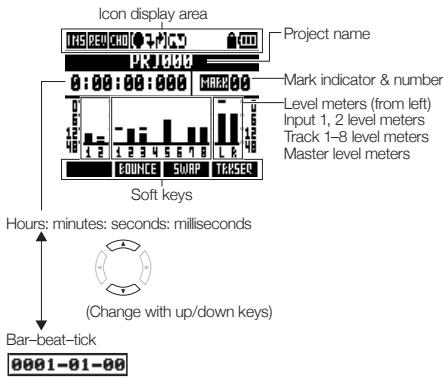
Top Screen: Shows the current project
Menu screen: Shows an operation menu
Menu item or track number
Icon display and settings
| IHS | Insert effect icon Shown when insert effect enabled. | (P:23, 45, 46, 80) |
| EFFECT To set: | ||
| REVERB/CHORUS send-return icons | (P:44, 80, 82) | |
| PEU CHO | Shown when send-return effects enabled. | EFFECT To set: |
| AUTO PUNCH IN/OUT icons | (P:33) | |
| Shown when auto punch-in/out enabled. | AUTO PUNCH I/O To set: | |
| A-B REPEAT icon | (P:38) | |
| Shown when A-B repeat enabled. | A-B REPEAT To set: | |
| PROTECT icon | (P:91) | |
| Shown when project protection enabled. | PROJECT To set: | |
| Battery icon | (P:14) | |
| Shown when using battery power (including remaining charge and when battery needs changed). (Not shown when running on USB.) | ||
Soft keys
EOUNCE SWRP TRXSEP
The functions of the soft keys appear at the bottom of the display. Press the key under the indication to use that function.
1. Recording preparations
Do the following before starting recording.
Preparing to record
P.17
-
To start a new song, make a project first.
-
Creating a new project (P:17)
-
Set the song's time signature and tempo.
Setting the time signature (P.18)
Setting the tempo (P.19)
- Set the metronome to use as a guide when recording.
Using the metronome (P.20)
2. Recording
Record an instrument, vocal or other sound source to each track. You can also assign audio file loops using the sampler function and rhythm
Recording the first track
P.21
Record instruments and vocals to tracks in the project that you created.
-
Connect instruments and mics, and adjust the input sensitivity.
-
Connecting instruments (P.21)
Adjusting the input gain (P.22)
Recording in stereo (stereo link) (P.29) -
Select tracks to record on and record.
-
Selecting tracks for recording (P.25)
Recording (P.26) -
You can use the following types of effects when recording.
Using insert effects (P.23)
Applying effects only for monitoring (P.89)
-
You can also redo part or all of a recording.
-
Undoing the last action (UNDO/REDO) (P.26)
- Recording part of a song again (punching in/out) (P.32)
Using the sampler
P.60
-
Assign audio files to tracks and set loops.
-
Assigning included drum loops to tracks (P.63)
Make loop settings (P.64)
Using rhythm functions
P.48
-
Assign rhythm patterns to tracks.
-
Assigning rhythm patterns to tracks (P.51)
patterns using the rhythm machine function to tracks, and arrange them in performance order using the track sequencer function.
Playback
P.27
Playback instruments, vocals and other recorded sounds.
-
Play back from any position and loop any interval that you want
-
Move to a point in a song (locate) (P.36)
-
Repeat playback of a specific section (A-B repeat) (P.38)
-
Change a take (audio file assigned to a track).
-
Changing playback takes (P:30)
Over dubbing
P.28
While playing back the recorded track, you can record (overdub) additional instruments and vocals to other tracks.
Bouncing tracks
P.34
- If you run out of tracks, you can bounce them to reduce the number.
Combining multiple tracks into 1-2 tracks (bouncing) (P.34)
Using sequencer functions
P.72
-
Arrange loop tracks and rhythm pattern tracks in order to make performance data (sequence data) for one song.
-
Creating sequence data (P.73)
- Playing back sequence data (P.78)
3. Mixing and mix down
After recording and preparing tracks, you can mix them and then make a stereo master track.
On the R8
Mixing
P.40
Balance the tracks and set the effects used on them (mixing).
- Adjust the balance of the tracks.
Setting volume, EQ and pan (P.42)
- You can apply the following types of effects to each track.
Applying send-return effects (P.44)
Using insert effects on tracks (P.45)
Mixing down to stereo
P.46
You can rerecord multiple tracks as a final stereo master track (mix down).
- When mixing down, you can apply the following types of effects.
Applying mastering effects (P.46) - Mix down the song to stereo.
- Mixing down to master tracks (P.47)
On a computer
By connecting the unit to a computer using a USB cable, you can use it as an audio interface, control surface and card reader. Doing so, you can use DAW software, for example, to mix and master your tracks.
Audio interface/control surface (P.105)
- Exchanging data with a computer (card reader) (P:103)
Please see the Audio Interface Manual on the included SD card for information about the audio interface.
Refer to the illustration below to connect instruments, mics, other audio equipment and a computer, for example.
Outputs
1 Headphones
Stereo systems, speakers with built-in amplifiers, etc.
Inputs
Connect cables with XLR or phone plugs (mono/stereo, balanced/unbalanced) to the INPUT jacks.
3 Microphones
- Connect a mic to INPUT 1 or 2.
- Set the input selection switch to MIC LINE.
- Set the PHANTOM switch to ON to supply phantom power to a condenser mic.
Devices with stereo outputs When using a synthesizer, a CD player or other stereo devices:
- Connect OUTPUT jack L to INPUT 1 and R to INPUT 2.
- Set both input selection switches to MIC LINE.
5Guitar/bass
To connect a passive electric guitar or bass directly:
- Connect it to INPUT 1.
- Set input selection switch 1 to GUITAR BASS (Hi-Z).
Built-in microphones Use the built-in mics on the left and right of the unit to record drums or a band performance, for example.
- Set both input selection switches (1 for left and 2 for right) to BUILT-IN MIC.
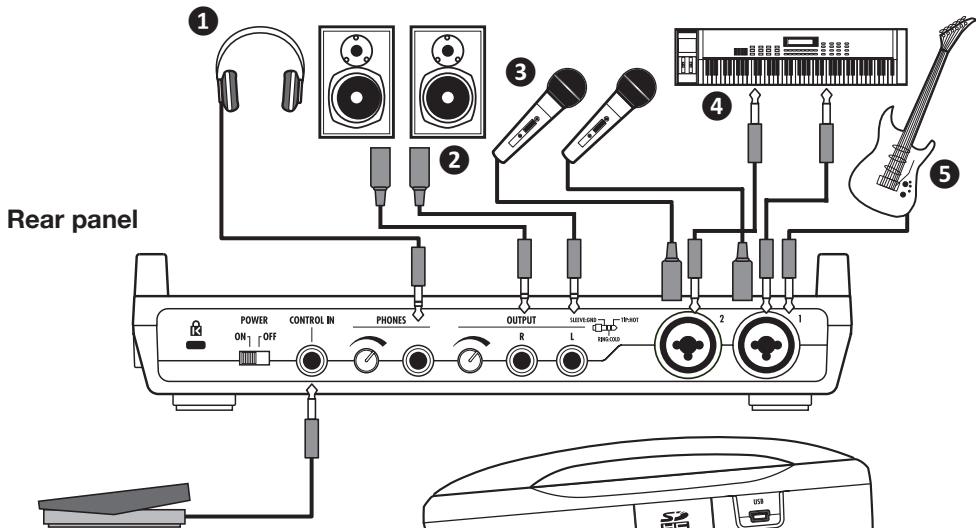
7 FOOTSWITCH Connect a ZOOM FS01 footswitch (sold separately), and use it to stop/start playback or punch-in/out, for example.
9 AC adapter Only use a ZOOM AD-17 AC adapter, which is designed for use with this unit.
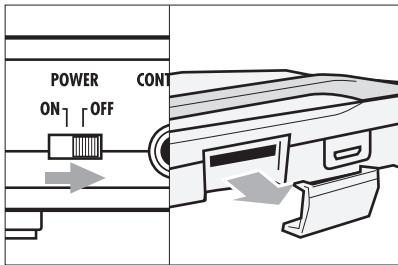
The R8 saves recording data and settings on SD cards.
To protect your data, turn the power off before inserting or ejecting a card.
An SD card is necessary for recording.
Turn the power OFF and insert (ordinary use)
1 Turn the POWER OFF and remove the SD card slot cover.
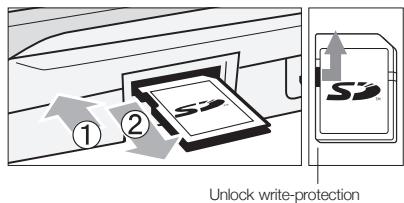
2 Insert an SD card that is not write-protected into the slot completely. To eject, push the card in first.
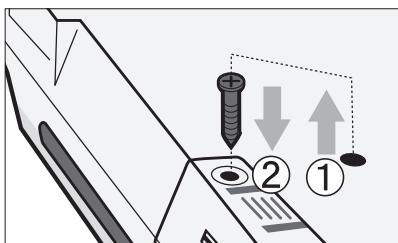
Preventing SD card theft
Remove the screw near the slot, and screw it into the hole in the SD card cover.
NOTE
If you want to change the SD card while the power is ON, you must follow special procedures. (P:110)
When inserting or removing an SD card, always turn the power OFF. Doing so when the power is ON could cause recording data to be lost.
If you cannot insert a card into the slot, you might be trying to insert it in the wrong direction or upside down. Do not force the card. Try again with the correct orientation. Forcing the card in could break it.
Always format an SD card that was used with a computer or a digital camera, for example, in the
R8 before using it.
If no SD card is inserted, the REC key will not function in Recorder Mode.
If a message appears
"No Card": No SD card is detected. Make sure an SD card is inserted properly
"Card Protected": The SD card is write-protected. Slide the lock switch away from the lock position to disable write-protection.
HINT
This unit can use 16 MB-2 GB SD cards and 4-32 GB SDHC cards.
You can find the most recent information about compatible SD cards on the ZOOM website.
http://wwwzoomo.co.jp
Reference:
Changing SD cards with the power on
Formatting SD cards
P.110
P.111
Use the included AC Adapter or four AA batteries (sold separately) to power the unit.
Using ordinary power (included AC adapter)
1 Turn the power OFF, and then plug the USB cable into the USB port on the right side of the unit.
2 Connect the other end of the USB cable to the AC adapter and plug the adapter into a power outlet.
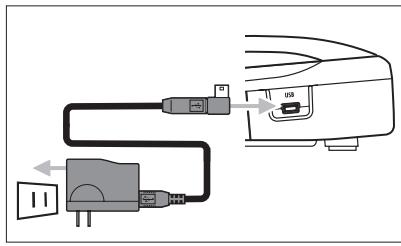
Always use the included AC adapter (ZOOM AD-17), which is designed for use with the unit. Using any other adapter could damage the unit.
Using batteries
1 Turn the power OFF and open the battery case cover on the bottom of the unit.
2 Install the batteries and close the cover.
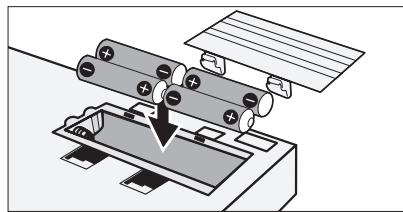
Battery indicator on screen Battery power status No indicator Indicator on AC adapter Batteries in use Batteries must be changed.
HINT
Power supply from USB
- When used with a computer connected by a USB cable, the computer supplies power to the unit.
NOTE
Always turn the power OFF when you open or close the battery cover or connect or disconnect the AC adapter. Doing so when the power is ON might cause recording data to be lost.
The unit can use alkaline or NiMH batteries. The approximate operation time when using alkaline batteries is about 5.5 hours.
- Replace the batteries when "Low Battery!" is shown. Turn the POWER switch to OFF immediately and install new batteries or connect the included AC adapter.
- Set the battery type to increase the accuracy of the remaining battery charge indicator.

Reference: Setting the battery type
P.112
Follow these precautions for starting-up and shutting down the unit. Follow these instruction to set the date and time for files and data.
Turning the power on and off
1) Make sure all the equipment is OFF.
2) Confirm that the power, the instruments and the monitoring system (or headphones) are correctly connected.
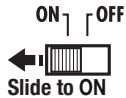
Turn the power ON to start the unit
1
POWER
REU CHD
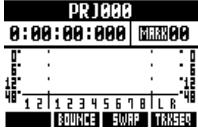
2
In order, turn connected instruments and the monitoring system ON.
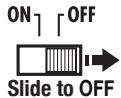
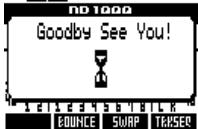
Turn the power OFF to shut down the unit
1
POWER
PEHCHD

PECHD
NOTE
- Before turning the POWER ON, turn down the R8 PHONES and OUTPUT controls and volume on monitors and other connected devices.
- If no power is supplied to the R8 for more than a minute, the DATE/TIME setting will be reset to the default value.
Setting the date and time TOOL > SYSTEM > DATE/TIME
1

Press
2
Select SYSTEM.
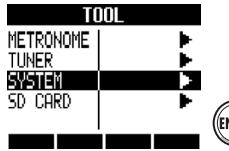

Change menu

Press
3
Select DATE/TIME.
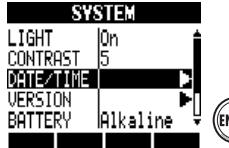
Change menu

Press
4
Select the date and time units and set their values in order.
YEAR MONTH DAY (hours) (minutes) (seconds)
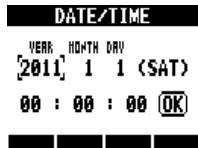


Change value
5
Select OK.
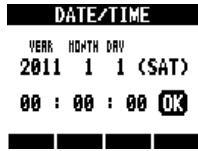


Press
If this message appears
Reset DATE/TIME
- The DATE/TIME setting has been set to its default value. Set the DATE/TIME again.
The R8 is an 8-track recorder that can record up to 2 tracks at the same time and play back up to 8 tracks at the same time. The following types of tracks are used.
| Track type | Function | Reference |
| Audio track | Plays its audio file from beginning to end. | - |
| Loop track | Plays part of an audio file repeatedly. | Using the sampler function (P:60) |
| Rhythm pattern track | Plays a rhythm pattern. | Using the rhythm function (P:48) |
Track 1
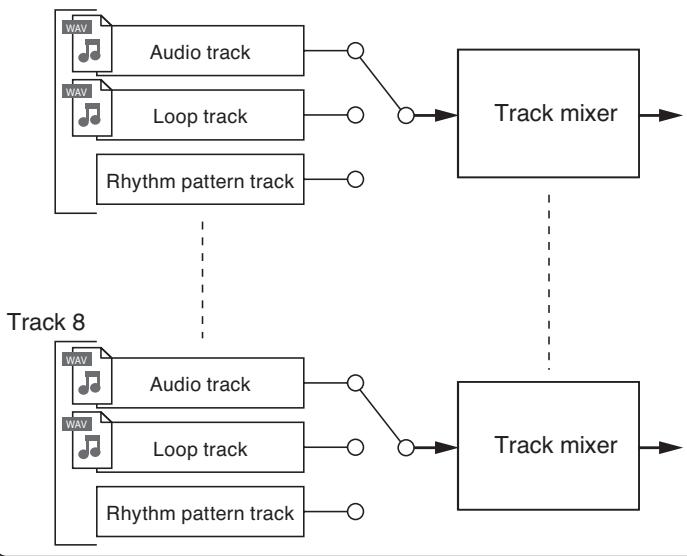
Types of recording files
Depending on the recording destination track, the R8 creates the following types of audio files.
Mono track: mono WAV file
- Stereo linked track: stereo WAV file
The file format depends on the project and bit length settings.
Types of playback files
Both mono and stereo WAV files can be assigned to R8 audio and loop tracks. (A file cannot be assigned to a project, however, if its sampling rate is different from that of the project.)
Audio files created in DAW software can also be played by the R8.
There is no limit to the number of virtual tracks. Any audio file in the same project can be assigned to a track.
When a stereo file is assigned to a track, stereo link is turned on automatically.

Reference: Changing the recording format
With the R8 you can manage each song as a "project."
Before starting to record a new song, create a project first, and adjust the time signature
(default: 4/4) and tempo (default: 120.0) as necessary.
You can also set the metronome as you wish to use as a guide during recording.
Creating a new project
Create a new project. You can choose to use the same settings as the previous project and set the sampling rate.
PROJECT

Press
Select NEW.
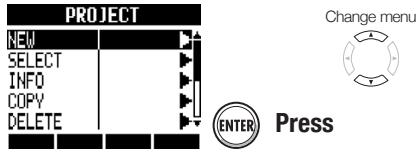
Select NAME.
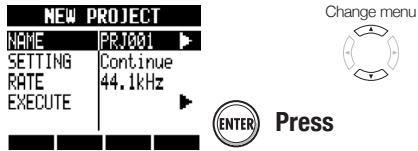
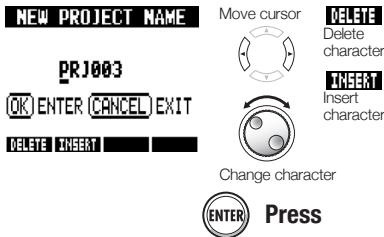
Change the name as needed.
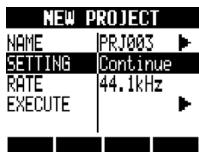
Set whether or not to continue using the previous settings.
6
Set the sampling rate.
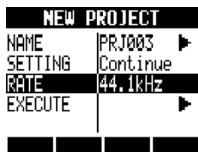
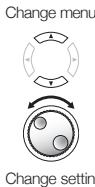
Change menu


Change setting
7
Select EXECUTE.
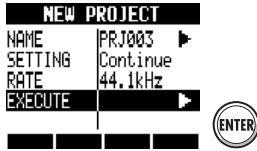
Change menu

Press
NOTE
- You can continue to use the settings and values of the last project in the new one.
Settings carried over with Continue
BIT LENGTH settings
INSERT EFFECT settings
Send-return EFFECT settings
Track status (PLAY/MUTE/REC) settings
BOUNCE settings
Track parameter settings
METRONOME settings
Reset
Default settings are used for each item.
The RATE can also be set to a sampling rate that is suitable for DVD audio.
| RATE: sampling rate settings | |
| 44.1 kHz | Standard (default) |
| 48.0 kHz | For DVD audio, etc. |
When set to 48kHz effects cannot be used.
Changing the time signature
Use the track sequencer to set the time signature. The default is 4/4. Follow these steps to change to a different time signature.
TRACK

Press
Select TRK SEQ.


Change menu

Press
Start step input.

Press
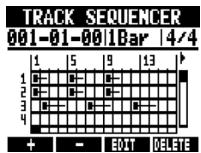
Move the cursor to where you want to change the time signature.
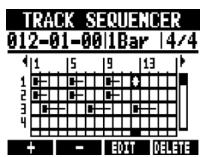
Move cursor


Go back 1 step

REW
Go forward 1 step
Put the cursor at the beginning to change the time signature for the whole song, or at the point where you want to change it in the middle of the song.
5
Move to the time signature area and change the setting.
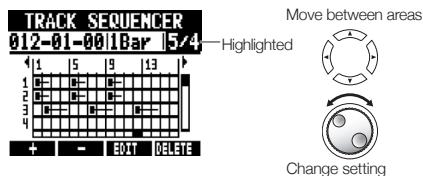
| Time signature options | |
| Setting | |
| 1/4-8/4 | Default: 4/4 |
6
Complete the setting.

STOP
Press
Delete an inserted time signature
1
Move the cursor to where you want to delete the time signature.
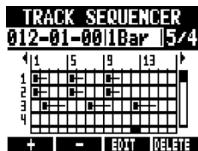
Move cursor


Go forward 1 step
2
Move to the time signature area
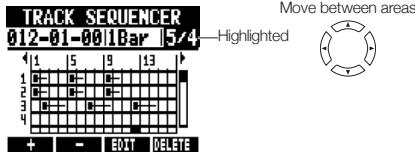
3
Press beneath
Setting the tempo
1 TEMPO

Press
2

Turn the dial to change the setting.
OR
TEMPO
Tap repeatedly and the average tempo will be detected and set.

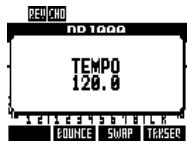
Tempo setting range
40.0-250.0
Default: 120.0
NOTE
The tempo setting is saved for each project.
Using the metronome
You can change the volume, tone and stereo position of the metronome and use its pre-count function. You can also set it to only be heard through headphones.

Press
Select METRONOME.
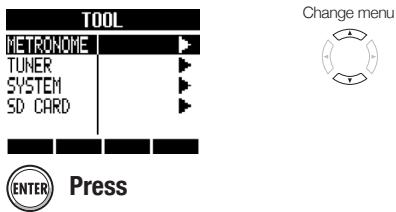
Select each menu item and adjust the settings.
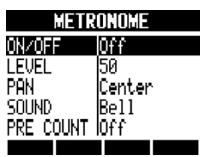
Change setting
HINT
Use the METRONOME switch to change and adjust the metronome output.
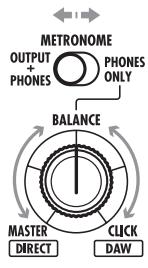
OUTPUT + PHONES
The metronome sound is output through both OUTPUT and PHONES jacks.
PHONES ONLY
The metronome sound is output only through the PHONES jack.
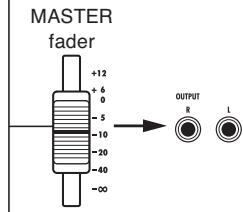
Use the BALANCE knob to adjust the relative volumes of the MASTER fader signal and the metronome sound.
MASTER

CLICK
(metronome)
Metronome settings are saved for each project. You can use the metronome even when playing back the master track.
Menu settings and setting values
| ON/OFF: Set when operative | |
| Settings | |
| Play Only | During playback only |
| Rec Only | During recording only |
| Play & Rec | During both playback and recording |
| Off (default) | No metronome sound |
| LEVEL: Set the volume | |
| Setting range | |
| 0-100 | Default: 50 |
| PAN: Set the stereo position | |
| Setting range | |
| L100 - R100 | Default: Center |
| SOUND: Set the sound | |
| Settings | |
| Bell (default) | Click with bell accent |
| Click | Click sound only |
| Stick | Drum stick sound |
| Cowbell | Cowbell |
| Hi-Q | Synthesized click sound |
| Track1 - Track8 | TRACK 1-8 sound (mono) |
| Track1/2 - Track7/8 | TRACK 1/2-7/8 sound (stereo) |
| PRE COUNT: Set the count-in length | |
| Settings | |
| Off | None (default) |
| 1-8 | Enable pre-count sound for 1-8 beats. |
| Special | |
NOTE
- Be aware that if the metronome volume is set high, the accented beat of some sounds might become difficult to distinguish.
- If a track with a rhythm pattern assigned to it is selected in the SOUND setting, no sound will be output.
The metronome follows the time signature used in the track sequencer.
Recording the first track
After preparation, ready the recorder and start recording the first track in a project that you have created. Connect an instrument, record it and play back the recording. You can also apply various effects (insert) during recording.
Connecting instruments
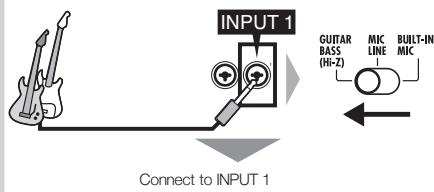
Connecting passive-type guitars
Connect a high impedance instrument to INPUT 1, and the set the input switch to GUITAR BASS (Hi-Z).
Connecting low impedance instruments
Connect a low impedance instrument to INPUT 1 or 2 and set its INPUT switch to MIC LINE.
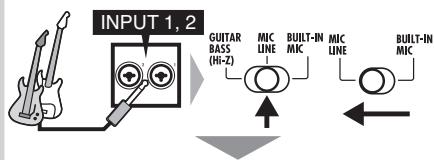
Connect to INPUT 1 and/or 2.
For a stereo instrument, connect its left output to
INPUT 1 and its right output to INPUT 2.
Using phantom power
Connect a mic to an INPUT (1 or 2), and set that INPUT switch to MIC LINE. Then, set the PHANTOM switch to ON.
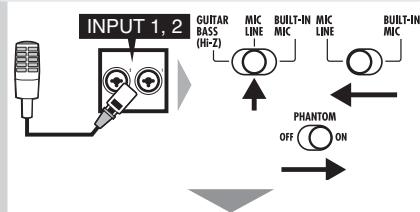
Supply phantom power to connected mics
Using the built-in mics
To use the left built-in mic set switch 1 to BUILT-IN MIC. To use the right built-in mic set switch 2 to BUILT-IN MIC.
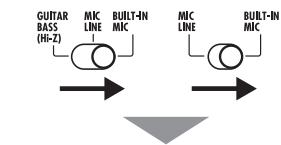
Built-in mic signals on INPUT 1 and/or 2
NOTE
The total recordable time depends on the recording format and SD/SDHC card capacity. The table below shows times in hours and minutes.
| Recording format | SD/SDHC card capacity | |||||
| 1 GB | 2 GB | 4 GB | 8 GB | 16 GB | 32 GB | |
| 16-bit/44.1 kHz | 3:07 | 6:14 | 12:28 | 24:56 | 49:53 | 99:46 |
| 16-bit/48 kHz | 2:51 | 5:43 | 11:27 | 22:55 | 45:50 | 91:40 |
| 24-bit/44.1 kHz | 2:04 | 4:09 | 8:18 | 16:37 | 33:15 | 66:30 |
| 24-bit/48 kHz | 1:54 | 3:49 | 7:38 | 15:16 | 30:33 | 61:06 |
- Times are estimates for mono (1-track) recording. Times are halved for stereo (2-track) recording.
- The maximum continuous recording time, regardless of the number of recording tracks, is about 6 hours for 16-bit/44.1 kHz WAV format and about 4 hours for 24-bit/44.1 kHz WAV format.
Adjusting the input gain
1
Push the INPUT ON/OFF switch for the connected input to turn it on, lighting the indicator red.

When red, input is possible
2
Adjust the input GAIN.
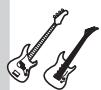
Make noise!
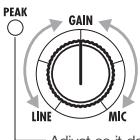
Adjust the input gain
Adjust so it does not light when maximum volume is input
NOTE
The PEAK indicator turns red when the signal exceeds the maximum detectable level of 0 dB, resulting in input clipping.
- If clipping happens, the recorded sound will be distorted, so you should reduce the recording level.
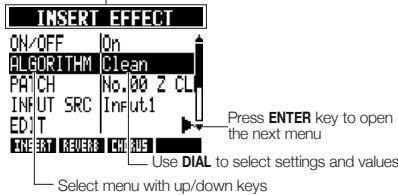
Using insert effects
EFFECT

Press

below
Select ON/OFF and set it to ON.
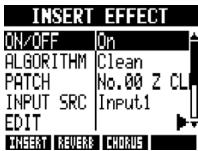
Change menu


Change setting
Select an algorithm and patch.
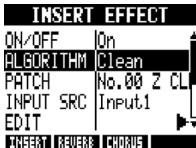
Change menu


Algorithm or patch
Select INPUT SRC and then set the connected input.
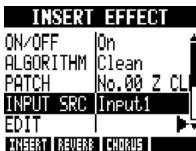
Change menu


Set the input source

Press to return to the top screen.
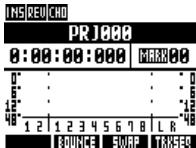

Adjust the recording level.
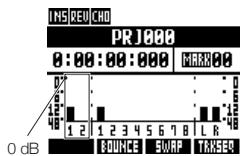

When applying an insert effect, adjust the recording level so that the level meters do not touch the 0 dB mark and the input section ON/OFF switch indicators do not blink (see the following page).
NOTE
- For more information about algorithms, patches and insert effects, see the "Guide to using effects" on P.80.
- You can also use insert effects just for monitoring while recording the unaffected signals. (See "Using effects only for monitoring" on P.89.)
Adjusting the recording level
PAN/EQ

Press
ON/OFF Press for an INPUT to adjust its recording level.
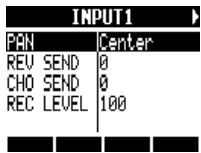
Select REC LEVEL and adjust the recording level.
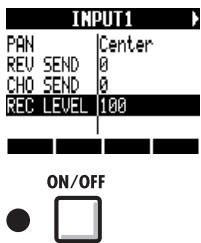
Change menu


Change setting
Set the recording level so that the ON/OFF switch indicator does not blink.
Selecting tracks for recording
1 Press the status key for the recording destination track until it lights red.
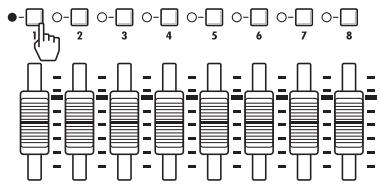
2 Set both the MASTER and recording track faders to 0 dB once, and then raise them to adjust the monitoring volume of the instrument being recorded.
NOTE
The relationship between inputs and tracks is as follows.
- When one track is selected
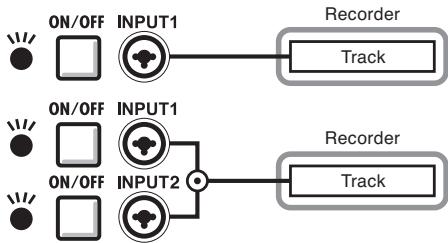
- When two/stereo tracks are selected
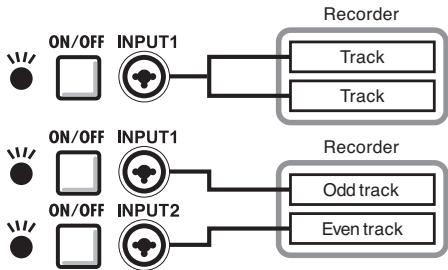
Recording
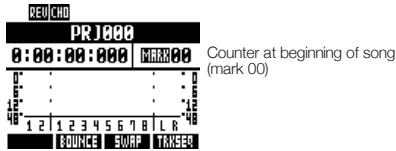
Return to the beginning of the song (time counter).
Press and hold and press to return to the beginning.
Top screen
Arm the track for recording.

REC
Press

Lit red.
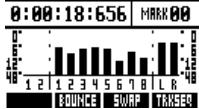
Start recording.

PLAY
Press

Lit red.

Lit
green
PLAY
REU CHO
PRJ888
Counter starts
Stop recording.

Press

Lit green

Unlit
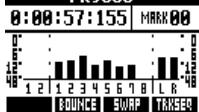
STOP
REU CHD
PR1800
Counter stops but does not return to beginning
Re-recording
If you record again on the same track, the previously recorded file will be overwritten. However, you can also use the UNDO function to erase the previous recording.
Moreover, you can also keep the previous file and record a second take in a separate file.
HINT
- You can set whether when recording previous recordings are overwritten or saved and a new recording made. (See "Setting the recording mode" on P.97.)
Redoing the previous recording (UNDO and REDO functions)
If you are not happy with a performance or the recording level setting was incorrect, for example, use the UNDO and REDO functions to re-record. Use the UNDO function to erase the recording and restore the unit to the previous state. You can also use REDO to cancel the UNDO operation.
Press beneath to UNDO.
Press beneath to REDO.
NOTE
The UNDO function only affects audio data recorded on a track.
- UNDO can only be used to go back one recording step. Undoing more than one step is not possible.
Recording to a new file
TRACK

Press
Select the track for recording the new file.
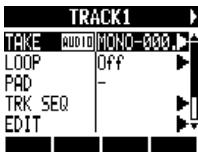
Select track
Select TAKE.
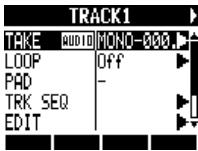
Change menu


Change menu
Select FILE.
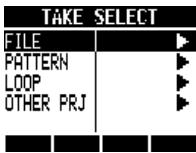

Press
Select New Take.
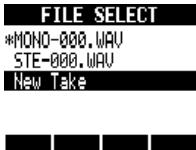
Select file
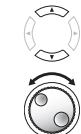

Press
HINT
- "TAKE" shows the file name. File names are assigned automatically in order starting with "MONO-000.WAV" (for a stereo track "STE-000.WAV") followed by "MONO-001.WAV", "MONO-002.WAV" and so on. File names can be changed as necessary. (See "Changing project and audio file names" on P94.)
Playing back recordings
1
Press the status key for the recording destination track until it lights green.
Ready to PLAY when green
Playback track Press 1-2 times until lit green
2
Return to the beginning of the song.
Press REW while pressing and holding STOP to return to the beginning.
3
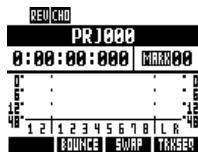
Start playback.

Press
PLAY Lit green
4
Stop playback.

Press
STOP Lit green
NOTE
- When the REC MODE is set to Overwrite, the recorded audio file will be overwritten on the track. If you return to the beginning of the song and record, the previous recording will be overwritten, so be careful. When a track is ready to PLAY, the file on it will be played back.
HINT
- You can change the playback file to a different take. ("Changing the playback take" on P:30.)
After "Recording the first track," you can record (overhub) other instruments on other tracks while playing back the already recorded audio.
Playing an already recorded track
Press the status key for the track to playback 1-2 times until its indicator lights green.
Over dubbing
After preparing the already recorded track for playback, follow the instructions in "Recording the first track" (P.21) from "Connecting instruments" to "Recording" to record other tracks.
HINT
- If you want to record on a track that has already been recorded on, assign the recorded file to another track to make the target track empty. Refer to "Changing the playback take" (P:30).
- You can also swap recorded tracks with unrecorded tracks. Refer to "Swapping two tracks" on (P.31).
- To make a new recording on the same track used for the first recording, you must swap tracks.
To record to a new file, set the track to New Take. (Refer to "Recording to a new file" on P.27.)
Playing back all tracks
1 Press the status keys for the tracks to playback 1-2 times until their indicators light green.
-Lit green: ready to PLAY
2 Press and hold and press to return to the beginning.
3 Press to start playback. PLAY PLAY Lit green
4 Press to stop playback. STOP STOP Lit green
NOTE
- When you move files on tracks, confirm that tracks to be recorded on are set to "New Take" so that no files are assigned to them.
- If there is a file assigned to a track, that recording will be overwritten by new recording.
- When the REC MODE is set to Overwrite, the recorded audio file will be overwritten on the track. If you return to the beginning of the song and record, the previous recording will be overwritten, so be careful. When a track is ready to PLAY, the file on it will be played back.
Enable stereo links to treat two adjacent tracks (1/2, 3/4, 5/6 and 7/8) as stereo tracks.
When stereo link is set to ON, INPUT 1 and 2 can be used together for stereo input and recorded to a stereo track. When recording to a stereo track, a stereo WAV file is created.
Stereo link
PAN/EO >ST LINK

PAN/EQ

Press

Select a track.
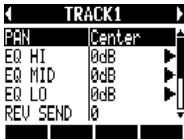
Select track

Select ST LINK.
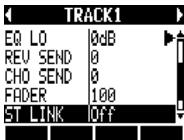
Change menu


Select On.
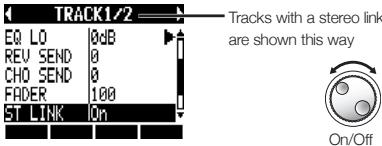
HINT
- Stereo link changes the setting from two mono tracks to one stereo track.
- Whatever track number you choose, an adjacent track will be linked. You cannot change these combinations.
- To adjust the volume of a stereo track, use the odd number fader. The even number fader has no effect. Use the pan parameter to adjust their relative volume balance.
- Stereo files can be assigned to stereo linked tracks. The left channel is on the odd track and the right is on the even track.
NOTE
- If stereo link is turned on for a track that has a mono file assigned to it, that file assignment will be canceled.
Stereo recording

ON/OFF

Push the INPUT 1 and 2 ON/OFF switches to turn them on, lighting their indicators red.

Adjust the input GAIN.
Make noise!
Adjust the input gain
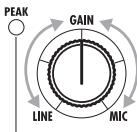
Adjust so it does not light when maximum volume is input

Press a status key of the stereo linked tracks 1-2 times until both indicators light red.
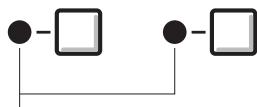
Lit red: ready to record

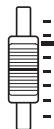
Set the MASTER and recording track faders to 0 dB and then use them to adjust the monitoring level of the instrument being recorded.

Follow the procedures in the "Recording" section (P.26) of "Recording the first track" to record.
- The left channel is recorded on the odd track and the right on the even track.
You can assign audio files to tracks freely.
By recording multiple takes of vocals, guitar solos and other parts in different files, you can later select and use the best takes (as though using virtual tracks).
TRACK

Press
Select the track to assign.
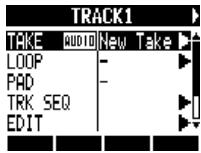
Select track
Select TAKE.
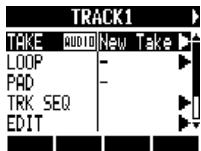

Change menu

Press
For an audio file, select FILE.
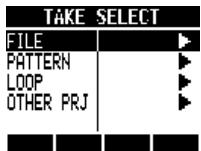

Change menu

Press
Select the audio file.
FILE SELECT
MONO-603.WA
MONO-001.WAV
New Take


Select the file or pattern


Press
NOTE
- If you assign a stereo file to a mono track, stereo link is turned on automatically.
For example, if mono files are assigned to tracks 1 and 2, the stereo file will be assigned to track 1 and the mono file on track 2 will become unassigned.
If you assign a mono file to a stereo track, stereo link will be turned off automatically.
HINT
- You can also play the audio file being selected.

Play

Stop
- Files that are already assigned to tracks have an * to the left of their names.
Use the swap function to exchange two tracks, including their assigned files, track sequence data and all track parameter information.
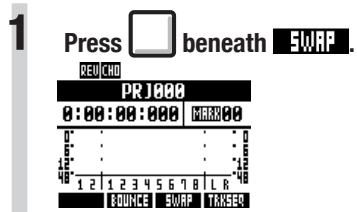
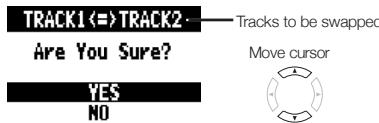
2 Select the first track to swap.
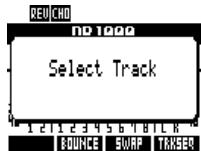
Indicators blink orange on tracks that can be selected. Press the status key of the track to swap.
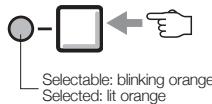
3 Select the second track to swap.
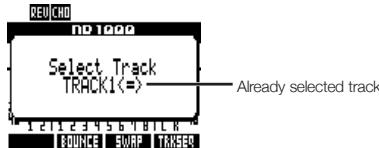
Indicators blink orange on tracks that can be selected. Press the status key of the track to swap.
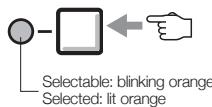
4 Swap the tracks.

Re-recording part of a track (punch-in/out)
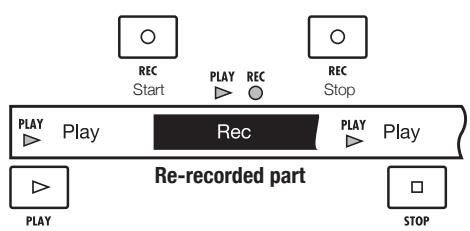
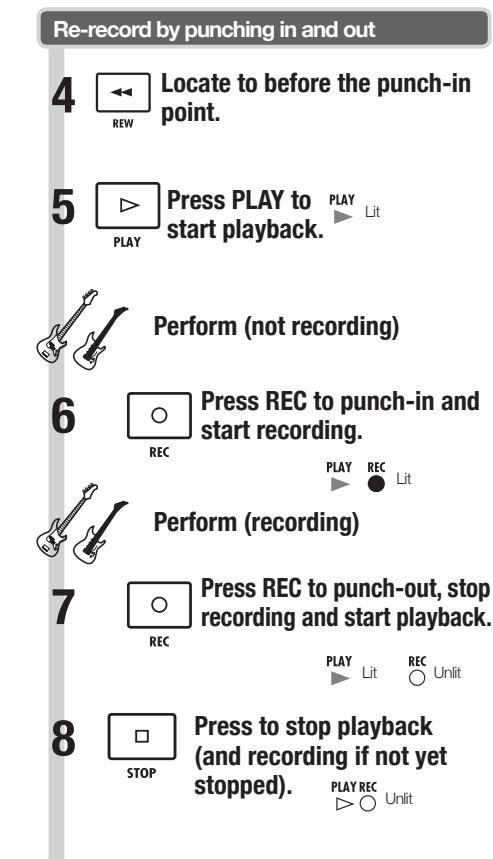
Punch-in and punch-out allow you to re-record a single part of a recorded file. The point when the unit switches from playback to recording is the "punch-in" and the point when the unit switches from recording to playback is the "punch-out."
The R8 allows both manual punch-in/out using keys on the front panel or a ZOOM FS01 footswitch (sold separately) and automatic punch-in/out in which you designate the punch-in/out points in advance.

NOTE
- Punch-in/out overwrites the recording on the track.
- If the track is set to New Take, the track will be silent before punching in and after punching out.
- If the REC MODE is set to Always New, a new file will be recorded.
Use the UNDO soft key to cancel the re-recording.
Automatic punch-in/out
When punching in and out manually is difficult, you can set the points in advance to punch-in and punch-out automatically.
Prepare the track that you want to punch-in/out
1 Raise the fader on the track you want to re-record.
Press the status key 1-2 times until lit red.
Lit red: ready to record
3 Adjust the recording level and the GAIN to be the same as the already recorded part.
Set the punch-in/out points
4 Locate the starting (punch-in) point.
5 AUTO PUNCH I/O Press to set the punch-in point.
Appearance on display
6 FF Locate the ending (punchout) point.
7 AUTO PUNCH I/O Press to set the punchout point
AUTO PUNCH I/O Press to set the punchout point
NOTE
- Once you set automatic punch-in and out points, you cannot change them. Cancel them first if you need to set them again.
- If the REC MODE is set to Always New, a new file will be recorded.
Rehearsing
1 ←& Locate to a time before the punch-in point.
2 Press to start playback.
When the punch-in point is passed, the track is automatically muted.
PLAY
Lit
Perform (not recording)
3 Press to stop playback. PLAY UNi t
Re-recording with punch-in and punch-out
8 ← Locate to a time before the punch-out point.
9 PRESS REO and PLAY in order to start recording.
PLAY LIT REC Blinking Not recording Punch-in point passed Perform PLAYREC Lit Recording Punch-out point passed PLAY REC Not LIT Blinking recording
10 Press to stop playback (and recording if not yet stopped). STOP PLAYREC Unit
Cancel punch-in/out
11 AUTO PUNCH I/O Press Indicators disappear from display
Punch in PUNCH out point playREC play Play Rec play Re-recorded part
Combining multiple tracks into 1-2 tracks (bouncing)
Bounce to mix and record multiple tracks as 1-2 tracks. This is also called "ping-pong recording."
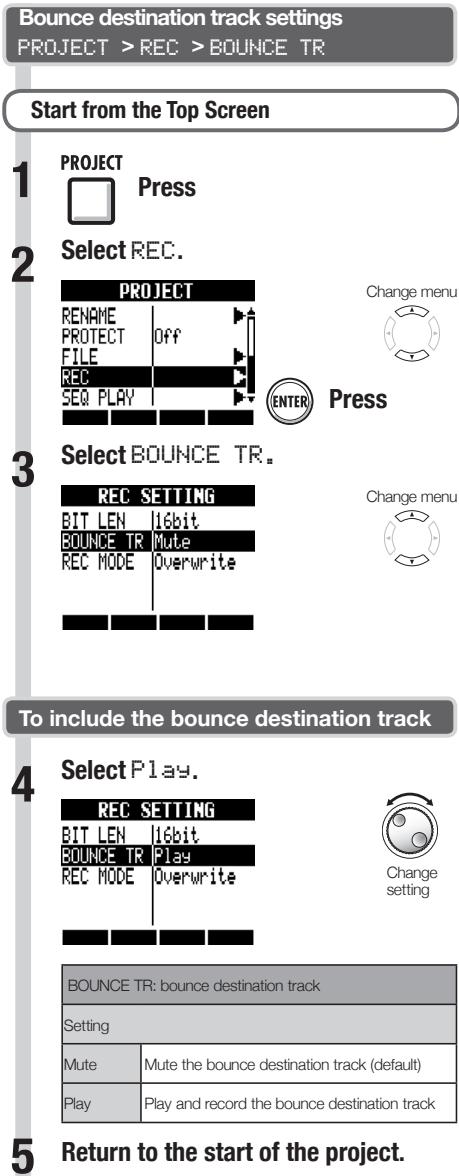
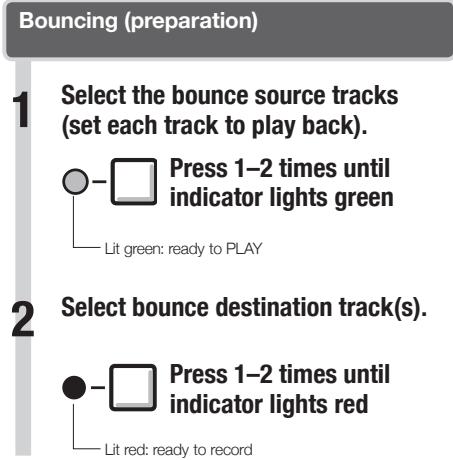
HINT
- Bouncing creates a new file in the same project.
- If you set the bounce destination to a mono track, the recorded signals are mixed to mono. If set to a stereo linked pair of tracks, the recorded signals will be mixed to stereo.
- You can also include signals input through the INPUT jacks when bouncing.
For information about adjusting sounds and using effects while bouncing, refer to "Mixing" on P.40.
Bouncing (execution)
3
Press

beneath
Bounce
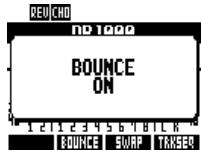
BOUNCE ON appears on the display
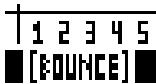
Note: Press the BOUNCE soft key again to cancel bounce mode.
4
Press and hold STOP and press REW to return to the beginning.
5
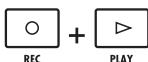
Press in order to start recording.
REC Lit red PLAY Lit green
6

Press to stop playback.
STOP
Adjust the mix balance (audition)
1

PLAY
Press to start playback.
2
Adjust the mix balance, including volume, pan and EQ, for each track.
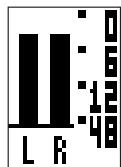
Make sure that the MASTER level meters do not reach 0 dB
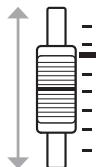
3

STOP
Press to stop playback.
Playback the track after bouncing
1
Enable playback of bounce destination tracks.
Press status keys 1-2 times until indicator lights green
2
Disable playback of bounce source tracks
Press status keys 1-2 times until unlit
3
Press and hold STOP and press REW to return to the beginning.
4

Press to start playback.
PLAY
Locating to the desired part of a song
The counter on the display can be used to move (locate) to the desired time in hours: minutes: seconds: milliseconds or bars-beats-ticks (1/48 beat).
You can also set marks in a project to locate to them easily.
Using the counter to locate
To prepare, stop the recorder, select the project and start from the Top Screen.
1
Select the hours: minutes: seconds or bars-beats-ticks.
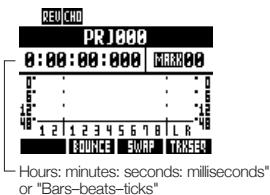
Change unit/digit

Change display

2
Change the values.
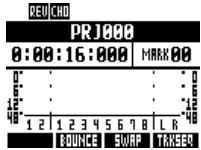

Change numbers
NOTE
- You cannot change the counter this way during recording or playback.
HINT
After Step 2, you can start playback from the set counter position.
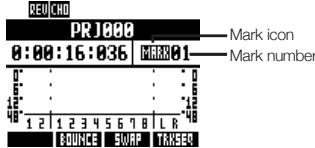
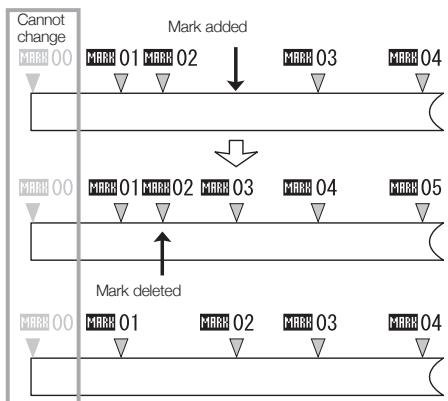
- Mark icon display
- Mark zero is always set at counter 0 (project beginning) and cannot be changed.
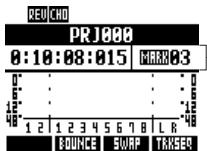
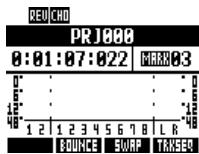
Mark 03 shown set at 10 minutes, 08 seconds, 15 milliseconds
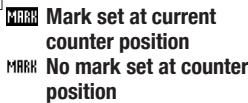
- If you add a mark at a time earlier than an existing mark, all the following marks will be automatically renumbered in order.
- One project can have a maximum of 100 marks, including the zero mark.
Adding marks
Add a mark using the counter
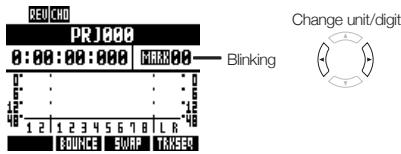
1 Start from the top screen. Set the counter to the desired mark position.
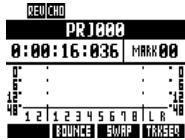
Change unit/digit

2

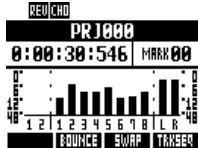
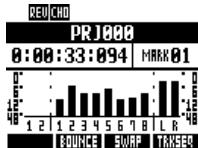
Adding a mark during recording/playback
1 Start recording or playback
2
Locate to the position of a mark
Use keys to move between marks in order
1
Press the and keys to set the desired mark.
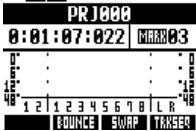
REU CHD
Project
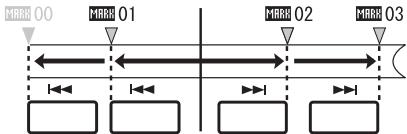
Use the DIAL to move between marks in order
1
Select MARK.
2
Select the mark number.
Change number
Deleting marks
1
Press the 一 一 and keys to set the desired mark.
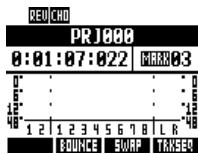
Mark icon highlighted
2
Press
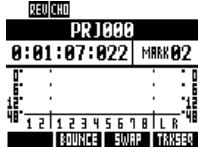
The highlighted mark is erased and the preceding mark is shown.
NOTE
A deleted mark cannot be recovered.
- at the beginning cannot be deleted.
- Press the MARK/CLEAR key when the mark icon is highlighted to delete that mark. Press MARK/CLEAR when the icon is not highlighted to create a new mark at that position.
- When marks are added and deleted between other marks, all the marks are automatically renumbered in order from the beginning.
Repeat playback of a specific section (A-B repeat)
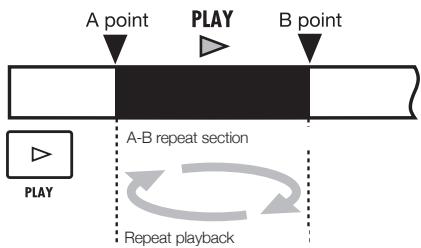
You can set a beginning (A) point and an ending (B) point in a project and repeat playback between them.
Setting A-B points
1 Locate the 1 REw FF PLAY beginning point
2 A-B REPEAT Press
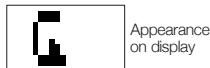
3 BF PLAY Locate the end point.
4 A-B REPEAT Press
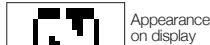
Use A-B repeat to loop playback
5 Press to start playback.
6 Press to stop playback. STOP
Cancel repeat and clear points
7 A-B REPEAT Press to cancel
Indicators disappear from display
HINT
- When playback reaches point B, it automatically returns to point A and continues playback.
While the - REPEAT icon appears, playback repeats continuously
These settings can be made both during playback and when stopped. - If you set point B at a time before point A, repeat playback will occur from point B to point A.
- To change the settings, press the A-B REPEAT key to cancel them once and then follow the procedures to set new ones.
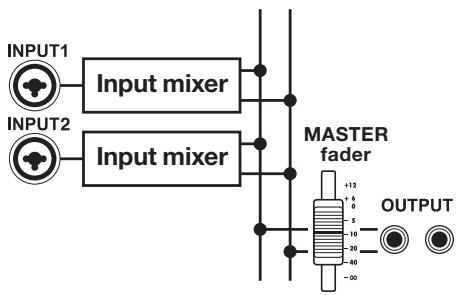
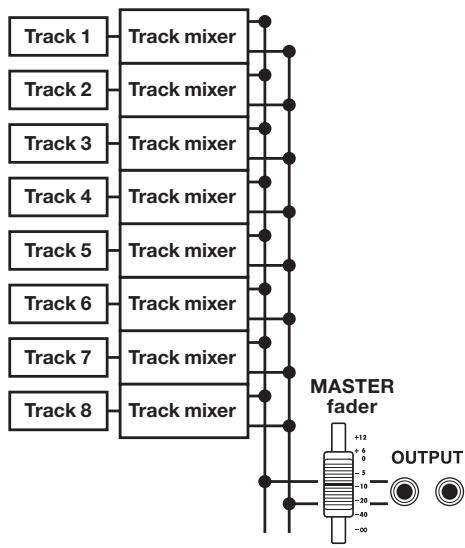
The R8 has two built-in mixers. Input signals are sent to the input mixer, and track playback signals are sent to the track mixer.
Using the built-in mixer, you can adjust the volume and pan for each input signal and track, as well as use a 3-band parametric equalizer on the tracks.
Input mixer
This mixer adjusts the input gain of each signal input through an INPUT jack, and sends each signal individually or both mixed together to a recorder track.
You can control the following INPUT parameters and monitor up to 8 playback tracks at the same time.
- Input signal pan (PAN)
- Send-return effect levels (REV SEND, CHO SEND)
- Input signal recording level (REC LEVEL)
Track mixer
This mixer mixes the output signals of recorder tracks to stereo.
Use the faders to adjust the volume. You can also adjust the pan and equalizer, for example, for each track.
You can control the following types of parameters using the track mixer.
- Track volume (FADER)
- Track pan (PAN)
Equalizer (EQ HI, EQ MID, EQ LO) (EQ cannot be adjusted for rhythm pattern tracks) - Send-return effect levels (REV SEND, CHO SEND)
- Stereo link settings (for mono audio tracks)
- Track phase (INVERT) (the phase of rhythm pattern tracks cannot be adjusted)
Input signals and mixers
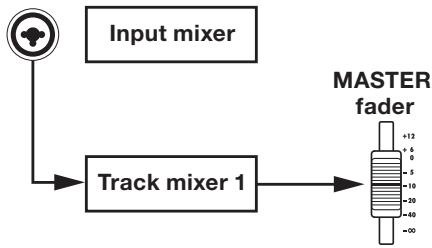
If recording destination track is set
When the recording destination track has been set, the input signal does not pass through the input mixer. Instead, after passing through the REC LEVEL, the signal passes through the track mixer and is output.
Example: track 1 selected
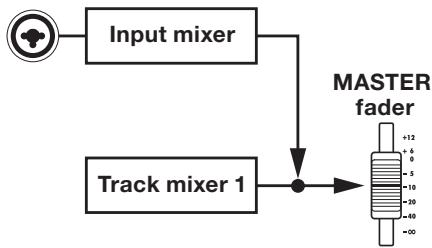
If recording destination track is not set
When the recording destination track has not been set, the input signal passes through the input mixer and is output.
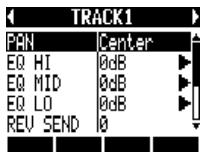
Setting track level, EQ and pan
Use the input and track mixers to set track parameters that, for example, adjust pan and effect send levels for each track. Here, we explain the adjustment of track parameters.

Press
Select an input or track.
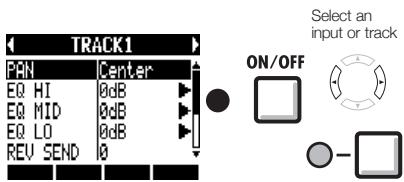
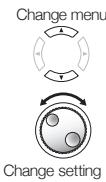
Select a menu item and its setting.
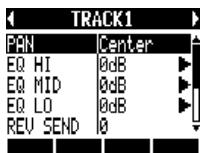
SelectEQHI,EGMID or EQLO.
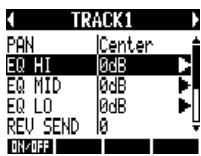
Change menu

Press
Select each item and change settings.
Change menu
NOTE
- Except for phase settings (INVERT), both left and right channels of stereo tracks share the same parameter values.
- Settings are stored separately for each project.
- The only setting for the MASTER track is volume (FADER level).
Rhythm pattern tracks do not have EQ HI, EQ MID, EQ LO, ST LINK or INVERT settings.
The parameters that can be set for each type of track are as follows.
Mono tracks: 1-8
Stereo tracks: 1/2-7/8
| Display | Parameter | Setting range (default value) | Explanation | Mono tracks | Stereo tracks | Master track |
| PAN | PAN | L100~R100 (Center) | Adjusts a track's PAN. For stereo tracks adjusts the volume balance between the left and right channels. | ○ | ○ | |
| EQ HI High-frequency range boost/cut | ||||||
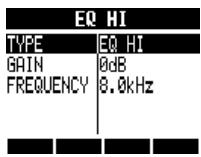
| EQ HI | TYPE | EQ HI, HI CUT (EQ HI) | Set whether to boost/cut the high-frequency range (EQ HI) or clearly cut unnecessary high frequencies (HI CUT). This parameter can only be accessed when EQ HI is on. | ○ | ○ | |
| GAIN | -12dB~12dB (0dB) | Adjust amount of boost/cut of high frequencies by -12 ~ +12 dB. This parameter is shown only when the TYPE is set to EQ HI. When set to HI CUT, it is not shown. | ○ | ○ | ||
| FREQUENCY | 500Hz~18kHz (8.0kHz) | Adjust the EQ boost/cut frequency of high frequencies. This parameter can only be accessed when EQ HI is on. | ○ | ○ | ||
| EQ MID Middle-frequency range boost/cut | ||||||
| EQ MID | GAIN | -12dB~+12dB (0dB) | Adjust amount of boost/cut of middle frequencies by -12 ~ +12 dB. This parameter can only be accessed when EQ MID is on. | ○ | ○ | |
| FREQUENCY | 40Hz~18kHz (1.0kHz) | Adjust EQ boost/cut frequency of middle frequencies. This parameter can only be accessed when EQ MID is on. | ○ | ○ | ||
| Q | 0.1~2.0 (0.5) | Adjust the width of the middle frequency band affected. This parameter can only be accessed when EQ MID is on. | ○ | ○ | ||
| EQ LOW Low-frequency range boost/cut | ||||||
| EQ LO | TYPE | EQ LO, LO CUT (EQ LO) | Set whether to boost/cut the low-frequency range (EQ LO) or clearly cut unnecessary low frequencies (LO CUT). This parameter can only be accessed when EQ LO is on. | ○ | ○ | |
| GAIN | -12dB~+12dB (0dB) | Adjust amount of boost/cut of low frequencies by -12 ~ +12 dB. This parameter is shown only when the TYPE is set to EQ LO. When set to LO CUT, it is not shown. | ○ | ○ | ||
| FREQUENCY | 40Hz~1.6kHz (125Hz) | Adjust EQ boost/cut frequency of low frequencies. This parameter can only be accessed when EQ LO is on. | ○ | ○ | ||
| Effect send levels | ||||||
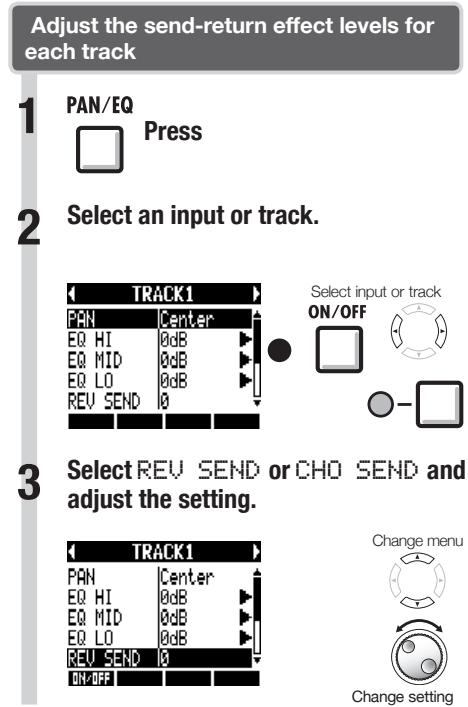
| REV SEND | REVERB SEND LEVEL | 0~100 (0) | Adjust the signal level sent from the track to the reverb effect. | ○ | ○ | |
| CHO SEND | CHORUS/ DELAY SEND LEVEL | 0~100 (0) | Adjust the signal level sent from the track to the chorus/delay effect. | ○ | ○ | |
| FADER | FADER | 0~127 (100) | Adjust the current volume. | ○ | ○ | ○ |
| ST LINK | STEREO LINK | On/Off (Off) | Switch on/off to set the stereo link function that connects two mono tracks together. | ○ | ○ | |
| INVERT | INVERT | On/Off (Off) | Set whether the phase of a track is inverted or not. Set it to Off to use normal phase or ON to invert the phase. | ○ | ○ | |
NOTE
Use the ON/OFF soft key to turn EQ HI, EQ MID, EQ LO, REU SEND, CHO SEND and INVERT parameters ON/OFF.
- When a stereo link is ON, the INVERT parameter is shown as INVERT L for the odd track, and as INVERT R for the even track.
Using send-return effects
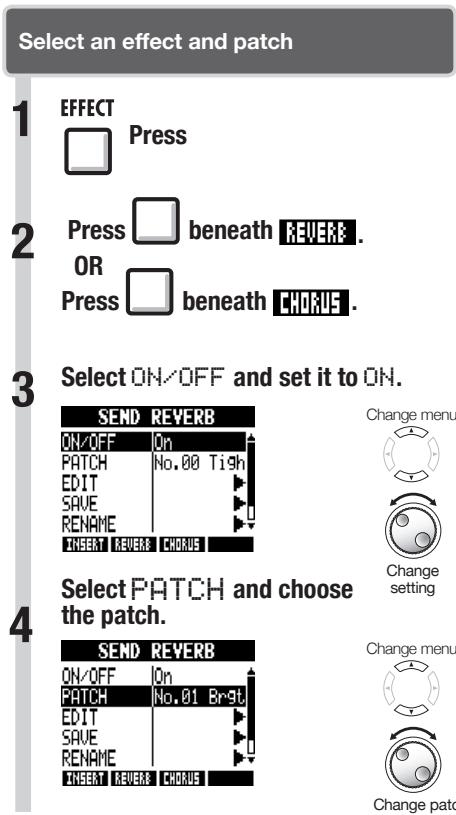
Send-return effects, which are routed internally by the mixers, can be applied to signals input to the input and track mixers. You can adjust the send-return effect levels for each input and track using their send levels, which set the amount of signal sent to the effect.
Here we explain how to select the send-return effect patch and adjust the amount applied to each track.
You can use an insert effect on already recorded tracks.
EFFECT

Press
Accessing the effect settings
Press beneath to access the insert effect
Select ON/OFF and set it to On.
INSERT EFFECT
| ON/OFF | ON |
| ALGORITHM | Clean |
| PATCH | No.00 Z CL |
| INPUT SRC | Input1 |
| EDIT | |
| INEAR REVEA | CHORD |
Change menu


Change setting
Select INPUT SRC and set the track.
INSERT EFFECT
| ON/OFF | On |
| ALGORITHM | Stereo |
| PATCH | No.87 Powe |
| INPUT SRC | Track1/2 |
| EDIT | |
| INSERT REVERE | CHORUS |
Change menu


Change input source
| Display | Signal source |
| Input1, Input2 | One input |
| Input1/2 | Both inputs |
| Track1-Track8 | Output of one mono track |
| Track1/2-Track7/8 | Output of one stereo track or two mono tracks |
| Master | Signal before the MASTER fader |
Select PATCH and set it.
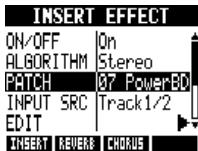
You can select the patch while playing back to hear the effect.

Press
Change menu


Change patch
Using a mastering effect
Use a mastering effect as an insert effect to process the final stereo signal when mixing down to the master track.
Select a MASTERING algorithm to apply the effect to the signal before the MASTER fader.
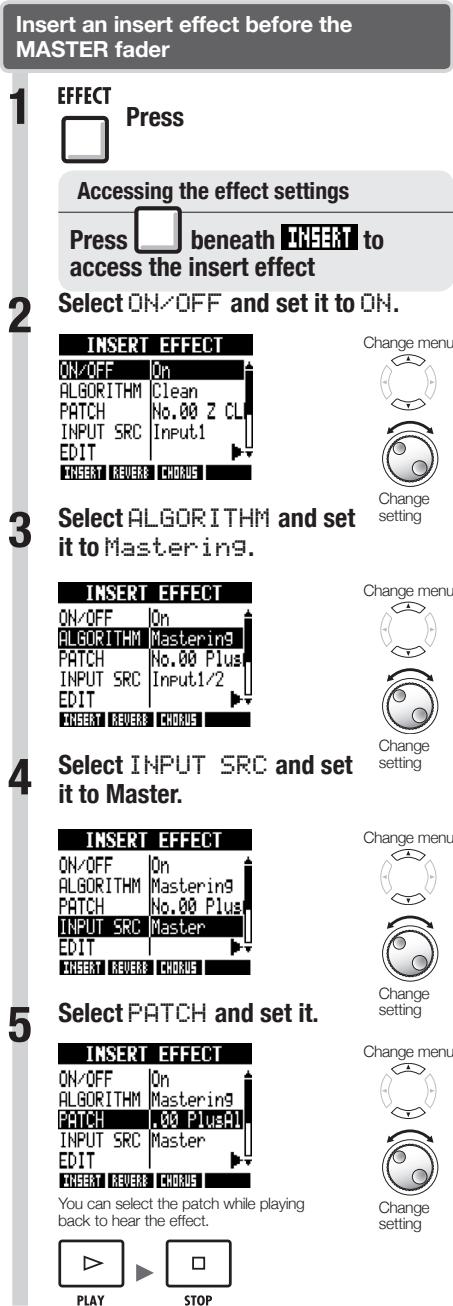
6

Press

NOTE
- When the insert effect is applied before the MASTER fader in advance, the insert effect cannot also be applied to other tracks, either during recording or playback.
- At step 5, if you hear distortion when the mastering effect is applied to the signal, check the sound of the playback tracks and lower and readjust their faders. (If a track sound is distorted, adjust that track.)
- You can select Stereo, Dual, Mic or Mastering algorithms. If you set another algorithm, the insert position changes to Input 1.

HINT
- Use a MASTERing algorithm effect to process the final stereo mix signal.
Master track recording signal flow
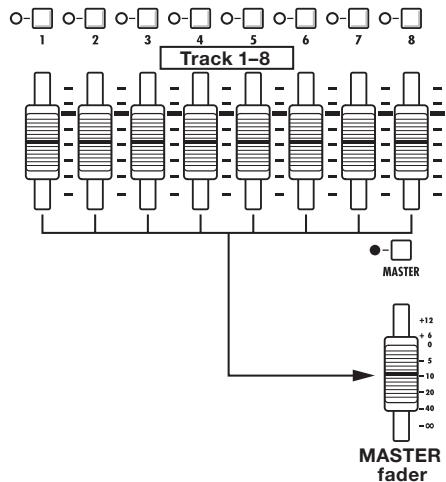
Record the "final" stereo mix on the MASTER track, which is specifically for mixing down. Signals are sent to the master track after passing through the MASTER fader.
Recording to the MASTER track
Prepare by adjusting the signal levels
1 2
Press and hold to return to the

and press

Press PLAY

start playback.
Adjust the balance of the tracks during playback.
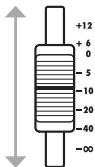
Adjust the level of the signal that passes through the master fader.
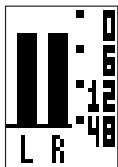
Make sure that the level meters do not reach 0 dB
3

STOP
Press to stop playback.
Record to the master track
4
Press the MASTER status key 1-2 times until the indicator lights red.
Lit red: ready to record
5
Press and hold and press to return to the beginning.

REW
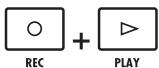
Press in order to start recording.

Press to stop playback.
NOTE
- The pan, balance, insert and send-return effects of each track affect the signals sent to the MASTER track.
Play the master track
1
Press the MASTER status key 1-2 times until the indicator lights green.
Lit green: ready to PLAY
Doing this mutes all other tracks and disables all effects.
2
Press and hold and press to return to the beginning.


PLAY
Press to start playback.
3

STOP
Press to stop playback.
Disable MASTER track playback
4
-Unlit: disabled
Press the MASTER status key 1-2 times until the indicator is unlit.
Other tracks are unmuted and their status lights become as they were before.
HINTS
Each project can only have one active MASTER track at a time.
- You can assign an already recorded file to the MASTER track.
- Even if you mix down from the middle of a song, a new file will always be recorded.
The signals that have passed through the MASTER fader are the same as those sent from the OUTPUT jacks.
This operation can be undone by pressing the UNDO soft key.
The final stereo mix recorded to the master track is saved as a WAV file. This file can be saved on a computer and, using disc writing software, for example, be written to a CD. (See "Exchanging data with a computer (card reader)" on P:103.)

Reference: Sequential playback of projects (sequence play)
P.98
Overview of rhythm functions
With the R8, you can perform rhythm parts using the built-in drum sounds.
Rhythm patterns can be assigned to tracks, and you can repeat simple patterns in place of a metronome, or perform rhythm parts for an entire song using the track sequencer function (see P.72), for example.
Drum kits
The R8 has 10 types of drum kits - sets of 16 types of percussion instruments, including kicks, snares and hi-hats.
Use the pads to play each different sound and create rhythm parts from them.
Rhythm patterns
In one project, you can use 511 types of rhythm patterns. (Each pattern contains a drum performance of 1-99 bars in length.) You can edit parts of existing patterns and even create new rhythm patterns.
Rhythm pattern tracks
To use a rhythm pattern in a song, assign the rhythm pattern to a track.
Tracks that have rhythm patterns assigned to them are called rhythm pattern tracks.
You can do the following with rhythm pattern tracks.
- Play them with the pads and set how they are played back (See "Using the pads to play rhythm patterns" on P.50.)
Control them with the track sequencer (See "Using the track sequencer" on P.72.) - Play back rhythm pattern tracks (See "Track playback overview" in "Using the sampler" on P.61.)
Changing the playback pattern
Select a rhythm pattern and play it.
1
RHYTHM

Press
2
Rhythm pattern selection
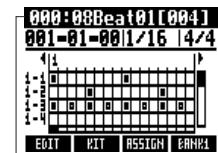

Change pattern
Rhythm pattern name
3

PLAY

STOP
Press to play.
Press to stop playback.

STOP
and press

REW
Press and hold STOP and to return to the beginning.
Changing the drum kit
Change the drum sounds.

000:08Beat01[004]
001-01-08|1/16 |4/4
EOT KIT R5SIGN EHNH1
2
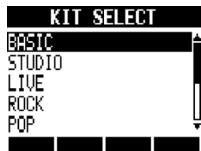
Select a drum kit.

Press

Select kit

NOTE
- The drum kit setting is saved with each project.
You can play the velocity-sensitive pads beneath each of the track faders, adding accents in real time.
1
RHYTHM

Press
2
Play the pads.

SNARE


Switching banks
You can change the sounds of the pads.
Press beneath EAHPK
Select BANK1 for drum kit sounds and BANK2 for percussion sounds.
Repeating sounds (drum rolls)
You can set a pad sound to play repeatedly at a set interval.
This is convenient when entering hi-hat 16th notes, for example.
1
beneath
EOT
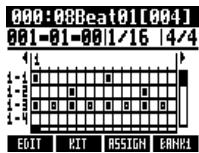
2
Select PAD ROLL and set the repeat rate. Change men
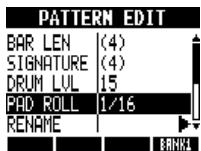

Change menu

Change setting
| PAD ROLL: repeat interval | |
| Settings | |
| 2/4-16/4 | 1/4 notes x 2~16 |
| 3/8, 1/3, 1/4, 3/16, 1/6, 1/8, 1/12, 1/16, 1/24, 1/32 | Dotted 1/4 notes, 1/2 note triplets, 1/4 notes, dotted 8th notes, 1/4 note triplets, 8th notes, 8th note triplets, 16th notes, 16th note triplets, 32nd notes |
3
REPEAT/STOP

Press and hold REPEAT/ STOP, and press the pad to play the roll.
If you release REPEAT/STOP before the pad, that sound continues rolling after the pad is released. Press the pad again to stop it.
Adjusting the pad sensitivity
Set the pad sensitivity. You can set pads to respond to playing strength or to trigger sounds at a consistent volume regardless of how hard they are played.
1
TOOL

Press
2
Select SYSTEM.
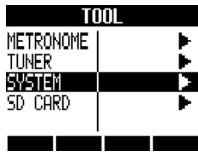
Change menu

Press
3
Select PAD SENSE and set it.
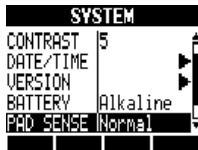
Change menu
| PAD SENSE: pad sensitivity | |
| Setting | |
| Soft | Regardless of playing strength, sounds are triggered with a soft volume. |
| Medium | Regardless of playing strength, sounds are triggered with a medium volume. |
| Loud | Regardless of playing strength, sounds are triggered with a loud volume. |
| Lite | Highest sensitivity—even light playing produces loud volume. |
| Normal | Medium sensitivity. |
| Hard | Low sensitivity—must play the pads hard to trigger with loud volume. |
| EX Hard | Lowest sensitivity—must play the pads very hard to trigger with loud volume. |


Change setting
To use a rhythm pattern in a song, you must assign it to a track. A track that a rhythm pattern is assigned to is called a rhythm pattern track.
Rhythm pattern tracks can be played using the pads and controlled with the track sequencer.
Assigning from the RHYTHM menu

1
RHYTHM
Press
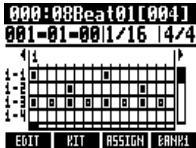
Select a rhythm pattern

Change pattern
3
While pressing beneath, press the pad of the track where you want to assign it.
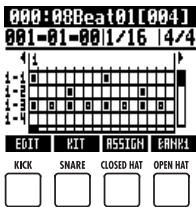


NOTE
- If rhythm patterns are assigned to multiple tracks and played back simultaneously, or patterns with numerous note-on events are played, they might not all play as expected due to the maximum polyphony limitation of the unit.
- When a rhythm pattern is assigned to a track, it cannot be set to loop.
- When you press the ASSIGN soft key, the pads of tracks currently set to New Take blink.
- When you play a rhythm pattern track, the status key indicator changes from green to orange.
Assigning from the TRACK menu

1
Press
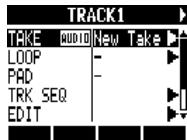
2
Select the destination track.
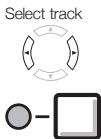

3
Select TAKE.
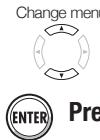
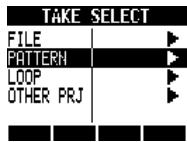
4
Select PATTERN.

Change menu

Press
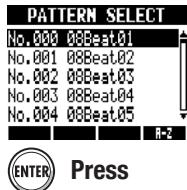
5
Select a rhythm pattern

Select pattern

HINT
- You can play the selected rhythm pattern.

Play the pattern

Stop pattern playback
STOP
You can create your own original rhythm patterns. After preparing, you can create a rhythm pattern using real-time or step input.
Preparing to create a rhythm pattern
Select an empty rhythm pattern and set the number of bars, time signature and quantization. You can also check the memory remaining for rhythm patterns.
RHYTHM

Press
Select an empty rhythm pattern (name is EMPTY).
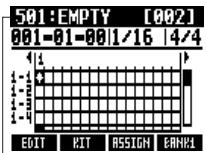
Change pattern

Rhythm pattern name
3 Move to the quantization area and set the value.
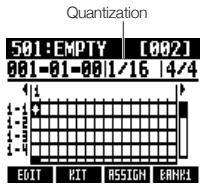

Move cursor

Change setting
| Quantization | |
| Setting | |
| 1/4 | Quarter note |
| 1/8 | 8th note |
| 1/8T | 8th note triplet |
| 1/16 | 16th note |
| 1/16T | 16th note triplet |
| 1/32 | 32nd note |
| Hi | Tick |
4 Press beneath EDIT
5 Set number of bars and time signature.
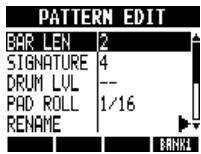

Change menu

Change setting
| BAR LEN: number of bars | |
| Setting range | |
| 1-99 | Number of bars |
| SIGNATURE: time signature | |
| Setting | |
| 1-8 | Time signature (number of beats) |
| MEMORY | |
| Shows current amount of memory used | |
6
Press
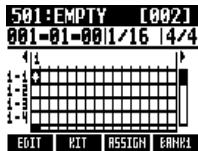
Inputting a pattern in real-time
After preparing, play the pads along with the rhythm (metronome) to create a rhythm pattern with real-time input.
Start input. Press
while pressing and holding REC
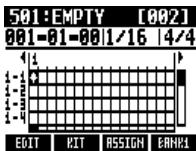
Play the pads in time with the rhythm to record the pattern.
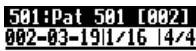
Now Recording...

3 To delete sounds:
Press and hold under 03513 and press a pad. While that pad is being pressed, data that has already been input for that pad will be erased.
Press beneath to erase data that has already been input for all pads.
4 End input.

STOP
Press
NOTE
- If your timing playing the pads is slightly off, it will be corrected to the rhythm in accordance with the quantize setting.
- Depending on the pad sensitivity setting, the force used to play the pads is also recorded.
- You can also set a metronome pre-count (see P.20).
Step input of a rhythm pattern
After preparing, you can input notes one at a time (step input) to create a rhythm pattern.
Start input.

Press
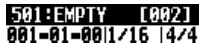
REC
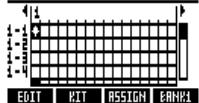
Move the cursor to the position where you want to input or delete notes.
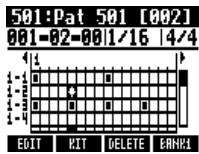

Move cursor

REW
Go back one beat

Advance one beat
FF
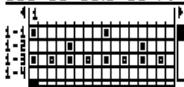
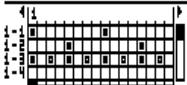
The horizontal axis shows the bars and the vertical axis shows the pads by number. One step (one box) is the length of the quantize setting.
3 Play a pad to input a note at the current position. Its volume will correspond to the strength you play it (and the sensitivity setting).

Press
Press ENTER to add a note with a fixed volume level at that position.
4
To delete an input a note or change its volume:
Press beneath to delete the note at that position.

Turn to change the volume of the note at that position.

Loud (high velocity)

Quiet (low velocity)
Press and hold
beneath 03E13 it pad to erase the note
and press the lit pad to erase the note at that position.
5
End input.

Press

STOP
NOTE
Notes that are at locations that cannot be moved to with the current quantize setting cannot be deleted. A note at such a position appears as an "X".
- In Step 4, you can also use the dial to input and delete notes.
You can copy a rhythm pattern to create a new one based on it, for example.
RHYTHM

Press
Select the rhythm pattern that you want to copy.
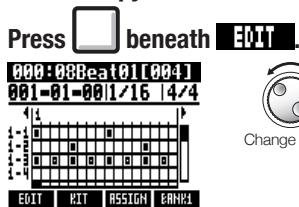
Select COPY.
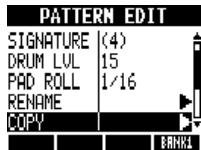
Change menu


Press
Select COPY TO.
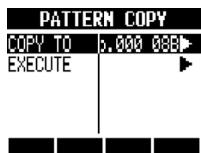
Change menu


Press
Select the copy destination.
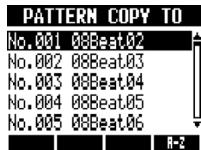
Select pattern


Press

6
Select EXECUTE.
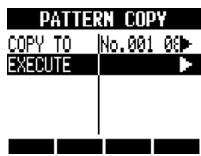

Press
Change menu

HINT
In step 5, you can change the order of the pattern list.
- Press the A-Z soft key to list the patterns in alphabetical order.
- Press the No. soft key to list the patterns in numerical order.
Rhythm patterns can be deleted.
RHYTHM

Press
Select the rhythm pattern that you want to delete.
Press beneath
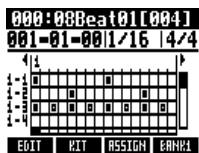

Change pattern
Select DELETE.
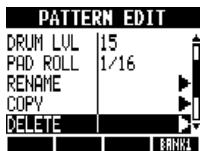
Change menu


Press
Select YES.
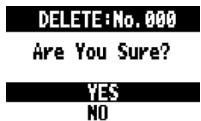
Move cursor


Press
You can change the names of rhythm patterns.
RHYTHM

Press
Select the rhythm pattern that you want to rename.
Press beneath
800:808beat01[004] 801-01=081/16|4/4
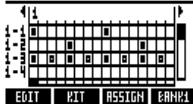

Change pattern
SelectRENAME.
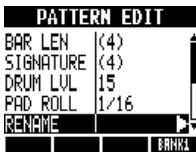
Change menu


Press
Change the name.
PATTERN RENAME
08Beat01
OKENTER(CANCEL)EXIT
DELETE INSERT
Move cursor


Press

Change character
DELETE
Delete character
INSERT
Insert character
You can import rhythm patterns from other projects.
You can import all the rhythm patterns (All) at once or one at a time (Each).

RHYTHM
Press
Press
beneath
EDT
000:08Rea01[004]
001-01=001/16 4/4
EOT KIT R5SIGN EAN1
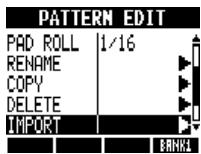
Select IMPORT.

Change menu

Press
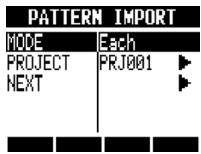
Select MODE and set it to A11 or Each.

Change menu

Change setting
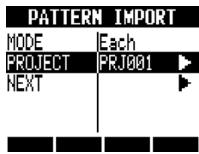
Select PROJECT.

Change menu

Press
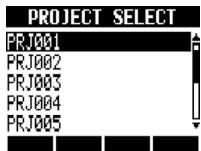
Select the source project.

Select project

Press
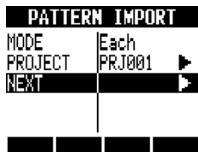
7
Select NEXT.
Press
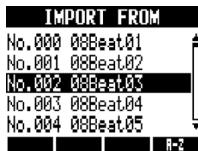
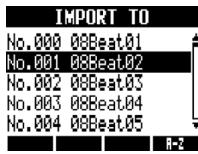
8
Select the rhythm pattern to import (only when set to Each).

Select pattern


Press
9
Select the destination rhythm pattern to import (only when set to Each).

Select pattern


10
Select YES.
PATTERN IMPORT
Press
Are You Sure?
YES
NO

Move cursor

Press
NOTE
- Destination rhythm patterns will be overwritten. When set to All, all the original rhythm patterns in the project will be deleted. When set to Each, the rhythm pattern selected as the destination will be deleted.
- In step 8 or 9, you can change the order of the pattern list.
- Press the A-Z soft key to list the patterns in alphabetical order.
- Press the No. soft key to list the patterns in numerical order.
You can change the volume of a rhythm pattern and the stereo placement of the drum kit.
RHYTHM

Press
Select the rhythm pattern for which you want to make settings.

beneath
EDIT
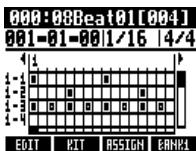

Change pattern
Select a menu item and change the setting.
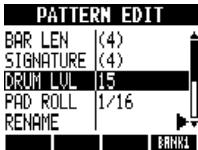
Change menu


Change setting
| DRUM LVL: drum volume | |
| Setting | |
| 1-15 | Drum volume |
| POSITION: drum placement | |
| Setting | |
| Listener | Drums are placed from left to right as heard by the audience |
| Player | Drums are placed from left to right as heard by the drummer |
NOTE
- POSITION settings are saved for each project.
Using the sampler to make songs
You can use the R8 sampler functions to easily create backing tracks, rhythm parts and other foundation tracks that have high sound quality. These features can be used to make a wide variety of music, from demo songs to produced recordings.
1 Make a loop for the basic rhythm of the entire song.
Assign the included loops to tracks (pads) and set them to loop.
For example, you can develop a vision for an entire song by selecting drum loops and other materials that inspire you.

Reference:
Assigning included drum loops to tracks
Setting loops
P63
P.64
2
As you listen to the rhythm loop that you prepared, record guitar, bass, keyboard and other instruments to create more loops.
Keep recording until you are satisfied with the performance of the riff, backing part or other musical phrase. You can loop only the parts of the recordings that you like.

Reference: Setting loops
P64
3
Repeat step 2 to record other phrases to use as loops.
Prepare all the phrases that are necessary to make your song.
4
When the loops are ready, play them with the pads while considering the structure of the entire song.
Play the pads with the rhythm while considering the flow of the entire song and how the loops combine.

Reference: Playing the pads
P.66
5
After determining the structure of the song, create a sequence (loop performance data) for the entire song.
A sequence can be input by playing the pads along with a rhythm (metronome) in real time or input step by step. You can create basic tracks, including backing parts and rhythm parts, for an entire song this way.

Reference: Creating a sequence
P.73
6
Record vocals, guitar solos and other parts as you listen to the sequence.
Record the main vocals and instruments in time with the basic tracks.
The R8 has a sampler function that allows audio files to be played with the pads. You can use the included loops or other commercially-available loops to easily create high-quality rhythm tracks.
Loop tracks
To use the sampler function, you must first set audio tracks to loop. When set to loop, we call these tracks "loop tracks." You can do the following with loop tracks.
- Play them with pads, and set how the loops playback when played (see "Playing the pads" on P.66)
- Conduct loop playback of a designated interval (see "Setting loops" on P.64)
- Control them with the track sequencer (see "Using the track sequencer" on P.72)
Track playback overview
When you play audio tracks with the PLAY key, the files will usually be played until they end, but with loop tracks and rhythm pattern tracks, the designated loop interval will play back repeatedly.
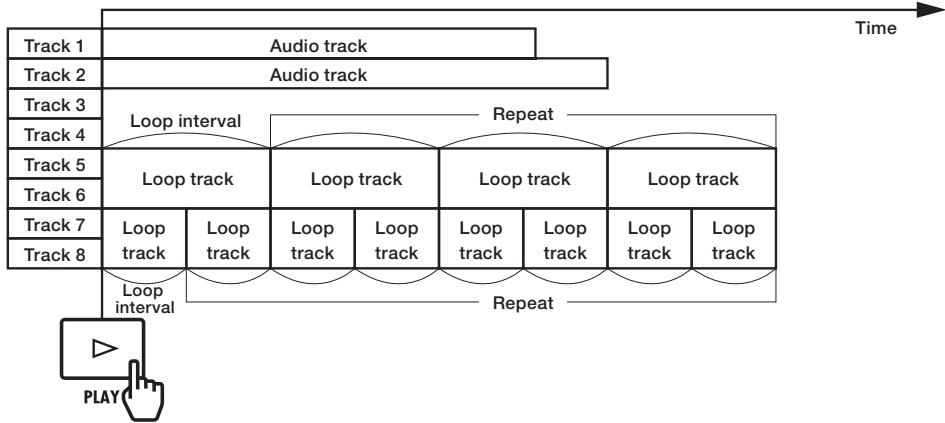
When the track sequencer is on, loop tracks and rhythm pattern tracks play back according to the sequence.
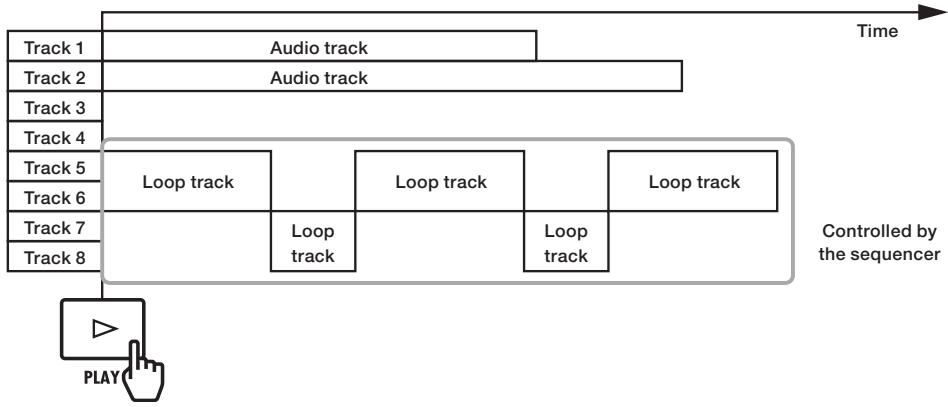
When using the pads for playback, press the pad for a loop track or rhythm pattern track to start playback of that track.
In the illustration below, after a pad for tracks 5/6 (loop track) is pushed to start playback, a pad for tracks 7/8 (loop track) is pushed to start playback of that loop.
In addition, how each loop track pad is played can be set individually (PAD parameter). In this example, they are set to "Gate", which causes playback to stop when the pad is released (see "Playing the pads" on P.66).
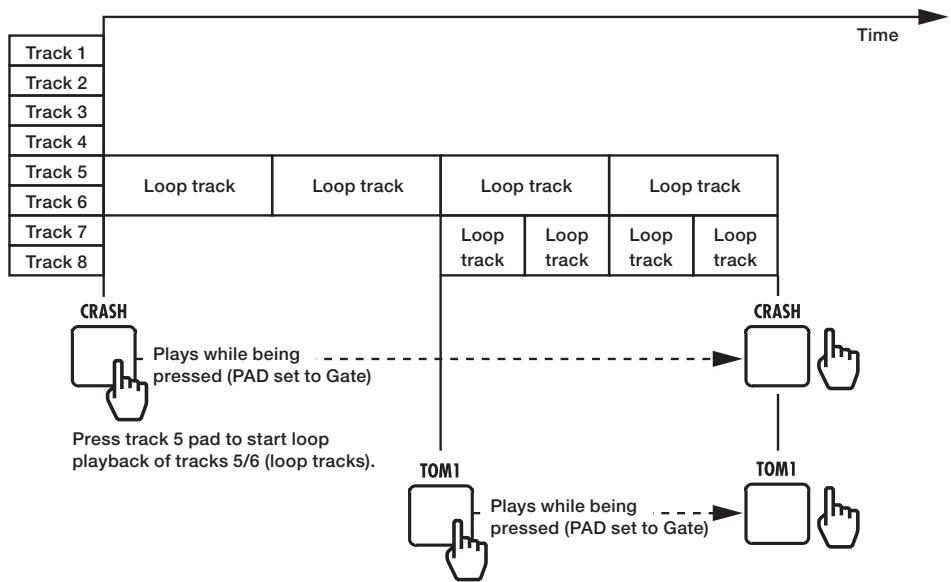
Press track 7 pad to start loop playback of tracks 7/8 (loop tracks).
To use the sampler function, first assign audio files and rhythm patterns to tracks. In this example, we explain how to assign loops that are on the included SD card.
TRACK

Press
Select the track to assign.

Select track

Select TAKE.

Change menu

Press
Select LOOP.
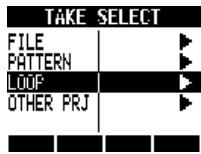

Change menu
| FILE | Audio files in the current project |
| PATTERN | Rhythm patterns |
| LOOP | Loops on the SD card |
| OTHER PRJ | Audio files in other projects |

Press
Select a loop.
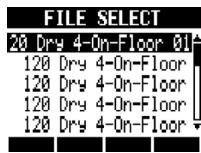

Select file

Press
NOTE
In a new project, the BPM (tempo) of the first audio file assigned to a track will set the BPM of the project.
- From the LOOP menu, you can select loop files in the LOOP folder on the SD card.
- The loops on the SD card are 44.1kHz WAV files. For this reason, if the project sampling rate is set to 48kHz , "Invalid File" appears and they cannot be assigned to tracks.
HINT
- You can also play audio files and rhythm patterns as you select them.

Start playback

STOP
Stop playback
To use the sampler function, you must set a track to loop, making it a loop track. Here we explain how to make this setting.
Setting a track to loop
Tracks can be individually set to loop.

TRACK
Press
Select the track to loop.
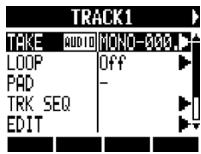
Select track
Select LoOP.
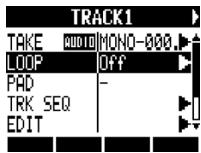

Change menu

Press
Select ON/OFF and set it to On to enable loop playback.
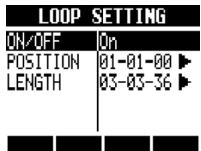

Change menu

Change setting
NOTE
- The status key indicator of a track set to loop lights orange instead of green when enabled for playback. A track set to loop cannot be used to record (indicator will not light red). In addition, the following functions can be used when a track is set to loop.
- The pad can be used to trigger the loop.
- Pressing PLAY starts loop playback.
-
Sequence data can be recorded.
-
When a rhythm pattern is assigned to a track, it cannot be set to loop.
Setting the loop interval
The loop interval (starting point and length) can be set for loop tracks.

Press
Select the track to be looped.
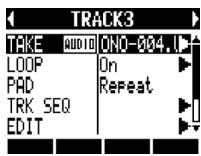
Select LOOP.
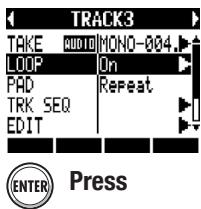

Select POSITION.
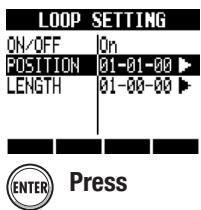

Set the loop starting point.
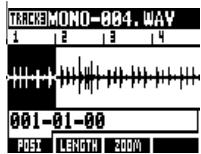
Starting point


Change setting
6
Press beneath to set the length of the loop.
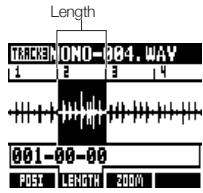


Change setting
HINT
- You can use the POSI and LENGTH soft keys to switch between setting the loop starting point and length.
- You can also play the audio file that you are setting.

PLAY
Start playback

STOP
Stop playback

FF
Fast forward

REW
Rewind
Zooming in on the waveform
When setting the loop starting point and length, you can zoom in on the waveform that is displayed. Zooming up to 32x is possible.

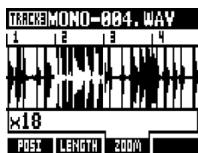

Change setting
For loop tracks and rhythm pattern tracks, press the pad beneath a fader to play the audio file or rhythm pattern assigned to that track.
1
Press a pad.


REPEAT/STOP

Press a pad while holding REPEAT/STOP to enable loop playback.


Press the pad again while holding REPEAT/STOP to stop loop playback.
Setting the playback method
Set how the pads function when played.
1
TRACK
Press
2
Select P and set the playback method.
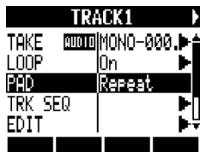

Change menu

Change setting
| PAD: playback method | |
| Setting | |
| Repeat | Play loop repeatedly |
| Gate | Stop playback as soon as the pad is released |
| 1Shot | Play the file once completely even if the pad is released |
NOTE
- When you press a pad, the sound will be delayed until it is in time with the set quantization (bar, note).
The pad blinks during playback - When you stop playback, the operation is delayed until it is in time with the set quantization (bar, note).
Set global quantization to control sound timing
The unit can be set to correct timing errors when playing the pads or inputting sequence data in real time so that sounds are aligned with bars and beats.
1
TRACK

Press
2
Select TRK SEQ.
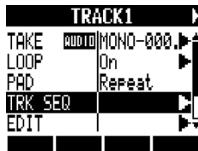

Change menu

Press
3
Move to the global quantization area, and change the setting.
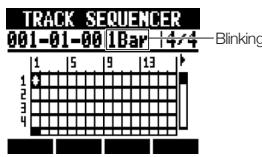

Move cursor

Change setting
| Global quantization | |
| Setting | |
| 8Bars, 4Bars, 2Bars, 1Bar (default) | 8 bars, 4 bars, 2 bars, 1 bar |
| 1/2, 1/2T, 1/4, 1/4T, 1/8, 1/8T, 1/16, 1/16T, 1/32 | Half-note, half-note triplet, quarter-note, quarter-note triplet, eighth-note, eighth-note triplet, sixteenth-note, sixteenth-note triplet, thirty-second note |
| Hi | 1 tick (1/48 of a quarter-note) |
NOTE
This setting is set for the entire project.
The BPM of each track is automatically calculated when an audio file is assigned to it. Depending on the file, however, the calculated result might differ from the actual BPM.
If this occurs, use the following procedures to adjust the BPM. The set BPM is used as the standard tempo when changing the tempo of the audio without changing its pitch.
Press
2 Select the track where you want to change the setting.
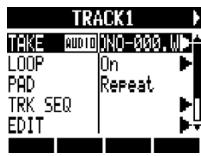
3 Select BPM and change the setting.
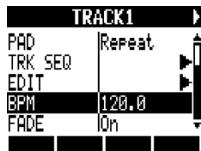
Change setting
NOTE
BPM is calculated for an audio file assuming 4/4 time.
- When a track is recorded, the current BPM value is used.
Changing audio tempo without changing pitch
When an audio file is assigned to a track, you can change its tempo without changing its pitch (time-stretching). You can change all tracks at once or individual tracks. Be aware that this operation will overwrite the original audio file.
TRACK

Press
Select a track you want to change (or any track to change all).
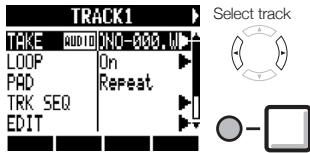
SelectEDIT.
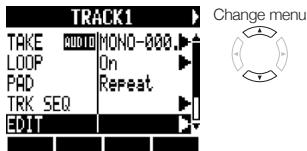

Press
Select STRETCH.
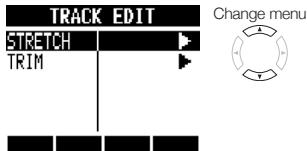

Press
Select MODE and set it to Each to change only the current track or A11 to change all the tracks.
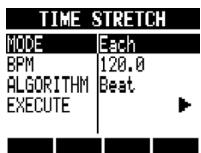
Change menu


Change setting
Select BPM and set the new tempo after time-stretching.
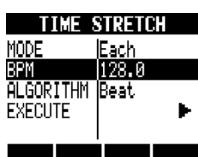
Change menu


Change setting
Select ALGORITHM and set it according to the audio file.
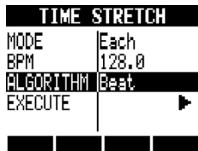
Change menu


Change setting
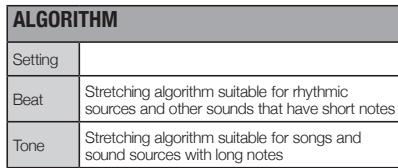
Select EXECUTE.
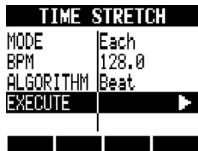
Change menu


Press
Select YES.
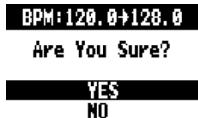
Move cursor


Press
NOTE
- STRETCH operations cannot be undone (UNDO).
- STRETCH operations overwrite the original audio files. If you want to save the original files, make a copy of the project and files in advance (see P:93).
- The BPM of each track is automatically calculated when an audio file is assigned. Depending on the file material, however, the calculated result might differ from the actual BPM. Set the BPM of each track (TRACK > BPM) if this occurs (see P.67). The set BPM of a track is used as the standard tempo when changing the tempo without changing the pitch of the audio.
The tempo of an audio file can be adjusted in a range from 50% to 150% of the original. If the stretched tempo value is outside this range, an error message appears, "TRACK X is out of the setting range" (X is the track number) and stretching is stopped.
If a rhythm pattern has been assigned to a track, the rhythm pattern screen opens after Step 3.
HINT
- You can listen to a preview of the results of time-stretching for individual tracks.

PLAY
Press to start playback

STOP
Press to stop playback
You can designate the necessary audio data by setting the starting and ending points of a file, and delete the audio data that is outside these points. Be aware that this operation overwrites the original audio file.
TRACK

Press

Select the track that you want to trim.
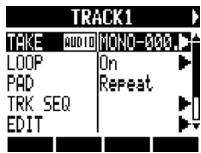
Select track
SelectEDIT.
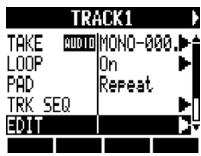
Change menu


Press
SelectTRIM.
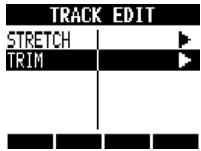
Change menu

Press
Set the starting point.
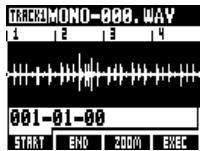
Locate


beneath

to set the ending position.
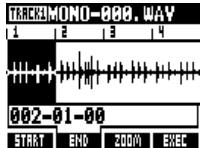
Locate


Change setting
Press

beneath
EXEC
Select YES.
TRIM DATA
Are You Sure?
YES
NO
Move cursor


Press
NOTE
The TRIM operation cannot be undone (UNDO).
- The TRIM operation overwrites the original file. If you want to save the original files, make a copy of the project and files in advance (see P.93).
If a rhythm pattern has been assigned to a track, the rhythm pattern screen opens after Step 3.
HINT
- You can switch between setting the trim starting and ending points by using the START and END soft keys.
Use the 200M soft key to view the waveform more closely. - You can also play the audio file while setting its starting and ending points.

Start playback
PLAY

Stop playback
STOP

Fast forward
FF

Rewind
REW


Return to starting point
STOP
REW
Setting fade-ins and fade-outs
When playing normal audio files, there are short fade-ins and fade-outs at their beginnings and ends. You can turn these off, however, for rhythm tracks and other sounds where the attack is important.
1 TRACK Press
2 Select a track to change its settings.
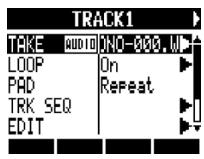
3 Select FADE and set it to Off if you want to disable it.
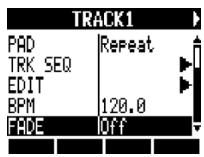
Track sequencer overview
Using the track sequencer, you can arrange rhythm pattern tracks and loop tracks into performance order to play an entire song.
Each project can have only one set of track sequencer data.
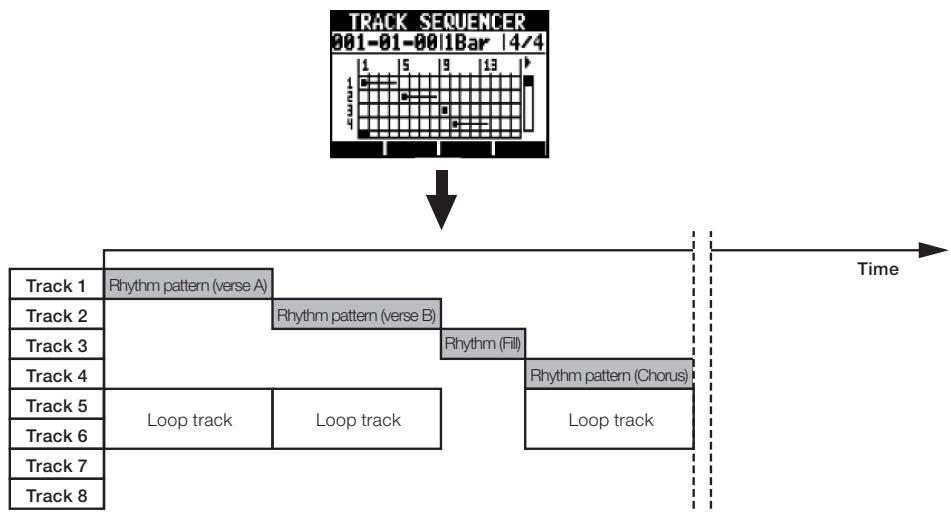
While playing back the track sequencer, you can bounce or record to the master track. You can use this feature when you are running out of tracks to open up some tracks.
When creating a sequence, you can include time signature changes. When the time signature changes, this affects the bars-beats-ticks on the top screen.
In the example shown above, the track sequencer data is played back and bounced in stereo to tracks 7/8, as shown in the illustration below.
After bouncing, a stereo audio file that is a combination of tracks 1-6 is created on tracks 7/8.
Since tracks 1-6 are no longer necessary, they can be used for new parts.
In this example, tracks 1-3 are used for audio tracks to record guitar, bass and vocals. (See "Recording to a new file" on P.27.)
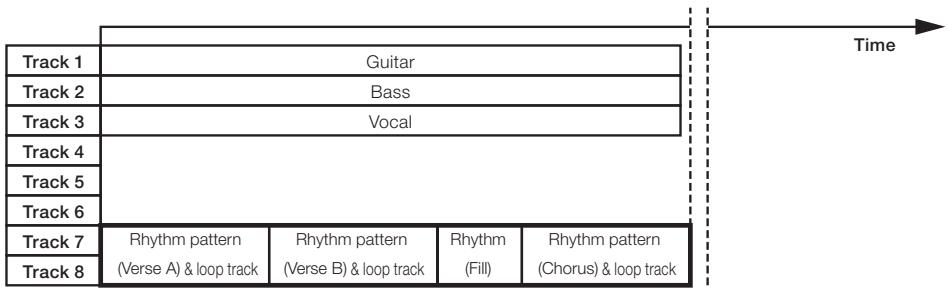
One stereo file
Combine rhythm pattern tracks and loop tracks to create sequence data, including backing parts and rhythms, for an entire track. You can create a sequence with real-time or step input.
Creating a sequence in real-time
You can create a sequence by playing the pads along with a rhythm (metronome) in real-time.
TRACK

Press
Select TRK SEQ.
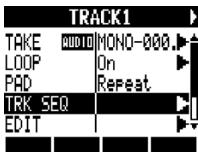

Change menu

Press
Start real-time input by pressing and
holding and pressing .
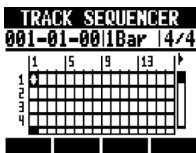
4 Play the pads in time with the rhythm to input data.
Now Recording...
DELETE
5 To delete input, press and

Data that has already been input for a track will be deleted while its pad is being pressed.
6 End input.

Press
NOTE
- If your timing playing the pads is slightly off, it will be corrected in accordance with the quantize setting
- You can also be set a metronome pre-count (see P.20).
Creating a sequence using step input
You can create a sequence one step at a time.
1

TRACK
Press
2
Select TRK SEQ.
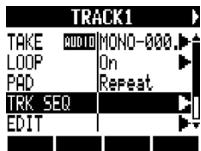

Change menu

Press
3
Start step input.

Press
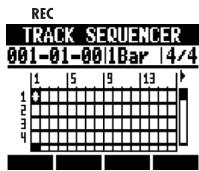
4
Move the cursor to the position where you want to input or delete data.
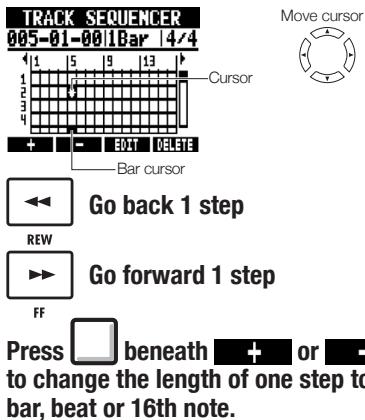
5
To input data, press a pad or ENTER.

OR

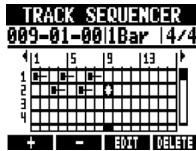
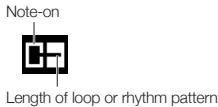
6
To delete data at the cursor, press beneath DELETE
7
End input.

Press
STOP
Deleting data
When using step input, you can delete the data before or after the cursor at once.
1 Move the cursor to the position of the data that you want to delete.
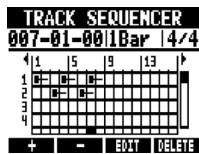

Move cursor

Go back 1 step

Go forward 1 step
FF


beneath
EDT

Select DEL EVENT.
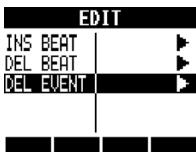

Change menu

Press
4 Select MODE and set it to Before or After to delete data to the left or right of the cursor.
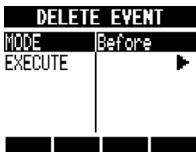

Change menu
5 Select EXECUTE.
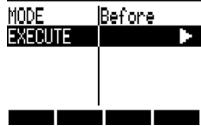
DELETE EVENT

Press

Change menu
Inserting and deleting beats
When using step input for a sequence, you can insert and delete beats.
You can even insert and delete a number of beats that differ from the project time signature, changing the time signature for only that part.
1 Start step input.

Press
REC
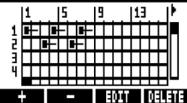
TRACK SEQUENCEER 001-01-001Bar4/4
2 Press beneath + or - to change the length of one step to a bar, beat or 16th note.
3 Move the cursor to the position where you want to insert or delete beats.
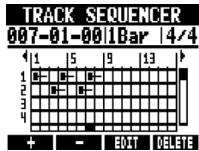

Move cursor

Go back 1 step
REW

FF
Go forward 1 step


beneath
5 Select INS BEAT to insert beats or DEL BEAT to delete beats.
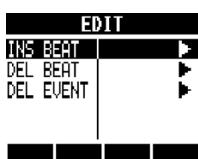

Change menu

Press
6 Select BEAT and set the number of beats that you want to insert or delete.
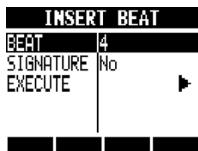

Change menu

Change setting
7 Select SIGNATURE and set it to No to not change the time signature or Add to change the time signature.
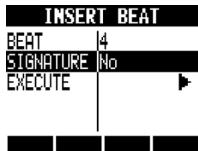

Change menu

Change setting
8 Select EXECUTE.
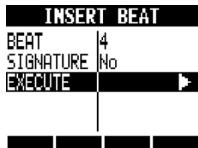

Change menu

Press
NOTE
- When you insert beats, the sounds of loops and files playing back will be cut at that point.
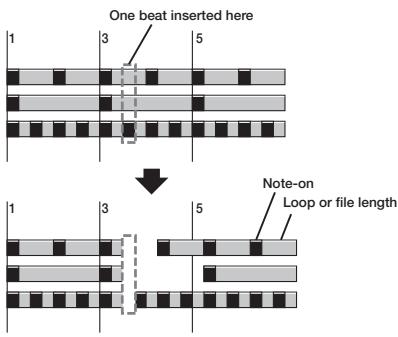
- When you delete beats, the sounds of loops and files playing back at that time will become shorter by the same amount.
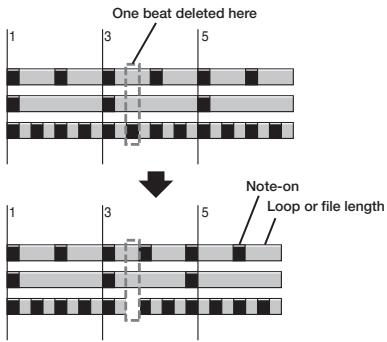
- If you insert or delete beats that differ from the set time signature, the time signature for that part might change depending on the SIGNATURE setting as follows.
| SIGNATURE: time signature settings | |
| Setting | |
| No | The time signature does not change. The beats are shifted by the amount inserted or deleted. |
| Add | If you insert beats, the time signature of the bar that contains the last inserted beat will change. For example, if 3 beats are inserted into a song with a 4/4 time signature, the bar where the 3rd beat is added will become 7/4. 4/4 1 2 3 4 Three beats inserted here 4/4 7/4 4/4 1 2 3 4 3 4 3 4 3 4 3 4 3 4 3 4 3 4 3 4 3 4 3 4 3 4 3 4 3 4 3 4 3 4 3 4 3 4 3 4 3 4 3 4 3 4 3 4 3 4 3 4 3 4 |
| If you delete beats, the time signature of the bar that they are deleted from will change. For example, if 3 beats are deleted from a song with a 4/4 time signature, that bar will become 5/4. 4/4 1 2 3 4 Three beats deleted here 4/4 1 2 3 4 3 4 3 4 3 4 3 4 3 4 3 4 3 4 3 4 3 4 3 4 3 4 3 4 3 4 3 4 3 4 3 4 3 4 3 4 3 4 3 4 3 4 3 4 | |
| The time signature of only 1 bar changes, time signatures of other bars do not change. | |
Use the following procedures to play back the sequence that you made.
Playback from track sequencer screen
1
TRACK

Press
2
Select TRK SEQ.
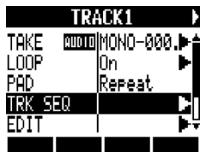

Change menu

Press
3

Press
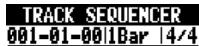
PLAY
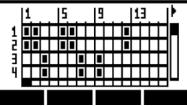

STOP
Press to stop playback
Press and hold and press to return to the beginning.
Playback from the Top Screen
1
Press beneath to turn the track sequencer ON/OFF.
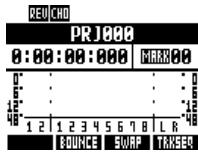
2

Press
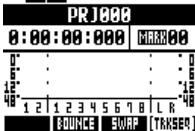
PLAY
REVCHD
Track sequencer ON

STOP
Press to stop playback

FF
Press to fast forward

REW
Press and hold and press to return to the beginning.
The R8 has two types of built-in effects: insert effects and send-return effects. These can be used at the same time.
Effects can only be used when the project sampling rate is 44.1kHz
Insert effects
The R8 has a variety of insert effects that are useful when recording, including for guitar, bass and mastering. Insert effects are applied to specific signal paths.
Insert effects can be placed in the following places according to the application.
1. Input (enabled inputs)

2. Track (enabled tracks)
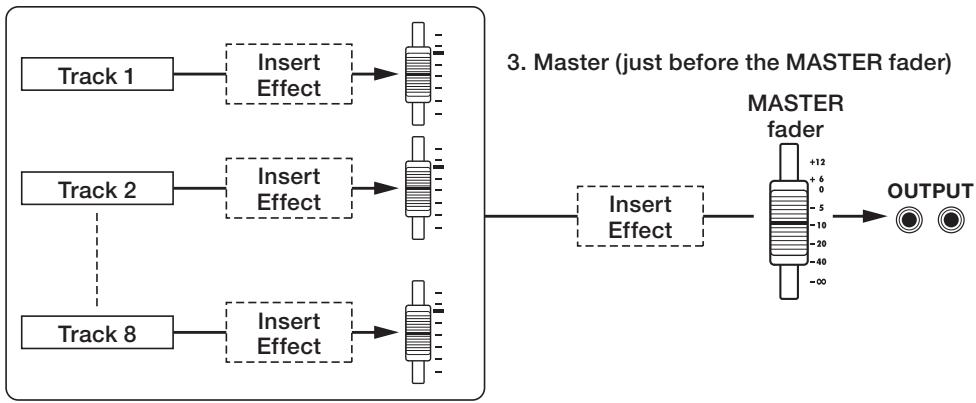
- Input: Inserted after the input, you can record the input signal with the effect. (See “Applying insert effects” on P.23.)
- Track: Inserted on a track, you can hear the effect during playback of that audio track. (See "Using the insert effects on tracks" on P.45.)
- Master: Inserted just before the MASTER fader, you can apply the effect when mixing down (recording a final stereo mix to the master track).
(See "Using a mastering effect" on P.46.)
Algorithms and patches
Insert effects are arranged in groups called "algorithms" according to the instrument or application. An algorithm is a linear series of a variety of effect modules, such as compression, distortion and delay.
An effect module consists of two elements—the effect type and its parameters.
A "patch" is the saved combination of the effect types and parameters of each module.
| Algorithm name | Display name | Number of patches (preprogrammed) |
| Clean and crunchy sounds that are suitable for guitars | ||
| Clean/Crunch | Clean | 30 (21) |
| Overdrive and other distorted sounds suitable for guitars | ||
| Distortion | Distortion | 50 (45) |
| Instrument simulation algorithm that is suitable for guitars | ||
| Aco/Bass SIM | Aco/Bass | 20 (10) |
| Algorithm that is suitable for recording bass guitars | ||
| Bass | Bass | 30 (20) |
| Algorithm that is suitable for vocals and other mic recordings | ||
| Mic | Mic | 50 (30) |
| Algorithm for two completely independent mic channels | ||
| Dual Mic | Dual Mic | 50 (30) |
| Algorithm for synths, built-in mics and other stereo recording | ||
| Stereo | Stereo | 50 (40) |
| Algorithm for processing final stereo mix signals | ||
| Mastering | Mastering | 30 (21) |
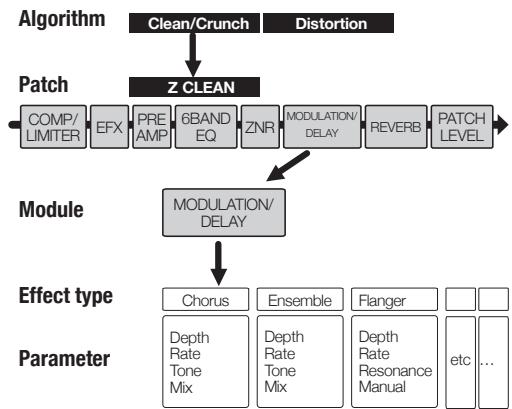
| Algorithm | |||||||
| Clean Distortion Aco/Bass | Order | COMP/LIMITER | EFX | PREAMP | 6BAND EQ | ZNR | MODULATION DELAY REVERB |
| Display | COMP/LIMITER | EFX | PREAMP | 6BAND EQ | → | MOD/DELAY REVERB TOTAL | |
| COMP/LIMITER | EFX | PREAMP | 6BAND EQ | MODULATION DELAY REVERB ZNR,PATCH LEVEL | |||
| Bass | Order | COMP/LIMITER | EFX | PREAMP | 6BAND EQ | ZNR | MODULATION DELAY |
| Display | COMP/LIMITER | EFX | PREAMP | 6BAND EQ | → | MOD/DELAY TOTAL | |
| COMP/LIMITER | EFX | PREAMP | 6BAND EQ | MODULATION DELAY ZNR,PATCH LEVEL | |||
| Mic | Order | COMP/LIMITER | EFX | MIC PRE DE-ESSER | 3BAND EQ | ZNR | MODULATION DELAY |
| Display | COMP/LIMITER | EFX | MIC PRE DE-ESSER | 3BAND EQ | → | MOD/DELAY TOTAL | |
| COMP/LIMITER | EFX | MIC PRE+ DE-ESSER | 3BAND EQ | MODULATION DELAY ZNR,PATCH LEVEL | |||
| Dual Mic | Order | COMP/LIMITER | MIC PRE | 3BAND EQ | ZNR | DELAY | |
| Display | COMP/LIMITER | MIC PRE | 3BAND EQ | ZNR | DELAY | ||
| COMP/LIMITER | MIC PRE L | 3BAND EQ L | → | DELAY L | TOTAL | ||
| COMP/LIMITER R | MIC PRE R | 3BAND EQ R | → | DELAY R | TOTAL | ||
| COMP/LIMITER | MICPRE | 3BAND EQ | DELAY | ZNR,PATCH LEVEL | |||
| Stereo | Order | COMP/LIMITER | ISOLATOR | 3BAND EQ | ZNR | MODULATION DELAY | |
| Display | COMP/LIMITER | ISOLATOR | 3BAND EQ | → | MOD/DELAY TOTAL | ||
| COMP/LIMITER | ISOLATOR | 3BAND EQ | MODULATION DELAY ZNR,PATCH LEVEL | ||||
| Mastering | Order | MULTIBAND COMP/Lo-Fi | NORMALIZER | 3BAND EQ | ZNR | DIMENSION/ RESONANCE | |
| Display | COMP/Lo-Fi | NORMALIZER | 3BAND EQ | DIMENSION/RESONANCE | → | TOTAL | |
| MULTIBAND COMP/Lo-Fi | NORMALIZER | 3BAND EQ | DIMENSION/RESONANCE | → | ZNR,PATCH LEVEL | ||
Send-return effects
Send-return effects are connected internally to the track mixer send/return bus. The depth of the send-return effects can be adjusted with the track send levels (amounts of signal sent to the effect). When you raise a track's send level from 0, its signal is sent (input) to the send-return effect. The signal passes through the effect and is returned (routed) to before the MASTER fader, and mixed with the original sound of that track.
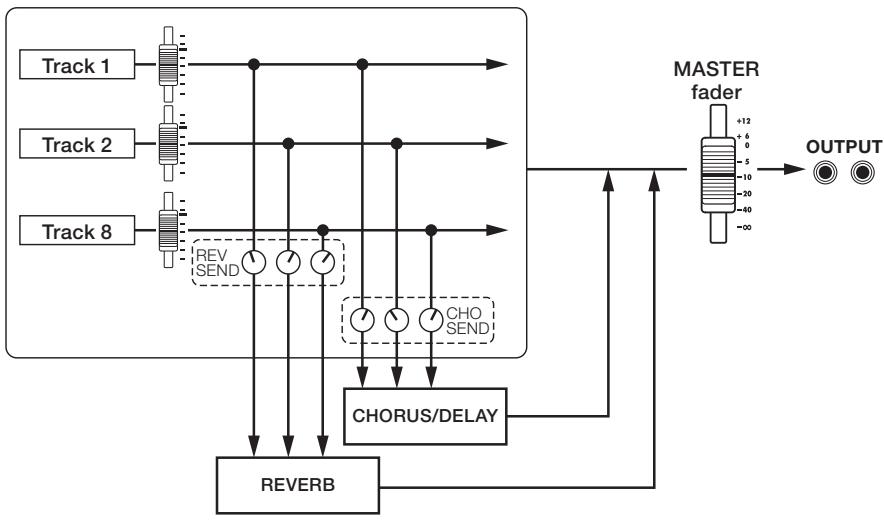
| Algorithm (Display name) | Number of patches (already programmed patches) |
| REVERB (SEND REVERB) | 30 (22) |
| CHORUS/DELAY (SEND CHORUS/DELAY) | 30 (18) |
Select the effect patch that you want to use. For the insert effect, choose an algorithm that is suitable for the instrument or application.

EFFECT

Press
Accessing the effect settings
Press beneath to select an insert effect.
Press beneath to select a reverb send-return effect.
Press beneath CHORUS to select a chorus/delay send-return effect.

Select ON/OFF and set it to ON.
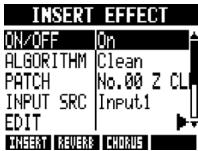
Change menu


Select an algorithm (when setting an insert effect).
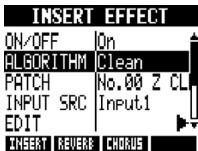
Change menu


Change algorithm

Select a patch.
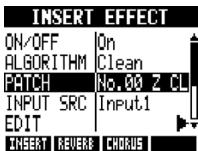
Change menu


Change patch
You can change effect types and adjust effect parameters to create your own patches.
EFFECT

Press
Accessing the effect settings
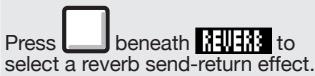
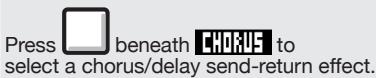
Select ON/OFF and set it to On.
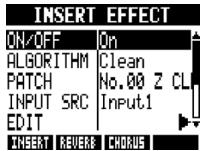

Change menu

Change setting
Select an algorithm and patch.
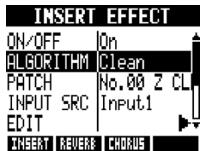

Change menu

Change setting
SelectEDIT.
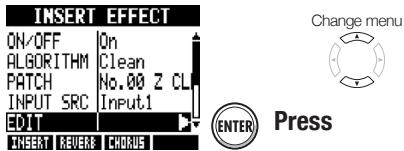
Press
Change menu
Editing effect modules
5
Turn the effect type On to edit it.
Effect module (TYPE) Off
COMP/LIMITER
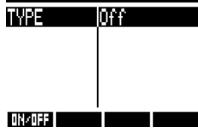
Press ENTER or the ON/OFF soft key to turn the module on or off.
Effect module (TYPE) on
COMP/LIMITER
TYPE Compressor
Sense 1
Attack Fast
Tone 8
Level 80
Effect type
E: Edit mark shown when a patch has been edited or changed
Selecting effect modules
6
Select the effect module.
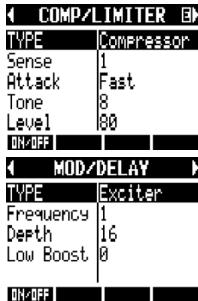
Change module

Adjust the patch level (final patch volume)
7
Select the TOTAL effect module.
Change module

8
Select PATCH LUL and set the value.
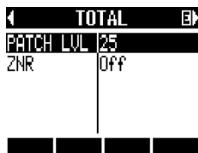
Change menu

9
Return to the main effect screen.


Press
Adjusting effect parameters
1 Select a parameter and set it.
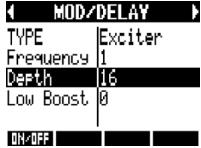
Select parameter

Change value
HINTS
- In "Empty" patches none of the modules have been set yet.
- Adjust the ZNR module level on the TOTAL module screen.
- With the DUAL MIC ALGORITHM, you can edit the modules in the left and right channels separately. The left channel is selected when "L" appears in the effect module name and the right channel is selected when "R" appears.
NOTE
- You cannot edit algorithms themselves, including their combinations and arrangements of effect modules.
- When you turn an effect module OFF, all its settings, including the type and parameters are disabled.
- If you switch to another patch without saving a patch that has been edited (showing the 'E' mark), changes will be lost. For information about how to save patches, see "Saving patches" on P.86.
You can save a patch at any patch number within the same algorithm. You can also copy an existing patch to a different location.
1
EFFECT

Press
Accessing the effect settings
Press beneath to select an insert effect.
Press beneath to select a reverb send-return effect.
Press beneath to select a chorus/delay send-return effect.
2
Select the algorithm/patch.
Change menu
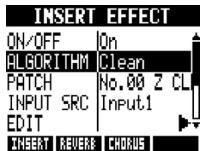


Change setting
3
Select save.
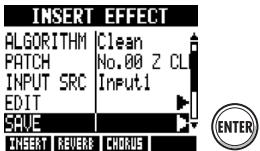

Change menu

Press
Select SAVE TO.
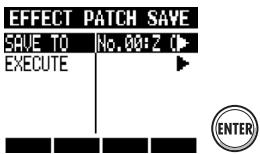

ESS
Select where to save it.
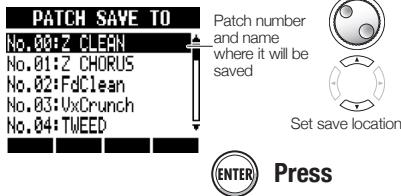
See next page to import a patch
6
Select EXECUTE.
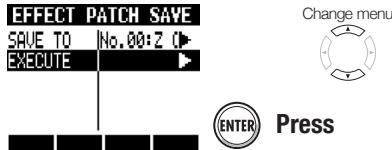
NOTE
These procedures are the same for both insert and send-return effects.
- If you switch to another patch without saving a patch that has been edited (showing the 'E' mark), changes will be lost. Always save patches.
- The import source and the import destination are different projects when using PATCH IMPORT.
You can import one or all patches that have been created in another project for use in the current project.
3 Select IMPORT.
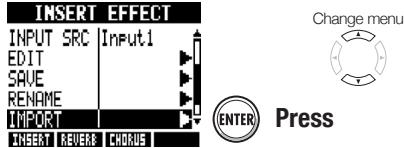
4 Select MODE and set it to A11 or Each.
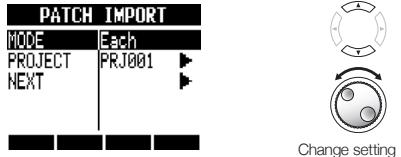
| All | Import all patches from the source project |
| Each | Select and import one patch from the source |
Import all patches
IMPORT >All
1 Select PROJECT.
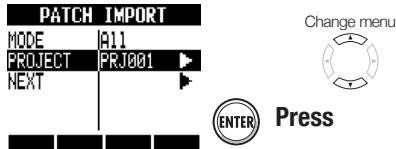
2 Select the project to import from.
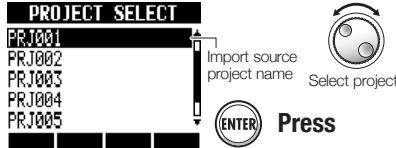
2 Select NEXT.
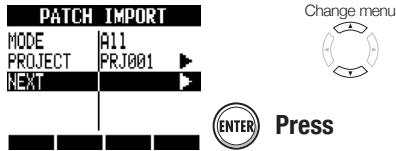
A Select YES.
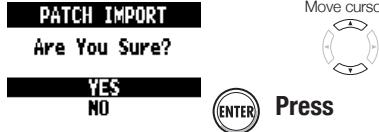
Import one patch
IMPORT > Each
1 Select PROJECT.
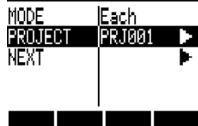
PATCH IMPORT

Change menu
ENTER
Press
2 Select the project to import from.
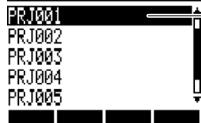
PROJECT SELECT


ENTER
Select project
3 Select NEXT.
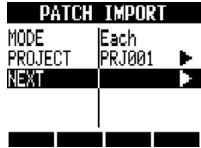
Change menu
Select the patch to import.
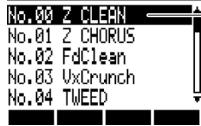
PATCH IMPORT FROM


5 Select the destination patch.
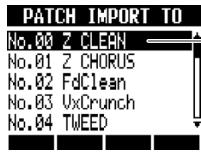
Import destination patch number and name
ENTER
Press
6 Select YES.
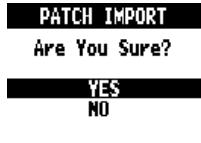

Move cursor
Press
You can change the name of the patch that is currently selected.
1
Changing patch names
Change the name of the current patch.
EFFECT
Press

Accessing the effect settings
Press beneath to select an insert effect.
Press beneath to select a reverb send-return effect.
Press beneath to select a chorus/delay send-return effect.
2
Select ON/OFF and set it to On.
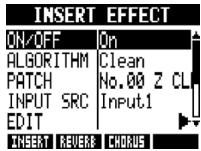

Change menu

Change setting
3
Select the algorithm and patch.
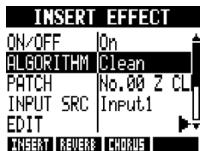

Change menu

Change setting
4
Select RENAME.
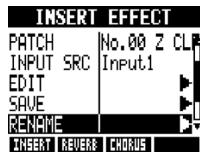

5
Change the name.
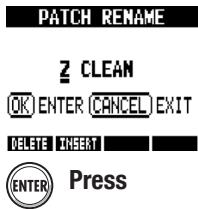

Move cursor


Change character
DELETE
Delete character
INSERT
Insert character
When an insert effect is applied to an input, usually the sound with the effect applied is recorded to the track. By applying an insert effect only to monitoring, input signals can be recorded without effects to tracks.
For example, you can record vocals without an effect, but use a mic insert effect on the monitoring signal to make it easier for the vocalist to sing.
EFFECT

Press
Accessing the effect settings
Press

beneath
THEEXT to
select an insert effect.
Select the algorithm and patch.
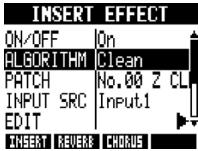
Change menu


Change setting
Select REC SIG and make the setting.
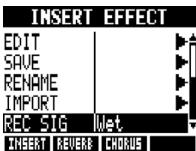
Change menu


Change setting
| Wet | Input signals are recorded to tracks after being processed by the insert effect. (Default) |
| Dry | Input signals are recorded to tracks before being processed by the insert effect. The input signal monitored from the OUTPUT and PHONES jacks, however, is processed by the insert effect. |
HINT
- The settings made here are stored for each project separately.
If necessary, reset to wet before recording other parts.
Projects and audio files
The R8 manages the data and settings that are necessary to play back songs that you have created in units called "projects." Track audio recordings are saved as WAV files.
Data saved in a project
- Audio data for every track including the master
- Mixer settings
- Effect settings
- Mark information
- Metronome settings
- Tuner settings
- Sampler settings
Rhythm settings - Track sequencer settings
- Recorder settings
Projects on the SD cards
When a project is created, a folder with the same name is created inside the PROJECT folder on the SD card.
All the data for that project is saved inside that folder. The audio data for that project is saved in the AUDIO subfolder inside that project's folder.
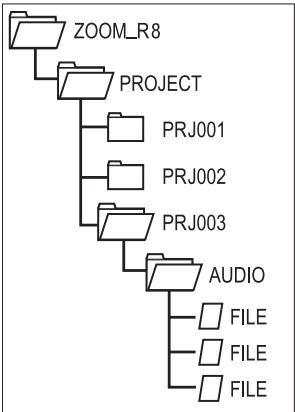
Protecting a project PROJECT >PROTECT
You can protect the currently loaded project to prevent it from being saved or deleted so that its contents cannot be changed.
PROJECT

Press
Select PROTECT.
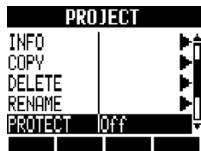
Change menu

SelectOr1.
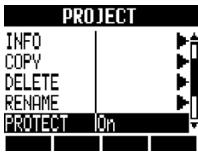

Change
NOTE
- When a project is protected, you cannot record in it or edit it, and any changes will not be saved to the SD card. Set PROTECT to Off if you want to record in it or edit it again.
- Projects that are not protected will be automatically saved to the SD card when you turn the POWER switch OFF or load another project.
- We recommend setting PROTECT to On once you complete a piece of music to avoid mistakenly saving unwanted changes later.
HINT
This icon appears when a project is protected.
Selecting a project PROJECT > SELECT
Load a project saved on the SD card.

Press
Select SELECT.
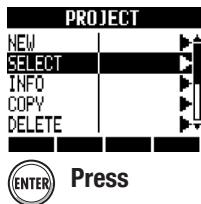
Change menu

Select the project.
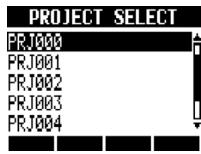

Press
NOTE
- You can only playback and record to the project that is currently loaded. You cannot use multiple projects at the same time.
HINT
- When you turn the R8 power ON, the project loaded the last time the unit was used will be loaded automatically.
You can display information about the currently loaded project and audio files, including their names, creation dates, sizes and recording times.
Project information
PROJECT >INFO
Follow these procedures after opening the project with the information you want to see.
1
PROJECT

Press
2
Select INFO.
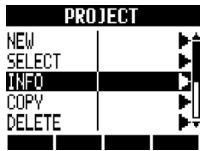
Change menu


Press
3
Check the information.
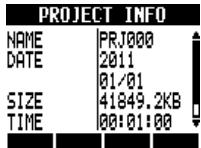

| PROJECT INFO: project information | |
| NAME | Project name |
| DATE | Year/month/date of creation |
| SIZE | Card capacity used |
| TIME | Recording time |
| RATE | Sampling rate |
HINT
- Project and file information can only be viewed on the PROJECT INFO screen. It cannot be edited.
Audio file information
PROJECT>FILE>INFO
1

Press
2
SelectFILE.
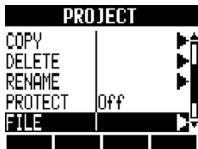
Change menu


Press
3
Select the file.
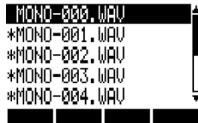
FILE SELECT


Press
4
Select INFO.
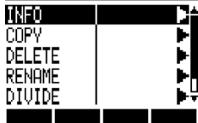
MONO-888.WAY

Change file

Press
5
Check the information.
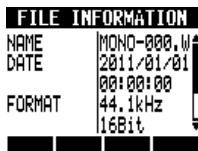
Change menu

| FILE INFORMATION | |
| NAME | File name |
| DATE | Year/month/date of creation |
| FORMAT | File format |
| SIZE | File size |
| TIME | Length of recording |
You can copy a saved project as a new project.
An audio file can be copied within a project after changing the file name.
Copying a project
PROJECT > COPY
Follow these procedures after opening the project that you want to copy.
PROJECT

Press
Select COPY.
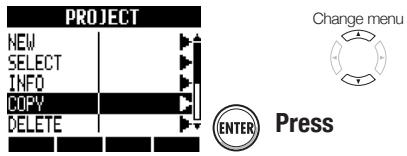
Select NAME.
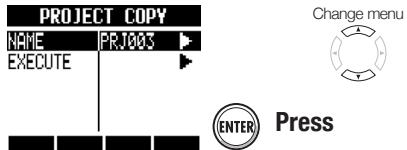
Change the project name.
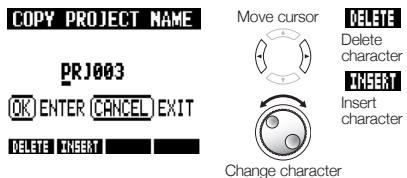

Select EXECUTE.
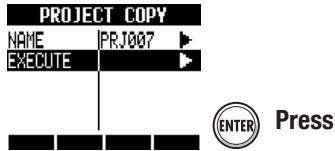
NOTE
- You cannot make a copy without changing the name to something different from the original.
Copying an audio file
PROJECT >FILE >COPY
PROJECT

Press
Select FILE.
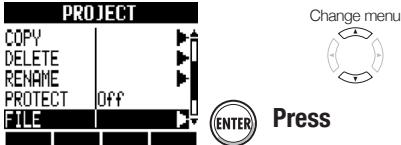
Select the file to copy.
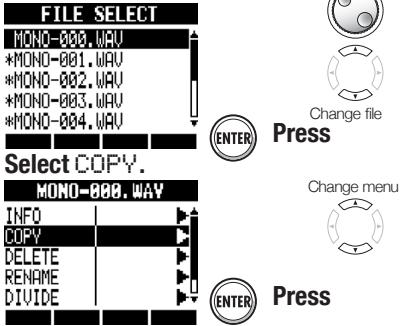
Select NAME.
FILE COPY
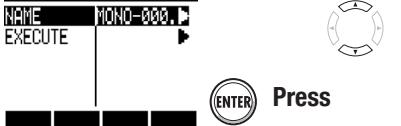
Change the file name.
COPYFILE NAME
Move cursor

DELETE
Delete character
THIS
MONO-000
OK ENTER CANCEL EXIT
DELETE INSERT

Insert character
Change character

Press
Select EXECUTE.
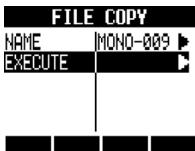

Press
You can change the names of the currently loaded project and audio files.
Changing a project name
PROJECT >RENAME
Open the project that you want to change the name of and follow these procedures.
1

PROJECT
Press
2
SelectRENAME.
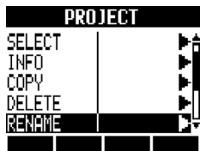

Change menu

Press
3
Change the characters.
NEW
PROJECT NAME
DELETE
PRJ003

Move cursor
ENTER(CANCEL)EXIT

Delete
character
INSERT



Insert character

Change character
Press
NOTE
- You cannot change the name to the same name as that of another project.
- The project name is also given to the corresponding project folder in the ZOOM_R8/PROJECT folder on the SD card.
HINT
- Project names
Max. number of characters: 8
Alphabet: A-Z (uppercase)
Symbols: (underscore)
Numerals: 0-9
- File names
Max. number of characters: 219
(not incl. extension)
Alphabet: A-Z, a-z
Symbols: (space)! # $ % & '() +, -; = @ []
A.
Numerals: 0-9
Changing an audio file name
PROJECT >FILE >RENAME
1

Press
2
SelectFILE.
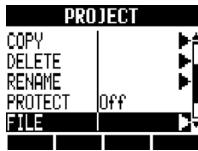
Change menu

Press
3
Select the file name.
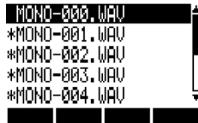
FILE SELECT


Press
4
SelectRENAME.
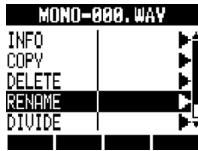
Change menu

Press
5
Change the characters.
FILE RENAME
MONO-000

TER(CANCEL)EXIT
DELETE
HSET

Press

Move cursor
DELETE

Delete character
INSERT
Change character
You can delete a selected project or file.
Deleting a project
PROJECT >DELETE
1
PROJECT

Press
2
Select DELETE.
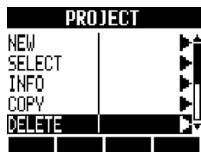

Change menu

Press
3
Select the project to delete.
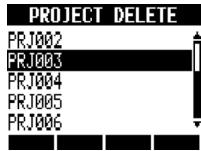

Change project

Press
4
Select YES.
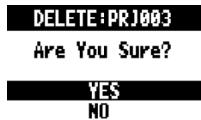

Move cursor

Press
NOTE
- Once a project or file is deleted, it cannot be recovered. Please delete with care.
- If PROTECT is On for a project, that project and its files cannot be deleted.
Deleting an audio file
PROJECT>FILE>DELETE
1
PROJECT

Press
2
SelectFILE.
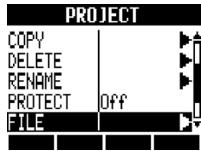

Press

Change menu
3
Select the file name.
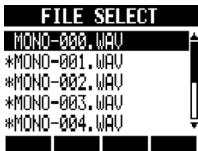

Press
4
Select DELETE.
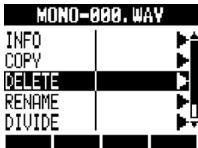

Press
5
Select YES.

Are You Sure?

Press

Change menu

Move cursor
You can divide an audio file at any point to make two files.
Do this to delete unnecessary portions of recordings or to divide long recordings.
PROJECT

Press
Select FILE.
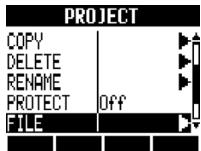

Press
Change menu

Select the file.
FILE SELECT
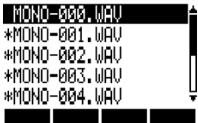


Select file
Press
Select DIVIDE.
MONO-888.WAY
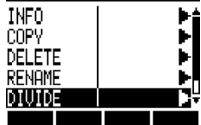

Change menu

Set the division point.
FILE DIVIDE
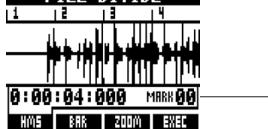

Change value
Set division point


beneath
EXEC
Select YES.
FILE DIVIDE
Are You Sure?
YES
NO

Move cursor

Press
You can use the following keys to listen to a file and to set the division point.
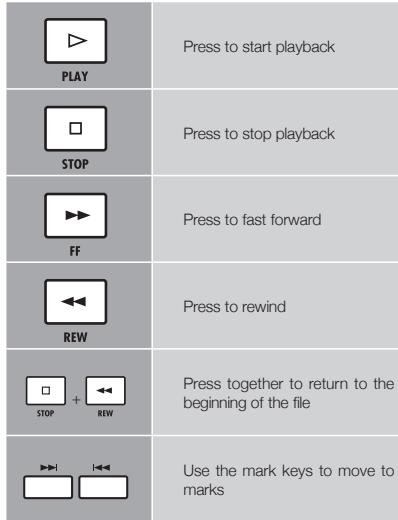
HINT
- When a file is divided, files with new names will be created automatically in the same folder. "A" is added to the end of the name of the file of the part before the dividing point. "B" is added to the end of the name of the file of the part after the dividing point.
The original divided file is deleted.

Reference:
Locating to the desired part of a song
P.36
Setting the recording format (bit length)
PROJECT >REC >BIT LEN
You can record at 16-bit, which is ordinary CD quality, or higher-quality 24-bit format.
PROJECT

Press
SelectREC.
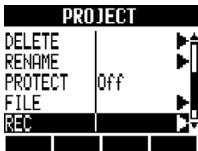

Press
Change menu

SelectBITLEN.
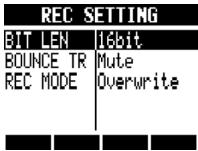
Set the bit length.

HINT
- When overwriting, recording will be at the bit rate of the original file. For example, you cannot overwrite a file recorded at 16-bit with a 24-bit file.
- Settings are stored separately for each project.
The default value is 16bit. - If you record at 44.1kHz/24bit, 48kHz/16bit or 48kHz/24bit formats, you will have to convert files to 44.1kHz/16bit to create an audio CD.
Setting the recording mode
PROJECT > REC > REC MODE
When recording, you can either overwrite the previous recording or keep it and create a new recording.
This is convenient for recording band performances and drums, for example, when you want to record multiple takes.
1 PROJECT
2 Select REC.

Press
Change menu

Press
3 SelectREC MODE.
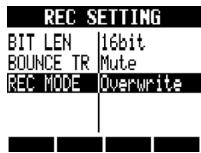

Change menu

4 Set the recording mode.
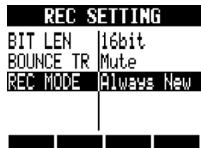
| REC MODE: recording mode | |
| Setting | |
| Overwrite | Previous recordings are overwritten (default) |
| Always New | Previous recordings are always saved and new recordings are always made |
The playback order of multiple projects can be registered and managed in playlists.
Use these to play songs consecutively, for live performance accompaniment and when outputting to an external recorder, for example.
Playing back a playlist
PROJECT>SEQPLAY>PLAY
1


Press
2
SelectSEQPLAY.
Change menu

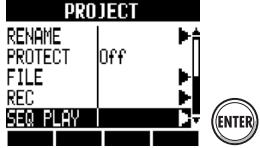
ER)
Press
3
Select the playlist.
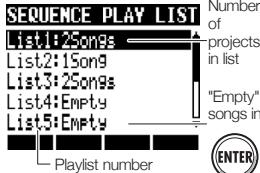


Select list
4
Select PLAY.
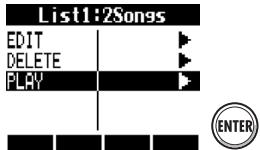
Press
Screen appearance during playback
List1
- Playlist number
TR001:PRJ002
Project name
0:00:06:708
Elapsed playback time

Playback (track) number
Playback stops at the end of the last project.
HINT
Key operation during playback

Play from the beginning of the current project

Stop playback and return to the beginning of the current project
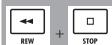
Play from the beginning of the first project (TR001)

Stop playback and start playback from the beginning of the next project

Stop playback and start playback from the beginning of the previous project
Editing playlists
PROJECT>SEQ PLAY>EDIT
4
SelectEDIT.
Change menu
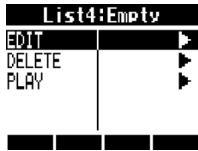


Press
Register projects or edit a playlist
5
Select the first project (or the project to change).
EDIT:List4
l End of List
End of list indication

DELETE XNSEAT
6
Register project to be played.
EDIT:List4
1FRJ002
2 End of List

Change project
DELETE TNSER
7
Select and register more projects.
EDIT:List4
1 PRJ002
2 End of List
Change tracks

DELETE XeSERT

EDIT:List4
1PRJ002
2PRJ001
3 End of List

DELETE INSERT
Change project
8
Press to return to the previous menu.
Remove a project from a list
5 Select a project to remove.
EDIT:List4
1PRJ002
2PRJ001
3 End of List
Change tracks

DELETE KESERT
Press beneath
EDIT:List4
1PRJ002
2 End of List
DELETE THEAT
Insert a project into a list
5 Select the track number to insert to.
EDIT:List4
1FRJ882
2 End of List
Change tracks

DELETE XeSERT
6 Press beneath
EDIT:List4
1PRJ002
2 PRJ002
3 End of List
DELETE XeSERT
This inserts the currently selected project
Delete a playlist
PROJECT>SEQPLAY>DELETE
Follow steps 1-3 in "Playing back a playlist" on the previous page to select a playlist and then delete it as follows.
A Select DELETE.
List4:2Songs
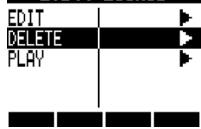

Press
5 Select YES.
DELETE:List4
Are You Sure?
YES
NO

Press
NOTE
- If the master track or the file assigned to the master track is deleted, the playlist will become empty.
- Assign the recordings that you want to hear to the master tracks of the projects that you register in a playlist.
To change the file of a registered project, set its master track and edit the playlist. - The maximum number of playlists is 10. Each playlist can have a maximum of 99 projects.
- A project cannot be registered if its master track is not set or its file is less than 4 seconds long.

Reference:
Mixing down to the master track
P47
You can copy audio files from other projects saved on the SD card and import them into the current project.
TRACK

Press
Select the track that you want to assign the file to.
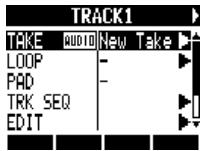
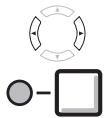
Select track
Select TAKE.
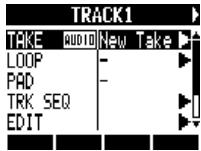
Change menu


Press
SelectOTHERPRJ.
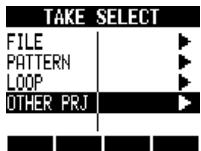
Change menu


Press
Select PROJECT.
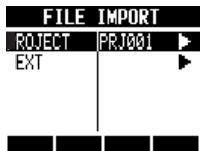
Change menu


Press
Select the project that contains the file you want to load.
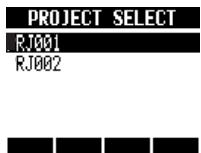

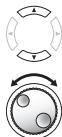
Select project
Press
Select NEXT.
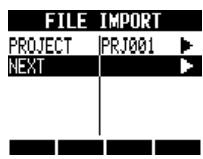

Change menu

Press
Select the file that you want to load.
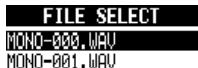

Select file


Press
Change the file name.
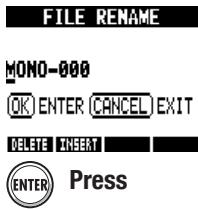

Move cursor
DELETE
Delete character

Change character
Select YES.

Are You Sure?


Move cursor

Press
HINT
- Projects with sampling rates that differ from the current project will not be shown. If there are no projects with the same sampling rate, "No Project" will be shown.
The R8 has a USB jack (mini-B type) on its right side.
In addition to connecting the included USB adapter to an electrical outlet to power the R8, you can also connect it with a computer and use the it as a card reader, audio interface and control surface.
Card reader
You can access the SD card in the R8 using a computer to backup and restore projects. In addition, audio data on the R8 can be saved on a computer, and WAV files on a computer can be loaded to the R8.
Audio interface
The R8 can be used as an interface between a computer and instruments and other audio equipment. You can also connect high impedance instruments and microphones that require phantom power when used as an audio interface.
Control surface
You can use the R8 to control DAW software. Use its faders and keys to control transport and mixer operations in your DAW software.
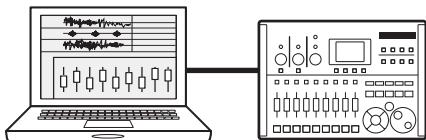
NOTE
To import an audio file into the R8, its format must be WAV with a sampling rate of 44.1 or 48kHz and a bit rate of 16 or 24.
- To use a WAV file in a project, it must use the sampling rate as set for the project when it was created (RATE).
File names can have up to 219 characters (not including the extension). The following characters are allowed
Alphabet: A-Z, a-z
Numerals: 0-9
Symbols: (space)! # $ % & '() +, -; = @ [ ] ^ _ { } ~
- If the name of an imported file includes double-byte characters, its file name will be shown with "R8" as a prefix in this format: "R8xxxxxxxx.WAV".
- You can connect the R8 with a computer by USB when either has its power ON.
- When using the R8 as a card reader or as an audio interface, it cannot be used as a recorder at the same time.
HINT
Card reader OS compatibility Windows:Windows XP and later Macintosh:Mac OS x 10.5 and later
- Project data is saved to the corresponding PROJECT folder in the ZOOM_R8 folder on the SD card. Folders are created and managed for each project.
- Audio data is saved as WAV files inside the AUDIO folder of its project folder.
- The "PRJINFO.TXT" file inside each AUDIO folder shows the names of files assigned to tracks.
- MASTER tracks and stereo tracks are stereo WAV files.
You can access the R8 SD card using a computer to backup and restore projects and audio files and import audio data created in DAW software, for example.
Backing up a project on a computer
R8 project data is saved in project folders on the SD card. To backup a project, copy its project folder to the computer hard disk.
The folders on the SD card are organized as follows:
"ZOOM_R8" folder
“PROJECT” folder
(Project) folder*
*Project folders have the same names as their projects.
Restoring a project from its backup
To restore a project that has been backed up on a computer, copy its project folder from the computer to the "PROJECT" folder on the SD card in the R8.
The folders on the SD card are organized as follows:
"ZOOM R8" folder
“PROJECT” folder
(Project) folder*
*Project folders have the same names as their projects.
Saving audio data from the R8 to a computer
Audio recordings on the R8 are stored as WAV files in "AUDIO" folders on the SD card.
The folders on the SD card are organized as follows:
"ZOOM_R8" folder
“PROJECT” folder
(Project) folder*
"AUDIO" folder
*Project folders have the same names as their projects.
To copy WAV files to the computer, copy the WAV files in the "AUDIO" folder to the computer hard disk.
The "PRJINFO.TXT" file inside each "AUDIO" folder shows the names of files assigned to tracks.
Copying WAV files from a computer to the R8
To copy WAV files from a connected computer to the R8, copy the WAV files to an "AUDIO" folder on the SD card.
The folders on the SD card are organized as follows:
"ZOOM_R8" folder
“PROJECT” folder
(Project) folder*
"AUDIO" folder
*Project folders have the same names as their projects.
To play back these WAV files on the R8, select that project and assign the copied WAV files to tracks.
(See "Changing the playback take" on P.30.)
Using the card reader function
USB > READER
1 Connect the R8 and computer with the USB cable and turn the power on.
2 USB Press
2 Select READER.

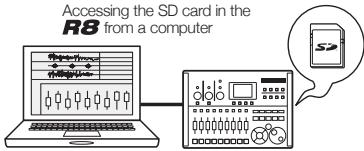
HINT
- To import WAV files from a computer, copy them to the "AUDIO" folder in the project folder where you want to use them. Use the R8 to assign the files to tracks.
Disconnecting
1 Eject the R8 volume icon from your computer to end the connection.
2 Press or to disconnect.
3 Select YES.
Terminate
Are You Sure?
YES
NO

Move cursor

Press
NOTE
To import an audio file into the R8, its format must be WAV with a sampling rate of 44.1 or 48kHz and a bit rate of 16 or 24.
To use a WAV file in a project, it must use the sampling rate that was set for the project when it was created (RATE).
- File names can have up to 219 characters (not including the extension). The following characters are allowed.
Alphabet: A-Z, a-z
Numerals: 0-9
Symbols: (space)! # $ % & ' () +, - ; = @ [ ]^ {}
- If the name of an imported file includes double-byte characters, its file name will be shown with "R8" as a prefix in this format: "R8xxxxxxxx.WAV".
HINT
Card reader OS compatibility
Windows: Windows XP and later
Macintosh: Mac OS x 10.5 and later
- The "PRJINFO.TXT" file inside each AUDIO folder shows the names of files assigned to tracks.
- MASTER tracks and stereo tracks are stereo WAV files.
Connect the R8 to a computer to use it to input and output sound and as a controller for DAW software.
Connecting as an audio interface or control surface
Audio interface
The R8 can be used as an interface between a computer and instruments and other audio equipment, allowing audio to be recorded in DAW software, for example. You can even connect high-impedance instruments and microphones that require phantom power.
Control surface
You can use the faders and keys on the R8 to control transport and mixer operations in computer DAW software.
1
2
Install DAW software
Install driver
ZOOM R8 audio driver*

Connect R8 and computer
Audio interface settings
DAW software settings
Device settings
ZOOM R8 audio driver*
Control surface settings
*No driver is necessary for use with a Macintosh
Connecting the R8 to a computer for the first time
1
Install the ZOOMR R8 Audio Driver on the computer.
(No driver is necessary for use with a Macintosh.)

Reference: Cubase LE5 Startup Guide
2
Connect the R8 to the computer.
Set and connect the R8
(See the next page)
3
Make DAW software settings.
Device settings
Control surface settings
NOTE
- To use the R8 as an audio interface for DAW software (for example, Cubase LE 5) it is necessary to install the “ZOOM R8 Audio Driver”. (No driver is necessary for use with a Macintosh.) Install it correctly according to the directions given in the included installation guide.
- Download the latest R8 audio driver from the ZOOM website.
http://wwwzoomo.co.jp
Connecting and setting the R8
Follow these procedures after the first time
1 Connect the R8 and computer with a USB cable and turn the power ON.

Press
Select AUDIO I/F.
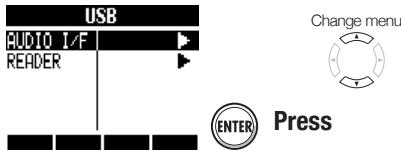
Select whether or not to use the settings of the previous project.
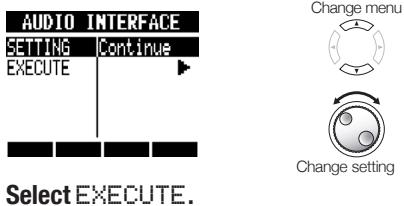
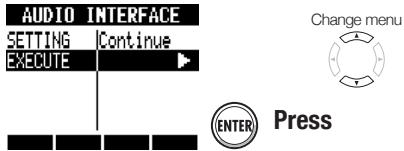
A USB icon appears when connection completes.
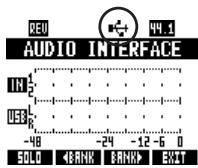
Disconnecting
1

Press
Or, press beneath EXIT.
2
Select YES.
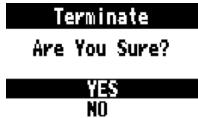
Move cursor

Press
NOTE
Select "Continue" to use the same settings as last time.
- Insert effect settings
- Send-return effect settings
- Mixer settings
- Tuner settings
Reset
Restore default settings for each item
The audio interface and control surface functions can be used while powered through the USB cable.
- We recommend always using the latest R8 system software. If you use an R8 running an older system, a computer might not recognize it properly.
The R8 has a multifunction tuner that includes chromatic tuning, which detects notes by semitones, standard guitar/bass tuning and half-step-down tuning.
1
TOOL

Press
2
Press the ON/OFF key for the INPUT that the instrument is connected too until its indicator lights red.
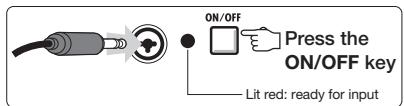
3
Select TUNER.
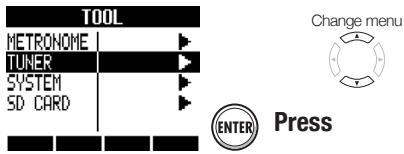
Chromatic tuner
4
Tune the instrument
Shows whether the pitch is higher or lower than the note indicated.
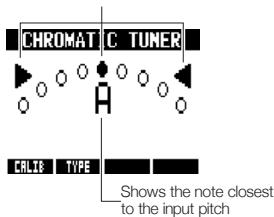
Other tuner types
5
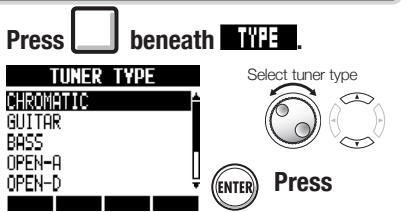
6

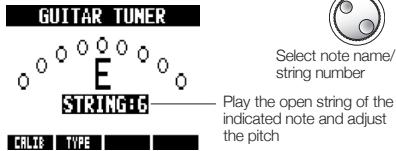
Changing the standard pitch
7
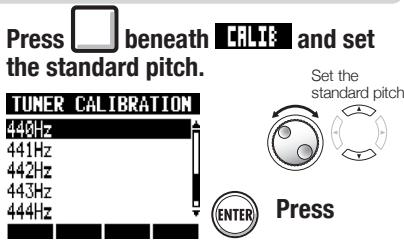
1
HINT
The pitch indicator responds to an INPUT when its ON/OFF indicator lights red.
The standard pitch can be set between 435-445 Hz in 1 Hz units. The default setting is 440 Hz.
- With the tuner types other than chromatic, the calibration can be used to lower the pitch by 1-3 semitones (b-bbb).
The standard pitch setting is saved with each project.
| Tuner type | GUITAR | BASS | OPEN A | OPEN D | OPEN E | OPEN G | DADGAD | |
| String/note | String:1 | E | G | E | D | E | D | D |
| String:2 | B | D | C# | A | B | B | A | |
| String:3 | G | A | A | F# | G# | G | G | |
| String:4 | D | E | E | D | E | D | D | |
| String:5 | A | B | A | A | B | G | A | |
| String:6 | E | E | D | E | D | D | ||
| String:7 | B | |||||||
You can adjust the backlight and contrast of the display.
Turning the backlight ON/OFF
TOOL >SYSTEM >LIGHT
1
TOOL

2
Press
Select SYSTEM.
Change menu
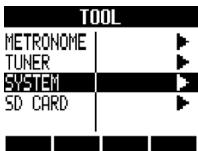


Press
Select LIGHT.
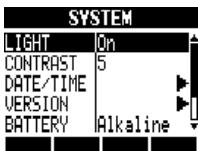
3
Change menu

4
Select the setting.
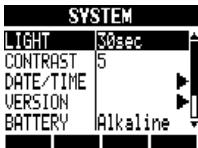

Change value
| On | Backlight lit (default) |
| Off | Backlight unlit |
| 15sec | Backlight darkens if the unit is not used for 15 seconds |
| 30sec | Backlight darkens if the unit is not used for 30 seconds |
HINT
- Turn the backlight off to conserve batteries.
Adjusting the contrast
TOOL >SYSTEM >CONTRAST

1
TOOL
Press
2
Select SYSTEM.
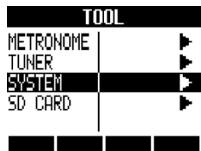
Change menu

Press
3
Select CONTRAST.
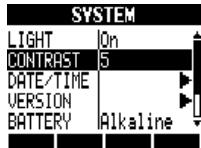
Change menu
4
Set the value.
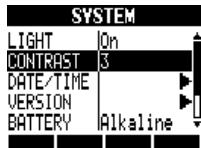

Change value
| 1 | Low contrast (Default value) |
| 2 | |
| 3 | |
| 4 | |
| 5 | |
| 6 | |
| 7 | High contrast |
| 8 |
You can change the SD card while the power is on. Do this if the remaining capacity of the inserted card is low or if you need to import previously recorded data from a different SD card.
TOOL

Press
Select SD CARD.
Change menu


Press
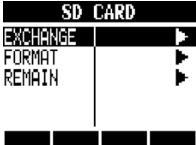
Change menu


Press
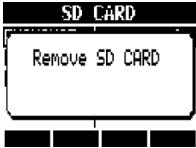
Card replacement possible
Remove the SD card.
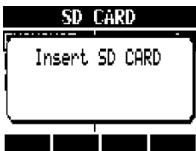
Insert the other SD card.
NOTE
- If the inserted SD card is already formatted for the R8, proceed to Step 6 of "Load data from another SD card" or "Save data to another SD card".
- If you insert an SD card that has not been formatted follow the procedures in " Formatting an SD card" on the next page.
Load data from another SD card
6
Select LOAD.
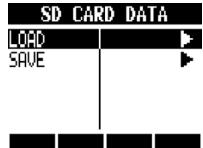
Change menu


Press
Save data to another SD card
6
Select SAVE.
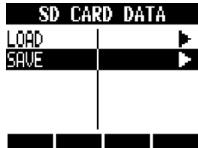
Change menu


Press
7
Select SAVE TO, and choose the destination project.
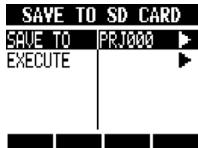
Change menu

8
Select EXECUTE.
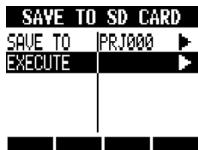

Change setting

Press
See NOTE on the next page
Formatting an SD card
TOOL > SD CARD > FORMAT
You should follow these steps to format SD cards for use with the R8. All card contents will be erased during formatting.
Press
Select SD CARD.
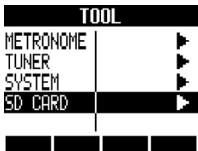

Press
Select FORMAT.
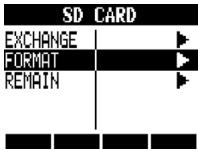

Press
Select YES.
SD CARD FORMAT
Are You Sure?
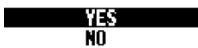

Press
NOTE
- Disable write-protection on an SD card before inserting it.
- SAVE includes various data for the project in use, but no audio data is saved.
Checking remaining card capacity
TOOL > SD CARD > REMAIN
1
You can check the remaining capacity of the SD card.

Press
2
Select SD CARD.
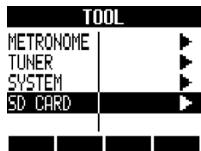

Press
3
Select REMAIN.


Press
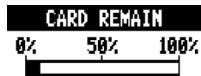
865MB
2:51:33
Card open space
Remaining recording time for the current recording format
NOTE
- If you format an SD card, all its data will be permanently erased.
- When you format an SD card, all the data on the card is deleted and folders and files that are exclusively for R8 use are created.
- If the remaining capacity of the SD card is less than the amount of the data being recorded, recording will fail. Change the card before you run out of space.
Setting the battery type
TOOL >SYSTEM >BATTERY
Set the battery type that you are currently using to make display of the remaining battery charge more accurate.

Press
Select SYSTEM.
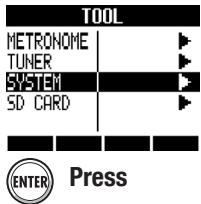
Change menu

Select BATTERY.
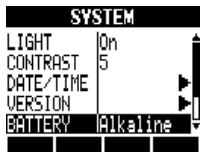
Change menu

Set the battery type.
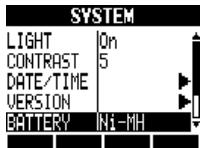

Change type
| Alkaline | Alkaline batteries (default) |
| Ni-MH | Nickel-metal hydride batteries |
Setting phantom power voltage
TOOL >SYSTEM >PHANTOM
Set the PHANTOM switch to ON to supply phantom power to INPUT 1 and 2. To conserve batteries, you can reduce the voltage to 24V
1

Press
2
Select SYSTEM.
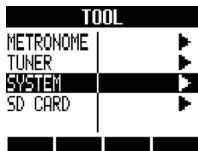
Change menu


Press
3
Select PHANTOM and set the value.
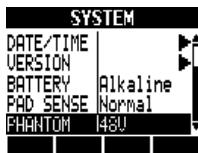
Change menu


Change setting
NOTE
- Use only alkaline or nickel-metal hydride batteries.
Connect a ZOOM FS01 footswitch (sold separately) to the CONTROL IN jack to start and stop playback, punch-in and out manually and change effect patches with your foot.
1 TOOL Press
Select SYSTEM.
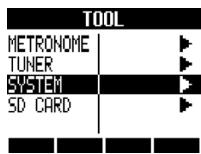

Press
Change menu

3 Select CTRL IN.
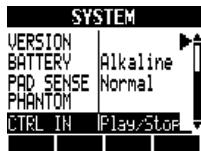

Press
Change menu

4 Choose the setting.
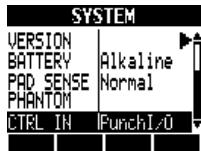
Change setting
| CTRL IN: CONTROL IN setting | |
| Play/Stop | Each footswitch press alternately starts or stops playback. |
| Play/Rew | Each footswitch press alternately starts playback or rewrites |
| Punchl/O | Allows manual punch-in and punch-out (pressing the footswitch has the same effect as pressing the REC key) |
| PatchUp | Pressing the footswitch increases the selected insert effect patch number by one |
| PatchDown | Pressing the footswitch decreases the selected insert effect patch number by one |
Checking the firmware version
You can check the current firmware versions.

TOOL
Press
Select SYSTEM.
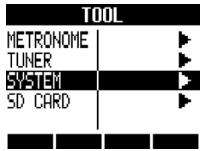

Press
Select VERSION.
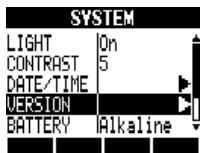

Press
Check the versions.
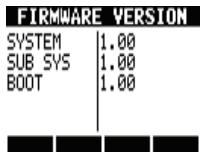


Change menu
Upgrading the firmware
You can upgrade the firmware when necessary.
You must connect the AC adapter before upgrading.
Put the upgrade file in the root directory of an SD card.
Put the SD card with the upgrade file in the R8.
Connect the R8 with the AC adapter.
Press and hold
and turn the
Select OK.
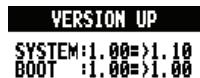

The upgrade starts.

Move cursor
When a message shows that the upgrade has been completed, turn the R8 power off once and restart it.
NOTE
For the latest upgrade files, check the ZOOM website.
http://wwwzoomo.co.jp
Patterns 35 ~ 234 are typical patterns and fills for various genres.
| No. | Pattern | Bars |
| Variation | ||
| 0 | 08Beat01 | 4 |
| 1 | 08Beat02 | 4 |
| 2 | 08Beat03 | 4 |
| 3 | 08Beat04 | 4 |
| 4 | 08Beat05 | 4 |
| 5 | 08Beat06 | 4 |
| 6 | 08Beat07 | 4 |
| 7 | 08Beat08 | 4 |
| 8 | 08Beat09 | 4 |
| 9 | 08Beat10 | 4 |
| 10 | 08Beat11 | 4 |
| 11 | 08Beat12 | 4 |
| 12 | 16Beat01 | 4 |
| 13 | 16Beat02 | 2 |
| 14 | 16Beat03 | 4 |
| 15 | 16Beat04 | 4 |
| 16 | 16Beat05 | 4 |
| 17 | 16Beat06 | 4 |
| 18 | 16Beat07 | 2 |
| 19 | 16Beat08 | 2 |
| 20 | 16Beat09 | 4 |
| 21 | 16Beat10 | 4 |
| 22 | 16Beat11 | 4 |
| 23 | 16Beat12 | 4 |
| 24 | 16FUS01 | 2 |
| 25 | 16FUS02 | 2 |
| 26 | 16FUS03 | 4 |
| 27 | 16FUS04 | 2 |
| 28 | 04JAZZ01 | 4 |
| 29 | 04JAZZ02 | 4 |
| 30 | 04JAZZ03 | 4 |
| 31 | 04JAZZ04 | 4 |
| 32 | DANCE | 2 |
| 33 | CNTRY | 2 |
| 34 | 68BLUS | 4 |
| No. | Pattern | Bars |
| Genre fills/variations | ||
| 35 | ROCKs1VA | 2 |
| 36 | ROCKs1Va | 1 |
| 37 | ROCKs1FA | 1 |
| 38 | ROCKs1VB | 2 |
| 39 | ROCKs1Vb | 1 |
| 40 | ROCKs1FB | 1 |
| 41 | ROCKs2VA | 2 |
| 42 | ROCKs2Va | 1 |
| 43 | ROCKs2FA | 1 |
| 44 | ROCKs2VB | 2 |
| 45 | ROCKs2Vb | 1 |
| 46 | ROCKs2FB | 1 |
| 47 | ROCKs3VA | 1 |
| 48 | ROCKs3FA | 1 |
| 49 | ROCKs3VB | 1 |
| 50 | ROCKs3FB | 1 |
| 51 | ROCKs4VA | 2 |
| 52 | ROCKs4Va | 1 |
| 53 | ROCKs4FA | 1 |
| 54 | ROCKs4VB | 2 |
| 55 | ROCKs4Vb | 1 |
| 56 | ROCKs4FB | 1 |
| 57 | HRKs1VA | 1 |
| 58 | HRKs1FA | 1 |
| 59 | HRKs1VB | 1 |
| 60 | HRKs1FB | 1 |
| 61 | HRKs2VA | 2 |
| 62 | HRKs2Va | 1 |
| 63 | HRKs2FA | 1 |
| 64 | HRKs2VB | 2 |
| 65 | HRKs2Vb | 1 |
| 66 | HRKs2FB | 1 |
| 67 | MTLs1VA | 1 |
| 68 | MTLs1FA | 1 |
| 69 | MTLs1VB | 1 |
| 70 | MTLs1FB | 1 |
| 71 | FUSs1VA | 2 |
| 72 | FUSs1Va | 1 |
| 73 | FUSs1FA | 1 |
| 74 | FUSs1VB | 2 |
| 75 | FUSs1Vb | 1 |
| 76 | FUSs1FB | 1 |
| 77 | FUSs2VA | 2 |
| 78 | FUSs2Va | 1 |
| 79 | FUSs2FA | 1 |
| 80 | FUSs2VB | 2 |
| 81 | FUSs2Vb | 1 |
| 82 | FUSs2FB | 1 |
| 83 | FUSs3VA | 2 |
| 84 | FUSs3Va | 1 |
| 85 | FUSs3FA | 1 |
| 86 | FUSs3VB | 2 |
| 87 | FUSs3Vb | 1 |
| 88 | FUSs3FB | 1 |
| 89 | INDTs1VA | 2 |
| 90 | INDTs1Va | 1 |
| 91 | INDTs1FA | 1 |
| 92 | INDTs1VB | 2 |
| 93 | INDTs1Vb | 1 |
| 94 | INDTs1FB | 2 |
| 95 | POPs1VA | 2 |
| 96 | POPs1Va | 1 |
| 97 | POPs1FA | 1 |
| 98 | POPs1VB | 2 |
| 99 | POPs1Vb | 1 |
| 100 | POPs1FB | 1 |
| 101 | RnBs1VA | 2 |
| 102 | RnBs1Va | 1 |
| 103 | RnBs1FA | 1 |
| 104 | RnBs1VB | 2 |
| 105 | RnBs1Vb | 1 |
| 106 | RnBs1FB | 1 |
| 107 | RnBs2VA | 2 |
| 108 | RnBs2Va | 1 |
| 109 | RnBs2FA | 1 |
| 110 | RnBs2VB | 2 |
| 111 | RnBs2Vb | 1 |
| 112 | RnBs2FB | 1 |
| 113 | MTNs1VA | 2 |
| 114 | MTNs1Va | 1 |
| 115 | MTNs1FA | 1 |
| 116 | MTNs1VB | 2 |
| 117 | MTNs1Vb | 1 |
| 118 | MTNs1FB | 1 |
| 119 | FUNKs1VA | 2 |
| 120 | FUNKs1Va | 1 |
| 121 | FUNKs1FA | 1 |
| 122 | FUNKs1VB | 2 |
| 123 | FUNKs1Vb | 1 |
| 124 | FUNKs1FB | 1 |
| 125 | FUNKs2VA | 2 |
| 126 | FUNKs2Va | 1 |
| 127 | FUNKs2FA | 1 |
| 128 | FUNKs2VB | 2 |
| 129 | FUNKs2Vb | 1 |
| 130 | FUNKs2FB | 1 |
| 131 | HIPs1VA | 2 |
| 132 | HIPs1Va | 1 |
| 133 | HIPs1FA | 1 |
| 134 | HIPs1VB | 2 |
| 135 | HIPs1Vb | 1 |
| 136 | HIPs1FB | 1 |
| 137 | HIPs1VC | 2 |
| 138 | HIPs1Vc | 1 |
| 139 | HIPs1VD | 2 |
| 140 | HIPs1Vd | 1 |
| 141 | HIPs2VA | 2 |
| 142 | HIPs2Va | 1 |
| 143 | HIPs2VB | 2 |
| 144 | HIPs2Vb | 1 |
| 145 | HIPs2FB | 1 |
| 146 | HIPs2VC | 2 |
| 147 | HIPs2Vc | 1 |
| 148 | HIPs2VD | 2 |
| 149 | DANCs1VA | 1 |
| 150 | DANCs1FA | 1 |
| 151 | DANCs1VB | 1 |
| 152 | DANCs1FB | 1 |
| 153 | DANCs2VA | 2 |
| 154 | DANCs2Va | 1 |
| 155 | DANCs2FA | 1 |
| 156 | DANCs2VB | 2 |
| 157 | DANCs2Vb | 1 |
| 158 | DANCs2FB | 1 |
| 159 | HOUss1VA | 1 |
| 160 | HOUss1FA | 1 |
| 161 | HOUss1VB | 1 |
| 162 | HOUss1FB | 1 |
| 163 | TECHs1VA | 1 |
| 164 | TECHs1FA | 1 |
| 165 | TECHs1VB | 1 |
| 166 | TECHs1FB | 1 |
| 167 | DnBs1VA | 2 |
| 168 | DnBs1Va | 1 |
| 169 | DnBs1FA | 1 |
| 170 | DnBs1VB | 2 |
| 171 | DnBs1Vb | 1 |
| 172 | DnBs1FB | 1 |
| 173 | TPs1VA | 1 |
| 174 | TPs1FA | 1 |
| 175 | TPs1VB | 1 |
| 176 | TPs1FB | 1 |
| 177 | AMBs1VA | 2 |
| 178 | AMBs1Va | 1 |
| 179 | AMBs1FA | 1 |
| 180 | AMBs1FB | 1 |
| 181 | BALDs1VA | 2 |
| 182 | BALDs1Va | 1 |
| 183 | BALDs1FA | 1 |
| 184 | BALDs1VB | 2 |
| 185 | BALDs1Vb | 1 |
| 186 | BALDs1FB | 1 |
| 187 | BLUss1VA | 2 |
| 188 | BLUss1Va | 1 |
| 189 | BLUss1FA | 1 |
| 190 | BLUss1VB | 2 |
| 191 | BLUss1Vb | 1 |
| 192 | BLUss1FB | 1 |
| 193 | CNTRs1VA | 2 |
| 194 | CNTRs1Va | 1 |
| 195 | CNTRs1FA | 1 |
| 196 | CNTRs1VB | 2 |
| 197 | CNTRs1Vb | 1 |
| 198 | CNTRs1FB | 1 |
| 199 | JAZZs1VA | 2 |
| 200 | JAZZs1Va | 1 |
| 201 | JAZZs1FA | 1 |
| 202 | JAZZs1VB | 2 |
| 203 | JAZZs1Vb | 1 |
| 204 | JAZZs1FB | 1 |
| 205 | AFROs1VA | 2 |
| 206 | AFROs1Va | 1 |
| 207 | AFROs1FA | 1 |
| 208 | AFROs1VB | 2 |
| 209 | AFROs1Vb | 1 |
| 210 | AFROs1FB | 1 |
| 211 | REGGs1VA | 2 |
| 212 | REGGs1Va | 1 |
| 213 | REGGs1FA | 1 |
| 214 | REGGs1VB | 2 |
| 215 | REGGs1Vb | 1 |
| 216 | REGGs1FB | 1 |
| 217 | LATNs1VA | 2 |
| 218 | LATNs1Va | 1 |
| 219 | LATNs1FA | 1 |
| 220 | LATNs1VB | 2 |
| 221 | LATNs1Vb | 1 |
| 222 | LATNs1FB | 1 |
| 223 | LATNs2VA | 2 |
| 224 | LATNs2Va | 1 |
| 225 | LATNs2FA | 1 |
| 226 | LATNs2VB | 2 |
| 227 | LATNs2Vb | 1 |
| 228 | LATNs2FB | 1 |
| 229 | MidEs1VA | 2 |
| 230 | MidEs1Va | 1 |
| 231 | MidEs1FA | 1 |
| 232 | MidEs1VB | 2 |
| 233 | MidEs1Vb | 1 |
| 234 | MidEs1FB | 1 |
| No. | Pattern | Bars |
| Standard | ||
| 235 | ROCK01 | 2 |
| 236 | ROCK02 | 2 |
| 237 | ROCK03 | 2 |
| 238 | ROCK04 | 2 |
| 239 | ROCK05 | 2 |
| 240 | ROCK06 | 2 |
| 241 | ROCK07 | 2 |
| 242 | ROCK08 | 2 |
| 243 | ROCK09 | 2 |
| 244 | ROCK10 | 2 |
| 245 | ROCK11 | 4 |
| 246 | ROCK12 | 2 |
| 247 | ROCK13 | 2 |
| 248 | ROCK14 | 2 |
| 249 | ROCK15 | 2 |
| 250 | ROCK16 | 2 |
| 251 | ROCK17 | 2 |
| 252 | ROCK18 | 2 |
| 253 | ROCK19 | 2 |
| 254 | ROCK20 | 2 |
| 255 | ROCK21 | 2 |
| 256 | ROCK22 | 2 |
| 257 | ROCK23 | 2 |
| 258 | ROCK24 | 2 |
| 259 | ROCK25 | 2 |
| 260 | ROCK26 | 2 |
| 261 | ROCK27 | 2 |
| 262 | ROCK28 | 2 |
| 263 | HRK01 | 2 |
| 264 | HRK02 | 2 |
| 265 | HRK03 | 2 |
| 266 | HRK04 | 2 |
| 267 | HRK05 | 2 |
| 268 | HRK06 | 2 |
| 269 | HRK07 | 2 |
| 270 | MTL01 | 2 |
| 271 | MTL02 | 2 |
| 272 | MTL03 | 2 |
| 273 | MTL04 | 2 |
| 274 | THRS01 | 2 |
| 275 | THRS02 | 2 |
| 276 | PUNK01 | 2 |
| 277 | PUNK02 | 2 |
| 278 | FUS01 | 2 |
| 279 | FUS02 | 2 |
| 280 | FUS03 | 2 |
| 281 | FUS04 | 2 |
| 282 | FUS05 | 2 |
| 283 | FUS06 | 2 |
| 284 | FUS07 | 2 |
| 285 | FUS08 | 2 |
| 286 | POPOP1 | 2 |
| 287 | POPOP2 | 2 |
| 288 | POPOP3 | 2 |
| 289 | POPOP4 | 2 |
| 290 | POPOP5 | 2 |
| 291 | POPOP6 | 2 |
| 292 | POPOP7 | 2 |
| 293 | POPOP8 | 2 |
| 294 | POPOP9 | 2 |
| 295 | POPT0 | 2 |
| 296 | POPT1 | 2 |
| 297 | POPT2 | 2 |
| 298 | RnB01 | 2 |
| 299 | RnB02 | 2 |
| 300 | RnB03 | 2 |
| 301 | RnB04 | 2 |
| 302 | RnB05 | 2 |
| 303 | RnB06 | 2 |
| 304 | RnB07 | 2 |
| 305 | RnB08 | 2 |
| 306 | RnB09 | 2 |
| 307 | RnB10 | 2 |
| 308 | FUNK01 | 2 |
| 309 | FUNK02 | 2 |
| 310 | FUNK03 | 2 |
| 311 | FUNK04 | 2 |
| 312 | FUNK05 | 2 |
| 313 | FUNK06 | 2 |
| 314 | FUNK07 | 2 |
| 315 | FUNK08 | 2 |
| 316 | FUNK09 | 2 |
| 317 | FUNK10 | 2 |
| 318 | FUNK11 | 2 |
| 319 | FUNK12 | 2 |
| 320 | HIP01 | 2 |
| 321 | HIP02 | 2 |
| 322 | HIP03 | 2 |
| 323 | HIP04 | 2 |
| 324 | HIP05 | 2 |
| 325 | HIP06 | 2 |
| 326 | HIP07 | 2 |
| 327 | HIP08 | 2 |
| 328 | HIP09 | 2 |
| 329 | HIP10 | 2 |
| 330 | HIP11 | 2 |
| 331 | HIP12 | 2 |
| 332 | HIP13 | 2 |
| 333 | HIP14 | 2 |
| 334 | HIP15 | 2 |
| 335 | HIP16 | 2 |
| 336 | HIP17 | 2 |
| 337 | HIP18 | 2 |
| 338 | HIP19 | 2 |
| 339 | HIP20 | 2 |
| 340 | HIP21 | 2 |
| 341 | HIP22 | 2 |
| 342 | HIP23 | 2 |
| 343 | DANC01 | 2 |
| 344 | DANC02 | 2 |
| 345 | DANC03 | 2 |
| 346 | DANC04 | 2 |
| 347 | DANC05 | 2 |
| 348 | DANC06 | 2 |
| 349 | HOUS01 | 2 |
| 350 | HOUS02 | 2 |
| 351 | HOUS03 | 2 |
| 352 | HOUS04 | 2 |
| 353 | TECH01 | 2 |
| 354 | TECH02 | 2 |
| 355 | TECH03 | 2 |
| 356 | TECH04 | 2 |
| 357 | TECH05 | 2 |
| 358 | TECH06 | 2 |
| 359 | TECH07 | 2 |
| 360 | TECH08 | 2 |
| 361 | TECH09 | 2 |
| 362 | TECH10 | 2 |
| 363 | DnB01 | 2 |
| 364 | DnB02 | 2 |
| 365 | DnB03 | 2 |
| 366 | DnB04 | 2 |
| 367 | DnB05 | 2 |
| 368 | DnB06 | 2 |
| 369 | TRIP01 | 2 |
| 370 | TRIP02 | 2 |
| 371 | TRIP03 | 2 |
| 372 | TRIP04 | 2 |
| 373 | AMBO1 | 2 |
| 374 | AMBO2 | 2 |
| 375 | AMBO3 | 2 |
| 376 | AMBO4 | 2 |
| 377 | BALD01 | 2 |
| 378 | BALD02 | 2 |
| 379 | BALD03 | 2 |
| 380 | BALD04 | 2 |
| 381 | BALD05 | 2 |
| 382 | BALD06 | 2 |
| 383 | BALD07 | 2 |
| 384 | BALD08 | 2 |
| 385 | BALD09 | 2 |
| 386 | BALD10 | 2 |
| 387 | BALD11 | 4 |
| 388 | BLUS01 | 2 |
| 389 | BLUS02 | 2 |
| 390 | BLUS03 | 2 |
| 391 | BLUS04 | 2 |
| 392 | BLUS05 | 2 |
| 393 | BLUS06 | 2 |
| 394 | CNTR01 | 2 |
| 395 | CNTR02 | 2 |
| 396 | CNTR03 | 2 |
| 397 | CNTR04 | 2 |
| 398 | JAZZ01 | 2 |
| 399 | JAZZ02 | 2 |
| 400 | JAZZ03 | 2 |
| 401 | JAZZ04 | 2 |
| 402 | JAZZ05 | 2 |
| 403 | JAZZ06 | 2 |
| 404 | JAZZ07 | 4 |
| 405 | SHFL01 | 2 |
| 406 | SHFL02 | 2 |
| 407 | SHFL03 | 2 |
| 408 | SHFL04 | 2 |
| 409 | SHFL05 | 2 |
| 410 | SKA01 | 2 |
| 411 | SKA02 | 2 |
| 412 | SKA03 | 2 |
| 413 | SKA04 | 2 |
| 414 | REGG01 | 2 |
| 415 | REGG02 | 2 |
| 416 | REGG03 | 2 |
| 417 | REGG04 | 2 |
| 418 | AFRO01 | 2 |
| 419 | AFRO02 | 2 |
| 420 | AFRO03 | 2 |
| 421 | AFRO04 | 2 |
| 422 | AFRO05 | 2 |
| 423 | AFRO06 | 2 |
| 424 | AFRO07 | 2 |
| 425 | AFRO08 | 2 |
| 426 | LATN01 | 2 |
| 427 | LATN02 | 2 |
| 428 | LATN03 | 2 |
| 429 | LATN04 | 2 |
| 430 | LATN05 | 2 |
| 431 | LATN06 | 2 |
| 432 | LATN07 | 2 |
| 433 | LATN08 | 2 |
| 434 | LATN09 | 2 |
| 435 | LATN10 | 2 |
| 436 | LATN11 | 2 |
| 437 | LATN12 | 2 |
| 438 | BOSSAO1 | 4 |
| 439 | BOSSAO2 | 4 |
| 440 | SAMBAO1 | 4 |
| 441 | SAMBAO2 | 4 |
| 442 | MidEO1 | 2 |
| 443 | MidEO2 | 2 |
| 444 | MidEO3 | 2 |
| 445 | MidEO4 | 2 |
| 446 | INTRO01 | 1 |
| 447 | INTRO02 | 1 |
| 448 | INTRO03 | 1 |
| 449 | INTRO04 | 1 |
| 450 | INTRO05 | 1 |
| 451 | INTRO06 | 1 |
| 452 | INTRO07 | 1 |
| 453 | INTRO08 | 1 |
| 454 | INTRO09 | 1 |
| 455 | INTRO10 | 1 |
| 456 | INTRO11 | 1 |
| 457 | INTRO12 | 1 |
| 458 | INTRO13 | 1 |
| 459 | INTRO14 | 1 |
| 460 | INTRO15 | 1 |
| 461 | INTRO16 | 1 |
| 462 | INTRO17 | 1 |
| 463 | INTRO18 | 1 |
| 464 | ENDING01 | 1 |
| 465 | ENDING02 | 1 |
| 466 | ENDING03 | 1 |
| 467 | ENDING04 | 1 |
| 468 | ENDING05 | 1 |
| 469 | ENDING06 | 1 |
| 470 | ENDING07 | 1 |
| 471 | COUNT | 2 |
| 472 | EMPTY | 2 |
INSERT effects
Clean/Crunch, Distortion, Aco/Bass SIM algorithms
COMP/LIMITER module
| Type | Parameters | |||
| Compressor | Sense | Attack | Tone | Level |
| MXR Dynacomp type compressor. | ||||
| Rack Comp | Threshold | Ratio | Attack | Level |
| Compressor with more detailed adjustments. | ||||
| Limiter | Threshold | Ratio | Release | Level |
| Limiter for suppressing signal peaks above a certain level. | ||||
Parameter Explanations
| Parameters | Setting range | Explanation |
| Sense | 0 ~ 10 | Adjusts compressor sensitivity. |
| Attack | Compressor: Fast, Slow | Selects compressor response speed. |
| Rack Comp: 1 ~ 10 | Adjusts compressor response speed. | |
| Tone | 0 ~ 10 | Adjusts tonal quality. |
| Level | 2 ~ 100 | Adjusts signal level after passing module. |
| Threshold | 0 ~ 50 | Adjusts threshold for compressor/limiter action. |
| Ratio | 1 ~ 10 | Adjusts compressor/limiter compression ratio. |
| Release | 1 ~ 10 | Adjusts delay until compressor/limiter release from time when signal level falls below threshold level. |
Effect types and parameters 2
EFX module
| Type | Parameters | ||||||
| Auto Wah | Position | Sense | Resonance | Level | |||
| Auto wah dependent on dynamics of input signal. | |||||||
| Tremolo | Depth | Rate | Wave | Level | |||
| Periodically varies the volume level. | |||||||
| Phaser | Position | Rate | Color | Level | |||
| Produces a swooshing sound. | |||||||
| Ring Modulator | Position | Frequency | Balance | Level | |||
| Produces a metallic ringing sound. Adjusting the Frequency parameter results in a drastic change of sound character. | |||||||
| Slow Attack | Position | Time | Curve | Level | |||
| Slows down the attack rate of the sound. | |||||||
| Fix-Wah | Position | Frequency | Dry Mix | Level | RTM Mode | RTM Wave | RTM Sync |
| Changes the wah frequency according to rhythm tempo. | |||||||
| Booster | Range | Tone | Level | ||||
| Increases signal gain to make the sound more powerful. | |||||||
Parameter Explanations
| Parameters | Setting range | Explanation |
| Position | Before, After | Sets connection position of EFX module to before or after preamp. |
| Sense | -10 ~ -1, 1 ~ 10 | Adjusts auto wah sensitivity. |
| Resonance | 0 ~ 10 | Adjusts resonance intensity. |
| Level | 2 ~ 100 | Adjusts signal level after passing through module. |
| Depth | 0 ~ 100 | Adjusts modulation depth. |
| Rate | 0 ~ 50 (P:127 Table 1) | Adjusts modulation rate. Can be set in rhythm tempo note units. |
| Wave | 4Up 0 ~ 9, Down 0 ~ 9, Tri 0 ~ 9 | Sets modulation waveform to "Up" (rising sawtooth), "Down" (falling saw-tooth) or "Tri" (triangular). Higher values result in stronger clipping, emphasizing the effect. |
| Color | 4Stage, 8Stage, Invert4, Invert8 | Selects sound type. |
| Frequency | Ring Modulator: 1 ~ 50 | Adjusts frequency used for modulation. |
| Fix-Wah: 1 ~ 50 | Adjusts wah center frequency. | |
| Balance | 0 ~ 100 | Adjusts balance between original sound and effect sound. |
| Time | 1 ~ 50 | Adjusts rise time for sound. |
| Curve | 0 ~ 10 | Adjusts volume rise curve. |
| Dry Mix | 0 ~ 10 | Adjusts original sound mix ratio. |
| RTM Mode | P:127 Table 2 | Adjusts change range and direction. |
| RTM Wave | P:127 Table 3 | Selects control waveform. |
| RTM Sync | (P:127 Table 4) | Adjusts control wave frequency. |
| Range | 1 ~ 5 | Selects frequency range to boost. |
| Tone | 0 ~ 10 | Adjusts tone. |
- PREAMP module
| Type | Parameters | |||
| FD Combo | Modeled sound of Fender Twin Reverb ('65 model) favored by guitarists of many music styles | |||
| VX Combo | Modeled sound of combo amp VOX AC-30 operating in class A | |||
| US Blues | Crunch sound of FENDER Tweed BASSMAN | |||
| BG Crunch | Crunch sound of Mesa Boogie MkII combo amp | |||
| HW Stack | Modeled sound of legendary all-tube Hiwatt Custom 100 from Britain | |||
| MS Crunch | Crunch sound of legendary Marshall 1959 | |||
| MS Drive | High gain sound of Marshall JCM2000 stack amp | |||
| PV Drive | High gain sound of Peavey 5150 developed in cooperation with a world-famous hard rock guitarist | |||
| DZ Drive | High gain sound using channel 3 the Diezel Herbert hand-made German guitar amp with three separately controllable channels | |||
| BG Drive | High gain sound of Mesa Boogie Dual Rectifier red channel (vintage mode) | |||
| OverDrive | Modeling of BOSS OD-1 effect pedal that was the world's first overdrive effect of its kind | |||
| T Scream | Simulation of the Ibanez TS808, which is loved by many guitarists as a booster and has inspired numerous clones | |||
| Governor | Simulation of the Guv'nor distortion effect from Marshall | |||
| Dist + | Simulation of the MXR distortion+ effect that made distortion popular worldwide | |||
| Dist 1 | Simulation of the Boss DS-1 distortion pedal, which has been a long-seller | |||
| Squeak | Simulation of the PROCO Rat famous for its edgy distortion sound | |||
| FuzzSmile | Simulation of the Fuzz Face, which has made rock history with its humorous panel design and smashing sound | |||
| GreatMuff | Simulation of the Electro-Harmonix Big Muff, which is loved by famous artists around the world for its fat, sweet fuzz sound | |||
| MetalWRLD | Simulation of the Boss Metal Zone, which is characterized by long sustain and a powerful lower midrange | |||
| HotBox | Simulation of the compact Matchless Hotbox pre-amplifier with a built-in tube | |||
| Z Clean | ZOOM original unadorned clean sound | |||
| Z Wild | A high gain sound with even more overdrive boost. | |||
| Z MP1 | An original sound created by merging characteristics of an ADA MP1 and a MARSHALL JCM800. | |||
| Z Bottom | A high gain sound that emphasizes low and middle frequencies | |||
| Z Dream | A high gain sound for lead playing based on the Mesa Boogie Road King Series II Lead channel | |||
| Z Scream | An original high gain sound balanced from low to high frequencies | |||
| Z Neos | A crunch sound modeled on the sound of a modified VOX AC30 | |||
| Lead | A bright and smooth distortion sound | |||
| ExtremeDS | This distortion effect boasts the highest gain in the world | |||
| Gain | Tone | Cabinet | Level | |
| FD Combo ~ ExtremeDS types have the same parameters | ||||
| Acoustic Sim | Top | Body | Level | |
| Makes an electric guitar sound like an acoustic guitar | ||||
| Bass Sim | Tone | Level | ||
| Makes an electric guitar sound like a bass guitar | ||||
Parameter Explanations
| Parameters | Setting range | Explanation |
| Gain | 0 ~ 100 | Adjusts preamp gain (distortion intensity). |
| Tone | 0 ~ 30 | Adjusts tonal quality. |
| Cabinet | Matched | Optimizes cabinet settings according to the drive effect type. |
| Combo | Simulates 2x12 Fender combo amp cabinet. | |
| Tweed | Simulates 4x10 Fender Tweed amp cabinet. | |
| Stack | Simulates 4x12 Marshall stack amp cabinet. | |
| Level | 1 ~ 100 | Adjusts signal level after passing through module. |
| Top | 0 ~ 10 | Adjusts characteristic acoustic guitar string resonance. |
| Body | 0 ~ 10 | Adjusts characteristic acoustic guitar body resonance. |
- 6BAND EQ module
| Type | Parameters | ||||||
| 6Band EQ | Bass | Low-Mid | Middle | Treble | Presence | Harmonics | Level |
| This is an equalizer with 6 frequency bands | |||||||
Parameter Explanations
| Parameters | Setting range | Explanation |
| Bass | -12 dB ~ 12 dB | Adjusts low frequency range (160 Hz) boost/cut. |
| Low-Mid | -12 dB ~ 12 dB | Adjusts mid-low-frequency range (400 Hz) boost/cut. |
| Middle | -12 dB ~ 12 dB | Adjusts middle-frequency range (800 Hz) boost/cut. |
| Treble | -12 dB ~ 12 dB | Adjusts high-frequency range (3.2 kHz) boost/cut. |
| Presence | -12 dB ~ 12 dB | Adjusts super-high-frequency range (6.4 kHz) boost/cut. |
Effect types and parameters 4
| Parameters | Setting range | Explanation |
| Harmonics | -12 dB ~ 12 dB | Adjust harmonics (12 kHz) boost/cut. |
| Level | 2 ~ 100 | Adjusts signal level after passing through module. |
- MOD/DELAY module
| Type | Parameters | |||
| Chorus | Depth | Rate | Tone | Mix |
| Mixes a variable pitch-shifted component with the original sound, resulting in full-bodied resonating tone | ||||
| Ensemble | Depth | Rate | Tone | Mix |
| Chorus ensemble features three-dimensional movement | ||||
| Flanger | Depth | Rate | Resonance | Manual |
| Produces a resonating and strongly undulating sound | ||||
| Pitch | Shift | Tone | Fine | Balance |
| Shifts the pitch up or down | ||||
| Vibe | Depth | Rate | Tone | Balance |
| Adds automatic vibrato | ||||
| Step | Depth | Rate | Resonance | Shape |
| Special effect makes sound changes in steps | ||||
| Cry | Range | Resonance | Sense | Balance |
| Changes sound like a talking modulator | ||||
| Exciter | Frequency | Depth | Low Boost | |
| Enhances the sound outline, making it more prominent | ||||
| Air | Size | Reflex | Tone | Mix |
| Recreates the airy ambience of a room, adding a feeling of depth | ||||
| Delay | Time | Feedback | Hi Damp | Mix |
| Delay effect with a maximum setting of 2000 ms | ||||
| Analog Delay | Time | Feedback | Hi Damp | Mix |
| Warm analog delay simulation with up to 2000 msec delay length | ||||
| Reverse Delay | Time | Feedback | Hi Damp | Balance |
| Reverse delay with a maximum length of 1000 msec | ||||
| ARRM Pitch | Type | Tone | RTM Wave | RTM Sync |
| Changes pitch of original sound in time with the rhythm tempo | ||||
Parameter Explanations
| Parameters | Setting range | Explanation |
| Depth | Exciter: 0 ~ 30 | Adjusts depth of effect. |
| Other: 0 ~ 100 | Adjusts modulation depth. | |
| Rate | Chorus, Ensemble: 1 ~ 50 | Adjusts modulation speed. |
| Flanger, Vibe, Step: 0 ~ 50 (P:127 Table 1) | Adjusts modulation speed. Using the rhythm tempo as reference, setting in note units is also possible. | |
| Tone | 0 ~ 10 | Adjusts tonal quality. |
| Mix | 0 ~ 100 | Adjusts mix ratio of effect sound to original sound. |
| Resonance | Flanger: -10 ~ 10 | Adjusts resonance intensity. Negative values result in the effect sound phase being emphasized. |
| Step, Cry: 0 ~ 10 | Adjusts resonance intensity. | |
| Manual | 0 ~ 100 | Adjust the frequency range that is effected. |
| Shift | -12 ~ 12, 24 | Sets pitch shift in semitones. |
| Fine | -25 ~ 25 | Sets pitch shift in cents (1/100 semitone). |
| Balance | 0 ~ 100 | Adjusts balance between original sound and effect sound. |
| Shape | 0 ~ 10 | Sets effect sound envelope. |
| Range | 1 ~ 10 | Adjusts the frequency range that is affected. |
| Sense | -10 ~ -1, 1 ~ 10 | Sets the sensitivity of the effect. |
| Frequency | 1 ~ 5 | Adjusts the frequencies that are effected. |
| Low Boost | 0 ~ 10 | Emphasizes low-frequency range. |
| Size | 1 ~ 100 | Sets size of simulated space. |
| Reflex | 0 ~ 10 | Adjusts the amount of reflections from the walls. |
| Time | Delay, Analog Delay: 1 ~ 2000 ms (P:127 Table 1) | Adjusts delay time. |
| Reverse Delay: 10 ~ 1000 ms (P:127 Table 1) | ||
| Feedback | 0 ~ 100 | Adjusts feedback amount. |
| Hi Damp | 0 ~ 10 | Adjusts the high-frequency attenuation of the delay sound. |
| Type | P:127 Table 5 | Selects the type of pitch change. |
| RTM Wave | P:127 Table 3 | Selects the wave shape of the effect. |
| RTM Sync | P:127 Table 4 | Sets the frequency of the wave. |
Effect types and parameters 5
- REVERB module
| Type | Parameters | |||
| Hall | Decay | PreDelay | Tone | Mix |
| Simulates the acoustics of a concert hall | ||||
| Room | Decay | PreDelay | Tone | Mix |
| Simulates the acoustics of a room | ||||
| Spring | Decay | PreDelay | Tone | Mix |
| Simulates a spring reverb | ||||
| Arena | Decay | PreDelay | Tone | Mix |
| Simulates the acoustics of an arena-sized venue | ||||
| TiledRoom | Decay | PreDelay | Tone | Mix |
| Simulates the acoustics of a tiled room | ||||
Parameter Explanations
| Parameters | Setting range | Explanation |
| Decay | 1 ~ 30 | Adjusts reverb time. |
| PreDelay | 1 ~ 100 | Adjusts pre-delay time. |
| Tone | 0 ~ 10 | Adjusts tonal quality. |
| Mix | 0 ~ 100 | Adjusts effect sound level. |
ZNR module
| Type | Setting range | Explanation |
| ZNR | Off, 1 ~ 30 | Adjusts sensitivity. Set value as high as possible without causing unnatural decay to reduce noise. |
| ZOOM original noise reduction for reducing noise during playing pauses without affecting the overall tone. | ||
| Bass algorithm |
COMP/LIMITER module
| Type | Parameters |
| Rack Comp | For an explanation of types and parameters, see Clean/CRunch, Distortion, Aco/Bass SIM algorithms. |
| Limiter |
- EFX module
| Type | Parameters | ||||
| Auto Wah | Position | Sense | Resonance | Dry Mix | Level |
| This effect varies the wah action according to the intensity of the input signal. | |||||
| Tremolo | For an explanation of types and parameters, see Clean/Crunch, Distortion, Aco/Bass SIM algorithms. | ||||
| Phaser | |||||
| Ring Modulator | |||||
| Slow Attack | |||||
| Fix-Wah | |||||
Parameter Explanations
| Parameters | Setting range | Explanation |
| Position | Before, After | Sets insert position of module to before or after PREAMP module. |
| Sense | -10 ~ -1, 1 ~ 10 | Adjusts auto wah sensitivity. |
| Resonance | 0 ~ 10 | Adjusts resonance intensity. |
| Dry Mix | 0 ~ 10 | Adjusts original sound mix ratio. |
| Level | 2 ~ 100 | Adjusts signal level after passing through module. |
- PREAMP module
| Type | Parameters | ||||
| SVT | Simulation of Ampeg SVT sound. | ||||
| Bassman | Simulation of Fender Bassman 100 sound. | ||||
| Hartke | Simulation of Hartke HA3500 sound. | ||||
| Super Bass | Simulation of Marshall Super Bass sound. | ||||
| SANSAMP | Simulation of Sansamp Bass Driver DI sound. | ||||
| Tube Preamp | ZOOM original tube preamplifier sound. | ||||
| Gain | Tone | Cabinet | Balance | Level | |
| All preamp modules have the same parameters. | |||||
Effect types and parameters 6
Parameter Explanations
| Parameters | Setting range | Explanation |
| Gain | 0 ~ 100 | Adjusts preamp gain (distortion depth). |
| Tone | 0 ~ 30 | Adjusts tonal quality of effect. |
| Cabinet | 0 ~ 2 | Adjusts intensity of speaker cabinet sound. |
| Balance | 0 ~ 100 | Adjusts mix balance of signal before and after module. |
| Level | 1 ~ 100 | Adjusts signal level after passing through module. |
- 6BAND EQ module
| Type | Parameters | ||||||
| 6Band EQ | Sub-Bass | Bass | Low-Mid | Hi-Mid | Treble | Presence | Level |
| This is an equalizer with 6 frequency bands. | |||||||
Parameter Explanations
| Parameters | Setting range | Explanation |
| Sub-Bass | -12 dB ~ 12 dB | Adjusts super-low frequency range (70 Hz) boost/cut. |
| Bass | -12 dB ~ 12 dB | Adjusts low frequency range (150 Hz) boost/cut. |
| Low-Mid | -12 dB ~ 12 dB | Adjusts mid-low-frequency range (450 Hz) boost/cut. |
| Hi-Mid | -12 dB ~ 12 dB | Adjusts high-mid-frequency range (1 kHz) boost/cut. |
| Treble | -12 dB ~ 12 dB | Adjusts high-frequency range (3 kHz) boost/cut. |
| Presence | -12 dB ~ 12 dB | Adjusts super-high-frequency range (6 kHz) boost/cut. |
| Level | 2 ~ 100 | Adjusts signal level after passing through module. |
- MOD/DELAY module
| Type | Parameters |
| Chorus ~ ARRM Pitch | For an explanation of types and parameters, see Clean/Crunch, Distortion, Aco/Bass SIM algorithms. |
ZNR module
| Type | Parameters |
| ZNR | For an explanation of types and parameters, see Clean/Crunch, Distortion, Acc/Bass SIM algorithms. |
Mic algorithm
COMP/LIMITER module
| Type | Parameters |
| Rack Comp | For an explanation of types and parameters, see Clean/Crunch, Distortion, Aco/Bass SIM algorithms. |
| Limiter |
- EFX module
| Type | Parameters |
| Tremolo | For an explanation of types and parameters, see Clean/Crunch, Distortion, Aco/Bass SIM algorithms. |
| Phaser | |
| Ring Modulator | |
| Slow Attack | |
| Fix-Wah |
- MIC PRE module
| Type | Parameters | ||||
| Mic Pre | Type | Tone | Level | De-Esser | Low Cut |
| This is a preamplifier for use with external microphones. | |||||
Parameter Explanations
| Parameters | Setting range | Explanation |
| Type | Vocal, AcousticGt, Flat | Selects preamp characteristics. |
| Tone | 0 ~ 10 | Adjusts tonal quality of effect. |
| Level | 1 ~ 100 | Adjusts signal level after passing through module. |
| De-Esser | Off, 1 ~ 10 | Sets the reduction of sibilant sounds. |
| Low Cut | Off, 80 ~ 240 Hz | Sets frequency of filter that reduces low-frequency noise easily picked up by mics. |
Effect types and parameters 7
- 3BAND EQ module
| Type | Parameters | |||
| 3Band EQ | Bass | Middle | Treble | Level |
| This is a 3-band equalizer. | ||||
Parameter Explanations
| Parameters | Setting range | Explanation |
| Bass | -12 dB ~ 12 dB | Boosts/cuts low-frequency range. |
| Middle | -12 dB ~ 12 dB | Boosts/cuts middle-frequency range. |
| Treble | -12 dB ~ 12 dB | Boosts/cuts high-frequency range. |
| Level | 2 ~ 100 | Adjusts signal level after passing through module. |
- MOD/DELAY module
| Type | Parameters |
| Chorus ~ ARRM Pitch | For an explanation of types and parameters, see Clean/Crunch, Distortion, Aco/Bass SIM algorithms. |
ZNR module
| Type | Parameters |
| ZNR | For an explanation of types and parameters, see Clean/Crunch, Distortion, Aco/Bass SIM algorithms. |
| Dual Mic algorithm |
COMP/LIMITER L module
| Type | Parameters | |||
| Compressor | Threshold | Ratio | Attack | Level |
| Reduces variation in signal level. | ||||
| Limiter | Threshold | Ratio | Release | Level |
| Attenuates signals that exceed a certain level. | ||||
Parameter Explanations
| Parameters | Setting range | Explanation |
| Threshold | -24 ~ 0 | Adjusts threshold level of compressor/limiter. |
| Ratio | Compressor: 1 ~ 26 | Adjusts compression ratio of compressor/limiter. |
| Limiter: 1 ~ 54,∞ | ||
| Attack | 0 ~ 10 | Adjusts speed that at which the compressor is activated. |
| Level | 2 ~ 100 | Adjusts module output level. |
| Release | 0 ~ 10 | Adjusts speed of limiter release after signal falls below threshold level. |
- MIC PRE L module
| Type | Parameters |
| Mic Pre | For an explanation of types and parameters, see Mic algorithm. |
- 3BAND EQ L module
| Type | Parameters |
| 3Band EQ | For an explanation of types and parameters, see Mic algorithm. |
- DELAY L module
| Type | Parameters | ||
| Delay | Time | Feedback | Mix |
| Delay effect with a maximum setting of 2000 ms. | |||
| Echo | Time | Feedback | Mix |
| Warm delay effect with a maximum setting of 2000 ms. | |||
| Doubling | Time | Tone | Mix |
| Doubling effect that creates body by adding a short delay. | |||
Parameter Explanations
| Parameters | Setting range | Explanation |
| Time | Delay, Echo: 1 ~ 2000 ms (P.127 Table 1) | Adjusts delay time. |
| Doubling: 1 ~ 100 ms | ||
| Feedback | 0 ~ 100 | Adjusts feedback amount. |
| Tone | 0 ~ 10 | Adjusts tonal quality. |
| Mix | 0 ~ 100 | Adjusts mix ratio of effect sound to original sound. |
Effect types and parameters 8
COMP/LIMITER R module
| Type | Parameters |
| Compressor | For an explanation of types and parameters, see COMP/LIMITER L module. |
| Llimiter |
- MIC PRE R module
| Type | Parameters |
| Mic Pre | For an explanation of types and parameters, see Mic algorithm. |
- 3BAND EQ R module
| Type | Parameters |
| 3Band EQ | For an explanation of types and parameters, see Mic algorithm. |
- DELAY R module
| Type | Parameters |
| Delay | For an explanation of types and parameters, see DELAY L module. |
| Echo | |
| Doubling |
ZNR module
| Type | Parameters |
| ZNR L | For an explanation of types and parameters, see Clean/Crunch, Distortion, Aco/Bass SIM algorithms. |
| ZNR R | For an explanation of types and parameters, see Clean/Crunch, Distortion, Aco/Bass SIM algorithms. |
| Stereo algorithm |
COMP/LIMITER module
| Type | Parameters | |||||
| Compressor | For an explanation of types and parameters, see Dual Mic algorithms. | |||||
| Limiter | ||||||
| Lo-Fi | Character | Color | Dist | Tone | EFX Level | Dry Level |
| This effect intentionally reduces the quality of the sound. | ||||||
Parameter Explanations
| Parameters | Setting range | Explanation |
| Character | 0 ~ 10 | Adjusts filter characteristics. |
| Color | 1 ~ 10 | Adjusts sound color. |
| Dist | 0 ~ 10 | Adjusts distortion. |
| Tone | 0 ~ 10 | Adjusts tonal quality of effect. |
| EFX Level | 0 ~ 100 | Adjusts effect sound level. |
| Dry Level | 0 ~ 100 | Adjusts original sound level. |
- ISO/MIC MODEL module
| Type | Parameters | ||||
| Isolator | Xover Lo | Xover Hi | Mix High | Mix Mid | Mix Low |
| Divides the signal into three frequency bands and allows the mix amount of each band to be adjusted separately. | |||||
| Mic Modeling | Mic Type | ||||
| Changes built-in mi characteristics. | |||||
Parameter Explanations
| Parameters | Setting range | Explanation |
| Xover Lo | 50 Hz ~ 16 kHz | Adjusts low-to-mid crossover frequency. |
| Xover Hi | 50 Hz ~ 16 kHz | Adjusts mid-to-high crossover frequency. |
| Mix High | Off, -24 ~ 6 | Adjusts high frequency range mix level. |
| Mix Mid | Off, -24 ~ 6 | Adjusts mid frequency range mix level. |
| Mix Low | Off, -24 ~ 6 | Adjusts low frequency range mix level. |
| Mic Type | SM57 | Simulation of SM57 mic, which is great for recording electric guitars and other analog instruments. |
| MD421 | Simulation of MD421, which is a professional standard mic that is indispensable in broadcasting, recording and live performances. | |
| U87 | Simulation of U87, a "go-to" condenser microphone that is used in studios worldwide. | |
| C414 | Simulation of C414, a famous microphone highly trusted in recording situations. |
Effect types and parameters 9
- 3BAND EQ module
| Type | Parameters |
| 3Band EQ | For an explanation of types and parameters, see Mic algorithm. |
- MOD/DELAY module
| Type | Parameters | ||||||
| Chorus | Depth | Rate | Mix | ||||
| Mixes a variable pitch-shifted component with the original sound, resulting in full-bodied resonating tone. | |||||||
| Flanger | Depth | Rate | Resonance | ||||
| Produces a resonating and strongly undulating sound. | |||||||
| Phaser | Rate | Color | LFO Shift | ||||
| Produces a swooshing sound. | |||||||
| Tremolo | Depth | Rate | Clip | ||||
| Periodically varies the volume level. | |||||||
| Auto Pan | Width | Rate | Clip | ||||
| Pans the sound alternately left and right. | |||||||
| Pitch | Shift | Tone | Fine | Balance | |||
| Shifts the pitch up or down. | |||||||
| Ring Modulator | For an explanation of types and parameters, see Clean/CRunch, Distortion, Aco/Bass SIM algorithms. | ||||||
| Delay | Time | Feedback | Mix | ||||
| Delay effect with a maximum setting of 2000 ms. | |||||||
| Echo | Time | Feedback | Mix | ||||
| Warm delay effect with a maximum setting of 2000 ms. | |||||||
| Doubling | Time | Tone | Mix | ||||
| Doubling effect which creates body by adding a short delay. | |||||||
| Dimension | Rise1 | Rise2 | |||||
| Expands sound spatially. | |||||||
| Resonance | Depth | Freq OFST | Rate | Filter | Resonance | EFX Level | Dry Level |
| Resonant filter with LFO. | |||||||
Parameter Explanations
| Parameters | Setting range | Explanation |
| Depth | 0 ~ 100 | Adjusts modulation depth. |
| Resonance | -10 ~ 10 | Adjusts resonance intensity. Negative values result in the effect sound phase being emphasized. |
| Color | 4Stage, 8Stage, Invert4, Invert8 | Selects sound type. |
| LFO Shift | 0 ~ 180 | Adjusts left/right phase shift. |
| Width | 0 ~ 10 | Adjusts auto pan width. |
| Rate | Chorus: 1 ~ 50 | Adjusts modulation speed. |
| Flanger, Phaser, Tremolo, Auto Pan: 0 ~ 50 (P:127 Table 1) | Adjusts modulation speed. Using the rhythm tempo as reference, setting in note units is also possible | |
| Resonance: 1 ~ 50 (P:127 Table 1) | ||
| Clip | 0 ~ 10 | Adds emphasis by clipping the modulation waveform. |
| Shift | -12 ~ 12, 24 | Adjusts the pitch shift in semitones. |
| Time | Delay, Echo: 1 ~ 2000 ms (P:127 Table 1) | Adjusts delay time. |
| Doubling: 1 ~ 100 ms | ||
| Feedback | 0 ~ 100 | Adjusts feedback amount. |
| Mix | 0 ~ 100 | Adjusts mix ratio of effect sound to original sound. |
| Tone | 0 ~ 10 | Adjusts tonal quality. |
| Fine | -25 ~ 25 | Adjusts the pitch shift in cents (1/100 semitone). |
| Balance | 0 ~ 100 | Adjusts balance between original sound and effect sound. |
| Rise1 | 0 ~ 30 | Adjusts stereo component intensity. |
| Rise2 | 0 ~ 30 | Adjusts width including mono elements. |
| Freq OFST | 1 ~ 30 | Adjusts LFO offset. |
| Filter | HPF, LPF, BPF | Selects filter type. |
| Resonance | 1 ~ 30 | Adjusts resonance intensity. |
| EFX Level | 0 ~ 100 | Adjusts effect sound level. |
| Dry Level | 0 ~ 100 | Adjusts original sound level. |
ZNR module
| Type | Parameters |
| ZNR | For an explanation of types and parameters, see Clean/Crunch, Distortion, Aco/Bass SIM algorithms. |
Table 1 Parameters marked with allow values to be set in note units, using the song/pattern tempo as reference. The note durations for the setting values are shown below.
| 32nd note | 4. | Dotted 16th note | 4. | Dotted 8th note | Jx2 | Delay, Analog Delay and Echo can use up to x3. |
| 16th note | 3 | 8th note | J | Quarter note | : | |
| 3 | Quarter note triplet | 3 | Half note triplet | J. | Dotted quarter note | Jx20 |
NOTE
The note range actually available depends on the parameter.
- Depending on the combination of tempo setting and selected note symbol, the parameter variation range could be exceeded. In such a case, the value is automatically halved (or set to 1/4 if the range is still exceeded).
Table 2
| Setting | Explanation |
| Off | Frequency does not change. |
| Up | Frequency changes from minimum to maximum along with the controlling waveform. |
| Down | Frequency changes from maximum to minimum along with the controlling waveform. |
| Hi | Frequency changes from patch setting to maximum along with the controlling waveform. |
| Lo | Frequency changes from minimum to patch setting along with the controlling waveform. |
Table 3
| Setting | Explanation | Setting | Explanation |
| Up Saw | Rising sawtooth wave | Tri | Triangular wave |
| Up Fin | Rising fin wave | TrixTri | Squared triangular wave |
| DownSaw | Falling sawtooth wave | Sine | Sine wave |
| DownFin | Falling fin wave | Square | Square wave |
Table 4
| Setting | Explanation | Setting | Explanation |
| d | 8th note | 1 bar | 1 measure |
| J | Quarter note | 2 bars | 2 measures |
| J | Half note | 3 bars | 3 measures |
| d | Dotted half note | 4 bars | 4 measures |
Table 5
| Setting | Explanation |
| 1 | 1 semitone lower → original sound |
| 2 | Original sound → 1 semitone lower |
| 3 | Doubling → detune + original sound |
| 4 | Detune + original sound → doubling |
| 5 | Original sound → 1 octave higher |
| 6 | 1 octave higher → original sound |
| 7 | Original sound → 2 octaves lower |
| 8 | 2 octaves lower → original sound |
| Setting | Explanation |
| 9 | 1 octave lower + original sound - 1 octave higher + original sound |
| 10 | 1 octave higher + original sound - 1 octave lower + original sound |
| 11 | Complete fifth down + original sound → complete fourth up + original sound |
| 12 | Complete fourth up + original sound → complete fifth down + original sound |
| 13 | 0 Hz + original sound - 1 octave up |
| 14 | 1 octave up - 0 Hz + original sound |
| 15 | 0 Hz + original sound - 1 octave up + original sound |
| 16 | 1 octave up + original sound - 0 Hz + original sound |
Mastering algorithm
- COMP/Lo-Fi module
| Type | Parameters | |||||||
| 3Band Comp | Xover Lo | Xover Hi | Sense Hi | Sense Mid | Sense Low | Mix High | Mix Mid | Mix Low |
| Compressor that divides signal into 3 bands that can be compressed and mixed separately. | ||||||||
| Lo-Fi | For an explanation of types and parameters, see Stereo algorithm. | |||||||
Parameter Explanations
| Parameters | Setting range | Explanation |
| Xover Lo | 50 Hz ~ 16 kHz | Adjusts low-to-mid crossover frequency. |
| Xover Hi | 50 Hz ~ 16 kHz | Adjusts mid-to-high crossover frequency. |
| Sense Hi | 0 ~ 24 | Adjusts high range compressor sensitivity. |
| Sense Mid | 0 ~ 24 | Adjusts mid range compressor sensitivity. |
| Sense Low | 0 ~ 24 | Adjusts low range compressor sensitivity. |
| Mix High | Off, -24 ~ 6 | Adjusts high frequency range mix level. |
| Mix Mid | Off, -24 ~ 6 | Adjusts mid frequency range mix level. |
| Mix Low | Off, -24 ~ 6 | Adjusts low frequency range mix level. |
Effect types and parameters 11
- NORMALIZER module
| Type | Parameters | |
| Normalizer | Gain | |
| Adjusts COMP/Lo-Fi module input level. | ||
Parameter Explanations
| Parameters | Setting range | Explanation |
| Gain | -12 ~ 12 | Adjusts level. |
- 3BAND EQ module
| Type | Parameters |
| 3Band EQ | For an explanation of types and parameters, see Mic algorithm. |
DIMENSION/RESO module
| Type | Parameters |
| Dimension | For an explanation of types and parameters, see Stereo algorithm. |
| Resonance |
ZNR module
| Type | Parameters |
| ZNR | For an explanation of types and parameters, see Clean/Crunch, Distortion, Aco/Bass SIM algorithms. |
Send-return effect
- CHORUS/DELAY module
| Type | Parameters | |||||
| Chorus | LFO Type | Depth | Rate | Pre Delay | EFX Level | |
| Mixes a variable pitch-shifted component with the original sound, resulting in full-bodied resonating tone. | ||||||
| Delay | Time | Feedback | Hi Damp | Pan | EFX Level | Rev Send |
| Delay effect with a maximum setting of 2000 ms. | ||||||
Parameter Explanations
| Parameters | Setting range | Explanation |
| LFO Type | Mono, Stereo | Sets LFO phase to mono or stereo. |
| Depth | 0 ~ 100 | Adjusts effect depth. |
| Rate | 1 ~ 50 | Adjusts modulation speed. |
| Pre Delay | 1 ~ 30 | Adjusts pre-delay time. |
| EFX Level | 0 ~ 100 | Adjusts effect sound level. |
| Rev Send | 0 ~ 30 | Adjusts delay sound reverb send level. |
| Time | 1 ~ 2000 ms (P.127 Table 1) | Adjusts delay time. |
| Feedback | 0 ~ 100 | Adjusts feedback amount. |
| Hi Damp | 0 ~ 10 | Adjusts amount high-frequency range in delay sound is reduced. |
| Pan | Left10 ~ Left1, Center, Right1 ~ Right10 | Adjusts delay sound panning. |
- REVERB module
| Type | Parameters | |||||
| Hall | Simulates the acoustics of a concert hall. | |||||
| Room | Simulates the acoustics of a room. | |||||
| Pre Delay | Decay | EQ High | EQ Low | E.R.Mix | EFX Level | |
| Hall and Room have the same parameters. | ||||||
| Spring | Simulates a spring reverb. | |||||
| Plate | Simulates a plate reverb. | |||||
| Pre Delay | Decay | EQ High | EQ Low | EFX Level | ||
| Spring and Plate have the same parameters. | ||||||
Parameter Explanations
| Parameters | Setting range | Explanation |
| Pre Delay | 1 ~ 100 | Adjusts pre-delay time. |
| Decay | 1 ~ 30 | Adjusts reverb time. |
| EQ High | -12 ~ 6 | Adjusts volume of high-frequency range effect sound. |
| EQ Low | -12 ~ 6 | Adjusts volume of low-frequency range effect sound. |
| E.R.Mix | 0 ~ 30 | Adjusts mix ratio of early reflections. |
| EFX Level | 0 ~ 30 | Adjusts effect sound level. |
Insert effect
Clean/CRunch algorithm
| No. | Patch name | Description |
| 0 | Z CLEAN | ZOOM original unadorned clean sound |
| 1 | Z CHORUS | Sound combines "Z CLEAN" with "Chorus" for a clear sound that is great for arpeggios |
| 2 | FdClean | Clean-crunch sound of Fender Twin Reverb black panel loved by guitarists of various genres |
| 3 | VxCrunch | British crunch sound of a VOX AC30 operating in Class A |
| 4 | TWEED | Fender Bassman recreation dry crunch sound with a suitable amount of sustain |
| 5 | BgCrunch | Mesa/Boogie MKIII combo amp crunch sound |
| 6 | HwLight | Hiatt Custom 100 from clean to crunch |
| 7 | MsCrunch | Marshall 1959 crunch sound becomes cleaner as the guitar volume is reduced |
| 8 | HwCrunch | Hiatt Custom 100 fat crunch sound |
| 9 | JM Lead | Compressed lead sound of John Mayer's "Gravity" |
| 10 | BS Riff | Brian Setzer's rockabilly sound from the Stray Cats' "Rock This Town" |
| 11 | BROTHER | George Benson's unique fat jazz sound is mellow but with an attack |
| 12 | Edge | Bright and clean sound with U2 guitarist The Edge's finely calculated delay added |
| 13 | ClnStep | Special effect sound that imagines water using "Z CLEAN" and "Step" |
| 14 | CutPhase | Phase sound with great attack is perfect for cutting guitar and other playing techniques |
| 15 | Ambient | Combination of "Slow Attack" and delay to create an ambient sound |
| 16 | Space | Combination of "Reverse Delay" and phaser creates a clean sound with width |
| 17 | FdComp | Fender Twin Reverb and compressor clean sound great for cutting guitar |
| 18 | Fd Wah | Auto-wah patch with the natural distortion of an FD Combo amp added as the secret ingredient |
| 19 | 60sSPY | Bizarre sound similar to a 60's spy movie |
| 20 | Flower | Combination of phaser and "Vibe" crates a psychedelic worldly sound |
| 21-29 | Empty |
Distortion algorithm
| No. | Patch name | Description |
| 0 | MsDrive | Marshall 1959 drive sound that follows volume changes and provides outstanding dynamics |
| 1 | MdRhythm | Marshall JCM2000 sound for backing parts is very heavy, but still has the unique Marshall character |
| 2 | PvrRhythm | Peavey 5150 backing part sound with bite that stands out when rifting fast |
| 3 | DzRhythm | Diezel Herbert sound for heavy backing parts |
| 4 | Recti | Unique powerful thick sound of the MESA/BOOGIE Rectifier |
| 5 | FullVx | Sound of Vox AC30 at full volume with room reverb that creates a boxy feeling. |
| 6 | TexasMan | Texas blues sound of a Fender Bassman with the volume all the way up |
| 7 | BgLead | MESA/BOOGIE MKIII beautiful drive sound great for lead play with long sustain |
| 8 | FatOd | Natural overdriven sounds like OD-1 with EQ and can be used backing part and solos |
| 9 | TsDrive | Tube Screamer overdrive good for all around use |
| 10 | GvDrive | Guv'nor pedal is great for hard rock sound |
| 11 | dist+ | Drive sound with distortion |
| 12 | DS1 | DS-1 sound modified with extra low end |
| 13 | RAT | Well sustained lead sound of RAT |
| 14 | FatFace | Fuzz sound with enhanced FUZZ FACE low end |
| 15 | MuffDrv | BIG MUFF high gain sound |
| 16 | M World | Shrapnel-style guitarist sound using Metal Zone |
| 17 | HOT DRV | Mild driven sound with the tube saturation of HOT BOX tubes |
| 18 | Z NEOS | Recreation of modified VOX AC30 creamy crunch sound. |
| 19 | Z WILD | ZOOM's original hard overdrive sound with extra boost creates a compressed feeling |
| 20 | Z MP1 | Hybrid sound from combination of ADA MP1 and Marshall JCM800 |
| 21 | Z Bottom | ZOOM original high gain sound with rich mids and lows that is great for 80's metal |
| 22 | Z DREAM | ZOOM original high gain sound great for leads |
| 23 | Z SCREAM | ZOOM original high gain sound with balanced low to high frequencies that cuts through mix |
| 24 | LEAD | ZOOM's classic lead sound with strong mid-boost and long sustain necessary for soloing |
| 25 | EXT DS | Extreme digital distortion that pushes the limits |
| 26 | EC LEAD | Recreation of Eric Clapton's "Layla" lead Fender crunch sound is great sound for guitars with single-coil pickups. |
| 27 | JimiFuzz | Jimi Hendrix phase sound simulates Octavia using pitch-shifting |
| 28 | DT Slide | Tight tube-amp sound of "Leaving Trunk" by Derek Trucks |
| 29 | KC Solo | Nirvana "Smells Like Teen Spirit" sound |
| 30 | Every BG | Buddy Guy's blues sound is dry and overdriven and adds color to any blues lick |
| 31 | EVH1959 | Early Eddie Van Halen sound |
| 32 | BrianDrv | Brian May drive sound recreated using "Z Neos" |
| 33 | RitchStd | Sound that Deep Purple's Ritchie Blackmore used recording "Machine Head" |
| 34 | Carlos | Smooth sound used by Carlos Santana in album recording recreated using "BG Crunch" |
| 35 | PeteHW | Pete Townshend crunch sound using Hiwatt with clean amp turned all the way up for a powerful tone |
| 36 | JW Talk | Recreation of the talkbox sound used by Joe Walsh in his "Rocky Mountain Way" solo |
| 37 | Kstone | Keith Richards's classic intro sound can be heard in The Rolling Stones' "Satisfaction" |
| 38 | RR Mtl | 80's Metal sound with distinctive midrange based on the Metal Zone |
| 39 | SV LEAD | Stack sound that boldly cuts through the midrange is good for huge guitar solos |
| 40 | Monster | Weird tone that mixes a heavy sound with doubling an octave down |
| 41 | FatMs | Drive sound with detuning added to thicken the sound is great for power chords and backing parts |
| 42 | SlowFlg | Jet sound combining slow attack with flanger |
| 43 | DmgFuzz | Psychedelic tone that adds ring modulator to fuzz sound that drastically cuts low frequencies |
| 44 | RectiWah | Bold high gain sound with auto-wah and a short delay added |
| 45-49 | Empty |
| Aco/Bass SIM algorithm | ||
| No. | Patch name | Description |
| 0 | Ensemble | Gorgeous sound with deep ensemble effect. |
| 1 | Delay LD | Lively acoustic guitar sound for lead playing. |
| 2 | Chorus | Chorus sound suitable for everything from rhythm guitar to lead guitar. |
| 3 | FineTune | Detuning increases sonic depth. |
| 4 | Air Aco | Air sound makes it sound like recording with a mic. |
| 5 | Standard | Standard bass sound with many uses. |
| 6 | CompBass | Bass sound comes alive with compressor and exciter. |
| 7 | WarmBass | Bass sound with warm and round feeling. |
| 8 | Flanging | Flanging sound covers a lot of ground from 16-beat phrases to melody playing. |
| 9 | Auto Wah | Funky bass sound that makes good use of auto wah. |
| 10-19 | Empty | |
| Bass algorithm | ||
| No. | Patch name | Description |
| 0 | SVT | Royal rock sound great for finger-picking and flatpicking. |
| 1 | BASSMAN | Vintage rock sound for any occasion. |
| 2 | HARTKE | Hartke simulation with all the glitz and glitter. |
| 3 | SUPER-B | Great for guitar unison riffing and solo play. |
| 4 | SANS-A | Edgy sound with a strong core that is a good match for flatpicking. |
| 5 | TUBE PRE | All-around tube sound. |
| 6 | Attack | Compression sound effective for slap and flatpick playing. |
| 7 | Wah-Solo | Solo sound with distortion and a touch of wah. Pitch shifting is the secret ingredient. |
| 8 | Talk&Cry | Typical special effect that makes a crying sound like a talking modulator. |
| 9 | Melody | Chorus sound for melody, solo, chord and harmonic playing. |
| 10 | SlapJazz | Basic slap sound in the jazz bass style. |
| 11 | Destroy | Smashing sound mixing distortion, pitch shifting and ring modulation. |
| 12 | Tremolo | Great match for moody bass lines and chord playing. |
| 13 | SoftSlow | Melody or solo play tone that is great for fretless bass. |
| 14 | Limiter | Limiter evens out the sound when using a pick. |
| 15 | X'over | Flanger sound for picking, typical of the crossover genre. |
| 16 | CleanWah | Auto wah sound that has many uses. |
| 17 | Exciter | All-around sound with a fresh and transparent character. |
| 18 | ClubBass | Sound that simulates the ambience of a small club and is suitable for walking bass lines. |
| 19 | DriveWah | Auto wah sound with variable drive that follows picking dynamics. |
| 20-29 | Empty | |
| Mic algorithm | ||
| No. | Patch name | Description |
| 0 | Rec Comp | Conventional preamp and compression sound for recording. |
| 1 | RoomAmbi | Simulates the ambience of a radio station studio. |
| 2 | VocalDly | Delay effect that works best with wet vocals.. |
| 3 | Rock | Heavy compression sound for rock vocals |
| 4 | Long DLY | Long delay sound for vocals (2-beat at 120 bpm) |
| 5 | InTheBox | This effect seems to put the entire sound into a small box |
| 6 | Limiter | Limiter effect that is very useful for recording |
| 7 | AG MIC | Preamp tone that is great for recording acoustic guitar |
| 8 | AG Dub | Doubling sound that gives a stroke more of a pick feeling |
| 9 | 12st Cho | Chorus sound for 12-string guitar |
| 10 | AG-Jumbo | Increases the apparent body size of an acoustic guitar |
| 11 | AG-Small | Reduces the apparent body size of an acoustic guitar |
| 12 | AG Lead | Delay sound for acoustic guitar leads |
| 13 | Live AMB | Bright reverb sound for acoustic guitar increases live feeling |
| 14 | Tunnel | Simulation of tunnel reverb |
| 15 | Filter | Filter effect lets you change the sound character during a song, for example. |
| 16 | BrethCmp | Fairly strong compressor sound emphasizes breathiness |
| 17 | Vib MOD | Crafty vocal sound combines phaser and vibrato |
| 18 | Duet Cho | Detuned sound creates an instant duet |
| 19 | Ensemble | Fresh ensemble sound great for chorus |
| 20 | VocalDub | Conventional doubling sound |
| 21 | Sweep | Voice sound with slow phase sweep |
| 22 | VoiceFlg | Flanging chorus sound with strong modulation |
| 23 | PH Voice | Gimmicky phase sound seasoned with delay |
| 24 | VibVoice | Clear-cut vibrato sound |
| 25 | FutureVo | A message from the aliens |
| 26 | M to F | Transforms male vocals into a female sound |
| 27 | F to M | Transforms female vocals into a male sound |
| 28 | WaReWaRe | Special effect sounds like a talking spaceman |
| 29 | Hangul | Special effect makes Japanese sound like Korean |
| 30-49 | Empty | |
Dual Mic algorithm
| No. | Patch name | Description | Suggested left/right inputs |
| 0 | Vo/Vo 1 | For duets | Vocals |
| 1 | Vo/Vo 2 | Chorus for main vocals | Vocals |
| 2 | Vo/Vo 3 | For harmony singing | Vocals |
| 3 | AG/Vo 1 | Creates a story-like character | Acoustic guitar/Vocal |
| 4 | AG/Vo 2 | Similar to AG/Vo 1 but vocal character different | Acoustic guitar/Vocal |
| 5 | AG/Vo 3 | Aggressively modifies vocal character | Acoustic guitar/Vocal |
| 6 | ShortDLY | Short delay sound with effective doubling | Microphones |
| 7 | FatDrum | For drum recording with single point stereo mic | Microphones |
| 8 | BothTone | Condenser mic sound for a man on L channel and a woman on R channel | Vocals |
| 9 | Condser | Simulates condenser mic sound with dynamic mic input | Vocals |
| 10 | DuoAttack | Chorus for lead vocals with emphasized attack | Vocals |
| 11 | Warmth | Warm sound with prominent midrange | Vocals |
| 12 | AM Radio | Simulates AM mono radio | Vocals |
| 13 | Pavilion | For narration that captures sound of demonstration at an exposition booth | Vocals |
| 14 | TV News | TV newscaster sound | Vocals |
| 15 | F-Vo/Pf1 | For female pop vocal piano ballads | Vocal/Piano |
| 16 | JazzDuo1 | Simulates jazz session LP with slightly lo-fi sound | Vocal/Piano |
| 17 | Cntmpry | All-around sound with distinct variation | Vocal/Piano |
| 18 | JazzDuo2 | JazzDuo 1 for male vocals | Vocal/Piano |
| 19 | Ensemble | For balance of guitar with strong attack and mellow piano | Acoustic guitar/Piano |
| 20 | Enhanced | Emphasizes sound characteristics, optimal for ballads | Acoustic guitar/Vocal |
| 21 | Warmy | Moderates overbright tone | Acoustic guitar/Vocal |
| 22 | Strum+Vo | Smooth fat sound with midrange enhancement | Acoustic guitar/Vocal |
| 23 | FatPlus | Augments weak midrange | Acoustic guitar/Vocal |
| 24 | Arp+Vo | Overall solid sound | Acoustic guitar/Vocal |
| 25 | ClubDuo | Simulates live sound in small club | Acoustic guitars |
| 26 | BigShape | Enhances overall clarity | Acoustic guitars |
| 27 | FolkDuo | Fresh and clean sound | Acoustic guitars |
| 28 | GtrDuo | Suitable for acoustic guitar duos | Acoustic guitars |
| 29 | Bright | Bright, sharp, global feeling | Acoustic guitars |
| 30-49 | Empty |
Stereo algorithm
| No. | Patch name | Description |
| 0 | Syn-Lead | For single-note synthesizer lead |
| 1 | OrganPha | Phaser for synthesizer/organ |
| 2 | OrgaRock | Boomy distortion for rock organ |
| 3 | EP-Chor | Beautiful chorus for electric piano |
| 4 | ClavFlg | Wah for Clavinet |
| 5 | Concert | Concert hall effect for piano |
| 6 | Honkey | Honky-tonk piano simulation |
| 7 | PowerBD | Gives bass drum more power |
| 8 | DrumFlg | Conventional flanger for drums |
| 9 | LiveDrum | Simulates outdoor live doubling |
| 10 | JetDrum | Phaser for 16-beat hi-hat |
| 11 | AsianKit | Changes a standard kit to an Asian kit |
| 12 | BassBost | Emphasizes low-frequency range |
| 13 | Mono->St | Gives spaciousness to a mono source |
| 14 | AM Radio | AM radio simulation |
| 15 | WideDrum | Wide stereo effect for (built-in) drum machine tracks |
| 16 | DanceDrm | Reinforces bass frequencies for dance rhythms |
| 17 | Octaver | Adds sound one-octave lower |
| 18 | Percushn | Gives air, presence, and stereo spread to percussion |
| 19 | MoreTone | Increases midrange frequencies, giving more body to distorted guitar |
| 20 | SnrSmack | Emphasizes snappiness of snare sound |
| 21 | Shudder! | Sliced sound for techno tracks |
| 22 | SwpPhase | Phaser with powerful resonance |
| 23 | DirtyBiz | Lo-fi distortion using ring modulator |
| 24 | Doubler | Doubling for vocal track |
| 25 | SFXlab | Gives synthesizer powerful special effect sound |
| 26 | SynLead2 | Old-style jet sound for synthesizer lead |
| 27 | Tekepiko | For sequenced phrases or single-note muted guitar |
| 28 | Soliner | Simulates analog strings ensemble |
| 29 | HeavyDrum | For hard rock drums |
| 30 | SM57Sim | Simulation of SM57 mic, which is great for recording electric guitars and other analog instruments. |
| 31 | MD421Sim | Simulation of MD421 professional standard mic that is indispensable in broadcasting, recording and live. |
| 32 | U87Sim | Simulation of U87, a condenser microphone that sets standards and is used in studios worldwide. |
| 33 | C414Sim | Simulation of C414, a famous microphone highly trusted in recording situations. |
| 34 | Doubling | Doubles the entire sound for thickness |
| 35 | ShortDLY | Delay sound suitable for vocals and field recordings that has a gimmicky effect |
| 36 | Lo-Fi | Creates lo-fi sound with a retro feeling as if coming from a radio |
| 37 | Limiter | A limiter very effective on band rehearsals and live recording |
| 38 | BoostPls | Adds overall sound pressure during recording |
| 39 | All Comp | Compressor evens out volume differences between instruments in a band performance, for example |
| 40-49 | Empty |
Mastering algorithm
| No. | Patch name | Description |
| 0 | PlusAlfa | Enhances the overall power |
| 1 | All-Pops | Conventional mastering |
| 2 | StWide | Wide-range mastering |
| 3 | DiscoMst | For club sound |
| 4 | Boost | For hi-fi finish |
| 5 | Power | For a powerful low range |
| 6 | Live | Adds a live feel |
| 7 | WarmMst | Adds a warm feeling |
| 8 | TightUp | Adds a tight feeling |
| 9 | 1930Mst | Mastering with 1930's sound |
| 10 | LoFi Mst | Lo-fi mastering |
| 11 | BGM | Mastering for background music |
| 12 | RockShow | Gives a rock style mix a live feel |
| 13 | Exciter | Lo-fi effect with slight distortion in mid and upper range |
| 14 | Clarify | Emphasizes high-end range |
| 15 | VocalMax | Brings buried vocals to the foreground |
| 16 | RaveRez | Special sweep effect using sharp filter |
| 17 | FullComp | Strong compression over full frequency range |
| 18 | ClearPWR | Power tuning emphasizes midrange and adds sound pressure and clarity |
| 19 | ClearDMS | Enhances clarity and spaciousness |
| 20 | Maximizr | Boosts overall sound pressure level |
| 21-29 | Empty |
Send-return effects
REVERB
| No. | Patch name | Description |
| 0 | TightHal | Hall reverb with a hard tonal quality |
| 1 | BrgtRoom | Room reverb with a hard tonal quality |
| 2 | SoftHall | Hall reverb with a mild tonal quality |
| 3 | LargeHal | Simulates the reverberation of a large hall |
| 4 | SmallHal | Simulates the reverberation of a small hall |
| 5 | LiveHous | Simulates the reverberation of a club |
| 6 | TrStudio | Simulates the reverberation of a rehearsal studio |
| 7 | DarkRoom | Room reverb with a gentle tonal quality |
| 8 | VcxRev | Tuned to enhance vocals |
| 9 | Tunnel | Simulates the reverberation of a tunnel |
| 10 | BigRoom | Simulates the reverberation of a gym-sized room |
| 11 | PowerSt. | Gate reverb |
| 12 | BritHall | Simulates the bright reverb of a concert hall |
| 13 | BudoKan | Simulates the reverberation at the Budokan in Tokyo |
| 14 | Ballade | For slow ballads |
| 15 | SecBrass | Reverb for brass section |
| 16 | ShortPla | Reverb with a short release |
| 17 | RealPlat | Plate reverb simulation |
| 18 | Dome | Reverb simulates playing in a domed-stadium |
| 19 | VinSprin | Simulates analog spring reverb |
| 20 | ClearSpr | Clear reverb with short reverb time |
| 21 | Dokan | Simulates the reverberation of a clay pipe |
| 22-29 | Empty |
CHORUS/DELAY
| No. | Patch name | Description |
| 0 | ShortDLY | Standard short delay |
| 1 | GtChorus | Chorus to enhance weak guitar sound |
| 2 | Doubling | Versatile doubling |
| 3 | Echo | Showy analog-style delay |
| 4 | Delay3/4 | Dotted-8th-note delay in sync with tempo |
| 5 | Delay3/2 | Dotted-quarter-note delay in sync with tempo |
| 6 | FastCho | Fast-rate chorus |
| 7 | DeepCho | Versatile deep chorus |
| 8 | Vocal | Chorus that enhances vocals |
| 9 | Deep dB L | Deep doubling |
| 10 | SoloLead | Keeps fast phrases tight |
| 11 | WarmyDly | Simulates warm analog delay |
| 12 | EnhanCho | Enhancer that uses phase-shifted doubling |
| 13 | Detune | For instruments with strong harmonics such as a digital electronic piano or synthesizer |
| 14 | Natural | Chorus with low modulation suitable for backing parts |
| 15 | Whole | Whole-note delay in sync with tempo |
| 16 | Delay2/3 | Quarter-note triplet delay in sync with tempo |
| 17 | Delay1/4 | 16th-note delay in sync with tempo |
| 18-29 | Empty |
If you see a message like "---Error" push the EXIT key. When other errors and messages occur, they will automatically disappear in three seconds.
| Message | Meaning | Response |
| Messages that indicate something is missing | ||
| No Card | There is no card inserted. | Make sure that an SD card is inserted correctly. |
| No Project | There is no project. | Check that the project has not been deleted or moved to a different place. |
| No File | There is no file in the project. | Check that the file has not been deleted or stored in a different place. |
| Messages that are shown frequently | ||
| Reset DATE/TIME | Setting lost because the batteries died. | Set the DATE/TIME again. (See “Setting the date & time” on P.14.) |
| Low Battery! | Time to change the batteries. | Change batteries or connect the adapter. |
| Stop Recorder | The function you tried cannot be accessed during playback/recording. | Stop the recorder first, and then try again.. |
| Messages that indicate the object is protected | ||
| Card Protected | The SD card is protected. | Eject the SD card, unlock its write-protection and then insert it again. See "SD card installation" on P:13.) |
| Project Protected | The project is protected. | Disable using the PROTECT menu. (See "Protecting and selecting projects" on P:91.) |
| File Protected | This file is read-only, so you cannot write to it. | Disable the read-only status of the file using a computer, for example. |
| Messages that indicate the capacity or structural limit has been exceeded | ||
| Card Full | The card is full. | Change to a new card or delete unneeded data. |
| Project Full | No more projects can be saved on the card. | Delete unneeded projects. |
| File Full | The maximum number of files has been reached. | Delete unneeded files. |
| Messages that indicate access failure | ||
| Card Access Error | Unable to read or write to the card. | Press EXIT and try the operation again. |
| Project Access Error | Unable to read or write to the project. | Press EXIT and try the operation again. |
| File Access Error | Unable to read or write to the file. | Press EXIT and try the operation again. |
| Card Format Error | This card is not in a format the R8 can use. | Change the card format to one that the unit can use. |
| File Format Error | This file is not in a format the R8 can use. | Change the file format to one that the unit can use. |
| Other error messages | ||
| Card Error | An error of some kind is occurring. | Press EXIT and try the operation again. |
| Project Error | ||
| File Error | ||
If you think there is a problem with the operation of the R8, check the following tips first.
Problems during playback
No sound, or sound is very weak
- Check the connections with the monitoring system and its volume settings.
- Make sure that status indicators in the mixer section are lit green and that their faders are raised. If a track's indicator is not green, press its key repeatedly until it lights green.
- Make sure that the [MASTER] status key is not lit and that the [MASTER] fader is raised.
Moving the fader does not affect the volume
- On channels for which stereo link is turned ON, the fader of the even-numbered channel will have no effect. Either turn stereo link OFF (see P.29), or use the fader of the odd-numbered channel in the pair.
Input signal cannot be heard or is very weak
- Make sure that the GAIN control for that input is turned up.
- Check that the status light is green (playback enabled) and that the fader of the track is raised.
An operation does not work and the message "Stop Recorder" is shown on the display
- Some operations are not possible while the recorder is operating. Press the STOP key to stop the recorder and then conduct the operation.
Problems during recording
Cannot record on a track
- Make sure that you have selected a track for recording.
- Check whether you have run out of free space on the SD card (see P.111).
- Recording is not possible if the project is protected. Either set "PROTECT" to "OFF" (see P.91), or use a different project.
The recorded sound is distorted
- Make sure that the input GAIN knobs and recording levels are not set too high.
- Lower the faders so that the level meters do not reach 0 dB.
-
If EQ gain in the track mixer is set extremely high, the sound may be audibly distorted even if the fader is lowered. Lower EQ gain to a suitable value.
-
If an insert effect is applied to an input, check whether the effect output level (patch level) setting is suitable.
Problems with effects
Insert effect is not working
- Check that the insert effect [INS] icon is shown on the display. If it is not shown, press the EFFECT key, then press the INSERT soft key and set ON/OFF to ON.
Make sure that the insert effect is inserted in the desired location (See P.23, 45, 46 and 80)
Send-return effect is not working
- Confirm that the REV or CHO icon is shown on the display. If it is not shown, press the EFFECT key, then press the REVERB or CHORUS soft key and set ON/OFF to On.
- Make sure that the send levels for the tracks are raised (see P.44 and 82).
Other problems
Cannot save a project
- The project cannot be saved if the project is protected. Set "PROTECT" to "Off" (see P.91).
Cannot create a new project or copy a project
- If "Project Full" appears on the display, no more projects can be created on the card. Delete unneeded projects to free up memory.
An error message is shown when attempting to execute a command
- Please check the error message list (see P.135).
| Section | R8 | ||
| Recorder | Track count | 8 (mono) | |
| Maximum number of simultaneous recording tracks | 2 | ||
| Maximum number of simultaneous playback tracks | 8 audio + metronome | ||
| Recording format | 44.1/48 kHz, 16/24-bit WAV format | ||
| Maximum recording time | 200 minutes/1 GB (mono tracks) | ||
| Projects | 1000 | ||
| Markers | 100/project | ||
| Locator | Hours/minutes/seconds/milliseconds and bars/beats/ticks | ||
| File editing | Divide, trim | ||
| Other functions | Punch-in/out (manual, auto), bounce, A-B repeat, undoredo | ||
| Audio interface | Number of recording channels | 2 | |
| Number of playback channels | 2 | ||
| Bit rate | 24 | ||
| Sampling frequency | 44.1, 48, 88.2, 96 kHz | ||
| Mixer | Faders | 9 (mono x 8, master x 1) | |
| Track parameters | 3-band equalizer, pan (balance), effect send x2, invert | ||
| Stereo link | Tracks 1/2 ~ 7/8 selectable in pairs | ||
| Effect | Algorithms | 8 (CLEAN, DISTORTION, ACO/BASS SIM, BASS, MIC, DUAL MIC, STEREO, MASTER-ING) | |
| Patches | 310 insert, 60 send-return | ||
| Effect modules | 7 insert, 2 send | ||
| Tuner | Chromatic, guitar, bass, open A/D/E/G, D modal | ||
| Rhythm | Voices | 8 | |
| Sound format | 16-bit linear PCM | ||
| Drum kits | 10 | ||
| Pads | 8 (velocity-sensitive) | ||
| Precision | 48 ppon | ||
| Rhythm patterns | 511/project | ||
| Tempo | 40.0 ~ 250.0 BPM | ||
| Sampler | Playback formats | 44.1/48 kHz, 16/24-bit WAV format | |
| Editing functions | Trim, time-stretch | ||
| Hardware | Recording media | SD card (16MB ~ 2 GB), SDHC card (4 ~ 32 GB) | |
| Analog-digital conversion | 96 kHz 24-bit delta-sigma ADC | ||
| Digital-analog conversion | 96 kHz 24-bit delta-sigma DAC | ||
| Display | 128x64 pixel LCD (with backlight) | ||
| Inputs | INPUT 1 ~ 8 | 2 XLR/standard phone combo jacks Input impedance: (Balanced input) 1 KΩ balanced (2 hot) (Unbalanced input) 50 KΩ unbalanced (1 with Hi-Z, input impedance 470 kΩ (Hi-Z on), 2 with phantom power) Input level: -50 dBm < continuous < +4 dBm | |
| Built-in stereo mic pair | Omnidirectional condenser microphones Gain: -50 dBm < continuous < +4 dBm | ||
| Phantom power | 48 V, 24 V | ||
| Outputs | OUTPUT | TRS phone type (balanced) | |
| PHONES | Standard stereo phone jack 20 mW x 2 (32 Ω load) | ||
| S/N ratio | 93 dB | ||
| Control input | FS01 | ||
| USB | Mini-B type (USB 2.0 Hi-Speed):operation as audio interface/control surface and mass storage | ||
| Power | DC 5V 1A AC adapter (ZOOM AD-17) 3 AA batteries (5.5-hour continuous operation time with backlight on and phantom power off) | ||
| Dimensions | 257 mm (W) x 190 mm (D) x 51 mm (H) | ||
| Weight | 780 g | ||
A
A-B REPEAT key. .7, 8, 38
A-B repeat function 38
Algorithms 80,118-128,129-134
Audio
Changing tempo without changing pitch. 68
Trimming unnecessary parts. 70
Audio interface 102, 105
AUTO PUNCH I/O key .7,8,33
Automatic punch-in/out 33
B
Bit rate 97
Bounce 34
BPM 67
Built-in mic 6, 12
C
Card reader 102, 103
Changing names. 57, 88, 94
Chromatictuner 108
Connections 6, 12, 21
Contrast 109
Control surface 102, 105
D
Date and time 15
Deleting data
Files 95
Marks 37
Projects 95
SD cards 111
Display
Backlight 109
Contrast 109
Display 9
Drum kits 48, 49, 59
E
EFFECTkey. 7,8,23,44-46,83-89
Effects
Effect modules 80, 84, 118-128, 129-134
Effect parameters . 80, 84, 118-128, 129-134
Effect types 80, 84, 118-128, 129-134
Insert effects 23,45,46,80,89
Mastering effects 46
Send-return effects 44,80,82
PDF: Audio Interface Manual (on SD card)
Effect patches 80
Changing names. 88
Editing 84
Effect patch list 129-134
Importing. 87
Initialization. . PDF
Saving 86
Selecting. 83
ENTERkey. 7,8
EQ 42
EXITkey 7,8
F
Fade-in/out. 71
FFkey 7,8
Files 16,90,102
Changing names. 94
Copying 93
Deleting 95
File names . 27, 94, 102
Importing. 100, 102, 103
Viewing information 92
Firmware version and upgrading. 114
G
GAIN .7,8,22
H
Hi-Z (high impedance) 7,8,12,21
1
Input gain 22
Input mixer 40
Insert effects 23,45,46,80,89
Inserting before the MASTER fader 46
Insertion points. 80
Using only for monitoring 89
L
Locate function 36
Loop tracks 61
Loops 64
M
MARK/CLEAR key .7,8,36
MARKER keys .7,8,36
Marks. 36
Master tracks 47
Mastering effects 46
Manual punch-in/out 32
Metronome 20
Mixdown 46, 47
Mixer 40
Mixing 40
Linking two tracks 29
0
Overdubbing 28
P
Pads 50,66
Panning. 42, 59
PAN/EQ key .7,8,24,29,42,44
Patches . . . . . . . . . . . . . . . . . . . . . . . . . . . . . . . . . . . . . . . . . . . . . . . . . . . . . . . . . . . . . . . . . . . . . . . . . . . . . . . . . . . . . . . . . . . . .. see Effect patches
Phantom power 12, 21, 112
PLAYkey 7,8
Playlists 98
Power 12, 14, 15, 21, 112
Changing batteries. 14
ON/OFF 15
Setting battery type 112
PROJECT key 7,8,17,34,91-98
Projects 17,90
Changing names. 94
Copying 93
Creating 17
Deleting 95
Protecting 91
Selecting. 91
Sequential playback 98
Viewing information 92
Punch-in/out 32
Automatic punch-in/out 33
Manual punch-in/out 32
Q
Quantization 66
R
RECkey. .7,8,26
REWkey. 7,8
Recording Additional tracks 28
Assigning to tracks. 30
First track 21
Formats 21,97
Levels 23, 24
Master track 47
Modes 97
Overdubbing 28
Preparations before recording 17
Times 21
Rhythm functions 48-59
RHYTHM key 7,8,49-59
Rhythm pattern tracks 48
Rhythm patterns 48, 116-117
Assigning. 51
Changing names. 57
Copying 55
Creating 52
Deletng 56
Importing. 58
Selecting. 49
S
Sampler functions 60-71
SD card
Card reader 103
Changing while the power is on 110
Checking capacity . 21, 111
Formatting 111
Installation 13
Send-return effects. 44, 80, 82
Sequence data
Creation 73
Editing 76
Playback 78
Sequence play 98
Shutdown 15
Specifications 137
Stereo links 29
Stereo tracks 29
STOPkey 7,8
Swapping files 31
Switches 7,8
T
Tempo 19
TEMPOkey .7,8,19
Time signature 18, 76
TOOLkey.7,8,20,50,108-114
TRACK key .7, 8, 18, 27, 30, 51, 63-71, 73-78, 100
Track mixer 40
Track sequencer 72-78
Tracks 21, 25, 30, 31, 34, 45, 51, 61, 63, 67
Assigning. 30, 51, 63
Parameters 42
Tuner 108
U
USB 102
DAW software operation. . . . . . . . . . . PDF
Exchanging files with a computer 103
USB key 7,8,103-106
FCC regulation warning (for U.S.A.)
This equipment has been tested and found to comply with the limits for a Class B digital device, pursuant to Part 15 of the FCC Rules. These limits are designed to provide reasonable protection against harmful interference in a residential installation. This equipment generates, uses, and can radiate radio frequency energy and, if not installed and used in accordance with the instructions, may cause harmful interference to radio communications. However, there is no guarantee that interference will not occur in a particular installation. If this equipment does cause harmful interference to radio or television reception, which can be determined by turning the equipment off and on, the user is encouraged to try to correct the interference by one or more of the following measures:
Reorient or relocate the receiving antenna.
- Increase the separation between the equipment and receiver.
- Connect the equipment to an outlet on a circuit different from that the receiver is connected to.
- Consult the dealer or an experienced radio/TV technician for help.
For EU Countries
CE
Declaration of Conformity:
This product complies with the requirements of EMC Directive 2004/108/EC and
Low Voltage Directive 2006/95/EC
ErP Directive 2009/125/EC
Disposal of Old Electrical & Electronic Equipment (Applicable in European countries with separate collection systems)
This symbol on the product or on its packaging indicates that this product shall not be treated as household waste. Instead it shall be handed over to the applicable collection point for the recycling of electrical and electronic equipment. By ensuring this product is disposed of correctly, you will help prevent potential negative consequences for the environment and human health, which could otherwise be caused by inappropriate waste handling of this product. The recycling of materials will help to conserve natural resources. For more detailed information about recycling of this product, please contact your local city office, your household waste disposal service or the shop where you purchased the product.
- Recorder:Sampler Interface:Controller
- SAFETY PRECAUTIONS
- Warning
- Operation using an AC adapter
- Operation using batteries
- Alterations
- Precautions
- Product handling
- Operating environment
- AC adapter handling
- Battery handling
- Connecting cables with input and output jacks
- Volume
- Usage Precautions
- Interference with other electrical equipment
- Cleaning
- Malfunction
- Copyrights
- Multitrack recorder that can use up to 32 GB SDHC cards
- Hi-Speed USB 2.0 audio interface
- DAW software control surface
- - Handles a variety of input sources including guitars, microphones and line-level equipment
- Sampler with 8 pads and 8 voices
- Using the sampler 60
- Using the track sequencer 72
- Using effects 80
- Working with projects and audio files 90
- Using the USB connection 102
- Other functions 108
- Rhythm pattern list 116
- Effect types and parameters 118
- Effect patch list 129
- Error message list. 135
- Troubleshooting 136
- Specifications 137
- Index 138
- Input section
- Display section
- Transport section
- Cursor appearance
- Control section
- Fader section
- Display and screen information
- Icon display and settings
- Soft keys
- EOUNCE SWRP TRXSEP
- Recording preparations
- Preparing to record
- Recording
- Recording the first track
- Using the sampler
- Using rhythm functions
- Playback
- P.27
- Over dubbing
- P.28
- Bouncing tracks
- P.34
- Using sequencer functions
- P.72
- Mixing and mix down
- On the R8
- Mixing
- P.40
- Mixing down to stereo
- P.46
- On a computer
- Outputs
- Inputs
- Turn the power OFF and insert (ordinary use)
- Turn the POWER OFF and remove the SD card slot cover.
- Insert an SD card that is not write-protected into the slot completely. To eject, push the card in first.
- Preventing SD card theft
- Remove the screw near the slot, and screw it into the hole in the SD card cover.
- NOTE
- If a message appears
- HINT
- Using ordinary power (included AC adapter)
- Using batteries
- Power supply from USB
- Turning the power on and off
- Turn the power ON to start the unit
- 1
- POWER
- REU CHD
- 2
- Turn the power OFF to shut down the unit
- PEHCHD
- PECHD
- Setting the date and time TOOL > SYSTEM > DATE/TIME
- 3
- 4
- 5
- If this message appears
- Track 1
- Types of recording files
- Types of playback files
- Creating a new project
- Settings carried over with Continue
- Reset
- Changing the time signature
- TRACK
- Press
- Select TRK SEQ.
- Start step input.
- Move the cursor to where you want to change the time signature.
- Go back 1 step
- Go forward 1 step
- Move to the time signature area and change the setting.
- 6
- Complete the setting.
- Delete an inserted time signature
- Move the cursor to where you want to delete the time signature.
- Move to the time signature area
- Press beneath
- Setting the tempo
- Using the metronome
- Select METRONOME.
- Select each menu item and adjust the settings.
- OUTPUT + PHONES
- PHONES ONLY
- Menu settings and setting values
- Connecting instruments
- Connecting passive-type guitars
- Connecting low impedance instruments
- Using phantom power
- Using the built-in mics
- Adjusting the input gain
- Using insert effects
- Select ON/OFF and set it to ON.
- Select an algorithm and patch.
- Select INPUT SRC and then set the connected input.
- Press to return to the top screen.
- Adjust the recording level.
- Adjusting the recording level
- Selecting tracks for recording
- Press the status key for the recording destination track until it lights red.
- Set both the MASTER and recording track faders to 0 dB once, and then raise them to adjust the monitoring volume of the instrument being recorded.
- Recording
- Re-recording
- Redoing the previous recording (UNDO and REDO functions)
- Recording to a new file
- Playing back recordings
- Playing an already recorded track
- Playing back all tracks
- Stereo link
- PAN/EQ
- Select a track.
- Select track
- Select ST LINK.
- Change menu
- Select On.
- Stereo recording
- ON/OFF
- Adjust the input GAIN.
- Select the track to assign.
- Select TAKE.
- For an audio file, select FILE.
- Select the audio file.
- FILE SELECT
- Select the first track to swap.
- Select the second track to swap.
- Swap the tracks.
- Re-recording part of a track (punch-in/out)
- Automatic punch-in/out
- Prepare the track that you want to punch-in/out
- Set the punch-in/out points
- Rehearsing
- Re-recording with punch-in and punch-out
- Cancel punch-in/out
- Combining multiple tracks into 1-2 tracks (bouncing)
- Bouncing (execution)
- Playback the track after bouncing
- Locating to the desired part of a song
- Using the counter to locate
- Adding marks
- Locate to the position of a mark
- Select MARK.
- Select the mark number.
- Deleting marks
- Repeat playback of a specific section (A-B repeat)
- Setting A-B points
- Use A-B repeat to loop playback
- Cancel repeat and clear points
- Input mixer
- Track mixer
- Input signals and mixers
- If recording destination track is set
- If recording destination track is not set
- Setting track level, EQ and pan
- Select an input or track.
- Select a menu item and its setting.
- SelectEQHI,EGMID or EQLO.
- Select each item and change settings.
- Using send-return effects
- Using a mastering effect
- Recording to the MASTER track
- Prepare by adjusting the signal levels
- 2
- Record to the master track
- Play the master track
- Disable MASTER track playback
- HINTS
- Overview of rhythm functions
- Drum kits
- Rhythm patterns
- Rhythm pattern tracks
- Changing the playback pattern
- Changing the drum kit
- Switching banks
- Repeating sounds (drum rolls)
- Adjusting the pad sensitivity
- Assigning from the RHYTHM menu
- Assigning from the TRACK menu
- Preparing to create a rhythm pattern
- RHYTHM
- Inputting a pattern in real-time
- Step input of a rhythm pattern
- Start input.
- Move the cursor to the position where you want to input or delete notes.
- Play a pad to input a note at the current position. Its volume will correspond to the strength you play it (and the sensitivity setting).
- To delete an input a note or change its volume:
- End input.
- Using the sampler to make songs
- Make a loop for the basic rhythm of the entire song.
- As you listen to the rhythm loop that you prepared, record guitar, bass, keyboard and other instruments to create more loops.
- Repeat step 2 to record other phrases to use as loops.
- When the loops are ready, play them with the pads while considering the structure of the entire song.
- After determining the structure of the song, create a sequence (loop performance data) for the entire song.
- Record vocals, guitar solos and other parts as you listen to the sequence.
- Loop tracks
- Track playback overview
- Select LOOP.
- Select a loop.
- Start playback
- Stop playback
- Setting a track to loop
- Select the track to loop.
- Select ON/OFF and set it to On to enable loop playback.
- Setting the loop interval
- Select the track to be looped.
- Select POSITION.
- Set the loop starting point.
- Fast forward
- Rewind
- Zooming in on the waveform
- Press a pad.
- REPEAT/STOP
- Press a pad while holding REPEAT/STOP to enable loop playback.
- Press the pad again while holding REPEAT/STOP to stop loop playback.
- Setting the playback method
- Select P and set the playback method.
- Set global quantization to control sound timing
- Move to the global quantization area, and change the setting.
- Select the track where you want to change the setting.
- Select BPM and change the setting.
- Changing audio tempo without changing pitch
- Setting fade-ins and fade-outs
- Track sequencer overview
- Creating a sequence in real-time
- Start real-time input by pressing and
- holding and pressing .
- Play the pads in time with the rhythm to input data.
- To delete input, press and
- End input.
- Creating a sequence using step input
- Deleting data
- Move the cursor to the position of the data that you want to delete.
- Select DEL EVENT.
- Select MODE and set it to Before or After to delete data to the left or right of the cursor.
- Select EXECUTE.
- Inserting and deleting beats
- Start step input.
- Press beneath + or - to change the length of one step to a bar, beat or 16th note.
- Move the cursor to the position where you want to insert or delete beats.
- Select INS BEAT to insert beats or DEL BEAT to delete beats.
- Select BEAT and set the number of beats that you want to insert or delete.
- Select SIGNATURE and set it to No to not change the time signature or Add to change the time signature.
- Select EXECUTE.
- Playback from track sequencer screen
- Press to stop playback
- Playback from the Top Screen
- Press to fast forward
- Insert effects
- Input (enabled inputs)
- Track (enabled tracks)
- Algorithms and patches
- Send-return effects
- EFFECT
- Accessing the effect settings
- Select an algorithm (when setting an insert effect).
- Select a patch.
- SelectEDIT.
- Editing effect modules
- Turn the effect type On to edit it.
- Selecting effect modules
- Select the effect module.
- Adjust the patch level (final patch volume)
- 7
- 8
- Select PATCH LUL and set the value.
- 9
- Adjusting effect parameters
- Select a parameter and set it.
- Select the algorithm/patch.
- Select save.
- Select SAVE TO.
- ESS
- Select where to save it.
- Select EXECUTE.
- Select IMPORT.
- Select MODE and set it to A11 or Each.
- Import all patches
- Select PROJECT.
- Select the project to import from.
- Select NEXT.
- A Select YES.
- Import one patch
- Select NEXT.
- Select the patch to import.
- Select the destination patch.
- Select YES.
- Changing patch names
- Select the algorithm and patch.
- Select RENAME.
- Change the name.
- Select REC SIG and make the setting.
- Projects and audio files
- Data saved in a project
- Projects on the SD cards
- Protecting a project PROJECT >PROTECT
- Selecting a project PROJECT > SELECT
- Project information
- Audio file information
- Copying a project
- Copying an audio file
- Changing a project name
- Changing an audio file name
- FILE RENAME
- Deleting a project
- PROJECT
- Select DELETE.
- Select the project to delete.
- Select YES.
- Deleting an audio file
- SelectFILE.
- Select the file name.
- Setting the recording format (bit length)
- SelectREC.
- SelectBITLEN.
- Set the bit length.
- Setting the recording mode
- PROJECT
- Select REC.
- SelectREC MODE.
- Set the recording mode.
- Playing back a playlist
- SelectSEQPLAY.
- Select the playlist.
- Select PLAY.
- Key operation during playback
- Editing playlists
- Register projects or edit a playlist
- Select the first project (or the project to change).
- EDIT:List4
- Register project to be played.
- Select and register more projects.
- DELETE XeSERT
- Press to return to the previous menu.
- Remove a project from a list
- Select a project to remove.
- Insert a project into a list
- Select the track number to insert to.
- Press beneath
- Delete a playlist
- A Select DELETE.
- Select YES.
- Card reader
- Audio interface
- Control surface
- Backing up a project on a computer
- Restoring a project from its backup
- Saving audio data from the R8 to a computer
- Copying WAV files from a computer to the R8
- Disconnecting
- Connecting as an audio interface or control surface
- Control surface
- Connecting the R8 to a computer for the first time
- Install the ZOOMR R8 Audio Driver on the computer.
- Connect the R8 to the computer.
- Set and connect the R8
- Make DAW software settings.
- Connecting and setting the R8
- Chromatic tuner
- Other tuner types
- Changing the standard pitch
- Turning the backlight ON/OFF
- Adjusting the contrast
- Formatting an SD card
- Checking remaining card capacity
- 865MB
- 2:51:33
- Setting the battery type
- Setting phantom power voltage
- TOOL Press
- Select CTRL IN.
- Choose the setting.
- Checking the firmware version
- Upgrading the firmware
- Effect types and parameters 2
- Effect types and parameters 4
- Effect types and parameters 5
- Effect types and parameters 6
- Mic algorithm
- Effect types and parameters 7
- Effect types and parameters 8
- Effect types and parameters 9
- Mastering algorithm
- Effect types and parameters 11
- Send-return effect
- Insert effect
- Problems during playback
- Problems during recording
- Problems with effects
- Other problems
- A
- B
- C
- D
- E
- F
- G
- H
- L
- M
- 0
- P
- Q
- R
- S
- T
- U
- FCC regulation warning (for U.S.A.)
- For EU Countries
- CE
Brand : ZOOM
Model : R8
Category : Digital recorder