
F7000N - Digital photo frame LG - Free user manual and instructions
Find the device manual for free F7000N LG in PDF.
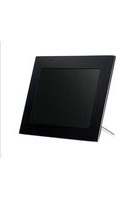


| Product Type | Digital Photo Frame |
| Brand | LG |
| Model | F7000N |
| Display Size | 7 inches |
| Resolution | 800 x 480 pixels |
| Display Type | LCD |
| Dimensions (W x H x D) | 190 x 125 x 25 mm |
| Weight | 320 g |
| Power Supply | 5V DC, 1.5A (via USB adapter) |
| Supported Memory Cards | SD, SDHC, MMC |
| Supported Image Formats | JPEG, BMP, PNG |
| Supported Video Formats | MPEG-1, MPEG-4 (AVI) |
| Audio Output | Built-in speaker |
| Clock & Calendar | Yes, with auto-sync |
| Slideshow Modes | Random, sequential, with transition effects |
| Orientation | Landscape and portrait (auto-rotate) |
| Remote Control | Included |
| Care Instructions | Clean with soft dry cloth; avoid liquids |
| Safety Warnings | Do not expose to moisture; use only supplied adapter |
| Spare Parts Availability | Power adapter and remote control available separately |
| Repairability | Battery (if present) replaceable; other components not user-serviceable |
Frequently Asked Questions - F7000N LG
User questions about F7000N LG
0 question about this device. Answer the ones you know or ask your own.
Ask a new question about this device
Download the instructions for your Digital photo frame in PDF format for free! Find your manual F7000N - LG and take your electronic device back in hand. On this page are published all the documents necessary for the use of your device. F7000N by LG.
USER MANUAL F7000N LG
Important Safety Precaution
This unit has been engineered and manufactured to ensure your personal safety, however improper use may result in potential electrical shock or fire hazards. In order to allow the proper operation of all safeguards incorporated in this display, observe the following basic rules for its installation, use, and service.
On Safety
Use only the power cord supplied with the unit. In case you use another power cord, make sure that it is certified by the applicable national standards if not being provided by the supplier. If the power cable is faulty in any way, please contact the manufacturer or the nearest authorized repair service provider for a replacement.
The power supply cord is used as the main disconnection device. Ensure that the socket-outlet is easily accessible after installation.
Operate the display only from a power source indicated in the specifications of this manual or listed on the display. If you are not sure what type of power supply you have in your home, consult with your dealer.
Overloaded AC outlets and extension cords are dangerous. So are frayed power cords and broken plugs. They may result in a shock or fire hazard. Call your service technician for replacement.
Do not Open the Display:
■ There are no user serviceable components inside.
■ There are Dangerous High Voltages inside, even when the power is OFF.
■ Contact your dealer if the display is not operating properly.
To Avoid Personal Injury
■ Do not place the display on a sloping shelf unless properly secured.
■ Use only a stand recommended by the manufacturer.
■ Do not drop an object on or apply impact to the product. Do not throw any toys or objects on the product screen. This can cause personal injury, and/or damage the product.
To Prevent Fire or Hazards:
■ Always turn the display OFF if you leave the room for more than a short period of time. Never leave the display ON when leaving the house.
- Keep children from dropping or pushing objects into the display's cabinet openings. Some internal parts carry hazardous voltages.
■ Do not add accessories that have not been designed for this display.
■ When the display is to be left unattended for an extended period of time, unplug it from the wall outlet.
■ Never touch the power cord during periods of thunder and lightning. This can be very dangerous and can cause electric shock.
On Installation
Do not allow anything to rest upon or roll over the power cord, and do not place the display where the power cord is subject to damage.
Do not use this display near water such as near a bathtub, washbowl, kitchen sink, laundry tub, in a wet basement, or near a swimming pool. Displays are provided with ventilation openings in the cabinet to allow the release of heat generated during operation. If these openings are blocked, built-up heat can cause failures which may result in a fire hazard. Therefore, NEVER:
■ Place the display in a built-in enclosure unless proper ventilation is provided.
■ Place the display near or over a radiator or heat source.
Do not rub or strike the Active Matrix LCD with anything hard as this may scratch, mar, or damage the Active Matrix LCD permanently.
Do not press the LCD screen with your finger for a long time as this may cause some afterimages.
Some dot defects may appear as Red, Green or Blue spots on the screen. However, this will have no impact or effect on the display performance.
Leaving a fixed image on the screen for a long time may cause damage to the screen and cause image burn-in. Make sure to use a screen saver on the product. Burn-in and related problems are not covered by the warranty on this product.
On Cleaning
■ Unplug the display before cleaning the face of the display screen.
■ Use a slightly damp (not wet) cloth. Do not use an aerosol directly on the display screen because over-spraying may cause electrical shock.
On Repacking
- Do not throw away the carton and packing materials. They make an ideal container in which to transport the unit. When shipping the unit to another location, repack it in its original material.
On Disposal
■ The fluorescent lamp used in this product contains a small amount of mercury.
■ Do not dispose of this product with general household waste.
■ Disposal of this product must be carried out in accordance to the regulations of your local authority.
View

Bottom

■ Speakers are embedded, and F7000S-PN does not support sound function.
Attaching / Detaching Stand
- Turn the product upside down, and fit the stand into the first groove at the bottom of the product.

- Turn the stand clockwise until it reaches the second groove. When detaching the stand, turn it counterclockwise until it reaches the first groove.

Connecting Power Cord / Turning Power On or Off
- Connect the power adapter to DC 9V IN at the bottom of the product, and connect the power cord.
NOTE: The Digital Photo Frame and its accessories may look different from those shown here.
- Press the POWER button on the back of the product to turn the power on. When turning off the power, press the POWER button for 2 \~ 3 seconds until the screen goes off.
![graph TD A["Power Input"] --> B["Switch"] B --> C["Outlet"] C --> D["Output"]](/content/2026/07/1522924/images/3cb66968b94beb6e2289d26d8f898dcb271fddbc6644ee22d2c68ea796aa29a4.jpg)

How to Use
ENSOLIDH

Horizontal

Vertical

Wall-mounted
* For more information on mounting the product on the wall, refer to the section below.
Installing Wall Mount
- Open the USB Slot cover on the back of the product.

- Fix the wall mount at the groove next to USB Slot with a screw.
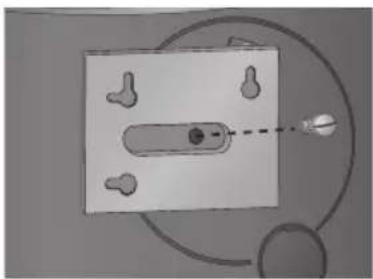
Connecting External Device
- The internal memory of the product is 128MB. Connect an external device to increase memory capacity or play photos, videos or MP3 files from external memory. Two or more devices can be connected together.

USB -
Used to connect storage device

USB -
Used to connect PC

SD/MMC/xD/MS/MS-PRO CF

- Press the SHOW button to play photos, videos or MP3 files (Show mode). To manage photos, videos or MP3 files (Browser mode), use the <, > buttons on the main screen to select a device type, and press the @ button.

SD/MMC/xD/MS/MS-PRO

CF
Show mode
■ You can play photos, videos or MP3 files in Show mode. (F7000S-PN does not support videos and MP3 files.)
MENU
- Pressing any button on the back of the product except the POWER button will display the menu window on the right side of the screen.

Edit Function
■ You can change photo colors or frames, and rotate a photo in Show mode.
■ You can not use the edit function while playing a video or MP3 file.
- Press the EDIT button on the back of the product twice. To set each function, press the button to enable it. Pressing the button again will disable the function.
■ Photo effect

• Normal : Display a photo as it is.
- Monochrome : Display a photo black and white.
- Sepia : Display a photo in sepia color.
• Gaussian : Display a photo blurred.
■ Photo frame

- Select a photo frame between Photo frame 01 and 08.
- Rotate

• 0 : Display a photo as it is.
- 90: Rotate a photo counterclockwise by 90° degrees.
- 180: Rotate a photo by 180° degrees to turn it upside down.
- 270: Rotate a photo counterclockwise by 270° degrees.
- Mirror : Flip a photo horizontally as viewed on a mirror.
Browser mode
■ You can manage photos, videos or MP3 files in Browser mode. (F7000S-PN does not support videos and MP3 files.)

■ MENU


■ Multiple Selection
■ You can select and play photos, videos or MP3 files you want. (F7000S-PN does not support videos and MP3 files.)
-
Check device types on the left menu in Browser mode. Use the ▲, buttons on the back of the product to go to the type you want (A device is disabled when not connected).
-
Press the 🎨 or >button to go to the Photo menu. Press the button again to go to the Movie menu. To go to the MP3 menu, press the >button again in the Movie menu.
-
Press the or button to select a thumbnail or folder.
-
Use the 🔍, 🔍, buttons to select a thumbnail you want, and press the 🔍 button to enable it. To disable it, press the 🔍 button again.
-
Then, press the SHOW button to start Show mode.


Option Function
■ You can manage photos, videos or MP3 files. (F7000S-PN does not support videos and MP3 files.)
-
Press the OPTION button to display the pop-up window.
-
Use the ^, buttons to go to an item you want, and press the button to select it.

■ Show mode : Play photos, videos or MP3 files.
■ Edit : Refer to the Edit function section in Show mode.
■ Copy : Copy photos, videos or MP3 files. Copied photos, videos or MP3 files are saved in the highest folder of the target device.
■ Copy all : Copy all files in the current folder. Sub-folders are not copied, and copied files are saved in the highest level folder of the target device.
■ Delete : Delete photos, videos or MP3 files.
■ Select all : Select all photos, videos and MP3 files in the current location.
■ Unselect all : Unselect all selected photos, videos and MP3 files.
■ Close : Close the pop-up window.
SPECIAL
- On the main screen, select SPECIAL with the <, buttons, and press the button.

- Select a menu you want.

■ , : Move between menus
■ : Select
■ , , , : Detailed adjustment
■ Time Setup : Set the current time.
■ Alarms/Wakeup Call : Set alarm / wakeup call.
(F7000S-PN does not support this function.)
■ Clock/Calendar : Set clock and calendar. Time can be displayed in digital or analog.
■ Power on Message : Display a Picture/Movie/MP3/message when the power is turned on.
■ Power Saving : Set the time when the power is turned on and off.
■ File Info Display : Display the date of photo created at the bottom right.
SETUP
- On the main screen, select SETUP with the <, > buttons on the back of the product, and press the button.


- Select a menu you want.

■ , : Move between menus
■ : Select
■ , , , : Detailed adjustment
■ Show Setup : Adjust how long a photo is displayed.
■ Brightness : Adjust the screen brightness between 0 and 10.
■ Language : Select a language used in the menu screen.
■ Internal Format : Delete all data stored in internal memory.
■ Reset : Reset all settings.
■ Orientation : Set the display direction of the product.
(* This product reads the photo information and the orientation value and rotates the photo accordingly.)
■ Aspect Ratio : Adjust the aspect ratio of the screen.
- Width Custom: it expands the photo size horizontally to fill the screen.
- Height Custom: it expands the photo size vertically to fill the screen.
- Original: it shows a photo in its original size.
• Full: it shows a photo according to the screen size.
Troubleshooting
| Question Answer | |
| Screen shows nothing?A photo does not show up?A video does not play?Music does not play?USB / Memory card is not recognized?Does the screen look black or no button work?If there are some problems in internal memory, how do I format it?Do you want to know more about Digital Photo Frame? | Please check if a plug was inserted into the outlet.Press the power button.There are some image fi le formats which are not supported.Please check the product specifi cations.There are some video fi le formats which are not supported.Please check the product specifi cations.There are some music fi le formats which are not supported.Please check the product specifi cations.Please turn up the volume.Please check if the USB cable was properly inserted. There are some memory card formats which are not supported.Please check the product specifi cations.The product may not respond because of invalid fi le format, virus infection or unexpected situation. Turn DC Jack plug off and on to make it function normally.If you want to format internal memory, it is safe to useSETUP > Internal Format. Format will delete all media file.Do not format internal memory using PC after connecting the product to PC because it may cause malfunctions.For further information, please visit www.lge.com. |
■ For software update, please refer to www.lge.com
■ LG Electronics Service center web site : http://www.lgservice.com
- Visit www.lge.com and register the Serial No. on the product package or the back of the product. You can enjoy free A/S service and various events.
Specifications
F7000S-PN / F7000N-PN / F7000N-WN
| Model F7000S-PN F7000N-PN / F7000N-WN | ||
| Size 7" Analog 7" Digital | ||
| Dimensions (Width x Height x Depth) | With Stand200.4 mm x 123.5 mm x 99.8 mm | With Stand200.4 mm x 123.5 mm x 99.8 mm |
| Without Stand200.4 mm x 123.5 mm x 30 mm | Without Stand200.4 mm x 123.5 mm x 30 mm | |
| Weight (With Stand) | 0.36 kg 0.36 kg | |
| Resolution 480 x 234 | 800 x 480 | |
| Power Input DC 9V 2.0A DC 9V 2.0A | ||
| Audio (Speaker) Output Power | X 0.5W Mono | |
| Internal Memory 128MB 128MB | ||
| Supported file format | JPEG/BMP | JPEG/BMP, MP3, Motion JPEG, MPEG1, MPEG4(SD) |
| Supported Memory Cards | CF, SD, MMC, xD, MS, MS-Pro CF, | SD, MMC, xD, MS, MS-Pro |
| AC-DC Adapter | ADS-18C-12 0918GPCU,SHENZHEN HONOR ELECTRONIC CO.,LTD. | ADS-18C-12 0918GPCU,SHENZHEN HONOR ELECTRONIC CO.,LTD. |
* Information in this document is subject to change without notice.

WEEE (for Europe)
Disposal of your old appliance
- When this crossed-out wheeled bin symbol is attached to a product it means the product is covered by the European Directive 2002/96/EC.
- All electrical and electronic products should be disposed of separately from the municipal waste stream via designated collection facilities appointed by the government or the local authorities.
- The correct disposal of your old appliance will help prevent potential negative consequences for the environment and human health.
- For more detailed information about disposal of your old appliance, please contact your city office, waste disposal service or the shop where you purchased the product.


- IMPORTANT SAFETY PRECAUTION
- ON SAFETY
- DO NOT OPEN THE DISPLAY
- TO AVOID PERSONAL INJURY
- TO PREVENT FIRE OR HAZARDS
- ON INSTALLATION
- ON CLEANING
- ON REPACKING
- ON DISPOSAL
- VIEW
- BOTTOM
- ATTACHING / DETACHING STAND
- CONNECTING POWER CORD / TURNING POWER ON OR OFF
- HOW TO USE
- ENSOLIDH
- INSTALLING WALL MOUNT
- CONNECTING EXTERNAL DEVICE
- SHOW MODE
- MENU
- EDIT FUNCTION
- PHOTO EFFECT
- PHOTO FRAME
- ROTATE
- BROWSER MODE
- MULTIPLE SELECTION
- OPTION FUNCTION
- SPECIAL
- SETUP
- TROUBLESHOOTING
- SPECIFICATIONS
- WEEE (FOR EUROPE)
- DISPOSAL OF YOUR OLD APPLIANCE
Brand : LG
Model : F7000N
Category : Digital photo frame