
B21U - USB audio interface ZOOM - Free user manual and instructions
Find the device manual for free B21U ZOOM in PDF.


| Product Type | Multi-effects USB audio interface for bass guitar |
| Dimensions (L x D x H) | 255 x 165 x 79 mm |
| Weight | 1200 g (without batteries) |
| Power supply | 9 V DC, 300 mA power adapter (center negative, ZOOM AD-0006) or 4 AA batteries (alkaline recommended) |
| Battery life | Approximately 6 hours with alkaline batteries |
| Number of effects | 47 types |
| Simultaneous effect modules | Up to 9 modules (including ZNR) |
| Patches | 80 patches: 40 user patches (A-d) + 40 presets (0-3) |
| Sampling frequency | 96 kHz / 24-bit (internal processing 32-bit) |
| USB interface | 16-bit, sampling frequencies: 32 kHz, 44.1 kHz, 48 kHz |
| Balanced XLR output | Yes, with PRE/POST switch and GROUND LIFT |
| Built-in chromatic tuner | Yes, with mute function |
| Built-in rhythms | 40 PCM rhythm patterns, tempo 40-250 BPM, TAP function |
| Built-in expression pedal | Yes, assignable to various parameters (volume, wah, etc.) |
| Input | Standard mono jack, impedance 1 MΩ, nominal level -20 dBm |
| Headphone/line output | Stereo jack, max output +5 dBm (line out), 20 mW + 20 mW into 32 Ω (headphones) |
| Control input | For FP01/FP02 expression pedal or FS01 footswitch |
| Maintenance and cleaning | Soft, dry cloth, slightly damp if necessary. Do not use solvents or abrasive products |
| Safety precautions | Use only the AD-0006 adapter; avoid exposure to extreme temperatures, moisture, shocks; do not open the case |
| Compatible options | ZOOM FP01/FP02 expression pedal, ZOOM FS01 footswitch |
Frequently Asked Questions - B21U ZOOM
User questions about B21U ZOOM
0 question about this device. Answer the ones you know or ask your own.
Ask a new question about this device
Download the instructions for your USB audio interface in PDF format for free! Find your manual B21U - ZOOM and take your electronic device back in hand. On this page are published all the documents necessary for the use of your device. B21U by ZOOM.
USER MANUAL B21U ZOOM
In this manual, symbols are used to highlight warnings and cautions for you to read so that accidents can be prevented. The meanings of these symbols are as follows:

This symbol indicates explanations about extremely dangerous matters. If users ignore this symbol and handle the device the wrong way, serious injury or death could result.

This symbol indicates explanations about dangerous matters. If users ignore this symbol and handle the device the wrong way, bodily injury and damage to the equipment could result.
Please observe the following safety tips and precautions to ensure hazard-free use of the B2.1u.

Power requirements
Since power consumption of this unit is fairly high, we recommend the use of an AC adapter whenever possible. When powering the unit from batteries, use only alkaline types.
[AC adapter operation]
-
Be sure to use only an AC adapter which supplies 9 V DC, 300mA and is equipped with a "center minus" plug (Zoom AD-0006). The use of an adapter other than the specified type may damage the unit and pose a safety hazard.
-
Connect the AC adapter only to an AC outlet that supplies the rated voltage required by the adapter.
- When disconnecting the AC adapter from the AC outlet, always grasp the adapter itself and do not pull at the cable.
- During lightning or when not using the unit for an extended period, disconnect the AC adapter from the AC outlet.
[Battery operation]
- Use four conventional IEC R6 (size AA) batteries (alkaline).
- The B2.1u cannot be used for recharging.
- Pay close attention to the labelling of the battery to make sure you choose the correct type.
- When not using the unit for an extended period, remove the batteries from the unit.
- If battery leakage has occurred, wipe the battery compartment and the battery terminals carefully to remove all remnants of battery fluid.
- While using the unit, the battery compartment cover should be closed.
![ZOOM B21U - [Battery operation] - 1](/content/2025/01/152260/images/57f5e1ef14b90438d0950ce8611cf581965054c47e30f5c7d2dc5473e3125a2f.jpg)
Environment
To prevent the risk of fire, electric shock or malfunction, avoid using your B2.1u in environments where it will be exposed to:
- Extreme temperatures
- Heat sources such as radiators or stoves
High humidity or moisture - Excessive dust or sand
- Excessive vibration or shock

Handling
- Never place objects filled with liquids, such as vases, on the B2.1u since this can cause electric shock.
- Do not place naked flame sources, such as lighted candles, on the B2.1u since this can cause fire.
- The B2.1u is a precision instrument. Do not exert undue pressure on the keys and other controls. Also take care not to drop the unit, and do not subject it to shock or excessive pressure.
- Take care that no foreign objects (coins or pins etc.) or liquids can enter the unit.

Connecting cables and input and output jacks
You should always turn off the power to the B2.1u and all other equipment before connecting or disconnecting any cables. Also make sure to disconnect all connection cables and the power cord before moving the B2.1u.

Alterations
Never open the case of the B2.1u or attempt to modify the product in any way since this can result in damage to the unit.

Volume
Do not use the B2.1u at a loud volume for a long time since this can cause hearing impairment.
Usage Precautions
Electrical interference
For safety considerations, the B2.1u has been designed to provide maximum protection against the emission of electromagnetic radiation from inside the device, and protection from external interference. However, equipment that is very susceptible to interference or that emits powerful electromagnetic waves should not be placed near the B2.1u, as the possibility of interference cannot be ruled out entirely.
With any type of digital control device, the B2.1u included, electromagnetic interference can cause malfunctioning and can corrupt or destroy data. Care should be taken to minimize the risk of damage.
Cleaning
Use a soft, dry cloth to clean the B2.1u. If necessary, slightly moisten the cloth. Do not use abrasive cleanser, wax, or solvents (such as paint thinner or cleaning alcohol), since these may dull the finish or damage the surface.
Please keep this manual in a convenient place for future reference.
- Windows and Windows XP are registered trademarks of Microsoft Corporation.
- Macintosh is a registered trademark of Apple Computer.
- All other product names, trademarks, and company names mentioned in this manual are the property of their respective owners.
Contents
SAFETY PRECAUTIONS / Usage Precautions 2
SAFETY PRECAUTIONS 2
Usage Precautions 2
Features 4
Terms Used in This Manual 5
Controls and Functions / Connections 6
Selecting a Patch 8
Using the Tuner 10
Using the Rhythm Function 12
Editing a Patch 14
Storing/Copying Patches 16
Using the Built-in Expression Pedal 18
Other Functions 20
Making settings for the internal expression pedal 20
Adjusting the sensitivity of the built-in expression pedal 20
Using an external expression pedal (FP01/FP02). 21
Using a foot switch (FS01) 21
Using the B2.1u as audio interface for a computer 22
Use as a direct box 23
Restoring Factory Defaults 24
Linking Effects 25
Effect Types and Parameters 26
How to read the parameter table 26
COMP/LIMIT 27
WAH/EFX 27
DRIVE/SYNTH 29
ZNR/MIX 30
LOEQ 30
HI EQ. 31
MOD/SFX 31
DELAY 33
REVERB 33
CONTROL 34
Specifications 35
Troubleshooting 35
B2.1u Preset Pattern Back cover
The FCC regulation warning (for U.S.A.)
This equipment has been tested and found to comply with the limits for a Class B digital device, pursuant to Part 15 of the FCC Rules. These limits are designed to provide reasonable protection against harmful interference in a residential installation. This equipment generates, uses, and can radiate radio frequency energy and, if not installed and used in accordance with the instructions, may cause harmful interference to radio communications. However, there is no guarantee that interference will not occur in a particular installation. If this equipment does cause harmful interference to radio or television reception, which can be determined by turning the equipment off and on, the user is encouraged to try to correct the interference by one or more of the following measures:
- Reorient or relocate the receiving antenna.
- Increase the separation between the equipment and receiver.
- Connect the equipment into an outlet on a circuit different from that to which the receiver is connected.
- Consult the dealer or an experienced radio/TV technician for help.
Features
Thank you for selecting the ZOOM B2.1u (hereafter simply called the "B2.1u"). The B2.1u is a multi effect processor with the following features and functions.
- Latest technology for outstanding performance
96 kHz / 24 bit sampling (with 32 bit internal processing) assures excellent sound quality. The B2.1u carves out a sonic outline in superb detail while preserving the original sound character of the bass guitar. The B2.1u also has a USB connection and can be used as a direct bass guitar/computer interface.
- Versatile palette of effects
Out of a total of 47 effects, up to nine (including ZNR) can be used simultaneously. The dazzling choices provided by the B2.1u include distortion effects modeled on famous amps and compact effects, compressor/ limiter effects for dynamic punch, a parametric equalizer essential for working on sonic nuances, as well as various delay and modulation effects. Both in quality and versatility, the B2.1u far surpasses anything in its class. You can even transform the output into a cool synth bass or fretless bass sound.
- Really usable patches straight out of the box
Effect module combinations are stored and called up in units referred to as patches. The B2.1u comes with a full complement of 40 read-only plus 40 user-programmable patches, giving you 80 great reasons to start grooving.
- Great for live performances and direct recording
The distortion effects have a special parameter that selects whether to apply only the head amp characteristics or add also the cabinet sound. This lets you use the B2.1u effectively not only for a live performance but also when feeding the signal directly to a recorder.
- XLR connector for direct output
In addition to the [OUTPUT/PHONES] jack, the B2.1u features an XLR connector for sending a balanced line-level signal to equipment such as a PA mixer or recording console. The signal can be derived from a point before or after effect processing. A ground lift switch is also provided, which is useful to prevent hum in the direct output caused by ground loops.
- Integrated auto-chromatic tuner and rhythm functions
Realistic PCM sound sources are available to auto-play a number of rhythm patterns. This is convenient for use as a metronome during practice or to provide a simple rhythm part for a quick session. An autochromatic tuner for bass guitar is also built right into the unit, including a function for silent tuning which lets you easily tune your instrument on stage.
Sophisticated user interface
The combination of a rotary type selector and three parameter knobs make the effect editing process intuitive and quick. The mute interval when switching patches has been reduced to less than 8 milliseconds. Seamless patch changing is now a reality.
- Dual power supply principle allows use anywhere
The B2.1u can be powered from four IEC R6 (size AA) batteries or an AC adapter. Continuous operating time on batteries is approximately 6 hours with alkaline batteries.
- Easy operation with expression pedal and foot switch
An optional foot switch (FS01) or expression pedal (FP01/FP02) can be connected to the [CONTROL IN] jack. The foot switch is convenient for quickly toggling effect programs, setting the tempo of the rhythm function, turning delay hold on and off, etc. A connected expression pedal lets you adjust the volume in real time.
Please take the time to read this manual carefully so as to get the most out of the unit and to ensure optimum performance and reliability.
Terms Used in This Manual
This section explains some important terms that are used throughout the B2.1u documentation.
IN COMP/LIMIT-WAH/EFX-DRIVE/SYNTH-ZNR/MIX-LO EQ-HI EQ-MOD/SFX-DELAY-REVERB OUT
■ Effect module
As shown in the illustration above, the B2.1u can be thought of as a combination of several single effects. Each of these effects is referred to as an effect module. In addition to modules comprising compressor and limiter effects (COMP/LIMIT), amp simulator/synth bass effects (DRIVE/SYNTH), and modulation/special effects (MOD/SFX), the B2.1u also provides a module for ZNR (ZOOM Noise Reduction). Various parameters such as effect intensity can be adjusted for each module individually, and modules can be switched on and off as desired.
■ Effect type
Within some effect modules, there are several different effects which are referred to as effect types. For example, the modulation/SFX effect module (MOD/SFX) comprises chorus, flanger, pitch shifter, delay, and other effect types. Only one of these can be selected at a time.
■ Effect parameter
All effect modules have various parameters that can be adjusted. These are called effect parameters.
In the B2.1u, effect parameters are adjusted with the parameter knobs 1 - 3. Similar to the knobs on a compact effect, these change aspects such as tonal character and effect intensity. Which parameter is assigned to each knob depends on the currently selected effect module and effect type.
Patch
In the B2.1u, effect module combinations are stored and called up in units referred to as patches. A patch comprises information about the on/off status of each effect module, about the effect type used in each module, and about effect parameter settings. The internal memory of the B2.1u holds up to 80 patches (including 40 patches which allow read/write).
Bank and area
A group of ten patches is called a bank. The memory of the B2.1u comprises a total of eight banks, labelled A to d and 0 to 3. Banks A - d form the user area which allows read/write. Banks 0 to 3 are the preset area containing read-only patches.
The patches within each bank are numbered 0 through 9. To specify a patch of the B2.1u, you use the format "A1" (patch number 1 from bank A), "06" (patch number 6 from bank 0), etc.
Play mode/edit mode
The internal status of the B2.1u is referred to as the operation mode. The two major modes are "play mode" in which you can select patches and use them for playing your instrument, and "edit mode" in which you can modify the effects. The module selector serves for switching between the play mode and edit mode.
Operating the B2.1u on batteries
- Turn the B2.1u over and open the cover of the battery compartment on the bottom.
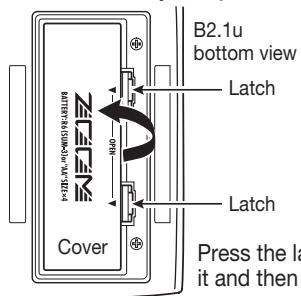
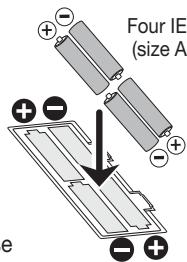
- Insert four fresh IEC R6 (size AA) batteries.
- Close the cover of the battery compartment. Push the cover in until the latch audibly snaps into place.
Insert batteries facing in alternate directions.
Use four IEC R6 (size AA) batteries.
When the batteries are getting low, the indication "bt" appears on the display.
Controls and Functions / Connections
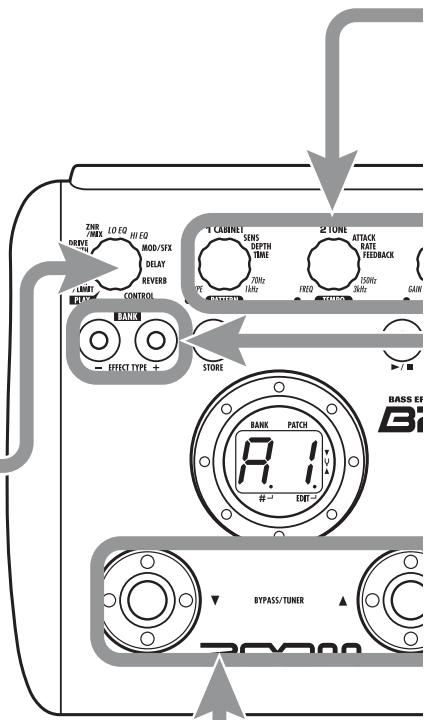
Module selector
Switches between play mode and edit mode. In edit mode, the knob selects the module for operation.
BANK[-]/[+]keys
In play mode, the keys serve for directly switching to the next lower or higher bank.
In edit mode, the keys switch the effect type for the currently selected module.
[STORE] key
Serves for storing edited patches in memory.
[ ] / [] foot switches
These switches are used for selecting patches, switching effect modules on and off, controlling the tuner, and other functions.
![ZOOM B21U - [ ] / [] foot switches - 1](/content/2025/01/152260/images/51412aa8ebfe2bb1ebf12fef04d19f4add226d2ed1986afab9ca1dedb7d99d51.jpg)
Top Panel
![ZOOM B21U - [ ] / [] foot switches - 2](/content/2025/01/152260/images/0714d2b4868debc99edfa1b4b92fcf3de62dd8b283a6a0e6142783e03eae4b81.jpg)
Computer
[USB] connector
Allows you to connect the B2.1u. to a computer, for exchanging audio data.
![ZOOM B21U - [USB] connector - 1](/content/2025/01/152260/images/d37714392b493426d80f31d2b5a940d8fa76fad3f7825b671dd04426492d65dc.jpg)
Rear Panel
![ZOOM B21U - [USB] connector - 2](/content/2025/01/152260/images/abdbe3db7bef1a2a99c51c0416a8fe6107314eb2a45e320678553a50dd702656.jpg)
Mixer
[BALANCED OUT] connector
This XLR connector can be used to send a balanced line-level signal to PA equipment, recording devices, or similar.
[PRE/POST] switch
Selects the point where the signal supplied at the [BALANCED OUT] connector is obtained. In the "POST" position (switch engaged), the signal is branched at a point after effect processing, and in the "PRE" position (switch disengaged), it is branched at a point before effect processing.
[GROUND] switch
Determines whether the [BALANCED OUT] connector is grounded or not. In the "LIFT" position (switch engaged), the ground pin of the [BALANCED OUT] connector is uncoupled from the signal path. In the "CONNECT" position (switch disengaged), the ground pin is connected.
![ZOOM B21U - [GROUND] switch - 1](/content/2025/01/152260/images/e26ff5eeb9dcf98a74bdd8d3b91634acc492bc9943f3f2d4893f4e406fff458f.jpg)
Selecting a Patch
To try out the various effects of the B2.1u, we recommend that you simply play your instrument while switching patches.
1 Turn power on
- Use a shielded cable with mono phone plug to connect the bass guitar to the [INPUT] jack of the B2.1u.
- When using the B2.1u with the AC adapter, plug the adapter into the outlet and plug the cable from the adapter into the [DC IN] jack on the B2.1u.
- Set the [POWER] switch on the rear panel of the B2.1u to ON.
- Turn the bass guitar amplifier on and adjust the volume to a suitable position.
2 Set the B2.1u to play mode
- If the Module selector is set to a position other than "PLAY", set it to "PLAY".
The bank and patch that were selected when the power was last turned off will appear on the display.
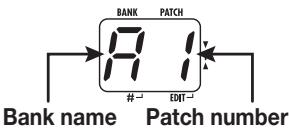
HINT Immediately after turning the B2.1u on, the unit will be in play mode, even if the Module selector is set to a position other than "PLAY".
3 Select a patch
- To switch the patch, press one of the [] / [] foot switches.
Pressing the [] foot switch calls up the next lower patch, and pressing the [] foot switch calls up the next higher patch.
Repeatedly pressing one foot switch cycles through patches in the order A0 - A9 ... d0 - d9 00 - 09 ... 30 - 39 A0 or the reverse order.
Adjust tone and volume
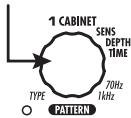
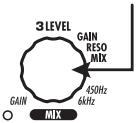
- To adjust the effect sound and volume levels in play mode, the Parameter knobs 1 - 3 can be used. Each knob controls a specific parameter.
Parameter knob 1
Adjusts the CABINET parameter of the DRIVE/SYNTH module (cabinet simulator effect intensity).
Parameter knob 3
Adjusts the PATCH LEVEL parameter (output level of the entire patch).
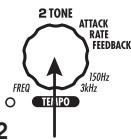
Parameter knob 2
Adjusts the TONE parameter of the DRIVE/SYNTH module (mainly distortion sound character).
When you turn a Parameter knob, the corresponding LED lights up and the display briefly shows the current value of the respective parameter.
NOTE
- If the DRIVE/SYNTH module is set to OFF for the currently selected module (indication "oF" is shown on the display), Parameter knobs 1 and 2 have no effect.
- The higher the setting value of Parameter knob 1 (CABINET parameter), the more will the cabinet character be emphasized.
- Changes made here are temporary and will be lost when you select another patch. To retain the changes, store the patch in the user area.
- The master level in common to all patches is set in edit mode ( p. 34).
4 Directly selecting a bank
To select the banks A - d, 0 - 3 directly, use the BANK [-]/[+] keys.
Pressing the BANK [-] key calls up the next lower bank, and pressing the BANK [+] key calls up the next higher bank.
Using the Tuner
The B2.1u incorporates an auto-chromatic tuner. To use the tuner function, the built-in effects must be bypassed (temporarily turned off) or muted (original sound and effect sound turned off).
Switch to bypass or mute
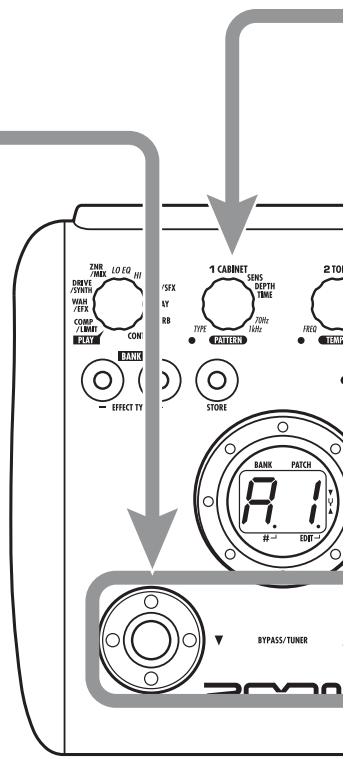
- Setting the B2.1u to the bypass
In play mode, press both [ ] / [ ] foot switches together briefly and release.
- Setting the B2.1u to the mute state
In play mode, press both [] / [] foot switches together and hold for at least 1 second.

Patch change at bypass/mute
When you press both [] / [] foot switches together while playing your instrument, the bypass/mute condition is activated. However, the sound may change momentarily just before the condition is activated. This is because the B2.1u switches to the next higher or lower patch when one of the foot switches is pressed slightly earlier. (When you cancel the bypass/mute condition, the original patch number will be active again.)
This kind of behavior is not a defect. It is due to the very high speed at which the B2.1u responds to patch switching. To prevent the sound change caused by the above condition, do not produce sound with your instrument until the bypass/mute condition is fully established.

Play the string to tune
- Play the open string to tune, and adjust the pitch.
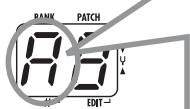
The left side of the display shows the note which is closest to the current pitch.
A = D = G =
A^# = D^# = . G^# =
B = E =
C = F =
C^# = - . F^# = -

Adjusting the reference pitch of the tuner
If required, you can fine-adjust the reference pitch of the B2.1u tuner. The default setting after power-on is center A = 440Hz
- Turn Parameter knob 1.
The current reference pitch is shown. The adjustment range is 35 - 45 (center A = 435 to 445 Hz).
- While the reference pitch value is shown, turn Parameter knob 1 to adjust it.
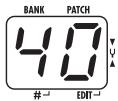
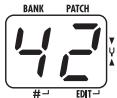

When you release the Parameter knob, the display indication will return to the previous condition after a while.
NOTE
When you turn the B2.1u off and on again, the reference pitch setting will be reset to 40 (center A = 440 Hz).

Return to play mode
- Press one of the [] / [] foot switches.
The right side of the display shows a symbol that indicates by how much the tuning is off.
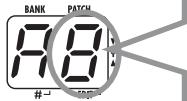
Tune other strings in the same way.
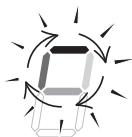
Pitch is high
Pitch is correct Pitch is low

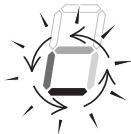
Indication turns faster the more the pitch is off
Using the Rhythm Function
The B2.1u has a built-in rhythm function that plays realistic drum sounds in various patterns. The rhythm function is available in play mode or in the bypass/mute condition.
1 Set the B2.1u to play mode
- If the Module selector is set to a position other than "PLAY", set it to "PLAY".
Start the rhythm function
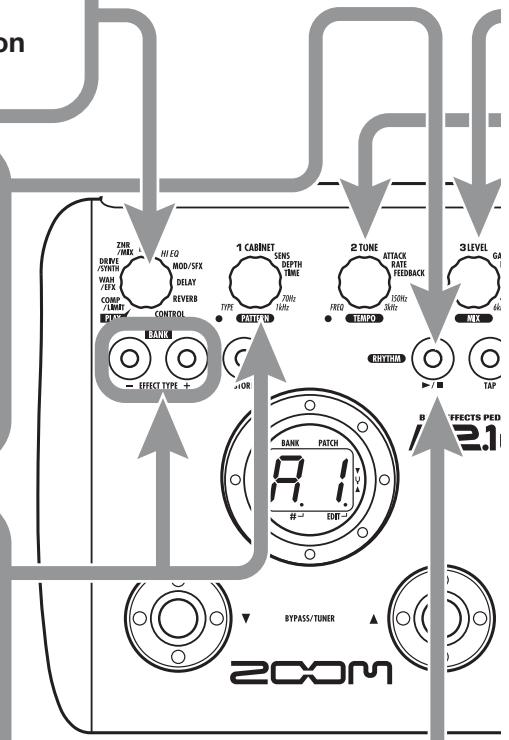
- To start the rhythm function, press the RHYTHM [▶/■] key.
NOTE During rhythm playback, the REVERB module is OFF.
3 Select a rhythm pattern
The B2.1u has 40 built-in rhythm patterns. For more information on the pattern contents, see the back cover of this manual.
- To continuously switch rhythm patterns, turn Parameter knob 1.
- To select the next higher or next lower rhythm pattern, press one of the BANK [-] / [+] keys.
When the above steps are carried out, the current rhythm pattern number (01 - 40) is briefly shown on the display.
4 Adjust the rhythm volume
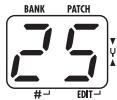
- To adjust the rhythm volume, turn Parameter knob 3.
When you turn the Parameter knob, the current setting (0 - 30) is shown on the display.
Adjust the tempo
The rhythm pattern tempo can be adjusted in the range of 40 - 250 BPM (beats per minute).
- To continuously change the rhythm tempo, turn Parameter knob 2.
- To manually specify the rhythm tempo, hit the [TAP] key at least three times in the desired interval.
At the first push of the [TAP] key, the current tempo value is shown on the display. The B2.1u then automatically detects the interval for the second and subsequent keystresses and sets the tempo accordingly.
While the above steps are carried out, the current tempo value (40 - 250) is shown on the display. For values in the range from 100 to 199, a dot is shown after the first digit. For values of 200 and above, dots are shown after the first and second digits.
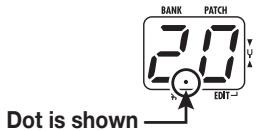
Tempo = 120 BPM
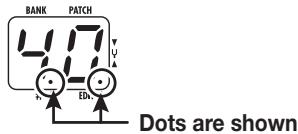
Tempo =240 BPM
Stop the rhythm
- To stop the rhythm, press the RHYTHM [▶/■] key.
The B2.1u returns to the previous condition.
Editing a Patch
The patches of the B2.1u can be freely edited by changing the effect parameter settings. Try editing the currently selected patch to create your own sound.
Select the effect module
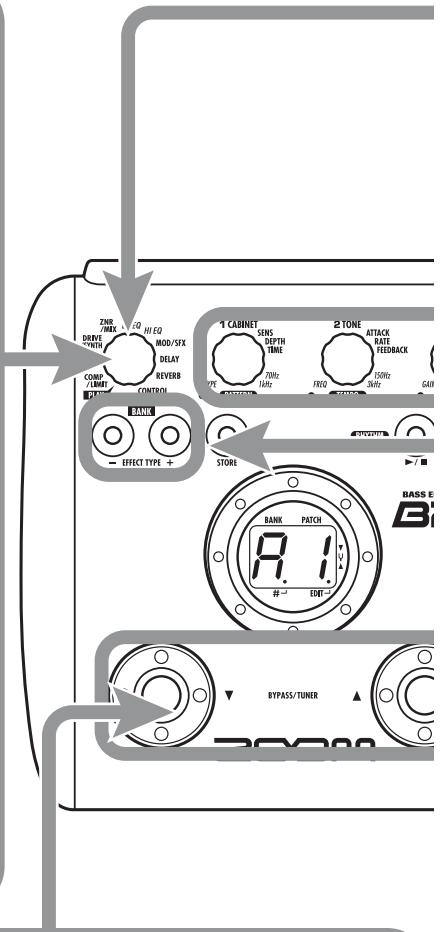
- Turn the Module selector to select the effect module to edit. The following settings are available.
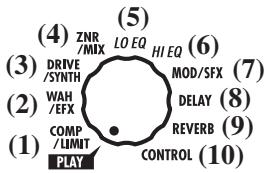
(1) COMP/LIMIT module
(2) WAH/EFX module
(3) DRIVE/SYNTH module
(4) ZNR/MIX module
(5) LO EQ module
(6) HI EQ module
(7) MOD/SFX module
(8) DELAY module
(9) REVERB module
(10) Pedal/foot switch related parameters
When you switch to a different module, the effect type currently selected for that module is shown on the display. While the B2.1u is in edit mode, a dot appears in the bottom right of the display.
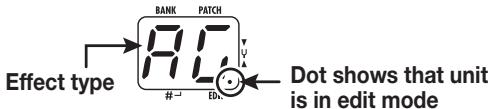
To switch an effect module on and off
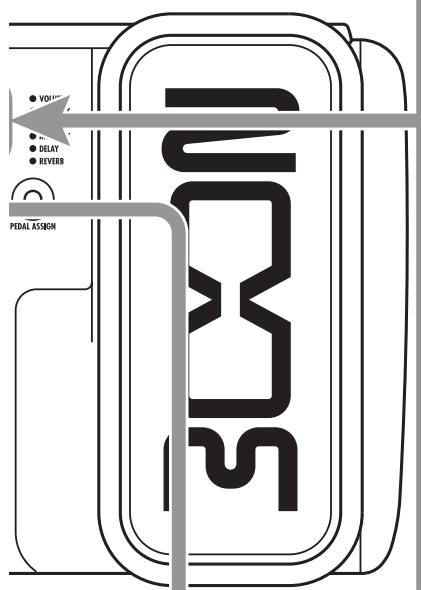
- To switch the selected module between ON and OFF, press one of the [] / [] foot switches.
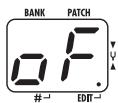
The indication "oF" appears on the display. When you press one of the foot switches again, the indication returns to the previous condition.
HINT The ZNR/MIX module cannot be turned off in this way. To disable ZNR, set the effect parameter value to "oF".
5 Terminate the edit mode
- To terminate the edit mode and return to the play mode, set the Module selector to the "PLAY" position.
NOTE
When you return to play mode and select another patch, the changes you have made in edit mode will be lost unless you store the patch first. To retain the changes, store the patch as described on page 16.
4 Change the parameter value
- To change the setting value of effect parameters, use the Parameter knobs 1 - 3.
Which parameter is assigned to a knob depends on which effect module/effect type is selected. For information on parameters for effect modules/effect types, see page 27 - 34.
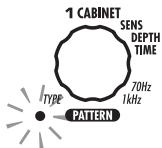
When you turn a Parameter knob, the corresponding LED lights up and the display briefly shows the current value of the respective parameter.

NOTE When a module that is set to OFF is selected, the display will show "oF".
3 Select the effect type
- To switch the effect type of the selected module, use the BANK [-]/[+] keys.
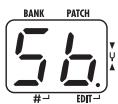
NOTE If you press the BANK [-]/[+] keys for a module that is set to OFF, the module will be turned ON.
For modules that have only one effect type, pressing the BANK [-]/[+] keys has no effect.
Storing/Copying Patches
An edited patch can be stored in a bank of the user area (A - d). It is also possible to store an existing patch in another location to create a copy.
In play mode or edit mode, press the [STORE] key
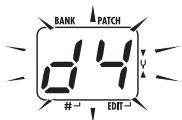
- The bank and patch number are shown on the display as a flashing indication.
![ZOOM B21U - In play mode or edit mode, press the [STORE] key - 1](/content/2025/01/152260/images/d74e147c88324f9dd129a758e43445bdc1ba1beee73a0fd26fcb2b2a6c91a43f.jpg)
NOTE
Patches of banks in the preset area (0 - 3) are read-only. No patches can be stored or copied into these locations. If you press the [STORE] key while a patch from the preset area is selected, the patch "A0" (bank A, patch number 0) will be selected automatically as default store/copy target.

Select the store/copy target bank
- To select the store/copy target bank, use the BANK [-]/[+] keys.
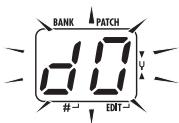
NOTE
Only a bank of the user area (A-d) can be selected as store/copy target bank.
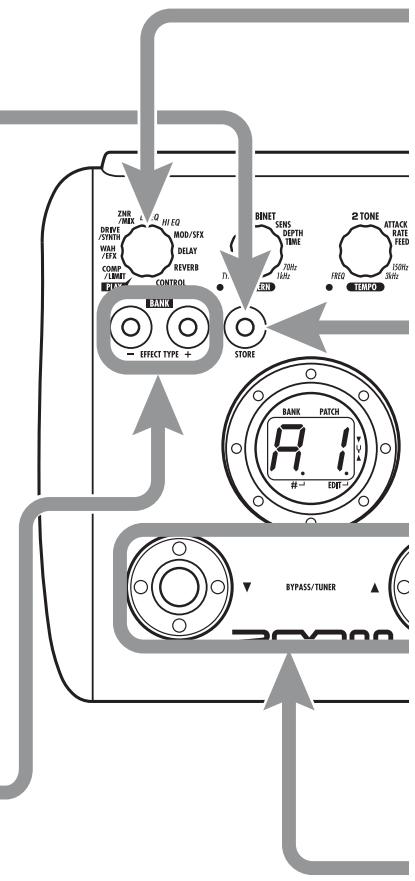
5 To cancel the store process
- To cancel the store process, operate the Module selector before pressing the [STORE] key again (4).
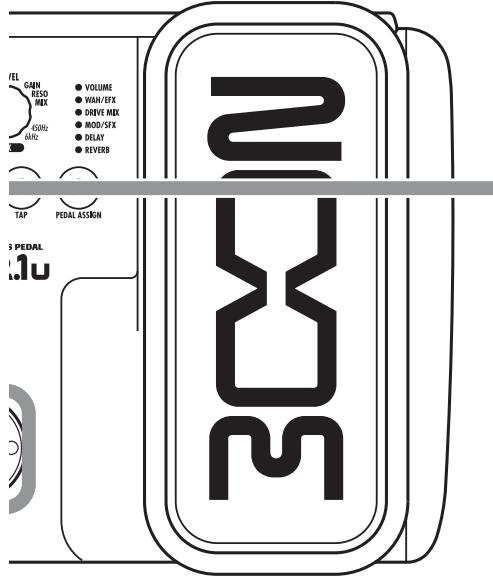
4 Press the [STORE] key once more
- When the store/copy process is completed, the B2.1u returns to the previous mode, with the target patch being selected.
![ZOOM B21U - Press the [STORE] key once more - 1](/content/2025/01/152260/images/c0da6a56e14d1f19c208e94c82e7db2d99685bde6c77264048e4a050edaf2558.jpg)
3 Specify the store/copy target patch number
- To specify the store/copy target patch number, use the [] / [] foot switches.
Using the Built-in Expression Pedal
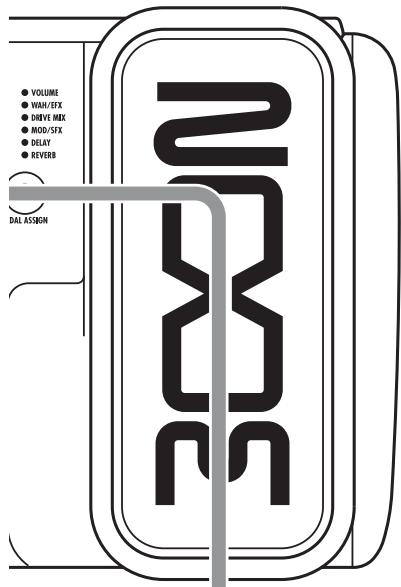
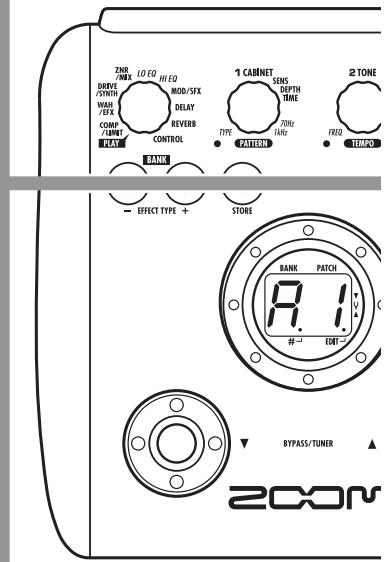
The expression pedal on the top panel of the B2.1u lets you adjust the effect sound or the volume in real time during play. Which element is controlled by the pedal can be selected for each patch individually.
1 Select the patch for which the expression pedal is to be used
Select the element to be controlled by the expression pedal
- Press the [PEDAL ASSIGN]
key to select the element to be controlled by the
expression pedal. The row of LEDs above the key shows which element is currently selected.
VOLUME
WAH/EFX
O DRIVE
MOD/SFX
O DELAY
REVERB
The respective selection is indicated as follows.
All LEDs are out
The expression pedal has no effect.
VOLUME
The expression pedal controls the volume for the entire patch.
- DRIVE MIX
MIX BALANCE parameter of ZNR/MIX module
- WAH/EFX, MOD/SFX, DELAY, REVERB
Respective module parameter
HINT
- Which parameter will be changed by the expression pedal depends on the effect type selected for the respective module. For details, see pages 27 - 33.
- The pattern in which the parameter changes when the expression pedal is operated can be selected in edit mode from four choices. For details, see page 34.
- If the module to which the expression pedal was assigned is set to OFF in the patch, the LED flashes. In this case, operating the expression pedal has no effect. If DRIVE MIX is selected, the LED flashes when the DRIVE/SYNTH module (not the ZNR/MIX module) is off.
Operate the pedal
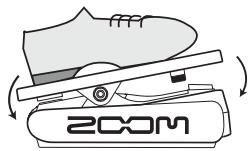
- While playing your instrument, move the expression pedal up or down.
Move up or down
4 To switch a module on or off
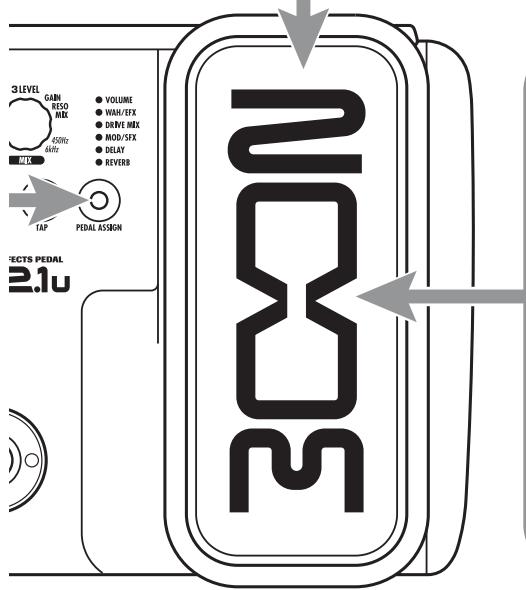
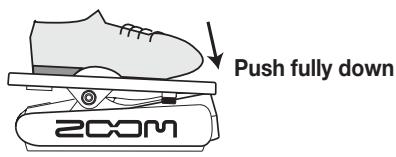
- When you push the expression pedal fully down, the module selected with the [PEDAL ASSIGN] key is switched on or off.
Store the patch as necessary
- The expression pedal setting can be stored for each patch individually.
NOTE
If you select another patch in play mode without storing the patch, any changes that you have made to the settings will be lost.
Other Functions
This section describes how to use the internal expression pedal as well as an external pedal or foot switch. Use of the B2.1u as an audio interface or direct box is also explained.
Making settings for the internal expression pedal
The built-in expression pedal on the top panel of the B2.1u can function as a volume pedal or it can be used to control an effect parameter in real time. Which function is selected for the expression pedal is stored for each patch individually. For details on parameters that can be modified with the expression pedal, see pages 27 - 33.
- Select the patch for which you want to use the expression pedal.
- Set the Module selector to the "CONTROL" position.
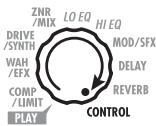
The B2.1u goes into edit mode.
- Turn Parameter knob 1 to select one of the following modulation targets for the expression pedal ( p. 34).
oF Pedal is inactive.
VL Volume
WU, Wd, WH, WL WAH/EFX module
bU, bd, bH, bL ZNR/MIX module
NOTE
When the modulation target is set to the ZNR/MIX module, the mixing balance between the original
sound and effect sound of the DRIVE/SYNTH module can be adjusted with the pedal. (If the DRIVE/SYNTH module is set to OFF, the pedal has no effect.)
MU, Md, MH, ML MOD/SFX module
dU, dd, dH, dL DELAY module
rU, rd, rH, rL REVERB module
HINT
- The modulation target can also be selected by using the [PEDAL ASSIGN] key ( p. 18). This method is available both in edit mode and in play mode.
- Which parameter changes when the expression pedal is operated depends on the effect type selected for the module. For details, see pages 27 - 33.
-
The pattern in which the parameter changes when the expression pedal is operated can be selected in edit mode from four choices. For details, see page 34.
-
If necessary, store the patch.
The expression pedal setting is stored as part of the patch.
5. Select the patch in play mode and operate the expression pedal.
The selected function will be activated.
When the B2.1u is in the bypass condition, the expression pedal always functions as a volume pedal, regardless of the setting made in step 3.
Adjusting the sensitivity of the built-in expression pedal
The expression pedal of the B2.1u is adjusted for optimum operation at the factory, but sometimes, readjustment may be necessary. If the sound does not change when the pedal is fully pushed down, or if it changes excessively even if the pedal is only lightly pushed, adjust the pedal as follows.
1. Turn power to the B2.1u on while keeping the [PEDAL ASSIGN] key depressed.
The indication "dn" appears on the display.
![ZOOM B21U - Turn power to the B2.1u on while keeping the [PEDAL ASSIGN] key depressed. - 1](/content/2025/01/152260/images/82195ddd856381ce0794876acbd3da1ca3d158113be6b5914430d93705dde5f4.jpg)
2. With the expression pedal fully raised, press the [STORE] key.
![ZOOM B21U - With the expression pedal fully raised, press the [STORE] key. - 1](/content/2025/01/152260/images/12ebe4ee74e5edae9135155b858b3fe1837037c7cc707103f7dc4a1f852a7750.jpg)
The display indication changes to "UP".
3. Push the expression pedal fully down and then lift your foot off the pedal.
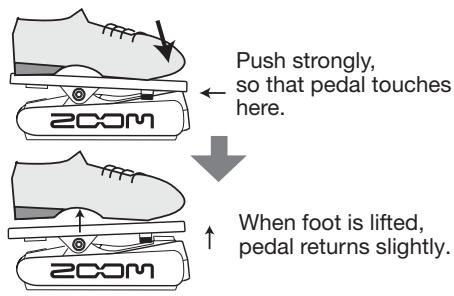
4. Press the [STORE] key once more.
The expression pedal adjustment is completed, and the unit returns to the play mode.
HINT
- The point where the module is switched on or off when the pedal is depressed is always the same, regardless of the action taken in step 3.
- If "Er" appears on the display, repeat the procedure from step 2.
Using an external expression pedal (FP01/ FP02)
When you connect an optional expression pedal (FP01/FP02) to the [CONTROL IN] jack of the B2.1u, you can use that pedal as a volume pedal, separately from the built-in expression pedal.
- Plug the cable from the external expression pedal into the [CONTROL IN] jack, and then turn the B2.1u on.
- Operate the external expression pedal in play mode or edit mode.
The volume changes.
HINT
The external expression pedal always functions as a volume pedal.
Using a foot switch (FS01)
Connecting an optional foot switch (FS01) to the [CONTROL IN] jack of the B2.1u allows bank switching in play mode. It is also possible to switch bypass/mute on and off, control the tap tempo function, or perform other functions with the foot switch.
- Plug the cable from the FS01 into the [CONTROL IN] jack, and then turn the B2.1u on.
- Set the Module selector to the "CONTROL" position.
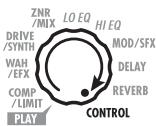
The B2.1u goes into edit mode. You can now make settings for the expression pedal or foot switch.
3. Turn Parameter knob 2 to select one of the following functions for the foot switch.
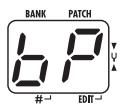
bP (bypass/mute)
The foot switch controls bypass or mute on/off. This has the same effect as pressing both [ ]/ [▲] foot switches at the same time in play mode.
tP (tap tempo)
Pressing the foot switch repeatedly can be used to set the interval for the rhythm function or to make settings for effect parameters supporting the tap function. This has the same effect as pressing the [TAP] key.
bU (bank up)
Each push of the foot switch switches to the next higher bank. This has the same effect as pressing the BANK ([+] key.
rH (rhythm on/off)
The foot switch controls start/stop of the rhythm function. This has the same effect as pressing the RHYTHM [▶/■] key.
dH (delay hold)
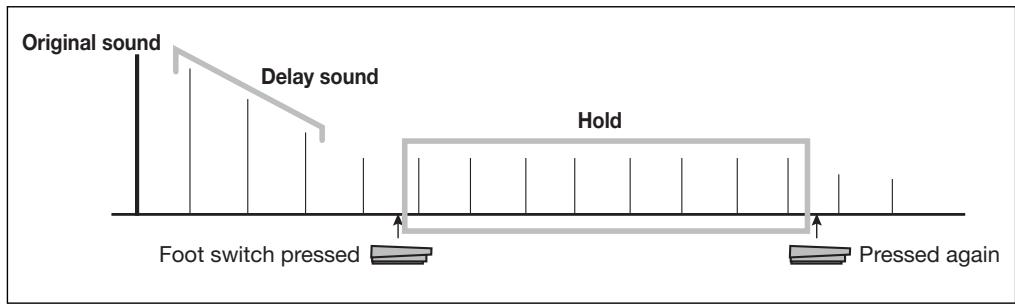
The foot switch controls on/off of the delay hold function. When a patch using the hold function is selected, pressing the foot switch will activate hold, causing the current delay sound to be repeated (see illustration at the bottom of this page). Pressing the foot switch once more cancels the hold condition, and the delay sound will decay normally.
dM (delay input mute)
The foot switch controls muting on/off for the delay module input signal.
HINT
- For information on effect parameters supporting the tap function, see pages 27 - 33.
- To use the hold function, an effect type that supports the hold function must be selected in the patch. For details, see page 33.
- While the delay module is set to hold or mute, the dot in the center of the display flashes.
4. Select the patch in play mode and operate the foot switch.
The selected function will be activated.
This function applies to all patches.
Using the B2.1u as audio interface for a computer
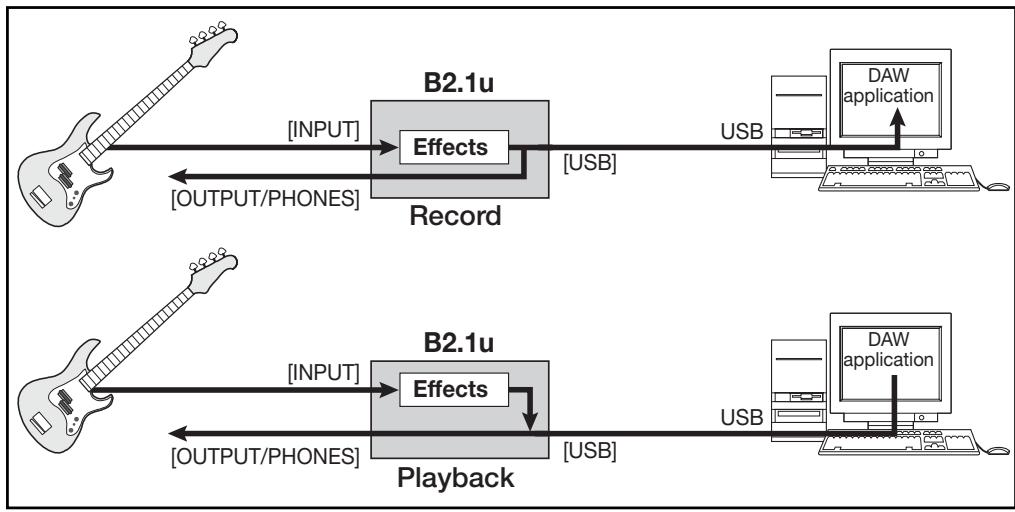
By connecting the [USB] connector of the B2.1u to a computer, the B2.1u can be used as an audio interface with integrated AD/DA converter and effects. The operating environment conditions for this type of use are as follows.
Compatible operating system
- Windows XP
- MacOS X (10.2 or later)
Quantization
16-bit quantization
Sampling frequency
32kHz / 44.1kHz / 48kHz
HINT
With each of the operating systems listed above, the B2.1u will function as an audio interface simply by connecting the USB cable. There is no need to install any special driver software.
To use the B2.1u as an audio interface for the computer, connect the [USB] connector of the B2.1u to a USB port on the computer. The B2.1u will be recognized as an audio interface.
HINT
- If the [POWER] switch of the B2.1u is set to OFF, power will be supplied via the USB connection.
- If the [POWER] switch of the B2.1u is set to ON, power will be supplied from the batteries in the B2.1u or the AC adapter. Care should be taken especially when running on battery power, because setting the switch to ON may result in faster depletion of the batteries.
In this condition, the sound of a guitar connected to the [INPUT] jack of the B2.1u can be processed with the effects of the B2.1u and then recorded on the audio tracks of a DAW (Digital Audio Workstation) software application on the computer.
At the same time, the [OUTPUT/PHONES] jack of the B2.1u carries the playback sound from the
audio tracks of the DAW application, mixed with the guitar sound processed by the effects of the B2.1u (see illustration at the bottom of this page).
For details on recording and playback, refer to the documentation of the DAW application.
NOTE
- Also when using the B2.1u as an audio interface, the signal after effect processing is always available directly at the [OUTPUT/PHONES] jack.
- If the DAW application has an echo back function (input signal during recording is supplied directly to an output), this must be disabled when using the B2.1u. If recording is carried out with this function enabled, the output signal will sound as if processed by a flanger effect.
- Use a high-quality USB cable and keep the connection as short as possible. If power is supplied to the B2.1u via a USB cable that is more than 3 meters in length, the low voltage warning indication may appear.
Use as a direct box
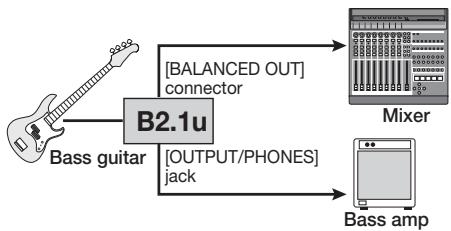
The [BALANCED OUT] connector on the rear panel lets you use the B2.1u as a direct box for sending the bass signal directly to a PA mixer or recording console. (Gain: 0 dB, output impedance: 200 ohms, HOT-COLD)
To use this function, connect the [BALANCED OUT] connector of the B2.1u to the PA mixer or recording console, using XLR balanced cable. At the same time, you can also connect the [OUTPUT/PHONES] jack to the bass amplifier for monitoring. (The amp settings will have no effect on the signal supplied at the [BALANCED OUT] connector.)
The [PRE/POST] switch lets you control the type of signal supplied at the [BALANCED OUT] connector. To use the signal after effect processing, select the "POST" position (switch engaged). To use the signal before effect
processing, select the "PRE" position (switch disengaged).

BALANCED OUT
In certain configurations, a ground loop (electrical signal loop created because devices within the same system are connected to a separate ground) may occur, leading to noise problems (audible hum). In such a case, try setting the [GROUND] switch to "LIFT". This may help to eliminate or reduce the noise.
HINT
The [GROUND] switch determines whether the [BALANCED OUT] connector is grounded or not. When the switch is set to the "LIFT" position (switch engaged), the ground pin of the [BALANCED OUT] connector is uncoupled from the signal path. This can be effective in eliminating or reducing hum noise caused by a ground loop.
Restoring Factory Defaults
In the factory default condition, the patches of the user area (A0 - d9) contain the same settings as the patches of the preset area (00 - 39). Even after overwriting the user patches, their original content can be restored in a single operation ("All Initialize" function).
1. Turn the B2.1u on while holding down the [STORE] key.
The indication "AL" appears on the display.
![ZOOM B21U - Turn the B2.1u on while holding down the [STORE] key. - 1](/content/2025/01/152260/images/b8d60809eed53b1f4378675a081e9ed5f562eb4906cadcef2b16587dc89aff61.jpg)
2. To carry out the All Initialize function, press the [STORE] key once more.
All patch settings are returned to the factory default condition, and the unit switches to play mode. To cancel All Initialize, press the RHYTHM [▶/■] key instead of the [STORE] key.
NOTE
When you carry out All Initialize, any newly created patches that were stored in the user area will be deleted (overwritten). Perform this operation with care to prevent losing any patches that you want to keep.
Linking Effects
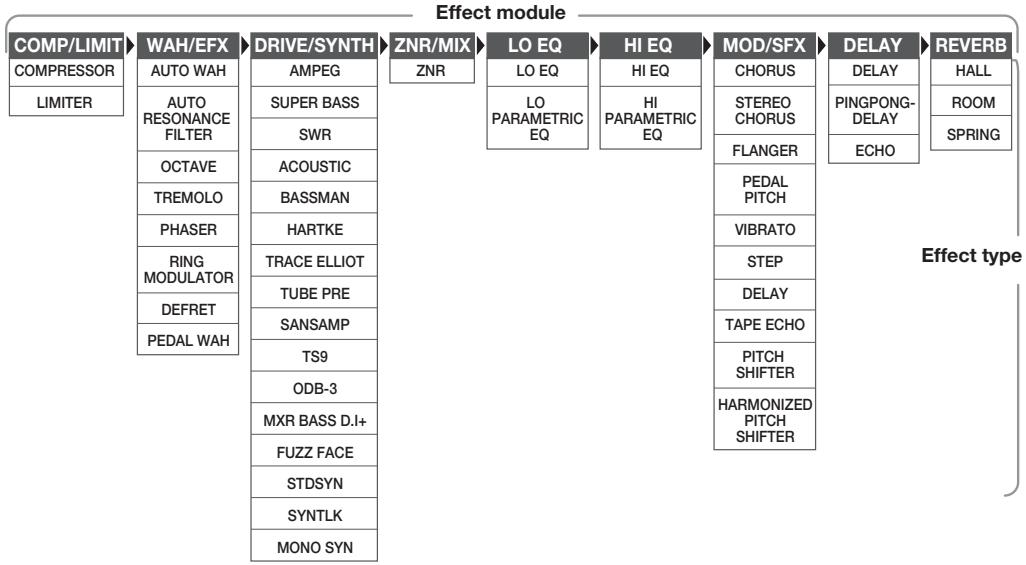
The patches of the B2.1u consist of nine serially linked effect modules, as shown in the illustration below. You can use all effect modules together or selectively use certain modules by setting them to on or off.
* Manufacturer names and product names mentioned in this table are trademarks or registered trademarks of their respective owners. The names are used only to illustrate sonic characteristics and do not indicate any affiliation with ZOOM CORPORATION.
For some effect modules, you can select an effect type from several possible choices. For example, the COMP/LIMIT module gives a choice between COMPRESSOR, LIMITER, and other effect types. The REVERB module comprises HALL, ROOM, and other effect types from which you can choose one. Because the ZNR/MIX module has only one effect type, you cannot choose the type for this module.
HINT
-
The DRIVE/SYNTH module has a "CABINET" parameter that controls how the speaker cabinet characteristics are reproduced. This allows you to match the cabinet character effect to various requirements of a live performance or of direct recording.
-
The mixing balance of the DRIVE/SYNTH module original sound and the effect sound/synth sound, as well as the signal level after passing the module can be adjusted with the ZNR/MIX module.
- When "STDSYN", "SYNTLK", or "MONO SYN" is selected as effect type for the DRIVE/SYNTH module, the action of the COMP/LIMIT module and WAH/EFX module (connection position set to "bF") will apply only to the original sound after passing the DRIVE/SYNTH module and not to the synth sound.
- The ZNR/MIX module cannot be turned off with the foot switch. To disable ZNR, set the effect parameter value to "OF".
How to read the parameter table
Effect parameters 1 - 3
These are the parameters that can be adjusted with Parameter knobs 1 - 3 when the effect type is selected. The setting range for each parameter is shown.
Three-digit setting values are shown with a dot between the two numerals.
Example: 1 - 98 1.0 = 1 - 98 ,100
Module selector
The Module selector symbol shows the position of the knob at which this module/parameter is called up.
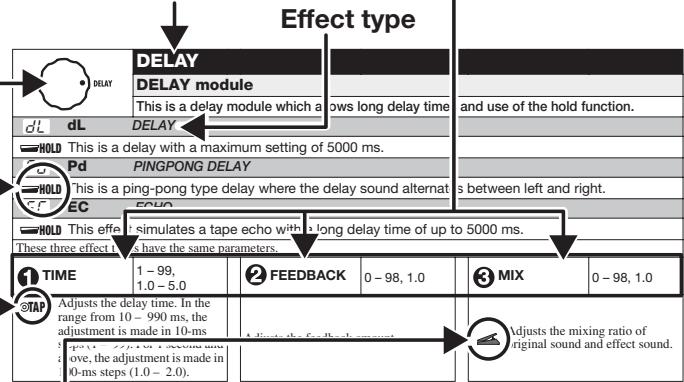
Effect module
Expression pedal
A pedal icon ( ) in the listing indicates a parameter that can be controlled with the built-in expression pedal.
Specify the respective module as modulation target for the expression pedal ( p.20) , and then select the respective effect type of the module. The parameter can then be controlled in real time with a connected expression pedal.
Tap
A [TAP] key icon (⊙TAP) in the listing indicates a parameter that can be set by hitting the [TAP] key.
In edit mode, when the respective module/effect type is selected, repeatedly hitting the [TAP] key will set the parameter according to the key press interval (modulation cycle, delay time, etc.).
In play mode, if the DELAY module is ON for the currently selected patch, repeatedly hitting the [TAP] key will temporarily change the parameter.
Hold
A foot switch icon (HOLD) in the listing indicates an effect type for which hold can be turned on and off with the foot switch (FS01).
Set the foot switch function to "dH" (delay hold) ( p. 22) for the respective patch. When this patch is then selected in play mode, the hold function can be switched on and off by pressing the foot switch.
| COMP/LIMIT | |||||
| COMP/LIMIT (Compressor/Limiter) module | |||||
| This module includes a compressor that keeps the overall signal level within a certain range by attenuating high-level signal components or boosting low-level signal components, and a limiter that suppresses peak components. | |||||
| CP | CP | COMPRESSOR | |||
| The compressor attenuates high-level signal components and boosts low-level signal components to keep the overall signal level within a certain range. | |||||
| 1 | SENSE | 0-10 | 2 | ATTACK | 1-10 |
| Adjusts the compressor sensitivity. Higher setting values result in higher sensitivity. | Adjusts the time between the sound attack point and the start of compression. Higher setting values result in faster compression action. | ||||
| L | LM | LIMITER | |||
| This is a limiter that suppresses signal peaks above a certain reference level. | |||||
| 1 | THRESHOLD | 0-10 | 2 | RATIO | 1-10 |
| Adjusts the reference signal level for the limiter action. | Adjusts the limiter intensity. Higher setting values result in stronger compression of the input signal. | ||||
| WAH/EFX | WAH/EFX | ||||
| WAH/EFX (Wah/Effects) module | |||||
| Comprises wah and filter effects as well as VCA type effects. | |||||
| RH AW AUTO WAH | |||||
| This effect varies wah in accordance with playing intensity. | |||||
| Ar AUTO RESONANCE FILTER | |||||
| This effect varies the frequency band of the resonance filter according to the picking intensity. | |||||
| The two effect types above have the same parameters. | |||||
| 1 | POSI & DIR MIX | b0-b9, A0-A9 | 2 | SENSE | -10--1, 1-10 |
| Selects the connection position of the WAH/EFX module. The b0-b9 settings specify connection before the DRIVE/SYNTH module, and the A0-A9 settings specify connection after the HI EQ module. The numbers 0-9 specify the original sound mixing balance, with higher values resulting in stronger original sound. | 4 | Adjusts the effect sensitivity. When set to a negative value, the filter characteristics are inverted. | |||
| oC OCTAVE | |||||
| This effect adds a 1-octave lower component to the original sound. | |||||
| 1 | OCT LVL | 0-98, 1.0 | 2 | DIR LVL | 0-98, 1.0 |
| Adjusts the mixing balance of the effect sound (1-octave lower sound). | Adjusts the mixing balance of the original sound. | ||||
| 3 | TONE | 0-10 | |||
| t-r TREMOLO | |||||
| This effect periodically varies the volume. | |||||
| 1 DEPTH | 0-98, 1.0 | 2 RATE | 0-50 | 3 WAVE | u0-u9, d0-d9, t0-t9 |
| Adjusts the modulation depth. | 4 TAP Adjusts the effect rate. | Allows selection of the modulation waveform. Available settings are "u" (rising sawtooth), "d" (falling sawtooth), and "t" (triangular). Higher setting values result in more clipping of wave peaks, which reinforces the effect. | |||
| PH PH PHASER | |||||
| This effect produces sound with a pulsating character. | |||||
| 1 POSITION | bF, AF | 2 RATE | 0-50 | 3 COLOR | 1-4 |
| Selects the connection position of the WAH/EFX module. The bF setting specifies connection before the DRIVE/SYNTH module, and the AF setting specifies connection after the HI EQ module. | 4 TAP Adjusts the modulation rate. | Adjusts the type of sound. | |||
| rG RING MODULATOR | |||||
| This effect produces a metallic ringing sound. Adjusting the FREQUENCY parameter results in a drastic change of sound character. | |||||
| 1 POSITION | bF, AF | 2 FREQUENCY | 1-50 | 3 BALANCE | 0-98, 1.0 |
| Selects the connection position of the WAH/EFX module. The bF setting specifies connection before the DRIVE/SYNTH module, and the AF setting specifies connection after the HI EQ module. | Adjusts the frequency that is used for modulation. | Adjusts the balance between the original sound and the effect sound. | |||
| DF DEFRET | |||||
| This effect changes the sound of any bass into a sound resembling a fretless bass. | |||||
| 1 SENSE | 0-30 | 2 TONE | 1-50 | 3 COLOR | 1-10 |
| Adjusts the effect sensitivity. | 4 Adjusts the sound quality. | Adjusts the amount of harmonics. Higher setting values result in stronger sonic character. | |||
| PW PEDAL WAH | |||||
| Simulates a Vox wah pedal | |||||
| 1 POSI & DIR MIX | b0-b9, A0-A9 | 2 FREQUENCY | 1-50 | 3 LEVEL | 2-98, 1.0 |
| Selects the connection position of the WAH/EFX module. The b0-b9 settings specify connection before the DRIVE/SYNTH module, and the A0-A9 settings specify connection after the HI EQ module. The numbers 0-9 specify the original sound mixing balance, with higher values resulting in stronger original sound. | 4 Adjusts the frequency that is emphasized. When no expression pedal is used, the effect is the same as with a half-raised pedal. | Adjusts the signal level after passing the module. | |||
| DRIVE/SYNTH | |||||
| DRIVE/SYNTH module | |||||
| This module provides special effects such as 13 types of amp and stomp box simulations and a synth bass sound. The mixing balance of original sound and effect sound/synth sound, and the signal level after passing the module are adjusted with the ZNR/MIX module. * Manufacturer names and product names mentioned in this table are trademarks or registered trademarks of their respective owners. The names are used only to illustrate sonic characteristics and do not indicate any affiliation with ZOOM CORPORATION. | |||||
| RG AG AMPEG | SB Sb SUPER BASS | ||||
| Simulation of the AMPEG SVT that is one of the most popular bass guitar amps in Rock. | Simulation of the MARSHALL SUPER BASS, a milestone in the history of Rock. | ||||
| SW SWR | AC ACOUSTIC | ||||
| Simulation of the SWR SM-900 famous for its hi-fi sound. | Simulation of the ACOUSTIC 360 known for its special midrange sound. | ||||
| BM BASSMAN | HA HARTKE | ||||
| Simulation of the FENDER BASSMAN 100. | Simulation of the HARTKE HA3500 famous for its aluminum cone. | ||||
| TE TRACE ELLIOT | |||||
| Simulation of the TRACE ELLIOT AH-500. | |||||
| All above effect types have the same parameters. | |||||
| CABINET | oF, 1-3 | TONE | 0-10 | GAIN | 0-98,1.0 |
| With the "oF" setting, only the head amp characteristics are applied. A numeric setting adds cabinet sound of differing intensity as well. | Adjusts the sound quality. | Adjusts the distortion intensity. | |||
| tU TUBE PRE | SA SANSAMP | ||||
| ZOOM original tube preamplifier sound. | Simulation of the SANSAMP BASS DRIVER DI, very popular among bassists. | ||||
| ts TS9 | od od ODB-3 | ||||
| Simulation of the Tube Screamer used by many guitarists as a booster. | Simulation of the Boss Overdrive ODB-3 for bass guitar. | ||||
| dS MXR BASS D.I. + | FF FF FUZZ FACE | ||||
| Simulation of the distortion channel of the MXR Bass D.I+. | Simulation of the Fuzz Face that made rock history with its zany look. | ||||
| All above effect types have the same parameters. | |||||
| CABINET | oF, 1-3 | TONE | 0-10 | GAIN | 0-98,1.0 |
| With the "oF" setting, only the stomp box characteristics are applied. A numeric setting adds cabinet sound of differing intensity as well. | Adjusts the sound quality. | Adjusts the distortion intensity. | |||
| SS STDSYN (Standard Synth) | |||||
| ZOOM standard synth bass sound. | |||||
| CABINET | oF, 1-3 | VARI | 1-4 | SENSE | 0-98,1.0 |
| Numeric settings select different cabinet types. | Selects the synth sound variation. | Adjusts the trigger detection sensitivity. | |||
| St SYNTLK (Synth Talk) | |||||
| This effect produces a synth sound like a talking modulator using vowels for vocalization. | |||||
| CABINET | oF, 1-3 | VARI | iA, UE, UA, oA | DECAY | 0-98,1.0 |
| Numeric settings select different cabinet types. | Selects the type of vocalization. | Adjusts the rate of sound change. | |||
| MS MONO SYN (Mono Synth) | |||||
| This is a monophonic (single-note) bass synthesizer that detects the input signal pitch. | |||||
| 1CABINET | oF, 1-3 | 2VARI | s1-s5, p1-p5, m1-m5 | 3DECAY | 0-98, 1.0 |
| Numeric settings select different cabinet types. | Selects the waveform type and sound variation. "s" produces a sawtooth wave, "p" produces a square wave, and "m" uses PWM (pulse width modulation). | Adjusts the rate of sound change. | |||
| ZNR/MIX | ZNR/MIX | ||||
| ZNR/MIX module | |||||
| This module serves for reducing noise during playing pauses. The module also is used to control the mixing balance of original sound and effect sound for the DRIVE/SYNTH module, and the signal level after the module. The ZNR/MIX module cannot be turned off with the foot switch. To disable ZNR, set the effect parameter value to "oF". | |||||
| nr | nr | ZNR (ZOOM Noise Reduction) | |||
| This is ZOOM's original noise reduction that suppresses noise in playing pauses without affecting the tonal quality of the sound. Also allows adjusting the mixing balance and level of the DRIVE/SYNTH module. | |||||
| 1 ZNR | oF, Z0 - Z9 | 2 MIX BALANCE | 0 - 98, 1.0 | 3 LEVEL | 2 - 98, 1.0 |
| Adjusts the ZNR sensitivity. For maximum noise reduction, set the value as high as possible without causing the sound to cut in or decay unnaturally. | 4 Adjusts the mixing balance between the signal before input to the DRIVE/SYNTH module and the signal after passing the module. Higher setting values result in stronger WET sound. When the DRIVE/SYNTH module is set to Off, the indication "oF" is shown. | Adjusts the signal level after passing the DRIVE/SYNTH module. When the DRIVE/SYNTH module is set to Off, the indication "oF" is shown. | |||
| LO EQ LO EQ module | |||||
| This is an equalizer for the low frequency range. You can select either a 3-band equalizer or parametric equalizer. | |||||
| LE LE LO EQ (Low EQ) | |||||
| This is a 3-band equalizer that adjusts the frequency range below 450 Hz. | |||||
| 170Hz | ±12 | 2150Hz | ±12 | 3450Hz | ±12 |
| 70 Hz, shelving type equalizer. | 150 Hz, peaking type equalizer. | 450 Hz, peaking type equalizer. | |||
| LP LP LO PARAMETRIC EQ (Low Parametric EQ) | |||||
| This is a parametric equalizer that adjusts the frequency range below 650 Hz. | |||||
| 1 TYPE | 1,2, SH | 2 FREQUENCY | See Table 1 | 3 GAIN | ±12 |
| Selects the type of filter. "1" gives a peaking type filter with narrow Q, "2" gives a peaking type filter with wide Q, and "SH" produces a shelving type LO EQ. | Selects a frequency within the range of 100 - 650 Hz. | Adjusts the gain. | |||
Table 1
| Display | Frequency | Display | Frequency |
| 10 | 100Hz | 50 | 500Hz |
| 25 | 250Hz | 65 | 650Hz |
| 35 | 350Hz |
| HI EQ HI EQ module | |||||
| This is an equalizer for the high frequency range. You can select either a 3-band equalizer or parametric equalizer. | |||||
| HE HI EQ (High EQ) | |||||
| This is a 3-band equalizer that adjusts the frequency range above 1 kHz. | |||||
| 1 kHz | ±12 | 3kHz | ±12 | 6kHz | ±12 |
| 1 kHz, peaking type equalizer. | 3 kHz, peaking type equalizer. | 6 kHz, shelving type equalizer. | |||
| HP HP HI PARAMETRIC EQ (High Parametric EQ) | |||||
| This is a parametric equalizer for the frequency range above 800 Hz. | |||||
| 1 TYPE | 1,2, SH | 2 FREQUENCY | See Table 2 | 3 GAIN ±12 | |
| Selects the type of filter. "1" gives a peaking type filter with narrow Q, "2" gives a peaking type filter with wide Q, and "SH" produces a shelving type LO EQ. | Selects a frequency within the range of 800 Hz - 4.8 kHz. | Adjusts the gain. | |||
Table 2
| Display | Frequency | Display | Frequency |
| 80 | 800Hz | 3.6 | 3.6kHz |
| 1.2 | 1.2kHz | 4.8 | 4.8kHz |
| 2.4 | 2.4kHz |
| MOD/SFX MOD/SFX(Smodulation/SFX) module | |||||
| Comprises modulation and delay effects such as chorus, pitch shifter, delay, and echo. | |||||
| CH CH CHORUS | |||||
| This effect mixes a variable pitch-shifted component to the original signal, resulting in full-bodied resonating sound. | |||||
| 1 DEPTH | 0-98, 1.0 | 2 RATE | 1-50 | 3 MIX | 0-98, 1.0 |
| Adjusts the modulation depth. | Adjusts the modulation rate. | Adjusts the level of the effect sound mixed to the original sound. | |||
| 5C SC STEREO CHORUS | |||||
| This is a stereo chorus with clear sound. | |||||
| 1深度 | 0-98, 1.0 | 2RATE | 1-50 | 3MIX | 0-98, 1.0 |
| Adjusts the modulation depth. | Adjusts the modulation rate. | 4Adjusts the level of the effect sound mixed to the original sound. | |||
| FL FL FLANGER | ||||||||||
| This effect produces a resonating and strongly undulating sound. | ||||||||||
| 1 DEPTH | 0-98, 1.0 | 2 RATE | 0-50 | 3 RESONANCE -10--1,0,1-10 | ||||||
| Adjusts the modulation depth. | 4 TAP Adjusts the modulation rate. | Adjusts the modulation resonance intensity. | ||||||||
| PP | PP | PEDAL PITCH | ||||||||
| This effect allows using a pedal to shift the pitch in real time. | ||||||||||
| 1 | COLOR | See Table 3 | MODE | UP, dn | TONE | 0-10 | ||||
| Selects the type pitch change type effected by the pedal. | Selects the direction of the pitch change. | Adjusts the sound quality. | ||||||||
| Table 3 COLOR MODE = Pedal minimum value = Pedal maximum value = COLOR MODE = Pedal minimum value = Pedal maximum value | ||||||||||
| 1 | UPdn | -100 cent Original sound only | Original sound only -100 cent | 5 | UPdn | -1 octave + DRY +1 octave + DRY | +1 octave + DRY -1 octave + DRY | |||
| 2 | UPdn | DOUBLING Detune + DRY | Detune + DRY DOUBLING | 6 | UPdn | -700 cent + DRY 500 cent + DRY | 500 cent + DRY -700 cent + DRY | |||
| 3 | UPdn | 0 cent +1 octave | +1 octave 0 cent | 7 | UPdn | -∞ (0 Hz) + DRY +1 octave | +1 octave -∞ (0 Hz) + DRY | |||
| 4 | UPdn | 0 cent -2 octaves | -2 octaves 0 cent | 8 | UPdn | -∞ (0 Hz) + DRY +1 octave + DRY | +1 octave + DRY -∞ (0 Hz) + DRY | |||
| Effect with automatic vibrato. | |||||
| 1深度 | 0-98, 1.0 | 2RATE | 0-50 | 3BALANCE | 0-98, 1.0 |
| Adjusts the modulation depth. | 4TAP Adjusts the modulation rate. | Adjusts the balance between original sound and effect sound. | |||
| 5STSTEP | |||||
| Special effect that changes the sound in a staircase pattern. | |||||
| 1深度 | 0-98, 1.0 | 2RATE | 0-50 | 3RESONANCE | 0-10 |
| Adjusts the modulation depth. | 4TAP Adjusts the modulation rate. | Adjusts the modulation resonance intensity. | |||
| dL DELAY | |||||
| This is a delay with a maximum setting of 2000 ms. | |||||
| 1 TIME | 1-99,1.0-2.0 | 2 FEEDBACK | 0-98,1.0 | 3 MIX | 0-98,1.0 |
| TAP Adjusts the delay time. In the range from 10-990 ms, the adjustment is made in 10-ms steps (1-99). For 1 second and above, the adjustment is made in 100-ms steps (1.0-2.0). | Adjusts the feedback amount. | Adjusts the level of the effect sound mixed to the original sound. | |||
| tE tape ECHO | |||||
| This effect simulates a tape echo. | |||||
| 1 TIME | 1-99, 1.0-2.0 | 2 FEEDBACK | 0-98, 1.0 | 3 MIX | 0-98, 1.0 |
| ○TAP Adjusts the delay time. In the range from 10-990 ms, the adjustment is made in 10-ms steps (1-99). For 1 second and above, the adjustment is made in 100-ms steps (1.0-2.0). | Adjusts the feedback amount. | 4 Adjusts the level of the effect sound mixed to the original sound. | |||
| Pt Pitch SHIFT | |||||||||||
| This effect shifts the pitch of the original sound up or down. | |||||||||||
| 1 SHIFT | -12 - -1, dt, 1 - 12, 24 | 2 TONE | 0 - 10 | 3 BALANCE | 0 - 98, 1.0 | ||||||
| Adjusts the pitch shift amount in semitones. Selecting "dt" gives a detuning effect. | Adjusts the sound quality. | 4 Adjusts the balance between original sound and effect sound. | |||||||||
| HP | HP HARMONIZED PITCH SHifter | ||||||||||
| This is an intelligent pitch shifter that automatically generates harmonies according to a preset key and scale. | |||||||||||
| 1 SCALE | -6, -5, -4, -3, -m, m, 3, 4, 5, 6 | 2 KEY | C, Co, d...b | 3 MIX | 0-98, 1.0 | ||||||
| Determines the interval for the pitch shifted sound (see Table 4). | Determines the tonic for the scale used for pitch shifting (see Table 5). | Adjusts the level of the effect sound mixed to the original sound. | |||||||||
| Table 4 | Table 5 | ||||||||||
| Setting | Type of scale | Interval | Setting | Type of scale | Interval | Setting | Tonic | Setting | Tonic | ||
| -6 | Major scale | Sixth down | 3 | Major scale | Third up | C | C | Fo | F# | ||
| -5 | Fifth down | 4 | Fourth up | Co | C# | G | G | ||||
| -4 | Fourth down | 5 | Fifth up | d | D | Go | G# | ||||
| -3 | Third down | 6 | Sixth up | do | D# | A | A | ||||
| -m | Minor scale | Third down | E | E | Ao | A# | |||||
| m | Third up | F | F | b | B | ||||||
| DELAY | DELAY | ||||
| DELAY module | |||||
| This is a delay module which allows long delay times and use of the hold function. | |||||
| dL DELAY | |||||
| HOLD This is a delay with a maximum setting of 5000 ms. | |||||
| Pd Pd PINGPONG DELAY | |||||
| HOLD This is a ping-pong type delay where the delay sound alternates between left and right. | |||||
| EC ECHO | |||||
| HOLD This is a warm sounding long delay of up to 5000 ms duration. | |||||
| These three effect types have the same parameters. | |||||
| 1 TIME | 1 - 99,1.0 - 5.0 | 2 FEEDBACK | 0 - 98, 1.0 | 3 MIX | 0 - 98, 1.0 |
| ⊙TAP Adjusts the delay time. In the range from 10 - 990 ms, the adjustment is made in 10-ms steps (1 - 99). For 1 second and above, the adjustment is made in 100-ms steps (1.0 - 5.0). | Adjusts the feedback amount. | Adjusts the level of the effect sound mixed to the original sound. | |||
| REVERB | REVERB | ||||
| REVERB module | |||||
| This is a module with various kinds of reverb effects. | |||||
| HL HL HALL | |||||
| This reverb simulates the acoustics of a concert hall. | |||||
| r7 rM ROOM | |||||
| This reverb simulates the acoustics of a room. | |||||
| SP SPRING | |||||
| This effect simulates a spring-type reverb. | |||||
| The above three effect types have the same parameters. | |||||
| 1 DECAY | 1-30 | 2 TONE | 0-10 | 3 MIX | 0-98, 1.0 |
| Adjusts the duration of the reverb. | Adjusts the sound quality. | 4 Adjusts the level of the effect sound mixed to the original sound. | |||
| CONTROL | |||||
| CONTROL module | |||||
| Serves for making pedal settings and lets you control the foot switch function and master level setting applying to all patches. | |||||
| RTM DESTINATION | See Table 6 | 2 FS | See Table 7 | 3 MASTER LEVEL | 0-98,1.0 |
| Selects the modulation target module that is controlled with the built-in expression pedal (see Table 6). | When a foot switch (FS01) is connected to the [CONTROL IN] jack, this selects the function that can be operated with the foot switch (See Table 7). The function selected here applies to all patches. | Adjusts the master level for all patches. | |||
RTM (Real Time Modulation): The effect parameter can be changed with the expression pedal in real time.
Table 6
| Setting | Modulation target |
| oF | OFF |
| VL | Volume |
| WU, Wd, WH, WL | WAH/EFX module (*) |
| bU, bd, bH, bL | ZNR/MIX module (*) |
| MU, Md, MH, ML | MOD/SFX module (*) |
| dU, dd, dH, dL | DELAY module (*) |
| rU, rd, rH, rL | REVERB module (*) |
Table 7
| Setting | Function |
| bP | Bypass/Mute |
| tP | Tap tempo |
| bU | Bank up |
| rH | Rhythm function on/off |
| dH | Delay hold |
| dM | Delay mute |
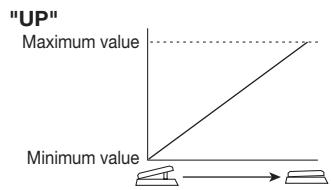
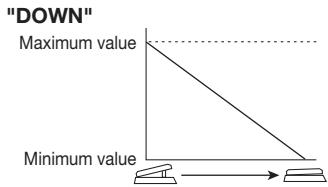
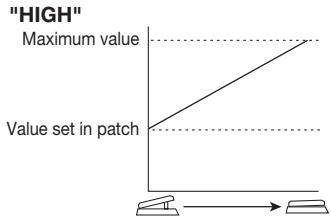
The operation of modules denoted by () changes as follows, according to the letter at right.
UP
The parameter is at minimum when the pedal is fully raised and at maximum when the pedal is fully pushed down.
C DOWN
The parameter is at maximum when the pedal is fully raised and at minimum when the pedal is fully pushed down.
H HIGH
When the pedal is fully raised, the parameter is at the value set in the patch. When the pedal is fully pushed down, the parameter is at maximum.
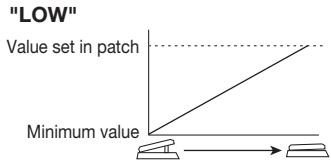
L LOW
When the pedal is fully raised, the parameter is at minimum. When the pedal is fully pushed down, the parameter is at the value set in the patch.
HINT
When the ZNR/MIX module is selected as modulation target, the pedal adjusts the mixing balance of the DRIVE/SYNTH module ( p. 30).
Specifications
Effect types 47
Effect modules
Max. 9 simultaneous modules
Patches User area: 10 patches x 4 banks
Preset area: 10 patches x 4 banks
Sampling frequency
96 kHz
A/D converter 24 bit, 64 times oversampling
D/A converter 24 bit, 128 times oversampling
Signal processing
32 bit
Frequency response
20Hz - 40kHz + 1 dB-3dB
(with 10 kilohms load)
Display 2-digit 7-segment LED
Parameter LEDs,
Pedal assign LEDs
Input Standard mono phone jack
Rated input level
-20 dBm
Input impedance
1 megohm
Output
Standard stereo phone jack
(doubles as line and headphone jack)
Maximum output level
+5 dBm (output load impedance
10 kilohms or more)
Maximum phones output level
20mW + 20mW
into 32 ohms load)
XLR jack (balanced output)
Input/output gain 0 dB
Output impedance 100 ohms
(HOT-GND)
(COLD-GND)
200 ohms
(HOT-COLD)
Control input For FP02 (FP01) /FS01
USB interface
PC interface: 16-bit (stereo configuration for recording/playback)
Sampling frequency:
32kHz 44.1kHz 48kHz
Power requirements
AC adapter 9 V DC, 300mA (center minus plug) (ZOOM AD-0006)
Batteries Four IEC R6 (size AA) batteries, Approx. 6 hours continuous operation (alkaline batteries)
Dimensions 165 mm (D) x 255 mm (W) x 79mm (H)
Weight 1200 g (without batteries)
Options Expression pedal FP02/ Foot switch FS01
-
0 dBm = 0.775 Vrms
-
Design and specifications subject to change without notice.
Troubleshooting
No power
Refer to "Turn power on" on page 8.
- Reverb effect does not operate
While a rhythm pattern is playing, the reverb effect is not available. Stop the rhythm pattern first ( p.12)
- No effect processing occurs (when using [BALANCED OUT] connector)
Check whether the [PRE/POST] switch is set to POST (signal after effect processing).
High level of noise
Is ZOOM AC adapter being used? Be sure to use
only adapter for 9V DC, 300~mA with center minus plug (ZOOM AD-0006).
- High-level noise is heard (when using [BALANCED OUT] connector)
A ground loop may have been created among connected devices. Check whether setting the [GROUND] switch to "LIFT" results in an improvement.
- Battery life is short
Are manganese batteries being used? The use of alkaline batteries is recommended.
| # | PatternName | TimSig | # | PatternName | TimSig | |
| 1 | 8beat_1 | 4/4 | 21 | POP_3 | 4/4 | |
| 2 | 8beat_2 | 4/4 | 22 | DANCE_1 | 4/4 | |
| 3 | 8beat_3 | 4/4 | 23 | DANCE_2 | 4/4 | |
| 4 | 8shuffle | 4/4 | 24 | DANCE_3 | 4/4 | |
| 5 | 16beat_1 | 4/4 | 25 | DANCE_4 | 4/4 | |
| 6 | 16beat_2 | 4/4 | 26 | 3per4 | 3/4 | |
| 7 | 16shuffle | 4/4 | 27 | 6per8 | 3/4 | |
| 8 | ROCK | 4/4 | 28 | 5per4_1 | 5/4 | |
| 9 | HARD | 4/4 | 29 | 5per4_2 | 5/4 | |
| 10 | METAL_1 | 4/4 | 30 | LATIN | 4/4 | |
| 11 | METAL_2 | 4/4 | 31 | BALLAD_1 | 4/4 | |
| 12 | THRASH | 4/4 | 32 | BALLAD_2 | 3/4 | |
| 13 | PUNK | 4/4 | 33 | BLUES_1 | 4/4 | |
| 14 | DnB | 4/4 | 34 | BLUES_2 | 3/4 | |
| 15 | FUNK_1 | 4/4 | 35 | JAZZ_1 | 4/4 | |
| 16 | FUNK_2 | 4/4 | 36 | JAZZ_2 | 3/4 | |
| 17 | HIPHOP | 4/4 | 37 | METRO_3 | 3/4 | |
| 18 | R'nR | 4/4 | 38 | METRO_4 | 4/4 | |
| 19 | POP_1 | 4/4 | 39 | METRO_5 | 5/4 | |
| 20 | POP_2 | 4/4 | 40 | METRO |
ZEEM
CATCH US IF YOU CAN
ZOOM CORPORATION
ITOHPIA Iwamotocho 2chome Bldg. 2F, 2-11-2, Iwamoto-cho,
Chiyoda-ku, Tokyo 101-0032, Japan
Web Site: http://wwwzoomo.co.jp
B2.1u Patch List
| No. | Patch name | Description | Main effect | Pedal setting | |
| DEMO | A0 | ROCK | Based on the ultimate rock bass amp, the AMPEG SVT, this sound is great both for finger playing and when using a pick. | AMPEG | VOLUME |
| A1 | PHASER SLAP | Phaser sound lets you embellish your slap playing with modulation effects. | PHASER | PHASER RATE | |
| A2 | No Holds Barred | All-rounder distortion sound is great for chord or lead playing. Turn on pedal wah, flanger, and echo for even more excitement. | ODB-3 | FLANGER RATE (OFF) | |
| A3 | AUTO WAH | Traditional-style auto wah with many applications. Transform percussive play with ghost notes straight into a funky sound. | AUTO WAH | AUTO WAH SENSE | |
| A4 | Yes! | Progressive rock sound, taking a hint from Yes bassist Chris Squire. | CHORUS & ECHO | ECHO MIX | |
| A5 | Miller's Crossing | Marcus Miller type slap sound. Typically deep SWR bass amplifier sound is complemented by glossy highs. | SWR | DELAY MIX | |
| A6 | Sublime | Sub bass sound such as used for Techno, Electronica, and Drum'n Bass. Experience a sine wave so low it seems to hug the ground. | MONO SYN & PHASER | PHASER RATE | |
| A7 | Tremolo | Enchanting tremolo sound with reverb creates a dreamy backdrop or enhances a moody solo. | TREMOLO | TREMOLO RATE | |
| A8 | No Worries | Fretless bass sound using the defret effect. Add a slide to a phrase and turn your instrument into a fretless bass. | DEFRET | ROOM MIX | |
| A9 | STEP SYNTH DELAY | Collaboration of synth and step may surprise at first, but will show its potential when played with long tones. | MONO SYN & STEP | STEP RATE | |
| MODELING | B0 | SVT | Combines the all-tube SVT from AMPEG with an 810E cabinet. Experience that gusty tube amp sound. | AMPEG | VOLUME |
| B1 | SWR | SWR sound modeled on a SM-900 head amp combined with the Goliath cabinet. Rich low range and clear highs are bound to impress. | SWR | VOLUME | |
| B2 | SUPER BASS | Simulation of MARSHALL 1992 SuperBass head amp combined with 1935A cabinet, tailored into Marshall style drive-oriented sound. | SUPER BASS | VOLUME | |
| B3 | TRACE | Simulation of TRACE ELLIOT head amp AH-500 combined with two cabinets (1048H & 1518), producing the typical midrange character of British rock. | TRACE ELLIOT | VOLUME | |
| B4 | BASSMAN | Simulates the Fender Bassman 100 used by Paul McCartney. Enjoy that special Beatles sound with Rickenbacker or Hofner basses. | BASSMAN | VOLUME | |
| B5 | ACOUSTIC | Simulation of ACOUSTIC 360 head amp combined with 301 cabinet, characterized by a tight midrange. | ACOUSTIC | VOLUME | |
| B6 | HARTKE | Simulation of HARTKE HA3500 head amp combined with aluminum-cone cabinet 4.5XL. Note the characteristically straightforward punch of aluminum. | HARTKE | VOLUME | |
| B7 | TUBE | Simulates a high-class tube preamplifier such as used in recording studios. The fat and supple sound fits every genre. | TUBE PRE | VOLUME | |
| B8 | SANSAMP | Simulates the lightly distorted sound of the SANSAMP BASSDRIVER DI, beloved by many bass players. | SANSAMP | DRIVE MIX | |
| B9 | TUBE SCREAMER | Simulation of the Tube Screamer used by many guitarists as a booster. Get that cool overdrive sound, whether picking or fingering. | TS9 | DRIVE MIX | |
| C0 | MXR | Simulates the MXR BASS D.I. + distortion channel. A gusty low end plus the right amount of original sound creates distortion with a solid core. | MXR BASS D.I.+ | PEDAL PITCH 2oct DOWN | |
| C1 | ODB | Simulates the ODB-3 overdrive bass machine from Boss. Proper mixing of original sound gives fat overdrive without losing bass response. | ODB-3 | DRIVE MIX | |
| C2 | PEDAL FUZZ FACE | Simulates the Fuzz Face famous for its unique look. Push down the pedal to get wildly distorted fuzz sound, great for those aggressive bass lines. | FUZZ FACE | DRIVE MIX | |
| ARTIST | C3 | Slang | Chorus sound often used by Jaco Pastorius in the late seventies. Lets you play his "Slang" loop solos with hold delay. | CHORUS & ACOUSTIC | ROOM MIX |
| C4 | Slapstick | Rock style sound as personified by Flea of the Red Hot Chili Peppers. Use a StingRay or Modulus bass and whip up some slab bass action. | AMPEG | ROOM MIX | |
| C5 | BootSea | Bootsy Collins sound using auto wah. Dress up in a fancy costume, wear star-shaped sunglasses, and let it rip! | AUTO WAH & PITCH | PITCH SHifter BALANCE | |
| C6 | Mo'Soul | Motown sound made famous by James Jamerson. Sixties Motown comes alive again. | TUBE PRE | VOLUME | |
| C7 | Heavy Comp | Simulates the sound of a HARTKE HA3500 with 4.5XL that became the Will Lee trademark. | COMP & HARTKE | DELAY MIX (OFF) | |
| C8 | Leadist | Simulation of distortion sound suitable for Tony Levin style lead play. Turn pedal wah on by using the built-in expression pedal and create highly effective wah sound. | SUPER BASS | PEDAL WAH (OFF) | |
| C9 | In Your Fingers | Emulate the midrange-oriented fingering work of artists such as Me'Shell Ndegeocello or Jeff Berlin. Stylized as a tube preamplifier sound. | TUBE PRE | ROOM MIX | |
| D0 | Groovin' With Vinny | Designed to sound like Sting when he was playing with The Police. Fairly traditional approach covers a wide variety of genres. | TUBE PRE | ROOM MIX | |
| D1 | Little Muddy | Blues sound from the days of Muddy Waters. The range is low-fi, but the impact is powerful. | SANSAMP | VOLUME | |
| VARIATION | D2 | Synth Bass | PAD type synth bass sound. Great for lead bass and for programing sound during live play. | MONO SYN | DRIVE MIX |
| D3 | Stream | Flanging sound for those smooth and flowing phrases, supported by a solid backbone. | FLANGER | FLANGER RATE | |
| D4 | -12 Below | Classic sub-octaver sound created by Pino Palladino. | OCTAVE | OCTAVE LEVEL | |
| D5 | A Major Harmony | Harmonized pitch shifter sound in A major key. Good for bass solos. | HARMONIZED PITCH SHIFTER | HPS MIX | |
| D6 | Dark Side/Octave | Combination patch of fuzz and octave. Heavy sound lets you lay down the rhythm with wild picking or play a strong lead. | FUZZ FACE & OCTAVE | OCTAVE LEVEL | |
| D7 | Pop Style | Straightforward but addictive sound for pop and rock. A slight dash of room reverb is the secret ingredient. | BASSMAN | ROOM MIX | |
| D8 | ManTap | Stereo chorus and delay in the style of Michael Manring. Control hold delay with a foot switch to play loop solos. | PINGPONG-DELAY & HALL | VOLUME | |
| D9 | Les Thumbs | Modeled on the typical slap style of Primus frontman Les Claypool, this sound combines TS9 and resonance filter. Use it to create your very own style. | AUTO RESONANCE FILTER | DRIVE MIX |
- The preset area of banks 0 - 3 contains the same patches as A - d.
- The ZNR value may need to be adjusted depending on the bass guitar and amplifier.
- In play mode, parameter knob 1 can be used to adjust the CABINET parameter of the DRIVE/SYNTH module. Higher values result in stronger cabinet character.
- When using a bass amplifier, selecting the flat EQ setting is recommended.
Manufacturer names and product names mentioned in this patch list are trademarks or registered trademarks of their respective owners. These names as well as artist's names are used only to illustrate sonic characteristics and do not indicate any affiliation with ZOOM CORPORATION.
This USB/Cubase LE Startup Guide explains how to install Cubase LE on a computer, how to make the connection and settings of this unit, and how to record your instrument play.
Cubase LE Installation
Connections and Preparations
Recording with Cubase LE
Cubase LE Installation
Connections and Preparations
Recording with Cubase LE
Windows XP
To connect this unit to a computer running Windows XP and to enable audio input/output, proceed as follows.

Install Cubase LE on the computer.
When you insert the CD-ROM supplied with this product into the CD-ROM drive of the computer, the installer will start up automatically. Follow the on-screen instructions to install Cubase LE.

Connect this unit to the computer using a USB cable.
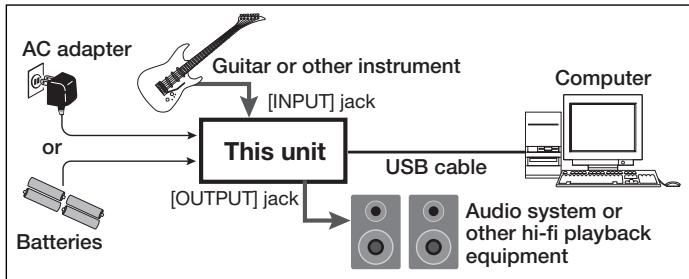
NOTE
- If you monitor the audio signal during recording via the audio output of the computer, there will be an audible latency. Be sure to use the [OUTPUT] jack of this unit to monitor the signal.
- When a device designed to use USB power is powered via the USB cable, insufficient power may result in unstable operation or error indications appearing on the display. In such a case, power the device from an AC adapter or batteries.
- Use a high-quality USB cable and keep the connection as short as possible. If power is supplied to a device designed to use USB power via a USB cable that is more than 3 meters in length, the low voltage warning indication may appear.
HINT
No special steps are necessary for canceling the USB connection. Simply disconnect the USB cable from the computer.
When you connect this unit for the first time to a computer running Windows XP, a message saying "New Hardware Found" will appear. Before proceeding, wait a while until this message disappears.

From the "Start" menu, select "Control Panel" and double-click "Sounds and Audio Devices".
The sounds and audio devices properties screen appears. Click the "Audio" tab and check whether "USB Audio CODEC" is selected as default device for audio playback and recording.
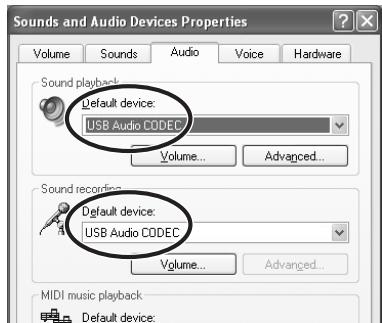
If another device is selected, use the "Default Device" pull-down menu to change the selection to "USB Audio CODEC".
When the setting has been made, click the OK button to close the sounds and audio devices properties screen.

Start Cubase LE.
A window asking whether to check the audio input/output port appears. Click OK to perform the check.

After Cubase LE has started up, access the "Devices" menu, select "Device Setup..." and click "VST Multitrack" in the list of devices.
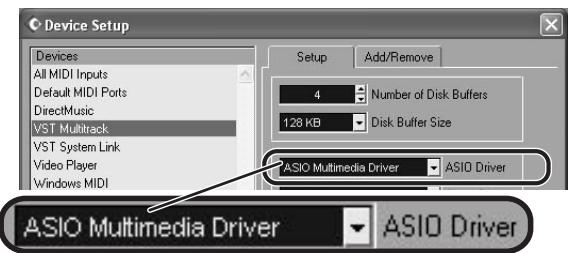
Check whether "ASIO Multimedia Driver" is selected as ASIO driver in the right part of the device setup window.

Click the "Control Panel" button in the device setup window. In the window that appears, click the "Advanced Options" button.
In the advanced options window, check whether "USB Audio CODEC" is selected as input port and output port.
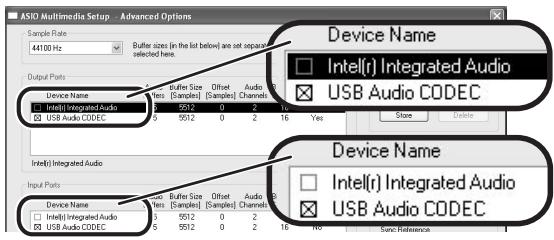
If not selected, click the respective box to place a check mark in it. When the setting has been made, click the OK buttons to close the windows and return to the normal post-startup Cubase LE screen.
HINT
- By clicking the Move up/Move down button in the advanced options window, you can change the priority sequence setting of the currently selected port. If you move "USB Audio CODEC" to the top of the list, it will also be at the top in the following VST input window.
- When you edit any of the settings in the advanced settings window, a window asking whether to check the audio input/output port appears. Click OK to perform the check.

Access the "Devices" menu and select "VST Inputs". The VST inputs window appears. Check whether the input port is active.

If the Active button is Off (grayed out), click the button to set it to On.
HINT
When multiple input ports are available for selection, you should scroll or enlarge the window and check the enable/disable settings for all ports.

Continued overleaf
Cubase LE Installation
Connections and Preparations
Recording with Cubase LE
MacOS X
To connect this unit to a computer running MacOS X and enable audio input/output, proceed as follows.

Insert the CD-ROM supplied with this product into the CD-ROM drive of the Macintosh computer.
The "Cubase LE" icon appears on the desktop.

Double-click the icon to open it, and use the "Cubase LE Installer" to install Cubase LE.
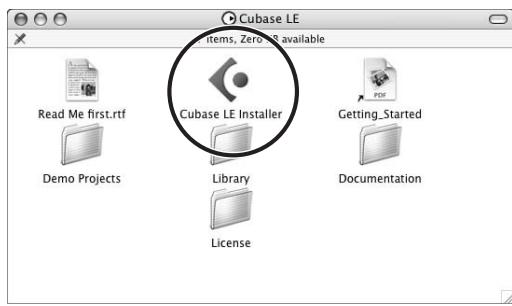

Connect this unit to the computer using a USB cable.
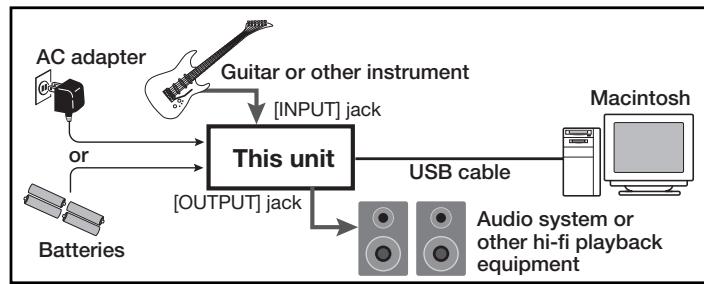
NOTE
- If you monitor the audio signal during recording via the audio output of the computer, there will be an audible latency. Be sure to use the [OUTPUT] jack of this unit to monitor the signal.
- When a device designed to use USB power is powered via the USB cable, insufficient power may result in unstable operation or error indications appearing on the display. In such a case, power the device from an AC adapter or batteries.
- Use a high-quality USB cable and keep the connection as short as possible. If power is supplied to a device designed to use USB power via a USB cable that is more than 3 meters in length, the low voltage warning indication may appear.
HINT
No special steps are necessary for canceling the USB connection. Simply disconnect the USB cable from the computer.

Open the "Applications" folder and then the "Utilities" folder, and double-click "Audio MIDI Setup".
The Audio MIDI Setup screen appears.
Click "Audio Devices" and check whether "USB Audio CODEC" is selected as default input/default output.
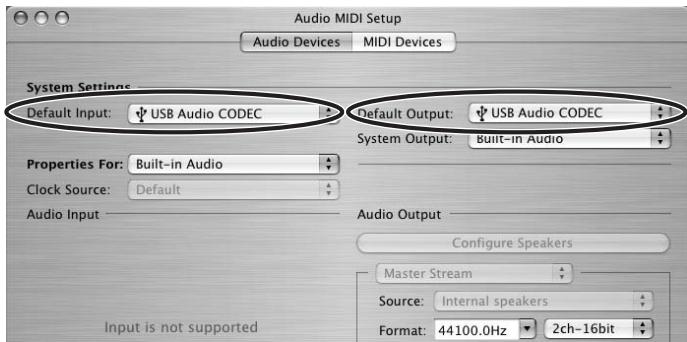
If another device is selected, use the pull-down menu to change the selection to "USB Audio CODEC".
When the setting has been made, close Audio MIDI Setup.

Start Cubase LE.
HINT
The Cubase LE program is installed in the "Applications" folder.

When Cubase LE has started up, access the "Devices" menu, select "Device Setup...", and click "VST Multitrack" in the list of devices.
Check whether "USB Audio CODEC(2)" is selected as ASIO driver in the right part of the device setup window.
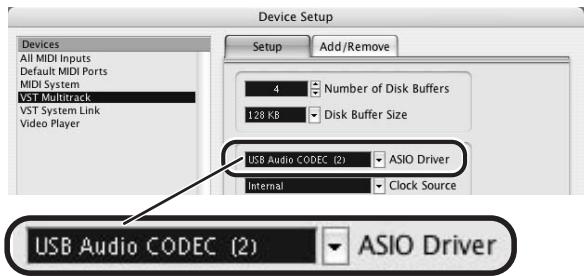
If another item is selected, use the pull-down menu to change the selection.
When the setting has been made, click the OK button to close the window.

Access the "Devices" menu and select "VST Inputs". The VST inputs window appears. Check whether the input port is active.
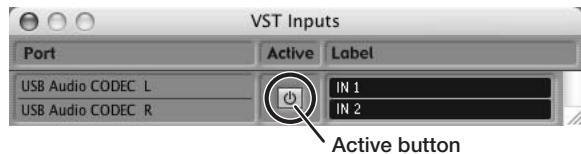
If the Active button is Off (grayed out), click the button to set it to On.

Continued overleaf

Access the "File" menu and select "New Project".
The new project window appears. Here you can select a project template.
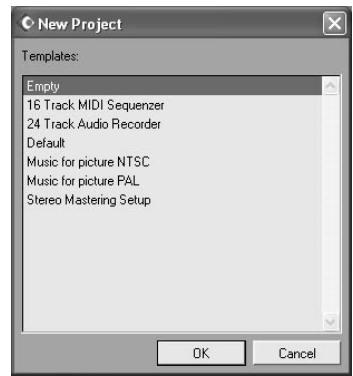

Make sure that the "Empty" template is selected, and click the OK button.
A window for selecting the project file save location appears

After specifying the project file save location (such as the desktop), click the OK button (Choose button in MacOS 10.4).
A new project is created, and the project window for controlling most of the Cubase LE operations appears.
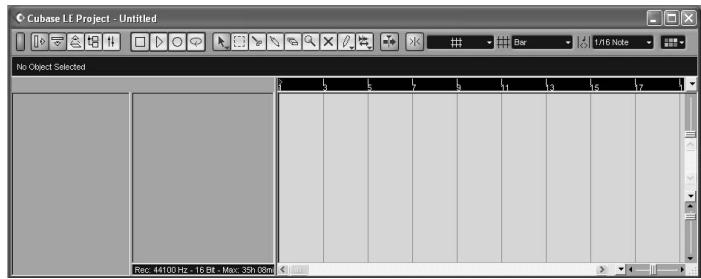
Project window

To create a new audio track, access the "Project" menu and select "Add track". In the submenu that appears, select "Audio".
A new audio track is added to the project window.
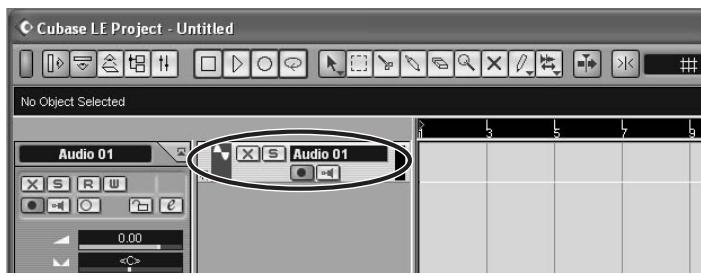
HINT
You can add several tracks at once by accessing the "Project" menu, selecting "Add track" and then selecting "Multiple..." in the submenu.

Make the following settings for the new audio track.
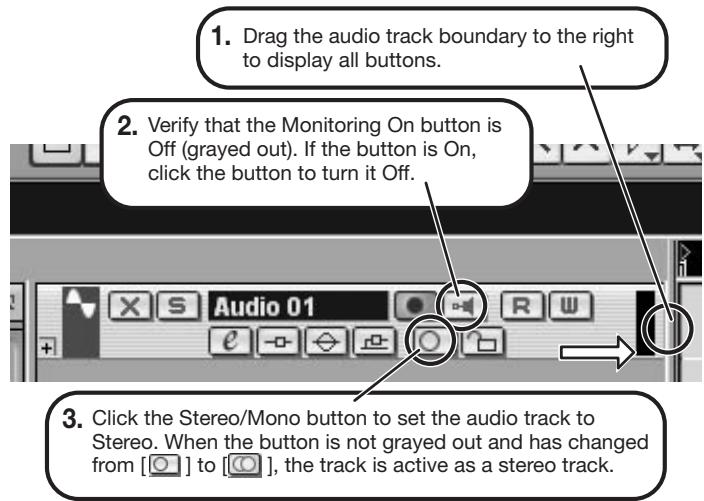

Access the "Devices" menu and select "VST Inputs".
The VST inputs window appears.
This window shows the available input ports and their active/inactive status.
You can perform the following steps here.
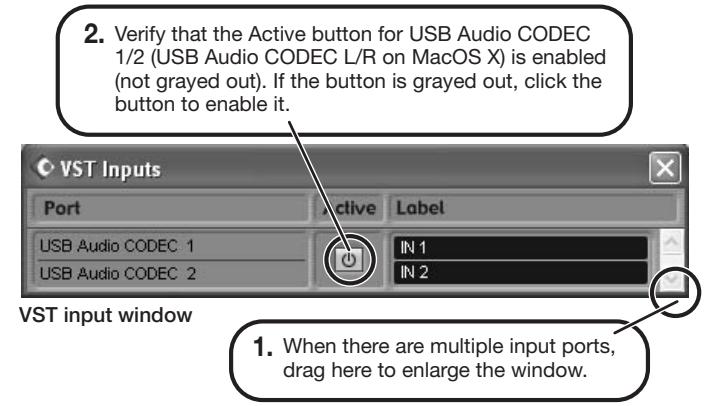

Connect the guitar or other instrument to the [INPUT] jack of this unit and select the desired patch.
The sound selected here will be recorded on the computer via the [USB] port.
![ZOOM B21U - Connect the guitar or other instrument to the [INPUT] jack of this unit and select the desired patch. - 1](/content/2025/01/152260/images/676147384abfe95bcbd7f185c5f191d4164519e4680c50819fb1ab62313ef98f.jpg)
Access the "Devices" menu and select "Mixer".
The mixer window appears.
This window shows the channels assigned to created tracks.
You can perform the following steps here.
- Click here to select the port for the USB Audio CODEC 1/2 (USB Audio CODEC L/R on MacOS X) assigned as audio input port to the channel (see step 13).
To adjust the playback level after recording, click this button to bring up the master channel of the mixer.
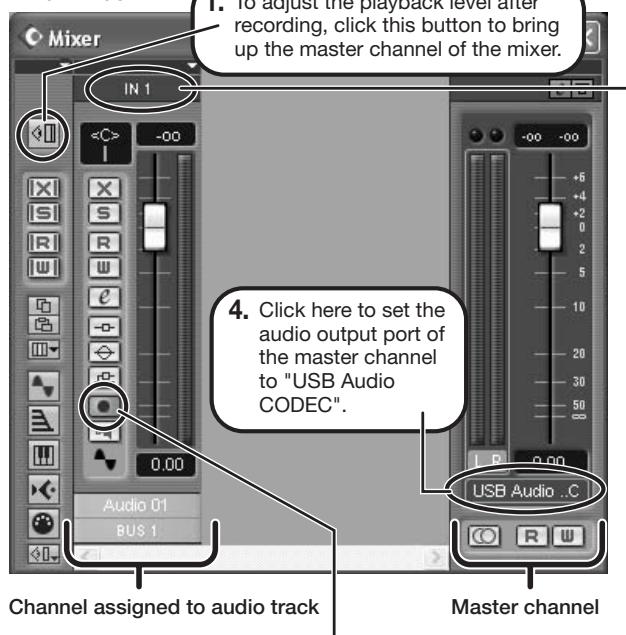
Mixer window
- Verify that the Record Standby button is shown in red. (If the button is grayed out, click the button to enable it. This will set the audio track to the recording standby condition.
HINT
When the Record Standby button is enabled, the level meter next to the fader shows the input level for the audio track. When the button is disabled, the output level for the audio track is shown.

While playing your instrument, adjust the output level of this unit to achieve a suitable recording level for Cubase LE.
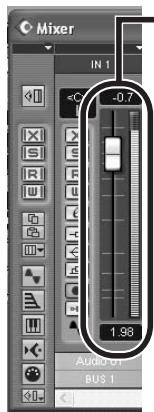
Level meter
When the audio track is in recording standby mode, its recording level is shown by the level meter for the assigned channel. The level should be set in such a way that the meter registers to a fairly high value but remains below the maximum point.
NOTE
- The level meter shows the signal level after internal processing by Cubase LE. Therefore a slight time lag may occur between playing a guitar or other instrument and the meter registering the change in level. This is normal and not a defect.
- The audio tracks of Cubase LE will be recorded with correct timing exactly matched to your instrument play. There will be no lag between already recorded tracks and newly added tracks.

Verify that the transport panel is shown.

Transport panel
If the transport panel is not shown, access the "Transport" menu and select "Transport Panel".

To start recording, click the Record button in the transport panel.

As you play your instrument, the waveform appears in real time in the project window.

To stop recording, click the Stop button in the transport panel.
Recording stops.

Check the recorded content.
To play the recording, perform the following steps.
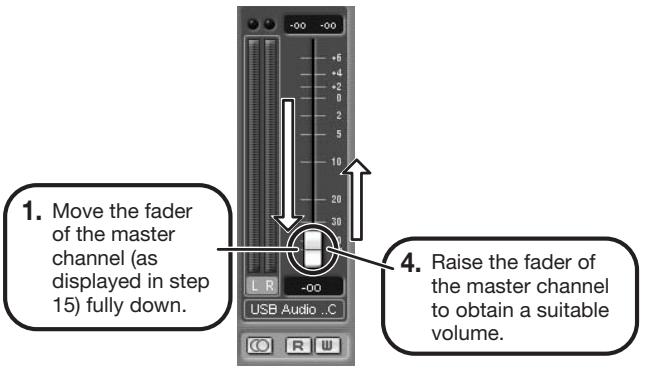

Go to beginning of project
Play button
-
Use the controls on the transport panel to move to the beginning of the project.
-
Click the Play button in the transport panel to start playback.
HINT
If no sound is heard when you click the Play button after recording, check the settings in the VST input window (step 13) and the master channel output port setting (step 15) once more.
For optimum enjoyment
While using Cubase LE, other applications may slow down drastically or the message "Cannot synchronize with USB audio interface" may appear. If this happens frequently, consider taking the following steps to optimize the operation conditions for Cubase LE.
(1) Shut down other applications besides Cubase LE. In particular, check for resident software and utilities.
(2) Reduce plug-ins (effects, instruments) used by Cubase LE. When there is a high number of plug-ins, the computer's processing power may not be able to keep up. Reducing the number of tracks for simultaneous playback can also be helpful.
(3) Power the unit from an AC adapter
When a device designed to use USB power is powered via the USB port, the current supply may sometimes fluctuate, leading to problems. See if using an AC adapter improves operation.
If applications still run very slowly or the computer itself does not function properly, disconnect this unit from the computer and shut down Cubase LE. Then reconnect the USB cable and start Cubase LE again.
Cubase LE 4 installation
Connections and preparation
Use Cubase LE 4 to record
Windows Vista / XP
To connect this unit to a computer running Windows Vista (or Windows XP) and to enable audio input/output, proceed as follows. The installation description uses Windows Vista as an example.

Download the latest ASIO driver from the web site of ZOOM Corporation (http://wwwzoomo.co.jp) and install the driver.
The ASIO driver software is required to enable use of Cubase LE 4 for audio input and output with a computer. Refer to the read_me file included in the download package for instructions on how to install the driver correctly.

Insert the supplied "Cubase LE 4" DVD-ROM into the DVD drive of the computer, and perform the installation steps.
When you insert the DVD-ROM, a screen asking what you want to do appears. Select "Open folder to view files". When the contents of the DVD-ROM are shown, open the "Cubase LE 4 for Windows" folder by double-clicking on it, and then double-click the executable "Setup" ("Setup.exe") file to start the installation process.

Setup
HINT
If nothing happens when you insert the DVD-ROM, open the Start menu and select "Computer" ("My Computer" in Windows XP). Then double-click the "Cubase LE 4" DVD-ROM icon to display the contents of the DVD-ROM.
NOTE
When the installation of Cubase LE 4 is complete, a screen asking about installation of activation (software license authentication) management software appears. Install this software, because it is required for registering Cubase LE 4.

Connect this unit to the computer using a USB cable.
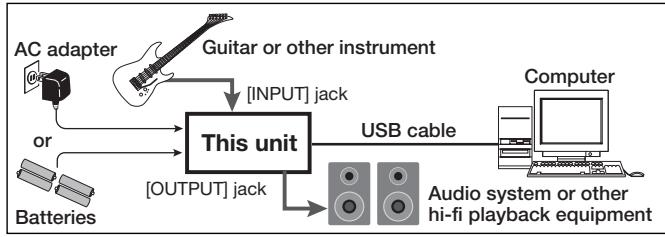
NOTE
- If you monitor the audio signal during recording via the audio output of the computer, there will be an audible delay. Be sure to use the [OUTPUT] jack of this unit to monitor the signal.
- When this unit is operated on USB bus power via the USB cable insufficient power may result in unstable operation or error indications appearing on the display. In such a case, power the device from an AC adapter or batteries.
- Use a high-quality USB cable and keep the connection as short as possible. If USB bus power is supplied to this unit via a USB cable that is more than 3 meters in length, the low voltage warning indication may appear.
HINT
No special steps are necessary for canceling the USB connection. Simply disconnect the USB cable from the computer.
When you connect this unit for the first time to a computer running Windows Vista, a message saying "New Hardware Found" will appear. Before proceeding, wait a while until this message disappears.

Bring up the "Sound" window from the Control Panel and make the input device setting for the computer.
To bring up the "Sound" window, select "Control Panel" from the Start menu and click "Hardware and Sound", then click "Sound".
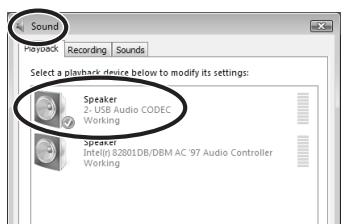
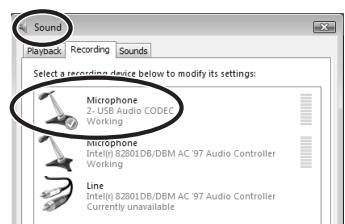
In the "Sound" window, verify that "USB Audio CODEC" is listed under the Play and Record devices and that the device is checked. (To switch between Play and Record, click the tabs at the top of the window.) If the device is not checked, right-click on the icon for the device and click "Set as Default Device" so that a check mark appears.

Start Cubase LE 4. Then access the "Devices" menu, select "Device Setup..." and click "VST Audio System".
To start Cubase LE 4, double-click the Cubase LE 4 shortcut icon that was created on the desktop. After startup, select "ZOOM ASIO Driver" as the ASIO driver in the right section of the Device Setup window. When you change the ASIO driver selection, a confirmation message appears. Click the "Switch" button.
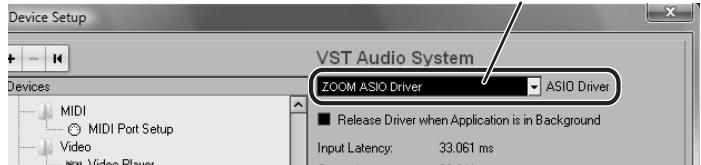
ASIO driver
The device indication in the left section of the window now shows "ZOOM ASIO Driver" as the ASIO driver.
Click on this indication to select it, and then click the "Control Panel" button in the right section of the Device Setup window.
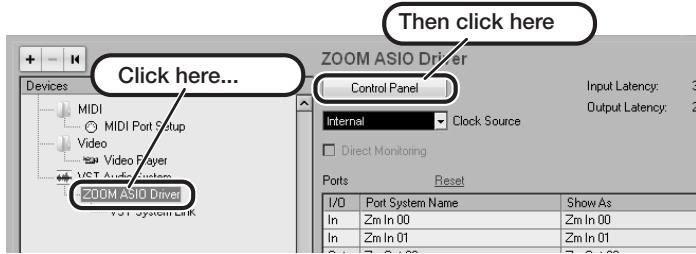
The window that appears lets you set the latency and sampling frequency for the ASIO driver. The latency should be set to a value that is as low as possible without causing sound dropouts during recording and playback.
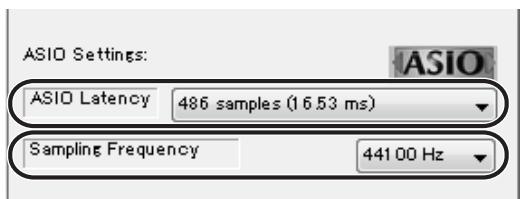
When the setting is complete, click the OK buttons in the respective windows to return to the startup condition of Cubase LE 4.

Continued overleaf
Cubase LE 4 installation
Connections and preparation
Use Cubase LE 4 to record
MacOS X
To connect this unit to a computer running MacOS X and enable audio input/output, proceed as follows.

Insert the supplied "Cubase LE 4" DVD-ROM into the DVD drive of the Macintosh.
The contents of the DVD-ROM appear automatically. If nothing happens when you insert the DVD-ROM, double-click the "Cubase LE 4" icon shown on the desktop.

Install Cubase LE 4 on the Macintosh.
When the contents of the DVD-ROM appear, open the "Cubase LE 4 for MacOS X" folder by double-clicking it, and then double-click the "Cubase LE 4.mpkg" file to start the installation process.
Cubase LE 4.mpkg

Connect this unit to the computer using a USB cable.
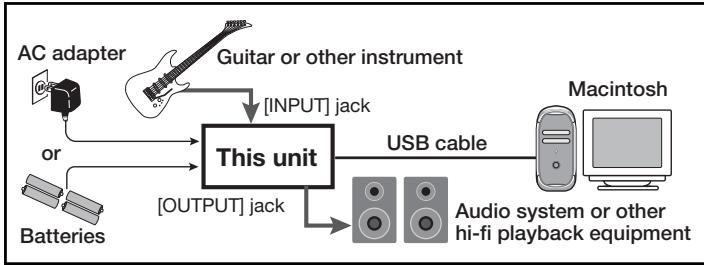
NOTE
- If you monitor the audio signal during recording via the audio output of the computer, there will be an audible delay. Be sure to use the [OUTPUT] jack of this unit to monitor the signal.
- When this unit is operated on USB bus power via the USB cable, insufficient power may result in unstable operation or error indications appearing on the display. In such a case, power the device from an AC adapter or batteries.
- Use a high-quality USB cable and keep the connection as short as possible. If USB bus power is supplied to this unit via a USB cable that is more than 3 meters in length, the low voltage warning indication may appear.
HINT
No special steps are necessary for canceling the USB connection. Simply disconnect the USB cable from the computer.

Open the "Applications" folder and then the "Utilities" folder, and double-click "Audio MIDI Setup".
The Audio MIDI Setup screen appears. Click "Audio Devices" and check whether "USB Audio CODEC" is selected as default input/ default output.
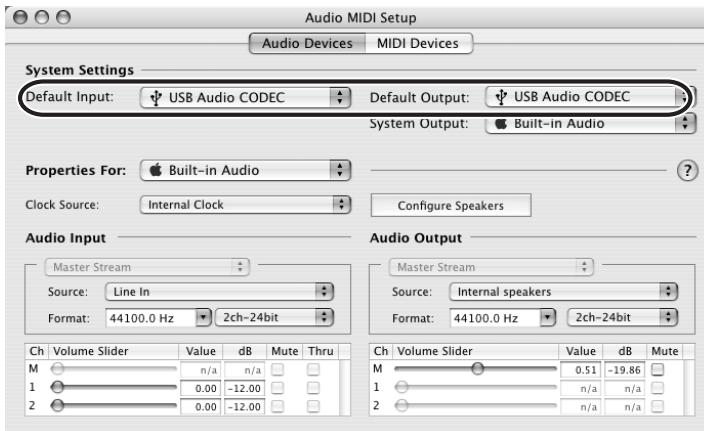
If another device is selected, use the pull-down menu to change the selection to "USB Audio CODEC".
When the setting has been made, close Audio MIDI Setup.

Start Cubase LE 4. Then access the "Devices" menu, select "Device Setup..." and click "VST Audio System".
To start Cubase LE 4, double-click on the Cubase LE 4 icon that was placed in the "Applications" folder during installation.
After startup, be sure to verify that "USB Audio CODEC (2)" is selected as ASIO driver in the right section of the Device Setup window.
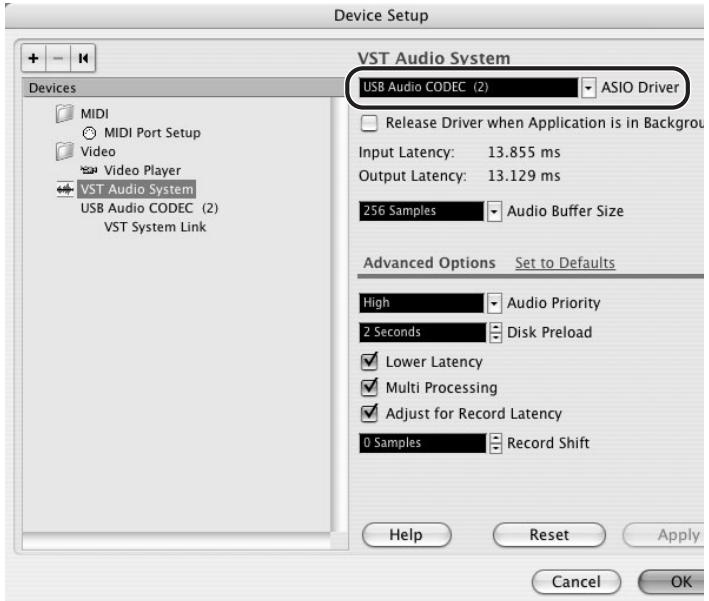
If another item is selected, use the pull-down menu to change the selection to "USB Audio CODEC (2)".
When the setting has been made, click the OK button to close the window.

Continued overleaf
From the "Devices" menu of Cubase LE 4, select "VST Connections" and select the device containing the string "Zm In (Out)" ("USB Audio CODEC" for MacOS X) as input port and output port.
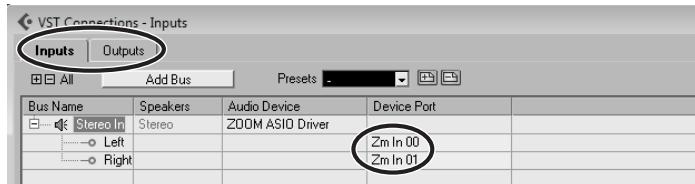
Use the tabs at top (top center for Mac OS X) left to switch between input and output, and verify that "Zm In (Out)" is selected as device port. If another device is selected, click the device port field and change the selection.
7 Access the "File" menu and select "New Project".
The new project window appears. Here you can select a project template.
Make sure that the "Empty" template is selected, and click the OK button.
A window for selecting the project file save location appears.
After specifying a suitable project file save location (such as the desktop), click the OK button (Choose button in MacOS X).
A new project is created, and the project window for controlling most of the Cubase LE 4 operations appears.
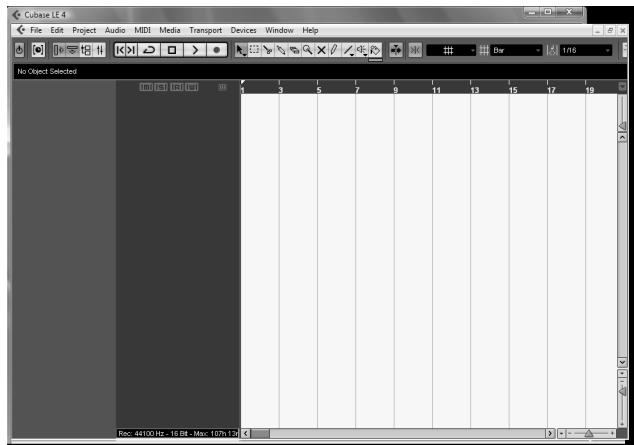
Project window
To create a new audio track, access the "Project" menu and select "Add track". In the submenu that appears, select "Audio".
he Add Track window for specifying the number of audio tracks and the stereo/mono setting appears.
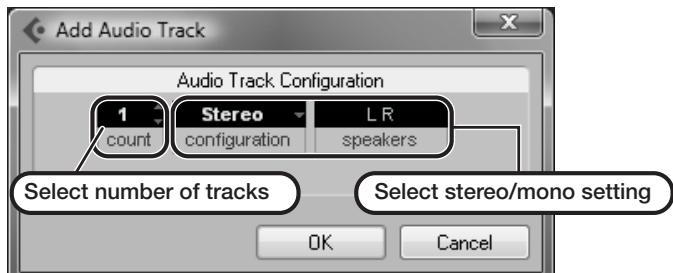
In this example, set the number of tracks to "1" and select stereo, then click the OK button.
A new stereo audio track is added to the project window.
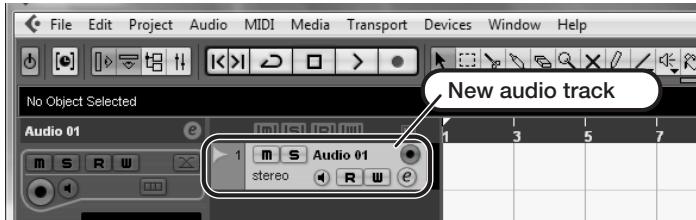
Make the following settings for the newly created audio track.
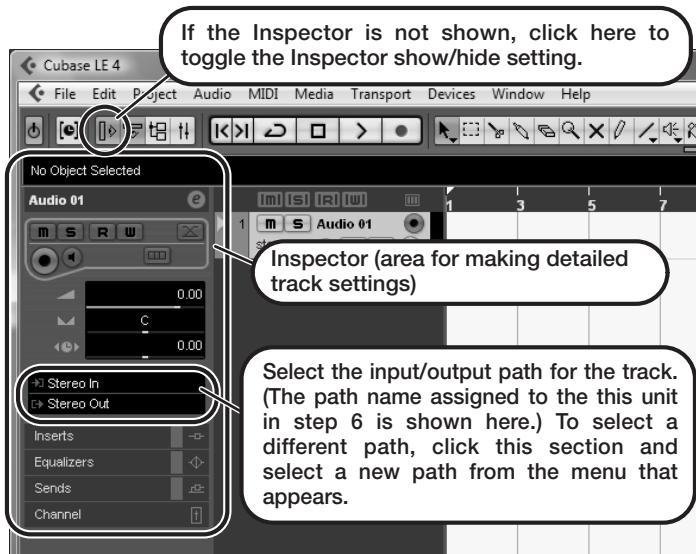
HINT
The Inspector shows information about the currently selected track. If nothing is shown, click on the track to select it.
Connect the guitar or other instrument to the [INPUT] jack of this unit and select the desired patch.
The sound selected here will be recorded on the computer via the [USB] port.
Access the "Devices" menu of Cubase LE 4 and select "Mixer".
The mixer window appears.
This window shows the channel assigned to the created track, and the master channel.
Perform the following steps here.
Mixer window
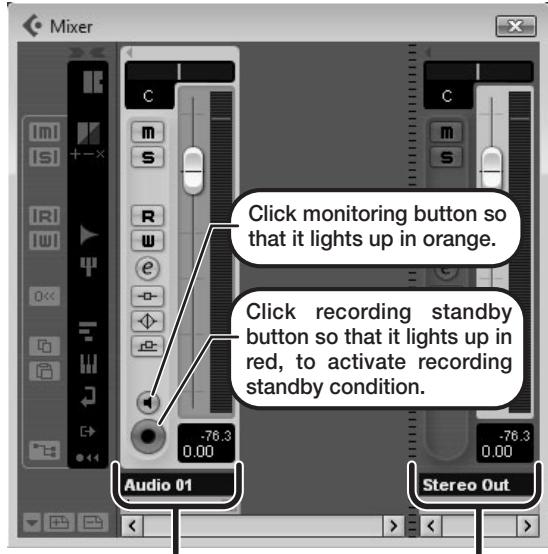
Channel assigned to audio track
Master channel
HINT
When the monitoring button is enabled, the level meter next to the fader shows the input level to the audio track. When the monitoring button is disabled, the meter fader shows the audio track output level.
While playing your instrument, adjust the output level of this unit to achieve a suitable recording level for Cubase LE 4.
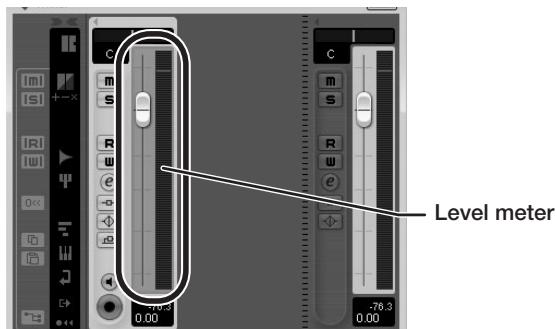
The recording level for Cubase LE 4 can be checked with the level meter for the channel that is assigned to the recording standby track. Set the level as high as possible without causing the meter to reach the end of the scale.
To adjust the level, do not use the fader of Cubase LE 4. Instead change the recording level and gain settings at this unit.
NOTE
- While the monitoring button is enabled, the direct signal input to this unit and the signal routed to the computer and then returned to this unit will be output simultaneously from this unit, causing a flanger-like effect in the sound. To accurately monitor the sound also while adjusting the recording level, temporarily set the output device port for the VST connection (step 6) to "Not Connected".
- The level meter as in the above illustration shows the signal level after processing in this unit. When you pluck a guitar string the meter may register with a slight delay, but this is not a defect.
When the recording level has been adjusted, click the monitoring button to disable it.
The input level is no longer shown on the meter, and the signal returned to this unit via the computer is muted.
In this condition, only the signal before sending to the computer can be monitored via the [OUTPUT] jack of this unit.
Verify that the transport panel is being shown.

If the transport panel is not shown, access the "Transport" menu and select "Transport Panel".
To start recording, click the Record button in the transport panel.

Stop button
Record button
Recording starts.
As you play your instrument, the waveform appears in real time in the project window.
To stop recording, click the Stop button in the transport panel.

Check the recorded content.
To play the recording, perform the following steps.
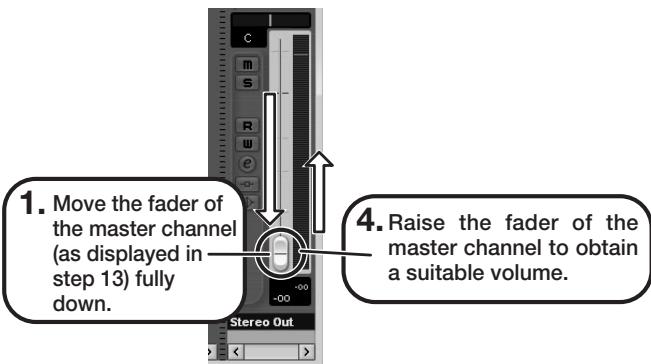

Go to beginning of project
Play button
-
Use the button in the transport panel to move to the beginning of the project.
-
Click the Play button in the transport panel to start playback.
HINT
If no sound is heard when you click the Play button after recording, check the VST connection settings (step 6) once more.
NOTE
To continue using Cubase LE 4, a process called activation (license authentication and product registration) is necessary. When you start Cubase LE 4, a screen offering to register the product will appear. Select "Register Now". A web site for registration will open in your Internet browser. Follow the instructions on that page to register and activate the product.
For optimum enjoyment
While using Cubase LE 4, other applications may slow down drastically or a message such as "Cannot synchronize with USB audio interface" may appear. If this happens frequently, consider taking the following steps to optimize the operation conditions for Cubase LE 4.
(1) Shut down other applications besides Cubase LE 4. In particular, check for resident software and other utilities.
(2) Reduce plug-ins (effects, instruments) used by Cubase LE 4.
When there is a high number of plug-ins, the computer's processing power may not be able to keep up. Reducing the number of tracks for simultaneous playback can also be helpful.
(3) Power the unit from an AC adapter.
When a device designed to use USB power is powered via the USB port, the current supply may sometimes fluctuate, leading to problems. See if using an AC adapter improves operation.
If applications still run very slowly or the computer itself does not function properly, disconnect this unit from the computer and shut down Cubase LE 4. Then reconnect the USB cable and start Cubase LE 4 again.
- Power requirements
- [AC adapter operation]
- [Battery operation]
- Environment
- Handling
- Connecting cables and input and output jacks
- Alterations
- Volume
- Usage Precautions
- Electrical interference
- Cleaning
- Please keep this manual in a convenient place for future reference.
- Contents
- SAFETY PRECAUTIONS / Usage Precautions 2
- Features 4
- Terms Used in This Manual 5
- Controls and Functions / Connections 6
- Selecting a Patch 8
- Using the Tuner 10
- Using the Rhythm Function 12
- Editing a Patch 14
- Storing/Copying Patches 16
- Using the Built-in Expression Pedal 18
- Other Functions 20
- Restoring Factory Defaults 24
- Linking Effects 25
- Effect Types and Parameters 26
- Specifications 35
- Troubleshooting 35
- The FCC regulation warning (for U.S.A.)
- Features
- - Latest technology for outstanding performance
- - Versatile palette of effects
- - Really usable patches straight out of the box
- - Great for live performances and direct recording
- - XLR connector for direct output
- - Integrated auto-chromatic tuner and rhythm functions
- Sophisticated user interface
- - Dual power supply principle allows use anywhere
- - Easy operation with expression pedal and foot switch
- Terms Used in This Manual
- ■ Effect module
- ■ Effect type
- ■ Effect parameter
- Patch
- Bank and area
- Play mode/edit mode
- Operating the B2.1u on batteries
- Controls and Functions / Connections
- Module selector
- BANK[-]/[+]keys
- [STORE] key
- [ ] / [] foot switches
- [USB] connector
- [BALANCED OUT] connector
- [PRE/POST] switch
- [GROUND] switch
- Selecting a Patch
- Turn power on
- Set the B2.1u to play mode
- Select a patch
- Adjust tone and volume
- Parameter knob 2
- NOTE
- Directly selecting a bank
- Using the Tuner
- Switch to bypass or mute
- Patch change at bypass/mute
- Play the string to tune
- Adjusting the reference pitch of the tuner
- - Turn Parameter knob 1.
- - While the reference pitch value is shown, turn Parameter knob 1 to adjust it.
- Return to play mode
- Using the Rhythm Function
- Set the B2.1u to play mode
- Start the rhythm function
- Select a rhythm pattern
- Adjust the rhythm volume
- Adjust the tempo
- Stop the rhythm
- Editing a Patch
- Select the effect module
- To switch an effect module on and off
- Terminate the edit mode
- Change the parameter value
- Select the effect type
- Storing/Copying Patches
- In play mode or edit mode, press the [STORE] key
- Select the store/copy target bank
- To cancel the store process
- Press the [STORE] key once more
- Specify the store/copy target patch number
- Using the Built-in Expression Pedal
- Select the patch for which the expression pedal is to be used
- Select the element to be controlled by the expression pedal
- HINT
- Operate the pedal
- To switch a module on or off
- Store the patch as necessary
- Other Functions
- Making settings for the internal expression pedal
- Adjusting the sensitivity of the built-in expression pedal
- Turn power to the B2.1u on while keeping the [PEDAL ASSIGN] key depressed.
- With the expression pedal fully raised, press the [STORE] key.
- Push the expression pedal fully down and then lift your foot off the pedal.
- Press the [STORE] key once more.
- Using an external expression pedal (FP01/ FP02)
- Using a foot switch (FS01)
- Turn Parameter knob 2 to select one of the following functions for the foot switch.
- bP (bypass/mute)
- tP (tap tempo)
- bU (bank up)
- rH (rhythm on/off)
- dH (delay hold)
- dM (delay input mute)
- Select the patch in play mode and operate the foot switch.
- Using the B2.1u as audio interface for a computer
- Compatible operating system
- Quantization
- Sampling frequency
- Use as a direct box
- Restoring Factory Defaults
- Turn the B2.1u on while holding down the [STORE] key.
- To carry out the All Initialize function, press the [STORE] key once more.
- Linking Effects
- How to read the parameter table
- Effect parameters 1 - 3
- Expression pedal
- Tap
- Hold
- UP
- C DOWN
- H HIGH
- L LOW
- Specifications
- Troubleshooting
- ZEEM
- B2.1u Patch List
- Cubase LE Installation
- Connections and Preparations
- Recording with Cubase LE
- Windows XP
- Install Cubase LE on the computer.
- Connect this unit to the computer using a USB cable.
- From the "Start" menu, select "Control Panel" and double-click "Sounds and Audio Devices".
- Start Cubase LE.
- MacOS X
- Access the "File" menu and select "New Project".
- Make the following settings for the new audio track.
- Access the "Devices" menu and select "VST Inputs".
- Connect the guitar or other instrument to the [INPUT] jack of this unit and select the desired patch.
- Access the "Devices" menu and select "Mixer".
- While playing your instrument, adjust the output level of this unit to achieve a suitable recording level for Cubase LE.
- Verify that the transport panel is shown.
- To start recording, click the Record button in the transport panel.
- To stop recording, click the Stop button in the transport panel.
- Check the recorded content.
- For optimum enjoyment
- Cubase LE 4 installation
- Connections and preparation
- Use Cubase LE 4 to record
- Windows Vista / XP
- Access the "File" menu and select "New Project".
- Make sure that the "Empty" template is selected, and click the OK button.
- After specifying a suitable project file save location (such as the desktop), click the OK button (Choose button in MacOS X).
- To create a new audio track, access the "Project" menu and select "Add track". In the submenu that appears, select "Audio".
- Access the "Devices" menu of Cubase LE 4 and select "Mixer".
- Mixer window
- While playing your instrument, adjust the output level of this unit to achieve a suitable recording level for Cubase LE 4.
- When the recording level has been adjusted, click the monitoring button to disable it.
- Verify that the transport panel is being shown.
Brand : ZOOM
Model : B21U
Category : USB audio interface