USER MANUAL GT-6B BOSS
BASS EFFECTS PROCESSOR
Owner's Manual
Thank you, and congratulations on your choice of the BOSS GT-6B Bass Effects Processor.
Before using this unit, carefully read the sections entitled:
- USING THE UNIT SAFELY (page 2-3)
- IMPORTANT NOTES (page 4)
These sections provide important information concerning the proper operation of the unit.
Additionally, in order to feel assured that you have gained a good grasp of every feature provided by your new unit, Owner's manual should be read in its entirety. The manual should be saved and kept on hand as a convenient reference.
■ Printing Conventions in This Manual
- Text or numerals enclosed in square brackets [ ] indicate buttons.
[WRITE] WRITE button
[UTILITY] UTILITY button
- Reference such as (p. **) indicate pages in this manual to which you can refer.
- All product names mentioned in this document are trademarks or registered trademarks of their respective owners.
Copyright © 2002 BOSS CORPORATION
All rights reserved. No part of this publication may be reproduced in any form without the written permission of BOSS CORPORATION.
USING THE UNIT SAFELY
INSTRUCTIONS FOR THE PREVENTION OF FIRE, ELECTRIC SHOCK, OR INJURY TO PERSONS
About WARNING and CAUTION Notices
| ▲WARNING | Used for instructions intended to alert the user to the risk of death or severe injury should the unit be used improperly. |
| ▲CAUTION | Used for instructions intended to alert the user to the risk of injury or material damage should the unit be used improperly.
* Material damage refers to damage or other adverse effects caused with respect to the home and all its furnishings, as well to domestic animals or pets. |
About the Symbols
| ▲ | The △ symbol alerts the user to important instructions or warnings. The specific meaning of the symbol is determined by the design contained within the triangle. In the case of the symbol at left, it is used for general cautions, warnings, or alerts to danger. |
| ◎ | The ⊙ symbol alerts the user to items that must never be carried out (are forbidden). The specific thing that must not be done is indicated by the design contained within the circle. In the case of the symbol at left, it means that the unit must never be disassembled. |
| ◎ | The ● symbol alerts the user to things that must be carried out. The specific thing that must be done is indicated by the design contained within the circle. In the case of the symbol at left, it means that the power-cord plug must be unplugged from the outlet. |
ALWAYS OBSERVE THE FOLLOWING
WARNING
- Before using this unit, make sure to read the instructions below, and the Owner's Manual.

- Do not open (or modify in any way) the unit or its AC adaptor.

- Do not attempt to repair the unit, or replace parts within it (except when this manual provides specific instructions directing you to do so). Refer all servicing to your retailer, the nearest Roland Service Center, or an authorized Roland distributor, as listed on the "Information" page.

-
Never use or store the unit in places that are:
-
Subject to temperature extremes (e.g., direct sunlight in an enclosed vehicle, near a heating duct, on top of heat-generating equipment); or are
- Damp (e.g., baths, washrooms, on wet floors); or are
- Humid; or are
- Exposed to rain; or are
- Dusty; or are
-
Subject to high levels of vibration.
-
Make sure you always have the unit placed so it is level and sure to remain stable. Never place it on stands that could wobble, or on inclined surfaces.

- Be sure to use only the AC adaptor supplied with the unit. Also, make sure the line voltage at the installation matches the input voltage specified on the AC adaptor's body. Other AC adaptors may use a different polarity, or be designed for a different voltage, so their use could result in damage, malfunction, or electric shock.



WARNING
- Do not excessively twist or bend the power cord, nor place heavy objects on it. Doing so can damage the cord, producing severed elements and short circuits. Damaged cords are fire and shock hazards!

- This unit, either alone or in combination with an amplifier and headphones or speakers, may be capable of producing sound levels that could cause permanent hearing loss. Do not operate for a long period of time at a high volume level, or at a level that is uncomfortable. If you experience any hearing loss or ringing in the ears, you should immediately stop using the unit, and consult an audiologist.

- Do not allow any objects (e.g., flammable material, coins, pins); or liquids of any kind (water, soft drinks, etc.) to penetrate the unit.


- Immediately turn the power off, remove the AC adaptor from the outlet, and request servicing by your retailer, the nearest Roland Service Center, or an authorized Roland distributor, as listed on the "Information" page when:

- The AC adaptor, the power-supply cord, or the plug has been damaged; or
- Objects have fallen into, or liquid has been spilled onto the unit; or
- The unit has been exposed to rain (or otherwise has become wet); or
- The unit does not appear to operate normally or exhibits a marked change in performance.
WARNING
- In households with small children, an adult should provide supervision until the child is capable of following all the rules essential for the safe operation of the unit.

- Protect the unit from strong impact. (Do not drop it!)

- Do not force the unit's power-supply cord to share an outlet with an unreasonable number of other devices. Be especially careful when using extension cords—the total power used by all devices you have connected to the extension cord's outlet must never exceed the power rating (watts/amperes) for the extension cord. Excessive loads can cause the insulation on the cord to heat up and eventually melt through.

- Before using the unit in a foreign country, consult with your retailer, the nearest Roland Service Center, or an authorized Roland distributor, as listed on the "Information" page.

CAUTION
- The unit and the AC adaptor should be located so their location or position does not interfere with their proper ventilation.

- Always grasp only the plug on the AC adaptor cord when plugging into, or unplugging from, an outlet or this unit.

- Whenever the unit is to remain unused for an extended period of time, disconnect the AC adaptor.

- Try to prevent cords and cables from becoming entangled. Also, all cords and cables should be placed so they are out of the reach of children.

- Never climb on top of, nor place heavy objects on the unit.

- Never handle the AC adaptor or its plugs with wet hands when plugging into, or unplugging from, an outlet or this unit.

- Before moving the unit, disconnect the AC adaptor and all cords coming from external devices.

- Before cleaning the unit, turn off the power and unplug the AC adaptor from the outlet (p. 12).

- Whenever you suspect the possibility of lightning in your area, disconnect the AC adaptor from the outlet.

In addition to the items listed under "USING THE UNIT SAFELY" on page 2-3, please read and observe the following:
Power Supply
- Do not use this unit on the same power circuit with any device that will generate line noise (such as an electric motor or variable lighting system).
- The AC adaptor will begin to generate heat after long hours of consecutive use. This is normal, and is not a cause for concern.
- Before connecting this unit to other devices, turn off the power to all units. This will help prevent malfunctions and/or damage to speakers or other devices.
Placement
- Using the unit near power amplifiers (or other equipment containing large power transformers) may induce hum. To alleviate the problem, change the orientation of this unit; or move it farther away from the source of interference.
- This device may interfere with radio and television exception. Do not use this device in the vicinity of such receivers.
- Noise may be produced if wireless communications devices, such as cell phones, are operated in the vicinity of this unit. Such noise could occur when receiving or initiating a call, or while conversing. Should you experience such problems, you should relocate such wireless devices so they are at a greater distance from this unit, or switch them off.
- To avoid possible breakdown, do not use the unit in a wet area, such as an area exposed to rain or other moisture.
Maintenance
- For everyday cleaning wipe the unit with a soft, dry cloth or one that has been slightly dampened with water. To remove stubborn dirt, use a cloth impregnated with a mild, non-abrasive detergent. Afterwards, be sure to wipe the unit thoroughly with a soft, dry cloth.
- Never use benzine, thinners, alcohol or solvents of any kind, to avoid the possibility of discoloration and/or deformation.
Repairs and Data
- Please be aware that all data contained in the unit's memory may be lost when the unit is sent for repairs. Important data should always be backed up in another MIDI device (e.g., a sequencer), or written down on paper (when possible). During repairs, due care is taken to avoid the loss of data. However, in certain cases (such as when circuitry related to memory itself is out of order), we regret that it may not be possible to restore the data, and Roland assumes no liability concerning such loss of data.
Memory Backup
- This unit contains a battery which powers the unit's memory circuits while the main power is off. When this battery becomes weak, the message shown below will appear in the display. Once you see this message, have the battery replaced with a fresh one as soon as possible to avoid the loss of all data in memory. To have the battery replaced, consult with your retailer, the nearest Roland Service Center, or an authorized Roland distributor, as listed on the "Information" page.
Battery Low !
Additional Precautions
- Please be aware that the contents of memory can be irretrievably lost as a result of a malfunction, or the improper operation of the unit. To protect yourself against the risk of loosing important data, we recommend that you periodically save a backup copy of important data you have stored in the unit's memory in another MIDI device (e.g., a sequencer).
- Unfortunately, it may be impossible to restore the contents of data that was stored in another MIDI device (e.g., a sequencer) once it has been lost. Roland Corporation assumes no liability concerning such loss of data.
- Use a reasonable amount of care when using the unit's buttons, sliders, or other controls; and when using its jacks and connectors. Rough handling can lead to malfunctions.
- Never strike or apply strong pressure to the display.
- When connecting / disconnecting all cables, grasp the connector itself—never pull on the cable. This way you will avoid causing shorts, or damage to the cable's internal elements.
- To avoid disturbing your neighbors, try to keep the unit's volume at reasonable levels. You may prefer to use headphones, so you do not need to be concerned about those around you (especially when it is late at night).
- When you need to transport the unit, package it in the box (including padding) that it came in, if possible. Otherwise, you will need to use equivalent packaging materials.
- Use only the specified expression pedal (EV-5; sold separately). By connecting any other expression pedals, you risk causing malfunction and/or damage to the unit.
-
Use a cable from Roland to make the connection. If using some other make of connection cable, please note the following precautions.
-
Some connection cables contain resistors. Do not use cables that incorporate resistors for connecting to this unit. The use of such cables can cause the sound level to be extremely low, or impossible to hear. For information on cable specifications, contact the manufacturer of the cable.
Contents
USING THE UNIT SAFELY 2
IMPORTANT NOTES. 4
Main Features 7
Panel Descriptions 8
Front Panel. 8
Rear Panel 11
Chapter 1 Playing Sounds 12
Making Connections 12
Turning On the Power 13
Adjusting the Output Level. 13
What is a Patch? 14
Selecting Patches. 14
How to Switch Patches. 14
Turning Each of the Effects in a Patch On and Off 15
About the Information Appearing in the Display. 15
If the Patch Does Not Switch. 15
Turning Off the Power 15
Chapter 2
Creating You Own Favorite Tones (Patches) .. 16
Getting the Tones You Want-Fast (EZ Tone) 16
Adjusting the Tones with the Knobs 16
Adding and Omitting Effects 18
Using the Buttons to Switch Effects On and Off. 18
Switching Effects with the Pedals. 18
Setting the Effect Tones (Quick Settings) 19
Making More Detailed Settings with Individual Parameters...19
Using the Pedal Effects
(Wah, Pedal Bend, Ring Modulator) 20
Wah 20
Pedal Bend. 20
Ring Modulator 21
Naming Tones 21
Changing the Order of the Effects (Effect Chain) 22
Chapter 3 Saving the Tones You Have Created 23
Write 23
Copying Patches 23
Exchanging Patches 24
Chapter 4 The Effects Explained. 25
COMP/LIMITER (Compressor/Limiter) 25
OD/DIST (Overdrive/Distortion) 26
OD:Overdrive 26
DST: Distortion 26
FUZ:Fuzz. 26
CHORUS 27
REV/DLY (Reverb/Delay)/SOS (Sound On Sound).27
■ REV:Reverb. 28
■ DLY: Delay 28
■ R&D: Reverb & Delay. 29
■ SOS: Sound On Sound. 29
PREAMP/SPEAKER 29
■ Preamp. 29
■ Speaker 30
3 BAND PARAMETRIC EQ 31
WAH 31
■ WH: Pedal Wah. 31
■ TW: Touch Wah. 32
AW: Auto Wah. 32
FX-1 33
OCT: Octave 33
■ ENH: Enhancer 33
■ SG: Slow Gear 34
DEF: Defretter 34
■ R.M: Ring Modulator. 34
FX-2 35
PH:Phaser. 35
■ FL: Flanger. 36
■ HRM: Harmonist. 36
■ P.S: Pitch Shifter 37
PB: Pedal Bend. 38
2CE: 2x2 Chorus 38
■ ASL: Auto Slap 39
■ SDD: Short Delay 40
■ VIB: Vibrato. 41
■ HMN: Humanizer. 41
T/P: TREMOLO/PAN. 42
■ SYN: Bass Synth 42
NS: Noise Suppressor 44
MASTER. 44
FV: Foot Volume 44
Chapter 5 Setting the Pedal Functions (Pedal Assign) .45
Selecting Each Effect to Be Turned On and Off with the Number Pedals 45
Settings for Using the Expression Pedal 45
Setting the Range of the Volume Change. 45
If You Don't Want to Use the Expression Pedal as a "Volume Pedal"...46
Settings for Using the Expression Pedal Switch/
CTL Pedal 46
Making Settings Instantly (Quick Settings) 46
If You Don't Want to Use the Expression Pedal Switch or CTL Pedal...47
Editing "Quick Settings" 47
Contents
Making the Assign On/Off Setting 48
Making Settings Instantly (Quick Settings) 48
Making the Parameter Settings 49
Controlling Effects with the GT-6B Pedals, External Pedals, and External MIDI Devices 48
Controlling Foot Volume and Pitch Shifter with an External Expression Pedal 51
Chapter 6 Using the Customize Function 52
Making "Custom" Overdrive/Distortion Settings 52
Making "Custom" Pedal Wah Settings. 53
Chapter 7 Using Sound On Sound. 54
Chapter 8 Convenient Features of the GT-6B 55
Outputting Sounds Without Effects Applied (Bypass)....55 Using the Expression Pedal Even When Bypass Is in Effect.....55 Switching Bypass On and Off. 55
Connecting Directly to a Recording
Mixer or PA Mixer (XLR Balanced Output) 55
Switching the XLR Output Connector Signals 55
Quick Patch Volume Adjustment (EFFECT LEVEL Knob).56
Tuning the Bass. 56
Turning the Tuner Function On. 56
About the Display During Tuning. 56
How to Tune. 57
Changing the Tuner Settings. 57
Adjusting the Overall Sound to Match the Usage Environment (Global) 58
Using the Digital Out. 58
Adjusting the Output Level from DIGITAL OUT............58
Checking the Effect Output Level with the Level Meter .......59
Chapter 9 Other Functions 60
Adjusting the Display Contrast (LCD Contrast) ....60 Limiting the Banks That Can Be Switched (Bank Extent) ....60
Setting the Timing Used for Switching Patches (Patch Select Mode) 60 Selecting Patches by Directly Specifying the Bank and Number....60
Setting the Timing Used for Switching Patches (Patch Change Mode). 61
Setting "Expression Pedal Hold" 62
Selecting the PATCH/VALUE Dial Function (Dial Function)...62 Setting the Knob Functions (Knob Mode) 63
Setting the External Foot Switch Functions (SUB CTL 1, 2 Function) 63
Chapter 10 Using MIDI 64
What Can You Do with MIDI? 64
Making the Settings for MIDI Functions 65
Transmitting and Receiving MIDI Data 67 Transmitting Data to an External MIDI Device (Bulk Dump)...67 Receiving Data from an External MIDI Device (Bulk Load) ....68
Setting the Program Change Map 69
Initial Program Change Map Settings 69
Enabling/Disabling the Program Change Map Settings (MIDI Map Select) 70
Changing Patch Numbers on an External MIDI Device From the GT-6B 70
Appendices 71
About MIDI 71
How MIDI messages are transmitted and received.. 71
Main types of MIDI message used by the GT-6B. 71
About the MIDI implementation. 72
Factory Settings. 72
Restoring the Factory Settings (Factory Reset) 73
Adjusting the Expression Pedal 73
Troubleshooting 74
Error Messages. 75
MIDI Implementation Chart 76
Main Specifications 77
Index 78
Main Features
Powerful COSM Modeling Effects Built-In
Features internal high-quality modeled effects, including bass amp, overdrive/distortion, compressor/limiter, touch wah, pedal wah, and more.
Internal Analog Bypass Circuitry
When bypass is activated, signals can be output without passing through the AD/DA converter. Moreover, analog signals also can be output without passing through the AD/DA converter when only chorus or reverb/delay is used.
Equipped with XLR Balanced Output Connectors
The GT-6B features two XLR type output jacks, enabling you to connect to PAs and recording decks. And not only can you output in stereo, these can also be selected as monaural outputs and direct outs.
Customize Function
The GT-6B's internal Customize function lets you bring your own sensibilities into play, and design totally new effects by tweaking the settings for the "Overdrive/Distortion," and "Pedal Wah" effects.
The resulting creations can then be saved on the GT-6B as "Custom" settings. (p. 52)
EZ Tone
The GT-6B includes thirty representative effect sounds used for creating new sounds. Now it's easy to select just the sounds you like. (p. 16)
Quick Settings
Each effect contains pre-programmed settings for each effect. Creating the effect sounds you want is simple—just select the preset settings for the effect you are using.
A Wide Variety of Effects
The GT-6B provides 35 different effects, from pro-quality chorus, delay and reverb, to octave, defretter, synth-bass, a newly developed Auto Slap, and numerous other effects.
Expression Pedal/Expression Pedal Switch and Control Pedal
The unit features an expression pedal and control pedal that you can use in setting the functions in each patch. The functions that can be assigned to the expression pedal vary with each patch you select, allowing you to use it as a wah pedal, volume pedal, or other kind of pedal.
Furthermore, you can use the pedal as an "expression pedal switch" to control (turn on and off) the current effect by firmly pressing down at the front tip. (p. 46)
Includes Digital Outs
The unit also includes digital out connectors (coaxial), convenient for digital recording. (p. 58)
COSM (Composite Object Sound Modeling)
Composite Object Sound Modeling (COSM) is an original sound modeling technology developed by Roland, in which the many factors that make up the original sound, such as the electrical circuitry, structural characteristics, materials used, and acoustics, are analyzed and then recombined to reproduce that same sound.
Panel Descriptions
Front Panel
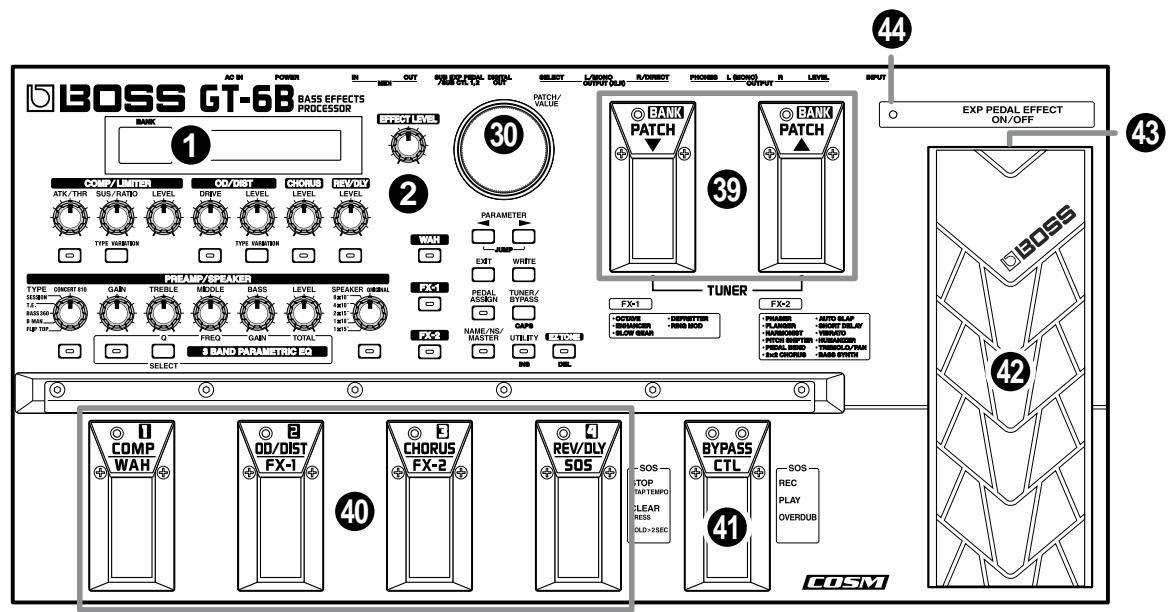
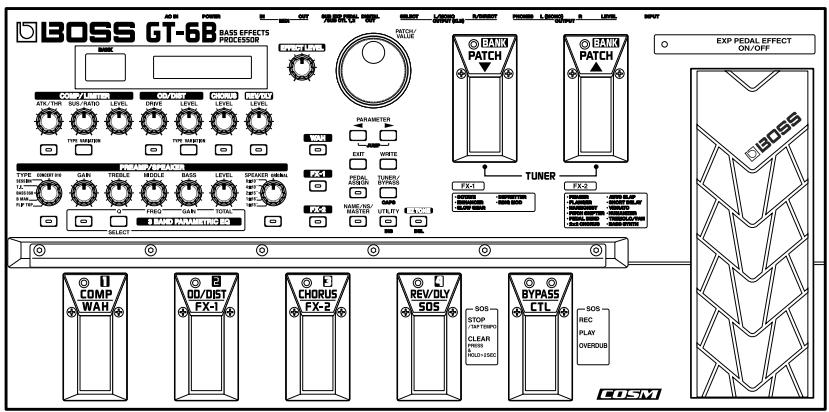
1 Display
A variety of information about the GT-6B appears here.
The left display shows the bank number.
The right display indicates patch names, parameters, and a variety of other information.
2 EFFECT LEVEL Knob
Adjust the overall volume.
- When the Bypass EXP Mode (p. 55) and Noise Suppressor (p. 44) is set to "Off," only CHORUS or REV/DLY is used, so turning this knob does not change the volume of the direct sound.
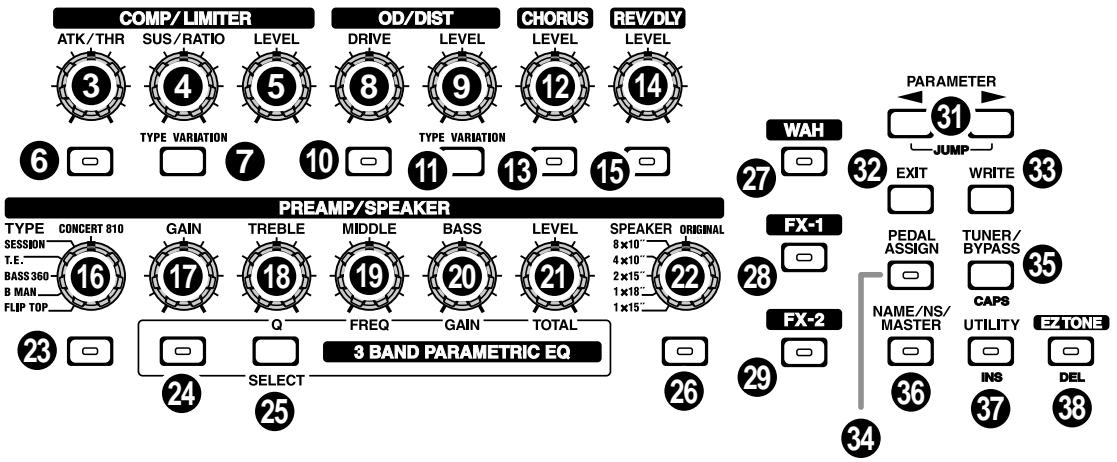
COMP/LIMITER (p. 25) (Compressor/Limiter)
3 ATK/THR (Attack/Threshold) Knob
Adjusts the compressor's attack and the volume at which the limiter begins to affect the sound.
4 SUS/RATIO (Sustain/Ratio) Knob
Adjusts the length of the compressor decay and adjusts the limiter's compression ratio.
5 LEVEL Knob
Adjusts the compressor/limiter volume level.
Press this to switch the compressor/limiter on and off and when changing other settings.
Selects the compressor or limiter type.
OVERDRIVE/DISTORTION (p. 26)
8 DRIVE Knob
Adjusts the distortion effect from the overdrive or distortion.
9 LEVEL Knob
Adjusts the volume of the overdrive or distortion sound.
Press this to switch the overdrive or distortion on and off and when making changes to other settings.
Selects the type of overdrive or distortion.
CHORUS (p. 27)
12 LEVEL Knob
Adjusts the volume of the chorus sound. The chorus sound increases as the knob is turned more to the right.
Press this to switch the chorus on and off and when changing other settings.
REV/DLY (p. 27)
(Reverb/Delay)
14 LEVEL Knob
Adjusts the volume level of the reverb and delay sounds. The reverb or delay sound increases as the knob is turned more to the right.
Press this to switch the reverb or delay on and off and when changing other settings.
PREAMP/SPEAKER (p. 29)
(Preamp/Speaker)
16 TYPE Knob
Selects the preamp type.
17 GAIN Knob
Adjusts the amount of amplification from the preamp. This changes the sort of distortion you get with the amp.
18 TREBLE/Q Knob
Adjusts the sound quality of the preamp's upper range. Also adjusts the EQ bandwidth when the 3-band parametric EQ is operational.
19 MIDDLE/FREQ (Frequency) Knob
Adjusts the sound quality of the preamp's midrange. Also adjusts the ED's midrange frequency when the 3-band parametric EQ is operational.
20 BASS/GAIN Knob
Adjusts the sound quality of the preamp's lower range. Also adjusts the amount of EQ amplification when the 3-band parametric EQ is operational.
21 LEVEL/TOTAL (Total Gain) Knob
Adjusts the overall preamp volume level. Also adjusts the amount of amplification for the EQ overall when the 3-band parametric EQ is operational.
22 SPEAKER Knob
Selects the speaker type.
Press this to switch the preamp on and off and when changing other settings.
Switches the 3-band parametric EQ on and off.
Switches the band for 3-band parametric EQ.
Press this to switch the speakers on and off and when changing other settings.
- The PREAMP turns on automatically when the SPEAKER is turned on. Additionally, turning off the SPEAKER automatically turns off the PREAMP.
WAH (p. 31)
Press this to switch the wah on and off and when changing other settings.
FX-1 (p. 33)
Press this to switch FX-1 on and off and when changing other settings.
FX-2 (p. 35)
Press this to switch FX-2 on and off and when changing other settings.
30 PATCH/VALUE Dial
Use this to switch patches and make changes to settings values.
Press to select parameters.
- To jump to the main parameters, hold down one of these buttons while you press the other. With items for which there aren't that many parameters, the GT-6B jumps to the last (or initial) parameter.
Use this to undo operations and to return to the Play screen (p. 13).
Press to store settings.
Use this to make settings for the expression pedal and control pedal.
Press to use the tuner and bypass functions.
Use for naming patches (NAME), making noise suppressor settings (NS), and making the master settings (MASTER).
This is used for making settings for the GT-6B's overall operating environment.
Use this button when you want to use the EZ tones, and when searching for a desired tone.
39 BANK/PATCH Pedals
Switch patches or banks with these pedals. Press both pedals simultaneously to switch to Tuner mode (p. 56).
40 EFFECT ON/OFF / NUMBER Pedal
Use these to switch effects on and off and to switch patch numbers.
41 BYPASS/CTL (CONTROL) Pedal (p. 46, 55)
Use this to switch between bypass and the sound with the effects added; you can also use this as a control pedal for any of a number of different functions that can be assigned to the pedal.
42 Expression Pedal
Controls volume, wah, and other parameters.

When you operate the expression pedal, please be careful not to get your fingers pinched between the movable part and the panel. When using the GT-6B in households with small children, take care not to allow young children to handle the unit or play with it. An adult should always be on hand to provide supervision and guidance with the operation of the unit.
43 EXP PEDAL SW (Expression Pedal Switch) (p. 46)
Firmly press the front tip of the pedal down to switch the effect on and off.
44 EXP PEDAL SW ON/OFF (Expression Pedal Switch On/Off) Indicator
Lights up when the effect being controlled with the Expression Pedal Switch is on, and goes out when the effect is turned off.
Rear Panel
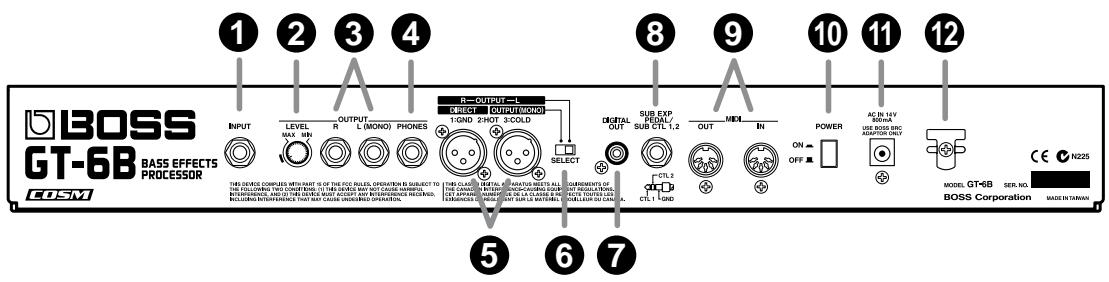
The bass guitar is connected here.
2 OUTPUT LEVEL Knob
Adjusts the volume level of the output from the output (1/4" phone) jack and headphone jacks.
3 OUTPUT R/L (MONO) Jacks
These are standard jacks that output unbalanced signals. Connect to amps, mixers, or other such devices.
4 PHONES Jack
A pair of stereo headphones can be connected to this jack.
5 OUTPUT Jacks (XLR)
These are XLR jacks that provide balanced output.
6 SELECT (Output Select) Switch (p. 55)
This switch setting determines whether the signals output from the XLR output jacks are in stereo (L/R), or as direct mono output.
7 DIGITAL OUT Connector (p. 58)
Outputs digital audio signals.
8 SUB EXP PEDAL/SUB CTL 1,2 Jack (SUB EXP Pedal/SUB CONTROL Pedal) (p. 48)
Connect an optional expression pedal (such as the EV-5) or foot switch (such as the FS-5U) here.
9 MIDI IN/OUT Connectors (p. 64)
Connect an external MIDI device to these connectors to transmit and receive MIDI messages.
10 POWER Switch
Switches the power to the on and off.
11 AC Adaptor Jack
Connect the included AC adaptor (BRC-series) here.
12 Cord Hook
Hook the AC adaptor cord here to prevent the adaptor plug from becoming disconnected.
Chapter 1 Playing Sounds
Making Connections
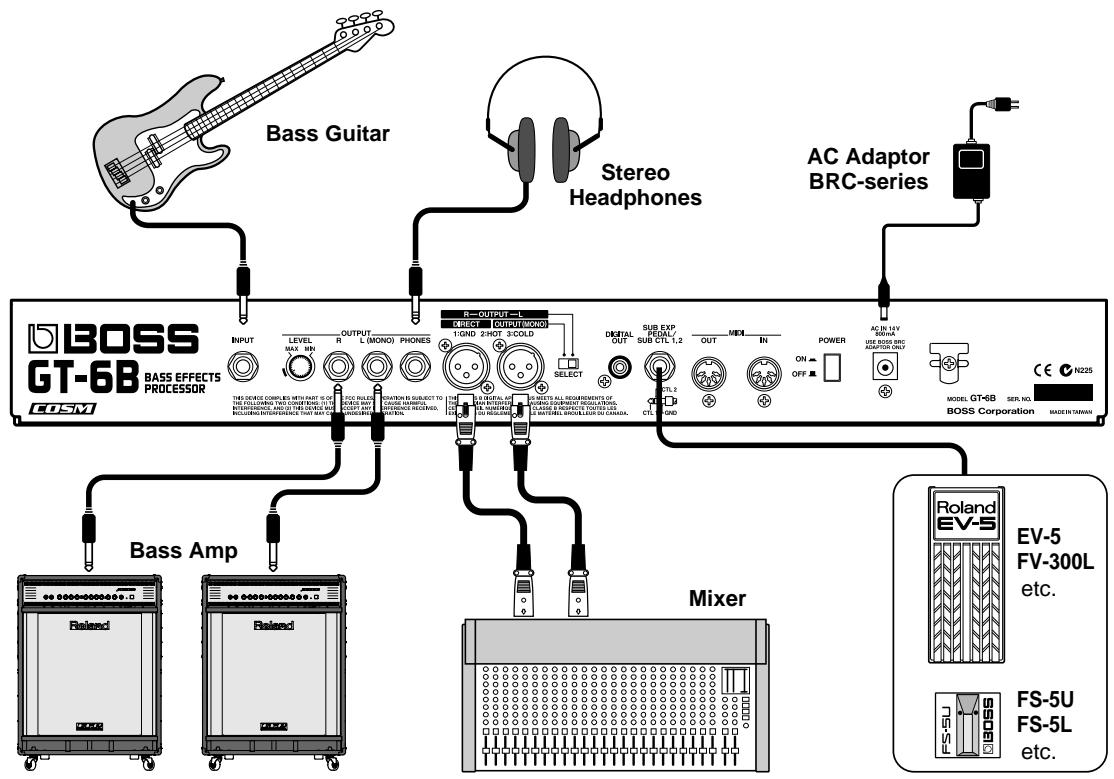
- To prevent malfunction and/or damage to speakers or other devices, always turn down the volume, and turn off the power on all devices before making any connections.
- Raise the amp volume only after turning on the power to all connected devices.
- When using mono output, connect the cable only to the OUTPUT L (MONO) jack.
- Use only specified expression pedals (optional Roland EV-5 or Roland FV-300L and PCS-33). Use of other manufacturer's products may result in damage to the unit.
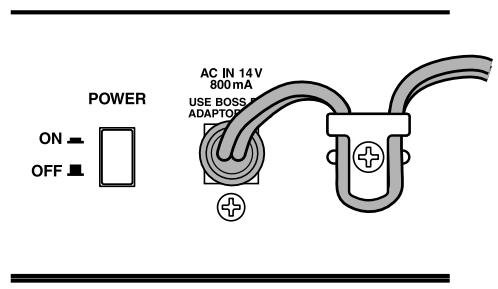
- To prevent the disruption of power to your unit (should the plug be pulled out accidentally), and to avoid applying undue stress to the AC adaptor jack, anchor the power cord using the cord hook, as shown in the illustration.
- The pin assignment for the OUTPUT (XLR) connector connectors is as shown below. Before making any connections, make sure that this pin assignment is compatible with that of all your other devices.
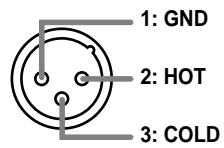
For more on how to use the OUTPUT (XLR) connectors, refer to p. 55
-
When using the unit with an expression pedal connected to the SUB EXP PEDAL/SUB CTL 1,2 jack, set Minimum Volume of an expression pedal to the "MIN" position.
-
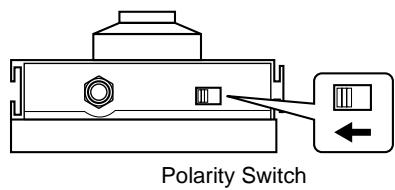
When using the GT-6B with a foot switch (the optional FS-5U) connected to the SUB EXP PEDAL/SUB CTL 1,2 jack, set the polarity switch as shown in the following.
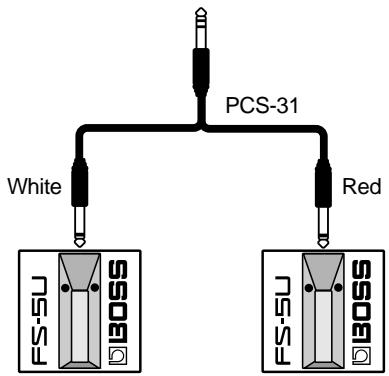
- You can use the special (optional Roland) PCS-31 connector cord to connect two foot switches.
When using the unit with a foot switch connected to the SUB EXP PEDAL/SUB CTL 1,2 jack, make the settings given on p. 63.
The explanations in this manual include illustrations that depict what should typically be shown by the display. Note, however, that your unit may incorporate a newer, enhanced version of the system (e.g., includes newer sounds), so what you actually see in the display may not always match what appears in the manual.
Turning On the Power
Once the connections have been completed, turn on power to your various devices in the order specified. By turning on devices in the wrong order, you risk causing malfunction and/or damage to speakers and other devices.
-
Before you turn the power on, make sure of the following points.
-
Are all external devices properly connected?
- Is the volume on the GT-6B, your amp, and all other connected devices turned down to the minimum level?
-
The GT-6B's volume is adjusted with the OUTPUT LEVEL knob on the rear panel. Turning this completely to the left (counterclockwise) sets the volume to the minimum level.
-
Switch ON the POWER switch on the GT-6B's rear panel.
The display changes, and the following appears in the display. After a brief interval (a few seconds), the unit switches to regular performance mode. The screen that appears at that point is called the "Play screen."
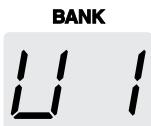

- When the GT-6B is turned on, the patch most recently selected when the power was last turned off is selected.
-
This unit is equipped with a protection circuit. A brief interval (a few seconds) after power up is required before the unit will operate normally.
-
Next, turn on the power to the bass amp (power amp).
Adjusting the Output Level
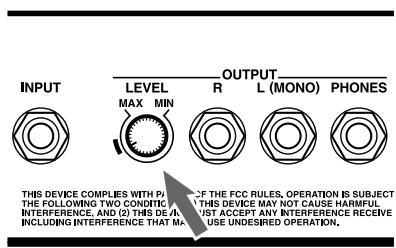
Adjust the GT-6B's output level with the OUTPUT LEVEL knob on the rear panel.
- Turn the knob to the marked range to set the volume to a standard level.
What is a Patch?
When performing on your bass, you may select a variety of different tones according to what and where you are playing. The effects you want to use and the parameter settings (knob positions) will vary depending on the tone.
You can store combinations, or "sets," of volume level and other of these parameter settings, and by using the pedals to switch these sets, you can change tones instantly. Each of these stored sets is called a "patch." The GT-6B can store 80 "User patches," the content of which you can change as you like, along with 40 "Preset patches" which cannot be changed or overwritten. These 120 patches are divided into groups called "banks," with each bank containing four patches.
Patches within each bank are distinguished by the patch "number" (1-4).
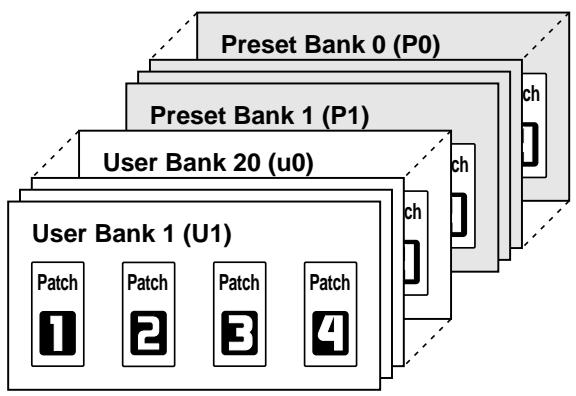
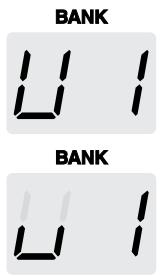
User Banks (U1-U0, u1-u0)
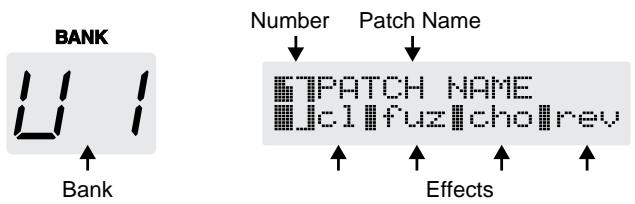
These are indicated by a "U" or "u" appearing in the left display.
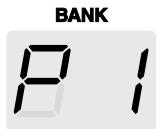
Preset Banks (P1-P0)
These are indicated by a "P*" appearing in the left display.
- Although you cannot overwrite the Preset patches, you can change (edit) a Preset patch's settings. You can then save the resulting changes in the setting as a User patch.
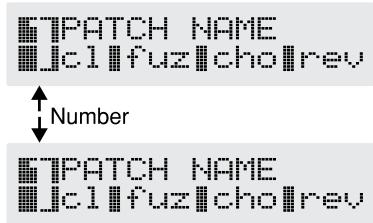
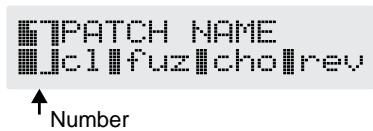
Numbers
The number appears at the left side of the right display, and is indicated by a numeral from "1" through "4."
Selecting Patches
How to Switch Patches
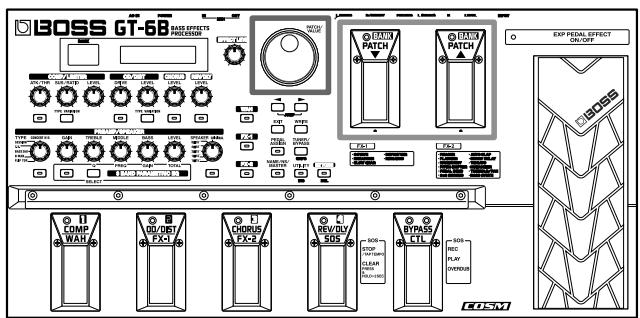
Patches are switched by rotating the PATCH/VALUE dial while in the "Play screen." You can also switch patches by pressing the PATCH pedals.
-
When you turn the PATCH/VALUE dial to the right (clockwise) or press the PATCH pedal, the patch numbers are switched in ascending order, i.e., 1 2 3 4 (next bank) 1 2 etc.
-
When you turn the PATCH/VALUE dial to the left (counterclockwise) or press the PATCH pedal, the patch numbers are switched in descending order, i.e., 4 3 2 1 (bank before the current bank) 4 3 ...etc.
-
You cannot switch patches unless the Play screen (p. 13) is displayed. Press [EXIT] (p. 10) to return to the Play screen.
- You cannot switch patches with the PATCH/VALUE dial when the dial function (p. 62) is set to VALUE only.
Turning Each of the Effects in a Patch On and Off
You can use pedals 1-4 to switch on and off the individual effects that are used in a patch. Each pedal shows the names of two effects; the effect that you are currently able to switch on and off is indicated in the lower row of the right display. You can also change these with [PEDAL ASSIGN] (p. 45).
Switching Patches by Specifying the Bank and Number
The GT-6B has been set at the factory so that you can switch patches using the PATCH/VALUE dial or the PATCH and PATCH pedals, but you can change the settings by switching patches directly with the bank and number. For more detailed information, refer to p. 60.
The following information is shown in the display.
If the Patch Does Not Switch
On the GT-6B, you cannot switch patches in any screen other than the Play screen. If you are having this problem, press [EXIT] to return to the Play screen.
Turning Off the Power
- Before turning off the power, confirm the following.
- Is the volume on the GT-6B, your amp, and all other connected devices turned down to the minimum level?
- Turn off the power to the bass amp (power amp) and other devices.
- Turn the GT-6B's power off.
Chapter 2 Creating You Own Favorite Tones (Patches)
Getting the Tones You Want- Fast (EZ Tone)
In addition to tones (patches) that you can actually use in performances, the GT-6B also features internal sample settings that are very useful when you want to create such tones on your own. This feature is called "EZ Tone."
Using the EZ Tone function lets you quickly find tone settings similar to the ones you want to create.
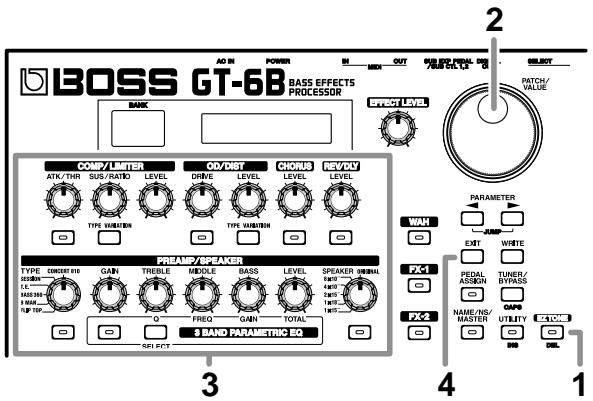
- Press [EZ TONE].
- Rotate the VALUE dial to select the settings resembling those for the tone you want.
- Press the ON/OFF buttons to turn effects on and off, and turn the knobs to adjust the tone.
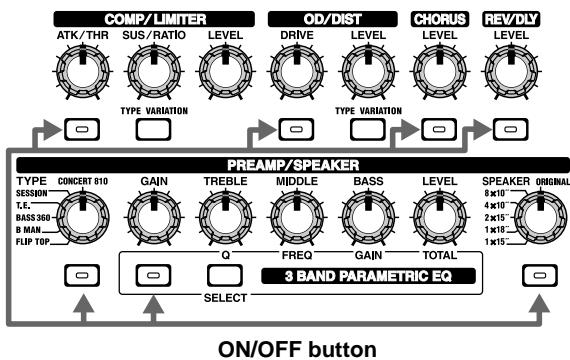
The tone switches to the tone selected in EZ Tone.
- Pressing [EXIT] while the readout is flashing (when the tone prior to switching to EZ Tone mode is selected) returns you to the patch that was selected before going into EZ Tone mode.
- If you want to save a tone you've created, use the Write procedure (p. 23) to save it to a User patch.
Adjusting the Tones with the Knobs
The GT-6B panel features fifteen knob controls. These knobs let you make changes to the selected patch's tone quickly and easily.
- There are also other methods you can use to adjust the tone. For more details, refer to p. 19.
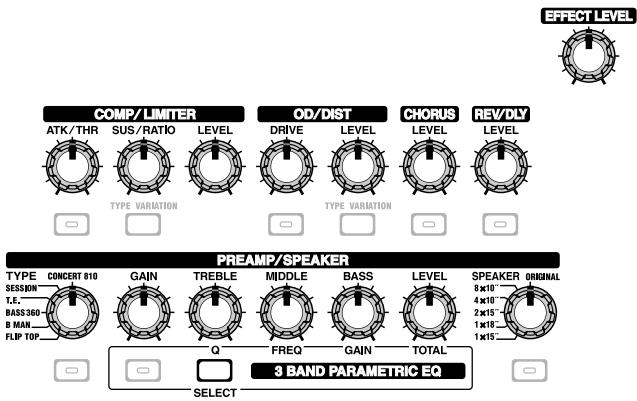
COMP ATK (Compressor attack)
This gives you a strong attack from picking when "BOSS Comp", "D-Comp" is selected as the type. The attack becomes sharper as you turn the knob to the right, giving a sound with greater bite.
LIMITER THR (Limiter threshold)
This adjusts the volume level at which the limiter is activated when "Rack 160D" is selected as the type. As the knob is turned to the left, the limiter effect is apparent at lower volume levels.
When "Vtg Rack U" is selected as the type, this adjusts the volume of the sound input to the limiter. The effect becomes deeper as you turn the knob to the right.
COMP SUS (Compressor sustain)
This adjusts the amount of sustain when "BOSS Comp", "D-Comp" is selected as the type. More of the effect is added as you turn the knob to the right, lengthening the sustain time, while also bringing out noise that occurs when you are not playing the instrument.
LIMITER RATIO
This adjusts the limiter's compression ratio when "Rack 160D" or "Vtg Rack U" is selected as the type. The compression gets stronger as the knob is turned to the right.
- By pressing [TYPE VARIATION], you can then switch the COMP/LIMITER type.
COMP/LIMITER LEVEL
Adjusts the compressor/limiter volume level. The volume increases as the knob is turned to the right.
OD/DIST DRIVE (Overdrive/Distortion Drive)
Adjusts the degree of distortion in the overdrive or distortion sound. The distortion gets stronger as the knob is turned to the right.
OD/DIST LEVEL (Overdrive/Distortion Level)
Adjusts the volume of the overdrive or distortion sound. The volume increases as the knob is turned to the right.
- By pressing [TYPE VARIATION], you can then switch the OVERDRIVE/DISTORTION type.
CHORUS LEVEL
Adjusts the volume of the chorus sound. The chorus sound increases as the knob is turned to the right, deepening the effect.
REV/DLY LEVEL (Reverb/Delay Level)
Adjusts the volume level of the reverb or delay sounds. The reverb or delay sound increases as the knob is turned to the right.
Only the reverb sound is adjusted when Fx Select (p. 27) is set to R&D (Reverb&Delay). When SOS (SoundOnSound) is selected, this adjusts the playback level.
PREAMP TYPE
Selects the preamp type.
PREAMP GAIN
Adjusts the amount of amplification for the preamp, which changes the degree of distortion. The distortion gets stronger as the knob is turned to the right.
PREAMP TREBLE
Adjusts the sound quality of the preamp's upper range. The high frequencies are boosted as the knob is turned to the right.
PREAMP MIDDLE
Adjusts the sound quality of the preamp's midrange. The midrange frequencies are boosted as the knob is turned to the right.
PREAMP BASS
Adjusts the sound quality of the preamp's lower range. The low frequencies are boosted as the knob is turned to the right.
PREAMP LEVEL
Adjusts the preamp volume level. The volume increases as the knob is turned to the right.
SPEAKER
Selects the speaker type.
When ORIGINAL is selected, you can select the speakers that are best suited for the PREAMP TYPE settings.
In addition, when [SELECT] is pressed, the PREAMP knobs then function as control knobs for adjusting the 3-band parametric EQ.
The adjustment screen for each band (LOW, MID, HIGH) appearing in the display alternates each time you press [SELECT]. You can adjust the Q, frequency, and gain for each band.
0
This adjusts the Equalizer bandwidth (the range of frequencies affected by that EQ control). The bandwidth is narrowed as the knob is turned to the right, resulting in a more notched equalization. Use higher Q settings to affect specific frequencies and give the tone particular qualities. Conversely, the bandwidth becomes broader as the knob is turned to the left. Use lower Q settings when you want to adjust the overall low end or high end and change the overall tone.
FREQ (Frequency)
Adjusts the center frequency for the equalizer. The frequency (upper range) increases as the knob is turned to the right.
GAIN
Adjusts the volume level for the equalizer adjusted with the Q and FREQ settings above. The volume level for the frequency range is boosted more as the knob is turned further to the right of center; turning the knob to the left of the center position cuts those frequencies.
TOTAL (Total Gain)
Adjusts the overall volume level of the 3-band equalizer. The overall volume level is boosted more as the knob is turned further to the right of center; turning the knob to the left of the center position cuts those frequencies.
EFFECT LEVEL
Adjusts the overall effect volume level. The volume increases as the knob is turned to the right.
- When the Bypass EXP Mode (p. 55) and Noise Suppressor (p. 44) is set to "Off," only CHORUS or REV/DLY is used, so turning this knob does not change the volume of the direct sound.
MEMO
When you want to save a tone created with EZ Tone, or changed with the knob controls, use the Write procedure (p. 23) to save the tone to a User patch.
Adding and Omitting Effects
You can switch the internal effects on and off, which lets you change tones by adding and omitting effects.
You can switch each of the internal effects on and off with the respective effect ON/OFF button.
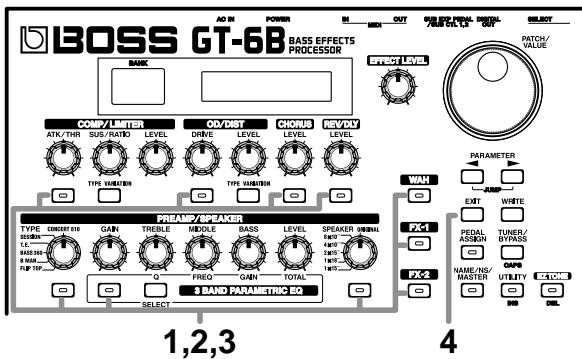
The effect's name and on/off status appear in the display. The indicator for an effect's ON/OFF button lights up when the effect is enabled, and flashes when that effect is disabled.
Dvdrive/Db. On Type Blues DD
- The PREAMP turns on automatically when the SPEAKER is turned on. Additionally, turning off the SPEAKER automatically turns off the PREAMP.
- As set at the factory, the indicator for the pedal corresponding to the effect being used also lights up and goes out in response to the effect status.
- The effect name flashes in the display when that effect is turned off.
-
When you press [FX-1], [FX-2], or [WAH] in Step 1, the effect set with the FX Select parameter ("Making More Detailed Settings with Individual Parameters," see p. 19) is switched on and off.
-
To select another effect to be switched on and off, repeat Steps 1 and 2.
- Press [EXIT] to return to the Play screen.
Switching Effects with the Pedals
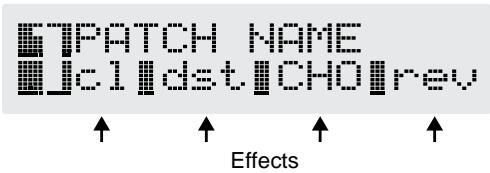
The GT-6B is set at the factory so that you can use Pedals "1" through "4" to switch specific effects on and off. The names of effects that can be controlled with these pedals appear in the lower row of the display.
- The effects that can controlled can be selected individually for each patch (p. 45).
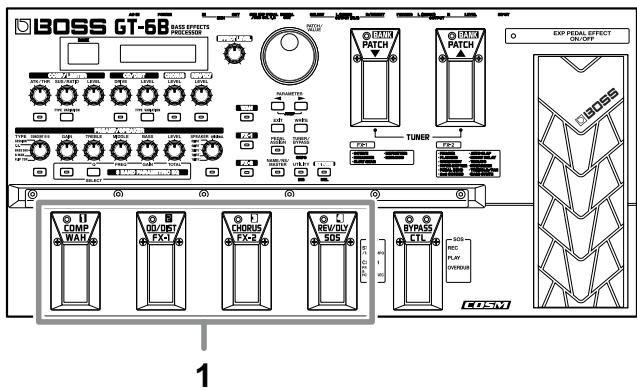
1. Press the pedal corresponding to the effect you want to switch on and off.
Each time you press the pedal, the effect is alternately turned on or off, and the pedal indicator lights up or goes out.
- While enabled, effects are indicated in capital letters in the display; disabled effects are indicated in lowercase letters.
MEMO
If you want to save a tone for which you have made settings, use the Write procedure (p. 23) to save the tone to a User patch.
Setting the Effect Tones (Quick Settings)
Quick Settings are preprogrammed effect settings. Each effect in the GT-6B has some available quick settings. You can easily create new effect sounds, without having to make any detailed adjustments, just by selecting and combining these Quick Settings.
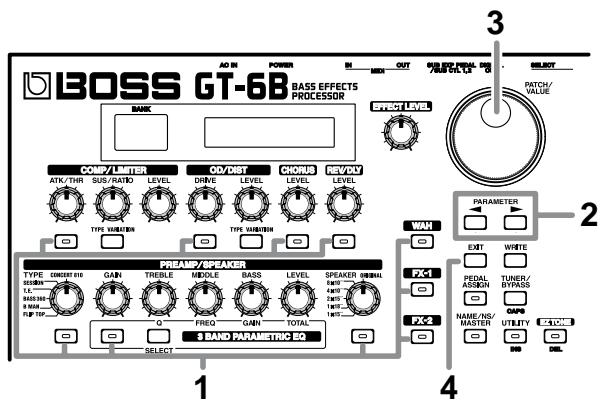
- Press the ON/OFF button for the effect with the settings you want to change.
The parameters for the selected effect appear in the display.
- During editing, the most recently edited parameter for each effect is indicated in the display.
- Press PARAMETER [] [] to display the "Quick Setting--."
Dvdrive/Dst On Quick Setting
- Rotate the VALUE dial to select the effect setting you want.
- When you press [FX-1], [FX-2], or [WAH] in Step 1, the settings for the effect selected by means of the FX Select parameter (refer to the following item) are switched.
- Press [EXIT] to return to the Play screen.
Making More Detailed Settings with Individual Parameters
The effects include extra parameters in addition to those that can be adjusted directly with the knobs.
You can more precisely create the sounds you want by editing each of these parameters individually.
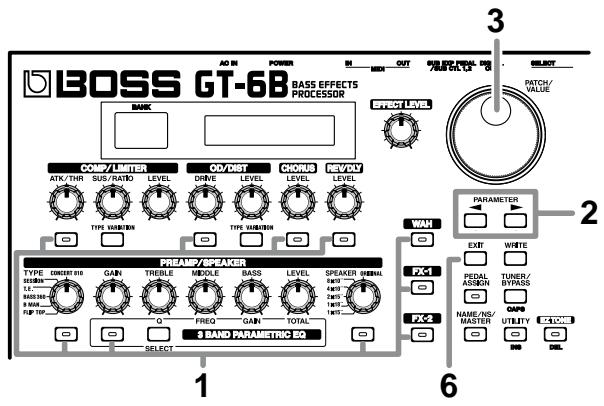
- Press the ON/OFF button for the effect with the settings you want to change.
The parameters for the selected effect appear in the display.
- Press PARAMETER [ ] [ ] to select the parameter whose settings are to be changed.
When more than one parameter is shown in the display, press PARAMETER [ ] [ ] to move the cursor to the parameter to be set.
MEMO
You can jump to the most important parameters by pressing PARAMETER [▶] (or [▶]) while holding down PARAMETER [▶] (or [▶]). With items for which there aren't that many parameters, the GT-6B jumps to the last (or first) parameter.
- Rotate the VALUE dial to change the settings value.
- Repeat Steps 2 and 3 for any other parameter settings you want to change.
- If you want to change parameter settings in any other effects, repeat Steps 1 through 4.
- Press [EXIT] to return to the Play screen.
MEMO
If you want to save a tone for which you have made settings, use the Write procedure (p. 23) to save the tone to a User patch.
Using the Pedal Effects (Wah, Pedal Bend, Ring Modulator)
You can use the GT-6B's expression pedal to obtain wah, pedal bend (pedal-controlled pitch bend), and ring modulator effects.
Wah
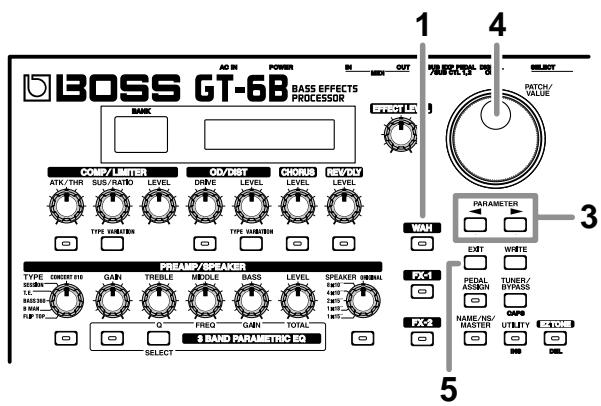
- Press [WAH].
-
Turn on the wah effect ("Adding Effects"; p. 18).
-
This step is not required if the effect is already on.
-
Press PARAMETER [ ] [▶] to select the FX Select parameter.
- Rotate the VALUE dial to change the setting value to "WH."
A wah effect can now be obtained by moving the expression pedal.
-
By assigning WAH on/off to the expression pedal switch, you can switch the wah effect on and off by firmly pressing down on the pedal's toe. (p. 46)
-
Press [EXIT] to return to the Play screen.

If you want to save a tone for which you have made settings, use the Write procedure (p. 23) to save the tone to a User patch.
Pedal Bend
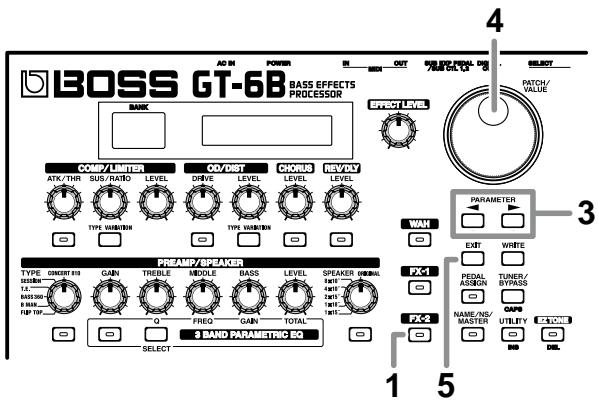
- Press [FX-2].
-
Turn on the FX-2 effect ("Adding Effects"; p. 18).
-
This step is not required if the effect is already on.
-
Press PARAMETER [ ] [ ] to select the FX Select parameter.
- Rotate the VALUE dial to change the setting value to "PB."
Moving the expression pedal now gives you a pitch bend effect.
-
By assigning PB on/off to the expression pedal switch, you can switch the Pedal Bend effect on and off by firmly pressing down on the pedal's toe. (p. 46)
-
Press [EXIT] to return to the Play screen.

If you want to save a tone for which you have made settings, use the Write procedure (p. 23) to save the tone to a User patch.
Ring Modulator
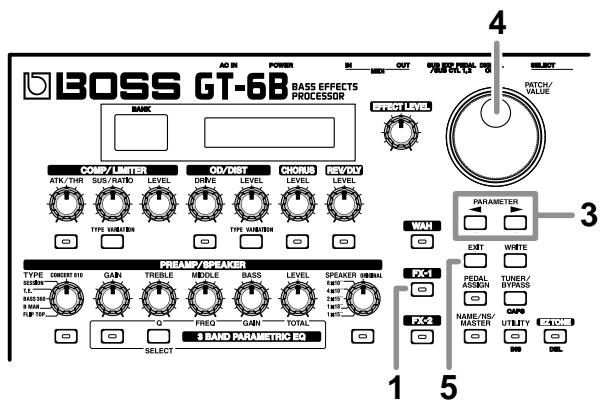
- Press [FX-1].
-
Turn on the FX-1 effect ("Adding Effects"; p. 18).
-
This step is not required if the effect is already on.
-
Press PARAMETER [ ] [▶] to select the FX Select parameter.
- Rotate the VALUE dial to change the setting value to "R.M."
-
Set Pedal Assign (p. 48) so that “Freq” (the frequency) for R.M (the ring modulator) is controlled with the expression pedal.
-
By assigning R.M on/off to the expression pedal switch, you can switch the Pedal Bend effect on and off by firmly pressing down on the pedal's toe. (p. 46)
- Press [EXIT] to return to the Play screen.

If you want to save a tone for which you have made settings, use the Write procedure (p. 23) to save the tone to a User patch.
Naming Tones
Each patch can be given a name (Patch Name) consisting of up to fourteen characters. You can assign whatever names you like, such as names suggesting the sound created or the name of the song in which it is to be used.
-
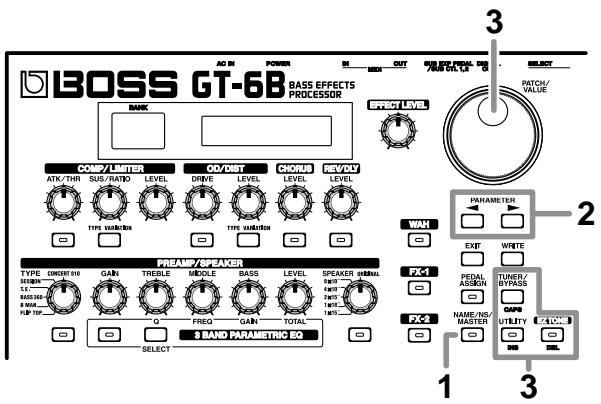
Press [NAME/NS/MASTER] until “Name” appears in the display.
-
Each time [NAME/NS/MASTER] is pressed, the item that can be set is changed, following this order: Name Noise Suppressor Master Bypass EXP Mode Foot Volume Effect Chain.
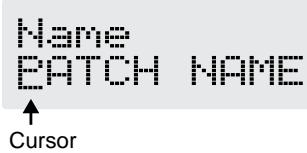
- Press PARAMETER [] [▶] to move the cursor to the portion of text you want to edit.
-
Rotate the VALUE dial to change the characters.
-
You can use the following functions when changing text characters.
CAPS: Switches the character at the cursor position between uppercase and lowercase.
INS: Inserts a blank space at the cursor position.
DEL: Deletes the character at the cursor position and shifts the characters following it to the left.
- If you want to edit names further, repeat Steps 2 and 3.
- If you want to save the sequence you've set up, use the Write procedure (p. 23) to save it to a User patch.
Press [EXIT] to return to the Play screen.
Changing the Order of the Effects (Effect Chain)
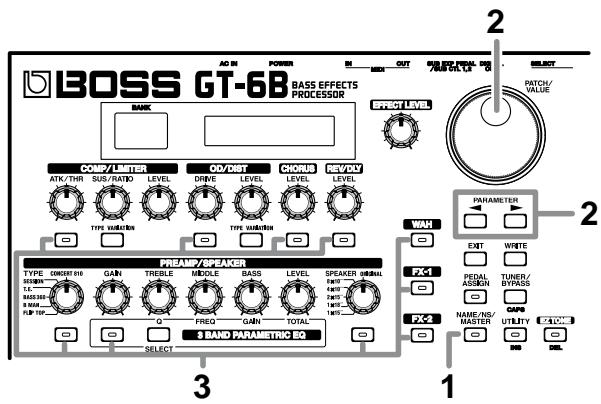
You can freely change the order in which the effects are connected.
-
Press [NAME/NS/MASTER] until "Effect Chain" appears in the display.
-
Each time [NAME/NS/MASTER] is pressed, the item that can be set is changed, following this order: Name → Noise Suppressor → Master → Bypass EXP Mode → Foot Volume → Effect Chain.
Effect Chain ^ _
-
Effects are shown in lowercase letters when turned off.
-
Use the VALUE dial or PARAMETER [][] to move the cursor to the point where you want to have the effect inserted.
-
Press the ON/OFF button for the effect you want to insert. The selected effect is inserted at the cursor position.
-
You cannot directly switch placement of the noise suppressor in the order of effects. However, you can change the placement indirectly by changing the order of other effects placed before and after the noise suppressor.
-
Use [PEDAL ASSIGN] to assign Foot Volume.
-
If you want to change the sequence further, repeat Steps 2 and 3.
- If you want to save the sequence you've set up, use the Write procedure (p. 23) to save it to a User patch. Press [EXIT] to return to the Play screen.
MEMO
You can switch effects on and off even while making the settings for the connection order. You can use the ON/OFF buttons corresponding to the effects appearing to the left and right of the cursor to turn these effects on and off.
Chapter 3 Saving the Tones You Have Created
Write
When you want to save a tone created, or a tone for which changes have been made, use the Write procedure to save the tone to a User patch.
- The newly created tone will be discarded if the power is turned off, or if the tone is switched ("How to Switch Patches"; p. 14) before you've carried out the Write procedure.
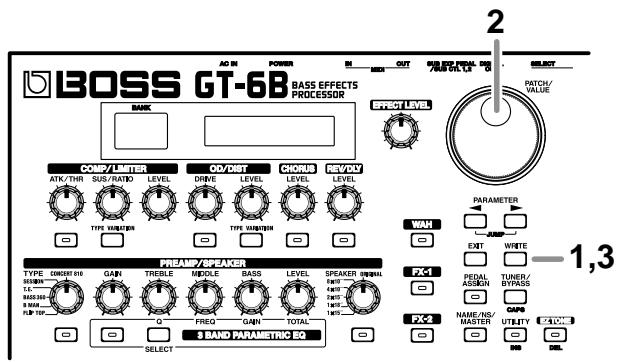
1. Press [WRITE].
The content of the display changes, and the GT-6B is ready for a patch to be specified as the save destination.
![BOSS GT-6B - Press [WRITE]. - 1](/content/2025/01/151960/images/d32d2f73efd456e085e6f91a288a5f5cbbd2c721d7306c0b161f0b6013af7747.jpg)
2. Rotate the VALUE dial to select the save-destination patch.
- Only User patches can be selected as the save destination.
- This step is unnecessary if the current patch may be used.
- To cancel the Write procedure, press [EXIT]. The Play screen returns to the display.
3. Press [WRITE] once more.
The tone is saved to the save-destination patch, and the Play screen returns to the display.
* The sound of the patch previously stored at the save-destination is permanently deleted once the write is executed.
Copying Patches
You can copy a Preset or User patch to another User patch.
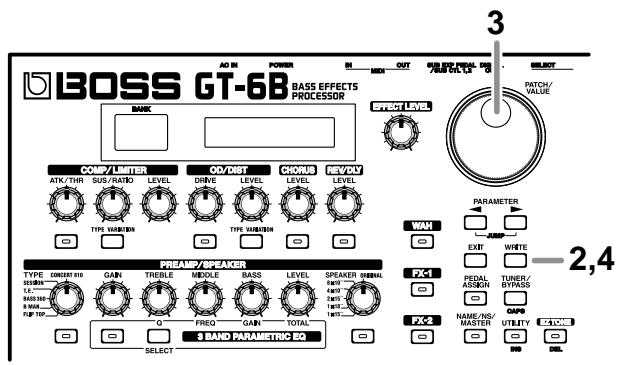
1. Select the copy-source patch (refer to "How to Switch Patches"; p. 14).
2. Press [WRITE].
The content of the display changes, and the GT-6B is ready for a User patch to be specified as the copy destination.
![BOSS GT-6B - Press [WRITE]. - 1](/content/2025/01/151960/images/cc34adf5ec12accad75e4b883b53c537644f90bf9c1d31bbce74997feda50c37.jpg)
3. Rotate the VALUE dial to select the copy-destination patch.
- To cancel the copy, press [EXIT]. The Play screen returns to the display.
4. Press [WRITE] once more.
The GT-6B copies a tone to the copy-destination patch, and you're returned to the Play screen.
* The sound of the patch previously stored at the copy destination is permanently deleted once the write is executed.
Exchanging Patches
On the GT-6B, you can exchange the positions of two User patches.
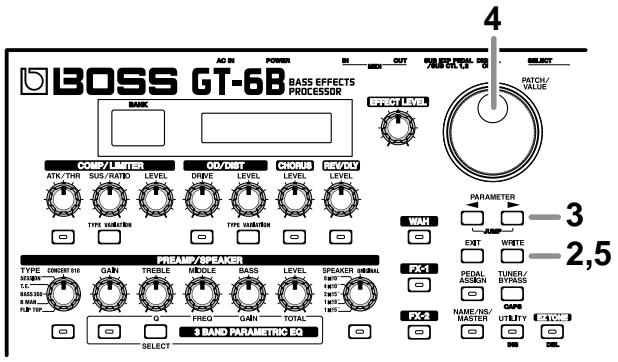
- Select the exchange-source patch (refer to "How to Switch Patches"; p. 14).
- Press [WRITE].
- Press PARAMETER [▶].
The content of the display changes, and the GT-6B is ready for a User patch to be specified as the exchange destination.
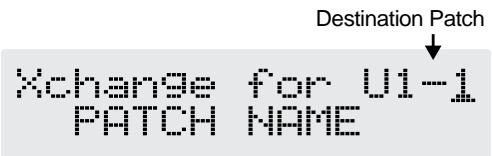
- Rotate the VALUE dial to select the exchange-destination User patch.
- To cancel the exchange, press [EXIT]. The Play screen returns to the display.
- Press [WRITE] once more.
The tone stored in the exchange-source patch and the tone stored in the exchange-destination patch are exchanged, and you're returned to the Play screen.
Chapter 4 The Effects Explained
This chapter describes the particular qualities of each of the GT-6B's internal effects, as well as the parameters used to control them.

The sound that is input to each effect is called the "direct sound," and the sound modified by the effect is called the "effect sound."
All product names mentioned in this document are trademarks or registered trademarks of their respective owners.
The names used for the sounds mentioned in this document are intended to be descriptive in nature, used solely to identify the equipment whose sound is simulated using COSM technology.
COMP/LIMITER (Compressor/Limiter)
The compressor is an effect that compresses (or attenuates) loud input levels and expands (boosts) low input levels, thus evening out the volume to create sustain without distortion. It also has the effect of evening out the sound.
The limiter is an effect that prevents distortion by suppressing input signals that exceed a set value (threshold). You can get the same effect achieved with the compressor by setting the threshold at a low value.
The GT-6B's COSM technology provides you with four types of modeled compressor/limiter perfectly suited for the bass.
| Parameter | Value |
| On/Off | Off, On |
| Type | BOSS Comp, D-Comp, Rack 160D, Vtg Rack U |
| Attack | 0–100 |
| Sustain | 0–100 |
| Threshold | 0–100 |
| Ratio | 1:1–∞:1 (Rack 160D) |
| 4:1–20:1 (Vtg Rack U) |
| Release | 0–100 |
| Tone | -50—+50 |
| Level | 0–100 |
On/Off
Sets the compressor/limiter effect to ON or OFF.
Type
Selects the compressor/limiter type.
| BOSS Comp | Models the BOSS CS-3 |
| D-Comp | Models the MXR dyna comp. |
| Rack 160D | Models the dbx 160x. |
| Vtg Rack U | Models the UREI 1178. |
Attack
(with BOSS Comp, D-Comp)
Adjusts the strength of the picking attack when the strings are played. Higher values result in a sharper attack, creating a more clearly defined sound.
(with Vtg Rack U)
This adjusts the amount of time that is to pass between the point at which the input level exceeds the set threshold level and compression begins, and the time at which the compression ratio set with the Ratio setting is achieved.
Compression is applied more rapidly as the value is increased.
Sustain
(with BOSS Comp, D-Comp)
Boosts low-level signals, adjusting the time over which sounds are sustained. Higher values deepen the effect, resulting in a longer sustain.
Threshold
(with Rack 160D, Vtg Rack U)
Adjust this as appropriate for the input signal from your bass. When the input signal level exceeds this threshold level, limiting will be applied. The limiter goes onto effect at lower levels as the value is reduced with Rack 160D.
This controls the input level with Vtg Rack U. Increasing the value deepens the effect.
("Thres (input)" appears in the display.)
Ratio
(with Rack 160D, Vtg Rack U)
Adjusts the limiter compression ratio. Higher values create a stronger compression effect.
Release
(with Vtg Rack U)
This adjusts the time from when the signal level drops below the threshold until when the compression is removed. The higher the values set, the more rapidly the compression is released, and the more clearly the sound from the next string played is heard.
Tone
(with BOSS Comp)
Adjusts the tone. The higher the value set, the more the high frequencies are boosted, resulting in a harder sound.
Level
Adjusts the volume.
OD/DIST (Overdrive/Distortion)
This effect distorts the sound to create long sustain. The GT-6B provides nine types of distortion with two different custom settings.
OD: Overdrive
This provides the warm, natural type of distortion that occurs naturally when you turn up the volume on a tube amp. This effect is often used as an amp pre-booster.
DST: Distortion
This effect features a deep, powerful distortion that is difficult to achieve with amp distortion alone.
FUZ: Fuzz
This effect gives an even more powerful and intense distortion than you get with regular distortion.
| Parameter | Value |
| On/Off | Off, On |
| Type | Blues OD, Turbo OD, Bass OD, Distortion, GUV DS, Metal Zone, '60s FUZZ, Oct Fuzz, MUFF FUZZ, Custom 1, Custom 2 |
| Drive | 0-100 |
| Bass | -50-+50 |
| Treble | -50-+50 |
| Effect Level | 0-100 |
| Direct Level | 0-100 |
On/Off (Effect On/Off)
Sets the overdrive/distortion effect to ON or OFF.
Type
Selects the type of distortion.
| Blues OD | Models the sound of the BOSS BD-2. |
| Turbo OD | Models the sound of the BOSS OD-2. |
| Bass OD | Models the sound of the BOSS ODB-3. |
| Distortion | Standard distortion sound. |
| GUV DS | Models the sound of the Marshall GUV’NOR. |
| Metal Zone | The sound of the BOSS MT-2. |
| ‘60s FUZZ | Models the sound of the FUZZFACE. |
| Oct Fuzz | Models the sound of the ACETONE FUZZ. |
| MUFF FUZZ | Models the sound of the Electro-Har-monix Big Muff. |
| Custom 1 | Type 1 for custom settings. |
Custom 2 Type 2 for custom settings.
- When CUSTOM is Selected for TYPE
When the TYPE is set to CUSTOM, you can set the following parameters.

"Making 'Custom' Overdrive/Distortion Settings" (p. 52)
| Parameter | Value |
| Type (1-2) | OD-2, BD-2, ODB-3, DS-1, MT-2, FUZZ |
| Bottom (1-2) | -50—+50 |
| Top (1-2) | -50—+50 |
| Low (1-2) | -50—+50 |
| High (1-2) | -50—+50 |
Drive
Adjusts the amount of distortion. The distortion gets more intense as the value is increased.
Bass
Adjusts the tone of the lower range. The bass is given more emphasis as the value is increased.
Treble
Adjusts the tone of the upper range. The treble is given more emphasis as the value is increased.
Effect Level
Adjusts the volume of the distorted sound.
Direct Level
Adjusts the level of the Bass direct sound.
CHORUS
This is an effect that adds a slightly detuned sound to the original bass sound, resulting in a beautiful sound with greater depth and breadth. Developed by BOSS, this is one effect that is popular the world over.
- When the Bypass EXP Mode (p. 55) and Noise Suppressor (p. 44) is set to "Off" and only CHORUS or REV/DLY is used, the direct sound is output as analog output.
| Parameter | Value |
| On/Off | Off, On |
| Mode | Mono, Stereo |
| Rate | 0–100, BPM 。-BPM ∅ |
| Depth | 0–100 |
| Pre Delay | 0.0 msec–40.0 msec |
| Low Cut | Flat, 55.0 Hz –800 Hz |
| Effect Level | 0–100 |
On/Off (Effect On/Off)
Sets the chorus effect to ON or OFF.
Mode
Selects the chorus mode.
Mono:
Chorus with the same sound output from both the left and right channels.
Stereo:
This is a stereo chorus effect that adds different chorus sounds to the left and right channels.
Rate
Adjusts the rate of the chorus effect.
- When set to BPM, the value of each parameter is set according to the value of the Master BPM (p. 44) specified for each patch. This makes it easy to achieve effect sound settings that match the tempo of the song (synchronizing the cycle to one-half or one-fourth of the BPM when the set cycle rate is increased). When setting to the BPM, press PARAMETER [▶] to display the Master BPM settings screen.
Depth
Adjusts the depth of the chorus effect. To use it for doubling, set the value to "0."
Doubling
With doubling, a slightly delayed sound (short delay sound) is added to the original sound, creating an effect that sounds like two people playing simultaneously (multiple sounds played), for an effect with greater depth.
Pre Delay
Adjusts the time needed for the effect sound to be output after the direct sound has been output. Setting a longer predelay time results in a doubling effect.
Low Cut
The low-cut cuts the frequencies in the chorus sound that are below a specified frequency. When the low end of the chorus sound is cut so that the chorus is applied only to the higher frequencies, the chorus sound appears only in the harmonics, without any modulation of the fundamental frequencies, creating a great sound effect for the bass. This setting adjusts the frequency at which the low-cut begins to take effect. When "Flat" is selected, the low-cut has no effect.
Effect Level
This adjusts the volume level of the chorus sound that is mixed with the direct sound. The effect deepens as the value is increased.
REV/DLY (Reverb/Delay)/ SOS (Sound On Sound)
You can select and use the reverb/delay or Sound On Sound with Fx Select.
- When the Bypass EXP Mode (p. 55) and Noise Suppressor (p. 44) is set to "Off" and only CHORUS or REV/DLY is used, the direct sound is output as analog output.
| Parameter | Value |
| On/Off | Off, On |
| Fx Select | Reverb, Delay, Reverb&Delay, SoundOnSound |
On/Off (Effect On/Off)
Sets the reverb/delay effect to ON or OFF.
- This setting is not available when SoundOnSound is selected.
Fx Select (Effects Select)
Reverb:
This effect adds reverberation to the sound.
Delay:
This effect creates and outputs a delayed sound from the direct sound.
Reverb&Delay:
You can also use reverb and delay simultaneously.
SoundOnSound:
With this effect, a sound is played and recorded, and then while playback of that sound repeats (loops), following sounds are layered onto the sound one after another.
- When Sound On Sound is selected, Pedal 4 and the BYPASS/CTL pedal function as Sound On Sound controls. For more detailed information, refer to "Using Sound On Sound" (p. 54).
REV:Reverb
| Parameter | Value |
| Type | Room1, Room2, Hall1, Hall2, Plate |
| Reverb Time | 0.1 s–10.0 s (0.1 s step) |
| Pre Delay | 0 ms–10 0ms (1 ms step) |
| Low Cut | Flat, 55.0 Hz, 110 Hz, 165 Hz, 200 Hz, 280 Hz, 340 Hz, 400 Hz, 500 Hz, 630 Hz, 800 Hz |
| Hi Cut | 700 Hz, 1.00 kHz, 1.40 kHz, 2.00 kHz, 3.00 kHz, 4.00 kHz, 6.00 kHz, 8.00 kHz, 11.0 kHz, Flat |
| Density | 0–10 |
| Effect Level | 0–100 |
Type
This selects the reverb type. You can change the settings to obtain simulations of various different spaces.
Room 1:
Simulates the reverberation in a small room. Provides the bright reverberation of a live room.
Room 2:
Simulates the reverberation in a small room. Provides warm reverberations.
Hall 1:
This simulates the reverberation of a concert hall. Provides clear reverberation that spreads out through the sound space.
Hall 2:
This simulates the reverberation of a concert hall. Provides a mild, understated reverberation sound.
Plate:
Simulates plate reverberation (a reverb unit that uses the vibration of a metallic plate). Provides a metallic sound with an extended upper range.
Reverb Time
Adjusts the length (time) of reverberation.
Pre Delay
Adjusts the time until the reverb sound appears.
Low Cut
The low-cut filter cuts the frequencies below the specified frequency. This setting adjusts the frequency at which the low-cut filter begins to take effect.
High Cut
The high-cut filter cuts the frequencies above the specified frequency. This setting adjusts the frequency at which the high-cut filter begins to take effect. When "Flat" is selected, the high-cut filter has no effect.
Density
Adjusts the density of the reverb sound.
Effect Level
Adjusts the volume of the reverb sound.
DLY: Delay
| Parameter | Value |
| Type | Single, Pan |
| Delay Time | 0 ms–1400 ms, BPM β-BPM (20 ms step) |
| Delay Time FineTapTime | 0 ms–20 ms (1 ms step)0 % –100 % |
| FeedbackHi | 0–100700 Hz, 1.00 kHz, 1.40 kHz, 2.00 kHz,3.00 kHz, 4.00 kHz, 6.00 kHz, 8.00 kHz,11.0 kHz, Flat |
| Effect Level | 0–120 |
Type
Select from the following two types.
Single:
This is a conventional delay
Pan:
This is a delay effect for use only with stereo output. Delay times are assigned individually to the left and right channels, providing a tap delay effect.
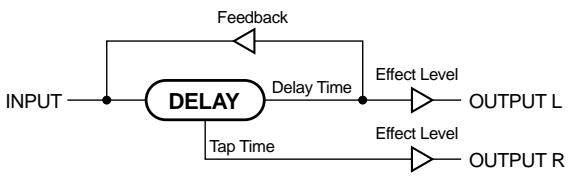
Delay Time
This determines the delay time. You can make settings in 20-millisecond units.
- When set to BPM, the value of each parameter is set according to the value of the Master BPM (p. 44) specified for each patch. This makes it easy to achieve effect sound settings that match the tempo of the song (synchronizing the cycle to one-half or one-fourth of the BPM when the set cycle rate is increased). When setting to the BPM, press PARAMETER [▶] to display the Master BPM settings screen.
Delay Time Fine
Makes fine adjustments (in units of 1ms ) to the delay time.
Tap Time
(Used Only with Pan)
Adjusts the delay time of the right channel delay. This setting adjusts the right channel delay time relative to the left channel delay time, which is referenced as 100% .
Feedback
"Feedback" refers to the return of a delay signal back to the input. This parameter adjusts the amount of signal returned. Higher values increase the number of the delay repeats.
High Cut
The high-cut cuts the frequency component above the set frequency. This parameter adjusts the frequency where the high-cut starts working. When set to "Flat," the high-cut does not affect the sound.
Delay Level
Adjusts the volume of the delay sound.
■ R&D: Reverb & Delay
You can use REV. (p. 28) and DLY (p. 28) simultaneously.
SOS: Sound On Sound
For more detailed instructions on using Sound On Sound, refer to p. 54.
Parameter Value
| SOSMode | HiQuality, LongTime |
| Quantize | Off, On |
| Tempo | 60–160, BPM |
| Playback Level | 0–100 |
SOSMode (Sound On Sound Mode)
Selects the recording mode.
HiQuality:
This mode gives priority to higher sound quality. You can record approximately 3 seconds of sound.
LongTime:
This mode gives priority to longer recording time. You can record approximately 6 seconds of sound.
Quantize
When Quantize is set to ON, the length of the loop is adjusted automatically according to the tempo set in "Tempo" (next item), even if the position at which recording was stopped is somewhat off.
Tempo
This sets the tempo that determines the length of the loop.
The CTL pedal indicator flashes at the rate set here.
When this is set to "BPM," you can set the tempo with the Number 4 pedal (tap input).
Playback Level
Sets the volume level of the loop as it is played back.
PREAMP/SPEAKER
COSM technology is used to simulate the distinguishing bass amp characteristics in the "Preamp" section, and is used to simulate various speaker sizes and cabinet constructions in "Speaker Simulator."
Preamp
| Parameter | Value |
| On/Off | Off, On |
| Type | FLIP TOP, B MAN, BASS 360, T.E., SESSION, CONCERT 810 |
| Bright | Off, On |
| Deep | Off, On |
| Response | BASS, FLAT |
| Enhancer | 0–100 |
| Pre Shape | Off, 1, 2 |
| Gain | 0–100 |
| Treble | 0–100 (or -50– +50) |
| Ultra Hi | Off, On |
| Middle | 0–100 (or -50– +50) |
| Mid Frequency | 220 Hz, 800 Hz, 3.0 kHz |
| Bass | 0–100 (or -50– +50) |
| Ultra Lo | -, 0, + |
| Level | 0–100 |
On/Off (Effect On/Off)
Sets the preamp effect to ON or OFF.
Type
Selects the type of preamp.
| FLIP TOP | Models the Ampeg B-15. |
| B MAN | Models the Fender Bassman 100. |
| BASS 360 | Models the acoustic 360. |
| T.E. | Models the Trace Elliot AH600SMX. |
| SESSION | Models the SWR SM-400. |
| CONCERT 810 | Models the Ampeg SVT. |
Gain
Adjusts the amount of amp distortion.
Treble
Adjusts the tone of the upper range.
Middle
Adjusts the tone of the midrange.
- While some amps do not feature a middle control, this control still functions even when simulating such amps. If you want to recreate the sound as output by the original amp, set Middle to "0."
Middle Freq (Middle Frequency)
This control adjusts the center frequency of the frequency range adjusted with the Middle control.
- You cannot set this parameter when TYPE is set to "BASS 360" (it is not displayed).
Bass
Adjusts the tone of the lower range.
Level
Adjusts the volume level for the overall preamp.
In addition to these general controls, also included are the following controls particular to each amp.
- When Type is Set to FLIP TOP Bright Off, On
Turns the bright setting on/off. Turn this on to make the sound brighter.
Response BASS, FLAT
This controls the overall amp characteristics. Select the position corresponding to the characteristics for one of the two types of sound.
- When Type is Set to B MAN Deep Off, On
This switch changes the character of the lower range.
- When Type is Set to BASS 360 Bright Off, On
Turns the bright setting on/off. Turn this on to make the sound brighter.
- When Type is Set to T.E. Pre Shape Off,1,2
This is a shape switch that adds a particular nuance to the midrange.
- When Type is Set to SESSION Enhancer 0-100
This controls the clarity and presence of the sound.
- When Type is Set to CONCERT 810 Bright Off, On
Turns the bright setting on/off. Turn this on to make the sound brighter.
Ultra Hi Off, On
This controls the ultra high-frequency range lying beyond treble.
Ultra Lo -, 0, +
This controls the character of the lower range.
■ Speaker
| Parameter | Value |
| On/Off | Off, On |
| Type | 1x15", 1x18", 2x15", 4x10", 8x10, ORIGINAL |
| Mic Setting | Center, 1 cm-10 cm |
| Mic Level | 0-100 |
| Direct Level | 0-100 |
On/Off (Effect On/Off)
Sets the speaker effect to ON or OFF.
- The PREAMP turns on automatically when the SPEAKER is turned on. Additionally, turning off the SPEAKER automatically turns off the PREAMP.
TYPE
This selects the speaker type.
| 1x15” | Models the Trace Elliot 1518. |
| 1x18” | Models the SWR Big Ben. |
| 2x15” | Models the Acoustic 402. |
| 4x10” | Models the SWR Goliath. |
| 8x10” | Models the Ampeg 810E. |
| ORIGINAL | Built-in speaker for the amp selected in “Type.” (*) |
(*) The following speaker connections are assumed: 810E (8 x 10") for the "CONCERT 810"; Goliath (4 x 10") + Big Ben (1 x 18") for the "SESSION"; and 1048 (4 x 10") + 1518 (1 x 15") for the "T.E."
Mic Set. (Mic Setting)
This simulates the microphone position. "Center" simulates the conditions when the microphone is pointed at the middle of the speaker cone. "1-10 cm" indicates the distance separating the microphone from the center of the speaker cone.
Mic Level
Adjusts the volume of the microphone
Direct Level
Adjusts the volume of the direct sound.
3 BAND PARAMETRIC EQ
This is a 3-band parametric equalizer allowing EQ for the lower range, midrange, and upper range.
- Each press of [SELECT] takes you to the next available selection for the band, in this order: Lo Mid High Lo .
| Parameter | Value |
| On/Off | Off, On |
| Low Q | 0.5–16 |
| Low Frequency | 31 Hz–500 Hz |
| Low Gain | -20 dB→+20 dB |
| Mid Q | 0.5–16 |
| Mid Frequency | 164 Hz–2.6 kHz |
| Mid Gain | -20 dB→+20 dB |
| High Q | 0.5–16 |
| High Frequency | 1.0 kHz–16 kHz |
| High Gain | -20 dB→+20 dB |
| Total Gain | -20 dB→+20 dB |
On/Off (Effect On/Off)
Switches the 3-band parametric EQ effect on and off.
- The following parameters affect the Lo, Mid, and High EQ together.
0
The range is narrowed as the value is increased. This adjusts the equalizer bandwidth (the range of frequencies to which the equalizer is applied). The bandwidth is narrowed as the value is increased, resulting in a more precise ("notched") equalization. Use higher Q settings to affect specific frequencies and give the tone particular qualities. Conversely, the bandwidth becomes broader as the value is lowered. Use lower Q settings when you want to adjust the overall low end or high end and change the overall tone.
Freq (Frequency)
Adjusts the ED's center frequency (for the range affected). The frequency (upper range) increases as the value is raised.
Gain
Adjusts the volume level for the equalizer adjusted with the Q and FREQ settings above. The volume level for the frequency range is boosted more as the knob is turned further to the right of center; turning the knob to the left of the center position cuts those frequencies.
Level
Adjusts the overall volume level of the 3-band equalizer. The volume level is boosted more as the knob is turned further to the right of center; turning the knob to the left of the center position cuts those frequencies.
WAH
The wah effect creates a unique tone by changing the frequency response of a filter.
With WAH, you can select the type to be used from the following.
- Pedal Wah
- Touch Wah
- Auto Wah
| Parameter | Value |
| On/Off | Off, On |
| FX Select | Pedal Wah, Touch Wah, Auto Wah |
On/Off (Effect On/Off)
Switches the Wah effect on and off.
FX Select (Effect Select)
Selects the wah effect function.
WH: Pedal Wah
The Expression pedal is used for real-time control of the wah effect.
The GT-6B's expression pedal automatically switches to the wah pedal function when "WAH" is selected in FX Select.
| Parameter | Value |
| Type | CRY WAH, VO WAH, Bass WAH, Custom1, Custom2, Custom3 |
| Pedal Position | 0–100 |
| Level | 0–100 |
Type
Selects the type of wah effect.
| CRY WAH | Models the '70s sound of the CRY BABY pedal. |
| VO WAH | Models the sound of the VOX V846. |
| Bass WAH | A broader wah that features a variable range, making it suitable for the bass range. |
| Custom 1–3 | Custom wah sounds that are created by editing the parameters. |
- When Type is Set to Custom 1-3
You can make settings for the following parameters when
TYPE is set to Custom 1-3.

Making "Custom" Pedal Wah Settings (p. 53)
| Parameter | Value |
| Type (1-3) | CRY WAH, VO WAH, Bass WAH |
| Q (1-3) | -50→+50 |
| Range Low (1-3) | -50→+50 |
| Range High (1-3) | -50→+50 |
| Presence (1-3) | -50→+50 |
Pdl Position (Pedal Position)
This adjusts the position of the wah pedal.
- This parameter is actually controlled with the expression pedal.
Level
Adjusts the volume.
TW: Touch Wah
The filter behaves differently, depending on the volume level of the instrument being input. This provides a unique effect whereby the filter changes according to how you play.
| Parameter | Value |
| Mode | LPF, BPF, HPF |
| Polarity | Up, Down |
| Sens | 0–100 |
| Frequency | 0–100 |
| Depth | 0–100 |
| Peak | 0–100 |
| Level | 0–100 |
Mode
Selects the wah mode.
LPF (Low Pass Filter):
This creates a wah effect over a wide frequency range,
including the low end.
BPF (Band Pass Filter):
This creates a wah effect in a narrow range of midrange frequencies.
HPF (High Pass Filter):
This creates a wah effect over a wide range of frequencies in the upper range.
Polarity
This selects the direction in which the filter changes in response to the input.
Up:
The filter rises from lower to higher frequencies in response to the input level.
Down:
The filter falls from higher to lower frequencies in response to the input level.
Sens
This adjusts the sensitivity at which the filter changes according to the polarity setting. Higher values result in a stronger response, such that the filter responds with great sensitivity even when the strings are played lightly.
Freq (Frequency)
This adjusts the reference frequency for the Wah effect.
Peak
This adds a particular character to the sound. Higher values produce a stronger tone which emphasizes the wah effect more.
Depth
This adjusts the depth of the effect.
Level
Adjusts the volume.
AW: Auto Wah
This allows you to have the filter change cyclically or in response to the instrument's volume, as with Touch Wah.
| Parameter | Value |
| Mode | LPF, BPF, |
| Rate | 0–100, BPM 。 -BPM ∅ |
| Depth | 0–100 |
| Frequency | 0–100 |
| Peak | 0–100 |
| Polarity | Down, Up |
| Sensitivity | 0–100 |
| Level | 0–100 |
Mode
Selects the wah mode.
LPF (Low Pass Filter):
This creates a wah effect over a wide frequency range, including the low end.
BPF (Band Pass Filter):
This creates a wah effect in a narrow range of midrange frequencies.
HPF (High Pass Filter):
This creates a wah effect over a wide range of frequencies in the upper range.
Rate
This selects the auto wah cycle.
- When set to BPM, the value of each parameter is set according to the value of the Master BPM (p. 44) specified for each patch. This makes it easy to achieve effect sound settings that match the tempo of the song (synchronizing the cycle to one-half or one-fourth of the BPM when the set cycle rate is increased). When setting to the BPM, press PARAMETER [▶] to display the Master BPM settings screen.
Depth
Adjusts the depth of the auto wah effect.
Freq (Frequency)
This adjusts the reference frequency for the Wah effect.
Peak
This adds a particular character to the sound. Higher values produce a stronger tone which emphasizes the wah effect more.
Polarity
This selects the direction in which the filter changes in response to the input.
Up:
The filter rises from lower to higher frequencies in response to the input level.
Down:
The filter falls from higher to lower frequencies in response to the input level.
Sens
This adjusts the sensitivity at which the filter changes according to the polarity setting. Higher values result in a stronger response, such that the filter responds with great sensitivity even when the strings are played lightly.
- When the filter is set to be altered cyclically, set this to "0."
Level
Adjusts the volume.
FX-1
With FX-1, you can select the effect to be used from the following.
OCTAVE
- ENHANCER
SLOWGEAR
DEFRETTER
RING MOD (Ring Modulator)
Parameter Value
On/Off Off, On
FX Select Octave, Enhancer, Slow Gear, Defretter, Ring Mod
On/Off (Effect On/Off)
Switches the FX-1 effect on and off.
FX Select (Effect Select)
Selects the effect to be used.
OCT: Octave
This adds a sound one octave below the original sound, resulting in a fatter sound.
- Use this effect only when playing one note at a time. The octave sound does not sound good with chords.
- The unit may not operate correctly if the order in which the effects are connected is changed so that this is connected after FX-2, causing the sound to become muddy and indistinct.
Parameter Value
Effect Level 0-100
Direct Level 0-100
Effect Level
This adjusts the volume of the sound played one octave below the original sound.
Direct Level
This adjusts the volume of the original sound.
ENH: Enhancer
This is an effect that clarifies the contour of the input sound by emphasizing the attack of the sound following changes in the input level.
Parameter Value
Sensitivity 0-100
Frequency 800 Hz-4.00 kHz
Mix Level 0-100
Sens
This adjusts the Enhancer sensitivity. The more the value is increased, the more softly you can play and still have the effect applied.
Freq (Frequency)
Sets the frequency range for the enhanced sound.
Mix Level
Adjusts the amount of enhanced sound added to the mix.
■ SG: Slow Gear
This produces a volume-swell effect (similar to how a violin is played).
| Parameter | Value |
| Sens | 0–100 |
| Rise Time | 0–100 |
Sens
This adjusts the sensitivity of the slow gear. When the sensitivity is set to a lower value, the effect of the slow gear can be obtained only with somewhat stronger picking, while no effect is obtained with weaker picking. When the sensitivity is raised, the effect is obtained even with weak picking.
Rise Time
This adjusts the time needed for the volume to reach its maximum from the moment you begin picking.
DEF: Defretter
This effect allows you to use a conventional bass to simulate a fretless bass.
| Parameter | Value |
| Sens | 0–100 |
| Attack | 0–100 |
| Depth | 0–100 |
| Level | 0–100 |
Sens
This controls the sensitivity to the input sound. Adjust this setting while playing your bass until you obtain the most natural-sounding tone changes.
Attack
Adjusts the tone of the attack portion of the sound. The tone changes more slowly as the value is increased.
Depth
This controls the ratio of harmonics. Raising the value increases the harmonic components, resulting in a unique and different tone.
Level
Adjusts the volume.
R.M: Ring Modulator
This effect combines the bass sound with the sound from the internal oscillator, creating a sound with a pitchless, metallic, bell-like character.
| Parameter | Value |
| Mode | Normal, Intelligent |
| Frequency | 0–100 |
| Effect Level | 0–100 |
| Direct Level | 0–100 |
Mode
Selects the ring modulator mode.
Normal:
This is a regular ring modulator effect.
Intelligent:
The oscillator frequency changes according to the pitch of the input sound, yielding a sound with more distinct changes in pitch, something that differs from the effect you get with the "Normal" setting. This effect won't sound right unless the pitch of the bass is detected correctly. So it's best to use this effect only when playing notes one at a time.
Freq (Frequency)
Adjusts the frequency of the internal oscillator.
Effect Level
Adjusts the volume of the processed sound.
Direct Level
Adjusts the volume of the direct sound.
FX-2
With FX-2, you can select the effect to be used from the following.
PHASER
FLANGER
HARMONIST
PITCH SHIFTER
PEDAL BEND
2x2 CHORUS
AUTO SLAP
SHORT DELAY
VIBRATO
HUMANIZER
TREMOLO/PAN
BASS SYNTH
| Parameter | Value |
| On/Off | Off, On |
| FX Select | Phaser, Flanger, Harmonist, PitchShifter, PedalBend, 2x2Chorus, AutoSlap, ShortDelay, Vibrato, Humanizer, Tremolo/Pan, BassSynth |
On/Off (Effect On/Off)
Switches the FX-2 effect on and off.
FX Select (Effect Select)
Selects the effect to be used.
PH:Phaser
This effect adds a rotating, swirling character to the sound. Although it resembles the flanger effect, the sense of swirling from the phaser is mellower and more natural.
| Parameter | Value |
| Type | 4stage, 8stage, 12stage, Bi-Phase |
| Rate | 0–100, BPM 。 -BPM ∏ |
| Depth | 0–100 |
| Manual | 0–100 |
| Resonance | 0–100 |
| Step | Off, On |
| Step Rate | 0–100, BPM 。 -BPM ∏ |
| Level | 0–100 |
Type
Selects the arrangement (number of stages) for the phaser effect.
4Stage:
This is a four-stage phaser. This provides a light phaser.
8Stage:
This is an eight-stage phaser. It is a popular phaser effect.
12Stage:
This is a twelve-stage phaser. This produces a phase effect with greater depth.
Bi-Phase:
This is a phaser effect in which two phase shift circuits are connected in series.
Rate
This sets the rate of the phaser effect.
- When set to BPM, the value of each parameter is set according to the value of the Master BPM (p. 44) specified for each patch. This makes it easy to achieve effect sound settings that match the tempo of the song (synchronizing the cycle to one-half or one-fourth of the BPM when the set cycle rate is increased). When setting to the BPM, press PARAMETER [▶] to display the Master BPM settings screen.
Depth
Determines the depth of the phaser effect. The swirling effect spreads out more as the value is increased.
Manual
Adjusts the center frequency for the phaser effect. The swirling effect occurs in a higher range of frequencies as the value is increased.
Resonance
Adjusts the resonance (the amount of feedback). Increasing the value emphasizes the effect, creating a more unusual sound.
Step
This turns the step function on and off. When the step function is turned on, changes in the sound occur in steps.
Step Rate
This adjusts the rate at which the step effect occurs. Raising the value increases the resolution (steps are shorter).
- When set to BPM, the value of each parameter is set according to the value of the Master BPM (p. 44) specified for each patch. This makes it easy to achieve effect sound settings that match the tempo of the song (synchronizing the cycle to one-half or one-fourth of the BPM when the set cycle rate is increased). When setting to the BPM, press PARAMETER [▶] to display the Master BPM settings screen.
Level
Adjusts the volume.
■ FL: Flanger
This produces a flanging effect that gives a sort of "twisting" character to the sound. Although it resembles the phaser effect, the flanger yields a colder, more metallic twisting effect.
| Parameter | Value |
| Rate | 0-100, BPM 。 -BPM ∅ |
| Depth | 0-100 |
| Manual | 0-100 |
| Resonance | 0-100 |
| Separation | 0-100 |
| Level | 0-100 |
Rate
This sets the rate of the flanging effect.
- When set to BPM, the value of each parameter is set according to the value of the Master BPM (p. 44) specified for each patch. This makes it easy to achieve effect sound settings that match the tempo of the song (synchronizing the cycle to one-half or one-fourth of the BPM when the set cycle rate is increased). When setting to the BPM, press PARAMETER [▶] to display the Master BPM settings screen.
Depth
Adjusts the modulation depth. The twisting effect spreads out more as the value is increased.
Manual
Adjusts the center frequency for the flanger effect. The twisting effect occurs in a higher range of frequencies as the value is increased.
Resonance
Adjusts the resonance (the amount of feedback). Increasing the value emphasizes the effect, creating a more unusual sound.
Separation
Adjusts the amount of separation. Raising the value increases the separation between the left and right sides.
Level
Adjusts the volume.
HRM: Harmonist
This effect adjusts the shift in pitch according to an analysis of the pitch of the bass input, allowing you to create harmonics based on Diatonic or user definable scales.
- Because of the need to analyze the pitch, chords (two or more sounds played simultaneously) cannot be played.
| Parameter | Value |
| Voice | 1-Voice, 2-Mono, 2-Stereo |
| Harmony | -2oct+2oct, Scale 1-Scale29 |
| Pre Delay | 0 ms–300 ms, BPM ↓-BPM ↓ |
| Feedback | 0–100 |
| Level | 0–100 |
| Key | C(Am)-B(G#m) |
| Direct Level | 0–100 |
Voice
This selects the number of voices for the pitch shift sound (harmony).
1-Voice:
One-voice pitch-shifted sound output in mono.
2-Mono:
Two-voice pitch-shifted sound (HR1, HR2) output in mono.
2-Stereo:
Two-voice pitch-shifted sound (HR1, HR2) output through the left and right channels.
Harm (Harmony)
This determines the pitch of the sound added to the input sound, when you are making a harmony. You can have this sound play up to 2 octaves higher or lower than the input sound.
When the scale is set to "Scale 1-Scale29," harmonies corresponding to the user-set scale are produced.
The following shows the parameters that can be set for User scales.
User 1-29
DIR C-B
EFF C-B (+/- 2 octave)

"Creating Harmonist Scales (User Scale)" (p. 37)
PreDly (Pre Delay)
Adjusts the time from when the direct sound is played until the harmonist sounds are produced. Normally, you can leave this set at "0 ms."
- When set to BPM, the value of each parameter is set according to the value of the Master BPM (p. 44) specified for each patch. This makes it easy to achieve effect sound settings that match the tempo of the song (synchronizing the cycle to one-half or one-fourth of the BPM when the set cycle rate is increased). When setting to the BPM, press PARAMETER [▶] to display the Master BPM settings screen.
Feedback
This adjusts the feedback amount of the harmonist sound.
- Only PS1 can be selected when this is set to 2-Mono or 2-Stereo.
Level
This adjusts the volume of the harmonist sound.
Key
This specifies the key of the song you are playing. By specifying the key, you can create harmonies that fit the key of the song. The key setting corresponds to the key of the song (#, b) as follows.
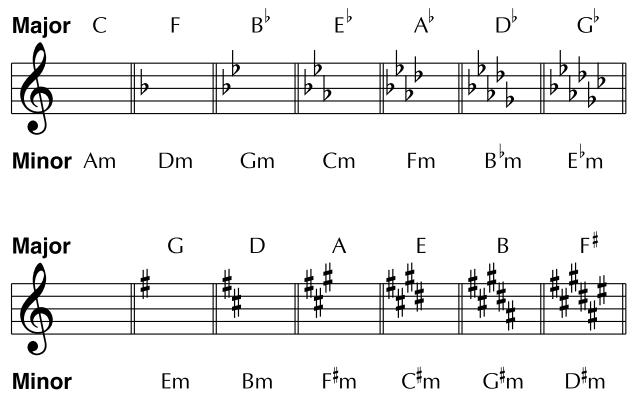
Direct Level
Adjusts the volume of the direct sound.
Creating Harmonist Scales (User Scale)
If the harmony does not sound the way you intend when "Harmony" is set to any value from "-2oct to +2oct," then use a "User scale."
You can set any of 29 different "User scales."
-
User scales represent settings common to all patches, so they are constantly updated (saved) without the Write procedure being carried out. You can carry out Factory Reset for the system to restore the settings to their original factory-set values (p. 73).
-
Press [FX-2], then press PARAMETER [][] so that "FX Select" is displayed.
- Rotate the PATCH/VALUE dial to select "HRM."
- Press PARAMETER [ ] [ ] to select "HR1 Harm" (or "HR2 Harm"), then rotate the PATCH/ VALUE dial to select a setting from "Scale 1-29."
- Press PARAMETER [▶] a number of times so that the User scale settings screen is displayed.
$$
\begin{array}{c c c} \text {K e y = C} & \text {D I R E F F} \ \text {S c a l e 1 :} & \text {C - C} \end{array}
$$
- Press PARAMETER [ ] [▶] to move the cursor, then rotate the PATCH/VALUE dial to set the User scale.
Scale
You can switch the number of the user scale.
DIR (Direct)
Sets the note name of the input sound.
EFF (Effect)
Sets the note name of the output sound.
The triangle next to the note name indicates the octave.
One downward-pointing triangle indicates a note one octave below the note displayed; two triangles indicate a two-octave drop.
One upward-pointing triangle indicates a note one octave above the note displayed; two triangles indicate a two-octave rise.
P.S: Pitch Shifter
This effect changes the pitch of the original sound (up or down) within a range of two octaves.
| Parameter | Value |
| Voice | 1-Voice, 2-Mono, 2-Stereo |
| Mode | Fast, Medium, Slow, Mono |
| Pitch | -24 —+24 |
| Fine | -50—+50 |
| Pre Delay | 0 ms–300 ms, BPM ∅ -BPM ∅ |
| Feedback | 0–100 |
| Level | 0–100 |
| Direct Level | 0–100 |
Voice
This selects the number of voices for the pitch shift sound (the harmony).
1-Voice:
One-voice pitch-shifted sound output in mono.
2-Mono:
Two-voice pitch-shifted sound (PS1, PS2) output in mono.
2-Stereo:
Two-voice pitch-shifted sound (PS1, PS2) each output through left and right channels.
Mode
Selects the pitch shifter mode.
Fast, Medium, Slow:
This is a normal pitch shifter capable of inputting chords. The response becomes slower as you switch from Fast to Medium and then Slow, but the modulation (off-key sounds) decreases at the same time.
Mono:
This mode is for the input of individual notes. Select this setting when you want to obtain a pedal bend effect using an external expression pedal.
- Because of the need to analyze the pitch, chords (two or more sounds played simultaneously) cannot be played.
Pitch
Adjusts the amount of pitch shift (the amount the pitch changes) in semitone steps.
Fine
Makes fine adjustments to the pitch shift.
- "100" units of change in Fine is equivalent to "1" full change in pitch.
PreDly (Pre Delay)
Adjusts the time from when the direct sound is played until the pitch shifted sounds are produced. Normally, you can leave this set at "0 ms."
- When set to BPM, the value of each parameter is set according to the value of the Master BPM (p. 44) specified for each patch. This makes it easy to achieve effect sound settings that match the tempo of the song (synchronizing the cycle to one-half or one-fourth of the BPM when the set cycle rate is increased). When setting to the BPM, press PARAMETER [▶] to display the Master BPM settings screen.
Feedback
This adjusts the feedback amount of the pitch shift sound. Increasing the Feedback level produces an effect whereby the sound seems to rise and fall with the reverberations.
- Only PS1 can be selected when this is set to 2-Mono or 2-Stereo.
Level
This adjusts the volume of the pitch shift sound.
Direct Level
Adjusts the volume of the direct sound.
PB: Pedal Bend
This lets you use the pedal to get a pitch bend effect. The GT-6B's expression pedal automatically switches to the pedal bend function when PB is selected.
| Parameter | Value |
| Pitch Min | -24→24 |
| Pitch Max | -24→24 |
| Pedal Position | 0–100 |
| Effect Level | 0–100 |
| Direct Level | 0–100 |
Pitch Min
This sets the pitch at the point where the expression pedal is fully lifted.
Pitch Max
This sets the pitch at the point where the expression pedal is all the way down.
Pdl Position (Pedal Position)
This adjusts the pedal position for pedal bend.
Effect Level
This adjusts the volume of the pitch bend sound.
Direct Level
Adjusts the volume of the direct sound.
2CE: 2x2 Chorus
Two separate stereo chorus units are used for the lower and upper ranges in order to create a more natural chorus sound.
| Parameter | Value |
| Crossover Frequency | 100 Hz–4.00 kHz |
| Low Rate | 0–100, BPM 。-BPM |
| Low Depth | 0–100 |
| Low Pre Delay | 0.0 msec–40.0 msec |
| Low Level | 0–100 |
| High Rate | 0–100, BPM 。-BPM |
| High Depth | 0–100 |
| High Pre Delay | 0.0 msec–40.0 msec |
| High Level | 0–100 |
Xover f (Crossover frequency)
This parameter sets the frequency at which the direct sound is divided into low- and high-frequency ranges.
Lo Rate (Low Rate)
Adjusts the rate of the chorus effect in the lower range.
- When set to BPM, the value of each parameter is set according to the value of the Master BPM (p. 44) specified for each patch. This makes it easy to achieve effect sound settings that match the tempo of the song (synchronizing the cycle to one-half or one-fourth of the BPM when the set cycle rate is increased). When setting to the BPM, press PARAMETER [▶] to display the Master BPM settings screen.
Lo Depth (Low Depth)
Adjusts the depth of the chorus effect for the lower range. If you wish to use this as a doubling effect, use a setting of "0."
Lo PreDly (Low Pre Delay)
Adjusts the time from when the direct sound in the lower range is output until the effect sound is output. Extending the pre-delay produces the sensation of multiple sounds being played (doubling effect).
Lo Level (Low Level)
Adjusts the volume of the lower range.
Hi Rate (High Rate)
Adjusts the rate of the chorus effect for the upper range.
- When set to BPM, the value of each parameter is set according to the value of the Master BPM (p. 44) specified for each patch. This makes it easy to achieve effect sound settings that match the tempo of the song (synchronizing the cycle to one-half or one-fourth of the BPM when the set cycle rate is increased). When setting to the BPM, press PARAMETER [▶] to display the Master BPM settings screen.
Hi Depth (High Depth)
Adjusts the depth of the chorus effect for the upper range. If you wish to use this as a doubling effect, use a setting of "0."
Hi PreDly (High Pre Delay)
Adjusts the time from when the direct sound in the upper range is output until the effect sound is output. Extending the pre-delay will produce the sensation of multiple sounds being played (doubling effect).
Hi Level (High Level)
Adjusts the volume of the upper range.
■ ASL: Auto Slap
This effect lets you have phrases play automatically, just by playing a single string. Simply slap a string to play a phrase.
- Sounds may become jumbled if large amounts of MIDI data are received while Auto Slap is in use.
| Parameter | Value |
| Phrase | Preset1-Preset20, User1-User10 |
| Loop | Off, On |
| Tempo | 0-100, BPM 。-BPM |
| Sensitivity | 0-100 |
| Effect Level | 0-100 |
| Direct Level | 0-100 |
Phrase
Selects the phrase played with Auto-Slap.
When User 1-10 is selected, the user-set phrase is played.
The following shows the parameters that can be set for User phrases.
Parameter Value
| Step | 1-17 |
| Pitch | -24 – +24 |
| Length | , , , , , 3 , , , , , , , , , , , , , , , , , , , , , , , , , , , , , , , , , , , , , , , , , , , , , , , , , , , , , , , , , , , , , , , , , , , , , , , , , , , , , , , , , , , , , , , , , , , , , , , , , , , , Mute, Stacc, Full |
| Sound | Attack |
| Less, Thumb, Pluck |

"Creating Original Phrases (UserID)" (p. 39)
Loop
When set to "OFF," the phrase plays one time, and then stops. When set to "On," the phrase plays continuously.
Tempo
Adjusts the rate for the phrase.
- When set to BPM, the value of each parameter is set according to the value of the Master BPM (p. 44) specified for each patch. This makes it easy to achieve effect sound settings that match the tempo of the song (synchronizing the cycle to one-half or one-fourth of the BPM when the set cycle rate is increased). When setting to the BPM, press PARAMETER [▶] to display the Master BPM settings screen.
Sens
Adjusts the sensitivity for the triggering. With low settings, softly picked notes will not retrigger the phrase (i.e., the phrase will continue playing), but strongly picked notes will retrigger the phrase so that it will play back from the beginning. With high settings of this parameter, the phrase will be retriggered even when you play softly.
Effect Level
Adjusts the phrase volume.
Direct Level
Adjusts the volume of the direct sound.
Creating Original Phrases (User Phrase)
In addition to the 20 different prepared phrases, you can also create up to ten of your own original phrases (User phrases).
-
User phrases represent settings common to all patches, so they are constantly updated (saved) without the Write procedure being carried out. You can carry out Factory Reset for the system to restore the settings to their original factory-set values (p. 73).
-
Press [FX-2], then press PARAMETER [][] so that "FX Select" is displayed.
- Rotate the PATCH/VALUE dial to select "ASL."
-
Press [▶] a number of times to select "Phrase," then rotate the PATCH/VALUE dial to make the desired choice from User 1-10.
-
Press PARAMETER [▶] a number of times until the User Phrase settings screen is displayed.
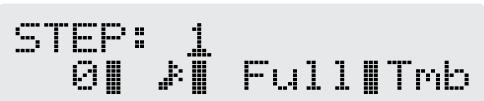
- Press PARAMETER [ ] [ ] to move the cursor, then rotate the PATCH/VALUE dial to set the User phrase.
| Step | STEP: 1
0|| FUL1Tmb |
| Pitch | STEP: 1
0|| Pitch
0|| FullTmb |
| Length | STEP: 1 Length
0|| FullTmb |
| Sound | STEP: 1 Sound
0|| FullTmb |
| Attack | STEP: 1 Attack
0|| FulThump |
- When you want to place the currently set step at the very end, turn the PATCH/VALUE dial clockwise in the settings screen for the step that follows it (it does not matter which parameter is selected), until “---” appears in the bottom row of the screen.
STEP
Sets the step number. The number within the phrase is displayed.
Pitch
Inputs the pitches of the notes. Specify by how many semitones notes are to be raised or lowered.
Length
Inputs the note lengths. Specify the length of notes on the score.
Sound
This setting determines the manner in which sounds are played.
Mute:
Mutes are specified as note lengths without the sound being played.
Stacc:
Staccato, whereby the sound is played extremely briefly.
Full:
The note is played for its full specified length.
Attack
Specifies that the note is to be played with an attack.
Less:
The note is played with no attack. Good for hammering and other such techniques.
Thumb:
The note is played with the sound as if the string is struck with the thumb.
Pluck:
The note is played with the sound as if the string is plucked with the index finger.
You can express ghost notes by setting "Mute" and specifying "Thumb" or "Pluck."
SDD: Short Delay
This is a delay with the maximum delay time of 400ms . This is an effective way to make the sound fatter.
| Parameter | Value |
| Delay Time | 0 ms-700 ms, BPM √ -BPM √ |
| Feedback | 0-100 |
| Effect Level | 0-120 |
Delay Time
Adjusts the delay time.
- When set to BPM, the value of each parameter is set according to the value of the Master BPM (p. 44) specified for each patch. This makes it easy to achieve effect sound settings that match the tempo of the song (synchronizing the cycle to one-half or one-fourth of the BPM when the set cycle rate is increased). When setting to the BPM, press PARAMETER [▶] to display the Master BPM settings screen.
Feedback
Feedback refers to returning the delayed signal back into the input of the delay. This parameter adjusts the volume that is returned to the input. Higher settings result in more delay repeats.
Effect Level
Adjusts the volume of the delay sound.
VIB: Vibrato
The vibrato effect is created by slightly modulating the pitch.
| Parameter | Value |
| Rate | 0–100, BPM 。-BPM ∅ |
| Depth | 0–100 |
| Trigger | Off, On |
| Rise Time | 0–100 |
Rate
This adjusts the period of the vibrato.
- When set to BPM, the value of each parameter is set according to the value of the Master BPM (p. 44) specified for each patch. This makes it easy to achieve effect sound settings that match the tempo of the song (synchronizing the cycle to one-half or one-fourth of the BPM when the set cycle rate is increased). When setting to the BPM, press PARAMETER [▶] to display the Master BPM settings screen.
Depth
This adjusts the depth of the vibrato.
Trigger
The vibrato is turned on and off with the foot switch.
- This parameter is premised on the trigger being turned on with the foot switch only when producing the vibrato effect. Use this by assigning it to the CTL pedal or other control (p. 46).
Rise Time
This adjusts the time from the moment the trigger is turned on until the set vibrato effect is obtained.
HMN: Humanizer
This effect changes the sound of the bass guitar into sounds resembling the human voice. Applying this after distorting the sound with OD/DIST or other such effect strengthens the effect.
For more on the order in which effects are connected, refer to p. 22.
| Parameter | Value |
| Mode | 1 Shot, Auto, Random |
| Vowel1 | a, e, i, o, u | Mode= 1 Shot, Auto |
| Vowel2 | a, e, i, o, u | Mode= 1 Shot, Auto |
| Trigger | On, Off |
| Sensitivity | 0-100 |
| Rate | 0-100, BPM 。-BPM √ |
| Depth | 0-100 |
| Manual | 0-100 |
| Level | 0-100 |
Mode
This sets the mode used to switch the vowels.
1 Shot:
The tone changes from Vowel 1 to Vowel 2 one time only as the strings are played. The time required for the change is adjusted with the Rate setting.
Auto:
The change in tone between the two vowels (Vowel 1 and Vowel 2) is repeated.
Random:
Five vowels (a, e, i, o, u) are switched randomly.
Vowel 1
(with 1 Shot and Auto)
Selects the first vowel.
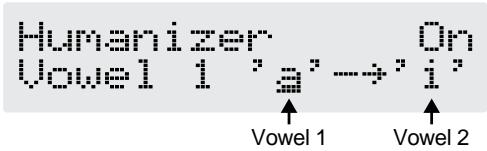
Vowel 2
(with 1 Shot and Auto)
Selects the second vowel.
Trigger
(with Auto and Random)
This selects whether or not the tone changes start simultaneously as the strings are played.
It could be said that when "1 Shot" is selected, the trigger is always on.
Sens
This adjusts the trigger sensitivity. With the sensitivity at a low setting, the trigger is activated only when greater force is used to play the strings, but not when the strings are played softly.
Rate
This adjusts the cycle over which the two vowels change.
- When set to BPM, the value of each parameter is set according to the value of the Master BPM (p. 44) specified for each patch. This makes it easy to achieve effect sound settings that match the tempo of the song (synchronizing the cycle to one-half or one-fourth of the BPM when the set cycle rate is increased). When setting to the BPM, press PARAMETER [▶] to display the Master BPM settings screen.
Depth
Adjusts the depth of the effect. The transition between vowels becomes clearer as the value is increased.
Manual
(with Auto)
Sets the point at which the two vowels will be switched. When set to "50," an equal length of time is used to switch Vowel 1 and Vowel 2. When it is set to lower than "50," the time for Vowel 1 is shorter. When it is set to higher than "50," the time for Vowel 1 is longer.
Level
This sets the volume of the humanizer.
T/P: TREMOLO/PAN
This provides a tremolo or auto pan effect.
| Parameter | Value |
| Mode | Tremolo, Pan |
| Wave Shape | 0–100 |
| Rate | 0–100, BPM 。-BPM ∅ |
| Depth | 0–100 |
Mode
This selects either the tremolo or auto pan.
Tremolo:
This is an effect that cyclically changes the volume.
Pan:
This effect alternately switches the volume levels set for the left and right sides, making sounds played in stereo appear to fly back and forth between the speakers.
Wave Shape
This adjusts how changes in volume level are made. When set to lower values, the change occurs smoothly; the change becomes progressively more sudden as the value is increased.
Rate
This adjusts the cycle for the change in volume.
- When set to BPM, the value of each parameter is set according to the value of the Master BPM (p. 44) specified for each patch. This makes it easy to achieve effect sound settings that match the tempo of the song (synchronizing the cycle to one-half or one-fourth of the BPM when the set cycle rate is increased). When setting to the BPM, press PARAMETER [▶] to display the Master BPM settings screen.
Depth
Adjusts the depth of the volume change.
■ SYN: Bass Synth
This effect produces a synth bass sound. Two methods are used, the "Internal Sound Generator method" and the "Waveform Shaping method."
Internal Sound Generator Method
The unit detects pitch and attack information in the input bass sound and causes the internal sound generator to generate sound. Please note the following points.
- This function does not work properly with chords. Be sure to mute all the other strings and play single notes.
- If you want to play a string before a previous sound has stopped, completely mute the previous sound first, and then play the next string with a firm, clear attack.
- Sounds may not be generated correctly if the unit is unable to detect the attack.
The synth bass sound is created by serial processing of the input bass sound.
| Parameter | Value |
| Wave | Square, Saw, Brass, Bow |
| Octave Shift | 0, -1 |
| PWM Rate | 0–100 |
| PWM Depth | 0–100 |
| Noise Level | 0–100 |
| Sens | 0–100 |
| Hold | Off, On |
| Attack Trigger | Off, On |
| Resonance | 0–100 |
| Cutoff Freq | 0–100 |
| Depth | -100–+100 |
| Decay | 0–100 |
| Synth Level | 0–100 |
| Direct Level | 0–100 |
| Bend | Off, On |
| Pitch Min | -24–+24 |
| Pitch Max | -24–+24 |
| Pedal Position | 0–100 |
Wave
This selects the type of waveform used as the foundation of the bass synthesizer.
Square:
A "square wave ( ) " is produced by the internal sound generator.
Saw:
A "saw wave ( ) " is produced by the internal sound generator.
Brass:
Waveform shaping outputs a soft sound with a fast attack and a sharp edge.
Bow:
Waveform shaping outputs a soft sound with no attack.
Octave Shift
(with Square and Saw)
This outputs sound one octave below the original sound.
PWM Rate (Pulse Width Modulation Rate)
(with Square)
Modulation is applied to the waveform (Square wave only) to create a broader, fatter sound. Higher values increase the rate of the modulation.
PWM Depth (Pulse Width Modulation Depth)
(with Square)
This adjusts the PWM depth. When set to "0," no PWM effect is obtained.
Noise Level
This adjusts the noise added to the sound from the sound generator. Adding noise gives the synth bass a special type of ambience.
Sens
This adjusts the input sensitivity.
In Internal Sound Generator method, although the response of the internal sound generator improves as the sensitivity value is increased, errors occur more often. Try to set the value as high as possible without causing errors.
In Waveform Shaping method, this lets you adjust the sensitivity of the shifting filter in response to the strings as they are played when the attack trigger is turned off. Raising this value allows the filter to respond with greater sensitivity, even when the strings are played softly.
Hold
(with Square and Saw)
This sustains the sound output by the sound generator. You can use a control pedal or other such control to hold synth bass sounds at the same pitch at which they are played.
- When using the Hold function, be aware of the importance of the order in which the effects are connected. When the noise suppressor is connected after FX-2, held synth sounds are not output when the bass input sound is stopped. In such cases, be sure to place FX-2 ahead of the noise suppressor (p. 22).
Attack Trig (Attack Trigger)
(with Brass and Bow)
This setting determines whether the filter acts according to the envelope of the input sound or mechanically by detecting the vibration of the strings as they are played. When set to OFF, the filter operates in response to the volume of the input bass sound, like a touch wah; when set to ON, the filter operates more mechanically, as with the Internal Sound Generator method, by detecting the degree of attack.
- When using the synth bass with this parameter on, errors may occur if the unit is unable to detect the attack properly.
Completely mute the other strings, and play single notes.
Resonance
This adjusts the filter resonance (the amount of feedback). Increasing the value emphasizes the effect, creating a more unusual sound.
Cutoff Freq (Cutoff frequency)
This adjusts the frequency at which the harmonic components are cut off (the cutoff frequency). This parameter determines the tone at the point that the filter movement finally stops.
Depth
This adjusts how much the filter shifts. When a positive value is set, playing a string causes the filter to go upwards, starting from the conditions determined with the cutoff frequency. Conversely, the movement is downward when the value is negative. The change becomes more dramatic as the numerical value is increased.
Decay
(with Square and Saw, or Attack Trig On)
This sets the rate for the filter's movement. The filter moves more slowly as the value is increased.
Synth Level
This determines the volume of the synthesizer sound.
Direct Level
Adjusts the volume of the direct sound.
Bend
(with Square, Saw)
You can use the expression pedal to control the frequency of sounds from the internal sound generator.
Use this by setting the parameter to "On" and assigning the expression pedal or similar controller to Pdl Position.
Pitch Min
(with Square, Saw)
Sets the pitch produced when the expression pedal is released.
Pitch Max
(with Square, Saw)
Sets the pitch produced when the expression pedal is fully depressed.
Pdl Position (pedal position)
(with Square, Saw)
Adjusts the Pedal Bend pedal position.
NS: Noise Suppressor
This effect reduces the noise and hum picked up by the bass. Use this when noise that occurs when you are not playing the bass becomes noticeable. Since it suppresses the noise by monitoring the volume level of the actual bass sound being input, it always gives a natural effect.
| Parameter | Value |
| On/Off | Off, On |
| Threshold | 0–100 |
| Release | 0–100 |
On/Off (Effect On/Off)
This parameter turns the noise suppressor on/off.
This setting can be made with the PATCH/VALUE dial.
- You cannot switch the noise suppressor on and off by pressing [NAME/NS/MASTER].
Threshold
Adjust this parameter as appropriate for the volume of the noise. If the noise level is high, a higher setting is appropriate. Use a lower setting when the noise level is low.
- High threshold settings may prevent sounds from being output when you play with your bass volume turned down.
Release
Adjusts the time from when the noise suppressor begins to function until the noise level reaches "0."
MASTER
Parameter Value
Effect Level 0-120
Master BPM 40-250
Effect Level
Adjusts the overall volume of the processed sound.
- When the Bypass EXP Mode (p. 55) and Noise Suppressor (p. 44) is set to "Off" and only CHORUS or REV/DLY is used, the direct sound is output as analog output. In this case, EFFECT LEVEL does not change the volume of the direct sound.
Master BPM
Adjusts the BPM value for each patch.
- BPM (beats per minute) indicates the number of quarter note beats that occur in one minute.
- When you have an external MIDI device connected, the Master BPM is synchronized to the external MIDI device's tempo, so you cannot set the Master BPM. If you want to be able to set the Master BPM, set the "MIDI: Sync Clock" (p. 65) to Internal.
You can use the CTL pedal to set the Master BPM by means of tap input.
Depress the CTL pedal two or more times in time with the performance's tempo, and the Master BPM is set to match the timing you've used while depressing the pedal.
To use the CTL pedal and tap tempo to set the Master BPM, set Pedal Assign as follows:
Quick Settings (p. 46)
CTL PEDAL: BPM (TAP)
Manual Settings (p. 47)
CTL PEDAL: On
CTL PEDAL Target: Master BPM (Tap)
CTL PEDAL Target Min: Off
CTL PEDAL Target Max: On
CTL PEDAL Source Mode: Normal
This is a volume control effect.
This is normally controlled with the expression pedal.
Parameter Value
Level 0-100
Level
This sets the volume level for the Foot Volume.
- Note the following points when Bypass EXP Mode (p.55) is set to "Off."
- Analog bypass sound is output when all effects are set to "OFF," and the volume level cannot be controlled using the Foot Volume.
- When CHORUS or REV/DLY are the only effects being used, only the analog bypass sound is output for the direct sound, so only the effect sound's volume level is controlled with Foot Volume.
Chapter 5 Setting the Pedal Functions (Pedal Assign)
MEMO
These settings can be saved separately to individual patches.
Selecting Each Effect to Be Turned On and Off with the Number Pedals
You can change the effects that are turned on and off with the number pedals 1-4.
- Press PARAMETER [ ] [ ] in the Play screen to display the following screen.
ASSIGN EFFECT c1fuzchoREV
- Press PARAMETER [][] to move the cursor, and turn the PATCH/VALUE dial to select the effect to be assigned to the pedal.
The effects that can be assigned to each pedal are shown below.
Number 1: COMP/LIMITER or WAH
Number 2: OD/DIST or FX-1
Number 3: CHORUS or FX-2
Number 4: This pedal is a dedicated PEV/DLY pedal. However, when selecting Sound On Sound with the REV/DLY FX Select (p. 27), the Sound On Sound control function is automatically assigned to this pedal and the CTL pedal. Refer to p. 54 for more information when using this function.
- The name and on/off status of the selected effect appear in the display in capitals when the effect is on, and in lowercase when the effect is off.
-
Each of the effect names indicated in the display are the actual effect names as selected with FX Select and other controls.
-
To save the settings, perform the Write procedure (p. 23). Press [EXIT] to return to the Play screen.
Settings for Using the Expression Pedal
Normally, "FV" (Foot Volume) is assigned to the expression pedal, allowing it to be used as a "volume pedal" to control the volume level.
- When bypass is in effect, you may be unable to control the volume level with the expression pedal. In such instances, set Bypass EXP Mode to "On" (p. 55).
Setting the Range of the Volume Change
You can set the minimum and maximum values determining the range over which the volume level changes when you move the expression pedal.
- Press [PEDAL ASSIGN].
- Press PARAMETER [ ] [ ] to display the following screen.
(Setting the minimum value)
EXP PEDAL On Foot Vol Min
(Setting the maximum value)
EXP PEDAL On Foot Vol Max 100
- Rotate the PATCH/VALUE dial to set the value. Values: 0-100
- To save the settings, perform the Write procedure (p. 23). Press [EXIT] to return to the Play screen.
MEMO
When “WAH” (Pedal Wah: p. 20, 31) or FX-2 “PB” (Pedal Bend: p. 20, 38) is on, the expression pedal automatically functions as a “pedal wah” or “pedal bend.”
- When these are off, the expression pedal automatically functions as a "volume pedal."
If You Don't Want to Use the Expression Pedal as a "Volume Pedal"
Use the procedure below to turn the expression pedal off.
- Press [PEDAL ASSIGN].
- Press PARAMETER [ ] [ ] a number of times until you have one of the following screens displayed.
EXP PEDAL On Foot Vol Min
EXP PEDAL On Foot Vol Max 100
- Press [PEDAL ASSIGN] once more, to set it to "Off."
- To save the settings, perform the Write procedure (p. 23).
Press [EXIT] to return to the Play screen.
Settings for Using the Expression Pedal Switch/CTL Pedal
Making Settings Instantly (Quick Settings)
Quick Settings is a function that lets you set the most appropriate values for related effect parameters instantly, just by selecting the preset "pedal settings." This greatly reduces the hassle of selecting and setting parameters one by one.
Pedal Settings for the Expression Pedal Switch
Select the parameter to be controlled when you press down on the toe of the expression pedal.
- WAH Effect On/Off
FX-2 Effect On/Off
OD/DIST Effect On/Off
REV/DLY Effect On/Off
- CHORUS Effect On/Off
- PARAMETRIC EQ Effect On/Off
FX-1 Effect On/Off
- LEVEL INC Increase the volume level gradually
- PATCH SELECT Switch for Patch Select Mode (p. 60)
- BYPASS Bypass On/Off
Pedal Settings for the CTL Pedal
OD/DIST Effect On/Off
REV/DLY Effect On/Off
- CHORUS Effect On/Off
- PARAMETRIC EQ Effect On/Off
FX-1 Effect On/Off
FX-2 Effect On/Off
- WAH Effect On/Off
- PATCH SELECT Switch for Patch Select Mode (p. 60)
BPM (TAP) Master BPM Tap Input
- BYPASS Bypass On/Off
- Press [PEDAL ASSIGN].
- Press PARAMETER [ ] [ ] to display the following screens.
(Expression pedal switch)

(CTL pedal)

HINT
Holding down [▶] (or [▶]) and pressing [▶] (or [▶]) causes the GT-6B to jump to the main screen, allowing you to reduce the number of times you need to press the buttons.
3. Rotate the PATCH/VALUE dial to select the pedal setting.
4. Repeat steps 2-3 as necessary.
5. To save the settings, use the Write procedure (p. 23). Press [EXIT] to return to the Play screen.
If You Don't Want to Use the Expression Pedal Switch or CTL Pedal
- Press [PEDAL ASSIGN].
- Press PARAMETER [] [] to display the following screens.
(Expression pedal switch)

(CTL pedal)

- Press [PEDAL ASSIGN] once more, to set it to "Off."
- To save the settings, perform the Write procedure (p. 23). Press [EXIT] to return to the Play screen.
Editing "Quick Settings"
Whenever necessary, you can edit parameter values set in the Quick Settings.
- Press [PEDAL ASSIGN].
- Press PARAMETER [ ] [ ] to display the following screen.
| Expression Pedal Switch
Target | EXP SuW
tw : Rate | Target |
| Expression Pedal Switch
Target value range: Min | EXP SuW
Min: | Target |
| Expression Pedal Switch
Target value range: Max | EXP SuW
Max: | Target |
| Expression Pedal Switch
Source Mode | EXP SuW
Mode: | Source |
| CTL Pedal
Target | CTL PEDAL
BYPASS On/Off |
| CTL Pedal
Target value range: Min | CTL PEDAL
Min: | Target |
| CTL Pedal
Target value range: Max | CTL PEDAL
Max: | Target |
| CTL Pedal
Source Mode | CTL PEDAL
Mode: | Source |
- Rotate the PATCH/VALUE dial to change the setting value.
- Repeat steps 2-3 as necessary.
- To save the settings, use the Write procedure (p. 23). Press [EXIT] to return to the Play screen.
Target
Select the parameters to be controlled.
Target Variation Range
This sets the range within which the parameter being controlled can be changed.
The range between the minimum value (Min) and the maximum value (Max) is changed.
Source Mode
This selects the function of the foot switch (p. 50).
Controlling Effects with the GT-6B Pedals, External Pedals, and External MIDI Devices
Make these settings when controlling effects with the GT-6B's expression pedal, expression pedal switch, or CTL pedal, or with external pedals or external MIDI devices connected to the GT-6B.
You can make up to eight separate settings per patch (using Assign numbers 1-8) determining what parameters are controlled by which controllers.
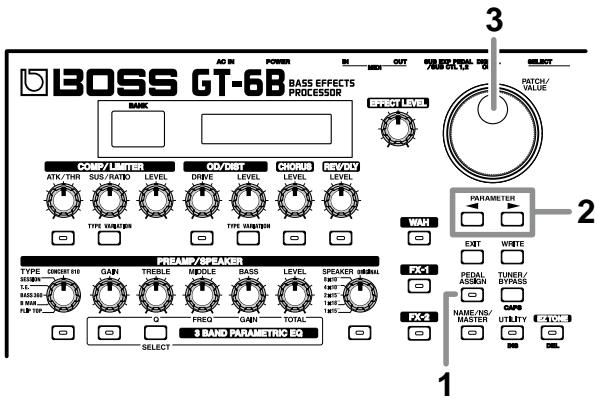
- Press [PEDAL ASSIGN].
- Press PARAMETER [ ] [▶] to display the following screen.
| Assign On/Off
Quick Setting | ASSIGN 1
Quick Setting -- |
| Target | ASSIGN 1
dly:Type | Target |
| Target value range: Min | ASSIGN 1
Min: | Target Single |
| Target value range: Max | ASSIGN 1
Max: | Target Pan |
| Sourcece | ASSIGN 1
CTL PEDAL |
| Source Mode | ASSIGN 1
Mode: | Source Toggle |
| Active Range Low | ASSIGN 1
Act.Range | Source Lo:0 |
| Active Range High | ASSIGN 1
Act.Range | Source Hi:127 |
- Rotate the VALUE dial to change the setting value.
- Repeat Steps 2 and 3 as needed until the settings are completed.
- To save the settings, use the Write procedure (p. 23). Press [EXIT] to return to the Play screen.
Making the Assign On/Off Setting
ASSIGN 1 On Quick Setting
This selects the eight Assign ON/OFF settings (ASSIGN 1-8). Only set the assigns you will be using to "On."
The setting is toggled between "On" and "Off" each time [PEDAL ASSIGN] is pressed.
Making Settings Instantly (Quick Settings)
Using Quick Settings lets you quickly finish making the settings to the parameters described below, without having to set them all individually.
As you rotate the PATCH/VALUE dial in the Quick Setting screen to select the prepared pedal settings, the most appropriate values for related parameters are selected instantly.
- PATCH LEVEL
- PREAMP GAIN
OD/DST DRIVE
- DELAY LEVEL
- CHORUS LEVEL
- REVERB LEVEL
- MASTER BPM
- SUB EXP FV
Controlling Foot Volume with the External Expression Pedal
SUB EXP PS
Controlling Pitch Shifter with the External Expression Pedal
Making the Parameter Settings
This sets the parameters to be controlled with Assign.
Target
ASSIGN 1 Target
FU :Level
This sets the parameter to be affected.
You can make adjustments to more parameters than those available in the Quick Settings.
The parameters that you can select as the target are shown below.
- Effect On/Off for each effect
- Effect parameters
Patch Level
- Master BPM
- Foot Volume
- Bypass On/Off
- Switch for Patch Select Mode (p. 60)
- Master BPM
MIDI Start/Stop
MIDI Start and Stop messages are output from the MIDI OUT connector, and these control the performance of the sequencer or other external MIDI device.
- MMC Start/Stop
MMC Start and Stop messages are output from the MIDI OUT connector, and these control the performance of the recorder or other external MIDI device.
- Patch Level INC/DEC (increase/decrease)
- Although you can set this so that the same target is controlled by more than one controller, in such cases make sure not to have different sources changing the parameter at the same time. Changing the parameter simultaneously while using different sources may result in noise being generated.
- The GT-6B does not transmit MIDI clock. Therefore, when MIDI Start/Stop is selected as the target, set the receiving device so its own clock is used for the performance.
Target Range (Min, Max)
ASSIGN 1 Target Min:
ASSIGN 1 Target Max: 100
The parameter value selected as the target changes within the range defined by the “Min” and “Max,” set this parameter.
When using the CTL pedal, foot switch, or other controller that acts as an on/off switch, the "minimum value" (Min) is produced when you release your foot from the pedal, while depressing the pedal produces the "maximum value" (Max).
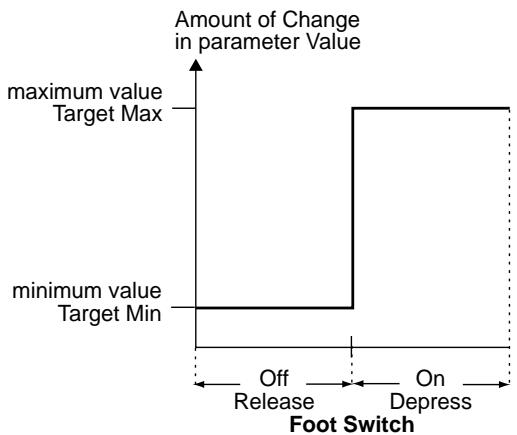
When using an expression pedal or other controller that changes values over a continuous range, the value of the setting changes accordingly within the range set by the minimum (MIN) and maximum (MAX) values.
When using the expression pedal
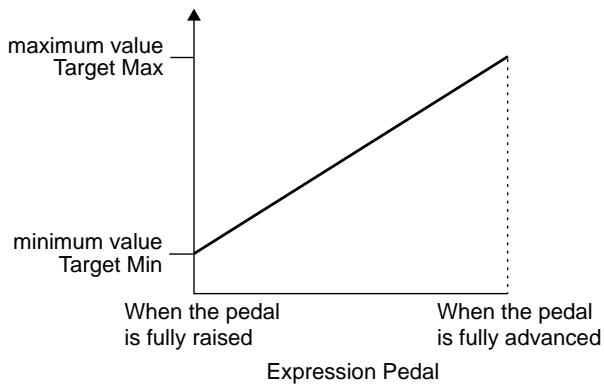
Additionally, when the target is of an on/off type, the median value of the received data is used as the dividing line in determining whether to switch it on or off.
When controlling an On/Off target with the expression pedal
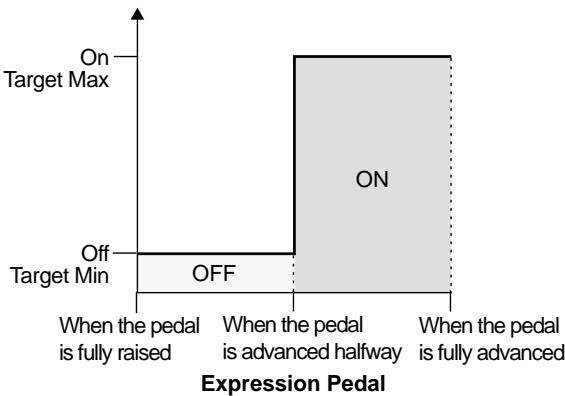
- The range that can be selected changes according to the target setting.
- When the "minimum" is set to a higher value than the "maximum," the change in the parameter is reversed.
- The values of settings may change if the target is altered after the "minimum value" and "maximum value" are set. Be sure to check the "minimum value" and "maximum value" settings after changing the target.
Source
ASSIGN 1 Source EXP PEDAL
This sets the controller (source) that affects the target parameter. Controllers that can be selected as the source are shown below.
EXP PEDAL Expression pedal
EXP SW Expression pedal switch
- CTL PEDAL CTL pedal
* The CTL pedal indicator is not lit. The indicator lights up according to the CTL pedal setting (p. 46).
- SUB EXP PEDAL
External expression pedal connected to the SUB EXP PEDAL/SUB CTL 1, 2 jack.
- Set SYS: Sub CTL 1 Func (p. 63) to "Assignable."
SUBCTL1,2
Foot switch connected to the SUB EXP PEDAL/SUB CTL 1, 2 jack.
- Set SYS: Sub CTL 1, 2 Func (p. 63) to "Assignable."
- MIDICC#1-31,64-95
Control Change messages from an external MIDI device (1-31, 64-95).
- The CTL pedal indicator lights according to the settings made with the CTL pedal.
Source Mode
ASSIGN 1 Source Mode: Normal
This determines the manner in which the setting is to be changed when a momentary-type foot switch (such as the optional FS-5U) is used.
- The GT-6B's control pedal is a momentary-type pedal. Switch the settings as needed to accommodate your setup.
Normal
The normal state is Off (minimum value), with the switch On (maximum value) only while the foot switch is depressed.
Toggle
The setting alternately switches between On (maximum value) and Off (minimum value) with each press of the foot switch.
Example (1)
When switching effects on and off with a foot switch
| Source | Source Mode |
| Momentary-Type CTL pedal FS-5U (external) | Toggle |
| Latch Type FS-5L (external) | Normal |
| Expression pedal EV-5 (external) | Normal |
Example (2)
When the effect is applied more, or is on only while the foot switch is being pressed
| Source | Source Mode |
| Momentary-Type CTL pedal FS-5U (external) | Normal |
| Latch Type FS-5L (external) | cannot function |
| Expression pedal EV-5 (external) | Normal |
Active Range


When an expression pedal or other controller that changes the value consecutively is used as the source, this sets the operational range within which the value of the setting changes. If the controller is moved outside the operational range, the value does not change, but instead stops at "minimum" or "maximum."
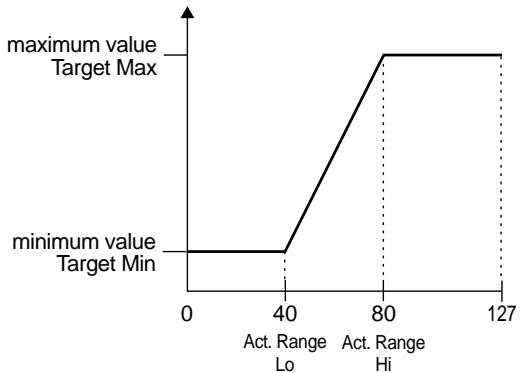
(Example) Act. Range Lo: 40, Act. Range Hi: 80
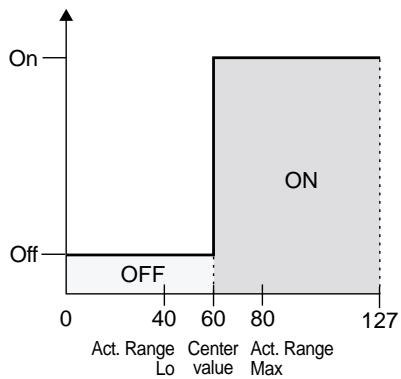
* When using a foot switch or other on/off switching controller as the source, leave these at "Lo: 0" and "Hi: 127." With certain settings, the value may not change.
Make the following settings to use an expression pedal connected to the SUB EXP PEDAL/SUB CTL 1,2 jack to control foot volume and pitch shifter.

- When the upper row of the screen indicates "OFF" (flashing), press [PEDAL ASSIGN] to set it to "ON" (lit).
- Rotate the PATCH/VALUE dial to select the following settings:
For Foot Volume:
SUB EXP FV
For Pitch Shifter:
SUB EXP PS


- If Pitch Bend has been selected in Step 3, carry out the following.
Press [FX-2] so that "On" appears in the display.
Next, press PARAMETER [ ] [ ] to display "FX Select," then select "P.S" with the PATCH/VALUE dial.
Chapter 6 Using the Customize Function
With the GT-6's Customize function, you can rely on your own sensibilities and create a totally new effect by tweaking the settings for the "Preamp/Speaker Simulator,"
"Overdrive/Distortion," and "Pedal Wah." The result can then be saved on the GT-6 as "Custom" settings.
You can also use these custom settings in other patches.

"Custom" settings are automatically updated (saved), even if you don't carry out the Write procedure. For this reason, you need to keep in mind that once you change the settings, the previous settings can no longer be restored.
- You can restore "custom" settings to their original factory-set values by carrying out Factory Reset for the system (p. 73).
All product names mentioned in this document are trademarks or registered trademarks of their respective owners.
The names used for the sounds mentioned in this document are intended to be descriptive in nature, used solely to identify the equipment whose sound is simulated using COSM technology.
Making "Custom" Overdrive/Distortion Settings
You can prepare two different sets of settings in the GT-6B, Custom 1 and Custom 2.
The OD/DS Edit screen appears.
- Press OVERDRIVE/DISTORTION [TYPE VARIATION] to display "Custom 1" or "Custom 2."
Dvdrive/Dbt. On Type Custom1
- Press PARAMETER [ ] [ ] to show the special Custom parameters.
| Custom Type | EDIT | CUSTOM | 1
Type | 0DB-3 |
| Custom Bottom | EDIT | CUSTOM | 1
Bottom | 0 |
| Custom Top | EDIT | CUSTOM | 1
Top | 0 |
| Custom Low | EDIT | CUSTOM | 1
Low | 0 |
| Custom High | EDIT | CUSTOM | 1
High | 0 |
-
Rotate the PATCH/VALUE dial to change the setting value.
-
Repeat Steps 3 and 4 as needed.
- Press [EXIT] to return to the Play screen.
Type
Selects the basic type of preamp.
OD-2:
This is the sound of the BOSS OD-2.
BD-2:
This is a crunch sound produced with the BOSS BD-2.
ODB-3:
This is the sound of the BOSS ODB-3.
DS-1:
This gives a basic, traditional distortion sound.
MT-2:
This is the sound of the BOSS MT-2.
FUZZ:
This models the sound of the FUZZ.
Bottom -50-+50
Adjusts the amount of distortion in the lower range.
Top -50--+50
Adjusts the amount of distortion in the upper range.
Low -50--+50
Adjusts the tone of the lower range.
High -50-+50
Adjusts the tone of the upper range.
Making "Custom" Pedal Wah Settings
Here, you can make three different sets of settings, Custom 1, Custom 2, and Custom 3.
-
Editing the Custom 1, 2, or 3 settings alters all tones in patches that use these custom settings.
-
Press [WAH].
The WAH edit screen appears.
- Press PARAMETER [][] so that "FX Select" is displayed, then rotate the PATCH/VALUE dial to select "WH."
- Press PARAMETER [ ] [ ] until "Type" appears in the display.
- Rotate the PATCH/VALUE dial to select from "Custom 1-3."
Pedal Wah On
Type Custom1
- Press PARAMETER [ ] [ ] to show the custom parameters.
| Custom Type | EDIT CUSTOM 1
Type CRY WAH |
| Custom Q | EDIT CUSTOM 1
Q 0 |
| Custom Range Low | EDIT CUSTOM 1
Range Low 0 |
| Custom Range High | EDIT CUSTOM 1
Range High 0 |
| Custom Presence | EDIT CUSTOM 1
Presence 0 |
- Rotate the PATCH/VALUE dial to change the setting value.
- Repeat Steps 4 through 6 as needed.
- Press [EXIT] to return to the Play screen.
Type
Selects the basic type of wah.
CRY WAH:
This models the '70s-type sound of the CRY BABY wah pedal.
VO WAH:
This models the sound of the VOX V846.
Bass WAH:
Wah featuring a broader range of variations for the bass range.
$$
Q - 5 0 - + 5 0
$$
Adjusts the amount of characteristic effect applied to the wah tone.
Range Low -50--+50
Selects the tone produced when the pedal is rocked back.
Range High -50--+50
Selects the tone produced when the pedal is pressed fully forward.
Presence -50-+50
Adjusts the tonal quality of the wah effect.
Chapter 7 Using Sound On Sound
You can use the "Sound On Sound function" by selecting "SOS" with the REV/DLY Fx Select (p. 27).
Here, the Number 4 pedal and the BYPASS/CTL pedal automatically function as Sound On Sound controls.
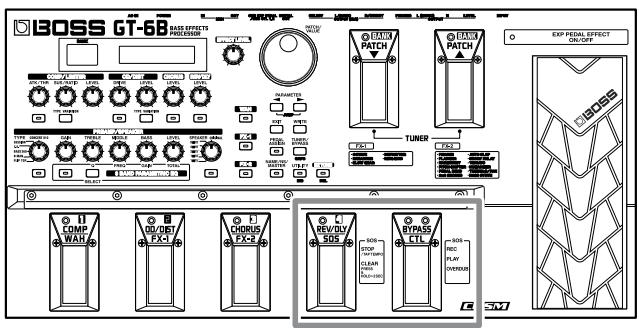
Number 4 pedal: Stop, Erase
CTL pedal: Record, Play, Overdub
- The Number 4 pedal won't function as the Sound On Sound control pedal if the Patch Select mode (p. 60) has been set to the Bank/Number method of selection.

The available recording time in "HiQlty" mode (in which priority is placed on sound quality) is approximately 3 seconds, and approximately 6 seconds in "LongTime" mode (in which priority is placed on longer recording time).
Procedure
- Confirm that the CTL pedal's red indicator is flashing.
This means that the GT-6B is in recording standby mode and that there is nothing in the memory.
Additionally, the rate at which the indicator flashes indicates the
tempo, allowing you to use this as a quick tempo check during recording.
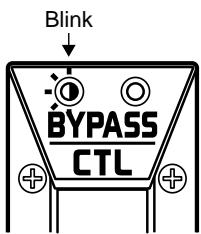
-
Depress the Number 4 pedal at least twice while “Tempo” (p. 29) is set to “BPM,” and the tempo is set to match the timing you’ve used while depressing the pedal (tap input).
-
Press the CTL pedal to begin recording.
The CTL pedal's red indicator stops flashing and stays lit, indicating that the GT-6B is recording.
- Recording stops automatically as soon as the amount that's been recorded exceeds the available recording time.
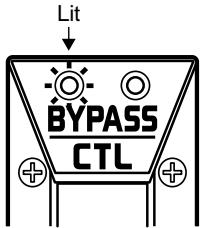
- Press the CTL pedal to end the recording.
When you stop recording, the recorded phrases simultaneously starts playing back. The CTL pedal's red indicator light goes out, and the green indicator flashes, indicating that playback is in progress.
In addition, the Number 4 pedal's indicator lights up, indicating that the memory contains recorded data.
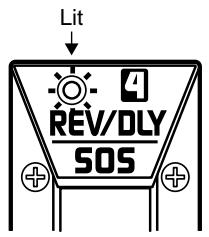
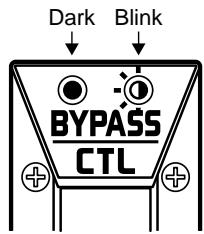
- Press the CTL pedal once again to begin over dubbing.
Synchronize the overdub to the recorded phrase.
The CTL pedal's green indicator flashes and the red indicator light goes on, indicating that playback
and recording are being carried out simultaneously.
Each time the CTL pedal is pressed, playback and overdubbing repeat.
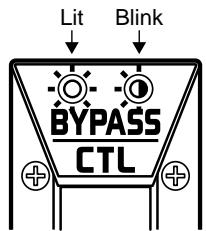
-
When you have finished playback and overdubbing, press the Number 4 pedal.
-
If you want to erase the results of your recording, press and hold down the Number 4 pedal for at least two seconds.
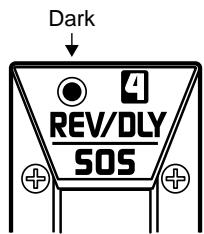
- The recorded content is temporary. Note that carrying out the following procedures erases the recording.
- Turning off the power to the GT-6B.
- Switching to another patch
- Setting the REV/DLY Fx Select to anything other than "SOS."
- Switch for SOSMode
- For more information about each of the "SOS" parameters, refer to p. 29.
Chapter 8 Convenient Features of the GT-6B
Outputting Sounds Without Effects Applied (Bypass)
The GT-6B features bypass circuitry. By using the bypass, the signal path, from input to output, consists entirely of analog circuitry. To switch to bypass, carry out the following procedure.
Using the Expression Pedal Even When Bypass Is in Effect
You can use Bypass EXP Mode to set the routing of the signals when bypass is in effect; these settings can be made separately for each individual patch.
-
Press [NAME/NS/MASTER] until "Bypass EXP Mode" appears in the display.
-
Each time [NAME/NS/MASTER] is pressed, the item that can be set is changed, following this order:
Name Noise Suppressor Master Bypass EXP Mode Foot Volume Effect Chain.
$$
\begin{array}{c} \text {B u p a s s E X P M o d e} \ \text {O f f} \end{array}
$$
- Rotate the PATCH/VALUE dial to select “On” or “Off.” Off:
You cannot use the expression pedal while bypass is in effect. The bypass sound does not pass through the AD/ DA converter, and analog bypass sound is output. The analog bypass sound is also output for the direct sound when only CHORUS or REV/DLY is used. (However, the expression pedal affects only the effect sound.)
On:
You can use the expression pedal while bypass is in effect. The bypass sound is output after passing through the AD/DA converter. Also, the direct sound is output after passing through the AD/DA converter even when CHORUS or REV/DLY is used, so you can use the expression pedal to control the volume level for sounds including the direct sound.
- To save the settings, perform the Write procedure (p. 23). Press [EXIT] to return to the Play screen.
Switching Bypass On and Off Using the Pedal
When the BYPASS/CTL pedal or the expression pedal switch function is set to "Bypass," these pedals then toggle between "bypass" or "effect on" each time they are pressed.
The green BYPASS/CTL pedal is lit while the unit is in bypass mode (refer to "Settings for Using the Expression Pedal Switch/CTL Pedal": p. 46).
Each time the panel button [TUNER/BYPASS] is pressed, the unit switches between "Tuner mode (p. 56)," "Bypass mode" and "Play mode."
Connecting Directly to a Recording Mixer or PA Mixer (XLR Balanced Output)
The GT-6B features balanced outputs that utilize XLR connectors. Although direct boxes are generally used to connect bass (effects processor) outputs to mixers in concert halls and recording studios, you can connect the GT-6B directly to the mixer, which lets you avoid degradations in the sound quality, as well as any additional problems that might occur as the result of connecting multiple devices.
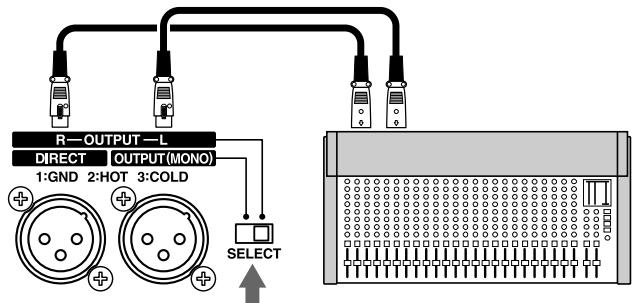
Switching the XLR Output Connector Signals
You can select the signals to be output from the XLR connectors with the OUTPUT SELECT switch on the rear panel.
R-OUTPUT-L: Stereo Output
The GT-6B's stereo output is output as is, without change. Set the switch to this position when recording in stereo or sending stereo signals to a PA.
DIRECT/MONO: Direct/Mono Output
Output from one of the connectors is the GT-6B's stereo output mixed to mono; the direct bass direct sound (the analog bypass sound from the input jack) is output from the other connector.
This switch setting determines whether the signals output from the XLR output jacks are output in stereo (L/R) or as direct mono output. Set the switch to this position when using only one mixer channel, for example during concerts. Additionally, for recording, you can record the direct bass sound on a separate channel, then later on you can remix the direct sound with the effect sound during mixdown.
Quick Patch Volume Adjustment (EFFECT LEVEL Knob)
For quick and easy adjustment of the current patch's volume, use the EFFECT LEVEL knob.
You can control the patch level of the currently selected patch directly by turning the EFFECT LEVEL knob.
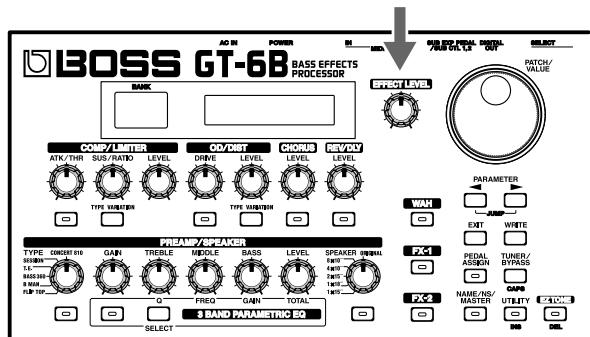
- When the Bypass EXP Mode (p. 55) and Noise Suppressor (p. 44) is set to "Off" and only CHORUS or REV/DLY is used, the direct sound is output as analog output. In this case, EFFECT LEVEL does not change the volume of the direct sound.
- The patch level as adjusted with the PATCH LEVEL knob is saved when the Write procedure (p. 23) is carried out.
Tuning the Bass
The GT-6B is equipped with an Internal automatic chromatic tuner. Turning on the tuner mutes the output and activates the tuner.
Turning the Tuner Function On
Use the following procedure to switch to Tuner mode.
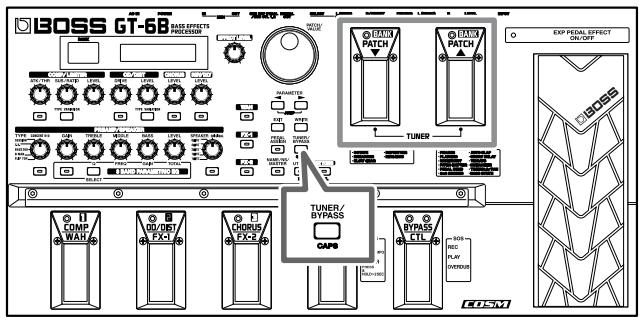
Using the Pedal
To switch to Tuner mode, simultaneously press the PATCH ▲ and PATCH ▼ pedals.
Press either the PATCH or PATCH pedals to return to the original mode.
Each time the panel button [TUNER/BYPASS] is pressed, the unit switches between "Tuner mode," "Bypass mode (p. 55)" and "Play mode."
About the Display During Tuning
With the GT-6B's internal tuner, the note name is indicated in the upper row of the display and the Tuning Guide is shown in the lower row, indicating the difference between the input sound and the sound in the display.
Furthermore, the tuning status is also indicated by the pedals' indicators.
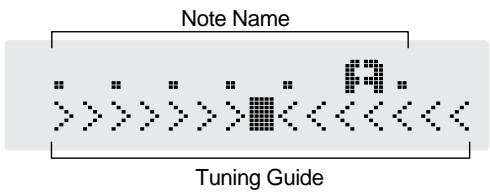
When the difference from the correct pitch falls within 50 cents, the Tuning Guide then indicates the size of that difference. As you watch the Tuning Guide, tune the bass so that the “■” appears in the center.
At this time, the indicators of the PATCH and PATCH pedals light, indicating that the instrument is precisely in tune.
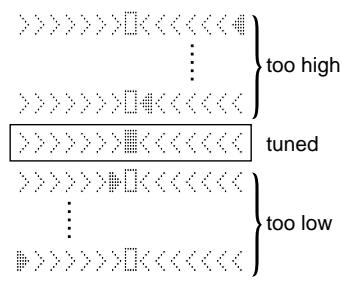
How to Tune
- Play a single open note on the string being tuned. The name of the note closest to the pitch of the string that was played appears in the display.
-
Only play a single note on the one string being tuned.
-
Tune the string until the string name appears in the display.
General Four-String Bass
| 4th | 3rd | 2nd | 1st |
| Regular | E | A | D | G |
| 1/2 Step Down | D# | G# | C# | F# |
| 1 Step Down | D | G | C | F |
General Five-String Bass
| 5th | 4th | 3rd | 2nd | 1st |
| Regular | | B | E | A | D |
| 1/2 Step Down | A# | D# | G# | C# | F# |
| 1 Step Down | A | D | G | C | F |
General Six-String Bass
| 6th | 5th | 4th | 3rd | 2nd | 1st |
| Regular | | B | E | A | D | G |
| 1/2 Step Down | A# | D# | G# | C# | F# | B |
| 1 Step Down | A | D | G | C | F | A# |
- As you watch the Tuning Guide, adjust the bass's tuning until "■" appears in the center.
When the sound is lower than the indicated note name
" ” appears to the left of center in the Tuning Guide.
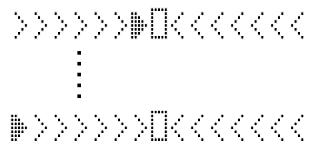
The pedals' indicators flash from right to left.
When the sound is higher than the indicated note name “ 艹 ” appears to the right of center in the Tuning Guide.
The pedals' indicators flash from left to right.
- Repeat Steps 1-3 until all of the strings are tuned.
Changing the Tuner Settings
You can change the following tuner-related settings.
Standard Pitch (435-445 Hz)
$$
\begin{array}{c} \text {T U N E R P i t c h} \ \text {H = 4 4 0 h z} \end{array}
$$
The frequency of A4 (the middle A on a piano keyboard) played by an instrument (such as a piano) that provides the pitch to which the other instruments refer in tuning before a performance begins is called the standard pitch. You can set the standard pitch on the GT-6B to frequencies from 435 to 445Hz .
Adjusting the Overall Sound to Match the Usage Environment (Global)
The GT-6B includes a feature that allows you to change all of the patch settings temporarily. This is called the "Global function."
With the Global function, you can temporarily change your settings to match those of your equipment and the operating environment, while leaving the settings in the patches untouched.
- Press [UTILITY], then press PARAMETER [ ]
[ ] to display the following screen.
Global: Noise Suppressor Threshold
GLOB:HS Threshold 0dB
Global:Reverb Level
GLOB:Reurb Level 100%
- Rotate the PATCH/VALUE dial to change the setting's value.
- Repeat Steps 1 and 2 as needed.
- Press [EXIT] to return to the Play screen.
NS Threshold (Noise Suppressor Threshold) -20 dB-+20 dB
Adjusts the noise suppressor threshold level settings for each patch in a range from -20 dB to +20 dB.
This adjustment is an effective way to get equivalent output with each of your basses when you are connecting more than one bass.
- Set to "0 dB" when using this in individual patch settings.
- This has no effect on patches in which the noise suppressor is turned off.
Revrb Level (Reverb Level) 0%-200%
Adjusts the reverb level settings for each patch in a range from 0% to 200% .
Adjusting the reverb level is an effective way to match the reverberation of the performance venue.
- Set to "100%" when using this in individual patch settings.
- This has no effect on patches in which reverb is turned off.
Using the Digital Out
Digital signals are output from the DIGITAL OUT connector on the rear panel. You can connect this directly to the digital in connector of a digital recorder or other device and record with no degradation in sound quality.
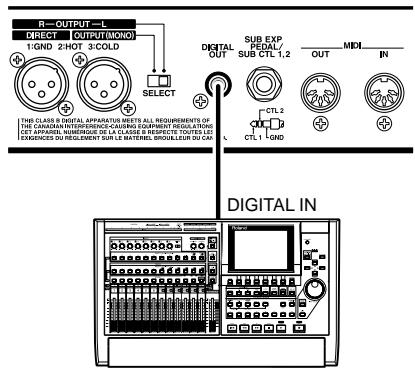
Adjusting the Output Level from DIGITAL OUT
With the GT-6B, you can adjust the output level of DIGITAL OUT independently of the analog output level.
- Press [UTILITY], then press PARAMETER [] [▶] so that "Digital Out" is displayed.
SYS:Digital Out Level = 100
- Rotate the PATCH/VALUE dial to set the digital output level.
Valid settings: 0-200
- Raising the level too high may cause clipping of the signal within the unit. Check the meter (p. 59) or otherwise monitor the signal while setting this to an appropriate level.
- Press [EXIT] to return to the Play screen.
Checking the Effect Output Level with the Level Meter
You can meter the output level of each effect. This is handy for checking the effects' output levels.
-
Press [UTILITY] a number of times until “METER” is displayed.
-
You can also select this by pressing [UTILITY], and then pressing PARAMETER [ ] [ ] .
METER: Input.
- Rotate the PATCH/VALUE dial to select the effect whose level you want to check.
- Only effects that are turned on can be selected.
- You can check the level of signals being input to the INPUT jack by selecting "Input." Selecting "Output" allows you to check the level of signals output from the GT-6B.
- You may not be able to achieve the effects adequately if your output levels are set too high. While checking the meter and making sure the needle doesn't fluctuate, adjust the output level of each of your effects to the optimum value.
- Press [EXIT] to return to the Play screen.
Chapter 9 Other Functions
Adjusting the Display Contrast (LCD Contrast)
Depending on where the GT-6B is placed the display may become hard to read. If this occurs, adjust the display contrast.
-
Press [UTILITY] a number of times until "LCD Contrast" is displayed.
-
You can also select this by pressing [UTILITY], and then pressing PARAMETER [ ] [ ] .
- Turning on the power while holding down [UTILITY] enables you to display this screen directly.
SYS:LCD Contrast 16
- Rotate the PATCH/VALUE dial to adjust the contrast.
Values: 1-16
- Press [EXIT] to return to the Play screen.
Limiting the Banks That Can Be Switched (Bank Extent)
By setting an upper limit to the banks, thus limiting the range of banks that can be switched, you can set the GT-6 so that only the patches you need can be selected.
- Press [UTILITY], then press PARAMETER [] [] so that "Bank Extent" is displayed.
SYS: Bank Extent U0
- Rotate the PATCH/VALUE dial to set the upper limit for the banks.
Valid Settings: U1-P0
- Press [EXIT] to return to the Play screen.
Setting the Timing Used for Switching Patches (Patch Select Mode)
This setting determines how patches are switched with the pedals.
- Press [UTILITY], then press PARAMETER [] [▶] so that "Patch Select" is displayed.
SYS:Patch Select UP/DOWN
- Rotate the PATCH/VALUE dial to set the method to be used for switching patches.
UP/DOWN:
Patches are switched only with the PATCH and
PATCH pedals.
- This is the setting made at the factory.
- For more on how the unit operates while switching patches when set to "UP/DOWN," refer to "Selecting Patches" (p. 14).
BANK/NUMBER:
Patches are switched by directly specifying the bank and number.
- Press [EXIT] to return to the Play screen.
Selecting Patches by Directly Specifying the Bank and Number
This is good way to change tones by switching patches one after another.
Switching Only the Number
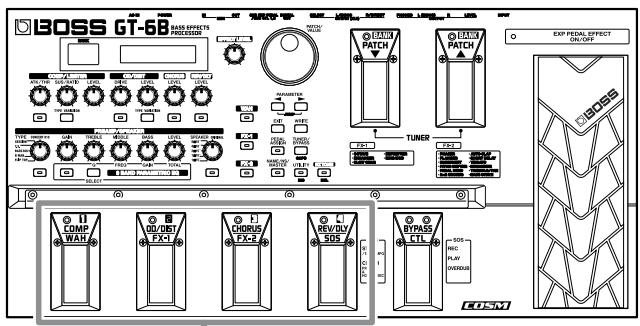
1
- Press the number pedal matching the number of the patch you want to use.
That pedal's indicator lights up, and the GT-6B switches to that patch.
Switching the Bank and Number
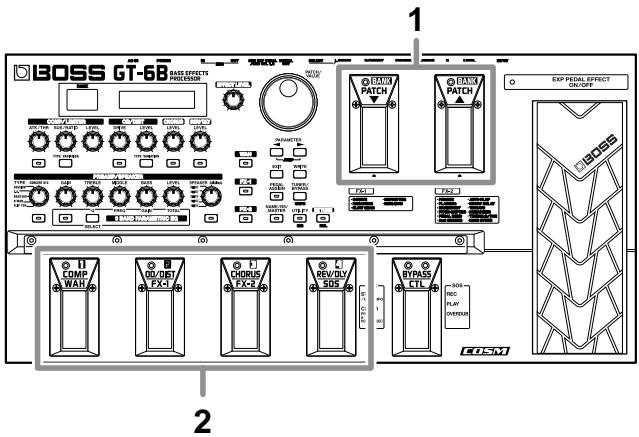
1. Press the BANK or BANK pedal to select the desired bank.
When you switch banks, the indicator for number pedal last pressed before pressing the BANK pedal flashes, and the GT-6B is ready for the patch number to be specified (the patch cannot yet be switched in this condition).
2. Press a number pedal to select the patch you want to use.
The indicator for the selected number pedal lights up, and the GT-6B switches to that patch.
- The delay and reverb sounds are suspended while patches are switched.
Setting the Timing Used for Switching Patches (Patch Change Mode)
This sets the timing with which the GT-6B switches to the next patch when switching patches with the pedals.

The Patch Change mode appears only when "BANK/NUMBER" has been chosen as the Patch Select mode.
1. Press [UTILITY], then press PARAMETER [] [▶] so that "Patch Change" is displayed.
SYS: Patch Change wait for a Num.
2. Rotate the PATCH/VALUE dial to set the timing for switching patches.
Immediate:
The patch switches the instant a BANK pedal or any of the number pedals is pressed.
Wait for a NUM.:
Although the indication in the display is updated to reflect the change in the bank when a BANK pedal is pressed, the patch doesn't get changed at that point. The actual change to the newly selected patch takes place only after a number pedal has been pressed, and a complete bank and number combination has thus been entered.
- Press [EXIT] to return to the Play screen.
Setting "Expression Pedal Hold"
This setting determines whether or not the Pedal Assign's (p. 45) operational status is carried over to the next patch when patches are switched.
-
Expression Pedal Hold does not function if the Assign Source mode is set to Toggle (whereby the value is toggled between Min and Max each time the pedal is pressed).
-
Press [UTILITY], then press PARAMETER [▶] [▶] so that "EXP Pdl Hold" is displayed.
SYS:EXP Pd1 Hold On
- Rotate the PATCH/VALUE dial to set Expression Pedal Hold.
On: The Pedal Assign status is carried over. (Example)
If a patch is switched while the volume is being controlled with the expression pedal, the volume of the subsequent patch will take on the value determined by the current pedal position (angle).
If the expression pedal is controlling the wah effect in the patch being switched to, then the volume assumes the value set in the patch, and the patch's wah effect is given the value corresponding to the current pedal position (angle).
Off: The Pedal Assign status is not carried over. (Example)
If a patch is switched while the volume is being controlled with an expression pedal, the volume of the subsequent patch is set to the value set in that patch.
If the expression pedal is operated, and that information is transmitted to the GT-6B, the volume changes in accordance with the movement of the pedal.
- Press [EXIT] to return to the Play screen.
Selecting the PATCH/VALUE Dial Function (Dial Function)
This setting determines whether or not patches are switched by rotating the PATCH/VALUE dial.
- Press [UTILITY], then press PARAMETER [] [▶] so that "Dial Func" is displayed.
SYS: Dial Func
PATCH No.& VALUE
- Rotate the PATCH/VALUE dial to select the PATCH/ VALUE dial function.
PATCH No.& VALUE:
The dial is used both for switching patches and changing the value of settings. In addition to switching patches with the pedals, you can also switch them by rotating the PATCH/VALUE dial. When shipped from the factory, you can use this setting.
VALUE Only:
In this setting, the PATCH VALUE Dial is used only for changing the value of parameter settings, not patches.
- Press [EXIT] to return to the Play screen.
Setting the Knob Functions (Knob Mode)
This sets the way the values of settings are changed when the control knobs are turned.
- Press [UTILITY], then press PARAMETER [] [▶] so that "Knob Mode" is displayed.
SYS:Knob Mode Immediate
- Rotate the PATCH/VALUE dial to set the Knob mode. Immediate:
Turning the knobs immediately changes the values.
Current Setting:
Values begin to change only once the knob position reaches the values set in the patch.
- Press [EXIT] to return to the Play screen.
This sets the foot switch functions for "Sub Control 1" and "Sub Control 2" when you have an external foot switch connected to the rear panel's SUB EXP PEDAL/SUB CTL1,2 jack.
- When connecting two foot switches using the special optional Roland PCS-31 connector cord, the foot switch connected using the plug with the white stripe functions according to the Sub Control 1 settings, and the foot switch connected using the plug with the red stripe functions according to the Sub Control 2 settings.
-
When you have only one foot switch connected, the Sub Control 1 settings are used.
-
Press [UTILITY], then press PARAMETER [▶] [▶] so that "SubCTL 1 Func" or "SubCTL 2 Func" is displayed.
SYS: SubCTL1 Func Assignable
SYS: SubCTL2 Func Assignable
- Rotate the PATCH/VALUE dial to set the function for the foot switch.
Assignable:
The controller set in each patch's Pedal Assign (p. 46) is used.
Bypass On/Off:
The foot switch is used as a bypass On/Off switch.
Patch Select:
The foot switch is used for switching Patch Select mode (p. 60).
MIDI Start/Stop:
The foot switch is used for starting and stopping an external MIDI device (such as a sequencer).
MMC Play/Stop:
The foot switch is used for controlling Play and Stop for the external MIDI device (such as a hard disk recorder).
- Press [EXIT] to return to the Play screen.
Chapter 10 Using MIDI
What Can You Do with MIDI?
You can perform the following operations using MIDI with the GT-6B.
- The use of MIDI requires that the MIDI channels of the connected devices match. If the MIDI channel settings are not correct, the GT-6B will be unable to exchange data with other MIDI devices.
Operating From the GT-6B
Outputting Program Change Messages
When a patch is selected on the GT-6B, a Program Change message corresponding to the patch number is transmitted simultaneously. The external MIDI device then switches its settings according to the Program Change message it receives.
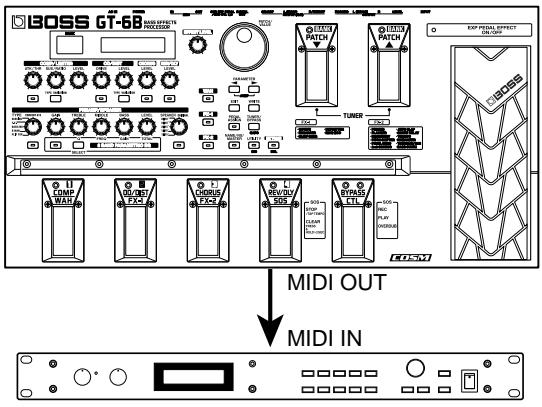
Outputting Control Change Messages
Data describing the actions of the CTL pedal, expression pedal, expression pedal switch, and external devices connected to the SUB EXP PEDAL/SUB CTL 1,2 jack are output as Control Change messages. Such messages can be used to (among other things) manipulate the parameters of an external MIDI device.
MIDI Start/Stop, MMC Play/Stop
MIDI Start/Stop or MMC Start/Stop messages are output when the CTL pedal, the expression pedal, the expression pedal switch, or the external device connected to the SUB EXP PEDAL/SUB CTL 1,2 jack is operated, allowing you to control the performance of the external MIDI device.
- For more on how to make the settings, refer to p. 48 and 63.
Transmitting Data
You can use Exclusive messages to transmit the settings for effect sounds and other content stored in the GT-6B to other MIDI devices. For example, you can provide another GT-6B with the same settings, and save effect sound settings to a sequencer or other device.
Controlling the GT-6B Remotely From an External MIDI Device
Switching Patch Numbers
When the GT-6B receives Program Change messages from the external MIDI device, the corresponding patches are switched simultaneously.

You can set the correspondence between MIDI Program Change messages and the GT-6B's patches using the Program Change Map (p. 69). Make these settings when you create correspondences for effect sounds with other MIDI devices.
The connections shown in the figure below are for a sequencer automatically performing the backing as a bass is being played. The patches are switched automatically when the program numbers corresponding to the patches are input along with the performance data at the points where you have determined the GT-6B patches are to be switched.
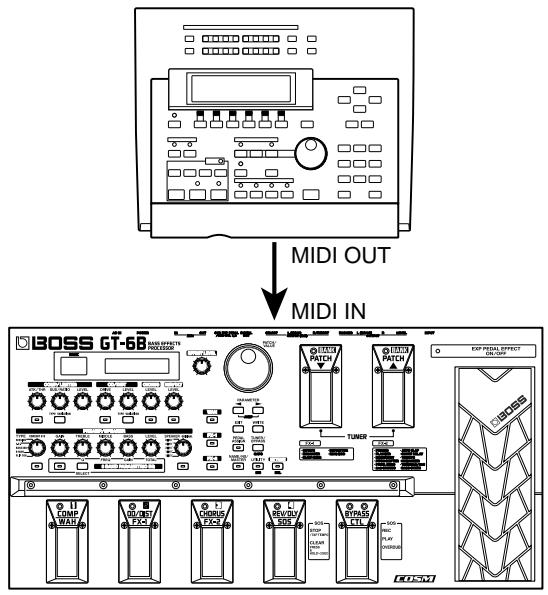
Receiving Control Change Messages

You can control specified parameters during a performance through Control Change messages received by the GT-6B. Parameters to be controlled are set with Pedal Assign (p. 46).
Receiving Data
The GT-6B can receive data transmitted from another GT-6B, as well as data that's been stored on a sequencer.
Making the Settings for MIDI Functions
Here is a description of the GT-6B's MIDI functions. Set them as needed, depending on the intended use.
- Press [UTILITY] a number of times until the following screen appears.
MIDI:RX Channel
Channel = 1
- Press PARAMETER [] [] so that the parameter that you want to set appears in the display.
- Rotate the PATCH/VALUE dial to change the setting value.
- Repeat steps 2-3 as necessary.
- Press [EXIT] to return to the Play screen.
MIDI RX Channel (MIDI Receive Channel) 1-16
MIDI:RX Channel
Channel = 1
This sets the MIDI channel used for receiving MIDI messages.
- This was set to 1 when the unit was shipped from the factory.
MIDI Omni Mode Omni Off, Omni On
MIDI:Omni Mode Omni On
When set to "Omni On," messages are received on all channels, regardless of the MIDI channel settings.
- Even when Omni Mode is set to ON, the only Exclusive messages received are those for Device ID data set with "Device ID."
- This was set to "Omni On" when the unit was shipped from the factory.
MIDI TX Channel (MIDI Transmit Channel) 1-16, Rx
MIDI: TX Channel
Channel = Rx
This sets the MIDI Transmit channel used for transmitting MIDI messages. When set to "Rx," this MIDI channel is same as the MIDI Receive channel.
- This was set to "Rx" when the unit was shipped from the factory.
MIDI Device ID 1-32
MIDI:Device ID ID = 1
This sets the Device ID used for transmitting and receiving Exclusive messages.
- This was set to 1 when the unit was shipped from the factory.
MIDI Sync Clock Auto, Internal
MIDI:Sync Clock Auto
You can synchronize the performance of a sequencer or other external MIDI device.
Auto: When no MIDI Clock from the external MIDI device is being received, the performance is synchronized to the tempo set in MASTER BPM; when the external MIDI device's MIDI Clock is being received, the performance is synchronized to that.
Internal: The performance is synchronized to the tempo set in MASTER BPM.
- This was set to "Auto" when the unit was shipped from the factory.
- When you have an external MIDI device connected, the Master BPM is then synchronized to the external MIDI device's tempo, thus disabling the Master BPM setting. If you want to be able to set the Master BPM, set to "Internal."
- When synchronizing performances to the MIDI Clock signal from an external MIDI device, timing problems in the performance may occur due to errors in the MIDI Clock.
MIDI PC OUT (MIDI Program Change Out) Off, On
MIDI:PC OUT On
This setting determines whether or not Program Change messages are output when patches are switched on the GT-6B.
Off: Program Change messages are not output, even when patches are switched.
On: Program Change messages are simultaneously output when patches are switched.
MIDI EXP OUT (MIDI Expression Pedal Out) Off, 1-31, 33-95
MIDI:EXP OUT CC#?
This sets the controller number when expression pedal operation data is output as Control Change messages. When set to "Off," Control Change messages are not output.
MIDI EXP SW OUT
(MIDI Expression Pedal Switch Out)
Off, 1-31, 33-95
MIDI:EXP SW OUT CC#81
This sets the controller number when expression pedal switch operation data is output as Control Change messages. When set to "Off," Control Change messages are not output.
MIDI CTL OUT (MIDI Control Pedal Out) Off, 1-31, 33-95
MIDI:CTL OUT CC#80
This sets the controller number when CTL pedal operation data is output as Control Change messages. When set to "Off," Control Change messages are not output.
MIDI SUB CTL 1 OUT (MIDI Sub Control 1 Out) Off, 1-31, 33-95
MIDI:SubCTL1 OUT Off
This sets the controller number when operation data from the external pedal connected to the SUB CTL 1 jack is output as Control Change messages. When set to "Off," Control Change messages are not output.
MIDI SUB CTL 2 OUT (MIDI Sub Control 2 Out) Off, 1-31, 33-95
MIDI:SubCTL2 OUT Off
This sets the controller number when operation data from the external pedal connected to the SUB CTL 2 jack is output as Control Change messages. When set to "Off," Control Change messages are not output.
Transmitting and Receiving MIDI Data
On the GT-6B, you can use Exclusive messages to provide another GT-6B with identical settings, and save effect settings on a sequencer or other device. This transmission of data is called "Bulk Dump," while receiving such data is referred to as "Bulk Load."
Transmitting Data to an External MIDI Device (Bulk Dump)
The following types of data can be transmitted. You can transmit data by specifying the range from the start to the end of transmission.
| Displayed | Data Transmitted |
| System | Includes settings for utility parameters, Harmonist scales, Auto Slap phrases and overdrive/distortion, and wah custom edit parameters. |
| U1-1-U0-4, u1-1-u0-4 | Settings for patch Numbers U1-1 through U0-4 and u1-1 through u0-4 |
| Temp | Settings for what is currently being played |
Making the Connections
When Saving to a MIDI Sequencer
Connect as shown in the figure below, and put the sequencer in the mode where it is standing by, ready to receive Exclusive messages.
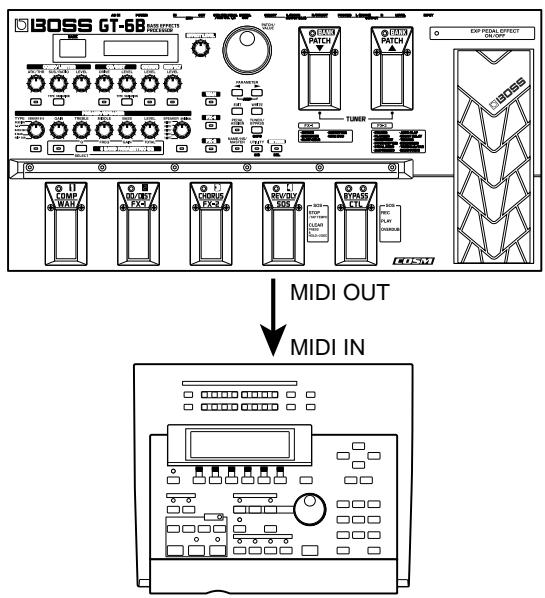
* For instructions on operating the sequencer, refer to the owner's manual for the sequencer you are using.
When Transmitting Data to Another GT-6B
Connect as shown in the figure below, and match the Device ID for the transmitting and receiving devices.
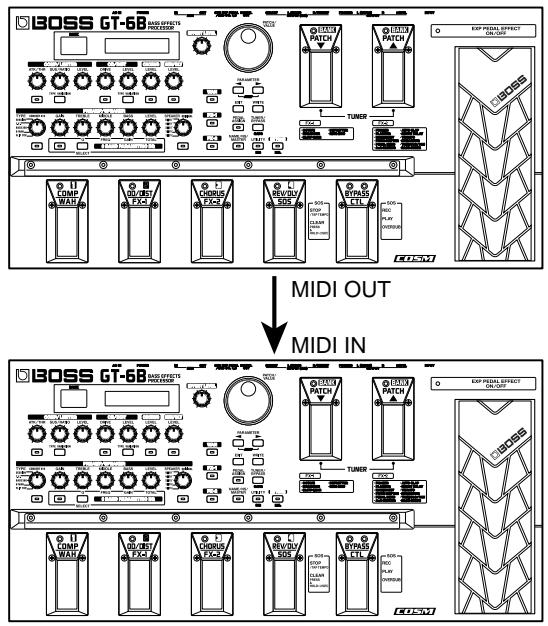
Transmitting
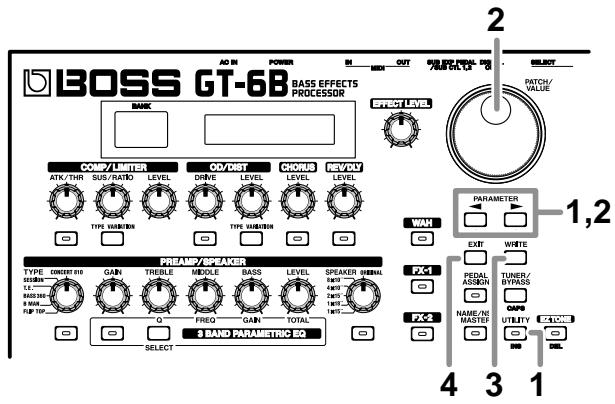
1. Press [UTILITY], then press PARAMETER [ ]
[ ] so that "Bulk Dump" is displayed.

2. Press PARAMETER [][] to move the cursor, and rotate the PATCH/VALUE dial to select the start and end of the data to be transmitted.
3. When the data to be sent has been determined, press [WRITE].
The data is transmitted.
MIDI: Bulk Dump Data DumFin...
When the transmission is completed, the screen prior to transmission returns to the display.
- Press [EXIT] to return to the Play screen.
Receiving Data from an External MIDI Device (Bulk Load)
Making the Connections
When Receiving Data Saved on a MIDI Sequencer
Connect as shown below. Set the GT-6B's Device ID to the same number that was used when the data was transmitted to the MIDI sequencer.
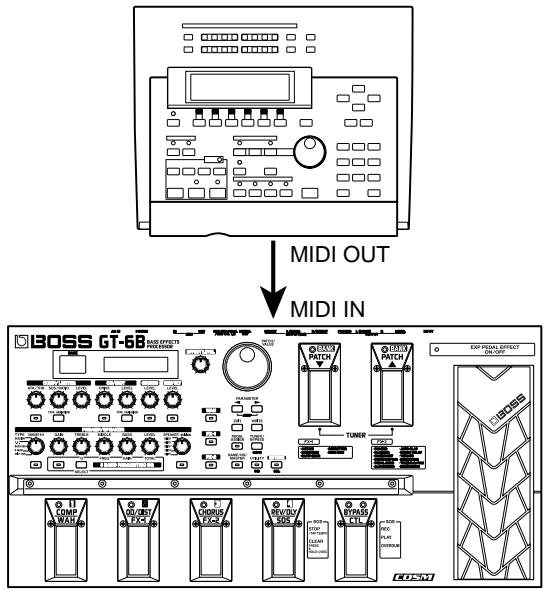
* For instructions on operating the sequencer, refer to the owner's manual for the sequencer you are using.
Receiving
- Press [UTILITY], then press PARAMETER [] [▶] so that "Bulk Load" is displayed.
MIDI:Bulk Load Waiting...
- Transmit the data from the external MIDI device.
The following appears in the display when the GT-6B receives the data.
MIDI: Bulk Load
Receiving...
The following appears in the display when the GT-6B finishes receiving the data.
MIDI:Bulk Load Idling...
Further data can be received at this point.
- Press [EXIT] to quit Bulk Load.
After you press [EXIT], "Checking..." appears in the display, indicating that the GT-6B is checking the received data. When the check is completed, the Play screen returns to the display.
Setting the Program Change Map
When switching patches using Program Change messages transmitted by an external MIDI device, you can freely set the correspondence between Program Change messages received by the GT-6B and the patches to be switched to in the "Program Change Map."
Initial Program Change Map Settings
The Program Change Map set at the factory is shown below.
- Press [UTILITY], then press PARAMETER [] [▶] so that "MIDI Map Select" is displayed.
MIDI:Map Select Fix
-
Rotate the PATCH/VALUE dial to select "Prog."
-
You cannot set the Program Change Map when "Fix" is selected (it is not displayed).
-
See the following item for more on "MIDI Map Select."
-
Press PARAMETER [▶] until "MIDI Program Map" appears in the display.
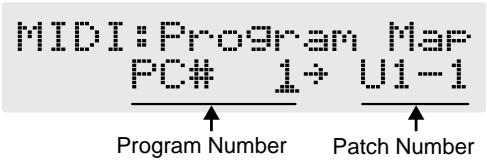
- Press PARAMETER [ ] [ ] to move the cursor, and rotate the PATCH/VALUE dial to set the received Program number and the corresponding patch number.
- Repeat Step 4 as needed, setting patch numbers to their corresponding Program numbers, until the Program Change Map is completed.
- Press [EXIT] to return to the Play screen.
Enabling/Disabling the Program Change Map Settings (MIDI Map Select)
This setting determines whether patches are switched according to the Program Change Map settings, or to the default settings when the GT-6B receives Program Change messages.
- Press [UTILITY], then press PARAMETER [] [] so that "MIDI Map Select" is displayed.
$$
\begin{array}{c} \text {M I D I : M a p S e l e c t} \ \text {F i x} \end{array}
$$
- Rotate the PATCH/VALUE dial to select "Fix" or "Prog."
Fix: Switches to the patches according to the default settings. For more on the default settings, refer to "Initial Program Change Map Settings" (p. 69).
Prog: Switches to the patches according to the Program Change Map settings.
- Press [EXIT] to return to the Play screen.
Changing Patch Numbers on an External MIDI Device From the GT-6B
When patches are switched with the GT-6B, a Program Change message is transmitted. The correspondence between the GT-6B's initial bank and patch numbers and the transmitted Program Change messages is shown in the table below.
MIDI is an acronym for Musical Instrument Digital Interface, and is a world-wide standard for allowing electronic musical equipment to communicate by transmitting messages such as performance information and sound selections. Any MIDI equipped device is able to transmit applicable types of data to another MIDI equipped device, even if the two devices are different models or were made by different manufacturers. In MIDI, performance information such as playing a key or pressing a pedal are transmitted as MIDI Messages.
How MIDI messages are transmitted and received
First, we will explain briefly how MIDI messages are transmitted and received.
MIDI connectors
The following types of connector are used to convey MIDI messages. MIDI cables are connected to these connectors as needed.


MIDI IN: This connector receives messages from another MIDI device.
MIDI OUT: This connector transmits messages from this device.
MIDI THRU: This connector re-transmits the messages that were received at MIDI IN.
- The GT-6B features both "MIDI IN" and "MIDI OUT" connectors.
MIDI channels
MIDI is able to independently control more than one MIDI device over a single MIDI cable. This is possible because of the concept of MIDI channels.
The idea of MIDI channels is somewhat similar to the idea of television channels. By changing channels on a television set, you can view a variety of programs. This is because the information of a particular channel is received when the channels of the transmitter and receiver match.
Select the channel of the broadcasting station you wish to watch
MIDI has sixteen channels 1 - 16, and MIDI messages will be received by the instrument (the receiving device) whose channel matches the channel of the transmitter.
- If omni mode is on, data of all MIDI channels will be received regardless of the MIDI channel setting. If you do not need to control a specific MIDI channel, you may set Omni On.
Main types of MIDI message used by the GT-6B
MIDI includes many types of MIDI messages that can convey a variety of information. MIDI messages can be broadly divided into two types; messages that are handled separately by MIDI channel (channel messages), and messages that are handled without reference to a MIDI channel (system messages).
Channel messages
These messages are used to convey performance information. Normally these messages perform most of the control. The way in which a receiving device will react to each type of MIDI message will be determined by the settings of the receiving device.
Program change messages
These messages are generally used to select sounds, and include a program change number from 1 to 128 which specifies the desired sound.
Control change messages
These messages are used to enhance the expressiveness of a performance. Each message includes a controller number, and the settings of the receiving device will determine what aspect of the sound will be affected by control change messages of a given controller number.
The specified parameters can be controlled with the GT-6B.
System messages
System messages include exclusive messages, messages used for synchronization, and messages used to keep a MIDI system running correctly.
Exclusive messages
Exclusive messages handle information related to a unit's own unique sounds, or other device-specific information. Generally, such messages can only be exchanged between devices of the same model by the same manufacturer. Exclusive messages can be employed to save the settings for effects programs into a sequencer, or for transferring such data to another GT-6B.
The two instruments must be set to the same device ID numbers when exchanging SysEx messages.
About the MIDI implementation
MIDI allows a variety of messages to be exchanged between instruments, but it is not necessarily the case that all types of message can be exchanged between any two MIDI devices. Two devices can communicate only if they both use the types of messages that they have in common.
Thus, every owner's manual for a MIDI device includes a "MIDI Implementation Chart." This chart shows the types of message that the device is able to transmit and receive. By comparing the MIDI implementation charts of two devices, you can tell at a glance which messages they will be able to exchange. Since the charts are always of a uniform size, you can simply place the two charts side by side.
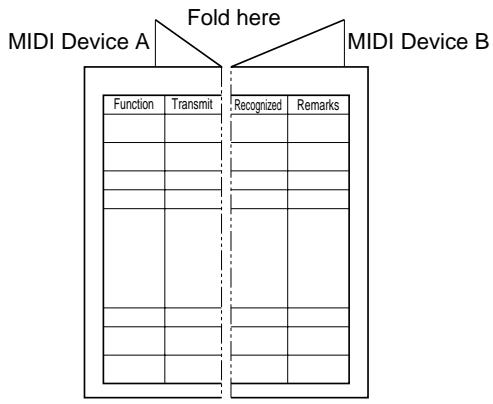
A separate publication titled "MIDI Implementation" is also available. It provides complete details concerning the way MIDI has been implemented on this unit. If you should require this publication (such as when you intend to carry out byte-level programming), please contact the nearest Roland Service Center or authorized Roland distributor.
Factory Settings
Tuner
TUNER Pitch: A= 440 Hz (p. 57)
Global
Reverb Level: 100% (p. 58)
System
LCD Contrast: 16 (p. 60)
BANK Extent: P0
Patch Select Mode: UP/DOWN (p. 61)
EXP Pedal Hold: On (p. 62)
Dial Function: PATCH No.& VALUE (p. 62)
Knob Mode: Immediate (p. 63)
Sub CTL1 Func: Assignable (p. 63)
Sub CTL2 Func: Assignable (p. 63)
Digital Out Level 100
MIDI
MIDI RX Channel: 1 (p. 65)
MIDI Omni Mode: Omni On (p. 65)
MIDI TX Channel: Rx (p. 65)
MIDI Device ID: 1 (p. 65)
MIDI Sync Clock: Auto (p. 65)
MIDI PC OUT: On (p. 66)
MIDI EXP OUT: 7 (p. 66)
MIDI EXP SW OUT: 81 (p. 66)
MIDICTL OUT: 80 (p.66)
MIDI Sub CTL1OUT: Off (p. 66)
MIDI Sub CTL2OUT: Off (p. 66)
MIDI Map Select: Fix (p. 69)
Restoring the Factory Settings (Factory Reset)
Restoring the GT-6B to the settings made at the factory is referred to as "Factory Reset."
Not only can you return all of the settings to the values in effect when the GT-6B was shipped from the factory, you can also specify the range of settings to be reset.
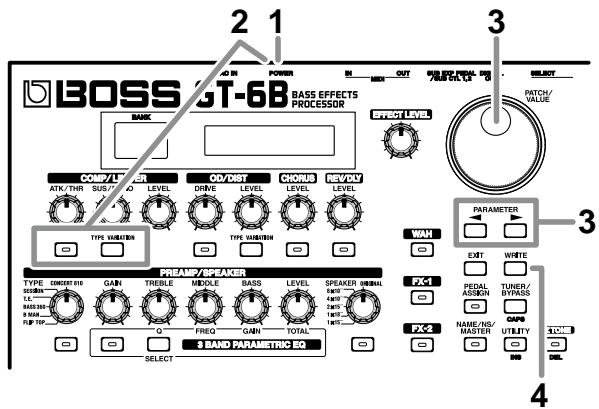
- Turn off the power.
- While holding down COMP/LIMITER ON/OFF button and [TYPE VARIATION], turn on the power.
The Factory Reset range setting screen appears in the display.
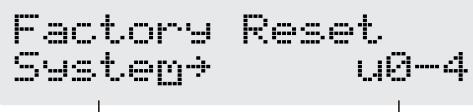
The area of data you wish to factory reset
- To cancel the Factory Reset, press [EXIT].
- Press PARAMETER [ ] [▶] to move the cursor, and rotate the PATCH/VALUE dial to specify the range of settings you want to restore to the factory settings.
System:
System parameters, Harmonist scales, Auto Slap phrases and overdrive/distortion, and wah custom edit parameters
U1-1--u0-4:
Settings for patch Numbers U1-1 through u0-4
- If you want to proceed with the factory reset, press [ENTER].
The specified range of data is restored, and the Play screen returns to the display.
Adjusting the Expression Pedal
Although the GT-6B's expression pedal has been set for optimum operation at the factory, extended use and the operating environment can result in the pedal going out of adjustment.
If you encounter problems such as being unable to fully cut off the sound with the volume pedal, you can use the following procedure to readjust the pedal.
- Hold down [PEDAL ASSIGN] while you switch on the power.
The following messages alternate in the display.
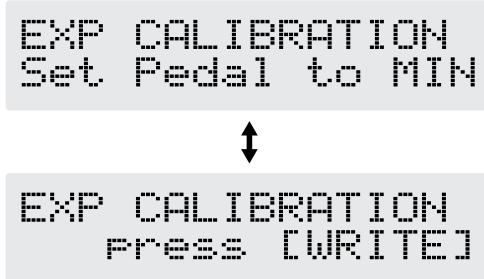
- With the pedal completely released, press [WRITE].
The message “---OK! ---” appears, and then the following messages alternate in the display.
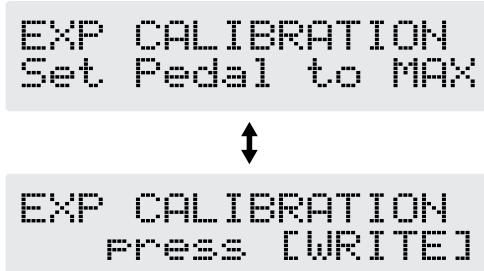
-
If you press [WRITE] when the pedal is not completely released, or when the pedal position (angle) is not correct, the message “--- Area Over! ---” appears in the display, and you are prevented from proceeding to the next step. If this occurs, readjust the pedal position.
-
With the pedal fully depressed, press [WRITE].
"--- OK! ---" appears, followed by "press [EXIT]."
-
If you press [WRITE] when the pedal is not fully depressed, or when the pedal position (angle) is not correct, the message “--- Area Over! ---” appears in the display, and you are prevented from proceeding to the next step. If this occurs, readjust the pedal position.
-
Press [EXIT].
After the message "Checking data please wait..." has been displayed, the Play screen returns to the display.
Troubleshooting
If there is no sound, or if the GT-6B does not function as you expect, first check the following points. If the measures in this checklist do not resolve your problem, you should contact your dealer or the nearest Roland Service Center.
No sound / Volume is weak
Are the connection cables broken?
Try exchanging the connection cable.
Is the GT-6B correctly connected to the other devices?
Check connections with the other devices (p. 12).
Is the connected amp/mixer turned off, or the volume lowered?
Check the settings of the connected device.
Is the EFFECT LEVEL knob lowered?
Adjust the EFFECT LEVEL knob to an appropriate position (p. 17).
Is Tuner/Bypass set to ON?
The direct sound is not output by setting the Tuner/ Bypass to "On" (p. 56).
Is each effect set correctly?
Use the "Meter function" (p. 59) to check the output level of each effect. If there is an effect for which the meter is not moving, check the settings for that effect.
Is "FV: Level" or "MST: Effect Level" specified as a Pedal Assign Target?
Carry out the operation in accordance with the source.(p. 50)
Could you be using a connection cable that contains a resistor?
Use a connection cable that does not contain a resistor.
I Can't Change Patches
- Is something other than the Play screen shown in the display?
On the GT-6B, patches can be selected only when the Play screen is displayed. Press [EXIT] to return to the Play screen (p. 10).
Parameters specified with control assign can't be controlled as intended
Is the effect switched off?
To control a parameter using the expression pedal or CTL pedal, make sure the effect that contains the parameter you intend to control is switched on.
- Is something other than "Assignable" selected for the SUB CTL 1,2 function setting?
When operating a foot switch connected to the SUB EXP/SUB CTL 1, 2 jack, set the SUB CTL 1, 2 function to "Assignable." (p. 63)
- Do the MIDI channel settings of both devices match (when using MIDI)?
Make sure that the MIDI channels of both devices match (p. 65).
- When "Omni On" is selected in Omni mode, messages on all MIDI channels are received, regardless of the MIDI channel settings (p. 65).
Make sure that the controller numbers of both devices match (p. 66).
Is "OFF" selected in Bypass EXP Mode (p. 55) and Noise Suppressor (p. 44)?
If "OFF" is set in Bypass EXP Mode, note the following:
- When all effects are set to OFF, the analog bypass sound is output, and the volume cannot be controlled with Foot Volume (p. 44).
- When CHORUS or REV/DLY are the only effects being used, analog bypass sound is output for the direct sound, so only the effect sound is controlled with the FOOT VOLUME (p. 44).
MIDI messages are not transmitted/ received
Is the MIDI cable broken?
Try using a different MIDI cable.
Is the GT-6B correctly connected to the external MIDI device?
Check connections with the other MIDI device.
Do the MIDI channel settings of both devices match?
Make sure that the MIDI channels on both devices match (p. 65).
If sending messages from the GT-6B, have you set the settings necessary for sending data?
Check the on/off status (p. 66) for transmission of Program Change messages and the settings for the controller numbers to be transmitted (p. 66).
Error Messages
If an incorrect operation is attempted or execution is not possible, an error message will appear in the display. When this occurs, continue by following the instructions indicated in the error message.
Battery Low !
- The memory backup battery inside the GT-6B has run down. (This message appears when the power is turned on.)
Replace the battery as soon as possible. For battery replacement, please contact the nearest Roland Service Center or your dealer.
MIDI Off Line !
There is a problem with the MIDI cable connections.
- Check that MIDI cables have not been disconnected or broken.
Locked !
- You've attempted to switch patches by rotating the PATCH/VALUE dial, but the Dial function (p. 62) is set to “VALUE Only.”
If you want to be able to switch patches using the PATCH/VALUE dial, set the Dial function to " Patch No. & VALUE."
MIDI Buffer Full
- More MIDI messages were received in a short time than could be processed correctly.
BASS EFFECTS PROCESSOR
Date: Dec. 10, 2001
Model GT-6B
Version: 1.00
MIDI Implementation Chart
| Function... | Transmitted | Recognized | Remarks | |
| Basic Channel | Default Changed | 1-16 1-16 | 1-16 1-16 | Memorized | |
| Mode | Default Messages Altered | X X *** **** | OMNI ON/OFF X X | Memorized | |
| Note Number: | True Voice | X *** **** | X *** **** | | |
| Velocity | Note ON Note OFF | X X | X X | | |
| After Touch | Key's Ch's | X X | X X | | |
| Pitch Bend | X | X | | |
| Control Change | 1-31 33-63 64-95 | O O O | O * 1 X O * 1 | | |
| |
| |
| |
| |
| |
| |
| |
| |
| |
| |
| |
| |
| |
| |
| |
| |
| |
| |
| |
| |
| |
| |
| |
| |
| |
| |
| |
| |
| * 1 Recognizes messages designated for use for "realtime control over parameters." A separate publication titled "MIDI Implementation" is also available. It provides complete details concerning the way MIDI has been implemented on this unit. If you should require this publication (such as when you intend to carry out byte-level programming), please contact the nearest Roland Service Center or authorized Roland distributor. |
Mode 1: OMNI ON, POLY
Mode 2:OMNI ON, MONO
O:Yes
Mode 3:OMNI OFF,POLY
Mode 4:OMNI OFF,MONO
X:No
Main Specifications
GT-6B: Bass Effects Processor
AD Conversion
24-bit + AF method
DA Conversion
24-bit
Sampling frequency
44.1 kHz
Program Memories
120:80 (User) + 40 (Preset)
INPUT: -10 dBu
INPUT: 1M
Nominal Output Level
OUTPUT: -10 dBu
(Standard jack, at OUTPUT LEVEL marking position)
OUTPUT: -10 dBu (XLR jack, 600 Ω load)
Output Impedance
OUTPUT: 2k (Phone jack)
OUTPUT:
600 kΩ (XLR jack, HOT-COLD)
300 kΩ, HOT-GND, COLD-GND)
Digital Output
EIAJ CP1201, S/P DIF
Dynamic Range
95 dB or greater (IHF-A)
Control
(COMP/LIMITER)
ATTACK/THRESHOLD knob
SUSTAIN/RATIO knob
LEVEL knob
On/Off button
TYPE VARIATION button
(OVERDRIVE/DISTORTION)
DRIVE knob
LEVEL knob
ON/OFF button
TYPE VARIATION button
(CHORUS)
LEVEL knob
ON/OFF button
(REVERB//DELAY)
LEVEL knob
ON/OFF button
(PREAMP/SPEAKER, 3 BAND PARAMETRIC EQ)
TYPE knob
GAIN knob
TREBLE knob (also used as Q knob)
MIDDLE knob (also used as FREQUENCY knob)
BASS knob (also used as GAIN knob)
LEVEL knob (also used as TOTAL knob)
SPEAKER knob
PREAMP ON/OFF button
PATCH pedals (Up/Down)
BYPASS/CONTROL pedal
Expression pedal
Expression pedal switch
PATCH/VALUE dial
OUTPUT LEVEL knob
OUTPUT SELECT switch
Power Switch
Display
16 characters, 2 lines (backlit LCD)
7 segments, 2 characters (LED)
Connectors
INPUT jack
Output Jacks L (MONO)/R
Headphone Jack
XLR OUTPUT jacks L/R (MONO/DIRECT)
DIGITAL OUT connector (coaxial)
SUB EXP PEDAL/SUB CTL PEDAL 1,2 jack
MIDI connectors IN/OUT
AC Adaptor Jack
Power Supply
AC 14 V: Supplied AC adaptor
Current Draw
800mA
Dimensions
FV-300L + PCS-33 (Roland)
Connection Cord:
PCS-31 (Roland) (1 / 4 stereo phone
plug - 1/4" phone plug x 2)
* 0dBu = 0.775 Vrms

In the interest of product improvement, the specifications and/or appearance of this unit are subject to change without prior notice.
AF Method
(Adaptive Focus Method)
This is a proprietary method from Roland that vastly improves the signal-to-noise (S/N) ratio of the A/D and D/A converters.
Index
Numerics
12Stage 35
2CE 38
2x2 Chorus 38
3 BAND PARAMETRIC EQ 17, 31
4Stage 35
8Stage 35
A
Active Range 51
ASL 39
ASSIGN 48
ATK 8
Attack 25
Auto Slap 39
Auto Wah 32
AW 32
B
Balanced Output 55
BANK 14
Bank Extent 60
Bass 26,30
Bass Synth 42
Bend 43
Bi-Phase 35
Bottom 52
BPF 32
Bright 30
BulkDump 67
Bulk Load 68
Bypass 55
Bypass EXP Mode 55
C
CHORUS 27
COMP 25
Contrast 60
Control Change 64
COSM 7
CTL PEDAL 47
CTL Pedal 46
CUSTOM 26
Custom 52
Cutoff Freq 43
D
Deep 30
DEF 34
Defretter 34
Delay 27-28
Delay Level 29
Delay Time 40
Delay Time Fine 29
Density 28
Depth 27,35
Device ID 65
Dial Function 62
Digital Out 58
Direct Level 26, 31
Distortion 26
DLY 28
Drive 26
DST 26
E
Effect Chain 22
EFFECT LEVEL 56
Effect Level 26-28
ENH 33
Enhancer 30, 33
EXP PEDAL 45-46
EXP SW 46-47
Expression Pedal Hold 62
Expression Pedal Switch 46
EZ TONE 16
EZ Tone 16
F
Factory Reset 73
Feedback 29, 40
FL 36
Flanger 36
Foot Volume 44
FUZ 26
Fuzz 26
FV 44
Fx Select 27
FX-1 33
FX-2 35
G
Gain 29
GLOB 58
Global 58
H
Harm 36
Harmonist 36
High 52
High Cut 28-29
HiQuality 29
HMN 41
HPF 32
HRM 36
Humanizer 41
1
Intelligent 34
K
Key 37
Knob Mode 63
L
Length 40
Level 25,30
Level Meter 59
LIMITER 25
LongTime 29
Loop 39
Low 52
Low Cut 27-28
LPF 32
M
Manual 35
Map Select 70
Master BPM 44
Mic Level 30
Mic Set. 30
Middle 30
Middle Freq 30
MIDI RX Channel 65
Mix Level 34
Mode 27
Mono 27
N
Noise Level 43
Noise Suppressor 44
Normal 34
NS 44
NS Threshold 58
Number Pedal 45
0
OCT 33
Octave 33
Octave Shift 43
OD 26
Omni Mode 65
OVER DUB 54
Overdrive 26
overdubbing 54
P
P.S 37
PAN 42
Pan 28
PATCH 14
Patch 14, 16
Patch Change Mode 61
Patch Select Mode 60
Pdl Position 32
Peak 33
Pedal Bend 20
Pedal Wah 31
PH 35
Phaser 35
Phrase 39
Pitch 40
Pitch Max 38, 43
Pitch Min 38,43
Pitch Shifter 37
PLAY 54
Playback Level 29
Polarity 32
Pre Delay 27-28
Pre Shape 30
Preamp 29
PreDly 36
Preset Bank 14
Program Change 64
Program Change Map 69
PWM Depth 43
PWM Rate 43
Q
Q 31
Quantize 29
Quick Setting 19,46,48
R
R&D 29
R.M 34
Rate 27,35
RATIO 8
Ratio 25
REC 54
Receive Channel 65
Release 25, 44
Resonance 35
Response 30
REV 28
Reverb 28
Reverb & Delay 27, 29
Reverb Time 28
Ring Modulator 21, 34
Rise Time 34
s
SDD 40
Sens 32
SG 34
Short Delay 40
Single 28
Slow Gear 34
SOS 29
SOSMode 29
Sound 40
Sound On Sound 27, 29, 54
Source 50
Source Mode 47, 50
Speaker 30
Step 35
Step Rate 35
Stereo 27
SUBCTL1,2 63
SUS 8
Sustain 25
SYN 42
SyncClock 65
Index
T
T/P 42
Tap Time 29
Target 47, 49
Target Range 49
Tempo 29,39
THR 8
Threshold 25,44
Tone 25
Top 52
Touch Wah 32
Treble 26,30
TREMOLO 42
Trigger 41
Tuner 56
TW 32
TYPE 30
Type 25, 28
U
Ultra Hi 30
Ultra Lo 30
User Bank 14
User Phrase 39
User Scale 37
V
VIB 41
Vibrato 41
Voice 36
Vowel 41
W
WAH 31
Wah 20
Wave 42
Wave Shape 42
WH 31
X
XLR 55
MEMO
MEMO
Apparatus containing Lithium batteries
ADVARSEL!
Danger of explosion if battery is incorrectly replaced. Replace only with the same or equivalent type recommended by t manufacturer. Discard used batteries according to manufacturer's instructions.
WARNING
This product complies with the requirements of European Directive 89/336/EEC.
-For the USA
FEDERAL COMMUNICATIONS COMMISSION RADIO FREQUENCY INTERFERENCE STATEMENT
This equipment has been tested and found to comply with the limits for a Class B digital device, pursuant to Part 15 of the FCC Rules. These limits are designed to provide reasonable protection against harmful interference in a residential installation. This equipment generates, uses, and can radiate radio frequency energy and, if not installed and used in accordance with the instructions, may cause harmful interference to radio communications. However, there is no guarantee that interference will not occur in a particular installation. If this equipment does cause harmful interference to radio or television reception, which can be determined by turning the equipment off and on, the user is encouraged to try to correct the interference by one or more of the following measures:
- Reorient or relocate the receiving antenna.
- Increase the separation between the equipment and receiver.
- Connect the equipment into an outlet on a circuit different from that to which the receiver is connected.
- Consult the dealer or an experienced radio/TV technician for help.
This device complies with Part 15 of the FCC Rules. Operation is subject to the following two conditions:
(1) This device may not cause harmful interference, and
(2) This device must accept any interference received, including interference that may cause undesired operation.
Unauthorized changes or modification to this system can void the users authority to operate this equipment. This equipment requires shielded interface cables in order to meet FCC class B Limit.
For Canada
NOTICE
This Class B digital apparatus meets all requirements of the Canadian Interference-Caising Equipment Regulations.
AVIS