
ID2750 - Smartphone LG - Free user manual and instructions
Find the device manual for free ID2750 LG in PDF.
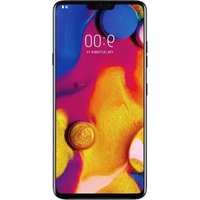


| Product Type | Smartphone |
| Brand | LG |
| Model | ID2750 |
| Dimensions | 145 x 72 x 8.5 mm (5.71 x 2.83 x 0.33 in) |
| Weight | 150 g (5.29 oz) |
| Display | 5.0 inch IPS LCD, 720 x 1280 pixels (HD) |
| Processor | Quad-core 1.2 GHz Cortex-A53 |
| RAM | 1 GB |
| Internal Storage | 8 GB, expandable via microSD up to 32 GB |
| Rear Camera | 8 MP with autofocus and LED flash |
| Front Camera | 2 MP |
| Battery | Li-Ion 2500 mAh, removable |
| Operating System | Android 5.0 Lollipop |
| Connectivity | Wi-Fi 802.11 b/g/n, Bluetooth 4.0, GPS, microUSB 2.0 |
| SIM Card | Single Micro-SIM |
| Sensors | Accelerometer, proximity, ambient light |
| Security | Pattern, PIN, password |
| Audio | 3.5mm headphone jack, loudspeaker |
| Repairability | Removable back cover and battery, replaceable components |
| Box Contents | Phone, battery, charger, USB cable, quick start guide |
Frequently Asked Questions - ID2750 LG
User questions about ID2750 LG
0 question about this device. Answer the ones you know or ask your own.
Ask a new question about this device
Download the instructions for your Smartphone in PDF format for free! Find your manual ID2750 - LG and take your electronic device back in hand. On this page are published all the documents necessary for the use of your device. ID2750 by LG.
USER MANUAL ID2750 LG
|ID2750| User Guide
P/N:MMBB02285071.0)
CONTENTS
PHONE COMPONENTS 2
ONSCREEN ICONS 4
USING THE BATTERY AND
CHARGER 5
Installing and Removing the Battery 5
Charging the Battery 6
Battery Charge Level 6
BASIC FUNCTIONS 7
Turning the Phone On and Off 7
Changing the display Language 7
Airplane Mode 8
Making a Call 8
Received Calls 9
MENU TREE 10
ENTERING & EDITING
INFORMATION 11
Entering Information Using T9 Text
Input 11
MESSAGES 13
Write 13
INTRODUCTION 15
MENU FEATURES 16
SAFETY INFORMATION 26
Charger and Adapter Safety 26
Battery Information and Care 26
General Notice 26
PHONE COMPONENTS
The following shows key components of your mobile phone.

- Service LED
- Headset Jack
- Soft Key1
- CALL Key
- Clear Key/Speaker Mode
- Vibrate Mode Key
- Microphone
- Data Port
- Earpiece
- LCD Screen
- 4 Way Navigation Key
- Soft Key2
- END/PWR Key
- Alphanumeric Keypad
- Key Pad Lock Key
- Charger Port
LCD Screen Displays messages & Indicator icons.
Soft Keys The names of the functions of these keys appear at the bottom of the screen
- Soft Key 1
Used to display the function setting menu. Accepts the highlighted choice when navigating through a menu.
- Soft Key 2
Press this key once in a menu, to go back one level.
CALL Key Allows user to place or answer calls, See and redial from call history.
END/PWR Key Used to turn power On/Off and to end a call. Using this key, you can return to the standby mode. When you press once, when a call is received, the phone stops ringing or vibrating depending on the mode it is in. Press twice to reject the call.
Alphanumeric Keypad These keys enable you to enter numbers and characters and choose menu items.
4 Way Navigation Key This Navigation key allows quick access Messages and Voice Mail notification messages.
Ring Tone, Scheduler, Profiles.
Vibrate Mode Key In standby mode, set the vibrate mode by pressing and holding the key about 2 seconds.
Clear Key/Speaker Mode Press to delete a single space or character. Press and hold to delete entire words. You can access "My Menu" by Clear Key. When pressed for 2 seconds in standby mode, speaker mode is enabled.
ONSCREEN ICONS
The phone screen displays several onscreen icons which appear when the phone is powered on.

Displays the strength of the signal received by the phone and current signal strength is indicated by the number of bars displayed on the screen.

In General mode

No service The phone is not receiving a system signal.

In Silent mode

In use. A call is in progress. * No icon indicates the phone is in standby mode.

In Alarm mode

Charge level. Indicates battery charge level.

In Vibrate mode

In Outdoor mode

Roaming mode
USING THE BATTERY AND CHARGER
Charge the battery fully before the initial use of the phone.
The phone comes with a rechargeable battery. Keep the battery charged while not in use in order to maximize talk and standby time when using the phone.
Installing and Removing the Battery
- To install, insert the battery into the opening on the back of the phone, and insert the bottom of battery into groove at the bottom of the handset. Gently press down the cover until the latch snaps into place.
- To remove, push the back cover down. Push the tab with one hand and lift the top of the battery to separate.


Charging the Battery
To use the AC adapter charger provided with your phone:
- Plug the AC adapter into the electrical outlet.
- Insert the round end of the adapter into the AC adapter jack on the bottom of the phone. (Make sure the battery is installed.)
- As the phone charges, the battery icon continually displays a progression from empty ( ) to full ( ).
It takes about three hours to fully recharge a completely rundown battery. When fully charged, battery icon indicates charging by twinkling.
Battery Charge Level
The battery charge level is shown at the top right of the LCD screen.


When the battery charge level becomes low, the low battery sensor will alert you in three ways: sounding an audible tone, blinking the battery icon outline, and displaying Recharge the battery! If the battery charge level becomes exceedingly low, the phone will automatically switch off and any function in progress will not be saved.
BASIC FUNCTIONS
Turning the Phone On and Off
- Install a charged battery pack or connect the phone to an external power source such as the cigarette lighter charger, car kit or AC adaptor.
- Hold down the Key for 2 seconds until the LCD screen flashes.
Note As any other communication device, avoid any unnecessary contact with the antenna while your phone is turned on.
Changing the display Language
- In standby mode, press Soft Key 1 Menu.
- Press 1 @,
- Set Indonesia / English with ⬇ and then press Soft Key 1.
Airplane Mode
When your phone is in Airplane Mode, it cannot send or receive any calls or access online information. You may use the phone's other features, such as Game, Scheduler, Memo, etc. When Airplane Mode is enabled, a message “Airplane Mode On” is displayed on the screen.
- In standby mode, press Soft Key 1 Menu, 6 mno, 3 def, 2 abc.
- Select On or Off and press Soft Key 1.
Making a Call
Every time you make a call, follow these steps:
- Make sure that the phone is turned on. If not, hold down for 2 seconds.
- Type the phone number and then press
- If the phone is locked, type the lock code.
- To end the call press
Received Calls
- When the phone rings or vibrate (if the Vibrate Mode is enabled), press any key (except ) or depending on the Call setting.
- When you press once, when a call is received, the phone stops ringing or vibrating depending on the mode it is in. Press twice to disconnect.
- To end an answered call, press
MENU TREE
1. Names
- Add Name
- Find
- Groups
- Speed Dial
- Memory Status
- Help
2. Messages
- Write
- Inbox
- Outbox
- Voice Mail
- Archive in UIM
- Drafts
- Templates
- SMS Groups
- Erase Msgs
- Message Settings
*. Help
3. Call History
- Missed
- Received
-
Dialled
-
In Call Memo
- Call Duration
- Erase History
- Help
4. Profiles
- Vibrate Only
- Silent
- General
- Outdoor
- Headset
- Carkit
- Help
5. Display
- Bahasa
- Clock
- Wallpaper
- Screensaver
- Menu Style
- Rhythmic Lighting
- Backlight
- Contrast
- Help
6. Settings
- My Menu
- Call
- Phone
- Security
7. Organiser
- Scheduler
- Memo
- Alarm
- Reserved Call
- Stopwatch
- Calculator
- Currency Converter
- World Clock
- Help
8. Mobile World
- Games
- UIM Tool Kit
- Help
ENTERING & EDITING INFORMATION
Entering Information Using T9 Text Input
In the text input field. you can scroll through the modes using
Soft Key 2 in the following order : Abc, T9En, 123, Symbol, :-), T9Indo.
- Shift Key *Used to change the letter case.
Typing In T9 Mode
For example, to write "Call the office", follow these steps:
- Press Soft Key 2 to change letter case to T9En mode.
- Press 2abc 2abc 5 jkl 5 jkl
- Press to complete the word and add a space.
- Press 8 tuv 4 ghi 3 def #+ space 6 mno 3 def 3 def 4 ghi 2 abc 3 def
- Display Call the office.
Typing In T9Indo
For example, to write "Pilih", follow these steps:
- Press Soft Key 2 to change letter case to T9Indo mode.
- Press 7pqrs 4 ghi 5 jkl 4 ghl 4 ghi
- Display Pilih.
Typing In ABC (Multi-tap) Mode
For example, to type "LG", follow these steps:
- Press Soft Key 2 to change letter case to Abc mode.
-
Press to change to ABC Caps Lock mode.
-
5 jkl 5 jkl 5 jkl Press
-
Display LG.
123 (Numbers) Mode
Type numbers using one keystroke per number.
To change to 123 mode in a text entry field, press Soft Key 2 until 123 mode is displayed.
Symbol/Smileys Mode
To change to Symbol/Smileys mode in a text entry field, press right Soft Key until Symbol/Smileys mode is displayed.
Press to cycle through the desired items. To select item, Press the assigned number key.
MESSAGES
Write
Text messages and page messages are all available.
LMS(Long Message Service) allows you to send a message up to 462 characters at a time. Before sending LMS message, total number of SMS packets formed are intimated to the user and confirmation is taken to send.
Maximum 3 packets for English can be sent. Each LMS packet is received as individual message. Every LMS message shows the packet sequence number in the message in case of 3 packets.
- Press Soft Key 1 Menu, 2abc or email.
- Select Write.
- After entering a message to be sent by selecting Send, press Soft Key 1 Options.
▶ Send Use to send the message.
▶ Save Save to draft message.
▶ Templates Select a sample message.
▶ Add Sign Add your signature on message. (To ragistere signature, go to Menu + Message + Message
Settings + Signature.)
- If you select Send, it notifies you whether the message was sent successfully.
▶ Send Use to send the message.
▶ Last Select a recent sent number.
▶ SMS Groups Select SMS Group.
▶ Names Select a phonebook entry.
- After entering the phone number where the message is to be sent, press Soft Key 1 Options.
▶ Send Use to send the message.
▶ Next Recipient Enter the next recipients address you can add up to 10 recipients.
▶ Priority Allows you to give the priority to message. Normal or Urgent.
▶ Delivery Ack This function allows you to know whether the message is successfully transmitted to other party or not when the transmitted message is received in other party's phone. If you want to activate this function, set to On.
▶ Save Sent Message You can save this message in Outbox.
INTRODUCTION
Congratulations on your purchase of the LG-ID2750 cellular phone that has been designed to operate with the latest digital mobile communication technology, Code Division Multiple Access (CDMA). The CDMA system has greatly enhanced voice clarity and can provide various types of advanced features.
This is an advanced and compact phone which has diverse features as follows:
• Large, easy-to-read, 2 lines display + 1 Icon Line + 1 Menu Line.
- Paging, Messaging, Voice Mail, and Caller ID.
- 18-key keypad (10 number keys / 2 function keys / 2 Soft keys / 1 Clear key / 4 way navigation 1 key / 1 Call key / 1 End key).
- Long battery stand-by and talk time.
- Choice of 19 Ring sounds.
- Menu-driven interface with prompt for easy operation and configuration.
• Voice Privacy inherent with CDMA encoding.
- Any Key Answer, Auto Redial, Speed Dial up to 99 memory locations.
- Optional accessories with greater convenience and enhanced functionality.
• In Call Memo, Mobile World, Games
• Airplane Mode, Rhythmic Lighting.
- SMS, Group SMS.
MENU FEATURES
Names
Add Name Menu 1.1
Store up to 600 contacts for phone(+ more Contacts dependent on UIM), adding 5 phone numbers + E-mail + Memo with each entry and assign Group + Ring Tone + Message Alert Tone to each entry.
Find Menu 1.2
To find phone numbers you have stored in the Phone Book.
Groups Menu 1.3
This is a function for changing Group Name and setting Ring tones by Group.
Speed Dial Menu 1.4
Speed Dial allows you to make a call faster by just pressing a corresponding number.
Memory Status Menu 1.5
This feature allows user to view number of records occupied in phonebook and percentage of occupied space in Phonebook and UIM Memory. Memory status is indicated by progress bar.
Messages
Write Menu 2.1
(Refer to 13\~14 page)
Write and send Message. Allows
you to send a message up to 462 characters at a time.
Inbox Menu 2.2
Received Text messages, Page, Delivery Ack, lists may be searched, and the contents may be viewed. Up to 30 can be stored.
Outbox Menu 2.3
Up to 30 sent messages can be stored in the Outbox.
Voice Mail Menu 2.4
Allows you to view the new voice messages recorded in the voice mail box.
Archive in UIM Menu 2.5
Archive in UIM stores what is preferred to save among messages received and sent. Storage memory may be dependent on UIM.
Drafts Menu 2.6
When a user is interrupted by a call while composing a message, when pressing END key while composing a message or when message sending fails, messages automatically get saved. Up to 30 can be stored.
Templates Menu 2.7
There are 10 predefined phrases included in the Templates. You can add up to 20 templates more.
SMS Groups Menu 2.8
SMS Groups consists of 5 SMS Groups with each group consisting of maximum 10 members.
Erase Msgs Menu 2.9
Allows you to erase messages in each message box.
Message Settings Menu 2.0
Message Settings can be configured for receiving and sending new messages.
Call History
Missed Menu 3.1
Allows you to view list of all Missed Calls. (Maximum 60
numbers are possible including Missed, Received, Dialled and In Call Memo.)
Received Menu 3.2
Allows you to view list of all Received Calls. (Maximum 60 numbers are possible including Missed, Received, Dialled and In Call Memo.)
Dialled Menu 3.3
Allows you to view list of all Dialled Calls. (Maximum 60 numbers are possible including Missed, Received, Dialled and In Call Memo.)
In Call Memo Menu 3.4
Save the phone numbers taken while talking and can view the list
of numbers present in In Call Memo. (Maximum 5 numbers are possible.)
Call Duration Menu 3.5
View the duration and number of recent calls you have dialled and received. Also reset the time counter.
Erase History Menu 3.6
Erase the contents of each of the three call histories.
Profiles Menu 4
- Vibrate Only / 2. Silent / 3. General / 4. Outdoor / 5. Headset / 6. Carkit
Profiles let you set your phone's sound settings to your environment. Each profile contains settings for your phone's Ring Type, Ring Tone, Ringer Volume, Earpiece Volume, Speaker Volume, Key Volume and Message Alert.
Display
Bahasa Menu 5.1
Set the Bilingual feature according to your preference, choose between English and Indonesia.
Clock Menu 5.2
Allows you to select a clock on your mobile phone display.
Wallpaper Menu 5.3
Enter the string of characters you want to be displayed. You can set
up the screen displayed on the LCD screen in the standby mode.(Up to three images)
Screensaver Menu 5.4
The screensaver is activated when no function of the phone is used after a preset period of time. Press any key to deactivate the screensaver.
Menu Style Menu 5.5
Allows you to select the menu style.
Rhythmic Lighting Menu 5.6
You can set rhythmic lighting as "On" or "Off". Used for an incoming call or alarms (scheduler, reserved call or alarm).
Backlight Menu 5.7
Choose the settings of the LCD and keypad backlight.
Contrast Menu 5.8
Using the Navigation Key, select the contrast setting using the scale of lightest to darkest.
Settings
My Menu Menu 6.1
Lets you access to favorite menu quickly by customising my menu.
Call Forward Menu 6.2.1
Call forward lets you forward all your incoming calls to another number or Voice Mail connection.
Call Waiting Menu 6.2.2
While a call is in progress, you may hear two beeps indicating another incoming call. When call waiting is enabled, you may put the active call on hold while you answer the other incoming call.
Any Key Answer Menu 6.2.3
When your phone rings, press any key to answer except 📞
Auto Redial Menu 6.2.4
Set the length of time the phone waits before automatically redialing a number when the attempted call fails.
Voice Privacy Menu 6.2.5
Set the voice privacy feature for CDMA calls as Standard or Enhanced.
Clear Voice Menu 6.2.6
On / Off the function of Audio AGC(Auto Gain Control) system.
Call Timer Menu 6.2.7
You can set your phone to display the running elapsed time while a call is active.
Call Connect Alert Menu 6.2.8
This is a function to alert you that the call connection has been established.
Int'l Call Prefix Menu 6.2.9
User can make a international call by using '+' code as international prefix during Idle number editing. If user input '+' code during Idle number or phonebook editing and press
send key, '+' code is changed to user-defined international prefix. Hold '#' key, '#' is changed '+'.
Auto Keypad Lock Menu 6.3.1
Auto Keypad Lock feature locks the keypad automatically after some specified seconds as selected by the user. The auto keypad lock can be set from the phone settings menu item. When set as Enable, you can set time from 10 sec to 9 min: 59 secs.
Airplane Mode Menu 6.3.2
When your phone is in Airplane Mode, it cannot send or receive any calls or access online information.
Service Alert Menu 6.3.3
Alerts you when service changes.
Version Menu 6.3.4
View the S/W and PRL version.
Phone Number Menu 6.3.5
Allows you to save and view your phone number and contact information.
PIN Code Request Menu 6.4.1
Sets the phone to disable the use of it if incorrect password is entered for times provided by UIM card.
Lock Mode Menu 6.4.2
Keeps your phone from unauthorized use. (Default Lock Code is 0000)
Emergency Numbers Menu 6.4.3
You can call these numbers 112, 113, 118 even when the phone is locked or restricted.
Change Lock Code Menu 6.4.4
New Lock Code allows you to enter a new four-digit lock code number.
Clear All Names Menu 6.4.5
Deletes all information saved in Phone Book.
Reset Default Menu 6.4.6
You can reset some of the menu settings to their original values.
Organiser
Scheduler Menu 7.1
Simply store your appointments and your phone alerts you with a reminder of your appointment. Up to 160, can be saved.
Memo Menu 7.2
Write memos. Up to 40, can be saved.
Alarm Menu 7.3
To change an event alarm time.
Reserved Call Menu 7.4
Reserved call feature provides the user to set an alert for a phone number at a particular date and time. At the time of alert set,
reserved call will remind the user to make a call to that number. User can store a maximum of 2 reserved calls.
Stopwatch Menu 7.5
Allows you to take an accurate measurement of time.
Calculator Menu 7.6
Calculate simple mathematical computations.
Currency Converter Menu 7.7
Before you can make currency conversions, you need to choose a base currency (usually your domestic currency) and add exchange rates.
World Clock Menu 7.8
Is useful if you need to make a call to another country, and you are not sure about the time difference.
Mobile World
Tizzy Jump Menu 8.1.1
It's like a rope skipping which jumps without touching the rope, refer to key Info.
Stone Axe Menu 8.1.2
It is a game that hits the enemy with attack the enemy, refer to key Info.
Game Settings Menu 8.1.3
You can set sound volume of the game and backlight to On or Off.
UIM Tool Kit Menu 8.2
Allows you to use services provided by service provider. According to the UIM card, submenu lists may be different.
Functions Used During a Call
In Call Memo
During a Call : Menu 1
It allows you to note a phone number that the other person provides you during a call. Maximun 5 numbers are possible.
Mute/Unmute
During a Call : Menu 2
This function locks the microphone of your telephone and prevent sounds from your end being heard
by the person at the other end.
Volume Settings
During a Call : Menu 3
You may adjust the earpiece volume during a call.
Voice Privacy On/Off
During a Call : Menu 4
Set the privacy feature for CDMA calls as Enhanced or Standard. CDMA offers inherent voice privacy.
Long/Short DTMF
During a Call : Menu 5
Set the DTMF (Dual Tone Multi Frequency).
Speaker Phone On/Off
During a Call : Menu 6
When is pressed, speaker mode is enabled or disabled.
SAFETY INFORMATION
Please read and observe the following information for safe and proper use of your phone and to prevent damage. Also, keep the user guide in an accessible place at all the times after reading it.
Charger and Adapter Safety
- The charger and adapter are intended for indoor use only.
Battery Information and Care
- Please dispose of your battery properly.
- Use only LG-approved chargers specific to your phone model since they are designed to maximize battery life.
- Do not disassemble or short-circuit the battery.
-
Keep the battery's metal contacts clean.
-
Recharge the battery after long periods of non-use to maximize battery life.
- Battery life will vary due to usage patterns and environmental conditions.
- The self-protection function of the battery cuts the power of the phone when its operation is in an abnormal state. In this case, remove the battery from the phone, reinstall it, and turn the phone on.
General Notice
- Using a damaged battery or placing a battery in your mouth may cause serious injury.
-
Do not place items containing magnetic components such as a credit card, phone card, bank book or subway ticket near your phone. The magnetism of the phone may damage the data stored in the magnetic strip.
-
Talking on your phone for a long period of time may reduce call quality due to heat generated during use.
- When the phone is not used for a long period time, store it in a safe place with the power cord unplugged.
- Using the phone in proximity to receiving equipment (i.e., TV or radio) may cause interference to the phone.
- Do not use the phone if the antenna is damaged. If a damaged antenna contacts skin, it may cause a slight burn. Please contact an LG Authorized Service Center to replace the damaged antenna.
-
Do not immerse your phone in water. If this happens, turn it off immediately and remove the battery. If the phone does not work, take it to an LG Authorized Service Center.
-
The power cord on this product will expose you to lead, a chemical known to the State of California to cause (cancer) birth defects or other reproductive harm. Wash hands after handling.
- Do not paint your phone.
- The data saved in your phone might be deleted due to careless use, repair of the phone, or upgrade of the software. Please backup your important phone numbers. (Ring tones, text messages, voice messages, pictures, and videos could also be deleted.) The manufacturer is not liable for damage due to the loss of data.
- Do not turn your phone on or off when putting it in your ear.
MEMO
DAFTAR ISI
KOMPONEN TELEPON 2
IKON DI LAYAR 4
MENGGUNAKAN BATERAI & CHARGER 5
- CONTENTS
- PHONE COMPONENTS
- ONSCREEN ICONS
- USING THE BATTERY AND
- CHARGER
- BASIC FUNCTIONS
- MENU TREE
- ENTERING & EDITING
- INFORMATION
- MESSAGES
- INTRODUCTION
- MENU FEATURES
- SAFETY INFORMATION
- USING THE BATTERY AND CHARGER
- CHARGE THE BATTERY FULLY BEFORE THE INITIAL USE OF THE PHONE
- INSTALLING AND REMOVING THE BATTERY
- CHARGING THE BATTERY
- BATTERY CHARGE LEVEL
- TURNING THE PHONE ON AND OFF
- CHANGING THE DISPLAY LANGUAGE
- AIRPLANE MODE
- MAKING A CALL
- RECEIVED CALLS
- NAMES
- CALL HISTORY
- PROFILES
- DISPLAY
- SETTINGS
- ORGANISER
- MOBILE WORLD
- ENTERING & EDITING INFORMATION
- ENTERING INFORMATION USING T9 TEXT INPUT
- TYPING IN T9 MODE
- TYPING IN T9INDO
- TYPING IN ABC (MULTI-TAP) MODE
- (NUMBERS) MODE
- SYMBOL/SMILEYS MODE
- WRITE
- SETTINGS + SIGNATURE.)
- ADD NAME MENU
- FIND MENU
- GROUPS MENU
- SPEED DIAL MENU
- MEMORY STATUS MENU
- WRITE MENU
- INBOX MENU
- OUTBOX MENU
- VOICE MAIL MENU
- ARCHIVE IN UIM MENU
- DRAFTS MENU
- TEMPLATES MENU
- SMS GROUPS MENU
- ERASE MSGS MENU
- MESSAGE SETTINGS MENU
- MISSED MENU
- RECEIVED MENU
- DIALLED MENU
- IN CALL MEMO MENU
- CALL DURATION MENU
- ERASE HISTORY MENU
- PROFILES MENU
- BAHASA MENU
- CLOCK MENU
- WALLPAPER MENU
- SCREENSAVER MENU
- MENU STYLE MENU
- RHYTHMIC LIGHTING MENU
- BACKLIGHT MENU
- CONTRAST MENU
- MY MENU MENU
- CALL FORWARD MENU
- CALL WAITING MENU
- ANY KEY ANSWER MENU
- AUTO REDIAL MENU
- VOICE PRIVACY MENU
- CLEAR VOICE MENU
- CALL TIMER MENU
- CALL CONNECT ALERT MENU
- INT'L CALL PREFIX MENU
- AUTO KEYPAD LOCK MENU
- AIRPLANE MODE MENU
- SERVICE ALERT MENU
- VERSION MENU
- PHONE NUMBER MENU
- PIN CODE REQUEST MENU
- LOCK MODE MENU
- EMERGENCY NUMBERS MENU
- CHANGE LOCK CODE MENU
- CLEAR ALL NAMES MENU
- RESET DEFAULT MENU
- SCHEDULER MENU
- MEMO MENU
- ALARM MENU
- RESERVED CALL MENU
- STOPWATCH MENU
- CALCULATOR MENU
- CURRENCY CONVERTER MENU
- WORLD CLOCK MENU
- TIZZY JUMP MENU
- STONE AXE MENU
- GAME SETTINGS MENU
- UIM TOOL KIT MENU
- FUNCTIONS USED DURING A CALL
- IN CALL MEMO
- MUTE/UNMUTE
- VOLUME SETTINGS
- VOICE PRIVACY ON/OFF
- LONG/SHORT DTMF
- SPEAKER PHONE ON/OFF
- CHARGER AND ADAPTER SAFETY
- BATTERY INFORMATION AND CARE
- GENERAL NOTICE
- MEMO
- DAFTAR ISI
- KOMPONEN TELEPON
- IKON DI LAYAR
- MENGGUNAKAN BATERAI & CHARGER
Brand : LG
Model : ID2750
Category : Smartphone