
LAS851M - Soundbar LG - Free user manual and instructions
Find the device manual for free LAS851M LG in PDF.
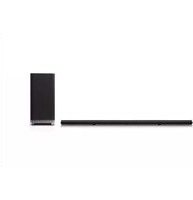


| Product Type | Soundbar with Wireless Subwoofer |
| Model Number | LAS851M |
| Brand | LG |
| Dimensions (Soundbar) | Approx. 1060 x 57 x 87 mm (41.7 x 2.2 x 3.4 in) |
| Dimensions (Subwoofer) | Approx. 190 x 390 x 300 mm (7.5 x 15.4 x 11.8 in) |
| Weight (Soundbar) | Approx. 2.5 kg (5.5 lbs) |
| Weight (Subwoofer) | Approx. 6.5 kg (14.3 lbs) |
| Power Supply | AC 100-240V, 50/60 Hz |
| Power Consumption (Soundbar) | 30 W |
| Power Consumption (Subwoofer) | 40 W |
| Audio Channels | 2.1 ch |
| Total Power Output | 300 W |
| Wireless Connectivity | Bluetooth 4.0 |
| Audio Inputs | HDMI ARC, Optical, USB |
| HDMI Output | 1 (ARC) |
| Supported Audio Formats | Dolby Digital, DTS |
| Remote Control | Included |
| Wall Mountable | Yes (bracket included) |
| Subwoofer Connection | Wireless (2.4 GHz) |
| Additional Features | Sound Sync, Auto Power, Night Time Mode |
| Cleaning Instructions | Wipe with a soft, dry cloth. Do not use liquids or sprays. |
| Safety Notice | Do not expose to rain or moisture. Keep ventilation slots clear. |
| Spare Parts Availability | Contact LG support or authorized service centers |
| Repairability Index | 6.5 / 10 (based on user rating) |
Frequently Asked Questions - LAS851M LG
User questions about LAS851M LG
0 question about this device. Answer the ones you know or ask your own.
Ask a new question about this device
Download the instructions for your Soundbar in PDF format for free! Find your manual LAS851M - LG and take your electronic device back in hand. On this page are published all the documents necessary for the use of your device. LAS851M by LG.
USER MANUAL LAS851M LG
Wireless Multi-room Sound Bar
Model: MUSICFLOWHS6
ENGLISH | OWNER'S MANUAL
Please read this manual carefully before operating your speaker and retain it for future reference.
Safety Information

CAUTION
RISK OF ELECTRIC SHOCK DO NOT OPEN

CAUTION: TO REDUCE THE RISK OF ELECTRIC SHOCK DO NOT REMOVE COVER (OR BACK) NO USER-SERVICEABLE PARTS INSIDE REFER SERVICING TO QUALIFIED SERVICE PERSONNEL.

This lightning flash with arrowhead symbol within an equilateral triangle is intended to alert the user to the presence of uninsulated dangerous voltage within the product's enclosure that may be of sufficient magnitude to constitute a risk of electric shock to persons.

The exclamation point within an equilateral triangle is intended to alert the user to the presence of important operating and maintenance (servicing)
instructions in the literature accompanying the product.
WARNING: TO PREVENT FIRE OR ELECTRIC SHOCK HAZARD, DO NOT EXPOSE THIS PRODUCT TO RAIN OR MOISTURE.
WARNING: Do not install this equipment in a confined space such as a book case or similar unit.
CAUTION: Do not use high voltage products around this product. (ex. Electrical swatter) This product may malfunction due to electrical shock.
CAUTION: The apparatus should not be exposed to water (dripping or splashing) and no objects filled with liquids, such as vases, should be placed on the apparatus.
CAUTION: Do not block any ventilation openings. Install in accordance with the manufacturer's instructions.
Slots and openings in the cabinet are provided for ventilation and to ensure reliable operation of the product and to protect it from over heating. The openings shall be never be blocked by placing the product on a bed, sofa, rug or other similar surface. This product shall not be placed in a built-in installation such as a bookcase or rack unless proper ventilation is provided or the manufacturer's instruction has been adhered to.
NOTICE: For safety marking information including product identification and supply ratings, please refer to the main label on the bottom or the other surface of the product.
For models using an adapter
Only use the AC adapter supplied with this device. Do not use a power supply from another device or another manufacturer. Using any other power cable or power supply may cause damage to the device and void your warranty.
CAUTION concerning the Power Cord
The Power Plug is the disconnecting device. In case of an emergency, the Power Plug must remain readily accessible.
Check the specification page of this owner's manual to be certain of the current requirements.
Do not overload wall outlets. Overloaded wall outlets, loose or damaged wall outlets, extension cords, frayed power cords, or damaged or cracked wire insulation are dangerous. Any of these conditions could result in electric shock or fire.
Periodically examine the cord of your device, and if its appearance indicates damage or deterioration, unplug it, discontinue use of the device, and have the cord replaced with an exact replacement part by an authorized service center. Protect the power cord from physical or mechanical abuse, such as being twisted, kinked, pinched, closed in a door, or walked upon. Pay particular attention to plugs, wall outlets, and the point where the cord exits the device.
This device is equipped with a portable battery or accumulator.
Safety way to remove the battery from the equipment: Remove the old battery or battery pack, follow the steps in reverse order than the assembly. To prevent contamination of the environment and bring on possible threat to human and animal health, the old battery or the battery put it in the appropriate container at designated collection points. Do not dispose of batteries or battery together with other waste. It is recommended that you use local, free reimbursement systems batteries and accumulators. The battery should not be exposed to excessive heat such as sunshine, fire or the like.
Table of Contents
1 Getting Started
2 Safety Information
6 Main Features
6 Introduction
7 Accessories
8 Front panel
8 Rear panel
9 Remote control
10 Installing the sound bar
10 Mounting the main unit on a wall
2 Connecting
12 Connecting the AC Adapter
12 Wireless subwoofer connection
14 Connecting to your TV
14 - Using an OPTICAL cable
14 - LG Sound Sync
15 - Using an HDMI cable
16 - Enjoy rich sound broadcast of the channel with the sound bar
16 - What is SIMPLINK?
17 - ARC (Audio Return Channel) function
17 - Additional information for HDMI
18 Optional equipment connection
18 - HDMI connection
19 - PORT. (Portable) IN connection
19 - OPTICAL IN connection
20 Initial Multi-Room Setup
20 - Wired connection (MUSICflow Mesh Network Connection)
20 - Wireless connection (Standard Wireless Connection)
20 Installing "Music Flow Player" App
21 - Starting with Music Flow Player app
22 Connecting the speaker to your Home Network
22 - Simple Connection (EZ Setup)
23 - Connecting the speaker to your network with a LAN cable
25 - Connecting the speaker to your Network via the Wi-Fi Setup Method
(Android)
28 - Connecting the speaker to your Network via the Wi-Fi Setup Method (iOS)
31 Connecting the speakers to your Home Network (Additional)
31 - Connecting the additional speaker to your network with a LAN cable
33 - Connecting the additional speaker to your network via the Wi-Fi Setup Method
35 Using the Bridge
35 - Use as a root device (wired to the home router)
37 - Use as a wireless extender
38 Using Media Server for PC
38 - Music Flow PC Software for windows
39 - Nero MediaHome 4 Essentials for Mac OS
3 Operating
41 Enjoying the Music with Music Flow Player app
41 - Overview of Home menu
42 - Overview of the side menu
43 - Playing a song
44 - Overview of Playback
46 Different ways of listening to music
46 - Group Playback
47 - Surround Sound Mode (Home Cinema Mode)
49 - Seamless playback
50 Setting the Speaker with Music Flow Player app
50 - Overview of setting menu
50 - [General] Menu
51 - [Speakers] Menu
52 - [Alarms/Sleep Timer] Menu
52 - [Account management] Menu
52 - [Time Zone] Menu
53 - [Advanced Settings] Menu
55 - [Chromecast] Menu
55 - [Version Info.] Menu
55 - [Open source licenses] Menu
56 Using a Bluetooth Wireless Technology
56 - About Bluetooth
56 - Bluetooth profiles
56 - Listening to Music of a Bluetooth Device
57 - NFC for Easy Pairing (Android Only)
58 Other operations
58 - DRC (Dynamic Range Control)
58 - AV Sync
58 - Using your TV remote control
58 - Turn off the sound temporarily
58 - Displaying input source information
58 - Sleep timer setting
59 - Auto power down
59 - AUTO POWER On/Off
60 Sound adjustment
60 - Adjust volume level automatically
60 - Adjust the Treble/Bass/Sub-woofer
60 Standby mode
60 - Standby mode
60 - Network standby mode
61 - Bluetooth standby mode
61 Reset the Speaker
61 - Resetting the speaker
4 Troubleshooting
62 Troubleshooting
62 - General
63 - Network
64 - Application and PC Software
5 Appendix
65 File requirement
65 Trademarks and licenses
66 Specifications
68 Handling the Speaker
68 Important Information Relating to Network Services
69 TERMS OF USE
Main Features
Made for iPod/iPhone/iPad or Android device
Enjoys music from iPod/iPhone/iPad or Android device with simple connection.
LG Sound Sync
Controls volume level of this unit by the remote control of your LG TV that is compatible with LG Sound Sync.
Portable In
Listens to music from your portable device.
Music Flow Player application
Listens to music stored on your smart device.
You can control this speaker with your iPod touch/ iPhone/iPad or Android device via Music Flow Player app. This speaker and your smart device must be connected to the same network. Visit Apple "App Store" or Google "Play Store" or use the QR code shown below to search for "Music Flow Player" app. For detailed information, refer to page 20.

(Android OS)

(Apple iOS)
- Depending on the application's version and the settings of smart device, Music Flow Player app may not be operated normally.
- Some smart devices may not be compatible with this speaker.
Introduction
Symbol used in this manual

Note
Indicates special notes and operating features.
Caution
Indicates cautions for preventing possible damages from abuse.
Accessories
Please check and identify the supplied accessories. Designs and specifications of the accessories are subject to change without prior notice.
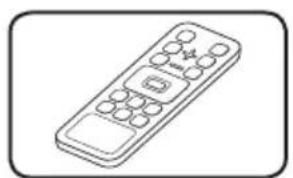

Remote control (1) Batteries (2)

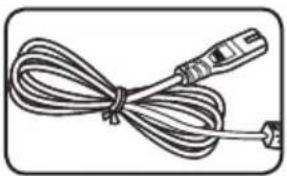
AC adapter (1) Power cord (1)


Wall bracket (2) Wall bracket install guide (1)


Screws (2) Cable ties for arranging cables (2)


LG Tag On sticker (1) LAN cable

Optical
LG Tag On sticker
- Remove the battery cover on the rear of the remote control.
- Attach the supplied LG Tag On sticker on the remote control. See the image below.
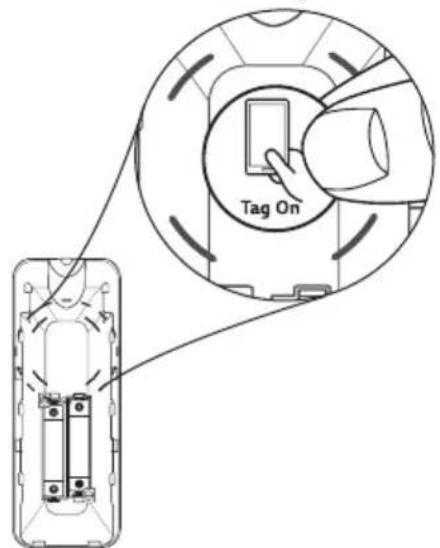
Refer to the pages 57 for how to use.
Front panel
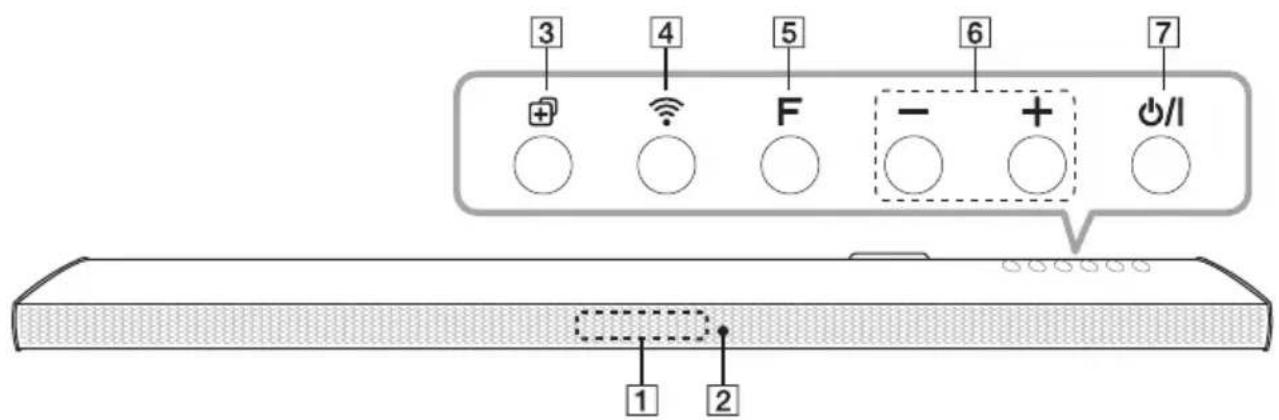
1 Display window
2 Remote sensor
LED indicator
Shows connection status.
3 + (Add)
Adds the speaker to your network. (page 31)
4 (Wi-Fi)
Connects your speaker to your network. (page 25)
5 F (Function)
Selects the function and input source.
6-/+ (Volume)
Adjusts volume level.
7 ⏻/1 (Standby/On)
- Power On
- Switching to the standby mode (page 60)
Rear panel

① DC IN (AC adapter input)
2 S/W download connector (For service only)
3 HDMI IN / OUT : HDMI input / output
4 ETHERNET: LAN port
5 PORTABLE IN : Portable input
6 OPT. IN: Optical input
Remote control

Replacement of Battery
Remove the battery cover on the rear of the Remote Control, and insert two R03 (size AAA) batteries with +nd -matched correctly.

1 (Power): Switches the unit ON or OFF. / Switches to the standby mode.
FUNC : Selects the function and the input source.
(Mute): Mutes the sound.
OPTICAL : Changes input source to OPTICAL directly.
SOUND EFFECT : Selects a sound effect mode.
WOOFER LEVEL : Sets the sound level of woofer.
VOL + / — : Adjusts speaker volume.
2
REPEAT : Listen to your music repeatedly.
◀◀/▶◀ (Skip): Skips Fast backward or Forward.
▶ II (Play/Pause): Starts playback. / Pauses playback.
(Shuffle): Shuffles the music on the list.
Note
You can use these playback buttons after play music by "Music Flow Player" App or PC software.
3
DRC : Turns on or off DRC function.
INFO : Displays the input source information.
AV SYNC : Synchronizes the audio and video.
SLEEP : Sets the system to turn off automatically at a specified time.
AUTO VOL : Turns on or off the AUTO VOLUME mode.
AUTO POWER : Turns on or off AUTO POWER function. (Refer to the page 59.)
Installing the sound bar
You can hear the sound by connecting the unit to the other device: TV, Blu-ray disc player, DVD player, etc.
Place the unit in front of the TV and connect it to the device you want. (Refer to pp. 14 - 19.)
You can place the wireless subwoofer anywhere in your room. But it is better to place the subwoofer near the main unit. Turn it slightly toward the center of the room to reduce the wall reflections.

Caution
- For best performance of wireless connection such as Bluetooth or wireless subwoofer, do not install the unit on Metallic furniture because wireless connection communicates through a module positioned on the bottom of the unit.
- Be careful not to make scratches on the surface of the Unit /Sub-Woofer when installing or moving them.
Mounting the main unit on a wall
You can mount the main unit on a wall.

Caution
Because it is difficult to make a connection after installing this unit, you should connect the cables before installation.
Preparation materials


Wall bracket

(Not supplied)


- Match the TV's BOTTOM EDGE of Wall bracket install guide with the bottom of TV and attach to the position.

- When you mount it on a wall (concrete), use the wall plugs. You should drill some holes. A guide sheet (Wall bracket install guide) is supplied to drill. Use the sheet to check the point to drill.

-
Remove the Wall bracket install guide.
-
Fix the brackets with screws (A) as shown in the illustration below.


Note
Screws (A) and Wall Plugs are not supplied for mounting the unit. We recommend the Hilti (HUD-1 6 x 30) for the mounting.
- Put the unit on the brackets to match screw holes on the bottom of the unit.

- Fix the unit with the screws firmly.

Note
To detach the unit, perform it in reverse order.
Caution
- Do not install this unit upside down. It can damage the parts of this unit or be the cause of personal injury.
- Do not hang onto the installed unit and avoid any impact to the unit.
- Secure the unit firmly to the wall so that it does not fall off. If the unit falls off, it may result in an injury or damage to the product.
- When the unit is installed on a wall, please make sure that a child does not pull any of connecting cables, as it may cause it to fall.
Connecting the AC Adapter
Connect the speaker to the power supply with the supplied AC adapter.
- Connect the supplied AC power cord to the AC adapter.
- Connect the AC adapter cable to DC. IN adapter input.
- Plug the AC power cord into an AC outlet.
![graph TD A["DC IN"] --> B["Power Supply"] B --> C["Device"] C --> D["Output"] style A fill:#f9f,stroke:#333 style D fill:#ccf,stroke:#333](/content/2026/07/1515589/images/2bcfe5f0238c19b53ca10a72793f215615c9357601f1eff5a94b3f53a7d8b782.jpg)
Caution
Only use the AC adapter supplied with this device. Do not use a power supply from another device or manufacturer. Using any other power cable or power supply may cause damage to the device and void your warranty.
Wireless subwoofer connection
LED indicator of wireless subwoofer
| LED Color Status | |
| Green (Blink) | The connection is trying. |
| Green The connection is completed. | |
| Red The wireless subwoofer is in standby mode or the connection is failed. | |
| Off (No display) | The power cord of wireless subwoofer is disconnected. |
Setting up the wireless subwoofer for the first time
- Connect the power cord of the wireless subwoofer to the outlet.
- Turn on the main unit: The main unit and wireless subwoofer will be automatically connected.
Manually pairing wireless subwoofer
When your connection is not completed, you can see the red LED or the blinking of green LED on the wireless subwoofer and the subwoofer does not make sound. To solve the problem, follow the below steps.
- Adjust volume level of the main unit to minimum.
- "VOL MIN" appears on the display window.
- Press and hold (Mute) on the remote control for about 3 seconds.
-
"WL RESET" appears on the display window briefly.
-
If the LED of the wireless subwoofer already blinks in green continually, you can skip this step.
Press and hold PAIRING on the back of the wireless subwoofer for more than 5 seconds.

- The LED of the wireless subwoofer lights up alternately in red and green.
-
Disconnect the power cord of the main unit and the wireless subwoofer.
-
Connect them again after the LED of the main unit and the wireless subwoofer is fully turned off.
The main unit and the wireless subwoofer will be paired automatically when you turn on the main unit.
- When the connection is completed, you can see the green LED on the subwoofer.

Note
- It takes a few seconds (and may take longer) for the main unit and the subwoofer to communicate with each other and make sounds. - The closer the main unit and the subwoofer, the better sound quality. It is recommended to install the main unit and the subwoofer as close as possible and avoid the cases below.
- There is a obstacle between the main unit and the subwoofer.
- There is a device using same frequency with this wireless connection such as a medical equipment, a microwave or a wireless LAN device.
Connecting to your TV
Please connect with this unit and TV using the optical digital cable or HDMI cable considering the state of the TV.
Using an OPTICAL cable
- Connect the OPT. IN jack on the back of the unit to OPTICAL OUT jack on the TV using an OPTICAL cable.

- Set the input source to OPTICAL. Press repeatedly FUNC on the remote control or F on the unit until the function is selected.
To directly select the OPTICAL function, press OPTICAL on the remote control.
Note
- You can enjoy the TV audio through the speakers of this unit. In the case of some TV models, you must select the external speaker option from the TV menu. (For details, reference your TV user manual.)
- Set up the sound output of TV to listen to the sound through this unit:
TV setting menu → [Sound] → [TV Sound output] → [External speaker (Optical)]
• Details of TV setting menu vary depending on the manufacturers or models of your TV.
LG Sound Sync
Sound Sync
You can control some functions of this unit by your TV's remote control with LG Sound Sync. It is compatible with the LG TV that is supported LG Sound Sync. Make sure of the LG Sound Sync logo on your TV.
Controllable function by LG TV's remote control : Volume up/down, mute
Refer to the TV's instruction manual for the details of LG Sound Sync.
Make one of the following connections, depending on the capabilities of your equipment.
Note
- You can also use the remote control of this unit while using LG Sound Sync. If you use TV's remote control again, the unit synchronizes with the TV.
- When the connection fails, make sure of the condition of the TV and power.
-
Make sure of the condition of this unit and the connection in the cases below when using LG Sound Sync.
-
Turn off the unit.
- Changing the function to the others.
- Disconnecting the optical cable.
- The amount of time to turn off this unit is different depending on your TV when you set AUTO POWER function to ON.
With wired connection
- Connect your LG TV to the unit by using an optical cable.

- Set up the sound output of TV to listen to the sound through this unit:
TV setting menu → [Sound] → [TV Sound output] → [LG Sound Sync (Optical)]
- Turn on the unit by pressing ⏻ (Power) on the remote control.
- Select OPTICAL function by using FUNC on the remote control or F on the unit until the function is selected.
You can see "LG OPT" on the display window if connecting normally between this unit and your TV.

Note
Details of TV setting menu vary depending on the manufacturers or models of your TV.
Using an HDMI cable
If you connect this unit to a TV that supports HDMI CEC and ARC (Audio Return Channel), you can enjoy the TV audio through the speakers of this unit without connecting the optical cable.
Connect the HDMI OUT jack on the back of the unit to ARC jack on the TV using an HDMI cable.
![graph TD A["Monitor"] --> B["ARC"] B --> C["HDMI cable"] C --> D["External Network"] D --> E["HDMI OUT"]](/content/2026/07/1515589/images/128f4c8e0d1837a72a2161a519538c9805a4037509505aaf208db4cc338fef71.jpg)

Note
- HDMI CEC (Consumer Electronics Control): Using a single remote control, you have the ability to operate CEC compatible devices (TV, Sound Bar, Blue-ray player, etc.)
- You can also enjoy extra functions such as Bluetooth with FUNC on remote control or F on this unit. When you go back to live TV channel after using the extra functions (Bluetooth) of this audio system, you should choose your preferred speaker on TV to enjoy the sound from this audio system again.
HDMI cable Checklist
Some HDMI cables do not support the ARC function, this can result in no sound output.
When connecting this unit to the TV, if there is no sound, there might be a problem with the HDMI cable. Therefore connect this unit to the TV and check whether the Type A, High speed HDMI™ Cable with Ethernet.

Enjoy rich sound broadcast of the channel with the sound bar
Connection through HDMI Cable
Your television must support the newest HDMI features (HDMI CEC 1) / ARC (Audio Return Channel)) to fully enjoy the Live broadcasting channel with audio system through an HDMI cable. Unless your TV supports these HDMI features, the audio system should be connected through an OPTICAL cable.
1) HDMI CEC (High-Definition Multimedia Interface Consumer Electronics Control)
Consumer Electronics Control (CEC) is an HDMI feature designed to allow the user to command and control the CEC-enabled devices, that are connected through HDMI by using only one of their remote controls.
※ Trade names for CEC are SimpLink (LG), Anynet+ (Samsung), BRAVIA Sync (Sony), EasyLink (Philips), etc.
What is SIMPLINK?

Some functions of this unit are controlled by the TV's remote control when this unit and LG TV's with SIMPLINK are connected through HDMI connection.
Controllable functions by LG TV's remote control : Power on/off, volume up/down, etc.
Refer to the TV owner's manual for the details of SIMPLINK function.
LG TV's with SIMPLINK function has the logo as shown above.
Note
- Depending on the state of the unit, some SIMPLINK operation may differ from your purpose or not work.
- Depending on a TV or a player which is connected with this unit, SIMPLINK operation may differ from your purpose.
ARC (Audio Return Channel) function
The ARC function enables an HDMI capable TV to send the audio stream to HDMI OUT of the unit.
To use this function :
- Your TV must support the HDMI-CEC and ARC function and the HDMI-CEC and ARC must be set to On.
- The setting method of HDMI-CEC and ARC may differ depending on the TV. For details about ARC function, refer to your TV manual.
- You must use the HDMI cable (Type A, High Speed HDMI™ cable with Ethernet).
- You must connect the HDMI OUT on the unit with HDMI IN of the TV that supports ARC function using an HDMI cable.
- You can connect only one Sound bar to TV compatible with ARC.
Note
- ARC function is automatically selected when ARC signal comes in from TV, no matter what kind of the function you are using.
- You can enjoy the TV audio through the speakers of this unit. In the case of some TV models, you must select the external speaker option from the TV menu. (For details, reference your TV user manual.)
- Set up the sound output of TV to listen to the sound through this unit:
TV setting menu → [Sound] → [TV Sound output] → [External speaker (HDMI ARC)]
• Details of TV setting menu vary depending on the manufacturers or models of your TV.
Additional information for HDMI
- When you connect an HDMI or DVI compatible device make sure of the following:
- Try switching off the HDMI/DVI device and this player. Next, switch on the HDMI/DVI device and leave it for around 30 seconds, then switch on this player.
- The connected device's video input is set correctly for this unit.
- The connected device is compatible with 720 x 576p, 1280 x 720p, 1920 x 1080i or 1920 x 1080p video input.
- Not all HDCP-compatible HDMI or DVI devices will work with this player.
- The picture will not be displayed properly with non-HDCP device.
Note
- If a connected HDMI device does not accept the audio output of the player, the HDMI device's audio sound may be distorted or may not output.
- Changing the resolution when the connection has already been established may result in malfunctions. To solve the problem, turn off the player and then turn it on again.
- When the HDMI connection with HDCP is not verified, TV screen is changed to black screen. In this case, check the HDMI connection, or disconnect the HDMI cable.
- If there are noises or lines on the screen, please check the HDMI cable (length is generally limited to 4.5 m(15 ft).
- You cannot change the video resolution in the HDMI IN mode. Change the video resolution of the connected component.
- If the video output signal is abnormal when your personal computer is connected to HDMI IN jack, change the resolution of your personal computer to 576p, 720p, 1080i or 1080p.
Optional equipment connection
HDMI connection
For enjoying sound only
You can enjoy the sound from the external device you connect.

To the Blu-ray disc player, DVD player, etc.
- Connect HDMI IN jack on the back of the unit to HDMI OUT jack on the audio device such as Blu-ray disc player, DVD player, etc.
- Set the input source to HDMI IN. Press repeatedly FUNC on the remote control or F on the unit until the function is selected.
For enjoying both sound and picture
You can enjoy both sound and picture from the external device you connect.
![graph TD A["Server"] --> B["HDMI OUT"] A --> C["HDMI IN"] A --> D["HDMI OUT"] A --> E["HDMI IN"] B --> F["Switch"] C --> G["Switch"] D --> H["Switch"] E --> I["Switch"]](/content/2026/07/1515589/images/0d52add8cd0e4fdbb466531a30ee14cc809a3f9eccb0ebbde5845dc6e85b1779.jpg)
- Connect HDMI IN jack on the back of the unit to HDMI OUT jack on the external device such as Blu-ray disc player, DVD player, etc.
- Connect HDMI OUT jack on the back of the unit to HDMI IN jack on the TV.
- Set the input source to HDMI IN. Press repeatedly FUNC on the remote control or F on the unit until the function is selected.

Note
HDMI OUT jack is for TV connection. Even though PCM multi channel is inputted to the unit through an HDMI cable, the unit can only output 2 channel to TV.
PORT. (Portable) IN connection
![graph TD A["PC"] --> B["USB Cable"] B --> C["USB Interface"] C --> D["Laptop"] C --> E["Smartphone"] C --> F["Microcontroller"] C --> G["CD"]](/content/2026/07/1515589/images/890024c5913a8b65ec1ca1ec822456e9d8b3b93ae4e6902618aeffdb1a06a552.jpg)
Listening to music from your portable player
The unit can be used to play the music from many types of portable players or external devices.
- Connect the portable player to the PORTABLE IN connector of the unit.
- Turn the power on by pressing ⏻ (Power).
- Select the PORTABLE function by pressing FUNC on the remote control or F on the unit until the function is selected.
- Turn on the portable player or external device and start playing it.
OPTICAL IN connection
Connect an optical output jack of external devices to the OPT. IN jack.

- Connect the OPT. IN jack on the back of the unit to optical out jack of your TV (or digital device etc.)
- Select the input source to OPTICAL by pressing FUNC on the remote control or F on the unit until the function is selected.
To directly select the OPTICAL function, press OPTICAL on the remote control.
- Listen to sound from the connected device.
- Press OPTICAL to exit from OPTICAL. Function is returned to previous one.
Initial Multi-Room Setup
When installing the MUSICflow product for the first time, you can choose two types of connection as below.
Wired connection (MUSICflow Mesh Network Connection)
Connect your speaker to the home router using LAN cable.
Then you can connect the additional MUSICflow products (Optional) to your home network wirelessly. Refer to "Connecting the speakers to your Home Network (Additional)" on page 31.

Wireless connection (Standard Wireless Connection)
When the wired connection is unavailable between your speaker and home router, this unit offers music streaming service within home router's Wi-Fi coverage.
Connect one of the your speaker to the home router wirelessly.
Then you can connect the additional MUSICflow products (Optional) to your home network wirelessly. Refer to "Connecting the speakers to your Home Network (Additional)" on page 31.

Wireless signal
Installing "Music Flow Player" App
Through Apple "App Store" or Google "Play Store"
- Tap the Apple "App Store" icon or Google "Play Store" icon.
- Type in "Music Flow Player" in the search bar and tap "Search".
- Select "Music Flow Player" in the search result list to download.

Note
- Music Flow Player app will be available in version of the software as follow; Android OS : Ver 4.0 (ICS) (or later) iOS O/S : Ver 6.0 (or later)
- Depending on the device, "Music Flow Player" app may not work.
Through QR code
Install "Music Flow Player" app through QR code. Scan the QR code using the scanning application.


(Android OS)

(Apple iOS)

Note
• Make sure that your smart device is connected to the internet.
- Make sure that your smart device has a scanning application. If you don't have, download it from Apple "App Store" or Google "Play Store".
Starting with Music Flow Player app
When you launch Music Flow Player app for the first time, the terms of use and Chromecast Service appear on the screen.
- Check the contents of terms of use and select [Accept].

- Check the contents of Chromecast Service and select [Accept].

- Select [Connect product] to install the speaker you've purchased.

Refer to "Connecting the speaker to your Home Network" on page 22.

Note
If you want to return to the terms of use screen, initialize the Music Flow Player app on the smart device's setting menu.
Connecting the speaker to your Home Network
Using a wired network provides the best performance, because the attached devices connect directly to the network without radio frequency interference.
Please refer to the documentation for your network device for further instructions.
Preparation
• Make sure that wireless network environment using a router is installed at your home.
- Make sure that the speaker and the smart device are connected to the same router.
Requirements
- Wireless router
• Smart device (Android or iOS)

Note
- Make sure that DHCP's server is activated on wireless router.
- If you cannot connect the speaker with your router, go to setting of the router and then make sure that "Allow wireless client to see each other and access my local network" box is unchecked.
Simple Connection (EZ Setup)
Preparation
- For Simple Connection, Wi-Fi network condition is needed.
• Make sure that the Bluetooth setting on your smart device in on.

Note
- Simple Connection is supported by Bluetooth Ver 4.0 (or higher).
-
If Simple Connection screen is not displayed on the screen, connect the unit by the other way. Please refer to "Connecting the speaker to your network with a LAN cable" (page 23) or "Connecting the speaker to your Network via the Wi-Fi Setup Method" (page 25 or page 28)
-
Plug in the desired device, and tap [Next].
![Preparing the product Where U.S. Motor: Flow power is completing on, click. [Next] tox.com Back Next](/content/2026/07/1515589/images/11c3e213af62288bdf70e16898775bd814e98f085ff45b535692e82b622ddb3d.jpg)
- App searches for the speaker and connects it automatically, Tap [Next].

- If the network password is set, security screen is displayed. Type the password.

- After typing password, tap [Next].


- Tap [Finish] to finish making the connection.
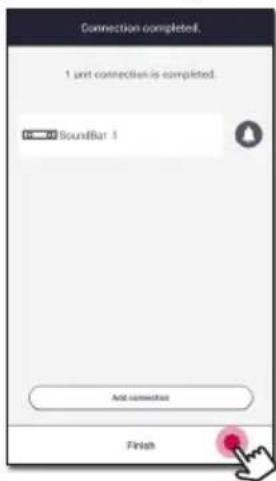
After finishing, TV connection screen is displayed. Follow the direction on the screen.
Connecting the speaker to your network with a LAN cable
Connection overview
![graph TD A["Broadband service"] --> B["Router"] B --> C["LAN"] C --> D["Ethernet"] style A fill:#f9f,stroke:#333 style B fill:#ccf,stroke:#333 style C fill:#cfc,stroke:#333 style D fill:#fcc,stroke:#333](/content/2026/07/1515589/images/6cb200f880d751b0b02826de3e90f81b2137435083ecc535e9e9b69b21b09adc.jpg)
- Turn on the unit by using ⏻ on the remote control or ⏻/I on the unit. The LED indicator starts to blink in white.
- On your smart device, launch Music Flow Player app. Select [Connect product] to install the speaker. Plug in the desired device, and tap [Next].

![Preparing the product When 1.0 Music Flow power is completely on, click [Next] License Back Help](/content/2026/07/1515589/images/243aaba2fa70235d67960f923fd1e611f0444f8576afd4ae802907d58bba208d.jpg)
- Select the product you want to connect and tap [Next] on the screen.

- Select [Wired connection] on the screen.

- Connect one end of the LAN cable to the speaker's LAN port and connect the other end to your wireless router. Wait a moment until the LED indicator stops blinking and stays white.
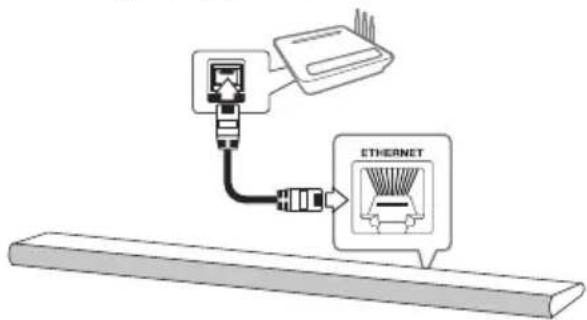
- Then select [Next] on the screen.

- Select [Finish] to complete the connection.

After speaker connection, follow the instructions for TV connection.
(If there is an update)
- This application is checking the Version of software of your speaker and then shows the version.

Select [Next] after checking the version information.

Note
- You cannot use the speaker without a router. When using the wired router, you can control the speaker with Music Flow PC Software. (Page 38)
- The speaker and the smart device should be connected to the same router.
Connecting the speaker to your Network via the Wi-Fi Setup Method (Android)
Connection overview
![graph TD A["Broadband service"] --> B["Router"] B --> C["Mobile Device"] C --> D["Hand icon pointing at the device"] style A fill:#f9f,stroke:#333 style B fill:#ccf,stroke:#333 style C fill:#cfc,stroke:#333 style D fill:#fcc,stroke:#333](/content/2026/07/1515589/images/268f73f8638a5ef8021454d047972ba2821d3ba0d91b82ae24c9aa1b810848c0.jpg)
- Turn on the unit by using ⏻ on the remote control or ⏻/I on the unit. The LED indicator starts to blink in white.
- On your smart device, launch Music Flow Player app. Select [Connect product] to install the speaker. Plug in the desired device, and tap [Next].

![Preparing the product When 1.0 Music Flow power is completely on, click [Next] Licensee Back Help](/content/2026/07/1515589/images/9649afcc83317b18cbf80ad3138d18cd123640bec0227562aefe4e8d7c01c991.jpg)
- Select the product you want to connect and tap [Next] on the screen.

- Select [Wireless connection] on the screen.

-
Then select [Next] on the screen.
-
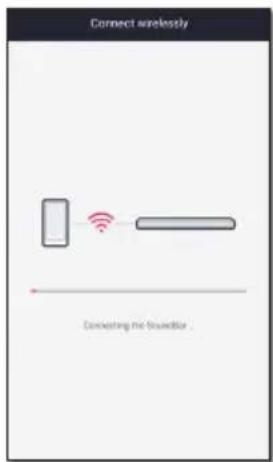
Press the button on the unit. Then the LED indicator blinks in white and red alternately.

- Then select [Next] on the screen.

- If you have a password for your network, the security screen appears on your smart device. Enter your password.
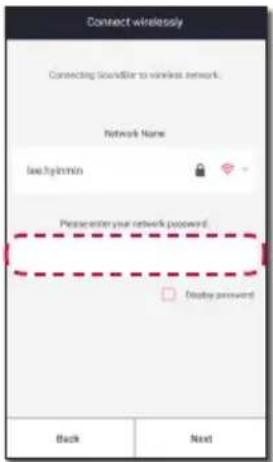
- Then select [Next] on the screen.

![Connect wirelessly Connecting to [ee,hymin]](/content/2026/07/1515589/images/75abb8382faa2d80ce9f95d1fbe8b50c665a310930b3e6f70ed162fbe9624ca7.jpg)
- Select [Finish] to complete the connection.

After speaker connection, follow the instructions for TV connection.
(If there is an update)
- This application is checking the Version of software of your speaker and then shows the version.

Select [Next] after checking the version information.
Note
If the speaker fails to connect to your network or its network connection operates abnormally, place the speaker closer to your router and try again.
Connecting the speaker to your Network via the Wi-Fi Setup Method (iOS)
Connection overview
![graph TD A["Broadband service"] --> B["Router"] B --> C["Tablet"] C --> D["Hand icon pointing at screen"] style A fill:#f9f,stroke:#333 style B fill:#ccf,stroke:#333 style C fill:#cfc,stroke:#333 style D fill:#fcc,stroke:#333](/content/2026/07/1515589/images/1a34f645492d4d3089b8427b41ee38f5301f7923850c98dd81d7cb5425270a68.jpg)
- Turn on the unit by using ⏻ on the remote control or ⏻/I on the unit. The LED indicator starts to blink in white.
- On your smart device, launch Music Flow Player app. Select [Connect product] to install the speaker. Plug in the desired device, and tap [Next].

![Preparing the product When LG Music Flow power is completely on, click [Next]. Learn more Back Next](/content/2026/07/1515589/images/c3527d84a4e15c08fbb1485175c3b427d53754ea9a75df6e883b62338286be28.jpg)
- Select the product you want to connect and tap [Next] on the screen.

- Select [Wireless connection] on the screen.

-
Then select [Next] on the screen.
-
Press the button on the unit. Then the LED indicator blinks in white and red alternately.

- Then select [Next] on the screen.


- On your iOS device, go to iOS setting -> WiFi setting and select "MusicFlow_Setup" to connect.

Note
- If "MusicFlow_Setup" is not on the list, scan for available Wi-Fi networks again.
-
When your smart device is connected to "MusicFlow_Setup", you cannot use the internet.
-
If you have a password for your network, the security screen appears on your smart device. Enter your password.

- Then select [Next] on the screen.

- Then select [Next] on the screen.
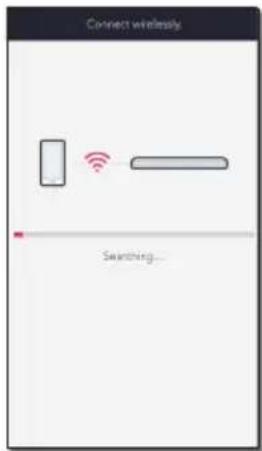
- Select [Complete] to complete the connection.


Note
If the speaker fails to connect to your network or its network connection operates abnormally, place the speaker closer to your router and try again.
Notes on Network Connection
- Many network connection problems during set up can often be fixed by re-setting the router.
After connecting the speaker to the home network, quickly power off and/or disconnect the power cable of the home network router or cable modem. Then power on and/or connect the power cable again. - Our company is not responsible for any malfunction of the speaker and/or the internet connection feature due to communication errors/malfunctions associated with your broadband internet connection or other connected equipment.
- The wireless network operate at 2.4 GHz radio frequencies that are also used by other household devices such as cordless telephone,
Bluetooth devices, microwave oven, and can be affected by interference from them. - Turn off all unused network equipment in your local home network. Some devices may generate network traffic.
- If the speaker fails to connect to your network or its network connection operates abnormally, place the speaker closer to your router and try again.
- Depending on your home network environment and the performance of wireless router, it may not work well to connect the speaker to your wireless router.
- You cannot connect the speaker to wireless router which has hidden SSID.
- The connection you've made may be disconnected if you select other application or change the setting of the connected speaker via "Music Flow Player" app. In such a case, please check the connection status.
- Even after connection of Music Flow Player app, music may be output from your smart device. In this case, select the connected speaker on the playback screen.
- Depending on the speed of your network, playback of online contents may not work well.
-
Wireless signal interference may lead to disconnection of network or stopping playback.
-
You need to turn the speaker's power off and on again if you restart the router.
- You need to perform a factory set and setup the network connection for speaker, if you install new router.
- If you use other characters than the english alphabet or digits for the SSID name of your access point or wireless router, it may be displayed differently.
Connecting the speakers to your Home Network (Additional)
You can enjoy the music with multiple speakers and single smart device you have.
Requirements
- Wireless router
• Smart device (Android or iOS) - Another speaker

Note
Signal interference may lead to stop playback.
Connecting the additional speaker to your network with a LAN cable
Connection overview
![graph TD A["LAN cable"] --> B["Router"] B --> C["Broadband service"] B --> D["Speaker (Main)"] D --> E["ETHERNET"] E --> F["Add Speaker"] style A fill:#f9f,stroke:#333 style B fill:#ccf,stroke:#333 style C fill:#cfc,stroke:#333 style D fill:#fcc,stroke:#333 style E fill:#cff,stroke:#333 style F fill…](/content/2026/07/1515589/images/f5dd0dfd20bf0ef90dbb6ae76a5457c1a690fdb36944114850366c933f546ca4.jpg)
- Connect the speaker (Main) to your network. Refer to "Connecting the speaker to your Home network" on page 22.
- On your smart device, select the Music Flow Player app. Tap the button.

- Select the [Add Speaker] on the side menu.

Note
You can also add another speaker by using 🧑 button on the screen of [Connected Speakers].
- Plug in the desired device, and tap [Next].
![Preparing the product When LID Music I live power to completely use, click. [Next] Back Next](/content/2026/07/1515589/images/314540c907628f635a131a010696e40e2cc4230802a060fcc4d4e47646469610.jpg)
- Select the product you want to connect and tap [Next] on the screen.

- Select [Wired connection] on the screen.

- Connect one end of the LAN cable to the speaker's ETHERNET port and connect the other end to your wireless router. Wait a moment until the LED indicator stops blinking and stays white.

- Then select [Next] on the screen.

- Select [Finish] to complete the connection.

Connecting the additional speaker to your network via the Wi-Fi Setup Method
![graph TD A["Broadband service"] --> B["Router"] B --> C["LAN cable"] C --> D["Speaker (Main)"] D --> E["Speaker (Add)"] E --> F["Wireless signal transmission"]](/content/2026/07/1515589/images/4f3d01f8668e22ff9b267295fc3580872e761aa70aec65c6cf090c1fdabac05e.jpg)
- Connect the speaker (Main) to your network. Refer to "Connecting the speaker to your Home network" on page 22.
- On your smart device, select the Music Flow Player app. Tap the button.

- Select the [Add Speaker] on the side menu.

Note
You can also add another speaker by using button on the screen of [Connected Speakers].
- Select the product you want to connect and tap [Next] on the screen.

- Select [Wireless connection] on the screen.

- Press the ADD button on the rear of the speaker (Add). Then Network status LED blinks red.

- Then select the [Next] on the screen.

- Select [Finish] to complete the connection.

Note
Speakers may be not connected if the distance between the Sound Bar (Main) connected by LAN cable and the speaker (Add) to be connected is too far.
Using the Bridge
Bridge (R1) extends a range of use of speakers. Please purchase it separately if you want to use.
Use as a root device (wired to the home router)
If there is no speaker with wired connection to the router
When your home router is located too far from any speaker location that is to be connected via wired mode, connect the Bridge (R1) to your home router with LAN cable.

-
Attach the power cord to the power port on the rear of the Bridge (R1) and then plug the power cord into an electrical outlet.
-
The power LED on the front of Bridge (R1) turns on. On your smart device, select the Music Flow Player app. Tap the button.

- Select the [Add Speaker] on the side menu.

- Select the [Bridge] and tap [Next] on the screen.

- Following the instruction on Music Flow Player app, connect the Bridge (R1) and the router with LAN cable.
Wait a moment until 📋 Network status LED stops blinking and stays white.

And then select [Next].
- Select [Finish] to complete the connection.

- Connect the speaker to Bridge (R1). Refer to "Connecting the speakers to your Home Network (Additional)" on page 31.
Use as a wireless extender
If there is at least one speaker with wired connection to the router
When you want to expand Music Flow mesh network coverage, add the Bridge (R1) to your home network.

- Attach the power cord to the power port on the rear of the Bridge (R1) and then plug the power cord into an electrical outlet.
- The power LED on the front of Bridge (R1) turns on. On your smart device, select the Music Flow Player app. Tap the button.

- Select the [Add Speaker] on the side menu.
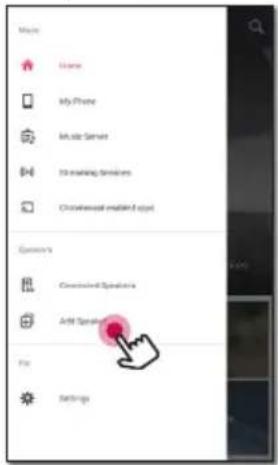
- Select the Bridge and tap [Next] on the screen.

- Select [Wireless connection] and tap [Next] on the screen.

- Follow the instruction on Music Flow Player app and tap [Next] on the screen.

- Select [Finish] to complete the connection.

- Connect the speaker to Bridge (R1). Refer to "Connecting the speakers to your Home Network (Additional)" on page 31.
Using Media Server for PC
Media server Software allows users to access audio files stored in media server and enjoy them on this speaker via home networking.
Before connecting to PC to play a file, Media server Software should be installed on your PC.
Note
Make sure that wireless network environment using a router is installed at your home.
• Windows : Music Flow PC Software
• Mac OS : Nero MediaHome 4 Essentials
Music Flow PC Software for windows
About Music Flow PC Software
Music Flow PC Software makes you enjoy the audio files stored on your media server (PC) via the speaker.
Downloading Music Flow PC Software
- Start up your computer, visit http://www.lg.com. If necessary, select your region.
- Click support tab.
- Fill your model name on the cover of owner's manual in search bar.
- Find and download the "Music Flow PC Software" file.
Installing Music Flow PC Software
- Unzip and double-click "Setup.exe" to install Music Flow PC Software. The installation is prepared and the installation wizard appears.
- Follow the directions of the installation wizard displayed on the screen.
- Click the [Exit] button to complete the installation.
Note
- You might close firewalls and Anti-Virus programs on your PC while installing Music Flow PC Software.
- The Music Flow PC Software is a customized software edition only for sharing files and folders to this speaker.
- If you want a full explanation about Music Flow PC Software, click the question marked icon on home menu.
System requirements (Windows PC)
- CPU : Intel® 2.0 GHz or AMD Sempron™ 2000+ processors
• Memory: 1 GB of free RAM
• Graphics card : 64 MB video memory, minimum resolution of 1024 x 768 pixels, and 16 bit color settings
• Free Disk Space : 200 MB - Windows® XP (Service Pack 2 or higher), Windows Vista®, Windows® 7, Windows® 8.0, Windows® 8.1, Windows® 10
- Windows® Media Player® 11.0 or higher
• Network environment: 100 MB Ethernet, WLAN
Sharing music files
On your computer, you must share the folder contained music files to play them on this speaker. This parts explains the procedure for selecting the shared folders on your computer.
- Double-click the "Music Flow PC Software" icon.
- Click []*on in the upper-right-hand corner of the screen. The setting menu appears.
- On the setting menu, click [] icon on the left to go to the sharing file menu.
- On the sharing file menu, Click []on to open the [Browse Folder] window.
- Select the folder containing the files you want to share. The selected folder is added to the list of shared folders.
Nero MediaHome 4 Essentials for Mac OS
About Nero MediaHome Essentials
Nero MediaHome 4 Essentials is a software for sharing video, audio and photo files stored on your computer to this speaker as a digital media server.
Downloading Nero MediaHome Essentials
- Start up your computer, visit http://www.lg.com. If necessary, select your region.
- Click support tab.
- Fill your model name on the cover of owner's manual in search bar.
- Find and download the "Nero MediaHome 4 Essentials" file.
Installing Nero MediaHome Essentials
- Before installation, close all running programs including firewall and Anti-Virus programs.
- Unzip and double-click NeroMediaHome.dmg file, In the Nero MediaHome window, drag the Nero MediaHome icon either to the Applications folder within the window or to any other desired location.
- Follow the directions of the installation wizard displayed on the screen.
- Click the [Exit] button to complete the installation.
System requirements (Macintosh)
• Mac OS X 10.5 (Leopard) or 10.6 (Snow Leopard)
• Macintosh computer with an Intel x86 processor
- Hard drive space: 200 MB hard drive space for a typical installation of Nero MediaHome standalone
• Memory: 256 MB RAM
Sharing music files
On your computer, you must share the folder contained music files to play them on this speaker.
This parts explains the procedure for selecting the shared folders on your computer.
- Double-click the "Nero MediaHome 4 Essentials" icon.
- Click [Network] icon on the left and define your network name in the [Network name] field. The Network name you enter will be recognized by your player.
- Click [Shares] icon on the left.
- Click [Local Folders] tab on the [Shares] screen.
- Click [Add] icon to open the [Browse Folder] window.
- Select the folder containing the files you want to share. The selected folder is added to the list of shared folders.
- Click [Start Server] icon to start the server.

Note
The network drive cannot configure the shared folder setting.
Enjoying the Music with Music Flow Player app
With Music Flow Player app, you can play music in your smart device.
Note
- For more detailed instruction about Music Flow Player app, switch on the [User Guide] in [Settings] > [General] on the side menu.
- Some of the content in this part may differ from Music Flow Player app depending on the application's version.
Preparation
- Check the network connection with the speaker. (Page 22)
- To use the speaker, you must download and install the Music Flow Player app. (Page 20)
Overview of Home menu
Launch Music Flow Player app on your smart device. The [Home] appears.

1 Menu button - Displays side menu bar.
2 My Songs - Displays music list on your phone.
3 Streaming Services – Displays the online services. You can enjoy the online radio and music.
4 Favorites- Displays the favorites songs
5 Most Played – Displays the songs most played on this speaker.
6 My Playlists – Displays the playlists.
7 Timeline – Displays the songs played on this speaker.
8 Search - Searches music on your phone.
Note
Depending on your smart device's OS or version of "Music Flow Player" app, some of the content in this manual may differ.
Edit the Online streaming Service list
- Launch Music Flow Player app on your smart device. The [Home] appears.
- Tap the [EDIT] menu.

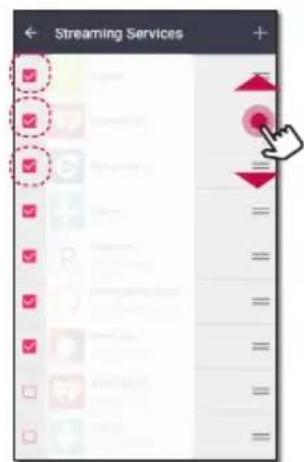
- Select the checkbox of the Online service you want to see on Home.
- Drag upwards or downwards to change the order of the Online service.
- Tap the +dd the online services.
In case of the Android device, you can add the online services among the installed apps in the device. If you select the added app, the app is run during the Bluetooth pairing operation.
In case of the iOS device, when you connect the added app, you should set the Bluetooth connection for yourself.
Note
The displayed Online Streaming Services may vary depending on your region.
Overview of the side menu
- Launch Music Flow Player app on your smart device. The [Home] appears.
- Tap the button.
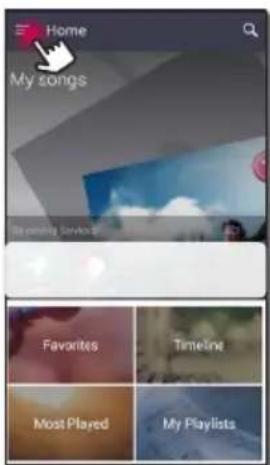
- Side menu appears.

1 Home – Displays the Home menu.
2 My Phone – Displays the songs on this smart device.
3 Music Server – Displays the songs on the connected devices (Media server).
4 Streaming Services – Displays the online services. You can enjoy the online radio and music.
5 Chromecast enabled apps - Displays available apps on Chromecast.
6 Connected Speakers – Displays the connected speaker.
7 Add Speaker – Goes to the speaker installation screen.
8 Settings – Displays the settings menu.
Playing a song
- Launch Music Flow Player app on your smart device. The [Home] appears.
- Tap the button.


- Side menu appears.
Select the [My Phone] on the side menu.

- Select the desired album.

- Select the desired song. Then selected song is displayed and played.


Note
If the speaker is not selected, the selecting speaker pop-up appears. Select a desired speaker.

Managing a playlist
On an album screen, tap the [] of the desired song. The pull down menu appears.

1 Play next – Selects music to play next.
2 Add to queue – Adds to queue list.
3 Add to playlist – Adds to a desired playlist.
Note
Depending on your wireless environment, playing a song with the speaker may not work smoothly.
Overview of Playback
You can confirm and adjust various information on the playback screen.

1 Displays the speaker that music plays through.
Displays current playing music.
Repeats the desired contents. Every time you click it, the state changed in the
2 (Repeat One) - (Repeat All) - (Repeat Off) order.
×Shuffles the music on the list. Music will be played in random order.
Adjusts playback.
Adjusts the volume.
HPauses playback.
- Skips fast backward or forward.
Adjusts the sound effect.
Tap the ,various option appears.
4 Saves the music to the [Favorites]. You can find [Favorites] on [Home] tab
- Adds music to [My Playlist].
Edits the current playlist.
Selects a speaker to play.
Displays music menu.
Note
By using ●you can control volume level of each grouped speakers and change the channel of them to [Surround], [Left] or [Right]. (Page 46)
Selecting Sound effect
This speaker has a number of pre-set surround sound fields. You can select a desired sound mode by tapping [▶]
The displayed items for the equalizer may be different depending on sound sources and effects.
- During playback, tap the [] as below.

- Tap the < or >.

You can select the various sound effects.
| Sound Effect Description | |
| Standard You can enjoy optimized sound. | |
| Music | You can enjoy comfortable and natural sound. |
| Cinema | You can enjoy more immersive and cinematic surround sound. |
| Flat Provides balanced sound. | |
| Boost | Boosts the mid-range for sound reinforcement. |
| Treble / Bass Reinforces the treble and bass. | |
Note
- When you play the songs with smart device's speaker, the sound equalizer is not supported.
- You can also select a desired sound mode by using SOUND EFFECT on the remote control.
- In some of surround modes, some speakers, there's no sound or low sound. It depends on the mode of surround and the source of audio, it is not defective.
- You may need to reset the surround mode, after switching the input, sometimes even after the sound file changed.
Different ways of listening to music
There are a number of differing ways of listening to music: Group, Surround and Seamless playbacks.
Note
If you want to enjoy the group playback and Surround playback, it is recommended that at least one speaker is connected by LAN cable. To change speaker connection setting when all the speaker have been already connected wirelessly, reset all the speaker and connect again after connecting the one speaker of them.
In the wireless connection, the smoothness of playback is subject to the location of installed speaker. Install the speakers at a short distance from the router. To enjoy the smooth group playback or surround playback wirelessly, it is recommended to use the router supporting 802.11n. In this case, set the router's security mode setting to OPEN or AES.

Group Playback
You can group multiple speakers linked to the Music Flow Player app and play the same music through all the connected speakers in the same group.
- Select [Connected Speakers] on the side menu of Music Flow Player app.

- Connected speakers appear. Select the [☐] on the speaker desired song plays through.

- Grouping option appears.
Tap the checkbox to select the speaker you want to play with. Then select [OK].

- The speakers is ready to group playback.


Note
- If the speakers are not grouped, you can enjoy different music on each speaker.
- It is recommended to connect less than 5 devices for the smooth playback.
- The weak signal because of the long distance between speakers or wireless router and signal interference may cause abnormal playback.
- Depending on your wireless environment, the grouping may be broken.
- For smooth group playback, it is recommended to select the speaker connected by LAN cable as a master speaker. If you set the master speaker connected wirelessly, placed closer from the speaker connected wired.
Surround Sound Mode (Home Cinema Mode)
Simply add a LG MUSICflow sound bar to your network and synchronize it with your LG MUSICflow speakers to enjoy a home cinema system experience.
- Select [Connected Speakers] on the side menu of Music Flow Player app.

- Connected speakers appear. Select the [don the speaker.

- Surround environment option appears. Select the left and right speakers by tapping connected speakers. Then select [OK].

- The speakers are ready to surround playback.

Note
- It is recommended to set the surround speakers to same models.
- The weak signal because of the long distance between speakers or wireless router and signal interference may cause abnormal playback.
- Depending on your wireless environment, the grouping may be broken.
- For smooth playback, it is recommended to select the speaker connected by LAN cable as a master speaker. If you set the master speaker connected wirelessly, placed closer from the speaker connected wired.
-
To enjoy the home cinema system without Music Flow Player app, follow the below steps.
-
Plug in the Sound bar
- Connect the sound bar to home network. (Wired or Wireless)
- Plug in the rear speakers.
-
Connect the rear speakers to home network. (Wired or Wireless)
-
Press (Add) button on the sound bar. The sound bar beeps and [HOME CINEMA READY] is scrolled on the display window.
-
Press ☐ (Add) button on the left rear speaker and wait for a few seconds.
-
After the left rear speaker connection, press ⚠️ (Add) button on the right rear speaker.
-
If the home cinema mode configure with retained product, updates the speaker to the latest version.
- Check every speaker's network connection when you cannot set the speakers. If the speakers are not connected to the home network, refer the "Connecting the speaker to your Home Network".
Seamless playback
You can easily change the playing speaker from your smart device or the speaker to the another speaker without pause.
To use Seamless playback, you have to set up Auto Music Play to On. (Page 54)
Note
- It is not supported when you go out of the house with your smart device.
- Wi-Fi function on smart device must be turned on.
- If the source is Portable In and Bluetooth, seamless play is not supported. (Media server and online streaming service are supported).
- In case of the online streaming service, the music you are listening to is played from the beginning.
- On seamless play, each speaker keeps its existing volume value. If no sound coming out from the speaker during playback, check the switched speaker's volume is set to 0.
Changing playing speaker from a smart device to a speaker
![graph TD A["House with person walking"] --> B["Home with laptop and Wi-Fi icons"] B --> C["House with person interacting with devices and wireless signals"]](/content/2026/07/1515589/images/9afdc13e1efe1424d36cc0048dff8985e05bf1230368cbb23790cdb449e4a187.jpg)
- If the smart device playing music is carried from outside to a room where the connected speaker is in, the pop-up window on the smart device will appear to ask you which speaker you want to play music through.
- Select the speaker on the pop-up list, the music you are listening to is played through without a pause.
Setting the Speaker with Music Flow Player app
With Music Flow Player app, you can set the connected speaker in your smart device.
Note
- For more detailed instruction about Music Flow Player app, switch on the [User Guide] in [Settings] > [General] on the side menu.
- Some of the content in this part may differ from Music Flow Player app depending on the application's version.
Preparation
- Check the network connection with the speaker. (Page 22)
- To use the speaker, you must download and install the Music Flow Player app. (Page 20)
Overview of setting menu
- Launch Music Flow Player app on your smart device.
- Select [Settings] on the side menu.

1 General – Sets for easier use of the speaker.
2 Speakers – Sets connected speaker.
3 Alarms/Sleep Timer – Wakes on and off the speaker at a designated time.
4 Account Management – Manages online streaming service.
5 Time zone - Sets time zone.
6 Advanced settings – Displays the Advance settings menu. (Page 53)
7 Chromecast - Displays the Chromecast menu.
8 Version Info. – Updates the speaker to the latest version.
9 Open source licenses – Shows LGE Open Source Software Notice.
[General] Menu
Sets for easier use of the speaker.
Lock Screen Setting (Android only)
This function allows you to display the Music Flow Player on the lock screen. (Lock screen setting is [ON] by default.)
Note
[Lock Screen Setting] may differ from Music Flow Player app depending on the Android's version.
User Guide
This function allows you to display or delete the guide on the menu.
Gesture
When this function is on, you can easily continue playback your music by simply shaking your mobile.
[Speakers] Menu
You can adjust speakers connected to your network.


| 1 | Rename – Renames the speaker. |
| 2 | Speaker LED – Turns on or off speaker's LED indicator. |
| 3 | IP Info. - Shows the IP address of the speaker. |
| 4 | Compressed sound transmission – Adjusts the compression of audio source according to network status. |
| 5 | DRC – Turns on or off DRC function. (Page 58) |
| 6 | Night – Turns on or off Night Mode function. |
| 7 | Auto Volume On/Off – Turns on or off Auto Volume function. (Page 60) |
| 8 | AV Sync – Adjust the audio and video Synchronization. (Page 58) |
| 9 | Woofer level – Adjust Woofer level. (Page 60) |
| 10 | Auto Display On/Off – Turns on or off Auto Display function. |
| 11 | Auto Power On/Off – Turns on or off Auto Power function. (Page 59) |
| 12 | Bluetooth standby mode – Turns on or off Bluetooth standby mode. |
| 13 | Connect SoundBar and TV – Guide you to connect to your TV. (through Optical (Page 14) or HDMI (Page 15)) |
| 14 | Using the TV remote control - Adjusts some functions of this unit with your TV remote control. (Page 58) |
| 15 | Initialize – Resets the speaker. |
| 16 | System version – Displays the current system version. |
| 17 | Share usage data - Select whether to send Chromecast usage data and crash reports to Google. |
| 18 | Learn about Chromecast built-in Privacy - Shows Privacy policy of Chromecast. |
[Alarms/Sleep Timer] Menu
Turns on and off the speaker at a designated time.
Alarms
Speaker will let you know when it is time.

Deletes selected alarm.

Adds new alarm.
Sleep Timer
Sets a time to automatically turn off the speaker.
- Select the speaker to set timer on [Sleep Timer] in the [Alarms/Sleep Timer] menu.

- Set the desired timer on selected speaker.

[Account management] Menu
Manages online streaming service.
[Time Zone] Menu
Automatic Time zone
It offers to use network provided time.
Set Time Zone
If you deselect [Automatic Time zone], you can select your time zone yourself.
[Advanced Settings] Menu
Mesh Network Channel
If normal playback or group playback is not smooth using multiple speakers including wireless speaker connection, changed the mesh network channel to improve network speed.
- Select the [Settings] -> [Advanced Settings] option.

- Select the [Mesh Network Channel] option. The channel information now being used is displayed.

- Select the channel to change.
- The channel information is updated to the selected channel.
Note
- The speaker is disconnected temporarily during the channel changing.
- If you changed the channel when the speaker turned off, turn on and add it again.
- If the speaker is not connected to network after changing the channel, add the speaker again.
Mesh Network direct connection (Android only)
You can directly connect the smart device to speaker connected your home network.
When your smart device is placed in a position where it cannot connect to the home network, select a nearby speaker in the [Mesh Network direct connection] list and then connect the smart device to the speaker.

Auto Music Play
You can easily change the rendering device from your smart device or a speaker to another speaker by approaching your smart device to the desired speaker.
- Your smart device should support bluetooth (BLE).
- This function is subject to the smart device capability and the Wi-Fi network status.
- Auto music play option in the music flow app should be turned on.
-
This function may cause more battery consumption.
-
Turn on the [Auto Music Play] option in the Advanced settings menu on the music flow app.
-
Tag the smart device to LG Music Flow to play for about 1 second.

Sensitivity Settings
Sets the operating distance of Auto Music Play between the speaker and your smart device to adjust sensitivity of Bluetooth(BLE).

- Place your smart device close enough to the tag on the speaker. It is recommend to be within about 5 cm.
- Set the slide bar at [Close], the leftmost position.
- Move the slide to the right slowly until the notification appears.
Note
- The smart device should support low power Bluetooth (BLE).
- BLE support specifications in case of android can vary depending on the manufacturer.
• Supported operation system version
Device O/S
Android Android 4.3 (or later)
Apple iOS 7.1.2 (or later)
[Chromecast] Menu
Learn how to cast
Shows how to use Chromecast.
Chromecast enabled apps
Shows available apps on Chromecast.
Cast Groups
Select [Learn about Cast Groups] or [How to cast to a group] to show the selected information.

Note
To use Cast Groups, install Google Home application. Download the application from Apple "App Store" or Google "Play Store".
Chromecast built-in open legal documents
Select [Google Terms of Service], [Google Privacy Policy] or [Open source licenses] to show the selected information.
[Version Info.] Menu
Updates the speaker to the latest version.
App version info.
Displays the current application's version.
Device version info.
Updates the latest speaker's firmware version.
- Find the speakers need to update and tap the []

- Starts the software update.

[Open source licenses] Menu
Shows LGE Open Source Software Notice.
![Open source licenses LSE Open Source Software Notice Software Type: Android Apps Software Name: Mouse Flow Player (android) Three software identified by the Software Type and Software Name shown from LS Electronics bus. [LSGT] contains the open source software defined below. Please refer to the indi…](/content/2026/07/1515589/images/b4927be51ae8228a9f708b5c3a97f633f336ea129606cd561f09285130474580.jpg)
Using a Bluetooth Wireless Technology
About Bluetooth
Bluetooth ® is wireless communication technology for short range connection.
The sound may be interrupted when the connection interfered by the other electronic wave or you connect the bluetooth in the other rooms.
Connecting individual devices under Bluetooth ® wireless technology does not incur any charges. A mobile phone with Bluetooth ® wireless technology can be operated via the Cascade if the connection was made via Bluetooth ® wireless technology.
Available Devices : Android device, iOS device
Bluetooth profiles
In order to use Bluetooth wireless technology, devices must be able to interpret certain profiles. This speaker is compatible with following profile.
A2DP (Advanced Audio Distribution Profile)
Listening to Music of a Bluetooth Device
Before you start the pairing procedure, make sure that the Bluetooth feature on your smart device is turned on. Refer to your Bluetooth device's user guide. Once a pairing operation is performed, it does not need to be performed again.
- Select the Bluetooth function by using FUNC on the remote control or F on the unit until the function is selected.
Appears "BT" and then "BT READY" in display window.
-
Operate the Bluetooth device and perform the pairing operation. When searching for this speaker on your Bluetooth device, a list of the devices found may appear in the Bluetooth device display depending on the type of Bluetooth device. Your speaker appears as "Music Flow HS6 (XX:XX)".
-
Select the "Music Flow HS6 (XX:XX)".
Note
- XX:XX means the last four digits of address. For example, if your unit has a Bluetooth address such as 9C:02:98:4A:BC, you will see "Music Flow HS6 (XX:XX)" on your Bluetooth device.
- Depending on the Bluetooth device type, some device have a different pairing way. Enter the PIN code (0000) as needed.
- When this unit is successfully connected with your Bluetooth device, "PAIRED" will appear on the display window.
- Listen to music.
To play music in your Bluetooth device, refer to your Bluetooth device's user guide.
According to your Bluetooth device's volume level, the volume level of Bluetooth will be adjusted.
Note
- When using Bluetooth® technology, you have to make a connection between the unit and the bluetooth device as close as possible and keep the distance.
However it may not work well in the case below :
- There is a obstacle between the unit and the bluetooth device.
- There is a device using same frequency with Bluetooth® technology such as a medical equipment, a microwave or a wireless LAN device.
- This unit supports Bluetooth auto pairing. However it does not operate in the case below:
- When you restart this unit.
- When you disconnect this unit by yourself.
-
When you disconnect this unit on the connected Bluetooth device.
-
The sound may be interrupted when the connection is interfered with by the some other electronic wave.
- You cannot control the Bluetooth device with this unit.
- Pairing is limited to "One" Bluetooth® device. Multi-Pairing is not supported.
- Depending on the type of the device, you may not be able to use the Bluetooth function.
- You can enjoy using Bluetooth® when using Phone, MP3, Notebook, etc..
- The more distance between the unit and the bluetooth device, the lower the sound quality becomes.
- The Bluetooth® connection will be disconnected when the unit is turned off or the Bluetooth® device gets too far from the unit.
- If the Bluetooth® connection is disconnected, connect the Bluetooth® device again.
- When a Bluetooth® device is not connected, "BT READY" appears on the display window.
NFC for Easy Pairing (Android Only)
You can connect NFC-enabled android devices to the speaker with Bluetooth function.
- Activate the NFC feature on your NFC-enabled android device.
- Turn on the speaker by using ⏻ on the remote control or ⏻/I on the speaker.
- Tag the back of your NFC-enabled smart device over the mark on the remote control.
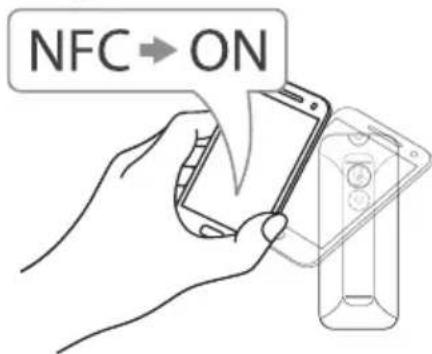
- Select the desired track from your smart device's music list and the track you selected is played.
Note
• NFC feature is not supported with iOS.
- The NFC feature is built into Android devices running Android OS 4.1.2 or later.
- You must activate the NFC feature on your NFC-enabled smart device (Android).
- Depending on the NFC-enabled android device's manufacturers and brands, NFC feature may not work.
- If your NFC-enabled device's screen is locked, it cannot read the NFC.
- If your device's case is plated with chrome, NFC is unavailable. Depending on your case's material or thickness, NFC may not be read well.
- When you are enjoying the music with Music Flow Player app, seamless playback is activated instead of Bluetooth pairing.
Other operations
DRC (Dynamic Range Control)
Make the sound clear when the volume is turned down (Dolby Digital only). Set to [DRC ON] by using DRC.
AV Sync
When receiving audio signals from TV, sound and images may not be matched. In the case, this function can adjust the delay time.
-
Press AV SYNC.
-
Use ◀◀◀/▶▶▶ to control the time which you can set at between 0 and 300 ms.
Using your TV remote control
You can control some functions of this unit by your TV remote control even by other company's product.
Controllable functions are volume up/down and mute.
Press and hold INFO on the remote control for about 3 seconds. "ON - TV REMOTE" appears and you can control this unit by your TV remote control.
To check the status of this function, press and hold INFO.
To turn off this function, press and hold INFO and press it once again while "ON - TV REMOTE" is scrolled.
Note
• Supported TV brands
LG Panasonic Philips Samsung
Sharp Sony Toshiba Vizio
- Make sure that the sound output of your TV is set to [External speaker].
- Depending on the remote control, this function may not work well.
- This function may not work well when some TV control functions such as HDMI CEC, SIMPLINK and LG Sound Sync set to ON.
Turn off the sound temporarily
Press (Mute) to mute your unit.
You can mute your unit, for example, to answer the telephone, "MUTE" is displayed in the display window.
To cancel it, press (Mute) again on the remote control or change the volume level.
Displaying input source information
You can display various information of the input source by pressing INFO.
OPTICAL/HDMI IN/PORTABLE : Audio format, Audio channel
Sleep timer setting
This unit will turn off by itself after the time set.
Press SLEEP one or more times to select delay time between 10 and 180 minutes.
To check the remaining time, press SLEEP.
To cancel the sleep function, press SLEEP repeatedly until "SLEEP 10" appears, and then press SLEEP once again while "SLEEP 10" is displayed.
Note
You can check the remaining time before the unit turns off. Press SLEEP the remaining time appears in the display window.
Auto power down
This unit will turn itself off to save electric consumption when the main unit is not connected to an external device and is not used for 20 minutes.
It will also turn off after six hours if the Main unit is connected to a device using portable input.
AUTO POWER On/Off
This unit automatically turns on and off by an input source : Optical.
When you turn on your TV or an external device connected to this unit, this unit recognizes the input signal and selects the optical function. You can hear the sound from your device.
This function turns on or off each time you press AUTO POWER.
Note
- After the unit is turned on by AUTO POWER function, it will be automatically turned off if there is no signal for a certain period of time from the TV connected by LG Sound Sync (Optical).
- After the unit is turned on by AUTO POWER function, it will be automatically turned off if there is no signal for a certain period of time from the external device.
- If you turned off the unit directly, it cannot be turned on automatically by AUTO POWER function. However the unit can be turned on by AUTO POWER function when optical signal comes in after 5 seconds of no signal.
- Depending on the connected device, this function may not operate.
- If you want to use AUTO POWER, SIMPLINK must be turned off. It takes for about 30 seconds to switch on or off SIMPLINK.
Sound adjustment
Adjust volume level automatically
This unit supports Auto volume function that automatically adjusts the volume level.
When the output sound is too loud or too low, press AUTO VOL on the remote control. So you can enjoy the sound with appropriate levels.
To cancel this function, press the button again while "ON" is displayed.
Adjust the Treble/Bass/Sub- woofer
You can adjust the sound level of Treble, Bass and Subwoofer as your preference.
TREBLE/BASS: -5 dB to 5 dB
SUBWF (Subwoofer) : -20 dB to 6 dB
- Press 🎨 button repeatedly to select TREBLE, BASS or SUBWF (Subwoofer).
- Press vot+/- to adjust the sound level.
Standby mode
The speaker switches to the standby mode if there is no music playback or no button operation.
Standby mode
Option 1.
If network is disconnected and there is no music playback and no button operation for 20 minutes, the speaker switches to the standby mode. Then "GOOD BYE" appears on the display window and the LED indicator on the unit turns red.
Option 2.
If you press and hold ⏻/‖ on the unit or ⏻ on the remote control for about 3 seconds, the speaker switches to the standby mode. Then "GOOD BYE" appears on the display window and the LED indicator on the unit turns red.
Network standby mode
Option 1.
When network is connected but music is not played and buttons are not pressed for 20 minutes, the speaker switches to the network standby mode. Then the LED indicator on the unit becomes dimmed in white.
Option 2.
If you press ⏻/‖ on the unit or ⏻ on the remote control, the speaker switches to the network standby mode. Then the LED indicator on the unit becomes dimmed in white.

Note
On the Network Standby Mode, if you press ⏻/I button, the latest music playlist will be played.
Bluetooth standby mode
If the Bluetooth standby mode is set to ON, the speaker switches Bluetooth standby mode when is turned off.
When you turn on the main unit in the Bluetooth standby mode, Bluetooth and LG TV are able to connect even if network is not connected.

Note
- Adjust volume level of the main unit to minimum. And then, press and hold VOL - and DRC on the remote control for about 3 seconds. The speaker switches Bluetooth standby mode.
- If you turn off the unit in the Wi-Fi function, Bluetooth standby mode does not operate.
- To use this function, you should turn on the AUTO POWER function.
Reset the Speaker
If the speaker is not turned on or doesn't respond, reset the speaker.
Resetting the speaker
- Press and hold the button until you hear the beep sound once. You can see "DISABLED" on the display window. Then all wireless network ports are deactivated and the stored wireless network information is deleted.
- Press and hold the button until you hear the beep sound twice. You can see "RESET1" on the display window. You can reset the speaker to its original factory settings.
Troubleshooting
General
| Symptoms Cause & Solution | |
| The unit does not work properly. | Turn off the power of this unit and the connected external device (TV, Woofer, DVD-player, Amplifier, etc.) and turn it on again.Disconnect the power cord of this unit and the connected external device (TV, Woofer, DVD-player, Amplifier, etc.) and then try connecting again. |
| The power does not turn on. | Is the power cord plugged into the outlet?Connect the power plug to the outlet. |
| Sound is not produced. Is the volume set to minimum?Adjust the volume.When you are using connection with a external device (set top box, Bluetooth device etc.), adjust volume level of the device.Is the mute function activated?Press for adjust the volume level to cancel the mute function.Is the function selected properly?Check the input source and select the correct input source. | |
| No woofer sound Is the subwoofer plugged in?Plug the power cord of subwoofer into the wall outlet securely.Is pairing between the unit and the subwoofer disconnected?Connect the unit and the subwoofer. (Refer to the page 12.) | |
| The remote control does not work properly. | Is the remote control too far from the unit?Operate the remote control within about 7 m.Is there an obstacle in the path of the remote control and the unit?Remove the obstacle.Are the batteries in the remote control exhausted?Replace the batteries with new one. |
| The AUTO POWER function does not work. | Check connection of the external device such as TV, DVD/Blu-Ray player or Bluetooth device.Check the state of SIMPLINK and turn off SIMPLINK.Depending on the connected device, this function may not operate. |
| LG Sound Sync does not work. | Check whether your LG TV supports LG Sound Sync.Check connection of LG Sound Sync.Check sound setting of your TV and this unit. |
| When you feel the output sound of the unit is low. | Check the details below and adjust the unit according to them.Switch [ON] state of DRC function to [OFF] by using remote controller.With the sound bar connected with TV, change the AUDIO DIGITAL OUT setting on TV Setup Menu from [PCM] to [AUTO] or [BITSTREAM].With the sound bar connected with Player, change the AUDIO DIGITAL OUT setting on Player Setup Menu from [PCM] to [PRIMARY PASS-THROUGH] or [BITSTREAM].Change Audio DRC setting on Player setup menu to [OFF] state. |
Network
| Symptoms Cause & Solution | |
| Cannot connect the speaker to your home network. | The wireless communication may be interrupted from household devices that are using radio frequencies. Move the speaker away from them. |
| Media servers are not displayed on the device list. | The firewall or anti-virus software on your media server is running. Turn off the firewall or anti-virus software running on your media server.Make sure that the speaker is connected to the local area network that your media server is connected. |
| Music Flow Player doesn't work properly. | Is the Music Flow Player plugged in?Plug in the Music Flow Player.Is the LAN cable connected to the wireless router and the Music Flow Player properly?Connect the LAN cable to the Ethernet port on the back of the Music FlowPlayer and to your wireless router.When the Music Flow Player is plugged in, does the Music Flow Player's LED show it's operating properly?If you experience troubles with connecting the Music Flow Player, try relocating the speaker closer to the wireless router or the Music Flow Player.If you restart the router?You need to turn the speaker's power off and on again.If you install new router.You need to perform a factory set and setup the network connection for speaker. |
Application and PC Software
| Symptoms Cause & Solution | |
| Music Flow Player app doesn’t work properly. | Does an error occur when accessing the app?Make sure that your smart device is compatible with the app.Make sure that the Music Flow Player app is the latest version.Make sure that the speaker’s front LED turns from red to white. |
| Music Flow PC Software doesn’t work properly. | Does the firewall on your PC or Mac set to enable?Disable all your firewalls and try to connect again. Refer to your firewall’s instruction or website.Is the LAN cable connected to the wireless router and your PC or Mac properly?Ensure that the speaker and your PC or Mac are correctly connected to the local area network and can access the internet.The wireless communication may be interrupted from household devices that are using radio frequencies. Move the speaker and your PC or Mac away from them. |
File requirement
Available File extensions : ".mp3", ".wma", ".flac", ".m4a", ".aac", ".ogg", ".wav"
Sampling frequency: within 32 to 48 kHz (mp3, wma), up to 192 kHz/24 bit (flac)
Bit rate: up to 320 kbps (mp3, wma)
- The file requirements are not always compatible. There may have some restrictions by file features and media server's ability.
- Some way files are not supported on this speaker.
- Depending on the types of file or ways of recording, it may not play back.
- Some DRM-loaded files are not supported on this speaker.
Trademarks and licenses

DOLBY. DIGITAL
Manufactured under license from Dolby Laboratories. Dolby and the double-D symbol are trademarks of Dolby Laboratories.

dts®
Digital Surround
For DTS patents, see http://patents.dts.com. Manufactured under license from DTS Licensing Limited. DTS, the Symbol, & DTS and the Symbol together are registered trademarks, and DTS Digital Surround is a trademark of DTS, Inc. © DTS, Inc. All Rights Reserved.

Bluetooth®
The Bluetooth® word mark and logos are registered trademarks owned by the Bluetooth SIG, Inc. and any use of such marks by LG Electronics is under license.
Other trademarks and trade names are those of their respective owners.

HIGH-DEFINITION MULTIMEDIA INTERFACE
The terms HDMI and HDMI High-Definition Multimedia Interface, and the HDMI logo are trademarks or registered trademarks of HDMI Licensing LLC in the United States and other countries.
Specifications
| General (MUSICFLOWHS6) | ||
| AC adapter requirements | Input 100 - 240 V ~ 50 / 60 Hz | |
| Output 25 V | --- 2 A | |
| Power consumption | 30 W | |
| Networked standby : 5.7 W(If all network ports are activated.) | ||
| Dimensions (W x H x D) (1020 x 42 x 82) mm (with Foot) | ||
| Net Weight (Approx.) 2.0 kg | ||
| Operating temperature 5 °C to 35 °C | ||
| Operating humidity 5 % to 90 % | ||
| Input/Output | |
| OPT. IN 3 V (p-p), Optical jack x 1 | |
| PORTABLE IN 0.5 Vrms (3.5 mm stereo jack) x 1 | |
| HDMI IN 19 Pin (Type A, HDMITM connector) x 1 | |
| HDMI OUT 19 Pin (Type A, HDMITM connector) x 1 | |
| Available Digital Input Audio Sampling Frequency | 32 kHz, 44.1 kHz, 48 kHz, 96 kHz |
| Amplifier | |
| Total 320 W | |
| Front 40 W x 2 (8 Ω at 1 kHz) | |
| Surround 40 W x 2 (8 Ω at 1 kHz) | |
| Subwoofer | 160 W (3 Ω at 80 Hz) |
| THD | 10 % |
| Wireless subwoofer (S65A1-D) | |
| Power requirements | Refer to the main label on the subwoofer. |
| Power consumption | 40 W |
| Type | 1 Way 1 Speaker |
| Impedance | 3 Ω |
| Rated Input Power | 160 W |
| Max. Input Power | 320 W |
| Dimensions (W x H x D) (178 x 378 x 437) mm | |
| Net Weight (Approx.) 9 kg | |
| System | |
| ETHERNET (LAN) port Ethernet jack | x 1, 10 BASE-T/100 BASE-TX |
| Wireless LAN (Internal antenna) | Integrated IEEE 802.11n (Draft 2.0) wireless networking access, compatible with 802.11a/b/g/n Wi-Fi networks. |
| Bluetooth | |
| Version 4.0 | |
| Codec SBC | |
- Designs and specifications are subject to change without prior notice.
Handling the Speaker
When shipping the speaker
Please save the original shipping carton and packing materials. If you need to ship the speaker, for maximum protection, re-pack the speaker as it was originally packed at the factory.
Keeping the exterior surfaces clean
- Do not use volatile liquids such as insecticide spray near the speaker.
- Wiping with strong pressure may damage the surface.
- Do not leave rubber or plastic products in contact with the speaker for a long period of time.
Cleaning the speaker
To clean the player, use a soft, dry cloth. If the surfaces are extremely dirty, use a soft cloth lightly moistened with a mild detergent solution. Do not use strong solvents such as alcohol, benzine, or thinner, as these might damage the surface of the speaker.
Important Information Relating to Network Services
All information, data, documents, communications, downloads, files, text, images, photographs, graphics, videos, webcasts, publications, tools, resources, software, code, programs, applets, widgets, applications, products and other content ("Content") and all services and offerings ("Services") provided or made available by or through any third party (each a "Service Provider") is the sole responsibility of the Service Provider from whom it originated.
The availability of and access to Content and Services furnished by the Service Provider through the LGE Device are subject to change at any time, without prior notice, including, but not limited to the suspension, removal or cessation of all or any part of the Content or Services.
Should you have any inquiry or problem related to the Content or Services, you may refer to the Service Provider's website for the most up-to-date information. LGE is neither responsible nor liable for customer service related to the Content and Services. Any question or request for service relating to the Content or Services should be made directly to the respective Content and Service Providers.
Please note that LGE is not responsible for any Content or Services provided by the Service Provider or any changes to, removal of, or cessation of such Content or Services and does not warrant or guaranty the availability of or access to such Content or Services.
TERMS OF USE
These Terms of Use apply to those individuals and groups who use LG's Multiroom Speaker (LG Mutiroom Speaker), any software(s) associated with LG Multiroom Speaker, this application and any services associated this application (collectively "LG Software"). They set out LGE's responsibilities to you as well as identifying the "dos" and "don'ts" that you should be aware of when you use the LG Software. LG Software is proprietary software owned by LG Electronics Inc., a corporation registered in Korea with its registered office at Yeouido-dong 20, Yeoungdeungpo-gu, Seoul, Korea. LGE, and its licensors ("LGE", "us" or "we").
By accessing or using LG Software, you confirm that you accept these Terms of Use and that you agree to comply with them. If you do not agree to these Terms of Use, you may not access or use the LG Software. To the extent that any conflict arises between these Terms of Use and any other document referred to in these Terms of Use, these Terms of Use will take precedence, unless clearly stated otherwise in the relevant document.
We grant you a non-exclusive license to use the pre-installed copy of LG Software solely to the extent necessary for you to use your LG Multiroom Speaker personally and for no other purpose.
You acknowledge that all ownership rights in LG Software anywhere in the world belong exclusively to us and that no ownership rights in LG Software are transferred to you. You are only entitled to the limited use of LG Software as is granted in these license terms.
You may not copy, modify, decompile or reverse engineer our software in any way unless you are allowed to do so by law. We reserve the right to suspend, withdraw or discontinue all or part of the Services without notice if we consider that you are in breach of these Terms of Use.
You acknowledge that LG Software has not been developed to meet your individual requirements. We make no promises or guarantees that LG Software is free from bugs or errors or that it will always be available. We use commercially reasonable efforts to provide LG Software on a continuous, high quality basis but cannot guarantee that they will always be available, uninterrupted or error free. It is possible that we may have to interrupt or discontinue the LG Software or suspend or restrict your use of all or any part of the Services where we consider it reasonably necessary for technical, operational, security, legal or regulatory reasons.
We do not accept any responsibility if for any reason the Services or any part of them are unavailable at any time or for any period.
Although you may use LG Software to download and access content or applications made available by third parties on your LG Software, we make no promises or guarantees that you will always be able to access such content or applications. So far as we are legally able to do so, we exclude any warranties, conditions or other terms which may be implied into these license terms by law.
So far as we are legally able to do so, we exclude any liability for any loss or damage incurred by you or any other person in connection with your use of LG Software. We are only responsible for loss or damage suffered that is a foreseeable result of our breach of these license terms or our negligence up to the amount specified below, but we are not responsible for any loss or damage that is not foreseeable. Loss or damage is foreseeable if it is an obvious consequence of our breach or if it was contemplated by you and us when you starting using LG Software.
For any loss or damage that is not excluded under these license terms, whether in contract, tort (including negligence) or otherwise, the total liability of us and our group of companies to you is limited to the amount that you paid for your LG Software service. To the extent permissible under the applicable laws, some jurisdictions do not allow the limitation or exclusion of liability for incidental or consequential damages, or have legislation that restricts the limitation or exclusion of liability, so the above limitation may not apply to you.
Nothing is these license terms shall limit or exclude our liability for death or personal injury relating from our negligence, fraud or fraudulent misrepresentation or any other liability that cannot be excluded or limited by law.
LG Software provides access to "apps" and link to other services owned and operated by third parties, such as content providers. Any third party apps, services and content that you access via the Services are made available to you by these third party providers and are outside the scope of these Terms of Use.
Your dealings with any third party providers are solely between you and the relevant provider and
may be subject to the provider's own terms and conditions and privacy policy. We encourage you to read these documents, although we are not responsible for their content. We do not accept any responsibility for apps, services or content provided by third party providers.
We may impose limits on the use of or access to certain third party content, application or services, in any case without notice or liability. We expressly disclaims any responsibility or liability for any change, interruption, disabling, removal of or suspension of any content, application or service made available through this LG Software. We are neither responsible nor liable for customer service related to the content, application and services.
Any question or request for service relating to third party's content, application or services should be made directly to the respective content and service providers or application developers, as appropriate.
These terms do not affect your statutory rights as a consumer.
Suitability of the Services for children and parental control tools
Modify this accordingly to suit if appropriate: The Services are not directed at children under the age of 13 and are not structured specifically to attract children under 13. Further, certain content that you may access through your use of the Services may contain material that you consider indecent, objectionable or which may not be suitable for children.
If you permit a child to use your LG Smart TV to access the Services, you are solely responsible for deciding whether or not the relevant Services are appropriate for access by that child.
[Your Smart TV offers a parental control tool (by way of a 4 digit PIN). If you have enabled the 4-digit PIN, your LG Smart TV will not be able to display restricted content unless you type in the PIN. You are responsible for setting up and maintaining the parental control tool and any other controls that are available, and we will not be responsible for any harm, loss or damage you suffer or any other user of your LG Smart TV suffers as a result of your failure to do so. Depending on the models of your LG Smart TV, these features may not be available.
Viruses and Security
Modify this accordingly to suit if appropriate: We use commercially reasonable efforts to ensure that the Services are secure and virus free, but those efforts cannot and do not guarantee that the Services will be free from bugs, viruses, or other vulnerabilities.
Further, we do not accept responsibility for any loss or damage caused by a virus, distributed denial-of-service attack, or other technologically harmful material that may infect your LG Smart TV, data or other material belonging to you, during your use of the Services.
Modify as you think appropriate: Complaints
If you have any queries, concerns or complaints about the Services, please contact [include reference to non-personal LG email address].
Modify as you think appropriate: Miscellaneous
Unless expressly stated otherwise, these Terms of Use and the documents referred to in them contain the entire agreement between us and you relating to your use of the Services and supersede any previous agreements, arrangements, undertakings or proposals, written or oral, between us and you relating to your use of the Services.
We may assign, sub-contract or otherwise transfer any or all of our rights and obligations under these Terms of Use to any company, firm or person. We can only do this if it does not materially affect your rights under these Terms of Use. You may not assign, sub-contract or otherwise transfer your rights or obligations under these Terms to anyone else (except where you dispose of your LG Smart TV to a third party) unless you first agree this with us in writing.
If we decide not to exercise or enforce any right that we have against you at a particular time, then this does not prevent us from later deciding to exercise or enforce that right.
If any part of these Terms of Use is found to be illegal, invalid or otherwise unenforceable by a court or regulator, then, where required, that part shall be deleted and the remaining parts of the Terms of Use will continue to be enforceable.
These Terms of Use do not create or infer any rights that are enforceable by any person who is not party to them.
These Terms of Use are governed by the laws of the country where your LG Smart TV is sold and both you and LGE agree to submit to the exclusive jurisdiction of the courts of the country where your LG Smart TV is sold in connection with the same
This Agreement shall be governed by the laws of the Republic of Korea, excluding their conflicts of laws provisions.
If you have any questions or comments about these Terms of Use please contact www.lg.com.
These Terms of Use may be updated by LGE from time to time. If we make a material change to our Terms of Use, we will update you via your LG Software or other means.
OPEN SOURCE SOFTWARE NOTICE INFORMATION
To obtain the source code under GPL, LGPL, MPL, and other open source licenses, that is contained in this product, please visit http://opensource.lge.com.
In addition to the source code, all referred license terms, warranty disclaimers and copyright notices are available for download.
LG Electronics will also provide open source code to you on CD-ROM for a charge covering the cost of performing such distribution (such as the cost of media, shipping and handling) upon email request to opensource@lge.com. This offer is valid for three (3) years from the date on which you purchased the product.

LG
Life's Good
- WIRELESS MULTI-ROOM SOUND BAR
- SAFETY INFORMATION
- CAUTION
- RISK OF ELECTRIC SHOCK DO NOT OPEN
- FOR MODELS USING AN ADAPTER
- CAUTION CONCERNING THE POWER CORD
- TABLE OF CONTENTS
- GETTING STARTED
- CONNECTING
- OPERATING
- TROUBLESHOOTING
- APPENDIX
- MAIN FEATURES
- MADE FOR IPOD/IPHONE/IPAD OR ANDROID DEVICE
- LG SOUND SYNC
- PORTABLE IN
- MUSIC FLOW PLAYER APPLICATION
- INTRODUCTION
- SYMBOL USED IN THIS MANUAL
- ACCESSORIES
- LG TAG ON STICKER
- FRONT PANEL
- REAR PANEL
- REMOTE CONTROL
- REPLACEMENT OF BATTERY
- NOTE
- INSTALLING THE SOUND BAR
- MOUNTING THE MAIN UNIT ON A WALL
- PREPARATION MATERIALS
- CONNECTING THE AC ADAPTER
- WIRELESS SUBWOOFER CONNECTION
- SETTING UP THE WIRELESS SUBWOOFER FOR THE FIRST TIME
- MANUALLY PAIRING WIRELESS SUBWOOFER
- CONNECTING TO YOUR TV
- USING AN OPTICAL CABLE
- SOUND SYNC
- WITH WIRED CONNECTION
- USING AN HDMI CABLE
- HDMI CABLE CHECKLIST
- ENJOY RICH SOUND BROADCAST OF THE CHANNEL WITH THE SOUND BAR
- CONNECTION THROUGH HDMI CABLE
- WHAT IS SIMPLINK
- ARC (AUDIO RETURN CHANNEL) FUNCTION
- ADDITIONAL INFORMATION FOR HDMI
- OPTIONAL EQUIPMENT CONNECTION
- HDMI CONNECTION
- FOR ENJOYING SOUND ONLY
- FOR ENJOYING BOTH SOUND AND PICTURE
- PORT. (PORTABLE) IN CONNECTION
- LISTENING TO MUSIC FROM YOUR PORTABLE PLAYER
- OPTICAL IN CONNECTION
- INITIAL MULTI-ROOM SETUP
- WIRED CONNECTION (MUSICFLOW MESH NETWORK CONNECTION)
- WIRELESS CONNECTION (STANDARD WIRELESS CONNECTION)
- INSTALLING "MUSIC FLOW PLAYER" APP
- THROUGH APPLE "APP STORE" OR GOOGLE "PLAY STORE
- THROUGH QR CODE
- STARTING WITH MUSIC FLOW PLAYER APP
- CONNECTING THE SPEAKER TO YOUR HOME NETWORK
- PREPARATION
- REQUIREMENTS
- SIMPLE CONNECTION (EZ SETUP)
- CONNECTING THE SPEAKER TO YOUR NETWORK WITH A LAN CABLE
- (IF THERE IS AN UPDATE)
- CONNECTING THE SPEAKER TO YOUR NETWORK VIA THE WI-FI SETUP METHOD (ANDROID)
- CONNECTING THE SPEAKER TO YOUR NETWORK VIA THE WI-FI SETUP METHOD (IOS)
- NOTES ON NETWORK CONNECTION
- CONNECTING THE SPEAKERS TO YOUR HOME NETWORK (ADDITIONAL)
- CONNECTING THE ADDITIONAL SPEAKER TO YOUR NETWORK WITH A LAN CABLE
- CONNECTING THE ADDITIONAL SPEAKER TO YOUR NETWORK VIA THE WI-FI SETUP METHOD
- USING THE BRIDGE
- USE AS A ROOT DEVICE (WIRED TO THE HOME ROUTER)
- IF THERE IS NO SPEAKER WITH WIRED CONNECTION TO THE ROUTER
- USE AS A WIRELESS EXTENDER
- IF THERE IS AT LEAST ONE SPEAKER WITH WIRED CONNECTION TO THE ROUTER
- USING MEDIA SERVER FOR PC
- MUSIC FLOW PC SOFTWARE FOR WINDOWS
- ABOUT MUSIC FLOW PC SOFTWARE
- DOWNLOADING MUSIC FLOW PC SOFTWARE
- INSTALLING MUSIC FLOW PC SOFTWARE
- SYSTEM REQUIREMENTS (WINDOWS PC)
- SHARING MUSIC FILES
- NERO MEDIAHOME 4 ESSENTIALS FOR MAC OS
- ABOUT NERO MEDIAHOME ESSENTIALS
- DOWNLOADING NERO MEDIAHOME ESSENTIALS
- INSTALLING NERO MEDIAHOME ESSENTIALS
- SYSTEM REQUIREMENTS (MACINTOSH)
- ENJOYING THE MUSIC WITH MUSIC FLOW PLAYER APP
- OVERVIEW OF HOME MENU
- EDIT THE ONLINE STREAMING SERVICE LIST
- OVERVIEW OF THE SIDE MENU
- PLAYING A SONG
- MANAGING A PLAYLIST
- OVERVIEW OF PLAYBACK
- SELECTING SOUND EFFECT
- DIFFERENT WAYS OF LISTENING TO MUSIC
- GROUP PLAYBACK
- SURROUND SOUND MODE (HOME CINEMA MODE)
- SEAMLESS PLAYBACK
- CHANGING PLAYING SPEAKER FROM A SMART DEVICE TO A SPEAKER
- SETTING THE SPEAKER WITH MUSIC FLOW PLAYER APP
- OVERVIEW OF SETTING MENU
- [GENERAL] MENU
- LOCK SCREEN SETTING (ANDROID ONLY)
- USER GUIDE
- GESTURE
- [SPEAKERS] MENU
- [ALARMS/SLEEP TIMER] MENU
- ALARMS
- SLEEP TIMER
- [ACCOUNT MANAGEMENT] MENU
- [TIME ZONE] MENU
- AUTOMATIC TIME ZONE
- SET TIME ZONE
- [ADVANCED SETTINGS] MENU
- MESH NETWORK CHANNEL
- MESH NETWORK DIRECT CONNECTION (ANDROID ONLY)
- AUTO MUSIC PLAY
- SENSITIVITY SETTINGS
- DEVICE O/S
- [CHROMECAST] MENU
- LEARN HOW TO CAST
- CHROMECAST ENABLED APPS
- CAST GROUPS
- CHROMECAST BUILT-IN OPEN LEGAL DOCUMENTS
- [VERSION INFO.] MENU
- APP VERSION INFO
- DEVICE VERSION INFO
- [OPEN SOURCE LICENSES] MENU
- USING A BLUETOOTH WIRELESS TECHNOLOGY
- ABOUT BLUETOOTH
- BLUETOOTH PROFILES
- LISTENING TO MUSIC OF A BLUETOOTH DEVICE
- NFC FOR EASY PAIRING (ANDROID ONLY)
- OTHER OPERATIONS
- DRC (DYNAMIC RANGE CONTROL)
- AV SYNC
- USING YOUR TV REMOTE CONTROL
- TURN OFF THE SOUND TEMPORARILY
- DISPLAYING INPUT SOURCE INFORMATION
- SLEEP TIMER SETTING
- AUTO POWER DOWN
- AUTO POWER ON/OFF
- SOUND ADJUSTMENT
- ADJUST VOLUME LEVEL AUTOMATICALLY
- ADJUST THE TREBLE/BASS/SUB- WOOFER
- STANDBY MODE
- OPTION
- NETWORK STANDBY MODE
- BLUETOOTH STANDBY MODE
- RESET THE SPEAKER
- RESETTING THE SPEAKER
- FILE REQUIREMENT
- TRADEMARKS AND LICENSES
- DOLBY. DIGITAL
- DTS®
- DIGITAL SURROUND
- BLUETOOTH®
- HANDLING THE SPEAKER
- WHEN SHIPPING THE SPEAKER
- KEEPING THE EXTERIOR SURFACES CLEAN
- CLEANING THE SPEAKER
- IMPORTANT INFORMATION RELATING TO NETWORK SERVICES
- TERMS OF USE
- OPEN SOURCE SOFTWARE NOTICE INFORMATION
Brand : LG
Model : LAS851M
Category : Soundbar