
DS - Video game console NINTENDO - Free user manual and instructions
Find the device manual for free DS NINTENDO in PDF.


| Product type | Portable video game console |
| Brand | Nintendo |
| Model | DS |
| Dimensions (L x W x H) | 148.7 x 84.7 x 28.9 mm |
| Weight | Approximately 275 g |
| Power supply | Rechargeable lithium-ion battery, AC adapter |
| Screens | Two LCD screens: upper screen (3 inches) and lower touch screen |
| Wireless connectivity | Built-in Wi-Fi (IEEE 802.11) and local wireless communication (range up to 20 m) |
| Main functions | Video games, PictoChat (wireless messaging and drawing), DS and GBA card playback |
| Built-in software | PictoChat (no DS card required) |
| Maintenance and cleaning | Wipe with a soft, dry cloth; do not use solvents |
| Safety | Do not share personal information in PictoChat; parental supervision recommended |
| Spare parts and repairability | Stylus and battery replaceable; repair by authorized center |
| General information | User manual available for download; Nintendo customer service |
Frequently Asked Questions - DS NINTENDO
User questions about DS NINTENDO
0 question about this device. Answer the ones you know or ask your own.
Ask a new question about this device
Download the instructions for your Video game console in PDF format for free! Find your manual DS - NINTENDO and take your electronic device back in hand. On this page are published all the documents necessary for the use of your device. DS by NINTENDO.
USER MANUAL DS NINTENDO
NEED HELP WITH INSTALLATION
MAINTENANCE OR SERVICE?
NINTENDOCUSTOMER SERVICE:WWW.NINTENDO.COM
or call 1-800-255-3700, MON.-SUN., 6:00 a.m. to 7:00 p.m.
Pacific Time (Times subject to change)
TTY Hearing Impaired: 800-422-4281
BESOINDAIDE AVEC INSTALLATION, HENTETDIALE OUEL SERVICE 3
SERVICE à LA CLIENTÉLE DE NINTENDO: www.nintendocag
Nintendo of America Inc.
P.O.Box 957,Redmond,WA 98073-0957 U.S.A.
PicoChat is not an internet application. However, when using PicoChat, you can communicate with up to 15 other Nintendo DS users within range of your DS (approximately 65 feet). Such users will be able to see your nickname and messages. To protect your privacy, do not give out personal information such as last name, phone number, age, e-mail or home address when communicating with others.
An adult should assist children with system setup (page 10, DS Instruction booklet) and instruct them not to use personal information. Children should be warned about communicating with or meeting strangers.
During system setup, whatever date you choose to enter as your month/day of birth (year is not asked for), an "It's your birthday" message will be communicated in the chat room on that date.
For more information, visit our web site at
http://www.nintendo.com/consumer/dsprivacy.
Wireless Communication Guidelines

For more detailed instructions on wireless
communication, reInstruction booklet
- Begin with the distance between systems at about 30 feet (10 meters) or less and move closer or farther apart as desired, keeping the signal strength at two or more bars for best results.
- Keep the maximum distance between systems at 65 feet (20 meters) or less.
- The systems should face each other as directly as possible.
- Avoid having people or other obstructions between the DS systems.
- Avoid interference from other devices. If communication seems to be affected by other devices (wireless LAN, microwave ovens, cordless devices, computers), move to another location or turn off the interfering device.
1
2
What's PicoChat?
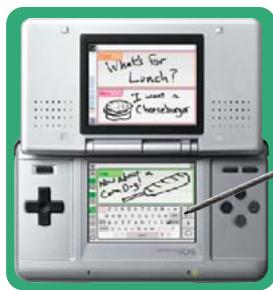
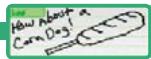
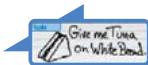
PictoChat allows you to send and receive wireless messages and
drawings easily, to and from up to 15 other DS users.
It is built into the Nintendo DS system, so all you have to do is turn
the power ON, and you're ready to go!
PICTOCHAT
Up to 16 participants!
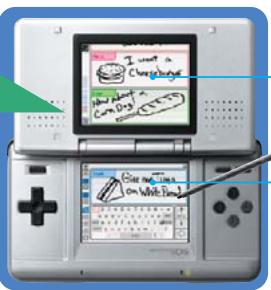
Upper Screen
Displays everyone's
messages.
Touch Screen
Use the stylus to write your
message here
4
Starting PictoChat!
PICTOCHAT
Turn the power on
Turn the system on by pressing the POWER Button.
Select PicoChat
The DS Menu Screen will appear.
Touch the PicoChat panel
- When you turn the system power ON for the first time, you will be asked to select a screen language and then go through a System Setup process. For more details, refer to the Nintendo DS Instruction Booklet, "System Setup."
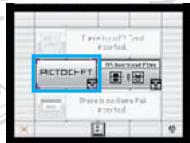
DS Menu Screen
Select a Chai Room
The Chat Room Selection Screen will appear. Touch the Chat Room that you wish to join.
Depending on your environment, you may experience difficulty in entering a Chat Room. In such a case, select a different Chat Room.
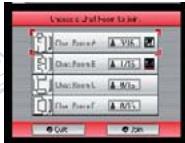
Chat Room Selection Screen
Ready!
The PicoChat Screen will appear.
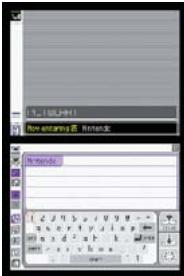
PictoChat Screen
6
Using PictoChat
PictoChat is controlled mainly with the stylus. Refer to the following diagram to start sending messages and drawings!
PICTOCHAT
For more detailed instructions on using Pitchchat, refer to the Nintendo DS.
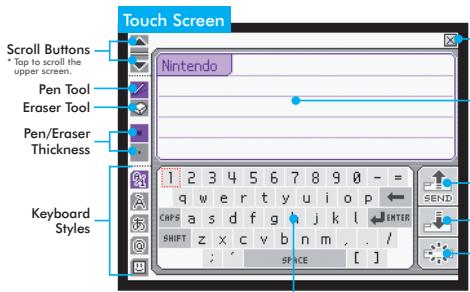
Exit Button
Touch to leave the Chat Room.
Drawing Area
Use the stylus to write or draw your message here.
Send Button
Touch to send your message or drawing.
Copy Button
Touch to copy the last message or drawing from the upper screen to your Drawing Area. You can make changes to the copied message or drawing.
Clear Button
Touch to erase everything on your Drawing Area.
Keyboard
Touch the keys to type text messages easily, or you can touch a letter with the stylus and drag it into the drawing area.
7
Invent Your Own Game! - 2 to 16 Players
It's up to you to come up with ways to play with PictoChat. Try inventing new games! Here are some examples.
Finish the Picture
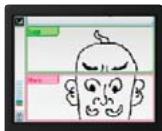
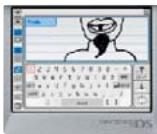
Add the next piece to the collaborative art project.
Copy'n'Morph
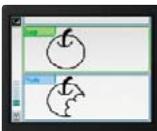
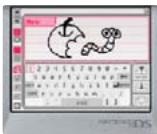
Copy and make changes to someone else's drawing.
Single Player
PICTOCHAT
Flip Books
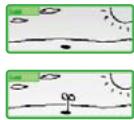
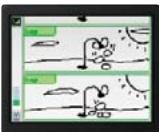
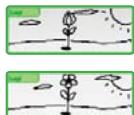
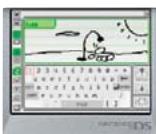
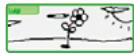
Make your own flip book animation!
Draw a picture, then touch the Send Button. Touch the Copy Button to copy that picture, make some changes, then touch the Send Button again. (Repeat)

Press the R Button to go back to show the very first picture on the upper screen.

Watch the animation by pressing the R Button while holding down the L Button.
10
Information concerning la confidentialité
Directives concerning la communication sans fil
- Wireless Communication Guidelines
- What's PicoChat?
- PICTOCHAT
- Starting PictoChat!
- Turn the power on
- Select PicoChat
- Select a Chai Room
- Ready!
- Using PictoChat
- Exit Button
- Drawing Area
- Send Button
- Copy Button
- Clear Button
- Keyboard
- Invent Your Own Game! - 2 to 16 Players
- Finish the Picture
- Copy'n'Morph
- Single Player
- Flip Books
- Information concerning la confidentialité
- Directives concerning la communication sans fil
Brand : NINTENDO
Model : DS
Category : Video game console