
WV-U2130L - Surveillance Camera PANASONIC - Free user manual and instructions
Find the device manual for free WV-U2130L PANASONIC in PDF.
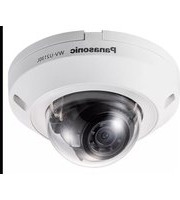


| Product Type | Security Camera |
| Brand | Panasonic |
| Model | WV-U2130L |
| Dimensions (approx.) | 120 mm x 80 mm x 70 mm |
| Weight (approx.) | 500 g |
| Power Supply | PoE (IEEE 802.3af) or 12V DC |
| Resolution | 4K (3840 x 2160) @ 15 fps |
| Night Vision | Up to 30 m with IR LEDs |
| Weather Resistance | IP66 rated |
| Field of View | Horizontal 100°, Vertical 55° |
| Compression | H.265, H.264 |
| Audio | Built-in microphone, audio output |
| Storage | MicroSD slot, NVR support |
| Network Interface | 10/100 Mbps Ethernet |
| Protocols | IPv4, IPv6, TCP/IP, UDP, HTTP, HTTPS, RTSP |
| Operating Temperature | -10°C to 50°C |
| Mounting | Wall or ceiling mount (bracket included) |
| Warranty | 3 years |
| Maintenance | Clean lens with dry cloth; check connections periodically |
| Safety | Use certified PoE injector; avoid exposure to extreme conditions |
| Spare Parts | Mounting kit, power adapter (optional) |
| Repairability | Refer to Panasonic service center; user replaceable SD card |
| Included Accessories | Mounting screws, template, quick guide |
| Compliance | CE, FCC |
Frequently Asked Questions - WV-U2130L PANASONIC
User questions about WV-U2130L PANASONIC
0 question about this device. Answer the ones you know or ask your own.
Ask a new question about this device
Download the instructions for your Surveillance Camera in PDF format for free! Find your manual WV-U2130L - PANASONIC and take your electronic device back in hand. On this page are published all the documents necessary for the use of your device. WV-U2130L by PANASONIC.
USER MANUAL WV-U2130L PANASONIC
Panasonic Visio Shape User Guide
Explain how to use the Shapes of Panasonic Network camera for Microsoft Visio standard 2016
Ver.2.1
Dec.2016
Contents
- Functions
- File of Shape
- Setting Visio(in Microsoft office Visio standard 2016)
- Using shape
- Setting and Information of Shape
- Report function
- Revision History
1. File of shape
Panasonic Visio shape file contains below 3 files.
Panasonic NW camera Shapes (Metric).vss (Ver.2.1 or later) Shape for Panasonic Network Cameras
Panasonic_NWcamera_VISIO_manual.pdf How to use the Shapes of Panasonic NWcamera User guide
Panasonic_Shape_Supported_Products.pdf Reference of Visio shape supported Cameras
2. Setting Visio (in Microsoft office Visio standard 2016)
1) Execute [Microsoft Visio].
2) Select [File] tab.

3) Select the [New] and create a new drawing by [Blank Drawing].

4) Checkingthe [Metric Units] and pressthe [Create]button.

5) For setting the drawing scale, select the [Design] tab and open the [Page Setup] dialog.

6) Select the [Drawing Scale] tab and set (1:100) in [Pre-defined scale].
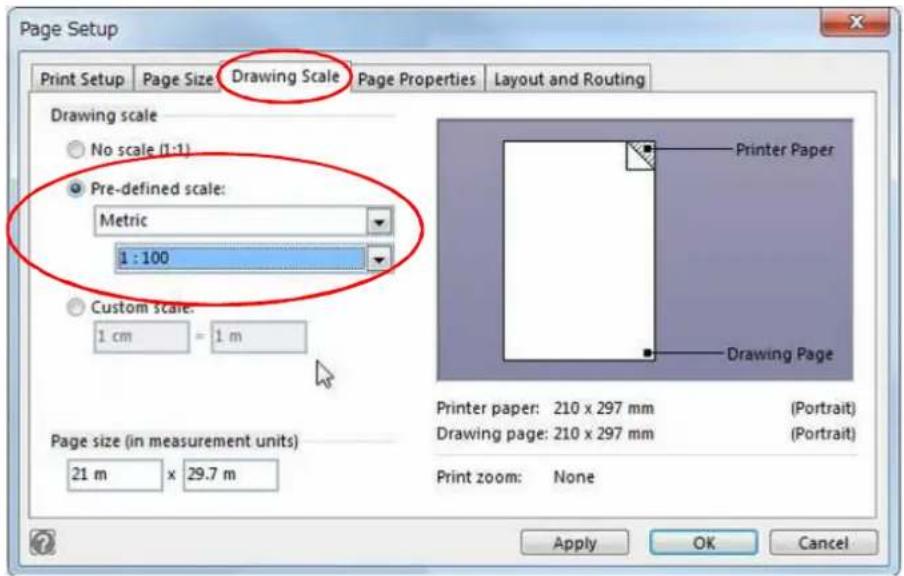
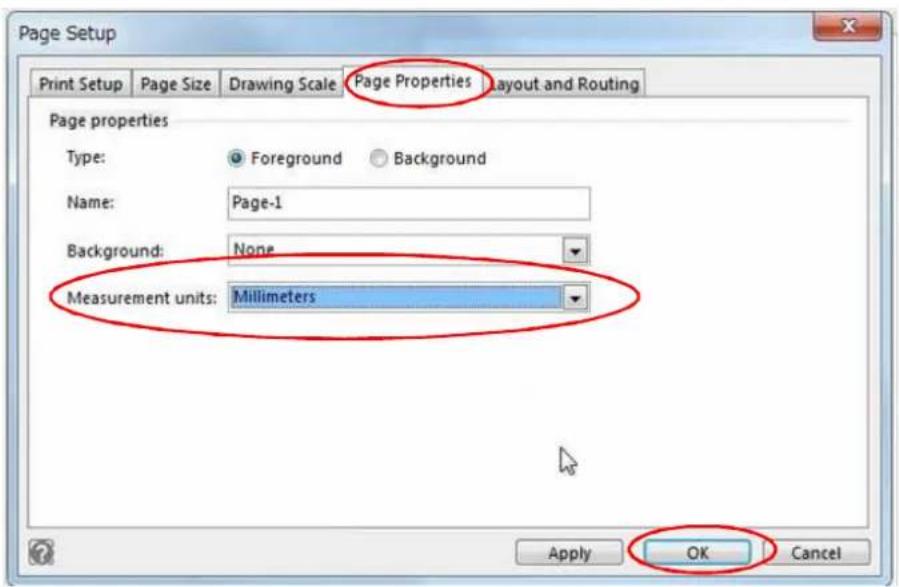
7) Select the [Page Properties] tab and set (Millimeters) in [Measurement units].
And pressthe [OK] button at the end.
3. Using shape
1) Press the [More Shapes] and select the [Open Stencil] on pulldown menu screen.
Show the window of [Open Stencil], and open the [Stencil file: Panasonic NW camera Shapes(Metric).vss].

2) Displayed Microsoft Visio Security Notice.
Select [Enable Macros]

3) Shape group is shown on the left of the main screen.

4) Drag a shape from [Shapes], and drop it onto [Page].

4. Setting and Information of Shape
It displays text and other information of each shape on [Page].
Text Information
Display detail information of shape on [Page].
- Moving text information
When you select the shape, there is a yellow handle for rearrangement of text information. You can drag a yellow handle to move the position of text information.

Camera Name = WV-SFN531
Distance = 7486.8271mm
Aspect Raito = 16.9
The biggest resolution = 1920
Horizon angle of view = 104.10deg
Camera symbol scale = 500%
- Hiding/Showing Text information
Click the mouse right button, checking [Show Text]item makes showing text and uncheckingmakes hiding text.

Camera Name = WV-SFN531
Distance = 7486.8271mm
Aspect Raito = 16:9
The biggest resolution = 1920
Horizon angle of view = 104.10deg
Camera symbol scale = 500%
Show Text
Show FoV Visualization
Edit Shape Data
Show ShapeSheet
Cut
Copy
Paste
Group
Container
Hyperlink...
Add Comment
A Edit Text
Data
Format Shape
FoV Area
Camera shape which is on [Page] has a FoV [Field of View] areas red color. The Fov area depends on lens and camera settings, so you can estimate the FoV area with this feature.
- Hiding/Showing FoV area
Click the mouse right button, checking [Show Fov Visualization] item makes showing FoV area and unchecking makes hiding FoV.

Camera Name = WV-SFN531
Distance = 7486.8271mm
Aspect Raito = 16:9
The biggest resolution = 1920
Horizon angle of view = 104.10deg
Camera symbol scale = 500%
Showing Fov

Camera Name = WV-SFN531
Distance = 7486.8271mm
Aspect Raito = 16:9
The biggest resolution = 1920
Horizon angle of view = 104.10deg
Camera symbol scale = 500%
Hiding Fov

- Hiding/Showing PTZ coveragearea
In PTZ camera shape, Click the mouse right button, checking [Show PTZ Coverage] item makes showing PTZ coverage area and unchecking makes hiding PTZ coverage area.
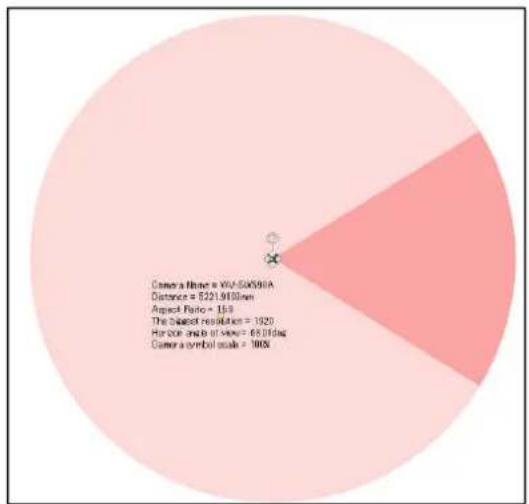
Showing PTZ Coverage area


Hiding PTZ Coverage area
- Setting Shape Data
You can adjust the data of shape. The text information and FoV area of shape is applied as modified shape data.
Click the mouse right button and select [Edit Shape data] item, it shows a [Shape Data] dialog. Edit the each option and click [OK] button.
Changeable Shape data list:
Camera aspect ratio: You can choose camera aspect ratio 16:9 or 4:3.
Lens focal length: In Indoor Box camera, you can set the lens focal length[mm].
Horizontal angle of view: You can check angle of view in the Horizontal angle.
Installed height : In 360-degree camera ,you can set installed height .
Camera symbol scale: You can change camera symbol scale in drawing area.
Color : You can change FoV area's color(red, blue, green, orange)
Purpose of use: When you choose to use purpose, you can check the angle of view.
The following shows the purpose of use list.
: Human: Recognize someone - approx.100ppm/30ppf
: Human: Recognize only known person- approx.150ppm/50ppf
: Human: Recognize - approx.300ppm/100ppf
: Human: Identify an individual face by system- approx.630ppm/210ppf
: Number plate: Recognize by eye - approx.150ppm/50ppf
: ANPR/LPR - approx.240ppm/80ppf
: Bill: Recognize by eye- approx.400ppm/130ppf
The following shows the each camera type of shape data dialog.(Red under lines)
: Indoor Box Camera

: Outdoor Box Camera

: Dome Camera

: 360-degree camera

: PTZcamera

5. Report function
The model name and number of cameras that have been placed in the drawing page of Visio, and can be output to the report.
5.1 Basic operation
1) Report shapes are located at the bottom of the shapes display.
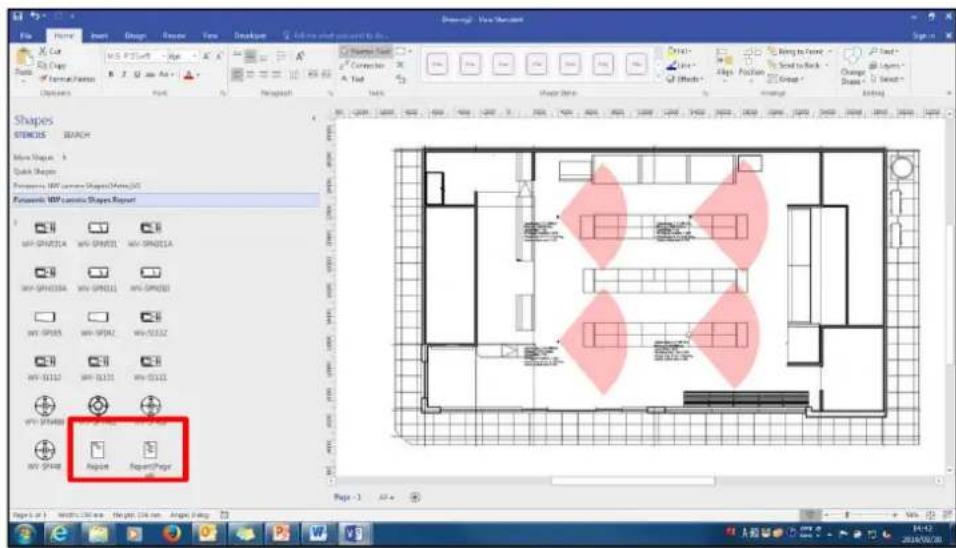
2) Drag and drop the Report shape onto the drawing page.
The report is displayed. (The model name and number of cameras)
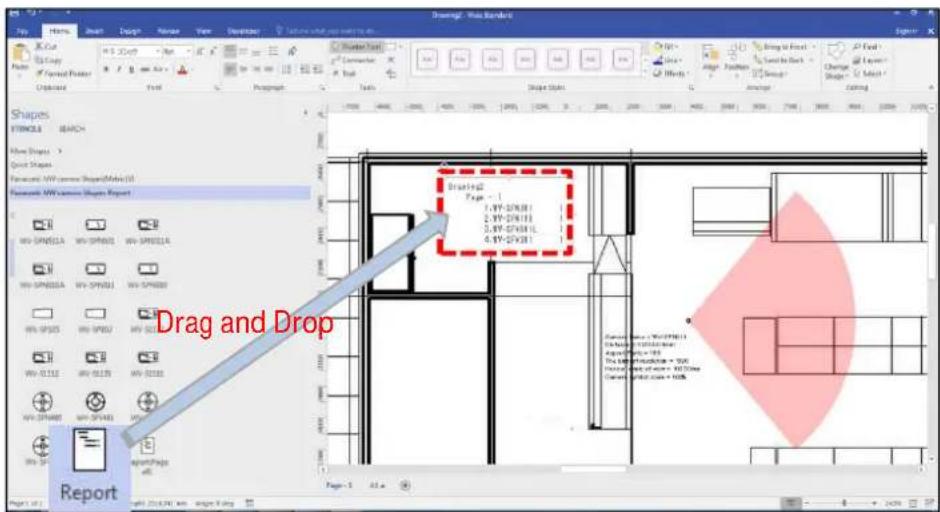
3) It can be used in Word and Excel by copying the report results.

5.2 Multi-page together report
1) To make a drawing on each page.

2) Select Panasonic NW camera Shapes Reportmenu.
- Drag and drop the "Report(Page all)" shape onto the drawing page.
- Displayed popup window.
- If you are OK, Select [OK] button.

3) The report is displayed. (The model name and number of camerasin each page.)

5.3 Update Report
1) If you add a camera(blue) in the report display state.

2) [Enable Report(Left-click)] - [Right-click] - [select Update] or [select Update(Page all)]

3) Update reportis displayed.

6. Revision history
| Doc Ver. | Date | Changes |
| 1.0 | Sep.2016 | First release |
| 2.0 | Oct.2016 | Add Report function |
| 2.1 | Dec.2016 | Add display “ppf” on purpose of use |


- PANASONIC VISIO SHAPE USER GUIDE
- CONTENTS
- FUNCTIONS
- FILE OF SHAPE
- SETTING VISIO (IN MICROSOFT OFFICE VISIO STANDARD 2016)
- MAKE ONLY
- USING SHAPE
- SETTING AND INFORMATION OF SHAPE
- SHOW TEXT
- SETTING SHAPE DATA
- CHANGEABLE SHAPE DATA LIST
- REPORT FUNCTION
- BASIC OPERATION
- MULTI-PAGE TOGETHER REPORT
- UPDATE REPORT
- REVISION HISTORY
Brand : PANASONIC
Model : WV-U2130L
Category : Surveillance Camera