V-DW11040B - Clock Valcom - Free user manual and instructions
Find the device manual for free V-DW11040B Valcom in PDF.


Pick your language and provide your email: we'll send you a specifically translated version.
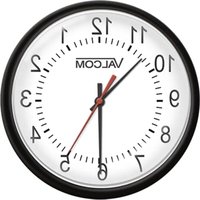
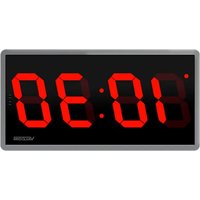
| Product Type | Digital Wall Clock |
| Brand | Valcom |
| Model | V-DW11040B |
| Display Type | LED |
| Dimensions (WxHxD) | 12 x 8 x 1.5 inches |
| Weight | 1.2 lbs |
| Power Source | AC adapter (included) or 2 AA batteries (backup) |
| Battery Backup | Yes |
| Time Format | 12-hour / 24-hour selectable |
| Date Display | Month and day |
| Day of Week | Yes |
| Alarm | Yes, with snooze |
| Temperature Display | Indoor temperature (°F/°C) |
| Mounting | Wall mountable (hardware included) |
| Color | Black |
| Material | Plastic |
| Operating Temperature | 32°F to 104°F |
| Warranty | 1 year limited |
| Included Accessories | AC adapter, user manual, mounting screws |
| Maintenance | Clean with soft dry cloth |
| Safety | Do not expose to moisture or extreme heat |
Frequently Asked Questions - V-DW11040B Valcom
How do I set the time on my Valcom V-DW11040B clock?
Press and hold the SET button for 3 seconds. Use the UP and DOWN buttons to adjust hour and minute. Press SET again to confirm.
How do I change the battery?
Open the battery compartment on the back of the clock. Insert two fresh AA batteries (not included). Ensure correct polarity. Close the compartment.
How do I set the alarm?
Press the ALARM button once. The alarm time will flash. Use UP/DOWN to set the desired alarm time. Press ALARM again to save. The alarm icon will appear.
How do I switch between Fahrenheit and Celsius?
Press and hold the TEMP button for 3 seconds to toggle between °F and °C.
Why is the display dim?
Check if batteries are low or the AC adapter is correctly plugged in. Adjust the brightness using the DIMMER button if available. Press SNOOZE to temporarily brighten.
How do I mount the clock on a wall?
Use the included mounting template to mark screw positions. Install drywall anchors and screws. Hang the clock using the keyhole slot on the back.
How do I perform a factory reset?
Remove all power sources (batteries and AC adapter). Wait 30 seconds, then reinsert batteries and plug in the adapter. The clock will reset to default settings.
What power source does the clock require?
The clock can be powered by the included AC adapter (5V DC) or by 2 AA batteries as backup. The AC adapter is the primary power source.
Is the clock synchronized to a time signal?
No, the Valcom V-DW11040B is not a synchronized clock. It must be set manually. It does not receive radio or Wi-Fi time signals.
How do I clean the clock?
Use a soft, dry cloth to wipe the exterior. Do not use any liquids or cleaning agents. Avoid touching the display directly.
User questions about V-DW11040B Valcom
0 question about this device. Answer the ones you know or ask your own.
Ask a new question about this device
No questions yet. Be the first to ask one.
Download the instructions for your Clock in PDF format for free! Find your manual V-DW11040B - Valcom and take your electronic device back in hand. On this page are published all the documents necessary for the use of your device. V-DW11040B by Valcom.
USER MANUAL V-DW11040B Valcom
Manual assistant
Powered by Anthropic
Waiting for your message
Product information
Brand : Valcom
Model : V-DW11040B
Category : Clock