Legion Pro 27UD-10 - Monitor LENOVO - Free user manual and instructions
Find the device manual for free Legion Pro 27UD-10 LENOVO in PDF.


Pick your language and provide your email: we'll send you a specifically translated version.
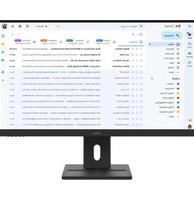
| Product Type | 27-inch 4K UHD Gaming Monitor |
| Model | Legion Pro 27UD-10 |
| Brand | Lenovo |
| Screen Size | 27 inches |
| Resolution | 3840 x 2160 (4K UHD) |
| Panel Type | IPS |
| Refresh Rate | 160 Hz (overclockable) |
| Response Time | 1 ms (MPRT) |
| Brightness | 400 cd/m² (typical) |
| Contrast Ratio | 1000:1 (typical) |
| Color Gamut | 95% DCI-P3 |
| HDR Support | VESA DisplayHDR 400 |
| Connectivity | 1x HDMI 2.1, 1x DisplayPort 1.4, 1x USB-C (DP Alt Mode), 4x USB 3.2 Gen1 downstream, 1x USB-B upstream, 1x 3.5mm audio out |
| Dimensions (with stand) | 613.6 x 575.0 x 259.7 mm (24.2 x 22.6 x 10.2 in) |
| Weight (with stand) | 7.6 kg (16.8 lbs) |
| Power Consumption | Typical 65W, Standby <0.5W |
| VESA Mount | 100 x 100 mm |
| Adjustability | Height, tilt, swivel, pivot |
| Key Functions | Adaptive Sync, Low Blue Light, Flicker Free, Game Mode, Crosshair, Timer |
| Cleaning | Wipe with a soft, dry cloth; avoid liquids directly on the screen |
| Safety | Use only provided power adapter; do not disassemble; keep away from heat sources |
| Spare Parts / Repairability | Power board and panel available from authorized service centers; user may replace stand |
| General Information | Warranty: 3 years limited (varies by region); for detailed manual, see PDF on notice-facile.com |
Frequently Asked Questions - Legion Pro 27UD-10 LENOVO
How do I connect my PC to the Lenovo Legion Pro 27UD-10?
Use either the HDMI 2.1 or DisplayPort 1.4 cable included. For USB-C devices, connect via the USB-C port that supports DisplayPort Alt Mode.
Can I mount this monitor on a wall?
Yes, the monitor supports VESA 100x100 mm mounts. Remove the stand and attach a compatible VESA bracket.
How do I enable HDR on the Legion Pro 27UD-10?
Ensure your source device and cable support HDR. Then in the OSD menu, go to Image Settings and set HDR to On. Also enable HDR in your operating system settings.
What is the recommended way to clean the screen?
Turn off the monitor and unplug it. Use a soft, lint-free cloth slightly dampened with water (not dripping) to gently wipe the screen. Never spray liquid directly on the display.
How do I adjust the monitor's height and tilt?
The stand allows height adjustment (up to 130 mm), tilt (-5° to +22°), swivel (-30° to +30°), and pivot (90° clockwise). Firmly hold the monitor while adjusting.
What is the refresh rate and response time of this monitor?
The native refresh rate is 160 Hz (overclockable to 160 Hz) with a 1 ms MPRT response time for smooth gaming.
Does the monitor have built-in speakers?
No, the Legion Pro 27UD-10 does not include built-in speakers. Use the 3.5mm audio out port to connect external speakers or headphones.
How do I reset the monitor's settings to factory defaults?
Press the joystick button to enter the OSD menu. Navigate to System Settings and select Factory Reset. Confirm the reset.
What type of USB cable should I use for the downstream ports?
Use a USB-B to USB-A cable (included) from the monitor's USB-B upstream port to your PC to enable the USB-A downstream ports. They support USB 3.2 Gen1 speeds.
Is the monitor compatible with AMD FreeSync or NVIDIA G-Sync?
Yes, it supports Adaptive Sync which works with both AMD FreeSync and NVIDIA G-Sync Compatible modes. Enable it in the OSD under Game Settings.
User questions about Legion Pro 27UD-10 LENOVO
0 question about this device. Answer the ones you know or ask your own.
Ask a new question about this device
No questions yet. Be the first to ask one.
Download the instructions for your Monitor in PDF format for free! Find your manual Legion Pro 27UD-10 - LENOVO and take your electronic device back in hand. On this page are published all the documents necessary for the use of your device. Legion Pro 27UD-10 by LENOVO.
USER MANUAL Legion Pro 27UD-10 LENOVO
Manual assistant
Powered by Anthropic
Waiting for your message
Product information
Brand : LENOVO
Model : Legion Pro 27UD-10
Category : Monitor