
PRO MP273L E14 - Monitor MSI - Free user manual and instructions
Find the device manual for free PRO MP273L E14 MSI in PDF.
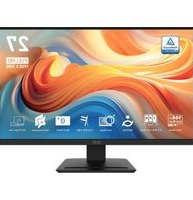


| Product Type | Monitor |
| Brand | MSI |
| Model | PRO MP273L E14 |
| Screen Size | 27 inches |
| Panel Type | IPS |
| Resolution | 1920 x 1080 (Full HD) |
| Refresh Rate | 75 Hz |
| Response Time | 1 ms (MPRT) / 5 ms (GTG) |
| Aspect Ratio | 16:9 |
| Brightness | 300 cd/m² |
| Contrast Ratio | 1000:1 (static) |
| Viewing Angles | 178° / 178° |
| Color Support | 16.7 million colors (8-bit) |
| Connectivity | 1 x HDMI 1.4, 1 x VGA, 1 x 3.5 mm audio out |
| Power Consumption | Typical: 25W, Standby: <0.5W |
| Weight (with stand) | Approx. 4.5 kg |
| Dimensions (W x H x D) | 612 x 453 x 231 mm |
| Tilt Adjustment | -5° to 20° |
| VESA Mount | 100 x 100 mm |
| Anti-Glare Coating | Yes |
| Flicker-Free Technology | Yes |
| Low Blue Light | Yes |
| Included Accessories | HDMI cable, power cord, quick start guide |
| Standby Mode Power | Less than 0.5W |
Frequently Asked Questions - PRO MP273L E14 MSI
User questions about PRO MP273L E14 MSI
0 question about this device. Answer the ones you know or ask your own.
Ask a new question about this device
Download the instructions for your Monitor in PDF format for free! Find your manual PRO MP273L E14 - MSI and take your electronic device back in hand. On this page are published all the documents necessary for the use of your device. PRO MP273L E14 by MSI.
USER MANUAL PRO MP273L E14 MSI
Getting Started .... 3
Package Contents 3
Installing the Monitor Stand....4
Adjusting the Monitor 5
Monitor Overview 6
Connecting the Monitor to PC 8
OSD Setup....9
Navi Key....9
Hot Key 9
OSD Menus ....10
Professional 10
Image.... 12
Input Source....13
Navi Key....13
Settings.... 14
Specifications....16
Preset Display Modes ....18
Troubleshooting....19
Safety Instructions....20
TÜV Rheinland Certification 22
ENERGY STAR Certification ....22
Regulatory Notices....23
Revision
V1.0, 2025/04
Getting Started
This chapter provides you with the information on hardware setup procedures. While connecting devices, be careful in holding the devices and use a grounded wrist strap to avoid static electricity.
Package Contents
| Monitor PRO MP243L E14 | |
| PRO MP273L E14 | |
| Documentation | Quick Start Guide |
| Accessories | Stand |
| Stand Base | |
| External Power Supply | |
| Power Cord | |
| Cable | High Speed HDMITM Cable |

- Contact your place of purchase or local distributor if any of the items is damaged or missing.
- Package contents may vary by country and model.
- The included power cord is exclusively for this monitor and should not be used with other products.
Installing the Monitor Stand
- Leave the monitor in its protective packaging. Align and gently push the stand bracket towards the monitor groove until it locks in place.
- Align and gently push the cable organizer towards the stand until it locks in place.
- Align and gently push the base towards the stand until it locks in place.
- Make sure the stand assembly is properly installed before setting the monitor upright.

Important
- Place the monitor on a soft, protected surface to avoid scratching the display panel.
• Do not use any sharp objects on the panel. - This product comes with NO protective film to be removed by the user! Any mechanical damages to the product including removal of the polarizing film may affect the warranty!

Adjusting the Monitor
This monitor is designed to maximize your viewing comfort with its adjustment capabilities.

Avoid touching the display panel when adjusting the monitor.

Monitor Overview

| 1 | Power Button & Navi Key |
| 2 | Kensington Lock |
| 3 | Cable Organizer |
| 4 | HDMI TM ConnectorHDMI TM Supports HDMI TM CEC, 1920x1080@144Hz as specified in HDMI TM 2.0.ImportantTo ensure optimal performance and compatibility, please use only HDMI TM cables certified with the official HDMI TM logo when connecting this monitor. For more information, please visithttps://www.hdmi.org/resource/cables. |
| 5 | D-Sub Port |
| 6 | Power Jack |
Connecting the Monitor to PC
- Turn off your computer.
- Connect the video cable from the monitor to your computer.
- Assemble the external power supply & power cord. (Figure A)
- Connect the external power supply to the monitor power jack. (Figure B)
- Plug the power cord into the electrical outlet. (Figure C)
- Turn on the monitor. (Figure D)
- Power on the computer and the monitor will auto detect the signal source.

OSD Setup
This chapter provides you with essential information on OSD Setup.

All information is subject to change without prior notice.
Navi Key
The monitor comes with a Navi Key, a multi-directional control that helps navigate the On-Screen Display (OSD) menu.

Up/ Down/ Left/ Right:
- selecting function menus and items
• adjusting function values - entering into/exiting from function menus
Middle:
- launching the On-Screen Display (OSD)
- entering submenus
• confirming a selection or setting
Hot Key
- Users may enter into preset function menus by moving the Navi Key up, down, left or right when the OSD menu is inactive.
- Users may customize their own Hot Keys to enter into different function menus.
OSD Menus

Professional
| 1st Level Menu 2nd/3rd Level Menu Description | |||
| Mode Eco | ·Use Up or Down Button to select and preview mode effects.·Press the Middle Button to confirm and apply your mode type. | ||
| User | |||
| sRGB | |||
| Anti-Blue | |||
| Movie | |||
| Office | |||
| Black-White | |||
| Response Time Normal | ·Setting to Fastest will reach the shortest response time and help improve blurred images when playing very fast games. | ||
| Fast | |||
| Fastest | |||
| MPRT OFF | ·MPRT is available when the refresh rate is over 85 Hz.·Activating MPRT will affect: | ||
| ON | |||
| Affected Function Function Status | |||
| » Response Time» BrightnessUnable to select | |||
| » HDCR» Adaptive-SyncSet to OFF | |||
| Refresh Rate Location Left Top | Location is adjustable in OSD Menu. Press the Middle Button to confirm and apply your Refresh Rate Location.This monitor follows and works at the Operating System's preset Screen Refresh Rate. | ||
| Right Top | |||
| Left Bottom | |||
| Right Bottom | |||
| OFF | |||
| ON | |||
| Alarm Clock Location Left Top | After setting the time, press the Middle Button to activate the timer.Users have to manually restore their preset Alarm Clock after any AC power loss and reconnection. | ||
| Right Top | |||
| Left Bottom | |||
| Right Bottom | |||
| OFF | |||
| 15:00 00:01 ~ 99:59 | |||
| 30:00 | |||
| 45:00 | |||
| 60:00 | |||
| Eye-Q Check OFF | Select OFF to disable Eye-Q Check.Activating Eye-Q Check will affect: | ||
| Affected Function Function Status | |||
| » Info. On Screen » Set to OFF | |||
| Amsler Grid | Select Amsler Grid to check your central vision field. | ||
| Astigmatism | Select Astigmatism to check your blurred vision. | ||
| Posture Correction | Select Posture Correction to improve your posture when sitting. | ||
| Screen Assistance None | Users can adjust Screen Assistance in any mode. | ||
 | |||
| Screen Size Auto | ·Users can adjust Screen Size in any mode, any resolution and any screen refresh rate. | ||
| 4:3 | |||
| 16:9 | |||
| Adaptive-Sync OFF | ·Adaptive-Sync prevents screen tearing.·Activating Adaptive-Sync will affect: | ||
| ON | |||
| Affected Function Function Status | |||
| » MPRT Set to OFF | |||
Image
| 1st Level Menu 2nd/3rd Level Menu Description | |||
| Brightness 0-100 | ·Properly adjust Brightness according to the surrounding lighting. | ||
| Contrast 0-100 | ·Properly adjust Contrast to relax your eyes. | ||
| Sharpness 0-5 | ·Sharpness improves clarity and details of images. | ||
| Image Enhancement OFF | ·Image Enhancement enhances image edges to improve their acutance. | ||
| Weak | |||
| Medium | |||
| Strong | |||
| Strongest | |||
| Low Blue Light OFF | ·Low Blue Light protects your eyes against blue light. When enabled, Low Blue Light adjusts the screen color temperature to a more yellow glow.·When Mode is set to Anti-Blue, it is mandatory to enable Low Blue Light. | ||
| ON | |||
| HDCR OFF | ·HDCR enhances image quality by increasing the contrast of images.·Activating HDCR will affect: | ||
| ON | |||
| Color Temperature | Cool | ·Use Up or Down Button to select and preview mode effects.·Press the Middle Button to confirm and apply your mode type.·Users can adjust Color Temperature in Customization mode. | |
| Normal | |||
| Warm | |||
| Customization R (0-100) | |||
| 1st Level Menu 2nd/3rd Level Menu Description | ||
| Auto Config | For D-Sub only, this setting will be grayed out when detecting other input sources. | |
| Clock 0-100 | Adjust Clock setting.For D-Sub only, this setting will be grayed out when detecting other input sources. | |
| Phase 0-100 | Adjust Phase setting.For D-Sub only, this setting will be grayed out when detecting other input sources. | |
| H.Position 0-100 | Adjust H.Position setting.For D-Sub only, this setting will be grayed out when detecting other input sources. | |
| V.Position 0-100 | Adjust V.Position setting.For D-Sub only, this setting will be grayed out when detecting other input sources. | |
Input Source
| 1st Level Menu 2nd Level Menu Description | ||
| HDMI TM | Users can adjust Input Source in any mode. | |
| D-Sub | ||
| Auto Scan OFF | Users can use the Navi Key to select Input Source at below status:While “Auto Scan” is set to “OFF” with the monitor power saving mode;While “No Signal” message box is shown on the monitor. | |
| ON | ||
Navi Key
| 1st Level Menu 2nd Level Menu Description | ||
| UpDownLeftRight | OFF | All Navi Key items can be adjusted via OSD Menus. |
| Brightness | ||
| Mode | ||
| Alarm Clock | ||
| Input Source | ||
| Refresh Rate | ||
| Info. On Screen | ||
Settings
| 1st Level Menu 2nd Level Menu Description | ||
| Language 繁體中文 | ·Users have to press the Middle Button to confirm and apply the Language setting.·Language is an independent setting. Users' own language setting will override the factory. When users set Reset to Yes, Language will not be changed. | |
| English | ||
| Français | ||
| Deutsch | ||
| Italiano | ||
| Español | ||
| 한국어 | ||
| 日本語 | ||
| Русский | ||
| Português | ||
| 简体中文 | ||
| Bahasa Indonesia | ||
| Türkçe | ||
| (More languages coming soon) | ||
| Transparency 0~5 | ·Users can adjust Transparency in any mode. | |
| OSD Time Out 5~30s | ·Users can adjust OSD Time Out in any mode. | |
| Power Button OFF | ·When set to OFF, users can press the power button to turn off the monitor. | |
| Standby | ·When set to Standby, users can press the power button to turn off the panel and backlight. | |
| HDMI TM CEC OFF | ·HDMI TM CEC (Consumer Electronics Control) supports Sony PlayStation , Nintendo Switch TM , Xbox Series X|S consoles and various audio-visual devices that are CEC-capable.·If HDMI TM CEC is set to ON:·The monitor will automatically power on when the CEC device is turned on.·The CEC device will enter power saving mode when the monitor is turned off.·When Sony PlayStation , Nintendo Switch TM , or Xbox Series X|S console is connected, Mode will be automatically set to default mode and can be adjusted to users' preferred mode later. | |
| ON | ||
| 1st Level Menu 2nd Level Menu Description | ||
| Info. On Screen OFF | The information of the monitor status will be shown on the right side of the screen.Activating Info. On Screen will affect: | |
| ON | ||
| Affected Function Function Status» Eye-Q Check Set to OFF | ||
| Reset YES | Users can Reset and restore settings to original OSD Default in any mode. | |
| NO | ||
Specifications*
| Monitor PRO MP243L E14 PRO MP273L E14 | ||
| Size | 23.8 inch 27 inch | |
| Curvature | Flat | |
| Panel Type | IPS | |
| Resolution | 1920x1080 (FHD) | |
| Aspect Ratio | 16:9 | |
| SDR Brightness (nits) | 250 | |
| Contrast Ratio | 1500:1 | |
| Refresh Rate | 144Hz | |
| Response Time | 1ms (MPRT)4ms (GTG) | |
| I/O | 1 x HDMITM Connector1 x D-Sub Port | |
| View Angles | 178°(H), 178°(V) | |
| DCI-P3** / sRGB | 78% / 102% | |
| Surface Treatment | Anti-glare | |
| Display Colors | 16.7M, 8 bits (6 bits + FRC) | |
| Monitor Power Options | 12V 25A | |
| External Power Supply*** | 30W, 12V | |
| Power Input | 100-240V~, 50/60Hz, 0.9A | |
| Power Output | 12V 25A | |
| Adjustment (Tilt) | -5° ~ 20° | |
| Kensington Lock | Yes | |
| VESA Mounting | Plate Type: 100 x 100 mmScrew Type: M4 x 10 mmThread Diameter: 4 mmThread Pitch: 0.7 mmThread Length: 10 mm | |
| Monitor PRO MP243L E14 PRO MP273L E14 | |||
| Dimension (W x H x D) | 541.93 x 397.46 x 181.15 mm | 613.49 x 437.52 x 201.00 mm | |
| Weight Net | 2.94 kg 4.0 kg | ||
| Gross | 4.75 kg 6.15 kg | ||
| Operating Environment | Temperature: 0°C to 40°CHumidity: 20% to 90%, non-condensingAltitude: 0 ~ 5000m | ||
| Storage Environment | Temperature: -20°C to 60°CHumidity: 10% to 90%, non-condensing | ||
* Some technical specifications of the device may be subject to change by the manufacturer. Please verify the specifications with the seller or the manufacturer's representative.
** Based on CIE1976 test standards.
*** The type of power adapter provided may differ by region and is subject to change by the manufacturer without notice.
Preset Display Modes

ortant
• All information is subject to change without prior notice.
- HDMI™ VRR (Variable Refresh Rate) synchronizes with Adaptive-Sync (ON/ OFF). For VRR ON/OFF status, please check Adaptive-Sync.
| Standard Resolution HDMITM D-Sub | ||||
| VGA 640x480 @60Hz V V | ||||
| @67Hz V V | ||||
| @72Hz V V | ||||
| @75Hz V V | ||||
| SVGA 800x600 @56Hz V V | ||||
| @60Hz V V | ||||
| @72Hz V V | ||||
| @75Hz V V | ||||
| XGA 1024x768 @60Hz V V | ||||
| @70Hz V V | ||||
| @75Hz V V | ||||
| SXGA 1280x1024 @60Hz V V | ||||
| @75Hz V V | ||||
| WXGA+ 1440x900 @60Hz V V | ||||
| WSXGA+ 1680x1050 @60Hz V V | ||||
| Full HD | 1920x1080 @60Hz V V | |||
| @85Hz V | ||||
| @100Hz V | ||||
| @120Hz V | ||||
| @144Hz V | ||||
| Video Timing Resolution | 480P | V | ||
| 576P | V | |||
| 720P | V | |||
| 1080P | @60Hz V | |||
| @120Hz V | ||||
| HDMITM VRR | V | |||
Troubleshooting
The power LED is off.
- Press the monitor power button again.
- Check if the monitor power cable is properly connected.
No image.
- Check if the computer graphics card is properly installed.
- Check if the computer and monitor are connected to electrical outlets and are turned on.
- Check if the monitor signal cable is properly connected.
- The computer may be in Standby mode. Press any key to activate the monitor.
The screen image is not properly sized or centered.
- Refer to Preset Display Modes to set the computer to a setting suitable for the monitor to display.
No Plug & Play.
- Check if the monitor power cable is properly connected.
- Check if the monitor signal cable is properly connected.
- Check if the computer and graphics card are Plug & Play compatible.
The icons, font or screen are fuzzy, blurry or have color problems.
- Avoid using any video extension cables.
- Adjust brightness and contrast.
- Adjust RGB color or tune color temperature.
- Check if the monitor signal cable is properly connected.
- Check for bent pins on the signal cable connector.
The monitor starts flickering or shows waves.
- Change the refresh rate to match the capabilities of your monitor.
- Update your graphics card drivers.
- Keep the monitor away from electrical devices that may cause electromagnetic interference (EMI).
Safety Instructions
- Read the safety instructions carefully and thoroughly.
- All cautions and warnings on the device or User Guide should be noted.
• Refer servicing to qualified personnel only.
Power
- Make sure that the power voltage is within its safety range and has been adjusted properly to the value of 100\~240V before connecting the device to the power outlet.
- If the power cord comes with a 3-pin plug, do not disable the protective earth pin from the plug. The device must be connected to an earthed mains socket-outlet.
- Please confirm the power distribution system in the installation site shall provide the circuit breaker rated 120/240V, 20A (maximum).
- Always disconnect the power cord or switch the wall socket off if the device would be left unused for a certain time to achieve zero energy consumption.
- Place the power cord in a way that people are unlikely to step on it. Do not place anything on the power cord.
- If this device comes with an adapter, use only the MSI provided AC adapter approved for use with this device.
Environment
- To reduce the possibility of heat-related injuries or of overheating the device, do not place the device on a soft, unsteady surface or obstruct its air ventilators.
- Use this device only on a hard, flat and steady surface.
- To prevent the device from tipping over, secure the device to a desk, wall or fixed object with an anti-tip fastener that helps to properly support the device and keep it safe in place.
- To prevent fire or shock hazard, keep this device away from humidity and high temperature.
- Do not leave the device in an unconditioned environment with a storage temperature above 60° C or below -20° C, which may damage the device.
- The maximum operating temperature is around 40°C.
- When cleaning the device, be sure to remove the power plug. Use a piece of soft cloth rather than industrial chemical to clean the device. Never pour any liquid into the opening; that could damage the device or cause electric shock.
• Always keep strong magnetic or electrical objects away from the device.
- If any of the following situations arises, get the device checked by service personnel:
• The power cord or plug is damaged.
• Liquid has penetrated into the device.
- The device has been exposed to moisture.
- The device does not work well or you can not get it working according to the User Guide.
• The device has dropped and damaged.
- The device has obvious sign of breakage.
TÜV Rheinland Certification
TÜV Rheinland Low Blue Light Certification
Blue light has been shown to cause eye fatigue and discomfort. MSI now offers monitors with TÜV Rheinland Low Blue Light certification to ensure users' eye comfort and well-being. Please follow the instructions below to reduce the symptoms from extended exposure to the screen and blue light.

Low Blue Light (Software Solution)
www.tuv.com
- Place the screen 20 – 28 inches (50 – 70 cm) away from your eyes and a little below eye level.
- Consciously blinking the eyes every now and then will help to reduce eye strain after extended screen time.
• Take breaks for 20 minutes every 2 hours.
- Look away from the screen and gaze at a distant object for at least 20 seconds during breaks.
• Make stretches to relieve body fatigue or pain during breaks.
- Turn on the optional Low Blue Light function.
TÜV Rheinland Flicker Free Certification
- TÜV Rheinland has tested this product to ascertain whether the display produces visible and invisible flicker for the human eye and therefore strains the eyes of users.
- TÜV Rheinland has defined a catalogue of tests, which sets out minimum standards
at various frequency ranges. The test catalogue is based on internationally applicable standards or standards common within the industry and exceeds these requirements.

Flicker Free
www.tuv.com
- The product has been tested in the laboratory according to these criteria.
- The keyword “Flicker Free” confirms that the device has no visible and invisible flicker defined in this standard within the range of 0 - 3000 Hz under various brightness settings.
- The display will not support Flicker Free when Anti Motion Blur/MPRT is enabled. (The availability of Anti Motion Blur/MPRT varies by products.)
ENERGY STAR Certification
ENERGY STAR is a program run by the U.S. Environmental Protection Agency (EPA) and U.S. Department of Energy (DOE) to promote energy efficiency. This product qualifies for ENERGY STAR in the “factory default” settings through which power savings will be achieved. Changing the factory default picture settings or enabling other features will increase power consumption, which could exceed the limits necessary to qualify for ENERGY STAR rating.

For more information on ENERGY STAR, refer to https://www.energystar.gov/.
Regulatory Notices
CE Conformity
This product has been tested and found to comply with the harmonized standards for Information Technology Equipment published under Directives of Official Journal of the European Union.

FCC-B Radio Frequency Interference Statement
This equipment has been tested and found to comply with the limits for a Class B digital device, pursuant to Part 15 of the FCC Rules. These limits are designed to provide reasonable protection against harmful interference in a residential installation. This equipment generates, uses and can radiate radio frequency energy and, if not installed and used in accordance with the instruction manual, may cause harmful interference to radio communications. However, there is no guarantee that interference will not occur in a particular installation. If this equipment does cause harmful interference to radio or television reception, which can be determined by turning the equipment off and on, the user is encouraged to try to correct the interference by one or more of the measures listed below:

- Reorient or relocate the receiving antenna.
- Increase the separation between the equipment and receiver.
- Connect the equipment into an outlet on a circuit different from that to which the receiver is connected.
- Consult the dealer or an experienced radio/television technician for help.
Notice 1
The changes or modifications not expressly approved by the party responsible for compliance could void the user's authority to operate the equipment.
Notice 2
Shielded interface cables and AC power cord, if any, must be used in order to comply with the emission limits.
This device complies with Part 15 of the FCC Rules. Operation is subject to the following two conditions:
- This device may not cause harmful interference, and
- This device must accept any interference received, including interference that may cause undesired operation.
MSI Computer Corp.
901 Canada Court, City of Industry, CA 91748, USA
(626) 913-0828
www.msi.com
WEEE Statement
Under the European Union (“EU”) Directive on Waste Electrical and Electronic Equipment, Directive 2012/19/EU, products of “electrical and electronic equipment” cannot be discarded as municipal waste anymore and manufacturers of covered electronic equipment will be obligated to take back such products at the end of their useful life.
Chemical Substances Information
In compliance with chemical substances regulations, such as the EU REACH Regulation (Regulation EC No. 1907/2006 of the European Parliament and the Council), MSI provides the information of chemical substances in products at: https://csr.msi.com/global/index
RoHS Statement
Japan JIS C 0950 Material Declaration
A Japanese regulatory requirement, defined by specification JIS C 0950, mandates that manufacturers provide material declarations for certain categories of electronic products offered for sale after July 1, 2006. https://csr.msi.com/global/Japan-JIS-C-0950-Material-Declarations
India RoHS
This product complies with the “India E-waste (Management and Handling) Rule 2016” and prohibits use of lead, mercury, hexavalent chromium, polybrominated biphenyls or polybrominated diphenyl ethers in concentrations exceeding 0.1 weight % and 0.01 weight % for cadmium, except for the exemptions set in Schedule 2 of the Rule.
Turkey EEE Regulation
Conforms to the EEE Regulations of the Republic Of Turkey
Ukraine Restriction of Hazardous Substances
The equipment complies with requirements of the Technical Regulation, approved by the Resolution of Cabinet of Ministry of Ukraine as of 10 March 2017, No 139, in terms of restrictions for the use of certain dangerous substances in electrical and electronic equipment.
Vietnam RoHS
As from December 1, 2012, all products manufactured by MSI comply with Circular 30/2011/TT-BCT temporarily regulating the permitted limits for a number of hazardous substances in electronic and electric products.
Green Product Features
- Reduced energy consumption during use and stand-by
- Limited use of substances harmful to the environment and health
• Easily dismantled and recycled - Reduced use of natural resources by encouraging recycling
• Extended product lifetime through easy upgrades - Reduced solid waste production through take-back policy
Environmental Policy
- The product has been designed to enable proper reuse of parts and recycling and should not be thrown away at its end of life.
- Users should contact the local authorized point of collection for recycling and disposing of their end-of-life products.
- Visit the MSI website and locate a nearby distributor for further recycling information.
- Users may also reach us at gpcontdev@msi.com for information regarding proper disposal, take-back, recycling, and disassembly of MSI products.
- Please visit https://us.msi.com/page/recycling for information regarding the recycling of your product in the US.

Warning!
Overuse of screens is likely to affect eyesight.
Recommendations:
- Take a 10-minute break for every 30 minutes of screen time.
- Children under 2 years of age should have no screen time. For children aged 2 years and over, screen time should be limited to less than one hour per day.
Copyright and Trademarks Notice
msi
MSI
微星
微星科技
MICRO-STAR INTERNATIONAL

Copyright © Micro-Star Int’ I Co., Ltd. All rights reserved. The MSI logo used is a registered trademark of Micro-Star Int’ I Co., Ltd. All other marks and names mentioned may be trademarks of their respective owners. No warranty as to accuracy or completeness is expressed or implied. MSI reserves the right to make changes to this document without prior notice.
The terms HDMI™, HDMI™ High-Definition Multimedia Interface, HDMI™ Trade dress and the HDMI™ Logos are trademarks or registered trademarks of HDMI™ Licensing Administrator, Inc.
Technical Support
If a problem arises with your product and no solution can be obtained from the user's manual, please contact your place of purchase or local distributor. Alternatively, please visit https://www.msi.com/support/ for further guidance.
- GETTING STARTED
- OSD SETUP
- OSD MENUS
- SPECIFICATIONS
- PRESET DISPLAY MODES
- TROUBLESHOOTING
- SAFETY INSTRUCTIONS
- TÜV RHEINLAND CERTIFICATION
- ENERGY STAR CERTIFICATION
- REGULATORY NOTICES
- REVISION
- INSTALLING THE MONITOR STAND
- IMPORTANT
- ADJUSTING THE MONITOR
- CONNECTING THE MONITOR TO PC
- NAVI KEY
- UP/ DOWN/ LEFT/ RIGHT
- MIDDLE
- HOT KEY
- PROFESSIONAL
- INPUT SOURCE
- THE POWER LED IS OFF
- NO IMAGE
- THE SCREEN IMAGE IS NOT PROPERLY SIZED OR CENTERED
- NO PLUG & PLAY
- THE ICONS, FONT OR SCREEN ARE FUZZY, BLURRY OR HAVE COLOR PROBLEMS
- THE MONITOR STARTS FLICKERING OR SHOWS WAVES
- POWER
- ENVIRONMENT
- TÜV RHEINLAND LOW BLUE LIGHT CERTIFICATION
- TÜV RHEINLAND FLICKER FREE CERTIFICATION
- CE CONFORMITY
- FCC-B RADIO FREQUENCY INTERFERENCE STATEMENT
- NOTICE
- MSI COMPUTER CORP
- WEEE STATEMENT
- CHEMICAL SUBSTANCES INFORMATION
- ROHS STATEMENT
- JAPAN JIS C 0950 MATERIAL DECLARATION
- INDIA ROHS
- TURKEY EEE REGULATION
- UKRAINE RESTRICTION OF HAZARDOUS SUBSTANCES
- VIETNAM ROHS
- GREEN PRODUCT FEATURES
- ENVIRONMENTAL POLICY
- WARNING
- RECOMMENDATIONS
- COPYRIGHT AND TRADEMARKS NOTICE
- TECHNICAL SUPPORT
Brand : MSI
Model : PRO MP273L E14
Category : Monitor