
8390 - Mobile Phone MIO - Free user manual and instructions
Find the device manual for free 8390 MIO in PDF.



User questions about 8390 MIO
0 question about this device. Answer the ones you know or ask your own.
Ask a new question about this device
Download the instructions for your Mobile Phone in PDF format for free! Find your manual 8390 - MIO and take your electronic device back in hand. On this page are published all the documents necessary for the use of your device. 8390 by MIO.
USER MANUAL 8390 MIO
All brand and product names are trademarks or registered trademarks of their respective companies.
Note
The information in this manual is subject to change without notice.
General Guidelines for Your Smartphone
- Avoid placing the Smartphone in a location subject to extreme temperatures, high humidity, or heavy dust.
The Smartphone and its accessories are not waterproof. Please keep them in a dry place. - Do not knock, shake, or toss the Smartphone. Doing so may cause leakage, overheating, or fire.
Do not disassemble the Smartphone or its accessories without authorized permission. - Do not place the Smartphone near the edge of a surface, especially when the vibration function of the Smartphone is turned on. The Smartphone may move and drop due to the vibration.
- Keep the Smartphone in place when driving. Do not place it on the passenger seat or where it can break loose in a collision or sudden stop.
- Do not delete files in the Windows folder of the Smartphone. Doing so may cause malfunction.
Guidelines for Using the Phone Feature
- Use the Smartphone in a normal position. Do not cover the antenna unnecessarily; doing so may affect the communication quality and consume more power.
Use a phone headset or pull over your car first if using the Smartphone when driving. - Your Smartphone produces the electromagnetic wave with the specific absorption rate (SAR) of 1.02W / kg , lower than the standard value of 1.6W / kg . However, to reduce the effects of the electromagnetic wave on the human body, please use the phone feature with care. For example, make short calls as possible as you can.
-
Your Smartphone is a low-power RF (radio frequency) device. It receives and sends out RF signals when the phone feature is turned on. Therefore, be careful of the following:
-
Most RF devices are shielded from RF signals. However, your Smartphone may still interfere with or get interfered by nearby devices, such as a TV set, radio, or computer.
- Turn off the phone feature where posted notices are set up to avoid interference or danger.
- Turn off the phone feature near hospitals or medical equipment (such as pacemakers or hearing aids) to avoid interference.
- Turn off the phone feature near gas stations, fuel depots, chemical factories, or blasting areas.
- Turn off the phone feature on an aircraft to avoid interference with the flight instruments for possible danger.
Guidelines for Using the AC Adapter
- Use only the AC adapter (PHIHONG, PSC05R-050) that comes with the Smartpone. Using other AC adapters may cause malfunction or danger.
- This product is intended to be supplied by a LISTED Power Unit marked "LPS" and output rated +5Vdc / 1.0A minimum.
- Do not use the AC adapter in a humid environment. Do not touch the AC adapter with wet limbs.
- Place the AC adapter in a well-ventilated location.
- Connect the AC adapter to a proper power source. The voltage and grounding requirements are described on the device or its package.
- Do not use the AC adapter when the power cord is damaged.
Guidelines for Using the Battery
- Use only the AC adapter that comes with the Smartphone to charge the battery.
- Store the battery where the temperature is between 0^ (32^) and 40^ (104^) to avoid danger.
- To avoid a short circuit, do not allow the contact of the battery's + and - ends with the metal objects, such as paper clips or power cords.
- Keep the battery away from fire sources or heaters to avoid leakage, overheating, or fire.
- Keep the battery from water, rain, or extreme humidity.
- Do not disassemble or pierce the battery, or place it in fire. The battery may break, explode, or release dangerous chemical materials.
- All batteries have limited lives. The battery life will decrease after repeated discharging and recharging. When the operating time is obviously decreasing and recharging the battery is not useful, replace the battery with a new one.
- Caution: Risk of explosion if battery is replaced by an incorrect type. Replace only with the same or equivalent type recommended by the manufacturer. Dispose of used batteries according to the instructions.
Welcome
Congratulations on purchasing this Windows Mobile™ Smartphone. Your Smartphone is more than a mobile phone. It not only provides the full features of a GPRS mobile phone, but also allows you to take photos, record videos, browse the Internet and WAP web pages, receive and send messages (such as emails, instant messages and MMS multimedia messages), listen to music, play JAVA games, and lots more. Whenever you need to communicate, capture images, search for information, send messages or enjoy yourself, the Smartphone can help you get what you want any time any place.
With the Windows Mobile™ for Smartphone operating system, you can always use Microsoft ActiveSync® to synchronize your personal Microsoft Outlook data between the Smartphone and desktop computer, including Contacts, Calendar, Inbox, and Tasks.
About this Manual
This manual is composed of three parts.
- Part I "System Manual" tells you how to use the Smartphone, including the basic operations, core programs of Windows Mobile™ for Smartphone, and the system settings.
- Part II "Software Manual" gives information on the "additional software" (in addition to the core programs of Windows Mobile™ for Smartphone), including the add-on programs and games provided by your Smartphone manufacturer.
- Part III “References” provides the reference information, such as the product specifications.
- When the commands are connected with an arrow () , select them in that order.
Depending on the model you purchased, the appearance of your Smartphone may not be exactly the same as those shown in this manual. - Some of the features are provided by the wireless mobile network services and not described in details in this manual. Please contact your service provider for further information.
Depending on the continuing developments of the product, the software supplied with your Smartphone may be changed or updated. If there is any difference between the information in this manual and your product, the operation should be based on the product you have.
Where to Find Information
If you cannot find information in this manual, refer to the following table to acquire the specific information:
| For information on | See this source |
| First time startup | Quick Start Guide |
| More information on Microsoft ActiveSync | Chapter 7 of this manual |
| ActiveSync Help on your desktop computer | |
| Last-minute updates and detailed technical information | TheREADME files in the“Microsoft ActiveSync” folder on your desktop computer or the Smartphone Companion CD |
| The Mio series product Web site: www.mio-tech.be | |
| The Microsoft Web site: www.microsoft.com |
Table of Contents
Safety Precautions
Preface iii
Part I System Manual. 1
Chapter 1 Getting Started 3
1.1 Hardware Features 4
Front Components 4
Side Components 4
Top and Bottom Components 5
Back Components 5
Cover-open Components 6
1.2 ActiveSync Cable and USB Cradle 7
1.3 Installing the SIM Card and Battery 8
1.4 Charging the Battery 9
1.5 Turning Your Smartphone on and off 10
Turning on 10
Turning off 10
Power Management 10
1.6 Installing ActiveSync 11
1.7 Expanding Your Smartphone 13
Accessories 13
Using the Phone Headset 13
Using a SD/MMC Card 14
Chapter 2 Basic Skills 15
2.1 Navigation Methods 16
Navigation Pad 16
Action Key 16
Home Key 16
Back Key 16
Soft Keys 17
Numeric Keypad 17
2.2 Home Screen and Screen Elements 18
Home Screen 18
Status Indicators 19
Start List 20
Menu 20
Quick List 21
2.3 Entering Text and Numbers 22
Language Menu 22
Entering Text 22
Entering Numbers in the Numeric Mode 24
Entering Symbols 24
Miscellaneous Input Tasks 25
2.4 Securing the Smartphone 26
Locking the Keypad 26
Locking the Smartphone 27
Locking the SIM Card. 28
Chapter 3 Using the Phone 29
3.1 Making a Call 30
Dialing a Call 30
Making a Call from Contacts 30
Making a Call from Speed Dial 31
Making a Call Using a Recently Dialed Number 32
Making a Call from the Call History List 32
Making a Call from a Hyperlink 32
3.2 Responding to an Incoming Call 33
Answering an Incoming Call 33
Rejecting an Incoming Call 33
3.3 Managing More than One Call 34
Holding a Call to Take a Second Call 34
Rejecting the Second Call 34
Holding a Call to Make a Second Call 34
Swapping between Calls 34
Setting up a Conference Call 34
3.4 In-call Options 35
Adjusting the Phone Volume 35
Speakerphone 35
In-call Options 35
3.5 Call History 36
Opening Call History 36
Call History Menu Commands 36
3.6 Speed Dial 37
Creating a Speed Dial 37
Editing a Speed Dial 37
Deleting a Speed Dial 38
Viewing Speed Dials You Have Created 38
3.7 Voice Tag 39
Creating a Voice Tag 39
Using a Voice Tag 39
Playing Back a Voice Tag 39
Deleting a Voice Tag 40
Viewing Voice Tags You Have Created 40
3.8 Voice Mail 41
Setting up the Voice Mail Phone Number 41
Checking Your Voice Mail 41
3.9 International Call 42
3.10 Turning off the Radio 43
Chapter 4 Setting up Your Smartphone 45
4.1 Settings (Page 1) 46
Sounds 47
Date and Time 47
Profiles 47
Home Screen 48
Data Connections 49
Owner Information 52
Power Management 52
Remove Programs 52
4.2 Settings (Page 2) 54
Beam 55
Phone 55
Accessibility 56
Regional Settings 56
Security 56
Certificates 56
Bluetooth 57
About. 57
Chapter 5 Messaging Features 59
5.1 Understanding Messaging Types 60
E-mail Messaging 60
SMS Messaging 60
Instant Messaging 60
5.2 Setting up Messaging Accounts 61
Setting up Outlook Synchronization 61
Setting up an Internet E-mail Account 61
5.3 Working with Accounts 63
Viewing the List of Accounts 63
Changing the Accounts Quickly 63
Changing E-mail Account Options 63
Deleting an Account 63
5.4 Composing and Sending Messages 64
Composing an E-mail or SMS Message 64
Inserting Predefined Text into Messages 65
Inserting Voice Recordings into Messages 65
Inserting Signatures into Messages 66
Sending Messages 66
Requesting a Delivery Receipt 67
5.5 Receiving Messages 68
Receiving SMS Messages 68
Receiving E-mail Messages 69
5.6 Viewing and Responding to Messages 70
Working with the Message List 70
71
Downloading a Complete E-mail Message 72
72
Accepting Meeting Requests 73
5.7 Managing Message Folders 74
Viewing the Message Folder Contents 74
Marking a Folder for Synchronization 74
Moving a Message to a Different Folder 75
Emptying the Deleted Items Folder 75
5.8 MSN Messenger 76
Using MSN Messenger 76
Chapter 6 Pocket Outlook 79
6.1 Contacts 80
Viewing Contacts 80
Creating a New Contact 82
Deleting a Contact 82
Finding a Contact 82
Editing a Contact 83
Selecting a Ring Tone for a Contact. 83
Copying Phone Numbers from Your SIM Card to Contacts 83
Copying Phone Numbers from Contacts to Your SIM Card 84
Calling a Contact 84
6.2 Calendar 86
Creating a New Appointment 86
Viewing an Appointment 86
Editing an Appointment 86
Deleting an Appointment 86
Viewing Your Schedule 87
Importing Calendar Information 88
6.3 Tasks 89
Creating a New Task 89
Viewing the Task List 89
6.4 Voice Notes 90
Creating a Voice Note 90
Listening to a Recording. 90
6.5 Beaming Information 91
Beaming a Contact or an Appointment. 91
Receiving Beamed Information 91
Chapter 7 ActiveSync. 93
7.1 ActiveSync Overview 94
7.2 Using ActiveSync 95
Synchronizing information 95
Results of Synchronization 96
7.3 Setting up Server ActiveSync 97
Setting up Server ActiveSync 97
Stopping Synchronizing with a Server 97
7.4 Creating a Synchronization Schedule 98
Creating a Synchronization Schedule with an Exchange Server 98
7.5 Synchronizing Remotely 99
Synchronizing Remotely with a Desktop Computer 99
7.6 Synchronizing by Using an Infrared Connection 100
Chapter 8 Internet, Entertainment, and More 101
8.1 Internet Explorer 102
Browsing the Web 102
Using the Favorites List 103
Refreshing Web Pages 103
Customizing Pocket Internet Explorer 104
8.2 Media Player 105
Playing Files 105
Using Menu Commands When Playing a File 106
Using Media Player Favorites 107
Licenses 107
Media Player Compatibility. 108
8.3 Modem Link 109
Setting up an Infrared Connection 109
Setting up a USB Connection 109
8.4 Games 111
Solitaire 111
Jawbreaker 112
8.5 Calculator 113
8.6 Band Selection 114
Part II Software Manual. 115
Chapter 9 Using the Digital Camera. 117
9.1 PhoneCamera 118
Taking Photos 118
Continues 119
Recording Videos 119
PhoneCamera Settings 121
Notes on Using PhoneCamera 122
9.2 PhoneViewer 123
Viewing Photos 123
Adding Notes to a Photo 124
Adding a Theme to a Photo 125
Slide Show 126
PhoneViewer Menu Commands 127
9.3 VideoPlayer 128
Playing Videos 128
Chapter 10 MMS Messages 131
10.1 MMS Overview 132
10.2 MMS Settings 133
MMS Connection Settings 133
10.3 Composing and Sending MMS Messages 134
Composing a MMS 134
Configuring Message Settings 136
Sending a MMS 136
10.4 Receiving and Responding to MMS Messages 137
Opening a Message 137
Responding to an Opened Message 138
10.5 Managing Message Folders 139
Changing the Message Folders 139
Sorting the Messages 139
Moving a Message to a Different Folder 140
Emptying a Folder 140
Chapter 11 PhotoID. 141
11.1 PhotoID Overview 142
11.2Assigning a Photo for a Contact 143
11.3 Managing Contacts 144
Adding a Contact 144
Deleting a Contact. 144
Editing a Contact 145
Viewing Modes 145
Managing Contact Groups 146
11.4 Photold Settings 148
Chapter 12 Utility Programs 149
12.1 Installing Utility Programs 150
12.2 TaskManager 151
12.3 PhoneExplorer 152
Opening PhoneExplorer 152
Browsing and Finding Files 152
Sorting Order 153
Managing Files 153
12.4 PhoneReader 154
Opening and Exiting PhoneReader 154
Book Folders and Book Lists. 154
Reading a Book. 155
Using Bookmarks 155
PhoneReader Favorites 156
PhoneReader Settings 156
Managing Book Folders 156
12.5 PhoneCity 157
Changing the Clock Style 157
Selecting Cities. 158
Adjusting the Time 159
Synchronizing GMT 160
12.6 MPEG4 Plug-in 161
12.7 Mio Assistant 162
Using the Contacts Function 163
Using the SMS Function 164
Using the Ring Function 165
Using the Photo Function 166
Using the Video Function 167
Mio Assistant Settings 168
Chapter 13 Games 169
13.1 Java Game 170
Opening Java 170
Mio Burning Rush 170
Part III References 171
Chapter 14 References 173
14.1 Product Specification 174
14.2 Frequently-asked Questions 175
14.3 Restoring Factory Default State 176
14.4 Regulatory Information 177
European Notice 177
Chapter 15 Index. 179
Part I System Manual
1 Getting Started
This chapter introduces you to the external components of your Smartphone and guides you through the process of setting up your Smartphone for use.
This chapter includes:
1.1 Hardware Features 4
1.2 ActiveSync Cable and USB Cradle.. 7
1.3 Installing the SIM Card and Battery 8
1.4 Charging the Battery 9
1.5 Turning Your Smartphone on and off 10
1.6 Installing ActiveSync 11
1.7 Expanding Your Smartphone 13
1.1 Hardware Features
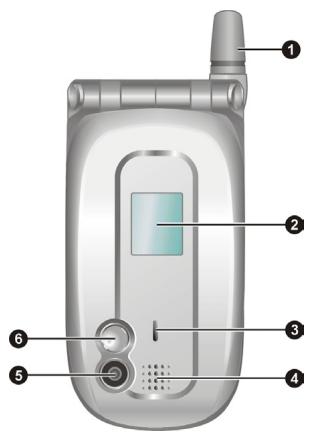
Front Components
| 1 | Fixed Antenna | Receives and transmits wireless radio when you are using the phone. |
| 2 | Small Status Display | Displays current time, battery power, signal strength, number of missed calls and messages. |
| 3 | Notification Indicator | Flashing in red indicates low battery status. |
| Glowing in red indicates that battery charging is in progress. | ||
| Glowing in green indicates that the battery is fully charged. | ||
| 4 | Speaker | Sends out voice, music, audible reminders and alerts. |
| 5 | Camera Lens | Take photos or record videos. |
| 6 | Viewing Mirror | Allows you to adjust the distance and angle when using the Smartphone to take a photo of yourself. |
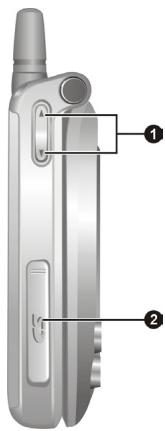
Side Components
| Volume Control | When the Smartphone's cover is open: Adjusts the volume by pressing the upper or lower button. Pressing the Volume control can immediately silence the ring of an incoming call. | |
| When the Smartphone's cover is closed: Pressing the upper button changes the clock mode in the small status display; pressing the lower button opens the backlight of the small status display. | ||
| SD/MMC Card Slot | Accepts an optional SD/MMC card for extended memory capacity. | |
Top and Bottom Components
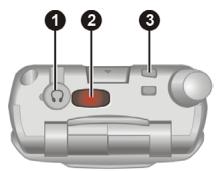
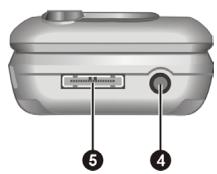
| 1 | Headphone Connector | Connects to a pair of stereo headphones or a hands-free phone headset. |
| 2 | IR Port | Beams files to other mobile devices. |
| 3 | Lanyard Eyelet | Lanyard attaches to this opening. |
| 4 | Power Connector | Connects to the AC adapter. |
| 5 | ActiveSync Connector | Connects to your desktop computer for data synchronization. |
Back Components
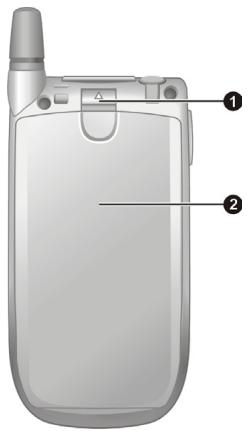
| 1 | Battery Lock | Secures the battery in place. |
| 2 | Battery | Serves as the internal power source for your Smartphone. You can recharge the battery by connecting to AC power. |
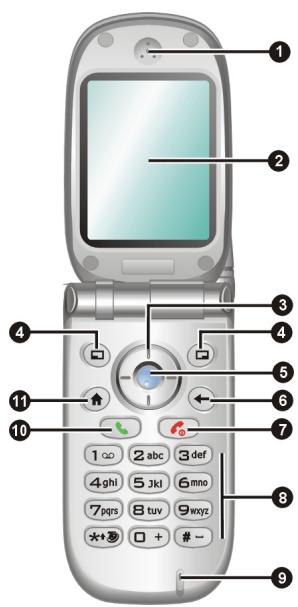
Cover-open Components
| 1 | Earpiece | Serves as the phone earpiece. |
| 2 | Screen | Displays the Home screen, status icons, active programs and soft key commands. |
| 3 | Navigation Pad | Moves up, down, left or right by pressing the corresponding area of the pad. |
| 4 | Soft Key | Performs the command shown on the display immediately above the keys. |
| 5 | Action Key | Confirms your selection, similar to the Enter key on a keyboard. |
| 6 | Back Key | Navigates to the previous screen. |
| Backspaces over one or more characters when you are in a text field. | ||
| 7 | End Key | Turns your Smartphone on or off. |
| Ends or rejects a call. | ||
| Press and hold to display the Quick List. | ||
| 8 | Numeric Keypad | Enters numbers and characters. |
| 9 | Microphone | Serves as the mouthpiece during a call. |
| Receives sound and voice to record voice notes. | ||
| 10 | Talk Key | Dials or answers a call. |
| Press and hold this key during a call to switch to the speakerphone mode. | ||
| Press and hold this key on the Home screen to use the voice tag. | ||
| 11 | Home Key | Displays the Home screen. |
1.2 ActiveSync Cable and USB Cradle
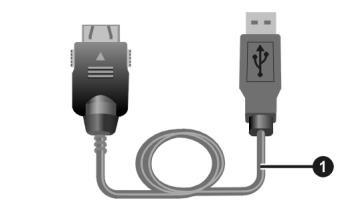
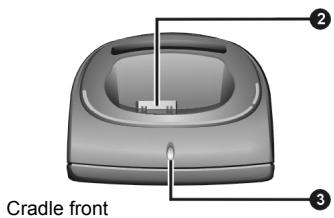
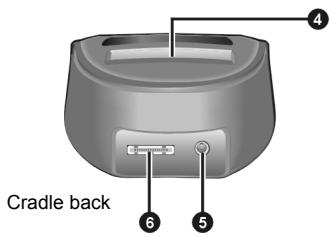
ActiveSync Connects your Smartphone to a Cable desktop computer.
2 Smartphone Connects your Smartphone. Connector
Battery Charge Glows red when the battery away indicator from the Smartphone is being charged and glows green when the battery is fully charged. (optional)
4 Battery Connects an additional battery. Connector (optional)
5 Power Connects the AC adapter. Connector
ActiveSync Connects the ActiveSync cable. Connector
Depending on the model you purchased, the cradle may not be included as a standard accessory.
- There are two kinds of cradle: one with the battery connector, and the other without the battery connector. The battery connector allows you to charge the battery removed from the Smartphone, or the optional second battery.
1.3 Installing the SIM Card and Battery
After applying for an account with a mobile phone service provider, you will be provided a SIM (Subscriber Identification Module) card. This card contains your mobile phone account details, contacts that can be stored and any additional services to which you have subscribed. You must install a SIM card before you can make or receive phone calls or use wireless data services.
- Insert the SIM card with the contact area facing downward (the angled corner is in the bottom-left position). Make sure that the SIM card should be engaged below the two metal holders in the top and left directions.
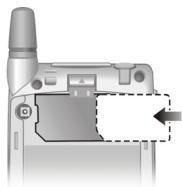
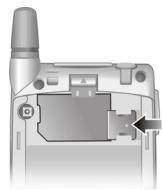
- Press the SIM card and push the SIM card lock toward the left to cover the SIM card.
- To install the battery, insert the two projecting parts on the battery into the holes in the battery compartment, and then press to close the battery. You should hear a "click" sound indicating that the battery is locked.
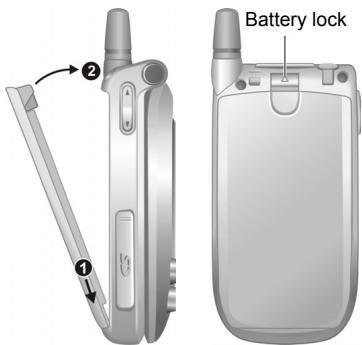
- To remove the battery, push the battery lock upward. The battery will pop out slightly for removal.
Insert and remove the SIM card with care. Do not bend the SIM card or scratch the contact area.
You must fully charge the battery before starting to use your Smartphone for the first time.
- Attach the converter to the AC adapter.
- If you have the cradle, you can place the Smartphone on the cradle to charge the battery.
Not using the cradle
Connect the DC end of the AC adapter to the power connector on the bottom of the Smartphone, and the other end to the electrical outlet on the wall.
Using the cradle
Slide the Smartphone into the cradle. Connect the DC end of the AC adapter to the power connector on the rear of the cradle, and the other end to the electrical outlet on the wall.
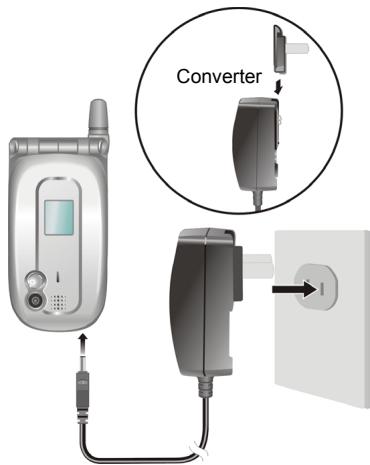
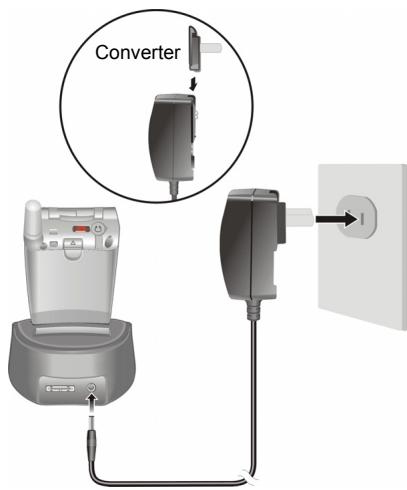
- The notification indicator on the Smartphone's top cover glows in red to indicate that battery charging is in progress. Do not disconnect the AC adapter until the battery is fully charged. The indicator will change to green when the battery is fully charged.
- When charging the battery for the very first time, you should charge it for at least eight hours.
- A discharged battery can be fully charged after two hours. The charging time may vary in different conditions.
- When a fully discharged battery is being charged, you can turn on the Smartphone only after it connects to the AC power for at least five minutes.
You can use your Smartphone during charging.
If your cradle has a battery connector, you can charge the battery removed from the Smartphone.
Turning on
- Open the top cover. Press and hold the End key . The backlight of the keypad will glow, and your Smartphone will display startup screens and then the Home screen.
- If the service provider (or you) has set the PIN, you will be prompted to enter the PIN. Enter the PIN and press the Done soft key. (For details on PIN, see "Locking the SIM Card" in section 2.4.)
- Your Smartphone starts to search the mobile network and the service provider's name will be displayed on the screen. You can now use your Smartphone.
- You can turn off the radio (phone function) and use other functions of your Smartphone without installing the SIM card. (To turn off the radio, see section 3.10.)
Turning off
- Press and hold the End key until the Quick List appears.
- The first option is Power off. Press the Action key or Select soft key to turn off your Smartphone.
Power Management
By default, your Smartphone will automatically turn off the screen's and keypad's backlight after being idle for 60 seconds. In addition, your Smartphone may enter the sleep mode, causing the screen to blank, after being idle for a specific period of time. To end the sleep mode, press and hold any key, or open the top cover. The screen will restore. (For information on Power Management, see "Power Management" in section 4.1.)
-
The battery's operating time relies on the mobile network status, the way you use your Smartphone and the ambient environment. The power consumption is higher under the following conditions:
-
Your Smartphone has to frequently search mobile network because of weak signals, moving in high speed or being out of the range of the mobile network.
- You use the vibration function, hands-free solution, alarm, or play games.
The backlight is on.
The phone's volume is set to maximum. - You use the camera.
- The operating time is shorter in low temperatures.
You can use Microsoft ActiveSync technology to synchronize information on your desktop computer or a Microsoft Exchange® Server with the information on your Smartphone. ActiveSync compares the information on the Smartphone with the information on the desktop computer or the server and updates all locations, keeping you up-to-date with the most recent information.
- Before the installation, make sure that you have Microsoft Outlook installed on your desktop computer. If you do not have Outlook or your version of Outlook is earlier than the version provided on the Companion CD, install Outlook from the Companion CD.
- Do not connect your Smartphone to your desktop computer before ActiveSync is installed.
- During the New Partnership setup, select "Synchronize with this desktop computer." Do not select "Synchronize with Microsoft Exchange Server and/or this desktop computer" unless you are sure that your company is running Microsoft Exchange Server and Exchange ActiveSync. Contact your network administrator or ISP for detailed information.
ActiveSync is already installed on your Smartphone. You need to install ActiveSync on your desktop computer. Follow the procedure below:
- Turn on your desktop computer.
- Insert the Companion CD into the CD-ROM drive of your desktop computer.
- Click the arrow on the first screen to enter the main screen and click Start Here.
- In the following screen, click Install ActiveSync on the left column.
- In the following screen, click Install to start the installation.
- If you use Windows XP, select Open when the "File Download" window appears on the screen; if you use Windows 2000/Me/98, select Run this program from its current location and click OK.
-
Follow the on-screen instructions to install ActiveSync.
-
When prompted, connect your Smartphone to your desktop computer. If you have the cradle, you can use it to connect.
Not using the cradle
Connect the appropriate end of the ActiveSync cable to the bottom of the Smartphone and the other end to a USB port on your desktop computer.
Using the cradle
Slide the Smartphone into the cradle. Connect the appropriate end of the ActiveSync cable to the connector on the rear of the cradle, and the other end to a USB port on your desktop computer.
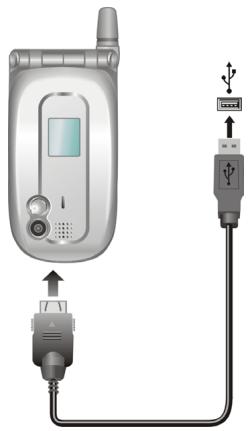
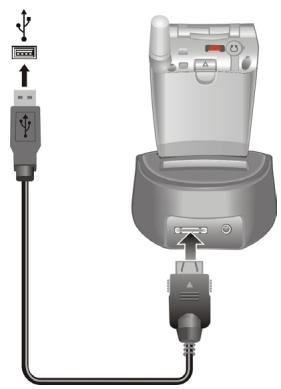
- The "Add New Hardware Wizard" should automatically install the USB driver. (If you need to specify the location of the driver, click Browse and select the CD-ROM drive containing the Companion CD.)
- Follow the on-screen instructions to establish a partnership and synchronize your Smartphone with your desktop computer.
- You will see the data saved in your Outlook (such as the Calendar, Contacts, and Tasks) appears on your Smartphone. (For more information on ActiveSync, see Chapter 7.)
- The availability of accessories from the Smartphone manufacturer may vary by regions. For the latest information, please contact your local dealer.
The use of unauthorized accessories will void your warranty.
Depending on the model you purchased, the phone headset may be included as a standard accessory.
Accessories
You can expand the capabilities of your Smartphone or facilitate your operation by purchasing accessories designed for your Smartphone. For example, you can use the cradle, phone headset, SD/MMC card, and car charger.
Using the Phone Headset
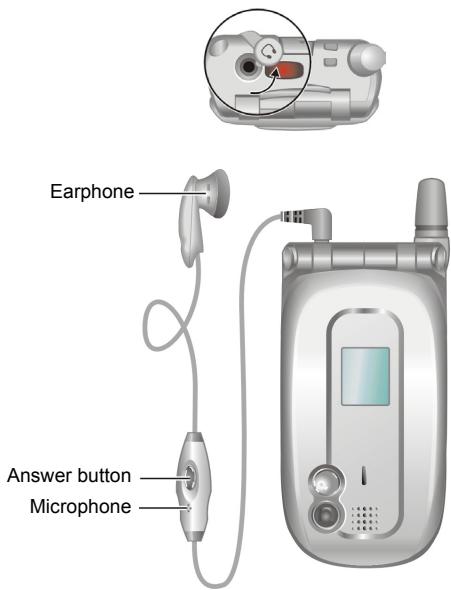
The phone headset includes a microphone, an answer button and an earphone, allowing you to talk conveniently using a hands-free solution.
Your Smartphone has an earphone connector on its top. You can plug the phone headset after opening the protective cover on the connector.
Using a SD/MMC Card
Your Smartphone has a SD/MMC card slot that accepts a SD (Secure Digital) or MMC (MultiMediaCard) storage card.
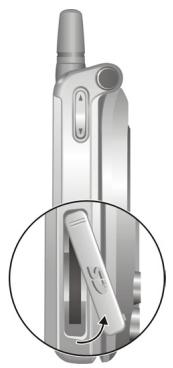
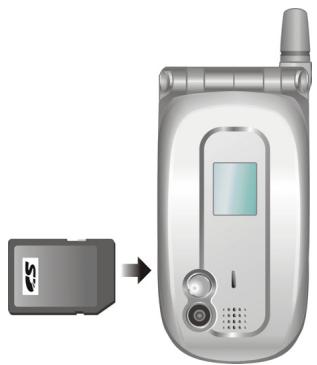
To insert a SD/MMC card, first open the protective cover. Insert the card with its label facing the front and the connector pointing to the slot of the Smartphone, as shown in the diagram. Then push it into the slot until it clicks into place.
To remove a card, first make sure that no application is accessing the card, then slightly push the top edge of the card to release it and pull it out of the slot. Close the protective cover.
A storage card is also called as a memory card.
- Your Smartphone does not support SD/MMC I/O cards.
For more information, please refer to the document of the SD/MMC card.
Make sure that no foreign objects enter the SD/MMC card slot.
- Keep a SD or MMC card in a well-protected box to avoid dust and humidity when you are not using it.
2 Basic Skills
This chapter familiarizes you with the basic operations of your Smartphone, such as using the navigation pad, understanding the Home screen and screen elements, entering text and numbers and taking care of your Smartphone.
This chapter includes:
2.1 Navigation Methods.. 16
2.2 Home Screen and Screen Elements 18
2.3 Entering Text and Numbers 22
2.4 Securing the Smartphone 26
2.1 Navigation Methods
Your Smartphone has various keys that allow you to move around and select. This is particularly useful for one-hand operation.
Navigation Pad
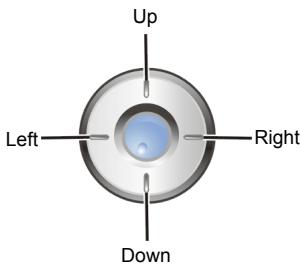
The navigation pad consists of four keys. You can use them to move horizontally and vertically on the screen for selecting the item you want. This is called "scrolling."
In a text field, use the navigation pad to move the cursor right or left, character by character.
Action Key
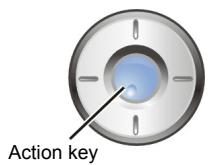
The Action key confirms your selection.
In many cases, scrolling to an item and pressing the Action key (in other words, "selecting" the item) takes you to a program or setting. When you scroll to a check box, pressing the Action key selects or clears the check box.
In the procedures in this document, "select" means scrolling to an item and pressing the Action key.
Home Key

The Home key takes you to the Home screen, the main screen of the Smartphone.
Back Key

The Back key navigates to the previous screen.
When you are typing text, the Back key moves the cursor back to delete the character in a text field. Pressing and holding the Back key deletes multiple characters.
Soft Keys

There are two soft keys on the two sides of your Smartphone, located directly below the display screen.
Each soft key performs the command displayed immediately above it on the screen, making it easy to navigate around the Smartphone and to perform common commands.
Numeric Keypad
| 1 oo | 2 abc | 3 def |
| 4 ghi | 5 Jkl | 6 mno |
| 7 pQRS | 8 tuv | 9WXYZ |
| □ + |
You can use numbers to navigate quickly to programs and settings on your Smartphone. Just press the number on the keypad that corresponds to the number shown next to the program or setting you want.
Though commands in a menu are normally not labeled with numbers, you can still use numbers to select menu commands by pressing the number that corresponds to the menu commands in top-down order.
Home Screen
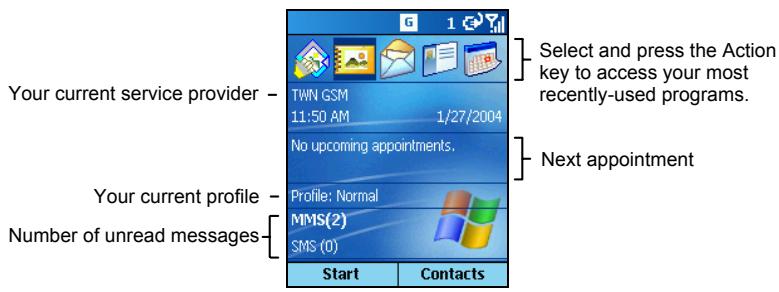
The Home screen is your starting place for most tasks. The screen automatically displays when you turn your Smartphone on or leave it idle. You can navigate to the Home screen at any time by pressing the Home key.
The top of the Home screen displays the five programs you have most recently used. It also displays your current service provider, the current time, your next appointment, your current profile, and the number of new messages.
You can open an associated program quickly by using the navigation pad to move around and then pressing the Action key.
| To... | Do this... |
| Open a program | Scroll to the top of the screen, and then select the program by scrolling (right) to its icon and pressing the Action key. |
| Open Calendar and view your appointments for the day | Scroll to your next appointment and press the Action key. (For information on Calendar, see section 6.2.) |
| Open Inbox and read your SMS/MMS messages | Scroll to the status area of the messaging account for which you want to read messages and press the Action key. (For information on Inbox, see sections 5.1 ~ 5.7.) |
| Open Contacts and view your contact list | Select the right soft key (if Contacts appears on the screen). (For information on Contacts, see section 6.1.) |
| Open Profiles and view or change your profile settings | Scroll to your current profile and press the Action key. (For information on Profiles, see section 4.1.) |
Status Indicators
Status indicators appear at the top of the Smartphone screen. The following table lists common status indicators and their meanings.
| Indicator | Meaning | Indicator | Meaning |
| New e-mail | Battery level | ||
| New voice mail on line 1 | Low battery | ||
| New voice mail on line 2 | Battery charging | ||
| New voice mail on line 1 and line 2 | Signal strength | ||
| New instant message | No signal | ||
| Voice call in progress | General Packet Radio Services (GPRS) available | ||
| Data call in progress | General Packet Radio Services (GPRS) in use | ||
| Incoming voice calls are being forwarded to another number | Roaming | ||
| Call on hold | Sync error | ||
| Missed call | Radio off | ||
| Line 1 | Ringer off | ||
| Line 2 | |||
Start List
Smartphone includes many pre-installed programs that you can open and start using right away.
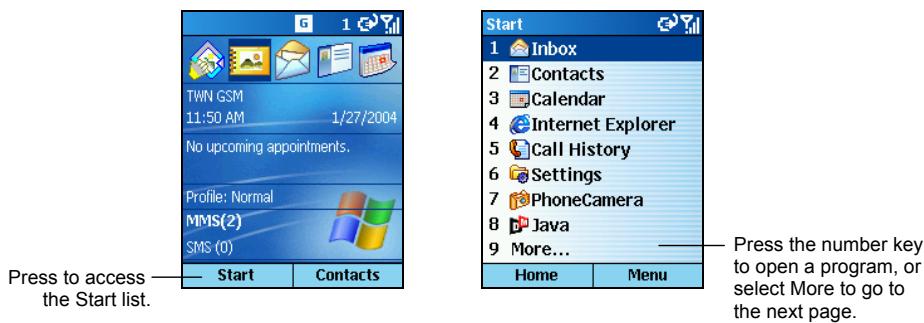
On the Home screen, press the Start soft key to access the Start list. Select a program by scrolling to it and pressing the Action key.
The More option in the list indicates that you can select More to access the next page of the list.
If your SIM card supports the STK (SIM Tool Kit) function, you can also run the program(s) in the SIM card.
Menu
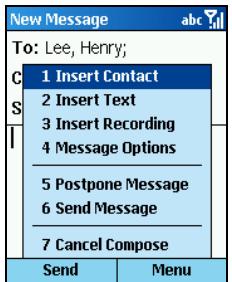
On many screens, the right soft key is labeled Menu. The Menu soft key displays a list of menu commands that are relevant to the screen you are viewing. Selecting a menu command will either perform the command or take you to another part of the user interface where you can perform the command.
Quick List
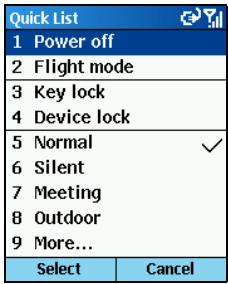
The Quick List provides a list of commands that you can use to quickly perform common actions, such as turning off the Smartphone, locking the Smartphone, turning off the phone capability, and changing the profile type.
Press and hold the End key until the Quick List appears. Then, press the number to perform the command; or, press the Up/Down key to select an option and the press the Action key or OK soft key.
Language Menu
| 1 123 |
| 2 ABC |
| 3 Symbols |
| 4 English |
| 5 Languages |
You can use the language menu to change to the input mode you want. Press and hold and Asterisk key () to open the language menu. The items in the language menu are:
123 changes to the Numeric mode.
ABC changes to the Multipress mode.
- Symbols opens the symbol list.
- English changes to the T9 mode. (The displayed name of this item depends on the Languages item.)
- Languages opens the language selection list.
Entering Text
You can enter text on your Smartphone using the keypad. You Smartphone supports two input modes for enter text: Multipress and T9.
When you select a field that requires text entry, your Smartphone will automatically default to the appropriate input mode. The status icon on the top-right corner of the screen shows the input mode you are currently using. To change the input mode, press and hold the Asterisk key (*) and select the input mode you want from the language menu. The status icon for the input mode you want is shown on the screen.
The following table shows the complete list of input mode status icons.
| Indicator | Input mode |
| abc | Multipress text input mode, lowercase |
| ABC | Multipress text input mode, uppercase |
| ABC | Multipress text input mode, caps lock |
| Indicator | Input mode |
| t9 | T9 text input mode, lowercase |
| T9 | T9 text input mode, uppercase |
| T9 | T9 text input mode, caps lock |
Entering Text in the Multipress Mode
Press and hold the Asterisk key () , and select ABC from the language menu. To enter a letter in the Multipress mode, press the number key on which the letter appears. To enter the first letter on the number key, press the key once. To enter the second letter, press the key twice, and so on.
For example:
To enter the letter "s," press 7777.
To enter the word "hat," press 44, 2, 8.
The letter entered most recently is underlined until you have completed the key presses for the letter and moved on to the next letter. When you enter letters that are on the same number key, you must pause after entering the first letter and wait until the underline disappears before entering the next letter so that the first letter can be processed. For example:
To enter the word "cat," press 222, pause, press 2, pause, and press 8.
The pause between keypresses is called the Multipress time out, and you can adjust the length of the pause. (You can adjust the Multipress time out. See "Accessibility" in section 4.2.)
Entering Text in the T9 Mode
To form a word in the T9 mode, press the number keys that contain the letters you want. As you enter letters, T9 analyzes your key presses and attempts to complete the word.
For example:
To enter the word "shoe," press 7, 4, 6, 3.
The following steps provide the detailed instructions on using the T9 mode:
- Press and hold the Asterisk key () , and select item 4 (displaying English or other languages) from the language menu. The T9 indicator appears at the top of the display.
- Enter letters by pressing the keys on which the letters appear. Press a key only once for each letter.
- Press the Action key to accept the word and enter a space after it, or press the Up/Down key to scroll through the available words.
- You can change the language for T9 to find the word you want in the dictionary of the selected language. Press and hold the Asterisk key () and select Language your desired dictionary from the language selection list. To view the dictionary you are using now, press and hold the Asterisk key () and view item 4 from the language menu.
- If you do not see the correct word, erase the word. Then press and hold the Asterisk key () , select ABC from the language menu to change to the Multipress mode, and manually enter the word.
T9 cannot always find the word you want in the T9 dictionary; in these cases, change to the Multipress mode. After you have entered the word in the Multipress mode, the word will be added to the T9 dictionary.
- End User is granted no rights of ownership or any other proprietary rights in or to the Documentation and Tegic Product or any other software or technology of Tegic. End User acknowledges that all ownership of and proprietary rights in and to the Documentation and Tegic Product are vested in Tegic. End User shall not modify, reverse engineer, decompile or disassemble the Tegic Product, or otherwise attempt to obtain source code for the Tegic Product. The Documentation and Tegic Product are protected by the copyright laws of the United States and international copyright treaties.
Entering Numbers in the Numeric Mode
You can enter numbers by using the Numeric mode. When you select a field that requires a numeric entry, your Smartphone will automatically default to the appropriate input mode.
If you need to enter a number within a line of text, you can change to the Numeric mode ( ^12_3 ) by pressing and holding the Asterisk key ( * ), and then selecting 123 from the language menu to enter the number, and then change back to the Multipress or T9 mode to finish entering the text.
If a field permits a numeric entry only, such as the Work phone field in Contacts, the input mode automatically defaults to the Numeric mode.
Entering Symbols
Press and hold the Asterisk key () , and select Symbols from the language menu. Or, when you are in the following mode:
- Multipress mode press and hold the Pound key (#) to open the symbol list. Or, repeatedly press the number key 1 until the symbol appears.
T9 mode press the Pound key (#) to open the symbol list.
Miscellaneous Input Tasks
| To... | Do this... |
| Enter a space | In the Multipress or T9 mode, press the Pound key (#). |
| Start a new line | Press the Action key. |
| Change between uppercase and lowercase | Press the Asterisk key (*) . When you are in text mode, the first letter of a sentence is automatically capitalized. |
| Lock caps | Press the Asterisk key (*) twice to lock caps. Press the Asterisk key (*) again to return to lowercase. |
| Enter a number, an asterisk (*), or a pound sign (#) | Change to the Numeric mode, and press the corresponding key on the keypad. |
| Delete characters | Press the Back key to backspace over a single character. Or press and hold the Back key to backspace and delete an entire text field. |
| Enter the plus sign (+) for international calls | Press and hold 0 on the Home screen until the plus sign appears. |
2.4 Securing the Smartphone
You can customize the level of security you want to have on the Smartphone by locking the keypad, the entire Smartphone, or the SIM card.
Locking the Keypad
The keypad lock turns off the keypad functionality. This is a helpful feature if, for example, the Smartphone is turned on and in your pocket, and you want to prevent accidental key presses.
To lock the keypad:
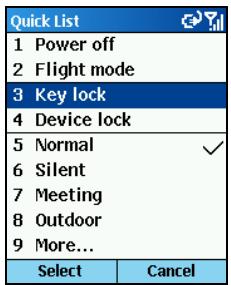
- Press and hold the End key until the Quick List appears.
- Select Key lock from the list and press the Action key or Select soft key. The left soft key will display Unlock, indicating that the keypad is locked.
To unlock the keypad, press the Unlock soft key on the Home screen, and press the Pound key (#).
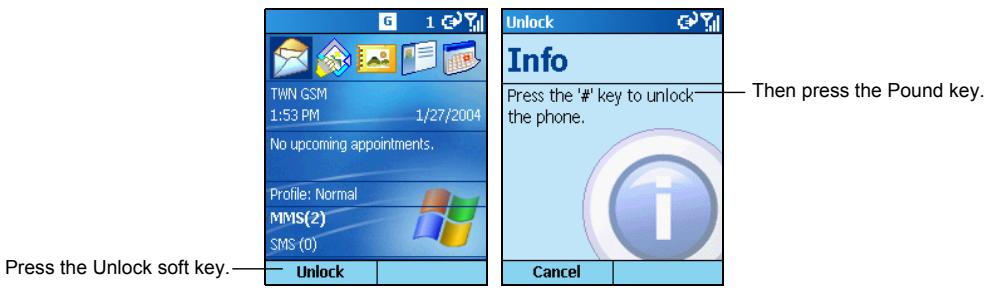
- You can still receive calls and make emergency calls when the keypad is locked.
Locking the Smartphone
Locking your Smartphone prevents access to personal data. When you enable this feature, the Smartphone will automatically lock after a specified time of inactivity. A screen will be displayed requiring your Smartphone lock password before access is granted.
To turn on the device lock:
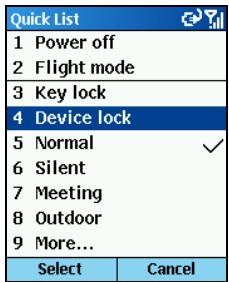
- Press and hold the End key until the Quick List appears. Select Device lock from the list and press the Action key or Select soft key.
- Under Lock phone after, select the amount of time the Smartphone is inactive before the Smartphone automatically locks by pressing the Left/Right key.
- Scroll to Password by pressing the Down key. Enter the password you want to use to access the Smartphone when it is locked. Then, scroll to Confirm password by pressing the Down key and enter the password again.
- Press the Done soft key to save your settings.
To lock the Smartphone:
After you turn on the device lock, your Smartphone will automatically lock after a specified time of inactivity. You can also directly lock your Smartphone by selecting Device lock from the Quick List. The left soft key on the screen will display Unlock to indicate that your Smartphone is locked.
- You can still receive calls and make emergency calls when the Smartphone is locked.
To unlock the Smartphone:
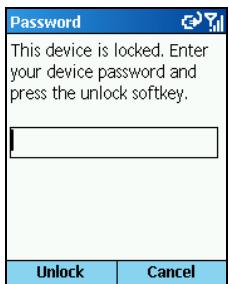
When the Smartphone is locked, press the Unlock soft key, enter your password, and then press the Unlock soft key again.
To turn off the device lock:
- On the Home screen, press the Start soft key, select Settings Security.
- Select Disable phone lock.
- Enter the password.
- Press the Done soft key. The time and password you have set will be cleared.
Locking the SIM Card
Locking the SIM card prevents you and others from using the Smartphone that contains the SIM card until the correct password is entered. To turn on the phone, you have to enter the PIN.
To lock the SIM card and set the PIN:
- On the Home screen, press the Start soft key, select Settings Security.
- Select Enable SIM Lock.
- Enter the password (SIM card's PIN1), and press the Done soft key.
Once the PIN is enabled, your Smartphone will ask you to enter the PIN whenever you turn it on.
To unlock the SIM card:
- On the Home screen, press the Start soft key, select Settings Security.
- Select Disable SIM Lock.
- Enter the password (SIM card's PIN1), and press the Done soft key.
To change the PIN:
- On the Home screen, press the Start soft key, select Settings Security.
- Select Change SIM Lock.
- Enter the original PIN1 code. Scroll to the next field by pressing the Down key and enter a new password. Then, press the Down key and enter the new password again.
- Press the Done soft key.
- You can still receive calls and make emergency calls when the SIM card is locked.
3 Using the Phone
This chapter explains how to make and receive phone calls, track your calls, and manage your calls and phone numbers more efficiently.
This chapter includes:
3.1 Making a Call 30
3.2 Responding to an Incoming Call 33
3.3 Managing More than One Call 34
3.4 In-call Options 35
3.5 Call History 36
3.6 Speed Dial 37
3.7 Voice Tag 39
3.8 Voice Mail. 41
3.9 International Call 42
3.10 Turning off the Radio. 43
There are several ways to make a call. The easiest way is to dial the phone number. Alternately, you can dial a phone number from the numbers existing in your Smartphone; for example, the numbers you have saved, the calls you dialed or received recently, etc.
Dialing a Call
- On the Home screen, press the numbers on the keypad to enter the phone number. If you enter a wrong number, you can press the Back key to erase the number.
- Press the Talk key
AutoFilter matches number to a contact. AutoFilter matches number from Call History.
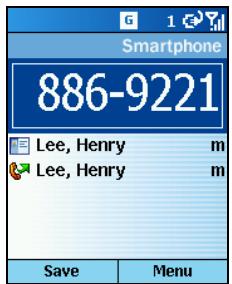
- You can talk when the other party takes the call.
- To end the call, press the End key . Alternately, you can press the Menu soft key and select End.
- As you enter a phone number, the Smartphone searches Contacts, Call History, and the Speed Dial lists to find a matching name and/or number. When you see the name of the person to call listed, select it, and press the Talk key to dial the call.
If you have a long list of contacts, and you don't see the contact you want, enter the first few letters of the contact's name. When you do this, the device searches through the contact list and displays the name. To call the contact, press the Talk key.
To radial the last number called, press the Talk key twice on the Home screen.
Making a Call from Contacts
Contacts is a Microsoft program for storing your contacts information in the Smartphone's memory. To call someone from the contact list, just select the person's name and press the Talk key

If you have more than one phone number for a contact, such as a Work phone number, a Home phone number, and a Mobile phone number. The Work phone number is set as the default number. Pressing the Talk key will always dial the default number, but you can change the default number at any time.
To make a call by contact name:
- On the Home screen, press the Start soft key, and select Contacts.
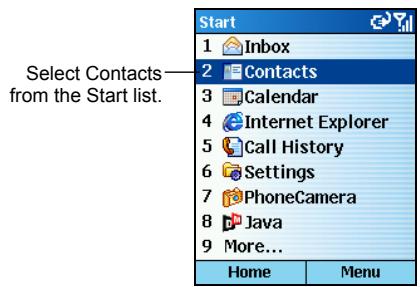
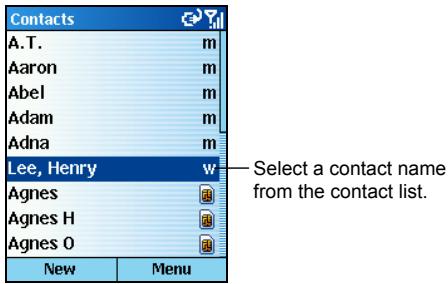
- Select the contact name to call by pressing the Up/Down key. If you have a long list of contacts, you can enter the first few letters of the contact's name, and the Smartphone will search through the entire contact list and display the name.
- Press the Talk key to dial the default number of the selected contact. If you are not dialing the default number, change the number by pressing the Left/Right key, and then press the Talk key.
- When a contact is selected, you can press the Action key to open the Contacts card and select a number from there.
For detailed information on the Contacts program, see section 6.1.
Making a Call from Speed Dial
Speed Dial enables you to quickly place a call without having to actually enter the number.
On the Home screen, press and hold the number on the keypad that you have assigned as a speed dial for a number. If the keypad assignment is two digits, press the first digit and press and hold the second digit.
For detailed information on Speed Dial, see section 3.6.
Making a Call Using a Recently Dialed Number
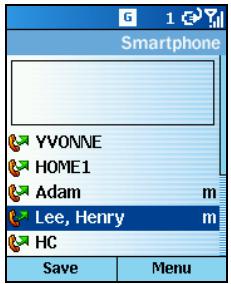
You can display a list of phone numbers you have recently dialed, and select a name or number from the list to call the person again.
- Press the Talk key l . A list of recently dialed phone numbers appears on the screen.
- Select the number or name for the person to call by pressing the Up/Down key, and press the Talk key
Making a Call from the Call History List

The Call History list displays the last 25 calls you made, received, and missed. Select a name or number to call someone from the list.
- On the Home screen, press the Start soft key, and select Call History.
- Select the number or name for the person to call by pressing the Up/Down key, and press the Talk key
For detailed information on Call History, see section 3.5.
Making a Call from a Hyperlink
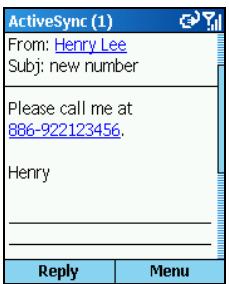
When you see an underlined phone number presented as a hyperlink in an e-mail message, just select the hyperlink phone number, and then press the Talk key to make the call.
3.2 Responding to an Incoming Call
When you receive a call on your Smartphone, the device rings, and the name and number of the caller are displayed on the screen. If the name of the caller is not in your contact list, only the caller's phone number is displayed.
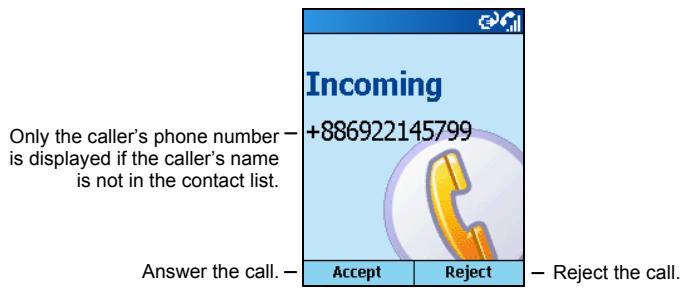
- There may be situations where you want to immediately silence the ring of an incoming call. Simply press the Volume control, and then proceed to answer the call.
You can customize the phone ring. (See "Sounds" in section 4.1 or Chapter 0.)
You can change the profile. (See "Profiles" in section 4.1.)
You can customize the displayed photo. (See Chapter 0.)
Answering an Incoming Call
Press the Talk key or Accept soft key.
Rejecting an Incoming Call
Press the End key or Reject soft key.
3.3 Managing More than One Call
During a call, you can make or take a second call while putting the current call on hold. Then, you can choose to swap between the two callers or set up a conference call between all three parties.
- You may need to register for the "call waiting" service with your service provider and set your Smartphone accordingly.
Holding a Call to Take a Second Call
If there is another incoming call when you are talking on the Smartphone, press the Talk key or Accept soft key to place the first call on hold, and answer the second call.
To end the first call and answer the second call, press the End key 心 , and then press the Talk key or Accept soft key.
Rejecting the Second Call
Press the Reject soft key to reject the second call and keep your current call in progress.
Holding a Call to Make a Second Call
When you are talking on the Smartphone, you can press the Menu soft key and select Hold to place the first call on hold and dial a second call. When you have finished the second call, press the End key to go back to the first call.
Swapping between Calls
When you have put a call on hold and made or taken another call as described earlier, you can change between the calls by pressing the Swap soft key.
Setting up a Conference Call
When multiple calls are in progress, you can press the Menu soft key and select Conference to set up a conference call.
Adjusting the Phone Volume
To adjust the volume during a call, simply press the Volume control on the side of your Smartphone.
Speakerphone
To use the speakerphone function as a hands-free solution, press and hold the Talk key. The other party's voice will be magnified and sent out through the speaker. You can then talk without having to hold the Smartphone against your cheek.
- When using the speakerphone function, always talk in turns. If you talk when the other party is still talking, the other party cannot hear you clearly.
In-call Options
While a call is in progress, you can press the Menu soft key to access menu commands for common tasks. The following table shows the commands available when a call is in progress. Some of these commands are available only when multiple calls are in progress or during a conference call.
| In-call option | Function |
| End | Disconnects the call. |
| Hold | Puts the active call on hold. |
| Unhold | Activates the call on hold. |
| Swap | Switches between two calls. |
| Save to Contacts | Creates a contact card for the caller. |
| Conference | Joins together all existing calls, if you have subscribed to this service. |
| Private | Breaks one call out of a conference and make it active while the rest of the conference is on hold. |
| Mute | Mutes the microphone for the active call; the other party will not hear anything you say, but you can still hear the other party. |
| Unmute | Turns the microphone back on for the active call. |
Call History displays the last 25 calls you have made, received, and missed. Each entry in Call History contains the start time of the call, the duration, and the caller's name, if available, and the caller's number.
Opening Call History
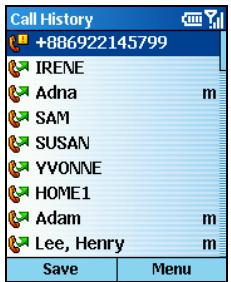
On the Home screen, press the Start soft key and select Call History.
Call History Menu Commands
In Call History, press the Menu soft key to access the command list.
| Call History menu command | Function |
| Find Contact | Opens the contact card of the selected entry in Call History (if the contact is already in the contact list). |
| Opens Inbox to send an e-mail message to the selected entry in Call History (if the contact is already in the contact list and contains an e-mail address). | |
| View Timers | Displays detailed information regarding the length of your last call, the total number of calls made and received, calls by type, and a lifetime counter. Call Timers is useful when you want to keep track of your calling patterns, for example to determine what type of calling plan to subscribe to and help you estimate your monthly billing. |
| Delete | Deletes the selected entry in Call History. |
| Delete List | Deletes all entries in Call History. |
| Save to Contacts | Stores the selected entry in Call History to Contacts. When you select Save to Contacts, the Select Contact screen appears. In the <New Item> field, press the Action key, scroll to the desired field, and press the Insert soft key to paste the number to the field. Enter the information in the other fields, and press the Done soft key. |
| Filter | Allows you to filter Missed Calls, Incoming Calls, or Outgoing Calls. |
You can create one- or two-digit speed dials. When you press a speed dial, Smartphone automatically dials the associated phone number, opens an e-mail message using the associated address, or goes to the associated Web page. You can create speed dials from 2 to 99. Speed dial 1 is reserved for your voice-mail number, and is automatically configured in your speed dial settings.
- You can create a speed dial only for a phone number, e-mail address, or Web page address that is stored in Contacts. You cannot create a speed dial for a contact stored in the SIM card.
For information on voice mail, see section 3.8.
Creating a Speed Dial
- On the Home screen, press the Start soft key and select Contacts.
- Select the desired contact and open the contact card to create a speed dial.
- Select the phone number, Web page address or e-mail address to create a speed dial.
- Press the Menu soft key and select Add Speed Dial.
- Under Keypad assignment, enter the speed dial number to use.
- Press the Done soft key.
On the Home screen, press and hold the number on the keypad that you have assigned as a speed dial for the phone number, e-mail address, or Web page. If the speed dial is two digits, press the first digit, and press and hold the second digit.
Editing a Speed Dial
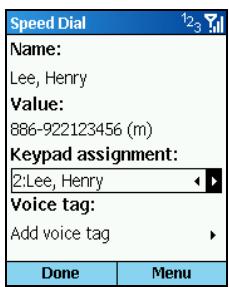
- On the Home screen, press the Start soft key and select Speed Dial.
- Select an entry from the speed dial list.
- Press the Edit soft key, or the Menu soft key then select Edit.
- Scroll to Keypad assignment, and press the Left/Right key to select a new speed dial number to use.
- Press the Done soft key.
Deleting a Speed Dial
- On the Home screen, press the Start soft key and select Speed Dial.
- Select an entry from the speed dial list.
- Press the Menu soft key and select Delete.
- When you delete a contact that is stored in Contacts, the speed dial you have set for this contact still exists in the speed dial list. You need to delete the speed dial from Speed Dial as well.
Viewing Speed Dials You Have Created
On the Home screen, press the Start soft key and select Speed Dial.
When you select an entry in the speed dial list, you can press the Go soft key ors use the Menu commands to dial the selected number, open a new e-mail message, go to the Web page, display the contact card, or delete an entry.
To view speed dials only, press the Menu soft key and select Filter Speed Dial.
You can record voice tags. Then, when you speak the voice tag, the Smartphone automatically dials the associated phone number, opens an e-mail message using the associated address, or goes to the associated Web page.
- You can create a voice tag only for a phone number, e-mail address, or Web page address that is stored in Contacts. You cannot create a voice tag for a contact stored in the SIM card.
Creating a Voice Tag
- On the Home screen, press the Start soft key and select Contacts.
- Select the desired contact and open the contact card to create a voice tag.
- Select the phone number, Web page address or e-mail address to create a voice tag.
- Press the Menu soft key and select Add Voice Tag.
- After the audio and visual prompt, begin recording the words for the voice tag. When prompted, repeat the words. The Smartphone will play back the recording and notify you of the successful recording.
- Press the OK soft key to go to the Add Speed Dial screen. Scroll to Voice tag and press the Action key to play back the voice tag you have created.
- Press the Done soft key to return to the contact card.
Using a Voice Tag
- On the Home screen, press and hold the Talk key for 2~3 seconds, and let go.
- Speak the words that you recorded as a voice tag.
- The Smartphone plays back the voice tag, recognizes it, and then dials the phone number, opens a new e-mail message, or goes to the Web page.
- If the Smartphone fails to recognize the voice tag, press the End key to repeat the procedure.
Playing Back a Voice Tag
- On the Home screen, press the Start soft key and select Speed Dial.
- Select an entry from the speed dial list.
- Press the Menu soft key and select Play Voice Tag; or press the Edit soft key, scroll to Playback voice tag and press the Action key.
Deleting a Voice Tag
- On the Home screen, press the Start soft key and select Speed Dial.
- Select an entry from the speed dial list.
- Press the Menu soft key and select Delete.
- When you delete a contact that is stored in Contacts, the voice tag you have set for this contact still exists in the speed dial list. You need to delete the voice tag from Speed Dial as well.
Viewing Voice Tags You Have Created
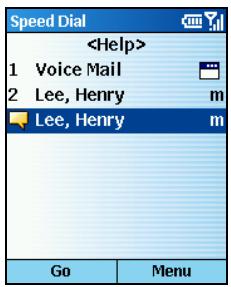
On the Home screen, press the Start soft key and select Speed Dial.
In the speed dial list, the entry with the icon indicates that you have created a voice tag for the contact. You can press the Go soft key or use the Menu commands to dial the selected number, open a new e-mail message, go to the Web page, display the contact card, or delete an entry.
To view voice tags only, press the Menu soft key and select Filter Voice Tags.
3.8 Voice Mail
Voice Mail is a service provided by your service provider. To use this service, you have to apply for it and obtain the phone number used for accessing the voice mail. You can call your voice mailbox by using speed dial 1, which is reserved for your voice-mail number.
Setting up the Voice Mail Phone Number
- On the Home screen, press the Start soft key and select Settings Phone.
- Select Call Options.
- Under Voice mail number (L1), enter the number for voice mail. This number will be automatically assigned Speed Dial 1.
Checking Your Voice Mail
On the Home screen, press and hold the number key 1 to call the voice mail of your service provider.
Entering an International Country Code
To make an international call, you must include a country code at the beginning of the dialing sequence for the phone number. The country code appears first, followed by a plus (+) sign, and is separated from the rest of the number sequence. If you are making an international call, press and hold 0 on the Home screen until the plus sign appears.
Inserting a 3-second Pause in a Dialing Sequence
Some international calls require a three-second pause in the dialing sequence for the call to process successfully.
When you are entering the phone number in Contacts, place the cursor where you want to insert a three-second pause, press the Menu soft key, and select Insert Pause. The letter "p" will appear in the number to show where the three-second pause will occur in the dialing sequence.
Inserting a Manually Pause in a Dialing Sequence
There may be phone numbers that require a pause longer than three seconds in the dialing sequence. For these cases, you can pause as long as you want and manually continue the dialing sequence using the Talk key
When you are entering the phone number in Contacts, place the cursor where you want the dialing sequence to pause before proceeding, press the Menu soft key, and select Insert Wait. The letter "w" will appear in the number to show where the pause will occur in the dialing sequence.
To resume dialing after reaching a manual pause, press the Talk key
3.10 Turning off the Radio
Under some situations (on the airplane, for example), you will need to turn off the radio of your Smartphone. After turning off the radio, you cannot use the phone function of your Smartphone, but you can still use other functions such as camera, Calendar, games, Media Player, etc.
To turn off the radio:
- Press and hold the End key until the Quick List appears.
- Select Flight mode.
To turn on the radio:
- Press and hold the End key until the Quick List appears.
- Select Flight mode off.
If you need to turn on the radio again after turning it off, please wait for 20 seconds before turning it on.
4 Setting up Your Smartphone
You can easily view and change settings to personalize the Smartphone for the way you work. For example, you can change the sounds or use your own sounds for ring tones, use your own image for the Home screen background, set up Call Forwarding and Call Waiting to manage your calls more efficiently, and more. This chapter tells you how to set up your Smartphone.
This chapter includes:
4.1 Settings (Page 1) 46
4.2 Settings (Page 2) 54
4.1 Settings (Page 1)
On the Home screen, press the Start soft key and select Settings to access Settings, which contains two setting pages.
To help you locate the item you want to set up, the following table shows the setting items and sub items on page 1. The description of the items comes after the table in sequence.
Setting Items (Page 1)
| Settings | |
| 1 Sounds | |
| 2 Date and Time | |
| 3 Profiles | |
| 4 Home Screen | |
| 5 Data Connections | |
| 6 Owner Information | |
| 7 Power Management | |
| 8 Remove Programs | |
| 9 More... | |
| Done | |
| 1 Sounds | Ring tone for line 1 |
| Ring tone for line 2 | |
| Reminders | |
| New e-mail | |
| New SMS | |
| New voice message | |
| New instant message | |
| New channel message | |
| Alarm clock | |
| SIM toolkit messages | |
| Exclamation | |
| Question | |
| Warnings | |
| Keypad control | |
| 2 Date and Time | Time zone |
| Date | |
| Time | |
| Alarm | |
| Alarm time |
| 3 Profiles | Normal |
| Silent | |
| Meeting | |
| Outdoor | |
| Automatic | |
| Headset | |
| Car | |
| Speakerphone | |
| 4 Home Screen | Home screen layout |
| Color scheme | |
| Background image | |
| Time out | |
| 5 Data Connections | |
| 6 Owner Information | Name |
| Telephone number | |
| E-mail address | |
| Notes | |
| 7 Power Management | Power Management |
| Backlight Brightness | |
| 8 Remove Programs |
Sounds
On the Home screen, press the Start soft key, and select Settings Sounds to access the Sounds setting items.
Your Smartphone provides 20 ring tones (in .mid format) for you to select from. You can use your own files by copying the sound files (in .wav, .mmf, .mid or .mp3 format) from your desktop computer to the Storage\Application Data\Sounds folder in the Smartphone.
If PhoneExplorer is not installed in your Smartphone, use ActiveSync to copy files from the desktop computer to your Smartphone.
Sounds settings are used to customize the sounds for the ring tones, notifications, reminders, alarm clock, alert, and key tones. When you scroll to the event for which to specify a sound, press the Left/Right key to select a sound, or press the Action key to select from a full list and then press the Done soft key.
Date and Time
On the Home screen, press the Start soft key, and select Settings Date and Time to access the Date and Time setting items.
Date and Time settings enable you to change the local time zone and the current date and time, and to set the alarm.
Profiles
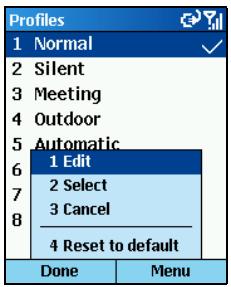
On the Home screen, press the Start soft key, and select Settings Profiles to access the Profiles setting items.
Profiles settings are used to configure how the Smartphone notifies you of events such as an incoming call, an approaching appointment, or an arriving message. You can use Profiles to change quickly how you receive notifications based on your situation. For example, you may want the Smartphone to ring louder if a client is calling, or you may not want the Smartphone to ring at all, but want to hear calendar reminders.
The default profile used with your Smartphone is the Normal profile.
The following table shows the list of profiles that come with the Smartphone and their attributes.
| Profile Name | Auto-answer Time | Ring Type | Ring Volume | Alarm Type | Alarm Volume | Notification Type | Notification Volume | System Sound Volume |
| Normal | -- | Ring | 3 | Increasing | 3 | Play sound | 3 | 3 |
| Silent | -- | Vibrate | Off | Vibrate | Off | Vibrate | Off | Off |
| Meeting | -- | Vibrate | 1 | Play sound | 1 | Play sound | 1 | Off |
| Outdoor | -- | Ring | Loud | Increasing | Loud | Play sound | Loud | Loud |
| Automatic | Toggles between Normal and Meeting, based on your calendar. | |||||||
| Headset | When you connect the hands-free phone headset, your Smartphone will automatically use this profile. | |||||||
| Never | Ring | 3 | Increasing | 3 | Play sound | 3 | 3 | |
| Car | When you connect the car kit, your Smartphone will automatically use this profile. | |||||||
| Never | Ring | 4 | Increasing | 4 | Play sound | 4 | 4 | |
| Speakerphone | When you use the speakerphone function, your Smartphone will automatically use this profile. | |||||||
| -- | Ring | Loud | Increasing | Loud | Play sound | Loud | Loud | |
Changing the Profile Quickly
Press and hold the End key until the Quick List appears. The list on the first screen contains four modes: Normal, Silent, Meeting and Outdoor. If you want to select from other modes, go to the next screen to select a mode. Then, press the Action key or the Select soft key.
Editing a Profile
If you want to change the settings of a profile, you can select a profile, press the Menu soft key, and select Edit. Modify the settings and press the Done soft key.
- When you use the phone headset and change the auto-answer time to 2, 4, 6, 8 or 10 seconds, it may take some time for the change to take effect.
If you want to restore the default settings of a profile, press the Menu soft key and select Reset to default.
Home Screen
On the Home screen, press the Start soft key, and select Settings Home Screen to access the Home Screen setting items.
Home Screen settings are used to change the Home screen layout, the color scheme, the background image, and the time delay before the Home screen appears when the Smartphone is idle.
Using Mio Home Screen Layout
Your Smartphone provides several Mio home screen layouts for you to use.
- On the Home screen, press the Start soft key and select Settings Home Screen.
- Under Home screen layout, press the Left/Right key to select a Mio home screen layout. You can also press the Action key to select from the list.
- After your selection, press the Done soft key.
- Press the Home key to return to the Home screen. The change has taken effect.
Customizing the Home Screen with Your Own Image
- Go to where your image file is stored on your desktop computer, and the file should be saved in .gif, .jpg, or .bmp format. For best effect, please adjust the image's size to 176x200.
- Copy the image file from your desktop computer to the StorageApplication Data\Home folder in the Smartphone using ActiveSync.
- On the Home screen, press the Start soft key and select Settings Home Screen.
- Scroll to Background image. Press the Left/Right key to select an image, or select from a full list by pressing the Action key.
- Press the Done soft key.
Data Connections
On the Home screen, press the Start soft key, and select Settings Data Connections to access the Data Connections setting items.
Data Connections settings enable you to set up Dial-up, Virtual Private Network (VPN), Proxy, and General Packet Radio Service (GPRS) connections so you can connect to the Internet or your corporate network. With a data connection, you can browse the Web, download e-mail, chat using MSN® Messenger, or synchronize wirelessly with the server. Check with your service provider to see if a data connection has already been set up for you, and if over-the-air configuration is supported.
Creating a GPRS Connection
GPRS is a high-speed transmission through the mobile phone network, which provides permanent on-line connection.
To use GPRS to connect to the network, you need to apply for the GPRS service with your service provider. The available services depend on what you have applied with your service provider. Such services are charged.
When you apply for the GPRS service, your service provider may have already set up a GPRS connection for you. If you want to set up the GPRS connection, follow this procedure:
- Obtain the following information from your service provider: the APN (Access Point Node) name and DNS (Domain Name Servers) name (if required).
- On the Home screen, press the Start soft key, and select Settings Data Connections.
- Press the Menu soft key and select Edit Connections.
- Select GPRS Connections.
- Press the Menu soft key and select Add. Enter your name under Description.
- Under Connects to, select the appropriate option.
- Under Access point, enter the APN provided by your service provider.
- Enter the user name and password provided by your service provider.
- If needed, enter the primary DNS, secondary DNS, and the IP address.
- Press the Done soft key three times to return to the Data Connections screen.
- Under Internet connection, press the Left/Right key to change to the GPRS connection you just created, and press the Done soft key.
Completing the GPRS Settings
- On the Home screen, press the Start soft key, and select Settings Data Connections.
- Under Internet connection, select the Internet setting of your mobile phone network.
- Under WAP connection, select the WAP setting of your mobile phone network.
- Under MMS Connection, select the MMS setting of your mobile phone network.
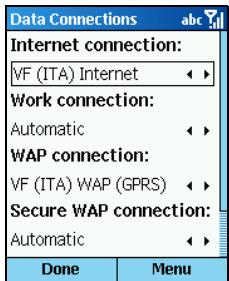
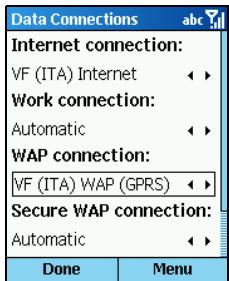
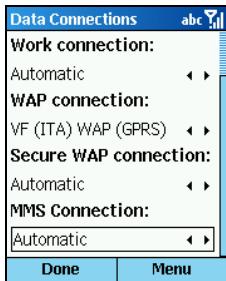
- Press the Done soft key.
The G icon on the screen indicates that GPRS is available for use. The G icon indicates that GPRS is being used; you can press the End key to temporarily stop the GPRS connection.
- You can also use the Mio Assistant program to quickly install the GPRS settings. For more information, see section 12.7.
Creating a Dial-up Connection
You need to set up a dial-up connection to connect directly to the Internet or to your corporate network.
To create a dial-up connection to the Internet:
- Obtain the following information from your ISP: the number to dial up, the domain name, the user name and password.
- On the Home screen, press the Start soft key, and select Settings Data Connections.
- Press the Menu soft key and select Edit Connections.
- Select Dial-up Connections.
- Press the Menu soft key and select Add.
- Under Description, enter a name for the connection, such as "ISP."
- Under Connects to, select The Internet.
- Enter the appropriate information for the remaining fields, including the phone number for dialing-up, user name and password, and domain name.
- Press the Done soft key three times to return to the Data Connections screen.
- Under Internet connection, press the Left/Right key to change to the dial-up connection you just created, and press the Done soft key.
To create a dial-up connection to your corporate network:
- Obtain the following information from your corporate network administrator: the number to dial up, the Domain name, the user name and password.
- On the Home screen, press the Start soft key, and select Settings Data Connections.
- Press the Menu soft key and select Edit Connections.
- Select Dial-up Connections.
-
Press the Menu soft key and select Add.
-
Under Description, enter a name for the connection, such as "Corporate."
- Under Connects to, select Works.
- Enter the appropriate information for the remaining fields, including the phone number for dialing-up, user name and password, and domain name.
- Press the Done soft key three times to return to the Data Connections screen.
- Under Work connection, press the Left/Right key to change to the dial-up connection you just created, and press the Done soft key.
VPN Connection
A VPN connection is used to access your corporate network using an existing Internet connection.
Proxy Connection
A proxy connection is used to access the Internet using an existing connection to your corporate network.
Owner Information
On the Home screen, press the Start soft key, and select Settings Owner Information to access the Owner Information setting items.
Owner Information settings are used to enter and display personal information, such as your name, phone number, and e-mail address. This is helpful, for example, in the event that you lose your Smartphone so that you can be contacted if it is found.
Power Management
On the Home screen, press the Start soft key, and select Settings Power Management to access the Power Management setting items. There are two sub-items: Power Management and Backlight Brightness.
Power Management settings are used to check the battery level and display power-saving settings, such as the backlight and display time-outs.
Backlight Brightness allows you to adjust the backlight of the display.
Remove Programs
- Be careful when you remove programs.
- You cannot remove Microsoft core programs such as Calendar, Tasks, Inbox, Internet Explorer, etc.
Remove Programs settings enable you to remove programs installed on the Smartphone.
- On the Home screen, press the Start soft key, and select Settings Remove Programs.
- Select the program you want to remove by pressing the Up/Down key, and then press the Action key. You can also press the Menu soft key to select Remove.
- A message appears on the screen asking you to confirm. Press the Yes soft key to remove the program.
4.2 Settings (Page 2)
To help you locate the item you want to set up, the following table shows the setting items and sub items on page 2. The description of the items comes after the table in sequence.
Setting Items (Page 2)
| Settings | |
| 1 Beam | |
| 2 Phone | |
| 3 Accessibility | |
| 4 Regional Settings | |
| 5 Security | |
| 6 Certificates | |
| 7 Bluetooth | |
| 8 About | |
| Done | |
| 1 Beam | |
| 2 Phone | Call Barring |
| Call Forwarding | |
| Call Options | |
| Call Waiting | |
| Caller ID | |
| Channels | |
| Fixed Dialing | |
| Networks | |
| 3 Accessibility | Multipress time out |
| Confirmation time out | |
| In-call alert volume | |
| Smartdial setting |
| 4 Regional Settings | Language |
| Locale | |
| Short date style | |
| Long date style | |
| Time format | |
| Positive number | |
| Negative number | |
| Positive currency | |
| Negative currency | |
| 5 Security | Enable Phone Lock |
| Enable SIM Lock | |
| Change PIN2 | |
| 6 Certificates | Personal |
| Root | |
| 7 Bluetooth | |
| 8 About |
Beam
On the Home screen, press the Start soft key, and select Settings Beam to access the Beam setting items.
The Beam setting allows you to receive data from another device using infrared. Select Receive incoming beams before receiving data.
Phone
On the Home screen, press the Start soft key, and select Settings Phone to access the Phone setting items.
Phone settings are primarily used to set options for calls you receive, such as Caller ID, Call Waiting, and Call Forwarding. These settings are related to the services you applied with your service provider.
| Phone setting item | Function |
| Call Barring | Enables you to block incoming and/or outgoing calls. |
| Call Forwarding | Enables you to forward all or selected calls to another number. |
| Call Options | Enables you to change phone numbers, such as your voice mail and SMS service center, answer incoming calls by pressing any key, and other advanced call options. |
| Call Waiting | Enables you to turn Call Waiting on or off. |
| Caller ID | Enables you to let your identification be known to all callers, only your contacts, or no callers. |
| Channels | Enables you to configure cell broadcast. The cell broadcast is an add-on service provided by your service provider, which allows you to receive a variety of information such as weather forecast, stock, and traffic. |
| Fixed Dialing | Enables you to limit your calling area to one or more specific phone numbers and/or area codes. |
| Networks | Identifies your current network and changes your network selection from Automatic to Manual. |
- You need to enter the PIN2 code to set the fixed dialing settings. Afterwards, the PIN2 access has been granted. To avoid unauthorized access to the settings, turn off your Smartphone and then turn it on again, or turn off the radio and then turn it on again (see section 3.10).
Accessibility
On the Home screen, press the Start soft key, and select Settings Accessibility to access the Accessibility setting items.
Accessibility settings are used to configure the system font size, multipress time-out, confirmation time-out, and in-call alert volume.
Regional Settings
On the Home screen, press the Start soft key, and select Settings Regional Settings to access the Regional Settings setting items.
Regional Settings are used to change the Smartphone's language, location, date and time style, as well as number and currency formatting options.
Security
On the Home screen, press the Start soft key, and select Settings Security to access the Security setting items.
Security settings are used to enable phone lock and SIM lock. (For details, see section 2.4.)
Certificates
Your Smartphone allows you to add and delete public key certificates. These certificates help establish your identity when you log on to a secure network, such as a corporate network. Certificates also help establish the identity of other computers, such as servers, with which you connect. This helps prevent unauthorized users from accessing your device and its information.
You can store two types of certificates on the Smartphone:
- Personal certificates establish your identity.
- Root certificates establish the identity of servers with which you connect.
Your Smartphone may include a set of preinstalled certificates. To view and manage the certificates, follow this procedure:
- On the Home screen, press the Start soft key and select Settings Certificates.
- Select Personal or Root to open the list of the certificates.
- To view the details about a certificate, select it in the list, press the Menu soft key, and select View.
- To delete a certificate, scroll to it in the list, press the Menu soft key, and select Delete.
Bluetooth
Your Smartphone does not support Bluetooth.
About
On the Home screen, press the Start soft key, and select Settings About to access the About setting items.
About settings display information about the Smartphone's operating system, including version numbers and copyright information, and the available storage space, memory, etc.
5 Messaging Features
This chapter introduces the Smartphone's basic messaging features, such as sending and receiving e-mail, Short Message Service (SMS) messages, and using MSN® Messenger to communicate with others.
This chapter includes:
5.1 Understanding Messaging Types 60
5.2 Setting up Messaging Accounts 61
5.3 Working with Accounts 63
5.4 Composing and Sending Messages 64
5.5 Receiving Messages 68
5.6 Viewing and Responding to Messages 70
5.7 Managing Message Folders 74
5.8 MSN Messenger 76
5.1 Understanding Messaging Types
Your Smartphone supports e-mail messaging, SMS messaging, and instant messaging. You can work with e-mail and SMS messages from Inbox, and use instant messaging features from MSN Messenger.
- Your Smartphone also supports the MMS function. For more information, see Chapter 10.
E-mail Messaging
There are two ways to send and receive e-mail messages with the Smartphone:
- By synchronizing Inbox with Microsoft® Outlook® on your desktop computer or your Microsoft® Exchange server
- By connecting to a POP3 or IMAP4 e-mail server to send and receive Internet e-mail messages
SMS Messaging
You can send and receive SMS messages up to 160 characters in size over the Smartphone network (this limitation does not apply in Europe). If an SMS message is longer, it will automatically be sent in chunks as several small SMS messages, and will then be unified as one SMS message after all of the small SMS messages have been received. If the receiver's phone does not support this function, the SMS message will be separated into several messages and appear on the receiver's phone as multiple messages.
The advantages of SMS messages include the following:
SMS messages are sent instantly.
SMS messages can be sent or received at any time, including during a voice or data call.
- Most mobile phones support SMS, so most recipients can read SMS messages that you send.
- You cannot synchronize SMS messages with your desktop computer, and you cannot use SMS messages to send or receive attachments or voice notes.
Instant Messaging
You can use MSN® Messenger on the Smartphone to send and receive instant messages. MSN Messenger on the Smartphone provides the same chat environment as MSN Messenger on your desktop computer. For example, you can chat with a single MSN Messenger contact, or with several contacts at once. You can switch between active chats, block contacts, and configure display settings, such as your name and current status (Away, Online, and so on).
5.2 Setting up Messaging Accounts
Your Smartphone is already set up for SMS text and voice mail messaging. For more information on instant messaging, see section 5.8. This section describes the steps required for setting up the Smartphone to send and receive e-mail messages. You can use up to eight different messaging accounts with the Smartphone.
Setting up Outlook Synchronization
Your Smartphone includes an ActiveSync account. You can synchronize this account with Outlook on your desktop computer or Exchange Server. When you do this, messages in the ActiveSync Outbox on the Smartphone are sent, and messages you have received in Outlook are copied to the ActiveSync account folders on your Smartphone. Only those folders that are marked for synchronization on your Smartphone are synchronized in this manner. To set up the Smartphone for synchronization, see section 5.7. For more information on synchronization, see Chapter 7.
- To synchronize remotely, you must also configure a data connection. For more information, see Chapter 4.
Setting up an Internet E-mail Account
Besides synchronization, you can also use Internet e-mail to send and receive e-mail. To do this, you must:
- Have an Internet e-mail account.
- Configure a data connection on the Smartphone for connecting to the Internet. (For more information, see Chapter 4.)
- Set up an Internet e-mail account in Inbox.
To set up an Internet e-mail account, you need to know which type of e-mail server hosts your mailbox: IMAP4 or POP3. You also need to know the name of your incoming and outgoing e-mail servers. If you are not sure, ask your service provider or network administrator. In addition, you need to know your e-mail user name and password, and if required, your domain name.
To set up an Internet e-mail account:
- On the Home screen, press the Start soft key and select Inbox.
- Press the Menu soft key and select Options.
- Select Account Setup, press the Menu soft key and select New.
-
Under Your name, enter your display name for e-mail messages. Under E-mail address, enter the e-mail address for this account. Then press the Next soft key.
-
Enter the user name, password and domain name (if necessary), and then press the Next soft key.
To save your password, so that you do not need to enter it each time you connect to your e-mail server, select Save password.
If you save your password and then lose your Smartphone, someone finding your Smartphone might be able to gain access to your e-mail.
- Under Server type, press the Left/Right key to select the type of e-mail server that hosts your mailbox: IMAP4 or POP3.
Under Account name, enter a name for this account. You must use a different name for each account that you set up.
Under Network, press the Left/Right key to select the type of network that your e-mail server runs on.
Then press the Next soft key.
- Enter the information about your e-mail servers. If you are not sure what to enter, ask your network administrator. Then press the Next soft key.
- Select the message download options, and then press the Next soft key.
- Select a connection option, and then press the Next soft key.
- Press the Finish soft key.
You can use up to eight different messaging accounts with the Smartphone. For information on setting up an account, see section 5.2. This section describes the features of using the accounts.
Viewing the List of Accounts
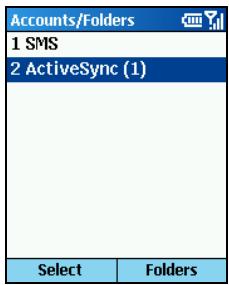
- On the Home screen, press the Start soft key and select Inbox.
- Press the Menu soft key and select Accounts/Folders. The list of accounts displays with the number of unread messages in the Inbox of each account shown in parentheses.
Changing the Accounts Quickly
On the Home screen, press the Start soft key Inbox the Menu soft key Accounts/Folders. Do one of the following to change the accounts:
- Press the Up/Down key to select an account.
- Scroll to an account, and press the Select soft key to open the Inbox of this account. Then you can press the Left/Right key to quickly change to the Inbox of another account.
Changing E-mail Account Options
- On the Home screen, press the Start soft key and select Inbox.
- If necessary, press the Left/Right key to change to the account you want.
- Press the Menu soft key and select Options. Modify the settings and press the Done soft key.
Deleting an Account
- On the Home screen, press the Start soft key and select Inbox.
- Press the Menu soft key and select Options.
- Select Account Setup.
- Scroll to the account to delete, press the Menu soft key, and select Delete.
Composing an E-mail or SMS Message
- You can choose to send from Inbox or Contacts (if Contacts contains the e-mail address or SMS number you want).
Sending from Inbox
On the Home screen, press the Start soft key and select Inbox. Press the New soft key. Select an account to use: SMS, ActiveSync, or a POP3 or IMAP4 e-mail account that you set up. Enter a recipient e-mail address or SMS number in the To field. If Contacts contains the e-mail address or SMS number you want, you can press the Action key directly in the input field to select from the list.
Sending from a Contact Card
On the Home screen, press the Start soft key and select Contacts. Select the contact you want from the list to open the contact card. Select the e-mail address or SMS number you want, and press the Action key.
- You can only enter SMS numbers in an SMS message, and e-mail addresses in an e-mail message.
- To insert punctuation such as the "at" sign (@), a period (.) or a semicolon (;), repeatedly press the number key 1 in the Multipress mode until the punctuation appears.
- To add multiple recipients, separate each name with a semicolon (;) by repeatedly pressing the number key 1 in the Multipress mode until the semicolon appears. You can also press and hold the Pound key (#) to select a symbol from the symbol list.
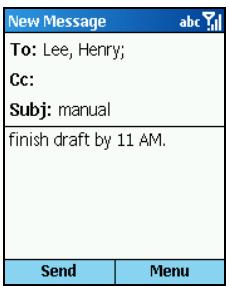
- In Cc, enter the e-mail address of the person to receive a copy. (This field does not appear for SMS messages.)
- In Subj, enter a subject (this field does not appear for SMS messages), and your message. (For information on entering text, see section 2.3.)
- Press the Send soft key.
- If you are sending an e-mail message, it will be stored in Outbox and sent to the recipient the next time you synchronize or connect to your e-mail server. If you are sending an SMS message, it will be sent immediately through the mobile network.
If you want to abort, press the Menu soft key and select CancelCompose.
- To save a draft of a message that you are composing to finish and send later, press the Menu soft key and select Postpone Message. To re-open and send a message draft, press the Menu soft key on the main screen of Inbox and select Accounts/Folders. Scroll to the account whose folders you want to view, and press the Folders soft key. Select Drafts and then the draft to open, and press the Edit soft key to continue.
Inserting Predefined Text into Messages
To save time entering text, you can insert predefined text into messages. You can edit the predefined text included with the Smartphone to create words or phrases that you frequently use in messages.
To insert predefined text into a message:
- When composing your message, press the Menu soft key and select Insert Text.
- The predefined text appears on the screen. Scroll to the text to insert into your message and press the Insert soft key.
To edit your predefined text messages:
- While in Inbox, press the Menu soft key and select Options Edit My Text.
- Scroll to the text to edit, enter the new text, and press the Done soft key.
Inserting Voice Recordings into Messages
You can easily insert a voice recording into an e-mail message. Inserting a voice recording is useful when you want to verbally explain information that is contained in the message.
To insert a voice recording into a message:
- When composing your message, press the Menu soft key and select Insert Recording.
- The Voice Memo appears on the screen. Press the Record soft key to start recording.
- To end recording, press the Stop soft key.
- Press the Done soft key to insert the recording into your message.
- You can send only one voice recording in a message. If you create a second voice recording in a message, it replaces the first recording.
Inserting Signatures into Messages
For each messaging account, you can specify a signature to be automatically inserted into messages that you send.
- While in Inbox, press the Menu soft key and select Options Signatures.
- Under Select an account, press the Left/Right key to change to the account for which to specify a signature.
- Select Use signature with this account.
- To insert a signature in every message you send, select Include when replying and forwarding. Otherwise, a signature is inserted only in new messages.
- Under Signature, replace the text in the box with a signature to insert.
- Press the Done soft key. The signature is inserted into messages that you send from this account.
- To stop inserting a signature in messages, repeat the above procedure, but clear Use signature with this account.
Sending Messages
There are several ways to send e-mail and SMS messages with your Smartphone. The most common way to send messages is from Inbox or from a contact card.
The Smartphone immediately sends SMS messages when you press the Send soft key on the New Message screen.
To send e-mail messages, you can connect to your desktop computer or Exchange Server, and synchronize Inbox with Outlook. (For more information, see Chapter 7.)
You can also use the Send/Receive menu command from an Internet e-mail account to send e-mail messages. Follow this procedure:
- Before you can send e-mail messages, your Smartphone must be properly configured. (For more information, see the "Setting up an Internet E-mail Account" section earlier in this chapter.)
- On the Home screen, press the Start soft key and select Inbox.
-
If necessary, press the Left/Right key to change to the Internet e-mail account for which you want to send messages.
-
Press the Menu soft key and select Send/Receive. The Smartphone connects to your Internet e-mail server and sends your messages.
To stop this process, press the Menu soft key and select Stop Send/Receive.
Requesting a Delivery Receipt
You can request a delivery receipt for an SMS message. When you do this, you receive an SMS message to confirm that your message was delivered to the recipient's SMS service.
- Before sending an SMS message, press the Menu soft key and select Message Options.
- Select Request SMS text message delivery notification.
- Press the Done soft key.
When new messages arrive, your Smartphone makes a sound to alert you and an envelope icon appears at the top of the screen.
- You can change the sound that is played when you receive a message. For more information, see section 4.1.
- When you receive a new voice mail message, the new voice mail icon appears at the top of the display. You can call your voice mail service number and listen to new voice mail messages by pressing the Voice Mail soft key, if it is displayed, or by dialing the number.
Receiving SMS Messages
The Smartphone automatically receives SMS messages whenever it is turned on.
Importing SMS Messages from the SIM Card to Inbox
Your SIM card may have been inserted in another mobile phone. Note that any SMS messages received when the SIM card is in an ordinary mobile phone are stored in the SIM card, but SMS messages received when the SIM card is in your Smartphone are stored in the Inbox of your Smartphone. You can import the SMS messages existing in the SIM card following this procedure:
- On the Home screen, press the Start soft key and select Inbox.
- Press the Menu soft key and select Options.
- Select Import SIM Messages.
- Press the Done soft key. The SMS messages are copied from the SIM card to the Inbox of the SMS account.
- You cannot export SMS messages from your Smartphone to a SIM card.
SMS messages are not removed from the SIM card after they are imported to Inbox. - When there is no more space for new SMS messages in your SIM card, then you cannot use this SIM card to receive SMS messages in your Smartphone.
- To view the space information of the SMS messages in your SIM card, press the Start soft key on the Home screen, and select Accessories SIM Cleaner. The screen will display the space information of the SMS messages in your SIM card. To delete all SMS messages in your SIM card, press the Delete soft key.
Receiving E-mail Messages
To receive e-mail messages, you can connect to your desktop computer or Exchange Server, and synchronize Inbox with Outlook. (For more information, see Chapter 7.)
You can also use the Send/Receive menu command from an Internet e-mail account to receive e-mail messages. Follow this procedure:
- Before you can receive e-mail messages, your Smartphone must be properly configured. (For more information, see the "Setting up an Internet E-mail Account" section earlier in this chapter.)
- On the Home screen, press the Start soft key and select Inbox.
- If necessary, press the Left/Right key to change to the Internet e-mail account for which you want to receive messages.
- Press the Menu soft key and select Send/Receive. The Smartphone connects to your Internet e-mail server and receives your messages.
To stop this process, press the Menu soft key and select Stop Send/Receive.
- You must take additional steps to receive large messages and attachments. For more information, see the "Downloading a Complete E-mail Message" and "Downloading an Attachment" sections later in this chapter.
5.6 Viewing and Responding to Messages
When you receive an e-mail message, the Smartphone plays a sound and displays an envelope icon at the top of the screen. By default, the Home screen also displays the number of unopened e-mail and SMS messages. To quickly view new messages, scroll to the message notification area on the Home screen and press the Action key to enter the Inbox of the specified account.
Working with the Message List
Received messages are stored in the Inbox folder of the appropriate account. They are displayed in the Inbox message list.
To view the Inbox message list, press the Start soft key on the Home screen and select Inbox. If necessary, press the Left/Right key to change to the account for which to view messages.

By default, messages are displayed in the order received.
- You can change the order in which messages are displayed and show the date and time that messages were sent. While in Inbox, press the Menu soft key and select Options Display. Modify the settings and press the Done soft key.
Opening a Message
- On the Home screen, press the Start soft key and select Inbox.
- If necessary, press the Left/Right key to change to the account you want.
- Select the message to open.
- To return to the message list, press the Back key.
To create a contact card for the sender, press the Menu soft key and select Save to Contacts.
- To open the next message in the list from within an open message, press the Right key; to open the previous message in the list, press the Left key.
- You can specify the language for reading a message. From an open message, press the Menu soft key and select Options. Under E-mail message language, press the Left/Right key to select a language, and press the Done soft key.
Inbox Menu
The following table lists Inbox menu commands and their functions.
| Inbox menu command | Function |
| Delete | Deletes the selected message. |
| Reply | Replies to an open or selected message. |
| Reply All | Replies to an open or selected message to the sender and all copy recipients. |
| Forward | Forwards the selected message. |
| Move | Moves an open or selected message to a different folder. |
| Mark as Read | Displays the header text of a message in Inbox in lightface, indicating that the message has been read. |
| Mark as Unread | Displays the header text of a message in Inbox in bold, indicating that the message has not been read. |
| Mark for Download | Retrieves the entire e-mail message from the e-mail server the next time you connect. |
| Options | Displays a list of Inbox options that you can customize (see the next section). |
| Send/Receive | Connects to your e-mail server to send and receive messages. |
| Accounts/Folders | Displays all accounts and message folders. |
Downloading a Complete E-mail Message
When you receive large e-mail messages and attachments, the Smartphone downloads only a portion of them. You can view the partial message or attachment and decide if you want to download the rest of it.
When you synchronize Inbox with your desktop computer or Exchange Server, the Smartphone downloads the first 0.5KB of each new e-mail message by default. When you connect to an Internet e-mail server, it downloads the amount (in KB) of each new message that you specified when you set up the account. The message size includes its attachments. The original messages and attachments remain on the server or your desktop computer.
To download a complete message, scroll to the message to download, press the Menu soft key, and select Mark for Download. The complete message is retrieved the next time you synchronize or connect to your e-mail server and receive e-mail.
- When you delete a message on your Smartphone, it is also deleted from the e-mail server the next time you connect.
Downloading an Attachment
In the message list, messages with an attachment display an envelope icon with a paperclip. Within a message, attachments are displayed as a list of hyperlinks at the bottom of the message, and are preceded by an attachment icon. The hyperlink includes the file name and size of the attachment.
- On messages received from a POP3 e-mail server, the attachment size is omitted.
The attachment icon has the following three states:
Not downloaded
- Downloaded
Marked for download
In an open message with an attachment to download, select the attachment. The attachment is downloaded the next time you synchronize or connect to your e-mail server and receive e-mail.
To view the attachment, select the attachment in an open message containing a downloaded attachment.
To delete the attachment, scroll to the attachment in an open message containing a downloaded attachment, press the Menu soft key, and select Delete. This deletes all of the attachments to this message, not only the selected attachment.
- You can view attachments only for file types that are supported by the Smartphone.
Accepting Meeting Requests
You can receive and respond to Outlook meeting requests on your Smartphone in a similar manner as you do in Outlook on your desktop computer.
- On the Home screen, press the Start soft key and select Inbox.
-
If necessary, press the Left/Right key to change to the account you want.
-
Select the meeting request (preceded by an icon).
-
To accept the meeting request and insert the meeting into your calendar, press the Menu soft key and select Accept.
To decline the meeting request, press the Menu soft key and select Decline. - To tentatively accept the meeting request and insert a tentative meeting into your calendar, press the Menu soft key and select Tentative.
Your response is sent back to the meeting organizer the next time that you synchronize.
For more information on synchronizing, see Chapter 7.
Each messaging account has a set of folders in which the Smartphone stores messages for that account. The default folders are:
- Deleted Items contains messages that you delete until you empty this folder.
- Drafts contains messages that you save before sending.
- Inbox contains messages that you receive.
- Outbox contains sent e-mail messages until you synchronize or connect to your e-mail server. SMS messages are sent immediately over the network and appear in your SMS Outbox folder only for a few seconds.
- Sent Items contains copies of messages that you send.
If your e-mail account supports folders, you can view multiple folders to reflect the folder structure that you have created on your e-mail server. Messages you download from the server will then be placed automatically in the appropriate folders on your Smartphone.
Viewing the Message Folder Contents
- On the Home screen, press the Start soft key and select Inbox.
- Press the Menu soft key and select Accounts/Folders.
- Scroll to the account for which to view the contents of a message folder.
- Press the Folders soft key and select the folder to view. To view all ActiveSync folders, even those not marked to synchronize, press the Menu soft key and select Show All Folders.
- To return to Inbox, press the Menu soft key and select Accounts/Folders.
Marking a Folder for Synchronization
- Synchronize Inbox with your desktop computer. This creates the same ActiveSync Inbox folders on your Smartphone as in Outlook on your desktop computer.
- On the Home screen, press the Start soft key and select Inbox.
- Press the Menu soft key and select Accounts/Folders.
- Scroll to ActiveSync and press the Folders soft key.
- Press the Menu soft key and select Manage Folders.
- Scroll to a folder to synchronize.
- Press the Show soft key and then the Done soft key. The next time you synchronize, the folder(s) that you marked on your Smartphone are synchronized with the corresponding folders in Outlook on your desktop computer.
Moving a Message to a Different Folder
- On the Home screen, press the Start soft key and select Inbox.
- If necessary, press the Left/Right key to change to the account in which to move a message.
- Scroll to the message to move.
- Press the Menu soft key and select Move.
- Select the folder into which to move the message.
Emptying the Deleted Items Folder
- On the Home screen, press the Start soft key and select Inbox.
- Press the Menu soft key and select Accounts/Folders.
- If necessary, press the Left/Right key to change to the account for which to empty the Deleted Items folder.
- Press the Folders soft key and select Deleted Items.
- Press the Menu soft key and select Empty Folder.
You can use MSN Messenger on your Smartphone to send and receive instant messages. MSN Messenger on your Smartphone provides the same chat environment as MSN Messenger on your desktop computer. Features of this environment include:
- Sending and receiving instant messages
- Seeing the status of others in your MSN Messenger contacts list, or changing your own status (for example, available, busy, or out to lunch)
- Inviting other people to a chat
- Blocking contacts from seeing your status or sending you messages
Using MSN Messenger
Before you can use MSN Messenger, you must take steps to set it up. First, you need either a Microsoft .NET Passport account or a Hotmail account. To set up a Microsoft .NET Passport account, go to: http://www/passport.com. Once you have this account, you need to create a connection on your Smartphone, such as a modem or wireless connection that allows you to connect to the Internet. (For more information on creating connections, see "Data Connections" in section 4.1.)
Signing in and Signing out
You can sign in to MSN Messenger using your Hotmail credentials or your .NET Passport. Once you sign in, you can create contacts and exchange instant messages with them. This is called "chatting." Contacts must have a Hotmail or .NET Passport account and must have MSN Messenger installed.
- On the Home screen, press the Start soft key and select MSN Messenger.
- Press the Sign In soft key.
- Enter your sign-in name (Example: name_123@hotmail.com) and password, and then press the Sign In soft key.
- To sign out, press the Menu soft key and select Sign out.
- Signing out closes your data connection. Be sure to sign out when finished using MSN Messenger or your connection will remain open. This might result in additional charges from your service provider.
Sending an Instant Message
- Sign in to MSN Messenger.
- Scroll to the contact with whom you want to chat.
- Press the Menu soft key and select Send Message.
- Enter your message. (For information on entering text, see section 2.3.) To quickly add common messages, press the Menu soft key, select My Text, and then select the text to use.
- Press the Send soft key. This starts a chat with the contact.
Available Options When Using MSN Messenger
| To... | Do this... |
| Add an MSN Messenger contact | In the Messenger contact list, press the Menu soft key, select Add Contact, and then follow the directions on the screen. |
| Delete an MSN Messenger contact | In the Messenger contact list, select the contact's name, press the Menu soft key, and select Delete Contact. |
| Invite a contact to an ongoing chat | Press the Menu soft key, select Invite, and then select a contact. |
| Change between chats | Press the Menu soft key, select Chats, and then select the contact to begin chatting. |
| Return to the contact list | Press the Menu soft key and select My Contacts. |
| End a chat | Press the Menu soft key and select End Chat. |
| See who is already chatting | Press the Menu soft key and select Chats. |
| Block or unblock an MSN Messenger contact | In the Messenger contact list, select the contact's name, press the Menu soft key, and select Block or Unblock. |
| Change your status | In the Messenger contact list, select your name. Select a status description, such as Away. |
| Change your display name | In the Messenger contact list, press the Menu soft key and select Options → Passport Account. In My display name, enter your name as you want it to display in the contact lists of your contacts. NOTE: You must sign in to MSN Messenger to change your display name. |
6 Pocket Outlook
Your Smartphone provides three Microsoft Pocket Outlook programs: Contacts, Calendar and Tasks. They help you manage and keep track of your personal information and tasks. These programs are compatible with your desktop's Microsoft Outlook. Using ActiveSync, you can easily keep your data on your Smartphone and desktop computer consistent.
This chapter includes:
6.1 Contacts. 80
6.2 Calendar 86
6.3 Tasks 89
6.4 Voice Notes 90
6.5 Beaming Information 91
6.1 Contacts
You can think of Contacts as an address book, where you store information about people and businesses with whom you communicate. You can specify a special ring tone for the Smartphone to use when the contact calls. You can use Contacts to dial phone numbers and compose e-mail and SMS messages directly from a contact card.
- On your Smartphone, there can be two kinds of independent contact lists. One is stored in the Smartphone's memory by Microsoft Contacts; the other is stored in the SIM card.
- Your Smartphone needs time to read the data stored in the SIM card. Therefore, it may take 1 2 minutes for data refreshing to finish after the Home screen displays when the Smartphone turns on or the SIM card unlocks.
Viewing Contacts
Contact List
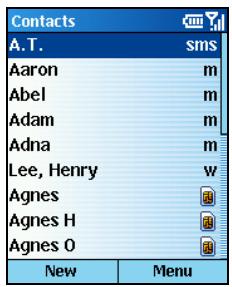
On the Home screen, press the Start soft key and select Contacts to access the contact list. If the right soft key is Contacts, you can press the soft key to access the contact list.
The contact list displays the names of your contacts alphabetically. Beside each name in the contact list is an abbreviation for the default communication method, such as the person's work phone number (w) or home phone number (h). If the contact information includes a work phone number, your Smartphone automatically set it as the default number.
If there are phone numbers stored in your SIM card, the entries will be displayed at the end of the list, with a SIM card icon following the name.
The following table shows the possible abbreviations in the contact list and their meanings.
| Abbreviation | Meaning | Abbreviation | Meaning |
| w | Work phone | hfx | Home fax |
| w2 | Second work phone | ast | Assistant phone |
| h | Home phone | rdo | Radio phone |
| h2 | Second home phone | e | E-mail address |
| m | Mobile phone | e2 | Second e-mail address |
| pgr | Pager | e3 | Third e-mail address |
| car | Car phone | sms | SMS address |
| wfx | Work fax | @ | Web page |
Contact Cards
When you scroll to a contact and press the Action key from the contact list, a contact card appears and displays all of the information that you have entered for the contact, such as the name of the person or business, phone numbers, e-mail addresses, and more.
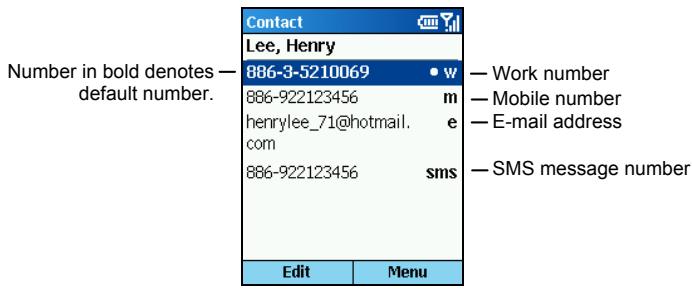
From a contact card, press the Menu soft key to access the following commands:
| Contact card menu command | Description |
| Add Speed Dial | Enables you to create a shortcut to a selected phone number or e-mail address. (See section 3.6 for more information.) |
| Send SMS | Sends an SMS message to a selected phone number or e-mail address. (See section 5.4 for more information.) |
| Add Voice Tag | Records a voice tag for a selected phone number or e-mail address. (See section 3.7 for more information.) |
| Save to SIM | Saves a selected phone number to the SIM card. |
| Set As Default | Makes the selected phone number or e-mail address the default communication method for the contact. |
| Beam Contact | Sends the contact card to another mobile device or a desktop computer using infrared. |
| Delete | Removes the contact card from the contact list. |
| Edit | Enables you to modify information in the contact card. |
Creating a New Contact
- On the Home screen, press the Start soft key and select Contacts. If the right soft key on the Home screen is Contacts, you can also press the soft key.
- Press the New soft key; or, press the Menu soft key and select New Contact. To create a new contact in the SIM card, press the Menu soft key and select New SIM Contact.
- Enter the information for the new contact. (For information on entering text, see section 2.3.)
- When completed, press the Done soft key.
Unlike regular contact cards, you can store only one phone number for each SIM contact.
- When you create a new contact on your Smartphone, you can synchronize Contacts with your desktop computer or a server to keep your contact information up-to-date in all locations.
Deleting a Contact
- On the Home screen, press the Start soft key and select Contacts. If the right soft key on the Home screen is Contacts, you can also press the soft key.
- Scroll to the contact to delete.
- Press the Menu soft key and select Delete.
- A message appears on the screen asking you to confirm. Press the Yes soft key.
Finding a Contact
- On the Home screen, press the Start soft key and select Contacts. If the right soft key on the Home screen is Contacts, you can also press the soft key.
- Entering the name to search is a convenient method to find a contact. When you press the number key to enter the letters, the matched contact will appear on the screen. If you have set up the contact category, you can filter the contacts by pressing the Menu soft key, and selecting Filter, then Business, Miscellaneous or Personal.
- While in the contact list, you can press the Up/Down key to scroll to a contact, but you cannot press the Left/Right key to go to the previous/next page.
Editing a Contact
When you open a contact card, press the Edit soft key to edit the contact's information. When the editing is completed, press the Done soft key.
Selecting a Ring Tone for a Contact
You can select different ring tones for different contacts to easily identify the callers.
- On the Home screen, press the Start soft key and select Contacts. If the right soft key on the Home screen is Contacts, you can also press the soft key.
- Select the contact for which to select a ring tone.
- Press the Edit soft key.
- Scroll to Custom ring tone, and press the Left/Right key to select a ring tone. You can also select from a full list by pressing the Action key.
- Press the Done soft key.
Copying Phone Numbers from Your SIM Card to Contacts
Copying one SIM Card Contact
- On the Home screen, press the Start soft key and select Contacts. If the right soft key on the Home screen is Contacts, you can also press the soft key.
- Select the SIM card contact to copy.
- In the contact card, press the Menu soft key and select Save to Contacts. The contact list appears on the screen with New Item highlighted. Press the Select soft key.
- Scroll to the field to place your number (e.g. business phone, mobile phone, or home phone). Press the Insert soft key to paste the number in the field.
- Enter the information into the other fields as necessary.
- Press the Done soft key, then the Back key to return to the contact list.
Copying All SIM Card Contacts
- On the Home screen, press the Start soft key and select Contacts. If the right soft key on the Home screen is Contacts, you can also press the soft key.
- Press the Menu soft key and select Copy SIM to Contacts.
- A message appears on the screen asking you to confirm. Press the Yes soft key.
Copying Phone Numbers from Contacts to Your SIM Card
- On the Home screen, press the Start soft key and select Contacts. If the right soft key on the Home screen is Contacts, you can also press the soft key.
- Select the contact to copy.
- In the contact card, press the Menu soft key and select Save to SIM. The SIM Contact screen appears.
- If necessary, modify the name of the contact.
- Press the Done soft key, then the Back key to return to the contact list.
Calling a Contact
Using the Default Number
- On the Home screen, press the Start soft key and select Contacts. If the right soft key on the Home screen is Contacts, you can also press the soft key.
- Select the contact to call.
- Press the Talk key
If you have a long list of contacts and you don't see the contact you want to call on the first screen, enter the first few letters of the contact's name. The Smartphone will search through the entire contact list and display the name.
Using a Number Other Than the Default Number
- On the Home screen, press the Start soft key and select Contacts. If the right soft key on the Home screen is Contacts, you can also press the soft key.
- Select the contact to call, and change the abbreviation for the number by pressing the Left/Right key.
- Press the Talk key
- Selecting another abbreviation changes the default number of this contact.
Calling a Contact from a Contact Card
When you open a contact card, select the phone number you want and press the Talk key to dial the number.
Sending an E-mail/SMS Message from a Contact Card
When you open a contact card, select the e-mail address or SMS number you want and press the Action key to open Inbox and enter your message.
Calendar is the scheduling program on your Smartphone, where you can create and view appointments, and view your calendar by day, week, or month.
Creating a New Appointment
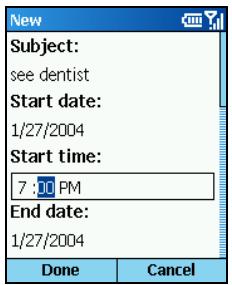
- On the Home screen, press the Start soft key and select Calendar.
- Press the Menu soft key and select New.
- Enter information in the fields displayed. (For information on entering text, see section 2.3.)
- To set a reminder for the appointment, under Reminder, select the amount of time before the appointment that you want the reminder to appear.
- When completed, press the Done soft key.
- When you create a new appointment on your Smartphone, you can synchronize Calendar with your desktop computer or a server to keep your schedule information up-to-date in all locations.
Viewing an Appointment
- On the Home screen, press the Start soft key and select Calendar.
- Scroll to the appointment to open and press the Action key. The screen displays the appointment details.
Editing an Appointment
- On the Home screen, press the Start soft key and select Calendar.
- Select the appointment to edit.
- Press the Edit soft key.
- Make the changes, and press the Done soft key.
Deleting an Appointment
- On the Home screen, press the Start soft key and select Calendar.
- Scroll to the appointment to delete, press the Menu soft key, and select Delete.
Viewing Your Schedule
You can view your schedule using three different views: Agenda, Week, and Month.
Agenda View
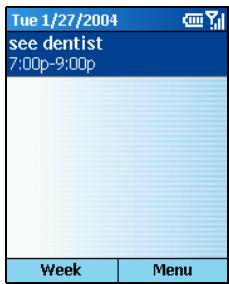
The Agenda View in Calendar is the default view for calendar information. To change to Agenda View from another view, press the Menu soft key and select Agenda View.
This view displays meetings and appointments scheduled for the current day. The appointments are shown in chronological order according to start time. All-day appointments are shown as a single line at the top of the Agenda view. Up to three all-day events will be displayed.
To look at your agenda for previous or approaching dates, press the Left/Right key.
To view your agenda for a specific date, press the Menu soft key and select Go to Date. Enter the date you want to view, and press the Done soft key.
Week View
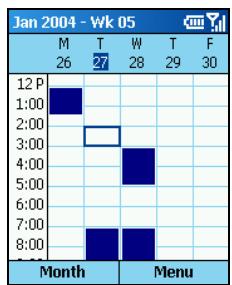
To view appointments for the week, press the Menu soft key and select Week View.
The Week view shows your schedule for the specified week. This view allows you to get a quick indication of your free and busy time, and allows you to create an appointment at a selected time easily.
The Week view displays the hours from 9:00 A.M. to 5:00 P.M. in one-hour increments by default on the left side of the screen. You can press the Up/Down key to show the hours before or after those displayed.
If you press the Up/Down key and leave Week view, the hours last shown will be displayed the next time you return to Week view.
To change settings for Week View, press the Menu soft key and select Options.
Month View
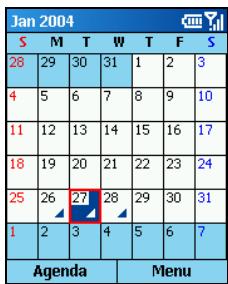
To view your schedule for the month, press the Menu soft key and select Month View.
The Month view provides an overview of your monthly schedule with arrow indicators for morning and afternoon appointments. The arrows pointing upward represent morning appointments, and the arrows pointing downward represent afternoon appointments. An all-day event is indicated by a box inside the calendar day.
Importing Calendar Information
You can import calendar information from another calendar program if it uses the iCal or vCal format. The calendar information can be imported from attachments in e-mail messages, links in Microsoft® Pocket Internet Explorer, or by infrared.
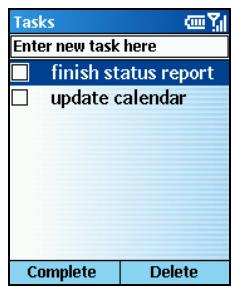
A task is a personal or work-related project, assignment, or errand to track through completion. A task can occur once or repeatedly. A recurring task can repeat at regular intervals or repeat based on the date you mark the task complete. For example, you might want to pay a bill on the last Friday of every month, or get a haircut when one month has passed since your last haircut.
Creating a New Task
- On the Home screen, press the Start soft key and select Tasks.
- Scroll to the Enter new task here field and enter the task. (For information on entering text, see section 2.3.)
- When completed, press the Action key.
- When you create a new task on your Smartphone, you can synchronize tasks with your desktop computer to keep your Tasks list up-to-date in both locations.
If you create a new task with a reminder on your desktop computer, you can synchronize tasks with your Smartphone to hear the reminder on your Smartphone.
Viewing the Task List
On the Home screen, press the Start soft key and select Tasks to view the task list.
The following table lists the available functions from the task list:
| To... | Do this... |
| Mark a task as complete | Scroll to the task and press the Complete soft key. A check mark appears to indicate that the task is completed. |
| Change a completed task to incomplete | Scroll to the task and press the Activate soft key. The check mark disappears to indicate that the task is not completed. |
| Delete a task from the task list | Scroll to the task and press the Delete soft key. |
If you synchronize tasks with your desktop computer, completed tasks are removed from your Smartphone during synchronization. They are then displayed in gray with a strikethrough on your desktop computer.
Voice Notes are used to create short voice recordings.
- Your Smartphone does not support recording during a call.
Creating a Voice Note
- On the Home screen, press the Start soft key and select Voice Notes.
- Hold the Smartphone microphone near your mouth.
- Press the Record soft key to begin recording your voice note.
- Press the Stop soft key to stop recording your voice note.
- The voice note is recorded and appears in the All Notes list of Voice Notes. The voice notes are named consecutively (Recording 1, Recording 2, and so on).
To rename a recording, press the Menu soft key and select Rename.
Listening to a Recording
- On the Home screen, press the Start soft key and select Voice Notes.
- Scroll to the recording you want to listen to.
- Press the Action key. Or, press the Menu soft key and select Play.
You can use the infrared port on your Smartphone to send and receive (beam) calendar appointments and contact cards between your Smartphone and another mobile device or a desktop computer that has an infrared port and supports VCards and VCal.
Beaming a Contact or an Appointment
- Open the Contacts or Calendar program.
- If you want to beam a contact's information, scroll to the contact in the contact list. If you want to beam an appointment, scroll to the appointment and press the Action key.
- Press the Menu soft key, and select Beam Contact or Beam Appointment.
- Align the infrared ports so that they are unobstructed and within close range (5 30~cm) of each other.
- Press the Beam soft key to start transmitting. Status information will then be displayed, indicating the name of the device your Smartphone is beaming to, and whether the beaming process is pending, done, or has failed.
Receiving Beamed Information
- On the Home screen, press the Start soft key and select Settings Beam.
- Select Receive incoming beams and press the Done soft key.
- Align the infrared ports so that they are unobstructed and within close range of each other.
- Your Smartphone will search the device sending information. Press the Yes soft key to start receiving information.
- Once you select Receive incoming beams, your device automatically receives beams until you clear this check box.
- Your Smartphone can receive beamed files of any type, but you may need to copy some files to your desktop computer for viewing.
7 ActiveSync
This chapter introduces basic concepts and features of Microsoft ActiveSync, and explains how to synchronize information on your Smartphone and desktop computer (or server).
This chapter includes:
7.1 ActiveSync Overview 94
7.2 Using ActiveSync 95
7.3 Setting up Server ActiveSync 97
7.4 Creating a Synchronization Schedule 98
7.5 Synchronizing Remotely 99
7.6 Synchronizing by Using an Infrared Connection.....100
ActiveSync is already installed on your Smartphone. You need to install ActiveSync on your desktop computer. (For installation instructions, see section 1.6.)
You can synchronize information on your desktop computer or a server with the information on your Smartphone.
ActiveSync compares the information on your Smartphone with the information on your desktop computer (or the server) and updates all locations with the most recent information.
With ActiveSync, you can:
- Synchronize Inbox, Contacts, Calendar, and Tasks information on your Smartphone with your desktop computer.
- Synchronize Inbox, Contacts, and Calendar on your Smartphone with the Outlook information on a server running Microsoft Exchange Server so that you have the latest information, even when your desktop computer is turned off.
- Copy (rather than synchronize) files between your Smartphone and your desktop computer.
- Synchronize on a schedule to control when synchronization occurs.
- Select which types of information are synchronized and specify how much information is synchronized. For example, you can choose how many weeks of past appointments to synchronize.
Synchronizing information
When you have set up a partnership between your Smartphone and your desktop computer, and completed the first synchronization (as described in section 1.6), you can start synchronizing from the Smartphone any time. To start synchronizing:
-
Connect your Smartphone to the desktop computer or server.
-
You can connect it to the desktop computer. (See section 1.6.)
-
You can synchronize information directly with a Microsoft Exchange Server if your company is running Microsoft Exchange Server with Exchange ActiveSync. (See section 7.3.)
You can synchronize remotely. (See section 7.5.) -
On the Home screen, press the Start soft key and select ActiveSync.
- Press the Sync soft key to start synchronizing.
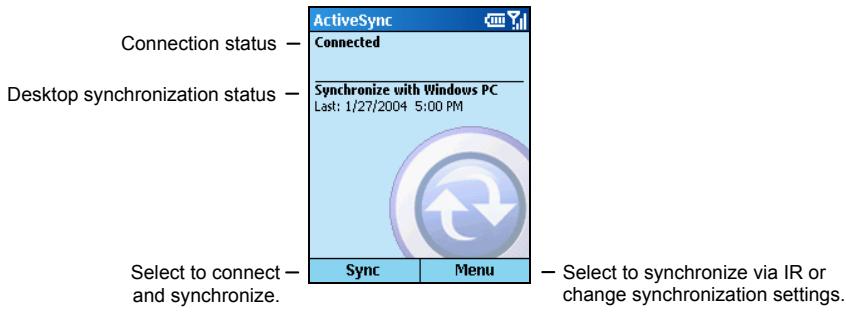
- The time setting on your Smartphone and desktop computer/server must be identical so that you can synchronize correctly.
- Whenever ActiveSync cannot successfully synchronize your information, it displays an error on your Smartphone.
- Some types of errors can interfere with automatic synchronization. If you suspect that a scheduled automatic synchronization has not occurred, you should attempt to manually synchronize your information.
Results of Synchronization
By default, ActiveSync does not automatically synchronize all types of Outlook information. Use ActiveSync options to turn synchronization on and off for specific information types.
Synchronizing Inbox
When you select Inbox for synchronization in ActiveSync, e-mail messages are synchronized as part of the general synchronization process. During synchronization, the following events occur:
- Messages are copied from the Outlook Inbox folder on your desktop computer, or from Microsoft Exchange Server, to the Inbox folder on your Smartphone.
- By default, when synchronizing Inbox information with your desktop computer or Microsoft Exchange Server, you receive only messages from the last three days and the first 500 bytes of each new message.
- The messages on your Smartphone and on your desktop computer are linked. When you delete a message on your Smartphone, it is deleted from your desktop computer the next time you synchronize, and vice versa.
- Messages in sub folders of other Outlook e-mail folders are synchronized only if the folders have been selected for synchronization in Inbox on your Smartphone.
SMS messages are not received in Inbox through synchronization. Instead, they are sent to your Smartphone by way of your service provider.
Synchronizing Calendar, Contacts, and Tasks
When you choose to synchronize Calendar, Contacts, and Tasks, the following events occur by default:
Calendar items from the last two weeks will be synchronized.
- All of your contacts will be synchronized.
- Tasks can be synchronized only with your desktop computer; they cannot be synchronized with a server. All of your incomplete tasks will be synchronized.
Data that is deleted from your Smartphone is deleted from your desktop computer and/or server during synchronization, and vice versa. This keeps your information up-to-date in all locations.
You can synchronize information directly with a Microsoft Exchange Server if your company is running Microsoft Exchange Server with Exchange ActiveSync.
Setting up Server ActiveSync
- Before you can begin to synchronize information with a server, you may need to request server configuration information, such as your user name, password, and the name of the Microsoft Exchange Server, either from your service provider or from your corporate network administrator. This configuration information may have already been set up on your Smartphone, or you may have already been given this information.
- Make sure your Smartphone is not connected to a desktop computer.
- On the Home screen, press the Start soft key and select ActiveSync.
- Press the Menu soft key and select Options.
- Select Server Settings.
- Select Connection.
- Under User name, enter your Microsoft Exchange user name.
- Under Password, enter your Microsoft Exchange password.
- Under Domain, enter the name of the domain of your Exchange server (if required).
- If you want the device to save your password so that you need not enter it when connecting, select Save password.
- Under Server Name, enter the name of your Exchange server.
- Press the Done soft key three times to return to the main screen of ActiveSync.
- Press the Sync soft key to start synchronizing with your Exchange server.
Stopping Synchronizing with a Server
You can stop synchronizing an information type with a server on your Smartphone. However, to change to synchronizing that information type with your desktop computer instead, you will need to change the synchronization settings on the desktop computer. (For more information on synchronization, see ActiveSync Help on the desktop computer.)
- Make sure your Smartphone is not connected to a desktop computer.
- On the Home screen, press the Start soft key and select ActiveSync.
- Press the Menu soft key and select Options.
- Select Server Settings.
- Select the information type that you no longer want to synchronize with a server, such as Inbox, Calendar, or Contacts.
- Clear the Sync [Information Type] with a server check box, and press the Done soft key.
7.4 Creating a Synchronization Schedule
You can create a schedule for automatically synchronizing information on your Smartphone with your desktop computer or with Microsoft Exchange Server.
To set up a synchronization schedule with your desktop computer, you must use ActiveSync on the desktop computer. (For more information on synchronization, see ActiveSync Help on the desktop computer.)
To set up a synchronization schedule with an Exchange server, you must use ActiveSync on your Smartphone. See the next section for details.
Creating a Synchronization Schedule with an Exchange Server
You can schedule synchronization of your device on two separate schedules.
- Peak time sync for synchronization during working hours or other times you experience higher mail volumes.
- Off-peak time sync for synchronization during times when you experience lower mail volumes.
When you are roaming, you can synchronize manually to reduce roaming charges, or you can synchronize using the mobile schedules.
To set up a synchronization schedule with an Exchange server, follow this procedure:
- Make sure your Smartphone is not connected to a desktop computer.
- On the Home screen, press the Start soft key and select ActiveSync.
- Press the Menu soft key and select Options.
- Select Mobile Schedule.
- Under Peak time sync, press the Left/Right key to select how often to synchronize.
- Under Off-peak time sync, press the Left/Right key to select how often to synchronize.
- Under Roaming sync, press the Left/Right key to select whether or not to synchronize on a schedule.
- To synchronize every time you send e-mail, select Sync outgoing items as they are sent.
- Press the Done soft key.
If you create a schedule for synchronizing while connected to a desktop computer as well as a schedule for synchronizing remotely (wirelessly), your Smartphone synchronizes according to both schedules.
You can synchronize remotely with your desktop computer, or with an Exchange server. Remote synchronization is when your device is synchronizing over a wireless connection instead of using a direct local connection to a desktop computer.
Synchronizing Remotely with a Desktop Computer
To synchronize remotely with a desktop computer, it must be turned on.
- Connect to your corporate network. (See "Data Connections" in section 4.1.)
- On the Home screen, press the Start soft key and select ActiveSync.
- Press the Menu soft key and select Options.
- Select PC Settings.
- Under Use, press the Left/Right key to select the computer name.
- Select or clear Use mobile schedule to sync with this PC.
- Select or clear Sync with this PC during manual sync.
- Press the Done soft key.
- Press the Sync soft key on the main screen of ActiveSync to start synchronizing remotely.
7.6 Synchronizing by Using an Infrared Connection
You can connect your Smartphone to another mobile device or your desktop computer by using an infrared connection. This method is ideal for changing quickly between multiple devices because there are no cables or adapters to connect.
For more information about synchronizing using an infrared connection or other connection types, see ActiveSync Help on your desktop computer.
8 Internet, Entertainment, and More
This chapter explains how to browse the Web using Microsoft® Pocket Internet Explorer, play audio and video files using Microsoft® Windows Media™ Player, set up a modem link, play games, and use Calculator.
This chapter includes:
8.1 Internet Explorer 102
8.2 Media Player 105
8.3 Modem Link 109
8.4 Games 111
8.5 Calculator 113
8.6 Band Selection 114
8.1 Internet Explorer
Using Pocket Internet Explorer, you can browse the Web on your Smartphone. Pocket Internet Explorer on your Smartphone supports HTML (Hypertext Markup Language), cHTML (compact Hypertext Markup Language), and WAP (Wireless Application Protocol). It also supports JScript, ActiveX controls, and CSS (cascading style sheets). The browser supports images and sounds, but it does not support frames on a Web page.
Browsing the Web
Make sure that you have set up the Smartphone's connection. (See "Data Connections" in section 4.1.)
On the Home screen, press the Start soft key and select Internet Explorer to open Internet Explorer.
With Pocket Internet Explorer, the Favorites list is displayed as the main screen instead of a home page, so you can easily go to your favorite Web sites. You can add your own favorites to this list for Web sites you frequently visit. You can view your Favorites list from any Web page by pressing the Favorites soft key.
After opening Internet Explorer, you can:
| To... | Do this... |
| View a favorite | Select a favorite to view and press the Go soft key. |
| Go to a link | Select a link. You can scroll vertically or horizontally to see all available links. |
| Access Smartphone How-To information in Favorites | Select Smartphone How To. |
| Go to a Web page | Press the Menu soft key and select Address Bar. Enter the Web address and press the Go soft key. |
| Return to a Web page you visited in the same session | Press the Back key. |
| View a list of recently-visited Web pages | Press the Menu soft key and select Address Bar. Scroll to View History and press the Go soft key. |
| Go to a Web page on the History list | Press the Menu soft key and select Address Bar. Scroll to View History and press the Go soft key. Scroll to the Web page address and press the Go soft key. |
- While you are connected to the Internet, you can change between Pocket Internet Explorer and other programs on your Smartphone by pressing the Home key and navigating to the program you want. This does not close your Internet connection. To return to the Web page you were viewing, press the Back key.
Using the Favorites List
If you see a Web page you want to visit another time, mark it as a favorite. The next time you want to visit that Web page, you can select it from your Favorites list.
Adding a Web Page to Your Favorites List
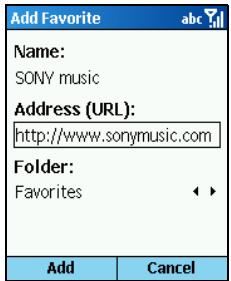
- When you are in the Web page you want, press the Menu soft key and select Add Favorite.
- Enter a name for the Web site as you want it to appear on your Favorites list, and press the Add soft key.
Creating, Deleting and Editing a Folder in Favorites
In Favorites, you can create, delete and edit a folder using the Menu commands.
Refreshing Web Pages
The Smartphone caches the Web pages that you view and stores them until the cache is full. It then replaces the oldest pages with new pages. If you go to a page that is cached on your Smartphone, you see the stored version unless you refresh the page to see the latest version. Press the Menu soft key and select Refresh to see the latest Web content for that page.
Customizing Pocket Internet Explorer
You can customize Web browsing options, change the network to connect to, and make more memory available on your Smartphone by clearing stored cookies and Web pages.
In Internet Explorer, press the Menu soft key and select Options. You can set up the following options:
| Pocket Internet Explorer option | Function |
| General | Enables you to change the way Web pages are downloaded and displayed. For example, you can choose to omit displaying images, turn off sound, fit the Web page to the screen, request a warning before moving from secure Web pages to non-secure Web pages, allow cookies, or change the language. |
| Connections | Enables you to change the network to connect to. For example, change from The Internet to Work. |
| Memory | Enables you to clear temporary Internet files, cookies, and your History files. |
Using Microsoft® Windows Media® Player 7.0 or later, you can play Windows Media audio and video files and MP3 audio files on your Smartphone.
You can also copy digital music and video directly from your desktop computer to your Smartphone by using either Windows Media Player or ActiveSync. (For more information on copying files to your Smartphone, see the Media Player Help on your desktop computer.)
Playing Files
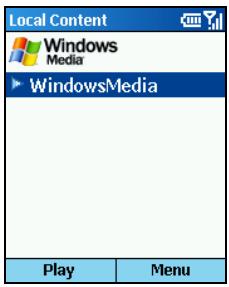
- On the Home screen, press the Start soft key and select Windows Media. You will see the Local Content screen. If you are operating in Playback mode, press the Playlist soft key to go to Local Content screen.
- If you have copied the files to the Smartphone, you will see a list of the files on the screen. Select the file you want and press the Play soft key to start playing.
- You can do the following when playing a file.
| To... | Do this... |
| Play or pause the playback of the current file | Press the Action key. |
| Skip to the beginning of the current file | Press the Left key. |
| Skip to the beginning of the previous file on the current playlist | Press the Left key twice quickly. |
| Skip to the next file on the current playlist | Press the Right key. |
| Adjust the volume | Use the Volume control or the Up/Down key to increase or decrease the volume. |
| Play a streaming media file on a network | Press the Menu soft key and select Open URL. Enter the Web URL and press the Play soft key. |
| Play files randomly | Press the Menu soft key and select Settings. Select Shuffle and press the Done soft key. |
| Play files repeatedly | Press the Menu soft key and select Settings. Select Repeat and press the Done soft key. |
| Stop playback while using another program | Press the Menu soft key and select Settings. Select Background play and press the Done soft key. |
Using Menu Commands When Playing a File
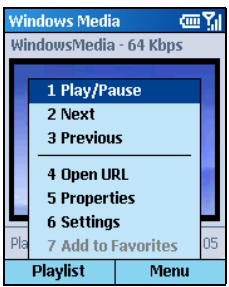
When you are playing a file, you can use the menu commands to start and pause playback, skip to the next or previous file, display information about a file, change volume and playback settings, or add files to your Favorites.
On the main screen of Media Player, press the Menu soft key to access the menu commands. The following table lists the menu commands and their functions that are available when you play a file.
| Menu command when playing a file | Function |
| Play/Pause | Plays or pauses the playback of the current file. |
| Next | Skips to the next file on the current playlist. This command is not available if the last file is the current selection. |
| Previous | Skips to the beginning of the current file on the current playlist. If no file is playing, this command skips to the previous file on the current playlist. |
| Open URL | Plays a streaming media file on a network (for example, content streamed from an Internet radio station). |
| Properties | Displays information about the file that is playing. |
| Settings | Displays the Settings options, which enable you to adjust the volume and various playback options. |
| Add to Favorites | Adds the streaming media file that is playing to the Favorites playlist. |
Using Media Player Favorites
When you are playing a file, you can use the menu commands to start and stop playback, skip to the next or previous file, display information about a file, change volume and playback settings, or add files to your Favorites.
Adding a Streaming Media File to Favorites
- On the Home screen, press the Start soft key and select Windows Media.
- Press the Menu soft key and select Open URL.
- Enter the Web page address and press the Play soft key.
- Press the Menu soft key and select Add to Favorites.
Playing a Favorite
- On the Home screen, press the Start soft key and select Windows Media.
- On the Local Content screen, press the Menu soft key and select Favorites.
- Scroll to the file to play and press the Play soft key.
Deleting a Favorite
- On the Home screen, press the Start soft key and select Windows Media.
- On the Local Content screen, press the Menu soft key and select Favorites.
- Scroll to the file to delete, press the Menu soft key, and select Delete.
Licenses
Some digital media content from the Internet, CD tracks, and videos have associated licenses that protect them from being unlawfully distributed or shared.
Licenses are managed and created using digital rights management (DRM), which is the technology for securing content and managing the rights for its access. Some licenses prevent you from playing content that is copied to your Smartphone.
- To ensure that the license is copied with the content, use the Portable Device (or Copy to CD or Device) feature in Windows Media Player 7.0 or later on your desktop computer to copy content to your Smartphone. For more information about copying content to your Smartphone and other portable devices, see the Windows Media Player Help on your desktop computer.
Media Player Compatibility
Supported File Formats
Media Player supports the following types of file formats:
- Windows Media format (.asf, .asx, .wax, .wm, .wma, .wmv, .wmx, .wvx)
- Moving Picture Experts Group (MPEG) format (*.mp3)
Supported Audio and Video Codec
Media Player can play files that have been compressed by using any of the following audio and video codecs.
Audio codecs
Microsoft Windows Media Audio codec version 2.0, 7.0 and 8.0
Fraunhofer IIS-A MPEG-1 Audio Layer-3 codec
Video codecs
Microsoft Windows Media Video codec version 7.0 and 8.0
Microsoft MPEG-4 video codec version 3.0
ISO MPEG-4 video codec version 1.0
Using Modem Link, you can use your Smartphone as an external modem for another device or computer by using an infrared or USB connection.
- Your Smartphone does not support the COM connection.
Setting up an Infrared Connection
- Make sure that your Smartphone is not connected to another device.
- On the Home screen, press the Start soft key and select Accessories Modem Link.
- Press the OK soft key on the message that appears.
- Under Connection, select IrCOMM.
- Press the Menu soft key and select Activate.
- Align the Smartphone's IR port to the device.
- To deactivate the Modem link, press the Menu soft key and select Deactivate.
Setting up a USB Connection
- When using the USB connection as the modem link, your Smartphone supports Windows 2000/XP only.
-
Before using your Smartphone as a USB modem, clear Allow USB connection with this desktop computer in Connection Settings of ActiveSync on your desktop computer to close the ActiveSync connection. To use the ActiveSync connection again, you need to select Allow USB connection with this desktop computer.
-
Make sure that you have set up the Smartphone's connection. (See "Data Connections" in section 4.1.)
- Make sure that your Smartphone is not connected to another device.
- On the Home screen, press the Start soft key and select Accessories Modem Link.
- Press the OK soft key on the message that appears.
- Under Connection, select USB.
-
Press the Menu soft key and select Activate. Notice not to press any key to leave the current screen.
-
Connect your Smartphone to the desktop computer, and insert the Companion CD into the CD-ROM drive of the desktop computer.
- The installation of the USB driver will start automatically. If needed, browse for the USB driver on the Companion CD.
- Open the Device Manager on the desktop computer by clicking Start Control Panel System Hardware (for Windows 2000/XP/2003) Device Manager.
- Open the Modem item, right-click on Mio DigiWalker SmartPhone USB Modem, and select Properties.
- Open the Advanced page, enter +CGDCONT = 1 "IP", "MMS" under Extra initialization commands, and click OK.
- Depending on your service provider, the string for you to enter may not be "MMS." To make sure of the correct string to enter, on the Home screen press the Start soft key Settings Data Connections the Menu soft key Edit Connections GPRS Connections select your GPRS connection the Menu soft key Edit Access point.
- On your desktop computer, create a dial-up connection using your Smartphone as the modem, enter *99# for the phone number and user name; you do not need to set up the password.
-
For information on creating a dial-up connection on the desktop computer, see the documents that came with the operating system.
You are advised to set the baud rate to at least 115200. -
Click Dial on your dial-up connection screen. The icon appears on the task bar after the successful dial-up connection.
- To end the connection, right-click on the icon on the desktop computer and select Disconnect. Or, press the right soft key on the Smartphone Deactivate.
- Failing to deactivate the modem link when you are finished using it might result in problems with using ActiveSync in the same session.
- Disconnecting the ActiveSync cable will not completely stop the modem connection on the Smartphone. You have to press the Menu soft key and select Deactivate.
Solitaire
The object of Solitaire is to use all the cards in the deck to build up the four suit stacks in ascending order, beginning with the aces. You win the game when all cards are on the suit stacks.
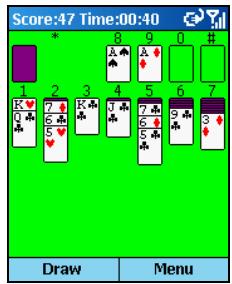
- On the Home screen, press the Start soft key and select Games → Solitaire.
- To start a new game of Solitaire, press the Menu soft key and select New Game.
- Press the number or character above the card stack displaying the card you want to move, and then press the number or character above the card stack to which you want to move the card.
Pressing the Up key will move a card to one of the four card stacks on the upper right corner of the screen if it belongs there. For example, if you have an ace displayed in one of the seven stacks, press the number above the ace, and then press the Up key.
- Move any aces on the seven stacks to the four card spaces at the top of the screen, and then make any other available plays.
- When you have made all available plays, press the Draw soft key to turn over cards. The card that is face up on the deck is always available for play.
Jawbreaker
To play Jawbreaker, you need to align similar jawbreakers in order to form large blocks of jawbreakers before bursting them. The more jawbreakers in the block before they are burst, the greater number of points you will receive.
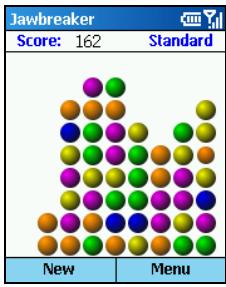
- On the Home screen, press the Start soft key and select Games → Jawbreaker.
- To start a new game of Jawbreaker, press the New soft key.
- Use the navigation pad to move to a jawbreaker that is connected to other similar jawbreakers, and press the Action key. Those connected jawbreakers will be highlighted, and a new jawbreaker will pop up displaying that block's potential jawbreaker points. Press the Action key again to burst the jawbreakers. To take back the last move you have made, press the Menu soft key and select Undo.
- The game is over when there are no connected jawbreakers to burst. The screen will then display the score.
- Press the Menu soft key and select Options to change the settings for playing sounds, game style and the color of the jawbreakers.
Jawbreaker provides four game styles. Press the Menu soft key and select Options Style to select one.
- Standard The default mode of play where there is a set number of jawbreaker that will not increase.
- Continuous In this style, whenever a vertical set of jawbreakers has been burst and the remaining jawbreakers have shifted over to the right, a new randomly selected column of jawbreakers will pop up on the left, thereby allowing a game to be played for an extended amount of time.
- Shifter In this style, when a set of jawbreakers has been burst, all remaining jawbreakers to the top and left will shift down and to the right.
- MegaShift This style is a combination of the shifter and continuous styles in that jawbreakers will shift down and to the right while empty columns will fill on the left.
Press the Menu soft key and select Statistics to view your statistics for each playing style, including the total number of games played, the average score, the highest score, and the big burst for a single block. You can press the Reset soft key to reset the statistics. If you want to play without affecting the statistics, press the Menu soft key and select Options Guest Mode.
- For information on other games supplied with your Smartphone, see Chapter 13 or related documents.
You can use Calculator to perform any of the standard operations for which you would normally use a handheld calculator. Calculator performs basic arithmetic, such as addition, subtraction, multiplication, and division.
To enter numbers and perform calculations:
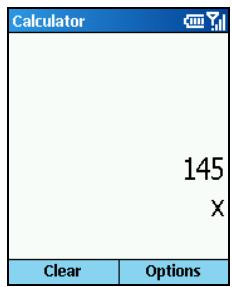
- On the Home screen, press the Start soft key and select Accessories Calculator.
- Use the keypad to enter numbers and perform calculations. Press the Asterisk (*) key to enter a decimal point.
-
To enter the mathematical symbols:
-
Press the Pound (#) key to cycle through the available mathematical symbols: the plus sign (+), the minus sign (-), the multiplication sign (x), and the division sign (/).
- You can also use the menu commands to display the available mathematical symbols.
-
You can also use the navigation pad to display the available mathematical symbols. Press the Up key for the plus sign (+), press the Down key for the minus sign (-), press the Left key for the division sign (/), and press the Right key for the multiplication sign (x).
-
If you enter the wrong number, press the Back key to clear the last digit entered in a multiple-digit entry. Note that the divisor cannot be 0.
- When you entered the calculation, press the Action key to obtain the answer. Or, you can obtain the answer using the Equals of the menu commands.
- To clear the current calculation and start a calculation again, press the Clear soft key.
8.6 Band Selection
Your Smartphone is a tri-band mobile phone and can function around the world wherever GSM 900, 1800 and 1900 networks are available. You can change the frequency band, if necessary.
- On the Home screen, press the Start soft key and select Accessories Band Selection.
- The screen displays the current frequency band you are using. To change the frequency band, under Change Band, scroll to the desired frequency band and press the OK soft key.
- A message appears on the screen asking you to reboot the Smartphone. Press the Yes soft key to reboot your Smartphone.
Part II
Software Manual
9 Using the Digital Camera
Your Smartphone features a built-in CMOS camera. You can take photos or record videos and then directly view these photos or videos on your Smartphone. What's more, you can immediately share with others your photos and videos through the mobile network service.
This chapter includes:
9.1 PhoneCamera 118
9.2 PhoneViewer 123
9.3 VideoPlayer 128
The PhoneCamera program is your tool for taking photos or recording videos on your Smartphone.
Taking Photos
- If you want to save your photos in a storage card, insert the card.
- On the Home screen, press the Start soft key and select PhoneCamera.
- By default, the camera is in the Take Photo mode. If you are currently in the Record Video mode, press the Menu soft key and select Take Photo to change the mode.
- Frame your target in the viewing window. You can rotate your Smartphone if necessary.
-
To adjust the brightness of the image or zoom in/out:
-
Press the Up/Down key to adjust the brightness of the image (only when the Brightness item in Settings is set to Manual). A sliding bar will appear at the bottom of the screen to indicate the adjustable range.
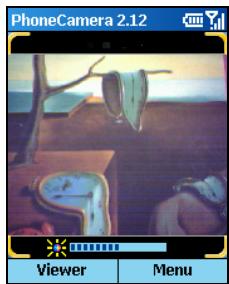
- Press the Left/Right key to zoom in/out (only when the Picture Resolution item in Settings is set to 176x144). A sliding bar will appear at the bottom of the screen to indicate the adjustable range.
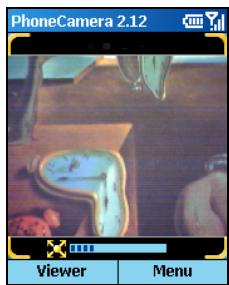
- When you are ready to take the photo, press the Action key.
- The left soft key on the screen will display Save, press the left soft key or the Action key to save the photo. If you do not respond in five seconds, the program will automatically save it. The photo is stored in the storage card if you have specified it as the storage location; or, the photo will be saved in the \Storage\My Documents folder of your Smartphone.
- To view the saved photo, press the Viewer soft key to open PhoneViewer. (For details on PhoneViewer, see section 9.2.)
The sliding bar will disappear after three seconds of inactivity.
- After shooting, you can press the Send soft key to create a new MMS message containing the new photo.
- When taking photos, you can use the Timer function to avoid a blurred image. (For more information, see "PhoneCamera Settings" later in this chapter.)
Continues
While In the Take Photo mode, press the Menu soft key and select Continues to change to the Continues mode. The icon will appear on the top-right corner of the screen. Take photos according to the instructions described in the "Taking Photos" section. The Smartphone will take four continuous photos according to the set interval.
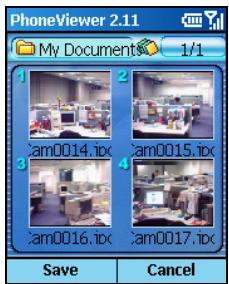
Recording Videos
- If you want to save your videos in a storage card, insert the card.
- On the Home screen, press the Start soft key and select PhoneCamera.
-
By default, the camera is in the Take Photo mode. Press the Menu soft key and select Record Video to change to the Record Video mode.
-
Frame your target in the viewing window. You can rotate your Smartphone if necessary.
-
To adjust the brightness of the image or zoom in/out:
-
Press the Up/Down key to adjust the brightness of the image (only when the Brightness item in Settings is set to Manual). A sliding bar will appear at the bottom of the screen to indicate the adjustable range.
-
Press the Left/Right key to zoom in/out.
-
When you are ready to record the video, press the Action key to start recording. Press the Action key again to stop the recording.
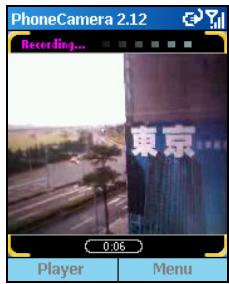
- The left soft key on the screen will display Save, press the left soft key or the Action key to save the video. If you do not respond in five seconds, the program will automatically save it. The video is stored in the storage card if you have specified it as the storage location; or, the video will be saved in the \Storage\My Documents\MovieAlbum folder of your Smartphone.
- To watch the saved video, press the Player soft key to open VideoPlayer. (For details on VideoPlayer, see section 9.3.)
The sliding bar will disappear after three seconds of inactivity.
- When saving the video in your Smartphone, the maximum recording time allowed is 15 seconds; when saving in a storage card, you can keep on recording until the card runs out of space.
After recording, you can press the Cancel soft key in five seconds to abort.
PhoneCamera Settings
To configure PhoneCamera, on the PhoneCamera main screen, press the Menu soft key and select Settings.
| PhoneCamera setting | Description |
| Timer | Sets the time lag between releasing the shutter and shooting the photo. This is helpful for avoiding blurring caused by vibration of your Smartphone when you press a key. Press the Left/Right key to select an option in the range of 0~10 seconds (default is 0). For example, if you set the timer to 3, when you press the key to shoot, the timer will start to count down and you should keep the Smartphone steady until the time is up and the photo is shot. |
| Mode | Selects the Normal Mode or Twilight Mode. |
| Picture Resolution | Sets the resolution (pixels) of the image. Press the Left/Right key to select. The options are 176x144 (default), 320x240 and 640x480. The image resolution for videos is 176x144. |
| Video Quality | Sets the video quality to High Quality or Normal Quality. |
| Storage Media | Selects the storage location for the photos and videos. Press the Left/Right key to select Storage (Smartphone's memory) or SDMMC Disk (if a storage card is inserted). Note: If you want to save the files in a storage card, the card must be inserted first and the option set as SDMMC Disk. |
| Brightness | Adjusts the brightness of the image. Press the Left/Right key to select Manual (default) or Auto. |
| Flicker Control | When you use the camera indoors, you can select 50Hz or 60Hz to match the flicker frequency of the fluorescent lamp. |
| Continues Interval | Sets the time interval (second) for taking continuous photos. Press the Left/Right key to select 0.5s, 0.75s and 1s. |
Notes on Using PhoneCamera
-
To use PhoneCamera, your Smartphone must have enough memory. If the memory is inefficient, a warning message will appear on the screen. To solve the problem, you can free the memory by:
-
Deleting files you no longer need
- Stopping all other programs (as described in section 12.2)
-
Resetting the Smartphone
-
If you press the Volume control button while in PhoneCamera, the program will be closed.
The PhoneViewer program allows you to view pictures in JPEG and BMP formats, display a slideshow of all the pictures, and edit the pictures.
Viewing Photos
Thumbsail View
1.
While in PhoneCamera, you can press the Viewer soft key to open Viewer.
- PhoneViewer will search the photos stored in the storage card and the Smartphone (JPG and BMP format). By default, if a storage card is inserted, the program will display the photos in the card; otherwise, it will display the photos in the Storage\My Documents folder and its sub folders of your Smartphone. One screen displays a total of four thumbnails. Each thumbnail is labeled a number at the left-top corner and the filename at the bottom.
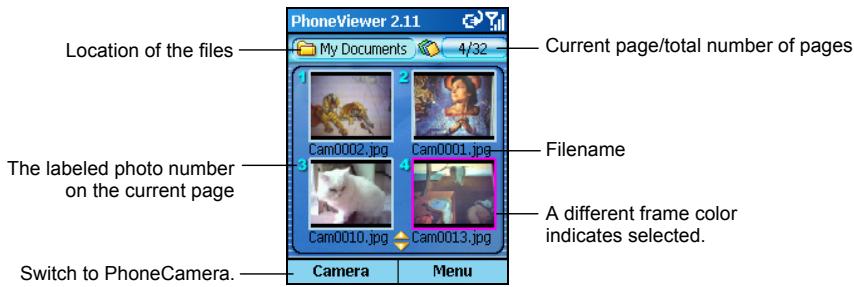
- To view a photo in full screen, you can press the labeled number of the photo. Or, you can press the navigation pad to select the photo and press the Action key.
Full Screen View
When you open a photo in the thumbnail view, the photo displays in full screen. Press the labeled number of the photo, or press the navigation pad to select and then press the Action key.
After opening a photo in full screen, you can:
- Press the Up/Down key to switch to another photo on the same page.
- Press the Left/Right key to zoom in or out on the photo (25%~200%).
- Press the Back soft key to return to the thumbnail view.
- Press the Menu soft key to access the command options such as add notes, themes, and etc. (See instructions later on in this section.)
Adding Notes to a Photo
After opening a photo, you can add a text and/or voice notes to it.
- Press the Menu soft key and select Memo.
- To add a text note, type the text in the text field at the bottom of the screen. You can type for up to 100 characters. Or, you can press the Action key to change to full screen mode and type or read the text. Press the Done soft key to save the text and return to the previous screen.
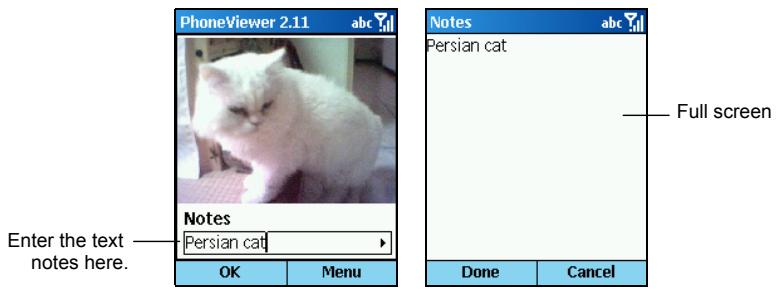
- To add a voice note, press the Menu soft key and select Record to start recording voice. Press the Stop soft key or the Action key to stop. You can add only one voice recording to a photo, meaning a second recording will replace the old one.
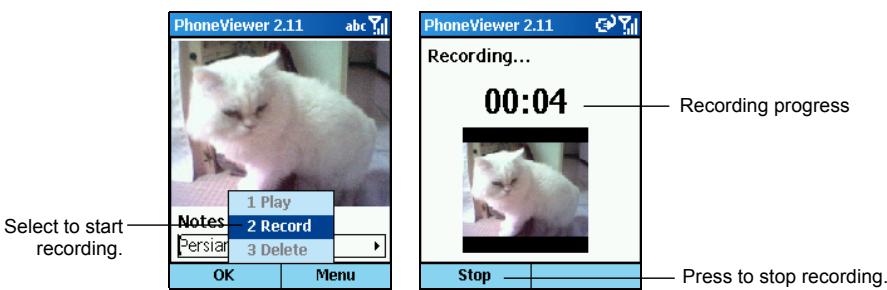
-
For your Smartphone to play the voice note automatically when you open the photo next time, in the thumbnail view, press the Menu soft key, select Settings Play audio, and then press OK soft key.
-
When you select Memo from the menu commands next time, you will see the text note. To play the recording, press the Menu soft key and select Play.
-
To delete the text note of a selected photo, erase all characters in the text input field with the Back key. To delete the voice note of a selected photo, press the Menu soft key and select Delete.
-
After adding the text and/or voice notes, press the OK soft key. In the thumbnail view, you will see icons to the left of the photo.
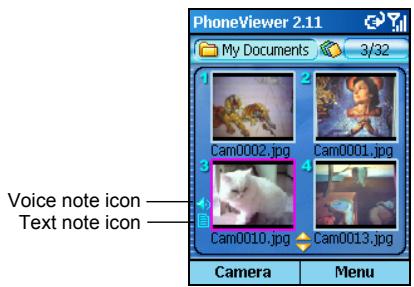
Adding a Theme to a Photo
You can add a theme to your photo and make it fancier. PhoneViewer provides eight themes for you to select.
- In full screen view or thumbnail view, press the Menu soft key and select Add Theme.
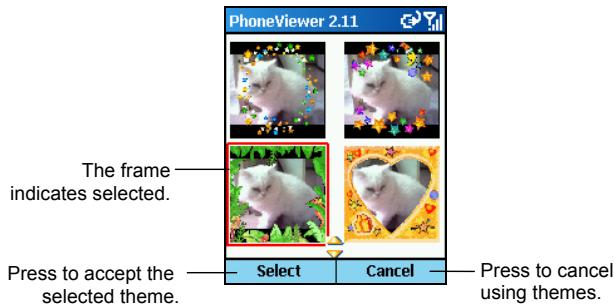
- Press the navigation pad to select a theme.
-
After your selection, press the Select soft key or the Action key.
-
You can change the photo's orientation and size with the following methods:
-
Press the Up key to rotate the photo counterclockwise in 90 degrees.
- Press the Down key to rotate the photo clockwise in 90 degrees.
Press the Left key to zoom out. -
Press the Right key to zoom in.
-
After your adjustments, press the Action key or Done soft key. The photo with a theme will be saved as a new photo in the album.
Slide Show
You can display a slide show of your photos.
- Open PhoneViewer. If you want to specify he location of the photos, press the Menu soft key and select Select Folder.
-
To change the default settings of the slide show, press the Menu soft key and select Settings. You can customize the following options. When completed, press the OK soft key.
-
Time setting sets the interval between displaying one photo and the next one. The options range from 1 to 9 seconds (default is 2).
- Slide show view is Best Fit (default) or Full Screen.
- Slide show sequence is Forward (default) or Backward.
-
Play audio sets if the voice notes (if added to the photos) are played during the slide show.
-
To start the slide show, press the Menu soft key and select Slide show.
- All photos will be displayed one after another in the way as specified above until you press the OK soft key to stop.
PhoneViewer Menu Commands
Either in the thumbnail view or full screen view, press the Menu soft key to access the menu commands as described below:
| Thamburger view menu command | Full screen view menu command | Description |
| Send via | Send via | Sends the selected photo via MMS or infrared. |
| Add theme | Add theme | Adds a frame to the photo. (See the previous section, “Adding a Theme to a Photo.”) |
| Delete | Delete | Deletes the selected photo. |
| Select Folder | - | Specifies the location of the photos: • Phone Album displays the photos stored in the Storage\My Documents folder of your Smartphone. • SDMMC Album displays the photos stored in the storage card, if inserted. |
| Slide show | - | Displays a slideshow of the photos (as described in “Slide Show” earlier). |
| Receive via IR | - | Receives image files via infrared. |
| Settings | - | Configs the settings for a slideshow (as described in “Slide Show” earlier). |
| Background color | - | Changes the background color for photo viewing. |
| - | Memo | Adds text and/or voice notes to the photo (as described in “Adding Notes to a Photo” earlier). |
| - | Rotate | Rotates the image in 90 degrees. |
| - | Move | You can use this command when you zoom in on the photo. Press the navigation pad to move the photo. When the photo is in the place you want, press the Action key to disable the function. |
| - | Full screen | Displays the photo in full screen. |
| - | Wallpaper | Sets the current photo as wallpaper of the Home screen. |
| Exit | - | Closes the program. |
VideoPlayer allows you to play the videos you have recorded using PhoneCamera.
Playing Videos
Thumbsail View
- On the Home screen, press the Start soft key and select VideoPlayer.
-
When you in the Record Video mode of PhoneCamera, you can press the Player soft key to open VideoPlayer.
-
VideoPlayer will search the videos stored in the storage card and the Smartphone. By default, if a storage card is inserted, the program will display the videos in the card; otherwise, it will display the videos in the Storage\My Documents folder and its sub folders of your Smartphone. One screen displays a total of four thumbnails. Each thumbnail is labeled a number at the left-top corner and the filename at the bottom.
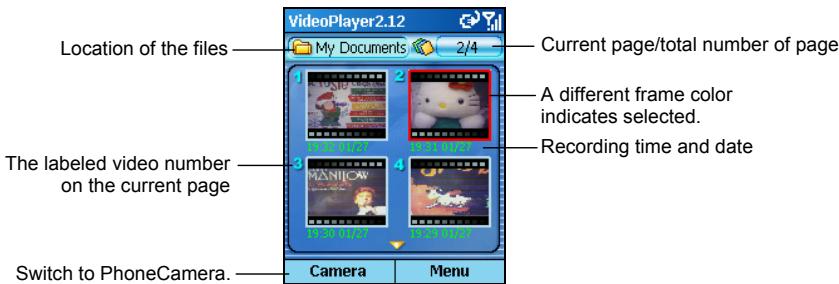
- To play a video, you can press the labeled number of the video. Or, you can press the navigation pad to select and then press the Action key to watch the video in full screen.
Full Screen View
When you open a video in the thumbnail view, the video displays in full screen. Press the labeled number of the video, or press the navigation pad to select the video and then press the Action key.
During the playback, the progress bar appears at the bottom of the screen to indicate the elapsed time (mm:ss). Press the Action key to pause, and press the button again to resume.
After opening a video, you can press the Menu soft key to control the playback such as pause, stop, or delete (as described later). Press the Back soft key to return to the thumbnail view.
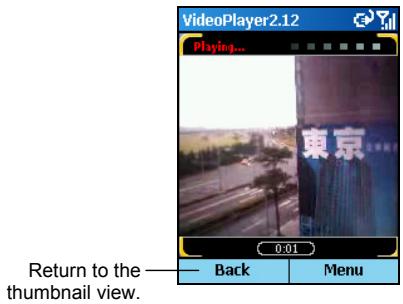
VideoPlayer Menu Commands
In the thumbnail view, press the Menu soft key to access the menu commands as described below:
| VideoPlayer menu command | Description |
| Play | Plays the selected video. |
| Delete | Deletes the selected video. |
| Select folder | Allows you to select the location of the videos: • Phone Album displays the videos stored in the Storage\My Documents folder. • SDMMC Album displays the videos stored in the storage card. |
| Exit | Closes the program. |
10 MMS Messages
This chapter tells you how to use the Anny Way MMS program to send and receive MMS messages.
This chapter includes:
10.1 MMS Overview 132
10.2 MMS Settings 133
10.3 Composing and Sending MMS Messages 134
10.4 Receiving and Responding to MMS Messages 137
10.5 Managing Message Folders 139
You can use the Anny Way MMS program to send and receive MMS (Multimedia Message Service) messages. MMS technology combines audio and image contents and can be send instantly via GPRS wireless network.
The Anny Way MMS program has been built over WAP and 3GPP specifications and is interoperable with the existing MMSC.
- You need to subscribe to the GPRS and MMS services with your service provider before you can send and receive MMS messages. Follow your service provider's instructions to finish the connection settings.
Depending on the service that you subscribe to, you may not be able to send and receive MMS messages to users using a different mobile phone network. - Check with your service provider for the size limit of one MMS message.
MMS Connection Settings
When you subscribe to the GPRS and MMS services, your service provider may have set the connection settings for you. To set up a new connection profile, follow this procedure:
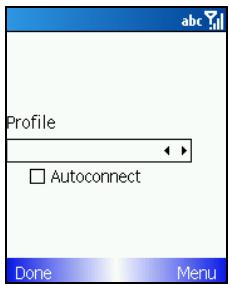
- On the Home screen, press the Start soft key and select Anny Way MMS.
- Press the Menu soft key and select Configure.
- Press the Menu soft key and select New.
- Under MMS Profile, enter a name for the connection.
- Under RAS Profile, select MMS Network.
- Under WAP Gateway and MMS Center, enter the appropriate information provided by your service provider.
- Press the Save soft key.
- Under Profile, make sure that a desired connection profile is selected.
- Press the Action key to select the Autoconnect item.
- Press the Done soft key.
10.3 Composing and Sending MMS Messages
Using Anny Way MMS, you can send text, images and audio files as messages. You can send multimedia messages that include image and text, audio and text, or all three (image, audio and text).
Composing a MMS
- On the Home screen, press the Start soft key and select Anny Way MMS.
- Press the New soft key, or press the Menu soft key and select Create message to enter the New Message screen.
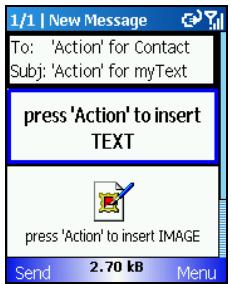
- Scroll to the To field, and press the Action key to open the contact list for selection. You can also directly enter a mobile phone number. To add multiple recipients, separate each name with a semicolon (;).
-
To add recipients to receive a copy, press the Menu soft key and select Properties. Enter the mobile phone numbers of the recipients in the Cc and Bcc fields.
-
Scroll to the Subj field, and press the Action key to open the text template list for selection. You can also directly enter a subject.
- To enter the text, scroll to the text area, press the Action key and enter your text. You can also press the Menu soft key and select Insert Text to open the text template list for selection. After entering the text, press the Done soft key.
While in the text area, you can press the Action key to do the following:
- Edit edits the text.
- Delete deletes the current text.
-
Settings configures the background color and duration for the text preview.
-
To add an image, scroll to the image area, press the Action key and select Insert Photo or Insert Image.
-
Selecting Insert Photo allows you to immediately take a photo to be your image. After the camera is activated, press the Shutter soft key or the Action key to take a photo. Then press the Save soft key to accept the photo.
- Selecting Insert Image allows you to select an image stored on your Smartphone. The upper part of the screen displays the file names of the images in the current folder, and the lower part displays the preview and related information of the selected image. After your selection, press the Select soft key.
- To quickly find the image you want, enter the first few letters of the file name, and the highlight will move to the first file name that matches your input.
To select the image from another folder, press the Menu soft key and select Select Folder.
To change the sorting method of the files, press the Menu soft key and select Sort by.
While in the image area, you can press the Action key to do the following:
- Replace allows you to change the image.
- Delete deletes the selected image.
-
Settings configures the background color and duration for the image preview.
-
To send an audio file, scroll to the sound area, press the Action key and select Insert Recording or Insert Sound.
-
Selecting Insert Recording allows you to immediately record sound to be your audio file. On the Voice recorder screen, press the Record soft key to start recording, and the Stop soft key to stop recording. You can use the menu options to pause, continue or play the recording. Then press the Save soft key to accept the recording.
- Selecting Insert Sound allows you to select an audio file stored on your Smartphone. The upper part of the screen displays the file names of the audio files in the current folder, and the lower part displays the related information of the selected audio file. After your selection, press the Select soft key.
- To quickly find the audio file you want, enter the first few letters of the file name, and the highlight will move to the first file name that matches your input.
To select the audio file from another folder, press the Menu soft key and select Select Folder.
To change the sorting method of the files, press the Menu soft key and select Soft by.
While in the sound area, you can press the Action key to do the following:
- Replace allows you to change the audio file.
- Delete deletes the selected audio file.
- Play plays back the selected audio file.
- Settings configures the duration for the audio preview.
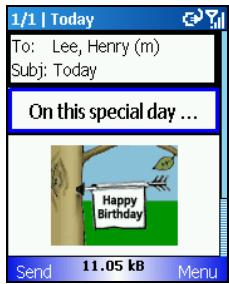
- To add a new page for the message, press the Menu soft key and select Add slide; select Delete slide to delete a page.
- Before sending the message, you can preview your message by pressing the Menu soft key and selecting Preview. Press the Stop soft key to return to the message content.
- To abort composing the message, press the Menu soft key and select Delete. To edit and send the message at a later time, press the Menu soft key and select Store to save it in the Drafts folder.
- To set the preview duration, press the Menu soft key and select Slide settings. Modify the setting and press the OK soft key.
Configuring Message Settings
You can set up the conditions for your message by pressing the Menu soft key and selecting Properties.
- Deliver on sets the delivery time of the message. Press the Action key to select the item and use the navigation pad to change the fields and enter the values. The default setting is to deliver the message immediately.
- Expires sets the time limit for reserving the message in the Smartphone. Press the Action key to select the item and use the navigation pad to change the fields and enter the values. The default setting is no expiration.
- Send report requests a delivery receipt for your message.
- Read report requests a read receipt for your message.
- Anonymous allows you to hide your address.
- Prio sets the class of the message to low, normal or high.
Sending a MMS
After finishing the message, press the Send soft key. Your message will be stored in Outbox and then delivered and stored in the Sent folder.
Opening a Message
When you receive a MMS message, the Anny Way MMS program sends you a notification with the subject, sender and message size.
- On the notification screen, press the Download soft key to enter the Inbox list and open the message. It may take a few seconds for the message to be downloaded to your Smartphone for the first time reading.
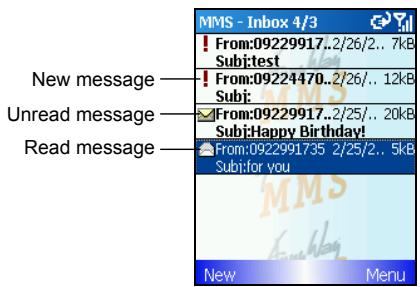
If you wish to download the message at a later time, press the Menu soft key and select Ignore. If you wish to delete the message immediately without downloading it, press the Menu soft key and select Delete.
- To download and open a message in the Inbox folder, press the Menu soft key and select Download and open.
- After the message is opened, the program will automatically turn the pages if there is more than one page. You can also press the Left/Right key to view the message content by page.
- Press the Back key to return to the Inbox list.
Responding to an Opened Message
| To... | Do this... |
| Play the message | Press the Play soft key. |
| Save the image or audio file in the message | Scroll to the image or sound area of the message and press the Action key. Upon the Save attachment prompt, press the Action key again. To change the file location, press the Menu soft key and select Select Folder. Accept or modify the file name, and press the Store soft key. |
| Return to the Inbox list | Press the Menu soft key and select Close message. Or, press the Back key. |
| Delete the message | Press the Menu soft key and select Delete message. |
| Forward the message | Press the Menu soft key and select Message → Forward message. |
| Reply to the sender | Press the Menu soft key and select Message → Reply sender. |
| Reply to all recipients | Press the Menu soft key and select Message → Reply all. |
| View detailed information of the message | Press the Menu soft key and select Properties. |
| View the sender information | Press the Menu soft key and select Contained addresses. Scroll to a phone number, press the Action key, and select New Message to compose a new message to the sender or select Call number to call the sender. |
Your Smartphone stores MMS messages in the following folders:
- Inbox contains messages that you receive.
- Outbox contains messages until they are delivered.
- Drafts contains messages that you save before sending.
- Sent contains copies of messages that you send.
- Deleted contains messages that you delete until you empty this folder.
When in a message folder, you can do the following without opening a message:
| To... | Do this... |
| Delete a message | Press the Menu soft key and select Delete message. |
| Mark a message as read/unread | Press the Menu soft key and select Message → Mark as read/unread. |
| Forward a message | Press the Menu soft key and select Message → Forward message. |
| Reply to the sender (in the Inbox folder only) | Press the Menu soft key and select Message → Reply sender. |
| Reply to all recipients (in the Inbox folder only) | Press the Menu soft key and select Message → Reply all. |
Changing the Message Folders
- On the Home screen, press the Start soft key and select Anny Way MMS.
- Press the Menu soft key and select Select Folder.
- Scroll to the folder to view and press the Action key.
Sorting the Messages
- On the Home screen, press the Start soft key and select Anny Way MMS.
- Press the Menu soft key and select Select Folder.
- Scroll to the folder to view and press the Action key.
- Press the Menu soft key and select Folder Options. You can choose to sort the messages by address/phone number, time, size or subject.
Moving a Message to a Different Folder
- On the Home screen, press the Start soft key and select Anny Way MMS.
- Press the Menu soft key and select Select Folder.
- Scroll to the desired folder and press the Action key.
- Scroll to the message to move, press the Menu soft key and select Move to the folder into which to move the message.
Emptying a Folder
- On the Home screen, press the Start soft key and select Anny Way MMS.
- Press the Menu soft key and select Select Folder.
- Scroll to the desired folder and press the Action key.
- Press the Menu soft key and select Empty folder.
11 PhotoID
The PhotoID program of your Smartphone helps you easily identify the caller by the image on the screen, and manage your contacts and the contact groups.
This chapter includes:
11.1 PhotoID Overview 142
11.2Assigning a Photo for a Contact. 143
11.3 Managing Contacts. 144
11.4 PhotoID Settings 148
11.1 PhotolD Overview
The PhotoID program allows you to select a photo for a contact so that you can easily identify the caller by the photo shown on the screen. In addition, the PhotoID program is also a convenient tool for managing the phone book stored in Contacts of the Smartphone and in your SIM card. You can add, delete or edit a phone number, and make a call from here.
On the Home screen, press the Start soft key and select PhotoID to open PhotoID. By default, the program will load the phone book of the SIM card and the Smartphone's Contacts. After the loading finishes, the contact list (PhotoID main screen) is displayed in the alphabetic order of contact names.
NOTE
- On your Smartphone, there can be two kinds of independent contact lists. One is stored in the Smartphone's memory by Microsoft Contacts; the other is stored in the SIM card.
- You can use both Contacts and PhotolD to load the contact information stored in the Smartphone's memory and SIM card. You can use either program to add or delete data; the changes you make will be valid in both programs.
For information on using Contacts, see section 6.1.
To refresh the contact data, press the Menu soft key on the PhotoID main screen and select Refresh.
If a contact chooses not to display his mobile phone number, then your setting for this contact in PhotolD will not be enabled.
11.2 Assigning a Photo for a Contact
- You can copy the image file to the Storage\My Documents folder of the Smartphone by using ActiveSync.
- On the Home screen, press the Start soft key and select PhotoID.
- On the PhotoID main screen, scroll to a contact to assign a photo, press the Menu soft key, and select Edit Assign Photo.
-
You can also press the Action key to open the selected contact's information, and then select a photo for the contact. (See "Editing a Contact" later in this chapter.)
-
At the top of the screen, the current used photo displays on the left and the contact's name and phone number on the right. The middle of the screen displays the image list for you to select.
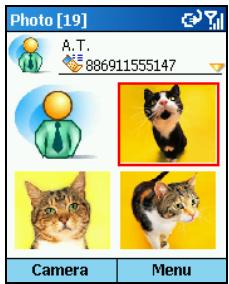
-
To assign a photo for the contact, do one of the following:
-
Press the navigation pad to scroll to a photo from the middle of the screen, and press the Action key.
- Press the Camera soft key to take a new photo using the Smartphone's camera. Frame your target in the viewing window, and press the Shutter soft key to take the photo. Press the Save soft key to add the photo to the image list. Scroll to the photo and press the Action key.
-
You must select a photo with the 176x144 resolution to use the PhotoID function.
After shooting, you can press the Cancel soft key in five seconds to abort.
You can continue taking photos as long as your Smartphone has enough memory. -
On the Frame screen, press the navigation pad to select a frame and press the OK soft key. You can also press the Preview soft key to preview the photo with the selected frame. Then press the OK soft key.
- The photo you assign for the contact is now on the PhotoID main screen.
Adding a Contact
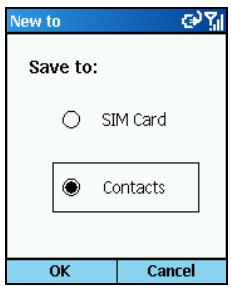
- On the Home screen, press the Start soft key and select PhotoID.
- On the PhotoID main screen, press the Menu soft key and select Edit New.
- Scroll to SIM Card or Contacts as the location to save this contact, and press the OK soft key.
- Under Photo, press the Left/Right key to select a photo for the contact.
- Enter related information and phone numbers. (For information on entering text, see section 2.3.)
- Under Custom ring tone, press the Left/Right key to select a ring tone.
- Under Group, press the Left/Right key to select a contact group, such as Family, Friends, Colleagues, etc.
- If necessary, press the Menu soft key and select Edit More to enter more information. Then press the Done soft key.
- Press the Done soft key. The contact is now in your contact list.
- You cannot customize the ring tone for a contact stored in your SIM card.
Deleting a Contact
- On the Home screen, press the Start soft key and select PhotoID.
- On the PhotoID main screen, scroll to a contact to delete.
- Press the Menu soft key and select Edit Delete.
If you already open the contact card of the contact, press the Menu soft key and select Delete.
- A message appears on the screen for confirmation. Press the OK soft key.
Editing a Contact
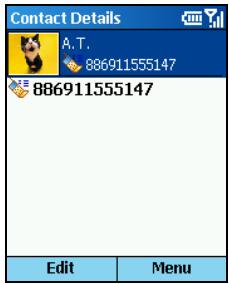
- On the Home screen, press the Start soft key and select PhotoID.
- On the PhotoID main screen, scroll to the contact to edit and press the Action key to open the contact card.
- Press the Edit soft key; or, press the Menu soft key and select Edit.
- Make the changes and press the Done soft key.
Viewing Modes
PhotoID provides four viewing modes for you to view the contact information.
To change the viewing mode, press the Menu soft key on the PhotoID main screen and select View Mode, then your desired mode.
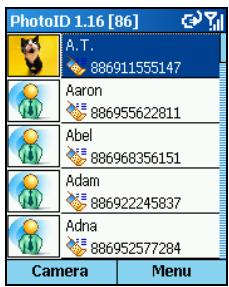
All Contacts [Detail]
By default, the screen displays the All Contacts [Detail] mode when you open PhotoID.
In this mode, the left column of the screen displays the default or assigned photos, and the right column the names and phone numbers of the contacts. If the contact is stored in the SIM card, the phone number is preceded by the icon; if the contact is stored in Contacts, the phone number is preceded by the icon.
![MIO 8390 - All Contacts [Detail] - 1](/content/2025/01/147884/images/c25cd2875115933777d98d7f19d6dd40e46ba266649dbd6a4f954b8ef57de93d.jpg)
All Contacts [List]
In this mode, the top of the screen displays the default or assigned photo, assigned group and phone number of the selected contact. The middle of the screen displays the contact list with names and locations. If the contact is stored in the SIM card, the name is followed by the icon; if the contact is stored in Contacts, the name is followed by the icon.
![MIO 8390 - All Contacts [List] - 1](/content/2025/01/147884/images/cc6a64cbfe1bb661ca5c8b1ca20bc3b8d170cbe6997fee3237a528212fcdbb97.jpg)
Group Only [Detail]
In this mode, the screen displays the groups of the contacts. (For information on managing the contact groups, see the next section.)
The left column of the screen displays the photos of the contact groups, and the right column the group name, number of contacts and ring tone.
![MIO 8390 - Group Only [Detail] - 1](/content/2025/01/147884/images/4b30e1feb2cb851132f267829ef71a4aa0068b5cd3721c9752b8414f0baaf510.jpg)
Group Only [List]
In this mode, the top of the screen displays the default or assigned photo and ring tone of the selected contact group. The middle of the screen displays the contact group list with group names and number of contacts.
Managing Contact Groups
You can assign your contacts to different contact groups for efficient management. By default, PhotoID provides six contact groups, including Family, VIP, Friends, Colleagues, Business and Miscellaneous.
Assigning Group Members
You can assign a contact group when adding or editing a contact. You can also assign group members by the following procedure:
- On the PhotoID main screen, press the Menu soft key and select Manage Group.
- In the contact group list, scroll to the group to assign members.
- Press the Menu soft key and select Assign Members.
- Select the contacts as the members of the selected group and press the Done soft key.
Assigning a Group Photo
- On the PhotoID main screen, press the Menu soft key and select Manage Group.
- In the contact group list, scroll to the group to assign a photo.
- Press the Menu soft key and select Assign Photo.
- Press the navigation pad to scroll to the photo you want, or press the Camera soft key to take a new photo. Then press the Action key.
- On the Frame screen, press the navigation pad to select a frame and press the OK soft key. You can also press the Preview soft key to preview the photo with the selected frame.
- Press the OK soft key. The photo you assign for the selected group is now on the screen.
Adding a Group
- On the PhotoID main screen, press the Menu soft key and select Manage Group.
- Press the New soft key.
- Enter the name of the new contact group.
- Press the OK soft key. The new group has been added to the bottom of the group list.
To rename a group, press the Menu soft key and select Rename.
Deleting a Group
- On the PhotoID main screen, press the Menu soft key and select Manage Group.
- In the contact group list, scroll to the group to delete.
- Press the Menu soft key and select Delete.
- Press the OK soft key to delete the selected group.
Assigning a Ring Tone
- On the PhotoID main screen, press the Menu soft key and select Manage Group.
- In the contact group list, scroll to the group to assign a ring tone.
- Press the Menu soft key and select Ring Tone.
- Scroll to the ring tone you want and press the Done soft key.
11.4 PhotolD Settings
To configure PhotoID, on the PhotoID main screen, press the Menu soft key and select Settings.
| PhotolD setting | Description |
| Load from | Sets the location of data to be loaded. The options are SIM card & Contacts (default), SIM card, and Contacts. |
| Define left key function | Defines the function of the left soft key in PhotoID. The options are New, Assign Photo, and Camera (default). |
| Show photo for incoming call | Sets if you want to enable the photo identification function for incoming calls. |
12 Utility Programs
Several utility programs are provided to extend the capabilities and ease the use of your Smartphone.
This chapter tells you how to use the programs supplied on the Bonus CD. (For information on games, see Chapter 13.)
This chapter includes:
12.1 Installing Utility Programs 150
12.2 TaskManager 151
12.3 PhoneExplorer 152
12.4 PhoneReader 154
12.5 PhoneCity 157
12.6 MPEG4 Plug-in 161
12.7 Mio Assistant 162
Some of the files and programs have been preinstalled in your Smartphone, including:
- TaskManager
PhoneExplorer
The programs that are not installed are:
PhoneReader
PhoneCity
MPEG4 Plug-in
Mio Assistant
Use the Bonus CD to install a program. The installation procedure is as follows:
- Connect the Smartphone to your desktop computer.
- Insert the Bonus CD into the CD-ROM drive of the desktop computer.
- The installation program on the CD will start automatically.
- Select the desired language for the display.
- Click Next on the welcome screen.
- Click Yes to accept the license agreement.
- Depending on your needs, select Custom Install, Install All, or Typical Install and click Next.
- Click Next to confirm the programs to install. Or, if you select Custom Install in the previous step, click Next to accept the destination folder, select the programs to install, and click Next. Click Next for confirmation.
- The installation progress will be displayed on the screen. Follow the on-screen instructions to finish the installation.
- The installation needs some temporary storage space. If there is a problem of insufficient memory, stop all the other programs or reset the Smartphone.
Depending on the continuing developments of the Smartphone, the Bonus CD supplied with your Smartphone may be updated. Please visit the www.mio-tech.be website for viewing and/or downloading the latest versions of the supplied software or other latest information. - For safety's concern, your Smartphone has been locked; you cannot install Microsoft-certified and Smartphone-compliant programs other than those provided on the Bonus CD. To unlock your Smartphone and install other programs, please visit the www.mio-tech.be website for on-line unlocking.
The TaskManager program is used to monitor the status of the memory usage of the programs installed in ROM of your Smartphone and also allows you to stop the program(s).
When you turn on the Smartphone and open the programs installed in ROM, all these programs reside in the background, taking up RAM space, even when you have exited and switched to another program. Usually, your Smartphone will automatically allocate the memory. In case insufficient memory problem occurs, you can use TaskManager to stop the program(s) for releasing some memory space. Follow this procedure to stop the program(s):
- On the Home screen, press the Start soft key, select TaskMan.
- The list of the opened programs will be displayed on the screen. Press the Up/Down key to select the program that you want to stop. Then press the Stop soft key.
- Press the Menu soft key and select Hide to exit and return to the previous screen. The TaskManager program will still monitor in the background.
- TaskManager monitors the programs in ROM (such as core programs of Windows Mobile™ for Smartphone, PhoneCamera, Anny Way MMS, and PhotoID). It does not monitor programs installed by you (such as PhoneReader and PhoneExplorer).
PhoneExplorer allows you to explore and manage the folders and files in your Smartphone. You can add new folders, cut, copy, paste, rename and delete folder/files.
Opening PhoneExplorer
After installing PhoneExplorer, on the Home screen, press the Start soft key and select PhoneExplorer to open PhoneExplorer.
Displayed on the screen is the root directory of your Smartphone. To select a file or folder, press the Up/Down key. Press the Action key to open the selected file or folder.
To go up one level, press the Back key or select the icon and press the Action key.
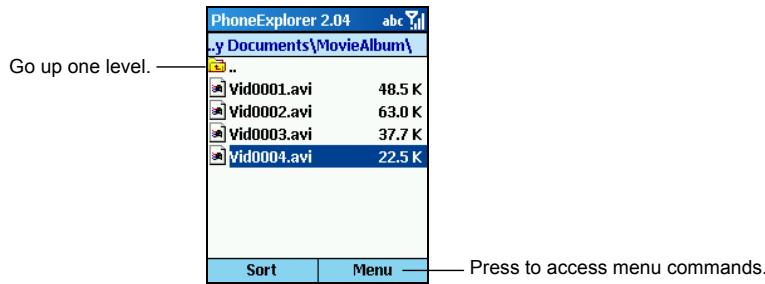
PhoneExplorer displays the folder names, filenames, extension names and file sizes.
Browsing and Finding Files
After opening PhoneExplorer, you can use one of the following methods to find a file:
Use the navigation pad.
- Left: to the previous page
Right: to the next page
Up: to the previous item -
Down: to the next item
Action: Opening the selected program or folder -
Use number keys. You can enter the beginning letters of the filename to search the matching file in the current folder. As you start typing a few letters and pause, the highlight will be moved to the first matching file.
Sorting Order
PhoneExplorer provides four sorting orders so you can browse your files in a systematic way.
Press the Sort soft key to select one of the options:
| Sorting order | Description |
| Name | By the order of filenames (default). Filenames and sizes are displayed. |
| Date | By the order of the dates. Filenames and dates are displayed. |
| Size | By the order of the file sizes. Filenames and sizes are displayed. |
| Type | By the order of file types. Filenames and types are displayed. |
Managing Files
Press the Menu soft key to use the menu commands as described below for managing your files:
| PhoneExplorer menu command | Description |
| New Folder | Adds a new folder in the current folder. Enter the folder name (1~255 characters). |
| Delete | Deletes the selected file or folder. |
| Rename | Renames the selected file or folder (1~255 characters). You cannot rename the extension name. |
| Cut | Cuts the selected file or folder for moving to or pasting in another folder. |
| Copy | Copies the selected file or folder for pasting in another folder. |
| Paste | Pastes the previously cut or copied file or folder to the current folder. |
| Properties | Displays the file properties such as type, location and size. |
- Be careful when you delete files. Accidentally deleting essential program files can cause your Smartphone to malfunction.
PhoneReader allows you to read books (in txt, html, pdb and prc formats) on your Smartphone. It features bookmarks, favorites and auto sliding.
You can download files to your desktop computer or purchase electronic books. Use ActiveSync to copy the files to the \Storage\My Documents of your Smartphone or to a storage card.
Opening and Exiting PhoneReader
After installing PhoneReader, on the Home screen, press the Programs soft key and select PhoneReader to open PhoneReader.
To exit PhoneReader, press the Menu soft key and select Exit.
Book Folders and Book Lists
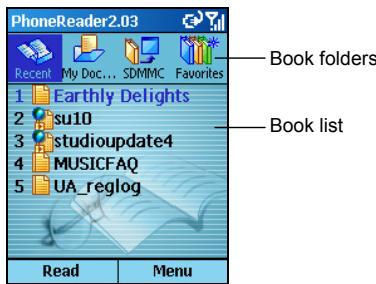
When you open PhoneReader, you will see at the top of the screen four book folders. They are:
- Recent contains the documents you recently read.
- My Documents contains documents of all supported formats in the \Storage\My Documents folder.
SDMMC contains documents of all supported formats in the storage card. - Favorites contains documents you have added to the Favorites.
In the middle of the screen is the book list of the selected book folder. Each book is labeled with a number, icon and filename. When you see More on the screen, select More to scroll to the next page of the book list.
Reading a Book
To read a book after opening PhoneReader, press the Left/Right key to select the desired book folder, and press the number of the desired document in the book list or press the Up/Down key to select, and then the Action key or Read soft key.
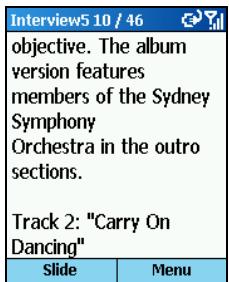
After opening a book, you can:
- Press the Up or Down key to move up or down one line.
- Press the Right or Left key to scroll to the previous or next page.
- Press the Menu soft key and select Goto to quickly reach a specific page. Enter the number in the input field and press the Done soft or Action key to go to the page.
- Press the Menu soft key and select Full screen to read the book in full screen. Press the Action key to end the full screen reading.
- Press the Slide soft key to allow PhoneReader to turn the pages automatically according to the slide settings. (You can adjust the time interval between page turning. For details, see the instructions later on.) To stop the sliding, press the Stop soft key.
Use the available menu commands. (See later instructions.)
Using Bookmarks
When a document is open, you can press the Menu soft key and select Set bookmark to set a bookmark so you can conveniently jump to a specific page later on. Only one bookmark is accepted by one document; that is, a newly set bookmark will replace the old one.
When you open the same document next time, you can press the Menu soft key and select Goto bookmark to quickly reach the page with the bookmark.
PhoneReader Favorites
PhoneReader provides a Favorites folder for you to store your favorite books.
When the desired document is open, press the Menu soft key and select Add to favorites to include the document in your Favorites folder.
PhoneReader Settings
Press the Menu soft key and select Settings to access the options as described below:
| PhoneReader setting | Description |
| Code type | The options are Unicode, Chinese(Big 5) and Chinese(GB). |
| Font size | The options are Small, Middle (default) and Large. |
| Font | Allows you to select the desired font to be displayed. |
| Font color | Allows you to select the desired font color from a total of 16 colors to be displayed. |
| Background color | Allows you to select the desired background color from a total of 16 colors. |
| Slide page interval | Sets the time interval for the sliding feature. The options are between 1 to 60 seconds (default is 5). |
| Remember last position | Sets if PhoneReader will save the progress of your reading so that when you open the same document next time, you will be lead to the page where you were when you last left. |
Managing Book Folders
In PhoneReader, you can press the Menu soft key to access the menu commands as described below:
| PhoneReader menu command | Description |
| Add to Favorites | Adds the selected document to the Favorites folder. |
| Delete from Favorites | Deletes the selected document from the Favorites folder. |
| Delete | Deletes the selected document. |
| Settings | Customizes PhoneReader (as described earlier). |
| Exit | Closes the program. |
PhoneCity gives you a glance of the current time in five different cities.
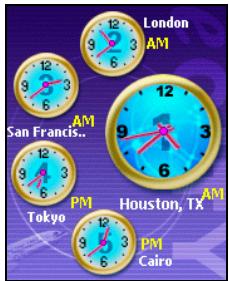
After installing PhoneCity, on the Home screen, press the Start soft key and select PhoneCity to open PhoneCity.
Five standard-style clocks appear on the screen, with the biggest one numbered 1 showing the time of the main city. The remaining four clocks numbered 2 to 5 show the time of the other cities.
You can press a number key to adjust the time of the corresponding city. When you change the time of a city, the time of the other cities will automatically change, too.
- You can press the Left/Right key to change the color of the clock hands.
To exit the program, press the left soft key (not displayed on the screen).
Changing the Clock Style
PhoneCity provides three different styles for you to select. In addition to the default "Standard" style, there are "Fashion" and "Digital" styles. Press the right soft to select a style.
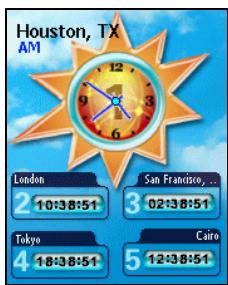
Fashion
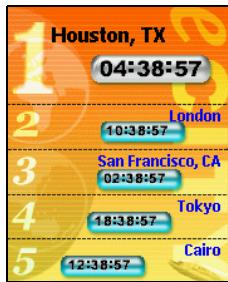
Digital
Selecting Cities
You can select your own five cities to be displayed on the screen from a list of 472 cities.
- On the PhoneCity main screen, press the Menu soft key (right soft key, not displayed on the screen) and select Location.
- The screen displays the information of the five cities. Press the Up/Down key to scroll to a city number.
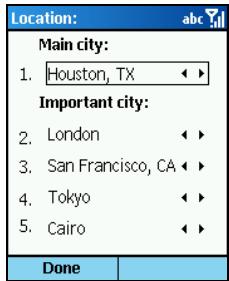
-
To change the city corresponding to the number, use one of the following methods:
-
Press the Left/Right key.
- Press the Action key to select from the full list. Press the Up/Down key to select a city. To scroll to the previous or next page, press the Left/Right key.
-
You can also enter text to search the city. As you input text, a small box appears on the screen to show your input and the highlight moves to the first city name that matches your input.
-
Press the Done soft key to save your changes.
Adjusting the Time
- On the PhoneCity main screen, press the Menu soft key (right soft key, not displayed on the screen) and select Set time.
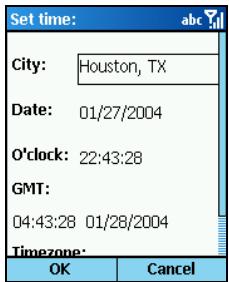
-
Press the Up/Down key to scroll to an item for setting. The items are:
-
City Select one of the five cities that you want to adjust the time for. Press the Left/Right key to select or press the Action key to select from the list.
- Date Press the Left/Right key to move among the month, day and year fields. Press the number keys to enter the values.
- O'clock Press the Left/Right key to move among the hour, minute, and second fields. Press the number keys to enter the values.
These items are also displayed, but not adjustable:
- GMT displays the GMT time.
-
Timezone displays the time zone of the selected city.
-
When completed, press the OK soft key to save your changes.
- When you adjust the time of a city, the time of the other cities are changed accordingly.
Synchronizing GMT
To keep accurate time on your Smartphone, you can connect to a time server for synchronizing the Greenwich Mean Time of your Smartphone. PhoneCity allows you to connect to one of 19 default time servers.
- Connect your Smartphone to the Internet.
- On the PhoneCity main screen, press the Menu soft key (right soft key, not displayed on the screen) and select Online Time.
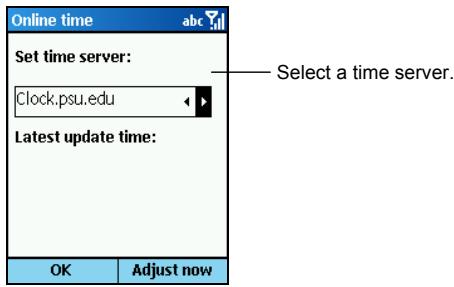
- Select the server you want to connect to. Press the Left/Right key to select, or press the Action key to select from the list.
- Press the Adjust now soft key to synchronize the time.
- Press the OK soft key to return to the previous screen.
- When you open the timer server list, you have the chance to add a new time server. To do so, press the Menu soft key, select Add, enter the server name in the box, and press the OK soft key.
12.6 MPEG4 Plug-in
After installing MPEG4 Plug-in, you can use Windows Media Player on your desktop computer to open the video files recorded by your Smartphone.
You can use the Mio Assistant program on the desktop computer as a powerful tool to effectively manage the messages and data stored in your Smartphone. Mio Assistant enhances the functions of your Smartphone, and provides user-friendly interface to operate.
- Before installing and running Mio Assistant, make sure that your Smartphone is already connected to the desktop computer using ActiveSync. (For information on installing ActiveSync on your desktop computer, see section 1.6.)
- Your desktop computer must have Windows Media Player 9.0 or later for Mio Assistant to work properly.
Mio Assistant does not support Windows 98.
After installing Mio Assistant by selecting Install All or Custom Install, a shortcut for Mio Assistant appears on the desktop of the desktop computer. Double-click on the shortcut to open Mio Assistant.
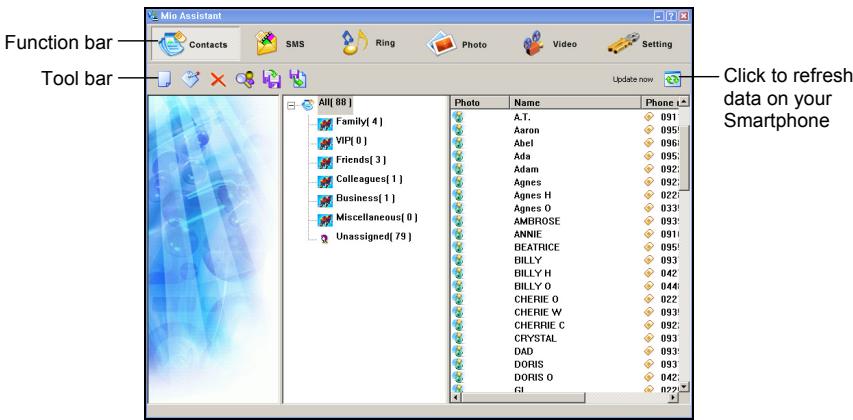
The top of the Mio Assistant main screen is the function bar; there are six functions for you to use (see the sections later on). The tool bar appears below the function bar; the tools displayed on the left vary depending on the function you select, and the Update now button is on the right.
Using the Contacts Function
By default, the program will load the phone book of the SIM card and the Smartphone's Contacts. After the loading finishes, the screen displays the contact data.
The middle of the screen displays the contact groups that you have created in PhotoID, and the number of contacts in each group. The right column displays the contact data of the selected contact group in the alphabetic order.
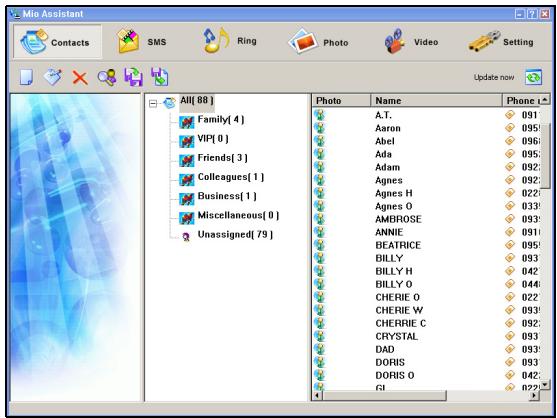
To add a new contact:
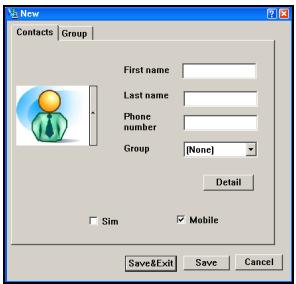
Click the New icon on the tool bar.
Enter the related information and phone number, or assign a group for this contact. You can select to save this contact on the SIM card (Sim) or the Smartphone (Mobile); the default setting is Smartphone. After entering information, click Save to save the contact and continue adding other contacts, or click Save&Exit to save the contact and return to the main screen.
- When selecting to save the contact on your Smartphone, you can click Detail to enter more information.
Other Contacts tools include:
| Tool | Description |
| Edit | Select a contact from the right column to edit and click the Edit icon . |
| Delete | Select a contact from the right column to delete and click the Delete icon . |
| Search | Click the Search icon to enter the Search dialog box. Under Input name, enter the name of the contact that you are searching for, click Next or press the Enter key, and the program will start searching. After the contact is found, the screen will display the name and phone number of the contact. You can enter only part of the contact's name; if the contact name displayed is not what you want, click Next to continue searching. |
| Backup | Click the Backup icon to enter the Backup dialog box. For Name, enter the file name of the backup of the contact data, and click Save. |
| Restore | Click the Restore icon to enter the Restore dialog box. For Name, select the file name of the backup of the contact data, and click Restore. |
Using the SMS Function
Click SMS on the function bar, and the program will load the SMS messages stored on your Smartphone.
The middle of the screen displays the folders for SMS messages and the number of messages in each folder. The right column displays the message data of the selected folder.
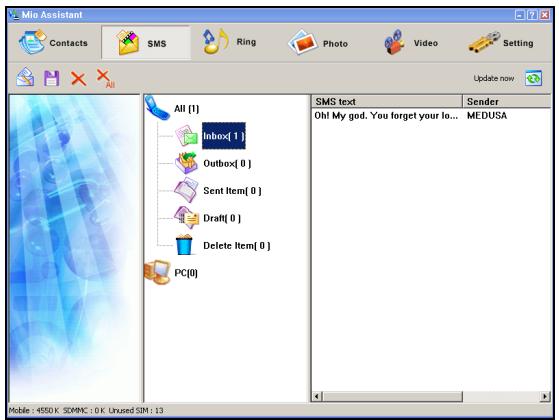
To create a new message:

Click the New icon

on the tool bar.
For Receiver, enter the mobile phone number of the message receiver, or click Receiver to select from the contact list. Under SMS text, enter the message content. Click Send for the program to immediately send your message.
Other SMS tools include:
| Tool | Description |
| Save to | Select the message(s) from the right column to save and click the Save to icon . Then enter the file name and click Save. |
| Delete | Select the message from the right column to delete and click the Delete icon . |
| Delete all | Click the Delete all icon ×All to delete all messages of the selected folder. |
Using the Ring Function
Click Ring on the function bar, and the program will load the ring tone files on the desktop computer and the Smartphone.
The Windows Media Player interface appears in the left column. In the middle column, the folders of the desktop computer are displayed in the upper box, and the Smartphone (mobile) icon in the lower box. In the right column, the data of the ring tone files on the desktop computer are displayed in the upper box, and those on the Smartphone in the lower box.
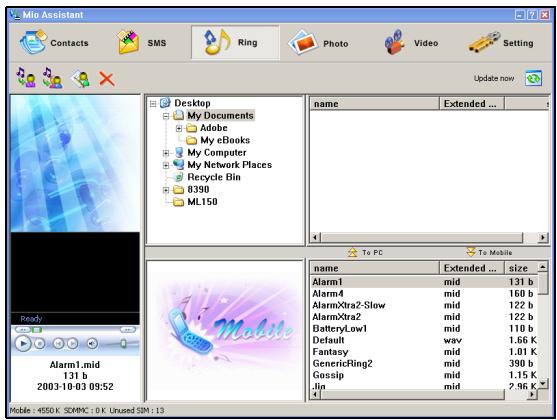
You can use the following Ring tools:
| Tool | Description |
| Set mobile ringtone | Click the Set mobile ringtone icon on the tool bar to enter the setting dialog box. You can set the sounds for ring tones, reminders, new messages, alarm clock, and etc. When completed, click OK. |
| Set group ringtone | Click the Set group ringtone icon on the tool bar to enter the setting dialog box. When completed, click OK. |
| Rename | Select the ring tone file to rename and click the Rename icon . |
| Delete | Select the ring tone file to delete and click the Delete icon . |
| Play | Use the Windows Media Player interface to play the selected ring tone file. |
| Copy ring tone files | To copy ring tone files to the desktop computer, select the files and click the To PC icon. To copy ring tone files to the Smartphone, select the files and click the To Mobile icon. You can also drag and drop the files to your destination. |
Using the Photo Function
Click Photo on the function bar, and the program will load the image files on the desktop computer and the Smartphone.
The preview and information of the selected image file are displayed in the left column. In the middle column, the folders of the desktop computer are displayed in the upper box, and those of the Smartphone in the lower box. In the right column, the thumbnail view and file names of the image files on the desktop computer are displayed in the upper box, and those on the Smartphone in the lower box.
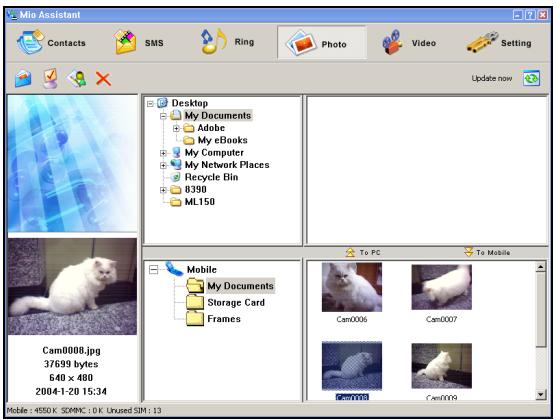
You can use the following Photo tools:
| Tool | Description |
| Mail to | To send the selected mage file via e-mail, click the Mail to icon . |
| Set for wallpaper | To set the selected image file as the background image of the Smartphone, click the Set for wallpaper icon . |
| Rename | Select the image file to rename and click the Rename icon . |
| Delete | Select the image file to delete and click the Delete icon . |
| Copy image files | To copy image files to the desktop computer, select the files and click the To PC icon. To copy image files to the Smartphone, select the files and click the To Mobile icon. You can also drag and drop the files to your destination. |
Using the Video Function
Click Video on the function bar, and the program will load the video files on the desktop computer and the Smartphone.
The Windows Media Player interface appears in the left column. In the middle column, the folders of the desktop computer are displayed in the upper box, and those of the Smartphone in the lower box. In the right column, the thumbnail view and file names of the video files on the desktop computer are displayed in the upper box, and those on the Smartphone in the lower box.
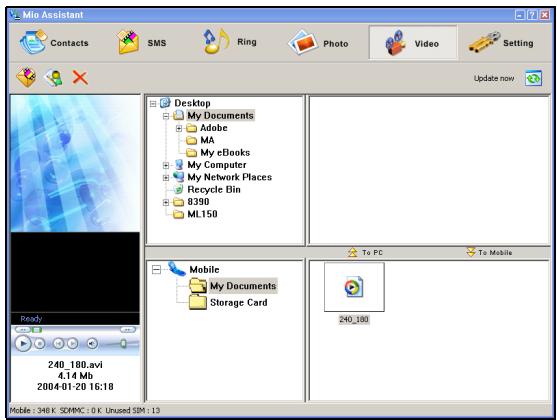
You can use the following Video tools:
| Tool | Description |
| Mail to | To send the selected video file via e-mail, click the Mail to icon . |
| Rename | Select the video file to rename and click the Rename icon . |
| Delete | Select the video file to delete and click the Delete icon . |
| Play | Use the Windows Media Player interface to play the selected video file. |
| Copy video files | To copy video files to the desktop computer, select the files and click the To PC icon. To copy video files to the Smartphone, select the files and click the To Mobile icon. You can also drag and drop the files to your destination. |
Mio Assistant Settings
Click Setting on the function bar to customize the Mio Assistant settings.
| Item | Description |
| Owner information | Allows you to enter your personal information, including your name, telephone number and e-mail address. |
| IE favorite | Allows you to edit the Favorites list of Internet Explorer. |
| Profile | Allows you to back up, restore or delete data on your Smartphone. |
| Mobile operator | Allows you to install the mobile phone network settings. Select your mobile phone network operator and click OK. |
| Default setting | Restores the default settings for Owner information, IE favorite, Profile and Mobile operator. |
13 Games
This chapter tells you how to play the Java game.
This chapter includes:
13.1 Java Game 170
The Java program allows you to play Java games on the Smartphone.
Opening Java
On the Home screen, press the Start soft key and select Java.
You can use the following methods to install Java games:
- Run JAR files on the Smartphone.
- Use Internet Explorer to connect to the Internet and download JAD files through HTTP (WAP not supported).
Your Smartphone is pre-installed with the Java game Mio Burning Rush.
- You can also press the Start soft key on the Home screen and select Games Mio Burning Rush.
- Your Smartphone does not support the installation of Java games via the mobile phone network.
Mio Burning Rush

- On the Home screen, press the Start soft key and select Java.
- Scroll to Mio Burning Rush and press the Launch soft key or Action key.
- Press the OK soft key on the Start screen.
- Scroll to NEW GAME and press the Select soft key or Action key to begin.
Control Keys
| Key | Function |
| Navigation pad or number keys 2/8/4/6 | Control the movement. |
| Action key or number key 5 | Shoot. |
| Number keys 7/9 | Use the hoe to destroy the obstacles. |
Part III References
14 References
This chapter provides the reference information.
This chapter includes:
14.1 Product Specification 174
14.2 Frequently-asked Questions 175
14.3 Restoring Factory Default State 176
14.4 Regulatory Information 177
14.1 Product Specification
| Component | Specification |
| CPU | Intel X-Scale 200MHz |
| Operating System | Windows MobileTM for Smartphone |
| Memory | - 64MB ROM (The available space for the end user is approximately 27MB. The available space depends on the programs installed.) - 32MB SDRAM |
| Display | 2.2-inch Transflective color LCD display, 260K color, 176x220 resolution, with backlight |
| AC Adapter | Input: 100~240Vac Output: 5Vdc, 1A |
| Battery | 860mAh |
| Standby Time | Up to 70 to 100 hours |
| Talk Time | Up to 2 to 3 hours |
| WAN Function | - GSM900, supports GSM, 1800 (DCS), 1900 (PCS) - GPRS Class 8 device - SMS over GPRS |
| I/O Function | - Microphone - Speaker - USB 1.1 slave (for ActiveSync) - IrDA (SIR 1.2, 115.2kbps) - SD/MMC card slot (not supporting I/O cards) |
| Camera | Fixed CMOS camera, 300K pixel, VGA |
| Dimension (W x H x L) | 50.9 x 24.2 x 99 mm |
| Weight | 125 g |
The specifications are subject to change without notice.
The standby and talk time may vary according to different situations.
14.2 Frequently-asked Questions
| Problem | Solution |
| Power doesn’t turn on. | ·The remaining battery power may be too low to start up your Smartphone. ·If you use the external AC power, make sure that the AC adapter is firmly and correctly connected. ·Remove the battery and replace it. Then turn on the Smartphone again. |
| Cannot make a call. | ·Make sure that the phone function is turned on. ·Make sure that you are within the range of the mobile phone network service. ·Make sure that the keypad lock is disabled. ·Make sure that you dial the correct number. |
| No ring tone | ·Check the sound volume. ·Make sure that your Smartphone is not muted. |
| Poor signal quality | ·If you are inside a building, move near a window or go outside. ·If you are in a reinforced structure, such as an elevator or parking garage, wait until you are outside to try your call. |
| Memory Problems | ·If a warning message of insufficient memory appears, try to remove programs you no longer need. ·If the running programs are occupying large memory, reset the Smartphone or stop the other programs using TaskManager. (See section 12.2.) |
- You are recommended to ask your local dealer for service. Avoid restoring factory default state by yourself.
In some cases, you may need to restore your Smartphone to the factory default state by clearing the memory (RAM) from your Smartphone. For example, you should clear the memory:
- When your Smartphone cannot be turned on.
- When you forget your password.
- When you want to remove the add-on software.
- When you wish to return, dispose of, or sell your Smartphone.
Clearing the memory means all data you have entered in RAM, including all files, system settings and additional programs you have installed, will be erased.
Follow this procedure to clear the memory from your Smartphone:
- To keep the data stored in your Smartphone, back up your data to your desktop computer using ActiveSync, and restore it after the memory is cleared.
- Connect the AC adapter, and disconnect all other cables.
- Make sure that your Smartphone is turned off.
- Press and hold the Volume control. When holding it, press and hold the End key for four seconds to turn on your Smartphone, and then let go of the End key.
- After the Smartphone vibrates twice, you can let go of the Volume control.
- Your Smartphone will turn on after about two minutes.
- Re-install the add-on software, if necessary.
- Restore your backup, if necessary.
- Marking labels located on the exterior of your device indicate the regulations that your model complies with. Please check the marking labels on your device and refer to the corresponding statements in this chapter. Some notices apply to specific models only.
European Notice
Products with the CE marking comply with the Radio & Telecommunication Terminal Equipment Directive (1999/5/EEC), the Electromagnetic Compatibility Directive (89/336/EEC) and the Low Voltage Directive (73/23/EEC) – as amended by Directive 93/68/ECC - issued by the Commission of the European Community.
Compliance with these directives implies conformity to the following European standards:
1999/5/EEC Radio & Telecommunication Terminal Equipment Directive (R&TTE)
EN301511
Specific Absorption Rate (SAR)
73/23/EEC Low Voltage Directive (LVD)
Standard: EN 60950:2000 or IEC 60950:1999
89/336/EEC Electromagnetic Compatibility (EMC-Directive)
Standard: EN 301489-1/7
The manufacturer cannot be held responsible for modifications made by the user and the consequences thereof, which may alter the conformity of the product with the CE marking.
15 Index
A
About
Setting, 57
Accessibility
Setting, 56
Accessories, 13
Action key, 6, 16
ActiveSync, 94
Cable, 7
Connector, 5
Installing, 11
Alarm setting, 47
Answering a call, 33
Second call, 34
Appointment. See Calendar
Audio
Playing files, 105
B
Backkey,6,16
Backlight time-out, 52
Battery, 5
Installing, 8
Battery connector. See Cradle
Beam
Setting, 55
Beaming information, 91
C
Calculator, 113
Calendar, 86
Agenda view, 87
Deleting appointment, 86
Editing appointment, 86
Importing, 88
Month view, 88
New appointment, 86
Result of Synchronization, 96
Viewing appointment, 86
Weekview,87
Call Barring, 55
Call Forwarding, 55
Call History, 36
Call Options, 55
Call Waiting, 55
Caller ID, 55
Camera lens, 4
Certificate, 56
Channels, 55
Charging, 9
Conference, call, 35
Connecting
To desktop computer, 12
Connection
Dial-up to corporate network, 51
Dial-up to ISP, 51
GPRS, 49
Proxy, 52
VPN, 52
Contact card
Sending message, 64
Contacts, 80
Calling, 84
Card, 81
Deleting,82
Editing, 83
Finding, 82
List, 80
New contact, 82
Result of Synchronization, 96
Sending message, 85
Converter, 9
Cradle, 7
Charging, 9
To desktop computer, 12
Currency
Format, 56
D
Data connection
Setting, 49
Date
Format, 56
Setting, 47
Device lock, 27
Dial-up connection, 51
DRM, 107
E
Earpiece, 6
Downloading attachment, 72
Downloading complete message, 72
Inserting signature, 66
Inserting voice recording, 65
Receiving, 69
End key, 6
End, call, 35
F
Favorites
Internet Explorer, 103
Media Player, 107
Fixed antenna, 4
Fixed Dialing, 55
G
Game
Jawbreaker, 112
Mio Burning Rush, 170
Solitaire, 111
GPRS connection, 49
H
Headphone
Connector, 5
Headset
Hands-free, 13
Hold, call, 35
Homekey,6,16
Home screen, 18
Background image, 49
Mio layout, 49
Setting, 48
1
Inbox
Menu, 71
Newmessage,64
Result of Synchronization, 96
Incoming call
Rejecting, 33
Rejecting the second call, 34
Input
Number, 24
Symbol, 24
Inserting text, 65
Editing, 65
In Inbox, 65
Internet
Browsing, 102
Connection, 49
Internet Explorer, 102
Customizing, 104
IR. See IR port
IR port, 5
Beaming information, 91
Sync, 100
J
Java game, 170
K
Keypad
Locking, 26
Unlocking, 26
L
Language menu, 22
Language setting, 56
Lanyard eyelet, 5
License, 107
Locking
Device, 27
Keypad, 26
SIM card, 28
M
Making a call
Call History, 32
Conference, 34
Contacts, 30
Dialing, 30
Hyperlink, 32
Recently dialed number, 32
Second call, 34
Speed Dial, 31
Swapping, 34
Troubleshooting, 175
Media Player, 105
Compatibility, 108
Favorites, 107
Memory, 174
Problem, 175
Memory card. See Storage card
Menu, 20
Microphone, 6
Mio Assistant, 162
Mio home screen layout, 49
MMC card, 14. See Storage card
Inserting, 14
Removing, 14
MMS, 132
Composing, 134
Mobile phone, 29
Modem link, 109
Infrared, 109
USB, 109
MP3 files, 105
MPEG4 plug-in, 161
MSN Messenger, 76
Multimedia Messaging Service. See MMS
MultiMediaCard. See MMC card
Mute, call, 35
N
Navigation pad, 6, 16
Network (Mobile phone network), 55
Notification indicator, 4
Number
Format, 56
Numerickeypad,6,17
0
Owner information
Setting, 52
P
Password, 176
Phone, 29
Setting, 46, 54, 55
Phone headset, 13
PhoneCamera, 118
Continues, 119
Continues interval, 121
Recording videos, 119
Taking photos, 118
Timer, 121
Twilight mode, 121
PhoneCity, 157
PhoneExplorer,152
PhoneReader, 154
PhoneViewer, 123
PhonoViewer
Adding notes, 124
PhotoID
Adding a contact, 144
Assigning a photo, 143
PIN, 28
Power connector, 5
Power management
Setting, 52
Power Management, 10
Private, call, 35
Profile
Changing, 48
Editing, 48
Setting, 47
Program
Removing, 52
Proxy, 52
Q
Quick List, 21
R
Recording
Voice note, 90
Region
Setting, 56
Removing program, 52
Restoring factory default state, 176
Ring tone
Setting, 47
Troubleshooting, 175
S
Screen, 6
Backlight time-out, 52
SD card, 14. See Storage card
Inserting, 14
Removing, 14
Secure Digital. See SD card
Security
Setting, 56
Security settings, 26
Settings, 46, 54
Signature
In e-mail, 66
SIM card
Importing SMS, 68
Inserting, 8
Locking, 28
PIN, 28
SMS
Importing from SIM card, 68
Receiving, 68
Softkey,6,17
Menu, 20
Sound
Setting, 47
Speaker, 4
Speakerphone, 35
Specification, 174
Speed dial, 37
Standby time, 174
Start list, 20
Status indicator, 19
STK, 20
Storage card
Slot, 4
Using, 14
Streaming media file
Playing, 105
To Favorites, 107
Swap, call, 35
Sync, 95
Cradle, 7
IR port, 100
Remote synchronization, 99
Synchronization, 95
T
T9 mode, 23
Talk key, 6
TaskManager, 151
Tasks, 89
New task, 89
Result of Synchronization, 96
Viewing, 89
Time
Setting, 47
Turning off, 10
Turning on, 10
Troubleshooting, 175
U
Unlocking
Device, 27
Keypad, 26
SIM card, 28
V
VideoPlayer, 128
Viewing mirror, 4
Voice mail, 41
Checking, 41
Phone number, 41
Voice Notes, 90
Voice recording
In e-mail, 65
Voice tag, 39
Volume control, 4
VPN, 52
W
Windows Media Player. See Media Player
- Note
- General Guidelines for Your Smartphone
- Guidelines for Using the Phone Feature
- Guidelines for Using the AC Adapter
- Guidelines for Using the Battery
- Welcome
- About this Manual
- Where to Find Information
- Table of Contents
- Chapter 3 Using the Phone 29
- Chapter 4 Setting up Your Smartphone 45
- Chapter 5 Messaging Features 59
- Chapter 6 Pocket Outlook 79
- Chapter 7 ActiveSync. 93
- Chapter 8 Internet, Entertainment, and More 101
- Part II Software Manual. 115
- Chapter 9 Using the Digital Camera. 117
- Chapter 10 MMS Messages 131
- Chapter 11 PhotoID. 141
- Chapter 12 Utility Programs 149
- Chapter 13 Games 169
- Part III References 171
- Chapter 14 References 173
- Chapter 15 Index. 179
- Part I System Manual
- Getting Started
- Hardware Features
- Top and Bottom Components
- Back Components
- ActiveSync Cable and USB Cradle
- Installing the SIM Card and Battery
- Not using the cradle
- Using the cradle
- Turning on
- Turning off
- Power Management
- Accessories
- Using the Phone Headset
- Using a SD/MMC Card
- Basic Skills
- Navigation Methods
- Navigation Pad
- Action Key
- Home Key
- Back Key
- Soft Keys
- Numeric Keypad
- Home Screen
- Status Indicators
- Start List
- Menu
- Quick List
- Language Menu
- Entering Text
- Entering Text in the Multipress Mode
- For example:
- Entering Text in the T9 Mode
- Entering Numbers in the Numeric Mode
- Entering Symbols
- Miscellaneous Input Tasks
- Securing the Smartphone
- Locking the Keypad
- Locking the Smartphone
- Locking the SIM Card
- Using the Phone
- Dialing a Call
- Making a Call from Contacts
- Making a Call from Speed Dial
- Making a Call Using a Recently Dialed Number
- Making a Call from the Call History List
- Making a Call from a Hyperlink
- Responding to an Incoming Call
- Answering an Incoming Call
- Rejecting an Incoming Call
- Managing More than One Call
- Holding a Call to Take a Second Call
- Rejecting the Second Call
- Holding a Call to Make a Second Call
- Swapping between Calls
- Setting up a Conference Call
- Adjusting the Phone Volume
- Speakerphone
- In-call Options
- Opening Call History
- Call History Menu Commands
- Creating a Speed Dial
- Editing a Speed Dial
- Deleting a Speed Dial
- Viewing Speed Dials You Have Created
- Creating a Voice Tag
- Using a Voice Tag
- Playing Back a Voice Tag
- Deleting a Voice Tag
- Viewing Voice Tags You Have Created
- Voice Mail
- Setting up the Voice Mail Phone Number
- Checking Your Voice Mail
- Entering an International Country Code
- Inserting a 3-second Pause in a Dialing Sequence
- Inserting a Manually Pause in a Dialing Sequence
- Turning off the Radio
- Setting up Your Smartphone
- Settings (Page 1)
- Setting Items (Page 1)
- Sounds
- Date and Time
- Profiles
- Changing the Profile Quickly
- Editing a Profile
- Using Mio Home Screen Layout
- Customizing the Home Screen with Your Own Image
- Data Connections
- Creating a GPRS Connection
- Completing the GPRS Settings
- Creating a Dial-up Connection
- VPN Connection
- Proxy Connection
- Owner Information
- Remove Programs
- Settings (Page 2)
- Beam
- Phone
- Accessibility
- Regional Settings
- Security
- Certificates
- Bluetooth
- About
- Messaging Features
- Understanding Messaging Types
- E-mail Messaging
- SMS Messaging
- Instant Messaging
- Setting up Messaging Accounts
- Setting up Outlook Synchronization
- Setting up an Internet E-mail Account
- Viewing the List of Accounts
- Changing the Accounts Quickly
- Changing E-mail Account Options
- Deleting an Account
- Composing an E-mail or SMS Message
- Sending from Inbox
- Sending from a Contact Card
- Inserting Predefined Text into Messages
- Inserting Voice Recordings into Messages
- Inserting Signatures into Messages
- Sending Messages
- Requesting a Delivery Receipt
- Receiving SMS Messages
- Receiving E-mail Messages
- Viewing and Responding to Messages
- Working with the Message List
- Opening a Message
- Inbox Menu
- Downloading a Complete E-mail Message
- Downloading an Attachment
- Accepting Meeting Requests
- Viewing the Message Folder Contents
- Marking a Folder for Synchronization
- Moving a Message to a Different Folder
- Emptying the Deleted Items Folder
- Using MSN Messenger
- Signing in and Signing out
- Sending an Instant Message
- Available Options When Using MSN Messenger
- Pocket Outlook
- Contacts
- Viewing Contacts
- Contact List
- Contact Cards
- Creating a New Contact
- Deleting a Contact
- Finding a Contact
- Editing a Contact
- Selecting a Ring Tone for a Contact
- Copying Phone Numbers from Your SIM Card to Contacts
- Copying one SIM Card Contact
- Copying All SIM Card Contacts
- Copying Phone Numbers from Contacts to Your SIM Card
- Calling a Contact
- Using the Default Number
- Using a Number Other Than the Default Number
- Calling a Contact from a Contact Card
- Sending an E-mail/SMS Message from a Contact Card
- Creating a New Appointment
- Viewing an Appointment
- Editing an Appointment
- Deleting an Appointment
- Viewing Your Schedule
- Agenda View
- Week View
- Month View
- Importing Calendar Information
- Creating a New Task
- Viewing the Task List
- Creating a Voice Note
- Listening to a Recording
- Beaming a Contact or an Appointment
- Receiving Beamed Information
- ActiveSync
- Synchronizing information
- Results of Synchronization
- Synchronizing Inbox
- Synchronizing Calendar, Contacts, and Tasks
- Setting up Server ActiveSync
- Stopping Synchronizing with a Server
- Creating a Synchronization Schedule
- Creating a Synchronization Schedule with an Exchange Server
- Synchronizing Remotely with a Desktop Computer
- Synchronizing by Using an Infrared Connection
- Internet, Entertainment, and More
- Internet Explorer
- Browsing the Web
- Using the Favorites List
- Adding a Web Page to Your Favorites List
- Creating, Deleting and Editing a Folder in Favorites
- Refreshing Web Pages
- Customizing Pocket Internet Explorer
- Playing Files
- Using Menu Commands When Playing a File
- Using Media Player Favorites
- Adding a Streaming Media File to Favorites
- Playing a Favorite
- Deleting a Favorite
- Licenses
- Media Player Compatibility
- Supported File Formats
- Supported Audio and Video Codec
- Audio codecs
- Video codecs
- Setting up an Infrared Connection
- Setting up a USB Connection
- Solitaire
- Jawbreaker
- Band Selection
- Part II
- Software Manual
- Using the Digital Camera
- Taking Photos
- Continues
- Recording Videos
- PhoneCamera Settings
- Notes on Using PhoneCamera
- Viewing Photos
- Full Screen View
- Adding Notes to a Photo
- Adding a Theme to a Photo
- Slide Show
- PhoneViewer Menu Commands
- Playing Videos
- Thumbsail View
- VideoPlayer Menu Commands
- MMS Messages
- MMS Connection Settings
- Composing and Sending MMS Messages
- Composing a MMS
- Configuring Message Settings
- Sending a MMS
- Changing the Message Folders
- Sorting the Messages
- Emptying a Folder
- PhotoID
- PhotolD Overview
- NOTE
- Assigning a Photo for a Contact
- Adding a Contact
- Viewing Modes
- All Contacts [Detail]
- All Contacts [List]
- Group Only [Detail]
- Group Only [List]
- Managing Contact Groups
- Assigning Group Members
- Assigning a Group Photo
- Adding a Group
- Deleting a Group
- Assigning a Ring Tone
- PhotolD Settings
- Utility Programs
- Opening PhoneExplorer
- Browsing and Finding Files
- Sorting Order
- Managing Files
- Opening and Exiting PhoneReader
- Book Folders and Book Lists
- Reading a Book
- Using Bookmarks
- PhoneReader Favorites
- PhoneReader Settings
- Managing Book Folders
- Changing the Clock Style
- Selecting Cities
- Adjusting the Time
- Synchronizing GMT
- MPEG4 Plug-in
- Using the Contacts Function
- Using the SMS Function
- To create a new message:
- Other SMS tools include:
- Using the Ring Function
- Using the Photo Function
- Using the Video Function
- Mio Assistant Settings
- Games
- Opening Java
- Mio Burning Rush
- Control Keys
- Part III References
- References
- Product Specification
- Frequently-asked Questions
- European Notice
- Index
- A
- B
- C
- D
- E
- F
- G
- H
- 1
- J
- K
- L
- M
- N
- 0
- P
- Q
- R
- S
- T
- U
- V
- W
Brand : MIO
Model : 8390
Category : Mobile Phone