USER MANUAL E835 SENNHEISER
Thank you for buying this Sennheiser Evolution microphone. We wish you much satisfaction and enjoyment from its use.
Made from the highest quality materials and components, this has been manufactured to the same exacting standards that have become the hallmark of SENNHEISER products over the last fifty years and made them reference equipment for broadcast, studio and stage, the world over.
The family of ten Evolution mics shown opposite cover every vocal and instrument application and provide you with the most comprehensive range to select from, whatever your requirement.
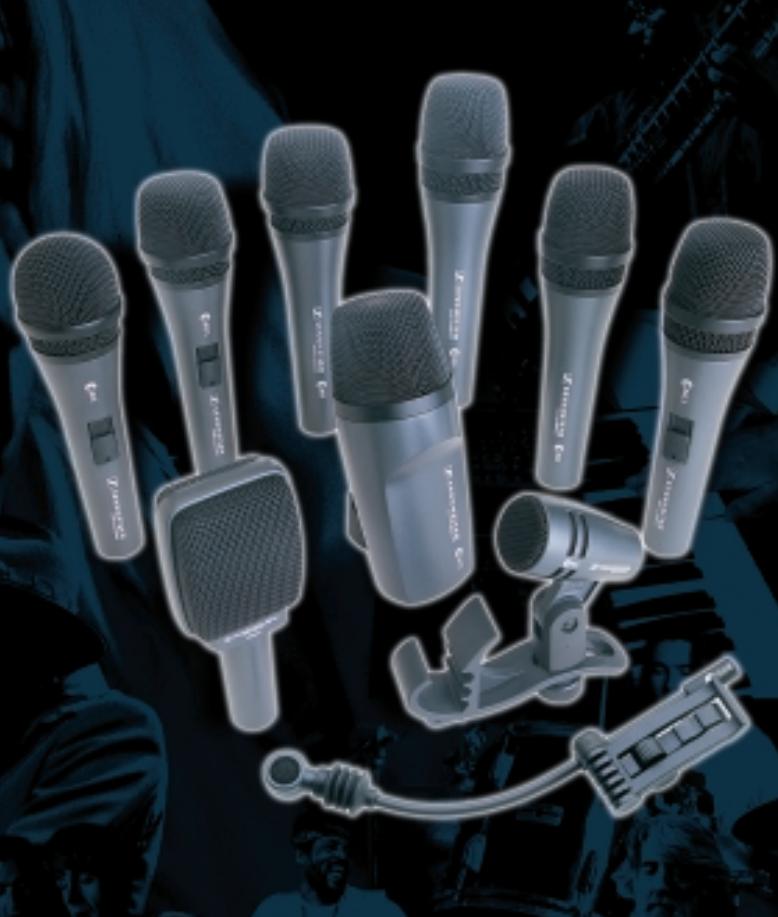
Amazing SPL in excess of 150 dB on all models
Outstanding feedback rejection.
e Advanced shock-mount design minimises handling noise.
Rugged road-proof construction.
e Designed and made in Germany.
...and they sound great!
Evolution The Microphone Series

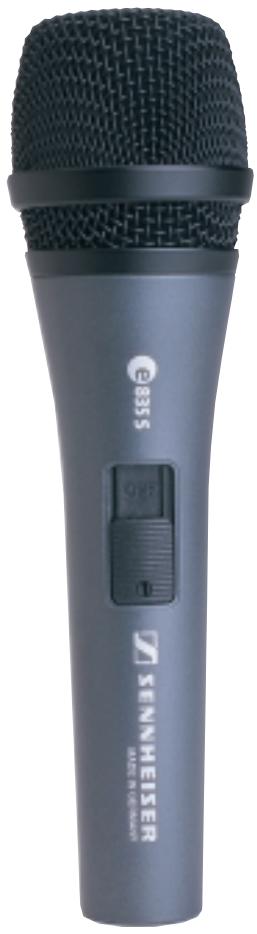
835 S/835
Quality vocal mic with performance and build characteristics never before available at this price.
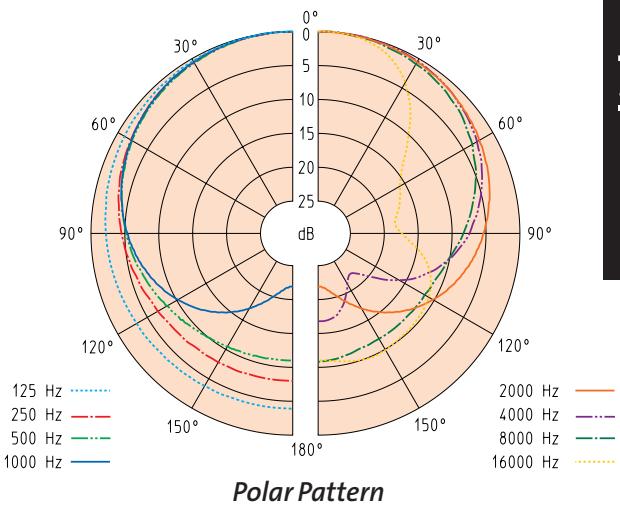
Uniform frequency pick-up pattern maintains signal quality when moving on and off axis during performance. Gentle presence boost to even tonal response ensures clarity and projection. Minimal proximity effect provides consistently clear bass end performance when singing closer to or further from capsule.
Cardioid pick-up pattern provides good signal isolation and feedback rejection, enabling higher sound levels to be obtained. Metal construction and internal shockmount system minimises handling noise. Lead vocal stage mic, designed to perform under pressure. Also available without ON/OFF switch (835).
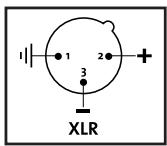
Connection
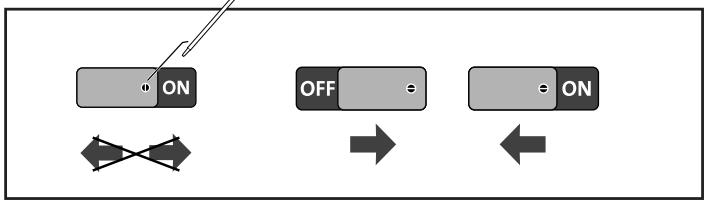
On/Off Switch
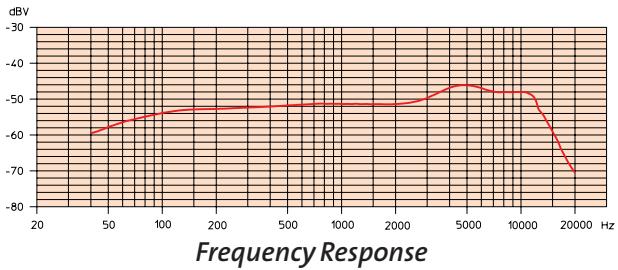
| Frequency response | 40Hz...16kHz | |
| Transducer principle | Pressure gradient receiver | |
| Pick-up pattern | Cardioid | |
| Front-to-back-rejection at 1kHz at 180° | >20dB |
| Sensitivity (free field, no load) 1kHz | |
| 2.7mV/Pa | ≈-51.4dB (odB=1V/Pa) | |
| ≈-71.4dB (odB=1V/μbar)(USA) | |
| Nominal impedance at 1kHz | 350Ω | |
| Min. terminating impedance | 1kΩ | |
| Sensitivity to magnetic field at 50Hz | ≤1μV/μT | |
| Weight | 330g | |
| Dimensions | ∅ 48, l =180mm | |
| Delivered with pouch and mic clip | |
Die Mikrofon-(R)EVOLUTION
...and they sound great!
Evolution The Microphone Series

835 S/835
Evolution The Microphone Series

835 S/835
Evolution The Microphone Series

835 S/835
Evolution The Microphone Series

835 S/835
Amazing SPL in excess of 150 dB on all models
Outstanding feedback rejection.
e Advanced shock-mount design minimises handling noise.
Rugged road-proof construction.
e Designed and made in Germany.
...and they sound great!
Evolution The Microphone Series

835 S/835
Product Registration Card
Ensure your:
Warranty Confirmation
OwnerVerification
Model Registration




Protect Your Investment
Congratulations on your Sennheiser Audio equipment purchase. Your Sennheiser equipment is sure to provide years of listening enjoyment. To receive all the privileges your purchase entitles you to, please complete and mail your Product Registration Card today.
Please retain this portion for your records.
Model Number: Serial Number:
Return the attached card within 10 days to ensure:
Warranty Confirmation
Ensure your right to protection under the terms and conditions of our limited warranty.
OwnerVerification
Can serve as verification of ownership in the event of loss or theft.
Model Registration
Ensure receipt of information and benefits due owners of your model.
SENNHEISER
Product Registration Card
Date of Purchase: Model Number: Serial Number:
First Name: Middle Initial: Last Name:
Street Address:
City: State: Zip Code:
Telephone: Fax: E-Mail:
Purchase Details:
Purchased at:
Street Address:
City: State: Zip Code: Telephone: Fax: E-Mail:
Sennheiser Electronic Corp.
One Enterprise Drive
P.O. Box 987
Old Lyme, CT 06371