DAC-Q4 - Earphones Fosi Audio - Free user manual and instructions
Find the device manual for free DAC-Q4 Fosi Audio in PDF.


| Product Type | USB DAC and Headphone Amplifier |
| Model | DAC-Q4 |
| Brand | Fosi Audio |
| Dimensions (W x H x D) | 10 cm x 3 cm x 8 cm |
| Weight | 200 g |
| Power Supply | USB 5V/500mA |
| Input Interface | USB Type-B, Optical (Toslink) |
| Output Interface | 3.5 mm headphone, 6.35 mm headphone, RCA line out |
| Max Sampling Rate | Up to 24-bit / 192 kHz |
| Supported Formats | PCM, FLAC, WAV, APE, WMA |
| Headphone Impedance | 16-300 ohms |
| Signal-to-Noise Ratio | >110 dB |
| Total Harmonic Distortion | <0.005% |
| Volume Control | Analog potentiometer |
| Operating System Compatibility | Windows, Mac OS, Linux |
| Driver Required | Windows driver for ASIO; plug-and-play on Mac/Linux |
| Power Indicator | Blue LED |
| Chassis Material | Aluminum alloy |
| Maintenance Instructions | Clean with a dry, soft cloth. Do not use liquid cleaners. |
| Safety Warnings | Do not expose to moisture or extreme temperatures. Use only supplied USB cable. |
| Spare Parts & Repairability | No user-serviceable parts. Contact support for repairs. |
| Package Contents | DAC-Q4, USB cable, optical cable, user manual |
| Warranty | 2 years |
Frequently Asked Questions - DAC-Q4 Fosi Audio
User questions about DAC-Q4 Fosi Audio
0 question about this device. Answer the ones you know or ask your own.
Ask a new question about this device
Download the instructions for your Earphones in PDF format for free! Find your manual DAC-Q4 - Fosi Audio and take your electronic device back in hand. On this page are published all the documents necessary for the use of your device. DAC-Q4 by Fosi Audio.
USER MANUAL DAC-Q4 Fosi Audio
Fosi Audio
Fosi Audio DAC-Q4 User Manual
Product Specifications
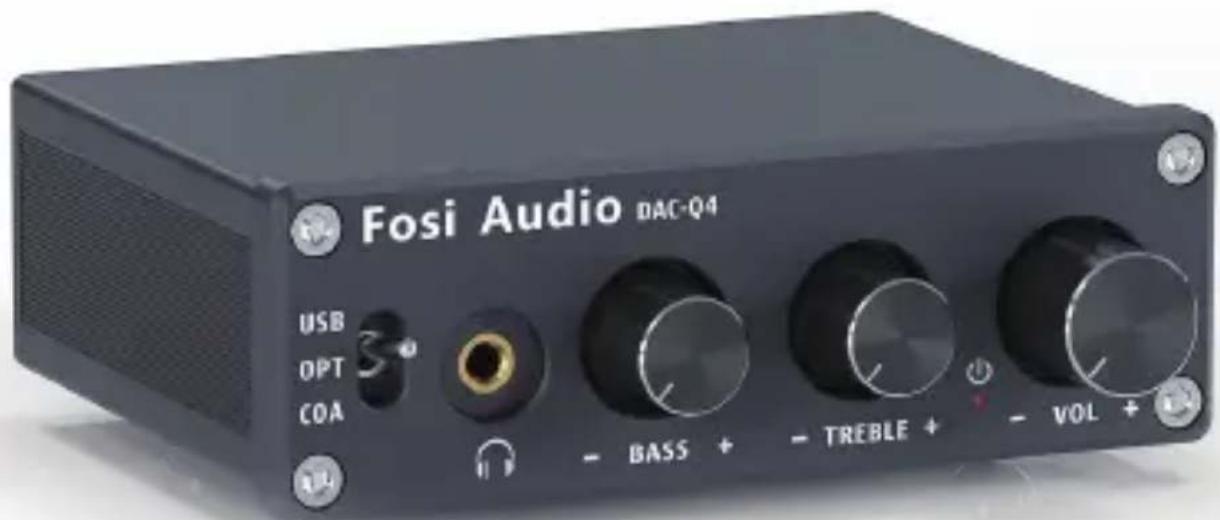
The Q4 is a compact mini digital/analogue audio converter adapter with USB, optical and coaxial digital inputs, a classic 3.5mm headphone jack and RCA outputs, suitable for most home audio systems. With bass and treble controls, it can be used as a preamplifier or volume control for PC/MAC/Computer. Fosi Audio Q4 ensures exquisite musicality, accurate and realistic phasing, and reproduction of the original sound!
| Input Type: USB, Optical, Coaxial | |
| Output Type: 3.5mm Headphone, RCA | |
| Chipset: SA9023+CS8412+ | 97220+NE5532 |
| USB Sampling Rate: 24Bit/96kHz | |
| Optical/Coaxial | 24Bit/192kHz |
| Sampling Rate: | |
| Headphone Impedance: 16-200Ω | |
| RCA Output Level: 2.3V | |
| Power Supply: 5V | |
| THD: ≤0.01% | |
| SNR: ≥105dB | |
| Size (L*W*H): 73.5*98*33MM | |
| Net Weight: 0.4kg | |
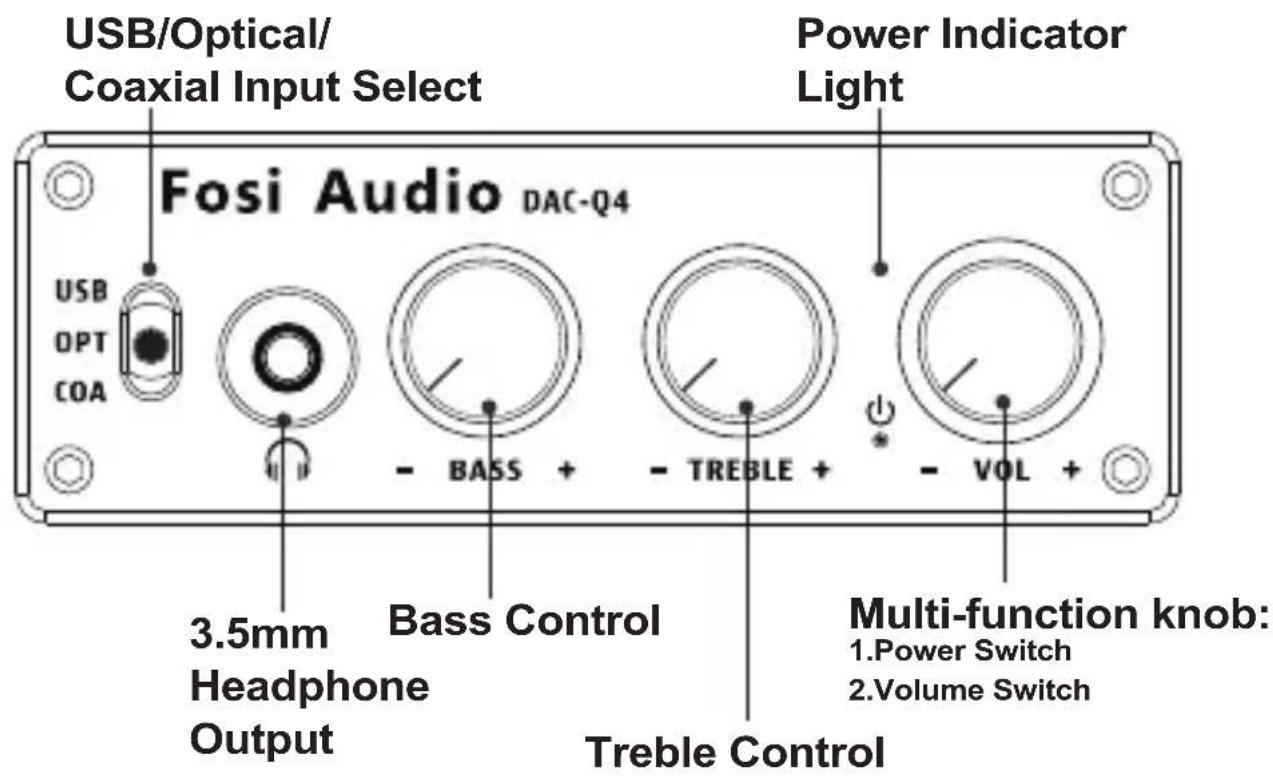
Product Overview & Control Functions

Package Contents
Fosi Audio DAC-Q4 ×1
5V USB Power Supply Cable ×1
PC-USB Cable ×1
Optical Cable ×1
User's Manual ×1
Quick Setup
PC-Windows for example
Prepare: Q4, PC, AC adapter, PC-USB cable, Micro-USB cable, Headphones.
Step 1: Connect the Micro-USB cable to the AC adapter, then connect the Micro-USB cable to the Q4;
Step 2: Connect the Q4 to the PC via the PC-USB cable;
Step 3: Turn down the volume control to lowest level(turn off the power switch) and connect the headphones to the 3.5mm headphone jack;
Step 4: Adjust input mode selection key to select USB input mode;
Step 5: Turn on the power switch (turn up the volume);
(Note: The power switch is also the volume control knob.
Turn on: Turn the volume knob clockwise to the right;
Turn off: Turn the volume knob counterclockwise to the left and adjust the volume to minimum.)
Step 6: Left click on the computer desktop sound icon and select Device: "Fosi Audio Q4"(Digital HiFi Audio);
Step 7: Open the audio application, play and enjoy!
(Note: Before connecting the power supply, please turn down the volume control to the lowest level, to avoid your hearing from damage.)
PC-Windows for example
![graph TD A["Micro-USB cable"] --> B["AC adapte"] B --> C["Q4"] C --> D["PC"] D --> E["Q4"] E --> F["Turn down"] F --> G["Q4"] G --> H["Step 4"] H --> I["USB"] I --> J["Turn on Turn up"] J --> K["PC"] K --> L["Fosi Audio Q4"] L --> M["Enjoy it!"] M --> N["Step 6"] N --> O["Step 7"]](/content/2026/07/1428456/images/80828c949827191daf8f19eef71f1c311a160ad24fbda93516b68607686ca19b.jpg)
Optical for example
Prepare: Q4, AC adapter, Micro-USB cable, optical device (TV for example), optical cable.
Step 1: Connect the Micro-USB cable to the AC adapter, then connect the Micro-USB cable to the Q4;
Step 2: Connect the TV to Q4's optical interface via the optical cable;
Step 3: Adjust the input selection button to select optical mode;
Step 4: Set the TV's optical output sound to RAW/PCM;
(NOTE: Due to different TV types, some TVs default Dolby or DTS sound output, Q4 DOES NOT Support Dolby and DTS sound, please select RAW/PCM Sound, otherwise you will hear a lot of noise or no sound output.)
Step 5: Open the audio application, play and enjoy!

Fosi Audio
Optical for example
![graph LR A["Micro-USB cable"] --> B["AC adapte"] B --> C["OPT"] C --> D["TV"] D --> E["OPT"] E --> F["RAW/PCM"] style A fill:#f9f,stroke:#333 style B fill:#ccf,stroke:#333 style C fill:#cfc,stroke:#333 style D fill:#fcc,stroke:#333 style E fill:#cff,stroke:#333 style F fill:#ffc,stroke:#333](/content/2026/07/1428456/images/5fa0f241fa7622f6e7a162e0520b47d3176a0d6d470b196f21f65c85ba5bc825.jpg)
Coaxial for example
Prepare: Q4, AC adapter, Micro-USB cable, Coaxial device (TV for example), Coaxial cable (no include).
Step 1: Connect the Micro-USB cable to the AC adapter, then connect the Micro-USB cable to the Q4;
Step 2: Connect the TV to Q4's coaxial interface via the coaxial cable;
Step 3: Adjust the input selection button to select coaxial mode;
Step 4: Set the TV's coaxial output sound to RAW/PCM; (NOTE: Due to different TV types, some TVs default Dolby or DTS sound output, Q4 DOES NOT support Dolby and DTS sound, please select RAW/PCM sound, otherwise you will hear a lot of noise or no sound output.)
Step 5: Open the audio application, play and enjoy!
Coaxial for example
![graph LR A["Micro-USB cable"] --> B["AC adapte"] B --> C["COA"] C --> D["TV"] D --> E["Step 3 COA"] E --> F["Step 4 RAW/PCM"] F --> G["Enjoy it!"]](/content/2026/07/1428456/images/a71ec3ecf34d7d65e1cefcc9240ddfde9d1c556cad792379363294e5681b840b.jpg)
Troubleshooting/QA
1: How do I power the DAC-Q4?
- You will need to use the supplied Micro-USB cable to power it, we recommend using the PC-USB port/5V power adapter to power it.
Note: The Micro-USB cable cannot be fully inserted into the device power port, please do not force it. Subsequent revisions have been made.
2: Why is it that all my wires are plugged in, but the Q4 RCA analog output is silent?
- At this point, you should check to see if the headphone output is plugged into the headphone. If so, you should unplug the headset to simulate RCA output.
3: Why do I get endless white noise?
- Please check that your input device is using Dolby/DTS audio, please switch off Dolby/DTS audio and try again.
4: No Dolby/DTS audio and I still get noise through the USB input?
- Please switch the USB port to USB 3.0 or back USB port and try again, as some USB ports have unstable data transmission;
- Please try again with another computer;
- Please replace the PC-USB cable and retest, contact us for compensation if the original cable is faulty;
- Please change the power supply adaptation and retest, why? Because of the ageing of the power supply there may be an abnormal power supply resulting in white noise. We recommend using the PC-USB port/5V power adapter to power it.
5: USB Device not recognized on Windows?
- Select Start, then type device manager in the Search box, and then select Device Manager;
- Expand Universal Serial Bus controllers. Press and hold (or right-click) a device and select Uninstall. Repeat for each device;
- Once complete, restart your computer. Your USB controllers will automatically install.
If Windows update causes the device to be unrecognized, please update all windows components and reboot, retest. Please contact me for a solution.
6: How to do plug and play on Windows?
- Just click the sound icon in your notification area;
- Click the "Select playback device" option;
- Select the playback device "Fosi Audio Q4"(Digital HiFi Audio).
7: I can't play Spotify music in Plug and Play mode?
- Please exit the Spotify app and switch the playback device to the computer's own sound card device, open Spotify and play, confirm that it works and then switch the playback device to DAC-Q4 "Digital HiFi Audio".
8: How do I get the highest 24Bit/96kHz resolution on my PC?
- Right-click the PC sound icon in the lower right corner, open Volume Mixer, click on the icon of the device/SPDIF: “Digital HiFi Audio” to open the Properties, click the Advanced, select 24Bit, 96000Hz for maximum sound quality output.
9: Why do I get an intermittent sound?
- Please switch the USB port to USB 3.0 or back USB port and try again, as some USB ports have unstable data transmission;
- Please replace the PC-USB cable and retest, contact me for compensation if the original cable is faulty.
10: Why there is no sound when PC-USB connects to PC?
- First press the PC-USB operation to confirm whether the digital playback output has been selected. If still no sound, you can restart the computer and repeat the operation again, also please make sure you had select correct device name on your PC sound setting.
- Some computers' USB port are low quality on the front panel, please change USB port to have a try, it's better use the USB port on the back panel of the computer.
11: Why my device stopping working after short time use?
- Make sure your audio source and the headphones, amplifier or powered speakers you connected are works well. And please check all the connection of the input and output cables, please change the audio source, output devices, cables to try again. Also please check the power supply works or not.
Comparison Section
| Model Q4 N2 K1 K2 | ||||
| Picture |  |  |  |  |
| Bluetooth Version | - | - | 5.0 | 5.0 |
| Headphone Output Impedance | 16-200 (Ω) | 16-200 (Ω) | 16-200 (Ω) 16-200 | (Ω) |
| Input Ways USB+OPT+COA AUX BT+USB+ | OPT+COA | BT+USB+OPT+COA | ||
| Output Ways 3.5mm | Headphone+RCA | AUX | 3.5mmHeadphone+RCA | 3.5mmHeadphone+RCA |
| Size 73.5*98*33mm | 106*67*14mm | 94*71*23mm 110*1 | 100*30mm | |
Warranty Information
- All Fosi Audio products have an 18-month limited warranty on parts and labor from the date of purchase. Please contact us if you have any problems.
About Fosi Audio
- Fosi Audio designs and builds innovative audio products with all your music in mind. Great sound, simple but elegant designs, high-quality materials, and truly useful features are what Fosi Audio is about. We sincerely hope you get as much enjoyment from our products as we’ve had to create them!
Our website: www.fosiaudio.com
Amazon store: www.amazon.com/fosiaudio
Our Youtube channel: Fosi Audio
Our Facebook page: Fosi Audio
After-sale Service and Technical Support Email:
support@fosiaudio.com
fosiaudio@hotmail.com

Fosi Audio Product's User Manual


- FOSI AUDIO
- PRODUCT SPECIFICATIONS
- PRODUCT OVERVIEW & CONTROL FUNCTIONS
- PACKAGE CONTENTS
- QUICK SETUP
- PC-WINDOWS FOR EXAMPLE
- OPTICAL FOR EXAMPLE
- COAXIAL FOR EXAMPLE
- TROUBLESHOOTING/QA
- 1: HOW DO I POWER THE DAC-Q4
- 2: WHY IS IT THAT ALL MY WIRES ARE PLUGGED IN, BUT THE Q4 RCA ANALOG OUTPUT IS SILENT
- 3: WHY DO I GET ENDLESS WHITE NOISE
- 4: NO DOLBY/DTS AUDIO AND I STILL GET NOISE THROUGH THE USB INPUT
- 5: USB DEVICE NOT RECOGNIZED ON WINDOWS
- 6: HOW TO DO PLUG AND PLAY ON WINDOWS
- 7: I CAN'T PLAY SPOTIFY MUSIC IN PLUG AND PLAY MODE
- 8: HOW DO I GET THE HIGHEST 24BIT/96KHZ RESOLUTION ON MY PC
- 9: WHY DO I GET AN INTERMITTENT SOUND
- 10: WHY THERE IS NO SOUND WHEN PC-USB CONNECTS TO PC
- 11: WHY MY DEVICE STOPPING WORKING AFTER SHORT TIME USE
- COMPARISON SECTION
- WARRANTY INFORMATION
- ABOUT FOSI AUDIO
Brand : Fosi Audio
Model : DAC-Q4
Category : Earphones