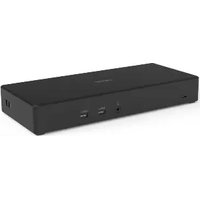
USB Type-C Dock M501 - USB Docking Station ACER - Free user manual and instructions
Find the device manual for free USB Type-C Dock M501 ACER in PDF.


Pick your language and provide your email: we'll send you a specifically translated version.
| Product Type | USB Type-C Docking Station |
| Brand | Acer |
| Model | USB Type-C Dock M501 |
| Dimensions (L x W x H) | Approx 12 x 8 x 2.5 cm |
| Weight | Approx 150 g |
| Power Supply | External power adapter 65 W (included) |
| Connectivity | 1 x USB-C (upstream), 2 x USB-A 3.0, 1 x HDMI, 1 x VGA, 1 x Gigabit Ethernet, 1 x combo audio jack |
| Main Functions | Port expansion, fast charging via USB-C (Power Delivery), video output up to 4K@30Hz (HDMI) |
| Compatibility | PCs and Macs with USB-C port supporting DP Alt mode |
| Care and Cleaning | Disconnect before cleaning. Use a soft, dry cloth. Do not use chemicals. |
| Safety | Avoid exposure to water, dust, and extreme temperatures. Use in a ventilated area. |
| Spare Parts and Repairability | Not user-serviceable. No spare parts available. Contact Acer support in case of failure. |
| General Information | Compact docking station for USB-C laptops. Standard 2-year manufacturer warranty. |
Frequently Asked Questions - USB Type-C Dock M501 ACER
Which cable should I use to connect the dock to my PC?
Use the provided USB-C cable. Make sure your PC supports DisplayPort Alt mode (DP Alt) for video output.
My PC does not detect the dock. What should I do?
Check that the USB-C cable is fully inserted. Try another USB-C port or another computer. Restart the PC. Update USB and chipset drivers.
The dock does not charge my laptop, why?
Make sure your PC supports charging via USB-C Power Delivery. The M501 dock delivers up to 60W. Some PCs may require a more powerful adapter. Use the provided power adapter.
Can I use the dock with a MacBook?
Yes, if your MacBook has a USB-C/Thunderbolt 3 port. Some features may require specific drivers. Video output works with Macs supporting DP Alt mode.
The external monitor does not display correctly, what should I do?
Check your system display settings. Try changing the resolution or refresh rate. Make sure you are using a working HDMI or VGA cable.
The Ethernet port does not work, how to fix?
Check that the Ethernet cable is properly connected. Install Realtek network controller drivers available on the Acer website. Restart the dock or computer.
Can I connect an HDMI monitor and a VGA monitor simultaneously?
Yes, the dock supports simultaneous display on two monitors. HDMI port supports up to 4K@30Hz, VGA up to 1920x1080@60Hz.
Sound does not come out of external speakers, what to check?
Make sure your audio device is plugged into the combo jack. In your system sound settings, select the dock audio output. Install audio drivers if needed.
Where to download drivers and firmware updates?
Visit the official Acer website, Support > Downloads section. Search for 'USB Type-C Dock M501' to get the latest drivers and firmware.
Is it normal for the dock to heat up?
Yes, slight heating is normal when multiple peripherals are connected. Ensure the dock is placed in a ventilated area and not covered. If heat is excessive, unplug it and contact support.
User questions about USB Type-C Dock M501 ACER
0 question about this device. Answer the ones you know or ask your own.
Ask a new question about this device
No questions yet. Be the first to ask one.
Download the instructions for your USB Docking Station in PDF format for free! Find your manual USB Type-C Dock M501 - ACER and take your electronic device back in hand. On this page are published all the documents necessary for the use of your device. USB Type-C Dock M501 by ACER.
USER MANUAL USB Type-C Dock M501 ACER

Manual assistant
Powered by Anthropic
Waiting for your message
Product information
Brand : ACER
Model : USB Type-C Dock M501
Category : USB Docking Station