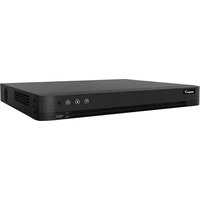
EDVR216 - Surveillance Camera EtiamPro - Free user manual and instructions
Find the device manual for free EDVR216 EtiamPro in PDF.


Pick your language and provide your email: we'll send you a specifically translated version.
| Type of Product | Digital Video Recorder (DVR) |
| Dimensions (W x D x H) | 300 x 230 x 55 mm |
| Weight | 1.6 kg |
| Power Supply | DC 12V, 2A (AC adapter included) |
| Input Voltage | 100-240V AC, 50/60Hz |
| Number of Channels | 16 |
| Video Compression | H.264+ / H.265 |
| Max Recording Resolution | 1080p per channel |
| Hard Drive Support | 1 x SATA 2.5" or 3.5" HDD up to 2TB (not included) |
| Video Outputs | HDMI (1080p), VGA (1080p) |
| Audio Support | 1 audio input, 1 audio output (RCA) |
| Connectivity | Ethernet (10/100 Mbps), 2 x USB 2.0 |
| Remote Access | Via mobile app (iOS/Android) or web browser |
| Motion Detection | Yes, with sensitivity adjustment |
| Recording Modes | Continuous, scheduled, motion-triggered |
| Playback | Remote playback, search by date/time, event |
| Backup | USB flash drive, network (FTP/SMB) |
| Operating Temperature | -10°C to 50°C |
| Certifications | CE, FCC, RoHS |
| Warranty | 2 years |
| Included Accessories | Power adapter, mouse, remote control, user manual |
Frequently Asked Questions - EDVR216 EtiamPro
How do I connect cameras to the EDVR216?
Use BNC cables for analog cameras or Ethernet cables for PoE cameras. Each channel supports one camera. Ensure cameras are powered and connected to the DVR's corresponding channel.
How do I set up remote viewing on my phone?
Download the EtiamPro app from the App Store or Google Play. Connect the DVR to the internet via Ethernet. Open the app, add device by scanning the QR code on the DVR or entering the IP address, port, username, and password.
How do I change the administrator password?
Go to Menu > Settings > User Management. Select the admin user, click Modify, enter the current password, then the new password twice. Save the changes.
Why is my DVR not recording?
Check if the HDD is detected in Menu > Storage > HDD Management. Ensure recording schedule is set correctly in Settings > Schedule. Verify that motion detection is enabled if using motion-triggered mode.
How can I export recorded video footage?
Insert a USB flash drive into the DVR. Go to Menu > Playback, select desired footage, click Backup. Choose the file format (e.g., MP4, AVI) and start export. You can also backup via network to an FTP or SMB share.
What type of hard drive is compatible?
The EDVR216 supports 2.5-inch or 3.5-inch SATA hard drives up to 2TB. For surveillance use, a WD Purple or Seagate SkyHawk is recommended for 24/7 operation. The HDD is not included.
How do I update the firmware?
Download the latest firmware from the EtiamPro website. Save it to a USB flash drive. Insert the USB into the DVR, go to Menu > System > Update, select the firmware file, and confirm. Do not power off during update.
What is the default IP address?
The default IP address is 192.168.1.100. You can change it in Menu > Network > TCP/IP. Ensure the DVR and computer are on the same subnet for initial access.
How do I reset the DVR to factory settings?
Power on the DVR. Press and hold the reset button (located on the back or inside via a pinhole) for 10 seconds. Alternatively, go to Menu > System > Default and select Factory Reset.
How many cameras can the EDVR216 support?
The EDVR216 supports up to 16 cameras (16 channels). You can connect a mix of analog and IP cameras (if model supports hybrid). Check the product specifications for exact compatibility.
User questions about EDVR216 EtiamPro
0 question about this device. Answer the ones you know or ask your own.
Ask a new question about this device
No questions yet. Be the first to ask one.
Download the instructions for your Surveillance Camera in PDF format for free! Find your manual EDVR216 - EtiamPro and take your electronic device back in hand. On this page are published all the documents necessary for the use of your device. EDVR216 by EtiamPro.
USER MANUAL EDVR216 EtiamPro

Manual assistant
Powered by Anthropic
Waiting for your message
Product information
Brand : EtiamPro
Model : EDVR216
Category : Surveillance Camera