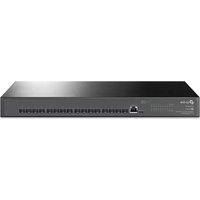
TL-SX3016F - Switch TP-LINK - Free user manual and instructions
Find the device manual for free TL-SX3016F TP-LINK in PDF.


Pick your language and provide your email: we'll send you a specifically translated version.
| Product Type | 16-Port 10G SFP+ Managed Switch |
| Brand | TP-Link |
| Model | TL-SX3016F |
| Ports | 16 x 10G SFP+ |
| Management | L2+ Web/CLI/SNMP |
| Dimensions (WxDxH) | 440 x 220 x 44 mm |
| Weight | 3.50 kg |
| Power Supply | 100-240V AC, 50/60Hz |
| Power Consumption | 30W (Max) |
| Operating Temperature | 0°C to 40°C |
| Storage Temperature | -40°C to 70°C |
| Operating Humidity | 10% to 90% RH non-condensing |
| Cooling | 2 x Fans |
| Mounting | 19-inch Rackmount |
| Switching Capacity | 320 Gbps |
| Packet Forwarding Rate | 238 Mpps |
| MAC Address Table | 16K |
| VLAN Support | Yes, up to 4K VLANs |
| Quality of Service (QoS) | 8 Priority Queues |
| Security Features | ACL, 802.1X, SSH, SSL |
| Maintenance | Clean with dry cloth; ensure ventilation |
| Safety | Use grounded power outlet; avoid liquid exposure |
| Spare Parts / Reparability | Not sold separately; contact support for repairs |
| General Information | Managed L2+ switch for enterprise networks |
Frequently Asked Questions - TL-SX3016F TP-LINK
How to reset the TP-Link TL-SX3016F to factory defaults?
Press and hold the Reset button on the front panel for about 10 seconds until the system LED flashes. Release the button; the switch will reboot to factory settings.
How to access the web management interface?
Connect a computer to one of the switch's ports. Set your computer's IP to 192.168.0.x (e.g., 192.168.0.10). Open a browser and enter 192.168.0.1. Default login is admin/admin.
What is the default IP address and login credentials?
Default IP: 192.168.0.1. Username: admin. Password: admin. Change the password after first login for security.
How to update firmware on the TL-SX3016F?
Download the latest firmware from TP-Link's support site. Log into the web interface, go to System Tools > Firmware Upgrade, select the file, and click Upgrade. Do not power off during the process.
How to configure VLANs on this switch?
Access the web interface, navigate to VLAN > 802.1Q VLAN. Create VLANs, assign ports to VLANs with tagged or untagged membership, and set the PVID for untagged ports.
The switch is not powering on; what should I check?
Ensure the power cord is securely connected to a working outlet. Check that the power supply voltage matches the switch's rating. If the LED does not light, try a different outlet or cable.
How to enable SNMP monitoring?
In the web interface, go to Management > SNMP. Enable SNMP, set community strings (e.g., public for read-only, private for read-write), and configure trap destinations.
Can I use this switch with fiber SFP modules?
Yes, the TL-SX3016F has 16 SFP+ slots that support 10G SFP+ modules and also 1G SFP modules (auto-negotiated). Use TP-Link compatible modules for best results.
How to set up link aggregation (LAG)?
Go to LAG > LAG Configuration. Select ports to group, choose a LAG ID, and set the load balancing algorithm (e.g., MAC address). Apply and verify the LAG is active.
What is the warranty period for the TL-SX3016F?
TP-Link offers a limited lifetime warranty for this switch. Specific terms vary by region; check TP-Link's warranty policy for details.
User questions about TL-SX3016F TP-LINK
0 question about this device. Answer the ones you know or ask your own.
Ask a new question about this device
No questions yet. Be the first to ask one.
Download the instructions for your Switch in PDF format for free! Find your manual TL-SX3016F - TP-LINK and take your electronic device back in hand. On this page are published all the documents necessary for the use of your device. TL-SX3016F by TP-LINK.
USER MANUAL TL-SX3016F TP-LINK


Manual assistant
Powered by Anthropic
Waiting for your message
Product information
Brand : TP-LINK
Model : TL-SX3016F
Category : Switch