2-in-1 LeapTop Touch - Tablet Leap Frog - Free user manual and instructions
Find the device manual for free 2-in-1 LeapTop Touch Leap Frog in PDF.


| Product Type | Children's Educational Tablet |
| Brand | LeapFrog |
| Model | 2-in-1 LeapTop Touch |
| Age Range | 2 to 5 years |
| Display | 7-inch touchscreen |
| Keyboard | Integrated QWERTY keyboard with letter and number keys |
| Dimensions | 10.5 x 7.5 x 1.2 inches (27 x 19 x 3 cm) |
| Weight | 1.5 lbs (0.68 kg) |
| Power Source | 3 AA batteries (not included) |
| Battery Life | Approximately 6-8 hours with moderate use |
| Connectivity | No Wi-Fi or internet required; offline use only |
| Audio | Built-in speaker with volume control |
| Content | Preloaded with 20+ learning apps covering letters, numbers, phonics, music, and more |
| Modes | Laptop and tablet mode (2-in-1 design) |
| Controls | Touch screen, keyboard, and mouse pad |
| Additional Features | Adjustable volume, auto shut-off, and durable casing |
| Cleaning | Wipe with a soft, dry cloth; do not use liquids or cleaners |
| Safety | Contains small parts; choking hazard for children under 3 years |
| Certifications | FCC, CE, ASTM F963 |
| Spare Parts | Battery cover and stylus (if applicable) available from manufacturer |
Frequently Asked Questions - 2-in-1 LeapTop Touch Leap Frog
User questions about 2-in-1 LeapTop Touch Leap Frog
0 question about this device. Answer the ones you know or ask your own.
Ask a new question about this device
Download the instructions for your Tablet in PDF format for free! Find your manual 2-in-1 LeapTop Touch - Leap Frog and take your electronic device back in hand. On this page are published all the documents necessary for the use of your device. 2-in-1 LeapTop Touch by Leap Frog.
USER MANUAL 2-in-1 LeapTop Touch Leap Frog
2-in-1 LeapTop Touch™

Parent's Guide
This guide contains important information. Please keep it for future reference.
INTRODUCTION
Thank you for purchasing the 2-in-1 LeapTop Touch™! Learning is a tap away! Kids can learn about letters, numbers, music and more on a laptop that's made just for them. Open the laptop to see the screen in keyboard mode, then close the laptop and watch the screen magically swivel into tablet mode. Plus, the laptop can be customized to help your child spell their name!

INCLUDED IN THIS PACKAGE
• One 2-in-1 LeapTop Touch™
• One parent's guide
WARNING:
All packing materials, such as tape, plastic sheets, packaging locks, removable tags, cable ties and packaging screws are not part of this toy, and should be discarded for your child's safety.
ATTENTION:
Please keep this parent's guide as it contains important information.
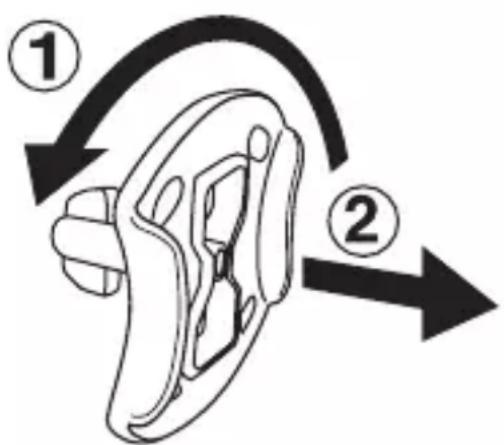
Unlock the packaging locks:
① Rotate the packaging locks 90 degrees counterclockwise.
② Pull out the packaging locks and discard.
GETTING STARTED
BATTERY INSTALLATION
-
Make sure the unit is turned OFF.
-
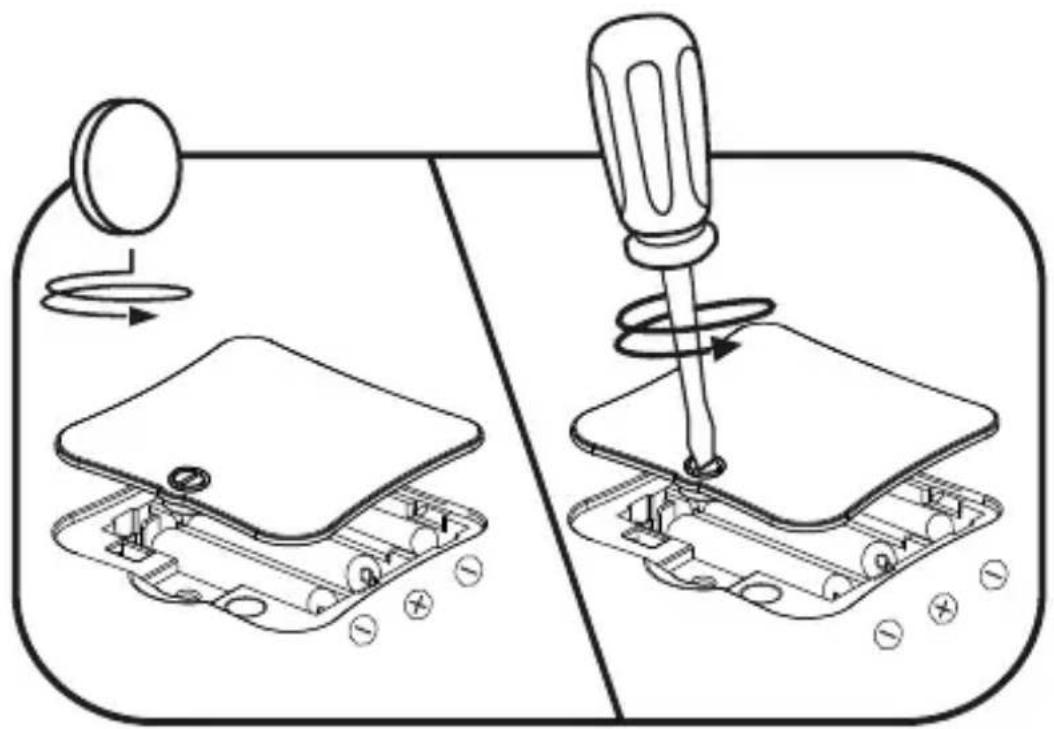
Locate the battery cover on the bottom of the unit.
-
Use a screwdriver to loosen the screw and open the battery cover.
-
Install 3 new AA (AM-3/LR6) batteries into the battery box as illustrated. (The use of new alkaline batteries is recommended for maximum performance.)
-
Replace the battery cover and tighten the screw to secure.
BATTERY NOTICE
- Use new alkaline batteries for maximum performance.
- Use only batteries of the same or equivalent type as recommended.
- Do not mix different types of batteries: alkaline, standard (carbon-zinc) or rechargeable (Ni-Cd, Ni-MH), or new and used batteries.
- Do not use damaged batteries.
- Insert batteries with the correct polarity.
- Do not short-circuit the battery terminals.
- Remove exhausted batteries from the toy.
- Remove batteries during long periods of non-use.
- Do not dispose of batteries in fire.
- Do not charge non-rechargeable batteries.
- Remove rechargeable batteries from the toy before charging (if removable).
- Rechargeable batteries are only to be charged under adult supervision.
MISE EN GARDE
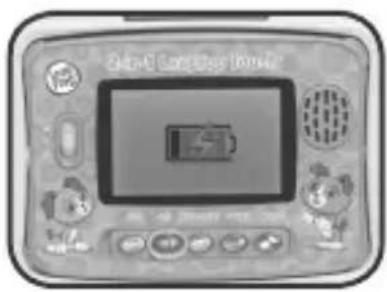
Low Battery Indicator
When the batteries run low, a low battery icon will appear on the screen and the unit will power off. Remove the old batteries and replace with a new set.
PRODUCT FEATURES
1. On/Off/Volume Control Switch
Slide the On/Off/Volume Control Switch to turn the toy on and select the volume. The screen will light-up when the unit is turned on.

2. Mode Selector
Choose Letters, Numbers, Messages, Games or Music mode.

natural_image
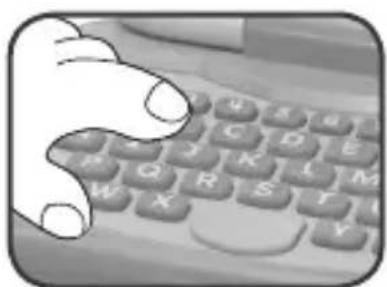
Hand pressing a button on a handheld device with cartoon character and letter A (no text or symbols visible)3. A-Z Keyboard with Numbers
1-10
Kids learn letters and numbers while pretending to work on their laptop.
natural_image
Illustration of a hand typing on a keyboard (no text or symbols visible)4. Flip Screen
Flip the screen open and closed to watch the laptop transform from a laptop to a tablet.

natural_image
Illustration of a laptop with a large letter 'A' on screen and keyboard, no text or symbols present5. Easy Touch Tablet
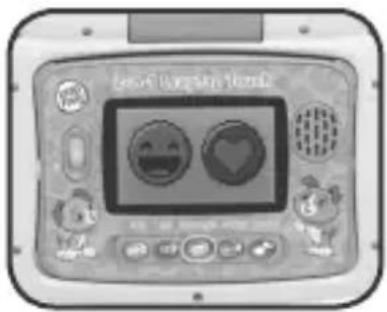
In tablet mode, kids can touch the screen to play all new games for each of the five modes.
natural_image
Illustration of a cartoon-style digital play button with smiley face and heart symbols (no readable text or numbers)6. Paw Button
Press to reply to pretend email or select a melody.

natural_image
Close-up of a hand typing on a vintage typewriter keyboard (no visible text or symbols)7. Silly Button
Press to play fun sounds.

natural_image
Close-up of a hand typing on a keyboard (no visible text or symbols)ACTIVITIES
1. Personalized Play
Enter Parent Mode by pressing the letters "P" and "M" while turning on the toy. Follow the instructions to enter or update your child's name. This name will appear in both Laptop and Tablet Modes, allowing your child to learn to spell their name!

2. Laptop Mode
Choose from five modes and learn letters and numbers using the keyboard, trade pretend emails with Scout, guess the animal while learning 26 animal facts, and watch Scout dance to musical favorites.

natural_image
Front view of a vintage digital device with a large letter 'A' displayed on its screen, placed on a keyboard (no visible text or symbols beyond the letter)3. Tablet Mode
Choose from five modes and tap to trade emoticons with Scout, play games with Violet and style her hair, learn numbers while feeding Scout, or tap music notes to keep Scout dancing.

CARE & MAINTENANCE
- Keep the unit clean by wiping it with a slightly damp cloth.
- Keep the unit out of direct sunlight and away from any direct heat sources.
- Remove the batteries when the unit is not in use for an extended period of time.
- Do not drop the unit on a hard surface and do not expose the unit to excess moisture.
TROUBLESHOOTING
If for some reason the program/activity stops working, please follow these steps:
- Turn the unit OFF.
- Interrupt the power supply by removing the batteries.
- Let the unit stand for a few minutes, then replace the batteries.
- Turn the unit back ON. The unit will now be ready to play again.
- If the unit still does not work, replace with an entire set of new batteries.
Environmental phenomena.
The unit may malfunction if subjected to radio-frequency interference. It should revert to normal operation when the interference stops. If not, it may become necessary to turn the power OFF and back ON, or remove and reinstall the batteries. In the unlikely event of an electrostatic discharge, the unit may malfunction and lose memory, requiring the user to reset the device by removing and reinstalling the batteries.
If the problem persists, please call our Consumer Services Department at 1-800-701-5327 in the U.S. or email support@leapfrog.com. Creating and developing LeapFrog® products is accompanied by a responsibility that we take very seriously. We make every effort to ensure the accuracy of the information, which forms the value of our products. However, errors sometimes can occur. It is important for you to know that we stand behind our products and encourage you to contact us with any problems and/or suggestions you might have. A service representative will be happy to help you.
NOTE:
This equipment has been tested and found to comply with the limits for a Class B digital device, pursuant to Part 15 of the FCC Rules. These limits are designed to provide reasonable protection against harmful interference in a residential installation. This equipment generates, uses and can radiate radio frequency energy and, if not installed and used in accordance with the instructions, may cause harmful interference to radio communications. However, there is no guarantee that interference will not occur in a particular installation. If this equipment does cause harmful interference to radio or television reception, which can be determined by turning the equipment off and on, the user is encouraged to try to correct the interference by one or more of the following measures:
- Reorient or relocate the receiving antenna.
- Increase the separation between the equipment and receiver.
- Connect the equipment into an outlet on a circuit different from that to which the receiver is connected.
- Consult the dealer or an experienced radio/TV technician for help.
THIS DEVICE COMPLIES WITH PART 15 OF THE FCC RULES. OPERATION IS SUBJECT TO THE FOLLOWING TWO CONDITIONS: (1) THIS DEVICE MAY NOT CAUSE HARMFUL INTERFERENCE, AND (2) THIS DEVICE MUST ACCEPT ANY INTERFERENCE RECEIVED, INCLUDING INTERFERENCE THAT MAY CAUSE UNDESIRED OPERATION. CAN ICES-3 (B)/NMB-3(B)
Caution: Changes or modifications not expressly approved by the party responsible for compliance could void the user's authority to operate the equipment.


Visit our website for more information about our products, downloads, resources and more.
leapfrog.com
For warranty information, please visit leapfrog.com/warranty.
- 2-in-1 LeapTop Touch™
- Parent's Guide
- INTRODUCTION
- INCLUDED IN THIS PACKAGE
- WARNING:
- ATTENTION:
- Unlock the packaging locks:
- GETTING STARTED
- BATTERY INSTALLATION
- BATTERY NOTICE
- MISE EN GARDE
- Low Battery Indicator
- PRODUCT FEATURES
- On/Off/Volume Control Switch
- Mode Selector
- A-Z Keyboard with Numbers
- 1-10
- Flip Screen
- Easy Touch Tablet
- Paw Button
- Silly Button
- ACTIVITIES
- Personalized Play
- Laptop Mode
- Tablet Mode
- CARE & MAINTENANCE
- TROUBLESHOOTING
- Environmental phenomena.
- NOTE:
Brand : Leap Frog
Model : 2-in-1 LeapTop Touch
Category : Tablet