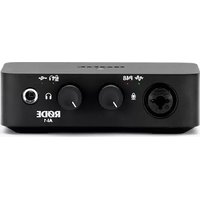
Ai-1 - DJ Equipment RODE - Free user manual and instructions
Find the device manual for free Ai-1 RODE in PDF.


| Product Type | DJ Mixer / Controller |
| Brand | Rode |
| Model | Ai-1 |
| Dimensions (W x D x H) | Approx. 318 x 236 x 104 mm |
| Weight | Approx. 2.8 kg |
| Power Supply | 12V DC, 2A (center positive) |
| USB Connection | USB Type B |
| Audio Inputs | 2x RCA (Line), 2x XLR/TRS Combo (Mic/Line) |
| Audio Outputs | 2x RCA (Master), 1x TRS (Headphone) |
| Sample Rate | 48 kHz, 24-bit |
| Frequency Response | 20 Hz - 20 kHz |
| Signal-to-Noise Ratio | > 100 dB |
| Total Harmonic Distortion | < 0.01% |
| Crossfader | Yes, replaceable |
| EQ Controls | 3-band EQ per channel (High, Mid, Low) |
| Software Compatibility | Works with Serato DJ Lite, Virtual DJ, and others |
| Construction Material | Steel chassis, plastic faceplate |
| Maintenance & Cleaning | Wipe with a dry, soft cloth. Avoid liquids. Keep knobs and faders clean. |
| Safety Warnings | Do not expose to water or extreme heat. Use only included power adapter. |
| Repairability & Spare Parts | Contact Rode support for service. Replaceable faders and crossfader. |
Frequently Asked Questions - Ai-1 RODE
User questions about Ai-1 RODE
0 question about this device. Answer the ones you know or ask your own.
Ask a new question about this device
Download the instructions for your DJ Equipment in PDF format for free! Find your manual Ai-1 - RODE and take your electronic device back in hand. On this page are published all the documents necessary for the use of your device. Ai-1 by RODE.
USER MANUAL Ai-1 RODE
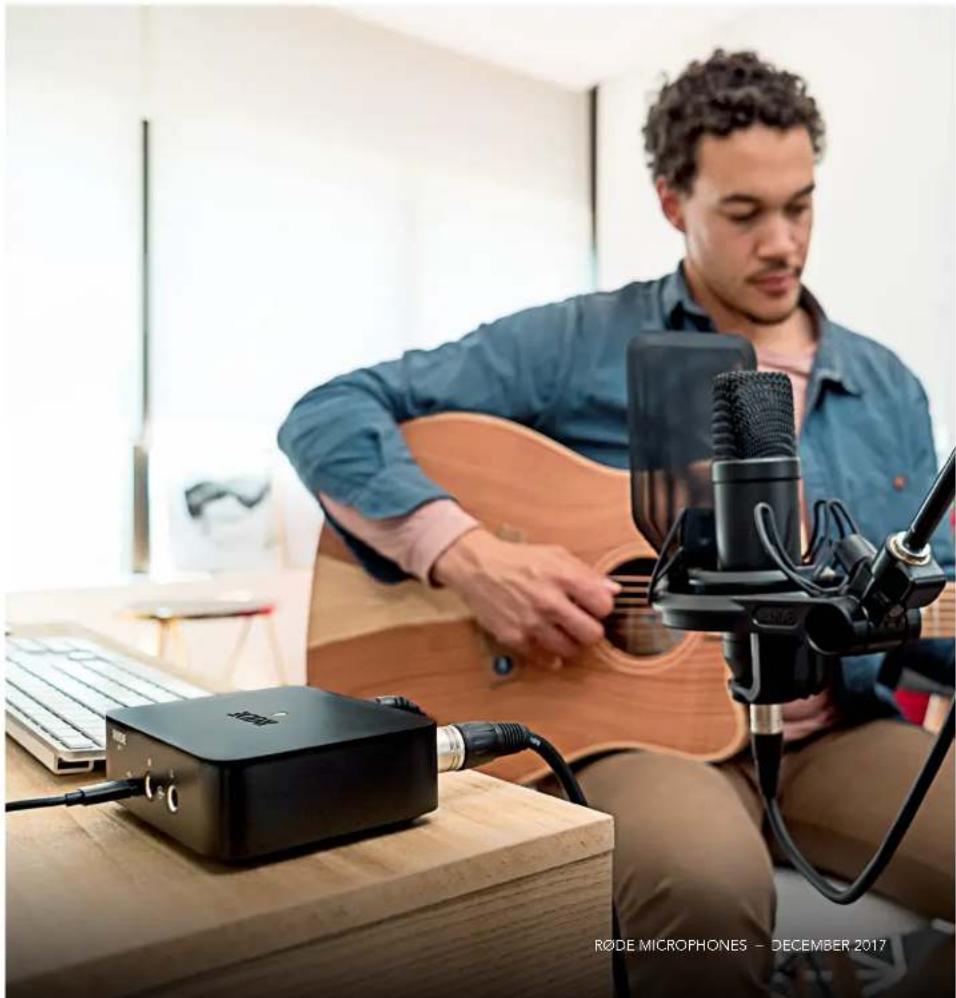
The AI-1 USB Audio Interface adds studio-quality Input and Output capabilities to your PC or Mac, turning your recording software into a full recording setup.
With its high quality Neutrik XLR-1/4" Combo Jack combined input and discrete Class-A preamp, the AI-1 allows you to connect a microphone or instrument or line level audio signal to your Mac/Windows computer for recording. The AI-1 provides the necessary A/D conversion at up to 24 bit/96kHz.
The AI-1 also allows playback and monitoring of audio either direct from the microphone or via playback from the recording software. This is done via a high-quality discrete headphone amplifier and outputs via either the 14 " headphone output on the front of the unit or the balanced 14 " outputs on the rear of the unit.
Features:
- Ultra low-noise Class-A discrete preamplifier
• Sampling rate of up to 96kHz/24-Bit - Premium discrete headphone amplifier
- XLR-1/4" Combo Jack Instrument / line level input
- 2 x Balanced 1/4" speaker outputs
• Rugged body with Satin Black Finish - USB-C/3 connectivity
SYSTEM REQUIREMENTS

Apple
MacOS 10.10 or later with USB 2.0 or 3.0 USB port
Windows
Windows 7 OS or later with USB 2.0 or 3.0 USB port
The AI-1 is USB bus powered so there is no need for an external power supply.
Some laptops may limit the USB output power when running on battery. This could mean the AI-1 does not receive enough power to run optimally. If this is the case, connect your laptop to the power supply when using the AI-1.
AI-1User Guide V02

natural_image
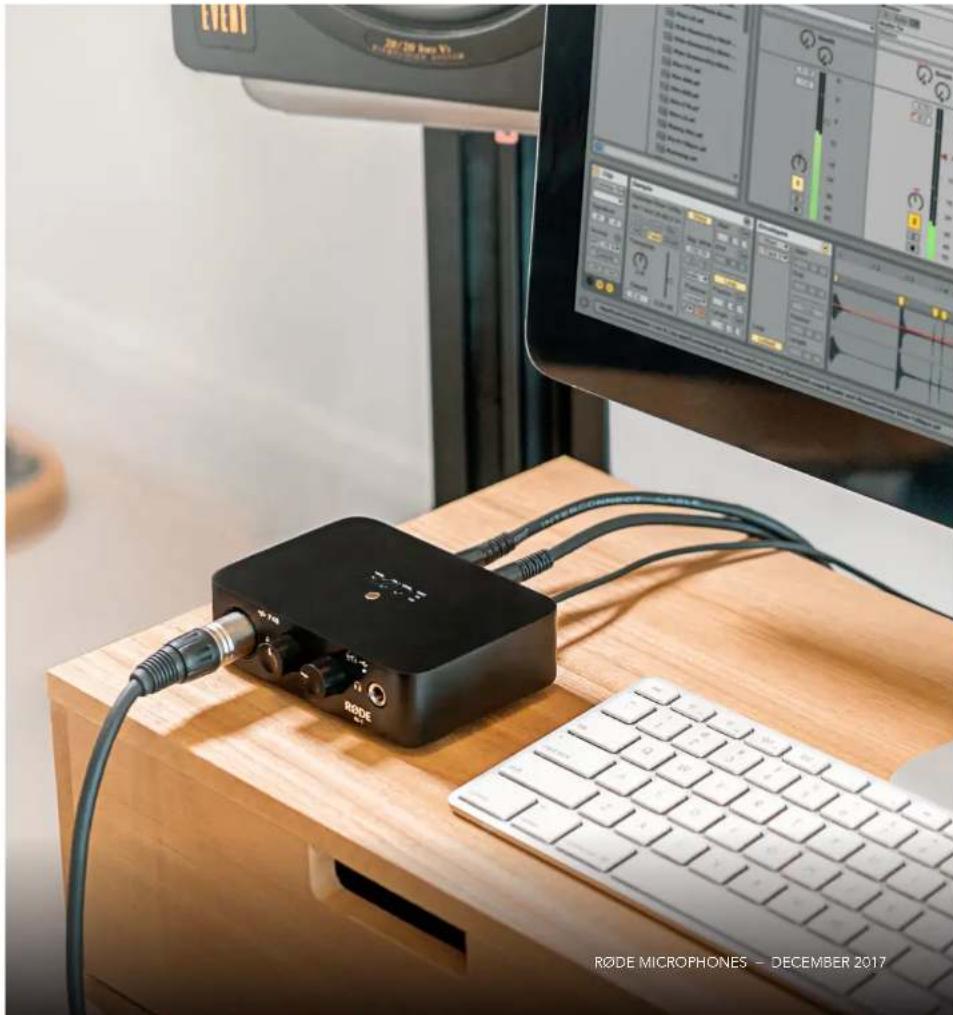
Laptop with audio recording software on a wooden desk, connected to an RODE microphone (no visible text or symbols on the device or background)CONNECTING YOUR AI-1

If your computer doesn't automatically switch its default input/output to the RODE AI-1 when connected, you can set this up with the following steps:
Mac OS
Go to System Preferences > Sound
Confirm that 'RODE AI-1' is selected as the input and output device.
Windows
Go to Start > Control Panel > Hardware and Sound > Sound > Manage Audio Devices
(alternatively right click the speaker icon in the bottom right of the taskbar and select Playback)
Confirm that 'RODE AI-1' is selected as the default device in both the Playback and Recording tabs.
The AI-1 is a class compliant device and therefore does not need any drivers installed.
For future firmware updates, please visit rode.com/ai1
TIPS FOR BEST RESULTS
Phantom power needs to be activated for most condenser microphones, but is not necessary for dynamic microphones or instruments. It is recommended that you deselect phantom power before connecting devices that do not need it.
When setting levels, adjust the input gain so the signal level LED flashes yellow during the loudest parts of the performance. This will give the best performance without distortion or noise.
The high-power headphone amplifier in the AI-1 is capable of producing extremely high volume levels in some headphones. Start with the volume turned right down, and turn up until the level is comfortable.
Please turn headphone level down before unplugging headphones to mix via speakers.
AI-1User Guide V02
natural_image
RODE MICROPHONES audio recording device on a wooden desk with a computer monitor displaying multiple audio waveform graphs (no readable text or symbols on the device itself)HARDWARE FEATURES
Front
- XLR-1/4" Combo Input Balanced input via 3-pin XLR-1/4" Neutrik combo socket. Microphones, instruments (guitars) and line level instruments (synthesizers) can be connected via this input.
- Signal LED Indicates signal input level. No LED indicates below -60dB. Green LED indicates an input level of at least -40dB, Yellow indicates an input level above -12dB and Red indicates an input level of above -3dB.
- Phantom Power LED Indicates when phantom power 48V is applied to XLR-1/4" Combo Jack input. Gain level knob must be pushed to turn on/off.
- Gain Level Knob Gain knob for adjusting input gain. Press knob to turn on/off phantom power.
- Playback/Monitor Level Knob Gain knob for adjusting headphone / speaker volume. Press knob to turn Direct Monitoring on/off.
- Direct Monitor LED Indicates when Direct Monitoring is on/off. When Direct Monitoring is ON, audio from the microphone will be routed directly to the headphones. When Direct Monitoring is OFF, you will hear only audio from the computer.
- USB LED Indicates when the AI-1 is connected via the USB cable.
- Headphone Jack Output Connector for headphones, 1/4" TRS jack required.
Back
- USB-C Port USB-C type connector. Connect to your laptop or computer with the USB cable supplied.
- Speaker outputs 2 × 14 " impedance balanced outputs.
Note
Speaker output is muted when headphones are connected. Unplug headphones to enable monitoring via the speaker output. To avoid feedback loops when monitoring on speakers, please disable any connected microphone. When ready to record with a mic, either turn down speakers or switch to headphone monitoring.


SPECIFICATIONS
Computer Connectivity USB
Form Factor Desktop
Simultaneous I/O 1 x 2
Number of Preamps 1
Phantom Power Yes
Bit Depth 24-bit
Sample Rates 44.1 kHz
48 kHz
88.2 kHz
96 kHz
Analog Inputs 1 x Neutrik XLR-1/4" combo
Analog Outputs 2 x 1/4" (impedance balanced)
1 x 1/4" (headphones)
Direct Monitor Yes
USB 1 x USB Type C
Bus Powered Yes
OS Requirements Mac OS 10.10 or later
Windows 7 or later
Power USB bus-powered
Depth 100mm total (with knobs)
Width 124mm
Height 38mm
Weight 1lb 3.7oz
560g
AI-1User Guide V02
natural_image
Man playing acoustic guitar with microphones and an acoustic recorder nearby, no visible text or symbols on the main subject.ADVANCED SPECIFICATIONS
INPUT
XLR/MIC INPUT
Dynamic Range 104dBA
Equivalent Input Noise @ -128dBA
Maximum Gain
(Source Impedance
150 ohms, 20Hz-20kHz,
A-weighted)
Max Input +6dBu
THD <0.008% (-30dBu input,
30dB gain)
Frequency Response
(Measured after ADC)
than ±1dB
Gain Range 0dB - >45dB
Input Impedance 1.3K Ohms
INSTRUMENT INPUT
Dynamic Range 99dBA
Frequency Response
(Measured after ADC)
20Hz - 20kHz better
Gain Range 0dB - >45dB
Max Input +12dBu
THD <0.04% (-10 dBu input,
0dB gain)
Input Impedance 900K Ohms
AI-1User Guide V02
OUTPUTS
MONITOR OUTPUTS
Maximum Output Level -6dBu
Frequency Response 20Hz - 20kHz better than
±1dB
Dynamic Range 112dBA
HEADPHONE
Max output power at
32Ohms->210mW
300Ohms->390mW

natural_image
Man playing electric guitar with headphones, seated in a studio setting (no visible text or symbols)

Brand : RODE
Model : Ai-1
Category : DJ Equipment