KONICA MINOLTA SU 501 PH2 5 - Printer

SU 501 PH2 5 - Printer KONICA MINOLTA - Free user manual and instructions

Find the device manual for free SU 501 PH2 5 KONICA MINOLTA in PDF.

📄 310 pages English EN Download 💬 AI Question
Notice KONICA MINOLTA SU 501 PH2 5 - page 16
View the manual : Français FR English EN
Pick your language and provide your email: we'll send you a specifically translated version.

User questions about SU 501 PH2 5 KONICA MINOLTA

0 question about this device. Answer the ones you know or ask your own.

Ask a new question about this device

The email remains private: it is only used to notify you if someone responds to your question.

No questions yet. Be the first to ask one.

Download the instructions for your Printer in PDF format for free! Find your manual SU 501 PH2 5 - KONICA MINOLTA and take your electronic device back in hand. On this page are published all the documents necessary for the use of your device. SU 501 PH2 5 by KONICA MINOLTA.

USER MANUAL SU 501 PH2 5 KONICA MINOLTA

natural_image Illustration of a multi-chamber office machine with labeled components (no text or symbols visible)

Table des matières

1 Introduction

Scanner IP et ImageReceiver 5-3

Conflits de ports ImageReceiver 5-7

Emissions SSL 5-8

Installation des certificats 5-10

5.4 Opérations ImageReceiver.... 5-36

Icône ImageReceiver 5-36

Commandes ImageReceiver.... 5-37

Boîte de dialogue Automatic Print Settings.... 5-40

Boîte de dialogue Folder and Printer Settings.... 5-41

Copyright © 1998-2000 The OpenSSL Project. All rights reserved. Redistribution and use in source and binary forms, with or without modification, are permitted provided that the following conditions are met:

  1. Redistributions of source code must retain the above copyright notice, this list of conditions and the following disclaimer.
  2. Redistributions in binary form must reproduce the above copyright notice, this list of conditions and the following disclaimer in the documentation and/or other materials provided with the distribution.
  3. All advertising materials mentioning features or use of this software must display the following acknowledgment:
    "This product includes software developed by the OpenSSL Project for use in the OpenSSL Toolkit. (http://www.openssl.org/)
  4. The names "OpenSSL Toolkit" and "OpenSSL Project" must not be used to endorse or promote products derived from this software without prior written permission. For written permission, please contact openssl-core@openssl.org.
  5. Products derived from this software may not be called "OpenSSL" nor may "OpenSSL" appear in their names without prior written permission of the OpenSSL Project.
  6. Redistributions of any form whatsoever must retain the following acknowledgment:
    "This product includes software developed by the OpenSSL Project for use in the OpenSSL Toolkit (http://www.openssl.org/)"

THIS SOFTWARE IS PROVIDED BY THE OpenSSL PROJECT "AS IS" AND ANY EXPRESSED OR IMPLIED WARRANTIES, INCLUDING, BUT NOT LIMITED TO, THE IMPLIED WARRANTIES OF MERCHANTABILITY AND FITNESS FOR A PARTICULAR PURPOSE ARE DISCLAIMED. IN NO EVENT SHALL THE OpenSSL PROJECT OR ITS CONTRIBUTORS BE LIABLE FOR ANY DIRECT, INDIRECT, INCIDENTAL, SPECIAL, EXEMPLARY, OR CONSEQUENTIAL DAMAGES (INCLUDING, BUT NOT LIMITED TO, PROCUREMENT OF SUBSTITUTE GOODS OR SERVICES; LOSS OF USE, DATA, OR PROFITS; OR BUSINESS INTERRUPTION) HOWEVER CAUSED AND ON ANY THEORY OF LIABILITY, WHETHER IN CONTRACT, STRICT LIABILITY, OR TORT (INCLUDING NEGLIGENCE OR OTHERWISE) ARISING IN ANY WAY OUT OF THE USE OF THIS SOFTWARE, EVEN IF ADVISED OF THE POSSIBILITY OF SUCH DAMAGE.

This product includes cryptographic software written by Eric Young (eay@crypt-Soft.com). This product includes software written by Tim Hudson (tjh@cryptsoft.com).

Original SSLeay License

Copyright © 1995-1998 Eric Young (eay@cryptsoft.com) All rights reserved. This package is an SSL implementation written by Eric Young (eay@cryptsoft.com).

The implementation was written so as to conform with Netscape's SSL. This library is free for commercial and non-commercial use as long as the following conditions are adhered to. The following conditions apply to all code found in this distribution, be it the RC4, RSA, Ihash, DES, etc., code; not just the SSL code.

The SSL documentation included with this distribution is covered by the same copyright terms except that the holder is Tim Hudson (tjh@cryptsoft.com).

Copyright remains Eric Young's, and as such any Copyright notices in the code are not to be removed. If this package is used in a product, Eric Young should be given attribution as the author of the parts of the library used. This can be in the form of a textual message at program startup or in documentation (online or textual) provided with the package.

Redistribution and use in source and binary forms, with or without modification, are permitted provided that the following conditions are met:

  1. Redistributions of source code must retain the copyright notice, this list of conditions and the following disclaimer.
  2. Redistributions in binary form must reproduce the above copyright notice, this list of conditions and the following disclaimer in the documentation and/or other materials provided with the distribution.
  3. All advertising materials mentioning features or use of this software must display the following acknowledgement:

"This product includes cryptographic software written by Eric Young (eay@crypt-soft.com)"

The word 'cryptographic' can be left out if the routines from the library being used are not cryptographic related.

  1. If you include any Windows-specific code (or a derivative thereof) from the apps directory (application code) you must include an acknowledgement:

"This product includes software written by Tim Hudson (tjh@cryptsoft.com)"

THIS SOFTWARE IS PROVIDED BY ERIC YOUNG "AS IS" AND ANY EXPRESS OR IMPLIED WARRANTIES, INCLUDING, BUT NOT LIMITED TO, THE IMPLIED WARRANTIES OF MERCHANTABILITY AND FITNESS FOR A PARTICULAR PURPOSE ARE DISCLAIMED. IN NO EVENT SHALL THE AUTHOR OR CONTRIBUTORS BE LIABLE FOR ANY DIRECT, INDIRECT, INCIDENTAL, SPECIAL, EXEMPLARY, OR CONSEQUENTIAL DAMAGES (INCLUDING, BUT NOT LIMITED TO, PROCUREMENT OF SUBSTITUTE GOODS OR SERVICES; LOSS OF USE, DATA, OR PROFITS; OR BUSINESS INTERRUPTION) HOWEVER CAUSED AND ON ANY THEORY OF LIABILITY, WHETHER IN CONTRACT, STRICT LIABILITY, OR TORT

(INCLUDING NEGLIGENCE OR OTHERWISE) ARISING IN ANY WAY OUT OF THE USE OF THIS SOFTWARE, EVEN IF ADVISED OF THE POSSIBILITY OF SUCH DAMAGE.

The licence and distribution terms for any publicly available version or derivative of this code cannot be changed, i.e., this code cannot simply be copied and put under another distribution licence [including the GNU Public Licence.]

All other product names mentioned are trademarks or registered trademarks of their respective companies.

Information carried in this manual including design and related materials, and software contained in the machine and software attached to the CD-ROM are valuable assets of NEC, NEC AccessTechnica, Ltd. and respective licensee(s).

NEC, NEC AccessTechnica, Ltd. and the licensee shall reserve all rights to design, produce, copy, use and sell this manual, including the patents, copyrights, and other proprietary rights, except when such an action is permitted to be transferred to another company with a written consent.

natural_image Simple line drawing of a finger pressing a button with a hash symbol (no text or labels)
text_image The following document has not been transmitted. Please try again. Try to retransmit the rest of pages. P.1 (WED) APR 23 2003 11:32 CHICAGO User/Account :SALES DESTINATION :NEW YORK ADDRESS :192.168.1.30 DOCUMENT# :6614316-761 TIME STORED :APR 23 11:10 TX START :APR 23 11:10 DURATION :2 sec COM. MODE :IP-TX PAGES :0 page RESULT :EA0006 Rouleau 5
natural_image Simple line drawing of a finger pressing a button with a hash symbol (no text or labels)
text_image The following document has not been transmitted. Please try again. Try to retransmit the rest of pages. P.1 (WED) APR 23 2003 11:32 CHICAGO 1 User/Account :SALES DESTINATION :NEW YORK ADDRESS :192.168.1.30 DOCUMENT# :6614316-761 TIME STORED :APR 23 11:10 TX START :APR 23 11:10 DURATION :2 sec COM. MODE :PC-S PAGES :0 page RESULT :EA0006 4 3 5 Rouleau

Scanner IP et ImageReceiver

text_image Windows Security Alert To help protect your computer, Windows Firewall has blocked some features of this program. Do you want to keep blocking this program? Name: MGS Publisher: NEC Corporation Keep Blocking Unlock Ask Me Later Windows Firewall has blocked this program from accepting connections from the Internet or a network. If you recognize the program or trust the publisher, you can unlock it. When should I unlock a program?

KONICA MINOLTA SU 501 PH2 5 - Scanner IP et ImageReceiver - 1

Détails

Conflits de ports ImageReceiver

text_image ImageReceiver ImageReceiver detected conflict of SMTP port 25. Other mail server may be activated. Do you want to change ImageReceiver port? NOTE If you use the machine that does not support port changing, turn off the mail server and restart ImageReceiver. Change ImageReceiver port Quit ImageReceiver without changing port
text_image Security Alert Information you exchange with this site cannot be viewed or changed by others. However, there is a problem with the site's security certificate. The security certificate was issued by a company you have not chosen to trust. View the certificate to determine whether you want to trust the certifying authority. The security certificate date is valid. The name on the security certificate is invalid or does not match the name of the site Do you want to proceed? Yes No View Certificate
natural_image Simple line drawing of a blank rectangular area with a small yellow lock icon at the bottom right corner (no text or symbols)

KONICA MINOLTA SU 501 PH2 5 - Conflits de ports ImageReceiver - 1

Détails

text_image Security Alert Information you exchange with this site cannot be viewed or changed by others. However, there is a problem with the site's security certificate. The security certificate was issued by a company you have not chosen to trust. View the certificate to determine whether you want to trust the certifying authority. The security certificate date is valid. The name on the security certificate is invalid or does not match the name of the site Do you want to proceed? Yes No View Certificate

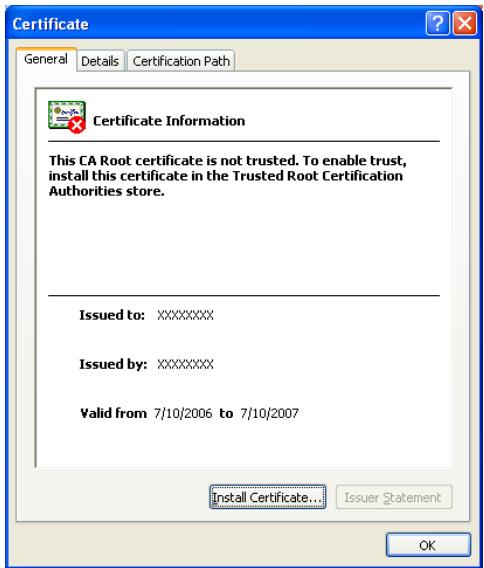
2 Cliquez sur [Install Certificate].

KONICA MINOLTA SU 501 PH2 5 - Détails - 1

text_image Certificate General Details Certification Path Certificate Information This CA Root certificate is not trusted. To enable trust, install this certificate in the Trusted Root Certification Authorities store. Issued to: XXXXXXXX Issued by: XXXXXXXX Valid from 7/10/2006 to 7/10/2007 Install Certificate... Issuer Statement OK
text_image Certificate Import Wizard Welcome to the Certificate Import Wizard This wizard helps you copy certificates, certificate trust lists, and certificate revocation lists from your disk to a certificate store. A certificate, which is issued by a certification authority, is a confirmation of your identity and contains information used to protect data or to establish secure network connections. A certificate store is the system area where certificates are kept. To continue, click Next. < Back Next > Cancel

4 Sélectionnez la case "Automatically select the certificate store based on the type of certificate" et cliquez ensuite sur [Next].
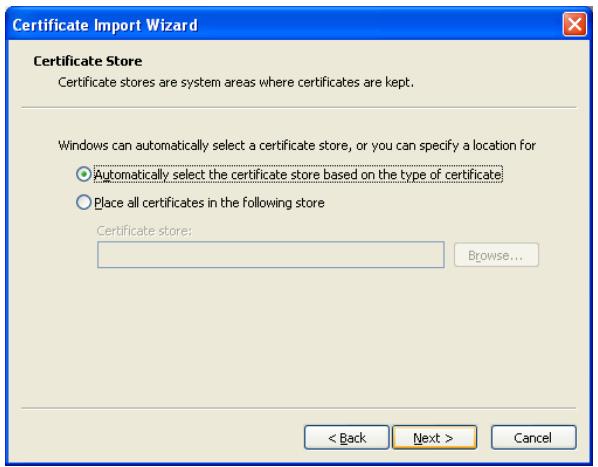
KONICA MINOLTA SU 501 PH2 5 - Sélectionnez la case "Automatically select the certificate store based on the type of certificate" et cliquez ensuite sur [Next]. - 1

text_image Certificate Import Wizard Certificate Store Certificate stores are system areas where certificates are kept. Windows can automatically select a certificate store, or you can specify a location for ● Automatically select the certificate store based on the type of certificate ○ Place all certificates in the following store Certificate store: Browse... < Back Next > Cancel
text_image Certificate Import Wizard Completing the Certificate Import Wizard You have successfully completed the Certificate Import wizard. You have specified the following settings: Certificate Store Selected Automatically determined by t Content Certificate < Back Finish Cancel
text_image Do you want to ADD the following certificate to the Root Store? Subject : 000D0231F6B6,XXXXXXXXX,XXXXX,XXXXXXXXX,XXX,XXX,US,XXXXXXXXX Issuer : Self Issued Time Validity : Monday, July 10, 2006 through Tuesday, July 10, 2007 Serial Number : 01 Thumbprint (sha1) : 07F0CE04 C809CDB5 ADCEA474 049EB464 04440A91 Thumbprint (md5) : B01ABB24 D6FF1437 96F1A24A B3CAE933 Yes No
text_image Welcome Welcome to the IP Scanner Setup program. This program will install IP Scanner on your computer. It is strongly recommended that you exit all Windows programs before running this Setup program. Click Cancel to quit Setup and then close any programs you have running. Click Next to continue with the Setup program. WARNING: This program is protected by copyright law and international treaties. Unauthorized reproduction or distribution of this program, or any portion of it, may result in severe civil and criminal penalties, and will be prosecuted to the maximum extent possible under law. Next > Cancel
text_image Setup Complete Readme file can be opened after setup procedures. Desktop icon can be created on a desktop. ✓ Yes, read readme file now. ✓ Yes, create desktop icon. Click Finish to complete Setup. < Back Finish
text_image Add/Remove Programs Currently installed programs: Sort by: Name Adobe Acrobat 4.0 Size 8.34MB IP Scanner Size 2.25MB Used frequently Last Used On 1/16/2001 To change this program or remove it from your computer, click Change/Remove. Change/Remove Close
text_image Add or Remove Programs Currently installed programs: Sort by: Name Adobe Acrobat 5.0 Size 15.10MB IP Scanner Size 2.06MB Used occasionally/ Last Used On 3/17/2004 Change/Remove To change this program or remove it from your computer, click Change/Remove. Microsoft Office XP Professional with FrontPage Size 241.00MB Size 1.91MB

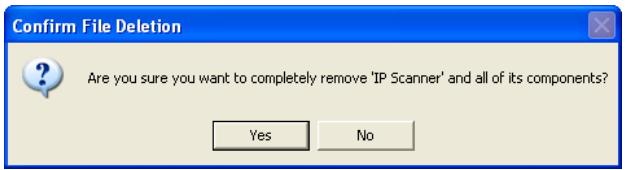
4 Cliquez sur [Yes] (Oui).

KONICA MINOLTA SU 501 PH2 5 - Cliquez sur [Yes] (Oui). - 1

text_image Confirm File Deletion Are you sure you want to completely remove 'IP Scanner' and all of its components? Yes No
text_image IP Scanner File Edit View Go To Scanner Image Check Settings Help 1 2 3 4 Name Size Type Modified 5 Scanner Key Registration Delete Scanner Key Same as Previous Save folder as a key Delete the key after image is saved Delete the key on exit 6 No image received 7 8 9 10 11
text_image 1 2 3 4 5 6 7 8 IP Scanner File Edit View Go To Scanner Image Check Settings Help
text_image Sort Settings Scanner | RX Document | TX Document | ✓ Folder by key name □ Create new folder by Date Format ○ yyyy.mm.dd ○ yyyy.mm ○ yyyy.mm.dd-dd Start week on Sun OK Cancel
text_image Sort Settings Scanner RX Document TX Document ✓ Folder by key name ✓ Create new folder by Date Format ○ yyyy.mm.dd ○ yyyy.mm ○ yyyy.mm.dd-dd Start week on Sun ✓ Sort by FAX information FAX information ✓ TX Information □ F-CODE □ Port ✓ Create new folder Up Down OK Cancel
text_image Sort Settings Scanner | RX Document | TX Document | ✓ Folder by key name ✓ Create new folder by Sender Information Sender Information ✓ User Name ✓ Group Name Up Down ✓ Create new folder by Communication mode ✓ Create new folder by Date Format ○ yyyy.mm.dd ○ yyyy.mm ○ yyyy.mm.dd-dd Start week on Sun ✓ Create new folder by TX Destination Information OK Cancel
text_image Divided Settings 1 2 3 4 5 Divide a scanned document to save Divide by short separator Files separator Divide by width Divide document as single pages OK Cancel
text_image Receive Notify Settings Folder C:\My Images Browse 1 2 Notify List IP Address Port Number 192.168.1.10 25 3 Add Edit Delete 4 5 6 Apply to Sub-Folders Test 7 OK Cancel
text_image IP Scanner ViewWindow Ver 1.54.6 c:\My Images\Testscan\ KMBT_360..tif KMBT_360..tif KMBT_360..tif KMBT_360..tif 1/5 KMBT_360..tif KMBT_360..tif
text_image Printer Setting Printer Setting Printer Name: Generic Print Property Delete File After Printing OK Cancel 1 2 3
text_image Print Property Page Settings Paper Select Method: Print on Selected Paper ✓ Adjust Image to Fit to Paper Size Minimal ✓ Automatically Rotates Image when Image Orientation is different from Paper Orientation. Position: ● Center ○ Top Left Printer Settings Paper Settings Paper Size: 8 1/2x11 Orientation: ● Portrait ○ Landscape Paper Source: Auto Copies: 1 Resolution: 600dpi Properties... OK Cancel 1 2 3 4 5 6 7 8 9 10 11

5.4 Opérations ImageReceiver

Icône ImageReceiver

Commandes ImageReceiver

text_image ✓ Save received images Automatic Print Settings Settings for saved images Notify Settings Receive Settings Help End
text_image Automatic Print Settings Folder For Printing: Folder C:\My Images Up Down Print Settings: Items Settings Apply to Sub-Folders OFF Delete File After Printing ON Printer KONICA MINOLTA 350/2... Paper Select Method Print on Selected Paper Image Size Adjustment ON Minimal OFF Image Rotation ON Position Center Paper Size 8 1/2x11 Orientation Portrait Paper Source Auto Copies 1 Resolution 600dpi Add... Edit... Delete Copy... OK Cancel 2 3 4 5 6
text_image Folder and Printer Settings Folder Setting Folder: C:\My Images Browse Apply to Sub-Folders Printer Setting Printer Name: Generic Print Property Delete File After Printing OK Cancel
text_image Connection Setting Machine IP Address 192.168.1.20 OK Cancel
text_image IP Scanner File Edit View Go To Scanner Image Check Settings Help Name Size Type Modified a: c: dell Documents and Settings dvtmp FBBM LinkMagic My Images Program Files WINDOWS WUTemp d: [New Volume] Scanner Key Registration Delete Scanner Key Same as Previous ✓ Save folder as a key ☐ Delete the key after image is saved ✓ Delete the key on exit No image received.
text_image Scanner Settings Black Scanner Key Name: Scan Area: Auto Detect Quality: Text 200dpi (Fine) Contrast: Lighter Dark Drop Out Color File Type: TIFF B/W Coding Method MH MMR Specify File Name: No Yes File Name: 2 in 1 No Yes Original 1 sided Document Margin 2 sided Auto Document Direction Auto Automatic Print No Printer Setting... Yes Scanner Key Registration Default Cancel

3 Cliquez sur [Scanner Key Registration].
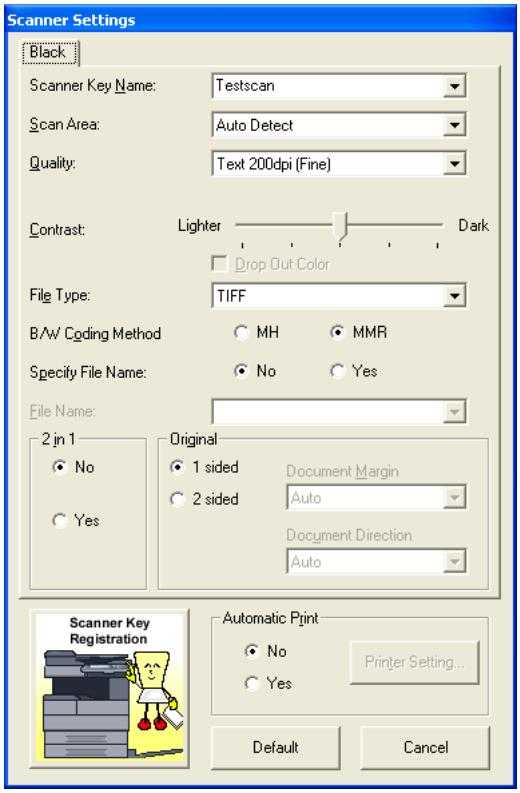
KONICA MINOLTA SU 501 PH2 5 - Cliquez sur [Scanner Key Registration]. - 1

text_image Scanner Settings Black Scanner Key Name: Testscan Scan Area: Auto Detect Quality: Text 200dpi (Fine) Contrast: Lighter Dark Drop Out Color File Type: TIFF B/W Coding Method MH MMR Specify File Name: No Yes File Name: 2 jn 1 No Yes Original 1 sided Document Margin 2 sided Auto Document Direction Auto Scanner Key Registration Automatic Print No Printer Setting... Yes Default Cancel

4 Cliquez sur [OK].

text_image IP Scanner Scanner Key registered. OK
text_image Scanner Plus
text_image ImageReceiver - Image Confirmation The image(s) is registered in the following folder(s). OK Hide Details Name Folder KMBT3502006062216493... C:\My Images\Testscan Open Folder Open Image
text_image IP Scanner File Edit View Go To Scanner Image Check Settings Help Name Size Type Modified KMBT350200606221649... 12KB TIF Image 2006/06/22 16:56:34 KMBT350200606221655... 24KB TIF Image 2006/06/22 17:02:51 Scanner Available Delete Scanner Key Save folder as a key Delete the key after image is saved Delete the key on exit No image received

KONICA MINOLTA SU 501 PH2 5 - Cliquez sur [OK]. - 1

Détails

text_image IP Scanner File Edit View Go To Scanner Image Check Settings Help Name Size Type Modified KMBT 350200606221649... 12KB TIF Image 2006/06/22 16:56:34 KMBT 350200606221655... 24KB TIF Image 2006/06/22 17:02:51 Scanner Available Delete Scanner Key Save folder as a key Delete the key after image is saved Delete the key on exit No image received.
text_image Scanner Settings Black Scanner Key Name: Scan Area: Auto Detect Quality: Text 200dpi (Fine) Contrast: Lighter Dark Drop Out Color File Type: TIFF BAW Coding Method MH MMR Specity File Name: No Yes File Name: 2 in 1 No Yes Original 1 sided Document Margin 2 sided Auto Document Direction Auto Scanner Key Registration Automatic Print No Printer Setting... Yes Default Cancel
text_image Printer Setting Printer Setting Printer Name: Generic Print Property Delete File After Printing OK Cancel
text_image Print Property Page Settings Paper Select Method: Print on Selected Paper ✓ Adjust Image to Fit to Paper Size Minimal ✓ Automatically Rotates Image when Image Orientation is different from Paper Orientation. Position: Center Top Left Printer Settings Paper Settings Paper Size: 8 1/2x11 Orientation: Portrait Landscape Paper Source: Auto Copies: 1 Resolution: 600dpi Properties... OK Cancel

8 Cliquez sur [OK].

9 Cliquez sur [Scanner Key Registration].

text_image ✓ Save received images Automatic Print Settings Settings for saved images ▶ Notify Settings ▶ Receive Settings ▶ Help ▶ End
text_image Automatic Print Settings Folder For Printing: Folder C:\My Images Up Down Print Settings: Items Settings Apply to Sub-Folders OFF Delete File After Printing ON Printer KONICA MINOLTA 350/2... Paper Select Method Print on Selected Paper Image Size Adjustment ON Minimal OFF Image Rotation ON Position Center Paper Size 8 1/2x11 Orientation Portrait Paper Source Auto Copies 1 Resolution 600dpi Add... Edit... Delete Copy... OK Cancel
text_image Folder and Printer Settings Folder Setting Folder: C:\My Images Browse Apply to Sub-Folders Printer Setting Printer Name: Generic Print Property Delete File After Printing OK Cancel
text_image Print Property Page Settings Paper Select Method: Print on Selected Paper ✓ Adjust Image to Fit to Paper Size Minimal ✓ Automatically Rotates Image when Image Orientation is different from Paper Orientation. Position: Center Top Left Printer Settings Paper Settings Paper Size: 8 1/2x11 Orientation: ● Portrait ○ Landscape Paper Source: Auto Copies: 1 Resolution: 600dpi Properties... OK Cancel
natural_image Simple line drawing of a finger pressing a button with a hash symbol (no text or labels)
text_image The following document has not been transmitted. Please try again. Try to retransmit the rest of pages. P.1 (WED) APR 23 2003 11:32 CHICAGO 1 User/Account :SALES DESTINATION :NEW YORK ADDRESS :0123456789 DOCUMENT# :6614316-761 TIME STORED :APR 23 11:10 TX START :APR 23 11:10 DURATION :2 sec COM. MODE :IP-RLY PAGES :0 page RESULT :EA0006 4 3 5 Rouleau
text_image Non abrége Annul. Suite - ← → Supp A Z E R T Y U I O P @ Q S D F G H J K L M W X C V B N . . Espace _ Alpha Caps Hémour100

Adresse destination 3-30, 4-31, 7-14, 7-15

Authentication

Groupe 7-7

Authentication

Utilisateur 7-7

B

Boîte de dialogue Automatic Print Settings 5-40

Boîte de dialogue

Divided Settings 5-29

Boîte de dialogue Folder and Printer Settings 5-41

Connection setting 5-22

D

Delete scanner key 5-19

Désinstallation 5-16, 5-17

Divided settings 5-22

E

Emiss. R/V 3-16, 3-22, 4-18, 4-22, 6-19, 6-23

Emission SSL 5-8

Enregistrement des

Programmes Fax 7-3

Image folder setting 5-22

ImageReceiver 5-3, 5-36

Installation 4-3, 5-14

M

Méthode de codage 3-10, 3-30, 3-33, 4-12, 4-31, 7-14, 7-15

PageScope Web Connection 2-8, 7-3

Param. TX horloge 3-17, 3-23, 4-18, 4-25, 6-20, 6-26

Scanner Key Registration 5-18

Station relais IP 8-9

Stations de relais 6-3, 7-16

T

Taille Emission (Max.) 3-10, 3-30, 3-33, 7-15

Tampon 3-17, 3-25, 4-18, 4-26, 6-20, 6-27

Viewer settings 5-22

Manual assistant
Powered by Anthropic
Waiting for your message
Product information

Brand : KONICA MINOLTA

Model : SU 501 PH2 5

Category : Printer