
PSL CF2001P - Printer KONICA MINOLTA - Free user manual and instructions
Find the device manual for free PSL CF2001P KONICA MINOLTA in PDF.


| Product type | Professional color laser printer |
| Main functions | Printing, remote management via PageScope Light, automatic duplex printing, sorting by mail bins |
| RAM memory | 32 MB + 128 MB (expandable) |
| Hard disk | Installed (capacity not specified) |
| Input trays | 4 trays (Tray1 to Tray4) + manual feed, capacities: 250, 500, 500, 500 sheets and 1 sheet manual |
| Output bins | 10 mail bins (Mail Bin 1 to 10), capacity 200 sheets each |
| Network interface | Ethernet 10/100BaseT or Token Ring |
| Local interface | IEEE1284 (parallel) |
| Network protocol | TCP/IP |
| Management software | PageScope Light (web interface) requires browser: Internet Explorer 4+, Netscape Navigator 4+ |
| Supported paper sizes | Letter, Legal, 5.5x8.5 inches (other formats possible depending on trays) |
| Supported media types | Plain paper, envelopes (not specified), labels (not specified) |
| Consumables | Black, yellow, magenta, cyan toner; waste toner bin; imaging units (black, yellow, magenta, cyan); fuser unit; transfer unit; oil roller; staples |
| Maintenance and cleaning | Via PageScope Light, check consumable status and perform test prints; replace consumables as indicated |
| Security | Administrator password required to change preferences and online support settings |
| Firmware / ROM | Multiple versions: MSC ROM, Printer ROM, PIC ROM, Sorter ROM, Printer Controller F/W |
| Display languages | English, German, French, Italian, Spanish (via PageScope Light) |
Frequently Asked Questions - PSL CF2001P KONICA MINOLTA
User questions about PSL CF2001P KONICA MINOLTA
0 question about this device. Answer the ones you know or ask your own.
Ask a new question about this device
Download the instructions for your Printer in PDF format for free! Find your manual PSL CF2001P - KONICA MINOLTA and take your electronic device back in hand. On this page are published all the documents necessary for the use of your device. PSL CF2001P by KONICA MINOLTA.
USER MANUAL PSL CF2001P KONICA MINOLTA
2 System Requirements 2-1
3 Access 3-1
3.1 Operation 3-1
4 Screen Configuration 4-1
5 System Tab 5-1
5.1 Summary 5-1
5.2 Details 5-2 Input Tray 5-2 Output Tray 5-3 Hard Disk Status 5-4 ROM Version 5-5 Interface Information 5-6 Consumable Status 5-7
5.3 Preference 5-9 5.4 Online Assistance 5-10
6 Printer Tab 6-1
6.1 Printer Front Panel 6-1
6.2 Test Print 6-2
6.3 PostScript Font 6-3
7 Appendix Status List 7-1
1 Welcome
PageScope Light for CF2001P is a device control utility program provided by the HTTP server built into the CF2001P. With a standard Web browser, this utility can be used as an interface for remote control of the CF2001P.
Trademark Acknowledgements
Minolta is a registered trademark of MINOLTA CO., LTD. PageScope is a trademark of MINOLTA CO., LTD.
Apple and Macintosh are registered trademarks of Apple Computer, Inc.
Ethernet is a registered trademark of Xerox Corporation.
Fiery and the Fiery logo are registered trademarks of Electronics for Imaging, Inc. Fiery WebTools is a trademark of Electronics for Imaging, Inc.
Linux is a registered trademark of Linus Torvalds.
Microsoft, Windows, and Windows NT are registered trademarks of Microsoft Corporation.
Netscape Communications, the Netscape Communications logo, Netscape Navigator, Netscape Communicator, and Netscape are trademarks of Netscape Communications Corporation.
PostScript is a registered trademark of Adobe Systems, Inc.
Solaris is a trademark of Sun Microsystems, Inc.
All other product names are trademarks or registered trademarks of their respective holders.
Copyright 2001 MINOLTA CO., LTD.
The information contained in this manual is subject to change without notice to incorporate improvement made on the product or products the manual covers.
2 System Requirements
The following items are required to use this utility.
- Computer
- Software
| Operating System | Web Browser |
| Windows 95/98/Me/NT 4.0/2000 | Internet Explorer 4 or higherNetscape Navigator 4 or higher |
| Macintosh System 7 or higher | Internet Explorer 4.5 or higherNetscape Navigator 4 or higher |
| Solaris 2.5.1/2.6/7 (2.7) | Netscape Navigator 4 or higher |
| Linux | Netscape Navigator 4 or higher |
- NIC (Network Interface Card)
- Ethernet or Token Ring
- TCP/IP Protocol
CF2001P
3 Access
PageScope Light for CF2001P can be accessed directly from a Web browser.
1 Start the Web browser.
2 In the URL field, enter the IP address of the printer controller as shown below.
http://
(Example) When the IP address of the printer is 192.9.200.200:
http://192.9.200.200/
3 This causes PageScope Light for CF2001P screen to appear.
3.1 Operation
PageScope Light for CF2001P operation is identical to that for Internet Web pages. Clicking a hot link jumps to the link destination, and the [Back] and [Forward] buttons scroll through pages backwards and forward.
4 Screen Configuration
The configuration of the PageScope Light for CF2001P screen is shown below.

NOTE
→ Screen images shown in this manual may differ slightly from actual ones. Also note that specifications are subject to change without prior notice.
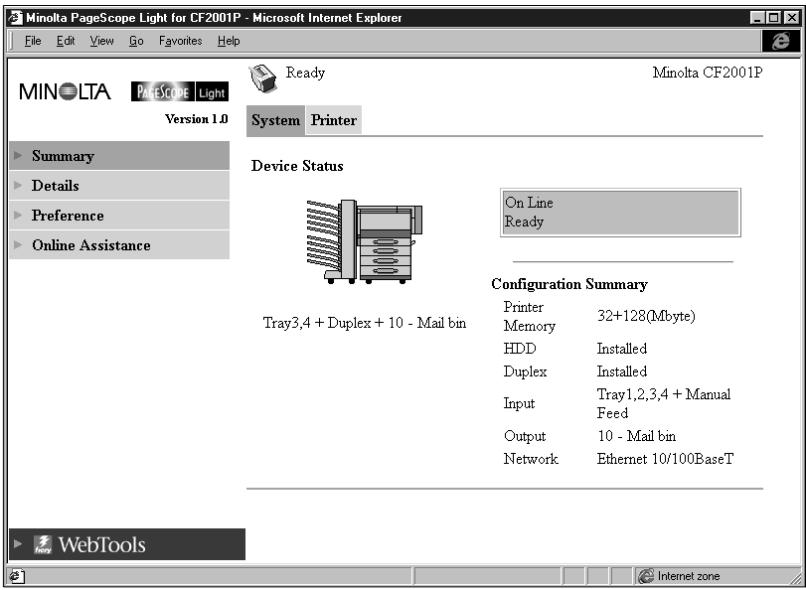
- Minolta PageScope Light Logo
Clicking the logo jumps to the Website below.
www.minolta.com
- Status Display
The current status of the CF2001P is indicated by both icons and text. The message READY appears when the CF2001P is operating normally. For full details about screen contents, see page 7-1.
3. Tabs
Use the tabs to select the category of items you want to display. See the following sections of this document for detailed information about each tab.
4. Menus
Use the menus to select information or setting items. The menus that appear depend on the currently selected tab.
See the following sections of this document for detailed information about each menu.
5. Information and Settings Display
This display shows information or settings in accordance with the selected menu item.
6. Fiery Web Tools Logo
Clicking this logo displays the settings page for Fiery Web Tools, which is built in to the printer controller.
For details about Fiery WebTools, see the Fiery X3e User Manual.
5 System Tab
The [System] tab shows information about and settings for the CF2001P system configuration.
5.1 Summary
This screen is the initial screen when you access http://
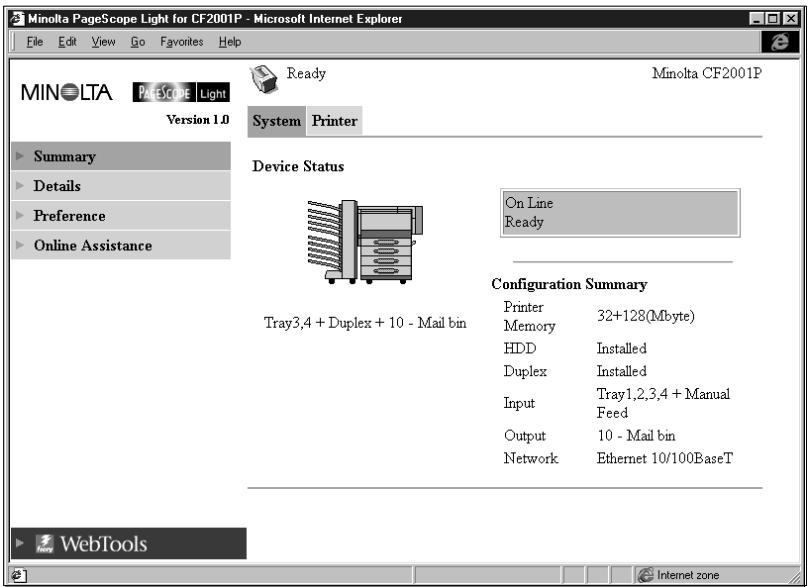
- Device Status
This area uses graphics and text to show the configuration of options installed on the CF2001P. - Operational Panel Display
This area shows the CF2001P message display. Messages are the same as the Status Display messages that appear in the upper part of the window. - Configuration Summary
This area shows an overview of the current CF2001P system configuration.
5.2 Details
This screen appears when you click the “Details” menu on the [System] tab. It shows details about each of the CF2001P’s units. Clicking a sub-menu under the “Details” menu displays information about the applicable unit.
Input Tray
This screen appears when you click the [Input Tray] sub-menu under the "Details" menu. It shows the configuration of all the Input Trays installed on the CF2001P.
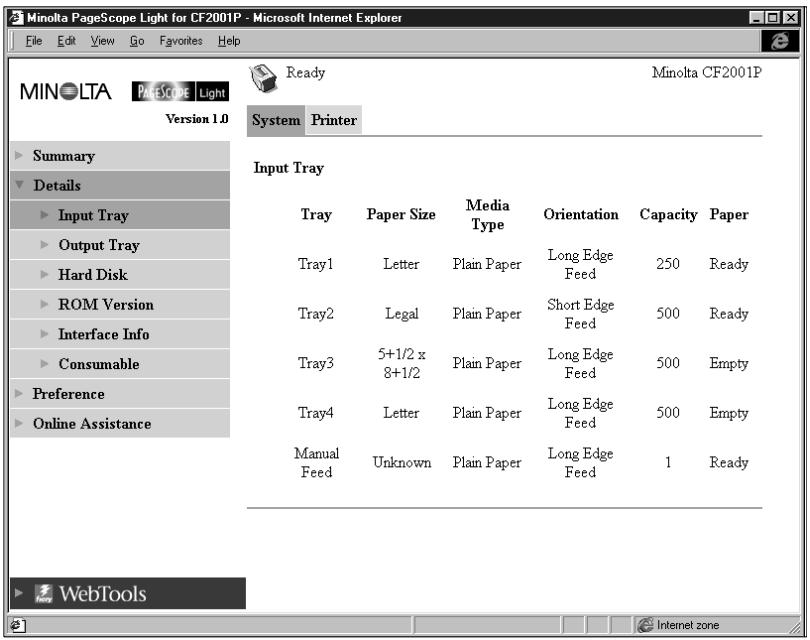
- Tray
- Tray name
● Paper Size Size of paper loaded in the tray
● Media Type Type of media loaded in the tray - Orientation Orientation of paper loaded in the tray
- Capacity Maximum number of sheets that can be loaded in the tray
- Paper
Remaining paper status (Shows READY when paper is present, and EMPTY when there is no paper left.)
Output Tray
This screen appears when you click the [Output Tray] sub-menu under the “Details” menu. It shows the configuration of all the Output Trays installed on the CF2001P.
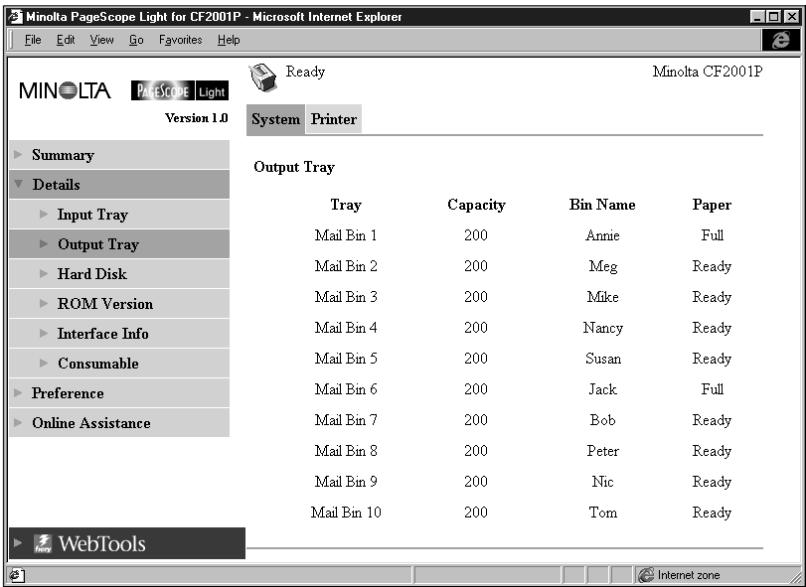
- Tray
- Tray name
- Capacity Maximum number of sheets the tray can hold
- Bin Name When the mail bin finisher is installed, owner name assigned to each bin.
- Paper Tray status (Shows FULL when the tray is unable to receive any more paper, and READY when it is.)
Hard Disk Status
This screen appears when you click the [Hard Disk] sub-menu under the "Details" menu. It shows the status of the hard disk installed on the CF2001P.
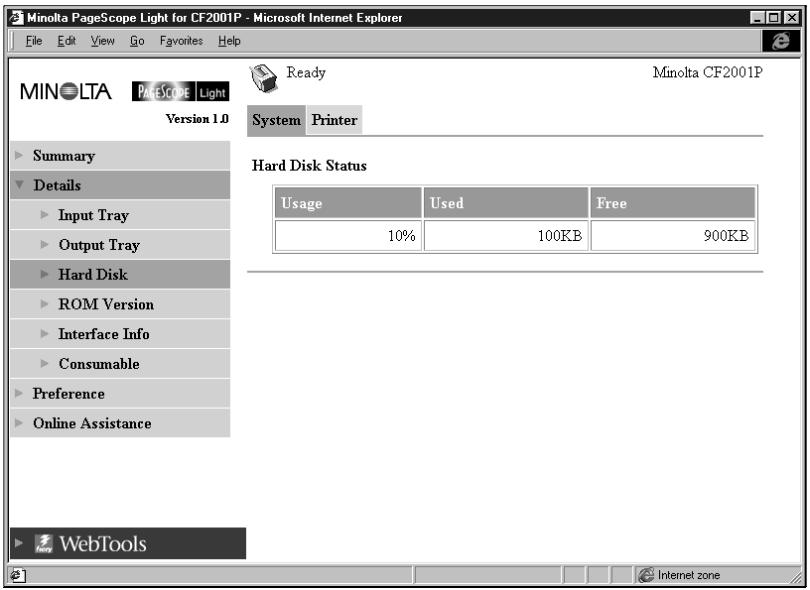
- Usage Percent of hard disk space used (%)
- Used Amount of hard disk space used (KB)
- Free Amount of hard disk space free (KB)
ROM Version
This screen appears when you click the [ROM Version] sub-menu under the “Details” menu. It shows information about the on-board memory of the CF2001P.
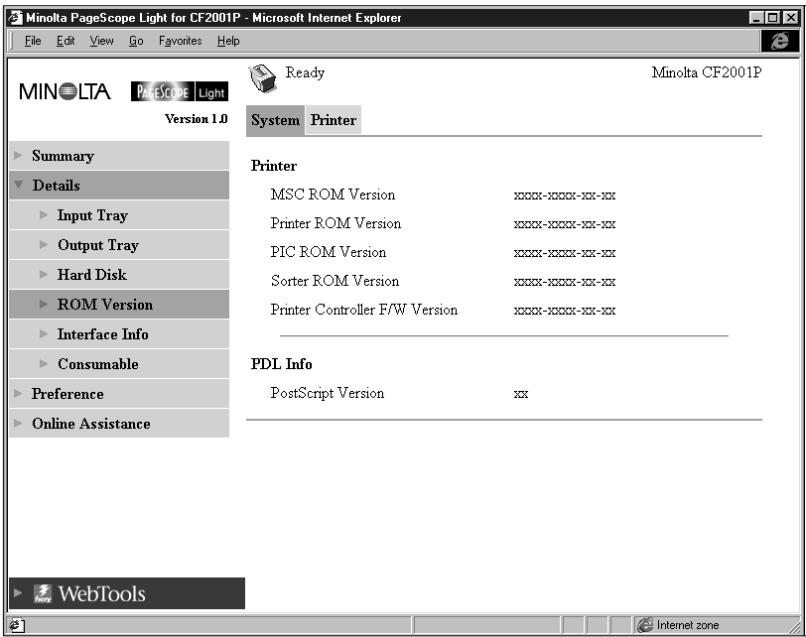
- Printer Version of ROM and firmware installed on the CF2001P
- PDL Info Version of printer control codes (PostScript) used by the printer controller
Interface Information
This screen appears when you click the [Interface Info] sub-menu under the “Details” menu. It shows information about the printer interface.
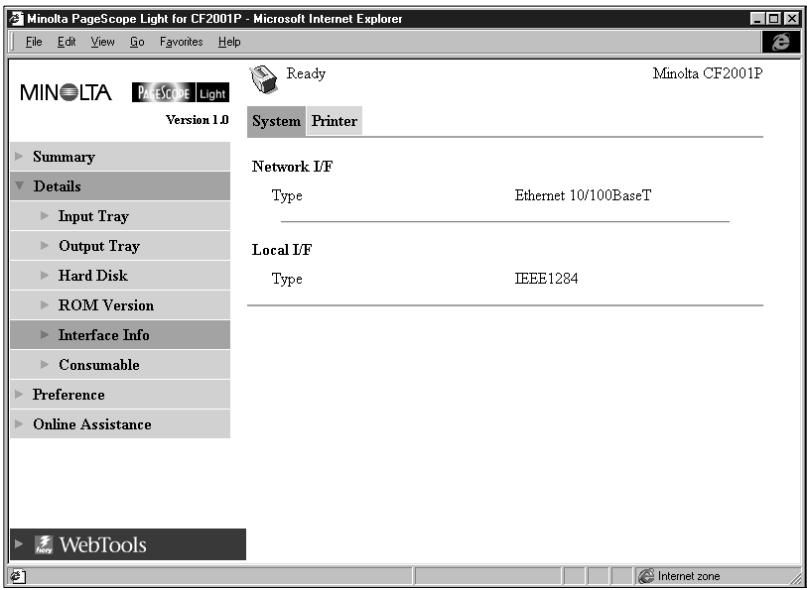
- Network I/F Network interface type (Ethernet 10/100BaseT or Token Ring)
- Local I/F Local port type
Consumable Status
This screen appears when you click the [Consumable] sub-menu under the “Details” menu. It shows the current status of CF2001P consumables. For information about consumables, see the CF2001P User Manual.
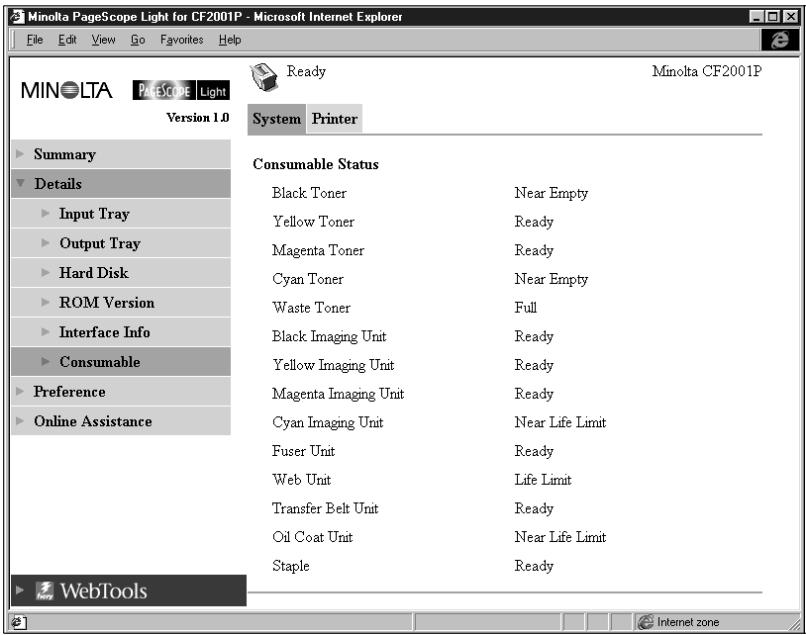
- Black Toner
Remaining black toner
● Yellow Toner Remaining yellow toner - Magenta Toner Remaining magenta toner
- Cyan Toner Remaining cyan toner
- Waste Toner Remaining waste toner bottle capacity
- Black Imaging Unit
Black Imaging Unit service life status
● Yellow Imaging Unit Yellow Imaging Unit service life status - Magenta Imaging Unit
-
Magenta Imaging Unit service life status
-
Cyan Imaging Unit
- Cyan Imaging Unit service life status
- Fuser Unit
- Fuser Unit service life status
- Web Unit Web Unit service life status
- Transfer Belt Unit Transfer Belt Unit service life status
- Oil Coat Roller Unit Oil Coat Roller Unit service life status
- Staple Remaining staples
5.3 Preference
This screen appears when you click the [Preference] menu on the "System" tab. It lets you make changes to the PageScope Light environment.
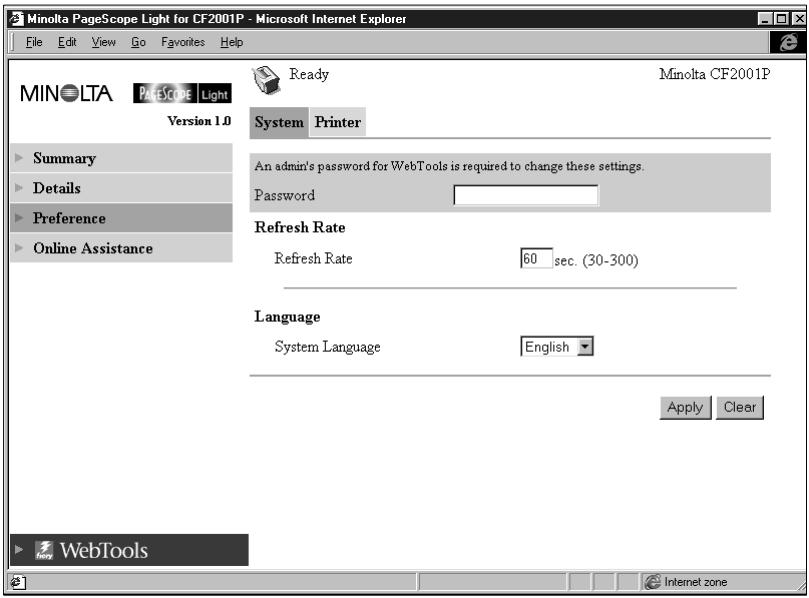
- Password
Type in the password here when a password is defined. Note that the password is case-sensitive, so be sure to type in upper-case and lower-case characters correctly. (The password you should type in here is the same as the administrator password you created for the Fiery WebTools.) - Refresh Rate
Type in a value to specify the number of seconds between screen refreshes. You can input a value from 30 to 300 seconds. The default setting is 60 seconds. -
Language
Select the screen language you want to use for PageScope Light. -
English
○ German -
French
○ Italian
○ Spanish -
[Apply] Button
Click this button to apply any settings you have input or selected up to this point. - [Clear] Button
Click this button to cancel any settings you have input or selected up to this point.

...
Note
The message “Invalid Password” appears on the screen if you input the wrong password. If this happens, click your Web browser’s “Back” button to return to the previous page and configure your preferences again.
5.4 Online Assistance
This screen appears when you click the [Online Assistance] menu on the “System” tab. It shows information and lets you make settings related to product support.
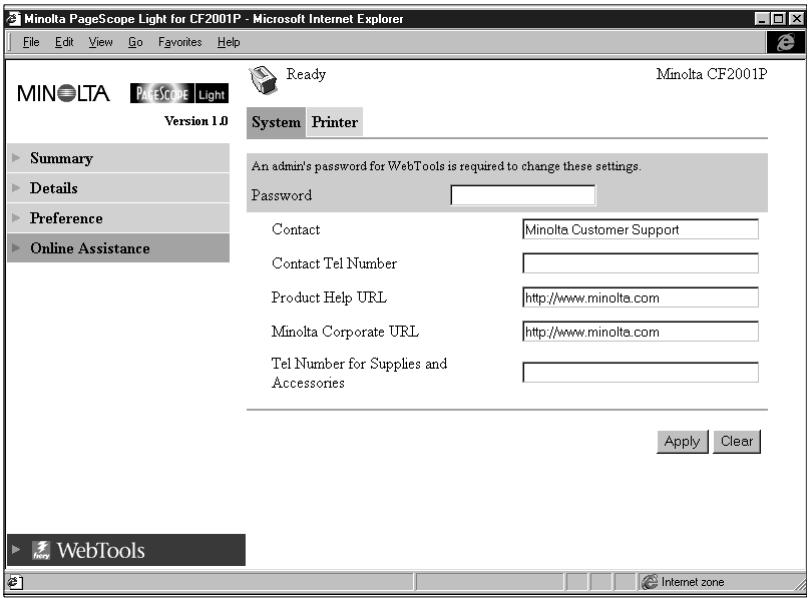
- Password
Type in the password here when a password is defined. Note that the password is case-sensitive, so be sure to type in upper-case and lower-case characters correctly. (The password you should type in here is the same as the administrator password you created for the
Fiery WebTools.)
- Contact Type in the name of your product support counter.
- Contact Tel Number Type in the phone number of your product support counter.
- Product Help URL Type in the URL of your product information Website. Clicking the [Product Help URL] jumps to the Website you specify here.
- Minolta Corporate URL Type in the URL to the Minolta home page. Clicking the [Minolta Corporate URL] jumps to the Website you specify here.
- Tel Number for Supplies and Accessories Type in the telephone number of the support counter you need to contact to order consumables and accessories.
- [Apply] Button Click this button to apply any settings you have input up to this point.
- [Clear] Button Click this button to cancel any settings you have input up to this point.

Note
The message “Invalid Password” appears on the screen if you input the wrong password. If this happens, click your Web browser’s “Back” button to return to the previous page and configure your online assistance settings again.
6 Printer Tab
The “Printer” tab shows information and settings for printing on the CF2001P.
6.1 Printer Front Panel
This screen appears when you click the [Operational Panel] menu on the "Printer" tab. It provides on-screen emulation of the CF2001P operational panel.
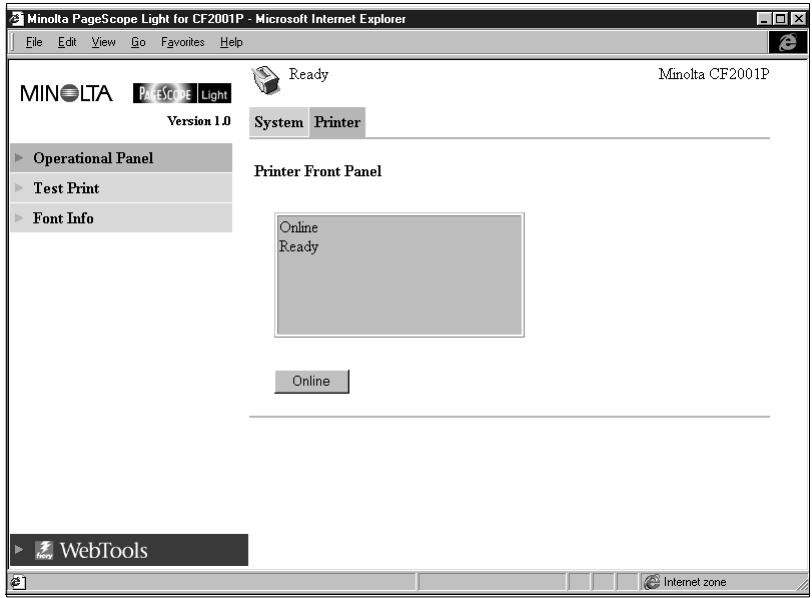
- Display This area shows the printer controller message display. Messages are the same as those that appear on CF2001P operational panel.
- [Online] Button Toggles the printer controller network connection on line and off line
6.2 Test Print
This screen appears when you click the [Test Print] menu on the "Printer" tab. It lets you select a test print page and execute a test print operation.
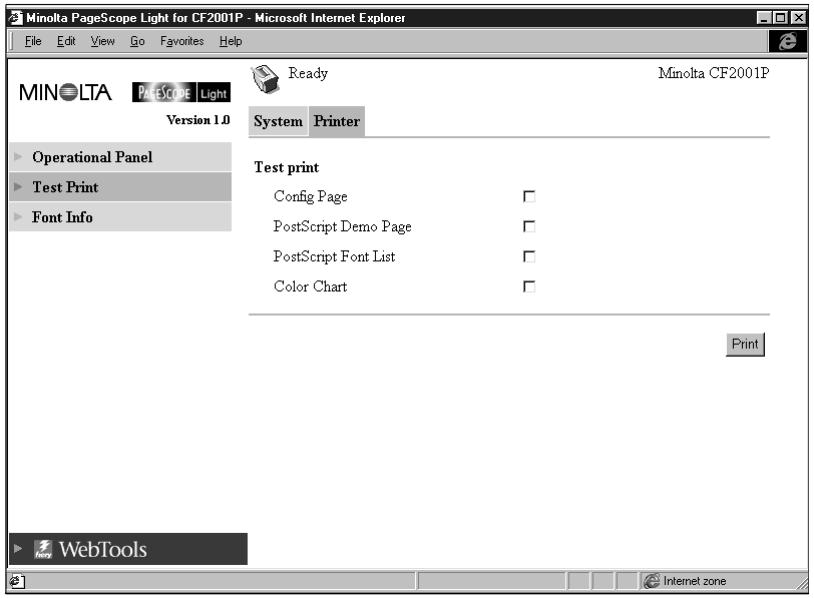
- Config Page Insert a check mark into the box to print the printer setup page.
- PostScript Demo Page Insert a check mark into the box to print the PostScript demo page.
- PostScript Font List Insert a check mark into the box to print the PostScript font list.
- Color Chart Insert a check mark into the box to print the color chart.
- [Print] Button Click this button to execute a test print operation.
6.3 PostScript Font
This screen appears when you click the [Font Info] menu on the "Printer" tab. It shows a list of PostScript fonts built into the printer controller. The names of fonts downloaded to the printer controller from the computer are added to the bottom of the list.
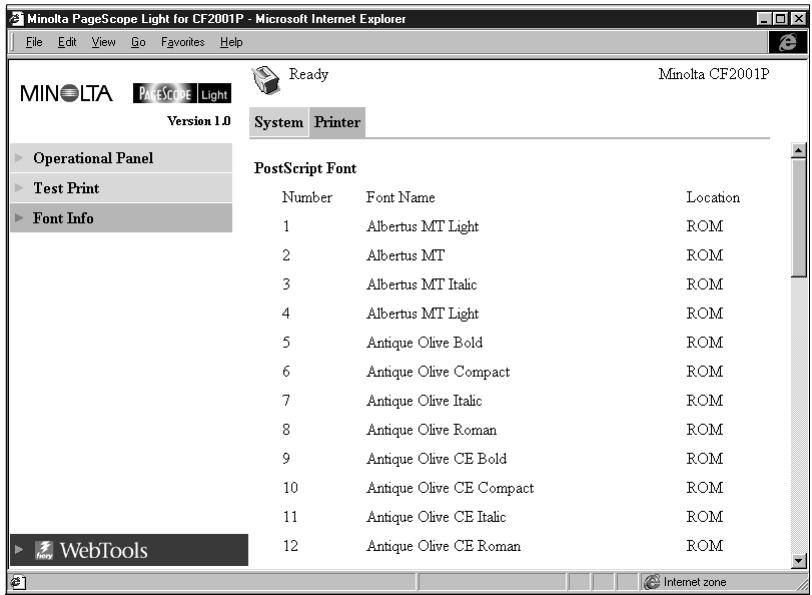
- Font Name Font name
- Location Storage location of the font (ROM, RAM, HDD)
7 Appendix Status List
The current CF2001P status is indicated by an icon in the upper part of the window. More detailed messages appear in the text area next to the icon. The contents of the list are arranged in order of importance (most critical first).
| Icon | Status (Upper Text) | Details (Lower Text) | Description |
 | Fatal | Engine Malfunction | |
 | Error | Check Power and Cable | |
| Cover Open | |||
| Set Up Error | Option or other component is not installed correctly | ||
| Parts Missing | Consumable is not installed correctly | ||
| Paper Jam | |||
| Paper Empty | Paper tray is empty. | ||
| Paper Size Mismatch Error | Specified paper size is different from size of paper in paper tray. | ||
| Paper Media Mismatch Error | Specified paper type is different from paper type being fed. | ||
| Life of Parts | Consumable is depleted. | ||
| Paper Capacity Over | Capacity of output tray was exceeded. | ||
 | Attention | Off Line | Connection to the printer controller network is offline. |
| Image Lost | Image data was lost | ||
| Capacity Over | Waste toner bottle is full. | ||
| Option Parts Malfunction | |||
| Paper Empty | Paper tray is empty | ||
| Paper Near Empty | Tray is about to run out of paper. | ||
| Life of Parts | Consumable is depleted | ||
| Near Life of Parts | Consumable is nearing depletion. | ||
| Warning | Some Problem occurred when acquiring the machine status. | ||
 | Ready | Power Save | The machine is in power safe mode. |
| Warming Up | |||
| Printing | |||
| Sleep Mode | |||
| Ready | Printer is ready |
- Welcome
- Trademark Acknowledgements
- System Requirements
- Access
- Operation
- Screen Configuration
- NOTE
- Tabs
- Menus
- Information and Settings Display
- Fiery Web Tools Logo
- System Tab
- Summary
- Details
- Input Tray
- - Paper
- Output Tray
- Hard Disk Status
- ROM Version
- Interface Information
- Consumable Status
- Preference
- Online Assistance
- Printer Tab
- Printer Front Panel
- Test Print
- PostScript Font
- Appendix Status List
Brand : KONICA MINOLTA
Model : PSL CF2001P
Category : Printer