
FK 503 - Printer KONICA MINOLTA - Free user manual and instructions
Find the device manual for free FK 503 KONICA MINOLTA in PDF.


| Product Type | Multifunction printer (print, copy, scan, fax) |
| Brand | Konica Minolta |
| Model | FK 503 |
| Dimensions (W × D × H) | approx. 450 × 400 × 300 mm |
| Weight | approx. 12 kg |
| Power Supply | 220-240 V, 50/60 Hz, 1.2 A |
| Print Speed | up to 20 ppm (A4, black) |
| Print Resolution | 600 × 600 dpi |
| Paper Tray Capacity | 250 sheets (main tray) |
| Media Types | Plain paper, envelopes, labels, transparencies |
| Connections | USB 2.0, Ethernet RJ-45, telephone line RJ-11 (fax) |
| Functions | Print, copy, scan, fax |
| Display | Backlit LCD display (2 lines × 16 characters) |
| Monthly Duty Cycle | up to 10,000 pages |
| Power Consumption | approx. 800 W (printing), 10 W (standby) |
| Maintenance and Cleaning | Clean rollers with a lint-free cloth; use original cartridges |
| Safety | Compliant with FCC Part 68 standards for telephone equipment |
| Spare Parts and Repairability | Toner cartridges, drum, fuser unit; variable repairability index |
| General Information | Ringer Equivalence Number (REN) ≤ 5; do not exceed this limit when connecting |
Frequently Asked Questions - FK 503 KONICA MINOLTA
User questions about FK 503 KONICA MINOLTA
0 question about this device. Answer the ones you know or ask your own.
Ask a new question about this device
Download the instructions for your Printer in PDF format for free! Find your manual FK 503 - KONICA MINOLTA and take your electronic device back in hand. On this page are published all the documents necessary for the use of your device. FK 503 by KONICA MINOLTA.
USER MANUAL FK 503 KONICA MINOLTA
1.1 Special notice to user 1-4
For Canada 1-4
For U.S.A. 1-4
For New Zealand 1-6
For Europe 1-7
1.2 Getting started 1-8
Sending a fax 1-8
1.3 Available features 1-10
Printing transmission information 1-10
Sending a fax at a specified time 1-10
Sending one scanned page at a time (Quick Scan TX) 1-11
Overseas faxing 1-11
Sending a fax printed with the recipient's name 1-11
Sending a fax with the document scanning area specified ..... 1-12
Specifying the binding position of double-sided documents ..... 1-12
Sending a fax with a command sent from the recipient 1-13
Storing a document for polling 1-13
Using a confidential box 1-14
Sending a fax protected with a password 1-14
Advanced scanning features 1-14
1.4 User's guides 1-15
User's guide [Copy operations] 1-15
User's guide [Network scanner operations] 1-15
User's guide [Box operations] 1-15
User's guide [Print operations] 1-15
User's guide [Facsimile operations] (this manual) 1-15
1.5 Explanation of manual conventions 1-16
Safety advices 1-16
Sequence of action 1-16
Tips 1-17
Special text markings 1-17
1.6 Descriptions and symbols of documents and paper 1-18
"Width" and "Length" 1-18
Paper orientation 1-18
2 Before use
2.1 Precautions 2-3
2.2 Part names and their functions ......2-4
Back of main unit (Fax Kit FK-503) 2-4
Stamp unit SP-501 2-5
2.3 Using the control panel 2-6
Control panel 2-6
2.4 Initial settings 2-8
Required settings 2-8
Useful functions ......2-10
2.5 Fax settings screen 2-11
Fax mode screen 2-11
Fax/Copy screen 2-13
Icons that appear in the screen 2-14
2.6 User authentication and account track 2-15
3 Transmission
3.1 General fax operation 3-3
To send a fax 3-3
3.2 Feeding the document 3-5
Loading the document into the ADF 3-5
Placing the document on the original glass 3-6
3.3 Faxing a multi-page document from the original glass ....3-8
Faxing using the original glass 3-8
3.4 Specifying the transmission settings ....3-10
To specify the transmission settings 3-10
Original type 3-11
Density 3-13
Reduction/Area 3-14
Checking the settings 3-17
3.5 Specifying a recipient ....3-19
Using the direct input screen 3-19
Using a one-touch dial button 3-21
Using a program 3-22
Using the search screen 3-24
Specifying multiple recipients (broadcast transmission) ......3-26
Checking/deleting recipients 3-28
3.6 Faxing after using the telephone (manual faxing) 3-29
To send a fax manually 3-29
3.7 Combining one-touch dialing and direct dialing (chain dialing) 3-30 To send a fax using chain dialing 3-30
3.8 Operations while scanning .... 3-31 If document size cannot be detected .... 3-31 If memory became full .... 3-31
3.9 When unable to send .... 3-32 To send the fax again .... 3-32
3.10 Stopping the transmission 3-33 To stop sending a fax 3-33
3.11 Checking transmission results (Job List) .... 3-34 Jobs .... 3-34 Checking a job .... 3-35
4 Reception
4.1 Reception modes 4-3
4.2 Reception .... 4-6 Printing received faxes .... 4-6 When unable to receive .... 4-7 Reception information .... 4-8
4.3 Receiving a telephone call .... 4-9 To receive a telephone call .... 4-9
5 Troubleshooting
5.1 Problems when sending faxes 5-3
5.2 Problems when receiving faxes 5-5
5.3 Error messages 5-7
6 Specifications
6.1 Specifications 6-3
7 Useful transmission functions
7.1 FAX Menu .... 7-3 Displaying the fax menu screen .... 7-3 FAX Menu screens .... 7-4
7.2 Sending faxes printed with transmission information ..... 7-7 To send faxes printed with transmission information ..... 7-7
7.3 Sending faxes printed with the recipient's name ("Dest. Insert" function) 7-8 To send faxes printed with the recipient's name 7-8
7.4 Checking a report for the transmission result ("TX Report" function) 7-10 To print the transmission report 7-10
7.5 Sending two document pages as one ("2in1" function) .....7-12 To send a 2in1 fax .....7-12
7.6 Sending double-sided documents ("2-Sided TX" function) .....7-13 To fax double-sided document pages .....7-13
7.7 Sending an A4-size document with a landscape orientation ("Rotation TX" function)....7-15 To send a rotated transmission....7-15
7.8 Giving a fax priority (“Priority TX” function) .....7-16 To send a priority transmission .....7-16
7.9 To send a fax at a specified time ("Timer TX Setting" function) 7-17 To send a timer transmission 7-17
7.10 Stamping faxed documents (“Stamp” function) .....7-19 To stamp faxed documents .....7-19
7.11 Sending a document one page at a time ("Quick Scan TX" function) 7-20 To send a document one page at a time 7-20
7.12 Sending a fax with a password applied ("Password TX" function) 7-21 To send faxes with a password applied 7-21
7.13 Specifying the number of fax copies ("Remote Copy" function) 7-22 To specify the number of fax copies to be printed 7-22
7.14 F-codes ....7-23 F-codes ....7-23 F-code confidential transmissions ....7-23 Bulletin boards ....7-24 Remote copying ....7-24 Precautions for specifying F-codes ....7-24
7.15 Using a confidential box (confidential transmission) .....7-25 To use a confidential box .....7-25 Retrieving F-code confidential documents .....7-26
7.16 Registering a document on a bulletin board 7-27
To register a document on a bulletin board 7-27
Registering a document on a bulletin board from another fax machine 7-29
7.17 Faxing from a computer (direct faxing) 7-30
When performed through a mail server 7-32
8 Useful reception functions
8.1 Receiving a fax with a password applied ("Password RX" function) 8-3
8.2 Retrieving documents from bulletin boards ("Retrieve" function) 8-4
To retrieve a document from a bulletin board 8-4
8.3 Using a confidential box (confidential reception) 8-7
To receive a confidential document 8-7
9 Polling
9.1 Preparing a polling document ("Polling TX" function) 9-3
To perform a polling transmission 9-3
9.2 Receiving a polling document ("Polling RX" function) 9-5
To perform polling reception 9-5
10 Registering/specifying settings
10.1 Displaying the FAX Registration screen 10-3
To display the FAX Registration screen 10-3
10.2 Programming a one-touch dial button 10-4
Programming a one-touch dial button with a fax number ...... 10-4
Registering an F-code 10-7
Specifying the transmission speed 10-9
Changing/deleting a one-touch dial button 10-10
Copying a one-touch dial button 10-11
Registering/deleting a secondary destination 10-13
10.3 Registering indexes for one-touch dial buttons 10-14
To register an index 10-14
Changing/deleting an index 10-15
10.4 Registering a transmission program 10-16
Registering a transmission program 10-16
Registering a batch transmission program 10-19
Registering a polling reception program 10-21
Changing/deleting a program 10-23
10.5 Setting up a bulletin board 10-24
To set up a bulletin board 10-24
10.6 Registering confidential boxes ....10-28
To register a confidential box 10-28
11 Utility mode
11.1 Overview of utility mode parameters 11-3
List of registration information and parameters 11-3
11.2 Specifying user's choice settings 11-10
To specify user's choice settings 11-10
Output tray settings 11-12
Default screen 11-12
11.3 Specifying FAX registration settings 11-13
11.4 Specifying user management settings .....11-14
To specify user management settings 11-14
Tone volume parameters 11-15
Memory RX ON/OFF 11-15
11.5 Displaying the administrator management screen .....11-16
To display the administrator management screen 11-16
11.6 Available parameters 11-18
Administrator management 1 screen ....11-18
Administrator management 2 screen ....11-19
11.7 Specifying the language for reports and the transmission source name (“Language for Communication” parameter) .....11-20
To specify the language for reports and the transmission source name 11-20
11.8 Programming the telephone number ("Self-telephone # Information" parameter) .....11-21
To register the telephone number 11-21
11.9 Programming a name (TSI Registration) 11-24
To register a transmission source name 11-24
11.10 Registering the ID displayed on the recipient's machine ("Self-ID" parameter) 11-26
To register the machine's ID 11-26
11.11 Preventing changes to one-touch dial buttons .....11-28
To prevent changes to one-touch dial buttons 11-28
11.12 Specifying transmission settings (TX Settings) ......11-29
To specify quality/mode settings 11-30
To specify communication menu settings 11-32
11.13 Specifying the printing period for received documents (RX Settings) 11-34
Specifying the "Memory RX Time Setting" parameter 11-35
Specifying the "Memory Lock Password" parameter 11-36
Printing manually 11-38
11.14 Deleting confidential boxes 11-39
To delete a confidential box 11-39
11.15 Specifying the reception mode and the number of rings (RX Functions) 11-41
To specify RX Functions settings 11-41
To specify the reception method (Reception mode) 11-42
To specify the number of rings (Numbers of RX call rings) ...... 11-42
11.16 Registering communication passwords 11-43
To register a communication password 11-43
11.17 Specifying report output settings (Report settings) 11-45
To specify the result report printing conditions (TX Report) ..... 11-45
To specify the activity report printing conditions (Activity report) 11-47
11.18 Forwarding sent documents to the specified recipient (TX Forwarding) 11-48
To specify document forwarding 11-48
11.19 Specifying the procedure for received documents (Document management) 11-50
To specify the procedure performed with documents received on each line 11-50
To specify the procedure performed with documents received on each line 11-50
To specify the procedure performed with documents received with an F-code 11-53
To specify the procedure performed with documents received with an F-code 11-53
Specifying the procedure performed with other received documents 11-56
To specify the procedure performed with other received documents 11-56
11.20 Specifying the self-registered domain name 11-58
To specify the self-registered domain name 11-58
11.21 Specifying the gateway transmission setting 11-60
To specify the gateway transmission setting 11-60
11.22 Specifying software switch settings (machine functions) ..... 11-62
Software SW settings 11-62
To specify a software switch setting 11-64
Specifying settings for the stamp and password comparison (mode 000) ......11-66
Specifying settings for inserting the destination in the document (mode 001)....11-67
Specifying printing of the memory clear report and the report for a broadcast transmission (mode 002) ......11-68
Specifying settings for forwarding reception (mode 003) .....11-69
Specifying the storage time for failed transmission documents (mode 004) ....11-70
Specifying settings for general subscriber lines (mode 006) .....11-71
Specifying settings for receiving long documents (mode 007) ...11-72
Specifying the setting for selecting paper when printing received documents (mode 008) ....11-74
Specifying settings for the confirmation screen for broadcast transmissions (mode 014)....11-75
Specifying whether or not a telephone is connected and whether or not a received date report is added and its format (mode 016) ....11-76
Specifying settings for the image in the failed transmission report (mode 023) ....11-77
Specifying the copy limitation with remote copying (mode 028) 11-78
Specifying settings for fax reception functions (mode 030) .....11-79
Specifying the setting for tray selection of received faxes (mode 037)....11-80
Specifying settings for administrator forwarding (mode 198) .....11-81
Specifying settings for the number of rings until automatic reception (port 2) (mode 249) ......11-82
Specifying the Internet fax settings (mode 350) ......11-84
Specifying whether transmission source information is added when directly faxing, performing an IP relay operation, or forwarding received documents (mode 352) .....11-85
Specifying settings for the range of administrator passwords and the information indicated in the report for direct faxing/IP relay transmissions (mode 368) .....11-86
Specifying settings for when copying is finished using the ADF (mode 429) ......11-87
Specifying restrictions for registering fax addresses and printing reports and specifying how one-touch dial recipients are displayed (mode 477) ....11-88
12 Specifying settings using PageScope Web Connection
12.1 Items that can be specified using PageScope Web Connection ....12-3
Fax/Scan (User mode) 12-3
System (Administrator mode) 12-3
Fax/Scan (Administrator mode) 12-4
Network (Administrator mode) 12-4
12.2 Using PageScope Web Connection 12-5
Operating environment 12-5
Accessing PageScope Web Connection 12-5
When performing user authentication 12-6
Page structure 12-7
Logging on to administrator mode 12-9
Web browser cache 12-11
For Internet Explorer 12-11
For Netscape 12-11
12.3 One-touch key registration (User mode) 12-12
To name an index 12-14
To register with one-touch registration 12-15
Registering sub-destinations 12-17
12.4 FAX Program registration (User mode) 12-20
Registering fax programs 12-22
12.5 System (Administrator mode) 12-24
To change settings 12-24
12.6 Export/Import (Administrator mode) 12-25
To export files 12-26
To import files 12-28
12.7 Line settings (Administrator mode) 12-30
To specify the machine telephone number 12-30
12.8 Transmission source registration 12-31
To register transmission sources 12-31
12.9 TX Settings (Administrator mode) 12-32
To specify the TX settings 12-33
12.10 RX Settings (Administrator mode) 12-34
To specify the RX settings 12-35
12.11 Fax setting (Administrator mode) 12-36
RX Functions 12-36
To specify the reception function settings 12-37
Password communication 12-38
To specify password communication settings 12-39
12.12 RX Document (Administrator mode) 12-40
To specify F-code settings 12-42
To specify the processing of received documents per line ..... 12-44
To specify the processing of other received documents ..... 12-46
12.13 Report output settings (Administrator mode) 12-47
To specify the report output settings 12-48
12.14 TCP/IP (Administrator mode) 12-49
To specify the TCP/IP settings 12-51
12.15 Mail/Internet FAX (Administrator mode) 12-53
To specify other settings 12-54
13 Reports and lists
13.1 Checking the transmission status (TX Report) 13-3
Printing the transmission activity report ....13-3
Contents of the report ....13-5
13.2 Checking the reception status (RX Report) 13-7
Printing the reception activity report ....13-7
Contents of the report ....13-8
13.3 Checking the list of the registered one-touch dial
buttons (One-Touch list) 13-10
Printing the list of one-touch dial buttons 13-10
Contents of the list ....13-11
13.4 Checking the list of fax programs (Program list) ......13-12
Printing the fax program list ....13-12
Contents of the list ....13-13
13.5 Checking the bulletin board documents (Bulletin list) ......13-14
Printing the bulletin board list ....13-14
13.6 Checking the contents of confidential boxes
(Confidential list) 13-16
Printing the confidential box list 13-16
13.7 Checking the settings for each function (Setting list) .....13-18
Printing the settings list 13-18
Contents of the list ....13-19
14 Appendix
14.1 Replacing the stamp 14-3
To replace the stamp 14-3
14.2 Glossary 14-5
14.3 Index 14-8
1
Introduction
1 Introduction
Thank you for your purchase of the Konica Minolta digital electronic photocopying machine.
This user's guide describes operating procedures and precautions for use of the fax functions. Please read this user's guide before starting operation of the machine.
After reading this user's guide, it is advisable to keep it close at hand to consult it any time when necessary in order to operate the fax functions at their optimum condition.
For correct operation, also read the "User's guide – Copy operations" before starting operation.
Acknowledgement
KONICA MINOLTA, KONICA MINOLTA Logo, and The essentials of imaging are registered trademarks or trademarks of KONICA MINOLTA HOLDINGS, INC.
PageScope and bizhub are registered trademarks or trademarks of KONICA MINOLTA BUSINESS TECHNOLOGIES, INC.
Adobe, Adobe Logo, Acrobat, Acrobat Logo, PostScript and PostScript Logo are registered trademarks or trademarks of Adobe Systems, Inc.
Other company names and product names used in this User's Guide are the registered trademarks or trademarks of their respective companies.
Copyright
© 2005 by Konica Minolta Business Technologies, Inc. All rights reserved.
Exemption
Unauthorized use or reproduction of this document, whether in its entirety or in part, is strictly prohibited.
Konica Minolta Business Technologies, Inc. assumes no responsibility for consequences arising from the use of this manual.
Information written in this user's guide is subject to change without notice.
1.1 Special notice to user
For Canada
NOTICE:
This product meets the applicable Industry Canada technical specifications.
The Ringer Equivalence Number is an indication of the maximum number of devices allowed to be connected to a telephone interface. The termination on an interface may consist of any combination of devices subject only to the requirement that the sum of the RENs of all the devices does not exceed five.
AVIS:
Le present materiel est conforme aux specifications techniques applicables d'Industrie Canada.
This equipment complies with Part 68 of the FCC rules and the requirements adopted by the ACTA. On the cover of this equipment is a label that contains, among other information, a product identifier in the format
US:AAAEQ##TXXXX. If required, this information must be provided to the telephone company.
This equipment uses certification jack USOC RJ11C.
A plug and jack used to connect this equipment to the premises wiring and telephone network must comply with the applicable FCC Part 68 rules and requirements adopted by the ACTA.
A compliant telephone cord and modular plug is provided with this product. It is designed to be connected to a compatible modular jack that is also compliant. See installation instructions for details.
The REN is used to determine the number of devices that may be connected to a telephone line. Excessive RENs on a telephone line may result in the devices not ringing in response to an incoming call. In most but not all areas, the sum of RENs should not exceed five (5.0).
To be certain of the number of devices that may be connected to a line, as determined by the total RENs, contact the local telephone company For products approved after July 23, 2001, the REN for this product is part of the product identifier that has the format US: US:AAAEQ##TXXXX.. The digits represented by ## are the REN without a decimal point (e.g., 03 is a REN of 0.3). For earlier products, the REN is separately shown on the label.
If this equipment FK-503, ML-502 causes harm to the telephone network, the telephone company will notify you in advance that temporary discontinuance of service may be required. But if advance notice isn't practical, the telephone company will notify the customer as soon as possible. Also, you will be advised of your right to file a complaint with the FCC if you believe it is necessary.
The telephone company may make changes in its facilities, equipment, operations or procedures that could affect the operation of the equipment. If this happens the telephone company will provide advance notice in order for you to make necessary modifications to maintain uninterrupted service.
If trouble is experienced with this equipment FK-503, ML-502, for repair or warranty information, please contact the Konica Minolta dealer location where you purchased this equipment. If the equipment is causing harm to the telephone network, the telephone company may request that you disconnect the equipment until the problem is resolved.
Connection to party line service is subject to state tariffs. Contact the state public utility commission, public service commission or corporation commission for information. If you home has specially wired alarm equipment connected to the telephone line, ensure the installation of FK-503, ML-502 does not disable you alarm equipment. If you have questions about what will disable alarm equipment, consult your telephone company or a qualified installer.
The Telephone Consumer Protection Act of 1991 makes it unlawful for any person to use a computer or other electronic device, including FAX machines, to send any message unless such message clearly contains in a margin at the top or bottom of each transmitted page or on the first page of the transmission, the date and time it is sent and an identification of the business or other entity, or other individual sending the message and the telephone number of the sending machine or such business, other entity, or individual. (The telephone number provided may not be a 900 number or any other number for which charges exceed local or long-distance transmission charges.)
In order to program this information into your FAX machine, you should complete the following steps: See “Registering TSI Names” on page 11-24.

WARNING
The exclamation point within an equilateral triangle followed by the word “Warning” is intended to alert the user to the possibility that a disregard for the warning may result in fatal hazards or critical injuries.
→ Be sure to focus your attention on the warning headings when reading the copier user's guide.

CAUTION
The exclamation point within an equilateral triangle followed by the word “Caution” is intended to alert the user to the possibility that a disregard for the caution may result in minor injuries or in physical damage.
→ Be sure to focus your attention on the caution headings when reading the copier user's guide.
For New Zealand
This device is equipped with pulse dialing while the Telecom standard is DTMF tone dialing. There is no guarantee that Telecom lines will always continue to support pulse dialing.
This equipment does not fully meet Telecom's impedance requirements. Performance limitations may occur when used in conjunction with some parts of the network. Telecom will accept no responsibility should difficulties arise in such circumstances.
The grant of a Telepermit for any item of terminal equipment indicates only that Telecom has accepted that the item complies with minimum conditions for connection to its network. It indicates no endorsement of the product by Telecom, nor does it provide any sort of warranty. Above all, it provides no assurance that any item will work correctly in all respects with another item of Telepermitted equipment of a different make or model, nor does it imply that any product is compatible with all of Telecom's network services.
The automatic calling functions of this equipment must not be used to cause a nuisance to other customers.
Telepermitted equipment only may be connected to the auxiliary telephone port. The auxiliary port is not specifically designed for 3-wire connected equipment. 3-wire might not respond to incoming ringing when connected to this port.
For Europe
The Facsimile has been approved in accordance with Council Decision 1999/5/EC for pan-European single terminal connection to the public switched telephone network (PSTN). However, due to differences between the individual PSTNs provided in different countries, the approval does not, of itself, give an unconditional assurance of successful operation on every PSTN network terminal point.
In the event of problems, you should contact your equipment supplier in the first instance.
The CE marking must be affixed to the product or to its data plate. Additionally it must be affixed to the packaging, if any, and to the accompanying documents.
CE
1.2 Getting started
Sending
Perform the following basic procedure to send a fax.
In order to use the Fax functions, the optional fax kit must be installed.
1 Press [Fax/Scan] on the control panel to start the fax mode.
- If the machine is set to display the Fax/Copy screen when it is in standby, a fax can be sent simply by specifying the recipient's fax number or by entering “#” and a one-touch number. For details, refer to “Default screen” on page 11-12.
2 Place the original on the machine.
- For details, see "Placing the original on the machine" on page 3-5.
3 Set the functions as necessary.
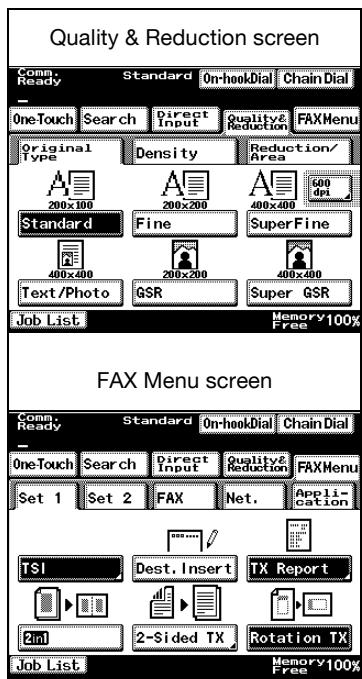
4 Press [Direct Input].
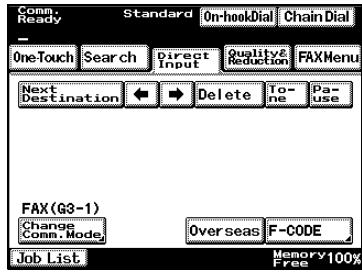
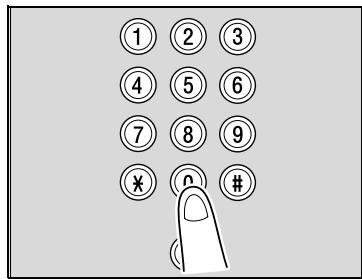
5 Use the keypad to enter the fax number of the destination.
- If you make an incorrect entry, press [Delete] to clear your entry.
- Press [C] (clear) to clear the whole entry.
6 Press [Start] on the control panel.
- If the fax could not be sent, refer to "When unable to send" on page 3-32.
1.3 Features of the fax
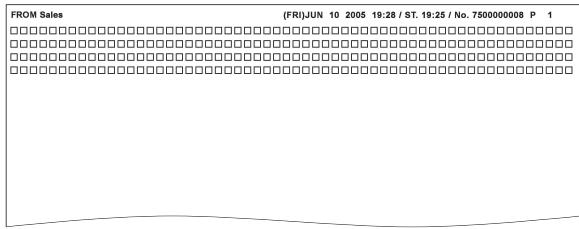
Printing transmission information
A fax can be sent printed with information such as the sender's name, the transmission date and time, document number, and number of pages. This is useful for informing the recipient of the sender's information.
For details, refer to page 7-7.
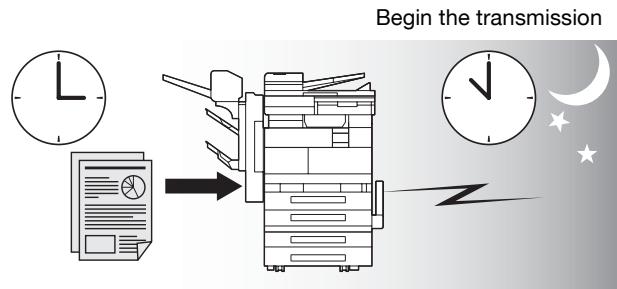
Sending a fax at a specified time
This function allows you to specify the time to start sending a fax. You can save money by specifying a transmission to start during the night or early in the morning when telephone charges are less.
For details, see page 7-18.
flowchart
graph TD
    A["Start"] --> B["Document"]
    B --> C["Transmit"]
    C --> D["Delay: 2000s"]
    D --> E["End"]
    style A fill:#f9f,stroke:#333
    style B fill:#ccf,stroke:#333
    style C fill:#cfc,stroke:#333
    style D fill:#fcc,stroke:#333
    style E fill:#ffc,stroke:#333
Specify a time
To be sent each time a page is read (Quick memory TX)
This is a method by which the fax transmission is started upon a sheet of original being read.
For details, see page 7-21.
Sending faxes to a foreign country
You can employ a lower transmission rate if you send a fax to the location at which the communication condition is poor.
For details, see page 3-19.
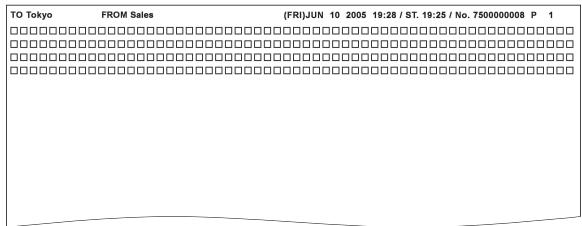
Sending a fax printed with the recipient's name
The recipient's name can be printed on the fax that is sent.
This allows the fax to be delivered to the correct person on the receiving end.
For details, refer to page 7-9.
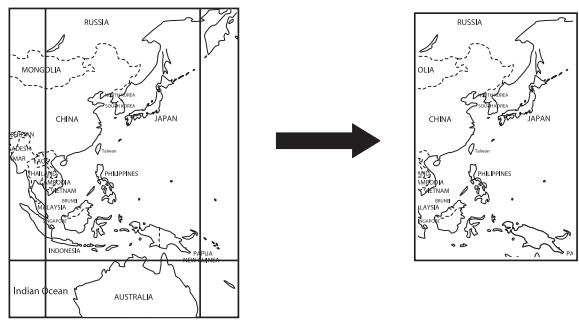
Scan size function
The scan size select function enables you to designate the paper size for the document as transmitted to be equal to the paper size loaded at the receiving end. This means that most of your original image will be printed without any reduction. Normally, when the paper size loaded at the destination is too small to accommodate the image being transmitted, the original image will be reduced to fit the paper size. This feature gives you the option to print a portion of the image with no reduction.
For details, see page 3-14.
Bind position function
The top/bottom correction function allows you to specify the appropriate binding style when transmitting a two-sided document (i.e., when pages are printed on both sides). The binding style you select will allow the pages of a two-sided document to be read appropriately by binding right to left or top to bottom.
For details, see page 7-14.
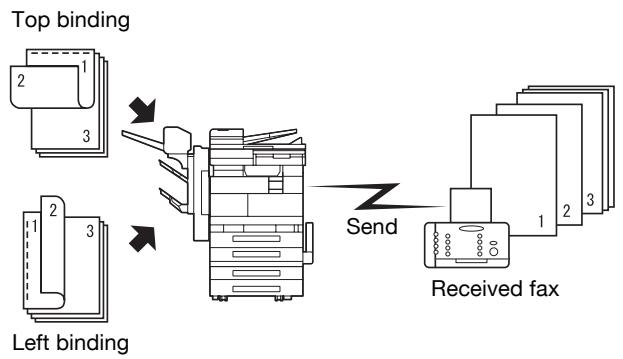
flowchart
graph TD
    A["Top binding"] --> B["Printer"]
    C["Left binding"] --> B
    B --> D["Send"]
    D --> E["Received fax"]
    style A fill:#f9f,stroke:#333
    style C fill:#f9f,stroke:#333
    style B fill:#ccf,stroke:#333
    style D fill:#cff,stroke:#333
    style E fill:#ffc,stroke:#333
Sending a fax when it receives a polling command from the recipient
You can send a fax that has been read and stored in hard disk in the facsimile when a polling command is sent from the recipient.
For details, see page 9-5.
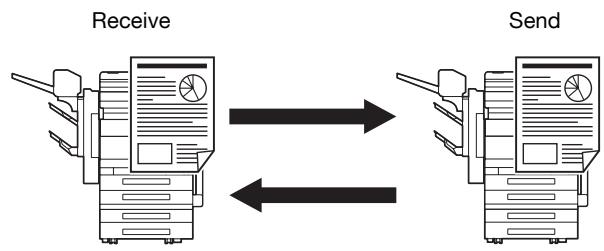
flowchart
graph LR
    A["Receive"] --> B["Send"]
    B --> A
Polling specified document
The FK-503 enables you to browse the bulletin board of a destination for documents designated for polled transmission or polling reception.
Refer to page 9-3.
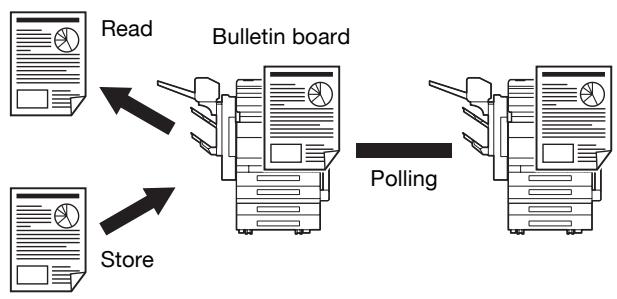
flowchart
graph TD
    A["Read"] --> B["Bulletin board"]
    C["Store"] --> B
    B --> D["Polling"]
Use a confidential box
You can use a confidential box (similar to an inbox) to exchange confidential information with specific person.
For details, see page 7-26.
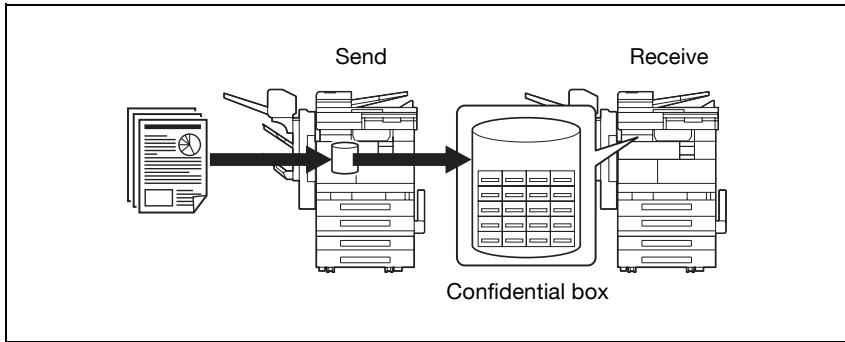
flowchart
graph LR
    A["Document"] --> B["Send"]
    B --> C["Confidential box"]
    C --> D["Receive"]
Sending a fax protected with a password
You can send a fax protected with a password if the closed communication is set at the recipient.
For details, see page 7-22.
Advanced scanning features
The following features are available if scanner unit is installed.
- IP Scanner
With the advanced scanning features, a document can be scanned with the touch of a button, and the scan data can be set to the computer with the specified IP address. - IP address fax
By specifying an IP address, a fax can be sent via the LAN to a fax machine connected to the network. Since the telephone line is not used, communication costs can be reduced. - Scan to PC
A document can easily be scanned with a one-touch dial button, and the scan data can be sent to the computer with the specified IP address. - IP Relay
A fax can be sent through a relay machine connected to the LAN.
For more details, refer to the user's guide [Advanced Scan Operations] on the enclosed CD-ROM.
1.4 User's guide
The following user's guide have been prepared for this machine.
User's guide – Copy operations
This manual contains details on basic operations and the operating procedures for the various copy functions.
- Refer to this user's guide for details on operating procedures for copy functions, including precautions on installation/use, turning the machine on/off, loading paper, and troubleshooting operations such as clearing paper misfeeds.
User's guide – Network scanner operations
This manual contains details on specifying network settings for standard equipment and on operations for scanning functions.
- Refer to this user's guide for details on operating procedures for network functions and for using scan to e-mail, scan to FTP and scan to PC (SMB) and Internet fax operations.
User's guide – Box operations
This manual contains details on operating procedures for using the boxes.
- Refer to this user's guide for details on operating procedures for using the boxes on the optional hard disk.
User's guide- Print operations
This manual contains details on operating procedures using the standard built-in printer controller.
- Refer to this user's guide for details on operating procedures for using the print functions.
User's guide – Facsimile operations (this manual)
This manual contains details on operating procedures for faxing.
- Refer to this user's guide for details on operating procedures for fax functions when the fax kit is installed.
1.5 Explanation of manual conventions
The marks and text formats used in this manual are described below.
Safety advices

DANGER
Failure to observe instructions highlighted in this manner may result in fatal or critical injuries in fact of electrical power.
→ Observe all dangers in order to prevent injuries.

WARNING
Failure to observe instructions highlighted in this manner may result in serious injuries or property damage.
→ Observe all warnings in order to prevent injuries and to ensure safe use of the machine.

CAUTION
Failure to observe instructions highlighted in this manner may result in slight injuries or property damage.
→ Observe all cautions in order to prevent injuries and to ensure safe use of the machine.
Sequence of action
1 The number 1 as formatted here indicates the first step of a sequence of actions.
2 Subsequent numbers as formatted here indicate subsequent steps of a sequence of actions.
? Text formatted in this style provides additional assistance.
→ Text formatted in this style describes the action that will ensure the desired results are achieved.
An illustration inserted here shows what operations must be performed.
Tips

...
Note
Text highlighted in this manner contains useful information and tips to ensure safe use of the machine.

...
Reminder
Text highlighted in this manner contains information that should be reminded.

Detail
Text highlighted in this manner contains references for more detailed information.
Special text markings
[Stop] key
The names of keys on the control panel are written as shown above.
MACHINE SETTING
Display texts are written as shown above.
1.6 Descriptions and symbols of documents and paper
The use of words and symbols in this manual are explained below.
"Width" and "Length"
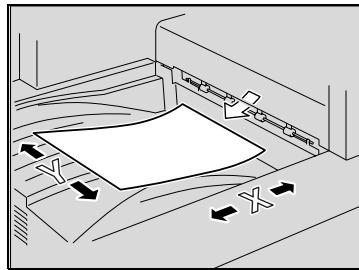
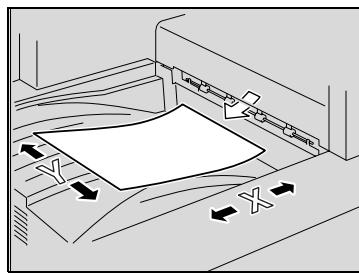
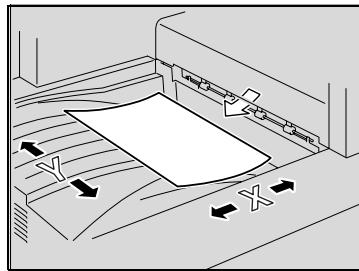
Whenever paper dimensions are mentioned in this manual, the first value always refers to the width of the paper (shown as "Y" in the illustration) and the second to the length (shown as "X").
natural_image
Diagram of a printer or printer setup with arrows indicating orientation, no visible text or symbolsPaper orientation
If the width (Y) of the paper is shorter than the length (X), the paper has a vertical or portrait orientation, indicated by ☐.
natural_image
Pure technical diagram showing a mechanical assembly with no text, numbers, or symbolsIf the width (Y) of the paper is longer than the length (X), the paper has a horizontal or landscape orientation, indicated by ☐.
natural_image
Pure technical diagram of a printer or printer with no text, numbers, or symbols visible2
Before use
2 Before use
2.1 Restriction matter
This fax kit can be connected to phone lines as shown below.
- Local telephone line (including fax communication networks)
- PBX (private branch exchange, two line system)
With respect to the telephone line to be used, be sure to check the following.
- The call waiting service is not used.
- When the digital private line is multiplexed in the corporate network that is used by the customer, the facsimile communication may be subject to the following constraints.
– The transmission speed is restricted.
- If an IP telephone is used, the status of the ADSL or Internet connection may reduce the transmission quality, or special faxes may not be transmitted correctly.
If this machine is used via an IP telephone and these types of problems occur frequently, use the machine with a general local telephone.
For details on using this machine with a general local telephone, refer to the manual for the device used to connect your IP telephone or contact your IP telephone company.
- If a private branch line using VoIP technology is used, settings must be specified from the private branch exchange in order for the fax connection to be established.
- If a country code and recipient's telephone number is entered immediately after the international dialing code, a busy signal is heard while the number is dialed and the fax cannot be sent. In this case, touch [Pause] twice after entering the international dialing code, and then enter the remainder of the telephone number after a six-second period. If the fax still cannot be sent, use the “Quick Scan TX” function.
There may occur once in a while communication errors in the setting made when the product was shipped from the factory. These constraints are due to the multiplexed device that restricts the band available for the line to the utmost limit on the assumption that voice is used.
However, these constraints vary depending on a device that makes up the network. For more information, refer to the administrator of the network that you use.
2.2 Part names and their functions
Use the appropriate telephone according to the type of telephone line used. It may not be possible to use some types of telephones.

Note
In order to use the Fax functions, optional fax kit must be installed.
Back of main unit (Fax Kit FK-503)
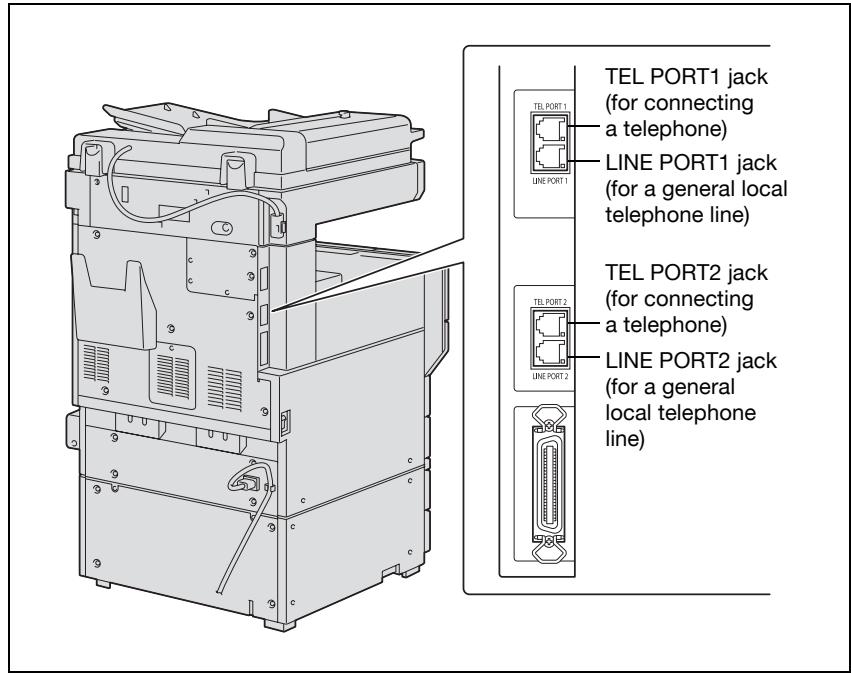
* The illustration above shows the optional fax multi line (TEL PORT2 and LINE PORT2) installed.
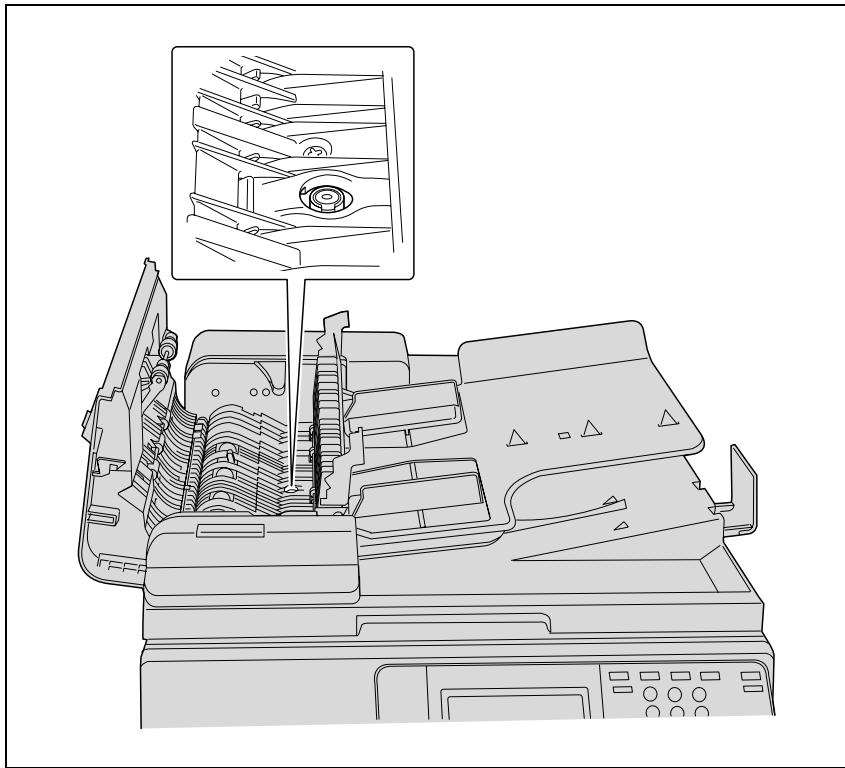
Stamp unit SP-501
Scanned documents can be identified by stamping them. This feature can be used only if the ADF is installed. When the printed stamps become faint, replace the stamp with optional spare TX maker stamp 2.
natural_image
Technical line drawing of a mechanical device with internal components and a magnified inset showing internal structure (no text or symbols)2.3 Control panel
Description of the Touch Panel
When the power is turned on, a screen for operations such as copying, sending and receiving faxes, programming and making settings is displayed on the touch panel.
The screen shows, with messages and graphics, the currently selected settings, the settings that are available, and the machine status.
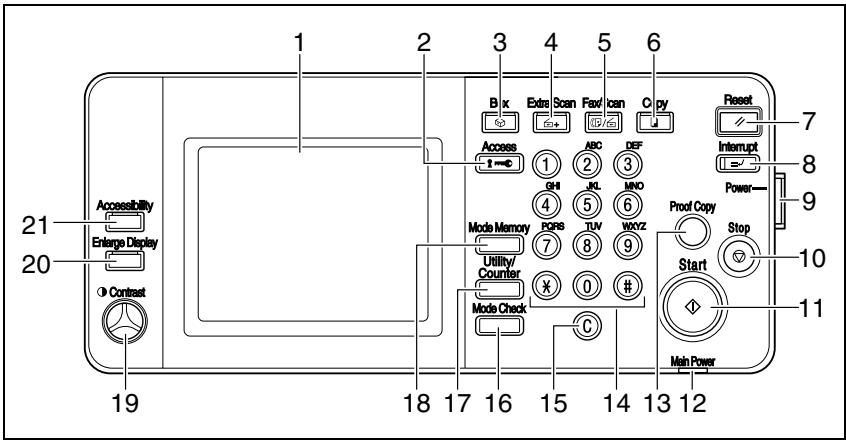
| No. | Part name | Description |
| 1 | Touch panel | Displays various screens and messages. Touch items in the touch panel to select screens and specify settings. |
| 2 | [Access] key | If user authentication or account track settings have been applied, press this key after entering the user name and password (for user authentication) or the account name and password (for account track) in order to use this machine. |
| 3 | [Box] key | Press to enter box mode. While the machine is in box mode, the indicator on the [Box] key lights up in green. For details, refer to "User's guide – Box operations". |
| 4 | [Extra Scan] key | Press to enter Extra Scan mode.While the machine is in Extra Scan mode, the indicator on the [Extra Scan] key lights up in green.For details, refer to the user's guide [Network Scanner Operations] and the user's guide [Advanced Scan Operations]. |
| 5 | [Fax/Scan] key | Used to change between Fax and Scan modes. (Network Interface Card, and either Network Scan Kit or Internet Fax & Network Scan Kit must be installed. |
| 6 | [Copy] key | Press to enter Copy mode. |
| 7 | [Reset] key | Press to clear all settings (except programmed settings) entered in the control panel and touch panel. |
| 8 | [Interrupt] key | Copy screen is displayed after scanning original documents. Then It change to the interrupt mode. While the machine is in interrupt mode, the indicator on the [Interrupt] key lights up in green and the message “Now in interrupt mode.” appears on the touch panel. To cancel interrupt mode, press the [Interrupt] key again. |
| 9 | [Power] (auxiliary power) key | Press to turn the control panel on or off. When the [Power] (auxiliary power) key is turned off, the machine enters a state where it conserves energy. |
| 10 | [Stop] key | Fax transmission is stopped. |
| 11 | [Start] key | Fax transmission starts. |
| 12 | Main Power indicator | Lights up in green when the machine is turned on with the [Main power] button. |
| 13 | [Proof Copy] key | Not used for fax mode. |
| 14 | Keypad | Use to type in the number. It can be used at the time of registration of a fax number and data.Use to type in the number of copies, zoom ratio, various settings. |
| 15 | [C] (clear) key | Press to erase a setting (such as the zoom ratio or size) selected using the keypad. |
| 16 | [Mode Check] key | Press to display a list of all specified settings. From this list, the screen to specify each setting can be displayed and the setting can be changed. |
| 17 | [Utility/Counter] key | Used to display the Utility screen. |
| 18 | [Mode Memory] key | Not used for fax mode. |
| 19 | Contrast dial | Use to adjust the contrast of the touch panel. |
| 20 | [Enlarge Display] key | Press to enter Enlarge Display mode. |
| 21 | [Accessibility] key | Press to display the screen for specifying user accessibility functions. For details, refer to the "User's guide – Copy operations". |

...
Reminder
Never push down on the touch panel with force, and never use a hard or pointed object to make a selection in the touch panel.
2.4 First-use settings
Registration Necessary at Startup
After installation, you must set the following items to use the facsimile functions. You will not be able to execute the fax communication if these items are not set properly.
- Date & Time Setting: Specify the date and time.
- Self-telephone # Information: Specify the fax number for the machine and the dialing method that is used.
• TSI Registration: Program the name of the transmission source. - Reception Mode: Select whether faxes will be received automatically or manually.
Date & Time Setting
- Date & Time Setting
Specify the current date and time. - Time Zone
Specify the time zone.

Detail
For details on specifying the date and time, refer to the user's guide [Copy Operations].
Self-telephone # Information
- Self-Telephone #
Program the machine's telephone number (local telephone number). The local telephone number is used when notifying the recipient of the machine's telephone number. - PBX Connection Mode
The fax may not transmitted correctly if a PBX (private branch exchange) is used. Specify the correct setting when a general local telephone line is used with a PBX. - Dialing Method
Select the dialing method according to the telephone line being used. The dialing method can be a push-button line (PB) or a dial phone line (DP 10 pps or DP 20 pps). If the machine is not set for the dialing method used, faxes cannot be transmitted.

Detail
For details, refer to "Registering Telephone Numbers" on page 11-21.
TSI Registration
The transmission source name (name of the machine indicated in alphanumeric characters) is registered as a part of the header information written at the edge of the sent document. A maximum of 40 alphanumeric characters and symbols can be entered, and up to 8 sets of information can be programmed.

Detail
For details, refer to “Registering TSI Names” on page 11-24.
Reception Mode
Select whether faxes will be received automatically or manually.
To automatically receive faxes, select the setting for automatic reception. If the phone line is often busy, such as if an external telephone is connected, or if a remote reception function is to be used, select the setting for manual reception.

Detail
For details, refer to “Setting the Receiving Mode and No. of Receiving Call Rings” on page 11-41.
Useful functions
Specify the following to allow the Fax functions to be used more easily.
- One-Touch: Register recipient dialing information with one-touch dial buttons.
- FAX Program: Register recipient information and transmission settings with program buttons.
- Default Screen: Specify the mode screen that is given priority to be displayed when the machine is in standby.
One-Touch
A maximum of 540 telephone numbers can be programmed. This is convenient for specifying a recipient simply by pressing a button.

Detail
For details, refer to "Programming a one-touch dial button" on page 10-4.
FAX Program
A maximum of 30 transmission setting programs can be registered. This is convenient for specifying a recipient and the transmission settings simply by pressing a button.

Detail
For details, refer to "FAX Program Registration" on page 10-15.
Default Screen
Specify whether the screen given priority to be displayed when the machine is in standby is for the Copy mode or the Fax mode or is automatically selected. Selecting “FAX/Copy Auto” is convenient since it allows the copy functions and fax functions to easily be used.

Detail
For details, see "Default screen" on page 11-12.
2.5 Fax screen
Displaying the fax screen
The Fax Screen is displayed by pressing the [Fax/Scan] key in the control panel.
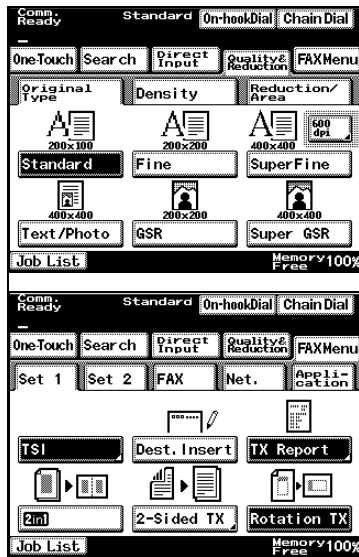
The fax screen contains [One-Touch], [Search], [Direct Input], [Quality & Reduction], and [FAX Menu].

Detail
The machine can be set to display the Fax mode screen when it is in standby. In addition, the initial functions displayed in the Fax mode screen can be specified. For details, refer to “Default screen” on page 11-12.
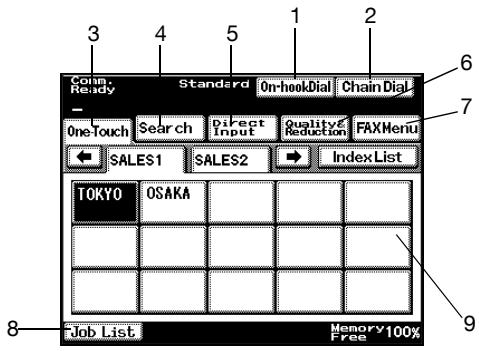
| No. | Item Name | Description |
| 1 | [On-hook Dial] button | If an external telephone is connected, a transmission connection can be made while the receiver is on its hook. |
| 2 | [Chain Dial] button | Multiple one-touch dial recipients can be combined and called. |
| 3 | [One-Touch] button | Select a one-touch dial button. |
| 4 | [Search] button | Search for a recipient registered with a one-touch dial button. |
| 5 | [Direct Input] button | Directly type in the fax number of the recipient. |
| 6 | [Quality & Reduction] button | Specify the image quality, density and zoom ratio for the fax to be sent. |
| 7 | [FAX Menu] button | Specify settings for the various transmission functions. |
| 8 | [Job List] button | The list of the jobs in the queue for execution, the job history, and the error jobs is displayed. |
| 9 | Settings screen | The settings for the selected function are displayed. |
Fax/Copy screen
This screen appears while the machine is in standby and allows fax and copy operations to easily be performed. This screen appears when “Default Screen” is set to “FAX/Copy Auto”.

Detail
For details on specifying the default screen, refer to "Default screen" on page 11-12.
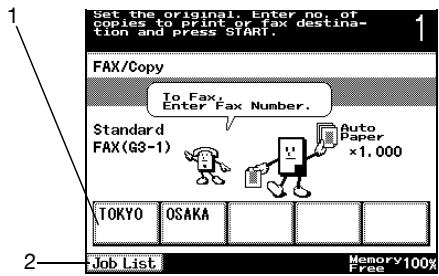
| No. | Item Name | Description |
| 1 | One-touch dial buttons | The one-touch dial buttons 1 through 4 and copy program 1 are displayed. |
| 2 | [Job List] button | The list of the jobs in the queue for execution, the job history, and the error jobs is displayed. |

...
Note
If a number containing 4 or more digits or a number that begins with “0”, “*” or “#” is typed in and the [Start] key is pressed, the number is assumed to be a telephone number and the fax transmission begins. If a number of 3 or less digits beginning with a character other than “0”, “*” or “#” is typed in, the number is assumed to be the number of copies and copying begins.
If the [Copy] key is pressed, the Copy mode screen appears. To specify a copy function, press the [Copy] key. If the [Fax/Scan] key is pressed, the Fax mode screen appears. To specify a fax function, press the [Fax/Scan] key.
Icons that appear in the screen
| Icon | Notation |
| Dialing | |
| Waiting for redial | |
| Reading fax original | |
| Receiving fax | |
| Transmitting fax | |
| Document with polling transmission wait | |
| Document registered on bulletin board | |
| Printing | |
| Indicates that printing was stopped | |
| Document with print wait | |
| In manual reception mode | |
| Received document in box |
2.6 User authentication and account track
When using this machine, the machine may be set so that the user name, the department name and the password are to be entered. Entering the necessary information in the screen displayed shows the normal screen. For particulars of the department name and the user name, contact your administrator.

Detail
For details of the user authentication and the account track, see "User's Guide – Copy Operations".
When the user authentication has been set
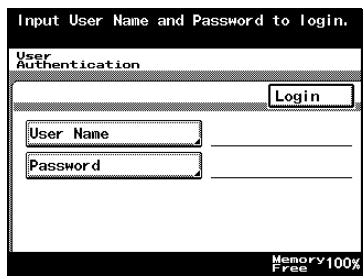
When the account track has been set

3
Transmission
3 Transmission
3.1 Simple fax transmission
The following is an explanation of procedures for simple fax transmission. Although the explanation here covers the procedure for sending a one-sided document using the basic procedure, various functions are available for each step of the procedure to make sending facsimiles even more convenient.
Simple fax transmission
1 Press [Fax/Scan] on the control panel to open the fax screen.
2 Press [Quality & Reduction] and [FAX Menu] to set the function.
- For details on the settings available on the Quality & Reduction screen, refer to "Setting transmission conditions" on page 3-9.
- For details on the settings available on the FAX Menu screen, refer to “Transmission applications” on page 7-3.
3 Select the destination.
- The recipient can be specified in any of the following ways.
- Keypad
- One-touch dial buttons
- Program
- For details, refer to “Selecting one destination” on page 3-19.
4 Place the original on the machine.
- For details, refer to “Placing the original on the machine” on page 3-5.
5 Press [Start].
The machine begins to scan the original and transmission starts.
natural_image
Line drawing of a printer with a hand inserting a paper into it (no text or symbols present)
Note
To interrupt transmission, press [Stop]. For details, see “Stopping the transmission” on page 3-33.
If the transmission fails, TX report is automatically output (if the TX report is programmed to print). For details, see “When unable to send” on page 3-32.
Since a document with multiple pages is saved in the memory while it is being sent, the document is scanned at high speed.
3.2 Placing the original on the machine
The ADF and platen glass can be used to scan originals with this machine. When an original is placed in the ADF, the original is automatically fed through the ADF and scanned.
Using the ADF
When using the ADF, multiple originals can be scanned automatically. In addition, two-sided originals can be sent.
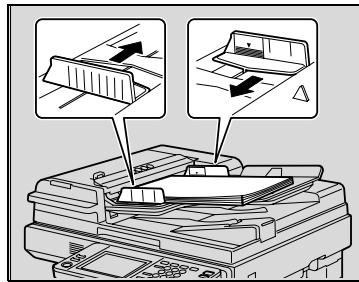
√ Do not load documents that are bound together, for example, with paper clips or staples.
√ Do not load more than 80 sheets or so many sheets that the top of the stack is higher than the ▼ mark, otherwise a document misfeed or damage to the document or machine may occur.
√ If the document is not loaded correctly, it may not be fed in straight or a document misfeed or damage to the document may occur.
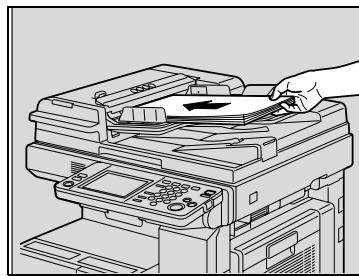
1 Close the ADF.
2 Load the document to be faxed facing up.
- Load the document pages so that the top of the document is toward the back or the right side of the machine.
- Lightly insert the end of the document as far as possible. The machine makes a noise when the document is inserted.
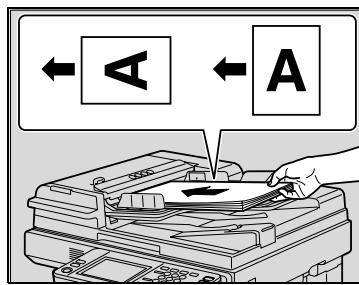
3 Adjust paper guides.
Placing originals on the platen glass
√ When placing the document on the original glass, be sure to lift open the original cover or ADF at least 15^ .
If the document is placed on the original glass without the original cover or ADF being lifted at least 15^ , the correct document size may not be detected.
√ Do not place objects weighing more than 2 kg on the original glass. In addition, do not press down extremely hard on a book spread placed on the original glass, otherwise the original glass may be damaged.
√ For thick books or large objects, scan without closing the original cover or ADF. When a document is being scanned with the original cover or ADF open, do not look directly at the light that may shine through the original glass. Although the light that shines through the original glass is bright, it is not a laser beam and, therefore, is not as dangerous.
√ The size of the following types of documents may not be correctly detected. In this case, specify the size before scanning. For details, refer to “Reduction/Area” on page 3-14.
- Documents with a dark background
- Documents that are transparent or where the back side can be read, such as with overhead projector transparencies or tracing paper
- Non-standard-sized documents, long and thin documents, and documents that are not rectangular
- Documents smaller than A5 (210 mm × 148 mm) or larger than A3 (420 mm × 297 mm)
√ An area of 10 mm on all sides of the document cannot be scanned.
√ When sending an A3- or B4-size document, the fax is automatically reduced to fit the size of paper loaded in the recipient's fax machine. To send an A3- or B4-size document with its original dimensions, cancel automatic reduction of sent faxes. For details, refer to “Reduction/Area” on page 3-14.
1 Open the ADF.
When loaded in the orientation:
When loaded in the orientation:
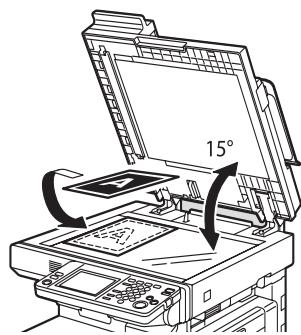
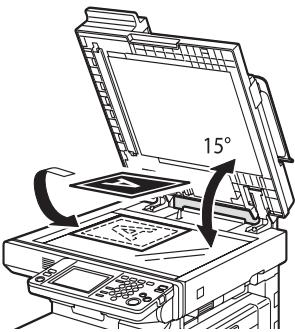
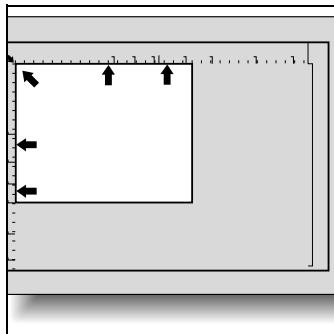
2 Place the original face down in the left rear corner, aligning the edge with the left measuring guide.
3 Gently close the ADF.
natural_image
Pure diagram of a rectangular box with arrows pointing upward and left, no text or symbols present3.3 Sending multiple originals from the platen glass
Originals that cannot be sent with the ADF can be sent by using the platen glass.
Sending multiple originals from the platen glass
1 Press [Fax/Scan] on the control panel to open the fax screen.
2 Set the desired functions as necessary.
3 Select a destination.
4 Place the original on the platen glass.
5 Press [Start].
The first page of the document is scanned.
6 Place the next original on the platen glass and press [Scan Next Page], and then press [Start].
The second page of the document is scanned. Repeat this procedure until all originals to be sent have been scanned.
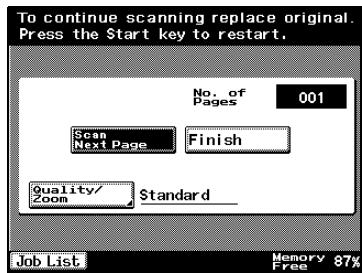
- The amount of memory available can be checked beside "Memory Free" in the lower-right corner of
- To delete the scan data, press the [Stop] key, and then delete the job. For details, refer to "Stopping the transmission" on page 3-33.
7 Press [Finish].
8 Press [Start].
- To stop the transmission, press the [Stop] key. For details, refer to "Stopping the transmission" on page 3-33.
Transmission begins.
![Scanning will be completed. If finished, press [Start]. No. of Pages 003 Scan Next Page Finish Quality/ Zoom $standard_ Job List Memory Free 87%](/content/2025/01/139711/images/6872879186ce22586bc4f7a8310a23ac341c351af4aabf7a8a7bc8ed87e69d97.jpg)

Note
If the fax could not be sent, a transmission report is printed. For details, refer to “When unable to send” on page 3-32.
3.4 Setting transmission conditions
Original image type, density, simplex/duplex and resolution are displayed when [Quality & Reduction] is pressed on the fax screen. These can be used to set transmission conditions according to the type of original to be sent.
Setting transmission conditions
1 Press [Fax/Scan] on the control panel to open the fax screen.
2 Prees [Quality & Reduction].
3 Press ([Original Type], [Density], and [Reduction/Area]) for the functions to be set.

Note
The condition for transmission cannot be set in units of page.
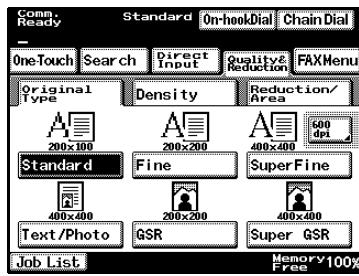
The transmission settings return to their default settings after each transmission.
Original image type
Set quality according to the contents of the original.
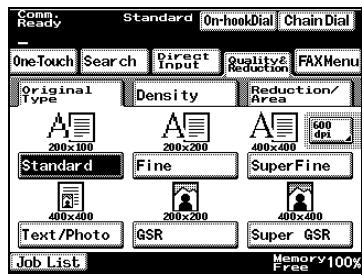
There are 6 types of quality settings. Select the setting that corresponds to your document.
| Description | Quality setting |
| Press this when scanning originals containing text only.If this mode is selected and an original of pictures is scanned, neutral tints of the pictures turn black without being reproduced. | [Standard] |
| Press this when scanning originals containing text which are thinly written in pencil as a whole. | [Fine][Super Fine] |
| Press this when scanning originals containing both text and photographs (half-tone).Select this mode in either case when both characters and pictures are contained in one page, and when both pages of characters and those of pictures are contained in one document. | [Text/Photo] |
| Press this when scanning originals containing photographs (half-tone) only. | [GSR][Super GSR] |

Detail
Depending on the recipient's fax machine, it may not be possible to send faxes using the "Super Fine", "Super GSR" or "Text/Photo" settings. Instead, the fax is automatically sent with the "Fine" or "GSR" setting.
If the “Super Fine”, “Super GSR” or “Text/Photo” setting is selected, the fax may be sent with a decreased image quality, depending on the quality
of the recipient's fax machine or on whether the document size is larger than the paper loaded in the recipient's fax machine.
If a fax is sent with the “Text/Photo” setting selected, moire patterns may appear in photos of some documents. This is not a sign of a malfunction. To reduce the appearance of moire patterns, send the fax with the “GSR” or “Super GSR” setting.

Note
Standard is set at the time of purchase.
Density
Set density according to the lightness or darkness of the original.
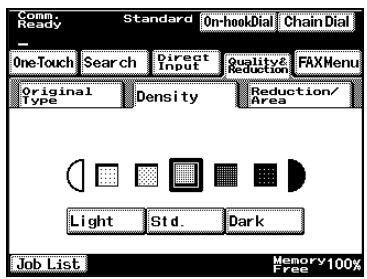
Density can be set in 5 steps.
Each time [Dark] is touched, the density is darkened by one level. Each time [Light] is touched, the density is lightened by one level.

Note
The factory default setting is the middle (third) setting.
Reduction/Area
The document zoom ratio and document size can be specified. To specify these settings, press either [Reduction] or [Set Original Size].
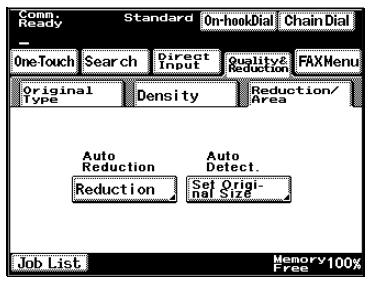
Reduction
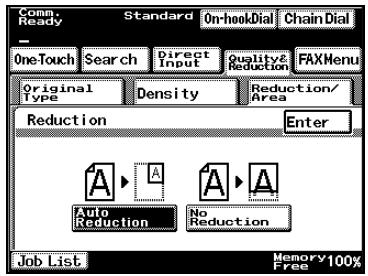
Press [Auto Reduction] to send the fax automatically adjusted according to the size of paper loaded in the recipient's fax machine.
Press [No Reduction] to send the fax at its original size, trimming it to the size of the paper loaded in the recipient's fax machine.

Detail
If a document smaller than B4 size is sent, the fax is normally sent at its original size.
With documents B4 size or larger, select whether the document is reduced (“Auto Reduction” setting) or not (“No Reduction” setting) according to the size of paper loaded in the recipient’s fax machine.

...
Note
The factory default setting is "Auto Reduction".
The document may be printed at a reduced size after it is received, depending on the recipient's fax machine.
Set Original Size
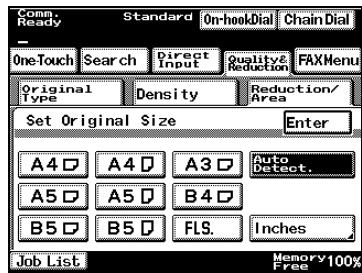
Press the button for the size and orientation of the document area to be scanned.
Press [Auto Detect.] to automatically select the size closest to the document size.

Note
The factory default setting is "Auto Detect.".
If "Auto Detect." is selected, a document smaller than A4 size is sent as A4 size.
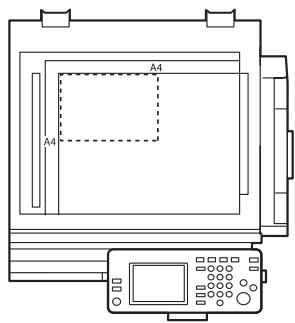
Check the scanning size with the marks around the original glass. For example, if an A4 size is selected, the part of the document within the area indicated by the dotted line is faxed.
Confirming settings and communication results
The settings and communication results of the fax screen and fax application screen can be confirmed by using Check Job Details on the control panel.
1 Press [Fax/Scan] on the control panel.
2 Press [Mode Check] on the control panel.
3 Press a key of setting you want to confirm.
4 Press [Enter] to confirm the settings.
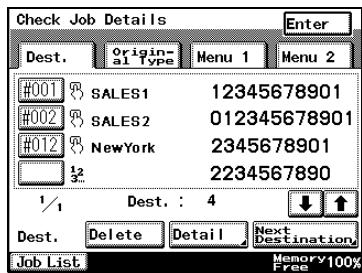
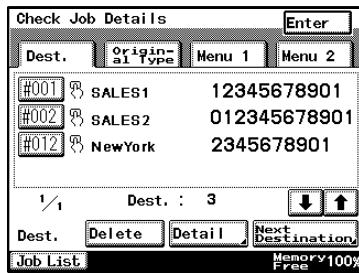
Dest. tab
Up to four selected destinations can be viewed in each screen. If more than four destinations have been selected, press [] and [] to display a different screen. Destinations can be deleted or added.
:
Indicates that the recipient was selected using the one-touch dial buttons.
^12 : ^32
Indicates that the fax number was directly typed in.
[Delete]: Press this button to delete the selected recipient.
[Detail]: Press this button to check the transmission mode of the selected recipient.
[Next Destination]: Press this button to add a recipient.

Detail
For details on adding a recipient, refer to “Selecting one destination” on page 3-19.
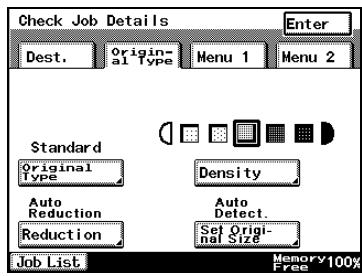
Original type tab
The Original Type, Density, Reduction and Set Original Size settings can be checked. Press the button for the setting that you wish to change.

Detail
For details on the settings available on the Quality & Reduction screen, refer to "Setting transmission conditions" on p
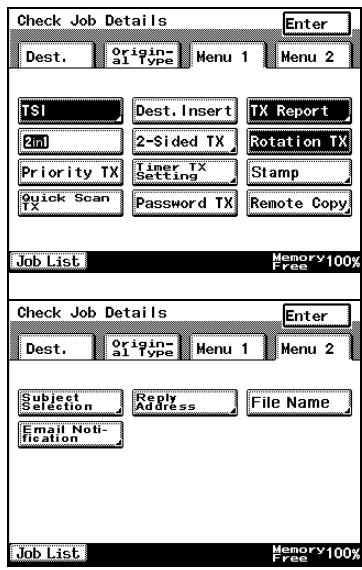
Menu 1 and Menu 2 tabs
The settings specified from the FAX Menu screen can be checked. If a setting has been specified, the button appears selected. Press a button to cancel or change the setting.

Detail
For details on the settings available on the FAX Menu screen, refer to “Transmission applications” on page 7-3.
3.5 Selecting one destination
The following methods can be used when selecting 1 destination.
- Keypad.
- One-Touch: Specify a recipient registered with a one-touch dial button.
- Program.
- Search: Search for a recipient registered with a one-touch dial button.
Using the direct input screen
1 Press the [Fax/Scan] key to display the Fax mode screen.
- If desired, press [Quality & Reduction] or [FAX Menu], and then specify the desired settings. For details on the settings available on the Quality & Reduction screen, refer to “Setting transmission conditions” on page 3-9. For details on the settings available on the FAX Menu screen, refer to “Transmission applications” on page 7-3.
2 Press [Direct Input].
3 Use the keypad to type in the fax number for the recipient.
If desired, enter a tone or a pause.
- Tone: If pulse dialing is being used, press this button to send a push-button tone. This is used when a fax information service is being used. "T" appears in the so
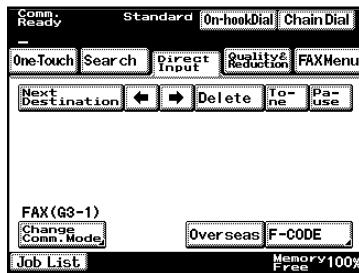
- Pause: Press this button to insert a pause when dialing. Press [Pause] once to insert a 1-second pause. In addition, multiple pauses can be entered. "P" appears in the screen.
- To erase the entered number, press the [C] (clear) key.
- To select multiple recipients, press [Next Destination], and then specify the next number.
- When faxing overseas, depending on the destination, a transmission error may occur if the transmission conditions are poor. In this case, press [Overseas] to decrease the transmission speed and allow the fax to be received more easily.
? When should [Pause] be used?
→ When sending a fax to an outside line, press [Pause] after the outside line access number (for example, "0") to ensure that a connection is established.
If a country code and recipient's fax number is entered immediately after the international dialing code, a busy signal may heard while the number is dialed and the fax cannot be sent. In this case, press [Pause] twice after entering the international dialing code to enter a six-second pause.
4 Load the document to be faxed facing up.
5 Press the [Start] key.
Scanning of the document begins, and then the fax is sent.
If multiple recipients were selected, the Dest. tab of the Check Job Details screen appears so that the selected destinations can be checked.
For details, refer to “Transmitting to Multiple Destinations” on page 3-26.

Note
To stop the transmission, press the [Stop] key. For details, refer to “Stopping the transmission” on page 3-33.
Transmitting by a One-touch Key
Perform the following procedure after storing the destination number beforehand in the one-touch keys.
1 Press [Fax/Scan] on the control panel to open the fax screen.
- The recipient must have been registered with a one-touch dial button in advance. For details, refer to “Programming a one-touch dial button” on page 10-4.
- If desired, press [Quality & Reduction] or [FAX Menu], and then specify the desired settings. For details on the settings available on the Quality & Reduction screen, refer to “Setting transmission conditions” on page 3-9. For details on the settings available on the FAX Menu screen, refer to “Transmission applications” on page 7-3.
2 Press [One-Touch].
3 Press the desired one-touch dial button.
- Press the index tabs and [←] and [→] to find the desired one-touch dial button.
- If you touch a key mistakenly, pressing the same key again will release it.
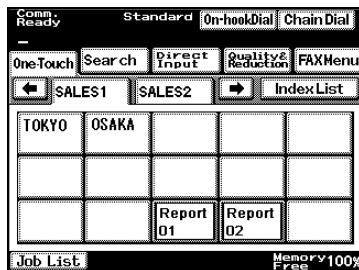
The selected button is highlighted. To select multiple recipients, continue selecting the desired one-touch dial buttons.
4 Place the original on the machine.
5 Press [Start].
Scanning of the document begins, and then the fax is sent.
If multiple recipients were selected, the Dest. tab of the Check Job Details screen appears so that the selected destinations can be checked.
For details, refer to “Transmitting to Multiple Destinations” on page 3-26.

Note
To stop the transmission, press the [Stop] key. For details, refer to “Stopping the transmission” on page 3-33.
Transmitting by a Fax Program
When often-used functions are registered in the fax program, it is possible to set multiple functions at once by touching the fax program key.
If functions (resolution, 2in1 transmission, etc.) to be used during transmission are registered with the fax program, specifying the settings is possible only if that fax program key is selected. If multiple recipients are registered with a fax program, transmission is possible only if that key is selected. If a time is specified, the transmission can be performed every day at the set time.
1 Press [Fax/Scan] on the control panel to open the fax screen.
- The recipient and transmission settings must have been registered with a program button in advance. For details, refer to “FAX Program Registration” on page 10-15.
- If desired, press [Quality & Reduction] or [FAX Menu], and then specify the desired settings. For details on the settings available on the Quality & Reduction screen, refer to “Setting transmission conditions” on page 3-9. For details on the settings available on the FAX Menu screen, refer to “Transmission applications” on page 7-3.
2 Press [One-Touch].
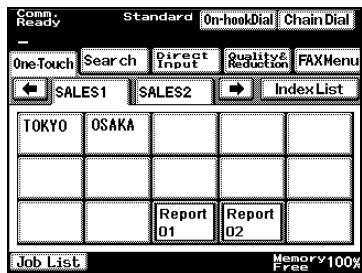
3 Press the desired program button.
- Press the index tabs and [←] and [→] to find the desired program button.
- If you touch a key mistakenly, pressing the same key again will release it.
The buttons registered with fax programs have a frame around them.
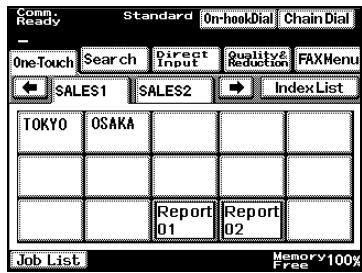
? Why can't I select a program button?
→ If a recipient has already been specified, for example, with a one-touch dial button or by directly entering the fax number, a program button cannot be selected. Select the program, and then specify recipients using one-touch dial buttons or by directly entering the fax number.
4 Place the original on the machine.
5 Press [Start].
6 The Dest. tab of the Check Job Details screen appears so that the selected destinations can be checked. Press [Enter].
Scanning of the document begins, and then the document is sent. If a transmission time was specified, the document is saved in the memory and is sent at the specified time.

Note
To stop the transmission, press the [Stop] key. For details, refer to “Stopping the transmission” on page 3-33.
Transmission after Searching by destination
From the Search screen, a programmed one-touch dial button can be searched for.
1 Press [Fax/Scan] on the control panel to open the fax screen.
- The recipient must have been registered with a one-touch dial button in advance. For details, refer to “Programming a one-touch dial button” on page 10-4.
- If desired, press [Quality & Reduction] or [FAX Menu], and then specify the desired settings. For details on the settings available on the Quality & Reduction screen, refer to “Setting transmission conditions” on page 3-9. For details on the settings available on the FAX Menu screen, refer to “Transmission applications” on page 7-3.
2 Press [Search].
The Search One-Touch Keys screen appears.
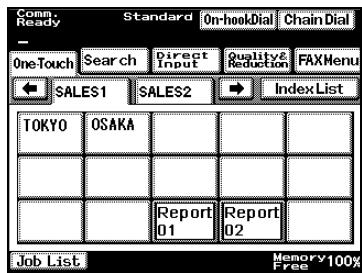
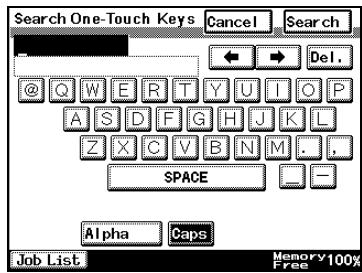
3 Type in the name of the programmed one-touch button, and then press [Search].
The corresponding one-touch button appears.
4 Press the desired one-touch dial button.
- If you touch a key mistakenly, pressing the same key again will release it.
- To display the Search One-Touch Keys screen again, press [Search].
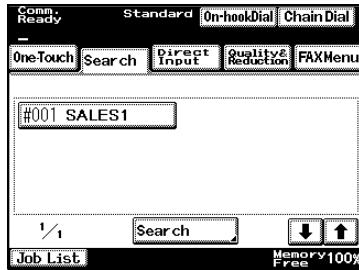
The selected button is highlighted.
The buttons registered with fax programs have a frame around them.
5 Place the original on the machine.
6 Press [Start].
Scanning of the document begins, and then the document is sent. If multiple recipients were selected, the Dest. tab of the Check Job Details screen appears so that the selected destinations can be checked. For details, refer to “Transmitting to Multiple Destinations” on page 3-26.

Note
To stop the transmission, press the [Stop] key. For details, refer to “Stopping the transmission” on page 3-33.
Transmitting to Multiple Destinations
The transmission of the same document to multiple destinations is called broadcast transmission. The following methods can be combined to select destinations.
- Direct Input: Directly type in the fax number.
- One-Touch: Designation using the One-touch keys.
- Program: Designation using a fax program.
- Search: Search for a recipient registered with a one-touch dial button.
1 Use the normal operations to specify the first recipient.
2 Specify the additional recipients.
- Using one-touch dial buttons
In the One-Touch screen, press the buttons for the desired recipients. - By directly typing in the fax number
Press [Next Destination], and then type in the next fax number. - Faxes can more easily be sent to many destinations at the same time if the multiple recipients are registered as a program.
- A maximum of 300 One-Touch designations can be set, and a maximum of 12 dial transmission designations.
- For details, refer to “Using the direct input screen” on page 3-19, “Transmitting by a One-touch Key” on page 3-21, “Transmitting by a Fax Program” on page 3-22, and “Transmission after Searching by destination” on page 3-24.
? Why can't I select a program button?
→ If a recipient has already been specified, for example, with a one-touch dial button or by directly entering the fax number, a program button cannot be selected. Select the program, and then specify recipients using one-touch dial buttons or by directly entering the fax number.
3 Place the original on the machine.
4 Press [Start].
If multiple recipients were selected, a confirmation screen appears.
5 Press [Enter].
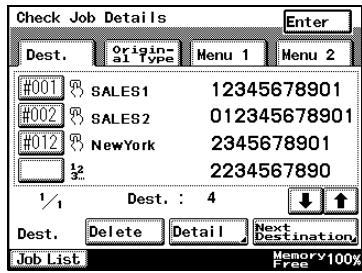
The Dest. tab of the Check Job Details screen appears so that the selected destinations can be checked. If a program was selected, this screen does not appear.
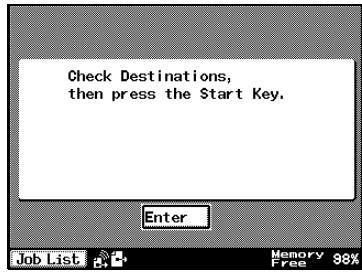
6 Press [Start].
- Using the software switch settings, you can specify whether or not a screen asking for confirmation of the settings is displayed before a broadcast transmission. For details, refer to “Configuring Functions (Soft Switches)” on page 11-62.
Transmission begins.
![KONICA MINOLTA FK 503 - Press [Start]. - 2](/content/2025/01/139711/images/696ccba676625d50bcaf92a38b34aa641b39adaa0d7fc04f2874a290436fc590.jpg)
Note
It is possible to check the results of broadcast transmission. Refer to “Settings for Report Output” on page 11-45.
To confirm/delete a destination
You can confirm or delete selected destinations.
1 Press [Fax/Scan] on the control panel.
2 Press [Mode Check].
3 Confirm destinations.
4 Press [Enter] to finish checking the settings.
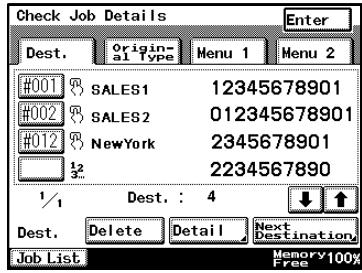
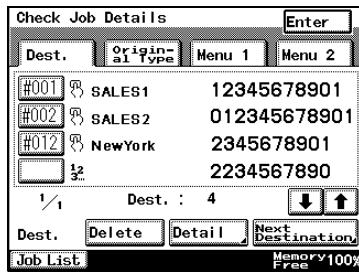
Dest. tab
Up to four selected destinations can be viewed in each screen. If more than four destinations have been selected, press [] and [] to display a different screen. Destinations can be deleted or added.
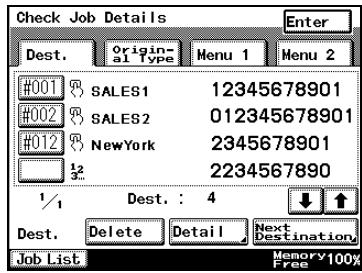
:
Indicates that the recipient was selected using the one-touch dial buttons.
^12 :
Indicates that the fax number was directly typed in.
[Delete]: Press this button to delete the selected recipient.
[Detail]: Press this button to check the transmission mode of the selected recipient.
[Next Destination]: Press this button to add a recipient.

Detail
For details on adding a recipient, refer to “Selecting one destination” on page 3-19.
3.6 Faxing after using the telephone (manual faxing)
If a telephone is connected, a document can be sent after talking to the recipient on the telephone. This feature is useful, for example, if you want to notify the recipient that you are sending a fax.
To send a fax manually
√ In order to send a fax manually, a telephone must be connected.
√ When faxing after using the telephone, feed the document using the ADF.
1 Press [Fax/Scan] on the control panel to open the fax screen.
2 Place the next original on the ADF.
3 Lift up the receiver of the external telephone.
- Instead, press [On-hook Dial], and then, after the recipient answers, pick up the telephone receiver.
A dial tone can be heard.
4 Press [One-Touch] or [Direct Input], and then specify the recipient.
The recipient is dialed so you can talk to them.
? I heard a beep, but why can't I talk to the recipient?
If the recipient's fax machine is set to receive faxes automatically (automatic reception), a beep is sounded without the recipient answering the phone. In this case, you cannot talk to the recipient.
5 After talking to the recipient, have them press the [Start] key (transmission button) on their machine.
Once the recipient's fax machine is ready, a beep is heard.
6 Press [Start].
The transmission begins.
7 Place the telephone receiver on its hook.
3.7 Combining one-touch dialing and direct dialing (chain dialing)
Multiple recipients can be specified using a combination of one-touch dial buttons and direct dialing. This is called “chain dialing”. For example, if a fax communication network or the access number for the contracted telephone company is registered with a one-touch dial button, it can be combined with a one-touch dial button programmed with the recipient’s fax number. In addition, if the fax number and the extension number of a recipient are programmed in different one-touch dial buttons, the recipient can be specified by combining the two numbers.
To send a fax using chain dialing
1 Press the [Fax/Scan] key to display the Fax mode screen.
2 Press [Chain Dial].
[Chain Dial] is highlighted.
3 Press [One-Touch] or [Direct Input], and then specify the first number.
4 Press [One-Touch] or [Direct Input], and then specify the second number.
- If the second number is specified from the Direct Input screen, a pause can be entered between the
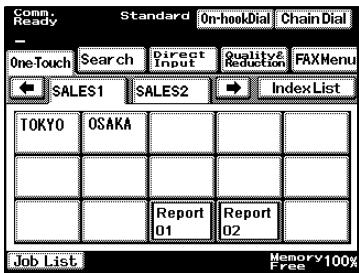
- If a country code and recipient's fax number is entered immediately after the international dialing code, a busy signal may heard while the number is dialed and the fax cannot be sent. In this case, press [Pause] twice after entering the international dialing code, and then enter the remainder of the telephone number after a six-second period.
5 Place the original on the machine.
6 Press [Start].
Transmission begins.
3.8 Operations while scanning
If document size cannot be detected
If the size of the document cannot be detected, the document cannot be scanned.
If this occurs, press [Reduction/Area], then [Set Original Size], and then specify the size.

Detail
For details on the settings available on the Quality & Reduction screen, refer to “Setting transmission conditions” on page 3-9.
If memory became full
If many documents are stored in the memory (“Memory Free” is nearly 0%), it may not be possible to send the fax. In addition, if the document contains many pages or if the data is large, such as when the document contains many fine details, the memory may become full and the fax cannot be sent.
If this occurs, clear some of the memory or send the “Quick Scan TX” function.

Detail
For details on the “Quick Scan TX” function, refer to “Transmitting while Scanning the Original (Real-time Transmission)” on page 7-21.

Note
If the fax could not be sent, you can send it again since it remains in the memory. This data can be deleted to clear some of the memory.
3.9 When unable to send
If the fax could not be sent because the recipient's line was busy, it will be called again (auto redial).
If a different fax is queued, the fax number is automatically redialed after the queued fax is sent.
If the fax could not be sent even after automatically redialing, a transmission report is printed. This report contains part of the first page of fax that could not be sent (except if the “Quick Scan TX” function was used).

Detail
As a factory default, this machine is set to automatically redial up to 5 times at 1 minute intervals. The settings for the number of redials and the interval can changed. For details, refer to “Setting the Receiving Mode and No. of Receiving Call Rings” on page 11-41.
If it is not necessary that the transmission report be printed, the setting can be changed. For details, refer to “Settings for Report Output” on page 11-45.
To send the fax again
If a fax could not be sent, follow the procedure described below to try sending it again.
1 Press [Job List], then [Type], and then search for documents that could not be sent.
If [Retry] or [Change Destination] appears, the fax can be resent without having to scan the document again.
2 Press [Retry] to send the fax to the same recipient.
- To send the fax to a different recipient, press [Change Destination].
- If neither button appears, scan the document and try faxing it again.
3.10 Stopping the transmission
A fax stored to be sent or data waiting to be printed are called queued jobs. When an operation is stopped, the stored job is deleted.
To stop a job, press the [Stop] key, and then select the operation to be stopped.
To stop sending a fax
1 Press [Stop].
The transmission operation is stopped, and the job being sent is displayed.
2 Press the button for the job to be stopped.
The job is deleted.
3 Press [Enter].
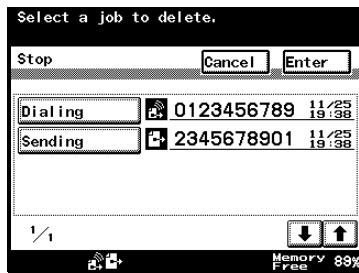
3.11 Checking transmission results (Job List)
Jobs
The operating state of the product, order of documents awaiting printing and communication results, as well as the documents stored in the bulletin board and the confidential box can be checked using the touch panel.
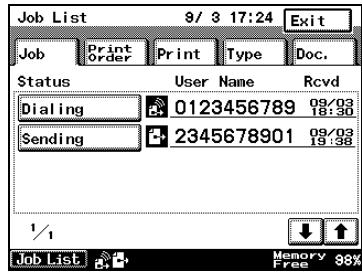
| Item | Explanation |
| Job | This shows information registered for the job. |
| Print Order | This displays the order of documents being printed or awaiting printing such as copies, fax receptions, report outputs, PC printouts, etc. (max 8). |
| This shows the print status of copies and PC printed documents. | |
| Type | Displays the status of fax transmission documents and fax reception documents.• Number of Documents in Transmission or Awaiting Transmission: 200 Max.• Number of Transmitted Documents: 96 Max.• Number of Documents in Reception or Awaiting Reception: 200 Max.• Number of Received Documents: 256 Max.• Transmission results for received documents (up to 456). |
| Doc. | This shows the documents stored in the product.• [Bulletin Board]:This displays the documents saved on the bulletin board.Print or delete the documents saved on the bulletin board.• [Confidential]:This displays the documents saved in the confidential box.Print or delete the documents saved in the confidential box.• [Public]:This displays the general documents stored by received document management. Print, transfer, or delete the stored documents. |
Checking a job
1 Press [Job List].
2 The Job List screen appears. Press [Job] to view a list of the jobs being performed.
- Press [↓] and [↑] to display a different screen.
? How can I delete a queued job?
To delete a job being performed or a job waiting to be performed, such as a queued transmission, press the [Stop] key. For details, sion" on page 3-33.
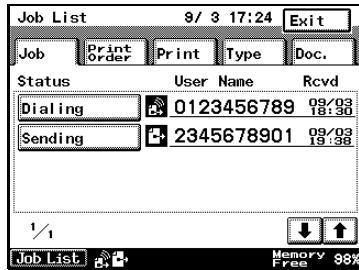
3 Press [Type] to view the list of fax jobs.
- Press [↓.] and [↑] to display a different screen. - If [Interim Rep.] appears, press [Interim Rep.] during transmission to output a transmission progress report.
- If [Delete] appears, press [Delete] to delete the fax job waiting to be
? Why does the clock icon appear to the right of the date and time that the job was received?
→ If timer transmission was specified, a clock icon appears to the right of the date and time that the job was received.
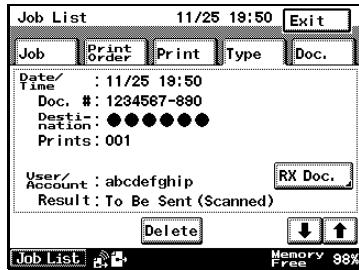
4 In the screen for the transmission job, press [RX Doc.] to view received fax jobs.
- Press [↓] and [↑] to display a different screen. - If [Delete] appears, press [Delete] to delete the fax job waiting to be printed.
- If the machine is waiting for a polling reception, press [Redial] to immediately begin redialing.
- To delete a queued polling reception job, press [Delete].
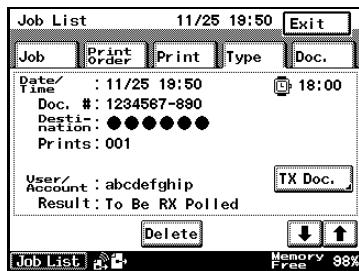
5 Press [Doc.] to view the list of saved jobs.
Press the button for the type of job to be checked.
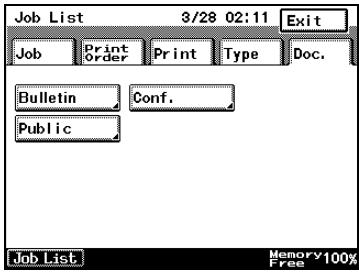
4
Reception
4 Reception
4.1 Reception mode
The following receiving mode is prepared for this machine.
Please set up a telephone line according to usage's situation.
There are two types of reception methods.
Auto reception (fax only mode)
This mode is set when using a telephone line designated for fax use only.
Manual reception (telephone only mode)
With fax communications, you can receive documents after lifting the receiver and checking for the fax transmission sound.
4.1.1 Auto reception (fax only mode)
The fax is automatically received after the specified number of rings. Use this setting when the machine is being used with telephone number specifically for faxing.
4.1.2 Manual reception ("Telephone only")
The machine operates in the same way as a normal telephone, for example, when you wish to receive the fax only after first answering the phone. This setting is used when you receive many telephone calls.

Detail
For details on specifying the settings, refer to “Setting the Receiving Mode and No. of Receiving Call Rings” on page 11-41.
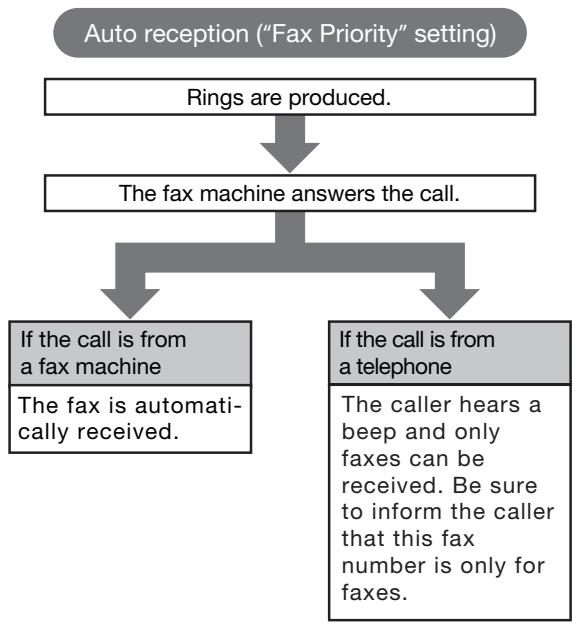
flowchart
graph TD
    A["Auto reception ("Fax Priority" setting)"] --> B["Rings are produced."]
    B --> C["The fax machine answers the call."]
    C --> D["If the call is from a fax machine\nThe fax is automatically received."]
    C --> E["If the call is from a telephone\nThe caller hears a beep and only faxes can be received. Be sure to inform the caller that this fax number is only for faxes."]

Detail
If the number of rings is set between 1 and 20 with the “Auto reception” setting, the specified number of rings will be produced before the fax is received. However, if the number of rings is set to 10 or more, the recipient’s fax machine may stop the fax before it can be received.
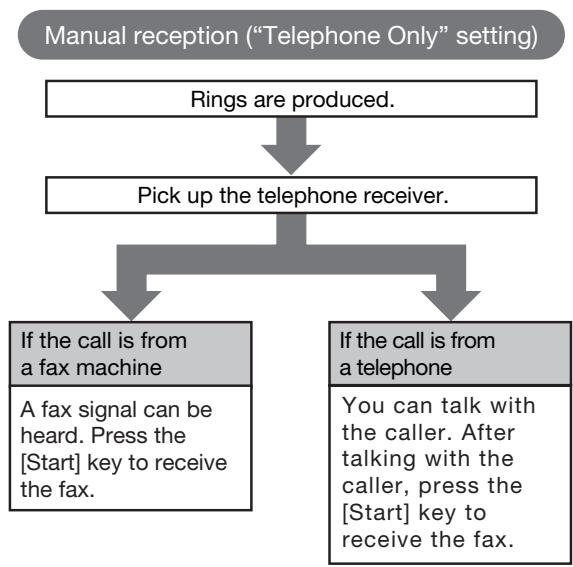
flowchart
graph TD
    A["Manual reception ("Telephone Only" setting)"] --> B["Rings are produced."]
    B --> C["Pick up the telephone receiver."]
    C --> D["If the call is from a fax machine"]
    C --> E["If the call is from a telephone"]
    D --> F["A fax signal can be heard. Press the [Start"] key to receive the fax.]
    E --> G["You can talk with the caller. After talking with the caller, press the [Start"] key to receive the fax.]
4.2 Reception
If the machine is set to automatically receive faxes (auto reception), no special operation is needed in order to receive the fax.
When the telephone call is completed, press the [Start] key to receive the fax.
When the reception is finished, a beep is heard, the connection is cut, and the received document is printed.
Printing received faxes
If the document is longer than the regular size paper, an appropriate paper size is determined taking into account the width and length of the received document, and the fax is recorded on paper of that size.
If papers of appropriate size are not set on the paper tray, the data are recorded on papers of the nearest size after the document size being reduced.
- If the fax document is larger: The fax is reduced to fit in the paper or it is printed on paper one size larger.
- If the orientation of the fax document and of the paper are different: It is automatically rotated 90°, then printed. (rotate printing).
- If the fax document is longer: The fax is automatically reduced to fit within the paper. If still cannot fit within a single sheet of paper, even after being reduced as much as 65%, the fax is divided and printed on separate sheets of paper.

...
Note
A3-size documents can only be received if the fax complies with the ITU-T (formerly CCITT) recommendations that A3-size documents be received at full size.

Detail
The reception method can be changed using the Administrator mode and the software switch settings. For details, refer to “Setting Document Management for RX” on page 11-50 and “Configuring Functions (Soft Switches)” on page 11-62.
When unable to receive
When you cannot receive faxes, the error message is displayed. Take corrective actions by referring to "Error message displayed" on page 5-6. Press [Stop] to clear the error message display.

Note
Documents may not be able to be received memory is full. In addition, check that there is paper in the paper tray.
If the external telephone continues to ring, receive mode (auto/man) may be set to manual. This must be set to auto RX to receive documents automatically. Refer to “Setting the Receiving Mode and No. of Receiving Call Rings” on page 11-41.
Reception information
When reception information is set to inside or outside by [Header/Footer Position], the reception information (date, time, receiving number, page number) will be recorded in the received document.
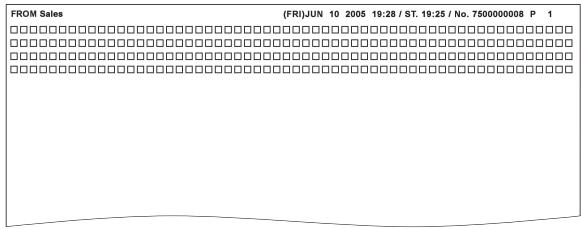
4.3 Using the Telephone and Receiving Calls
The following procedure describes how to receive a telephone call when an external telephone is connected.
Talking on the Phone
1 Pick up the telephone receiver upon hearing a ring.
- If a beep or nothing is heard, the incoming call is a fax. Press the [Start] key to receive the fax.
2 When done talking, hang up the telephone receiver.
5
Troubleshooting
5 Troubleshooting
5.1 Cannot send messages
When a document cannot be sent, try to correct the problem by referring to the table below. If the document still cannot be sent properly even after attempting to correct the problem, please contact your service representative.

Detail
Refer to "Error message displayed" on page 5-6 for information regarding error messages.
Refer to the "User's guide – Copy operations" provided with the FK-503 for problems such as jamming of originals, paper jams, poor image quality or running out of toner.
| Check points | Corrective actions |
| Is the transmission procedure correct? | Check the transmission procedure and then try sending again. |
| Is the fax number of the destination being called correct? Are program dialing or abbreviated dialing numbers registered correctly? | Using program dialing or abbreviated dialing, there may be an error in registration of the fax number. Try printing out the abbreviated dialing list and check if the number is registered correctly. Correct if there is an error in registration. |
| Is the telephone line setting correct? | Does dialing method match the telephone line being used? Check the setting and correct if there is an error. |
| Is the telephone line connected properly? | Is the telephone line disconnected? Check the telephone line connection and connect it if it is disconnected. |
| Is there a problem with the receiving machine? | Is the power of the receiving facsimile turned off, is it out of paper or is there another problem? Telephone the destination and check if there is a problem. |
5.2 Cannot receive messages
When a document cannot be received, try to correct the problem by referring to the table below. If the document still cannot be received properly even after attempting to correct the problem, please contact your service representative.

Detail
Refer to "Error message displayed" on page 5-6 or information regarding error messages.
Refer to the "User's guide – Copy operations" provided with the FK-503 for problems such as jamming of originals, paper jams, poor image quality or running out of toner.
| Symptom | Cause | Remedy |
| The received fax is blank. | Is there a problem with the telephone connection or with the caller's fax machine? | Check that the machine can make clean copies. If it can, have the caller send the fax again. |
| Did the caller load the pages backwards? | Contact the caller. | |
| The fax could be received, but not printed. | Was the machine set for memory reception? | Select the document, and print it. |
| Has the machine been set not to print received documents? | Select the setting to print received documents. | |
| Other causes | Touch [Type] in the Job List screen to check the details of the transmission error, and then refer to the table of error codes. | |
| Faxes cannot be received automatically. | Is the FK-503 set to manual reception? | Set the machine to automatic reception. |
| Is the memory full? | Load paper if it is empty, and then print the faxes stored in the memory. | |
| Is the telephone line connected properly? | Is the telephone line disconnected? Check the telephone line connection and connect it if it is disconnected. | |
| Did an alarm appear? | Follow the instructions that appeared, and then cancel the alarm. | |
| Has a wrong SUB been sent in F-code from the sender side? | When a wrong sub-address is received with the confidential RX user box set, there may occurs a communication error, thus resulting in the reception unavailable. Check the sender side to see if the sub-address is set. | |
| Black streaks appear through the printout of the received fax. | Is there a problem with the telephone connection or with the caller's fax machine? | Check that the machine can make clean copies. If no black streaks appear, have the caller send the fax again. |
5.3 Error message displayed
When a problem occurs with the FK-502, the following error messages are displayed in the screen. Take corrective actions by referring to the explanation. If the document still cannot be sent properly even after attempting to correct the problem, please contact your service representative.

Detail
Refer to the "User's guide – Copy operations" provided with the FK-503 for problems such as jamming of originals, paper jams, poor image quality or running out of toner.
| Error message | Cause | Remedy |
| Original size cannot be detected. | The paper size of the document cannot be detected. | Select the paper size of the document. |
| This mode cannot be set with XXX. | Functions that cannot be used together are selected. | Make copies using only one of the functions. |
| The job has been deleted. Not enough remaining memory. | The memory is full. | If documents stored in the memory are waiting to be printed, print them. |
| Malfunction detected. Please call your Technical Representative. | Some malfunction occurred in the machine. | Inform your technical representative of the code displayed on the touch panel. |
If any message other than those listed above appears, perform the operation described in the message.
6
Specifications
6 Specifications
6.1 Specifications
Main product specifications relating to facsimile functions are indicated below.
Specifications are subject to change without notice.
| Element | Specifications |
| Image memory capacity | 64 MB |
| Max. no. of stored pages | Approx. 3,800 sheets (A4 □, 5% or less B/W), “Standard” Original Type settingApprox. 3,800 sheets (A4 □, 5% or less B/W), “Fine” Original Type settingApprox. 1,900 sheets (A4 □, 5% or less B/W), “Super Fine” Original Type setting |
| Applicable lines | Local telephone lines (including facsimile communication networks), PBX lines |
| Scanning line density | G3 |
| Baud rate | 2400, 4800, 7200, 9600, 12000, 14400, 16800, 19200, 21600, 24000, 26400, 28800, 31200, or 33600 bps |
| Transmission time | 2 secondsTime if sending KONICA MINOLTA standard A4-size pages containing approximately 700 characters at “normal” resolution. This is the transmission time for the image only, and does not include the time required for communication control. Actual communication time varies according to the contents of the originals, the type of telephone line of the destination and factors. |
| Coding method | MH, MR, MMR, or JBIG |
| Max. scanning size | 420 × 297 mm (A3 size)Width: 297 mmLength: Maximum 432 mm |
| Max. recording size | 420 × 297 mm (A3 size)Originals in excess of 1000 mm cannot be received. When receiving originals longer than the paper size in the paper trays, it is printed as specified by the divide setting. |

Detail
For details on other specifications, refer to the user's guide [Copy Operations].
7
Transmission applications
7 Transmission applications
7.1 FAX Menu
If you send a fax with an application function, open the FAX Menu screen, and set the functions you want to use.
Displaying the fax menu screen
1 Press [Fax/Scan] on the control panel to open the fax screen.
2 Press [FAX Menu].
3 Press the tab for the function that you wish to use.
4 Press the key for the function you want to use.
5 Conduct either of the following operations.
- When the dedicated screen is displayed, press [Enter].
- If another screen appears so a setting can be selected for the
function, select the setting, and then press [Enter].
- To cancel the function, press [OFF].
- Press [Cancel] to return to the original communication setting.
The fax screen will be restored.
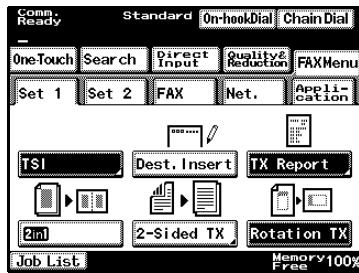

Detail
Press the key for the function you want to set to open the screen in which you can set the function.
You can combine more than one function; however, you cannot select functions that are not compatible with a function previously selected. Those functions appear dimmed on the control panel.
FAX Menu screens
The following scanning and transmission functions are available.
Set 1 screen
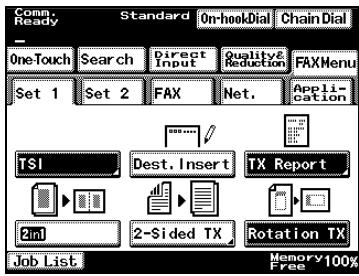
Set 2 screen
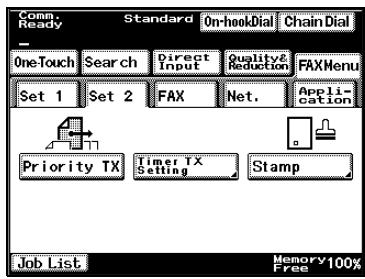
FAX screen
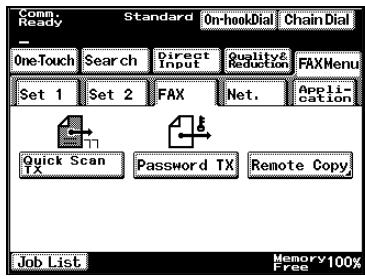
Net. screen
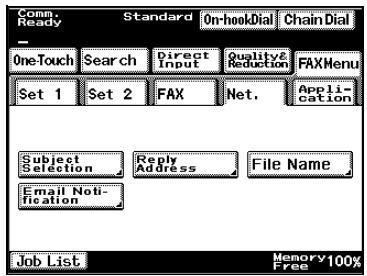
Application screen
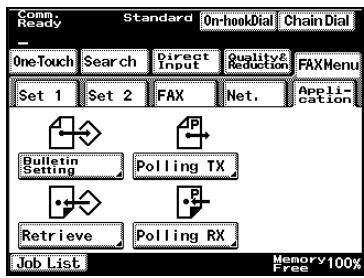
flowchart
graph TD
    A["One-Touch"] --> B["Set 1"]
    C["Set 2"] --> D["Set 2"]
    E["Bulletin Setting"] --> F["Pollying TX"]
    G["Retrieve"] --> H["Pollying RX"]
    I["Job List"] --> J["Memory 100% Free"]
    K["Start"] --> L["Start"]
    M["End"] --> N["End"]

Detail
For details on the function available on the Net. screen, refer to the user's guide [Network Scanner Operations].
| Button | Description | |
| Set 1 screen | TSI | Information such as the sender's name, transmission date, document number and page number can be printed at the edge of the fax printed by the recipient. |
| Dest. Insert | The recipient's name can be printed on the fax that is sent. | |
| TX Report | The transmission results report can be printed. | |
| 2in1 | Scans of two document pages can be sent as a single page. This can be used, for example, to combine two A4-size document pages and send them as one A4-size page. | |
| 2-Sided TX | Double-sided document pages can be scanned and sent. | |
| Rotation TX | An A4-size document can be sent as an A4-size document, regardless of the orientation in which it is loaded. | |
| Set 2 screen | Priority TX | A document specified as urgent can be given priority and sent, even if other documents are queued for transmission. |
| Timer TX Setting | The time to start communication can be specified. | |
| Stamp | A stamp can be applied to the document to indicate that it was scanned. | |
| FAX screen | Quick Scan TX | Function to send a message each time a page of document is read. |
| Password TX | Transmission can be sent with a password attached, as required when the receiving station is using a closed area communication mode. | |
| Remote Copy | The specified number of copies can be printed with the recipient's fax machine. | |
| Application screen | Bulletin Setting | Documents can be registered on a bulletin board set up on this machine. |
| Polling TX | This function allows you to initiate reception by sending a command to a destination to receive a document that is set for transmission at the destination. | |
| Retrieve | Documents registered on the bulletin board of a different fax machine can be retrieved. | |
| Polling RX | This function allows you to initiate reception by sending a command to a destination to receive a document that is set for transmission at the destination. |

...
Note
The functions on the Set 1 screen (“TSI”, “Dest. Insert”, “TX Report”, “2in1”, “2-Sided TX”, and “Rotation TX”) return to their default settings after each transmission.
7.2 Header information
Register the sender name and the fax ID.
| Item | Description | Available value |
| Sender Name | The name registered is printed on the document received by the other party as a sender information. | Up to 30 in characters and symbols. |
| Sender Fax No. | The fax ID registered is printed on the document received by the other party as a sender information.The fax number of the machine is normally entered. | Up to 20 characters with 0 to 9, +, space, * and # used. |
Header information
1 Press [Fax/Scan] on the control panel to open the fax screen.
2 Press [FAX Menu].
3 Press [TSI] on the Set 1screen.
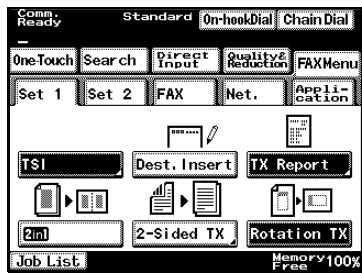
4 Select the transmission source name, and then press [Enter].
- To cancel the function, press [OFF].
5 Designate the destination. Set the original document.
6 Press [Start].
The transmission source information is printed.
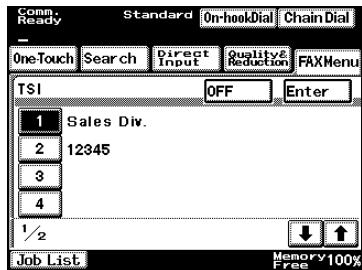

Detail
Transmission source information must be programmed in advance. For details, refer to “Registering TSI Names” on page 11-24.
Whether or not transmission source information is printed can be specified with the TX Settings parameters in Administrator mode. For details, refer to "Specifying transmission settings (TX Settings)" on page 11-29.
7.3 Sending faxes printed with the recipient's name ("Dest. Insert" function)
The name of the recipient registered with the one-touch dial button can be added to the transmission source information and printed on the fax that is sent so the intended recipient can easily be identified on the receiving end.
To send faxes printed with the recipient's name
1 Press [Fax/Scan] on the control panel to open the fax screen.
2 Press [FAX Menu].
3 Press [Dest. Insert] on the Set 1 screen.
- To cancel the function, press the button again to deselect it. [Dest. Insert] is highlighted.
4 Designate the destination. Set the original document.
5 Press [Start].

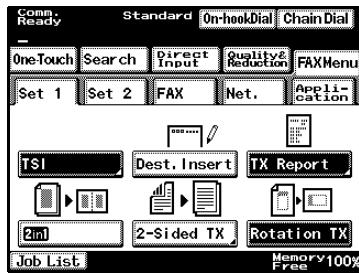
Detail
With a broadcast transmission, the fax can be sent printed with the name of each recipient.
The “Dest. Insert” function cannot be selected if the recipient was specified by directly entering the fax number or with chain dialing.
The recipient's name is printed as shown below, according to the selected setting.
If the "Dest. Insert" function was selected
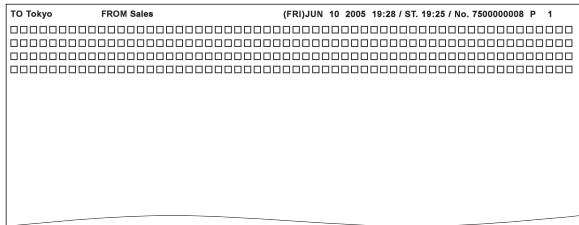
If the "Dest. Insert" function was canceled
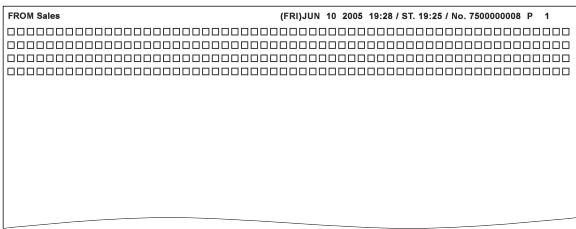

Detail
With the “Dest. Insert” function, the fax is sent printed with the name registered as the recipient with the one-touch button. For this reason, the recipient must be registered with the one-touch button in advance. For details, refer to “Programming a one-touch dial button” on page 10-4.
The machine can be set to print the name of the recipient only when the transmission source information is printed. For details, refer to “Specifying transmission settings (TX Settings)” on page 11-29.
7.4 Checking a report for the transmission result (“TX Report” function)
A report containing the transmission results can be printed. The machine can be set to either print or not print the transmission report or to print it according to the machine setting or only when a transmission fails.
To print the transmission report
1 Press [Fax/Scan] on the control panel to open the fax screen.
2 Press [FAX Menu].
3 Press [TX Report] on the Set 1 screen.
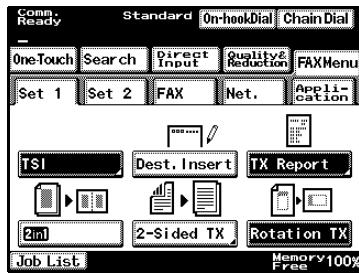
4 Select how to output the report, and then press [Enter].
- Default: The transmission report is printed according to the previously specified method. For details, refer to “Settings for Report Output” on page 11-45.
- ON: The transmission report is printed with each transmission.
- If TX Fails: The transmission report is printed only if the fax could not be sent.
- OFF: The transmission report is not printed, regardless of the transmission result.
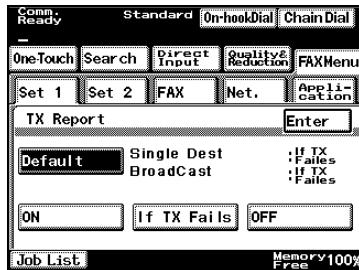
5 Designate the destination. Set the original document.
6 Press [Start].
Transmission report
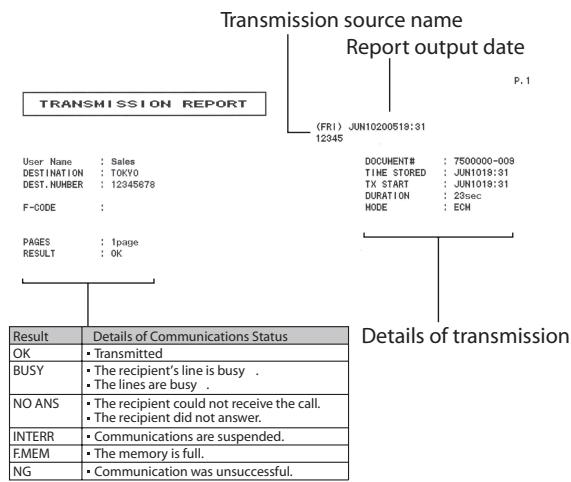
7.5 Transmitting 2in1
It is possible to scan a 2-page original and transmit it as a single-page original. This function can be used, for example, to send two A4-size document pages reduced to fit in one A4-size page.
Transmitting 2in1
√ Use the paper feed tray when 2in1 transmission is designated.
√ The original sizes that can be 2in1 transmitted are A4 C and A5 C.
√ 2in1 transmission cannot be set at the same time as double-sided transmission, TX rotation and real-time transmission.
1 Press [Fax/Scan] on the control panel to open the fax screen.
2 Press [FAX Menu].
3 Press [2in1] on the Set 1 screen. - To cancel the function, press the button again to deselect it. [2in1] is highlighted.
4 Designate the destination. Set the original document.
5 Press [Start].
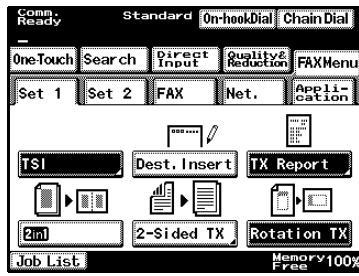
7.6 Transmitting a Double-sided Original
It is possible to scan and send double-sided originals.
To fax double-sided document pages
√ The “2-Sided TX” function cannot be used together with the “2in1”, “Stamp” and “Quick Scan TX” functions.
1 Press [Fax/Scan] on the control panel to open the fax screen.
2 Press [FAX Menu].
3 Press [2-Sided TX] on the Set 1 screen.
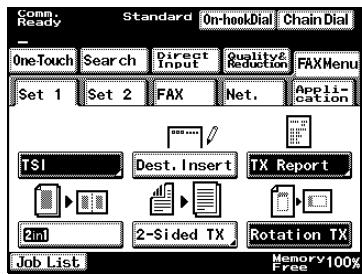
4 Select the binding margin for the document.
- Left Bind: The document is scanned with a binding margin on the left side.
- Top Bind: The document is scanned with a binding margin at the top.
- Auto: The binding margin is set according to the scanning direction.
- OFF: Cancels the function.
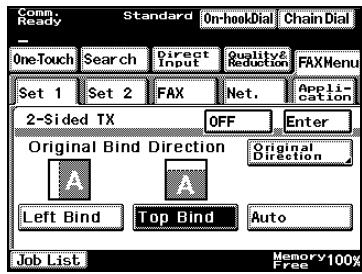
5 Press [Original Direction].
6 Select the orientation of the document, and then press [Enter].
7 Designate the destination. Set the original document.
8 Press [Start].
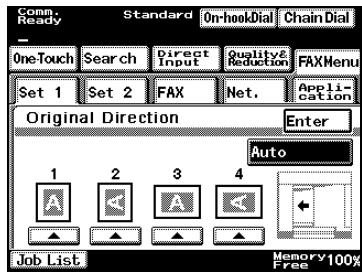

...
Note
Even if a double-sided original is transmitted, the receiving fax will print it on single-sided sheets.
7.7 Transmitting A4 Paper Set to Landscape
An A4 document set lengthwise will normally be handled as an A3 size document. Designating TX rotation in such cases makes transmission as A4 size possible regardless of the orientation of the original A4-size document..
Transmitting A4 Paper Set to Landscape
√ The only document size capable of TX rotation is A4.
1 Press [Fax/Scan] on the control panel to open the fax screen.
2 Press [FAX Menu].
3 Press [Rotation TX] on the Set 1 screen.
- To cancel the function, press the button again to deselect it. [Rotation TX] is highlighted.
4 Designate the destination. Set the original document.
5 Press [Start].
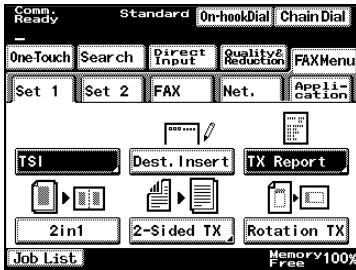
7.8 Transmitting with Prioritization
Rapid prioritization and transmission of documents is possible even when documents are awaiting transmission.
Transmitting with Prioritization
√ The “Priority TX” function cannot be selected if multiple recipients have been specified.
√ TX-priority and real-time transmission cannot be designated at the same time.
1 Press [Fax/Scan] on the control panel to open the fax screen.
2 Press [FAX Menu].
3 Press [Set 2], and then press [Priority TX].
- To cancel the function, press the button again to deselect it. [Priority TX] is highlighted.
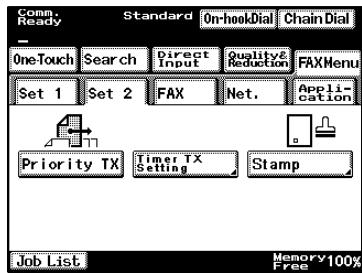
4 Designate the destination. Set the original document.
5 Press [Start].
7.9 Transmitting at a Designated Time
A document scanned into the memory can be transmitted at a designated time.
Transmitting at a Designated Time
√ When using time designated transmission, up to 200 transmissions can be stored for transmission.
√ Time designated transmission cannot be set at the same time as real-time transmission and priority-TX.
1 Press [Fax/Scan] on the control panel to open the fax screen.
2 Press [FAX Menu].
3 Press [Set 2], and then [Timer TX Setting].
4 Specify the transmission time, and then press [Enter].
- To release the setting, press [OFF]. You return to the fax screen.
- “Hour” and “minute” of the time to start communication are displayed in the 24-hour style, and entered in two digits.
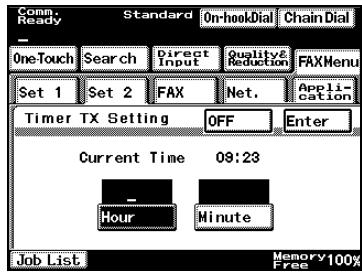
Press [Hour] or [Minute], and then use the keypad to type in the desired time.
5 Designate the destination. Set the original document.
6 Press [Start].
The FK-503 reads the document and holds it in memory until the specified time when transmission starts.

...
Note
If the machine is not programmed with the current time, the fax cannot be sent at the specified time.
7.10 Placing a Stamp on the Transmitted Document
It is possible to place a transmission stamp on documents.
Placing a Stamp on the Transmitted Document
√ An optional TX Marker STAMP UNIT 2 is necessary.
√ When the “Stamp” function is selected, the document should be loaded into the ADF. Transmission is not possible by positioning the document on the original glass.
√ Transmission stamp cannot be set at the same time as double-sided transmission.
√ There is no stamping when in copy mode.
1 Press [Fax/Scan] on the control panel to open the fax screen.
2 Press [FAX Menu].
3 Press [Set 2], and then [Stamp].
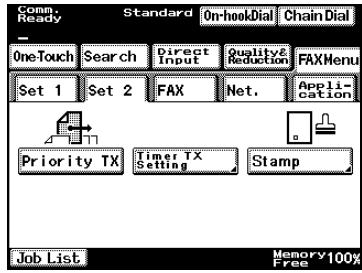
4 Select the stamping position, and then press [Enter].
5 Designate the destination. Set the original document.
6 Press [Start].
The document is saved in the memory and sent at the specified time.
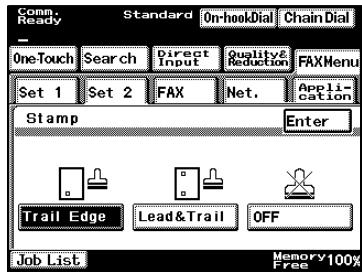

Note
The “Stamp” function remains selected until it is canceled.
7.11 Transmitting while Scanning the Original (Real-time Transmission)
When real-time transmission is designated, it is possible to read documents one page at a time to match the transmission state.
Transmitting while Scanning the Original (Real-time Transmission)
√ When the “Quick Scan TX” function is selected, the document should be loaded into the ADF. Transmission is not possible by positioning the document on the original glass.
√ Real-time transmission cannot be used during transmission or reception.
√ Multiple destinations cannot be designated in real-time transmission.
√ Real-time transmission cannot be set at the same time as 2in1 transmission, double-sided transmission and time designed transmission.
1 Press [Fax/Scan] on the control panel to open the fax screen.
2 Press [FAX Menu].
3 Press [FAX], and then [Quick Scan TX].
- To cancel the function, press the button again to deselect it. [Quick Scan TX] is highlighted.
4 Designate the destination. Set the original document.
5 Press [Start].
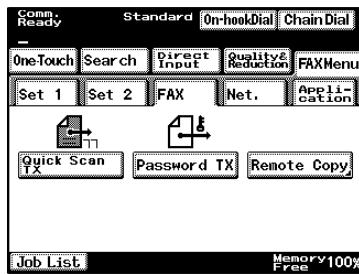
7.12 Performing Password Transmission
Transmission will only be possible if these passwords and those (group passwords) that are registered for recipients match. Please use these passwords in order that important documents are not erroneously transmitted to the wrong recipient.
Performing Password Transmission
1 Press [Fax/Scan] on the control panel to open the fax screen.
2 Press [FAX Menu].
3 Press [FAX], and then [Password TX].
- To cancel the function, press the button again to deselect it. [Password TX] is highlighted.
4 Designate the destination. Set the original document.
5 Press [Start].

Note
Confidential transmission requires that the destination receiving the transmission has a restricted access box and password defined for that station's fax machine. The password may not be needed, depending on the fax machine.

Detail
These passwords need to be configured in advance in the utility mode. For details, refer to “Password Registration for Password Communication” on page 11-43.
For details on password reception, refer to "Password Registration for Password Communication" on page 8-3.
7.13 Remote Copying
If the remote copying function is used when sending two or more copies of the same document to the receiving fax, the number of copies specified is printed by the receiving fax.
Remote Copying
√ The maximum number of remote copies is 99.
1 Press [Fax/Scan] on the control panel to open the fax screen.
2 Press [FAX Menu].
3 Press [FAX], and then [Remote Copy].
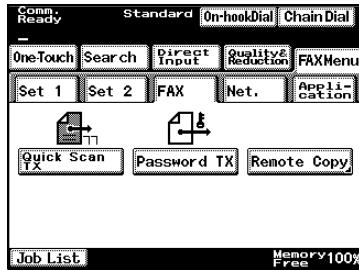
4 Input the number of copies using the ten-key pad, then touch [Enter].
- To cancel the function, press [OFF].
Between 2 and 99 copies can be set.
5 Designate the destination. Set the original document.
6 Press [Start].
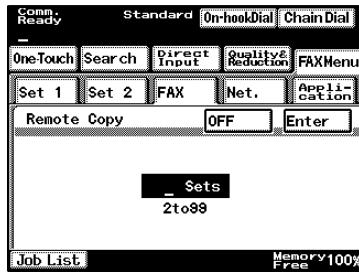

Note
Remote copy transmission is not possible if the destination does not respond to the F code.
7.14 F Codes
What is an F Code?
This is a fax communication function using [SUB] (sub-address), [SEP] (Selective Polling), and [PWD] (Password), etc., promulgated by the G3 plan of ITU-T (International Telecommunications Union).
The confidential communication and bulletin board communication are possible through the F code compatible functions. The F code is designated by 0 to 9 on the ten-key pad and a star (*) or pound sign (#).
| Item | Explanation |
| SUB | Designate this when transmitting using an F code. |
| SEP | Designate the document being provided by the counterpart machine when received by calling from this product (polling reception). |
| SID/PWD | Designate this when limiting the communication counterpart with a password. |
One F code can be designated per transmission when F codes are designated by typing it in.
When transmitting to multiple destinations from the dial input screen (broadcast transmission), one F code can be designated.
When F codes are registered beforehand for one-touch dialing, it is possible to designate F codes for the various destinations.
What is F Code Confidential Communication?
This is a function where communication is possible only then an F code is set beforehand in the confidential box, and it coincides with the F code designated by the destination. Because passwords can be set for documents in the confidential box, it is possible to safely fax these documents.

Detail
In order to receive an F-code confidential document, the confidential boxes must be registered in advance. For details, refer to “Registering Confidential Boxes” on page 10-27.
Bulletin boards
Bulletin boards can be set up using F-codes to provide documents to any number of people.
By specifying an F-code programmed for each bulletin board, documents on the bulletin board can freely be retrieved by callers.

Detail
For details on setting up a bulletin board, refer to “Setting up Bulletin Boards” on page 10-23.
For details on putting a document on a bulletin board, refer to “Saving Documents to Bulletin Boards” on page 7-28.
For details on retrieving documents registered on a bulletin board, refer to “Retrieving Bulletin Board Documents” on page 8-4.
Remote copying
The sender can specify the number of fax copies to be printed by the recipient's fax machine.
To perform remote copy operations
Specify the F-code (SUB) as shown below.
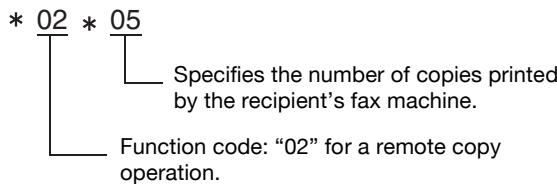
Precautions for specifying F-codes
When this machine receives an F-code, it first searches the F-codes for the bulletin boards (1 through 10). If there are no matching F-codes, it searches those for the confidential boxes (1 through 10).
When specifying an F-code, we recommend managing the numbers, such as by classifying them according to their function (for example, for confidential boxes or bulletin boards).
7.15 Using a confidential box (confidential transmission)
A confidential transmissions is a function where a document is sent to a specific person by using a confidential box. Sending a document to a confidential box on the recipient's fax machine is called a confidential transmission, and receiving a document in this machine's confidential box is called confidential reception.
For an F-code confidential transmission, specify a setting for “F-CODE (SUB)” when specifying the recipient.
To use a confidential box
1 Press [Fax/Scan] on the control panel to open the fax screen.
2 On the Direct Input screen, press [F-CODE].
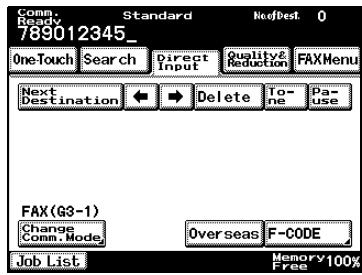
3 Press [F-CODE (SUB)].
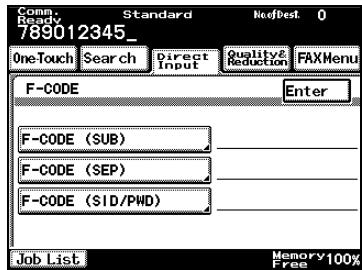
4 Type in the F-code (SUB) for the recipient, and then press [Enter].
Use the keypad to type in the number.
5 Press [Enter].
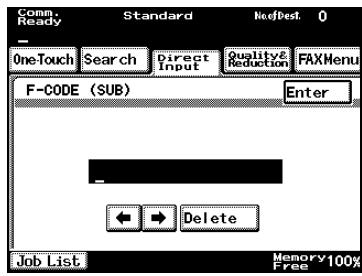

Detail
If an F-code is specified by directly typing it in, only one transmission with the specified F-code can be completed per call. When sending the same fax to multiple recipients at the same time (broadcast transmission), different F-codes cannot be specified for each recipient.
If one-touch dial buttons are programmed with F-codes, the appropriate F-code can quickly be transmitted to the recipient.
If an F-code password is required, specify a setting for "F-CODE (SID/PWD)".
In order to perform a confidential transmission, a confidential box and password must be specified on the recipient's fax machine.
A confidential transmission/confidential reception can be used only if the recipient's fax machine has F-code functions.
Retrieving F-code confidential documents
→ Press [Job List], and then press [Conf.] on the Doc. tab to retrieve the document.

Detail
In order to receive an F-code confidential document, the confidential boxes must be registered in advance. For details, refer to “Registering Confidential Boxes” on page 10-27. For details on the specified settings, contact the sender of the confidential transmission.
For details on receiving confidential documents, refer to "Using a confidential box (confidential reception)" on page 8-7.
7.16 Saving Documents to Bulletin Boards
Perform the following procedure to write a document on a bulletin board.
Write a document to the bulletin board
√ A maximum of 10 bulletin boards can be set up.
√ One document can be registered with each bulletin board. If a new document is registered on a bulletin board already registered with a document, the old document is deleted and replaced with the new document.
1 Press [Fax/Scan] on the control panel to open the fax screen.
2 Press [FAX Menu].
3 Press [Application], and then [Bulletin Setting].
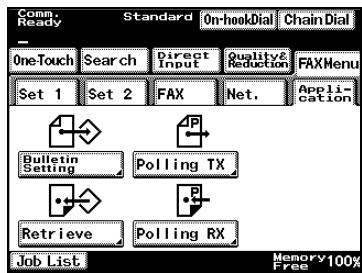
flowchart
graph TD
    A["OneTouch"] --> B["Set 1"]
    C["Search"] --> D["Set 2"]
    E["Direct Input"] --> F["FAX"]
    G["Quality & Reduction"] --> H["Net."]
    I["Application"] --> J["Get out"]
    K["Bulletin Setting"] --> L["Pollying TX"]
    M["Retrieve"] --> N["Pollying RX"]
    O["Job List"] --> P["Memory 100% Free"]
4 Press the button for the number of the bulletin board where the document is to be registered.
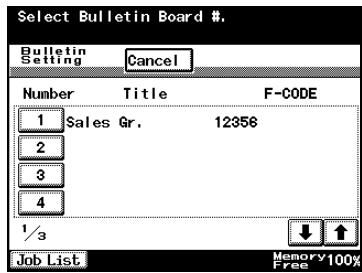
5 Specify the document type, and then press [Next].
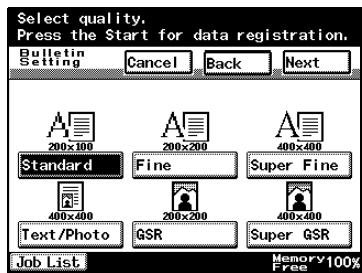
6 Specify the density, and then press [Next].
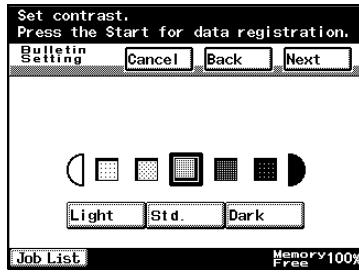
7 Specify the zoom setting and document size, and then press [Next].
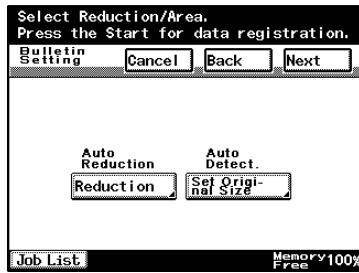
8 Specify the desired transmission functions.
9 Press [Start].
The FK-503 reads the document and places it in the bulletin board.
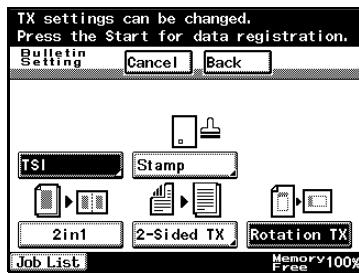
Performing Polling Reception
When specifying polling transmission, the document as prepared by the recipient can be controlled by this end, as can the time of transmission. When using polling to receive a large number of documents, it is possible to specify reception late at night, in order to save on telecommunications bills.
1 Set the original document.
2 Specify the transmission settings, such as the document type and density.
3 In the SUB, type in the F-code for the bulletin board where the document is to be registered.
- The bulletin boards must be defined in advance. Bulletin boards can be used only when the destination incorporates the F-code feature. Refer to “Setting up Bulletin Boards” on page 10-23.
4 In the SID/PWD, type in the password (F-code password) for the bulletin board where the document is to be registered.
5 Dial the telephone number.
6 Press the transmission button (Start button).
The document is registered on the bulletin board.

Note
For details on retrieving documents from a bulletin board, refer to “Retrieving Bulletin Board Documents” on page 8-4.
For details on deleting registered documents, refer to “Checking transmission results (Job List)” on page 3-34.
If a document is already registered on the specified bulletin board, it is replaced with the sent document.
A document cannot be registered from a fax machine that cannot use F-code functions. For details on the functions available on the fax machine, refer to its instruction manual.
In order to register a document on a bulletin board from another fax machine, the F-code and F-code password specified for the bulletin board must be specified. If the specified F-code and F-code password does not match, the document cannot be registered on the bulletin board.
7.17 Faxing from a computer (direct faxing)
A document created on a computer can be faxed if the telephone (fax) number of the recipient is specified, without first printing the document. In addition, the result of the fax transmission can be checked from the computer.
To perform a direct fax transmission, use the enclosed Network FAX utility.
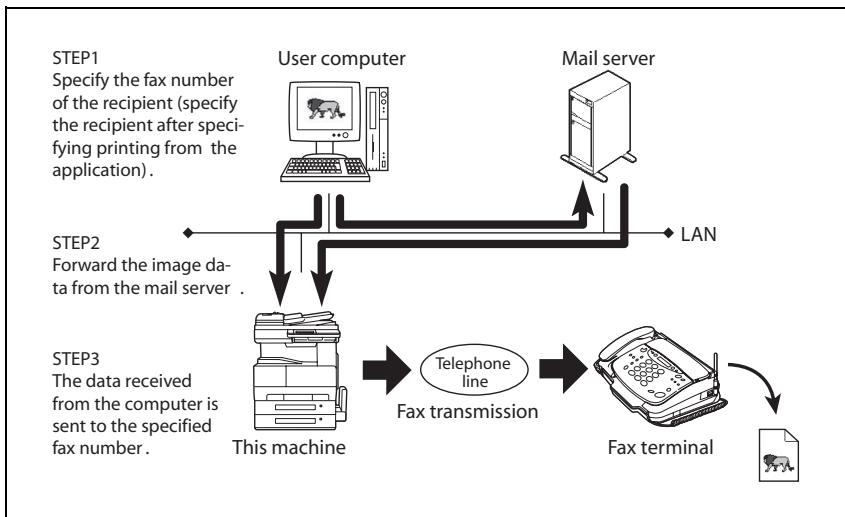
flowchart
graph TD
    A["User computer"] --> B["LAN"]
    C["Mail server"] --> B
    B --> D["This machine"]
    D --> E["Fax transmission"]
    E --> F["Fax terminal"]
    F --> G["Document icon"]
    style A fill:#f9f,stroke:#333
    style C fill:#f9f,stroke:#333
    style B fill:#ccf,stroke:#333
    style D fill:#cff,stroke:#333
    style E fill:#ffc,stroke:#333
    style F fill:#cfc,stroke:#333
    style G fill:#fcc,stroke:#333
The following operations must be completed in order to perform a direct fax transmission.
- Network settings must be specified and this machine must be connected to a computer.
- The “Self-Domain Name” parameter from the Network Setting screen must be specified.
- The “Gateway TX” parameter from the Scanner Settings screen must be set to “Allow”.

Detail
For details on making a network connection between this machine and a computer, refer to the user's guide [Network Scanner Operations].
For details on the “Self-Domain Name” parameter, refer to “Specifying the self-registered domain name” on page 11-58.
For details on the “Gateway TX” parameter, refer to “Specifying the gateway transmission setting” on page 11-60.
Parameters that must be specified for direct faxing
○: Required; √: Available; ▲: Necessary depending on environment
| DHCP | ▲ | Specify if the IP address is automatically obtained from the DHCP server. |
| IP Address Setting | ○ | Specify the network settings for this machine. |
| Subnet Mask | ○ | |
| Gateway | ○ | |
| Self-Domain Name | √ | Specify the domain name of this machine. This setting can be specified when sending a direct fax transmission through a mail server. |
| Network Board Set | ▲ | Specify the transmission speed of the network board (LAN board). |
| Gateway TX | ○ | Select whether (“Allow”) or not (“Restrict”) to perform the direct fax transmission operation. |
When performed through a mail server
In order to perform direct fax transmissions through a mail server, this copier must be registered with a DNS server as a mail server.
Sample settings
| E-mail domain name | xyz.co.jp |
| Machine IP address | 192.168.100.200 |
| Machine’s self-registered domain name | name.xyz.co.jp |
| DNS server setting for xyz.co.jp | name.xyz.co.jp MX 192.168.100.200 |
If the settings are specified as shown in the above example, e-mail messages with the domain “name.xyz.co.jp” will be delivered to this copier.

Note
If direct faxes are not to be sent through the mail server, only specify the IP address of this machine.
Network FAX utility
- First, install Network FAX onto the computer.
- The recipients are specified as telephone (fax) numbers or e-mail addresses.
- The parameters available by selecting "Setup"-Fax Setup" in Network FAX should be set to match the following machine parameters.
| Parameters from “Setup”-“Fax Setup” in Network FAX | Parameters on this machine’s Network Settings screen |
| Fax Domain | Self-Domain Name |
| Fax IP Address | IP Address Setting |

Detail
For details on operation of Network FAX, refer to the Network FAX User's Manual.
8
Useful functions for reception
8 Useful functions for reception
8.1 Password Registration for Password Communication
"Password Communication" (Password TX and Password RX) is a function where faxing is allowed between two fax machines only when a password set beforehand in both machines matches. This section describes how to set up the password to enable this function.

Note
Receptions are limited to machines programmed with the same transmission password registered on this machine. Transmission may not be possible, depending on the sender's fax machine.

Detail
The sender and the recipient must specify the transmission password in advance. For details, refer to “Password Registration for Password Communication” on page 11-43.
For details on password transmission, refer to “Performing Password Transmission” on page 7-22.
Using the software switch settings, you can specify whether or not password reception is permitted. For details, refer to “Configuring Functions (Soft Switches)” on page 11-62.
8.2 Retrieving Bulletin Board Documents
It is possible to the retrieve bulletin board documents sent by other fax machines.

Detail
F codes are necessary in bulletin board designation. Verify that the F code corresponds to the counterpart machine. An F code password is necessary when the counterpart machine uses an F code password.
Transacting Bulletin Board Documents from Another Fax
1 Press the [Fax/Scan] on the control panel to open the fax screen.
2 Press [FAX Menu].
3 Press [Application], and then press [Retrieve].
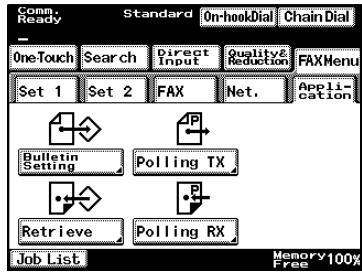
flowchart
graph TD
    A["OneTouch"] --> B["Set 1"]
    C["Search"] --> D["Set 2"]
    E["Direct Input"] --> F["FAX"]
    G["Quality & Reduction"] --> H["Net."]
    I["Application"] --> J["Bulletin Setting"]
    K["Polling TX"] --> L["Retrieve"]
    M["Polling RX"] --> N["Job List"]
4 Select the method for specifying the sender.
- If the sender is to be specified using a one-touch dial button, the F-code must be registered in advance.
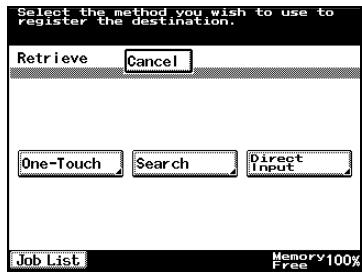
5 Specify the fax number of the sender.
- If a one-touch dial button is used, press the one-touch dial button for the sender. Continue with step 9.
- If the number is to be typed in directly, type in the fax number of the sender. Continue with step 6.
6 On the screen for directly entering the fax number, press [F-CODE].
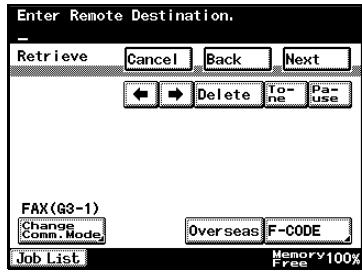
7 Press [F-CODE (SEP)].
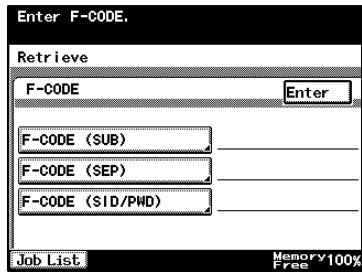
8 Type in the F-code (SEP) for the sender, and then press [Enter].
- To specify an F-code password, press [F-CODE (SID/PWD)], and then type in the F-code password.
Use the keypad to type in the number.
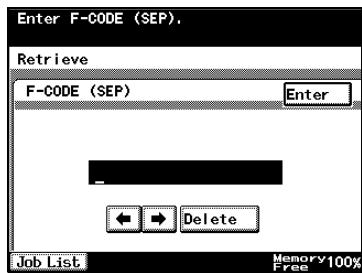
9 Press [Enter].
10 Press [Next].
11 Indicate the reception time using the ten-key pad.
Press [Hour] or [Minute], and then use the keypad to type in the desired time.
12 Press the [Start] key.
A confirmation message appears, and then the reception begins at the specified time.
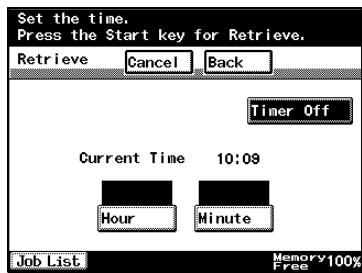

Note
For details on putting a document on a bulletin board, refer to “Saving Documents to Bulletin Boards” on page 7-28.
The procedure differs when retrieving a document registered on this machine's bulletin board. For details, refer to “Checking transmission results (Job List)” on page 3-34.
8.3 Using a confidential box (confidential reception)
Retrieve documents saved in confidential boxes.

Detail
In order to receive a confidential document, the confidential boxes must be registered in advance. For details, refer to “Registering Confidential Boxes” on page 10-27. For details on the specified settings, contact the sender of the confidential transmission.
To receive a confidential document
1 Press [Job List].
The Job List screen appears.
2 Press [Doc.].
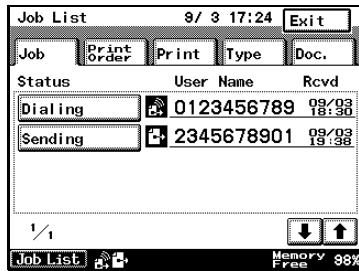
3 Press [Conf.].
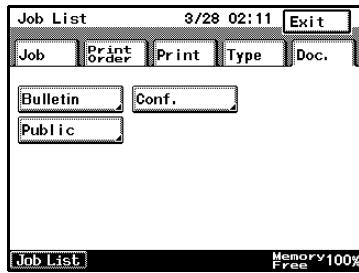
4 Press the button for the desired confidential box.
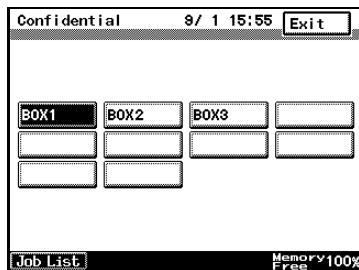
5 Press [Print].
- To delete the document without printing, press [Delete].
The document is printed.
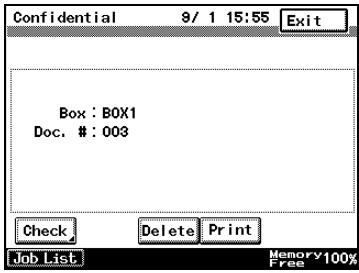
9
Polling
9 Polling
9.1 Polled transmission (“Polling TX” function)
Polled transmission enables the FK-503 to scan a document and store it in hard disk until a destination sends a polling command, which causes transmission of the stored document.
The document which directed polling transmission is stored in polling TX user box of system user box, and transmission is started by polling command from a reception side. Polling transmission has polling TX which accumulates document to polling TX user box, and bulletin polling TX which accumulates document to bulletin board user box.
Polled transmission
1 Press the [Fax/Scan] on the control panel to view the fax screen, if it is not already displayed.
2 Press [FAX Menu].
3 Press [Application], and then press [Polling TX].
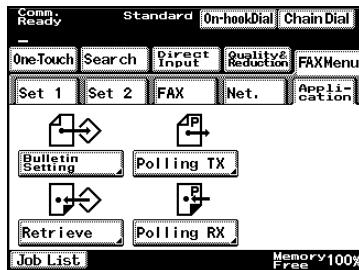
flowchart
graph TD
    A["One-Touch"] --> B["Set 1"]
    B --> C["Set 2"]
    C --> D["FAX"]
    D --> E["Net."]
    E --> F["Application"]
    G["Bulletin Setting"] --> H["Polling TX"]
    I["Retrieve"] --> J["Polling RX"]
    K["Job List"] --> L["Memory 100% Free"]
4 Specify the document type, and then press [Next].
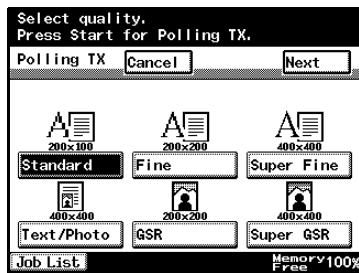
5 Specify the density, and then press [Next].
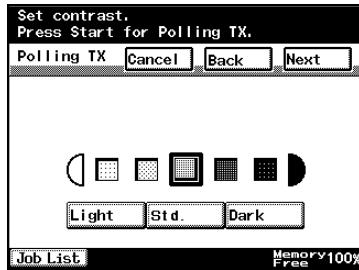
6 Specify the zoom setting and document size, and then press [Next].
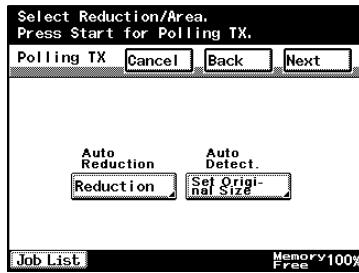
7 Specify the desired transmission functions.
8 Press [Start].
The document is scanned, and then a confirmation message appears.

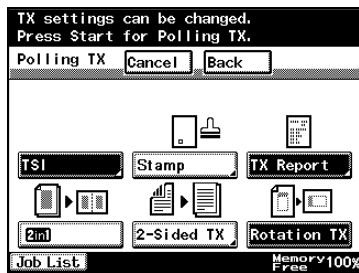
Detail
The document is deleted from the memory after it is sent.
When the memory is full, polling transmission cannot be performed.
With polling transmission, the recipient incurs the cost of the call.
Only one document can be specified for polling transmission. If a document has already been specified for polling transmission, another document cannot be specified.
The polling transmission setting is canceled with each transmission.
9.2 Polling reception (“Polling RX” function)
Polling reception enables the FK-503 to send a command to a destination to receive the document that is either set for transmission on the remote machine or reserved for polling transmission. This function is convenient when you prefer to bear the telephone charge instead of the destination.
Follow the procedure described below to receive a document available on a fax information service. With polling reception, the time that the fax is received can be specified. By specifying a reception time during discounted calling times, such as late at night, transmission costs can be reduced when receiving documents with a large number of pages or received with a long-distance call.
Polling reception
1 Press the [Fax/Scan] on the control panel to view the fax screen, if it is not already displayed.
2 Press [FAX Menu].
3 Press [Application], and then press [Polling RX].
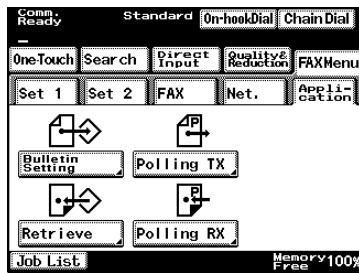
flowchart
graph TD
    A["OneTouch"] --> B["Set 1"]
    C["Search"] --> D["Set 2"]
    E["Direct Input"] --> F["FAX"]
    G["Quality & Reduction"] --> H["Net"]
    I["Application"] --> J["Get"]
    K["Bulletin Setting"] --> L["Polling TX"]
    M["Retrieve"] --> N["Polling RX"]
    O["Job List"] --> P["Memory 100% Free"]
4 Select the method for specifying the sender.
5 Specify the fax number of the sender.
- If a one-touch dial button is used, press the one-touch dial button for the sender.
- If the number is to be typed in directly, type in the fax number of the sender.
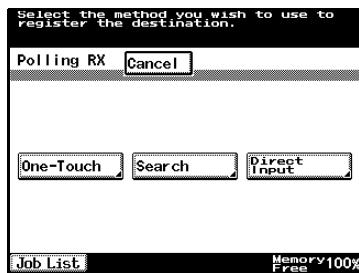
6 Press [Next].
7 Specify the reception time.
- Press [Hour] or [Minute], and then use the keypad to type in the desired time.
8 Press [Start].
A confirmation message appears, and then the reception begins at the specified time.
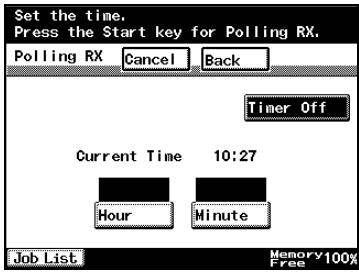
![KONICA MINOLTA FK 503 - Press [Start]. - 2](/content/2025/01/139711/images/b75a0e2391f0b5f283aca0387081b492ab82d011f2972d82facefd6d6e2fed62.jpg)
Note
With polling reception, the recipient incurs the cost of the call.
10
Registering/Settings
10 Registering/Settings
10.1 Displaying the fax registration screen
Displaying the fax registration screen
The procedure for displaying the fax registration screen is as follows.
1 Press [Utility/Counter].
2 Press [User Setting].
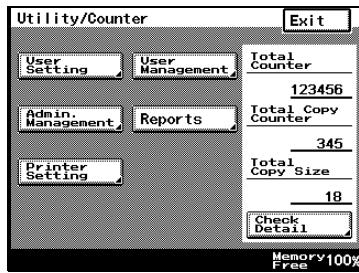
3 Press [FAX].
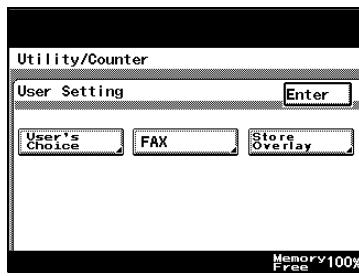
Fax registration screen appears.
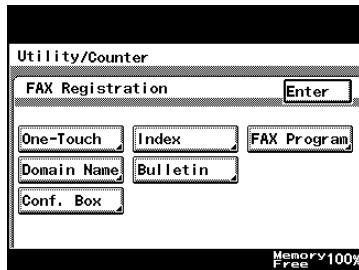
10.2 Programming a one-touch dial button
Before using the [One-Touch] to send a fax, the recipient must be registered.
How to Register One-Touch Keys
When registering recipients, classify them in indexes to allow the desired recipient to be found more easily. For details, refer to “Registering indexes for one-touch dial buttons” on page 10-13.
One-touch dial buttons can be deleted or copied or their settings can be changed.
√ Up to 36 indexes and up to 540 one-touch dial buttons (15 per index) can be registered.
1 Press [Utility/Counter].
2 Press [User Setting].
3 Press [FAX].
4 Press [One-Touch].

5 Press the one-touch key you want to register.
- The first index screen automatically appears. When an arrow key or [Index List] is touched, the next One-Touch screen is displayed.
A screen appears, allowing you to enter the name that will appear on the button.
![Select One-Touch to REG/CHANGE/DEL. Touch [Enter]. One-Touch SALES1 SALES2 IndexList TOKYO OSAKA Memory 100% Free](/content/2025/01/139711/images/690f26f66f354c6432b82ea055d3830db39117e9a6702d5e81d8b10e8f6d27ec.jpg)
6 Type in the recipient name that will appear on the one-touch button, and then press [Next].
- A maximum of 12 characters can be entered.
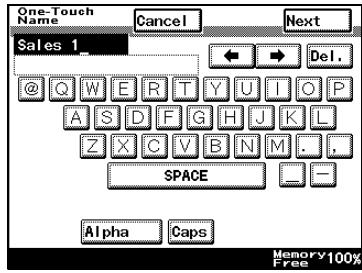
7 Select the transmission mode, and then press [Next].
- G3-1: Select when using port 1 for transmitting.
- G3-2: Select when using port 2 for transmitting.
This screen appears if optional fax multi line is installed. If this screen does not appear, continue with the next step.
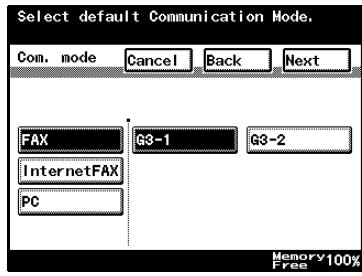
8 Use the keypad to type in the telephone number of the recipient, and then press [Next].
- A number up to 64 digits long can be entered for the telephone number.
- To add a pause of 3 seconds, press [Pause]. "P" appears.
When transmitting to an outside
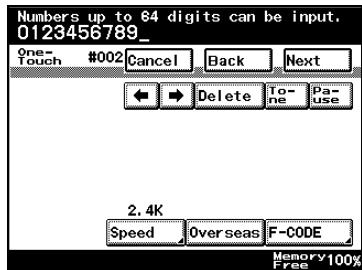
line, press [Pause] after the outside line access number (for example, "0") to ensure that a connection is established.
If a country code and recipient's fax number is entered immediately after the international dialing code, a busy signal may heard while the number is dialed and the fax cannot be sent. In this case, press [Pause] twice after entering the international dialing code, and then enter the remainder of the telephone number after the six-second pause. If the fax still cannot be sent, use the “Quick Scan TX” function.
- To specify that the remainder of the transmission is for pulse dialing, press [Tone]. "T" appears in the screen. If pulse dialing is being used, press this button to send push-button tones.
- To transmit overseas, press [Overseas].
When faxing overseas, depending on the destination, a transmission error may occur if the transmission conditions are poor. In this case, press [Overseas] to decrease the transmission speed and allow the fax to be received more easily. - To specify F-codes, press [F-CODE]. For details, refer to “Registering F-CODEs” on page 10-7.
- To specify the transmission speed, press [Speed]. For details, refer to "Setting the Communication Speed" on page 10-9.
9 Check the information to be registered, and then press [Enter].
- To change a setting, press the button for the setting to be changed, and then specify the new setting.
? What does the three-digit number beginning with “#” refer to?
→ The one-touch dial button number appears as a three-digit number beginning with “#”. A one-touch dial button number is specified for each one-touch dial button. Instead of touching the one-touch dial button, the recipient can be specified by touching “#”, then entering the one-touch dial button number (between 000 and 539).
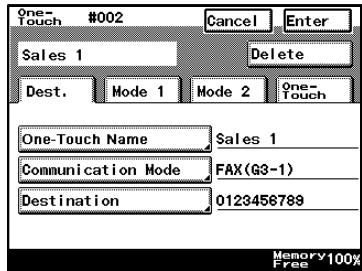
10 Press [Enter] in each screen until the standby screen (initial screen) appears.
![KONICA MINOLTA FK 503 - Press [Enter] in each screen until the standby screen (initial screen) appears. - 1](/content/2025/01/139711/images/e960f359b529ae6cfdca88bd492894b99ebe985b264dfdb72e7ccf9796cf5bb6.jpg)
Note
If [One-Touch], then [Sub Address Registration] is pressed, a recipient can be registered for automatic selection. For details, refer to “Registering/deleting a secondary destination” on page 10-12.
Registering F-CODEs
1 Perform steps 1 to 8 "How to Register One-Touch Keys" on page 10-4.
2 Enter the recipient's telephone number with the keypad, and touch [F-CODE].
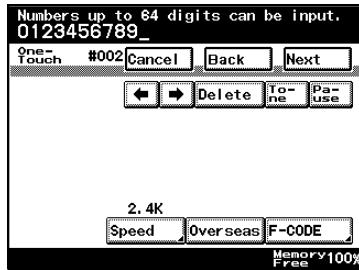
3 Select the desired item from the list with [F-CODE (SUB)], [F-CODE (SEP)] and [F-CODE (SID/PWD)].
- For details, refer to "F Codes" on page 7-24.
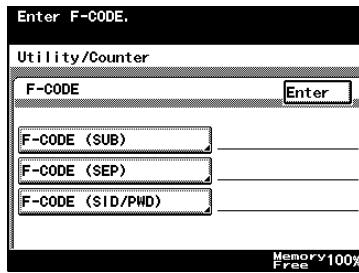
4 Enter the F-CODE with the keypad, and touch [Enter].

5 Press [Enter].
6 Press [Next].
7 After verifying the registration information, touch [Enter].
- To change a setting, press the button for the setting to be changed, and then specify the new setting.
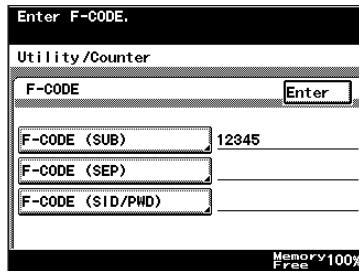
8 Press [Enter] in each screen until the standby screen (initial screen) appears.
Setting the Communication Speed
1 Perform steps 1 through 8 "How to Register One-Touch Keys" on page 10-4.
2 Enter the recipient's telephone number with the keypad, and touch [Speed].
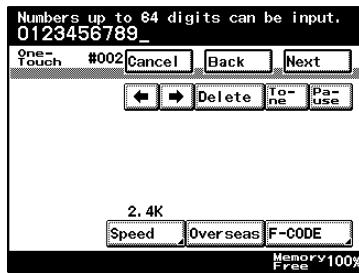
3 Select the communication speed with the arrow keys, and touch [Enter].
4 Touch [Next].
5 After verifying the registration information, touch [Enter].
- To change a setting, press the button for the setting to be changed, and then specify the new setting.
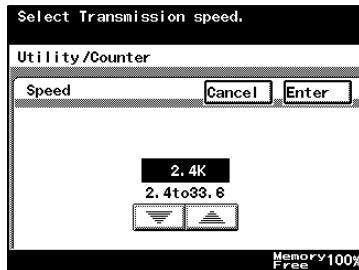
6 Press [Enter] in each screen until the standby screen (initial screen) appears.
Changing and Deleting One-Touch Keys
1 Perform steps 1 through 4 "How to Register One-Touch Keys" on page 10-4.
2 Press the one-touch key you want to change or delete.
A confirmation screen appears, showing the specified settings.
![Select One-Touch to REG/CHANGE/DEL. Touch [Enter]. One-Touch ← SALES1 SALES2 → IndexList TOKYO OSAKA Sales 1 Memory 100% Free](/content/2025/01/139711/images/b182685aaaf09aa357847a2b665dcfabd1171ca50670dca128fad4a7d3cd159e.jpg)
3 Select the key for the item you want to change and change the information.
To delete, touch [Delete].
4 Press [Enter] in each screen until the standby screen (initial screen) appears.
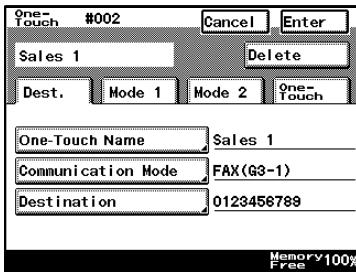
How to Copy One-Touch Keys
1 Perform steps 1 through 4 "How to Register One-Touch Keys" on page 10-4.
2 Touch the one-touch dial button that is to be copied.
A confirmation screen appears, showing the specified settings.
![Select One-Touch to REG/CHANGE/DEL. Touch [Enter]. One-Touch Enter ← SALES1 SALES2 → IndexList TOKYO OSAKA Sales 1 Memory 100% Free](/content/2025/01/139711/images/110a3da6a2b87918cc6e47cdf64ee93dc7a7979580a3180bd3e38462f91fd6b7.jpg)
3 Press [One-Touch].
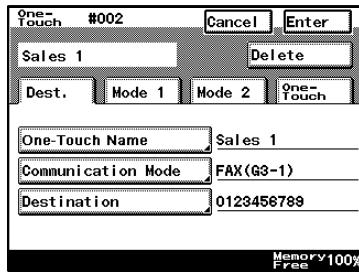
4 Press [One-Touch Copy].
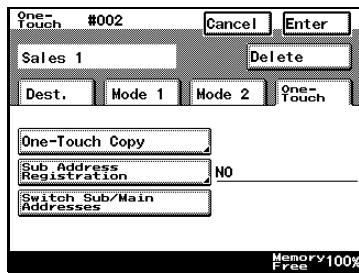
5 Press the button where the one-touch dial button is to be copied. The settings specified for the one-touch dial button is copied.
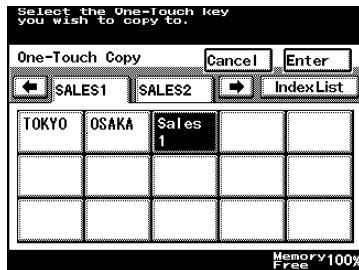
6 Press [Enter] in each screen until the standby screen (initial screen) appears.
Registering/deleting a secondary destination
In addition to the main destination, a secondary destination can be registered with the one-touch dial button in case the transmission to the main destination failed.
1 Perform steps 1 through 4 of the procedure for registering a one-touch dial button, until the screen for selecting a one-touch dial button appears.
- For details, refer to “How to Register One-Touch Keys” on page 10-4.
2 Press the one-touch dial button where the secondary destination is to be registered.
3 Press [One-Touch], then [Sub Address Registration].
- If a secondary destination is already registered, press [Switch Sub/Main Addresses] to switch the secondary and main destinations.
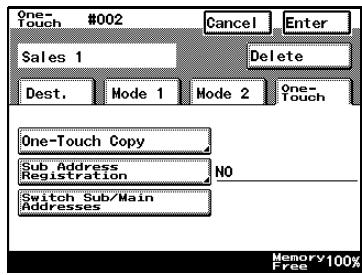
4 Press [Register].
- To delete a registered secondary destination, press [Delete].
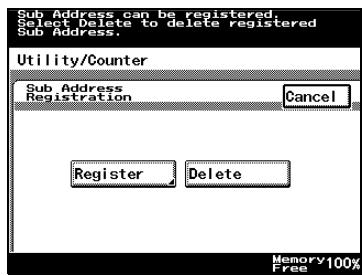
5 Enter the secondary destination information, and then press [Enter].
6 Press [Enter] until the initial screen appears.
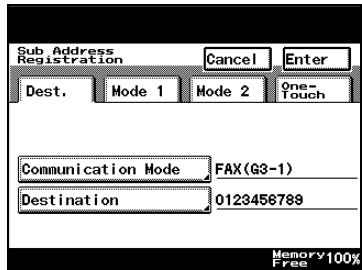
10.3 Registering indexes for one-touch dial buttons
Registering an index allows you to group one-touch keys.
How to Register Indexes
√ 36 indexes can be registered with up to 15 recipients can be registered to each index key.
1 Press [Utility/Counter].
2 Press [User Setting].
3 Press [FAX].
4 Press [Index].
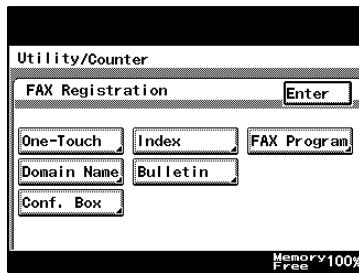
5 Select the index key to be registered. A screen appears, allowing you to enter the name that will appear on the button.
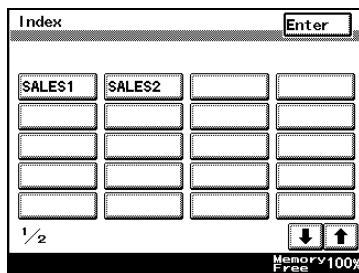
6 Enter the name for the index, and touch [Enter]. - A maximum of 8 characters can be entered.
7 Press [Enter] in each screen until the standby screen (initial screen) appears.
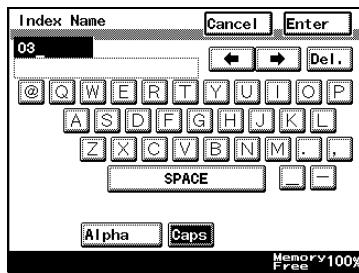
Changing/deleting an index
1 Perform steps 1 to 4 in How to Register Indexes on page 10-13.
2 Press the index button to be changed.
A screen appears, allowing you to enter the name that will appear on the button.
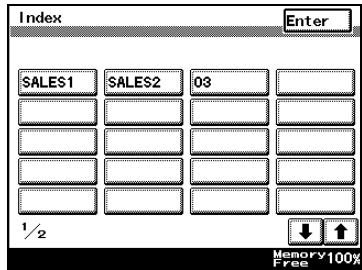
3 Change the index name.
- To delete the index, erase the name.
4 Press [Enter] in each screen until the standby screen (initial screen) appears.
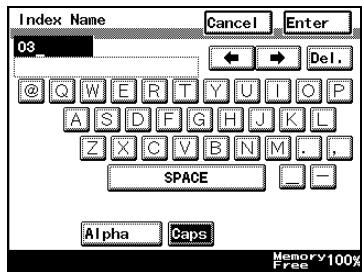
10.4 FAX Program Registration
This function is convenient for registering recipient information and transmission settings if multiple transmissions with specific settings are to be performed.
There are three types of program buttons.
| Available Programs | |
| Transmission Program | The following information is registered:Quality, density, zoom, scan area, sequential data transmission, real-time transmission, Prioritized transmission, designated transmission time, TSI record, destination inclusion, activity report, remote copy, password transmission, 2 in 1 transmission, two-sided transmission, rotated transmission, completed stamp. |
| Batch program | Register a time to batch transmit multiple originals. |
| Polling Reception Program | Register a time for polling reception. |

Detail
Up to 30 FAX programs can be registered.
A total of 540 FAX and one-touch keys can also be registered.
In order to specify a recipient for a FAX program, the recipient must have been registered as a one-touch key in advance.
How to Register FAX Programs
1 Press [Utility/Counter].
2 Press [User Setting].
3 Press [FAX].
4 Press [FAX Program].
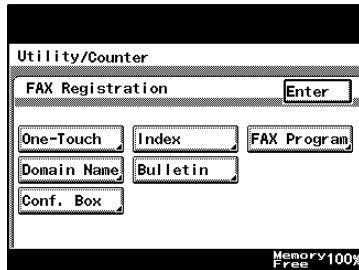
5 Select the fax program key you want to register.
A screen appears, allowing you to enter the name that will appear on the button.
![Select One-Touch to REG/CHANGE/DEL. Touch [Enter]. FAX Program Enter SALES1 SALES2 IndexList TOKYO OSAKA Report 01 Report 02 Memory 100% Free](/content/2025/01/139711/images/02a645409bcd43fb5d319ccf22c8c8a4722ed926fd0798faa95fd23fe08494b4.jpg)
6 nter the program name to display on the FAX program key, and touch [Next].
- A maximum of 12 characters can be entered.
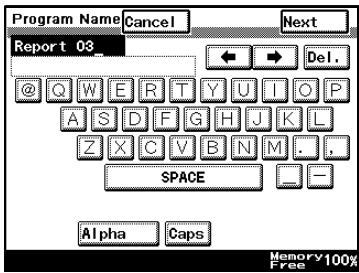
7 Select [TX], and touch [Next].
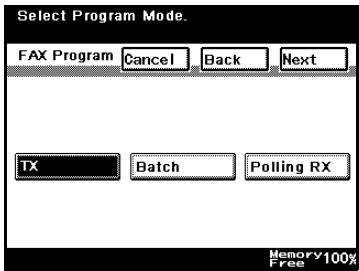
8 Designate the destination.
- Press [One-Touch] or [Search] and search for the desired one-touch dial button to specify the recipient, and then press [Enter].
- To register a sequential data transmission, designate all transmission destinations. Up to a maximum of 300 destinations can be specified.
- If the desired destination is not registered, touch [No Destination].
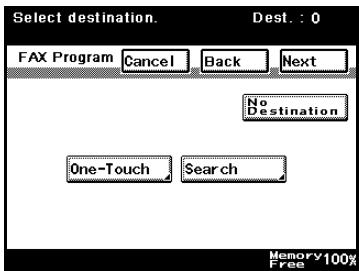
9 Press [Next].
10 Press the [Transmission Setting].
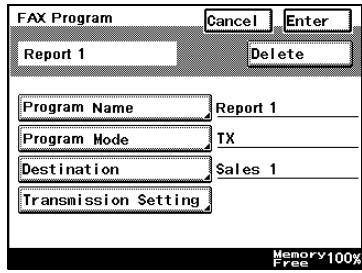
11 Specify the functions to be programmed. After all of the desired functions have been specified, press [Enter].
- If desired, press [Quality & Reduction] or [FAX Menu], and then specify the desired settings. For details on the settings available on the Quality & Reduction
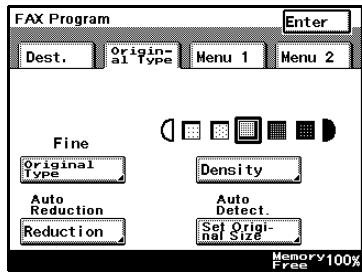
screen, refer to “Setting transmission conditions” on page 3-9. For details on the settings available on the FAX Menu screen, refer to “Transmission applications” on page 7-3.
12 fter verifying the entered information, touch [Enter].
To change a setting, press the button for the setting to be changed, and then specify the new setting.
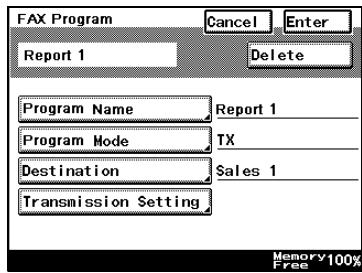
13 Press [Enter] in each screen until the standby screen (initial screen) appears.
How to Register Batch Programs
1 Perform steps 1 through 7 of the procedure for registering a transmission program, until the screen for selecting a program type appears.
- For details, refer to "FAX Program Registration" on page 10-15.
2 Select [Batch], and touch [Next].
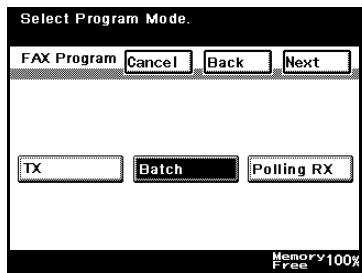
3 Designate the destination.
- Press [One-Touch] or [Search] and search for the desired one-press dial button to specify the recipient, and then press [Enter].
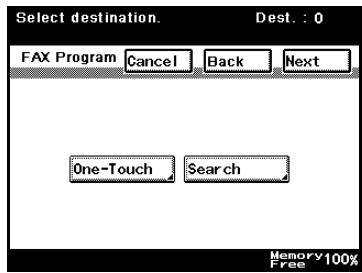
4 Press [Next].
5 Set the transmission time and interval.
- Press the button for the setting to be specified, and then use the keypad to type in the desired setting.
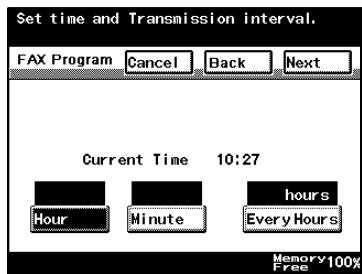
6 Press [Next].
7 Press [Transmission Setting].
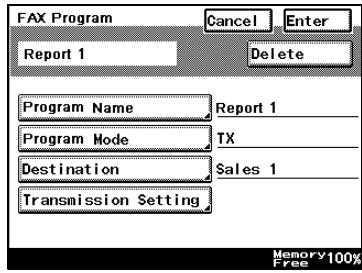
8 Specify the functions to be programmed. After all of the desired functions have been specified, press [Enter].
- If desired, press [Quality & Reduction] or [FAX Menu], and then specify the desired settings. For details on the settings available on the Quality & Reduction
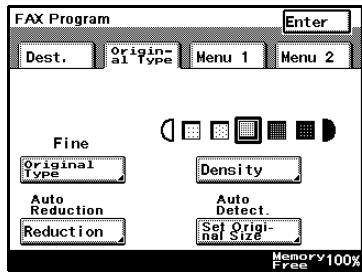
screen, refer to “Setting transmission conditions” on page 3-9. For details on the settings available on the FAX Menu screen, refer to “Transmission applications” on page 7-3.
9 Check the information to be registered, and then press [Enter].
To change a setting, press the button for the setting to be changed, and then specify the new setting.
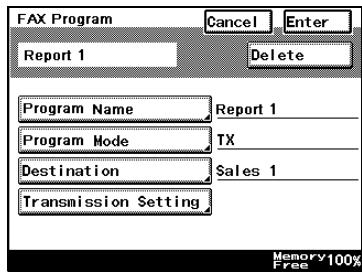
10 Press [Enter] in each screen until the standby screen (initial screen) appears.
How to Register Polling Reception Programs
1 Perform steps 1 through 7 "FAX Program Registration" on page 10-15.
2 Select [Polling RX], and touch [Next].
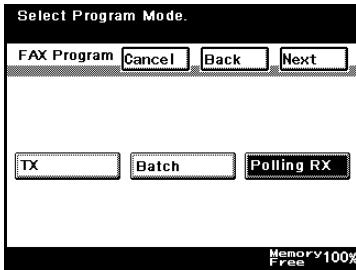
3 Designate the destination.
- To use a one-touch key, press the [One-Touch] key for the destination, and then touch [Enter].
- To using a name search, touch [Search], specify the destination, and then touch [Enter].
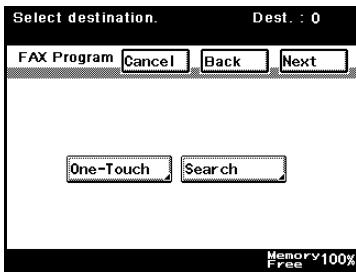
4 Press [Next].
5 Press [Timer TX Setting].
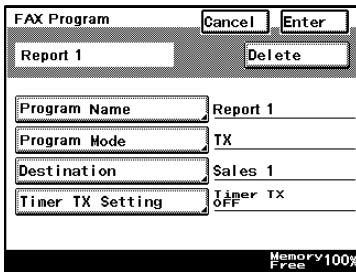
6 Specify the time for to perform polling reception.
- Press the button for the setting to be specified, and then use the keypad to type in the desired setting.
7 Press [Enter].
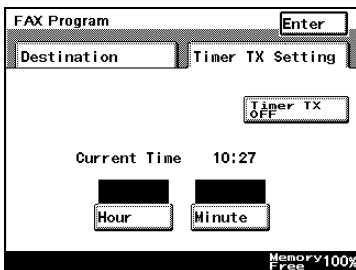
8 Check the information to be registered, and then press [Enter].
- To change a setting, press the button for the setting to be changed, and then specify the new setting.
9 Press [Enter] in each screen until the standby screen (initial screen) appears.
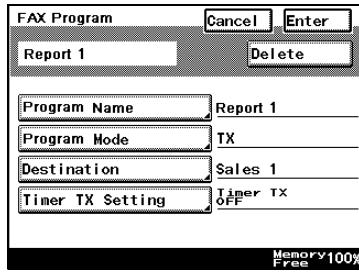
How to Change or Delete a FAX Program
1 Perform steps 1 through 4 "FAX Program Registration" on page 10-15.
2 Press the one-touch dial button whose settings are to be changed.
A confirmation screen appears, showing the specified settings.
![Select One-Touch to REG/CHANGE/DEL. Touch [Enter]. One-Touch ← SALES1 SALES2 → IndexList TOKYO OSAKA Report 01 Report 02 Report 03 Memory 100% Free](/content/2025/01/139711/images/3c1ca0b53b58614a5a181b3b547f0f1f3e408ed5651ac38e0234b1b4101c28a9.jpg)
3 Press the button for the setting to be changed, and then change the setting.
- To delete the one-touch dial button, press [Delete].
? Why were all the programmed settings cleared?
→ If a different program type is selected, all programmed settings are cleared.
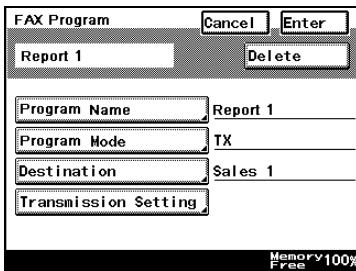
4 Press [Enter] in each screen until the standby screen (initial screen) appears.
10.5 Setting up Bulletin Boards
If the F code registered for the bulletin board is specified, documents on this copier's bulletin board can be retrieved by other fax machines.

Detail
Specify an F-code for each bulletin board. If a password is to be specified for the bulletin board, also specify an F-code password. For details, refer to "F Codes" on page 7-24.
To set up a bulletin board
1 Press [Utility/Counter].
2 Press [User Setting].
3 Press [FAX].
4 Press [Bulletin].
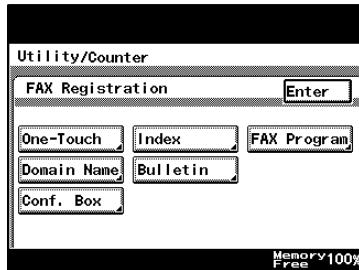
5 Press the button for the number of the bulletin board to be set up.
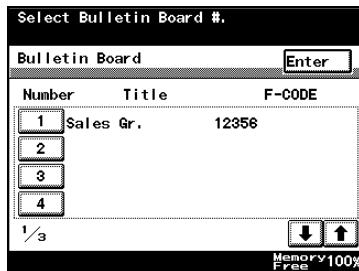
6 Press [Title].
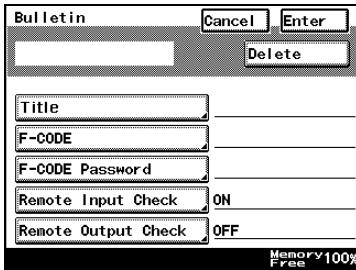
7 Type in the title, and then press [Enter].
- A maximum of 16 characters can be entered.
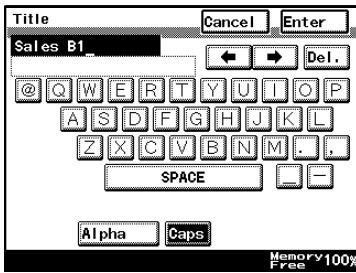
8 Press [F-CODE].
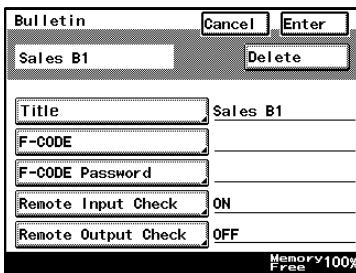
9 Type in the F-code, and then press [Enter].
- Register the F-code for using the bulletin board.
- A maximum of 20 characters (0 through 9, # and *) can be entered.
- Do not specify the same F-code for a different bulletin board, for a confidential box, for a users box,
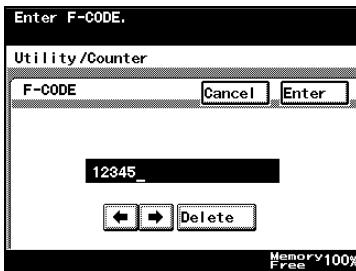
or for document management.
10 If desired, press [F-CODE Password], and then type in password.
- Register a password for each bulletin board.
- A maximum of 20 characters (0 through 9, # and *) can be entered. The entered password appears as asterisks (*).
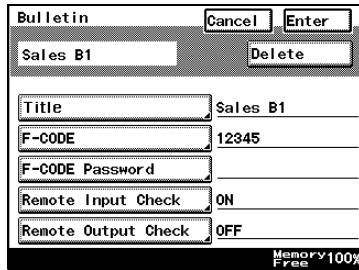
? Although a password was speci- fied, why can't viewing be limited?
→ The password is entered when limiting viewing of the bulletin board. To specify the viewing limitations, press [Remote Input Check] or [Remote Output Check].
11 Press [Remote Input Check].
12 Press either [ON] or [OFF] to specify a setting for "Remote Input Check", and then press [Enter].
- If "ON" was selected, type in an F-code password.
? What does the “Remote Input Check” function do?
→ This function specifies whether or not registering a document on this machine's bulletin board from with a password.
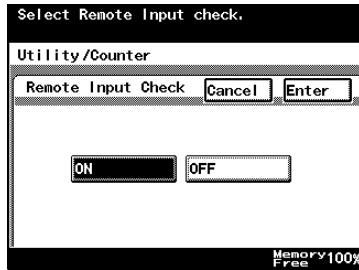
13 Press [Remote Output Check].
14 Press either [ON] or [OFF] to specify a setting for "Remote Output Check", and then press [Enter].
- If "ON" was selected, type in an F-code password.
? What does the “Remote Output Check” function do?
→ This function specifies whether or not retrieving a bulletin board
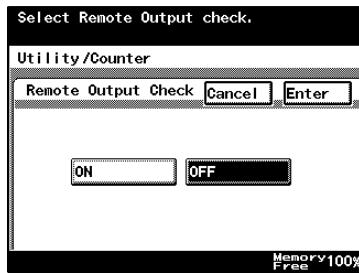
document from another fax machine is regulated with a password.
15 Check the information to be registered, and then press [Enter].
- To change a setting, press the button for the setting to be changed, and then specify the new setting.
16 Press [Enter] in each screen until the standby screen (initial screen) appears.
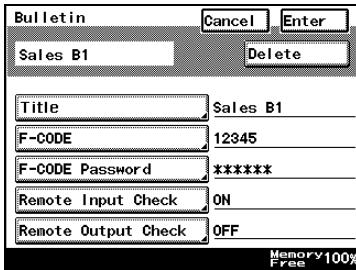
10.6 Registering Confidential Boxes
Since a password can be specified for confidential boxes, faxes can safely be sent and received.
The confidential communication which used the F-code can be used in this machine.

Detail
Before saving a document to a confidential box, the box has to be registered. If a password is to be specified for the confidential box, also specify an F-code password. For details, refer to "F Codes" on page 7-24.
How to Register Confidential Boxes
1 Press [Utility/Counter].
2 Press [User Setting].
3 Press [FAX].
4 Press [Conf. Box].
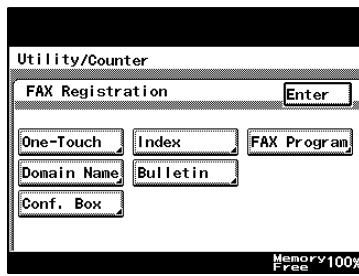
5 Select the confidential box.
![Select Confidential User Box to REG/CHANGE/DEL, Touch [Enter]. Confidential Box Enter Memory 100% Free](/content/2025/01/139711/images/396af36cfe60e6ca517d53b760d584992d5b1fefcbb8582ba4884ac03f0896bc.jpg)
6 Press [Confidential User Box Name].
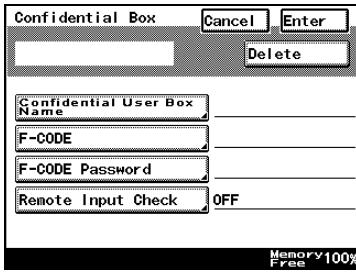
7 Type in the title, and then press [Enter].
- A maximum of 8 characters can be entered.
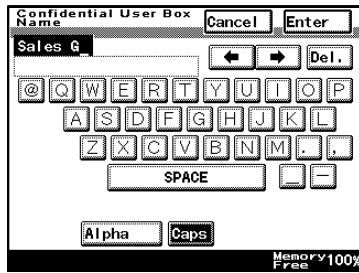
8 Press [F-CODE].
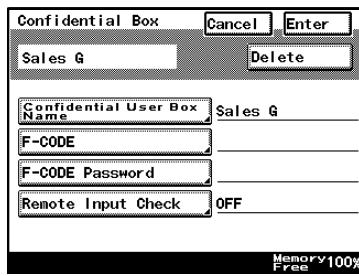
9 Type in the F-code, and then press [Enter].
- Register the F-code for using the confidential box.
- A maximum of 20 characters (0 through 9, # and *) can be entered.
- Do not specify the same F-code for a different bulletin board, for a confidential box, for a users box,
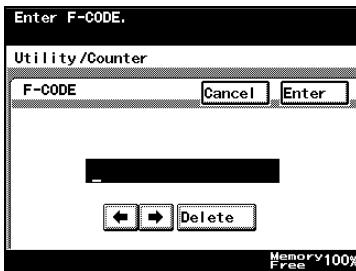
or for document management.
10 If desired, press [F-CODE Password], and then type in password.
- Register a password for each confidential box.
- A maximum of 20 characters (0 through 9, # and *) can be entered. The entered password appears as asterisks (*).

? Although a password was speci- fied, why can't viewing be limited?
→ The password is entered when limiting viewing of the confidential box. To specify the viewing limitations, press [Remote Input Check].
11 Press [Remote Input Check].
12 Press either [ON] or [OFF] to specify a setting for "Remote Input Check", and then press [Enter].
- If "ON" was selected, type in an F-code password.
? What does the “Remote Input Check” function do?
→ This function specifies whether or not registering a document in this machine's confidential box from a password.
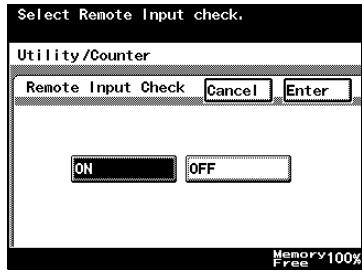
13 After verifying the entered information, touch [Enter].
- To change a setting, press the button for the setting to be changed, and then specify the new setting.
14 Press [Enter] in each screen until the standby screen (initial screen) appears.
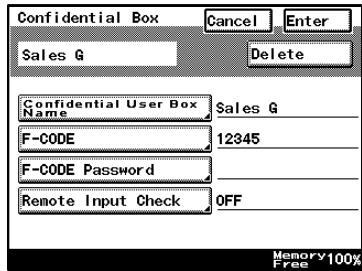
11
Utility mode
11 Utility mode
11.1 Utility mode screen
List of registration information and parameters
A utility mode should be designated to manage this machine. It is recommended that a specific person be authorized as utility mode to prevent confusion.
The procedures for entering in and exiting the utility mode and setting fax functions are described below.

Note
The buttons that appear in the screens differ depending on the specified settings.
Buttons marked with ^*1 may not appear depending on the specified settings or whether specific options are installed.
For details on buttons marked with ^*2 , refer to the user's guide [Network Scanner Operations].
For details on the buttons marked with ^*3 , refer to the user's guide [Print Operations].
For details on the buttons marked with ^*4 , refer to the user's guide [Box Operations].
If user authentication settings have been specified and the [Utility/Counter] key is pressed without performing user authentication, only the buttons marked with ^5 appear.
For details on the functions with no mark and no reference page indication, refer to the user's guide [Copy Operations].
| Utility/Counter | ||||
| User Setting | User's Choice | 1/6 | Mixed Original Detection | |
| Language Selection | ||||
| Machine Authentication PW Change*1 | ||||
| 2/6 | Default Setting Simplex / Duplex | |||
| Auto Paper / Auto Zoom | ||||
| Priority Tray | ||||
| Special Paper Setting | ||||
| Zoom Ratio for Combine Book-lets | ||||
| 3/6 | Low Power Mode | |||
| Sleep Mode | ||||
| LCD Back-Light OFF | ||||
| Auto Reset | ||||
| Auto Reset when Account is changed | ||||
| 4/6 | 4in1 Copy Order | |||
| Default Quality / Density Modes | ||||
| Default Copy Density Levels | ||||
| Print Density | ||||
| Default Finishing Mode | ||||
| User Setting | User's Choice | 5/6 | Sort / Non-Sort Auto Change | |
| Output Tray Settings*1 (p. 11-12) | ||||
| Auto Paper Select for Small Original | ||||
| Crease / Center Staple*1 | ||||
| 6/6 | Default Screen (p. 11-12) | |||
| Default Device | ||||
| Image Quality (ADF) | ||||
| FAX (p. 10-3) | One - Touch | |||
| Index | ||||
| FAX Program | ||||
| Domain Name*2 | ||||
| Bulletin | ||||
| Conf. Box | ||||
| Store Overlay*1 | ||||
| User Manage-ment | Confirmation Beep | |||
| Alarm Volume | ||||
| Line Monitor Sound*1 (p. 11-15) | ||||
| Job Complete Beep | ||||
| Panel Cleaning | ||||
| Toner Supply | ||||
| Memory RX ON / OFF (p. 11-38) | ||||
| POP3 RX *2 | ||||
| Admin. Manage-ment*5 | Admin. 1 | Initial Setting | Date & Time Set-ting | Date & Time Set-ting |
| Time Zone | ||||
| Day Light Saving Time | ||||
| Language for Communication (p. 11-20) | ||||
| Self-Telephone # information (p. 11-21) | Self-Telephone # | |||
| PBX Connection Mode | ||||
| Dialing Method | ||||
| TSI Registration (p. 11-24) | ||||
| Self-ID (p. 11-3) | ||||
| Admin. Set | Administrator Code Input | |||
| Max. Copy Sets | ||||
| Disable Sleep Mode | ||||
| Restrict One-Touch Editing (p. 11-28) | ||||
| Account / User Auth. | General Settings | User Authentica-tion ON / OFF | ||
| Account Track ON / OFF | ||||
| Allow Print with-out Authentica-tion*1 | ||||
| Account Data *1 | ||||
| User Auth. Set-ting*1 | User Registra-tion | |||
| Admin. Manage-ment*5 | Admin. 1 | FAX Regist.(p. 10-3) (Ap-pears with “Re-strict One Touch Editing”) | ||
| TX Settings(p. 11-29) | Quality / Mode | Default Quality | ||
| Default Density | ||||
| Communication Mode | ||||
| Comm. Menu | TX | |||
| TSI | ||||
| Rotation TX | ||||
| 2-sided TX | ||||
| RX Settings(p. 11-34) | Memory RX Time Setting | Memory Lock Time | ||
| Memory Lock Password | ||||
| Confidential RX User Box Delete | ||||
| FAX Setting(p. 11-18) | RX Functions | Reception Mode | ||
| Numbers of RX Call Rings | ||||
| Password Com-munication | Communication Password | |||
| Print Lists(p. 11-18) | ||||
| Report Settings(p. 11-45) | TX Report | |||
| Activity Report | ||||
| Document Man-agement(p. 11-48,p. 11-50) | TX Document | |||
| RX Document | ||||
| Admin. Manage-ment*5 | Admin. 2 | Network Set-tings*2 | Basic Settings | DHCP |
| IP Address Setting | ||||
| Subnet Mask | ||||
| Gateway | ||||
| Self-Domain Name (p. 11-58) | ||||
| Network Board Set | ||||
| DNS Settings | ||||
| Machine Name | ||||
| SMTP Settings | SMTP Server Address | |||
| E-Mail Address | ||||
| SMTP Authentication User Name*1 | ||||
| SMTP Authentication Pass-word*1 | ||||
| POP3 Settings | POP3 Server Address | |||
| POP3 User Name | ||||
| POP3 Password | ||||
| Auto-RX Check | ||||
| Mail / Scan Set-tings | E-Mail Mode | |||
| Scan Mode | ||||
| Scanner Settings | Activity Report | |||
| RX Doc. Header Print | ||||
| E-Mail Header Text | ||||
| Gateway TX (p. 11-60) | ||||
| Subject Regis-tration | ||||
| Divide Settings | ||||
| Admin. Manage-ment*5 | Admin. 2 | Network Set-tings*2 | LDAP Setting | LDAP Search |
| LDAP Server Setting | ||||
| Frame Type Set | ||||
| IP Relay Settings | IP Relay Station Registration | |||
| IP Relay Station Setting | ||||
| Relay Result Port | ||||
| Printer Setting*3 | Timeout | |||
| Software SW (p. 11-62) | ||||
| Ping*2 | ||||
| Delete Job *2 | ||||
| SSL/TLS*2 | ||||
| Reports (p. 13-3) | ||||
| Printer Setting*3 | MFP Set | Proof Print Hold Time | ||
| Overwrite A4 "E Letter | ||||
| Document Hold Time | ||||
| PostScript Error Report | ||||
| Default Set | Basic | Tray | ||
| Paper Size | ||||
| Original Direc-tion | ||||
| Print Method | ||||
| # of Sets | ||||
| Font | Font # | |||
| Symbol Set | ||||
| Number Lines | ||||
| Font Size | ||||
| CR/LF Mapping | ||||
| PDL Set | ||||
| Test Print | ||||
| Check Detail | ||||
11.2 Initial setting
Set the default of the fax function.
It is possible to set a fax function that is selected when the main power is turned on or when [Reset] is pressed.
For this setting, display the fax screen and press the [Utility/Counter] on this screen.
Initial setting
1 Press [Utility/Counter].
The Utility/Counter screen appears.
2 Press [User Setting].
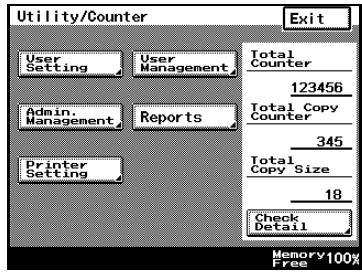
3 Press [User's Choice].
The User's Choice screen appears.
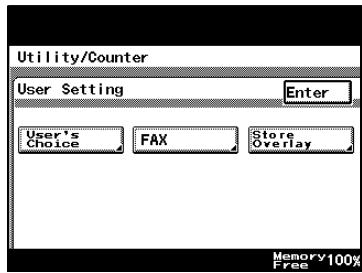
4 Select a tab, and then select a parameter to be set.
5 Specify the desired settings, and then press [Enter].
- To cancel changes to the settings, press [Cancel].
"Output Tray Settings" is available on tab 5/6, and "Default Screen" is available on tab 6/6.
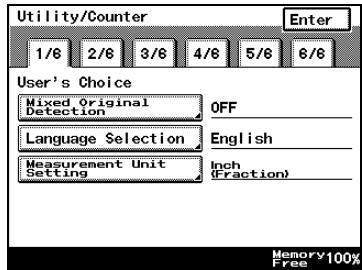

...
Note
To exit the User's Choice screens, press [Enter] in each screen until the initial screen appears.
Output tray settings
| Tab | Parameter | Description | Default Setting | ||
| 5/6 | Output Tray Settings | Faxes/Prints | FAX (Port 1) | Select the exit tray for data received at the fax port. | 1 (output tray 1) |
| Port 2 | Select the exit tray for data received at port 2 when the multi port is installed. | 1 (output tray 1) | |||
| Faxes/Prints | Select the exit tray for data received from the network. | 1 (output tray 1) | |||
| Copier/Printer | Printer | Specify the exit tray for computer printouts. | 1 (output tray 1) | ||
| Copies | Specify the exit tray for copies. | 2 (output tray 2)1 (output tray 1) | |||

...
Note
The “Output Tray Settings” parameter appears only if optional finisher or job separator is installed.
In order to use port 2, optional fax multi line must be installed.
“1” (output tray 1) appears when a finisher is installed, and “2” (output tray 2) appears when the job separator is installed.
Default screen
| Tab | Parameter | Description | Default Setting | |
| 6/6 | Default Screen | Default LCD Screen | Select one of the following as the mode screen given priority.Copy, FAX, Scanner, FAX/ Copy Auto | Copy |
| Default FAX Screen | Select one of the following as the Fax mode screen given priority.One-Touch, Search, Direct Input, Index | One-Touch | ||
11.3 Specifying FAX registration settings
From the FAX Registration screen, one-touch dial buttons and programs can be registered to allow the fax functions to be used more easily.
This section describes the buttons available in the FAX Registration screen. The operating procedures are described in the corresponding sections of chapter 9. For details on each item, refer to the indicated page.
| Item | Description | Page Reference |
| One-Touch | Recipients can be registered as one-touch dial button. 15 one-touch dial buttons can be registered per screen to give a total of 540 buttons. | p. 10-4 |
| Index | The names of indexes on the One-Touch screen can be registered. For convenience, classify the one-touch dial buttons in indexes. 36 indexes can be registered, and up to 15 one-touch dial buttons can be registered in each index. | p. 10-13 |
| FAX Program | Transmission settings can be programmed together with recipient information in programs. This allows transmission and reception with the same transmission settings to often be performed simply by pressing that button. Programs are registered in one-touch dial buttons, and a maximum of 30 programs can be registered. | p. 10-15 |
| Domain Name | Register text that is frequently entered. This allows recipient addresses to quickly be entered when e-mail functions are being used. | user's guide [Network Scanner Operations] |
| Bulletin | Register bulletin boards for registering and retrieving documents that are shared. | p. 10-23 |
| Conf. Box | Create individual confidential boxes on the machine. Since a password is required to retrieve documents from these boxes, confidential documents can effectively be transferred. | p. 10-27 |
11.4 User User Management
Various functions, such as the screen mode and the volume of alarms, can be specified, allowing the machine to be used more easily.
To specify user management settings
1 Press [Utility/Counter].
The Utility/Counter screen appears.
2 Press [User Management].
The User Management screen appears.
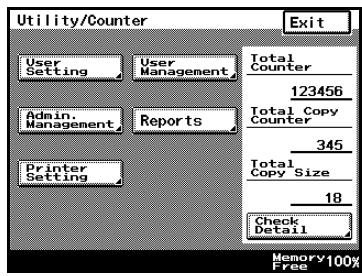
3 Select a parameter to be set.
4 Specify the desired settings, and then press [Enter].
- To cancel changes to the settings, press [Cancel].

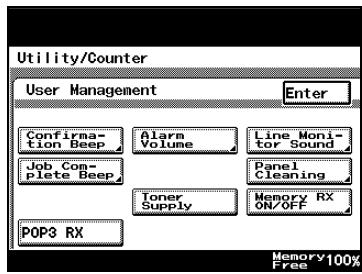
Note
To exit the User Management screen, press [Enter] in each screen until the initial screen appears.
Tone volume parameters
In the User Management screen, sound levels can be specified using the "Line Monitor Sound" and the "Job Complete Beep" parameters.
| Parameter | Description | Default Setting |
| Line Monitor Sound | Specify the volume (between 0 and 5) of the sound produced when a transmission is being monitored. | 3 |
| Job Complete Beep | Specify the volume (between 0 and 5) of the tone produced when a job is completed. | 3 |
Memory RX ON/OFF
| Parameter | Description |
| Memory RX ON/OFF | You can enable or disable unconditional memory reception, which means to receive documents and store in memory so that you can print them later. |
11.5 Specifying Administrator Settings
To set the administrator access code
1 Press [Utility/Counter].
The Utility/Counter screen appears.
2 Press [Admin. Management].
The Administrator Code screen appears.
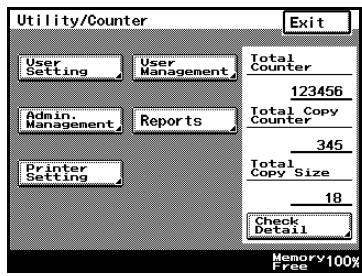
3 Use the keypad to type in the 8-digit administrator access code, and then press [Enter].
- Press the [C] key to erase all entered text.
- To return to the previous screen, touch [Cancel].
The Administrator Management screen appears.
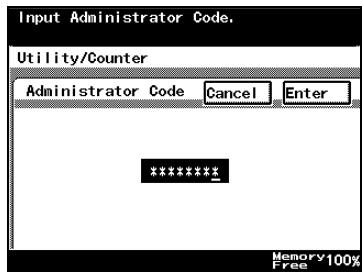
4 Press [Admin. 1] or [Admin. 2].
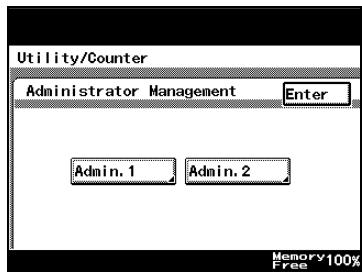
The Administrator Management 1 or Administrator Management 2 screen appears.

...
Note
To exit the Administrator Management screen, press [Enter] in each screen until the initial screen appears.
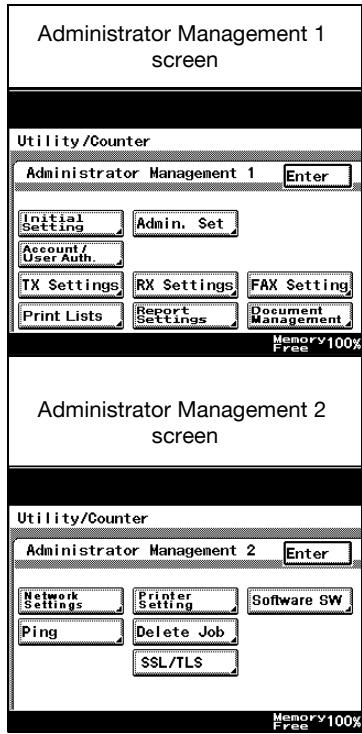
11.6 Available parameters
The following Administrator Management parameters are related to the information in this manual.
Administrator management 1 screen
| Parameter | Description | |
| Initial Setting | Language for Communication | Select the language used to display the fax number and the sender's name printed at the edge of the sent fax. |
| Self-telephone # Information 1 & 2 | Register the information required for a fax transmission, such as the machine's telephone number, whether or not a private branch exchange is used, and the dialing system. | |
| TSI Registration | Register this machine's name, which is printed at the edge of the sent fax. Since a maximum of 8 characters can be entered, specify a name that will be understood by the recipient. | |
| Self-ID | Type in the text that appears in the recipient's reports and machine control panel. This allows the receiver to easily check that the fax was sent from this machine. | |
| Admin. Set | Restrict One-Touch Editing | Select whether or not one-touch dial buttons can be registered or changed from the User Setting screen. Use the “One-Touch” parameter, which is the same as that in the Administrator Management screen, to register one-touch dial buttons. |
| FAX Regist. | Use to register one-touch dial buttons if they cannot be registered or changed from the User Setting screen. | |
| TX Settings | Specify the default transmission settings. | |
| RX Settings | Specify the time and day for printing a fax that is received. | |
| FAX Setting | Specify the settings for the fax line that is used. | |
| Print Lists | Print lists of the machine settings. | |
| Report Settings | Specify the conditions for printing result reports and transmission activity reports. | |
| Document Management | Specify how sent and received documents are processed and transferred. | |
Administrator management 2 screen
| Parameter | Description | |
| Network Settings | Basic Settings–Self-Domain Name | Specify the domain name of this unit. |
| Scanner Settings–Gateway TX | Select whether to permit or prohibit direct faxing. | |
| Software SW | Use the software switch settings to specify machine settings. | |
11.7 Setting the Language for the TSI Name and Reports)
Sets the language (English or other language) used for the TSI name and for reports.
How to Set the Communication Language
1 After entering Administrator mode, press [Admin. 1].
2 Press [Initial Setting].
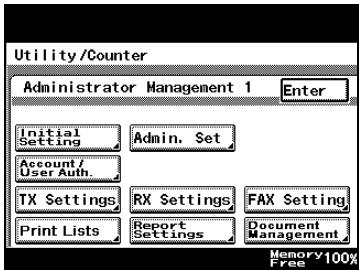
3 Press [Language for Communication].

4 Select the language, and then press [Enter].
? Why are there some languages that cannot be selected?
→ Depending on the report to be printed, some languages cannot be selected.
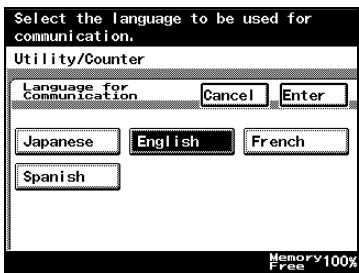
5 Press [Enter] in each screen until the standby screen (initial screen) appears.
11.8 Registering Telephone Numbers
Registers the FAX telephone number, whether there is a PBX, the line type and other information required for FAX communication.

Note
The destination may look at the FAX telephone number in reports or the like. We recommend you include the area code for easy recognition by the destination.
How to Set up the FAX Telephone Number Information
1 After entering Administrator mode, press [Admin. 1].
2 Press [Initial Setting].
3 Press [Self-telephone # Information].
- If you are using the multi-port option, two general subscriber lines are possible. Select [Self-telephone # Information 1] and [Self-telephone # Information 2] and set the information for each.
4 Press [Self-Telephone #].
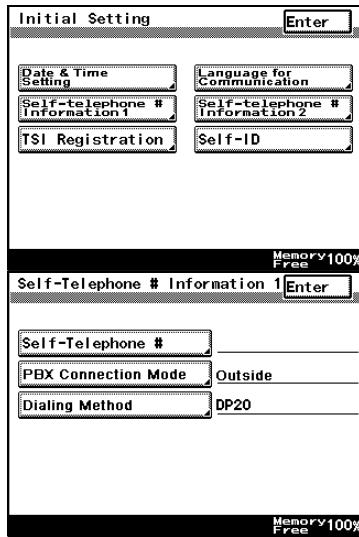
5 Use the keypad to type in the telephone number of the machine, and then press [Enter].
- A maximum of 20 digits can be entered for the telephone number.
- To register the country code (for example, for the US), press the [+] and enter the US code "1".
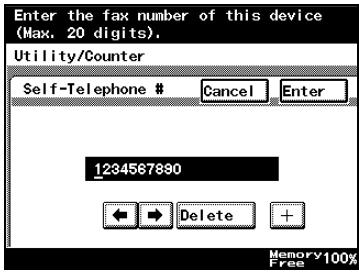
6 Press [PBX Connection Mode].
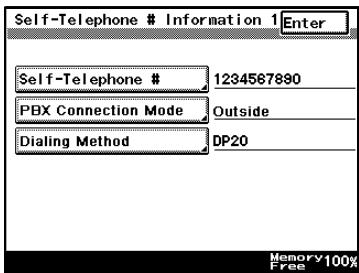
7 Press [Extension] or [Outside].
- Outside: Select this setting if the connection is made directly to the general subscriber line.
- Extension: Select this setting if the connection is made to the general subscriber line through a PBX (private branch exchange). If a PBX (private branch exchange)
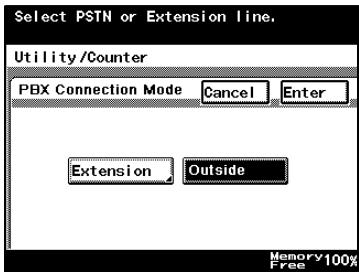
is used, fax transmission may not be completed correctly. Select when using a general subscriber line through a PBX (private branch exchange).
8 If you select [Extension], input the external access number (the number used to get out), and touch [Enter].
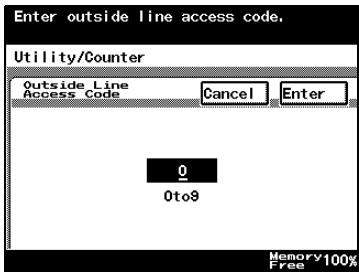
9 Press [Enter].
10 Press [Dialing Method].
11 Press the button for the dialing method that is used, and then press [Enter].
- DP20: Select if using a dial pulse 20 pps line.
- DP10: Select if using a dial pulse 10 pps line.
- PB: Select if using a push button line.
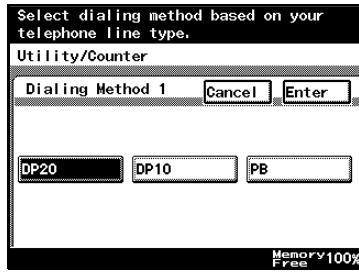
12 Check the information to be registered, and then press [Enter].
To change a setting, press the button for the setting to be changed, and then specify the new setting.
13 Press [Enter] in each screen until the standby screen (initial screen) appears.
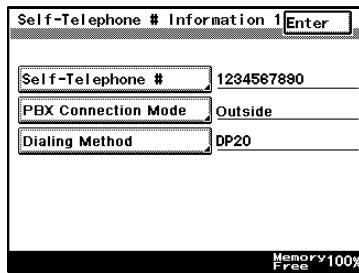

Note
The registered machine telephone number can be changed by following the same procedure used to register it.
11.9 Registering TSI Names
This section describes how to register your name (the TSI name).

Note
Up to 8 TSI names can be registered.
Different TSI names can be registered for use with different destinations and departments.
Up to 40 digits can be registered for the TSI name.
The TSI name is printed at the edge of the transmitted document. A TSI name does not need to be registered in order to send a FAX.
The TSI name can be changed using the same procedure as used for registration.
To register a transmission source name
1 After entering Administrator mode, press [Admin. 1].
2 Press [Initial Setting].
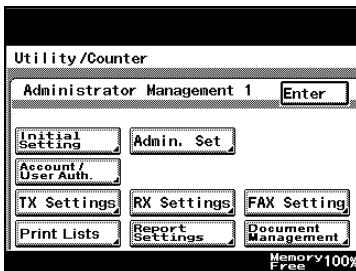
3 Press [TSI Registration].
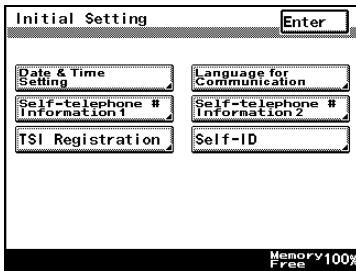
4 Select the telephone number you want to register a TSI name for.
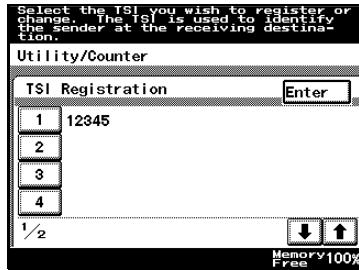
5 Enter the TSI name and touch [Enter].
6 After verifying the registration information, touch [Enter].
7 Press [Enter] in each screen until the initial screen appears.
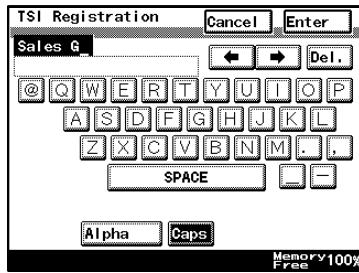
11.10 Registering the FAX ID Displayed at the Destination
When you register your name and telephone number as ID, that information will be displayed on the destination FAX display panel, administrator reports and the like. Registering your FAX ID makes it easier to identify who your FAX is from for the destination.

Note
Note that some FAX machines do not have a function for displaying the ID information. In that case, the FAX telephone number that you registered will be displayed.
To register the machine's ID
1 After entering Administrator mode, press [Admin. 1].
2 Press [Initial Setting].
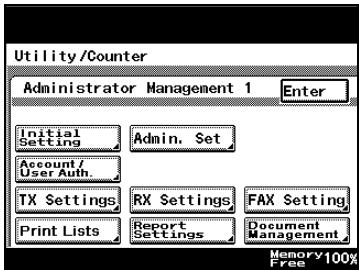
3 Press [Self-ID].
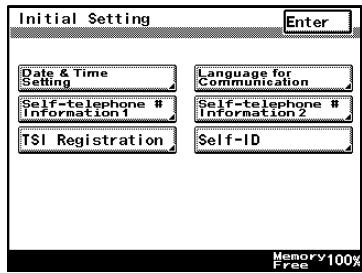
4 Enter the ID and touch [Enter].
- A maximum of 12 characters can be entered for the machine's ID.
5 Press [Enter] in each screen until the standby screen (initial screen) appears.
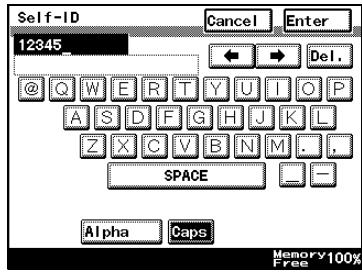

Note
The registered ID can be changed using the same procedure as used for registration.
11.11 Preventing changes to one-touch dial buttons
The machine can be set to limit the users allowed to register and change one-touch dial buttons.
To prevent changes to one-touch dial buttons
1 After entering Administrator mode, press [Admin. 1].
2 Press [Admin. Set].
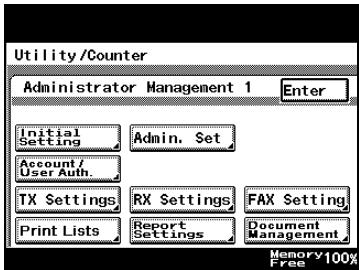
3 Press [Restrict One-Touch Editing].
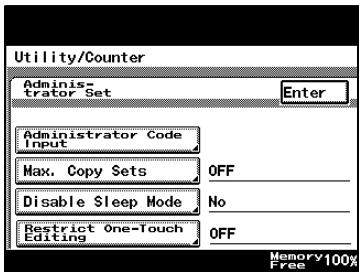
4 Press [ON], and then press [Enter].
5 Press [Enter] in each screen until the standby screen (initial screen) appears.

Note
"Restrict One-Touch Editing" prevents changes from the User Setting screen. One-touch dial buttons can be registered and changed by touching [FAX Regist.] in the Administrator Management 1 screen.
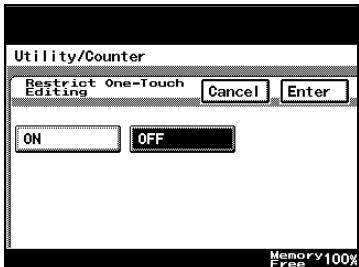
11.12 Specifying transmission settings (TX Settings)
Specify the default transmission settings.
Settings can be specified for the following.
| Function | Description |
| Quality/Mode | |
| Default Quality | Sets the default quality value for each operation. |
| Default Density | Sets the default contrast value for each operation. |
| Communication Mode | Specify the default communication mode that is selected when an operation is finished. |
| Comm. Menu | |
| TX | Select the transmission method.Memory TX: Sends the data after the entire document is scanned.Quick Scan TX: Sends the document one page at a time. |
| TSI | Select the transmission source that is printed when the document is received. |
| Rotation TX | Sets whether to return to rotation transmission or not after each operation. |
| 2-Sided TX | Specify whether or not double-sided transmission is selected when an operation is finished. |
Specifying Default Values for Quality and Mode when Transmitting
1 After entering Administrator mode, press [Admin. 1].
2 Press [TX Settings].
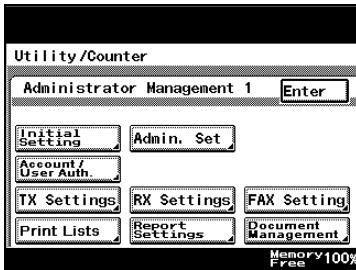
3 Press [Quality/Mode].
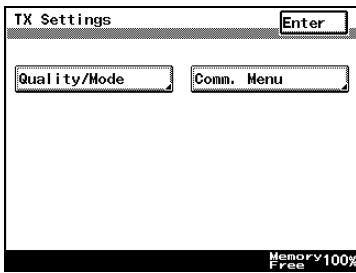
4 Press the button for the setting to be specified, and then press [Enter].
- After touching [Default Quality], select the image quality that is given priority.
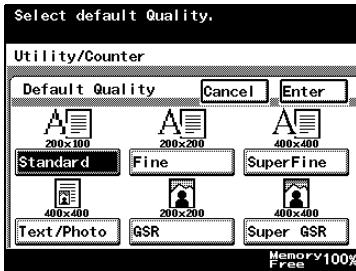
- After touching [Default Density], touch [Light] or [Dark] to select the density that is given priority.
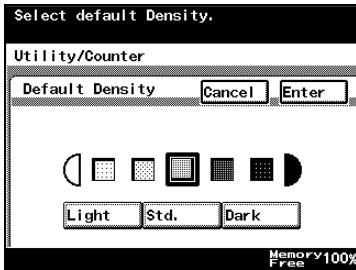
- After touching [Communication Mode], select the transmission mode that is given priority.
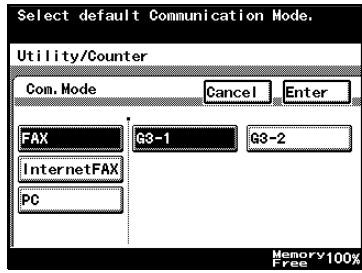
5 Press [Enter].
6 Press [Enter] in each screen until the initial screen appears.
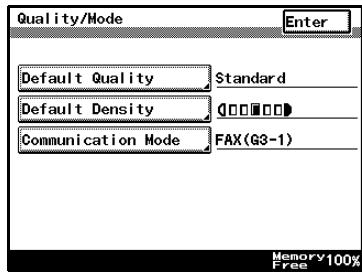
Specifying the Default Transmission Settings
1 After entering Administrator mode, press [Admin. 1].
2 Press [TX Settings].
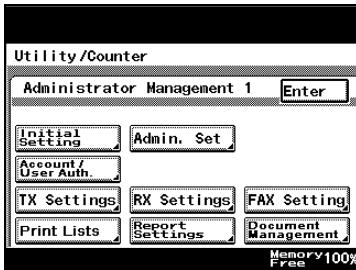
3 Press [Comm. Menu].
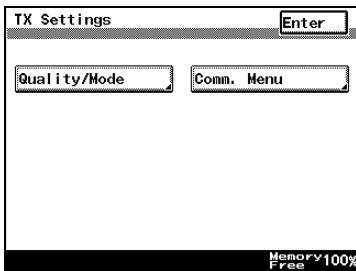
4 Press the button for the setting to be specified, and then press [Enter].
- After touching [TX], select whether the document is transmitted from the memory ("Memory TX") or whether the document is transmitted page by page ("Quick Scan TX").
- Press [TSI] - [TSI Selection] to select the transmission source name to be printed.
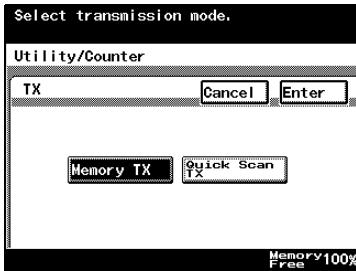
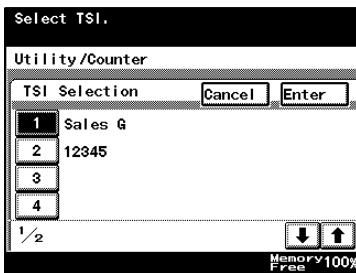
- After touching [Rotation TX], select whether or not a rotation transmission will be performed.
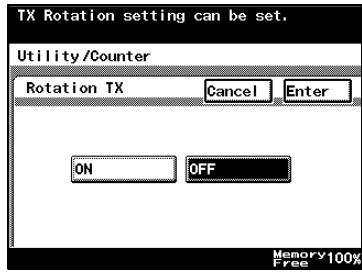
- After touching [2-Sided TX], select whether or not double-sided transmission will be performed. If "ON" was selected, select the binding position.
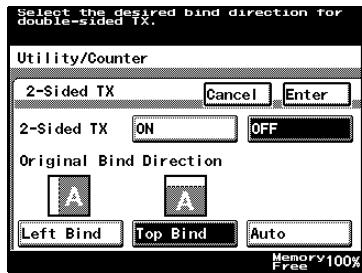
5 Press [Enter].
6 Press [Enter] in each screen until the initial screen appears.
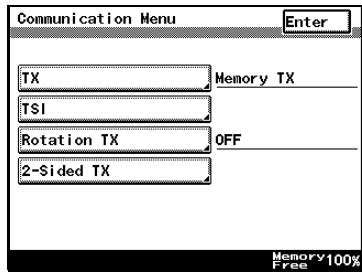
11.13 Setting Memory Lock for Received Documents)
It is possible to set the machine to not print each document when received, so multiple documents can be batch printed later. The time period for not printing as well as a password to enable printing can be set for secure reception of faxes, for example, received late at night.
| Parameter | Description |
| Memory Lock Time | Specify the time to print received faxes that were not immediately printed.During the specified time period on the specified days, all received faxes are collected and printed together. Specify the day, starting time and ending time. |
| Memory Lock Password | Specify the four-digit password used to print faxes received outside of the specified time period. |

...
Note
For details on entering a password to print the fax, refer to “Manually Printing Received Faxes with Memory Lock” on page 11-38.
Specifying the "Memory RX Time Setting" parameter
1 After entering Administrator mode, press [Admin. 1].
2 Press [RX Settings].
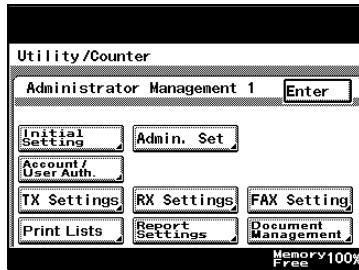
3 Press [Memory RX Time Setting].
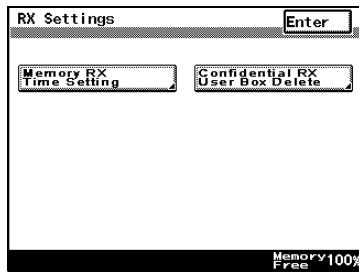
4 Press [Memory Lock Time].
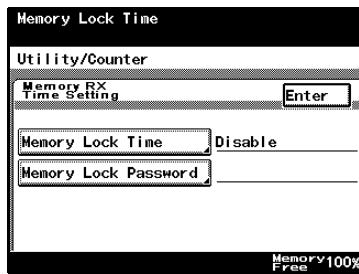
5 Press the button for the setting to be specified, and then press [Enter].
- To cancel the parameter, press [OFF].
6 Press [Enter] in each screen until the initial screen appears.

Specifying the "Memory Lock Password" parameter
1 After entering Administrator mode, press [Admin. 1].
2 Press [RX Settings].
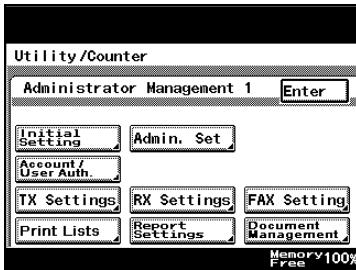
3 Press [Memory RX Time Setting].
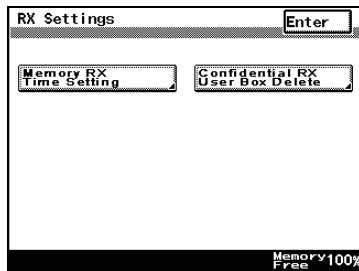
4 Press [Memory Lock Password].
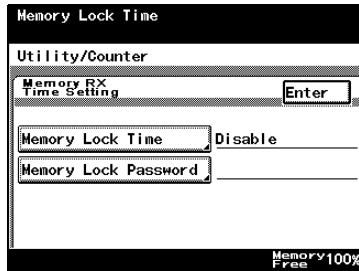
5 Press [New Password], type in the password, and then press [Enter].
- Use the keypad to type in the four-digit password.
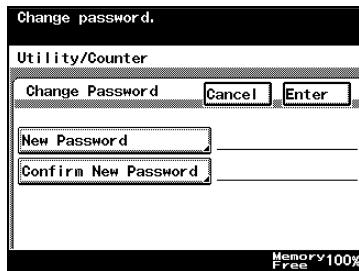
6 Press [Confirm New Password], type in the password again, and then press [Enter].
7 Press [Enter] in each screen until the initial screen appears.
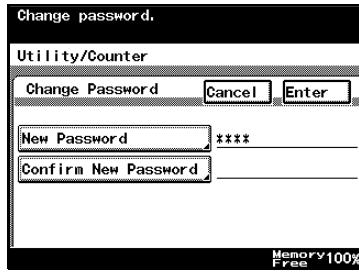
Manually Printing Received Faxes with Memory Lock
1 Press [Utility/Counter].
2 Press [User Management].
3 Press [Memory RX ON/OFF].
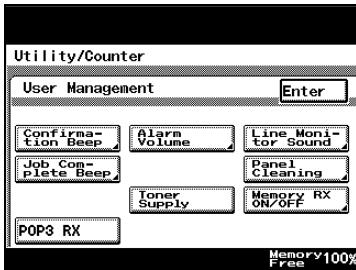
4 If a print management password was specified, use the keypad to type it in, and then press [Enter].
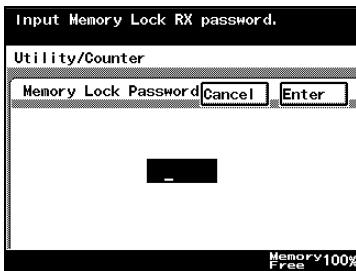
5 Press [Lock OFF], and then press [Enter].
- To stop printing, press [Lock ON], and then press [Enter].
- To restart printing, press [Temporary Print].
6 Press [Enter] in each screen until the initial screen appears.
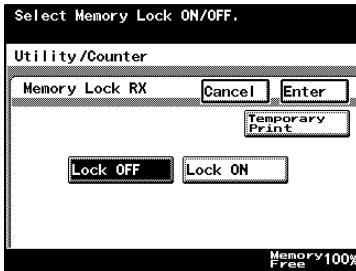
11.14 Deleting confidential boxes
A registered confidential box can be deleted.

Detail
When a confidential box is deleted, all documents within the confidential box are also deleted. To delete only the documents in a confidential box without deleting the confidential box, delete the document from the Doc. tab of the Job List screen. For details, refer to “Checking transmission results (Job List)” on page 3-34.

...
Note
To register a confidential box, press [FAX] on the User Setting screen. For details, refer to "Registering Confidential Boxes" on page 10-27.
To delete a confidential box
1 After entering Administrator mode, press [Admin. 1].
2 Press [RX Settings].
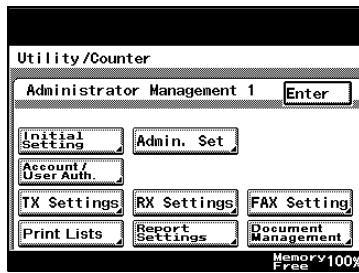
3 Press [Confidential RX User Box Delete].
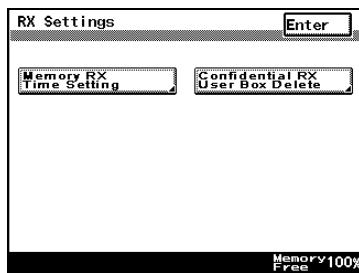
4 Select the confidential box to be deleted.
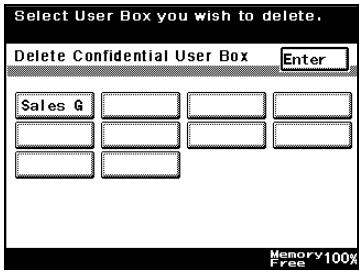
5 Press [Yes].
6 When the screen shown in step 3 appears, check that the confidential box was deleted, and then press [Enter].
7 Press [Enter] in each screen until the standby screen (initial screen) appears.
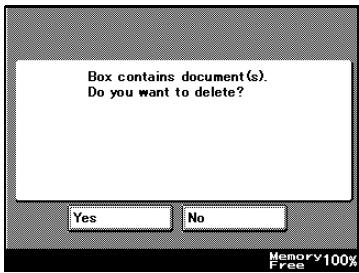
11.15 Setting the Receiving Mode and No. of Receiving Call Rings
Sets whether to automatically receive faxes and the number of rings before automatically picking up.
How to Set the Receiving Functions
1 After entering Administrator mode, press [Admin. 1].
2 Press [FAX Setting].
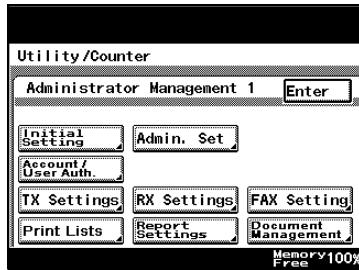
3 Press [RX Functions].
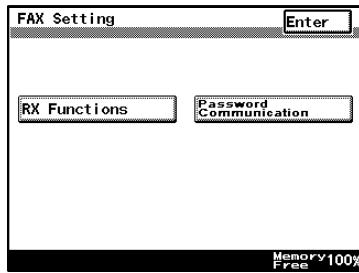
4 Specify the desired settings.
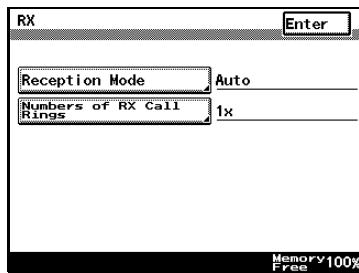
To specify the reception method (Reception mode)
→ Select the default value for the reception mode, and touch [Enter].
- Auto: Select for automatic reception.
- Manual: Select for manual reception.
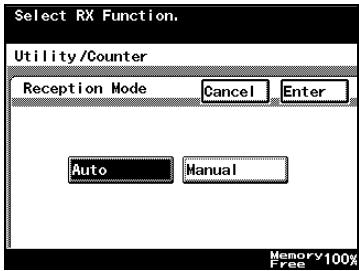
To specify the number of rings (Numbers of RX call rings)
→ Type in the number of rings until the call is automatically received.
- The number of rings may be set between 1 and 20.

Note
If the number of rings is set for 10 or more, the reception may not be completed, depending on the sender's fax machine.
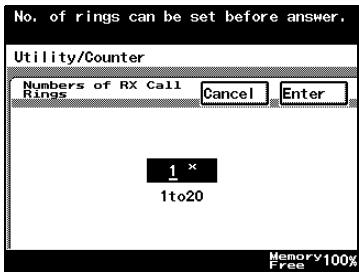
11.16 Password Registration for Password Communication
"Password Communication" (Password TX and Password RX) is a function where faxing is allowed between two fax machines only when a password set beforehand in both machines matches. This section describes how to set up the password to enable this function.

Detail
The communication password is used for password TX and password RX. For details, refer to “Performing Password Transmission” on page 7-22 and “Password Registration for Password Communication” on page 8-3.
How to Register the Communication Password
1 After entering Administrator mode, press [Admin. 1].
2 Press [FAX Setting].
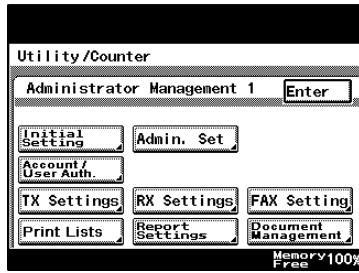
3 Press [Password Communication].
4 Press [Communication Password].
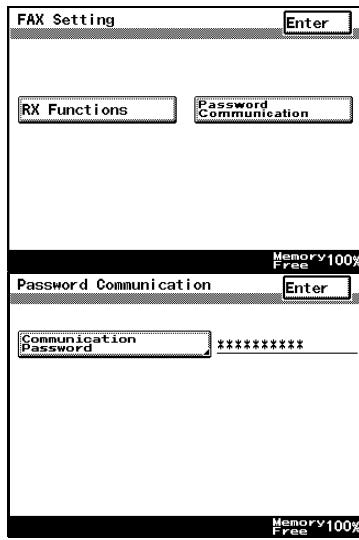
5 Use the keypad to type in the current two-digit communication password, and then press [Next].
The password appears as “**”.
6 Press [New Password], type in the password, and then press [Enter].
7 Press [Confirm New Password], type in the password again, and then press [Enter].
8 Check the information to be registered, and then press [Enter].
9 Press [Enter] in each screen until the standby screen (initial screen) appears.
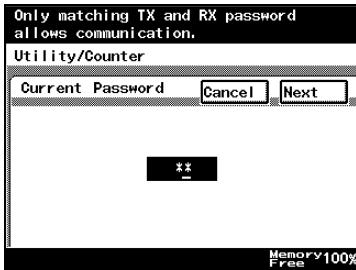
11.17 Settings for Report Output
Specify the conditions for printing transmission result reports and activity reports.
Settings can be specified for the following.
| Parameter | Description |
| TX Report | Specifies how to output the report for verifying FAX transmission activity.ON: Select this to automatically print a TX report for each TX. If TX Fails: Select this to automatically print a TX report only when there is a failure.OFF: Select this so TX reports are not automatically printed out. |
| Activity Report | Specify whether or not to automatically output the activity report with every 50 transmissions. |
How to Set up the TX Report
1 After entering Administrator mode, press [Admin. 1].
2 Press [Report Settings].
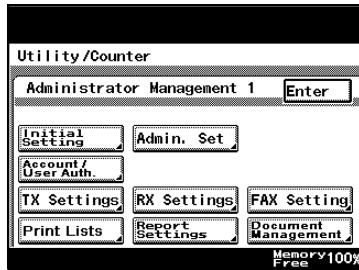
3 Press [TX Report].
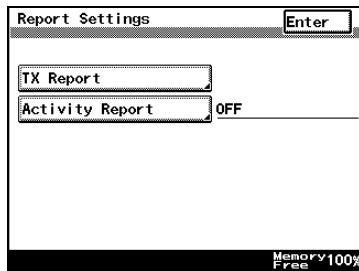
4 Specify the desired settings, and then press [Enter].
5 Press [Enter] in each screen until the initial screen appears.
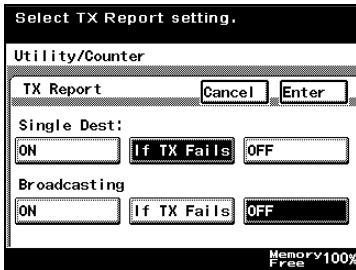
How to Set up Activity Reports
1 After entering Administrator mode, press [Admin. 1].
2 Press [Report Settings].
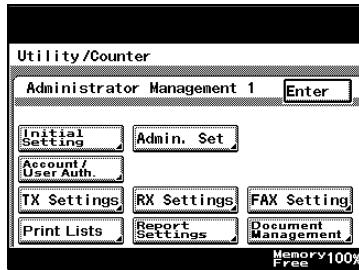
3 Press [Activity Report].
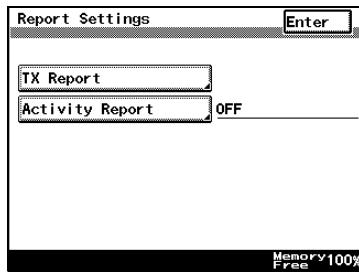
4 Specify the desired setting, and then press [Enter].
5 Press [Enter] in each screen until the initial screen appears.
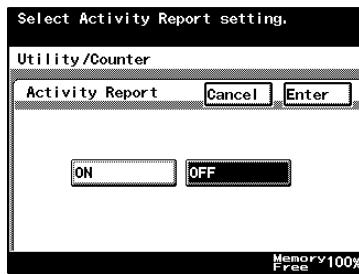
11.18 Forwarding sent documents to the specified recipient (TX Forwarding)
Specify that sent documents are forwarded to the recipient specified as the administrator in order to manage documents sent from this machine.
- Specify a forwarding destination with a one-touch dial button. The forwarding destination must be registered with a one-touch button in advance.
- A forwarded sent document cannot be forwarded again to the administrator.
To specify document forwarding
1 After entering Administrator mode, touch [Admin. 1].
2 Press [Document Management].
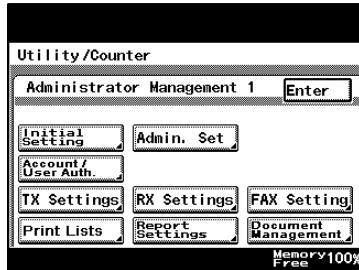
3 Press [TX Document].
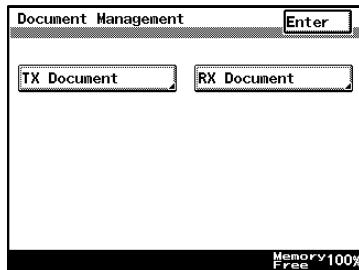
4 Press [TX Forwarding].
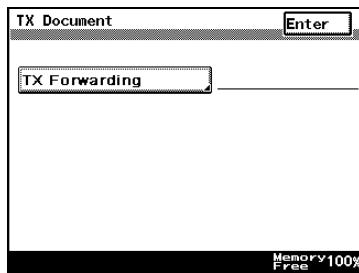
5 Specify the forwarding destination, and then press [Enter].
- To specify a forwarding destination with a one-touch dial button, touch [One-Touch], specify the recipient, and then touch [Enter].
- To search for a one-touch dial button, press [Search], specify the recipient, and then press [Enter].
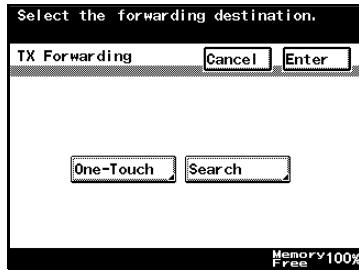
6 Press [Enter] in each screen until the initial screen appears.
11.19 Setting Document Management for RX
This sets up the method used for managing received faxes. RX documents are classified as “F-CODE communications”, “Port RX” and “Public Documents”. Different settings may be programmed for each).
To specify the procedure performed with documents received on each line
This machine can be set to perform a specific procedure, such as printing or forwarding the received document, for each line when a document is received.
Settings can be specified for the following.
| Parameter | Description |
| Document Management | Select whether or not an operation is performed with a document received at the selected port.NO: No operation is performed with the received document.YES: Specify where the received document is saved or forwarded. |
| RX Doc. Settings | If document management is set to “YES”, select the operation that is performed with the received document.Print: Select this setting to print the document.Forward: Select this setting to forward the data to the specified recipient.Print & Forward: Select this setting to print the document and forward it to the specified recipient. |
| Forwarding Dest. | Specify a destination when “RX Doc. Settings” is set to “Forward”. |
To specify the procedure performed with documents received on each line
1 After entering Administrator mode, press [Admin. 1].
2 Press [Document Management].
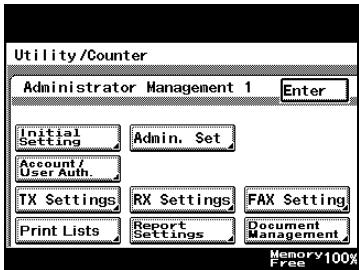
3 Press [RX Document].
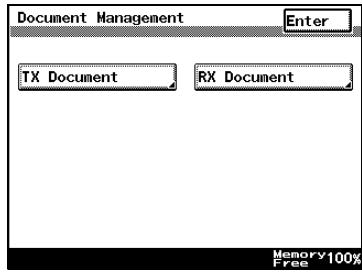
4 Press [Port].
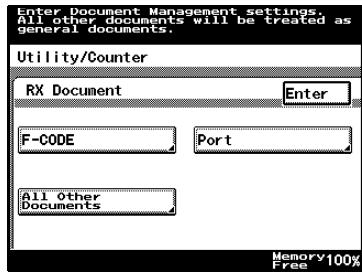
5 Press [G3].
- If the optional fax multi line is being used, two general subscriber lines can be used. Specify settings for each port: "G3-1" (port 1) and "G3-2" (port 2).
- To specify settings for documents sent through the network (such as Internet faxes), press [Network].
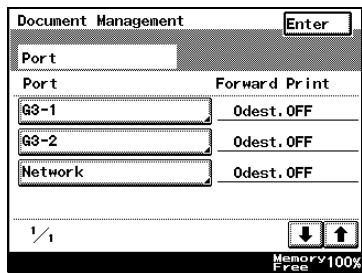
6 Select whether or not document management is performed.
- If document management is set to "YES", specify the operation performed on the received document.
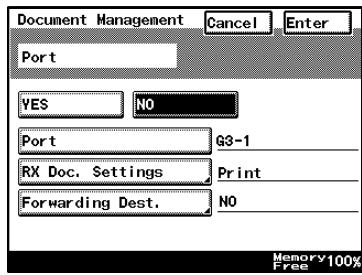
7 Specify how received documents are handled.
- Press [RX Doc. Settings], select the operation to be performed, and then press [Enter].
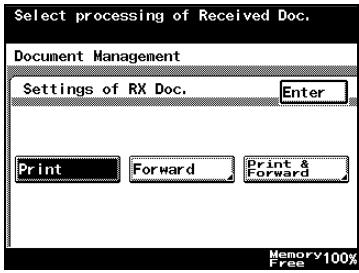
8 If "RX Doc. Settings" was set to "Forward", specify a destination.
- To add a new forwarding destination, press [Next Destination].
- To view the details of the forwarding destination, select the destination, and then press [Detail].
- To delete a forwarding destination, select the destination, and then press [Delete].
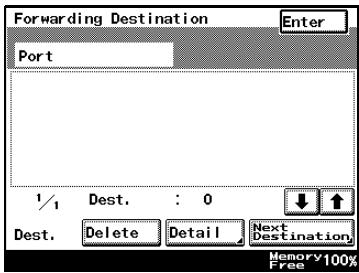
9 Press [Enter] in each screen until the initial screen appears.
Document Management with F-CODE
This machine can be set to perform a specific operation when a document is received with an F-code.
Settings can be specified for the following.
| Parameter | Description |
| F-CODE | Sets the receiving mode for each F-CODE. When a document is received that has an F-CODE assigned to it, that document is received according to the settings assigned to that code beforehand. |
| RX Doc. Settings | Select how the document received with the specified F-code is managed.Print: Select to print documents immediately.Forward: Select to forward to a destination.Print & Forward: Select to both print and to forward to a destination. |
| Forwarding Dest. | Specify a destination when “RX Doc. Settings” is set to “Forward”. |
Specify settings forF-CODE
1 After entering Administrator mode, press [Admin. 1].
2 Press [Document Management].
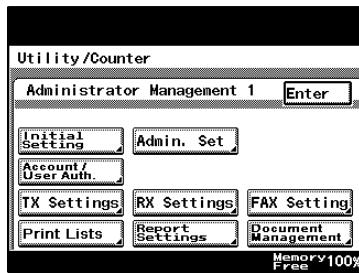
3 Press [RX Document].
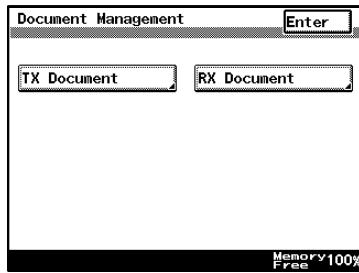
4 Press [F-CODE].
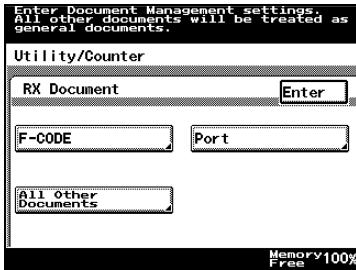
5 Press the button to be programmed.
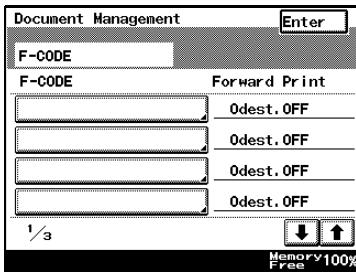
6 Press [F-CODE].
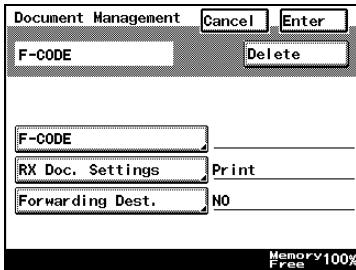
7 Specify settings for "F-CODE", "F-CODE Password", and "Remote Input Check".
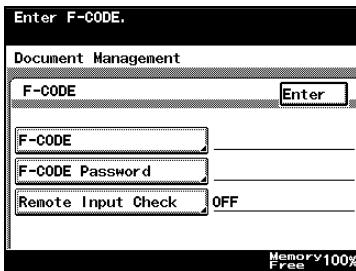
8 Specify how received documents are handled.
- Press [RX Doc. Settings], select the operation to be performed, and then press [Enter].
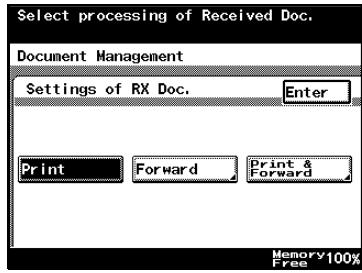
9 If "RX Doc. Settings" was set to "Forward", specify a destination.
- To add a new forwarding destination, press [Next Destination].
- To view the details of the forwarding destination, select the destination, and then press [Detail].
- To delete a forwarding destination, select the destination, and then press [Delete].
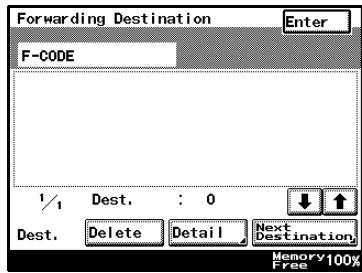
10 Press [Enter] in each screen until the initial screen appears.
Document Management for Public Documents
Specify the procedure performed when documents are received from lines other than ports.
Settings can be specified for the following.
| Parameter | Description |
| RX Doc. Settings | If document management is set to “YES”, select the operation that is performed with the received document.Select how the document received with the specified F-code is managed.Print: Select to print documents immediately.Forward: Select to forward to a destination.Print & Forward: Select to both print and to forward to a destination. |
| Forwarding Dest. | If “RX Doc. Settings” was set to “Forward”, specify a destination. Press [Forwarding Dest.], select the forwarding destination, and then press [Enter]. |
Document Management for Public Documents
1 After entering Administrator mode, press [Admin. 1].
2 Press [Document Management].
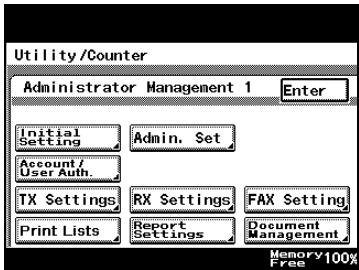
3 Press [RX Document].
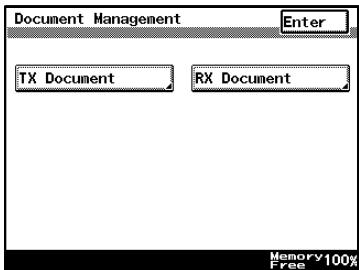
4 Press [All Other Documents].
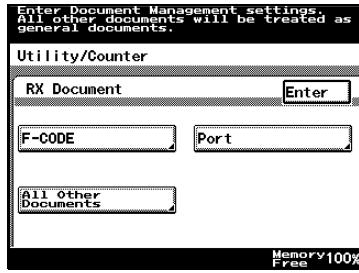
5 Press [RX Doc. Settings].
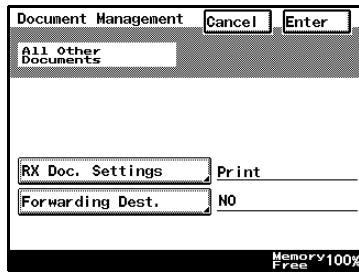
6 Specify how received documents are handled.
- Select the operation to be performed, and then press [Enter].
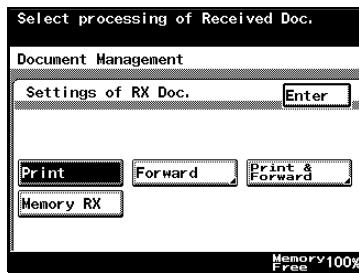
7 If "RX Doc. Settings" was set to "Forward", specify a destination.
- To add a new forwarding destination, press [Next Destination].
- To view the details of the forwarding destination, select the destination, and then press [Detail].
- To delete a forwarding destination, select the destination, and then press [Delete].
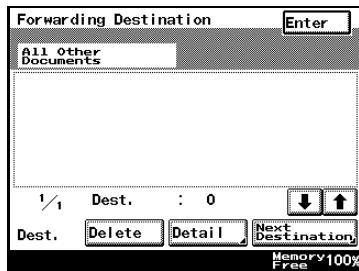
8 Press [Enter] in each screen until the initial screen appears.
11.20 Specifying the self-registered domain name
The domain name of the machine can be specified. Specify this setting as necessary when sending a direct fax transmission through a mail server.
To specify the self-registered domain name
√ When specifying a self-registered domain name, specify the DNS settings. For details on specifying the DNS setting, refer to the user's guide [Network Scanner Operations].
1 After entering Administrator mode, press [Admin. 2].
2 Press [Network Settings].
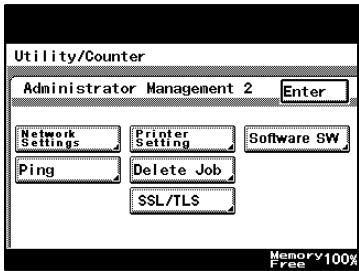
3 Press [Basic Settings].
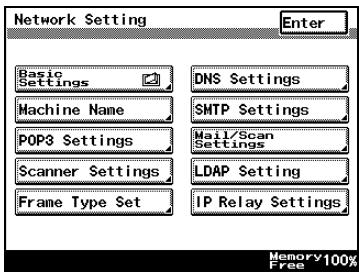
4 Press [Self-Domain Name].
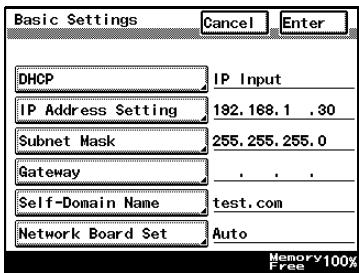
5 Type in the domain name for machine, and then press [Enter].
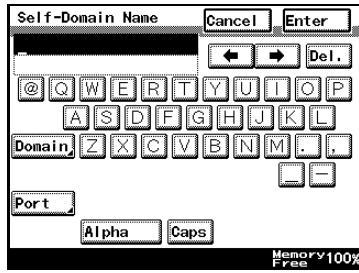
11.21 Specifying the gateway transmission setting
Select whether to permit or prohibit gateway transmissions.
If this machine is to be used as a relay machine in direct faxing or IP relay operations, permit gateway transmissions.

Detail
For details on direct faxing, refer to “Faxing from a computer (direct faxing)” on page 7-31.
For details on IP relay operations, refer to the user's guide [Advanced Scan Operations].
To specify the gateway transmission setting
1 After entering Administrator mode, press [Admin. 2].
2 Press [Network Settings].
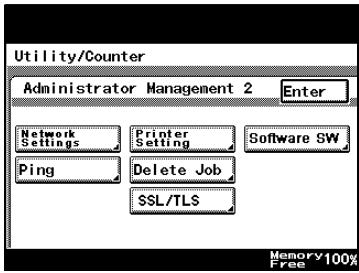
3 Press [Scanner Settings].
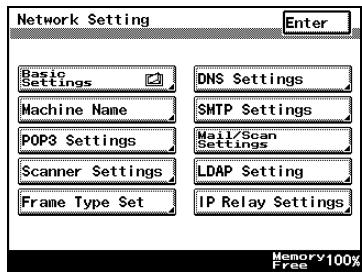
4 Press [Gateway TX].
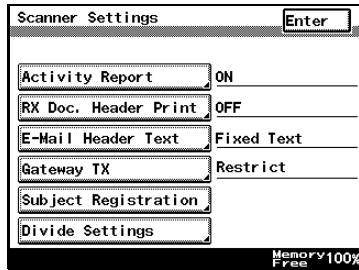
5 Press either [Allow] or [Restrict] to specify a setting for gateway transmission (direct faxing), and then press [Enter].
- Allow: Select this setting if this machine is to be used as a relay machine in direct faxing or IP relay operations.
- Restrict: Select this setting if this
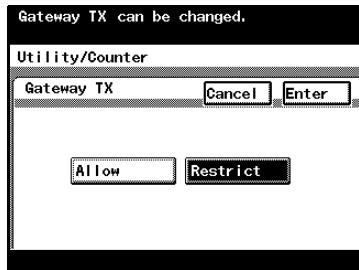
machine is not to be used as a relay machine in direct faxing or IP relay operations.
![KONICA MINOLTA FK 503 - Press either [Allow] or [Restrict] to specify a setting for gateway transmission (direct faxing), and then press [Enter]. - 2](/content/2025/01/139711/images/c5ee633e2e0018d2c1fb6b09b66813cf01032953f2591adea23696dd56917bd5.jpg)
Note
If “Allow” is selected while optional fax multi line is installed, the screen for selecting the transmission mode for a gateway transmission appears. Select the transmission mode to be used with direct fax transmissions.
11.22 Configuring Functions (Soft Switches)
Soft switches for functions can be set according to your use.

Reminder
Do not alter any modes or bits not mentioned in this manual.
Software SW settings
| Parameter | Description |
| Mode Selection | Specifies the soft switch setting item with 3 digits. |
| Bit Selection | An 8-digit number comprising the mode. Each bit from 0 to 7 is specified with a binary number (0 or 1) to configure functions. |
| HEX Selection | Allows the functions to be set using hexadecimal numbers (a combination of 0 to 9 and A to F). For example, the bit specification of “0011 0000” would be “30” in hexadecimal. |
Reference: The table below gives some sample bit (binary) and hexadecimal (16-base) equivalents.
| Decimal number | “Bit Selection” setting (binary number) | “HEX Selection” setting (hexadecimal number) |
| 0 | 0000 0000 | 00 |
| 1 | 0000 0001 | 01 |
| 2 | 0000 0010 | 02 |
| 3 | 0000 0011 | 03 |
| 4 | 0000 0100 | 04 |
| 5 | 0000 0101 | 05 |
| 6 | 0000 0110 | 06 |
| 7 | 0000 0111 | 07 |
| 8 | 0000 1000 | 08 |
| 9 | 0000 1001 | 09 |
| 10 | 0000 1010 | 0A |
| 11 | 0000 1011 | 0B |
| 12 | 0000 1100 | 0C |
| 13 | 0000 1101 | 0D |
| 14 | 0000 1110 | 0E |
| 15 | 0000 1111 | 0F |
| 16 | 0001 0000 | 10 |
| 17 | 0001 0001 | 11 |
| 18 | 0001 0010 | 12 |
| 19 | 0001 0011 | 13 |
| 20 | 0001 0100 | 14 |
| . | . | . |
| . | . | . |
| . | . | . |
| 252 | 1111 1100 | FC |
| 253 | 1111 1101 | FD |
| 254 | 1111 1110 | FE |
| 255 | 1111 1111 | FF |
How to Set Soft Switches
1 After entering Administrator mode, press [Admin. 2].
2 Press [Software SW].
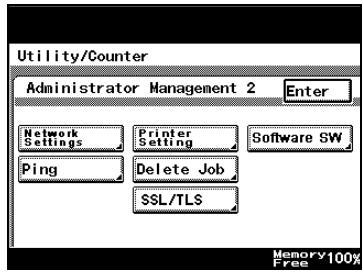
3 Touch [Mode Selection], and enter the mode using the keypad.
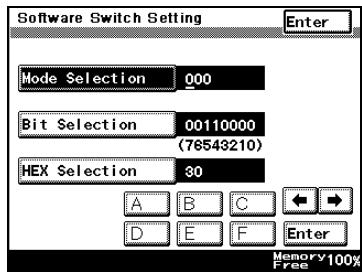
4 Specify the mode using the [Bit Selection] or [HEX Selection] key.
- For bit selection: Touch [Bit Selection], and use the arrow keys to place the cursor on the bit you want to change. Use the keypad to enter a [0] or [1], and touch [Enter].
- For HEX specification: Touch [HEX selection], use the keypad and the letters [A] to[F] to specify the bits, and touch [Enter].
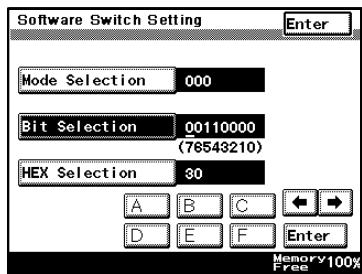
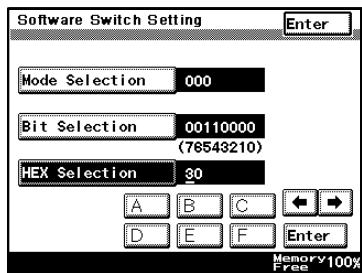
5 To change other modes, repeat steps 3 and 4.
6 Press [Enter] in each screen until the initial screen appears.
7 Turn the machine off, then on again.

Reminder
When turning the machine off, then on again, wait about 10 seconds to turn the machine on after turning it off. The machine may not operate correctly if it is turned on immediately after being turned off.
Specifications for Stamps and Password Look-up (Mode 000)
Specifies the TX complete stamp and group passwords.
Settings at time of purchase
| Bits | 7 6 5 4 3 2 1 0 |
| Setting | 0 0 1 1 0 0 0 0 (HEX: 30) |
How to Set
The grayed out cells are the settings at the time of purchase. The numbers on the right side indicate the page numbers with descriptions for the corresponding function.
| Bit | Description | Setting | Description | Page reference |
| 7 | Specifies whether to return to stamping or not stamping a TX complete after an operation. | 0 | Does not stamp | p. 7-20 |
| 1 | Stamps | |||
| 6 | Specifies the location to stamp TX complete. | 0 | Stamp at both the leading and end edges | p. 7-20 |
| 1 | Stamp only at the end edge | |||
| 5, 4 | ---- | 11 | *Do not change these bits. | ---- |
| 3 | Specifies whether, after an operation, to return to look up or do not look up a communication password when transmitting. | 0 | Does not compare | p. 7-22 |
| 1 | Look up | |||
| 2 | Specifies whether to look up or not to look up a communication password for an RX. | 0 | Do not look up | p. 8-3 |
| 1 | Look up | |||
| 1, 0 | ---- | 00 | *Do not change these bits. | ---- |
Specifications for Destination Insertion on the Original (Mode 001)
Inserts the destination name on the original.
Settings at time of purchase
| Bits | 7 6 5 4 3 2 1 0 |
| Setting | 0 0 0 1 0 1 0 0 (HEX: 14) |
How to Set
The grayed out cells are the settings at the time of purchase. The numbers on the right side indicate the page numbers with descriptions for the corresponding function.
| Bit | Description | Setting | Description | Page Reference |
| 7, 6, 5, 4, 3, 2, 1 | -------- | 0001010 | *Do not change these bits. | -------- |
| 0 | Specifies whether to attach the destination on the transmission original. | 0 | Do not attach | p. 7-9 |
| 1 | Attach |
Specifying Memory Clear Report and Broadcast TX Report Output (Mode 002)
Sets the output for memory clear and sequential broadcast transmission TX reports.

Note
The memory clear report is printed when the data stored in the memory is erased, for example, after a power outage.
Settings at time of purchase
| Bits | 7 6 5 4 3 2 1 0 |
| Setting | 1 0 1 0 1 0 0 0 (HEX: A8) |
How to Set
The grayed out cells are the settings at the time of purchase. The numbers on the right side indicate the page numbers with descriptions for the corresponding function.
| Bit | Description | Setting | Description | Page Reference |
| 7, 6, 5, 4 | -------- | 1010 | *Do not change these bits. | -------- |
| 3 | Specifies whether to output the memory clear report. | 0 | Does not print | -------- |
| 1 | Prints | |||
| 2 | Specifies whether the results of a broadcast transmission is printed altogether in a transmission report or individually. | 0 | Prints all together in a transmission report | p. 13-3 |
| 1 | Print individual transmission reports | |||
| 1, 0 | -------- | 00 | *Do not change these bits. | -------- |
Specifying settings for forwarding reception (mode 003)
Specify forwarding reception and the PB dial number where forwarding is received from an external telephone.
Settings at time of purchase
| Bits | 7 6 5 4 3 2 1 0 |
| Setting | 0 1 1 0 0 0 1 1 (HEX: 63) |
Specifying the setting
During the production of this unit, the settings in the shaded cells were selected. The numbers on the right side indicate the page numbers with descriptions for the corresponding function.
| Bit | Description | Setting | Description | Page Reference |
| 7, 6, 5 | ---- | 011 | *Do not change these bits. | ---- |
| 4 | Specifies forwarding reception (*) | 0 | Does not receive forwarding | p. 4-6 |
| 1 | Receives forwarding | |||
| 3, 2, 1, 0 | Specifies the PB dial number where forwarding (*) is received from an external telephone. (Available only if bit 4 (forwarding reception) is set to “1” (receive forwarding).) | 0000 | 0 | p. 4-6 |
| 0001 | 1 | |||
| 0010 | 2 | |||
| 0011 | 3 | |||
| 0100 | 1 | |||
| 0101 | 5 | |||
| 0110 | 6 | |||
| 0111 | 7 | |||
| 1000 | 8 | |||
| 1001 | 9 | |||
| Others | *Do not change these bits. |
(*) Forwarding is received at port 1.
Specifying the storage time for failed transmission documents (mode 004)
Specify the length of time for storing documents that could not be transmitted.
Settings at time of purchase
| Bits | 7 6 5 4 3 2 1 0 |
| Setting | 0 0 0 1 0 1 1 0 (HEX: 16) |
Specifying the setting
During the production of this unit, the settings in the shaded cells were selected. The numbers on the right side indicate the page numbers with descriptions for the corresponding function.
| Bit | Description | Setting | Description | Page Reference |
| 7, 6, 5, 4 | ---- | 0001 | *Do not change these bits. | ---- |
| 3, 2, 1, 0 | Specifies the length of time that documents that could not be transmitted are left in the memory. | 0000 | Does not resend with this setting | p. 3-35 |
| 0001 | 10 minutes | |||
| 0010 | 20 minutes | |||
| 0011 | 30 minutes | |||
| 0100 | 10 minutes | |||
| 0101 | 50 minutes | |||
| 0110 | 60 minutes (1 hour) | |||
| 0111 | 2 hours | |||
| 1000 | 4 hours | |||
| 1001 | 8 hours | |||
| 1010 | 12 hours | |||
| 1011 | 24 hours | |||
| 1100 | 72 hours | |||
| Others | *Do not specify any settings other than those mentioned above. |
Specifying settings for general subscriber lines (mode 006)
Specify the setting for silent F net reception (port 1) and the calling method on the general subscriber line.
Settings at time of purchase
| Bits | 7 6 5 4 3 2 1 0 |
| Setting | 0 0 1 1 0 0 1 0 (HEX: 32) |
Specifying the setting
During the production of this unit, the settings in the shaded cells were selected. The numbers on the right side indicate the page numbers with descriptions for the corresponding function.
| Bit | Description | Setting | Description | Page Reference |
| 7, 6, 5, 4, 3, 2 | -------- | 001100 | *Do not change these bits. | -------- |
| 1 | Specifies the calling method for the general subscriber line. (*) | 0 | Calls from the specified line (port 1 or 2), based on the operation and registration settings. | p. 11-32 |
| 1 | Calls from the available line (port 1 or 2), regardless of the operation and registration settings. | |||
| 0 | -------- | 0 | *Do not change this bit. | -------- |
(*) Available when optional fax multi line is used.
Specifying settings for receiving long documents (mode 007)
Specify how long documents that are received are printed. The received document can be automatically reduced or the excess can be discarded.
Settings at time of purchase
| Bits | 7 6 5 4 3 2 1 0 |
| Setting | 1 0 1 1 0 1 0 1 (HEX: B5) |
Specifying the setting
During the production of this unit, the settings in the shaded cells were selected. The numbers on the right side indicate the page numbers with descriptions for the corresponding function.
| Bit | Description | Setting | Description | Page Reference |
| 7, 6, 5 | When the received document is longer than the printable area of the paper, if the excess is shorter than the length specified here, it is discarded. (If it is longer, the document is either reduced or split onto different pages.)When reducing the documentThe document is reduced if the excess fits within the reduction ratio range specified by bits 2, 3 and 4 with bit 1 set to “0”.When splitting the documentThe excess is printed on a separate page if it does not fit within the reduction ratio range specified by bits 2, 3 and 4 with bit 1 set to “0”.The excess is printed on a separate page if bit 1 is set to “1”. | 000 | 0 mm | p. 6-3 |
| 001 | 8 mm | |||
| 010 | 12 mm | |||
| 011 | 14 mm | |||
| 100 | 18 mm | |||
| 101 | 20 mm | |||
| 110 | 24 mm | |||
| 111 | *Do not specify these settings. | |||
| 4, 3, 2 | An excess longer than the length specified by bits 5, 6 and 7 is reduced to fit within the paper. Specify the maximum of this reduction ratio. (Available only if bit 1 is set to “0” while printing received documents.) For example, if “90%” is set, the document is reduced within the range of 90% to 100%. • The excess is printed on a separate page if it does not fit within the printable area of the page with the maximum reduction ratio specified here. | 000 | 100% | p. 6-3 |
| 001 | 95% | |||
| 010 | 90% | |||
| 011 | 85% | |||
| 100 | 80% | |||
| 101 | 65% | |||
| 110 | 60% | |||
| Others | *Do not specify any settings other than those mentioned above. | |||
| 1 | Specifies whether the document is reduced or the excess is discarded when the received document is longer than the printable area of the paper. (Available only when printing received documents.) • Bits 7, 6 and 5 and bits 4, 3 and 2 can be specified for this setting. | 0 | Reduces | p. 6-3 |
| 1 | Discards | |||
| 0 | ---- | 1 | *Do not change this bit. | ---- |
*Example 1: If bits 7, 6, 5, 4, 3, 2 and 1 are set to “0”, “0”, “0”, “1”, “0”, “1” and “0” (maximum discard length=0mm, maximum reduction ratio=65%, trailing edge operation=reduce) and the paper is 70% of the received image, the image is reduced 70% without discarding the trailing edge and printed to fit within a single page.
*Example 2: If bits 7, 6, 5, 4, 3, 2 and 1 are set to "0", "0", "0", -, -, - and "1" (maximum discard length=0mm, trailing edge operation=discard) and the received image is longer than the paper, the image is printed on two pages without reducing it or discarding the trailing edge.
Specifying the setting for selecting paper when printing received documents (mode 008)
Specify the settings for selecting paper when printing received documents.
Settings at time of purchase
| Bits | 7 6 5 4 3 2 1 0 |
| Setting | 0 0 0 0 0 0 0 0 (HEX: 00) |
Specifying the setting
During the production of this unit, the settings in the shaded cells were selected. The numbers on the right side indicate the page numbers with descriptions for the corresponding function.
| Bit | Description | Setting | Description | Page Reference |
| 7 | Specifies how to determine whether or not there is paper. (Available only when printing received documents.) | 0 | Paper priority method (determined by whether or not there is paper) | p. 4-6 |
| 1 | Tray paper method (determined by the tray paper size setting or the previous paper information, regardless of whether or not there is paper) | |||
| 6, 5, 4, 3 | Specifies the paper size according to the received image. (Available only when printing received documents.) | 0000 | Automatically selects the appropriate paper according to the length and width of the transmitted document | p. 4-6 |
| 0100 | Does not select paper with a width larger than the width of the transmitted document | |||
| 1000 | Selects paper with a width that is the same as the width of the transmitted document | |||
| Others | *Do not specify any settings other than those mentioned above. | |||
| 2, 1, 0 | ---- | 000 | *Do not change these bits. | ---- |
Specifying settings for the confirmation screen for broadcast transmissions (mode 014)
Specify whether or not a screen asking for confirmation of the settings is displayed before a broadcast transmission.
Settings at time of purchase
| Bits | 7 6 5 4 3 2 1 0 |
| Setting | 0 0 0 0 0 0 0 1 (HEX: 01) |
Specifying the setting
During the production of this unit, the settings in the shaded cells were selected. The numbers on the right side indicate the page numbers with descriptions for the corresponding function.
| Bit | Description | Setting | Description | Page Reference |
| 7, 6, 5, 4, 3, 2 | ---- | 000000 | *Do not change these bits. | ---- |
| 1, 0 | Specifies whether or not a screen asking for confirmation of the settings is displayed before a broadcast transmission. | 00 | Does not display the setting confirmation screen | p. 3-28 |
| 01 | Displays the setting confirmation screen before a broadcast transmission | |||
| 10 | Normally displays the setting confirmation screen, regardless of whether a broadcast transmission is being performed | |||
| 00 | *Do not change this bit. |
Specifying whether or not a telephone is connected and whether or not a received date report is added and its format (mode 016)
Specify whether or not a telephone is connected, and whether or not a received date report is added and how it is formatted.
Settings at time of purchase
| Bits | 7 6 5 4 3 2 1 0 |
| Setting | 0 1 0 0 0 0 0 0 (HEX: 40) |
Specifying the setting
During the production of this unit, the settings in the shaded cells were selected. The numbers on the right side indicate the page numbers with descriptions for the corresponding function.
| Bit | Description | Setting | Description | Page Reference |
| 7 | -------- | 0 | *Do not change these bits. | -------- |
| 6 | Specifies whether or not an external telephone is connected. | 0 | Not used | p. 3-29 |
| 1 | Used | |||
| 5, 4, 3, 2 | -------- | 0000 | *Do not change these bits. | -------- |
| 1 | Specifies whether or not a received date report is attached. | 0 | Not attached | -------- |
| 1 | Attached | |||
| 0 | Specifies whether the received date report is attached outside or inside of the image. | 0 | Attached within the image | -------- |
| 1 | Attached outside the image |
Specifying settings for the image in the failed transmission report (mode 023)
Specify whether or not an image of the transmitted document is added to the failed transmission report.
Settings at time of purchase
| Bits | 7 6 5 4 3 2 1 0 |
| Setting | 1 1 1 1 1 0 0 0 (HEX: F8) |
Specifying the setting
During the production of this unit, the settings in the shaded cells were selected. The numbers on the right side indicate the page numbers with descriptions for the corresponding function.
| Bit | Description | Setting | Description | Page Reference |
| 7, 6, 5, 4 | -------- | 1111 | *Do not change these bits. | -------- |
| 3 | Specifies whether or not an image of the transmitted document is added to the failed transmission report. | 0 | Is not added | p. 7-11 |
| 1 | Is added | |||
| 2, 1, 0 | -------- | 000 | *Do not change these bits. | -------- |
Specifying the copy limitation with remote copying (mode 028)
Specify the maximum number of copies allowed when a document specified for remote copying is received.
Settings at time of purchase
| Bits | 7 6 5 4 3 2 1 0 |
| Setting | 0 1 1 0 0 0 1 1 (HEX: 63) |
Specifying the setting
During the production of this unit, the settings in the shaded cells were selected. The numbers on the right side indicate the page numbers with descriptions for the corresponding function.
| Bit | Description | Setting | Description | Page Reference |
| 7 | -------- | 0 | *Do not change this bit. | -------- |
| 6, 5, 4, 3, 2, 1, 0 | Specifies the maximum number of copies when a remote copy document is received | 0000001 | 1 copy | p. 7-23 |
| 0000010 | 2 copies | |||
| : | ||||
| 1100011 | 99 copies | |||
| Others | *Do not specify any settings other than those mentioned above. |
Specifying settings for fax reception functions (mode 030)
Specify whether or not rotation or 2in1 printing is used with received faxes. Settings at time of purchase
| Bits | 7 6 5 4 3 2 1 0 |
| Setting | 1 0 1 1 0 0 0 0 (HEX: B0) |
Specifying the setting
During the production of this unit, the settings in the shaded cells were selected. The numbers on the right side indicate the page numbers with descriptions for the corresponding function.
| Bit | Description | Setting | Description | Page Reference |
| 7 | -------- | 1 | *Do not change these bits. | -------- |
| 6, 5 | Specifies whether or not rotation printing is used with received faxes. (*) | 00 | Does not rotate | p. 4-6 |
| 01 | Rotates (Does not sort crosswise if a remote copy fax is received) | |||
| 10 | Rotates (Sorts crosswise if a remote copy fax is received) | |||
| 11 | *Do not specify these settings. | |||
| 4 | Specifies whether or not 2in1 printing is used with received faxes. (*) | 0 | 2in1 printing is not used with received faxes | p. 4-6 |
| 1 | 2in1 printing is used with received faxes | |||
| 3, 2, 1, 0 | -------- | 0000 | *Do not change these bits. | -------- |
(*) If rotation printing is specified, you can specify whether or not crosswise sorting is performed if a remote copy fax is received.
Specifying the setting for tray selection of received faxes (mode 037)
Specify whether the trays and bypass tray can be selected when printing received faxes.
Settings at time of purchase
| Bits | 7 6 5 4 3 2 1 0 |
| Setting | 1 1 1 1 1 0 0 0 (HEX: F8) |
Specifying the setting
During the production of this unit, the settings in the shaded cells were selected. The numbers on the right side indicate the page numbers with descriptions for the corresponding function.
| Bit | Description | Setting | Description | Page Reference |
| 7 | Specifies whether or not the 1st tray can be selected when printing received faxes. | 0 | Cannot be selected (*2) | p. 4-6 |
| 1 | Can be selected | |||
| 6 | Specifies whether or not the 2nd tray can be selected when printing received faxes. | 0 | Cannot be selected (*2) | p. 4-6 |
| 1 | Can be selected | |||
| 5 | Specifies whether or not the 3rd tray can be selected when printing received faxes. (*1) | 0 | Cannot be selected (*2) | p. 4-6 |
| 1 | Can be selected | |||
| 4 | Specifies whether or not the 4th tray can be selected when printing received faxes. (*1) | 0 | Cannot be selected (*2) | p. 4-6 |
| 1 | Can be selected | |||
| 3 | -------- | 1 | *Do not change this bit. | -------- |
| 2 | Specifies whether or not the bypass tray can be selected when printing received faxes. | 0 | Cannot be selected (*2) | p. 4-6 |
| 1 | Can be selected | |||
| 1, 0 | -------- | 00 | *Do not change these bits. | -------- |
(*1) Available only when the optional paper feed cabinet is installed.
(*2) Bits 7, 6, 5, 4 and 2 cannot all be set to “0”.
Specifying settings for administrator forwarding (mode 198)
Specify whether or not transmitted documents are sent to the recipient specified as the administrator after transmission.
Settings at time of purchase
| Bits | 7 6 5 4 3 2 1 0 |
| Setting | 1 1 0 1 0 0 0 0 (HEX: D0) |
Specifying the setting
During the production of this unit, the settings in the shaded cells were selected. The numbers on the right side indicate the page numbers with descriptions for the corresponding function.
| Bit | Description | Setting | Description | Page Reference |
| 7 | Specifies whether or not transmitted documents are sent to the recipient specified as the administrator after transmission. | 0 | Does not send | p. 11-48 |
| 1 | Sends | |||
| 6 | ---- | 1 | *Specify this bit with the scanner function. | ---- |
| 5, 4 | Specifies whether or not the result report is printed when documents are forwarded to the administrator. (*) | 00 | Does not print | p. 11-48 |
| 01 | If transmission fails | |||
| 10 | Normally prints | |||
| Others | *Do not specify any settings other than those mentioned above. | |||
| 3, 2, 1, 0 | ---- | 0000 | *Do not change these bits. | ---- |
(*) Available only if bit 7 of mode 198 is set to send.
Specifying settings for the number of rings until automatic reception (port 2) (mode 249)
Specify the number of rings until an automatic reception is performed at port 2.
Settings at time of purchase
| Bits | 7 6 5 4 3 2 1 0 |
| Setting | 0 0 0 0 1 0 0 0 (HEX: 08) |
Specifying the setting
During the production of this unit, the settings in the shaded cells were selected. The numbers on the right side indicate the page numbers with descriptions for the corresponding function.
| Bit | Description | Setting | Description | Page Reference |
| 7, 6, 5, 4, 3 | Specifies the number of rings until automatic reception (port 2). | 00000 | None (0 times) | p. 11-42 |
| 00001 | 1 time | |||
| 00010 | 2 times | |||
| 00011 | 3 times | |||
| 00100 | 4 times | |||
| 00101 | 5 times | |||
| 00110 | 6 times | |||
| 00111 | 7 times | |||
| 01000 | 8 times | |||
| 01001 | 9 times | |||
| 01010 | 10 times | |||
| 01011 | 11 times | |||
| 01100 | 12 times | |||
| 01101 | 13 times | |||
| 01110 | 14 times | |||
| 01111 | 15 times | |||
| 10000 | 16 times | |||
| 10001 | 17 times | |||
| 10010 | 18 times | |||
| 10011 | 19 times | |||
| 10100 | 20 times | |||
| Others | *Do not specify any settings other than those mentioned above. | |||
| 2, 1, 0 | ---- | 000 | *Do not change these bits. | ---- |
(*) Available when optional fax multi line is used.
Specifying the Internet fax settings (mode 350)
Specify the POP3 setting for Internet faxing.
Status when purchased
| Bit | 7 6 5 4 3 2 1 0 |
| Status | 1 0 1 0 1 0 0 0 (HEX: A8) |
Specifying settings
The part in light gray is the status at the time of purchase. The number on the right indicates the page number that gives a description for each function.
| Bit | Contents | Status | Description | Refer to |
| 7 | -------- | 1 | *Do not change this bit. | -------- |
| 6 | Specify whether to enable a confirmation (POP3) before arriving at SMTP. | 0 | Arrival not confirmed | -------- |
| 1 | Arrival confirmed | |||
| 5, 4, 3, 2, 1, 0 | -------- | 101000 | *Do not change these bits. | -------- |
Specifying whether transmission source information is added when directly faxing, performing an IP relay operation, or forwarding received documents (mode 352)
Specify how transmission source information is added when directly faxing, performing an IP relay operation, or forwarding received documents.
Settings at time of purchase
| Bits | 7 6 5 4 3 2 1 0 |
| Setting | 1 1 0 1 0 0 0 0 (HEX: D0) |
Specifying the setting
During the production of this unit, the settings in the shaded cells were selected. The numbers on the right side indicate the page numbers with descriptions for the corresponding function.
| Bit | Description | Setting | Description | Page Reference |
| 7 | -------- | 1 | *Do not change this bit. | -------- |
| 6 | Specifies where transmission source information is added with direct faxing and IP relay operations. | 0 | Outside of the document | -------- |
| 1 | Inside the document | |||
| 5 | Specifies whether or not transmission source information is added to received documents that are forwarded. | 0 | Not added | p. 11-50 |
| 1 | Added | |||
| 4 | Specifies where transmission source information is added when a received document is forwarded. | 0 | Outside of the document | |
| 1 | Inside the document | |||
| 3, 2, 1, 0 | -------- | 0000 | *Do not change these bits. | -------- |
Specifying settings for the range of administrator passwords and the information indicated in the report for direct faxing/IP relay transmissions (mode 368)
Specify the valid range of administrator passwords. In addition, specify whether or not the results of direct faxing or IP relay transmissions are indicated in the reception report.
Settings at time of purchase
| Bits | 7 6 5 4 3 2 1 0 |
| Setting | 1 1 0 0 0 0 1 0 (HEX: C2) |
Specifying the setting
During the production of this unit, the settings in the shaded cells were selected. The numbers on the right side indicate the page numbers with descriptions for the corresponding function.
| Bit | Description | Setting | Description | Page Reference |
| 7 | -------- | 1 | *Do not change this bit. | -------- |
| 6 | Specifies the valid range of administrator passwords. | 0 | The administrator password is required only with PageScope Web Connection. | -------- |
| 1 | The administrator password is required with this machine and with Page-Scope Web Connection. | |||
| 5, 4, 3, 2 | -------- | 0000 | *Do not change these bits. | -------- |
| 1 | Specifies whether or not the results of scan transmissions are indicated in the transmission report. | 0 | Not indicated | -------- |
| 1 | Indicated | |||
| 0 | Specifies whether or not the results of direct faxing or IP relay transmissions are indicated in the reception report. | 0 | Not indicated | p. 13-6 |
| 1 | Indicated |
Specifying settings for when copying is finished using the ADF (mode 429)
Specify whether or not all settings are reset when copying is finished using the ADF.
Settings at time of purchase
| Bits | 7 6 5 4 3 2 1 0 |
| Setting | 0 0 0 0 0 1 0 0 (HEX: 04) |
Specifying the setting
During the production of this unit, the settings in the shaded cells were selected. The numbers on the right side indicate the page numbers with descriptions for the corresponding function.
| Bit | Description | Setting | Description | Page Reference |
| 7, 6 | -------- | 00 | *Do not change this bit. | -------- |
| 5 | Specifies whether or not all settings in the Basics screen are reset when copying is finished using the ADF. | 0 | Does not perform the automatic panel reset operation | -------- |
| 1 | Performs the automatic panel reset operation | |||
| 4, 3, 2, 1, 0 | -------- | 00100 | *Do not change these bits. | -------- |
Specifying restrictions for registering fax addresses and printing reports and specifying how one-touch dial recipients are displayed (mode 477)
Specify whether or not fax addresses can be registered and reports can be printed by users. In addition, specify whether or not one-touch dial information is displayed in screens and reports.
Settings at time of purchase
| Bits | 7 6 5 4 3 2 1 0 |
| Setting | 0 0 0 0 0 0 0 0 (HEX: 00) |
Specifying the setting
During the production of this unit, the settings in the shaded cells were selected. The numbers on the right side indicate the page numbers with descriptions for the corresponding function.
| Bit | Description | Setting | Description | Page reference |
| 7 | -------- | 0 | *Do not change this bit. | -------- |
| 6 | Specifies whether settings for registering fax addresses or printing reports can be specified by only the administrator or also by the user | 0 | Settings can also be specified by users. | p. 11-45 |
| 1 | Settings can only be specified in Administrator mode. | |||
| 5 | Specifies whether or not only recipient names are displayed (and the fax number or address is not displayed) in reports and Job List screens and when a one-touch dial button is touched *1, *2 | 0 | Displayed | -------- |
| 1 | Not displayed | |||
| 4, 3, 2, 1, 0 | -------- | 00000 | *Do not change these bits. | -------- |
*1 If bit 6 is set to “1”, the settings will not be applied if bit 5 is set to “1” (not displayed). If you do not wish to display the fax number or address of the recipient, bit 6 must also be set to “1” (settings can only be specified in Administrator mode).
*2 If the recipient is directly specified from the Direct Input tab, the recipient is displayed, even if "1" (not displayed) is selected.
12
Specifying settings using PageScope Web Connection
12 Specifying settings using PageScope Web Connection
12.1 Items that can be specified using PageScope Web Connection
PageScope Web Connection is a device management utility supported by the HTTP server built into the device. Using a Web browser on a computer connected to the network, machine settings can be specified from PageScope Web Connection.
When changing settings, operations such as typing text can be performed more easily from your computer.
The following fax function settings can be specified.
PageScope Web Connection provides a User mode, which can be accessed by all users, and an Administrator mode, which can only be accessed with the required administrator access code. The following settings can be specified in each mode.
Fax/Scan (User mode)
| Item | Description |
| One-Touch Key Registration | Registers fax recipients as one-touch registrations. The registered data can also be changed or deleted. In addition, the index name can be changed. |
| FAX Program Registration | Registers fax programs as one-touch registrations. Unlike the one-touch registrations where only recipients are registered, transmission settings and multiple recipients can be registered. The registered data can also be changed or deleted. |
System (Administrator mode)
| Item | Description |
| User’s Choice 5 | Specifies the output trays for received faxes. |
| User’s Choice 6 | Specifies the screen given priority. |
Fax/Scan (Administrator mode)
| Item | Description | |
| One-Touch Key Registration | Export | Exports the one-touch data together that were registered with the one-touch registration on this machine and saves the data as a file. |
| Import | Imports all one-touch data from the exported data file saved on the computer. | |
| Initial Setting | Specifies the information for the line connected to this machine. | |
| TSI Registration | Specifies the information, such as the name, fax number, or address, that is added at the edge of the page printed by the recipient.Registers this transmission source name. | |
| TX Settings | Specifies each default value at transmission. | |
| RX Settings | Specifies the time and day for printing a fax that is received. | |
| Fax Setting | Specifies the services being used, such as the dialing method. | |
| TX Document | Specifies the destination for administrator forwarding. | |
| RX Document | Specifies how received documents are processed and transferred. | |
| Report Settings | Specifies the output conditions of the result reports and communication control reports. | |
Network (Administrator mode)
| Item | Description | |
| Common Setting | TCP/IP | Specifies the required settings for using this machine over a network. |
| E-Mail/Internet FAX | Other | Specifies other transmission settings. |
| IP Relay Settings | Specifies settings for IP relay transmissions. | |
12.2 Using PageScope Web Connection
Operating environment
| Item | Operating Environment |
| Network | Ethernet [TCP/IP] |
| Computer application program | For Windows 98 SE/Me/NT 4.0:Microsoft Internet Explorer 4 or later or Netscape Navigator 4.73 or 7.0For Windows 2000:Microsoft Internet Explorer 5 or later or Netscape Navigator 7.0For Windows XP:Microsoft Internet Explorer 6 or later or Netscape Navigator 7.0* In Microsoft Internet Explorer 5.5, the one-touch export function may not operate properly. Use the Microsoft Internet Explorer 5.5 Service Pack 1 or later. |

Detail
PageScope Web Connection is a device management utility supported by the HTTP server built into the device. Using a Web browser on a computer connected to the network, machine settings can be specified from PageScope Web Connection.
Accessing PageScope Web Connection
PageScope Web Connection can be accessed directly from a Web browser.
1 Start the Web browser.
2 In the Address bar, type the IP address of this machine, and then press the [Enter] key.
- http://[IP_address_of_the_machine]/ Example: If the IP address of the machine is 192.168.1.20 http://192.168.1.20/

Detail
Below is the URL after SSL/TLS is enabled.
https://[IP_address_of_the_machine]/Redirected to "https://" even if "http://" is entered.
When performing user authentication
When performing user authentication or external server authentication, the following screen is displayed.
Type in the user name and password, and then click [Log-in].

...
Note
For the user authentication details, refer to user's guide [Copy Operations].
For the user name and password, ask the network administrator.
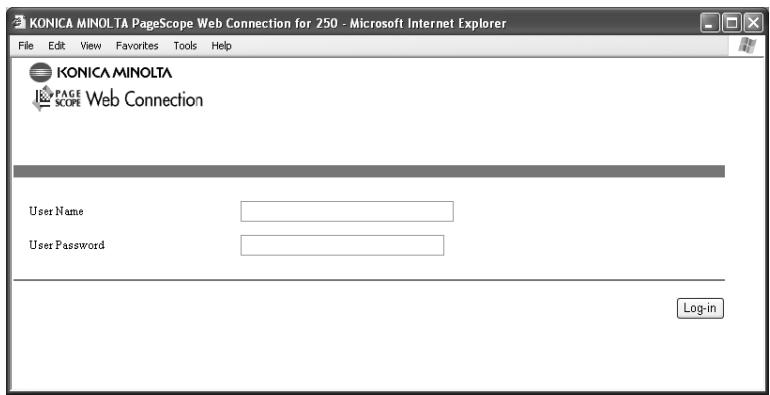
Page structure
The page that appears immediately after PageScope Web Connection is accessed is called the User mode page. All users can view this page.
The configuration of the PageScope Web Connection page is shown below.

...
Note
The [User Box] tab appears only if the optional hard disk is installed.
The [Fax/Scan] tab appears only if the optional fax kit is installed. If the fax kit is not installed, the tab changes to the [Scan] tab.
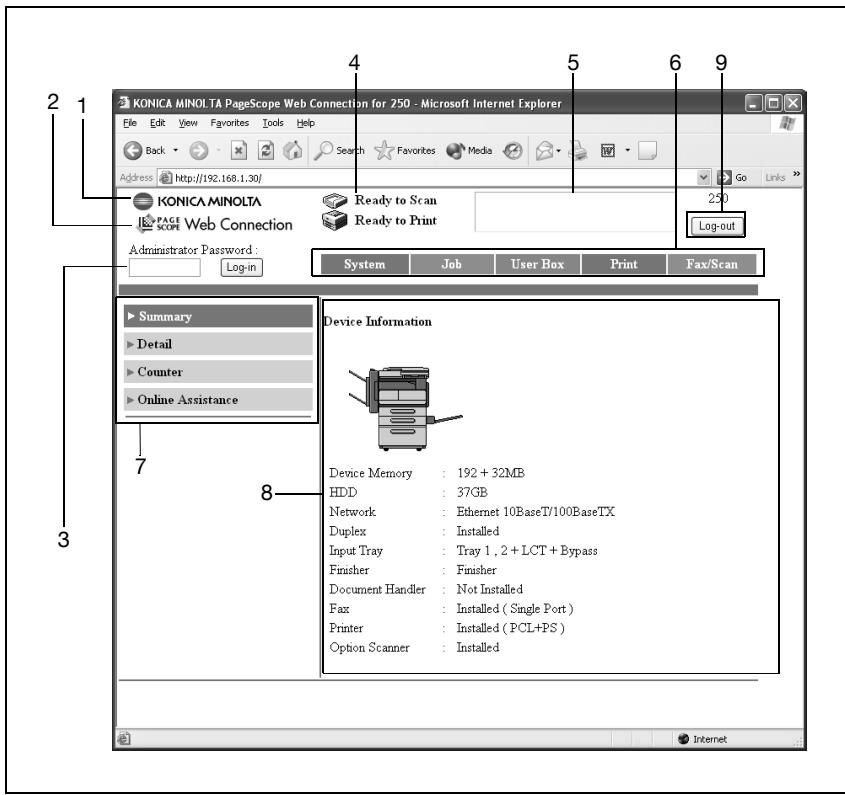
| No. | Item | Description |
| 1 | KONICA MINOLTA logo | Click the logo to go to the Konica Minolta Web site at the following URL.http://konicaminolta.com/ |
| 2 | PageScope Web Connection logo | Click the PageScope Web Connection logo to display the version information. |
| 3 | Administrator mode logon button | Log on to Administrator mode. |
| 4 | Status display | The statuses of this machine's printer section and scanner section are displayed using icons. |
| 5 | Message display | If an error occurred in the machine, the status of the malfunction/error and other error information are displayed. |
| 6 | Tabs | Select the category of the page to be displayed.The following tabs are displayed in User mode.• System• Job• User Box• Print• Fax/Scan |
| 7 | Menus | Information and settings for the selected tab are listed. The menu that appears differs depending on the tab that is selected. |
| 8 | Information and settings display | Details of the item selected from the menu are displayed. |
| 9 | User authentication logoff button | Click this button to log off from user authentication. |
Logging on to administrator mode
You can switch between User mode and Administrator mode. However, in order to specify system or network settings, you must be logged on to Administrator mode.
√ When logged on to Administrator mode, the machine's control panel is locked and cannot be used.
√ Depending on the status of the machine, you may not be able to log on to Administrator mode.
√ When logged on to Administrator mode, if no operation is performed for 10 minutes, a timeout occurs and you will automatically be logged off from Administrator mode.
1 Type in the administrator password, and then click [Log-in].
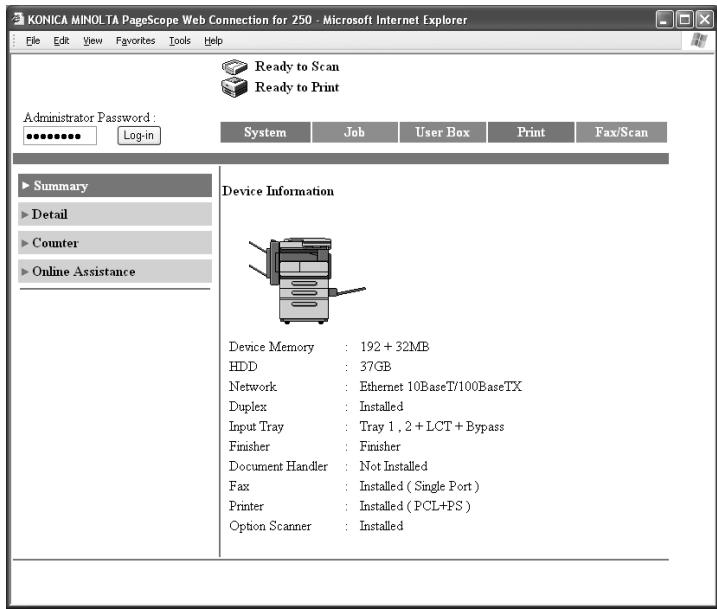
The Administrator mode page appears.
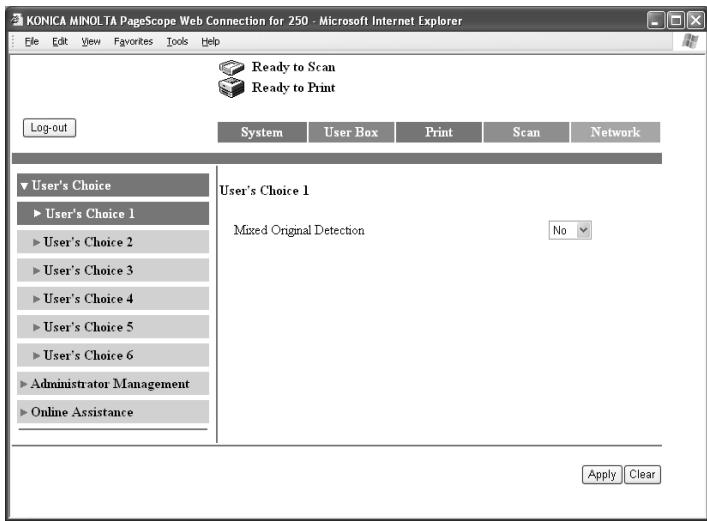
2 To return to User mode, click [Log-out].
Web browser cache
The newest information may not appear in the PageScope Web Connection pages because older versions of pages are saved in the cache for the Web browser. In addition, the following problems may occur when the cache is used.
When using PageScope Web Connection, disable the cache for the Web browser.

Detail
If the utility is used with the cache enabled and Administrator mode was timed out, the timeout page may appear even after the utility is accessed again. In addition, since the machine's control panel remains locked and cannot be used, the machine must be restarted. In order to avoid this problem, disable the cache.

Note
The menus and commands may vary depending on the Web browser version. For details, refer to the Help for the Web browser.
For Internet Explorer
1 On the "Tools" menu, click "Internet Options".
2 On the General tab, click [Settings] under "Temporary Internet files".
3 Select "Every visit to the page", and then click [OK].
For Netscape
1 On the "Edit" menu, click "Preferences".
2 In the "Category" box, click "Advanced", then "Cache".
3 Under "Compare the page in the cache to the page on the network", select "Every time I view the page".
12.3 One-touch key registration (User mode)
The fax recipients can be registered as one-touch registrations. Two types of recipients can be registered with a one-touch registration: a main recipient and a secondary recipient, where the data is sent if the transmission to the main recipient fails.
A name can also be given to the index.

Note
This machine contains 36 indexes and up to 15 one-touch registrations and fax programs can be registered in each index.
The following items can be entered in the screen of each communication mode.
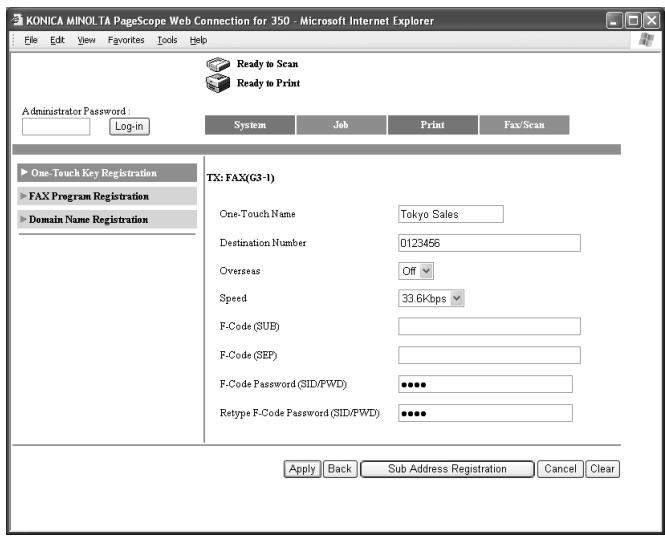
| Item | Description |
| One-Touch Name | Enter the destination name displayed with one-touch registration. Up to 12 characters can be entered. |
| Destination Number | Enter the fax number of the destination. Up to 64 characters can be entered. |
| Overseas | To send the transmission overseas, select “On”. |
| Speed | Specify transmission speed. |
| F-Code (SUB) F-Code (SEP) | If an F-code is used, enter the F-code. |
| F-Code Password (SID/PWD) Retype F-Code Password (SID/PWD) | Enter the password for the F-code. |
To name an index
1 Click the [Fax/Scan] tab.
2 Click [One-Touch Key Registration].
3 From "Index", click the index (in the center of the frame) that is to be named.
The one-touch registrations that are saved in the selected indexes are displayed on the lower half of the screen.
4 Enter the index name, and then click [Apply].
- Up to 8 characters can be entered.
The index name is displayed in the index list on the upper half of the screen.
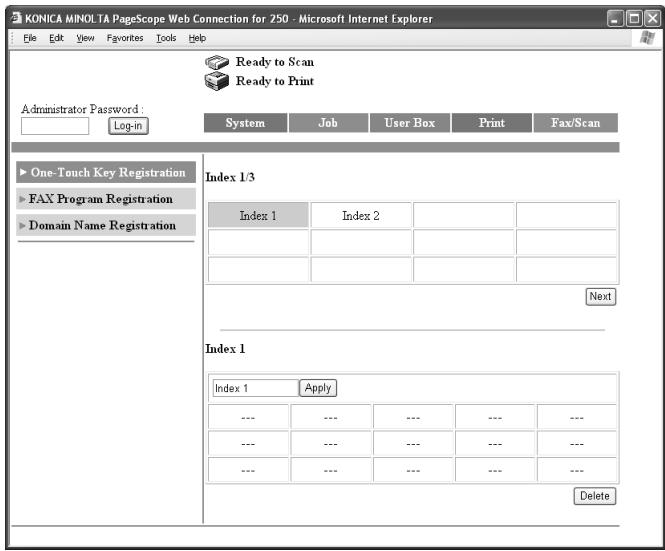
To register with one-touch registration
1 Click the [Fax/Scan] tab.
2 Click [One-Touch Key Registration].
3 From "Index", click the index (in the center of the frame) that is to be named.
The one-touch registrations that are saved in the selected indexes are displayed on the lower half of the screen.
4 Click the one-touch registrations that are not registered.
- To change the information for a one-touch registration, click the one-touch registration to be changed.
- To delete a one-touch registration, click the one-touch registration to be deleted, and then click [Delete].
– A fax program cannot be selected, even if it clicked.
Which are the one-touch registrations that are not registered?
→ The one-touch registrations that are not registered are indicated by “---”.
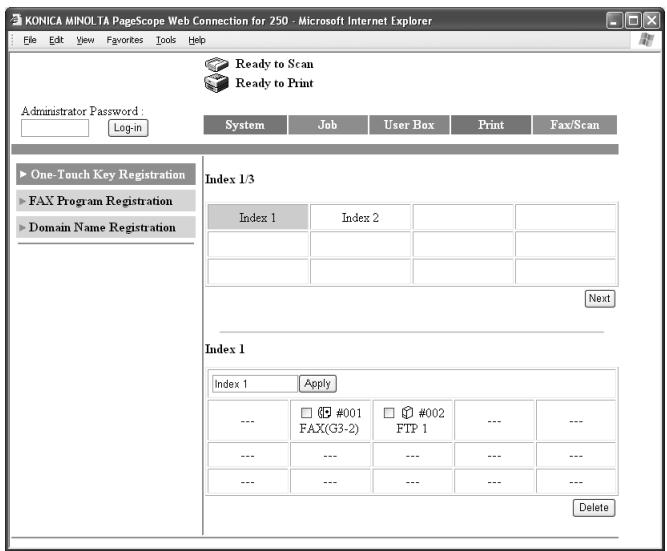
5 Select the communication mode, and then click [Next].
- Select whether a fax (G3-1) transmission or fax (G3-2) transmission is to be performed.
- If the optional fax multi line is being used, two general subscriber lines can be used. Select whether a fax (G3-1) or fax (G3-2) operation is to be performed.
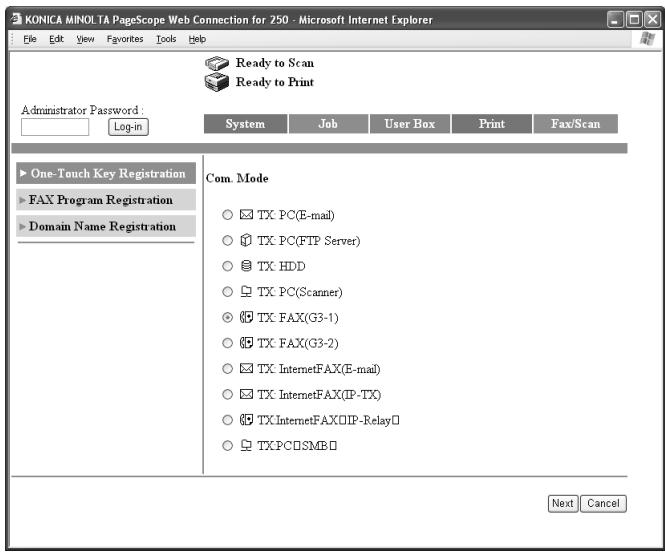
6 Enter the items in the screen of each communication mode.
- For the item details, refer to page 12-12.
7 Click [Apply].
The one-touch registration is registered.
Registering sub-destinations
When transmission to the destination of a one-touch registration cannot performed, the sub-destination can be specified as the transmission destination.
1 Click [Sub Address Registration] on the screen for entering the one-touch registration settings.
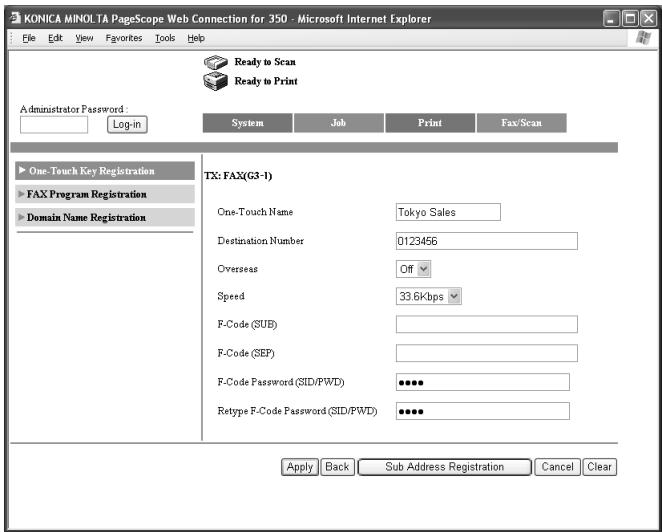
2 Select the communication mode of the sub-destination, and then click [Next]
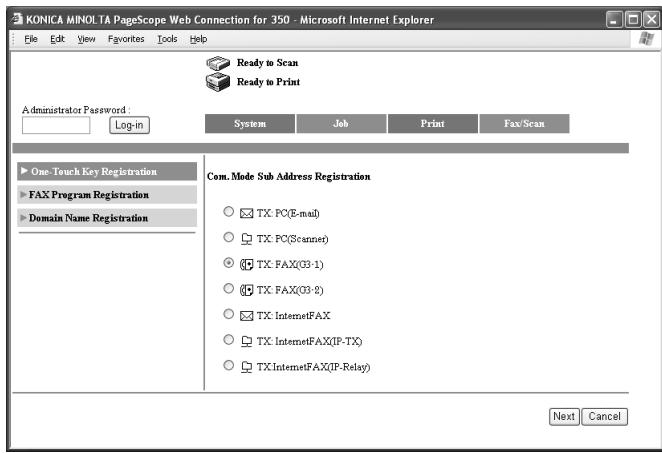
3 Enter each item, and then click [Apply].
- For the item details, refer to "To register with one-touch registration" on page 12-15.
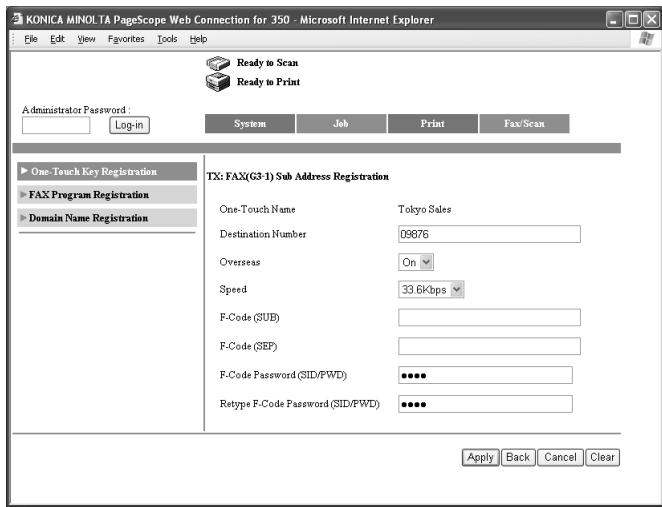
![KONICA MINOLTA FK 503 - Enter each item, and then click [Apply]. - 2](/content/2025/01/139711/images/b38b089cac14a4c8cde95e4cf025c29abfef32b0c7cc8529879ac2c068dfea61.jpg)
Note
The destination name is displayed with the same contents as the main destination. Specify the settings for the other items.
12.4 FAX Program registration (User mode)
Register fax programs as one-touch registrations. Unlike the one-touch registrations where only recipients are registered, transmission settings and multiple recipients can be registered. The registered data can also be changed or deleted.

Note
Up to 30 fax programs can be registered in this machine. Be sure to not exceed a total of 540 one-touch registrations and fax programs.
To register a fax program, specify the following items.
| Item | Description |
| Program Name | Enter the program name displayed with one-touch registration. Up to 12 characters can be entered. |
| Mode | Specify “TX”. |
| Destination | Specify the program destination. Click [Select Destination], select the registered one-touch registration that is selected, and then click [Apply]. |
| Original Type | |
| Original Type | Select the resolution. |
| Density | Select the density. |
| Reduction | Select the zoom ratio.Auto Reduction: Automatically enlarges or reduces to match the destination paper.No Reduction: Sends at the reduction of the scanned original dimensions. |
| Scan Area | Specify the original document size when scanning. |
| Menu 1 | |
| TSI | Select the information, such as the name, fax number, or address, that is printed at the edge of the page.For registering the transmission source, refer to “Registering TSI Names” on page 11-24. |
| Dest. Insert | Select whether or not the recipient's name is printed at the edge of the page. |
| TX Report | Select under which conditions the send report is to be output.Default: Outputs by the specifications of the administrator.Output On: Outputs regardless of the send results.If TX Fail: Outputs only when undeliverable.Output Off: Does not output regardless of the send results. |
| 2in1 | Select whether or not to send the data using the 2in1 print function (reducing two pages to fit in a single page). |
| 2-Sided TX | Select whether or not a double-sided transmission is to be sent. On: Performs duplex transmission. When specifying to On, specify the margin and original set orientation. Off: Does not perform duplex transmission. |
| Rotation TX | Select whether or not to rotate the scan image according to the paper orientation of the receiving machine. |
| Priority TX | Select whether to send as priority over other jobs. |
| Timer | Select whether to set the send time. Specifies the send time when “On” is selected. |
| Stamp | Select whether or not a stamp is applied to the document to indicate that it was sent. |
| Quick Scan TX | Select whether or not a quick scan transmission is performed to send the document one page at a time. |
| Password TX | Select whether or not a password transmission is performed to send the data only if the registered passwords are the same. |
| Remote Copy | Select whether or not a remote copy operation is performed to send multiple copies of the document. |
| Menu 2 | Select the subject (e-mail message subject) and reply address used for Scan to E-Mail operations and for sending Internet faxes. For details, refer to the user's guide [Network Scanner Operations]. |

Detail
A one-touch registration specified for an F-code confidential transmission cannot be registered with a program in PageScope Web Connection. To register a one-touch registration specified for a confidential transmission, register the fax program from the control panel.
Registering fax programs
√ To specify the fax program destination, register the destination with one-touch registration in advance.
1 Click the [Fax/Scan] tab.
2 Click [FAX Program Registration].
3 From "Index", click the index name that is to be registered in the fax program. The one-touch registrations that are saved in the selected indexes are displayed on the lower half of the screen.
4 Click the one-touch registrations that are not registered.
- To change the information registered in a program, click the one-touch registration to be changed.
- To delete a program, click the one-touch registration to be deleted, and then click [Delete].
- Only a one-touch registration for a fax program can be selected, even if a different type of one-touch registration is clicked.
Which are the one-touch registrations that are not registered?
→ The one-touch registrations that are not registered are indicated by “---”.
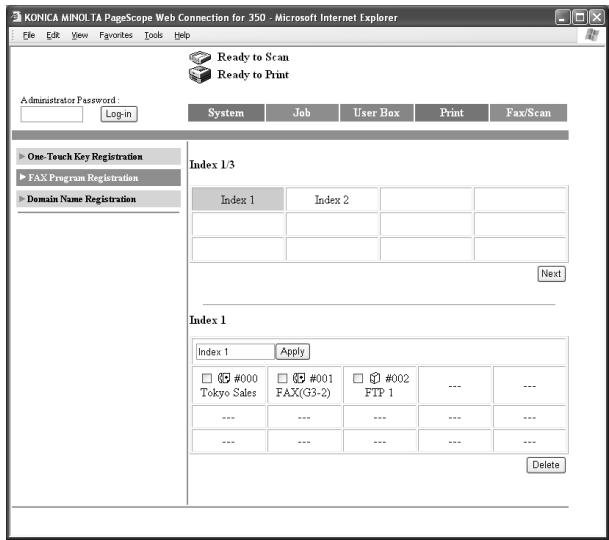
5 Enter each item.
- For the item details, refer to page 12-20.
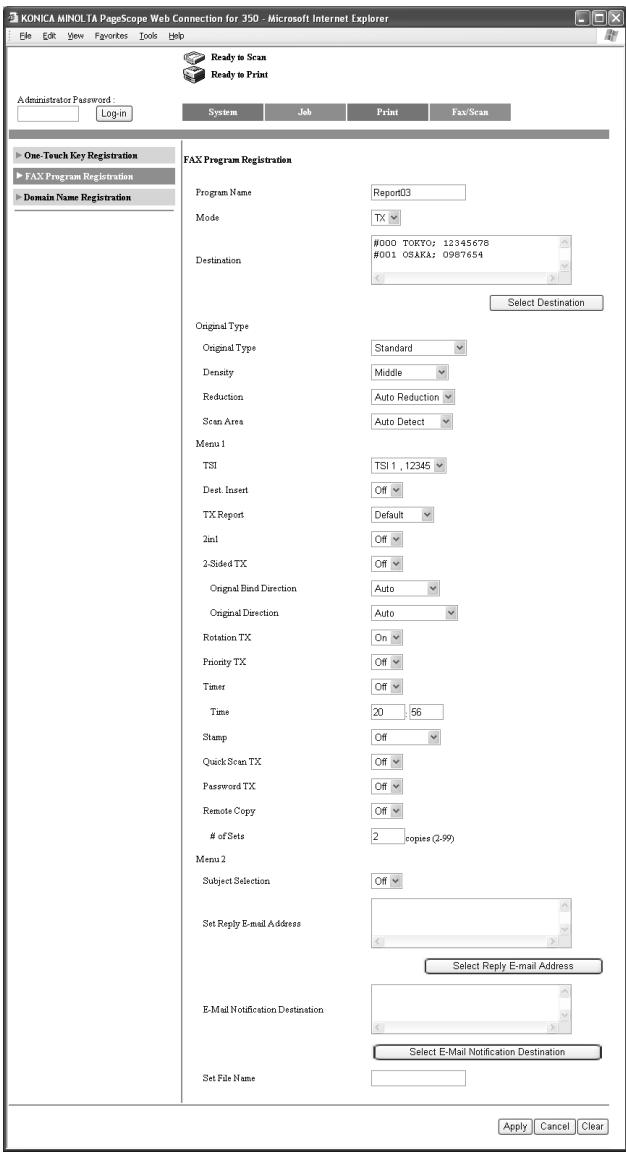
6 Click [Apply].
12.5 System (Administrator mode)
From the [System] tab, various settings concerning the system configuration of this machine can be changed. Settings for the following fax functions can be specified.
"Output Tray Settings" of "User's Choice 5"
"Default LCD Screen" and "Priority Fax Screen" of "User's Choice 6"
To change settings
1 In the Administrator mode, click the [System] tab.
- For the procedure to log on to Administrator mode, refer to "Logging on to administrator mode" on page 12-9.
2 Click [User's Choice 5].
3 Select the paper output tray for fax output.
4 Click [User's Choice 6].
5 Specify the initial screen and fax screen that are given priority.
6 Click [Apply].
12.6 Export/Import (Administrator mode)
The data that was registered with the one-touch registration of this machine can be exported as a file.

Note
The exported data is written in the UTF-8 character code. Edit the data with the UTF-8 character code.
Files can be exported with the following four modes.
| Item | Description |
| Mode 1 | Select this setting when recipient information is to be edited. The data is exported in its complete format (including fax program data). |
| Mode 2 | Select this setting when recipient information is to be edited. The data is exported in its simple format (not including fax program data). |
| Mode 3 | Select this setting when recipient information is to be backed up. The data is exported in its complete format (including fax program data). |
| Mode 4 | Select this setting when recipient information is to be backed up. The data is exported in its simple format (not including fax program data). |

Note
Do not change the structure of data exported with "Mode 3" or "Mode 4" selected.
To export files
1 In the Administrator mode, click the [Fax/Scan] tab.
- For the procedure to log on to Administrator mode, refer to "Logging on to administrator mode" on page 12-9.
2 Click [One-Touch Key Registration], then [Export].
3 Select the export format, and then click [Execute].
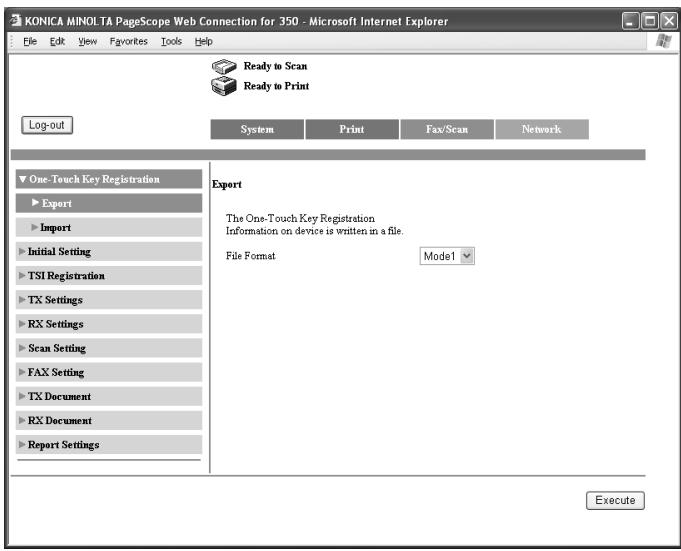
4 Click [Save].
5 Specify the directory of the save destination. The file name can also be changed.
6 Click [Save].
The exported data is saved in the specified directory.
To import files
The one-touch registration data can be imported to this machine from a file on the computer.
1 In the Administrator mode, click the [Fax/Scan] tab.
- For the procedure to log on to Administrator mode, refer to "Logging on to administrator mode" on page 12-9.
2 Click [One-Touch Key Registration], then [Import].
3 Click [Browse].
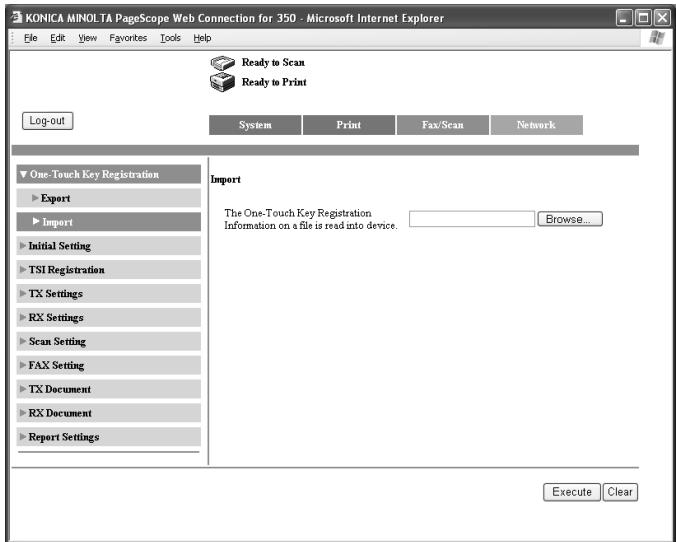
4 Select the file to be imported, and then click [Open].
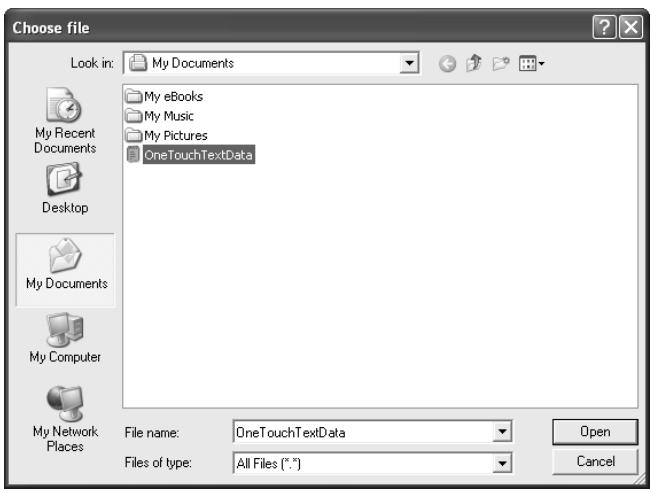
5 Click [Execute].
The one-touch registered data is imported.
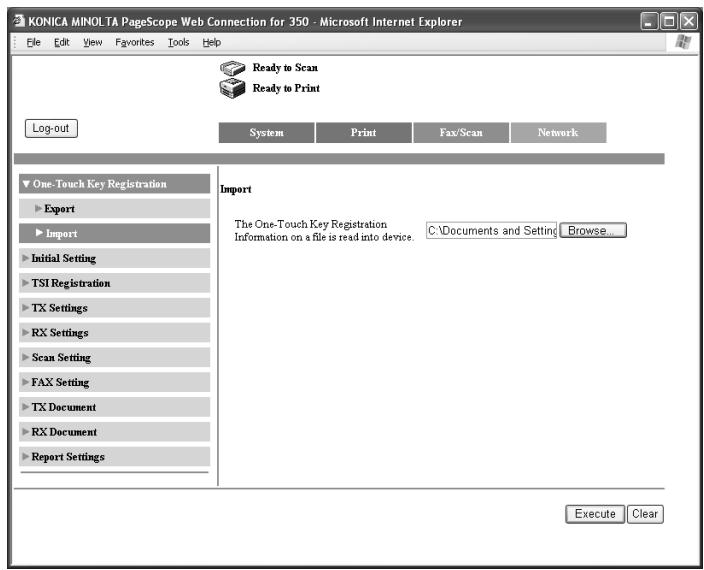
12.7 Line settings (Administrator mode)
The information for the line connected to this machine can be specified.
Settings can be specified for the following.
| Item | Description |
| Self-ID | Enter the text that appears in the recipient’s reports and machine control panel. This allows the receiver to easily check that the fax was sent from this machine. |
To specify the machine telephone number
Register the information required for a fax transmission, such as the machine's telephone number, whether or not a private branch exchange is used, and the dialing system.
1 In the Administrator mode, click the [Fax/Scan] tab.
- For the procedure to log on to Administrator mode, refer to "Logging on to administrator mode" on page 12-9.
2 Click [Initial Setting].
3 Specify the various settings, and then click [Apply].
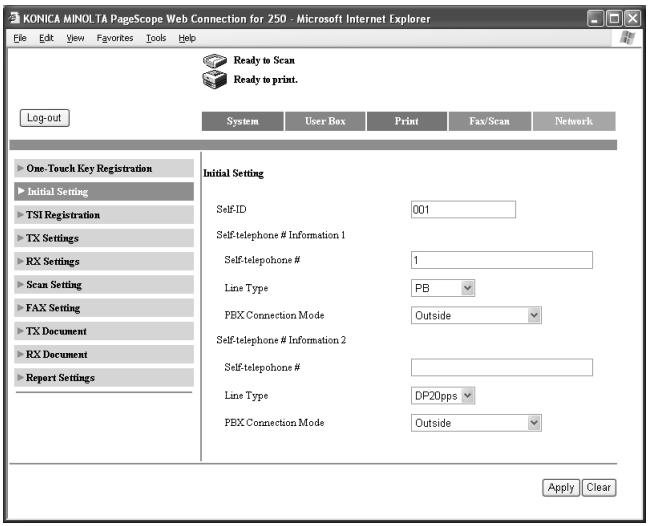
12.8 Transmission source registration
Select the information, such as the name, fax number, or address, that is printed at the edge of the page when a fax is sent.
Registers this transmission source name. Since multiple transmission sources can be registered, the names for each destination and track can be used separately. The registered transmission source name can be changed in the same procedure as that of registration.
To register transmission sources
1 In the Administrator mode, click the [Fax/Scan] tab.
- For the procedure to log on to Administrator mode, refer to "Logging on to administrator mode" on page 12-9.
2 Click [TSI Registration].
3 Enter the transmission source name, and then click [Apply].
- Up to 8 transmission source names can be registered.
- Up to 40 characters can be entered.
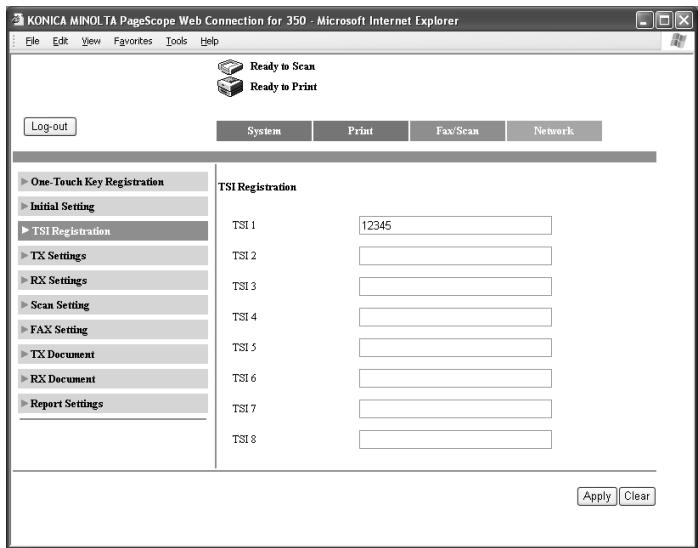
4 Click [OK].
12.9 TX Settings (Administrator mode)
The default settings for transmission can be specified.
The following settings can be specified.
| Item | Description |
| Quality/Mode | |
| Default Quality | Specify the quality default value that is reset after operation is complete. |
| Default Density | Specify the density default value that is reset after operation is complete. |
| Com. Mode | Specify the communication mode default value that is reset after operation is complete. |
| FAX Menu | |
| TX | Select the transmission method.Memory TX: Sends the data after the entire document is scanned.Quick Scan TX: Sends the document one page at a time. |
| TSI Selection | Select the name of the transmission source. |
| Rotation TX | Specify whether to reset the rotation transmission after the operation is complete. |
| 2-Sided TX | Specify whether to reset the duplex transmission after the operation is complete. |
To specify the TX settings
1 In the Administrator mode, click the [Fax/Scan] tab.
- For the procedure to log on to Administrator mode, refer to "Logging on to administrator mode" on page 12-9.
2 Click [TX Settings].
3 Specify each item, and then click [Apply].
- For the item details, refer to page 12-32.
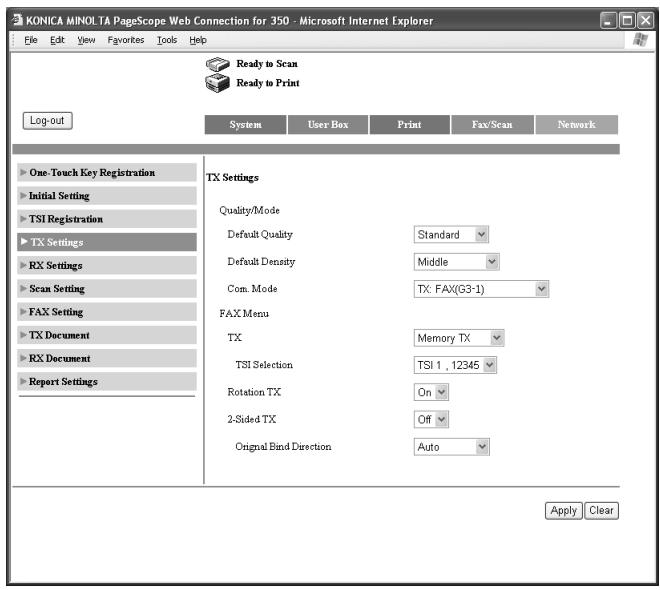
12.10 RX Settings (Administrator mode)
Specify the time and day for printing a fax that is received while the machine is in the off mode (mode where printing is not immediate, even when a fax is received).
Faxes that are received in the middle of the night can be received safely by restricting the time that they are printed.
The following settings can be specified.
| Item | Description |
| Timer | Select whether to print a fax at a specified time without printing when it is received.On: Prints the received faxes together on the specified day of the week and time. Specify the day of the week, the start time, and the stop time.Off: Prints faxes as soon as they are received. |
| Start Time | Enter the start time to start printing the received faxes. |
| Stop Time | Enter the stop time to stop printing the received faxes. |
| Day Of The Week | Select the day of the week to print at the specified time. |
| Memory Lock Password | Specify the four-digit password that is to be used to print received faxes outside of the specified time. |
| Retype Memory Lock Password | Reenter the password for confirmation. |

...
Note
For details on entering a password to print faxes, refer to “Manually Printing Received Faxes with Memory Lock” on page 11-38.
To specify the RX settings
1 In the Administrator mode, click the [Fax/Scan] tab.
- For the procedure to log on to Administrator mode, refer to "Logging on to administrator mode" on page 12-9.
2 Click [RX Settings].
3 Specify each item, and then click [Apply].
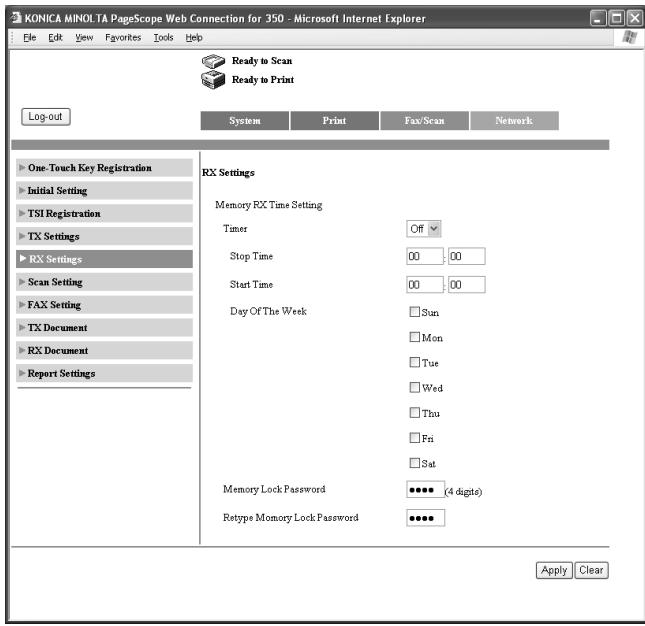
12.11 Fax setting (Administrator mode)
Specify the services being used, such as the dialing method.
RX Functions
Specify how a fax is received and the number of rings until the call is automatically answered.
Settings can be specified for the following.
| Item | Description |
| Reception Mode | Select either “Auto” or “Manual” as the reception method.Auto: Select this setting to specify automatic reception.Manual: Select this setting to specify manual reception. |
| No. of RX Call Rings | Enter the number of rings until the call is automatically received.The number of rings can be set between 1 and 20. |

Detail
If the number of rings is set for 10 or more, the reception may not be completed, depending on the sender's fax machine.
To specify the reception function settings
1 In the Administrator mode, click the [Fax/Scan] tab.
- For the procedure to log on to Administrator mode, refer to "Logging on to administrator mode" on page 12-9.
2 Click [RX Functions] under "Fax Setting".
3 Specify the various settings, and then click [Apply].
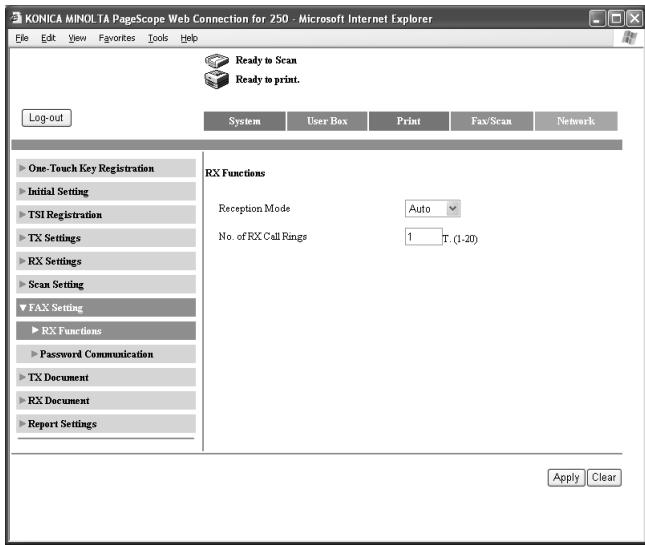
Password communication
Password communication (password transmission and password reception) is a function for sending and receiving faxes only if the previously specified passwords on the sender's machine and the recipient's machine match. This section describes how to specify the communication password for a password transmission.
Settings can be specified for the following.
| Item | Description |
| Old Password | Type in the current communication password as a two-digit number. |
| New Password | Type in the new communication password as a two-digit number. |
| Retype New Password | Type in the new password again for confirmation. |

Detail
Use a communication password for password transmissions and password receptions. For details, refer to “Performing Password Transmission” on page 7-22 and “Password Registration for Password Communication” on page 8-3.
To specify password communication settings
1 In the Administrator mode, click the [Fax/Scan] tab.
- For the procedure to log on to Administrator mode, refer to "Logging on to administrator mode" on page 12-9.
2 Click [Password Communication] under "Fax Setting".
3 Specify the various settings, and then click [Apply].

12.12 RX Document (Administrator mode)
The method for processing a received document can be specified. The received document becomes only a “document that was received over a network”.
The processing methods consist of the following three methods.
- F-Code: This machine can be set to perform a specific operation when a document is received with an F-code.
- Processing of documents received per line (Port): The processing of a received document such as printing and forwarding can be specified per line when the document is received.
- Processing of other received documents (All Other Documents): Specify the processing method of documents received by a line other than port.
With “F-Code”, settings can be specified for the following.
| Item | Description |
| F-Code | Specify the F-code with which document management is performed. |
| F-Code Password | Specify the password for the F-code with which document management is performed. |
| Retype F-Code Password | Retype the password for the F-code. |
| Remote Input Check | To limit viewing depending on the F-code password, select “On”. |
| RX Doc. Settings | Select how the document received with the specified F-code is managed.Print: Select this setting to print the document.Forward: Select this setting to forward the data to the specified recipient.Print&Forward: Select this setting to print the document and forward it to the specified recipient. |
| Forwarding Destination | Specify a destination when “RX Doc. Settings” is set to “Forward”. |
In “Port”, the following settings can be specified.
| Item | Description |
| Distribution Conditions | Select whether to process the document of a selected line.Default: Does not process the received document.Specifies: Specifies the save destination and forwarding destination of the received document. |
| RX Doc. Settings | When “Specifies” is specified in Distribution Conditions, select the processing method for the received document.Forward: Forwards the data to the specified destination.Print: Prints the document.Print&Forward: Prints the document and at the same time forwards the data to the specified destination. |
| Forwarding Destination | Specify when “Forward” is selected in RX Doc. Settings. Click [Select Forwarding Destination], select the forwarding destination address, and then click [Apply]. |
In “All Other Documents”, the following settings can be specified.
| Item | Description |
| RX Doc. Settings | When “Specifies” is specified in Distribution Conditions, select the processing method for the received document.Memory RX: Receives the memory by force.Forward: Forwards the data to the specified destination.Print: Prints the document.Print&Forward: Prints the document and at the same time forwards the data to the specified destination. |
| Forwarding Destination | Specify when “Forward” is selected in RX Doc. Settings. Click [Select Forwarding Destination], select the forwarding destination address, and then click [Apply]. |
To specify F-code settings
1 In the Administrator mode, click the [Fax/Scan] tab.
- For the procedure to log on to Administrator mode, refer to "Logging on to administrator mode" on page 12-9.
2 Click [RX Document], then [F-Code].
3 Click an F-code cell.
- If no F-code has been registered, “---” appears.
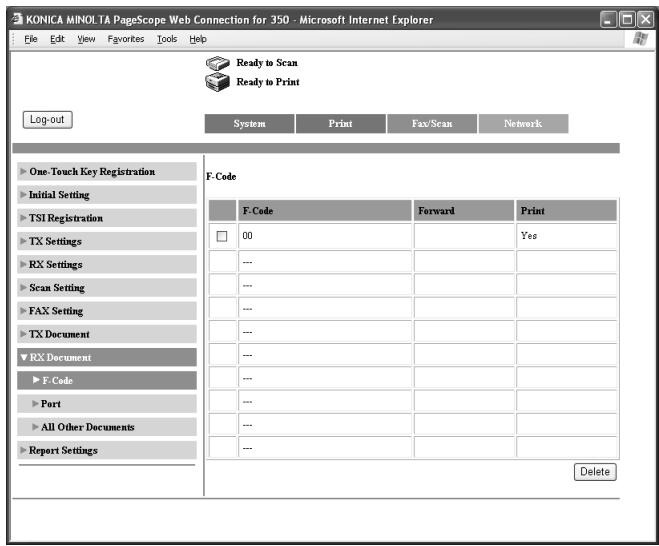
4 Specify the various settings, and then click [Apply].
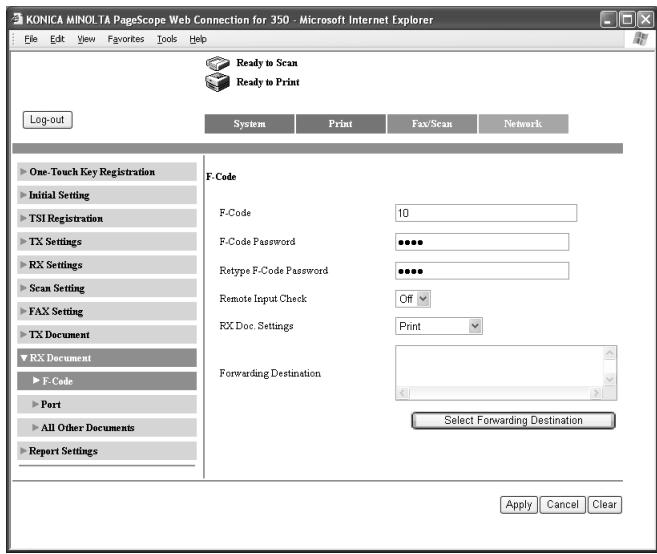
To specify the processing of received documents per line
1 In the Administrator mode, click the [Fax/Scan] tab.
- For the procedure to log on to Administrator mode, refer to "Logging on to administrator mode" on page 12-9.
2 Click [RX Document], then [Port].
3 Click a port name (G3).
- If the optional fax multi line is being used, two general subscriber lines can be used. Specify settings for each port: "G3-1" (port 1) and "G3-2" (port 2).
- To specify settings for documents sent through the network (such as Internet faxes), click [Network].
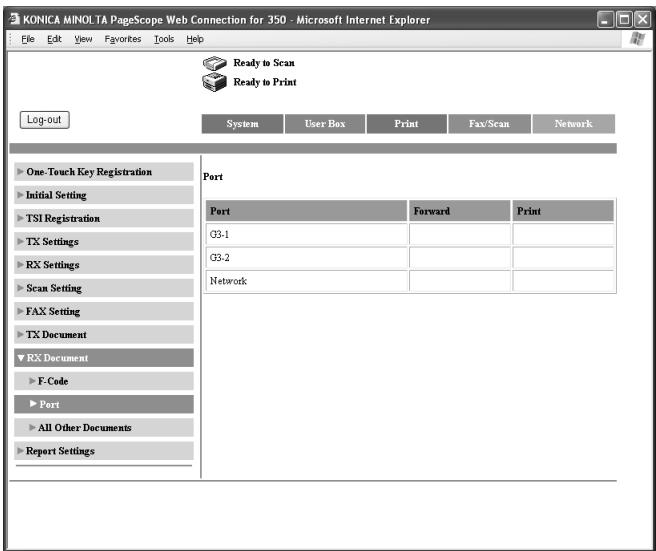
4 Specify each item, and then click [Apply].
- For the item details, refer to page 12-40.
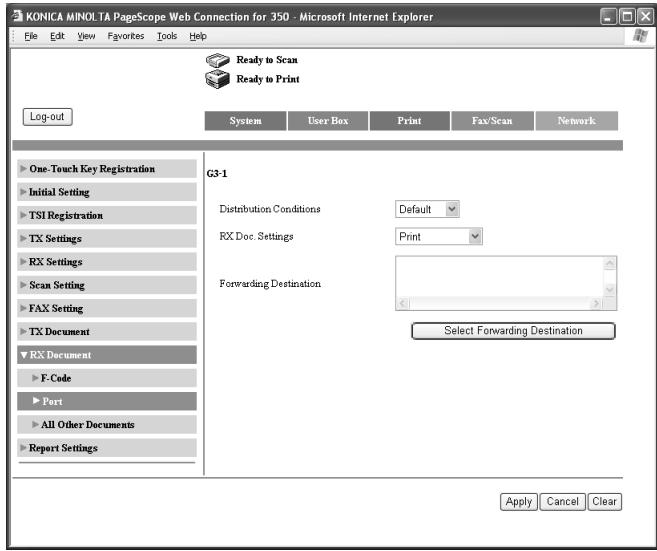
To specify the processing of other received documents
1 In the Administrator mode, click the [Fax/Scan] tab.
- For the procedure to log on to Administrator mode, refer to "Logging on to administrator mode" on page 12-9.
2 Click [RX Document], then [All Other Documents].
3 Specify each item, and then click [Apply].
- For the item details, refer to page 12-40.
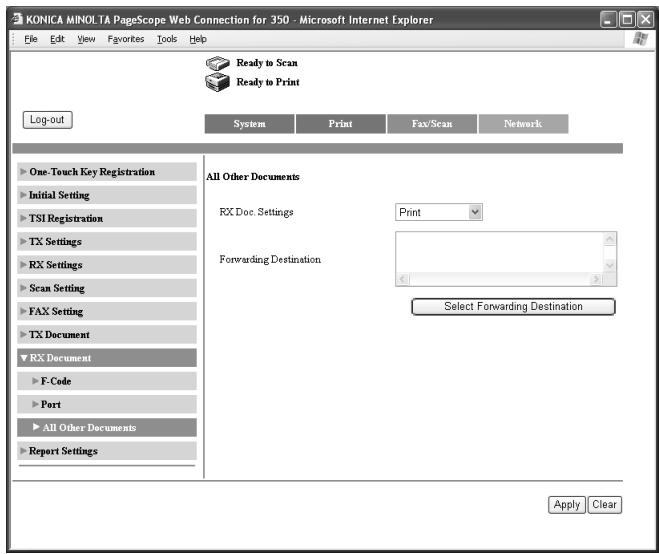
12.13 Report output settings (Administrator mode)
The output conditions of the send result reports and communication control reports can be specified.
The following settings can be specified.
| Item | Description |
| TX Report (Single destination) | Select the output of the result report sent to a single destination. Output On: Outputs regardless of the results. If TX Fail: Outputs only when undeliverable. Output Off: Does not output regardless of the results. |
| TX Report (Multiple destination) | Select the output of the result report sent to multiple destinations. Output On: Outputs regardless of the results. If TX Fail: Outputs only when undeliverable. Output Off: Does not output regardless of the results. |
| Activity Report | Select the communication control report that is output every 50 transmissions. |
To specify the report output settings
1 In the Administrator mode, click the [Fax/Scan] tab.
- For the procedure to log on to Administrator mode, refer to "Logging on to administrator mode" on page 12-9.
2 Click [Report Settings].
3 Specify each item, and then click [Apply].
- For the item details, refer to page 12-47.
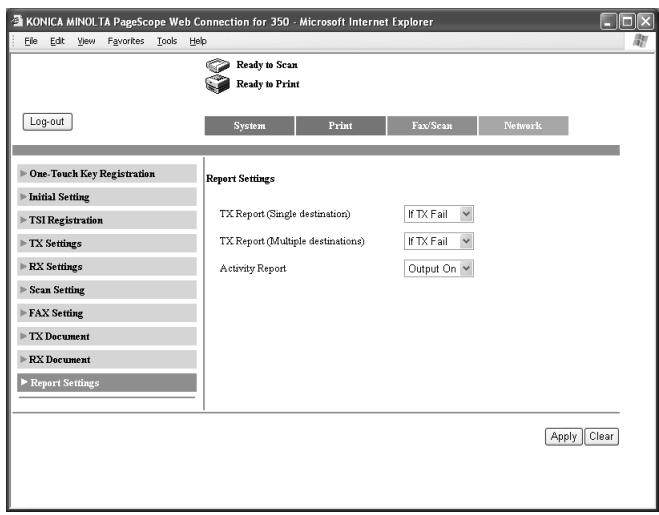
12.14 TCP/IP (Administrator mode)
Specifies the required settings for using this machine over a network.
In TCP/IP, the following settings can be specified.
| Item | Description |
| DHCP Configuration [*] | Specify the DHCP server to enable (acquires the IP address automatically) or disable (specifies a fixed IP address). |
| IP Address [*] | Specify the IP address of this machine. Specify when “Disable” is selected in DHCP Configuration. |
| Subnet Mask [*] | Enter the subnet mask of the network to be connected. Specify when “Disable” is selected in DHCP Configuration. |
| Gateway Address [*] | Enter the default gateway of the network to be connected. Specify when “Disable” is selected in DHCP Configuration. |
| RAW Port Number | Specify the RAW port number. Enter the port number within the range of 1 to 65535. |
| Self-Domain Name [*] | Specify the domain name of this machine. Specify when performing direct fax transmission over a mail server. |
| DNS Configuration | Specify “Yes” or “No” for the DNS (Domain Name System).When using a DNS server within a network, specify “Yes”. When not using the a DNS server within a network, specify “No”. |
| Host Name | Specify the host name of this machine.For the contents to be entered, ask the network administrator. Specify when “Yes” is selected in DNS Configuration. |
| Domain Name | Specify the domain name of the DNS server.For the contents to be entered, ask the network administrator. Specify when “Yes” is selected in DNS Configuration. |
| DNS Server Address 1 to 3 | Specify the IP addresses of the DNS server.For the contents to be entered, ask the network administrator. Specify when “Yes” is selected in DNS Configuration. |
| DNS Query Timeout | Select the time when the attempt to access the DNS server is stopped. Select 20, 40, 80, 160, 320, or 640 seconds. |

...
Note
For the IP address and DNS server address, the IP address that begins with digits "0.", "127.", or "numbers 224 or more" cannot be specified.

...
Reminder
After changing the settings for parameters marked with an asterisk (*), turn the machine off, then on again.
When turning the machine off, then on again, wait about 10 seconds to turn the machine on after turning it off. The machine may not operate correctly if it is turned on immediately after being turned off.
To specify the TCP/IP settings
1 In the Administrator mode, click the [Network] tab.
- For the procedure to log on to Administrator mode, refer to "Logging on to administrator mode" on page 12-9.
2 Click [Common Setting], then [TCP/IP].
3 Specify each item, and then click [Apply].
- For the item details, refer to page 12-49.
![KONICA MINOLTA PageScope Web Connection for 350 - Microsoft Internet Explorer File Edit View Favorites Tools Help Ready to Scan Ready to Print Log-out System Print Fax/Scan Network Common Setting TCP/IP IPP NetWare NetWare Status Windows AppleTalk LDAP LDAP Server Setting E-Mail/Internet FAX FTP Configuration SSL/TLS IP Relay Settings TCP/IP Configuration DHCP Configuration [*] Disable IP Address [*] 192 .188 .1 .20 Subnet Mask [*] 255 .255 .255 .0 Gateway Address [*] . . . . . RAW Port Number 9100 (1-6553) Self-Domain Name [*] DNS Configuration Yes Host Name KMBT31F68E Domain Name DNS Server Address1 192 .168 .1 .90 DNS Server Address2 . . . . . DNS Server Address3 . . . . . DNS Query Timeout 160 Sec When changing a setup of [*] mark, reboot of Device is needed. Apply Clear](/content/2025/01/139711/images/66dfd4b4784f945061931052192c8be42431a170cbbe044bb643be2dc604934d.jpg)
4 [*] When the print items are changed, turn the power of this machine off, then on again.

Reminder
When turning the machine off, then on again, wait about 10 seconds to turn the machine on after turning it off. The machine may not operate correctly if it is turned on immediately after being turned off.
12.15 Mail/Internet FAX (Administrator mode)
The Scan to E-Mail and Internet fax transmission settings can be specified.
The following settings can be specified.
| Item | Description |
| POP3 | Specify the POP3 server for sending Internet faxes.For details, refer to the user’s guide [Network Scanner Operations]. |
| SMTP | Specify the SMTP server for sending Scan to E-Mail.For details, refer to the user’s guide [Network Scanner Operations]. |
| Subject/Text | Specify the subject and any text to be used when sending Scan to E-Mail and Internet faxes.For details, refer to the user’s guide [Network Scanner Operations]. |
| Other | Specify all other related send and receive settings. |
Other
| Item | Description |
| Activity Report | Select whether or not to notify the recipient of the reception results. |
| RX Doc. Header Print | Select whether to print the e-mail header on the first page of the received document when the received document of an Internet fax is printed. |
| TX Doc. Text Insert | Text can be inserted into the text of the Scan to E-Mail and Internet faxes.No: Does not insert text. For Scan to E-Mail, fixed text is inserted even when “No” is selected.Fix: Inserts the fixed text that has been saved in advance on this machine.Any: Inserts text that can be set freely. |
| Gateway TX | Select whether to permit or prohibit gateway transmissions.If this machine is to be used as a relay machine in direct faxing or IP relay operations, permit gateway transmissions. |

Detail
For details on IP relay operations, refer to the user's guide [Advanced Scan Operations].
To specify other settings
1 In the Administrator mode, click the [Network] tab.
- For the procedure to log on to Administrator mode, refer to "Logging on to administrator mode" on page 12-9.
2 Click [E-Mail/Internet FAX], then [Other].
3 Specify each item, and then click [Apply].
- For the item details, refer to page 12-53.
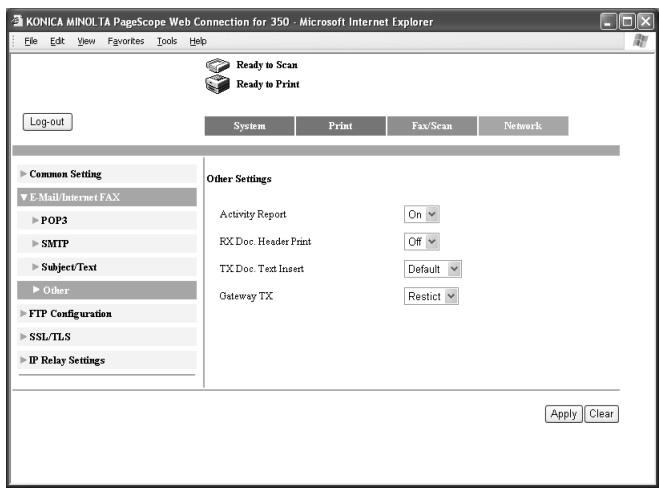
4 Click [OK].
13
Explanation of reports and lists
13 Explanation of reports and lists
13.1 Confirming Transmission Details
The Transmission Activity Report can be used to verify document numbers, transmission start times, time for transmission, destination, mode, no. of completed transmissions, transmission results and other information.

Note
For details on changing report settings, refer to the user's guide [Copy Operations]. For details on operations using PageScope Web Connection, refer to "Specifying settings using PageScope Web Connection" on page 12-3.
How to Output Transmission Activity Reports
1 Press [Utility/Counter].
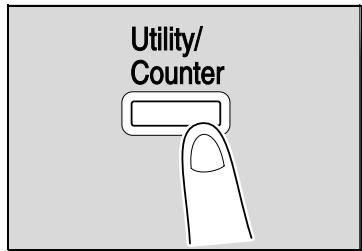
2 Press [Reports].
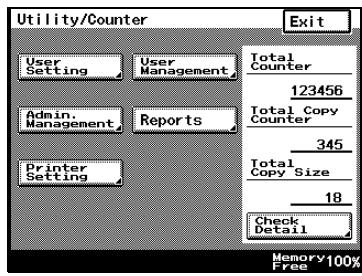
3 Press [TX Report].
The TX Activity Report is printed out.
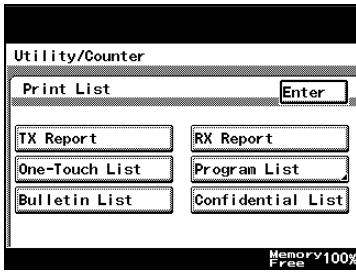
Report Details
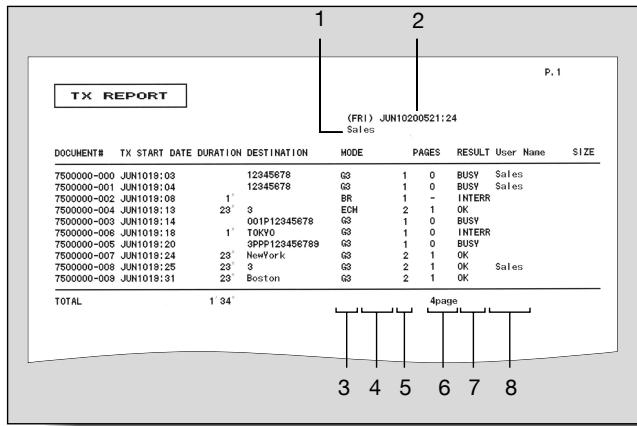
| No. | Item | Description |
| 1 | Transmission source name | Shows the name and number of the transmission source. |
| 2 | Report output date | Shows the date that the report was printed. |
| 3 | Mode | Shows the mode used for the transmission. Any of the following may be indicated.BR: Broadcast transmissionRESULT: Activity report transmissionG3: G3 mode |
| 4 | Transmission function | Shows a symbol for the transmission function that was used.C: Confidential box transmissionB: Batch transmissionP: Polling transmissionI: Individual loginF: ForwardingBlank: General transmission (transmission other than those mentioned above) |
| 5 | Port used | Shows the port used for the transmission.1: Port 12: Port 2Blank: Single port |
| 6 | Number of transmitted pages | Shows the number of document pages that were trans-mitted. |
| 7 | Transmission results | Shows the transmission results. Any of the following may be indicated.OK: Transmitted successfullyBUSY: The recipient's line was busy.NO ANS: The recipient could not receive the fax or the call was not answered.INTERR: The transmission was interrupted.F.MEM: The memory was full.NG: Transmissions to all recipients failed.PT.DEL: Transmissions to some recipients failed. |
| 8 | User Name | Shows the name of the user or account that was authen-ticated. |
13.2 Confirming Receiving Details
The Receiving Activity Report can be used to verify document numbers, receiving start times, time for transmission, destination, mode, no. of pages received, transmission results and other information.
How to Output Receiving Activity Reports
1 Press [Utility/Counter].
2 Press [Reports].
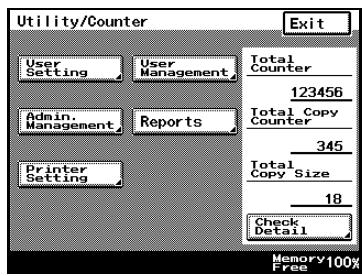
3 Press [RX Report]. The RX Activity Report is printed out.
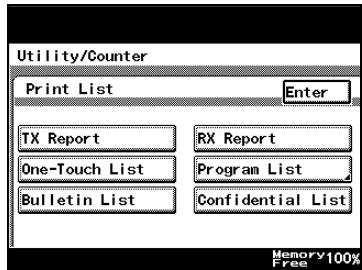
Report Details
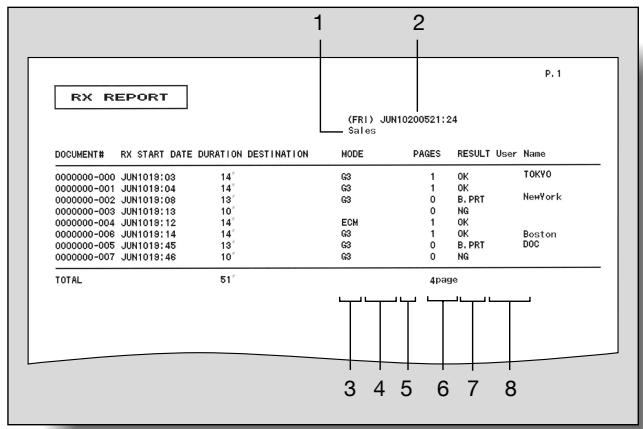
| No. | Item | Description |
| 1 | Transmission source name | Shows the name and address of the transmission source. |
| 2 | Report output date | Shows the date that the report was printed. |
| 3 | Mode | Shows the mode used for the transmission. Any of the following may be indicated.BR: Broadcast transmissionRESULT: Activity report transmissionG3: G3 mode |
| 4 | Reception function | Shows a symbol for the reception function that was used.C: Confidential box transmissionP: Polling transmissionI: Individual loginF: ForwardingBlank: General transmission (transmission other than those mentioned above) |
| 5 | Port used | Shows the port used for the transmission.1: Port 12: Port 2Blank: Single port |
| 6 | Number of printed pages | Shows the number of pages printed. |
| 7 | Transmission results | Shows the transmission results. Any of the following may be indicated.OK: Received successfullyBUSY: The recipient's line was busy.NO ANS: The recipient could not receive the fax or the call was not answered.INTERR: The transmission was interrupted.F.MEM: The memory was full.NG: The transmission failed. |
| 8 | User Name | Shows the name of the user or account that was authenticated. |
13.3 Confirming the Information Registered to One-Touch Dial Keys
The destinations registered to one-touch dial keys can be outputted for verification.
How to Output One-Touch Lists
1 Press [Utility/Counter].
2 Press [Reports].
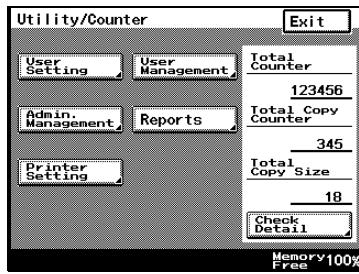
3 Press [One-Touch List]. The One-Touch List is printed out.
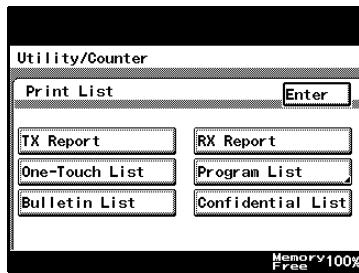
List Details
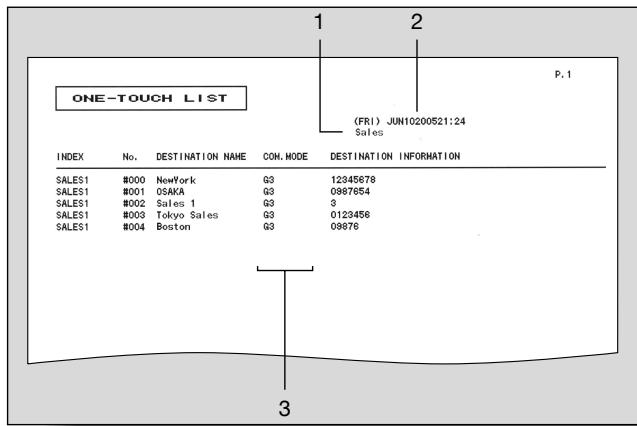
| No. | Item | Description |
| 1 | Transmission source name | Shows the name and number of the transmission source. |
| 2 | Report output date | Shows the date that the report was printed. |
| 3 | Communication mode | Shows the registered transmission mode. Any of the following may be indicated.G3: Send to a G3 faxG3-1: Send to a G3 fax from port 1 (optional)G3-2: Send to a G3 fax from port 2 (optional) |
13.4 Confirming the Contents Registered to FAX Programs
The contents of transmission settings registered to one-touch programs (FAX programs) is output in a list for verification.
Program list
1 Press [Utility/Counter].
2 Press [Reports].
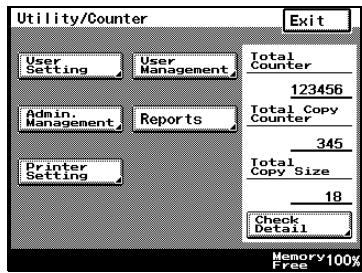
3 Press [Program List].
4 Select the FAX program key you want to print out.
The FAX Program List is printed out.
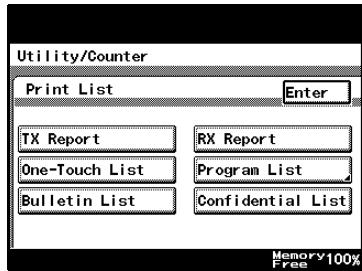
List Details
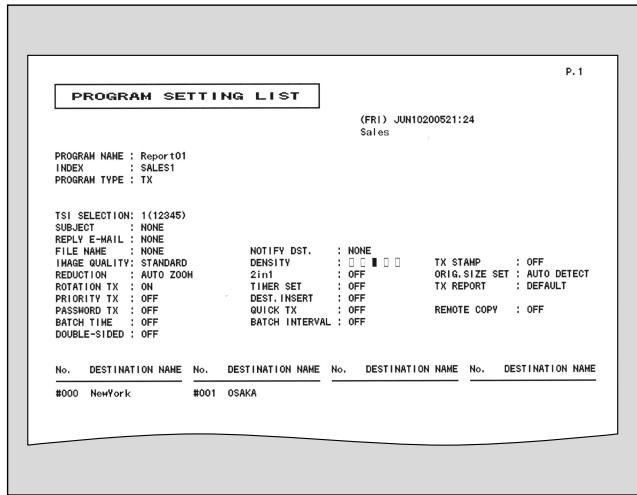
13.5 Confirming Text Registered to Bulletin Boards
Text registered to the bulletin boards can be outputted for verification.

Detail
For details on the bulletin boards, refer to “Saving Documents to Bulletin Boards” on page 7-28, “Retrieving Bulletin Board Documents” on page 8-4, and “Setting up Bulletin Boards” on page 10-23.
How to Output the Bulletin Board List
1 Press [Utility/Counter].
2 Press [Reports].
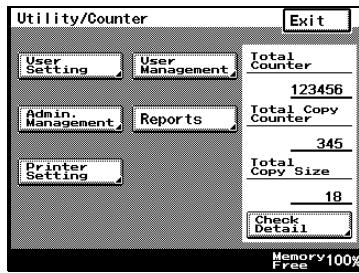
3 Press [Bulletin List].
The Bulletin Board List is printed out.
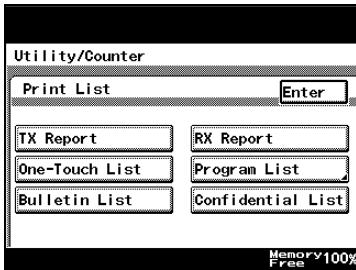
| BULLETIN BOARD LIST | ||||
| (FRI) JUN10200521:25 Sales | ||||
| No. | F-00DE | TITLE | ACCEPT DATE | PAGES ACCOUNT |
| 1 | 1 | Sales Gr. | JUN1018:40 | 1 |
| 2 | 2 | TOKYO | ||
| 3 | ||||
| 4 | ||||
| 5 | ||||
| 6 | ||||
| 7 | ||||
| 8 | ||||
13.6 Confirming the Contents Registered to Confidential Boxes
Outputs the contents registered to the confidential boxes in a list.

Detail
For details on the bulletin boards, refer to “Saving Documents to Bulletin Boards” on page 7-28, “Retrieving Bulletin Board Documents” on page 8-4, and “Setting up Bulletin Boards” on page 10-23.
How to Output the Confidential List
1 Press [Utility/Counter].
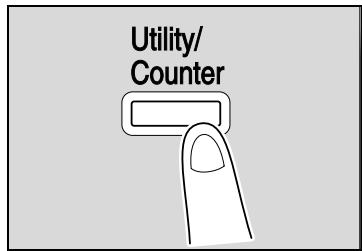
2 Press [Reports].
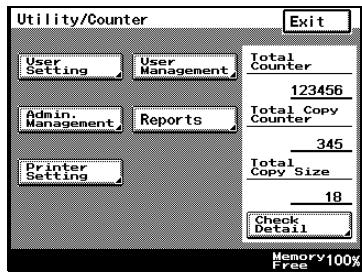
3 Press [Confidential List].
The Confidential List is printed out.
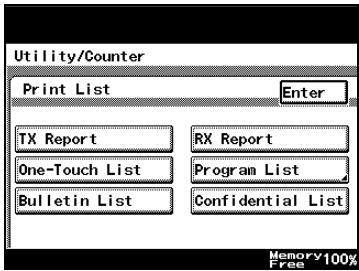
List Details
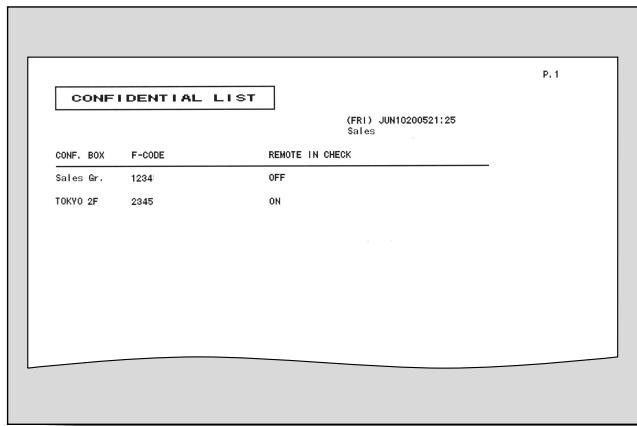
13.7 Confirming the Settings of Various Functions
If account management is specified, lists of the account information for each account can be printed.

Note
The account lists can be viewed only if you have logged in with the administrator access code.
How To Output Account Lists
1 Press the [Utility/Counter] key, and then enter Administrator mode.
- For details on entering Administrator mode, refer to "To set the administrator access code" on page 11-16.
2 Press [Admin. 1].
3 Press [Print Lists].
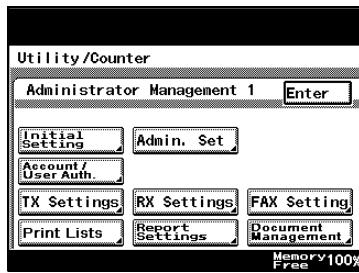
4 Press [Setting List]. The account list is printed.
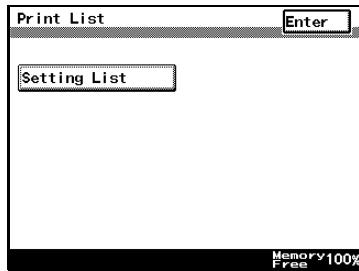
List Details
The list of specified settings can be viewed.
The password appears as “*****”.
![SETTING LIST (P.TUE)OCT302005 14:08 TOKYO [P.1] [USER SETTING] <1> MIXED ORIGINAL DETECTION OFF <2> PRIORITY ORIGINAL—COPY :1—1 AUTO PAPER/AUTO ZOOM AUTO PAPER PRIORITY PAPER :1 [SPECIAL PAPER SETTING] Tray 1 NORMAL Tray 2 NORMAL Tray 3 OPTION Tray 4 OPTION BYPASS Tray NORMAL Zoom Ratio for Combine/Bookie ON](/content/2025/01/139711/images/14d782a97e86490675f27cf92b3db8279537adcb0072293ffb2f8e6a55aa755f.jpg)
14
Appendix
14 Appendix
14.1 Replacing the Completion Stamp
Replace the Spare TX Marker STAMP by the following procedure if the storage (transmission) completion stamp becomes faint.

Note
An optional TX Marker STAMP UNIT is necessary.
The spare TX maker stamp is replaceable. Purchase it from your dealer or technical representative.
Replacing the Spare TX Marker STAMP
1 Pull the lever for the paper feed cover, and open it.
2 Pull the lever for the setting guide, and open it.
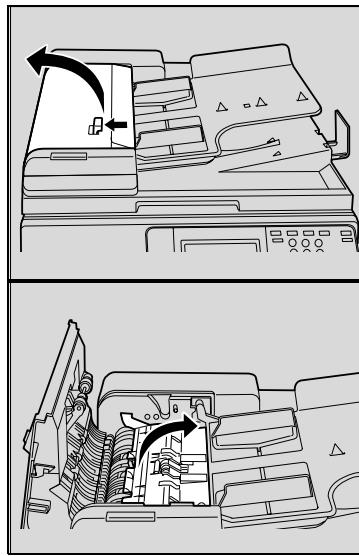
3 Remove the Spare TX Marker STAMP.
4 Set the new Spare TX Marker STAMP.
Align the pin on the stamp with the notch in the machine, and then insert the stamp.
5 Replace the guide, and return the paper feed cover.
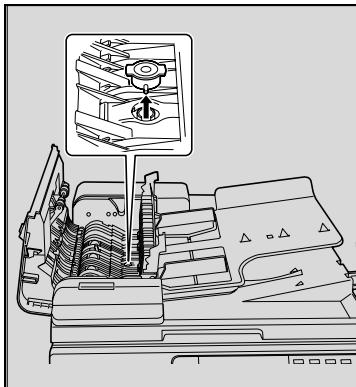
natural_image
Technical line drawing of a mechanical assembly with internal components and a top view indicator (no text or symbols)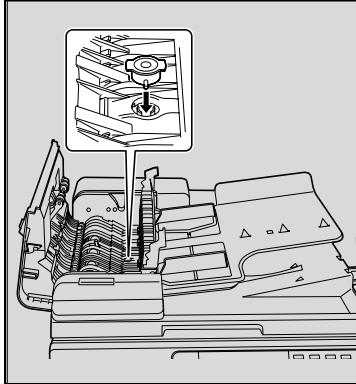
natural_image
Technical line drawing of a mechanical assembly with internal components and a magnified inset showing a gear mechanism (no text or symbols)14.2 Fax terms
This section describes the general terms used in the fax communication.
Explanations may be given of the terms of functions that are not equipped to this machine.
| Terms | Description | |
| Numerics | 2 in 1 TX | The function to gather two pages into one page and to transmit the composed wide page. |
| A | Abbreviated dial number | One of the functions to register the fax numbers dialed frequently. Registering the destination name and retrieval character when you register the abbreviated dial, you can designate the destination with the Address Book. Up to 500 abbreviated numbers (000-499) can be registered. |
| Address book | To dial the destination by searching the name of the destination from the list of the abbreviated dial numbers registered. | |
| B | Batch transmission | The function to transmit more than one document as a document at specified time automatically if the transmission condition of the documents such as the destination, transmission time, memory transmit, or resolution is same. |
| Book TX | The function to produce two separate pages from the side-by-side pages of an open book or catalogue. | |
| bps | An abbreviation for “bit per second.” It is the unit of data transmission and represents the amount of data sent in one second. | |
| Broadcasting | To transmit a fax to multiple stations by a single operation. | |
| Bulletin board | The function to post the documents you want to read or to store documents to be transmitted by polling. | |
| Bundled transmission | The function to send the newly reserved document and the reserved document at the same time when a transmission is reserved for a destination that is the same as a transmission reservation document stored in memory under the same transmission condition such as memory transmission or resolution. It can send up to five documents continuously. | |
| C | Confidential communication | The function to exchange private information with specific persons. The originals sent by the confidential communication are stored in the receiver's confidential box and they are not printed at the reception. They are printed after the certain operation such as inputting the password. |
| D | Dialing method | There are two methods: PB or pulse. |
| E | ECM (Error Correction Mode) | The error correction mode for G3 communication. It communicates with a destination during checking whether data is sent to the destination properly or not. If not, it sends the data again. If the destination supports the ECM, data is transmitted in ECM unless you set the ECM OFF mode. |
| F | Factory default setting | The value set at the factory. You can change some defaults by the utility mode. It is useful to set the value that you use frequently as the default. |
| Fax ID | The ID code to recognize each other at the fax communication. The telephone number is usually registered as the fax ID. | |
| F-code | It defines the use of the sub-address of T.30* standardized by ITU-T. You can use various functions of the F-code in the fax communication among facsimiles supporting the F-code function even if their manufactures are different. In this machine, the F-code is used in the bulletin board, relay request, confidential communication and ID transmission. (* This is one of the communication standards.) | |
| Frame erase | The function to erase dark bands reproduced when the original is a book or read with the ADF left open. | |
| G | G3 | One of the fax communication modes standardized by ITU-T. There are G3 and G4 in the communication mode. G3 is the most used communication mode now. |
| Group | To group multiple abbreviated numbers. It is useful if you frequently use the sequential multiple station transmission or the polling reception. You can register up to 500 abbreviated numbers in a group. | |
| H | Horizontal scanning | The horizontal direction when the original is scanned. |
| L | Long original | The function to transmit pages longer than the length (420 mm/16.5 inch) of 11 × 17 size. If you attempt to send such a long document without selecting Long original mode, paper misfeed will occur. When Long original mode is selected, pages of up to 800 mm can be transmitted. |
| M | Manual transmission | This operation to send documents while confirming the status of the receiving machine. |
| Memory | The location to store data. It is used to specify the communication or store the document. | |
| Memory overflow | The state of the fax image memory in this machine to be full during storing transmitted document. | |
| Memory RX | The function to store the received document and print the document as necessary. | |
| Memory substitute reception | The function to store transmitted document in the memory automatically when the received document cannot be printed due to the machine being out of paper. | |
| Memory transmission | In this transmission method, all pages being sent are first scanned and stored in memory before transmission. The document is automatically numbered by total page number, and the images on the first page are shown on communication results report. However, when a large number of pages are sent or when the images on the originals are fine, memory capacity may be exceeded due to the large amount of data stored in memory. | |
| Mixed original | The function to set and send document pages of mixed sizes by a single sequence of operations. | |
| O | Original size set | The function to designate the paper size for the document to be sent. Normally, when the paper size loaded at the destination is too small to accommodate the image being transmitted, the original image will be reduced to fit the paper size. This feature gives you the option printing a portion of the image with no reduction. |
| Originating station | The facsimile to provide instruction to send document to multiple stations. | |
| Overseas TX | The international communication. In overseas TX, a lower baud rate will be employed. Select this mode if you send a fax to the location at which the communication condition is poor even if it is in your country. | |
| P | Password TX | The function to send fax with a password. Sender has to send a fax with the same password which is set in closed network RX if the closed network RX is set at the recipient. |
| Pause | To dial at certain intervals. Pressing the key once creates an interval of one second. | |
| Polling | The function to send a fax that has been read and stored in the memory in the facsimile when a polling command is sent from the recipient. | |
| Program | The function to register frequently-used fax numbers as well as templates of operating sequences. Thereafter, you may select the destination or designate a sequence of operations by pressing the Program key (in the abbreviated dialing list). | |
| Q | Quick memory transmission | In this transmission method, a facsimile is sent the instant when one page is scanned. This allows documents to be sent without exceeding memory capacity in the case of sending a large number of pages. |
| R | Reading | To scan an original optically and capture it as image data. |
| Redialing | To dial the number of the same destination again. Redialing consists of automatic redialing in which dialing is performed automatically, and manual redialing in which redialing is performed manually. | |
| Relay TX | The function to send a fax to multiple stations via the other facsimile (called a relaying station). You can save costs by setting one of the stations as the relaying station and sending a fax via the relaying station if the terminating stations are at remote site. | |
| Relaying station | The facsimile that sends document to multiple stations by the relay request from the originating station. | |
| Reserving transmission | The function to reserve the next transmission during communication or printing. | |
| Resolution | The higher resolution is, the longer it takes to transmit. Select the appropriate resolution. | |
| Restransmission | The function to select documents that have failed to be sent. The documents are stored in memory, and you can send again either to the same destination or after changing to a different destination. | |
| S | Sender information | Information such as transmission date, name, telephone number, and page number printed at the top of the received document at the fax transmission. |
| Sender name | The name of this machine, which is represented with any alphanumeric character and symbols. It is recorded as the part of the originating printing at the top of the received document on the receiver side. | |
| Substitute transmit | The function to transfer/transmit the received documents waiting for output by using the control panel. Substitute transmission can be set when the fax screen is displayed, and operation has been interrupted at out of paper or paper jammed in the machine. | |
| Super G3 (SG3) | This is the G3 communication mode that is ITU-T V.34 compliant. It can communicate faster (up to 33,400 bps) than normal G3 communication. | |
| T | Timer TX | The function to specify the time to start communication. You can save costs by specifying a transmission to start at midnight or early in the morning during which telephone charges are less. |
| Total page set | The function to place the total number of pages on each page of the fax in quick memory transmission. It is useful for the recipient to make sure whether all pages of the fax have been sent or not (the total number of pages are automatically placed in memory transmission). | |
| Transmission rates | The transmission rates of the modem in the facsimile. It can transmit in high-speed 33,600 bps. If it is set to Overseas TX. The international communication. In Overseas TX, a lower baud rate will be employed. Select this mode if you send a fax to the location at which the communication condition is poor even if it is in your country. It transmits in noise-resistant 7,200 bps or 4,800 bps. | |
| Transmission time | The time to send a fax. The higher resolution is, the longer it takes to transmit. | |
| U | Upside down | The function to specify the appropriate binding style when transmitting a two-sided document (i.e., when pages are printed on both sides). The binding style you select should allow the pages of a two-sided document to be read appropriately by paging right to left or top to bottom. |
| V | V.34 | The communication mode under the super G3 fax communication. It may not be possible to communicate in super G3 mode if the receiver or sender is connected to the line via an extension exchange equipment. |
| Vertical scanning | The vertical direction when the original is scanned. | |
| Z | Z folded original | The function to determine the document sizes before reading and sending the original. Some facsimiles cannot detect the document size if it has been folded. This function is available only when reading the original with the ADF. |
14.3 Index
Numerics
2in1 7-12
2-Sided TX ......7-13, 11-29, 11-33
A
Accessing 12-5
Account track 2-15
ADF 3-5
Administrator access code ...... 11-16
Administrator forwarding ...... 11-48
Administrator management ..... 11-16
Administrator
management 1 ...... 11-17, 11-18
Administrator management 2 ..... 11-17
Administrator mode 12-9
Automatic reception 4-3
B
Baud rate 10-9
Bit selection 11-62
Broadcast transmission 3-26
Bulletin boards ....7-24, 7-27, ....10-24, 11-13
Bulletin list 13-14
C
Chain dial 3-30
Communication mode ..... 11-29, 11-31
Confidential box list 13-16
Confidential box reception .... 7-25, 8-7
Confidential box
transmission 7-23, 7-25
Confidential boxes 10-28, 11-13, 11-39
Control panel 2-6
D
Default density 11-29, 11-30
Default quality 11-29, 11-30
Default screen 11-12
Density 3-13
Destination insertion 7-8
Dialing method 11-23
Direct faxing 7-30
Direct input 2-11, 3-19
Document
management .....11-18, 11-50, 12-40
E
E-mail 12-53
Error messages 5-7
Exporting 12-26
Extension 11-22
External telephone 3-29
F
Fax kit 2-4
FAX menu 7-3
Fax mode screen 2-11
Fax priority 4-3
FAX program 11-13
FAX registration 10-3, 11-13
FAX setting 11-18, 12-36
Fax/Copy screen 2-13
Fax/Scan key 2-6
F-codes 7-23, 10-7
Forwarding 11-48
Forwarding destination 11-50
G
Gateway TX ......11-19, 11-60, 12-53
H
HEX 11-62
|
Importing 12-28
Index 10-14, 11-13, 12-14
Internet faxing 12-53
J
Job complete beep 11-15
Job list 3-34
L
Language for communication .... 11-18, 11-20
Line monitor sound 11-15
List of registration information and parameters 11-3
Lock off 11-38
Lock on 11-38
Logging in 12-9
M
Manual reception 4-4
Manual transmission 3-29
Memory clear report 11-68
Memory lock password ... 11-34, 11-36
Memory reception 4-7
Memory RX on/off ...... 11-15, 11-38
Memory RX time setting 11-35
Memory transmission 11-32
Mode selection 11-62
Multiple destinations 3-26
N
No. of RX call rings 11-42
Number of rings 11-41
0
One-touch ....2-11, 3-21, 10-4, ....11-13, 12-15
One-touch list 13-10
On-hook dialing 2-11
Original glass 3-6
Original type 3-11
Output tray setting 11-12
Outside 11-22
Overseas 3-19, 10-6
P
PageScope Web Connection ..... 12-3
Password communication ...... 11-43
Password RX 8-3, 11-43
Password TX 11-43
Pause 3-19, 10-5
Polling RX 9-5
Polling transmission box 9-3
Polling TX 9-3
Port 1 2-4
Port 2 2-4
Print lists ...... 11-18, 13-3, 13-18
Priority TX 7-16
Program 3-22, 10-16, 12-20
Program list 13-12
Q
Quality & reduction 3-10
Quality/mode 11-29
Quick scan TX 7-20, 11-32
R
Received job 3-35
Reception mode ...... 11-41, 11-42
Reception report 13-7
Recipient 3-19
Reduction/area 3-14
Remote copy 7-22, 7-24
Report settings .... 11-18, 11-45, 12-47
Restrict one-touch editing ..... 11-18
Retrieve 8-4
Rotation TX ...... 7-15, 11-29, 11-33
RX doc. settings 11-50
RX settings ...... 11-18, 11-34, 12-34
S
Search 3-24
Self-domain name ...... 11-19, 11-58
Self-ID 11-18, 11-26, 12-30
Self-telephone #
information 11-18, 11-21
Setting list 13-18
Software switch settings .11-19, 11-62
Specifications 6-3
Stamp 7-19, 14-3
Stamp unit 2-5
Start key 2-7
Stop key 2-7
Stopping 3-33
System requirements ...... 12-5
T
TCP/IP 12-49
Telephone only 4-4
Time setting ......7-17, 11-34, 11-35
Tone 3-19, 10-5
Touch panel 2-6
Transmission 4-6
Transmission job 3-35
Transmission report 11-45, 11-47, 13-3
Transmission settings 3-10
Transmission source 11-29
Transmission source information ..... 7-7
Transmission source name ..... 11-24
Transmission standard 6-3
Troubleshooting 5-3
TSI registration 11-18, 12-31
TSI selection 11-32
TX 11-29
TX report 7-10, 11-45
TX settings ...... 11-18, 11-29, 12-32
U
User authentication ...... 2-15, 12-6
User management 11-14
User's choice 11-10
Utility mode 11-3
- Special notice to user 1-4
- Getting started 1-8
- Available features 1-10
- User's guides 1-15
- Explanation of manual conventions 1-16
- Descriptions and symbols of documents and paper 1-18
- Before use
- Transmission
- Reception
- Troubleshooting
- Specifications
- Useful transmission functions
- Useful reception functions
- Polling
- Registering/specifying settings
- Utility mode
- Specifying the printing period for received documents (RX Settings) 11-34
- Deleting confidential boxes 11-39
- Specifying the reception mode and the number of rings (RX Functions) 11-41
- Registering communication passwords 11-43
- Specifying report output settings (Report settings) 11-45
- Forwarding sent documents to the specified recipient (TX Forwarding) 11-48
- Specifying the procedure for received documents (Document management) 11-50
- Specifying the self-registered domain name 11-58
- Specifying the gateway transmission setting 11-60
- Specifying software switch settings (machine functions) ..... 11-62
- Specifying settings using PageScope Web Connection
- Items that can be specified using PageScope Web Connection ....12-3
- Using PageScope Web Connection 12-5
- One-touch key registration (User mode) 12-12
- FAX Program registration (User mode) 12-20
- System (Administrator mode) 12-24
- Export/Import (Administrator mode) 12-25
- Line settings (Administrator mode) 12-30
- Transmission source registration 12-31
- TX Settings (Administrator mode) 12-32
- RX Settings (Administrator mode) 12-34
- Fax setting (Administrator mode) 12-36
- RX Document (Administrator mode) 12-40
- Reports and lists
- Appendix
- 1
- Introduction
- Introduction
- Acknowledgement
- Copyright
- Exemption
- Special notice to user
- For Canada
- WARNING
- CAUTION
- For New Zealand
- For Europe
- Getting started
- Sending
- Features of the fax
- Printing transmission information
- Sending a fax at a specified time
- To be sent each time a page is read (Quick memory TX)
- Sending faxes to a foreign country
- Sending a fax printed with the recipient's name
- Scan size function
- Bind position function
- Sending a fax when it receives a polling command from the recipient
- Polling specified document
- Use a confidential box
- Sending a fax protected with a password
- Advanced scanning features
- User's guide
- User's guide – Copy operations
- User's guide – Network scanner operations
- User's guide – Box operations
- User's guide- Print operations
- User's guide – Facsimile operations (this manual)
- Explanation of manual conventions
- DANGER
- Sequence of action
- Tips
- Note
- Reminder
- Detail
- Special text markings
- MACHINE SETTING
- Descriptions and symbols of documents and paper
- "Width" and "Length"
- Paper orientation
- 2
- Before use
- Restriction matter
- Part names and their functions
- Stamp unit SP-501
- Control panel
- Description of the Touch Panel
- First-use settings
- Registration Necessary at Startup
- Date & Time Setting
- Self-telephone # Information
- TSI Registration
- Reception Mode
- Useful functions
- Fax screen
- Displaying the fax screen
- Fax/Copy screen
- User authentication and account track
- 3
- Transmission
- Simple fax transmission
- Simple fax transmission
- Placing the original on the machine
- Using the ADF
- Placing originals on the platen glass
- Open the ADF.
- Sending multiple originals from the platen glass
- Sending multiple originals from the platen glass
- Setting transmission conditions
- Setting transmission conditions
- Original image type
- Density
- Reduction/Area
- Reduction
- Set Original Size
- Confirming settings and communication results
- Dest. tab
- Original type tab
- Menu 1 and Menu 2 tabs
- Selecting one destination
- Using the direct input screen
- Transmitting by a One-touch Key
- Transmitting by a Fax Program
- Transmission after Searching by destination
- Transmitting to Multiple Destinations
- Press [Enter].
- Press [Start].
- To confirm/delete a destination
- Faxing after using the telephone (manual faxing)
- To send a fax manually
- Combining one-touch dialing and direct dialing (chain dialing)
- To send a fax using chain dialing
- Operations while scanning
- If document size cannot be detected
- If memory became full
- When unable to send
- To send the fax again
- Stopping the transmission
- To stop sending a fax
- Checking transmission results (Job List)
- Jobs
- Checking a job
- 4
- Reception
- Reception mode
- Auto reception (fax only mode)
- Manual reception (telephone only mode)
- Auto reception (fax only mode)
- Manual reception ("Telephone only")
- Reception
- Printing received faxes
- When unable to receive
- Reception information
- Using the Telephone and Receiving Calls
- Talking on the Phone
- 5
- Troubleshooting
- Cannot send messages
- Cannot receive messages
- Error message displayed
- 6
- Specifications
- Specifications
- 7
- Transmission applications
- Transmission applications
- FAX Menu
- Displaying the fax menu screen
- FAX Menu screens
- Header information
- Header information
- Sending faxes printed with the recipient's name ("Dest. Insert" function)
- To send faxes printed with the recipient's name
- Checking a report for the transmission result (“TX Report” function)
- To print the transmission report
- Transmission report
- Transmitting 2in1
- Transmitting 2in1
- Transmitting a Double-sided Original
- To fax double-sided document pages
- Transmitting A4 Paper Set to Landscape
- Transmitting A4 Paper Set to Landscape
- Transmitting with Prioritization
- Transmitting with Prioritization
- Transmitting at a Designated Time
- Transmitting at a Designated Time
- Placing a Stamp on the Transmitted Document
- Placing a Stamp on the Transmitted Document
- Transmitting while Scanning the Original (Real-time Transmission)
- Transmitting while Scanning the Original (Real-time Transmission)
- Performing Password Transmission
- Performing Password Transmission
- Remote Copying
- Remote Copying
- F Codes
- What is an F Code?
- What is F Code Confidential Communication?
- Bulletin boards
- Precautions for specifying F-codes
- Using a confidential box (confidential transmission)
- To use a confidential box
- Retrieving F-code confidential documents
- Saving Documents to Bulletin Boards
- Write a document to the bulletin board
- Performing Polling Reception
- Faxing from a computer (direct faxing)
- When performed through a mail server
- Network FAX utility
- 8
- Useful functions for reception
- Useful functions for reception
- Password Registration for Password Communication
- Retrieving Bulletin Board Documents
- Transacting Bulletin Board Documents from Another Fax
- Using a confidential box (confidential reception)
- To receive a confidential document
- Press [Print].
- 9
- Polling
- Polled transmission (“Polling TX” function)
- Polled transmission
- Polling reception (“Polling RX” function)
- Polling reception
- Specify the reception time.
- Press [Start].
- 10
- Registering/Settings
- Registering/Settings
- Displaying the fax registration screen
- Programming a one-touch dial button
- How to Register One-Touch Keys
- Check the information to be registered, and then press [Enter].
- Press [Enter] in each screen until the standby screen (initial screen) appears.
- Registering F-CODEs
- Setting the Communication Speed
- Changing and Deleting One-Touch Keys
- How to Copy One-Touch Keys
- Registering/deleting a secondary destination
- Registering indexes for one-touch dial buttons
- How to Register Indexes
- Changing/deleting an index
- FAX Program Registration
- How to Register FAX Programs
- How to Register Batch Programs
- How to Register Polling Reception Programs
- How to Change or Delete a FAX Program
- Setting up Bulletin Boards
- To set up a bulletin board
- Press [Title].
- Type in the title, and then press [Enter].
- Press [F-CODE].
- Type in the F-code, and then press [Enter].
- Registering Confidential Boxes
- How to Register Confidential Boxes
- 11
- Utility mode
- Utility mode screen
- List of registration information and parameters
- Initial setting
- Initial setting
- Specifying FAX registration settings
- User User Management
- To specify user management settings
- Tone volume parameters
- Memory RX ON/OFF
- Specifying Administrator Settings
- To set the administrator access code
- Available parameters
- Setting the Language for the TSI Name and Reports)
- How to Set the Communication Language
- Registering Telephone Numbers
- How to Set up the FAX Telephone Number Information
- Registering TSI Names
- To register a transmission source name
- Registering the FAX ID Displayed at the Destination
- To register the machine's ID
- Preventing changes to one-touch dial buttons
- To prevent changes to one-touch dial buttons
- Specifying transmission settings (TX Settings)
- Specifying Default Values for Quality and Mode when Transmitting
- Specifying the Default Transmission Settings
- Setting Memory Lock for Received Documents)
- Specifying the "Memory RX Time Setting" parameter
- Specifying the "Memory Lock Password" parameter
- Manually Printing Received Faxes with Memory Lock
- Deleting confidential boxes
- To delete a confidential box
- Setting the Receiving Mode and No. of Receiving Call Rings
- How to Set the Receiving Functions
- To specify the reception method (Reception mode)
- To specify the number of rings (Numbers of RX call rings)
- Password Registration for Password Communication
- How to Register the Communication Password
- Settings for Report Output
- How to Set up the TX Report
- How to Set up Activity Reports
- Forwarding sent documents to the specified recipient (TX Forwarding)
- To specify document forwarding
- Setting Document Management for RX
- To specify the procedure performed with documents received on each line
- Specify how received documents are handled.
- If "RX Doc. Settings" was set to "Forward", specify a destination.
- Press [Enter] in each screen until the initial screen appears.
- Document Management with F-CODE
- Specify settings forF-CODE
- Specify how received documents are handled.
- If "RX Doc. Settings" was set to "Forward", specify a destination.
- Press [Enter] in each screen until the initial screen appears.
- Document Management for Public Documents
- Specifying the self-registered domain name
- To specify the self-registered domain name
- Specifying the gateway transmission setting
- To specify the gateway transmission setting
- Press [Gateway TX].
- Press either [Allow] or [Restrict] to specify a setting for gateway transmission (direct faxing), and then press [Enter].
- Configuring Functions (Soft Switches)
- How to Set Soft Switches
- Specifications for Stamps and Password Look-up (Mode 000)
- How to Set
- Specifications for Destination Insertion on the Original (Mode 001)
- Specifying Memory Clear Report and Broadcast TX Report Output (Mode 002)
- Specifying settings for forwarding reception (mode 003)
- Specifying the setting
- Specifying the storage time for failed transmission documents (mode 004)
- Specifying settings for general subscriber lines (mode 006)
- Specifying settings for receiving long documents (mode 007)
- Specifying the setting for selecting paper when printing received documents (mode 008)
- Specifying settings for the confirmation screen for broadcast transmissions (mode 014)
- Specifying whether or not a telephone is connected and whether or not a received date report is added and its format (mode 016)
- Specifying settings for the image in the failed transmission report (mode 023)
- Specifying the copy limitation with remote copying (mode 028)
- Specifying settings for fax reception functions (mode 030)
- Specifying the setting for tray selection of received faxes (mode 037)
- Specifying settings for administrator forwarding (mode 198)
- Specifying settings for the number of rings until automatic reception (port 2) (mode 249)
- Specifying the Internet fax settings (mode 350)
- Specifying settings
- Specifying whether transmission source information is added when directly faxing, performing an IP relay operation, or forwarding received documents (mode 352)
- Specifying settings for the range of administrator passwords and the information indicated in the report for direct faxing/IP relay transmissions (mode 368)
- Specifying settings for when copying is finished using the ADF (mode 429)
- Specifying restrictions for registering fax addresses and printing reports and specifying how one-touch dial recipients are displayed (mode 477)
- 12
- Specifying settings using PageScope Web Connection
- Items that can be specified using PageScope Web Connection
- Using PageScope Web Connection
- Operating environment
- Accessing PageScope Web Connection
- When performing user authentication
- Page structure
- Logging on to administrator mode
- Type in the administrator password, and then click [Log-in].
- Web browser cache
- For Internet Explorer
- For Netscape
- One-touch key registration (User mode)
- To name an index
- To register with one-touch registration
- Registering sub-destinations
- Select the communication mode of the sub-destination, and then click [Next]
- Enter each item, and then click [Apply].
- FAX Program registration (User mode)
- Registering fax programs
- - For the item details, refer to page 12-20.
- of Sets 2 copies (2-99)
- Click [Apply].
- System (Administrator mode)
- To change settings
- Export/Import (Administrator mode)
- To export files
- Click [Save].
- Specify the directory of the save destination. The file name can also be changed.
- Click [Save].
- To import files
- Select the file to be imported, and then click [Open].
- Click [Execute].
- Line settings (Administrator mode)
- To specify the machine telephone number
- Transmission source registration
- To register transmission sources
- TX Settings (Administrator mode)
- To specify the TX settings
- RX Settings (Administrator mode)
- To specify the RX settings
- Fax setting (Administrator mode)
- RX Functions
- To specify the reception function settings
- Password communication
- To specify password communication settings
- RX Document (Administrator mode)
- To specify F-code settings
- Specify the various settings, and then click [Apply].
- To specify the processing of received documents per line
- Specify each item, and then click [Apply].
- To specify the processing of other received documents
- Report output settings (Administrator mode)
- To specify the report output settings
- TCP/IP (Administrator mode)
- To specify the TCP/IP settings
- Mail/Internet FAX (Administrator mode)
- To specify other settings
- 13
- Explanation of reports and lists
- Explanation of reports and lists
- Confirming Transmission Details
- How to Output Transmission Activity Reports
- Press [TX Report].
- Confirming Receiving Details
- How to Output Receiving Activity Reports
- Report Details
- Confirming the Information Registered to One-Touch Dial Keys
- How to Output One-Touch Lists
- List Details
- Confirming the Contents Registered to FAX Programs
- Program list
- Confirming Text Registered to Bulletin Boards
- How to Output the Bulletin Board List
- Press [Bulletin List].
- Confirming the Contents Registered to Confidential Boxes
- How to Output the Confidential List
- Press [Confidential List].
- Confirming the Settings of Various Functions
- How To Output Account Lists
- 14
- Appendix
- Replacing the Completion Stamp
- Replacing the Spare TX Marker STAMP
- Fax terms
- Index
- Numerics
- A
- B
- C
- D
- E
- F
- G
- H
- |
- J
- L
- M
- N
- 0
- P
- Q
- R
- S
- T
- U
Brand : KONICA MINOLTA
Model : FK 503
Category : Printer