
FIERY ZX-2100 FOR CF910 - Color Printing and Management KONICA MINOLTA - Free user manual and instructions
Find the device manual for free FIERY ZX-2100 FOR CF910 KONICA MINOLTA in PDF.


| Product type | Color print server for digital copiers |
| Brand | KONICA MINOLTA |
| Model | FIERY ZX-2100 FOR CF910 |
| Dimensions (L x D x H) | 430 x 350 x 100 mm (1U rack format) |
| Weight | Approximately 10 kg |
| Power supply | 100-240 V AC, 50/60 Hz, 250 W |
| Main functions | PostScript RIP, color management, network printing, ICC calibration |
| Connectivity | Ethernet 10/100/1000, USB 2.0 |
| Supported operating systems | Windows, macOS, Linux |
| RAM | 512 MB (standard) |
| Hard drive | 40 GB (standard) |
| Processing speed | Up to 50 A4 pages per minute (depending on copier) |
| Maintenance and cleaning | Clean the ventilation grilles with a dry cloth; replace the air filter every 6 months |
| Safety | Do not expose to moisture; unplug before any intervention |
| Spare parts and repairability | Hard drive, fan, power supply unit, motherboard (replacement by authorized technician) |
| General information | Compliant with Class A (Canada NMB-003) |
Frequently Asked Questions - FIERY ZX-2100 FOR CF910 KONICA MINOLTA
User questions about FIERY ZX-2100 FOR CF910 KONICA MINOLTA
0 question about this device. Answer the ones you know or ask your own.
Ask a new question about this device
Download the instructions for your Color Printing and Management in PDF format for free! Find your manual FIERY ZX-2100 FOR CF910 - KONICA MINOLTA and take your electronic device back in hand. On this page are published all the documents necessary for the use of your device. FIERY ZX-2100 FOR CF910 by KONICA MINOLTA.
USER MANUAL FIERY ZX-2100 FOR CF910 KONICA MINOLTA
Copyright © 1999 Electronics For Imaging, Inc. All rights reserved.
This publication is protected by copyright, and all rights are reserved. No part of it may be reproduced or transmitted in any form or by any means for any purpose without express prior written consent from Electronics For Imaging, Inc., except as expressly permitted herein. Information in this document is subject to change without notice and does not represent a commitment on the part of Electronics For Imaging, Inc.
The software described in this publication is furnished under license and may only be used or copied in accordance with the terms of such license.
Patents: 5,867,179; 5,835,788; 5,666,436; 5,553,200; 5,543,940; 5,537,516; 5,517,334; 5,506,946; 5,424,754; 5,343,311; 5,212,546; 4,941,038; 4,837,722; 4,500,919
Trademarks
Fiery, the Fiery logo, EFICOLOR, ColorWise, and Rip-While-Print are trademarks registered in the U.S. Patent and Trademark Office. Fiery ZX, Fiery X2, Fiery Driven, the Fiery Driven logo, Command WorkStation, AutoCal, Starr Compression, Memory Multiplier, NetWise, and VisualCal are trademarks of Electronics For Imaging, Inc.
Adobe, the Adobe logo, Adobe Illustrator, PostScript, Adobe Photoshop, Adobe Separator, and Adobe PageMaker are trademarks of Adobe Systems Incorporated, registered in certain jurisdictions. EPS (Encapsulated PostScript) is a trademark of Altsys Corporation. Apple, the Apple logo, AppleShare, AppleTalk, EtherTalk, LaserWriter, and Macintosh are registered trademarks, and MultiFinder is a trademark of Apple Computer, Inc. Microsoft, MS, MS-DOS, and Windows are registered trademarks of Microsoft in the US and other countries. QuarkXPress is a registered trademark of Quark, Inc. Times, Helvetica, and Palatino are trademarks of Linotype AG and/or its subsidiaries. ITC Avant Garde, ITC Bookman, ITC Zapf Chancery, and ITC Zapf Dingbats are registered trademarks of International Typeface Corporation. Ethernet is a registered trademark of Xerox Corporation. NetWare and Novell are registered trademarks and Internetwork Packet Exchange (IPX) is a trademark of Novell, Inc. UNIX is a registered trademark of UNIX System Laboratories, a wholly owned subsidiary of Novell, Inc. PANTONE is a registered trademark of Pantone, Inc.
All other terms and product names may be trademarks or registered trademarks of their respective owners, and are hereby acknowledged.
Legal Notices
APPLE COMPUTER, INC. ("APPLE") MAKES NO WARRANTYES, EXPRESS OR IMPLIED, INCLUDING WITHOUT LIMITATION THE IMPLIED WARRANTYES OF MERCHANTABILITY AND FITNESS FOR A PARTICULAR PURPOSE, REGARDING THE APPLE SOFTWARE. APPLE DOES NOT WARRANTY, GUARantee, OR MAKE ANY REPRESENTATIONS REGARDING THE USE OR THE RESULTS OF THE USE OF THE APPLE SOFTWARE IN TERMS OF ITS CORRECTNESS, ACCURACY, RELIABILITY, CURRENTNESS, OR OTHERWISE. THE ENTIRE RISK AS TO THE RESULTS AND PERFORMANCE OF THE APPLE SOFTWARE IS ASSUMED BY YOU. THE EXCLUSION OF IMPLIED WARRANTYES IS NOT PERMITTED BY SOME STATES. THE ABOVE EXCLUSION MAY NOT APPLY TO YOU.
IN NO EVENT WILL APPLE, ITS DIRECTORS, OFFICERS, EMPLOYEES OR AGENTS BE LIABLE TO YOU FOR ANY CONSEQUENTIAL, INCIDENTAL OR INDIRECT DAMAGES (INCLUDING DAMAGES FOR LOSS OF BUSINESS PROFITS, BUSINESS INTERRUPTION, LOSS OF BUSINESS INFORMATION, AND THE LIKE) ASING OUT OF THE USE OR INABILITY TO USE THE APPLE SOFTWARE EVEN IF APPLE HAS BEEN ADVISED OF THE POSSIBILITY OF SUCH DAMAGES. BECAUSE SOME STATES DO NOT ALLOW THE EXCLUSION OR LIMITATION OF LIABILITY FOR CONSEQUENTIAL OR INCIDENTAL DAMAGES, THE ABOVE LIMITATIONS MAY NOT APPLY TO YOU. Apple's liability to you for actual damages from any cause whatsoever, and regardless of the form of the action (whether in contract, tort [including negligence], product liability or otherwise), will be limited to $50.
Restricted Rights Legends
For defense agencies: Restricted Rights Legend. Use, reproduction, or disclosure is subject to restrictions set forth in subparagraph (c)(1)(ii) of the Rights in Technical Data and Computer Software clause at 252.227.7013.
For civilian agencies: Restricted Rights Legend. Use, reproduction, or disclosure is subject to restrictions set forth in subparagraph (a) through (d) of the commercial Computer Software Restricted Rights clause at 52.227-19 and the limitations set forth in Electronics For Imaging, Inc.'s standard commercial agreement for this software. Unpublished rights reserved under the copyright laws of the United States.
Printed in the United States of America on recycled paper.
FCC Information
WARNING: FCC Regulations state that any unauthorized changes or modifications to this equipment not expressly approved by the manufacturer could void the user's authority to operate this equipment.
NOTE: This equipment has been tested and found to comply with the limits for a Class A digital device, pursuant to Part 15 of the FCC Rules. These limits are designed to provide reasonable protection against harmful interference when the equipment is operated in a commercial environment. This equipment generates, and uses, and can radiate radio frequency energy and, if not installed and used in accordance with the instruction manual, may cause harmful interference to radio communications. Operation of this equipment in a residential area is likely to cause interference in which case the user will be required to correct the interference at his own expense.
Industry Canada Class A Notice
This digital apparatus does not exceed the Class A limits for radio noise emissions from digital apparatus as set out in the interference-causing equipment standard entitled, "Digital Apparatus" ICES-003 from Industry Canada.
Avis de Conformatione A d l'Industrie Canada
Certificate by Manufacturer/Importer
This is to certify that the FC07 is shielded against radio interference in accordance with the provisions of VFG 243/1991. The German Postal Services have been advised that this device is being put on the market and that they have been given the right to inspect the series for compliance with the regulations.
RFI Compliance Notice
This equipment has been tested concerning compliance with the relevant RFI protection requirements both individually and on system level (to simulate normal operation conditions). However, it is possible that these RFI Requirements are not met under certain unfavorable conditions in other installations. It is the user who is responsible for compliance of his particular installation.
Compliance with applicable regulations depends on the use of shielded cables. It is the user who is responsible for procuring the appropriate cables.
Software License Agreement
Before using the Software, please carefully read the following terms and conditions. BY USING THIS SOFTWARE, YOU SIGNIFY THAT YOU HAVE ACCEPTED THE TERMS OF THIS AGREEMENT. If you cannot or do not accept these terms, you may return the entire package within ten (10) days to the Distributor or Dealer from which you obtained them for a full refund.
Electronics For Imaging, Inc. grants to you a non-exclusive, non-transferable license to use the software and accompanying documentation ("Software") included with the Fiery ZX you have purchased, including without limitation the PostScript software provided by Adobe Systems Incorporated.
You may:
a. use the Software solely for your own customary business purposes and solely with Fiery ZX;
b. use the digitally-encoded machine-readable outline and bitmap programs ("Font Programs") provided with Fiery ZX in a special encrypted format ("Coded Font Programs") to reproduce and display designs, styles, weights, and versions of letters, numerals, characters and symbols ("Typefaces") solely for your own customary business purposes on the display window of the Fiery ZX or monitor used with Fiery ZX;
c. use the trademarks used by Electronics For Imaging to identify the Coded Font Programs and Typefaces reproduced therefrom ("Trademarks"); and
d. assign your rights under this Agreement to a transferee of all of your right, title and interest in and to Fiery ZX provided the transferee agrees to be bound by all of the terms and conditions of this Agreement.
You may not:
a. make use of the Software, directly or indirectly, to print bitmap images with print resolutions of 600 dots per inch or greater, or to generate fonts or typefaces for use other than with Fiery ZX;
b. make or have made, or permit to be made, any copies of the Software, Coded Font Programs, accompanying documentation or portions thereof, except as necessary for use with the Fiery ZX unit purchased by you; provided, however, that under no circumstances may you make or have made, or permit to be made, any copies of that certain portion of the Software which has been included on the Fiery ZX hard disk drive. You may not copy the documentation;
c. attempt to alter, disassemble, decrypt or reverse engineer the Software, Coded Font Programs or accompanying documentation.
d. rent or lease the Software.
Proprietary Rights
You acknowledge that the Software, Coded Font Programs, Typefaces, Trademarks and accompanying documentation are proprietary to Electronics For Imaging and its suppliers and that title and other intellectual property rights therein remain with Electronics For Imaging and its suppliers. Except as stated above, this Agreement does not grant you any right to patents, copyrights, trade secrets, trademarks (whether registered or unregistered), or any other rights, franchises or licenses in respect of the Software, Coded Font Programs, Typefaces, Trademarks or accompanying documentation. You may not adapt or use any trademark or trade name which is likely to be similar to or confusing with that of Electronics For Imaging or any of its suppliers or take any other action which impairs or reduces the trademark rights of Electronics For Imaging or its suppliers. The trademarks may only be used to identify printed output produced by the Coded Font Programs. At the reasonable request of Electronics For Imaging, you must supply samples of any Typeface identified with a trademark.
Confidentiality
You agree to hold the Software and Coded Font Programs in confidence, disclosing the Software and Coded Font Programs only to authorized users having a need to use the Software and Coded Font Programs as permitted by this Agreement and to take all reasonable precautions to prevent disclosure to other parties.
Remedies
Unauthorized use, copying or disclosure of the Software, Coded Font Programs, Typefaces, Trademarks or accompanying documentation will result in automatic termination of this license and will make available to Electronics For Imaging other legal remedies.
Limited Warranty And Disclaimer
Electronic For Imaging warrants that, for a period of ninety (90) days from the date of delivery to you, the Software under normal use will perform without significant errors that make it unusable. Electronics For Imaging's entire liability and your exclusive remedy under this warranty (which is subject to you returning Fiery ZX to Electronics For Imaging or an authorized dealer) will be, at Electronics For Imaging's option, to use reasonable commercial efforts to attempt to correct or work around errors, to replace the Software with functionally equivalent software, or to refund the purchase price and terminate this Agreement. Some states do not allow limitations on duration of implied warranty, so the above limitation may not apply to you.
For warranty service, please contact your authorized service/support center.
EXCEPT FOR THE ABOVE EXPRESS LIMITED WARRANTY, ELECTRONICS FOR IMAGING MAKES AND YOU RECEIVE NO WARRANTYES OR CONDITIONS ON THE SOFTWARE OR CODED FONT PROGRAMS, EXPRESS, IMPLIED, STATUTORY, OR IN ANY OTHER PROVISION OF THIS AGREEMENT OR COMMUNICATION WITH YOU, AND ELECTRONICS FOR IMAGING SPECIFICALLY DISCLAIMS ANY IMPLIED WARRANTY OR CONDITION OF MERCHANTABILITY OR FITNESS FOR A PARTICULAR PURPOSE. Electronics For Imaging does not warrant that the operation of the software will be uninterrupted or error free or that the Software will meet your specific requirements.
Limitation Of Liability
IN NO EVENT WILL ELECTRONICS FOR IMAGING OR ITS SUPPLIERS BE LIABLE FOR ANY DAMAGES, INCLUDING LOSS OF DATA, LOST PROFITS, COST OF COVER OR OTHER SPECIAL, INCIDENTAL, CONSEQUENTIAL OR INDIRECT DAMAGES ASING FROM THE USE OF THE SOFTWARE, CODED FONT PROGRAMS OR ACCOMPANYING DOCUMENTATION, HOWEVER CAUSED AND ON ANY THEORY OF LIABILITY. THIS LIMITATION WILL APPLY EVEN IF ELECTRONICS FOR IMAGING OR ANY AUTHORIZED DEALER HAS BEEN ADVISED OF THE POSSIBILITY OF SUCH DAMAGE. YOU ACKNOWLEDGE THAT THE PRICE OF THE UNIT REFLECTS THIS ALLOCATION OF RISK. BECAUSE SOME STATES/JURISDICTIONS DO NOT ALLOW THE EXCLUSION OR LIMITATION OF LIABILITY FOR CONSEQUENTIAL OR INCIDENTAL DAMAGES, THE ABOVE LIMITATION MAY NOT APPLY TO YOU.
Export Controls
You agree that you will not export or re-export the Software or Coded Font Programs in any form without the appropriate United States and foreign government licenses. Your failure to comply with this provision is a material breach of this Agreement.
Government Use
Use, duplication or disclosure of the Software by the United States Government is subject to restrictions as set forth in subdivision (c) (1) (ii) of the Rights in Technical Data and Computer Software clause at DFARS 252.227-7013 or in subparagraphs (c) (1) and (2) of the Commercial Computer Software—Restricted Right Clause at 48 CFR 52.227-19, as applicable.
Third Party Beneficiary
You are hereby notified that Adobe Systems Incorporated, a California corporation located at 345 Park Avenue, San Jose, CA 95110-2704 ("Adobe") is a third-party beneficiary to this Agreement to the extent that this Agreement contains provisions which relate to your use of the Fonts, the Coded Font Programs, the Typefaces and the Trademarks licensed hereby. Such provisions are made expressly for the benefit of Adobe and are enforceable by Adobe in addition to Electronics For Imaging.
General
This Agreement will be governed by the laws of the State of California.
This Agreement is the entire agreement held between us and supersedes any other communications or advertising with respect to the Software, Coded Font Programs and accompanying documentation.
If any provision of this Agreement is held invalid, the remainder of this Agreement shall continue in full force and effect.
If you have any questions concerning this Agreement, please write to Electronics For Imaging, Inc., Attn: Licensing Dept. or see Electronics For Imaging's web site at www.efi.com.
Electronics For Imaging
303 Velocity Way
Foster City, CA 94404
Contents
Introduction
About the documentation ix
Specifications
User software xi
Windows xiii
Mac OS xiv
UNIX (TCP/IP) XV
Parallel port XV1
IPX (Novell) xvi
Command WorkStation XV1
Installing User Software on a Windows Computer
Installing Windows software 1
Downloading printer files with the Installer WebTool 2
Setting up the Fiery ZX as a PostScript printer 3
Setting up PostScript printing with Windows 95 3
Setting up PostScript printing with Windows 3.1x 18
Setting up PostScript printing with Windows NT 4.0 23
33
Fiery Downloader and Fiery Print Calibrator 33
Fiery Spooler 35
Fiery Scan 37
CommandWorkStation 38
Using the software for the first time 40
Configuring the connection to the Fiery ZX 40
Configuring the connection for Fiery Spooler 43
Copying color files from the User Software CD 45
Installing the Fiery ZX ICM printer profile for Windows 95 47
48
Installing User Software on a Mac OS Computer
Installing Mac OS software 53
Downloading printer files with the Installer WebTool 54
Setting up PostScript printing with Mac OS 54
Setting up the Fiery ZX in the Chooser 56
Installing Fiery ZX software and fonts 57
Screen fonts 60
Copying color files from the User Software CD 61
62
Downloading Installers with Fiery WebTools
Setting up Fiery WebTools 67
Using the Installer WebTool 68
Troubleshooting
On a Windows computer 71
Setting up IPX (Novell) printing for Windows NT Workstation 71
Installing the Adobe PostScript Printer Driver 71
Problems with the Fiery utilities on Windows 95 or Windows NT 71
On a Mac OS computer 72
Setting up the Fiery ZX in the Chooser 72
72
Index
Introduction
This manual describes how to install the user software for the Fiery ZX^TM and set up printing from Windows and Mac OS computers. For information about setting up network servers and clients to use the Fiery ZX, see the Configuration Guide. For general information on using the color copier, your computer, your application software, or your network, see the manuals that accompany those products.
NOTE: The term "Fiery ZX" is used to refer to both the Fiery ZX-3300 and Fiery ZX-2100 Color Server. Where appropriate, differences between the two are noted.
The Fiery ZX-3300 includes Command WorkStation™ software, which enables an operator to manage all jobs sent to the Fiery ZX. Although it may not be the case at all sites, the documentation for this product assumes the presence of an operator who controls and manages jobs sent by users from remote workstations.
The Fiery ZX-2100 does not include Command WorkStation software. However, Command WorkStation hardware and software are both available options; contact your authorized service technician for information.
Your Fiery ZX includes a media pack containing the following:
- User Software CD
- For the Fiery ZX-3300, Command WorkStation CD
- Documentation
About the documentation
This manual is part of the set of Fiery ZX documentation, which includes the following manuals for users and system administrators:
-
Getting Started describes how to install software to enable users to print to the Fiery ZX. Specifically, it describes installation of PostScript printer drivers, printer description files, and other software provided on the User Software CD. It also explains how to connect each user to the network.
-
The Configuration Guide explains basic configuration and administration of the Fiery ZX for the supported platforms and network environments. It also includes guidelines for setting up UNIX, Windows NT, and NetWare servers to provide PostScript printing services to clients.
- The Printing Guide describes the printing features of the Fiery ZX for users who send jobs via remote workstations on the network or via a direct parallel port connection.
- The Color Guide provides an introduction to the basics of color theory and printing to a Fiery ZX. It also includes practical color printing tips and application notes that explain how to print to the Fiery ZX from popular Windows and Mac OS applications.
- The Job Management Guide explains the functions of the Fiery client utilities, including the Command WorkStation, and how they can be used to manage jobs and maintain color quality. This book is intended for an operator or administrator, or a user with the necessary access privileges, who needs to monitor and manage job flow, perform color calibration, and troubleshoot problems that may arise.
- Release Notes provide last-minute product information and workarounds for some of the problems you may encounter.
Specifications
The Fiery ZX has the following features:
- For the Fiery ZX-3300, DEC Alpha 21164, 533 MHz CPU
- For the Fiery ZX-2100, DEC Alpha 21164, 400 MHz CPU
- For the Fiery ZX-3300, 256MB RAM
- For the Fiery ZX-2100, 160MB RAM
You may be able to add additional memory. Contact your authorized service technician for information.
- Internal 4.1GB hard disk drive
- Internal 12x CD-ROM drive
Supports AppleTalk, TCP/IP, and IPX protocols simultaneously
Supports parallel port communication
- Supports thinnet (thin coaxial Ethernet cable or 10Base2), thicknet (thick coaxial Ethernet cable or 10Base5), and unshielded twisted pair (Fast Ethernet 100BaseTX or Ethernet 10BaseT)
- Supports Token Ring networking (available as an optional kit)
Supports Adobe PostScript 3
- Includes 136 fonts (117 Adobe Type 1 PostScript, and 19 TrueType)
In addition, two Adobe Multiple Master fonts are included and are used for font substitution in PDF files.
- Built-in ColorWise™ color management and NetWise™ networking features
Fiery WebToolsTM
- Fiery Downloader™, Fiery Print Calibrator™, and Fiery Spooler™ client utilities
- Fiery Scan™ plug-in
User software
The full set of Fiery ZX user software is provided on the User Software CD and the Command WorkStation CD. Installers for the printer files can also be downloaded with the Installer WebTool.
Adobe PostScript Printer Driver
Enables you to print to the Fiery ZX from Windows 3.1x, Windows 95, and Mac OS computers; supports special Fiery ZX and PostScript 3 features. Windows NT 4.0 users should use the Microsoft PostScript Printer Driver provided with Windows NT 4.0.
PostScript Printer Description files (PPDs)
Files for use with the PostScript printer driver; they allow the Fiery ZX to appear in popular applications' Print and Page Setup dialog boxes. The Fiery ZX PPDs provide information about the Fiery ZX and your particular copier model to the application and printer driver you are using.
| Screen Fonts (for Mac OS only) | Screen fonts for the 136 printer fonts installed on the Fiery ZX (117 Adobe Type 1 and 19 TrueType). See Appendix B of the Printing Guide for a complete list. |
| Fiery Downloader | Enables you to print PostScript files, Encapsulated PostScript (EPS) files, and Portable Document Format (PDF) files directly to the Fiery ZX without opening the application in which they were created. Fiery Downloader also enables you to manage the printer fonts installed on the Fiery ZX. Fiery Downloader is also installed with the Command WorkStation software. |
| Fiery Print Calibrator | Enables you to calibrate the Fiery ZX remotely from your computer. Proper calibration keeps color consistent across time. Fiery Print Calibrator is also installed with the Command WorkStation software. |
| Fiery Spooler | Enables you to view the order and priority of print jobs, customize printer settings for jobs, delete jobs, and move jobs between queues. You can also use it to view job accounting information. |
| Fiery Scan plug-in | A TWAIN plug-in module for Photoshop that enables you to scan images from the copier directly into Photoshop. |
| For the Fiery ZX-3300, Command WorkStation software (on the Command WorkStation CD) | Enables you to track and manage print jobs, manage printer fonts, preview print jobs, merge documents, perform calibration, and configure the server from a remote workstation. For more information on the Command WorkStation, see the Job Management Guide. NOTE: Command WorkStation software is not provided with Fiery ZX-2100 systems. It can be purchased separately as an upgrade. |
Color management files
ColorSync and ICM color management files that enable you to maintain consistent color from your original artwork to the colors displayed on your monitor to the printed output.
Color reference files
Reference pages that you can print to view the range of colors available on your Fiery ZX. For the most predictable color results, refer to these pages when defining colors in applications.
System requirements
To install the Fiery ZX user software on a Windows or Mac OS computer, the computer must be equipped with a built-in or external CD-ROM drive.
Windows
To print to the Fiery ZX, you need:
- A Windows-based computer with an 80486, AMD, or Pentium processor
- Windows 95, Windows 3.1x, or Windows NT 4.0
- At least 16MB of RAM
To use Fiery utilities (Fiery Downloader, Fiery Print Calibrator, and Fiery Spooler) you also need:
- Either Windows 95 or Windows NT 4.0 with NT Service Pack 4
- At least 16MB of RAM
To use Fiery Scan, you also need Adobe Photoshop version 4.0 or later.
To use Fiery WebTools, you also need:
- Either Netscape Communicator v4.0.x with Java enabled or Microsoft Internet Explorer v3.0.2 or 4.0.x with Java enabled
NOTE: Netscape and Microsoft continue to release frequent updates to their browsers. As support cannot be guaranteed for all versions, use the versions specified above for best results.
- A monitor that supports 16-bit color at a minimum resolution of 800 × 600
- A TCP/IP enabled network and the IP address or DNS name of the Fiery ZX
- Web Services enabled on the Fiery ZX
With Microsoft Windows 95, you also need:
- IPX/SPX or TCP/IP networking protocol installed
NOTE: You must have TCP/IP networking protocol installed in order to use Fiery Spooler; Fiery Spooler is not supported over IPX/SPX.
- Adobe PostScript Printer Driver for Windows version 4.2 or later (version 4.2.4 is included with the user software)
With Microsoft Windows 3.1x, you also need:
- IPX networking protocol installed
- IPX/SPX networking software for IPX/SPX communication
- MS-DOS version 5.0 or later
- Adobe PostScript Printer Driver for Windows version 3.0 or later (version 3.1.2 is included with the user software)
With Microsoft Windows NT 4.0 you also need:
- TCP/IP networking protocol installed
- The Windows PostScript Printer Driver that came with your Windows NT 4.0 system software; however, some Fiery ZX printing features may not be available. For details, see the Printing Guide.
Mac OS
To print to the Fiery ZX, you need:
A Mac OS-based computer
- At least 16MB of RAM
- EtherTalk installed
- Apple System software version 7.0 or later
- Adobe PostScript Printer Driver version 8.5 or later (version 8.5.1 is included with the user software)
To use the Fiery utilities (Fiery Downloader, Fiery Print Calibrator, and Fiery Spooler), you also need:
- A Power Macintosh computer
- At least 16MB of RAM
To use Fiery Scan, you also need:
- Adobe Photoshop version 4.0 or later
To use Fiery WebTools, you also need:
- Netscape Communicator v4.0.x with Java enabled
NOTE: Netscape continues to release frequent updates to its browser. As support cannot be guaranteed for all versions, use the version specified above for best results.
- A TCP/IP enabled network and the IP address or DNS name of the Fiery ZX
- Web Services enabled on the Fiery ZX
UNIX (TCP/IP)
To print to the Fiery ZX with a UNIX workstation, you need:
- A workstation with standard TCP/IP connectivity (for example, Sun SPARCstation or Silicon Graphics workstation with Solaris version 2.x or SunOS version 4.1.x software)
- TCP/IP printing software that conforms to RFC1179 (Berkeley lpd protocol)
Parallel port
To print to the Fiery ZX using the parallel port, you need:
- A Windows-based computer with an 80486, AMD, or Pentium processor
- At least 16MB of RAM
- The parallel cable included with the Fiery ZX
The cable has a DB-25 male connector (that connects to the computer) on one end and a DB-25 female connector (that connects to the Fiery ZX) on the other.
IPX (Novell)
To use the Fiery ZX with an IPX (Novell) network, you need:
A Novell server
- Novell NetWare software version 4.x or 3.x
- Support for Ethernet SNAP, Ethernet II, Ethernet 802.3, Ethernet 802.2, Token Ring SNAP, or Token Ring
CommandWorkStation
To run the Command WorkStation application from a remote workstation, you need:
- A Windows-based computer with a 200 MHz Pentium processor
- Windows NT 4.0 with NT Service Pack 4
- TCP/IP networking protocol installed
PCI VGA interface card - At least 32MB of RAM
- At least 2MB of video RAM
An 850MB hard disk drive
A 2 × CD-ROM drive - A 17" monitor that supports 16-bit color at a minimum resolution of 1024 × 768
Installing User Software on a Windows Computer
This chapter describes installing software and setting up printing from a Windows-based computer running Windows 95, Windows 3.1x, or Windows NT 4.0.
The general steps for installing the Fiery ZX software are:
- Install the Adobe PostScript Printer Driver (Windows 95 and Windows 3.1x) or Microsoft PostScript printer driver (Windows NT 4.0) and PostScript Printer Description files (PPDs) for all Windows systems.
- Set up the printer driver to communicate with the Fiery ZX.
- Install the Fiery utilities (Fiery Downloader, Fiery Print Calibrator, and Fiery Spooler) and Fiery Scan plug-in (Windows 95 and Windows NT 4.0 only).
- Install the Command WorkStation software on the designated Windows NT 4.0 workstation(s).
- Configure the connection for Fiery Downloader, Fiery Print Calibrator, Fiery Scan, and the Command WorkStation.
- Configure the connection for Fiery Spooler.
- Copy additional color reference and application files from the User Software CD as needed.
Installing Windows software
The Instalrs folder on the User Software CD contains the following installer folders:
Calib-Fiery Print Calibrator installer
Download-Fiery Downloader installer
- Ps_dvr—Adobe PostScript printer driver installers for Windows 95 and Windows 3.1x, and Fiery ZX PPD files for all supported Windows systems
- Scan—TWAIN module installer, which enables you to use the Fiery Scan plug-in for Adobe Photoshop
- Spooler—Fiery Spooler installer
In addition, the User Software CD includes various color files. These files can be copied or installed from the CD and placed in the appropriate locations on your hard disk (see "Copying color files from the User Software CD" on page 45):
ICM printer profile
- Separation Tables and a monitor settings file for use with Adobe Photoshop
PostScript CMYK reference file
PostScript PANTONE Coated Color Reference file
- RGB color reference files for specifying colors from Microsoft Word and PowerPoint
The Command WorkStation CD contains the installer for the Command WorkStation application.
NOTE: If you operate the Fiery ZX in a copy shop, quick print shop, or service bureau, you might want to provide copies of the printer driver, PPD file, separation tables, and relevant documentation to customers. This ensures that jobs they prepare are properly formatted for printing to the Fiery ZX.
Downloading printer files with the Installer WebTool
Installers for the Fiery ZX printer files can be downloaded from the Fiery ZX with the Installer WebTool (if the site administrator has enabled Internet access to the Fiery ZX). For instructions, see "Using the Installer WebTool" on page 68.
Once you download the installers, the installation process is identical to installing from the User Software CD.
Setting up the Fiery ZX as a PostScript printer
To set up the Fiery ZX as a PostScript printer, you need a PostScript printer driver and the appropriate Fiery ZX PPD file.
- For Windows 95 or Windows 3.1x, install the appropriate Adobe PostScript printer driver, included with the Fiery ZX user software. Both drivers are capable of providing access to all Fiery ZX features and support PostScript 3.
- For Windows NT 4.0 systems, install the Microsoft PostScript printer driver that came with your Windows system software. This driver may not support all Fiery ZX features.
The following procedures are specific to each version of Windows.
Setting up PostScript printing with Windows 95
You can use the following procedure whether you are installing from the User Software CD or with installer files downloaded using the Installer WebTool.
NOTE: If you have problems setting up the Fiery ZX, install another PostScript printer such as the Apple LaserWriter, and then install the Fiery ZX.
TO INSTALL THE ADOBE POSTSCRIPT PRINTER DRIVER FOR WINDOWS 95:
- If you are installing from the CD, insert it into the CD-ROM drive and double-click the icon of the CD, and open the English\Instalrs\Ps_drvr folder.
If you are installing from the files you downloaded using the Installer WebTool, double-click the icon of your hard disk drive, and open the PrntrDrv\Ps_dvr folder. - Open the Win_9x folder, and double-click the Setup.exe icon.
- Read the End User License Agreement. If you agree with the terms and conditions of the agreement, click Accept.
You must click Accept before setup can continue. If you click Decline, you are prompted to either continue with setup or exit.
- Click Read to view the README file. When you are finished, close the README file and click Next.
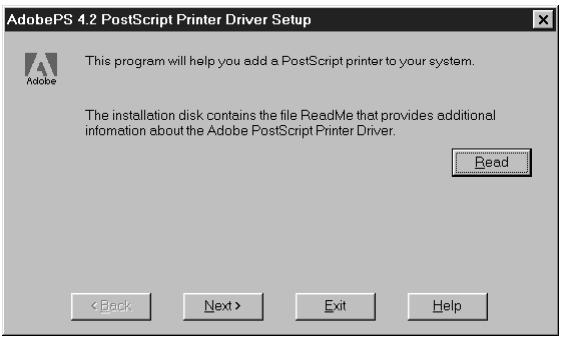
The information in this file is not specific to your Fiery ZX. You can click Next to postpone reading this file and read it later.
- If you are installing from the CD, you may see an Install Setup Program dialog box offering you the option to copy the setup program to your hard disk. Make your choice and then click Next.
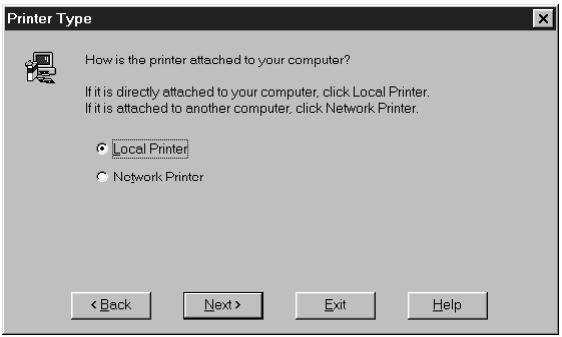
- In the Printer Type dialog box, select Local Printer and click Next.
This is a general installation. You can modify the attachment later, according to your network type.
- If you are installing from the CD, in the Directories box, open the English\Instalrs\Ps_dvr\Win_9x folder.
If you are installing from the installer files you downloaded with the Installer WebTool, in the Directories box, open the PrntrDrv\Ps_dvr\Win_9x folder.
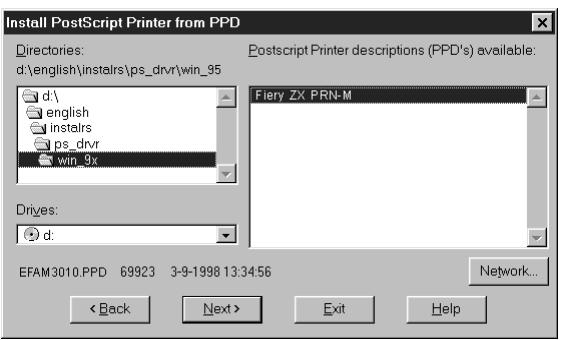
- The Fiery ZX PPD appears in the Postscript Printer descriptions (PPDs) available box. Select the Fiery ZX PPD file and click Next.
Select "Fiery ZX PRN-M."
- In the Available ports box, select the LPT1 port and click Next. You will configure the port later, according to your network type.
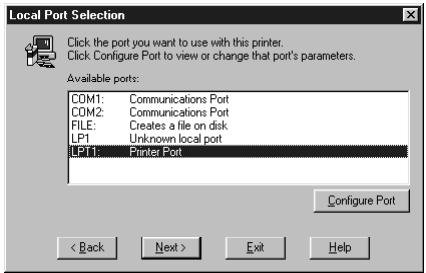
- Using a maximum of 31 characters, enter a name for the Fiery ZX (or leave the default name) in the Printer Name box.
This name will be used in the Printers and queue windows.
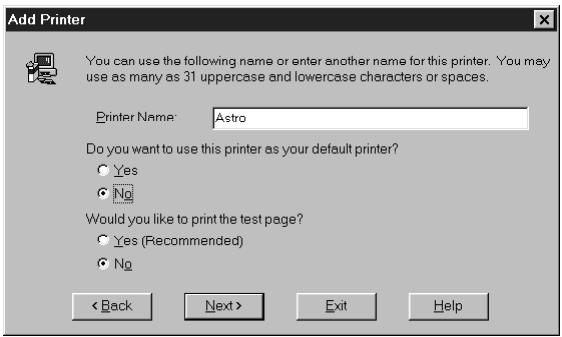
- If you want the Fiery ZX to be the default printer select Yes; if not, select No.
- Select No to printing the test page and click Next.
You will print the test page after you finish configuring the printer.
The necessary files are installed to your hard disk. When installation is complete, the Properties dialog box appears.
- Click OK.
You are notified that Setup is complete.
- Click Exit.
The icon for the newly installed printer appears in the Printers window.
You are ready for the instructions for connecting to your network type (see "Completing the Windows 95 connection" below).
Completing the Windows 95 connection
To print from Windows 95 you need to:
- Set up network servers, if any
-
Set up the Fiery ZX to accept print jobs from your computer
-
Configure a port on each Windows 95 computer for the network or connection type
| For this type of connection: | See: |
| Parallel, Windows 95 | page 9 |
| IPX/SPX | page 11 |
| SMB printing | page 13 |
Completing the Windows 95 parallel port connection
Preparing a parallel port connection for Windows 95 requires specific BIOS settings on your computer, and specific port and printer settings for Windows 95. In addition, a change to one of the Fiery ZX Setup settings may be required if you choose to spool files to the Fiery ZX rather than print directly.
TO PREPARE THE FIERY ZX AND YOUR COMPUTER FOR PARALLEL PORT PRINTING:
- Connect the Fiery ZX to the parallel port on your computer. For instructions, see the Configuration Guide.
- In Network Setup>Port Setup>Parallel Port Setup, set Enable Parallel Port to Yes. For more information about Fiery ZX Setup, see the Configuration Guide.
- If you want to spool files to the Fiery ZX, set Port Timeout in Seconds to 10. If you want to print directly to the Fiery ZX, set Port Timeout in Seconds to 5. Setting this option to 10 seconds ensures that spooling is not interrupted due to timeout.
- In your computer's BIOS settings, set Parallel Port Mode to ECP. To access the BIOS settings, restart the computer and press the key indicated on your monitor as soon as the computer starts up. You may have to scroll through several screens to reach the parallel port settings. After setting the Parallel Port Mode to ECP, save your changed setting and exit.
TO PREPARE THE PRINTER FOR PARALLEL PORT PRINTING:
- Click the Start button, choose Settings, and then choose Printers.
- Click the Fiery ZX printer icon and choose Properties from the File menu.
- Click the Details tab, and in the "Print to the following port" menu, select LPT1: (ECP Printer Port).
NOTE: Check this selection carefully. It may read LPT1: (Printer Port), which is not equivalent to LPT1: (ECP Printer Port).
If this box does not read LPT1: (ECP Printer Port), change the port setting now, as described in "To prepare the port for parallel port printing:" on page 9 and then return to this procedure. You may need your Windows 95 system CD.
- If you changed the selection in the "Print to the following port" menu, click Apply.
A Warning dialog box may appear, stating that fonts you downloaded to the previously selected port may be lost; click OK.
- Click Spool Settings.
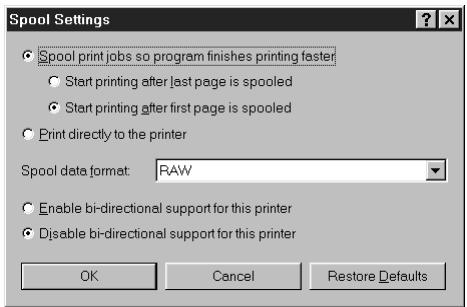
- Select either "Spool print jobs so program finishes printing faster" or "Print directly to the printer."
The selection you make depends on the action you took in step 3 on page 7:
- If you set the Port Timeout in Seconds to 10, you can select either option; however, spoofing is faster.
-
If you set the Port Timeout in Seconds to 5, select "Print directly to the printer."
-
Select "Disable bi-directional support for this printer" and click OK.
-
Click Apply.
You are now ready to print from your applications to the Fiery ZX with the parallel port. To confirm the connection, print a Windows 95 test page.
- Click the General tab.
- Click Print Test Page and click OK.
- The Job Notes window appears. Enter user and job identification information for accounting purposes, or whatever information is required at your site, and click OK.
Perform the following procedure in Windows 95 only if the LPT1 port is not currently set to ECP Printer Port.
TO PREPARE THE PORT FOR PARALLEL PORT PRINTING:
- Click the Start button, choose Settings, and then choose Control Panel.
- Double-click System.
The System Properties window appears.
- Click the Device Manager tab.
- Double-click Ports.
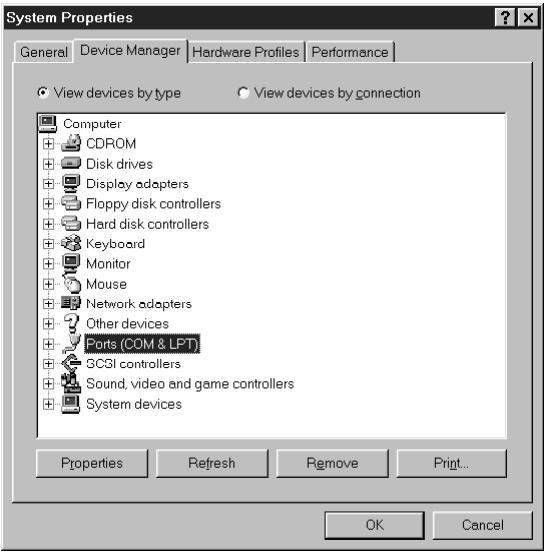
- Double-click the port with (LPT1) in its name.
- In the (LPT1) Properties dialog box click the Driver tab and then click Change Driver.
- Select Show all devices.
- From the Manufacturers list, select " (Standard port types)." From the Models list, select "ECP Printer Port" (not Printer Port). Click OK.
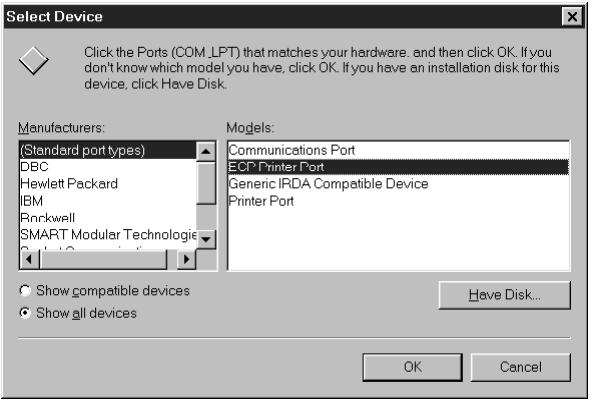
- Click OK in the (LPT1) Properties dialog box.
NOTE: You might need to insert the Windows 95 system CD to complete this step depending on whether the required files are on your hard disk.
- When prompted to restart the computer, click Yes.
After Windows 95 restarts, you can complete the procedure described in "To prepare the printer for parallel port printing:" on page 8.
Completing the Windows 95, IPX/SPX or IPX (Novell) connection
If you are printing through a Novell server, the Novell network and file server should be set up before you begin. The file server should be configured with a print server and print connection for the Fiery ZX. For details see your NetWare documentation and the Configuration Guide.
You can also use Fiery Downloader to print directly to the Fiery ZX from Windows 95 with IPX/SPX.
TO SET UP IPX/SPX PRINTING:
- Open the Windows 95 Control Panel.
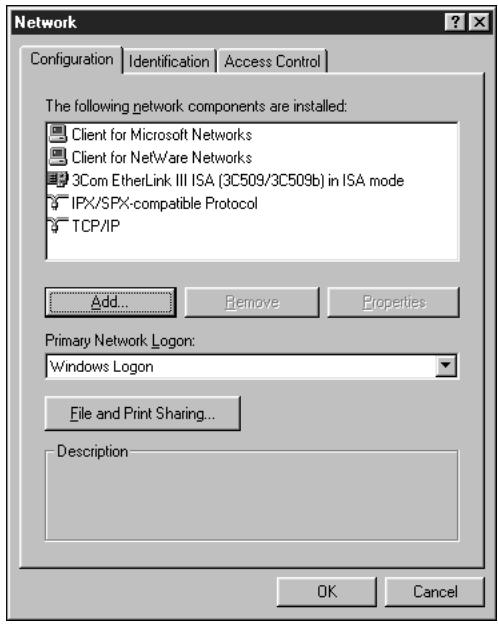
- Double-click the Network icon.
Make sure that IPX/SPX-compatible Protocol is listed in the Installed Network Components section.
If it is not, see your Windows 95 documentation for instructions.
- Double-click the IPX/SPX-compatible Protocol icon.
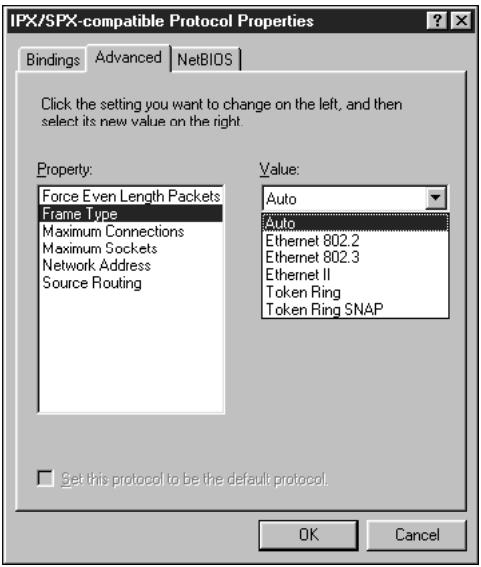
- Click the Advanced tab.
- In the Property list, click Frame Type. In the Value pop-up menu, select the Frame Type that corresponds to the one set during Fiery ZX Network Setup and click OK. If necessary, print the Configuration page from the Control Panel to check which Frame Type(s) are configured.
NOTE: Do not select Auto. Doing so may not select the Frame Type specified on the Fiery ZX.
- In the Network Control Panel, click OK.
The System Setting Change dialog box appears, prompting you to restart your computer.
- Click Yes to restart and save the settings.
TO SET UP IPX (NOVELL) PRINTING WITH WINDOWS 95:
- Click the Start button, choose Settings, and then choose Printers.
- Click the icon for the printer, and choose Properties from the File menu.
- Click the Details tab and click Add Port.
A list of connection options is displayed.
- In the Add Port dialog box, specify the network path, or click Browse for a display of your network environment.
- If you are using a NetWare file server, double-click the icon of the NetWare file server you want to use for printing to the Fiery ZX.
- Click the printer icon labeled with the NetWare print queue you will use and click OK.
- In the Add Port dialog box, verify that the network path is updated and click OK. You are ready to print from the workstation.
Your print jobs will be sent to the specified print queue on the Novell file server. The Fiery ZX polls the file server and if jobs are present, they are sent to the Fiery ZX.
To confirm the connection, you can print a Windows 95 test page.
- Click the General tab, click Apply, and then click Print Test Page.
- The Printer Job Notes window appears. Enter user and job identification information for accounting purposes, or whatever information is required at your site, and click OK.
Completing the SMB printing connection
If you don't have a Novell network, you can print via SMB printing (also known as Windows printing or WINS printing). Printing by this method allows you to print from your computer to a particular print connection (Hold, Print, or Direct) on the Fiery ZX. These instructions assume you have the TCP/IP protocol and Client for Microsoft Networks installed.
To set up printing to a second or third print connection, you must install a new printer for each connection and repeat the procedure "To set up SMB printing:" on page 16. If you install more than one printer, give each a descriptive name during printer driver installation, such as Astro-Print or Astro-Hold, so you can easily identify printers.
BEFORE YOU BEGIN:
- Configure the Fiery ZX for SMB printing in Network Setup>Service Setup>Windows Setup.
SMB printing is referred to as Windows Printing in Setup, on the Control Panel Map, and on the Configuration page. For more information, see the Configuration Guide.
- Print the Fiery ZX Configuration page.
You need information from the Configuration page to specify settings on your computer, such as the Server Name and IP address of the WINS Name Server.
- Save any documents in open programs.
You are prompted to restart Windows after this procedure, so be sure to save any documents.
The following procedure describes preparing your computer for SMB printing if your network uses a WINS name server. If your network does not use a WINS name server, proceed to "To set up SMB printing:" on page 16.
TO PREPARE YOUR COMPUTER FOR SMB PRINTING:
- Click Start, choose Settings, and click Control Panel.
-
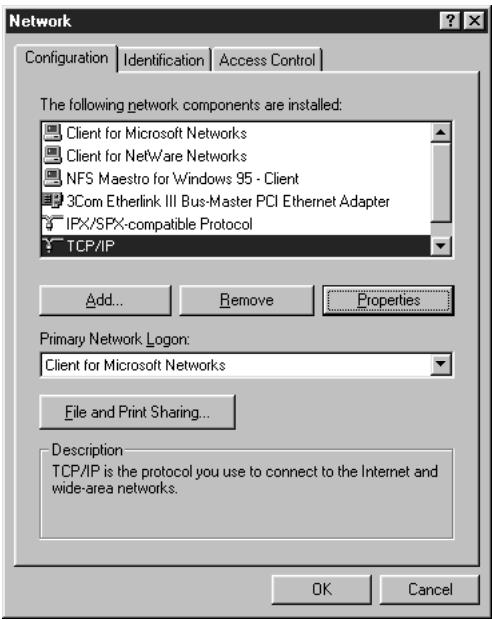
Double-click the Network icon.
-
Select TCP/IP and click Properties.
-
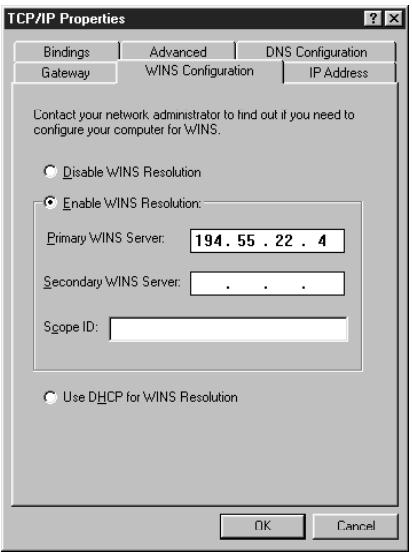
Click the WINS Configuration tab.
-
Select "Enable WINS Resolution" and enter the TCP/IP address of the WINS Name Server.
- Click OK, then click OK again at the Network dialog box.
You are prompted to restart Windows. Click Yes, and when Windows restarts, continue with the following procedure.
TO SET UP SMB PRINTING:
- Click the Start button, choose Settings, and then choose Printers.
- Click the icon for the printer, and choose Properties from the File menu.
- Click the Details tab in the Properties window and click Add Port.
A list of connection options is displayed.
-
In the Add Port dialog box, click Browse to display your network environment.
-
Expand the levels to locate your printer and the print connection (Print, Hold, or Direct) to which you want to print.
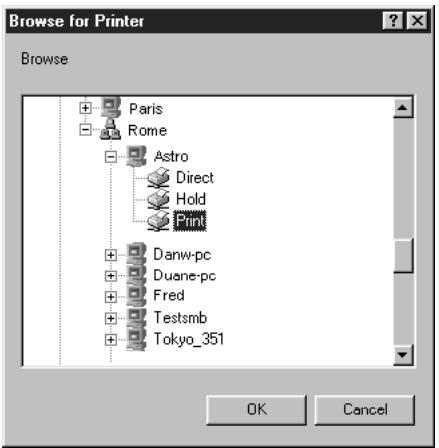
The printer name you are browsing for is the Server Name listed under Network Setup on the Configuration Page. This name may not be the same as the Server Name listed under Server Setup on the Configuration Page (which is the name displayed on the Control Panel).
The network environment and the amount of network traffic determines the amount of time required for the Browse function.
- Select the print connection under the printer and click OK.
- In the Add Port dialog box, verify that the network path is correct and click OK.
- To confirm the connection, click the General tab in the Properties dialog box.
- Click Apply, then click Print Test Page.
- The Printer Job Notes window appears. Enter user and job identification information for accounting purposes, or whatever information is required at your site, and click OK.
If the test page prints successfully, you are ready to print from the computer.
Setting up PostScript printing with Windows 3.1x
You can use the following procedure whether you are installing from the User Software CD or with installer files downloaded using the Installer WebTool.
TO INSTALL THE ADOBE POSTSCRIPT PRINTER DRIVER FOR WINDOWS 3.1X:
- In the Main window, double-click the Control Panel icon.
If there is an Adobe PostScript Printers icon in the Control Panel window, proceed to "To install the Fiery ZX PPD file for Windows 3.1x:" on page 19. Otherwise, install the Adobe PostScript printer driver from the User Software CD as described below. - Exit all applications and close all windows.
- Insert the User Software CD into the CD-ROM drive.
- In the Windows Program Manager, choose Run from the File menu, and then click Browse.
- If you are installing from the CD, in the Directories box, double-click to open the English\Instalrs\Ps_dvr\Win_31 folder.
If you are installing from the installer files you downloaded with the Installer WebTool, in the Directories box, double-click to open the .Ps_dvr\Win_31 folder.
- Select the Setup.exe file, and click OK.
- Click Read to view the README file. When you are finished, close the README file and click Continue.
The necessary files are installed to your hard disk. When installation is complete, the PostScript Printer Driver Setup dialog box appears.
- Click Restart Windows.
TO INSTALL THE FIERY ZX PPD FILE FOR WINDOWS 3.1x:
- In the Control Panel window, double-click the Adobe PostScript Printers icon.
The Install PostScript Printer from PPD dialog box appears.
- If you are installing from the CD, in the Drives box, select the drive containing the CD, and in the Directories box, double-click to open the English\Instalrs\Ps_dvr\Win_31 folder.
If you are installing from the installer files you downloaded with the Installer WebTool, in the Drives box, select your hard disk drive, and in the Directories box, double-click to open the PrntrDrv\Ps_dvr\Win_31 folder.
-
Select the Fiery ZX PPD from the Printer Descriptions available box and click Install. Select "Fiery ZX PRN-M."
-
Click OK when you are notified that the printer was successfully installed.
-
Click Close.
Setting the Fiery ZX as the default printer with Windows 3.1x
You can specify the Fiery ZX as the default printer. Many Windows applications use the default printer when you choose the Print command.
TO SET THE FIERY ZX AS THE DEFAULT PRINTER:
- In the Control Panel window, double-click the Printers icon.
The Printers window appears.
-
Select the Fiery ZX from the Installed Printers box.
-
Click Set As Default Printer.
The Fiery ZX appears in the Default Printer area of the Printers window.
Completing the Windows 3.1x connection
To print from Windows 3.1x you need to:
- Configure a port on each Windows 3.1x computer for the network or connection type
- Complete setup for the network type you are printing over
- Set up the Fiery ZX to accept print jobs from your computer
Selecting a printer port with Windows 3.1x
When you install a printer, Windows assigns it to a default printer port. If the Fiery ZX is connected to your computer through a network or you want to assign it to a different port, you need to change the port assignment. Check with your system administrator about which port to use.
You can also use this procedure to enable printing with the parallel port.
TO SELECT A PRINTER PORT:
- In the Control Panel window, double-click the Printers icon.
- In the Printers window, select the Fiery ZX in the Installed Printers box.
- Click Connect.
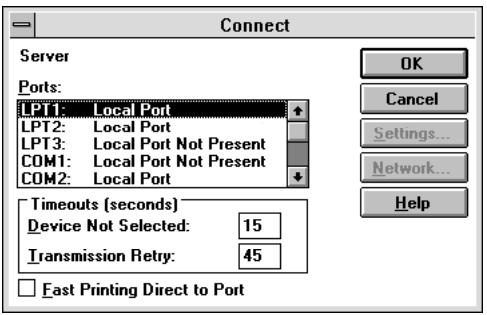
- Connect the Fiery ZX to the same port as your network.
For parallel printing, select the port (LPT1, LPT2, or LPT3) connected to your parallel cable.
To print to a file, select FILE. Printing to a file is useful if the Fiery ZX is elsewhere or off-site. However, if you select the FILE port, you cannot print to a printer until you select a network or printer port. (In some applications, you can select the FILE port from the Print dialog box; this is preferable for temporary use since it doesn't require resetting the port in the Control Panel.)
- Click OK.
The Printers window appears again, with the selected port next to the selected printer name in the Installed Printers list box.
- When you are finished, click Close.
Setting up IPX (Novell) printing with Windows 3.1x
TO SET UP IPX (NOVELL) PRINTING:
- In the Main group of the Windows Program Manager, double-click the Windows Setup icon.
- From the Options menu, choose Change System Settings.
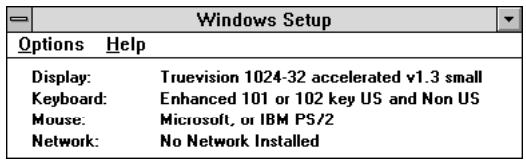
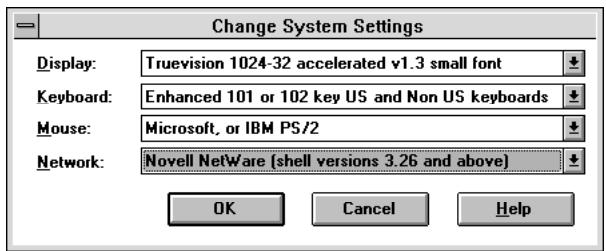
- From the Network pop-up menu, choose Novell NetWare (shell versions 3.26 and above).
-
Click OK. When prompted, restart Windows.
-
In the Main group, double-click Control Panel, then double-click Printers.
- In the Printers window, select the Fiery ZX and click Connect.
- Click Network.
If you are printing to a file, select FILE. Printing to a file is useful if the printer is elsewhere or off-site. However, if you select the FILE port, you cannot print to a printer until you select a network or printer port. If you select Network, the next window depends on the NetWare client driver version.
- If the Network Printer Connections dialog box is displayed, select the port in the Printer connections box.
- In the Available queues list box, select the server and queue name that correspond to the Fiery ZX.
- Click the Capture button, then click the Close button.
The Connect dialog box is displayed with the network path to the Fiery ZX.
- Click OK in the Connect dialog box.
The Printers window appears again, with the selected port next to the selected printer name in the Installed Printers list box.
- Click Close in the Printers dialog box.
You are now ready to print to the Fiery ZX from Windows applications. When you select Print, jobs are routed to the print queue on the NetWare file server, and then sent to the Fiery ZX. The network administrator should verify the network connection by printing a test document from each networked computer that will use the Fiery ZX.
Setting up PostScript printing with Windows NT 4.0
To set up Windows NT 4.0 printing, install the Microsoft PostScript printer driver and configure printing for your network type. Fiery ZX printer files support Intel-based Windows NT 4.0.
Some features of the Fiery ZX may not be available when using the Microsoft PostScript printer driver. For details, see the Printing Guide.
You can use the following procedure whether you are installing from the User Software CD or with installer files downloaded using the Installer WebTool.
TO INSTALL THE FIERY ZX AS A LOCAL PRINTER WITH THE MICROSOFT POSTSCRIPT PRINTER DRIVER FOR WINDOWS NT 4.0:
- If you are installing from the CD, insert it into the CD-ROM drive.
- Click Start in the Windows NT taskbar, choose Settings, and then choose Printers.
- Double-click Add Printer.
- To install a printer locally, select My Computer and click Next.
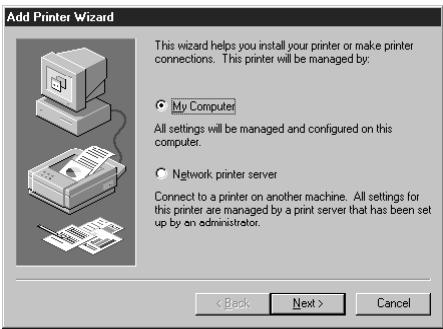
"My Computer" is available if you logged in to a computer on which you have Administrator privileges. If it is not available, you can add a network printer. The procedure is similar to adding a port (see page 29).
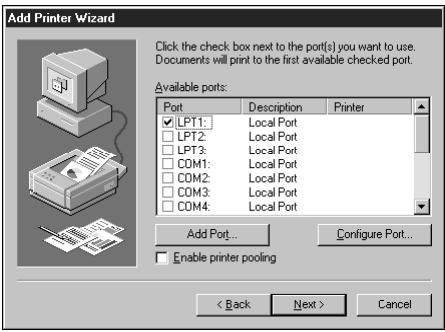
- Check LPT1: and click Next.
This is a general installation that works for the parallel port connection. You can add a network port later, according to your network type.
- In the dialog box displaying lists of manufacturers and printers, click Have Disk.

The Install from Disk dialog box prompts you for the disk.
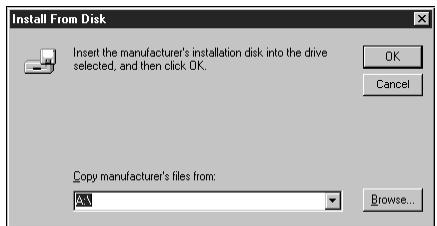
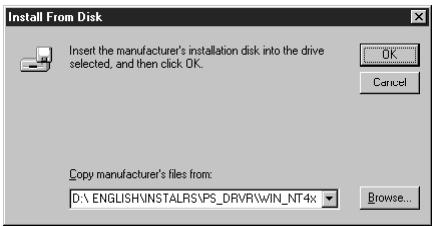
- If you are installing from the CD, type the name of the CD-ROM drive (for example, D:), and click Browse. Browse to the English\Instalrs\Ps_drv\WIN_NT4x folder and click Open.
If you are installing from the installer files you downloaded with the Installer WebTool, type the name of your hard disk drive (for example, C:), and click Browse. Browse to the Prntdrvr\Ps_dvr\WIN_NT4x folder and click Open.
Make sure "Ntprint" or "Ntprint.inf" is selected.
The path is copied to the Install from Disk dialog box.
- Verify the path is correct, and click OK.
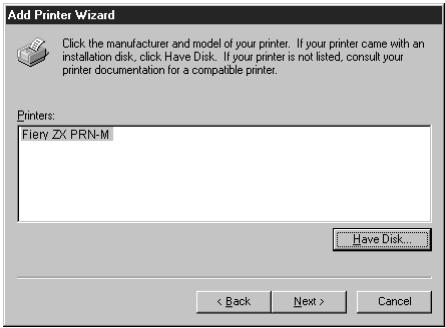
- In the Printers box, select theFiery ZX PPD file and click Next.
Select "Fiery ZX PRN-M."
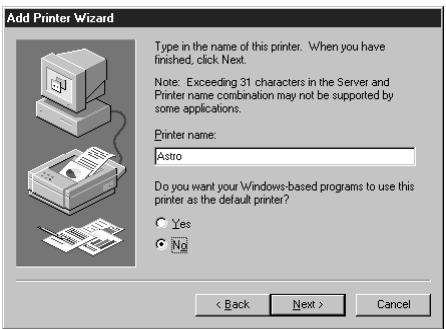
- Using a maximum of 31 characters, enter a name for the Fiery ZX (or leave the default name) in the Printer name box, and choose whether you want the Fiery ZX to be your default printer. Click Next.
- Indicate whether you want the printer installed as a shared printer. Click Next.
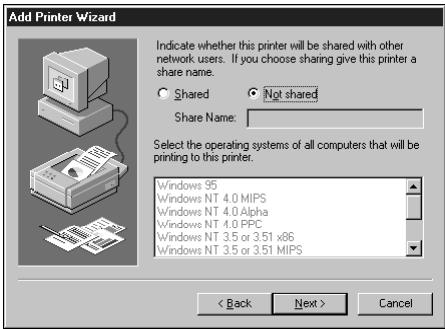
If you select Shared, you must also enter a Share Name for the printer (or leave the default name) and make selections from the list of operating systems used by client workstations. For information on shared printers, see the Configuration Guide.
- Click No in the next dialog box to postpone printing a test page, and click Finish. The Insert Disk dialog box appears.

- Follow the instructions and click OK.
TO COMPLETE INSTALLATION OF THE FIERY ZX WITH THE MICROSOFT
POSTSCRIPT PRINTER DRIVER FOR WINDOWS NT 4.0:
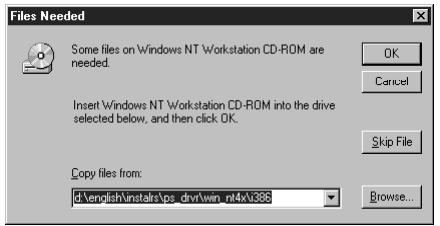
If the Files Needed dialog box appears, it prompts you to locate the Pscript.dll file.
-
If this is the first PostScript printer on your system:
-
Eject the User Software CD and insert the Windows NT Installation CD.
- In the text field, type the name of the CD-ROM drive (for example, D:), and click Browse.
- Browse to i386 (the folder containing the Pscript.dll file).
If you have already installed a PostScript printer on your system:
- In the text field, type the name of the hard drive (for example, C:), and click Browse.
-
Browse to winnt\system32\spool\drivers\w32x86 (the folder containing the Pscript.dll file).
-
Click Open, then click OK in the Files Needed dialog box.
When installation is complete, an icon for the newly installed printer will appear in the Printers window.
You are ready for the instructions for connecting to your network type (see "Completing the Windows NT 4.0 printer connection").
Completing the Windows NT 4.0 printer connection
To print from Windows NT 4.0 you need to:
- Set up network servers, if any
- Set up the Fiery ZX to accept print jobs from your computer
- Configure a port on each Windows NT computer for the network or connection type
| To do this: | See: |
| Configure the parallel connection | “Completing the Windows NT 4.0 parallel port connection” below |
| Configure the TCP/IP (lpr port) connection | “Completing the Windows NT 4.0 TCP/IP connection” on page 29 |
| Configure the IPX (Novell) connection | “Completing the Windows NT 4.0 IPX (Novell) connection” on page 31 |
Completing the Windows NT 4.0 parallel port connection
The parallel port cable connects the Fiery ZX to a single computer. Once you have installed the Microsoft Windows NT PostScript printer driver and the Fiery ZX PPD, complete the setup for parallel port printing.
TO SET UP PARALLEL PRINTING FOR WINDOWS NT 4.0:
- Click the Start button, choose Settings, and then choose Printers.
- Click the icon for the printer, and choose Properties from the File menu.
In the Ports tab, confirm that LPT1 (Local Port) is checked.
The Fiery ZX is ready to accept parallel print jobs from your computer, using the Windows NT PostScript printer driver and the Fiery ZX PPD.
- Click the General tab and click Print Test Page.
When you select print, your files are transmitted over the parallel port connection to the Fiery ZX.
- Click the Sharing tab if you want to share the Fiery ZX with network users. Select Shared, and select a share name.
Select the operating system or systems used by your network clients if you want to install a printer driver that those clients can download.
- Click OK to exit the Printer Properties dialog box.
Completing the Windows NT 4.0 TCP/IP connection
Once you have installed the Windows NT 4.0 PostScript printer driver and the Fiery ZX PPD, complete the setup for the TCP/IP and lpr connection as follows:
- Prepare the Fiery ZX to accept print jobs using TCP/IP and lpr protocols. (For details, see the Configuration Guide.)
- Configure the workstation for the TCP/IP connection.
Before you continue, ask the system administrator for the IP address assigned to the Fiery ZX, as well as the subnet mask and the gateway address, if they are used.
The TCP/IP Protocol and Microsoft TCP/IP Printing software should already be installed on the Windows NT workstation.
TO SET UP TCP/IP AND LPR PRINTING FOR WINDOWS NT 4.0:
- Open the Properties dialog box for the Fiery ZX, and click the Ports tab.
- Click Add Port.
The available port types are displayed.
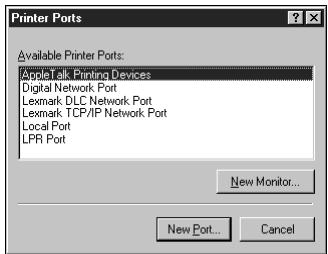
- Select LPR Port and click New Port.
If the LPR port is not listed, install the TCP/IP protocols. See the Configuration Guide or your Windows NT documentation.
- Enter the IP address of the Fiery ZX.
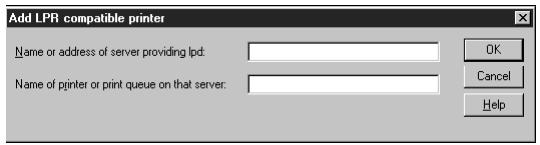
If your network uses Domain Name Services (DNS), enter the DNS name assigned to the Fiery ZX instead of the IP address.
- Press Tab and type the internal name of the Fiery ZX.
The name must be one of the following:
print
hold
print_PRN-M
hold_PRN-M
NOTE: This name is case-sensitive; type it exactly as shown above.
- Click OK.
The workstation checks the address or DNS name you entered and notifies you if it cannot resolve the address.
- Click Close in the Printer Ports dialog box.
The new port configuration is reflected in the Ports tab. You should now print a test page to verify the connection.
- Click the General tab and click Print Test Page.
When you print, your PostScript files are sent over the LPR Port connection to the Fiery ZX.
- Click OK to close the Printer Properties dialog box.
Completing the Windows NT 4.0 IPX (Novell) connection
Complete the setup for the IPX (Novell) connection as follows:
- Configure the Novell network and file server for handling Fiery ZX print jobs.
The file server should be configured with a print server and print connection for the Fiery ZX. For details, see your NetWare documentation.
- Prepare the Fiery ZX for IPX printing.
- Set up the IPX connection on the workstation.
NetWare protocols (NWLink IPX/SPX Compatible Transport) and NetWare client services should already be installed on the Windows NT workstation.
TO SET UP IPX (NOVELL) PRINTING FOR WINDOWS NT 4.0:
- Double-click Network Neighborhood.
- Double-click NetWare or Compatible Network.
A list of NetWare servers is displayed.
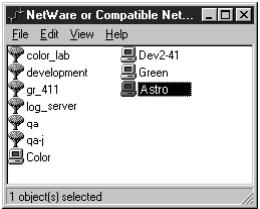
- Double-click the NetWare Tree or File Server on which the network administrator defined a print connection for the Fiery ZX.
You may have to log in to the file server as a guest to see the print connections.
- Double-click the print connection defined for the Fiery ZX.
If the NetWare server does not have a suitable driver for the Fiery ZX you may be asked if you want to set up the printer on your workstation.

- Click Yes.
The Add Printer Wizard appears.
- Specify if you print from MS-DOS programs and click Next.
If you select Yes, you will need to capture a printer port before continuing.
- Install the Fiery ZX PPD (start with step 6 on page 24).
When installation is complete, a new printer window appears, with the name of the print queue on the NetWare server.
- Choose Properties from the Printer menu and click the Ports tab.
The NetWare queue you just connected to is listed and checked as a port for the Fiery ZX.
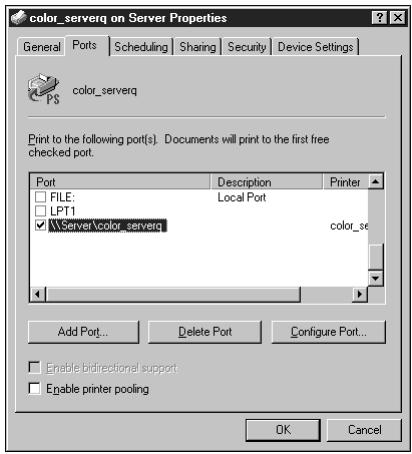
- Click the General tab and click Print Test Page.
The Fiery ZX polls the NetWare server for print jobs in the print connection defined for the Fiery ZX. When you print, your PostScript files are spooled to that connection and sent over the queue "port" to the Fiery ZX.
The test page job is listed in the queue window until it is printed.
Installing Fiery ZX software
The User Software CD includes software installers for three Fiery utilities and one Fiery plug-in. This software is supported with Windows 95 and Windows NT 4.0 only, and must be separately installed on each user's computer.
The Command WorkStation CD includes the software installer for the Command WorkStation. Command WorkStation software is supported with Windows NT 4.0 only. It should be installed only on workstations that are designated for Command WorkStation use.
Fiery Downloader and Fiery Print Calibrator
The installers for two of the Fiery utilities (Fiery Downloader and Fiery Print Calibrator) are the same. Before you begin the installation, determine the following:
- Where do you want to install the utility on your hard disk?
By default, the installer places the utility in a folder named "Fiery" on the top level of your hard disk.
- What do you want to name the utility folder in the Windows\Start Menu\Programs folder?
By default, the installer names the folder "Fiery."
TO INSTALL FIERY DOWNLOADER AND FIERY PRINT CALIBRATOR:
- On the User Software CD, browse to the English\Instalrs folder.
- If you are installing Fiery Downloader, double-click to open the Download\Disk1 folders.
If you are installing Fiery Print Calibrator, double-click to open the Calib\Disk1 folders.
- Double-click the Setup.exe icon.
- Follow the instructions in the Setup dialog boxes to complete installation.
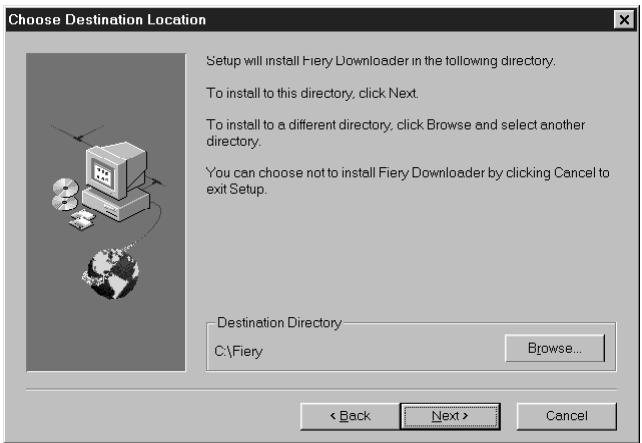
Use the table below as a guide when installing Fiery Downloader and Fiery Print Calibrator. For specific instructions, read the information in each dialog box.
| Name of dialog box: | Action: | When finished: |
| Welcome | Read the Setup program introduction. | Click Next. |
| Choose Destination Location | Specify a hard disk location for the installed utility software. | Click Next. |
| Select Program Folder | Specify a folder name for the utility software located in the Programs menu. | Click Next. |
| Start Copying Files | Verify the information in the Current Settings area. | Click Next. |
| Information | Acknowledge that the software installation is complete. | Click OK. |
Fiery Spooler
The installer for Fiery Spooler is different from the installers for the other Fiery utilities. In addition to the Fiery Spooler utility software, the installer also installs Java files necessary to use Fiery Spooler. Before you begin this installation, determine the following:
- Where do you want to install the utility on your hard disk?
By default, the installer places the utility in a folder named "FierySpooler" on the top level of your hard disk.
- What do you want to name the utility folder in the Windows\Start Menu\Programs folder?
By default, the installer names the folder "FierySpooler."
TO INSTALL FIERY SPOOLER:
- On the User Software CD, double-click to open the English\Instalrs\Spooler\disk1 folders.
- Double-click the Setup.exe icon.
- Follow the instructions in the Setup dialog boxes to complete installation of Fiery Spooler.
Use the table below as a guide when installing Fiery Spooler. For specific instructions, read the information in each dialog box.
| Name of dialog box: | Action: | When finished: |
| Welcome | Read the Setup program introduction. | Click Next. |
| Choose Destination Location | Specify a hard disk location for the installed utility software. | Click Next. |
| Select Program Folder | Specify a folder name for the utility software located in the Programs menu. | Click Next. |
| Start Copying Files | Verify the information in the Current Settings area. | Click Next. |
| Information | Read the information in the dialog box. | Click OK. |
| Java (TM) Support | Indicate if you want to install Java files onto your hard disk. These files may be necessary for using Fiery Spooler. | Click Yes. NOTE: Click Yes even if the system is running Microsoft Internet Explorer 4.01 or later. |
| Java (TM) Support | Read the License Agreement. | Click Yes. |
| Version Conflict | If this dialog box appears, read the information. Always choose to keep newer files. | Click Yes each time the dialog box appears. |
| Java (TM) Support | Acknowledge that the installation of Java files is complete. | Click OK. |
| Java (TM) Support | Indicate that you want to restart your computer in order to use the Fiery Spooler software. | Click Yes. |
Fiery Scan
The Scan folder contains the TWAIN Fiery Scan module installer. This installer automatically creates a folder named Twain_32 in the Windows folder on your hard disk, and then installs the Fiery Scan plug-in module into that folder.
You can access the Fiery Scan plug-in from Adobe Photoshop using the TWAIN module. For details, see the Printing Guide.
NOTE: Before installing the TWAIN Fiery Scan module, make sure the TWAIN plug-ins (installed with Adobe Photoshop software) are located in the correct Photoshop\Plugins subfolder. If the TWAIN plug-ins have been deleted, you must reinstall Adobe Photoshop software in order to use Fiery Scan.
TO INSTALL THE TWAIN FIERY SCAN MODULE:
- On the User Software CD, double-click to open the English\Instalrs\Scan\Disk1 folders.
- Double-click the Setup.exe icon.
- Follow the instructions in the Setup dialog boxes to complete installation of the TWAIN Fiery Scan module.
Use the table below as a guide when installing the TWAIN Fiery Scan module. For specific instructions, read the information in each dialog box.
| Name of dialog box: | Action: | When finished: |
| Welcome | Read the introduction. | Click Next. |
| Information | Acknowledge that the software installation is complete. | Click OK. |
CommandWorkStation
The Command WorkStation software installer is on the Command WorkStation CD. In addition to the Command WorkStation application software, the installer installs Java files necessary to use Fiery Setup on the Command WorkStation. Before you begin this installation, determine the following:
- Where do you want to install the software on your hard disk?
By default, the installer places the Command WorkStation software in Program\Fiery\CStation.
- What do you want to name the Command WorkStation folder in the Windows\Start Menu\Programs folder?
By default, the installer names the folder "Command WorkStation."
- Do you want to place a shortcut to the Command WorkStation application in your Windows\Start Menu\Programs\StartUp folder?
Placing a shortcut in the StartUp folder automatically launches the Command WorkStation application every time you restart your computer.
TO INSTALL COMMAND WORKSTATION SOFTWARE:
- On the Command WorkStation CD, double-click the Setup.exe icon.
- Follow the instructions in the Setup dialog boxes to complete installation of Command WorkStation software.
Use the table below as a guide when installing Command WorkStation software. For specific instructions, read the information in each dialog box.
| Name of dialog box: | Action: | When finished: |
| Welcome | Read the Setup program introduction. | Click Next. |
| Software License Agreement | Read the License Agreement. | Click Yes. |
| Choose Destination Location | Specify a hard disk location for the installed Command WorkStation software. | Click Next. |
| Select Program Folder | Specify a folder name for the Command WorkStation software located in the Programs menu. | Click Next. |
| Question | Indicate if you want to place a shortcut to the Command WorkStation application in your StartUp folder. | Click Yes or No. |
| Java (TM) Support for Internet Explorer | Indicate whether you want to install Java files onto your hard disk. These files may be necessary for using Fiery Setup on the Command WorkStation. | Click Yes or No. |
| Java (TM) Support for Internet Explorer | Read the License Agreement. | Click Yes. |
| Java (TM) Support for Internet Explorer | Acknowledge that the software installation is complete. | Click OK. |
| Java (TM) Support for Internet Explorer | Indicate that you want to restart your computer in order to use the Command WorkStation software | Click Yes. |
Using the software for the first time
Before you can use the newly installed software, you must properly configure the connection to the Fiery ZX.
Configuring the connection to the Fiery ZX
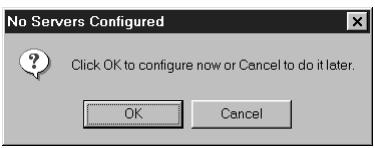
The first time you use one of the Fiery utilities, or Fiery Scan, or the Command WorkStation, you are prompted to configure the connection to the Fiery ZX. The same configuration is used for Fiery Downloader, Fiery Print Calibrator, and Fiery Scan, and the Command WorkStation, so any change in the configuration affects all of these. The procedure for configuring the connection with Fiery Spooler is different and is described on page 43.
BEFORE YOU BEGIN:
- If you are using IPX/SPX, print the Configuration page from the Control Panel and note the IPX address and Server Name (in Server Setup) for the Fiery ZX.
In general, you should use the Ethernet IPX address.
- If you are using TCP/IP, print the Configuration page from the Control Panel and note the IP Address of the Fiery ZX.
You can also set up a Domain Name Server (DNS) for the IP address of the Fiery ZX in the HOSTS file and use that name. See your Windows system documentation for information.
TO CONFIGURE THE CONNECTION TO THE FIERY ZX:
- Launch Fiery Downloader or Fiery Print Calibrator, or the Command WorkStation by double-clicking its icon or by choosing it from the Start>Programs menu.
Launch Photoshop, and open Fiery Scan (for details, see the Printing Guide).
- Click OK.
- Enter the appropriate information for the Fiery ZX.
Nickname—Enter a name for the Fiery ZX. This name can be any name you wish; it does not have to match the actual Server Name of the Fiery ZX.
NOTE: The Nickname cannot contain any of the following seven characters: [ ] _ " '
Protocol—Choose the type of network protocol you are using from the pop-up menu.
NOTE: Command WorkStation software is supported only from Windows NT 4.0 over TCP/IP.
Server Name—If you are using the TCP/IP protocol, enter the IP address (or DNS name) of the Fiery ZX. If you are using the IPX protocol, enter the actual Server Name of the Fiery ZX as it was defined during Server Setup.
IPX Address—(This area is enabled only if you choose IPX from the Protocol pop-up menu.) Enter the IPX Address of the Fiery ZX.
New Device—Enter the name of the device that the Fiery ZX is connected to: PRN-M. This device name appears in the Printer Setup section of the Configuration page.
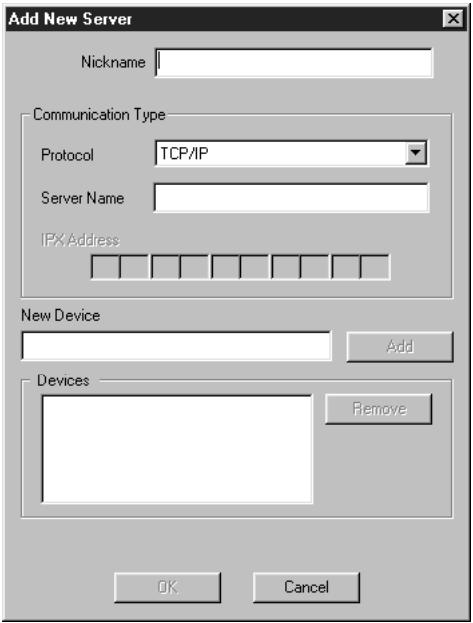
For TCP/IP networks
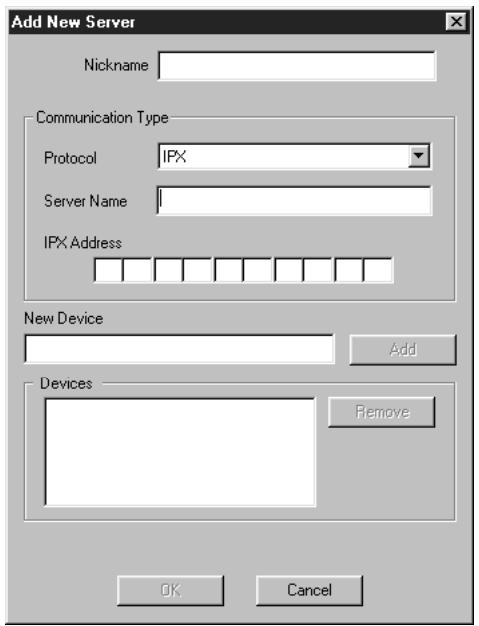
For IPX/SPX networks
- When you have entered all the information, click Add.
- With the device name (PRN-M) selected in the Devices list, click OK.
The Fiery ZX appears in the list of available servers. The first line of the entry displays the nickname you gave the server, followed by the protocol you chose. The second line displays the device name.
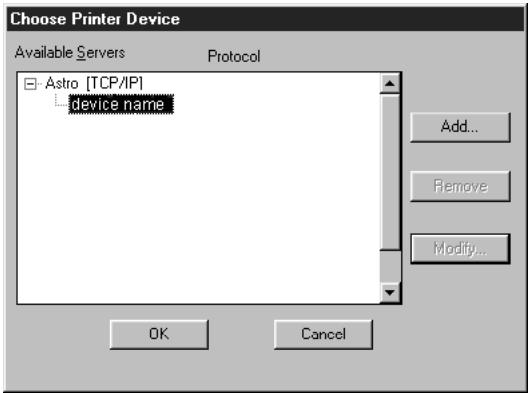
- With the device name (PRN-M) selected in the list of Available Servers, click OK to begin using the software.
Modifying the configuration
You should edit the configuration whenever there is any change to your Fiery ZX or network, such as a Server Name, IP Address/IPX Address, or device change. First change the specific Fiery ZX Setup information before configuring the connection.
TO MODIFY THE CONFIGURATION:
- To edit information for a Fiery ZX in the list of available servers, select the Fiery ZX by its nickname and click Modify. Edit information in the Modify Server Settings dialog box as necessary, and click OK when finished.
- To add a new Fiery ZX to the list of available servers, click Add. Configure the Add New Server dialog box as outlined in step 3 through step 5 in the previous procedure.
- To remove a Fiery ZX from the list of available servers, select the Fiery ZX by its nickname and click Remove; then click Yes in the Remove dialog box.
Configuring the connection for Fiery Spooler
The first time you launch Fiery Spooler, you are prompted to configure a connection to the Fiery ZX. This configuration procedure is different from that for the other Fiery utilities.
TO CONFIGURE THE CONNECTION FOR FIERY SPOOLER:
- Launch Fiery Spooler by double-clicking its icon or by choosing it from the Start\Programs menu.
- Click Option.
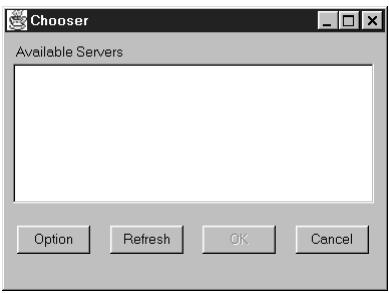
- Click Add.
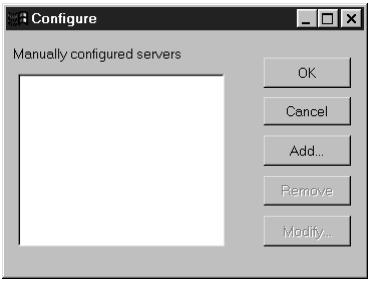
- Enter the appropriate information for the Fiery ZX.
Name—Enter the IP address (or DNS name) of the Fiery ZX.
New Device—Enter the name of the device that the Fiery ZX is connected to: PRN-M. This device name appears in the Printer Setup section of the Configuration page.
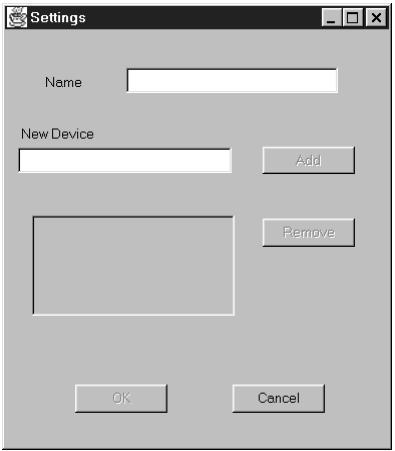
- When you have entered all the information, click Add.
- With the device name (PRN-M) selected, click OK. The Fiery ZX appears in a list of configured servers:
- Click OK in the Configure dialog box. The Fiery ZX appears in a list of available servers.
- With the Fiery ZX selected in the list of available servers, click OK to begin using Fiery Spooler.
Modifying the configuration
You should edit the configuration whenever there is any change to your Fiery ZX or network, such as an IP Address or device change. First change the specific Fiery ZX Setup information before configuring the connection.
TO MODIFY THE CONFIGURATION:
- In the Chooser dialog box, click Option.
- To edit information for a Fiery ZX, select the Fiery ZX by its IP address or DNS name and click Modify. Edit information in the Settings dialog box as necessary, and click OK when finished.
- To add a new Fiery ZX, click Add. Configure the Settings dialog box as outlined in step 4 through step 6 in the previous procedure.
- To remove a Fiery ZX, select the Fiery ZX by its IP address or DNS name and click Remove.
The list of available servers reflects the modifications you have made.
Copying color files from the User Software CD
You can copy additional color files from the User Software CD to your hard disk.
The User Software CD contains the following color files:
Icm folder
ICM printer profile specially designed for use with the
Fiery ZX, your particular copier model, and the Windows color management system. For instructions on installing this profile, see "Installing the Fiery ZX ICM printer profile for Windows 95" on page 47.
Photoshp folder
Separation Tables for use with Adobe Photoshop and the
Fiery ZX. The Separation Tables match RGB-to-CMYK conversions performed in Photoshop to those performed on the Fiery ZX by color rendering dictionaries (CRDs).
Calrgb.ams, a monitor settings file that sets the proper source color space.
For instructions on installing these files, see "Installing files for Adobe Photoshop" on page 48.
Clrfiles folder (inside English folder)
Cmyk_ref.ps, an 11-page, letter-size PostScript file to use for reference when defining CMYK colors in applications.
PANTONE.ps, a 19-page, letter-size PostScript file that indicates the closest equivalent of PANTONE coated colors that the Fiery ZX and your particular copier model can produce. The method used to print the Pantone.ps file differs depending on the Spot Color Matching setting. For more information, see the Printing Guide and the Color Guide.
Rgb_01.doc, a file you can print from Microsoft Word 6.0 or later to view available RGB colors.
Rgb_02.ppt, a file you can print from PowerPoint 4.0 or later to view available RGB colors.
Calibrat folder (inside Clrfiles folder)
Four PostScript measurements files of color patches: custom21.ps, custom34.ps, stand21.ps, and stand34.ps. The numbers in the filenames refer to the number of patches on the page.
The Custom files are provided to enable you to download measurement patches that incorporate the copier's current calibration set. The Standard files are provided to enable you to download standard measurement patches that ignore the copier's current calibration set.
NOTE: These files are provided for expert users and should not be used for day-to-day calibration.
Demo Measurement, a sample measurements file for use with Fiery Print Calibrator. This file is for demonstration purposes only and should not be used to calibrate the Fiery ZX.
Installing the Fiery ZX ICM printer profile for Windows 95
Use the following procedure to install the Fiery ZX ICM printer profile.
NOTE: The ICM printer profile should not be installed for printing with the Microsoft Office 98 suite of applications. If you print from Microsoft Office 98 with the ICM profile installed, JPEG, BMP, and TIFF images print incorrectly.
For information on ICM profiles and color management, see the Color Guide.
TO INSTALL THE ICM PROFILE:
- On the User Software CD, open the Icm folder.
- Copy the ICM profile that corresponds to your copier to the Windows\System\Color folder on your hard disk.
Select "Efam3010.icm."
- In the Color folder, right-click to select the ICM profile. Choose Install in Place from the menu that appears.
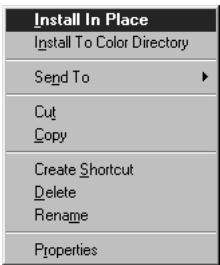
In the Windows\System\Color folder, the icon for the ICM profile is now white, indicating that it is installed.
Installing files for Adobe Photoshop
If you use Adobe Photoshop, install the Separation Tables and the Calrgb.ams monitor settings file for best color printing results. These files are found on the User Software CD in the Photoshop folder.
NOTE: The Calrgb.ams monitor settings file should be loaded before using Fiery Scan.
Loading the Separation Tables
The Separation Tables enable RGB-to-CMYK conversions within Photoshop that correspond to conversions performed by color rendering dictionaries on the Fiery ZX.
TO LOAD THE SEPARATION TABLES FOR PHOTOSHOP 4.0:
- On the User Software CD, open the Photoshop folder.
- Copy the files "Prn-mp AST" and "Prn-ms AST" to your Adobe Photoshop folder.
- Launch Photoshop.
- For Photoshop 4.0, from the File menu, choose Color Settings, and from the Color Settings submenu, choose Separation Tables.
- In the Separation Tables dialog box, click Load.
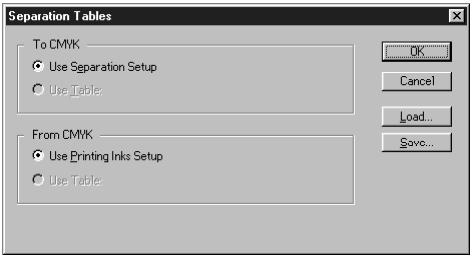
-
Browse to the Adobe Photoshop folder, select the appropriate file, and click Open. Select the Prn-mp.asp file for separating photographic RGB images to CMYK. Select the Prn-ms.asp file for separating solid color RGB images to CMYK.
-
Verify that the file you selected appears after "Use Table:" in both places and click OK.
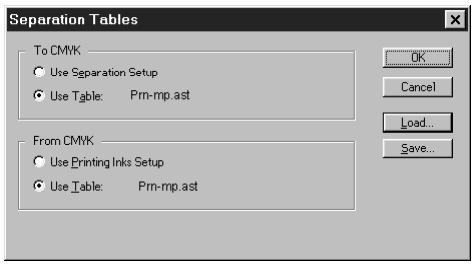
Separation tables remain loaded the next time you start Photoshop, unless you remove them.
TO LOAD THE SEPARATION TABLES FOR PHOTOSHOP 5.0:
- On the User Software CD, open the Photoshop folder.
- Copy the files "Prn-ms.asp" and "Prn-mp.asp" to your Adobe Photoshop folder.
- Launch Photoshop.
- From the File menu, choose Color Settings, and from the Color Setting menu, choose CMYK setup.
- In the CMYK Setup dialog box, choose Tables for CMYK Model and click Load.
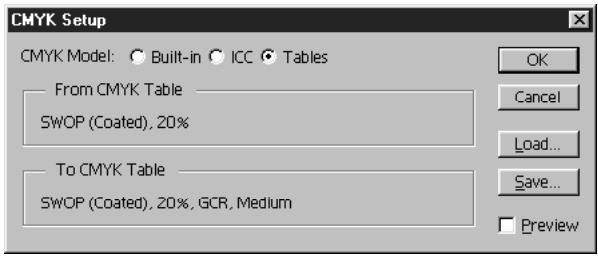
-
Browse to the Adobe Photoshop folder, select the appropriate file, and click Open. Select the Prn-mp AST file for separating photographic RGB images to CMYK. Select the Prn-ms AST file for separating solid color RGB images to CMYK.
-
Verify that the file you selected appears after "From CMYK Table" in both places and click OK.

Separation tables remain loaded the next time you start Photoshop, unless you remove them.
Loading the monitor settings file
The Calrgb.ams monitor settings file for Photoshop defines the source color space for printing to the Fiery ZX. The procedure you use to load the file depends on the version of Photoshop you are using.
NOTE: If you use Fiery Scan, you should install the Calrgb.ams monitor settings file.
TO LOAD THE MONITOR SETTINGS FILE FOR PHOTOSHOP 4.0:
- On the User Software CD, open the Photoshop folder.
- Copy the Calrgb.ams file to your Adobe Photoshop folder.
- Launch Photoshop.
-
From the File menu, choose Color Settings, and from the Color Settings submenu, choose Monitor Setup.
-
In the Monitor Setup dialog box, click Load.
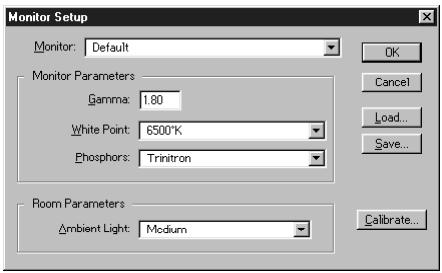
- Browse to your Adobe Photoshop folder, select the Calrgb.ams file, and click Open. The Calrgb.ams file appears as the selection in the Monitor pop-up menu of the Monitor Setup dialog box.
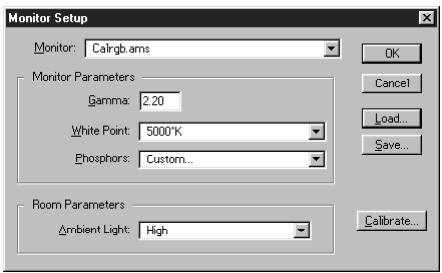
- Under Room Parameters, set Ambient Light to High and click OK.
TO LOAD THE MONITOR SETTINGSFILEFORPHOTOSHOP5.0:
- On the User Software CD, open the Photoshop folder.
- Copy the Calrgb.ams file to your Adobe Photoshop folder.
- Launch Photoshop.
-
From the File menu, choose Color Settings, and from the Color Settings submenu, choose RGB Setup.
-
In the RGB Setup dialog box, click Load.
- Browse to your Adobe Photoshop folder, select the Calrgb.ams file, and click Open. The Calrgb.ams file appears as the selection in the RGB pop-up menu of the RGB Setup dialog box.
- Click OK.
Installing User Software on a Mac OS Computer
The general steps for installing the Fiery ZX user software and setting up printing on a Mac OS-based computer are:
- Install the Adobe PostScript printer driver and Fiery ZX PostScript Printer Description file (PPD).
- Set up the Fiery ZX in the Chooser.
- Install the Fiery utilities (Fiery Downloader, and Fiery Print Calibrator, and Fiery Spooler), and Fiery Scan plug-in.
- Install the screen fonts.
- Install the ColorSync™ profiles.
- Copy additional color-reference and application-specific files from the User Software CD as needed.
Installing Mac OS software
The Installers folder on the User Software CD contains the following installer folders:
ColorSync™ Profiles—Fiery ZX ColorSync Profiles installer
- Fiery Downloader—Fiery Downloader installer
- Fiery Print Calibrator—Fiery Print Calibrator installer
- Fiery Scan—Fiery Scan installer, which installs the Fiery Scan (TWAIN) plug-in and Fiery TWAIN plug-in
- Fiery Spooler—Fiery Spooler installer
- Printer Driver—Adobe PostScript printer driver and PPD installer
NOTE: An installer is not provided for the Mac OS screen fonts; they must be copied directly from the User Software CD to the System Folder:Fonts folder on your hard disk. For instructions, see "Screen fonts" on page 60.
In addition, the User Software CD contains various color files. These files must be copied or installed from the CD and placed in the appropriate locations on your hard disk (see "Copying color files from the User Software CD" on page 61).
PostScript CMYK color reference file
PostScript PANTONE Coated color reference file
- RGB color reference files for specifying colors from Microsoft Word and PowerPoint
- Separation tables and a monitor settings file for use with Adobe Photoshop
NOTE: If you operate the Fiery ZX in a copy shop, quick print shop, or service bureau, you might want to provide copies of the printer driver, PPD file, separation tables, and relevant documentation to customers. This ensures that jobs they prepare are properly formatted for printing to the Fiery ZX.
Downloading printer files with the Installer WebTool
Installers for the Fiery ZX printer files can be downloaded from the Fiery ZX with the Installer WebTool (if the site administrator has enabled Internet access to the Fiery ZX). For instructions, see "Using the Installer WebTool" on page 68.
Once you download the installers, the installation process is identical to installing from the User Software CD.
Setting up PostScript printing with Mac OS
To set up the Fiery ZX as a PostScript printer, you must install the Adobe PostScript printer driver and the PPD file that corresponds to your copier. The AdobePS printer driver and PPD file are provided on the User Software CD.
Printer drivers provide a way to communicate information on print jobs between your applications, the Fiery ZX, and any other PostScript printer connected to your computer.
You can use the following procedures whether you are installing from the User Software CD or with installer files downloaded using the Installer WebTool.
TO INSTALL THE ADOBEPS PRINTER DRIVER AND PPD FILE:
- If you are installing from the CD, open the Installers:Printer Driver folder.
If you are installing from the installer files you downloaded with the Installer WebTool, open the Printer Driver folder on your hard disk.
- Double-click the AdobePS Installer icon.
A warning dialog box appears.

Installation was successful. In order to take advantage of the new software, your Macintosh needs to be restarted.
Restart
- Click Yes to continue with installation of printer driver software, and to confirm that your computer must be restarted after installation.
The AdobePS Installer installs the Adobe PostScript printer driver, the PPD file that corresponds to your copier, and the Apple Chooser.
- Click Restart when installation is complete.

Your Macintosh needs to be restarted after installation is complete. Do you wish to continue?
No
Yes
Setting up the Fiery ZX in the Chooser
After you install the AdobePS printer driver and PPD file (see "Setting up PostScript printing with Mac OS" on page 54), you need to set up the Fiery ZX in the Chooser in order to take full advantage of its features. This section describes how to set up the Fiery ZX with the AdobePS printer driver.
TO SET UP THE FIERY ZX IN THE CHOOSER:
- Select Chooser from the Apple menu.
- Click the AdobePS icon.
Make sure AppleTalk is set to Active.
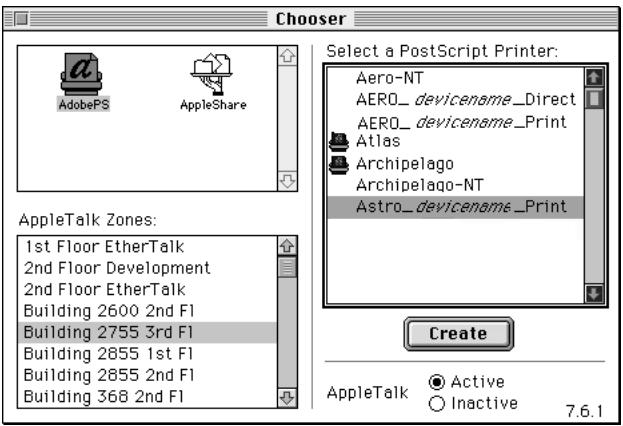
- Select the correct AppleTalk Zone, if necessary.
- Select the Fiery ZX from the "Select a PostScript Printer" list, and click Setup.
The Fiery ZX appears in the list in the form of
NOTE: Only the print connections that are available appear in the Chooser. Each Fiery ZX print connection (Direct, Hold, and Print) has a separate name, and you will need to set up each print connection separately. Repeat step 4 for all enabled connections.
- Close the Chooser.
Installing Fiery ZX software and fonts
Before you begin each of the following installation procedures, determine where you want to install each item on your hard disk. By default, the files are placed in the following locations:
- The ColorSync Profiles are placed in the System Folder:Preferences folder on your hard disk.
If your system uses ColorSync, you must install these profiles in the ColorSync Profiles folder inside the System Folder:Preferences folder. You should install the ColorSync profiles only if your system uses them.
- Fiery Downloader is placed in a folder named "Fiery" on the top level of your hard disk.
- Fiery Print Calibrator is placed in a folder named "Fiery" on the top level of your hard disk.
- Fiery Scan is placed on the top level of your hard disk. You are prompted to locate your Photoshop plug-ins folder.
The installer also creates a folder named TWAIN in your System Folder:Preferences folder, and then installs a Fiery Scan module and a Source Manager file into that folder. You must then install the Fiery Scan (TWAIN) plug-in module into the appropriate Photoshop folder in order to use it.
NOTE: Before installing the Fiery TWAIN module, make sure the TWAIN plug-in (installed with Adobe Photoshop software) is located in the correct Photoshop\Plugins subfolder. If the TWAIN plug-in has been deleted, you must reinstall Adobe Photoshop software in order to use Fiery Scan.
- Fiery Spooler is placed in a folder named "Fiery" on the top level of your hard disk.
NOTE: An installer is not provided for the Mac OS screen fonts; they must be copied directly from the User Software CD to the System Folder:Fonts folder on your hard disk. For instructions, see "Screen fonts" on page 60.
TO INSTALL MAC OS SOFTWARE:
- On the User Software CD or your hard disk, double-click to open the Installers folder.
| If you are installing: | Double-click: |
| ColorSync profiles | ColorSyncTM Profiles Installer folder |
| Fiery Downloader | Fiery Downloader folder |
| Fiery Print Calibrator | Fiery Print Calibrator folder |
| Fiery Scan | Fiery Scan folder |
| Fiery Spooler | Fiery Spooler folder |
- Double-click the Installer icon.
- Click Install.
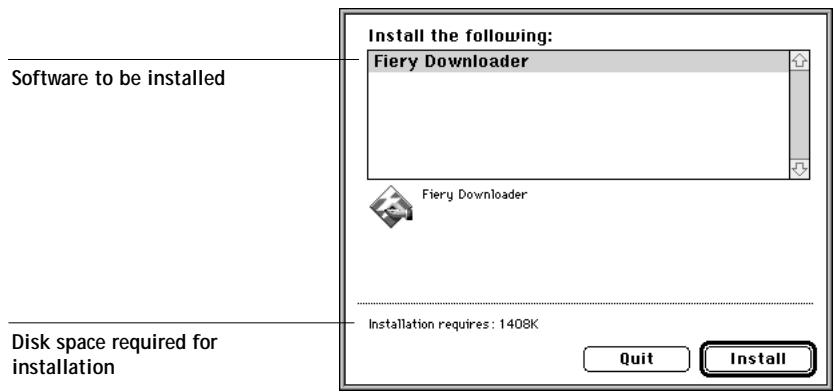
- Specify the locations into which to install each item.
Use the table below as a guide when installing software.
| If you are installing: | Action: | To install: |
| ColorSync Profiles | Browse to the System Folder: Preferences:ColorSyncTMProfiles folder. If you are using ColorSyncTM2.5 or later, browse to System Folder:ColorSyncTMProfiles. Perform the steps in “To set the ColorSync system profile:” on page 60 after installation is complete. | Click “Install into ColorSyncTMProfiles.” or install into ColorSyncTMProfiles.” |
| Fiery Downloader | Specify a hard disk location for the installed Fiery Downloader software. | Click Install. |
| Fiery Print Calibrator | Specify a hard disk location for the installed Fiery Print Calibrator software. | Click Install. |
| Fiery Scan | Specify where to install the Fiery Scan (TWAIN) plug-in. The folder into which you install the plug-in depends on the version of Photoshop you are using. For Photoshop 4.0, browse to the Photoshop:Plug-ins:Import/Export folder.For Photoshop 3.0x, browse to the Photoshop:Plug-ins:Acquire/Export folder. For Photoshop 2.5, browse to the Photoshop:Plug-ins folder. | Click Install into “(foldername).” |
| Fiery Spooler | Specify a hard disk location for the installed Fiery Spooler software. | Click Install. |
- If prompted, click Quit to close the software installer.
TO SET THE COLORSYNC SYSTEM PROFILE:
- For ColorSync Profiles, choose Control Panels>ColorSync System Profile from the Apple Menu.
- Click Set Profile.
- From the list of ColorSync profiles, select EFIRGB ICC and click Select.
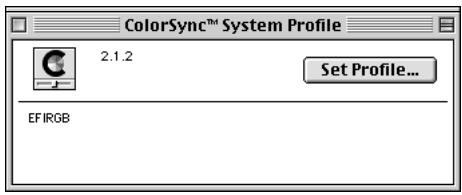
When selected as the ColorSync system profile, EFIRGB ICC sets the optimal source color space for printing to the Fiery ZX. The color space set by the EFIRGB ICC profile is the same as that set by the EFIRGB setting of the RGB Source print option. For more information, see the Color Guide.
Note: The RGB Source print option setting overrides the ColorSync system profile setting.
- Close the ColorSync System Profile window.
Screen fonts
The User Software CD includes screen fonts that correspond to the 136 built-in printer fonts on the Fiery ZX. In order to view and use these fonts, you must copy them from the User Software CD to your hard disk.
TO INSTALL SCREEN FONTS:
- On the User Software CD, open the Fonts folder.
- Copy the fonts that you want to install to the System Folder:Fonts folder on your hard disk.
If you have any applications open, you must quit and relaunch them before the newly installed screen fonts are available.
Copying color files from the User Software CD
You can copy additional color files from the User Software CD to your hard disk. Many of the files are PostScript files that you can download and print using Fiery Downloader.
The User Software CD contains the following color files:
Photoshop folder Separation Tables for use with Adobe Photoshop and the Fiery ZX. The Separation Tables match RGB-to-CMYK conversions performed in Photoshop to those performed on the Fiery ZX by color rendering dictionaries (CRDs). Calibrated RGB, a monitor settings file that sets the proper source color space. For instructions on installing these files, see "Installing files for Adobe Photoshop" on page 62.
Color Files folder CMYK Color Reference.ps, an 11-page, letter-size PostScript file to use for reference when defining CMYK colors in applications. PANTONE Book.ps, a 19-page, letter-size PostScript file that indicates the closest equivalent of PANTONE coated colors that the Fiery ZX and your particular copier model can produce. The method used to print the PANTONE Book.ps file differs depending on the Spot Color Matching setting. For more information, see the Printing Guide and the Color Guide RGB page 01, a file you can print from Microsoft Word 6.0 or later to view available RGB colors. RGB page 02, a file you can print from PowerPoint 4.0 or later to view available RGB colors.
Demo.mea Demo Measurement, a sample measurements file for use with Fiery Print Calibrator. This file is for demonstration purposes only and should not be used to calibrate the Fiery ZX.
Installing files for Adobe Photoshop
If you intend to use Adobe Photoshop, install the Separation Tables and the monitor settings file for best color printing results. These files are located on the User Software CD in the Photoshop folder.
NOTE: For best results, the monitor settings file should be installed if you use Fiery Scan.
Loading the Separation Tables
The Separation Tables enable RGB-to-CMYK conversions (in Photoshop), which correspond to conversions performed by color rendering dictionaries on the Fiery ZX. The procedure you use depends on the version of Photoshop you are using.
TO LOAD THE SEPARATION TABLES FOR PHOTOSHOP 4.0:
- On the User Software CD, open the Photoshop folder.
- Copy the files "Fiery ZX PRN-M.P" and "Fiery ZX PRN-M.S" to your Adobe Photoshop folder.
- Launch Photoshop.
- For Photoshop 4.0, from the File menu, choose Color Settings, and from the Color Settings submenu, choose Separation Tables.
- In the Separation Tables dialog box, click Load.
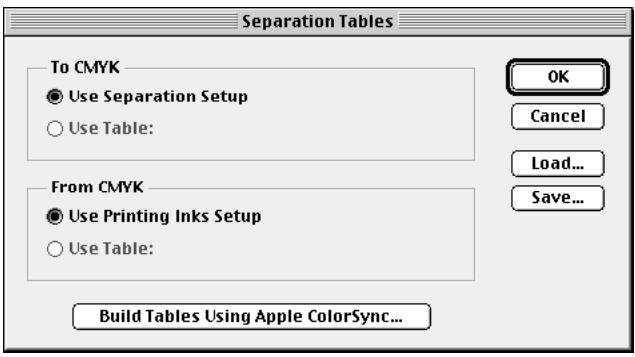
- Browse to your Adobe Photoshop folder, select the appropriate Separation Table file, and click Open.
Select the Fiery ZX PRN-M.P file for separating photographic RGB images to CMYK. Select the Fiery ZX PRN-M.S file for separating solid color RGB images to CMYK.
- Verify that the file you selected appears after "Use Table:" in both places and click OK.
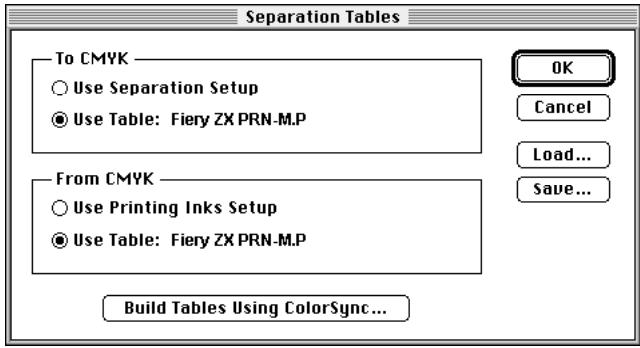
Separation tables remain loaded the next time you start Photoshop, unless you remove them.
Loading the monitor settings file
The Calibrated RGB monitor settings file for Photoshop defines the source color space for printing to the Fiery ZX. The procedure and the you use depends on the version of Photoshop you are using.
NOTE: For best results, the monitor settings file should be installed if you use Fiery Scan.
TO LOAD THE MONITOR SETTINGSFILEFORPHOTOSHOP4.0:
- On the User Software CD, open the Photoshop folder.
- Copy the Calibrated RGB file to your Adobe Photoshop folder.
- Launch Photoshop.
- For Photoshop 4.0, from the File menu, choose Color Settings, and from the Color Settings submenu, choose Monitor Setup.
- In the Monitor Setup dialog box, click Load.
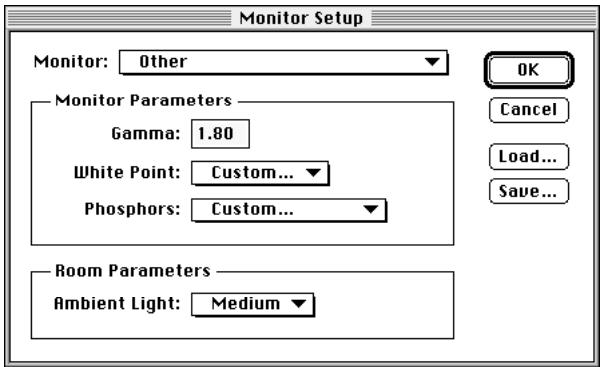
- Browse to your Adobe Photoshop folder, select the Calibrated RGB file, and click Open. The Calibrated RGB file appears as the selection in the Monitor pop-up menu of the Monitor Setup dialog box.
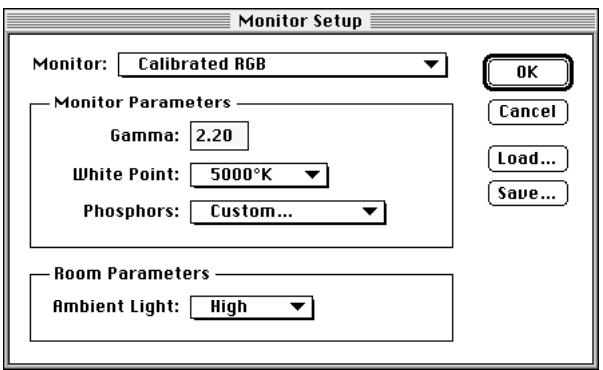
- Under Room Parameters, set Ambient Light to High and click OK.
TO LOAD THE MONITOR SETTINGS FILE FOR PHOTOSHOP 5.0:
- On the User Software CD, open the Photoshop folder.
- Copy the Calibrated RGB file to your Adobe Photoshop folder.
- Launch Photoshop.
- From the File menu, choose Color Settings, and from the Color Settings submenu, choose RGB Setup.
- In the RGB Setup dialog box, click Load.
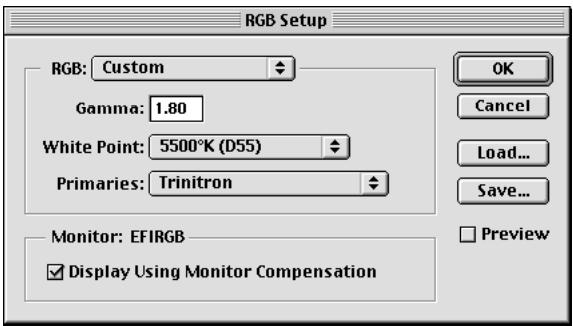
- Browse to your Adobe Photoshop folder, select the Calibrated RGB file, and click Open. The Calibrated RGB file appears as the selection in the RGB pop-up menu of the RGB Setup dialog box.
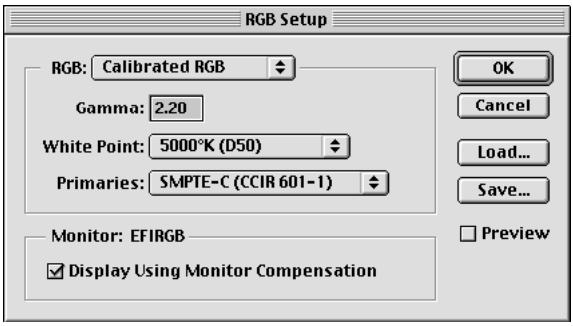
- Click OK.
Downloading Installers with Fiery WebTools
Fiery WebTools allow you to manage your Fiery ZX remotely from the Internet or from your company's intranet. The Fiery ZX has its own home page, from which you are able to select from a variety of functions including Status, WebSpooler, WebLink, and Installer.
For more information on using Fiery WebTools, see the Printing Guide and the Job Management Guide.
Setting up Fiery WebTools
In order for network users to access and use Fiery WebTools, you need to set certain Fiery ZX options in Setup. You also need to prepare each user's workstation to communicate with the Fiery ZX over the Internet or intranet.
For more information about Fiery ZX Setup, see the Configuration Guide.
TO VERIFY THAT FIERY WEBTOOLS ARE SET UP ON THE FIERY ZX:
- Print the Configuration page from the Control Panel or from the Command WorkStation.
For instructions, see the Job Management Guide.
-
On the Configuration page, check the following:
-
In Network Setup>Port Setup, confirm that the appropriate network type (Ethernet or Token Ring) is enabled.
- In Network Setup>Protocol Setup>TCP/IP Setup, confirm that TCP/IP is enabled and that there is a valid, unique IP Address for the Fiery ZX.
-
In Network Setup>Service Setup, confirm that Web Services are enabled.
-
If all the conditions listed in Step 2 are currently set, the Fiery ZX is properly set up to use Fiery WebTools.
If any of the conditions listed in Step 2 are not currently set, you must change them (as described in the Configuration Guide) before you can use Fiery WebTools.
TO SET UP CLIENT WORKSTATIONS FOR USE OF FIERY WEBTOOLS:
- Enable TCP/IP networking.
- Make sure the workstation has a valid, unique IP address.
- Make sure the workstation is installed with one of the following Internet browsers: Windows 95 and Windows NT 4.0—Either Netscape Communicator v4.0.x or Microsoft Internet Explorer v3.0.2 or 4.0.x Mac OS—Netscape Communicator v4.0.x
NOTE: Netscape and Microsoft continue to release frequent updates to their browsers. As support cannot be guaranteed for all versions, use the versions specified above for best results.
- Make sure Java is enabled in your Internet browser.
For more information on setting up the Fiery ZX and your network, see the Configuration Guide.
Using the Installer WebTool
The Installer WebTool contains the same printer driver installers as the User Software CD, allowing you to easily download printer files from the Fiery ZX to your workstation.
TO DOWNLOAD PRINTER FILES INSTALLERS WITH THE INSTALLER WEBTOOL:
- Launch your Internet or intranet browser and enter the DNS name or IP address of the Fiery ZX.
- Select a login level, enter a password if necessary, and click OK. No password is required to log in as Guest. You have full access to the Installer WebTool when logged in as Guest.
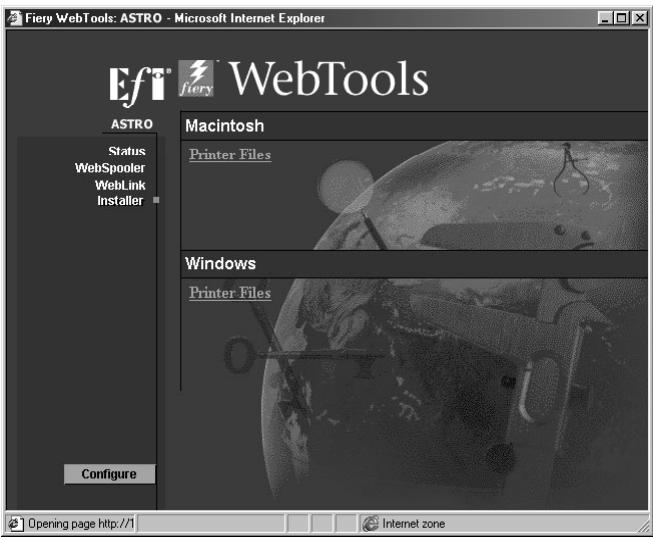
- Under the name of your operating system, click "Printer Files."
For Windows computers, a dialog box appears, prompting you to save the file "Prntdrive.exe" to the location you choose.
For Mac OS computers, a folder named "Printer Driver" is downloaded to the desktop in a BinHex-encoded, compressed format. If your internet browser is equipped with an expander utility such as StuffIt Expander, the folder will be decoded and decompressed automatically.
- For Windows computers, browse to the location where you want to save the Prntdrive.exe file and click Save.
For Mac OS computers, if the Printer Driver folder was not automatically decoded and decompressed, launch a utility that will perform that function.
- For Windows computers, double-click the Prntdrive.exe file, browse to the location where you want to install the PrntrDrv folder, and click Next.
The PrntrDrv folder is installed to the location you specified.
- Install the appropriate printer files for your operating system.
| For instructions: | See: |
| Windows 95 | “Setting up PostScript printing with Windows 95” on page 3 |
| Windows 3.1x | “Setting up PostScript printing with Windows 3.1x” on page 18 |
| Windows NT 4.0 | “Setting up PostScript printing with Windows NT 4.0” on page 23 |
| Mac OS computers | “Setting up PostScript printing with Mac OS” on page 54. |
Troubleshooting
This chapter provides troubleshooting tips for some problems that may arise when performing the procedures in this manual.
On a Windows computer
Setting up IPX (Novell) printing for Windows NT Workstation
If you have problems installing the Fiery ZX with Windows NT, try installing another PostScript printer (such as the Apple LaserWriter IIg), and then install the Fiery ZX. Installing another printer insures that all files are properly installed and available. For instructions, see your Windows NT documentation.
Installing the Adobe PostScript Printer Driver
If you are reinstalling the Adobe PostScript Printer Driver, delete any previous versions and related files before installing. Search for and delete all files named Efm. in the Windows\System folder and the Windows\System\Color folder. See the Adobe README file included with the printer driver for more information.
Problems with the Fiery utilities on Windows 95 or Windows NT
- If you are using Windows 95, make sure that IPX/SPX and TCP/IP networking protocols are both enabled.
See "Completing the Windows 95, IPX/SPX or IPX (Novell) connection" on page 10.
- Make sure that the connection is configured correctly for your site.
To check the current configuration, launch a Fiery utility and choose Open from the File menu. Select the Fiery ZX and click Modify to see current settings. If the settings are incorrect, you can change them in this dialog box.
On a Mac OS computer
Setting up the Fiery ZX in the Chooser
If auto-setup does not work and you are prompted to select the PPD, select the Fiery ZX file in your System Folder:Extensions:Printer Descriptions folder.
Select "Fiery ZX PRN-M."
Installing screen fonts
If you experience problems installing the PostScript screen fonts from the User Software CD to the System Folder:Fonts folder, try the following:
- Quit all applications and close all windows.
- Create a new folder and name it "Uninstalled Fonts."
This folder must be located outside of the System Folder.
- Move fonts that you are not using from the System Folder:Fonts folder to the Uninstalled Fonts folder.
- Continue to copy fonts from the User Software CD to the System Folder:Fonts folder.
- Create an alias to the System Folder:Fonts folder and to the Uninstalled Fonts folder.
- Place both aliases on your desktop.
- When necessary, use the aliases to open both folders and move fonts between them. If you have any applications running, you must quit and relaunch them in order to view and use the newly installed fonts. Alternately, you can try combining fonts from multiple suitcases into a single suitcase.
Index
A
Adobe PostScript 3 fonts xi
Adobe PostScript printer driver, seePostScript printer driver
amount of memory required xiii,xiv,xv,xvi
AppleTalk connecting to Mac OS 56 supported by color server x
B
Berkeley lpd protocol XV BMP images 47
C
cable, color server xi
Calrgb.ams 48, 50 to 52
CD-ROM drive x
Choozer
selecting the server in 56
setting up color server in 72
Clrfiles folder 46
CMYK color reference file 2, 46, 54, 61
Color Files folder 61
color management files xi, xiii
color reference files xiii, 2, 45, 53, 61
color rendering dictionaries, see CRDs
color server specifications x
ColorSync color management files xiii, 53, 59
ColorWise color management files xi
Command WorkStation installer 2 installing 38 to 39 overview xii system requirements xvi
CommandWorkStationCDxi,xii,2,38
Configurationpage14,40
connecting Windows 3.1x with IPX (Novell) 21 Windows 95 with IPX/SPX or IPX (Novell) 10 Windows 95 with parallel port 7 Windows 95 with SMB printing 13 Windows NT 4.0 with IPX (Novell) 31 Windows NT 4.0 with parallel port 28 Windows NT 4.0 with TCP/IP 29
connection, configuring 40
CRDs (color rendering dictionaries) 45
custom21.ps (Windows) 46
custom34.ps (Windows) 46
CWS, see Command WorkStation
D
DB-25 connector xvi
Demo.mea file 46, 61
device name 30, 41, 44
DNS name xiv, xv, 41, 44
Domain Name Server (DNS) 40
E
EFIRGB ICC 60
EPS files xii
Ethernet 100BaseTX cable xi
Ethernet 10BaseT cable xi
Ethernet Talk XV
F
Fast Ethernet 100BaseTX cable xi
Fiery Downloader
EPS files xii
installer for Mac OS 53
installer for Windows 1
installing for Mac OS 59
installing for Windows 33
overview xii
PDF files xii
Fiery Print Calibrator
installer for Mac OS 53
installer for Windows 1
installing for Mac OS 59
installing for Windows 33
overview xii
Fiery Scan Plug-in for Photoshop
installer for Mac OS 53
installer for Windows 1, 33
installing for Mac OS 59
installing for Windows 37 to 38
overview xii
requirements xiii
system requirements XV
Fiery Spooler
configuring the connection 43 to 44
installer for Mac OS 53
installer for Windows 1
installing for Mac OS 59
installing for Windows 35
overview xii
supported protocols xiv
Fiery TWAIN module xii, 37 to 38, 57
Fiery utilities
configuring the connection 40
installing for Mac OS 57
installing for Windows 33
problems on Windows 95 or
Windows NT 71
requirements for Mac OS XV
requirements for Windows xiii
see also Fiery Downloader, Fiery Print
Calibrator, Fiery Spooler
Fiery WebTools
Installer xi, 2, 3, 68 to 70
setting up 67
system requirements xiii, xv
version of browser required xiii, 68
fonts
Adobe PostScript 3 xi
Adobe Type 1 xii
installing 53, 54
Multiple Master xi
screen fonts 60
substituting in PDF files xi
troubleshooting 72
TrueType xi, xii
Fonts folder 72
Frame Type option 11
1
i386 folder 27
ICM color management files xiii, 2, 45, 47
installers
Mac OS 53, 54
Windows 1, 2
Installers folder 53
installing
ColorSync Profiles 58
Command WorkStation 38 to 39
Fiery Downloader (Mac OS) 58
Fiery Downloader (Windows) 33
Fiery Print Calibrator (Mac OS) 58
Fiery Print Calibrator (Windows) 33
Fiery Scan Plug-in (Mac OS) 58
Fiery Scan Plug-in (Windows) 37 to 38
Fiery Spooler (Mac OS) 58
Fiery Spooler (Windows) 35, 36 to 37
ICM profile 47
PostScript printer driver (Mac OS) 55
PostScript printer driver (Windows 95/98) 3 to 6
screen fonts 60
software (Mac OS) 57
software (Windows) 33
TWAIN module (Windows) 37 to 38
Instalrs folder 1
internal name 30
Internet Explorer xiii, 68
IP address xiv, xv, 14, 40
IPX
system requirements xvi
Windows 3.1x 21 to 22
Windows 95 12, 13
Windows NT 4.0 31, 31 to 33
IPX address 40
IPX/SPX
configuring the connection 40
Windows 95/98 11
J
Java 38,68
JPEG images 47
M
Mac OS
copying color files 61
Installer WebTool 54
installing Fiery utilities 57
installing software 58
Power Macintosh xv
screen fonts 60
system requirements xiv
troubleshooting 72
memory, amount required xiii, xiv, xv, xvi
Microsoft Office 97, see Office 97
modifying the configuration (Windows) 44
monitor settings file
Mac OS 63 to 65
Windows 50 to 52
MS-DOS, versions required xiv
N
Netscape Communicator xiii, 68
NetWare
network port with Windows 3.1x 22
network port with Windows 95 13
NetWare client setup
Windows 3.1x 21
Windows 95 12, 13
Windows 95/98 11
NetWise networking features xi
Ntprint.inf file 25
0
Office 97 47
P
PANTONE Book.ps 61
PANTONE Coated color reference file 54
PANTONE color reference files 2, 46
parallel port
system requirements xvi
Windows 3.1x 20 to 21
Windows 95 8 to 10
Windows NT 4.0 28
PDF files xi, xii
Photoshop
files (Mac OS) 54, 61
files (Windows) 2, 45
plug-ins xii
version 2.5 or later required for Fiery
Scan plug-in xiii
Photoshop folder 61
Photoshop Separation Tables
Mac OS 62 to 63
Windows 48 to 50
Photoshp folder (Windows) 45
PostScript
printing with Mac OS 54
printing with Windows 3.1x 18
printing with Windows 95/98 3
printing with Windows NT 4.0 23
PostScript Level 1 xi
PostScript Printer Description file, see PPD
PostScript printer driver
downloading 68 to 70
installer for Mac OS 53
installers for Windows 1
installing for Mac OS 55
installing for Windows 95/98 3 to 6
version 3.0 for Windows 3.1x xiv
version 4.2 for Windows 95 xiv
version 8.5 for Mac OS xv
PowerPoint, RGB color reference file 54, 61
PPD
Mac OS 55
overview xi
Windows 3.1x 19
Windows 95 5
Windows NT 4.0 25
Print command (Windows) 19
primer drivers, see Postscript printer drivers,
Windows NT 4.0 printer drivers
printing
Mac OS 54
Windows 3.1x 18
Windows 95/98 3
Windows NT 4.0 28
Print Test Page option 17
Prntdrive.exe file 69
R
remote server management 67
Rgb_01.doc 46
Rgb_02.ppt 46
RGB color reference files 2
RGB page 01 61
RGB page 02 61
S
Separation Tables see Photoshop Separation Tables
Server Name 14
SMB printing, see Windows 95/98
Solaris, supported version xv
specifications, color server x
Spooler, see Fiery Spooler
SunOS, support version xv
System 7 XV
See also Mac OS
system requirements
Command WorkStation xvi
IPX xvi
Mac OS xiv
parallel port xvi
UNIX XV
Windows xiii
T
TCP/IP
configuring the connection 40
printing software conforming to
RFC1179 XV
supported by color server x
test page 17
thicknet cable xi
thinnet cable xi
TIFF images 47
Token Ring, optional kit xi
troubleshooting
Mac OS computers 72
Windows computers 71
TWAIN folder 57
U
Uninstalled Fonts folder 72
UNIX workstations, system requirements XV
unshielded twisted pair (UTP) cable xi
User Software CD
Adobe PS Printer Driver xi
contents (Mac OS) 53, 54
contents (Windows) 1, 2, 33
installing from (Mac OS) 55, 61
installing from (Windows) 3, 45
overview xi
troubleshooting fonts 72
W
WebSpooler, see Fiery WebSpooler
WebTools, see Fiery WebTools
Windows
copying color files 45
installers 1
installing software 33
system requirements xiii
troubleshooting 71
Windows 3.1x
configuration ports on 20
connection 20
IPX printing 21 to 22
PPD 19
selecting parallel port 20 to 21
setting default printer 19
system requirements xiv
Windows 95
parallel port 8 to 10
system requirements xiv
Windows 95/98
IPX/SPX 11
PostScript printer driver 3 to 6
SMB printing 13 to 17
Windows NT 4.0
IPX 31 to 33
primer driver 3, 23
printing from parallel port 28
printing requirements 28
setting up PostScript printing 23
system requirements xiv
troubleshooting 71
Windows NT Installation CD 27
WINS Name Server 14, 17
Word, RGB color reference file 54, 61

Electronics For Imaging 303 Velocity Way Foster City, CA 94404 Worldwide Web: http://www.efi.com
26 Cunningham Street North Sydney NSW 2060, Australia
Av. Ayrton Senna, 3000 Bloco 2-Sala 412-Edificio Via Parque Office Barra Da Tijuca, Rio de Janeiro-RJ CEP 22775001 Brasil
2802-2804 Admiralty Centre
Tower 1, 18 Harcourt Road, Hong Kong
60-B Peck Seah Street
Singapore 079323
Stonebridge House, Padbury Oaks, Old Bath Road Longford, Middlesex UB7 0EW, UK
45004627
Color Guide
FIERY ZX-3300/ZX-2100
for Minolta CF910
Copyright © 1999 Electronics For Imaging, Inc. All rights reserved.
This publication is protected by copyright, and all rights are reserved. No part of it may be reproduced or transmitted in any form or by any means for any purpose without express prior written consent from Electronics For Imaging, Inc., except as expressly permitted herein. Information in this document is subject to change without notice and does not represent a commitment on the part of Electronics For Imaging, Inc.
The software described in this publication is furnished under license and may only be used or copied in accordance with the terms of such license.
Patents: 5,867,179; 5,835,788; 5,666,436; 5,553,200; 5,543,940; 5,537,516; 5,517,334; 5,506,946; 5,424,754; 5,343,311; 5,212,546; 4,941,038; 4,837,722; 4,500,919
Trademarks
EFI, the EFI logo, Fiery, the Fiery logo, EFICOLOR, ColorWise, and Rip-While-Print are trademarks registered in the U.S. Patent and Trademark Office. Fiery ZX, Fiery LX, Fiery Driven, the Fiery Driven logo, Command WorkStation, AutoCal, Starr Compression, Memory Multiplier, NetWise, and VisualCal are trademarks of Electronics For Imaging, Inc.
Adobe, the Adobe logo, Adobe Illustrator, PostScript, Adobe Photoshop, Adobe Separator, and Adobe PageMaker are trademarks of Adobe Systems Incorporated, registered in certain jurisdictions. EPS (Encapsulated PostScript) is a trademark of Altsys Corporation. Apple, the Apple logo, AppleShare, AppleTalk, EtherTalk, LaserWriter, and Mac OS are registered trademarks, and MultiFinder is a trademark of Apple Computer, Inc. Microsoft, MS, MS-DOS, and Windows are registered trademarks of Microsoft in the US and other countries. QuarkXPress is a registered trademark of Quark, Inc. Times, Helvetica, and Palatino are trademarks of Linotype AG and/or its subsidiaries. ITC Avant Garde, ITC Bookman, ITC Zapf Chancery, and ITC Zapf Dingbats are registered trademarks of International Typeface Corporation. Ethernet is a registered trademark of Xerox Corporation. NetWare and Novell are registered trademarks and Internetwork Packet Exchange (IPX) is a trademark of Novell, Inc. UNIX is a registered trademark of UNIX System Laboratories, a wholly owned subsidiary of Novell, Inc. PANTONE is a registered trademark of Pantone, Inc.
All other terms and product names may be trademarks or registered trademarks of their respective owners, and are hereby acknowledged.
Legal Notices
APPLE COMPUTER, INC. ("APPLE") MAKES NO WARRANTYES, EXPRESS OR IMPLIED, INCLUDING WITHOUT LIMITATION THE IMPLIED WARRANTY OF MERCHANTABILITY AND FITNESS FOR A PARTICULAR PURPOSE, REGARDING THE APPLE SOFTWARE. APPLE DOES NOT WARRANTY, GUARantee, OR MAKE ANY REPRESENTATIONS REGARDING THE USE OR THE RESULTS OF THE USE OF THE APPLE SOFTWARE IN TERMS OF ITS CORRECTNESS, ACCURACY, RELIABILITY, CURRENTNESS, OR OTHERWISE. THE ENTIRE RISK AS TO THE RESULTS AND PERFORMANCE OF THE APPLE SOFTWARE IS ASSUMED BY YOU. THE EXCLUSION OF IMPLIED WARRANTYIS IS NOT PERMITTED BY SOME STATES. THE ABOVE EXCLUSION MAY NOT APPLY TO YOU.
IN NO EVENT WILL APPLE, ITS DIRECTORS, OFFICERS, EMPLOYEES OR AGENTS BE LIABLE TO YOU FOR ANY CONSEQUENTIAL, INCIDENTAL OR INDIRECT DAMAGES (INCLUDING DAMAGES FOR LOSS OF BUSINESS PROFITS, BUSINESS INTERRUPTION, LOSS OF BUSINESS INFORMATION, AND THE LIKE) ASING OUT OF THE USE OR INABILITY TO USE THE APPLE SOFTWARE EVEN IF APPLE HAS BEEN ADVISED OF THE POSSIBILITY OF SUCH DAMAGES. BECAUSE SOME STATES DO NOT ALLOW THE EXCLUSION OR LIMITATION OF LIABILITY FOR CONSEQUENTIAL OR INCIDENTAL DAMAGES, THE ABOVE LIMITATIONS MAY NOT APPLY TO YOU. Apple's liability to you for actual damages from any cause whatsoever, and regardless of the form of the action (whether in contract, tort [including negligence], product liability or otherwise), will be limited to $50.
Restricted Rights Legends
For defense agencies: Restricted Rights Legend. Use, reproduction, or disclosure is subject to restrictions set forth in subparagraph (c)(1)(ii) of the Rights in Technical Data and Computer Software clause at 252.227.7013.
For civilian agencies: Restricted Rights Legend. Use, reproduction, or disclosure is subject to restrictions set forth in subparagraph (a) through (d) of the commercial Computer Software Restricted Rights clause at 52.227-19 and the limitations set forth in Electronics For Imaging, Inc.'s standard commercial agreement for this software. Unpublished rights reserved under the copyright laws of the United States.
Printed in the United States of America on recycled paper.
FCC Information
WARNING: FCC Regulations state that any unauthorized changes or modifications to this equipment not expressly approved by the manufacturer could void the user's authority to operate this equipment.
NOTE: This equipment has been tested and found to comply with the limits for a Class A digital device, pursuant to Part 15 of the FCC Rules. These limits are designed to provide reasonable protection against harmful interference when the equipment is operated in a commercial environment. This equipment generates, and uses, and can radiate radio frequency energy and, if not installed and used in accordance with the instruction manual, may cause harmful interference to radio communications. Operation of this equipment in a residential area is likely to cause interference in which case the user will be required to correct the interference at his own expense.
Industry Canada Class A Notice
This digital apparatus does not exceed the Class A limits for radio noise emissions from digital apparatus as set out in the interference-causing equipment standard entitled, "Digital Apparatus" ICES-003 from Industry Canada.
Avis de Conformatione Classe A de l'Industrie Canada
Certificate by Manufacturer/Importer
This is to certify that the FC07 is shielded against radio interference in accordance with the provisions of VFG 243/1991. The German Postal Services have been advised that this device is being put on the market and that they have been given the right to inspect the series for compliance with the regulations.
RFI Compliance Notice
This equipment has been tested concerning compliance with the relevant RFI protection requirements both individually and on system level (to simulate normal operation conditions). However, it is possible that these RFI Requirements are not met under certain unfavorable conditions in other installations. It is the user who is responsible for compliance of his particular installation.
Compliance with applicable regulations depends on the use of shielded cables. It is the user who is responsible for procuring the appropriate cables.
Software License Agreement
Before using the Software, please carefully read the following terms and conditions. BY USING THIS SOFTWARE, YOU SIGNIFY THAT YOU HAVE ACCEPTED THE TERMS OF THIS AGREEMENT. If you cannot or do not accept these terms, you may return the entire package within ten (10) days to the Distributor or Dealer from which you obtained them for a full refund.
Electronics For Imaging, Inc. grants to you a non-exclusive, non-transferable license to use the software and accompanying documentation ("Software") included with the Fiery ZX you have purchased, including without limitation the PostScript software provided by Adobe Systems Incorporated.
You may:
a. use the Software solely for your own customary business purposes and solely with Fiery ZX;
b. use the digitally-encoded machine-readable outline and bitmap programs ("Font Programs") provided with Fiery ZX in a special encrypted format ("Coded Font Programs") to reproduce and display designs, styles, weights, and versions of letters, numerals, characters and symbols ("Typefaces") solely for your own customary business purposes on the display window of the Fiery ZX or monitor used with Fiery ZX;
c. use the trademarks used by Electronics For Imaging to identify the Coded Font Programs and Typefaces reproduced therefrom ("Trademarks"); and
d. assign your rights under this Agreement to a transferee of all of your right, title and interest in and to Fiery ZX provided the transferee agrees to be bound by all of the terms and conditions of this Agreement.
You may not:
a. make use of the Software, directly or indirectly, to print bitmap images with print resolutions of 600720 dots per inch or greater, or to generate fonts or typefaces for use other than with Fiery ZX;
b. make or have made, or permit to be made, any copies of the Software, Coded Font Programs, accompanying documentation or portions thereof, except as necessary for use with the Fiery ZX unit purchased by you; provided, however, that under no circumstances may you make or have made, or permit to be made, any copies of that certain portion of the Software which has been included on the Fiery ZX hard disk drive. You may not copy the documentation;
c. attempt to alter, disassemble, decrypt or reverse engineer the Software, Coded Font Programs or accompanying documentation.
d. rent or lease the Software.
Proprietary Rights
You acknowledge that the Software, Coded Font Programs, Typefaces, Trademarks and accompanying documentation are proprietary to Electronics For Imaging and its suppliers and that title and other intellectual property rights therein remain with Electronics For Imaging and its suppliers. Except as stated above, this Agreement does not grant you any right to patents, copyrights, trade secrets, trademarks (whether registered or unregistered), or any other rights, franchises or licenses in respect of the Software, Coded Font Programs, Typefaces, Trademarks or accompanying documentation. You may not adapt or use any trademark or trade name which is likely to be similar to or confusing with that of Electronics For Imaging or any of its suppliers or take any other action which impairs or reduces the trademark rights of Electronics For Imaging or its suppliers. The trademarks may only be used to identify printed output produced by the Coded Font Programs. At the reasonable request of Electronics For Imaging, you must supply samples of any Typeface identified with a trademark.
Confidentiality
You agree to hold the Software and Coded Font Programs in confidence, disclosing the Software and Coded Font Programs only to authorized users having a need to use the Software and Coded Font Programs as permitted by this Agreement and to take all reasonable precautions to prevent disclosure to other parties.
Remedies
Unauthorized use, copying or disclosure of the Software, Coded Font Programs, Typefaces, Trademarks or accompanying documentation will result in automatic termination of this license and will make available to Electronics For Imaging other legal remedies.
Limited Warranty and Disclaimer
Electronic For Imaging warrants that, for a period of ninety (90) days from the date of delivery to you, the Software under normal use will perform without significant errors that make it unusable. Electronics For Imaging's entire liability and your exclusive remedy under this warranty (which is subject to you returning Fiery ZX to Electronics For Imaging or an authorized dealer) will be, at Electronics For Imaging's option, to use reasonable commercial efforts to attempt to correct or work around errors, to replace the Software with functionally equivalent software, or to refund the purchase price and terminate this Agreement. Some states do not allow limitations on duration of implied warranty, so the above limitation may not apply to you.
For warranty service, please contact your authorized service/support center.
EXCEPT FOR THE ABOVE EXPRESS LIMITED WARRANTY, ELECTRONICS FOR IMAGING MAKES AND YOU RECEIVE NO WARRANTYES OR CONDITIONS ON THE SOFTWARE OR CODED FONT PROGRAMS, EXPRESS, IMPLIED, STATUTORY, OR IN ANY OTHER PROVISION OF THIS AGREEMENT OR COMMUNICATION WITH YOU, AND ELECTRONICS FOR IMAGING SPECICALLY DISCLAIMS ANY IMPLIED WARRANTY OR CONDITION OF MERCHANTABILITY OR FITNESS FOR A PARTICULAR PURPOSE. Electronics For Imaging does not warrant that the operation of the software will be uninterrupted or error free or that the Software will meet your specific requirements.
Limitation Of Liability
IN NO EVENT WILL ELECTRONICS FOR IMAGING OR ITS SUPPLIERS BE LIABLE FOR ANY DAMAGES, INCLUDING LOSS OF DATA, LOST PROFITS, COST OF COVER OR OTHER SPECIAL, INCIDENTAL, CONSEQUENTIAL OR INDIRECT DAMAGES ASING FROM THE USE OF THE SOFTWARE, CODED FONT PROGRAMS OR ACCOMPANYING DOCUMENTATION, HOWEVER CAUSED AND ON ANY THEORY OF LIABILITY. THIS LIMITATION WILL APPLY EVEN IF ELECTRONICS FOR IMAGING OR ANY AUTHORIZED DEALER HAS BEEN ADVISED OF THE POSSIBILITY OF SUCH DAMAGE. YOU ACKNOWLEDGE THAT THE PRICE OF THE UNIT REFLECTS THIS ALLOCATION OF RISK. BECAUSE SOME STATES/JURISDICTIONS DO NOT ALLOW THE EXCLUSION OR LIMITATION OF LIABILITY FOR CONSEQUENTIAL OR INCIDENTAL DAMAGES, THE ABOVE LIMITATION MAY NOT APPLY TO YOU.
Export Controls
You agree that you will not export or re-export the Software or Coded Font Programs in any form without the appropriate United States and foreign government licenses. Your failure to comply with this provision is a material breach of this Agreement.
Government Use
Use, duplication or disclosure of the Software by the United States Government is subject to restrictions as set forth in subdivision (c) (1) (ii) of the Rights in Technical Data and Computer Software clause at DFARS 252.227-7013 or in subparagraphs (c) (1) and (2) of the Commercial Computer Software—Restricted Right Clause at 48 CFR 52.227-19, as applicable.
Third Party Beneficiary
You are hereby notified that Adobe Systems Incorporated, a California corporation located at 345 Park Avenue, San Jose, CA 95110-2704 ("Adobe") is a third-party beneficiary to this Agreement to the extent that this Agreement contains provisions which relate to your use of the Fonts, the Coded Font Programs, the Typefaces and the Trademarks licensed hereby. Such provisions are made expressly for the benefit of Adobe and are enforceable by Adobe in addition to Electronics For Imaging.
General
This Agreement will be governed by the laws of the State of California.
This Agreement is the entire agreement held between us and supersedes any other communications or advertising with respect to the Software, Coded Font Programs and accompanying documentation.
If any provision of this Agreement is held invalid, the remainder of this Agreement shall continue in full force and effect.
If you have any questions concerning this Agreement, please write to Electronics For Imaging, Inc., Attn: Licensing Dept. or see Electronics For Imaging's web site at www.efi.com.
Electronics For Imaging
303 Velocity Way
Foster City, CA 94404
Contents
Introduction
About this manual xiii
Tips for success xiv
Chapter 1: Desktop Color Primer
The properties of color 1-1
The physics of color 1-1
CIE color model 1-2
Hue, saturation, and brightness 1-3
Additive and subtractive color systems 1-3
Printing techniques 1-4
Halftone and continuous tone devices 1-5
Using color effectively 1-6
A few rules of thumb 1-7
Color wheel 1-7
Color and text 1-8
Registration and trapping 1-9
Raster images and vector images 1-9
Optimizing files for processing and printing 1-10
Resolution of raster images 1-10
Scaling 1-12
Workflow scenarios 1-13
Short-run color printing 1-13
Offset printing 1-14
Chapter 2: Color Management
Controlling printed color 2-1
Maintaining print device consistency 2-2
Print device gamut 2-3
Basics of color management 2-4
Color conversion 2-5
Fiery ZX color management 2-6
RGB Source 2-8
Rendering styles 2-9
Pure Black Text/Graphics 2-10
Black Overprint 2-11
CMYK Simulation 2-11
CMYK Simulation Method 2-11
Spot Color Matching 2-12
Optional ICC color management for advanced users 2-13
Color management on Mac OS computers 2-13
Color management on Windows computers 2-15
Chapter 3: Working with Color in Applications
Working with color 3-1
Color reference pages 3-2
Office applications 3-2
Choosing colors in office applications 3-3
PostScript applications 3-3
Choosing colors in PostScript applications 3-4
Resident calibration 3-7
CMYK simulation 3-7
Chapter 4: Printer Drivers and Print Options
What a printer driver does 4-1
Adobe PostScript Printer Driver for Mac OS 4-2
Setting color management print options 4-2
Adobe PostScript Printer Driver for Windows 95 4-5
Setting color management print options 4-5
Adobe PostScript Printer Driver for Windows 3.1x 4-6
Setting color management print options 4-6
Microsoft PostScript Printer Driver for Windows NT 4.0 4-7
Chapter 5: Adobe Photoshop 5.0
Before you begin 5-1
Photoshop 5.0 settings 5-1
ColorSync defaults 5-5
Selecting options when printing 5-7
Printing RGB images 5-7
Printing CMYK images 5-8
Chapter 6: Page Layout Applications
Working with page layout applications 6-1
Defining colors 6-1
Importing images 6-1
CMYK simulation and calibration 6-2
Adobe PageMaker 6.5 for Windows and Mac OS 6-3
Importing images 6-3
Selecting options when printing 6-4
For advanced users: Using PageMaker 6.5 Color Management 6-7
QuarkXPress 4.02 for Windows and Mac OS 6-10
Importing images 6-10
Selecting options when printing 6-10
QuarkXPress 3.32 for Windows and Mac OS 6-14
Importing images 6-14
Selecting options when printing 6-14
Chapter 7: Illustration Applications
Working with illustration applications 7-1
Defining colors 7-1
Importing images 7-2
CMYK simulation and calibration 7-2
Adobe Illustrator 7.0 for Windows and Mac OS 7-3
Defining colors 7-3
Importing images 7-5
Selecting options when printing 7-5
Saving files for importing into other documents 7-6
For advanced users: Using Illustrator color management 7-7
Macromedia FreeHand 7.0 for Windows and Mac OS 7-8
Defining colors 7-8
Importing images 7-8
Selecting options when printing 7-9
Saving files for importing into other documents 7-11
For advanced users: Using FreeHand color management 7-11
CorelDRAW 7.0 for Windows 7-12
Defining colors 7-12
Importing images 7-13
Selecting options when printing 7-13
Saving files for importing into other documents 7-14
For advanced users: Using CorelDRAW color management 7-14
Chapter 8: Office Applications
Working with office applications 8-1
Defining colors 8-1
Working with imported files 8-1
Selecting options when printing 8-2
Calibration targets 8-2
Microsoft Office 97 8-3
Glossary
Bibliography
Index
Introduction
Welcome to the Color Guide. This manual introduces you to the concepts and issues associated with printing to a Fiery ZX Color Server™. It also contains application notes that explain how to print to the Fiery ZX from popular Mac OS and Windows applications.
This manual is one book in a set of documentation that also includes manuals for users and system administrators. All the other manuals should be available at your site—refer to them for a complete description of your documentation.
About this manual
This manual is written for anyone who prints to a Fiery ZX using popular Mac OS and Windows applications. It goes beyond the mechanics of sending a print job and explains issues that affect the quality of the results, such as:
- Use of color in the document
- Resolution and file formats used for imported images
- Features of ColorWise™ color management performed by the Fiery ZX
- Effects of print option settings on printed color
Because each application has different options that affect color printing, detailed application notes are included.
Words in bold (for example, additive color model), are terms that appear in the Glossary. The Bibliography at the end of this manual provides sources for further investigation of color printing issues.
The phrase "Fiery ZX color management" refers to the ColorWise color management system built into the Fiery ZX Color Server.
Tips for success
The built-in ColorWise color management system of the Fiery ZX ensures that every color job you print looks good. Regardless of the computer you work on, the application you use, and the type of color work you do, your Fiery ZX print device provides high-quality color output without any special effort on your part.
You can also customize the Fiery ZX color management system for particular types of projects or environments. The Fiery ZX provides total flexibility, allowing you to specify color settings on a job-by-job basis.
The following list summarizes the issues you should consider when you create and print a color document.
- Maintain and calibrate your print device and Fiery ZX Color Server regularly.
(Chapter 2 and the Job Management Guide)
- Use the Color Reference pages when choosing and defining RGB and CMYK colors in applications. Use the PANTONE Reference pages when choosing PANTONE spot colors from within your application's PANTONE library.
(Chapter 3)
- Save raster images at the optimal resolution for your print device.
(Chapter 1)
-
Choose the appropriate settings for these print options (described in Chapter 2):
-
RGB Source (and, for a custom RGB source space, Gamma, Phosphors, and White Point)—affects the output of all RGB data in your document (see page 2-8)
- Rendering Style—determines the type of color effect produced; for example, vibrant colors (such as for presentations) or accurate-match colors (such as for spot colors in logos) (see page 2-9)
-
Brightness—increases or decreases the brightness of all colors in the document
-
Pure Black Text/Graphics—determines whether black text and line art in your document are printed as one-color black or four-color black; can eliminate misregistration and blasting problems; minimizes the cost of printing mostly black documents (see page 2-10)
- Black Overprint—determines whether black text overprints or knocks out colored backgrounds (see page 2-11)
- CMYK Simulation—lets you use your Fiery ZX print device as a proofing device for offset press jobs (see page 2-11)
- CMYK Simulation Method—determines the method of simulation used (quick or full) (see page 2-11)
- Spot Color Matching—determines how PANTONE library colors in your document are printed (see page 2-12)
Chapter 1: Desktop Color Primer
This chapter covers concepts that are basic to printing in color, including:
The properties of color
- Printing techniques
- Using color effectively
Raster images and vector images
- Optimizing files for processing and printing
- Workflow scenarios
If you are already familiar with color theory and digital color printing, you can skip to the last section (page 1-10) for tips on optimizing your files for printing.
The properties of color
What we call "color" is really a perceptual ability unique to humans and a small number of animal species. Color theory is an attempt to systematize the properties of color perception, which by nature is relative and changeable. A color appears different depending on the other colors around it, and individuals vary in their abilities to perceive color.
This section introduces concepts that are basic to color theory. You will encounter some of these concepts (such as hue, saturation, and brightness) when you work with color in applications; others provide useful background information. Color is a complex topic, so consider this a starting point for experimentation and further research.
The physics of color
The human eye can see electromagnetic radiation at wavelengths between 400 nanometers (purplish blue) and 700 nanometers (red). This range is called the visible spectrum of light. We see pure spectral light as intensely saturated or pure colors. Sunlight at midday, which we perceive as white or neutral light, is composed of light from across the visible spectrum in more or less equal proportions. Shining sunlight through a prism separates it into its spectral components, resulting in the familiar rainbow of colors (plate 1).
Like the sun, most light sources we encounter in our daily environment emit a mixture of many light wavelengths, although the particular distribution of wavelengths can vary considerably. Light from a tungsten light bulb, for example, contains much less blue light than sunlight. Tungsten light appears white to the human eye which, up to a point, can adjust to the different light sources. However, color objects appear different under tungsten light than they do under sunlight because of the different spectral makeup of the two light sources.
The mixture of light wavelengths emitted by a light source is reflected selectively by different objects. Different mixtures of reflected light appear as different colors. Some of these mixtures appear as relatively saturated colors, but most appear to us as grays or impure hues of a color.
CIE color model
In the 1930s, the Commission Internationale de l'Eclairage (CIE) defined a standard color space, a way of defining colors in mathematical terms, to help in the communication of color information. This color space is based on research on the nature of color perception. The CIE chromaticity diagram (plate 2) is a two-dimensional model of color vision. The arc around the top of the horseshoe encompasses the pure, or spectral, colors from blue-violet to red. Although the CIE chromaticity diagram is not perceptually uniform—some areas of the diagram seem to compress color differences relative to others—it is a good tool for illustrating some interesting aspects of color vision.
By mixing any two spectral colors in different proportions, we can create all the colors found on the straight line drawn between them in the diagram. It is possible to create the same gray by mixing blue-green and red light or by mixing yellow-green and blue-violet light. This is possible because of a phenomenon peculiar to color vision called metamerism. The eye does not distinguish individual wavelengths of light. Therefore, different combinations of spectral light can produce the same perceived color.
Purple colors, which do not exist in the spectrum of pure light, are found at the bottom of the diagram. Purples are mixtures of red and blue light—the opposite ends of the spectrum.
Hue, saturation, and brightness
A color can be described in terms of three varying characteristics:
- Hue—tint (the qualitative aspect of a color—red, green, or orange)
- Saturation—the purity of the color
- Brightness—relative position between white and black.
While the CIE chromaticity diagram (plate 2) conveys hue and saturation, a three-dimensional color model is required to add the brightness component (plate 3).
Many computer applications include dialog boxes in which you choose colors by manipulating hue, saturation, and brightness. For example, Photoshop uses a square Color Picker (plate 4) which can be reconfigured according to your preference.
Additive and subtractive color systems
Color devices used in desktop publishing and printing simulate the range of visible colors using a set of primary colors that are combined to create other colors. There are two methods of creating a range of colors from a set of primary colors. Computer monitors and scanners use the additive color model. Printing technologies, including Fiery ZX print devices and offset presses, use the subtractive color model.
Additive (RGB) color
Color devices that use the additive color model make a range of colors by combining varying amounts of red, green, and blue light. These colors are called the additive primaries (plate 5). White is created by adding the maximum amount of red, green, and blue light available. Black occurs wherever all three colors are absent. Grays are created by adding varying amounts of all three colors together. Combining varying amounts of any two of the additive primaries creates a third, saturated hue.
A familiar device that uses this color model is the computer monitor (plate 6). Monitors have red, green, and blue phosphors that emit varying amounts of light to display a given color. Scanners create digital representations of colors by measuring their red, green, and blue components through colored filters.
Subtractive (CMY and CMYK) color
The subtractive color model is used in color printing, and in color photographic prints and transparencies. While the additive color model simulates the visible spectrum of color by adding light of three primary hues, the subtractive color model uses a "white" or neutral light source containing light of many wavelengths. Inks, toners, or other colorants are used to selectively absorb (subtract) certain wavelengths of light that otherwise would be reflected or transmitted by the media in question.
The subtractive primaries are cyan, magenta, and yellow; they absorb red, green, and blue light, respectively (plate 7). Combining any two subtractive primaries creates a new color that is relatively pure or saturated. For example, you can make red by combining magenta and yellow, which absorb green and blue light, respectively. White occurs when no colorant is applied. Combining all three subtractive primaries in theory yields black, but due to deficiencies of cyan, magenta, and yellow colorants, combining these three primaries actually yields a muddy brown. Black colorant is added to compensate for the deficiencies of cyan, magenta, and yellow colorants, and consequently color printing uses four process colors: Cyan, Magenta, Yellow, and blacK (CMYK). The use of black ink helps in producing rich solid blacks and also allows for improved rendition of black text.
The CMYK colorants used in offset printing and by your Fiery ZX print device are to some degree transparent. When one layer of colorant is applied on top of another, you see the effect of both. To create a range of intermediary colors, a method is required for varying the amount of each colorant that is applied. A technique called halftoning is used in offset printing, while color print devices typically use a proprietary system for applying ink or toner colors that is similar to halftoning.
Printing techniques
Until recently, most color printing was done on printing presses using one of several printing techniques—offset lithography, flexography, and gravure, to name a few. All traditional printing techniques require lengthy preparation before a print run can take place. Short-run color printing, including Fiery ZX printing, eliminates most of this preparation. By streamlining the process of color printing, the Fiery ZX makes short print runs economically feasible.
In contemporary offset lithographic printing, digital files from desktop computers are output to an imagesetter, which creates film separations. The film is used to make a prepress proof, which is an accurate predictor of the final print job, allowing an opportunity to make corrections before going to press. Once the proof is approved, the printer makes plates from the film and runs the print job on the press.
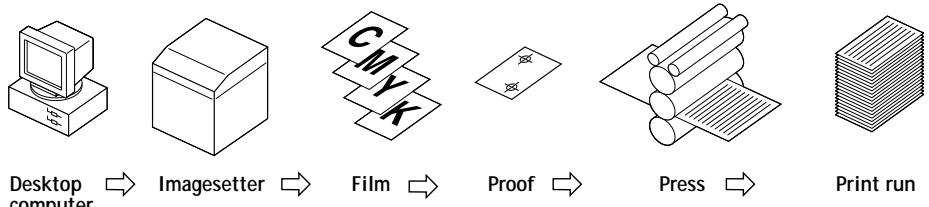
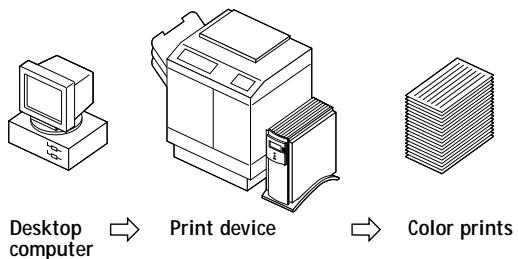
With a Fiery ZX, you simply print the file. The Fiery ZX processes the PostScript information in the file and sends four bitmaps (one each for cyan, magenta, yellow, and black) to the print engine. The ease of Fiery ZX printing makes possible experimentation that would be too costly on press, allowing unlimited fine-tuning of color and design elements.
Halftone and continuous tone devices
Halftoning is used in offset printing to print each process color at a different intensity, allowing millions of different colors to be reproduced using only the four process colors. Depending on the required intensity of a given color, ink is placed on paper in dots of different size. The grid of dots used for each ink color is called a screen. Halftone screens are aligned to unique angles designed to eliminate interference patterns called moiré that can arise with halftoning.
Some color print devices are commonly referred to as continuous tone (or "contone") devices. They do not use traditional halftone screen patterns and angles. However, they do apply dots (in some cases very elongated dots or lines) of different sizes to paper in a process similar to halftoning.
Some Fiery ZX systems have an optional Halftone Printer mode. When this option is selected, the Fiery ZX sends data to the print device as though it were a halftone device, with each device pixel assigned either the maximum amount of toner, or none at all. The halftone option, however, does not use the type of halftone screens used in offset printing, nor does it duplicate results obtained in offset printing.
Even if your color printing is done exclusively on the Fiery ZX, you will encounter concepts from offset printing if you use high-end graphics applications. For example, color controls in illustration applications such as Illustrator are geared toward specifying color for offset printing using process and spot colors. Many applications allow you to specify the screening used for each printing plate.
Using color effectively
The ability to print in color can greatly increase the effectiveness of your message, whether you are printing a presentation or a newsletter, or proofing an ad concept that will later be printed on press. Some potential benefits of using color include:
- Conveying information rapidly by using color cues
- Making use of the emotive aspects of different colors
- Increasing impact and message retention
Color can also be a source of distraction and discord if it is used poorly. This section outlines some tips and concepts that will prove useful as you approach designing color materials.
A few rules of thumb
Try some of the following strategies for creating successful color materials:
- Rather than applying colors indiscriminately, use color to aid comprehension. In presentations, graphs, and charts, use color to highlight patterns and emphasize differences.
- In general, fewer colors work better than many colors.
- Use red as an accent color. Red is particularly effective when used in otherwise monochromatic materials.
- Consider the tastes of your target audience when choosing colors.
- Keep a file of printed color pieces that appeal to you or strike you as effective. Refer to it for ideas when designing your own documents.
Color wheel
A color wheel (plate 8) is a helpful tool for understanding the interrelation of colors. The colors on one side of the color wheel, from magenta to yellow, appear to most people to be warm colors, while those on the other side, from green to blue, appear to be cool. The distance between two colors on the color wheel can help predict how they will appear when seen side by side.
Colors opposite one another on the wheel are called complements (plate 9), and create a striking contrast side by side. This can be the basis for a bold graphical design, but it is an effect you should use with discretion since it can be visually fatiguing. Other bold combinations to consider are split complements (a color and the two colors adjacent to its complement) and triads (three colors evenly spaced on the color wheel). Colors adjacent to one another on the color wheel result in subtle harmonies.
The color wheel simplifies color relationships for the purpose of clarity, showing only saturated or pure colors. Adding the myriad variations of each hue to the palette (more or less saturated, darker or lighter) creates a wealth of possibilities. Taking a pair of complements from the color wheel and varying the saturation and brightness of one or both colors produces a very different result from the pure complements. Combining a light tint of a warm color with a darker shade of its cooler complement often gives pleasing results. Combining a darker shade of a warm color with a light tint of its cooler complement produces an unusual effect you may like.
Once you have mastered the concept of the color wheel, you have a good framework for experimenting with color combinations. Many books targeted at graphic designers show groups of preselected color combinations. Some are organized by themes or moods, and some are based on a custom color system such as PANTONE. The more you develop a critical facility for judging color combinations, the more you will be able to trust your own eye for color. The Bibliography at the back of this manual includes books on design.
Color and text
It is not a coincidence that the overwhelming majority of text you see is printed in black on white paper. Text in black on white is highly legible and is not fatiguing to read for extended periods. For many color materials, using black text on a white background and confining color to graphic elements and headings is a good choice.
Color text can add flair to documents printed on paper when used skillfully, and is widely used in presentations. When using color text, avoid dazzling text and background combinations created from primary complements, especially red and cyan or red and blue; they are visually fatiguing and hard to read. Color text is more legible when distinguished from its background by a difference in lightness—for example, dark blue text on a light beige background. In addition, using many different colors in a string of text makes for a confused appearance and is hard to read. However, using a single highlight color is an effective way to draw the reader's eye to selected words. See plate 10 for color text samples.
When using color text, keep in mind that small font sizes typically do not print in color with the same sharpness as in black. In most applications, black text prints exclusively in black toner, while color text usually prints with two or more toners. Any misregistration between the different toners on paper causes color text to lose definition. You can make test prints to find the smallest point size at which color text prints clearly. When using high-end graphics applications that allow you to specify color as percentages of cyan, magenta, yellow, and black, you can create pure cyan or pure magenta text that prints with the same sharpness as black text. (Pure yellow text is extremely hard to read on anything but a dark or complementary background.)
Registration and trapping
With any print device, there is the possibility that the different toners may print slightly out of register, producing distracting gaps between objects. Trapping is the process of spreading one color slightly into adjacent colors to compensate for any misregistration that might occur when the file is printed. Depending on the job's makeup, you may need to take trapping into consideration for best printed results. See the Bibliography for sources of information on trapping. See also page 2-11 for information on the Black Overprint print option.
Some Fiery ZX systems include a Combine Separations print option. This option can be used with PageMaker and QuarkXPress to proof trapping, overprinting, and other four-color printing effects before creating film separations. With Combine Separations turned on, separations are printed in color on a single page. The Combine Separations print option also enables you to combine Desktop Color Separations (DCS) files to print at high resolution instead of printing the low-resolution master file. For more information, see the Printing Guide.
Raster images and vector images
Two broad categories of artwork can be printed from a personal computer to a color printer: raster and vector images (plate 11).
A raster image, also referred to as a bitmap, is composed of a grid of pixels, each assigned a particular color value. The grid, when sufficiently enlarged, resembles a mosaic made from square tiles. Examples of raster images include scans and images created in painting or pixel-editing applications, such as Photoshop and Painter.
The amount of information found in a raster depends on its resolution and bit depth. The resolution of a raster describes the density of the pixels and is specified in pixels per inch (ppi). The bit depth is the number of bits of information assigned to each pixel. Black and white rasters require only one bit of information per pixel. For photographic quality color, 24 bits of RGB color information are required per pixel, yielding 256 separate levels of red, green, and blue. For CMYK images, 32 bits per pixel are required.
When printing raster artwork, the quality of the output depends on the resolution of the raster. If the raster's resolution is too low, individual pixels become visible in the printed output as small squares. This effect is sometimes called "pixelation."
In vector images, picture elements are defined mathematically as lines or curves between points—hence the term "vector." Picture elements can have solid, gradient, or patterned color fills. Vector artwork is created in illustration and drawing applications such as Illustrator and CorelDRAW. Page layout applications such as QuarkXPress also allow you to create simple vector artwork with their drawing tools. PostScript fonts are vector-based as well.
Vector artwork is resolution-independent; it can be scaled to any size without danger of pixels becoming visible in printed output.
Optimizing files for processing and printing
The following sections provide tips on how to create image files that produce the highest possible print quality while minimizing the processing time and disk space they require.
Resolution of raster images
While a 72 ppi raster image appears sharp on a monitor, the same image would likely appear pixelated when printed to the Fiery ZX. Color print devices are capable of much greater detail than monitors, and require correspondingly higher resolution image files. However, high-resolution files can be large, and therefore cumbersome to transmit over a network, process for printing, store on disk, and edit.
Beyond a certain threshold, a higher image resolution greatly increases file size while having a minimal effect on output quality. The optimal image resolution depends on the resolution of the final print device. Aim for the resolution that optimizes both file size and output quality.
The resolution of a raster image, along with its bit depth and physical dimensions, determine its file size. The following table shows the file sizes of color raster images at different dimensions and resolutions.
| Image size | File size at: | |||
| 100 ppi | 150 ppi | 200 ppi | 400 ppi | |
| RGB/CMYK | RGB/CMYK | RGB/CMYK | RGB/CMYK | |
| 3" x 4" | 0.4/0.5 MB | 0.8/1.0 MB | 1.4/1.8 MB | 5.5/7.3 MB |
| 5" x 7" | 1.0/1.3 MB | 2.3/3.0 MB | 4.0/5.3 MB | 16.0/21.4 MB |
| 8.5" x 11" | 2.7/3.6 MB | 6.0/8.0 MB | 10.7/14.3 MB | 42.8/57.1 MB |
| 11" x 17" | 5.4/7.1 MB | 12.0/16.1 MB | 21.4/28.5 MB | 85.6/114.1 MB |
In this table, the shaded areas indicate that 200 ppi is typically the best trade-off between image quality and file size. However, higher resolutions (e.g., 250 to 300 ppi) may be needed for offset printing, when quality is of the utmost importance, or for images containing sharp diagonal lines.
To find the best image resolution for your purposes, make test prints of some raster artwork at different resolutions. Start with a high-resolution image (400 ppi) and save versions at progressively lower resolutions, down to 100 ppi, using a pixel-editing application such as Photoshop. Always save a copy of the original high-resolution version in case you need to revert to it. The high-resolution data cannot be recreated from a lower resolution version.
Print the files and examine the output. You will likely begin to see a marked deterioration in output quality at resolutions below 200 ppi, while above 200 ppi the improvement may be very subtle.

Raster images prepared for offset printing may need to be at higher resolutions than needed for proofing on your Fiery ZX.
Scaling
Ideally, each raster image should be saved at the actual size it will be placed into the document and at the optimal resolution for the print device. If the image resolution is correct for the print device, there is no quality advantage to be gained by scaling an image down to a percentage of its actual size. If you scale a large image down to a percentage of its actual size, you incur unnecessary file transfer time because the image data for the entire large image is sent to the printer. If an image is placed multiple times at a markedly different sizes in a document, save a separate version of the image at the correct size for each placement.
If you need to place an image at greater than 100% in a document, remember that the output image resolution is affected. For example, if you scale a 200 ppi image to 200% , the image is printed at 100 ppi.
Workflow scenarios
Color print jobs can be divided into two categories:
- Short-run print jobs for which the Fiery ZX is the final print device
- Offset print jobs being proofed on the Fiery ZX
For either type of job, issues of effective color usage, trapping, file optimization, and scaling are important ones. The areas of difference between the workflows for these two types of jobs are outlined in the following sections.
Short-run color printing
For short-run color jobs printed to the Fiery ZX:
- You can work in either the RGB color model or the CMYK color model (see the application notes). When working with RGB colors, you should take advantage of the color rendering capabilities of the Fiery ZX (see Chapter 2).
- When choosing or defining colors in your application, use the Fiery ZX color reference pages to be assured of predictable results (see Chapter 3).
- When printing, choose the appropriate settings for print options that affect color output (see Chapter 2).
- When printing, make sure the resident calibration on the Fiery ZX is the appropriate one for your job. The Fiery ZX includes a calibration target designed for your print device, but you can also create a custom target to achieve particular color effects (see Chapter 2 and the Job Management Guide, which describes Fiery ZX calibration).
Offset printing
For jobs that will be proofed on the Fiery ZX in preparation for being printed on an offset press:
- Work in the CMYK color model only (see the application notes). All elements in your document, including placed images, must be in the CMYK color model to create film separations for printing.
- When choosing or defining colors in your application, use the Fiery ZX color reference pages to be assured of predictable results (see Chapter 3).
- If cost is a factor and the document does not contain CMYK images, consider using two or three PANTONE colors, instead of the standard four process colors (see Chapter 3). This reduces the number of film separations and printing plates needed to print the job.
- If your document contains high-resolution CMYK raster images, you can reduce processing time by saving the images in Encapsulated PostScript (EPS) format with Photoshop using Desktop Color Separations (DCS). A DCS image consists of five separate files—one for each of the CMYK color channels of the image, plus one low-resolution master composite file that you use for placement in the document (see your Photoshop documentation). The low-resolution master file provides a composite preview of the image for screen viewing and is used to print composites. DCS files do not use less disk space than single CMYK files, but they do reduce the amount of time needed to send image data to the printer. DCS files can be used to create film separations as well.
- Use the Combine Separations print option to check for trapping problems (see the Printing Guide).
- Choose the appropriate CMYK Simulation and CMYK Simulation Method settings (see Chapter 2).
Chapter 2: Color Management
This chapter provides information on the factors involved in controlling and managing color output with the objective of achieving predictable color results, including:
- Controlling printed color
- Basics of color management
- Fiery ZX color management
- Optional ICC color management on Mac OS and Windows computers
Controlling printed color
When working with color materials, whether they be presentations, illustrations, or complicated page designs, you make aesthetic decisions about the colors you use. Once you have decided on your goal, you then need to realize it in print. Your color printing system becomes an ally in this creative process to the extent that you can get results that are predictable.
- If you have designed a brochure to print on the Fiery ZX, you want the printed colors to match the design specification.
- If you are printing presentations on the Fiery ZX, you want to preserve the vivid colors in the monitor display.
- If you are working with color that will print on press, you want the Fiery ZX output to match prepress proofs or PANTONE color swatch books.
The type of print job and the final print device, Fiery ZX or offset press, determine the methodology you use to achieve optimal results.
No matter what your goals are, two hardware factors always impact color print output: print device consistency and the range of colors the print device can print, known as its gamut. These factors are covered briefly in this chapter. Creating successful color documents and presentations also requires an understanding of color management software as it is implemented by the Fiery ZX and on your desktop computer. Most of this chapter is devoted to discussing the various elements of color management that contribute to predictable color results.
Maintaining print device consistency
The factors described below affect print device consistency, as well as color fidelity and overall output quality.
Paper stock and toner
The paper and toner used by your print device can greatly affect printed color. For best results, use the supplies recommended by the manufacturer of the print device.
Maintenance
Problems such as streaking and insufficient or excessive amounts of one or more toners arise when a print device does not receive periodic maintenance or needs major repairs. In addition to having it serviced regularly, monitor the condition of your print device by making standard test prints at regular intervals. You can do this easily by printing the Fiery ZX Test Page. Save the prints and show them to the service technician whenever output densities vary from the norm or other problems appear.
Calibration
Output from color print devices is subject to changes in temperature and humidity, and is prone to drift over time, with a resulting loss in color predictability. For this reason, regular service visits alone do not guarantee consistent results from a print device. Where color accuracy and consistency are crucial, regular calibration of the Fiery ZX and print device is necessary.
Calibration compares the measured toner densities from a color print device to a set of target densities and downloads a software correction to the Fiery ZX that keeps the densities consistent. Calibration also optimizes the Fiery ZX's color response for use with the Fiery ZX color management system (see page 2-6).
A resident calibration target is specified during Fiery ZX calibration. The administrator or operator can create custom calibration targets as needed for the specific requirements of your site. For information on performing calibration, see the Job Management Guide, which describes Fiery ZX calibration.
Print device color adjustments
Your print device may allow you to adjust printed color manually. You can typically increase or decrease toner intensity on an individual or global basis. These settings may affect Fiery ZX output. Make sure these settings remain the same (preferably at a neutral position) from one print job to the next. Before performing Fiery ZX calibration, make sure these settings are at a neutral position.
Print device gamut
Different color reproduction techniques have different color capabilities, or gamuts. Color transparency films have comparatively large gamuts, as do color monitors. The color gamut that can be produced using process inks or CMYK toners on paper is smaller. This is why some colors that can be displayed on a color monitor, especially bright saturated colors, cannot be reproduced exactly by your Fiery ZX print device—nor, for that matter, can they be reproduced on a press using process colors. Moreover, different print devices have different gamuts—some colors that your print device can produce cannot be reproduced on an offset press, and vice versa. The following illustration provides a graphical representation of this concept.
Color transparency film
RGB monitor
Offset press (white)
Other print device
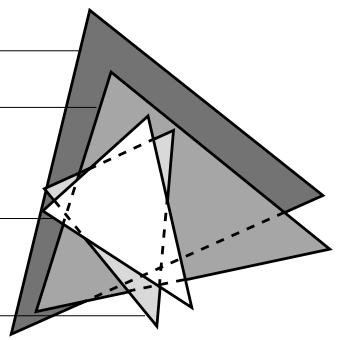
You need to account for the gamut of your print device when designing on a color monitor. When printed, colors that fall outside the print device's gamut are "mapped" to printable colors. This process, referred to as gamut mapping, takes place when color data is converted or adjusted to meet the color space and gamut requirements of a print device.
The Fiery ZX is specially designed to perform gamut mapping at high speed with high quality results. It provides these color management features automatically, using either built-in default settings or settings that you specify for a particular print job. For added flexibility, the Fiery ZX color management system can also be used in combination with color management systems on Mac OS and Windows computers (see page 2-13 and page 2-15).
Basics of color management
The past several years have seen progress toward standardization in the field of digital color management systems. Both the Mac OS and Windows 95 operating systems now support a standard format developed by the International Color Consortium (ICC). This ICC format is implemented on Mac OS computers in ColorSync™ 2.x and on Windows 95 and Windows NT 4.0 computers in Image Color Matching (ICM). More and more software developers are also incorporating color management systems into high-end applications. The Fiery ZX provides a custom color management system that can be used independent of, or together with, platform-based and application-based color management tools.
A color management system, or CMS, is a "translator" between the color space of the image source (the monitor, or a scanner, for example) and the color space of the target print device. The CMS uses a device-independent color space, such as CIELAB, as its reference point (see page 1-2). To perform its translation, the CMS needs information about the color space of the image source and the color space and gamut of the print device. This information is provided in the form of profiles, often created by the makers of the monitor or print device. The end product of a CMS conversion is a printed document or an image file in the color space and gamut of a particular print device.
NOTE: If color matching between computer display and printed output is critical, calibrate your monitor as closely as possible to the printed output. For most users, predictability of printed color output is adequate and monitor calibration is not necessary. For information on monitor calibration, see your Photoshop or Illustrator documentation.
Color conversion
Before a color document can be printed, the color data in it must be converted to the color space and gamut of the print device. Whether performed by Fiery ZX color management or by an ICC CMS, the process of converting color data for a print device is the same: the CMS interprets RGB image data according to a specified source profile and adjusts both RGB and CMYK data according to a specified target profile.
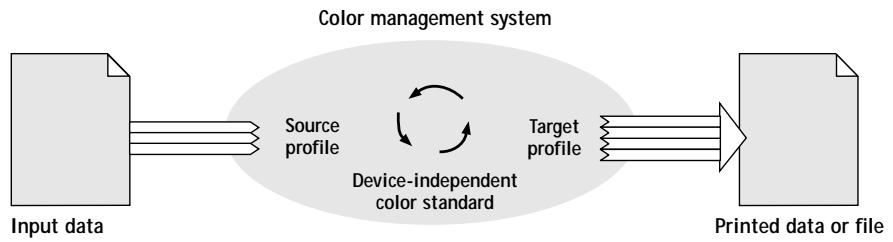
The source profile defines the RGB color space characteristics of the image's source—characteristics such as the white point, the gamma, and the type of phosphors used. The target profile defines the color space characteristics and gamut of the target print device. The Fiery ZX (or the ICC CMS) uses a device-independent color standard to translate between the source color space and the target color space.
The Fiery ZX allows you to specify default and override settings for the source color space information and the target profile information (see "Fiery ZX color management" on page 2-6). When you use these settings, you do not need to use the features of other color management systems. Your Fiery ZX user software includes ICC profiles for use with other color management systems if you choose to use them.
Color management systems can also be used to adjust color data to conform to the gamut of a print device other than the one to which you are printing. This process of simulating another print device is commonly used for proofing jobs that will print on an offset press. The Fiery ZX simulation feature is described on page 2-11.
Fiery ZX color management
The Fiery ZX uses a simple and flexible color architecture that produces excellent color results with default settings. It also allows you to customize your color results using various color controls.
The diagram below illustrates the controls in the Fiery ZX color management process that affect color data conversions. With the exception of the resident calibration, you access these controls via print options when you send a print job. Most of these options and their settings are described in subsequent sections of this chapter.
The output of the Fiery ZX color management process is CMYK data that is ready to be sent to the print device. Additional processing may be performed on board the print device before printing begins.
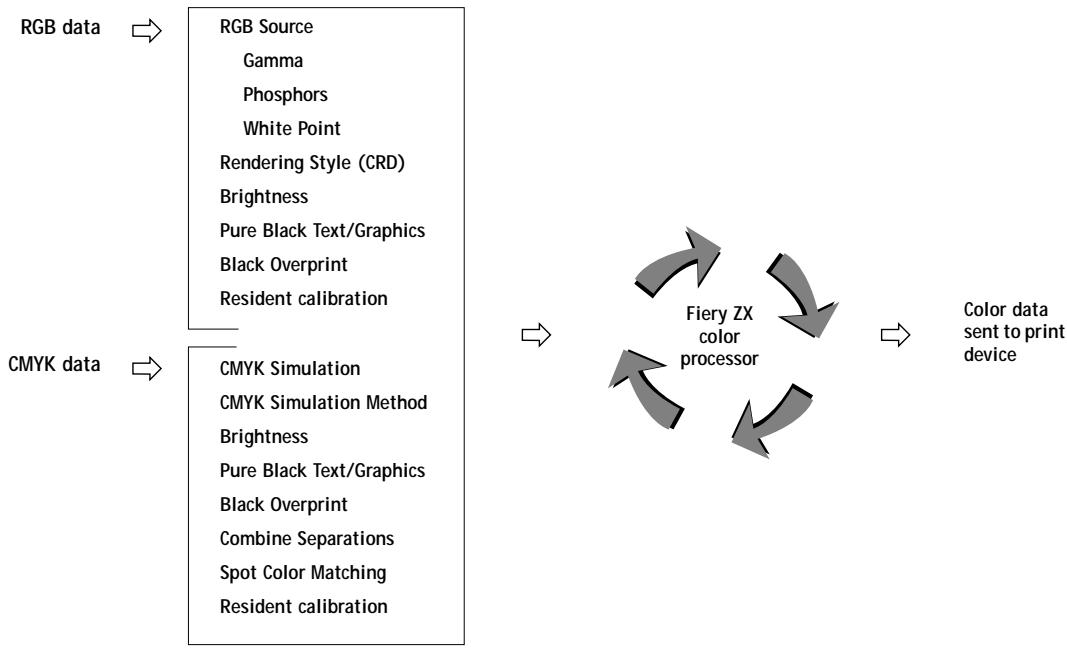
Settings for the following Fiery ZX options can be specified via print options when you send a job. Some can also be set as defaults by the administrator during Fiery ZX Setup. Settings specified via print options override the defaults set at Setup.
| Fiery ZX color print option: | What it does: |
| (Other) Gamma 1.0/1.2/1.4/1.6/1.8/2.0/2.2/2.4/2.6/2.8/3.0 | Applies the specified gamma value to the RGB source space definition (see page 2-8). To use this print option, you must choose Other as the RGB Source setting. |
| (Other) Phosphors Hitachi EBU/Hitachi-Ikegami/NTSC/ Radius Pivot/SMPTE/Trinitron | Applies the specified phosphor (monitor type) information to the RGB source space definition (see page 2-8). To use this print option, you must choose Other as the RGB Source setting. |
| (Other) White Point 5000 K (D50)/5500 K/6500 K (D65)/7500 K/9300 K | Applies the specified white point value to the RGB source space definition (see page 2-8). To use this print option, you must choose Other as the RGB Source setting. If you set this option to anything other than Printer's Default, set the Rendering Style option to Solid Color for best results. The Photographic and Presentation settings of the Rendering Style option use pre-defined white point definitions which override the (Other) White Point setting. |
| Black Overprint On/Off (Default set at Setup) | The On setting overprints black text placed on colored backgrounds. Setting Black Overprint to On automatically activates the Pure Black Text/Graphics option (see page 2-11). |
| Brightness 85% to 115% | Performs a color adjustment on all color channels to make the printed output lighter or darker. |
| CMYK Simulation Method Quick/Full (Default set at Setup) | For CMYK data using a CMYK Simulation, determines whether to use the Quick or the Full simulation method (see page 2-11). |
| CMYK Simulation SWOP-Coated/DIC/Euroscale/ Custom-1 through Custom-5/Match Copy/ None (Default set at Setup) | Adjusts CMYK color data to simulate an offset press standard or a custom color gamut defined at your site. The Match Copy setting bypasses Fiery ZX calibration to produce output that matches a copy made from the copier glass. Choosing None bypasses simulation (see page 2-11). |
| Pure Black Text/Graphics On/Off (Default set at Setup) | The On setting optimizes the quality of black text and line art output (see page 2-10). |
| Rendering Style Photographic/Presentation/Solid Color (Default set at Setup) | Applies a Fiery ZX color rendering style (CRD) to RGB data (see page 2-9). |
| RGB Source EFIRGB/sRGB (PC)/Apple Standard/ Other/Off (Default set at Setup) | Applies an RGB source space definition to RGB data (see page 2-8). If you choose the Other setting, you can specify particular settings for gamma, phosphors, and white point with the following three options. |
| Spot Color Matching On/Off (Default set at Setup) | The On setting enables Fiery ZX matching of PANTONE colors in your document (see page 2-12). |
Explanations of how these settings affect your print jobs are provided in subsequent sections of this chapter.
RGB Source
The RGB Source option is used to provide a source color space definition for RGB data in your document. The setting you specify for this option overrides any source color space profiles you may have specified with other color management systems. For example, if you specified a ColorSync System Profile on your Mac OS computer (see page 2-13), the RGB Source setting overrides it. In cases where you don't want this setting to override another specified source color space, choose the Off setting.
- EFIRGB is recommended for printing to the Fiery ZX. The source color space defined by this setting is optimal for color conversions that will be sent to a Fiery ZX print device. It also allows for consistent output across different platforms.
- sRGB (PC) specifies the source space of a generic Windows computer monitor.
- Apple Standard specifies the source space of all standard Mac OS computer monitors.
If you set RGB Source to Off, PostScript RGB data (such as RGB EPS images) and nonPostScript RGB data (such as RGB TIFF images) are converted differently by the Fiery ZX color management system.
- PostScript RGB data is converted using the CRD specified by the Rendering Style option (see page 2-9). PostScript RGB data contains its own source color space information which is used as a reference point for the conversion.
- NonPostScript RGB data is converted using a general under-color-removal conversion method. NonPostScript RGB data does not contain source color space information and so cannot be converted using a CRD.
Rendering styles
The Rendering Style option is used to specify a CRD for color conversions. The following table describes the various color rendering styles (CRDs) provided with Fiery ZX software and provides guidelines on when to use each one. Each color rendering style uses a different gamut mapping method, such as Photographic or Solid, designed for a particular kind of color usage.
The ICC rendering styles referred to in the table are settings you can choose when specifying a target profile with an ICC color management system (see the application notes.)
| Fiery ZX rendering style: | Best used for: | Equivalent ICC rendering style: |
| Photographic—Preserves tonal relationships in images rather than exact colors. This rendering style maps out-of-gamut RGB colors to printable CMYK colors in a way that retains differences in lightness. Color accuracy is sacrificed slightly in favor of presenting color relationships in the way the human eye perceives them. Photographic rendering typically gives less saturated output when printing out-of-gamut RGB colors than Solid Color rendering does. | Continuous tone photographs, including scans and images from stock photography CDs | Image and Contrast and Perceptual |
| Presentation—Creates bright saturated colors. This rendering style does not try to match printed colors precisely to displayed colors but instead provides vibrant, dense colors. Photographic images, however, are treated the same way as by the Photographic rendering style. | Artwork and graphs in presentations and continuous tone photographs | Saturation and Graphics |
| Solid Color—Provides best color accuracy and preserves the saturation of displayed colors. This rendering style matches RGB colors to printable CMYK equivalents wherever possible and maps out-of-gamut RGB colors to the closest printable colors. | Spot colors and graphic images (Solid Color rendering may not be appropriate for printing saturated RGB color blends, since artifacts such as banding may occur) | Colorimetric |
Pure Black Text/Graphics
The Pure Black Text/Graphics option provides a way to optimize the quality of black text and line art by printing one-color black at the full density of your print device. Setting this option to On can also minimize the amount of toner used when printing documents consisting of a mixture of color and black-only pages.
NOTE: The Pure Black Text/Graphic option is automatically set to On when the Black Overprint option is set to On.
The Pure Black Text/Graphics option affects only black text and line art elements defined in RGB as R0% , G0% , B0% , or in CMYK as C0% , M0% , Y0% , K100% . It does not affect colors in continuous tone images.
- On—Black text and line art are printed using black toner only at the maximum toner density of the print device. This setting eliminates the potential for blasting and misregistration of colors that exists when using a four-color black.
- Off—Black text and line art defined as R0% , G0% , B0% are printed using all four colors of toner. This setting should be used when a rich black is desired. Black text and line art defined as C0% , M0% , Y0% , K100% are printed using black toner only, but may not print at the maximum toner density of the print device.
The Pure Black Text/Graphics option can be used only when printing composites, not when printing separations.
NOTE: PostScript applications (for example, QuarkXPress) may convert elements defined as R0%, G0%, B0% to four-color CMYK black before sending the job to the Fiery ZX. These elements are not affected by the Pure Black Text/Graphics option. See the application notes for details. Also, black text and line art defined as R0%, G0%, B0% in office applications (such as Microsoft Word) are converted to single-color black (K100%) by the Microsoft PostScript Level 2 driver for Windows NT 4.0 and the Adobe PostScript 3 driver for Windows 3.1x. To print this single-color black at the maximum toner density of the print device, set the Pure Black Text/Graphics option to On.
Black Overprint
The Black Overprint option lets you specify whether or not black text (defined in RGB as 0% , 0% , 0% , or in CMYK as 0% , 0% , 0% , 100% ) overprints colored backgrounds. As the Black Overprint option requires the presence of text defined with the above parameters, setting Black Overprint to On automatically activates the Pure Black Text/Graphic's option.
- On—Black text overprints colored backgrounds, eliminating any potential for halo effects or misregistration of colors.
- Off—Black text knocks out colored backgrounds.
To use this option, the Compression option must be set to On. Generally, the Black Overprint option should be set to On.
CMYK Simulation
There are several print option settings that affect output when printing press proofs or simulations. These options affect CMYK data only.
The CMYK Simulation setting specifies the offset press standard or other color gamut that you want to simulate. simulations using Fiery Print Calibrator (see the Job Management Guide).
The CMYK Simulation setting you should specify depends on the press standard for which the CMYK data was separated. For example, for images that were separated for SWOP, choose SWOP-Coated as the CMYK Simulation setting. For images that were separated using a custom separation (such as a device-specific separation or a separation produced with an ICC profile), choose None as the CMYK Simulation setting.
CMYK Simulation Method
The CMYK Simulation Method setting specifies the quality of simulation to perform. Quick simulation applies one-dimensional transfer curves that adjust output density only. Full simulation provides a more complete and accurate simulation by applying four-dimensional transfer curves that adjust hue as well as output density. Depending on image size and resolution, Full simulation may take more time than Quick simulation.
Spot Color Matching
The Spot Color Matching option provides automatic matching of PANTONE library colors with their best CMYK equivalents.
- On—The Fiery ZX uses its built-in lookup table to generate the closest CMYK matches of PANTONE colors your print device can produce.
- Off—The Fiery ZX uses the CMYK equivalents defined by your application to print PANTONE colors.
For jobs that contain PANTONE library colors, set Spot Color Matching to On unless you are printing press simulations. When printing press simulations, set Spot Color Matching to Off and choose the appropriate CMYK Simulation setting (see page 2-11).
The Spot Color Matching option can be used only when printing composites, not when printing separations.
Spot Color Matching and the PANTONE Coated Color Reference Book
The PANTONE Coated Color Reference Book (described on page 3-6) prints differently depending on the Spot Color Matching setting.
- On—When you print the PANTONE Coated Color Reference Book, the Fiery ZX uses its built-in lookup table to generate the best matches of the PANTONE colors that your print device can produce. The PANTONE number is printed below each swatch.
- Off—When you print the PANTONE Coated Color Reference Book, the Fiery ZX prints swatches using the CMYK values recommended by Pantone (and used by applications that provide PANTONE color libraries). The CMYK values used to generate the color, as well as the PANTONE number of the color, are printed below each swatch.
Optional ICC color management for advanced users
This section describes how the ICC color management systems implemented on Mac OS and Windows platforms can be used in combination with Fiery ZX color management. You do not need to use the Mac OS or Windows color management systems to get good color printing results—the Fiery ZX provides its own built-in color management. This information is provided for advanced users with particular customization requirements.
Color management on Mac OS computers
The Mac OS includes the ICC ColorSync 2.x color management system. The AdobePS 8.5.1 printer driver (included in the Fiery ZX user software) supports ColorSync 2.x features and all other PostScript Level 2 and 3 printing features. You can use the AdobePS printer driver to control color conversions of RGB data with ColorSync profiles. Some PostScript applications also provide independent color management features that use ColorSync profiles.
To use the AdobePS driver to perform color management, choose the ColorSync Color Matching setting and specify a ColorSync printer profile when you print (see page 4-2). With these settings, the AdobePS driver performs color conversions and sends the resulting color data to the Fiery ZX. For information on color management tools provided with applications, see the application notes.
Source color space profiles
You can specify a ColorSync source color profile for your Mac OS computer with the ColorSync Control Panel (see Getting Started). The recommended source color profile for printing to your Fiery ZX print device is the EFIRGB ICC profile included in your Fiery ZX user software. The source color space defined by this profile is the same as that defined by the EFIRGB setting of the RGB Source option (see page 2-8).
The RGB Source setting overrides the ColorSync System Profile setting for RGB data sent to the Fiery ZX. If you do not want the ColorSync profile setting to be overridden, set the RGB Source print option to Off.
The RGB Source setting does not override other source profile settings in cases where you use the printer driver or your application's color management system to perform color conversions. For example, if you print using the ColorSync Color Matching setting (as described above), the printer driver performs the color conversion and sends CMYK data to the Fiery ZX. In another example, if you assign a ColorSync source profile to an RGB image placed in a document, the application performs the conversion to CMYK and the assigned source profile is not overridden by the RGB Source setting. In these cases, where CMYK data is sent to the Fiery ZX, choose an appropriate CMYK Simulation setting for the print job.
Target profiles
The target profile, or printer profile, contains information about the color space and gamut of the target print device. If you use the ColorSync Color Matching setting of the AdobePS driver, you must specify the printer profile that ColorSync will use to perform its color conversions.
Some applications let you assign ColorSync target profiles to RGB images you place in a document (see the application notes). When you print the document, the application performs color conversions on the placed images, using the profiles you specified, and embeds the resulting color data in the document. Three rendering styles are included in a ColorSync profile, each tailored for a specific type of color output (see page 2-9).
See Chapter 4 for information on print option settings that affect printed color.
Color management on Windows computers
The Windows 95 and Windows NT 4.0 operating systems include the Image Color Matching (ICM) color management system.
-
The AdobePS4 printer driver for Windows 95 (included in your Fiery ZX user software) supports ICM features and all PostScript Level 2 and 3 printing features. With Windows 95, you can instruct the Adobe PS4 driver to perform color management using ICM. To do this, select the "Use image color matching" option in the Graphics tab of the printer's Properties dialog box. If the "Use image color matching" option does not appear, make sure that the printer's ICM profile is installed in the Windows\System\Color folder (for instructions, see Getting Started). With the proper ICM settings, the printer driver performs color conversions and sends the resulting color data to the Fiery ZX.
-
The Microsoft PostScript Level 2 Printer Driver for Windows NT 4.0 does not currently support all ICM features.
- Some PostScript applications also provide independent color management features that use ICM profiles (see the application notes).
Source color space profile
A default source color space is defined for every Windows computer monitor. The RGB Source setting overrides this default source color space (see page 2-8). If you do not want the monitor's default source color space to be overridden, set the RGB Source print option to Off.
The RGB Source setting does not override other source profile settings in cases where you use the printer driver or your application's color management system to perform color conversions. For example, if you print with Windows 95 using Image Color Matching (as described above), the printer driver performs the color conversion and sends CMYK data to the Fiery ZX. In another example, if you assign an ICM source profile to an RGB image placed in a document, the application performs the conversion to CMYK and the assigned source profile is not overridden by the RGB Source setting. (See the application notes for information on the color management tools available with different applications.)
Target profiles
The target profile, or printer profile, contains information about the color space and gamut of the target print device. If you use the "Use image color matching" option of the Adobe driver for Window 95, you must install the printer profile that ICM will use to perform its color conversions.
Some applications let you assign ICM target profiles to RGB images that you place in a document (see the application notes). When you print the document, the application performs color conversions on the placed images, using the profiles you specified, and embeds the resulting color data in the document. Three rendering styles are included in an ICM profile, each tailored for a specific type of color output (see page 2-9).
See Chapter 4 for information on print option settings that affect printed color.
Chapter 3: Working with Color in Applications
This chapter provides guidelines for defining colors in your documents to produce the results you want. The following topics are covered:
- Factors affecting how you work with color
- Choosing colors with QuickDraw and GDI applications, such as presentation applications and word processing programs
- Choosing colors with PostScript applications, such as page layout programs, illustration programs, and pixel-editing applications
Working with color
The two main factors that influence how you work with color in your documents are the application you use and the final print device.
Applications vary in the methods they provide for choosing colors and in the way they transmit color data to the print device.
- Office applications such as presentation software, spreadsheets, and word processing programs use the RGB color model.
- PostScript applications such as illustration, pixel-editing, and page layout applications use the CMYK color model.
The type of printing you plan for the document—short-run printing on the Fiery ZX versus offset press printing—determines the way you define colors as well as the print option settings you choose.
- For short-run printing on the Fiery ZX, use any type of application and define colors in either RGB or CMYK. Choose the appropriate settings for print options affecting color output (see Chapter 2).
- For offset printing jobs, use a PostScript application and define colors in CMYK. Placed images should also be CMYK. Choose the appropriate settings for print options affecting color output (see Chapter 2).
Color reference pages
Your Fiery ZX user software includes several types of color reference pages that let you see the range of colors your print device can produce. You can be assured of predictable color results if you use the color reference pages when defining the colors you want to use in your document.
- RGB color reference pages—a Microsoft Word file and a Microsoft PowerPoint file that let you view the colors available in the standard palettes of office applications and see how those colors print on the Fiery ZX (see page 3-3).
- CMYK pages—a downloadable PostScript file of CMYK color patches in the range of colors your print device can print (see page 3-5).
Office applications
PostScript printers such as the Fiery ZX must receive PostScript instructions to print an image or a document. Many applications do not create these PostScript instructions by themselves, and instead rely on the printer driver to create them. Included in this category are most word processors, spreadsheets, and presentation packages. These applications use Apple QuickDraw! to display and print when running on Mac OS computers; they use the Windows Graphics Device Interface (GDI) to display and print when running under Windows. We refer to these QuickDraw and GDI applications as "office applications."
All office applications handle color similarly, using the same RGB color model used for the color monitor display. Most office applications allow you to choose colors from a palette of preselected colors; some allow you to add new colors to the palette using a color picker. Although some applications allow you to specify color using the CMY, HSL, and HSV color models, these applications always send RGB color data to the Fiery ZX. (An exception to this is a CMYK EPS file placed in the document, which is sent as CMYK data.)
When working with color in office applications, keep in mind that:
-
The range of colors that can be displayed in RGB on your monitor is much larger than the range of colors that can be printed on your print device (see page 2-3). When you print the document, out-of-gamut RGB colors are mapped to colors your print device can produce.
-
These applications send only RGB data to the Fiery ZX. You control the rendering intent of the color conversion with your selection of a CRD.
Each CRD uses a different color rendering style, and therefore has a different way of mapping unprintable colors to your print device's color gamut. Fiery ZX color rendering styles are described on page 2-9.
Choosing colors in office applications
Two RGB color reference pages, a Microsoft Word file and a Microsoft PowerPoint file, are provided with your Fiery ZX user software. Print these files using different CRDs to see how the colors appear when printed to the Fiery ZX. For best results, print the color reference page using the same media and CRD you plan to use for your final document. Select the colors you want to use from the printed version of the RGB color reference page and then use those colors in your document.
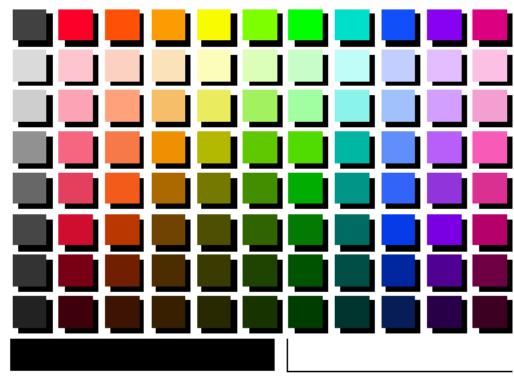
RGB Color Reference
RGB Color Reference page (Microsoft PowerPoint)
PostScript applications
Most applications used for illustration, pixel editing, and page layout can create the PostScript information they send to PostScript printers or save in PostScript files. Illustrator, Photoshop, PageMaker, QuarkXPress, and FreeHand are all PostScript applications.
Generally, PostScript applications send color information to the Fiery ZX in CMYK. An exception to this is RGB images placed in the document which are sent directly to the Fiery ZX (unless you specify special color management settings in your application). In addition, some PostScript applications that allow you to define colors in RGB or other color models can also send the data in those color spaces.
Color controls in PostScript applications are typically designed for printing on an offset press, and some adjustments are required for printing to the Fiery ZX. Displayed versions of colors you choose in these applications may not match Fiery ZX output exactly, and named colors may not print accurately on the Fiery ZX, since these colors typically require custom inks.
Choosing colors in PostScript applications
With PostScript applications, you can create colors using any of the color models supported by the application. All PostScript applications support the CMYK model; some also support the RGB model and other color models based on monitor display values. PostScript applications also allow you to choose named colors using one or more color libraries, such as PANTONE.
The important thing to remember when creating or choosing colors is that the displayed versions of those colors may not match Fiery ZX output or the output of identically defined colors from other color print devices. For this reason, you should use swatch color matching to ensure predictable color printing results with the Fiery ZX or to match your Fiery ZX color output to colors produced by other print devices.
Swatch color matching
Your Fiery ZX user software includes downloadable PostScript files of reference pages for CMYK colors and. By choosing colors from these reference pages, you can be sure of obtaining the same color from your print device.
NOTE: Swatch color matching does not match monitor colors to printed colors. For this you must use a color management system and calibrate your monitor to the color output of your print device.
Using the CMYK color reference pages
The CMYK color reference pages, included with your Fiery ZX user software, let you see how various cyan, magenta, yellow, and black combinations look when printed on your print device. Using the CMYK color reference pages, you can easily determine the CMYK values to specify to obtain the printed colors you want.
The CMYK color reference file is a PostScript file that prints 11 letter/A4-size pages.
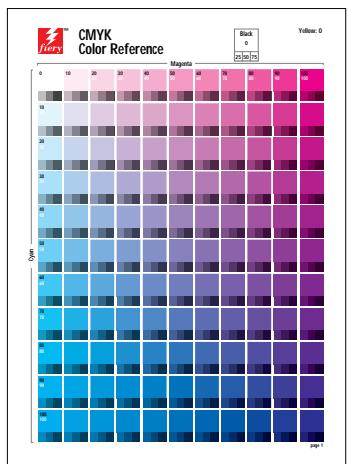
CMYK color reference page
To use the CMYK color reference pages, download the file using Fiery Downloader. The printed pages display groups of color patches in graduated combinations of yellow, magenta, and cyan, and smaller patches that include 25, 50, and 75% black. Refer to these pages to pick colors and specify process color values in your application. (For the location of the CMYK color reference file, see Getting Started. For instructions on using Fiery Downloader, see the Printing Guide.)
NOTE: If you plan to later print your document on a press, you may need to adjust the process values to duplicate the colors from your Fiery ZX.
Using the PANTONE Coated color reference book
The PANTONE Coated color reference book, included with your Fiery ZX user software, can help assure predictable results with colors chosen from the PANTONE Coated color library. The PANTONE Coated color reference book is a PostScript file that prints 19 letter/A4-size pages.
The information printed by the PANTONE Coated color reference book depends on the setting of the Spot Color Matching option.
- On—Prints swatches of the closest equivalents of PANTONE colors your print device can produce. The equivalent PANTONE color name is printed below each swatch.
- Off—Prints swatches of the CMYK equivalents of PANTONE colors as defined by Pantone. (These are the same CMYK values defined in applications that include PANTONE libraries.) The CMYK values used to produce the color, as well as the PANTONE color number, are printed below each swatch.
To print the PANTONE Coated color reference book, download the file to the Fiery ZX using Fiery Downloader. (For the location of the file, see Getting Started.) If the default Spot Color Matching setting on the Fiery ZX is not the setting you want to use for printing the PANTONE colors, download the file to the Hold queue. Then use Fiery WebSpooler or the Command WorkStation to override the Spot Color Matching setting.
Resident calibration
The resident calibration on the Fiery ZX is applied to all data in the print job, so make sure the resident calibration is the right one for your job. The Fiery ZX includes a calibration target designed for your particular print device; by default, this target is the resident calibration.
In certain cases you may wish to create and use a custom calibration target to achieve particular color effects (see the Job Management Guide). If a custom target is resident on the Fiery ZX, the custom calibration is applied to all data except CMYK data to which a CMYK Simulation is applied.
CMYK simulation
If you are using the Fiery ZX to print proofs for an offset press job or to simulate another print device, choose the appropriate CMYK Simulation and CMYK Simulation Method print option settings.
Chapter 4: Printer Drivers and Print Options
This chapter describes the role of the printer driver in your workflow and explains how to use Mac OS and Windows printer drivers for Fiery ZX printing. It includes the following topics:
- An explanation of what a PostScript Level 2 or 3 printer driver does
- Information on the capabilities of various printer drivers
- Instructions for setting color options with the Adobe PostScript printer drivers for Mac OS, Windows 95, and Windows 3.1x
- Instructions for setting Fiery ZX print options with the Microsoft PostScript Level 2 printer driver for Windows NT 4.0
What a printer driver does
To take full advantage of the features of the Fiery ZX, your print jobs must be sent as PostScript Level 2 (or higher) files. Most applications cannot create this PostScript data directly. It is the function of a printer driver to interpret the instructions generated by the application and convert them into PostScript data.
A PostScript Level 2 or 3 printer driver also allows you to select print options specific to your print device. To do this, the printer driver must be matched with a PostScript printer description file (PPD) for your Fiery ZX. The PPD contains information about the particular features supported by the Fiery ZX and the print device. When you print a job, the printer driver lets you choose among features by specifying print options.
A few PostScript applications (for example, PageMaker 6.5) can send PostScript Level 2 data directly to the print device and present print options within the application interface. Even these applications, however, require that you use a PostScript Level 2 or greater printer driver.
Your Fiery ZX user software includes Adobe printer drivers for Mac OS, Windows 95, and Windows 3.1x computers. These are the recommended printer drivers for printing to the Fiery ZX.
For Windows NT 4.0 computers, use the Microsoft PostScript Level 2 printer driver included with Windows NT 4.0. Printer descriptions are available on your Fiery ZX User Software CD.
Adobe PostScript Printer Driver for Mac OS
This section explains how to set color management print options with the AdobePS 8.5.1 printer driver for Mac OS. AdobePS is a PostScript 3 driver that can take full advantage of the color features of the Fiery ZX, and lets you save a set of print option settings that you use often.
Before you proceed, make sure you have completed the following procedures:
- Install the AdobePS printer driver and the Fiery ZX PPD as described in Getting Started.
- Select the Fiery ZX in the Chooser and match it with the Fiery ZX PPD.
NOTE: The following illustrations and instructions do not apply to all applications. Some applications, such as PageMaker 6.5, handle color management settings independently of the printer driver. For information on specific applications, see the application notes.
Setting color management print options
You choose print options from the various panes of the AdobePS driver dialog box.
NOTE: The word "pane" is used to describe the different "pages" that appear in the driver's dialog box when you make selections from pull-down menus in the dialog box. Each pane presents a particular set of print options.
To access the initial AdobePS dialog box, choose Print from your application's File menu.
The AdobePS driver offers you the following three Color Matching options.
- PostScript Color Matching—This option is intended for use with PostScript Level 2 (or higher) printers such as the Fiery ZX. It provides for color conversion on the Fiery ZX using a color rendering dictionary resident on the printer (i.e., a Fiery ZX CRD) or a color rendering dictionary that is downloaded with the print job. Typically you should use this option for printing to the Fiery ZX.
- ColorSync Color Matching—This option provides for color conversion on the computer using a color rendering dictionary generated by ColorSync from an ICC profile. This option can be used with PostScript Level 2 printers such as the Fiery ZX, but is intended for use with PostScript Level 1 printers, or in cases where the computer's processing capability exceeds that of the printer, or for use with customized ICC profiles. If you use this option, be sure to specify your custom ICC profile or the Fiery ZX ICC profile as the Printer Profile.
- Color/Grayscale—This option maps color data to grayscale shades for monochrome printers and provides a generic color conversion for color print devices.
Setting Fiery ZX color management options
In the AdobePS Print dialog box, choose Color Matching from the pull-down menu.
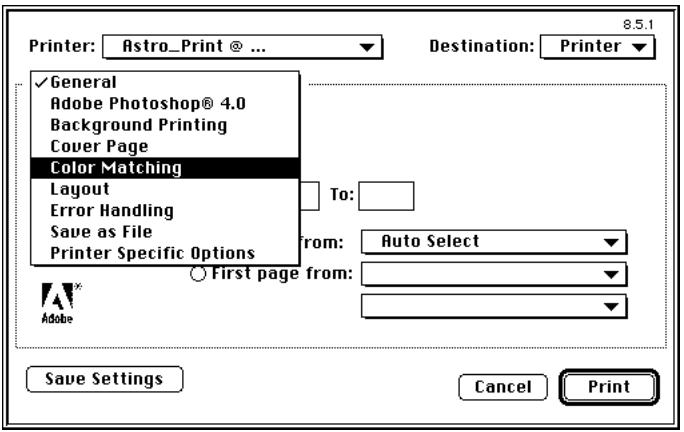
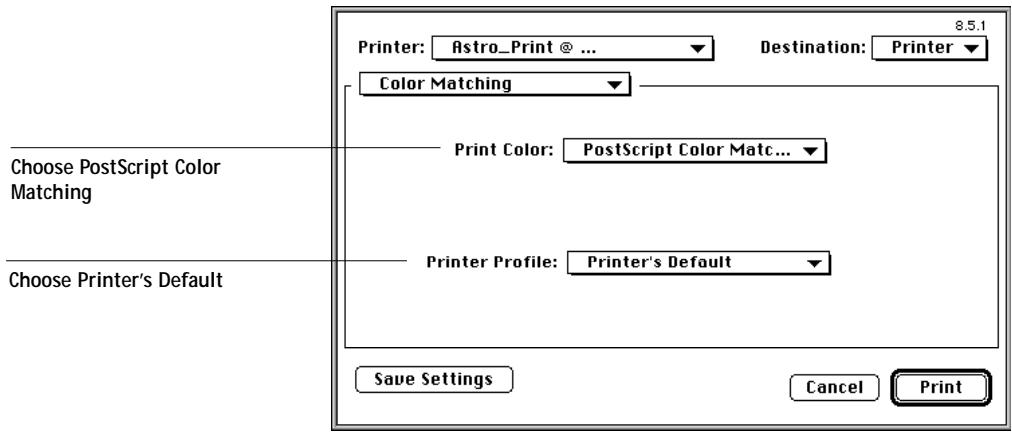
In the Color Matching pane, choose PostScript Color Matching as the Print Color setting and choose Printer's Default as the Printer Profile setting.
Note: The Printer Profile setting must be Printer's Default. If you choose a named printer profile from this menu, it overrides any Rendering Style setting you choose.
In the Printer Specific Options pane, choose settings for the print options described in Chapter 2.
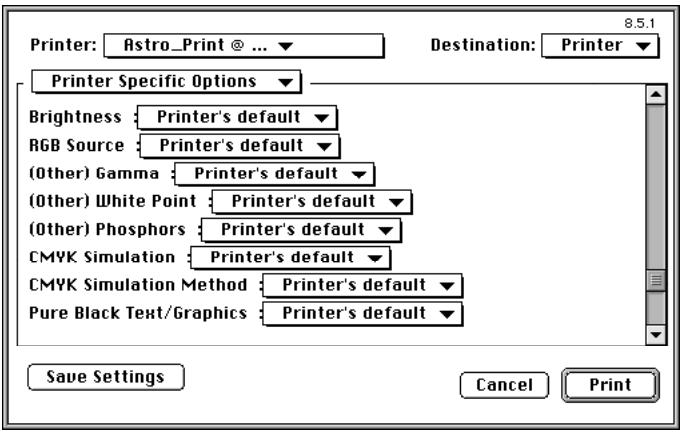
If these settings are ones you use regularly, click Save Settings to preserve them for subsequent jobs.
The AdobePS driver writes a PostScript file containing the instructions generated by your application and the Fiery ZX print options you selected. The driver sends the PostScript file to the Fiery ZX. The Fiery ZX performs PostScript processing and color conversions according to the settings you chose and sends rasterized color data to the print device.
Adobe PostScript Printer Driver for Windows 95
This section explains how to set Fiery ZX color print options with the Adobe PostScript Printer Driver version 4.2.x for Windows 95.
Before you proceed, make sure you have completed the following procedures described in Getting Started.
- Install the Adobe PostScript Printer Driver version 4.2.x and Fiery ZX PPD.
- Set up the Fiery ZX for printing.
Setting color management print options
The printer driver options described in this section can be set from the Printers Control Panel or from the Print Setup or Page Setup dialog boxes of most applications. It is recommended that you set these options initially from the Windows Control Panel as described in this section. This provides you with a default configuration that is appropriate for most Fiery ZX print jobs. You can choose different settings for individual jobs from the applications you use.
To set default print options, open the Printers Control Panel, right-click the Fiery ZX, and select Properties. For more information on how to access the dialog boxes shown in this section, see the Printing Guide.
NOTE: The following illustrations and instructions do not apply to all applications. Some applications, such as PageMaker 6.5, handle color management settings independently of the printer driver. For information on specific applications, see the application notes.
In the Fiery Options tab (or the Device Options tab), choose settings for the print options described in Chapter 2.
The printer driver writes a PostScript file containing the instructions generated by your application and the Fiery ZX print options you selected. The driver sends the PostScript file to the Fiery ZX. The Fiery ZX performs PostScript processing and color conversions according to the settings you chose and sends raster color data to the print device.
Adobe PostScript Printer Driver for Windows 3.1x
This section explains how to set Fiery ZX color print options with the Adobe PostScript Printer Driver for Windows 3.1x.
Before using the instructions in this section, make sure you have installed the printer driver and Fiery ZX PPD and set up the Fiery ZX for printing, as described in Getting Started.
Setting color management print options
The printer driver options described in this section can be set from the Windows Control Panel or from the Print Setup or Page Setup dialog boxes of most applications. It is recommended that you set these options initially from the Windows Control Panel as described in this section. This provides you with a default configuration that is appropriate for most Fiery ZX print jobs. You can choose different settings for individual jobs from the applications you use.
To set default print options, open the Printers Control Panel and select the Fiery ZX in the Installed Printers box. For more information on how to access the dialog boxes shown in this section, see the Printing Guide.
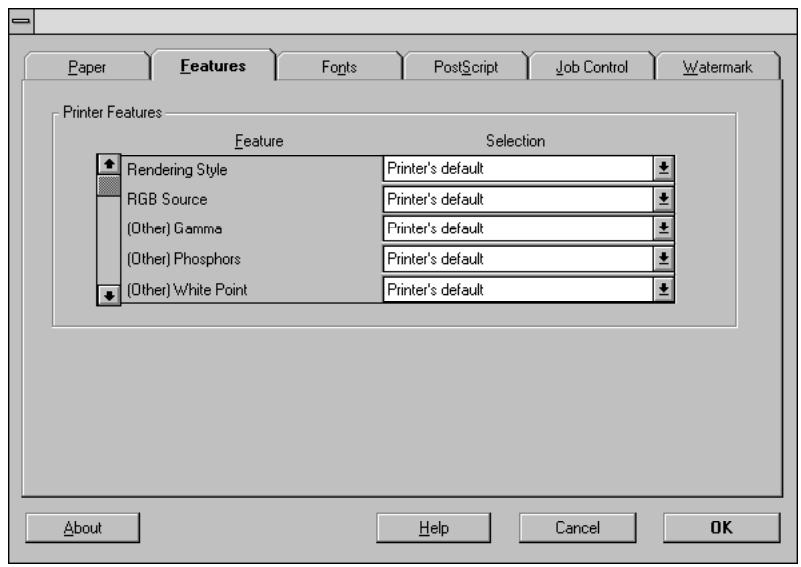
In the Features tab, choose settings for the print options described in Chapter 2.
Microsoft PostScript Printer Driver for Windows NT 4.0
The printer driver options described in this section can be set from the Printers Control Panel or from the Print Setup or Page Setup dialog boxes of most applications. It is recommended that you set these options initially from the Printers Control Panel as described in this section. This provides you with a default configuration that is appropriate for most Fiery ZX print jobs. You can choose different settings for individual jobs from the applications you use.
To set default print options, open the Printers Control Panel, right-click the Fiery ZX, and select Document Defaults. For more information on how to access the dialog boxes shown in this section, see the Printing Guide.
NOTE: The following illustrations and instructions do not apply to all applications. Some applications, such as PageMaker 6.5, handle color management settings independently of the printer driver. For information on specific applications, see the application notes.
From the Advanced tab of the Document Properties dialog box, choose settings for the print options described in Chapter 2.

Chapter 5: Adobe Photoshop 5.0
This chapter covers features of Photoshop version 5.0 for Mac OS and Windows. The illustrations show only Mac OS dialog boxes, but the information and instructions apply equally to the Windows version of Photoshop.
Before you begin
Because Photoshop 5.0 uses a sophisticated color management system, there are several setup steps you should take before you begin working. These steps include calibrating your monitor, adjusting Photoshop 5.0 color settings, and setting ColorSync defaults (Mac OS only).
For information on monitor calibration, see your Adobe Photoshop 5.0 documentation.
Photoshop 5.0 settings
Photoshop 5.0 has three setup dialogs which control how color is managed when opening and saving RGB and CMYK images. Profile Setup, RGB Setup, and CMYK Setup should all be completed before you begin working in Photoshop.
Profile Setup
From the Photoshop 5.0 File menu, select Color Settings>Profile Setup.
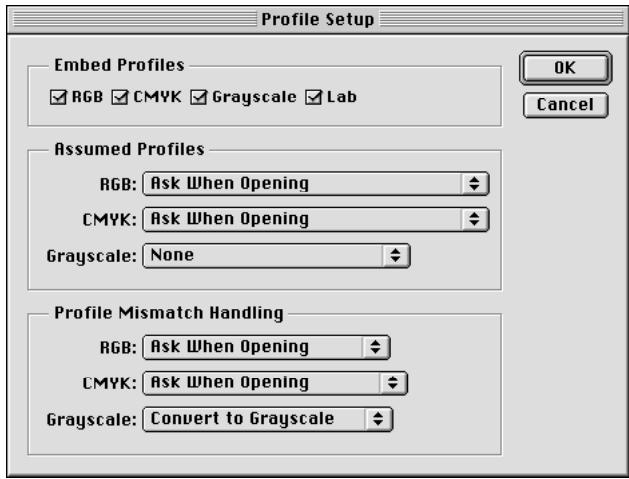
In the Embed Profiles area, check all boxes. This will embed the appropriate profile when saving a file. Photoshop will then know for which specific device the file has been designed, tagging your file as device specific.
In the Assumed Profiles area, select Ask When Opening for RGB and CMYK. When opening files that do not contain an ICC profile, you will have the choice to convert the file to your current Photoshop working space setting or leave the file unconverted. The latter is usually preferred, but you should make sure that the current Photoshop working space setting matches the intended color space of the image.
In the Profile Mismatch Handling area, select Ask When Opening for RGB and CMYK. When opening a file that contains an ICC profile that does not match your current Photoshop working space setting, you will have the choice to convert from the embedded profile or not convert. If you want to preserve the full gamut of the image source, choose not to convert. If your working space is set to your output device, you may want to convert.
RGB Setup
Photoshop 5.0 allows you to simultaneously use two RGB spaces, one for the monitor and one for the Photoshop RGB working space. The monitor RGB space setting does not affect the image data in the file; it only affects the way the image is displayed on the monitor. Even if an RGB image has been prepared with different monitor settings, it will still be correctly displayed on your monitor, without changes to the original values in the file.
From the Photoshop 5.0 File menu, select Color Settings>RGB Setup.
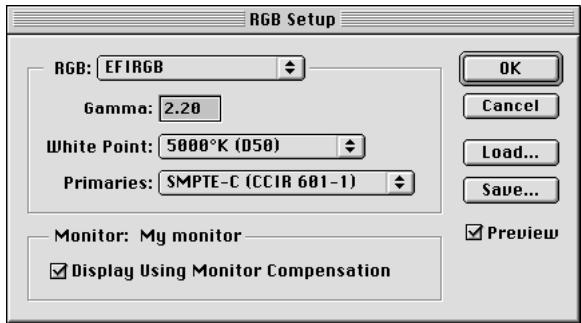
From the RGB pop-up menu, select your current Photoshop RGB color space. This should reflect the color space of the RGB files you will be opening. If you create new RGB files, or if you want to standardize your RGB files, select EFIRGB. Click Load if the file is not visible in the RGB pop-up menu. You can load the Calibrated RGB setup file, EFIRGB ICC ColorSync file, or the EFIRGB.ICM file. All describe the same RGB space and automatically set the Gamma, White Point, and Primaries. sRGB may be considered if you are using non-professional color software on a PC and you rely on a Windows operating system to manage the color of your monitor. You will then get more consistent results as long as you also print with the RGB Source option set to sRGB.
The Monitor area shows the currently selected profile in the ColorSync Control Panel. Turn on the Display Using Monitor Compensation and Preview options.
CMYK Setup
From the Photoshop 5.0 File menu, select Color Settings>CMYK Setup.
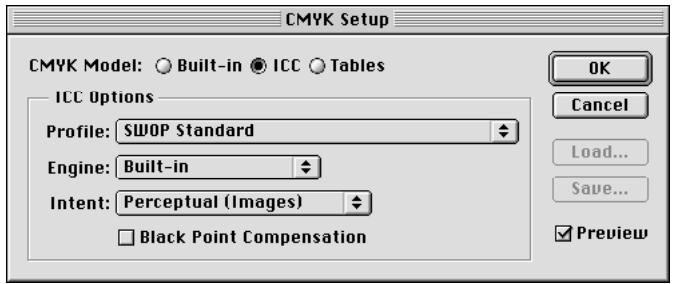
For CMYK Model, select ICC. Previous versions of Photoshop used Photoshop Separation Tables, and these can be loaded for Photoshop 5.0. However, you will get better results using ICC profiles and the built-in color management system.
In the ICC Options area, select Profile, Engine, and Intent settings. For Profile, select your final output printer ICC profile. Pre-press users will select an ICC describing their target press (i.e. SWOP). A variety of press ICC profiles are available at http://www.colorsync.com. Office users should select the ICC profile describing the copier connected to the Fiery ZX. In this case, you should avoid converting RGB to CMYK in Photoshop. Instead, leave images in RGB and allow the Fiery ZX to convert them to CMYK.
For Engine, select Built-in. This indicates that the Photoshop engine will be used which is highly recommended for normal Photoshop usage.
For Intent, select Perceptual (Images). This is appropriate for photographs which are normally edited in Photoshop. If you are creating synthetic colors, you may want to use Colormap or Saturation.
Black Point Compensation should be unchecked for richer, denser CMY blacks. Preview should be checked.
ColorSync defaults
You should have ColorSync 2.5 installed on your Mac OS computer. The ICC profiles used by ColorSync are saved in System Folder:ColorSync Profiles. Under the Apple menu, select Control Panel>ColorSync. Use the following settings:
- System Profile—select the customized ICC profile for your monitor
- RGB default—select the same RBG working color space that you set in Photoshop 5.0
- CMYK default—select the same CMYK working color space that you set in Photoshop 5.0
- Preferred CMM—select LinoColor CMM (both ColorSync 2.0 and Microsoft ICM 2.0 are based on this color management module)
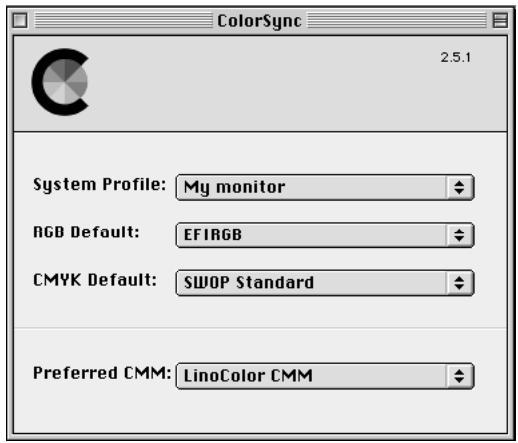
Defining colors
You can choose colors in Photoshop with various color models including HSB, Lab, RGB, and CMYK. You can also choose named colors from the PANTONE Coated color library in Photoshop. For best results, use the color definition methods described in Chapter 3.
Choose Photoshop EPS or TIFF
Saving files for importing into other documents
Before saving any file, perform any rotating, cropping, and resizing needed. This speeds processing when printing from the application in which the image is placed.
It is recommended that you use the EPS or TIFF file formats to save RGB images that will be imported into other documents and printed to the Fiery ZX. EPS and TIFF files can be imported into virtually all page layout applications.
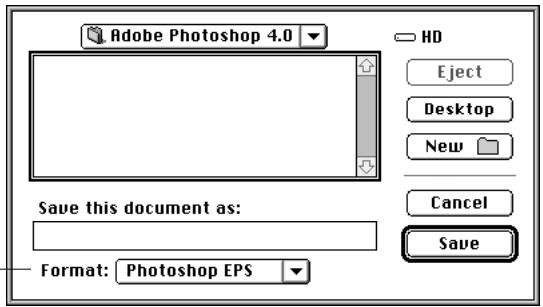
In the EPS Format dialog box, choose binary encoding and do not include transfer functions, halftone screens, or PostScript Color Management. A TIFF preview is compatible with both Mac OS and Windows computers.
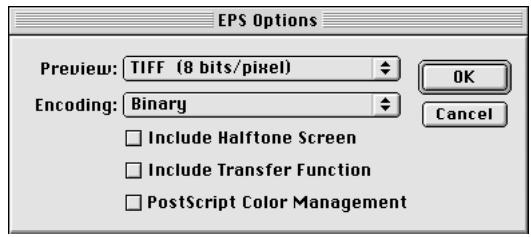
If you experience problems printing the document in which you place the image, substitute an ASCII-encoded version of the same image, and print the document again. Binary encoding is much more compact than ASCII encoding, but occasionally causes printing problems with some system configurations.
NOTE: If you choose to try JPEG encoding, keep a backup of the original image saved with binary encoding until you have seen the printed results of the JPEG-encoded file. The compression used for JPEG encoding may produce unwanted artifacts in the file. If you see unexpected results in the printed output of a JPEG-encoded file, use a binary-encoded version instead.
Selecting options when printing
You can print RGB or CMYK images from Photoshop.
- When you print RGB images, you can choose whether the conversion to CMYK data is performed by the Fiery ZX (using a CRD) or by Photoshop (using PostScript Color Management).
- When you print CMYK images, you can print composites or color separations.
Printing RGB images
Use the following instructions to print RGB images.
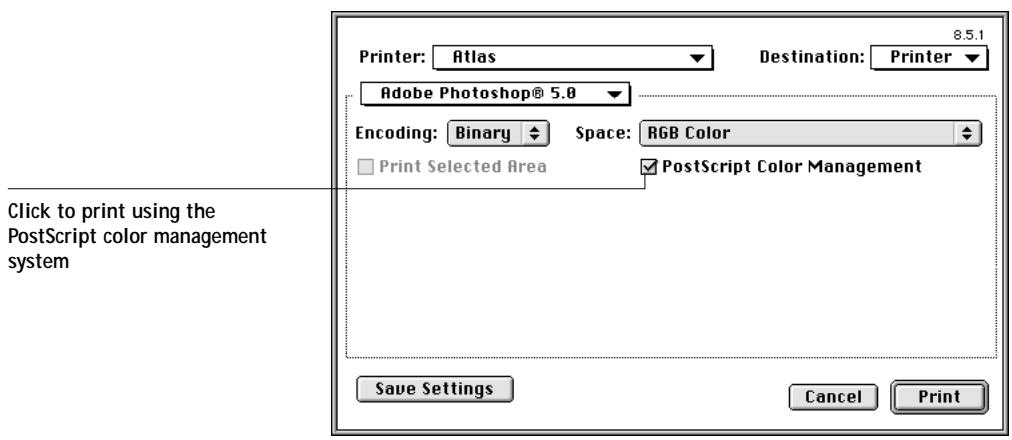
Choose a color space and whether to use PostScript Color Management. (With the AdobePS 8.5.1 printer driver for Mac OS, these options appear in the Adobe Photoshop pane of the Print dialog box.)
NOTE: Only PostScript Level 3 printers support PostScript Color Management. If you select this option, the PostScript Color Management system will perform any color space conversion specified in the Space option before the image is sent to the Fiery ZX.
If you select an RGB color space, Photoshop sends RGB data to the Fiery ZX and a CRD is used to perform color conversion. Choose the appropriate print option settings for RGB data (see Chapter 2 and Chapter 4).
If you select a CMYK color space, Photoshop performs a color conversion and sends CMYK data to the Fiery ZX. With this setting, RGB Source, Rendering Style, and Spot Color Matching settings have no effect.
- If Photoshop is configured for separating to an offset press standard, apply the corresponding CMYK Simulation setting. For example, if Photoshop is configured for separating to SWOP, choose SWOP-Coated as the CMYK setting.
- If Photoshop is configured for a custom separation (not a press standard), choose None as the CMYK Simulation setting or choose the corresponding custom simulation target if one has been created.
For fastest print times, select JPEG encoding. You should, however, check the printed output carefully for unwanted artifacts that can appear as a result of JPEG compression. If you see unexpected results in the printed output when printing with JPEG encoding, print the job again using Binary encoding.
Choose any other print options you want to use (see Chapter 4).
Printing CMYK images
Use the following instructions to print CMYK images.
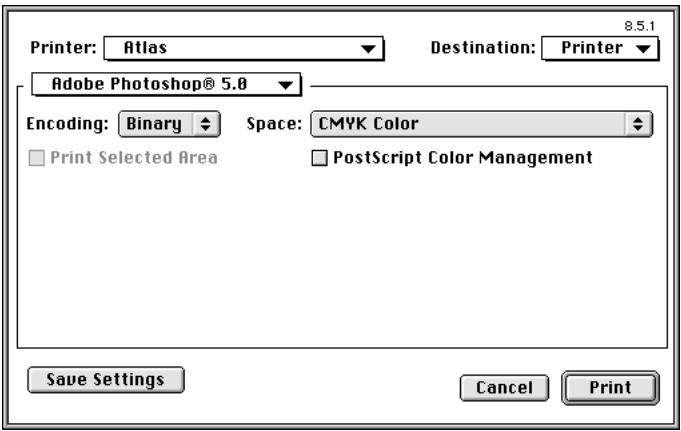
Choose an encoding method. (With the AdobePS 8.5.1 printer driver for Mac OS, these options appear in the Adobe Photoshop pane of the Print dialog box.) For fastest print times, select JPEG encoding. You should, however, check the printed output carefully for unwanted artifacts that can appear as a result of JPEG compression. If you see unexpected results in the printed output when printing with JPEG encoding, print the job again using Binary encoding.
Choose a color space and whether to use PostScript Color Management.
Choose any other print options you want to use (see Chapter 4). RGB Source and Rendering Style settings have no effect on CMYK images. The Spot Color Matching setting is also irrelevant because Photoshop converts PANTONE colors to CMYK values when you work in CMYK mode.
- If the image was separated for an offset press standard, apply the corresponding CMYK Simulation setting. For example, if the image is separated for SWOP, choose SWOP-Coated as the CMYK Simulation setting.
- If the image was separated using a custom separation (not a press standard), choose None as the Simulation setting or choose the corresponding custom simulation target if one has been created.
Chapter 6: Page Layout Applications
This chapter provides instructions for printing color documents from Adobe PageMaker 6.5, QuarkXPress 4.02, and QuarkXPress 3.32. Before printing from these applications, make sure the appropriate printer driver and the Fiery ZX PPD are installed on your computer as described in Getting Started.
Working with page layout applications
The following sections apply to all page layout applications.
Defining colors
Page layout applications generally use the CMYK color model. Some allow you to define colors with other color models and may be able to send that data to the Fiery ZX in those other color models. Generally, however, CRDs (which affect only RGB data) do not affect colors defined in page layout applications. For predictable results with CMYK colors, use the CMYK Color Reference pages when defining colors in page layout applications. See "Choosing colors in PostScript applications" on page 3-4.
NOTE: If the application allows you to define colors in RGB, you should determine whether it converts the RGB data to CMYK before sending it to the Fiery ZX. If it does, this will determine which Fiery ZX print options effect your job. For example, if the application converts RGB black (defined in your document as R0% , G0% , B0% ) to four-color CMYK black when it sends the job to the Fiery ZX, the Pure Black Text/ Graphics option will have no effect when you print the job.
You can also choose named colors from the PANTONE Coated library. See "Using the PANTONE Coated color reference book" on page 3-6.
Importing images
EPS and TIFF are the recommended formats for images imported into page layout documents. Support for importing other file formats may be provided by individual applications.
All RGB images placed in your document are affected by the RGB Source and Rendering Style settings. The Fiery ZX color management system applies the specified RGB Source setting to all RGB data and then uses the specified Rendering Style (CRD) to perform a color conversion. An exception to this occurs if you assign ICC profiles to RGB images using the application's color management tools (see "Tips for advanced users"). In this case, the application performs the color conversion of the image and sends CMYK data to the Fiery ZX.
NOTE: To take advantage of RGB Source and Rendering Style settings for images imported into QuarkXPress 4.02, save the images in the EPS format.
Tips for advanced users
If you place multiple RGB images, some non-photographic and some photographic, a single CRD may not be suitable for all the images. In this case you may want the photographic images to bypass the CRD altogether. To accomplish this, separate the image to CMYK data with a pixel-editing application such as Photoshop and perform color correction on it. Then save it as an EPS or TIFF file and import it into the document.
Alternatively, you can save the RGB image in TIFF format and assign it an ICC profile and rendering intent when you import it into the document, if your application supports this feature.
CMYK simulation and calibration
You can specify a press simulation target and a press simulation method for the job with print options (see page 2-11). The CMYK Simulation setting affects all CMYK color data sent by the page layout application.
- If the document contains CMYK images that were separated for an offset press standard, apply the corresponding CMYK Simulation setting. For example, for images separated for SWOP, choose SWOP-Coated as the CMYK Simulation setting.
- If the document contains CMYK images that were separated for a custom separation (not a press standard), choose None as the CMYK Simulation setting or choose the corresponding custom simulation target.
All RGB images are affected by the resident calibration on the Fiery ZX. CMYK data is also affected if the resident calibration is the device-specific calibration provided with the Fiery ZX. (See the Job Management Guide.) If the resident calibration is a custom target created at your site, it is not applied to CMYK data. If necessary, print the Test Page to see which target is currently resident on the Fiery ZX.
Adobe PageMaker 6.5 for Windows and Mac OS
The Windows and Mac OS versions of PageMaker 6.5 are essentially identical. The illustrations in this section show only the Windows version, with the exception of instances where differences exist between the two versions.
PostScript Level 2 interface
PostScript Level 2 features, including color management, are incorporated into the PageMaker 6.5 application interface. When you print from PageMaker 6.5, you specify print options and color settings using PageMaker print dialog boxes, not the printer driver dialog boxes described in Chapter 4. However, you must use a PostScript Level 2 (or higher) printer driver to access Fiery ZX print options when printing from PageMaker.
Windows version requirement
For the Windows version of PageMaker 6.5, make sure a copy of the Fiery ZX PPD file is in both of the following folders:
PM65\RSRC\USENGLSH\PPD4
- Windows\System
Importing images
All RGB images placed in your document are affected by your RGB Source and Rendering Style settings. For best results with placed images, use the instructions in "Importing images" on page 6-1 and "CMYK simulation and calibration" on page 6-2.
Advanced users can use PageMaker's color management tools for added flexibility with placed RGB images (see "Assigning ICC profiles to RGB images" on page 6-5).
Selecting options when printing
All print settings are specified from the various Print dialog boxes in PageMaker 6.5.
The printer driver interface described in Chapter 4 is not used.
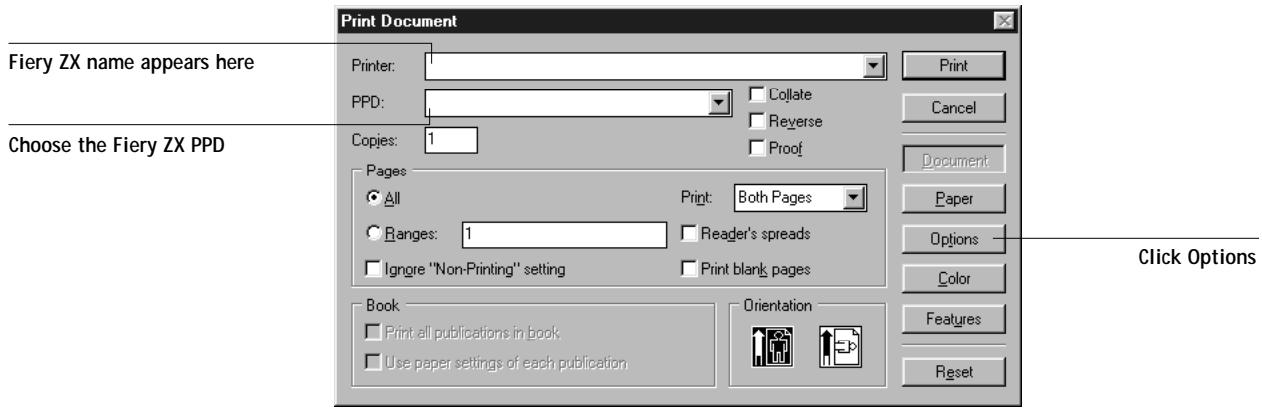
In the Print Document dialog box, select the Fiery ZX PPD from the PPD menu.
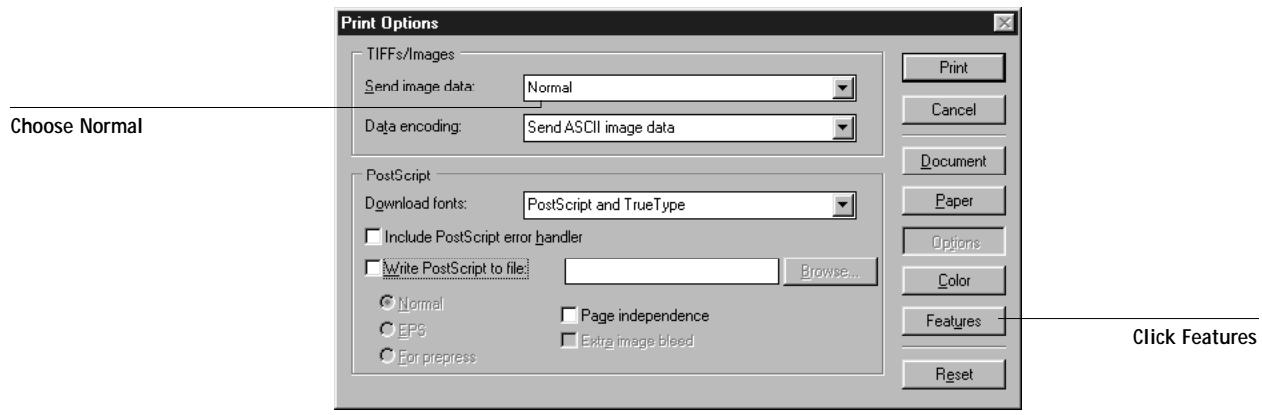
In the Print Options dialog box, choose Normal (not the Optimized Subsampling default) from the Send image data menu. This setting ensures that TIFF images print at their full resolution.
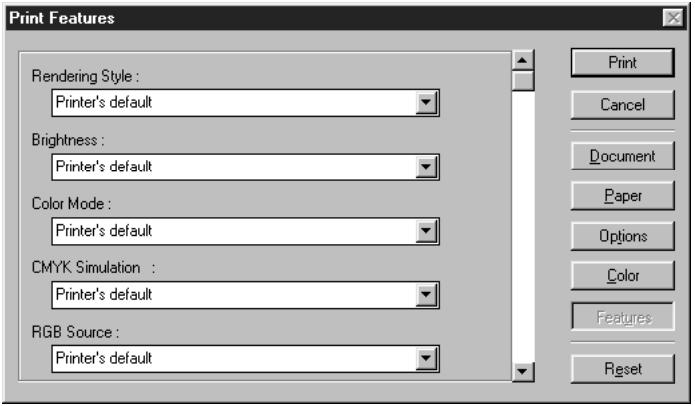
If your document contains RGB placed images or colors defined in RGB that will not be separated to process colors, choose RGB Source and Rendering Style settings in the Print Features dialog box. If the document contains PANTONE colors, choose the appropriate Spot Color Matching setting. Choose any other Fiery ZX print options you wish.
When you click Print from any of the PageMaker 6.5 dialog boxes the job is sent to the Fiery ZX. You do not see the printer driver dialog boxes described in Chapter 4.
Assigning ICC profiles to RGB images
When you place a non-EPS RGB image (such as a TIFF, JPEG, or GIF image), you can specify an ICC source profile and a rendering intent for the image. You can assign a unique rendering intent to each image you import.
When you use this feature, PageMaker controls the color conversion of the RGB images (using the specified ICC profiles) and sends CMYK data to the Fiery ZX. The CMYK data produced by these conversions is not separated for offset press standards; therefore you should set the CMYK Simulation print option to None (see “CMYK Simulation” on page 2-11). The RGB Source and Rendering Style settings have no effect on these images.
After selecting an image to import with the Place command, the CMS Source button becomes active in the Place dialog box.
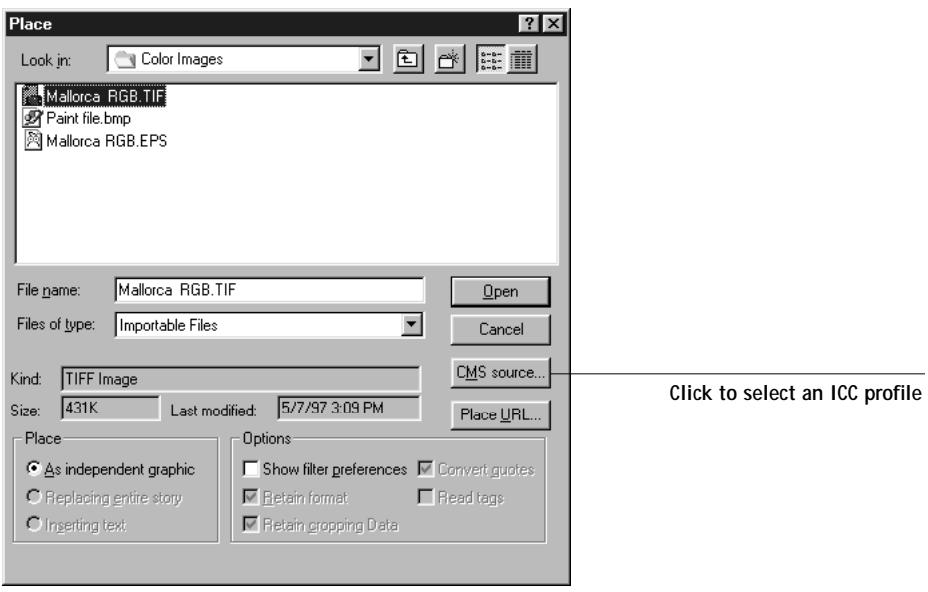
Click CMS Source and choose settings in the CMS Source Profile dialog box.
Windows
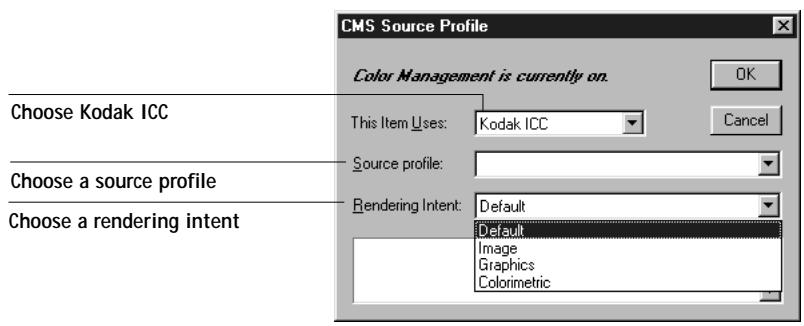
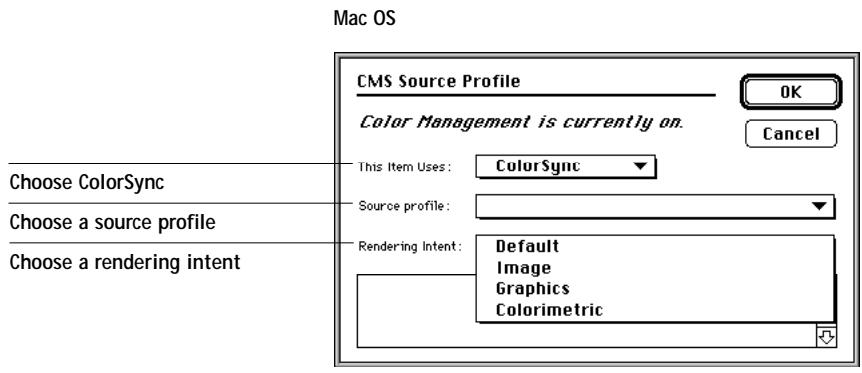
With the Mac OS version of PageMaker, choose ColorSync from the This Item Uses menu; with the Windows version, choose Kodak ICC.
The rendering intents correspond to Fiery ZX CRDs as follows:
- Default—uses the profile's rendering intent
- Image—similar to the Photographic CRD
- Graphics—similar to the Presentation CRD
Colorimetric—similar to the Solid Color CRD
This dialog box can also be accessed by selecting the image and choosing Image:CMS Source from the Element menu.
For advanced users: Using PageMaker 6.5 Color Management
PageMaker 6.5 provides color management settings that allow users to control the way in which a document's RGB and CMYK placed files are displayed, and how their colors are remapped to the gamuts of targeted output devices.
Many color controls can be set globally, using settings in the Color Management Systems Preferences dialog box. Specific controls, including CMS type and ICC source profile can be set on an image by image basis using options in the Place dialog box. For non-EPS RGB images, rendering intent can also be specified.
NOTE: When using the application's RGB Source and Rendering Style options, make sure these equivalent settings are set to Off in the Fiery ZX print options dialog box.
To specify global color management settings in the Color Management System Preferences dialog box, choose File >Preferences >General and click the CMS Setup button to display the CMS Preferences dialog box.
With the Windows version of PageMaker 6.5, click on the Kodak ICC icon.
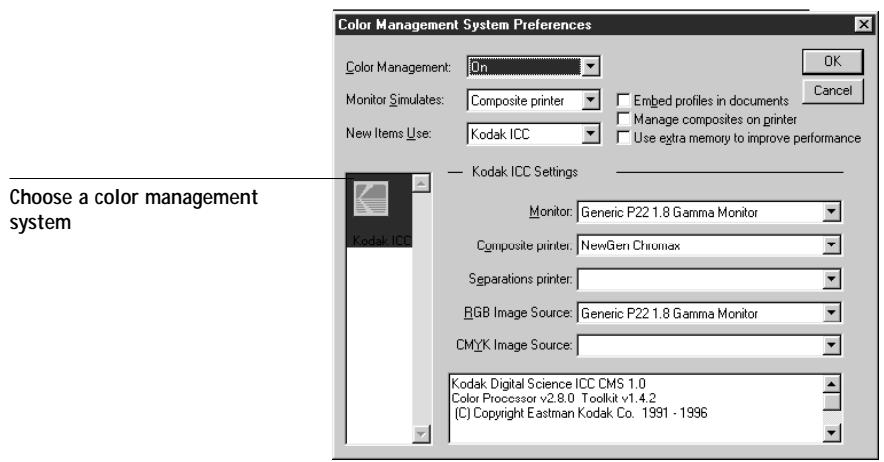
With the Mac OS version of PageMaker 6.5, click on the ColorSync or Kodak ICC icon to select a color management system.
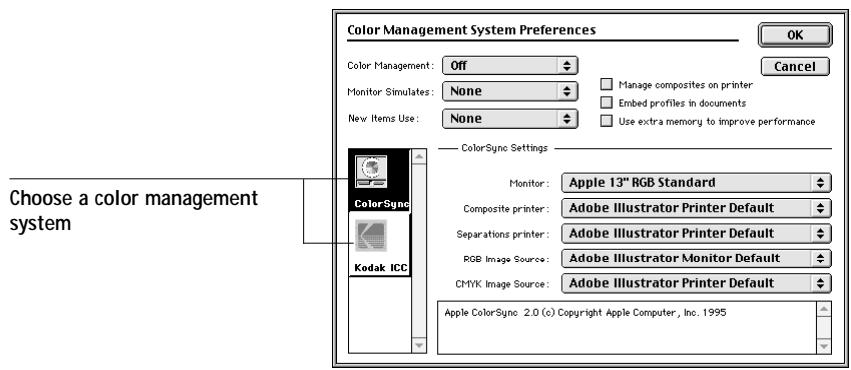
To enable or disable the selected color management system, choose On or Off in the Color Management pull down menu.
From the Monitor Simulates pull-down menu, choose Composite Printer or Separations Printer to proof your color documents on screen using the color gamut of the selected print device.
To automatically assign device profiles to RGB TIFF, JPEG, or GIF images, or to create new colors in the document by selecting a profile, choose a profile from the New Items Use pull-down menu.
In the color management system Settings area, you can select monitor, printer, and image source settings for the selected color management system.
- Monitor—select a device profile that describes the monitor you are using
- Printer—select a device profile that describes your target printer: Composite or Separation
- Image Source—select a default source profile for RGB and CMYK images
When you place a non-EPS image (such as a TIFF, JPEG, or GIF image) in a document, you can specify a unique ICC source profile and rendering intent using options in the Place dialog box.
PageMaker controls the color conversion of the RGB image to the specified profile and sends CMYK data to the Fiery ZX. When you use this feature in combination with the ICC source profile, the CMYK data produced by this conversion is not separated for offset press standards, therefore you should set the CMYK Simulation print option to None.
QuarkXPress 4.02 for Windows and Mac OS
QuarkXPress 4.02 provides color management features by means of the Quark CMS XTension. These features allow advanced users to control RGB to CMYK color conversions. If you plan to use these features, make sure the Quark CMS XTension is installed before starting QuarkXPress. If it is not, use the Quark XTensions Manager to install it. Refer to your QuarkXPress documentation for instructions.
NOTE: Quark CMS converts RGB TIFF, JPEG, and PICT images to CMYK before sending color data to the Fiery ZX. RGB Source and Rendering Style settings have no effect on this data.
Importing images
With the exception of RGB images saved in EPS format, QuarkXPress 4.02 converts all RGB data into CMYK, even when the Quark CMS XTension is disabled.
Only RGB images saved in EPS format are affected by RGB Source and Rendering Style settings. For best results with placed images, use the instructions in "Importing images" on page 6-1 and "CMYK simulation and calibration" on page 6-2.
Selecting options when printing
Select the Fiery ZX PPD from the Printer Description menu in the Print dialog box.
Windows
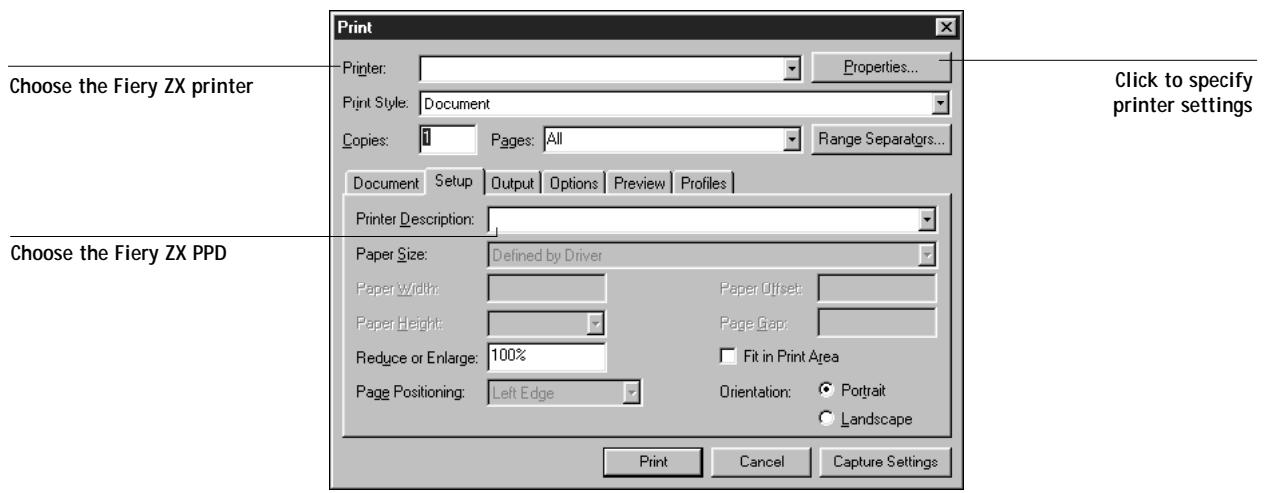
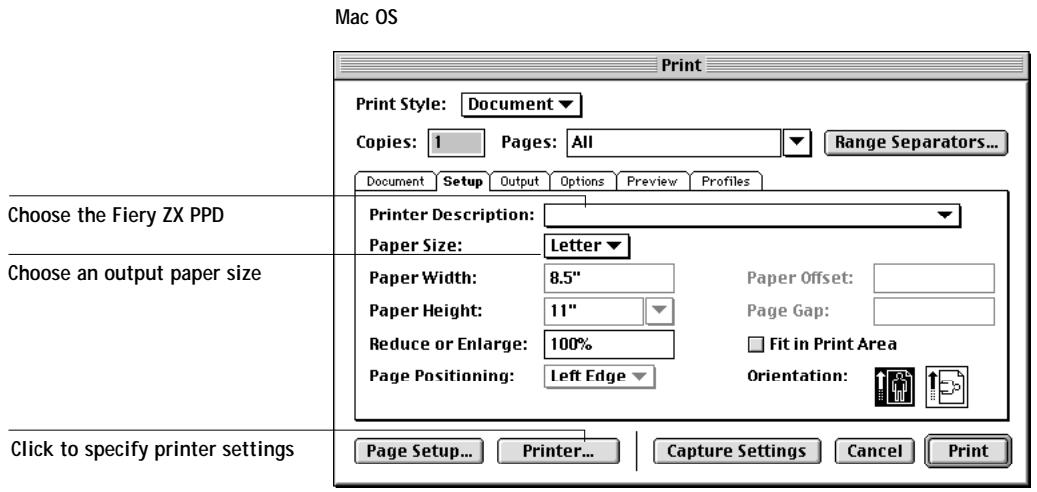
If the document contains PANTONE colors, choose the appropriate Spot Color Matching setting. Choose any other Fiery ZX print options you wish.
For instructions on setting print options, see Chapter 4.
Tips for advanced users
If the Quark CMS XTension is installed, you can specify ICC profiles to control RGB to CMYK color conversions. Specified profiles affect RGB colors defined in the document and imported RGB TIFF, JPEG, and PICT images. For predictable color output, use the Quark CMS XTension if your document contains these file types.
NOTE: To use the Quark CMS XTension, the appropriate monitor and printer profiles must be installed on your computer. On a Windows 95 computer, the monitor and printer ICM files should be installed in the Windows\System\Color folder. On a Mac OS computer, the monitor and printer ICC profiles should be installed in the System:Preferences:ColorSync Profiles folder, or the System:ColorSync Profiles folder (for ColorSync v2.5).
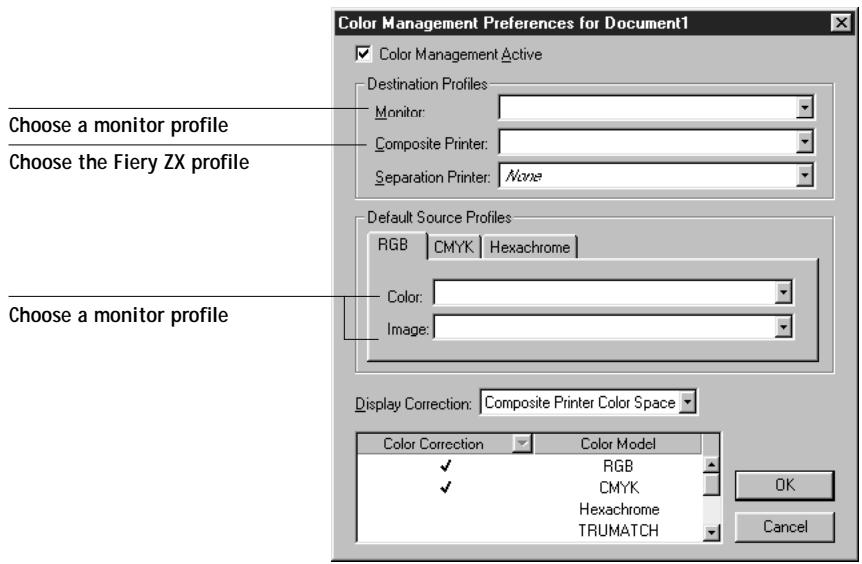
Choose Color Management from the Edit>Preferences menu and specify settings in the Color Management Preferences dialog box as described below.
Choose the same monitor profile in both the Destination Profiles and Default Source Profiles areas.
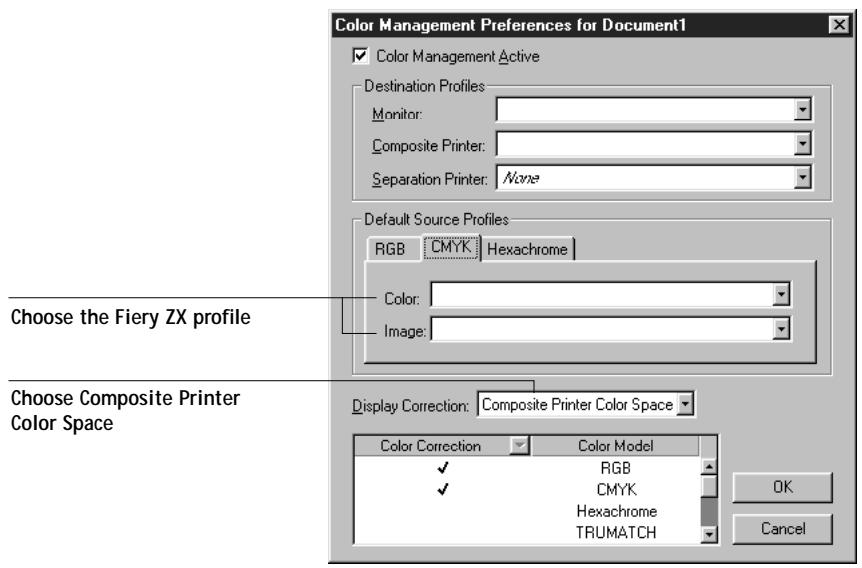
Click the CMYK tab in the Default Source Profiles area and choose the Fiery ZX profile from the Color and Image pull-down menus.
In the above illustration, choose the same Fiery ZX profile in both the Destination Profiles and Default Source Profiles areas.
When using the Quark CMS XTension, QuarkXPress sends all color data to the Fiery ZX in CMYK. To avoid unwanted press simulation, set CMYK Simulation to None. For information on CMYK Simulation and other color management options, see Chapter 2.
QuarkXPress 3.32 for Windows and Mac OS
Before starting QuarkXPress 3.32, make sure the EFIColor XTension is not loaded in the XTensions folder. EFICOLOR profiles are not currently provided with Fiery ZX products. Without the correct EFICOLOR profile, the EFIColor XTension does not perform color conversions on placed images.
Windows version requirement
For the Windows version of QuarkXPress, make sure a copy of the Fiery ZX PPD file is in the \XPRESS\PDF folder.
Importing images
All RGB images placed in your document are affected by your RGB Source and Rendering Style settings. For best results with placed images, use the instructions in "Importing images" on page 6-1 and "CMYK simulation and calibration" on page 6-2.
Selecting options when printing
You must select the Fiery ZX PPD from the Printer Type menu in the Page Setup (Mac OS) or Printer Setup (Windows) dialog box.
Windows
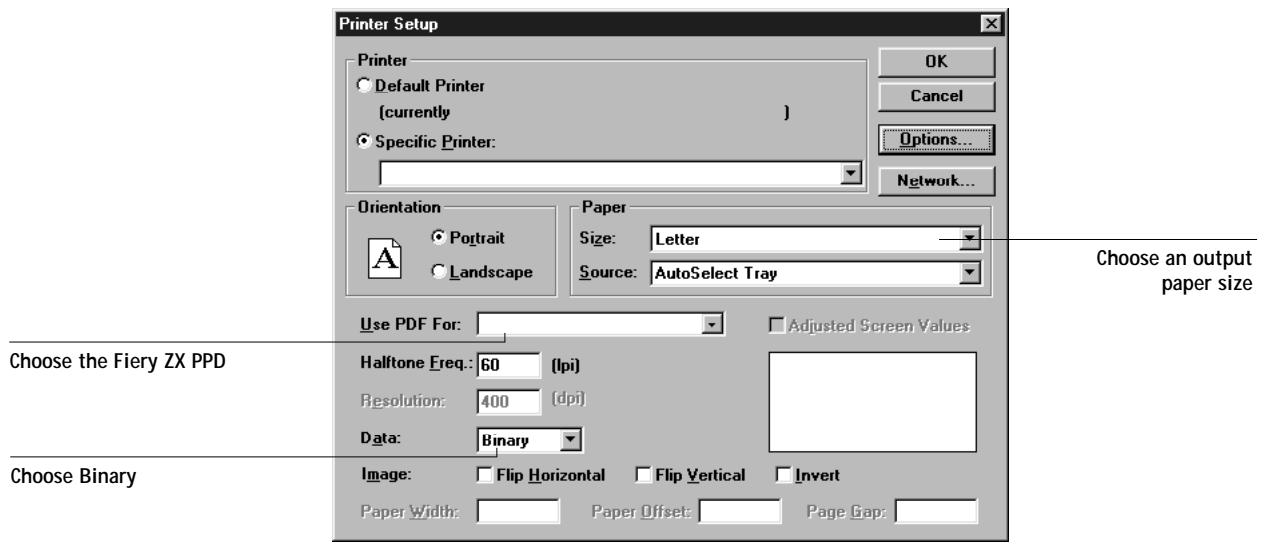
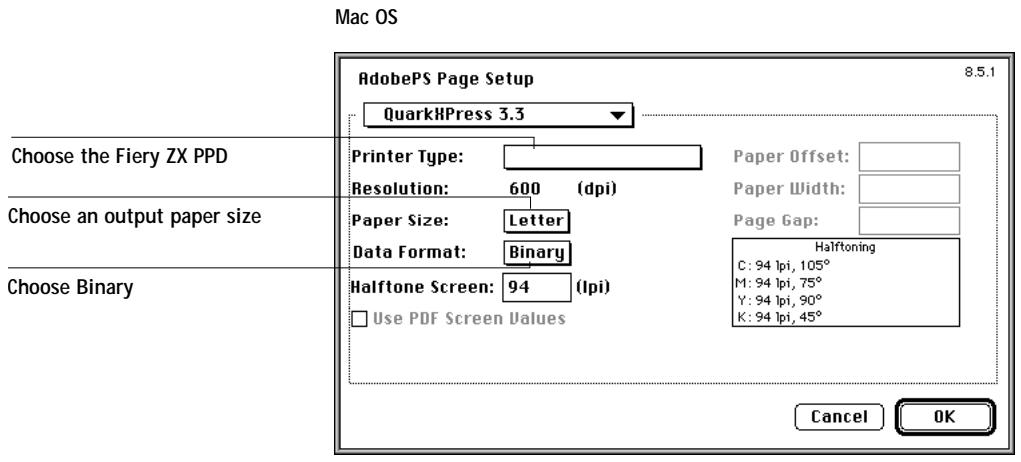
If your document contains RGB placed images or colors defined in RGB that will not be separated to process colors, choose RGB Source and Rendering Style settings. If the document contains PANTONE colors, choose the appropriate Spot Color Matching setting. Choose any other Fiery ZX print options you wish.
For instructions on setting print options, see Chapter 4.
Chapter 7: Illustration Applications
This chapter provides instructions for using Adobe Illustrator 7.0 for Mac OS and Windows, FreeHand 7.0 for Mac OS and Windows, and CorelDRAW!TM 7.0 for Windows.
Before printing from these applications, make sure the appropriate PostScript printer driver and the Fiery ZX PPD are installed on your computer as described in Getting Started.
Working with illustration applications
You can print directly from an illustration application or use it to create and save files that will be imported into a page layout document. To print from an illustration application, use the printer driver and the print settings recommended in Chapter 4.
NOTE: These application notes provide instructions for printing composites only. For instructions on printing color separations, refer to the documentation for your application.
As a general rule, use the EPS file format when saving files with an illustration application.
Defining colors
All illustration applications use the CMYK color model. While some also allow you to define colors using other color models, they all send CMYK data to the Fiery ZX. Consequently, the RGB Source and Rendering Style settings (which affect only RGB data) do not affect colors printed from illustration applications. For predictable results with CMYK colors, use the CMYK Color Reference pages when defining colors (see "Choosing colors in PostScript applications" on page 3-4).
NOTE: If you define colors in RGB and print directly from the application, the application converts the RGB data to CMYK before sending it to the Fiery ZX. This will determine which Fiery ZX print options affect your job. For example, if the application converts RGB black (defined in your document as R0%, G0%, B0% ) to four-color CMYK black when it sends the job to the Fiery ZX, the Pure Black Text/ Graphics option will have no effect when you print the job.
You can also choose named colors from the PANTONE Coated library. See "Using the PANTONE Coated color reference book" on page 3-6.
Importing images
In general, all images placed into illustration application documents should be in EPS format.
All RGB images placed in your document are affected by the RGB Source and Rendering Style settings. The Fiery ZX color management system applies the specified RGB Source setting to all RGB data and then uses the specified Rendering Style (CRD) to perform a color conversion. An exception to this occurs if you assign ICC profiles to RGB images using the application's color management tools (see "Tips for advanced users"). In this case, the application performs the color conversion of the image and sends CMYK data to the Fiery ZX.
Tips for advanced users
If you place multiple RGB images, some non-photographic and some photographic, a single CRD may not be suitable for all the images. In this case you may want the photographic images to bypass the CRD altogether. To accomplish this, separate the image to CMYK data with a pixel-editing application such as Photoshop and perform color correction on it. Then save it as an EPS or TIFF file and import it into the document. Alternatively, you can save the RGB image in TIFF format and assign it an ICC profile and rendering intent when you import it into the document (see the individual application notes in this chapter).
CMYK simulation and calibration
You can specify a press simulation target and a press simulation method for the job with print options (see page 2-11). The CMYK Simulation setting affects all CMYK color data sent by the illustration application.
- If the document contains CMYK images that were separated for an offset press standard, apply the corresponding Simulation setting. For example, for images separated for SWOP, choose SWOP-Coated as the CMYK Simulation setting.
- If the document contains CMYK images that were separated for a custom separation (not a press standard), choose None as the CMYK Simulation setting or choose the corresponding custom simulation target.
All RGB images are affected by the resident calibration on the Fiery ZX. CMYK data is also affected if the resident calibration is the device-specific calibration provided with the Fiery ZX. (See the Job Management Guide.) If the resident calibration is a custom target created at your site, it is not applied to CMYK data. If necessary, print the Test Page to see which target is currently resident on the Fiery ZX.
Adobe Illustrator 7.0 for Windows and Mac OS
The Windows and Mac OS versions of Illustrator 7.0 are essentially identical. The illustrations in this section show only the Windows version, with the exception of instances where differences exist between the two versions.
Defining colors
Any colors defined in Illustrator are sent to the printer in CMYK—even those defined using other color models. For best results, use the color definition methods described on "Choosing colors in PostScript applications" on page 3-4.
Color Settings
You can control the conversion of RGB colors defined in Illustrator by specifying settings in the Color Settings dialog box.
You can specify the EFIRGB ICC profile as the Monitor profile. This defines the same source color space for RGB data defined in Illustrator as is defined by the Fiery ZX RGB Source setting of EFIRGB (see Chapter 2).
If the "Use ICC profiles with TIFF" option is checked, you can specify an ICC profile and a rendering intent for each RGB TIFF image you place in the document (see "For advanced users: Using Illustrator color management" on page 7-7).
Windows
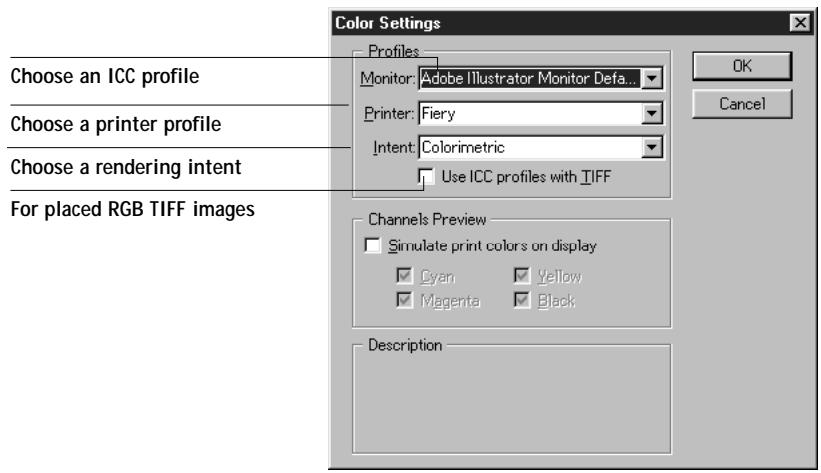
Mac OS
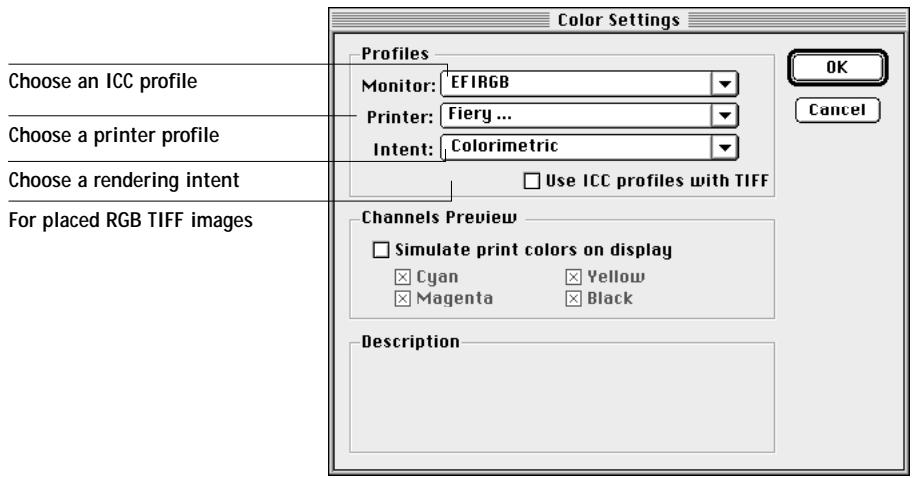
Importing images
All RGB images placed in your document are affected by your RGB Source and Rendering Style settings. For best results with placed images, use the instructions in "Importing images" on page 7-2 and "CMYK simulation and calibration" on page 7-2.
Advanced users can use Illustrator's color management tools for added flexibility with placed RGB images (see page 7-2 and page 7-7).
Selecting options when printing
For the Windows version of Illustrator, choose Separation Setup, select the appropriate PPD, and click OK. Choose Composite output and PostScript Level2.
Windows
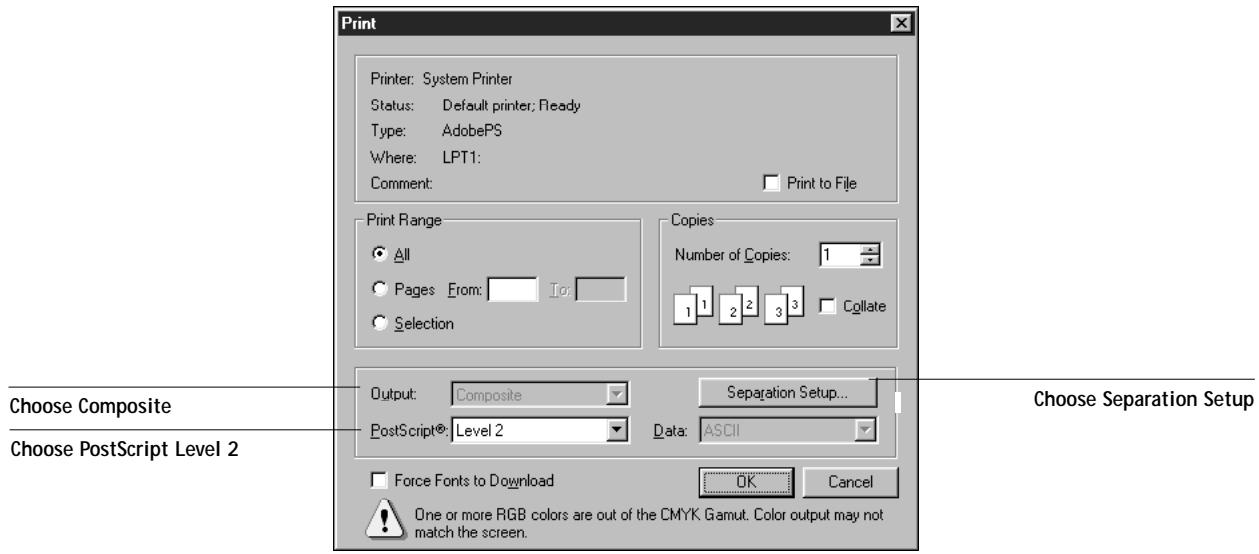
Choose Composite
For the Mac OS version of Illustrator, choose Composite output and PostScript Level 2.
Mac OS
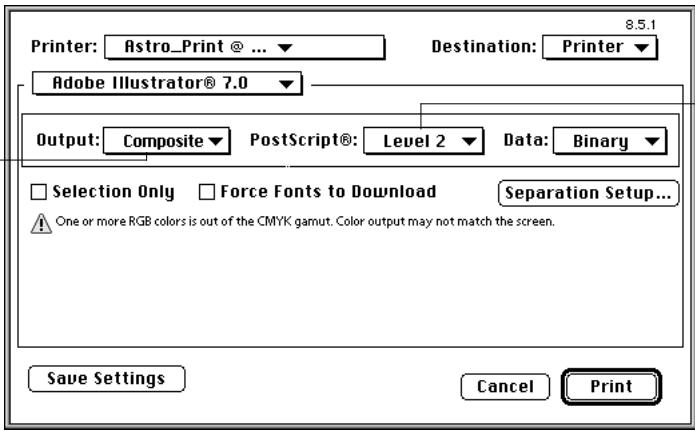
Choose PostScript Level 2
If your document contains placed RGB images, choose RGB Source and Rendering Style settings. With the exception of placed RGB images, these settings have no effect on colors printed with Illustrator 7.0. If the document contains PANTONE colors, choose the appropriate Spot Color Matching setting.
The PostScript Color Matching setting (made from the Mac OS printer driver) has no effect on colors printed from Illustrator 7.0. The effect of CRDs on placed RGB images is independent of this setting.
For instructions on setting print options, see Chapter 4.
Saving files for importing into other documents
When saving files in Illustrator 7.0 for importing into other types of documents, use the EPS file format.
Illustrator saves color information in both RGB and CMYK. The RGB Source and Rendering Style settings have effect on color output of RGB artwork saved with Illustrator and imported into other kinds of documents (even when both RGB and CMYK artwork is present in the same file). In the case of Illustrator files imported into
Photoshop, however, vector data from the Illustrator file is rasterized into bitmaps in Photoshop, and the final color space of the bitmap data is determined by the color mode you set in Photoshop.
For advanced users: Using Illustrator color management
When you place an RGB TIFF image, you can specify an ICC profile and a rendering intent for the image. You can assign a unique rendering intent to each image you import. To use this feature, make sure the "Use ICC profiles with TIFF" option is checked in the Color Settings dialog box (see page 7-3).
Windows
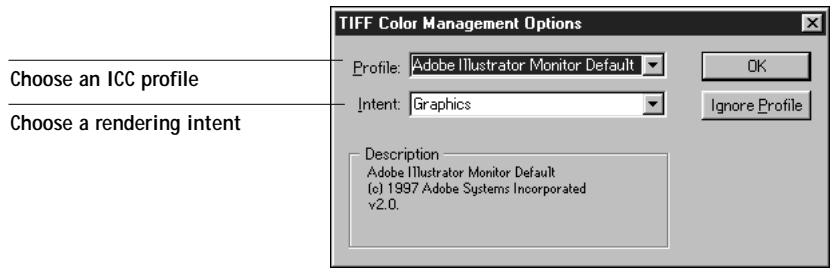
Mac OS
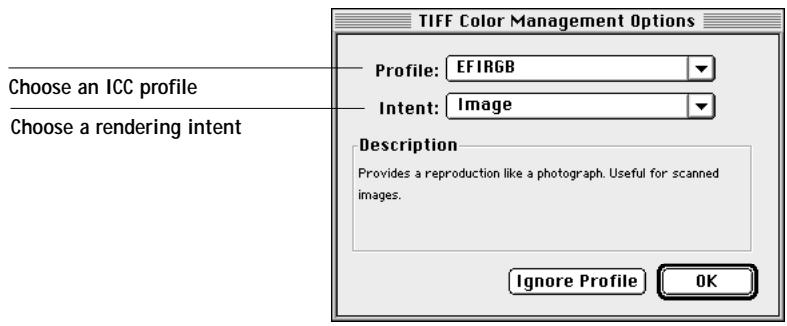
The rendering intents correspond to Fiery ZX CRDs as follows:
- Default—uses the profile's rendering intent.
- Image—similar to the Photographic CRD
- Graphics—similar to the Presentation CRD
Colorimetric—similar to the Solid Color CRD
For more information on Illustrator's color management features, see your Illustrator documentation.
Macromedia FreeHand 7.0 for Windows and Mac OS
The information in this section applies to both the Windows and Mac OS versions of FreeHand 7.0. Only Mac OS-version dialog boxes are shown, but the information and instructions are identical for the Windows version of FreeHand.
Defining colors
Any colors defined in FreeHand are sent to the printer in CMYK—even those defined using other color models. For best results, use the color definition methods described on “Choosing colors in PostScript applications” on page 3-4.
You can control the conversion of RGB colors defined in FreeHand by specifying settings in the Color Management Preferences dialog box (see page 7-11).
Importing images
A number of file types can be imported into FreeHand 7.0 but, once imported, all are treated as either an EPS image, a TIFF image, or editable paths. For details, see your FreeHand documentation.
When you place an EPS image into a FreeHand document, the image is imported as a unit, with a reference link to the original file; the contents of the image are not affected. If the image is a CMYK EPS file, the colors are printed just as from the application in which they were saved.
NOTE: Before placing a CMYK EPS file, be sure the file was saved with Desktop Color Separation (DCS) set to off. If the file was saved with DCS on, FreeHand prints composites of the image at the low resolution used for screen viewing.
All RGB images placed in your document are affected by your RGB Source and Rendering Style settings. For best results with placed images, use the instructions in "Importing images" on page 7-2 and "CMYK simulation and calibration" on page 7-2.
Advanced users can use FreeHand's color management tools for added flexibility with RGB images and colors (see page 7-2 and page 7-11).
Selecting options when printing
Refer to the following illustrations to choose options when printing.
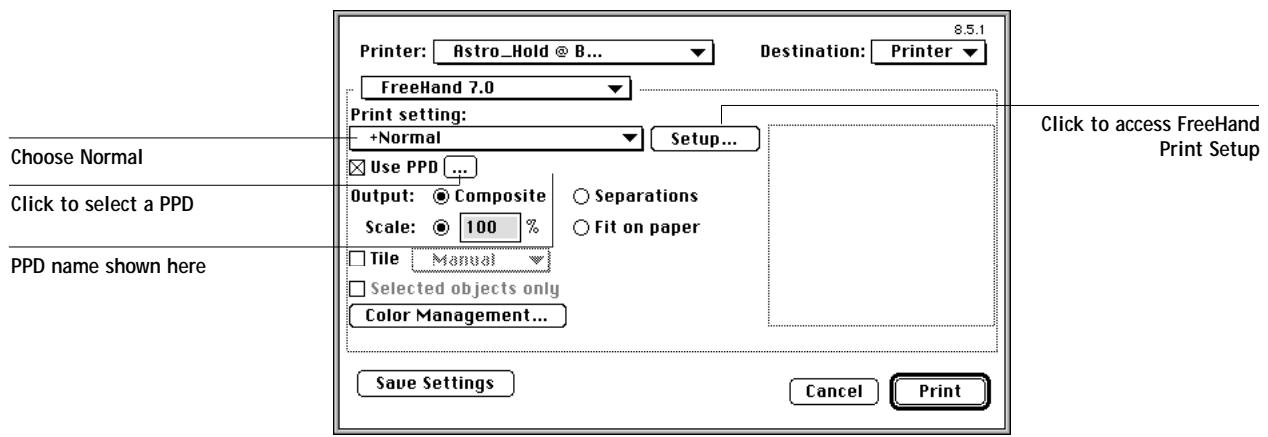
In the Print dialog box, make sure the Use PPD option is turned on. For Print setting, select Normal. If the Use PPD option is on, a plus sign (+) appears in front of the word "Normal". If the PPD name for your Fiery ZX is not displayed next to the PPD selection button, click the button marked "... and select the appropriate PPD.
To use Fiery ZX color management features, turn off the "Convert RGB to process" checkbox in the Imaging tab of the FreeHand Print Setup dialog box. If this option is turned on, FreeHand's color management settings are used to convert RGB colors and RGB TIFF, PICT, and JPEG images to CMYK (see page 7-11).
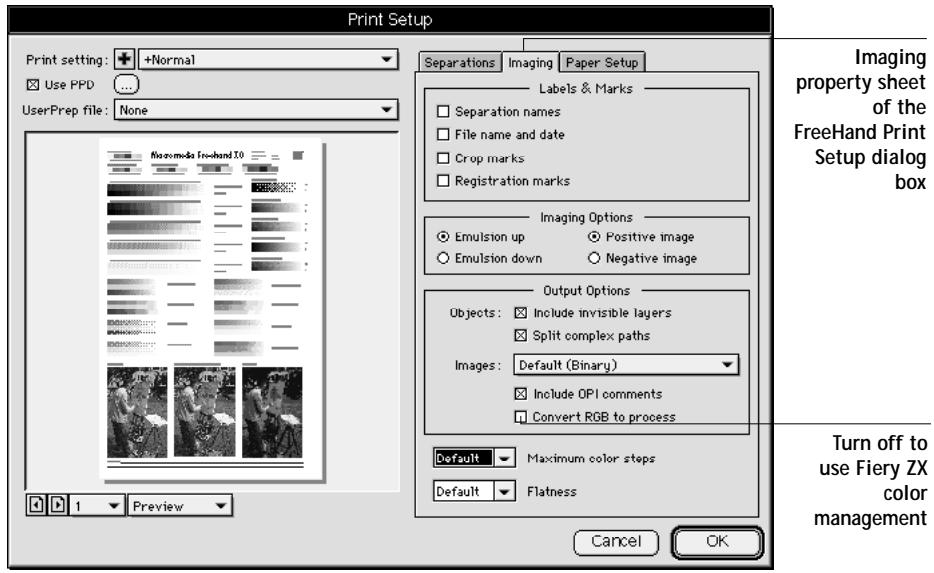
If your document contains placed RGB images, choose RGB Source and Rendering Style settings. With the exception of placed RGB images, these settings have no effect on colors printed with FreeHand. If the document contains PANTONE colors, choose the appropriate Spot Color Matching setting.
Refer to your FreeHand documentation for information about other FreeHand print options.
Saving files for importing into other documents
When saving files in FreeHand 7.0 for importing into other types of documents, use the EPS file format.
FreeHand saves all color information in CMYK, so RGB Source and Rendering Style settings have no effect on color output of artwork saved with FreeHand and imported into other kinds of documents. In the case of FreeHand files imported into Photoshop, however, vector data from the FreeHand file is rasterized into bitmaps in Photoshop, and the final color space of the bitmap data is determined by the color mode you set in Photoshop.
For advanced users: Using FreeHand color management
For colors defined in RGB and RGB images, you can activate FreeHand color management and make selections in the Color Management Preferences dialog box.
Turn on to use FreeHand's color management
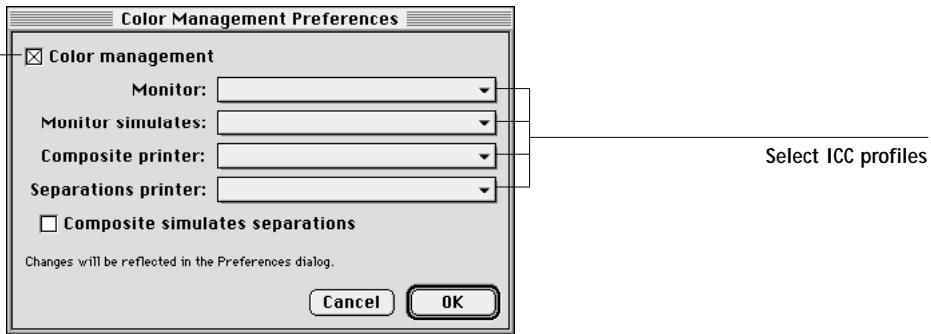
Turn on the Color management checkbox and choose ICC profiles from the four menus. Refer to your FreeHand 7.0 documentation for instructions on setting the options in this dialog box. These settings affect only RGB images and colors defined in RGB—they have no effect on RGB EPS images.
With Mac OS computers, you can specify the EFIRGB ICC profile as the Monitor profile. This defines the same source color space for RGB data defined in FreeHand as is defined by the Fiery ZX RGB Source setting of EFIRGB (see Chapter 2).
In the Imaging property sheet of the FreeHand Print Setup dialog box, turn on the "Convert RGB to process" option. This setting has no effect on RGB EPS images.
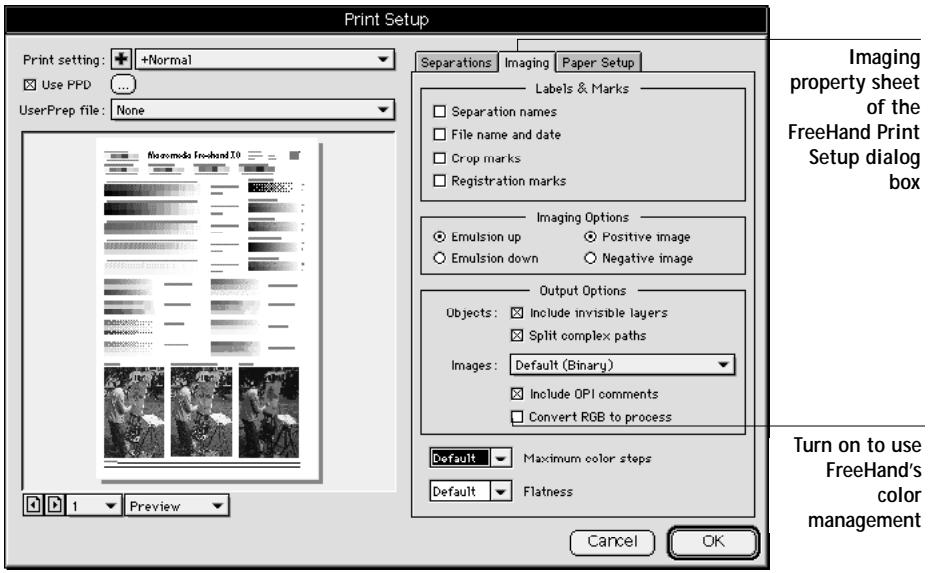
For more information on FreeHand's color management features, see your FreeHand documentation.
CorelDRAW 7.0 for Windows
Defining colors
Any colors defined in CorelDRAW are sent to the printer in CMYK—even those defined using other color models. For best results, use the color definition methods described in “Choosing colors in PostScript applications” on page 3-4.
You can control the conversion of RGB colors defined in CorelDRAW by specifying settings with the Color Manager (see page 7-14).
Importing images
All RGB images placed in your document are affected by your RGB Source and Rendering Style settings. For best results with placed images, use the instructions in "Importing images" on page 7-2 and "CMYK simulation and calibration" on page 7-2.
Advanced users can use CorelDRAW color management tools for added flexibility with placed RGB images (see page 7-2 and page 7-14).
Selecting options when printing
In the Print dialog box, make sure the correct printer and PPD are selected.
To use Fiery ZX color management, make sure the "Use color profile" option is not turned on. If this option is turned on, CorelDRAW color management settings are used to convert RGB colors and images to CMYK (see page 7-14).
Click Properties to specify Fiery ZX print options.
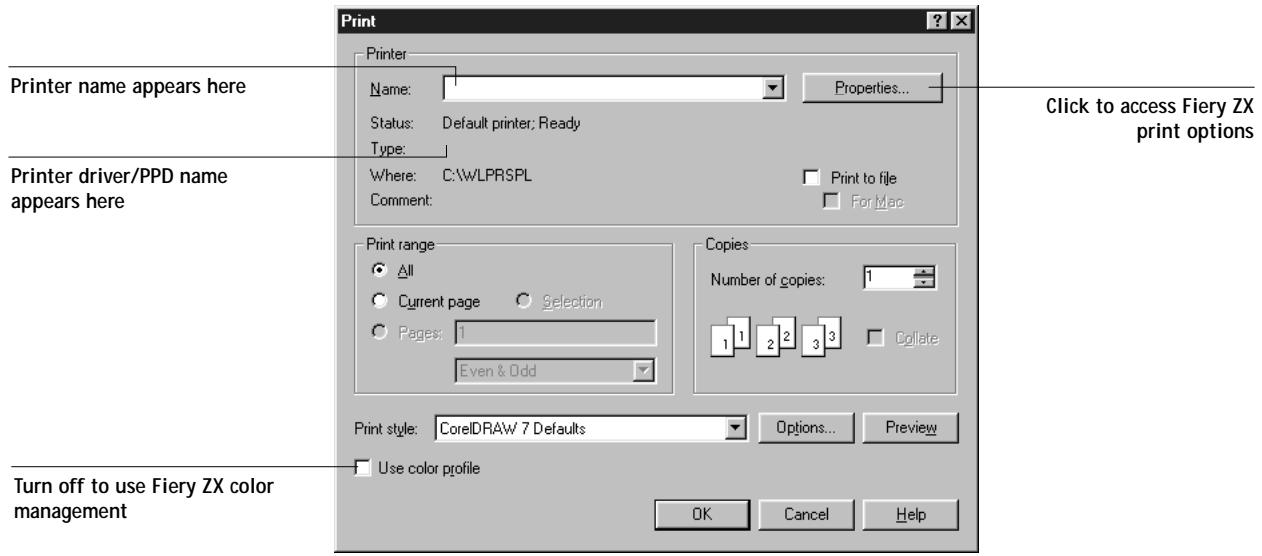
If your document contains placed RGB images, choose RGB Source and Rendering Style settings. With the exception of placed RGB images, these settings have no effect on colors printed with CorelDRAW. If the document contains PANTONE colors, choose the appropriate Spot Color Matching setting.
Saving files for importing into other documents
When saving files in CorelDRAW for importing into other types of documents, use the EPS file format.
CorelDRAW saves all color information in CMYK, so CRDs have no effect on color output of artwork saved with CorelDRAW and imported into other kinds of documents. In the case of CorelDRAW files imported into Photoshop, however, vector data from the CorelDRAW file is rasterized into bitmaps in Photoshop, and the final color space of the bitmap data is determined by the color mode you set in Photoshop.
For advanced users: Using CorelDRAW color management
If the document contains RGB images or colors defined in RGB, you can use the CorelDRAW Color Manager to specify ICC profiles.
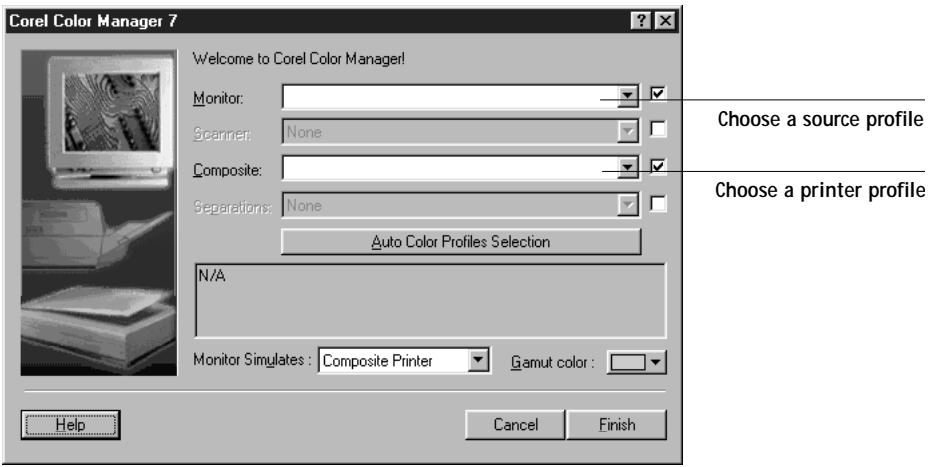
In the Color Manager dialog box, select ICC profiles from the four menus. Refer to your CorelDRAW 7.0 documentation for instructions on setting the options in this dialog box. These settings affect only RGB images and colors defined in RGB—they have no effect on RGB EPS images.
In the Print dialog box, turn on the "Use color profile" option. The printer profile you selected appears to the right of this checkbox.
Turn on to use CorelDRAW's color management
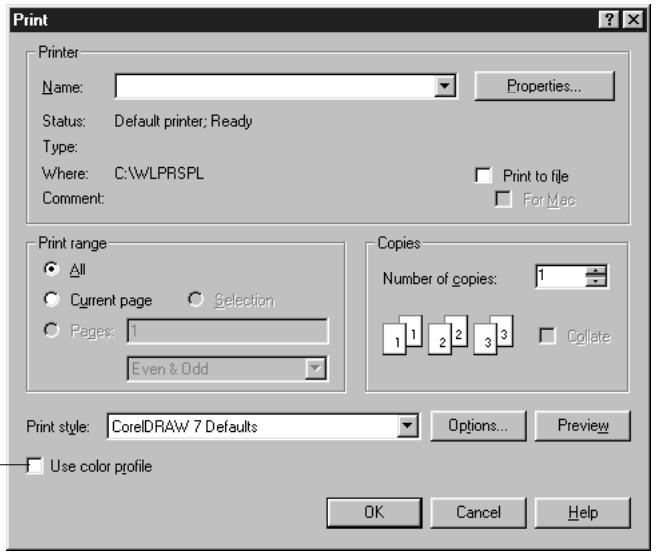
Chapter 8: Office Applications
This chapter provides instructions for printing color documents from QuickDraw and GDI applications such as presentation, spreadsheet, and word processing applications. You can use these instructions with the Microsoft Office 97 and Microsoft Office 95 suite of applications and Persuasion v3.0.
Working with office applications
Before printing from these applications, make sure the appropriate printer driver and the Fiery ZX PPD are installed on your computer as described in Getting Started. The Fiery ZX color management system provides complete color management for jobs printed from office applications.
Defining colors
Office applications use the RGB color model. For instructions on defining colors, see "Choosing colors in office applications" on page 3-3.
Working with imported files
Use EPS format files for all raster images you import into office applications. They print at their full resolution on the Fiery ZX (not at the low resolution used for the screen preview).
Although your application may allow you to import a variety of file formats, EPS format files are recommended for all raster images you want to import; some applications have printing problems when using file formats such as TIFF and PICT.
All RGB images placed in your document are affected by your RGB Source and Rendering Style settings.
Tip for advanced users
If you place multiple RGB images, some non-photographic and some photographic, a single CRD may not be suitable for all the images. In this case you may want the photographic images to bypass the CRD altogether. To accomplish this, separate the image to CMYK data with a pixel-editing application such as Photoshop and perform color correction on it. Then save it as an EPS file and import it into the document.
Selecting options when printing
There are few differences between office applications with regard to Fiery ZX printing. The instructions in this chapter apply to all office applications. Use the instructions in Chapters 2 and 4 to specify print options and color management settings. To specify these options, you must use a PostScript Level 2 (or higher) printer driver, such as the Adobe PostScript Printer Driver.
Because these applications send RGB data to the Fiery ZX, your choices of RGB Source and Rendering Style settings are important. Be sure to specify the appropriate CRD for the color effect you want (see "Rendering styles" on page 2-9).
For best quality black text and line art, set the Pure Black Text/Graphics option to On. This setting generates a one-color black (as opposed to a four-color black), thereby preventing blasting and misregistration of colors. For more information, see page 2-10.
NOTE: Black text and line art are converted to single-color black (K) by the Microsoft PostScript Level 2 driver for Windows NT 4.0 and the Adobe PostScript 3 driver for Windows 3.1x. To print this single-color black at the maximum toner density of the print device, set the Pure Black Text/Graphics option to On.
If the document contains black text placed on colored backgrounds, set the Black Overprint option to On. This setting prevents halo effects and makes the black text richer.
Calibration targets
All color data in the job is affected by the resident calibration on the Fiery ZX. This target may be the one designed for your print device and shipped with the Fiery ZX, or it may be a custom target created at your site (see the Job Management Guide). If necessary, print the Test Page to see which target is the currently resident on the Fiery ZX.
Microsoft Office 97
Before printing from Microsoft Office 97, make sure the Fiery ZX ICM profile is not installed in the Windows\System\Color folder. If the ICM profile is installed, JPEG, BMP, and TIFF images print incorrectly from Microsoft Office 97.
To uninstall a profile, browse to the Windows\System\Color folder and locate the Fiery ZX ICM profile. If the icon is white, the profile is installed; if it is gray, it is not installed. If the profile is installed, select the profile and choose the right-mouse Uninstall command.
When the ICM file is not installed, color control options do not appear in the Graphics tab of the Printer Properties dialog box, as shown below.
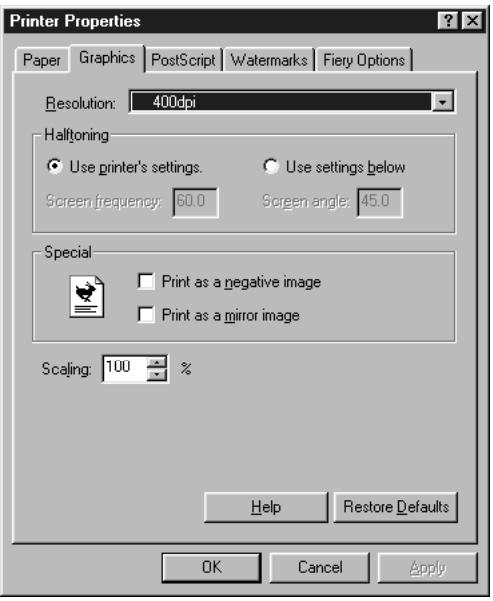
Glossary
additive color model
A system in which colors are produced by combining red, green, and blue light (the additive primaries). An RGB video monitor is based on an additive color model.
additive primaries
Red, green, and blue light that is used in additive color systems. When added together in proper amounts, these colors of light produce white.
banding
Visible steps between shades in a color gradient.
bit depth
Amount of information used for each pixel in a raster image. Black and white images require only one bit per pixel. Grayscale images with 256 shades of gray require eight bits per pixel. Photographic quality color images can require 24 bits per pixel (RGB images) or 32 bits per pixel (CMYK images).
bitmap
An image comprised of small squares arranged in a grid. Each square in the grid is a pixel. The number of pixels per inch defines the resolution of a bitmap.
blasting
An undesirable effect that occurs when excess amounts of toner, combined with certain types of paper stock, cause an image to spread beyond its boundaries as defined in the file.
calibration
The process of ensuring that a device behaves consistently with respect to a set of specifications.
color gamut
See gamut.
color management system (CMS) Software used to match color across different input, display, and output devices.
color rendering
A feature of color management software and PostScript color printers that allows you to maintain the best possible translation of color from one color device to another. A color rendering dictionary (CRD) is used by the color management system or the printer's PostScript interpreter when converting data between color spaces. The Fiery ZX includes several CRDs, including Solid Color, Photographic, and Presentation, each of which provides a different color rendering style.
CRD (Color Rendering Dictionary)
See "color rendering"
color separation
The process of separating a color image into the primary color components for printing—cyan, magenta, yellow, and black. Also used to refer to the four sheets of film that result from the process of separating a color image.
color space
A model for representing color in terms of measurable values, such as the amount of red, green, and blue in an image. RGB and CMYK color spaces are based on color devices—monitors and printers respectively. Other color spaces, such as CIELAB, are based on mathematical models and are device-independent. They are not based on the color response of a particular device.
colorant
An ink, die, toner, paint, or other pigment that modifies the color of media to which it is applied.
composite printer
Any printer that can print directly in color without first creating color separations. A composite print can be used as an early proof of an offset print job.
continuous tone (contone)
A characteristic of printing in which dots (in some cases very elongated dots or lines) of different sizes are printed; can represent several intermediate gray tones between highlight and shadow.
continuous tone (contone) image
An image containing fine gradations of tones, such as a photographic image.
custom color system
A system of named color swatches that can be matched on press using process or spot colors. PANTONE and TruMatch are examples of custom color systems.
density
A precise measurement of the light energy transmitted or reflected by a surface in the presence of a standard light source.
densitometer
An instrument commonly used in the graphic arts industry to measure density according to a specified standard.
DIC
A Japanese standard of specifications for separations, proofs, and color printing.
Encapsulated PostScript (EPS or EPSF)
A PostScript file format expressly designed to be embedded in another PostScript stream.
Euroscale
A European standard of specifications for separations, proofs, and color printing.
flexography
A printing technology that uses flexible raised-image plates. Flexography can be used to print on non-flat materials such as cans.
four-color printer
A printing device that uses cyan, magenta, yellow, and black ink or toner.
gamma
A numeric value representing the plotted relationship (gamma curve) between the input and output values of a color monitor. If gamma equals 1, input values
are mapped exactly to output values. Most devices have a gamma curve gre than 1.
gamut
A range of colors. A device gamut is the range of colors that a device, such as a printer, can produce. An image gamut is the range of colors in a particular image.
gamut mapping
The process whereby the color management software compresses—“maps”—the colors in a digital image to fit the color gamut of a particular device.
gradient
A smooth transition between two different colors or between two shades of a color.
Graphics Device Interface (GDI)
Graphics and display technology used by computers running Windows. GDI applications rely on GDI (rather than the PostScript language) to send words and pictures to printers.
gravure
A printing technology that uses an etched cylinder that has been immersed in ink. The ink that remains in the etched areas is applied to the paper. The raised surfaces of the cylinder are nonprinting areas.
halftoning
A method for representing an original continuous tone image using a pattern of dots of various sizes.
metamerism
Phenomenon in which two colors composed of different combinations of light wavelengths appear identical. The colors are called "metamers."
moiré
An undesirable pattern in images made using halftone screens. Moiré can be caused by improper screen angles, improper alignment of halftone screens, or by the combination of a halftone screen with patterns in the image itself.
named color
A color that is defined according to a custom color system. For example, PANTONE 107 C is a named color.
office applications
Software applications commonly used for business purposes, including presentation applications, spreadsheets, and word processing programs.
offset lithography
Printing in which ink is transferred from printing plates to a rubber blanket and then from the blanket to paper.
phosphors
Materials used in making computer monitors.
photographic rendering
A color rendering style that preserves tonal relationships in images.
Unprintable colors are mapped to printable colors in a way that retains differences in lightness, slightly sacrificing color accuracy as necessary.
pixel
The smallest distinct element of a raster image or an image displayed on a monitor. The term is a combination of the words "picture" and "element."
PostScript
Adobe PostScript language, which is used to print and display pictures and text. PostScript 3, the current version, includes many enhancements to older versions of PostScript, including improved quality and color with Enhanced Image Technology, faster performance with Advanced Page Processing, and ease of use and setup with NetWorks System.
PostScript Printer Description file (PPD)
A file containing information about a particular PostScript print device's capabilities and restrictions. The information in the PPD is presented to you via the printer driver.
prepress proof
A print made from a set of film separations, or from an electronic file, to simulate the results of printing. A film proof is the last opportunity to catch problems before the final printing.
presentation graphics rendering A color rendering style that does not to precisely match printed colors to displayed colors. It is appropriate for bright saturated colors used in illustrations and graphs.
process colors
The four ink colors used in printing to simulate full-spectrum color images: Cyan, Magenta, Yellow, and blacK (CMYK).
profile
A digital file that describes the color capabilities, including the gamut, of a color device.
QuickDraw
Graphics and display technology built into Mac OS computers. QuickDraw applications rely on QuickDraw (rather than the PostScript language) to send words and pictures to printers.
raster image
Electronic representation of a page or image using a grid of points called pixels.
rendering intent
A style of color rendering, or gamut mapping, designed for a particular type of color job. An example of a rendering intent is Photographic rendering—also referred to as Image rendering or Contrast rendering—which is designed for photographic images.
resolution
The number of pixels per inch in a bitmap image or the number of dots per inch that an output device can print.
solid color rendering
A color rendering style intended for use when color accuracy is crucial. Unprintable colors are mapped to the
closest printable colors. Solid color rendering does the best job of preserving the saturation of displayed colors.
source color space
The color environment of the originating source of an image, including scanners and color monitors.
source profile
A profile used by the color management system to determine the context for the color values specified in a digital image.
spectral light
The wavelengths of electromagnetic radiation emitted by a given light source that can be seen by the human eye.
spot color
A color that is printed on its own separation plate when separations are specified. A spot color is printed using a special ink for that color, in contrast to process colors that are printed using combinations of cyan, magenta, yellow, and black.
Status T
A spectral response for graphic arts reflection densitometers defined by ANSI (the American National Standards Institute.)
subtractive color model
A system in which color is produced by combining colorants such as paint, inks, or dyes on media such as paper or transparent film or acetate. All printing devices use the subtractive color model.
subtractive primaries
Cyan, magenta, and yellow colorants used in subtractive color systems for color printing. Combining the subtractive primaries produces darker colors. Black is added to the subtractive primaries to compensate for deficiencies of the toners or inks, and for more efficient black printing.
SWOP
The abbreviation for Specifications for Web Offset Publications. A standard of specifications for separations, proofs, and color printing.
trapping
The practice of adjusting the borders of adjacent images that do not share common colors. Trapping compensates for misregistration of inks or toners during printing.
vector image
Graphic illustration created on computers where picture elements are defined mathematically as lines or curves between points. These mathematical definitions are interpreted by a computer language such as PostScript. Vector images include artwork created with illustration applications (such as Illustrator or FreeHand) and page layout applications (such as PageMaker).
white point
The color temperature of a color monitor (or any white light source), typically expressed in degrees Kelvin (for example, 6500K ).
Bibliography
Books
Adobe Print Publishing Guide. Adobe Systems Incorporated, 1995. (Comes as part of the documentation for Adobe products such as Adobe Photoshop and Adobe Illustrator, P/N 0397 0719)
Blatner, David and Fraser, Bruce. Real World Photoshop 3: Industrial Strength Production Techniques. Berkeley: Peachpit Press, 1996.
Bruno, Michael H., ed. Pocket Pal®: A Graphic Arts Production Handbook. Sixteenth Edition. Memphis: International Paper, 1995.
Kieran, Michael. The Color Scanning Success Handbook. Toronto: DPA Communications Corp., 1997.
Kieran, Michael. Understanding Desktop Color, Second Edition. Berkeley: Peachpit Press, 1994.
Margulis, Dan. Professional Photoshop: Color Correction, Retouching, and Image Manipulation with Adobe Photoshop. John Wiley & Sons, 1995.
Miller, Marc D. and Zaucha, Randy. The Color Mac. Second Edition. Hayden Books, 1995.
X-Rite Color Guide and Glossary: Communication, Measurement, and Control for Digital Imaging and Graphic Arts. X-Rite Incorporated, 1996. (Provided as part of the documentation for X-Rite densitometers, P/N XRC-550)
World Wide Web sites
Adobe Systems Incorporated: www.adobe.com
MacPro America: www.macproa.com/ColorTheoryIndex.html
QMS: www.qms.com/www/products/color_paper/color_paper.html
Seybold Seminars Online: www.seyboldseminars.com
University of Washington's Publications Services: www.pubserv.washington.edu/Color.Theory/Color.Theory.html
Magazines
Adobe Magazine. Seattle: Adobe Systems Incorporated
Publish! San Francisco: Integrated Media Inc.
Index
A
accent color 1-7
additive color model 1-3
additive primaries 1-3
Adobe Illustrator, see Illustrator
Adobe PageMaker, see PageMaker
Adobe Persuasion, see Persuasion
Adobe Photoshop, see Photoshop
Adobe PostScript Printer Driver Mac OS 4-2 to 4-5
Windows 3.1x 4-6 to 4-7
Windows 95 4-5 to 4-6
Apple Standard setting, RGB Source option 2-8
B
banding 2-9
bit depth, of raster images 1-9, 1-11
bitmaps 1-5 see also raster images
black
four-color and one-color 2-10
overprinting 2-11
Black Overprint option 2-7, 2-11 requirements 2-11
black text 2-11
black text and line art 2-10
blasting 2-10
blends, printing 2-9
brightness 1-1, 1-3
Brightness option 2-7
C
calibration
bypassing 2-7
print device color adjustments 2-3
resident 2-2, 2-6, 3-7
targets 1-13,2-2,3-7
charts, using color in 1-7
CIE
chromaticity diagram 1-2, 1-3
color model 1-2
CIELAB color space 2-4
CMY color model 3-2
CMYK Color Reference pages 3-2, 3-5
CMYK Simulation Method option 1-14, 2-7, 2-11
CMYK Simulation option 1-14, 2-7, 2-11 color
accent color 1-7
additive model 1-3
choosing in applications 3-1
CMY model 3-2
complements 1-7
controlling printing results 2-1
conversion by color management systems 2-5
custom color systems 3-4
defining in applications 3-1
HSB model 3-4
HSL model 3-2, 3-4
HSV model 3-2
physics of 1-1
process colors 1-5
properties of 1-1
reference pages 3-2
RGB model 3-2, 3-4
split complements 1-7
spot colors 1-6,3-4
subtractive model 1-3, 1-4
subtractive primaries 1-4
swatch color matching 3-5
text 1-8
theory 1-1
trapping 1-9
triads 1-7
using effectively 1-6 to 1-8
wheel 1-7
working with 3-1
colorants 1-4
Colorimetric ICC rendering style 2-9
color management
basics 2-4 to 2-16
ColorWise 2-6 to 2-12
Mac OS, see ColorSync
Windows, see ICM
color management system (CMS) 2-4
color matching systems, see custom color systems
color monitors, see monitors
color rendering styles, see rendering styles
color space 1-2
ColorSync 2-4, 2-13 to 2-14
color theory 1-1
color wheel 1-7
Combine Separations print option 1-9
Commission Internationale de l'Eclairage, see CIE
complements, color 1-7
compression, JPEG 5-7, 5-8, 5-9
computer monitors, see monitors
continuous tone devices 1-6
Contrast ICC rendering style 2-9
CorelDRAW 7.0 for Windows 7-1 to 7-2, 7-12 to 7-14
CRDs
bypassing 6-2, 7-2, 8-2
PostScript color matching 4-3
rendering intent 3-3
custom calibration targets 1-13
custom color systems 1-8, 3-4
D
default color controls set in Setup 2-7
Desktop Color Separations (DCS) 1-9, 1-14
device profiles 2-4
drivers, see printer drivers
E
EFICOLOR
profiles 6-14
XTension 6-14
EFIRGB ICC profile 2-13
EFIRGB setting, RGB Source option 2-8
EPS (Encapsulated PostScript)
color conversion of RGB EPS
images 2-8
DCS (Desktop Color Separations) 1-14
recommended for imported images 5-6,
6-1, 7-1, 7-2, 7-6, 7-11, 7-14, 8-1
RGB images saved with Photoshop 5-6
Excel, see Microsoft Office
F
Fiery Downloader, using to download
PANTONE Coated Color Reference
Book 3-6
Fiery Print Calibrator 2-11
file size, of raster images 1-11
film separations 1-9
flexography 1-4
font size, for color text 1-8
FreeHand 7.0 for Mac OS and
Windows 3-3, 7-1 to 7-2, 7-8 to 7-11
G
gamma 2-5
Gamma option 2-7
gamut
of monitors 2-3
of photographic transparencies 2-3
of print devices 2-1, 2-3
gamut mapping 2-3
GDI applications, using color in 3-2 to 3-3
Graphics Device Interface, see GDI
Graphics ICC rendering style 2-9
graphs, using color in 1-7
gravure 1-4
H
Halftone Printer mode 1-6
halftoning 1-4, 1-5
HSB color model 3-4
HSL color model 3-2, 3-4
HSV color model 3-2
hue, saturation, and brightness 1-1, 1-3
1
ICC color management 2-13
ICC profiles
assigning to RGB images 6-5, 7-2
ColorSync 2-13 to 2-14
ICM 2-15 to 2-16
included with user software 2-5
rendering styles 2-9
ICC standard for color management
systems 2-4
ICM
profiles 2-15 to 2-16
profiles, and Microsoft Office 97 8-3
profiles, applied to RGB images 2-16, 6-5, 7-2
Illustrator 7.0 for Mac OS and
Windows 3-3, 7-1 to 7-8
Image Color Matching, see ICM
Image ICC rendering style 2-9
ink 2-2
International Color Consortium, see ICC
J
JPEG 5-7, 5-8, 5-9, 8-3
L
light 1-1 to 1-2
line art, see vector images
M
Mac OS
color management, see ColorSync
EFIRGB ICC profile 2-13
primer driver 4-2 to 4-5
Macromedia FreeHand, see FreeHand
maintenance of print devices 2-2
Match Copy setting of CMYK Simulation option 2-7
metamerism 1-2
Microsoft Excel, see Microsoft Office
Microsoft Office 8-1 to 8-3
Microsoft Office 97 and ICM profiles 8-3
Microsoft PostScript Printer Driver for
Windows NT 4.0 4-7 to 4-8
Microsoft PowerPoint, see Microsoft Office
Microsoft Word, see Microsoft Office
misregistration 2-10
misregistration of colors 1-8, 1-9
moiré 1-5
monitors
calibration 2-4
color model 1-3
gamut of 2-3
phosphors 1-3
N
named colors 3-4
0
office applications 3-1, 3-2 to 3-3, 8-1 to 8-3
offset lithographic printing 1-4
offset press printing 1-4 to 1-6
offset press print jobs, workflow issues 1-14, 3-1
Off setting, RGB Source option 2-8
out-of-gamut RGB colors, printing 2-9
overprinting black 2-11
P
PageMaker 6.5 for Mac OS and
Windows 3-3, 6-1 to 6-5
painting applications 1-9
PANTONE
color reference pages 3-6
color system 3-4
PANTONE Coated Color Reference
Book 2-12
paper stock 2-2
Perceptual ICC rendering style 2-9
Persuasion 3.0 8-1 to 8-3
phosphors 1-3,2-5
Phosphors option 2-7
photographic prints 1-4
Photographic rendering style 2-9
photographic transparencies 1-4, 2-3
Photoshop 5.0 for Mac OS and
Windows 3-3, 5-1 to 5-9
physics of color 1-1
pixel-editing applications 1-9, 1-11
pixels in raster images 1-9
PostScript and nonPostScript RGB data 2-8
PostScript applications
color handling 3-4
definition 3-1
using color in 3-3 to 3-7
PostScript printer description file, see PPD
PostScript printer drivers 4-2 to 4-8, 8-2
PowerPoint, see Microsoft Office
PPD 4-1, 4-2, 4-5, 4-6, G-4
prepress proof 1-5, 2-1
presentation print jobs
rendering styles appropriate for 2-9
using color in 1-7
Presentation rendering style 2-9
print devices
consistency 2-1 to 2-3
control panel 2-3
gamut 2-1, 2-3
maintenance 2-2
printing test prints 2-2
printer drivers
Mac OS 4-2 to 4-5
PostScript 4-2 to 4-8
Windows 3.1x 4-6 to 4-7
Windows 95 4-5 to 4-6
Windows NT 4.0 4-7 to 4-8
printing
raster images 1-10
short-run color jobs 1-13
techniques 1-4
prism 1-1
process colors 1-4, 1-5, 1-6, 3-6
profiles, device 2-4
proofing
offset press jobs 1-14
prepress 1-5, 2-1
Pure Black Text/Graphics option 2-7, 2-10
0
Quark CMS XTension 6-11, 6-12
QuarkXPress 3.32 for Mac OS and
Windows 3-3, 6-1 to 6-2, 6-14 to 6-15
QuarkXPress 4.02 for Mac OS and
Windows 6-1 to 6-2, 6-10 to 6-13
QuickDraw applications, using color in 3-2
to 3-3
R
raster images
bit depth 1-9, 1-11
file size 1-11
for offset press printing 1-12
printing 1-10
resolution 1-9, 1-10 to 1-12
scaling of 1-12
registration of colors 1-8
rendering intents (styles) of ICC
profiles 2-14, 2-16
Rendering Style option 2-7
rendering styles 2-9,3-3
resident calibration 2-2, 2-6, 3-7
resolution of raster images 1-9, 1-10 to 1-12
RGB color model 3-2, 3-4
RGB Color Reference pages 3-2, 3-3
RGB images
EPS, color conversion 2-8
PostScript and nonPostScript 2-8
TIFF,importingintoIllustrator7.07-7
RGB source color space, see source color space
RGB Source option 2-8, 2-13, 2-14, 2-15
rich black 2-10
S
saturation 1-1, 1-3
Saturation ICC rendering style 2-9
scaling of raster images 1-12
scanners 1-3
screens, used in halftoning 1-5
separations, film 1-9
Setup, default color controls set in 2-7
short-run color jobs, workflow issues 1-13, 3-1
Solid Color rendering style 2-9
source color space 2-5
source color space profile
color conversion 2-5
Mac OS 2-13
Windows 2-15
spectral colors 1-2
spectral components of light 1-1, 1-2
split complements 1-7
Spot Color Matching option 2-8, 2-12, 3-6
spot colors 1-6,3-4
sRGB (PC) setting, RGB Source option 2-8
subtractive color model 1-3, 1-4
subtractive primaries 1-4
sunlight 1-1
swatch color matching 3-5
T
target profiles
color conversion 2-5
Mac OS 2-14
Windows 2-16
test prints 2-2
text
font size 1-8
using color with 1-8
TIFF images
assigning ICC profiles to 6-2
preview 5-6
printing at full resolution 6-4
recommended for imported images 5-6, 6-1
RGB 7-2
tint 1-3
toner 2-2
transparencies (photographic) 1-4, 2-3
trapping 1-9
triads 1-7
V
vector images 1-9, 1-10
visible spectrum of light 1-1
W
white point 2-5
White Point option 2-7
Windows 3.1x, printer driver 4-6 to 4-7
Windows 95, printer driver 4-5 to 4-6
Windows color management
Windows Graphics Device Interface, see GDI applications
Windows NT 4.0, printer driver 4-7 to 4-8
Word, see Microsoft Office
workflows, short-run jobs and offset print jobs 1-13
Configuration Guide
FIERY ZX-3300/ZX-2100
for Minolta CF910
Copyright © 1999 Electronics For Imaging, Inc. All rights reserved.
This publication is protected by copyright, and all rights are reserved. No part of it may be reproduced or transmitted in any form or by any means for any purpose without express prior written consent from Electronics For Imaging, Inc., except as expressly permitted herein. Information in this document is subject to change without notice and does not represent a commitment on the part of Electronics For Imaging, Inc.
The software described in this publication is furnished under license and may only be used or copied in accordance with the terms of such license.
Patents: 5,867,179; 5,835,788; 5,666,436; 5,553,200; 5,543,940; 5,537,516; 5,517,334; 5,506,946; 5,424,754; 5,343,311; 5,212,546; 4,941,038; 4,837,722; 4,500,919
Trademarks
EFI, the EFI logo, Fiery, the Fiery logo, EFICOLOR, and Rip-While-Print are trademarks registered in the U.S. Patent and Trademark Office. Fiery ZX, Fiery Driven, the Fiery Driven logo, Command WorkStation, AutoCal, Starr Compression, Memory Multiplier, ColorWise, NetWise, and VisualCal are trademarks of Electronics For Imaging, Inc.
Adobe, the Adobe logo, Adobe Illustrator, PostScript, Adobe Photoshop, Adobe Separator, and Adobe PageMaker are trademarks of Adobe Systems Incorporated, registered in certain jurisdictions. EPS (Encapsulated PostScript) is a trademark of Altsys Corporation. Apple, the Apple logo, AppleShare, AppleTalk, EtherTalk, LaserWriter, and Macintosh are registered trademarks, and MultiFinder is a trademark of Apple Computer, Inc. Microsoft, MS, MS-DOS, and Windows are registered trademarks of Microsoft in the US and other countries. QuarkXPress is a registered trademark of Quark, Inc. Times, Helvetica, and Palatino are trademarks of Linotype AG and/or its subsidiaries. ITC Avant Garde, ITC Bookman, ITC Zapf Chancery, and ITC Zapf Dingbats are registered trademarks of International Typeface Corporation. Ethernet is a registered trademark of Xerox Corporation. NetWare and Novell are registered trademarks and Internetwork Packet Exchange (IPX) is a trademark of Novell, Inc. UNIX is a registered trademark of UNIX System Laboratories, a wholly owned subsidiary of Novell, Inc. PANTONE is a registered trademark of Pantone, Inc.
All other terms and product names may be trademarks or registered trademarks of their respective owners, and are hereby acknowledged.
Legal Notices
APPLE COMPUTER, INC. ("APPLE") MAKES NO WARRANTYES, EXPRESS OR IMPLIED, INCLUDING WITHOUT LIMITATION THE IMPLIED WARRANTY OF MERCHANTABILITY AND FITNESS FOR A PARTICULAR PURPOSE, REGARDING THE APPLE SOFTWARE. APPLE DOES NOT WARRANTY, GUARantee, OR MAKE ANY REPRESENTATIONS REGARDING THE USE OR THE RESULTS OF THE USE OF THE APPLE SOFTWARE IN TERMS OF ITS CORRECTNESS, ACCURACY, RELIABILITY, CURRENTNESS, OR OTHERWISE. THE ENTIRE RISK AS TO THE RESULTS AND PERFORMANCE OF THE APPLE SOFTWARE IS ASSUMED BY YOU. THE EXCLUSION OF IMPLIED WARRANTYIS IS NOT PERMITTED BY SOME STATES. THE ABOVE EXCLUSION MAY NOT APPLY TO YOU.
IN NO EVENT WILL APPLE, ITS DIRECTORS, OFFICERS, EMPLOYEES OR AGENTS BE LIABLE TO YOU FOR ANY CONSEQUENTIAL, INCIDENTAL OR INDIRECT DAMAGES (INCLUDING DAMAGES FOR LOSS OF BUSINESS PROFITS, BUSINESS INTERRUPTION, LOSS OF BUSINESS INFORMATION, AND THE LIKE) ASING OUT OF THE USE OR INABILITY TO USE THE APPLE SOFTWARE EVEN IF APPLE HAS BEEN ADVISED OF THE POSSIBILITY OF SUCH DAMAGES. BECAUSE SOME STATES DO NOT ALLOW THE EXCLUSION OR LIMITATION OF LIABILITY FOR CONSEQUENTIAL OR INCIDENTAL DAMAGES, THE ABOVE LIMITATIONS MAY NOT APPLY TO YOU. Apple's liability to you for actual damages from any cause whatsoever, and regardless of the form of the action (whether in contract, tort [including negligence], product liability or otherwise), will be limited to $50.
Restricted Rights Legends
For defense agencies: Restricted Rights Legend. Use, reproduction, or disclosure is subject to restrictions set forth in subparagraph (c)(1)(ii) of the Rights in Technical Data and Computer Software clause at 252.227.7013.
For civilian agencies: Restricted Rights Legend. Use, reproduction, or disclosure is subject to restrictions set forth in subparagraph (a) through (d) of the commercial Computer Software Restricted Rights clause at 52.227-19 and the limitations set forth in Electronics For Imaging, Inc.'s standard commercial agreement for this software. Unpublished rights reserved under the copyright laws of the United States.
Printed in the United States of America on recycled paper.
Part Number: 45004629
FCC Information
WARNING: FCC Regulations state that any unauthorized changes or modifications to this equipment not expressly approved by the manufacturer could void the user's authority to operate this equipment.
Class A Compliance
This equipment has been tested and found to comply with the limits for a Class A digital device, pursuant to Part 15 of the FCC Rules. These limits are designed to provide reasonable protection against harmful interference when the equipment is operated in a commercial environment. This equipment generates, and uses, and can radiate radio frequency energy and, if not installed and used in accordance with the instruction manual, may cause harmful interference to radio communications. Operation of this equipment in a residential area is likely to cause interference in which case the user will be required to correct the interference at his own expense.
Industry Canada Class A Notice
This digital apparatus does not exceed the Class A limits for radio noise emissions from digital apparatus as set out in the interference-causing equipment standard entitled, "Digital Apparatus" ICES-003 from Industry Canada.
Avis de Conformatione Classe A de l'Industrie Canada
Certificate by Manufacturer/Importer
This is to certify that the FC07 is shielded against radio interference in accordance with the provisions of VFG 243/1991. The German Postal Services have been advised that this device is being put on the market and that they have been given the right to inspect the series for compliance with the regulations.
RFI Compliance Notice
This equipment has been tested concerning compliance with the relevant RFI protection requirements both individually and on system level (to simulate normal operation conditions). However, it is possible that these RFI Requirements are not met under certain unfavorable conditions in other installations. It is the user who is responsible for compliance of his particular installation.
Compliance with applicable regulations depends on the use of shielded cables. It is the user who is responsible for procuring the appropriate cables.
Software License Agreement
Before using the Software, please carefully read the following terms and conditions. BY USING THIS SOFTWARE, YOU SIGNIFY THAT YOU HAVE ACCEPTED THE TERMS OF THIS AGREEMENT. If you cannot or do not accept these terms, you may return the entire package within ten (10) days to the Distributor or Dealer from which you obtained them for a full refund.
Electronics For Imaging, Inc. grants to you a non-exclusive, non-transferable license to use the software and accompanying documentation ("Software") included with the Fiery ZX you have purchased, including without limitation the PostScript® software provided by Adobe Systems Incorporated.
You may:
a. use the Software solely for your own customary business purposes and solely with Fiery ZX;
b. use the digitally-encoded machine-readable outline and bitmap programs ("Font Programs") provided with Fiery ZX in a special encrypted format ("Coded Font Programs") to reproduce and display designs, styles, weights, and versions of letters, numerals, characters and symbols ("Typefaces") solely for your own customary business purposes on the display window of the Fiery ZX or monitor used with Fiery ZX;
c. use the trademarks used by Electronics For Imaging to identify the Coded Font Programs and Typefaces reproduced therefrom ("Trademarks"); and d. assign your rights under this Agreement to a transferee of all of your right, title and interest in and to Fiery ZX provided the transferee agrees to be bound by all of the terms and conditions of this Agreement.
You may not:
a. make use of the Software, directly or indirectly, to print bitmap images with print resolutions of 600 dots per inch or greater, or to generate fonts or typefaces for use other than with Fiery ZX;
b. make or have made, or permit to be made, any copies of the Software, Coded Font Programs, accompanying documentation or portions thereof, except as necessary for use with the Fiery ZX unit purchased by you; provided, however, that under no circumstances may you make or have made, or permit to be made, any copies of that certain portion of the Software which has been included on the Fiery ZX hard disk drive. You may not copy the documentation;
c. attempt to alter, disassemble, decrypt or reverse engineer the Software, Coded Font Programs or accompanying documentation.
d. rent or lease the Software.
Proprietary Rights
You acknowledge that the Software, Coded Font Programs, Typefaces, Trademarks and accompanying documentation are proprietary to Electronics For Imaging and its suppliers and that title and other intellectual property rights therein remain with Electronics For Imaging and its suppliers. Except as stated above, this Agreement does not grant you any right to patents, copyrights, trade secrets, trademarks (whether registered or unregistered), or any other rights, franchises or licenses in respect of the Software, Coded Font Programs, Typefaces, Trademarks or accompanying documentation. You may not adapt or use any trademark or trade name which is likely to be similar to or confusing with that of Electronics For Imaging or any of its suppliers or take any other action which impairs or reduces the trademark rights of Electronics For Imaging or its suppliers. The trademarks may only be used to identify printed output produced by the Coded Font Programs. At the reasonable request of Electronics For Imaging, you must supply samples of any Typeface identified with a trademark.
Confidentiality
You agree to hold the Software and Coded Font Programs in confidence, disclosing the Software and Coded Font Programs only to authorized users having a need to use the Software and Coded Font Programs as permitted by this Agreement and to take all reasonable precautions to prevent disclosure to other parties.
Remedies
Unauthorized use, copying or disclosure of the Software, Coded Font Programs, Typefaces, Trademarks or accompanying documentation will result in automatic termination of this license and will make available to Electronics For Imaging other legal remedies.
Limited Warranty And Disclaimer
Electronic For Imaging warrants that, for a period of ninety (90) days from the date of delivery to you, the Software under normal use will perform without significant errors that make it unusable. Electronics For Imaging's entire liability and your exclusive remedy under this warranty (which is subject to you returning Fiery ZX to Electronics For Imaging or an authorized dealer) will be, at Electronics For Imaging's option, to use reasonable commercial efforts to attempt to correct or work around errors, to replace the Software with functionally equivalent software, or to refund the purchase price and terminate this Agreement. Some states do not allow limitations on duration of implied warranty, so the above limitation may not apply to you.
For warranty service, please contact your authorized service/support center.
EXCEPT FOR THE ABOVE EXPRESS LIMITED WARRANTY, ELECTRONICS FOR IMAGING MAKES AND YOU RECEIVE NO WARRANTYES OR CONDITIONS ON THE SOFTWARE OR CODED FONT PROGRAMS, EXPRESS, IMPLIED, STATUTORY, OR IN ANY OTHER PROVISION OF THIS AGREEMENT OR COMMUNICATION WITH YOU, AND ELECTRONICS FOR IMAGING SPECIFICALLY DISCLAIMS ANY IMPLIED WARRANTY OR CONDITION OF MERCHANTABILITY OR FITNESS FOR A PARTICULAR PURPOSE. Electronics For Imaging does not warrant that the operation of the software will be uninterrupted or error free or that the Software will meet your specific requirements.
Limitation Of Liability
IN NO EVENT WILL ELECTRONICS FOR IMAGING OR ITS SUPPLIERS BE LIABLE FOR ANY DAMAGES, INCLUDING LOSS OF DATA, LOST PROFITS, COST OF COVER OR OTHER SPECIAL, INCIDENTAL, CONSEQUENTIAL OR INDIRECT DAMAGES ASING FROM THE USE OF THE SOFTWARE, CODED FONT PROGRAMS OR ACCOMPANYING DOCUMENTATION, HOWEVER CAUSED AND ON ANY THEORY OF LIABILITY. THIS LIMITATION WILL APPLY EVEN IF ELECTRONICS FOR IMAGING OR ANY AUTHORIZED DEALER HAS BEEN ADVISED OF THE POSSIBILITY OF SUCH DAMAGE. YOU ACKNOWLEDGE THAT THE PRICE OF THE UNIT REFLECTS THIS ALLOCATION OF RISK. BECAUSE SOME STATES/JURISDICTIONS DO NOT ALLOW THE EXCLUSION OR LIMITATION OF LIABILITY FOR CONSEQUENTIAL OR INCIDENTAL DAMAGES, THE ABOVE LIMITATION MAY NOT APPLY TO YOU.
Export Controls
You agree that you will not export or re-export the Software or Coded Font Programs in any form without the appropriate United States and foreign government licenses. Your failure to comply with this provision is a material breach of this Agreement.
Government Use
Use, duplication or disclosure of the Software by the United States Government is subject to restrictions as set forth in subdivision (c) (1) (ii) of the Rights in Technical Data and Computer Software clause at DFARS 252.227-7013 or in subparagraphs (c) (1) and (2) of the Commercial Computer Software—Restricted Right Clause at 48 CFR 52.227-19, as applicable.
Third Party Beneficiary
You are hereby notified that Adobe Systems Incorporated, a California corporation located at 345 Park Avenue, San Jose, CA 95110-2704 ("Adobe") is a third-party beneficiary to this Agreement to the extent that this Agreement contains provisions which relate to your use of the Fonts, the Coded Font Programs, the Typefaces and the Trademarks licensed hereby. Such provisions are made expressly for the benefit of Adobe and are enforceable by Adobe in addition to Electronics For Imaging.
General
This Agreement will be governed by the laws of the State of California.
This Agreement is the entire agreement held between us and supersedes any other communications or advertising with respect to the Software, Coded Font Programs and accompanying documentation.
If any provision of this Agreement is held invalid, the remainder of this Agreement shall continue in full force and effect.
If you have any questions concerning this Agreement, please write to Electronics For Imaging, Inc., Attn: Licensing Dept. or see Electronics For Imaging's web site at www.efi.com.
Electronics For Imaging
303 Velocity Way
Foster City, CA 94404
Contents
Introduction
About this manual xi
About the documentation xii
Network administration features xiii
Before you proceed xiv
Levels of access and control XV
Fiery ZX print connections XV
Passwords XV1
Fiery WebTools XVII
Control level scenarios xix
Chapter 1: Connecting to the Network
Fiery ZX on the network 1-1
Stages of installation on the network 1-2
Quick path to installation 1-4
Before you begin 1-11
Ethernet cable connection 1-12
Parallel cable connection 1-15
Chapter 2: Performing Setup from the Control Panel
About Fiery ZX Setup 2-1
Initial Setup from the Control Panel 2-1
Making changes to Setup 2-1
Network server setup requirements 2-2
Fiery ZX Setup from the Control Panel 2-2
Accessing Setup options 2-3
About the Control Panel Setup interface 2-5
Types of Setup screens 2-6
Server Setup options 2-8
Network Setup options 2-10
Port Setup options 2-12
Protocol Setup options 2-15
Service Setup options 2-23
Fiery ZX print connections 2-36
Direct connection 2-37
Queues 2-37
Printer Setup options 2-38
PostScript Setup options 2-40
Color Setup options 2-42
Administrative functions in the Setup menu 2-44
Job Log Setup 2-45
Job Log Setup options 2-46
Calibration 2-47
Change Password 2-50
Clear Server 2-51
Exit Setup 2-51
Printing the Configuration page from the Control Panel 2-52
Setting the WebLink destination 2-53
Chapter 3: Performing Setup from the Command WorkStation
Fiery ZX Setup from the Command WorkStation 3-1
Server Setup 3-2
Server Setup 3-3
Passwords 3-4
Job Log Setup 3-5
Network Setup 3-6
Ethernet (Port Setup) 3-7
Parallel Port (Port Setup) 3-7
Token Ring (Port Setup) 3-7
Protocol Setup (TCP/IP) 3-9
Protocol Setup (Token Ring) 3-9
Protocol Setup (AppleTalk) 3-10
Protocol Setup (IPX Frames) 3-11
PServer Setup (NetWare Services) 3-12
PServer Setup (NDS Configuration) 3-12
PServer Setup (Bindery Setup) 3-14
Service Setup (Windows Printing Service) 3-15
Service Setup (Enable Services) 3-16
Printer Setup 3-17
Printer Setup 3-17
Color and Paper Setup 3-18
Restarting the Fiery ZX 3-20
Printing the Configuration page from the Command WorkStation 3-20
Chapter 4: Setting up Network Servers
Fiery ZX on an IPX network 4-1
Tips for experts—IPX networks 4-2
Overview of IPX printing to the Fiery ZX 4-3
Configuring a NetWare server for printing 4-4
Setting up an NDS connection 4-6
Setting the NetWare 4.x bindery context 4-9
Setting up a NetWare print queue for bindery 4-12
Setting up NetWare Windows clients for printing 4-16
Fiery ZX on a TCP/IP network with Windows NT 4.0 4-17
Tips for experts—Windows NT 4.0 with TCP/IP 4-17
Configuring a Windows NT 4.0 server to support the Fiery ZX 4-18
Adding the Fiery ZX to the TCP/IP network 4-20
Installing the Fiery ZX as a shared PostScript printer 4-22
Setting up another printer 4-23
Configuring clients of a Windows NT 4.0 server 4-23
Configuring the Fiery ZX and clients for Fiery WebTools 4-24
Fiery ZX on a network with UNIX workstations 4-25
Tips for experts-UNIX workstations 4-26
Important note about the remote printer name 4-26
Setting up the Fiery ZX on TCP/IP networks 4-27
Chapter 5: Administering the Fiery ZX
Administrator functions 5-1
Maintaining optimal Fiery ZX performance 5-3
Troubleshooting the Fiery ZX 5-4
Troubleshooting during Setup from the Control Panel 5-4
Runtime error messages 5-9
Appendix A: Token Ring Network Option
Fiery ZX Token Ring option A-1
Connecting Token Ring hardware A-1
IPX/SPX installations A-3
TCP/IP installations A-3
Setting up Token Ring on the Fiery ZX A-3
Setting up NetWare Windows clients A-3
Index
Introduction
This manual is intended for anyone who is responsible for integrating the Fiery ZX Color Server™ into a business environment that includes networked personal computers. After the Fiery ZX and client workstations are set up, as described in this manual and in Getting Started, individual users can print to the Fiery ZX as a high-performance color Adobe PostScript printer.
NOTE: The term "Fiery ZX" is used to refer to both the Fiery ZX-3300 and Fiery ZX-2100 Color Server. Where appropriate, differences between the two are noted.
The Fiery ZX-3300 includes the Command WorkStation™ software, which enables an operator to manage all jobs sent to the Fiery ZX. Although it may not be the case at all sites, the documentation for this product assumes the presence of an operator who controls and manages jobs sent by users from remote workstations.
The Fiery ZX-2100 does not include the Command WorkStation software. However, the Command WorkStation hardware and software are both available options; contact your authorized service technician for information.
Any connectivity or administrative features specific to the copier are described in Getting Started, the Printing Guide, or the Release Notes.
About this manual
This manual covers the following topics:
- Basic configuration of the Fiery ZX to support printing over AppleTalk, TCP/IP, and IPX (Novell) networks
- Setting up a parallel port connection
- Configuring Novell and Windows NT 4.0 servers and UNIX systems to provide Fiery ZX printing services
- Administering network printing
- Using the Fiery ZX in mixed network environments
- Setting up a Token Ring connection
NOTE: The network guidelines in this book are not intended to replace the services of an experienced network engineer.
This manual is organized as follows:
- Chapter 1 illustrates the supported network configurations and shows the network connectors on the Fiery ZX.
- Chapter 2 describes Fiery ZX configuration (Setup) from the Control Panel, and explains how to set the WebLink destination.
- Chapter 3 describes Fiery ZX configuration (Setup) from the Command WorkStation.
- Chapter 4 provides guidelines for setting up Windows network servers and UNIX systems for printing to the Fiery ZX.
- Chapter 5 summarizes some administrative features of Fiery ZX software that are available for IPX/SPX, TCP/IP, and AppleTalk networks, and also offers some troubleshooting hints.
- Appendix A describes the Token Ring option.
NOTE: Administrator features described in other manuals are summarized on page 5-1.
About the documentation
This manual is part of a set of Fiery ZX documentation, which includes the following manuals for users and system administrators:
- The Configuration Guide explains basic configuration and administration of the Fiery ZX for the supported platforms and network environments. It also includes guidelines for setting up UNIX, Windows NT 4.0, and Novell NetWare servers to provide PostScript printing services to clients.
-
Getting Started describes how to install software to enable users to print to the Fiery ZX. Specifically, it describes installation of PostScript printer drivers, printer description files, and other user software provided on the User Software CD and the Command WorkStation CD. It also explains how to connect each user to the network.
-
The Printing Guide describes the printing features of the Fiery ZX for users who send jobs via remote workstations on the network or via a direct parallel port connection.
- The Color Guide provides an introduction to the basics of color theory and printing to the Fiery ZX Color Server. It also includes practical color printing tips and application notes that explain how to print to the Fiery ZX from popular Windows and Mac OS applications.
- The Job Management Guide explains the functions of the Fiery ZX client utilities, including the Command WorkStation, and how they can be used to manage jobs and maintain color quality. This book is intended for an operator or administrator, or a user with the necessary access privileges, who needs to monitor and manage job flow, perform color calibration, and troubleshoot problems that may arise.
- Release Notes provide last-minute product information and workarounds for some of the problems you may encounter.
Network administration features
Fiery ZX software has several important features that affect you as a network or printer administrator:
- Direct (native) support of NDS (Novell Directory Services) with NetWare 4.x
NetWare 4.x can also be supported in bindery emulation.
- Simultaneous NetWare 4.x and NetWare 3.x connections
One NetWare 4.x NDS tree and up to eight NetWare 3.x bindery servers (or NetWare 4.x servers in bindery emulation mode) can be connected to the Fiery ZX.
Support for Windows (SMB) printing
Windows printing, also known as SMB (Server Message Block) printing, allows you to print on TCP/IP networks using SMB, which is built-in Microsoft networking support, and without additional network software. Printing by this method allows you to print from your computer to a particular print connection (Hold, Print, or Direct) on the Fiery ZX.
- Software for the Command WorkStation on Windows NT 4.0 computers
With the Command WorkStation, you can monitor and manage Fiery ZX functions from any Windows NT 4.0 computer on the network. You can also modify Fiery ZX Setup more conveniently than from the Control Panel.
- Fiery utilities (Fiery Spooler™, Fiery Downloader™, Fiery Scan™, and Fiery Print Calibrator™) for Windows and Mac OS computers
The Fiery utilities can be run from Windows 95, Windows NT 4.0, and Mac OS computers.
- Fiery WebTools™ (Status, WebSpooler, WebLink, and Installer)
Fiery WebTools allow you to manage the Fiery ZX from the Internet or from your company's intranet. To use the Fiery WebTools, you need to set certain options in Setup.
Job tracking
Job Logs can include two user-entered Notes fields.
Color calibration options
Calibration is available both at the Fiery ZX with AutoCal™ and remotely from a Windows or Mac OS computer with Fiery Print Calibrator. AutoCal is a calibration method that doesn't require a densitometer. With Fiery Print Calibrator, you can customize calibration targets to suit your printing needs. Server-based calibration (using AutoCal) is covered in this manual. For information about calibration with a densitometer, see the Job Management Guide.
CMYK simulation options
Users can use CMYK simulation to adjust Fiery ZX color output to DIC, Euroscale, or SWOP targets. With Fiery Print Calibrator, you can create custom simulations to suit your printing needs. Users can also select a simulation on a job-by-job basis.
For more information on CMYK simulation, see the Printing Guide and the Job Management Guide.
Before you proceed
No two Fiery ZX sites are identical, and the Fiery ZX system can be configured to suit your site's particular requirements for flexibility or control. As the system administrator, you decide the level of network and software access that will be accessible to users.
Before you proceed with installation and setup, make sure you understand the spectrum of access and control possible with the Fiery ZX. Then decide what level is most appropriate for your site.
Levels of access and control
The level of control you implement can range from strict to moderate to minimal, or none. Strictest control might be appropriate for a high-volume printing environment where an administrator or operator controls the job flow and all printing; jobs sent by users are spooled (stored) to the Fiery ZX disk until the operator decides it is time to print them. In addition, only the administrator and/or operator have access to certain software tools.
Least control might be appropriate for a small site where anyone on the local network can control all printing and Fiery ZX functions. Although there may be an administrator or operator charged with certain duties, all users have equal access to the system and its software tools.
When you configure the Fiery ZX by performing Setup, you (the system administrator) implement a particular level of control by enabling (or not enabling) print connections, passwords, and access to Fiery WebTools.
Fiery ZX print connections
The Fiery ZX supports three print connections: Hold queue, Print queue, and Direct connection. These print connections can be enabled, or "published," to users on the network when you configure Fiery ZX Setup. The Print queue and the Direct connection give remote users more direct access to the Fiery ZX than the Hold queue. Therefore, do not publish the Print queue and the Direct connection in environments where stricter control is desired.
Hold queue
Jobs sent to the Hold queue are spooled to the server's hard disk. These jobs cannot proceed through the printing process without intervention via the
Command WorkStation, Fiery Spooler, or Fiery WebSpooler (see the Job Management Guide).
NOTE: The Hold queue must be published to use the Fiery utilities.
Print queue
If you publish the Print queue, jobs sent to it are processed and printed in the order they are received. Jobs prioritized by an operator from the Command WorkStation, Fiery Spooler, or Fiery WebSpooler, and jobs sent via the Direct connection can take priority over jobs sent to the Print queue.
Direct connection
The Direct connection transmits jobs directly to the Fiery ZX, but only when the Fiery ZX is idle. If the Fiery ZX is busy, the job remains at the user workstation until the Fiery ZX is ready. The job is then processed as soon as the prior job is finished and before the next queued job is processed.
Jobs sent to the Direct connection are not stored on the Fiery ZX hard disk and do not appear in the display of current jobs seen from the Command WorkStation, Fiery Spooler, or Fiery WebSpooler; therefore the Direct connection provides a measure of security for sensitive files. Jobs sent to the Direct connection do appear in the Job Log, for accounting purposes.
NOTE: To download fonts to the Fiery ZX, you must publish the Direct connection.
Passwords
You can implement password requirements as a means of controlling access to Fiery ZX functions. The Fiery ZX allows for the following passwords to be set:
- Administrator—from the Control Panel or from the Command WorkStation
Operator—from the Command WorkStation only
NOTE: By default, no passwords are set on the Fiery ZX. If you do not specifically set passwords, all users will have administrator privileges, which include access to important functions such as Setup (including setting passwords), calibration, and job control. It is strongly recommended that you set at least an Administrator password to protect the Fiery ZX from random or accidental changes to Setup.
Administrator password privileges
Administrator control, which confers control of Setup, is the highest level of control, since the person who has access to Setup can control the printing and job management environment. Administrator privileges include publishing print connections, setting passwords, deleting fonts, and clearing the Fiery ZX of all job data.
Operator password privileges
Operator control includes control of print jobs from the Command WorkStation, Fiery Spooler, or Fiery WebSpooler (including the ability to override job settings), and the ability to perform calibration and override calibration settings.
No password is needed for a user to log in as a Guest from the Command WorkStation, Fiery Spooler, or Fiery WebSpooler. A Guest can view the status of active jobs but cannot make changes to jobs or to the Fiery ZX state (for example, calibration).
Fiery WebTools
The Fiery ZX can support Internet or intranet access with Fiery WebTools from Mac OS, Windows 95, and Windows NT 4.0 computers. To enable use of Fiery WebTools, you must do the following in Setup:
- Set Enable TCP/IP to Yes.
- Set an IP address for the Fiery ZX.
- Set a subnet mask.
- Enter a TCP/IP gateway address.
- Set Enable Web Services to Yes.
Passwords can be set to control access to Fiery WebTools features. If you do not specifically set these passwords, all users have access to all Fiery WebTools functions (see page xvi).
Fiery WebTools include Status, WebLink, WebSpooler, and Installer.
Status
The Status WebTool provides you with current information on the jobs processing and printing on the Fiery ZX. It is not affected by any password setting. For more information, see the Printing Guide.
WebSpooler
The WebSpooler interface is very similar to that of the Command WorkStation. It allows remote users to preview, manipulate, reorder, reprint, and delete jobs currently spooling, processing, or printing on the Fiery ZX. It also allows the administrator to use the DocBuilder tool (Thunnails A and B) and to view, print, or delete the Job Log.
WebSpooler access can be controlled by setting an Operator password in Setup from the Command WorkStation. If you set a password, only users with that password can manipulate jobs from Fiery WebSpooler. A user who does not have the password can still log in to Fiery WebSpooler as a Guest with view-only access (see page xvi). For more information, see the Job Management Guide.
WebLink
WebLink provides a link to a pre-set Fiery WebLink destination. The WebLink destination can be changed (see 2-53). This function requires the Administrator password, if one has been set. See "Passwords" on page xvi.
NOTE: If no Administrator password has been set, any user can set the WebLink destination. For this reason, it is strongly recommended that you set an Administrator password.
Installer
The Installer WebTool allows users to download printer files installers directly from the Fiery ZX. It is not affected by any password setting. For more information, see Getting Started.
Control level scenarios
Typical scenarios of access and control, ranging from least control to strictest control, are described below. Choose the scenario that best matches your site requirements, and then refer to the corresponding number for guidance on how to configure your system for those requirements.
NOTE: It is strongly recommended that you set at least an Administrator password to prevent unauthorized changes to system settings.
- (Least control—not recommended) No designated administrator or operator All users have equal access to all system functions including Setup, clearing the Fiery ZX, deleting printer fonts, setting the WebLink destination, performing calibration, printing to all Fiery ZX print connections, and managing all jobs from remote workstations.
-
A designated administrator but no designated operator Only an administrator can perform Setup and other administrator functions, but all other system functions are accessible to all users, including performing calibration, printing to all Fiery ZX print connections, and managing all jobs from remote workstations.
-
A designated administrator and a superuser operator
Only an administrator can perform Setup and other administrator functions, and only an operator or administrator can perform calibration and control jobs from a remote workstation. Users can print to all Fiery ZX print connections.
- A designated administrator and a designated operator, no Fiery WebTool access
Only an administrator can perform Setup, and only an operator or administrator can perform calibration and control jobs from a remote workstation; users can print to the Hold queue and the Print queue, but not to the Direct connection; the operator controls all job flow, but jobs sent to the Print queue may not require operator intervention; no access to Fiery WebTools.
- (Strictest control) A designated administrator and a designated operator, no Fiery WebTool access, operator controls all jobs
Only an administrator can perform Setup, and only an operator or administrator can perform calibration and control jobs from a remote workstation; users can print only to the Hold queue; the administrator and the operator have complete control of job flow; no access to Fiery WebTools.
| Use these settings: | 1 (Least) | 2 | 3 | 4 | 5 (Strictest) |
| Enable Direct connection in Setup | ✓ | ✓ | ✓ | ||
| Enable Print queue in Setup | ✓ | ✓ | ✓ | ✓ | |
| Enable Web Services in Setup | ✓ | ✓ | ✓ | ||
| Set an Administrator Password in Setup (strongly recommended) | ✓ | ✓ | ✓ | ✓ | |
| Set an Operator password in Setup (from the Command WorkStation) | ✓ | ✓ | ✓ |
Chapter 1: Connecting to the Network
This chapter summarizes the stages in setting up the Fiery ZX Color Server, and includes diagrams that refer you to other chapters or other manuals for completing your installation. If you check those references, you should be able to find the information you need quickly.
Fiery ZX on the network
When the Fiery ZX is connected to a network, it behaves as a networked PostScript printer. The built-in Ethernet interface on the Fiery ZX supports the following network protocols:
AppleTalk
- TCP/IP (the lpd, nbt, and http protocols)
TCP/IP stands for Transmission Control Protocol/Internet Protocol. The lpd protocol is the standard TCP/IP printing protocol. The nbt protocol supports Windows (SMB) printing. The http protocol is commonly used for Web pages on the Internet and on intranets.
- IPX/SPX (Novell)
IPX/SPX stands for Internetwork Packet Exchange/Sequenced Packet Exchange.
These protocols (rules that enable computers on a network to communicate with each other) are supported on the Mac OS, Windows, and UNIX platforms and can run concurrently on the same cable. Workstations that use other protocols can print through a server that uses one of the protocols mentioned, or they can print to the Fiery ZX parallel port. A Token Ring option is also available. This option supports the TCP/IP and IPX/SPX protocols. The Fiery ZX is auto-sensing, and can handle all of these connections simultaneously.
When you add the Fiery ZX to a network, it is assumed that a network administrator has already installed a network cabling system and connected workstations and servers.
Stages of installation on the network
Installation can be performed by a network or printing administrator. The stages of a successful installation are:
Physically connecting the Fiery ZX to a functioning network
Prepare a network node for the Fiery ZX—obtain cable and route it to the location where the Fiery ZX will be installed (near the copier) and attach the cable to the network interface of the Fiery ZX. See page 1-11 for details.
NOTE: If you plan to run the Command WorkStation software, you will need to install the software and connect the Command WorkStation computer to the network along with the Fiery ZX. See Getting Started for details.
- Configuring the network server
When network servers are required, you need to configure those servers to provide client access to the Fiery ZX as a color PostScript printer. See Chapter 4 for information on configuring network servers in Windows and UNIX network environments.
Setting up the Fiery ZX
Configure the Fiery ZX for your particular printing and network environment. First read "Before you proceed" in the Introduction, and then see Chapter 2 for details.
Preparing client workstations for printing
Install the files needed for printing, install additional user software, and connect the client to the Fiery ZX over the network. These steps are described in Getting Started, and some information is provided in Chapter 4 of this manual.
- Administering the Fiery ZX
Monitor and maintain system performance and troubleshoot problems that arise. See Chapter 5 and the Job Management Guide for details.
Summary of Fiery ZX network installation
CONNECTION
Prepare a network node. Connect the Fiery ZX to the copier and to the network. If you use a computer running the Command WorkStation software, connect it to the network.
SERVER CONFIGURATION
Network server
Configure UNIX, Windows NT 4.0 and IPX (Novell) servers to specify Fiery ZX print queues and Fiery ZX users.
Install PostScript printer files on the server.
No special configuration of AppleShare servers is required.
Fiery ZX SETUP
Fiery ZX
On the Fiery ZX Control Panel, configure at least the Server Setup, Network Setup, and Printer Setup. From the Control Panel or the Command WorkStation, configure the remaining Setups. Calibrate the Fiery ZX.
CLIENT SETUP
UNIX
Mac OS
Windows
At each workstation that will print to the Fiery ZX:
- Install the appropriate printer drivers and printer description files and connect to one or more queues.
- For computers that will use them, install Fiery utilities and an Internet browser.
- Verify the Fiery ZX in the list of printers and run a test print.

Fiery ZX available on the network
Quick path to installation
The diagrams on the following pages show typical systems that can be used for printing and running Fiery software from remote workstations. Find the page with your preferred platform and network type, and then look up the setup procedures referenced in the "Key to setup" at the top left of each diagram.
The diagrams describe devices that use the supported networking protocols. They are logical diagrams and are not intended to describe the physical arrangement (topology) of devices on the network. A variety of physical arrangements is possible with each logical arrangement. For example, twisted pair Ethernet networks commonly use a star configuration around a hub, rather than a bus arrangement. The design of physical networks is beyond the scope of this manual.
If the network uses more than one protocol or more than one type of workstation, combine the setups listed for each component of your system. Note that multiple protocols (shown in the diagrams as parallel lines) can run on the same cable. A solid connection from the Fiery ZX with an arrow indicates that other supported network types can be operational at the same time.
A Token Ring card is required for connection to a Token Ring network. See Appendix A for information.
Note: The IPX/SPX and TCP/IP functionality outlined in this section is available on both Ethernet and Token Ring networks. AppleTalk is supported on Ethernet only.
The protocols used in these diagrams are indicated as follows:
IPX (Novell)
AppleTalk
TCP/IP (Ipd, nbt or http)

Parallel
Other

Mac OS environment with AppleTalk
Key to setup:
1 Mac OS computer
2 Fiery ZX Setup
Getting Started
Chapter 2
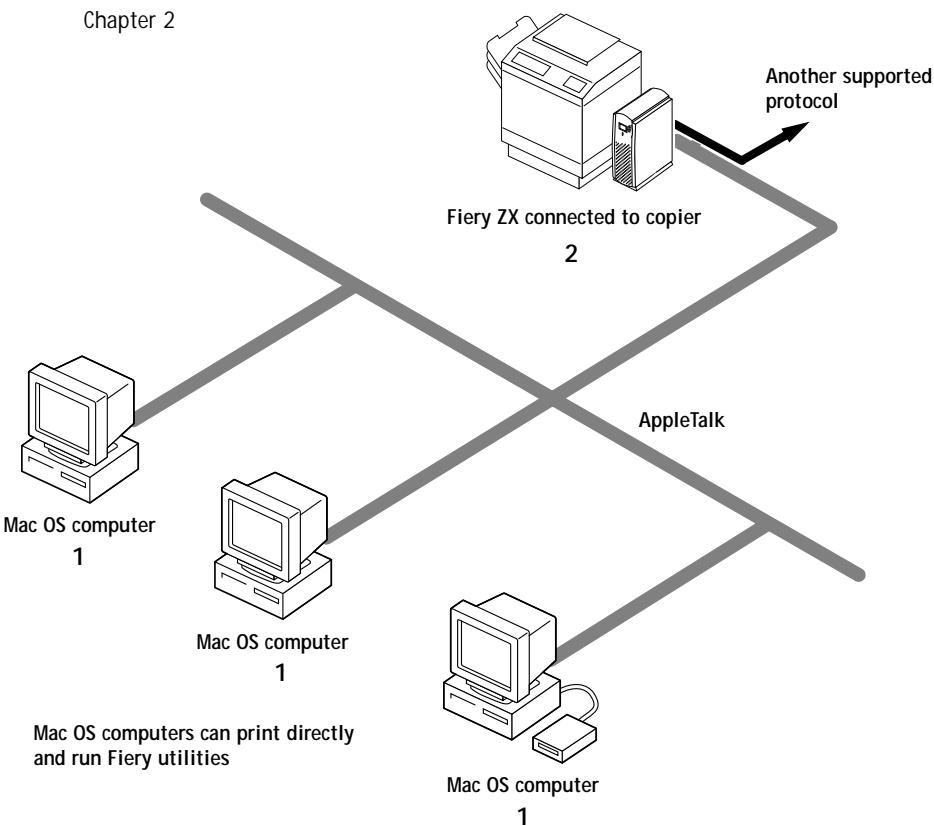

Windows computers in a Novell environment
Key to setup:
1 NetWare server page 4-1
2 Fiery ZX Setup Chapter 2
3 NetWare client Getting Started
4 Windows computer with SPX page 4-23
Windows computer: NetWare client
3
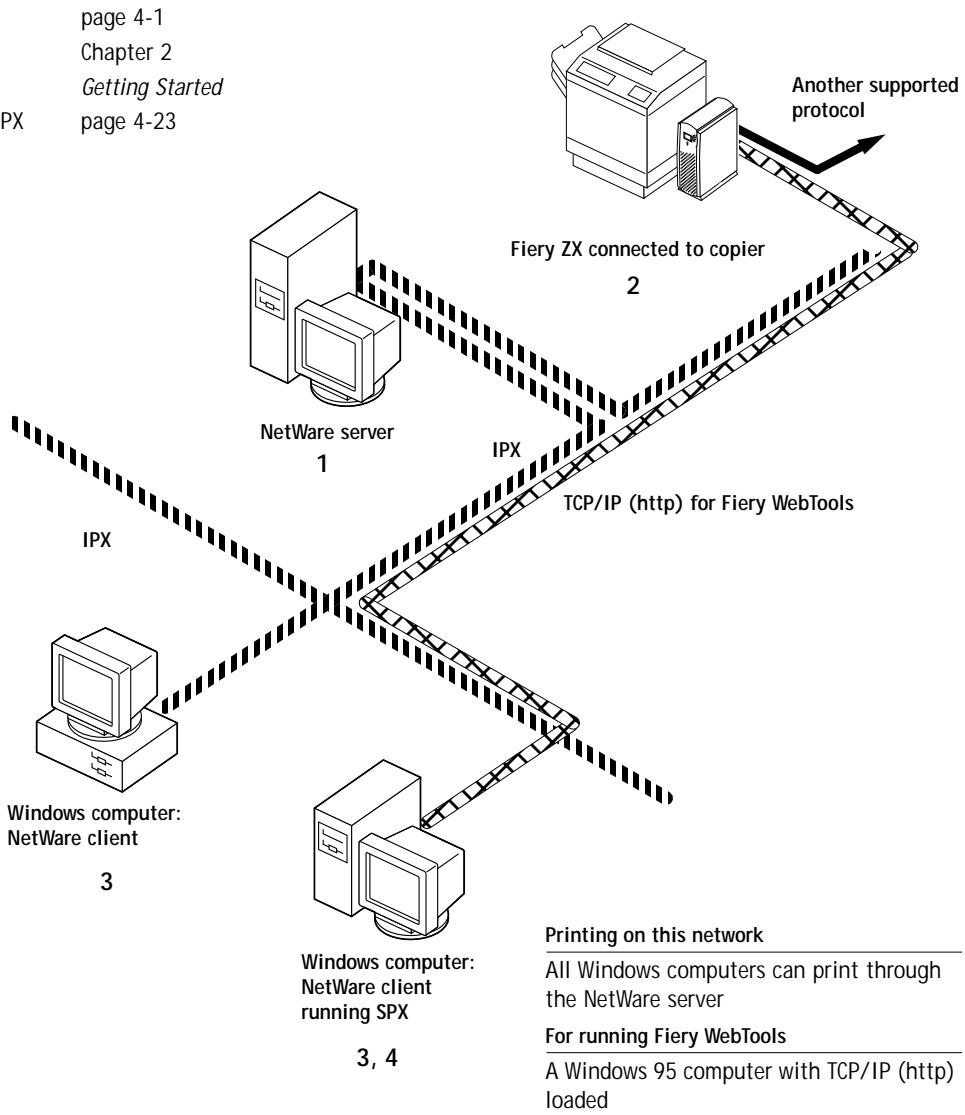

IPX protocol
SPX protocol (TCP/IP or AppleTalk possible)
Windows NT 4.0 Server environment
Key to setup:
1 Windows NT 4.0 Server page 4-18
2 Fiery ZX Setup Chapter 2
3 Windows NT 4.0 client page 4-23
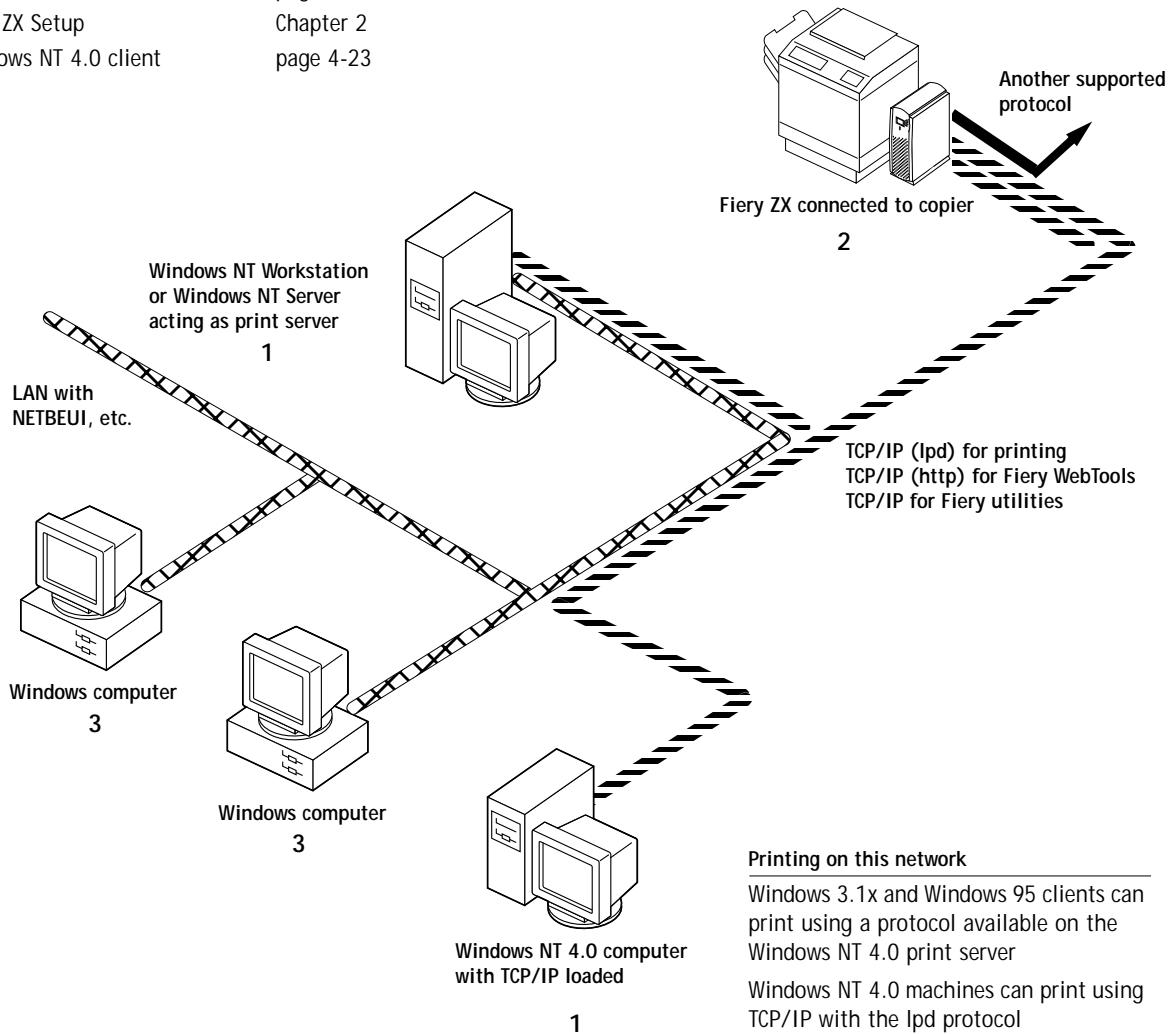
NETBEUI or other protocol available on the clients and the server

TCP/IP
Printing on this network
Windows 3.1x and Windows 95 clients can print using a protocol available on the Windows NT 4.0 print server
Windows NT 4.0 machines can print using TCP/IP with the lpd protocol
For running Fiery utilities and WebTools
A Windows NT 4.0 computer with TCP/IP loaded
Windows computers using Windows printing
Key to setup:
1 Windows computer
2 Fiery ZX Setup
Getting Started
Chapter 2
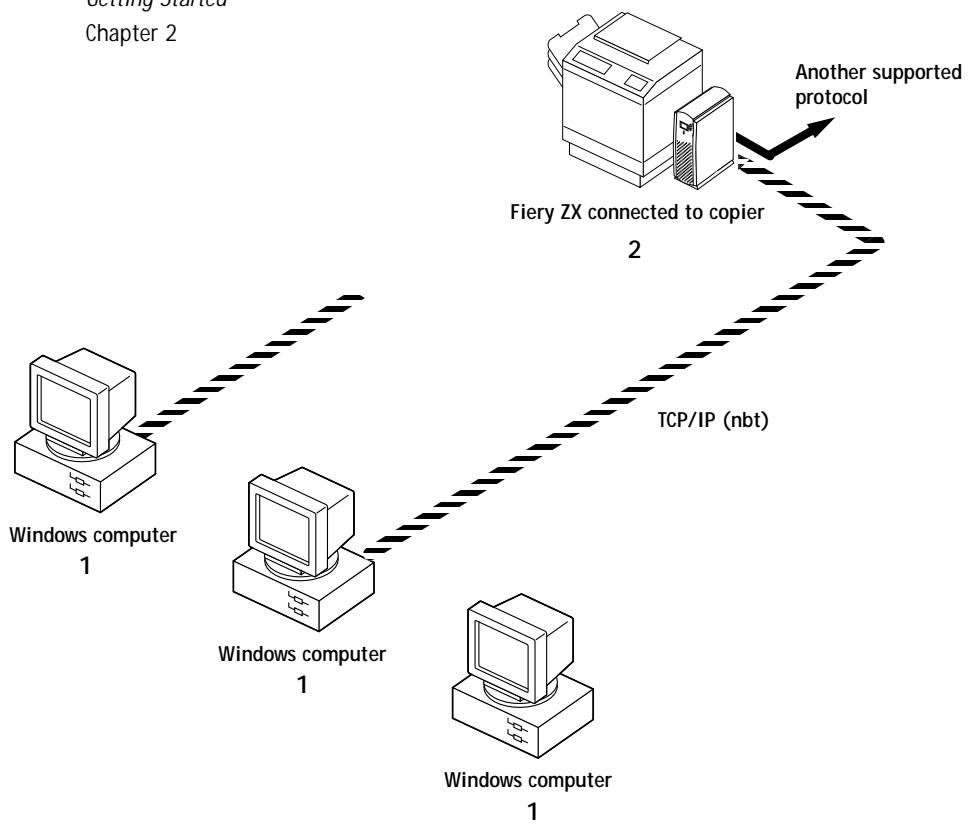
For Windows printing
Windows computers
Windows (SMB) printing enabled

UNIX workstations and Windows NT 4.0 computers on a TCP/IP network
Key to setup:
1 UNIX server/host
2 Fiery ZX Setup
3 UNIX workstation
4 TCP/IP client
5 Windows NT 4.0 client
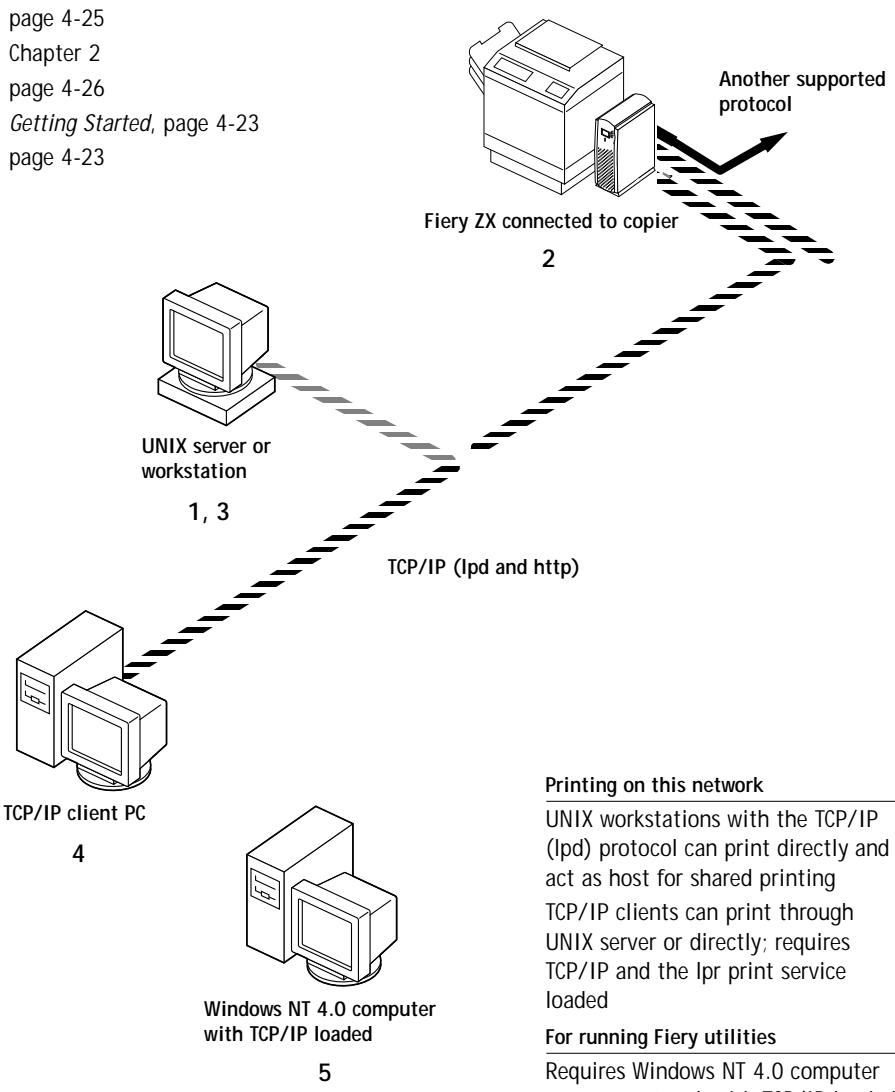
Printing on this network
UNIX workstations with the TCP/IP (Ipd) protocol can print directly and act as host for shared printing
TCP/IP clients can print through
UNIX server or directly; requires
TCP/IP and the Ipr print service
loaded
For running Fiery utilities
Requires Windows NT 4.0 computer on same network with TCP/IP loaded For running Fiery WebTools
Requires Windows or Mac OS computer on same network with TCP/IP loaded
Fiery ZX parallel port connection
Key to setup:
1 Fiery ZX Setup
Chapter 2
2 Windows computer
Printing Guide
With the parallel port enabled, the Fiery ZX can accept and print jobs sent to its parallel port.

Parallel
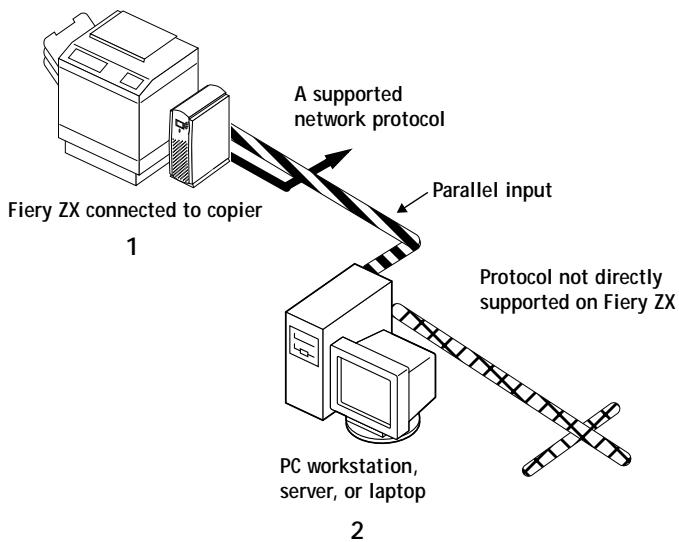
The rest of this chapter and the next chapter describe the parts of an installation that are performed on the Fiery ZX itself. This chapter describes the physical network connections. Chapter 2 summarizes Fiery ZX Setup and other administrative functions available from the Control Panel. Chapter 3 describes Fiery ZX Setup from Command WorkStation.
Before you begin
The following steps should be completed before you configure the Fiery ZX and the workstations that will print to the Fiery ZX. A service technician will have performed some initial installation.
You need two network nodes if you are planning to use the Command WorkStation—one for the Fiery ZX and one for the Command WorkStation.
TO PREPARE FOR FIERY ZX CONFIGURATION:
- Print a copier test page to make sure the copier is functioning normally.
- Turn off the copier and connect the interface cable from the copier to the Fiery ZX.
- To confirm this connection, turn on the copier and the Fiery ZX and print a Test Page from the Control Panel.
To print a Test Page, press the Menu button on the Control Panel to display the Functions menu. (See “Fiery ZX Setup from the Control Panel” on page 2-2.) Choose Print Pages, and then Test Page.
- With both the copier and the Fiery ZX turned off, connect the network cable to the Fiery ZX, as described in the next section.
The network should already be installed and operational.
- Turn on the copier and then the Fiery ZX.
- Prepare network servers to share Fiery ZX user software and to enable networked users to print to the Fiery ZX, and proceed to Setup.
See Chapters 2 and 3 for details.
- Connect and configure the Command WorkStation.
See Getting Started and the documentation that came with your Windows NT 4.0 computer for details.
Ethernet cable connection
The Fiery ZX supports Ethernet cabling of three types:
- Thinnet (thin coaxial Ethernet cable or 10Base2)
Uses an external transceiver to attach to the AUI (Attachment Unit Interface) connector on the Ethernet interface of the Fiery ZX.
- Thicknet (thick coaxial Ethernet cable or 10Base5)
Connects directly to the AUI connector on the Ethernet interface of the Fiery ZX.
- Unshielded Twisted Pair (UTP) defined as Category 5 for use with 100BaseT, or as Category 3 or Category 5 for use with 10BaseT.
Uses an 8-pin RJ-45 connector that plugs into the RJ-45 socket on the Fiery ZX.
NOTE: The 100BaseT type supported by the Fiery ZX is 100BaseTX, also known as Fast Ethernet. If an Ethernet hub is used, it must be a 100BaseTX hub. The term "100BaseT" is used to refer to 100BaseTX.
Back view of the Fiery ZX
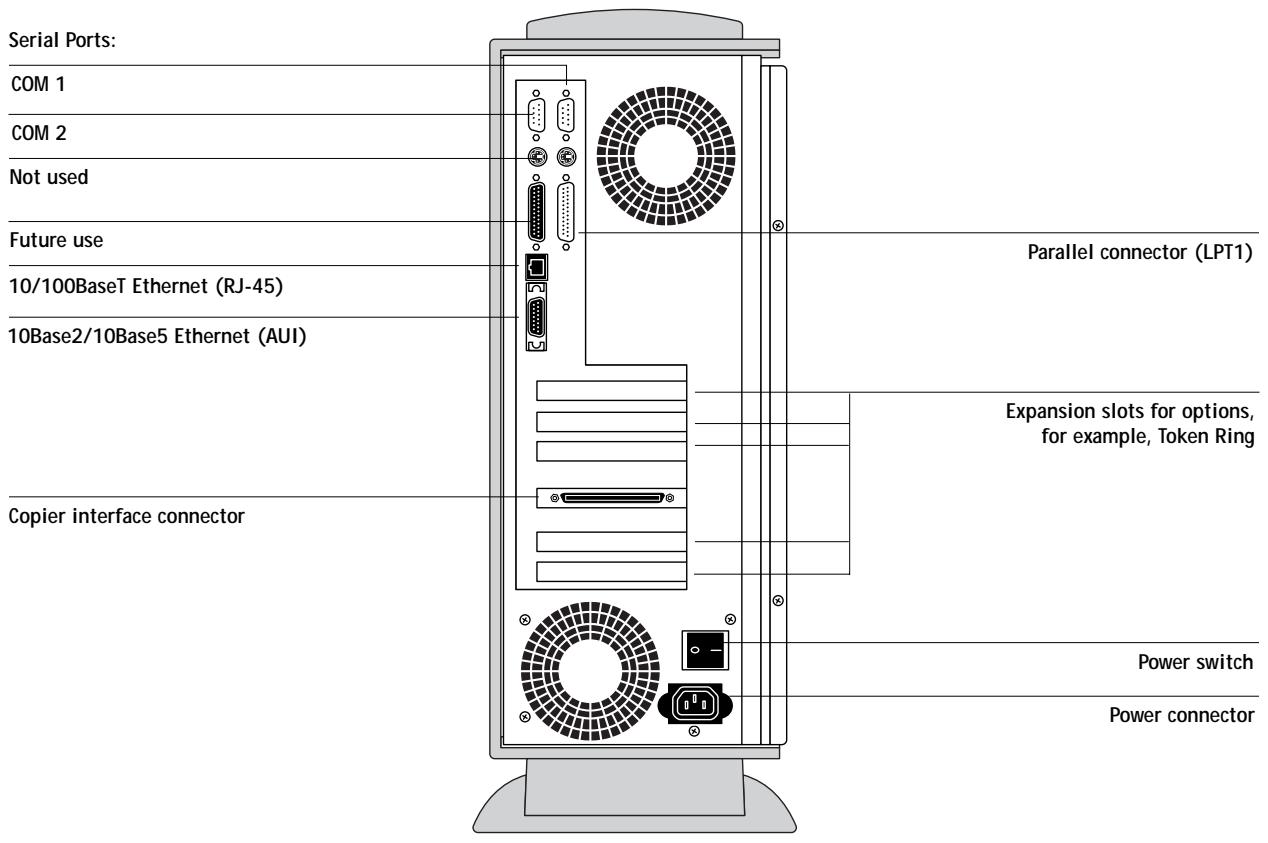

Shut down the Fiery ZX before attaching it to any network device. Do not attach cables to more than one Ethernet connector; only one Ethernet connection can be made at any one time.
If the Token Ring option is installed, you can enable both Ethernet and Token Ring simultaneously. Attach a cable to one of the Token Ring connectors, and attach a second cable to one of the Ethernet connectors. For more information on Token Ring, see Appendix A.
TO USE THINNET CABLE:
- With the Fiery ZX turned off, connect the transceiver to the AUI connector on the back of the Fiery ZX. Slide the latch to lock the transceiver connection.
- Connect the thinnet cable to the BNC connector on the transceiver.
NOTE: If the external transceiver has an SQE switch, make sure the switch is set to OFF. It should be set to OFF at all times. The functions controlled by the SQE switch are not required for use with the Fiery ZX.
- Configure network servers for printing and then proceed to Setup.
TO USE THICKNET CABLE:
- With the Fiery ZX turned off, connect the thicknet cable to the AUI connector on the back of the Fiery ZX. Slide the latch to lock the connector.
- Configure network servers for printing and then proceed to Setup.
TO USE UTP CABLE FOR 100BASET OR 10BASET:
- With the Fiery ZX turned off, connect the RJ-45 cable to the Ethernet RJ-45 socket on the back of the Fiery ZX.
- Configure network servers for printing and then proceed to Setup.
Parallel cable connection
In addition to receiving print jobs over Ethernet and Token Ring, the Fiery ZX can accept print jobs from a Windows computer through its high-speed parallel port. This connection is advantageous for portable computers and for workstations on dedicated networks using protocols other than AppleTalk, TCP/IP, or IPX.
The parallel port connection can be active at the same time as the network ports.
NOTE: The parallel port cannot be used to connect the Fiery ZX with the Command WorkStation or other Fiery utilities.
TO USE PARALLEL CABLE:
- With the Fiery ZX and the Windows computer turned off, attach the parallel cable to the parallel port of the Fiery ZX.
See the illustration on page 1-13 for the location of the parallel port. - Connect the other end of the cable to the parallel port on the Windows computer.
- Turn on the computer and the Fiery ZX.
- Proceed to Setup.
NOTE: Use only the parallel cable supplied with your Fiery ZX.
To print to the parallel port, you need to set up the parallel port connection. See "Parallel Port Setup options" on page 2-14. For information on setting up printing, see Getting Started, for printing to the parallel port, see the Printing Guide.
Chapter 2: Performing Setup from the Control Panel
The Fiery ZX Color Server fits into a variety of work environments. To prepare for printing at your site, you need to do some initial configuration to specify the network environment and the kind of printing you will do.
About Fiery ZX Setup
Setup is required the first time the Fiery ZX is turned on after new system software is loaded. In this initial Setup, you (or the service technician who loads the software) choose the language you want to use for Control Panel screens.
Initial Setup from the Control Panel
In initial Setup, you must configure at least Server Setup, Network Setup, and Printer Setup, in that order, from the Control Panel. Also during initial Setup, you specify settings needed for the network connection between the Fiery ZX and the Command WorkStation.
If you don't configure the remaining Setups, the Fiery ZX uses default settings. These defaults allow the Fiery ZX to reach the Idle state, but might not allow users to print to the Fiery ZX. You need to make settings appropriate for the printing environment at your site.
Making changes to Setup
After initial Setup, you can change Setup options from the Control Panel (page 2-2) or from Command WorkStation (page 3-1). The Operator password can be set and changed from Command WorkStation only. Most other Setup options can be set from both interfaces.
Network server setup requirements
On NetWare or Windows NT 4.0 networks, the network servers must be configured for printing to the Fiery ZX before you enter network settings on the Fiery ZX. The diagrams on pages 1-5 through 1-10 give chapter references for network server setup.
You need a live network connection so that the Fiery ZX can query the network for zones, servers, and server-based queues.
Whenever the configuration of the Fiery ZX, a copier, or the network itself changes at your site, you can alter individual settings to correspond to the changed environment. Likewise, if printing needs or administrative requirements change, you can alter the corresponding settings.
NOTE: Changing network or port settings may require that you make changes in more than one Setup menu.
Fiery ZX Setup from the Control Panel
Setup, performed from the Control Panel right after powering on or rebooting the Fiery ZX, configures the Fiery ZX to communicate with other devices and manage print jobs sent to it.
There are six groups of Setup options:
- Server Setup to specify system options
- Network Setup to specify all the active network systems that will transmit print jobs to the Fiery ZX
- Printer Setup to specify the way print jobs and queues are managed
- PS Setup to specify PostScript settings
Color Setup to specify color settings - Job Log Setup to specify how the Fiery ZX handles its log of printed jobs
Other Setup options allow you to calibrate the Fiery ZX, to create and change an administrator password, and to clear the jobs queued on the Fiery ZX.
Accessing Setup options
The Control Panel on the front of the Fiery ZX enables you to set options and view information about jobs printed to the Fiery ZX.
It comprises the following parts:
- Display window—shows status information and options for setting up the Fiery ZX
- Line selection buttons—select a setting and proceed to the next option
- Up and down buttons
- Menu button (escape key)
- Activity light—indicates normal or problem activity
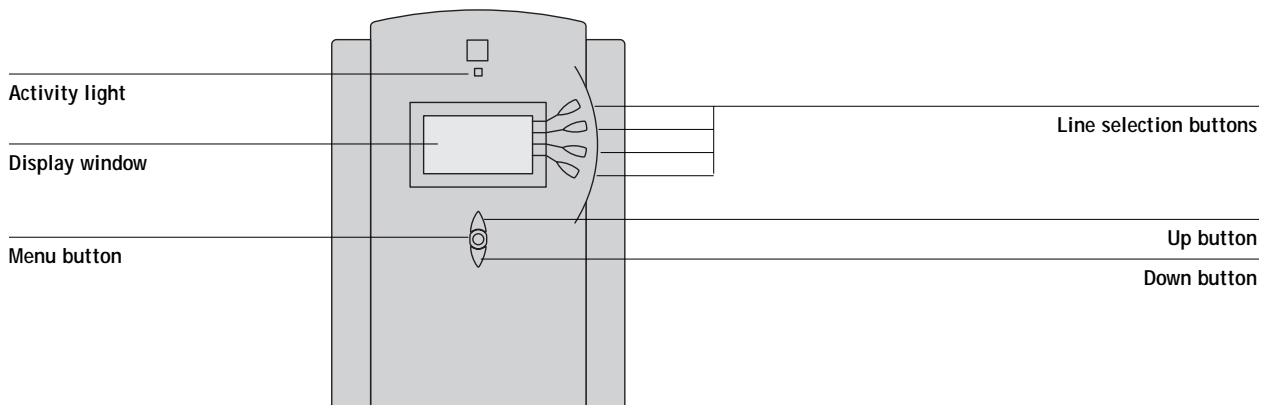
Fiery ZX Control Panel
The Job Management Guide describes the online display screens in detail. This chapter describes only the screens you might see when performing Setup.
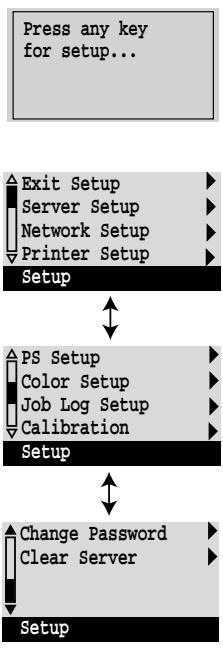
TO ACCESS SETUP WHEN THE FIERY ZX IS AT IDLE:
- Make sure the information screen on the Control Panel reads Idle.
If Printing or Ripping appears, the Fiery ZX is processing, and you must wait until the system finishes and reaches the Idle state.
- Press the Menu button on the Control Panel to go to the Functions menu.
- Scroll with the down arrow and press the line selection button next to Reboot Server. After automatic start-up diagnostics, the Fiery ZX displays the setup message screen.
-
At the setup message, press any key.
-
Press the line selection button to choose a Setup menu or command.
Press the down button to view the second and third screens of the main Setup menu. - Choose setups in the same order as they appear in the menu: Server Setup, Network Setup, Printer Setup, PS Setup, Color Setup, and then Job Log Setup.
The sequence is important for first-time Setup. Later, just go directly to the menu you want to change. However, if you make changes in Network Setup, you may need to change some settings in Printer Setup as well. - Set an Administrator password to protect your Setup from unauthorized alteration.
TO ACCESS SETUP WHEN THE FIERY ZX IS OFF:
- Make sure the Fiery ZX is connected to the copier and to the network you will use.
- Turn on the Fiery ZX.
The startup diagnostics are performed.
- At the startup message, press any key.
- Continue with step 5 from the previous procedure.
Review the settings described in this chapter. For more information on calibration and Control Panel screens other than those in Setup, see the Job Management Guide.
About the Control Panel Setup interface
When you perform Setup from the Control Panel, you select one menu after another and enter information about your Fiery ZX and your network and printing environment.
In each Setup screen, the last line of the display window tells you the name of the current Setup menu. Most of the menus you see are shown on the Control Panel Map, a flowchart that can be printed from the Control Panel.
TO PRINT THE CONTROL PANEL MAP:
- At the Control Panel, press the Menu button to access the Functions menu.
- Press the button for Print Pages.
The Control Panel displays the first four types of pages you can print. To see the remaining types of pages, press the down button.
- Press the button for Control Panel Map.
Types of Setup screens
There are two types of Setup options:
| Multiple choice questions | You are given choices (for example, Yes or No, or a list of options from which to choose). Only one choice is displayed at a time, in highlighted text. The currently selected (or the default) value appears first. |
| Use the up and down buttons to scroll through the selections, and choose OK when the correct information is displayed. | |
| Information entry options | You must specify the information for your site. For example, the printer name or IP address. |
| In that case, use the up and down buttons to scroll the alphanumeric symbols to make your selection. | |
| The cursor position is highlighted, and two of the line selection buttons become left and right arrow buttons. Arrows appear on the display window next to the corresponding buttons. Use these buttons to move between positions for entering information. | |
| NOTE: When you enter text, enter it from left to right, as the left arrow button acts as a delete key as well as a cursor moving key. This is indicated in the display by the delete symbol (√). |
Example: Multiple choice
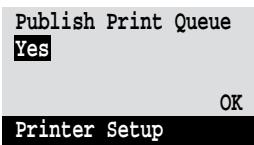
Press up or down to display the other option or options.
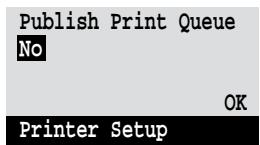
When the setting you want is displayed, press the button beside OK to continue.
Example: Information entry with fields
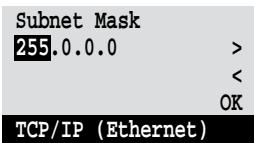
From the starting position, press the right arrow button to move the cursor to the right.
The next field is selected. Press up or down to change the number.
When the correct number is displayed, press the right arrow button to move to the third field. Press the left arrow button to go back and edit, or press OK to select the choice and continue.
Example: Information entry with individual characters
From the starting position, press up or down to enter the first character.
When the correct character is displayed, press the right arrow button to move the cursor to the next position.
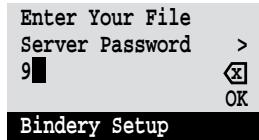
Press up or down to enter a character in the second position.
The delete button erases the current character and moves the cursor to the left.
Pressing OK enters what is currently displayed.
NOTE: If you make a mistake during Setup, you can always use the Menu button to cancel without saving changes. If you are viewing a Setup screen, pressing the Menu button cancels what you are doing in the current screen to bring you to the next higher level menu. You may need to press Menu more than once to return to the top level for the particular Setup procedure with which you are working. Once at the top level, you can enter the current Setup again, or exit without making changes.
When you have entered all the settings or made all the changes you want, you need to save the changes. You are usually prompted to do so. If you choose Yes, your settings overwrite previous settings. If you choose No, your previous settings are retained. If necessary, the Fiery ZX reboot after you exit from the Setup menu.
Server Setup options
The Server Setup menu lets you specify system information that pertains to the Fiery ZX itself and all users. Accessing the menu is described on page 2-2.
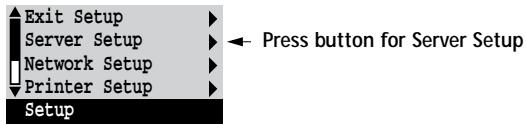
When you choose Server Setup, the options appear in sequence as described below. Default values, where applicable, appear in square brackets. Words shown in italics indicate that a product- or site-specific value is displayed.
Server Name
Default server name
Use this option to give the Fiery ZX a name (up to 10 characters long). This is the name that will appear in the Chooser on an AppleTalk network.
Also enter this name when you configure the connection for Fiery Downloader on IPX/SPX networks (see Getting Started).
NOTE: Do not use the device name (PRN-M) as the server name. Also, if you have more than one Fiery ZX and give them the same name, a unique number is appended to the name that appears in the list of available servers. Although this routes jobs correctly, it may be inconvenient to users and is not a recommended practice.
System Date
Use this option to change the system date. Enter the date in the standard form for your usage. The date is used on the cover page and in Job Logs.
System Time
Use this option to change the system time. Enter the time based on the 24-hour clock in the form HH:MM (Hours:Minutes). The time is used on the cover page and in Job Logs.
Print Start Page
No/Yes [No]
Use this option to specify whether the Fiery ZX should print a start page every time it is powered on or rebooted. The start page displays information about the Fiery ZX, including the server name, current date and time, printer mode, amount of memory installed in the Fiery ZX, last calibration date, network protocols enabled, and connections published.
Use Character Set
Macintosh/DOS/Windows [Macintosh]
Use this option to specify whether the Control Panel and the Command WorkStation should use the Macintosh, DOS, or Windows character set for displaying filenames. This is important if filenames include accented or composite characters (such as é, ù, or æ).
For mixed-platform networks, choose the option that gives the best overall representation of the special characters you use.
Enable Printed Queue
Yes/No [Yes]
Select Yes if you want to enable the Printed queue, which creates a storage location on the Fiery ZX disk for recent jobs that were printed from the Print queue. Users with Administrator or Operator access to the Command WorkStation or Fiery WebSpooler can reprint jobs from the Printed queue without sending them to the Fiery ZX again. If you select No, jobs are deleted from the Fiery ZX disk immediately after they are printed.
![KONICA MINOLTA FIERY ZX-2100 FOR CF910 - Yes/No [Yes] - 1](/content/2025/01/139707/images/d64e95b54ccc4e93afdafa59ee67a83502b27f6c4f9548cddb0d43073995b1f8.jpg)
Jobs Saved in Printed Queue
1-99 [10]
This option appears only if Enable Printed Queue is set to Yes. Specify the number of jobs to be stored in the Printed queue. Note that jobs in the Printed queue take up space on the Fiery ZX hard disk. If disk space is low, use a smaller value for saved jobs.
Save Changes
Yes/No [Yes]
Select Yes to activate any changes made in the Server Setup; select No to return to the main Setup menu without making any changes.
Network Setup options
Network Setup configures the Fiery ZX to receive print jobs over the network systems that will be used at your site.
In the Setup menu, choose Network Setup.
The Network Setup menu includes three submenus that let you choose port types, protocols, and network services. You must perform Port Setup and enable at least one port.
For each item you enable, you are prompted to enter settings for that item. Default values, where applicable, appear in square brackets.
In Network Setup you specify network addresses and names to be used by workstations, servers, and the Fiery ZX when they communicate with each other.
You need to display and select options only for the network systems that are currently used at your site. If your network requirements change, you can change Network Setup at any time.
If the Fiery ZX is configured to enable more than one protocol, it automatically switches to the correct protocol when it receives a print job. When the parallel port and one or two network ports are enabled, print jobs can be received over all of those ports at the same time.
The available network types, and the Setup areas that pertain to them, are summarized in the following tables.
| For this Network or Connection Type: | Use this Port Setup: | Use this Protocol Setup: | Use this Service Setup: |
| AppleTalk over Ethernet | Ethernet Setup | AppleTalk Setup | AppleTalk printing (PAP) is enabled automatically. |
| TCP/IP over Ethernet | Ethernet Setup | TCP/IP Setup: Ethernet Setup | LPD Setup Web Services Setup Windows Setup |
| IPX/SPX over Ethernet | Ethernet Setup | IPX/SPX Setup | PServer Setup (NDS, Bindery, or both) |
| Parallel | Parallel Port Setup | — | — |
If the Token Ring option is installed, you have these additional options:
| For this Network or Connection Type: | Use this Port Setup: | Use this Protocol Setup: | Use this Service Setup: |
| TCP/IP over Token Ring | Token Ring Setup | TCP/IP Setup: Token Ring Setup | LPD Setup Web Services Setup Windows Setup |
| IPX/SPX over Token Ring | Token Ring Setup | IPX/SPX Setup | PServer Setup (NDS, Bindery, or both) |
TO ACCESS NETWORK SETUP OPTIONS:
- Confirm that the network cable is connected to the Fiery ZX.
During Network Setup, the Fiery ZX queries the network for zones, servers, and server-based queues. If you perform Network Setup without a connected and functioning network, default settings are used that may not meet your needs.
-
Choose Network Setup from the main Setup menu.
-
Choose Port Setup from the Network Setup menu.
- To use Ethernet, choose Ethernet Setup from the Port Setup menu, and enter the appropriate settings.
- If the Token Ring option is installed, choose Token Ring Setup and enter the appropriate settings.
- To print to the parallel port, choose Parallel Port Setup from the Port Setup menu, and enter the appropriate settings.
- When you have finished entering port settings, choose Exit Port Setup and then choose Protocol Setup.
- Enter the appropriate settings for the protocol or protocols you will use.
- When you have finished entering protocol settings, choose Exit Protocol Setup and then choose Service Setup.
- Enter the appropriate settings for the services you will use.
The options are described in detail in the following pages.
TO EXIT NETWORK SETUP:
- When you have finished entering service settings, choose Exit Network Setup.
- Choose Yes when prompted to save changes.
- From the main Setup menu, choose another Setup or choose Exit Setup.
Port Setup options
Exit Port Setup
Ethernet Setup
Token Ring Setup
Parallel Port Setup
Port Setup
You can enable Ethernet and parallel communication simultaneously. If the Token Ring option is installed, you can also enable Token Ring. To configure the Fiery ZX, choose each port type you use and enter the settings for that port. Since network setups are nested, the names of higher-level menus are shown in this chapter to the left of each menu heading.
Network Setup Port Setup
Ethernet Setup
Enable Ethernet
Yes/No [Yes]
Select Yes if you have Ethernet cabling connected to the Fiery ZX.
Ethernet Speed
Auto Detect/100 Mbps/10 Mbps TP/10 Mbps AUI [Auto Detect]
Select Auto Detect if your network environment is mixed, or if you do not know the network speed. If you know the speed of the network to which the Fiery ZX is attached (10 Mbps or 100 Mbps), select it.
The options 10 Mbps TP and 10 Mbps AUI refer to how the Ethernet cable is connected, either through twisted pair cable on the RJ45 port or through the AUI port.
Network Setup Port Setup
Token Ring Setup
Enable Token Ring
Yes/No [No]
Select Yes if the Fiery ZX is to be connected to a Token Ring network.
Token Ring Speed
Auto Detect/16 Mbps/4 Mbps [Auto Detect]
Select Auto Detect if your network environment is mixed, or select the speed (4 Mbps or 16 Mbps) of the network to which the Fiery ZX is attached.
Maximum Frame Size
(bytes)
4202/2154/1130/632 [4202]
Select the maximum frame size recommended by the network administrator at your site. If you are uncertain of the setting to use, select the default value (4202).
Enable Source Routing
Yes/No [Yes]
Select Yes if your network supports source routing.
Network Setup Port Setup
Source Routing
Request All Route
Yes/No [Yes]
This option appears only if you enabled Source Routing. Select Yes if you want the Request packet to travel to its destination by all routes.
Source Routing
Respond All Route
Yes/No [No]
This option appears only if you answered No to the previous option. Select Yes if you want the Response packet to return by all routes to the originating computer.
Parallel Port Setup options
You must enable the parallel port in order to enter the Parallel Port Setup options and print to the parallel port.
Parallel Port Setup
Enable Parallel Port No/Yes [No]
Select Yes if you want to print through the parallel port. You can connect a single Windows computer to the parallel port and print directly to the Fiery ZX.
NOTE: Enabling the parallel port does not conflict with using Ethernet or Token Ring communication with the Fiery ZX.
Port Timeout in Seconds 5-60 [5]
This option appears only if Enable Parallel Port is set to Yes. Your setting determines how long the Fiery ZX waits without receiving data from the parallel port before deciding that the current job is complete. Until the timeout, the Fiery ZX cannot receive new jobs through the parallel port, but it can continue to receive network print jobs.
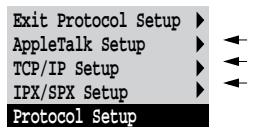
Network Setup Protocol Setup
Ignore EOF Character Yes/No [No]
This option appears only if Enable Parallel Port is set to Yes. This option specifies that the Fiery ZX should ignore end-of-file (EOF) messages in a file. This option must be set to Yes to print PostScript files in binary format (not ASCII); under normal circumstances, it should be set to No. When this option is set to Yes, the Fiery ZX uses the parallel port timeout value to determine when the end of the file has been reached.
When you have configured the port options, choose another port type, or choose Exit Port Setup and proceed to Protocol Setup.
Protocol Setup options
To configure the Fiery ZX, choose each protocol and enter the settings for that protocol. You can enable AppleTalk, TCP/IP, and IPX/SPX communication simultaneously.
AppleTalk Setup
EnableAppleTalk Yes/No [Yes]
Select Yes if you have an AppleTalk network connected to the Fiery ZX. This setting enables the Fiery ZX to communicate over AppleTalk networks.
AppleTalk Zone List of zones
The Fiery ZX searches the network for AppleTalk zones in your network segment. Scroll through the list to select the AppleTalk zone in which you want the Fiery ZX to appear. If your segment has only one zone, the Fiery ZX is assigned to that zone automatically.
The message "No AppleTalk zone found" may mean your network has no zones, or the network cable is not connected (see page 5-4). Choose OK.
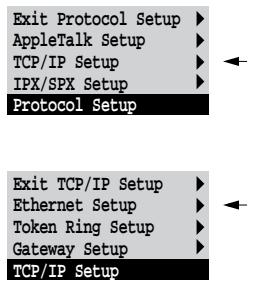
TCP/IP Setup options
To configure the Fiery ZX for TCP/IP, choose TCP/IP Setup.
Choose Ethernet Setup and enter the appropriate settings. Choose each network type you use (Ethernet and/or Token Ring) and enter the appropriate settings. Token Ring Setup appears as an option only if you have enabled Token Ring in Port Setup. If your network uses a gateway, enter the gateway address in Gateway Setup.
NOTE: If TCP/IP is running on both an Ethernet and a Token Ring network, it is assumed that the two networks are already routed to each other. The Fiery ZX does not function as a router.
When you set an IP address, subnet mask, or gateway address for the Fiery ZX during Setup, you can allow the Fiery ZX to get these addresses automatically from a DHCP, BOOTP, or RARP server. First, turn on or reboot the Fiery ZX and allow it reach Idle. Next, make sure the DHCP, BOOTP, or RARP server is running. Finally, perform Fiery ZX Setup.
Network Setup Protocol Setup TCP/IP Setup
TCP/IP Setup with Ethernet
Ethernet Setup
Enable TCP/IP for Ethernet Yes/No [No]
Select Yes if you have a TCP/IP network connected to the Fiery ZX over Ethernet cabling.
If you use Token Ring, enabling TCP/IP for Token Ring is required for enabling the Fiery WebTools.
NOTE: If you are using TCP/IP for printing from Windows NT 4.0 workstations, enabling TCP/IP here also enables you to use Fiery utilities from Windows NT 4.0 workstations using TCP/IP protocols. At the same time, enabling TCP/IP enables the network layer that lets you use Fiery utilities from Windows 95 computers using IPX/SPX protocols.
Enable Auto IP Configuration Yes/No [No]
Select Yes to allow the Fiery ZX to obtain its Ethernet IP address by searching the network. Depending on your network and the protocol you select in the following option (DHCP, BOOTP, or RARP), the IP address can change. Select No to assign the Fiery ZX a static IP address that will not change. If you select No, you proceed to the IP Address option, where you manually set the IP address.
Select protocol DHCP/BOOTP/RARP [DHCP]
This option appears only if you answered Yes to Enable Auto IP Configuration. Select the protocol over which the Fiery ZX should search for its IP address. Both DHCP and BOOTP allow the Fiery ZX to obtain the Ethernet IP address and Subnet Mask automatically. RARP obtains only the Ethernet IP address.
Depending on your network, the Fiery ZX might be assigned a different address after you reboot the Fiery ZX. With the DHCP setting, the Fiery ZX can be assigned a different address even if it is not rebooted. Make sure the network is already configured properly for the protocol you select.
IP Address
[127.0.0.1]
Enter the Fiery ZX IP address for Ethernet. This IP address, unlike an IP address set automatically, remains the same if you reboot the Fiery ZX. You must change the default 127.0.0.1 to a valid address for your network. For information about setting up printing with TCP/IP, see Chapter 4.
Subnet Mask
[255.255.255.0]
This option lets you modify the subnet mask for printing with TCP/IP over Ethernet. The subnet mask is set to 255.255.255.0 by default. To set the subnet mask, enter one of the following values:
- 255.0.0.0 if the IP address starts with a number less than 128
- 255.255.0.0 if the IP address starts with a number from 128 through 191
- 255.255.255.0 if the IP address starts with a number greater than 191
NOTE: Confirm the subnet mask setting with your network administrator before proceeding. In some cases the required setting may be different from those listed.
Network Setup Protocol Setup TCP/IP Setup
TCP/IP Setup with Token Ring
Enable TCP/IP for Token Ring, and enter the IP address and subnet mask. Then, if your TCP/IP network has a gateway, and users outside the gateway plan to print to the Fiery ZX using TCP/IP, choose Gateway Setup and enter the gateway address (see page 2-21).
Token Ring Setup
Enable TCP/IP for Token Ring Yes/No [No]
Select Yes if you have a TCP/IP network connected to the Fiery ZX over Token Ring.
If you use Token Ring, enabling TCP/IP for Token Ring is required for enabling the Fiery Web Tools.
NOTE: If you are using TCP/IP for printing from Windows NT 4.0 workstations, enabling TCP/IP here also lets you use the Fiery utilities from Windows NT 4.0 workstations using TCP/IP protocols. At the same time, enabling TCP/IP enables the network layer that lets you use the Fiery utilities from Windows 95 computers using IPX/SPX protocols.
Enable Auto IP Configuration Yes/No [No]
Select Yes to allow the Fiery ZX to obtain its Token Ring IP address. Depending on your network and the protocol you select in the following option (DHCP, BOOTP, or RARP), the IP address can change. Select No to assign the Fiery ZX a static IP address that will not change. If you select No, you proceed to the IP Address option, where you manually set the IP address.
Select protocol
DHCP/BOOTP/RARP [DHCP]
This option appears only if you answered Yes to Enable auto IP configuration. Select the protocol over which the Fiery ZX should search for its IP address. Both DHCP and BOOTP allow the Fiery ZX to obtain the Token Ring IP address and Subnet Mask automatically. RARP obtains only the Token Ring IP address.
Depending on your network, the Fiery ZX might be assigned a different address after you reboot the Fiery ZX. With the DHCP setting, the Fiery ZX can be assigned a different address even if it is not rebooted. Make sure the network is already configured properly for the protocol you select.
IP Address
[127.0.0.1]
Enter the Fiery ZX IP address for Token Ring. This IP address, unlike an IP address set automatically, remains the same if you reboot the Fiery ZX. You must change the default 127.0.0.1 to a valid address for your network. For information about setting up printing with TCP/IP, see Chapter 4.
Subnet Mask
[255.255.255.0]
This option lets you modify the subnet mask for printing with TCP/IP over Token Ring. The subnet mask is set to 255.255.255.0 by default. To set the subnet mask, enter one of the following values:
- 255.0.0.0 if the IP address starts with a number less than 128
- 255.255.0.0 if the IP address starts with a number from 128 through 191
- 255.255.255.0 if the IP address starts with a number greater than 191
NOTE: Confirm the subnet mask setting with your network administrator before proceeding. In some cases the required setting may be different from those listed.
![KONICA MINOLTA FIERY ZX-2100 FOR CF910 - [255.255.255.0] - 1](/content/2025/01/139707/images/6f6cbe366008dd05ff440289795eda12c1b2a041a948f0dab9079f13b74ef55c.jpg)
Network Setup Protocol Setup TCP/IP Setup
Gateway
If your TCP/IP network has a gateway, and users outside the gateway print to the Fiery ZX using TCP/IP, choose Gateway Setup and enter the gateway address here.
The gateway address applies to either a Token Ring or an Ethernet network. If TCP/IP is running on both an Ethernet and a Token Ring network, the gateway address you enter must be in the same subnet as either the Ethernet or the Token Ring address.
Gateway Setup
Get Gateway Address Automatically Yes/No [No]
Use this option to get the gateway address automatically for printing with TCP/IP. This option appears only if you selected DHCP or BOOTP as the protocol (see page 2-17 and page 2-20).
If you select a DHCP or BOOTP protocol and later change it to RARP, you must return to Gateway Setup and set Get Gateway Address Automatically to No. You can then set the address manually. This is because RARP does not support automatic assignment of the gateway address.
Gateway Address [127.0.0.1]
This option appears only if you answered No to Get Gateway Address Automatically, or if you selected RARP as the protocol.
Use this option to set the gateway address for printing with TCP/IP. If your network uses a gateway, you must change the default 127.0.0.1 to a correct gateway address for your network.
After setting the gateway address, choose Exit TCP/IP Setup and proceed to Service Setup.
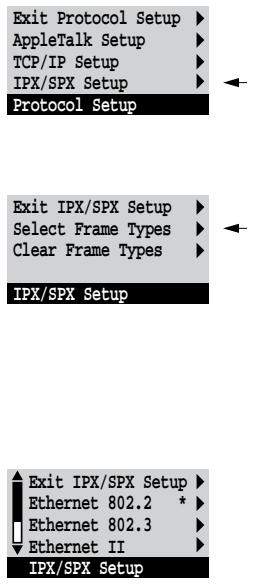
Use Gateway on Ethernet/Token Ring/Any [Ethernet]
This option appears only if you have enabled both Ethernet and Token Ring in Network Setup>Protocol Setup>TCP/IP Setup. Specify whether the gateway address applies to an Ethernet network, a Token Ring network, or either.
IPX/SPX Setup options
To configure the Fiery ZX for IPX/SPX protocols, choose IPX/SPX Setup from the Protocol Setup menu.
Select Frame Types
Choose Select Frame Types. You must choose at least one frame type to enable IPX/SPX protocols. The Fiery ZX supports the following frame types for IPX/SPX:
- for Ethernet-Ethernet 802.2, Ethernet 802.3, Ethernet II, and Ethernet SNAP
- for Token Ring—Token Ring and Token Ring SNAP
The frame selection screen allows you to make multiple selections. Depending on your Port Setup selection, only Ethernet frame types, only Token Ring frame types, or all frame types are displayed. Press the line selection button beside each frame type used on your IPX/SPX network. An asterisk (*) appears beside each selected frame type. (Press the line selection button again to deselect a frame type.) Use the up and down buttons to scroll to additional frame types. The Fiery ZX binds to each frame type as you select it.
When you have selected all the frame types used, choose Exit IPX/SPX Setup.
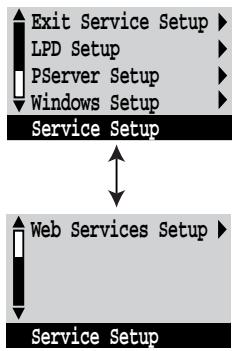
Clear Frame Types
If you selected several frame types by mistake, you can clear them all at once by choosing Exit IPX/SPX Setup, then choosing IPX/SPX Setup and selecting Clear Frame Types.
For protocols other than IPX/SPX, the frame type is automatically enabled and does not require setup, as follows:
| With this protocol: | And these printing services: | This frame type is automatically enabled: |
| AppleTalk | PAP (Printer Access Protocol) | Ethernet SNAP |
| TCP/IP with Ethernet | LPD (Line Printer Daemon) | Ethernet II |
| TCP/IP with Token Ring | LPD (Line Printer Daemon) | Token Ring SNAP |
Service Setup options
Network Service Setup has options for TCP/IP and IPX/SPX networks.
- LPD Setup enables lpd printing on TCP/IP networks.
- For IPX/SPX networks, PServer Setup allows you to enter the names of the Novell objects that are concerned with Fiery ZX print jobs.
- Windows Setup enables the Microsoft SMB (Server Message Block) protocol, which supports peer-to-peer printing, also known as Windows printing or SMB printing.
- Web Services Setup enables the http protocol and, therefore, use of the Fiery WebTools.
PServer is a program in the Fiery ZX that can service the Novell print queues assigned to the Novell print servers you have set up for printing to the Fiery ZX. When you choose PServer Setup and enable PServer, you can set up NDS (Novell Directory Services), Bindery Services, or both. NDS is used with NetWare 4.x; Bindery Services are used with NetWare 3.x or with NetWare 4.x in bindery emulation mode.
Network Setup Service Setup LPD Setup
LPD Setup options
Enable LPD Yes/No [Yes]
Select Yes to allow lpd printing. See "Setting up the Fiery ZX on TCP/IP networks" on page 4-27 for more information.
PServer Setup options
Network Setup Service Setup PServer Setup
Enable PServer Yes/No [No]
Select Yes if you have a Novell network connected to the Fiery ZX.
Exit PServer Setup NDS Setup Binder Setup Polling Interval PServer Setup
Choose NDS Setup if your network uses NetWare 4.x in native mode. Choose Bindery Setup if your network uses NetWare 3.x or uses NetWare 4.x in bindery emulation mode.
If your network uses both NDS and Bindery, set up NDS first. Setting up NDS after Bindery will overwrite Bindery Setup.
If your network uses both NDS and Bindery, and uses NetWare 4.x servers in bindery emulation, note that the Fiery ZX cannot service NDS and bindery emulation servers on the same NDS tree.
Network Setup Service Setup PServer Setup
NDS Setup
Before entering NDS settings, be sure the Fiery ZX is connected to the network and you have already configured an NDS directory tree with a Printer, a Print Server, and one or more Print Queue objects for Fiery ZX jobs (see page 4-4). To perform NDS Setup you may need permission to browse the NDS tree. If access to the Print Server is restricted, you'll need a login password.
The main objective of NDS Setup is to specify the Print Server object. In addition, you can indicate the location of the Fiery ZX print queues.
Note that the terms NetWare server, Novell server, and IPX server are in common use and are used here interchangeably to mean the server on an IPX network running Novell NetWare networking software.
Enable NDS No/Yes [No]
Select Yes if the NetWare servers you will use to print to the Fiery ZX are running NetWare 4.x in native mode.
Select NDS Tree List of trees
Use the up and down buttons to browse the list of NDS trees available to the Fiery ZX. Choose OK when you have displayed the tree that contains the Printer, Print Server, and print queue objects you have previously defined for the Fiery ZX.
Your new NDS tree selection automatically overwrites any previous tree selection. If you change the NDS tree selection and there are also current Bindery settings, you are alerted that they will be deleted. If you continue with NDS Setup, you can replace Bindery settings afterwards. If you don't want to continue, you can exit NDS Setup by pressing the Menu button to escape.
Is user login needed
to browse NDS tree?
Yes/No [No]
Select No if no password is required to browse the tree. You can proceed to navigate to the Print Server object.
Select Yes if network permissions require that you log in to browse the NDS tree and see the Print Server object you want to select. If you select Yes, you are prompted to navigate to the User Login object.
Navigate the NDS
tree to the User
Login object.
This message is displayed if you selected Yes for the previous option. Choose OK and browse the NDS tree as described in the following paragraphs.
NDS Tree name
Object list, "...
Browsing to find the User Login object begins with the NDS tree that you selected previously (with Select NDS Tree). Use the up and down buttons to scroll a list of objects in the tree beneath the [Root] in the hierarchy, or use the navigation symbol "... to go up one level at a time.
In each subsequent browse screen, the top line represents your current location. The second line contains:
- A list of objects in the current container directly below your current location.
- The symbol “...” to go up one level.
With an object selected, choose OK to travel down the tree, or choose "... to go up the tree. When you select an object and choose OK, that object is then displayed on the top line, and the second line lists objects directly below it.
Continue to browse the NDS tree until the User Login object is displayed in the second line. Choose OK.
Enter Password
Enter the login password for the NDS tree, using the up and down buttons to select characters, and the left and right arrow buttons to move the cursor. Choose OK.
Navigate the NDS
tree to the Print
Server.
Press OK to browse the NDS tree to the Print Server object.
Browsing to find the Print Server object begins with the NDS tree that you selected previously (with Select NDS Tree). In each subsequent browse screen, the top line represents your current location. The second line contains:
- A list of objects in the current container directly below your current location.
- The symbol “...” to go up one level.
With a container object selected, choose OK to travel down the tree, or choose "... to go up the tree. When you select an object and choose OK, that object is then displayed on the top line, and the second line lists objects directly below it.
When the Print Server is displayed in the second line, choose OK.
Enter Print Server
Password
Enter the Print Server password, using the up and down buttons to enter characters, and the left and right arrow buttons to move the cursor. Choose OK. (If no password is required, choose OK.)
Server should look
Entire NDS Tree/Specified subtree [Entire NDS Tree]
By default, the Fiery ZX searches the entire NDS tree for Fiery ZX print connections. This option lets you restrict the search for Fiery ZX print jobs to a subtree (the Print Queue root) in which the Fiery ZX print connections have been defined. This makes the search more efficient. Select Entire NDS tree if the tree is small. Select Specified subtree to restrict the search and specify the subtree.
If you select Entire NDS tree, choosing OK returns to PServer Setup. Proceed with Binding Setup (see page 2-29), set the Polling Interval (see page 2-33), or choose Exit PServer Setup to return to the Service Setup menu.
Browse to the root of the Print Queue subtree.
This message is displayed if you selected Specified subtree in the previous option. Choose OK to browse the NDS tree to the Print Queue subtree.
Browsing to find the container object begins with the NDS tree that you selected previously (with Select NDS Tree). In each subsequent browse screen, the top line represents your current container. The second line contains:
- A list of objects directly below your current location
- The symbol "... to go up one level
- The symbol ". ." to select the current container object (displayed in the top line) without traveling down the tree
With an object selected, choose OK to travel down the tree, or choose "... to go up the tree. When you select an object and choose OK, that object is then displayed on the top line, and the second line lists objects contained within.
When the container that contains print queues is displayed in the second line, choose OK. In the next screen, choose "." and choose OK to select the object in the top line.
When the Fiery ZX displays the container name, choose OK to return to PServer Setup.
Proceed with Bindery Setup (see page 2-29), set the Polling Interval (see page 2-33), or choose Exit PServer Setup to return to the Service Setup menu.
Network Setup Service Setup PServer Setup
Bindery Setup options


Bindery Setup
Use Bindery Setup if you have already configured one or more bindery servers (file servers running NetWare 3.x or NetWare 4.x in bindery emulation) with a Print Server and a Print Queue for Fiery ZX jobs. Before entering bindery settings, be sure the Fiery ZX is connected to the network and the NetWare file server is running. If Guest Login is not supported, you'll need a valid user name and password.
NOTE: The terms NetWare server, Novell server, and IPX file server are in common use and are used here interchangeably to mean the server on an IPX network running Novell NetWare networking software.
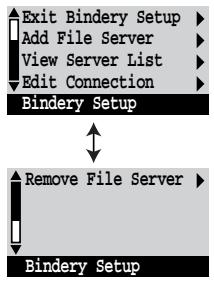
Bindery Setup menu
Because you can set up more than one Novell server to handle Fiery ZX print jobs, an additional menu is displayed for this purpose. The options are:
- Add File Server—creates a new file server connection to the Fiery ZX. You can set up a maximum of eight file server connections. After you have finished adding a new server, you return to the Bindery Setup menu, and you can set up another server if you wish.
- View Server List—displays the list of file servers that have already been selected to communicate with the Fiery ZX.
- Edit Connection—lets you change the NetWare Print Server that will print to the Fiery ZX.
- Remove File Server—lets you disconnect the Fiery ZX from a file server to which it is currently connected. Remove a file server when you want to reduce the number of connections to the Fiery ZX or re-assign the connection to a different NetWare file server.
- Exit Bindery Setup—after you added all servers, viewed a list of file servers, or removed a file server from the list.
Network Setup Service Setup PServer Setup Bindery Setup
NOTE: If you change your mind about any of the menus you have selected, you can use the Menu button to escape and return to the main Bindery Setup menu. To cancel all changes you must exit Network Setup and select No to Save Changes.
Add File Server
This option gives you two ways to add a Novell NetWare file server.
Select File Server
From List/Search by Name [From List]
You may select the file server from a scrollable list, or by a name search.
Choose From List if your network doesn't have a large number of file servers.
Select Search by Name if the number of file servers is so large that scrolling through the list would take a long time.
If you selected From List:
Add Server
[list of all servers]
The Fiery ZX obtains a list of NetWare file servers by querying the IPX network. Use the up and down buttons to select a NetWare file server from the list. Choose the server on which you have configured a print server and print queue to handle Fiery ZX print jobs.
If you selected Search by Name:
Enter First Letters of Server Name
Use the up and down buttons to enter the first letters of the name of the file server you want to use, and choose OK.
Add Server
(list of servers matching the search]
This option is displayed if you entered letters to search. Scroll to select the server you want from the list.
Once you have chosen a file server, the Fiery ZX immediately tries to log in as a guest without a password. If it succeeds, it skips to the NetWare Print Server option.
If you try to add a file server but all Fiery ZX connections are already being used, you are prompted to remove a file server (see "Remove File Server" on page 2-33).
File Server Login
administrator/supervisor/Enter Login Name [supervisor]
This option appears only if a password is required for login or if there is no guest account or the guest account is restricted. Choose Enter Login Name to enter your own login name and password or to log in as a guest. Choose administrator or supervisor if you have those privileges.
Enter Your Login Name
[guest]
This option and the next appear only if you selected Enter Login Name for the File Server Login. Enter your login name or select guest.
Enter Your File Server Password
Enter the password for logging in to your NetWare file server.
NetWare Print Server
Print Server Name
Select the name of the print server that you have configured in the NetWare utility PCONSOLE. This is the print server that will route print jobs to the Fiery ZX from computers on IPX networks.
Enter Your Print Server Password
This option appears only if your NetWare print server is set up to require you to log in with a password. Enter your print server password.
Choose Add Server again until you have connected each NetWare file server you have configured for printing to the Fiery ZX. When you have added all the IPX file servers for your site, choose Exit Bindery Setup.
Network Setup
Service Setup
PServer Setup
Bindery Setup
View Server List
Supported Servers
This option lets you view the list of file servers currently connected to the Fiery ZX, that is, servers you have added in Bindery Setup. You are notified if there are none.
When you choose OK, you return to the Bindery Setup menu.
Network Setup
Service Setup
PServer Setup
Bindery Setup
Edit Connection
On each connected NetWare file server, you have defined a print server to handle Fiery ZX print jobs. Use this option to change the print server assigned to the Fiery ZX.
Choose File Server
[File server name]
From the list of connected NetWare file servers, choose the file server whose print server you wish to change.
NetWare Print Server
[List of print servers on selected file server]
Choose the name of the print server that you now wish to use. This is the print server that will route print jobs to the Fiery ZX from computers on IPX networks.
If you change your mind, press the Menu button to return to the Bindery Setup menu without making a change.
Enter Your Print Server Password
This option appears only if your NetWare print server is set up to require you to log in with a password. Enter your print server password.
| Network Setup |
| Service Setup |
| PServer Setup |
| Bindery Setup |
The Bindery Setup menu is displayed again. You can edit other connections, choose another Bindery Setup option, or choose Exit Bindery Setup.
Remove File Server
Remove support for [File server name]
Allows you to select a NetWare file server from a list of connected file servers and remove the connection to it. You are notified that you have removed the connection, and the Bindery Setup menu is displayed again. If you change your mind and don't want to remove any of the file servers, press the Menu button.
You can choose another Bindery Setup option (such as adding another file server) or choose Exit Bindery Setup and proceed to set the polling interval.
| Network Setup |
| Service Setup |
| PServer Setup |
| Bindery Setup |
Exit Bindery Setup
Choose Exit Bindery Setup after you have viewed a list of IPX file servers, removed a file server from the list or connected all the configured NetWare file servers. After you select Exit Bindery Setup, you return to the PServer Setup menu.
| Network Setup Service Setup PServer Setup |
Polling Interval options
Polling Interval
Whether you are using NDS or Bindery services, you may choose Polling Interval from the main PServer Setup menu. If you do not reset the interval, the default value of 15 seconds is used.
Network Setup Service Setup Windows Setup
NetWare Server Poll Interval in Seconds 1-3600 [15]
Specify the interval, in seconds, at which the Fiery ZX communicates with the Novell print server to see if there are print jobs waiting.
NOTE: If you select a short interval, the amount of network traffic increases. This may slow down other network jobs.
Windows Setup options
Enable Windows Printing Yes/No [No]
Enabling Windows Printing enables SMB (Server Message Block), the file and printer sharing protocol built into Windows. Enabling SMB allows the Fiery ZX to be listed on the network so that Windows clients can print to a particular print connection (Hold, Print, or Direct) on the Fiery ZX without any other networking software. For information on how to set up a Windows computer for Windows printing, see Getting Started. Windows printing runs via TCP/IP, so TCP/IP must be configured on the Fiery ZX and on all workstations that use Windows printing.
Use Automatic Configuration Yes/No [No]
This option appears if you chose DHCP or BOOTP as the protocol for automatically obtaining the IP address of the Fiery ZX (see page page 2-20).
Choose Yes to have the Fiery ZX use a WINS name server and automatically obtain its IP address. After making your choice, you proceed to the Server Name option.
Choose No to proceed to the Use WINS Name Server option, where you specify whether to use a WINS name server, and then to the WINS IP Address option, where you specify its IP address.
Use WINS Name Server Yes/No [No]
Broadcasts from SMB devices cannot pass across a router without a WINS name server. Setting up the WINS name server is outside the scope of this manual. To find out if a name server is available, contact your network administrator.
WINS IP Address [127.0.0.1]
This option appears only if you choose Yes for WINS Name Server. Change the default address to the correct IP address for the WINS Name Server. Obtain the correct address from your network administrator.
Server Name Default Name
The server name is the name that will appear on the network for accessing the Fiery ZX via SMB. The default name is the same as the server name assigned in Server Setup (see page 2-8).
Server Comments
Server comments (optional) can contain information about the printer. These comments are listed in the Properties of the Fiery ZX in Network Neighborhood. Comments can be up to 15 characters long.
Set Domain Name Select from list/Enter manually [Select from list]
Select the method for entering the workgroup or domain where you want the Fiery ZX to appear. Depending on your choice here, you proceed to one of two different screens for entering the workgroup or domain.
Choose Domain [list of domains]
This option appears only if you selected Select from list for Set Domain Name. Select the workgroup or domain from the list.
Network Setup
Service Setup
Web Services Setup
Workgroup or Domain
This option appears only if you selected Enter manually for Set Domain Name. Enter the name of the workgroup or domain. For more information about entering text and characters, see "Types of Setup screens" on page 2-6.
Web Services Setup
Enable Web Services Yes/No [No]
Select Yes to make the Fiery WebTools available to users (see page 4-24). TCP/IP must be enabled on the Fiery ZX and on user workstations. The Fiery WebTools include:
WebSpooler
Status
- WebLink
- Installer
A Java-enabled Web browser and a valid IP address are required for each user. See Getting Started for details on browser choice and workstation requirements.
Exit Service Setup
This returns you to the main Network Setup menu.
Save Changes Yes/No [Yes]
Select Yes to activate any changes made in Network Setup; select No to return to the main Setup menu without making any changes.
Fiery ZX print connections
In Fiery ZX Printer Setup you decide how the Fiery ZX manages print jobs by deciding which print connections should be "published" to users over the network. All published connections are constantly checked for the presence of jobs. If you don't want users to print to a connection, don't publish it.
You can publish two types of connections on the Fiery ZX: the Direct connection and queues (Print queue and Hold queue). At least one connection to the Fiery ZX must be published.
Direct connection
Jobs are transmitted to the Fiery ZX Direct connection only when the Fiery ZX is ready to print. They remain at the sending workstation until the Fiery ZX is ready, and are processed as soon as a prior job is finished, before the next queued job is processed.
Jobs sent to the Direct connection are not stored on the Fiery ZX hard disk. The jobs appear in display of current jobs in the Command WorkStation and
Fiery WebSpooler, but they cannot be selected for reprinting, moving, or deletion. Therefore the Direct connection provides a measure of security for sensitive files. If you plan to download fonts to the Fiery ZX via the network, you must publish the Direct connection.
NOTE: You cannot use the Direct connection for lpd printing over TCP/IP. You can, however, use the Direct connection for downloading fonts.
Queues
A queue is a storage area for print jobs. Queues are particularly useful when many print jobs are being sent to the Fiery ZX. When a job is printed to a queue on the Fiery ZX, it is stored on the Fiery ZX hard disk rather than the user's hard disk, quickly freeing up the user's workstation.
Users can print only to published connections. However, job storage areas for all queues exist on the server, so that administrators or other users of the
Command WorkStation and Fiery WebSpooler can move or copy jobs to the Print or Hold queue, whether or not these queues are published.
The Fiery ZX hard disk supports up to three queues (Print, Hold, and Printed). Users may print to two of them (Print and Hold).
- Print queue—This is the standard Fiery ZX queue. The Fiery ZX prints jobs from the Print queue in the order in which they were received.
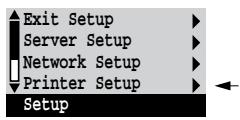
- Hold queue—The Hold queue can be used for storing jobs that will be printed at a later time, and jobs that will be printed repeatedly. If you plan to use the Fiery utilities, you must publish the Hold queue.
Because the Hold queue is a storage place for jobs, it requires intervention on the part of an administrator or operator. In order to print a job that was sent to the Hold queue, the Command WorkStation or Fiery WebSpoolermust be used to move or copy the job from the Spool area to the Print area.
- Printed queue—The Printed queue is a job storage area on the Fiery ZX disk; it contains the most recent jobs printed from the Print queue. The Printed queue makes it convenient to reprint those jobs. A Server Setup option enables this queue and governs the maximum number of jobs retained in it at any given time (see page 2-9). Reprinting jobs in this queue requires the Command WorkStation or Fiery WebSpooler.
Printer Setup options
Printer Setup configures the connections and printing behavior associated with a particular printing device. For more information on Fiery ZX print connections, see page xv of the Introduction.
- In the main Setup menu, choose Printer Setup.
- Enter the options appropriate to the printing requirements at the site.
- When you have finished, save changes.
Printer Setup includes:
- Publishing the Direct connection
- Publishing the Hold queue and Print queue
- Specifying the Fiery ZX connection for parallel jobs when a parallel connection is enabled
In the list of options that follows, default values, where applicable, appear in square brackets.
Publish Direct Connection
Yes/No [Yes]
This option enables users to print (or download) jobs to the Fiery ZX without spooling. Jobs printed to the Direct connection are not saved in the Printed queue.
If you plan to download fonts to the Fiery ZX, you must publish the Direct connection.
Publish Print Queue
Yes/No [Yes]
This option enables users to print (or download) jobs to the Print queue. Jobs that are printed to the Print queue are spooled to the Fiery ZX disk and printed on a first-in, first-out basis. Only queues published in the Printer Setup are available to users.
- To print to the Fiery ZX over a TCP/IP network, you must publish either (or both) the Print queue and the Hold queue.
- To print to the Fiery ZX over the parallel port, you must publish a queue or publish the Direct connection.
Publish Hold Queue
Yes/No [Yes]
Use this option to enable users to print (or download) jobs to the Hold queue. Jobs in the Hold queue can only be printed by copying or moving the jobs to the Print queue with the Command WorkStation or Fiery WebSpooler. For users to use the Fiery utilities, you must publish the Hold queue, regardless of whether users send jobs to the Hold queue.
Parallel Connection
Print Queue/Hold Queue/Direct Connection [Print Queue]
Use this option to determine where jobs printed to the parallel port are sent. Only the print connections that you published are displayed.
This option appears only if you selected Yes for the Enable Parallel Port option in Network Setup.
If only one of the print connections is published, this option does not appear and parallel port jobs are automatically printed to that connection.
Save Changes
Yes/No [Yes]
Select Yes to activate any changes made in the Printer Setup; select No to return to the main Setup menu without making any changes.
PostScript Setup options
PS (PostScript) Setup options allow you to set defaults for both the Fiery ZX and the copier. Most of these defaults can be overridden on a job-by-job basis. See the Printing Guide for more information.
TO ACCESS POSTSCRIPT SETUP OPTIONS:
- In the main Setup menu, choose PS Setup.
- Enter the options appropriate to the printing requirements at the site.
- When you have finished, save changes.
In the list of options that follows, default values, where applicable, appear in square brackets.
Color Mode
CMYK/Grayscale [CMYK]
Specify whether you will be printing color (CMYK) or Grayscale images to the Fiery ZX by default. CMYK gives you full color prints. Select CMYK as the Color Mode before performing calibration on the Fiery ZX. Grayscale converts all colors into shades of gray.
Compression
On/Off [On]
Select On to enable compression, so that jobs are printed at high quality but with greatly reduced memory requirements. Select Off to disable this feature.
Page Order
Forward/Reverse [Forward]
Forward prints pages in the order received, so that the last page is on the top of the stack and the first page is on the bottom. Reverse prints jobs in reverse order, so that the first page is on the top of the stack and the last page is on the bottom. When Compression is On, you can select Forward or Reverse order. When Compression is Off, you can select only Forward order.
Default Paper Sizes
US/Metric [US]
Specify whether to print on US paper sizes (for example, letter, legal, tabloid), or Metric paper sizes (for example, A4, A3) by default. When no page size is defined within a PostScript file, jobs are printed on Letter paper if you selected US, or A4 paper if you selected Metric.
Convert Paper Sizes
No Letter/11x17->A4/A3 A4/A3->Letter/11x17 [No]
Specify whether to convert paper sizes in documents automatically to the default paper sizes specified. For example, if you selected LTR/11x17->A4/A3, a letter size document would automatically be printed on A4 paper. If you select No, the Fiery ZX prints the document only if it finds a media source in the size specified by the file.
Print Cover Page
No/Yes [No]
Use this option to specify whether the Fiery ZX prints a cover (job summary) page at the end of each print job. If you select Yes, each print job is followed by a page containing the name of the user who sent the job, the document name, the server name, the time the job was printed, the number of pages printed, and the status of the job. If a PostScript error occurred and the Print to PS Error option is set to Yes, the status entry will be the PostScript error message.
Allow Courier Substitution
Yes/No [Yes]
Specify whether to substitute Courier for fonts that are unavailable when you download PostScript files to the Fiery ZX, or when you print a document for which you do not have the corresponding printer font. If this option is set to No, jobs with fonts that are not available on the Fiery ZX hard drive generate a PostScript error and do not print.
Print to PS Error
No/Yes [No]
Use this option to specify whether the Fiery ZX should print the available portion of a print job when it encounters a PostScript error. Select Yes to print the portion of the job that was processed before the error occurred; select No to cancel the print job entirely when a PostScript error is encountered. Leave this option at No unless you encounter printing problems.
NOTE: If you download fonts, set this option to No.
Save Changes
Yes/No [Yes]
Select Yes to activate any changes made in PS Setup; select No to return to the main Setup menu without making any changes.
Color Setup options
Color Setup allows you to set the parameters the Fiery ZX uses to control color output. Most of these parameters can be overridden on a job-by-job basis. See the Printing Guide and the Color Guide for more information.
TO ACCESS COLOR SETUP OPTIONS:
- In the main Setup menu, choose Color Setup.
- Enter the options appropriate to the printing requirements at the site.
- When you have finished, save changes.
In the list of options that follows, default values, where applicable, appear in square brackets.
RGB Source
EFIRGB/sRGB (PC)/Apple Standard/Off [EFIRGB]
The RGB source is the color space used to control color for conversion from screen to printed output. EFIRGB is based on the reference points used in the creation of the Fiery ZX software. sRGB is based on an average of a large number of PC monitors.
Apple Standard is the standard reference point for Apple's ColorSync software.
Rendering Style
Photographic/Presentation/Solid [Presentation]
The CRD (Color Rendering Dictionary) used defines how color will be converted from RGB data to printed output. Photographic, designed for images, retains the relative balance between colors to maintain the overall appearance of the image. Presentation, designed for bright colors, produces the saturated prints needed for most business presentations, but handles photographic images the same way as the Photographic CRD. Solid, designed for spot colors, retains the absolute value of each color. This is particularly useful for images such as corporate logos.
CMYK Simulation
SWOP-Coated (Quick/Full)/DIC (Quick/Full)/Euroscale (Quick/Full)/None [SWOP-Coated (Full)]
CMYK simulation allows color correction to simulate printed output on a commercial press, so that the Fiery ZX output can be used for proofing. The SWOP-Coated standard is used in the United States, DIC in Japan, and Euroscale in Europe. Custom simulations are user defined and named.
Quick simulation assumes that the copier toners match the printer's inks, and all changes affect only one color (C, M, Y, or K) at a time. Full simulation allows for more flexibility in matching toner to ink and all changes interact to maintain a better color balance.
If any custom simulations have been created and loaded on the Fiery ZX with Fiery Print Calibrator, they also appear in the list of simulations. A custom simulation can be selected as the default simulation. See the Job Management Guide for more information about custom simulations.
Pure Black Text/Graphics On/Off [On]
The Pure Black Text/Graphics option optimizes black text and line art. The option also minimizes toner use for documents consisting of a mixture of color and black-only pages.
With this option On, black text and line art are printed with black toner only. With the option Off, black text and line art are printed using all four colors of toner. See the Color Guide for more information.
Black Overprint On/Off [On]
With this option set to On, black text overprints on colored backgrounds. With this option set to Off, black text knocks out color backgrounds. Generally this option should be set to On. See the Color Guide for more information.
Spot Color Matching On/Off [On]
With this option set to On, the Fiery ZX uses an internal lookup table to print the best equivalents of PANTONE colors. With this option set to Off, PANTONE colors are printed using the CMYK values defined in the originating applications. See the Color Guide for more information.
Save Changes Yes/No [Yes]
Select Yes to activate any changes made in Color Setup; select No to return to the main Setup menu without making any changes.
Administrative functions in the Setup menu
The remaining options in the Setup menu are intended to help you manage print jobs and color output but are not required for printing:
- Job Log Setup allows you to specify whether the Fiery ZX prints and clears its log of printed jobs automatically. See the next section for details.
- Calibration enables you to calibrate the Fiery ZX and preview the results of calibration. It also lets you remove a calibration. See the Job Management Guide for a detailed explanation of calibration.
-
Change Password enables you to create or change an Administrator password on the Fiery ZX so that casual users cannot enter the Setup menus and change Fiery ZX settings without permission. The Administrator password also controls many functions available from Command WorkStation. See the Job Management Guide for details.
-
Clear Server clears all queued print jobs from the server—jobs in the Fiery ZX Print, Hold, and Printed queues. Clear Server also clears the Job Log. If an Administrator password has been set, unauthorized users will not see this command (or any of the administrative or Setup options).
NOTE: If you keep Job Logs, be sure to print or export the Job Log before you choose Clear Server.
Job Log Setup
The Job Log is a record of all jobs processed or printed on the Fiery ZX, whether they originate from a user workstation, a networked server, the Fiery ZX, or a computer attached to the parallel port. The Job Log can be printed at any time from the Control Panel or Fiery WebSpooler.
The printed Job Log lists accounting information about each job including user name, document name, time and date printed, and number of pages. If you print with the Adobe printer drivers provided for Windows 95, Windows 3.1x, and Mac OS computers, you can also enter job-specific notes that appear in the Job Log. See the Printing Guide for details.
By default, the Job Log is not printed or cleared automatically. You can change these defaults in Job Log Setup. You can also clear the Job Log from the Command WorkStation or Fiery WebSpooler.
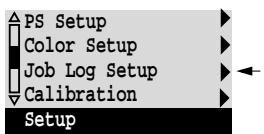
Scroll to the second screen of the main Setup menu and choose Job Log Setup. Enter the options as described below. When you have finished, save changes.
Job Log Setup options
Default values for the following options, where applicable, appear in square brackets.
Auto Print Job Log Every 55 Jobs Yes/No [No]
Use this option to specify whether you want the Fiery ZX to print the Job Log after every 55 jobs. Set the Job Log for automatic printing is useful if accounting for each printed page is important at your site.
Auto Clear Job Log Every 55 Jobs Yes/No [No]
Use this option to specify whether to clear the Job Log after every 55 jobs. If you do not enable this option, and do not clear the Job Log from the Fiery ZX or from a remote workstation, the Fiery ZX saves a record of all jobs.
In addition to Auto Clearing or manual clearing from a remote workstation, the Job Log (together with all queued jobs) is also cleared when you choose Clear Server from the main Setup menu, when system software is reinstalled, or when a new version of system software is installed on the Fiery ZX.
NOTE: If Auto Print Job Log Every 55 Jobs is set to No, setting this option to Yes has no effect.
Job Log Page Size Tabloid/A3 Letter/A4 [Tabloid/A3]
Select the paper size for printing the Job Log. Regardless of page size, 55 jobs are listed on a page. The paper size used depends on the Default Paper Sizes setting in PS Setup. If the Default Paper Sizes setting is US, the Job Log is printed on tabloid or letter size paper, with tabloid the default.
Save Changes Yes/No [Yes]
Select Yes to activate any changes made in Job Log Setup; select No to return to the main Setup menu without making any changes.
Calibration
The Calibration menu lets you calibrate the Fiery ZX from the copier glass using AutoCal™ (automatic calibration). The Calibration menu also lets you remove the current calibration. When the Fiery ZX is calibrated, a color correction curve is applied to every color document that is processed for printing.
Densitometer calibration can be performed at a remote workstation using the X-Rite DTP32 densitometer and Fiery Print Calibrator software. Fiery Print Calibrator can be used to load measurements and calibration targets on the Fiery ZX hard disk. These measurements and targets can be used with both server-based and remote calibration. For details on calibration, see the Job Management Guide.
Normally you begin calibration by specifying a standard target to use with measurements that you took or measurements that you previously stored on the Fiery ZX. You can also specify an alternative target to be used with the current measurements. You don't need new measurements to calibrate with an alternative target. When you apply or overwrite calibration, the currently specified target is used with the latest measurements on the server.
TO PREPARE FOR CALIBRATION:
- If this is the first time you are setting up the Fiery ZX, complete Server Setup, Network Setup, and Printer Setup before you perform a calibration. Save Setup changes and exit Setup.
The Fiery ZX reboots.
Note: Color Mode must be set to CMYK to perform calibration (see page 2-40).
- When the Setup message appears, press any key (see page 2-4).
- Scroll to the second screen of the main Setup menu and choose Calibration.
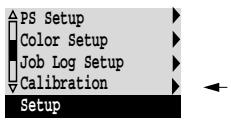
- Choose Set Up Calibration.
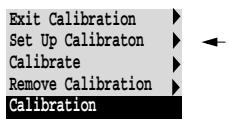
Choose the source of Letter/A4 paper for printing color patch pages, either a regular paper tray or the Bypass tray (manual feed).
- Choose Calibrate, and perform calibration as described in the following section.
For more information, see the Job Management Guide.
- When you have finished, save changes.
Calibrate
Calibration options are summarized below. See the Job Management Guide for calibration procedures and a more detailed explanation of calibration options. You can print a Configuration page at the server to find out when the Fiery ZX was last calibrated. The Start page also contains this information. (To print a Configuration page from the Fiery ZX at Idle status, press the Menu button to display the Functions screen, scroll down to select Print Pages, and select Configuration.)
NOTE: If any problems arise during calibration, press the Menu button to escape to the Calibration menu.
Select Target
PRN-M/Linear [PRN-M]
The PRN-M target calibrates the Fiery ZX to its defined optimums. The linear target calibrates the Fiery ZX to a generic standard. Using the PRN-M target is strongly recommended.
Print Measurement Page
Yes/No [Yes]
Choose this option to print a page of known color data for measurement. You are notified that the copier is printing a measurement page without calibration.
The Fiery ZX prints a page of graduated colors that you place on the copier glass.
Measure Page
Yes/No [Yes]
Select Yes to measure the colors on the measurement page.
Position the Kodak Gray Scale strip (included in your Fiery ZX media pack) and the measurement page on the copier. If you don't use the Kodak Gray Scale strip, the Fiery ZX performs AutoCal 1, measuring only the color strips. If you do use the Kodak Gray Scale strip, the Fiery ZX performs AutoCal 2, which measures the gray tones (to correct for possible drift in the scanner) as well as the color strips. The copier scans the page and creates an internal measurements file.
If you select No, measurement is skipped and Print Comparison Page is displayed.
Print Comparison Page
Yes/No [Yes]
Specify Yes if you want the Fiery ZX to print a page with two versions of a set of test images, one version using a calibration based on your most recent measurements and the selected target, and one with no calibration.
Apply/Overwrite Calibration?
Yes/No [Yes]
Choose Yes if you are satisfied with the calibration shown in the comparison page. The newest calibration overwrites any previous one.
Choose No to return to the main Calibration Setup menu.
This affects all users. Continue?
Yes/No [Yes]
This is a reminder that calibration is a global setting; if you overwrite calibration, every print job is affected by the new calibration.
If you choose Yes, calibration is overwritten and you return to the main Calibration menu. If you are finished, choose Exit Calibration. The Fiery ZX reboots.
If you choose No, calibration is not overwritten, and you return to the main Calibration menu.
Remove Calibration
Choose Remove Calibration when you wish to return the copier to its default state. You do not need to remove a calibration before applying a new calibration.
This affects all users. Continue?
Yes/No [Yes]
This option is a reminder that calibration is a global setting; if you remove calibration, every print job is affected by your action.
If you choose Yes, the current calibration is removed and you return to the main Calibration screen. If you are finished, choose Exit Calibration. The Fiery ZX reboots.
If you choose No, the calibration is not removed, but you still return to the main Calibration screen.
Exit Calibration
When you choose Exit Calibration, the Fiery ZX reboots.
Change Password
Change Password enables you to set or change the Administrator password for the Fiery ZX. This password determines whether a user can modify the Setup options. See page xv for information on Administrator access privileges.
When the Fiery ZX is installed, there is no password. If you do not create an Administrator password, users are not required to enter a password to modify the Setup. If an Administrator password has been set previously, you are required to enter it when you run Setup. Use the up and down buttons to select the characters and the left and right arrow buttons to move between them (see "Types of Setup screens" on page 2-6).
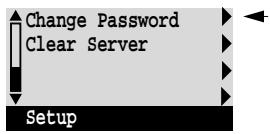
Scroll to the third screen of the main Setup menu and choose Change Password.
Enter and confirm the password as described below.
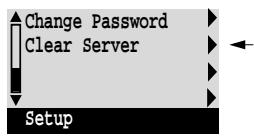
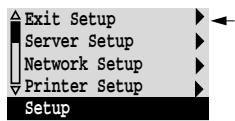
New Password
Use the up and down buttons to select the characters and the left and right arrow buttons to move between them. Enter characters from left to right, since the left arrow line selection button is a delete key. The password can be any combination of letters and numbers up to 19 characters. Choose OK when you are done. Be sure to write down the password. The only way to remove a password that you can't remember is to reinstall system software.
Verify New Password
Enter the new password again exactly as before to verify that you have entered it correctly. If you make a mistake, you are prompted to enter the password again. The new password is effective after you save changes and reboot the Fiery ZX.
Clear Server
Clear Server enables you to clear all queued print jobs from the Fiery ZX—jobs in the Fiery ZX Print, Hold, and Printed queues. Clear Server also clears the Job Log. If you keep Job Logs, print or export the Job Log before you choose Clear Server.
Jobs can also be deleted, individually or as a group, from Fiery WebSpooler or the Command WorkStation.
Scroll to the third screen of the main Setup menu to choose Clear Server.
Choose Clear Server to clear all queued print jobs and the Job Log from the server. You are asked to confirm your selection.
Exit Setup
Choose Exit Setup from the first screen of the main Setup menu when you have finished making Setup changes.
The Fiery ZX reboot and any changes you saved during the Setup take effect.
Printing the Configuration page from the Control Panel
The Configuration page lists all the settings in effect from the current Setup. After you have finished running Setup, print a Configuration page to confirm your settings. The Configuration page can also be printed from the Command WorkStation. See page 3-20 for details.
Post the current Configuration page near the server for quick reference. Some of the information on this page should be conveyed to users; for example, users sending print jobs need to know the current printer default settings.
There are other pages you can print from the Control Panel of the Fiery ZX or from the Command WorkStation, including Test Page, Job Log, Control Panel Map, color charts, and font list. For information on these pages, see the Job Management Guide.
TO PRINT THE CONFIGURATION PAGE:
- At the Control Panel, press the Menu button to access the Functions menu.
- Choose Print Pages.
- Select Configuration.
Setting the WebLink destination
The default WebLink destination can be changed; this function requires the Administrator password, if one has been set.
TO CHANGE THE WEBLINK DESTINATION:
- Start your Internet browser application.
- Enter the IP address or the DNS name of the Fiery ZX.
The Fiery ZX home page appears.
- Enter the Administrator password (if required) and click OK.
- Press the Control key (Mac OS) or Ctrl key (Windows) while you click the WebLink button.
The Update WebLink dialog box appears.
- Enter the new WebLink address (URL) and click OK.
Chapter 3: Performing Setup from the Command WorkStation
After you have performed initial Setup (Server, Network and Printer Setup) from the Control Panel, you can complete or change most Setup options using the Command WorkStation via a TCP/IP connection to the Fiery ZX.
You can install the Command WorkStation application on Windows NT 4.0 workstations networked to the Fiery ZX. See Getting Started for information on Command WorkStation system requirements and installation instructions.
Fiery ZX Setup from the Command WorkStation
After changing Setup option settings from the Command WorkStation, you must reboot the Fiery ZX before your changes take effect. See page 3-20 for instructions.
TO ACCESS SETUP FROM THE COMMAND WORKSTATION:
- Start the Command WorkStation application.
- Log in as Administrator. Enter the Administrator password if required.
-
Choose Setup from the Server menu.
-
Click one of the Setup buttons: Server Setup, Network Setup, or Printer Setup.
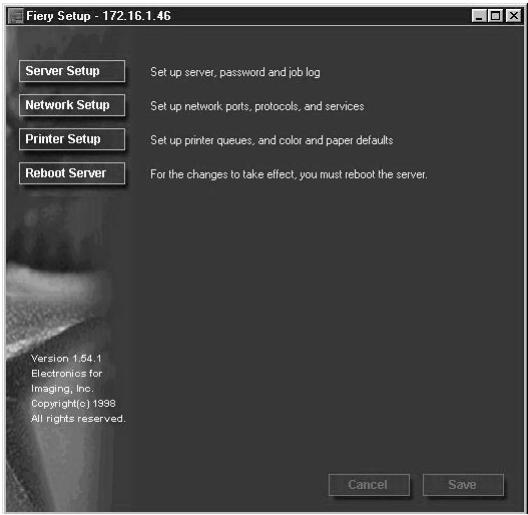
Refer to the following sections for more information.
Server Setup
From this window, you can access Server Setup, Password, and Job Log Setup.
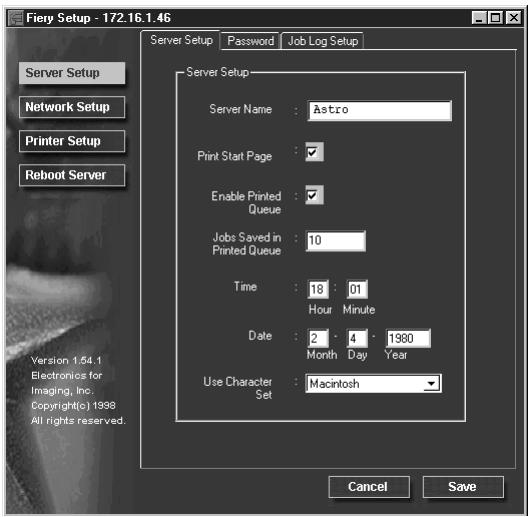
Server Setup
Server Name—Enter a name for the Fiery ZX (up to ten characters long). This is also the server name you should enter when you configure the connection to the server over IPX/SPX. (See Getting Started.) Each time you change the Server Name, you will need to modify the connection on the Command WorkStation and on other workstations that are using the Fiery utilities.
NOTE: Do not use the device name (PRN-M) as the server name. Also, if you have multiple Fiery ZX servers and give them the same name, a unique number is appended to the name that appears in the list of available servers. Although this routes jobs correctly, it may be inconvenient to users and is not a recommended practice.
Print Start Page—Select to specify that the Fiery ZX should print a start page every time it restarts. The start page displays information about the Fiery ZX including the server name, current date and time, Color Mode, amount of memory installed in the Fiery ZX, last calibration date, network protocols enabled, and connections enabled.
Enable Printed Queue—Select to enable the Printed queue, which creates a storage location on the Fiery ZX disk for recent jobs. Users with Administrator or Operator privileges can print jobs from the Printed queue without sending them to the Fiery ZX again. If you disable the Printed queue, jobs are deleted immediately after printing.
Jobs Saved in Printed Queue—Enter the number of jobs (from 1 to 99) to be saved in the Printed queue. Jobs in the Printed queue take up space on the Fiery ZX hard disk.
Time—Enter the correct system time, based on a 24-hour clock, in the form HH:MM (Hours:Minutes). The time is used on the cover page and on Job Logs.
Date—Enter the correct system date. The date is used on the cover page and on Job Logs.
If you enter a number that is out of range in either the Time or the Date field, for example, 17 in the month field, you are prompted, when you dismiss the Server Setup menu, to enter a number that is in range.
Use Character Set—Specify whether the Command WorkStation and the Control Panel should use the Macintosh, DOS, or Windows character set for displaying filenames. This is important if a filename includes accented or composite characters (such as é, Ú, or æ).
For mixed-platform networks, select the option that gives the best overall representation of the special characters you use.
Passwords
In the Password tab, you can enter, change, or remove Administrator or Operator passwords.
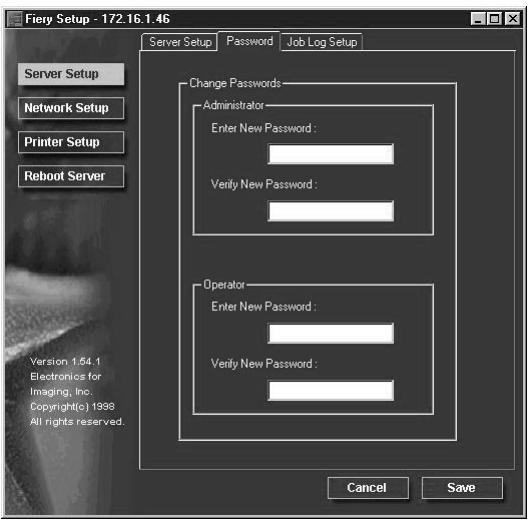
If passwords already exist, they appear as asterisks in both the Enter New Password and Verify New Password text boxes. If no passwords exist, the boxes are blank.
TO SET OR REMOVE PASSWORDS:
- To enter a new password, type the password in the Enter New Password field.
Passwords can be any combination of up to 19 characters. The entry procedure is identical for Administrator or Operator passwords.
- When prompted, enter the new password in the Verify New Password field.
The new password remains in effect until you change it.
If a password already exists, the new entry replaces it. To delete a password, simply select and delete its asterisks.
You can also set or change the Administrator password (but not the Operator password) with Setup from the Control Panel.
For more information on the various passwords and the access privileges they allow, see page xv.
NOTE: By default, no passwords are set on the Fiery ZX. If you do not set passwords, all users will have access to important functions such as Setup (including setting passwords), and clearing the server. It is strongly recommended that you set at least an Administrator password to protect the server from accidental or incorrect changes to Setup.
If you forget the Administrator password, contact your authorized service representative to reinstall Fiery ZX system software. This will clear the Administrator password and allow you to set a new one.
Job Log Setup
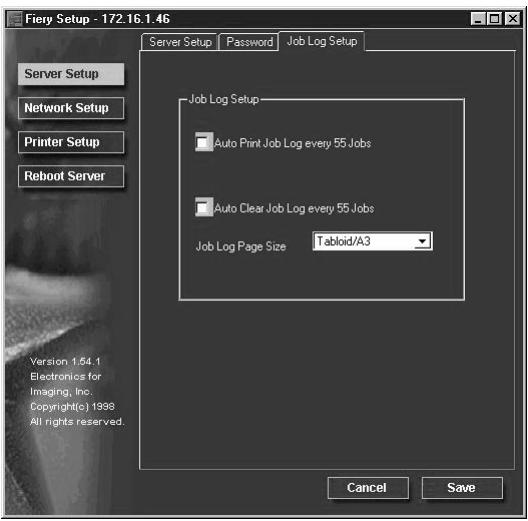
Auto Print Job Log every 55 Jobs—Specify whether you want the Fiery ZX to print the Job Log after every 55 jobs. The Job Log displays a list of the last 55 jobs processed on the Fiery ZX, with accounting information about each one, including user name, document name, time and date printed, number of pages, and other job information.
Auto Clear Job Log every 55 Jobs—Specify whether you want to clear the Fiery ZX Job Log after every 55 jobs. If you do not turn on this option, the Fiery ZX saves a file containing a record of all jobs ever printed. Since this file takes up space on the Fiery ZX hard disk, clearing the Job Log frees up additional disk space.
You can clear the Job Log manually at any time from the Command WorkStation Job Log window (by clicking the trash can icon), or from the Fiery WebSpooler or Fiery Spooler (by selecting Delete Job Log from the File menu). The Job Log is also cleared when you execute the Clear Server command, when you choose Clear Server from the main Setup menu, or when system software is installed or reinstalled on the Fiery ZX.
Job Log Page Size—Select the size of paper you want to print the Job Log on.
Network Setup
You can modify most of the Network Setup options from the Command WorkStation.
TO CONFIGURE PORT SETUP:
- Click the Port Setup tab in the Network Setup dialog box.
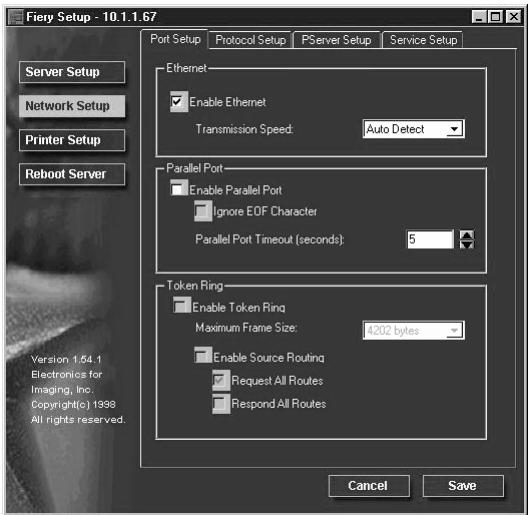
You can then adjust settings as detailed in the following sections.
Ethernet (Port Setup)
Enable Ethernet—Select if the Fiery ZX is to be connected to an Ethernet network.
Transmission Speed—Select Auto Detect if your network environment is mixed, or select the speed (10 Mbps or 100 Mbps) of the network to which the Fiery ZX is attached.
Parallel Port (Port Setup)
Enable Parallel Port—Select if you want to print through the parallel port. You can connect a single Windows computer to the parallel port and print directly to the Fiery ZX.
NOTE: Enabling the parallel port does not conflict with using Ethernet or Token Ring communication with the Fiery ZX.
Ignore EOF Character—Available only if Enable Parallel Port is selected, this option specifies that the Fiery ZX should ignore end-of-file (EOF) messages. Check this box to print PostScript files in binary format (not ASCII); under normal circumstances, the box should not be checked. When this option is selected, the Fiery ZX uses the parallel port timeout value to determine when the end of the file has been reached.
Parallel Port Timeout (seconds)—Available only if Enable Parallel Port is selected, this setting determines how long the Fiery ZX waits without receiving data from the parallel port before deciding that the current job is complete. Until the timeout, the Fiery ZX cannot receive new jobs through the parallel port, but it can continue to receive network print jobs.
Token Ring (Port Setup)
Enable Token Ring—Select if the Fiery ZX is to be connected to a Token Ring network.
Maximum Frame Size—Select the maximum frame size recommended by the network administrator at your site. If you are uncertain of the setting to use, select the default value (4202).
Enable Source Routing—Click to select if your network supports source routing.
Request All Routes—This option is active only if you enabled Source Routing. Click to select if you want the Request packet to travel to its destination by all routes.
Respond All Routes—This option is available only if the previous option is not selected. Click to select if you want the Response packet to return by all routes to the originating computer.
TO CONFIGURE PROTOCOL SETUP
- Click the Protocol Setup tab in the Network Setup window.

The Fiery ZX can accept jobs via TCP/IP (over either Ethernet or Token Ring), AppleTalk, and IPX/SPX simultaneously. To configure the Fiery ZX, choose each protocol and enter the settings for that protocol.
Enable Ethernet and, if you have enabled and installed the Token Ring option, enable Token Ring.
NOTE: If TCP/IP is running on both an Ethernet and a Token Ring network, it is assumed that the two networks are already routed to each other. The Fiery ZX does not function as a router.
If your network uses a gateway, enter the gateway address.
Protocol Setup (TCP/IP)
Enable on Ethernet—Click to enable if you have a TCP/IP network connected to the Fiery ZX over Ethernet cabling.
You must enable TCP/IP for Ethernet to use the Fiery WebTools over Ethernet. If you are using TCP/IP for printing from Windows NT 4.0 workstations, enabling TCP/IP here also enables you to use Fiery utilities from Windows NT 4.0 workstations using TCP/IP protocols.
IP Address (Ethernet)—Enter the Fiery ZX IP address for Ethernet. You must change the default 127.0.0.1 to a valid address for your network. For information about setting up printing with TCP/IP, see Chapter 4.
Subnet Mask (Ethernet)—If you need to set the subnet mask, enter one of the following values:
- 255.0.0.0 if the IP address starts with a number less than 128
- 255.255.0.0 if the IP address starts with a number from 128 through 191
- 255.255.255.0 if the IP address starts with a number greater than 191
NOTE: Be sure to confirm the subnet mask setting with your network administrator before proceeding. In some cases the required setting may be different from those listed.
Protocol Setup (Token Ring)
Enable on Token Ring —Select if you have a TCP/IP network connected to the Fiery ZX over Token Ring. If you use Token Ring, enabling TCP/IP for Token Ring is required for enabling the Fiery WebTools.
If you are using TCP/IP for printing from Windows NT 4.0 workstations, enabling TCP/IP here also enables you to use Fiery utilities from Windows NT 4.0 workstations using TCP/IP protocols.
IP Address (Token Ring)—Enter the Fiery ZX IP address for Token Ring. You must change the default 127.0.0.1 to a valid address for your network. For information about setting up printing with TCP/IP, see Chapter 4.
Subnet Mask (Token Ring)—If you need to set the subnet mask, enter one of the following values:
- 255.0.0.0 if the IP address starts with a number less than 128
- 255.255.0.0 if the IP address starts with a number from 128 through 191
- 255.255.255.0 if the IP address starts with a number greater than 191
NOTE: Be sure to confirm the subnet mask setting with your network administrator before proceeding. In some cases the required setting may be different from those listed.
Gateway—If your TCP/IP network has a gateway, and users outside the gateway print to the Fiery ZX using TCP/IP, enter the gateway address here. Obtain the correct gateway address from your network administrator.
The gateway address applies to either a Token Ring or an Ethernet network. If TCP/IP is running on both an Ethernet and a Token Ring network, the gateway address you enter must be in the same subnet as either the Ethernet or the Token Ring address.
Protocol Setup (AppleTalk)
Enable AppleTalk—Select to enable Apple Talk if you have an AppleTalk network connected to the Fiery ZX. This setting enables the Fiery ZX to communicate over AppleTalk networks.
Select Zone—The Fiery ZX searches the network for AppleTalk zones in your network segment. Scroll through the list to select the AppleTalk zone in which you want the Fiery ZX to appear. If your segment has only one zone, the Fiery ZX is assigned to that zone automatically.
If no AppleTalk zone can be found, your network may have no defined zones, or else the network cable has not been connected (see page 5-4). Choose OK.
Protocol Setup (IPX Frames)
Select Frames—Click the Select Frames button to specify IPX frames used with NetWare. See your network administrator to verify which frame type to choose.
In the IPX Frames dialog box, select frames and use the Add and Remove buttons to specify the selected frames.
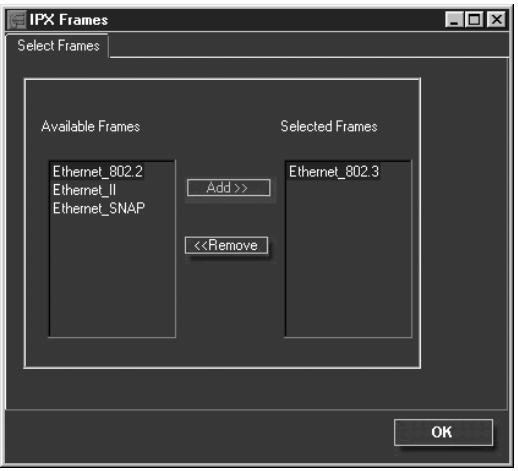
TO CONFIGURE PSERVER SETUP:
- Click the PServer Setup tab in the Network Setup window.
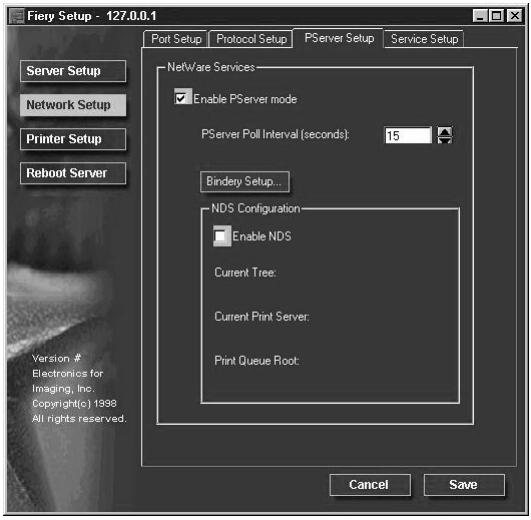
You can modify both NetWare 3.x (Bindery) and NetWare 4.x (NDS) configurations from the Command WorkStation. Turn on the Enable NDS option if your network uses NetWare 4.x in native mode. Click Bindery Setup if your network uses NetWare 3.x or uses NetWare 4.x in bindery emulation mode.
NOTE: If your network uses both NDS and Bindery, set up NDS first. Setting up NDS after Bindery will overwrite Bindery Setup. If your network uses both NDS and Bindery, including using NetWare 4.x servers in bindery emulation, the Fiery ZX cannot service NDS and bindery emulation servers on the same NDS tree.
PServer Setup (NetWare Services)
The Enable PServer option must be turned on if you have a Novell server connected. You can, however, change the PServer polling interval and then modify either Bindery Setup or NDS Configuration.
NOTE: The terms NetWare server, Novell server, and IPX server are in common use and are used here interchangeably to mean the server on an IPX network running Novell NetWare networking software.
PServer Setup (NDS Configuration)
In initial setup, the Fiery ZX was connected to the network and an NDS directory tree, with a Printer, a Print Server, and one or more Print Queue objects for Fiery ZX jobs (see page 4-4), was configured. You can make any changes to that setup through the Command WorkStation. To modify NDS Setup you may need permission to browse the NDS tree. If access to the Print Server is restricted, you'll need a login password.
Enable NDS
Change Trees...
Check this box if NDS has already been enabled on the network.
Click to open the Add NDS Tree window. This option is available only when Enable NDS is selected.
| Add NDS Tree | You can have only one NDS tree, so the following process is required to change trees: |
| 1. Select the current NDS tree and click Remove. | |
| 2. Select the new NDS tree and click Add. | |
| Your new NDS tree selection automatically overwrites any previous tree selection. If you change the NDS tree selection and there are also current Bindery settings, you are alerted that they will be deleted. If you continue with NDS Setup, you can replace Bindery settings afterwards. To exit NDS Setup, choose Cancel. | |
| 3. Click OK. | |
| The Select login user window appears. | |
| Select Login User | 1. Select the User Login object from the display in the Select Login User window. |
| 2. Enter a password if necessary. | |
| 3. Click OK. | |
| The Select print server window appears. | |
| Select Print Server | 1. Select the print server from the display in the Select Print Server window. |
| 2. Enter a password if necessary. | |
| 3. Click OK. | |
| The Select print queue root window appears. | |
| Select Print Queue Root | 1. Select the print queue root from the display in the Select Print Queue Root window. |
| 2. Enter a password if necessary. | |
| 3. Click Finish. | |
| The NetWare Setup window reappears, showing the new settings. | |
| Enter Print Server Password | 1. Enter the Print Server password if necessary. |
| 2. Choose OK. |
PServer Setup (Bindery Setup)
Use Bindery Setup if you have already configured one or more bindery servers (file servers running NetWare 3.x or NetWare 4.x in bindery emulation) with a Print Server and a Print Queue for Fiery ZX jobs (see page 4-4). Before entering bindery settings, be sure the Fiery ZX is connected to the network and the NetWare file server is running. You'll need a login name, and, if access to the file server or print server is restricted, you'll need a login password.
Bindery Setup...
Add Connections
Because you can set up more than one Novell server to handle Fiery ZX print jobs, Bindery Setup allows you to add or delete new file server connections and view the connections you have selected. The options are:
Click the Bindery Setup button to bring up the Add Connections Window.
- Click the server you want to add.
- Click Add.
- Enter your user name and password.
- Click OK.
The Add Server password window appears.
- Enter your name and password.
- Click OK.
The Add Server window shows a list of print servers you can add.
Add Server
- Select a print server from the list on the left.
- Enter a password if a password is required.
- Click Finish.
You return to the main Novell Setup dialog box.
- Click OK.
TO CONFIGURE SERVICE SETUP:
- Click the Service Setup tab in the Network Setup window.
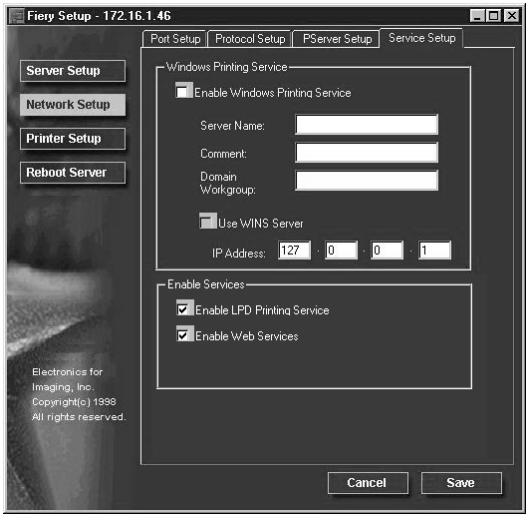
Service Setup provides the following:
- Windows Printing Service enables the Microsoft SMB protocol, which supports peer to peer printing, also known as Windows or SMB printing.
- LPD Printing Service enables lpd printing on TCP/IP networks.
- Web Services enables the http protocol and, therefore, use of the Fiery WebTools.
Service Setup (Windows Printing Service)
For setting up the Windows printing service, these characters are allowed in the text fields: uppercase letters, numerals, space, and the following characters:
$$ - . \sim ! @ # \% ^ {\wedge} \& () {} \backslash^ {\prime}, $$
NOTE: Lowercase letters are not allowed, except in the Comment field.
Enable Windows Printing Service—Select to enable SMB (Server Message Block), the file and printer sharing protocol built into Windows. Enabling SMB allows the Fiery ZX to be listed on the network so that Windows clients can print to a particular print connection (Hold, Print, or Direct) on the Fiery ZX without any other networking software. For information on how to set up a Windows client for Windows printing, see Getting Started.
NOTE: Windows (SMB) printing runs over TCP/IP, so TCP/IP must be configured on all the Fiery ZX and on workstations that use Windows printing.
Server Name—The server name is the name that will appear on the network. It can, but does not have to, be the same name as the server name assigned in Server Setup (see page 2-8 and page 3-3).
Comment—Server comments (optional) can contain information about the printer. These comments are listed in the Properties of the Fiery ZX in Network Neighborhood. Comments can be up to 15 characters long. Lowercase letters are allowed in this field.
Domain or Workgroup—Enter the workgroup or domain you want the Fiery ZX to appear in.
Use WINS Server—Select to use a WINS name server. Broadcasts from SMB devices cannot be routed beyond their original network segment without a WINS name server. Setting up the WINS name server is outside the scope of this manual. To find out if a name server is available, contact your network administrator.
IP Address—Enter the IP address of the WINS Server.
Service Setup (Enable Services)
Enable LPD Printing Service—Select to allow lpd printing. See “Setting up the Fiery ZX on TCP/IP networks” on page 4-27 for more information.
Enable Web Services—Select to enable if TCP/IP is enabled on the Fiery ZX and on user workstations, and you wish to make the Fiery WebTools available to users (see page 4-24). The Fiery WebTools include Fiery WebSpooler, Status, WebLink, and Installer. A Java-enabled Web browser and a valid IP address are required for each user. See Getting Started for details on supported browsers and workstation requirements.
Printer Setup
From this window, you can access two tabs: Printer Setup, and Color and Paper Setup.
TO SET PRINTER OPTIONS:
- Click the Printer Setup tab.
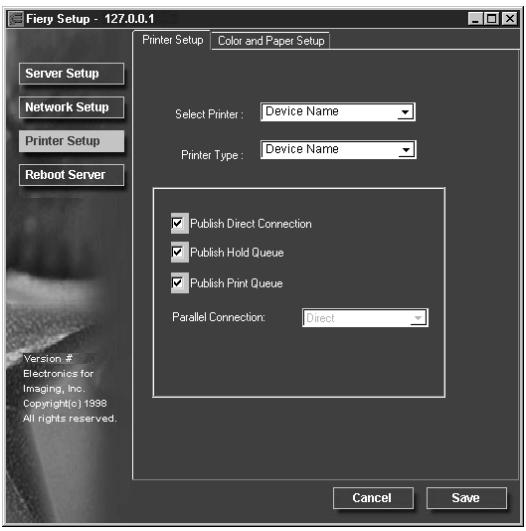
Printer Setup
Select Printer—Specify the device name of the copier whose connections and protocols you want to configure.
Printer Type—Specify the model of the copier connected to the Fiery ZX.
Publish Direct Connection—Select to enable users to print (or download) jobs to the Fiery ZX without spooling. When the Direct connection is published, users can print jobs to the Direct connection and download and delete printer fonts. Jobs printed to the Direct connection are not available to be reprinted from the Printed queue.
NOTE: The Direct connection must be published to download fonts.
Publish Print Queue—Select to enable users to print jobs to the Print queue. Jobs printed to the Print queue are spooled on the Fiery ZX disk.
Parallel Connection—This option is available only if the parallel port has been enabled and you have published more than one print connection (Print queue, Hold queue, or Direct Connection). This setting determines where jobs printed to the parallel port are sent. If only one print connection has been published, parallel port jobs are automatically printed to that connection.
TO SET COLOR AND PAPER SETUP OPTIONS:
- Click the Color and Paper Setup tab in the Printer Setup window.
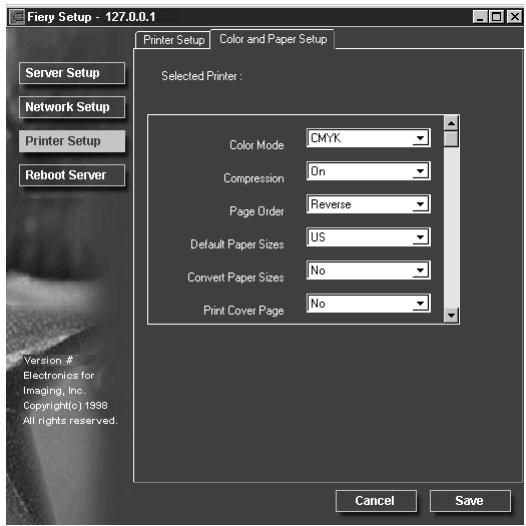
Color and Paper Setup
Color Mode—Specifies the default color mode to be used: CMYK or grayscale. Before performing calibration on the Fiery ZX, select CMYK as the Color Mode.
Compression—Select On to enable Compression, so that color jobs print at high quality with as little as 1/200 of the memory normally required. Select Off to disable this feature.
Page Order—Select Reverse to print jobs starting with the last page. Select Forward to print jobs starting with the first page. When Compression is On, you can select Forward or Reverse order. When Compression is Off, you can select only Forward order.
Default Paper Sizes—Specify whether to print on US paper sizes (for example, letter, legal, tabloid), or Metric paper sizes (for example, A4, B4, A3) by default. When no page size is defined within a PostScript file, jobs are printed on letter paper if you select US, or A4 paper if you select Metric.
Convert Paper Sizes—Specify whether to convert paper sizes in documents automatically to the default paper sizes specified. For example, if you select Letter/11x17->A4/A3, a letter size document is automatically printed on A4 paper. If you select No, the server will only print the document if it finds a media source in the size specified by the file.
Print Cover Page—Specify whether the Fiery ZX prints a cover (job summary) page at the end of each print job. If you select Yes, each print job is followed by a page containing the name of the user who sent the job, the document name, the server name, the time the job was printed, the number of pages printed, and the status of the job. If a PostScript error occurs, and the Print to PS Error option is set to Yes, an error message takes the place of the job status.
Allow Courier Substitution—Specify whether to substitute Courier for unavailable fonts. If this option is set to No, jobs with fonts that are not available on the Fiery ZX hard disk will not print due to a PostScript error.
Print to PS Error—Specify whether the Fiery ZX should print the available portion of a print job when it encounters a PostScript error. Select Yes to print the portion of the job that was processed before the error occurred; select No to cancel the job entirely whenever a PostScript error is encountered.
Rendering Style—The CRD (Color Rendering Dictionary) or rendering method used defines how color will be converted from RGB data to printed output. Photographic, designed for images, retains the relative balance between colors to maintain the overall appearance of the image. Presentation, which is the default, designed for bright colors, produces the saturated prints needed for most business presentations, but handles photographic images the same way as Photographic. Solid Color, designed for spot colors, retains the absolute value of each color. This is particularly useful for images such as corporate logos.
RGB Source—The RGB source is the color space used to control color for conversion from screen to printed output. EFIRGB, which is the default, is based on the reference points used in the creation of the Fiery ZX software. sRGB (PC) is based on an average of a large number of PC monitors. Apple Standard is the standard reference point for Apple's ColorSync software.
Spot Color Matching—With this option set to On, which is the default, the Fiery ZX uses an internal lookup table to print the best equivalents of PANTONE colors. With this option set to Off, PANTONE colors are printed using the CMYK values defined in the originating applications.
Restarting the Fiery ZX
You need to reboot the Fiery ZX before your changes take effect.
TO RESTART THE FIERY ZX:
- Make sure the information screen on the Control Panel reads Idle.
If Printing or RIPping appears, the Fiery ZX is processing, and you must wait until the system finishes and reaches the Idle state.
If the Fiery ZX has just finished processing, wait five seconds after Idle appears before shutting down.
- Click the Reboot Server button.
Printing the Configuration page from the Command WorkStation
The Configuration page lists all the settings in effect from the current Setup. After you have finished running Setup, print a Configuration page to confirm your settings. The Configuration Page can also be printed from the Control Panel (see page 2-52).
There are other test and status pages you can print from the Command WorkStation, including the Test Page, Job Log, Control Panel Map, Color Charts, and Font list. For information on these Fiery ZX pages, see the Job Management Guide.
TO PRINT THE CONFIGURATION PAGE:
- At the Command WorkStation, choose File>Print Pages.
- Select Configuration and click Print.
You may want to post the current Configuration page near the server for quick reference. Some of the information on this page should be conveyed to remote users; for example, users sending print jobs need to know the current printer default settings.
Chapter 4: Setting up Network Servers
This chapter describes environments that typically include one or more network servers—Novell NetWare servers and Windows NT 4.0 servers—that share printing to the Fiery ZX. It describes setting up servers that use IPX/SPX or TCP/IP protocols for communicating with the Fiery ZX. In addition, it includes guidelines for setting up direct communication from Windows NT 4.0 workstations and UNIX workstations, where a network server is optional. The chapter also outlines the requirements for users to print to the Fiery ZX and to run the Fiery utilities and Fiery WebTools.
If your network is based on Windows NT 4.0, skip to page 4-17. For information on UNIX workstations, skip to page 4-25.
Fiery ZX on an IPX network
The NetWise™ features built into the Fiery ZX support the following network operating environments:
- NetWare 4.x—NDS (Novell Directory Services)
- NetWare 3.x—Bindery services
- Servers running NetWare 4.x in bindery emulation mode
The term "bindery server" is used to refer to a Novell file server running NetWare 3.x, or running NetWare 4.x in emulation mode. The term "NDS" is used to describe components of a NetWare operating system running NetWare 4.x in native mode.
NetWare clients print to the Fiery ZX through the Novell network server. Server setup and client network setup are outlined here. Client printing setup is described in Getting Started, and printing is described in the Printing Guide.
NOTE: Setting up a NetWare environment correctly requires the presence and active cooperation of the Novell network administrator. You must have administrator privileges on the network to create new NDS or bindery objects.
The Fiery ZX can accept jobs concurrently from NetWare, Windows NT 4.0, and AppleShare servers, as well as jobs sent directly from Windows NT 4.0 or UNIX workstations. NetWare clients on Mac OS or Windows NT 4.0 computers can print either via the NetWare server or directly.
The Fiery ZX can receive print jobs from NetWare clients over the Ethernet or Token Ring network topologies. (Appendix A describes the Token Ring option.) During Fiery ZX Setup, you select the frame type or types that will be used for communication between the Fiery ZX and network servers. Frame type refers to the format of a communications packet; frame types are specified in a startup file when the NetWare server (or any other workstation) loads its network drivers.
In addition to printing, the client utilities—Fiery Downloader, Fiery Spooler, Fiery Scan, and Fiery Print Calibrator—are available to Windows 95 users with IPX/SPX or TCP/IP protocols loaded. With these utilities, Windows 95 workstations are communicating with the Fiery ZX directly, not through the NetWare server.
Tips for experts—IPX networks
Setting up the Fiery ZX is similar to setting up any other PostScript printer on the network. The following information is useful for experienced network administrators.
The Fiery ZX with IPX connections has these characteristics:
- Both NetWare 3.x and NetWare 4.x are supported directly. NetWare 4.x is also supported through bindery emulation.
- A minimum connection to the Fiery ZX consists of a NetWare file server, a NetWare print server, and a NetWare queue.
- A single directory tree (for NetWare 4.x) and up to eight bindery servers can be configured simultaneously.
This limit is the same regardless of whether the Fiery ZX is connected to the network via Ethernet, via Token Ring, or both.
- The Fiery ZX looks for print jobs on one NetWare print server per bindery server.
Each print server can store jobs for any print connection on the Fiery ZX. - Windows 95 workstations (whether a Novell server is present or not) can use IPX/SPX protocols for communicating with the Fiery ZX directly to use Fiery utilities.
Overview of IPX printing to the Fiery ZX
NetWare file servers support the creation of print queues, which are storage areas for print jobs. When a client on a remote computer decides to print, the job is directed to a print queue on the NetWare file server and spooled to the NetWare server disk, freeing up the client workstation.
The queues on the NetWare server must be named to match the Direct connection, Hold queue, and Print queue on the Fiery ZX. The NetWare queue names should be given an extension corresponding to the Fiery ZX print connection, as follows:
print hold direct
NOTE: If you configure the Fiery ZX for a language other than English, these extension names must still be in English.
There is no need to rerun Setup when adding or removing a NetWare queue; however you should reboot the Fiery ZX after a queue is created or removed.
When the Fiery ZX is configured to connect to a NetWare server, it polls the NetWare server for jobs in each of its queues. If jobs are found, they are automatically transferred over the network to the matching connection on the Fiery ZX. For example, jobs from the NetWare queue with the _print extension are sent to the Fiery ZX Print queue, and so on. While a job is processed and printed, a record of the job is being created. You can access the Job Log containing these records at any time.
Configuring a NetWare server for printing
The following sections explain how to set up a NetWare file server so that networked users can print to the Fiery ZX from their workstations, and the Fiery ZX can obtain print jobs from the NetWare server.
For each NetWare file server that you configure, follow these general steps. More detail is provided in subsequent sections.
- Make sure the server is connected to a functioning IPX network.
- Log in as the Supervisor on a PC connected to the NetWare file server.
- For NetWare 4.x installations, set up an NDS connection (see page 4-6).
- For NetWare 4.x in emulation mode, set the bindery context (see page 4-9).
- For NetWare 3.x and for NetWare 4.x in bindery emulation, set up a file server, a print server, and a print queue for the Fiery ZX (see page 4-12).
With bindery services, you can route all Fiery ZX print jobs through the same NetWare file server, or you can configure more than one file server to handle Fiery ZX jobs.
The functions you perform on the Novell server, on the Fiery ZX, and on the client workstation, are summarized in the following tables. The first table applies to NDS connections, the second to bindery connections.
Complete the operations in the left column, then the center column, then the right column.
Configuring an NDS connection
Abbreviations:
FS = file server
PS = print server
PQ = print queue (on the NetWare server)
| On NDS FS: | On Fiery ZX Control Panel: | On client workstation: |
| In NETADMIN: Create NDS PQs Create NDS printer and assign PQs Create PS and assign the printer Configure users of the PQs | Port Setup Ethernet Setup and/or Token Ring Setup Protocol Setup IPX/SPX Setup—select frame type(s) Service Setup PServer Setup and NDS Setup Select Root Browse to select PS Specify PQ search root (optional) Set Polling Interval | Install user software For printing: Connect client to PQ(s) that you set up on the NetWare FS (associated with the PS selected in NDS Setup) For running the Fiery utilities: Configure the connection to the server |
Configuring a bindery connection
| On Bindery FS: | On Fiery ZX Control Panel: | On client workstation: |
| In PCONSOLE: Select NetWare FS (up to 8) For each FS: Configure PS Configure PQ Configure users of the PQ | Port Setup Ethernet Setup and/or Token Ring Setup Protocol Setup IPX/SPX Setup—select frame type(s) Service Setup PServer Setup and Bindery Setup Add FS (up to 8) Set Polling Interval | Install user software For printing: Connect client to PQ(s) that you set up on the NetWare FS (associated with the PS selected in Bindery Setup) For running the Fiery utilities: Configure the connection to the server |
Setting up an NDS connection
In NDS, all NetWare entities (objects) are organized in a hierarchical tree structure. Objects have a name, properties, and a context which defines the location of the object in the directory tree. For the Fiery ZX you are mainly concerned with defining a printer, a print server object and one or more print queue objects. Objects are created in NetWare administrator programs (PCONSOLE or NETADMIN which are text-based, or NetWare Administrator which has a graphical user interface and context-sensitive help).
The top-level tree object is known as the [Root] object. The name of the [Root] object is also the name of the tree. Below the [Root] are other objects: either containers (which consist of other objects) or leaf objects (which do not contain other objects). Access to objects is controlled by rights that are defined as properties of each object. Rights are established by network administrators.
NOTE: The procedures that follow work with all versions of NetWare 4.x. With NetWare 4.11 or later, you can combine the procedures using the Print Services Quick Setup dialog box.
TO CREATE AN NDS PRINT QUEUE:
- Start NetWare Administrator and select the container in which you are going to define the print queue for the Fiery ZX.
- Choose Create from the Object menu.
- In the New Object dialog box, select Print Queue.
- In the Create Print Queue dialog box, select Directory Service Queue.
- Enter a name for the Netware print queue with the extension for the Fiery ZX connection: Astro_print, for example. See page 4-3 for queue naming conventions.
-
Click the browser button to select a print queue volume.
-
In the Select Object dialog box, double-click a container object in the Directory Context list and browse until the volume you want appears in the Objects list. This volume holds the actual files while they are queued for printing, so make sure it has enough disk space.
- Select the volume in the Objects list, and choose OK.
- In the Create Print Queue dialog box, click Create.
- Click Details for Print Queue.
- Enable guest access and/or create users. You must enable at least guest access for the queue to be usable. You can also create registered users.
TO CREATE AN NDS PRINTER AND ASSIGN A NETWARE PRINT QUEUE TO THE PRINTER:
- Start NetWare Administrator and select the container in which you are going to define the NDS printer for the Fiery ZX.
- Choose Create from the Object menu.
- In the New Object dialog box, select Printer.
- Enter a name for the printer. You can define additional properties for the printer at this point.
- Click Create.
- In Printer Details, click Assignments. Click Add.
- In the Select Object dialog box, browse the containers until the Netware queue you want is listed in the Objects list.
- Select the print queue you created for the Fiery ZX and choose OK.
- From the Printer dialog box, select Configuration and select Other/Unknown as the Printer Type.
TO CREATE AN NDS PRINT SERVER AND ASSIGN A PRINTER:
- Start NetWare Administrator and select the container in which you are going to define the NDS print server for the Fiery ZX.
- Choose Create from the Object menu.
- In the New Object dialog box, select Print Server.
- Enter a name for the print server.
- Select Define Additional Properties.
- Click Create.
- In the Print Server dialog box, click Assignments.
- Select Add and select the printer (object) you want to assign to the print server.
- In the Select Object dialog box, browse the Directory Context list until the printer you want is listed under Objects.
- Select the printer and click OK.
The remaining setup is performed on the Fiery ZX. An outline follows; for more detailed information, see page 2-10.
COMPLETING SETUP ON THE FIERY ZX:
- With the Fiery ZX connected to the Novell network, restart the Fiery ZX to perform Setup.
For access to Setup, see page 2-1. - In the Network Setup, choose Port Setup and enable the port you will use for printing to the Fiery ZX.
This can be Ethernet, Token Ring (if you have installed the Token Ring option), or both. - Choose Protocol Setup and configure the protocols you will use.
-
Choose IPX/SPX Setup to select the frame type(s) that will be used between the NetWare server(s) and the Fiery ZX.
-
Choose Service Setup, choose PServer Setup, and choose NDS Setup.
- Identify the NDS tree on which the printer, print server, and print queue have been defined.
- Select the user login object.
- Identify the defined print server.
- Finally, to restrict the search for the print queues you've defined, browse to a container object that contains the print queue or queues.
Setting the NetWare 4.x bindery context
You can connect only one directory tree to the Fiery ZX. If you need to connect additional NetWare 4.x servers, you can do so by using bindery emulation, which causes the 4.x server to behave like and be accepted as a NetWare 3.x server.
NOTE: The file server selected must not be in the same tree as that selected in NDS Setup.
Up to eight bindery servers, whether in native 3.x mode or in 4.x emulation, can connect to the Fiery ZX.
If your server is using NetWare 3.x, proceed to "Setting up a NetWare print queue for bindery" on page 4-12.
In order to set up the NetWare 4.x server in bindery emulation mode for printing to the Fiery ZX, the network administrator must do the following:
- Determine the Directory Services path to the container in which the print server and the print queue for the Fiery ZX will be created.
The container defines the "bindery context" for your network structure.
- Edit the network startup file to set the bindery context.
- Activate the new bindery context.
This section describes the second and third steps. Given the variety of possible network structures, it is impractical to suggest a bindery context that applies to every network.
TO SET THE BINDERY CONTEXT:
- Establish a connection with the server which will have the Fiery ZX queue.
This is best done by the network administrator using PSERVER from the server console. It can also be done remotely using the RCONSOLE utility. For more information, refer to your NetWare documentation.
- At the NetWare prompt type load install.
The NetWare Server Installation window is displayed.
- Use the down arrow key to select Maintenance/Selective Install. The Installations Options menu is displayed.
- Select NCF Files Options.
- On the menu of available NCF files, select Edit AUTOEXEC.NCF file.
- Type a new line anywhere in the file as follows:
set Bindery Context = enter your bindery context here
NOTE: After the “=” sign, type the bindery context obtained from the system administrator.
- Press Esc to close the window, and save changes.
- Proceed to the next section to activate the bindery context.
TO ACTIVATE THE BINDERY CONTEXT:
- If you cannot reboot the NetWare server at this point, type the set command manually at the server's colon prompt.
Use the same command as you entered in the AUTOEXEC.NCF file (in step 6 of the previous procedure).
- If you can reboot the NetWare server, the set command is loaded automatically.
You are ready to set up the Fiery ZX print server and print queue. See the next section for details.
Setting up a NetWare print queue for bindery
For NetWare 3.x and for 4.x in emulation, the NetWare print server and print queue for Fiery ZX are created and configured from NetWare Print Console (PCONSOLE), a NetWare utility that is stored in NetWare's PUBLIC directory.
As with NDS, first you create several NetWare entities on a Novell server, then you select them in Network Setup on the Fiery ZX Control Panel.
TO SET UP A NETWARE SERVER FOR PRINTING TO THE FIERY ZX:
- Log in to the NetWare server as the Supervisor.
- At the NetWare MS-DOS prompt, type pconsole.
If you are using NetWare 4.x in bindery mode, Print Console (PCONSOLE) has two modes. Press the F4 key to switch to Bindery mode.
The Available Options menu is displayed.
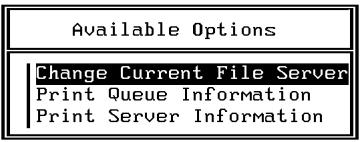
- Choose Change Current File Server and press Enter.
- Using the arrow keys, select the name of the file server you'll use for sharing Fiery ZX printing and press Enter.
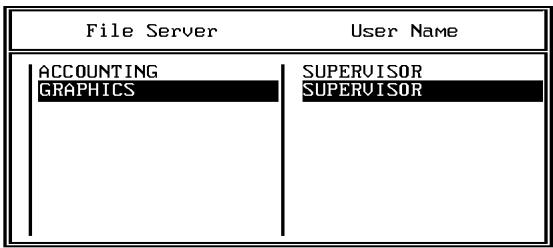
This is the file server you select later in Fiery ZX Network/PServer/Bindery Setup.
- Choose Print Server Information from the Available Options menu.
- Press the Insert key, type a name for the new print server, and press Enter. Then press Esc.
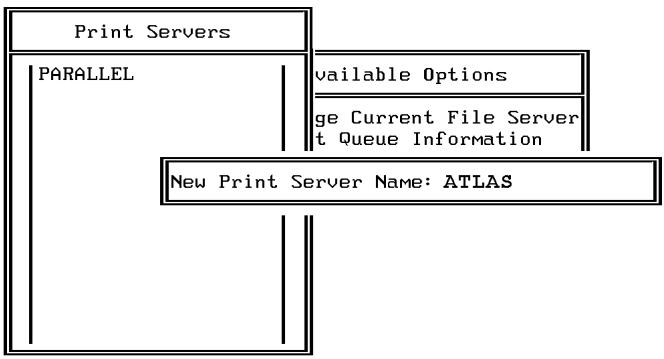
You must select the same print server here and in Fiery ZX Network Setup>
PServer Setup>Bindery Setup. In this example, "Atlas" is the name of the print server.
-
Choose Print Queue Information from the Available Options menu.
-
Press the Insert key and type a name for a new Fiery ZX print queue. Press Enter.
See page 4-3 for queue naming conventions. In this example, “AtlasQ” is the name of the queue. The extension “_print” directs jobs to the Print queue on the Fiery ZX (as opposed to the Fiery ZX Hold queue or Direct connection).
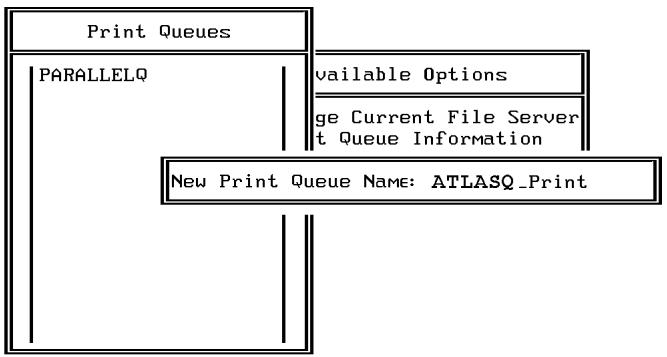
- Make sure the print queue name you created is selected in the list of Print Queues, and press Enter.
The Print Queue Information menu is displayed.
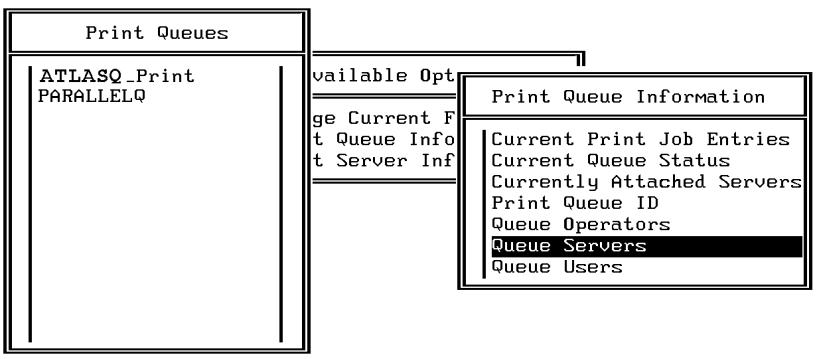
- In the Print Queue Information menu, choose Queue Servers, and press Enter.
A blank Queue Servers list is displayed.
- Press the Insert key.
The Queue Server Candidates list is displayed.
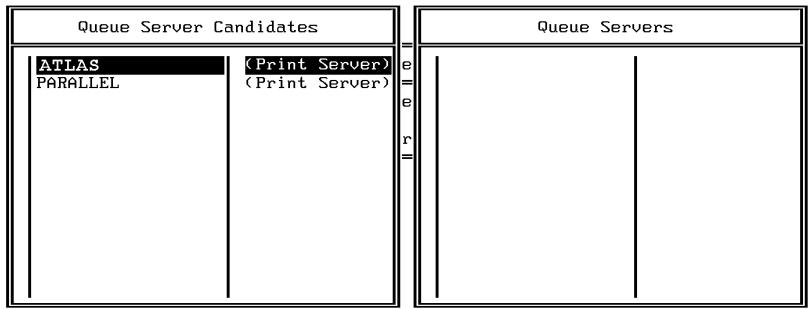
- Use the arrow keys to select the name of the print server you created in step 6 and press Enter.
The server name you select will appear in the Queue Servers list.
You have associated the selected Fiery ZX queue with the print server you created in step 6.
NOTE: The Fiery ZX obtains jobs from all queues defined for a print server, and all jobs from one file server go to the same queue on the Fiery ZX.
- If you wish to set up a print queue on another file server, press Esc to close the windows until only the Available Options menu is displayed. Repeat the steps beginning with step 3.
The Fiery ZX can support up to eight file servers on Ethernet or Token Ring or both. - If you have configured all the servers you need, press Esc to exit all Print Console windows.
- Choose Yes or press Return to save changes to Print Console.
Setting up NetWare Windows clients for printing
Before setting up client workstations for printing, make sure you perform Network Setup on the Fiery ZX Control Panel (see page 2-10), and that the settings reflect the entities you created in the NetWare administrator utilities (see page 4-4).
NOTE: For printing to the Fiery ZX, connect all Windows clients to a Novell NetWare server and permit them to connect to the Netware print server or servers on which you defined a NetWare print queue for the Fiery ZX.
After the Novell server and the Fiery ZX have been set up, client setup consists of:
- Installing the networking protocol, binding it to the network adapter card, and permitting the client to log in to the NetWare file server.
On Windows 95 workstations, both the IPX/SPX-compatible protocol and the Client for NetWare Networks should be loaded from the Network Control Panel.
On Windows 3.1x workstations, the NetWare shell should be installed.
On Windows NT 4.0 workstations, Client Services for NetWare should be installed. Use the CSNW option in Control Panel to set printing options and specify a preferred NetWare server.
- Setting up the Fiery ZX as a PostScript printer by installing a PostScript printer driver and the Fiery ZX PPD (PostScript printer description).
- Adding a network port and connecting the workstation to one or more NetWare queues that have been defined for the Fiery ZX.
See Getting Started for details on how to connect Windows 3.1x, Windows 95, and Windows NT 4.0 workstations.
- Installing Fiery ZX software, such as color reference files.
See Getting Started for details.
Fiery ZX on a TCP/IP network with Windows NT 4.0
When a Windows NT 4.0 computer is configured to connect to the Fiery ZX using TCP/IP, it can print directly to the Fiery ZX. If the computer shares the printer over the network, it is acting as a print server to Windows NT 4.0 clients. Client machines print to the Fiery ZX by printing to the Windows NT 4.0 print server. Printing can then be monitored and controlled at the Windows NT 4.0 server machine.
With TCP/IP protocols loaded, you can run the Fiery utilities and Fiery WebTools from a Windows NT 4.0 or Windows 95 computer.
The Windows NT 4.0 server can also use AppleTalk protocols for printing to the Fiery ZX as an alternative to TCP/IP. When creating a printer to share with AppleTalk users, do not "capture" the printer. Capturing the printer forces all users to print to the server rather than directly to the printer. If you capture the printer, Fiery ZX print connections will not appear in the Mac OS Chooser.
Tips for experts—Windows NT 4.0 with TCP/IP
Setting up printing from Windows NT 4.0 using TCP/IP protocols is similar in some respects to setting up UNIX workstations with TCP/IP. When TCP/IP network connections are made from Windows NT 4.0 workstations, note the following:
- Make sure you have a valid IP address for the Fiery ZX and for any workstations that will print to it or run the Fiery utilities.
- In Fiery ZX Network Setup>Protocol Setup>TCP/IP Setup>Ethernet Setup (or Token Ring Setup), enable TCP/IP and enter the IP address for the Fiery ZX. Also enter the Subnet mask and Gateway address.
- Make sure the Fiery ZX name and address are listed in a domain name server (DNS) or hosts name database used by your system.
-
Make sure the system host table includes the correct internal name for the Fiery ZX as a remote printer. See page 4-26 for more information.
-
For Windows NT 4.0, install the Fiery ZX PostScript printer description on the Windows NT 4.0 server (see Getting Started).
Use the Windows NT 4.0 PostScript printer driver that was automatically installed with Windows NT 4.0. The Fiery ZX PostScript printer description is provided on the User Software CD.
Repeat the installation for everyone who prints to the Fiery ZX.
Each server and workstation running the Fiery utilities with TCP/IP also needs the TCP/IP protocol and the Fiery utility software.
The Installer installs a blank configuration (Efinl.ini) file. When you run a utility for the first time, you enter information that is used to configure the Efinl.ini file automatically. See Getting Started for more information.
Configuring a Windows NT 4.0 server to support the Fiery ZX
To configure a Windows NT 4.0 server to communicate with the Fiery ZX, follow these general steps. More detail is provided in subsequent sections.
- Load the TCP/IP network protocol (see the next section).
- Enter the host name of the Fiery ZX in the host database used by your system (see page 4-20).
- On the Fiery ZX Control Panel, perform Server Setup (see page 2-8), Network Setup (page 2-10), Printer Setup (page 2-38), PS Setup (page 2-40), and Color Setup (page 2-42).
- On the Windows NT 4.0 server, create a printer for each Fiery ZX print connection, install the appropriate printer drivers and (optionally) share the printer on the network (see page 4-22).
- Enter the host name and remote printer name of the Fiery ZX in the printer connection. See page 4-26 for more information.
- If the Windows NT 4.0 server is also a workstation, install the Fiery utilities (see Getting Started).
TO ADD TCP/IP NETWORK SERVICES:
- Log in to the Windows NT 4.0 server as Administrator.
- In the Control Panel, double-click the Network icon.
The Network Settings dialog box appears.
- Click the Services tab, and click Add.
- In the Select Network Service dialog box, select Microsoft TCP/IP Printing and click OK.
- In the Windows NT Setup dialog box, specify the location of your Windows NT 4.0 software files and click Continue.
Insert your Windows NT 4.0 system software CD and specify the CD-ROM drive's volume; or, if the files reside on your hard drive or on the network, specify the appropriate path.
- Click the Protocols tab and configure the Windows NT 4.0 server with its own IP address, subnet mask, and default gateway.
For Windows NT 4.0 configuration options you can use with various host name systems, see your Windows NT 4.0 documentation. - When you are finished configuring TCP/IP, click Apply, and close the Network control panel.
- Restart your computer.
- Add the Fiery ZX to the network (see the next section).
Adding the Fiery ZX to the TCP/IP network
If your TCP/IP network consists of Windows NT 4.0 servers and Windows NT 4.0 clients, use the directions in this section. If the network also includes UNIX workstations, also check the directions on page 4-27.
TO ADD THE FIERY ZX TO A TCP/IP NETWORK WITH A WINDOWS NT 4.0 SERVER:
- On the Fiery ZX Control Panel, perform Server Setup, Network Setup and Printer Setup to support TCP/IP printing.
Enter the options in Protocol Setup (IP address of the Fiery ZX, Subnet mask, and Gateway address).
- Register the IP address of the Fiery ZX in the host name database used by your system. For installations that don't have a network administrator or a central host name database, add the Fiery ZX to the hosts file on the Windows NT 4.0 server. Also add it to the hosts file on any workstations that have TCP/IP loaded and will use the Fiery utilities.
Adding an entry for the Fiery ZX to the Windows NT 4.0 hosts file
The hosts file maps remote devices to IP addresses. Host names are used in TCP/IP environments to locate IP addresses. Users can then communicate with any device over TCP/IP by using the host name rather than having to remember its IP address.
A generic hosts file is added when you install TCP/IP support.
NOTE: If there is no system-wide host name database, use the following procedure to create a local hosts file. If there is a system-wide host database, skip the following procedure.
TO ENTER THE HOST NAME OF THE FIERY ZX:
- On the Windows NT server and on each client computer, navigate to the hosts file that you use for your network or for your local computer.
The path to a local hosts file is typically c:\WINNT\system32\drivers\etc\hosts
- Open the hosts file with any ASCII text editor such as Notepad (Windows) or Edit (DOS).
- Type an entry for the Fiery ZX (IP address and host name) similar to the other entries in this file.
The Windows NT 4.0 hosts file provides compatibility with the UNIX hosts file. The hosts file is used as a local Domain Name Services (DNS) equivalent. It has the same format as the /etc/hosts file on UNIX servers. The format of the hosts entry is:
IP Address
where TAB indicates that you press the Tab key.
NOTE: Type the entry without any spaces, but substitute the values appropriate for your environment. It is recommended that the host name be the same name you gave to the Fiery ZX in the Server Setup on the Control Panel.
A sample entry for the Fiery ZX as the remote computer/printer, in which the host name of the printer is defined as Astro is:
127.0.0.1
To determine the IP Address and Server Name of your system, print a Configuration page from the Fiery ZX Control Panel (see page 2-52).
NOTE: If the Fiery ZX has already been defined in an /etc/hosts file or equivalent host name database on a UNIX workstation on your network, it is recommended that you use the same host name here as you used for the name of the remote printer in the /etc/printcap file.
- Save the file as "hosts" and exit the application.
Installing the Fiery ZX as a shared PostScript printer
The first step in creating a printer is installing the Windows NT PostScript printer driver and the Fiery ZX PPD (PostScript printer description), which gives your applications access to printer features. The installation instructions in Getting Started can be used for every workstation that will print directly and independently to the Fiery ZX. However, if you are an administrator running Windows NT 4.0 Server or Windows NT 4.0 Workstation, you can also create a printer and share it with Windows NT 4.0 clients on the network. When a printer is shared, Windows NT 4.0 clients who are not able or are not given permission to establish an independent network connection to the Fiery ZX can still print through the server.
You can specify sharing of the printer during installation of the Fiery ZX printer files. If you have not yet installed the Fiery ZX printer files on the Windows NT 4.0 print server computer, do so now following the instructions in Getting Started. During installation, enter the information necessary to share the Fiery ZX.
If you have already installed the Fiery ZX printer files on the computer you are using as an NT 4.0 print server, use the following procedure to share the Fiery ZX.
TO MAKE THE FIERY ZX A SHARED POSTSCRIPT PRINTER ON A WINDOWS NT 4.0 COMPUTER:
- Click Start>Settings>Printers to open the Printers window.
- Select the Fiery ZX.
- Open the Properties dialog box (right-click and choose Properties) and click the Sharing tab.
- Select Shared and enter a share name for the Fiery ZX.
Use a DOS-compliant share name if your network includes Windows for Workgroups clients. Use a name that indicates the Fiery ZX print connection if you wish to publicize that information.
- Click OK.
Setting up another printer
If more than one Fiery ZX print connection is published (for example, if both the Print queue and the Hold queue are published), you may wish to create a printer for each print connection so that you and other users can print to each connection directly.
TO SET UP ANOTHER PRINTER WITH WINDOWS NT 4.0:
- Click Start>Settings>Printers to open the Printers window, and then double-click Add Printer.
- Using the instructions in "Setting up printing with Windows NT 4.0" in Getting Started, install another copy of the Fiery ZX printer files.
When prompted to specify the printer name, you may want to enter a name that indicates the printer's queue.
- Follow the instructions in "Completing the Windows NT 4.0 printer connection" in Getting Started to set up the new printer for TCP/IP and Ipd printing.
In the first line of the Add LPR compatible printer dialog box, enter the same IP address or host name used for the first printer.
In the second line of the Add LPR compatible printer dialog box, enter either hold or print, depending on the queue to be used. The queue name is case-sensitive; be sure to enter it in all lowercase.
Configuring clients of a Windows NT 4.0 server
Each client of a Windows NT 4.0 server is already using a network protocol to communicate with the server. Each client can print to the Fiery ZX if it has been shared by a Windows NT 4.0 Server or Windows NT 4.0 Workstation computer. In that case, the client does not have to use the same network protocol to connect to the Windows NT 4.0 server as the server uses to communicate with the Fiery ZX.
TO CONNECTAND PRINT TO THE FIERY ZX SHARED BY THE WINDOWS NT 4.0SERVER:
- For Windows NT 4.0 Workstation clients, before printing, connect to the print server computer and select the Fiery ZX. Right-click and choose the Open command.
When prompted, click Yes to have Windows set up the printer.
After clients have selected the printer, they can choose it from the Print Setup, Page Setup or Print dialog box of their application. Clients can change printing options for their own job, but printer properties are grayed and not available for changing. When a client chooses Print, the job is transmitted to the Windows NT 4.0 print server, and from there to the selected print connection on the Fiery ZX. The job is listed in the Print Manager on the client workstation, and the administrator can track it in the Fiery ZX window in the Print Manager on the Windows NT 4.0 print server.
Configuring the Fiery ZX and clients for Fiery WebTools
The Fiery WebTools provide access to many Fiery ZX functions via the Internet (or your company's intranet), providing additional flexibility in remote management. You can access the Fiery WebTools from a Mac OS, Windows 95, or Windows NT 4.0 computer.
TO SET UP FIERY WEBTOOLS ON THE FIERY ZX:
- Perform Fiery ZX Setup and enable TCP/IP.
In Network Setup, choose Protocol Setup and perform TCP/IP Setup and Ethernet Setup. (Perform Token Ring Setup if the Token Ring option is installed.) - Set a valid, unique IP Address for the Fiery ZX, and then set the subnet mask. Set a gateway address if necessary.
- Exit TCP/IP Setup and exit Protocol Setup.
- Choose Service Setup, and choose Web Services Setup.
- For Enable Web Services, select Yes.
-
Exit Service Setup and exit Network Setup, and select Yes at the Save Changes screen.
-
In Fiery ZX Printer Setup, confirm that Publish Print Queue is set to Yes.
- Exit Printer Setup, and select Yes at the Save Changes screen.
TO SET UP FIERY WEBTOOLS ON ANY WORKSTATION:
- Enable TCP/IP networking.
- Make sure the workstation has a valid, unique IP address and subnet mask, and a gateway address if needed.
- Make sure an Internet browser that supports the Java language and frames is installed and that Java is enabled.
See Getting Started for more information on supported browsers and on Fiery WebTools requirements.
TO ACCESS THE FIERY WEBTOOLS:
- Start the Internet browser.
- Enter the IP address or DNS name of the Fiery ZX.
- Press Return.
The Fiery ZX home page appears. Follow the directions given on the home page to launch or to find out more information about a particular WebTool.
- Use the Configure button to enable only certain WebTools for users.
Fiery ZX on a network with UNIX workstations
When a UNIX workstation is configured with the lpd protocol, and connected to the Fiery ZX over a TCP/IP network, it can print directly to the Fiery ZX.
Setting up UNIX workstations requires an administrator with root privileges. After the initial configuration, UNIX users simply submit print jobs to a named printer.
The Fiery utilities and Fiery WebTools are not available on the UNIX platform. A Windows or Mac OS computer on the same network as the UNIX computer that is set up to use TCP/IP for printing to the Fiery ZX can use Fiery WebSpooler and the Fiery utilities to manage print jobs that originate from all workstations on the network.
Tips for experts—UNIX workstations
Setting up the Fiery ZX in a UNIX environment has the same requirements as setting up any printer or new device:
- A distinct IP address is needed for the Fiery ZX as well as for each workstation on the network.
- You select a name for the Fiery ZX that goes with the IP address.
- The IP address of the Fiery ZX must be registered for the network in a host database, and also on the Fiery ZX itself.
- The Print queue or the Hold queue (or both) must be published. Lpd printing to the Direct connection is not supported.
The following information applies especially to the Fiery ZX:
- Fiery ZX is a printer controller that understands lpd protocols.
- Fiery ZX has a remote printer name you must use in order to communicate with it successfully.
See the next section for details.
Important note about the remote printer name
Whichever UNIX system you use, the name used for remote printer (or rp in the /etc/printcap file) in configuring the Fiery ZX must be one of the following:
hold
The remote printer or rp name is also used when setting up your Windows NT 4.0 workstation or server to connect to the Fiery ZX over TCP/IP. Enter the remote printer name when you set up your Windows NT 4.0 printer, as the "Name of printer or print queue on that (lpd host) server" in the Add LPR Compatible Printer dialog box (see Getting Started).
Setting up the Fiery ZX on TCP/IP networks
Every machine (host) on a TCP/IP network, including the Fiery ZX, must have a unique 32-bit internet address (IP address). Contact your network administrator to obtain an address for the Fiery ZX. Workstations on a TCP/IP network can print directly to the Fiery ZX as a remote printer, or can print to a Windows NT 4.0 server or UNIX workstation acting as a print server.
TO SET UP FIERY ZX PRINTING ON UNIX SYSTEMS:
- Specify the appropriate settings in Fiery ZX Server Setup. To access Fiery ZX Setup, see page 2-1.
- Specify the appropriate settings in Fiery ZX Network Setup. Run the setups listed in the table on page 2-11 and enter a valid IP address, subnet mask and gateway address for the Fiery ZX.
- Specify the appropriate settings in Fiery ZX Printer Setup. Publish the Print queue and/or the Hold queue.
TO SET UP TCP/IP FOR COMMUNICATION WITH THE FIERY ZX:
- A superuser (with root login) must add the Fiery ZX to the network's IP host table or other system database of network printers.
- In the file or utility used by your network, specify the remote printer name, the print server protocol, the queue, and the spool file for the Fiery ZX name you assigned.
- Make the Fiery ZX available as a printer to other network users.
- To verify the TCP/IP connection, ping the IP address or the host name. From any computer on the network, at the command prompt, type: ping
Type the Fiery ZX IP address assigned in Fiery ZX Network Setup.
After the Fiery ZX is set up as a network printer, you can also ping the name you gave to the Fiery ZX:
ping
The server should respond with a message such as
Reply from
Some systems will respond with a continuous display of output from the IP address. To stop the output, type Control-C. You can use the ping command at any time.
TO PRINT TO THE FIERY ZX:
- On a UNIX system running SunOS 4 or other BSD-based variant, use the lpr command to send a job to the Fiery ZX.
- On a UNIX system running Solaris 2 or any System V implementation of UNIX, use the Ip command to send a job to the Fiery ZX.
- Windows NT 4.0 users with the TCP/IP protocol loaded can send print jobs to the Fiery ZX from their applications or from a command prompt.
Printing from applications uses the Windows NT PostScript driver. This gives Windows NT 4.0 users the ability to set print options, which is not possible from the command line.
Managing print jobs
UNIX network administrators can use UNIX utilities for viewing the list of jobs, and for printing and removing jobs that are spooled on UNIX servers. If the network includes a Windows NT 4.0 workstation that has TCP/IP protocols loaded, you can use the Command WorkStation or Fiery Downloader to download fonts and files.
You can also use the Command WorkStation, Fiery Spooler, or Fiery WebSpooler to manage jobs from remote workstations. See the Job Management Guide for more information.
Even without the Fiery utilities, you can:
- Save a record of individual jobs by using the Print Cover Page option in Fiery ZX PS Setup (see page 2-40)
- Set up the Fiery ZX to print a log of printed jobs automatically after every 55 jobs (see Job Log Setup on page 2-45)
- Print a Job Log manually at any time from the Functions menu on the Fiery ZX Control Panel (see the Job Management Guide).
Chapter 5: Administering the Fiery ZX
This chapter provides tips on managing Fiery ZX printing, and includes some troubleshooting hints.
Administrator functions
Administration features are included with the user software and are built into the Fiery ZX itself. The following table describes where to find information on these features (page references refer to this manual).
| For these operations: | And these tasks: | See: |
| Setting up network servers | Setting up servers to manage and share printing services | This manual |
| Connecting and setting up theFiery ZX | Connecting the Fiery ZX and performing Fiery ZX Setup from the Control Panel and from the Command WorkStation.Setting up the Fiery ZX to allow user access toFiery WebTools | This manualThis manual,Getting Started,andRelease Notes |
| Setting up the printing environment | Setting printer defaults, including modes, imaging, paper size handling, error handling.Setting copier model-specific options | Printer Setup, page 2-38 and 3-17PS Setup, page 2-40 and 3-18Color Guide, Printing Guide |
| Setting up the job environment | Publishing the Direct connection or the Print queue or Hold queue to end users on various platforms | Printer Setup, page 2-38 and 3-17, Chapter 4 |
| Protecting integrity of users' jobs, maintaining consistency ofFiery ZX settings | Setting the Administrator password | Change Password, page 2-50 and 3-4 |
| Setting up all new users | Setting up printing, including installing PostScript printer drivers and PPD files for the printer Installing optional user software Installing color reference pages (CMYK swatches, PANTONE Reference, color sample pages) Preparing users to access Fiery WebTools | Getting Started, Release Notes |
| Getting users started with printing | Printing to the Fiery ZX Setting job-specific options Using Fiery utilities | Printing Guide Job Management Guide |
| Controlling the job flow | Using the Command WorkStation, Fiery utilities and Fiery WebTools for managing job priorities, tracking current jobs, canceling jobs, printing jobs in the Hold queue, reprinting from the Printed or Hold queue | Printing Guide Job Management Guide Release Notes |
| Job accounting | Viewing, printing, and exporting the Job Log, user notes Setting automatic printing and clearing for the Job Log | Job Management Guide page 2-44 |
| Calibration and color management | Printing with CMYK simulations Calibrating the Fiery ZX Printing color samples and swatch pages Installing Photoshop Separation Tables and the monitor settings file | page 2-43 Job Management Guide Getting Started |
| Maintaining optimal Fiery ZX performance | Tips Deleting jobs, clearing queues | page 5-3, also Job Management Guide |
| Troubleshooting | Troubleshooting Fiery ZX Setup Printing, printer, and user software troubleshooting | page 5-4, also Printing Guide Job Management Guide |
Maintaining optimal Fiery ZX performance
The Fiery ZX does not require maintenance. Beyond the obvious requirements of servicing and maintaining the copier and replenishing consumables, there are a few things you can do that will improve the overall performance of your system:
Make the best use of your network connections
Publish only connections that will be used; the Fiery ZX constantly checks all published connections, even if they are inactive. Match the NetWare polling interval and the number of queues or connections to the demand for printing.
Review the published connections by printing a Configuration page. Eliminate the connections that are not being used. It is easy to re-establish them when needed. In general, network connections provide far superior throughput than a parallel port connection.
- Reduce the number of printed pages by choosing not to print a cover page by default unless you need cover pages for recordkeeping
Printing cover pages by default is a PS Setup option.
- Leave some jobs that are less urgent to times when there is less network traffic or printing
Recurring print jobs or jobs that are not urgent can be printed to the Hold queue. At low-traffic times, the administrator or a user of Fiery WebSpooler or the Command WorkStation with Operator privileges can move (or copy) all the Hold queue jobs to the Print queue for printing.
- Reduce unnecessary two-way communication
Large numbers of users running Fiery utilities, especially with frequent updates, may have a significant effect on Fiery ZX performance.
Make sure you have adequate disk space on the Fiery ZX
Periodically review the list of jobs in the Hold queue, and the number of jobs being retained in the Printed queue.
An administrator can print or delete jobs that are in the Printed queue and Hold queue. Consider printing or offloading inactive jobs. If disk space on the Fiery ZX is frequently low, you can disable the Printed queue (in Server Setup) and choose not to publish the Hold queue (in Printer Setup).
To move or remove queued jobs, use the Command WorkStation, Fiery Spooler, or Fiery WebSpooler. When you free up disk space by removing inactive jobs, new jobs are spooled and printed more quickly.
An internal hard drive upgrade may be available. Check with your service representative for more information.
- Disconnect the copier interface cable from the Fiery ZX or turn off the copier when the Fiery ZX is turned off for an extended period.
Leaving the copier turned on and connected to the Fiery ZX while the Fiery ZX is turned off can lead to excessive drain on the Fiery ZX motherboard battery.
Troubleshooting the Fiery ZX
Startup diagnostics are described in the Installation and Service Guide for service technicians. Contact your authorized service/support center if you see any startup error messages on the Fiery ZX Control Panel or if the Fiery ZX does not reach Idle status.
Troubleshooting during Setup from the Control Panel
The following section explains some error and alert messages that you may see during Fiery ZX Setup that might not be self-explanatory.
Network Setup messages
| After this Setup screen: | This message: | Means: |
| Enable AppleTalk (Network Protocol Setup>AppleTalk Setup) | No AppleTalk zone found. | The Ethernet network cable is not attached to the connector on the Fiery ZX, or the network cable is not plugged into the hub or network. If your AppleTalk network has zones, and you want to specify a zone for the Fiery ZX, you must connect the network cable to the Fiery ZX before performing AppleTalk Setup. Also could mean that the AppleTalk network doesn't have zones. Zones are not required for printing to the Fiery ZX. Press OK to continue. |
| Protocol Setup or Service Setup (Network Setup) | You must first enable a network port. | Enable at least one network port (Ethernet or Token Ring) in Port Setup before beginning Protocol Setup or Service Setup. |
| Frame Type selection (Network Protocol Setup> IPX/SPX Setup) | Invalid frame size. | The network hub is not connected to a Novell machine when the Fiery ZX tries to bind. |
| Warning! IPX network number is zero. | No other IPX machine can be found on the network, or the network hub is not connected to the network, when the Fiery ZX tries to bind. When this occurs, the network number defaults to zero. | |
| Can't detect Token Ring hardware. Token Ring hardware not installed or not functioning. | Fiery ZX queries the Token Ring hardware. Error indicates that some components are not installed, are not installed correctly, or not installed in the correct device. An unsupported Token Ring board may be in use. Check with your authorized service/support center. | |
| Token Ring Setup | Can't autodetect the ring speed. No device on ring. | The Fiery ZX is trying to detect the current ring speed, but it is the only machine on the Token Ring network. Connect another machine to the Token Ring network first, before connecting the Fiery ZX. |
| Enable NDS (Network Service Setup> PServer Setup >NDS Setup) | No NDS trees found. | No NDS trees were found on the Novell network. Check to see that the frame types on the Fiery ZX are properly configured. |
| Select NDS Tree (Network Service Setup> PServer Setup>NDS Setup) | Warning! Selecting a new NDS tree deletes Bindery setup. | You have previously connected the Fiery ZX to a different NDS tree. NetWise supports only a single NDS tree connection. To avoid a potential conflict with an existing tree connection (for example, if the connection was made through a NetWare 4.x server in emulation mode), all bindery settings will be deleted. If you choose OK, and choose Yes in the following message screen (Delete Bindery setup and continue?), bindery settings are deleted and have to be re-entered in Bindery Setup. To avoid deleting the bindery settings, press the Menu key, or select OK and choose No in the following message screen (Delete Bindery setup and continue?). Repeat NDS Setup without changing the NDS tree, or exit to Bindery Setup to review your current bindery settings. |
| Navigating NDS tree (Network Service Setup> PServer Setup>NDS Setup) | ______ is empty. | The chosen container contains no sub-containers or objects relevant to the current mode of navigation. |
| Bindery Setup (Network Service Setup> PServer Setup>Bindery Setup) | If you also plan to use NDS, set up NDS before Bindery. | No NDS settings are present. You are reminded to perform NDS Setup before Bindery Setup in case your network includes both NDS and bindery servers. |
| Select File Server From List (Network Service Setup> PServer Setup>Bindery Setup) | Error. Cannot open bindery connection to NDS server. | Select this server through NDS setup or disable NDS and select it through bindery. |
| No NetWare file server found. | No file server was found when Fiery ZX queried the network to create a list of supported servers or a list of all servers. Check cable connections and make sure the NetWare server is turned on. | |
| Enter First Letters of Server Name (Network Service Setup> PServer Setup>Bindery Setup) | File server name not found. Try again? | No file server with those letters was found when Fiery ZX queried the network. Check the name of the NetWare file server, check cable connections, and make sure the NetWare server is turned on. |
| View Server List, Edit Connection (Network Service Setup> PServer Setup>Bindery Setup) | No file server is selected. | No file server has been added in Bindery Setup. |
| Add File Server (Network Service Setup> PServer Setup>Bindery Setup) | All connections used. Remove server? | You have added the maximum number of bindery servers, which is eight. You now have the option of disconnecting one of those servers, so as to add another. |
| Add Server, Enter Your Login Name, Enter Your File Server Password (Network Service Setup> PServer Setup>Bindery Setup) | No NetWare print server found. | No print server was found when Fiery ZX queried the file server you selected. You must configure a print server and a print queue for every NetWare file server that will handle Fiery ZX print jobs (see page 4-4). |
| Any Bindery Setup screen | Novell error code, followed by a message. | Novell NetWare has reported an error. The Control Panel reports the error number and displays a brief message. For the most common errors (listed in the following table), a screen is displayed that enables you to retry the action that evoked the error, such as adding a server. If that is not possible, you are prompted to notify the Novell administrator, who will need to troubleshoot the network. Consult NetWare Administrator documentation for further explanation of Novell error codes. |
In Network Setup, when you configure the IPX (Novell) connection, the Fiery ZX queries the network for Novell file servers and trees, and attaches to them temporarily. If a guest login is enabled, it will be used. If not, you'll be prompted to log in from the Fiery ZX Control Panel.
If the selected NetWare file server or tree does not have a guest account, or if the guest account has expired or has been disabled by the NetWare supervisor, you will be prompted to notify the IPX (Novell) administrator. In that case, you (or the supervisor) have two options:
- Enable a guest account on the NetWare server or tree for the purpose of setup.
- Log in with a different account. At the ENTER LOGIN NAME screen, change the default name (guest) to supervisor or enter another valid login name. When you are prompted for a password, enter the correct password for the account you named.
For any Novell error, make sure:
- Your IPX (Novell) network is connected to the Fiery ZX.
- The NetWare server you are trying to access is running.
- The Novell network has been configured with at least one print server and queue for the Fiery ZX.
- You have the appropriate permissions and login information, including username and password, if necessary.
- The Fiery ZX is configured with the correct frame types for communication with the desired Novell servers.
Novell error messages
| Novell error: | Cause: | Suggested action or exit: |
| 220 Guest account not available | The guest account, which you have chosen for initial login, has expired or has been disabled by the NetWare supervisor. | Enable a guest account on the NetWare server for the purpose of setup. Alternatively, log in to a different account. In the ENTER LOGIN NAME screen, change the default name (guest) to supervisor or another valid login name. When you are prompted for a password, enter the correct password for the account you named. |
| 222 Unable to log in to server. Password has expired for login name | The server has connected to a file server, but is unable to log in to the file server or print server because the password has expired for the login account name or the named print server. | Select a different login account or print server. The error screen exits to the File Server Login screen (if login to file server failed) or NetWare Print Server screen (if login to Print Server failed). Pressing the Menu button returns to the PServer Setup screen. |
| 252 Unable to log in to server. Login does not exist. | The server has connected to a file server, but is unable to log in to the server because the selected login account does not exist on the file server. | Select a different login account. The error screen exits to the File Server Login screen. Pressing the Menu button returns to the PServer Setup screen. |
| 255 Unable to connect to file server. File server is down or out of connections. | The Novell file server is down or out of connections. This error occurs while the server is trying to connect to the requested file server. | Select a different file server (or try to get someone else to log off). Pressing the Menu button returns to the PServer Setup screen. |
| nnn Notify IPX (Novell) Administrator. | Indicates other network errors when the Fiery ZX is already connected to a file server. Something unexpected has happened and the user generally cannot recover without intervention of the network administrator. Error #197 indicates that you have exceeded the number of login attempts permitted for this account on the NetWare file server. Error #255 usually indicates a hard failure. | Notify the Novell administrator and report the error number. The error screen exits to the PServer Setup screen. |
Runtime error messages
For canceling jobs, calibration alerts, and error messages related to printing and calibration, see the Job Management Guide.
See the Job Management Guide for additional runtime error messages, including copier alerts to load media in trays or cassettes, and a Disk Full message. These messages are reported by the Control Panel, the Command WorkStation, and Fiery WebSpooler.
PostScript error reporting can be turned on as a print option from Mac OS applications that use a PostScript Level 2 or PostScript 3 driver or by setting the PS Setup option Print to PS error to Yes.
Check power and cable
This message indicates that the interface cable between the Fiery ZX and the copier is not connected, or a print job is ready but the copier is not turned on.
Printer not found
Most failures to find a printer on the network are due to conflicting or missing name or address settings for the Fiery ZX. You must enter particular names in certain places. The required names are:
- TCP/IP host name (also known as the DNS name), which is defined by your organization.
Enter the host name as the Server Name on the Control Panel.
- Remote printer (internal machine) name. Use one of the following:
print
hold
print_PRN-M
hold_PRN-M
NOTE: If your network environment includes a UNIX server, do not use a remote printer name that includes a hyphen or slash character.
You must reconfigure one of the Fiery utilities on each workstation if you change the DNS name (also known as the TCP/IP host name) of the Fiery ZX.
Check the table below for the appropriate name to use.
| In this location: | For this item: | IPX/SPX networks: | TCP/IP networks: | See: |
| Server Setup on Fiery ZX Control Panel | Server Name option | User-selected name | User-selected name | page 2-8 |
| Windows NT hosts file | host name | — | DNS name (TCP/IP host name) | page 4-17 |
| Windows NT setup for TCP/IP | lpd host name | — | DNS name (TCP/IP host name) | page 4-17 and Getting Started |
| Name of printer on lpd host machine | — | print or hold | ||
| UNIX /etc/printcap file (BSD) | rp line | — | print or hold | page 4-26 |
| Solaris | lpadmin quename | — | print or hold | |
| NetWare administration utility | print queues (must be all lowercase and in English) | _direct _print _hold | — | page 4-3 |
| Add New Server dialog box, when configuring a Fiery utility | New Device | PRN-M | PRN-M | Getting Started |
| Server Name | Server name of Fiery ZX as specified in Setup | DNS name (TCP/IP host name) |
Cannot connect to Fiery ZX with Fiery utilities
If users cannot connect to the Fiery ZX, check the following:
- Fiery ZX Setup—the appropriate network protocol must be enabled, with the correct parameters (for example, for TCP/IP, the IP address, etc.; for IPX/SPX, a correct frame type setting), and you must have published the Hold queue.
Verify that in IPX/SPX Setup the IPX network protocol has bound to all the frame types in use by the NetWare servers that handle Fiery ZX print jobs.
You can check these settings quickly by printing a Configuration Page.
- On the client workstation—the appropriate network protocol(s) must be loaded, and your Windows directory should contain a configured Efinl.ini file.
Command WorkStation problems connecting to the Fiery ZX
If there is a problem connecting to the Fiery ZX, an error message will be displayed.
The problem can occur:
- When the Fiery ZX is first turned on
- When the Fiery ZX reboot
- When you have changed settings affecting the server address and have not reconfigured the connection to the server.
If you see this problem, try the following solutions, in order:
- A remote workstation running the Fiery utilities or Fiery WebTools may be interfering by obtaining status information. If possible, close the remote application, and try again to connect.
- Restart the Command WorkStation application and try again to connect.
- Check the configuration of the connection and modify it if necessary, or, delete the Efinl.ini file from the \WINDOWS directory and start over with the process of configuring the connection, as described in Getting Started.
Reboot the Fiery ZX. - See the Job Management Guide for information on other error conditions.
Appendix A: Token Ring Network Option
Token Ring is an alternative network architecture to Ethernet architecture. Token Ring networks offer a high resistance to failure and are commonly used in large or high-traffic network installations.
Token Ring networks operate by passing a network token around the electronic equivalent of a ring. The token is a data packet that circulates from one network node to another, controlling access to the network. In practice, each workstation is connected to a port on one or more media attachment units (MAUs) which act as network hubs for the ring connection.
This appendix describes the Token Ring option and cable connections, and refers you to the remaining configuration required for printing to the Fiery ZX.
Fiery ZX Token Ring option
The Fiery ZX supports Token Ring networks that use IPX and TCP/IP protocols. To use the Fiery ZX with a Token Ring network, an EFI Token Ring network interface card must be installed in the Fiery ZX chassis. You can use either shielded twisted pair (STP) or unshielded twisted pair (UTP) cable.
Connecting Token Ring hardware
The service/support center that installs the Fiery ZX typically also installs the Token Ring option at the same time and configures the Fiery ZX to enable printing.
Back view of the Fiery ZX with the Token Ring option installed
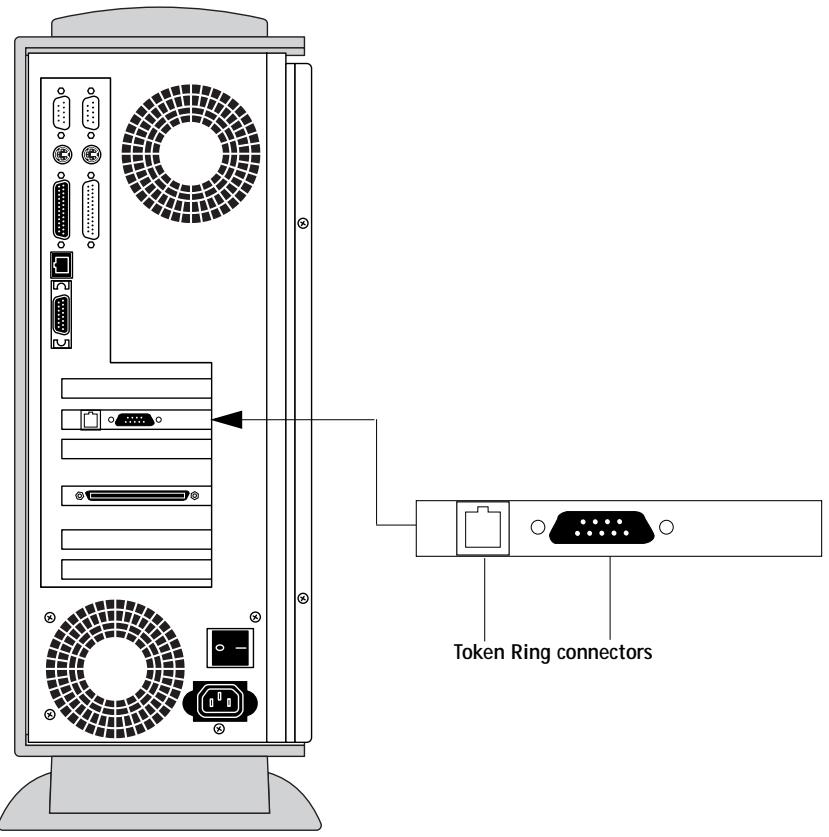

Turn off the Fiery ZX before connecting it to any network device.
NOTE: Do not attach cable to both Token Ring connectors.
TO CONNECT CABLE TO THE FIERY ZX:
- Turn off the Fiery ZX.
- Connect cable from the Token Ring MAU to the Fiery ZX Token Ring card. Configure the NetWare, Windows NT, or UNIX server to print to the Fiery ZX (see the next two sections). Then proceed to page 2-2 for Fiery ZX Setup.
IPX/SPX installations
If your network uses IPX/SPX protocols with Token Ring, configure at least one printer, one Fiery ZX Print Server, and one Fiery ZX Print Queue on the NetWare server as described in "Configuring a NetWare server for printing" on page 4-4. You can configure up to eight bindery servers and one NDS tree connection to the Fiery ZX. This total is the same whether the Fiery ZX is connected by Token Ring, by Ethernet, or by both. For more information, see "Setting up an NDS connection" on page 4-6.
TCP/IP installations
If your network uses TCP/IP protocols with Token Ring, configure at least one printer and one Fiery ZX queue on a Windows NT server (see "Configuring a Windows NT 4.0 server to support the Fiery ZX" on page 4-18), or on a UNIX server (see "Setting up the Fiery ZX on TCP/IP networks" on page 4-27).
Setting up Token Ring on the Fiery ZX
Token Ring Setup on the Control Panel is similar to Ethernet Setup. From Network Setup, perform Port Setup, Protocol Setup, and Service Setup. The setups you need are summarized in the table on page 2-11.
NOTE: Connect the Token Ring cable before doing Fiery ZX Network Setup, so that the Token Ring card can configure itself properly.
Setting up NetWare Windows clients
Client setup is exactly the same as for IPX clients using Ethernet. See "Setting up NetWare Windows clients for printing" on page 4-16 for details.
Index
Numerics
100BaseT 1-12, 1-14
10Base2 1-12
10Base5 1-12
10BaseT 1-12, 1-14
8-pin RJ-45 connector 1-12
A
access level scenarios xix
access to network and software xv
accessing Setup
from Control Panel 2-3 to 2-5
remotely 3-1
Add File Server, Bindery Setup 2-30
explained 2-29
Add Server (search list), Bindery Setup 2-30
administrator
features of color server 2-44
functions 5-1 to 5-2
installing the color server 1-2
managing print jobs 5-1
password 2-44, 2-50
setting system access levels xiv
Administrator password xvi, 3-5
changing from Control Panel 2-50
for setting the WebLink
destination xviii, 2-53
privileges xvi
removing 3-4, 3-5
setting 3-4
Allow Courier Substitution
option 2-41,3-19
AppleTalk 1-5
network diagram 1-5
protocol setup 2-15
supported on Ethernet only 1-4
with Windows NT 4-17
AppleTalk Setup, Control Panel 2-15 summary 2-11
AppleTalk Zone 2-15, 3-10
Apply/Overwrite Calibration option 2-49
AUI (Attachment Unit Interface) 1-12
Auto Clear Job Log Every 55 Jobs option 2-46,3-6
Auto Print Job Log Every 55 Jobs option 2-46, 3-5
AutoCal calibration 2-49
B
battery on motherboard 5-4
binary data, printing via parallel port 2-15, 3-7
Bindery emulation mode 3-12
setting up context 4-9 to 4-16
Bindery file server
connecting 2-30
defined 4-1
Bindery Services 2-23
Bindery Setup 2-24,3-12
on the server 2-29 to 2-33, 3-14
options 2-29,3-14
requirements 2-29,3-12
Black Overprint option 2-44
BNC connector 1-14
BOOTP 2-16, 2-17, 2-20, 2-21
C
cables, Token Ring option A-2
calibrationxiv,2-47to2-50
applying 2-49
AutoCal 2-47, 2-49
canceling 2-48
copier glass 2-47
exiting 2-50
measurements 2-47
options 2-48
preparing for 2-47
removing 2-50
selecting target for 2-48
targets 2-47
canceling Setup changes 2-8
Change Password option 2-44, 2-50
changing
Administrator password 2-50
Bindery connection 2-32
host name or DNS name 5-9
Novell print server, Bindery 2-29, 2-32
characters
allowed in remote Windows Printing
Service Setup 3-15
used on Control Panel 2-9
Choose File Server for editing Bindery
connection 2-32
Chooser,AppleTalk 2-8
choosing a Bindery Server to connect 2-30
Clear Frame Types, IPX/SPX Setup 2-23
Clear Server option 2-45, 2-51
clearing the Job Log 2-46
clients
setting up for printing 4-16 to 4-24
setting up for Token Ring A-3
setting up, overview 1-2
CMYK printing by default 2-40
CMYK Simulation
Custom 2-43
described xiv
DIC 2-43
Euroscale 2-43
Full 2-43
Quick 2-43
SWOP-Coated 2-43
Color and Paper Setup tab 3-18
Color Mode option 2-40, 3-18
color server
back view showing connectors 1-13
back view with Token Ring option installed A-2
Control Panel 2-2
copier connector 1-13
Direct connection 2-37
display window 2-3
maintaining performance 5-3
network installation summary 1-3
parallel connector 1-13
power switch 1-13
print connections 2-38
Setup, see Setup
Color Setup 2-2, 2-42 to 2-44
Command WorkStation xi, xiii
problems connecting to the color server 5-11
Compression option 2-40, 3-18
Configuration page 5-11
printing from Command
WorkStation 3-20
printing from Control Panel 2-52
configuring color server 2-1 to 2-51
preparing for 1-11
remotely 3-1 to 3-20
configuring network clients
NetWare 4-16
Windows NT 4-23
configuring network servers
NetWare 4-2, 4-4 to 4-15
UNIX 4-27
Windows NT 4-18
connected Novell servers, Bindery 2-32
connecting
copier interface cable 1-11
network cable 1-12 to 1-14
parallel cable 1-15
to a Bindery file server 2-30, 2-31
to multiple Bindery file servers 2-29
Token Ring cable A-2
connections published 2-37
control levels xix
scenarios xix
setting XV
Control Panel 2-2, 2-3
accessing Setup 2-3 to 2-5
calibration 2-44
Change Password option 2-44
Clear Server option 2-44
help map, see Control Panel Map
illustrated 2-3
illustrated Setup examples 2-7
initial Setup from 2-1
Job Log Setup option 2-44
Network Setup 2-10
Printer Setup 2-38
PS(PostScript) Setup 2-40
Server Setup 2-8
Setup interface 2-5
Control Panel Map 2-5
Convert Paper Sizes option 2-41, 3-19
copier interface cable 1-11
Courier font, allowing substitution
with 2-41,3-19
cover page, printing at end of job 2-41
custom simulation 2-43
D
date, setting 2-9
Default Paper Sizes option 2-41, 3-19
delete symbol, in Setup display 2-6
destination, WebLink xviii setting 2-53
DHCP 2-16, 2-17, 2-20, 2-21
diagrams of network setup 1-4 to 1-10
DIC simulation 2-43
Direct connection XV jobs 2-37
publishing 2-39
required for downloading fonts xvi
disconnecting a Bindery file
server 2-29, 2-33
disk space 5-3
DNS (Domain Name Server) 4-17, 4-21 name 5-9
downloading fonts
Direct connection requirement xvi
E
Edit Connection, Bindery Setup 2-32 explained 2-29
EnableAppleTalkoption2-15,3-10
Enable Auto IP Configuration (Setup option) 2-17, 2-19
Enable Direct Connection option 3-17
Enable Ethernet option 2-13, 3-7
Enable LPD option 2-24,3-16
Enable NDS option 2-25,3-12
Enable Parallel Port option 2-14,3-7
Enable Print Queue option 3-17
Enable Printed Queue option 2-9, 3-3
Enable PServer option 2-24
Enable Source Routing option 2-13, 3-7
Enable TCP/IP for Ethernet option 2-17, 3-9
Enable TCP/IP for Token Ring option 2-19, 3-9
Enable Token Ring option 2-13, 3-7
Enable Web Services option 2-36, 3-16
Enable Windows Printing option 3-16
enabling client utilities 2-17, 2-19
Fiery WebTools 2-36, 3-16
end-of-file (EOF) character, parallel communication 2-15, 3-7
Enter First Letters of Server Name (search option), Bindery Setup 2-30
Enter Your File Server Password, Bindery Setup 2-31
Enter Your Login Name, Bindery Setup 2-31
Enter Your Print Server Password, Bindery
Setup 2-31, 2-32
error messages 2-41, 5-4 to 5-8
"No AppleTalk zone found" 2-15, 3-10
during Setup 5-4
during startup 5-7
NetWare 5-7
runtime 5-9
Ethernet 1-12
attaching cables if Token Ring option
installed 1-13
connecting cable 1-12 to 1-14
frame types 2-22
network 4-2
Port Setup 2-13, 3-7
protocols supported 1-4
Ethernet Setup from Control Panel 2-12
Ethernet Speed 2-13
for Token Ring A-3
in Port Setup 2-13
in Protocol Setup 2-17
Ethernet Speed option 2-13
Euroscale simulation 2-43
Exit Bindery Setup 2-33
explained 2-29
Exit Calibration option 2-50
exiting Setup, Control Panel 2-8, 2-51
F
fast Ethernet, see 100BaseT
Fiery Downloader 4-2
Fiery Print Calibrator 2-47, 4-2
Fiery Scan 4-2
Fiery Spooler 4-2
Fiery utilities, see utilities
Fiery WebLink xviii
destination xviii
setting the destination 2-53
Fiery WebSpooler xviii
deleting jobs with 2-51
described xviii
printing Job Log 2-45
reprinting jobs in Printed
queue 2-9, 2-38
Fiery WebTools xvii, 4-24 to 4-25
accessing 4-25
enabling 2-36, 3-9, 3-16
enabling only certain WebTools 4-25
Installer xviii
overview xiv
setting up 4-25
Status xvii
File Server Login option, Bindery 2-31
File Server Password (Bindery) 2-31
file types and parallel port setup 2-15, 3-7
font substitution 2-41
frame types supported
IPX/SPX 2-22
TCP/IP and AppleTalk 2-23
From List option (adding a file server) 2-30
G
gateway address, setting 2-21, 3-10
Gateway Setup 2-19
in TCP/IP Setup 2-21
guest account (Novell) 5-7
guest login (Novell)
in Bindery Setup 2-30
in Network Setup 5-7
Guest privileges (no password) for
WebSpooler xvii, xviii
H
Hold queue xv, 2-38, 2-39
host name 4-17, 4-18, 4-21, 5-9
database 4-17
entering 4-21
HOSTS file 4-21
1
Ignore EOF Character option 2-15, 3-7
improving color server performance 5-3
Installer WebTool, see Fiery WebTools
installing
color server on network 1-2 to 1-11
tasks 1-2, 1-3
Internet
accessing server with Fiery
WebTools xvii
WebLink access 2-53
intranet
accessing server with Fiery
WebTools xvii
IP address
assigning automatically 2-17, 2-19, 2-20
for Ethernet Setup 2-18, 3-9
for Token Ring Setup 2-20, 3-9
required for TCP/IP printing 4-27
IPX (Novell) 4-1 to 4-16
Bindery file server,
connecting 2-29, 3-12
client utilities 4-3
NDS (NetWare Directory
Services) 2-23, 4-6 to 4-9
NetWare client setup 4-16
NetWare server setup 4-4 to 4-15
network diagram 1-6
overview of printing 4-3
selecting frame 3-11
setting bindery context 4-9 to 4-12
setting up printing 4-4 to 4-16
terms used to describe 2-29,3-12
tips for experts 4-2
IPX/SPX
installing with Token Ring A-3
protocol setup 2-22
selecting frame types 2-22
Setup 2-22
summary of Setup options 2-11
J
Java to support Internet browser 4-25
Job Log
clearing automatically 2-46
clearing jobs from 2-45, 2-51
default options 2-45
defined 2-45
printing automatically 2-46
setting the page size used 2-46, 3-6
Setup
defined 2-2, 2-44
from Control Panel 2-45 to 2-46
remote 3-5
Jobs Saved in Printed Queue
option 2-10,3-3
K
Kodak Gray Scale strip 2-49
L
lpd (TCP/IP) 4-25
printing 2-37
setup summary 4-27 to 4-28
LPD Setup 2-24,3-15
M
Mac OS computers
on AppleTalk network 1-5
with Windows NT 4-17
maintaining color server performance 5-3
Maximum Frame Size option, Token Ring
Setup 2-13, 3-7
maximum server connections, Bindery 2-30
Measure Page option 2-49
measuring color density for calibration 2-49
media attachment unit (MAU) 1-12, A-1
Menu button 2-3, 2-8
messages, see error messages
Microsoft SMB protocol 3-15
multipleBinderyfile servers,
connecting 2-29, 3-14
N
naming the server 2-8, 5-9
NDS (NetWare Directory
Services) 2-23, 4-6 to 4-9
defined 4-1
enabling 2-25,3-12
print queue subtree 2-28
printing 4-6 to 4-9
Setup on the server 2-25 to 2-28, 3-11 to 3-13
setup requirements 2-25
NDS Setup 2-25,3-12
NDS tree
browsing 2-25, 2-26, 3-12
browsing to print queue root 2-27
browsing to Print Server 2-27
browsing to User Login object 2-26
connecting to color server xiii
password 2-26
selecting 3-13
NETADMIN 4-5
NETBEUI 1-7
NetWare
Bindery and NDS on the same
network 2-24,3-12
Bindery Services 2-23
Directory Services 2-23
error messages 5-7, 5-8
NDS (NetWare Directory Services) 4-6 to 4-9
print server poll interval 2-34
setting up network on the Control Panel 2-24
setting up server 4-12 to 4-15
NetWare 4.x bindery context 4-9
NetWare File Server, Bindery
connecting 2-29, 2-30, 3-14
finding available servers 2-30
inPCONSOLE4-13
maximum number supported xiii
removing connection 2-33
selecting for editing 2-32
setting up more than one 2-29, 3-14
NetWare Print Console 4-12
NetWare Print Server poll interval 2-34
NetWare Print Server, Bindery 2-31, 2-32
changing the selection 2-29
connecting 2-31, 2-32
creating in PCONSOLE 4-13
editing your choice 2-32
password 2-31
NetWare Queue 4-14
NetWare Server Poll Interval 2-34
NetWise, supported networking
environments 4-1
network
AppleTalk 1-5
cable 1-11
installation diagrams 1-2 to 1-11
installation summary 1-3
IPX (Novell) 1-3, 1-4, 1-6
lpd (TCP/IP) 1-3, 1-4, 1-9
protocols supported 1-1
setting up server 2-2
using multiple protocols 1-4
with Windows NT 1-7
Network Setup
defined 2-2
exiting 2-12
from Control Panel 2-10 to 2-34
options 2-10, 2-11
part of initial Setup 3-1
remote 3-6 to 3-16
troubleshooting 5-7
with Token Ring option A-3
New Password option 2-51
Novell, see NetWare
0
Operator password xvi, xviii, 2-1
privileges xvii
removing 3-4, 3-5
overwriting calibration 2-49
P
Page Order option 2-40, 3-18
paper size used by default 2-41
Parallel Connection option 2-39, 3-18
parallel port
cable 1-15
connecting 1-15
connector 1-12
diagram 1-10
Parallel Port Setup from Control
Panel 2-12, 2-14, 2-15
options 2-14, 2-15
Parallel Port Setup, remote 3-7
timeout setting 3-7
Parallel Port, summary of Setup 2-11
passwords
Administrator privileges xvi
Administrator, changing or setting 2-50
Bindery print server 2-31
changing 2-44, 2-50
creating 2-44, 2-51, 3-4, 3-5
Fiery WebTools xvii
for WebLink destination xviii
for WebSpooler xviii
Guest (no password) for
WebSpooler xvii
NDS Tree 2-26
Novell file server, Bindery 2-31
Operator privileges xvii
Print Server 2-27,3-13
removing 3-4, 3-5
setting xvi
verifying 2-51,3-4,3-5
PC compatibles
on IPX (Novell) network 1-6
on TCP/IP network 1-9
PCONSOLE utility 2-31
peer to peer printing, see Windows (SMB) printing
platforms supporting utilities xiv
polling interval for NetWare print jobs 2-34
Port Setup A-3
configuring 3-6
options 2-12, 2-13
Port Setup from Control Panel 2-12
Ethernet Setup 2-13
Token Ring Setup 2-13
Port Timeout in Seconds option 2-14, 3-7
portable computers 1-15
PostScript error 2-42
PostScript files, printing 2-15, 3-7
PostScript Setup 2-2
Print Comparison Page option 2-49
print connections
color server 2-38
Print Cover Page option 2-41, 3-19
Print Measurement Page option 2-48
Print queue xv, xvi, 2-9, 2-37, 2-39
print queues 2-9, 2-38
NDS 2-28
NetWare server 4-14
NetWare server (Bindery) 2-30
server 2-38, 2-39
Print Server password 2-27
Print Start Page option 2-9,3-3
Print to PS Error option 2-42, 3-19, 5-9
Printed queue 2-9, 2-38
primer
connection failure 5-9
not found 5-9
not in Chooser 5-9
Printer Setup 2-38
defined 2-2
from Control Panel 2-38
part of initial Setup 3-1
remotely 3-17
Printer Type option 3-17
printing
CMYK by default 2-40
color page for calibration 2-48
Configuration page from Command
WorkStation 3-20
Configuration page from Control Panel 2-52
connections and queues 2-36, 2-38
connections, described xv
cover page for each job 2-41
directly to parallel port 2-14, 3-7
Job Log automatically 2-46
PostScript files 2-15,3-7
publishing connections for 2-37
reprinting previously printed jobs 2-38
start page at startup 2-9
printing connections XV
problems, see troubleshooting
protocol for assigning IP address
automatically 2-17, 2-20
Protocol Setup 2-15 to 2-23, 3-8, A-3
protocols, network 1-1
See also AppleTalk, IPX, IPX/SPX, TCP/IP
PS(PostScript) Setup 2-2,2-40 to 2-42
PServer Mode 3-12
PServer Setup 3-12
from Control Panel 2-23
options 2-24
PServer, defined 2-23
Publish Direct Connection option 2-39
Publish Hold Queue option 2-39
Publish Print Queue option 2-39
publishing
connections for printing 2-37
connections, overview XV
Direct connection 2-39
Hold queue 2-39
Print queue 2-39
quences 2-39
Pure Black Text/Graphics option 2-43
0
quences
clearing 2-45
clearing all 2-51
described 2-37
publishing 2-39
setting up NetWare print queue 4-14 to 4-15
specifying for parallel port input 2-39
quences, see also Print queue, Hold queue,
Printed queue, Direct connection
R
RARP 2-16, 2-17, 2-20, 2-21
remote Printer Setup 3-1 to 3-19
Remove Calibration option 2-50
Remove File Server, Bindery Setup 2-33 explained 2-29
removing
Bindery file server connection 2-33 calibration 2-50
rendering method 3-19
Rendering Style option 2-43
reprinting jobs 2-38
Request All Routes, Token Ring source routing 2-14, 3-8
Respond All Routes, Token Ring source routing 2-14, 3-8
RGB Source option 2-42, 3-19
RJ-45 connector 1-12
root login 4-27
routers 2-16,3-8
running Setup remotely 3-1 to 3-19
S
Save Changes
Job Log Setup, Control Panel 2-46
Network Setup, Control
Panel 2-12, 2-36
Printer Setup, Control Panel 2-40, 2-42
Setup, Control Panel 2-8, 2-10
Save Changes option 2-44
Search Name option (adding a file server) 2-30
Select File Server option 2-30
Select Frame Types option 2-22
Select NDS Tree option 2-25
Select Printer option 3-17
Select protocol (Setup option) 2-17, 2-20
Select Target option 2-48
selecting
Bindery servers 2-32
default paper size 2-41
selecting frame types for IPX/SPX 2-22
Server Name option 2-8,3-3,3-16
server queue on NetWare server 4-14
Server Setup
defined 2-2
from Control Panel 2-8
options 3-2
part of initial Setup 3-1
server, network see network server
Service Setup 2-23, A-3
configuring 3-15
exiting 2-36
setting up NDS connection 4-6 to 4-9
Setup
accessing remotely (after initial) 3-1
areas 2-11
initial (on the Control Panel) 2-1
making changes to 2-1
screen types 2-6, 2-7
See also Server Setup, Network Setup,
Printer Setup, PS Setup, Color Setup,
Job Log Setup
Setup from Command WorkStation
accessing 3-1
Setup from Control Panel 2-2 to 2-51
accessing 2-3 to 2-5
error messages 5-4 to 5-8
Job Log Setup 2-45
Network Setup 2-10
Port Setup 2-12, 2-13
Printer Setup 2-38
Protocol Setup 2-15 to 2-23
Server Setup 2-8
Service Setup 2-23
summary 2-2
Setup menu 2-4
administrative functions 2-44
simulations see CMYK Simulation
SMB, see Windows (SMB) printing
Source Routing, Token Ring
Setup 2-13, 3-7
Spot Color Matching option 2-44, 3-20
SQE switch 1-14
Status WebTool, see Fiery WebTools
STP (shielded twisted pair) cable A-1
Subnet Mask option 2-18, 2-20, 3-9, 3-10
superuser 4-27
Supported Servers, Bindery Setup 2-32
SWOP-Coated simulation 2-43
system administrator, see administrator
System Date option 2-9,3-3
System Time option 2-9,3-3
T
targets, calibration 2-48
TCP/IP
adding server to network 4-20
Ethernet Setup from Control Panel 2-17
host name 5-9
http protocol 1-1
installing with Token Ring A-3
lpd protocol 1-1
nbt protocol 1-1
network diagram 1-9
on both Ethernet and Token Ring 2-16,3-8
protocol setup 2-16
published connections 2-39
remote Setup 3-9
setting up printing from Windows NT 4-17 to 4-24
Setup from Control Panel 2-16 summary 2-11
Token Ring Setup from Control Panel 2-19
with UNIX workstations 4-25
terminology, Novell 2-29, 3-12
thicknet cable 1-12, 1-14
thinnet cable 1-12, 1-14
Time option 3-3
Token Ring attach cables to RJ-45 connector 1-13
client setup A-3
frame types 2-22
network interface card A-1
overview A-1 to A-3
Port Setup 2-13
protocols supported 1-4
remote Setup 3-9
summary of Setup 2-11
Token Ring Setup 2-12, A-3
in Port Setup 2-13
in TCP/IP Setup 2-19
transceiver 1-12
Transmission Speed (Ethernet) option 3-7
troubleshooting
Command WorkStation connection problems 5-11
connection to printer fails 5-9
Printer not found in the selection list of Fiery utilities 5-11
Printer not found—TCP/IP or IPX networks 5-9
Setup, Control Panel 5-4 to 5-8
twisted pair cable 1-12, 1-14
U
UNIX
managing print jobs 4-28
on TCP/IP network 4-25
printcap file 5-10
printing to color server 4-28
remote printer name 5-10
setting up printing to color server 4-27
UNIX workstations
on TCP/IP network 1-9
tips for experts 4-26
URL for changing WebLink address 2-53
Use Character Set option 3-3
Use WINS Name Server option 2-35
User Login object 3-13
utilities
enabling 3-9
enabling protocol on the server 2-17, 2-19
require Print queue 2-39
server name for configuring connection to server 2-8
UTP (unshielded twisted pair)
cable 1-12, 1-14, A-1
V
View Server List, Bindery Setup 2-32 explained 2-29
W
Web Services Setup 2-36, 3-15
WebLink see Fiery WebLink
WebSpooler, see Fiery WebSpooler
WebTools, see Fiery WebTools
Windows (SMB) printing xiii, 1-1, 3-16
Windows NT
network environment 1-7
PostScript printer driver 4-22
setting up Windows NT server 4-18
with TCP/IP 1-7, 1-9
Windows NT 4.0 workstations
Command WorkStation installed on 3-1
Windows Setup 2-34, 3-15
WINS IP Address option 2-35, 3-16
WINS name server 2-35
Printing Guide
FIERY ZX-3300/ZX-2100
for Minolta CF910
Copyright © 1999 Electronics For Imaging, Inc. All rights reserved.
This publication is protected by copyright, and all rights are reserved. No part of it may be reproduced or transmitted in any form or by any means for any purpose without express prior written consent from Electronics For Imaging, Inc., except as expressly permitted herein. Information in this document is subject to change without notice and does not represent a commitment on the part of Electronics For Imaging, Inc.
The software described in this publication is furnished under license and may only be used or copied in accordance with the terms of such license.
Patents: 5,867,179; 5,835,788; 5,666,436; 5,553,200; 5,543,940; 5,537,516; 5,517,334; 5,506,946; 5,424,754; 5,343,311; 5,212,546; 4,941,038; 4,837,722; 4,500,919
Trademarks
EFI, the EFI logo, Fiery, the Fiery logo, EFICOLOR, and Rip-While-Print are trademarks registered in the U.S. Patent and Trademark Office. Fiery ZX, Fiery LX, Fiery Driven, the Fiery Driven logo, Command WorkStation, AutoCal, Starr Compression, Memory Multiplier, ColorWise, NetWise, and VisualCal are trademarks of Electronics For Imaging, Inc.
Adobe, the Adobe logo, Adobe Illustrator, PostScript, Adobe Photoshop, Adobe Separator, and Adobe PageMaker are trademarks of Adobe Systems Incorporated, registered in certain jurisdictions. EPS (Encapsulated PostScript) is a trademark of Altsys Corporation. Apple, the Apple logo, AppleShare, AppleTalk, EtherTalk, LaserWriter, and Macintosh are registered trademarks, and MultiFinder is a trademark of Apple Computer, Inc. Microsoft, MS, MS-DOS, and Windows are registered trademarks of Microsoft in the US and other countries. QuarkXPress is a registered trademark of Quark, Inc. Times, Helvetica, and Palatino are trademarks of Linotype AG and/or its subsidiaries. ITC Avant Garde, ITC Bookman, ITC Zapf Chancery, and ITC Zapf Dingbats are registered trademarks of International Typeface Corporation. Ethernet is a registered trademark of Xerox Corporation. NetWare and Novell are registered trademarks and Internet Network Packet Exchange (IPX) is a trademark of Novell, Inc. UNIX is a registered trademark of UNIX System Laboratories, a wholly owned subsidiary of Novell, Inc. PANTONE is a registered trademark of Pantone, Inc.
All other terms and product names may be trademarks or registered trademarks of their respective owners, and are hereby acknowledged.
Legal Notices
APPLE COMPUTER, INC. ("APPLE") MAKES NO WARRANTYES, EXPRESS OR IMPLIED, INCLUDING WITHOUT LIMITATION THE IMPLIED WARRANTYES OF MERCHANTABILITY AND FITNESS FOR A PARTICULAR PURPOSE, REGARDING THE APPLE SOFTWARE. APPLE DOES NOT WARRANTY, GUARantee, OR MAKE ANY REPRESENTATIONS REGARDING THE USE OR THE RESULTS OF THE USE OF THE APPLE SOFTWARE IN TERMS OF ITS CORRECTNESS, ACCURACY, RELIABILITY, CURRENTNESS, OR OTHERWISE. THE ENTIRE RISK AS TO THE RESULTS AND PERFORMANCE OF THE APPLE SOFTWARE IS ASSUMED BY YOU. THE EXCLUSION OF IMPLIED WARRANTYES IS NOT PERMITTED BY SOME STATES. THE ABOVE EXCLUSION MAY NOT APPLY TO YOU.
IN NO EVENT WILL APPLE, ITS DIRECTORS, OFFICERS, EMPLOYEES OR AGENTS BE LIABLE TO YOU FOR ANY CONSEQUENTIAL, INCIDENTAL OR INDIRECT DAMAGES (INCLUDING DAMAGES FOR LOSS OF BUSINESS PROFITS, BUSINESS INTERRUPTION, LOSS OF BUSINESS INFORMATION, AND THE LIKE) ASING OUT OF THE USE OR INABILITY TO USE THE APPLE SOFTWARE EVEN IF APPLE HAS BEEN ADVISED OF THE POSSIBILITY OF SUCH DAMAGES. BECAUSE SOME STATES DO NOT ALLOW THE EXCLUSION OR LIMITATION OF LIABILITY FOR CONSEQUENTIAL OR INCIDENTAL DAMAGES, THE ABOVE LIMITATIONS MAY NOT APPLY TO YOU. Apple's liability to you for actual damages from any cause whatsoever, and regardless of the form of the action (whether in contract, tort [including negligence], product liability or otherwise), will be limited to $50.
Restricted Rights Legends
For defense agencies: Restricted Rights Legend. Use, reproduction, or disclosure is subject to restrictions set forth in subparagraph (c)(1)(ii) of the Rights in Technical Data and Computer Software clause at 252.227.7013.
For civilian agencies: Restricted Rights Legend. Use, reproduction, or disclosure is subject to restrictions set forth in subparagraph (a) through (d) of the commercial Computer Software Restricted Rights clause at 52.227-19 and the limitations set forth in Electronics For Imaging, Inc.'s standard commercial agreement for this software. Unpublished rights reserved under the copyright laws of the United States.
Printed in the United States of America on recycled paper.
FCC Information
WARNING: FCC Regulations state that any unauthorized changes or modifications to this equipment not expressly approved by the manufacturer could void the user's authority to operate this equipment.
NOTE: This equipment has been tested and found to comply with the limits for a Class A digital device, pursuant to Part 15 of the FCC Rules. These limits are designed to provide reasonable protection against harmful interference when the equipment is operated in a commercial environment. This equipment generates, and uses, and can radiate radio frequency energy and, if not installed and used in accordance with the instruction manual, may cause harmful interference to radio communications. Operation of this equipment in a residential area is likely to cause interference in which case the user will be required to correct the interference at his own expense.
Industry Canada Class A Notice
This digital apparatus does not exceed the Class A limits for radio noise emissions from digital apparatus as set out in the interference-causing equipment standard entitled, "Digital Apparatus" ICES-003 from Industry Canada.
Avis de Conformatione Classe A d l'Industrie Canada
Certificate by Manufacturer/Importer
This is to certify that the FC07 is shielded against radio interference in accordance with the provisions of VFG 243/1991. The German Postal Services have been advised that this device is being put on the market and that they have been given the right to inspect the series for compliance with the regulations.
RFI Compliance Notice
This equipment has been tested concerning compliance with the relevant RFI protection requirements both individually and on system level (to simulate normal operation conditions). However, it is possible that these RFI Requirements are not met under certain unfavorable conditions in other installations. It is the user who is responsible for compliance of his particular installation.
Compliance with applicable regulations depends on the use of shielded cables. It is the user who is responsible for procuring the appropriate cables.
Software License Agreement
Before using the Software, please carefully read the following terms and conditions. BY USING THIS SOFTWARE, YOU SIGNIFY THAT YOU HAVE ACCEPTED THE TERMS OF THIS AGREEMENT. If you cannot or do not accept these terms, you may return the entire package within ten (10) days to the Distributor or Dealer from which you obtained them for a full refund.
Electronics For Imaging, Inc. grants to you a non-exclusive, non-transferable license to use the software and accompanying documentation ("Software") included with the Fiery ZX you have purchased, including without limitation the PostScript® software provided by Adobe Systems Incorporated.
You may:
a. use the Software solely for your own customary business purposes and solely with Fiery ZX;
b. use the digitally-encoded machine-readable outline and bitmap programs ("Font Programs") provided with Fiery ZX in a special encrypted format ("Coded Font Programs") to reproduce and display designs, styles, weights, and versions of letters, numerals, characters and symbols ("Typefaces") solely for your own customary business purposes on the display window of the Fiery ZX or monitor used with Fiery ZX;
c. use the trademarks used by Electronics For Imaging to identify the Coded Font Programs and Typefaces reproduced therefrom ("Trademarks"); and
d. assign your rights under this Agreement to a transferee of all of your right, title and interest in and to Fiery ZX provided the transferee agrees to be bound by all of the terms and conditions of this Agreement.
You may not:
a. make use of the Software, directly or indirectly, to print bitmap images with print resolutions of 600 dots per inch or greater, or to generate fonts or typefaces for use other than with Fiery ZX;
b. make or have made, or permit to be made, any copies of the Software, Coded Font Programs, accompanying documentation or portions thereof, except as necessary for use with the Fiery ZX unit purchased by you; provided, however, that under no circumstances may you make or have made, or permit to be made, any copies of that certain portion of the Software which has been included on the Fiery ZX hard disk drive. You may not copy the documentation;
c. attempt to alter, disassemble, decrypt or reverse engineer the Software, Coded Font Programs or accompanying documentation.
d. rent or lease the Software.
Proprietary Rights
You acknowledge that the Software, Coded Font Programs, Typefaces, Trademarks and accompanying documentation are proprietary to Electronics For Imaging and its suppliers and that title and other intellectual property rights therein remain with Electronics For Imaging and its suppliers. Except as stated above, this Agreement does not grant you any right to patents, copyrights, trade secrets, trademarks (whether registered or unregistered), or any other rights, franchises or licenses in respect of the Software, Coded Font Programs, Typefaces, Trademarks or accompanying documentation. You may not adapt or use any trademark or trade name which is likely to be similar to or confusing with that of Electronics For Imaging or any of its suppliers or take any other action which impairs or reduces the trademark rights of Electronics For Imaging or its suppliers. The trademarks may only be used to identify printed output produced by the Coded Font Programs. At the reasonable request of Electronics For Imaging, you must supply samples of any Typeface identified with a trademark.
Confidentiality
You agree to hold the Software and Coded Font Programs in confidence, disclosing the Software and Coded Font Programs only to authorized users having a need to use the Software and Coded Font Programs as permitted by this Agreement and to take all reasonable precautions to prevent disclosure to other parties.
Remedies
Unauthorized use, copying or disclosure of the Software, Coded Font Programs, Typefaces, Trademarks or accompanying documentation will result in automatic termination of this license and will make available to Electronics For Imaging other legal remedies.
Limited Warranty And Disclaimer
Electronic For Imaging warrants that, for a period of ninety (90) days from the date of delivery to you, the Software under normal use will perform without significant errors that make it unusable. Electronics For Imaging's entire liability and your exclusive remedy under this warranty (which is subject to you returning Fiery ZX to Electronics For Imaging or an authorized dealer) will be, at Electronics For Imaging's option, to use reasonable commercial efforts to attempt to correct or work around errors, to replace the Software with functionally equivalent software, or to refund the purchase price and terminate this Agreement. Some states do not allow limitations on duration of implied warranty, so the above limitation may not apply to you.
For warranty service, please contact your authorized service/support center.
EXCEPT FOR THE ABOVE EXPRESS LIMITED WARRANTY, ELECTRONICS FOR IMAGING MAKES AND YOU RECEIVE NO WARRANTYES OR CONDITIONS ON THE SOFTWARE OR CODED FONT PROGRAMS, EXPRESS, IMPLIED, STATUTORY, OR IN ANY OTHER PROVISION OF THIS AGREEMENT OR COMMUNICATION WITH YOU, AND ELECTRONICS FOR IMAGING SPECIFICALLY DISCLAIMS ANY IMPLIED WARRANTY OR CONDITION OF MERCHANTABILITY OR FITNESS FOR A PARTICULAR PURPOSE. Electronics For Imaging does not warrant that the operation of the software will be uninterrupted or error free or that the Software will meet your specific requirements.
Limitation Of Liability
IN NO EVENT WILL ELECTRONICS FOR IMAGING OR ITS SUPPLIERS BE LIABLE FOR ANY DAMAGES, INCLUDING LOSS OF DATA, LOST PROFITS, COST OF COVER OR OTHER SPECIAL, INCIDENTAL, CONSEQUENTIAL OR INDIRECT DAMAGES ASING FROM THE USE OF THE SOFTWARE, CODED FONT PROGRAMS OR ACCOMPANYING DOCUMENTATION, HOWEVER CAUSED AND ON ANY THEORY OF LIABILITY. THIS LIMITATION WILL APPLY EVEN IF ELECTRONICS FOR IMAGING OR ANY AUTHORIZED DEALER HAS BEEN ADVISED OF THE POSSIBILITY OF SUCH DAMAGE. YOU ACKNOWLEDGE THAT THE PRICE OF THE UNIT REFLECTS THIS ALLOCATION OF RISK. BECAUSE SOME STATES/JURISDICTIONS DO NOT ALLOW THE EXCLUSION OR LIMITATION OF LIABILITY FOR CONSEQUENTIAL OR INCIDENTAL DAMAGES, THE ABOVE LIMITATION MAY NOT APPLY TO YOU.
Export Controls
You agree that you will not export or re-export the Software or Coded Font Programs in any form without the appropriate United States and foreign government licenses. Your failure to comply with this provision is a material breach of this Agreement.
Government Use
Use, duplication or disclosure of the Software by the United States Government is subject to restrictions as set forth in subdivision (c) (1) (ii) of the Rights in Technical Data and Computer Software clause at DFARS 252.227-7013 or in subparagraphs (c) (1) and (2) of the Commercial Computer Software—Restricted Right Clause at 48 CFR 52.227-19, as applicable.
Third Party Beneficiary
You are hereby notified that Adobe Systems Incorporated, a California corporation located at 345 Park Avenue, San Jose, CA 95110-2704 ("Adobe") is a third-party beneficiary to this Agreement to the extent that this Agreement contains provisions which relate to your use of the Fonts, the Coded Font Programs, the Typefaces and the Trademarks licensed hereby. Such provisions are made expressly for the benefit of Adobe and are enforceable by Adobe in addition to Electronics For Imaging.
General
This Agreement will be governed by the laws of the State of California.
This Agreement is the entire agreement held between us and supersedes any other communications or advertising with respect to the Software, Coded Font Programs and accompanying documentation.
If any provision of this Agreement is held invalid, the remainder of this Agreement shall continue in full force and effect.
If you have any questions concerning this Agreement, please write to Electronics For Imaging, Inc., Attn: Licensing Dept. or see Electronics For Imaging's web site at www.efi.com.
Electronics For Imaging
303 Velocity Way
Foster City, CA 94404
Contents
Preface
About this manual xi
About the documentation xii
How the Fiery ZX works xiii
About PostScript printer drivers and PPDs xiii
Supported paper sizes xiii
Before you begin xiv
Chapter 1: Printing from Windows Computers
Printing from applications 1-1
Setting options and printing from Windows 95 1-1
Setting options and printing from Windows 3.1x 1-6
Setting options and printing from Windows NT 4.0 1-10
Printing to the parallel port 1-12
Saving files to print at a remote location 1-12
Using Fiery Downloader to print 1-13
Chapter 2: Printing from Mac OS Computers
Printing from applications 2-1
Selecting the Fiery ZX in the Chooser 2-1
Setting print options and printing from Mac OS computers 2-2
Using Fiery Downloader to print 2-5
Chapter 3: Printing from UNIX Workstations
Printing to the Fiery ZX 3-1
Chapter 4: Scanning
Scanning from the copier 4-1
Fiery Scan color conversion settings 4-1
Using Fiery Scan 4-2
Chapter 5: Downloading Files and Fonts
Using Fiery Downloader 5-1
Printing with the Fiery Downloader 5-4
Downloading and managing printer fonts 5-8
Chapter 6: Tracking and Managing Print Jobs
Fiery WebTools 6-1
Checking Fiery ZX status with the Status WebTool 6-2
Accessing information with the WebLink WebTool 6-2
Appendix A: Print Options
Where to set print options A-1
Print option override hierarchy A-2
More information about print options A-7
Appendix B: Font List
PostScript printer fonts B-1
Adobe Type 1 fonts B-1
TrueType fonts B-5
Appendix C: Troubleshooting
Maintaining optimal system performance C-1
Troubleshooting C-2
General printing problems C-2
Problems with print quality C-4
Problems with Fiery Downloader C-6
Problems with Fiery Scan C-7
Problems with Fiery WebTools C-7
Index
Preface
The Fiery ZX-3300/ZX-2100 Color Server™ enables you to use your color copier as a networked printer. You can use the Fiery ZX to print final documents or to proof jobs you will later print on an offset press. You send a print job to the Fiery ZX as you would to any other printer—you select it from the Printers dialog box on Windows computers, or in the Chooser on Mac OS computers—and then print from within any application.
NOTE: The term "Fiery ZX" is used to refer to both the Fiery ZX-3300 and Fiery ZX-2100 Color Server. Where appropriate, differences between the two are noted.
The Fiery ZX-3300 includes Command WorkStation™ software, which enables an operator to manage all jobs sent to the Fiery ZX. Although it may not be the case at all sites, the documentation for this product assumes the presence of an operator who controls and manages jobs sent by users from remote workstations.
The Fiery ZX-2100 does not include Command WorkStation software. However, Command WorkStation hardware and software are both available options; contact your authorized service technician for information.
About this manual
This manual is intended for those remote users who send jobs via the network or via a parallel port connection between the Fiery ZX and a user's workstation. It covers the following topics:
- Printing from a Windows computer
- Printing from a Mac OS computer
- Printing from UNIX
- Scanning images from the copier using Adobe Photoshop and the Fiery Scan™ plug-in
-
Downloading files and fonts using Fiery Downloader™
-
Tracking and managing jobs and accessing information using Fiery WebTools™ and Fiery client utilities
- Specifying and overriding job settings, a list of fonts installed on the Fiery ZX, and troubleshooting information
About the documentation
This manual is part of a set of Fiery ZX documentation that includes the following manuals for users and system administrators:
- The Configuration Guide explains basic configuration and administration of the Fiery ZX for the supported platforms and network environments. It also includes guidelines for setting up UNIX, Windows NT, and NetWare servers to provide PostScript printing services to clients.
- Getting Started describes how to install software to enable users to print to the Fiery ZX. Specifically, it describes installation of PostScript printer drivers, printer description files, and other user software provided on the User Software CD and Command WorkStation CD. It also explains how to connect each user to the network.
- The Printing Guide describes the printing features of the Fiery ZX for users who send jobs via remote workstations on the network or via a direct parallel port connection.
- The Color Guide provides an introduction to the basics of color theory and printing to a Fiery ZX Color Server. It also includes practical color printing tips and application notes that explain how to print to the Fiery ZX from popular Windows and Mac OS applications.
- The Job Management Guide explains the functions of the Fiery ZX client utilities, including the Command WorkStation, and how they can be used to manage jobs and maintain color quality. This book is intended for an operator or administrator, or a user with the necessary access privileges, who needs to monitor and manage job flow, perform color calibration, and troubleshoot problems that may arise.
- Release Notes provide last-minute product information and workarounds for some of the problems you may encounter.
How the Fiery ZX works
The Fiery ZX receives files from computers on the network, processes (RIPs) those files, and then sends them to the copier's print engine for printing. Even with the Fiery ZX installed, you can still use the copier to make copies.
When printing from an application, your Mac OS or Windows computer communicates with the Fiery ZX by means of a PostScript printer driver and a PostScript printer description file (PPD).
About PostScript printer drivers and PPDs
A PostScript printer driver is an application that manages printing communication between your application software and the printer. It interprets the instructions generated by the application software, merges those instructions with printer-specific PPD options you specify (see below), and translates all that information into PostScript, a language the printer understands. In other words, the printer driver writes a PostScript file based on your original file and the options you set from the Print dialog box.
A PPD file contains information about a particular device's features and capabilities (for example, what paper sizes and media types are supported). The PostScript printer driver reads the information in the PPD file and presents that information to you in the form of options you can choose from the Print dialog box. The PPD for the Fiery ZX includes information about the features of both the copier and the Fiery ZX Color Server.
For information on the PPD options for your Fiery ZX, see Appendix A, "Print Options."
Supported paper sizes
The Fiery ZX supports printing at 400 dpi (dots per inch) on the following paper sizes:
Postcard (4^ × 6^ ) A6 (105mm× 148mm)
The Postcard and A6 paper sizes are supported from the manual feed tray only.
8.5^ × 5.5^
- Letter, Letter-R (8.5" × 11")
- Legal (8.5'' × 14'')
Tabloid (11^ × 17^ )
Full Bleed (12^ × 18^ )
A5-R (148 mm x 210 mm)
B5,B5-R (182mm× 257mm)
A4,A4-R (210mm× 297mm)
B4 (257mm× 364mm)
A3 (297mm× 420mm)
Before you begin
Before using the Fiery ZX, follow these steps:
- Confirm that the system administrator has completed Setup as described in the Configuration Guide.
- Find out what printer defaults the administrator specified in Setup.
These default settings can affect the results of your print jobs. Check with your administrator or operator for information on these default settings.
- Confirm that the user software is installed correctly on your workstation, as described in Getting Started.
-
Consult Appendix A and the Color Guide for information on print options and application features that affect color output.
-
Find out how your workstation is configured for printing on the network.
If your site has an operator who controls all printing, you may have access to the Hold queue only. In this case, all jobs you send are spooled to the Fiery ZX and held until the operator sends them to their next stage of processing.
You may also have access to the Print queue. If you send jobs to this queue, jobs spool to the Fiery ZX and proceed to RIP and print according to your job settings—unless someone (you, or an operator, for example) intervenes.
Lastly, you may have access to the Direct connection, which sends jobs straight to the server without spooling.
- Find out whether the Fiery ZX is set up to use the Fiery WebTools and what your access privileges are.
The administrator may or may not have enabled access to the server via the Internet (or an intranet). If access is enabled, a password may be required to perform job management with Fiery WebSpooler or Fiery Spooler.
Chapter 1: Printing from Windows Computers
This chapter describes how to print to the Fiery ZX from Windows 95, Windows 3.1x, and Windows NT 4.0.
You can print from a networked Windows computer, or from a Windows computer connected to the parallel port on the Fiery ZX. If you plan to print files at another location, you should follow the procedures described in "Saving files to print at a remote location" on page 1-12.
Another way to print from a Windows computer is to download PostScript, Encapsulated PostScript (EPS), or Portable Document Format (PDF) files using Fiery Downloader.
NOTE: For information on setting up the Windows environment for printing with Windows servers connected to the Fiery ZX, see the Configuration Guide. For information on how to connect to the Fiery ZX over the network, install printer drivers, and install the Fiery utilities, see Getting Started.
Printing from applications
Once you have installed the Fiery ZX printer driver and set it to the proper port as described in Getting Started, you can print directly from most Windows applications. Simply choose the Print command from within your application.
To achieve the best printing results from specific applications, see the Color Guide.
Setting options and printing from Windows 95
To print from Windows 95, use the Adobe PostScript printer driver for Windows 95. The driver is included with the Fiery ZX user software, and uses all features of the Fiery ZX.
Once you have installed the Adobe PostScript printer driver and Fiery ZX PostScript Printer Description file (PPD), you can specify print settings. You can also change settings for a particular job when you print it to the Fiery ZX. Before printing, make sure that the correct print options are set.
To print from Windows 95 applications over a network, you must be connected to a print server. This can be a Novell NetWare server, an NT server, or a UNIX server. For information about connecting a server to the Fiery ZX, see the Configuration Guide. Alternatively, you can print from Windows 95 without connecting to a print server via SMB printing. For information about setting up SMB printing, see Getting Started.
TO SET PRINT OPTIONS AND PRINT WITH THE ADOBEPS PRINTER DRIVER FROM WINDOWS 95:
- Double-click the My Computer icon.
- Double-click the Printers icon.
- Select the icon for the Fiery ZX and choose Properties from the File menu.
- Click the Paper tab.
- Specify the appropriate settings for the print job.
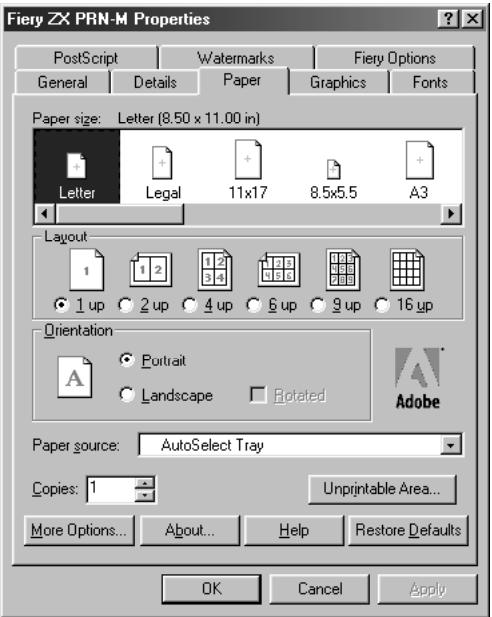
In the Paper size area, specify the page size for the job.
From the Paper source pop-up menu, choose the paper tray for the job. For example, you can specify that the job should be printed on pages in the Manual Feed tray. The Paper source selection is valid for the current job only.
NOTE: If paper loaded in the selected tray is a different size, orientation, and/or media type than that of the job you are sending, the Fiery ZX displays an error message and the job will not print. You should then load the correct paper in the selected tray or cancel the job.
- To select a specific media type, click More Options.
- From the Paper type pop-up menu, choose the type of media to use for the job and click OK.
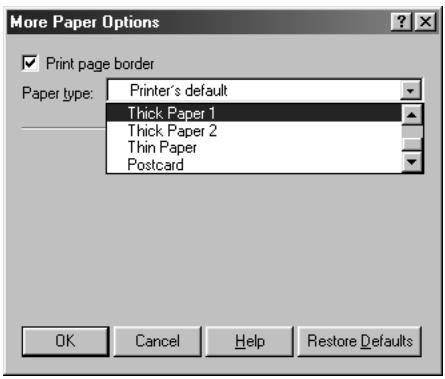
- Click the Fiery Options tab.
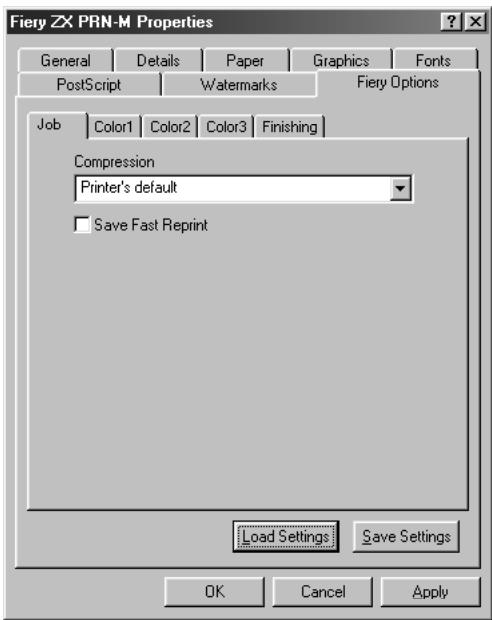
- Go to the Job, Color1, Color2, Color3, and Finishing tabs, and specify the appropriate settings for the print job.
These print options are specific to the Fiery ZX. They override settings in Fiery ZX Printer Setup; the settings can also be changed in the Properties dialog box with the Command WorkStation, or in the Override Print Settings dialog box with Fiery WebSpooler or Fiery Spooler. For information about these options and overrides, see Appendix A, "Print Options."
If you choose Printer's default, the Fiery ZX prints with the default setting entered during Setup.
- If you want to make the new settings the default settings, click Apply.
-
Click OK.
-
From your application, choose Print.
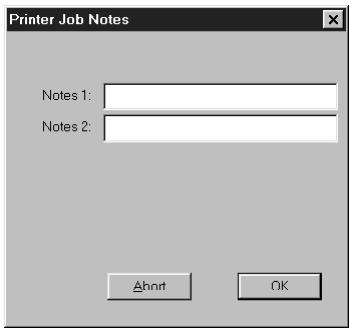
- Enter text messages in the Notes 1 and Notes 2 areas.
Enter user and job identification information for accounting purposes, or whatever information is required at your site. These notes will appear in the Job Log.
- Click OK.
NOTE: The Fiery ZX does not support printing the Cover Page from the AdobePS printer driver.
Saving and loading print option settings
Print option settings can be saved to a settings file on your hard disk. Saving a settings file enables you to easily load specifically configured settings for a particular job.
TO SAVE PRINT OPTION SETTINGS:
- After configuring the options from the Job, Color1, Color2, Color3, and Finishing tabs, click Save Settings.
- Name the settings file and browse to a location on your hard disk where you want to save the file.
- Click OK.
The settings file is saved to the location you specified.
TO LOAD PRINT OPTION SETTINGS:
- From the Fiery Options tab, click Load Settings.
- Browse to the settings file.
- Select the settings file from the list and click OK. The options from the Job, Color1, Color2, Color3, and Finishing tabs are automatically configured with the saved settings.
Setting options and printing from Windows 3.1x
To print from Windows 3.1x, use the Adobe PostScript printer driver for Windows 3.1x. The driver is included with the Fiery ZX user software, and uses all features of the Fiery ZX.
Once you have installed the Adobe PostScript printer driver and Fiery ZX PostScript Printer Description file (PPD), you can specify print settings. You can also change settings for a particular job when you print it to the Fiery ZX. Before printing, make sure that the correct print options are set.
TO SET PRINT OPTIONS AND PRINT WITH THE ADOBEPS PRINTER DRIVER FROM WINDOWS 3.1x:
- In the Main window, double-click the Control Panel icon.
- Double-click the Printers icon.
-
In the Printers dialog box, select the Fiery ZX in the Installed Printers box and click the Setup button.
-
Click the Paper tab.
- Specify the appropriate settings for the print job.
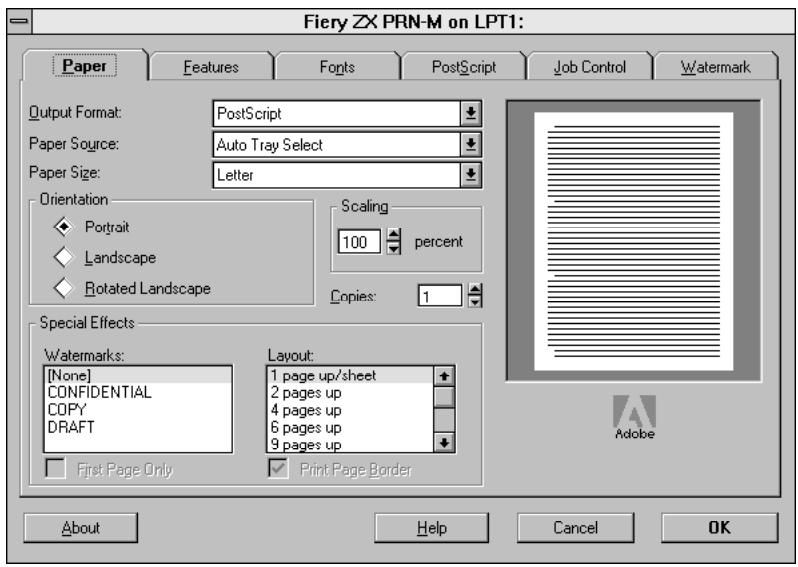
From the Paper Source pop-up menu, choose the paper tray for the job. For example, you can specify that the job should be printed on pages in the Manual Feed tray. The Paper Source selection is valid for the current job only.
In the Paper Size pop-up menu, specify the page size for the job.
NOTE: If paper loaded in the selected tray is a different size, orientation, and/or media type than that of the job you are sending, the Fiery ZX displays an error message and the job will not print. You should then load the correct paper in the selected tray or cancel the job.
- Click the Features tab.
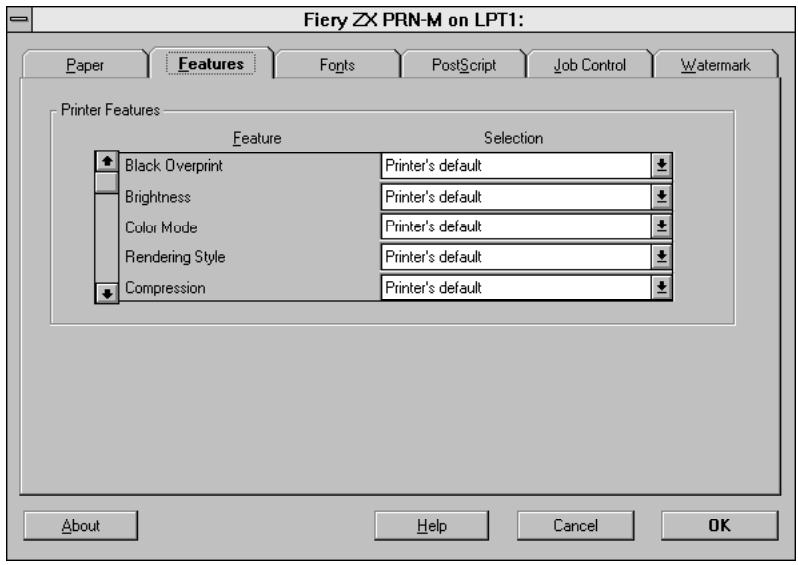
- Specify the appropriate settings for the job and click OK.
These print options are specific to the Fiery ZX (you may need to scroll to see all the pop-up menus). They override settings in Fiery ZX Printer Setup; the settings can also be changed in the Properties dialog box with the Command WorkStation, or in the Override Print Settings dialog box with Fiery WebSpooler or Fiery Spooler. For information about these options and overrides, see Appendix A, "Print Options."
If you choose Printer's default, the Fiery ZX prints with the default setting entered during Setup.
- Choose Print in your application.
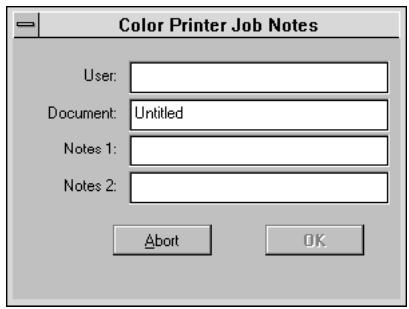
- If necessary, enter your name in the User area.
Once you enter your name in the User area, it appears automatically in this dialog box when you print subsequent jobs.
Note: This entry cannot be changed without deleting and reinstalling the printer.
- Enter text messages in the Notes 1 and Notes 2 areas.
Enter user and job identification information for accounting purposes, or whatever information is required at your site. These notes will appear in the Job Log.
- Click OK.
NOTE: The Fiery ZX does not support printing the Cover Page from the AdobePS printer driver.
Setting options and printing from Windows NT 4.0
You can print from Windows NT 4.0 using the printer driver included with Windows NT.
TO SET PRINT OPTIONS AND PRINT WITH THE MICROSOFT POSTSCRIPT PRINTER DRIVER FROM WINDOWS NT 4.0:
- Choose Print in your application and click Properties.
- Click the Advanced tab.
- Specify the appropriate settings for the print job.
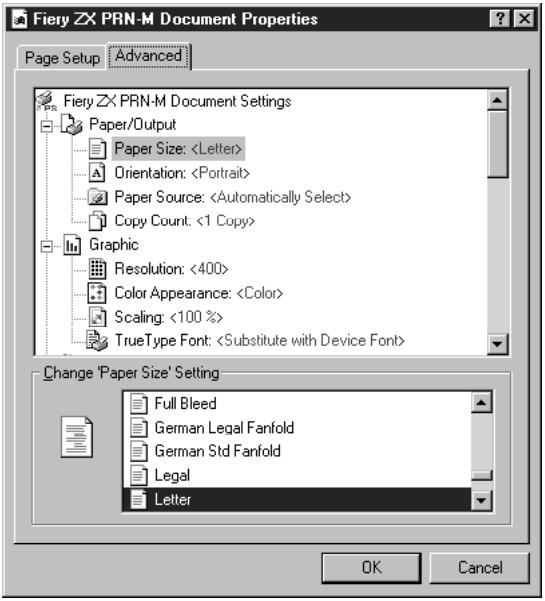
In the Paper Size menu, specify the page size for the job.
From the Paper Source menu, choose the paper tray for the job. For example, you can specify that the job should be printed on pages in the Manual Feed tray. The Paper Source selection is valid for the current job only.
NOTE: If paper loaded in the selected tray is a different size, orientation, and/or media type than that of the job you are sending, the Fiery ZX displays an error message and the job will not print. You should then load the correct paper in the selected tray or cancel the job.
- Scroll down to Printer Features, and select the appropriate settings for the print job.
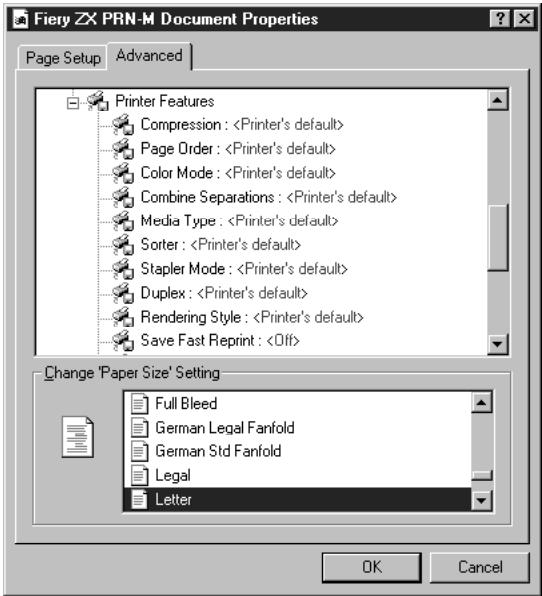
These print options are specific to the Fiery ZX. They override settings in Fiery ZX Printer Setup; the settings can also be changed in the Properties dialog box with the Command WorkStation, or in the Override Print Settings dialog box with Fiery WebSpooler or Fiery Spooler. For information about these options and overrides, see Appendix A, "Print Options."
If you choose Printer's default, the Fiery ZX prints with the default setting entered during Setup.
- Click OK, then click OK in the Print dialog box.
NOTE: The Fiery ZX does not support printing the Cover Page from the Windows NT 4.0 PostScript printer driver.
Printing to the parallel port
The Fiery ZX has a parallel port that enables you to print most files directly from a Windows computer if your network administrator has connected the Windows computer's parallel port to the Fiery ZX parallel port.
NOTE: You cannot use Fiery Downloader through the parallel port.
TO PRINT FILES TO THE PARALLEL PORT:
- Make sure the parallel port is enabled on the Fiery ZX.
Check with your site administrator or operator to see whether printing to the parallel port is enabled. See Getting Started for information on setting up parallel port printing on your Windows computer.
- Select the printer port that is connected to the Fiery ZX parallel port.
Select one of the local ports: LPT1, LPT2, or LPT3. For instructions, see your Windows documentation.
- Print from within your application.
Saving files to print at a remote location
If you do not have a Fiery ZX and are preparing files to take to a service bureau or other location, print the final files to the File port (as opposed to one of the local ports). You can also print to the File port to create a file to be downloaded using Fiery Downloader. For instructions, see your Windows documentation.
Using Fiery Downloader to print
Downloading files with Fiery Downloader is generally faster than printing from application software. You can use Fiery Downloader to print PostScript, EPS, or PDF files.
TO PRINT USING FIERY DOWNLOADER:
- Create a PostScript, EPS, or PDF file. Specify the appropriate print options and include (embed) any necessary fonts that are not resident on the Fiery ZX. For a list of fonts resident on the Fiery ZX, see Appendix B, "Font List."
- Launch Fiery Downloader and connect to the Fiery ZX. For instructions on setting up Fiery Downloader, see Getting Started.
- Select the file(s) you want to download, and specify any necessary options.
- Click Download. For details, see Chapter 5, "Downloading Files and Fonts."
Chapter 2: Printing from Mac OS Computers
You can print to the Fiery ZX just as you would print to any other printer from any application software. First, select the Fiery ZX as the current printer in the Chooser, and then print the file from within your application.
Another way to print from a Mac OS computer is to download PostScript, Encapsulated PostScript (EPS), or Portable Document Format (PDF) files using Fiery Downloader.
Printing from applications
Before you can print to the Fiery ZX from applications, you must select the Fiery ZX in the Chooser. Then, using the Adobe PostScript printer driver and the correct PostScript Printer Description file (PPD), you can control many Fiery ZX printing features by specifying job settings from print dialog boxes.
For information on achieving the best printing results from specific applications, see the Color Guide.
Selecting the Fiery ZX in the Chooser
Before you print a job, make sure the Fiery ZX is the currently selected printer.
TO SELECT THE FIERY ZX AS THE CURRENT PRINTER:
- Make sure the Fiery ZX is connected to the network and turned on.
- Choose Chooser from the Apple menu.
- Click the AdobePS icon to select it.
-
If the network is divided into zones, select the zone in which the Fiery ZX is located.
-
Select the Fiery ZX by
from the "Select a PostScript Printer" list.
The names of all supported printers in the zone appear in the scroll list on the right. For information about setting up the Fiery ZX in the Chooser, see Getting Started.
NOTE: If your system administrator has not enabled the connection to the Print queue or the Direct connection, the corresponding name will not appear in this list. For example, if your site has an operator who controls the flow of print jobs from the Command WorkStation, you may be able to print only to the Hold queue.
- Make sure that AppleTalk is set to Active, and then close the Chooser window.
The Fiery ZX remains selected as the current printer until you choose a new printer in the Chooser.
Setting print options and printing from Mac OS computers
In Mac OS applications, print options are set from both the Page Setup dialog box and the Print dialog box. For details, see Appendix A, "Print Options."
NOTE: Some default print options are set by the administrator during Setup. Check with the administrator or the operator for information on the current server default settings.
TO SET PRINT OPTIONS AND PRINT WITH THE ADOBEPS PRINTER DRIVER:
- Open the file you want to print, and choose Page Setup from the application's File menu.
The AdobePS Page Setup dialog box appears.
-
In the Paper menu, specify the page size for the job and click OK.
-
Choose Print from the application's File menu.
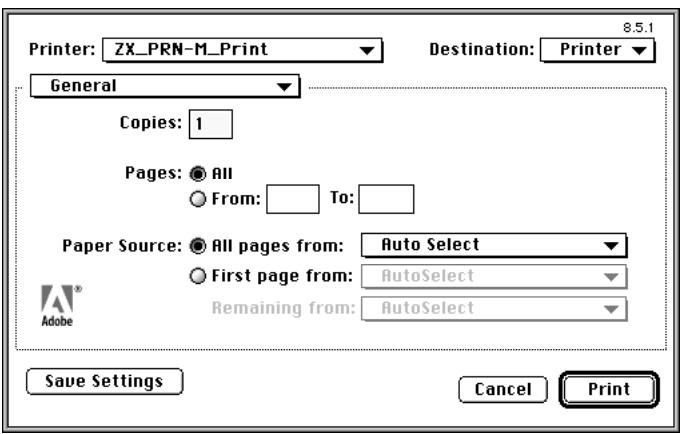
NOTE: Print dialog boxes vary across applications.
If the Print dialog box lets you select from a pop-up menu of available printers, choose the Fiery ZX.
From the Paper Source pop-up menu, choose the paper tray for the job. For example, you can specify that the job should be printed on pages in the Manual Feed tray. The Paper Source selection is valid for the current job only.
NOTE: If paper loaded in the selected tray is a different size, orientation, and/or media type than that of the job you are sending, the Fiery ZX displays an error message and the job will not print. You should then load the correct paper in the selected tray or cancel the job.
- From the General pop-up menu, choose Job Notes.
In the Notes 1 and Notes 2 areas, enter user and job identification information for accounting purposes, or whatever information is required at your site. These notes will appear in the Job Log.
- From the Job Notes pop-up menu, choose Printer Specific Options.
- Specify the appropriate settings for the print job.
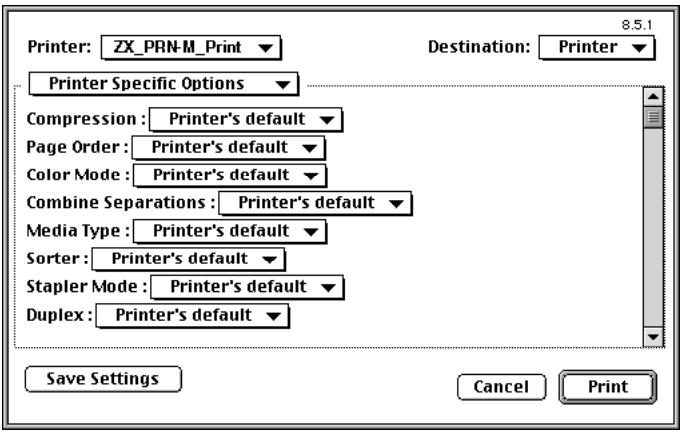
These print options are specific to the Fiery ZX (you may need to scroll to see all the options). They override settings in Fiery ZX Printer Setup; the settings can also be changed in the Properties dialog box with the Command WorkStation, or in the Override Print Settings dialog box with Fiery WebSpooler or Fiery Spooler. For information about these options and overrides, see Appendix A, "Print Options."
If you choose Printer's default, the Fiery ZX prints with the default setting entered during Setup.
Some PPD options are ones that could also be set from an application (for example, Reverse Order printing or Collation). In these cases, use the PPD option to perform the function, rather than setting it from the application. The application may not set up the file properly for printing on the Fiery ZX and may also take longer to process.
- If you want to make the new settings the default settings, click Save Settings.
- Click Print.
NOTE: The Fiery ZX does not support printing the Cover Page from the AdobePS printer driver.
Using Fiery Downloader to print
Downloading files with Fiery Downloader is generally faster than printing from application software. You can use Fiery Downloader to print PostScript, EPS, or PDF files.
TO PRINT USING FIERY DOWNLOADER:
- Create a PostScript, EPS, or PDF file. Specify the appropriate print options and include (embed) any necessary fonts that are not resident on the Fiery ZX.
For a list of fonts resident on the Fiery ZX, see Appendix B, "Font List."
- Launch Fiery Downloader and connect to the Fiery ZX.
For instructions on setting up Fiery Downloader, see Getting Started.
-
Select the file(s) you want to download, and specify any necessary options.
-
Click Download.
For details, see Chapter 5, "Downloading Files and Fonts."
Chapter 3: Printing from UNIX Workstations
You can print to the Fiery ZX directly from UNIX. Jobs printed to the Fiery ZX are sent to the Print queue or Hold queue and can be manipulated from the Command WorkStation or from Windows and Mac OS computers on the network using Fiery WebSpooler or Fiery Spooler.
NOTE: If you print to the Hold queue, an operator must intervene at the Command WorkStation or from Fiery WebSpooler for the job to print; jobs sent to the Hold queue are spooled to disk and held.
The queue name and Fiery ZX printer name are established by your system administrator. Contact your system administrator for the names of your queues.
For information about setting up printing from TCP/IP, see your UNIX system documentation.
Printing to the Fiery ZX
You can use UNIX commands to print PostScript and text files to the Fiery ZX. In general, the basic print commands (lpr, lpq, lprm) can be used to send print jobs to a Fiery ZX. See your UNIX manual pages or other documentation for information about UNIX commands.
NOTE: Only PostScript or text file formats can be printed from UNIX.
TO PRINT FROM UNIX:
- On a system running SunOS 4.1.x or another BSD-based variant, use the Ipr command to send a job to the Fiery ZX as follows:
lpr<-Pprinter> <-#copies>
For example, if the Print queue of your Fiery ZX is named print Server, your file is named Sample, and you want to print two copies, type:
Ipr -Pprint_Perver -#2 Sample
- On a system running Solaris 2.x or any System V implementation of UNIX, use the Ip command to send a job to the Fiery ZX as follows:
lp-d
For example, if the Print queue of your Fiery ZX is named print Server, your file is named Sample, and you want to print two copies, type:
lp -d print Server -n 2 Sample
TO DISPLAY A LIST OF JOBS IN THE QUEUE:
- On a system running SunOS 4.1.x or another BSD-based variant, use the lpq command to see printer jobs in the queue as follows:
Ipq<-Pprinter>
For example, if the Print queue of your Fiery ZX is named print Server, type:
Ipq -Pprint_Perver
Your workstation displays the contents of the queue.
- On a system running Solaris 2.x or any System V implementation of UNIX, use the Istat command to see printer jobs in the queue as follows:
lstat -o
For example, if the Print queue of your Fiery ZX is named print Server, type:
lstat -o print Server
Your workstation displays the contents of the queue.
TO REMOVE JOBS FROM THE QUEUE:
NOTE: Unless you log in as the root user, you can remove only your own jobs.
- On a system running SunOS 4.1.x or another BSD-based variant, use the lprm command to remove jobs from the queue as follows.
lprm<-Pprinter>
NOTE: You can use the lpq command to check the job number.
For example, to remove job number 123 from the Print queue of your Fiery ZX named print Server, type:
Iprm -PprintServer 123
The lprm command reports the names of any files it removes.
- On a system running Solaris 2.x or any System V implementation of UNIX, use the cancel command to remove jobs from the queue.
cancel
For example, to remove job number 123 from the Print queue of your Fiery ZX named print Server, type:
cancel print Server 123
Chapter 4: Scanning
This chapter describes how to scan images from the copier using the Fiery Scan plug-in for Adobe Photoshop.
NOTE: The Windows and Mac OS versions of Fiery Scan are fundamentally the same; differences are noted in this chapter. Where a window or dialog box is illustrated, the Windows version comes first, followed by the Mac OS version.
Scanning from the copier
With the Fiery Scan plug-in for Photoshop, you can scan an image from the copier directly into Photoshop on your computer.
The following requirements and constraints apply:
- Fiery Scan requires a network connection; it cannot be used with the parallel port. For information on supported networking protocols, see Getting Started.
- The Fiery Scan (TWAIN) plug-in must be installed in the Photoshop Plug-ins folder.
- Photoshop's Monitor Setup must be currently using the Calrgb.ams (Windows) or Calibrated RGB (Mac OS) file. See Getting Started for information on loading this file.
Fiery Scan color conversion settings
Fiery Scan offers two color conversion choices for scanned data:
- Calibrated RGB creates an RGB scan optimized for printing with Fiery ZX Rendering Styles (CRDs) or ICC profiles, as well as for viewing on the monitor.
- Match Copy creates a CMYK scan that, when printed on the Fiery ZX (with the CMYK Simulation PPD option set to Match Copy), looks like a copy of the original.
Using Fiery Scan
With Fiery Scan, you create a prescan of the image, and select part or all of the prescan for final scanning.
TO PRESCAN A DOCUMENT:
- Place the original on the copier glass.
- Launch Photoshop.
- From the File menu, choose Import.
- For Windows, choose Select TWAIN_32 Source from the submenu. For Mac OS, choose Fiery Twain Select from the submenu.
- Select Fiery Scan in the window that appears, and click Select (Windows) or OK (Mac OS).
- From the File menu, choose Import.
- For Windows, choose TWAIN_32 from the submenu. For Mac OS, choose Fiery Twain Acquire from the submenu.
- Select the Fiery ZX in the Chooser window and click OK (Windows) or Connect (Mac OS).
If the Fiery ZX does not appear in the Windows Chooser list, you must configure the Chooser list to communicate with the Fiery ZX. For instructions, see Getting Started.
- Specify the appropriate settings in the Fiery Scan dialog box.
FieryScan
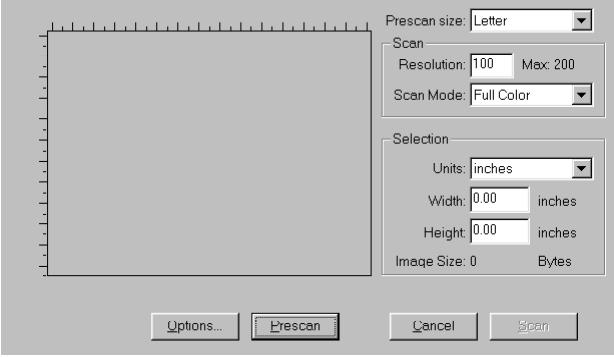

Prescan size—Choose the paper size of the original from the pop-up menu.
Resolution—Specify a value for the resolution. Changing the resolution also changes the image's file size. The maximum resolution supported by the Fiery ZX appears in the dialog box.
Scan Mode (Full Color, Grayscale, or Black & White)—Specify the type of scan you want.
10. Click Prescan.
The prescan image appears on the left side of the dialog box.
NOTE: After prescanning, you must complete the scan before the Fiery ZX is able to begin RIPping and printing any new jobs.
TO SELECT OPTIONS AND COMPLETE THE SCAN:
- Drag the cursor to select the area of the prescan image that you want to acquire, or enter the area to acquire in the Selection area.
In the Selection area, you can specify:
Units (inches, centimeters, picas, points, ciceros, or pixels)—Specify the ruler units that appear around the preview image.
Width and Height—Enter the width and height of the area to scan; or, select an area of the page with the selection marquee. If you use the marquee to select the scan area, the dimensions appear in these text boxes. If you do not specify a scan area, the default is to acquire the entire scan.
To select a portion of the image using the marquee, you can move the selection marquee around by positioning the Hand tool inside the marquee and dragging the marquee to a new location. You can change the size of the frame by clicking and dragging one of the handles on the corners of the selection frame. If you want to deselect the area you have selected, double-click anywhere.
The Fiery ZX scans at a maximum resolution that is dependent on the size of the selected area. When you select an area to be scanned, Fiery Scan displays the maximum resolution possible for that area. You can enter a dpi value which is less than the maximum resolution.
- Click Options, and select the appropriate settings from the Original and Color Conversion pop-up menus.
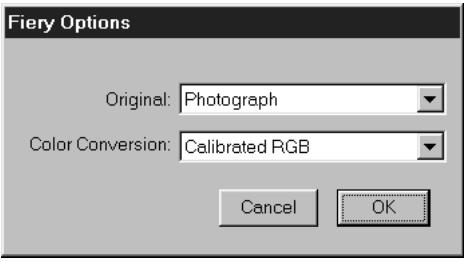
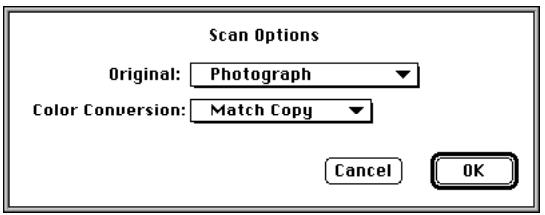
Original—Select the resampling interpolation method to use. In general, you should choose Photograph if you are scanning a continuous tone photographic image and Offset Print or Copy if you are scanning a printed document. The Offset Print or Copy mode takes slightly more time but reduces moiré patterns in scans.
Color Conversion—Select the color conversion to use: Calibrated RGB or Match Copy. Use Calibrated RGB if you will print the image using a Fiery ZX Rendering Style (CRD). Use Match Copy to match the colors in a copy made by the copier as closely as possible, assuming that you are going to print the image to the same copier, and you set the CMYK Simulation PPD option to Match Copy.
- Select the appropriate settings and click OK.
- Click Scan in the main window to acquire the scan.
The progress bar displays how much of the image has been processed. You can press the Esc key (Windows) or Command-. keys (Mac OS) to cancel acquiring the scan.
When the scan is acquired, the scanned image is displayed in Photoshop.
Chapter 5: Downloading Files and Fonts
Fiery Downloader allows you to send PostScript, Encapsulated PostScript (EPS), and Portable Document Format (PDF) files directly to the Fiery ZX without using the application they were created in. It also enables you to manage printer fonts on the Fiery ZX.
You can use Fiery Downloader from a remote workstation as well as from the Command WorkStation. Fiery Downloader requires a network connection--you cannot use Fiery Downloader with the parallel port. For information on supported networking protocols, see Getting Started.
NOTE: The Windows and Mac OS versions of Fiery Downloader are fundamentally the same; differences are noted. Single windows or dialog boxes illustrated depict the Windows version.
Using Fiery Downloader
You can use Fiery Downloader to:
- Print PostScript, EPS, and PDF files to the Fiery ZX
- Check the status of the Fiery ZX
- Manage the PostScript printer fonts stored on the Fiery ZX hard disk (this feature requires that the Direct connection is published on the Fiery ZX)
NOTE: Fiery Downloader was designed specifically for the Fiery ZX; you cannot use it with any other printer. You can use standard LaserWriter downloaders, such as the Adobe Font Downloader, with the Fiery ZX.
TO VIEW INFORMATION WITH FIERY DOWNLOADER:
- Double-click the Fiery Downloader icon or choose Fiery Downloader from the Start>Programs menu.
- Select the Fiery ZX in the Chooser window and click OK (Windows) or Connect (Mac OS).
The Fiery Downloader Status window appears and you see the Fiery Downloader Toolbar, menus, and the status bar at the bottom of the screen.
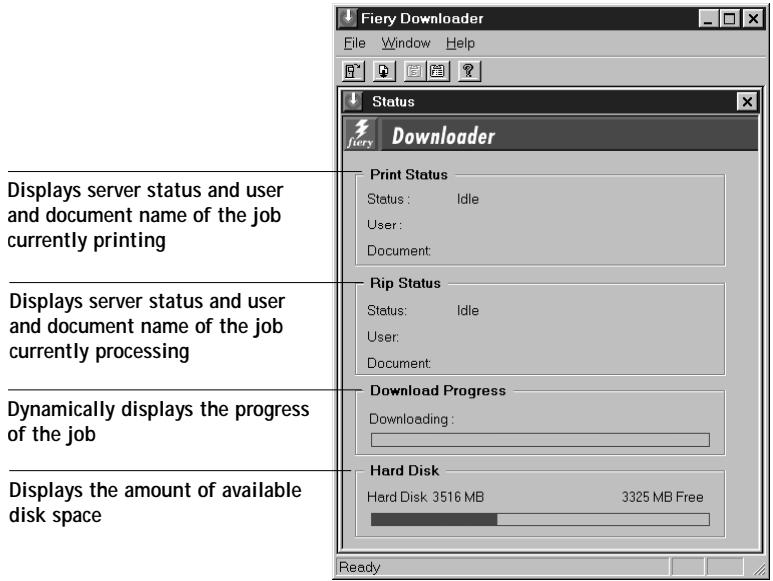
Buttons for some menu functions appear in the Toolbar at the top of the window.

Open
Click to connect to a different Fiery ZX.

Download
Click to download a file or font to the Fiery ZX.

Status
If you are viewing the font list, click to display the status window for the current Fiery ZX.

Font list
If you are viewing the status window, click to display a list of printer fonts on the Fiery ZX hard disk.

About Fiery Downloader
Click to view version information about Fiery Downloader.
(Windows only)
You can click the font list button or choose Font List from the File menu to view font information in the window.
- To select a different Fiery ZX, choose Open from the File menu or click the Open button.
- Select the Fiery ZX in the dialog box that appears, and click OK (Windows) or Connect (Mac OS).
- To close the status window, choose Close from the File menu; to quit Fiery Downloader, choose Exit (Windows) or Quit (Mac OS) from the File menu.
Printing with the Fiery Downloader
Printing files with Fiery Downloader is fast—generally faster than printing from within applications. If you regularly print large files, be sure to try printing with Fiery Downloader.
TO DOWNLOAD A FILE OR FONT WITH FIERY DOWNLOADER:
- Use your application to generate a file.
You can save a PostScript or PDF file by selecting the appropriate option in the application's Print dialog box. With some applications, you can also save EPS files.
If you experience problems printing EPS files with Fiery Downloader, you can print the file directly from the application in which you created it.
- Launch Fiery Downloader.
- Choose Download from the File menu or click the Download button.
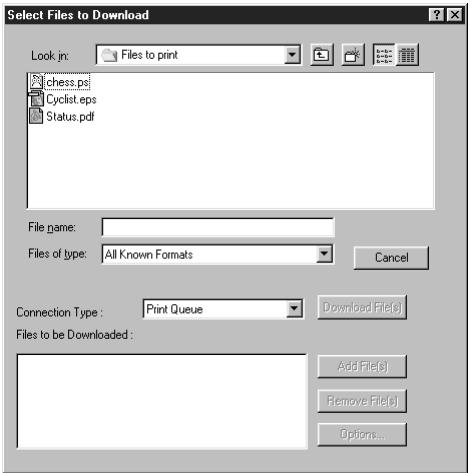
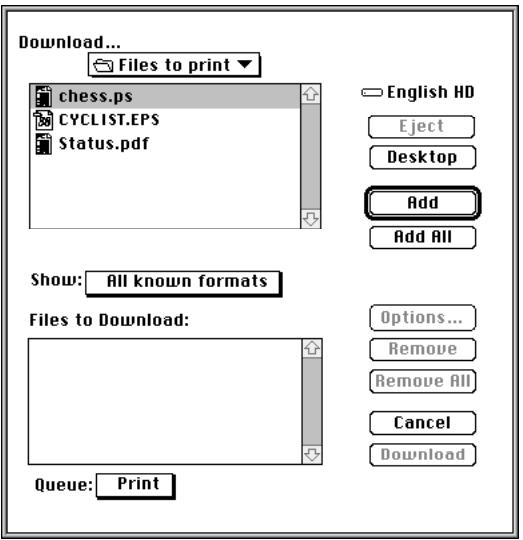
- Choose the file type to display from the Files of type (Windows) or Show (Mac OS) menu.
You can leave this at the default All Known Formats or choose All Files. All Known Formats lists all files in formats supported by Fiery Downloader.
You can download files and fonts in the same batch. If the fonts are used by files in the same batch, the fonts should be downloaded first.
To download fonts, you must use the Direct connection (make sure that the Direct connection is published on the Fiery ZX). If you do not have access to the Direct connection, you must embed any special fonts used by the file in the file when you generate it.
- Choose the Connection Type (Windows) or Queue (Mac OS) to which you will download the files.
The options available to you in this menu depend on the setup at your site. The potential selections are Print Queue (Windows) or Print (Mac OS), Hold Queue (Windows) or Hold (Mac OS), and Direct Connection (Windows) or Direct (Mac OS). If your administrator has not enabled one or more of these connections, you cannot select it.
PDF files cannot be printed with the Direct connection. If you choose the Direct connection, the job is spooled to the Print queue and then printed. If the Print queue is not enabled, the job is spooled to the Hold queue and must be released for printing by the operator.
- Select the filename and click Add File(s) (Windows) or Add (Mac OS).
The File name field (Windows) displays the name of the selected file before you click Add.
You can navigate to different drives and directories to select files to download. Click Add All (Mac OS) to add all files in a folder.
To select multiple sequential files, select the first file and then Shift-click the last file. Control-click to select multiple non-sequential files.
If you change your mind about a file, select the filename in the Files to Download list and click Remove File(s) (Windows) or Remove (Mac OS).
Click Remove All (Mac OS) to remove all files from the Files to Download list.
- To change the attributes of a file to be downloaded, select it and click Options.
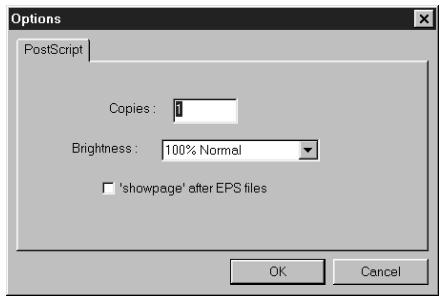
PostScript Options dialog box (Windows)
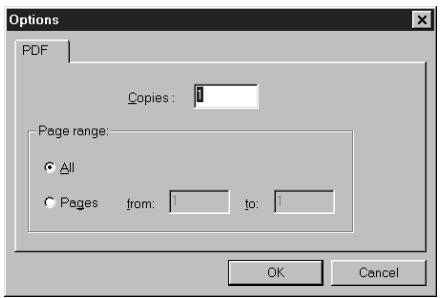
PDF Options dialog box (Windows)
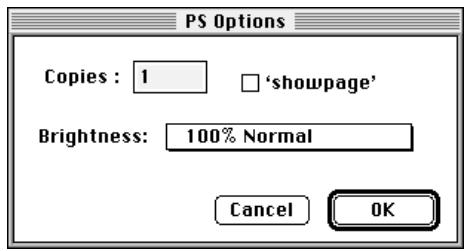
PostScript Options dialog box (Mac OS)

PDF Options dialog box (Mac OS)
- Specify the following information in the dialog box and click OK.
The options you set apply only to the selected file. You can set different options, or leave the default settings, for each file.
Copies—Specify the number of copies.
Brightness (PostScript and EPS files only)—Change the Brightness setting if a file appears to be too dark or too light. Choose 85% for a substantially lighter image, 115% for a substantially darker image, or one of the options in between.
NOTE: Some applications, including Adobe Photoshop, provide transfer functions that let you specify density settings for an image. If the file you are printing includes transfer functions, the Fiery Downloader Brightness option has no effect. For more information on using transfer functions, see the documentation for your application.
'showpage' after EPS files (Windows) or 'showpage' (Mac OS) (PostScript and EPS files only)—In most cases, you do not need to use this option. Select the 'showpage' option only if an EPS file fails to print without it. This option adds a 'showpage' PostScript language command at the end of the print job. Some applications omit this necessary PostScript language command when they generate EPS files. Select this option when printing EPS files generated by these applications. If you select this option unnecessarily, extra blank pages may print.
If you experience problems printing EPS files with Fiery Downloader, you can print the file directly from the application in which you created it.
Page range (PDF files only)—Specify the page range you want to print.
-
Click Download File(s) (Windows) or Download (Mac OS).
-
To cancel downloading, press Escape (Windows) or Command-. (Mac OS).
Downloading and managing printer fonts
The Fiery ZX includes 136 PostScript fonts; for a complete list, see Appendix B, "Font List." In addition, two Adobe Multiple Master fonts are included and are used for font substitution in PDF files.
NOTE: The Direct connection must be published on the Fiery ZX in order to download and manage fonts, and to view the font list.
Before downloading a file that uses fonts not resident on the Fiery ZX, you must download the fonts (unless the fonts are embedded in the file). To see what fonts are resident on the Fiery ZX, choose Font List from the File menu or click the Font List button (see page 5-3).
You can download fonts only via the Direct connection. If you do not have access to the Direct connection, you must embed any special fonts used by the file in the file when you generate it.
The screen fonts that correspond to the printer fonts installed on the Fiery ZX are not automatically installed on your Windows system.
NOTE: You cannot use Fiery Downloader to download TrueType fonts. If you use TrueType fonts in Windows, you can print them by converting them to Adobe Type 1 fonts. To do this with the Adobe PS printer driver, click the Fonts tab and set up the Font Substitution Table as necessary.
Printer fonts and Mac OS screen fonts
Like all PostScript fonts, the fonts included with the Fiery ZX come in two forms: printer fonts and screen fonts. The printer fonts are installed permanently on the Fiery ZX hard disk. The screen fonts, which are included with the Fiery ZX user software, should be installed on your Mac OS computer. If you are using these fonts in documents you print on a LaserWriter, they are probably already installed. If not, you will need to install them yourself. For instructions, see Getting Started.
Occasionally, you may want to use Adobe Type 1 (Windows) or PostScript (Mac OS) fonts that are not included with the Fiery ZX. If so, you will need to install both the screen fonts and the printer fonts on your computer. To do this, follow the instructions from the font manufacturer.
Downloading printer fonts to the Fiery ZX
In general, each time you print from within a Mac OS application, the application automatically downloads any fonts used in your document that are not already installed on the Fiery ZX, as long as the printer fonts are installed in your System Folder. These fonts remain in the Fiery ZX only until your document has printed. If you print the same document again, your application must download the fonts again.
If you regularly use one or more fonts from Windows or Mac OS applications that are not already installed in the Fiery ZX, you can save time by downloading them to the Fiery ZX hard disk with Fiery Downloader. Fonts you download to the Fiery ZX hard disk remain installed until you remove them using Fiery Downloader, no matter how many times the Fiery ZX is turned off and on. You'll probably want to download fonts you use on a regular basis to the Fiery ZX hard disk.
Before you download PostScript or EPS files with Fiery Downloader, make sure that all fonts included in your file are installed on the Fiery ZX or embedded in your file; otherwise the text in these fonts will not print correctly and may not print at all. For PDF files, font substitution occurs automatically for fonts not installed on the Fiery ZX. Two multiple master fonts (a serif font and a sans serif font) stored on the Fiery ZX are used exclusively for substitution with PDF files.
TO VIEW FONT INFORMATION, UPDATE, PRINT, AND DELETE FONTS:
- Choose Font List from the File menu or click the Font List button.
The Font List window appears with Update, Print, and Delete buttons in the title bar. The printer fonts included with the Fiery ZX (resident fonts) are locked. Locked fonts appear with a lock icon next to the name and cannot be deleted.
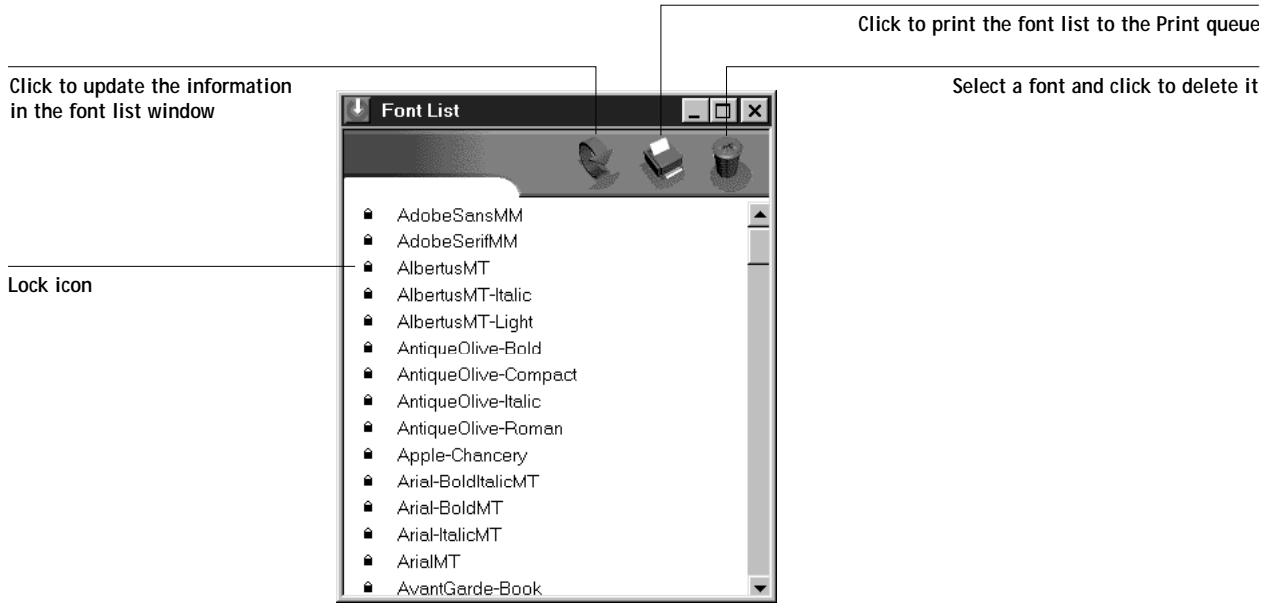
Chapter 6: Tracking and Managing Print Jobs
Fiery ZX user software includes a variety of tools that allow you to track and manage print jobs. The particular tools, and the access privileges for them, that are available to you depend on the conditions implemented by your site administrator.
The Command WorkStation, Fiery WebSpooler, and Fiery Spooler all provide the capability to view and control the flow of print jobs to the Fiery ZX. If the administrator has set Administrator and Operator passwords in Setup, you need one of these passwords to perform most Command WorkStation, Fiery WebSpooler, and Fiery Spooler functions. For information on these tools and the access privileges needed to use them, see the Job Management Guide.
The Status WebTool does not require any special access privileges. If the administrator has enabled Web Services in Setup and has provided you with the IP address of the Fiery ZX, you can use the Status WebTool to monitor the status of print jobs as they are rasterized and printed.
Fiery WebTools
Fiery WebTools reside on the Fiery ZX but can be accessed over the network from a variety of platforms. The Fiery ZX has a home page that lets remote users view server functions and manipulate jobs. For an overview of the Fiery WebTools and information on how to access them, see the Job Management Guide. This chapter describes only the Status WebTool and WebLink.
TO ACCESS THE FIERY WEBTOOLS:
- Start up your Internet browser application.
See Getting Started for information about supported platforms and browsers.
- Enter the IP address or the DNS name of the Fiery ZX.
Check with the operator or administrator for this information.
- When the Fiery ZX home page appears, click to select one of the Fiery WebTools.
Move the cursor over the buttons to display information about the selections.
Checking Fiery ZX status with the Status WebTool
You can use the Status WebTool to see what jobs are currently processing and printing.
To access the Status WebTool, point your browser to the Fiery ZX home page and click the Status button. The current RIP Status and Printer Status appear in the window.
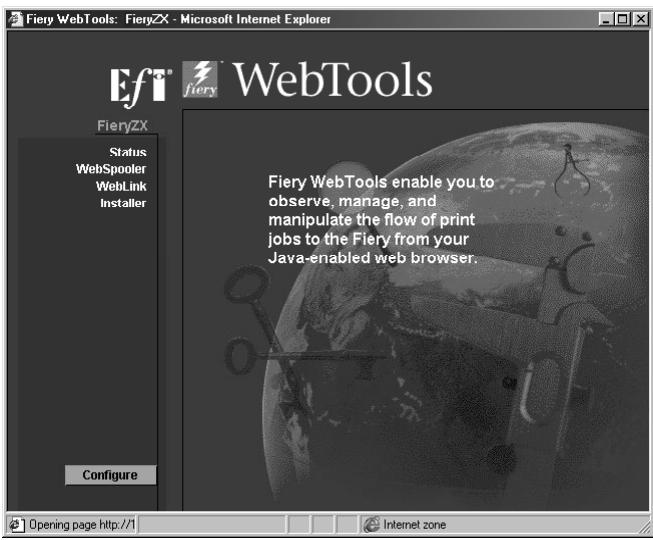
To open a new browser window for the Status display, click Float. You can then close other browser windows and leave the Status window open to continue checking the status of the Fiery ZX. As long as you keep the Status window open, it is dynamically updated.
To obtain more information about the status of jobs, use Fiery WebSpooler, Fiery Spooler, or the Command WorkStation. For information about them, see the Job Management Guide.
Accessing information with the WebLink WebTool
The WebLink button on the Fiery ZX home page provides a link to another web page or to multiple web pages, provided you have a valid Internet connection. The administrator at your site can set the WebLink destination. Check your Fiery ZX WebLink for any information available there.
Appendix A: Print Options
Print options give you access to all the special features of your copier and Fiery ZX. Print options can be specified in several places—in Fiery ZX Setup (from the Control Panel or from Fiery WebSetup), from the printing application, from Fiery Downloader, from the Command WorkStation, from Fiery WebSpooler, or from Fiery Spooler. The table in this appendix briefly describes each print option, gives its default setting, and provides information on any constraints or requirements in effect.
Where to set print options
- During Setup (from the Control Panel or from Fiery WebSetup)
Some settings are specified during Setup by the administrator. For information on the current default server settings, check with the administrator or the operator.
From applications
With the Adobe PostScript printer drivers (included in your user software) and the Windows NT 4.0 PostScript printer driver, you can specify and override job settings when you print a job. See Chapter 1, "Printing from Windows Computers" and Chapter 2, "Printing from Mac OS Computers" for information about specifying job settings from applications.
The job settings you specify can be overridden from Fiery WebSpooler or Fiery Spooler.
From Fiery Downloader
Only a few settings—Page Range (for PDF files only), Brightness (for PostScript files only) and Copies—can be specified when printing jobs with Fiery Downloader. To change options in Fiery Downloader, select a job in the Files to be Downloaded (Windows) or Files to Download (Mac OS) list and click Options. For more information, see Chapter 5, "Downloading Files and Fonts".
- Overrides from the Command WorkStation, from Fiery WebSpooler, and from Fiery Spooler
To change job settings from the Command WorkStation, double-click a job to display the Properties dialog box. To change job settings from Fiery WebSpooler and from Fiery Spooler, double-click a job to display the Override Print Settings dialog box. For more information, see the Job Management Guide.
Print option override hierarchy
In the following table, underlined settings in the "Option and settings" column indicate default printer driver settings (PPD defaults). If no setting is underlined, a default setting for this option has been specified in Fiery ZX Setup. To find out about the current Setup defaults, print the Configuration page from the Command WorkStation or from the Fiery ZX Control Panel.
The override hierarchy is as follows:
- A user's printer driver settings override the Fiery ZX Setup settings.
- Settings made from the Command WorkStation, the Fiery WebSpooler, or the Fiery Spooler override the user's printer driver settings.
| Option and settings: (Default setting is underlined) | Description: | Requirements, constraints, and information: |
| Black Overprint Off/On | Select Off to cause black text to knockout colored backgrounds. Select On to overprint black text on colored backgrounds. | If this option is set to On: • The Pure Black Text/Graphics option is automatically set to On. • The Compression option must be set to On. For more information, see page A-7 and the Color Guide. |
| Brightness 85% Lightest/90% Lighter/95% Light/100% Normal/105% Dark/110% Darker/115% Darkest | Select 85% for a substantially lighter image, 115% for a substantially darker image, or one of the settings in between. | |
| CMYK Simulation SWOP-Coated/DIC/Euroscale/ Custom-1/Custom-2/Custom-3/ Custom-4/Custom-5/ None/Match Copy | Select a CMYK simulation target to use for the job. | This print option affects CMYK data only. For more information, see page A-7 and the Color Guide. |
| CMYK Simulation Method Quick/Full | Select Quick to apply one-dimensional transfer curves that adjust output density. Select Full to apply four-dimensional transfer curves that adjust hue as well as output density. | This print option affects CMYK data only. For more information, see page A-9 and the Color Guide. |
| Color Mode CMYK/Grayscale | Specify the color mode for the current print job. Select CMYK for a full-color document. Select Grayscale for a grayscale or black-and-white document. | |
| Combine Separations On/Off | When printing separations from a desktop publishing application: Select On to combine separations on a single page. Select Off to view separations as four individual black-and-white pages each representing one color plate. | For more information, see page A-9. |
| Compression Off/On | Select Off to disable compression for printing very complex images. This requires a significant amount of memory to process and print; however, images print faster with the best possible image quality. Select On to enable compression when printing multiple-page jobs that do not consist of complex images. | For more information, see the Color Guide. |
| Copies 1-999 | Specify the number of copies of the job to print. | |
| Duplex Off/Top-Top/Top-Bottom | Select Off for simplex (single-sided) printing. Select Top-Top for duplex (double-sided) printing with both sides using the same top edge. Select Top-Bottom for duplex printing with the back side upside down. | The Duplex option is not supported with jobs printed from the manual feed tray. If the Suspend Print command is used during the printing of a duplex job, printing cannot be resumed—the job must be resent. For more information on duplex printing, see page A-9. |
| Media Type (Paper Type) Plain Paper/Transparency/ Thick Paper 1/Thick Paper 2/ Thin Paper/Postcard | Specify the type of media on which to print the job. | The Transparency setting is supported only with Letter and A4 paper sizes printed from the manual feed tray. For more information, see page A-10. |
| Notes 1 and Notes 2 | Use one or both of these fields to enter special information about the job. | The Notes 1 and Notes 2 fields each have a 32-character limit. |
| (Other) Gamma 1.0/1.2/1.4/1.6/1.8/2.0/ 2.2/2.4/2.6/2.8/3.0 | Specify a source gamma value for printing RGB images, objects, and text. | To enable this option, RGB Source must be set to Other. For more information, see the Color Guide. |
| (Other) Phosphors Hitachi EBU/Hitachi-Ikegami/NTSC/ Radius Pivot/SMPTE/Trinitron | Specify a source monitor phosphors value for printing RGB images, objects, and text. | To enable this option, RGB Source must be set to Other. For more information, see the Color Guide. |
| (Other) White Point 5000 K (D50)/5500 K/ 6500 K (D65)/7500 K/9300 K | Specify a source white point value for printing RGB images, objects, and text. | To enable this option, RGB Source must be set to Other. If you set this option to anything other than the printer's default, set the Rendering Style option to Solid Color for best results. For more information, see the Color Guide. |
| Page Order Forward/Reverse | Select Forward to print the pages of your job from first to last. Select Reverse to print the pages of your job from last to first. | The default setting for printing reflects the Page Order setting specified in Fiery ZX PS Setup. To enable the Reverse setting, Compression must be set to On. |
| Page Orientation Portrait/Landscape | Specify the orientation of the document. | |
| Paper Size Letter/Legal/11x17/8.5x5.5/A3/A4/B4/B5/Full Bleed/Letter-R/A4-R/A5-R/B5-R/4x6/A6 | Specify the size of the paper on which to print the document. | See “Supported paper sizes” on page xiii for more information. |
| Paper Source AutoSelect Tray/Auto Select/Manual Feed/Large Capacity Tray | Select the source for the media on which to print the job. | The AutoSelect setting automatically selects the tray containing the paper size specified for the job. |
| Pure Black Text/Graphics Off/On | Select Off to print black text and graphics as a four-color black using C, M, Y, and K toner, and to use normal PostScript rendering. Select On to print black text and graphics as a one-color black, using 100% black toner only. | This option is automatically set to On if the Black Overprint option is set to On. For more information, see page A-11 and the Color Guide. |
| Rendering Style Photographic/Presentation/Solid Color | Specify a color rendering dictionary (CRD) to be used when you print RGB images, objects, and text. | The Color Mode option must be set to CMYK. The Rendering Style option has no effect on CMYK data. For more information, see page A-12. |
| RGB Source EFIRGB/sRGB (PC)/Apple Standard/Other/Off | Specify a source color space definition for printing RGB images, objects, and text. Select EFIRGB, sRGB (PC), or Apple Standard to set the gamma, white point, and phosphors values at preset levels. Select Other to make custom adjustments to gamma, phosphors, and white point values. See the (Other) Gamma, (Other) Phosphors, and (Other) White Point print options. Select Off to disable any RGB source. | For more information, see page A-12. |
| Save Fast Reprint Off/On | Specify whether or not to save a job's raster data to disk after printing, so the data will be available later for reprinting (without reRIPping). | With Save Fast Reprint set to On, all print option settings, in addition to the Fiery ZX's current calibration state, remain with the saved raster data each time the job is reprinted. To print the job with new print option settings and with new calibration data, you must remove raster and reRIP the job. |
| Sorter Off/Collate/Sort | Specify how to output multiple-page/multiple-copy jobs. | The Sorter option is not supported with jobs printed from the manual feed tray. If the Suspend Print command is used during printing of a sort job, printing cannot be resumed—the job must be resent. For more information, see page A-13. |
| Spot Color Matching Off/On | Select Off to print specified PANTONE colors in your job using the current CMYK Simulation and CMYK Simulation Method. Select On to activate the Fiery ZX built-in PANTONE Lookup Table. This table generates the closest CMYK matches of the PANTONE library colors the copier can produce. | This option cannot be set to On when printing separations, only when printing composites. The On setting does not work with PANTONE blends, or with duotones, tritones, or quadrones, or with monochrome images specified with a spot color by QuarkXpress (recolor image option). For more information, see page A-13 and the Color Guide. |
| Stapler Mode Off/On | Specify whether or not to staple completed print jobs. | The Stapler Mode option is not supported with jobs printed from the manual feed tray. For more information, see page A-14. |
More information about print options
The following sections provide additional information about print options. See the table above for information on the settings, requirements, and constraints in effect for these options.
Black Overprint
For documents containing black text on color backgrounds or graphics, the black text can be printed in one of two ways: either as part of the color background ("knocking out" the color background), or on top of ("overprinting") the color background. The Black Overprint option lets you choose which way the black text will be printed.
On—Black text overprints color backgrounds, eliminating any potential for halo effects or misregistration of colors, and creating a richer black.
Off—Black text knocks out colored backgrounds.
Generally, the Black Overprint option should be set to On.
The Black Overprint option affects only black text defined in RGB as R0% , G0% , B0% , or in CMYK as C0% , M0% , Y0% , K100% . Because this option requires the presence of text defined as black, setting Black Overprint to On automatically sets the Pure Black Text/Graphics option to On.
CMYK Simulation
You can use the Fiery ZX to proof offset press jobs or to simulate the output of other print devices. The CMYK Simulation option lets you specify the offset press standard or other color gamut you want to simulate. You can also specify a CMYK Simulation Method (Quick or Full) to use for the job (see page A-9).
The Fiery ZX provides CMYK Simulation targets for the major international press standards. You can also create custom simulations using Fiery Print Calibrator (see the Job Management Guide).
SWOP-Coated—Uses the United States press standard.
DIC—Uses the Japanese press standard.
Euroscale—Uses the European press standard.
Custom-1 (2, 3, 4, 5)—Uses a custom simulation goal. Before selecting one of these settings, make sure the corresponding simulation goal has been created with Fiery Print Calibrator and named exactly as it appears in the list of custom simulation settings.
None—Uses no simulation goal. Select this setting when the CMYK data for your job was separated for your specific printer (see below).
Match Copy—Uses no calibration and no simulation goal. Select this setting when printing images imported with Fiery Scan (with the Color Conversion option set to Match Copy), or to bypass Fiery ZX calibration and simulation and simulate the color of a copy produced by the copier.
The CMYK Simulation setting you should specify depends on the press standard or device for which the CMYK data was separated.
- For images that were separated for a press standard, select the corresponding press setting (SWOP-Coated, DIC, or Euroscale).
- For images that were separated using a custom Fiery ZX separation, select the None setting. For example, select this setting when the CMYK data was separated using a Fiery ZX Separation Table in Photoshop or using a Fiery ZX ICC or ICM profile and your computer's or your application's Color Management System.
- To simulate the color of a copy made from the copier glass, select the Match Copy setting. This setting bypasses Fiery ZX calibration and simulation.
CMYK Simulation Method
Use the CMYK Simulation Method print option to specify the quality of simulation desired: Quick or Full. The Quick method corrects for only the density of colors (one-dimensional mapping) to the press goal. The Full method corrects for both density and hue (four-dimensional mapping).
Depending on image size and resolution, Full simulation may take more time than Quick simulation. You can create up to five custom Quick simulations and five custom Full simulations using Fiery Print Calibrator. For more information, see the Job Management Guide.
Combine Separations
The Combine Separations option specifies whether to combine color separations created in desktop publishing applications on a single page to simulate printing on a press from film separations. It allows you to proof overprinting, trapping, and other four-color printing effects before having film separations created. It also enables you to combine Desktop Color Separations (DCS) format files to print them at full resolution instead of printing the low-resolution master file.
Your job must have been printed as color separations or DCS format when you printed it from your application. If you did not print the job in this manner, the Combine Separations option has no effect.
Note: This option is supported only for Adobe PageMaker and QuarkXPress.
Duplex
All duplex printing features are available only with plain paper media type.
TO PRINT DUPLEX PAGES:
- Choose Print in your application, and locate the Duplex print option.
The location of Fiery ZX print options varies, depending on the printer driver you are using.
- Choose one of the Duplex settings:
Top-Top—Prints the top of the image on side 1 on the same edge of the page as the top of the image on side 2.
Top-Bottom—Prints the top of the image on side 1 on the opposite edge of the page from the top of the image on side 2.
The following table shows how the Duplex settings correspond to printed output:
| Top-Top | Top-Bottom | |||
| Portrait | 1 | 2 | 1 | 2 |
| Landscape | 1 | 2 | 1 | 2 |
Media Type
The Media Type option allows you to select the type of media for loading into the manual feed tray.
Plain Paper—Standard bond paper from 20 lb to 24 lb (75 g/m² to 90 g/m²).
Transparency—Transparency sheets.
Thick Paper 1—Standard bond paper from 24 lb to 28 lb (91 g/m² to 105 g/m²).
Thick Paper 2—Paper heavier than 50 lb, up to 60 lb Cover or 90 lb Index (106 to 157 g/m²).
Thin Paper—Paper lighter than 20 lb bond (64 g/m² to 74 g/m²).
Post Card—Post card stock.
Pure Black Text/Graphics
The Pure Black Text/Graphics option provides a way to optimize the quality of black text and line art by printing one-color black at the full density of your print device. Setting this option to On can also minimize the amount of toner used when printing documents consisting of a mixture of color and black-only pages.
The Pure Black Text/Graphics option affects only black text and line art elements defined in RGB as R0% , G0% , B0% , or in CMYK as C0% , M0% , Y0% , K100% . It does not affect colors in continuous tone images.
On—Black text and line art are printed using black toner only at the maximum toner density of the print device. This setting eliminates the potential for blasting and misregistration of colors that exists when using a four-color black.
Off—Black text and line art defined as R0% , G0% , B0% are printed using all four colors of toner. This setting should be used when a rich black is desired. Black text and line art defined as C0% , M0% , Y0% , K100% are printed using black toner only, but may not print at the maximum toner density of the print device. You must also set Black Overprint to Off to disable this option.
NOTE: PostScript applications (for example, QuarkXPress) may convert elements defined as R0%, G0%, B0% to four-color CMYK black before sending the job to the Fiery ZX. These elements are not affected by the Pure Black Text/Graphics option. See the application notes for details. Also, black text and line art defined as R0%, G0%, B0% in office applications (such as Microsoft Word) are converted to single-color black (K100%) by the Microsoft PostScript Level 2 driver for Windows NT 4.0. To print this single-color black at the maximum toner density of the print device, set the Pure Black Text/Graphics option to On.
Rendering Style
Use this option to select a color rendering dictionary (CRD) to use for color conversions when you print RGB images, objects, and text.
Photographic—Optimizes the output of photographic or bitmapped images, including scans and images from stock photography CDs. This setting maps out-of-gamut RGB colors to printable CMYK colors in a way that preserves tonal relationships (differences in lightness) in images rather than exact colors. Color accuracy is sacrificed slightly in favor of presenting color relationships in the way the human eye perceives them. This rendering style typically gives less saturated output when printing out-of-gamut RGB colors than Solid Color rendering does.
Presentation—Optimizes the output of pure, saturated colors such as those used in business presentations, and treats continuous tone images (photographic images and scans) in the same way that Photographic rendering does. This rendering style does not try to match printed colors precisely to displayed colors but instead provides vibrant, dense colors. It is the best rendering style to use for jobs that combine presentation artwork and continuous tone photographs or scans.
Solid Color—Matches RGB colors to printable CMYK equivalents wherever possible and maps out-of-gamut RGB colors to the closest printable colors. This rendering style is most useful for printing spot colors such as those found in company logos or corporate charts and graphics. It provides the best color accuracy for images using PANTONE colors. This setting is also recommended when the (Other) White Point option is set to anything other than Printer's default. This rendering style may not be appropriate for printing saturated RGB color blends, since artifacts such as banding may occur.
RGB Source
This option is used to specify a source color space for RGB data in your document.
EFIRGB—Optimal source space for printing to the Fiery ZX. This setting also provides consistent output across different platforms.
sRGB (PC)—Specifies the source space of a generic Windows computer monitor.
Apple Standard—Specifies the source space of a standard Mac OS computer monitor.
Other—Allows you to specify custom RGB source settings using the (Other) Gamma, (Other) Phosphors, and (Other) White Point print options.
If you set RGB Source to Off, PostScript RGB data (such as RGB EPS images) and non-PostScript RGB data (such as RGB TIFF images) are converted differently by the Fiery ZX color management system.
- PostScript RGB data is converted using the CRD specified by the Rendering Style option. PostScript RGB data contains its own source color space information which is used as a reference point for the conversion.
- Non-PostScript RGB data is converted using a general under-color-removal conversion method. Non-PostScript RGB data does not contain source color space information and so cannot be converted using a CRD.
NOTE: The RGB Source setting you specify overrides any source color space profiles you may have specified with other color management systems. For example, if you specified a ColorSync System Profile on your Mac OS computer (see Getting Started), the RGB Source setting overrides it. In cases where you don't want this setting to override another specified source color space, choose the Off setting.
Sorter
Off-Disables the sorter.
Collate—Copies of a complete job are collated and output into the top tray.
Sort—Copies of a complete job are sorted and output into one of 10 bins, arranged in page order.
Spot Color Matching
The Spot Color Matching option provides automatic matching of PANTONE library colors with their best CMYK equivalents.
On—The Fiery ZX uses its built-in lookup table to generate the closest CMYK matches of PANTONE colors your print device can produce.
Off—The Fiery ZX uses the CMYK equivalents defined by your application to print PANTONE colors.
For jobs that contain PANTONE library colors, set Spot Color Matching to On unless you are printing press simulations. When printing press simulations, set Spot Color Matching to Off and choose the appropriate CMYK Simulation setting.
The Spot Color Matching option can be used only when printing composites, not when printing separations.
The PANTONE Coated Color Reference Book (described in Getting Started) prints differently depending on the Spot Color Matching setting.
On—When you print the PANTONE Coated Color Reference Book, the Fiery ZX uses its built-in lookup table to generate the best matches of the PANTONE colors that your print device can produce. The PANTONE number is printed below each swatch.
Off—When you print the PANTONE Coated Color Reference Book, the Fiery ZX prints swatches using the CMYK values recommended by Pantone (and used by applications that provide PANTONE color libraries). The CMYK values used to generate the color, as well as the PANTONE number of the color, are printed below each swatch.
Stapler Mode
NOTE: To enable the Stapler Mode option, Sorter Mode must be set to Sort.
Off-Disables the stapler.
On—The job is stapled with one staple along the corner of the page edge that first exits the copier.
The stapler supports the following paper sizes:
Letter, Letter-R
Legal
Tabloid (11^ × 17^ )
11x17 Full Bleed
A4,A4-R
A3
A3 Full Bleed
The stapler does not support 8.5'' × 5.5'' and A5-R paper sizes.
Sorter/stapler specifications
The sorter/stapler unit has one top output tray and 10 output bins; therefore, the maximum number of copies that can be sorted and/or stapled is 10. Sending 11 or more copies to the sorter/stapler results in the excess copies of the job being discarded. In order to print more than 10 copies you can resend the job, 10 copies at a time, from the Print dialog box, from the Command WorkStation, from Fiery WebSpooler, or from Fiery Spooler.
Duplex jobs are stapled incorrectly, unless reverse order printing is selected from within the application.
The maximum capacities of the top output tray and output bins are shown in the table below. If a print job exceeds the maximum capacity of a particular tray or bin, the Fiery ZX prints to the maximum capacity and then reports an error message. Once the paper is removed, the job resumes printing.
| Output bin: | Paper size: | Plain paper: | Thick paper: |
| Top output tray | All sizes (including transparencies) | 250 | 250 |
| Sort (bins 1 to 10) | Letter/A4 Letter-R/A4-R | 50 | 25 |
| Legal 11" x 17"/A3 | 25 | 15 | |
| Sort/staple (bins 1 to 10) | Letter/A4 Letter-R/A4-R | 25 | 20 |
| Legal 11" x 17"/A3 | 25 | 15 |
Appendix B: Font List
This appendix lists the built-in printer fonts included with your Fiery ZX.
PostScript printer fonts
Listed below are the 136 built-in PostScript printer fonts on the Fiery ZX. In addition to the fonts listed below, two Adobe Multiple Master fonts are included and are used for font substitution in PDF files.
NOTE: For Mac OS computers, install the corresponding screen fonts from the User Software CD. For instructions, see Getting Started.
Adobe Type 1 fonts
The Fiery ZX includes 117 Adobe Type 1 fonts:
- The Mac OS column lists the name as it appears on the Font menu on a Mac OS computer. For example, in most applications, to use "Bodoni-Bold," choose Bodoni Bold from the Font menu.
- The Windows menu name is the name as it appears on the Font menu on a Windows computer. The style refers to the style that must be selected in the application to access the particular PostScript font. For example, to use "Bodoni-Bold," choose Bodoni from the Font menu and Bold from the Style menu.
| PostScript name: | Mac OS menu name: | Windows menu name, style: |
| AlbertusMT-Light | Albertus MT Lt | Albertus MT Lt |
| AlbertusMT | Albertus MT | Albertus MT |
| AlbertusMT-Italic | Albertus MT It | Albertus MT, Italic |
| AntiqueOlive-Roman | Antique Olive Roman | Antique Olive Roman |
| AntiqueOlive-Bold | Antique Olive Bold | Antique Olive Roman, Bold |
| AntiqueOlive-Italic | Antique Olive Italic | Antique Olive Roman, Italic |
| AntiqueOlive-Compact | Antique Olive Compact | Antique Olive Compact |
| AvantGarde-Book | Avant Garde | AvantGarde |
| AvantGarde-Demi | Avant Garde Demi | AvantGarde, Bold |
| AvantGarde-BookOblique | Avant Garde BookOblique | AvantGarde, Italic |
| AvantGarde-DemiOblique | Avant Garde DemiOblique | AvantGarde, Bold Italic |
| Bodoni | Bodoni | Bodoni |
| Bodoni-Bold | Bodoni Bold | Bodoni, Bold |
| Bodoni-Italic | Bodoni Italic | Bodoni, Italic |
| Bodoni-BoldItalic | Bodoni BoldItalic | Bodoni, Bold Italic |
| Bodoni-Poster | Bodoni Poster | Bodoni Poster |
| Bodoni-PosterCompressed | Bodoni PosterCompressed | Bodoni PosterCompressed |
| Bookman-Light | Bookman | Bookman |
| Bookman-Demi | Bookman Demi | Bookman, Bold |
| Bookman-LightItalic | Bookman LightItalic | Bookman, Italic |
| Bookman-DemiItalic | Bookman DemiItalic | Bookman, Bold Italic |
| Carta | Carta | Carta |
| Clarendon-Light | Clarendon Light | Clarendon Light |
| Clarendon | Clarendon | Clarendon |
| Clarendon-Bold | Clarendon Bold | Clarendon, Bold |
| CooperBlack | Cooper Black | Cooper Black |
| CooperBlack-Italic | Cooper Black Italic | Cooper Black, Italic |
| Copperplate-ThirtyThreeBC | Copperplate33bc | Copperplate33bc |
| Copperplate-ThirtyTwoBC | Copperplate32bc | Copperplate32bc |
| Coronet | Coronet | Coronet |
| Courier | Courier | Courier |
| Courier-Bold | Courier Bold | Courier, Bold |
| Courier-Oblique | Courier Oblique | Courier, Italic |
| Courier-BoldOblique | Courier BoldOblique | Courier, Bold Italic |
| Eurostile | Eurostile | Eurostile |
| Eurostile-Bold | Eurostile Bold | Eurostile Bold |
| Eurostile-ExtendedTwo | Eurostile ExtendedTwo | Eurostile ExtendedTwo |
| Eurostile-BoldExtendedTwo | Eurostile BoldExtendedTwo | Eurostile ExtendedTwo, Bold |
| GillSans | GillSans | GillSans |
| GillSans-Bold | GillSans Bold | GillSans, Bold |
| GillSans-Italic | GillSans Italic | GillSans, Italic |
| GillSans-BoldItalic | GillSans BoldItalic | GillSans, Bold Italic |
| GillSans-Light | GillSans Light | GillSans Light |
| GillSans-LightItalic | GillSans LightItalic | GillSans Light, Italic |
| GillSans-Condensed | GillSans Condensed | GillSans Condensed |
| GillSans-BoldCondensed | GillSans BoldCondensed | GillSans Condensed, Bold |
| GillSans-ExtraBold | GillSans ExtraBold | GillSans ExtraBold |
| Goudy | Goudy | Goudy |
| Goudy-Bold | Goudy Bold | Goudy, Bold |
| Goudy-Italic | Goudy Italic | Goudy, Italic |
| Goudy-BoldItalic | Goudy BoldItalic | Goudy, Bold Italic |
| Goudy-ExtraBold | Goudy ExtraBold | Goudy ExtraBold |
| Helvetica | Helvetica | Helvetica |
| Helvetica-Bold | Helvetica Bold | Helvetica, Bold |
| Helvetica-Oblique | Helvetica Oblique | Helvetica, Italic |
| Helvetica-BoldOblique | Helvetica BoldOblique | Helvetica, Bold Italic |
| Helvetica-Narrow | Helvetica Narrow | Helvetica-Narrow |
| Helvetica-Narrow-Bold | Helvetica Narrow Bold | Helvetica-Narrow, Bold |
| Helvetica-Narrow-Oblique | Helvetica Narrow Oblique | Helvetica-Narrow, Bold Italic |
| Helvetica-Condensed | Helvetica Condensed | Helvetica Condensed |
| Helvetica-Condensed-Bold | Helvetica CondensedBold | Helvetica Condensed, Bold |
| Helvetica-Condensed-Oblique | Helvetica CondensedOblique | Helvetica Condensed, Italic |
| Helvetica-Condensed-BoldObl | Helvetica CondensedBoldObbl | Helvetica Condensed, Bold Italic |
| JoannaMT | Joanna MT | Joanna MT |
| JoannaMT-Bold | Joanna MT Bd | Joanna MT, Bold |
| JoannaMT-Italic | Joanna MT It | Joanna MT, Italic |
| JoannaMT-BoldItalic | Joanna MT Bd It | Joanna MT, Bold Italic |
| LetterGothic | Letter Gothic | Letter Gothic |
| LetterGothic-Bold | Letter Gothic Bold | Letter Gothic, Bold |
| LetterGothic-Slanted | Letter Gothic Slanted | Letter Gothic, Italic |
| LetterGothic-BoldSlanted | Letter Gothic BoldSlanted | Letter Gothic, Bold Italic |
| LubalinGraph-Book | Lubalin Graph | LubalinGraph |
| LubalinGraph-Demi | Lubalin Graph Demi | LubalinGraph, Bold |
| LubalinGraph-BookOblique | Lubalin Graph BookOblique | LubalinGraph, Italic |
| LubalinGraph-DemiOblique | Lubalin Graph DemiOblique | LubalinGraph, Bold Italic |
| Marigold | Marigold | Marigold |
| MonaLisa-Recut | Mona Lisa Recut | Mona Lisa Recut |
| NewCenturySchlbk-Roman | New Century Schlbk | NewCenturySchlbk |
| NewCenturySchlbk-Bold | New Century Schlbk Bold | NewCenturySchlbk, Bold |
| NewCenturySchlbk-Italic | New Century Schlbk Italic | NewCenturySchlbk, Italic |
| NewCenturySchlbk-BoldItalic | New Century Schlbk BoldIt | NewCenturySchlbk, Bold Italic |
| Optima | Optima | Optima |
| Optima-Bold | Optima Bold | Optima, Bold |
| Optima-Italic | Optima Italic | Optima, Italic |
| Optima-BoldItalic | Optima BoldItalic | Optima, Bold Italic |
| Oxford | Oxford | Oxford |
| Palatino-Roman | Palatino | Palatino |
| Palatino-Bold | Palatino Bold | Palatino, Bold |
| Palatino-Italic | Palatino Italic | Palatino, Italic |
| Palatino-BoldItalic | Palatino BoldItalic | Palatino, Bold Italic |
| StempelGaramond-Roman | StempelGaramond Roman | StempelGaramond Roman |
| StempelGaramond-Bold | StempelGaramond Bold | StempelGaramond Roman, Bold |
| StempelGaramond-Italic | StempelGaramond Italic | StempelGaramond Roman, Italic |
| StempelGaramond-BoldItalic | StempelGaramond BoldItalic | StempelGaramond Roman, Bold Italic |
| Symbol | Symbol | Symbol |
| Tekton | Tekton | Tekton |
| Times-Roman | Times | Times |
| Times-Bold | Times Bold | Times, Bold |
| Times-Italic | Times Italic | Times, Italic |
| Times-BoldItalic | Times BoldItalic | Times, Bold Italic |
| Univers-Extended | Univers Extended | Univers Extended |
| Univers-BoldExt | Univers BoldExt | Univers Extended, Bold |
| Univers-ExtendedObl | Univers ExtendedObl | Univers Extended, Italic |
| Univers-BoldExtObl | Univers BoldExtObl | Univers Extended, Bold Italic |
| Univers-Light | Univers 45 Light | Univers 45 Light |
| Univers-Bold | Univers 65 Bold | Univers 45 Light, Bold |
| Univers-LightOblique | Univers 45 LightOblique | Univers 45 Light, Italic |
| Univers-BoldOblique | Univers 65 BoldOblique | Univers 45 Light, Bold Italic |
| Univers | Univers 55 | Univers 55 |
| Univers-Oblique | Univers 55 Oblique | Univers 55, Italic |
| Univers-CondensedBold | Univers 67 CondensedBold | Univers 47 CondensedLight, Bold |
| Univers-CondensedBoldOblique | Univers 67 CondensedBoldObl | Univers 47 CondensedLight, Bold Italic |
| Univers-Condensed | Univers 57 Condensed | Univers 57 Condensed |
| Univers-CondensedOblique | Univers 57 CondensedOblique | Univers 57 Condensed, Italic |
| ZapfChancery-MediumItalic | Zapf Chancery | ZapfChancery |
| ZapfDingbats | Zapf Dingbats | ZapfDingbats |
TrueType fonts
The Fiery ZX includes 19 TrueType fonts:
| PostScript name: | Mac OS menu name: | Windows menu name, style: |
| Apple-Chancery | Apple Chancery | Apple Chancery |
| Arial-BoldItalicMT | Arial Bold Italic | Arial, Bold Italic |
| Arial-BoldMT | Arial Bold | Arial, Bold |
| Arial-ItalicMT | Arial Italic | Arial, Italic |
| ArialMT | Arial | Arial |
| Chicago | Chicago | Chicago |
| Geneva | Geneva | Geneva |
| HoefflerText-Black | Hoeffler Text Black | Hoeffler Text Black |
| HoefflerText-BlackItalic | Hoeffler Text Black | Hoeffler Text Black, Italic |
| HoefflerText-Italic | Hoeffler Text | Hoeffler Text, Italic |
| HoefflerText-Ornaments | Hoeffler Text Ornaments | Hoeffler Text Ornaments |
| HoefflerText-Regular | Hoeffler Text | Hoeffler Text |
| Monaco | Monaco | Monaco |
| New York | New York | New York |
| TimesNewRomanPS-BoldMT | Times New Roman Bold | Times New Roman, Bold |
| TimesNewRomanPS-BoldItalicMT | Times New Roman Bold Italic | Times New Roman, Bold Italic |
| TimesNewRomanPS-ItalicMT | Times New Roman Italic | Times New Roman, Italic |
| TimesNewRomanPSMT | Times New Roman | Times New Roman |
| Wingdings-Regular | Wingdings | Wingdings |
Appendix C: Troubleshooting
This appendix provides troubleshooting tips.
Maintaining optimal system performance
The Fiery ZX does not require maintenance. Beyond the routine requirements of servicing and maintaining the copier and replenishing consumables there are a few things you can do to improve the overall performance of your system:
- Reduce unnecessary two-way communication.
If users notice that the server is frequently too busy to receive jobs, it may be because several users are running utilities that are updated often. Large numbers of remote users running Fiery Downloader or the Fiery WebTools may have a significant effect on Fiery ZX performance. - Schedule the printing workload by checking job ticket information before printing. Print jobs with the same output and paper specifications together to minimize paper changes. Also, print routine jobs while you prepare to print jobs with special instructions or special media.
- Reduce unnecessary server connections at the Command WorkStation. If you use a second or third Fiery ZX Color Server on an occasional basis, performance will be improved if you log off when you are not using it.
- Avoid printing with the server "Disk full" warning.
If you see this warning, delete jobs from the Queues window that have been held for a long time and are not likely to be needed. Avoid this condition by deleting old jobs on a regular basis. The date associated with a job is the original date it was sent.
Even when the disk is full, 128KB of disk space is reserved for printing a tabloid size job, but printing proceeds only when the oldest printed job is deleted from the Printed queue (Print area).
Troubleshooting
In case of problems, and before you call for service, check the guidelines in this section. If you are unable to resolve the problem, make a note of the error condition and contact your authorized service/support center.
This section provides some troubleshooting guidelines should a problem arise. If you are unable to resolve a problem after referring to this section, contact your site operator or administrator.
General printing problems
| If this happens: | Try this: |
| You cannot connect to aFiery ZX. | Make sure that the Fiery ZX is not being calibrated. If the Fiery ZX is being calibrated, you can select it in the Chooser, but you cannot connect to it. This insures that only one person is calibrating the server at any time and that print jobs do not use unexpected calibration. |
| You cannot select or view one of the queues. | Have your system administrator enable the queue in Setup. |
| You cannot connect to theFiery ZX from a Windowscomputer with the CommandWorkStation or Fiery utilities. | Make sure the connection is configured correctly. For instructions, see Getting Started. |
| Printing seems to take too long. | Print to a queue instead of to the Direct connection. When you print to a queue, the job is stored on the Fiery ZX until it can be processed and printed; when you print to the Direct connection, the job cannot be sent to theFiery ZX until the previous job is finished processing, so you must wait longer to use your computer. |
| Special paper or transparency options are dimmed. | Select a Paper Source that supports the media type you are using. For information on requirements and constraints pertaining to special papers and transparencies, see Appendix A, “Print Options.” |
| Fiery ZX doesn't respond to a Print command. | ·Has someone disconnected the copier by selecting Suspend Printing from the Functions menu? If the administrator or operator has selected Suspend Printing on the Fiery ZX Control Panel or Command WorkStation to interrupt printing (so that someone can make a color copy, for example), your print job will not resume until someone selects Resume Printing from the Functions menu on the Control Panel or clicks the function key on the Command WorkStation. ·Did you select the Fiery ZX as the current printer? Before printing, you must select the Fiery ZX as the current printer from your Windows computer, Mac OS computer, or UNIX workstation. ·Make sure that the copier is switched on. Someone may have turned the copier off, or the Automatic Power-Off or Power Saver mode function may have engaged. Even with the copier off, the Fiery ZX appears in the Chooser as long as the Fiery ZX itself is turned on. ·If you are printing over an IPX (Novell) network, verify through the PCONSOLE utility that the job was sent to the Novell queue and that the queue is being used by the Fiery ZX. ·Make sure that the job does not contain a PostScript error. Check with the operator, or use Fiery WebSpooler to check the job's status. In Fiery WebSpooler, a job containing a PostScript error appears in red. |
| Message requests a paper size that you don't have. | ·Cancel the job and do one of the following: If you are printing a PostScript file, ask the administrator to set the Convert Paper Sizes setting in Printer Setup to convert the job to a paper size you do have. You can do this to convert between US and metric paper sizes. If you are printing a file from an application, change the page size in the Page Setup dialog box. |
| Jobs sent to the parallel port do not print | In Fiery ZX Network Setup > Parallel Setup > Port Timeout in Seconds, increase the time value. In Fiery ZX Network Setup > Parallel Setup > Ignore EOF Character: If you are printing ASCII format PostScript only, set to No. If you are printing Binary format PostScript, set to Yes. If you print using the DOS copy command, make sure to use the /b option when printing binary files. Restart your Windows computer, enter BIOS setup, and if you have a BIOS setting for the parallel port, make sure that it is set to ECP and not to Bi-Directional, Compatible, EPP, or any other mode. If you are using Windows 95, open the System Properties control panel, click the Device Manager tab, click Ports, double-click the parallel port you are using, and make sure that the driver selected is the ECP Printer Port driver instead of the standard Printer Port, EPP Port, or any other driver. For information about changing this setting, see Getting Started and your Windows 95 documentation. If the PostScript Printer Driver that you are using lets you select bi-directional support, make sure that it is disabled. This is generally set from the Details > Spool Settings dialog box for the printer. |
| You cannot print with QuarkXPress 3.32 using the PSPrinter 8.3.1 driver on a Mac OS computer. | Remove the file called Balloon Help from your QuarkXPress application folder and relaunch QuarkXPress. |
Problems with print quality
For information about printing with specific applications and about optimizing color output, see the Color Guide.
| If this happens: | Try this: |
| Print settings for your job output do not match the settings you gave. | • Make sure that you did not override the setting for the job in another place. For information about options and overrides, see Appendix A, “Print Options.” |
| You get poor printing results. | ·Does your application require one of Fiery ZX's printer description files? If you're printing from an application such as Adobe Separator or PageMaker, MacroMedia FreeHand, or QuarkXPress, make sure that the Fiery ZX printer description file is installed correctly. For information about installing these files, see Getting Started. ·Make sure the system has been calibrated. For instructions, see the Job Management Guide. ·Try printing with Compression set to Off. In general, Compression increases processing speed without affecting print quality, so you should leave it on unless it affects the print quality of specific files. |
| Separations do not combine properly. | ·Make sure that the file was initially created as separations. ·If you are printing separations or a DCS format file, set the Combine Separations print option to On. With Combine Separations On, all four colors will be printed on a single page; with Combine Separations Off, four black-and white pages will print to simulate four single-color plates. |
| The registration or colors of an image are not what you expected. | ·Ask the operator to print a test page or make a test copy with the copier. The problem may be with the copier. If your test page or copy show that the copier is working properly, correct the problem within your application software. If the test page or copy are wrong, your copier may need to be calibrated or adjusted in some other way. |
| Your printed file appears too dark. | ·Adjust the Brightness option. You can use the Brightness option when printing from an application or from Fiery Downloader to lighten your image whenever you print a PostScript or Encapsulated PostScript (EPS) file. |
| Color output is incorrect. | ·Check with the operator or administrator about the current calibration information. The copier may need to be recalibrated because it has been too long since it was calibrated or because it is using a different target. |
| Color file prints in black and white. | ·In the Color Matching dialog box, make sure that Color/Grayscale or ColorSync Color Matching or PostScript Color Matching is selected (not Black and White). ·Make sure that the Color Mode print option is set to CMYK and not Grayscale. |
| Desktop Color Separations (DCS) format images print incorrectly. | Make sure that you selected the correct options to send separations in the application's Print dialog box. Make sure that you have the file for every layer of separation that you are printing. Set the Combine Separations option to On. This combines the high-resolution files for an image and prints them. With Combine Separations Off, the low-resolution master file will print. |
| QuickDraw fill patterns print as solids. | Use the Adobe PostScript Printer driver (or the Apple LaserWriter 8.3 or later printer driver). |
Problems with Fiery Downloader
| If this happens: | Try this: |
| General problems | ·Make sure that you are using the latest version. If you are updating your Fiery ZX to new system software, delete the previous version of Fiery Downloader from your Windows or Mac OS computer and install the latest version to insure full compatibility. ·Make sure the connection is configured correctly. For instructions, see Getting Started. |
| You can't print an EPS file using Fiery Downloader. | ·Try printing using the 'showpage' after EPS files (Windows) or 'showpage' (Mac OS) option in the Download PostScript File dialog box. This option adds a showpage PostScript language command at the end of the print job. Certain applications omit this necessary PostScript language command when they generate EPS files. You'll need to select the Append Showpage option when printing EPS files generated by these applications. If you continue having difficulties printing an EPS file with Fiery Downloader, try printing the file from the application in which it was created. ·Make sure the EPS file was saved without a preview image header. Preview image headers are useful when images are placed in documents with page layout applications, but they cause problems when images are downloaded directly. ·Make sure that the job does not contain a PostScript error. Check with the operator, or use the Command WorkStation, Fiery WebSpooler, or Fiery Spooler to check the job's status. Jobs with a PostScript error appear with an Error icon. |
| You have problems downloading a font with Fiery Downloader. | Check with the administrator to make sure that the Direct connection is enabled. The Direct connection must be used to download fonts. |
| Extra blank page prints after a Fiery Downloader job. | Turn off the 'showpage' after EPS files (Windows) or 'showpage' (Mac OS) option. This option adds a special PostScript command that will cause an extra blank page to print if it is not needed. |
Problems with Fiery Scan
| If this happens: | Try this: |
| Fiery Scan main window does not appear after launching. | • Check to see if the TWAIN module(s) installed by Adobe Photoshop are located in the correct Plugins subfolder. If not, reinstall Adobe Photoshop software. |
Problems with Fiery WebTools
| If this happens: | Try this: |
| General problems | • Clear the cache (Netscape Communicator) or history (Microsoft Internet Explorer). |
Index
A
Adobe Font Downloader, see Font Downloader
Adobe Photoshop, see Photoshop
Adobe Type 1 fonts B-1
Apple Standard setting, RGB Source option A-12
AppleTalk 2-2
B
banding A-12
black
four-color and one-color A-11 overprinting A-7
Black Overprint option A-2, A-7
black text A-7
black text and line art A-11
blasting A-11
blends, printing A-12
Brightness option A-1, A-2
C
Calibrated RGB file for Mac OS 4-1
Calibrated RGB option 4-1, 4-5
calibration
bypassing A-8
calibration, bypassing A-8
Calrgb.ams file for Windows 4-1
CMYK Simulation Method option A-3, A-9
CMYK Simulation option A-3, A-7
color, problems C-5
Color Mode option A-3
Combine Separations option A-3, A-9
Command WorkStation xi
capability to view and control the flow of print jobs 6-1
overriding Printer Setup settings 1-4, 1-8, 1-11
using Fiery Downloader from 5-1
compression C-5
Compression option A-3
Connection Type option 5-5
Control Panel, printer settings overridden 1-11
custom simulations A-8, A-9
Cyan-Magenta-Yellow-Black (color model), see CMYK
D
DCS (Desktop Color Separations) C-6
DCS (Desktop Color Separations) files A-9
default setting, see printer default setting
DIC press standard A-8
DIC simulation goal A-8
Direct connection xv not in Chooser, Mac OS 2-2 required to download fonts 5-8, C-7
Downloader, see Fiery Downloader
downloaders, LaserWriter 5-1
Duplex option A-4, A-9, A-10
E
EFIRGB setting, RGB Source option A-12
EPS (Encapsulated PostScript) color conversion of RGB EPS images A-13
EPS (Encapsulated PostScript) files downloading 5-1 downloading from Mac OS 2-5 downloading from Windows 1-1, 1-13 problems downloading C-6
Euroscale press standard A-8
Euroscale simulation goal A-8
F
Fiery Downloader
Brightness option 5-7
choosing a printer 5-3
CommandWorkStation5-1
downloading file or font 5-4 to 5-8
Download Progress bar 5-2
Hard Disk area 5-2
installing printer fonts 5-9
job overrides A-1
Mac OS 2-5
PDF files
printing from 5-4
Print Status area 5-2
problems with C-6
restriction with parallel port 1-12
RIP Status area 5-2
Toolbar 5-3
using 5-1
Windows 1-13
Fiery Print Calibrator A-8, A-9
Fiery Scan A-8
Fiery Scan plug-in for Photoshop color conversion options 4-1
Hand tool 4-4
marquee 4-4
Original option 4-5
prescanning 4-3
problems with C-7
restraints and constraints 4-1
Fiery Spooler, overriding Printer Setup 1-4, 1-8, 1-11
Fiery WebTools
accessing xv, 6-1, 6-2
home page 6-1
overview 6-2
problems with C-7
Status 6-1, 6-2
WebLink 6-2
WebSpooler 1-4, 1-8, 1-11, 6-1
File name entry field 5-6
File port, saving files to 1-12
Files of type menu (Windows) 5-5
Font Downloader 5-1
font list
displaying 5-3, 5-10
printing 5-3, 5-10
Font List button 5-3
fonts
Adobe Type 1 5-9, B-1
downloading and managing 5-1, 5-5, 5-8
installing 5-9
PostScript 5-9
primer fonts resident on color server 5-9, 5-10, B-1 to B-6
screen fonts 5-9
substitution with PDF files 5-10
TrueType 5-9, B-5
Font Substitution Table 5-9
Full Simulation A-9
Full simulation A-9
G
Gamma option A-4
gamut A-12
H
Hand tool used with Fiery Scan 4-4
Hold queue xv, 2-2
1
installing printer fonts 5-9
J
job overrides
(Other) Gamma option A-4
(Other) Phosphors option A-4
(Other) White Point option A-4
Black Overprint option A-2, A-7
Brightness option A-2
CMYK Simulation Method option A-3
CMYK Simulation option A-3, A-7
Color Mode option A-3
Combine Separations option A-3, A-9
Compression option A-3
Duplex option A-4, A-9
Media Type option A-10
Page Order option A-4
print settings A-2
Pure Black Text/Graphics option A-5
Rendering Style option A-5, A-12
RGB Source option A-5
Save Fast Reprint option A-6
Sorter Mode option A-6
Spot Color Matching option A-6
Stapler Mode option A-6, A-14
Match Copy simulation goal A-8
Media Type option A-4, A-10
misregistration A-11
N
None simulation goal A-8
Notes fields
Mac OS 2-3
Windows 3.1x 1-9
Windows 95 1-5
0
Off setting, RGB Source option A-13
(Other) Gamma option A-4, A-12
(Other) Phosphors option A-4, A-12
Other setting, RGB Source option A-12
(Other) White Point option A-4, A-12
out-of-gamut RGB colors, printing A-12
overprinting black A-7
overrides, of job settings A-2
L
LaserWriter printer, fonts installed on 5-9
lp command 3-2
lpq command 3-1, 3-2, 3-3
lpr command 3-1
lprm command 3-1, 3-3
lpstat command 3-2
M
Mac OS
Paper Source menu 2-3
PostScript printer setup 2-2
printer default settings 2-4
Printer Specific Options menu 2-4
printing 2-1 to 2-5
screen fonts 5-9
tray selection 2-3
marquee used with Fiery Scan 4-4
Match Copy option 4-1, 4-5
Match Copy setting, CMYK Simulation option A-8
Match Copy setting of CMYK Simulation option A-8
P
Page Order option A-4
Page Range option A-1
PANTONE Coated Color Reference Book effect of Spot Color Matching setting A-14
paper, sizes supported xiii, xiv
Paper Source menu
Mac OS 2-3
Windows 3.1x 1-7
Windows 95 1-3
Windows NT 4.0 1-10
parallel port
printing with 1-12
problems C-4
PDF files
downloading 5-1
downloading from Mac OS 2-5
downloading from Windows 1-13
font substitution 5-10
performance, optimizing C-1
Phosphors option A-4
Photographic rendering style A-12
Photoshop, transfer functions 5-7
Plain Paper option A-10
Portable Document Format, see PDF files
Post Card option A-11
PostScript
downloading files 5-1
downloading files from Mac OS 2-5
downloading files from Windows 1-13
PostScript and nonPostScript RGB data A-13
PostScript printer description files, see PPDs
PostScript printer drivers Mac OS 2-1
Windows 3.1x 1-6
Windows 95 1-1
PostScript printer setup Mac OS 2-2
PostScript RGB data and nonPostScript RGB data A-13
PPDs(PostScript printer description files) xiii,1-1,1-6,2-1
defaults A-2
options A-2
prescan 4-2
Prescan option 4-4
Prescan Size option 4-3
presentation print jobs
rendering styles appropriate for A-12
Presentation rendering style A-12
press standards A-8
Print command (Windows) 1-1
primer default settings A-1
Mac OS 2-4
specified by administrator in Setup xiv Windows 95 1-4
primer fonts resident on color server B-1 to B-6
printer setup
settings 1-11
with Adobe PostScript Printer Driver for Windows 95 1-2 to 1-5
with Microsoft PostScript Printer Driver for Windows NT 4.0 1-10
Printer Specific Options menu 2-4
printing
duplex A-4, A-10
font list 5-3
from Fiery Downloader 5-4
from Mac OS applications 2-1 to 2-5
list of fonts 5-10
on the network XV
to local port 1-12
troubleshooting C-2 to C-4
Windows 3.1x 1-6
Windows 95 1-1
Windows NT 4.0 1-10
with parallel port 1-12
print options
settings 1-5
specific to color server 1-4, 1-8, 1-11
Windows 3.1x 1-6 to 1-9
Windows 95 1-2 to 1-5
print quality
problems with C-4
Print queue XV
not in Chooser, Mac OS 2-2
Pure Black Text/Graphics option A-5, A-11
0
Queue option 5-5
quences, access to XV
Quick Simulation A-9
Quick simulation A-9
R
remote users xi
Rendering Style option A-5, A-12
Resolution option 4-3
resolutions supported xiii, XIV
RGB images
EPS, color conversion A-13
PostScript and nonPostScript A-13
RGB Source option A-5, A-12
rich black A-11
RIPping xiii
S
Save Fast Reprint option A-6
Scan Mode 4-3
scanning
from the copier 4-1
specifying height of area to be
scanned 4-4
specifying units of scan area 4-4
specifying width of scan area 4-4
see also Fiery Scan plug-in for Photoshop
Selection area 4-4
Show menu (Mac OS) 5-5
showpage after EPS files option 5-8
simulations A-9
Full method A-9
Quick method A-9
simulations, custom A-8, A-9
sortercapacityA-15
Sorter Mode option A-6
Spooler, see Fiery Spooler
Spot Color Matching option A-6, A-13
sRGB (PC) setting, RGB Source option A-12
Stapler Mode option A-6, A-14
Status WebTool, see Fiery WebTools
SunOS 4.1.x 3-2
Sun Solaris 2.x 3-2
SWOP-Coated simulation A-8
general printing problems C-2 to C-4
TrueType fonts B-5
TWAIN, see Fiery Scan plug-in for
Photoshop
U
UNIX
BSD (Berkeley Software Distribution) based 3-2, 3-3
displaying jobs in queue with 3-2
printing with 3-1
removing jobs from queue with 3-3
System V 3-2
W
WebLink, see Fiery WebTools
WebSpooler, see Fiery WebTools
WebTools, see Fiery WebTools
White Point option A-4, A-12
Windows 3.1x
Paper Source menu 1-7
PostScript printer driver 1-6
printing with 1-6
print options 1-6 to 1-9
tray selection 1-7
Windows 95
Notes fields 1-5
Paper Source menu 1-3
PostScript printer driver 1-1
printer default settings 1-4
printing with 1-1
tray selection 1-3
Windows NT 4.0
Paper Source menu 1-10
printing with 1-10
tray selection 1-10
Job Management Guide
FIERY ZX-3300/ZX-2100
for Minolta CF910
Copyright © 1999 Electronics For Imaging. All rights reserved.
This publication is protected by copyright, and all rights are reserved. No part of it may be reproduced or transmitted in any form or by any means for any purpose without express prior written consent from Electronics For Imaging, except as expressly permitted herein. Information in this document is subject to change without notice and does not represent a commitment on the part of Electronics For Imaging.
The software described in this publication is furnished under license and may only be used or copied in accordance with the terms of such license.
Patents: 5,867,179; 5,835,788; 5,666,436; 5,553,200; 5,543,940; 5,537,516; 5,517,334; 5,506,946; 5,424,754; 5,343,311; 5,212,546; 4,941,038; 4,837,722; 4,500,919
Trademarks
EFI, the EFI logo, Fiery, the Fiery logo, EFICOLOR, ColorWise, and Rip-While-Print are trademarks registered in the U.S. Patent and Trademark Office. Fiery ZX, Fiery X2, Fiery Driven, the Fiery Driven logo, Command WorkStation, AutoCal, Starr Compression, Memory Multiplier, NetWise, and VisualCal are trademarks of Electronics For Imaging, Inc.
Adobe, the Adobe logo, Adobe Illustrator, PostScript, Adobe Photoshop, Adobe Separator, and Adobe PageMaker are trademarks of Adobe Systems Incorporated, registered in certain jurisdictions. EPS (Encapsulated PostScript) is a trademark of Altsys Corporation. Apple, the Apple logo, AppleShare, AppleTalk, EtherTalk, LaserWriter, and Macintosh are registered trademarks, and MultiFinder is a trademark of Apple Computer, Inc. Microsoft, MS, MS-DOS, and Windows are registered trademarks of Microsoft in the US and other countries. QuarkXPress is a registered trademark of Quark, Inc. Times, Helvetica, and Palatino are trademarks of Linotype AG and/or its subsidiaries. ITC Avant Garde, ITC Bookman, ITC Zapf Chancery, and ITC Zapf Dingbats are registered trademarks of International Typeface Corporation. Ethernet is a registered trademark of Xerox Corporation. NetWare and Novell are registered trademarks and Internetwork Packet Exchange (IPX) is a trademark of Novell, Inc. UNIX is a registered trademark of UNIX System Laboratories, a wholly owned subsidiary of Novell, Inc. PANTONE is a registered trademark of Pantone, Inc.
All other terms and product names may be trademarks or registered trademarks of their respective owners, and are hereby acknowledged.
Legal Notices
APPLE COMPUTER, INC. ("APPLE") MAKES NO WARRANTYES, EXPRESS OR IMPLIED, INCLUDING WITHOUT LIMITATION THE IMPLIED WARRANTY OF MERCHANTABILITY AND FITNESS FOR A PARTICULAR PURPOSE, REGARDING THE APPLE SOFTWARE. APPLE DOES NOT WARRANTY, GUARantee, OR MAKE ANY REPRESENTATIONS REGARDING THE USE OR THE RESULTS OF THE USE OF THE APPLE SOFTWARE IN TERMS OF ITS CORRECTNESS, ACCURACY, RELIABILITY, CURRENTNESS, OR OTHERWISE. THE ENTIRE RISK AS TO THE RESULTS AND PERFORMANCE OF THE APPLE SOFTWARE IS ASSUMED BY YOU. THE EXCLUSION OF IMPLIED WARRANTYIS IS NOT PERMITTED BY SOME STATES. THE ABOVE EXCLUSION MAY NOT APPLY TO YOU.
IN NO EVENT WILL APPLE, ITS DIRECTORS, OFFICERS, EMPLOYEES OR AGENTS BE LIABLE TO YOU FOR ANY CONSEQUENTIAL, INCIDENTAL OR INDIRECT DAMAGES (INCLUDING DAMAGES FOR LOSS OF BUSINESS PROFITS, BUSINESS INTERRUPTION, LOSS OF BUSINESS INFORMATION, AND THE LIKE) ASING OUT OF THE USE OR INABILITY TO USE THE APPLE SOFTWARE EVEN IF APPLE HAS BEEN ADVISED OF THE POSSIBILITY OF SUCH DAMAGES. BECAUSE SOME STATES DO NOT ALLOW THE EXCLUSION OR LIMITATION OF LIABILITY FOR CONSEQUENTIAL OR INCIDENTAL DAMAGES, THE ABOVE LIMITATIONS MAY NOT APPLY TO YOU. Apple's liability to you for actual damages from any cause whatsoever, and regardless of the form of the action (whether in contract, tort [including negligence], product liability or otherwise), will be limited to $50.
Restricted Rights Legends
For defense agencies: Restricted Rights Legend. Use, reproduction, or disclosure is subject to restrictions set forth in subparagraph (c)(1)(ii) of the Rights in Technical Data and Computer Software clause at 252.227.7013.
For civilian agencies: Restricted Rights Legend. Use, reproduction, or disclosure is subject to restrictions set forth in subparagraph (a) through (d) of the commercial Computer Software Restricted Rights clause at 52.227-19 and the limitations set forth in Electronics For Imaging's standard commercial agreement for this software. Unpublished rights reserved under the copyright laws of the United States.
Printed in the United States of America on recycled paper.
FCC Information
WARNING: FCC Regulations state that any unauthorized changes or modifications to this equipment not expressly approved by the manufacturer could void the user's authority to operate this equipment.
Class A Compliance
This equipment has been tested and found to comply with the limits for a Class A digital device, pursuant to Part 15 of the FCC Rules. These limits are designed to provide reasonable protection against harmful interference when the equipment is operated in a commercial environment. This equipment generates, and uses, and can radiate radio frequency energy and, if not installed and used in accordance with the instruction manual, may cause harmful interference to radio communications. Operation of this equipment in a residential area is likely to cause interference in which case the user will be required to correct the interference at his own expense.
Industry Canada Class A Notice
This digital apparatus does not exceed the Class A limits for radio noise emissions from digital apparatus as set out in the interference-causing equipment standard entitled, "Digital Apparatus" ICES-003 from Industry Canada.
Certificate by Manufacturer/Importer
This is to certify that the FC07 is shielded against radio interference in accordance with the provisions of VFG 243/1991. The German Postal Services have been advised that this device is being put on the market and that they have been given the right to inspect the series for compliance with the regulations.
RFI Compliance Notice
This equipment has been tested concerning compliance with the relevant RFI protection requirements both individually and on system level (to simulate normal operation conditions). However, it is possible that these RFI Requirements are not met under certain unfavorable conditions in other installations. It is the user who is responsible for compliance of his particular installation.
Compliance with applicable regulations depends on the use of shielded cables. It is the user who is responsible for procuring the appropriate cables.
Software License Agreement
Before using the Software, please carefully read the following terms and conditions. BY USING THIS SOFTWARE, YOU SIGNIFY THAT YOU HAVE ACCEPTED THE TERMS OF THIS AGREEMENT. If you cannot or do not accept these terms, you may return the entire package within ten (10) days to the Distributor or Dealer from which you obtained them for a full refund.
Electronics For Imaging grants to you a non-exclusive, non-transferable license to use the software and accompanying documentation ("Software") included with the Fiery ZX you have purchased, including without limitation the PostScript® software provided by Adobe Systems Incorporated.
You may:
a. use the Software solely for your own customary business purposes and solely with Fiery ZX;
b. use the digitally-encoded machine-readable outline and bitmap programs ("Font Programs") provided with Fiery ZX in a special encrypted format ("Coded Font Programs") to reproduce and display designs, styles, weights, and versions of letters, numerals, characters and symbols ("Typefaces") solely for your own customary business purposes on the display window of the Fiery ZX or monitor used with Fiery ZX;
c. use the trademarks used by Electronics For Imaging to identify the Coded Font Programs and Typefaces reproduced therefrom ("Trademarks"); and
d. assign your rights under this Agreement to a transferee of all of your right, title and interest in and to Fiery ZX provided the transferee agrees to be bound by all of the terms and conditions of this Agreement.
You may not:
a. make use of the Software, directly or indirectly, to print bitmap images with print resolutions of 600 dots per inch or greater, or to generate fonts or typefaces for use other than with Fiery ZX;
b. make or have made, or permit to be made, any copies of the Software, Coded Font Programs, accompanying documentation or portions thereof, except as necessary for use with the Fiery ZX unit purchased by you; provided, however, that under no circumstances may you make or have made, or permit to be made, any copies of that certain portion of the Software which has been included on the Fiery ZX hard disk drive. You may not copy the documentation;
c. attempt to alter, disassemble, decrypt or reverse engineer the Software, Coded Font Programs or accompanying documentation.
d. rent or lease the Software.
Proprietary Rights
You acknowledge that the Software, Coded Font Programs, Typefaces, Trademarks and accompanying documentation are proprietary to Electronics For Imaging and its suppliers and that title and other intellectual property rights therein remain with Electronics For Imaging and its suppliers. Except as stated above, this Agreement does not grant you any right to patents, copyrights, trade secrets, trademarks (whether registered or unregistered), or any other rights, franchises or licenses in respect of the Software, Coded Font Programs, Typefaces, Trademarks or accompanying documentation. You may not adapt or use any trademark or trade name which is likely to be similar to or confusing with that of Electronics For Imaging or any of its suppliers or take any other action which impairs or reduces the trademark rights of Electronics For Imaging or its suppliers. The trademarks may only be used to identify printed output produced by the Coded Font Programs. At the reasonable request of Electronics For Imaging, you must supply samples of any Typeface identified with a trademark.
Confidentiality
You agree to hold the Software and Coded Font Programs in confidence, disclosing the Software and Coded Font Programs only to authorized users having a need to use the Software and Coded Font Programs as permitted by this Agreement and to take all reasonable precautions to prevent disclosure to other parties.
Remedies
Unauthorized use, copying or disclosure of the Software, Coded Font Programs, Typefaces, Trademarks or accompanying documentation will result in automatic termination of this license and will make available to Electronics For Imaging other legal remedies.
Limited Warranty And Disclaimer
Electronic For Imaging warrants that, for a period of ninety (90) days from the date of delivery to you, the Software under normal use will perform without significant errors that make it unusable. Electronics For Imaging's entire liability and your exclusive remedy under this warranty (which is subject to you returning Fiery ZX to Electronics For Imaging or an authorized dealer) will be, at Electronics For Imaging's option, to use reasonable commercial efforts to attempt to correct or work around errors, to replace the Software with functionally equivalent software, or to refund the purchase price and terminate this Agreement. Some states do not allow limitations on duration of implied warranty, so the above limitation may not apply to you.
For warranty service, please contact your authorized service/support center.
EXCEPT FOR THE ABOVE EXPRESS LIMITED WARRANTY, ELECTRONICS FOR IMAGING MAKES AND YOU RECEIVE NO WARRANTYES OR CONDITIONS ON THE SOFTWARE OR CODED FONT PROGRAMS, EXPRESS, IMPLIED, STATUTORY, OR IN ANY OTHER PROVISION OF THIS AGREEMENT OR COMMUNICATION WITH YOU, AND ELECTRONICS FOR IMAGING SPECIFICALLY DISCLAIMS ANY IMPLIED WARRANTY OR CONDITION OF MERCHANTABILITY OR FITNESS FOR A PARTICULAR PURPOSE. ELECTRONICS FOR IMAGING DOES NOT WARRANTY THAT THE OPERATION OF THE SOFTWARE WILL BE UNINTERRUPTED OR ERROR FREE OR THAT THE SOFTWARE WILL MEET YOUR SPECIFIC REQUIREMENTS.
Limitation Of Liability
IN NO EVENT WILL ELECTRONICS FOR IMAGING OR ITS SUPPLIERS BE LIABLE FOR ANY DAMAGES, INCLUDING LOSS OF DATA, LOST PROFITS, COST OF COVER OR OTHER SPECIAL, INCIDENTAL, CONSEQUENTIAL OR INDIRECT DAMAGES ASING FROM THE USE OF THE SOFTWARE, CODED FONT PROGRAMS OR ACCOMPANYING DOCUMENTATION, HOWEVER CAUSED AND ON ANY THEORY OF LIABILITY. THIS LIMITATION WILL APPLY EVEN IF ELECTRONICS FOR IMAGING OR ANY AUTHORIZED DEALER HAS BEEN ADVISED OF THE POSSIBILITY OF SUCH DAMAGE. YOU ACKNOWLEDGE THAT THE PRICE OF THE UNIT REFLECTS THIS ALLOCATION OF RISK. BECAUSE SOME STATES/JURISDICTIONS DO NOT ALLOW THE EXCLUSION OR LIMITATION OF LIABILITY FOR CONSEQUENTIAL OR INCIDENTAL DAMAGES, THE ABOVE LIMITATION MAY NOT APPLY TO YOU.
Export Controls
You agree that you will not export or re-export the Software or Coded Font Programs in any form without the appropriate United States and foreign government licenses. Your failure to comply with this provision is a material breach of this Agreement.
Government Use
Use, duplication or disclosure of the Software by the United States Government is subject to restrictions as set forth in subdivision (c) (1) (ii) of the Rights in Technical Data and Computer Software clause at DFARS 252.227-7013 or in subparagraphs (c) (1) and (2) of the Commercial Computer Software—Restricted Right Clause at 48 CFR 52.227-19, as applicable.
Third Party Beneficiary
You are hereby notified that Adobe Systems Incorporated, a California corporation located at 345 Park Avenue, San Jose, CA 95110-2704 ("Adobe") is a third-party beneficiary to this Agreement to the extent that this Agreement contains provisions which relate to your use of the Fonts, the Coded Font Programs, the Typefaces and the Trademarks licensed hereby. Such provisions are made expressly for the benefit of Adobe and are enforceable by Adobe in addition to Electronics For Imaging.
General
This Agreement will be governed by the laws of the State of California.
This Agreement is the entire agreement held between us and supersedes any other communications or advertising with respect to the Software, Coded Font Programs and accompanying documentation.
If any provision of this Agreement is held invalid, the remainder of this Agreement shall continue in full force and effect.
If you have any questions concerning this Agreement, please write to Electronics For Imaging, Attn: Licensing Dept. or see Electronics For Imaging's web site at www.efi.com.
Electronics For Imaging
303 Velocity Way
Foster City, CA 94404
Contents
Preface
About this manual xiii
Terminology xiv
About the documentation XV
Fiery ZX job environments xvi
Permissions xvii
Safety warnings xviii
Cleaning the Fiery ZX xviii
Chapter 1: Using the Control Panel
Introduction to the Fiery ZX Control Panel 1-1
Activity light 1-2
1-2
Display window 1-3
Functions menu 1-5
Starting and shutting down the Fiery ZX 1-6
Starting the Fiery ZX 1-6
Restarting the Fiery ZX 1-7
Shutting down the Fiery ZX 1-8
Chapter 2: Introduction to the Command WorkStation
About the Command WorkStation 2-1
Starting up and logging in 2-3
Connecting to the server 2-3
Logging in 2-4
Logging out 2-6
The Command WorkStation interface 2-6
Window area (Queues, Job Log) 2-8
Menu bar 2-9
Server selection tabs 2-13
Sliders 2-13
Job ticket information 2-15
Window selection tabs 2-16
Queues window 2-16
Status bars 2-17
Job icons 2-20
Spool area 2-20
RIP area 2-21
Print area 2-22
Job commands 2-23
Job Log window 2-26
Filtering jobs 2-28
Job properties 2-29
Viewing and editing job properties 2-30
Thumbsals and full-screen previews (DocBuilder) 2-31
Editing and merging files with DocBuilder 2-31
Full-screen previews 2-33
Chapter 3: Managing Print Jobs
Communicating with users 3-1
What the user needs to know 3-1
Customizing the Command WorkStation window 3-2
Setting Command WorkStation Preferences 3-3
3-5
Workflow scenarios 3-6
Using the copier 3-8
Using the copier as a scanner 3-8
Canceling jobs 3-8
Previewing print jobs 3-9
Previewing the currently rasterizing job 3-9
Merging raster files with DocBuilder 3-11
Viewing and overriding print settings 3-17
Downloading files and fonts 3-19
Managing server fonts 3-23
Using the Job Log 3-24
Other server management commands 3-26
Chapter 4: Overview of Fiery WebTools
Fiery WebTools 4-1
Access privileges 4-1
Using Fiery WebTools 4-2
Chapter 5: Fiery WebSpooler and Fiery Spooler
Tracking and managing jobs with Fiery WebSpooler 5-1
About the Fiery WebSpooler window 5-3
Manipulating job options and job flow 5-4
Overriding job option settings 5-6
Thunnails and full-screen previews (DocBuilder) 5-7
Using the Job Log 5-8
Fiery Spooler for Windows computers 5-10
Differences between Fiery Spooler for Windows and Fiery WebSpooler 5-11
Fiery Spooler for Mac OS computers 5-12
Duplicating, copying, moving, and deleting jobs 5-16
Using the Job Log 5-20
Chapter 6: Color Calibration
Introduction 6-1
Understanding calibration 6-2
How calibration works 6-3
Scheduling calibration 6-4
Checking calibration status 6-6
Using a densitometer 6-6
Setting up the densitometer 6-6
Calibrating with Fiery Print Calibrator 6-8
The Calibration Mode window 6-10
Measurements 6-11
Measuring values with a DTP32 densitometer 6-12
Testing and applying calibration 6-16
Calibration checklist 6-18
Calibrating the densitometer 6-19
Calibrating from the Control Panel using AutoCal 6-20
Removing calibration 6-22
Chapter 7: Advanced Fiery Print Calibrator Topics
Using advanced calibration features 7-1
Choosing a measurements file 7-1
Working with targets 7-2
Customizing calibration targets 7-5
Backing up Fiery ZX targets 7-9
7-10
Removing calibration 7-10
Using advanced simulation features 7-10
Working with simulations 7-11
Using the Simulation Mode window 7-12
Checking the current simulation 7-13
Editing simulations 7-14
Managing simulations 7-17
Testing and setting a new default simulation 7-18
Appendix A: Troubleshooting
Error messages A-1
Maintaining optimal system performance A-7
Troubleshooting A-7
Command WorkStation hangs A-8
Command WorkStation fails to connect to a Fiery ZX A-8
Unexpected printing results A-9
Clearing the server A-10
Users are unable to connect to the copier A-10
Setup error messages A-11
AutoCal error messages A-12
Index
Preface
This manual is intended for Fiery ZX Color Server™ operators or administrators, or users with the necessary access privileges, who monitor and manage job flow, perform color calibration, and troubleshoot problems that may arise. It describes the functions and features of Fiery utilities and Fiery WebTools™ for the purposes of print job management and color quality control.
NOTE: The term "Fiery ZX" is used to refer to both the Fiery ZX-3300 and Fiery ZX-2100 Color Server. Where appropriate, differences between the two are noted.
The Fiery ZX-3300 includes Command WorkStation™ software, which enables an operator to manage all jobs sent to the Fiery ZX. Although it may not be the case at all sites, the documentation for this product assumes the presence of an operator who controls and manages jobs sent by users from remote workstations.
The Fiery ZX-2100 does not include Command WorkStation software. However, Command WorkStation hardware and software are both available options; contact your authorized service technician for information.
About this manual
This manual is organized as follows:
- Chapter 1 describes the Fiery ZX Control Panel. It explains the various messages and icons that you might see, on the Control Panel and describes how to print system information pages from the Control Panel. It also explains how to properly start up and shut down the Fiery ZX.
-
Chapters 2 and 3 describe the Command WorkStation interface. The Command WorkStation application can be installed on networked Windows NT 4.0 computers and used to view and manage virtually all aspects of Fiery ZX activity. In addition to providing a graphic display of the job flow, the Command WorkStation allows you to reprint or hold jobs, view and override print option settings, download files, manage printer fonts, preview print jobs, merge rasterized jobs, calibrate the Fiery ZX, and perform Setup (server configuration).
-
Chapter 4 introduces Fiery WebTools, explains how to access them, and directs you to sources of more information (in this manual or in other manuals in the documentation set).
- Chapter 5 describes Fiery WebSpooler and Fiery Spooler, which can be used to view and manage Fiery ZX job activity. The interface and features of Fiery WebSpooler and Fiery Spooler have identical counterparts in the Command WorkStation; therefore, this chapter refers you to Chapters 2 and 3 for details about many Fiery WebSpooler and Fiery Spooler functions.
- Chapter 6 tells you how to monitor and maintain color quality of your print output by calibrating the Fiery ZX with Fiery Print Calibrator™ or AutoCal™.
- Chapter 7 describes advanced applications of Fiery Print Calibrator, such as creating custom calibration and simulation targets to customize the color responses of the Fiery ZX.
- Appendix A lists error messages that you might see on the Fiery ZX Control Panel, the Command WorkStation, Fiery WebSpooler, Fiery Spooler, or the copier, and contains some troubleshooting information.
Terminology
Specific terms are explained as they are introduced. However, the following general terms are used throughout:
- PostScript (PS)—A computer language designed as a page description language. The Fiery ZX uses this language for imaging the page and for communication with applications and with the print engine.
- Job—A file consisting of PostScript commands and comments that describe the graphics, sampled images, and text that should appear on each page of a document, and the printer options that should be used in printing, such as media or color rendering style.
-
Spool—Write to a disk. Usually used here to refer to a PostScript print job being saved to the Fiery ZX hard disk in preparation for processing and printing.
-
RIP—Acronym for raster image processing, which changes text and graphics commands into descriptions of each mark on a page. In common use as a noun, a "raster image processor" (RIP) is the computer processor that performs this function.
- Print—The process of rendering, or imaging, a page or a job on a printer.
These concepts can explain how the Fiery ZX Color Server and the copier work together as a powerful printing system. The Fiery ZX PostScript RIP changes text and graphics commands in PostScript into color specifications for each dot of toner deposited on a page by the copier.
About the documentation
This manual is part of the set of Fiery ZX documentation, which includes the following manuals for users and system administrators:
- The Configuration Guide explains basic configuration and administration of the Fiery ZX for the supported platforms and network environments. It also includes guidelines for setting up UNIX, Windows NT, and NetWare servers to provide PostScript printing services to clients.
- Getting Started describes how to install software to enable users to print to the Fiery ZX. Specifically, it describes installation of PostScript printer drivers, printer description files, and other user software provided on the User Software CD and Command WorkStation CD. It also explains how to connect each user to the network.
- The Printing Guide describes the printing features of the Fiery ZX for users who send jobs via remote workstations on the network or via a direct parallel port connection.
-
The Color Guide provides an introduction to the basics of color theory and printing to a Fiery ZX Color Server. It also includes practical color printing tips and application notes that explain how to print to the Fiery ZX from popular Windows and Mac OS applications.
-
The Job Management Guide explains the functions of the Fiery ZX client utilities, including the Command WorkStation, and how they can be used to manage jobs and maintain color quality. This book is intended for an operator or administrator, or a user with the necessary access privileges, who needs to monitor and manage job flow, perform color calibration, and troubleshoot problems that may arise.
- Release Notes provide last-minute product information and workarounds for some of the problems you may encounter.
Fiery ZX job environments
The Fiery ZX supports several levels of control of printing, job management, and setup, and offers you the flexibility to choose the configuration that corresponds to the requirements of your site. Your situation may correspond to one of the descriptions outlined below, or you may prefer an intermediate level of control.
At one extreme, an administrator or operator in a high-volume printing environment controls the entire job flow and all printing. Print jobs arriving from remote users are spooled to the server disk and stored until the operator decides it is time to print them. Additional functions (calibration, job overrides, prioritizing, font management) are reserved for the administrator or operator.
At the other extreme, anyone on the local network can control all printing and server functions; operator intervention is not necessary. Users can print from their workstations to any of the published print connections. Anyone can use the Command WorkStation, Fiery WebSpooler, or Fiery Spooler to control any print job.
The spectrum of control that an administrator can implement is described fully in the Configuration Guide.
Permissions
Support for these job environments is achieved by a combination of Fiery ZX Setup options. By default, anyone can access Setup, but the administrator can limit access to Setup by specifying an Administrator password for the Fiery ZX (see the Configuration Guide).
Also by default, anyone can log in to the Command WorkStation, Fiery WebSpooler, or Fiery Spooler and control job flow, but an administrator can restrict access to these functions by specifying an Operator password.
The three security levels from greatest to least control are:
- Administrator—confers control of Setup and is the highest level of control. The person who has access to Setup can control the printing and job management environment by choosing which queues are enabled, and by electing to set passwords. The Administrator can also manage the fonts on the server, clear the server disk when necessary, and set a common web link for all users who log in to the Fiery ZX using their web browser.
- Operator—includes control of print jobs that arrive at the server and the ability to perform calibration and reboot the server.
- Guest—allows users to view the status of active jobs and the list of stored jobs. They cannot make changes to jobs. A password is not needed to log in as Guest and view jobs from the Command WorkStation, Fiery WebSpooler, or Fiery Spooler windows.
This manual describes the features of the Fiery client utilities, including the Command WorkStation, and all operator privileges, whether those privileges are available to everyone or are exclusive to only certain people. It also includes descriptions of administrator functions, sometimes referring you to other manuals for more information.
Safety warnings
The Fiery ZX display window is a liquid crystal display (LCD) that is made of glass and can break. Do not subject it to strong shocks.
If the display window breaks and the liquid crystal material leaks out, do not inhale, ingest, or touch it. If the material gets on your skin or clothing, wash it off with soap and water immediately.
Do not touch or put pressure on the panel. This will change the color of the panel.
Cleaning the Fiery ZX
Clean the Fiery ZX with a soft cloth moistened with isopropyl alcohol or ethyl alcohol. Never use water or ketone as these may permanently alter the display.
Chapter 1: Using the Control Panel
You can use the Fiery ZX Control Panel to view status information, print special pages, and set up printing. While most elements in the Control Panel display have counterparts in the Command WorkStation, you can view current functions on the Control Panel even when the Command WorkStation is not connected to the server or is not running.
Introduction to the Fiery ZX Control Panel
The Control Panel, shown below on the front of the Fiery ZX, comprises the following parts:
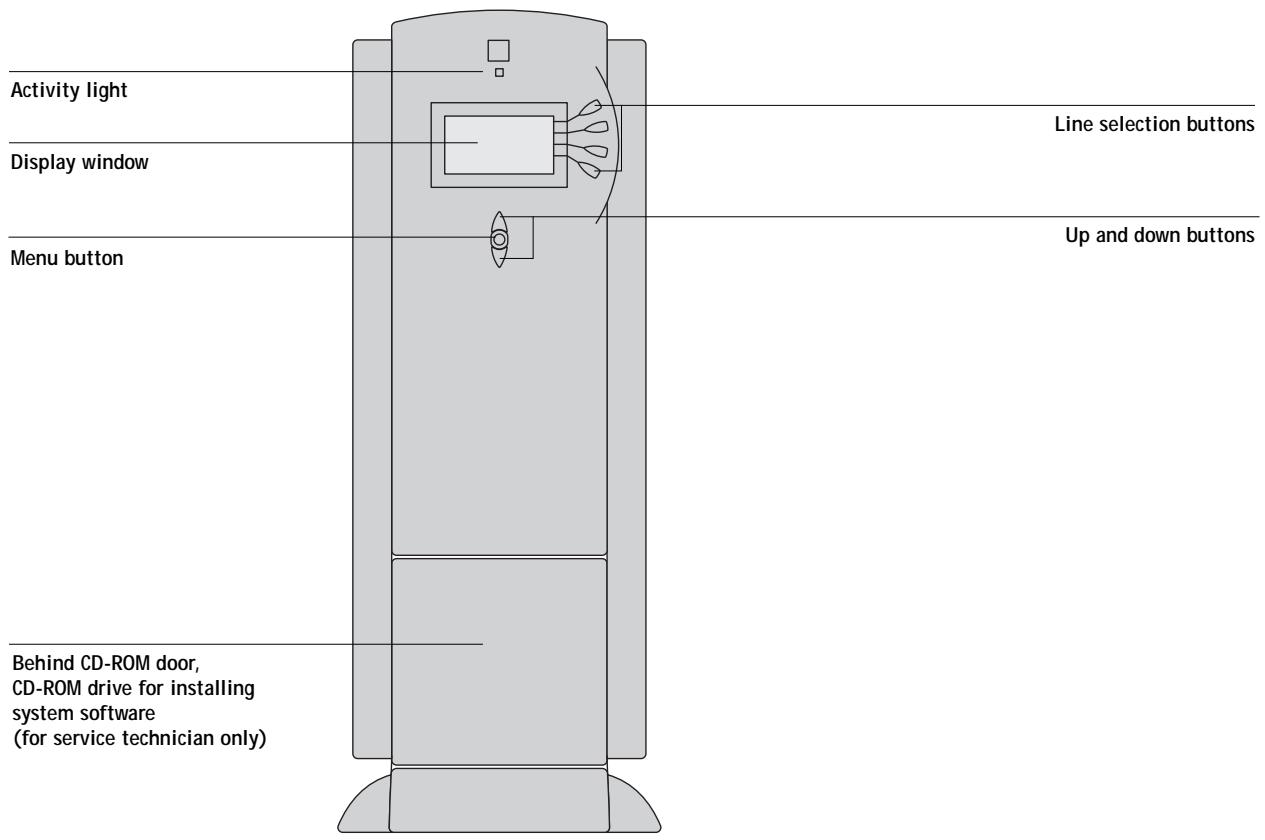
Activity light
The activity light indicates the current Fiery ZX activity. If the light is:
Solid red An error has occurred causing the Fiery ZX to be disabled.
Flashing red There is an error causing printing to be disabled, but the Fiery ZX is capable of processing.
Solid green The Fiery ZX is idle.
The Fiery ZX is processing or printing a job, or communicating with a remote computer.
No light The Fiery ZX is off or starting up.
Buttons
Line selection There are four line selection buttons on the right side of the Control Panel. Use these buttons to select the command displayed on the corresponding line of the display window. When a button is active, a special character (> ) appears in the display window next to the button.
Up and down Use these buttons to scroll to different screens in multi-screen lists, to select Setup options from a list of available options, and to scroll alphanumeric characters.
Menu button Press this button to view other screens. Under normal operation, the Control Panel displays the Info, RIP, or Print Status screen with information about the status of the Fiery ZX. If you press the Menu button, the Functions menu is displayed and you can perform additional operations (see page 1-5). If a job is processing or printing, press the Menu button to cycle among the active screens.


Display window
The display window provides information about the status of the Fiery ZX, displays menu information, and enables you to view and edit information in the Setup menus.
The status area at the bottom of the display window displays text that tells you what screen you are looking at and highlights one of the icons to indicate what the Fiery ZX is doing. Only the icons for the screens that are currently available appear. The menu button cycles among the active screens.
The screens are:
Alert Status
If there is a problem with processing a job or printing functions, an error message appears on the Control Panel. For information on error messages, see Appendix A, "Troubleshooting."
Print Status
When the Fiery ZX is printing a job, the Print Status screen appears. This screen displays the following:
Cancel Job—Press the top line selection button to cancel the job currently printing.
User name—The name of the user who sent the job currently processing.
Pages/Total—The number of copies of the current job printed and the total number of copies of the job requested.
RIP Status
When the Fiery ZX is processing a job, the RIP Status screen appears. This screen displays the following:
Cancel Job—Press the top line selection button to cancel the job currently processing. The Fiery ZX cancels the job before printing begins.
Document name—The name of the document currently processing.
User name—The name of the user who sent the job currently processing.
Kilobytes—The size (in kilobytes) of the job processed so far.
NOTE: This number is always displayed in kilobytes, even if the amount goes over 1000KB; for example, 10MB is displayed as 10000KB.

Info Status When the Fiery ZX is not processing or printing a job, it displays information about the current server and software. It displays the following information:
Server Name—The Fiery ZX name.
Status—The current status of the Fiery ZX. The Fiery ZX status can be: Idle, Initializing, Busy, Processing, or Printing.
Megabytes—The space (in megabytes) available on the Fiery ZX hard disk, for example, 756MB.
Version—The system software version running on the Fiery ZX.

Functions You can press the Menu button to display the Functions menu. Use the up and down buttons to scroll through the list. Press the line selection button to the right of a command to select that command. See page 1-5 for more information.

Network The network icon appears at the bottom left of any of the other screens when a job is being sent to the Fiery ZX, either over the network or through the parallel port. The network icon also appears, together with a flashing green activity light, when a remote utility is running.
Print Pages
Functions menu
The Functions menu provides many of the options available from the Command WorkStation. You can choose the following commands from this menu:
Print special pages from the Fiery ZX. You can print the following pages from the submenu that appears:
Test Page—A Test Page enables you to confirm that the Fiery ZX is properly connected to the copier, and provides color and grayscale samples to troubleshoot problems with the copier or the Fiery ZX. The following settings are among those listed on the Test Page: Server Name, Printer Model, color settings, calibration information, date and time the Test Page was printed.
Configuration—Prints the Configuration page, which gives the current server and device configuration. This page lists general information about the hardware and software configuration of the Fiery ZX, the current options for all Setup settings, information about the current calibration, and the Ethernet and Token Ring addresses of the Fiery ZX.
Job Log—Prints a log of the last 55 jobs. For information on the fields in the Job Log and on printing it in other forms, see “Job Log window” on page 2-26.
Control Panel Map—Prints the Control Panel Map, which is an overview of the screens you can access from the Control Panel. For information about using these screens to set up the Fiery ZX, see the Configuration Guide.
Color Charts—Prints samples of the RGB, CMY, and PANTONE colors available from the Fiery ZX.
Font List—Prints a list of all fonts currently on the Fiery ZX hard disk.
Suspend Printing
Suspend communication between the Fiery ZX and the copier. You must suspend printing if you want to interrupt the current Fiery ZX job so that you can use the copier to make copies. Jobs continue to process on the Fiery ZX. After you make the copies, select Resume Printing to continue printing jobs from the Fiery ZX.
Resume Printing
Resume communication between the copier and the Fiery ZX after you have finished making copies.
Run Diagnostics
This function is provided for service representatives only. Contact your authorized service/support technician for information about running diagnostics.
Reboot Server
Shut down all Fiery ZX activity in the correct manner and then restart. You should use this option instead of the power switch on the back of the Fiery ZX.
Starting and shutting down the Fiery ZX
Generally, you can leave the Fiery ZX running all the time. This section describes how to shut down and restart the Fiery ZX when necessary.
Starting the Fiery ZX
To start the Fiery ZX, move the power switch on the back of the Fiery ZX to the On position. If the copier is also powered off, power it on before powering on the Fiery ZX.
Power switch
Diagnostic messages appear on the Fiery ZX Control Panel. If any diagnostics fail, more information and instructions appear. Contact your service representative if the Fiery ZX encounters problems while running the diagnostics.
When the diagnostics are finished, the following message is displayed:
For software update or setup, press any key.
If you want to change Setup option settings, press any button; if you do not press a button, the Fiery ZX continues starting up and displays the message Idle when it is ready to receive data.
NOTE: If an Administrator password has been set, you are required to enter it to access Setup.
If you press a button, the following options appear. For information about the Setup menus and options, see the Configuration Guide.
| Choose: | To do this: |
| Exit Setup | Exit the Setup menus; the Fiery ZX reboots. |
| Server Setup | Enter the Server Setup menus. |
| Network Setup | Enter the Network Setup menus. |
| Printer Setup | Enter the Printer Setup menus. |
| PS Setup | Enter the PostScript Setup menu. |
| Color Setup | Enter the Color Setup menu. |
| Job Log Setup | Enter the Job Log Setup menu. |
| Calibration | Calibrate the Fiery ZX using AutoCal or a densitometer. For more information, see “Calibrating from the Control Panel using AutoCal” on page 6-20 and the Configuration Guide. |
| Change Password | Change the Administrator password. |
| Clear Server | Clear all jobs in all server queues as well as the Job Log. Check with your administrator or operator before choosing Clear Server. |
Restarting the Fiery ZX
You should use the procedure described below to restart the Fiery ZX rather than using the power switch on the back of the Fiery ZX.
TO RESTART THE FIERY ZX:
- Make sure that the Fiery ZX is not receiving, processing, or printing a job.
Make sure that the status message on the Control Panel is Idle.
NOTE: If a job from the Print queue is processing, it will continue processing and print after the Fiery ZX is restarted; if a job sent to the Direct connection is processing, it will not finish processing or printing.
- Press the Menu button to display the Functions menu.
- Use the down button to scroll to the last screen and choose Reboot Server.
Shutting down the Fiery ZX
You may need to shut down the Fiery ZX for service. When you do so, fonts that have been downloaded to the hard disk drive are not deleted. Print jobs in the Hold and Printed queues and jobs that have been processed but not printed are not deleted and are available for printing when you restart the Fiery ZX.
TO SHUT DOWN THE FIERY ZX:
- Make sure that the Fiery ZX is not receiving, processing, or printing a job.
Make sure that the status message on the Control Panel is Idle. If a job has just finished processing or printing, wait at least five seconds after the Control Panel status message switches to Idle before proceeding to step 2.
NOTE: If a job from the Print queue is processing, it will continue processing and print after the Fiery ZX is restarted; if a job to the Direct connection is processing, it will not finish processing or printing.
- Power off the Fiery ZX by moving the power switch on the back to the Off position.
NOTE: After powering off the Fiery ZX, make sure to also power off the copier. Leaving the copier powered on while the Fiery ZX is powered off can lead to excessive drain on the Fiery ZX motherboard battery.
Chapter 2: Introduction to the Command WorkStation
This chapter introduces you to the graphical user interface of the Command WorkStation. First, you select a user level and log in to the Fiery ZX. Once you have logged in, you can tour the Command WorkStation windows. Your exploration will be more complete if you have some jobs in the Spool area (jobs printed to the Hold queue) and have the ability to send more jobs from a nearby computer.
Chapter 3 builds on the information in this chapter and describes job monitoring and control in more depth.
About the Command WorkStation
The Command WorkStation provides a window on Fiery ZX and copier functions, and an interface from which you can control those functions. The Command WorkStation application can be installed on a Windows 95 or a Windows NT 4.0 computer with a TCP/IP or IPX network connection to the Fiery ZX. To perform Setup from the Command WorkStation, a TCP/IP connection is required.
By default, no passwords are set on the Fiery ZX—in this default state, anyone can perform Setup and use all Command WorkStation functions. Until an Administrator password is defined in Fiery ZX Setup, you can log in to the Command WorkStation as an Administrator without entering a password, and you are given full privileges which include:
- A view of current printing jobs and jobs stored on the Fiery ZX
Control of printing jobs and calibration - Access to Setup, management of resident fonts, and clearing of the Fiery ZX disk and the Job Log
After the Administrator has performed Setup and specified passwords, Command WorkStation user options depend on your login level. If you log in to the Command WorkStation as Guest, you have the first option only. If you log in as Operator, you have the first two options. If you log in as Administrator, you have all three options. For information about Setup and specifying passwords, see the Configuration Guide.
After you connect to a Fiery ZX and log in, your first view of the Command WorkStation is the Queues window (as indicated by the tab at the bottom) which is divided into three regions by Spool, RIP, and Print status bars. The Queues window is surrounded by a frame that includes slider buttons and menus.
Once the Fiery ZX receives print jobs, the Queues window becomes a dynamic display, filled with the names of jobs and their characteristics. Status bars animate in real time as new jobs are processed and printed, and jobs move to different display areas. An operator, who has complete job control, sets the process in motion for each job.
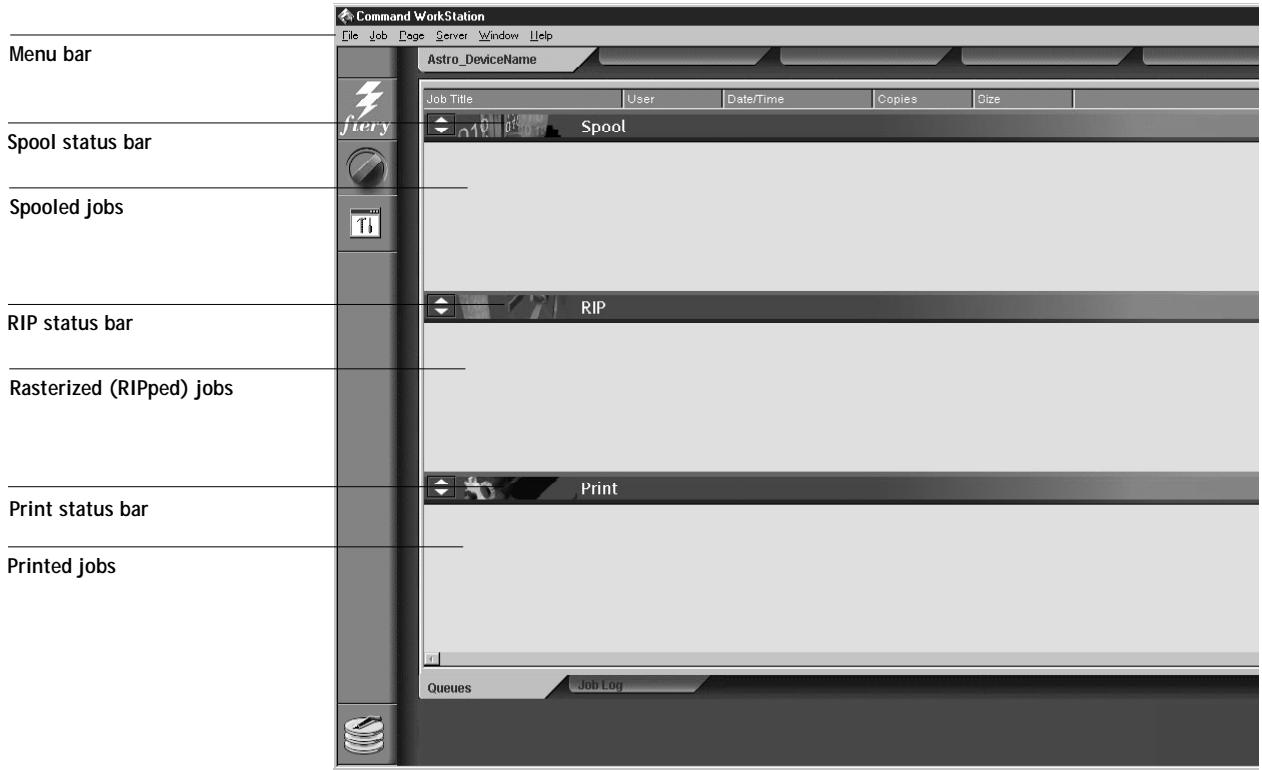
The Spool, RIP, and Print areas of the Queues window represent the stages of printing a job. Jobs come in at the top level (Spool) and drop down to the Print level, unless they are held along the way.
- Spooled jobs—Jobs listed below the Spool status bar area are PostScript files stored on the Fiery ZX disk. These jobs were sent to either the Print queue (white printer icons) or the Hold queue (yellow icons).
- RIPped jobs—Jobs listed below the RIP status bar are ready to print. They have already been rasterized (RIPped, or processed for printing) and are waiting, in order, for access to the printer. Rasterized jobs can also be held; held jobs are displayed on a yellow background.
- Printed jobs—Jobs listed below the Print status bar have already been printed. Printed jobs can be stored on the Fiery ZX disk. The number of jobs that can be stored (from 1 to 99) is defined in Setup.
You can interact with jobs in the window by selecting them and choosing from Job menu commands or right-mouse menu commands, or by double-clicking them. (However, if passwords have been set and you log in as Guest, you can only view jobs; you cannot change or route them.) This chapter and the next explain the Command WorkStation interface in detail.
Starting up and logging in
To start up the Command WorkStation application, click the Windows Start button and choose Command WorkStation from the Programs menu.
Connecting to the server
If the Command WorkStation was previously connected to a server, you are prompted to choose a Fiery ZX from the list of servers.
NOTE: If the Command WorkStation has never been connected to a Fiery ZX, you are prompted to configure an entry for the server. Click OK and see Getting Started for instructions on how to configure a new connection.
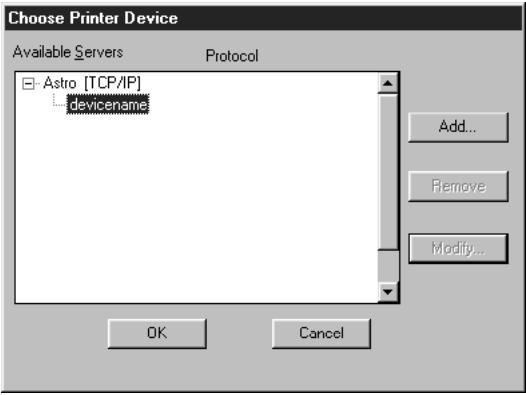
With the Fiery ZX device name (PRN-M) selected, click OK. If the device name is not displayed, click the plus sign (+) to expand the Fiery ZX entry.
The Command WorkStation connects to the server and you are prompted to choose a login level and enter a password to log in (see below).
If you have any difficulties connecting to the server, see Appendix A for error messages and troubleshooting information.
Logging in
When the Command WorkStation has connected to a server, the Log in/out slider appears, prompting you to select a login level and enter a password. Before you log in, the Administrator key is in the vertical position, and the Operator and Guest keys are in the flat (horizontal) position. When you click your login level, the corresponding key turns to the vertical position.
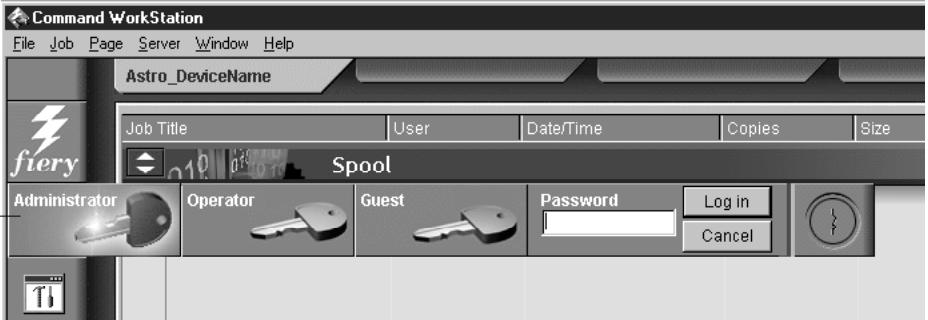
For Administrator or Operator access to the server, click the corresponding key, enter the password, and click Log in or press Enter. For Guest access only, click the Guest key and then click Log in. No password is required for Guest access.
If you change your mind about logging in, or do not have the password you need, click Cancel.
When you have entered the appropriate password and logged in, the Log in/out slider retracts and the full Command WorkStation display appears. The color of the key in the lock indicates your login level. If the server is handling a large number of jobs, it may take a few moments to display the entire job list.
When you reopen the slider after you have logged in, the Log in button will have changed to the Log out button.
Access levels
The three possible levels of access to Command WorkStation functions are Administrator, Operator, and Guest. To enable maximum password protection, Administrator and Operator passwords must be specified in Setup (see the Configuration Guide).
When both Administrator and Operator passwords have been specified, the access levels are as follows:
| Access level: | Privileges and password requirements: |
| Administrator | Has full access to all Command WorkStation and Fiery ZX Control Panel functions; Administrator password required |
| Operator | Has access to all Command WorkStation functions except Setup, clearing the server disk, clearing the Job Log, and font management; Operator password required |
| Guest | Can view job status, but cannot make changes to jobs or Setup, and can view the Queues window only; no password required |
NOTE: Access privileges alone do not confer control of print jobs. If the operator is going to manage all print jobs, the Administrator must route all user jobs to the Hold queue (that is, all jobs are spooled and held on the server). To accomplish this, only the Hold queue, and not the Direct connection or the Print queue, should be enabled in Setup. See the Configuration Guide for more information.
Logging out
There are two ways to log out from the server:
From the Server menu, choose Log out
- Open the Log in/out slider (click the key icon just below the Fiery logo) and click Log out

The Command WorkStation interface
The display illustrated below is the default Command WorkStation display in the middle of job processing. It shows the elements common to all Command WorkStation displays (1 through 4) and the Queues window elements (5 through 8). There is another window, Job Log, which you access with a tab at the bottom of the display (3). However, the Queues window is the one from which most Command WorkStation operations are performed.
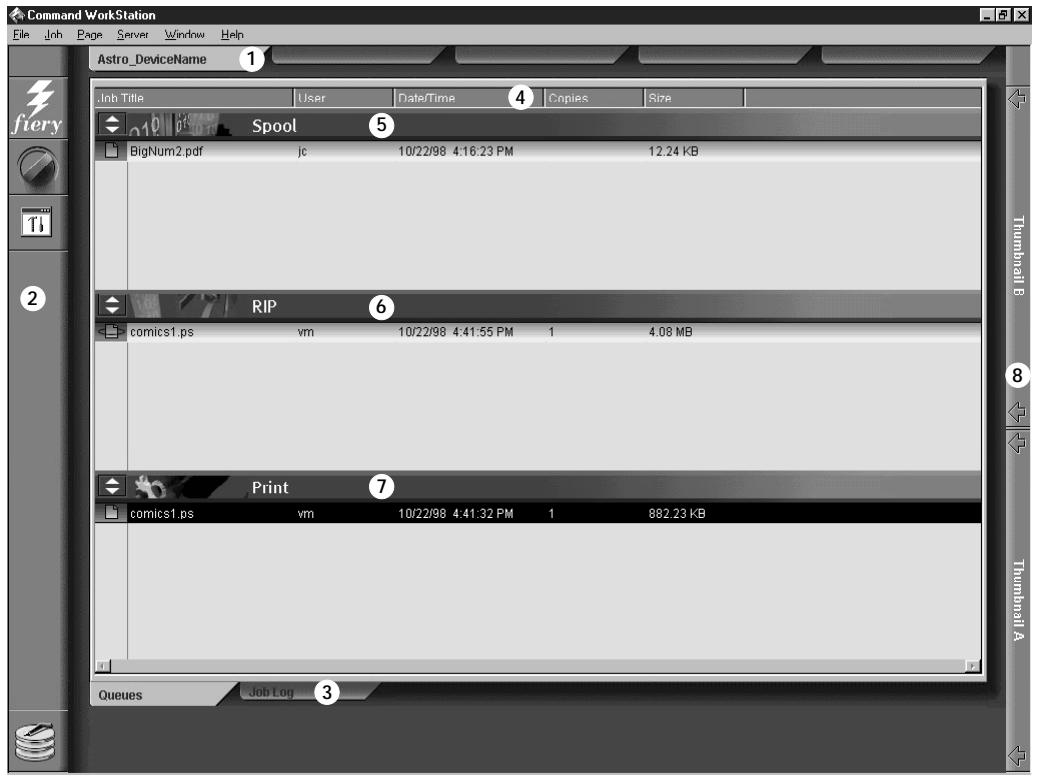
1 Server selection tabs
2 Sliders and system information
3 Window selection tabs
4 Job ticket information
5-8 Queues window display
The Command WorkStation provides access to a great deal of information and many features that are accessed in various ways—buttons, menus, double-clicking, and right-mouse commands. It is a powerful interface that allows for a great deal of interaction and flexibility in the production process. This section describes each of the elements that compose the Command WorkStation display.
Window area (Queues, Job Log)
This area can display one of two windows: the Queues window (shown below), or the Job Log window (only the Queues window is available if you logged in as Guest). The Queues window is the default window; it shows spooled, processing, and printing jobs in a display that changes dynamically.
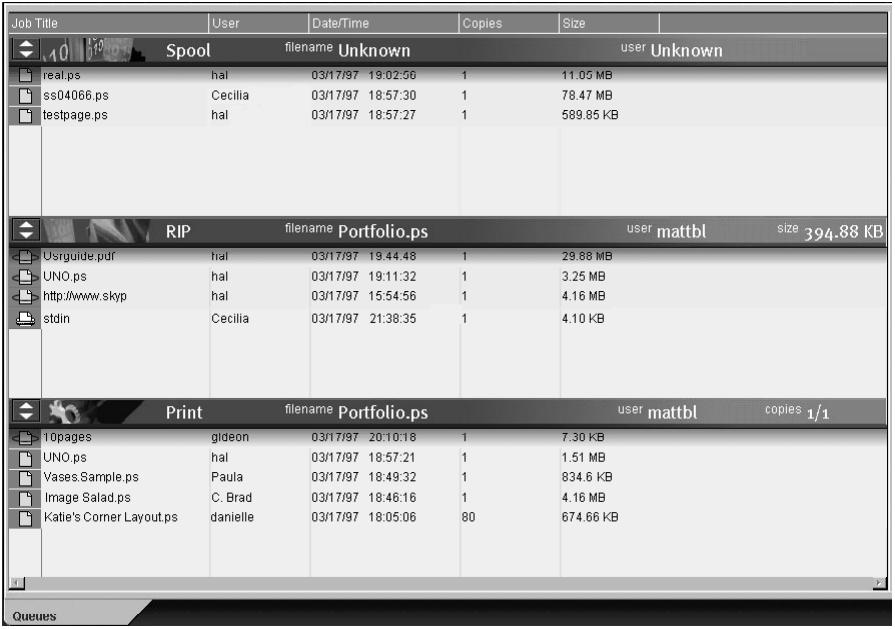
| For information on: | See: |
| Queues area | “Queues window” on page 2-16 |
| Job Log area | “Job Log window” on page 2-26 |
Menu bar
The menu bar has six menus. When an action is not available in the current context, the command is dimmed.

| Menu: | Choose this: | To do this: |
| File | Preferences | Set Command WorkStation preferences; see page 3-3 |
| Print Pages | Print any or all of the following pages to the Fiery ZX: Configuration page, Test Page, Control Panel Map, Font List, Color Charts, Job Log. You can also print the Configuration page to any printer you specify; see page 3-5 | |
| Exit | Log out from the server, exit the Command WorkStation application, and return to the Windows desktop | |
| Job (For more information on these commands, see page 2-23) | Delete | Delete one or more selected jobs |
| Duplicate | Duplicate one or more selected PostScript data jobs in the Spool or Print areas; see page 2-20, page 2-22, and page 2-23 | |
| Rename | Rename a selected job | |
| Hold | Hold the selected job(s); see page 2-18 | |
| RIP and Hold | RIP and then hold the selected job(s); see page 2-18 | |
| Print the selected job(s); see page 2-22 | ||
| Print and Hold | Print the selected job(s) and then hold it in the RIP area; see page 2-18 | |
| Process Next | Give top priority to this job (Spool area only) | |
| Remove Raster | Remove the raster information from the selected job(s); see page 2-24 | |
| Properties | View and edit print settings for the selected job(s) and print job(s) with new settings; see page 2-30 | |
| Thamburger A | Open a selected held job in the Thamburger A window where you can view a full-screen preview of the job, edit the job, or merge it with like data from other jobs. In order to merge jobs, they must be of the same data type (i.e., PostScript jobs cannot be merged with raster jobs); see page 2-31 | |
| Thamburger B | Open a selected job in the Thamburger B window for viewing a full-screen preview of the job, or for copying pages into a job in the Thamburger A window. In order to merge jobs, they must be of the same data type (i.e., PostScript jobs cannot be merged with raster jobs); see page 2-31 | |
| Download | Download files and fonts to the Fiery ZX; see page 3-19. You can also choose this command by right-clicking on the Spool status bar. | |
| Page (DocBuilder commands for,Thumbsail A) | Delete | Delete the selected page(s) |
| Duplicate | Duplicate the selected page(s) | |
| Preview | View a full-screen preview of the selected page; see page 2-33 | |
| Undo | Undo previous Page menu commands (multiple undo available) | |
| Server | Cancel RIPping | Stop RIPping the current job. You can also choose this command by right-clicking on the RIP status bar. |
| Cancel Printing | Stop printing the current job. You can also choose this command by right-clicking on the Print status bar. | |
| Suspend Printing | Temporarily halt printing. You can also choose this command by right-clicking on the Print status bar. | |
| Resume Printing | Restart printing (after a Suspend Printing command). You can also choose this command by right-clicking on the Print status bar. | |
| Calibrate | Start the Fiery Print Calibrator utility; see Chapter 6 and Chapter 7 | |
| Manage Fonts | View the fonts currently installed on the Fiery ZX disk, download additional fonts, or delete fonts (requires Administrator privileges); see “Other server management commands” on page 3-26 | |
| Clear Job Log | Clear all jobs from the Job Log (requires Administrator privileges); see “Other server management commands” on page 3-26 | |
| Reboot | Perform a soft reboot of the Fiery ZX (requires Operator or Administrator privileges); see “Other server management commands” on page 3-26 | |
| Clear | Clear all jobs in all queues as well as the Job Log (requires Administrator privileges); see “Other server management commands” on page 3-26 | |
| Setup | Start the Fiery Setup program (requires Administrator privileges); see “Other server management commands” on page 3-26 and the Configuration Guide | |
| Log out | Log out of the server | |
| Window | Filter | Open the Filter dialog box for the active window; see page 2-28 |
| Export | Save the information in the active window as a tab-delimited text file; see page 2-27 | |
| Print the active window | ||
| View in Helper App | Open the active window in a particular application you specify; see page 3-3 | |
| Refresh | Update the Job Log window with the latest information | |
| Revert to Default Settings | Restore default settings for the status areas, the column headings, and the column widths | |
| Help | About | View the Command WorkStation information screen |
Server selection tabs

The Server selection tabs, just below the menu bar at the top of the display, can be used to log in to additional Fiery ZX servers (if your site has more than one) and to switch between Fiery ZX servers currently connected to the Command WorkStation.
If you click a blank tab, you are prompted to connect to a server in the list or configure a new server entry (see "Connecting to the server" on page 2-3). A limit of five Fiery ZXs can be connected to a single Command WorkStation.
You can access the Server selection tabs from both Command WorkStation windows (Queues and Job Log).
Buffers
Along the left side of the display are buttons you click to activate function sliders.
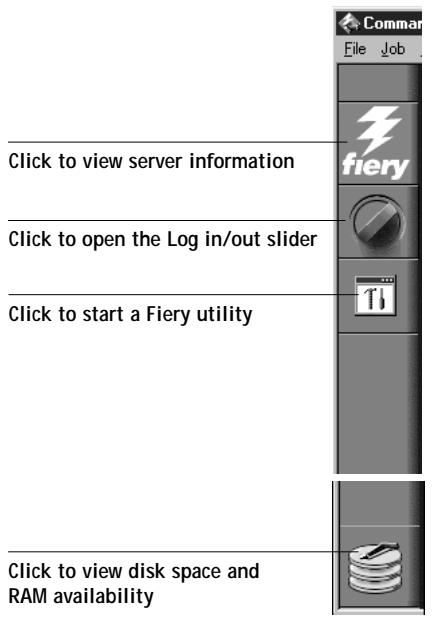
To retract any slider, click the icon at the far right of the slider.
Server information slider
Server Name: Astro
System Version:
CommandWorkStation Version:
fiery
The Server information slider displays name and version information about the currently connected server and the Command WorkStation. To retract the slider, click the Fiery logo at the far right of the bar.
Log in/out slider
Administrator

Operator

Guest

Password
Log in
Cancel

This slider is described in "Logging in" on page 2-4 and "Logging out" on page 2-6. To retract the slider, click the lock icon at the far right of the bar.
Utilities shortcut slider

Downloader

Calibrator

This slider can be used to access the Fiery Downloader and Fiery Print Calibrator utilities. These utilities can also be accessed from the Job menu and Server menu, respectively. To retract the slider, click the icon at the far right of the bar.
Disk space and RAM slider
RAM currently in use
Total RAM

The System information indicators show the current availability of hard disk space and RAM on the currently selected Fiery ZX server. To retract the slider, click the icon at the far right of the bar.
Job ticket information
Job Title
User
DateTime
Copies
Size
All the jobs listed by name in the Queues window can display the job ticket information specified by the person who originated the print job. The Command WorkStation can display this information because it parses the PostScript file before it is RIPed.
You have considerable flexibility in arranging this information in the display. For example, you can add Media Type to the display if you want to see which jobs call for special paper or other media.
Job Title
User
DateTime
Copies
Size
Media Type
You can choose not to display headers for options that are not used at your site, or you can display all possible options and scroll to see the ones that are less important to you. If you just want to experiment, when you are finished you can choose Revert to Default Settings from the Window menu.
To customize the display in the Queues window, you can:
- Adjust the width of a column by clicking the column border in the heading and dragging left or right.
- Choose the options you want to display, and the sequence in which you prefer to view them. To add, move, or delete a column, hold down the right mouse button on the appropriate job ticket item; release the button after choosing a menu option:
Add—one of the listed columns to the display at your mouse position
Move Left, Move Right—move the selected column left or right
Delete—the selected column
The Job Title and User are required; all other columns are optional.
NOTE: The Date/Time value indicates the date and time that the job arrived in the Spool, RIP, or Print area.
Window selection tabs
Queues
Job Log
The Command WorkStation always starts out by displaying the Queues window, from which you view current job processes and control job flow and file storage. To go to the Job Log window, click the corresponding tab at the bottom of the Command WorkStation display.
Queues window
Spooling
The Queues window is a dynamic display of the job staging area: jobs are lined up for processing and printing, some of them are being held waiting for directions, some are moving from one stage or queue to another and are finally dropped from the list, some are held for processing by the operator, and some are held in a different queue in case you need to reprint them.
One approach to understanding the dynamic display is to imagine the three parts of the Queues window corresponding to the three stages of printing, illustrated as a downhill flow.
Spooling—a PostScript file is saved on the server's hard disk. The file can come in packets from the network, or from another place on the server hard disk. Jobs are added to a queue in the order in which they arrive, and they generally move to another queue in the same order unless an operator has intervened to change the order.
Rasterizing (RIPping)—PostScript commands are interpreted in the Fiery ZX to allow the copier to print the file the way its originator intended. The result of this interpretation is a raster file associated with the original PostScript file. In this raster file (raster image), color data is associated with each dot that can be rendered by the print engine. The color data tells the print engine whether or not to apply cyan, magenta, yellow, or black toner to each position on the page.
Printing—transferring the raster image from the server to the print engine at high speed, freeing up RAM for the next job. While the PostScript file is usually saved to disk, raster images are held in RAM during and after each print job. However, both users and operators can request that the Fiery ZX save the raster image to disk along with the PostScript file.
Saving the raster image to disk offers some advantages—raster files are already processed so they print quickly, and each part of the raster file is still identified with a page in the original document, which means that individual pages of a saved raster file can be accessed.
Status bars
Jobs actively involved in the three processes (spooling, rasterizing, and printing) are listed in the status bars that span the Queues window.
Status bars show the filename and user name for the active process, and an indication of its progress. Each status bar heads the list of jobs that have completed the process. Thus, beneath the Spool status bar, you see a list of spooled files; beneath the RIP status bar, you see a list of rasterized (RIPped) files; beneath the Print status bar, you see a list of jobs that have already been printed.
NOTE: In the Spool status bar, the filename and user information always appear as "Unknown" (as shown below). This information is not available until the job has finished spooling to the Fiery ZX disk.
| Spooled jobs on Hold (yellow) Active spooled jobs (white) | |||
| RIP | filename Portfolio.ps | user mattbl | size 394.88 KB |
| RIPped jobs on Hold (yellow) Active RIPped jobs (white) | |||
| filename Portfolio.ps | user mattbl | copies 1/1 | |
| Printed jobs (white); some include raster files in RAM | |||
When a job is being processed, provided animation is enabled (see page 2-9), the corresponding status bar is animated, indicating that the process is active.
If an error occurs, the Print status bar alerts you by displaying a message on a red background instead of the normal blue background.
Enlarging the status bars Click the small arrows at the left of the status bar to expand the status bar display. Click the arrows again to collapse the status bar to its original size. To expand all the status bars at the same time, press Ctrl-E. To collapse them to their original size, click the arrows or press Ctrl-E again.

Changing proportions By default, the status bars divide the window area into three equal parts. You can drag the RIP and Print status bars up or down to change the proportion of the window devoted to each job area. For example, drag the RIP status bar down if you have a long list of spoiled jobs that you want to see without scrolling.
Active jobs and held jobs
In the description that follows, assume that the operator has full control of jobs; that is, the administrator has disabled the Direct connection and the Print queue, and all user jobs come to the Hold queue. For more information about queues, see the Configuration Guide.
The operator's job management functions permit holding a job at any stage of the process we have described, as illustrated below. In the figure, boxes indicate types of job icons you would see in the Queues window.
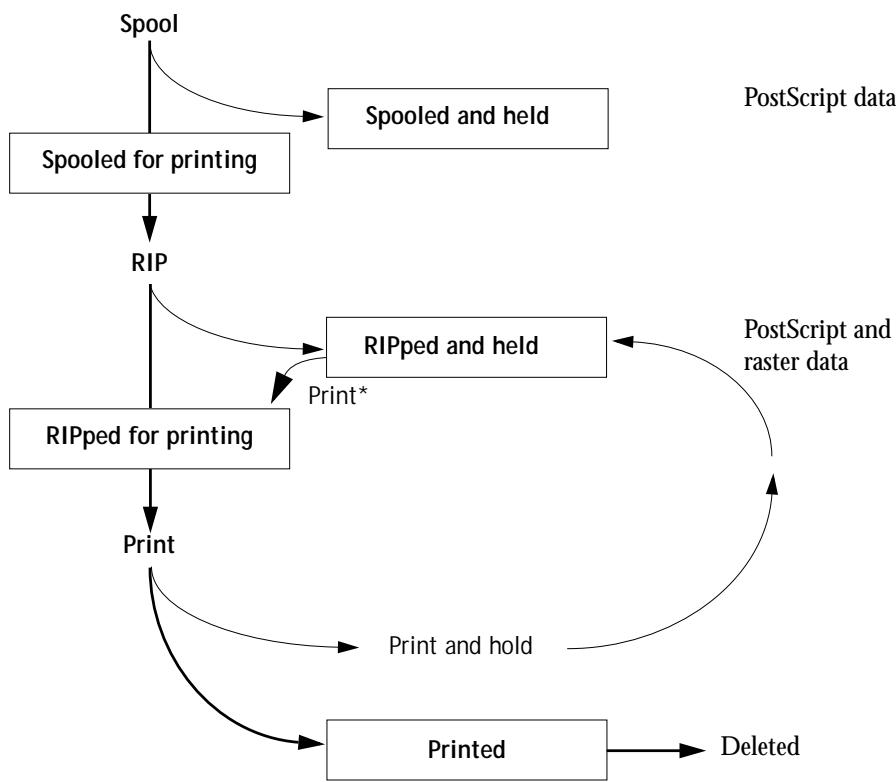
*A copy of the held job is printed; the held job remains in the RIP area.
Jobs that are held are shown with a yellow icon in a yellow row, just beneath the Spool or RIP status bar. Jobs that are held must be activated with a command in order to print.
Active jobs are shown in white with white icons; new jobs are added above older jobs.
Job icons
There are three types of icons that are used for both active jobs and jobs on hold.
| Icon: | Active jobs: (white icons and rows) | Jobs on Hold: (yellow icons and rows) |
| Printer icons | PostScript or raster data headed for printing (top) or after printing (bottom) | PostScript data headed for Print and Hold or job on Hold after printing (Hold) |
| Raster icon | PostScript and raster data after printing, ready for fast reprint | PostScript data already rasterized and held |
Spool area
The job icons in the Spool area are described below:
| Spool area icon: | What it indicates: | How long you see the job: | |
| 1 | Yellow printer icon Yellow job row | PostScript data from a user on the network; no destination is defined | Until a destination is chosen |
| 2 | White printer icon White job row | PostScript data headed for Print | Until the RIP is free |
| 3 | Yellow raster icon White job row | PostScript data headed for RIP and Hold | |
| 4 | Yellow printer icon White job row | PostScript data headed for Print and Hold |
The Spool area is both the receiving area for jobs from users on the network (Hold queue) and the waiting area for jobs that will be RIPed (jobs in the Spool queue).
Hold queue jobs When printing requires an operator (because the Print queue and Direct connection are disabled), the operator must assign a destination to all jobs received from users on the network (icon 1 in the table above). Once assigned, jobs (icons 2, 3, and 4) move down the Spool queue for processing. All jobs printed to the Hold queue require routing by an operator.
Print queue jobs When printing does not require an operator, network jobs sent to the Print queue appear in the Spool area where they are shown with a white printer icon (icon 2). When they reach the head of the queue, they are RIPed and printed without operator intervention.
Direct connection jobs Jobs printed to the Direct connection are not displayed in the Command WorkStation job lists. They are displayed briefly in the status bars (where they cannot be selected) and are included in the Job Log.
RIP area
The job icons in the RIP area are described below:
| RIP area icon: | What it indicates: | How long you see the job: |
| 1 | Raster data, no destination defined; may have been printed before and held | Until it is deleted or stripped of its raster data and sent to the Spool area |
| 2 | Raster data headed for Print in its turn; no hold defined | Until copier is free to print the job |
After a job is rasterized, it goes into the RIP area. The RIP area holds only raster data (i.e., jobs that have been rasterized). Jobs in the RIP area are either waiting for the copier to be free (Print queue jobs, icon 2 in the above table), or they are being held.
Held jobs in the RIP area have already been rasterized (RIP and Hold) or they have been printed and their raster data has been routed back to the RIP area (Print and Hold), where they are shown in yellow rows (icon 1).
NOTE: Raster jobs in the RIP area that are waiting to print (icon 2 in the table above) cannot be manipulated by job commands.
Jobs held in the RIP area remain there until the operator deletes them. Printing these jobs does not remove them from the RIP area. Instead, a copy of the job is created and printed.
NOTE: For all rasterized jobs, the print option settings, in addition to the current calibration state of the Fiery ZX, remain with the saved raster data each time the job is reprinted. To print the job with new print option settings and with new calibration data, you must remove the raster data and reRIP the job.
Print area
The job icons in the Print area are described below:
| Print area icon: | What it indicates: | How long you see the job: |
| 1 | PostScript data only—raster data has been deleted | Until the job limit is reached |
| 2 | Raster and PostScript data If RAM is needed to RIP an active job, the raster data is deleted and the job gets the PS icon (icon 1, above) | Until the job is reprinted or the job limit is reached |
The Print area, also referred to as the Printed queue, contains jobs that have already been printed. These jobs were assigned the Print destination (white printer icon in the Spool or RIP areas) without any Hold instructions; therefore, they all have white icons and rows.
NOTE: A job row that appears in light red indicates that a PostScript error occurred while printing the job. To see the error, double-click anywhere in the row.
Newly printed jobs are added to the Printed queue, and are shown at the top of the list. Jobs are saved in the Printed queue until the job limit is reached. When the first job over the limit is printed, the oldest job is deleted from the disk. The default job limit is 10 jobs. The value for Jobs Saved in Printed Queue can be changed in Fiery ZX Setup by the administrator.
NOTE: If you reprint a job in the Printed queue, the job returns to its original position in the Printed queue after it is printed.
While it is printing, a job consists of PostScript and raster data. The raster data in RAM is not cleared until memory is needed to rasterize the next job. As long as the raster data is intact, the job can be reprinted from the Printed queue. Printed jobs that still have their raster data are represented by a white raster icon in the Printed queue (icon 2 in the previous table); jobs with only PostScript data remaining are represented by a white PS icon (icon 1). If the job was printed from a held raster job (in the RIP area), the raster data in the RIP area remains and can be used to reprint the job after the raster data has been cleared from the Printed queue.
Job commands
Job commands are used to assign a selected job to a new destination or process. These commands are available from the Job menu (see page 2-9). Many are also available as right-mouse commands (described following the list of commands below). The job commands available at a given time depend on the context; unavailable commands are dimmed. Job commands are available in the Queues window.
The job commands available for selected jobs in the Queues window are listed in the following table. The table also describes the effect of each command on raster data associated with the affected job(s).
| Choose this: | To do this: | Raster data is: |
| Delete | Delete the job(s) | Deleted |
| Duplicate | Duplicate one or more selected PostScript data jobs in the Spool or Print areas. You can use the duplicate job(s) for different print options or a different destination. (The Duplicate command actually creates a reference to the original job, with the same name) | n/a (The Duplicate command is not available for raster jobs) |
| Rename | Rename the job (PostScript file with or without raster) | Unaffected, but associated with the new name |
| Hold | Hold the job in the current place (except for a job in the Print area, which is moved to the Spool or RIP area, depending on whether it still has raster data associated with it) | Held in RIP area, if included with job |
| RIP and Hold | RIP the job and hold it in the RIP area | Held in RIP area indefinitely |
| Print the job in its turn (RIP it first if it does not have raster data) After printing, keep the printed job in the Print area until the job limit is reached. | Temporarily held in RAM after printing until memory is needed for another job (If the job was printed from a held job in the RIP area, the raster data in the RIP area is kept indefinitely) | |
| Print and Hold (Like the user print option Save Fast Reprint) | Print the job in its turn (RIP it first if it does not have raster data) After printing, hold the PostScript data and the raster in the RIP area | Held in RIP area indefinitely (saved to disk) |
| Process Next | Give top priority to this job RIP (and then print) it as soon as the processor is free, before other waiting jobs Option is dimmed if there are no other waiting jobs | n/a NOTE: This command is available only for jobs in the Spool area that are not currently held. |
| Remove Raster | Remove the raster data from a job that has raster data (indicated by a raster icon); leave the PostScript data unaffected | Deleted NOTE: If you remove raster from a job in the RIP area, the job is sent to the Spool area. |
| Properties | View, override print option settings, and print a selected job or a group of selected jobs | Possibly deleted and regenerated, depending on whether you change any settings that require re-RIPping |
| Thumbnail A | Open the selected held raster data job in the Thumbnail A window where you can view a full-screen preview of the job, edit the job, or merge it with raster data from other jobs | Changed if job is edited, unaffected if job is only viewed |
| Thumbnail B | Open the selected raster data job (not necessarily a held job) in the Thumbnail B window for viewing or for merging into a job in the Thumbnail A window | Unchanged |
| Download | Download files and fonts to the Fiery ZX with Fiery Downloader; see page 3-19 | n/a |
Using right-mouse commands
Use the following instructions to activate job commands with a single right-mouse click.
TO ROUTE JOBS WITH RIGHT-MOUSE COMMANDS:
- To route a single job in the job list, right-click the job.
- Select one of the commands or destinations and release the mouse button.
The command is carried out or the job is routed to the destination you chose.
Depending on your choice, the job line may reappear in a different part of the window or a different window, or the job line may be deleted.
- To route multiple jobs at the same time, select the jobs first.
Click the job line to select the first job. Shift-click to select adjacent jobs; Ctrl-click to select nonadjacent jobs.
NOTE: Select jobs with the same job icon; otherwise, the destination options may not be the same. For example, select multiple jobs in the Spool area, and choose Print.
- With the cursor still in one of the selected job lines, press the right mouse button.
- Select one of the commands or destinations and release the mouse button.
The command is carried out or the jobs are routed to the destination you chose.
Job Log window
The Job Log is a list of processed and printed jobs, the date and time they were processed or printed, and the characteristics of the job. It includes downloaded files and fonts and RIP and Hold jobs.
Note: The Job Log window is not available if you logged in as Guest.
At any given time, the Job Log includes only those jobs processed or printed since the Job Log was last cleared. The Job Log can be cleared manually by choosing "Clear Job Log" from the Server menu or automatically if the administrator has enabled autoclearing of the Job Log in Setup. The Job Log is also cleared whenever a Clear Server or Clear command is executed (see page 1-7 and page 2-11).
You can adjust the column widths in the Job Log display by clicking the column border in the heading and dragging left or right. For more information, see Chapter 3.
| Job Log | ||||||||
| Status | Document | User | Date | Start Time | End Time | Process Time | Size | Device |
| OK | settrue.ps | Administrator | 11/06/97 | 10:07:45 | 10:07:45 | 00:00:00 | 5.40 KB | Unknown |
| OK | saveprmss.2ps | Administrator | 11/06/97 | 10:08:29 | 10:08:29 | 00:00:00 | 6.60 KB | Unknown |
| OK | prologue.ps | Administrator | 11/06/97 | 10:08:34 | 10:08:34 | 00:00:00 | 89.94 KB | Unknown |
| OK | vi001005.2ps | Administrator | 11/06/97 | 10:08:49 | 10:22:48 | 00:13:52 | 62.30 KB | Unknown |
| OK | restprmss.2ps | Administrator | 11/06/97 | 10:27:55 | 10:27:57 | 00:00:01 | 8.17 KB | Unknown |
| OK | settrue.ps | Administrator | 11/06/97 | 10:30:29 | 10:30:29 | 00:00:00 | 5.40 KB | Unknown |
| OK | saveprmss.2ps | Administrator | 11/06/97 | 10:31:47 | 10:31:48 | 00:00:01 | 6.60 KB | Unknown |
When you open the Job Log, you can choose to display all jobs in the current Job Log or only the jobs in a specified date range. By default, all jobs are displayed. To specify a date range, choose Filter from the Window menu, click Range, and enter dates in the From and To fields; or, click the calendar icons next to the From and To fields and select dates by clicking them in the calendars. Use the arrows at the upper corners of the calendars to display different months.
NOTE: In the Job Log, "Start Time" reflects the time that the job began RIPping; "End Time" reflects the time that the job printed; and "Process Time" reflects the total RIP time for the job. These times do not correspond to the Date/Time values displayed in the Queues window.
Updating the Job Log display To update the Job Log window display after specifying a date range (or at any other time), choose Refresh from the Window menu.
Exporting the Job Log From the Job Log window, you can export the Job Log to a tab-delimited text file (the default name is job.log) by choosing Export from the Window menu. The exported file can be opened with a spreadsheet, database, or word processing application. The exported Job Log contains the jobs for the date range you specified.
Clearing the Job Log The Job Log is stored on the server disk. When logged in as Administrator, you can clear the Job Log by choosing Clear Job Log from the Server menu. The Job Log is cleared whenever an Administrator clears the server or installs new software. In addition, the Job Log can be cleared automatically after every 55 jobs.
Printing the Job Log To print the Job Log, choose Print from the Window menu. The Job Log is sent to the Print queue and then prints to the Fiery ZX. You can use Job menu commands to manipulate the Job Log print job as you would any other job. The printed Job Log contains the jobs for the date range you specified. Alternatively, you can choose Print Pages from the File menu, select Job Log, and click Print. See "Using the Job Log" on page 3-24 for more information.
Printing and clearing the Job Log automatically You can decide how you want to handle the Job Log. If you have Administrator privileges, you can choose Setup from the Server menu and enter your preferences in Job Log Setup. You can choose to print the Job Log automatically every 55 jobs, or both print and clear the Job Log automatically every 55 jobs. You can also choose the Job Log page size.
Filtering jobs
The Queues, Job Log window displays a cumulative list of all jobs. If a large number of jobs are listed, it may be difficult to locate a particular job or a particular group of jobs. You can display a specified subset of jobs by filtering jobs in the Queues, Job Log window.
To open the Filter dialog box, choose Filter from the Window menu.
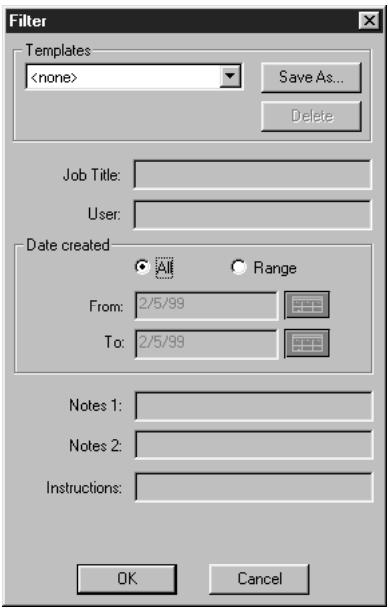
In the Job Log window, you can filter jobs by date only.
To filter by date, select Range in the Date created area and enter dates in the From and To fields; or, click the calendar icons next to the From and To fields and select dates by clicking on them in the calendar that appears. Click the arrows at the upper corners of the calendar to display different months.
Creating Filter templates
If you often filter jobs according to specific criteria, you can create a filter template. In this way, you can filter jobs easily in one step and avoid the need to enter specific information each time you want to filter jobs.
TO CREATE A FILTER TEMPLATE:
- Open the Filter dialog box by choosing Filter from the Window menu.
- Enter specific job filter criteria in the appropriate fields.
- Click Save As.
- Enter a name for the new template and click OK.
The new template is saved in the Templates pop-up menu in the Filter dialog box.
To view jobs in the Queues, and Job Log windows according to a filter template, open the Filter dialog box, choose the template by name from the Templates pop-up menu, and click OK.
To delete an existing template, open the Filter dialog box, choose the template by name from the Templates pop-up menu, and click Delete. Click OK to confirm that you want to delete the template.
Job properties
When logged in as Operator or Administrator at the Command WorkStation, you can use the Properties command to check and override the print option settings (properties) of all jobs.
You can use this command for several purposes:
- To override a setting based on printed output or other print device conditions
- To change settings for a duplicate of the original job
- To print a single copy of a job before printing the number of copies required by the user
Viewing and editing job properties
The Properties command lets you view, edit the print option settings of, and print multiple jobs simultaneously. You can use this feature to compare the properties of several jobs and thereby group together jobs with similar settings, if it is beneficial for throughput or efficiency.
To view the properties of one or more jobs, select the job(s) and choose Properties from the Job menu or the right-mouse menu.
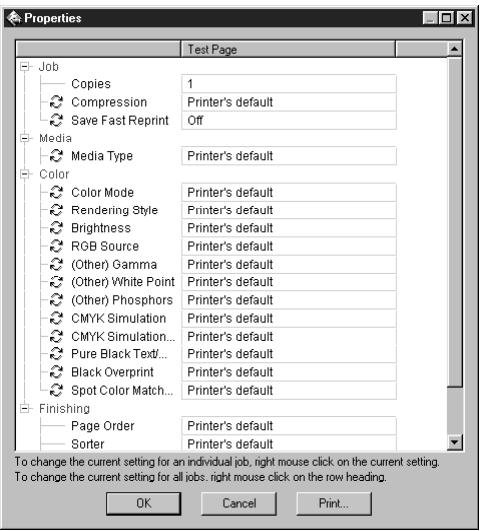
For information on using the Properties dialog box to change job settings, see "Viewing and overriding print settings" on page 3-17.
NOTE: Some print options that are available in the printer driver are not displayed in the Properties dialog box. For information on specific print options and settings, and where they can be set, see Appendix A of the Printing Guide.
Thunnails and full-screen previews (DocBuilder)
The Command WorkStation includes a powerful DocBuilder tool that allows you to preview and edit raster data. (For information on how to identify a raster data job, see page 2-20.) DocBuilder consists of two thumbnail windows and several pagemanipulation commands (listed in the Page menu).
The DocBuilder tool can be used in the following ways:
- In the Thumbnail A window, you can see thumbnails of the currently RIPping job, as it is processed, or of any raster data job (see “Previewing print jobs” on page 3-9).
- From the,Thumbsail A window you can open a full-screen preview of a raster file (see “Full-screen previews” on page 2-33).
- Using the Thumbnail A and Thumbnail B windows together, you can merge raster data from more than one file, even if the files were printed from different applications on different computer platforms (see the next section and "Merging raster files with DocBuilder" on page 3-11).
DocBuilder's merge features eliminate the limitations of particular software applications. You can merge raster pages of documents of different types, even different computer operating systems. You can merge color pages from graphics programs with text pages from a word processor. An outline of DocBuilder's features follows; for more information and applications, see "Merging raster files with DocBuilder" on page 3-11.
Editing and merging files with DocBuilder
When you select a raster data job and choose the Thumbsail A or Thumbsail B command (from the Job menu or from the right-mouse commands), the corresponding Thumbsail slider opens automatically, displaying thumbnails of the file. To close the Thumbsail slider, click anywhere in the tab along the right edge of the Thumbsail window. When the Thumbsail window is open, the arrows in the tab point to the right, indicating that clicking the tab retracts the slider.
With the Thumbnail A window you can see thumbnail views of any raster data job—that is, any file that is currently RIPping, or any file that has been RIPped and held to disk. You can also use the Thumbnail A window to edit a raster file—you can change
the sequence of pages, delete pages, duplicate pages, and copy pages from other raster files into the Thumbnail A window. You can save the edited raster file as a new printable document.
The Thumbnail B window can also display thumbnails of a raster job, and the document displayed in Thumbnail B can be used as a source for editing the document shown in Thumbnail A.
NOTE: Be careful not to delete all pages of a job in Thunderail A without first saving a copy of the job.
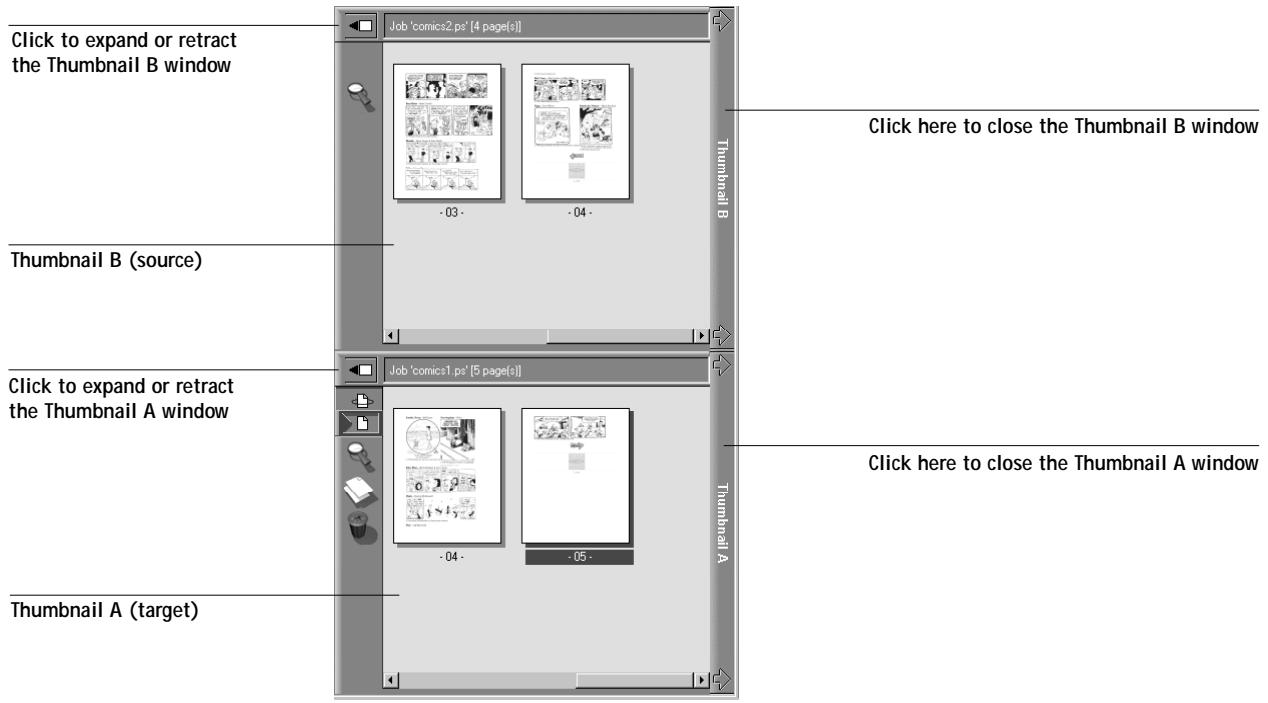
You can merge documents by dragging (copying) one or more entire pages from Thumbsail B to Thumbsail A. This creates a new document in the Thumbsail A window. If you select one or more pages in the Thumbsail A window, the commands in the Page menu give you additional editing possibilities. (Most of the Page menu commands are also made available by right-clicking pages in Thumbsail A.) Multiple underscores of Page menu commands are possible.
You can merge pages from multiple documents into the Thumbsail A document by opening documents one after another in the Thumbsail B window. Documents in the Thumbsail B window are view-only, and while you can copy pages from Thumbsail B to Thumbsail A, you cannot edit the Thumbsail B document. A merged document that you create in Thumbsail A can be saved (with a different name) as a new raster data file.
For more information, see "Merging raster files with DocBuilder" on page 3-11.
Full-screen previews
Double-clicking any page in the Thumbnail A or Thumbnail B window opens a full-screen preview of the page. The full-screen preview is a view-only display, and it takes time to retrieve the data. Once begun, the process cannot be canceled.
NOTE: If you have edited a raster job with DocBuilder, you must save the edited file before you can view full-screen previews of all its pages.
Using the icons in the full-screen preview, you can display adjacent pages, rotate the page, or close the preview.
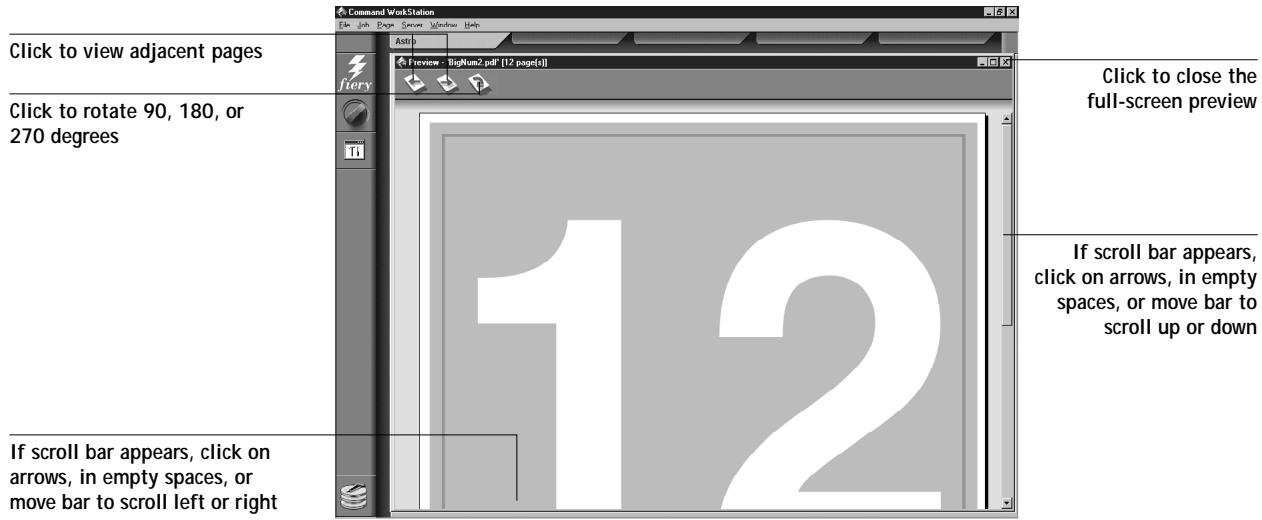
Chapter 3: Managing Print Jobs
This chapter provides some general information about managing printing with the Fiery ZX Color Server and the copier, and gives you some hints on using the Command WorkStation windows to monitor and manage print jobs. It suggests ways to guide users so that their jobs are more likely to print correctly the first time. The chapter also follows the course of a print job and shows possible ways to expedite jobs and take advantage of the special capabilities provided by the Command WorkStation.
Communicating with users
The Command WorkStation interface facilitates communication between users and operators. All the same, users who originate print jobs may need to become better informed about the Fiery ZX and the copier so they can choose the appropriate options for their jobs.
What the user needs to know
You or the network administrator should consider supplying some of the following information to your users:
- The name of the printer on the network and the names of servers sharing the printer
- User's access status
Do all jobs require operator intervention because they go to the Hold queue? If not, which connections are published—Direct connection and/or Print queue?
- How long you will hold jobs on the server before you delete them
- List of default printer settings and other settings (from the Configuration page)
- List of installed fonts
Do the users' applications download fonts automatically? If not, can users download fonts, should they embed them in documents, or should they supply them to you so you can download them?
- Requirements for Notes fields (information which appears in the Job Log)
For example, department name, account code, phone number or extension. Is some information mandatory at your site?
- Resident calibration target and date of current measurements
- Custom simulations
Are they available? What type of targets do they represent? Users see these print options (CMYK Simulation) and should not select them if there are no custom targets on the server.
- IP address or DNS name of printer so users can access Fiery WebTools, at least to see if their jobs have printed
- Available media, alternative choices, standard tray/media configurations
Information users might find in the WebLink web site - Instructions for setting up the printer on client computers
- Sources of PostScript printer drivers, PPDs, color reference files, and additional information
Recommended PPD settings - Conflicting settings and common PostScript errors
Customizing the Command WorkStation window
You can customize the display of job ticket information in the Queues window by rearranging the headings. The Job Title and User name are always at the left, but you can tighten the columns so you see what you need, and move and add other column headings so the most important information is visible without scrolling. The following procedure is also described on page 2-15.
TO CUSTOMIZE THE QUEUES WINDOW DISPLAY:
- Right-click in the column heading.
-
A menu appears. The Add submenu lists the headings that are not already displayed.
-
Choose the options you want to display, and the sequence in which you prefer to view them.
Add, delete, or move a column by holding down the right mouse button on the name of the appropriate column heading; release the button after choosing one of the menu options:
Add one of the listed columns to the display at your mouse position.
Move Left, Move Right—move the selected column left or right.
Delete the selected column.
The Job Title and User columns are required—all others are optional.
- Adjust the column widths.
Adjust the width of a column by clicking the column border in the heading and dragging to the left or right. You can change the column widths at any time.
Setting Command WorkStation Preferences
Choose Preferences from the File menu to access the Preferences dialog box.
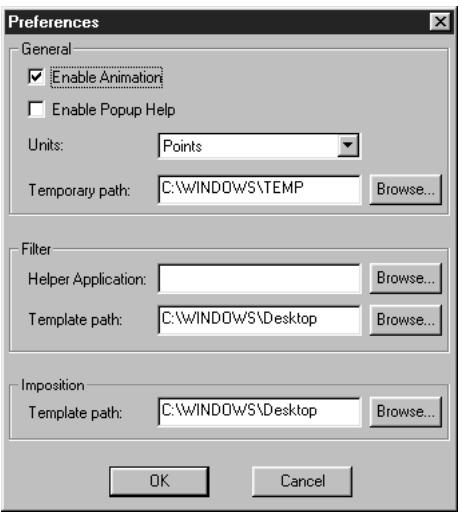
| Menu: | Choose this: | To do this: |
| Preferences\General | Enable Animation | Turn on or off animation of the status bars |
| Enable Popup Help | Turn on or off short captions that appear when you pause the mouse over window elements. The captions identify the main parts of the Command WorkStation window. | |
| Units | Specify the type of unit (Points, Inches, or Millimeters) to use in the display for custom page sizes | |
| Temporary path | Specify a location for temporary files created by the Command WorkStation application | |
| Preferences\Filter | Helper Application | Specify the path to a helper application from which to view data in the active window; this application opens automatically when “View in Helper App” is chosen from the Window menu |
| Template path | Specify the path to where Filter template files are saved; for more information on Filter templates, see page 2-29 | |
| Preferences\Imposition | This menu is not supported | N/A |
Printing server information pages
Using the Print Pages command, you can print various special pages of information stored on the Fiery ZX.
TO PRINT SERVER INFORMATION PAGES:
- Choose Print Pages from the File menu.
- In the Select Printer area, specify where you want to print the pages.
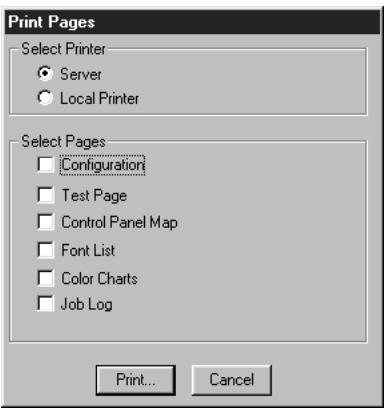
Server—The pages you specify are printed to the Fiery ZX.
Local Printer—Enables you to print the Configuration page to any printer installed on your Windows computer.
- In the Select Pages area, specify the pages you want to print:
Configuration—Prints the Configuration page, which gives the current server and device configuration. This page lists general information about the hardware and software configuration of the Fiery ZX, the current settings for all Setup options, information about the current calibration, and the Ethernet and Token Ring addresses of the Fiery ZX.
Test Page—A Test Page enables you to confirm that the Fiery ZX is properly connected to the copier, and provides color and grayscale samples to troubleshoot problems with the copier or the Fiery ZX. The following settings are among those listed on the Test Page: Server Name, Printer Model, color settings, calibration information, date and time the Test Page was printed.
Control Panel Map—Prints the Control Panel Map, which is an overview of the screens you can access from the Control Panel. For information about using these screens to set up the Fiery ZX, see the Configuration Guide.
Font List—Prints a list of all fonts currently resident on the Fiery ZX hard disk.
Color Charts—Prints samples of the RGB, CMY, and PANTONE colors available from the Fiery ZX.
Job Log—Prints a log of the last 55 jobs processed or printed. For information on the fields in the Job Log and on printing it in other forms, see “Using the Job Log” on page 3-24.
-
Click Print.
-
If you selected Server in step 2, specify the number of copies to print and click OK. The page(s) are printed to the Fiery ZX.
If you selected Local Printer in step 2, choose the desired printer in the Print dialog box, specify the number of copies to print, and click OK.
The Configuration page(s) are printed to the printer you specified.
Server information pages printed with the Print Pages command appear in the Fiery ZX Job Log with a User Name of "Operator" even if you logged in as Administrator.
Workflow scenarios
The workflow at your site will depend on the number and complexity of jobs and the amount of responsibility given to the operator. This section suggests some ways you might interact with a job.
Scenario 1 At this site, the Print queue is enabled, and anyone at the Command WorkStation can view the progress of jobs. A small job is sent to a server and copier that are not busy. You watch the job progress from the top to the bottom of the Queues window.
The green light on the Fiery ZX flashes, the network icon blinks; on the Command WorkStation the Spool status bar is animated and the job title appears. As soon as spooling has finished, the Spool status bar is cleared and the RIP status bar animates.
Almost immediately thereafter, the RIP status bar is cleared and the Print status bar animates. The printed job is listed below the Print status bar and the job pages emerge from the copier. You move it to the mailbox of the person who sent the job.
Scenario 2 At this site, all jobs come to the Hold queue and therefore require operator intervention to proceed.
Again, the green light on the Fiery ZX flashes, the network icon blinks, the Spool status bar is animated, and now in the Spool area (below the status bar) the job title comes into view. In a few moments the job is on the list, and you have time to scan the headings for the job ticket information—media type, copies, and pages.
Are you ready for this job to print? Do other jobs have priority? What is the job for— is it final output or a test print? The first choice is whether to put the job in the print queue or hold it before processing it further. If you do nothing, the job remains in the Spool area, and the file remains on the server disk.
Perhaps this is a routine job and does not call for special handling. You right-click the job and choose Print. You notice the RIP status bar animate, and almost immediately, the Print status bar animates. The printed job is listed below the Print status bar and the job pages emerge from the copier.
Scenario 3 Everyone has discovered the copier on the network and jobs are coming in rapidly. You right-click several routine jobs in the Spool area and choose Print to let the server print them one after the other. You choose Print and Hold if you know you will be reprinting the job soon. You remove printed jobs from the output trays and replenish media.
While some jobs are flowing through the queues and printing, you are preparing for jobs that require more attention, such as obtaining special paper, using DocBuilder to merge two documents, or notifying the originator of a job that a PostScript error occurred.
Before you load special paper, you make sure all pending jobs are in holding areas. When an especially important job is spooled for RIPping, you right-click Process Next.
Using the copier
If you have a copier job that has priority over the spoiled incoming print jobs you can temporarily close the Fiery ZX connection to the copier and then reopen it when you have finished copying.
When there are no active printing jobs competing for the copier engine (no white job lines in the Spool or RIP area), you do not need to suspend printing to make copies.
TO GIVE THE COPIER TOP PRIORITY AND LATER RESTORE PRINTER PRIORITY:
- From the Server menu, choose Suspend Printing.
This suspends printing temporarily. Jobs continue to spool and RIP on the server as long as disk space and RAM are available.
- When you have finished with the copier job, choose Resume Printing from the Server menu.
The printing connection between the Fiery ZX and the copier is reopened and printing resumes.
Using the copier as a scanner
Scanning requires that you place the scan original on the copier, and that you run Photoshop from a networked workstation. In a high-volume printing environment, however, remote users who want to scan might have to wait for a connection to the Fiery ZX.
Under those circumstances you or another operator may prefer to take over the scanning function. Ideally, you would set up a networked workstation near the copier and run Photoshop. From this workstation you can scan jobs for users in the slow printing times.
Canceling jobs
You may need to cancel a job after it has been routed for processing or printing. You can cancel a job only while it is being RIPed or while it is being printed. You cannot cancel a waiting job (white job row) that is routed for RIPping or printing.
- Canceling jobs during processing—While a job is being RIPed, and its name appears in the RIP status bar, choose the Cancel RIPping command from the Server menu or right-click on the RIP status bar and choose Cancel RIPping.
When the RIP job is canceled, the Canceling message appears in the RIP status bar and on the Fiery ZX Control Panel. The name of the canceled job appears in the Job Log.
- Canceling jobs during printing—While a job is printing, and its name appears in the Print status bar, choose the Cancel Printing command from the Server menu or right-click on the Print status bar and choose Cancel Printing.
When the print job is canceled, Canceling appears in the Print status bar and on the Fiery ZX Control Panel. The name of the canceled job appears in the Job Log.
NOTE: Canceled jobs may be partially printed, and may include pages with one or more missing color planes, or pages that are completely blank.
- Canceling at the Control Panel—If you are at the Fiery ZX, the most direct way to cancel a job is to press the top button on the server Control Panel while you can read the name of the job that is processing or printing. For more information on the Control Panel, see Chapter 1.
Previewing print jobs
You can use the Thumbnail A window to preview pages of the currently RIPping job. You can also use Thumbnail A, as well as Thumbnail B, to preview any raster data job in the RIP or Print areas.
The thumbnail windows also allow you to open an thumbnail view of a held raster job in the RIP area and perform electronic collation or document merging. This feature, called DocBuilder, is described on page 3-11.
Previewing the currently rasterizing job
To see the progress of jobs as they are RIPed, you can leave the Thumbnail A window open in RIP preview mode.
TO VIEW THUMBNAILS OF THE CURRENTLY RIPPING FILE:
- Click the Thumbnail A tab at the right of the Queues window to open the slider.
- Click the RIP preview icon at the left side of the window.
In this mode, Thumbnail A displays each page of the currently processing job after it has been RIPed.
Click to display the currently rasterizing job
Click to close the thumbnail window
- Choose a PS file in the Spool or Print area and select RIP and Hold, Print, or Print and Hold.
As pages are RIPed, they are displayed in the Thumbnail A window.
- When you have finished viewing, click the Thumbnail A tab to close the thumbnail window.
TO VIEW THUMBNAILS OF ANY RASTER DATA FILE:
- Select any raster data job in the RIP or Print area.
- Choose Thumbnail A or Thumbnail B from the Job menu.
If you choose Thumbnail A, make sure the raster data preview icon (at the left side of the window) is selected.
Raster data preview icon
NOTE: Wait until all pages have been displayed before opening another raster file with Thumbnail A. If the job contains many pages, it may take some time for the entire job to be displayed.
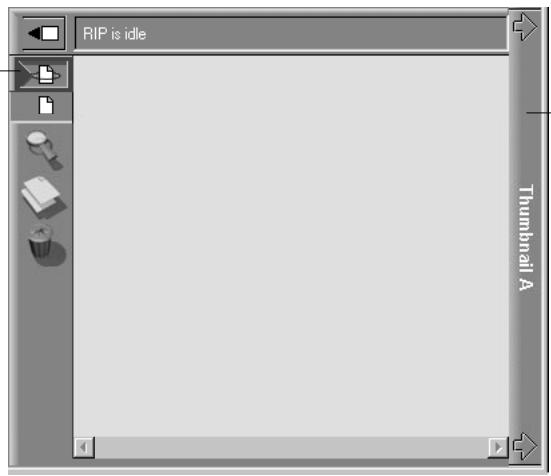
Click to close the thumbnail window
- When you have finished viewing, click the Thumbnail A or Thumbnail B tab to close the thumbnail window.
Merging raster files with DocBuilder
The ability to work with raster files gives you new opportunities to combine documents from different sources into a single raster file. For example, you can combine full color covers and chapter head pages created in a page layout application with two-color text pages created in a document processing application. Or, you can customize a slide presentation by inserting slides from a different presentation.
You can display two raster files at once: a source file and a target file. The target file is displayed in the Thumbnail A window, the source in Thumbnail B. Both files must be held raster jobs in the RIP area.
NOTE: You cannot create a new PostScript file in this process; you must print the merged raster file, which has references to the original PostScript files. Before editing or merging files with DocBuilder, make sure the source files were RIPed using the print option settings and the resident calibration you want for the final output. Raster files edited with DocBuilder cannot be reRIPed.
TO VIEW AND EDIT RASTER DATA JOBS:
- Select a raster data job and choose Thumbnail A from the Job menu. The file must be a held raster job in the RIP area.
- In the Thumbnail A window, right-click a thumbnail image to see the commands available for pages in Thumbnail A.
These commands can also be accessed from the Page menu (see page 2-11) as well as from buttons along the left side of the Thumbnail A window (see illustration on page 3-12).
To scroll through the pages in Thumbnail A, you can drag the slider bar at the bottom of the screen, click in the empty area to the left or right of the slider bar, or click on the arrows.
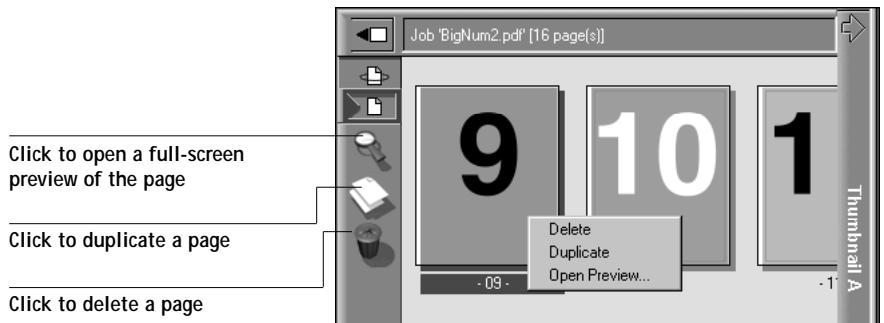
Delete deletes the currently selected page.
Duplicate duplicates the currently selected page.
Open Preview opens a full-screen preview of the currently selected page (see "Full-screen previews" on page 2-33).
Undo undoes the previous DocBuilder command—this command is available only from the Page menu.
- To move pages within Thumbnail A, left-click to select the page(s) and hold down the mouse button as you drag the selected page(s) to the new location.
Shift-click to select multiple, sequential pages; Ctrl-click to select multiple, non-sequential pages. Make sure to release the Shift or Ctrl key before moving the pages.
If you move the page(s) on top of existing page(s), the page(s) will be overwritten.
If the icon does not have an arrow, the page(s) will be replaced; if the icon has an arrow, the page(s) will be inserted.

Replace single page

Replace multiple pages

Move single page between two pages

Move multiple pages between two pages

Move single page before first page

Move multiple pages before first page

Move single page after last page

Move multiple pages after last page
- When you are finished editing, click the Thumbnail A tab.
If you have edited the job, you are prompted to save the job (click Yes) and enter a new name.
- Enter a new name and click OK.
The new raster file is now in the RIP area, ready to print. If you saved the edited file with a new name, the original source file remains held in the RIP area.
TO MERGE TWO RASTER DATA JOBS:
- In the Thumbnail A window, display the document you wish to edit.
The file must be a held raster job in the RIP area.
- Right-click another source document file (a held job with a raster icon) and select Thumbnail B.
The,Thumbsail B tab opens a second thumbnail view which cannot be edited but can be a source for pages added to the document in,Thumbsail A.
NOTE: To merge documents, the page sizes of the source document and the target document must be the same.
- In the Thumbnail B window, left-click to select the page(s) and hold down the mouse button as you drag the selected page(s) to the new location in Thumbnail A.
Shift-click to select multiple, sequential pages; Ctrl-click to select multiple, non-sequential pages. Make sure to release the Shift or Ctrl key before moving the pages.
To scroll through the pages in Thumbnail A and Thumbnail B, you can drag the slider bar at the bottom of the screen, click in the empty area to the left or right of the slider bar, or click on the arrows.
To replace page(s), drag Thumbnail B page(s) on top of page(s) in Thumbnail A; to add page(s), drag the page(s) to a new position between pages, before the first page, or after the last page in Thumbnail A.

Replace single page

Replace multiple pages

Move single page between two pages

Move multiple pages between two pages

Move single page before first page

Move multiple pages before first page

Move single page after last page

Move multiple pages after last page
NOTE: To insert a Thumbnail B page directly after the last Thumbnail A page, drag the Thumbnail B page so that it is just to the right of the last Thumbnail A page and shows an arrow pointing to the right. If the Thumbnail B page is placed too far to the right of the last Thumbnail A page, the Thumbnail B page will replace the last Thumbnail A page.
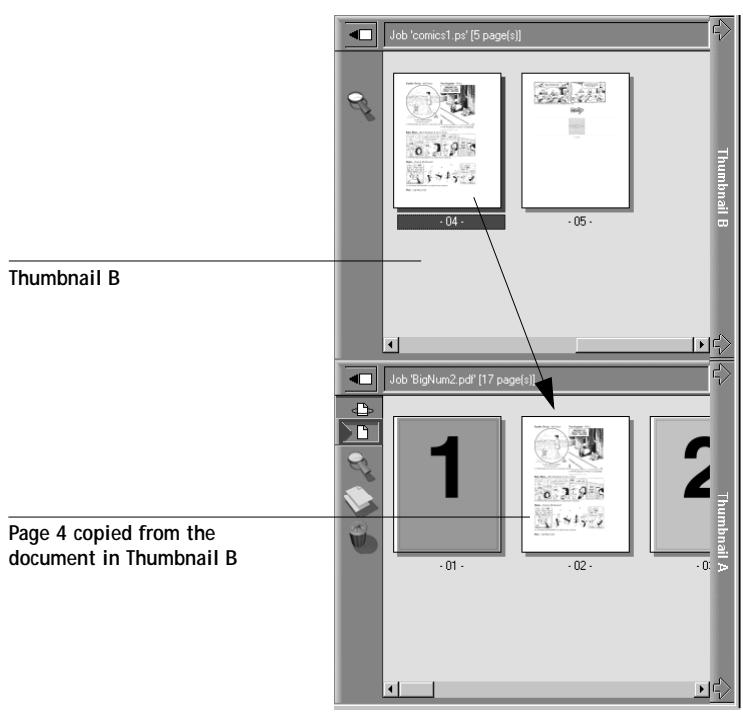
Page 4 copied from the document in Thumbsail B
Multiple undone are available; use Ctrl-Z or the Undo command to undo all the way back to your first edit. There is no Redo function.
NOTE: Make sure to save the merged job before deleting any of the jobs you used to create the merged job.
Thumbnail B pages moved into Thumbnail A adopt some specific attributes of the Thumbnail A job, such as the document and user name. However, many color-related print options that are set in the Thumbnail B page, such as CMYK Simulation and Rendering Style, remain with the specific page. This could result in a merged job being made up of pages with different attributes.
Generally, the print option settings specified for the,Thumbsail A job that are adopted by the pages copied from Thumbnail B do not require reRIPping to take effect. The one exception is the setting specified for the Save Fast Reprint option, which requires reRIPping if you want to change it.
The print option settings that remain with the pages copied from Thumbnail B into Thumbnail A are generally those that do require reRIPing to take effect.
Attributes that do not require reRIPping can be changed for the newly merged job without having to reRIP any original PostScript files. Attributes that require reRIPping result in reRIPping of the original PostScript file(s) associated with Thumbnail A.
- To close the Thumbsail view, click once on the same tab you used to open it (Thumbsail A or Thumbsail B tab).
- If you have edited Thumbnail A, you are prompted to save the job (click Yes) and enter a new name. Enter a new name and click OK.
The new raster file is now in the RIP area, ready to print, together with the original source and target files.
NOTE: If you print the edited raster file, it appears in the Job Log with the name of the original job, not the new name you specified for the edited job.
Since you cannot create a new PostScript file by merging two raster data jobs, you must print the merged raster file, which has references to the original PostScript files. If a merged job is reRIPped and printed, then only the pages of the original PostScript job in Thumbsail A will be processed and printed.
NOTE: In cases where multiple users are connected to the Fiery ZX via the Command WorkStation, Fiery WebSpooler, and/or Fiery Spooler, and one user makes changes to a Thumbnail A job, not all users may see the results of those changes. If you are unable to view changes in a job, or if selecting a Thumbnail window results in a message indicating zero pages, then close and relaunch the Command WorkStation, Fiery WebSpooler, or Fiery Spooler.
Viewing and overriding print settings
When logged in as Operator or Administrator at the Command WorkStation, you can view override user job settings for, and print any job in the Queues window. Using the Properties dialog box, you can view and override job settings for a single job or for multiple jobs at once. When viewing multiple jobs, you can override settings for each job independently or override a setting for all the jobs at once.
NOTE: For PDF files, you are only able to override the number of copies from the Properties dialog box.
- To view the properties for a single job, double-click the job line or select the job and choose Properties from the Job menu or right mouse menu.
- To view the properties for multiple jobs at once, shift-click to select contiguous jobs, or Ctrl-click to select non-contiguous jobs, and choose Properties from the Job menu or right mouse menu.
NOTE: If you want to retain a copy of the job with its original settings, duplicate the job and rename the duplicate before you change any settings (see “Job commands” on page 2-23).
To override a setting for a single job, right-click on the current setting and choose the override setting from the pop-up list.
NOTE: For some options, changing the setting requires that the job be reRIPped; these options show an icon to the left of the option name.
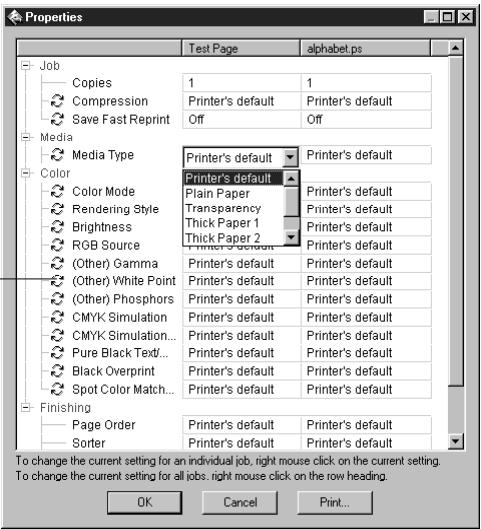
Indicates reRIPping is required
To override settings for all jobs listed in the Properties dialog box, right-click on the name of the print option (the row header) at the left of the dialog box and choose the override setting from the pop-up list.
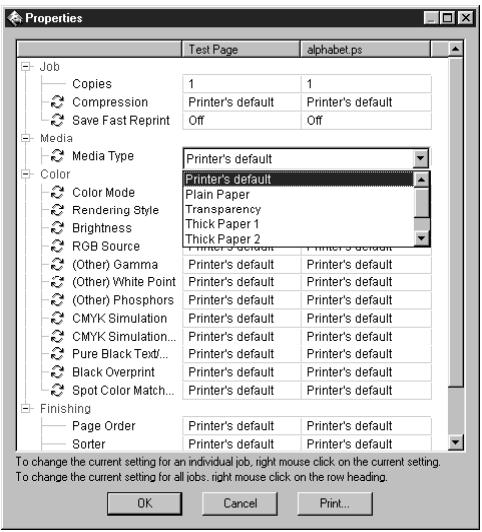
The Properties dialog box displays all the job settings encoded by the PostScript printer driver that can be decoded by the Fiery ZX. If you (as operator) have not changed anything, these are the settings a user entered before sending the job.
NOTE: Some print options that are available in the printer driver are not displayed in the Properties dialog box. For information on specific print options and settings, and where they can be set, see Appendix A of the Printing Guide.
Downloading files and fonts
From the Command WorkStation you can download a variety of file types, as well as fonts, to the Fiery ZX. These files and fonts can be located anywhere on the network or on an external device connected to the Command WorkStation computer. You browse to locate the files and fonts, select them, and add them to a list of items to be downloaded. You can specify a limited number of print option settings for files that you download (see page 3-22).
To download fonts, the Direct connection must be used. If the Direct connection is not currently published in Setup, see the Configuration Guide for instructions on how to publish it.
NOTE: You cannot download TrueType fonts. If you use TrueType fonts in Windows, you can print them by converting them to Adobe Type 1 fonts. To do this with the Adobe PS printer driver, click the Fonts tab and set up the Font Substitution Table as necessary.
The Manage Fonts command (in the Server menu) provides another way to download fonts to the Fiery ZX (see page 3-23).
TO DOWNLOAD FILES OR FONTS:
- Choose Download from the Job menu, or right-click on the Spool status bar and select Download.
The main Fiery Downloader window appears.
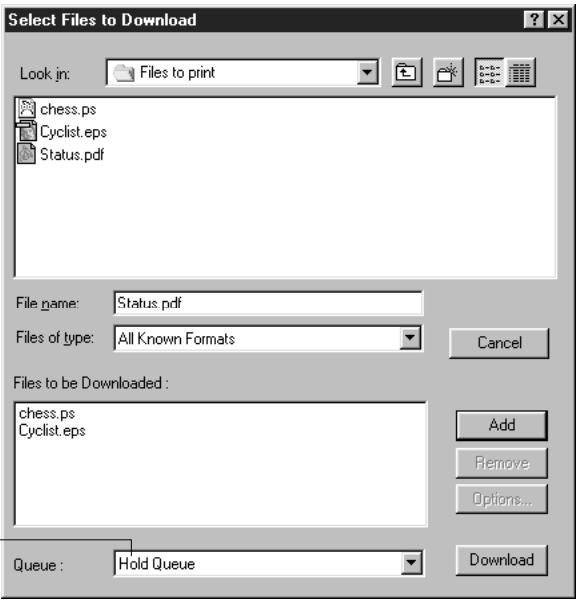
For fonts, choose Direct connection
- In the Files of type pop-up menu, choose the file types to display.
You can leave this at the default All Known Formats or choose All Files. All Known Formats lists all files in supported formats; All Files lists all files.
- In the Queue pop-up menu, choose the queue to which you will download the files.
The options available in this menu depend on the print connections currently enabled in Setup. The potential choices are Print Queue, Hold Queue, or Direct Connection. If your administrator has not enabled one or more of these connections, you cannot choose it.
To download fonts, you must choose Direct Connection.
PDF files are always spooled to the Fiery ZX hard disk before being printed. PDF files can be downloaded to the Direct Connection or to the Print queue (or to the Hold queue if the Print queue is not enabled).
-
In the Look in pop-up menu, browse to the file(s) you want to download.
-
Select the filename and click Add.
The File name field displays the name of the selected file before you click Add.
You can navigate to different drives and directories to select files and fonts to download.
To select multiple sequential files, select the first file and then Shift-click the last file. Ctrl-click to select multiple non-sequential files.
If you change your mind about a file, select the filename in the Files to be Downloaded list and click Remove.
- To change the attributes of a file to be downloaded, select it and click Options. The Options dialog box for PostScript and EPS files is different from that for PDF files, as explained below.
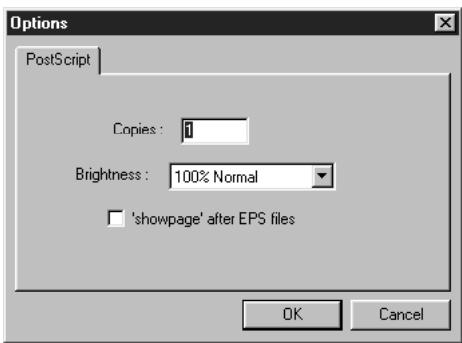
PostScript options
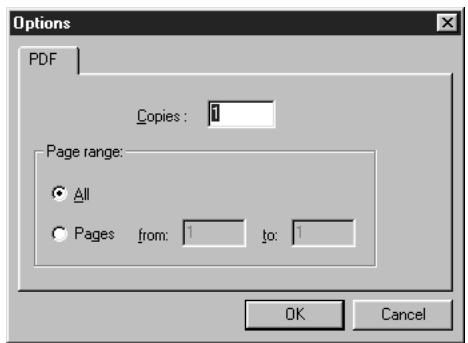
PDF options
- Specify the following information in the dialog box and click OK.
The options you set apply only to the selected file. You can set different options, or leave the default settings, for each file.
Copies—Specify the number of copies.
Brightness (PostScript and EPS files only)—Change the Brightness setting if a file appears to be too dark or too light. Choose 85% for a substantially lighter image, 115% for a substantially darker image, or one of the options in between.
NOTE: Some applications, including Adobe Photoshop, provide transfer functions that let you specify density settings for an image. If the file you are printing includes transfer functions, the Brightness option has no effect. For more information on using transfer functions, see the documentation for your application.
'showpage' (after EPS files)—In most cases, you do not need to use this option. Select the 'showpage' (after EPS files) option only if an EPS file fails to print without it. This option adds a 'showpage' PostScript language command at the end of the print job. Some applications omit this necessary PostScript language command when they generate EPS files. Select this option when printing EPS files generated by these applications. If you select this option unnecessarily, extra blank pages may print.
If you experience problems downloading EPS files, you can print the file directly from the application in which you created it.
Page Range (PDF files only)—Specify the page range you want to print.
- Click Download.
To cancel downloading, click Cancel or press the
Managing server fonts
The Fiery ZX includes a number of built-in printer fonts. You can download additional fonts to the Fiery ZX using the Manage Fonts command (see page 3-23) or the Download command (see page 3-20). Users on the network can also download fonts to the server using Fiery Downloader (see the Printing Guide). Downloading fonts, either from the Command WorkStation or with Fiery Downloader, requires that the Direct connection is published in Setup (see the Configuration Guide).
NOTE: The Manage Fonts command is available only if you logged in as Administrator.
Although no special privileges are necessary to download fonts, Administrator privileges are required to remove fonts from the server. The built-in printer fonts are locked and cannot be removed by anyone.
To print a list of fonts currently resident on the Fiery ZX, use the Print Pages command (see page 3-5).
TO ADD OR DELETE FONTS:
- Choose Manage Fonts from the Server menu.
The Server Fonts window displays Add, Delete, Update, and Print buttons.
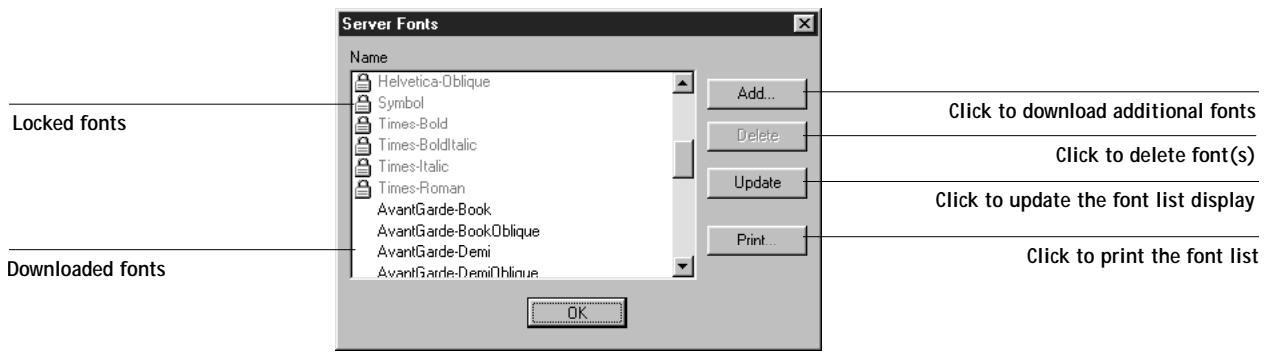
- To download additional fonts to the Fiery ZX, click Add and refer to the instructions on page 3-19.
- To delete a font, select it in the font list and click Delete. Shift-click or Ctrl-click to select multiple fonts.
NOTE: The printer fonts included with the Fiery ZX (built-in fonts) are locked. These fonts appear with a lock icon next to the name and cannot be deleted.
- To refresh the font list display, click Update.
- To print the font list, click Print.
Using the Job Log
Chapter 2 introduced the Job Log, which is the list of all processed and printed jobs, including the date and time they were printed, and all the characteristics of the job. It explained that the Administrator can set Job Log preferences for clearing and printing the Job Log automatically, and for Job Log page size (page 2-26).
If you want to view the Job Log in a specific application, you can specify one in the Preferences dialog box (see page 3-3); then select View in Helper App from the Window menu.
After displaying the Job Log you can print it (use the Print Pages dialog box or choose Print from the Window menu), or export it to a tab-delimited text file (choose Export from the Window menu). The exported Job Log file can be imported into a spreadsheet, database, or word processing application for job accounting purposes. If the Filter command is used to display only a portion of the Job Log (such as jobs for the current day), only that portion of the Job Log is printed or exported.
To update the Job Log, choose Refresh from the Window menu.
After printing or exporting the entire Job Log, you may want to clear it; choose Clear Job Log from the Server menu.
The Job Log window displays a list of all the jobs and the following information about them: status, document name, user, date, start time, end time, process time, size, device, page size, media, number of originals, number of color pages, number of black and white pages, and total number of pages. Information in the Notes 1 and Notes 2 fields is displayed if users entered this information when they printed.
NOTE: The Notes fields are supported only for jobs printed with the Adobe PostScript printer drivers provided on the User Software CD. They are not supported for jobs printed from Windows NT 4.0.
| Job Log | ||||||||
| Status | Document | User | Date | Start Time | End Time | Process Time | Size | Device |
| OK | settrue.ps | Administrator | 11/06/97 | 10:07:45 | 10:07:45 | 00:00:00 | 5.40 KB | Unknown |
| OK | saveprm.s.2ps | Administrator | 11/06/97 | 10:08:29 | 10:08:29 | 00:00:00 | 6.60 KB | Unknown |
| OK | prologue.ps | Administrator | 11/06/97 | 10:08:34 | 10:08:34 | 00:00:00 | 89.94 KB | Unknown |
| OK | vi001005.2ps | Administrator | 11/06/97 | 10:08:49 | 10:22:48 | 00:13:52 | 62.30 KB | Unknown |
| OK | restprm.s.2ps | Administrator | 11/06/97 | 10:27:55 | 10:27:57 | 00:00:01 | 8.17 KB | Unknown |
| OK | settrue.ps | Administrator | 11/06/97 | 10:30:29 | 10:30:29 | 00:00:00 | 5.40 KB | Unknown |
NOTE: If a raster job was saved in DocBuilder with a new name and then printed, it appears in the Job Log with the name of the original job, not the new name you specified for the edited job.
The text in the Status column provides information about the job:
OK The job was printed normally.
Cancel The job was canceled before printing was completed.
Error An error occurred during processing or printing.
Use the scroll bar at the bottom of the window to view all the fields in the Job Log window.
Other server management commands
These additional Server menu commands are used to manage server performance, configuration, and status. Some of these commands are available only when logged in as Administrator:
- Calibrate—Opens Fiery Print Calibrator (see Chapter 6 and Chapter 7)
- Reboot—Causes the Fiery ZX to be rebooted, just as if you had selected Reboot Server from the Control Panel (see page 1-5).
- Clear—Cleared all jobs in all server queues as well as the Job Log.
- Setup—Invokes Fiery Setup (see the Configuration Guide)
- Log out—Closes the connection to the Fiery ZX
Chapter 4: Overview of Fiery WebTools
This chapter introduces Fiery WebTools and provides instructions on their usage. For more information on certain Fiery WebTools you are referred to other chapters in this book and to other manuals in the documentation set.
Fiery WebTools
Fiery WebTools reside on the Fiery ZX but can be accessed over the network from a variety of platforms. The Fiery ZX has a home page that lets remote users view server functions and manipulate jobs.
Fiery WebTools can be used on Windows 95, Windows NT 4.0, and Mac OS client computers with certain Internet browsers that support the Java language. For specific information on the browsers supported with Fiery WebTools, see Getting Started.
Access privileges
The Fiery ZX system allows the site administrator to choose and implement a level of access and control appropriate for your particular site. There is a spectrum of control which can be implemented; the levels of access allowed to remote users depend on whether the administrator has enabled use of Fiery WebTools, and whether or not a password is required to use the job management features of Fiery WebTools.
If you have been given the Operator password, you can manage job flow and override print settings of your jobs with Fiery WebSpooler. If not, you can still track the status of your jobs with the Status tool, and with Fiery WebSpooler as a Guest. Check with your site administrator for information on your Fiery WebTools access privileges.
Using Fiery WebTools
Fiery WebTools are accessed from the Fiery ZX home page.
| WebTool: | Summary: | For more information: |
| Status | Shows you the jobs currently processing and printing. | See the Printing Guide |
| WebSpooler | Allows you to view, manipulate, reorder, reprint, and delete jobs currently spooling, processing, or printing on the Fiery ZX. It also allows you to view, print, and delete the Job Log. | See “Tracking and managing jobs with Fiery WebSpooler” on page 5-1 |
| WebLink | Provides a link to another web page, provided you have a valid Internet connection. The WebLink destination is initially set to www.efi.com/weblink/. From this page, you can link to the Electronics For Imaging home page (www.efi.com). The WebLink destination can be changed; this function requires the Administrator password, if one has been set. | See the Printing Guide and the Configuration Guide |
| Installer | Allows you to download Fiery ZX printer file installers directly from the server. | See Getting Started |
TO ACCESS FIERY WEBTOOLS:
- Start up your Internet browser application.
- Enter the IP address or the DNS name of the Fiery ZX. Check with the operator or administrator for this information. The Fiery ZX home page appears.
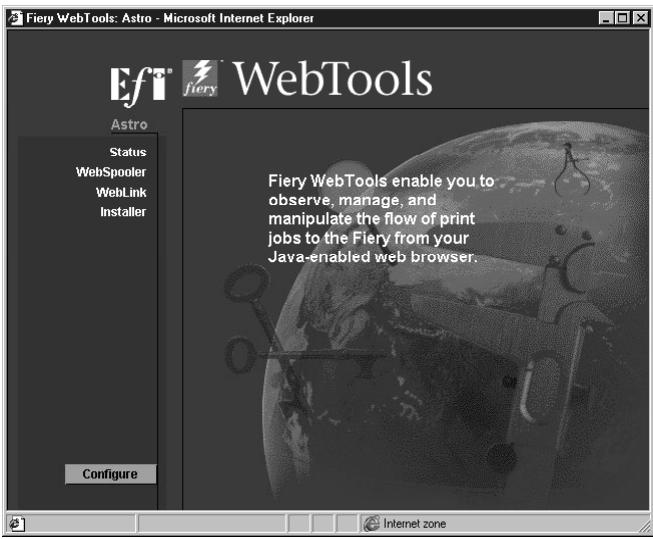
- Click one of the buttons at the left to select one of the Fiery WebTools. Move the cursor over the buttons to display information about the selections.
Chapter 5: Fiery WebSpooler and Fiery Spooler
Fiery WebSpooler and Fiery Spooler for Windows are job management tools that duplicate many of the functions and features of the Command WorkStation.
- Fiery WebSpooler, one of the Fiery WebTools, is accessed with an Internet browser and the Fiery ZX home page (see Chapter 4).
- Fiery Spooler is installed from the User Software CD. To use Fiery Spooler, users need only a network connection to the Fiery ZX. For Windows computers, Fiery Spooler requires a TCP/IP network connection.
The interface of Fiery Spooler for Windows computers is virtually identical to that of Fiery WebSpooler. Moreover, the interfaces of these tools are so similar to that of the Command WorkStation that this chapter often refers you to Chapters 2 and 3 (on the Command WorkStation) for information about icons and commands that is common to all three tools.
The interface of Fiery Spooler for Mac OS computers is significantly different from that of the other utilities. It is described in detail at the end of this chapter.
Tracking and managing jobs with Fiery WebSpooler
You can use Fiery WebSpooler (and Fiery Spooler for Windows) to perform the following functions from your workstation:
- Override current job option settings
- Delete jobs and cancel processing
- Duplicate or rename jobs
- RIP a job and hold the raster data
- Hold jobs in the spooled area or the RIPed area
- Remove raster data from RIPed files
- Change the priority of jobs
- Edit and merge raster data jobs (DocBuilder)
- Display, print, or delete the Job Log
Most of these functions require the Administrator or Operator password. However, even without a password, you can log in to Fiery WebSpooler as Guest with view-only privileges.
NOTE: Most Fiery WebSpooler commands function identically to those of the Command WorkStation. For more information on specific commands, see Chapters 2 and 3.
TO ACCESS THE FIERY WEBSPPOOLER WINDOW:
- From the Fiery ZX home page window, click WebSpooler.
For instructions on how to access the Fiery ZX home page window, see page 4-3.
- To log in as Administrator, enter the Administrator password and click OK.
To log in as Operator, enter the Operator password and click OK.
To log in as Guest, click OK, without entering any password.
The Fiery WebSpooler window appears in a new browser window.
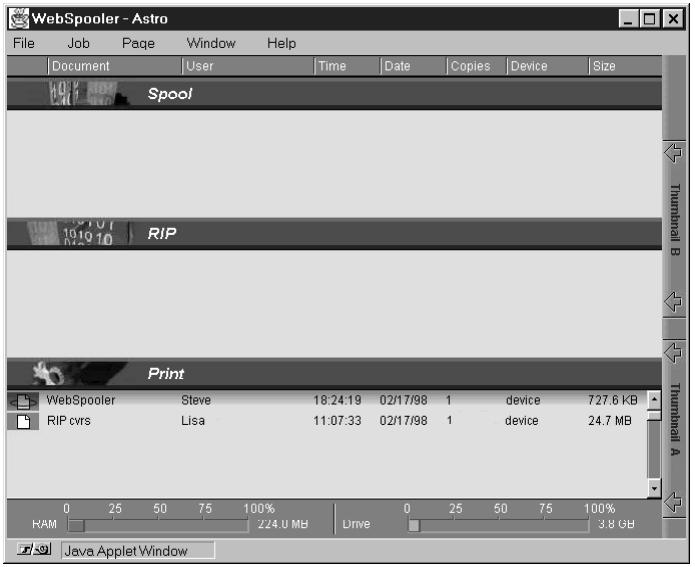
About the Fiery WebSpooler window
Like the Command WorkStation, Fiery WebSpooler is a window to view Fiery ZX and copier functions, and an interface from which you can control those functions.
The Fiery WebSpooler window is divided into three areas by Spool, RIP, and Print status bars. When the Fiery ZX receives print jobs, the Fiery WebSpooler window becomes a dynamic display, filled with the names of jobs and their characteristics.
The Spool, RIP, and Print areas of the Fiery WebSpooler window represent the stages of printing a job. Jobs come in at the top level (Spool) and drop down to the Print level, unless they are held along the way.
The job icons displayed in the Fiery WebSpooler window are explained in "Job icons" on page 2-20.
Spooled jobs—Jobs listed in the area below the Spool status bar are PostScript files stored on the Fiery ZX disk. These jobs were sent to either the Print queue (white icons) or the Hold queue (yellow icons).
RIPped jobs—Jobs listed in the area below the RIP status bar are ready to print. They have already been rasterized (RIPped, or processed for printing) and are waiting, in order, for access to the printer. Rasterized jobs can also be held; held jobs are shown with a yellow icon.
Printed jobs—Jobs listed in the area below the Print status bar have already been printed. Printed jobs can be stored on the Fiery ZX disk. The number of jobs that can be stored (from 1 to 99) is defined in Setup.
If you are logged in as Administrator or Operator, you can interact with a job wherever it appears in the window by selecting it and choosing a command from the Job menu, or by double-clicking the job and setting override options. See "Manipulating job options and job flow" on page 5-4 for information.
Errors—Jobs with an error are shown in red. To display the error, double-click the job line.
NOTE: If your job does not appear anywhere in the Fiery WebSpooler window, it may have already been printed; if so, it will appear in the Job Log. To view the Job Log, choose Show Job Log from the Window menu. (For more information on the Job Log, see page 5-8.)
Manipulating job options and job flow
Using the commands in the Job menu, you can alter the destinations, priorities and other characteristics of jobs that appear in the Fiery WebSpooler window.
Job
Delete Job(s)
Duplicate Job(s)
Rename
Hold
Rip and Hold Print
Print and Hold
Process Next Remove Raster
Override Print Settings...
Thumbnail A Thumbnail B
To understand the effect each of these commands has on a job, you need to understand the way the Fiery ZX handles PostScript and raster data, and how jobs are activated or held in the various stages of processing. See Chapter 2 for this background information before manipulating jobs with Fiery WebSpooler. Also, the commands in the Fiery WebSpooler Job menu have identical counterparts on the Command WorkStation. For background and information about these commands, see Chapters 2 and 3.
| Choose this command from the Job menu: | To do this: | Raster data is: |
| Delete Job(s) | Delete the job(s) from the list | Deleted |
| Duplicate Job(s) | Duplicate one or more selected PostScript data jobs in the Spool or Print areas (creates a reference to the original job, with the same name) | n/a (The Duplicate command is not available for raster jobs) |
| Rename | Rename the job (PostScript file with or without raster) | Unaffected, but associated with the new nameNOTE: If the renamed job is printed, the Job Log reflects the job's original name. |
| Hold | Hold the job in the current place (except for a printed job, which is moved to the Spool or RIP area) | Held in RIP area indefinitely, if included with job |
| RIP and Hold | RIP the job and hold it in the RIP area | Held in RIP area indefinitely |
| Print the job in its turn (RIP it first if it does not have raster data). Keep the printed job in the Print area until the job limit is reached | Temporarily held in RAM until memory is needed for another job | |
| Print and Hold (like the PPD option Save Fast Reprint) | Print the job in its turn (RIP it first if it does not have raster data)After printing, hold the PostScript data and the raster in the RIP area | Held in the RIP area indefinitely (saved to disk) |
| Process Next | Give top priority to this jobPrint the job (or RIP and print) as soon as the processor and copier are free, before other waiting jobs | Held in RAM after printing (can be selected in the Print area while it remains there), or Held in RIP area (saved to disk) if destination was RIP and Hold |
| Remove Raster | Remove the raster from a job that has raster data; leave the PostScript job in place | Deleted |
| Override Print Settings | Change the print options for the job(see page 5-6) | Deleted and regenerated, if the newly selected options require reRIPping, or reprinted with the new settings, if none require reRIPping |
| Thumbnail A | Open the selected held raster data job in the Thumbnail A window where you can view a full-screen preview of the job, edit the job, or merge it with raster data from other jobs | Changed if job is edited, unaffected if job is only viewed |
| Thumbnail B | Open the selected raster data job (not necessarily a held job) in the Thumbnail B window for viewing or for merging into a job in the Thumbnail A window | Unchanged |
Indicates reRIPping is required
Overriding job option settings
To change the job options of a job, double-click the job line or select the job and choose Override Print Settings from the Job menu. If necessary, scroll down to see all the various job options.
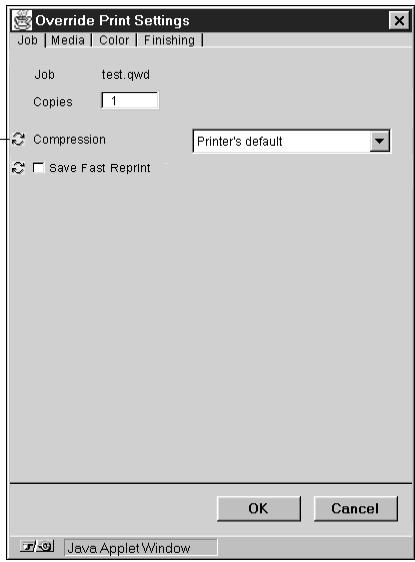
NOTE: For PDF files, you are only able to override the number of copies from the Override Print Settings dialog box.
The options you set here are the same ones you set from the Print dialog box when you print from an application. For information about setting and overriding these print options, see the Printing Guide.
NOTE: For some options, changing the setting requires that the job be reRIPped; these options show an icon to the left of the option name.
Thumbs nails and full-screen previews (DocBuilder)
Like the Command WorkStation, Fiery WebSpooler includes a powerful DocBuilder tool that allows you to preview and edit raster data. DocBuilder consists of two thumbnail windows and several page-manipulation commands (listed in the Page menu). The DocBuilder tool can be used in the following ways:
- In the,Thumbsail A window, you can see thumbnails of the currently printing job, as it is processed, or of any raster data job.
- From the Thumbnail A window you can open a full-screen preview of a raster file.
- Using the Thumbnail A and Thumbnail B windows together, you can merge raster data from more than one file, even if the files were printed from different applications on different computer platforms.
DocBuilder's merge features eliminate the limitations of particular software applications. You can merge raster pages of documents of different types, and even different computer operating systems. You can merge color pages from graphics programs with text pages from a word processor.
NOTE: In cases where multiple users are connected to the Fiery ZX via Fiery WebSpooler, Fiery Spooler, and/or the Command WorkStation, and one user makes changes to a Thumbnail A job, not all users may see the results of those changes. If you are unable to view changes in a job, or if selecting a Thumbnail window results in a message indicating zero pages, then close and relaunch Fiery WebSpooler, Fiery Spooler, or the Command WorkStation.
DocBuilder differences in Fiery WebSpooler
The DocBuilder tool in Fiery WebSpooler functions almost identically to that in the Command WorkStation. For detailed information on using DocBuilder, see Chapters 2 and 3 (for instructions on editing and merging raster files, see "Merging raster files with DocBuilder" on page 3-11). Though the interfaces are almost identical, there are some feature differences:
- You cannot scroll through the pages in Thumbnail A or Thumbnail B by dragging the slider bar at the bottom of the screen.
-
Thumbnail A right-click commands are not available; instead click on a page to select it, and either click the appropriate button in the Thumbnail A window or choose the appropriate command from the Page menu.
-
Page icons and arrows do not appear when moving page(s) from Thumbnail B to Thumbnail A. Instead, a blue outline appears around a Thumbnail A page that is to be replaced; and a blue bar appears adjacent to or between Thumbnail A page(s) to indicate where the Thumbnail B page(s) are to be inserted.
- The full-screen preview window has a status bar (the Command WorkStation does not), the "X" button used to close the full-screen preview is in a different location, there are no page advance arrows, and there is no rotate button.
- The Ctrl-Z keyboard shortcut for the Undo command is not available. To undo one or more DocBuilder commands, choose Undo from the Page menu.
Using the Job Log
From Fiery WebSpooler, you can view and print a log of all jobs printed by the Fiery ZX, including jobs downloaded with Fiery Downloader.
NOTE: If you logged in as Administrator, you can delete the Job Log from Fiery WebSpooler (see page 5-9). The Job Log is not available if you logged in as Guest.
TO DISPLAY, UPDATE, PRINT, AND DELETE THE JOB LOG:
- Choose Show Job Log from the Fiery WebSpooler Window menu.
- Click All or specify a date range.
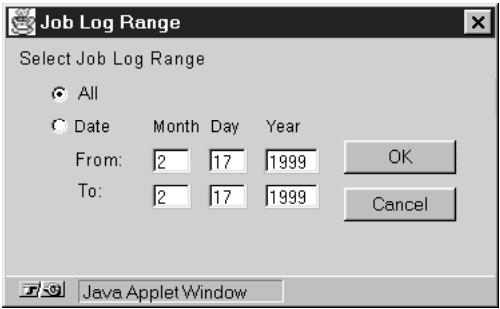
- Click OK.
The Job Log appears in a new browser window.
NOTE: The Delete button appears only if you logged in as Administrator.
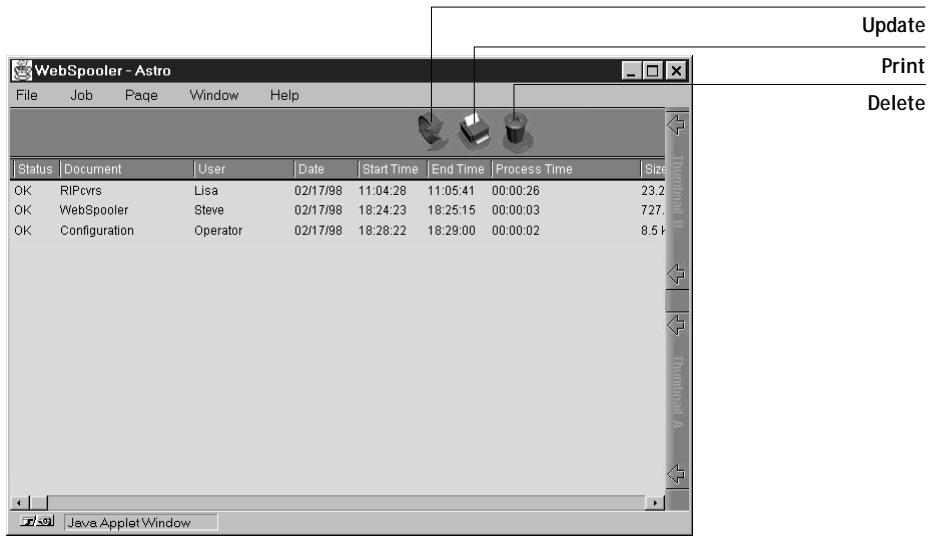
The Job Log displays each job and the following information: status, document name, user name, date, start time, end time, process time, file size, device, paper size, media, number of originals, number of color pages, number of black-and-white pages, total number of pages, Note1, and Note2.
The Status column provides the following information about jobs:
OK The job was printed normally.
ERROR An error occurred during processing or printing.
CANCEL The job was canceled before printing was completed.
-
To update the Job Log, click the Update button.
-
To print the Job Log, choose Print Job Log from the File menu or click the Print button.
The information displayed in the Job Log window prints to the current Fiery ZX. When you print the Job Log, totals are printed for all appropriate columns.
- If you logged in as Administrator, you can choose Delete Job Log from the File menu or click the Delete button to clear the Job Log.
The system administrator can also print and clear the Job Log from the Control Panel.
Fiery Spooler for Windows computers
For Windows 95, and Windows NT 4.0, the Fiery Spooler interface is almost identical to that of Fiery WebSpooler (see "Differences between Fiery Spooler for Windows and Fiery WebSpooler" on page 5-11), and both interfaces are very similar to the job management interface of the Command WorkStation. For details on the icons and commands in Fiery Spooler (and Fiery WebSpooler) see Chapters 2 and 3.
Note: A TCP/IP network connection is necessary to use Fiery Spooler on a Windows computer. For more information, see Getting Started.
TO LAUNCH FIERY SPOOLER ON A WINDOWS COMPUTER:
- Choose Fiery Spooler from the Start>Programs menu.
- Select the Fiery ZX in the Chooser window that appears.
For information on setting up the connection to the server, see Getting Started.
- Click OK.
The Fiery Spooler main window appears.
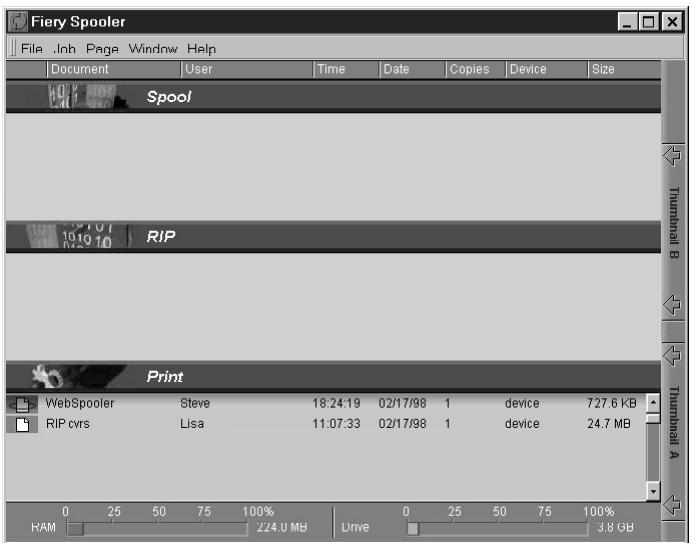
For information on using Fiery Spooler for Windows computers, see "Tracking and managing jobs with Fiery WebSpooler" on page 5-1 and Chapters 2 and 3.
Differences between Fiery Spooler for Windows and Fiery WebSpooler
Though the interfaces for both Fiery Spooler for Windows and Fiery WebSpooler are almost identical, there are some feature differences.
Connecting to a different Fiery ZX
With Fiery Spooler, you can connect to a different Fiery ZX from within the application using the following procedure.
TO CONNECT TO A DIFFERENT FIERY ZX:
- Choose Open Fiery from the File menu.
- Select the Fiery ZX in the Chooser window that appears.
For information on setting up the connection to the server, see Getting Started.
- Click OK.
The Fiery Spooler main window appears.
Saving the Job Log as a file
With Fiery Spooler, you can save the Job Log as a file that you can view with a different application.
TO SAVE THE JOB LOG AS A FILE:
- Choose Export Job Log from the File menu or click the Export button at the top of the Job Log window.
Export button
- In the File name area, enter a name for the Job Log file (the default name is Fiery Job Log.txt).
- Browse to the location where you want to save the file, and click Save. The Job Log is saved as a text file, and the Job Log window reappears.
You can view the information in any application that can read a text file. Items are separated by tabs.
Fiery Spooler for Mac OS computers
For Mac OS computers, the Fiery Spooler interface and functionality differs from the Command WorkStation, Fiery WebSpooler, and the Windows version of Fiery Spooler.
On a Mac OS computer, Fiery Spooler jobs can be in one of the following queues:
Print Normal print jobs sent to the Fiery ZX appear in the Print queue. You can move and manipulate these jobs as described below.
Hold Jobs sent to the Hold queue remain in the queue until they are moved to the Print queue or deleted. If you need to print the same document frequently, you can send it to the Hold queue and move a copy of the job to the Print queue every time you need to print it. You can also send large jobs to the Hold queue and then move them to the Print queue when other users are not printing.
Printed The jobs most recently sent to the Fiery ZX are saved in the Printed queue. You can drag these jobs back to the Print queue to print additional copies. The number of jobs saved in the Printed queue is set by your system administrator in Fiery ZX Setup.
Jobs in the queues are stored on the Fiery ZX hard disk. Make sure that you leave enough space on the hard disk for fonts and other Fiery Spooler jobs.
You can use the Fiery Spooler Job Log to view information about jobs printed to the Fiery ZX for job accounting purposes, or saved for reference. The Job Log can be printed to the Fiery ZX or saved as a file and viewed in other applications.
TO LAUNCH FIERY SPOOLER ON A MAC OS COMPUTER:
- Double-click the Fiery Spooler icon.
- If your network is divided into zones, select the zone in which the Fiery ZX is located.
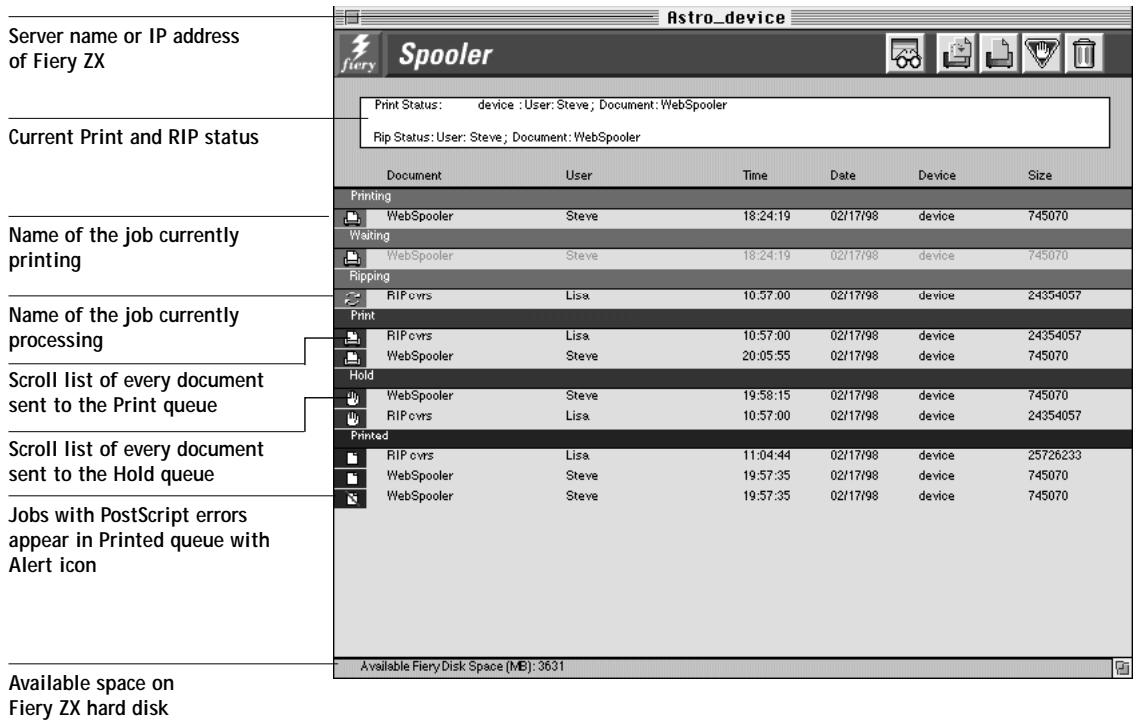
-
Select the Fiery ZX from the list of servers that appears, and click Connect. The Fiery Spooler main window appears.
-
To access Administrator functions, choose Password from the Administrator menu. This menu is active only if a password was created on the Fiery ZX.
- Enter the password in the window that appears, and click OK.
The job list includes information about the document name, user name, time and date sent, print device, and file size.
The window is split into regions that correspond to the different queues and steps in the printing process. You can click and drag a job to the Print or Hold region of the window to move it to the corresponding queue.
Buttons appear above the scroll list. The buttons are:

Update Click this button to update the information in the Fiery Spooler main window.

Duplicate Drag a document onto this button or select the document and click and Print this button to duplicate it and put the duplicate in the Print queue.

Print Drag a document onto this button or select the document and click this button to print it to the Print queue.

Hold Drag a document onto this button or select the document and click this button to move it to the Hold queue.

Delete/ Drag a document onto this button or select the document and click Cancel this button to delete it or cancel processing or printing it. You will be asked to verify that you want to delete the job. You can eliminate the verification notice by turning off the Confirm file deletion option in the Preferences dialog box.
The icons provide information about the job:
Printing

Printing icon The job that is currently printing appears in this list; it can be selected and deleted to cancel printing.
Waiting

Printing icon Jobs that have been processed and are waiting to print appear in this list, but they are dimmed because their settings cannot be changed and they cannot be moved or canceled.
Ripping

RIP icon Jobs that are processing appear in this list; they can be selected and deleted to cancel processing.

Print icon Jobs that have not been processed appear in this list, in the order they will be processed and printed. The jobs can be selected and deleted to cancel processing and printing.
| Hold | Hold icon | Jobs in the Hold queue appear with the Hold icon. You can move the job to the Print queue to print it. |
| RIP and Hold | RIP and Hold icon | Jobs that have been RIPed and held appear in the Hold queue with the RIP and Hold icon. You can move the job to the Print queue to print it. |
| Printed | Printed icon | Jobs that have been printed are saved in this list. Jobs are stored in the Printed queue until the limit set by your system administrator in Fiery ZX Setup is reached. The jobs can be selected and deleted from the Fiery ZX hard disk. |
| Printed | Alert icon | If a PostScript error occurred while a job was printing, it appears in the Printed queue with an Alert icon (the Printed icon with a red slash) next to it. You can double-click the Alert icon to display the error message. The jobs can be selected and deleted from the Fiery ZX hard disk. |
Choose Preferences from the Edit menu to configure how the Fiery ZX updates and deletes files.
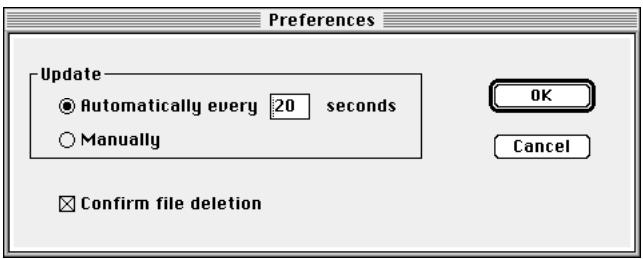
You can use this window to specify that the Fiery ZX:
Update Automatically every n seconds or Update Manually—This option lets you specify whether the Fiery Spooler main window is automatically updated every 20 seconds (or at an interval that you set), or whether it is updated only when you choose the Update command from the Window menu. By default, the Fiery Spooler main window is updated automatically every 20 seconds.
NOTE: When automatic updating is on, data is coming from the Fiery ZX across the network very frequently. This data adds to the network traffic, and may slow down other network jobs. For optimum network performance, turn off automatic updating
in the Fiery Spooler Preferences dialog box; when you want to view updated information in the Fiery Spooler window, choose Update from the Window menu or click the Update button.
Confirm file deletion—Select this if you want a confirmation dialog box to appear before you delete a file.
Duplicating, copying, moving, and deleting jobs
Users monitor their own print jobs. The Fiery ZX system administrator (or anyone with Fiery Spooler Password access) can move, delete, and configure jobs for all users, and can re-order jobs within a queue.
You can move your jobs from the Hold queue and the Printed queue to the Print queue. If, for example, you frequently print the same file, you can send it to the Hold queue and later drag a copy of the file to the Print queue. By copying rather than moving a job, you leave a copy of the job in the Printed queue so that you can print the job again later. You can also duplicate a job if you want to have multiple copies of a job in the same queue.
Duplicating jobs
You can duplicate jobs in the Print and Printed, and Hold queues:
- If you want to change printing parameters in the Override Print Settings dialog box without losing the original settings
- If you want to print more than 10 copies to the sorter (the maximum number of copies that you can print to the sorter is 10)
When you duplicate a job, the Fiery ZX creates a reference to the original file, so duplicate files do not require the full amount of disk space on the Fiery ZX. As long as one of the duplicates remain, the Fiery ZX saves the file, so you can delete all but one reference to a file.
TO DUPLICATE A JOB WITHIN A QUEUE:
- Select the job that you want to copy by clicking its name.
The selected job is highlighted. If you want to select more than one job, shift-click to select multiple, adjacent jobs; control-command-click to select multiple, non-adjacent jobs.
- Choose Duplicate Job(s) from the Edit menu.
The job appears at the bottom of the queue.
TO DUPLICATE AND PRINT A JOB:
- Select the job that you want to copy by clicking its name.
The selected job is highlighted. If you want to select more than one job, shift-click to select multiple, adjacent jobs; control-command-click to select multiple, non-adjacent jobs.
- Click the Duplicate and Print button, or drag the job to the Duplicate and Print button. The job appears at the bottom of the Print queue.
TO COPY A JOB TO ANOTHER QUEUE:
- Select the job that you want to copy by clicking its name.
The selected job is highlighted. If you want to select more than one job, shift-click to select multiple, adjacent jobs; control-command-click to select multiple, non-adjacent jobs.
- Hold down the Option key as you drag the job to either the Hold or Print queue icon or to the Hold or Print section of the job list.
A copy of the job is moved to the queue you have selected, but the original job still appears in the Hold or Printed queue so that you can print the job at another time.
TO MOVE A JOB WITHIN A Queue:
- Select the job that you want to move by clicking its name.
The selected job is highlighted. If you want to select more than one job, shift-click to select multiple, adjacent jobs; control-command-click to select multiple, non-adjacent jobs.
- Drag the file to the new location in the queue.
TO MOVE JOBS BETWEEN QUEUES:
- Select the job that you want to move by clicking its name.
The selected job is highlighted. If you want to select more than one job, shift-click to select multiple, adjacent jobs; control-command-click to select multiple, non-adjacent jobs.
- Move the selected job to another queue by dragging it to the queue icon of your choice or to the Hold or Print section of the job list.
For example, move a job that is currently in the Hold queue to the Print queue by dragging the job to the Print queue icon.
TO DELETE A JOB FROM ANY OF THE QUEUES:
- Select the job that you want to delete by clicking its name.
- Drag the selected job to the Delete button or click the Delete button.
You can also choose Delete Job(s) from the Edit menu.
System administrators (or anyone with Fiery Spooler Password access) can delete any job.
Changing print settings for a job
You can set certain printing parameters for a job in the Override Print Settings dialog box. The settings in this dialog box override the settings in the Printer Specific Options dialog box and in Fiery ZX Setup.
You can change printing parameters only for jobs in the Hold, Print, and Printed queues of the Fiery Spooler main window. System administrators (or anyone with Fiery Spooler Password access) can change print settings for any job.
NOTE: The Override Print Settings dialog box may not reflect the entire set of print options that are available from the printer driver; additionally, it does not indicate which options require reRIPing of the job.
TO CHANGE PRINT SETTINGS FOR A JOB:
- Double-click a job or select the job and choose Override Print Settings from the Edit menu.
The Override Print Settings dialog box appears.
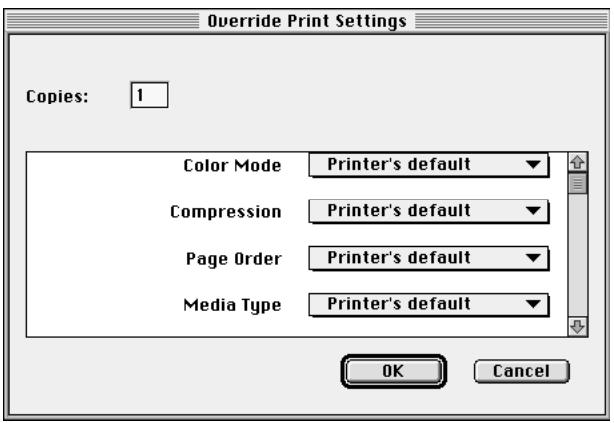
- Choose the new settings from the pop-up menus.
If you select Default Settings, the job will use the settings in the Printer Specific Options dialog box.
For information about these options, see the Printing Guide.
- Click OK to make changes.
Using the Job Log
With Fiery Spooler, you can view and print a log of all the jobs printed to the Fiery ZX. You can also save the Job Log as a text file that you can then import into a spreadsheet or word processing application for job accounting purposes. All jobs printed to the queues, printed by direct connection, and scanned from the copier are listed in the Job Log.
TO DISPLAY, UPDATE, PRINT, SAVE, AND DELETE THE JOB LOG:
- Choose Show Job Log from the Window menu.
- Specify the period for the Job Log in the window that appears.
Click All to view all jobs since the Job Log was cleared; click Date if you want to specify a period of time for the Job Log.
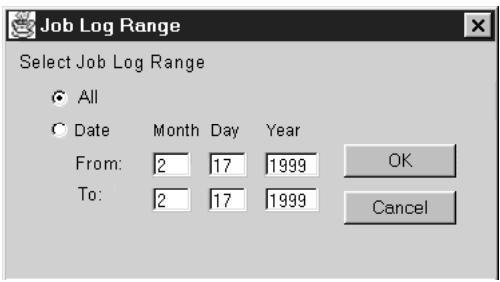
- Click OK.
The Job Log window displays a list of all the jobs and the following information about them: status, document name, user name, date, start time, end time, process time, file size, print device, paper size, media, number of originals, number of color pages, number of black and white pages, total number of pages, Note1, and Note2.
The information in the note fields is specified in the Print dialog box if you are using the Adobe PostScript printer driver.
Use the scroll bar at the bottom of the window to view all fields in the Job Log window.
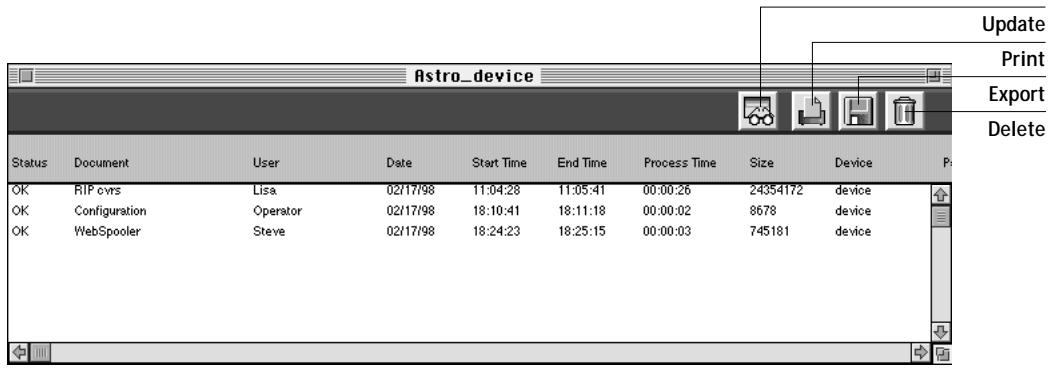
The text in the Status column provides information about the job:
OK The job was printed normally.
ERROR A PostScript error occurred while a job was processing. You can double-click ERROR to display the error message. A dialog box displays the PostScript error. Click OK to close the dialog box.
CANCEL The job was canceled before printing was completed.
-
To update the Job Log, click the Update button at the top of the window.
-
To print the Job Log, choose Print Job Log from the File menu or click the Print button at the top of the window.
The information displayed in the Job Log window prints to the current Fiery ZX. When you print the Job Log, totals are printed for all appropriate columns.
- To save the Job Log as a file that you can view with a different application, choose Export Job Log from the File menu or click the Export button at the top of the window. Enter a name for the log file, and click Save.
The Job Log is saved as a text file, and the Job Log window reappears.
You can view the information in any application that can read a text file. Items are separated by tabs.
- If you entered the Administrator password, you can choose Delete Job Log from the File menu to clear the Job Log.
The system administrator can also print and clear the Job Log from the Control Panel.
Chapter 6: Color Calibration
Calibrating the Fiery ZX ensures consistent, reliable color output. You can calibrate the Fiery ZX with Fiery Print Calibrator and an X-Rite DTP32 automatic scanning densitometer. By connecting the densitometer to the serial port on your computer, you can quickly measure color patches and download measurements to the Fiery ZX.
You can also obtain measurements from the copier and apply a calibration using AutoCal from the Fiery ZX Control Panel. AutoCal uses the copier's built-in scanner and does not require the use of a densitometer or Fiery Print Calibrator.
This chapter describes the purpose of calibration and provides instructions for all calibration procedures. Calibrating with Fiery Print Calibrator is described first; calibrating from the Fiery ZX Control Panel with AutoCal is described on page 6-20.
For information on advanced calibration and simulation features available with Fiery Print Calibrator, such as editing targets and creating custom targets, see Chapter 7.
Fiery Print Calibrator procedures described in these chapters are fundamentally the same for Mac OS and Windows computers, including Windows 95 and Windows NT 4.0 computers running Command WorkStation software. The main differences are the interface cable and the port used to connect to the densitometer. The term computer is used to refer to any computer running Fiery Print Calibrator.
Introduction
A calibration is generated from two components that originate separately: measurements and a target.
- Measurements represent the actual color behavior of the copier; they are computed from densitometer readings.
- Targets represent the goal of printing, such as obtaining pleasing color from the copier or simulating another print device. A copier-specific target is provided with the Fiery ZX.
Calibration generates curves describing the various color densities based on the target and the measurements that you provide from a densitometer.
Once you have calibrated the Fiery ZX with Fiery Print Calibrator, a calibration is stored on the Fiery ZX; this calibration will be referred to as the resident calibration. The resident calibration is applied to all print jobs unless bypassing of calibration is specified by setting the CMYK Simulation option to Match Copy (see the Printing Guide).
NOTE: Changing the resident calibration has the potential to affect all jobs for all users, so you may want to limit the number of people authorized to perform calibration. An Administrator password can be set to control access to calibration from the Fiery ZX Control Panel. Administrator and Operator passwords can be set in Setup from the Command WorkStation to control access to calibration with Fiery Print Calibrator.
Understanding calibration
The Fiery ZX allows you the flexibility to choose a standard calibration or a custom calibration. A standard calibration uses one of the targets provided with the Fiery ZX (PRN-M or Linear) with a new set of measurements.
Calibration allows you to:
- Maximize the color reproduction capabilities of the Fiery ZX
- Ensure consistent color quality across time
- Produce consistent output across Fiery ZX servers of the same engine
- Achieve better color matches when reproducing spot colors, such as PANTONE colors or other named color systems
- Optimize the Fiery ZX for using ColorWise Color Rendering Dictionaries (CRDs) and CMYK simulations, and for using ICC-compatible profiles when printing RGB color data (see the Color Guide)
- Linearize the Fiery ZX while maintaining the currently available density range
Chapter 7 discusses advanced calibration techniques, including how to:
- Use the Fiery ZX as a proofing system by printing press simulations
- Create custom calibration and simulation targets
How calibration works
Success in obtaining satisfactory print quality from a digital color printer depends on many factors. Among the most important are establishing and maintaining optimal toner densities. Density is a measure of the light absorbed by a surface. By carefully regulating toner densities, you can obtain consistent printed color.
Even with a calibrated system, toner density is affected by such variables as room humidity and service settings; it also tends to drift over time. Regular measurement detects day-to-day variations in densities, and calibration corrects for them.
Calibration works by creating calibration curves on the Fiery ZX that compensate for the difference between actual and desired density values.
Calibration curves and target curves are the graphic equivalent of transfer functions, which are mathematical descriptions of changes that will be made to the data you start with. Transfer functions are often graphed as Input/Output curves.
Target curves (targets, for short) result from applying one or more transfer functions in sequence. The server generates calibration curves after comparing measured values to the final target values for each of the four toner colors.
Measurements
Measurements files contain numerical values that correspond to the toner density produced by the copier when it prints solid cyan, magenta, yellow, and black, and graduated tints of those colors.
To create a measurements file, you first print a page of color patches from Fiery Print Calibrator or from the Control Panel to the copier. Then you measure the patches, by using either an X-Rite DTP32 densitometer connected to a computer on the network, or by using the copier's scanner. The new measurements are automatically downloaded to the Fiery ZX.
You can print a calibration Comparison Page showing the result of using the new measurements with any of the current targets. When you are satisfied with a particular combination of measurements and target, you apply the calibration to the Fiery ZX; this becomes the new resident calibration.
NOTE: You might also be able to create measurements with a different brand Status T densitometer if the densitometer manufacturer provides utility software to create a measurements file.
Targets
Target files define desired calibration results. Two target files are provided with the Fiery ZX. You can create additional ones by modifying existing targets with Fiery Print Calibrator. When you calibrate the Fiery ZX, you can select the target file that corresponds to the typical printing goals at your site. This becomes the resident calibration target that is used by default.
The calibration targets provided with the Fiery ZX are:
- PRN-M—Optimized for best results with the copier.
- Linear—Results in output that divides the maximum measured density for each color into equal density steps to provide an even distribution of tones over the copier's density range. When you linearize the printer, the entire measured density range in each color channel is divided into equal steps. Equal steps in toner percentage, such as 0% , 10% , and 20% , are printed in equal steps in density, and appear as roughly equal visual steps. This gives a linear response using the range of densities available.
You can store targets on the computer where you use Fiery Print Calibrator, on another connected disk, or on the Fiery ZX disk (or all three).
Scheduling calibration
In general, you should calibrate the Fiery ZX at least once a day, depending on the volume of print jobs. If it is very important to maintain consistent colors, or if the copier is subject to wide fluctuations in temperature or humidity, calibrate every few hours. Calibrate when you change paper stock. In general, to get the best performance from the copier, calibrate whenever there is a noticeable change in print quality.
If you need to split a print job into two or more batches, it is especially important to calibrate before printing each batch.
You should also calibrate the Fiery ZX system after copier maintenance. However, because the copier may be less stable immediately after maintenance, wait until you have printed approximately 50 pages before you calibrate.
NOTE: Output from the copier is very sensitive to changes in temperature and humidity. To minimize these effects, the copier should not be installed near a window or in direct sunlight, or near a heater or air conditioner. Paper is sensitive to climate changes as well, and should be stored in a cool, stable environment.
The copier has a self-calibration feature that optimizes toner densities. If you never calibrate the Fiery ZX from Fiery Print Calibrator or from the Control Panel, the self-calibration feature can improve the color output of print jobs. Using the copier self-calibration feature alone will not necessarily bring output densities from the copier to the optimal values for Fiery ZX printing. However, if you regularly calibrate the Fiery ZX, your print jobs can sometimes be improved by asking a service technician to disable the copier's self-calibration feature.
The copier allows you to adjust printed color from its touch panel display. You can typically increase or decrease toner density for one or all toner colors. These control panel settings affect copies made from the copier glass, and may affect Fiery ZX output as well. If they do, make sure these settings remain the same (preferably at a neutral position) prior to calibration, and from one print job to the next. If you change these settings, calibrate the Fiery ZX when you have finished changing settings.
Print some standard color pages such as the Color Charts (from the Control Panel or from the Command WorkStation) and the Color Reference pages included with the user software (see Getting Started). All of these pages include fully saturated color patches and pale tints of cyan, magenta, yellow, and black. Images with skin tones offer a very good basis for comparison. You can save and compare pages you printed at different times. If there is a noticeable change in appearance, you should calibrate or linearize the Fiery ZX system.
If the solid density patches (100% cyan, magenta, yellow or black) look less saturated with time, show the pages to the copier technician to find out whether adjusting the copier can improve the output.
Checking calibration status
You can check whether the Fiery ZX is calibrated, what target was used, and when the printer was last calibrated. You can view information about the last calibration:
- By printing a Configuration page or Test Page from the Control Panel or the Command WorkStation
- With Fiery Print Calibrator, by choosing Server Status from the Server menu (see page 6-11)
Using a densitometer
Fiery Print Calibrator is designed to work with the X-Rite DTP32 reflection densitometer so that color measurements are entered automatically.
Setting up the densitometer
Before you calibrate the Fiery ZX, you need to connect, configure, and calibrate the densitometer to prepare for measuring the printed patches (see "Calibrating the densitometer" on page 6-19). For additional information about setting up and using the densitometer, see the documentation included with it.
TO CONNECT THE X-RITE DTP32 TO THE COMPUTER:
- Turn off the computer.
- Plug the square end of the interface cable (like a modular phone plug) into the I/O port on the side of the X-Rite DTP32.
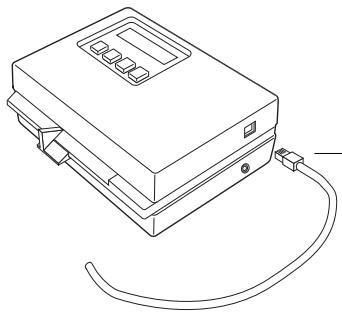
Square connector
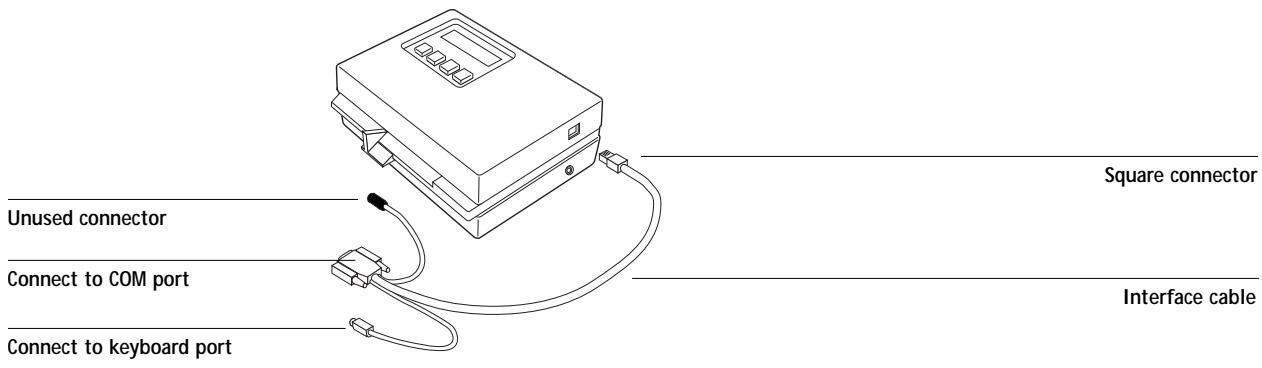
- Attach the connector to the computer.
For a Windows computer, attach the 9-pin connector to the COM1 or COM2 port on the computer and tighten the screws.
Square connector
Interface cable
For a Mac OS computer, use the Macintosh interface cable to connect the 8-pin DIN plug to the printer or modem port of the computer.
Connect the 4-pin DIN plug to an ADB port of the Mac OS computer.
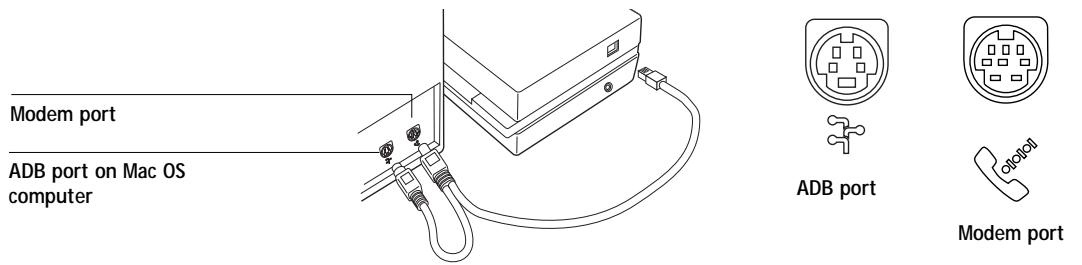
Small connector
AC adapter
- Use the optional AC adapter (available from X-Rite) to provide power.
Plug the small connector on the adapter cable into the side of the X-Rite DTP32 and plug the adapter into a wall outlet.
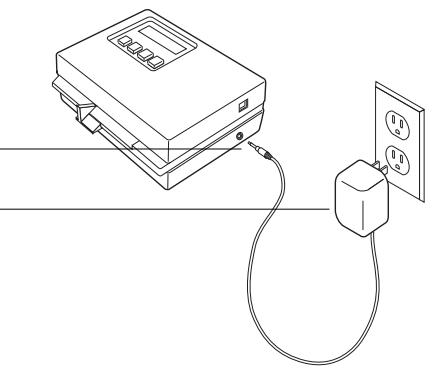
- Turn on the computer.
- Calibrate the densitometer (see page 6-19).
- Use Fiery Print Calibrator to calibrate the Fiery ZX (see the next section).
Calibrating with Fiery Print Calibrator
Fiery Print Calibrator allows you to calibrate from a computer networked to the Fiery ZX. You can calibrate to targets provided with the Fiery ZX as described in this chapter, or you can customize targets and calibration curves to suit the specific needs of your printing environment as described in Chapter 7.
TO USE FIERY PRINT CALIBRATOR:
- Start Fiery Print Calibrator and connect to the server you want to calibrate.
To calibrate a different Fiery ZX, choose Open from the File menu.
For instructions on configuring the connection to the Fiery ZX from a Windows computer, see Getting Started.
- If this is the first time you are calibrating, you are prompted to select a target.
The first time you use Fiery Print Calibrator, you see only the targets provided with the Fiery ZX. You can store additional targets on the Fiery ZX and on your computer. You can designate any target stored on the Fiery ZX as the resident target.
The initial default target is the copier target; it is the one with the copier device name (PRN-M).
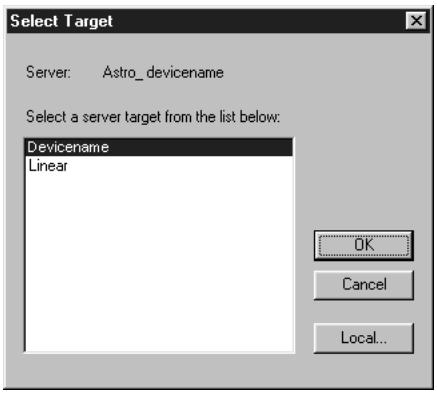
- Select a target and click OK.
The target you choose becomes the default target. The target can be changed independently of your measurements.
The Calibration Mode window
The Calibration Mode window of Fiery Print Calibrator has large buttons which indicate the sequence for the main Fiery Print Calibrator functions. There is a menu bar with File, Edit, Measurements, Server, and Window menus, and a status message at the bottom of the window. The functions that are unavailable at any particular time are dimmed and cannot be selected.
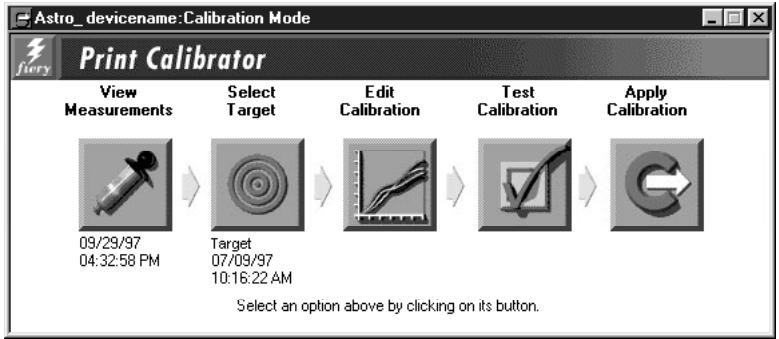
The buttons and their actions are:
- View Measurements—Displays a table of density values in the current measurements file. Below the button is the date of the active measurements.
- Select Target—Allows you to select a new target for calibration or for customizing. Below the button is the name and creation date of the currently selected target. This target is not necessarily the resident calibration target used by the Fiery ZX.
- Edit Calibration—Allows you to view the current measured and target curves and customize the selected target.
- Test Calibration—Prints a page so that you can view the results of calibration before updating the resident calibration on the Fiery ZX.
- Apply Calibration—Updates the resident calibration on the Fiery ZX.
In order to Apply Calibration to the Fiery ZX, you must have a Measurements file and a Target.
To view current calibration information, choose Server Status from the Server menu.
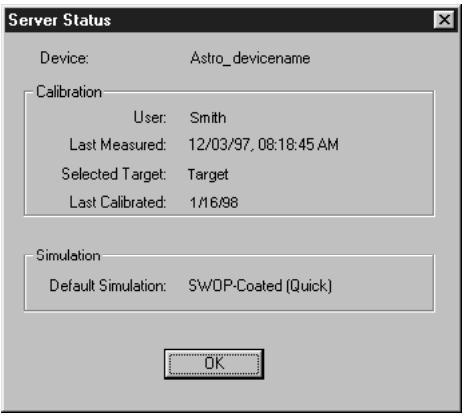
If the Fiery ZX is calibrated, the Server Status dialog displays the user name or login name of the person who last calibrated the Fiery ZX, the name of the current Fiery ZX, the date and time of the current measurement file, the name of the resident calibration target, and the date and time of the most recent calibration.
Measurements
Measurements files provide toner values that correspond to standard color patches. Typically, you measure a page of patches with a densitometer and the measurements are loaded on the Fiery ZX.
The creation date and time of the current measurements file appears below the Measurements button in the Calibration Mode window.
NOTE: For demonstration purposes only, if you do not have a measurements file, you can use the DEMO.MEA file on the User Software CD. This file should not be used to calibrate the Fiery ZX.
Measuring values with a DTP32 densitometer
To create a measurements file you print a patch page and feed it into the densitometer. The densitometer scans the density of the patches on the page and automatically transmits the measured values to Fiery Print Calibrator.
After each column of patches is scanned, you move the page to scan another column. The DTP32 densitometer has an adjustable strip guide to the right of the strip entrance. The density measurements are used to create a Measurements file. In general, valid measurements for all patches fall within the range of 0 to 3.05. Values between -0.01 and +0.005 are shown in Fiery Print Calibrator as 0. Values that appear in the Measurements window as negative numbers might indicate a problem with the densitometer.
TO PRINT PATCHES FOR MEASUREMENT:
- From the Calibration Mode window, choose Print Patch Page from the Measurements menu.
- Select a page size and paper tray.
Letter/A4 prints 21 patches per color; 11 × 17 / A3 prints 34 patches per color.
The Fiery ZX downloads the patch page to the copier. The patch page has four columns of progressively less saturated tints of each process color.
- Click Print.
TO PRINT SPECIAL PATCHES FOR CALIBRATING:
- With Fiery Downloader for Windows, download either Custom21.ps or Stand21.ps (21 patches); or Custom34.ps or Stand34.ps (34 patches) from the Clrfiles\Calibrat folder on the User Software CD.
With Fiery Downloader for Mac OS, download either Custom21.ps or Standard21.ps (21 patches); or Custom34.ps or Standard34.ps (34 patches) from the Color Files: Calibration folder on the User Software CD.
These PostScript files contain color patches similar to the ones that you can print from the Measurements menu. Custom21.ps and Custom34.ps are provided to enable you to download measurement patches that incorporate the copier's current calibration set,
while Standard21.ps and Standard34.ps are provided to enable you to download standard measurement patches that ignore the copier's current calibration set. These files are provided for expert users and should not be used for day-to-day calibration.
TO MEASURE CALIBRATION PATCHES WITH AN X-RITE DTP32:
- Make sure your X-Rite DTP32 is connected (page 6-6) and calibrated (page 6-19).
- Choose Densitometer from the Measurements menu.
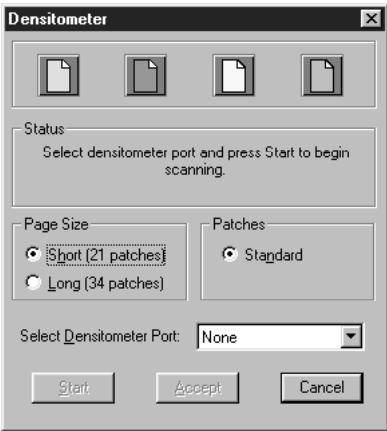
- Select the page size that matches the patch page you printed.
The Long page size has more patches with more finely distinguished color gradations. - In the Select densitometer port pop-up menu, choose the port with the densitometer interface cable.
If the densitometer screen does not display MAIN MENU, for example after calibrating the densitometer, press the two MENU buttons at the same time. - Click Start.
-
Follow the on-screen instructions to measure patches.
-
When prompted, position the pointer on the strip guide to 15.
The first column you'll measure is the cyan column.
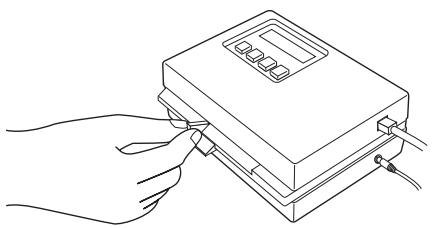
- With the arrow above the cyan column pointing towards the densitometer, align the right side of the patch page with the strip guide.
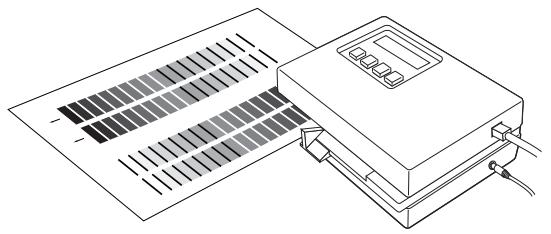
- Insert the patch page into the densitometer until it rests against the drive rollers and the motor is activated.
There may be a slight hesitation before the rollers start.
- Hold the page against the guide to prevent any skewing while the strip is being measured.
After the strip is measured, Pass #1 of 1 OK! appears in the densitometer display. Transmitting Data appears briefly after each pass.
- When prompted (onscreen and on the densitometer), move the strip guide to 30 and feed the patch page to measure the magenta column.
After the magenta strip is measured, Pass #1 of 1 OK! appears in the densitometer display.
- Turn the patch page around so that the arrow above the yellow column is pointing toward the densitometer.
Leave the strip guide set to 30. - When prompted, align the right side of the patch page with the strip guide and measure the yellow column. After the yellow strip is measured, Pass #1 of 1 OK! appears in the densitometer display.
- When prompted, move the page guide to 15 and measure the black column. After the black strip is measured, Pass #1 of 1 OK! appears in the densitometer display. NOTE: If there is a problem measuring a color, follow the instructions on the densitometer to remeasure it.
- When all four columns have been measured, click Accept in the Densitometer window. The Densitometer window closes; the date beneath the Measurements button is updated to the current date because the measurements have been saved to the Fiery ZX.
TO SAVE THE MEASUREMENTS FILE:
- Choose Export from the Measurements menu to save the measurements file to your computer hard disk.
If you save the measurements file to your hard disk, use it only as a backup for your own reference. You can import this file later without having to remeasure, but this is usually not recommended. For optimal calibration, use a new measurements file based on current densitometer values.
For your information, exported measurements files are tab-delimited ASCII files that you can open in a word processing, spreadsheet, or database program.
TO VIEW STORED MEASUREMENT VALUES:
- Click the View Measurements button to view values in the current measurements file.
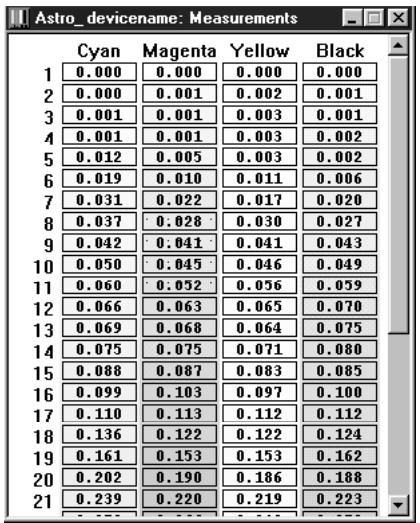
Fiery Print Calibrator displays the current measurements on the Fiery ZX. They are the measurements that were stored on the Fiery ZX when you last clicked Accept.
Testing and applying calibration
You can view a sample calibration before applying it to the Fiery ZX as the resident calibration. Since the measurements have already been updated, you are actually checking the combination of your measurements with one or more targets.
You can use the Comparison Page provided with the Fiery ZX to test a calibration before applying it. This page shows a comparison of uncalibrated and calibrated data.
The Comparison Page provides the following calibration information:
RGB using Color Rendering Dictionary section
- Name or Server—the name of the Fiery ZX defined in Setup
-
Model or Printer—the Fiery ZX model name and copier model
-
Target—the currently selected target in Fiery Print Calibrator, not necessarily the target for resident calibration on the Fiery ZX
- Measurements—how measurements were obtained
- Rendering Style—the default rendering style specified in Setup
- Date & Time—when the Comparison Page was printed
For a description of the information in the section of the page labeled "Press CMYK using Simulation" see page 7-18.
You can also create your own comparison page. To do this, create a PostScript or an EPS (Encapsulated PostScript) file and name it Calib.eps. Use Fiery Downloader to download the Calib.eps file to the Hold queue of the Fiery ZX.
TO TEST AND APPLY CALIBRATION:
- Click Test Calibration in the Calibration Mode window.
- Select a page, choose a paper tray, and click Print.
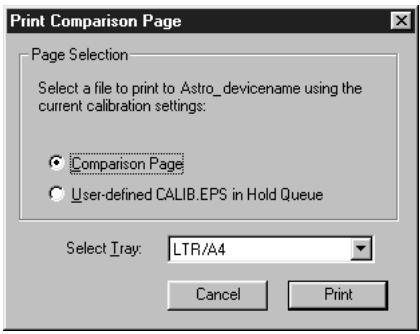
- If you are satisfied with colors on the printed page, click Apply Calibration, and click Continue to update the resident calibration.
Or if you are not ready to apply the calibration, you can print a Comparison Page with a different target or saved measurements file.
Select the target or measurements file, and click the Test button.
- When you have finished working with Fiery Print Calibrator, choose Exit (Windows) or Quit (Mac OS) from the File menu.
Calibration checklist
Once you have calibrated the Fiery ZX and, if necessary, adjusted your target to get satisfactory output, calibrating again is just a matter of taking new color measurements and applying them to the current target. A summary of the steps follows.
Prepare the densitometer
Connect and configure the densitometer.
□ If color is critical, calibrate the densitometer. Otherwise, wait until the densitometer prompts you to do so.
Use Fiery Print Calibrator
Start Fiery Print Calibrator.
Check the target indicated in the main window. This is your current target.
Choose Print Patch Page from the Measurements menu.
Choose Densitometer from the Measurements menu.
Choose the densitometer port and click Start.
Pick up the patch page from the copier and feed it into the densitometer, following the prompts in the Densitometer dialog box on the Fiery Print Calibrator screen.
□ When you have measured all four colors, click Accept in the Densitometer dialog box.
Check the results
Click Test in the main window to print a calibration Test Page.
Compare the calibrated and uncalibrated color. If the result of using the new measurements is satisfactory, click Apply Calibration. If not, either measure again or edit the target, and test once more before clicking Apply Calibration.
Click OK in the confirmation dialog boxes and close Fiery Print Calibrator.
Calibrating the densitometer
You will need the black-and-white AutoCal strip included with the densitometer.
Calibrating the densitometer does not require Fiery Print Calibrator.
TO CALIBRATE THE X-RITE DTP32:
- Connect the densitometer to the computer and supply power (see page 6-6).
- On the X-Rite DTP32, simultaneously press the two buttons marked MENU.
The words MAIN MENU appear in the display.
- Press the p1 key until p2 appears.
- Press the cal key.
CALIBRATION appears in the display.
- Press the den key.
CALIBRATING TRANSMISSION is displayed, followed by the words INSERT CAL STRIP. - Position the strip guide at 5.
Strip guide
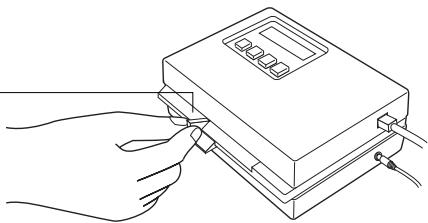
- Insert the arrow end of the Auto-Cal strip into the entrance of the X-Rite DTP32 until the roller starts pulling the strip.
READING appears momentarily, followed by the density values and CALIBRATION OK. If UNRECOGNIZABLE STRIP appears, try cleaning the strip (see the X-Rite DTP32 Operating Manual).
- Start Fiery Print Calibrator and proceed to calibrate the Fiery ZX (see page 6-12). Recalibrate the densitometer at least once month. For critical color, calibrate the densitometer every time you calibrate the Fiery ZX.
Calibrating from the Control Panel using AutoCal
You can calibrate the Fiery ZX from the Control Panel using AutoCal, which calibrates the Fiery ZX using the copier's built-in scanner as a densitometer. If an Administrator password has been set, you will need it for calibration.
For instructions on using the Fiery ZX Control Panel, and for more details on the AutoCal options, see the Configuration Guide.
For information on error messages you may see during the AutoCal procedure, see "AutoCal error messages" on page A-12.
NOTE: To calibrate using AutoCal, you will need the Kodak Gray Scale strip that came in the media pack with your Fiery ZX.
TO ACCESS AND USE AUTOCAL:
- Reboot the Fiery ZX, and be ready to press a button at the Control Panel shortly after startup diagnostics.
- Press any key when the Fiery ZX message "Press any key for setup..." appears.
- Choose Calibration, and choose Set Up Calibration.
- Choose AutoCal.
- For Tray, choose the paper source for the patch page. LTR/A4 prints 21 patches per color; 11 × 17 / A3 prints 34 patches per color.
- Choose Calibrate.
- Specify AutoCal as the calibration method. The Select Target screen appears.
-
Select the target. You can choose from the list of all targets on the Fiery ZX. This includes the targets included with the Fiery ZX and any custom targets you have created with Fiery Print Calibrator.
-
When prompted, select Yes to print the measurement page.
This page is comprised of swatches of color that will be measured by the copier and then compared to the target color values.
After the page is printed, the Measure Page screen is displayed.
- Select Yes in the Measure Page screen.
- When prompted on the Control Panel, place the Kodak Gray Scale strip face down along the top of the copier glass.
Place grayscale strip face down
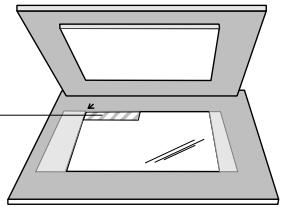
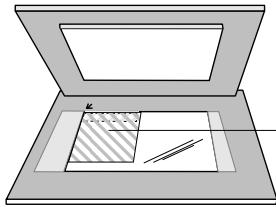
Place color measurement page face down over grayscale strip
- Place the color measurement page face down over the grayscale strip.
Align the top-left corners of the grayscale strip and the color measurement page with the arrow at the top-left corner of the copier glass.
Make sure the patches on the grayscale strip do not overlap the color patches.
- Close the copier lid, being careful not to move the grayscale strip and color measurement page.
- Click OK.
Status messages display the progress of scanning and calculating measurements.
- When prompted to Print Comparison Page, select Yes.
This page provides you with a preview of the selected calibration.
- When prompted to overwrite calibration, select Yes.
- Select Yes to confirm.
Status messages display progress information. The new calibration becomes the resident calibration.
- When calibration is complete, choose Exit Calibration.
This automatically restarts the Fiery ZX.
Removing calibration
It is also possible to remove calibration from the Fiery ZX. In general, it is not necessary because any new calibration replaces the existing one.
TO REMOVE CALIBRATION FROM THE CONTROL PANEL:
- From the Control Panel, access the Calibration menu as described on page 6-20.
- Choose Remove Calibration.
- When prompted, verify that you want to proceed with removing calibration. The current calibration curves are removed, and a default calibration is restored.
Chapter 7: Advanced Fiery Print Calibrator Topics
This chapter describes advanced features of Fiery Print Calibrator, including customizing calibration and simulation targets. For introductory information about Fiery Print Calibrator and for instructions on performing calibration, see Chapter 6. For information on the simulation capabilities of the Fiery ZX, see the Color Guide.
Fiery Print Calibrator procedures described in these chapters are fundamentally the same for Windows and Mac OS computers, including Windows 95 and Windows NT 4.0 computers running Command WorkStation software. The main differences are the interface cable and the port used to connect to the densitometer. The term computer is used to refer to any computer running Fiery Print Calibrator.
The following section describes the advanced calibration features of Fiery Print Calibrator. For information on working with simulations, see "Using advanced simulation features" on page 7-10.
Using advanced calibration features
Fiery Print Calibrator offers additional flexibility for advanced users. You can:
- Use a different measurements file stored on your computer
- Select a different target when your printing goals change
- Edit an existing target to suit your needs, test it, save it as a custom target, and save it on the Fiery ZX
- Save measurements as a target
- Back up the targets that are stored on the server
- Remove targets from the server
Choosing a measurements file
Although you can import a saved measurements file, the measurement file you use should reflect the current color behavior of the copier. Therefore, import saved measurements only if you have reason to doubt your current measurements, or if you don't have access to a densitometer. You cannot edit measurement values with Fiery Print Calibrator.
NOTE: The measurements file is copied to the server as soon as you load a new one. It is also copied as soon as you accept new measurements in the Densitometer dialog box (see Chapter 6).
Any measurement accepted or imported into Fiery Print Calibrator automatically becomes the measurements file for the connected Fiery ZX. This measurements file is used to create the resident calibration as well as all the other calibrations stored on the Fiery ZX.
NOTE: You should view or back up the current measurements before changing them.
TO USE A MEASUREMENTS FILE:
- To view the density values in the current measurements file, click the Measurements button.
- To back up the measurements, choose Export from the Measurements menu and enter a descriptive name.
- To use a different stored measurements file, choose Import from the Measurements menu and select a saved measurements file from your computer.
Working with targets
Target files provided with the Fiery ZX contain desired calibration goals. Select the target file that corresponds to the type of printing done at your site.
You can view your current measurements and compare them with the current target. You can also edit the target file and save the changes as a new target file. This allows you to fine-tune the calibration on the Fiery ZX to meet your exact specifications.
Custom targets are always based on an existing target. Select the target to use as a base for the custom target on a target. In most cases, you'll use the copier target (PRN-M).
The target for the resident calibration can be either of the provided targets, or a custom target with any name. (Instructions for creating custom targets are provided later in this chapter.) Select a target to use for the resident calibration, and click Apply Calibration.
You can test calibrations by comparing calibrated and uncalibrated image data on the Comparison Page, which uses both CMYK and RGB images. You can also create a custom comparison page as described on page 6-17.
Comparing the measured and target curves
Before editing a target curve, compare it to the current measured curve. By doing so, you can determine how close the measured color densities are to the target densities. The closer the measured densities are to the target densities, the better the results you get from calibration.
NOTE: Large differences between the standard copier target and measured curves may mean that the copier needs servicing.
TO COMPARE THE MEASURED CURVE AND THE CURRENT TARGET CURVE:
- Start Fiery Print Calibrator and select a target from the list of available target files.
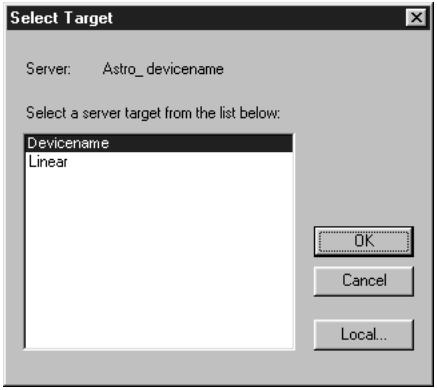
The targets in this list are stored on the Fiery ZX. Alternatively, click Local to use a target stored on your computer.
- Click OK.
-
Click the Edit Calibration button in the Calibration Mode window.
-
Select Target/Measured and turn on the Measured option in the View Curves region. These curves represent the values in the measurements file and cannot be changed.
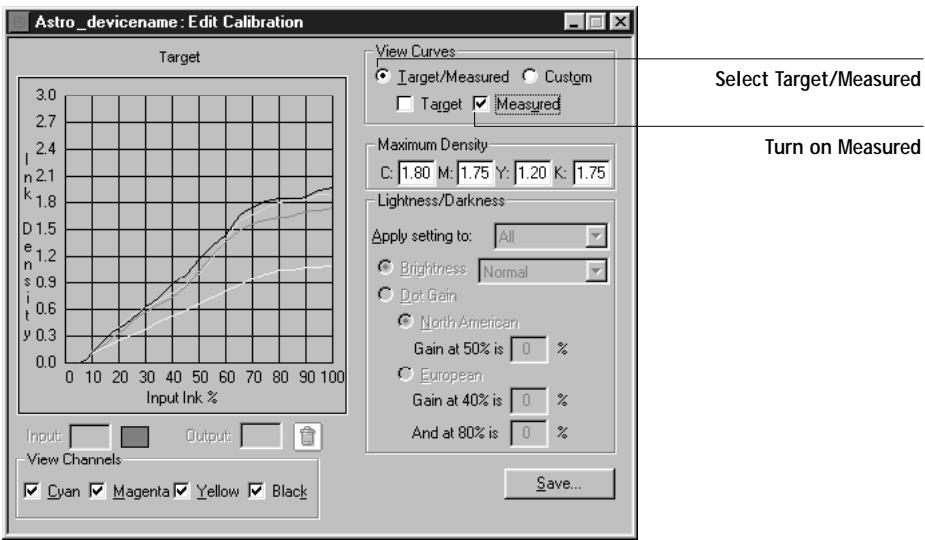
- Turn on the Target option and compare the target curve (thick lines) to the measured curve (thin lines).
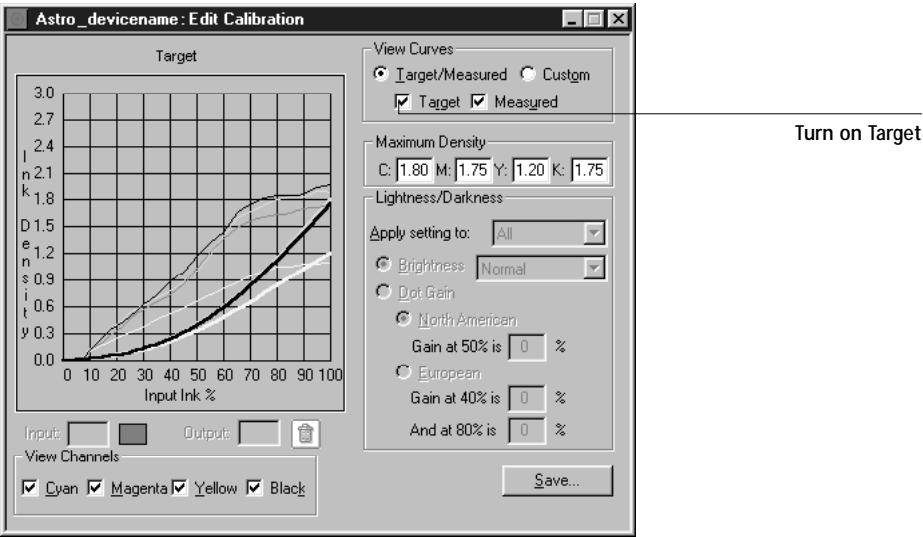
Customizing calibration targets
The copier's calibration target provided with the Fiery ZX should be used for general printing purposes. You may, however, have special printing needs that require a custom calibration. In this case, you can use Fiery Print Calibrator to edit an existing calibration target and save it as a custom target.
The Edit Calibration window provides information about your current target and measurements in graphic form and lets you edit curves and values to create a new target.
NOTE: All changes are stored as you make them. To discard changes, reload the target from the server or your computer.
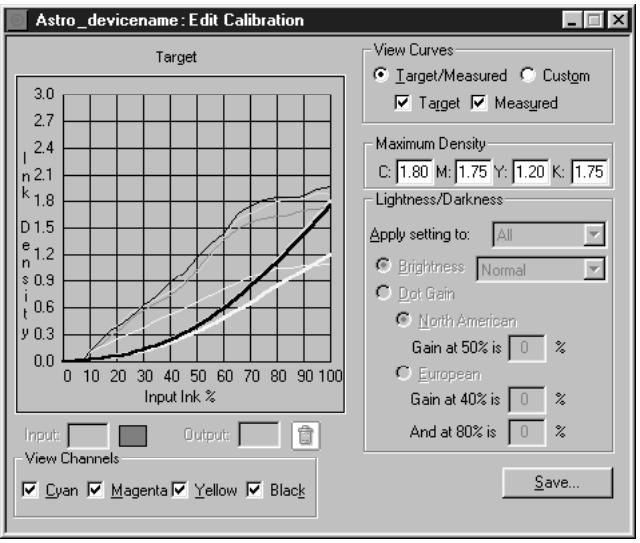
The graph on the left side of the window allows you to view and manipulate color output values. The View Channels check boxes (beneath the graph) and the View Curves areas (to the right of the graph) specify the curves displayed on the graph.
You can change several components of a target. The changes are accumulated in the custom target that you eventually save. You can:
- Change the maximum density (Dmax).
An adjusted target is created with the new maximum density.
Independently, you can:
- Adjust brightness
- Adjust dot gain for more saturated output without affecting the overall color balance
- Load a custom curve and edit points in the curve
The current custom curve is applied to the original target curve or, if you adjusted the Dmax, it is applied to the target with the new maximum density.
- By clicking Save, save a copy of the edited target to your computer
- Choose Apply Calibration when you are ready to update the resident calibration on the Fiery ZX
Note: The values in the following illustrations do not represent standard values. They are intentionally exaggerated for example purposes.
TO ADJUST MAXIMUM DENSITY (DMAX):
- Select the target to edit (see page 6-9).
- Click the Edit Calibration button.
- In the View Curves area, click Target/Measured and Target.
- For each color, enter a value in the Maximum Density areas, and press Tab or Enter to adjust the endpoint of the target curve as needed.
You can enter a value from 0.1 to 3.0.
The rest of the curve adjusts to make a smooth transition to the new endpoint. The adjusted target is stored. To discard changes, reload the target from the server or from the local disk.
TO CUSTOMIZE A TARGET:
- Select the target to edit (see page 6-9).
-
Click the Edit Calibration button.
-
In the View Curves area, click Custom to edit the input/output curve.
The graph maps input ink percentage to output ink percentage by analogy to ink on a press. Initially, the graph is a 45^ straight line; that is, input values equal output values. This is the starting place for your editing.
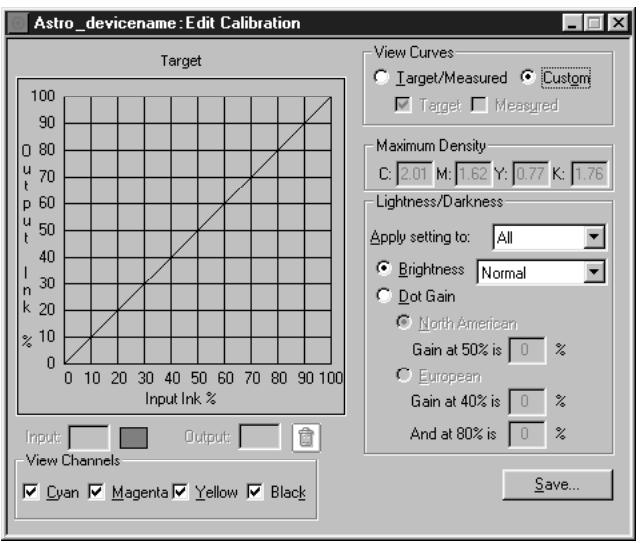
As you make changes, you either increase or decrease the amount of toner that will be used to render a certain percentage tone. An ink density of 100% is a fully saturated color; 0 to 5% is a highlight color.
- In the View Channels area, select the channels to edit.
You can view information for all four colors at the same time (cyan, magenta, yellow, and black), or any combination of these. Working with only one or two colors at a time helps you to distinguish the curves and to fine-tune your adjustments, especially when using a monochrome monitor. - In the "Apply setting to" menu, choose the channel to adjust in the Lightness/Darkness area of the window.
-
Use the Brightness menu to adjust brightness as needed.
-
Adjust the dot gain as needed.
These values are used independently of the Brightness curve. Changing the values for dot gain can give more saturated color output without affecting the overall color balance. The dot gain values simulate dot gain, not compensate for dot gain.
You can choose either the North American or European standard and then enter the desired Dot Gain. The valid values for North American gain at 50% input are 0% to 50% output. The valid values for European gain at 40% input must be less than the 80% input setting plus 40% ; the valid values for European at 80% input are 0% to 20% gain on output.
If you use Dot Gain values, the curve will be smoothed so that there are no spikes or jumps in output value.
NOTE: You should measure this value from actual press output, using a densitometer.
- In the graph, drag points to adjust the curve as needed.
The graph maps input percentage to output percentage in 10% increments. Points along the curve are marked so that you can adjust them.
NOTE: You should adjust points in this way after you have applied a brightness or dot gain curve. If you attempt to change a brightness or dot gain setting after you have adjusted the points on the graph, your earlier changes are not registered.
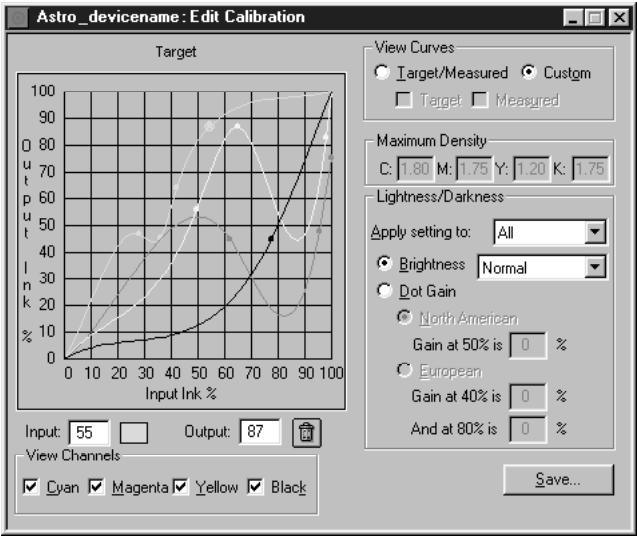
- You can test the changes now by using the Test Calibration button in the Calibration Mode window, or customize the target further.
If you edit a local target file, you are prompted to save it on the Fiery ZX before calibration can be changed.
NOTE: You cannot use the name of an existing target.
- Enter a name for the edited target file and click Save.
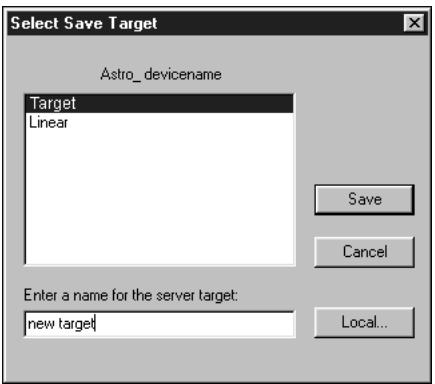
- To save the target on your computer, click Save (in the Edit Calibration window) and enter a name for the new target.
You can use a saved target again or continue editing it later.
Backing up Fiery ZX targets
If you think you may need a target later, you can back up targets to save the target to your computer before you delete it from the Fiery ZX. You should always save targets before updating Fiery ZX system software to ensure that no custom targets are lost.
TO BACK UP TARGETS:
- Choose Back Up Targets from the Server menu.
This copies the target files from the Fiery ZX to your computer.
Deleting custom targets
If desired, you can delete custom targets permanently from the Fiery ZX. You may want to do this to make sure no one applies a calibration using the wrong target file. You cannot delete the original targets (PRN-M and Linear).
TO DELETE CUSTOM TARGETS FROM THE FIERY ZX HARD DISK:
- Start Fiery Print Calibrator.
- Choose Delete Target from the Server menu.
- Select the target and click OK.
NOTE: Deleting the target used for the resident calibration does not affect the resident calibration. To delete a calibration based on a deleted target, you must apply another calibration that uses a different target, or remove calibration as described in the next section.
Removing calibration
If desired, you can remove calibration from the Fiery ZX. When you remove calibration, the resident calibration curves are removed, and a default calibration is restored.
TO REMOVE CALIBRATION:
- Choose Remove Calibration from the Server menu.
- When prompted, confirm that you want to remove calibration.
Using advanced simulation features
Fiery Print Calibrator offers simulation features for advanced users. You can:
- Change the default simulation on the Fiery ZX
- Edit an existing simulation to suit your needs, test it, save it as a custom simulation, and save it on the Fiery ZX
- Back up the simulations that are stored on the server
- Remove simulations from the server
Working with simulations
Simulations, or press simulations, allow you to use the copier as a proofing device for jobs that will print on an offset press. Because the range of colors available on the copier is different from that of a press, the Fiery ZX automatically adjusts the color so that the output falls within the range of colors a press can produce.
Several simulations are provided with the Fiery ZX, and you can create additional ones by editing existing simulations with Fiery Print Calibrator. A default simulation target is specified by the administrator in Setup. You can change the default simulation using Fiery Print Calibrator.
The simulations provided with the Fiery ZX are:
DIC-Japanese press standard
- SWOP-Coated—US press standard
- Euroscale—European press standard
- Match Copy—Bypasses calibration and produces output that matches a copy made from the copier glass
Each of the press simulations has both a Quick and Full version. These versions correspond to the method of mapping colors from your copier's color gamut to that of the desired press standard as follows:
- Quick—Compensates for only density (one-dimensional mapping)
Full-Corrects for hue as well as density (four-dimensional mapping)
The PPD for the Fiery ZX provides placeholders for five custom simulations named Custom-1, Custom-2, and so on. These can be made available for users to select from the CMYK Simulation print option when printing a job.
You can store targets on the computer where you use Fiery Print Calibrator, on another connected disk, or on the Fiery ZX disk (or all three). However, only the original simulations and five custom simulations are available to users who choose a simulation on a job-by-job basis (with the CMYK Simulation print option).
For a custom simulation intended to be available only as a CMYK Simulation setting in Setup, any name can be used. For a custom simulation intended to be available for users to choose on a job-by-job basis, the name must be "Custom-1", "Custom-2", and so on.
Note: The custom simulation names "Custom-1" and "Custom-2" appear in the users' CMYK Simulation settings, and users can choose them, whether or not the corresponding custom options have been created and loaded on the Fiery ZX. Jobs printed with a non-existent custom simulation fail printing and show an error.
For more information on the CMYK Simulation and CMYK Simulation Method print options, see the Color Guide and the Printing Guide.
Using the Simulation Mode window
After starting Fiery Print Calibrator, choose Simulation Mode from the File menu.
The Simulation Mode window has buttons for the most frequently used Fiery Print Calibrator functions. There is also a menu bar with File, Edit, Measurements, Server, and Window menus, and a status message at the bottom of the window. Functions unavailable at any particular time are dimmed and cannot be selected.
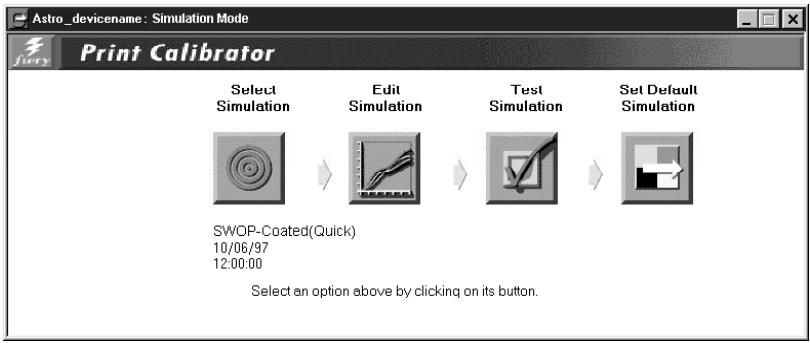
The buttons and their functions are:
- Select Simulation—Allows you to select a simulation to work with. You must select a simulation before editing or applying it to the Fiery ZX. Below the button are the name and creation date of the currently selected simulation, which is not necessarily the default simulation on the Fiery ZX.
- Edit Simulation—Allows you to view and customize the current simulation.
- Test Simulation—Prints a test page so that you can view the results of the simulation you are currently working with.
- Set Default Simulation—Updates the default simulation on the Fiery ZX.
Checking the current simulation
You can use Fiery Print Calibrator to see the simulation currently selected as the default on the Fiery ZX.
TO VIEW INFORMATION ABOUT THE CURRENT SIMULATION:
- Start Fiery Print Calibrator and connect to the Fiery ZX.
- Choose Server Status from the Server menu.
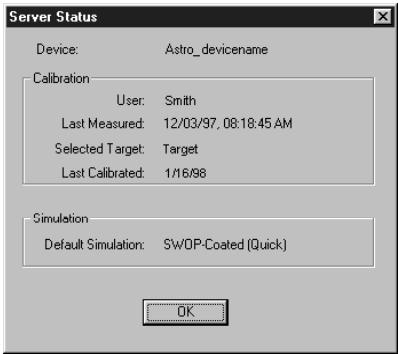
The bottom section of the Server Status window displays the default simulation.
Editing simulations
You can edit a press simulation to meet your exact specifications. You can also save the changes as a new simulation.
Note: The values in the following illustrations do not represent standard values. They are intentionally exaggerated for example purposes.
TO EDIT A SIMULATION:
- Start Fiery Print Calibrator and connect to the Fiery ZX.
- Choose Simulation Mode from the File menu.
- Click the Select Simulation button.
A dialog box displays the simulations available on the Fiery ZX.
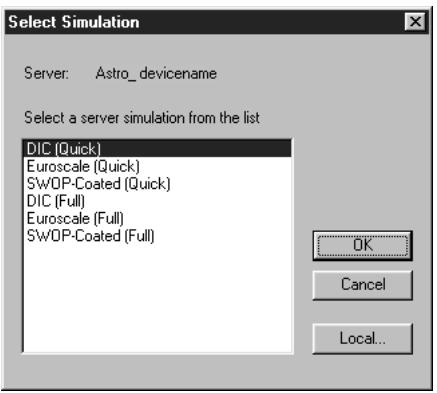
- Select a simulation and click OK.
Click Local to select a simulation on your computer.
Select channels
- Click the Edit Simulation button.
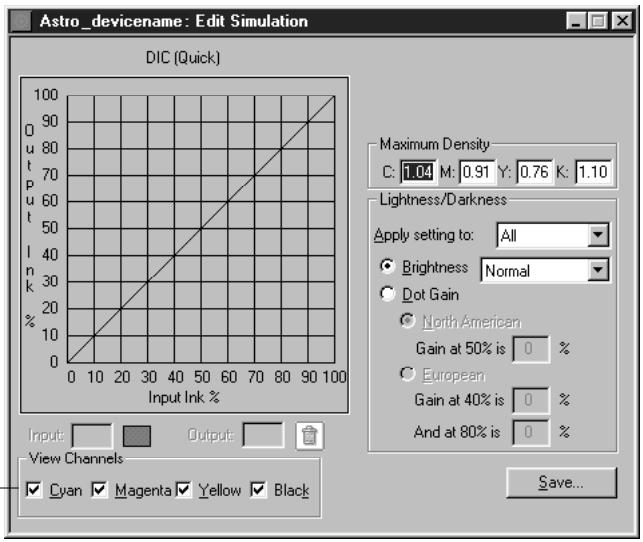
You can use this dialog box to view or to edit simulations.
- In the View Channels area, select the channels to edit.
You can view information for all four colors at the same time (cyan, magenta, yellow, and black), or any combination of these. Working with only one or two colors at a time helps you to distinguish the curves and to fine-tune your adjustments, especially when using a monochrome monitor.
- For each color, enter a value in the Maximum Density areas and then press Tab or Enter to adjust the endpoint of the target curve as needed.
You can enter a value from 0.1 to 3.0.
The rest of the curve adjusts to make a smooth transition to the new endpoint. The adjusted target is stored. To discard changes, reload the target from the server or from the local disk.
- From the "Apply setting to" menu, choose the channel to adjust in the Lightness/Darkness area of the window.
- Use the Brightness menu to adjust brightness as needed.
NOTE: If you change a value for a color with the Brightness menu, it overrides values set elsewhere in the dialog box.
- Adjust the Dot Gain value as needed.
For simulating press output, you can choose either the North American or European standard. Enter the desired Dot Gain in the appropriate text box. The valid values for North American gain at 50% input are 0% - 50% output. The valid values for European gain at 40% input must be less than the 80% input setting plus 40% ; the valid values for European at 80% input are 0% to 20% gain on output.
If you use Dot Gain values, the curve is smoothed so that there are no spikes or jumps in output value.
- In the graph, click and drag points to adjust the curve as needed.
The graph maps input percentage to output percentage in 10% increments. The points along the curve are marked so that you can adjust them.
NOTE: You should adjust points on the curves after you have entered values in the other areas of the window. If you change values after you have adjusted the curve on the graph, values might not be valid.
- When you are finished, click Save and enter a name for the new simulation.
This saves the simulation to Fiery ZX. Use Local to save the simulation to your computer hard disk so that you can use it again or continue editing it later.
- Give the simulation a new name. You cannot overwrite the name of an original press target.
- Include part of the original name in the new name, for example, "SWOP-New." This helps you remember what the new simulation is based on.
- To allow users to print with the simulation on a job-by-job basis, you must use the exact names "Custom-1", "Custom-2", and so on. Give users a description of the custom simulations because they see only the "Custom" names from the printer driver interface.
NOTE: If custom simulations are later deleted from the server, users might still select them when they print. However, jobs printed with non-existent custom simulations will fail printing and report an error.
Managing simulations
With Fiery Print Calibrator, you can back up and delete simulations. You can also set the default simulation to None.
TO BACK UP SIMULATIONS:
- Choose Backup Simulations from the Server menu to copy the simulations from the Fiery ZX to your computer.
Simulations are saved in a folder called Backup in the folder where Fiery Print Calibrator is located. You can save simulations for safekeeping. You should always save simulations before updating Fiery ZX system software to ensure that no custom simulations are lost.
TO DELETE CUSTOM SIMULATIONS FROM THE FIERY ZX HARD DISK:
- Choose Delete Simulation from the Server menu.
- Select the custom simulation and click OK.
You can delete simulations to make sure no one uses the wrong simulation file. You should always use the Backup Targets command to save simulations before you delete them.
TO SET THE DEFAULT SIMULATION TO NONE:
- Choose Set Default Simulation to None from the Server menu.
- When prompted, confirm you want to reset the default.
Testing and setting a new default simulation
You can use the Comparison Page provided with the Fiery ZX to test a simulation before making it the default simulation on the Fiery ZX. This page shows a comparison of images with and without simulation applied.
The Comparison Page provides the following simulation information:
Press CMYK using Simulation section
- Simulation—The currently selected simulation in Fiery Print Calibrator, not necessarily the default simulation on the Fiery ZX.
- Method—Quick or Full. Quick accounts for only the density of colors (one-dimensional mapping) to the press goal. Full corrects for both density and hue (a four-dimensional mapping).
- Press—The press standard for which the sample CMYK images were separated (for example, SWOP or Euroscale).
For a description of the information in the section of the page labeled "RGB using Color Rendering Dictionary," see page 6-16.
You can also create your own comparison page. To do this, create a PostScript or EPS (Encapsulated PostScript) file and name it Calib.eps. Use Fiery Downloader to download the Calib.eps file to the Hold queue of the Fiery ZX.
TO TEST AND APPLY A SIMULATION:
- In the Simulation Mode window, click Test Simulation.
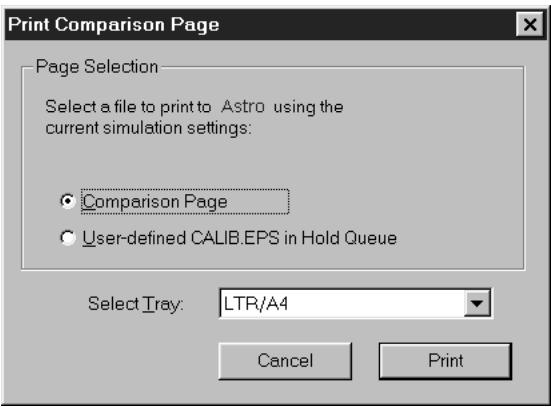
- Select a page and choose a paper tray.
- Click Print.
- When you have visually verified that the test page displays appropriate colors, click Set Default Simulation.
- Select the simulation to set as the default.
The default simulation is used when users select the Printer's Default setting for the CMYK Simulation print option. Users can choose a different simulation on a job-by-job basis.
Appendix A: Troubleshooting
This section lists error messages you might see, and provides some troubleshooting guidelines should a problem arise with the Fiery ZX or the Command WorkStation. If you are unable to resolve a problem after referring to this chapter, contact your authorized service/support center.
Error messages
Error messages can result from problems with the print job, the Fiery ZX, the Command WorkStation, or the copier. Some of the most common error conditions are listed here.
A copier error message sometimes remains displayed on the Command WorkStation even after you have resolved the error. A time lag in communicating the resolution of the error to the Command WorkStation may lead you to believe the error has not been resolved. However, printing will resume and the Command WorkStation display will be updated after a short delay.
When an error interferes with printing, you will see a message at the Command WorkStation. The status bar that displays the message indicates the process where the error occurred. Following are the messages (listed in alphabetical order), with the appropriate corrective action for each one. You can cancel the pending print job while you attend to the error condition. A few normal status messages are included in this list in case they cause concern.
| Fiery ZX message: | Corrective action/additional information: |
| Black toner nearly empty | The black (K) toner has almost run out. You should soon replenish the black toner container according to the instructions in your copier manual. |
| Busy | The Fiery ZX has received a print job, but the copier is busy copying or performing a non-printing related task. The job will print when the copier finishes that task. |
| Check power and cable | There is a problem with the copier power or connection. Make sure all connections are secure. |
| Check toner hopper | There is a problem with the copier's toner hopper. Check and replace it if necessary according to the instructions in your copier manual. |
| Clear paper from duplex unit | Paper is jammed in the copier's duplex unit. The Fiery ZX will resume printing when the paper is removed. |
| Cyan toner nearly empty | The cyan (C) toner has almost run out. You should soon replenish the cyan toner container according to the instructions in your copier manual. |
| Door open | One of the copier doors is open. The Fiery ZX will resume printing when the door is closed. |
| Error: check copier panel | There is an unidentified problem with the copier. Contact your authorized service/support technician. |
| Front door open | The copier's front door is open. The Fiery ZX will resume printing when the front door is closed. |
| Fuser oil nearly empty | The fuser oil bottle in the fixing assembly is almost empty. You should soon replace the fuser oil according to the instructions in your copier manual. |
| LCT is not attached | The large capacity tray is unattached from the copier. The Fiery ZX will resume printing when you have reattached the large capacity tray. |
| Left door (Lower) open | The copier's lower left door is open. The Fiery ZX will resume printing when the lower left door is closed. |
| Left door (Upper) open | The copier's upper left door is open. The Fiery ZX will resume printing when the upper left door is closed. |
| Load _ in any tray | The copier is not loaded with the paper size specified. The Fiery ZX will resume printing when the copier is loaded with the required paper. |
| Load _ in LCT | The copier's large capacity tray is not loaded with the paper size specified. The Fiery ZX will resume printing when the large capacity tray is loaded with the required paper. |
| Load _ in manual feed | The copier's manual feed tray is not loaded with the paper size specified. The Fiery ZX will resume printing when the manual feed tray is loaded with the required paper. |
| Load _ in tray 1 | The copier's Tray 1 is not loaded with the paper size or type specified. The Fiery ZX will resume printing when Tray 1 is loaded with the required paper. |
| Load _ in tray 2 | The copier's Tray 2 is not loaded with the paper size or type specified. The Fiery ZX will resume printing when Tray 2 is loaded with the required paper. |
| Load _ in tray 3 | The copier's Tray 3 is not loaded with the paper size or type specified. The Fiery ZX will resume printing when Tray 3 is loaded with the required paper. |
| Magenta toner nearly empty | The magenta (M) toner has almost run out. You should soon replenish the magenta toner container according to the instructions in your copier manual. |
| No black toner | The black (K) toner has run out. Replenish the black toner container according to the instructions in your copier manual. The Fiery ZX will resume printing when you have replaced the toner container. |
| No control key | You must insert the copier's control key to print. |
| No cyan toner | The cyan (C) toner has run out. Replenish the cyan toner container according to the instructions in your copier manual. The Fiery ZX will resume printing when you have replaced the toner container. |
| No fuser oil | The fuser oil bottle in the fixing assembly is empty. Replace the fuser oil according to the instructions in your copier manual. The Fiery ZX will resume printing when you have replaced the fuser oil. |
| No magenta toner | The magenta (M) toner has run out. Replenish the magenta toner container according to the instructions in your copier manual. The Fiery ZX will resume printing when you have replaced the toner container. |
| No memory card | You must insert the copier's memory card to print. |
| No Staples | The stapler has run out of staples. The Fiery ZX will resume printing when you have refilled the stapler. |
| No yellow toner | The yellow (Y) toner has run out. Replenish the yellow toner container according to the instructions in your copier manual. The Fiery ZX will resume printing when you have replaced the toner container. |
| Paper jam | There is a paper jam in the copier. The Fiery ZX will resume printing when you have cleared the paper jam. |
| Paper jam at — | There is a paper jam in the copier. Open the copier doors and check the locations indicated on the copier display. The Fiery ZX will resume printing when you have cleared the paper jam and closed the copier doors. |
| Power on copier with main switch | The copier is turned off. The Fiery ZX will resume printing when the copier is powered on. |
| Printer is offline | Someone has selected Suspend Printing from the Functions menu on the Fiery ZX Control Panel. The Fiery ZX will resume printing when you select Resume Printing at the Control Panel. |
| Service Code — | There is a problem with the copier that requires service by a technician. |
| Set Plain type at copier | Resend the job from the manual feed tray, or contact your authorized service/support technician in order to set up the copier for the specified media type. |
| Set Thick 1 at copier | Resend the job from the manual feed tray, or contact your authorized service/support technician in order to set up the copier for the specified media type. |
| Set Thin at copier | Resend the job from the manual feed tray, or contact your authorized service/support technician in order to set up the copier for the specified media type. |
| Sorter is not attached | The sorter unit is unattached from the copier. The Fiery ZX will resume printing when you have reattached the sorter unit. |
| Thick1 in LCT | The large capacity tray is not loaded with the thick1 paper specified. The Fiery ZX will resume printing when you have loaded thick1 paper into the large capacity tray. |
| Thick1 in manual feed | The manual feed tray is not loaded with the thick1 paper specified. The Fiery ZX will resume printing when you have loaded thick1 paper into the manual feed tray. |
| Thick1 in tray | The specified tray is not loaded with the thick1 paper specified. The Fiery ZX will resume printing when you have loaded thick1 paper into the specified tray. |
| Thick2 in manual feed | The manual feed tray is not loaded with the thick2 paper specified. The Fiery ZX will resume printing when you have loaded thick2 paper into the manual feed tray. |
| Thin in LCT | The large capacity tray is not loaded with the thin paper specified. The Fiery ZX will resume printing when you have loaded thin paper into the large capacity tray. |
| Thin in manual feed | The manual feed tray is not loaded with the thin paper specified. The Fiery ZX will resume printing when you have loaded thin paper into the manual feed tray. |
| Thin in tray | The specified tray is not loaded with the thin paper specified. The Fiery ZX will resume printing when you have loaded thin paper into the specified tray. |
| Toner waste bottle not set | The copier's waste toner bottle is not positioned correctly. The Fiery ZX will resume printing when you have installed the waste toner bottle in the correct place. |
| To print, clear output area | The copier's top output tray has reached capacity. The Fiery ZX will resume printing when all pages are removed from the tray. |
| To print, reset copier | The copier must be power cycled. Turn the copier off and on. |
| Trans in manual feed | The manual feed tray is not loaded with the transparencies specified. The Fiery ZX will resume printing when you have loaded transparencies into the manual feed tray. |
| Tray problem <Lower> | There is a problem with the copier's lower tray. The Fiery ZX will resume printing when you have resolved the problem. |
| Tray problem <Middle> | There is a problem with the copier's middle tray. The Fiery ZX will resume printing when you have resolved the problem. |
| Tray problem <Upper> | There is a problem with the copier's upper tray. The Fiery ZX will resume printing when you have resolved the problem. |
| Unknown error | There is an unidentified problem with the copier. Contact your authorized service/support technician. |
| Waiting... | The copier is recovering from an error (such as a paper jam) and will print when it is finished. |
| Warming up... | The copier is warming up. When the copier has finished warming up, the Fiery ZX will begin the print job. |
| Warning: Check — | There is a problem with the copier. Check the copier's Control Panel for information. |
| Waste toner nearly full | The copier's waste toner container is almost full. You should soon empty or replace the container. |
| Waste toner full | The copier's waste toner container is full. The Fiery ZX will resume printing when you empty or replace the container. |
| Yellow toner nearly empty | The yellow (Y) toner has almost run out. You should soon replenish the yellow toner container according to the instructions in your copier manual. |
Maintaining optimal system performance
The Fiery ZX does not require maintenance. Beyond the routine requirements of servicing and maintaining the print engine and replenishing consumables there are a few things you can do to improve the overall performance of your system:
- Reduce unnecessary two-way communication.
If users notice that the server is frequently too busy to receive jobs, it may be because several users are running utilities that are updated often. Large numbers of remote users running remote utilities or Fiery WebTools may have a significant effect on Fiery ZX performance.
- Schedule the printing workload by checking job ticket information before printing. Print jobs with the same output and paper specifications together to minimize paper changes. Also, print routine jobs while you prepare to print jobs with special instructions or special media.
- Reduce unnecessary server connections at the Command WorkStation. If you use a second or third Fiery ZX server on an occasional basis, performance will be improved if you log off when you are not using it.
- Avoid printing with the server Disk full warning.
If you see this warning, delete jobs from the Queues window that have been held for a long time and are not likely to be needed. Avoid this condition by deleting old jobs on a regular basis. The date associated with a job is the original date it was sent.
As a last resort, you can use the Clear Server or the Clear command.
Troubleshooting
In case of problems, and before you call for service, check the guidelines in this section. If you are unable to resolve the problem, make a note of the error condition and contact your authorized service/support center.
Command WorkStation hangs
If the Command WorkStation windows do not update, try clicking the Log in/out slider and logging out, and then exiting the Command WorkStation. Restart the Command WorkStation application or restart the computer.
If the Command WorkStation windows do not update, or no jobs are displayed, and the mouse has no effect (you cannot select a job or a window, use a right mouse command, or select a menu item) the Fiery ZX is down or communication over the network has failed.
To force an exit from the Command WorkStation application, press Ctrl-Alt-Delete, and with the Command WorkStation selected, click End Task. At the Fiery ZX, disconnect and reconnect the network cable, and try printing a Test Page or Configuration page. If that fails, reboot the server.
If the Fiery ZX Control Panel does not respond to the Menu button, press the Reset button, turn off the server and turn it on again. When it reaches Idle, restart the Command WorkStation application.
Command WorkStation fails to connect to a Fiery ZX
If a remote Command WorkStation cannot connect to a server that was connected previously, you may need to reconfigure the connection.
-
If you can, choose Exit from the Command WorkStation File menu.
-
In the C:\Windows folder, find the Efinl.ini file and move it out of the C:\Windows folder to another folder.
If the Efinl.ini file contains a limited amount of configuration information that is easily recreated (i.e., information for only one or two servers), you can delete the file altogether. A new Efinl.ini file will be created in the C:\Windows folder when you reconfigure the connection.
If the Efinl.ini file contains configuration information for several servers, or information that is not readily recreated, keep the Efinl.ini file as a backup.
- Print a Configuration page.
You will use the information on this page to configure the connection to the server.
- Launch the Command WorkStation application.
- When you are prompted to configure a server connection, click OK.
Use the instructions in Getting Started to configure the connection.
- If you still cannot connect to the Fiery ZX, the administrator should reinstall Command WorkStation software.
See Getting Started for details.
Unexpected printing results
| If this happens: | This is the problem: |
| A cover page is not printed when you reprint a saved raster job. | The cover page identifies the originator of the job and the time the job was sent. Time stamp and user information on the cover page of a reprinted job are not meaningful. |
| The job settings are not carried out as you expected. | If the user printed from Mac OS, there may be two conflicting print settings. You can check the job properties by double-clicking the job. See the Printing Guide for a table of job properties and conflicting properties. Notify the users of these conflicts so they can avoid them in the future. |
| The job doesn't print. | Some printing errors may be displayed in the Print status bar. When the job is in the Printed queue, jobs that had a PostScript error are displayed in a light red job row. Double-click anywhere in the row to see the error message. |
| There are font errors. | If user-specified fonts that are not resident on the Fiery ZX are not printing correctly in PostScript files that are downloaded by users, request that they embed the fonts in the PostScript file or print directly from their application. When users print from their applications, if special fonts are not downloaded automatically, they should be downloaded directly to the Fiery ZX with Fiery Downloader. This can be done by the user or by the operator, provided the Direct connection is enabled. For information about Fiery Downloader, see the Printing Guide. |
Clearing the server
Clearing the server is an Administrator option that can be used as a last resort if a job persists in the system and prevents printing despite attempts to cancel or delete it.
Clearing the server deletes all jobs currently saved on the server in any queue. It also clears the Job Log.
Before clearing the server, export the Job Log if you haven't recorded the information in it. If you can, notify users that you will clear their jobs from the server so they can back them up and resend them when the server is back in operation.
You can clear the server from the Control Panel (see page 1-7) or from the Command WorkStation with the Clear command in the Server menu (see page 2-11).
Users are unable to connect to the copier
If users are unable to connect to the copier, or are unable to find the copier from their workstations, the network administrator may need to troubleshoot their network connections, and check settings on the servers they use for printing. If settings have changed, it may be necessary to reconfigure the Fiery ZX.
For example, if print servers or print queues on a Novell server are renamed or deleted, or if accounts or permissions are changed, the Fiery ZX administrator may have to edit settings or enter new settings in IPX (Novell) Setup to reflect the new configuration.
If users cannot connect to the copier with Fiery Downloader from Windows 95 or Windows NT 4.0, you may need to reconfigure the utility's connection to the server. See Getting Started for details.
Mac OS users may fail to see the copier if a network administrator has assigned it to a different zone, or has added zones where previously there were none.
If you have configured the Fiery ZX and set up client computers and network servers according to guidelines in the Configuration Guide and Getting Started, try printing a Test Page (at the Command WorkStation, choose Print Pages from the File menu).
If you are able to print the test page but still can't print a file from a remote computer, contact the system administrator to troubleshoot the network connection.
If you are unable to connect, and you cannot print the Test Page, check the copier's touch panel display.
| If this happens: | Try this: |
| It displays a diagnostic or error message. | Take the appropriate corrective action, as described in the copier manual or in the section “Error messages” on page A-1. |
| The display is completely blank. | Check the copier's Standby function. If the copier is in Standby mode, press the Standby key to see any messages on the display. |
| The copier is not in Standby mode. | The copier's Automatic Power-Off function may have shut down the copier. Turn the copier on, and then try printing a Test Page again when the copier has warmed up. |
| You still cannot print a Test Page. | Make a copy. If you can make a copy, restart the Fiery ZX, and when you see Idle on the status line of the Fiery ZX display, try printing a Test Page again. If the Test Page still fails to print, contact your authorized service/support center. |
Setup error messages
For information on Setup error messages, see the Configuration Guide.
AutoCal error messages
AutoCal error messages can result from problems during the AutoCal procedure.
| Fiery ZX message: | Additional information: |
| Error 5 | The calibration file cannot be opened. |
| Error 6 | The calibration file was not read correctly. |
| Error 8 | The measurement page did not scan properly, either because it is crooked or the data is corrupted. |
| Error 11 | The color strips on the measurement page are inconsistent. |
| Error 12 | The copier model being used is not supported. |
| Error 20 | The measurement page cannot be scanned because the dots per inch (dpi) are incorrect. |
| Error 102 | The grayscale strip is crooked or is positioned incorrectly. |
| Error 103 | The grayscale strip is positioned too far to the left or to the right of the measurement page. |
| Error 104 | The grayscale strip is positioned too far above the measurement page. |
| Error 111 | The grayscale strip could not be found; either reposition the strip correctly or position it vertically. |
Index
Numerics
4-pin DIN 6-7
8-pin DIN plug 6-7
9-pin connector 6-7
A
About command 2-12
access
levels xvii, 2-5
restricting xvii
active jobs 2-19
adjusting columns (Queues window) 2-15
Administrator password xvii, 1-6, 2-1, 2-5
Adobe Photoshop, see Photoshop
Alert Status screen 1-3
animation, see status bars
Apply Calibration option 6-10, 6-17
AutoCal calibration 6-20, 6-21, 6-22
B
Backup Simulations option 7-17
Back Up Targets option 7-9
brightness, adjusting in custom curves 7-7, 7-8
Brightness menu 7-16
broken LCD xviii
buttons, Control Panel 1-2
C
CALIB.EPS file 6-17, 7-18
Calibrate command 2-11, 3-26
calibration
adjusting brightness 7-7, 7-8
applying 6-17
bypassing 7-11
checking status 6-6
checklist 6-18
COM1 and COM2 port 6-7
Comparison page 6-16, 7-18
current 6-2
custom curves 7-6
densitometer 6-6 to 6-18
editing 7-2 to 7-9, 7-14
expert features 7-1 to 7-19
from Fiery Print Calibrator 6-2
from the Control Panel 6-2, 6-20, 6-21, 6-22
measurements 6-1, 6-2, 6-3
measurement values 6-12 to 6-16
measuring patches 6-13
overview 6-1 to 6-6
port 6-13
removing 7-10
resident 6-2, 7-2
scheduling 6-4
self-calibration 6-5
targets 6-1, 6-2, 6-3, 6-9
testing 6-16, 6-18, 7-9, 7-18
viewing status 6-11
see also densitometer, Fiery Print Calibrator
Calibration Mode window 6-10
Calibration option 1-7
calibration patch page 6-3, 6-12
Cancel Job
from the Control Panel during printing 1-3
from the Control Panel during RIPping 1-3
Cancel Printing command 2-11, 3-9
Cancel RIPping command 2-11, 3-9
Change (Administrator) Password option 1-7
Clear command 2-11, 3-26
Clear Job Log command 2-11
Clear Server command 1-7
CMYK Simulation option 7-11
Color Charts 1-5, 6-5
printing from the Command
WorkStation 3-6
Color Reference pages 6-5
Color Setup option 1-7
column width, adjusting 2-15
Command WorkStation xiii
display,described2-6
introduction to 2-1
Job Log window 2-27
logging in to server 2-4
main window, parts of 2-6
menus 2-9
Queues window 2-6
starting 2-3
troubleshooting A-8, A-9
Comparison Page 6-16, 7-18
calibration 6-3
custom 6-17, 7-18
Configuration page 6-6, A-9
printing from the Command
WorkStation 3-5
printing from the Control Panel 1-5
Confirm file deletion option 5-16
connection to server, configuring 2-3
Control Panel 1-1 to 1-8
activity light 1-2, 1-4
buttons 1-2
calibration from 6-2
down button 1-2
Functions menu 1-5
line selection buttons 1-2
Menu button 1-2
removing calibration 6-22
status screens 1-3
up button 1-2
Control Panel map
printing from the Command
WorkStation 3-6
printing from the Control Panel 1-5
copier, adjusting printed color from 6-5
curves
Brightness 7-8
input/output 7-7
target 7-7, 7-8
custom Comparison page 6-17, 7-18
custom simulations 7-11
D
Delete (job) command 2-10
Delete (page) command 2-11
Delete command 2-23, 3-12
Delete Job command (Fiery
WebSpooler) 5-4
Delete Simulation option 7-17
DEMO.MEA file 6-11
densitometer
calibrating 6-19
DTP32 6-1, 6-6 to 6-8, 6-12, 6-19
for calibration 6-20
selecting port 6-13
Status T densitometer 6-4
Densitometer window 6-15
density patches 6-5
DIC simulation 7-11
differences
between DocBuilder for Fiery
WebSpooler and for the
CommandWorkStation 5-7
between Fiery Spooler for Windows and
Fiery WebSpooler 5-11
Direct connection 2-21, 3-23, A-9
disk space used 2-14
display window 1-3
Dmax, see maximum density
DocBuilder 3-11 to 3-17
Delete command 3-12
Duplicate command 3-12
editing options 3-12
merging two files 3-15
Open Preview command 3-12
Undo command 3-12
DocBuilder differences 5-7
Dot Gain
adjusting 7-16
European standard 7-16
North American standard 7-16
simulating 7-7, 7-8
down button 1-2
Download command 2-10, 2-25, 3-20 to 3-23
downloading files and fonts 3-19
Duplicate (job) command 2-10
Duplicate (page) command 2-11, 3-12
Duplicate Job command (Fiery WebSpooler) 5-4
E
Edit Calibration options 6-10
Edit Calibration window 7-5
Edit Simulation button 7-15
Edit Simulation options 7-13
Efinl.ini file A-8
Electronics for Imaging home page
(www.efi.com) 4-2
Enable Animation command, in Preferences dialog box 3-4
Enable Popup Help command, in Preferences dialog box 3-4
error display 2-18
error messages A-1 to A-7
during Setup A-11
Euroscale simulation 7-11
Exit command 2-9
Exit Setup option 1-7
Export command 2-12, 6-15
F
Fiery Print Calibrator 6-1, 6-2
advanced features 7-1 to 7-19
calibration from 6-2
Calibration Mode window 6-10
checking calibration status 6-6
displaying measurements 6-16
function buttons 6-10, 7-13
main window 6-10
overview 6-8 to 6-18
press simulations 7-13
Simulation Mode window 7-12
storing targets 6-4
Fiery Spooler
changing print settings 5-19
deleting jobs 5-18
duplicating jobs 5-17
moving jobs 5-18
Fiery WebSpooler
accessing 5-2
Delete Job(s) command 5-4
functions available with 5-2
Guest (view-only) privileges 5-2
Hold command 5-5
Job menu 5-4
Operator password 5-2
overview 4-2
Print and Hold command 5-5
Print command 5-5
Process Next command 5-5
raster data 5-4
Remove Raster command 5-5
Rename command 5-5
RIP and Hold command 5-5
RIPped jobs 5-3
status bars 5-3
window 5-3
Fiery WebTools
accessing 4-3
home page 4-3
Installer 4-2
overview 4-1
passwords 4-1
Status 4-2
WebLink 4-2
WebSpooler 4-2
File menu commands 2-9
Filter 2-28
Filter command 2-12
fonts
Adobe Type 1 3-20
deleting 3-23, 3-24
displaying font list 3-23
downloading 3-20, 3-24, A-9
managing 3-23 to 3-24
primer fonts on server 1-5, 3-24
printing font list 1-5, 3-23
printing font list from the Command
WorkStation 3-6
TrueType 3-20
Font Substitution Table 3-20
Functions menu, Control Panel 1-4, 1-5
G
Queues window 2-15, 3-2
held jobs 2-19, 2-21
Help 3-4
Helper Application command, in Preferences
dialog box 3-4
Help menu commands 2-12
Hold command 2-10, 2-24, 5-5
Hold queue 5-12
1
icons
Job Log window 2-27
Print area 2-22
RIP area 2-21
Spool area 2-20
Info Status screen 1-4
Installer Web Tool, see Fiery Web Tools
J
job
active 2-19
areas 2-2
canceling 3-8
defined xiv
deleting 2-23
deleting in Fiery Spooler 5-18
duplicating 5-17
environment xvi
flow 2-16
flow diagram 2-19
flow scenarios 3-6
held 2-19
limit 2-22, 2-23
order of display 2-19
overrides 3-18, 5-6
previewing 3-12
remove raster and reRIP 2-22
job icons 5-3
Print area 2-22
RIP area 2-21
Spool area 2-20
Job Log 2-27
clearing 2-27
deleting 2-27
described 2-26
displaying 5-8
exporting to a file 2-27
Filter 2-28
printing automatically 2-27
printing from the Command WorkStation 3-6
printing from the Control Panel 1-5
specifying a date range 2-26
updating the display 2-27
using (from Fiery Spooler) 5-20
using (from Fiery WebSpooler) 5-8
viewing printed jobs 5-4
Job Log Setup option 1-7
Job menu commands 2-10, 5-4
Jobs Saved in Printed Queue 2-23
job ticket information 3-2, A-7
rearranging 2-15, 3-2
L
LCD xviii
line selection buttons 1-2
logging in to a server 2-4
Log in/out slider 2-4, 2-14, A-8
Log out command 2-11, 3-26
M
Macintosh interface cable 6-7
Mac OS ADB port 6-7
Manage Fonts command 2-11, 3-23
Match Copy simulation 6-2, 7-11
maximum density 7-6, 7-15
Maximum Density area 7-15
measured curve, viewing 7-6
measurements file 6-3, 6-11
creating 6-12 to 6-16
file format of 6-15
saving 6-15
view 6-10
Menu button 1-2
messages, see error messages
N
Network Setup option 1-7
Notes fields 3-2
in Job Log 5-20
0
Open Preview command 3-12
Operator password xvii, 2-5, 4-1, 5-2
Override Print Settings command 5-5, 5-19
P
Page menu commands 2-11
PANTONE 1-5,3-6
passwords
Administrator 2-5
Change (Administrator) Password option 1-7
for calibration 6-2
for Command WorkStation access 2-1
Operator 2-5, 4-1, 5-2
patch page 6-12 to 6-15
PDF files, downloading 3-21
performance, optimizing A-7
permissions xvii, 2-1
Photoshop, transfer functions 3-23
port, densitometer 6-13
PostScript xiv, 2-16
error 2-22
icon 2-20
RIP XV
PostScript Setup option, see PS Setup option power switch 1-6
Preferences dialog box, commands 2-9, 3-4
press simulations, see simulations
Preview command 2-11
reviewing print jobs 3-10
Print and Hold command 2-10, 2-24, 5-5
Print area 2-2
icons 2-22
Print command 2-10, 2-12, 2-24, 5-5
Printed queue 2-3, 2-22, 5-3, 5-12
printer (job) icon 2-20
primer fonts, see fonts
Printer Setup option 1-7
printing 2-17
Comparison page (calibration) 6-16
Comparison page (simulation) 7-18
Configuration page 1-5, 3-5
defined xv
font list 1-5,3-6
server information pages 1-5, 3-5
print jobs
previewing 3-10
routing 2-23 to 2-25
Print Pages command 1-5,2-9,3-6,3-24
CommandWorkStation3-5
Control Panel 1-5
Print Patch Page option 6-12
Print queue 5-12
Print Status screen 1-3
problems, see troubleshooting
Process Next command 2-10, 2-24, 5-5
Properties command 2-10, 2-24, 3-18
Properties dialog box 3-17
PS Setup option 1-7
0
quences 2-16
Queues window 2-6, 2-16
changing the proportions 2-18
deleting held jobs A-7
elements 2-6
spooled jobs 2-16
R
RAM 2-17
in use 2-14
total 2-14
raster
data 2-21, 2-23, 5-4
icon 2-20
image 2-17
needed for DocBuilder 3-12
raster files
editing 3-11
reviewing 3-9
saving 2-17
saving an edited document 3-13, 3-17
rasterizing, see RIPping
Reboot (server) command 2-11, 3-26
Reboot Server command, from Control
Panel 1-5
Refresh command 2-12
remote users A-7, A-10
Remove Calibration option 7-10
Remove Raster command 2-10, 2-24, 5-5
Rename command 2-10, 2-24, 5-5
resident calibration 6-2
applying 6-17
bypassing 6-2
restricting access to server xvii
Resume Printing command 2-11
Control Panel 1-5
Revert to Default Settings command 2-12
right mouse button commands 2-23 to 2-25
RIP, defined xv
RIP and Hold command 2-10, 2-24, 5-5
RIP area 2-2, 2-21
RIPped jobs 2-3,5-3
RIPping 2-16
RIP Status screen 1-3
Run Diagnostics command 1-5
S
safety xviii
Save Target option 7-9
scanning 3-8
Select Simulation button 7-13, 7-14
Select Target option 6-10
server
cleaning xviii
clearing the A-10
configuring 2-3
connecting from Command
WorkStation 2-3, 2-13
display window xviii
restarting 1-7
selecting another 2-13
shutting down 1-8
server fonts, see fonts
Server Information slider 2-14
Server menu commands 2-11
Server Selection tabs 2-13
Server Setup option 1-7
Server Status option 6-6, 6-11
Server Status window 7-13
Set Default Simulation button 7-13
Setup command 2-11, 3-26
showpage' after EPS files option 3-22
Simulation Mode window 7-12, 7-13
simulations
applying 7-19
backing up 7-17
Comparison Page 7-18
custom 7-11
deleting 7-17
editing 7-14
methods 7-18
overview 7-11
removing 7-17
saving 7-16
selecting 7-14
testing 7-18, 7-19
viewing 7-13
滑行 2-13
source file 3-11
spool, defined xiv
Spool area 2-2
job icons 2-20
spooled jobs 2-3
displayed in Fiery WebSpooler 5-3
icons 2-20
Spooler, see Fiery Spooler
starting the server 1-6
status bars 2-2, 2-17
animation 2-18
displaying error 2-18
Print 5-3
RIP 5-3
Spool 5-3
status screens, Control Panel 1-3
Status WebTool, see Fiery WebTools
Suspend Printing command 2-11
from Control Panel 1-5
switching servers 2-13
SWOP-Coated simulation 7-11
system information 2-13
system performance A-7
T
target curve, see targets
target file 3-11
targets 6-3
backing up 7-9
copier target 6-4
curves 7-4
custom 7-5 to 7-6, 7-7
Linear 6-4
measured curves 7-4
provided with the color server 6-4
removing 7-10
saving 7-9
viewing and editing 7-6
working with 7-2
see also calibration and simulations
TCP/IP, required for Setup from the
CommandWorkStation2-1
Template path command, in Preferences
dialog box 3-4
Temporary path command, in Preferences
dialog box 3-4
Test Calibration option 6-10
Test Page 6-6
printing A-11
printing from
Command WorkStation 3-5
printing from Control Panel 1-5
problem printing A-11
Test Simulation button 7-13, 7-19
Thamburger A
editing options 3-12
page commands 3-11, 3-12
page display 3-10
window 3-11
Thumbnail A command 2-10, 2-24, 5-5
Thumbnail B
window 3-11
Thumbnail B command 2-10, 2-25, 5-5
transfer functions 6-3
troubleshooting
Command WorkStation cannot connect to server A-8, A-9
Command WorkStation hangs A-8
general guidelines A-7
unexpected printing results A-9
users are unable to connect to the printer A-10
U
undo, in editing thumbnail views 2-32, 3-16
Undo command 2-11, 3-12
Units command, in Preferences dialog box 3-4
up button 1-2
utilities, remote A-7
V
View Channels area 7-15
View in Helper App command 2-12
View Measurement icon 6-16
View Measurements option 6-10
W
warning
"Disk full" A-7
display window breakage xviii
WebLink WebTool, see Fiery WebTools
WebSpooler, see Fiery WebSpooler
WebTools, see Fiery WebTools
Window menu commands 2-12
window selection tabs 2-6, 2-16
workflow scenarios 3-6
Release Notes
Fiery ZX-3300/ZX-2100 Color Server
software version 1.1
This document contains information about Fiery ZX software version 1.1. Before using the Fiery ZX with software version 1.1, make a copy of these Release Notes and distribute them to all users.
NOTE: This document uses the term "Fiery ZX" to refer to the Fiery ZX-3300 or Fiery ZX-2100 Color Server.
Fiery ZX Setup
Setting passwords
If you want to password protect the Fiery ZX, make sure to set both an Administrator password (either on the Fiery ZX Control Panel or in Fiery Setup on the Command WorkStation) and an Operator password (in Fiery Setup on the Command WorkStation). Setting one password and not the other may cause unexpected results.
Publish Hold Queue
Printer Setup > Publish Hold Queue must be set to Yes. Setting this option to No results in not being able to connect to the Fiery ZX via the Command WorkStation, Fiery Downloader, Fiery Print Calibrator, or Fiery Scan.
Jobs Saved in Printed Queue
The minimum number of jobs that can be saved in the Printed queue is 10. Therefore, if you specify a value from 0 (zero) to 10 (ten) in Server Setup > Jobs Saved in Printed Queue, exactly 10 jobs will be saved in the Printed queue. If you specify a value over ten, then that exact number of jobs will be saved in the Printed queue.
NDS tree
In Network Setup>Service Setup>PServer Setup>NDS Setup, selecting an empty tree causes unexpected results. Make sure the desired NDS tree has contents before selecting it.
Token Ring TCP/IP address
In order to set a TCP/IP address for the Token Ring board, Network Setup>Protocol Setup>TCP/IP Setup>Enable TCP/IP for Token Ring must be set to Yes.
Spanish Rendering Style
On Spanish systems, in Color Setup>Rendering Style the Presentation setting appears as "Presentación". However, in the printer drivers, the Properties dialog box, and the Override Print Settings dialog box, the setting appears as "De Presentación".
User Software CD
Cmyk_ref.ps and CMYK Color Reference.ps files
For Spanish and Italian systems, the Cmyk_ref.ps (Windows) and CMYK Color Reference.ps (Mac OS) files are printed on Letter size paper (instead of A4).
Network connections
Fiery utilities
If the Fiery ZX is at the maximum amount of network connections allowed (eight), and you attempt to connect to the Fiery ZX using an additional Fiery utility from a Mac OS computer, you will not be able to connect and you will not receive an error message.
Software uninstallers
Fiery Scan for Windows
Unlike the other Fiery utilities for Windows, the Fiery Scan plug-in does not include an installer. Reinstalling the Fiery Scan plug-in overwrites any previous software installed; however, if you want to uninstall the Fiery Scan plug-in altogether, delete the file "fy_tw_32.ms" from the Windows\Ptwain_32 folder.
Command WorkStation
Command WorkStation software installer
The Java portion of the Command WorkStation software installer dialog boxes appear in English only.
Configuring the connection
The Command WorkStation is supported over TCP/IP networks only. When configuring the connection to the Fiery ZX (in the Add New Server or Modify Server Settings dialog box), you may see the "PIPE" setting appear in the Protocol pop-up menu. Do not select this setting as the PIPE protocol is not supported.
Fiery Setup
In Network Setup>PServer Setup>Bindery Setup, in the Novell Setup dialog box/Add Connections tab, after you select a File Server and click Add you are prompted to log in with a password. If no password is set on the File Server you selected, you can log in as a guest (with no password entered) and click Next. Then, in the final Add Server dialog box, you are prompted to select a Print Server and enter a password. Once again, if no password is set on the Print Server you select, you can click Finish without entering a password.
In Printer Setup>Color and Paper Setup, you can set Compression to Off and Black Overprint to On; however, doing so will produce unexpected results. If you set Compression to Off, Black Overprint must be set to Off; if you set Compression to On, Black Overprint can be set to On or Off.
In Printer Setup > Color and Paper Setup, you are not able to specify a CMYK Simulation setting; however, you can specify a setting for CMYK Simulation in Color Setup on the Fiery ZX Control Panel.
Printing multiple jobs
After printing multiple jobs to the Fiery ZX, the Command WorkStation interface may not show all of the jobs in the RIP area. Additionally, the name of the currently printing job may not appear in the Print status bar.
While printing multiple jobs, you may receive a socket connection error message. If this occurs, press OK to continue printing.
Fiery Downloader
Configuring the connection
For Windows NT 4.0, when configuring the connection to the Fiery ZX (in the Add New Server or Modify Server Settings dialog box), you may see the "PIPE" setting appear in the Protocol pop-up menu. Do not select this setting, as the PIPE protocol is not supported.
EPS (Encapsulated PostScript) files
Do not save EPS files with TIFF preview and JPEG encoding. Doing so will result in a PostScript error when the file is downloaded to the Fiery ZX.
When downloading EPS files:
- Some print option settings may not be saved.
- You must specify no preview image.
- Two sides of the printed image may not print correctly.
- If you have problems downloading and printing EPS files, select 'showpage' from the Options dialog box.
PDF (Portable Document Format) files
PDF files can be downloaded to the Print queue and the Hold queue only. Downloading PDF files to the Direct connection is not supported.
Duplicate PS files
On Mac OS computers, in the Download dialog box, selecting "Show all files" and then "Select all" will result in all PostScript files being downloaded twice. When using "Show all files", make sure to individually select each file you want to download.
Font list
For Mac OS computers, there is no down arrow, so you can scroll down the Font List. To scroll down, drag the scroll bar or click in the empty area below the scroll bar.
Fiery Print Calibrator
Configuring the connection
For Windows NT 4.0, when configuring the connection to the Fiery ZX (in the Add New Server or Modify Server Settings dialog box), you may see the "PIPE" setting appear in the Protocol pop-up menu. Do not select this setting, as the PIPE protocol is not supported.
Fiery Scan
Printing and copying
Attempting to scan while copying may produce unexpected results. Complete or cancel a print job before attempting to scan.
Pressing buttons on the copier while the Fiery ZX is printing a job may cause unexpected results. If you need to interrupt a print job to make copies, select Suspend Printing from the Fiery ZX Control Panel. When the job is complete, select Resume Printing.
Printing and scanning
Attempting to prescan while printing on large paper sizes may produce unexpected results. Complete or cancel the scan before attempting to print.
Scan progress bar
For Mac OS computers, there is no scan progress bar.
Match Copy
In order to print a scan as an exact match to the original copy:
- In the Fiery Scan Options dialog box, select Match Copy from the Color Conversion pop-up menu.
- In the CMYK Simulation print option, select the Match Copy setting.
Minimizing other applications
For Windows computers, before beginning a final scan, minimize any other open applications. Not doing so may cause a delay in reactivation of the Photoshop application after the scan is completed.
Cancelling a scan
If two or more pages are loaded in the ADF (Auto Document Feeder), you cannot cancel any processing prescan or scan job. If you want to cancel ADF scanning altogether, first remove any pages remaining in the ADF; then click Prescan to eject pages located on the copier glass and in the ADF makeup roller. Or take no action for approximately two minutes after the current page is scanned and ejected; the remaining pages will then automatically eject from the ADF.
Fiery Spooler
For Windows
The Java portion of the Fiery Spooler software installer dialog boxes appear in English only.
The Fiery Spooler application icon is different from that of the other Fiery utilities.
If the Fiery Spooler main window exceeds the boundary of your monitor, all warning or error messages will display off screen. This will prevent you from viewing these messages. Center the main window in the monitor, or force quit and relaunch Fiery Spooler.
You may encounter problems attempting to view the Fiery Spooler main window after minimizing it. If this occurs, right-click the Fiery Spooler button on the Taskbar and choose "Restore" from the menu that appears.
Dragging the scroll bar in a particular queue, in a Thumbnail window, in the Override Print Settings dialog box, or in the Job Log may have no effect. Instead, click the empty spaces to either side of the scroll bar, or click the arrows to move through the window.
After displaying the Override Print Settings dialog box, you may need to click in it twice to make it the active window.
The Override Print Settings dialog box may not reflect the entire set of print options that are available from the Adobe PostScript printer driver.
RIP and Hold jobs may also appear in the Printed queue.
With Windows NT 4.0, when you attempt to delete a job from a queue or to clear the Job Log, the warning dialog box does not immediately display. Click the mouse in the Fiery Spooler or Job Log main window to display the warning dialog box.
For Mac OS
The Duplicate and Print button will not function correctly for jobs selected from the Printed queue. First send the desired job to the Hold queue; then select it and click the Duplicate and Print button.
The Override Print Settings dialog box may not reflect the entire set of print options that are available from the Adobe PostScript printer driver.
Many of the options in the Override Print Settings dialog box show two Printer's Default settings. One is the default setting and the other is the printer's default. You can select either setting, as the job will print correctly.
Print option settings in the Override Print Settings dialog box do not constrain to disallow unsupported setting combinations.
Fiery WebTools
Override Print Settings dialog box
The Override Print Settings dialog box in Fiery WebSpooler may not reflect the entire set of print options that are available from the Adobe PostScript printer driver.
Job Log
Date range
For Mac OS computers using Fiery WebSpooler with Netscape Communicator, if the Job Log is displayed and you return to the Job List, and then open the Job Log again, the Job Log Range dialog box displays in front of the previously displayed Job Log. If you set a new date range, the Job Log will then update to reflect the new date range.
For Windows NT 4.0 computers using Fiery WebSpooler with Netscape Communicator, if you click Cancel in the Job Log Range dialog box, the Job Log still displays.
Document column
The maximum amount of characters that can appear in the Document column is 32. Naming a job with more than 32 characters may result in the job name being cut off.
Size column
The Size column displays the actual size of the job only for jobs that have been printed directly from your computer. For jobs that have been reprinted from the queues, edited, or have overridden print option settings, the Size column reflects the number of pages in the job.
RIP and Hold jobs
The Job Log may reflect information for RIP and Hold jobs. In these cases, the information in the Device, Page Size, and Media columns may appear as "Unknown" and the pages printed may appear as "0" (zero).
Active jobs
Before printing the Job Log, make sure all jobs currently RIPping and printing on the Fiery ZX have been completed. Otherwise, these jobs may not appear on the Job Log. Additionally, jobs printing while the Job Log is RIPping may not appear.
DocBuilder
Deleting pages
To delete only certain pages from a raster job displayed in the,Thumbsail A window,select the page (or the page range) and choose Delete from the Page menu or the right mouse menu, as described in the Job Management Guide.
A warning message will not appear after deleting all pages from a,Thumbsail window. A file that has been saved with no pages will appear in the queue as having a Size of "0" (zero) and cannot be viewed or edited.
Dragging pages between Thumbs nails
For Mac OS computers using Fiery WebSpooler with Netscape Communicator, you may not be able to drag raster pages from Thumbnail B to Thumbnail A.
Thumbsail tabs
For Mac OS computers using Fiery WebSpooler, the,Thumbsail tabs used to open and close the Thumbnail windows appear solid black; however, they function normally.
Installable options
Sorting, stapling, and duplexing
Before specifying settings for the Sorter Mode, Stapler Mode, and Duplex print options, make sure that the copier has the necessary options installed. For example, if you set Sorter Mode to "Sort" but a sorter unit is not installed on the copier, you will receive an error message.
Output tray capacity
The error message "To print, clear output area" may appear on the Fiery ZX Control Panel even if the output trays are not at capacity. If this occurs, clear the output trays to continue printing.
If a sorter unit is not installed on the copier, the Fiery ZX may continue to print beyond the output tray's maximum capacity and you will not receive an error message.
Job overrides
Options that require reRIPping
If you override any print option from the Command WorkStation, Fiery WebSpooler, or Fiery Spooler for Windows that requires reRIPping, all pages of the job will not be printed. Only pages associated with the original-Thumbsail file can be printed.
Stapler Mode setting
In the Properties dialog box of the Command WorkStation and the Override Print Settings dialog box of Fiery WebSpooler and Fiery Spooler, an icon indicating that reRIPping is required does not appear next to the Stapler Mode option. However, if you override the Stapler Mode setting, the job will be reRIPped.
| Tray selection | Multiple-page jobs When printing multiple-page jobs with the AdobePS printer driver for Mac OS, you can choose different sources (either AutoSelect or Manual Feed) from the “First page from” and the “Remaining from” pop-up menus. However, if you choose “Manual feed” for either of these options, all pages of the job print from the manual feed tray. Cover page When printing a cover page with the AdobePS printer driver for Mac OS, if you choose Manual Feed from the Cover Page Paper Source pop-up menu, then all pages of the job print from the manual feed tray. |
| Collate setting | All applications Setting Collate to On from within an application may cause unexpected results when used in combination with printer driver print options. When using the printer driver to set any print options, make sure Collate is set to Off in the application. For collated output, set the Sorter Mode print option to Collate and set Collate to Off in the application. |
| Windows NT 4.0 | Notes 1/Notes 2 The Notes 1 and Notes 2 text message areas are normally not available when printing from Windows NT 4.0 with the Windows NT PostScript printer driver. |
| PageMaker application | Paper Source The Paper Source setting specified from within PageMaker may not be correctly reflected in the Properties or Override Print Settings dialog boxes. For Windows 95 Print options set from PageMaker version 6.5 override any print options set with the Adobe PostScript printer driver. If you want to print a PageMaker 6.5 job with specific Fiery ZX PPD options, then make sure all PageMaker print options are set to “Printer's default”. The Printer Job Notes dialog box does not appear when printing jobs from PageMaker 6.5; therefore, you cannot make any entries in the Notes 1 and Notes 2 fields. |
| Persuasion application | Landscape jobs With Persuasion version 4.0, landscape jobs may print incorrectly. |
| Photoshop application | Pure Black Text/Graphics print option The Pure Black Text/Graphics print option does not work with Photoshop files. Setting this option to On has no effect on your print job. |
- Trademarks
- Legal Notices
- Restricted Rights Legends
- FCC Information
- Industry Canada Class A Notice
- Avis de Conformatione A d l'Industrie Canada
- Certificate by Manufacturer/Importer
- RFI Compliance Notice
- Software License Agreement
- You may:
- Proprietary Rights
- Confidentiality
- Remedies
- Limited Warranty And Disclaimer
- Limitation Of Liability
- Export Controls
- Government Use
- Third Party Beneficiary
- General
- Contents
- Introduction
- Installing User Software on a Windows Computer
- Installing User Software on a Mac OS Computer
- Downloading Installers with Fiery WebTools
- Troubleshooting
- Index
- About the documentation
- Specifications
- User software
- Color management files
- Color reference files
- System requirements
- Windows
- Mac OS
- UNIX (TCP/IP)
- Parallel port
- IPX (Novell)
- CommandWorkStation
- Installing Windows software
- Downloading printer files with the Installer WebTool
- Setting up the Fiery ZX as a PostScript printer
- Setting up PostScript printing with Windows 95
- Completing the Windows 95 connection
- Completing the Windows 95 parallel port connection
- TO PREPARE THE PORT FOR PARALLEL PORT PRINTING:
- TO SET UP IPX/SPX PRINTING:
- TO SET UP IPX (NOVELL) PRINTING WITH WINDOWS 95:
- Completing the SMB printing connection
- BEFORE YOU BEGIN:
- TO PREPARE YOUR COMPUTER FOR SMB PRINTING:
- TO SET UP SMB PRINTING:
- Setting up PostScript printing with Windows 3.1x
- TO INSTALL THE ADOBE POSTSCRIPT PRINTER DRIVER FOR WINDOWS 3.1X:
- Completing the Windows 3.1x connection
- Selecting a printer port with Windows 3.1x
- TO SELECT A PRINTER PORT:
- Setting up PostScript printing with Windows NT 4.0
- Completing the Windows NT 4.0 printer connection
- Completing the Windows NT 4.0 parallel port connection
- Installing Fiery ZX software
- Fiery Downloader and Fiery Print Calibrator
- Fiery Spooler
- TO INSTALL FIERY SPOOLER:
- Fiery Scan
- TO INSTALL THE TWAIN FIERY SCAN MODULE:
- TO INSTALL COMMAND WORKSTATION SOFTWARE:
- Using the software for the first time
- Configuring the connection to the Fiery ZX
- TO CONFIGURE THE CONNECTION TO THE FIERY ZX:
- Modifying the configuration
- TO MODIFY THE CONFIGURATION:
- Configuring the connection for Fiery Spooler
- TO CONFIGURE THE CONNECTION FOR FIERY SPOOLER:
- Copying color files from the User Software CD
- Installing the Fiery ZX ICM printer profile for Windows 95
- TO INSTALL THE ICM PROFILE:
- Installing files for Adobe Photoshop
- Loading the Separation Tables
- TO LOAD THE SEPARATION TABLES FOR PHOTOSHOP 4.0:
- Loading the monitor settings file
- Installing Mac OS software
- Setting up PostScript printing with Mac OS
- TO INSTALL THE ADOBEPS PRINTER DRIVER AND PPD FILE:
- Setting up the Fiery ZX in the Chooser
- TO SET UP THE FIERY ZX IN THE CHOOSER:
- Installing Fiery ZX software and fonts
- TO INSTALL MAC OS SOFTWARE:
- TO SET THE COLORSYNC SYSTEM PROFILE:
- Screen fonts
- TO INSTALL SCREEN FONTS:
- Setting up Fiery WebTools
- Using the Installer WebTool
- On a Windows computer
- Setting up IPX (Novell) printing for Windows NT Workstation
- Installing the Adobe PostScript Printer Driver
- Problems with the Fiery utilities on Windows 95 or Windows NT
- On a Mac OS computer
- Installing screen fonts
- A
- B
- C
- D
- E
- F
- N
- 0
- P
- R
- S
- T
- U
- W
- Color Guide
- Avis de Conformatione Classe A de l'Industrie Canada
- Chapter 1: Desktop Color Primer
- Chapter 2: Color Management
- Chapter 3: Working with Color in Applications
- Chapter 4: Printer Drivers and Print Options
- Chapter 5: Adobe Photoshop 5.0
- Chapter 6: Page Layout Applications
- Chapter 7: Illustration Applications
- Chapter 8: Office Applications
- Glossary
- Bibliography
- About this manual
- Tips for success
- The properties of color
- The physics of color
- CIE color model
- Hue, saturation, and brightness
- Additive and subtractive color systems
- Additive (RGB) color
- Subtractive (CMY and CMYK) color
- Printing techniques
- Halftone and continuous tone devices
- Using color effectively
- A few rules of thumb
- Color wheel
- Color and text
- Registration and trapping
- Raster images and vector images
- Optimizing files for processing and printing
- Resolution of raster images
- Scaling
- Workflow scenarios
- Short-run color printing
- Offset printing
- Controlling printed color
- Maintaining print device consistency
- Paper stock and toner
- Maintenance
- Calibration
- Print device color adjustments
- Print device gamut
- Basics of color management
- Color conversion
- Fiery ZX color management
- RGB Source
- Rendering styles
- Pure Black Text/Graphics
- Black Overprint
- CMYK Simulation
- CMYK Simulation Method
- Spot Color Matching
- Spot Color Matching and the PANTONE Coated Color Reference Book
- Optional ICC color management for advanced users
- Color management on Mac OS computers
- Source color space profiles
- Target profiles
- Color management on Windows computers
- Source color space profile
- Working with color
- Color reference pages
- Office applications
- Choosing colors in office applications
- PostScript applications
- Choosing colors in PostScript applications
- Swatch color matching
- Using the CMYK color reference pages
- Using the PANTONE Coated color reference book
- Resident calibration
- What a printer driver does
- Adobe PostScript Printer Driver for Mac OS
- Setting color management print options
- Setting Fiery ZX color management options
- Adobe PostScript Printer Driver for Windows 95
- Adobe PostScript Printer Driver for Windows 3.1x
- Microsoft PostScript Printer Driver for Windows NT 4.0
- Before you begin
- Photoshop 5.0 settings
- Profile Setup
- RGB Setup
- CMYK Setup
- ColorSync defaults
- Defining colors
- Saving files for importing into other documents
- Selecting options when printing
- Printing RGB images
- Printing CMYK images
- Working with page layout applications
- Importing images
- Tips for advanced users
- CMYK simulation and calibration
- Adobe PageMaker 6.5 for Windows and Mac OS
- PostScript Level 2 interface
- Windows version requirement
- Assigning ICC profiles to RGB images
- For advanced users: Using PageMaker 6.5 Color Management
- QuarkXPress 4.02 for Windows and Mac OS
- QuarkXPress 3.32 for Windows and Mac OS
- Working with illustration applications
- Adobe Illustrator 7.0 for Windows and Mac OS
- Color Settings
- For advanced users: Using Illustrator color management
- Macromedia FreeHand 7.0 for Windows and Mac OS
- For advanced users: Using FreeHand color management
- CorelDRAW 7.0 for Windows
- For advanced users: Using CorelDRAW color management
- Working with office applications
- Working with imported files
- Tip for advanced users
- Calibration targets
- Microsoft Office 97
- additive color model
- additive primaries
- banding
- bit depth
- bitmap
- blasting
- color gamut
- color rendering
- CRD (Color Rendering Dictionary)
- color separation
- color space
- colorant
- composite printer
- continuous tone (contone)
- continuous tone (contone) image
- custom color system
- density
- densitometer
- DIC
- Encapsulated PostScript (EPS or EPSF)
- Euroscale
- flexography
- four-color printer
- gamma
- gamut
- gamut mapping
- gradient
- Graphics Device Interface (GDI)
- gravure
- halftoning
- metamerism
- moiré
- named color
- offset lithography
- phosphors
- photographic rendering
- pixel
- PostScript
- PostScript Printer Description file (PPD)
- prepress proof
- process colors
- profile
- QuickDraw
- raster image
- rendering intent
- resolution
- solid color rendering
- Books
- World Wide Web sites
- Magazines
- CIE
- G
- H
- 1
- J
- L
- M
- V
- Configuration Guide
- Class A Compliance
- Chapter 1: Connecting to the Network
- Chapter 2: Performing Setup from the Control Panel
- Chapter 3: Performing Setup from the Command WorkStation
- Chapter 4: Setting up Network Servers
- Chapter 5: Administering the Fiery ZX
- Appendix A: Token Ring Network Option
- Network administration features
- Before you proceed
- Levels of access and control
- Fiery ZX print connections
- Hold queue
- Print queue
- Direct connection
- Passwords
- Administrator password privileges
- Operator password privileges
- Fiery WebTools
- Status
- WebSpooler
- WebLink
- Installer
- Control level scenarios
- Fiery ZX on the network
- Stages of installation on the network
- Summary of Fiery ZX network installation
- Quick path to installation
- Mac OS environment with AppleTalk
- Key to setup:
- Windows computers in a Novell environment
- Windows NT 4.0 Server environment
- Printing on this network
- Windows computers using Windows printing
- UNIX workstations and Windows NT 4.0 computers on a TCP/IP network
- For running Fiery utilities
- Fiery ZX parallel port connection
- TO PREPARE FOR FIERY ZX CONFIGURATION:
- Ethernet cable connection
- Back view of the Fiery ZX
- TO USE THINNET CABLE:
- TO USE THICKNET CABLE:
- TO USE UTP CABLE FOR 100BASET OR 10BASET:
- Parallel cable connection
- TO USE PARALLEL CABLE:
- About Fiery ZX Setup
- Initial Setup from the Control Panel
- Making changes to Setup
- Network server setup requirements
- Fiery ZX Setup from the Control Panel
- Accessing Setup options
- TO ACCESS SETUP WHEN THE FIERY ZX IS AT IDLE:
- TO ACCESS SETUP WHEN THE FIERY ZX IS OFF:
- About the Control Panel Setup interface
- TO PRINT THE CONTROL PANEL MAP:
- Types of Setup screens
- Example: Information entry with fields
- Example: Information entry with individual characters
- Server Setup options
- System Date
- System Time
- Print Start Page
- No/Yes [No]
- Use Character Set
- Macintosh/DOS/Windows [Macintosh]
- Enable Printed Queue
- Yes/No [Yes]
- Network Setup options
- TO ACCESS NETWORK SETUP OPTIONS:
- TO EXIT NETWORK SETUP:
- Port Setup options
- Parallel Port Setup options
- Parallel Port Setup
- Protocol Setup options
- AppleTalk Setup
- TCP/IP Setup options
- TCP/IP Setup with Ethernet
- Ethernet Setup
- Select protocol DHCP/BOOTP/RARP [DHCP]
- IP Address
- Subnet Mask
- TCP/IP Setup with Token Ring
- Token Ring Setup
- Enable Auto IP Configuration Yes/No [No]
- Select protocol
- DHCP/BOOTP/RARP [DHCP]
- [127.0.0.1]
- [255.255.255.0]
- Gateway
- Gateway Setup
- IPX/SPX Setup options
- Select Frame Types
- Clear Frame Types
- Service Setup options
- LPD Setup options
- PServer Setup options
- NDS Setup
- Enable NDS No/Yes [No]
- Select NDS Tree List of trees
- Enter Password
- Bindery Setup options
- Bindery Setup
- Bindery Setup menu
- Add File Server
- File Server Login
- Enter Your Login Name
- NetWare Print Server
- Edit Connection
- Remove File Server
- Exit Bindery Setup
- Polling Interval options
- Polling Interval
- Windows Setup options
- Use WINS Name Server Yes/No [No]
- WINS IP Address [127.0.0.1]
- Server Name Default Name
- Server Comments
- Set Domain Name Select from list/Enter manually [Select from list]
- Choose Domain [list of domains]
- Workgroup or Domain
- Web Services Setup
- Exit Service Setup
- Queues
- Printer Setup options
- Publish Direct Connection
- Publish Print Queue
- Publish Hold Queue
- Parallel Connection
- PostScript Setup options
- TO ACCESS POSTSCRIPT SETUP OPTIONS:
- Default Paper Sizes
- US/Metric [US]
- Convert Paper Sizes
- Print Cover Page
- Allow Courier Substitution
- Color Setup options
- TO ACCESS COLOR SETUP OPTIONS:
- Rendering Style
- Pure Black Text/Graphics On/Off [On]
- Black Overprint On/Off [On]
- Spot Color Matching On/Off [On]
- Save Changes Yes/No [Yes]
- Administrative functions in the Setup menu
- Job Log Setup
- Job Log Setup options
- TO PREPARE FOR CALIBRATION:
- Calibrate
- Measure Page
- Print Comparison Page
- Apply/Overwrite Calibration?
- This affects all users. Continue?
- Remove Calibration
- Exit Calibration
- Change Password
- New Password
- Verify New Password
- Clear Server
- Exit Setup
- Printing the Configuration page from the Control Panel
- TO PRINT THE CONFIGURATION PAGE:
- Setting the WebLink destination
- TO CHANGE THE WEBLINK DESTINATION:
- Fiery ZX Setup from the Command WorkStation
- TO ACCESS SETUP FROM THE COMMAND WORKSTATION:
- Server Setup
- TO SET OR REMOVE PASSWORDS:
- Network Setup
- TO CONFIGURE PORT SETUP:
- Ethernet (Port Setup)
- Parallel Port (Port Setup)
- Token Ring (Port Setup)
- TO CONFIGURE PROTOCOL SETUP
- Protocol Setup (TCP/IP)
- Protocol Setup (Token Ring)
- Protocol Setup (AppleTalk)
- Protocol Setup (IPX Frames)
- TO CONFIGURE PSERVER SETUP:
- PServer Setup (NetWare Services)
- PServer Setup (NDS Configuration)
- PServer Setup (Bindery Setup)
- TO CONFIGURE SERVICE SETUP:
- Service Setup (Windows Printing Service)
- Service Setup (Enable Services)
- Printer Setup
- TO SET PRINTER OPTIONS:
- TO SET COLOR AND PAPER SETUP OPTIONS:
- Color and Paper Setup
- Restarting the Fiery ZX
- TO RESTART THE FIERY ZX:
- Printing the Configuration page from the Command WorkStation
- Fiery ZX on an IPX network
- Tips for experts—IPX networks
- Overview of IPX printing to the Fiery ZX
- Configuring a NetWare server for printing
- Configuring an NDS connection
- Configuring a bindery connection
- Setting up an NDS connection
- TO CREATE AN NDS PRINT QUEUE:
- Setting the NetWare 4.x bindery context
- TO SET THE BINDERY CONTEXT:
- TO ACTIVATE THE BINDERY CONTEXT:
- Setting up a NetWare print queue for bindery
- TO SET UP A NETWARE SERVER FOR PRINTING TO THE FIERY ZX:
- Setting up NetWare Windows clients for printing
- Fiery ZX on a TCP/IP network with Windows NT 4.0
- Tips for experts—Windows NT 4.0 with TCP/IP
- Configuring a Windows NT 4.0 server to support the Fiery ZX
- TO ADD TCP/IP NETWORK SERVICES:
- Adding the Fiery ZX to the TCP/IP network
- TO ENTER THE HOST NAME OF THE FIERY ZX:
- Installing the Fiery ZX as a shared PostScript printer
- Setting up another printer
- Configuring clients of a Windows NT 4.0 server
- Configuring the Fiery ZX and clients for Fiery WebTools
- TO SET UP FIERY WEBTOOLS ON ANY WORKSTATION:
- TO ACCESS THE FIERY WEBTOOLS:
- Fiery ZX on a network with UNIX workstations
- Tips for experts—UNIX workstations
- Important note about the remote printer name
- Setting up the Fiery ZX on TCP/IP networks
- TO SET UP FIERY ZX PRINTING ON UNIX SYSTEMS:
- TO SET UP TCP/IP FOR COMMUNICATION WITH THE FIERY ZX:
- TO PRINT TO THE FIERY ZX:
- Managing print jobs
- Administrator functions
- Maintaining optimal Fiery ZX performance
- Troubleshooting the Fiery ZX
- Troubleshooting during Setup from the Control Panel
- Runtime error messages
- Check power and cable
- Printer not found
- Cannot connect to Fiery ZX with Fiery utilities
- Command WorkStation problems connecting to the Fiery ZX
- Fiery ZX Token Ring option
- Connecting Token Ring hardware
- IPX/SPX installations
- TCP/IP installations
- Setting up Token Ring on the Fiery ZX
- Setting up NetWare Windows clients
- Numerics
- K
- Printing Guide
- Avis de Conformatione Classe A d l'Industrie Canada
- Preface
- Chapter 1: Printing from Windows Computers
- Chapter 2: Printing from Mac OS Computers
- Chapter 3: Printing from UNIX Workstations
- Chapter 4: Scanning
- Chapter 5: Downloading Files and Fonts
- Chapter 6: Tracking and Managing Print Jobs
- Appendix A: Print Options
- Appendix B: Font List
- Appendix C: Troubleshooting
- How the Fiery ZX works
- About PostScript printer drivers and PPDs
- Supported paper sizes
- Printing from applications
- Setting options and printing from Windows 95
- Saving and loading print option settings
- TO SAVE PRINT OPTION SETTINGS:
- TO LOAD PRINT OPTION SETTINGS:
- Setting options and printing from Windows 3.1x
- TO SET PRINT OPTIONS AND PRINT WITH THE ADOBEPS PRINTER DRIVER FROM WINDOWS 3.1x:
- Setting options and printing from Windows NT 4.0
- Printing to the parallel port
- TO PRINT FILES TO THE PARALLEL PORT:
- Saving files to print at a remote location
- Using Fiery Downloader to print
- TO PRINT USING FIERY DOWNLOADER:
- Selecting the Fiery ZX in the Chooser
- Setting print options and printing from Mac OS computers
- Printing to the Fiery ZX
- TO PRINT FROM UNIX:
- TO DISPLAY A LIST OF JOBS IN THE QUEUE:
- Scanning from the copier
- Fiery Scan color conversion settings
- Using Fiery Scan
- TO PRESCAN A DOCUMENT:
- FieryScan
- Click Prescan.
- TO SELECT OPTIONS AND COMPLETE THE SCAN:
- Using Fiery Downloader
- TO VIEW INFORMATION WITH FIERY DOWNLOADER:
- Printing with the Fiery Downloader
- TO DOWNLOAD A FILE OR FONT WITH FIERY DOWNLOADER:
- Downloading and managing printer fonts
- Printer fonts and Mac OS screen fonts
- Downloading printer fonts to the Fiery ZX
- Checking Fiery ZX status with the Status WebTool
- Accessing information with the WebLink WebTool
- Where to set print options
- Print option override hierarchy
- More information about print options
- Combine Separations
- Duplex
- TO PRINT DUPLEX PAGES:
- Media Type
- Sorter
- Stapler Mode
- Sorter/stapler specifications
- PostScript printer fonts
- Adobe Type 1 fonts
- TrueType fonts
- Maintaining optimal system performance
- General printing problems
- Problems with print quality
- Problems with Fiery Downloader
- Problems with Fiery Scan
- Problems with Fiery WebTools
- Job Management Guide
- Chapter 1: Using the Control Panel
- Chapter 2: Introduction to the Command WorkStation
- Chapter 3: Managing Print Jobs
- Chapter 4: Overview of Fiery WebTools
- Chapter 5: Fiery WebSpooler and Fiery Spooler
- Chapter 6: Color Calibration
- Chapter 7: Advanced Fiery Print Calibrator Topics
- Appendix A: Troubleshooting
- Terminology
- Fiery ZX job environments
- Permissions
- Safety warnings
- Cleaning the Fiery ZX
- Introduction to the Fiery ZX Control Panel
- Activity light
- Buttons
- Display window
- Alert Status
- Print Status
- RIP Status
- Functions menu
- Starting and shutting down the Fiery ZX
- Starting the Fiery ZX
- Shutting down the Fiery ZX
- TO SHUT DOWN THE FIERY ZX:
- About the Command WorkStation
- Starting up and logging in
- Connecting to the server
- Logging in
- Access levels
- Logging out
- The Command WorkStation interface
- Window area (Queues, Job Log)
- Menu bar
- Server selection tabs
- Buffers
- Server information slider
- Log in/out slider
- Utilities shortcut slider
- Disk space and RAM slider
- Job ticket information
- Window selection tabs
- Queues window
- Spooling
- Status bars
- Active jobs and held jobs
- Job icons
- Spool area
- RIP area
- Print area
- Job commands
- Using right-mouse commands
- TO ROUTE JOBS WITH RIGHT-MOUSE COMMANDS:
- Job Log window
- Filtering jobs
- Creating Filter templates
- TO CREATE A FILTER TEMPLATE:
- Job properties
- Viewing and editing job properties
- Thunnails and full-screen previews (DocBuilder)
- Editing and merging files with DocBuilder
- Full-screen previews
- Communicating with users
- What the user needs to know
- Customizing the Command WorkStation window
- TO CUSTOMIZE THE QUEUES WINDOW DISPLAY:
- Setting Command WorkStation Preferences
- Printing server information pages
- TO PRINT SERVER INFORMATION PAGES:
- Using the copier
- Using the copier as a scanner
- Canceling jobs
- Previewing print jobs
- Previewing the currently rasterizing job
- TO VIEW THUMBNAILS OF THE CURRENTLY RIPPING FILE:
- TO VIEW THUMBNAILS OF ANY RASTER DATA FILE:
- Merging raster files with DocBuilder
- TO VIEW AND EDIT RASTER DATA JOBS:
- TO MERGE TWO RASTER DATA JOBS:
- Viewing and overriding print settings
- Downloading files and fonts
- TO DOWNLOAD FILES OR FONTS:
- Managing server fonts
- TO ADD OR DELETE FONTS:
- Using the Job Log
- Other server management commands
- Access privileges
- Using Fiery WebTools
- TO ACCESS FIERY WEBTOOLS:
- Tracking and managing jobs with Fiery WebSpooler
- TO ACCESS THE FIERY WEBSPPOOLER WINDOW:
- About the Fiery WebSpooler window
- Manipulating job options and job flow
- Job
- Overriding job option settings
- Thumbs nails and full-screen previews (DocBuilder)
- DocBuilder differences in Fiery WebSpooler
- Fiery Spooler for Windows computers
- TO LAUNCH FIERY SPOOLER ON A WINDOWS COMPUTER:
- Differences between Fiery Spooler for Windows and Fiery WebSpooler
- TO CONNECT TO A DIFFERENT FIERY ZX:
- TO SAVE THE JOB LOG AS A FILE:
- Fiery Spooler for Mac OS computers
- Duplicating, copying, moving, and deleting jobs
- Duplicating jobs
- TO DUPLICATE A JOB WITHIN A QUEUE:
- TO DUPLICATE AND PRINT A JOB:
- TO COPY A JOB TO ANOTHER QUEUE:
- TO MOVE A JOB WITHIN A Queue:
- TO MOVE JOBS BETWEEN QUEUES:
- TO DELETE A JOB FROM ANY OF THE QUEUES:
- Changing print settings for a job
- TO CHANGE PRINT SETTINGS FOR A JOB:
- Understanding calibration
- How calibration works
- Measurements
- Targets
- Scheduling calibration
- Checking calibration status
- Using a densitometer
- Setting up the densitometer
- TO CONNECT THE X-RITE DTP32 TO THE COMPUTER:
- Calibrating with Fiery Print Calibrator
- TO USE FIERY PRINT CALIBRATOR:
- The Calibration Mode window
- Measuring values with a DTP32 densitometer
- TO PRINT PATCHES FOR MEASUREMENT:
- TO PRINT SPECIAL PATCHES FOR CALIBRATING:
- TO SAVE THE MEASUREMENTS FILE:
- TO VIEW STORED MEASUREMENT VALUES:
- Testing and applying calibration
- RGB using Color Rendering Dictionary section
- TO TEST AND APPLY CALIBRATION:
- Calibration checklist
- Prepare the densitometer
- Use Fiery Print Calibrator
- Check the results
- Calibrating the densitometer
- TO CALIBRATE THE X-RITE DTP32:
- Calibrating from the Control Panel using AutoCal
- TO ACCESS AND USE AUTOCAL:
- Removing calibration
- TO REMOVE CALIBRATION FROM THE CONTROL PANEL:
- Using advanced calibration features
- Choosing a measurements file
- TO USE A MEASUREMENTS FILE:
- Working with targets
- Comparing the measured and target curves
- Customizing calibration targets
- TO ADJUST MAXIMUM DENSITY (DMAX):
- TO CUSTOMIZE A TARGET:
- Backing up Fiery ZX targets
- TO BACK UP TARGETS:
- Deleting custom targets
- TO DELETE CUSTOM TARGETS FROM THE FIERY ZX HARD DISK:
- TO REMOVE CALIBRATION:
- Using advanced simulation features
- Working with simulations
- Using the Simulation Mode window
- Checking the current simulation
- Editing simulations
- TO EDIT A SIMULATION:
- Managing simulations
- TO BACK UP SIMULATIONS:
- TO DELETE CUSTOM SIMULATIONS FROM THE FIERY ZX HARD DISK:
- TO SET THE DEFAULT SIMULATION TO NONE:
- Testing and setting a new default simulation
- Press CMYK using Simulation section
- TO TEST AND APPLY A SIMULATION:
- Error messages
- Command WorkStation hangs
- Command WorkStation fails to connect to a Fiery ZX
- Clearing the server
- Users are unable to connect to the copier
- Setup error messages
- AutoCal error messages
- Release Notes
- Fiery ZX-3300/ZX-2100 Color Server
- software version 1.1
- Fiery ZX Setup
- Setting passwords
- Jobs Saved in Printed Queue
- NDS tree
- Token Ring TCP/IP address
- Spanish Rendering Style
- User Software CD
- Cmyk_ref.ps and CMYK Color Reference.ps files
- Network connections
- Fiery utilities
- Software uninstallers
- Fiery Scan for Windows
- Command WorkStation
- Command WorkStation software installer
- Configuring the connection
- Fiery Setup
- Printing multiple jobs
- Fiery Downloader
- EPS (Encapsulated PostScript) files
- PDF (Portable Document Format) files
- Duplicate PS files
- Font list
- Fiery Print Calibrator
- Printing and copying
- Printing and scanning
- Scan progress bar
- Match Copy
- Minimizing other applications
- Cancelling a scan
- For Windows
- For Mac OS
- Override Print Settings dialog box
- Job Log
- Date range
- Document column
- Size column
- RIP and Hold jobs
- Active jobs
- DocBuilder
- Deleting pages
- Dragging pages between Thumbs nails
- Thumbsail tabs
- Installable options
- Sorting, stapling, and duplexing
- Output tray capacity
- Job overrides
- Options that require reRIPping
- Stapler Mode setting
Brand : KONICA MINOLTA
Model : FIERY ZX-2100 FOR CF910
Category : Color Printing and Management