
PI8500PRO - Professional Printer KONICA MINOLTA - Free user manual and instructions
Find the device manual for free PI8500PRO KONICA MINOLTA in PDF.


| Product type | Professional multifunction printer |
| Brand | Konica Minolta |
| Model | PI8500PRO |
| Print resolution | 600 x 600 dpi |
| Supported paper sizes | A6, A5, A4, A3, B5, B4, Letter, Legal, 11x17, F4, custom sizes |
| Supported media types | Plain paper, transparency (OHP), thick, thin, tab, tracing paper, user-defined |
| Standard paper capacity | Multifunction tray + 3 standard trays, optional Large Capacity Cassette (LCC) |
| Network connectivity | Ethernet 10/100Base-T |
| Supported operating systems | Windows 98/Me/NT 4.0/2000/XP |
| Advanced printing functions | Duplex, booklet, N-up (2,4,6,9,16), image repeat, watermark |
| Finishing functions | Stapling (1 point, 2 points), punching, folding (Z-fold, single fold, center staple + fold), trimming (optional) |
| Job management | Account code, job lock, hold, proof preview |
| Installable options | Finisher, booklet finisher, punching unit, folding unit, cover inserter, trimming unit |
| Maintenance | Regular cleaning, toner and staple replacement |
| Security | E.C.M. (Electronic Copy Monitor) function with access codes, job lock by password |
| Manual and drivers | PDF manual downloadable, PCL6 drivers included |
Frequently Asked Questions - PI8500PRO KONICA MINOLTA
User questions about PI8500PRO KONICA MINOLTA
0 question about this device. Answer the ones you know or ask your own.
Ask a new question about this device
Download the instructions for your Professional Printer in PDF format for free! Find your manual PI8500PRO - KONICA MINOLTA and take your electronic device back in hand. On this page are published all the documents necessary for the use of your device. PI8500PRO by KONICA MINOLTA.
USER MANUAL PI8500PRO KONICA MINOLTA
The essentials of Imaging
www.mlnolta.com
PCL6 Printer Driver
for Pi8500Pro
Welcome
Thank you for purchasing the controller.
This User Manual explains how to run print cycles on the machine to which the controller is connected. It also gives precautions that you should review before attempting to use the controller. Therefore, first read this manual carefully and thoroughly, and then keep it close at hand so you can refer to it whenever it becomes necessary.
When operating the controller and machine, follow the instructions given in this manual and in the one for the machine. Do not attempt to touch any part that is not covered in these manuals. To prevent possible hazardous conditions, never attempt to disassemble or alter any pieces of equipment.
Some of the screens shown in this manual may look different from what you will see in actual applications.
Trademark acknowledgments
Minolta is a registered trademark of MINOLTA CO., LTD.
Windows and Windows NT are either registered trademarks or trademarks of Microsoft Corporation in the United States and/or other countries.
IBM and PC/AT are registered trademarks of International Business Machines Corporation.
PCL is a registered trademark of Hewlett-Packard Company.
All other products or brand names are trademarks or registered trademarks of their respective companies or organizations.
Contents
Chapter 1 Before Using the Printer Driver
- Features of the printer driver 1-2
Features of the printer driver 1-2
Various printing functions 1-2
Administrative functions 1-6
- Installing the printer drivers 1-8
Installing various printer drivers. 1-8
Chapter 2 Installing the Printer Driver
- Windows 98/Me 2-2
Operating environment 2-2
Installation 2-3
Making general settings before using the printer. 2-7
Displaying a Properties dialog box 2-8
- Windows NT 4.0/2000/XP 2-9
Operating environment 2-9
Installation 2-10
Making general settings before using the printer. 2-14
Displaying a Properties dialog box 2-16
Chapter 3 Properties Settings
- Properties settings 3-2
Description of each Properties tab. 3-2
- Device Options Setting tab 3-3
Functions of the Device Options Setting tab 3-3
- Functions common to various Properties tabs 3-4
Functions common to various Properties tabs 3-4
Functions of the Save Easy Set Name dialog box 3-5
- Setup tab 3-6
Functions of the Setup tab 3-6
Functions of the Detail of Paper Source dialog box 3-10
Functions of the Detail Of Output Setting dialog box..... 3-12
- Paper tab 3-14
Functions of the Paper tab 3-14
Functions of the Custom Paper dialog box 3-17
- Quality tab. 3-19
Functions of the Quality tab. 3-19
- Job Management tab 3-20
Functions of the Job Management tab 3-20
- Overlay tab.. 3-23
Functions of the Overlay tab. 3-23
Functions of the Watermark dialog box 3-24
- Conflicts dialog box 3-27
Functions of the Conflicts dialog box 3-27
Chapter 4 Troubleshooting
- Troubleshooting 4-2
Unable to print 4-2
Unable to make correct settings /
Unable to print exactly as set. 4-4
Appendix
- Function combination matrix.. A-2
2.Number of registrations A-5
Number of registrations/Usable range for Easy Set. A-5
Number of registrations/Usable range for Watermark .... A-6
Number of registrations/Usable range for Custom Paper.. A-7
- E.C.M. (E.K.C.) A-8
Account Code A-8
- Index A-17
Naming of equipment and functions
Different names are used by the printer driver and the machine to identify the same piece of equipment or the same function. Note the following.
Equipment names
| Printer driver | Machine |
| Finisher | Finisher FN-115 |
| Booklet Finisher | Finisher FN-7 |
| Punch Unit | Punch kit PK-3 |
| Punch & Z-Fold Unit | Z-Fold kit ZK-2 |
| Cover Inserter | Cover Inserter C |
| Trimmer Unit | Trimming unit TMG-2 |
| Manual Feed | Multi-sheet Bypass Tray |
| LCC | Large Capacity Cassette C-403 Large Capacity Cassette C-404 |
Function names
| Printer driver | Machine |
| N-up | N in 1 |
| Booklet Left Binding | Left Binding |
| Booklet Right Binding | Right Binding |
Chapter 1
Before Using the Printer Driver
1. Features of the printer driver
Features of the printer driver
This controller is an image controller designed to use the machine as a printer, allowing you to print documents directly to the machine from a computer to which the controller is connected. The printer driver, which is used during printing, is equipped with various functions that make the most out of the features of the machine and enable you to use the same functions as those offered by the machine. When actually running a print cycle, you can specify various functions of the machine on your computer screen.
NOTES
- Some functions offered by the machine cannot be combined, such as Cover Page and OHP Interleaving, and some others may not be possible because of the paper size involved. The functions that cannot be selected appear dimmed. Furthermore, if functions that are incompatible with each other are specified, the Conflicts dialog box will appear, prompting you to change the settings. When this dialog box appears, check the details and reselect the functions to ensure function compatibility.
- Some settings that are refused by the machine because of restricted combinations of different functions can at times be accepted by the printer driver. If a print command is issued from the personal computer with such settings made, the machine will not produce the output correctly: Be sure to make correct settings.
Various printing functions
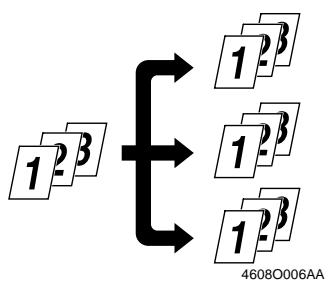
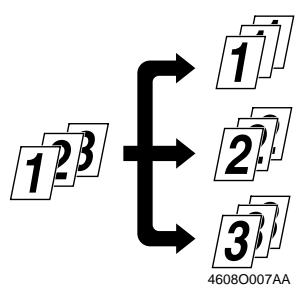
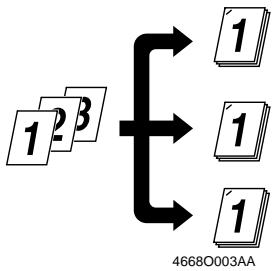
- Makes copies that are sorted into complete sets of the original document or grouped into uncollected groups, each containing copies of one page of the original document. p. 3-16
-Prints two pages of the original document on both the front and back sides of a single sheet of paper. 忍 p. 3-7

Long Edge Binding

Short Edge Binding
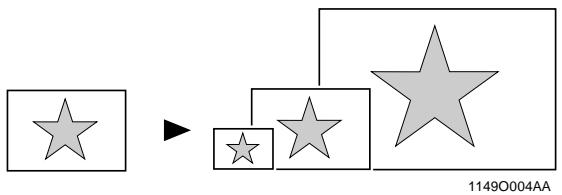
- Enlarges or reduces the original. p. 3-15
- Prints two pages or four pages of the original document on a single sheet of paper.
A maximum of 16 pages of the original document can be printed on a single sheet of paper. p. 3-6
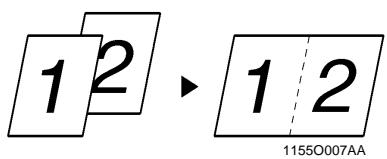
2 up
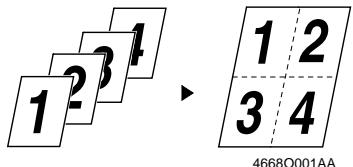
4 up
-Prints four pages of the original document on both the front and back sides of a single sheet of paper, which can be folded into a booklet. ≈ p. 3-7
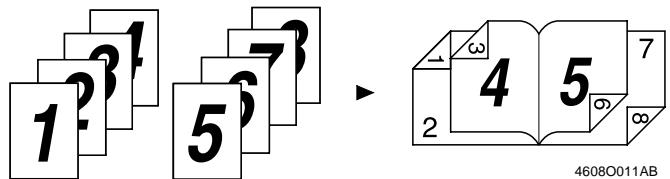
1. Features of the printer driver
- Places text (a watermark) in the background. p. 3-23

-Prints complete sets of the original document, stapled together. 3-12
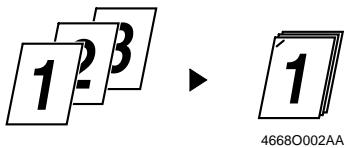
By using sorting, you can make complete sets of documents for immediate delivery without having to do any further processing.
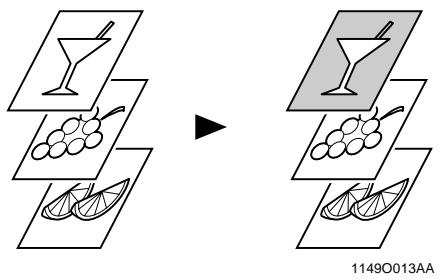
-Prints the cover on a different type of paper (such as colored paper). 忍 p.3-10
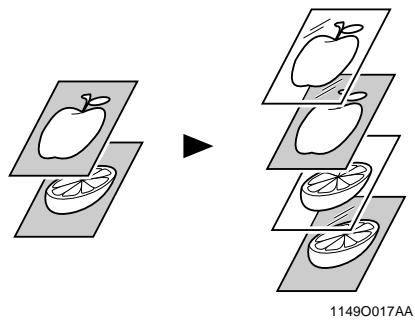
- Prints on OHP transparencies. You can also insert interleaves, either blank or printed with the same contents as those on the OHP transparencies. © p. 3-11
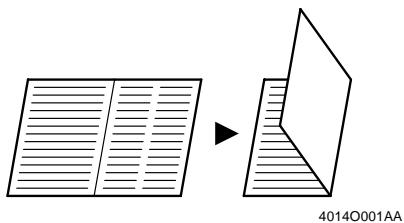
Folds copies during finishing. p. 3-13
Administrative functions
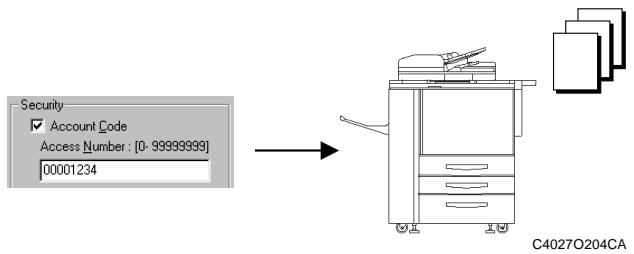
Account Code
- The E.C.M. (E.K.C.) function can be used as if the machine was used as a copier. p. 3-20
- Select the Account Code check box on the Job Management tab of the printer driver.
- Type the appropriate number in the Access Number box. The job will be printed, and the number of prints will be counted for the specified account.
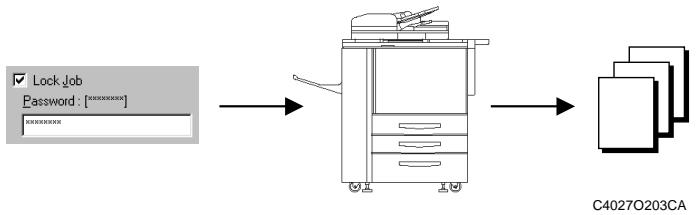
Lock Job
- Printing of confidential documents may be withheld until a legitimate password is entered on the machine. p. 3-21
- Select the Lock Job check box on the Job Management tab of the printer driver.
- Type the password in the Password box.
- From the control panel of the copier, type the password. The job will be printed.
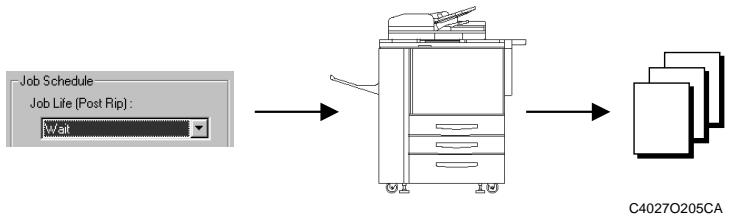
Wait
-
The copier stops automatically before it prints the received image. 3-22
-
Select "Wait" from the Job Life list on the Job Management tab of the printer driver.
- On the control panel of the copier, the PRINTER CHECK MODE screen appears. Press the [Start] key. The job will be printed.
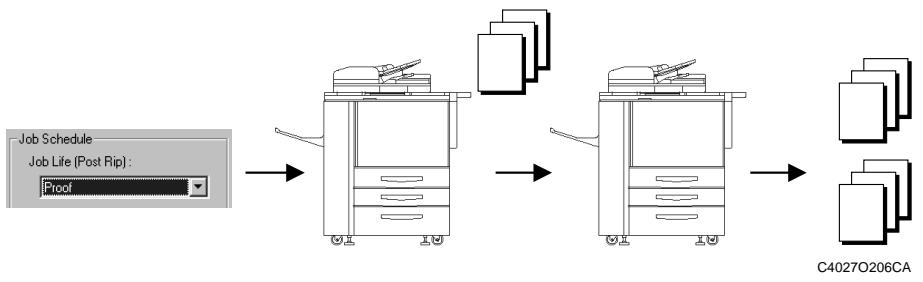
Proof
- The copier stops automatically after printing a set of images of a job. p. 3-22
- Select "Proof" from the Job Life list on the Job Management tab of the printer driver. Only a copy of the job will be printed.
- On the control panel of the copier, press the [Start] key. All jobs will be printed.
2. Installing the printer drivers
Installing various printer drivers
To make 100% use of the functions offered by the machine to which the controller was added, install the attached printer drivers on your computer. The controller is furnished with the following printer drivers:
- PCL6 printer driver for Windows 98/Me
- PCL6 printer driver for Windows NT 4.0
- PCL6 printer driver for Windows 2000/XP
Install the printer driver suitable for the operating system that runs on your computer. For installation procedures, see the relevant page as detailed below:
Installing the Windows printer driver:
Windows 98/Me ≈ p. 2-2
Windows NT 4.0/2000/XP 忍 p. 2-9
Chapter 2
Installing the Printer Driver
1. Windows 98/Me
Operating environment
This section explains the required environment for the printer driver.
Before installing the printer driver, make sure that your computer meets the following requirements. If it doesn't, the printer driver may not function properly.
| Personal computer | IBM PC or compatible with an 80486, AMD, or Pentium processor | |
| Operating system | Windows 98 (English) Windows Me (English) | |
| Memory | 32 MB or more | |
| I/O interface | Network | 10/100BaseT (UTP) |
- Windows NT 4.0/2000/XP
For the operating environment and installation procedure for the Windows NT 4.0/2000/XP printer driver, see p. 2-9.
Installation
This section explains the installation procedure for the Windows 98 printer driver.
NOTES
- Before starting to install the printer driver, be sure first to quit all other applications.
-
When installing the printer driver for Windows Me, read "Windows 98" as "Windows Me".
-
Click the [Start] button. In the menu that appears, point to "Settings", and then click "Printers".
- The Printers window will appear. Double-click the Add Printer icon.
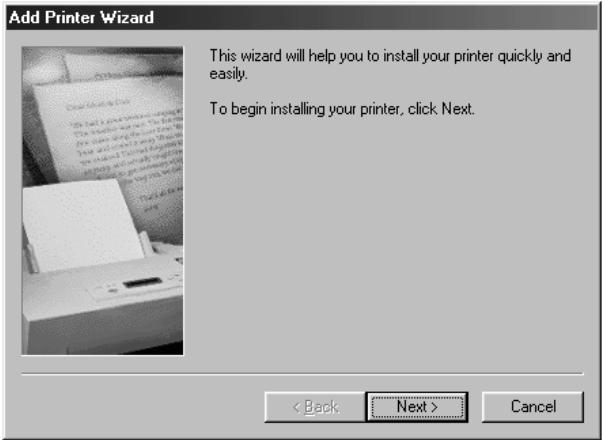
- Click the [Next>] button to start the Add Printer Wizard.
4668P003CA
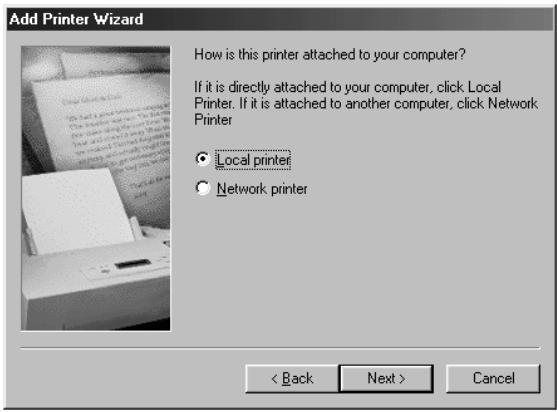
- A dialog box that allows you to select the type of connection for the printer will appear.
Select "Local printer", and then click the [Next>] button.
4668P004CA
NOTES
- The printer is actually connected to the network. However, since other network settings are required, the printer driver is temporarily installed as for a local connection.
-
To make settings for using the network, it is recommended that you read the Pi8500Pro Getting Started manual, which comes with the controller.
-
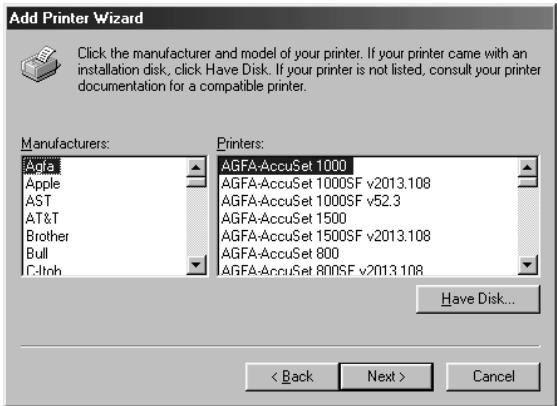
A dialog box will appear, prompting you to select the manufacturer and model of your printer. Click the [Have Disk...] button in the lower right part of the dialog box.
4668P005CA
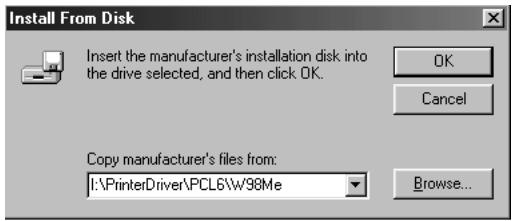
- The Install From Disk dialog box will appear. Insert the controller driver CD-ROM, included with the controller, in the CD-ROM drive of your computer.
- In the Copy manufacturer's files from box, type the path of the driver to be installed. (In the example, the letter of the CD-ROM drive is I.) To install the driver for Windows 98/Me, type "I:\PrinterDriver\PCL6\W98Me".
C4027P216CA
- The Printers list will appear.
Select the driver to be installed, and then click the [Next>] button.
- A dialog box that prompts you to select the port will appear. Select a port, and then click the [Next>] button.
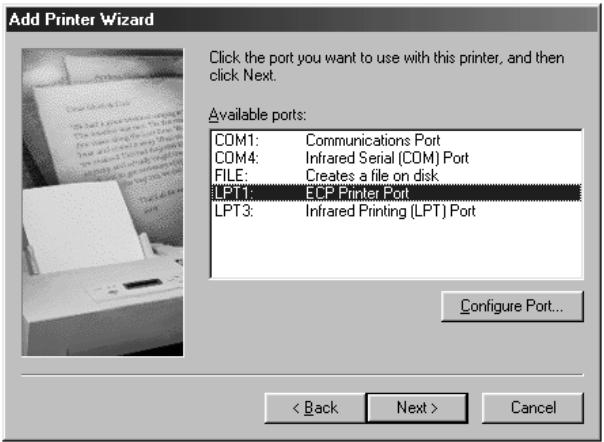
4668P009CA
NOTES
-
The selected port will be changed later.
-
A dialog box that asks you to confirm the printer name will appear. Check the printer name. If you want to designate this printer as the default printer, select "Yes".
Click the [Next>] button.
- A dialog box that allows you to select printing of a test page will appear.
Select "No", and then click the [Finish] button.
- Installation will start.
When the installation is completed, the corresponding icon will be added to the "Printers" window.
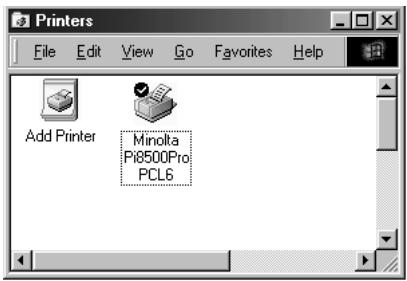
C4027P217CA
NOTES
-
You cannot print with the local port setting. Use the following procedure to make the settings for the printer driver.
-
Right-click the new printer icon and select "Properties" from the menu.
- Click the "Details" tab in the dialog box that appeared.
- Click the [Add Port] button.
The Add Port dialog box appears.
- Select "Network", and then click the [Browse] button.
- Select the printer on the network, and then click the [OK] button.
NOTES
- If the desired printer does not appear on your network, refer to the Pi8500Pro Getting Started manual or consult the network administrator.
- Click the [OK] button twice.
Making general settings before using the printer
The printer driver requires setting items that are common to all print jobs, including the port to which the printer is connected and any optional devices configured with the machine. These settings must be made using tabs available in a Properties dialog box after the printer driver has been installed or whenever the operating environment changes.
The most common settings were made when the printer driver was installed, so you do not usually need to change them. Some items must, however, be changed in the following cases.
| Cases where changes are necessary | Applicable tabs |
| ·You want to add a comment to distinguish the printer from others. | General |
| ·The connection port has been changed on the computer. ·You want to change the conditions for the display of a timeout error. ·You want to designate a port to which the machine is connected via a network. (This setting must be made on a computer that is connected to the controller via a network.) | Details |
| ·The setting is not related to printing. | Color Management |
| ·You want to share the machine with other computers connected to the same network. (This setting must be made on the computer directly connected to the controller.) | Sharing |
| ·You want to change the setting in the Minolta Pi8500Pro PCL6 Properties dialog box. For details, see Chapter 3. | Setup Paper Quality Device Options Setting Job Management Overlay |
Displaying a Properties dialog box
There are two different ways to display a Properties dialog box. The contents of a particular dialog box differ slightly depending on how you access it. Select the appropriate one according to your need.
(1) To display a Properties dialog box from the Printers folder
(2) To display a Properties dialog box from an application menu
Below are the detailed procedures for each approach.
Displaying a Properties dialog box from the Printer folder
- Click the [Start] button, point to "Settings", and then click "Printers".
- Right-click the Minolta Pi8500Pro PCL6 icon.
- Click "Properties" on the menu that will appear. This will display the Properties dialog box.
This method allows you to set the environment in which you will use the printer.
The settings made through this method are valid in all applications.
Displaying a Properties dialog box from an application menu
- Click "Print..." on the File menu of the application.
- Make sure that "Minolta Pi8500Pro PCL6" is the listed printer name. Otherwise, click [] , and then select "Minolta Pi8500Pro PCL6" from the list that will appear.
- Click the [Properties] button. This will display the Properties dialog box.
This method allows you to set the number of copies and type of paper for each document.
Note that the settings made in the Properties dialog box accessed through the application are valid only for that particular application.
TIPS
- To make settings in the Device Options Setting tab, display the Properties dialog box from the Printers folder.
NOTE
The steps to display a Properties dialog box may differ depending on the application. Follow the correct procedure according to the application. The procedure above is based on the WordPad application.
2. Windows NT 4.0/2000/XP
Operating environment
This section explains the required environment for the printer driver.
Before installing the printer driver, make sure that your computer meets the following requirements. If it doesn't, the printer driver may not function properly.
| Personal computer | IBM PC or compatible with an 80486, AMD, or Pentium processor | |
| Operating system | Windows NT 4.0 (English) Windows 2000 (English) Windows XP (English) | |
| Memory | 32 MB or more (Windows NT 4.0/2000) 64 MB or more (Windows XP) | |
| I/O interface | Network | 10/100BaseT (UTP) |
- Windows 98/Me
For the operating environment and installation procedure for the Windows 98/Me printer driver, see p. 2-2.
Installation
This section explains the installation procedure for the Windows XP printer driver.
NOTES
- Before starting to install the printer driver, be sure first to quit all other applications.
- Before starting to install the printer driver, log in as Administrator.
- The installation screens differ between Windows XP and Windows NT 4.0/2000.
-
When installing the printer driver for Windows NT 4.0 or Windows 2000, read "Windows XP" as "Windows NT 4.0/2000". Three function or item names are given as applicable if they differ between the three operating systems.
-
Click the [start] button. On the menu that appears, click "Printers and Faxes". * For Windows NT 4.0/2000, click the "Start" button, point to "Settings", and then click "Printers".
- The Printers and Faxes window will appear. Click the "Add a printer" icon. * For Windows NT 4.0/2000, double-click the "Add Printer" icon in the Printers window.
- Click the [Next>] button to start the Add Printer Wizard.
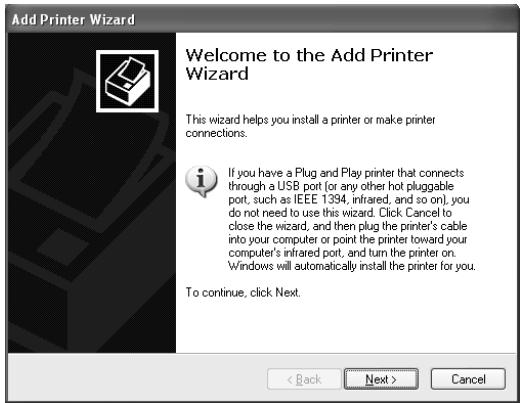
C4027P201CA
NOTE
This step is skipped in Windows NT 4.0.
-
A dialog box that allows you to select the type of connection for the printer will appear. Select "Local printer attached to this computer".
-
For Windows NT 4.0, select "My Computer".
For Windows 2000, select "Local printer".
NOTES
- The printer is actually connected to the network. However, since other network settings are required, the printer driver is temporarily installed as for a local connection.
- To make settings for using the network, it is recommended that your read the Pi8500Pro Getting Started manual, which comes with the controller.
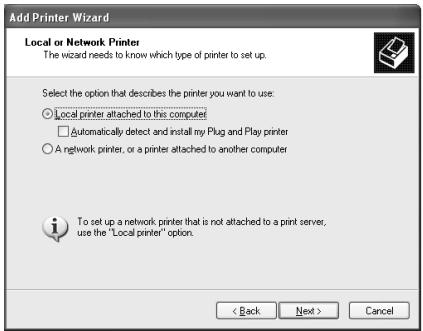
C4027P202CA
- Click the [Next>] button.
- A dialog box that prompts you to select the port will appear. Select a port, and then click the [Next>] button.
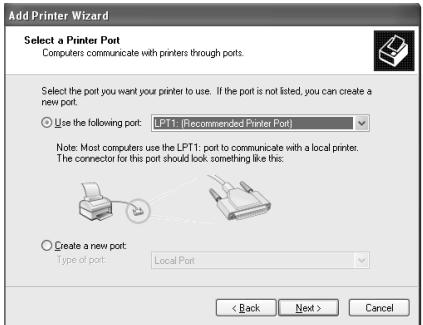
C4027P203CA
NOTES
-
The selected port will be changed later.
-
A dialog box will appear, prompting you to select the manufacturer and model of your printer. Click the [Have Disk...] button in the lower right part of the dialog box.
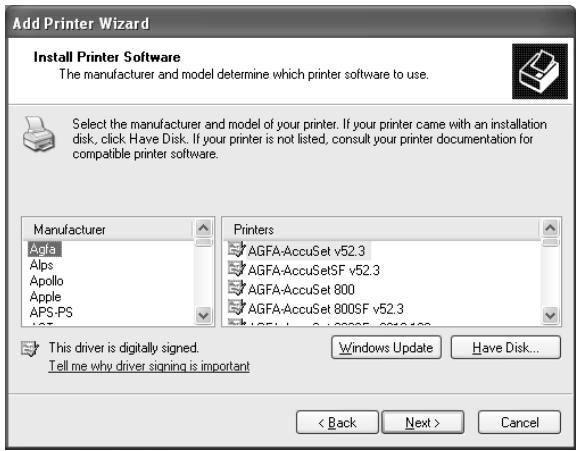
C4027P204CA
- The Install From Disk dialog box will appear. Insert the controller driver CD-ROM, included with the interface kit, in the CD-ROM drive of your computer.
- In the Copy manufacturer's files from box, type the path of the driver to be installed. (In an example, the letter of the CD-ROM drive is I.)
To install the driver for Windows 2000/XP, type "I:\PrinterDriver\PCL6\W2kXp".
To install the driver for Windows NT 4.0, type "I:\PrinterDriver\PCL6\Nt4".
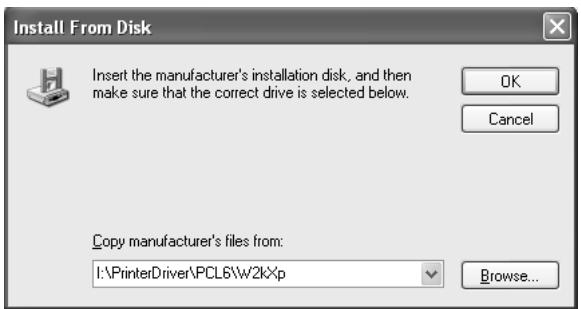
C4027P205CA
- Click the [OK] button.
- The Printers list will appear.
Select the driver to be installed, and then click the [Next>] button.
- Follow the instructions that appear on the screen to complete the installation. When the installation is completed, the corresponding icon will be added to the "Printers and Faxes" window.
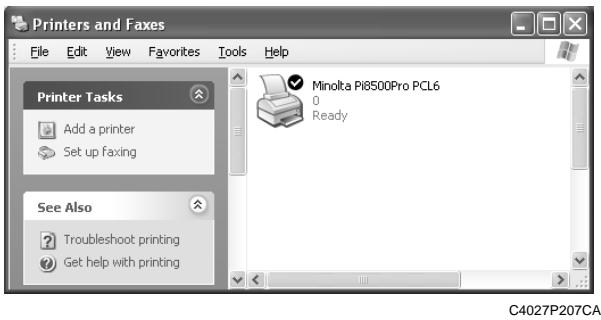
NOTES
- You cannot print from this printer with the local port setting.
Make network port settings according to instructions in the Pi8500Pro Getting Started manual or from the network administrator.
Making general settings before using the printer
The printer driver requires setting items that are common to all print jobs, including the port to which the printer is connected and any optional devices configured with the machine. These settings must be made using tabs available in a Properties dialog box after the printer driver has been installed or whenever the operating environment changes.
The most common settings were made when the printer driver was installed, so you do not usually need to change them. Some items must, however, be changed in the following cases.
| Cases where changes are necessary | Applicable tabs | Remarks |
| ·You want to add a comment to distinguish the printer from others. | General | |
| ·You want to share the machine with other computers connected to the same network. (This setting must be made on the computer that is directly connected to the controller.) | Sharing | |
| ·The connection port has been changed on the computer. ·You want to change the conditions for the display of a timeout error. ·You want to designate a port to which the machine is connected via a network. (This setting must be made on a computer that is connected to the controller via a network.) | Ports | |
| ·You want to restrict conditions under which the printer can be used. ·You want to change spool condition settings. ·You want to change OS-dependent settings. | Advanced | Function avail-able only in Windows 2000/XP |
| ·This setting is not related to printing. | Color Management | Function avail-able only in Windows 2000/XP |
| ·You want to specify a time frame for machine operation. | Scheduling | Function avail-able only in Windows NT 4.0 |
| ·You want to restrict access to the machine. ·You want to check the machine users’ accounts. | Security | Function avail-able only in Windows NT 4.0 |
| ·You want to make settings for optional equipment installed on the machine. | Device Options Setting |
Displaying a Properties dialog box
There are two different ways to display a Properties dialog box. The contents of a particular dialog box differ slightly depending on how you access it. Select the appropriate one according to your need.
(1) To display a Properties dialog box from the Printers folder
(2) To display a Properties dialog box from an application menu Below are the detailed procedures for each approach.
Displaying a Properties dialog box from the Printer folder
- Click the [Start] button, and then click "Printers and Faxes".
- Click the Minolta Pi8500Pro PCL6 icon.
To display the General tab:
3. Click "Properties" on the File menu.
To display the Printing Preferences dialog box:
3. Click "Printing Preferences..." on the File menu. This opens the Minolta Pi8500Pro PCL6 Printing Preferences dialog box.
This method allows you to set the environment in which you will use the printer. The settings made through this method are valid in all applications.
NOTE
Since different function and item names are used for Windows NT 4.0, read "Printing Preferences" as "Document Defaults".
Displaying a Properties dialog box from an application menu
For Windows XP
- Click "Print..." on the File menu of the application.
- Make sure that "Minolta Pi8500Pro PCL6" is the listed printer name on the General tab.
For Windows 2000
- Click "Print..." on the File menu of the application.
- Make sure that "Minolta Pi8500Pro PCL6" is the listed printer name on the General tab. Otherwise, click [] , and then select "Minolta Pi8500Pro PCL6" from the list that will appear.
For Windows NT 4.0
- Click "Print..." on the File menu of the application.
- Make sure that "Minolta Pi8500Pro PCL6" is the listed printer name. Otherwise, click [] , and then select "Minolta Pi8500Pro PCL6" from the list that will appear.
- Click the [Properties] button. This will display the Properties dialog box.
This method allows you to set the number of copies and type of paper for each document.
Note that the settings made in Properties dialog box accessed through the application are valid only for that particular application.
TIPS
To make settings in the Device Options Setting tab, display the Properties dialog box from the Printers folder.
NOTE
The steps to display a Properties dialog box may differ depending on the application. Follow the correct procedure according to the application. The procedure above is based on the WordPad application.
Chapter 3
Properties Settings
1. Properties settings
Description of each Properties tab
The tabs in the Properties dialog box allow you to make the following settings. For a detailed description of each tab, see the corresponding reference page.
| Properties tab | Outline of settings that can be made | Reference page |
| Setup | Allows you to select the paper take-up tray and the paper exit tray. Also allows you to set high-level printing functions, such as two-sided printing, book-let creation, N-up printing, OHP interleaving, Cover Mode, Staple, and Folding. | ≈ p. 3-6 |
| Paper | Allows you to set basic printing conditions, such as number of copies, paper size, print orientation and print zoom ratio. Also allows you to set functions related to sorting. | ≈ p. 3-14 |
| Quality | Allows you to set the resolution. | ≈ p. 3-19 |
| Device Options Setting | Allows you to make settings for optional equipment installed to the machine. | ≈ p. 3-3 |
| Job Management | Sets the E.C.M. (E.K.C.) function. Allows you to lock a print job. | ≈ p. 3-20 |
| Overlay | Allows you to make watermark settings. | ≈ p. 3-23 |
2. Device Options Setting tab
Functions of the Device Options Setting tab
This Properties tab allows you to make settings for the options installed to the machine. Be sure to select the options correctly. Otherwise, some functions may be unusable or printing errors may occur. The settings must match the machine configuration.
There is no need to make settings for any options that are fitted to your machine but that are not mentioned in the Installable Options list.
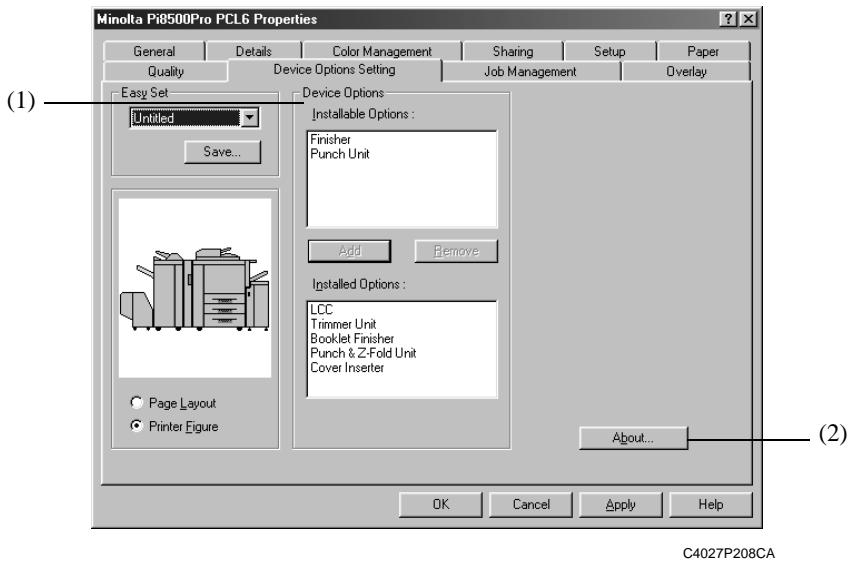
(1) Device Options
Select the options installed to the machine.
- Installable Options This is a list of options that can be installed. Select the desired options from this list.
Available settings: LCC, Trimmer Unit, Booklet Finisher, Finisher, Punch & Z-Fold Unit, Punch Unit, Cover Inserter
- Add Pressing this button adds the selected option.
- Remove Pressing this button removes the selected option.
- Installed Options This is a list of options that are currently installed. Select it when you wish to remove an option.
(2) About...
Click to display the manufacturer and version number of the printer driver.
3. Functions common to various Properties tabs
Functions common to various Properties tabs
These functions are common to various Properties tabs, from Setup to Overlay.
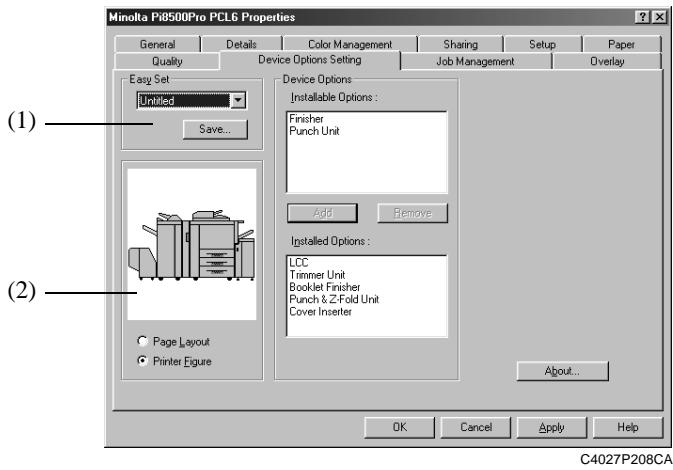
(1) Easy Set
Allows you to recall and use settings stored in the Properties tab.
- Easy Set list Allows you to select a group of settings stored for the Properties tab.
- Save (Delete) Allows you to save (or delete) the settings in the Properties tab. When you click the [Save] button, the settings in the Properties tab are saved and the Save Easy Set Name dialog box will appear. p. 3-5 When you click the [Delete] button, the current group of stored settings is deleted.
NOTES
Depending on the environment used, contents of Save/Delete will be different. p.A-5
TIPS
- If any setting of the current group has been changed, the [Save] button will appear.
- If the settings currently displayed are those of a stored group, the [Delete] button will appear.
(2) Paper preview/Machine preview
Allows you to display and change the paper preview and machine preview.
- Page Layout
The layout of the print data of a single page is displayed as an image. This allows you to check the status for N-up printing and two-sided printing, for example.
- Printer Figure
When the paper take-up tray and paper exit tray have been selected, the trays are displayed in green.
Functions of the Save Easy Set Name dialog box
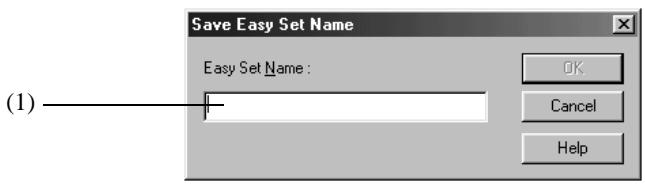
Used to save print settings.
Before clicking the [Save] button, check all settings for the Properties tab.
4668P049CA
(1) Easy Set Name
Add a name to the group of stored settings.
Number of registrations
Different depending on the environment used
A-5
Number of characters
Max. 10 characters
4. Setup tab
Functions of the Setup tab
Allows you to make settings for the paper take-up tray, paper exit tray and various high-level printing functions.
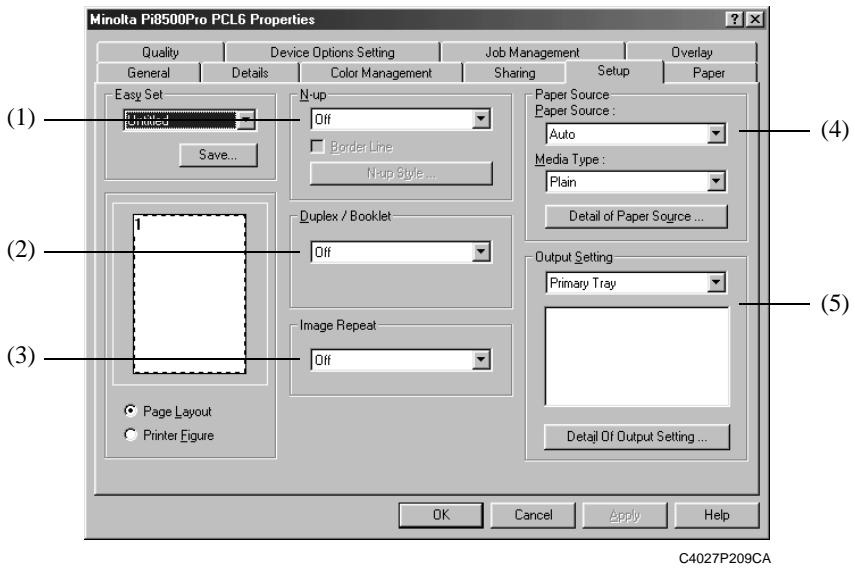
(1) N-up
Outputs multiple pages of the original document on one sheet of paper.
N-up
Select an N-up number.
Available settings: Off, 2 up, 4 up, 6 up, 9 up, 16 up
Adds a border to the layout.
- N-up Style
Allows you to select a printing layout.
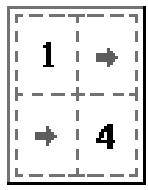
Horiz. Ascending
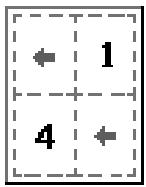
Horiz. Descending
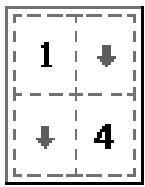
Vert. Ascending
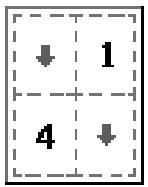
Vert. Descending
4668P051CA
See p. 1-3 for an illustration.
NOTES
- If the original document for a print job contains pages of different sizes and/or different orientations, pages may be partially cut or overlap each other.
- This setting is not available if Custom Paper is used.
TIP
The print layout is displayed in the Page Layout area.
(2) Duplex / Booklet
Specifies two-sided printing and booklet printing.
- Off No setting
- Short Edge Binding Two-sided printing that allows for the short edge to be bound
- Long Edge Binding Two-sided printing that allows for the long edge to be bound
- Booklet Left Binding Four pages are printed on both sides of a single sheet of paper so that when the sheet is folded in the middle it forms a left-bound booklet.
- Booklet Right Binding Four pages are printed on both sides of a single sheet of paper so that when the sheet is folded in the middle it forms a right-bound booklet.
See p. 1-3 for an illustration.
NOTES
- If the original document for a print job contains pages of different sizes and/or different orientations, pages may be partially cut or overlap each other.
- Two-sided printing and OHP Interleaving are not available simultaneously.
TIPS
- Two-sided printing can be performed on paper of the following sizes: Letter, Letter-R, Legal, A3, A4, A4-R, A5, B4, B5, B5-R, Invoice, 11 × 17 , F4-1, F4-2, F4-3, and F4-4.
- Short Edge Binding, Long Edge Biding, Booklet Left Binding and Booklet Right Binding will be displayed in the Page Layout area.
(3) Image Repeat
Prints two copies of the same page on one sheet.
- Off
Default setting
2-Repeat
Image Repeat is on.
(4) Paper Source
Selects the machine's paper take-up tray to be used.
Allows you to set the Cover Page function and the OHP Interleaving function.
- Paper Source Select the paper take-up tray to be used.
The available paper sizes are determined by the types of paper take-up trays installed in the machine.
Available settings: Auto, Manual Feed, Tray1 to Tray3, LCC
Media Type
Select the type of paper.
Setting values: Plain, Transparency (OHP), Thick, Thin, Tab, Trace, and User Define
- Detail of Paper Source
Make settings for the Cover Page function and OHP interleaving function. 忍 p. 3-10
NOTE
Some paper sizes cannot be selected. For details, refer to the User Manual of the machine.
TIPS
- Set the paper take-up tray in the Device Options Setting tab.
- The paper take-up tray used is displayed in green in the Printer Figure area.
(5) Output Setting
Allows you to select the machine's exit tray to which the paper is to be distributed.
Settings can also be made for finishing functions, including stapling and folding.
- Paper exit destination Select the machine tray to which you wish to distribute the prints.
Not Installed Primary Tray
Finisher or Booklet Finisher
Primary Tray, Secondary Tray
- Detail of Output Setting
Make stapling or folding settings. For details, see p. 3-12.
NOTE
Some paper sizes cannot be selected. For details, refer to the User Manual of the machine.
TIPS
- Set the type of finisher in the Device Options Setting tab.
- The paper take-up tray used is displayed in green in the Printer Figure area.
Functions of the Detail of Paper Source dialog box
Allows you to make settings for the Cover Page function and the OHP Interleaving function.
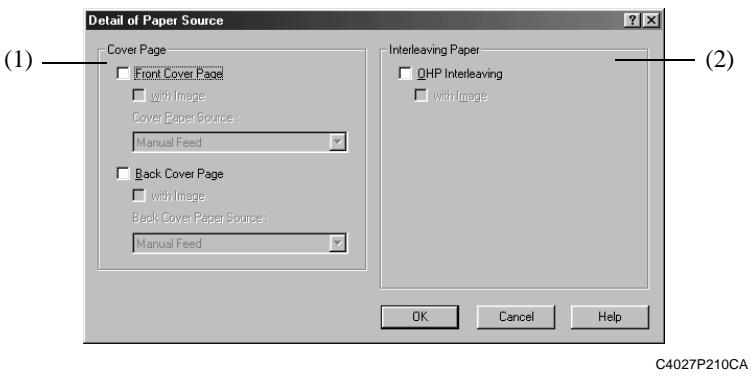
(1) Cover Page
Used to print a document with front and back cover pages. You can print on the front cover or leave it blank.
- Front Cover Page
- Adds a front cover page.
with Image (Front Cover Page)
- Adds a front cover page.
Prints on the front cover paper.
- Back Cover Page
- Adds a back cover.
with Image (Back Cover Page)
- Adds a back cover.
Prints on the back cover paper.
- Cover Paper Source/Back Cover Paper Source
Select the tray for the front and back cover papers.
Available settings: Manual Feed, Tray1 to Tray3, LCC
NOTES
- When using special paper, such as thick paper, the paper sometimes may not to be distributed to the selected paper exit tray.
- Select the paper source for the body of the document from the Paper Source list.
- You can select Manual Feed, Tray 1 to Tray 3, or LCC for the body of the document.
TIP
The tray containing the paper on which the body of the document is to be printed is displayed in green in the Printer Figure area.
(2) Interleaving Paper
Inserts sheets (interleaving sheets) between sheets of OHP film when printing on OHP film. You can either leave these sheets blank or print the same image as that printed on the OHP film.
- OHP Interleaving Inserts OHP interleaving sheets.
with Image 10000000000000000000000000000000000000000000000000000000000000000000000000
NOTES
- When using the OHP Interleaving function, set the number of print sets to "1".
- Select paper source for OHP interleaves in the Paper Source list.
- "Manual Feed" cannot be selected as the paper source for interleaves.
- Only "Manual Feed" is available as the paper source for the OHP film. No other paper sources can be selected.
- OHP interleaving and two-sided printing are not available simultaneously.
TIP
The OHP interleaving tray is displayed in green in the Printer Figure area.
Functions of the Detail Of Output Setting dialog box
Allows you to make settings for the finishing functions, including stapling and folding.
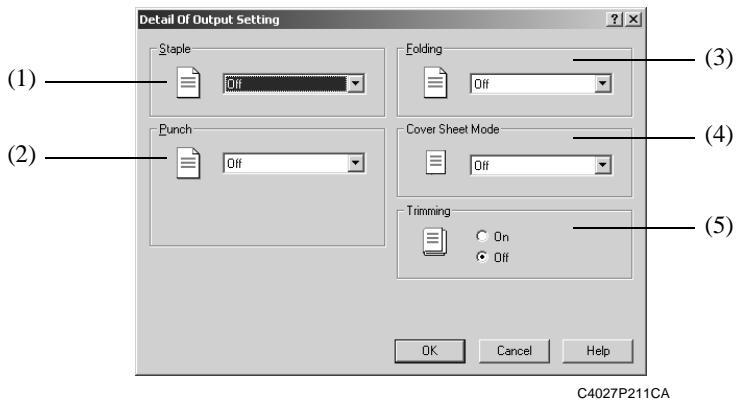
(1) Staple (when the Finisher or Booklet Finisher is installed)
Allows you to staple one set of printed documents at a time.
- Right Corner Printed documents are stapled in the upper right corner.
- Upper 2-point Printed documents are stapled at two points along the top edge.
- Left Corner Printed documents are stapled in the upper left corner.
- Left 2-point Printed documents are stapled at two points along the left edge.
- Right 2-point Printed documents are stapled at two points along the right edge.
See p. 1-4 for an illustration.
NOTES
- If a Staple setting has been made, printed pages are fed out into the Primary Tray.
- If the capacity of the Finisher or Booklet Finisher is exceeded, the stapling operation may be canceled. Refer to the User Manual of the machine.
- If the original document for a print job consists of pages of different sizes, stapling may be canceled.
- Take care when printing a document consisting of pages facing different directions, since the stapling position will be determined by the direction of the first page.
- Certain sizes or kinds of paper cannot be selected. For details, refer to the User Manual of the machine.
(2) Punch (when the Punch Unit is installed to the Finisher/Booklet Finisher) Allows you to punch holes in the printed document.
- Off The document is not punched.
- Upper The document is punched along the upper side.
- Left The document is punched along the left side.
- Right The document is punched along the right side.
(3) Folding (when FN-7 and ZK-2 are installed)
Allows you to select the desired paper folding function.
- Off Printed pages are not folded.
- Z-folding Printed pages are folded into three parts with the printed surface inside.
- Fold Printed pages are folded once with printed surface inside.
- Center Staple + Fold Printed pages are stapled at the center and creased with printed surface inside.
(4) Cover Sheet Mode (when Cover Inserter C is installed)
- Off Cover sheets are not inserted.
- Front Cover sheets are inserted in front of your job.
- Back Cover sheets are inserted in the back of your job.
- Front and Back Cover sheets are inserted at both the front and back of your job.
(5) Trimming (when the Trimmer Unit is installed to the Booklet Finisher) Specify if you want to trim the pages of your booklet.
- Off The document is not trimmed.
- On The document is trimmed.
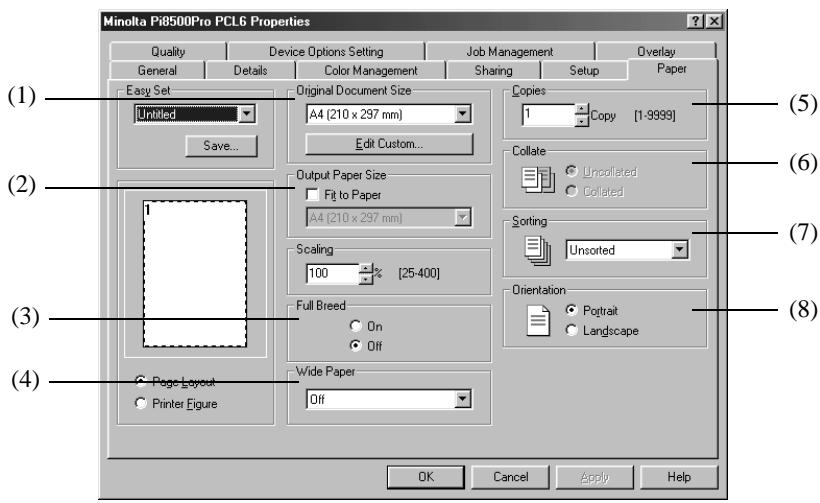
5. Paper tab
Functions of the Paper tab
Allows you to make basic printer settings.
C4027P212CA
(1) Original Document Size
Allows you to set the size of the original.
- Paper size
Select the size of the original.
Available settings: Letter, Letter-R, Legal, A3, A4, A4-R, A5, A5-R, A6, B4, B5, B5-R, Invoice, Invoice-R, 11× 17 F4-1,F4-2,F4-3,F4-4
- Edit Custom
Used for special sizes. ≈ p. 3-17
NOTES
- When using custom size paper, first load the sheets into the Manual Feed Tray, and then select the paper size on the Touch Panel of the machine.
- When custom size paper is used, only one page can be printed on one sheet.
- Depending on the environment used, the number of registrations will be different. p. A-7
- The paper size setting made in the application may have priority over the paper size setting made in the printer driver.
If the pages are not printed correctly, confirm the paper size setting for the application.
(2) Output Paper Size
Allows you to set the size of the paper on which prints are to be made.
- Output Paper Size Allows you to specify the size of the printing paper.
- Paper size Select the size of the printing paper.
Available settings: Letter, Letter-R, Legal, A3, A4, A4-R, A5, A5-R, A6, B4, B5, B5-R, Invoice, Invoice-R, 11 × 17 , F4-1, F4-2, F4-3, F4-4
- Fit to Paper The original is printed at a zoom ratio that matches the size of the printing paper.
- Scaling Specify the print zoom ratio. Setting range: 25 to 400%
≈ See p. 1-3 for an illustration.
NOTES
- If you select a paper size not loaded in the machine, the machine will display a message informing you of this.
- If you specify a paper source and paper size that do not match the specified tray, the machine will display messages showing that the specified paper size is not correct and asking if printing should be executed forcibly.
- If the Original Document Size setting does not match the size specified in the application with "Fit to Paper" selected, the machine will use the paper size set in the application.
(3) Full Bleed
Specify if you want to print the pages with a full bleed.
- Off The document is not printed with a full bleed.
- On The document is printed with a full bleed.
(4) Wide Paper
Specify if you want to use wide paper.
- Off Wide paper is not used.
- On Select the size of wide paper used.
5. Paper tab
(5) Copies
Specify the number of sets of prints to be made. Either type the value directly or press [] or [] .
Setting range: 1 to 9999 sets
NOTE
When using the OHP Interleaving function, set the number of sets of prints to "1".
(6) Collate
This function is not available.
(7) Sorting
Select the sorting method.
- Unsorted
Multiple copies of each page are printed.
For example, when five sets of copies are to be printed, five copies are printed for each page. Prints are not sorted.
- Sorted
Copies are printed in document sets. For example, when five sets of a 10-page document are to be made, prints are sorted and arranged in five sets consisting of the 10 document pages.)
- Group
Multiple copies of each page are printed. Prints are sorted by page.
(8) Orientation
Select the orientation of the printout. You can check the selected direction in the Page Layout area.
- Portrait
Printing is done lengthwise.
- Landscape
Printing is done crosswise.
TIP
A Portrait or Landscape print appears in the Page Layout area.
Functions of the Custom Paper dialog box
Used to set special paper sizes.
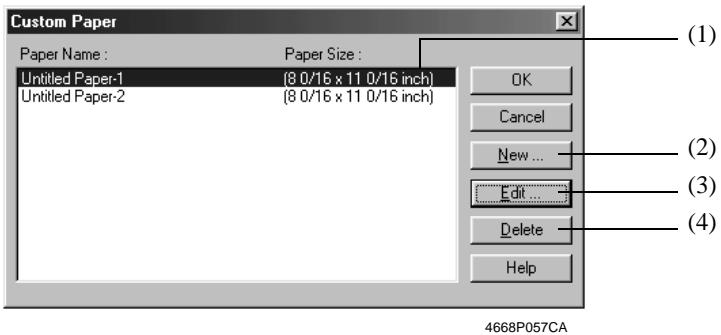
(1) Paper Name
Select the name of the paper from the Paper Name list.
(2) New
This function allows you to set a special size of paper. When it is selected, the dialog box changes to the Custom Paper settings dialog box.
Number of registrations: Different depending on the environment used
$$ \approx \mathrm {p . A - 7} $$
(3) Edit
Edits the Custom Paper selection made in (1). When this is selected, the dialog box changes to the Custom Paper settings dialog box.
(4) Delete
Deletes the Custom Paper selection made in (1).
Custom Paper settings dialog box
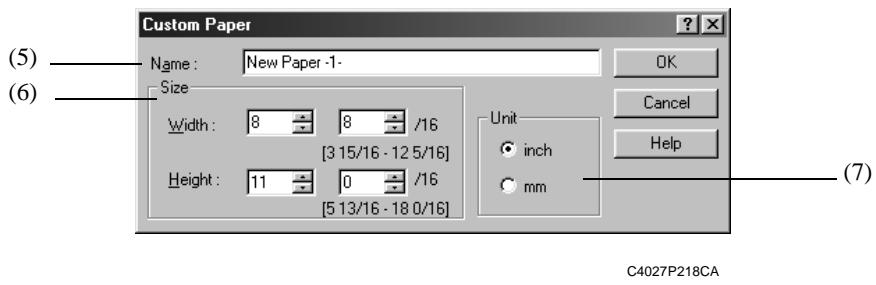
(5) Name Enter a name for the custom paper. Setting range: Max. 20 characters
(6) Size
Set the paper size.
Setting range:
Width 3 15/16 inch to 12 5/16 inch (Unit set to "inch")
100 mm to 314 mm (Unit set to "mm")
Height 5 13/16 inch to 18 0/16 inch (Unit = inch)
148 mm to 459 mm (Unit set to "mm")
(7) Unit Allows you to switch between "inch" and "mm" for the paper size.
6. Quality tab
Functions of the Quality tab
(1)
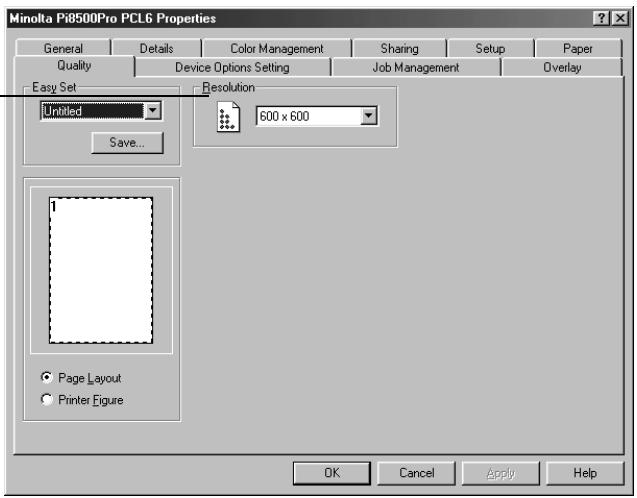
C4027P213CA
(1) Resolution
Select the printing resolution.
Setting range: 600× 600 dpi
7. Job Management tab
Functions of the Job Management tab
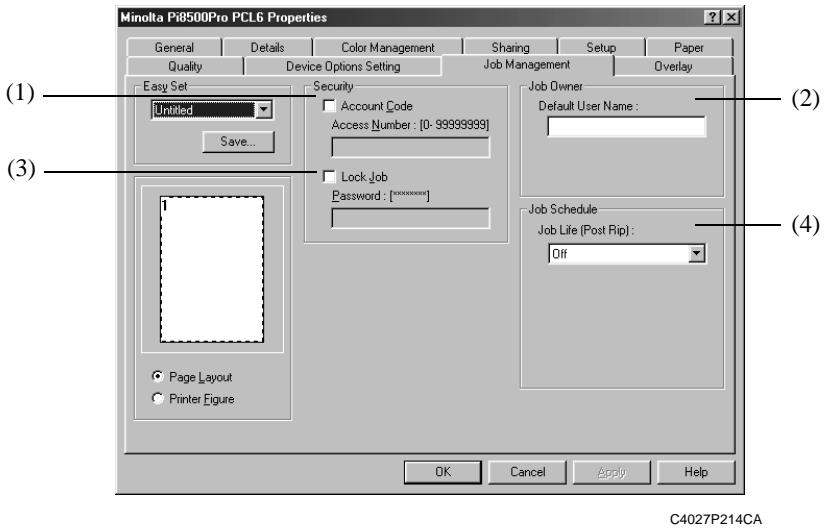
(1) Account Code
Select this check box when using the copy track function. An account code is attached to each printing job, enabling you to carry out management at the machine. In order to use this function, copy track function must be set at the machine.
When the copy track function is set at the machine, printing may sometimes fail to take place until the access number designated at the machine is correctly set.
- Account Code Enable the Account function.
- Access Number Enter the password number set in the machine.
Setting range: 0 to 99999999 (8 digits)
(2) Default User Name
The default user name set in the printer driver is displayed with Fiery LCD and Web Spooler.
Setting range: Max. 8 characters
(3) Lock Job
Select this check box to lock a print job.
When using Lock Job, set a password in the Password box.
A locked printing job will be printed when it is unlocked using the Job List display on the machine panel. In this case, a password is necessary.
- Lock Job
Enable the lock job function.
- Password
Enter the password of the locked job.
Setting range: 0 to 99999999 (8 digits)
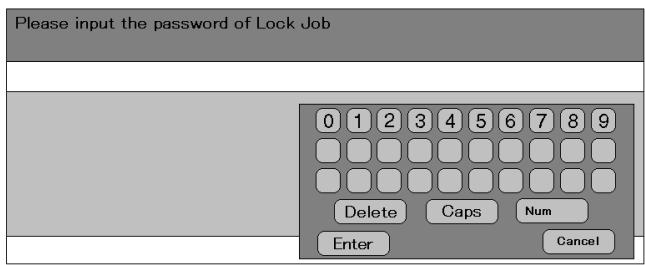
- Unlocking a job
When the Lock Job function is set from the printer driver, printing can only take place when the password is input from the machine.
After sending data, print from the machine.
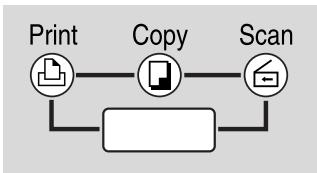
- Press the mode key on the control panel to enter Printer mode.
C4027O236AA
- Touch the [Num] button.
- Type the numeric password.
C4027P235CA
NOTES
-
All jobs for which the original password and the input password match are unlocked.
-
The job is unlocked and printing will start.
(4) Job Schedule
Allows you to confirm and change any setting for a job after the print engine stops.
- Off Default setting
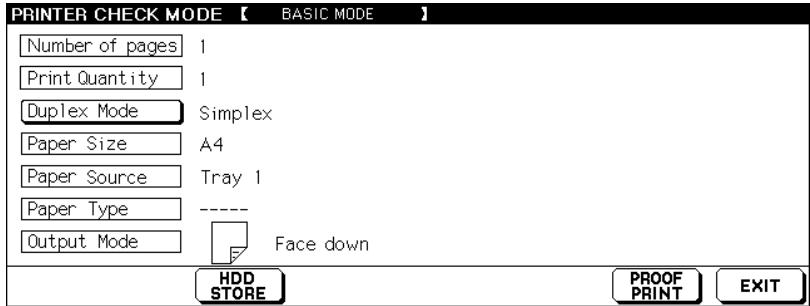
- Wait The copier stops automatically before it prints the received image.
Proof The copier stops after printing a set of images of a job.
Job Schedule
If you print with "Wait" or "Proof" selected under "Job Schedule" in the printer driver, the following screen will appear on the machine panel.
C4027P234CA
Make the settings you want, and then press the [Print] button to start printing.
8. Overlay tab
Functions of the Overlay tab
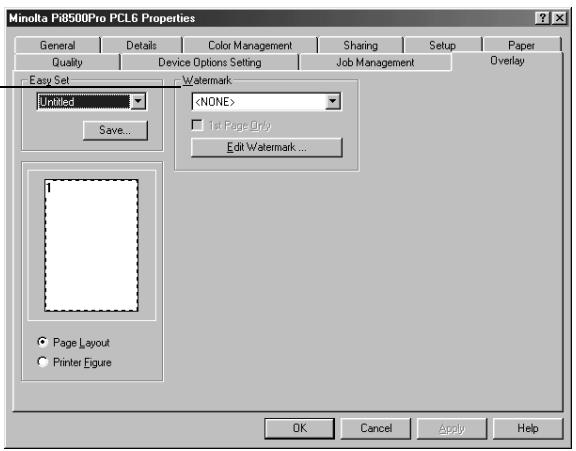
(1)
C4027P215CA
(1) Watermark
Prints a specific word in the background as a watermark.
- Text From the list, select the word to be entered as the watermark. Available settings: NONE, CONFIDENTIAL, TOP SECRET, COPY, DO NOT COPY, DRAFT, FINAL, PROOF, or a word set by the user
- 1st Page Only Select whether to insert a watermark on only the first page or on all pages.
- Edit Watermark Make format, position, and other settings for the watermark characters. p. 3-24
See p. 1-4 for an illustration.
NOTES
- When using the Cover Page function together with this function set to "NONE" and the watermark set to print on only the first page, the watermark will be printed on the second page.
- This function may not work with some applications.
- Depending on the environment used, contents of Save/Delete will be different.
TIP
A view of the watermark will be displayed in the Page Layout area.
Functions of the Watermark dialog box
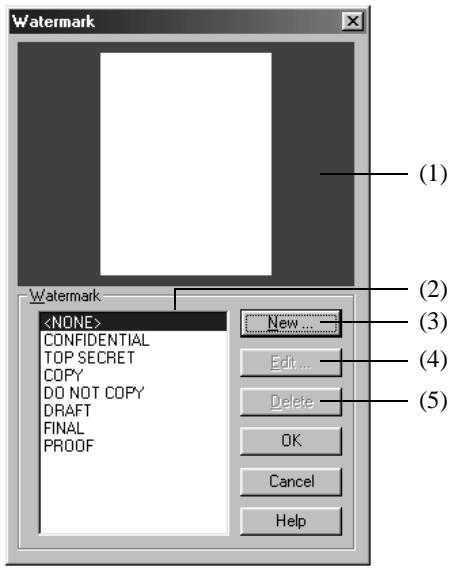
Allows you to set the text to be inserted with the Watermark function, and also the text style.
4668P052CA
(1) Preview
Allows you to preview the watermark.
(2) Name
Select a watermark from the list.
Available settings:
(3) New
Allows you to create new watermark text.
When you select this item, a dialog box for making detailed settings appears.
(4) Edit
Allows you to edit text selected in (2).
When you select this item, a dialog box for making detailed settings appears.
(5) Delete
Deletes text selected in (2).
Watermark detailed dialog box
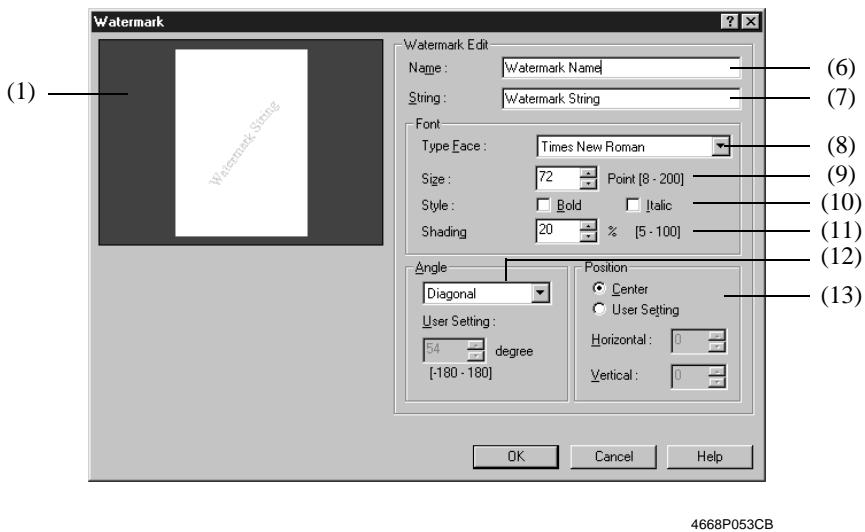
(6) Name
Enter the name under which you wish to register the watermark.
Number of registrations Different depending on the environment used
p. A-6
Number of characters Max. 20 characters
(7) String
Enter the text to be printed as a watermark.
Number of characters Max. 63 characters
(8) Type Face
Specify a font for text to be printed as a watermark.
Specify a font from the fonts installed on your PC.
(9) Size
Specify the font size of the characters.
Setting range 8 to 200 points (in 1-point steps)
(10)Style
Specify the font style of the characters.
-
Bold Prints bold characters.
-
Italic 1000
Prints italic characters.
(11) Shading
Specify the density of the characters.
Setting range: 5% to 100%
(12) Angle
Specify the angle of the characters with respect to the paper.
- Angle Default angle fixed by the driver. Available settings: Horizontal, Diagonal, Vertical, User Setting
- User Setting If you select "User Setting" from the Angle list, you can set any desired angle.
Setting range: -180° to +180° (A - (minus) value rotates the characters clockwise, 0 leaves the characters parallel to the paper, and a + (plus) value rotates the characters counterclockwise.)
(13) Position
Specify the position at which you wish to print a watermark.
- Center The watermark is printed in the center of the paper.
- User Setting You can specify a position by entering numbers in the Horizontal and Vertical boxes.
Setting values:
TIPS
- Specify the position from the center. The Horizontal positive direction is to the right, and the Vertical positive direction is upward.
- You can view your settings in the Preview area (1).
9. Conflicts dialog box
Functions of the Conflicts dialog box
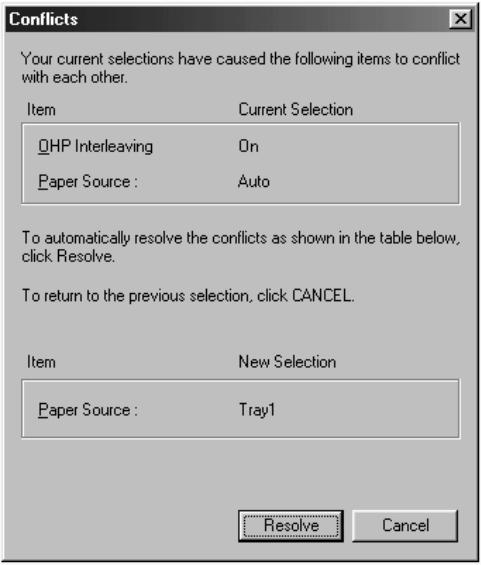
A Conflicts dialog box like the one shown below appears when a setting that conflicts with another made previously is made in a Properties tab.
When the following dialog box, the currently selected settings conflict with each other.
4014P010CA
When the Conflicts dialog box appears, it shows the settings that cannot be combined with each other. Check the details, and then click the [Resolve] button, or the [Cancel] button to quit.
NOTE
Some settings, which are defined by the machine for restricted combinations of different functions, can at times be accepted by the printer driver. If a print command is issued from the personal computer with such settings made, the machine will not produce the output correctly. Make sure that you choose correct settings.
Tip
The dialog box looks slightly different from this one when the Device Options Setting tab is being used.
Chapter 4
Troubleshooting
1. Troubleshooting
Unable to print
This chapter explains the troubleshooting procedures for possible malfunctions. Perform the troubleshooting procedures given below in the order listed when the machine is unable to print even when you execute a print command from your computer.
| Symptom | Possible cause | Action |
| The message “Printer Error” appears on the computer screen. | An error is present in the machine. | Check the control panel of the machine. |
| The network cable is disconnected. | Make sure that the network cable is connected properly to the computer and controller. | |
| Printing does not start despite completion of the printing setup on the computer. | An error is present in the machine. | Check the control panel of the machine. |
| The network cable is disconnected. | Make sure that the network cable is connected properly to the controller. | |
| The printer driver selected for printing is not for the Pi8500Pro PCL6. | Check the printer name selected in the Print dialog box. | |
| A print job yet to be processed is loaded in the machine, causing the printer to wait. | Check the job using Web Spooler of Fiery WebTools. | |
| Continued from the previous page (Printing does not start despite completion of the printing setup on the computer.) | The print job is locked. | Select “Printer” using the Mode button on the control panel of the machine. Enter the correct password. |
| The connection from the controller to the network has not been established. | Consult the network administrator. | |
| When E.C.M. (E.K.C.) is used, an incorrect password may have been typed. | Use the correct password. | |
| Multiple copy sets are mistakenly sorted and stapled together as a single large set. | The settings in certain applications may conflict with the printer driver settings. | In the application, turn off Col-late and set the copy count to “1”. In the printer driver, make the desired Sorting and copy count settings. |
| A large number of copies are mistake-ently printed. | The settings in certain applications may conflict with the printer driver settings. | In the application, turn off Collate and set the copy count to “1”. In the printer driver, make the desired Sorting and copy count settings. |
If the problem persists even after these checks have been made, refer to the documentation for the machine.
Unable to make correct settings / Unable to print exactly as set
Perform the troubleshooting procedures given below in the order listed when you cannot make proper settings in the printer driver or when the print results do not represent what has been set.
| Symptom | Possible cause | Action |
| Unable to select an item in the printer driver. | Some functions cannot be combined. | Do not select items which are dimmed. |
| The Conflicts dialog box is displayed on the computer screen. | An illegal combination of functions has been made. | Check the combinations and make a correct combination of functions. |
| Unable to print exactly as set. | Incorrect settings are made. | Check the setting for each item of the printer driver. |
| The combination of functions, though valid on the printer driver, is invalid on the machine. | ||
| The watermark can-not be printed. | The watermark was not correctly set. | Check the watermark setting. |
| The Shading setting of the watermark is low. | Check the Shading setting of the watermark. | |
| Unable to specify Staple. | Staple can be specified only when the type of Finisher you are using is selected in the Device Options Setting tab and “Primary Tray” is selected as the Output Setting in the Setup tab. | Select the type of Finisher you are using on the Device Options Setting property sheet, and select “Primary Tray” as the Output Setting in the Setup tab. |
| No stapling can be performed in the following cases: The specified is Invoice-R, A5-R, A6, B5-R, or Custom Size, an Out-put Setting other than “Primary Tray” is selected, Booklet is specified, OHP Interleaving is specified. | Check the paper size, Output Setting, Booklet, and OHP Inter-leaving settings. | |
| Unable to staple properly. | No stapling can be performed on thick paper or OHP transparencies. | Check the type of paper. |
| When the Finisher is installed, no stapling can be performed if the number of prints to be made exceeds 50. | Check the number of prints to be made. | |
| No stapling can be performed if the number of pages to be printed is 50 or more when a Booklet Fin-isher is mounted. | ||
| No stapling can be performed if the original document contains pages of different sizes. | ||
| The stapling position is opposite to what is expected. | The paper direction and N-up do not match the setting made for Orientation. | Change the Orientation setting. |
| Folding cannot be specified. | The optional Booklet Fin-isher is necessary for you to specify Folding. “Booklet Finisher” must be selected in the Device Options Setting tab. | Select “Booklet Finisher” in the Device Options Setting tab. |
| Folding may be disabled when Staple is specified. | Check the settings made. (See “Function combination matrix” on p. A-2.) | |
| Folding is not performed. | Folding cannot be performed if tab paper or OHP transparencies are used. | Check the type of paper. |
| Unable to print an image properly. | The machine’s available memory space is not suffi-cient. | Add memory to expand the machine’s memory space or sim-plies the image to reduce the amount of data handled. |
- Troubleshooting
| Symptom | Possible cause | Action |
| Unable to specify the exit port | No exit port can be speci-fied if the paper size is A6 or Custom Size is specified. | Check the setting of the paper size. |
| Paper is not fed from the specified paper source. | Paper will not be fed from the specified paper source if that paper source is loaded with paper of a dif-ferent size and orientation. | Load the paper source with paper of the appropriate size and in the appropriate direction. |
| No watermark is printed. | A watermark may not be printed in graphics applica-tions. | No watermark can be printed in this case. |
| Unable to print exactly as set. | The paper size, paper orien-tation, and other settings made in the application take precedence over those made in the driver. | Make correct settings in the application. |
If the problem persists even after these checks have been made, refer to the documentation for the machine.
Appendix
- Function combination matrix
1. Function combination matrix
The combination is possible.
The combination is impossible.
(The settings made will be rejected.)
NOTE
- When the check box under Output Paper Size is not selected, the paper size selected in the Original Document Size list will also become the Output Paper Size setting.
- Cannot be used if the LCC rejects paper loaded in the portrait orientation.
2. Number of registrations
Number of registrations/Usable range for Easy Set
| Windows 98/Me | Windows NT4.0/2000/XP | ||||
| Registration | Use | Registration | Use | ||
| Administrator | Printer icon | - | - | • 16/1 driver | ○ |
| Application | - | - | × | ○ | |
| Power Users | Printer icon | - | - | × | ○ |
| Application | - | - | × | ○ | |
| Users | Printer icon | • 16/1 driver | ○ | × | ○ |
| Application | • 16/1 driver | ○ | × | ○ | |
Number of registrations/Usable range for Watermark
| Windows 98/Me | Windows NT4.0/2000/XP | ||||
| Registration | Use | Registration | Use | ||
| Administrator | Printer icon | - | - | • Total: 15 | • Common • Personal • [All users] Personal |
| Application | - | - | × | • Common • Personal • [All users] Personal | |
| Power Users | Printer icon | - | - | × | • Personal • [Administrator] Common |
| Application | - | - | × | • Personal • [Administrator] Common | |
| Users | Printer icon | • Total: 22 | ○ | × | • Personal • [Administrator] Common |
| Application | • Total: 22 | ○ | × | • Personal • [Administrator] Common | |
Number of registrations/Usable range for Custom Paper
| Windows 98/Me | Windows NT4.0/2000/XP | ||||
| Registration | Use | Registration | Use | ||
| Administrator | Printer icon | - | - | • Common: 16 | • Common • Personal • [All users] Personal |
| Application | - | - | × | • Common • Personal • [All users] Personal | |
| Power Users | Printer icon | - | - | × | • Personal • [Administrator] Common |
| Application | - | - | × | • Personal • [Administrator] Common | |
| Users | Printer icon | • 32/1 driver | ○ | × | • Personal • [Administrator] Common |
| Application | • 32/1 driver | ○ | × | • Personal • [Administrator] Common | |
3. E.C.M. (E.K.C.)
Account Code
This function can only be accessed by the "key operator" after an 8-digit E.C.M. master key code is entered. The E.C.M. allows you to monitor all copying activity by controlling E.C.M. password accounts.
This feature can track copier usage for individual users and/or accounts as well as limit access to the copier to authorized users. Copy quantity limits for specific accounts can also be set. Use the E.C.M. Key Operator Form provided at the end of this section to record E.C.M. password information.
The E.C.M. stores up to 1,000 E.C.M. passwords, each of which represents a separate account that can be used for billing and recordkeeping. The number of users assigned to each account may depend upon the billing system in operation and the number of individuals and departments using the copier. When the E.C.M. is activated, copying can be performed only after a valid E.C.M. password is entered. Copy quantity and copy limit for each account can be visually confirmed on the screen.
If E.C.M. needs to be activated on your machine, contact your service representative.
The following E.C.M. settings can be made:
[1] E.C.M. data edit:
Change, add, or delete E.C.M. data and reset the copy count of the individual account.
[2] E.C.M. all count reset:
Clear the copy count for all accounts.
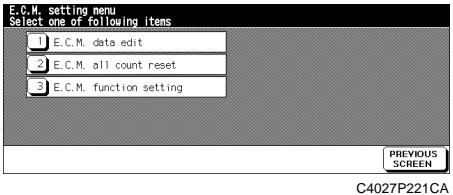
[3] E.C.M. function setting:
Activate the desired E.C.M. functions and set the machine condition when the copy limit is reached to stop either immediately or after a job is completed or to only display a warning message.
How to access the ECM setting mode
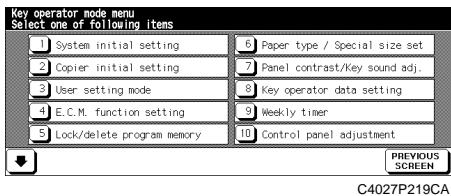
Key Operator Mode Screen
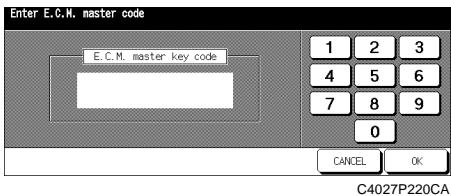
ECM Master Key Code Screen
ECM Setting Menu Screen
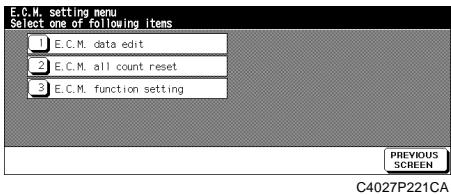
Procedure
- Touch “[4] E.C.M. function setting” on the Key operator mode menu screen. The Enter E.C.M. master code screen is displayed if a code is required.
- Use the keypad on the touch screen to enter your 8-digit E.C.M. master key code, and then touch [OK] to display the E.C.M. setting menu screen. (See note.)
- Select the desired E.C.M. function, and then make settings as required.
- To exit the E.C.M. mode, touch [PREVIOUS SCREEN] on the E.C.M. setting menu screen, and then touch [PREVIOUS SCREEN] on the Key operator mode menu screen to restore the basic screen.
NOTE
If an invalid E.C.M. master key code is entered, continue by entering the valid 8-digit code. The E.C.M. master key code can be set to less than 8 digits with the Memory switch setting of the Key Operator function.
[1] E.C.M. data edit
Use this function to display the list of copy count and copy limit for each account, to change, add, or delete the E.C.M. data, and to reset the copy count for each account.
E.C.M. No. Designated by key operator
E.C.M. Password
Unique 8-digit numeric code programmed by the key operator for user
- User Name Max. 8 characters
- Copy Limit 0 to 999,999 copies
ECM Setting Menu Screen
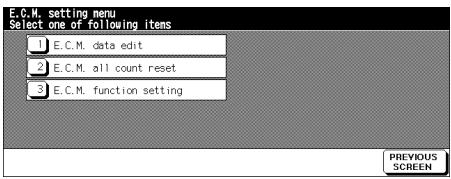
C4027P221CA
ECM Data Edit Screen
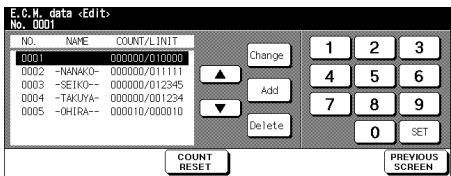
C4027P223CA
ECM Data Change Screen
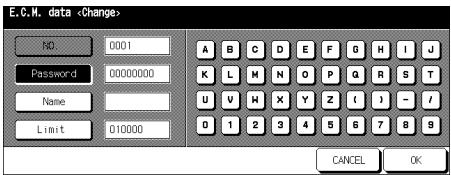
C4027P224CA
ECM Data Add Screen
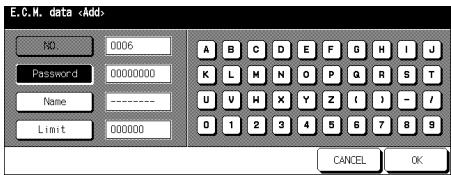
C4027P225CA
Password Duplication Screen
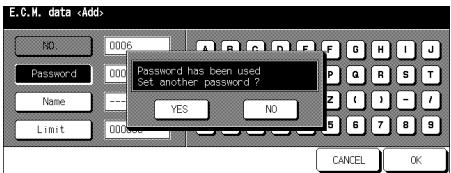
C4027P226CA
Name Duplication Screen
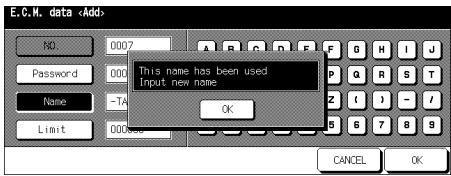
C4027P227CA
Procedure
- Touch [4] E.C.M. function setting on the Key operator mode screen. Enter an 8-digit E.C.M. master key code, and then touch [OK] to display the E.C.M. setting menu screen.
NOTE:
If an invalid E.C.M. master key code is entered, continue by entering the valid 8-digit code.
- Touch [1] E.C.M. data edit. The E.C.M. data Edit screen will be displayed.
- To change, add, or delete the E.C.M. data, and to reset the copy count of an account, follow the procedure described below for each account.
To change E.C.M. data:
(1) Touch the arrow keys on the right side of the list to highlight the E.C.M. data to be changed, and then touch [Change]. The E.C.M. data Change screen will be displayed.
(2) Touch the desired item key to highlight it, and then enter new data by using the touch screen keypad.
Password Max. 8 digits (See note 1.)
Name Max. 8 characters (See note 2.)
Limit Max. 999,999 copies
NOTES:
1 We recommend that you make a list of all E.C.M. passwords and account numbers.
2 If an invalid user name is entered, continue by entering the valid name.
(3) Touch [OK] to complete the setting and to verify whether the same password or name has already been used for another account number.
When a password is duplicated:
The duplicate password screen will be displayed. Touch [YES] to enter a new password or [NO] to create a duplicate password.
NOTE:
If a duplicate password is created, the number of copies will be counted only for the E.C.M. password with the smallest number. We recommend you do not use duplicate E.C.M. passwords.
When a name is duplicated:
The duplicate name screen will be displayed. Touch [OK] to re-enter new name.
To add E.C.M. data:
(1) Touch [Add] on the E.C.M. data Edit screen. The E.C.M. data Add screen will be displayed.
(2) Touch the desired item key to highlight it, and then enter the data by using the touch screen keypad.
Password Max. 8 digits (See note 1.)
Name Max. 8 characters (See note 2.)
Limit Max. 999,999 copies
NOTES:
1 We recommend that you make a list of all E.C.M. passwords and account numbers.
2 If an invalid user name is entered, continue by entering the valid name.
(3) Touch [OK] to complete the setting and to verify whether the same password or name has already been used for another account number.
When a password is duplicated:
The duplicate password screen will be displayed. Touch [YES] to enter a new password, or [NO] to create a duplicate password.
NOTE:
If a duplicate password is created, the number of copies will be counted only for the E.C.M. password with the smallest number. We recommend you do not use duplicate E.C.M. passwords.
When a name is duplicated:
The duplicate name screen will be displayed. Touch [OK] to enter a new name.
To delete E.C.M. data:
(1) Touch the arrow keys on the right side of the list to highlight the E.C.M. data to be deleted, and then touch [Delete]. The delete confirmation screen will be displayed.
(2) Touch [YES] to delete or [NO] to cancel.
To clear the E.C.M. count:
(1) Touch the arrow keys on the right side of the list to highlight the desired E.C.M. data, and then touch [COUNT RESET]. The reset confirmation screen will be displayed.
(2) Touch [YES] to clear the copy count of the selected E.C.M. data or [NO] to cancel.
Delete Confirmation Screen
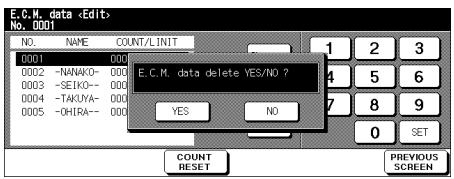
C4027P228CA
Reset Confirmation Screen
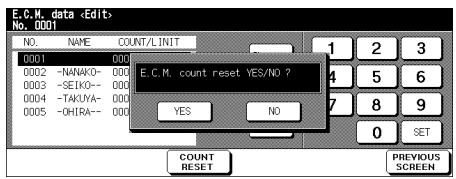
C4027P229CA
- If other E.C.M. setting changes are required, touch [PREVIOUS SCREEN] on the E.C.M. data Edit screen to return to the E.C.M. setting menu screen. Touch the desired key from [1] to [3].
- Touch [PREVIOUS SCREEN] to restore the Key operator mode menu screen.
- If no further changes are required, touch [PREVIOUS SCREEN] to restore the basic screen for performing copy operations.
[2] E.C.M. all count reset
Use this function to reset the count for all E.C.M. counters.
ECM Setting Menu Screen
ECM All Count Reset Screen
![KONICA MINOLTA PI8500PRO - [2] E.C.M. all count reset - 1](/content/2025/01/139532/images/f9b285273e39a25442cab4b7c81eff42497173bff5ba15d70ff76bc738626586.jpg)
C4027P221CA
![KONICA MINOLTA PI8500PRO - [2] E.C.M. all count reset - 2](/content/2025/01/139532/images/8101f33055985ea0d93e9a7fbd2fe8f4313a1223f8554b7d95cc74c290cd4473.jpg)
C4027P231CA
Procedure
- Touch [4] E.C.M. function setting on the Key operator mode menu screen. Enter an 8-digit E.C.M. master key code, and then touch [OK] to display the E.C.M. setting menu screen.
NOTE:
If an invalid E.C.M. master key code is entered, continue by entering the valid 8-digit code.
- Touch [2] E.C.M. all count reset. The Reset all E.C.M. counters screen will be displayed.
- Touch [YES] to reset all counters to zero and to return to the E.C.M. setting menu screen.
Or touch [NO] to cancel. Touching [PREVIOUS SCREEN] will also cancel this function and return to the E.C.M. setting menu screen.
- If other E.C.M. setting changes are required, touch the desired key from [1] to [3].
- Touch [PREVIOUS SCREEN] to restore the Key operator mode menu screen.
- If no further changes are required, touch [PREVIOUS SCREEN] to restore the basic screen for performing copy operations.
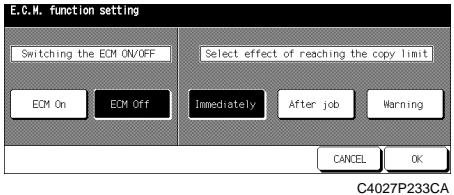
[3] E.C.M. function setting
Use this function to turn E.C.M. on or off and to select whether the machine will stop when the count limit is reached or the copier will complete the copy job before stopping when reaching the maximum copy count.
ECM Setting Menu Screen
ECM Function Setting Screen
Procedure
- Touch [4] E.C.M. function setting on the Key operator mode menu screen. Enter an 8-digit E.C.M. master key code, and then touch [OK] to display the E.C.M. setting menu screen.
NOTE:
If an invalid E.C.M. master key code is entered, continue by entering the valid 8-digit code.
- Touch [3] E.C.M. function setting. The E.C.M. function setting screen will be displayed.
- Touch [E.C.M. On] to activate E.C.M. or touch [E.C.M. Off] to deactivate E.C.M.
The selected key will be highlighted.
- Touch [Immediately] to stop the machine at once when the copy limit is reached. In this case, copy conditions selected for the current job will be cleared. To continue the job using the same user password, change the copy limit of the password or clear the copy count.
Touch [After job] to stop the machine after the current job is completed when the copy limit is reached.
Touch [Warning] to only display a warning message when the copy limit is reached.
The selected key will be highlighted.
- Touch [OK] to complete the setting and return to the E.C.M. setting menu screen.
-
If other E.C.M. setting changes are required, touch the desired key from [1] to [3].
-
Touch [PREVIOUS SCREEN] to restore the Key operator mode menu screen.
- If no further changes are required, touch [PREVIOUS SCREEN] to restore the basic screen for performing copy operations.
4. Index
A
About... 3-3
Account Code 3-20, A-8
Administrative Functions 1-6
Angle 3-26
B
Booklet 3-7
C
Collate 3-16
Conflicts dialog box 3-27
Copies 3-16
Cover Page 3-10
Cover Sheet Mode 3-13
Custom Paper setting dialog box 3-18
D
Default User Name 3-20
Delete 3-17, 3-24
Description of each Properties tab 3-2
Device Options 3-3
Device Options Setting tab 3-3
Displaying a Properties dialog box 2-8, 2-16
Displaying a Properties dialog box from an application menu 2-8, 2-16
Displaying a Properties dialog box from the Printer folder 2-8, 2-16
Duplex 3-7
Duplex/Booklet 3-7
E
E.C.M. A-8
4. Index
E.K.C. A-8
Easy Set 3-4
Easy Set Name 3-5
Edit 3-17, 3-24
F
Features of the printer driver 1-2
Folding 3-13
Full Bleed 3-15
Function combination matrix A-2
Functions common to various Properties tabs 3-4
Functions of the Conflicts dialog box 3-27
Functions of the Custom Paper dialog box 3-17
Functions of the Detail Of Output Setting dialog box 3-12
Functions of the Detail of Paper Source dialog box 3-10
Functions of the Device Options Setting tab 3-3
Functions of the Job Management tab 3-20
Functions of the Paper tab 3-14
Functions of the Quality tab 3-19
Functions of the Save Easy Set Name dialog box 3-5
Functions of the Setup tab 3-6
Functions of the Watermark dialog box 3-24
1
Image Repeat 3-8
Installation 2-3, 2-10
Installing various printer drivers 1-8
Interleaving Paper 3-11
J
Job Management tab 3-20
Job Schedule 3-22
L
Lock Job 3-21
M
Machine preview 3-5
Making general settings before using the printer 2-7, 2-14
N
Name 3-18, 3-24, 3-25
New 3-17, 3-24
Number of registrations A-5
Number of registrations/Usable range for Custom Paper A-7
Number of registrations/Usable range for Easy Set A-5
Number of registrations/Usable range for Watermark A-6
N-up 3-6
0
Operating environment 2-2, 2-9
Orientation 3-16
Original Document Size 3-14
Output Paper Size 3-15
Output Setting 3-9
Overlay tab 3-23
P
Paper Name 3-17
Paper preview 3-5
Paper Source 3-8
Paper tab 3-14
Position 3-26
Preview 3-24
Punch 3-13
Q
Quality tab 3-19
R
Resolution 3-19
s
Setup tab 3-6
Shading 3-26
Size 3-18, 3-25
Sorting 3-16
Staple 3-12
String 3-25
Style 3-25
T
Trimming 3-13
Type Face 3-25
U
Unable to make correct settings / Unable to print exactly as set 4-4
Unable to print 4-2
Unit 3-18
Unlocking a job 3-21
V
Various printing functions 1-2
W
Watermark 3-23
Wide Paper 3-15

MINOLTA
Copyright
2002 MINOLTA CO., LTD.
The information contained in this manual is subject to change without notice to incorporate improvements made on the product or products the manual covers.
- PCL6 Printer Driver
- Welcome
- Trademark acknowledgments
- Contents
- Chapter 1 Before Using the Printer Driver
- Chapter 2 Installing the Printer Driver
- Chapter 3 Properties Settings
- Chapter 4 Troubleshooting
- Appendix
- Naming of equipment and functions
- Equipment names
- Function names
- Chapter 1
- Features of the printer driver
- Features of the printer driver
- NOTES
- Various printing functions
- Administrative functions
- Account Code
- Lock Job
- Wait
- Proof
- Installing the printer drivers
- Installing various printer drivers
- Chapter 2
- Windows 98/Me
- Operating environment
- Installation
- Making general settings before using the printer
- Displaying a Properties dialog box
- Displaying a Properties dialog box from the Printer folder
- Displaying a Properties dialog box from an application menu
- TIPS
- NOTE
- Windows NT 4.0/2000/XP
- For Windows XP
- For Windows 2000
- For Windows NT 4.0
- Chapter 3
- Properties settings
- Description of each Properties tab
- Device Options Setting tab
- Functions of the Device Options Setting tab
- Functions common to various Properties tabs
- Functions common to various Properties tabs
- Paper preview/Machine preview
- Functions of the Save Easy Set Name dialog box
- Easy Set Name
- Setup tab
- Functions of the Setup tab
- TIP
- Image Repeat
- Paper Source
- Output Setting
- Functions of the Detail of Paper Source dialog box
- Cover Page
- Interleaving Paper
- Functions of the Detail Of Output Setting dialog box
- Paper tab
- Functions of the Paper tab
- Original Document Size
- Output Paper Size
- Full Bleed
- Wide Paper
- Functions of the Custom Paper dialog box
- Custom Paper settings dialog box
- Quality tab
- Functions of the Quality tab
- Job Management tab
- Functions of the Job Management tab
- Account Code
- Default User Name
- Lock Job
- - Unlocking a job
- Job Schedule
- Job Schedule
- Overlay tab
- Functions of the Overlay tab
- Watermark
- Functions of the Watermark dialog box
- Watermark detailed dialog box
- Shading
- Angle
- Position
- Conflicts dialog box
- Functions of the Conflicts dialog box
- Chapter 4
- Troubleshooting
- Troubleshooting
- Unable to print
- Unable to make correct settings / Unable to print exactly as set
- Function combination matrix
- Number of registrations
- E.C.M. (E.K.C.)
- How to access the ECM setting mode
- Key Operator Mode Screen
- ECM Master Key Code Screen
- ECM Setting Menu Screen
- Procedure
- [1] E.C.M. data edit
- ECM Data Edit Screen
- ECM Data Change Screen
- ECM Data Add Screen
- Password Duplication Screen
- Name Duplication Screen
- NOTE:
- To change E.C.M. data:
- NOTES:
- To add E.C.M. data:
- To delete E.C.M. data:
- To clear the E.C.M. count:
- [2] E.C.M. all count reset
- [3] E.C.M. function setting
- ECM Function Setting Screen
- Index
- A
- B
- C
- D
- E
- F
- 1
- J
- L
- M
- N
- 0
- P
- Q
- R
- s
- T
- U
- V
- W
- MINOLTA
Brand : KONICA MINOLTA
Model : PI8500PRO
Category : Professional Printer