
X350 - Camcorder Kaiser Baas - Free user manual and instructions
Find the device manual for free X350 Kaiser Baas in PDF.


| Product Type | Camcorder |
| Brand | Kaiser Baas |
| Model | X350 |
| Dimensions (W x H x D) | 10.5 x 6.0 x 4.2 cm |
| Weight | 140 g (without battery) |
| Power Source | Lithium-ion rechargeable battery, 3.7V 900mAh |
| Video Resolution | Full HD 1080p (1920x1080) at 30fps |
| Photo Resolution | 12 MP (4000x3000) |
| Digital Zoom | 10x |
| Display | 2.7-inch TFT LCD |
| Storage Media | microSD card (up to 32GB, Class 10 recommended) |
| Connectivity | USB 2.0, HDMI mini output |
| Image Stabilization | Electronic |
| Lens | Fixed focus, f/2.8, 5.0mm |
| Recording Formats | Video: MP4 (H.264); Photo: JPEG |
| Battery Life | Approx. 90 minutes (continuous recording) |
| Supported Languages | English, French, German, Spanish, Italian, etc. |
| Maintenance | Clean lens with soft cloth; store in dry, dust-free environment |
| Safety Warnings | Do not expose to water, extreme heat, or magnetic fields |
| Included Accessories | USB cable, rechargeable battery, user manual |
| Spare Parts Availability | Battery, charger, USB cable, carrying case |
| Repair Information | Contact Kaiser Baas support or authorized service center |
Frequently Asked Questions - X350 Kaiser Baas
User questions about X350 Kaiser Baas
0 question about this device. Answer the ones you know or ask your own.
Ask a new question about this device
Download the instructions for your Camcorder in PDF format for free! Find your manual X350 - Kaiser Baas and take your electronic device back in hand. On this page are published all the documents necessary for the use of your device. X350 by Kaiser Baas.
USER MANUAL X350 Kaiser Baas
Before operating your X350 please ensure you have read and understood the safety precautions
Please ensure you remove the plastic protection film from the front lens and back screen before using.
1
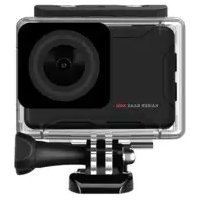
Remove the camera from the Waterproof case. Release latch to unlock casing.
2
Charge your X350
Connect your camera to a USB charger (not included) or computer using the included Micro USB cable. Whilst charging the red light will appear. Once fully charged it will turn off.
3
Insert your SD Card
Once your camera is fully charged, insert the Micro SD card (not supplied) into the SD card slot. We recommend using a Class UHS 1 and above Micro SD card up to 64GB for maximum performance.

natural_image
Simple line drawing of a wall-mounted device with a handle and circular ports (no text or symbols)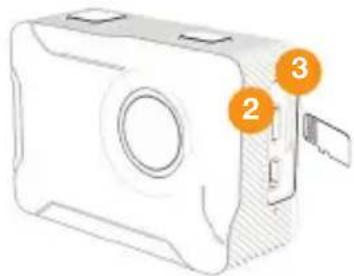
natural_image
Diagram of a device casing with labeled parts (no text or symbols present)Note: Please ensure you format your SD card before you start filming with it for the first time.
Format your SD Card before using the camera for the first time

When the camera is turned on, press and hold the Record/OK button until the menu appears. Select the Settings mode using the Up/Down Arrow Buttons on the side of your camera and press the Record/OK button to confirm.
Press the Mode button and select the General Settings.
Scroll down the menu using the arrow keys on the side until you get to Format SD Card. Select Format SD Card and press the Record/OK button. Select Confirm to format your SD Card.

natural_image
Simple icon showing a gear inside a rounded rectangle with an arrow below (no text or symbols)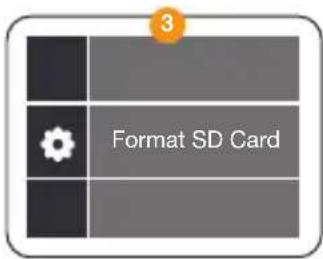
Using your Camera
1
To turn your camera on/off - hold the Power/Mode button on the top of your X350 for few seconds.
Press the Mode button to toggle between Video and Photo. To choose and access different modes - press and hold the Record/OK button, scroll down using the Up/Down Buttons to select the required Mode icon and press the Record/OK button to confirm.
Mode options include:
Video
Slow Motion
Loop Recording
Photo
Self Timer
Burst Mode
Time Lapse

natural_image
Line drawing of a rectangular electronic device with a circular lens and a labeled orange circle (no text or symbols on the device itself)Using your Camera
3
To change the Video/Image resolution - press and hold the Record/OK button until the menu appears. Select the Settings mode using the Up/Down Buttons on the side. Once selected press the Record/OK button to confirm.
4
To start recording video, press the Record button on the top of your camera.


natural_image
Line drawing of a rectangular electronic device with a circular lens and ports, no text or symbols present.Reviewing your footage
5
To review footage, press and hold the Record/OK button, select the Playback Mode and press press the Record/OK to confirm.
6
Scroll through the files using the Up/Down buttons on the side and press the Record/OK button to review footage.
7
Press and hold the Record/OK button to delete the selected file.
8
Press Mode button to exit the Playback mode.

Playback Screen

Connecting to the KB Capture App

Press and hold the Up arrow button at the side to activate the Wi-Fi.

Go to your Smartphone settings and ensure your Wi-Fi is turned on. Select KB X350 network. The default password is: 12345678. If your connection fails, please close down the App and relaunch it and restart the camera.
App Name: KB Capture

natural_image
Line drawing of a 3D rectangular device with two ports and a circular vent, no text or symbols present.

Scan these codes to access the KB-X230 App.
PRODUCT SPECIFICATIONS
07 - ENG
X350 Action Cam
13 Megapixels
Video Resolution Options
4K 30FPS Default
2.7K 30FPS
1080P 120/60FPS
Photo Resolution (Image Size)
16M, 13M, 8M, 5M, 2M
Storage
We recommend using a Class UHS 1 and above Micro SD card up to 64GB for maximum performance.
Visit www.kaiserbaas.com/support or email helpdesk@kaiserbaas.com for support. For the complete user guide, visit www.kaiserbaas.com
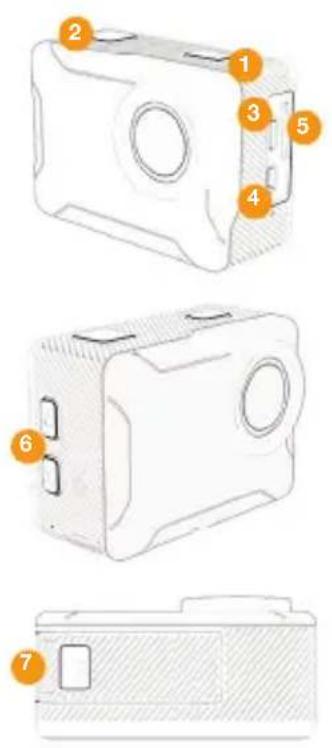
- Power / Mode
- Record/OK
- Micro USB
-
Micro HDMI
-
Micro SD Slot
- Up / Down Scroll Buttons
- Battery Latch
KB KAISER BAAS

@kaiserbaas
kaiserbaas.com
KBdiscover #captureadventure



- 1
- 2
- Charge your X350
- 3
- Insert your SD Card
- Format your SD Card before using the camera for the first time
- Using your Camera
- 4
- Reviewing your footage
- 5
- 6
- 7
- 8
- Connecting to the KB Capture App
- PRODUCT SPECIFICATIONS
- X350 Action Cam
- Video Resolution Options
- Photo Resolution (Image Size)
- Storage
- KBdiscover #captureadventure
Brand : Kaiser Baas
Model : X350
Category : Camcorder