
GA-6RX-1 - Electronic component GIGABYTE - Free user manual and instructions
Find the device manual for free GA-6RX-1 GIGABYTE in PDF.


| Product Type | Motherboard |
| Brand | GIGABYTE |
| Model | GA-6RX-1 |
| Form Factor | ATX |
| BIOS | AMI BIOS, Plug and Play compatible, configurable halt on startup error |
| I/O Ports | Serial, parallel, PS/2, USB, legacy I/O connectors |
| Power Supply | 20-pin ATX connector |
| Key Features | Power management, hardware monitoring (temperature, voltage), configurable startup options, support for IDE storage devices |
| Maintenance and Cleaning | Regular dusting with compressed air, avoid moisture and electrostatic discharge |
| Security | Overvoltage protection, BIOS password lock |
| Spare Parts and Repairability | Capacitors, connectors, BIOS chips easily replaceable; repair by a qualified technician recommended |
| General Information | Desktop PC motherboard, compatible with Intel or AMD processors (depending on socket), DDR or SDRAM memory, PCI and ISA expansion slots |
| Technical Support | User manual downloadable in PDF format from the manufacturer's website |
Frequently Asked Questions - GA-6RX-1 GIGABYTE
User questions about GA-6RX-1 GIGABYTE
0 question about this device. Answer the ones you know or ask your own.
Ask a new question about this device
Download the instructions for your Electronic component in PDF format for free! Find your manual GA-6RX-1 - GIGABYTE and take your electronic device back in hand. On this page are published all the documents necessary for the use of your device. GA-6RX-1 by GIGABYTE.
USER MANUAL GA-6RX-1 GIGABYTE
FCC Compliance Statement:
This equipment has been tested and found to comply with limits for a Class B digital device, pursuant to Part 15 of the FCC rules. These limits are designed to provide reasonable protection against harmful interference in residential installations. This equipment generates, uses, and can radiate radio frequency energy, and if not installed and used in accordance with the instructions, may cause harmful interference to radio communications. However, there is no guarantee that interference will not occur in a particular installation. If this equipment does cause interference to radio or television equipment reception, which can be determined by turning the equipment off and on, the user is encouraged to try to correct the interference by one or more of the following measures:
-Reorient or relocate the receiving antenna
-Move the equipment away from the receiver
-Plug the equipment into an outlet on a circuit different from that to which the receiver is connected
-Consult the dealer or an experienced radio/television technician for additional suggestions
You are cautioned that any change or modifications to the equipment not expressly approve by the party responsible for compliance could void Your authority to operate such equipment.
This device complies with Part 15 of the FCC Rules. Operation is subjected to the following two conditions 1) this device may not cause harmful interference and 2) this device must accept any interference received, including interference that may cause undesired operation.
Declaration of Conformity
We, Manufacturer/Importer
(full address)
G.B.T. Technology Träding GMbH
declare that the product
( description of the apparatus, system, installation to which it refers)
Mother Board
GA-6RX
is in conformity with
(reference to the specification under which conformity is declared)
in accordance with 89/336 EEC-EMC Directive
| ☐ EN 55011 | Limits and methods of measurementof radio disturbance characteristics ofindustrial, scientific and medical (ISMhigh frequency equipment | ☐ EN 61000-3-2*☒ EN60555-2 | Disturbances in supply systems causedby household appliances and similarelectrical equipment “Harmonics” |
| ☐ EN55013 | Limits and methods of measurementof radio disturbance characteristics ofbroadcast receivers and associatedequipment | ☐ EN61000-3-3*☒ EN60555-3 | Disturbances in supply systems causedby household appliances and similarelectrical equipment “Voltage fluctuations” |
| ☐EN 55014 | Limits and methods of measurementof radio disturbance characteristics ofhousehold electrical appliances,portable tools and similar electricalapparatus | ☒ EN 50081-1 | Generic emission standard Part 1:Residual, commercial and light industry |
| ☒ EN 50082-1 | Generic immunity standard Part 1:Residual, commercial and light industry | ||
| ☐ EN 55015 | Limits and methods of measurementof radio disturbance characteristics offluorescent lamps and luminaries | ☐ EN 55081-2 | Generic emission standard Part 2:Industrial environment |
| ☐ EN 55020 | Immunity from radio interference ofbroadcast receivers and associatedequipment | ☐ EN 55082-2 | Generic immunity standard Part 2:Industrial environment |
| ☒ EN 55022 | Limits and methods of measurementof radio disturbance characteristics ofinformation technology equipment | ☐ ENV 55104 | Immunity requirements for householdappliances tools and similar apparatus |
| ☐ DIN VDE 0855☐ part 10☐ part 12 | Cabled distribution systems; Equipmentfor receiving and/ordistributionfromsound and television signals | ☐ EN 50091-2 | EMC requirements for uninterruptiblepower systems (UPS) |

(EC conformity marking)
The manufacturer also declares the conformity of above mentioned product with the actual required safety standards in accordance with LVD 73/23 EEC
| ☐ EN 60065 | Safety requirements for mains operated electronic and related apparatus for household and similar general use | ☐ EN 60950 | Safety for information technology equipment including electrical business equipment |
| ☐ EN 60335 | Safety of household and similar electrical appliances | ☐ EN 50091-1 | General and Safety requirements for uninterruptible power systems (UPS) |
Manufacturer/Importer
(Stamp)
REV 1.0 Third Edition
R-10-03-010420
How This Manual Is Organized
This manual is divided into the following sections:
| 1) Revision List | Manual revision information |
| 2) Item Checklist | Product item list |
| 3) Features | Product information & specification |
| 4) Installation Guide | Instructions on CPU & Memory Installation |
| 5) Performance & Block Diagram | Product performance & block diagram |
| 6) Suspend to RAM & Dual BIOS | Instructions on STR & Dual BIOS installation |
| 7) Four Speaker & SPDIF | Four Speaker & SPDIF introduction |
| 8) @BIOSTM & EasyTuneIII TM | @BIOSTM & EasyTuneIII TMintroduction |
| 9) Raid | Instructions on Raid |
| 10) BIOS Setup | Instructions on setting up the BIOS software |
| 11) Technical Support/RMA Sheet | Document equipment used for after sales service |
| 12) Appendix | General reference |
Table Of Content
| Revision History | P.1 |
| Item Checklist | P.2 |
| Features Summary | P.3 |
| 6RX Series Motherboard Layout | P.5 |
| Installation Guide | P. 6 |
| Page Index for Connectors / Panel and Jumper Definition | P.15 |
| Performance List | P.39 |
| Block Diagram | P.40 |
| Suspend to RAM Installation | P.41 |
| Dual BIOS Introduction (Optional) | P.47 |
| Four Speaker & SPDIF Introduction (Optional) | P.54 |
| @BIOSTM Introduction | P.60 |
| EasyTuneIII ^TM Introduction | P.61 |
| Raid Introduction | P.63 |
| Page Index for BIOS Setup | P.86 |
| Technical Support / RMA Sheet | P.115 |
| Appendix | P.116 |
Revision History
| Revision | Revision Note | Date |
| 1.0 | Initial release of the 6RX Series motherboard user's manual. | Jan. 2001 |
| 1.0 | Second release of the 6RX Series motherboard user's manual. | Feb. 2001 |
| 1.0 | Third release of the 6RX Series motherboard user's manual. | Apr. 2001 |
The author assumes no responsibility for any errors or omissions that may appear in this document nor does the author make a commitment to update the information contained herein. Third-party brands and names are the property of their respective owners.
Item Checklist
☑ The 6RX Series Motherboard
☑ Cable for IDE / Floppy device
☑ CD (TUCD) for motherboard utilities
6RX Series User's Manual
☑ Front USB Cable
Features Summary
| Form factor | 30.5 cm x 24.5 cm ATX size form factor, 4 layers PCB. |
| Motherboard | 6RX series includes 6RX, 6RX-1, 6RX-L |
| CPU | Socket 370 processorIntel Pentium® !!! 100/133MHz FSB, FC-PGAINtel CeleronTM 66/100MHz FSB, FC-PGAVIA Cyrix® III 100/133MHz FSB, CPGA(Please make sure your CPU is mass production version)L2 cache depend on CPU |
| Chipset | VT8633 (Apollo Pro266)VT8233 |
| Clock Generator | ICW W250-0366/100/133 MHz system bus speeds (PCI 33MHz)115/124/140/145/150 MHz system bus speeds(reserved) |
| Memory | 4 184-pin DDR DIMM socketsSupports PC1600 DDR or PC2100 DDR SDRAMSupports up to 4GB DRAM (Max)Supports only 2.5V DDR SDRAM |
| I/O Control | ITE IT8705 F |
| Slots | 1 Universal AGP Pro slot 4X/2X (1.5V/3.3V) device support5 PCI slots support 33MHz & PCI 2.2 compliant1 AMR (Audio Modem Riser) slot |
| On-Board IDE | IDE 1and IDE 2 Supports PIO mode 3, 4 UDMA 33 / ATA 66 / ATA100 IDE & ATAPI CD-ROMIDE 3 and IDE 4 Compatible with Raid, Ultra ATA100, Ultra ATA66, Ultra ATA33, EIDE4 IDE bus master IDE ports for up to 8 ATAPI devices |
To be continued...
| On-Board Peripherals | 1 Floppy port supports 2 FDD with 360K, 720K, 1.2M, 1.44M and 2.88M bytes1 Parallel port supports Normal/EPP/ECP mode2 Serial ports (COM A & COM B)6 USB ports (Back USB*2, Front USB*2, USB AGP*1, USB AMR*1)1 IrDA connector for IR/CIR |
| Hardware Monitor | CPU/Power Fan Revolution detectCPU Fan ControlCPU temperature detect (This function is available on CPU with Thermal Diode)System Voltage DetectChassis Intrusion DetectDisplay Actual Current Voltage |
| On-Board Sound | Creative CT5880 sound (Optional)AC'97 CODECLine In/Line Out/Mic In/AUX In (Optional)/CD In/TEL (Optional)/Game PortSPDIF and Four Speaker (Optional) |
| On-Board LAN | MAC Build in VT8233LSI 80223 PHY (Optional) |
| PS/2 Connector | PS/2® Keyboard interface and PS/2® Mouse interface |
| BIOS | Licensed AMI BIOS, 2M bit Flash ROMSupport Dual BIOS (Optional) |
| Additional Features | Internal/External Modem wake upSTR (Suspend-To-RAM)Wake On LANPS/2 Keyboard any key power onPS/2 Mouse power onSystem after AC backPoly fuse for keyboard, USB, game port over-current protectionUSB KB/MS wake up from S3Support @BIOSTM and EasyTuneIII ^TM |
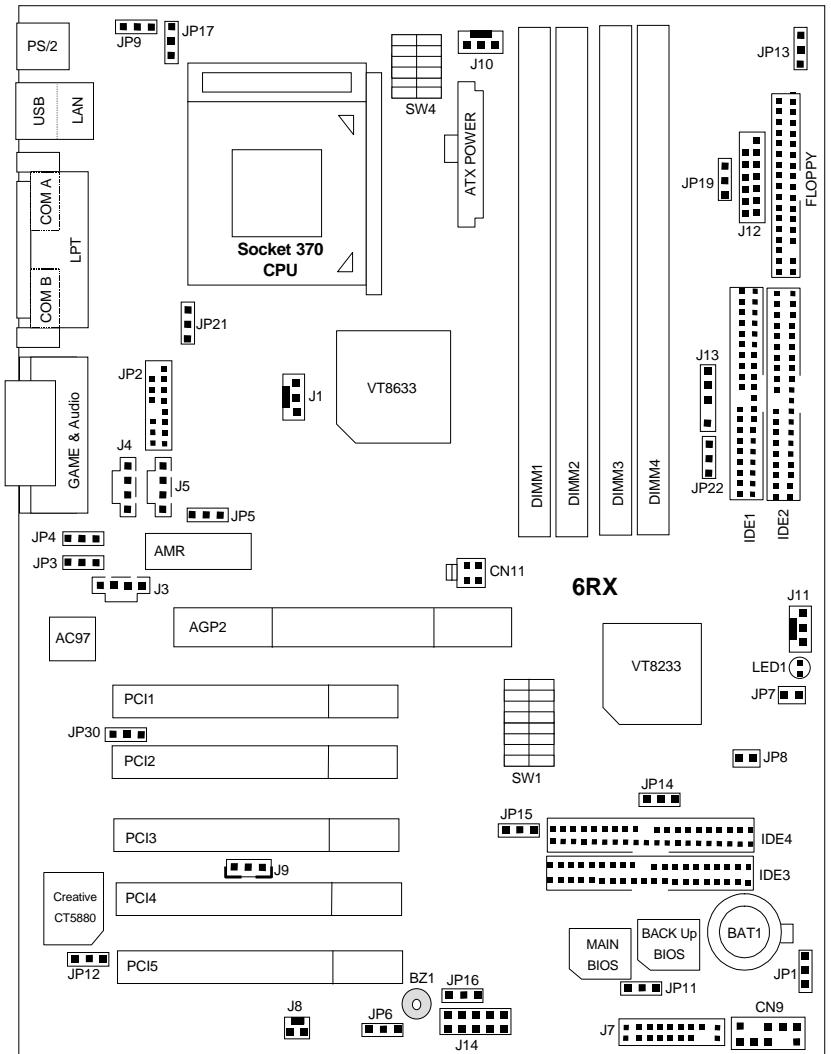
6RX Series Motherboard Layout
Installation Guide
Getting Started

WARNING!
Computer motherboards and expansion cards contain very delicate Integrated Circuit (IC) chips. To protect them against damage from static electricity, you should follow some precautions whenever you work on your computer.
- Unplug your computer when working on the inside.
- Use a grounded wrist strap before handling computer components. If you do not have one, touch both of your hands to a safely grounded object or to a metal object, such as the power supply case.
- Hold components by the edges and try not touch the IC chips, leads or connectors, or other components.
- Place components on a grounded antistatic pad or on the bag that came with the components whenever the components are separated from the system.
- Ensure that the ATX power supply is switched off before you plug in or remove the ATX power connector on the motherboard.
Installing the motherboard to the chassis...
If the motherboard has mounting holes, but they don't line up with the holes on the base and there are no slots to attach the spacers, do not become alarmed you can still attach the spacers to the mounting holes. Just cut the bottom portion of the spacers (the spacer may be a little hard to cut off, so be careful of your hands). In this way you can still attach the motherboard to the base without worrying about short circuits. Sometimes you may need to use the plastic springs to isolate the screw from the motherboard PCB surface, because the circuit wire may be near by the hole. Be careful, don't let the screw contact any printed circuit write or parts on the PCB that are near the fixing hole, otherwise it may damage the board or cause board malfunctioning.
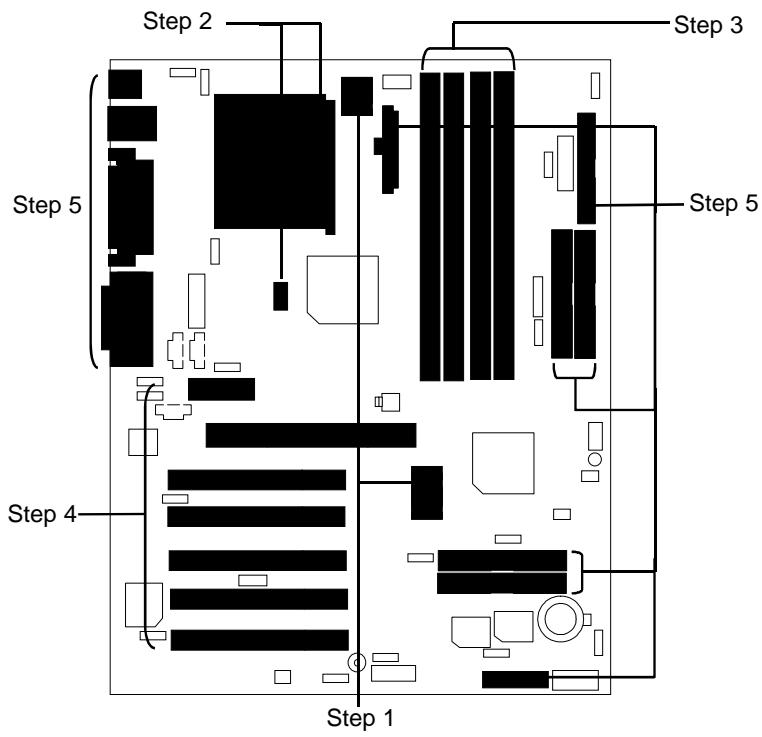
To set up your computer, you must complete the following steps:

Step 1 - Set system jumpers

Step 2- Install the Central Processing Unit (CPU)

Step 3-Install memory modules

Step 4-Install expansion cards

Step 5-Connect ribbon cables, cabinet wires, and power supply

Step 6-Set up BIOS software

Step 7-Install supporting software tools
CPU Speed Setup
The system bus frequency can be switched at 66MHz - 166MHz and Auto by adjusting SW 1. (The frequency ratio depend on CPU).
SW1 Select the System Speed at 66MHz - 166MHz and Auto.
O: ON, X: OFF
*We recommend you to setup your system speed to Auto.
CPU Vcore Voltage Setup
SW4 Select the CPU Voltage at 1.30V - 2.05V and Auto.
O: ON, X: OFF
*We recommend you to setup your vcore to Auto.
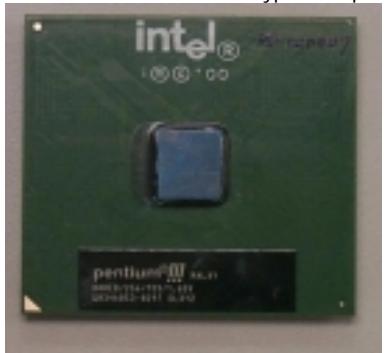
Please make sure the CPU type and speed is supported by your motherboard.
CPU Top View
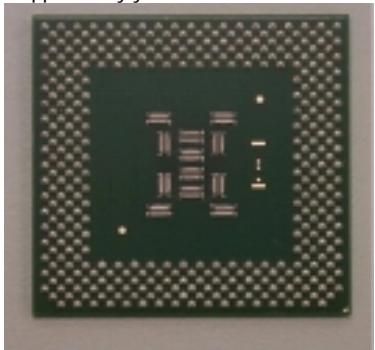
natural_image
Close-up of a microchip with visible internal components and grid pattern (no text or symbols)CPU Bottom View
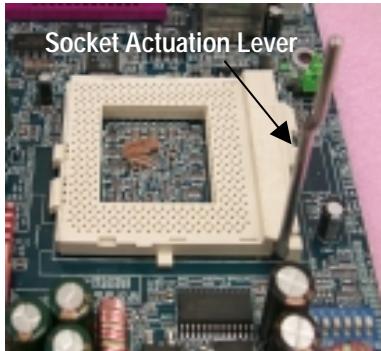
- Pull the lever out and lift it up.
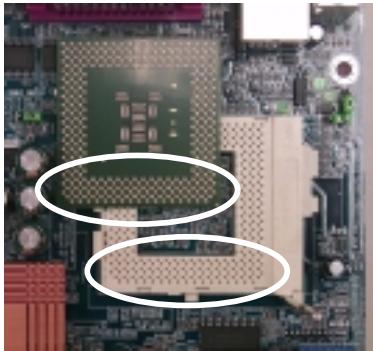
natural_image
Close-up of a computer motherboard with visible CPU socket and circuit board (no text or symbols)- The notched corner should point toward the end of the lever. The CPU will only fit in the orientation as shown.

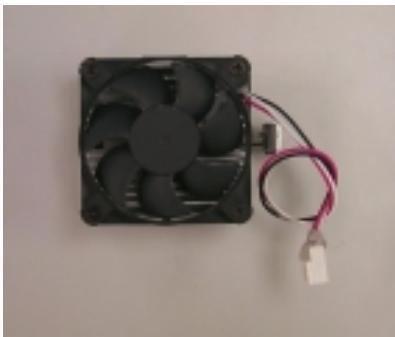
CPU Heat Sink Installation:
Beware: Please check that the heat sink is in good contact with the CPU before you turn on your system. Poor contact will cause over heat with might cause damage to your processor!
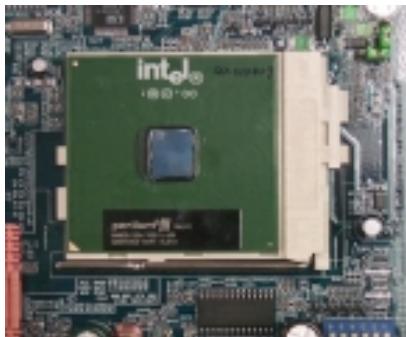
natural_image
Close-up of a green Intel CPU on a motherboard (no visible text or symbols)- Align CPU and insert it
(Please refer to your heatsink installation manual for application of thermal grease to provide better heat conduction between your CPU and heatsink.)
natural_image
Close-up of a black CPU fan with attached cable and connector (no visible text or symbols)- Use compliant fan approved by Intel.
natural_image
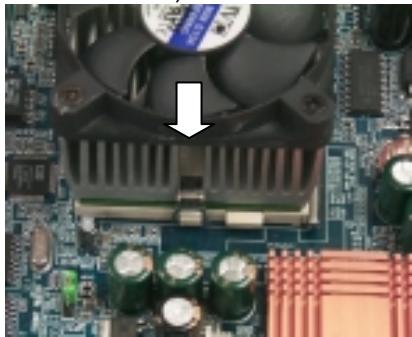
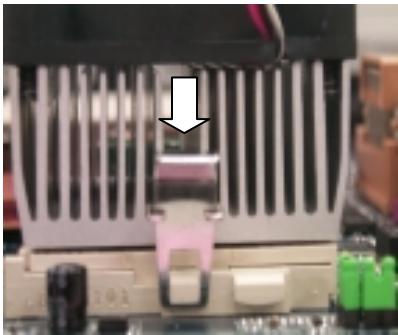
Close-up of a computer motherboard with a CPU fan and cooling unit (no visible text or symbols)5.Hook one end of the cooler bracket to the CPU socket.
6. Hook the other end of the cooler bracket to the CPU socket.

(Please refer to the cooler's installation manual for detailed installation steps)
natural_image
Close-up of a computer motherboard with a metallic component and a white arrow pointing to a component (no visible text or symbols)Memory Installation
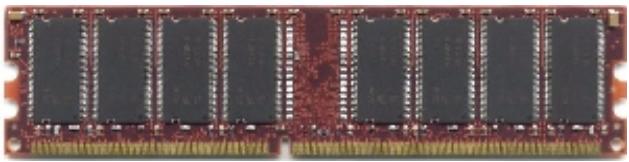
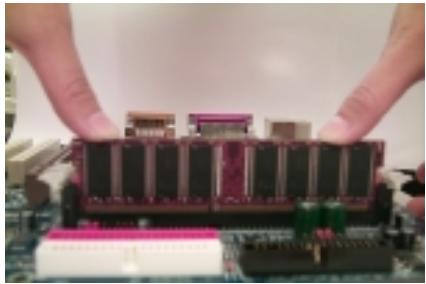
The motherboard has 4 dual inline memory module (DIMM) sockets. The BIOS will automatically detects memory type and size. To install the memory module, just push it vertically into the DIMM Slot .The DIMM module can only fit in one direction due to the notch. Memory size can vary between sockets.
Total Memory Sizes With Registered DDR DIMM
Total Memory Sizes With Unbuffered DDR DIMM
| Devices used on DIMM | 1 DIMM x64/x72 | 2 DIMMs x64/x72 | 3 DIMMs x64/x72 | 4 DIMMs x64/x72 |
| 64 Mbit (2Mx8x4 banks) | 128 MBytes | 256 MBytes | 384 MBytes | 512 MBytes |
| 64 Mbit (1Mx16x4 banks) | 64 MBytes | 128 MBytes | 192 MBytes | 256 MBytes |
| 128 Mbit (4Mx8x4 banks) | 256 MBytes | 512 MBytes | 768 MBytes | 1 GBytes |
| 128 Mbit (2Mx16x4 banks) | 128 MBytes | 256 MBytes | 384 MBytes | 512 MBytes |
| 256 Mbit (8Mx8x4 banks) | 512 MBytes | 1 GBytes | 1.5 GBytes | 2 GBytes |
| 256 Mbit (4Mx16x4 banks) | 256 MBytes | 512 MBytes | 768 MBytes | 1 GBytes |
| 512 Mbit (16Mx8x4 banks) | 1 GBytes | 2 GBytes | 3 GBytes | 4 GBytes |
| 512 Mbit (8Mx16x4 banks) | 512 MBytes | 1 GBytes | 1.5 GBytes | 2 GBytes |
natural_image
Close-up of a dual-chip RAM module with visible slots and gold contacts (no text or symbols)DDR
natural_image
Close-up of hands holding a stacked electronic component on a circuit board (no visible text or symbols)- The DIMM slot has a notch, so the DIMM memory module can only fit in one direction.
- Insert the DIMM memory module vertically into the DIMM slot. Then push it down.
- Close the plastic clip at both edges of the DIMM slots to lock the DIMM module.
Reverse the installation steps when you wish to remove the DIMM module.
DDR Introduction
Established on the existing SDRAM industry infrastructure, DDR (Double Data Rate) memory is a high performance and cost-effective solution that allows easy adoption for memory vendors, OEMs and system integrators.
DDR memory is a sensible evolutionary solution for the PC industry that builds on the existing SDRAM infrastructure, yet makes awesome advances in solving the system performance bottleneck by doubling the memory bandwidth. DDR SDRAM will offer a superior solution and migration path from existing SDRAM designs due to its availability, pricing and overall market support. PC2100 DDR memory (DDR266) doubles the data rate through reading and writing at both the rising and falling edge of the clock, achieving data bandwidth 2X greater than PC133 when running with the same DRAM clock frequency. With peak bandwidth of 2.1GB per second, DDR memory enables system OEMs to build high performance and low latency DRAM subsystems that are suitable for servers, workstations, high-end PC's and value desktop SMA systems. With a core voltage of only 2.5 Volts compared to conventional SDRAM's 3.3 volts, DDR memory is a compelling solution for small form factor desktops and notebook applications.
| Page Index for Connectors/Panel and Jumper Definition | Page |
| Connectors | P.17 |
| ATX Power | P.17 |
| COM A / COM B / LPT Port | P.17 |
| CN7 (PS/2 Keyboard & PS/2 Mouse Connector) | P.18 |
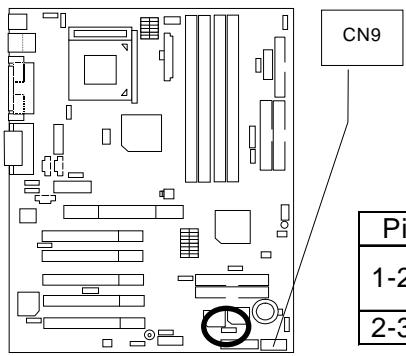
| CN9 (Front USB Connector) [Optional] | P.19 |
| CN10 (USB & LAN Connector) [LAN Connector is optional] | P.18 |
| CN11 (ATX +12V Power Connector) [Optional] | P.25 |
| Floppy Port | P.19 |
| Game & Audio Port | P.20 |
| IDE1 (Primary) / IDE2 (Secondary) Port | P.20 |
| IDE3 / IDE4 (Raid / ATA100) Port [Optional] | P.21 |
| J1 (CPU FAN) | P.25 |
| J3 (AUX_IN) [Optional] | P.22 |
| J4 (CD Audio Line In) | P.21 |
| J5 (TEL) [Optional] | P.22 |
| J8 (Ring Power On) | P.23 |
| J9 (Wake On LAN) | P.26 |
| J10 (Power FAN) | P.24 |
| J11 (System FAN) | P.24 |
| J12 (SCR) [Optional] | P.28 |
| J13 (External SMBUS Device Connector) [Optional] | P.23 |
| J14 (IR/CIR) [Optional] | P.27 |
| JP2 (Front Audio) [Optional] | P.27 |
| JP7 / LED1 (STR LED Connector & DIMM LED) | P.26 |
| Panel and Jumper Definition | P.29 |
| BAT 1(Battery) | P.38 |
| J7 (2x11 pins jumper) | P.29 |
| JP1 (Clear CMOS Function) | P.30 |
| JP3 (SPDIF Auto Detection) [Optional] | P.32 |
| JP4 (Front MIC Selection) [Optional] | P.33 |
| JP5&JP30 (AMR and onboard CODEC Select) [Optional] | P.33 |
| JP6 (Internal Buzzer Connector) [Optional] | P.30 |
| JP8 (Case Open) | P.36 |
| JP9 (PS/2 Keyboard Power On) | P.35 |
| JP11 (Front USB Device Wake Up Selection) | P.37 |
| JP12 (PCI Sound Function Selection) [Optional] | P.36 |
| JP13 (STR Selection) | P.38 |
| JP14 (BIOS Write Protection) [Optional] | P.35 |
| JP15 (IDE Raid Selection) [Optional] | P.34 |
| JP16 (Raid/ATA100 Selection) [Optional] | P.34 |
| JP17 (Rear USB Device Wake up Selection) | P.37 |
| JP19 (DIMM Over Voltage Selection) | P.31 |
| JP21 (LAN Wake Up Selection) [Optional] | P.32 |
| JP22 (Chipset Over Voltage Selection) | P.31 |
Connectors
ATX Power
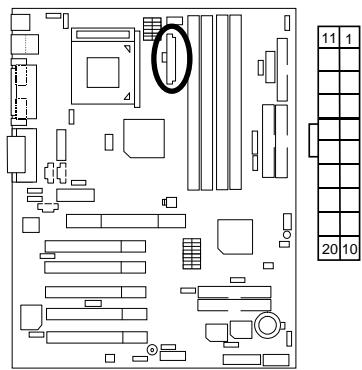
| Pin No. | Definition |
| 3,5,7,13,15-17 | GND |
| 1,2,11 | 3.3V |
| 4,6,19,20 | VCC |
| 10 | +12V |
| 12 | -12V |
| 18 | -5V |
| 8 | Power Good |
| 9 | 5V SB (stand by+5V) |
| 14 | PS-ON(Soft On/Off) |

Please note:
AC power cord should only be inserted to your power supply unit after ATX power cable and other related devices are firmly connected to the mainboard.
COM A / COM B / LPT Port
natural_image
Floor plan layout with room layouts and a highlighted central area (no text or labels)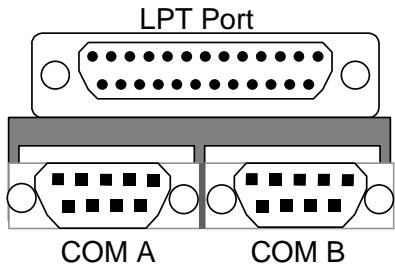

Please note:
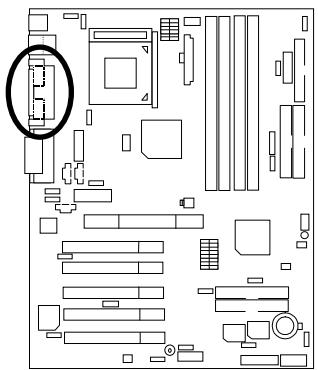
This mainboard supports 2 standard COM ports and 1 LPT port. Device like printer can be connected to LPT port; mouse and modem etc can be connected to COM ports.
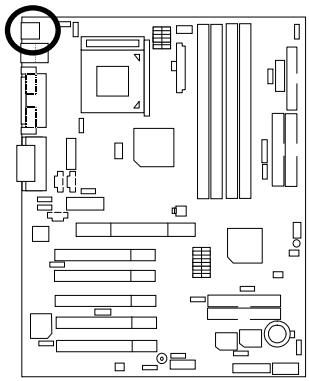
CN7: PS/2 Keyboard & PS/2 Mouse Connector
natural_image
Pure electrical circuit lines without any symbols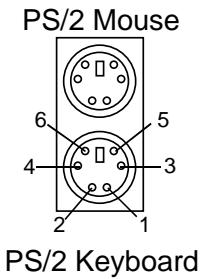
| PS/2 Mouse/ Keyboard | |
| Pin No. | Definition |
| 1 | Data |
| 2 | NC |
| 3 | GND |
| 4 | POWER |
| 5 | Clock |
| 6 | NC |

Please note:
This mainboard supports standard PS/2 keyboard and PS/2 mouse interface connector.
CN10: USB & LAN Connector (LAN Connector is optional)

natural_image
Floor plan layout diagram with furniture and fixtures (no text or labels)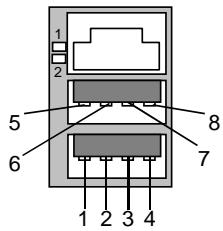
1 – Green LED
(100Mbit/s LED)
2 – Yellow LED
(LAN Active LED)
| Pin No. | Definition |
| 1 | USB Power |
| 2 | USB D0- |
| 3 | USB D0+ |
| 4 | GND |
| 5 | USB Power |
| 6 | USB D1- |
| 7 | USB D1+ |
| 8 | GND |

Please note:
Before you connect your device(s) into USB connector(s), please make sure your device(s) has a standard USB interface like, USB keyboard, mouse, scanner, zip, speaker... Also make sure your OS supports USB controller (Win 95 w/ USB supperment, Win98, Windows 2000, Windows ME, Win NT w/ SP 6). If your OS does not support USB controller, please contact OS vander for passable patch or driver upgrade. For more information please contact your OS or device(s) vanders.
CN9: Front USB Connector (Optional)
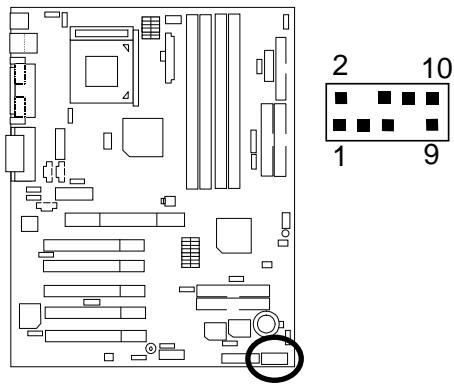
| Pin No. | Definition |
| 1 | POWER |
| 2 | GND |
| 3 | USB D2- |
| 4 | NC |
| 5 | USB D2+ |
| 6 | USB D3+ |
| 7 | NC |
| 8 | USB D3- |
| 9 | GND |
| 10 | POWER |

Please note:
Be careful with the polarity of the front panel USB connector. Check the pin assignment while you connect the front panel USB cable. Please contact your nearest dealer for optional front panel USB cable.
Floppy Port
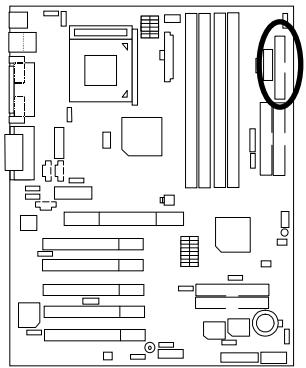
natural_image
Floor plan diagram of a room with furniture and fixtures (no text or labels)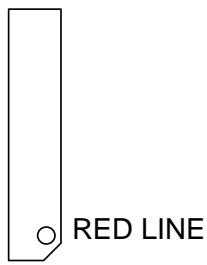

Please note:
Remove the smart card reader cable before you plug Floppy B, you cannot use Floppy B and smart card reader simultaneously.
Game & Audio Port
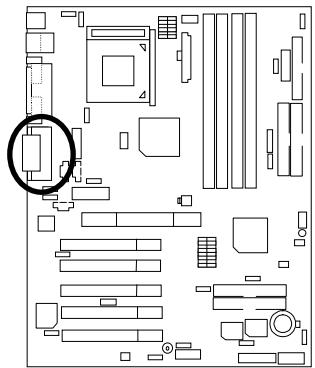
natural_image
Floor plan layout with room layouts and a highlighted circular area (no text or labels)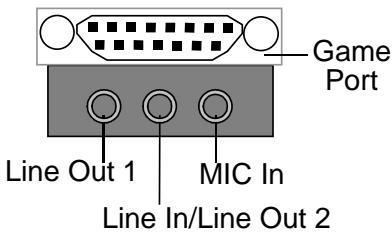

Please note:
Line Out 1: Line Out or SPDIF (The SPDIF output is capable of providing digital audio to external speakers or compressed AC3 data to an external Dolby digital decoder). To enable SPDIF, simply insert SPDIF connector into Line Out1. Line Out1 will become SPDIF Out automatically. (see page 57 for more information). To enable Four Speaker (for Creative 5880 audio only), simply follow instructions on page 54 and Line In will become Line Out2 to support second pair of stereo speakers.
IDE1 (Primary), IDE2 (Secondary) Port
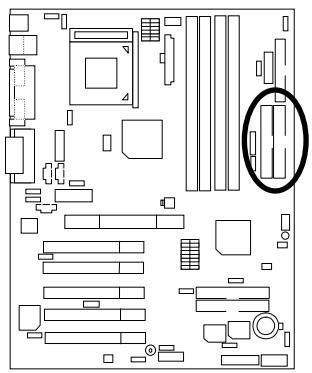
natural_image
Pure electrical circuit lines without any symbols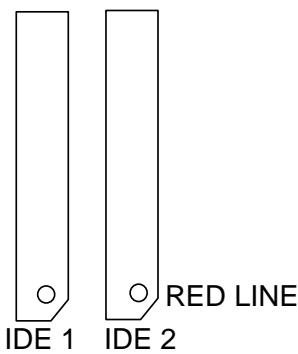
IDE3/IDE4 (Raid/ATA100) Port (Optional)
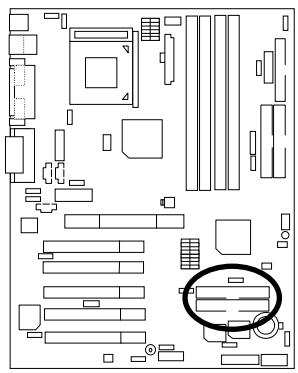
natural_image
Pure electrical circuit lines without any symbols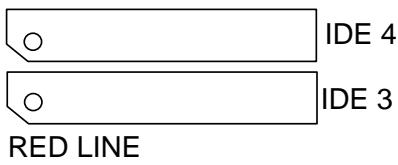
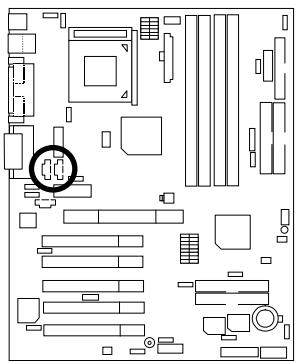
J4: CD Audio Line In
natural_image
Floor plan diagram of a room with furniture layout and a circular object (no text or labels)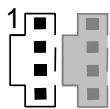
| Pin No. | Definition |
| 1 | CD-L |
| 2 | GND |
| 3 | GND |
| 4 | CD-R |
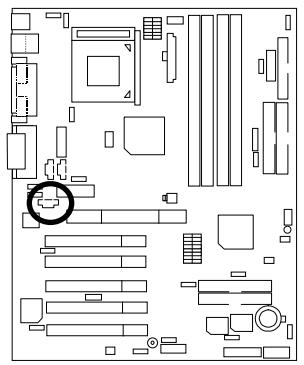
J3: AUX\_IN (Optional)
natural_image
Floor plan layout diagram with furniture and fixtures (no text or labels)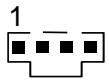
| Pin No. | Definition |
| 1 | AUX-L |
| 2 | GND |
| 3 | GND |
| 4 | AUX-R |
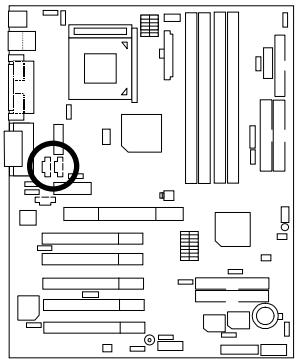
J5: TEL (The connector is for internal modem card with voice connector) (Optional)
natural_image
Floor plan layout with room layouts and a highlighted circular area (no text or labels)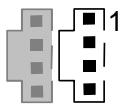
| Pin No. | Definition |
| 1 | Signal-In |
| 2 | GND |
| 3 | GND |
| 4 | Signal-Out |
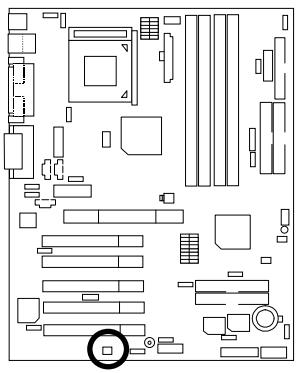
J8: Ring Power On
natural_image
Pure electrical circuit lines without any symbols
| Pin No. | Definition |
| 1 | Signal |
| 2 | GND |
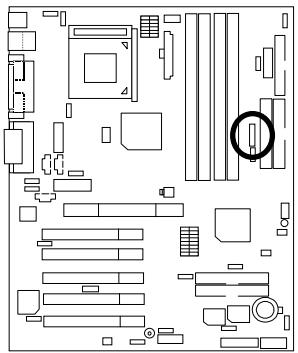
J13: External SMBUS Device Connector (Optional)
natural_image
Pure electrical circuit lines without any symbols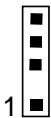
| Pin No. | Definition |
| 1 | SMB CLK |
| 2 | NC |
| 3 | GND |
| 4 | SMB DATA |
| 5 | +5V |
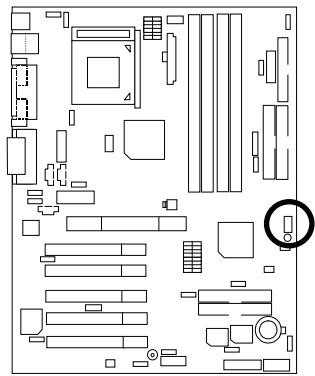
J11: System FAN
natural_image
Floor plan diagram of a computer room with various compartments and fixtures (no text or labels)
| Pin No. | Definition |
| 1 | Control |
| 2 | +12V |
| 3 | NC |
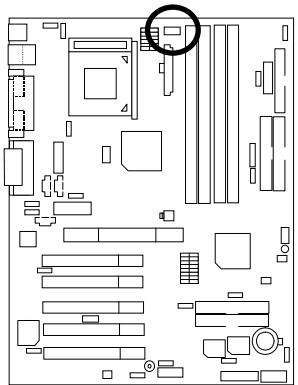
J10: Power FAN
natural_image
Floor plan diagram of a computer room with multiple compartments and numbered areas (no text or labels)
| Pin No. | Definition |
| 1 | Control |
| 2 | +12V |
| 3 | SENSE |
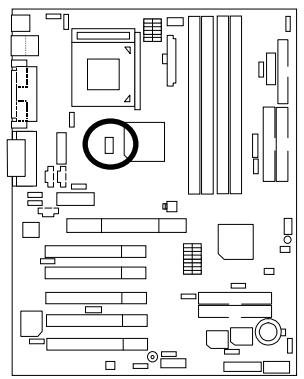
J1: CPU FAN
natural_image
Floor plan layout diagram with furniture and fixtures (no text or labels)
| Pin No. | Definition |
| 1 | Control |
| 2 | +12V |
| 3 | SENSE |

Please note:
A proper installation of the CPU cooler is essential to prevent the CPU from running under abnormal condition or damaged by overheating.
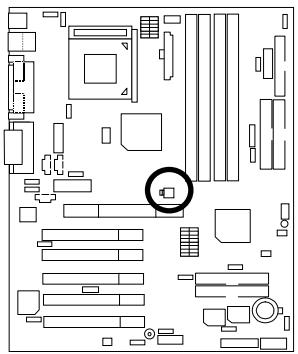
CN11: ATX +12V Power Connector (Optional)
natural_image
Floor plan diagram of a computer room with furniture layout and a highlighted circular area (no text or labels)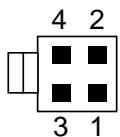
| Pin No. | Definition |
| 1 | GND |
| 2 | GND |
| 3 | +12V |
| 4 | +12V |

Please note:
This connector (ATX +12V) is only for heavy loading AGPPRO card (+12V power consumption above 12A).
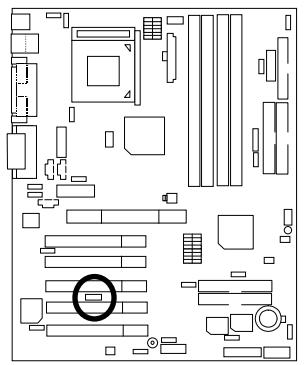
J9: Wake on LAN (WOL)
natural_image
Pure electrical circuit lines without any symbols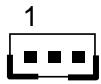
| Pin No. | Definition |
| 1 | +5V SB |
| 2 | GND |
| 3 | Signal |
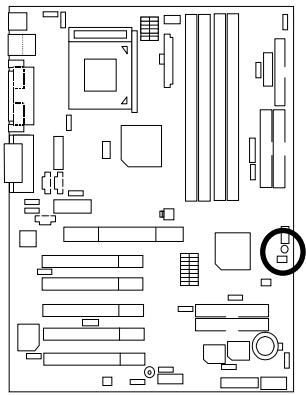
JP7/ LED1: STR LED Connector & DIMM LED
natural_image
Pure electrical circuit lines without any symbols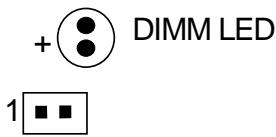
STR LED Connector External

Please note:
Do not remove memory modules while DIMM LED is on. It might cause short or other unexpected damages due to the 2.5V stand by voltage. Remove memory modules only when system is shutdown or AC Power cord is disconnected.
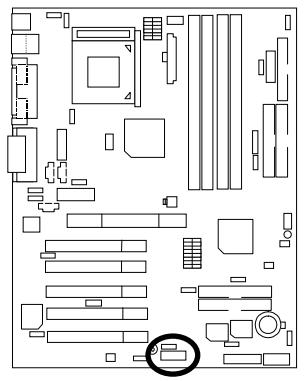
J14: IR/CIR (Optional)
natural_image
Floor plan diagram of a computer room with various compartments and fixtures (no text or labels)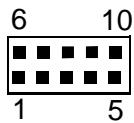
| Pin No. | Definition |
| 1 | VCC |
| 2 | NC |
| 3 | IRRX |
| 4 | GND |
| 5 | IRTX |
| 6 | NC |
| 7 | CIRRX |
| 8 | VCC |
| 9 | NC |
| 10 | CIRTX |

Please note:
Make sure the pin 1 on the IR device is align with pin one the connector. To enable the IR/CIR function on the board, you are required to purchase an option IR/CIR module. For detail information please contact your authorized Giga-Byte distributor. To use IR function only, please connect IR module to Pin1 to Pin5.
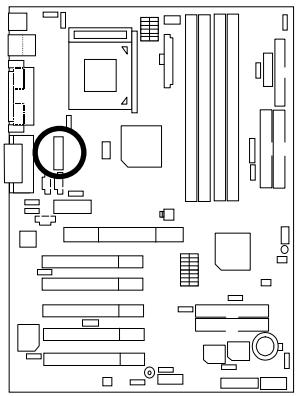
JP2: Front Audio (Optional)
natural_image
Pure electrical circuit lines without any symbols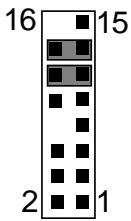
| Pin No. | Definition |
| 1 | Incase speaker (R) |
| 2 | Incase speaker (L) |
| 3,4,5,6,10,15 | GND |
| 7 | +12V |
| 8,16 | NC |
| 9 | MIC |
| 11 | Front Audio (R) |
| 13 | Front Audio (L) |
| 12 | Rear Audio (R) |
| 14 | Rear Audio (L) |

Please note:
If you want to use "Front Audio" connector, you must move 11-12,13-14 Jumper.
In order to utilized the front audio header, your case must have front audio connector. Also please make sure the pin assignment on the cable is the same as the pin assignment on the MB header. To find out if the case you are buying support front audio connector or not please ask your dealer.
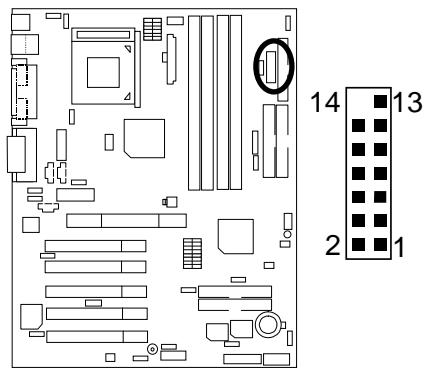
J12: SCR: Smart Card Reader Header (Optional)
| Pin No. | Definition |
| 1 | VCC |
| 2 | NC |
| 3 | NC |
| 4 | NC |
| 5 | DATA |
| 6 | DATA |
| 7 | Clock |
| 8 | NC |
| 9 | NC |
| 10 | DATA |
| 11 | GND |
| 12 | DATA |
| 13 | NC |
| 14 | NC |

Please note:
This MB supports smart card reader. To enable smart card reader function an optional smart card reader box is required. Please contact your authorized distributor.
Remove Floppy B before you plug smart card reader cable, you can not use smart card reader and Floppy B simultaneously.
Panel And Jumper Definition
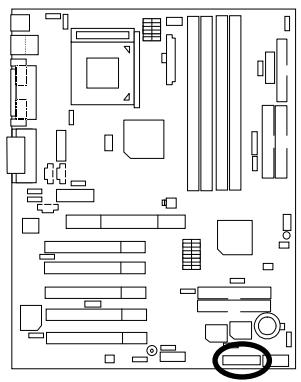
J7: For 2X11 Pins Jumper
natural_image
Pure electrical circuit lines without any symbols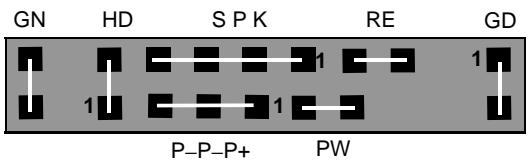
| GN (Green Switch) | Open: Normal OperationClose: Entering Green Mode |
| GD (Green LED) | Pin 1: LED anode(+)Pin 2: LED cathode(-) |
| HD (IDE Hard Disk Active LED) | Pin 1: LED anode(+)Pin 2: LED cathode(-) |
| SPK (Speaker Connector) | Pin 1: VCC(+)Pin 2- Pin 3: NCPin 4: Data(-) |
| RE (Reset Switch) | Open: Normal OperationClose: Reset Hardware System |
| P+P-P-(Power LED) | Pin 1: LED anode(+)Pin 2: LED cathode(-)Pin 3: LED cathode(-) |
| PW (Soft Power Connector) | Open: Normal OperationClose: Power On/Off |

Please note:
Please connect the power LED, PC speaker, reset switch and power switch etc of your chassis front panel to the front panel jumper according to the pin assignment
above.
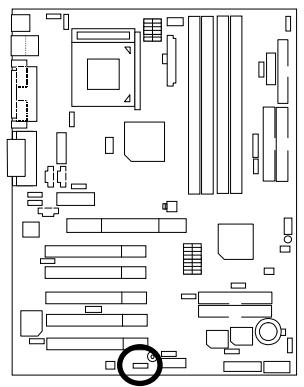
JP6: Internal Buzzer Connector (Optional)
natural_image
Pure electrical circuit lines without any symbols
Enable (Default)

Disable
| Pin No. | Definition |
| 1-2 close | Internal Buzzer Enable (Default) |
| 2-3 close | Internal Buzzer Disable |
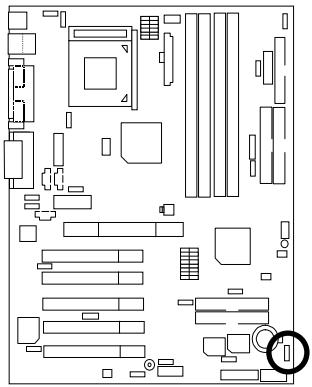
JP1: Clear CMOS Function
natural_image
Floor plan diagram of a computer room with various compartments and fixtures (no text or labels)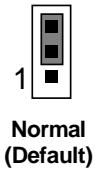
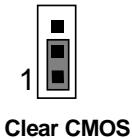
| Pin No. | Definition |
| 1-2 close | Clear CMOS |
| 2-3 close | Normal (Default) |

Please note:
You may clear the CMOS data to its default values by this jumper.
JP19: DIMM Over Voltage Selection
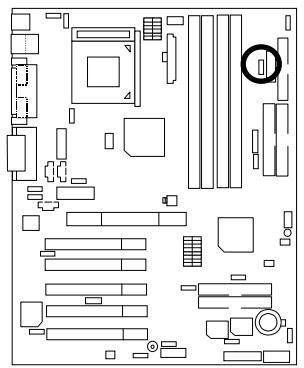
natural_image
Floor plan diagram of a computer room layout with furniture and components (no text or labels)
Normal (Default)

Over Voltage
| Pin No. | Definition |
| 1-2close | Over Voltage |
| 2-3close | Normal (Default) |

Please note:
Enable this function might demage your memory, or might cause your system to become very unstable. For power End-User use only!
JP22: Chipset Over Voltage Selection
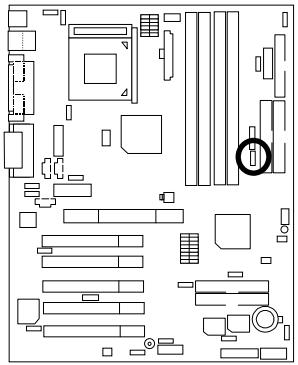
natural_image
Floor plan diagram of a computer room layout with furniture and storage areas (no text or labels)
Normal (Default)

Over Voltage
| Pin No. | Definition |
| 1-2close | Over Voltage |
| 2-3close | Normal (Default) |

Please note:
Enable this function might demage your chipsets, or might cause your system to become very unstable. For power End-User use only!
JP21: LAN Wake Up Selection (Optional)
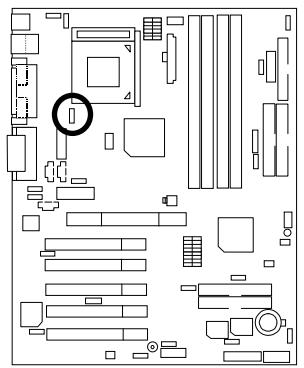
natural_image
Pure electrical circuit lines without any symbols
Enable (Default)

Disable
| Pin No. | Definition |
| 1-2close | Enable LAN wake up function (Default) |
| 2-3close | Disable LAN wake up function |

Please note:
User can power on the system from power off stage via network, when WOL is enable. To enable WOL set JP21 to 1-2, to disable WOL set JP21 to 2-3. This function only vilad when your MB has optional LAN chip.
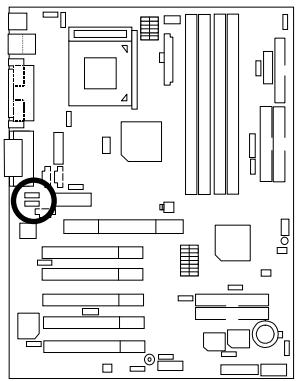
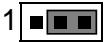
JP3: SPDIF Auto Detection (Optional)
natural_image
Floor plan layout with room layouts and a highlighted circular area (no text or labels)1

Enable (Default)
Disable
| Pin No. | Definition |
| 1-2 close | Enable |
| 2-3 close | Disable |
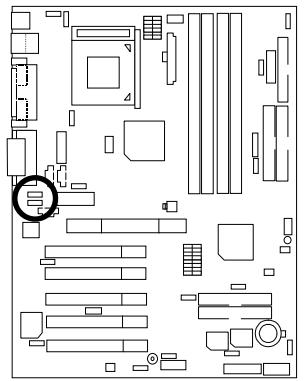
JP4: Front MIC Selection (Optional)
natural_image
Floor plan diagram of a room with furniture layout and a highlighted circular area (no text or labels)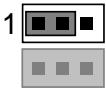
Enable (Default)
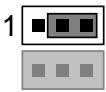
Disable
| Pin No. | Definition |
| 1-2 close | Enable |
| 2-3 close | Disable |
JP5&JP30: AMR and onboard CODEC Select (Optional)
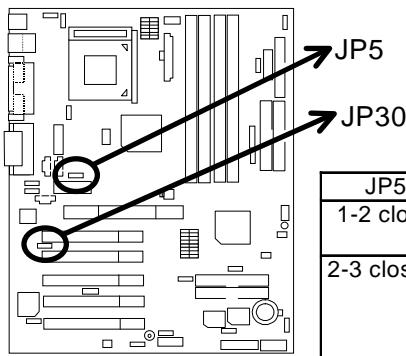


| JP5 | JP30 | Primary CODEC |
| 1-2 close | 1-2 close | AMR Secondary (Default) |
| 2-3 close | 2-3 close | AMR Primary AC’97 Disabled (Disabled Onboard CODEC) |

Please note:
6RX: If M/B has hardware audio (CT5880), your modem riser has been set to "Primary" automatically. No Jumper JP5&JP30 for 6RX.
6RX-1: JP5&JP30: 1-2 close: If you use software audio (onboard CODEC only), your modem riser must be "Secondary". JP5&JP30: 2-3 close: If you don't use onboard software audio, your audio/modem riser must be "Primary". Mainboard's software audio will be disabled.
There are two kinds of AMR/MR card in the market, Primary and secondary. If your AMR/MR card is primary, JP5&JP30 should be set to 2-3, if you have secondary AMR/MR card JP5&JP30 should be set to 1-2.
Warning! If Primary AMR/RM card is used, on-board audio will be disabled.
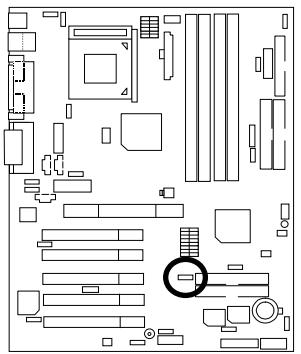
JP15: IDE Raid Selection (Optional)
natural_image
Floor plan layout diagram with room layouts and furniture placement (no text or labels)1

Enable (Default)
1

Disable
| Pin No. | Definition |
| 1-2 close | Enable (Default) |
| 2-3 close | Disable |
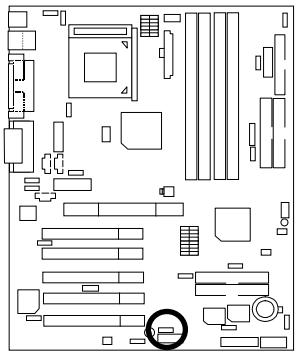
JP16: Raid/ATA100 Selection (Optional)
natural_image
Pure electrical circuit lines without any symbols1

ATA 100 function (Default)
1

Raid function
| Pin No. | Definition |
| 1-2 close | Raid Function |
| 2-3 close | ATA 100 Function (Default) |

Please note:
If you want to use "Raid Function", your IDE3 and IDE4 must be connected with Hard Drive. Please set JP15 as enable before adjusting JP16.
JP14: BIOS Write Protection (Optional)

natural_image
Pure electrical circuit lines without any symbols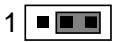
Normal (Default)
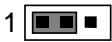
Write Protection
| Pin No. | Definition |
| 1-2close | Write Protection |
| 2-3close | Normal (Default) |

Please note:
To flash/upgrade BIOS on this MB JP 14 must be set to 2-3. We recommend JP14 to be set to 1-2, whenever user does not need to flash/upgrade the BIOS.
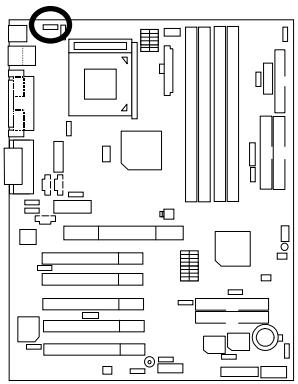
JP9: PS/2 Keyboard Power On
natural_image
Pure electrical circuit lines without any symbols
Disable (Default)

Enable
| Pin No. | Definition |
| 1-2 close | PS/2 Keyboard Power on Enable |
| 2-3 close | PS/2 Keyboard Power on Disable (Default) |

Please note:
PS/2 keyboard power on, enable user to power on his computer by press the any key/keys on the PS/2 keyboard. To enable PS/2 keyboard power on, set jumper JP9 to 1-2 and go to the BIOS Setup "Keyboard Wakeup from" item, then select "S1/S3/S4/S5".
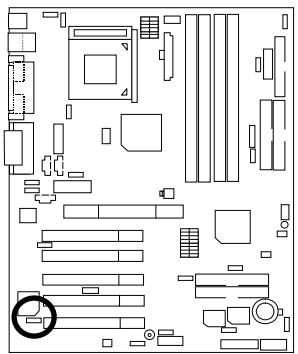
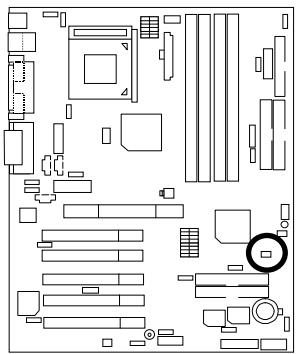
JP12: PCI Sound Function Selection (Optional)
natural_image
Pure electrical circuit lines without any symbols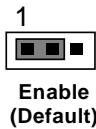
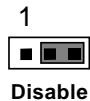
| Pin No. | Definition |
| 1-2 close | PCI Sound Enable (Default) |
| 2-3 close | PCI Sound Disable |
JP8: Case Open
natural_image
Pure electrical circuit lines without any symbols
| Pin No. | Definition |
| 1 | Signal |
| 2 | GND |
JP17: Rear USB Device Wake up Selection (USB Connector → CN10)
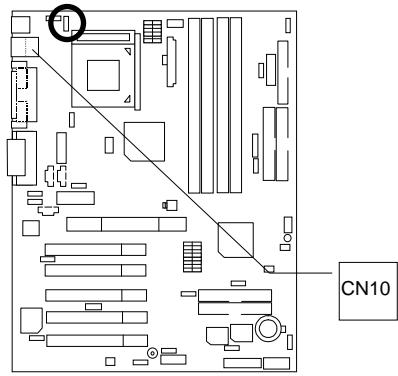

Normal (Default)

Enable
| Pin No. | Definition |
| 1-2 close | Rear USB Device Wakeup Enable |
| 2-3 close | Normal (Default) |

Please note:
(If you want to use "USB Dev Wakeup From S3\~S5" function, you have to set the BIOS setting "USB Dev Wakeup From S3\~S5" enabled, and the jumper "JP17&JP13" enabled)
*(Power on the computer and as soon as memory counting starts, press . You will enter BIOS Setup. Select the item "POWER MANAGEMENT SETUP", then select "USB Dev Wakeup From S3\~S5". Remember to save the setting by pressing "ESC" and choose the "SAVE & EXIT SETUP" option.)
JP11: Front USB Device Wake up Selection (USB Port → CN9)

Normal (Default)

Enable
| Pin No. | Definition |
| 1-2 close | Front USB Device Wake Up Enable |
| 2-3 close | Normal (Default) |

Please note:
(If you want to use "USB Dev Wakeup From S3\~S5" function, you have to set the BIOS setting "USB Dev Wakeup from S3\~S5" enabled, and the jumper "JP11&JP13" enabled.)
*(Power on the computer and as soon as memory counting starts, press . You will enter BIOS Setup. Select the item "POWER MANAGEMENT SETUP", then select "USB Dev Wakeup From S3\~S5". Remember to save the setting by pressing "ESC" and choose the "SAVE & EXIT SETUP" option.)
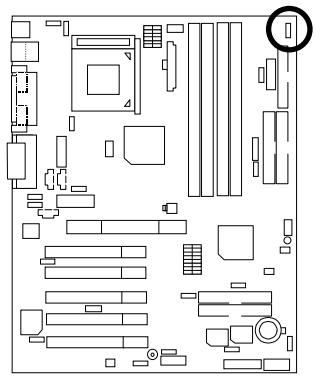
JP13: STR Selection
natural_image
Pure electrical circuit lines without any symbols
Disable (Default)

Enable
| Pin No. | Definition |
| 1-2 close | STR Enable |
| 2-3 close | STR Disable (Default) |
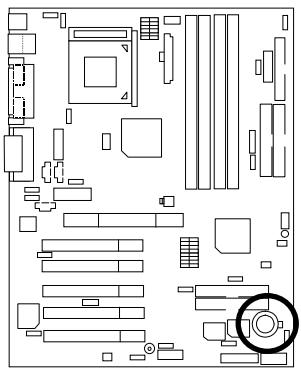
BAT1: Battery
natural_image
Pure electrical circuit lines without any symbols
CAUTION
Danger of explosion if battery is incorrectly replaced.
Replace only with the same or equivalent type recommended by the manufacturer.
Dispose of used batteries according to the manufacturer's instructions.
Performance List
The following performance table lists the results of some popular benchmark testing programs. These data are provided as reference only and in no way guarantee the system shall perform, and there is no responsibility for different testing data at exactly the same level. (The different Hardware & Software configuration will result in different benchmark testing results.)
- CPU Pentium ^ !!! 1GHz processor
- DRAM (64x2) MB DDR 266 (Micron MT8VDDT864AG-265A2)
- CACHE SIZE 256 KB integrated in CPU
- DISPLAY GIGABYTE GF-2000
- STORAGE Onboard IDE (IBM DTLA-307060)
- O.S. Windows NT™ 4.0 SPK6
- DRIVER Display Driver at 1024 x 768 x 16bit colors x 75Hz.
VIA BUS Master PCI IDE Driver 2.1.50
| Processor | Intel Pentium® !!!1GHz (133x7.5) |
| Winbench99 | |
| CPU mark99 | 88.7 |
| FPU Winmark 99 | 5310 |
| Business Disk Winmark 99 | 8190 |
| Hi-End Disk Winmark 99 | 21800 |
| Business Graphics Winmark 99 | 481 |
| Hi-End Graphics Winmark 99 | 956 |
| Winstone99 | |
| Business Winstone99 | 49.8 |
| Hi-End Winstone99 | 57.9 |
If you wish to maximize the performance of your system, please refer to the detail on P.95 & P.96.
Block Diagram
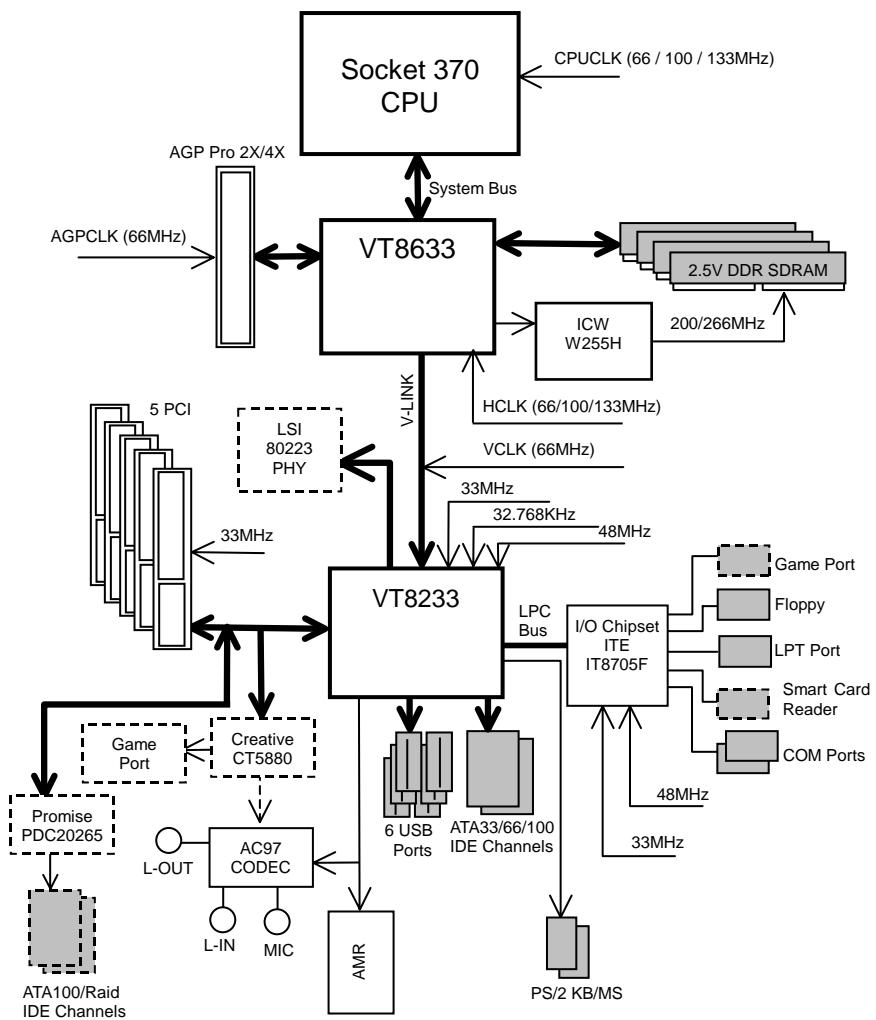
flowchart
graph TD
    A["Socket 370 CPU"] -->|CPUCLK (66 / 100 / 133MHz)| B["VT8633"]
    B --> C["2.5V DDR SDRAM"]
    B --> D["ICW W255H"]
    D --> E["HCLK (66/100/133MHz)"]
    B --> F["V-LINK"]
    F --> G["VT8233"]
    G --> H["LPC Bus"]
    G --> I["I/O Chipset ITE IT8705F"]
    I --> J["Game Port"]
    I --> K["Floppy"]
    I --> L["LPT Port"]
    I --> M["Smart Card Reader"]
    I --> N["COM Ports"]
    I --> O["48MHz"]
    I --> P["PS/2 KB/MS"]
    B --> Q["AGP Pro 2X/4X"]
    Q --> R["AGPCLK (66MHz)"]
    G --> S["5 PCI"]
    G --> T["Creative CT5880"]
    G --> U["AC97 CODEC"]
    G --> V["AMR"]
    G --> W["5 PCI"]
    G --> X["Creative CT5880"]
    G --> Y["AMR"]
    G --> Z["5 PCI"]
    G --> AA["Creative CT5880"]
    G --> AB["AMR"]
    G --> AC["5 PCI"]
    G --> AD["Creative CT5880"]
    G --> AE["AMR"]
    G --> AF["5 PCI"]
    G --> AG["Creative CT5880"]
    G --> AH["AMR"]
    G --> AI["5 PCI"]
    G --> AJ["Creative CT5880"]
    G --> AK["AMR"]
    G --> AL["5 PCI"]
    G --> AM["Creative CT5880"]
    G --> AN["AMR"]
    G --> AO["5 PCI"]
    G --> AP["Creative CT5880"]
    G --> AQ["AMR"]
    G --> AR["5 PCI"]

flowchart
graph LR
    A["14.318MHz"] --> B["ICW W250-03"]
    C["PCI (33MHz)"] --> B
    D["48MHz"] --> B
    E["VCLK (66MHz)"] --> B
    F["AGPCLK (66MHz)"] --> B
    B --> G["HCLK (66 / 100 / 133MHz)"]
    B --> H["CPUCLK (66 / 100 / 133MHz)"]
Suspend To RAM Installation
A.1 Introduce STR function:
Suspend-to-RAM (STR) is a Windows 98 ACPI sleep mode function. When recovering from STR (S3) sleep mode, the system is able, in just a few seconds, to retrieve the last "state" of the system before it went to sleep and recover to that state. The "state" is stored in memory (RAM) before the system goes to sleep. During STR sleep mode, your system uses only enough energy to maintain critical information and system functions, primarily the system state and the ability to recognize various "wake up" triggers or signals, respectively.
A.2 STR function Installation
Please use the following steps to complete the STR function installation.
Step-By-Step Setup
Step 1:
To utilize the STR function, the system must be in Windows 98 ACPI mode.
Putting Windows 98 into ACPI mode is fairly easy.
Setup with Windows 98 CD:
A. Insert the Windows 98 CD into your CD-ROM drive, select Start, and then Run.
B. Type (without quotes) "D:\setup" in the window provided. Hit the enter key or click OK.
C. After setup completes, remove the CD, and reboot your system
(This manual assumes that your CD-ROM device drive letter is D:).
Step 2:
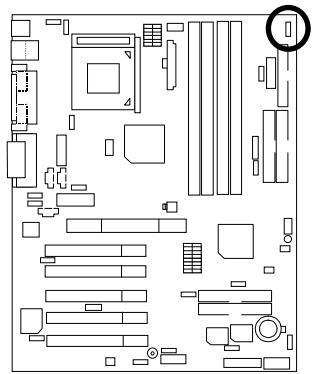
(If you want to use STR Function, please set jumper JP13 Pin1-2 (Closed.)
natural_image
Floor plan diagram of a computer room with various compartments and fixtures (no text or labels)
Enable
| Pin No. | Definition |
| 1-2 close | STR Enable |
| 2-3 close | STR Disable (Default) |
Step 3:
Power on the computer and as soon as memory counting starts, press . You will enter BIOS Setup. Select the item "POWER MANAGEMENT SETUP", then select "ACPI Standby State: S3 /STR". Remember to save the settings by pressing "ESC" and choose the "SAVE & EXIT SETUP" option.
Congratulations! You have completed the installation and now can use the STR function.
A.3 How to put your system into STR mode?
There are two ways to accomplish this:
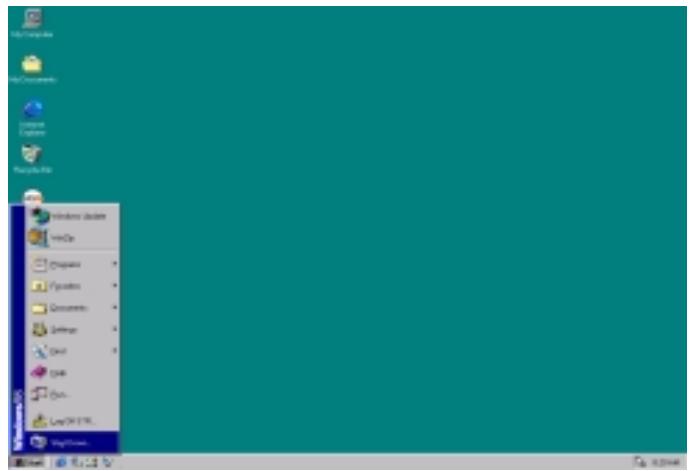
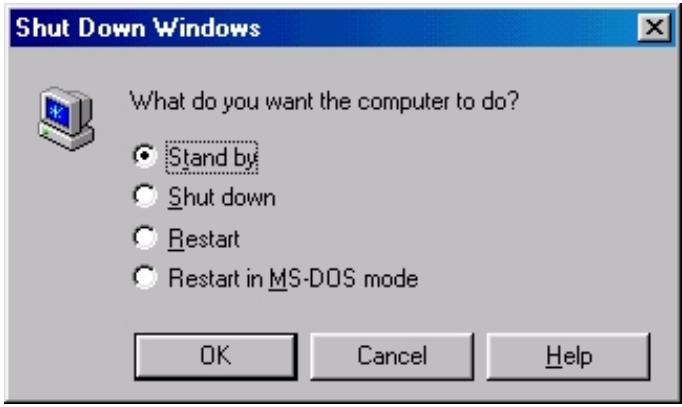
- Choose the "Stand by" item in the "Shut Down Windows" area.
A. Press the "Start" button and then select "Shut Down"
B. Choose the "Stand by" item and press "OK"
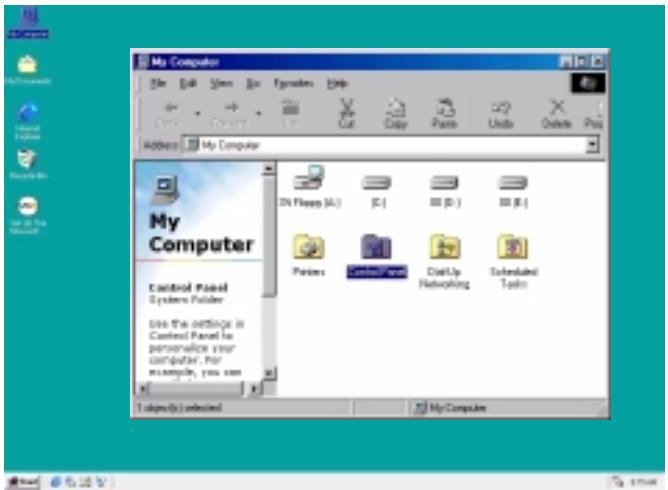
- Define the system "power on" button to initiate STR sleep mode:
A. Double click "My Computer" and then "Control Panel"
B. Double click the "Power Management" item.

C. Select the "Advanced" tab and "Standby" mode in Power Buttons.
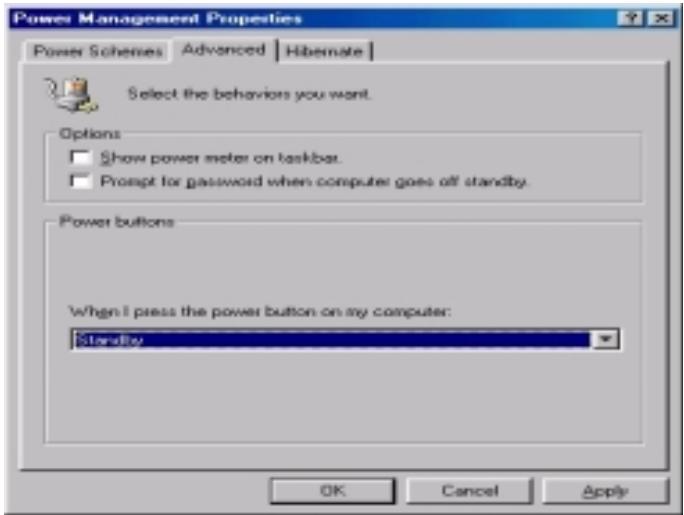
D. Restart your computer to complete setup.
Now when you want to enter STR sleep mode, just momentarily press the "Power on" button.
A.4 How to recover from the STR sleep mode?
There are seven ways to "wake up" the system:
- Press the "Power On" button.
- Use the "PS/2 Keyboard Power On" function.
- Use the "PS/2 Mouse Power On" function.
- Use the "Resume by Alarm" function.
- Use the "Modem Ring On" function.
- Use the "Wake On LAN" function.
- Use the "USB Device Wake Up" function.
A.5 Notices:
- In order for STR to function properly, several hardware and software requirements must be satisfied:
A. Your ATX power supply must comply with the ATX 2.01 specification (provide more than 720 mA 5V Stand-By current).
B. Your DDR SDRAM must be DDR-200 or DDR-266 compliant.
- Jumper JP7 is provided to connect to the STR LED in your system chassis. [Some chassis may not provide this feature.] The STR LED will be illuminated when your system is in STR sleep mode.
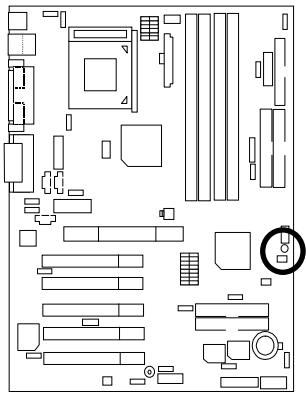
natural_image
Floor plan layout diagram with furniture and fixtures (no text or labels)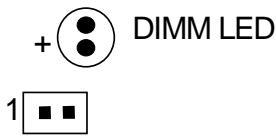
STR LED Connector External
Dual BIOS Introduction (Optional)
A. What is Dual BIOS Technology?
Dual BIOS means that there are two system BIOS (ROM) on the motherboard, one is the Main BIOS and the other is Backup BIOS. Under the normal circumstances, the system works on the Main BIOS. If the Main BIOS is corrupted or damaged, the Backup BIOS can take over while the system is powered on. This means that your PC will still be able to run stably as if nothing has happened in your BIOS.
B. How to use Dual BIOS?
a. Boot Screen

American
Megatrends
Release:09/16/99
AMIBIOS (C) 1999 American Megatrends
XXX XXX
Check System Health ok, Vcore =2.00V
CPU ID:0673 Patch ID:000A
Pentium III CPU - 600MHz
Check NVRAM...

EPA POLLUTION PREVENTER

Wait...
Press F1 to enter Dual BIOS Utility.
(C)
63-07
Press F1 to enter Dual BIOS Utility.
b. AMI Dual BIOS Flash ROM Programming Utility
| AMI Dual BIOS Flash ROM Programming Utility | |
| Boot From...... Main BIOSMain ROM Type...... SST 39SF020Backup ROM Type...... SST 39SF020Wide Range Protection DisableBoot From Main BIOSAuto Recovery EnableHalt On Error DisableCopy Main ROM Data to BackupLoad Default SettingsSave Settings to CMOS | |
| PgDn/PgUp:Modify(Enter:Run) ↑↓:Move ESC:Reset F10:Power Off |
c. Dual BIOS Item explanation:
BIOS will auto detect:
Boot From: Main BIOS
Main ROM Type: SST 39SF020
Backup ROM Type: SST 39SF020
Wide Range Protection: Disable(Default), Enable
Status 1:
If any failure (ex. Update ESCD failure, checksum error or reset...) occurs in the Main BIOS, just before the Operating System is loaded and after the power is on, and that the Wide Range Protection is set to "Enable", the PC will boot from Backup BIOS automatically.
Status 2:
If the ROM BIOS on peripherals cards(ex. SCSI Cards, LAN Cards,...) emits signals to request restart of the system after the user make any alteration on it, the boot up BIOS will not be changed to the Backup BIOS.
Boot From: Main BIOS (Default), Backup BIOS
Status 1:
The user can set to boot from main BIOS or Backup BIOS.
Auto Recovery: Enabled (Default), Disabled
When one of the Main BIOS or Backup BIOS occurs checksum failure, the working BIOS will automatically recover the BIOS of checksum failure.
(In the Power Management Setup of the BIOS Setting, if ACPI Suspend Type is set to Suspend to RAM, the Auto Recovery will be set to Enable automatically.)
(If you want to enter the BIOS setting, please press "Del" key when the boot screen appears.)
Halt On Error : Disable(Default), Enable
If the BIOS occurs a checksum error or the Main BIOS occurs a WIDE RANGE PROTECTION error and Halt On BIOS Defects set to Enable, the PC will show messages on the boot screen, and the system will pause and wait for the user's instruction.
If Auto Recovery: Disable, it will show
If Auto Recovery: Enable, it will show
Copy Main ROM Data to Backup
Backup message:
Are you sure to copy BIOS?
[Enter] to continue or [Esc] to abort ...
The means that the Main BIOS works normally and could automatically recover the Backup BIOS. Or the means that the Backup BIOS works normally and could automatically recover the Main BIOS.
(This auto recovery utility is set by system automatically and can't be changed by user.)

DualBIOS™ Technology FAQ
GIGABYTE Technology is pleased to introduce DualBIOS technology, a hot spare for your system BIOS. This newest "Value-added" feature, in a long series of innovations from GIGABYTE, is available on GA-6RX Series motherboard. Future GIGABYTE motherboards will also incorporate this innovation.
What's DualBIOS™?
On GIGABYTE motherboards with DualBIOS there are physically two BIOS chips. For simplicity we'll call one your "Main BIOS" and the other is your "Backup" BIOS (your "hot spare"). If your Main BIOS fails, the Backup BIOS almost automatically takes over on your next system boot. Almost automatically and with virtually zero down time! Whether the problem is a failure in flashing your BIOS or a virus or a catastrophic failure of the Main BIOS chip, the result is the same - the Backup BIOS backs you up, almost automatically.
I. Q: What is DualBIOS™ technology?
Answer:
DualBIOS technology is a patented technology from Giga-Byte Technology. The concept of this technology is based on the redundancy and fault tolerance theory. DualBIOS™ technology simply means there are two system BIOSes (ROM) integrated onto the motherboard. One is a main BIOS, and the other is a backup BIOS. The mainboard will operate normally with the main BIOS, however, if the main BIOS is corrupt or damaged for various reasons, the backup BIOS will be automatically used when the system powered-On. Your PC will operate as before the main BIOS was damaged, and is completely transparent to the user.
II. Q: Why does anyone need a motherboard with DualBIOS™ technology?
Answer:
In today's systems there are more and more BIOS failures. The most common reasons are virus attacks, BIOS upgrade failures, and/or deterioration of the BIOS (ROM) chip itself.
- New computer viruses are being found that attack and destroy the system BIOS. They may corrupt your BIOS code, causing your PC to be unstable or even not boot normally.
- BIOS data will be corrupted if a power loss/surge occurs, or if a user resets the system, or if the power button is pressed during the process of performing a system BIOS upgrade.
- If a user mistakenly updates their mainboard with the incorrect BIOS file, then the system may not be able to boot correctly. This may cause the PC system hang in operation or during boot.
- A flash ROM's life cycle is limited according to electronic characteristics. The modern PC utilizes the Plug and Play BIOS, and is updated regularly. If a user changes peripherals often, there is a slight chance of damage to the flash ROM.
With Giga-Byte Technology's patented DualBIOS™ technology you can reduce the possibility of hangs during system boot up, and/or loss BIOS data due to above reasons. This new technology will eliminate valuable system down time and costly repair bills cause by BIOS failures.
III. Q: How does DualBIOSTM technology work?
Answer:
- DualBIOSTM technology provides a wide range of protection during the boot up procedure. It protects your BIOS during system POST, ESCD update, and even all the way to PNP detection/assignment.
- DualBIOS ^™ provides automatic recovery for the BIOS. When the first BIOS used during boot up does not complete or if a BIOS checksum error occurs, boot-up is still possible. In the DualBIOS ^™ utility, the "Auto Recovery" option will guarantee that if either the main BIOS or backup BIOS is corrupted, the DualBIOS ^™ technology will use the good BIOS and correct the wrong BIOS automatically.
- DualBIOSTM provides manual recovery for the BIOS. DualBIOSTM technology contains a built-in flash utility, which can flash your system BIOS from backup to main and/or visa versa. There is no need for an OS-dependent flash utility program.
- DualBIOS™ contains a one-way flash utility. The built-in one-way flash utility will ensure that the corrupt BIOS is not mistaken as the good BIOS during recovery and that the correct BIOS (main vs. backup) will be flashed. This will prevent the good BIOS from being flashed.
IV. Q: Who Needs DualBIOSTM technology?
Answer:
- Every user should have DualBIOST ^™ technology due to the advancement of computer viruses.
Everyday, there are new BIOS-type viruses discovered that will destroy your system BIOS. Most commercial products on the market do not have solutions to guard against this type of virus intrusion. The DualBIOS™ technology will provide a state-of-the-art solution to protect your PC:
Case I.) Vicious computer viruses may wipe out your entire system BIOS. With a conventional single system BIOS PC, the PC will not be functional until it is sent for repairs.
Case II.) If the "Auto Recovery" option is enabled in the DualBIOS™ utility, and if a virus corrupts your system BIOS, the backup BIOS will automatically reboot the system and correct the main BIOS.
Case III.) A user may override booting from the main system BIOS. The DualBIOS™ utility may be entered to manually change the boot sequence to boot from the backup BIOS.
- During or after a BIOS upgrade, if DualBIOS™ detects that the main BIOS is corrupt, the backup BIOS will take over the boot-up process automatically. Moreover, it will verify the main and backup BIOS checksums when booting-up. DualBIOS™ technology examines the checksum of the main and backup BIOS while the system is powered on to guarantee your BIOS operates properly.
- Power Users will have the advantage of having two BIOS versions on their mainboard. The benefit is being able to select either version BIOS to suit the performance system needs.
- Flexibility for high-end desktop PCs and workstation/servers. In the DualBIOS™ utility, the option can be set, "Halt On When BIOS Defects," to be enabled to halt your system with a warning message that the main BIOS has been corrupted. Most workstation/servers require constant operation to guarantee services have not been interrupted. In this situation, the "Halt On When BIOS Defects" message may be disabled to avoid system pauses during normal booting.
Four Speaker & SPDIF Introduction (Optional)
Four Speaker Introduction
A. What is Four Speaker?
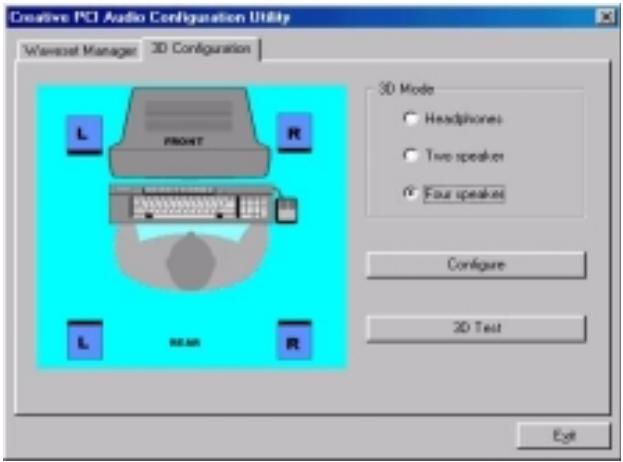
The Creative CT5880 audio chip can support up to 4 speaker output. If you select "Four speaker out", Line In will be reconfigured as another line out to support a second pair of speakers.
B. How to use Four Speaker?
Microsoft Windows 98 Second Edition setup procedure:
a. Click the audio icon along the task bar and select "Configure 3D Audio"
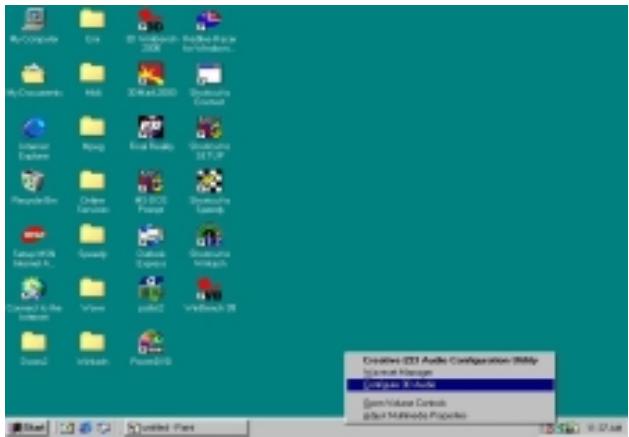
b. Select two speaker (Default)
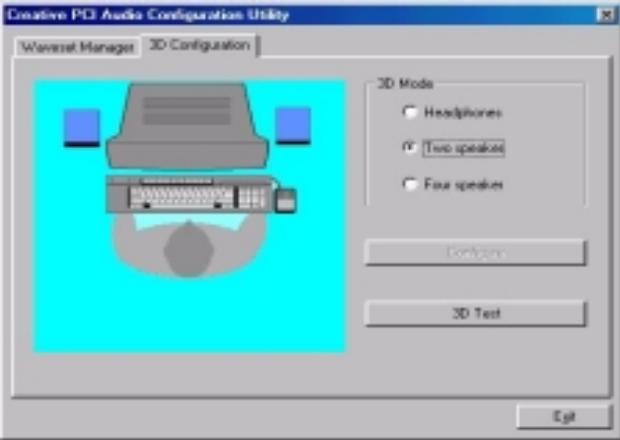
c. Select "Four speaker" item.
Microsoft Windows Me setup procedure:
a. Go to "Control Panel"
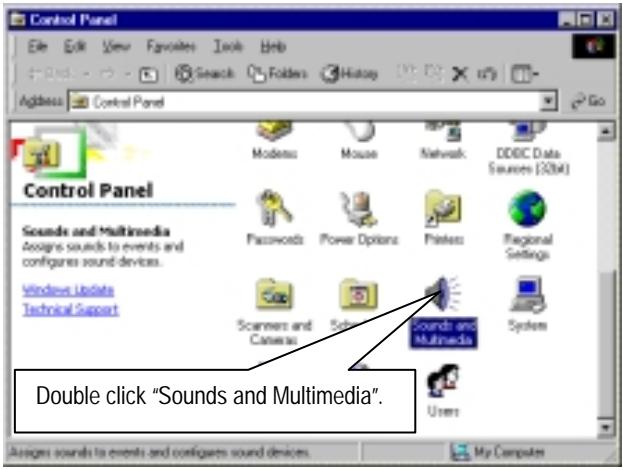
b. Select "Audio" Page, and click "Advanced" button.
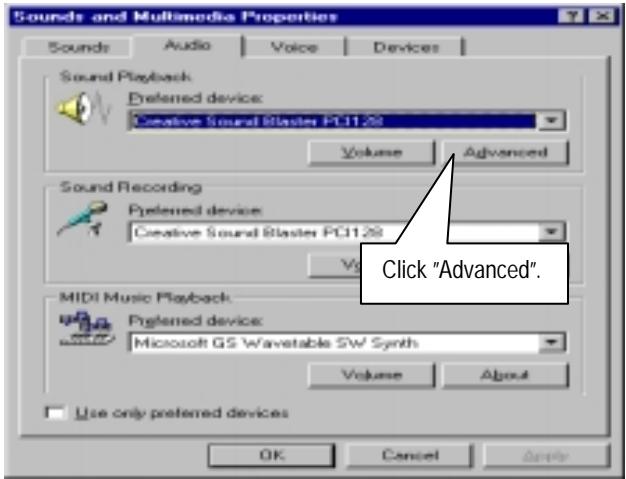
c. Select "Quadraphonic Speakers" and click ok.
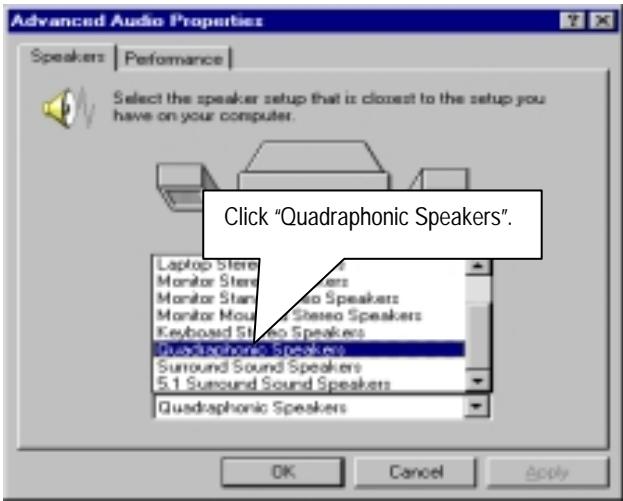
C. Four Speaker Application
The four speaker function will only be supported in application softwares that use Microsoft DirectX and Creative EAX, for example, the game titles, software DVD player and MP3 player.
SPDIF Introduction
A. What is SPDIF?
The SPDIF output is capable of providing digital audio to external speakers or compressed AC3 data to an external Dolby digital decoder.
B. How to use SPDIF?
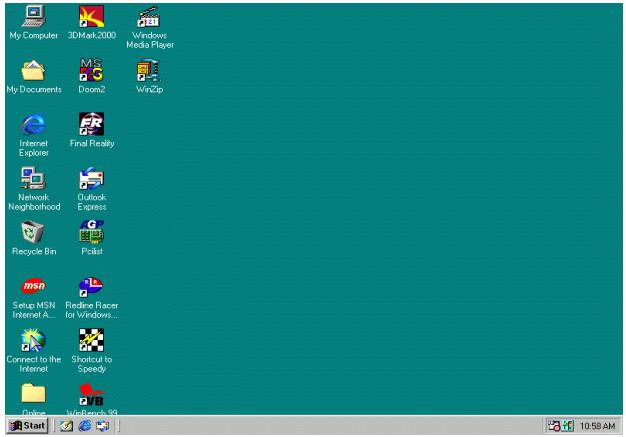
a. Click your mouse right button in "My Computer" and select the "Properties" item.
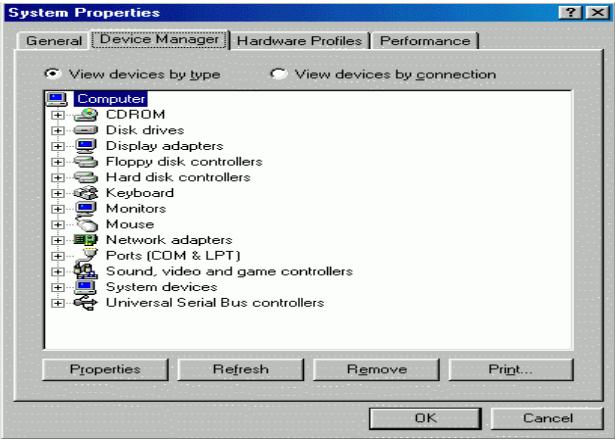
b. Click "Device Manager" item.
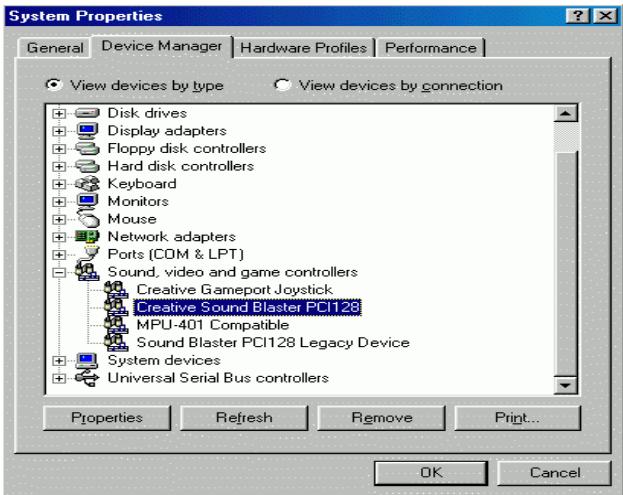
c. Click "Sound, video and game controllers" item and select the "Creative Sound Blaster PCI128" item.
d. Click "Settings" item and select the "Output Mode" item.
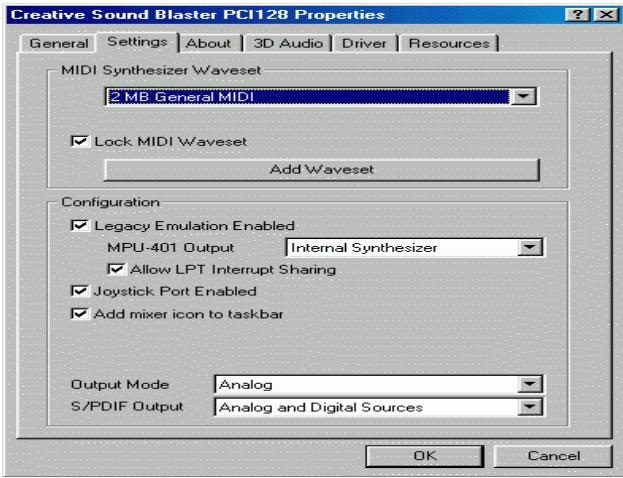
e. Click "Digital" item, Line Out will be reconfigure to SPDIF Out.

f. Recommend you to select "Autosense", It will automatically detect the type (mono or stereo) of the audio connector that you plug into Line Out audio jack, then configure Line Out to either SPDIF or Speaker accordingly.
@BIOS™ Introduction
Gigabyte announces @BIOS™
Windows BIOS live update utility

BIOS Live Update Utility
Have you ever updated BIOS by yourself? Or like many other people, you just know what BIOS is, but always hesitate to update it? Because you think updating newest BIOS is
unnecessary and actually you don't know how to update it.
Maybe not like others, you are very experienced in BIOS updating and spend quite a lot of time to do it. But of course you don't like to do it too much. First, download different BIOS from website and then switch the operating system to DOS mode. Secondly, use different flash utility to update BIOS. The above process is not a interesting job. Besides, always be carefully to store the BIOS source code correctly in your disks as if you update the wrong BIOS, it will be a nightmare.
Certainly, you wonder why motherboard vendors could not just do something right to save your time and effort and save you from the lousy BIOS updating work? Here it comes! Now Gigabyte announces @BIOS™--the first Windows BIOS live update utility. This is a smart BIOS update software. It could help you to download the BIOS from internet and update it. Not like the other BIOS update software, it's a Windows utility. With the help of "@BIOS™', BIOS updating is no more than a click.
Besides, no matter which mainboard you are using, if it's a Gigabyte's product*, @BIOS™ help you to maintain the BIOS. This utility could detect your correct mainboard model and help you to choose the BIOS accordingly. It then downloads the BIOS from the nearest Gigabyte ftp site automatically. There are several different choices; you could use "Internet Update" to download and update your BIOS directly. Or you may want to keep a backup for your current BIOS, just choose "Save Current BIOS" to save it first. You make a wise choice to use Gigabyte, and @BIOS™ update your BIOS smartly. You are now worry free from updating wrong BIOS, and capable to maintain and manage your BIOS easily. Again, Gigabyte's innovative product erects a milestone in mainboard industries.
For such a wonderful software, how much it costs? Impossible! It's free! Now, if you buy a Gigabyte's motherboard, you could find this amazing software in the attached driver CD. But please remember, connected to internet at first, then you could have a internet BIOS update from your Gigabyte @BIOS™.
EasyTuneIII™ Introduction
Gigabyte announces EasyTuneIII™
Windows overdrive utility
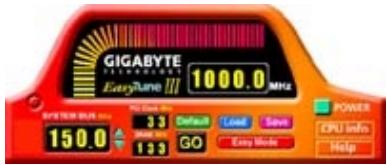
"Overdrive" might be one of the most common issues in computer field. But have many users ever tried it? The answer is probably "no". Because "overdrive" is thought to be very difficult and includes a lot of technical know-how, sometimes "overdrive" is
even considered as special skills found only in some enthusiasts.
But as to the experts in “overdrive”, what’s the truth? They may spend quite a lot of time and money to study, try and use many different hardware and software tools to do “overdrive”. And even with these technologies, they still learn that it’s quite a risk because the safety and stability of an “overdrive” system is unknown.
Now everything is different because of a Windows overdrive utility EasyTuneIII™ --announced by Gigabyte. This utility has totally changed the gaming rule of "overdrive". This is the first overdrive utility suitable for both normal and power users. Users can choose either "Easy Mode" or "Advanced Mode" to run "overdrive" at their convenience. For users who choose "Easy Mode", they just need to click "Auto Optimize" to have auto and immediate CPU overclocking. This software will then overdrive CPU speed automatically with the result being shown in the control panel. If someone prefers to "overdrive" by oneself, there is also another choice. Click "Advanced Mode" to enjoy "sport drive" class overclocking. In "Advanced Mode", one can change the system bus speed in small increments to get ultimate system performance. And no matter which mainboard is used, if it's a Gigabyte's product*, EasyTuneIII™ helps to perform the best of system.
Besides, different from other traditional over-clocking methods, EasyTuneIII™ doesn't require users to change neither BIOS nor hardware switch/ jumper setting; on the other hand, they can do "overdrive" at only one click. Therefore, this is a safer way for "overdrive" as nothing is changed on software or hardware. If user runs EasyTuneIII™ over system's limitation, the biggest lost is only to restart the computer again and the side effect is then well controlled. Moreover, if one well-performed system speed been tested in EasyTuneIII™, user can "Save" this bus speed and "Load" it in next time. Obviously, Gigabyte EasyTuneIII™ has already turned the "overdrive" technology toward to a newer generation.
This wonderful software is now free bundled in Gigabyte motherboard attached driver CD. Users may make a test drive of "EasyTuneIII™" to find out more amazing features by themselves.
For further technical information, please link to: http://www.qigabyte.com.tw
※ Note: For the latest version of EasyTuneIII™, please visit our website.
Raid Introduction
What is Raid?
This motherboard implements two different types of RAID levels as follows:
RAID 0 (stripe)
For capacity -- The motherboard array will be as big as the smallest HDD in the array times however many HDDs are in the array. Any larger HDDs will simply be truncated. The truncated space on the bigger HDDs will then be unusable.
For sustained data transfers -- A RAID 0 array consisting of two HDDs will transfer at about twice the speed of the slowest HDD in the array. A RAID 0 array consisting of four HDDs will transfer at about three times the speed of the slowest HDD in the array.
RAID 1 (mirror)
For capacity – This Motherboard array will be as big as the smallest HDD in the array. The larger HDD will simply be truncated. The truncated space on the bigger HDD will then be unusable.
For sustained data transfers -- This motherboard array will write data at the rate of the slowest HDD in the array. This motherboard array will read data at twice the rate of the slowest HDD in the array.
About RAID Levels
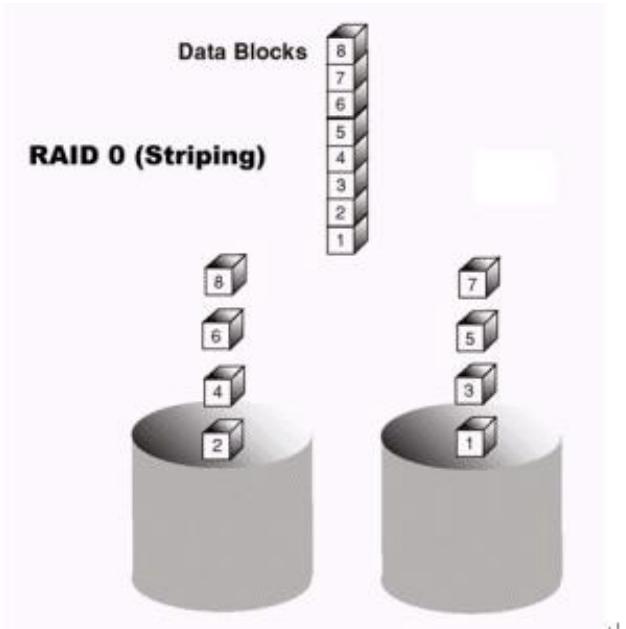
Striping (RAID 0)
Reads and writes sectors of data interleaved between multiple drives. When any disk member fails, it affects the entire array. Performance is better than a single drive since the workload is balanced between the array members. This array type is for high performance systems. Identical drives are recommended for performance as well as data storage efficiency. The disk array data capacity is equal to the number of drive members times the smallest member capacity. For example, one 1GB and 1 drives will form a 2GB (2 x 1GB) disk array.
Stripe Size - a value can be set from 1KB to 1024KB sector size. The size can directly affect performance. In the FastBuild BIOS, the "Desktop" default is 8KB while "Server" and "A/V Editing" are 64KB.
Mirroring (RAID 1)
Writes duplicate data on to a pair of drives while reads are performed in parallel. ATA RAID 1 is fault tolerant because each drive of a mirrored pair is installed on separate IDE channels. If one of the mirrored drives suffers a mechanical failure (e.g. spindle failure) or does not respond, the remaining drive will continue to function. This is called Fault Tolerance. If one drive has a physical sector error, the mirrored drive will continue to function.
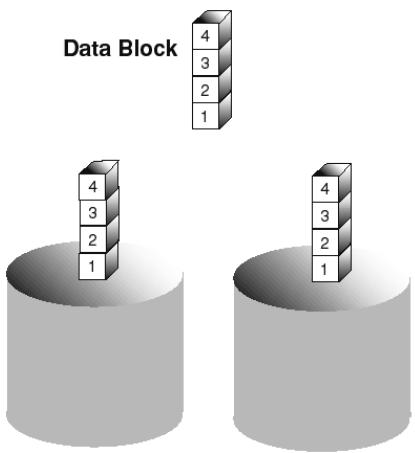
RAID 1 (Mirroring)
On the next reboot, the FastBuild ^TM utility will display an error in the array and recommend to replace the failed drive. Users may choose to continue using their PC, however Promise recommends replacing the failed drive as soon as possible. See Chapter 4 for a functional description.
Due to redundancy, the drive capacity of the array is half the total drive capacity. For example, two 1GB drives that have a combined capacity of 2GB would have 1GB of usable storage. With drives of different capacities, there may be unused capacity on the larger drive.
Creating Your Disk Array
You will now use the FastBuild BIOS utility to create your array using the attached drives. There are three different scenarios in creating this array. You can create an array for performance, you can create a Security array using new hard drives (recommended), or you can create a Security array using an existing hard drive and a new hard drive.

WARNING: If creating a Security array using an existing hard drive, backup any necessary data. Failure to follow this accepted PC practice could result in data loss.
- Boot your system. If this is the first time you have booted with raid, the FastBuild BIOS will display the following screen.
FastTrak100 (tm) "Lite" BIOS Version 1.xx (Build xxxx) (c) 1995-2000 Promise Technology, Inc. All Rights Reserved.
No array defined ...
Press
- Press
keys to display the FastBuild (tm) Utility Main Menu - Press "1" to display the Auto Setup Menu below. This is the fastest and easiest method to creating your first array.
FastBuild (tm) Utility 1.xx (c) 1995-2000 Promise Technology, Inc. [Auto Setup Options Menu]
Optimize Array for: Performance
Typical Application usage: A/V Editing
[ Auto Setup Configuration ]
Mode......Stripe
Spare Driver....0
Drives used in Array....2
Array Disk Capacity....16126
[Keys Available]
[↑] Up [↓] Down [←, →, Space] Change Option [ESC] Exit [Ctrl-Y] Save
Creating an Array for Performance
NOTE: This motherboard allows users to create striped arrays with 1, 2 drives.
To create an array for best performance, follow these steps:
- Using the Spacebar, choose "Performance" under the Optimize Array for section.
- Select how you will use your PC most under the Typical Application usage section The choices are A/V Editing, Server, and Desktop (the default).
- Press
keys to Save and create the array. - Reboot your system.
- Once the array has been created, you will need to FDISK and format the array as if it were a new single hard drive.
- Proceed to Installing Drivers section of the manual (see Raid Manual of the TUCD).
Creating a Security Array With New Drives
NOTE: This motherborad permit only two drives to be used for a single Mirrored array in Auto Setup.
To create an array for data protection using new hard drives, follow these steps:
- Using the Spacebar, choose "Security" under the Optimize Array for section.
- Press
keys to Save your selection. - The window below will appear.
Do you want the disk image to be duplicated to another? (Yes/No)
Y - Create and Duplicate
N - Create Only
-
Press "N" for the Create Only option.
-
A window will appear almost immediately confirming that your Security array has been created. Press any key to reboot the system
Array has been created.
- Proceed with normal FDISK and format procedures as if you had just installed a new hard drive.
- Once the arrayed drives have been formatted, proceed to the Installing Driver chapter (see Raid Manual of the TUCD) to install your operating system.
Creating a Security Array With An Existing Data Drive
NOTE: This motherboard permits only two drives to be used for a single Mirrored array in Auto Setup.
You would use this method if you wish to use a drive that already contains data and/or is the bootable system drive in your system. You will need another drive of identical or larger storage capacity.

WARNING: Backup any necessary data before proceeding. Failure to follow this accepted PC practice could result in data loss.

WARNING: If you wish to include your current bootable drive using the Windows NT 4.x or Windows 2000 operating system as part of a bootable Mirrored (RAID 1) array on your system, do NOT connect the hard drive to the motherboard controller yet. You MUST install the Windows NT4 or 2000 driver
software first (see Raid Manual of the TUCD) to this drive while it is still attached to your existing hard drive controller. For all other Operating Systems, proceed here.
Follow these steps:
- Using the Spacebar, choose "Security" under the Optimize Array for section.
- Press
keys to Save your selection. The window below will appear.
Do you want the disk image to be duplicated to another? (Yes/No)
Y - Create and Duplicate
N - Create Only
- Press "Y" for the Create and Duplicate option. The window below will appear asking you to select the Source drive to use. FastBuild will copy all data from the Source drive to the Target drive.
| Source Disk | ||
| Channel:ID | Drive Model | Capacity (MB) |
| Target Disk | ||
| Channel:ID | Drive Model | Capacity (MB) |
| [Please Select A Source Disk] | ||
| Channel:ID | Drive Model | Capacity (MB) |
| 1 :Master | QUANTUMCR8.4A | 8063 |
| 2 :Master | QUANTUMCR8.4A | 8063 |
| [↑] Up [↓] [ESC] Exit [Ctrl-Y] Save | ||
- Use the arrow keys to choose which drive contains the existing data to be copied.
- Press [Ctrl-Y] keys to Save selection and start duplication. The following progress screen will appear.
Start to duplicate the image . . .
Do you want to continue? (Yes/No)
Y – Continue N - Abort
- Select "Y" to continue. If you choose "N", you will be returned to step 1.
- Once complete, the following screen will appear confirming that your Security array has been created. Press any key to reboot the system
Array has been created.
- Proceed to the Installing Driver chapter (see Raid Manual of the TUCD) to install the Raid driver and/or operating system.
Using FastBuild™ Configuration Utility
The FastBuild ^TM Configuration Utility offers several menu choices to create and manage the drive array on the motherboard. For purposes of this manual, it is assumed you have already created an array in the previous chapter and now wish to make a change to the array or view other options.
Viewing BIOS Screen
When you boot your system with the Raid function and drives installed, the FastBuild BIOS will detect the drives attached and show the following screen.
FastTrak100 (tm)"Lite" BIOS Version 1.xx (Build xx) (c) 1995-2000 Promise Technology, Inc. All Rights Reserved.
Scanning IDE drives .....
If an array exists already, the BIOS will display the following screen showing the board RAID BIOS version and status of the array.
FastTrak100 (tm) "Lite" BIOS Version 1.xx (Build xxxx) (c) 1995-2000 Promise Technology, Inc. All Rights Reserved.
| ID | MODE SIZE | TRACK-MAPPING | STATUS |
| 1 * | 1*2 Mirror | 16126M 611/128/32 | Functional |
Press
The array status consists of three possible conditions: Functional, Critical, Offline.
Functional - The array is operational.
Critical - A mirrored array contains a drive that has failed or disconnected. The remaining drive member in the array is functional. However, the array has temporarily lost its ability to provide fault tolerance. The user should identify the failed drive through the FastBuild™ Setup utility, and then replace the problem drive.
Offline - A striped array has 1 drive that has failed or been disconnected. When the array condition is "offline," the user must replace the failed drive(s), then restore data from a backup source.
Navigating the FastBuild™ Setup Menu
When using the menus, these are some of the basic navigation tips: Arrow keys highlights through choices; [Space] bar key allows to cycle through options;
[Enter] key selects an option; [ESC] key is used to abort or exit the current menu.
Using the Main Menu
This is the first option screen when entering the FastBuild ^TM Setup.
FastBuild (tm) Utility 1.xx (c) 1995-2000 Promise Technology, Inc. [Main Menu]
Auto Setup....[1]
View Drive Assignments......[2]
View Array ....[3]
Delete Array....[4]
Rebuild Array ....[5]
Controller Configuration ....[6]
[ Keys Available ]
Press 1...6 to Select Option [ESC] Exit
To create a new array automatically, follow the steps under "Creating Arrays Automatically" on page 72. Promise recommends this option for most users.
To view drives assigned to arrays, see "Viewing Drive Assignments" on page 74.
To delete an array (but not delete the data contained on the array), select "Deleting An Array" on page 81.
To rebuild a mirrored array, see "Rebuilding an Array" on page 83.
To view controller settings, see "Viewing Controller Configuration" on page 85.

NOTE: After configuring an array using FastBuild, you should FDISK and format the arrayed drive(s) if you are using new, blank drives. Depending on the type of array you are using.
Creating Arrays Automatically
The Auto Setup <1> selection from the Main Menu can intuitively help create your disk array. It will assign all available drives appropriate for the disk array you are creating. After making all selections, use Ctrl-Y to Save selections. FastBuild will automatically build the array.
FastBuild (tm) Utility 1.xx (c) 1995-2000 Promise Technology, Inc.
[Auto Setup Options Menu]
Optimize Array for: Performance
Typical Application usage: A/V Editing
[ Auto Setup Configuration ]
Mode......Stripe
Spare Drive Count....0
Drives used in Array....2
Array Disk Capacity....16126
[ Keys Available ]
[↑] Up [↓] Down [←, →, Space] Change Option [ESC] Exit [Ctrl-Y] Save
Optimize Array For
Select whether you want Performance (RAID 0), Security (RAID 1) under the "Optimize Array for" setting.
Performance (RAID 0 Striping)
Supports the maximum performance. The storage capacity equals the number of drives times the capacity of the smallest drive in the disk array.
NOTE: This motherboard permits striped arrays using 1, 2 drive attached in Auto Setup mode.
Security (RAID 1 Mirroring)
Creates a mirrored (or fault tolerant) array for data security.
NOTE: Under the Security setting, This motherboard permits two drives to be used for a single Mirrored array only.
Defining Typical Application Usage
Allows the user to choose the type of PC usage that will be performed in order to optimize how This motherboard handles data blocks to enhance performance. Your choice will determine the block size used. You may choose from: A/V Editing (for audio/video applications, or any similar application that requires large file transfers), Server (for numerous small file transfers), or Desktop (a combination of large and small file sizes).
Using a "Hot" Spare Drive
If a third drive is attached as a "Slave" and is not assigned to a mirrored two-drive disk array (one optimized for "Security"), it will be recognized as a Spare Drive. Such a drive is immediately used as a "standby" replacement. It is automatically added to an array once a disk member of the array has been detected as "failed." To restore fault tolerance as quickly as possible, This motherboard begins to perform an automatic data rebuild on the "spare" drive in the background without the need to restart the system. At a later time, the failed drive can be physically removed from the system and an extra drive added in its place to function as the "spare" drive.
Creating Multiple Disk Arrays
- If you plan to create multiple arrays, attach only the drives necessary to create the first disk array and complete the <1> Auto Setup.
- Install the additional drives needed for the second array and again use the <1> Auto Setup.
NOTE: If you wish to customize the settings of individual disk arrays (such as block size), you must manually create disk arrays with the Define Array <3> option from the Main Menu.
Viewing Drive Assignments
The View Drive Assignments <2> option in the Main Menu displays whether drives are assigned to a disk arrays or are unassigned.
Under the "Assignment" column, drives are labeled with their assigned disk array or shown as "Free" if unassigned. Such "Free" drives can be used for a future array. Unassigned drives are not accessible by the OS. The menu also displays the data transfer mode that relates to speed used by each drive (U5 refers to 100MB/sec transfers, U4 refers to 66MB/sec transfers, etc...)
FastBuild (tm) Utility 1.xx (c) 1995-2000 Promise Technology, Inc. [View Drive Assignments]
| Channel:ID | Drive Model | Capacity(MB) | Assignment | Mode |
| 1 : Master | QUANTUMCR8.4A | 8063 | Array 1 | U5 |
| 1 : Slave | QUANTUMCR8.4A | 8063 | Free | U5 |
| 2 : Master | QUANTUMCR8.4A | 8063 | Array 1 | U5 |
[ Keys Available ]
[↑] Up [↓] Down [ESC] Exit Mode (U=UDMA, P=PIO, D=DMA)
Manually Creating an Array
The Define Array <3> option from the Main Menu allows users to begin the process of manually defining the drive elements and RAID levels for one or multiple disk arrays attached to this motherboard. Users will commonly create one or two drive arrays with the motherboard, though the motherboard will support a maximum of four arrays ^1 .
NOTE: For most installations, We recommends the <1> Auto Setup for easy disk array creation.
FastBuild (tm) Utility 1.xx (c) 1995-2000 Promise Technology, Inc.
[Define Array Menu]
| Array No | RAID Mode | Total Drv | Capacity(MB) | Status |
| Array 1 | Stripe | 2 | 16126 | Functional |
| Array 2 | — | — | — | — |
| Array 3 | — | — | — | — |
| Array 4 | — | — | — | — |
| [ Keys Available ] | ||||
Note: * — Bootable Array
[↑] Up [↓] Down
[ESC] Exit
[Enter] Select
[Space] Change Boot Drive
- To manually create an array from the Define Array Menu, use the arrow keys to highlight the array number you wish to define, and press [Enter] to select.
- The Define Array Definition Menu will next appear that allows drive assignments to the disk array (see next page).
Selecting Array Type
- Under the Definition section of this menu, highlight the Array # for which you want to assign a RAID level.
- Use the [Space] key to cycle through two array types: Performance (RAID 0 Striping), Security (RAID 1 Mirroring).
FastBuild (tm) Utility 1.xx (c) 1995-2000 Promise Technology, Inc.
[Define Array Definition Menu]
Array No
Array 1
RAID Mode
Stripe
Total Drv
2
Capacity(MB)
16126
Status
Functional
Stripe Block: 64 KB
[ Drive Assignments ]
Channel:ID
1 :
1 :
2:
Drive Model
MasterQUANTUMCR8.4A
Slave QUANTUMCR8.4A
MasterQUANTUMCR8.4A
Capacity (MB)
8063
8063
8063
Assignment
Y
N
Y
[ Keys Available ]

Up [↓]
Down
[ESC] Exit
[Space] Select
[Ctrl-Y] Save
Selecting Stripe Block
For RAID 0 Striped arrays only, you may manually select the "stripe block size." Use the Spacebar to scroll through choices progressing as follows (1, 2, 4, 8, 16...1024).
The size selected affects how montherboard sends and retrieves data blocks from the drives. You will need to perform your own testing to determine how the data block size is affecting your particular use of the array. In general, a larger block size is better when handling large data transfers (such as in A/V editing or graphics) while a smaller block size is better when handling e-mail and other common server data. The default is 64K.
Assigning Drive(s) to Array
- Under the [Drive Assignments] section, highlight a drive using the [] Up [] keys.
-
With the [Space] bar key, change the Assignable option to "Y" to add the drive to the disk array.
-
Press
to save the disk array information. Depending on the array type selected, the following scenarios will take place:
a) If choosing a Striping array, the initial Define Array Menu screen will appear with the arrays defined. From there you may ESC to exit and return to the Main Menu of FastBuild.
b) If you selected a Mirroring array for two drives, there is an additional window that appears as described in order to create the array. To do this you will use either two brand new drives, or one drive that contains existing data that you wish to mirror.
Creating A Mirrored Array Using New Drives
As described in the Drive Assignments Option section above, if you selected a mirroring array and wish to use two new assigned drives, follow the directions here.
- After assigning new drives to a Mirroring array and saving the information with
, the window below will appear.
Do you want the disk image to be duplicated to another? (Yes/No) Y - Create and Duplicate N - Create Only
- Press "N" for the Create Only option.
- A window will appear almost immediately confirming that your Security array has been created. Press any key to reboot the system
Array has been created.
Adding Fault Tolerance to an Existing Drive
This motherboard will create a mirrored array using an existing system drive with data. You must assign the existing drive and another drive of same or larger capacity to the Mirroring array. The BIOS will send the existing data to the new blank drive.

natural_image
Two black triangles stacked vertically on white background (no text or symbols)WARNING: Backup any necessary data before proceeding. Failure to follow this accepted PC practice could result in data loss.
WARNING: If you wish to include your current bootable drive using the Windows NT 4.x or Windows 2000 operating system as part of a bootable Mirrored (RAID 1) array on your system, do NOT connect the hard drive to the system controller yet. You MUST install the Windows NT4 or 2000 driver software first (see Raid
Manual of the TUCD) to this drive while it is still attached to your existing hard drive controller. For all other Operating Systems, proceed here.
After assigning the drives to a Mirroring array, press
Do you want the disk image to be duplicated to another? (Yes/No)
Y - Create and Duplicate
N - Create Only
- Press "Y" for the Create and Duplicate option. The window below will appear asking you to select the Source drive to use. FastBuild will copy all data from the Source drive to the Target drive.
| Source Disk | ||
| Channel:ID | Drive Model | Capacity (MB) |
| Target Disk | ||
| Channel:ID | Drive Model | Capacity (MB) |
| [Please Select A Source Disk] | ||
| Channel:ID | Drive Model | Capacity (MB) |
| 1 :Master | QUANTUMCR8.4A | 8063 |
| 2 :Master | QUANTUMCR8.4A | 8063 |
| [↑] Up [↓] | [ESC] Exit | [Ctrl-Y] Save |

- Use the arrow keys to choose which drive contains the existing data to be copied.
WARNING: All target drive data will be erased. Make sure you choose the correct drive.
- Press [Ctrl-Y] keys to Save selection and start duplication. The following confirmation screen will appear.
Start to duplicate the image . . .
Do you want to continue? (Yes/No)
Y - Continue N - Abort
- Select "Y" to continue. If you choose "N", you will be returned to step 1.
- Once "Y" is selected, the following progress screen will appear. The process will take a few minutes.
Please Wait While Duplicating The Image
10% Complete
- Once mirroring is complete, the following screen will appear confirming that your Security array has been created. Press any key to reboot the system
Array has been created.
Making a Disk Array Bootable

WARNING: In order for you to boot from an array on the system, your PC or server must be configured in the CMOS Setup to use the system as a bootable device (versus the onboard controller). This option is not available if the system is being used as a secondary controller.
- Once you have returned to the Define Array Menu window (below), you will see the array(s) you have created. You now may use the menu to select which previously-defined array will be used as the bootable array.
FastBuild (tm) Utility 1.xx DELL (c) 1995-2000 Promise Technology, Inc. [Define Array Menu]
| Array No | RAID Mode | Total Drv | Capacity(MB) | Status | |
| * | Array 1 | Stripe | 2 | 13044 | Functional |
Note: * — Bootable Array
[↑] Up [↓] Down [ESC] Exit [Enter] Select [Space] Change Boot Drive
- Highlight the array which you want to boot from using the [↑] Up [↓] Down keys.
- Press the [Space] bar key.
- An * asterisk will appear next to the array number indicating it as bootable. The system will now recognize this array as the first array seen
- The system will then use this bootable array as the (fixed) boot C: drive.
NOTE: The bootable array must contain your configured operating system.
How Orders Arrays
During startup, the disk arrays on the motherboard are recognized in this order: 1) The array set to bootable in the FastBuild ^TM Setup, and 2) the Array number (i.e. Array 0, Array 1...). This would be involved in determining which drive letters will be assigned to each disk array.
How Saves Array Information
All disk array data is saved into the reserved sector on each array member. We suggest that users record their disk array information for future reference.
Another feature of the motherboard disk array system is to recognize drive members even if drives are moved between different motherboard connectors(IDE3&IDE4). Since each drive's array data identifies itself to the array, it is possible to move or swap drives without modifying the array setup. This is valuable when adding drives, or during a rebuild.
Deleting An Array
The Delete Array <4> Menu option allows for deletion of disk array assignments. This is not the same as deleting data from the drives themselves. If you delete an array by accident (and before it has been used again), the array can normally be recovered by defining the array identically as the deleted array.

WARNING: Deleting an existing disk array could result in its data loss. Make sure to record all array information including the array type, the disk members, and stripe block size in case you wish to undo a deletion.
FastBuild (tm) Utility 1.xx (c) 1995-2000 Promise Technology, Inc. [Delete Array Menu]
| Array No | RAID Mode | Total Drv | Capacity(MB) | Status |
| Array 1 | Mirror | 2 | 8063 | Functional |
| Array 2 | Stripe | 1 | 8063 | Functional |
| Array 3 | Stripe | 1 | 8063 | Functional |
| Array 4 | — | — | — | — |
| [ Keys Available ] | ||||
| [↑] Up [↓] Down | [ESC] Exit | [Del] Delete | ||
- To delete an array, highlight the Array you wish to delete and press the [Del] key.
- The View Array Definition menu will appear (see below) showing which drives are assigned to this array.
FastBuild (tm) Utility 1.xx (c) 1995-2000 Promise Technology, Inc. [Define Array Menu]
| Array No | RAID Mode | Total Drv | Capacity(MB) | Status |
| Array 1 | Mirror | 2 | 8063 | Functional |
Stripe Block: 64 KB
[ Drive Assignments ]
| Channel:ID | Drive Model | Capacity (MB) | Assignment | |
| 1 : MasterQUANTUMCR8.4A | 8063 | Y | ||
| 2 : MasterQUANTUMCR8.4A | 8063 | Y | ||
- Confirm yes to the following warning message with the
key to continue array deletion:
Are you sure you want to delete this array?
Press Ctrl-Y to Delete, others to Abort
- After deleting the array, you should create a new array using Auto Setup or the Define Array menu from the FastBuild Main Menu.
Rebuilding A Mirrored Array
The Rebuild Array <5> Menu option is necessary to recover from an error in a mirrored disk array. You will receive an error message when booting your system from the BIOS.
NOTE: Drives MUST be replaced if they contain any physical errors.
Follow these steps BEFORE using the Rebuild Array menu option:
- On bootup, the system Startup BIOS will display an error message identifying which drive has failed.
- Press
keys to enter FastBuild Main Menu. - Select submenu Define Array <3>.
- Select the failed array and identify the Channel and ID of the failed drive.
- Power off and physically remove the failed drive.
- Replace the drive with an identical model.
- Reboot the system and enter the FastBuild Main Menu.
- Select the <5> Rebuild Array option. The following screen will appear.
FastBuild (tm) Utility 1.xx (c) 1995-2000 Promise Technology, Inc. [Rebuild Array Menu]
| Array No | RAID Mode | Total Drv | Capacity(MB) | Status |
| Array 1 | Mirror | 2 | 16126 | Critical |
| Array 2 | Stripe | 1 | 8063 | Functional |
| Array 3 | Stripe | 1 | 8063 | Functional |
| Array 4 | — | — | — | — |
[ Keys Available ]
[↑] Up [↓] Down
[ESC] Exit
[Enter] Select
- Highlight the array whose Status is "Critical".
- Press [Enter]. The following screen will then appear (see next page).
| FastBuild (tm) Utility 1.xx (c) 1995-2000 Promise Technology, Inc.[ Rebuild Array Menu ] | |||
| Array No | RAID Mode | Total Drv | Status |
| Array 2 | Mirror | 2 | Critical |
| Stripe Block: Not Available[ Select Drive for Rebuild ] | |||
| Channel:ID | Drive Model | Capacity (MB) | |
| 1 : Slave | QUANTUMCR8.4A | 8063 | |
| [ Keys Available ] | |||
| [↑] Up [↓] Down | [ESC] Exit | [Enter] Select | |
- Under [Select Drive for Rebuild], highlight the replacement drive.
- Press [Enter] and confirm that the data will be copied on to the selected drive. All data on the replacement drive will be written over with mirrored information from the array drive. A progress bar will appear as below.

- Once the rebuild process is complete, the user will be asked to reboot the system.
Viewing Controller Settings
The Controller Configuration <6> menu selection allows you to enable or disable the BIOS from halting (the default) if it detects an error on boot up. You may also view the system resources (Interrupt and I/O port address) of data channels.
FastBuild (tm) Utility 1.xx (c) 1995-2000 Promise Technology, Inc.
[ Adapter Configuration - Options ]
Halt On Error: Enable
[ System Resources Configuration ]
Channel 1 (IDE1)
Channel 2 (IDE2)
The [Adapter Configuration – Options] section allows you to enable or disable The system to Halt operation at the BIOS startup screen should an error be detected. This is the only option that can be changed on this screen.
Viewing System Resources
The [System Resources Configuration] section of this submenu displays the PCI slot interrupt and port address used by the system. The resources used are determined by the Mainboard PCI PnP BIOS for the PCI slot in which the system resides.
In the rare case that there is a resource conflict, refer to the Mainboard BIOS documentation on changes on resources allocated to the system PCI slot.

Please note:
The PCI3 slot does not support Master card (ex. SCSI card) when onboard Promise function enable.
| Page Index for BIOS Setup | Page |
| The Main Menu | P.88 |
| Standard CMOS Setup | P.90 |
| BIOS Features Setup | P.93 |
| Chipset Features Setup | P.95 |
| Power Management Setup | P.98 |
| PNP/ PCI Configuration | P.101 |
| Load BIOS Defaults | P.103 |
| Load Setup Defaults | P.104 |
| Integrated Peripherals | P.105 |
| Hardware Monitor & MISC Setup | P.109 |
| Supervisor / User Password | P.111 |
| IDE HDD Auto Detection | P.112 |
| Save & Exit Setup | P.113 |
| Exit Without Saving | P.114 |
BIOS Setup
BIOS Setup is an overview of the BIOS Setup Interface. The interface allows users to modify the basic system configuration, which is stored in battery-backed CMOS RAM so that it retains the Setup information can be retained when the power is turned off.
ENTERING SETUP
Power ON the computer and press immediately will allow you to enter Setup. If unsuccessful, you can restart the system and try again by pressing the "RESET" bottom on the system case. You may also restart by simultaneously pressing keys.
CONTROL KEYS
| <↑> | Move to previous item |
| <↓> | Move to next item |
| <←> | Move to the item in the left hand |
| <→> | Move to the item in the right hand |
| Main Menu - Quit and not save changes into CMOSStatus Page Setup Menu and Option Page Setup Menu - Exit current page and return to Main Menu | |
| <+/PgUp> | Increase the numeric value or make changes |
| <-/PgDn> | Decrease the numeric value or make changes |
| General help, only for Status Page Setup Menu and Option Page Setup Menu | |
| Reserved | |
| Reserved | |
| Reserved | |
| Restore the previous CMOS value from CMOS, only for Option Page Setup Menu | |
| Load the default CMOS value from BIOS default table, only for Option Page Setup Menu | |
| Load the Setup Defaults | |
| Reserved | |
| Reserved | |
| Save all the CMOS changes, only for Main Menu |
GETTING HELP
Main Menu
The on-line description of the highlighted setup function is displayed at the bottom of the screen.
Status Page Setup Menu / Option Page Setup Menu
Press F1 to pop up a small help window that describes the appropriate keys to use and the possible selections for the highlighted item. To exit the Help Window press
The Main Menu
Once you enter AMI BIOS CMOS Setup Utility, the Main Menu (Figure 1) will appear on the screen. The Main Menu allows you to select from nine setup functions and two exit choices. Use arrow keys to select among the items and press
| AMIBIOS SIMPLE SETUP UTILITY – VERSION 1.24d(C) 1999 American Megatrends, Inc. All Rights Reserved | |
| STANDARD CMOS SETUP | INTEGRATED PERIPHERALS |
| BIOS FEATURES SETUP | HARDWARE MONITOR & MSIC SETUP |
| CHIPSET FEATURES SETUP | SUPERVISOR PASSWORD |
| POWER MANAGEMENT SETUP | USER PASSWORD |
| PNP / PCI CONFIGURATION | IDE HDD AUTO DETECTION |
| LOAD BIOS DEFAULTS | SAVE & EXIT SETUP |
| LOAD SETUP DEFAULTS | EXIT WITHOUT SAVING |
| ESC: Quit ↑↓→ ← : Select Item (Shift)F2 : Change Color F5: Old ValuesF6: Load BIOS Defaults F7: Load Setup Defaults F10:Save & Exit | |
| Time, Date , Hard Disk Type... | |
Figure 1: Main Menu
- Standard CMOS Setup
This setup page includes all the adjustable items in standard compatible BIOS.
- BIOS Features Setup
This setup page includes all the adjustable items of Award special enhanced features.
- Chipset Features Setup
This setup page includes all the adjustable items of chipset special features.
• Power Management Setup
This setup page includes all the adjustable items of Green function features.
- PNP/PCI Configurations
This setup page includes all the adjustable configurations of PCI & PnP ISA resources.
- Load BIOS Defaults
Load BIOS Defaults option loads preset system parameter values to set the system in its most stable configurations.
- Load Setup Defaults
Load Setup Defaults option loads preset system parameter values to set the system in its highest performance configurations.
- Integrated Peripherals
This setup page includes all onboard peripherals.
● Hardware Monitor & MISC Setup
This setup page is auto detect fan and temperature status.
- Set Supervisor Password
Set Change or disable password. It allows you to limit access to the system and/or BIOS setup.
- Set User Password
Set Change or disable password. It allows you to limit access to the system.
- IDE HDD auto detection
Automatically configure hard disk parameters.
- Save & Exit Setup
Save CMOS value settings to CMOS and exit setup.
- Exit Without Saving
Abandon all CMOS value changes and exit setup.
Standard CMOS Setup
The items in Standard CMOS Setup Menu (Figure 2) are divided into 10 categories. Each category includes none, one or more than one setup items. Use the arrows to highlight the item and then use the
| AMIBIOS SETUP - STANDARD CMOS SETUP ( C ) 1999 American Megatrends, Inc. All Rights Reserved | |
| Date (mm/dd/yyyy) : Fri Mar 30, 2001 Time (hh/mm/ss) : 14:44:35 TYPE SIZE CYLS HEAD PRECOMP LANDZ SECTOR MODE Pri Master : Auto Pri Slave : Auto Sec Master : Auto Sec Slave : Auto | |
| Floppy Drive A : 1.44 MB 3½ Floppy Drive B : Not Installed Boot Sector Virus Protection : Disabled | Base Memory : 640 Kb Other Memory : 384 Kb Extended Memory : 255 Mb Total Memory : 256 Mb |
| Month : Jan - Dec Day : 01-31 Year : 1990 - 2099 | ESC : Exit ↑↓ : Select Item PU / PD / + / - :Modify (Shift) F2 : Color |
Figure 2: Standard CMOS Setup
- Date
The date format is
| Week | The week, from Sun to Sat, determined by the BIOS and is display-only. |
| Month | The month, Jan. Through Dec. |
| Day | The day, from 1 to 31 (or the maximum allowed in the month). |
| Year | The year, from 1990 through 2099. |
• Time
The times format in
● Primary Master / Slave, Secondary Master / Slave
The category identifies the type of hard disk from drive C to F that has been installed in the computer. There are two settings: Auto, and Manual. Manual: HDD type is user-definable; Auto will automatically detect HDD type.
Note that the specifications of your drive must match with the drive table. The hard disk will not work properly if you enter improper information for this category.
If you select User Type, related information will be asked to enter to the following items. Enter the information directly from the keyboard and press
| CYLS. | Number of cylinders. |
| HEADS | number of heads. |
| PRECOMP | write precomp. |
| LANDZONE | Landing zone. |
| SECTORS | number of sectors. |
If a hard disk has not been installed select NONE and press
- Floppy Drive A / Floppy Drive B
The category identifies the type of floppy disk drive A or drive B that has been installed in the computer.
| None | No floppy drive installed. |
| 360K, 5.25 in. | 5.25 inch PC-type standard drive; 360K byte capacity. |
| 1.2M, 5.25 in. | 5.25 inch AT-type high-density drive; 1.2M byte capacity (3.5 inch when 3 Mode is Enabled). |
| 720K, 3.5 in. | 3.5 inch double-sided drive; 720K byte capacity. |
| 1.44M, 3.5 in. | 3.5 inch double-sided drive; 1.44M byte capacity. |
| 2.88M, 3.5 in. | 3.5 inch double-sided drive; 2.88M byte capacity. |
- Boot Sector Virus Protection
If it is set to enable, the category will flash on the screen when there is any attempt to write to the boot sector or partition table of the hard disk drive. The system will halt and the following error message will appear in the mean time. You can run anti-virus program to locate the problem.
| Enabled | Activate automatically when the system boots up causing a warning message to appear when anything attempts to access the boot sector or hard disk partition table. |
| Disabled | No warning message to appear when anything attempts to access the boot sector or hard disk partition table. (Default Value) |
- Memory
The category is display-only which is determined by POST (Power On Self Test) of the BIOS.
Base Memory
The POST of the BIOS will determine the amount of base (or conventional) memory installed in the system.
The value of the base memory is typically 512 K for systems with 512 K memory installed on the motherboard, or 640 K for systems with 640 K or more memory installed on the motherboard.
Other Memory
This refers to the memory located in the 640 K to 1024 K address space. This is memory that can be used for different applications.
DOS uses this area to load device drivers to keep as much base memory free for application programs. Most use for this area is Shadow RAM.
Extended Memory
The BIOS determines how much extended memory is present during the POST. This is the amount of memory located above 1 MB in the CPU's memory address map.
BIOS Features Setup
| AMIBIOS SETUP – BIOS FEATURES SETUP( C ) 1999 American Megatrends, Inc. All Rights Reserved | |
| 1st Boot Device : Floppy2nd Boot Device : IDE-03rd Boot Device : CDROMS.M.A.R.T. for Hard Disks : DisabledBootUp Num-Lock : OnFloppy Drive Seek : DisabledPassword Check : SetupCPU Serial Number : DisabledBIOS Flash Protection : Disabled | |
| ESC: Quit ↑↓→ ←: Select ItemF1 : Help PU/PD+/-: ModifyF5 :Old Values(Shift)F2:ColorF6 : Load BIOS DefaultsF7 : Load Setup Defaults | |
Figure 3: BIOS Features Setup
- 1st / 2nd / 3rd Boot Device
| Floppy | Set your boot device priority to Floppy. |
| LS/ZIP A: | Set your boot device priority to LS/ZIP A:. |
| ATAPI ZIP C: | Set your boot device priority to ATAPI ZIP C:. |
| CDROM | Set your boot device priority to CDROM. |
| SCSI | Set your boot device priority to SCSI. |
| NETWORK | Set your boot device priority to NETWORK. |
| RAID/ATA100 | Set your boot device priority to RAID/ATA100. (Only for 6RX) |
| IDE-0~IDE-3 | Set your boot device priority to IDE-0~IDE-3. |
| Disabled | Disable this function. |
| USB FDD | Set your boot device priority to USB FDD. |
• S.M.A.R.T. for Hard Disks
| Enabled | Enable S.M.A.R.T. Feature for Hard Disks. |
| Disabled | Disable S.M.A.R.T. Feature for Hard Disks (Default Value) |
- Boot Up Num-Lock
| On | Keypad is number keys. (Default Value) |
| Off | Keypad is arrow keys. |
- Floppy Drive Seek
During POST, BIOS will determine if the floppy disk drive installed is 40 or 80 tracks. 360 type is 40 tracks while 720, 1.2 and 1.44 are all 80 tracks.
| Enabled | BIOS searches for floppy disk drive to determine if it is 40 or 80 tracks. Note that BIOS can't differentiate between from 720, 1.2 or 1.44 drive type as they are all 80 tracks. |
| Disabled | BIOS will not search for the type of floppy disk drive by track number. Note that there will not be any warning message if the drive installed is 360. (Default Value) |
- Password Check

Please refer to the detail on P.111
| Setup | The user must enter correct password in order to access BIOS setup utility. (Default Value) |
| Always | The user must enter correct password in order to access the system and/or BIOS Setup. |
- CPU Serial Number
This item will show up when you install the Pentium ^® !!! processor.
| Enabled | Pentium® !!! Processor Serial Number Feature. |
| Disabled | Disable this function. (Default value) |
• BIOS Flash Protection
| Enabled | Enable BIOS Flash Protection. This will prevent BIOS Flash write after POST. |
| Disabled | To flash/upgrade BIOS on this MB, this item must be disable. We recommend this item to be set to “Disabled”. (Default Value) |
Chipset Features Setup

We would not suggest you change the chipset default setting unless you really need it.
| AMIBIOS SETUP – CHIPSET FEATURES SETUP( C ) 1999 American Megatrends, Inc. All Rights Reserved | |
| ***DRAM Timing***Top Performance : DisabledDDR Timing by SPD : EnabledDDR Frequency : 133MHzDDR CAS# Latency : 2.5 CyclesDDR Bank Interleave : 4-WAY | |
| DDR Command Rate : 2T CommandAGP Mode : 4XAGP Read Synchronization : EnabledAGP Fast Write : DisabledAGP Comp. Driving : AutoManual AGP Comp. Driving : DBAGP Aperture Size : 64MBPCI Delay Transaction : EnabledUSB Controller : All USB PortUSB Legacy Support : Disabled | |
| ESC : Quit ↑↓→ ←: Select ItemF1 : Help PU/PD+/-/ : ModifyF5 :Old Values (Shift)F2:ColorF6 : Load BIOS DefaultsF7 : Load SETUP Defaults | |
Figure 4: Chipset Features Setup
- Top Performance
If you wish to maximize the performance of your system, set "Top Performance" as "Enabled".
| Disabled | Disable this function. (Default Value) |
| Enabled | Top Performance Enable. |
- DDR Timing by SPD
| Enabled | Enable DDR Timing by SPD. Enable this function, the bios will set DDR Frequency/DDR CAS#/DDR Bank Interleave according to the SPD Data in DDR. (Default Value) |
| Disabled | Disable DDR Timing by SPD. |
- DDR Frequency
| 100MHz | Set DDR Frequency to 100MHz. |
| 133MHz | Set DDR Frequency to 133MHz. |
- DDR CAS# Latency
| 2 Cycles | Set DDR CAS# Latency to 2 Cycles. |
| 2.5 Cycles | Set DDR CAS# Latency to 2.5 Cycles. |
• DDR Bank Interleave
| 4-WAY | Set DDR Bank Interleave to 4-WAY. |
| 2-WAY | Set DDR Bank Interleave to 2-WAY. |
| Disabled | Disable this function. |
- DDR Command Rate
If you wish to maximize the performance of your DDR, set "DDR Command Rate" as "1T Command" and set "Top Performance" as "Enabled". Please note, enabling this function may cause your system to become unstable. For power End-User use only.
| 2T Command | Set DDR Command Rate to 2T Command. (Default Value) |
| 1T Command | Set DDR Command Rate to 1T Command. |
- AGP Mode
| 4X | Set AGP Mode to 4X (Only if the AGP Card support 4X Rate). (Default Value) |
| 1X | Set AGP Mode to 1X. |
| 2X | Set AGP Mode to 2X. |
- AGP Read Synchronization
| Enabled | Enable AGP Read Synchronization. (Default Value) |
| Disabled | Disable AGP Read Synchronization. |
- AGP Fast Write
| Enabled | Enable this function only if the AGP Card support Fast Write Function. (Enable this function can increase AGP performance). |
| Disabled | Disable this function. (Default Value) |
- AGP Comp. Driving
| Auto | Set AGP Comp. Driving to Auto. (Default Value) |
| Manual | Set AGP Comp. Driving to Manual. |
If AGP Comp. Driving is Manual.
| Manual AGP Comp. Driving: | 00~FF |
- AGP Aperture Size
| 4 MB | Display AGP Aperture Size is 4MB. |
| 8 MB | Display AGP Aperture Size is 8MB. |
| 16 MB | Display AGP Aperture Size is 16MB. |
| 32 MB | Display AGP Aperture Size is 32MB. |
| 64 MB | Display AGP Aperture Size is 64MB. (Default Value) |
| 128 MB | Display AGP Aperture Size is 128MB. |
| 256 MB | Display AGP Aperture Size is 256MB. |
- PCI Delay Transaction
| Enabled | Enable Delay Transaction. (Default Value) |
| Disabled | Disable Delay Transaction. |
- USB Controller
| All USB Port | Enable All USB Ports 0,1,2,3,4,5. (Default Value) |
| Disabled | Disable USB Controller. |
| Port 0&1 | Enable USB Ports 0&1. |
| Port 2&3 | Enable USB Ports 2&3. |
| Port 0&1, 2&3 | Enable USB Ports 0&1, 2&3. |
| Port 4&5 | Enable USB Ports 4&5. |
| Port 0&1, 4&5 | Enable USB Ports 0&1, 4&5. |
| Port 2&3, 4&5 | Set USB Controller to Port 2&3, 4&5. |
- USB Legacy Support
| Keyboard/FDD | Enable USB Legacy Support for USB Keyboard & USB Floppy. |
| KB/Mouse/FDD | Enable USB Legacy Support for USB Keyboard/USB Mouse & USB Floppy. |
| Disabled | Disable USB Legacy Support Function. (Default Value) |
Power Management Setup
| AMIBIOS SETUP – POWER MANAGEMENT SETUP( C ) 1999 American Megatrends, Inc. All Rights Reserved | ||
| ACPI Standby State : S1/POSUSB Dev Wakeup From S3~S5 : DisabledIRQ3 : MonitorIRQ4 : MonitorIRQ5 : IgnoreIRQ7 : MonitorIRQ9 : IgnoreIRQ10 : IgnoreIRQ11 : IgnoreIRQ13 : IgnoreIRQ14 : MonitorIRQ15 : IgnoreSoft-Off by Power Button : Instant-OffAC Back Function : OffModem Ring On/Wake On Lan : EnabledPME Event Wake Up : EnabledKeyboard Wakeup From : S1(Suspend)PS/2 Mouse Wakeup From : S1(Suspend)Resume On RTC Alarm : Disabled | RTC Alarm Date : 15RTC Alarm Hour : 12RTC Alarm Minute : 30RTC Alarm Second : 30 | |
| ESC: Quit ↑↓→←: Select ItemF1 : Help PU/PD+/-: ModifyF5 :Old Values (Shift)F2:ColorF6 : Load BIOS DefaultsF7 : Load SETUP Defaults | ||
Figure 5: Power Management Setup
- ACPI Standby State
| S1/POS | Set ACPI Standby State to S1/POS (Power On Suspend). (Default value) |
| S3/STR | Set ACPI Standby State to S3/STR (Suspend To RAM). |
- USB Dev Wakeup From S3-S5
| Enabled | Enable USB Dev Wakeup from ACPI S3, S4 and S5 mode. |
| Disabled | Disable USB Dev Wakeup from ACPI S3, S4 and S5 mode. (Default Value) |
- IRQ 3\~IRQ15
| Ignore | Ignore IRQ3 ~IRQ15. |
| Monitor | IRQ3~IRQ15 event can wake up the system from sleep state (S1). |
- Soft-off by Power Button
| Instant off | The user press the power button once, he can turn off the system. (Default Value) |
| Suspend | The user press the power button once, then he can enter suspend mode. |
- AC Back Function
| Off | When AC-power back to the system, the system will be in "Off" state. (Default Value) |
| On | When AC-power back to the system, the system will be in "On" state. |
| Last State | When AC-power back to the system, the system will return to the Last state before AC-power off. |
• Modem Ring On / Wake On Lan
| Disabled | Disable Modem Ring On / Wake On LAN function. |
| Enabled | The modem ring / LAN wake up will bring the system out of soft-off or suspend state if this option is set “Enabled”. (Default Value) |
- PME Event Wake up
| Disabled | Disable PME event wake up function. |
| Enabled | The PME event wake up will bring the system out of soft-off or suspend state if this option is set “Enabled”. (Default Value) |
- Keyboard Wakeup From
| S1(Suspend) | Keyboard is able to Wakeup the system from S1(Suspend) state. (Default value) |
| S1/S3 | Keyboard is able to Wakeup the system from S1/S3 state. |
| S1/S3/S4/S5 | Keyboard is able to Wakeup the system from S1/S3/S4/S5 state. |
- PS/2 Mouse Wakeup From
| S1(Suspend) | PS/2 Mouse is able to Wakeup the system from S1(Suspend) state. (Default value) |
| S1/S3 | PS/2 Mouse is able to Wakeup the system from S1/S3 state. |
| S1/S3/S4/S5 | PS/2 Mouse is able to Wakeup the system from S1/S3/S4/S5 state. |
- Resume On RTC Alarm
You can set "Resume On RTC Alarm" item to enabled and key in Data/time to power on system.
| Disabled | Disable this function. (Default Value) |
| Enabled | Enable alarm function to POWER ON system. |
If the default value is Enabled.
| RTC Alarm Date: | Every Day, 1~31 |
| RTC Alarm Hour: | 0~23 |
| RTC Alarm Minute: | 0~59 |
| RTC Alarm Second: | 0~59 |
PNP/PCI Configuration
| AMIBIOS SETUP – PNP / PCI CONFIGURATION( C ) 1999 American Megatrends, Inc. All Rights Reserved | |
| Reset Configuration Data : NoVGA Boot from : AGPPCI Slot 1,5 IRQ Priority : AutoPCI Slot 2 IRQ Priority : AutoPCI Slot 3 IRQ Priority : AutoPCI Slot 4 IRQ Priority : AutoIRQ3 : PCI/PnPIRQ4 : PCI/PnPIRQ5 : PCI/PnPIRQ7 : PCI/PnPIRQ9 : PCI/PnPIRQ10 : PCI/PnPIRQ11 : PCI/PnPIRQ14 : PCI/PnPIRQ15 : PCI/PnP | |
| ESC: Quit ↑↓→ ←: Select ItemF1 : Help PU/PD+/-/ : ModifyF5 :Old Values(Shift)F2:ColorF6 : Load BIOS DefaultsF7 : Load Setup Defaults | |
Figure 6: PNP/ PCI Configuration
- Reset Configuration Data
Advising BIOS clear PnP configuration data for usable value.
| No | Disable this function. (Default Value) |
| Yes | Reset PnP configuration data in order to re-initialize ESCD for PnP device. |
- VGA Boot from
| AGP | Set VGA Boot from AGP VGA Card. (Default Value) |
| PCI | Set VGA Boot from PCI VGA Card. |
- PCI Slot 1,5 IRQ Priority
| Auto | The system will reserved a free IRQ for PCI slot 1 & 5 device. (Default Value) |
| 3 | The system will reserved IRQ3 for PCI slot 1 & 5 device if no legacy ISA device using IRQ3. |
| 4 | The system will reserved IRQ4 for PCI slot 1 & 5 device if no legacy ISA device using IRQ4. |
| 5 | The system will reserved IRQ5 for PCI slot 1 & 5 device if no legacy ISA device using IRQ5. |
| 7 | The system will reserved IRQ7 for PCI slot 1 & 5 device if no legacy ISA device using IRQ7. |
| 9 | The system will reserved IRQ9 for PCI slot 1 & 5 device if no legacy ISA device using IRQ9. |
| 10 | The system will reserved IRQ10 for PCI slot 1 & 5 device if no legacy ISA device using IRQ10. |
| 11 | The system will reserved IRQ11 for PCI slot 1 & 5 device if no legacy ISA device using IRQ11. |
• PCI Slot 2 / 3 / 4 IRQ Priority
| Auto | The system will reserved a free IRQ for PCI slot 2 / 3 / 4 device. (Default Value) |
| 3 | The system will reserved IRQ3 for PCI slot 2 / 3 / 4 device if no legacy ISA device using IRQ3. |
| 4 | The system will reserved IRQ for PCI slot 2 / 3 / 4 device if no legacy ISA device using IRQ4. |
| 5 | The system will reserved IRQ5 for PCI slot 2 / 3 / 4 device if no legacy ISA device using IRQ5. |
| 7 | The system will reserved IRQ7 for PCI slot 2 / 3 / 4 device if no legacy ISA device using IRQ7. |
| 9 | The system will reserved IRQ9 for PCI slot 2 / 3 / 4 device if no legacy ISA device using IRQ9. |
| 10 | The system will reserved IRQ10 for PCI slot 2 / 3 / 4 device if no legacy ISA device using IRQ10. |
| 11 | The system will reserved IRQ11 for PCI slot 2 / 3 / 4 device if no legacy ISA device using IRQ11. |
- IRQ (3, 4, 5, 7, 9, 10, 11, 14, 15)
| ISA/EISA | The resource is reserved for Legacy ISA device. |
| PCI/PnP | The resource is reserved for PCI/ PnP device. (Default Value) |
Load BIOS Defaults

Figure 7: Load BIOS Defaults
- Load BIOS Defaults
BIOS defaults contain the most appropriate system parameter values of to configure the system to achieve maximum stability.
Load Setup Defaults
| AMIBIOS SIMPLE SETUP UTILITY-VERSION 1.24d( C ) 1999 American Megatrends, Inc. All Rights Reserved | |
| STANDARD CMOS SETUP | INTEGRATED PERIPHERALS |
| BIOS FEATURES SETUP | HARDWARE MONITOR & MISC SETUP |
| CHIPSET FEATURES SETUP | SUPERVISOR PASSWORD |
| POWER MANAGE | LOAD Setup Defaults (Y/N)?N |
| PNP/PCI CONFIG | |
| LOAD BIOS DEFAULTS | SAVE & EXIT SETUP |
| LOAD SETUP DEFAULTS | EXIT WITHOUT SAVING |
| ESC : Quit ↑↓→← : Select Item (Shift) F2 : Change Color F5 : Old ValuesF6 : Load BIOS Defaults F7: Load Setup Defaults F10: Save & Exit | |
| Load Setup Defaults except Standard CMOS SETUP | |
Figure 8: Load Setup Defaults
- Load SETUP Defaults
Load Setup defaults contain the most appropriate system parameter values to configure the system to achieve maximum performance.
Integrated Peripherals
| AMIBIOS SETUP – INTEGRATED PERIPHERALS( C ) 1999 American Megatrends, Inc. All Rights Reserved | |
| OnBoard IDE : Both♣OnBoard AC'97 Audio : AutoOnBoard MC'97 Modem : Auto♦Onboard Creative Sound : EnabledOnBoard FDC : AutoOnBoard Serial Port 1 : AutoOnBoard Serial Port 2 : AutoSerial Port 2 Mode : NormalOnBoard CIR Port : DisabledCIR Port IRQ : N/AOnBoard Parallel Port : AutoParallel Port Mode : ECPParallel Port IRQ : AutoParallel Port DMA : Auto♣OnBoard MIDI Port : Disabled♣ MIDI Port IRQ : 5♣OnBoard Game Port : Enabled | ESC: Quit ↑↓→←: Select ItemF1 : Help PU/PD+/-: ModifyF5 :Old Values(Shift)F2:ColorF6 : Load BIOS DefaultsF7 : Load Setup Defaults |
Figure 9: Integrated Peripherals
◆This item will only be shown when there is sound chip onboard.
♣ These four items will only be shown when there is no sound chip onboard.
- OnBoard IDE
| Disabled | Disable OnBoard IDE. |
| Both | Both Primary & Secondary IDE channel will be enabled.(Default Value) |
| Primary | Only Primary IDE channel is enable. |
| Secondary | Only Secondary IDE channel is enable. |
- OnBoard AC'97 Audio
| Auto | BIOS will search AC97 Codec. If found, AC97 function will be enabled.If no AC97 Codec found, AC97 function will be disabled.(Default Value) |
| Disabled | Disable this function. |
- OnBoard MC'97 Modem
| Auto | BIOS will search MC97 Codec (AMR Modem Card). If found, MC97 function will be enabled. If no MC97 Codec found, MC97 function will be disabled. (Default Value) |
| Disabled | Disable this function. |
- OnBoard Creative Sound
| Enabled | Enable OnBoard Creative Sound function. (Default Value) |
| Disabled | Disable this function. |
- OnBoard FDC
| Disabled | Disable this function. |
| Enabled | Enable on board floppy disk controller. |
| Auto | Set the floppy disk controller automatically. (Default Value) |
- OnBoard Serial Port 1
| Auto | BIOS will automatically setup the port 1 address. (Default Value) |
| 3F8/COM1 | Enable OnBoard Serial port 1 and address is 3F8. |
| 2F8/COM2 | Enable OnBoard Serial port 1 and address is 2F8. |
| 3E8/COM3 | Enable OnBoard Serial port 1 and address is 3E8. |
| 2E8/COM4 | Enable OnBoard Serial port 1 and address is 2E8. |
| Disabled | Disable OnBoard Serial port 1. |
- OnBoard Serial Port 2
| Auto | BIOS will automatically setup the port 2 address. (Default Value) |
| 3F8/COM1 | Enable OnBoard Serial port 2 and address is 3F8. |
| 2F8/COM2 | Enable OnBoard Serial port 2 and address is 2F8. |
| 3E8/COM3 | Enable OnBoard Serial port 2 and address is 3E8. |
| 2E8/COM4 | Enable OnBoard Serial port 2 and address is 2E8. |
| Disabled | Disable OnBoard Serial port 2. |
- Serial Port 2 Mode
(This item allows you to determine which Serial Port B Mode of onboard I/O chip)
| Normal | Set onboard I/O chip Serial Port B to Normal Mode. (Default Value) |
| IrDA | Set onboard I/O chip Serial Port B to IrDA Mode. |
| ASKIR | Set onboard I/O chip Serial Port B to ASKIR Mode. |
| SCR | Set onboard I/O chip Serial Port B to Smart Card Reader. |
- OnBoard CIR port
| Disabled | Disable this function. (Default Value) |
| Enabled | Enable Onboard CIR port. |
- CIR Port IRQ
| IRQ 3 / 4 / 5 / 10 / 11 / N/A. (Default Value) |
- OnBoard Parallel port
| 378 | Set On Board LPT port and address to 378. |
| 278 | Set On Board LPT port and address to 278. |
| 3BC | Set On Board LPT port and address to 3BC. |
| Auto | Set On Board LPT port Automatically. (Default Value) |
| Disabled | Disable this function. |
- Parallel Port Mode
| EPP | Using Parallel port as Enhanced Parallel Port. |
| ECP | Using Parallel port as Extended Capabilities Port. (Default Value) |
| Normal | Normal Operation. |
| EPP+ECP | Using Parallel port as Enhanced Parallel Port & Extended Capabilities Port. |
- Parallel Port IRQ
| 7 | Set Parallel Port IRQ to 7. |
| 5 | Set Parallel Port IRQ to 5. |
| Auto | Set Parallel Port IRQ automatically. (Default Value) |
- Parallel Port DMA
| 3 | Set Parallel Port DMA to 3. |
| 1 | Set Parallel Port DMA to 1. |
| 0 | Set Parallel Port DMA to 0. |
| Auto | Set Parallel Port DMA automatically. (Default Value) |
- OnBoard MIDI Port
| 300 | Set OnBoard MIDI Port to 300. |
| 310 | Set OnBoard MIDI Port to 310. |
| 320 | Set OnBoard MIDI Port to 320. |
| 330 | Set OnBoard MIDI Port to 330. |
| Disabled | Disable this function. (Default Value) |
- MIDI Port IRQ
| 5 | Set MIDI Port IRQ to 5. (Default Value) |
| 10 | Set MIDI Port IRQ to 10. |
| 11 | Set MIDI Port IRQ to 11. |
- OnBoard Game Port
| Enabled | Enable OnBoard Game Port function. (Default Value) |
| Disabled | Disable this function. |
Hardware Monitor & MISC Setup
| AMIBIOS SETUP – HARDWARE MONITOR & MISC SETUP( C ) 1999 American Megatrends, Inc. All Rights Reserved | |
| CPU Ratio Selection : 4.0XReset Case Open Status : NoCase Status : ClosedCPU Temp. : 35°C/ 95°FSystem Temp. : 33°C/ 91°FCPU Fan Speed : 5273 RPMPower Fan Speed : 0 RPMVcore : +1.632VVtt : +1.472V+3.300V : +3.216V+5.000V : +5.080V+12.000V : +11.840V-12.000V : -13.054V-5.000V : -5.254V5VSB : +4.972VBattery :+3.024V | |
| ESC: Quit ↑↓→ ←: Select ItemF1 : Help PU/PD+/-: ModifyF5 :Old Values(Shift)F2:ColorF6 : Load BIOS DefaultsF7 : Load Setup Defaults | |
Figure 10: Hardware Monitor & MISC Setup
- CPU Ratio Selection
This option will not affect CPU ratio if you are using a locked-ratio CPU.
For Coppermine CPU.
3.0X/3.5X/4.0X/4.5X/5.0X/5.5X/6.0X/6.5X/7.0X/7.5X/8.0X
For Coppermine D type CPU.
5.5X/6.0X/6.5X/7.0X/7.5X/8.0X/8.5X/9.0X/9.5X/10.0X/10.5X/11.0X/11.5X/12.0X
- Reset Case Open Status
- Case Status
If the case is closed, "Case Status" will show "Closed".
If the case have been opened, "Case Status" will show "Open".
If you want to reset "Case Status" value, set "Reset Case Open Status"
to "Yes" and save CMOS, your computer will restart.
- CPU Temp.
Detect CPU Temp. automatically.
- System Temp.
Detect System Temp. automatically.
● CPU Fan / Power Fan Speed (RPM)
Detect Fan speed status automatically.
● Current Vcore / Vtt / ±12V / ±5V / +3.3V / 5VSB / Battery
Detect system's voltage status automatically.
Supervisor / User Password
When you select this function, the following message will appear at the center of the screen to assist you in creating a password.
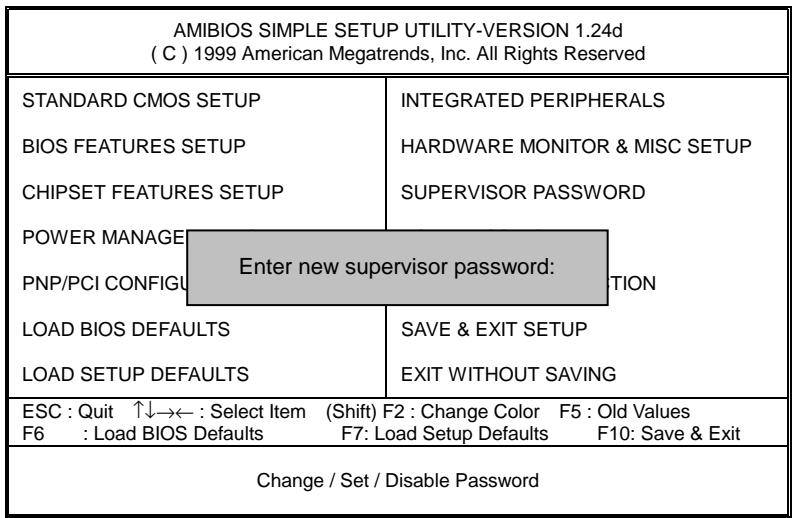
Figure 11: Password Setting
Type the password, up to six characters, and press
To disable password, just press
The BIOS Setup program allows you to specify two separate passwords: a SUPERVISOR PASSWORD and a USER PASSWORD. When disabled, anyone may access all BIOS Setup program function. When enabled, the Supervisor password is required for entering the BIOS Setup program and having full configuration fields, the User password is required to access only basic items.
If you select "Always" at "Password Check" in BIOS Features Setup Menu, you will be prompted for the password every time the system is rebooted or any time you try to enter Setup Menu.
If you select "Setup" at "Password Check" in BIOS Features Setup Menu, you will be prompted only when you try to enter Setup.
IDE HDD Auto Detection
| AMIBIOS SETUP – STANDARD CMOS SETUP( C ) 1999 American Megatrends, Inc. All Rights Reserved | |
| Date (mm/dd/yyyy) : Fri Mar 30, 2001Time (hh/mm/ss) : 10:36:24TYPE SIZE CYLS HEAD PRECOMP LANDZ SECTOR MODE | |
| Pri Master : Not InstalledPri Slave : Not InstalledSec Master : Not InstalledSec Slave : Not Installed | |
| Floppy Drive A: 1.44 MB 3 1⁄2Floppy Drive B: Not InstalledBoot Sector Virus Protection : Disabled | Base Memory : 640 KbOther Memory: 384 KbExtended Memory: 255MbTotal Memory: 256Mb |
| Month: Jan – DecDay: 01 – 31Year : 1990– 2099 | ESC : Exit↑↓ : Select ItemPU/PD/+/– : Modify(Shift)F2 : Color |
Figure 12: IDE HDD Auto Detection
Type "Y" will accept the H.D.D. parameter reported by BIOS.
Type "N" will keep the old H.D.D. parameter setup. If the hard disk cylinder number is over 1024, then the user can select LBA mode or LARGER mode for DOS partition larger than 528 MB.
Save & Exit Setup
| AMIBIOS SIMPLE SETUP UTILITY-VERSION 1.24d( C ) 1999 American Megatrends, Inc. All Rights Reserved | |
| STANDARD CMOS SETUPBIOS FEATURES SETUPCHIPSET FEATURES SETUP | INTEGRATED PERIPHERALSHARDWARE MONITOR & MISC SETUPSUPERVISOR PASSWORD |
POWER MANAGPNP/PCI CONFIG LOAD BIOS DEFAULTSLOAD SETUP DEFAULTS LOAD BIOS DEFAULTSLOAD SETUP DEFAULTS | SAVE & EXIT SETUPEXIT WITHOUT SAVING |
| ESC : Quit ↑↓→← : Select Item (Shift) F2 : Change Color F5 : Old ValuesF6 : Load BIOS Defaults F7: Load Setup Defaults F10: Save & Exit | |
| Save Data to CMOS & Exit SETUP | |
Figure 13: Save & Exit Setup
Type "Y" will quit the Setup Utility and save the user setup value to RTC CMOS.
Type "N" will return to Setup Utility.
Exit Without Saving
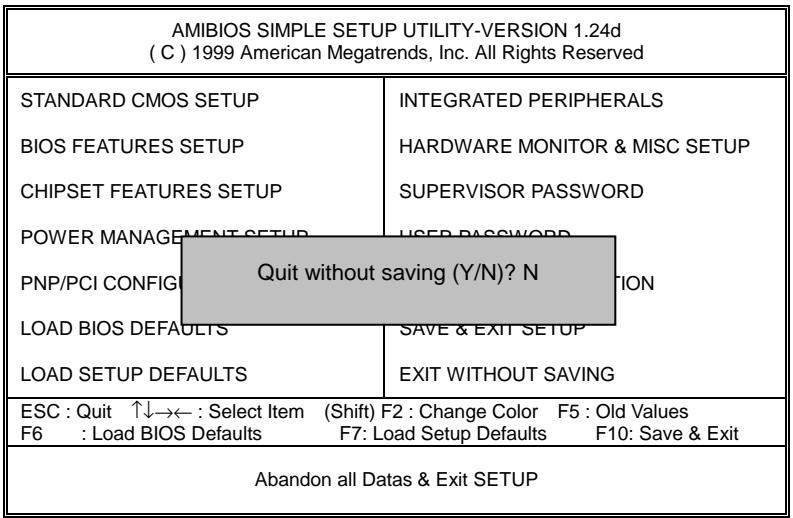
Figure 14: Exit Without Saving
Type "Y" will quit the Setup Utility and save the user setup value to RTC CMOS.
Type "N" will return to Setup Utility.
Technical Support /RMA Sheet
| Customer/Country: | Company: | Phone No.: | |
| Contact Person: | E-mail Add. : | ||
| Model name/Lot Number: | PCB revision: | |
| BIOS version: | O.S./A.S.: | |
| Hardware Configuration | Mfs. | Model name | Size: | Driver/Utility: |
| CPU | ||||
| Memory Brand | ||||
| Video Card | ||||
| Audio Card | ||||
| HDD | ||||
| CD-ROM / DVD-ROM | ||||
| Modem | ||||
| Network | ||||
| AMR / CNR | ||||
| Keyboard | ||||
| Mouse | ||||
| Power supply | ||||
| Other Device | ||||

Problem Description:
Appendix
Appendix A: VIA VT8633 PRO266 Chipsets Driver Installation
A.VIA 4 in 1 Service Pack Driver:
Insert the support CD that came with your motherboard into your CD-ROM driver or double –click the CD driver icon in My Computer to bring up the screen.
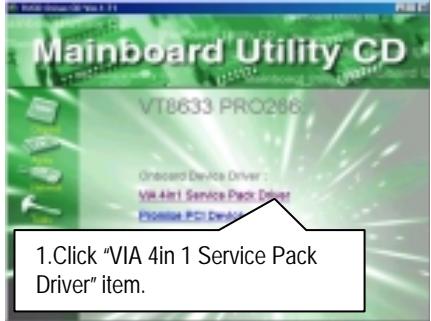
(1)
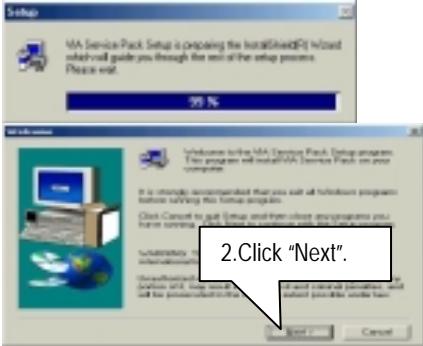
(2)
![VIA Service Pack 1 FILEHOME VIA Service Pack 1 FILEHOME. Pass PAGE DOWNLOAD to see the exit of document. VIA Service Pack [ VIA.4 In 1 ] FILADWIS. Ext'l VIA Service Pack [VIA.4 In 1] is Copyright©1 NEW VIA Technologies, Inc. Table of Contents About VIA.4 In 1 Settings/Up UDOM Technical Support Special Items (VIA.psd.10) Clicking Yes return you have been and FILEHOME. Click No to continue until all 3. Click "Yes". < Back Next Help](/content/2025/01/139124/images/0422e0c70df26e1b8bf1399d1e4483548016435ae8b3100fd8e6f258d676f807.jpg)
(3)
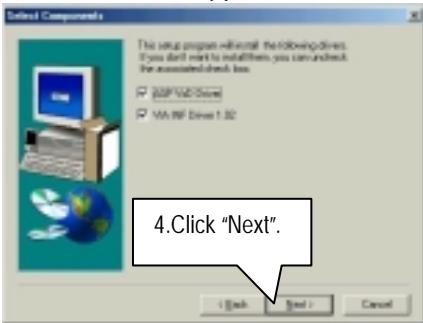
(4)
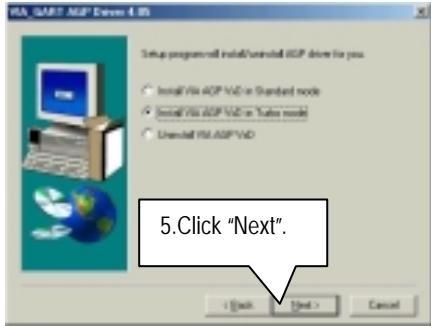
(5)
(6)
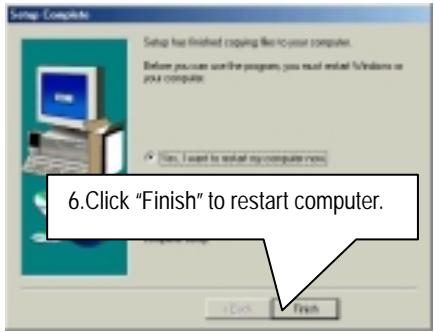
(7)
Appendix B: Promise PCI Device Installation
A. Promise ATA100 Driver Installation:
Insert the support CD that came with your motherboard into your CD-ROM driver or double –click the CD driver icon in My Computer to bring up the screen.
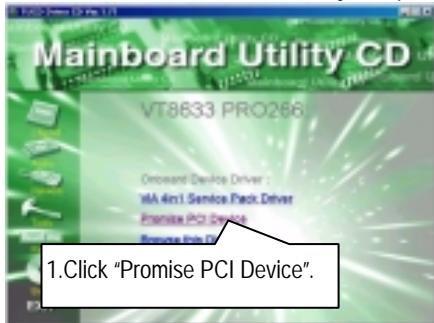
(1)
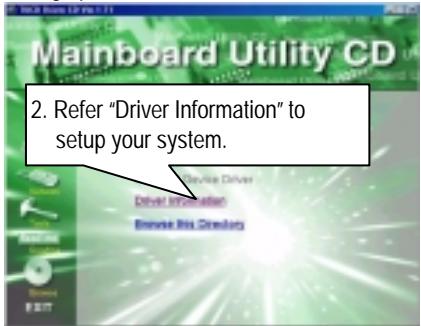
(2)
For your reference, you can use the following steps to complete the Promise ATA100 Driver Installation.
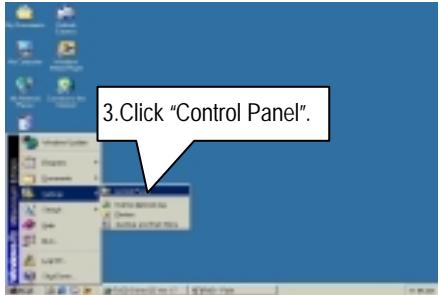
(3)
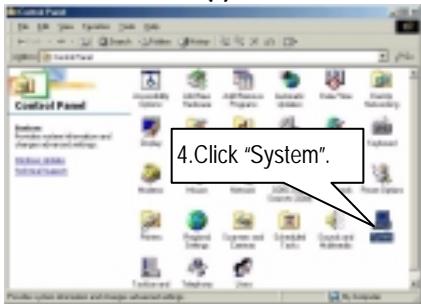
(4)
![System Properties General Device Manager [Macpuase Profiles] Performance View directories by type View directories by generation Computer D:\Project\ Disk drive\ Display adapters Play-up dish controllers Hand-dash controllers\ Keyboard Monitors Mouse Network adapters Other devices DPT Files to use DPT files File (DOH & LPT) Sound, video and game controllers System devices Universal Serial Page... Click here. 6. Click here. OK Cancel](/content/2025/01/139124/images/f3ea6afefc979e2c8af504929aaac7fa676e9f950321c34751b06d8cf5a74fca.jpg)
(5)
(6)
(7)
(8)
(9)
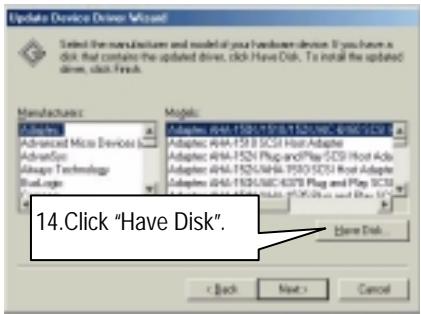
(10)
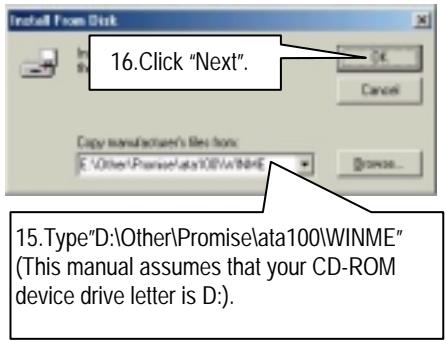
(11)
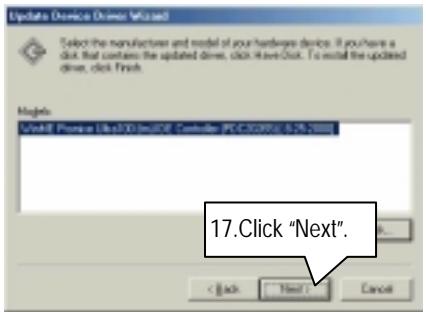
(12)
![Update Device Driver Wizard Windows drive the search for the device VMEM Promiss Ultra III (m)I/OE Controller [PS32009] Windows is now ready to install the selected driver for this device. Click Back to select a different driver, or click Next to continue. Location of driver: E:\OTHER\PROMISE\FULLERTIME\MINER\UL 18. Click "Next". < Back Next Cancel](/content/2025/01/139124/images/a58cd85e1be47e405691c9cbba4f633e360813756fd0926af4877af4313c173b.jpg)
(13)
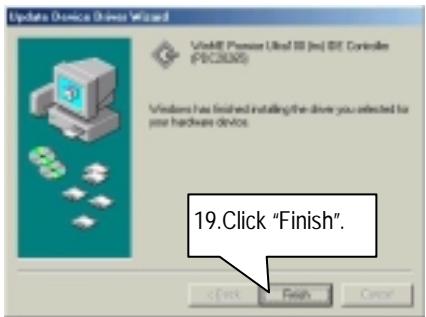
(14)
(15)
If you want to realize the setup information in detail, please refer to the "Driver Information" for setting your system completely.
B. Promise RAID Driver Installation:
Insert the support CD that came with your motherboard into your CD-ROM driver or double –click the CD driver icon in My Computer to bring up the screen.
(1)
(2)
For your reference, you can use the following steps to complete the Promise RAID Driver Installation.
(3)
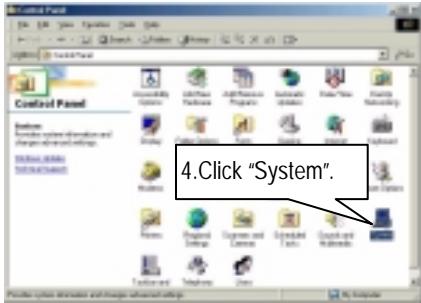
(4)
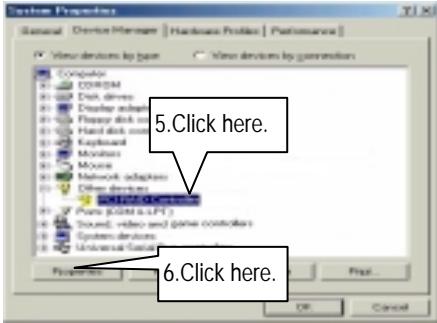
(5)
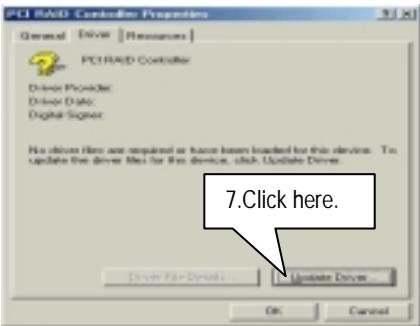
(6)
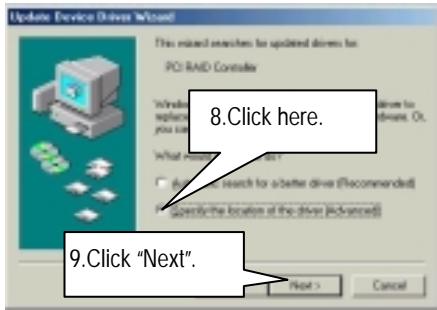
(7)
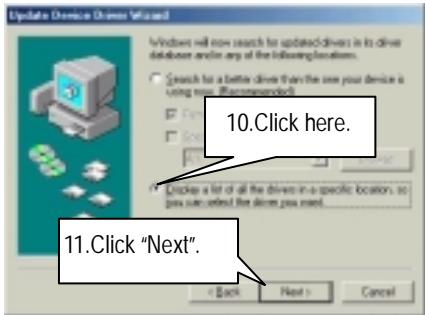
(8)
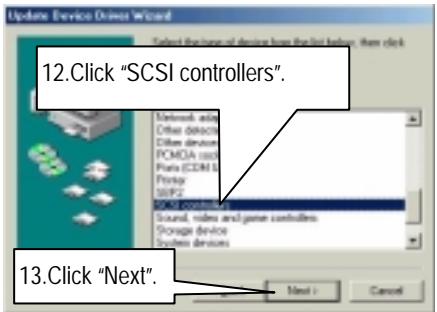
(9)
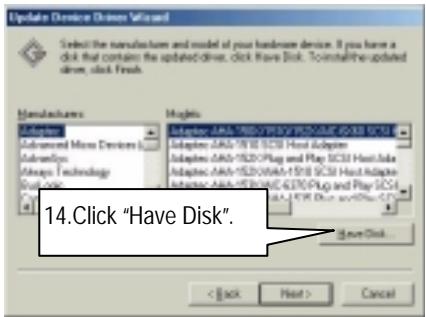
(10)
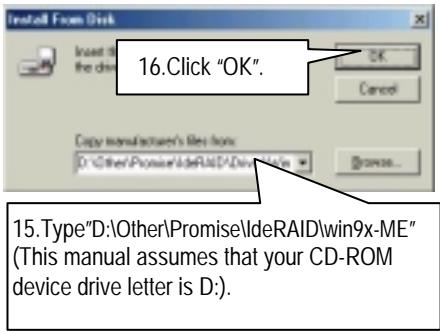
(11)
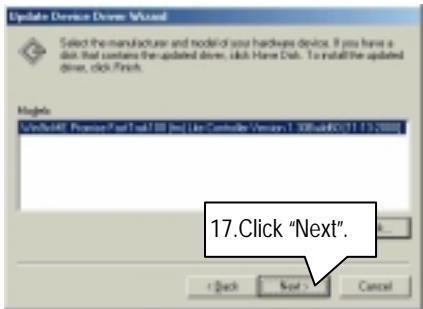
(12)

(13)
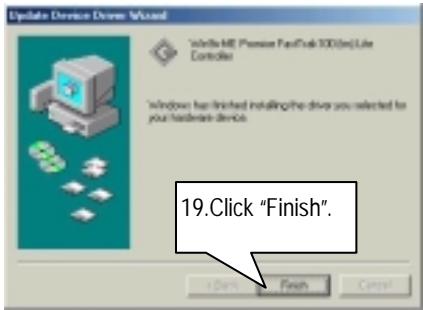
(14)
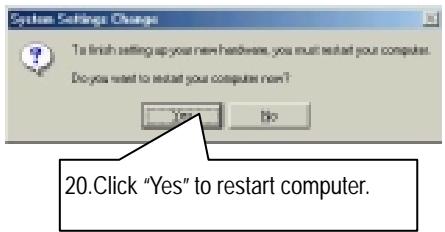
(15)
If you want to realize the setup information in detail, please refer to the "Driver Information" for setting your system completely.
C. FastTrak Utilities Installation:
Insert the support CD that came with your motherboard into your CD-ROM driver or double –click the CD driver icon in My Computer to bring up the screen.
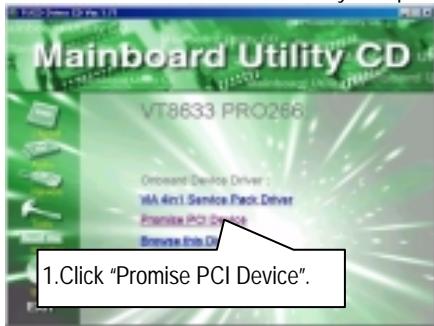
(1)
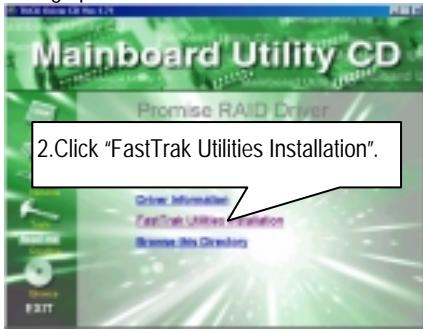
(2)
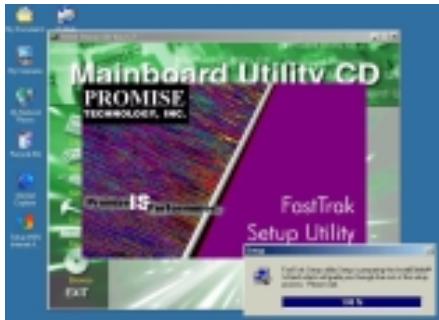
(3)
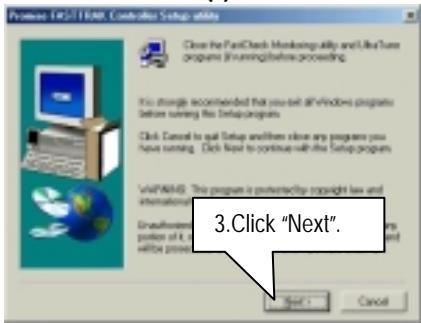
(4)
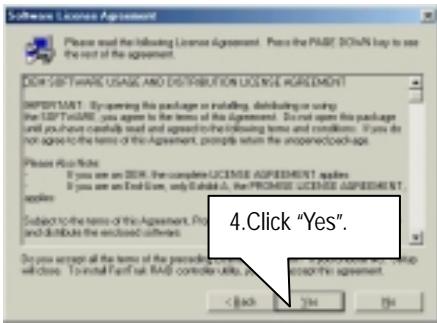
(5)
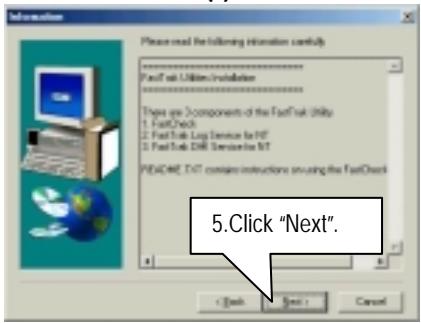
(6)
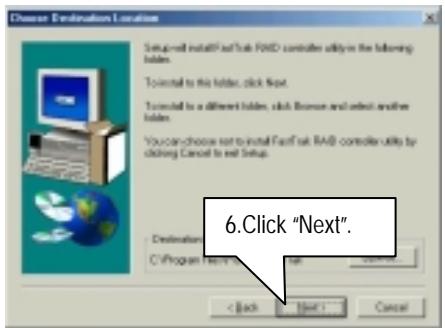
(7)
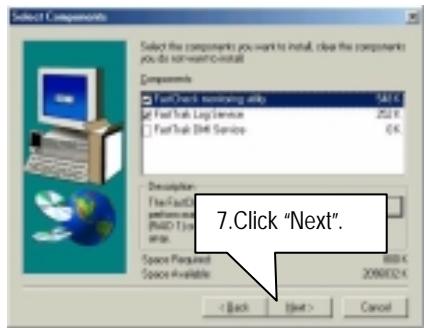
(8)
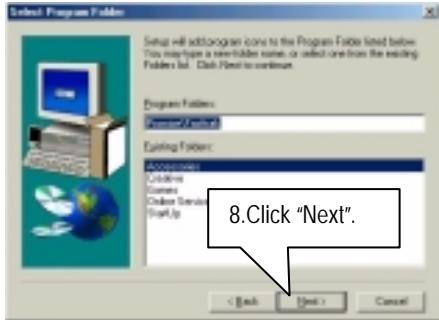
(9)
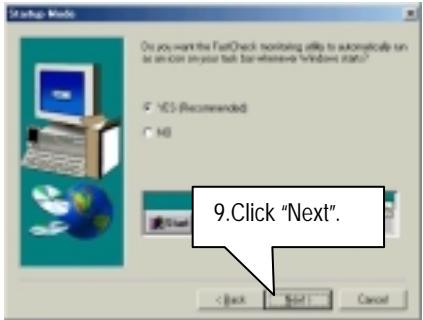
(10)
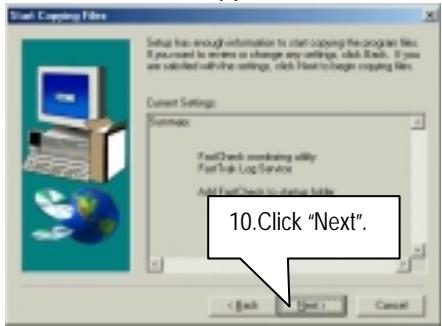
(11)
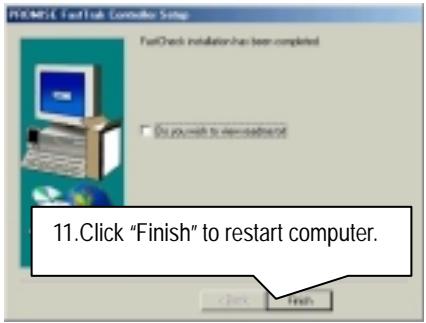
(12)
Appendix C: Creative Sound Driver Installation (Optional)
Insert the support CD that came with your motherboard into your CD-ROM driver or double –click the CD driver icon in My Computer to bring up the screen.
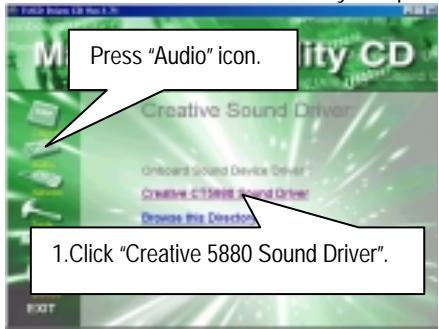
(1)
If "LAVA! Player 2.5" item is selected, it will automatically be installed right after "Creative Sound Blaster PCI128 Software" installation.
(2)
(3)
(4)
(5)
(6)
(7)
natural_image
Illustration of futuristic scientific and technological themes with human figures, a rocket, and a spacecraft (no readable text or symbols)(8)
(9)
LAVA! Player Installation:
(1)
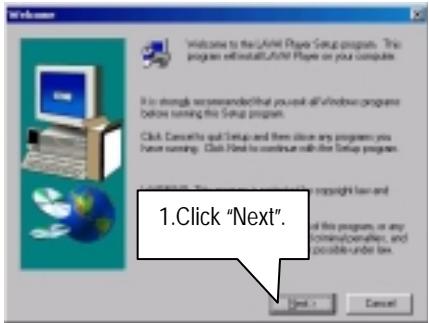
(2)
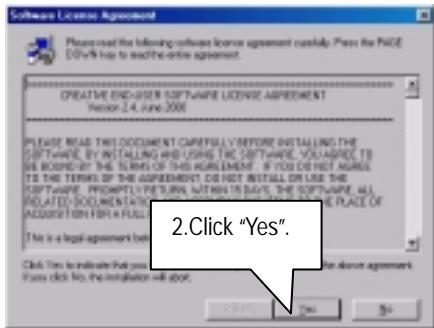
(3)
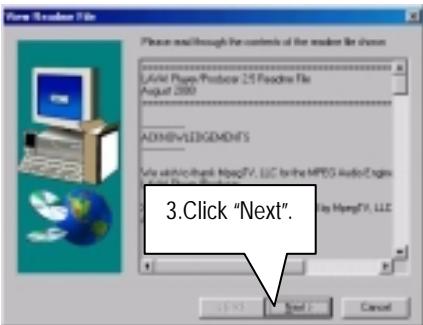
(4)
(5)
(6)
(7)
(8)
Appendix D: VIA AC'97 Audio Driver
Insert the support CD that came with your motherboard into your CD-ROM driver or double –click the CD driver icon in My Computer to bring up the screen.
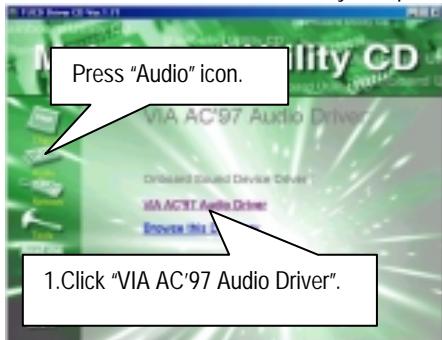
(1)

(2)
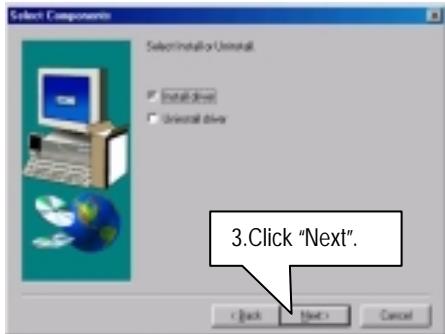
(3)
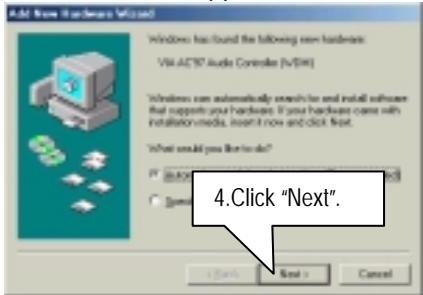
(4)

(5)
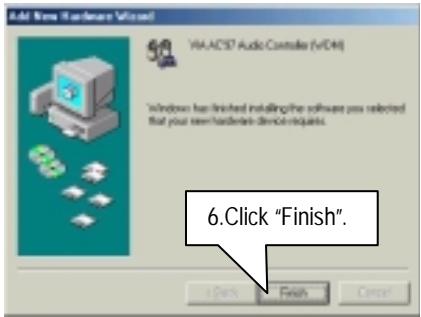
(6)
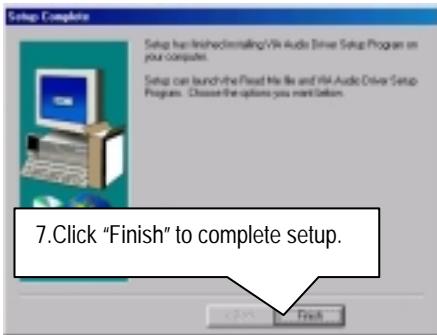
(7)
(8)
Appendix E: EasyTuneIII Utilities Installation
Insert the support CD that came with your motherboard into your CD-ROM driver or double –click the CD driver icon in My Computer to bring up the screen.
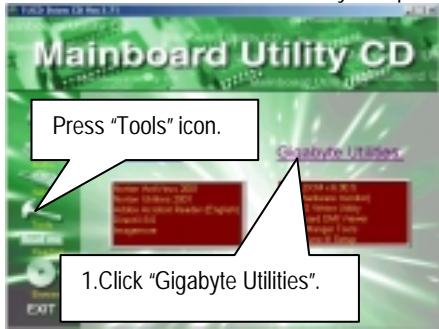
(1)
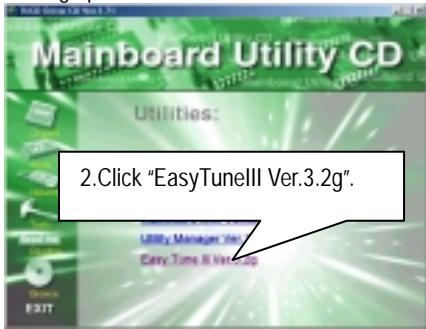
(2)
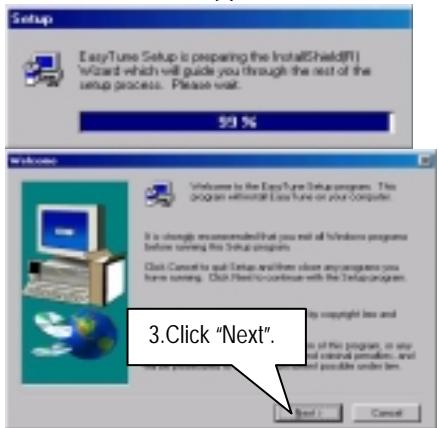
(3)
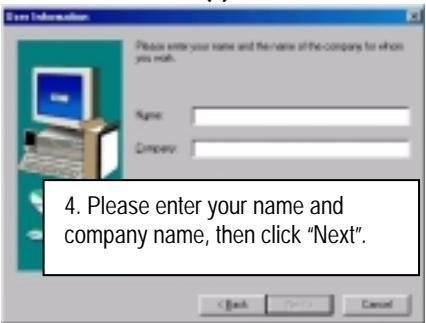
(4)
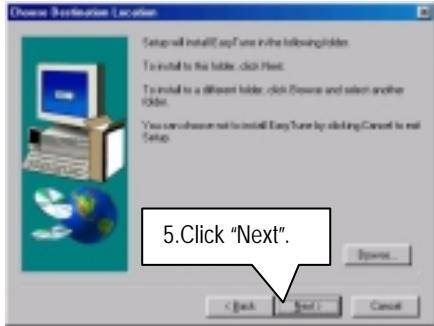
(5)
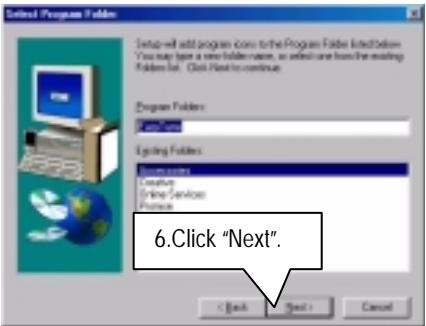
(6)
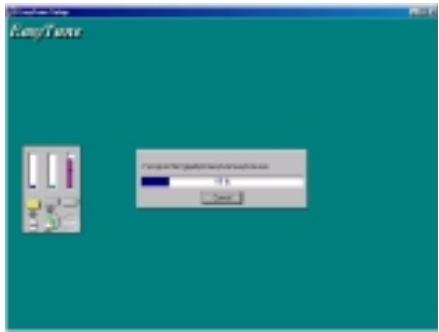
(7)
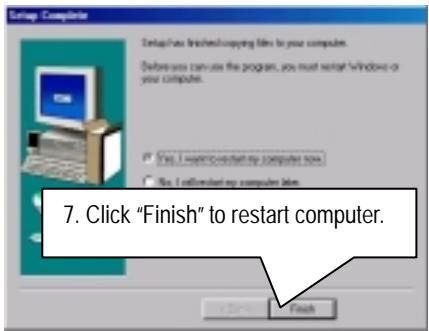
(8)
Appendix F: BIOS Flash Procedure
BIOS update procedure:
If your OS is Win9X, we recommend that you used Gigabyte @BIOS Program to flash BIOS.
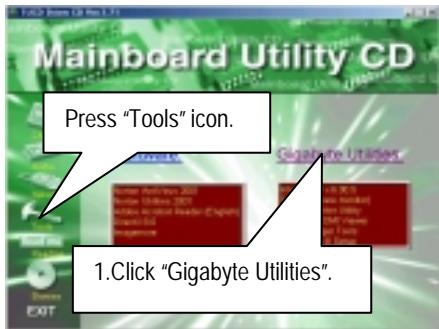
(1)
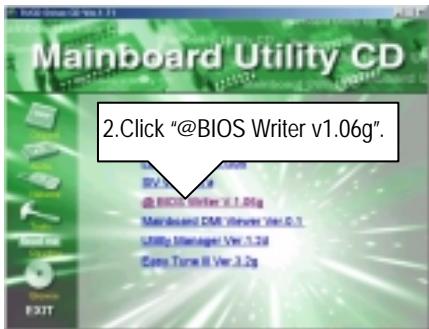
(2)
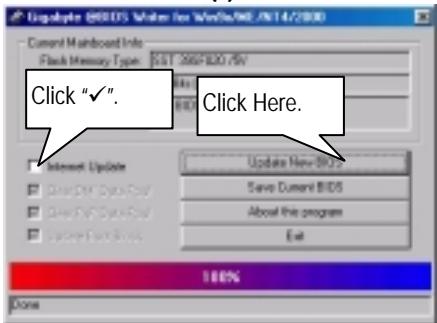
(3)
Methods and steps:
I. Update BIOS through Internet
a. Click "Internet Update" icon
b. Click "Update New BIOS" icon
c. Select @BIOS sever ("Gigabyte @BIOS sever 1 in Taiwan" and "Gigabyte @BIOS sever 2 in Taiwan" are available for now, the others will be completed soon)
d. Select the exact model name on your motherboard
e. System will automatically download and update the BIOS.
II. Update BIOS NOT through Internet :
a. Do not click "Internet Update" icon
b. Click "Update New BIOS"
c. Please select "All Files" in dialog box while opening the old file.
d. Please search for BIOS unzip file, downloading from internet or any other methods (such as: 6RX.F1).
e. Complete update process following the instruction.
III. Save BIOS
In the very beginning, there is "Save Current BIOS" icon shown in dialog box. It means to save the current BIOS version.
IV. Check out supported motherboard and Flash ROM :
In the very beginning, there is "About this program" icon shown in dialog box. It can help you check out which kind of motherboard and which brand of Flash ROM are supported.
Note :
a. In method I, if it shows two or more motherboard's model names to be selected, please make sure your motherboard's model name again. Selecting name will cause the system unbooted.
b. In method II, be sure that motherboard's model name in BIOS unzip file are the same as your motherboard's. Otherwise, your system won't boot.
c. In method I, if the BIOS file you need cannot be found in @BIOS server, please go onto Gigabyte's web site for downloading and updating it according to method II.
d. Please note that any intercorruption during updating will cause system unbooted
Or else you can select flash BIOS in DOS mode.

Please check your BIOS vendor (AMI or AWARD), your motherboard name and PCB version on the motherboard.
- Format a bootable system floppy diskette by the command "format a:/s" in command mode.
- Visit the Gigabyte website at http://www.gigabyte.com.tw, Select the BIOS file you need and download it to your bootable floppy diskette.
- Insert the bootable diskette containing the BIOS file into the floppy diskette driver.
- Assuming that the floppy diskette driver is A, reboot the system by using the A: driver. At the A: > prompt, run the BIOS upgraded file by executing the Flash BIOS utility and the BIOS file with its appropriate extension.
Example: (AMI tool) (Where 6rx.f1 is name of the BIOS file name)
A:>flashxxx.exe 6rx.f1
Example: (Award tool) (Where 6rx.f1 is name of the BIOS file name)
A:>wdflash.exe 6rx.f1
-
Upon pressing the
key, a flash memory writer menu will appear on screen. Enter the new BIOS file name with its extension filename into the text box after file name to program. -
If you want to save the old BIOS file(perform as soon as system is operational, this is recommended), select Y to DO YOU WANT TO SAVE BIOS, then type the old BIOS filename and the extension after filename to save: This option allows you to copy the contents of the flash memory chip onto a diskette, giving you a backup copy of the original motherboard BIOS in case you need to re-install it. Select N to DO YOU WANT TO SAVE BIOS, if you don't want to save the old BIOS file.
-
After the decision to save the old BIOS file or not is made, select Y to ARE YOU SURE TO PROGRAM when the next menu appear; wait until a message showing Power Off or Reset the system appears. Then turn off your system.
-
Remove the diskette and restart your system.
-
Hold down
key to enter BIOS setup. You must select "Load Setup BIOS Default" to activate the new BIOS, then you may set other item from the main menu.
Appendix G: Acronyms
| Acronyms | Meaning |
| ACPI | Advanced Configuration and Power Interface |
| APM | Advanced Power Management |
| AGP | Accelerated Graphics Port |
| AMR | Audio Modem Riser |
| ACR | Advanced Communications Riser |
| BIOS | Basic Input / Output System |
| CPU | Central Processing Unit |
| CMOS | Complementary Metal Oxide Semiconductor |
| CRIMM | Continuity RIMM |
| CNR | Communication and Networking Riser |
| DMA | Direct Memory Access |
| DMI | Desktop Management Interface |
| DIMM | Dual Inline Memory Module |
| DRM | Dual Retention Mechanism |
| DRAM | Dynamic Random Access Memory |
| DDR | Double Data Rate |
| ECP | Extended Capabilities Port |
| ESCD | Extended System Configuration Data |
| ECC | Error Checking and Correcting |
| EMC | Electromagnetic Compatibility |
| EPP | Enhanced Parallel Port |
| ESD | Electrostatic Discharge |
| FDD | Floppy Disk Device |
| FSB | Front Side Bus |
| HDD | Hard Disk Device |
| IDE | Integrated Dual Channel Enhanced |
| IRQ | Interrupt Request |
| I/O | Input / Output |
| IOAPIC | Input Output Advanced Programmable Input Controller |
| ISA | Industry Standard Architecture |
| LAN | Local Area Network |
| LBA | Logical Block Addressing |
| LED | Light Emitting Diode |
| MHz | Megahertz |
| MIDI | Musical Interface Digital Interface |
| MTH | Memory Translator Hub |
| MPT | Memory Protocol Translator |
| NIC | Network Interface Card |
| OS | Operating System |
To be continued...
| Acronyms | Meaning |
| OEM | Original Equipment Manufacturer |
| PAC | PCI A.G.P. Controller |
| POST | Power-On Self Test |
| PCI | Peripheral Component Interconnect |
| RIMM | Rambus in-line Memory Module |
| SCI | Special Circumstance Instructions |
| SECC | Single Edge Contact Cartridge |
| SRAM | Static Random Access Memory |
| SMP | Symmetric Multi-Processing |
| SMI | System Management Interrupt |
| USB | Universal Serial Bus |
| VID | Voltage ID |
- FCC Compliance Statement:
- Declaration of Conformity
- G.B.T. Technology Träding GMbH
- Mother Board
- The manufacturer also declares the conformity of above mentioned product with the actual required safety standards in accordance with LVD 73/23 EEC
- Manufacturer/Importer
- How This Manual Is Organized
- Item Checklist
- Installation Guide
- Getting Started
- WARNING!
- Installing the motherboard to the chassis...
- CPU Speed Setup
- CPU Vcore Voltage Setup
- CPU Heat Sink Installation:
- Memory Installation
- DDR Introduction
- Connectors
- ATX Power
- Please note:
- COM A / COM B / LPT Port
- CN7: PS/2 Keyboard & PS/2 Mouse Connector
- CN10: USB & LAN Connector (LAN Connector is optional)
- Game & Audio Port
- IDE1 (Primary), IDE2 (Secondary) Port
- IDE3/IDE4 (Raid/ATA100) Port (Optional)
- J4: CD Audio Line In
- J3: AUX\_IN (Optional)
- J5: TEL (The connector is for internal modem card with voice connector) (Optional)
- J8: Ring Power On
- J13: External SMBUS Device Connector (Optional)
- J1: CPU FAN
- CN11: ATX +12V Power Connector (Optional)
- J9: Wake on LAN (WOL)
- JP7/ LED1: STR LED Connector & DIMM LED
- Panel And Jumper Definition
- J7: For 2X11 Pins Jumper
- JP6: Internal Buzzer Connector (Optional)
- JP1: Clear CMOS Function
- JP19: DIMM Over Voltage Selection
- JP22: Chipset Over Voltage Selection
- JP4: Front MIC Selection (Optional)
- JP5&JP30: AMR and onboard CODEC Select (Optional)
- JP15: IDE Raid Selection (Optional)
- JP16: Raid/ATA100 Selection (Optional)
- JP14: BIOS Write Protection (Optional)
- JP9: PS/2 Keyboard Power On
- JP12: PCI Sound Function Selection (Optional)
- JP8: Case Open
- CAUTION
- Performance List
- Suspend To RAM Installation
- A.1 Introduce STR function:
- A.2 STR function Installation
- Step-By-Step Setup
- Setup with Windows 98 CD:
- Step 2:
- Step 3:
- A.3 How to put your system into STR mode?
- A.4 How to recover from the STR sleep mode?
- A.5 Notices:
- Dual BIOS Introduction (Optional)
- What is Dual BIOS Technology?
- How to use Dual BIOS?
- a. Boot Screen
- Wide Range Protection: Disable(Default), Enable
- Status 1:
- Status 2:
- Boot From: Main BIOS (Default), Backup BIOS
- Auto Recovery: Enabled (Default), Disabled
- Halt On Error : Disable(Default), Enable
- Copy Main ROM Data to Backup
- DualBIOS™ Technology FAQ
- What's DualBIOS™?
- Q: What is DualBIOS™ technology?
- Answer:
- Q: Why does anyone need a motherboard with DualBIOS™ technology?
- Q: How does DualBIOSTM technology work?
- Q: Who Needs DualBIOSTM technology?
- Four Speaker & SPDIF Introduction (Optional)
- Four Speaker Introduction
- Microsoft Windows Me setup procedure:
- Four Speaker Application
- SPDIF Introduction
- What is SPDIF?
- How to use SPDIF?
- @BIOS™ Introduction
- Gigabyte announces @BIOS™
- Windows BIOS live update utility
- EasyTuneIII™ Introduction
- Gigabyte announces EasyTuneIII™
- Windows overdrive utility
- Raid Introduction
- What is Raid?
- RAID 0 (stripe)
- RAID 1 (mirror)
- About RAID Levels
- Striping (RAID 0)
- Mirroring (RAID 1)
- Creating Your Disk Array
- Creating an Array for Performance
- Creating a Security Array With New Drives
- Creating a Security Array With An Existing Data Drive
- Follow these steps:
- Using FastBuild™ Configuration Utility
- Viewing BIOS Screen
- Navigating the FastBuild™ Setup Menu
- Using the Main Menu
- Creating Arrays Automatically
- Optimize Array For
- Defining Typical Application Usage
- Using a "Hot" Spare Drive
- Creating Multiple Disk Arrays
- Viewing Drive Assignments
- Manually Creating an Array
- Selecting Array Type
- Array No
- RAID Mode
- Total Drv
- Capacity(MB)
- Status
- Channel:ID
- Drive Model
- Capacity (MB)
- Assignment
- Selecting Stripe Block
- Assigning Drive(s) to Array
- Creating A Mirrored Array Using New Drives
- Adding Fault Tolerance to an Existing Drive
- Making a Disk Array Bootable
- How Orders Arrays
- How Saves Array Information
- Deleting An Array
- Rebuilding A Mirrored Array
- Viewing Controller Settings
- Viewing System Resources
- BIOS Setup
- ENTERING SETUP
- GETTING HELP
- Main Menu
- Status Page Setup Menu / Option Page Setup Menu
- The Main Menu
- Standard CMOS Setup
- - Date
- • Time
- ● Primary Master / Slave, Secondary Master / Slave
- - Floppy Drive A / Floppy Drive B
- - Boot Sector Virus Protection
- - Memory
- Base Memory
- Other Memory
- Extended Memory
- - Floppy Drive Seek
- - Password Check
- - CPU Serial Number
- • BIOS Flash Protection
- Chipset Features Setup
- - Top Performance
- - DDR Timing by SPD
- - DDR Frequency
- - DDR CAS# Latency
- • DDR Bank Interleave
- - DDR Command Rate
- - AGP Mode
- - AGP Read Synchronization
- - AGP Fast Write
- - AGP Comp. Driving
- - Resume On RTC Alarm
- - Reset Configuration Data
- - VGA Boot from
- - PCI Slot 1,5 IRQ Priority
- Load BIOS Defaults
- - Load BIOS Defaults
- Load Setup Defaults
- - Load SETUP Defaults
- Integrated Peripherals
- - OnBoard IDE
- - OnBoard AC'97 Audio
- - OnBoard MC'97 Modem
- - OnBoard Creative Sound
- - OnBoard FDC
- - OnBoard Serial Port 1
- - OnBoard Serial Port 2
- - Serial Port 2 Mode
- - OnBoard CIR port
- - CIR Port IRQ
- - OnBoard Parallel port
- - Parallel Port Mode
- - Parallel Port IRQ
- - Parallel Port DMA
- - CPU Ratio Selection
- - Reset Case Open Status
- - Case Status
- - CPU Temp.
- Supervisor / User Password
- IDE HDD Auto Detection
- Save & Exit Setup
- Exit Without Saving
- Appendix
- Appendix A: VIA VT8633 PRO266 Chipsets Driver Installation
- A.VIA 4 in 1 Service Pack Driver:
- Appendix B: Promise PCI Device Installation
- Promise ATA100 Driver Installation:
- Promise RAID Driver Installation:
- FastTrak Utilities Installation:
- Appendix C: Creative Sound Driver Installation (Optional)
- LAVA! Player Installation:
- Appendix D: VIA AC'97 Audio Driver
- Appendix E: EasyTuneIII Utilities Installation
- Appendix F: BIOS Flash Procedure
Brand : GIGABYTE
Model : GA-6RX-1
Category : Electronic component