
S1185 - Tablet GIGABYTE - Free user manual and instructions
Find the device manual for free S1185 GIGABYTE in PDF.


| Product type | Touchscreen tablet with keyboard docking station |
| Brand | GIGABYTE |
| Model | S1185 |
| Operating system | Windows 8 |
| Screen size | 11.6 inches (estimated) |
| Processor | Intel Atom (typical) |
| RAM memory | 2 GB (estimated) |
| Internal storage | 64 GB eMMC (estimated) |
| Wireless connectivity | Wi-Fi 802.11 b/g/n, Bluetooth 4.0 |
| Ports | 2x USB, 1x HDMI, 1x VGA, headphone jack, microSD card reader, SIM card slot |
| Camera | Front webcam and rear camera |
| Power supply | AC adapter (19V estimated) |
| Battery | Rechargeable lithium-ion, battery life ~6h (estimated) |
| Dimensions (approx.) | 300 x 180 x 15 mm |
| Weight (approx.) | 850 g |
| Main features | Tablet and keyboard mode, screen rotation, GIGABYTE Smart Manager, system recovery |
| Maintenance and cleaning | Clean with a soft, dry cloth, avoid any liquid |
| Security | Rotation lock, power button |
| Spare parts available | AC adapter, keyboard docking station |
| Warranty | Refer to the provided warranty card |
Frequently Asked Questions - S1185 GIGABYTE
User questions about S1185 GIGABYTE
0 question about this device. Answer the ones you know or ask your own.
Ask a new question about this device
Download the instructions for your Tablet in PDF format for free! Find your manual S1185 - GIGABYTE and take your electronic device back in hand. On this page are published all the documents necessary for the use of your device. S1185 by GIGABYTE.
USER MANUAL S1185 GIGABYTE
Congratulations on your purchase of the GIGABYTE Tablet PC!
This manual will help you to get started with setting up your Tablet PC. The final product configuration depends on the model at the point of your purchase. GIGABYTE reserves the right to amend without prior notice. For more detailed information, please visit our website at http://www.gigabyte.com
Using GIGABYTE Tablet PC for the First Time
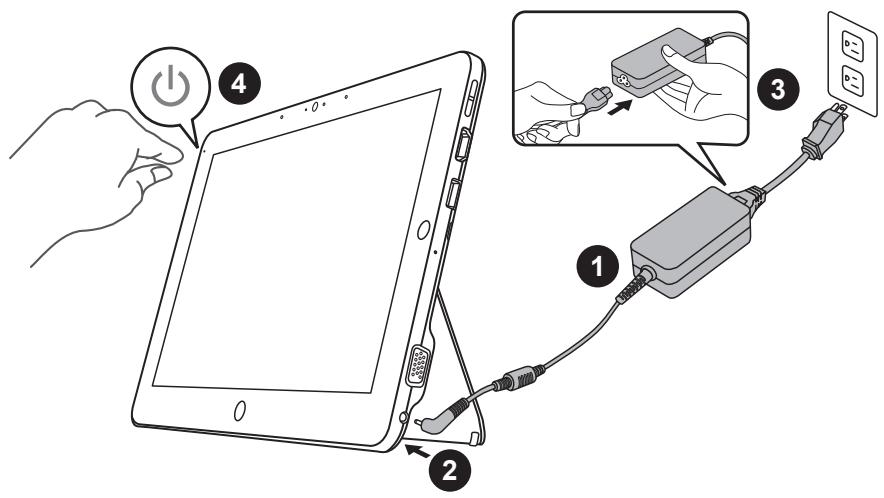
1 Connect the power cord to the AC adapter.
2 Connect the AC adapter to the DC-in jack of the Tablet PC.
3 Connect the power cord to the power outlet.
4 While the Battery Indicator lights on, press the Power Button to turn on the Tablet PC.
Keyboard base application
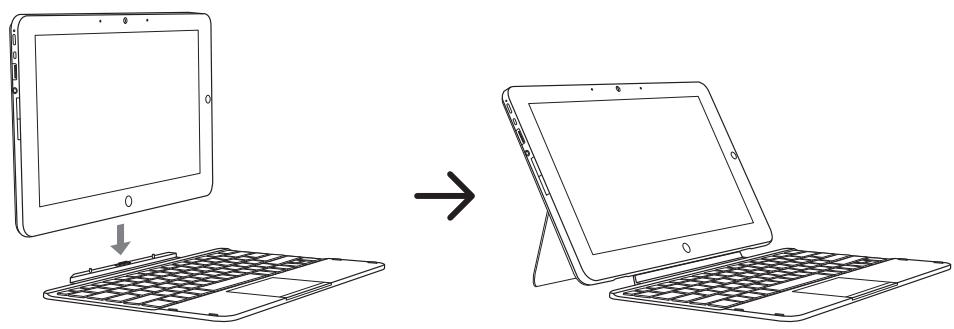
Panoramic View
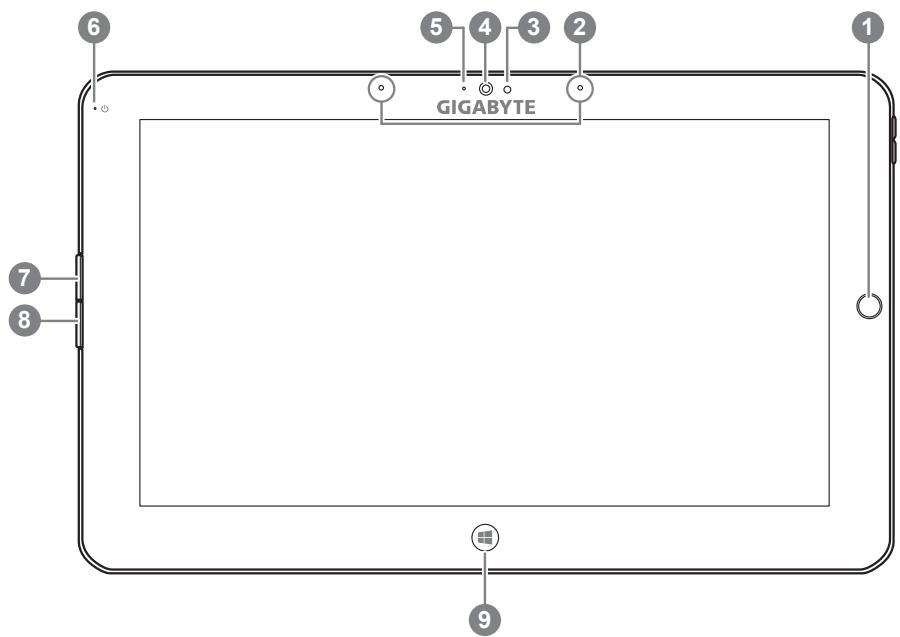
1 Directing Hot Key ①
2 Microphone
3 Light sensor
4 Webcam
5 Webcam Indicator
6 Power Status Indicator
7 Left Button of Mouse
8 Right Button of Mouse
9 Windows Button ②
To control mouse direction; press the directing hot key to simulate as left key of mouse.
② Back to Windows 8 Style UI mode.
- Resume from sleep or hibernate mode.
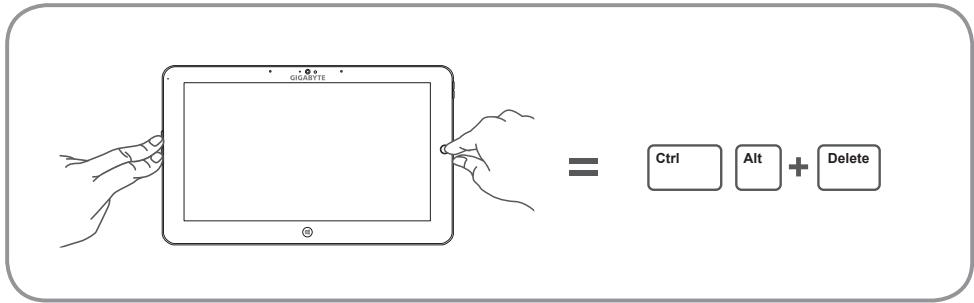
Tip: "Left click + Right click of mouse + Directing Hot Key" operate as the function of "Ctrl+Alt+Del".
Left View
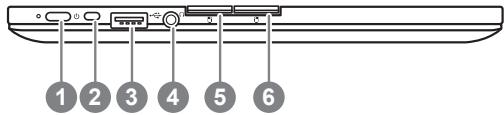
1 Power Button
2 Rotation Lock Button
3 USB Port
4 Headphone-in
5 Left Button of Mouse
6 Right Button of Mouse
Right View

1 DC-in
2 D-sub (VGA) Port
3 Micro SD Card Reader
4 USB Port
5 HDMI Port
6 SIM Card Slot
7 Volume Control Key ③
③ Press "+" or "-" to control volume.
- Press and release the Power Button to turn on the operation system. Press “+” to enter into GIGABYTE BIOS Setup Utility. USB keyboard is recommended to use for setting up BIOS functions under GIGABYTE BIOS Setup Utility.
- Press and release the Power button to turn on the operation system. Press “-” to enter into GIGABYTE System Recovery. Use Directing Hot Key to operate GIGABYTE Smart Recovery.
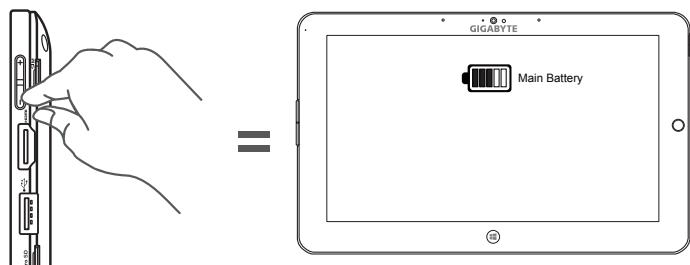
Tip: Press the “-” volume button when the computer is off and the display will indicate the battery capacity status.
Base View

natural_image
Technical line drawing of a mechanical component with labeled part (1), no text or symbols present1 Keyboard docking connection port
Rear View
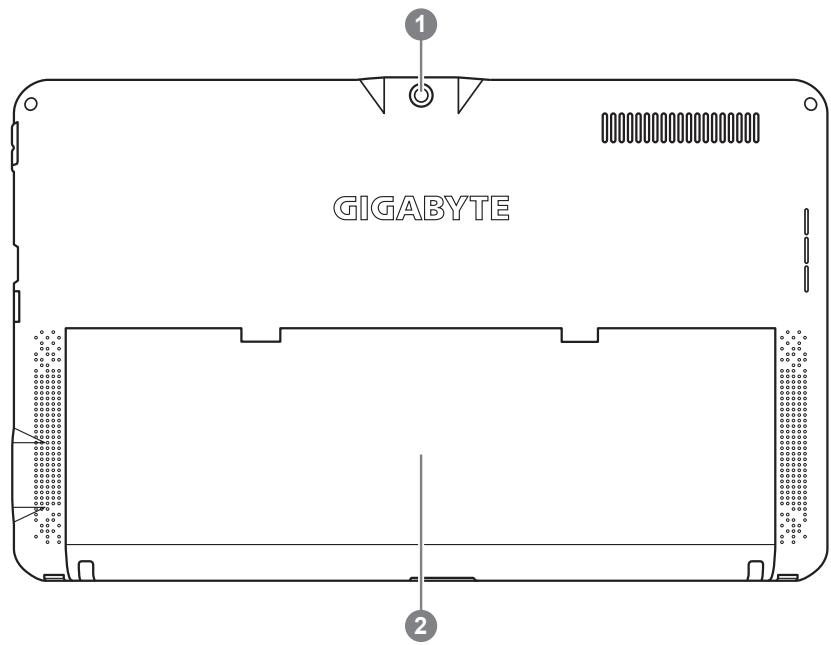
1 Rear Camera
2 Kickstand ④
4 Enjoy movies and entertainment without any hassle by simply unfold the stand.
GIGABYTE Software Application
■ GIGABYTE Smart Manager
You can activate GIGABYTE Smart Manager by double clicking on the shortcut icon on the desktop if the machine you purchased has the operation system built-in. GIGABYTE Smart Manager is an icon-based control interface, enabling users to intuitively access common system setup as well as GIGABYTE exclusive utilities. Please be noted that the GIGABYTE Smart Manager interface, icons, utilities and software versions may vary based on the purchased models. Please operate GIGABYTE Smart Manager according to the default built-in version.
■ GIGABYTE Driver Update Utility
You can search devices driver and update it online by double clicking on the shortcut icon on the desktop if the machine you purchased has the operating system built-in. GIGABYTE Driver Update Utility can search the latest drivers and be downloaded automatically. Users are able to tell from the driver version on the machine and online that decide to update drivers.
■ Activate GIGABYTE BIOS Setup Utility
Press and release the Power Button to turn on the operation system. Press “+” to enter into GIGABYTE BIOS Setup Utility. It is recommended to use USB keyboard for setting up BIOS functions under BIOS setup Utility.
Recovery Guide
System Recovery (Restore your laptop operating system)
When something is going wrong with the laptop operating system, the storage of the laptop has a hidden partition containing a full back up image of the operating system that can be used to restore the system to factory default settings.

Note
- If the storage has been switched or the partition deleted, the recovery option will no longer be available and a recovery service will be needed.
- The recovery function is only available on devices with O/S preinstalled. Devices with DOS do not have the recovery function.
Launch System Recovery
The system recovery feature is preinstalled before the laptop is shipped from the factory. The option menu allows you to launch the Windows recovery tool to reinstall the operating system to factory default.
The brief introduction below will show you how to start the recovery tool and restore your system.

All ready to go
Make sure your PC is plugged in. This will take a few minutes.
Windows 7 Recovery Guide
1
Turn off and restart the laptop.
2
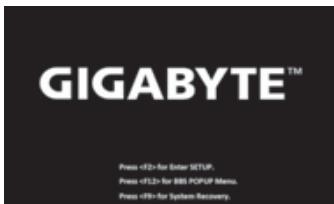
Press and release the Power button to turn on the operation system. Press “-” to enter into GIGABYTE System Recovery. Use Directing Hot Key to operate GIGABYTE Smart Recovery.
3
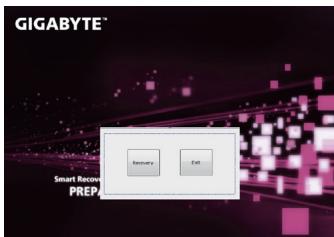
The recovery will be activated and you will see the option buttons on the window. Click on “Recovery” to start it.

Caution
Once the “Recovery” is selected, your personal data and files will be deleted after the laptop starts restoring, and the operating system will be reset to factory default settings.
4
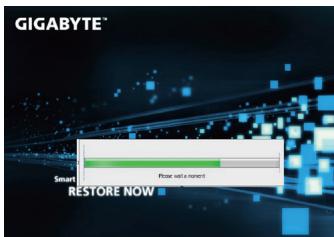
A progress indicator bar will show on the window when the recovery process is running. Please make sure the AC-adapter is plugged in and do not turn off the laptop.
5

Reboot the laptop after the system recovery is complete.
Windows 8 Recovery Guide
1
Turn off and restart the laptop.
2
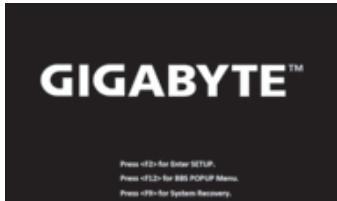
Press and release the Power button to turn on the operation system. Press “-” to enter into GIGABYTE System Recovery. Use Directing Hot Key to operate GIGABYTE Smart Recovery.
3
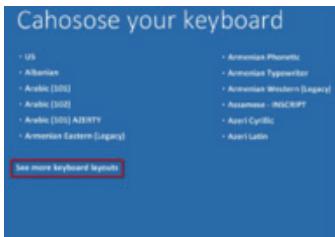
Choose your keyboard layout.
You can press "See more keyboard layouts" to see next page of languages.
4

Choose "Troubleshoot" to enter the recovery settings.
(Also you can choose "Continue" to exit recovery system and continue to Windows 8 for files or data backup.)

There are two options for system recovery
- Refresh your PC
You can refresh your laptop to improve the system stability without losing your files.
- Reset your PC
If you want to remove all of your files, you can reset your PC completely.
Caution: All personal data and files will be lost.
5

- Choose “Refresh your PC”
[Click on "Next"] > [Choose a target operating system.] > [Click on "Windows 8"].> [Click on "Refresh" to execute recovery function.]

Here are what will happen
- Your files and personalization settings won't be changed.
- Your PC settings will be restored to factory default settings.
- Apps from Windows Store will be kept.
- Apps you installed from discs or websites will be removed.
- A list of removed apps will be saved on your desktop.

- Choose "Reset your PC"
[Click on "Next"] > [Choose a target operating system.] > [Click on "Windows 8"].] > [Choose an option to recover your system]
▶Just remove my files
Only personal data and files will be removed, but computer settings will be kept.
▶ Fully clean the drive
The drive will be completely restored to factory default settings. It takes more time. > [Click on "Reset" to execute recovery function.]

Here are what will happen
- All of your personal files and apps will be removed.
- Your PC settings will be restored to factory default settings.
Remark

Advanced options

System Restore
Use a restore point recorded on your PC to restore Windows.

System Image Recovery
Recover Windows using a specific system image file.

Automatic Repair
Fix problems that keep Windows from loading.

Command Prompt
Use the Command Prompt for advanced trobleshooting.

UEFI Firmware Settings
Change settings in your PC's UEFI firmware.
Appendix
■ Warranty & Service :
Warranty and service and related information please refer to the warranty card or GIGABYTE service website as the below link:
http://www.gigabyte.com/support-downloads/technical-support.aspx
■ FAQ :
FAQ (Frequent Asked Questions) please refer to the below link:
http://www.gigabyte.com/support-downloads/faq.aspx
- Congratulations on your purchase of the GIGABYTE Tablet PC!
- Using GIGABYTE Tablet PC for the First Time
- Keyboard base application
- Left View
- Right View
- Base View
- Rear View
- GIGABYTE Software Application
- ■ GIGABYTE Smart Manager
- ■ GIGABYTE Driver Update Utility
- ■ Activate GIGABYTE BIOS Setup Utility
- Recovery Guide
- System Recovery (Restore your laptop operating system)
- Note
- Launch System Recovery
- All ready to go
- Windows 7 Recovery Guide
- Caution
- 5
- Windows 8 Recovery Guide
- 1
- 2
- 3
- 4
- There are two options for system recovery
- - Choose “Refresh your PC”
- Here are what will happen
- - Choose "Reset your PC"
- ▶Just remove my files
- ▶ Fully clean the drive
- Remark
- Advanced options
- System Restore
- System Image Recovery
- Automatic Repair
- Command Prompt
- UEFI Firmware Settings
- Appendix
- ■ Warranty & Service :
- ■ FAQ :
Brand : GIGABYTE
Model : S1185
Category : Tablet