
UE75H6470AS - Television SAMSUNG - Free user manual and instructions
Find the device manual for free UE75H6470AS SAMSUNG in PDF.


| Product type | LED TV |
| Brand | Samsung |
| Model | UE75H6470AS |
| Screen size | 75 inches (190.5 cm) |
| Resolution | 1920 x 1080 pixels (Full HD) |
| Smart TV | Yes (Smart Hub) |
| TV tuner | DVB-T, satellite, cable |
| Connectivity | HDMI (x3), USB (x2), Wi-Fi, Ethernet |
| Weight (without stand) | Approximately 25 kg |
| Dimensions (without stand) | 167.7 x 96.0 x 5.7 cm |
| Power consumption | 150 W (max) |
| Power supply | 220-240 V, 50/60 Hz |
| Main features | HD upscaling, dynamic contrast, Cinema mode, Game mode, Sports mode |
| Care and cleaning | Soft dry cloth, avoid chemical products |
| Safety | Wall mounting recommended, do not block ventilation |
| Spare parts and repairability | Remote control, stand, power cable available |
| General information | 89-page user manual available for download |
Frequently Asked Questions - UE75H6470AS SAMSUNG
User questions about UE75H6470AS SAMSUNG
0 question about this device. Answer the ones you know or ask your own.
Ask a new question about this device
Download the instructions for your Television in PDF format for free! Find your manual UE75H6470AS - SAMSUNG and take your electronic device back in hand. On this page are published all the documents necessary for the use of your device. UE75H6470AS by SAMSUNG.
USER MANUAL UE75H6470AS SAMSUNG
Contact SAMSUNG WORLDWIDE. If you have any questions or comments relating to Samsung products, please contact the SAMSUNG customer care centre.
| Country | Customer Care Centre 12 | Web Site |
| AUSTRIA 0800 - SAMSUNG (0800 - 7267864) www.samsung.com/lat/support | ||
| BELGIUM 02-201-24- | 18 www.samsung.com/be/support (Dutch) | www.samsung.com/bc_fri/support (French) |
| BOSNIA 051 351 999 | www.samsung.com/support | |
| BULGARIA | 800 111 31 , Geziniania reneptone namen | www.samsung.com/tg/support |
| CROATIA 072 726 786 | www.samsung.com/mi/support | |
| CZECH 800 - SAMSUNG (900-726786) www.samsung.com/oz/support | ||
| Samsung Electronics Czech and Slovak, s.r.o. V Farku 234324, 148 00 - Praha 4 | ||
| DENMARK 70 70 19 70 | www.samsung.com/dk/support | |
| FINLAND | 030-6227 515 | www.samsung.com/lt/support |
| FRANCE | 01 48 63 00 00 | www.samsung.com/lt/support |
| GERMANY 0180 6 SAMSUNG bzw. | 0180 6 7267864*(10.20 €/annuf aus dem dt. Festinizr, aus dem Mobilitunk max. 0,60 €/annuf) | www.samsung.com/de/support |
| CYPRUS | 8000 4000 only from landline, toll tree | |
| GREECE | 80111-SAMSUNG (80111 726 7864) only from land line(+30) 210 6897691 from mobile and land line | www.samsung.com/gr/support |
| HUNGARY 05800SAMSUNG (0580-726-786)0680PREMIUM (0680-773-649) | http://www.samsung.com/hu/support | |
| ITALIA | 800 SAMSUNG (726-7864) | www.samsung.com/lt/support |
| LUXEMBURG | 261 03 710 | www.samsung.com/support |
| MONTENEGRO | 020 405 686 www.samsung.com/support | |
| SLOVENIA 080 697 267090 726 786 | www.samsung.com/si/support | |
| NETHERLANDS | 0900-SAMSUNG (0900-7267864) (C 0,10/Min) | www.samsung.com/ni/support |
| NORWAY 815 56480 | www.samsung.com/nv/support | |
| POLAND | 0 801-172-579* lub +48 22 607-93-33**(koszt poleczenia wedlug tan/y operatora) | www.samsung.com/p/support |
| PORTUGAL | 808 20 7267 www.samsung.com/pt/support | |
| ROMANIA | 08006 726 78 64 (08006 SAMSUNG)Apel GRATUIT | www.samsung.com/ro/support |
| SERBIA | 011 321 6809 | www.samsung.com/rs/support |
| SLOVAKIA | 0900 - SAMSUNG (0900-726 786) | www.samsung.com/sk/support |
| SPAIN | 0334902172678 | www.samsung.com/tes/support |
| SWEDEN 0771 726 7864 (SAMSUNG) | www.samsung.com/ze/support | |
| SWITZERLAND | 0800 726 76 64 (0800-SAMSUNG) | www.samsung.com/ch/support (German)www.samsung.com/ch_fri/support (French) |
| UK | 0330 SAMSUNG (7267864) | www.samsung.com/vk/support |
| EIRE | 0618 77100 | www.samsung.com/ve/support |
| LITHUANIA | 8-900-77777 | www.samsung.com/lt/support |
| LATVIA | 8000-7267 | www.samsung.com/le/support |
| ESTONIA 800-7267 | www.samsung.com/tee/support | |
| TURKEY | 444 77 11 | www.samsung.com/le/support |
SAMSUNG

LED TV user manual
Thank you for purchasing this Samsung product.
To receive more complete service, please register your product at
www.samsung.com/register
Model ____ Serial No: ____
SAMSUNG
Warning! Important Safety Instructions
(Please read the appropriate section that corresponds to the marking on your Samsung product before attempting to install the product.)
CAUTION
RISK OF ELECTRIC SHOCK DO NOT OPEN
CAUTION: TO REDUCE THE RISK OF ELECTRIC SHOCK, DO NOT REMOVE COVER (OR BACK). THERE ARE NO USER SERVICEABLE PARTS INSIDE. REFER ALL SERVICING TO QUALIFIED PERSONNEL.
This symbol indicates that high voltage is present inside. It is dangerous to make any kind of contact with any internal part of this product.

This symbol alerts you that important literature concerning operation and maintenance has been included with this product.
The slots and openings in the cabinet and in the back or bottom are provided for necessary ventilation. To ensure reliable operation of this apparatus, and to protect it from overheating, these slots and openings must never be blocked or covered.
- Do not cover this apparatus in a confined space, such as a bookcase or built-in cabinet, unless proper ventilation is provided.
- Do not place this apparatus near or over a radiator or heat resistor, or where it is exposed to direct sunlight.
- Do not place a vessel containing water (vases etc.) on this apparatus, as this can result in a risk of fire or electric shock.
Do not expose this apparatus to rain or place it near water (near a bathtub, washbowl, kitchen sink, or laundry tub, in a wet basement, or near a swimming pool etc.). If this apparatus accidentally gets wet, unplug it and contact an authorised dealer immediately. Make sure to pull out the power cord from the outlet before cleaning.
This apparatus uses batteries. In your community there might be regulations that require you to dispose of these batteries properly under environmental considerations. Please contact your local authorities for disposal or recycling information.
Do not overload wall outlets, extension cords or adaptors beyond their capacity, since this can result in fire or electric shock.
Power-supply cords should be routed so that they are not likely to be walked on or pinched by items placed upon or against them, paying particular attention to cords at plug end, adaptors and the point where they exit from the appliance.
To protect this apparatus from a lightning storm, or when it is left unattended and unused for long periods of time, unplug it from the wall outlet and disconnect the antenna or cable system. This will prevent damage to the set due to lightning and power line surges.
Before connecting the AC power cord to the DC adaptor outlet, make sure the voltage designation of the DC adaptor corresponds to the local electrical supply.
Never insert anything metallic into the open parts of this apparatus. Doing so may create a danger of electric shock.
To avoid electric shock, never touch the inside of this apparatus. Only a qualified technician should open this apparatus.
Make sure to plug the power cord in until it is firmly inserted. When removing the power cord, make sure to hold the power plug when pulling the plug from the outlet. Do not touch the power cord with wet hands.
If this apparatus does not operate normally - in particular, if there are any unusual sounds or smells coming from it - unplug it immediately and contact an authorised dealer or service centre.
Be sure to pull the power plug out of the outlet if the TV is to remain unused or if you are to leave the house for an extended period of time (especially when children, elderly or disabled people will be left alone in the house).
- Accumulated dust can cause an electric shock, an electric leakage or a fire by causing the power cord to generate sparks and heat or the insulation to deteriorate.
Be sure to contact an authorised service centre, when installing your set in a location with heavy dust, high or low temperatures, high humidity, chemical substances and where it operates for 24 hours such as the airport, the train station etc. Failure to do so may cause serious damage to your set.
Use only a properly grounded plug and receptacle.
- An improper ground may cause electric shock or equipment damage. (Class I Equipment only.)
To disconnect the apparatus from the mains, the plug must be pulled out from the mains socket, therefore the mains plug shall be readily operable.
Do not allow children to hang onto the product.
Store the accessories (battery, etc.) in a location safely out of the reach of children.
Do not install the product in an unstable location such as a shaky self, a slanted floor or a location exposed to vibration.
Do not drop or impart any shock to the product. If the product is damaged, disconnect the power cord and contact a service centre.
Unplug the power cord from the power outlet and wipe the product using a soft, dry cloth. Do not use any chemicals such as wax, benzene, alcohol, thinners, insecticide, aerial freshener, lubricant or detergent. This may damage the appearance or erase the printing on the product.
Apparatus shall not be exposed to dripping or splashing.
Do not dispose of batteries in a fire.
Do not short circuit, disassemble or overheat the batteries.
Danger of explosion if battery is incorrectly replaced. Replace only with the same or equivalent type.
WARNING - TO PREVENT THE SPREAD OF FIRE, KEEP CANDLES OR OTHER OPEN FLAMES AWAY FROM THIS PRODUCT AT ALL TIMES.
* Figures and illustrations in this User Manual are provided for reference only and may differ from the actual product appearance. Product design and specifications may change without notice. CIS languages (Russian, Ukrainian, Kazakh) are not available for this product, since it is manufactured for customers in the EU region.

What's in the Box?
Samsung Smart Control & Batteries (AA x 2) Regulatory Guide
User Manual Power Cord
Warranty Card (Not available in some locations) Samsung 3D Active Glasses (40 inch model and above)

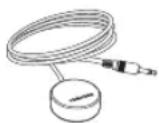

CI Card Adapter IR Extender Cable Cable Holder

Wall mount Adapter (55 inch model and above)
- Please make sure the following items are included with your TV. If any items are missing, contact your dealer.
- The items' colours and shapes may vary depending on the models.
- Cables not included can be purchased separately.
- Check for any accessories hidden behind or in the packing materials when opening the box.
An administration fee may be charged if either
(a) an engineer is called out at your request and there is no defect with the product (i.e. where the user manual has not been read). (b) you bring the unit to a repair centre and there is no defect with the product (i.e. where the user manual has not been read).
You will be informed of the administration fee amount before a technician visits.

Warning: Screens can be damaged from direct pressure when handled incorrectly. We recommend lifting the TV at the edges, as shown.

Attaching the TV to the Stand
Make sure you have all the accessories shown, and that you assemble the stand following the provided assembly instructions.
Mounting the TV on the Wall Using the Wall Mount Kit (Optional)

If you mount this product on a wall, it should be mounted only as recommended by the manufacturer. Unless it is correctly mounted, the product may slide or fall, causing serious injury to a child or adult, and serious damage to the product.
Installing the Wall Mount Kit
The wall mount kit (sold separately) lets you mount the TV on the wall.
For detailed information about installing the wall mount, refer to the instructions provided with the wall mount. We recommend that you contact a technician for assistance when installing the wall mount bracket. We do not advise you to do it yourself. Samsung Electronics is not responsible for any damage to the product or injury to yourself or others if you select to install the wall mount on your own.
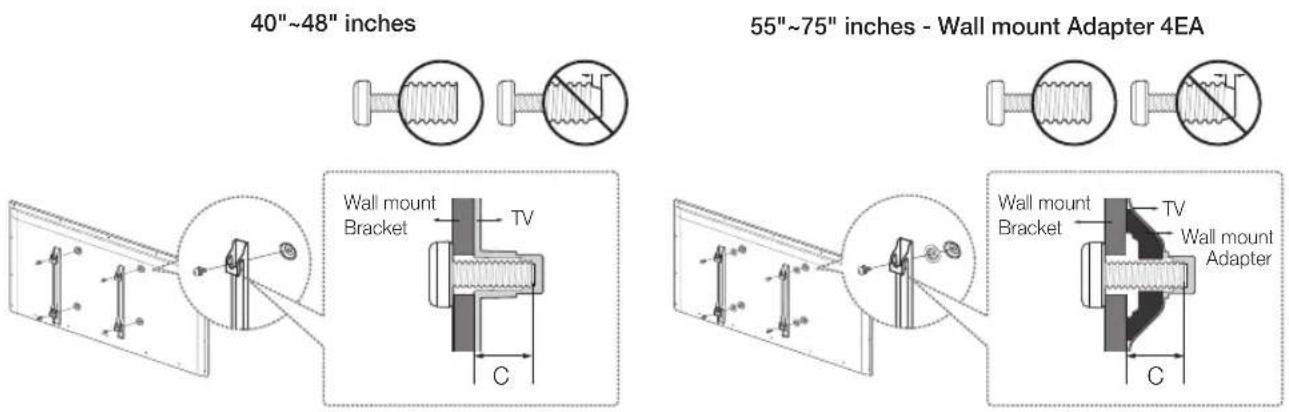
Before installing any other wall mounting kit, assemble the wall mount adapter provided separately with the TV.
- Refer to "Install manual" included in our wall mounting kit.
Wall Mount Kit Specifications (VESA)
The wall mount kit is not supplied, but is sold separately. Install your wall mount on a solid wall perpendicular to the floor. When attaching the wall mount to other building materials, please contact your nearest dealer. If the product is installed on a ceiling or slanted wall, it may fall and result in severe personal injury.
- Standard dimensions for wall mount kits are shown in the table below.
- When purchasing our wall mount kit, a detailed installation manual and all parts necessary for assembly are provided.
- Do not use screws that do not comply with the VESA standard screw specifications.
- Do not use screws that are longer than the standard dimension or do not comply with the VESA standard screw specifications. Screws that are too long may cause damage to the inside of the TV set.
- For wall mounts that do not comply with the VESA standard screw specifications, the length of the screws may differ depending on the wall mount specifications.
- Do not fasten the screws too strongly; this may damage the product or cause the product to fall, leading to personal injury. Samsung is not liable for these kinds of accidents.
- Samsung is not liable for product damage or personal injury when a non-VESA or non-specified wall mount is used or the consumer fails to follow the product installation instructions.
- Do not mount the TV at more than a 15 degree tilt.
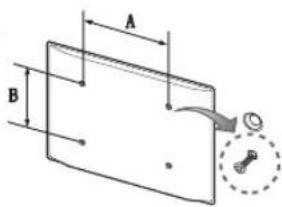
When using a third-party wall mount, note that the assembling screw length (C) is shown below.
| Product Family | Inches VESA Spec.(A * B) | C (mm) | Standard Screw | Quantity | |
| LED-TV | 40 200 | X 200 20.2 ~ 21.2 | M8 | 4 | |
| 48 | 400 X 400 | 19.7 ~ 20.7 | |||
| 55 19.9 | ~ 20.9 | ||||
| 65 20.1 | ~ 21.1 | ||||
| 75 20.6 | ~ 21.6 | ||||

Do not install your Wall Mount Kit while your TV is turned on. It may result in personal injury due to electric shock.
Providing Proper Ventilation for Your TV
When you install your TV, maintain a distance of at least 10 cm between the TV and other objects (walls, cabinet sides, etc.) to ensure proper ventilation. Failing to maintain proper ventilation may result in a fire or a problem with the product caused by an increase in its internal temperature.
If you use parts provided by another manufacturer, it may cause difficulties with the product or result in injury caused by the product falling.
- Whether you install your TV using a stand or a wall-mount, we strongly recommend you use parts provided by Samsung Electronics only.
Installation with a stand. Installation with a wall-mount.

Other Cautions
- The actual appearance of the TV may differ from the images in this manual, depending on the model.
- Be careful when you touch the TV. Some parts can be somewhat hot.
Securing the TV to the Wall

Caution: Pulling, pushing, or climbing on the TV may cause the TV to fall. In particular, ensure that your children do not hang on to or destabilize the TV. Doing so may cause the TV to tip over, resulting in serious injuries or death. Follow all safety precautions provided in the Safety Flyer included with your TV. For added stability and safety, you can purchase and install the anti-fall device as described below.
To Avoid the TV from Falling
- Put the screws into the clamps and firmly fasten them into the wall. Confirm that the screws have been firmly installed into the wall.
- You may need additional material such as anchors depending on the type of wall.
- Since the necessary clamps, screws, and string are not supplied, please purchase these additionally.
- Remove the screws from the centre back of the TV, put the screws into the clamps, and then fasten the screws into the TV again.
- Screws may not be supplied with the product. In this case, please purchase screws of the following specifications.
- Screw Specifications: For a 40 \~ 75 inches: M8
- Connect the clamps fixed into the TV and the clamps fixed onto the wall with a strong cable and then tie the string tightly.
- Install the TV close to the wall so that it does not fall backwards.
- It is safe connecting the string so that the clamps fixed onto the wall are equal to or lower than the clamps fixed on the TV.
- Untie the string before moving the TV.


- The product colour and shape may vary depending on the model.
- Verify that all connections are properly secured. Periodically check connections for any sign of damage. If you have any doubt about the security of your connections, contact a professional installer.
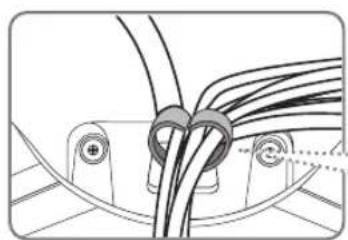
Arrange the cables using the Cable Holder

Connecting devices to your TV
You can connect various external devices using the connectors located at the back of the product. Check the connectors and then refer to the assembly instructions provided for more information on supported external devices.
Connecting to a COMMON INTERFACE slot (Your TV viewing Card Slot)
- Turn the TV off to connect or disconnect a CI card or CI card adapter.
Attaching the CI Card Adapter
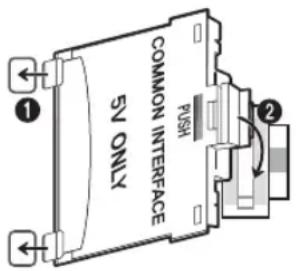
Attach the adapter as shown.
- To install the CI CARD Adapter, please remove the sticker attached to the TV.
To connect the CI CARD Adapter, follow these steps.
- We recommend attaching the adapter before installing the wall mount, or inserting the "CI or CI+ CARD".
- Insert the CI CARD Adapter into the two holes on the product 1.
- Please locate the two holes at the back of the TV next to the COMMON INTERFACE port.
- Connect the CI CARD Adapter to the COMMON INTERFACE port on the product 2.
- Insert the "CI or CI+ CARD".

We recommend that you attach the CI Card adapter and insert the CI card (viewing card) before you mount the TV on the wall because it may be difficult and dangerous to do this when it is on the wall.
Using the "CI or CI+ CARD"
To watch paid channels, the "CI or CI+ CARD" must be inserted.
- If you don't insert the "CI or CI+ CARD", some channels will display the "Scrambled Signal" message.
- The pairing information containing a telephone number, the "CI or CI+ CARD" ID, the Host ID, and other information will be displayed in about 2~3 minutes. If an error message is displayed, please contact your service provider.

- When the configuration of channel information has finished, the message "Updating Completed" is displayed, indicating the channel list is updated.
NOTE
- You must obtain a "CI or CI+ CARD" from a local cable service provider.
- When removing the "CI or CI+ CARD", carefully pull it out as dropping the "CI or CI+ CARD" may damage it.
- Insert the "CI or CI+ CARD" in the direction marked on the card.
- The location of the COMMON INTERFACE slot may differ depending on the model.
- A "CI or CI+ CARD" is not supported in some countries and regions, therefore, check with your authorised dealer.
- If you have any problems, please contact a service provider.
- Insert the "CI or CI+ CARD" that supports the current aerial settings. The screen will be distorted or will not be visible.
Connecting to a Network
Connecting the TV to a network gives you access to online services such as the Smart Hub, as well as software updates.
Network Connection - Wireless
Connect the TV to the Internet using a standard router or modem.

Network Connection - Wired
There are three main ways to connect your TV to your network using cable, depending on your network setup. They are illustrated starting below:

![graph LR A["The Modem Port on the Wall"] --> B["External Modem (ADSL / VDSL / Cable TV)"] B --> C["IP Router with a DHCP Server"] C --> D["TV Rear Panel"] B -->|Modem Cable (Not Supplied)| A B -->|LAN Cable (Not Supplied)| C C -->|LAN Cable (Not Supplied)| D](/content/2026/06/1385607/images/e73c52d270aad137d0984bb84df1c63e0483a99942ffb9ef5acd232df0ffa121.jpg)

- The TV does not support network speeds less than or equal to 10Mbps.
- Use Cat 7 cable for the connection.
Samsung Smart Control
- Colours and shape may vary depending on the model.

Inserting Batteries into Samsung Smart Control
To use Samsung Smart Control, first refer to the figure below and insert batteries into the unit.

- Gently pull on the battery cover's notch and then remove the cover completely once it comes loose.
- Insert 2 AA alkaline batteries, making sure to align the positive and negative polarities correctly.
- Place the battery cover on the remote control and insert the top part of the cover into the remote control.
- Press the catches on both sides of the battery cover in the order shown so that the cover is completely attached to the remote control.
Turning on the TV
Turn on the TV using the ⏻ button on the remote control or TV panel.
- The product colour and shape may vary depending on the model.
- The TV's Controller, a small joystick-like button at the right back of the TV, lets you control the TV without the remote control.
![graph TD A["Remote control sensor"] --> B["TV Controller"] B --> C["Function menu"] C --> D["LED Button"] style A fill:#f9f,stroke:#333 style B fill:#ccf,stroke:#333 style C fill:#cfc,stroke:#333 style D fill:#fcc,stroke:#333](/content/2026/06/1385607/images/aabc2da98151693b864dcf7ccadaae55ef3e40a1be02fac1356e3d3dfdd81293.jpg)
Initial setup
The initial setup dialogue box appears when the TV is first activated. Follow the on-screen instructions to finish the initial setup process, including the selecting the menu language, scanning channels, connecting to the network, and more. During each step, either make a choice or skip the step. You can manually perform this process at a later time in the System > Setup menu.
- If you connect any device to HDMI1 before starting the installation, the Channel Source will be changed to Set-top box automatically.
- If you do not want to select Set-top box, please select Aerial.
Password Change
System > Change PIN
Changing the TV's password.
- Run Change PIN and then enter the current password in the password field. The default password is "0-0-0-0".
- Enter a new password and then enter it again to confirm it. The password change is complete.
- If you forgot your PIN code, press the buttons in the following sequence to reset the PIN to "0-0-0-0": When the TV turns on: MUTE → Volume up → RETURN → Volume down → RETURN → Volume up → RETURN
Selecting the video source
You can select a connected external device using the SOURCE button.
For example, to switch to a gaming console connected to the second HDMI connector, press SOURCE. From the Source list, select HDMI2 to change the input signal to HDMI mode. Connector names may vary depending on the model.
The following options are available in the Source screen:
TOOLS Button
Select a port connected to an external device, and press and hold the Enter button. The following functions are available:
- Available options for each connector may vary.
Edit Name
Rename devices connected to the TV for easier identification of external sources.
For example, you can designate a computer connected to the TV via an HDMI-DVI cable as DVI PC.
Alternatively, simply designate a computer connected to the TV via an HDMI cable as PC.
You can also designate an AV device connected to the TV via an HDMI-DVI cable as DVI Devices.
Information
View detailed information about the connected devices.
Anynet+ (HDMI-CEC)
Displays a list of Anynet+ (HDMI-CEC)-compliant devices that are connected to the TV.
- This option is only available when Anynet+ (HDMI-CEC) is On.
Disconnect USB Device
Used to safely remove a USB device connected to the TV. This option is only available when a USB device has been selected.
Using the Samsung Smart Control
Samsung Smart Control makes it even easier and more convenient to use the TV. Pressing the KEYPAD button displays a virtual remote control that allows you to easily enter digits, control content, and activate functions on the screen.
- We recommend using Samsung Smart Control at a distance of less than 6m. A usable distance may differ depending on the wireless environmental conditions.
Pairing the Samsung Smart Control
To control the TV with the Samsung Smart Control, you need to pair the Samsung Smart Control to the TV via Bluetooth. Pair the Samsung Smart Control to the TV.
- The Samsung Smart Control can only be paired to a single TV.
Point the Samsung Smart Control at the remote control sensor of the TV and press the TV button to turn the TV on.
- The location of the remote control receiver may vary depending on the model.
Reconnecting the Samsung Smart Control
![graph LR A["Remote Control"] --> B["3D Interface"] B --> C["3D Cube Icon"] B --> D["3D Grid Icon"]](/content/2026/06/1385607/images/1dc59585e308de43f164ba09a7b1ef077d4f30fdc1c491eaf742bdd6a5a7a32a.jpg)
If the Samsung Smart Control stops operating or works abnormally, replace the batteries as this may be due to insufficient battery power.
If the problem persists, the Samsung Smart Control restores pairing with the TV.
- Press both the RETURN button and the GUIDE button simultaneously for more than 3 seconds.
- You must place the Samsung Smart Control approximately 30 cm to 40 cm away from the TV and ensure it is pointing towards the remote control receiver.
- The connection image appears on the screen. Then, the Samsung Smart Control connects to the TV automatically.
When you see this alarm icon on the screen...
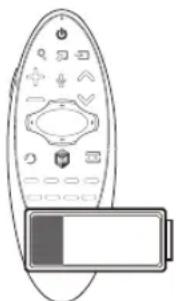
The following alarm icon indicates that the Samsung Smart Control's batteries are low. If the alarm icon pops up, replace the batteries. Samsung recommends using alkaline batteries for a longer operating life.
Using the TV by Moving the Samsung Smart Control
The Samsung Smart Control has a motion sensor (gyro sensor) that allows you to easily control the TV by holding and moving the Samsung Smart Control.
After placing a finger on the touchpad, a pointer appears on the screen. Hold and move the Samsung Smart Control. The pointer moves in the same way the Samsung Smart Control is moved. It's also possible to scroll up and down on scrollable screens.
- If you remove your finger from the touchpad, the screen pointer disappears.
Using the TV with the Touchpad
- Navigate to the Support menu and select the Smart Control Tutorial option to learn how to use the touchpad, following the on-screen instructions.
Moving the Focus/Pointer
Press the directional buttons (up, down, left, and right) to move the pointer or focus in the desired direction.
Menu Access & Item Selection
Press the touchpad. This lets you access a TV menu or select an item.
Displaying the Context-sensitive Menu on Smart Hub
Press and hold on the touchpad from the Smart Hub screen. The Options menu available for the selected item appears.
- The Options menu depends on the context.
Moving to the Smart Hub panel
On the Smart Hub screen, drag left or right on the touchpad. This will move the Smart Hub panels left or right.
Scrolling on the Web Browser
Drag up/down on the touchpad in the web browser screen. This scrolls through the web screen.
Displaying the Remote Control on the Screen (virtual remote control)
Press the KEYPAD button to display the virtual remote control on the screen. You can easily enter digits, control content, and use TV buttons with the virtual remote control.
- The virtual remote control buttons may vary depending on the TV's current status.
Controlling External Devices with the TV Remote (Universal Remote Setup)
System > Universal Remote Setup
- Availability depends on the specific model and area.
The universal remote control feature lets you control cable boxes, Blu-ray players, home theatres, and other external devices connected to the TV using the TV's remote control. In order to use the TV's remote control as a universal remote, you must first connect the IR extender cable (included).
- You can also use the Anynet+ (HDMI-CEC) function to operate some external Samsung devices with your TV's remote control without any additional setup. For more information, refer to the e-Manual.
- Certain external devices connected to the TV may not support the universal remote feature.
Setting Up the Universal Remote Control
Connect the IR extender cable to the TV's IR output connector as shown in the diagram and place the transmitter end within 10 cm of the external device's receiver pointing in the direction of the remote receiver. However, there must be no obstacles between the IR extender cable and the external device. The presence of obstacles interferes with the transmission of the remote control signal.
- When you use an external device registered with the Universal Remote Control on the Samsung Smart Control, you can use the external device without connecting an IR extender cable. However, if you want to use an external device using Voice Control, be sure to connect an IR extender cable.

Controlling External Devices with the TV Remote
- Turn on the external device to set up the universal remote function for, and bring up the Source screen.
- Select Universal remote setup from the top of the screen. This initiates the universal remote setup process.
- Follow the on-screen instructions and register the external device.
Viewing more TV features
The e-Manual contains more detailed information on the TV features. Refer to the embedded e-Manual (Support > e-Manual).
Launching the e-Manual
The embedded e-Manual contains information.
- You can also download a copy of the e-Manual from Samsung's website, and read it on your computer or print it out.
- Yellow words indicate a menu item; white bold words indicate remote control buttons. Arrows are used to indicate the menu path. (Example: Picture > Picture Mode)
- Select e-Manual. The e-Manual loads.
- Select a category from the side of the screen. Once a selection has been made, the contents of the selected category appear.
- Select an item from the list. This opens the e-Manual on the corresponding page.
If a description doesn't fit on a single screen...
You can scroll pages in one of the following ways.
- Position the focus on the page to display / on the screen. Press ∧, √ button.
Additional e-Manual Features
Loading Pages using Keywords
Select Search from the side of the screen to bring up the search screen. Enter a search term and then select Done. Select an item from the search results to load the corresponding page.
Loading Pages from the Index Page
Select Index from the side of the screen to bring up the index screen. Select a keyword from the list to navigate to the relevant page.
Using the History to Load Previously Read Pages
Select Recent pages from the side of the screen. A list of previously read pages is shown. Select a page. The e-Manual jumps to the selected page.
Accessing the Menu from the e-Manual (Try Now)
Select Try Now on a feature-description to directly move to the corresponding menu and try out the feature.
If you want to read an e-Manual entry on a specific screen menu feature, press the KEYPAD button and select e-Manual using Samsung Smart Control.
- Certain menu options cannot be used.
Loading Reference Pages
Select Link (Link) from the side of a feature-description page to access the corresponding reference page.
Updating the e-Manual to the Latest Version
You can update the e-Manual in the same way as updating apps.
- Select the e-Manual item in the SAMSUNG APPS screen.
- Press and hold the Enter button. The Options menu appears.
- From the Options menu on the screen, select Update apps. A popup window appears.
- Update apps is shown on the screen only when an update is required.
- Select e-Manual in the popup window and then select Update. You can update the e-Manual to the latest version.
Troubleshooting
If you have any questions about the TV, first refer to the Troubleshooting list below. If none of these troubleshooting tips apply, please visit "www.samsung.com" and click on Support, or contact the call centre listed on the back cover of this manual.
| Issues Solutions and Explanations | |
| The TV won't turn on. Make sure the | AC power cord is securely plugged into the wall outlet and the TV.Make sure the wall outlet is working.Try pressing the ⏻ button on the TV to make sure the problem is not the remote. If the TV turns on, refer to the “Remote control does not work” item below. |
| There is no picture/video. Check the | cable connections. Remove and reconnect all cables connected to the TV and external devices.Set the video outputs of your external devices (Cable/Sat Box, DVD, Blu-ray etc) to match the TV's input connections. For example, if the output of an external device is HDMI, it should be connected to an HDMI input on the TV.Make sure your connected devices are powered on.Be sure to select the correct input source.Reboot the connected device by unplugging it, and then reconnecting the device's power cable. |
| The remote control does not work. | Replace the remote control batteries. Make sure the batteries are installed with their polarities (+/-) in the correct direction.Clean the sensor's transmission window on the remote.Try pointing the remote directly at the TV from 1.5 ~ 1.8 m away. |
| The remote control of the cable/set top box doesn't turn the TV on or off or adjust the volume. | Programme the Cable/Set remote control to operate the TV. Refer to the Cable/Set-Top-Box user manual for the SAMSUNG TV code. |
- This TFT LED panel uses a panel consisting of sub pixels which require sophisticated technology to produce. There may, however be a few bright or dark pixels. These pixels will have no impact on the performance of the product.
- To keep your TV running optimally upgrade to the latest firmware on the Samsung website via the USB device USB (Samsung.com > Support > Downloads).
- Some of the pictures and functions above are available for specific models only.
Cautions about the Eco Sensor and Screen Brightness

The Eco Sensor measures the light in the room and optimises the brightness of the TV automatically to reduce power consumption. This causes the TV to brighten and dim automatically. To turn this function off, go to System > Eco Solution > Eco Sensor.
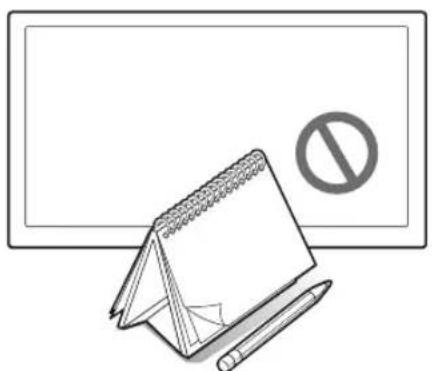

Do not block the sensor with any material. This may decrease the picture brightness.
- Eco Sensor: This power-saving feature automatically adjusts the screen brightness of the TV according to the ambient light detected by the Light Sensor.
- To enable or disable the Eco Sensor, go to System > Eco Solution > Eco Sensor and select On or Off.
- Please note: If the screen is too dark while watching TV in a dark environment, this may be due to the Eco Sensor.
What is Remote Support?
Samsung's Remote Support service offers you one-on-one support with a Samsung Technician who can remotely:
• Diagnose your TV • Adjust your TV settings • Perform a factory reset for your TV • Install recommended firmware updates
How Does it Work?
Having a Samsung Tech remotely service your TV is really pretty simple.

- Call the Samsung Contact Centre and ask for remote support.

- Open the menu on your TV and go to the Support section.
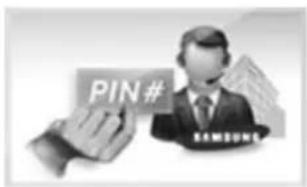
- Select Remote Management and provide the PIN# to the agent.

- The agent will then access your TV. That's it!
Storage and Maintenance
- If a sticker was attached to the TV screen, some debris may remain after you remove the sticker. Please clean the debris off before watching TV.
- The exterior and screen of the product can get scratched while cleaning it. Be sure to wipe the exterior and screen carefully using a soft cloth to prevent scratches.

Do not spray water directly onto the product. Any liquid that enters the product may result in product failure, fire, or electric shock.

Clean the product with a soft damp cloth using a small amount of water. Do not use a flammable liquid (e.g., benzene, thinners) or a cleaning agent.
TV Specifications
| Display Resolution 1920 x 1080 | ||
| Environmental Considerations | ||
| Operating Temperature | 10°C to 40°C (50°F to 104°F) | |
| Operating Humidity | 10% to 80%, non-condensing | |
| Storage Temperature | -20°C to 45°C (-4°F to 113°F) | |
| Storage Humidity | 5% to 95%, non-condensing | |
| Stand Swivel (Left / Right) -15° ~ 15° | ||
| Sound (Output) 10 W x 2 | ||
| Model Name UE40H6470 UE48H6470 | ||
| Screen Size (Diagonal) 40 inches 48 inches | ||
| Dimensions (W x H x D) | ||
| Body | 917.6 x 535.4 x 63.1 mm | 1086.1 x 630.1 x 63.5 mm |
| With stand | 917.6 x 598.4 x 266.9 mm | 1086.1 x 705.1 x 308.2 mm |
| Weight | ||
| Without Stand | 8.2 kg | 11.9 kg |
| With Stand | 9.4 kg | 13.5 kg |
| Model Name UE55H6470 UE65H6470 | ||
| Screen Size (Diagonal) 55 inches 65 inches | ||
| Dimensions (W x H x D) | ||
| Body | 1241.4 x 717.4 x 64.0 mm | 1465.4 x 845.3 x 70.9 mm |
| With stand | 1241.4 x 792.5 x 308.2 mm | 1465.4 x 927.8 x 377.0 mm |
| Weight | ||
| Without Stand | 16.6 kg | 26.1 kg |
| With Stand | 18.2 kg | 28.7 kg |
| Model Name UE75H6470 | ||
| Screen Size (Diagonal) 75 inches | ||
| Stand Swivel (Left / Right) 0° | ||
| Sound (Output) 15 W x 2 | ||
| Dimensions (W x H x D) | ||
| Body | 1687.0 x 970.0 x 70.9 mm | |
| With stand | 1687.0 x 1051.1 x 350.3 mm | |
| Weight | ||
| Without Stand | 33.1 kg | |
| With Stand | 35.0 kg | |
- The design and specifications are subject to change without prior notice.
- For information about the power supply, and about power consumption, refer to the label attached to the product.
- Typical power consumption is measured according to IEC 62087 Ed.2
Standby mode
To decrease power consumption, unplug the power cord when the TV will not be used for a long time.
Licences
HDMI
The terms HDMI and HDMI High-Definition Multimedia Interface, and the HDMI Logo are trademarks or registered trademarks of HDMI Licensing LLC in the United States and other countries.

DOLBY. DIGITAL PLUS

dts Premium Sound | 5.1

dts Studio Sound


Still image warning
Avoid displaying still images (such as jpeg picture files), still image elements (such as TV channel logos, stock or news bars at the bottom of the screen etc.), or programmes in panorama or 4:3 image format. Constantly displaying still pictures can cause image burn-in on the LED screen, which will affect the image quality. To reduce risk of this occurring please follow the recommendations below:
- Avoid displaying the same TV channel for long periods.
- Always try to display any image in full screen. Use the TV set's picture format menu for the best possible match.
- Reduce brightness and contrast to avoid the appearance of after-images.
- Use all TV features designed to reduce image retention and screen burn. Refer to the e-Manual for more details.
Recommendation - EU Only
CE !
Hereby, Samsung Electronics, declares that this TV is in compliance with the essential requirements and other relevant provisions of Directive 1999/5/EC.
The official Declaration of Conformity may be found at http://www.samsung.com, go to Support > Search Product Support and enter the model name.
This equipment may only be used indoors.
This equipment may be operated in all EU countries.

Correct Disposal of This Product (Waste Electrical & Electronic Equipment)
(Applicable in countries with separate collection systems)
This marking on the product, accessories or literature indicates that the product and its electronic accessories (e.g. charger, headset, USB cable) should not be disposed of with other household waste at the end of their working life. To prevent possible harm to the environment or human health from uncontrolled waste disposal, please separate these items from other types of waste and recycle them responsibly to promote the sustainable reuse of material resources.
Household users should contact either the retailer where they purchased this product, or their local government office, for details of where and how they can take these items for environmentally safe recycling.
Business users should contact their supplier and check the terms and conditions of the purchase contract. This product and its electronic accessories should not be mixed with other commercial wastes for disposal.

Correct disposal of the batteries in this product
(Applicable in countries with separate collection systems)
This marking on the battery, manual, or packaging indicates that the batteries in this product should not be disposed of with other household waste at the end of their working life. Where marked, the chemical symbols Hg, Cd, or Pb indicate that the battery contains mercury, cadmium, or lead above the reference levels in EC Directive 2006/66. If batteries are not properly disposed of, these substances can cause harm to human health or the environment.
To protect natural resources and to promote material reuse, please separate batteries from other types of waste and recycle them through your local, free battery return system.
This page is intentionally left blank.
SAMSUNG


Turkish
The terms HDMI and HDMI High-Definition Multimedia Interface, and the HDMI Logo are trademarks or registered trademarks of HDMI Licensing LLC in the United States and other countries.

DOLBY. DIGITAL PLUS

dts Premium Sound | 5.1

dts Studio Sound

guide

DIVX HD
RISK OF ELECTRIC SHOCK - DO NOT OPEN
CAUTION: TO REDUCE THE RISK OF ELECTRIC SHOCK, DO NOT REMOVE THE COVER (OR BACK PANEL). NO USER-SERVICEABLE PARTS INSIDE. REFER SERVICING TO QUALIFIED SERVICE PERSONNEL.



The terms HDMI and HDMI High-Definition Multimedia Interface, and the HDMI Logo are trademarks or registered trademarks of HDMI Licensing LLC in the United States and other countries.

DOLBY. DIGITAL PLUS

dts Premium Sound | 5.1

dts Studio Sound




The terms HDMI and HDMI High-Definition Multimedia Interface, and the HDMI Logo are trademarks or registered trademarks of HDMI Licensing LLC in the United States and other countries.

DOLBY. DIGITAL PLUS

dts Premium Sound | 5.1

dts Studio Sound


- SAMSUNG
- LED TV USER MANUAL
- WARNING! IMPORTANT SAFETY INSTRUCTIONS
- CAUTION
- RISK OF ELECTRIC SHOCK DO NOT OPEN
- WHAT'S IN THE BOX
- ATTACHING THE TV TO THE STAND
- MOUNTING THE TV ON THE WALL USING THE WALL MOUNT KIT (OPTIONAL)
- INSTALLING THE WALL MOUNT KIT
- WALL MOUNT KIT SPECIFICATIONS (VESA)
- PROVIDING PROPER VENTILATION FOR YOUR TV
- OTHER CAUTIONS
- SECURING THE TV TO THE WALL
- TO AVOID THE TV FROM FALLING
- ARRANGE THE CABLES USING THE CABLE HOLDER
- CONNECTING DEVICES TO YOUR TV
- CONNECTING TO A COMMON INTERFACE SLOT (YOUR TV VIEWING CARD SLOT)
- ATTACHING THE CI CARD ADAPTER
- USING THE "CI OR CI+ CARD
- NOTE
- CONNECTING TO A NETWORK
- NETWORK CONNECTION - WIRELESS
- NETWORK CONNECTION - WIRED
- SAMSUNG SMART CONTROL
- INSERTING BATTERIES INTO SAMSUNG SMART CONTROL
- TURNING ON THE TV
- INITIAL SETUP
- PASSWORD CHANGE
- CHANGING THE TV'S PASSWORD
- SELECTING THE VIDEO SOURCE
- TOOLS BUTTON
- EDIT NAME
- INFORMATION
- ANYNET+ (HDMI-CEC)
- DISCONNECT USB DEVICE
- USING THE SAMSUNG SMART CONTROL
- PAIRING THE SAMSUNG SMART CONTROL
- RECONNECTING THE SAMSUNG SMART CONTROL
- WHEN YOU SEE THIS ALARM ICON ON THE SCREEN
- USING THE TV BY MOVING THE SAMSUNG SMART CONTROL
- USING THE TV WITH THE TOUCHPAD
- MOVING THE FOCUS/POINTER
- MENU ACCESS & ITEM SELECTION
- DISPLAYING THE CONTEXT-SENSITIVE MENU ON SMART HUB
- MOVING TO THE SMART HUB PANEL
- SCROLLING ON THE WEB BROWSER
- DISPLAYING THE REMOTE CONTROL ON THE SCREEN (VIRTUAL REMOTE CONTROL)
- CONTROLLING EXTERNAL DEVICES WITH THE TV REMOTE (UNIVERSAL REMOTE SETUP)
- SYSTEM > UNIVERSAL REMOTE SETUP
- SETTING UP THE UNIVERSAL REMOTE CONTROL
- CONTROLLING EXTERNAL DEVICES WITH THE TV REMOTE
- VIEWING MORE TV FEATURES
- LAUNCHING THE E-MANUAL
- IF A DESCRIPTION DOESN'T FIT ON A SINGLE SCREEN
- ADDITIONAL E-MANUAL FEATURES
- LOADING PAGES USING KEYWORDS
- LOADING PAGES FROM THE INDEX PAGE
- USING THE HISTORY TO LOAD PREVIOUSLY READ PAGES
- ACCESSING THE MENU FROM THE E-MANUAL (TRY NOW)
- LOADING REFERENCE PAGES
- UPDATING THE E-MANUAL TO THE LATEST VERSION
- TROUBLESHOOTING
- CAUTIONS ABOUT THE ECO SENSOR AND SCREEN BRIGHTNESS
- WHAT IS REMOTE SUPPORT
- HOW DOES IT WORK
- STORAGE AND MAINTENANCE
- STANDBY MODE
- LICENCES
- HDMI
- STILL IMAGE WARNING
- RECOMMENDATION - EU ONLY
- CE
- CORRECT DISPOSAL OF THIS PRODUCT (WASTE ELECTRICAL & ELECTRONIC EQUIPMENT)
- (APPLICABLE IN COUNTRIES WITH SEPARATE COLLECTION SYSTEMS)
- CORRECT DISPOSAL OF THE BATTERIES IN THIS PRODUCT
- THIS PAGE IS INTENTIONALLY LEFT BLANK
- RISK OF ELECTRIC SHOCK - DO NOT OPEN
Brand : SAMSUNG
Model : UE75H6470AS
Category : Television