ViSi Listen - Audio mixer SOUNDCRAFT - Free user manual and instructions
Find the device manual for free ViSi Listen SOUNDCRAFT in PDF.


| Product Type | Personal Monitor Mixer / Headphone Amplifier |
| Brand | Soundcraft |
| Model | ViSi Listen |
| Form Factor | 1U Rackmount |
| Dimensions (W x H x D) | 19" x 1.75" x 8.5" (483 x 44 x 216 mm) |
| Weight | 7.5 lbs (3.4 kg) |
| Power Supply | Internal, 100-240V AC, 50/60 Hz, 30W |
| Number of Headphone Outputs | 16 |
| Connectivity | Ethernet (RJ45) for ViSi network, AES50 ports for audio |
| Audio Resolution | Up to 24-bit / 48 kHz |
| Mixing Buses | Up to 16 independent stereo mix buses |
| Control | Via Soundcraft ViSi software (Windows/Mac), or front panel |
| Frequency Response | 20 Hz - 20 kHz ±0.5 dB |
| Signal-to-Noise Ratio | > 110 dB |
| THD+N | < 0.005% |
| Headphone Output Impedance | 0.1 ohms |
| Max Output Power per Channel | 100 mW into 32 ohms |
| Compatible Software | ViSi Connect, Soundcraft ViSi app (iOS/Android) |
| Cooling | Fanless, convection cooling |
| Operating Temperature | 32°F to 104°F (0°C to 40°C) |
| Cleaning Instructions | Wipe with dry cloth; do not use solvents |
| Safety Certifications | CE, UL, RoHS |
| Included Accessories | Power cord, rack ears, ethernet cable, quick start guide |
Frequently Asked Questions - ViSi Listen SOUNDCRAFT
User questions about ViSi Listen SOUNDCRAFT
0 question about this device. Answer the ones you know or ask your own.
Ask a new question about this device
Download the instructions for your Audio mixer in PDF format for free! Find your manual ViSi Listen - SOUNDCRAFT and take your electronic device back in hand. On this page are published all the documents necessary for the use of your device. ViSi Listen by SOUNDCRAFT.
USER MANUAL ViSi Listen SOUNDCRAFT
iOS and Android monitor mix application for the Si Series consoles
USER GUIDE
IMPORTANT
Please read this guide carefully before using ViSi Listen soware for the rst me.

© Harman Internaonal Industries Ltd. 2016 All rights reserved.
Parts of the design of this product may be protected by worldwide patents. Soundcra is a trading division of Harman Internaonal Industries Ltd. Informaon in this manual is subject to change without noce and does not represent a commitment on the part of the vendor. Soundcra shall not be liable for any loss or damage whatsoever arising from the use of informaon or any error contained in this manual. No part of this manual may be reproduced, stored in a retrieval system, or transmied, in any form or by any means, electronic, electrical, mechanical, opcal, chemical, including photocopying and recording, for any purpose without the express written permission of Soundcra.
Harman Internaonal Industries Limited Cranborne House,
Cranborne Road, POTTERS BAR, Herordshire, EN6 3JN, UK
Tel:+44 (0)1707 665000
Fax:+44 (0)1707 660742
hp://www.soundcra.com
Soundcraft ViSi Listen is an iOS and Android applicaon that allows remote control of mix bus contribuon levels for Si Impact, Si Performer, Si Expression, and Si Compact mixing consoles wirelessly. Connect your Android Device to a Wireless access router which is connected to the Harman HiQnet® Ethernet port of the console.
With ViSi Listen, musicians and performers are free to perform whilst having control of their monitor mixes directly from their Android device. Coupled with access control sengs on Si Impact, Si Performer, Si Expression, and Si Compact consoles, musicians can have the control they need without giving them access to FOH levels, channel & bus processing, and other parameters.
Applications:
• Control monitor mix bus contribuon levels
- Allow musicians & performers to adjust their own monitor mix
- Allow mulple users on the same console to control their own mixes
- Create custom View Groups for quicker navigaon and tailored channel setup
ViSi Listen Console Software Requirements:
(Latest soware available on the Soundcra website)
Si Impact: 1.2 build or higher
Si Performer: 1.8 build or higher
Si Expression: 1.8 build or higher
Si Compact: 3.3 build or higher
**Please make sure your console is updated before using this soware.
ViSi Listen Android Compatibility:
Android 4.4 or higher.
Note: Devices with Android 4.3 or earlier are not compatible with the ViSi Listen app.
ViSi Listen iOS Compatibility:
iOS 7 or higher.
Note: iPad 1 devices are not compatible with iOS 7 and cannot use the ViSi Listen app.
ABOUT THIS MANUAL
This manual is intended as a guide for users new to the ViSi Listen iPad and Android (Pads) appli- caon; it covers basic setup requirements on the Si consoles, ViSi Listen specic sengs on the iPad and describes the funconality oered by the ViSi Listen app.
Owing to the vast number of routers and similar devices available, it does not cover setup and management of the wireless router or similar devices used in the network.
This manual assumes familiarity with the Apple iPad and working knowledge of the Soundcra consoles intended for use with ViSi Listen.
Examples illustrated in this manual were tested using Apple iOS 9.3.2
The most basic typical setup is illustrated below — however other combinaons are possible, including mulple Soundcra consoles connected to the same wireless router and mulple iPad devices controlling the same console.
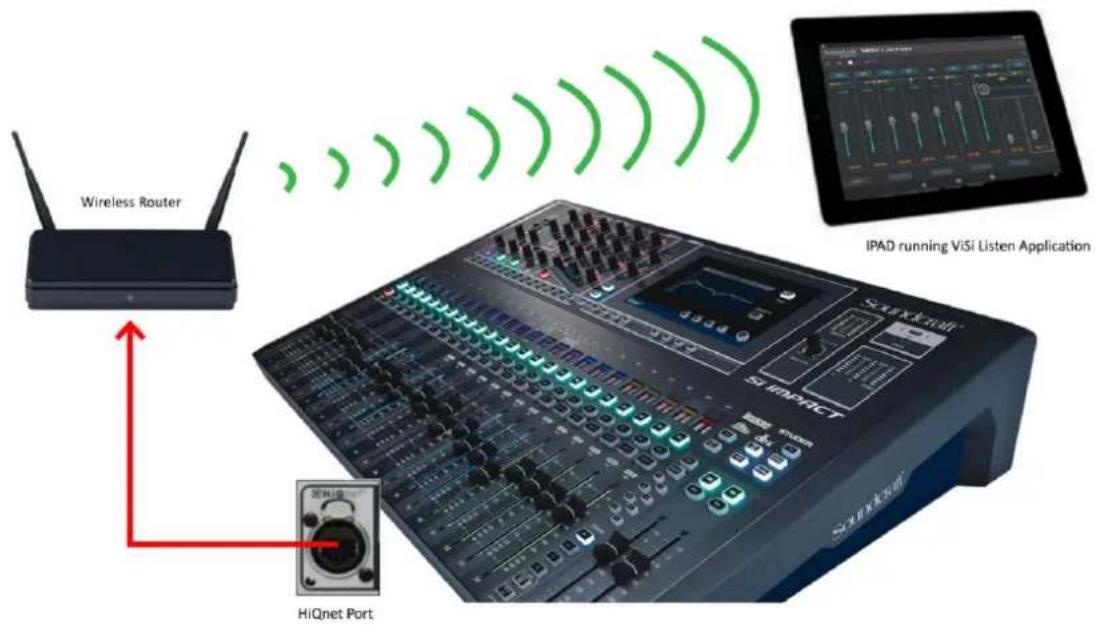

NOTE: It is recommended to use a dedicated wireless router for the 'console/ ViSi Listen' conn- necon to avoid risk that other devices sharing the router will consume all the bandwidth.
NOTE: To prevent ‘unauthorised’ connecons to your wireless system it is recommended that security is enabled on your router.
NOTE: Significant trac or interference in the Wi-Fi domain may cause sluggish or unreliable operaon; if you experience such problems we recommend you seek specialist advice from a Wi-Fi IT professional.
Console Setup
Seng IP Addresses
Before ViSi Listen can be used on-line, a network conncon must be established between the iPad and console.
The simplest soluon is to set the router as a DHCP server and set the consoles and iPad to use DHCP addressing.
Refer to the user guide of your console for details on how to adjust the console's IP address sengs.
Console HiQnet conncon point The HiQnet port is located on the rear of Si Impact, Si Expression, Performer and Compact consoles as a standard Ethernet input. There is a green LINK LED that indicates an electrical conncon is established and a DATA LED that indicates data ow.
Router Setup
To create a working environment for ViSi Listen, you will need to carry out some initial setup of your network router.
- IP addressing Within the router's control panel, there will be opons to set IP addresses using DHCP or manual addressing. Depending on your requirements, seng the router to DHCP is recommended. Please refer to the user guide of your chosen router for instrucons on how to access this control panel.
Welcome Screen – Device Selecon
ViSi Listen connects to Soundcra Si consoles and allows control of Mix Bus contribuon levels using the HiQnet protocol via an Ethernet or WIFI conncon.
To begin, ensure that your mixing console is connected to a network along with your personal device.
From there, your Si console(s) should be discovered by ViSi Listen in the device window. Select the console you want to control. Double-tap to proceed to the Bus Selecon.

Welcome Screen - Bus Select
Aer selecng your device, now select the Mix Bus to control.
Access control on an Si console, if enabled, manages permissions of Mix Bus control based on HiQnet address. If you cannot select and control the Mix Bus you need, it may be because Access Control is enabled and your HiQnet address is not authorised. To adjust this, consult the console operator to assign your device's HiQnet address (visible in the sengs tab above) to the mix bus you want to control.

1.1 Welcome Screen - Sengs Screen
The Sengs screen is where network sengs can be viewed along with HiQnet sengs. Your personal device's HiQnet address can be changed in this window as well.

1.2 Main Fader Page
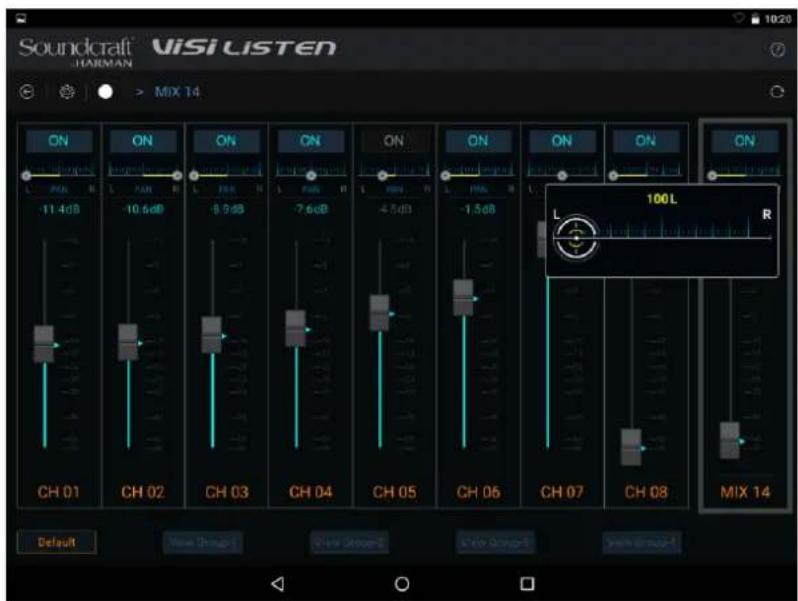
The Contribuon Levels page is where you can adjust your contribuon levels for the Mix Bus you are controlling.
Additional controls include pan controls if the mix bus is stereo and the master volume for the mix if the Mix Master toggle is enabled.
At the boom of the Contribuon Levels page is the View Groups where custom channel views can be created.
1.3 View Group Page
The View Groups allow customisaon of the channels you can view and control. Press the '+' control to add channels and press the '-' control to remove channels from the view group.

2.1 Console Setup
To enable ViSi Listen to work with your console certain parameters will need to be setup.
In the Consoles 'MAIN MENU' Under Sengs make sure the console has a Valid IP and HiQnet address setup.
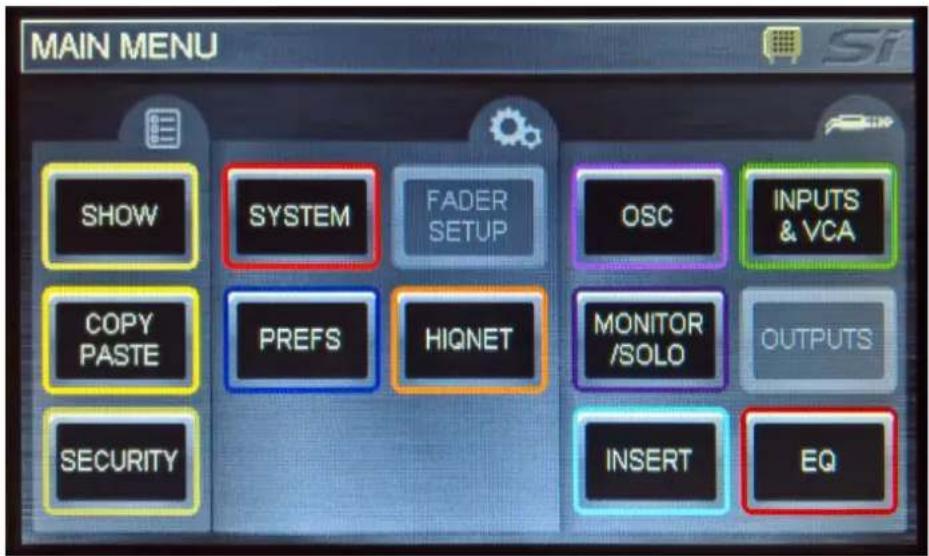
Select the 'SYSTEM' Menu and conrm the console has a valid IP and HiQnet address

If you have any issues with seng a valid IP address please refer to your consoles manual
Next select the 'HiQnet' tab in the Main Menu.

In this menu you are able to turn ON restricted Access Control (which then only enables certain devices to operate certain MIX sends)
Enable the access control by selecng in on the menu

Select the Device ID in the right hand side Column (This device ID is listen in your Devices Sengs tab)

In the Above Example the HiQnet address of the device was 105. This number needs to be entered into the consoles Device Selector ID number as well.

You are now able to select which Mix the device can control,
A specific one, or ALL.

TROUBLESHOOTING
ViSi Listen is engineered to be as reliable and stable as possible given the limitaons imposed when operating in an unlicensed wireless environment. In the unlikely event that ViSi Listen is not acng as expected carefully check the following:
- Is your console and iPad soware correct for ViSi Listen? Check the Soware Download secon for your console and ensure you have the latest version, also check the ViSi Listen page and ensure you are running the latest version of ViSi Listen on your iPad.
- Are you connected to the WiFi of the router used by the consoles? If an iPad 'knows' more than one network and your ViSi Listen network is lost or drops out the iPad will automatically switch to another known network — this is a funcon of the iPad OS. The network your iPad is currently using is shown in the ViSi Listen devices menu.
- Are the IP addresses set correctly? Ensure if seng manual IP addresses that the range is valid and that no two devices on the network have the same address. This is required for all devices sharing the network used by ViSi Listen including any iPad devices and any non-HiQnet equipment. If using DHCP, double check that all devices on the network are set for DHCP as the method to resolve the IP address and that your router is set as a DHCP server.

NOTE: It is recommended to restart the console following a change to the IP address to ensure this is picked-up by all devices.
- Are the HiQnet addresses set correctly? Ensure all HiQnet devices on the network have their own unique HiQnet address, this includes all iPad devices running ViSi Listen and all consoles on the network.

NOTE: It is recommended to restart the console following a change to the HiQnet address to ensure this is picked-up by all devices.
- Is HiQnet On/Enabled on the console? Certain events and acons will result in the HiQnet seng defaulting to O/ Disabled. HiQnet must be On/Enabled on all devices you wish to control with ViSi Listen.
- Have you rebooted since changing HiQnet, IP Address or Subnet Mask on Si Expression, Performer or Compact? Some of these sengs cannot be changed 'live' and require the console to be re-booted before new sengs are shown and/or take.
- ViSi Listen goes o-line regularly, what can I do? It needs specialist equipment to analyse the RF environment in which you are working; but ensuring the wireless router is centrally located, enabling security on the router, switching to another channel, or operating in another band (such as 5.0GHz if your iPad and router support this) can all help avoid some of the inevitable wireless trac. Soundcra recommends enabling security on your Wi-Fi router to prevent unwanted connecons by mobile devices which could interfere with the operation of the network.
Soundcraft
by HARMAN
ViSi LISTEN
- IMPORTANT
- APPLICATIONS
- VISI LISTEN CONSOLE SOFTWARE REQUIREMENTS
- VISI LISTEN ANDROID COMPATIBILITY
- VISI LISTEN IOS COMPATIBILITY
- ABOUT THIS MANUAL
- CONSOLE SETUP
- SENG IP ADDRESSES
- ROUTER SETUP
- WELCOME SCREEN – DEVICE SELECON
- WELCOME SCREEN - BUS SELECT
- 1.1 WELCOME SCREEN - SENGS SCREEN
- 1.2 MAIN FADER PAGE
- 1.3 VIEW GROUP PAGE
- 2.1 CONSOLE SETUP
- TROUBLESHOOTING
- SOUNDCRAFT
- BY HARMAN
- VISI LISTEN
Brand : SOUNDCRAFT
Model : ViSi Listen
Category : Audio mixer