
PowerTel 2880 - Telephone Amplicomms - Free user manual and instructions
Find the device manual for free PowerTel 2880 Amplicomms in PDF.


| Product Type | Cordless Phone |
| Brand | Amplicomms |
| Model | PowerTel 2880 |
| Dimensions (base) | 120 x 80 x 50 mm |
| Dimensions (handset) | 170 x 50 x 30 mm |
| Weight (handset) | 150 g |
| Power Supply | AC adapter 230V, 50Hz |
| Battery Type | NiMH rechargeable, 2.4V 300mAh |
| Talk Time | Up to 10 hours |
| Standby Time | Up to 100 hours |
| Volume Amplification | Up to 30 dB |
| Ringer Volume | Adjustable, up to 90 dB |
| Display | Backlit LCD, 1.8 inches |
| Hearing Aid Compatibility | Yes (M4/T4) |
| Number of Memory Keys | 10 direct memory keys |
| Phonebook Capacity | 50 entries |
| Maintenance | Clean with dry cloth; avoid liquids |
| Safety | Use only provided adapter; keep away from water |
| Spare Parts & Repairability | Battery pack, charger, and handset available |
| General Information | DECT standard, range up to 50m indoors |
Frequently Asked Questions - PowerTel 2880 Amplicomms
User questions about PowerTel 2880 Amplicomms
0 question about this device. Answer the ones you know or ask your own.
Ask a new question about this device
Download the instructions for your Telephone in PDF format for free! Find your manual PowerTel 2880 - Amplicomms and take your electronic device back in hand. On this page are published all the documents necessary for the use of your device. PowerTel 2880 by Amplicomms.
USER MANUAL PowerTel 2880 Amplicomms

Contents
Getting started....4
Check box contents 4
Set up your phone system .... 4
Location 4
Connect the base unit 5
Connect the cordless handset 7
Connect the Charger 8
Backup battery installation 9
Wall mount installation....10
Controls 13
Cordless handset. 13
Corded phone 16
Display icons 20
Navigating the menu....21
Open main menu (cordless handset) 21
Menu layout (cordless handset)....21
Open main menu (corded phone) 22
Menu layout (corded phone) 23
Making and receiving calls 24
Making a call, answering a call, ending a call. 24
Handsfree. 25
Audio assist 25
Equaliser 25
Volume control 25
Mute 26
Temporary ringer silence 26
Redial 26
Caller list 27
Chain dialling. 28
Find handset 28
Internal call 29
Transfer an external call internally....29
Conference....30
Phone book....31
Create a new entry 31
Using the phone book....31
Photo speed dial 32
Store a photo speed dial entry. 32
Edit a photo speed dial entry 32
Delete a photo speed dial entry 33
Dial a photo speed dial number.... 33
Reminder 33
Add a reminder 34
Review reminders 34
Delete reminders....35
Settings.... 35
Ringtones. 35
Key tone on the corded phone. 35
Tones on the cordless handset. 35
Set date and time 36
Set the time format 36
Set the date format 36
Display language....37
Voice language 37
Clear voicemail indicator 38
Rename corded phone/cordless handset 38
CID time sync. 39
Dial mode....39
Flash time....40
Registering a handset (corded phone) 40
Quiet mode 41
Answering machine....42
Switching the answering machine on/off 42
Hear messages 42
Record personal announcement 44
Call screening 44
Call intercept 46
Delete messages 46
Record a memo 46
Number of rings 47
Remote access code 48
Message alert tone 48
Message recording time....49
Remote access....50
Appendix. 51
Help and support....51
Safety information 51
Intended use 51
Phone location....51
Power supply 52
Energy efficient power adapter 52
Medical equipment 52
Rechargeable batteries .... 53
Hearing aid compatibility .... 53
Disposal 53
Maintenance 54
Technical details 54
Guarantee 55
Declaration of conformity....56
Getting started
Important: Please make sure you've read the safety information on page 51 before you set up your phone system.
Check box contents
If you have purchased a PowerTel 2880 pack you should have:
• 1 corded phone (base)
- 1 receiver
- 1 receiver cord
• 1 AC power adaptor for corded phone
• 1 cordless handset
• 3 AAA NiMH rechargeable batteries
• 1 battery compartment cover
- 1 charger
• 1 AC power adaptor for charger
• 1 telephone line cord
Important: Use only the power adaptors, telephone line cord and batteries supplied with your PowerTel 2880, otherwise your phone may not work.
Set up your phone system
Location
Place the base unit (corded phone) near a mains socket and a telephone wall jack to ensure that the connection cables are long enough. Keep the unit approx. 1 m away from other electronic devices to prevent interference. The corded phone uses radio signals to connect with the cordless handset. Signal
strength depends on the base unit's location. The maximum range is 300 m based on an unobstructed line of sight; the range is shorter inside buildings because of walls and other obstacles.
Connect the base unit
- Plug the connector on the cable end into the corresponding jack on the underside of the base and plug the power adaptor into the wall socket.
- Plug the small connector on the end of the telephone line cord into the corresponding jack on the base and plug the other end into the telephone jack.
- Connect the receiver with the telephone using the coiled receiver cord.
Note: Guide the connection cables through the strain-relief tabs on the base so the unit sits flush with the desk.
For pluggable equipment, the socket-outlet (power adaptor) shall be installed near the equipment and shall be easily accessible.

Important: Use only the power adaptors, telephone line cord and batteries supplied with your PowerTel 2880, otherwise your phone may not work.
Do not block access to the wall power supply with furniture or other items.
Connect the cordless handset
- Open the battery compartment and insert the batteries. Pay attention to the correct polarity.
- Slide the battery compartment cover towards the centre of the handset until it clicks into place.
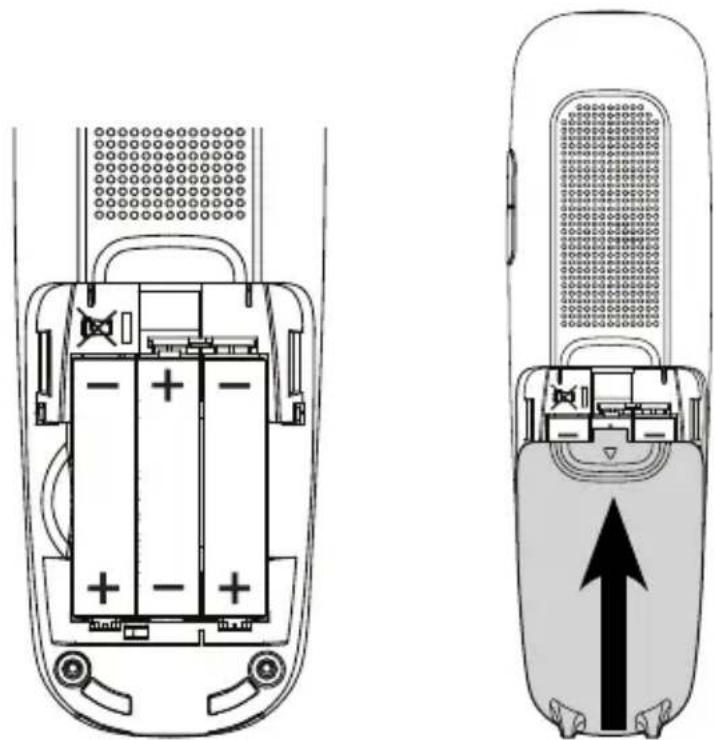
For a full charge, the handset must be left in the charger for at least 16 hours (check the charger's power supply!).
Important: Use only the batteries supplied with this product. If the batteries need to be replaced later on the same battery type must be used.
Connect the Charger
- Plug the connector on the cable end into the jack on the underside of the charger and plug the power adaptor into the wall socket.
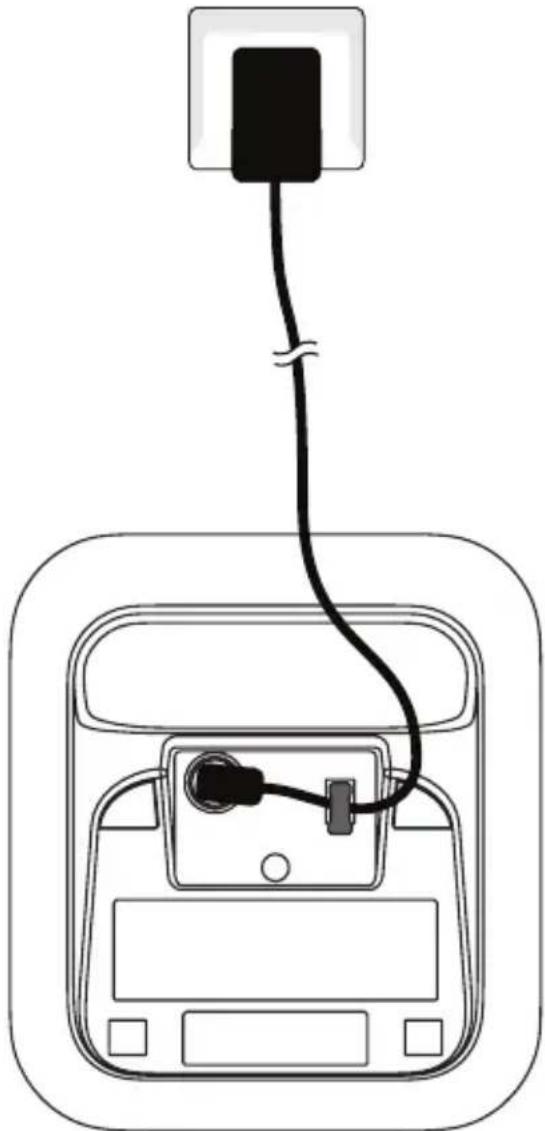
- Place the handset in the handset charger to charge.
Note: Guide the power cord through the strain-relief tabs on the base so the unit sits flush with the desk.
For pluggable equipment, the socket-outlet (power adaptor) shall be installed near the equipment and shall be easily accessible.
Backup battery installation
Install three AAA non-rechargeable batteries (not supplied) so that your telephone can still operate in the event of a mains power failure.
WARNING: Disconnect the telephone line cord from the base when replacing back-up batteries.
- Press the large tab on the backup battery compartment cover. Then pull to open.
- Place three AAA batteries into the compartment, matching the polarity engravings.
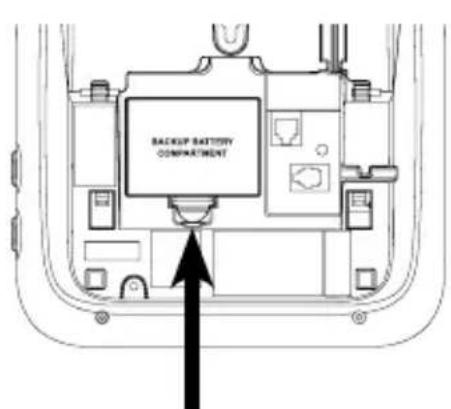


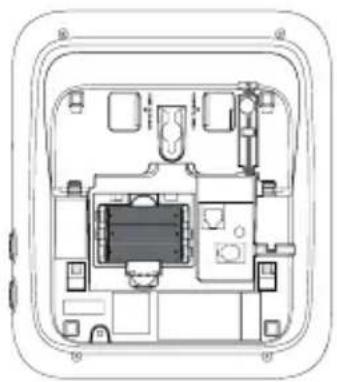
- Replace the backup battery compartment cover. Push the large tab until it locks securely.
Note: Under normal usage conditions, the three AAA non-rechargeable batteries should last approximately 6 months. Battery life depends on the frequency and duration of mains power failures.
Wall mount installation
To mount the base unit (corded phone) on the wall you need 2 dowels and 2 suitable screws, preferably fillister-head screws, dia. 4 mm. Fasten the screws 83 mm apart one below the other in a vertical line so that the screw heads are about 3 mm from the wall.
CAUTION: Know where your electrical wires and water pipes are located before drilling!
- Unplug the power adaptor cord and the telephone line cord from the base.
- Remove the retainer from the handset cradle, turn it 180° and reinsert it in the cradle.
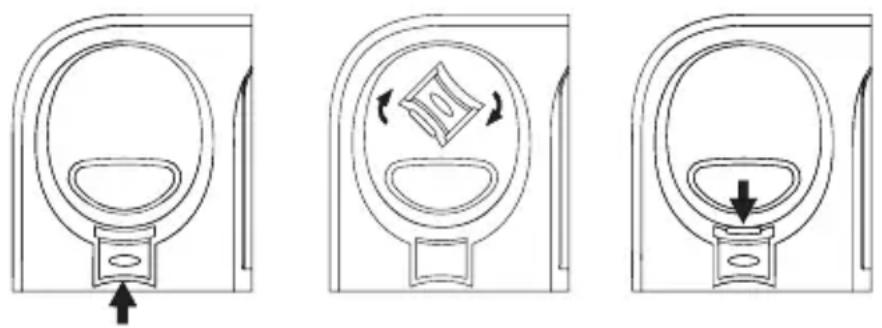
- Grasp and squeeze the tabs as indicated by the arrows to open the hinged bracket. Route the telephone line cord and the power adaptor cord through the hole of the wall mount bracket. Push the end of the telephone line cord into the telephone jack and push the connector of the power adaptor into the power cord jack on the underside of the phone.
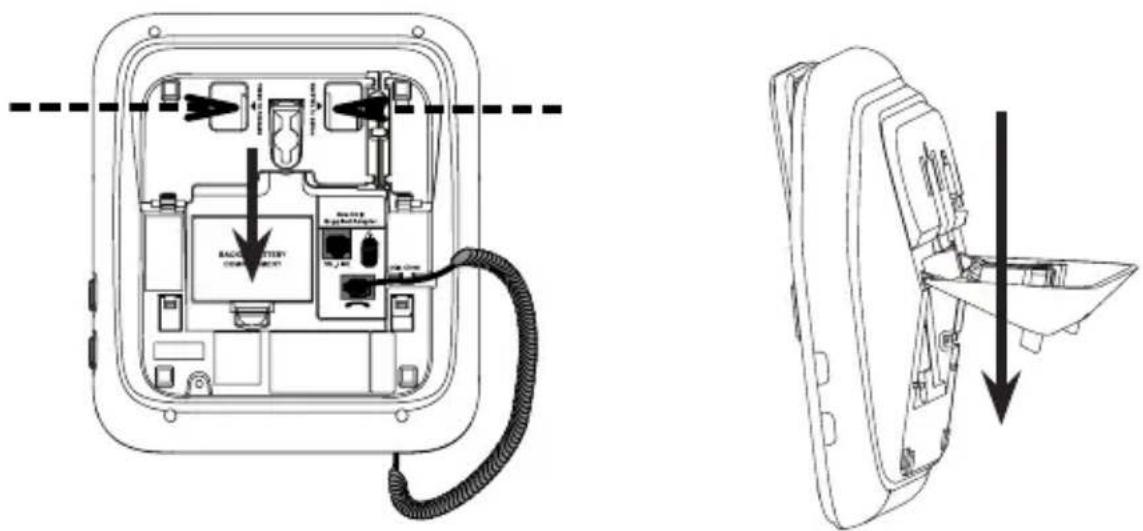
- Rotate the wall mount bracket and lock it into wall mount position. Route the telephone line cord and power adaptor cord through the slot on the bottom of the telephone base. Bundle the telephone line cord and the power adaptor cord with twist ties.
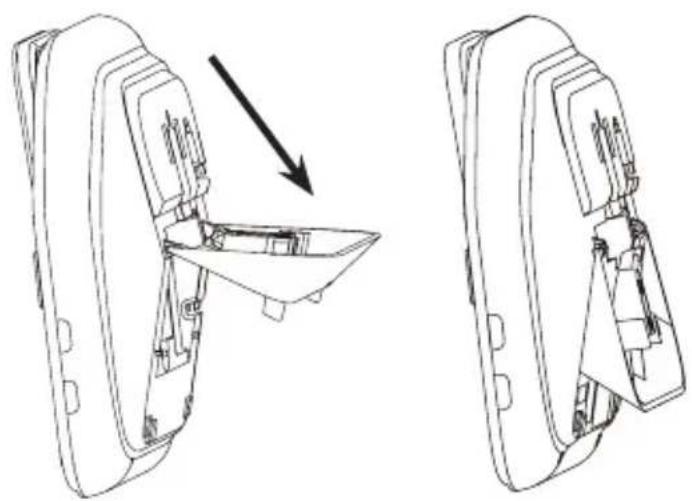
-
Plug the power adaptor and the telephone line cord back into their sockets.
-
Position the telephone over the screw heads and push down lightly until it is firmly seated.
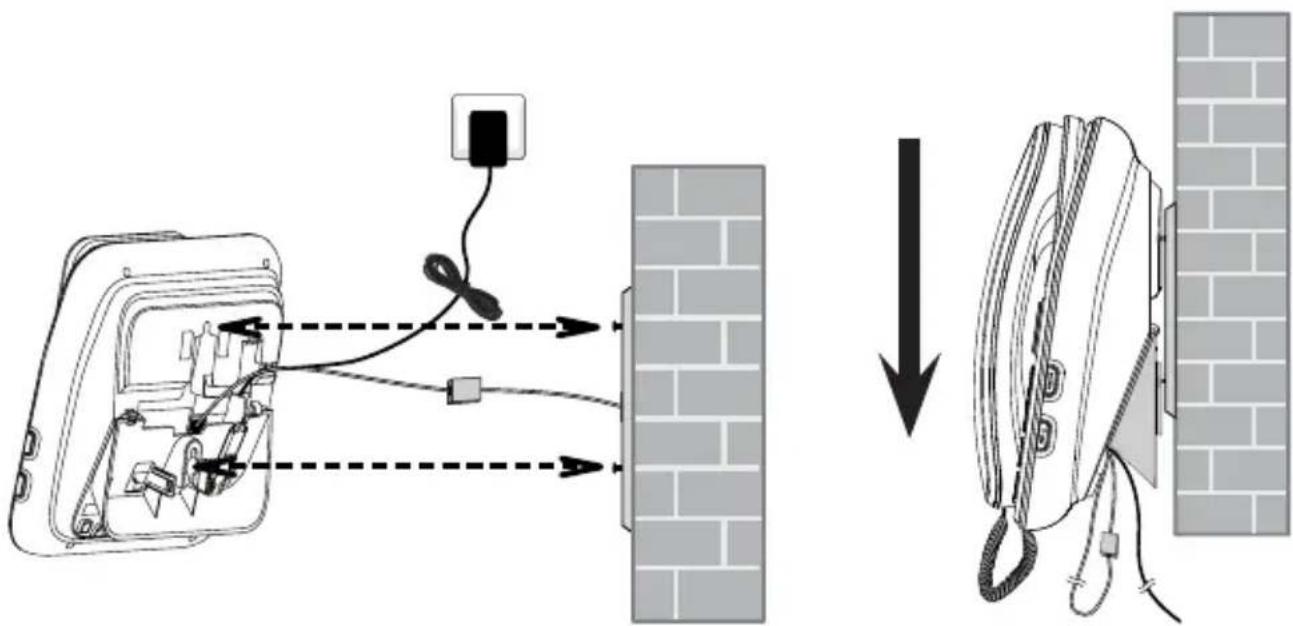
- Place the receiver in the telephone base. Rotate the top of the display up or down to adjust the screen angle for maximum visibility.
Controls
Cordless handset
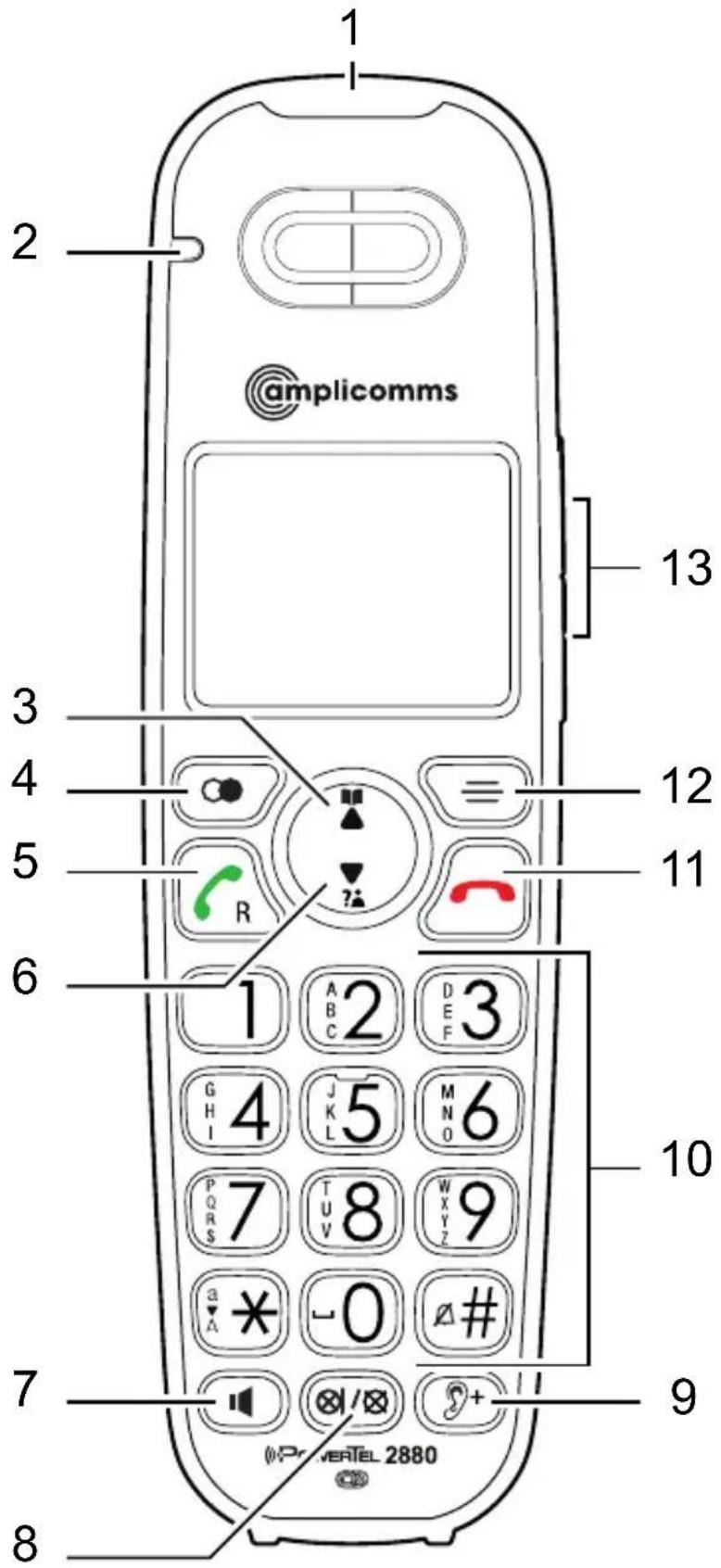
1 Incoming call light
- Flashes when there is an incoming call/ the base is paging the handset.
2 Charge light
- On when the handset is charging.
3 Phonebook/Up
- Press to review the phonebook when in idle.
- Press to scroll up while in menus or lists.
- Press to move the cursor to the right while entering names or numbers.
4 Redial/Pause
- In idle state: press to open redial list. Press repeatedly to view the last 10 numbers dialed.
- Press and hold to insert a dialing pause while dialing or entering numbers.
5 Call/Recall
- Press to make or answer a call.
- Press to access network features during a call.
6 Caller list/Down
- Press to review the caller list when in idle.
- Press to scroll down while in menus or lists.
- Press to move the cursor to the left while entering names or numbers.
7 Speaker
- Press to make or answer a call using the speakerphone.
- Press to switch between the handset speakerphone and the handset earpiece during a call.
8 Mute/Delete
- Press to mute the microphone during a call.
- Press to silence the handset ringer temporarily while the phone is ringing (the call can still be accepted if the caller hasn't hung up).
- Press to delete an individual entry while reviewing the redial list/phonebook/ caller list/reminder.
9 Audio-Assist
- Press to enhance the clarity and loudness of the caller's voice during a call.
10 Alphanumeric keypad
- Press to enter numbers or characters/*/#.
- Press any key to answer an incoming call.
- Press star key to switch between upper case and lower case while entering characters.
- Press and hold hash key to set and turn on the quiet mode, or turn it off.
11 End call/Cancel
- Press to hang up during a call.
- Press to cancel an operation, or back up to the previous menu while in a menu. Press and hold to return to idle mode while in a menu.
- Press to silence the handset ringer temporarily while the phone is ringing (the call can still be accepted if the caller hasn't hung up).
- Press and hold to erase the missed call indicator when idle.
12 Menu/Select
- Press to show the menu.
- Press to select an item or save an entry/setting while in a menu.
13 Volume keys
- Press to adjust the handset ringer volume when in idle.
- Press to adjust the listening volume during a call or message playback.
Corded phone
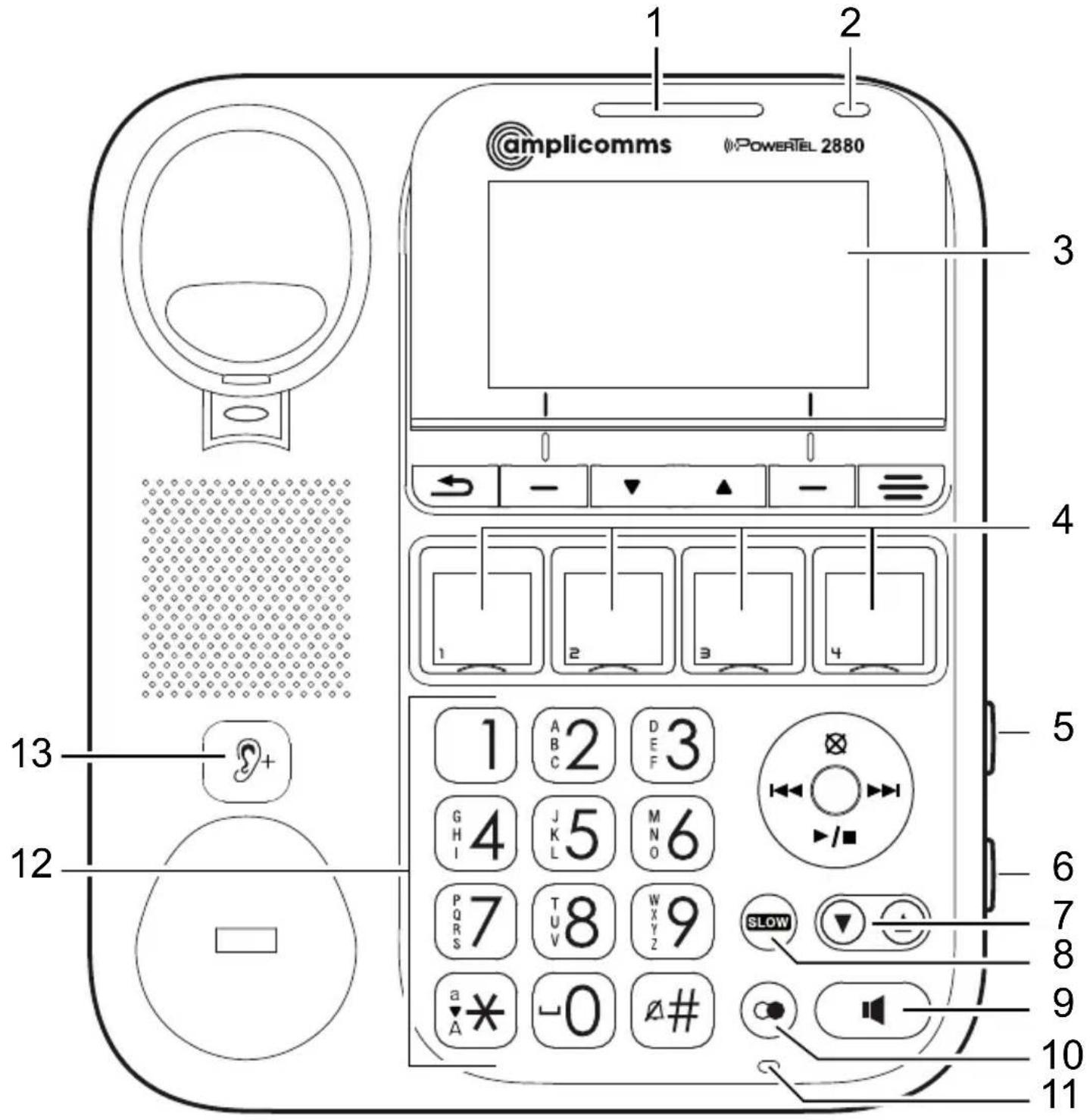
1 Incoming call light
- Flashes when there is an incoming call.
2 "In use" light
- On when there is an incoming call or the phone is in use or the answering system is answering an incoming call.
- On when a device is being registered.
- Flashes when devices are being deregistered.
- Flashes when another telephone (cordless handset) on the same line is in use.
3 Display
- Press to move the top of the display forward or backward to adjust the angle of the screen for maximum visibility.
4 Speed dial keys
- Press to set or dial a speed dial number when in idle.
5 Page
- Press to page all handsets when in idle.
6 Answering machine on/off
- Press to turn the built-in answering machine on/off. Lit when the answering system is turned on.
7 Volume keys
- Press to adjust the ringer volume when in idle.
- Press to adjust the listening volume during a call or message playback.
8 Slow
- Press to slow down the answering machine or reminder message playback.
9 Speaker
- Press to make, answer or end a call.
- Press to switch between the corded handset and the base speakerphone during a call.
10 Redial/Pause
- In idle state: press to open redial list. Press repeatedly to view the last 10 numbers dialed.
- Press and hold to insert a dialing pause while dialing or entering numbers.
11 Microphone
12 Alphanumeric keypad
- Press to enter numbers or characters/*/#.
- Press any key to answer an incoming call.
- Press star key to switch between upper case and lower case while entering characters.
- Press and hold hash key to set and turn on quiet mode, or turn it off.
13 Audio-Assist
- Press to enhance the clarity and loudness of the caller's voice during a call.
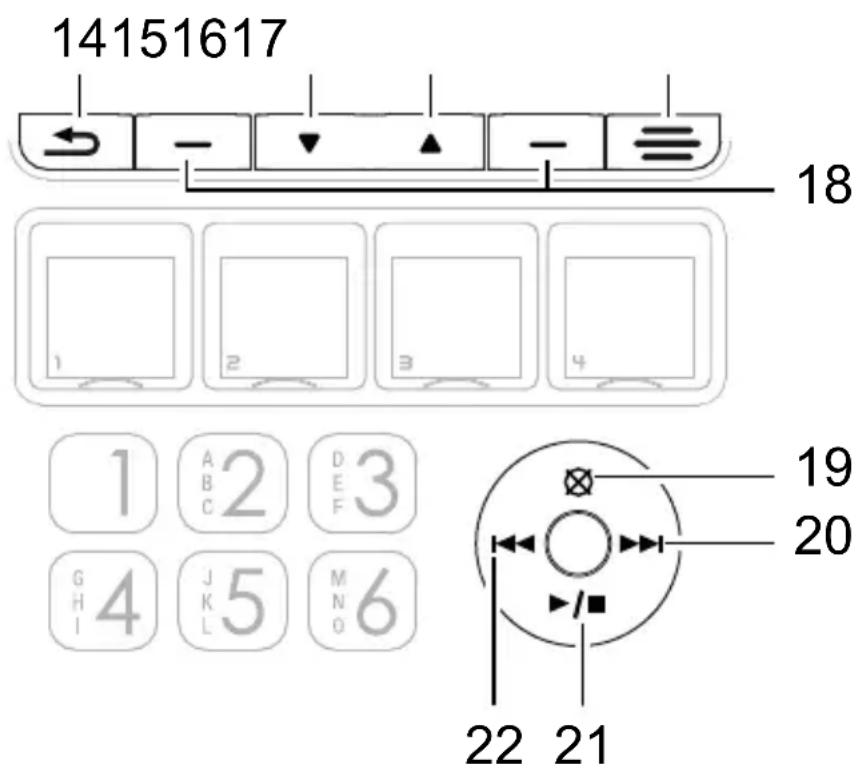
14 Cancel
- Press to cancel an operation, or go back to the previous menu while in a menu. Press and hold to return to idle mode while in a menu.
- Press to silence the base ringer temporarily while the phone is ringing (the call can still be accepted if the caller hasn't hung up).
- Press and hold to erase the missed call indicator when idle.
15 Down
- Press to scroll down while in menus or lists.
- Press to move the cursor to the left while entering or modifying names or numbers.
16 Up
- Press to scroll up while in menus or lists.
- Press to move the cursor to the right while entering or modifying names/numbers.
17 Menu
- Press to enter the menu.
18 Left softkey/Right softkey
- Press to select a menu item displayed above the key.
19 Delete
- Press to delete the current message/announcement/reminder.
- Press to delete an individual entry while reviewing the redial list/phonebook/caller list/reminder.
20 Skip
- Press to skip to the next message during message playback.
- Press to move the cursor to the right while entering or modifying names or numbers.
21 Play/Stop
- Press to start or stop message playback.
- Flashes when there are new messages/memos in the answering machine.
22 Repeat
- Press once to repeat the current message.
- Press twice to play the previous message.
- Press to move the cursor to the left while entering or modifying names or numbers.
Display icons

Battery is low; place handset in charger to recharge.

Full battery power level.

2/3 battery power level.

1/3 battery power level.

The handset speakerphone is in use.

Ringer off (handset/corded phone).

New voicemail from your telephone service provider (handset/depending on provider).

New voicemail from your telephone service provider (corded phone/depending on provider).
MUTE
Microphone is muted.
NEW
New call list- Missed and new calls.
ANS ON
The answering machine is turned on.

New message on the answering machine.
Navigating the menu
This chapter describes how to use the menu to access features on both telephones.
Open main menu (cordless handset)
- Press
- Use and to select the desired menu item and press
- Press to cancel an operation, back up to the previous menu, or exit that menu.
- Press and hold down to return to idle state.
Note: If a key is not pressed within 30 seconds, the telephone automatically returns to idle mode.
Menu layout (cordless handset)
Play messages
Answering sys Announcement
Delete all old
Record memo
Answer ON/OFF
Ans sys setup
Intercom
Phonebook Review
Add contact
Caller ID log Review
Del all calls
Reminder Review
Set reminder
On/off
Ringers Ringer volume Ringer tone
Tones Key tone
Battery low
Out of range
Set date/time
Time format
Date format
Settings LCD language
Voice language
Clr voicemail
Rename handset
CID time sync
Dial mode
Flash time
Reset
Open main menu (corded phone)

- Press
- Use to select the desired menu item and press SELECT.
- Press to cancel an operation, back up to the previous menu, or exit that menu.
- Press and hold down to return to idle state.
Note: If a key is not pressed within 30 seconds, the telephone automatically returns to idle mode.
Menu layout (corded phone)
Answering system Announcement
Delete all old
Record memo
Answer ON/OFF
Ans sys setup
Intercom
Photo speed dial
Phonebook Review
Add contact
Caller ID log Review
Delete all calls
Reminder Review
Set reminder
Reminder on/off
Ringers Ringer volume
Ringer tone
Key tone
Set date/time
Time format
Date format
Settings LCD language
Voice language
Clear voicemail
Rename base
CID time sync
Dial mode
Flash time
Registration
Reset
Making and receiving calls
Making a call, answering a call, ending a call
To make a call on the corded phone
Enter the telephone number and lift the receiver or press

- or -
Lift the receiver or press . When you hear a dial tone, enter the telephone number.
To answer a call on the corded phone
Lift the receiver, or press or any dialing key.
To end a call on the corded phone
When you are using the receiver, place it on the telephone base.
When you are using the speakerphone, press.
To make a call on a cordless handset
Enter the telephone number and press or.

- or -
Press or. When you hear a dial tone, enter the telephone number.
To answer a call on a cordless handset:
Press or any dialling key.
To end a call on a cordless handset:
Press or place the handset in the charger.
Handsfree
Whilst in a call press on the corded phone or on the cordless handset. To deactivate, press the same key again.
Audio assist

Use this feature to enhance the clarity and loudness of a caller's voice on the cordless or corded handset earpiece when listening to a message or an announcement. Whilst in a call press on the corded phone or on the cordless handset. CAUTION: The volume is very high!
To deactivate, press the same key again.
Equaliser
This feature allows you to change the quality of the audio for both handset earpiece and speakerphone to best suit your hearing.
- Whilst in a call press the menu key
- Press SELECT on the corded phone or press on the cordless handset to confirm.
- Select Natural, Treble 1, Treble 2 or Bass and press SAVE on the corded phone or press on the cordless handset to save your setting.


Volume control
On the cordless handset
Whilst in a call press the volume buttons on the side.
On the corded phone
Whilst in a call press the volume keys

Mute
The mute function allows you to hear the other party but the other party cannot hear you.
On the cordless handset
Whilst in a call press ☒Press again to resume the conversation.
On the corded phone
Whilst in a call press MUTE. Press UNMUTE to resume the conversation.
Temporary ringer silence
When the telephone is ringing, you can temporarily silence the ringer on the cordless handset or the corded phone without disconnecting the call. The next call rings normally at the preset volume.
On the cordless handset
Press

On the corded phone
Press SILENCE or

Redial
The last 10 telephone numbers dialled are stored in the system memory.
On the cordless handset
- Press in idle state.
- Select the desired entry with and or press repeatedly.
- Press or to dial the telephone number.
On the corded phone
- Press middle state.
- Select the desired entry with or press repeatedly.
- Lift the receiver or press to dial the telephone number.

Caller list
Note: This function is only available if your telephone service provider has activated the CLIP (Calling Line Identification Presentation) service attribute. Please contact your service provider for more information.
The phone numbers of incoming calls are stored in a call log. For new entries you will see a message on the display.
Calling from the caller list (cordless handset)
- Press in idle state.
- Select the desired entry with and
- Press or to dia the telephone number.

Calling from the caller list (corded phone)
- Press CALL LOG in idle state.
- Select the desired entry with ▼ ▲
- Lift the receiver or press to dial the telephone number.
Saving an entry from the caller list to the phone book
- Open the caller list and select an entry.
- Press SAVE on the corded phone or press 📄 on the cordless handset
- Edit the telephone number if necessary and press NEXT on the corded phone or press on the cordless handset.
- Enter the name and press SAVE on the corded phone or press on the cordless handset.
Chain dialling
Use this feature to initiate a dialling sequence from numbers stored in the phonebook, caller list or redial list whilst you are on a call.
Selecting an entry from the phone book/caller list
- Press the menu key whilst in a call or
- Select Phonebook or Caller ID log and press SELECT on the corded phone or press on the cordless handset.
- Select the desired entry and press CALL on the corded phone or press on the cordless handset to dial the telephone number.
Selecting an entry from the redial list
- Whilst in a call press or .
- Select an entry using the arrow keys or by repeatedly pressing or and press CALL on the corded phone or press on the cordless handset to dial the telephone number.
Find handset
You can locate a missing handset or alert a handset user that they are wanted by causing the handset to beep from the corded phone.
Start paging
Press the paging button on the right-hand side of the corded phone to page all registered cordless handsets.
Stop paging
On the corded phone: press STOP or press the paging button again.
On the cordless handset: press or any dialling key, or place the handset in the charger.
Internal call
Use the intercom feature for conversations between two system devices. These calls are free of charge.
-
Press the menu key ≡ or ≡, select Intercom and press SELECT on the corded phone or press on the cordless handset. If only 2 devices are available the second one will ring right away. If there are several registered cordless handsets, choose one and press SELECT on the corded phone or press ≡ on the cordless handset.
-
To answer the call on the corded phone, lift the receiver or press on any dialling key.
- or -
To answer the call on the cordless handset, press or any dialling key.

Transfer an external call internally
While on an external call, you can transfer the call from the cordless handset to the corded phone or vice-versa.
From the cordless handset to the corded phone
- Whilst in a call press ≡, select Transfer and press ≡. If no additional cordless handsets are registered the corded
phone will ring right away. If there are several registered cordless handsets, choose one and press ≡
- To answer the call on the corded phone, lift the receiver or press or any dialing key.
- or -
To answer the call on the cordless handset, press or any dialing key.

From the corded phone to the cordless handset
- Whilst in a call press ≡, select Transfer and press SELECT.
If there is only one registered cordless handset it will ring right away. If there are several registered cordless handsets, choose one and press SELECT.
- To answer the call on the cordless handset press or any dialling key.
Conference
You can set up a three-party conference with the corded phone, the handset and an external call partner.
- You are in an external call.
- Press the menu key or select Intercom and press SELECT on the corded phone or press on the cordless handset.
If only 2 devices are available the second one will ring right away. If there are several registered cordless handsets, choose one and press SELECT on the corded phone or press on the cordless handset.
- If the internal call has been accepted, press or
- Select Share call and press SELECT on the corded phone or press on the cordless handset.
The conference is set up.
Phone book
The Phonebook stores up to 100 entries that can be accessed by all devices. You can find a Phonebook entry by entering the first letter of the stored name using the numeric keys. If necessary, use the arrow keys to select the desired entry.
Create a new entry
- In idle state press the menu key
- Select Phonebook and press SELECT on the corded phone or press on the cordless handset.
- Select Add contact and press SELECT on the corded phone or press on the cordless handset.
- Enter the telephone number
- or -
add a phone number from the redial list. Press ☑, select the desired entry and press SELECT on the corded phone or press on the cordless handset. - Press NEXT on the corded phone or press on the cordless handset.
- Enter the name and press SAVE on the corded phone or press on the cordless handset.


Using the phone book
Open the phone book (corded phone: PHONEBOOK, cordless handset:) and select the desired entry.
Make a call
Corded phone: Lift the receiver or press
Cordless handset: Press or.

Edit an entry
Press EDIT on the corded phone or press on the cordless handset. Edit the entry and press SAVE on the corded phone or press on the cordless handset.
Delete an entry
Press on the corded phone or press on the cordless handset. To confirm press YES on the corded phone or press on the cordless handset.
Photo speed dial
The corded phone has four photo speed dial buttons for numbers you wish to call with the press of one button. To open the covers insert a fingernail in the recess at the bottom and lift up the cover. Photo inserts can be up to 18 x 20 mm in size.
Store a photo speed dial entry
- In idle state press the menu key .
- Select Photo speed dial and press SELECT.
- Select the desired speed dial location and press SELECT.
- Enter the telephone number and press NEXT.
- Enter the name and press SAVE.
Edit a photo speed dial entry
- In idle state press the menu key .
- Select Photo speed dial and press SELECT.
- Select the desired speed dial location and press SELECT.
- Edit the telephone number and press NEXT.
- Edit the name and press SAVE.
Delete a photo speed dial entry
- In idle state press the menu key .≡
- Select Photo speed dial and press SELECT.
- Select the desired speed dial location and press . To confirm press YES.
Dial a photo speed dial number
When in idle state, press a photo speed dial key to dial the number stored in the corresponding photo speed dial location.
Reminder
The Reminder function can be used to remind you of important events with a voice message recorded on the answering machine. You can set the reminder to remind you only once or on a daily, weekly or monthly basis.
You can store up to 9 reminders in total. Each reminder can be up to four minutes in length. The total storage capacity for the answering machine and reminders is approximately 30 minutes.
If you record a reminder the corded phone and the cordless handset will notify you at the specified time with an alert tone and a message on the display.
Always play the reminder message all the way to the end. The phone will return to idle mode after the message is finished.
To hear a reminder on the cordless handset
When the reminder alert tone sounds, press


To hear a reminder on the corded base
When the reminder alert tone sounds, lift the receiver or press .
Add a reminder
- In idle state press the menu key
- Select Reminder and press SELECT on the corded phone or press on the cordless handset.
- Select Set reminder and press SELECT on the corded phone or press on the cordless handset.
- Enter day, month and year for the reminder and press NEXT on the corded phone or press on the cordless handset.
- Enter hours and minutes for the reminder and press NEXT on the corded phone or press on the cordless handset.
- After the tone speak your reminder message into the microphone. Press SAVE on the corded phone or key 5 on the cordless handset when done.
- Select the frequency you would like to set and press SAVE on the corded phone or press on the cordless handset.


Review reminders
- In idle state press the menu key
- Select Reminder and press SELECT on the corded phone or press on the cordless handset.
- Select Review reminder and press SELECT on the corded phone or press on the cordless handset.
- The reminders will be played back in sequence. Press on the corded phone or press key 6 on the cordless handset to skip to the next reminder. Press on the corded phone or press key 4 on the cordless handset to hear the current reminder again. Press twice on the corded phone or press key 4 on the cordless handset to hear the previous reminder again.


Delete reminders
- During playback, press on the corded phone or press on the cordless handset.
Settings
Ringtones
- In idle state press the menu key or
- Select Ringers and press SELECT on the corded phone or press on the cordless handset.
- Select Ringer volume and press SELECT on the corded phone or press on the cordless handset. Adjust the volume and press SELECT on the corded phone or press on the cordless handset.
- or -
Select Ringer tone and press SELECT on the corded phone or press on the cordless handset. Select a melody and press SELECT on the corded phone or press on the cordless handset.
Key tone on the corded phone
- In idle state press the menu key

-
Select Key tone and press SELECT.
-
Adjust the volume and press SET.
Tones on the cordless handset
- In idle state press the menu key

-
Select Tones and press
-
Key tone: adjust the volume and press
- Battery low: turn the low battery alert tone on or off and press

- Out of range: turn the out-of-range alert tone on or off and press
Set date and time
Entries in the caller list and messages on the answering machine display the date and time of a call. Setting the correct date and time is also important for the proper playback of reminders.
- In idle state press the menu key
- Select Set date/time and press SELECT on the corded phone or press on the cordless handset.
- Enter day, month and year and press NEXT on the corded phone or press on the cordless handset.
- Enter hours and minutes and press SAVE on the corded phone or press on the cordless handset.


Set the time format
- In idle state press the menu key
- Select Time format and press SELECT on the corded phone or press on the cordless handset.
- Select 12-HR or 24-HR and press SAVE on the corded phone or press on the cordless handset.


Set the date format
- In idle state press the menu key
- Select Date format and press SELECT on the corded phone or press on the cordless handset.
- Select MM/DD/YY or DD/MM/YY and press SAVE on the corded phone or press on the cordless handset.


Display language
This setting sets the language for messages shown on the display (menu).
- In idle state press the menu key
- Select Settings and press SELECT on the corded phone or press on the cordless handset.
- Select LCD language and press SELECT on the corded phone or press on the cordless handset.
- Select the desired language and press SELECT on the corded phone or press on the cordless handset.
- To confirm press YES on the corded phone or press on the cordless handset.


Voice language
This setting sets the language for the default announcements on the answering machine.
- In idle state press the menu key
- Select Settings and press SELECT on the corded phone or press on the cordless handset.
- Select Voice language and press SELECT on the corded phone or press on the cordless handset.
- Select the desired language for the default announcements on the answering machine and press SELECT on the corded phone or press on the cordless handset.


Clear voicemail indicator
Use this feature when the telephone indicates that there is a new voicemail, but there is none. This feature only turns off the indicators. It does not delete your voicemail messages. As long as you have new voicemail messages, your telephone service provider continues to send the signal to turn on the indicators.
- In idle state press the menu key or
- Select Settings and press SELECT on the corded phone or press on the cordless handset.
- Select Clear voicemail and press SELECT on the corded phone or press on the cordless handset.
- To confirm press YES on the corded phone or press on the cordless handset.
Rename corded phone/cordless handset
You can edit the names for the corded phone and the cordless handset.
- In idle state press the menu key or
- Select Settings and press SELECT on the corded phone or press on the cordless handset.
- Select Rename base (corded phone) oder Rename handset (cordless handset) and press SELECT on the corded phone or press on the cordless handset.
- Delete the name with BACKSPACE (corded phone) or (cordless handset) and enter the new name.
- Press SAVE on the corded phone or press 📋 on the cordless handset.
CID time sync
If you subscribe to a Calling Number Display service, the date and time are set automatically with each incoming call. Follow the steps below to turn the CID time sync feature on or off. For more information contact your telephone service provider.
- In idle state press the menu key
- Select Settings and press SELECT on the corded phone or press on the cordless handset.
- Select CID time sync and press SELECT on the corded phone or press on the cordless handset.
- Select On or Off and press SELECT on the corded phone or press on the cordless handset.


Dial mode
The standard dialling mode for analogue phones is "touch-tone". On some older phone systems the dialling mode must be set to "pulse". Please see your phone system's user guide for more information.
- In idle state press the menu key
- Select Settings and press SELECT on the corded phone or press on the cordless handset.
- Select Dial mode and press SELECT on the corded phone or press on the cordless handset.
- Select Touch-tone or Pulse and press SELECT on the corded phone or press on the cordless handset.


Flash time
The use of supplementary services requires a flash signal of a specific length. You can obtain information about available supplementary services and the required flash time from your telephone service provider.
- In idle state press the menu key
- Select Settings and press SELECT on the corded phone or press on the cordless handset.
- Select Flash time and press SELECT on the corded phone or press on the cordless handset.
- Select Short, Medium or Long and press SELECT on the corded phone or press on the cordless handset.


Registering a handset (corded phone)
You can connect up to 4 cordless handsets to your corded phone. New cordless handsets (PowerTel 2701, available as an accessory) must be registered prior to use.
Registering a brand new PowerTel 2701
- In idle state press the menu key
- Select Settings and press SELECT.
- Select Registration and press SELECT.
- Place the handset in the charger. After a short time the handset will be registered.

Reset
- In idle state press the menu key
- Select Reset and press SELECT on the corded phone or press on the cordless handset.
- To confirm press YES on the corded phone or press on the cordless handset.


Quiet mode
You can turn on the quiet mode for a period of time (1-12 hours). During this period, all tones (except paging tone) and call screening are muted.
When you turn on the quiet mode, the answering machine turns on automatically. When the quiet mode duration expires, the answering machine remains on.
- Press and hold down the Hash key for approx. 3 seconds.
- Enter the desired duration (1-12), then press
To turn the quiet mode off, press and hold down the Hash key for#approx. 3 seconds.
Answering machine
The answering machine can store up to 99 messages.
A message must not be longer than 3 minutes (adjustable, see below). Total recording time for messages, memos and reminders is approx. 30 minutes. You should delete the messages you've heard to make room for new ones. Once the memory is full the answering machine will not record any new calls.
The answering machine comes with a default announcement that can be replaced with your own (see below).
Switching the answering machine on/off On the corded phone
Press the button on the side.
- or -
- In idle state press the menu key.
- Press SELECT to select Answering system.
- Select Answer ON/OFF and press SELECT.
- Select On or Off and press SAVE.
On the cordless handset
- In idle state press the menu key
- Select Answering sys and press
- Select Answer ON/OFF and press
- Select On or Off and press ≡.



Hear messages
On the corded phone
Press

If there are both old and new messages you can select whether you want to listen to old or new messages. If there
are only old or only new messages playback will start right away.
During playback you can:
- adjust the volume with
- skip to the next message with
- repeat the current message with skip back to the previous message



- delete the current message with
- stop or resume playback
- reduce playback speed with

- press CALL BACK to call back the caller. To confirm press YES.
On the cordless handset
- In idle state press the menu key

- Press to select Play messages.
If there are both old and new messages you can select whether you want to listen to old or new messages. If there are only old or only new messages playback will start right away.
During playback you can:
- adjust the playback volume with the volume buttons on the side,
- skip to the next message with key 6,
- repeat the current message with key 4. Press key 4 twice to skip back to the previous message.
- delete the current message with

- press to switch between speakerphone mode and handset mode.
- press to enhance clarity and loudness of message.
- press to call back the caller. To confirm press . If
you don't want to call back, press

Record personal announcement
You can record an announcement of up to 90 seconds in length, but any announcement shorter than two seconds will not be recorded.
On the corded phone
- In idle state press the menu key .
- Press SELECT to select Answering system.
- Press SELECT to select Announcement.
-
Press SELECT to select Record new annc.
-
Speak your announcement after the tone and press SAVE when done.
On the cordless handset

- In idle state press the menu key
- Select Answering sys and press
- Press to select Announcement.
- Press to select Record annc.
- Speak your announcement after the tone and press key 5 when done.
Call screening
Use this feature to choose whether incoming messages can be heard on the cordless handset or the corded phone while they are being recorded. The setting applies to both devices.
- In idle state press the menu key

-
Select Answering system and press SELECT on the corded phone or press on the cordless handset.
-
Select Ans sys setup and press SELECT on the corded phone or press on the cordless handset.
- Select Call screening and press SELECT on the corded phone or press on the cordless handset.
- Select On or Off and press SELECT on the corded phone or press on the cordless handset.
On the corded phone
If the answering machine and call screening are on, the announcement and the incoming message will be heard on the corded phone while the call is answered by the answering machine. During this you can:
- adjust the volume with

- press to temporarily turn off the feature.
- press SILENCE to temporarily mute the feature,
- press SCREEN to temporarily turn on the feature if it is set to off.
On the cordless handset
If the answering machine and call screening are on, press ☐. The announcement and the incoming message will be heard on the handset while the call is answered by the answering machine. During this you can:
- adjust the playback volume with the volume buttons (on the side of the cordless handset),
- press to temporarily turn off the feature,
- press to temporarily turn on the feature if it is set to off.
Call intercept
When a caller is leaving a message on the answering machine and you hear the message being recorded, you can intercept the call.
On the corded phone
Lift the receiver or press

On the cordless handset
Press


Delete messages
You can only delete old (reviewed) messages.
- In idle state press the menu key
- Select Answering system and press SELECT on the corded phone or press on the cordless handset.
- Select Delete all old and press SELECT on the corded phone or press on the cordless handset.
- To confirm press YES on the corded phone or press on the cordless handset.


Record a memo
Memos are your own recorded messages used as reminders for yourself or others using the same answering machine. Play and delete them in the same way as incoming messages.
On the corded phone
- In idle state press the menu key
- Press SELECT to select Answering system.
- Select Record memo and press SELECT.
- Speak your memo after the tone and press SAVE when done.

On the cordless handset
- In idle state press the menu key

- Select Answering sys and press

- Select Record memo and press

- Speak your memo after the tone and press key 5 when done.
Number of rings
You can set the number of rings (2, 4, 6, 8 or 10) before the answering machine records a call.
- In idle state press the menu key


-
Select Answering system and press SELECT on the corded phone or press on the cordless handset.
-
Select Ans sys setup and press SELECT on the corded phone or press on the cordless handset.
-
Select # of rings and press SELECT on the corded phone or press on the cordless handset.
-
Select an entry from the list and press SELECT on the corded phone or press on the cordless handset.
Remote access code
A two-digit security code is required to access the answering machine remotely from any touch-tone telephone. The preset code is "00". You can set the code from "00" to "99".
- In idle state press the menu key
- Select Answering system and press SELECT on the corded phone or press on the cordless handset.
- Select Ans sys setup and press SELECT on the corded phone or press on the cordless handset.
- Select Remote code and press SELECT on the corded phone or press on the cordless handset.
- Enter a two-digit code and press SELECT on the corded phone or press on the cordless handset.


Message alert tone
When this feature is on, the corded phone beeps every 10 seconds when there are new messages on the answering machine. The alert tone is only heard on the corded phone. Press any key (except Paging) to switch the alert off for the current message only. The alert will sound again for the next new message.
- In idle state press the menu key
- Select Answering system and press SELECT on the corded phone or press on the cordless handset.
- Select Ans sys setup and press SELECT on the corded phone or press on the cordless handset.
- Select Msg alert tone and press SELECT on the corded phone or press on the cordless handset.
- Select On or Off and press SELECT on the corded phone or press on the cordless handset.


Message recording time
You can set the recording time allowed for incoming messages (1 minute, 2 minutes or 3 minutes).
- In idle state press the menu key
- Select Answering system and press SELECT on the corded phone or press on the cordless handset.
- Select Ans sys setup and press SELECT on the corded phone or press on the cordless handset.
- Select Recording time and press SELECT on the corded phone or press on the cordless handset.
- Select an entry from the list and press SELECT on the corded phone or press on the cordless handset.


Remote access
To get access to your answering machine remotely from any touch-tone telephone you have to enter the two-digit remote access code.
- Dial your telephone number from any touch-tone telephone.
- If the answering machine is on, your call will be answered after the pre-set number of rings.
If the answering machine is off, your call will be answered after approx. 16 rings.
- Enter the two-digit remote access code. You will hear a confirmation tone.
-
Press below keys will have the following options:
-
key 2 - play all messages
- key 4 - skip to previous message (during playback)
- key 5 - delete message (during playback)
- key 6 - skip to the next message (during playback)
- key 7 - turm the answering machine on
- key 9 - turn the answering machine off.
Appendix
Help and support
If you need help and you're in the UK, please first check and see if your problem can be solved using the troubleshooting guide below. If not, please call us on 0844 800 6503 (using a UK land-line, at time of going to print: calls cost 6p for connection charge and then 5p a minute. Mobile costs may vary). Lines are open Monday to Friday, 9am to 5pm, excluding public holidays. If you've a claim on your 2-year guarantee, please contact your supplier.
Some issues may be resolved by simply disconnecting the power to the unit. Switch off the power to the base station (corded phone) and remove the batteries in the handset for about 20 minutes. Reconnect everything to determine if the issue has been resolved.
Safety information
Please read this User Guide carefully.
Intended use
This phone is suitable for use on either a public telephone network or on an approved Private exchange (PABX). Any other use is considered unintended use. Unauthorised modifications are prohibited. Do not attempt to carry out repairs yourself.
Phone location
Make sure your phone:
• is on a dry, flat and stable surface
- isn't a trip hazard with its power cable
• is at least one metre from other electrical appliances - isn't exposed to smoke, dust, vibration, chemicals, moisture, heat and direct sunlight.
Please take care that the power supply isn't obstructed by furniture.
Power supply
Important: Use only the power adaptors supplied with your PowerTel 2880.
If you have installed backup batteries in your base station (corded phone) you can continue to use your telephone during a power outage. The backup batteries should be replaced every 6 months to ensure proper functioning.
Energy efficient power adapter
The included mains adaptor meets the ecodesign requirements of the European Union (Directive 2005/32/EC). Thus, its power consumption is considerably lower, both in operating and in idle mode, compared with the previous design.
Medical equipment
Do not use your phone:
• near emergency or intensive care medical equipment
• during an electrical storm
It is recommended that if you have a pacemaker fitted you check with a medical expert or your health adviser before using this product.
Rechargeable batteries
Do not throw the batteries into a fire or water.
Hearing aid compatibility
You phone works with most popular hearing aids. However, given the wide range of hearing aids available, we are unable to guarantee that your phone will function fully with every hearing aid.
Disposal
In order to dispose of your device, take it to a collection point provided by your local public waste authorities (e.g. recycling centre). According to laws on the disposal of electronic and electrical devices, owners are obliged to dispose of old electronic and electrical devices in a separate waste container. The symbol indicates that the device must not be disposed of in normal domestic waste!
Batteries represent a hazard to health and the environment!
Never open, damage or swallow batteries or allow them to pollute the environment. They may contain toxic, ecologically hazardous heavy metals. You are legally required to dispose of batteries and rechargeable batteries safely, either at a retailer that sells batteries or at an appropriate collection point that provides a suitable container. Never put batteries in the household waste. Disposal is free of charge. Lithium batteries and battery packs of all kinds should be fully discharged before you drop them off. Be sure to take precautions against short-circuits, e.g.

by covering poles with adhesive tape, to prevent the risk of a fire.
Packaging materials must be disposed of according to local regulations.

Maintenance
- Please clean your equipment's surfaces with a soft, lint-free cloth.
• Never use cleaning agents or solvents.
Technical details
Standard DECT
Power supply (corded phone) Input: 100-240V 50/60Hz
Output: 6VDC 800mA
Manufacturer and model (UK plug):
Chousen, CS6F060080FBF
Tenpao, S006MB0600080
Power supply (charger base) Input: 100-240V 50/60Hz
Output: 6VDC 450mA
Manufacturer and model (UK plug):
Shenzen Rujing,
RJ-AS060450B001
VTech, VT04EUK06045
Range Outdoors approx. 300m,
Indoors approx. 50m
Standby Up to 100hrs
Maximum Talk Time Up to 10hrs
Maximum earpiece volume +40 dB
Rechargeable batteries 3 x AAA 1.2V 500mAh NiMH Manufacturer and model: GPI, VT50AAAHC Corun, NI-MHAAAJ500
Dialling mode Tone (DTMF) / Pulse Recall time (Flash) Short (100 ms), Medium (250 ms), Long (600 ms)
Optimum ambient temperature 0°C to 45°C Optimum relative humidity 20% to 80%
Use only the provided batteries and the provided power supplies!
Guarantee
AMPLICOMMS equipment is produced and tested according to the latest production methods. The use of carefully chosen materials and highly developed technologies ensures trouble free functioning and a long service life. The terms of the warranty do not apply where the cause of the equipment malfunction is the fault of the telephone network operator or any interposed private branch extension system. The terms of the warranty do not apply to the rechargeable batteries or power adaptors used in the products. The warranty period is 24 months from the date of purchase.
All deficiencies resulting from material or production faults which occur during the warranty period will be eliminated free of charge. Rights to claims under the warranty terms are voided following intervention by the purchaser or third parties. Damage caused as a result of improper handling or operation, incorrect positioning or storing, improper connection or installation,
Acts of God or other external influences are not covered by the warranty.
In the case of complaints, we reserve the right to repair or replace defective parts or provide a replacement device. Replaced parts or devices become our property.
Rights to compensation in the case of damage are excluded where there is no evidence of intent or gross negligence by the manufacturer.
If your equipment shows signs of a defect during the warranty period, please return it to the sales outlet where you purchased the AMPLICOMMS equipment together with the purchase receipt. All claims under the warranty terms in accordance with this agreement must be asserted exclusively with regard to your sales outlet.
The right to assert a warranty claim expires two years after the purchase of our products.
Declaration of conformity
CE
This device fulfils the requirements stipulated in the EU directive: 2014/53/EU.
Conformity with the above mentioned directive is confirmed by the CE symbol on the device.
To view the complete Declaration of Conformity, please refer to the free download available on our website www.amplicomms.com.
Inhoudsopgave
18 Linker-schermtoets/rechter-schermtoets



- CONTENTS
- GETTING STARTED....4
- SET UP YOUR PHONE SYSTEM .... 4
- CONTROLS 13
- DISPLAY ICONS 20
- NAVIGATING THE MENU....21
- MAKING AND RECEIVING CALLS 24
- PHONE BOOK....31
- PHOTO SPEED DIAL 32
- REMINDER 33
- SETTINGS.... 35
- ANSWERING MACHINE....42
- APPENDIX. 51
- GETTING STARTED
- CHECK BOX CONTENTS
- SET UP YOUR PHONE SYSTEM
- LOCATION
- CONNECT THE BASE UNIT
- CONNECT THE CORDLESS HANDSET
- CONNECT THE CHARGER
- BACKUP BATTERY INSTALLATION
- WARNING: DISCONNECT THE TELEPHONE LINE CORD FROM THE BASE WHEN REPLACING BACK-UP BATTERIES
- WALL MOUNT INSTALLATION
- CAUTION: KNOW WHERE YOUR ELECTRICAL WIRES AND WATER PIPES ARE LOCATED BEFORE DRILLING
- CONTROLS
- CORDLESS HANDSET
- 1 INCOMING CALL LIGHT
- 2 CHARGE LIGHT
- 3 PHONEBOOK/UP
- 4 REDIAL/PAUSE
- 5 CALL/RECALL
- 6 CALLER LIST/DOWN
- 7 SPEAKER
- 8 MUTE/DELETE
- 9 AUDIO-ASSIST
- 10 ALPHANUMERIC KEYPAD
- 11 END CALL/CANCEL
- 12 MENU/SELECT
- 13 VOLUME KEYS
- CORDED PHONE
- 2 "IN USE" LIGHT
- 3 DISPLAY
- 4 SPEED DIAL KEYS
- 5 PAGE
- 6 ANSWERING MACHINE ON/OFF
- 7 VOLUME KEYS
- 8 SLOW
- 9 SPEAKER
- 10 REDIAL/PAUSE
- 11 MICROPHONE
- 12 ALPHANUMERIC KEYPAD
- 13 AUDIO-ASSIST
- 14 CANCEL
- 15 DOWN
- 16 UP
- 17 MENU
- 18 LEFT SOFTKEY/RIGHT SOFTKEY
- 19 DELETE
- 20 SKIP
- 21 PLAY/STOP
- 22 REPEAT
- DISPLAY ICONS
- NAVIGATING THE MENU
- OPEN MAIN MENU (CORDLESS HANDSET)
- MENU LAYOUT (CORDLESS HANDSET)
- OPEN MAIN MENU (CORDED PHONE)
- MENU LAYOUT (CORDED PHONE)
- MAKING AND RECEIVING CALLS
- MAKING A CALL, ANSWERING A CALL, ENDING A CALL
- TO MAKE A CALL ON THE CORDED PHONE
- TO ANSWER A CALL ON THE CORDED PHONE
- TO END A CALL ON THE CORDED PHONE
- TO MAKE A CALL ON A CORDLESS HANDSET
- TO ANSWER A CALL ON A CORDLESS HANDSET
- TO END A CALL ON A CORDLESS HANDSET
- HANDSFREE
- AUDIO ASSIST
- EQUALISER
- VOLUME CONTROL
- ON THE CORDLESS HANDSET
- ON THE CORDED PHONE
- MUTE
- TEMPORARY RINGER SILENCE
- REDIAL
- CALLER LIST
- CALLING FROM THE CALLER LIST (CORDLESS HANDSET)
- CALLING FROM THE CALLER LIST (CORDED PHONE)
- SAVING AN ENTRY FROM THE CALLER LIST TO THE PHONE BOOK
- CHAIN DIALLING
- SELECTING AN ENTRY FROM THE PHONE BOOK/CALLER LIST
- SELECTING AN ENTRY FROM THE REDIAL LIST
- FIND HANDSET
- START PAGING
- STOP PAGING
- INTERNAL CALL
- TRANSFER AN EXTERNAL CALL INTERNALLY
- FROM THE CORDLESS HANDSET TO THE CORDED PHONE
- FROM THE CORDED PHONE TO THE CORDLESS HANDSET
- CONFERENCE
- PHONE BOOK
- CREATE A NEW ENTRY
- USING THE PHONE BOOK
- MAKE A CALL
- EDIT AN ENTRY
- DELETE AN ENTRY
- PHOTO SPEED DIAL
- STORE A PHOTO SPEED DIAL ENTRY
- EDIT A PHOTO SPEED DIAL ENTRY
- DELETE A PHOTO SPEED DIAL ENTRY
- DIAL A PHOTO SPEED DIAL NUMBER
- REMINDER
- TO HEAR A REMINDER ON THE CORDLESS HANDSET
- TO HEAR A REMINDER ON THE CORDED BASE
- ADD A REMINDER
- REVIEW REMINDERS
- DELETE REMINDERS
- SETTINGS
- RINGTONES
- KEY TONE ON THE CORDED PHONE
- TONES ON THE CORDLESS HANDSET
- SET DATE AND TIME
- SET THE TIME FORMAT
- SET THE DATE FORMAT
- DISPLAY LANGUAGE
- VOICE LANGUAGE
- CLEAR VOICEMAIL INDICATOR
- RENAME CORDED PHONE/CORDLESS HANDSET
- CID TIME SYNC
- DIAL MODE
- FLASH TIME
- REGISTERING A HANDSET (CORDED PHONE)
- REGISTERING A BRAND NEW POWERTEL 2701
- RESET
- QUIET MODE
- ANSWERING MACHINE
- SWITCHING THE ANSWERING MACHINE ON/OFF ON THE CORDED PHONE
- HEAR MESSAGES
- RECORD PERSONAL ANNOUNCEMENT
- CALL SCREENING
- CALL INTERCEPT
- DELETE MESSAGES
- RECORD A MEMO
- NUMBER OF RINGS
- REMOTE ACCESS CODE
- MESSAGE ALERT TONE
- MESSAGE RECORDING TIME
- REMOTE ACCESS
- APPENDIX
- HELP AND SUPPORT
- SAFETY INFORMATION
- INTENDED USE
- PHONE LOCATION
- POWER SUPPLY
- ENERGY EFFICIENT POWER ADAPTER
- MEDICAL EQUIPMENT
- RECHARGEABLE BATTERIES
- HEARING AID COMPATIBILITY
- DISPOSAL
- BATTERIES REPRESENT A HAZARD TO HEALTH AND THE ENVIRONMENT
- MAINTENANCE
- TECHNICAL DETAILS
- USE ONLY THE PROVIDED BATTERIES AND THE PROVIDED POWER SUPPLIES
- GUARANTEE
- DECLARATION OF CONFORMITY
- INHOUDSOPGAVE
- 18 LINKER-SCHERMTOETS/RECHTER-SCHERMTOETS
Brand : Amplicomms
Model : PowerTel 2880
Category : Telephone