
DN-X1600 - Audio Mixer DENON - Free user manual and instructions
Find the device manual for free DN-X1600 DENON in PDF.


| Brand | DENON |
| Model | DN-X1600 |
| Category | Professional audio mixer |
| Product type | Digital DJ mixer |
| Number of channels | 4 channels |
| Dimensions (W x D x H) | 320 x 280 x 108 mm |
| Weight | 4.5 kg |
| Power supply | 230 V ~ 50 Hz, 30 W |
| Main functions | 4-channel mixer, digital effects, 3-band equalizer, high-pass filter, assignable crossfader, pre-listening headphone output |
| Audio inputs | 4 line inputs (RCA), 2 phono inputs (RCA), 1 microphone input (XLR/Jack) |
| Audio outputs | Main output (XLR), booth output (Jack), headphone output (Jack) |
| Digital converter | 24-bit / 48 kHz |
| Chassis material | Metal |
| Maintenance and cleaning | Clean with a dry, soft cloth. Do not use abrasive products or solvents. |
| Safety | Do not expose to moisture, do not block ventilation openings, disconnect during thunderstorms, observe plug polarity |
| Spare parts and repairability | Replaceable crossfader, soldered precision potentiometers, repair by a certified professional recommended |
| General information | Class B digital device complies with Canadian NMB-003. Complies with European directives 2006/95/EC and 2004/108/EC. |
| Included accessories | Power cord, USB cable, user manual, warranty |
| Usage | Live audio mixing, studio recording, streaming broadcast |
Frequently Asked Questions - DN-X1600 DENON
User questions about DN-X1600 DENON
0 question about this device. Answer the ones you know or ask your own.
Ask a new question about this device
Download the instructions for your Audio Mixer in PDF format for free! Find your manual DN-X1600 - DENON and take your electronic device back in hand. On this page are published all the documents necessary for the use of your device. DN-X1600 by DENON.
USER MANUAL DN-X1600 DENON
Professional DIGITAL DJ Mixer
DN-X1600
Owner's Manual
SAFETY PRECAUTIONS

CAUTION
RISK OF ELECTRIC SHOCK DO NOT OPEN

CAUTION:
TO REDUCE THE RISK OF ELECTRIC SHOCK, DO NOT REMOVE COVER (OR BACK). NO USER-SERVICEABLE PARTS INSIDE. REFER SERVICING TO QUALIFIED SERVICE PERSONNEL.
The lightning flash with arrowhead symbol, within an equilateral triangle, is intended to alert the user to the presence of uninsulated "dangerous voltage" within the product's enclosure that may be of sufficient magnitude to constitute a risk of electric shock to persons.

The exclamation point within an equilateral triangle is intended to alert the user to the presence of important operating and maintenance (servicing) instructions in the literature accompanying the appliance.
WARNING:
TO REDUCE THE RISK OF FIRE OR ELECTRIC SHOCK, DO NOT EXPOSE THIS APPLIANCE TO RAIN OR MOISTURE.
CAUTION:
1. Handle the power supply cord carefully
Do not damage or deform the power supply cord. If it is damaged or deformed, it may cause electric shock or malfunction when used. When removing from wall outlet, be sure to remove by holding the plug attachment and not by pulling the cord.
2. Do not open the top cover
In order to prevent electric shock, do not open the top cover.
If problems occur, contact your DENON dealer.
3. Do not place anything inside
Do not place metal objects or spill liquid inside the DJ mixer.
Electric shock or malfunction may result.
Please, record and retain the Model name and serial number of your set shown on the rating label.
Model No.DN-X1600
Serial No.
LABELS:
CAUTION
TO PREVENT ELECTRIC SHOCK, MATCH WIDE BLADE OF PLUG TO WIDE SLOT, FULLY INSERT.
ATTENTION
POUR ÉITER LES CHOCS ÉECTRIQUES, INTERODUIRE LA LAME LA PLUS LARGE DE LA FICHE DANS LA BORNE CORRESPONDANTE DE LA PRESE ET POUSSER JUSQU' AU FOND.
FCC INFORMATION (For US customers)
1.COMPLIANCE INFORMATION
Product Name: DJ Mixer
Model Number: DN-X1600
This product complies with Part 15 of the FCC Rules. Operation is subject to the following two conditions: (1) this product may not cause harmful interference, and (2) this product must accept any interference received, including interference that may cause undesired operation.
Denon Professional div. D&M Professional
1100 Maplewood Drive Itasca, IL 60143
Tel.630-741-0330
2. IMPORTANT NOTICE: DO NOT MODIFY THIS PRODUCT
This product, when installed as indicated in the instructions contained in this manual, meets FCC requirements. Modification not expressly approved by DENON may void your authority, granted by the FCC, to use the product.
3. NOTE
This product has been tested and found to comply with the limits for a Class B digital device, pursuant to Part 15 of the FCC Rules. These limits are designed to provide reasonable protection against harmful interference in a residential installation.
This product generates, uses and can radiate radio frequency energy and, if not installed and used in accordance with the instructions, may cause harmful interference to radio communications. However, there is no guarantee that interference will not occur in a particular installation. If this product does cause harmful interference to radio or television reception, which can be determined by turning the product OFF and ON, the user is encouraged to try to correct the interference by one or more of the following measures:
- Reorient or relocate the receiving antenna.
- Increase the separation between the equipment and receiver.
- Connect the product into an outlet on a circuit different from that to which the receiver is connected.
- Consult the local retailer authorized to distribute this type of product or an experienced radio/TV technician for help.
- Increase the separation between the equipment and receiver.
- Connect the product into an outlet on a circuit different from that to which the receiver is connected.
- Consult the local retailer authorized to distribute this type of product or an experienced radio/TV technician for help.
This Class B apparatus complies with Canadian ICES-003.
IMPORTANT SAFETY INSTRUCTIONS
READ BEFORE OPERATING EQUIPMENT
This product was designed and manufactured to meet strict quality and safety standards. There are, however, some installation and operation precautions which you should be particularly aware of.
- Read these instructions.
- Keep these instructions.
- Heed all warnings.
- Follow all instructions.
- Do not use this apparatus near water.
- Clean only with dry cloth.
- Do not block any ventilation openings. Install in accordance with the manufacturer's instructions.
- Do not install near any heat sources such as radiators, heat registers, stoves, or other apparatus (including amplifiers) that produce heat.
- Do not defeat the safety purpose of the polarized or grounding-type plug. A polarized plug has two blades with one wider than the other. A grounding type plug has two blades and a third grounding prong. The wide blade or the third prong are provided for your safety. If the provided plug does not fit into your outlet, consult an electrician for replacement of the obsolete outlet.
- Protect the power cord from being walked on or pinched particularly at plugs, convenience receptacles, and the point where they exit from the apparatus.
- Only use attachments/accessories specified by the manufacturer.
- Use only with the cart, stand, tripod, bracket, or table specified by the manufacturer, or sold with the apparatus.
When a cart is used, use caution when moving the cart/ apparatus combination to avoid injury from tip-over.
- Unplug this apparatus during lightning storms or when unused for long periods of time.
- Refer all servicing to qualified service personnel. Servicing is required when the apparatus has been damaged in any way, such as power-supply cord or plug is damaged, liquid has been spilled or objects have fallen into the apparatus, the apparatus has been exposed to rain or moisture, does not operate normally, or has been dropped.
- This product is equipped with a three-wire grounding type plug, a plug having a third (grounding) pin.
This plug will only fit into a grounding-type power outlet. If you are unable to insert the plug into the outlet, contact your electrician to replace your obsolete outlet. Do not defeat the safety purpose of the grounding-type plug.

NOTE ON USE / HINWEISE ZUM GEBRAUCH / OBSERVATIONS RELATIVES A L'UTILISATION / NOTE SULL'USO / NOTAS SOBRE EL USO / ALVORENS TE GEBRUKEN / OBSERVERA ANGÄENDE ANVÄNDNINGEN
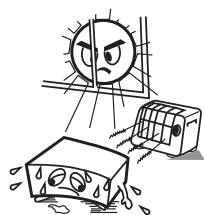
- Avoid high temperatures.
Allow for sufficient heat dispersion when installed in a rack. - Vermeiden Sie hohe Temperatures.
Bechten Sie, dass eine ausreichende Belüftung gewährleistet wird, wenn das Gerät auf ein Regal gestellt wird. - Eviter des températures élevées.
Tenir compte d'une dispersion de chaleur suffisante lors de l'installation sur une étagère. - Evitate di esporre l'unità a temperature elevate.
Assicuratevi che vi sia un'adeguita dispersione del calorie quando installe l'unita in un mobile per componenti audio.
Evite altas temperatas.
Permitte la suficiente dispersion del calor cuando está instalado en la consola. - Vermijd hoge temperatures.
Zorg er bij installmentie in een audiorack voor, dat de door het toestel geproducede warmte goed kan worden afgevoerd. - Undvik hoga temperaturer.
Se till att det finns mönjigheit till god varmeavledning vid monitoring i ett rack.
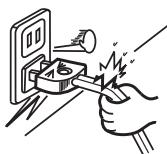
- Handle the power cord carefully.
- Hold the plug when unplugging to
- Gehen Sie vorsichtig mit dem Nettzabel um.
- Halten Sie das Kabel am Stecker, wenn Sie den Stecker Herausziehen.
- Manipuler le cordon d'alimentation avec précaution.
Tenir la prise lors du débranchement du cordon. - Manneggiate il cavo di alimentazione con attenzione.
Tenete ferma la spina quando scollegate il cavo alla presa. - Manejo el cordón de energia con cuidado.
Sostenga el enchufe cuando desconnecte el cordón de energia.
Hunteer het netsnoer voorzichtig.
Houd het sneer bij de stekker vast wanneer deze要去 worden aan- of losegpokpeld. - Hantera nätkabeln varsamt.
Häli kabeln nr den koplas frän el-uttaget.
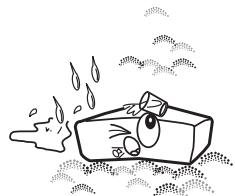
- Keep the unit free from moisture, water, and dust.
- Halten Sie das Gerät von Feuchtigkeit, Wasser und Staub fern.
- Protégier l'appareil contre l'humidité, l'eau et la poussière.
- Tenete l'unità lontana dall'umidità, dall'accùa e dallà polvere.
- Mantenga el equipo libre de humedad, agua y polvo.
- Laat geen vochtigheid, water of stof in het apparataa binnendringen.
- Utsatt inte apparaten fukt, vatten och damn.
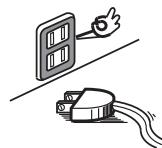
- Unplug the power cord when not using the unit for long periods of time.
- Wenn das Gerät längerere Zeit nicht verwendet werden sollen, trennen Sie das Netzkabel vom Netzstecker.
- Débrancher le cordon d'alimentation lorsqu'ellappareil n'est pas utilisé pendant de longues périodes.
- Scollegate il cavo di alimentazione quando prevedete di non utilizzato l'unita per un lungo periodo di tempo.
- Desconecte el cordón de energia cuando no usa el equipo por是多么 tiempo.
- Neem altiq het netsnoer uit het stopkontakt
wanner het apparat gadedurende een langle
periode nicht worden gebruikt. - Kopla loss nktkabel om apparaten intekommen att anvandas i lang tid.
-
(For apparatuses with ventilation holes)
-
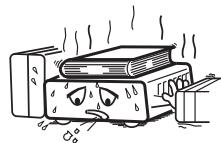
Do not obstruct the ventilation holes.
- Decken Sie den Luftungsbereich nicht ab.
- Ne pas obstruer les trouss d'airation.
- Non coprite i fori di ventilazione.
- No obstruya los orificios de ventilación.
- De ventilatieopeningen mogen nicht wordenbeblokkeerd.
Tapp inte till ventilationsöppningarna.
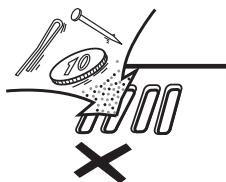
- Do not let foreign objects into the unit.
- Lassen Sie keine fremden Gegenstände in das Gerätkommen.
- Ne pas laisser des objets étrangers dans l'appareil.
Non inserte corpi estranei all'interno dell'unita. - Nodeojejobeosextrañosdentroldeequipo.
- Laat geen vreemde voorwerpen in dit apparataa vaallen.
- Se till att främnde foremål inte tränger in i apparaten.
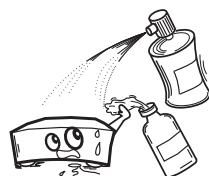
- Do not let insecticides, benzene, and thinner come in contact with the unit.
- Lassen Sie das Gerät nicht mit Insektiziden, Benzin oder Verdunnungsmittel in Berührung kommt.
- Ne pasmettre en contact des insecticides, du benzene et un diluant avec l'appareil.
- Assicuratevi che l'unità non entrì in contatto con insetticidi, benzolò solventi.
- No permita el contacto de insecticidas, gasolina y diluentes con el equipo.
- Voorkom dat insecticiden, benzeen of verfverdunner met dit toestel in contactkommen.
Se till ante insetktsmedel på spraybruk, bensen och thinner kommer i kontakt med apparatens hõje.
- Never disassemble or modify the unit in any way.
Versuchen Sie niemals das Gerät auseinander zunehmen oder zu verändern. - Ne jamais démonter ou modifier l'appareil d'une manière ou d'une autre.
- Non smontate né modificatore l'unità in alcuno modo.
- Nunca désarme o modique el equipo de网通una manera.
- Dit toestel mag nicht gedemonteerd of aangepast worden.
- Ta inte isär apparaten och fösök inte bygga om den.
CAUTION:
- The ventilation should not be impeded by covering the ventilation openings with items, such as newspapers, tablecloths, curtains, etc.
- No naked flame sources, such as lighted candles, should be placed on the unit.
- Observe and follow local regulations regarding battery disposal.
- Do not expose the unit to dripping or splashing fluids.
- Do not place objects filled with liquids, such as vases, on the unit.
ACHTUNG:
- DECLARATION OF CONFORMITY
We declare under our sole responsibility that this product, to which this declaration relates, is in conformity with the following standards:
EN60065, EN55013, EN55020, EN61000-3-2 and EN61000-3-3.
EN55022, EN55024 for USB as multifunction terminal.
Following the provisions of 2006/95/EC and 2004/108/EC Directive.
A NOTE ABOUT RECYCLING:
This product's packaging materials are recyclable and can be reused. Please dispose of any materials in accordance with the local recycling regulations.
When discarding the unit, comply with local rules or regulations.
Batteries should never be thrown away or incinerated but disposed of in accordance with the local regulations concerning battery disposal.
This product and the supplied accessories, excluding the batteries, constitute the applicable product according to the WEEE directive.
HINWEIS ZUM RECYCLING:
To completely disconnect this product from the mains, disconnect the plug from the wall socket outlet. The mains plug is used to completely interrupt the power supply to the unit and must be within easy access by the user.
VORSICHT:
Part Names and Functions 4
Top Panel 4
Display 6
Rear Panel 6
Connections
Preparations 7
Cables Used for Connections 7
Input Terminal Connection 7
Output Terminal Connection 8
Connections to USB Memory or USB Cable 9
Connecting the Power Cord 9
Basic Operations
Basic Operations 10
MIC (mic input) 11
Ducking function 11
MONITOR (headphones output) 11
Effector Function
BeatBreaker Function 12
Effector Operations 13
Selecting the effector units and channels 13
Setting the BPM 13
Setting the beat 13
Selecting the effects 13
Turning the effects ON and OFF 13
Fader Start Function
Channel Fader Start 14
Crossfader Start 15
FADER (setting the fader curve) 15
How to adjust the Crossfader torque 15
USB Settings
Selecting the USB mode 16
USB audio 16
Setting the USB audio output 17
Setting the USB audio input 17
MIDI 18
Setting the MIDI channels 18
Setting the MIDI clock 18
MIDI layer operations 18
DVS function 19
Utility settings
Utility operations 22
Preset Export 24
Preset Recall 24
Owner Setting Mode 24
Preset Import 24
Specifications 25
Block Diagram 26
Troubleshooting 27
Getting Started
Thank you for purchasing this Denon product. To ensure proper operation, please read these owner's manual carefully before using the product.
After reading them, be sure to keep them for future reference.
Accessories
Check that the following parts are supplied with the product.
① Owner's manual. 1
② CD-ROM. 1
③ Power cord. 1
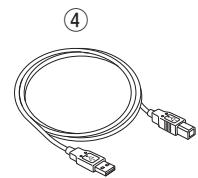
④ USB cable. 1

Installation
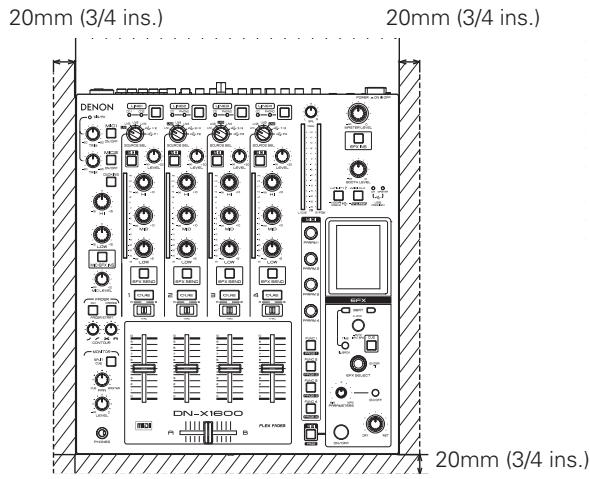
When the DN-X1600 is mounted inside a coffin or DJ booth, we recommend leaving a 20 mm (3/4 ins.) (Bottom 2.5 mm (1/16 ins.)) blank space above the mixer if possible.
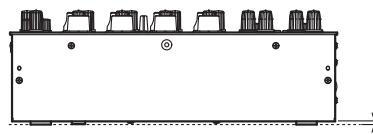
2.5mm (1/16 ins.)
Main Features
The basic configuration of the input and output systems for this unit is as shown below.
- 5 CD Inputs, 3 PHONO inputs
- 2 Microphone inputs
- 2 Master outputs
- 1 Booth output
- 1 REC output
- 1 Digital output
- 1 Effect input/output
- 4 USB audio input/outputs
This unit is also a DJ full digital mixer which supports 96 kHz/32-bit digital-to-analog conversion and which comes with USB MIDI and 5 pin output MIDI interface functions.
1. Design oriented toward achieving a high sound quality
- The unit features a 96 kHz/32-bit floating digital signal processor (DSP) and 32-bit digital-to-analog converter (DAC) (master output). A sound quality faithful to the original sources is delivered at a high degree of accuracy.
- An electrolytic capacitor designed to enhance sound quality is employed in the power supply unit. Furthermore, film capacitors designed to enhance the sound quality and high-precision metal film resistors help to configure the audio signal processing unit. The result is a sound quality which is overwhelmingly high.
- The unit incorporates a microphone amplifier with a discrete transistor configuration and a low equivalent input noise of 126 dB, as well as PHONO amplifier with a signal to noise ratio of 89 dB.
2. Multiple Effect
- The unit comes with an effector which is linked to the number of beats which has been set in synchronization with the number of beats per minute (BPM) of the musical composition.
In addition to the newly developed BeatScratch and Ping Pong Delay, a total of 14 different effectors including delay, echo, reverberation, looping, flanger, phaser, and pitch shift are incorporated. - The effect send configuration makes it possible to send multiple input channel signals to the effector at the same time.
3. USB audio and MIDI interfaces
- An interface prepared specifically for the MIDI controller increases controllability of the DJ software.
- 8-channel (4 stereo channels) 96 kHz USB audio input/output function
- DVS (Digital Vinyl System) is supported. (See page 19 for more details of the DVS function.)
- Also available is a MIDI layer function for controlling the DJ software on a channel by channel basis, and the effect control section on an individual basis. MIDI output is enabled for almost all other operations involving panel controls.
- The 5-pin DIN MIDI output terminals provided support synchronization with external devices.
- ASIO driver which achieves a low latency packed together with the unit
- USB assign switch function enables system switching for the USB audio inputs using just 1 Utility Preset button.
4. V-LINK
The unit is equipped with the V-LINK (V-LINK) function. V-LINK is a function developed by Roland Corporation that allows musicians to simultaneously integrate audio and video. Connecting devices that support V-LINK to the MIDI terminals makes it possible to perform a wide range of visual effects that are linked with the musical performance.
5. Operating ease and high-reliability design tailored for professional use
- Isolator equalizers are incorporated for each input channel. It is also possible to customize the crosspoint frequencies of the bands using presets.
- The crossfader's slide torque can be adjusted to achieved the desired feeling.
- Equipped with a high contrast VFD (vacuum fluorescent display) that provides outstanding visibility.
- Matrix source selectors enabling the user to select any of 6 input sources
6. Other features
- The preset import/export function makes it possible to carry around the preset data stored on an USB memory or other such device.
This reduces the setting time. - Ducking function for reducing the amount of background sound during mic input
- Channel Fader and Crossfader start function
Part Names and Functions
Top Panel
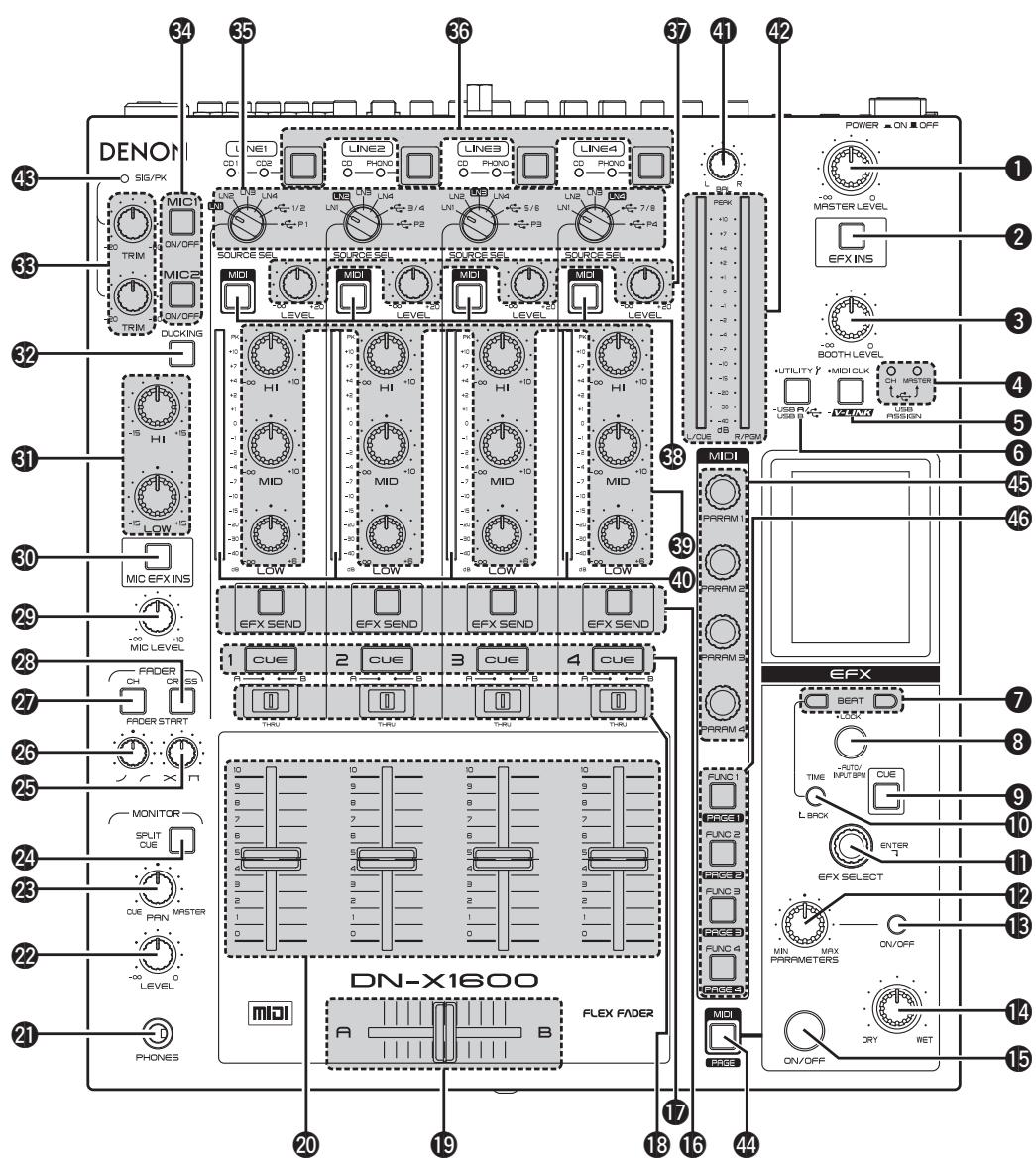
1 MASTER LEVEL control
Adjusts the level of the MASTER outputs.
2 Master EFX INS button
This button enable the various effects to be obtained for the master output signals.
3 BOOTH LEVEL control
Adjusts the level of the BOOTH outputs.
4 USB ASSIGN CH/MASTER indicator
This displays the assignment destination of the USB Audio input signal supplied from the computer.
Assignment destination settings for Ch and Master are selected from the USB Assign items in the preset controls in the utility mode.
CH:
- Displayed when CH (1-4) are assigned.
MASTER:
- Displayed when assigned to the master bus and monitor bus.
5 MIDI CLK / V-LINK button
This enables the MIDI clock corresponding to the BPM value to be sent from the USB MIDI and MIDI output terminals to the computer (software) or external device.
START:
Sending the MIDI clock is started.
STOP:
Sending the MIDI clock is stopped.
- Press for more than one second to switch V-LINK ON/OFF.
6 UTILITY/-USB A/USB B button
This allows the presets to be set and the system information to be set, changed or referenced.
- When it is held down for more than a second, the USB mode switching screen is opened, and the USB device mode or USB host mode can be selected.
7BEAT , buttons
(Short) :
The beat/time is decreased.
(Long):
The beat/time is increased.
3 TAP/LOCK/AUTO/INPUT BPM button
TAP:
When this button is tapped repeatedly, the BPM is measured using the intervals between taps.
LOCK:
When the button is pressed once in the auto BPM mode, the BPM value measured automatically is locked.
AUTO BPM:
When the button is held down for one second, the auto BPM mode is established, and the measured BPM value is displayed.
INPUT BPM:
When it is held down for two or more seconds, the BPM input mode is established, and the BPM value can be input directly using the
BEAT , buttons. When it is pressed again, the mode is released.
Effect CUE button
When the CUE button is set to ON, the sound of the effects can be monitored even if the effect is OFF.
(Excluding ECHO, REVERB, and ECHO REVERB.)
10 TIME/BACK button
TIME:
This button is used to select whether to change the effects produced using the 7 BEAT
- buttons on the basis of the number of beats or time.
BACK:
This is used when returning to the previous screen while setting screen operations are being performed.
EFX SELECT control
This is for selecting the effect to be used. Refer to the effect functions (page 12).
12 PARAMETER MIN/MAX control
This is used to adjust the filter cutoff frequency and other effector parameters. The parameters are changed by the effector selected.
Parameter ON/OFF button
This is used to control the ON and OFF settings of the effect parameters.
14 DRY/WET control
Use this to adjust the ratio of original and effected sound.
15 Effect ON/OFF button
Sets the EFX effects to ON/OFF.
16 Channel EFX SEND button
The various set effects can be obtained for the channel audio signal.
Multiple channels can be selected.
Channel CUE buttons
Pressing in any or all of CUE buttons routes the respective source to the headphone and meter cue sections. When the CUE button is pressed multiple times, the channels selected by the CUE button are mixed.
- The SOLO mode with no signals mixed can also be selected as a preset.
18 CROSSFADER ASSIGN switches
A,B:
The channel source is assigned to A or B of the Crossfader.
THRU:
Select when you don't assign the channel source into the Crossfader.
19 CROSSFADER
Controls the relative output level from the summed A and B Mixes. When the fader is at its far left, only the A Mix is heard from the Outputs. As the fader is moved toward the right, the amount of B Mix is increased and the amount of A Mix is decreased. When the fader is centered, equal amounts of A and B Mixes are routed to the Outputs. Fully right is all B Mix at the Outputs.
20 Channel input fader (CH FADER)
Controls the level of the selected Input.
2 HEADPHONE output jack
Accepts 1/4'' stereo headphone plugs.
22 HEADPHONE level control
Adjusts the volume for the headphones.
HEADPHONE PAN control
This is used to adjust the balance between the CUE sound and the master sound which are monitored using the headphones.
24 SPLIT CUE button
There are two headphone monitor modes.
SPLIT CUE OFF:
The cue signals and master signals can be monitored in stereo.
SPLIT CUE ON:
The monaural cue signals are heard through the left channel of the headphones, and the monaural master signals through the right channel.
25 CROSSFADER CONTOUR control
Allows adjusting the "shape" of the Crossfader response from a gentle curve for smooth, long running fades, to the steep pitch required for top performance cut and scratch effects.
26 CH FADER CONTOUR control
Adjusts the volume curve response of the channel fader.
27 CH FADER START switch
This function will start the performance of CD/ Media Player with Ch. Fader automatically is ON/OFF.
28 CROSSFADER START switches
Use this to switch the Crossfader Start function ON and OFF.
MIC SEND LEVEL control
This is used to adjust the level at which the mic signals are sent to the master output.
30 Mic EFX INS button
This button enable the various effects to be obtained for the mic input signals.
MIC EQ controls
Adjusts the frequency of the mic input.
DUCKING ON/OFF button
-
Use this to switch the Talk Over function ON and OFF. (ON/OFF is cyclic)
-
When the button is lit, level of signals except Mics is attenuated.
-
The ducking attenuation level can be adjusted in the "UTILITY" mode.
MIC1, MIC2 TRIM controls
Adjusts the level of the Main Mic input.
MIC1,2 buttons
When the button's LED is lighted, the mic signals take effect.
35 SOURCE SEL LN1/LN2/LN3/LN4/USB/P1-4 controls (channel input selector)
These enable any of six inputs to be selected for each of the channels. The same input can be selected for more than one channel.
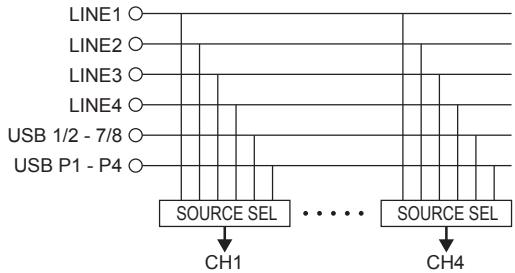
The desired USB source from USB P1-P4 can be selected from USB 1/2-7/8 and DVS from the utility mode preset control.
36 CD/PHONO line input selector buttons
These enable the line input of each channel to be selected as CD or PHONO.
CD:
Rear panel LINE1-4 CD terminal input
PHONO:
Rear panel LINE2-4 PHONO terminal input
- LINE1 is only for the CD terminal input.
Channel input LEVEL controls
These are used to adjust the levels of the selected inputs.
MIDI layer selector buttons
When these buttons are set to ON, the controls of the selected channels function as MIDI controllers.
39 Channel isolator EQ controls (HI, MID, LOW)
These are used to change the frequency response of the selected inputs.
At the center position, the frequency response is flat.
At the - position, the frequencies of all the bands are cut off completely.
40 CH LEVEL meter
Displays the input level after adjusted with LEVEL ⑦ and Source EQ ⑨ controls.
41 MASTER BALANCE control
Adjusts the L/R balance of the MASTER output.
42 L/CUE, R/PGM master level meter
One of two modes can be selected for display on this meter.
SPLIT CUE OFF:
The master output audio level is displayed.
SPLIT CUE ON:
The right channel master CUE (monaural) and left channel CUE (monaural) audio levels are displayed.
43 SIG/PK indicator
This is the signal/peak meter for the mic input level.
Off:
No signals input (under -60 dB/FS)
Green:
Signal input (-60 dB/FS to under -20 dB/FS)
Orange:
Suitable signal input level (-20 dB/FS to under -6 dB/FS)
Red:
Excessively high signal input level (above -6dB/ FS)
4 MIDI button
Pressing this button makes the EFX control function as the MIDI controller.
45 MIDI parameter control
Controlling each button outputs the MIDl command.
46 MIDI function buttons (FUNC1/2/3/4)
Controlling each button outputs the MIDI command. Pressing the MIDI function button while pressing the MIDI button makes it possible to switch the MIDI page. Different commands can be output when the MIDI page is switched.
Display
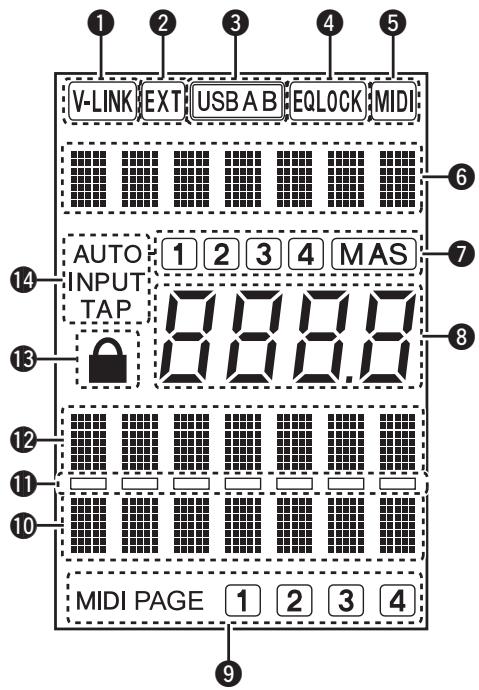
V-LINK indicator
This lights when in V-LINK mode.
EXT indicator
This lights when the Preset information in the USB device is used.
3 USB A/USB B indicator
This indicates the current USB mode.
USB A: USB host mode
USB B: USB device mode
EQ LOCK indicator
This flashes when the equalizers and faders are locked.
MIDI indicator
This lights when MIDI communication is being performed.
Effect display
This indicates the name of the currently selected effect.
BPM source indicator
This indicates the signal source that is being detected for AUTO BPM.
Effector BPM display
This indicates the current BPM value.
9 MIDI PAGE indicator
This indicates the current MIDI page.
10 Time display
Beat display bar
This lights in accordance with the set number of beats.
Beat display
Lock icon
This lights when the BPM is locked.
14 BPM indicator
This indicates the current BPM mode. AUTO:
This lights when BPM mode is AUTO BPM.
INPUT:
This lights when BPM mode is INPUT mode. TAP:
This lights when BPM mode is TAP input mode.
Rear Panel
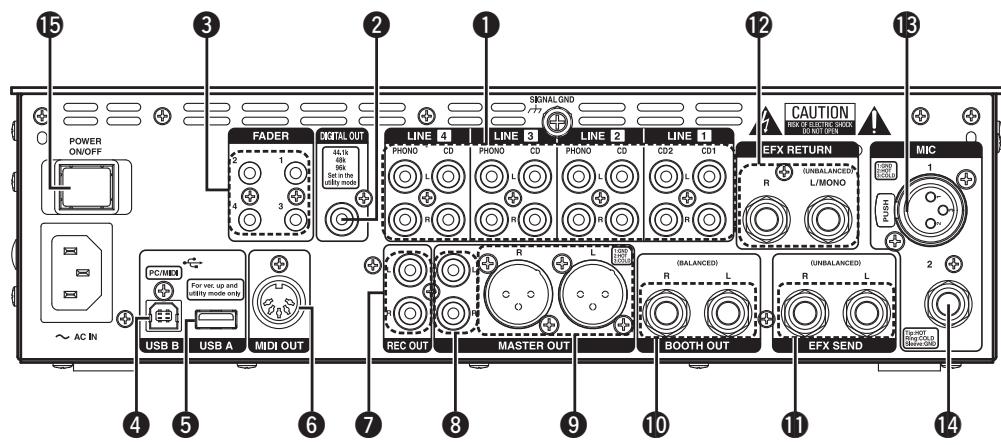
3 PHONO inputs/5 CD inputs terminals
DIGITAL OUT terminal
3 LINE 1, 2, 3, 4 FADER output terminals
4 USB B terminal
5 USB A terminal
6 MIDI output terminal
7REC OUT terminals
MASTER OUT (UNBALANCED) terminals
9 MASTER OUT (BALANCED) terminals
10 BOOTH OUT (BALANCED) terminals
11 SEND terminals
RETURN terminals
MIC1 input terminal
MIC2 input terminal
15 POWER switch
NOTE
- When the switch is in the OFF position, the equipment is not completely switched off from MAINS.
Connections
When making connections, also refer to the instruction manuals of each device.
- Make certain AC power is off while making connections.
- Quality cables make a big difference in fidelity and punch. Use high-quality, audio cables. Do not use excessively long cables.
- Be sure plugs and terminals are securely fastened. Loose connections cause hum, noise, or intermittence that could damage your speakers.
- Make sure that all faders are at "zero," and that the power supply to each unit is off.
- Connect the cables to the input and output terminals.
- Connect the power amplifier to the output.
NOTE
- Always switch on your audio input sources such as CD players first, then your mixer, and finally any amplifiers.
- When turning off, always reverse this operation by turning off amplifiers, then your mixer, and then input units.
Preparations
Cables Used for Connections
Select the cables according to the equipment being connected.
Audio cables
For RCA PINJACK

RCA pin plug
For SEND/RETURN

1/4"TS 1/4"TS
For MIC
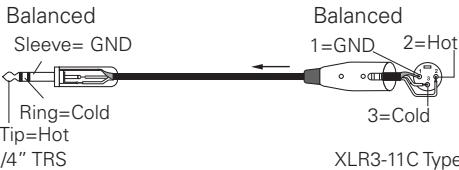
For BALANCED MASTER OUT
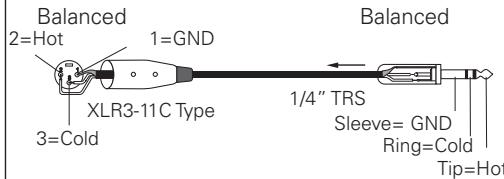
Input Terminal Connection
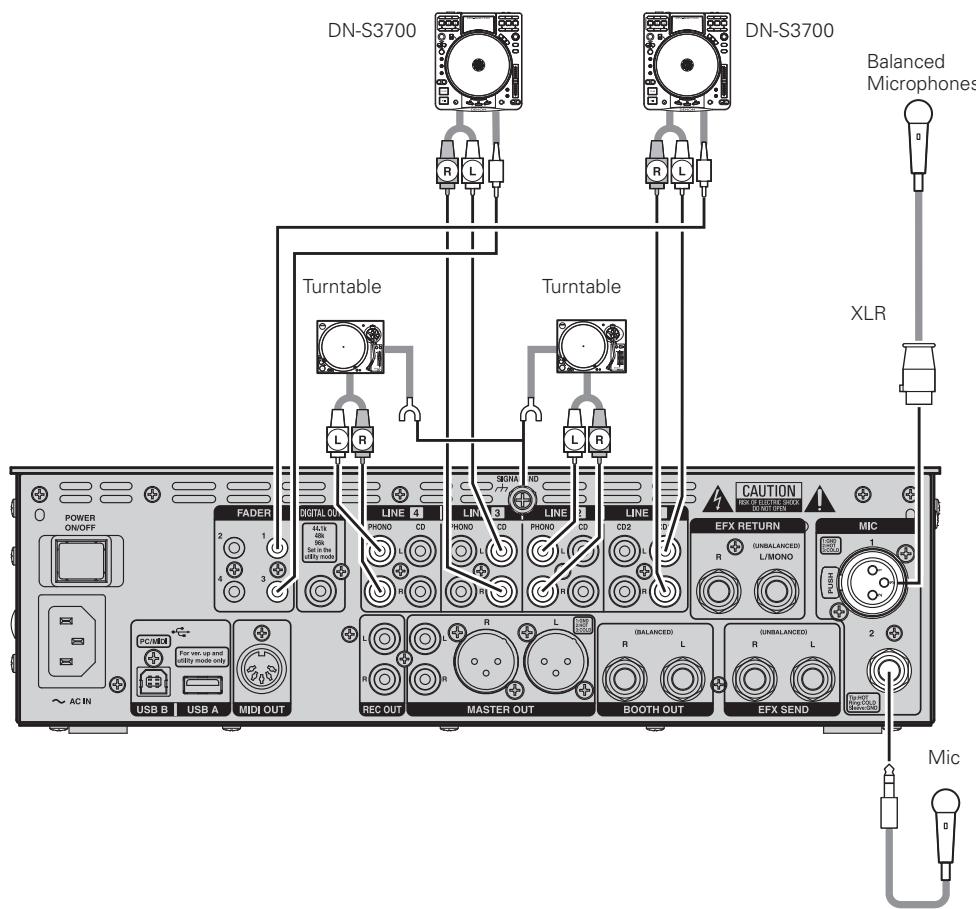
3 PHONO inputs/5 CD inputs terminals
These unbalanced stereo RCA terminals are used to connect devices such as a turntable (RIAA) with an MM (moving magnet) type of cartridge or CD/ Media Player.
LINE 1, 2, 3, 4 FADER output terminals
Connect these terminals to the Fader input terminals of the DN-S1200, DN-S3700 and etc using the 3.5mm stereo mini cord.
MIC1 input terminal
A microphone is connected to this balanced combo jack with XLR connector.
Pin layout:
- GND
- Hot
- Cold
Applicable connector:
Cannon XLR-3-32 or equivalent.
MIC2 input terminal
Accepts a balanced microphone with 1/4'' terminals.
Pin layout (TRS):
Tip: Hot
Ring: Cold
Sleeve: GND
Output Terminal Connection
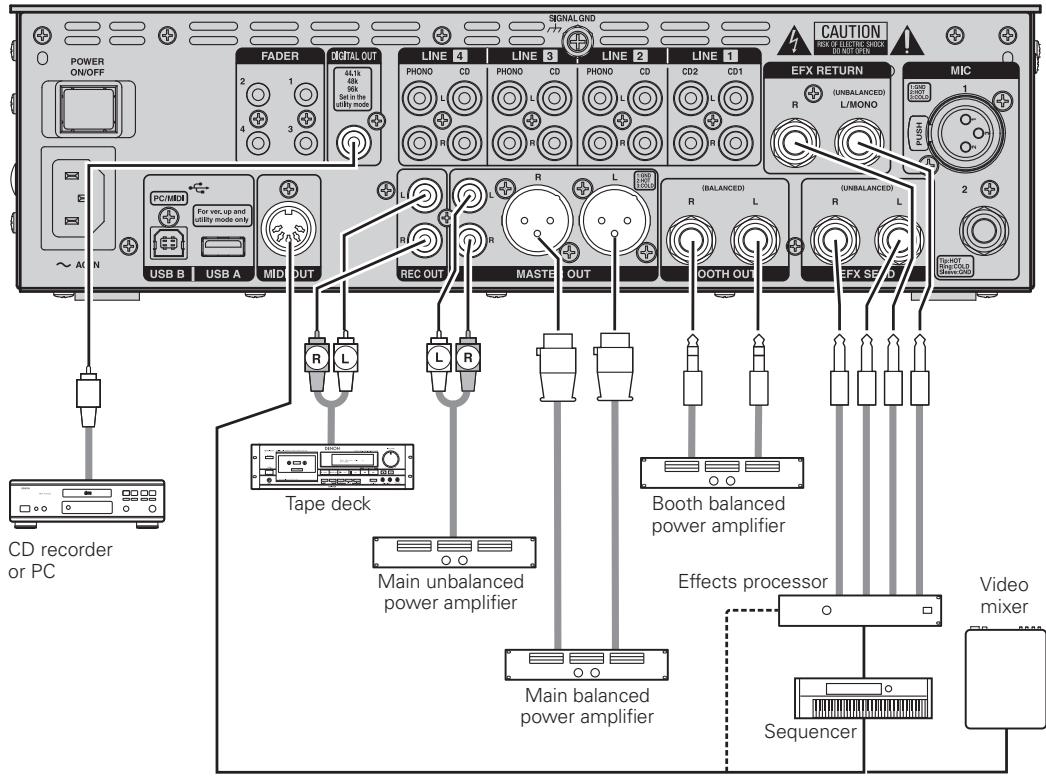
COAXIAL DIGITAL OUT terminal (44.1/48/96kHz)
Output from this RCA terminal is the digital output data.
These signals are not affected by the master level adjustments.
We recommend using an RCA cable designed for digital signals (75 ohms). (This can be purchased from an audio/video store.)
MIDI output terminal
This is a 5 Pin DIN connector output terminal. This is connected to a MIDI-compatible device
REC OUT terminals
These are the recording output terminals.
MASTER OUT (UNBALANCED) terminals
This stereo pair of RCA terminals provides a unbalanced line level output.
Connect these terminals to the unbalanced analog input terminals on an amplifier or console.
MASTER OUT (BALANCED) terminals
These XLR type connectors provide a balanced line level output.
Connect these connectors to the balanced analog input connectors on an amplifier or console.
Pin layout:
- GND
- Hot
- Cold
Applicable connector:
Cannon XLR-3-32 or equivalent.
BOOTH OUT (BALANCED) terminals
These TRS terminals are balanced line output terminals whose signal levels are adjusted using the BOOTH LEVEL control provided on the top panel.
Pin layout (TRS):
Tip: Hot
Ring: Cold
Sleeve: GND
SEND/RETURN terminals
These 1/4'' TS mono terminals allow external processing of the program signal.
When connect monaural type effect processor, use Lch input and output.
- SEND (output):
Connect this to the input terminal on the external effector.
- RETURN (input):
Connect this to the output terminal on the external effector.
HEADPHONE output jack
Accepts 1/4'' stereo headphone plugs.
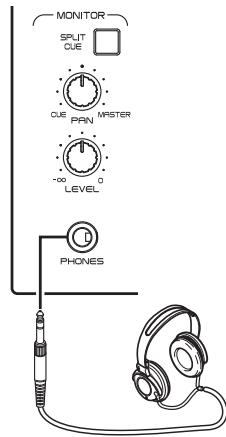
NOTE
To prevent hearing loss, do not raise the volume level excessively when using headphones.
Connections to USB Memory or USB Cable
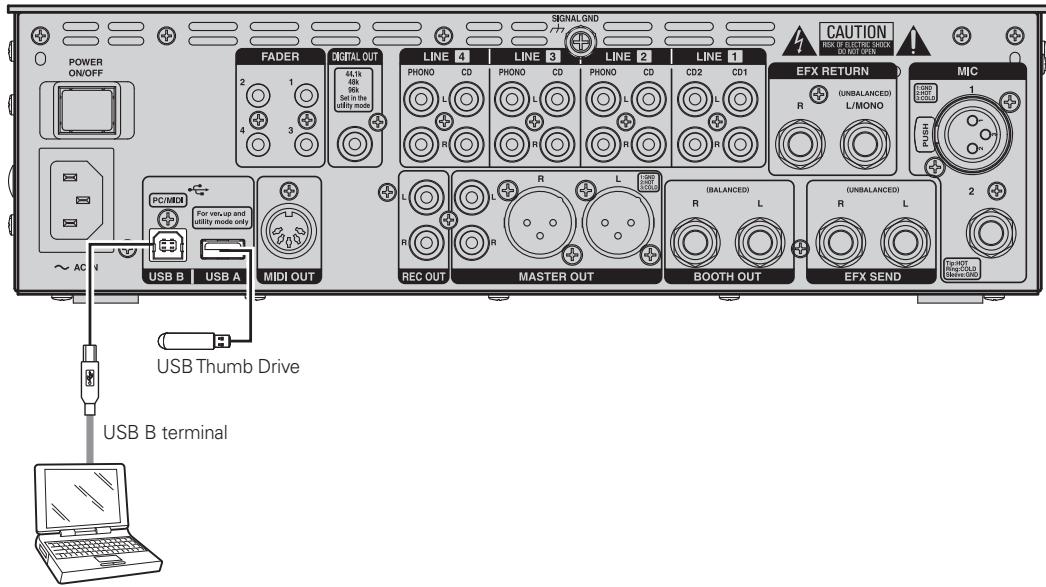
USB A terminal
Only one mass storage device such as a USB memory or USB hard disk drive can be connected to this terminal.
- A USB hub is not supported.
The terminal supports USB 2.0 HighSpeed.
USB B terminal
This is connected to a computer to send and receive the USB MIDI, HID and USB audio signals.
The terminal supports USB 2.0 HighSpeed.
ASIO Driver Application included.
- Computer OS versions that can be connected to the DN-X1600:
- Windows XP SP2, Vista, Mac OSX 10.5.7 or later Computers with other operating systems are not compatible with USB MIDI, so the computer may operate erratically after connected to the DN-X1600 by USB.
- It has been verified that this unit operates with the Mac OS 10.5.7 operating system. When using Mac OS 10.5.6 or an earlier version, operation of the computer may be unstable. Furthermore, this unit operates using an audio driver compliant with the Core Audio format. As such, use software applications that have been guaranteed to run using a driver compliant with this format.
- Windows is either a registered trademark or trademark of Microsoft Corporation in the United States and / or other countries. MAC is either a registered trademark or trademark of Apple Incorporated in the United States and / or other countries.
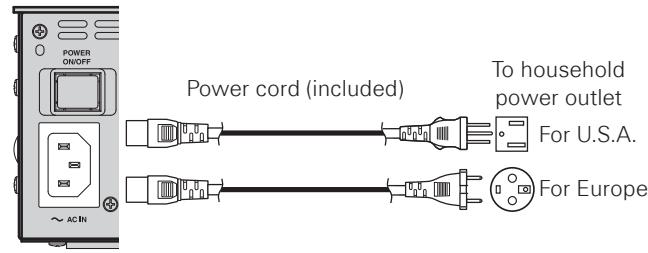
Connecting the Power Cord
Connect the included power cord to the DN-X1600, and plug it into an AC outlet.
NOTE
- Be sure to insert the power plug firmly. Incomplete connection results in noise generation.
Basic Operations
Basic Operations
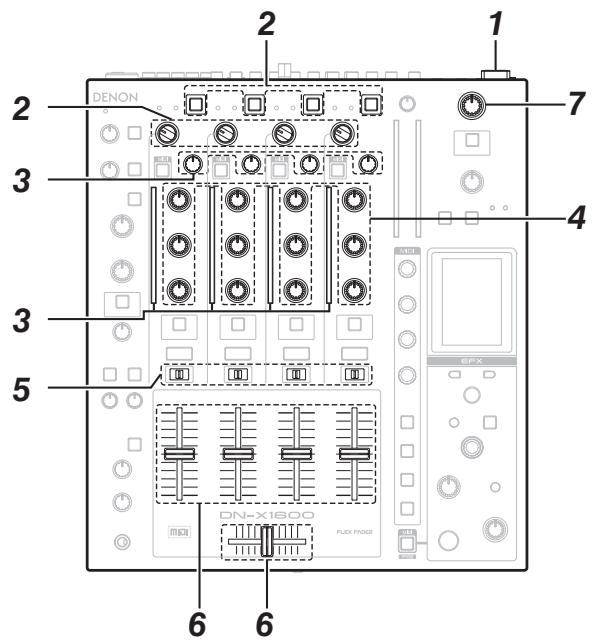
1 Press the POWER ON/OFF switch to turn the unit's power ON.
2 Use the SOURCE SEL controls to select the channels from 1 to 4 of the sources to be used (LN1-LN4, P1-P4, USB). Use the SEL buttons of each LINE to select CD or PHONO as the LINE input.
3 While checking the input level on the level meter, adjust the input levels using the channel LEVEL controls.
4 Adjust the sound quality using the channel EQ controls (HI, MID, LOW).
5 Assignment of the channel signals can be switched using the CROSSFADER ASSIGN switches. Set these switches to the THRU position if the Crossfader is not going to be used.
6 Adjust the volume level using the Channel Fader and Crossfader.
7 Adjust the output level using the MASTER LEVEL control.
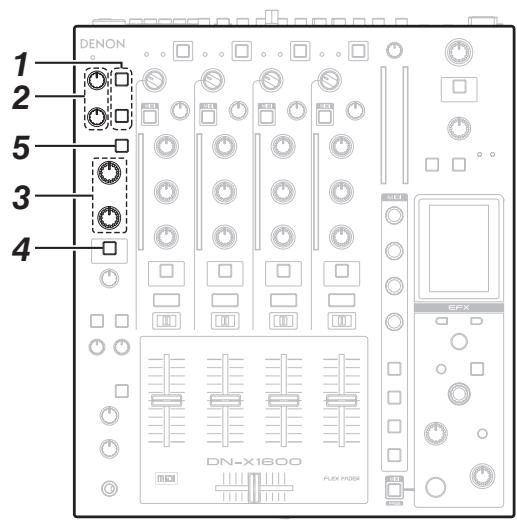
MIC (mic input)
When a microphone is connected to MIC1 or MIC2, press the MIC1 or MIC2 button to set it to ON.
2 Adjust the MIC1 volume level using the MIC1 TRIM control, and adjust the MIC2 volume level using the MIC2 TRIM control.
- While inputting audio signals, if the SIG/PK LEDs occasionally light up red and then amber, the suitable level has been reached without any distortion.
3 Adjust the sound quality using the MIC EQ controls (HI, LOW).
4 To add the effect functions to the mic input, press the MIC EFX INS buttons to switch them ON.
Ducking function
5 To enable the ducking function, set the DUCKING button to ON. The button will light.
- This function detects the mic input and attenuates the level of the music signals in the master output. It prevents the sound from the microphone from being drowned out by the music when a microphone is used.
- The attenuation level of the master output while the ducking function is operating can be set within a range from -30dB± 10dB in the Utility mode.
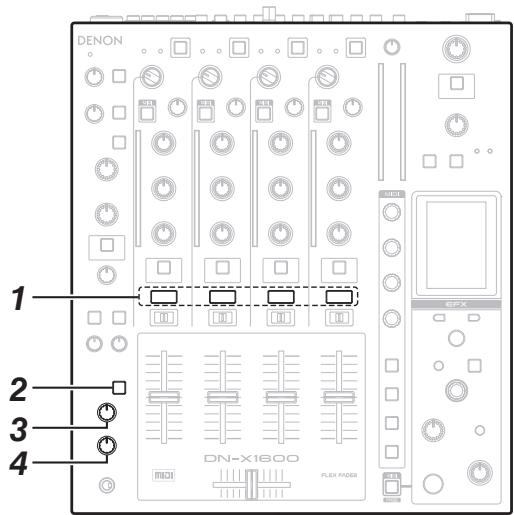
MONITOR (headphones output)
1 Select the source to be monitored using the CUE buttons for each channel.
- When selected, the CUE button lights.
- CUE monitors for channels 1-4 as well as EFX can be selected.
2 Use the SPLIT CUE button to select the STEREO/ SPLIT CUE mode.
- When selected, the SPLIT CUE button lights.
- In the SPLIT CUE (monaural) mode, the signal selected for cue is output to the left speaker of the headphones, and the master signal is output to the right speaker of the headphones.
- In the STEREO mode, the master signals and signals selected for cue are output in stereo.
3 Use the PAN control to adjust the balance between the CUE signals and master output signals.
- When it is turned to the left, only the CUE signals are output from the headphones.
- When it is turned to the right, only the master signals are output.
4 Use the LEVEL control to adjust the headphone output level.
NOTE
To prevent hearing loss, do not raise the volume level excessively when using headphones
Effector Function
The unit comes with an effector which is linked to the number of beats which has been set in synchronization with the number of beats per minute (BPM) of the musical composition. It also has an effect send configuration which makes it possible to send the signals from multiple input channels simultaneously to the effectors, enabling a wide range of acoustic effects.
Types of effects and details of operations
| No. | Effect | Description of effect operation |
| 1 | Delay | Adds signals which have been delayed by the time of the beat setting. |
| 2 | Echo | Adds echo signals which have been delayed by the time of the beat setting. |
| 3 | Ping Pong Delay | Signals with a beat setting time delay are split and output from the left and right channels. • Effect Parameter Control: Adjusts the ratio of signal being output to the left and right. |
| 4 | Trans | Cuts off the signals at the time of the beat setting. |
| 5 | Flanger | Adds signals whose delay time has been varied in the LFO period of the beat setting. |
| 6 | Filter | Varies the filter cut-off frequency using the beat setting time. |
| 7 | Phaser | Adds signals whose phase has been varied in the LFO period of the beat setting. |
| 8 | Reverb | Adds reverberation signals which have been delayed by the time of the beat setting. |
| 9 | Echo Reverb | Adds an echo signal to the beat setting time delay, and adds a reverberation signal. |
| 10 | Loop | Initiates the same kind of loop sampler processing as the LOOP function of other Denon DJ products. |
| 11 | Rev. Loop | Initiates the reverse play processing of the above loop signals. |
| 12 | Pitch Shift | Initiates the pitch shift processing of the input signals, and outputs the results. |
| 13 | BeatBreaker | Initiates the partial insertion processing of the attack sounds of the beats as per the beat pattern. |
| 14 | BeatScratch | Repeats standard playback of the beat setting time and reverse playback of the same beat setting time to output a scratching effect. |
| 15 | SEND/RTN | Sends the signals whose effects have been selected to the external effector and returns the signals from the external effector. |
- In order to achieve normal effects, set the BPM value that matches the number of beats of the musical compositions.
BeatBreaker Function
What the BeatBreaker effector does
This effector breaks down the music signals in each bar obtained from the BPM value a quarter beat at a time into 16 sections, replaces these sections with a preset beat pattern, and then plays them back to achieve an effect where the beat of the original musical composition is changed.
Details of operation
The beat patterns consist of 16 blocks, and when these blocks are lighted, the sound is being replaced by the initial sound of the beat.
When this effect is ON, the left block and beat display are used, and the block being played is indicated.
Example:
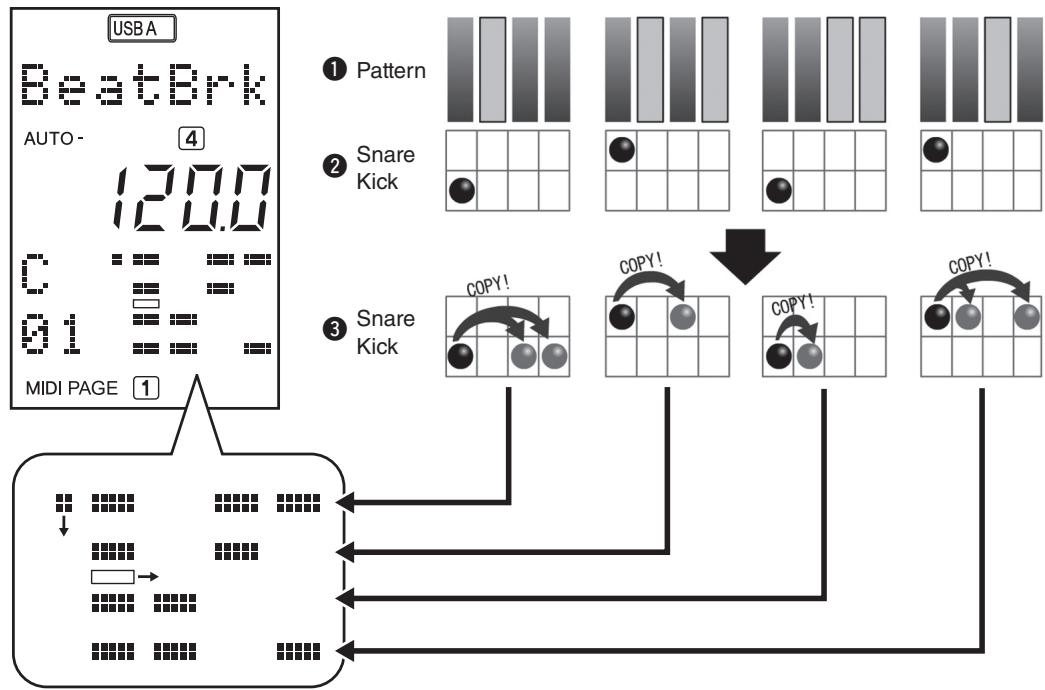
In the case of pattern 1 shown in the figure, when the music signals 2 are input, the sound of signals 3, which are produced by replacing the sound of the first quarter beat with the lighted section, are output.
Operation method
Using the Effect ON/OFF buttons, the effect with the timing when the buttons were set to ON at the beginning is added.
The beat pattern is selected using the BEAT l buttons.
In the Utility mode, five user presets can be created.
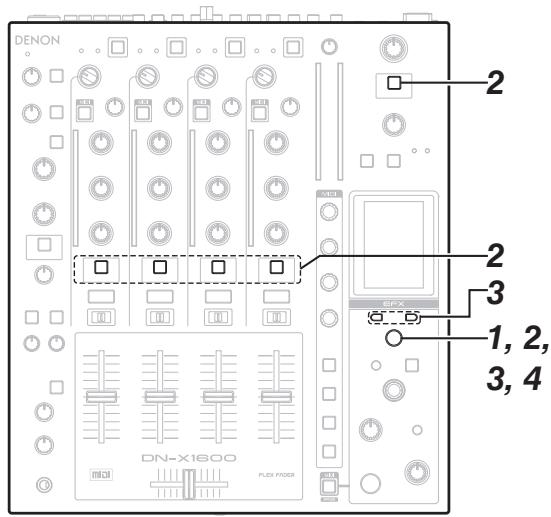
Effector Operations
Selecting the effector units and channels
With the input channels:
Using the EFX SEND button, select the effect units to be used. The same effect can be selected for a multiple number of channels.
With the mic input and master output:
Using the EFX INS button, select the effect unit to be used. The insertion operation is initiated and just the one channel is selected.
Setting the BPM
1 When the auto BPM counter is off, press the TAP button for over 1 second to turn the auto BPM counter on.
2 When the auto BPM counter is on, press the TAP button and release it immediately. The data measured with the auto BPM function is locked.
- The channel for which the effect unit was last selected using the EFX SEND or EFX INS button takes effect as the channel used for the auto BPM counter measurement.
3 If the TAP button is pressed down for over 2 seconds, the BPM value can be set directly by pressing the BEAT l buttons.
4 The BPM value can be set by the interval during which the TAP buttons are repeatedly pressed.
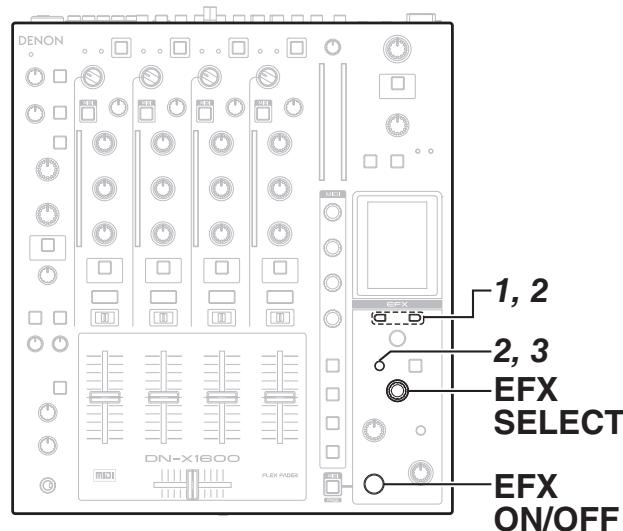
Setting the beat
Press the BEAT , buttons to set the number of beats.
2 When the TIME button is pressed, the mode is changed to the time input mode. The time can be adjusted by pressing the BEAT l buttons.
3 When the TIME button is pressed again, the number of beats setting mode is restored.
Selecting the effects
Turn the EFX SELECT controls to select the effect, and press the control to enter the desired effect.
Turning the effects ON and OFF
When the Effect ON/OFF buttons are pressed, the effect is turned ON or OFF.
Fader Start Function
- The fader start function controls playback/pause of the CD player using the fader control on the unit by sending a fader command to the CD player.
- Check that the FADER terminal of this unit and CD player are connected using a 3.5mm stereo mini plug cable.

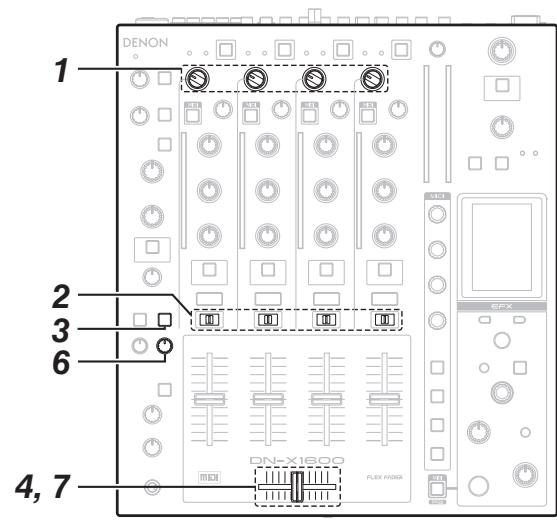
Channel Fader Start
Using the SOURCE SEL controls, select the source from LINE1 CD, LINE2 CD, LINE3 CD and LINE4 CD.
2 Turn the CROSSFADER ASSIGN switch to THRU.
3 Turn on the CH FADER START switch.
4 Move the channel input faders for CH1 to CH4 all the way to the bottom.
5 Set the standby mode on CD player.
6 When you want to start the player, move up the Channel input fader (CH FADER) and the CD player will begin playing.
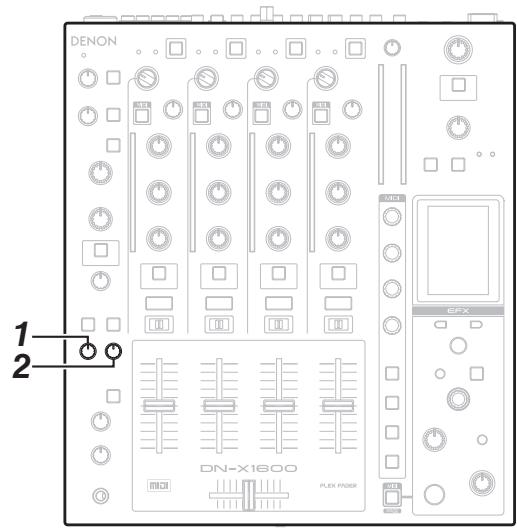
Crossfader Start
Using the SOURCE SEL controls, select the source from LINE1 CD, LINE2 CD, LINE3 CD and LINE4 CD.
2 Set the CROSSFADER ASSIGN switches (A/THRU/B) to A or B.
3 Turn on the CROSSFADER START switches.
4 Slide the Crossfader all the way in direction opposite the source you want to start. (In the following example, startup is done with the CD player connected set to Assign A.)
5 Set the standby mode on CD player.
6 Use the CROSSFADER CONTOUR control to control the cross fader startup curve.
7 When the Crossfader is slide in the opposite direction, CD player play will begin.
FADER (setting the fader curve)
This adjusts the rise response of the channel fader/cross fader.
1 Setting the channel fader curve
- When the channel fader CONTOUR control is turned to the left, the curve will have characteristics that rise gradually.
- When turned to the right, it will have characteristics that rise sharply.
- At the center position, curve characteristics between the two will be produced.
The same curve characteristics apply to channels 1 to 4.
2 Setting the crossfader curve
- When the crossfader CONTOUR control is turned to the left, the curve will have characteristics that rise gradually.
- When turned to the right, it will have characteristics that rise sharply, and cut-in and cut-out operations will be performed.
- At the center position, curve characteristics between the two will be produced.
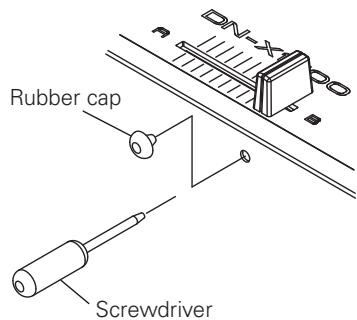
How to adjust the Crossfader torque
1 Remove the rubber cap of the front panel.
2 Move the Crossfader to the far right until the screw head becomes visible.
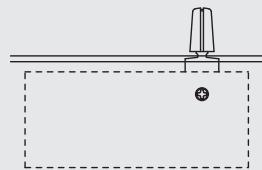
Insert a screwdriver, and adjust the sliding torque.
- When the screw is turned clockwise:
The sliding torque is increased so that the Crossfader moves more stiffly.
- When the screw is turned counterclockwise:
The sliding torque is decreased so that the Crossfader moves more easily.
4 After completing the adjustments, replace the rubber cap onto the front panel.
NOTE
- The Crossfader has a high-precision construction: As such, tightening the screw with too much force or loosening it excessively may result in damage or adversely affect performance.
USB Settings
Selecting the USB mode
The respective functions given below are carried out in the operation modes of the USB A terminal (USB host mode) and USB B terminal (USB device mode).
USB A :
- Preset data import/export function
- Version upgrading
USB B:
- USB audio interface function
- USB MIDI interface function
The operation mode to be established when the unit's power is turned on can be selected by a Utility setting.
(Factory setting: USB A)
Follow the procedure below to switch from USB host mode (USB A terminal) to USB device mode (USB B terminal).
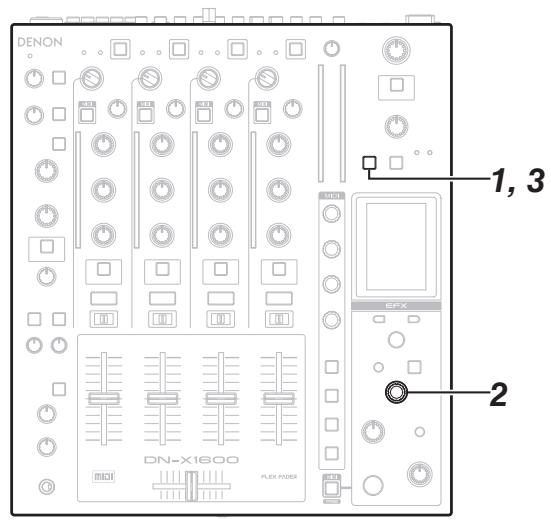
1 Press the UTILITY/-USB A/USB B button for more than a second.
Operation now transfers to the screen shown below.
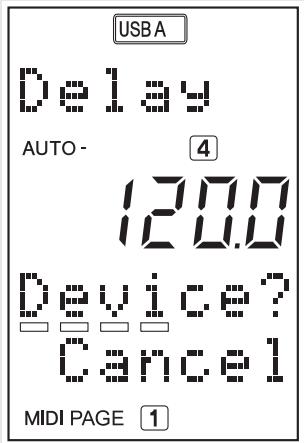
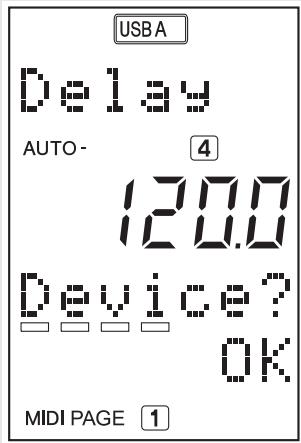
2 Select OK/Cancel using the EFX SELECT control, and press the button to enter the selection.
- The indicator changes from USB-A to USB-B, and the device mode is established.
- When a specific period of time elapses with no computer connected to the USB B terminal, the indicator changes back to USB-A, and the host mode is automatically selected.
3 To select the host mode again, press the UTILITY/- USB A/USB B button for more than a second, and select the settings by following the same steps.
USB audio
This unit features a 24-bit 96kHz USB audio input/output sound card function which supports up to 8 channels (4 stereo systems). The sampling frequency can be set to 44.1kHz , 48kHz or 96kHz using a Utility setting (factory setting: 96kHz ).
- When the unit is connected to a computer which runs Windows XP, Vista or a similar operating system, install DENON DJ ASIO driver Ver2 contained on the CD-ROM provided. Operation cannot be guaranteed on computers that are running with an OS prior to Windows XP SP2.
- If the Ver1 driver is already installed, first uninstall it, and then install the Ver2 driver.
- Depending on the computer used, select the PC/MAC section settings under System Setting among the Utility settings.
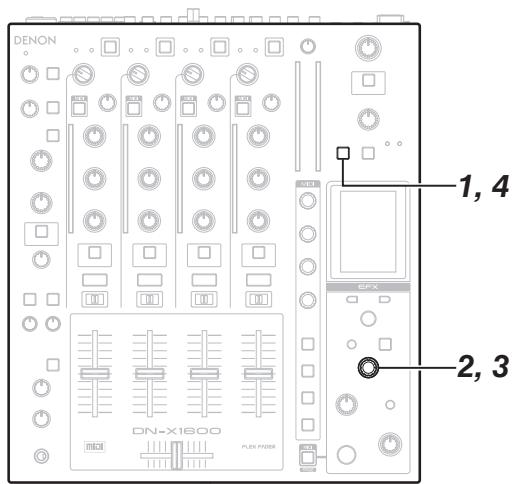
Setting the USB audio output
The following audio sources can be selected for USB audio output.
- Input channels 1-4 (Pre EO)
- Mic input (Post Send VR)
- Master output
- REC output
The USB audio output level can be adjusted using a Utility setting.
1 Press the UTILITY/-USB A/USB B button. The Utility setting screen is displayed.
2 Using the EFX SELECT control, select Audio Setting USB Audio Setting Output Source Select.
3 One of the audio sources assigned to the USB output channels is selected on the selection screen displayed.
Press the UTILITY/-USB A/USB B button. The Utility setting screen is closed.
Setting the USB audio input
One of the two modes below is set using the UTILITY for the USB audio input assignment destinations.
The LED on the side corresponding to the mode selected lights.
The USB audio input levels can be adjusted using Utility settings. The adjustment values are stored on a mode by mode basis.
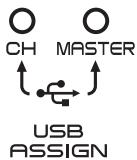
① CH INPUT mode
Select this mode when mixing sound using only the DN-X1600 without using the mixer functions of the DJ software.
The USB audio input signals are assigned using the configuration shown below.
USB channel 1 and 2 inputs Input channel 1
USB channel 3 and 4 inputs Input channel 2
USB channel 5 and 6 inputs Input channel 3
USB channel 7 and 8 inputs Input channel 4
② MASTER mode
Select this mode when using both the mixer functions of the DJ software and the DN-X1600's functions.
The USB audio input signals are assigned to the buses shown below.
USB channel 1 and 2 inputs Master bus
USB channel 3 and 4 inputs Cue monitor bus
USB channel 5 and 6 inputs Disabled
USB channel 7 and 8 inputs Disabled
The mixer output of the DJ software is mixed in the buses using the DN-X1600.
- Ensure that the audio output settings of the DJ software correspond to the specifications given above.
MIDI
This unit comes with USB MIDI input/output and 5-pin DIN MIDI output functions.
These functions support the MIDI control functions of almost all the controls as well as the MIDI clock.
Setting the MIDI channels
1 Press the UTILITY/-USB A/USB B button.
2 Use the EFX SELECT control to select the MIDI Setting MIDI INPUT CH or MIDI OUTPUT CH.
3 Set the MIDI channels.
Setting the MIDI clock
The MIDI clock that is synchronized with the set BPM value is output. (60 to 300 BPM)
Press the MIDI CLK button.
- The MIDI clock is output from the USB MIDI and MIDI output terminals.
- The MIDI CLK button lights up.
MIDI layer operations
The unit incorporates a MIDI layer function for the input channels. This function controls the external devices and software as the MIDI controller.
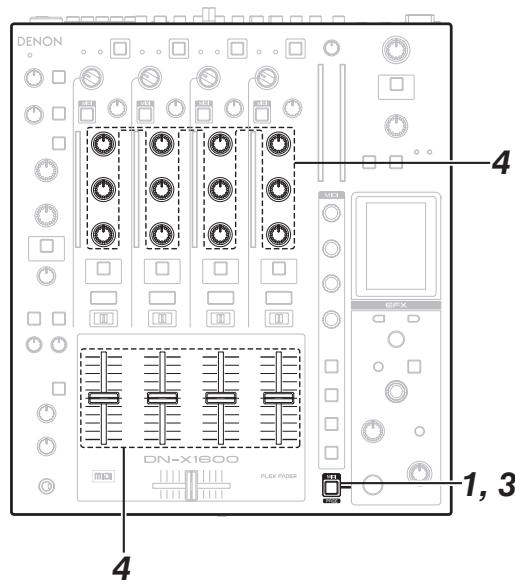
Press the MIDI buttons.
- The MIDI button lights up, and the MIDI layer operations are performed.
2 The MIDI commands corresponding to the operations using the panel controls are output.
- The operations are not reflected in the unit, and normal operation as a mixer cannot be performed.
- The MIDI signals are received, and the LEDs light up or go off.
- MIDI output operation block Channel isolator EQ (HI, MID, LOW) controls; Channel EFX SEND button; CUE buttons; Channel Fader
- MIDI input operation block The channel level meter; channel EFX SEND button; CUE button display
3 When the MIDI button is pressed again, the MIDI button light goes out, and the MIDI layer operations are ended.
- The details of the operation are not output to the MIDI terminals, and the unit can be operated as normal.
4 If, at the completion of the MIDI layer operations, the positions of the EQ adjustment controls and Channel Fader differ from the internal statuses of the unit, the unit locks its internal statuses without reflecting the positions of the controls.
- While these statuses are locked, the EQ LOCK indicator flashes.
5 If a control that is locked is operated, the lock screen appears.
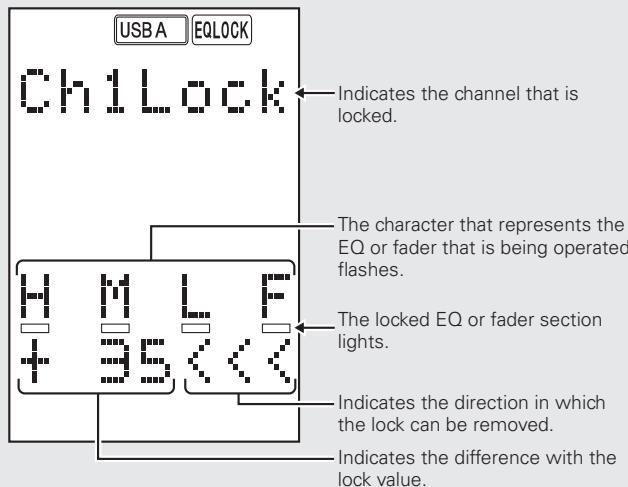
6 When the control matches the locked position, the lock is released, and normal operations can be performed on the unit.
DVS function
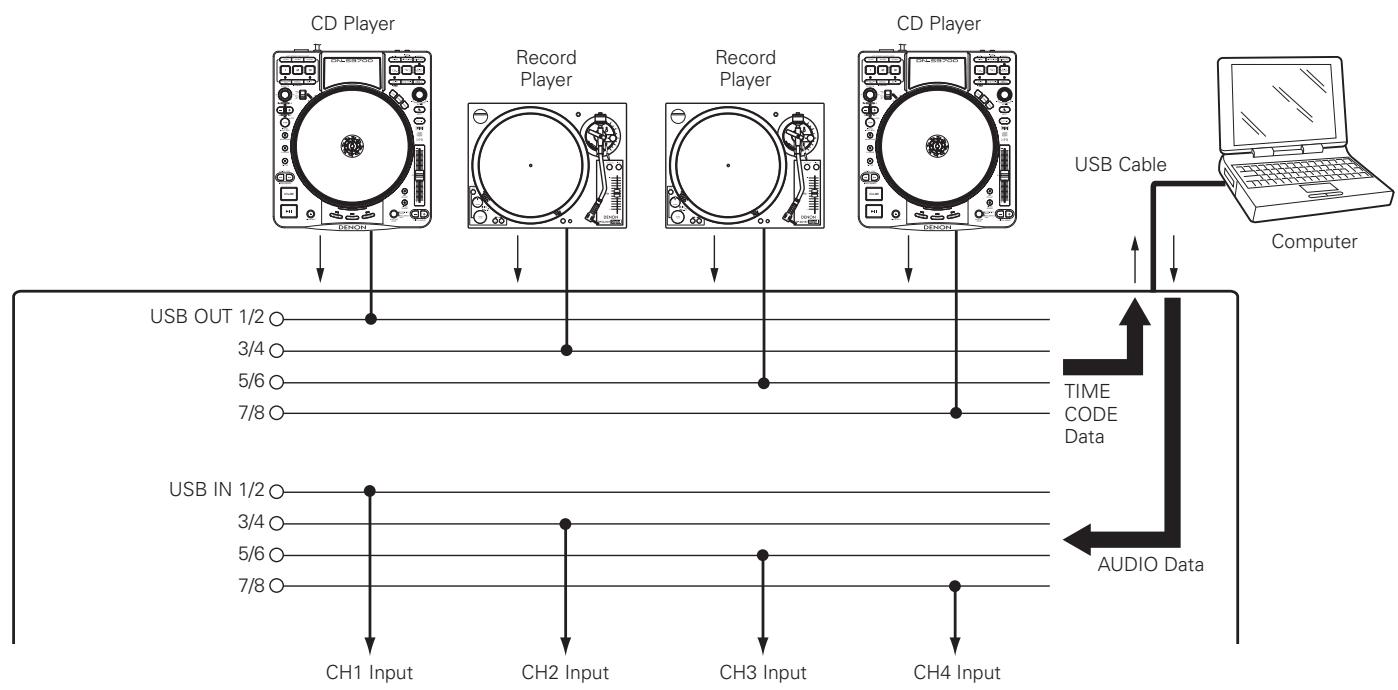
The DVS (Digital Vinyl System) function is used when a record or CD that contains a time code is played back, and the time code signal input from the CD player is sent to the computer to be converted to a music signal before being input to the unit.
- Check that the DVS software has been installed on the computer.
1 Select USB Audio Setting Preset Input Select in the UTILITY settings, and check that the settings are DVS.
- DVS is the default setting
2 Select USB Audio Setting USB Assign in the UTILITY settings, and change the setting details to CH.
3 Set the channel to be used with the P1-P4 of the source selector.
4 Set the USB mode to device mode for the unit.
5 Set the DVS software in the computer.
6 Plays the player that is connected to LINE.
- Enter the TIME CODE data to the connected LINE. The TIME CODE data is entered to the computer via the USB cable. The data is converted to AUDIO data by the computer, and then input to the various channels of this device.
7 Adjust the volume etc. for the connected line.
Send commands
MIDI Command List
| items | MIDI command | |||
| Command | Number | Value | ||
| CH1 | EQ HIGH VR | 0xBn | 0x02 | 0x00 to 0x7F |
| EQ MID VR | 0xBn | 0x03 | 0x00 to 0x7F | |
| EQ LOW VR | 0xBn | 0x04 | 0x00 to 0x7F | |
| FADER | 0xBn | 0x05 | 0x00 to 0x7F | |
| EFFECT SEND | SW ON: 0x9n/SW OFF: 0x8n | 0x01 | SW ON: 0x40/SW OFF: 0x00 | |
| CUE | SW ON: 0x9n/SW OFF: 0x8n | 0x03 | SW ON: 0x40/SW OFF: 0x00 | |
| MIDI LAYER CHANGE | 0xBn | 0x46 | 0x00,0x7F | |
| CH2 | EQ HIGH VR | 0xBn | 0x08 | 0x00 to 0x7F |
| EQ MID VR | 0xBn | 0x09 | 0x00 to 0x7F | |
| EQ LOW VR | 0xBn | 0xA0A | 0x00 to 0x7F | |
| FADER | 0xBn | 0x0B | 0x00 to 0x7F | |
| EFFECT SEND | SW ON: 0x9n/SW OFF: 0x8n | 0x05 | SW ON: 0x40/SW OFF: 0x00 | |
| CUE | SW ON: 0x9n/SW OFF: 0x8n | 0x07 | SW ON: 0x40/SW OFF: 0x00 | |
| MIDI LAYER CHANGE | 0xBn | 0x47 | 0x00,0x7F | |
| CH3 | EQ HIGH VR | 0xBn | 0x0D | 0x00 to 0x7F |
| EQ MID VR | 0xBn | 0x0E | 0x00 to 0x7F | |
| EQ LOW VR | 0xBn | 0x0F | 0x00 to 0x7F | |
| FADER | 0xBn | 0x10 | 0x00 to 0x7F | |
| EFFECT SEND | SW ON: 0x9n/SW OFF: 0x8n | 0x09 | SW ON: 0x40/SW OFF: 0x00 | |
| CUE | SW ON: 0x9n/SW OFF: 0x8n | 0x0B | SW ON: 0x40/SW OFF: 0x00 | |
| MIDI LAYER CHANGE | 0xBn | 0x48 | 0x00,0x7F | |
| CH4 | EQ HIGH VR | 0xBn | 0x12 | 0x00 to 0x7F |
| EQ MID VR | 0xBn | 0x13 | 0x00 to 0x7F | |
| EQ LOW VR | 0xBn | 0x14 | 0x00 to 0x7F | |
| FADER | 0xBn | 0x15 | 0x00 to 0x7F | |
| EFFECT SEND | SW ON: 0x9n/SW OFF: 0x8n | 0x0D | SW ON: 0x40/SW OFF: 0x00 | |
| CUE | SW ON: 0x9n/SW OFF: 0x8n | 0x0F | SW ON: 0x40/SW OFF: 0x00 | |
| MIDI LAYER CHANGE | 0xBn | 0x49 | 0x00,0x7F | |
| CROSS FADER | CROSS FADER | 0xBn | 0x16 | 0x00 to 0x7F |
| MASTER | MASTER LEVEL VR | 0xBn | 0x19 | 0x00 to 0x7F |
| BALANCE VR | 0xBn | 0x1A | 0x00 to 0x7F | |
| BOOTH LEVEL VR | 0xBn | 0x1B | 0x00 to 0x7F | |
| EFFECT INSERT | SW ON: 0x9n/SW OFF: 0x8n | 0x11 | SW ON: 0x40/SW OFF: 0x00 | |
| EFFECT | BEAT UP | SW ON: 0x9n/SW OFF: 0x8n | 0x16 | SW ON: 0x40/SW OFF: 0x00 |
| BEAT DOWN | SW ON: 0x9n/SW OFF: 0x8n | 0x17 | SW ON: 0x40/SW OFF: 0x00 | |
| TAP | SW ON: 0x9n/SW OFF: 0x8n | 0x18 | SW ON: 0x40/SW OFF: 0x00 | |
| TIME | SW ON: 0x9n/SW OFF: 0x8n | 0x19 | SW ON: 0x40/SW OFF: 0x00 | |
| CUE | SW ON: 0x9n/SW OFF: 0x8n | 0x1A | SW ON: 0x40/SW OFF: 0x00 | |
| EFFECT SELECT KNOB SW | SW ON: 0x9n/SW OFF: 0x8n | 0x1B | SW ON: 0x40/SW OFF: 0x00 | |
| PARAMETER SW | SW ON: 0x9n/SW OFF: 0x8n | 0x1C | SW ON: 0x40/SW OFF: 0x00 | |
| EFFECT ON/OFF | SW ON: 0x9n/SW OFF: 0x8n | 0x1D | SW ON: 0x40/SW OFF: 0x00 | |
| EFFECT SELECT KNOB | 0xBn | 0x44 | Increment 0x00Decrement 0x7F | |
| PARAMETER VR | 0xBn | 0x1C | 0x00 to 0x7F | |
| DRY/WET VR | 0xBn | 0x1D | 0x00 to 0x7F | |
| MIDI LAYER CHANGE | 0xBn | 0x4B | 0x00,0x7F | |
| MIC/PHONES | MIC EQ HIGH VR | 0xBn | 0x21 | 0x00 to 0x7F |
| MIC EQ LOW VR | 0xBn | 0x22 | 0x00 to 0x7F | |
| MIC SEND LEVEL VR | 0xBn | 0x23 | 0x00 to 0x7F | |
| MIC1 TRIM ON/OFF | SW ON: 0x9n/SW OFF: 0x8n | 0x26 | SW ON: 0x40/SW OFF: 0x00 | |
| MIC2 TRIM ON/OFF | SW ON: 0x9n/SW OFF: 0x8n | 0x27 | SW ON: 0x40/SW OFF: 0x00 | |
| MIC EFFECT INSERT | SW ON: 0x9n/SW OFF: 0x8n | 0x28 | SW ON: 0x40/SW OFF: 0x00 | |
| DUCKING | SW ON: 0x9n/SW OFF: 0x8n | 0x2A | SW ON: 0x40/SW OFF: 0x00 | |
| MIDI (Page 1) | PARAM 1 | 0xBn | 0x50 | Increment 0x00Decrement 0x7F |
| PARAM 1 SW | SW ON: 0x9n/SW OFF: 0x8n | 0x40 | SW ON: 0x40/SW OFF: 0x00 | |
| PARAM 2 | 0xBn | 0x51 | Increment 0x00Decrement 0x7F | |
| PARAM 2 SW | SW ON: 0x9n/SW OFF: 0x8n | 0x41 | SW ON: 0x40/SW OFF: 0x00 | |
| items | MIDI command | |||
| Command | Number | Value | ||
| MIDI (Page 1) | PARAM 3 | 0xBn | 0x52 | Increment 0x00Decrement 0x7F |
| PARAM 3 SW | SW ON: 0x9n/SW OFF: 0x8n | 0x42 | SW ON: 0x40/SW OFF: 0x00 | |
| PARAM 4 | 0xBn | 0x53 | Increment 0x00Decrement 0x7F | |
| PARAM 4 SW | SW ON: 0x9n/SW OFF: 0x8n | 0x43 | SW ON: 0x40/SW OFF: 0x00 | |
| FUNC 1 | SW ON: 0x9n/SW OFF: 0x8n | 0x44 | SW ON: 0x40/SW OFF: 0x00 | |
| FUNC 2 | SW ON: 0x9n/SW OFF: 0x8n | 0x45 | SW ON: 0x40/SW OFF: 0x00 | |
| FUNC 3 | SW ON: 0x9n/SW OFF: 0x8n | 0x46 | SW ON: 0x40/SW OFF: 0x00 | |
| FUNC 4 | SW ON: 0x9n/SW OFF: 0x8n | 0x47 | SW ON: 0x40/SW OFF: 0x00 | |
| MIDI (Page 2) | PARAM 1 | 0xBn | 0x54 | Increment 0x00Decrement 0x7F |
| PARAM 1 SW | SW ON: 0x9n/SW OFF: 0x8n | 0x48 | SW ON: 0x40/SW OFF: 0x00 | |
| PARAM 2 | 0xBn | 0x55 | Increment 0x00Decrement 0x7F | |
| PARAM 2 SW | SW ON: 0x9n/SW OFF: 0x8n | 0x49 | SW ON: 0x40/SW OFF: 0x00 | |
| PARAM 3 | 0xBn | 0x56 | Increment 0x00Decrement 0x7F | |
| PARAM 3 SW | SW ON: 0x9n/SW OFF: 0x8n | 0x4A | SW ON: 0x40/SW OFF: 0x00 | |
| PARAM 4 | 0xBn | 0x57 | Increment 0x00Decrement 0x7F | |
| PARAM 4 SW | SW ON: 0x9n/SW OFF: 0x8n | 0x4B | SW ON: 0x40/SW OFF: 0x00 | |
| FUNC 1 | SW ON: 0x9n/SW OFF: 0x8n | 0x4C | SW ON: 0x40/SW OFF: 0x00 | |
| FUNC 2 | SW ON: 0x9n/SW OFF: 0x8n | 0x4D | SW ON: 0x40/SW OFF: 0x00 | |
| FUNC 3 | SW ON: 0x9n/SW OFF: 0x8n | 0x4E | SW ON: 0x40/SW OFF: 0x00 | |
| FUNC 4 | SW ON: 0x9n/SW OFF: 0x8n | 0x4F | SW ON: 0x40/SW OFF: 0x00 | |
| MIDI (Page 3) | PARAM 1 | 0xBn | 0x58 | Increment 0x00Decrement 0x7F |
| PARAM 1 SW | SW ON: 0x9n/SW OFF: 0x8n | 0x50 | SW ON: 0x40/SW OFF: 0x00 | |
| PARAM 2 | 0xBn | 0x59 | Increment 0x00Decrement 0x7F | |
| PARAM 2 SW | SW ON: 0x9n/SW OFF: 0x8n | 0x51 | SW ON: 0x40/SW OFF: 0x00 | |
| PARAM 3 | 0xBn | 0x5A | Increment 0x00Decrement 0x7F | |
| PARAM 3 SW | SW ON: 0x9n/SW OFF: 0x8n | 0x52 | SW ON: 0x40/SW OFF: 0x00 | |
| PARAM 4 | 0xBn | 0x5B | Increment 0x00Decrement 0x7F | |
| PARAM 4 SW | SW ON: 0x9n/SW OFF: 0x8n | 0x53 | SW ON: 0x40/SW OFF: 0x00 | |
| FUNC 1 | SW ON: 0x9n/SW OFF: 0x8n | 0x54 | SW ON: 0x40/SW OFF: 0x00 | |
| FUNC 2 | SW ON: 0x9n/SW OFF: 0x8n | 0x55 | SW ON: 0x40/SW OFF: 0x00 | |
| FUNC 3 | SW ON: 0x9n/SW OFF: 0x8n | 0x56 | SW ON: 0x40/SW OFF: 0x00 | |
| FUNC 4 | SW ON: 0x9n/SW OFF: 0x8n | 0x57 | SW ON: 0x40/SW OFF: 0x00 | |
| MIDI (Page 4) | PARAM 1 | 0xBn | 0x5C | Increment 0x00Decrement 0x7F |
| PARAM 1 SW | SW ON: 0x9n/SW OFF: 0x8n | 0x58 | SW ON: 0x40/SW OFF: 0x00 | |
| PARAM 2 | 0xBn | 0x5D | Increment 0x00Decrement 0x7F | |
| PARAM 2 SW | SW ON: 0x9n/SW OFF: 0x8n | 0x59 | SW ON: 0x40/SW OFF: 0x00 | |
| PARAM 3 | 0xBn | 0x5E | Increment 0x00Decrement 0x7F | |
| PARAM 3 SW | SW ON: 0x9n/SW OFF: 0x8n | 0x5A | SW ON: 0x40/SW OFF: 0x00 | |
| PARAM 4 | 0xBn | 0x5F | Increment 0x00Decrement 0x7F | |
| PARAM 4 SW | SW ON: 0x9n/SW OFF: 0x8n | 0x5B | SW ON: 0x40/SW OFF: 0x00 | |
| FUNC 1 | SW ON: 0x9n/SW OFF: 0x8n | 0x5C | SW ON: 0x40/SW OFF: 0x00 | |
| FUNC 2 | SW ON: 0x9n/SW OFF: 0x8n | 0x5D | SW ON: 0x40/SW OFF: 0x00 | |
| FUNC 3 | SW ON: 0x9n/SW OFF: 0x8n | 0x5E | SW ON: 0x40/SW OFF: 0x00 | |
| FUNC 4 | SW ON: 0x9n/SW OFF: 0x8n | 0x5F | SW ON: 0x40/SW OFF: 0x00 | |
| MIDI Page | MIDI Page CHANGE | 0xBn | 0x4C | 0x00, 0x01, 0x02, 0x03 |
| Other | Preset mode | 0xBn | 0x4A | Preset mode off: 0x00 |
*n=MIDICH
Receive commands
| items | MIDI command | |||
| Command | Number | Value | ||
| LED | 0xBn | ↓ | ||
| CH1 | Level Meter -40dB | ON TRG: 0x50OFF TRG: 0x51 | 0x01 | |
| Level Meter -30dB | ↓ | 0x02 | ||
| Level Meter -20dB | ↓ | 0x03 | ||
| Level Meter -15dB | ↓ | 0x04 | ||
| Level Meter -10dB | ↓ | 0x05 | ||
| Level Meter -7dB | ↓ | 0x06 | ||
| Level Meter -4dB | ↓ | 0x07 | ||
| Level Meter -2dB | ↓ | 0x08 | ||
| Level Meter -1dB | ↓ | 0x09 | ||
| Level Meter 0dB | ↓ | 0xA | ||
| Level Meter 1dB | ↓ | 0x0B | ||
| Level Meter 2dB | ↓ | 0xC | ||
| Level Meter 4dB | ↓ | 0xD | ||
| Level Meter 7dB | ↓ | 0xE | ||
| Level Meter 10dB | ↓ | 0xF | ||
| Level Meter PEAK | ↓ | 0x10 | ||
| CH2 | Level Meter -40dB | ON TRG: 0x50OFF TRG: 0x51 | 0x11 | |
| Level Meter -30dB | ↓ | 0x12 | ||
| Level Meter -20dB | ↓ | 0x13 | ||
| Level Meter -15dB | ↓ | 0x14 | ||
| Level Meter -10dB | ↓ | 0x15 | ||
| Level Meter -7dB | ↓ | 0x16 | ||
| Level Meter -4dB | ↓ | 0x17 | ||
| Level Meter -2dB | ↓ | 0x18 | ||
| Level Meter -1dB | ↓ | 0x19 | ||
| Level Meter 0dB | ↓ | 0x1A | ||
| Level Meter 1dB | ↓ | 0x1B | ||
| Level Meter 2dB | ↓ | 0x1C | ||
| Level Meter 4dB | ↓ | 0x1D | ||
| Level Meter 7dB | ↓ | 0x1E | ||
| Level Meter 10dB | ↓ | 0x1F | ||
| Level Meter PEAK | ↓ | 0x20 | ||
| CH3 | Level Meter -40dB | ON TRG: 0x50OFF TRG: 0x51 | 0x21 | |
| Level Meter -30dB | ↓ | 0x22 | ||
| Level Meter -20dB | ↓ | 0x23 | ||
| Level Meter -15dB | ↓ | 0x24 | ||
| Level Meter -10dB | ↓ | 0x25 | ||
| Level Meter -7dB | ↓ | 0x26 | ||
| Level Meter -4dB | ↓ | 0x27 | ||
| Level Meter -2dB | ↓ | 0x28 | ||
| Level Meter -1dB | ↓ | 0x29 | ||
| Level Meter 0dB | ↓ | 0x2A | ||
| Level Meter 1dB | ↓ | 0x2B | ||
| Level Meter 2dB | ↓ | 0x2C | ||
| Level Meter 4dB | ↓ | 0x2D | ||
| Level Meter 7dB | ↓ | 0x2E | ||
| Level Meter 10dB | ↓ | 0x2F | ||
| Level Meter PEAK | ↓ | 0x30 | ||
| items | MIDI command | |||
| Command | Number | Value | ||
| LED | 0xBn | ↓ | ||
| CH4 | Level Meter -40dB | ON TRG: 0x50OFF TRG: 0x51 | 0x31 | |
| Level Meter -30dB | ↓ | 0x32 | ||
| Level Meter -20dB | ↓ | 0x33 | ||
| Level Meter -15dB | ↓ | 0x34 | ||
| Level Meter -10dB | ↓ | 0x35 | ||
| Level Meter -7dB | ↓ | 0x36 | ||
| Level Meter -4dB | ↓ | 0x37 | ||
| Level Meter -2dB | ↓ | 0x38 | ||
| Level Meter -1dB | ↓ | 0x39 | ||
| Level Meter 0dB | ↓ | 0x3A | ||
| Level Meter 1dB | ↓ | 0x3B | ||
| Level Meter 2dB | ↓ | 0x3C | ||
| Level Meter 4dB | ↓ | 0x3D | ||
| Level Meter 7dB | ↓ | 0x3E | ||
| Level Meter 10dB | ↓ | 0x3F | ||
| Level Meter PEAK | ↓ | 0x40 | ||
| CH1 | EFX SEND | ON TRG: 0x50OFF TRG: 0x51 | 0x41 | |
| EFX SEND Dimmer | ↓ | 0x42 | ||
| CUE | ↓ | 0x45 | ||
| CUE Dimmer | ↓ | 0x46 | ||
| CH2 | EFX SEND | ON TRG: 0x50OFF TRG: 0x51 | 0x47 | |
| EFX SEND Dimmer | ↓ | 0x48 | ||
| CUE | ↓ | 0x4B | ||
| CUE Dimmer | ↓ | 0x4C | ||
| CH3 | EFX SEND | ON TRG: 0x50OFF TRG: 0x51 | 0x4D | |
| EFX SEND Dimmer | ↓ | 0x4E | ||
| CUE | ↓ | 0x51 | ||
| CUE Dimmer | ↓ | 0x52 | ||
| CH4 | EFX SEND | ON TRG: 0x50OFF TRG: 0x51 | 0x53 | |
| EFX SEND Dimmer | ↓ | 0x54 | ||
| CUE | ↓ | 0x57 | ||
| CUE Dimmer | ↓ | 0x58 | ||
| EFX | TAP | ON TRG: 0x50OFF TRG: 0x51 | 0x59 | |
| CUE | ↓ | 0x5A | ||
| CUE Dimmer | ↓ | 0x5B | ||
| EFX SELECT | ↓ | 0x5C | ||
| Parameter ON/OFF | ↓ | 0x5D | ||
| DRY/VET | ↓ | 0x5E | ||
| EFX ON/OFF | ↓ | 0x5F | ||
| EFX ON/OFF Dimmer | ↓ | 0x60 | ||
| MIDI | FUNC1 | ON TRG: 0x50OFF TRG: 0x51 | 0x61 | |
| FUNC2 | ↓ | 0x62 | ||
| FUNC3 | ↓ | 0x63 | ||
| FUNC4 | ↓ | 0x64 | ||
Utility settings
Utility operations
The following items can be set for the utility mode.
1 Audio Setting
2 System Setting
3 MIDI Setting
4 Other Setting
5 Owner Setting
For details on the settings, see the preset items and data (page 23).
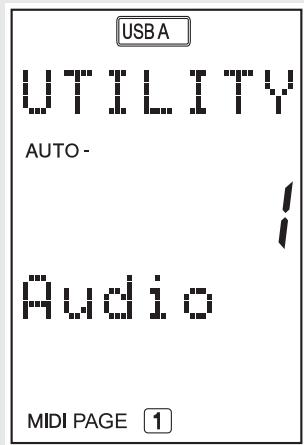
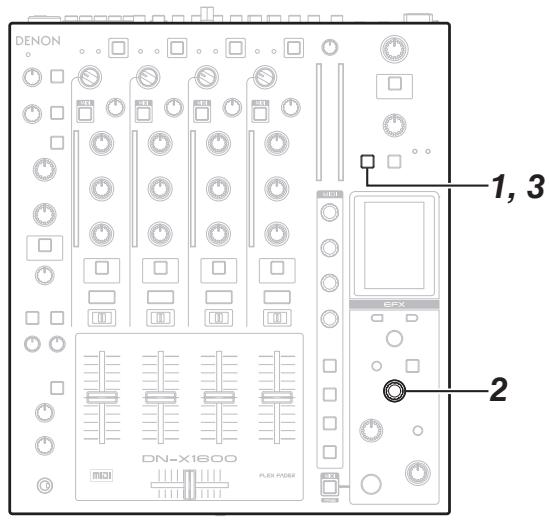
1 Press the UTILITY/-USB A/USB B button. The utility screen now appears.
2 Using the EFFECT SELECT control, select the item, and press the control to enter the selection.
- When the selection is entered, the items and data are switched using the hierarchy shown in the table below.
- To go back to the selection, press the BACK button. Operation then returns to the previous screen.
3 In the Utility mode, press the UTILITY/USB A/USB B button to turn off the Utility mode.
- The data which has been set is now stored in the internal memory.
Preset Items and Data
| Category | Item | Parameter | Value | Default Settings | Setting Details | |
| 1 Audio Setting | 1 Master Setting | 1 MONO | ON / OFF | OFF | When set to ON, the Master output is monaural. | |
| 2 Mic Setting | 1 Ducking Level | -20dB to -40dB | -30dB | Adjusts the amount of attenuation for the audio level when ducking is operating. | ||
| 2 Ducking Response | Fast or Normal | Normal | Adjusts the ducking response. | |||
| 3 Mic EQ | 1 Hi | 1kHz to 4kHz | 2kHz | Sets the Mic EQ cut off frequency. | ||
| 2 Low | 500Hz to 2kHz | 1kHz | ||||
| 3 Default | ||||||
| 4 Mic to Booth/Rec | ON / OFF | OFF | When set to ON, the Mic sound is output from Booth and Rec. | |||
| 3 Isolator EQ | 1 X.Over Hi | 1kHz to 8kHz | 2kHz | Sets the boundary lines for the frequencies that control Hi, Mid, and Low in the channel equalizer. | ||
| 2 X.Over Low | 100Hz to 800Hz | 360Hz | ||||
| 3 Default | - | |||||
| 4 Cue Setting | 1 Cue Mode *1 | Mix / Solo | Mix | When set to Solo, audio from only one channel can be continually cued. | ||
| 5 Head Phones EQ | 1 EQ Hi | -15dB to +15dB | 0dB | Adjusts the equalizer settings for the headphones. | ||
| 2 EQ Low | -15dB to +15dB | 0dB | ||||
| 3 Default | - | |||||
| 6 EFX Send/Rtn | 1 Unity Level Select | -10dBV / 0dBV | -10dBV | Selects the signal level for the Effect Rtn with connected device. | ||
| 7 USB Audio Setting | 1 USB Assign | Ch / Master | Ch | Selects whether to assign a channel to the USB audio input, or to add a Master/Cue bus. | ||
| 2 OutputSourceSelect | 1 USB1 / USB2 | Non,CH1,CH2,CH3,CH4,Master,Re c,Mic | Master | Selects the source output with the USB audio. | ||
| 2 USB3 / USB4 | Mic | |||||
| 3 USB5 / USB6 | CH2 | |||||
| 4 USB7 / USB8 | CH3 | |||||
| 3 Preset Input Select | 1 CH1 | USB1/USB2,USB3/USB4, USB5/USB6,USB7/USB8,DVS | DVS | Selects the source input with P1-P4. | ||
| 2 CH2 | ||||||
| 3 CH3 | ||||||
| 4 CH4 | ||||||
| 4 Output Level VR | -20dB to +20dB | 0dB | Selects the USB audio output level. | |||
| 5 CH Input Level VR | -20dB to +20dB | -6dB | Selects the level when USB audio is input into Channel 1-4. | |||
| 6 Mas Input Level VR | -20dB to +20dB | -6dB | Selects the level when USB audio is input into Master. | |||
| 7 Cue Input Level VR | -20dB to +20dB | -6dB | Selects the level when USB audio is input into Cue. | |||
| 8 Digital Out Setting | 1 Digital Output VR | -20dB to +20dB | 0dB | Selects the output level for the Digital Out terminal. | ||
| 9 X-Fader Setting | 1 A Side Cut Position *2 | -2.0mm to +8.0mm | 0.0mm | Adjusts the rise position for the A side cross fader. | ||
| 2 B Side Cut Position *2 | -2.0mm to +8.0mm | 0.0mm | Adjusts the rise position for the B side cross fader. | |||
| 10 Beat Breaker Setting | 1 to 5 | 1 | Edits the custom pattern for the BeatBreaker. | |||
| 2 System Setting | 1 Sampling Frequency | 44.1kHz / 48kHz / 96kHz | 96kHz | Selects the internal sampling rate for the unit. | ||
| 2 PC/MAC*3 | PC Mode / MAC Mode | PC Mode | Selects the type of connected computer when in device mode. | |||
| 3 Version | XXXX | - | Displays the version number. | |||
| 3 MIDI Setting | 1 MIDI INPUT CH | 1 to 16, OMNI | 1 | Selects the USB MIDI INPUT CH. | ||
| 2 MIDI OUTPUT CH | 1 to 16 | 1 | Selects the MIDI OUTPUT CH. | |||
| 3 MIDI Output Enable | 1 5Pin | ON / OFF | ON | Selects whether or not to output from MIDI. | ||
| 2 USB | ON / OFF | ON | ||||
| 4 MIDI CLK | 1 5Pin | ON / OFF | ON | Selects whether or not to output from MIDI CLOCK. | ||
| 2 USB | ON / OFF | ON | ||||
| 5 MIDI Page | 1 to 4 | 1 | Selects the MIDI page for when the power is switched on. | |||
| 6 V-LINK | 1 Model | V-4 / V-8 | V-4 | Selects the model connected to V-LINK. | ||
| 2 Device ID | 0x00 to 0x1F | 0x10 | Selects the Device ID for the device connected to V-LINK. | |||
| 3 Trigger Level | -40dBFS to 0dBFS | -30dBFS | Selects the level of trigger that switches the image effects when Ping Pong Delay is used. | |||
| 4 Cross Fader Contour | ON/OFF | OFF | Selects whether to reflect the crossfader curve on V-LINK. | |||
| 5 Cross Fader | Enable / Disable | Enable | Selects whether or not to use each control with V-LINK. | |||
| 6 Beat | ||||||
| 7 Parameter | ||||||
| 8 DRY/MET | ||||||
| 9 EFX Button | ||||||
| 10 FUNC1/FUNC2 | ||||||
| 4 Other Setting | 1 Preset Export | Exit / Execute*4 | Exit | Writes the Presets to the USB memory. | ||
| 2 DN-X1600 Initialize | Exit / Execute*5 | Exit | Returns settings to the factory settings. (Excluding the Owner Setting items) | |||
| 5 Owner Setting | Display only | Displays the details of the Owner Settings. | ||||
1 When SOLO is selected as the CUE mode setting, only one of the two CUE buttons, whichever was pressed last, becomes operational.
2 The cut-off position of the Crossfader can be adjusted separately for each side.
3 When the unit is connected to a computer which runs Windows XP, Vista or a similar operating system, select the PC Mode. When it is connected to a computer which runs Mac OSX or a similar operating system, select the MAC Mode.
4 The settings for these Preset and the Owner mode settings can be stored on an external USB memory or other memory device.
*5 The settings for these Preset are set to the factory settings.
Preset Export
Writes the details of the settings performed in utility mode to the connected USB memory.
1 Connect the USB memory to the unit.
2 In the Utility settings, select Other Settings Preset Export.
3 Press Execute to write the Preset conditions to the USB memory.
- If an export file already exists, an overwrite confirmation screen is displayed.
- If you perform Preset Import on a DN-X1700 using a file exported from a DN-X1600 using Preset Export, the settings in the imported file may be different from those in the exported file. In this case, set the items that are different.
Preset Recall
This recalls the setting contents from the export file that was written to the USB memory.
After recall is completed, the setting details are not updated in the unit.
Use Preset Recall to temporarily use the settings stored in the USB memory.
1 Insert the USB memory device with the export files into the DN-X1600 or turn on the unit's power with the device already inserted.
2 A screen prompting the user to verify whether the presets are to be called appears.
3 When OK is selected, the preset Audio Setting and MIDI Setting of the export file are called.
- The preset information stored inside the DN-X1600 is not updated.
4 When the USB memory device is ejected, a screen prompting the user to verify whether to return to the status before the presets were called appears.
- Cancel cannot be selected.
5 When OK is selected, the presets are restored to the status before they were called.
- After the presets are called, they are retained while the unit remains connected to the computer even if the USB B mode is selected.
Owner Setting Mode
When the POWER switch is set to the ON position while the UTILITY/USB A/USB B button is held down, the Owner Setting mode is established, and the settings listed below can be selected.
To release the Owner Setting mode, set the POWER switch to the OFF position.
| Parameter | Value | Default |
| 1. Digital Output FS | INT / 44.1kHz / 48kHz / 96kHz | 44.1kHz |
| 2. Power ON USB Mode | USB A / USB B | USB A |
| 3. Preset Import | Exit / Execute*1 | - |
| 4. DN-X1600 Initialize | Exit / Execute*2 | - |
- Using the Preset stored externally, the internal memory is updated, and the settings are reflected in the device.
- All the Owner settings and Preset are set to the factory settings.
1. Digital Output FS
This sets the digital output frequency for the unit. When set to INT, the frequency is synchronized with the System Setting sampling frequency.
2. Power ON USB Mode
This selects the USB mode to be used when the power is switched on.
3. Preset Import
Imports the presets from inside the USB memory.
4.DN-X1600 Initialize
Returns all of the items for the unit to the factory settings.
Preset Import
This imports the setting contents from the export file that was written to the USB memory.
After recall is completed, the setting details are updated in the unit.
1 In the Owner Setting mode, insert the USB memory device with the export files into the DN-X1600 or establish the Owner Setting mode with the device already inserted.
2 A screen prompting the user to verify whether the preset memory is to be updated appears.
3 When OK is selected, the contents of the preset memory are updated to the contents of the export files.
NOTE
- Bear in mind that the data prior to the updating will not be retained.
Specifications
AUDIO
PHONO inputs
Input impedance: 47 kΩ
Level: -40 dBV (10 mV)
Signal to Noise ratio:
- CD inputs
Input impedance:
Level: 0 dBV
Signal to Noise ratio:
Equalizer (LINE)
Channel equalization adjustment range:
(0dBu = 0.775Vrms,0dBV = 1Vrms)
Stereo x 3
Unbalanced RCA terminal
47 kΩ
-40 dBV (10 mV)
89 dB
Stereo x 5
10 kΩ
0 dBV
100 dB
Band x 3
Unbalanced RCA terminal
- RETURN inputs
Input impedance:
Level:
- MIC inputs
MIC1:
MIC2:
Input impedance:
Level:
EIN:
CMRR:
Equalizer (MIC)
Adjustment range:
-
USB audio inputs
-
MASTER output
Balanced:
DA converter:
Load impedance:
Level:
Frequency response:
THD:
Crosstalk:
Unbalanced:
Load impedance:
Level:
REC output
Load impedance:
Level:
HI: -, -90 dB to +10 dB
MID: -, -90 dB to +10 dB
LOW: -, -90 dB to +6 dB
Monaural x 2
1/4" TS terminal
10 kΩ
-10dBV/0dBV (Default: -10dBV)
Monaural × 2
Balanced
XLR connectors
(1: Ground, 2: Hot, 3: Cold)
Balanced
1/4"TRS jack
(Tip: hot, ring: cold, sleeve: ground)
5 kΩ
-60 to -20 dBu
Less than -126 dBu (Rs = 150 Ω)
More than 89 dB (1 kHz)
Band × 2
HI: -15 to +15 dB
LOW: -15 to +15 dB
Stereo x 4 (monaural x 8) 24 bit, Fs: 44.1 kHz, 48 kHz, 96 kHz USB B
Stereo, balanced XLR terminal
(1: Ground, 2: Hot, 3: Cold)
32-bit 128x oversampling advanced segment converter
More than 600 Ω
+4dBu (Max.: +24 dBu)
20 Hz to 20 kHz (±0.5 dB)
Less than 0.05%
Less than -100dB (1 kHz)
Stereo RCA terminal
10 kΩ
0 dBu (Max.: +20 dBu)
Stereo
Unbalanced RCA terminal
10 kΩ
-10 dBV (Max.: +10 dBV)
- BOOTH output
Load impedance:
Level:
SEND output
Load impedance:
Level:
- Headphones output
Load impedance:
Level:
-
Digital coaxial output
-
USB audio output
GENERAL
USB MIDI I/O:
MIDI OUT:
Channel level meters:
Cue master level meters:
Channel Fader:
Crossfader:
Dimensions:
Weight:
Supply voltage:
Power consumption:
Operational temperature:
Operational humidity:
Storage temperature:
Stereo
Balanced 1/4" TRS terminal
(Tip: hot; ring: cold, sleeve: ground)
More than 600 Ω
+4 dBu (Max.: +24 dBu)
Monaural x 2
Unbalanced 1/4"TS terminal
10 kΩ
-10 dBV (Max.: +10 dBV)
Stereo
40Ω
150 mW
Stereo RCA terminal, IEC958 Consumer
(Fs: 44.1 kHz, 48 kHz, 96 kHz)
Stereo x 4 (monaural x 8) 24 bit, 44.1 kHz, 48 kHz, 96 kHz USB B
IN:1ch,OUT:1chMIDI1.0,MIDIClock USB B
OUT: 1ch MIDI1.0, MIDI Clock
5pin DIN
PPM 16-point LEDs from -40 to +10 dB, peak display
PPM 16-point LEDs from -40 to +10 dB, peak display
60 mm Slim Type fader
45 mm FLEX Fader (Fader Torque Adjustable)
320(W) x 357(D) x 91(H) mm (12"5/8 (W) x 14"1/16 (D) x 3"5/8 (H))
6.2 Kg (13.7 lbs)
AC 120 V, 60 Hz (U.S.A. and Canada models)
AC 230 V, 50 Hz (European models)
34W
+5°C to +35°C (+41 F to +95 F)
25% to 85%
-20^ to +60^ (-4 F to +140 F)
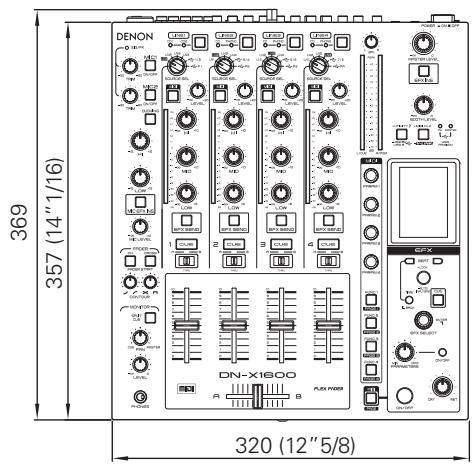
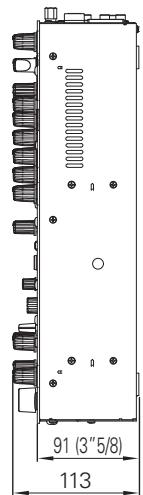
unit : mm (ins.)
- For purposes of improvement, specifications and design are subject to change without notice.
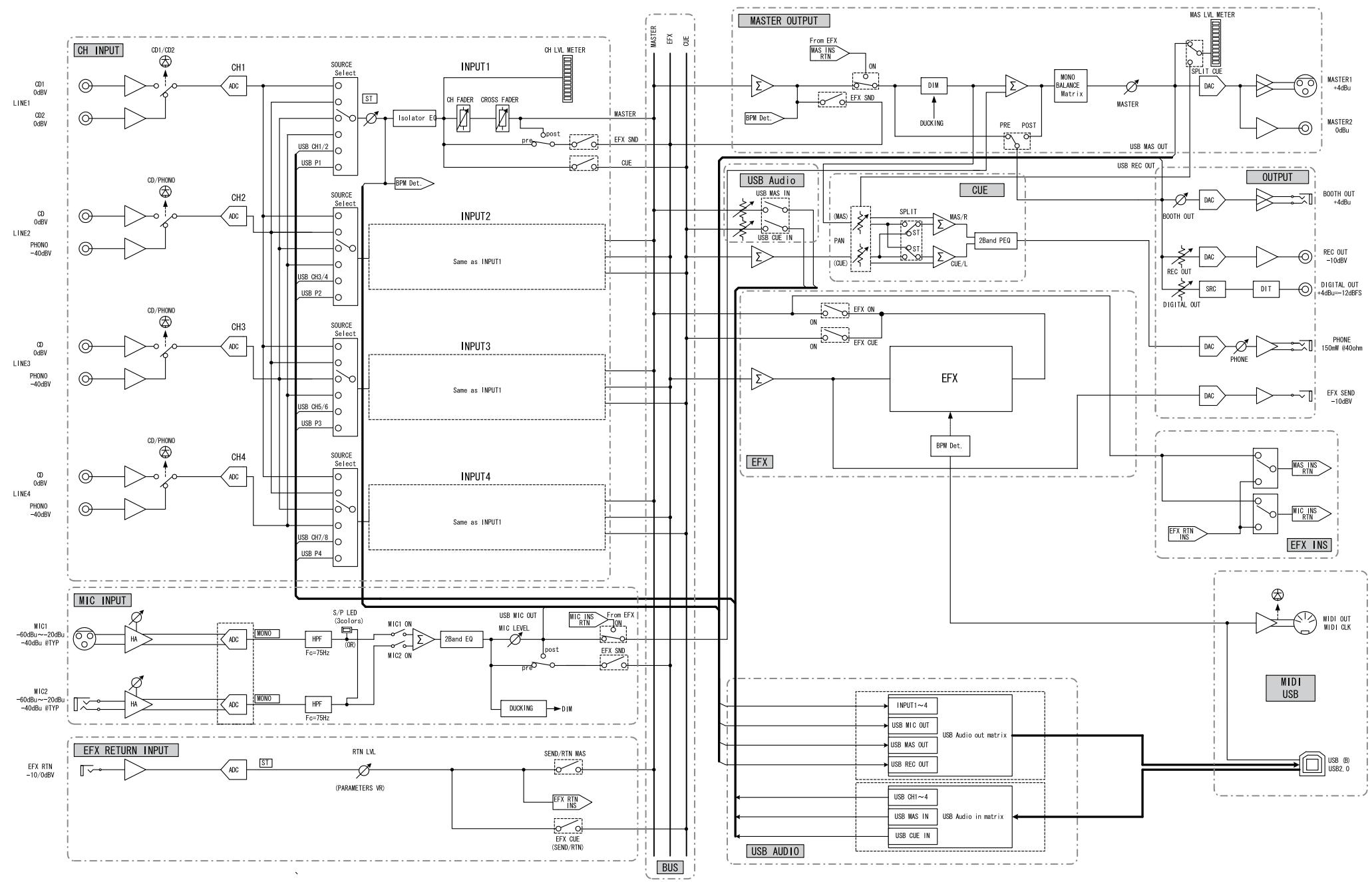
Block Diagram
Troubleshooting
□ Are all the parts connected properly?
□ Have the operations been performed properly according to the owner's manual?
Are the amplifier and speakers operating properly?
If the unit fails to operate properly, check out the remedial action in the table below according to the symptoms present, and see if this fixes the problem.
Types of trouble which are not described in the table below may indicate trouble in the unit itself so consult with your dealer from whom you purchased the unit. If your dealer does not know what action to take, contact one of our customer service centers or your nearest repair service center.
Service centers are listed at http://www.d-mpro.com.
| Symptom | Cause | Remedy | Page |
| The power fails to turn on. | • The AC power cable is not connected to the power outlet. | • Connect the AC power cable to the power outlet. | 9 |
| No sound is heard or the volume level is low. | • One or more of the connecting cables have not been connected properly. • The SOURCE SEL LN1/LN2/LN3/LN4/USB/P1-4 controls have not been set to the correct positions. • The ducking function of the microphone has been activated. | • Check the cable connections. • Set the SOURCE SEL LN1/LN2/LN3/LN4/USB/P1-4 controls to the position which corresponds to the component now playing. • Set the DUCKING ON/OFF button to the OFF position. | 7 10 11 |
| The sound is distorted. | • The master output audio level is too high. • The input level is too high. | • Adjust the MASTER LEVEL control. • Adjust the channel input LEVEL controls. | 10 10 |
| The fader start of the CD player cannot be initiated. | • One or more of the connecting cables have not been connected properly. • The CH FADER START switch and CROSSFADER START switch have not been set to the ON position. | • Connect the CD player to the unit using the stereo mini jacks. • Set the CH FADER START switch and CROSSFADER START switch to the ON position. | 7 14, 15 |
DN-X1600 does not operate normally or no sound is produced
- Are the USB cable, audio cables, etc., properly connected?
- Is the volume setting for the source, audio device, application, OS, etc., properly raised?
- Is the appropriate device selected on your audio application?
- Is the sampling frequency setting appropriate?
Either make the same settings in the DN-X1600's preset mode and on the application.
- Are there WAV files with different sampling frequencies and bit rates?
Depending on your audio application, it may not be possible to play WAV files with different sampling frequencies and bit rates simultaneously.
- Is other USB equipment in use?
If other USB devices are connected, try connecting only DN-X1600 to check for problems.
- Is the USB connector of the connected computer compatible with USB 2.0 (Hi-Speed)?
Use a USB 2.0-compatible cable.
Sound is broken or distorted
- Are other applications or device drivers operating?
Close any unneeded applications. - Are you playing multiple WAV files?
When playing multiple WAV files simultaneously, depending on the capacity of your computer, the sound may be broken.
D&M Holdings Inc.
- DN-X1600
- SAFETY PRECAUTIONS
- CAUTION
- RISK OF ELECTRIC SHOCK DO NOT OPEN
- CAUTION:
- WARNING:
- Handle the power supply cord carefully
- Do not open the top cover
- Do not place anything inside
- LABELS:
- ATTENTION
- FCC INFORMATION (For US customers)
- 1.COMPLIANCE INFORMATION
- IMPORTANT NOTICE: DO NOT MODIFY THIS PRODUCT
- NOTE
- IMPORTANT SAFETY INSTRUCTIONS
- READ BEFORE OPERATING EQUIPMENT
- NOTE ON USE / HINWEISE ZUM GEBRAUCH / OBSERVATIONS RELATIVES A L'UTILISATION / NOTE SULL'USO / NOTAS SOBRE EL USO / ALVORENS TE GEBRUKEN / OBSERVERA ANGÄENDE ANVÄNDNINGEN
- ACHTUNG:
- - DECLARATION OF CONFORMITY
- A NOTE ABOUT RECYCLING:
- HINWEIS ZUM RECYCLING:
- VORSICHT:
- Connections
- Basic Operations
- Effector Function
- Fader Start Function
- USB Settings
- Utility settings
- Specifications 25
- Troubleshooting 27
- Getting Started
- Accessories
- Installation
- Main Features
- Design oriented toward achieving a high sound quality
- Multiple Effect
- USB audio and MIDI interfaces
- V-LINK
- Operating ease and high-reliability design tailored for professional use
- Other features
- Part Names and Functions
- Top Panel
- CH:
- MASTER:
- START:
- STOP:
- TAP:
- LOCK:
- AUTO BPM:
- INPUT BPM:
- TIME:
- BACK:
- Display
- Rear Panel
- NOTE
- Preparations
- Cables Used for Connections
- Audio cables
- For RCA PINJACK
- For SEND/RETURN
- For MIC
- For BALANCED MASTER OUT
- Input Terminal Connection
- PHONO inputs/5 CD inputs terminals
- LINE 1, 2, 3, 4 FADER output terminals
- MIC1 input terminal
- Pin layout:
- Applicable connector:
- MIC2 input terminal
- Pin layout (TRS):
- Output Terminal Connection
- COAXIAL DIGITAL OUT terminal (44.1/48/96kHz)
- MIDI output terminal
- REC OUT terminals
- MASTER OUT (UNBALANCED) terminals
- MASTER OUT (BALANCED) terminals
- BOOTH OUT (BALANCED) terminals
- SEND/RETURN terminals
- - SEND (output):
- - RETURN (input):
- HEADPHONE output jack
- Connections to USB Memory or USB Cable
- USB A terminal
- USB B terminal
- ASIO Driver Application included.
- Connecting the Power Cord
- MIC (mic input)
- Ducking function
- MONITOR (headphones output)
- BeatBreaker Function
- What the BeatBreaker effector does
- Details of operation
- Operation method
- Effector Operations
- Selecting the effector units and channels
- With the input channels:
- With the mic input and master output:
- Setting the BPM
- Setting the beat
- Selecting the effects
- Turning the effects ON and OFF
- Channel Fader Start
- Crossfader Start
- FADER (setting the fader curve)
- Setting the channel fader curve
- Setting the crossfader curve
- How to adjust the Crossfader torque
- Insert a screwdriver, and adjust the sliding torque.
- Selecting the USB mode
- Press the UTILITY/-USB A/USB B button for more than a second.
- Select OK/Cancel using the EFX SELECT control, and press the button to enter the selection.
- To select the host mode again, press the UTILITY/- USB A/USB B button for more than a second, and select the settings by following the same steps.
- USB audio
- Setting the USB audio output
- Setting the USB audio input
- MIDI
- Setting the MIDI channels
- Setting the MIDI clock
- MIDI layer operations
- DVS function
- Utility operations
- Preset Export
- Preset Recall
- Owner Setting Mode
- Digital Output FS
- Power ON USB Mode
- Preset Import
- 4.DN-X1600 Initialize
- Preset Import
- Specifications
- AUDIO
- GENERAL
- Troubleshooting
Brand : DENON
Model : DN-X1600
Category : Audio Mixer