
XEPHIA 42 PXW 110-6710 TOP - Television GRUNDIG - Free user manual and instructions
Find the device manual for free XEPHIA 42 PXW 110-6710 TOP GRUNDIG in PDF.


| Brand | GRUNDIG |
| Model | XEPHIA 42 PXW 110-6710 TOP |
| Product type | Plasma screen television |
| Screen size | 42 inches (106 cm) |
| Screen resolution | 1024 x 768 pixels (HD Ready) |
| Power supply | 220-240 V ~ 50/60 Hz |
| Power consumption | 280 W (max), < 1 W on standby |
| Dimensions (with stand) | 1050 x 700 x 280 mm |
| Weight (with stand) | 28 kg |
| Video inputs | HDMI (2), SCART (2), Component, Composite, VGA |
| Tuner | DVB-T/C analog |
| Sound | Speakers 2 x 10 W, Dolby Digital |
| Main features | 100 Hz, noise reduction, PIP, teletext, timer |
| Energy class | A |
| Care and cleaning | Soft dry cloth, do not use abrasive products |
| Safety | Parental lock, auto shutdown |
| Spare parts and repairability | Available from Grundig after-sales service |
| Included accessories | Remote control, batteries, stand, power cable |
Frequently Asked Questions - XEPHIA 42 PXW 110-6710 TOP GRUNDIG
User questions about XEPHIA 42 PXW 110-6710 TOP GRUNDIG
0 question about this device. Answer the ones you know or ask your own.
Ask a new question about this device
Download the instructions for your Television in PDF format for free! Find your manual XEPHIA 42 PXW 110-6710 TOP - GRUNDIG and take your electronic device back in hand. On this page are published all the documents necessary for the use of your device. XEPHIA 42 PXW 110-6710 TOP by GRUNDIG.
USER MANUAL XEPHIA 42 PXW 110-6710 TOP GRUNDIG
Connection/Preparation
Mounting the table base
Connecting the antenna and the mains cable
Connecting the Hi-fi system/AV receiver
Inserting batteries in the remote control
Overview
Connections on the television
Controls on the television
The remote control
Settings
Setting television channels automatically
Changing stored channels
Picture settings
Audio settings
Television operation
Basic functions
Zap function
Zoom function
Changing the picture format
PIP mode
Teletext mode
TOP text or FLOF text mode
Normal text mode
Additional functions
Convenience functions
Convenience functions with the »Features« menu
Using external devices
DVD player, DVD recorder, video recorder or set-top box
Headphones
Decoder or satellite receiver
Camcorder
PC Monitor Mode
Connecting a PC
Selecting the channel position for the PC
Settings for the PC
Special settings
Setting television channels
Information
Technical data,
Service information for dealers,
Environmental note
Troubleshooting
Additional Information for units sold in the UK.
SET-UP AND SAFETY
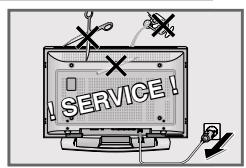
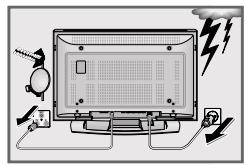
Please note the following information when setting up your television set.
This television set is designed to receive and display video and audio signals.
Any other use is expressly prohibited.
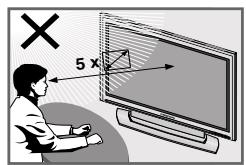
The ideal viewing distance is 5 times the screen diagonal.
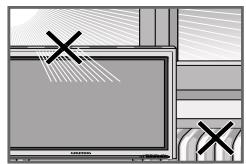
External light falling on the screen impairs picture quality.
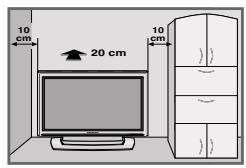
To assure sufficient ventilation make sure there is enough space around it in the wall unit.
The television set is designed for use in dry rooms. If you do use it in the open, please ensure that it is protected from moisture, such as rain or splashing water. Do not expose the television set to any moisture.
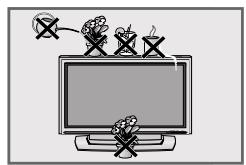
Do not place any vessels such as vases on the television, as they may spill liquid, thus presenting a safety risk.
Place the television set on a solid, level surface. Do not place any objects such as newspapers on the television set or cloth or similar items beneath it.
Do not place the television set close to heating units or in direct sunlight, as this will impair cooling.
Heat build-up can be dangerous and shortens the operating life of the television set. For reasons of safety, have a specialist remove any dirt deposits in the set from time to time.
Do not open the television set under any circumstances. Warranty claims are excluded for damage resulting from improper handling.
Ensure that the mains cable and the mains adapter are not damaged.
The television set may only be operated with the mains cable/adapter supplied.
Thunderstorms are a danger to all electrical devices. Even if the television set is switched off, it can be damaged by a lightning strike to the mains or the antenna cable. Always disconnect the mains and antenna plugs during a storm.
Only clean the plasma screen with a chamois leather and commercially available glass cleaner.
Only clean the housing of the plasma television with a damp, soft cloth, and plain water.
The Plasma screen is equipped with a glass plate. If the device is subjected to excessive strain, for example through vibration, bending or heat shocks the glass plate can break.
Do not hit or put pressure on the glass plate.
Should the glass plate be damaged, pull out the main plug immediately.
SET-UP AND SAFETY
Plasma screens use the principle of luminescent material. This technology can suffer sticking effects under certain operating conditions. This can include:
- Prolonged display of a freeze-frame
- Constant display of the same background
- Use of a picture format (such as 4:3) which does not fill the screen.
Once these sticking effects occur, they cannot normally be reversed.
To avoid sticking effects please note:
- During the first 100 operating hours, ensure that the television displays mostly moving pictures or frequently changing stills which fill the screen
- Use a picture format which fills the screen (16:9)
- Always activate the screenshot when using a PC
- Decrease the contrast and brightness as much as possible
- Switch off the device when it is not in use
If a freeze-frame is on the Plasma screen for a very long time (several hours), it is possible that this will be visible as a ghosting effect for some time when you switch to another channel. However, after a certain amount of time this ghosting disappears again.
This can be caused by a type of memory effect. In order to prevent this effect, we recommend activating the screen saver when using a PC.
After a lengthy period without use (longer than one year) a temporary colour discrepancy is possible in some circumstances.
This effect is normal for plasma screens. After a while these colour discrepancies disappear again.
A plasma screen is made up of around. 1.2 million colour pixels.
Within the industrial standard tolerance, a very small number of pixels (0.001%) can be defective. This is not regarded as a device defect under the terms of the warranty.
The plasma screen functions with inert gases and air pressure.
At 2,000m above sea-level or higher, the picture can become unstable and the picture quality is reduced. However, when the device is returned to below 2,000m above sea-level, this effect disappears and the device functions perfectly.
Please note when deciding where to put the device that furniture surfaces are covered by various types of lacquer and plastic, most of which contain chemical additives. These may cause corrosion to the feet of the device, thus resulting in stains on the surface of the furniture which can be difficult or impossible to remove.
Note:
Do not connect any other equipment while the device is switched on. Switch off the other equipment as well before connecting it.
Only plug the device into the mains socket after you have connected the external devices and the antenna.
CONNECTION/PREPARATION
Mounting the table base
Diagrams are contained in the assembly instructions enclosed with the table base.
1 Fasten the two brackets to the table base using the hex socket screws supplied.
2 Remove four fixing screws for each bracket from the back of the device.
3 Place the stand on a level surface.
4 Put the device on top of the stand.
5 Fasten the stand to the device by screwing four screws to the back of the device for each bracket.
Connecting the antenna and the mains cable
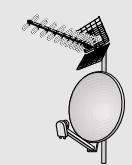
SAT 1 TV R
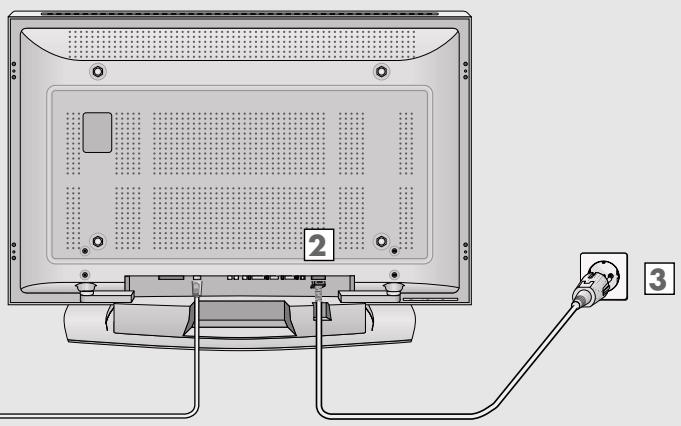
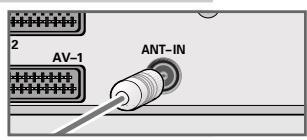
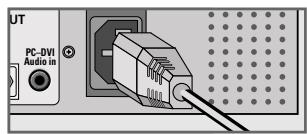
Plug the antenna cable of the rooftop antenna into the «ANT-IN« antenna socket on the television.
2 Plug the mains cable supplied into the mains socket of the television.
3 Plug the power cord into a wall socket.
Note:
Only plug the device into the mains socket after you have connected the external devices and the antenna.
Only connect the television using the power cord supplied to a suitable earthed safety socket.
Do not use an adapter plug or extension lead which does not meet the applicable safety standards. Do not tamper with the power cord.
CONNECTION/PREPARATION
Connecting the Hi-fi system/AV receiver
If you wish to have sound of a quality that matches the ideal picture provided by your television, we recommend connecting the television to a hi-fi system/AV receiverHiFi system.
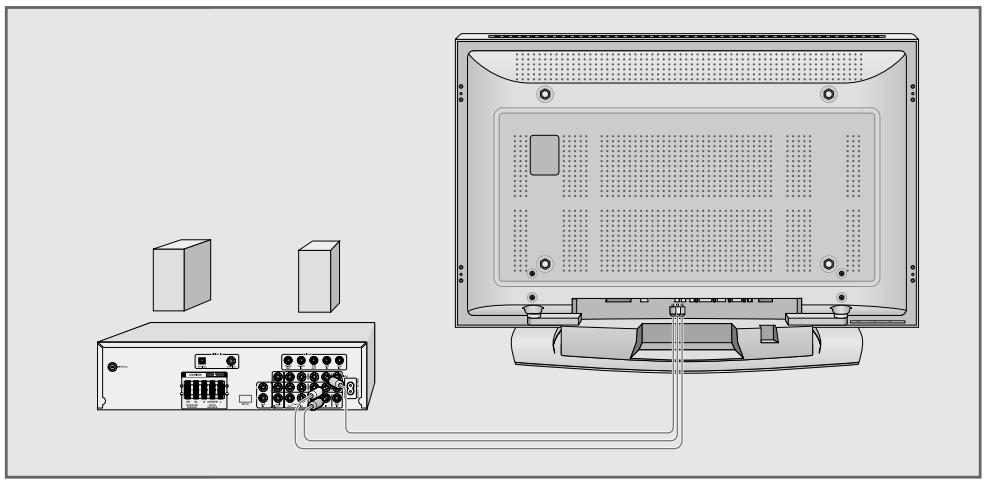
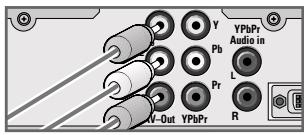
1 Connect the white and red sockets AV-Out L R ^机 on the television and the corresponding sockets on the hi-fi system/ AV receiver with a cinch cable.
2 Connect the yellow AV-Out Video socket on the television to the corresponding socket on the AV receiver using a cinch cable (video signal).
Inserting batteries in the remote control
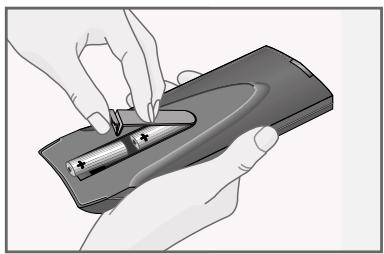
1 Open the battery compartment by removing the lid.
2 Insert the batteries (Mignon type, for example UM-3 or AA, 2x1,5V). Observe the polarity (marked on the base of the battery compartment).
3 Close the battery compartment.
Note:
If the television no longer reacts properly to remote control commands, the batteries may be flat. Be sure to remove used batteries.
The manufacturer accepts no liability for damage resulting from used batteries.
Environmental note
Batteries, including those which contain no heavy metal, may not be disposed of with household waste. Please dispose of used batteries in an environmentally sound manner. Find out about the legal regulations which apply in your area.
Connections on the television
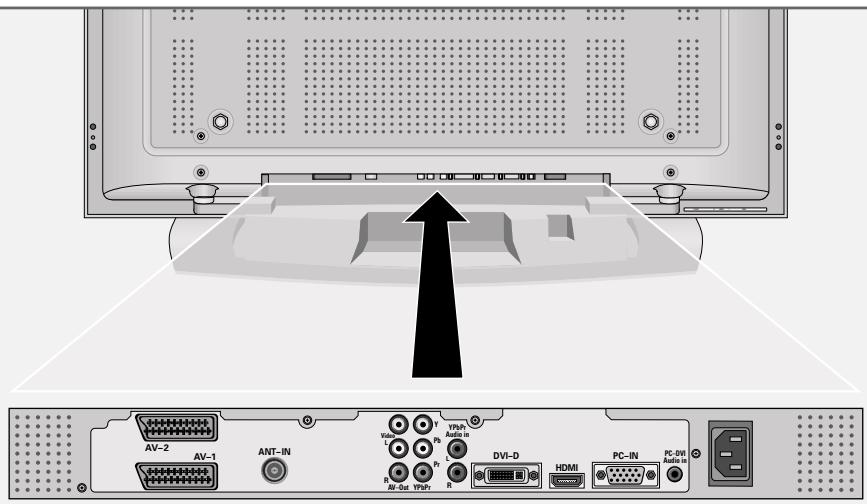
AV-2 Euro/AV socket (FBAS signal).
AV-1 Euro/AV socket (FBAS signal, RGB signal).
ANT-IN Antenna socket.
AV-Out Video L R Audio and video output.
Y Pb/Pr Video signal input (YUV signal).
Y Pb/Pr Audio In L R Audio signal input (YUV signal).
DVI-D DVI-D socket, video signal input for PC (DVI).
HDMI HDMI socket, audio/video signal input (HDMI).
PC-IN VGA socket, video signal input for PC.
PC-DVI Audio In Audio signal input for PC.

Socket for the mains cable.
Controls on the television
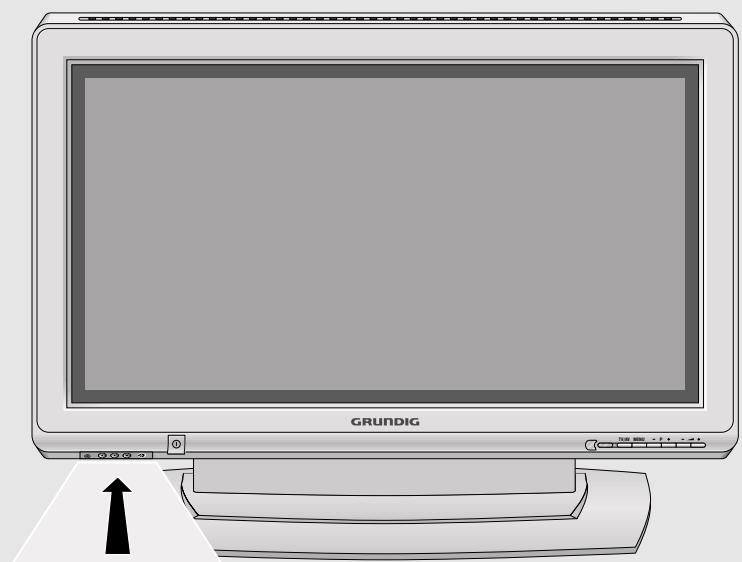
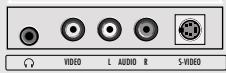

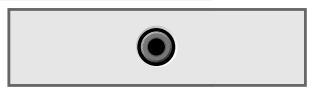
Headphone connection (3.5 mm jack).
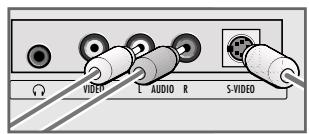
VIDEO
Video signal input for camcorder.
L AUDIO R
Audio signal input for camcorder.
S-VIDEO
Video signal input for S-Video camcorder.
①
Power switch, switches the device to and from standby mode.
TV/AV
Opens the pre-selection for AV channels.
Select within the menu with P + or -P confirm with -
MENU
Opens the INFO* menu
Press to select an item
Press to activate a function
Press + to set a function
Press MENU to close the menu
-P+
Switch the television on from standby
Channel selection
Select a function in the menu

Adjust the volume
Select menu functions
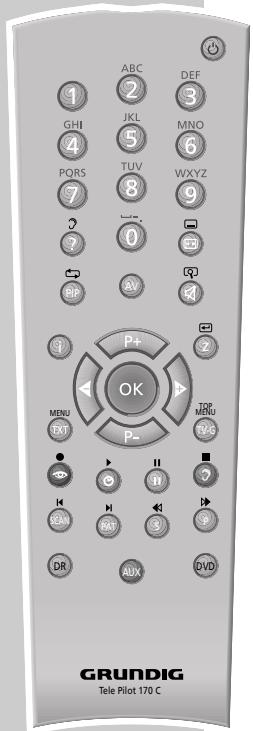
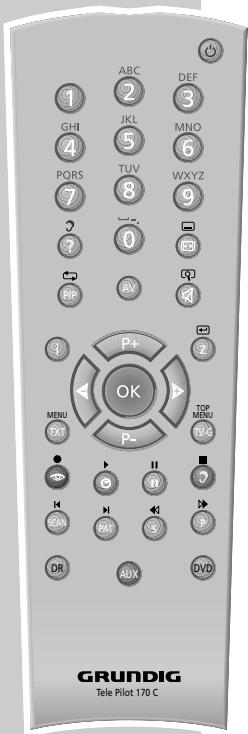
The remote control
Switches off the television set (stand-by).
1...0 Switches the television on from standby mode Selects channels directly.
? Displays the number and name of a station. Switches to double character size in teletext mode.
Switches between picture formats. Page stop in teletext mode.
PIP Shows an inset picture; activates the double window function (two different TV programmes on separate halves of the screen); switches back to normal size.
AV Opens the pre-selection for AV channels. Then selection with P+ or P-
Sound on/off (mute).
Calls up the Main menu*.
Z Zap function.
P+, P- Switches the television on from standby; selects stations step by step; moves the cursor in the menus up and down.
Adjusts the volume; moves the cursor left/right.
OK Calls up the preset channels; activates various functions.
TXT Switches between teletext and TV modes
TV-G Key has no function.
Selects various picture settings; scrolls back a page in teletext mode.
Displays the time; selects the next page in teletext mode.
Freeze-frame; selects the desired chapter in teletext mode.
⑦ Selects various audio settings; selects the desired topic in teletext mode.
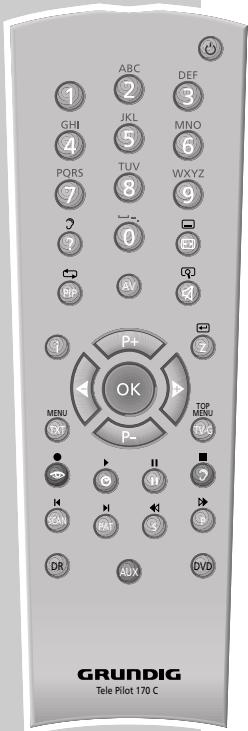
SCAN Reveals answers in teletext mode.
PAT Selects the Double Window function.
S Selects the sub-pages in teletext mode.
P Updates a page in teletext mode.
DR, DVD Switches to operation of a GRUNDIG digital receiver, GRUNDIG digital receiver with hard disk (PDR), GRUNDIG DVD player or GRUNDIG DVD recorder.
Keep the appropriate button (»DR«, »DVD«) pressed down. Then press the appropriate button.
Note:
The DR button has been programmed for operating a GRUNDIG digital receiver (remote control level 1). The DVD button has been programmed for operating a GRUNDIG DVD player.
You can change this programming, see AUX button. The functions available depend on the model of the device you are using. Just try it out.
AUX Programming the remote control for the operation of external devices.
Press AUX and hold it down and press three numerical buttons to enter the appropriate code:
1<,>>2<,>>3<for a GRUNDIG DVD player.
4<, >>5<, >>6< for a GRUNDIG DVD recorder.
1 , 4 , 7 for a GRUNDIG digital receiver (remote control level 1).
2<,>>5<,>>8< for a GRUNDIG digital receiver (remote control level 2).
3<, >>6<, >>9< for a GRUNDIG digital receiver with hard disk (PDR).
Setting television channels automatically
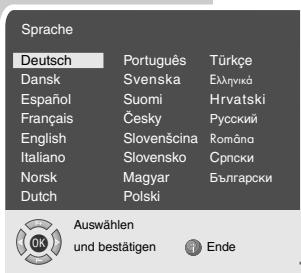
The television set is equipped with an automatic channel search system.
You start the search and can then sort the television channels into your order of preference.
99 preset positions are provided, to which you can assign television channels from the antenna or from the cable connection.
1 Switch on the television with 1 on the television set, then press P + on the remote control.
- The «Sprache« (Menu language) menu appears when the television is first switched on.
Hint:
If the «Sprache« (Menu language) menu does not appear on the screen, then set it in accordance with the chapter on resetting all television channels on page 32.
2 Select language with P + , P - , or and press OK to confirm.
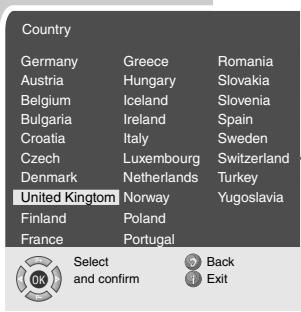
- The »Country« menu appears.
3 Press P + , P - , or to select the country and OK to confirm.
- The search begins. It may last a few minutes, depending on the number of television stations found.
- After the search the television switches to channel position 1 and the Program table menu appears.
Changing stored channels
You can delete channels that have been stored more than once during the automatic search. You can also store channels in a different preset position, change or enter the name of a channel as well as skip channels.
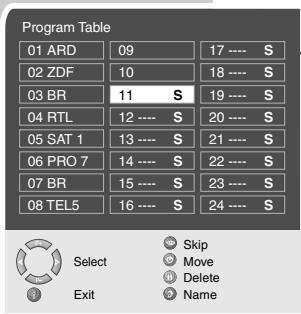
Deleting channels
1 In the Program table menu, select the station to be deleted with P + , P - , or .
2 Highlight the channel with (yellow).
3 Press (yellow) to delete the channel.
Note:
To delete other stations, repeat steps 1 and 3.
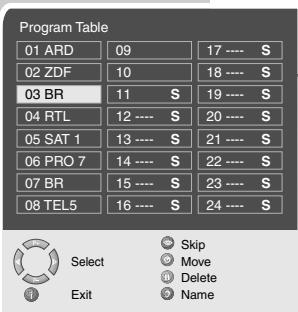
Sorting television channels
1 In the Program table menu, select the channel to be moved with with P + , P - , or .
2 Highlight the channel with (green).
3 Select a new channel position by pressing P + , P - , or and then press to confirm. All of the channels that follow move up one position.
Note: To sort the other television channels repeat steps 1 to 3.
Entering the channel names (maximum of 5 characters)
1 In the Program table menu, select the desired channel with P + , P - , or .
2 Highlight the channel with (blue).
3 Select letters or numbers with P + or P - , move to the next position with and repeat.
4 Store the channel name with OK
Note: To enter additional channel names, repeat steps 1 to 4.
Skipping television channels
You can mark television channels which should be skipped during selection with P + or P - . A selection with the number keys is also possible.
1 In the Program table menu, select the desired channel with P + , P - , or .
2 Highlight the channel with 0 (red).
- An S appears behind the name of the television station.
- You can deselect the selected channel by pressing the red button again.
Concluding the settings
Press to finish the settings.
Picture settings
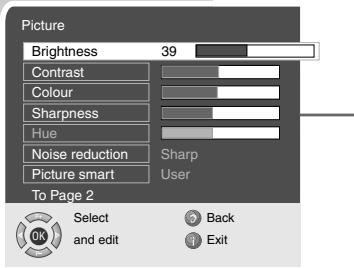
Press to open the MAIN MENU. - The MAIN MENU appears.
2 Select Picture with P + or P - and confirm with OK The Picture menu appears.
3 Select Default settings with P + or P - and the setting User with or .
4 Select «Brightness», «Contrast», «Colour», «Sharpness« or «Noise reduction« with «P++» or «P-» and press «OK» to confirm.
Note:
The setting »Hue« only applies to NTSC programmes (e.g. for playback of American television programmes on the video recorder).
5 Press « or « to select the level, and then press OK« to confirm.
6 Press to finish the settings.
Audio settings
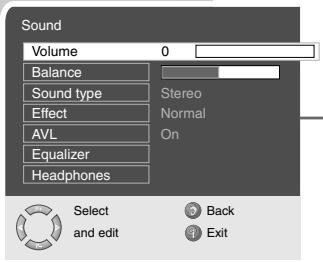
Press to open the MAIN MENU. -The MAIN MENU appears.
2 Select Sound with P + or P - and confirm with OK The Sound menu appears.
Note:
Further operation is explained in the following sections.
Volume
1 Select Volume with P + or P - and adjust the setting with or .
Balance
1 Select Balance with P + or P - and adjust the setting with or .
Stereo / two channel, mono
If the device receives two channel programmes, e.g. a film with the original sound on sound channel B (display: «Dual B «) and the dubbed version on sound channel A (display: «Dual A«), you can select the sound channel you desire.
If the device receives stereo or Nicam programmes, it switches automatically to stereo sound (display: «Stereo«).
You can switch the sound to «Mono» if the stereo reception quality is poor.
1 Select Sound type with P + or P - and adjust the setting with or .
Stereo width
Widens the audio output for stereo programmes and improves the sound with mono reception.
1 Select Sound type with P + or P - .
2 Press or to select the setting.
Automatic volume
The television channels broadcast at different volumes. The automatic volume limiting (AVL) function means the volume is kept the same when you switch between channels.
1 Select AVL with P + or P - and then select On with or .
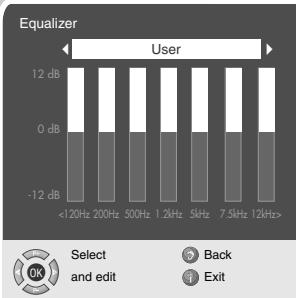
Equaliser
The equaliser offers you four preset sound settings (Music, Sport, Cinema and Dialogue) and one which you can create yourself (User).
1 Select Equalizer with + or - and confirm with OK. The Equalizer menu appears.
2 Select the audio setting User with P + or P - and confirm with OK. The frequency band 120Hz is activated.
3 Set the desired value with P + or P - and select the next frequency band with or .
4 Press 1 (blue) to save the setting.
Concluding the settings
Press to finish the settings.
Switching on and off
Press 1 on the television set to switch it to standby.
2 Press 1 0 or P + or P - to switch on the device from standby mode.
3 Press the button to switch the television to standby mode.
4 Press 1 on the television set to switch it off completely. - This saves electricity.
Selecting channels
Use 1 0 to select channels directly.
2 Press P + or P - to move up and down channels.
3 Open the channel list by pressing OK, select the station with + or - and press OK to switch off the channel list.
Selecting AV channels
1 Call up the Source table menu with AV .
2 Select the desired AV channel position with P + or P - and press OK to confirm.
3 Switch back to the television channel with 1 0
Adjusting the volume
1 Adjust the volume with or
Muting
1 Use to switch the sound off (mute) and to switch it on again.
Displaying time
1 You can display the time by pressing the 1 button (only for channels with teletext).
Displaying information
Press to display the information.
- The display disappears automatically after a short while.
Freeze-frame
If you wish to view a particular scene for longer, you can freeze the frame of the current programme.
Press (yellow).
2 To quit this function, press again.
You can select four different picture settings.
1 Select the desired picture setting from «User«, «Natural«, «Rich« or «Soft« with «.
- You can alter the «User« picture setting, see the "Picture settings" chapter on page 13.
Audio settings
You can select six different audio settings.
This function allows you to save the television channel which you are currently watching and switch to other channels (zapping).
1 Select the channel you want to save in the zap memory with 1 0 or P + P = (e.g. channel 1, BBC 1) and save by pressing Z
- The display BBC 1 appears in the screen.
2 Change channels with 1 0 or + -
3 You can now use Z to switch between the saved channel (in the example, BBC1) and the channel you were watching before.
4 Press to quit the zap function.
- The display disappears.
This function enables you to enlarge the television or PC picture.
Press to open the MAIN MENU menu. - The MAIN MENU menu appears.
2 Select Picture with P + or P - and press OK to confirm. The Picture menu appears.
3 Select Brightness with P + or P - and press P + again.
- Zoom is selected.
4 Press OK to activate the zoom function.
5 Press P + or P - to change the size of the picture.
6 To change the picture section press OK and then , P + or P - to select the section.
7 Press to quit the zoom function. - The display disappears.
Changing the picture format
The television automatically switches to the 16:9 format if this format is detected via the Euro-AV socket.
1 Select the picture format with . The selected picture format, for example 16:9 , appears on the screen.
- You can choose between the following picture formats:
>>4:3« format
The picture is shown in 4:3 format.
»Auto« format
The picture format is automatically switched to 16:9 for 16:9 programmes.
For programmes in 4:3 format, the picture automatically fills the screen.
During programmes in 4:3 format, the picture is stretched horizontally if 16:9 or 14:9 is selected.
The picture geometry is stretched horizontally.
With actual 16:9 signal sources (from a set-top box on the Euro-AV socket) the picture fills the screen completely and with the correct geometry.
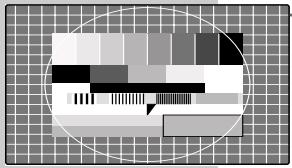
Letterbox format
The letterbox setting is especially suitable for programmes in 16:9 format.
The black borders which are usually at the top and bottom of the screen are eliminated, 4:3 pictures fill the screen.
The transmitted pictures are enlarged, but are slightly cropped at the top and bottom. The picture geometry remains unchanged.
The »Auto Letterbox« message appears for PAL Plus television programmes.
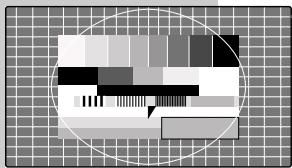
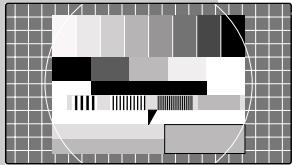
>>Panorama< format
This setting is suited to films with a large width/height ratio.
During programmes in 4:3 format the picture is stretched horizontally if the Panorama function is selected. The picture geometry is stretched horizontally.
Subtitles format
If you cannot read the subtitles which appear on the bottom of the screen (especially during programmes with 4:3 format and if the «Subtitles« format is selected), then select «Subtitles«.
PIP (picture in picture) allows you to watch an inset picture from a second picture source in addition to the current channel.
Other television stations, DVD players, video recorders or satellite receivers can be used as video sources. They must be connected to the input sockets on the back of the device.
Displaying the inset picture
1 To display the inset picture, press PIP once.
Double window
1 To activate the double window function (split screen), keep pressing PIP .
- The last selected main and inset pictures are shown next to each other.
Selecting the channels for the inset picture at the left side of the screen (double window)
1 Press P + or P - to move up and down channel positions one at a time.
Selecting the channels for the main picture and the right side of the screen (double window)
1 Press «1...0« to select channels directly, or select the video source (DVD player, video recorder, SAT receiver); then call the «Source table« menu by pressing «AV«, select the desired AV channel position with «P++« or «P-« and press «OK« to confirm.
Swapping the main and inset pictures
Press to swap the main and inset pictures.
Changing the position of the inset picture
Press P to move the inset picture.
Changing the size of the inset picture
1 Press S to change the size of the inset picture.
Ending the PIP function
1 To hide the inset picture, press PIP twice.
Quitting the double window
1 To quit the double window, press PIP
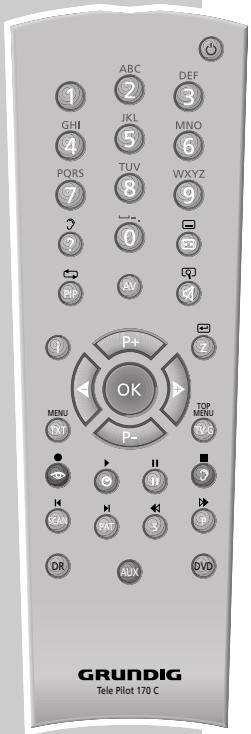
TOP text or FLOF text mode
1 Press TXT to switch to teletext mode.
2 You can directly select teletext pages with 1 0
Note:
At the bottom of the screen, you will see an information line consisting of a red, green and, depending on the station, yellow and blue text field. Your remote control has buttons with the corresponding colours.
3 Press (red) to scroll back a page.
4 Press 1 (green) to scroll to the next page.
5 Press (yellow) to select chapters.
6 Press (blue) to select topics.
7 Press TXT to switch off teletext mode.
Normal text mode
1 Press TXT to switch to teletext mode.
2 You can directly select teletext pages with 1 0
3 Press P - to scroll back a page.
4 Press P + to scroll to the next page.
5 Press TXT to switch off teletext mode.
Additional functions
Skipping the waiting time
While a page is being searched for, you can switch to the television channel.
1 Enter the teletext page number using 1 0 and then press P
- As soon as the page is found, the page number is displayed.
2 Press P to switch to the teletext page.
Increasing character size
If you have difficulty reading the text on the screen, you can double the character size.
1 To enlarge the character size of a teletext page, press ? repeatedly.
Page stop
A multiple page may contain several sub-pages, which are automatically scrolled by the transmitting station.
1 Stop the sub-pages with
2 Press to quit the function.
Calling up a sub-page directly
If the selected teletext page contains further pages, the number of the current sub-page as well as the total number of pages is displayed.
1 Call up the sub-pages with »S«.
2 Press P - to scroll back a page.
3 Press P + to scroll to the next page.
4 Press S to quit the function.
Reveal answer
Certain teletext pages contain "hidden answers" or information which can be called up.
1 Display information with «SCAN«.
2 Conceal information with SCAN*.
Split screen
With this function you can see the television channel on the left and the teletext page on the right.
1 To activate the window function, press PAT.
- The television channel and the teletext page appear next to each other on the screen.
2 To deactivate the double window function, press PAT
CONVENIENCE FUNCTIONS
Convenience functions with the «Features« menu
1 To open the MAIN MENU« press »i«.
2 Select Features with P + or P - and confirm with OK
Note:
Further operation is explained in the following sections.
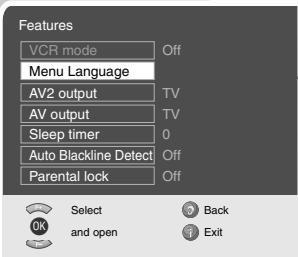
Changing the menu language
1 Select Menu Language with P + or P - and confirm with OK .
- The »Menu Language« menu appears.
2 Select the language with P + , P - , or and press OK to confirm.
3 Press to finish the setting.
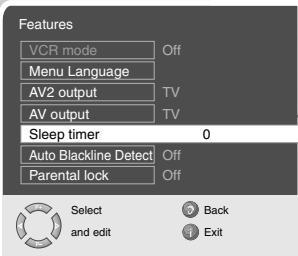
Entering the switch-off time for the sleep timer
You can enter a switch-off time. After this time has elapsed, the television switches to standby mode.
1 Select Sleep timer with P + or P - and press OK to confirm.
2 To enter the switch-off time (from 15 to 120 minutes), press or .
3 Press i to conclude the setting.
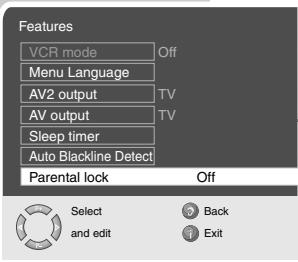
Child lock
If the child lock is activated, the buttons on the television are not operable.
1 Select Parental lock with P + or P - .
2 Press or to activate or deactivate the child lock (On or Off).
3 Press i to conclude the setting.
Automatic picture format modification (Auto Blackline Detect)
If this function is activated and a programme with black bars at the top and bottom is showing, the picture is enlarged proportionally.
1 Select »Auto Blackline Detect« with «P+« or «P-«.
2 Press or to activate or deactivate the function.
3 Press to finish the setting.
USING EXTERNAL DEVICES
DVD player, DVD recorder, video recorder or set-top box
Note:
Which television socket(s) you connect your external devices to depends on the sockets the external device is equipped with and the signals which are available.
Note that with many external devices the resolution of the video signal must be adapted to the input sockets on the television (check the external device's instruction manual). You can find out which values you need to set by referring to the guidelines in the section about connection options.
Note:
Do not connect any other equipment while the device is switched on. Switch off the other equipment as well before connecting it.
Only plug the device into the mains socket after you have connected the external devices.
High definition - HD ready
Your television can playback high-definition television signals (HDTV).
You can connect the input sources (HDTV set-top box or High Definition DVD player) to the « HDMI« or « DVI-D« socket (digital HDTV signal).
This ensures that you can view digital HDTV programmes, even if they are copy-protected (HDCP High Bandwidth Digital Content Protection).
Connecting a DVD player, DVD recorder, video recorder or set-top box

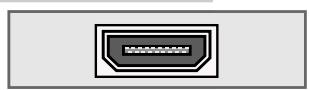
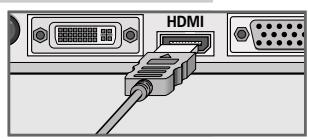
With a digital audio/video signal
Video signal: digital video; resolution: standard 576p; HDTV 720p, 1080i.
Audio signal: digital audio (stereo, multi-channel compression, uncompressed).
Channel position »HDMI«.
1 Connect the »HDMI« socket on the television and the corresponding HDMI socket on the external device using a standard HDMI cable (digital video and audio signal).
With a digital audio/video signal
Video signal: digital video; resolution: standard 576p; HDTV 720p, 1080i.
Audio signal: stereo, analogue.
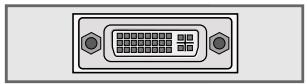
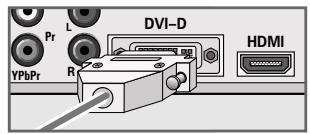
Channel position DVI.
1 Connect the «DVI-D« socket on the television and the corresponding DVI socket on the external device using a standard DVI cable (digital video and audio signal).
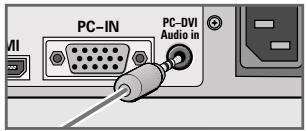
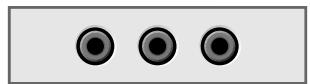
2 Connect the PC-DVI Audio In socket (3.5 mm jack) on the television to the corresponding sockets on the external device with cinch cables (audio signal).
With an analogue video signal (progressive)
Video signal: YUV; resolution: standard 576p; HDTV 720p, 1080i.
Audio signal: stereo, analogue.
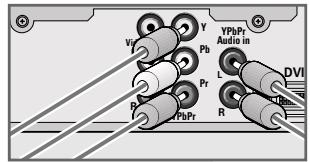
Channel position YPBPR<.
1 Connect the Y Pb sockets on the television and the corresponding sockets on the external device using cinch cables (video signal).
2 Connect the «Y Pb Pr Audio In« sockets on the television to the corresponding sockets on the external device using cinch cables (audio signal).
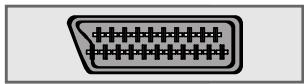
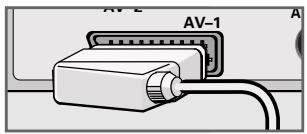
Using the Euro/AV socket
Video signal: FBAS/RGB; resolution: 576i (AV-1), FBAS; resolution: 576i (AV-2).
Audio signal: stereo, analogue.
Channel position AV1or AV2.
1 Connect the AV - 1 or AV - 2 socket on the television and the corresponding socket on the external device using a EURO-AV cable (video and audio signal).
Note:
You can copy recordings via the television from one external device to another by connecting the playback device to the AV - 1 socket and the recording device to the AV - 2 socket, then selecting the AV1 channel. However, you will not be able to watch a television channel.
Features
VCR mode On
Menu Language
AV2 output
AV output
Sleep timer
Auto Blackline Detect
Parental lock

Select
and edit

Exit
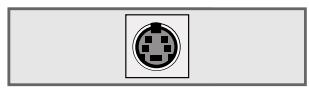
With S-Video signal
Video signal: Y/C.
Audio signal: stereo, analogue.
Channel position SVHS<.
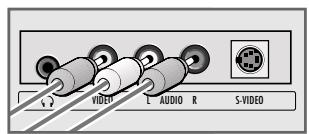
1 Connect the «S-VIDEO« socket on the television and the corresponding socket on the external device using an S-Video cable (video signal).
2 Connect the AUDIO R sockets on the television to the corresponding sockets on the external device using cinch cables (audio signal).
With an analog TV signal
Video signal: FBAS.
Audio signal: stereo, analogue.
Channel position AV3<.
1 Connect the «VIDEO« cinch socket on the television and the corresponding socket on the external device using cinch cables (video signal).
2 Connect the AUDIO R sockets on the television to the corresponding sockets on the external device using cinch cables (audio signal).
Using a video recorder, DVD player or set-top box
Switch on the video recorder, DVD player or set-top box and select the function you wish to use.
2 Press AV^ , select the input signal channel with P + or P - (AV1, AV2, AV3, AV3, SVHS, HDMI, DVI or YPBPR) and press OK to confirm.
Switching VCR mode on and off
On certain video recorders, you can improve the picture stability of the playback using this mode.
1 Press AV , select the channel with the connected VCR with P + or P - and press OK to confirm.
2 Call up the MAIN MENU 忍 menu with i .
- The MAIN MENU × menu appears.
3 Select >Features< with + or - and press OK to confirm.
4 Select VCR mode with P + or P - and select On with or
5 Press to conclude the setting.
Selecting the signal for the AV output
With this setting you can select which signal is output at the Euro-AV socket AV1 or at the AV OUT V L R cinch sockets.
The television station or the video/audio signal from connected devices.
This enables you to transmit recordings from one external device (e.g. a DVD player) to another using the television. Connect the playback device to Euro-AV socket AV1 and the recording device to Euro-AV socket AV2 and select the setting you require in the «Special functions« menu.
-AV2output:
»TV« - the television channel that you are viewing or
»AV3« - the audio/video signal from the cinch sockets (AV3).
-AV output:
»TV« - the television channel that you are viewing or
»AV2« - the audio/video signal from the Euro-AV socket AV2.
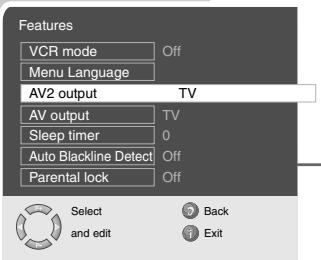
1 Call up the MAIN MENU 念 menu with i
2 Select «Features« with «P+« or «P-« and press «OK« to confirm.
3 Select AV2 output or AV output with P + or P - .
4 Select the desired option with or
5 Press to conclude the setting.
Headphones
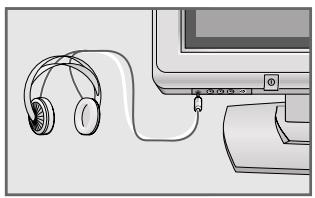
Connecting headphones
Plug the headphone jack (3.5 mm jack plug) into the headphone socket on the left side of the television.
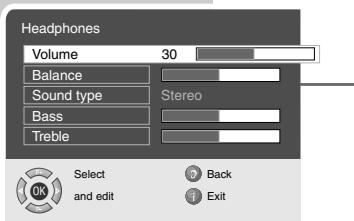
Selecting the sound settings for the headphones
Press to open the MAIN MENU.
2 Select Sound with P + or P - and confirm with OK
3 Select >Headphones< with P + or P - and confirm with OK<.
4 Select Volume<, Balance<, Bass<, Treble< or Soundtype< with P + or P - and set with or .
5 Press to finish the setting.
USING EXTERNAL DEVICES
Decoder or satellite receiver
In order for the television to receive encoded programs from a privately operated station, a decoder is needed.
Connecting a decoder or satellite receiver
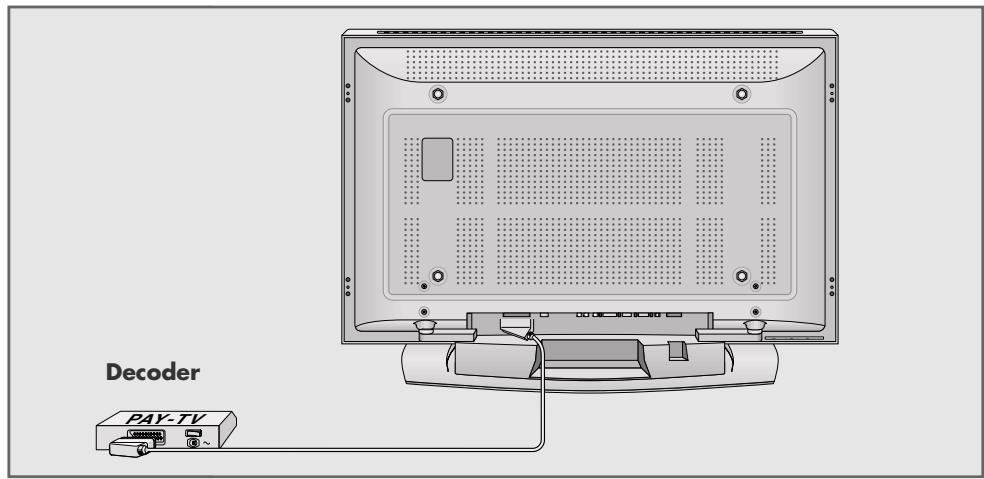
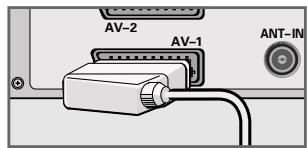
1 Connect the AV-1 socket on the television set and the appropriate socket on the decoder using a EURO-AV cable.
Using a decoder or satellite receiver
Switch on the television and the decoder or the satellite receiver.
2 Press AV , select the channel AV1 with P + or P - and press OK to confirm.
USING EXTERNAL DEVICES
Camcorder
Connecting the camcorder
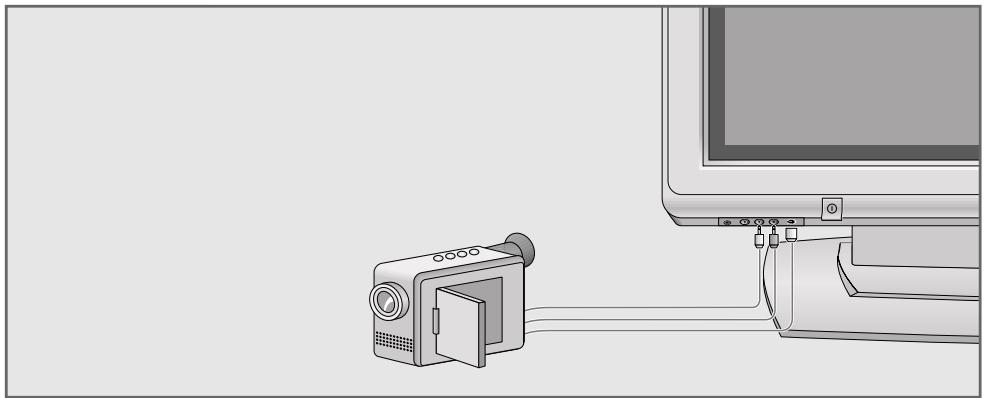
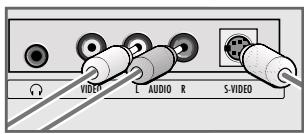
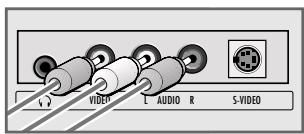
1 Connect the yellow socket «VIDEO« on the television and the corresponding socket on the camcorder (VHS, Video 8) with a cinch cable (picture signal);
or
connect the «S-VIDEO« socket (picture signal) on the television and the corresponding socket on the camcorder (S-VHS, Hi 8) with a S-Video cable.
2 Connect the white and red sockets L AUDIO R on the television and the corresponding sockets on the camcorder with a cinch cable (audio signal).
Note:
If a mono camera is connected, connect the white socket «L AUDIO« on the television and the corresponding socket on the camera. Select «Mono« in the «Sound« menu for mono operation.
Operating with a camcorder
1 Switch on the camcorder, insert a cassette and start playback.
2 Press AV^ , select the AV3 or SVHS channel with + or - and press OK to confirm.
- You will see the picture and hear the sound of the camcorder on the television.
Connecting a PC
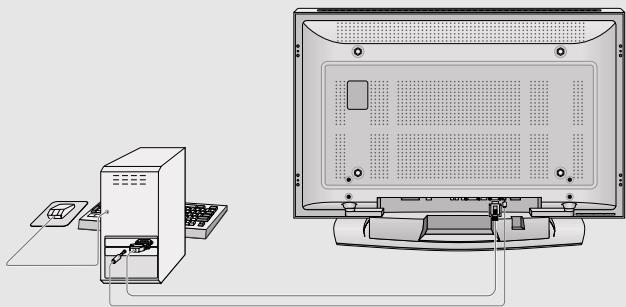
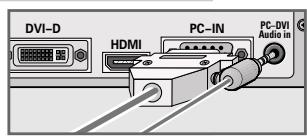
1 Connect the socket PC-IN or DVI-D on the television to the corresponding socket on the PC using a VGA cable.
2 Connect the socket PC-DVI Audio In on the television to the corresponding socket on the PC using a cinch cable (audio signal).
Note:
Adjust your PC to the monitor (for example, picture resolution 1024 × 768 , picture frequency 60Hz ).
Selecting the channel position for the PC
1 Press AV^ , select the or DVI channel with P + or P - and press OK to confirm.
Settings for the PC
1 Press i\~ to open the MAIN MENU\~ menu.
- The MAIN MENU × menu appears.
2 Select «Picture« with «P+« or «P-« and press «OK« to confirm.
- The »Picture« menu appears.
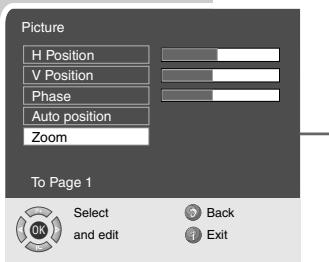
3 Select Brightness with P + or P - and press P + again.
- The second page of the picture menu appears.
4 Press P + or P - to select the function or setting.
- Options:
»H Position« - adjust the horizontal picture position
»V Position« - adjust the vertical picture position
Phase - removes horizontal flicker, blurring and horizontal lines
»Auto position « - for automatic adjustment to the PC
5 Press OK to activate the function and or to adjust.
6 Press to finish the setting.
Picture
H Position
V Position
Phase
Auto position
Zoom
To Page 1

Select
and edit

Back
Exit
Setting television channels
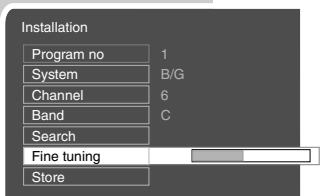
This setting is only necessary if a new channel comes on air and you do not want to change the order of your channels. The television channel can be set directly or using the search.
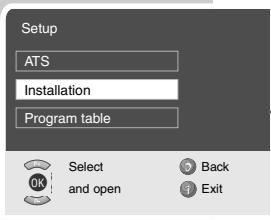
Setting channels using the search
Press to open the MAIN MENU. -The MAIN MENU appears.
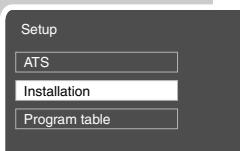
2 Select Setup with + or and confirm with OK. - The Setup menu appears.
3 Select Installation with P + or P - and confirm with OK .
4 Select Program no with P + or P - and set the preset channel with or .
5 Select Search with P + or P - and start the search with .
- If a strong station signal is received, the search is interrupted and the picture appears. Repeat the search until the channel you want appears on the screen.
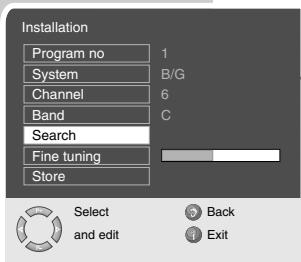
Note:
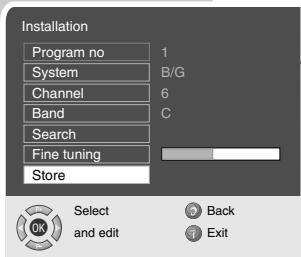
The current system is automatically displayed in the System line. Select System with P + or P - if the colour or sound are incorrect. Select the setting required with or .
6 Select «Store« with «P+« or «P-« and confirm with «OK«. - The «Stored« message appears.
Note:
To set other television stations, repeat steps 3 to 6.
Press to finish the setting.

Select
and edit

Back

Exit

Select
and open

Back

Exit

Select
and edit

Back

Exit

Select
and edit

Back

Exit
Fine tuning television channels
The television automatically tunes itself to the best possible reception. You may need to carry out manual fine tuning in areas where there is poor reception.
Press to open the MAIN MENU.
- The MAIN MENU appears.
2 Select Setup with + or and confirm with OK.
- The Setup menu appears.
3 Select Installation with P + or P - and confirm with OK.
4 Select Fine tuning with P + or P - and set it with or .
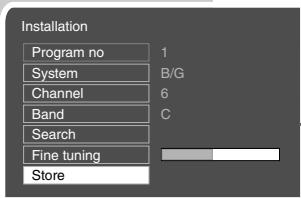
5 Select Store with P + or P - and confirm with OK
- The »Stored« message appears.
6 Press to finish the setting.
Setting the television channels by entering the channel numbers
Press to open the MAIN MENU.
The MAIN MENU appears.
2 Select Setup with P + or P - and confirm with OK
- The Setup menu appears.
3 Select Installation with P + or P - and confirm with OK.
4 Select Program no with P + or P - and set the preset channel with or
5 Select Band with P + or P - .
6 Press « or « to choose between «S« (special channel) and «C« (channel).
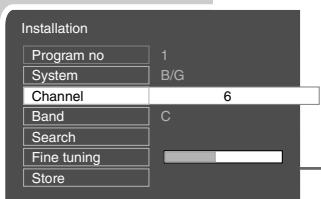
7 Select Channel with P + or P - .
8 Press or to switch up and down channels or use 1 0 to enter the channel number directly.
Note:
The current system is automatically displayed in the System line. Select System with P + or P - if the colour or sound are incorrect. Select the setting required with or .
9 Select «Store« with «P+« or «P-« and confirm with «OK«.
- The »Stored« message appears.
Note:
To set the other television stations, repeat steps 3 to 9.
10 Press i\~ to finish the setting.
Re-tuning all television channels
You can re-tune all the television stations, for example if you move to another town.
Press to open the MAIN MENU.
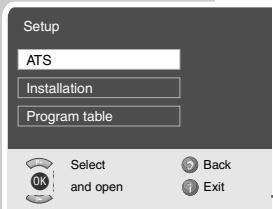
2 Select Setup with + or - and confirm with OK. The Setup menu appears.
3 Select ATS with P + or P - and confirm with OK . The ATS menu appears.
4 Press or to select the country.
5 Select »Autoprogram« with «P+« or «P-« and confirm with «OK«.
-A warning message appears.
6 Press (green) to start the search.
- The search begins. It may last a few minutes, depending on the number of television stations found.
- The automatic search may last a few minutes, depending on the number of television channels received.
Note:
You can interrupt the search by pressing OK.

Technical data
Operating voltage: 110V - 240V,50 / 60Hz
Power consumption: 275 W during operation approx. 2,5 W in standby mode
Sound output: 2 × 10 ~W music power (2 × 5 W sine wave)
Reception range: C01 - C80, special channels S01 - S41
Preset channels: 99 and 8 AV
Screen size: 106 cm/42"
Viewing angle: 160^ hor./160° vert.
Max. resolution: WXGA 1024 x 768
Weight: approx. 39,61 kg
Service information for dealers
The television set may only be operated with the mains adapter supplied.
The product complies with the following EU directives:
73/23/EEC directive for electrical equipment to be used within defined voltage ranges. 89/336/EEC directive on electromagnetic compatibility.
The device complies with the following standards: EN 60065, EN 55013, EN 55020.
Environmental note
This product has been made from high-quality parts and materials which can be re-used and recycled.
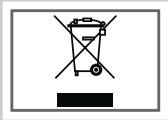
Therefore, do not throw the product away with normal household waste at the end of its life. Take it to a collection point for recycling electrical and electronic devices. This is indicated by this symbol on the product, in the operating manual and on the packaging.
Please find out about collection points operated by your local authority.
Help protect the environment by recycling used products.
Troubleshooting
If the remedies given below do not work, please consult an authorised GRUNDIG dealer. Please bear in mind that malfunctions can also be caused by external devices such as video recorders or satellite receivers.
| Fault | Possible cause | Remedy |
| Screen lit (snow), but no station | Antenna cable | Is the antenna cable connected? |
| No television station pro-grammed | Start the station search | |
| Poor picture contrast | Picture settings incorrectly set | Adjust the brightness, contrast or colour setting |
| Problem at station | Test with another channel | |
| Interference to picture and/or sound | Interference from other devices | Change the position of the device |
| Ghosts, reflection | Channel setting | Automatic or manual chan-nel setting/fine tuning |
| Antenna | Have antenna cable or system checked | |
| No colour | Colour intensity at minimum | Turn up the colour |
| TV standard setting (if setting option is available) | Select the correct colour standard | |
| Problem at station | Test with another channel | |
| Picture but no sound | Volume set to minimum | Turn up or switch on the volume |
| Problem at station | Test with another channel | |
| Teletext missing or faulty | Television station (has no teletext) or antenna system | Test another channel for fine tuning and ghosts |
| Station signal too weak | Check the antenna system | |
| Remote control does not work | No optical connection | Point the remote control at the television set |
| Remote control batteries | Check the batteries, change if necessary | |
| Operating condition unde-fined | Switch off the television with the main power button for approximately 2 minutes | |
| Picture is dark in PC mode | Incorrect setting for picture resolution and picture fre-quency on the PC | Change the setting on the PC (for example, picture resolution 1024 x 768, picture frequency 60Hz) |
Additional Information for units sold in the UK.
Units sold in the UK are suitable for operation from a 240V ac, 50Hz mains supply.
The range of multi-system receivers is built to work in most European countries. However, the mains plug and socket system for the UK differs from many European countries.
This appliance has been supplied with a fitted, non-removable, approved converter plug for use in the UK. This converter plug is fitted with a 5A rated fuse.
In case this appliance is supplied with a moulded 2-pin Euro plug only, which is unsuitable for UK operation, this must be cut off and immediately disposed of. An approved 13A, 3-pin UK plug should then be fitted by a qualified electrician.
Note:
The severed Euro plug must be destroyed to avoid a possible shock hazard should it be inserted into a socket elsewhere.
If a non-rewireable 3-pin plug or a rewireable 13A (BS1363) 3-pin plug is used, it must be fitted with a 5A ASTA or BSI approved BS1362 fuse. If any other type of plug is used it must be protected by a 5A fuse either in the plug, or at the distribution board. If this type of plug becomes defective, ensure that the fuse is removed before disposal, to eliminate potential shock hazard.
If it is necessary to change the fuse in the non-rewireable plug, the correct type and rating (5A ASTA or BSI approved BS1362) must be used and the fuse cover must be refitted. If the fuse cover is lost or damaged, the lead and plug must not be used until a replacement is obtained. Replacement fuse covers should be obtained from your dealer.
Important:
The wires in the mains lead are colour coded in accordance with the following code:
BLUE - NEUTRAL
BROWN-LIVE
As the colours of the wires in the mains lead of your appliance may not correspond with the coloured marking identifying terminals in your plug, proceed as follows:
Connect the BLUE coloured wire to plug terminal marked with the letter "N" or coloured black.
Connect the BROWN coloured wire to the plug terminal marked with the letter "L" or coloured red.
In no circumstance must any of the wires be connected to the terminal marked with the letter "E", earth symbol "M", coloured green, or green & yellow.
- Connection/Preparation
- Overview
- Settings
- Television operation
- Teletext mode
- Convenience functions
- Using external devices
- PC Monitor Mode
- Special settings
- Information
- SET-UP AND SAFETY
- Note:
- Mounting the table base
- Connecting the antenna and the mains cable
- Connecting the Hi-fi system/AV receiver
- Inserting batteries in the remote control
- Environmental note
- Connections on the television
- Controls on the television
- VIDEO
- L AUDIO R
- S-VIDEO
- TV/AV
- MENU
- The remote control
- Setting television channels automatically
- Hint:
- Changing stored channels
- Deleting channels
- Sorting television channels
- Entering the channel names (maximum of 5 characters)
- Skipping television channels
- Concluding the settings
- Picture settings
- Audio settings
- Volume
- Balance
- Stereo / two channel, mono
- Stereo width
- Automatic volume
- Equaliser
- Switching on and off
- Selecting channels
- Selecting AV channels
- Adjusting the volume
- Muting
- Displaying time
- Displaying information
- Freeze-frame
- Changing the picture format
- >>4:3« format
- »Auto« format
- Letterbox format
- >>Panorama< format
- Subtitles format
- Displaying the inset picture
- Double window
- Selecting the channels for the inset picture at the left side of the screen (double window)
- Selecting the channels for the main picture and the right side of the screen (double window)
- Swapping the main and inset pictures
- Changing the position of the inset picture
- Changing the size of the inset picture
- Ending the PIP function
- Quitting the double window
- TOP text or FLOF text mode
- Normal text mode
- Additional functions
- Skipping the waiting time
- Increasing character size
- Page stop
- Calling up a sub-page directly
- Reveal answer
- Split screen
- Convenience functions with the «Features« menu
- Changing the menu language
- Entering the switch-off time for the sleep timer
- Child lock
- Automatic picture format modification (Auto Blackline Detect)
- DVD player, DVD recorder, video recorder or set-top box
- High definition - HD ready
- Connecting a DVD player, DVD recorder, video recorder or set-top box
- With a digital audio/video signal
- With an analogue video signal (progressive)
- Using the Euro/AV socket
- With S-Video signal
- With an analog TV signal
- Using a video recorder, DVD player or set-top box
- Switching VCR mode on and off
- Selecting the signal for the AV output
- Headphones
- Connecting headphones
- Selecting the sound settings for the headphones
- Decoder or satellite receiver
- Using a decoder or satellite receiver
- Camcorder
- Connecting the camcorder
- Operating with a camcorder
- Connecting a PC
- Selecting the channel position for the PC
- Settings for the PC
- Picture
- Setting television channels
- Setting channels using the search
- Fine tuning television channels
- Setting the television channels by entering the channel numbers
- Re-tuning all television channels
- Technical data
- Service information for dealers
- Troubleshooting
- Additional Information for units sold in the UK.
- Important:
Brand : GRUNDIG
Model : XEPHIA 42 PXW 110-6710 TOP
Category : Television