Botvac D603 Connected - Vacuum Cleaner Neato Robotics - Free user manual and instructions
Find the device manual for free Botvac D603 Connected Neato Robotics in PDF.


| Product Type | Robotic Vacuum Cleaner |
| Brand | Neato Robotics |
| Model | Botvac D603 Connected |
| Dimensions (W x D x H) | 335 x 335 x 100 mm (13.2 x 13.2 x 3.9 in) |
| Weight | 4.1 kg (9.0 lbs) |
| Power Supply | Rechargeable Li-ion battery, 14.4 V, 4200 mAh |
| Runtime | Up to 75 minutes |
| Charging Time | Approx. 2.5 hours |
| Navigation System | LaserSmart (LDS) with room mapping |
| Connectivity | Wi-Fi 802.11 b/g/n (2.4 GHz), Neato app |
| Main Cleaning Functions | Vacuuming, edge cleaning, spot clean, scheduled cleaning, auto recharge and resume, multi-floor maps, no-go lines, zone cleaning |
| Dustbin Capacity | 700 ml |
| Filter Type | High-performance filter (HEPA style) |
| Brush System | Combo brush (blade and bristle) + side brush |
| Maintenance | Empty dustbin, clean filter, brush, sensors, drop sensors, wheels, charging contacts |
| Safety Features | Drop sensors, bumper, cliff detection, tilt sensor, overcurrent protection |
| Spare Parts | Replacement filter, combo brush, side brush, battery, charging base |
| Repairability Index | Moderate – user-replaceable battery, brushes, filter; professional repair for LDS, main board |
| Warranty | 1 year limited (varies by region) |
Frequently Asked Questions - Botvac D603 Connected Neato Robotics
User questions about Botvac D603 Connected Neato Robotics
0 question about this device. Answer the ones you know or ask your own.
Ask a new question about this device
Download the instructions for your Vacuum Cleaner in PDF format for free! Find your manual Botvac D603 Connected - Neato Robotics and take your electronic device back in hand. On this page are published all the documents necessary for the use of your device. Botvac D603 Connected by Neato Robotics.
USER MANUAL Botvac D603 Connected Neato Robotics
User Guide
botvac connected
D6
English
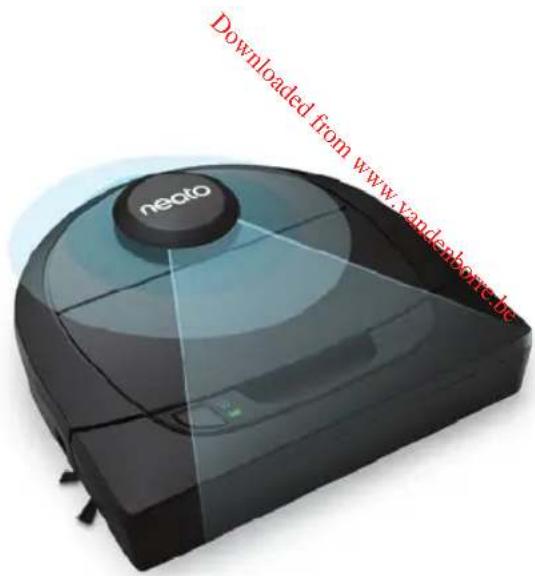
Meet Your Neato Robot
Congratulations on your new robot vacuum. This Wi-Fi enabled robot allows you to manage your floor cleaning from a phone, tablet, and other smart devices.
This guide will help get your robot set up and connected via the Neato app. You'll also find some important information on operating and maintaining your robot for best performance. Then relax. Your robot will let you know when your floors are clean.
Any problems? Just let us know. We are here to help.
https://support.neatorobotics.com
Table of Contents
Overview 3
Important Items and Tips...... 4
Start Button & LED Lights...... 6
How Neato Works.... 7
Using the Neato App...... 8
Using Your Neato Robot Without the Neato App...... 11
Neato FloorPlanner With "No-Go" Lines....13
Maintaining Your Neato Robot ... 16
More Info....18
Troubleshooting....19
You and Your Neato Robot......21
Want to see how it's done?
Go to https://support.neatorobotics.com
for installation videos and tips.
Important: Read Before Continuing with Setup
In order to ensure the best possible experience with your Neato robot, please note the following to minimize any risk of damage to household furnishings or belongings.
Please observe your Neato robot during the first few cleaning runs, and make any adjustments to the cleaning environment to optimize navigation.
Neato robots have a smart navigation system that avoids obstacles. However, the robot may occasionally bump into furniture, objects, pets, and people. Therefore, if you have special objects that could potentially be damaged by the bumping, remove these objects from the room or use boundary markers.
Similarly, the Neato robot's rotating brush operates like a regular upright vacuum cleaner, so do not use the Neato robot on floors or rugs (e.g., with fringes) that you would not use a regular upright vacuum on.
Neato Robotics is not responsible for any damage to furniture, objects, rugs, or flooring.
Overview

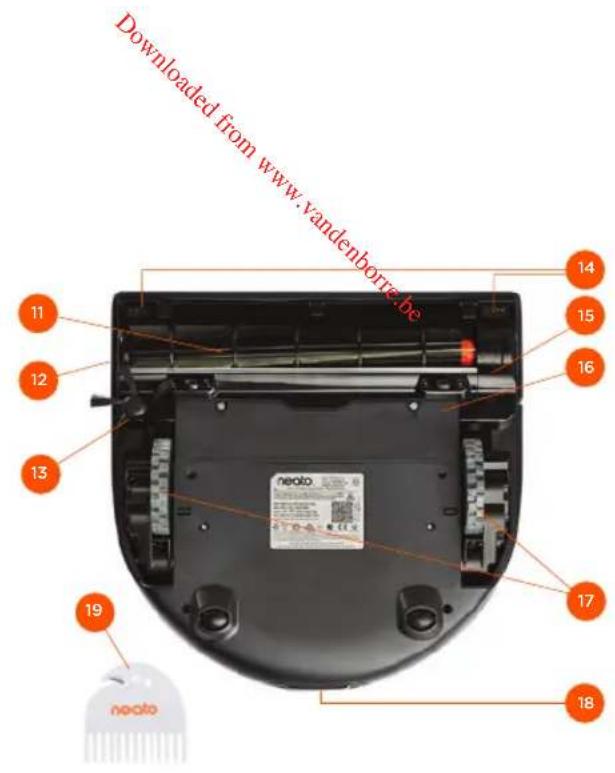
1 Dirt Bin and Filter
2 Top
3 Laser Cover
4 Start Button
5 Info LED
6 Battery LED
7 Handle
8 Front Bumper
9 Boundary Marker
10 Charge Base
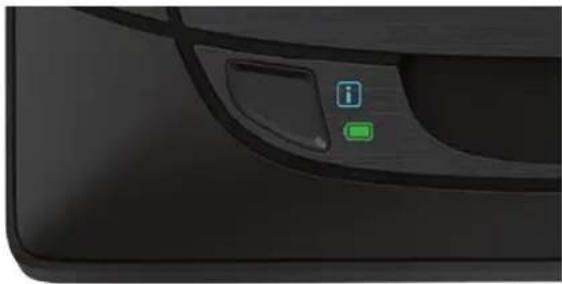
INFO LED is used for:

· Wi-Fi connection status
- Cleaning status
Errors
BATTERY LED is used to show:

- Charge state
- Battery Errors
Requirements: You need Wi-Fi, a phone or tablet running iOS 10 or greater, or Android 4.2 or greater, and a Neato account (free) in order to use some features.
11 Brush
12 Wall Following Sensor Window
13 Side Brush
14 Drop Sensor Window
15 Brush Guard
16 Battery Door
17 Wheels
18 Charging Contacts
19 Cleaning Tool
Important Items
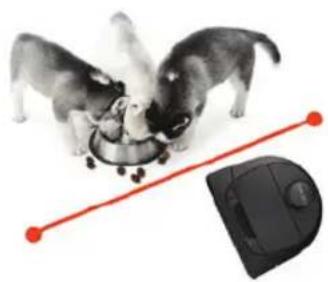
Keep your robot away from liquids and wet areas. Move or cover pet bowls and plant trays.
Clear the area of small items such as toys and clothing.
natural_image
Two dogs interacting with a computer mouse, connected by a red line (no text or symbols visible)Tie up wires, curtains, and other low-hanging items.
Thick carpet on top stair may affect the ability of the robot's navigation system to prevent falls (top stair with low pile carpet is OK). To make sure your robot sees the drop, place boundary markers 6 inches/15cm from the edge of the stair.
Keep your Neato robot inside the house. It was not designed for outdoor cleaning or freezing temperatures.

Please observe your Neato robot during the first few cleaning runs, and make any adjustments to the cleaning environment to optimize navigation. Also, while Neato robots have a smart navigation system that avoids obstacles, the robot may occasionally bump into furniture, objects, pets, and people.
Neato robots will not always avoid small objects (for example, socks or jewelry) or cords on the floor. Therefore, if you have special objects that could potentially be damaged by bumping, remove these objects from the room, use boundary markers, or add No-Go Line on the Neato app.
Similarly, the Neato robot's rotating brush operates like a regular upright vacuum cleaner, so do not use the Neato robot on floors or rugs (e.g., with fringes) that you would not use a regular upright vacuum on. Neato Robotics is not responsible for any damage to furniture, objects, rugs, or flooring.
Important Tips
To keep your robot out of places you don't want it to go, set down boundary markers (included in specific models, but Neato Boundary Markers are compatible with all Neato robots), or set "No-Go" Lines in MyFloorPlan.
You can use scissors to cut boundary markers to a shorter length.
You can use removable tape to keep boundary markers flat on the floor.
To do a Reset of the Neato robot, press and hold the Start button for 15 seconds, and all the lights will turn off. Press Start button once more to turn the robot back on.

The Spiral Combo brush offers superior pick-up of pet hair and is ideal for homes with multiple types of flooring.
Shiny surfaces and black floors might cause navigation issues.
Before connecting your robot to your Neato account, view the How-To Video online at https://support.neatorobotics.com

natural_image
Black NOCA robotic vacuum cleaner placed on wooden flooring with scattered gold leaves, next to a glass display (no text or symbols visible)Start Button & LED Lights
BATTERY LED
| ROBOT IS: LED COLOR WHAT IT MEANS | ||
| Cleaning | Solid Green Battery level is normal | |
| Solid Yellow Battery level is low and must be charged before a new cleaning can be started | ||
| Solid Red Battery level is low and robot must return to charge base | ||
| Charging | Green (Solid or pulsing) Battery is charging and robot can start cleaning | |
| Pulsing Yellow Battery is charging and must complete before cleaning can start | ||
| Pulsing Red Battery level is low and must be charged before a new cleaning can be started | ||
* NOTE: if LED light is Blinking Red or Solid Red, your robot needs robot maintenance or your robot has a navigation issue. Please check the troubleshooting section of this guide.
Start Button & LED Lights
natural_image
Close-up of a car's side panel showing a green 'i' button and a small icon, no readable text or symbols present.How Neato Works
HOUSE CLEANING
In normal operation, the Neato robot comes off of its base, explores its surroundings, and starts cleaning. It starts cleaning in sections approximately 15'x15' depending on layout and furniture in the room. It will continue to clean section by section until the entire area is cleaned.
Your Neato robot will also try to clean one room fully before moving on to the next, assuming it can detect your doorways. If it cleans a partial room, your Neato robot will come back to complete the room before finishing the job.
QUICK BOOST CHARGING
Sometimes the area to be cleaned is very large and the robot may need to recharge before finishing the job. With quick boost, it calculates how much battery is needed to complete the job, charges only that amount, so it can go back out quickly to finish the job.

SINGLE ROOM CLEANING
If you just want to clean a single room, you can manually place your robot in the room, press the start button, and close the door. Your Neato robot will clean the room and return to where you originally placed it. When the robot has finished cleaning, please put the robot back on its charge base.
MOVING A ROBOT MID-CLEANING
It is not recommended to pick up your robot and move it mid-cleaning. It can become disoriented, not follow its normal smart behavior, and have difficulty finding its charge base. If you pick up your robot, put it back down within 1 foot of where you picked it up for best results.

natural_image
Top-down view of a black NEO device with a circular button and attached cable (no visible text or symbols)Using the Neato App
Follow the instructions in the Quick Start Guide to connect your robot to the Neato app.
It is recommended that you set up your robot to work with the Neato app to get the best experience and access to all of the features.
Benefits of using the Neato app:
- Neato FloorPlanner with "No-Go" Lines
- Easy access & control
- Start your robot when you are not home
- Easily pause cleaning from the app
- Instant notifications (cleaning complete, alerts, etc.)
- Battery status
- Maintenance alerts and context-sensitive help to keep your robot in top form
- Receive notifications of robot software updates
NOTE It is also possible to start and stop the robot using the Start Button on the robot.
OPERATING THE ROBOT FROM MULTIPLE SMARTPHONES & TABLETS
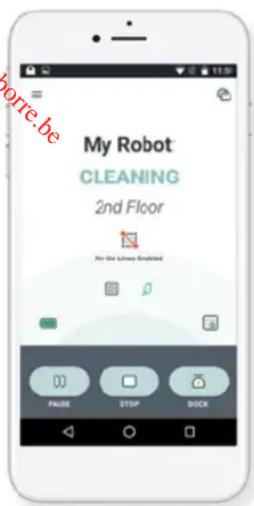
The Neato app can be used by multiple devices in a household to operate the same robot. Just download the Neato app to other smartphones or tablets, and sign in to the same My Neato account using the email and password used to set up the robot.
NOTE Neato Botvac D6 supports 2.4 Wi-Fi networks, channels 1 through 11.
For best results, locate your Wi-Fi router centrally where it can deliver a strong signal throughout the house.
Using the Neato App
HOUSE CLEANING
To start a House Cleaning, press the Start button in the Neato app, and your Neato robot will clean the entire floor on one level automatically moving from room to room. From the app you can Start, Pause, Resume, Stop, and Return to Start/Base.
NOTE When canceled mid-cleaning, your robot will stop in place. You can ask your robot to return to its base station using the Neato app. If the robot has detected the base, it will attempt to return to base and dock.
SPOT CLEANING
To start a Spot Cleaning, select Spot, and press the Start button in the Neato app. Your Neato robot will clean a 7'x7' area.
SCHEDULING YOUR NEATO ROBOT
Set up a schedule for regular vacuuming. You can set your preferences based on cleaning days and times.
NOTE If you are going away, you can turn the Enable Schedule setting off to put the schedule on hold.
PUSH NOTIFICATIONS
By turning on push notifications in the app, your robot can notify you about its status. Your phone/tablet will display messages such as cleaning complete, alerts, etc.

natural_image
Pure diagram of a heat exchanger or cooling system with no text, numbers, or symbolsPlace your robot centered and facing the area to be cleaned.
Using the Neato App
ROBOT SOFTWARE UPDATES
Keep the software on your robot current. You can initiate a robot software update using the Neato app.
TROUBLESHOOTING YOUR DEVICE
When an error occurs during operation of the robot, you can click the error link in the Neato app to see what it means and what to do. For additional information on troubleshooting your device, please see Help in the app.

SMARTWATCH CAPABLE
If you have an Apple Watch or a Wear OS enabled smartwatch, you can access some features on your watch such as start, stop, and receiving notifications. Your watch needs to be in the vicinity of your smartphone for these features to be accessible. After you have paired your smartwatch with your smartphone, go to the watch app on your smartphone and turn access on to the Neato app to view features on your watch.

Using Your Neato Robot Without the Neato App
HOUSE CLEANING
You can initiate House Cleaning by pressing the Start Button once. Your Neato robot will clean the entire floor on one level automatically moving from room to room.

natural_image
Close-up of a computer control panel with an orange arrow pointing to the button (no text or symbols visible)Press the Start Button 1 x for House Cleaning, 2 x for Spot Cleaning
NOTE: If you press the Start Button in the Neato app and the robot cannot find its location on MyFloorPlan, you will be notified of this and prompted to either cancel or clean anyway. If you select “clean anyway,” the robot will not use MyFloorPlan or respect any “No-Go” Lines, so you will need to use the boundary markers to keep the robot out of any areas you don’t want it to clean.
SPOT CLEANING
You can initiate Spot Cleaning by pressing the Start Button twice. During Spot Cleaning, if you press the Start Button, the robot will pause. If you press it again, it will resume. To cancel the Spot Cleaning, pause the robot and hold down the Start Button for 5 seconds.

natural_image
Pure diagram of a heat exchanger or cooling system with no text, numbers, or symbolsPlace your robot centered and facing the area to be cleaned.
FEATURES ONLY AVAILABLE VIA THE NEATO APP
Some features are only available if you connect your robot to the Neato app on your smartphone or tablet. These features include Neato FloorPlanner, scheduling, push notifications, and cleaning statistics.
Cleaning Profiles Extra Care Navigation
When you start a house cleaning with the Neato app, you can select one of the profiles below to determine the robot's cleaning style.
ECO
In the Eco profile, the brush and blower are at a medium setting, allowing the robot to clean a larger area on a single charge. This is the quietest mode.
TURBO
In the Turbo profile, the robot brush and blower are set to high, providing strong suction and a faster rotating brush. Turbo consumes more battery power than Eco.
Extra Care navigation is useful if you have delicate furniture. When it is enabled, the robot navigates more carefully around objects. It leaves a wider buffer around items like chair legs.

Neato FloorPlanner With "No-Go" Lines
NEATO FLOORPLANNER
Using the Neato app, Neato FloorPlanner allows you to set up virtual boundaries called "No-Go" Lines so you can tell the robot where not to go. This eliminates the need to use physical barriers, including Neato's Boundary Markers.

Use the Neato app and the FloorPlanner map of your home to set up virtual boundaries called No-Go Lines so you can tell the robot where not to go.
To set up virtual No-Go Lines, please be sure that the Neato App is installed on your selected device, then follow the next steps:
Launch the Neato App and tap the "Tri-Bar" symbol in the left upper corner.
Select the "MY FLOOR PLAN" option.

MY FLOOR PLAN Create a Floor Plan
Tap the "Get Started" button and follow the instructions to allow the robot to do a special cleaning run to create a floor map.

Once the cleaning is complete, you'll be notified that the robot has created your new floor plan. Give the new floor plan a name and save.
Neato FloorPlanner With "No-Go" Lines
Tap the "ADD NO-GO LINE" icon and draw your boundary line directly on the map.
Continue tapping the "ADD NO-GO LINE" button to create multiple boundary lines.

TIP: Draw No-Go Lines more accurately by zooming into the floor plan. Double tap or use the pinch gesture to zoom. Ensure there are no gaps in the boundaries created with the No-Go Lines.
When finished setting your boundaries, tap
the "Save" icon to store your floor plan with virtual No-Go Lines added

A confirmation prompt will appear, letting
you know that "No-Go" lines have been saved.

Once saved, your new floor plan with virtual No-Go Lines will become your default map, and be utilized for future cleaning events.
NOTE: Botvac D6 can store more than one floor plan and accompanying virtual No-Go Lines. To clean with No-Go Lines, the robot must be started from a charge base on each floor. It is recommended to have additional charge bases (sold separately) for each floor plan.
No-Go Lines
To clean with No-Go Lines enabled, the robot must start from the charge base and the cleaning must be initiated from the Neato app. Press the Start button on the app, or schedule a cleaning on the app.
NOTE:
• After each cleaning, tap the 🔒, to see a Cleaning Summary which shows where the robot has cleaned on the coverage map.
- To use No-Go Lines, the charge base must stay in the original location where the floor plan was created.
- If cleaning is initiated using the Start button on the robot, Amazon Alexa, Google Home, Chatbots, or IFTTT, it will not adhere to the No-Go Lines boundaries.
Multiple Floor PlansCleaning v
Neato Botvac D6 Connected has the capabilities to store up to 3 floor plans. To set up additional floor plans, follow these steps.
Place the charge base in the location where you want to set up the new floor plan. Put the robot on the charge base.

Launch the Neato App and tap the "Tri-Bar" symbol in the left upper corner.
Select the "MY FLOOR PLAN" option.


Tap on the arrow beside the existing floor plan. A drop down menu will open. Select "Add a new floor plan". Follow the instructions to create a second floor plan. Remember to name and save your floor plan when complete. Once created,
you will be able to add No-Go Lines to the new floor plan.
Maintaining Your Neato Robot
IMPORTANT
Your robot needs regular maintenance to operate reliably. This means checking/cleaning the brushes and emptying the dirt bin after every use or as needed, depending on your environment. Failure to do this may cause problems with your robot and impact your robot's performance and void your warranty coverage.
DIRT BIN AND FILTERS
After each use, empty the dirt bin, clean the airways/opening, and filter. To remove the filter, pinch the handle and pull out. Replace the filter every 1 to 2 months or more frequently as needed.

natural_image
Line drawings of three different cleaning or packaging methods: a vacuum cleaner, a rectangular plate with filter, and a bucket with a lid (no text or symbols present)
BRUSHES
Remove the side brush, and set aside. Then, remove the brush guard by pulling up on both sides.

natural_image
Technical diagram of a mechanical or electronic component with no visible text, numbers, or symbols.PULL UP ON BOTH SIDES SI MULTANEO US LY
Use the hair/fiber blade to cut, and remove hair from the brush. Remove any debris from the brush ends and inside the brush cavity where the brush sits. Re-insert the brush, and replace the brush guard. It is recommended to clean the brush monthly.

Maintaining Your Neato Robot
ROBOT TOP
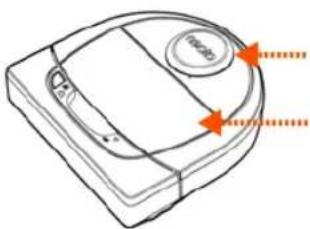
Clean the top of the robot and the area around the laser top with a soft cotton cloth.
natural_image
Line drawing of a device casing with orange arrows indicating direction (no text or symbols)SENSORS
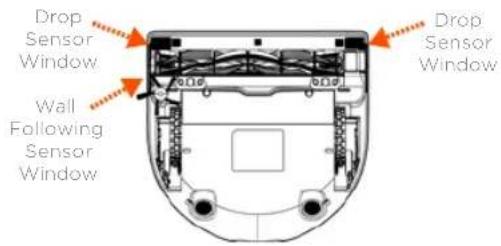
Use a dry cotton swab to clean the two drop sensor windows on the bottom of the robot.
NOTE
View the Neato How-To videos online at https://support.neatorobotics.com to see how to maintain your robot.
WARRANTY
Neato Robotics, Inc. warrants to the original purchaser that the Neato Robotics hardware product, excluding batteries, shall be free from defects in material and workmanship for 1 year from the original date of purchase.
In the case of batteries, a Warranty Period of six (6) months applies.
See complete Warranty terms at www.NeatoRobotics.com/Limited-Warranty. All warranties beyond those expressly stated are disclaimed to the maximum extent permissible by applicable law.
More Info
ACCESSORIES
You can find information about accessories and replacement parts for your Neato robot at www.NeatoRobotics.com.
Always purchase Neato Genuine accessories and parts:
- Batteries
- Filters
- Brushes
• Boundary Markers - Cleaning Tool
- Dirt Bin
- Charge Base
Using unauthorized or 3rd party accessories (non-Neato Genuine) can damage your robot and will void your warranty.
Recommended replacement schedule depends on use.
• Filters - every 1 to 2 months
- Batteries - every 12 to 18 months


REGISTER YOUR NEATO
Even if you are not using the Neato app, you can stay up to date on software releases and special offers by registering your robot. Go to www.NeatoRobotics.com/My-Neato to create an account and register your Neato robot.
GETTING HELP
Find more helpful information, including how-to videos, frequently asked questions, and tips & tricks for optimal operation.
Go to:
https://support.neatorobotics.com
www.YouTube.com/NeatoRobotics
IMPORTANT INFORMATION
See separate document included with your Neato robot.
Troubleshooting
Neato app What it robot status means What to do
| “Robot Offline”message in the Neato app | The robot is disconnected from its Wi-Fi connection. | The Neato robot may occasionally go offline if the signal strength of the Wi-Fi connection is weak or intermittent. This is usually a temporary situation, and typically, the robot will go back online on its own once it re-establishes a connection.In cases where the robot does not come back online within a few minutes, check the following:1) Make sure the Wi-Fi network to which your robot is connected is working and that the signal strength is strong in any areas where the robot is cleaning.2) Reset your Neato robot by taking it off of its charge base, press and hold the Start Button for 15 seconds to turn it off, and then press Start Button one more time to turn it on. Wait a few minutes and then check the Neato app to see if it now says READY TO CLEAN.3) If the steps above do not fix the issue: Delete your robot from the Neato app, and go through the steps to connect your robot again. It should then say READY TO CLEAN. |
| “It seems you are not connected to the internet” message in the Neato app | Your phone/tablet with the Neato app is not connected to Wi-Fi or cellular service. | Make sure your phone/tablet is connected to Wi-Fi or cellular service so that the Neato app can communicate with your robot. |
If issue persists, please contact Neato Customer Care www.neatorobotics.com/contact-us/
NOTE Context-Sensitive help is also provided in the Neato app to help you troubleshoot items.
Go to https://support.neatorobotics.com for more troubleshooting tips.
Troubleshooting
Neato app
robot status
What it
means
What to do
| “Duplicate Floor Plan”message while creating multiple floor plans in the Neato App. | You are attempting to create a second or third floor plan and it looks too similar to an existing floor plan that has been saved. | The robotic vacuum determines what floor plan it is in based on where it starts. Try moving the charge base to another location in the room or another room and start the new floor plan process again. It helps if there is a side wall or large furniture within 10 feet of the charge base to distinguish it from other rooms. |
| “Area too empty” mes-sage when creating a floor plan. | This means there is no side wall or large furniture near the charge base making it difficult for the robot to distinguish this area from others in the home. | Place the charge base in an area where there is a side wall or other large furniture within a 10 foot radius of the charging station. |
If issue persists, please contact Neato Customer Care www.neatorobotics.com/contact-us/
NOTE Context-Sensitive help is also provided in the Neato app to help you troubleshoot items.
Go to https://support.neatorobotics.com for more troubleshooting tips.
You and Your Neato Robot

Congratulations on your new Neato robot. You will soon experience the joy of having clean floors without ever pushing a vacuum.
Observe your robot during the first few cleaning runs. You may find that a few small adjustments in your home (moving a chair or lamp a few inches, picking up cords) will make a big difference in your experience.
Help your robot and your robot will help you.

- User Guide
- Meet Your Neato Robot
- Table of Contents
- Important: Read Before Continuing with Setup
- Important Items
- Important Tips
- Start Button & LED Lights
- BATTERY LED
- How Neato Works
- HOUSE CLEANING
- QUICK BOOST CHARGING
- SINGLE ROOM CLEANING
- MOVING A ROBOT MID-CLEANING
- Using the Neato App
- OPERATING THE ROBOT FROM MULTIPLE SMARTPHONES & TABLETS
- SPOT CLEANING
- SCHEDULING YOUR NEATO ROBOT
- PUSH NOTIFICATIONS
- ROBOT SOFTWARE UPDATES
- TROUBLESHOOTING YOUR DEVICE
- SMARTWATCH CAPABLE
- Using Your Neato Robot Without the Neato App
- FEATURES ONLY AVAILABLE VIA THE NEATO APP
- Cleaning Profiles Extra Care Navigation
- ECO
- TURBO
- Neato FloorPlanner With "No-Go" Lines
- NEATO FLOORPLANNER
- No-Go Lines
- NOTE:
- Multiple Floor PlansCleaning v
- Maintaining Your Neato Robot
- IMPORTANT
- DIRT BIN AND FILTERS
- BRUSHES
- ROBOT TOP
- SENSORS
- NOTE
- WARRANTY
- More Info
- ACCESSORIES
- REGISTER YOUR NEATO
- GETTING HELP
- IMPORTANT INFORMATION
- Troubleshooting
- You and Your Neato Robot
Brand : Neato Robotics
Model : Botvac D603 Connected
Category : Vacuum Cleaner