
RRCD 2420 MP3 - Portable music player GRUNDIG - Free user manual and instructions
Find the device manual for free RRCD 2420 MP3 GRUNDIG in PDF.


| Product type | Portable music player with radio, CD (including MP3) and cassette |
| Brand | GRUNDIG |
| Model | RRCD 2420 MP3 |
| Dimensions (L x H x D) | 280 x 165 x 280 mm |
| Weight | 2.4 kg |
| Mains power supply | 230 V, 50/60 Hz |
| Battery power supply | 6 batteries type IEC R14/UM2/C (1.5 V each) |
| Backup batteries | 2 batteries type IEC LR6/AM3/AA (1.5 V each) |
| Remote control batteries | 2 batteries type LR03/AM4/AAA (1.5 V each) |
| Max. power consumption | 15 W in operation, less than 2 W in standby |
| Audio output power | 2 x 2 W (music signal), 2 x 1.5 W (sinusoidal) |
| Headphone jack | 3.5 mm stereo jack |
| FM radio | Range 87.5 – 108.0 MHz with telescopic antenna |
| MW radio | Range 522 – 1620 kHz |
| CD player | CD-DA, CD-R, CD-RW (audio), MP3 support |
| Supported MP3 formats | MPEG 1 Layer 3, sampling frequency 44.1 kHz, ISO 9660 level 1 file system |
| Max. number of MP3 files/albums | Up to 512 files or albums total, 255 files per album |
| Cassette deck | Compact cassette DIN 45516, quarter-track, speed 4.76 cm/s |
| Ultra Bass system | Yes, switchable |
| Remote control | Yes, included (model RRCD 2420 MP3) |
| CD functions | Play, pause, stop, search, repeat (track/disc), random play, program (20 tracks) |
| MP3 functions | Album navigation, repeat (file/album/disc), random play, program (20 files) |
| Radio functions | Automatic and manual search, 10 FM presets + 10 MW, mono/stereo switching |
| Cleaning | Wipe with a damp cloth (no abrasive products); for the cassette deck, clean the heads with a cotton swab moistened with alcohol |
| Laser safety | Class 1 laser product, do not open the casing |
Frequently Asked Questions - RRCD 2420 MP3 GRUNDIG
User questions about RRCD 2420 MP3 GRUNDIG
0 question about this device. Answer the ones you know or ask your own.
Ask a new question about this device
Download the instructions for your Portable music player in PDF format for free! Find your manual RRCD 2420 MP3 - GRUNDIG and take your electronic device back in hand. On this page are published all the documents necessary for the use of your device. RRCD 2420 MP3 by GRUNDIG.
USER MANUAL RRCD 2420 MP3 GRUNDIG
CD TAPE/OFF Switches between CD, TAPE and RADIO input sources. RADIO Switches the device off.
Operation indicator. Lights up red during operation.
VOLUME Adjusts the volume.
Infrared receiver for the remote control.
UBS Switches the Ultra Bass System on and off.
Headphone jack for connecting a headphone set with a jack plug (0 3.5 mm) on the left side of the device. This automatically switches off the loudspeakers.
AC~ Socket for connecting the power cord (on the back of the device).
Radio unit
ANTENNA Telescopic antenna for FM (VHF) reception.
■ BAND Frequency band switch MW (medium wave) and FM (VHF).
UP Press briefly to change the frequency up and down in steps. DOWN Press and hold down to start a forward or reverse search.
PROG/ For saving radio stations on presets. MEM Starts the automatic station search.
REPEAT or ALBUM Selects the next preset position. /MEM UP Selects the next preset number when saving radio stations.
RANDOM or Selects the previous preset position. ALBUM Selects the previous preset number when saving radio stations.
/MEM DOWN
FM MODE Switches between mono and stereo reception (on the back of the
MONO/STEREO device).
CD unit (RRCD 2410)
OPEN/CLOSE Opens and closes the CD compartment.
PLAY/PAUSE II Starts and pauses playback.
UP Press briefly to select the next or previous track.
DOWN Press and hold down to start a forward or reverse search.
■ BAND Ends playback, deletes track memories.
OVERVIEW
PROG/ For saving tracks when creating a memory. MEM
REPEAT/MEM UP For repeating a track or the entire CD.
RANDOM/ Plays back tracks in random order.
MEM DOWN
CD unit (RRCD 2420 MP3)
OPEN/CLOSE Opens and closes the CD compartment.
PLAY/PAUSE II Starts and pauses playback.
UP Press briefly to select the next or previous file or track.
DOWN Press and hold down to start a forward or reverse search.
■ BAND Ends playback, deletes track memories.
PROG/ For saving tracks when creating a memory. MEM
ALBUM/ In MP3 mode: indicates the current album, selects the next album. MEM UP
ALBUM/ In MP3 mode: indicates the current album, selects the previous album. MEM DOWN
MODE In CD-DA mode: for repeating a track or the entire CD; for playing back tracks in random order.
In MP3 mode: for repeating a file, all the files on an album or all the files on the CD; for playing back all the files on the CD in random order.
Tape unit
CLOSE

TAPE DIRECTION
Press here to close the tape compartment.
Indicates the tape direction.
Pauses recording and playback.
Ends playback/recording of the tape and opens the tape compartment.
Rewinds the tape to the beginning.
Fast forwards the tape to the end.
Starts playback.
Starts recording.
Display (RRCD 2410)

RANDOM
REPEAT
MEMORY
FM MW
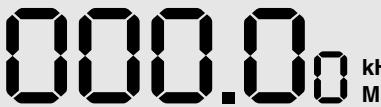
z
MHz
000.00
In radio mode: shows the frequency, shows the preset number.
In CD mode: shows the total number of tracks and the current track.
0
In radio mode: an FM stereo station is being received.
RANDOM
In CD mode: the tracks are played back in random order.
REPEAT
In CD mode: flashes when a track is repeated.
Lights up when the whole CD is repeated.
MEMORY
In radio mode: flashes when a radio station is saved, lights up when tuned to a stored radio station.
In CD mode: flashes when a track memory is created, lights up when a track memory is played back.
FM
In radio mode: FM (VHF) frequency band indicator.
MW
In radio mode: MW (medium wave) frequency band indicator.
MHz
In radio mode: in combination with the FM frequency indicator.
kHz
In radio mode: in combination with the MW frequency indicator.
Display (RRCD 2420 MP3)
MEM
MP3
ALBUM
RND
ALL
0
FM
MW

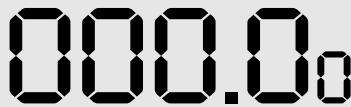
kHz
MHz
000.00
In radio mode: shows the frequency, shows the preset number.
In CD-DA mode: shows the total number of tracks and the current track.
In MP3 mode: displays the total number of albums and the current file.
FM
In radio mode: FM (VHF) frequency band indicator.
MW
In radio mode: MW (medium wave) frequency band indicator.

In CD mode: indicates playback, flashes when paused.
MEM
In radio mode: flashes when a radio station is saved, lights up when tuned to a stored radio station.
In CD mode: flashes when a track memory is created.
Lights up when a track memory is played back.
MP3
In MP3 mode: indicates that an MP3 CD is inserted.
ALBUM
In MP3 mode: flashes when the album level is shown.
RND
In CD mode: the tracks or titles are played back in random order.

In CD mode: flashes when a track is repeated.
In MP3 mode: flashes when a file is repeated.
Lights up when an album is repeated.
ALL
In CD and MP3 mode: lights up when the whole CD is repeated.
00
In radio mode: an FM stereo station is being received.
MHz
In radio mode: in combination with the FM frequency indicator.
kHz
In radio mode: in combination with the MW frequency indicator.
The remote control (RRCD 2420 MP3)
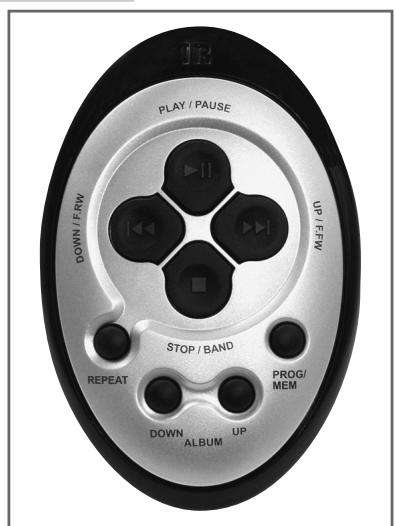
PLAY/PAUSE II
In CD and MP3 mode: starts and pauses playback.
UP/F.FW
DOWN/F.RW
In radio mode: press briefly to change the frequency up and down in steps; press and hold down to start a forward or reverse search.
In CD and MP3 mode: press briefly to select the next or previous track or file; press and hold down to start a forward or reverse search.
STOP/BAND
In radio mode: Frequency band switch MW (medium wave) and FM (VHF).
In CD and MP3 mode: ends playback, deletes track memories.
PROG/ MEM
In radio mode: for saving radio stations on presets; starts the automatic station search.
In CD and MP3 mode: for saving tracks or files when creating a memory.
MODE
ALBUM/ MEM DOWN
ALBUM/ MEM UP
In CD mode: for repeating a track or the entire CD; for playing back tracks in random order.
In MP3 mode: for repeating a file, all the files on an album or all the files on the CD; for playing back all the files on the CD in random order.
In radio mode: selects the previous preset position; selects the previous preset number when saving radio stations.
In MP3 mode: indicates the current album, selects the next album.
In radio mode: selects the next preset position; selects the next preset number when saving radio stations.
In MP3 mode: indicates the current album, selects the previous album.
Power supply
Mains operation
Note:
Check that the mains voltage on the type plate (on the bottom of the device) corresponds to your local mains supply.
If this is not the case, contact your specialist dealer.
1 Plug the mains cable supplied into the AC socket on the radio recorder (back of device).
2 Plug the mains cable into the wall socket.
Caution:
The only way to disconnect the device from the mains supply is to pull out the plug.
Battery operation
1 Open the battery compartment by pressing the catch and removing the lid.
2 Insert six batteries (6 x 1.5 V/type IEC R14/UM2/C-size), observing the polarity marked on the lid of the battery compartment.
Notes:
Remove the batteries when they are flat or when you know that the device will not be used for a long period of time.
The manufacturer accepts no liability for damage resulting from leaking batteries.
The batteries are switched off during mains operation.
Environmental note:
Batteries, including those which contain no heavy metal, may not be disposed of with household waste. Please dispose of used batteries in an environmentally sound manner. Find out about the legal regulations which apply in your area.
Inserting back-up batteries
During mains operation, the back-up batteries ensure that stored settings are not lost in the case of a power failure or when the device is briefly disconnected from the mains.
1 Open the back-up battery compartment inside the battery compartment by pushing and removing the lid.
2 When inserting the batteries ( 2 × 1.5V , type IEC LR6/AM3/AA), observe the polarity marked on the base of the battery compartment.
Inserting batteries in the remote control
1 Open the battery compartment by removing the lid of the battery compartment.
2 When inserting the batteries (2 × 1.5V, type LR03/AM4/AAA), observe the polarity marked on the base of the battery compartment.
Note:
If the device no longer reacts properly to remote control commands, the batteries may be flat. Be sure to remove used batteries. The manufacturer accepts no liability for damage resulting from used batteries.
Additional information for units sold in the UK.
Units sold in the UK are suitable for operation from a 240V ac, 50Hz mains supply.
The range of multi-system receivers is built to work in most European countries. However, the mains plug and socket system for the UK differs from many European countries.
This appliance has been supplied with a fitted, non-removable, approved converter plug for use in the UK. This converter plug is fitted with a 5A rated fuse.
In case this appliance is supplied with a moulded 2-pin Euro plug only, which is unsuitable for UK operation, this must be cut off and immediately disposed of. An approved 13A, 3-pin UK plug should then be fitted by a qualified electrician.
Note:
The severed Euro plug must be destroyed to avoid a possible shock hazard should it be inserted into a socket elsewhere.
If a non-rewireable 3-pin plug or a rewireable 13A (BS1363) 3-pin plug is used, it must be fitted with a 5A ASTA or BSI approved BS1362 fuse. If any other type of plug is used it must be protected by a 5A fuse either in the plug, or at the distribution board. If this type of plug becomes defective, ensure that the fuse is removed before disposal, to eliminate potential shock hazard.
If it is necessary to change the fuse in the non-rewireable plug, the correct type and rating (5A ASTA or BSI approved BS1362) must be used and the fuse cover must be refitted. If the fuse cover is lost or damaged, the lead and plug must not be used until a replacement is obtained. Replacement fuse covers should be obtained from your dealer.
Important:
The wires in the mains lead are colour coded in accordance with the following code:
BLUE - NEUTRAL
BROWN-LIVE
As the colours of the wires in the mains lead of your appliance may not correspond with the coloured marking identifying terminals in your plug, proceed as follows:
Connect the BLUE coloured wire to plug terminal marked with the letter "N" or coloured black.
Connect the BROWN coloured wire to the plug terminal marked with the letter "L" or coloured red.
In no circumstance must any of the wires be connected to the terminal marked with the letter "E", earth symbol "H", coloured green, or green & yellow.
Replacement mains lead sets can be obtained from your local dealer, or by contacting Grundig Consumer Relations (01788 570088)
Moulded 3-pin lead set, suitable for UK use:
Ref: Leadset UK
8290-991-224
Moulded 2-pin Euro lead set, not suitable for UK use:
Ref: Leadset Euro
8290-991-316
CARE AND SAFETY
To ensure that this device provides you with long-term satisfaction and enjoyment, please observe the following instructions.
This device is designed for the playback of audio signals. Any other use is expressly prohibited.
Protect the device, the CDs and cassettes from rain, moisture (dripping or splashing water), sand and heat. Do not leave it next to heaters or inside parked cars in the sun.
Make sure there is adequate ventilation when positioning the device. There must be a free space of at least 10cm behind the device. Do not place objects on the ventilation slots.
Do not place any objects containing liquids (for example, vases) on the device. Do not insert any foreign bodies in the CD or tape compartment of the device.
Do not place any objects such as burning candles on the device.
Bringing the device in from the cold can cause condensation on the CD lens, which prevents it from playing. Give the device time to warm up.
The CD and tape units contain self-lubricating bearings, which must not be oiled or greased.
Never open the device casing under any circumstances. No warranty claims are accepted for damage resulting from improper handling.
Thunderstorms are a danger to all electrical devices. Even if the device is switched off, it can be damaged by a lightning strike to the mains. Always remove the mains plug during an electrical storm.
Do not use any cleaning agent, as this may damage the casing. Clean the device with a clean, moist leather cloth.
Please note when deciding where to put the device that furniture surfaces are covered by various types of lacquer and plastic, most of which contain chemical additives. These may cause corrosion to the feet of the device, thus resulting in stains on the surface of the furniture which can be difficult or impossible to remove.
General information on laser devices
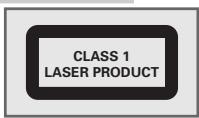
You will find a symbol similar to the one shown here on the bottom of the device.
CLASS 1 LASER PRODUCT means that the laser is designed in such a way as to ensure that the maximum permissible emission value cannot be exceeded under any circumstances.
If operating devices or methods other than those specified here are employed, it may lead to dangerous exposure to emissions.
Invisible laser radiation is emitted if the CD compartment is opened and the safety locking mechanism is shorted. Do not expose yourself to this radiation.
Switching on and off
1 Switch on the device with the required input source by moving the switch CD TAPE/OFF RADIO to the corresponding position.
2 Move the CD TAPE/OFF RADIO switch to the TAPE/OFF position to switch off the device.
Selecting the input source
1 Select the input source (CD or RADIO) using CD TAPE/OFF RADIO
Adjusting the volume
1 Adjust the volume with «VOLUME«.
Switching the Ultra Bass System on and off
This function boosts the bass frequencies.
1 Switch the Ultra Bass System on and off with UBS
Listening with headphones
1 Connect the headphones to the headphone jack (0 3.5 mm). - This switches off the loudspeakers.
RADIO MODE
Antennas
1 For FM stations (VHF) extend the telescopic antenna.
Note:
If the FM signal is too strong, it is advisable to push in the telescopic antenna.
2 The radio recorder has a built-in rod antenna for MW reception. Turn the radio recorder about its own axis to point the antenna.
Selecting the radio input source
1 Move the CD TAPE/OFF RADIO switch to the RADIO position.
Setting and storing radio stations
Automatic station search
1 Select the frequency band (FM or MW) using BAND .
2 Activate the station search by pressing PROG/MEM until the frequency display changes to rapid run-through.
- The device searches for up to 10 radio stations and then saves them. After the search has finished, the station stored in position 01 can be heard.
Automatic station search
1 Select the frequency band (FM or MW) using BAND*.
2 Activate the station search by pressing DOWN or UP until the frequency display changes to rapid run-through.
- The search stops when a programme is found.
Manual station search
1 To move the frequency forward in steps, briefly press DOWN or UP several times.
- The frequency changes in steps of 50kHz
Storing stations on station positions
Up to 10 stations in the FM band and up to 10 stations in the MW band can be stored.
1 Select the frequency band (FM or MW) using BAND
2 Press DOWN | or UP to select the station.
3 Press PROG/MEM briefly to activate the memory function.
4 Select the desired station position with REPEAT or ALBUM/MEM UP or RANDOM or ALBUM/MEM DOWN .
5 Press PROG/MEM to save the station.
6 To store more stations, repeat steps 2 to 5.
Note:
You can replace a station on a preset with a new one by carrying out steps 2 to 5 as described above.
Selecting a preset position
1 Select the frequency band (FM or MW) using BAND.
2 Select the station preset position with REPEAT or ALBUM/MEM UP or RANDOM or ALBUM/MEM DOWN.
Stereo/mono reception
If the device receives an FM stereo station, appears in the display. However, if the signal from the FM stereo station is weak, you can improve the sound quality by switching to mono reception.
1 Slide FM MODE MONO/STEREO ( (on the back of the device) to switch to mono.
2 Slide FM MODE MONO/STEREO (on the back of the device) to switch to stereo.

The device is suitable for music CDs displaying the logo shown here (CD-DA) and for CD-Rs and CD-RWs with audio data.
When burning CD-R and CD-RWs with audio files, various problems may arise which could lead to interference in playback. This can be caused by faulty software or
hardware settings or by the CD being used. Should such problems arise, contact the customer services of your CD burner or software manufacturer or look for relevant information, for example on the Internet. When you are making audio CDs, observe all legal guidelines and ensure that the copyright of third parties is not infringed.
Always keep the CD compartment closed to prevent dust from collecting on the laser optics. Do not attach adhesive labels to CDs. Keep the surfaces of CDs clean. You can play standard 12cm CDs as well as 8cm CDs on your device. An adapter is not necessary.
Selecting the CD input source
1 Move the CD TAPE/OFF RADIO switch to the CD position.
2 Press OPEN/CLOSE to open the CD compartment.
3 Insert a CD in the compartment with its label facing upwards.
4 Press »OPEN/CLOSE« to close the lid of the CD compartment.
- The device reads the content of the CD. The total number of tracks appears in the display.
CD playback
1 Press PLAY/PAUSE II to start playback.
- Playback begins with the first track.
- Display: the current track number.
- Playback stops at the end of the CD.
2 Press PLAY/PAUSE II to pause playback pause.
3 Press PLAY/PAUSE II to resume playback.
4 Press STOP to end playback.
5 Press OPEN/CLOSE to open the CD compartment and take out the CD.
6 Close the CD compartment.
Repeating the current track
1 Press DOWN briefly during playback.
- The track is repeated from the beginning.
CD MODE (RRCD 2410/2420 MP3)
Selecting another track
1 During playback, keep pressing DOWN or UP until the number of the track you want to hear appears in the display.
- Playback of the selected track starts automatically.
Note:
You can also select tracks in the stop position. However, you must then start playback of the track with PLAY/PAUSE II .
In stop mode you can press and hold down DOWN | or UP to select tracks more quickly.
Searching for a passage within a track
1 During playback, press DOWN or UP and hold it down until you find the passage you want to hear.
- Playback starts when you release DOWN | or UP |
Note:
During the search the volume is reduced.
Repeating a track (Repeat One)
1 During playback, press REPEAT/MEM UP (RRCD 2410) or MODE (RRCD 2420) once.
- The current track is repeated.
2 To terminate the function, press REPEAT/MEM UP (RRCD 2410) or MODE (RCD 2420).
Repeating all tracks (Repeat All)
1 During playback press REPEAT/MEM UP (RRCD 2410) or MODE (RRCD 2420) twice.
- The whole CD is played back repeatedly.
2 To terminate the function, press REPEAT/MEM UP (RRCD 2410) or MODE (RRCD 2420) once.
Playing back titles in random order (Random)
1 In stop mode, keep pressing RANDOM/MEM DOWN (RRCD 2410) or MODE (RRCD 2420) until RANDOM or RND appears in the display.
2 Press PLAY/PAUSE II ^ to start random playback.
- All tracks on the CD are played back once in random order.
3 To terminate the function, press «RANDOM/MEM DOWN« (RRCD 2410) or «MODE« (RRCD 2420) again.
CD MODE (RRCD 2410/2420 MP3)
Creating a track memory
You can create a track memory of up to 20 tracks for the current CD in any order you choose and then play them back in that sequence. A track may be stored more than once. Program is only possible in the stop position.
Selecting and storing tracks
1 Press PROG/MEM to call up the function.
- Display: for the first preset position and MEMORY or MEM are flashing.
2 Select the track by pressing DOWN |< or >UP |<.
3 Press PROG/MEM to save the track.
- Display: for the second preset position and MEMORY or MEM are flashing.
4 To store more tracks, repeat steps 2 to 3.
Playing back a track memory
1 Start the track memory by pressing PLAY/PAUSE II<.
- Playback begins with the first programmed file or track.
2 Press STOP to end playback.
3 To play the track memory again, press PROG/MEM and afterwards PLAY/PAUSE II.
Changing the track selection
1 In stop mode, keep pressing PROG/MEM until the number of the track you want to replace appears in the display.
2 Select the number of the new track by pressing DOWN | « or »UP «
3 Press PROG/MEM to save the new track.
Adding tracks
1 In stop mode, press PROG/MEM until the preset number shown in the display is zero.
2 Select the number of the new track by pressing DOWN | or UP
3 Press PROG/MEM to save the new track.
Deleting the track memory
The CD must be in the stop position.
1 Press OPEN/CLOSE to open the CD compartment;
or
- press PROG/MEM<.
- press STOP
- move the CD TAPE/OFF RADIO switch to the RADIO position.
move the CD TAPE/OFF RADIO switch to the TAPE/OFF position.

The device is suitable for CD-Rs and CD-RWs with MP3 formats. MP3 files must be created at a sampling frequency of 44.1 kHz.
In MP3 mode, the terms "album" and "file" are very important. "Album" corresponds to a folder on a PC, "File" to a file on a PC or a CD-DA track. The device reads MP3
files with a maximum of 255 files per album. An MP3 CD may not contain more than
512 files or albums in total.
The device sorts the albums, or the files on an album, by name into alphabetical order. If you wish to order them differently, change the name of the file or album and put a number before the name.
When burning CD-R and CD-RWs with audio files, various problems may arise which could lead to interference in playback. This can be caused by faulty software or hardware settings or by the CD being used. Should such problems arise, contact the customer services of your CD burner or software manufacturer or look for relevant information, for example on the Internet. When you are making audio CDs, observe all legal guidelines and ensure that the copyright of third parties is not infringed.
Selecting the CD input source
1 Move the CD TAPE/OFF RADIO switch to the CD position.
2 Press OPEN/CLOSE to open the CD compartment.
3 Insert a CD in the compartment with its label facing upwards.
4 Press »OPEN/CLOSE« to close the lid of the CD compartment.
- The device reads the content of the CD. The total number of albums appears in the display.
CD playback
1 Press PLAY/PAUSE II to start playback.
- Playback begins with the first file of the first album.
- Display: the current album number followed by the current file number.
- Playback stops at the end of the CD.
2 Press PLAY/PAUSE II to pause playback pause.
3 Press PLAY/PAUSE II to resume playback.
4 Press STOP to end playback.
5 Press OPEN/CLOSE to open the CD compartment and take out the CD.
6 Close the CD compartment.
Repeating the current file
1 Press DOWN briefly during playback.
- The file is repeated from the beginning.
Searching for a passage within a file
1 During playback, press DOWN or UP and hold it down until you find the passage you want to hear.
- Playback starts when you release DOWN | or UP | .
Note:
The search starts with delay, during the search the volume is reduced.
Selecting albums and files
1 Select the album during playback by pressing «ALBUM/MEM DOWN« or «ALBUM/MEM UP«.
2 Select the file you want by pressing DOWN or UP.
- Playback of the selected file starts automatically after a short time.
Notes:
You can also select albums and files in the stop position. However, you must then start playback of the file with PLAY/PAUSE II .
The root album is shown as number 1. However, you can only select an album if it actually contains MP3 files.
Repeating a file (Repeat One)
1 During playback, press MODE once.
- The current file is repeated.
2 To quit the function, press MODE until the repeat indicator goes out.
Repeating all the files in an album (Repeat Album)
1 During playback, press MODE twice.
- All the files on the current album are played back repeatedly.
2 To quit the function, press MODE until the repeat indicator goes out.
Repeating all files (Repeat All)
1 During playback, press MODE « until » ALL « appears in the display.
- The whole CD is played back repeatedly.
2 To quit the function, press MODE until the repeat indicator goes out.
Playing back files in random order (Random)
1 In Stop mode, press MODE until RND appears in the display.
2 Press PLAY/PAUSE II to start random playback.
- All files on the CD are played back once in random order.
3 To end this function, press MODE<.
MP3 MODE (RRCD 2420 MP3)
Creating a track memory
You can store and then play back up to 20 titles from various albums on the disc in a set order. A file may be stored more than once. Program is only possible in the stop position.
Selecting and storing files
1 Press PROG/MEM to call up the function. - Display: 000 for the first preset position and MEM are flashing.
2 Select the album by pressing ALBUM MEMORY DOWN or ALBUM MEMORY UP.
3 Select the file you want by pressing DOWN |< or >UP
4 Press PROG/MEM to save the file. - Display: 000 for the second preset position and MEM are flashing.
5 To save more files, repeat steps 2 to 4.
Playing back a track memory
1 Start the track memory by pressing PLAY/PAUSE II. - Playback begins with the first programmed file.
2 Press STOP to end playback.
3 To play the track memory again, press PROG/MEM and afterwards PLAY/PAUSE II.
Changing the file selection
1 In stop mode, keep pressing PROG/MEM until the number of the file you want to replace appears in the display.
2 Select the number of the new file or track by pressing DOWN | or UP
3 Press PROG/MEM to save the new file or track.
Adding files
1 In stop mode, keep pressing PROG/MEM ^代 until the file shown in the display is zero.
2 Select the number of the file by pressing DOWN or UP.
3 Press PROG/MEM to save the file.
Deleting the track memory
The CD must be in the stop position.
1 Press »OPEN/CLOSE« to open the CD compartment; or
- press PROG/MEM<.
- press STOP
- move the CD TAPE/OFF RADIO switch to the RADIO position.
move the CD TAPE/OFF RADIO switch to the TAPE/OFF position.
Selecting the tape input source
1 Move the CD TAPE/OFF RADIO switch to the TAPE position.
2 Press △ to open the tape compartment.
3 Insert a tape in the compartment with the open side facing down and the full reel on the right side.
4 Close the tape compartment.
Tape playback
Press to start playback.
- Playback ends at the end of the side of the cassette.
2 Press to interrupt playback (pause).
Press »ll« to resume playback.
3 End playback by pressing ▲
4 To open the tape compartment, press again and take out the cassette.
Fast forward and rewind
Press or when the tape is in the stop position.
- « fast forwards to the end of the tape, »▶ « rewinds to the beginning of the tape.
2 Press at the required position on the tape.
Tape recording
Erase protection
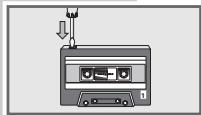
Every new recording overwrites the existing recording on the tape.
You can protect your own tapes against accidental erasure by breaking the safety tabs on the top of the tape.
Pre-recorded commercial music tapes are already protected against accidental erasure.
If you want to record on to a protected tape, cover the opening with adhesive tape.
Notes:
Only use NORMAL-type cassettes (IEC I) for recording. CHROME (IEC II) or METAL (IEC IV) tapes are not suitable.
The Ultra Bass System does not affect recording.
Recording from the radio
Insert a tape with the protection tabs intact and find the desired tape position by pressing
2 Move the CD TAPE/OFF RADIO switch to the RADIO position and select the radio station.
3 Press to start recording.
- The button is automatically engaged.
- The device automatically stops recording at the end of the tape.
4 Press to pause recording.
Press to resume recording.
5 To break off recording, press A.
Recording from a CD
Insert a tape with the protection tabs intact and find the desired tape position by pressing
2 Move the CD TAPE/OFF RADIO switch to the CD position.
3 Pause the CD during playback at the required position by pressing PLAY/PAUSE
4 Press to start recording.
- The button is automatically engaged, start CD playback by pressing
PLAY/PAUSE II<.
- The device automatically stops recording at the end of the tape.
Cleaning the tape drive
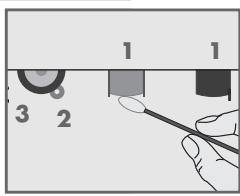
To guarantee good recording and playback quality, clean the parts shown (1, 2, 3) after every 50 hours of use, or once a month.
Open the tape compartment, moisten a cotton swab with alcohol or a special head-cleaning fluid and clean the idler (3), the capstan (2) and the magnetic heads (1). Close the cassette compartment. You can also play a cleaning cassette to clean the magnetic heads (1).
Protect your cassettes from humidity, dust, heat and cold.
Do not store your tapes near devices with strong magnetic fields such as
televisions and loudspeakers.
After using a cassette, put it back in its protective case.
CE
Technical data
This device is noise-suppressed according to the applicable EU directives.
This product fulfils the European directives 89/336/EEC, 73/23/EEC and 93/68/EEC.
This device conforms to the safety regulation DIN EN 60065 (VDE 0860) and therefore the international safety regulation IEC 60065.
Never open the device casing. The manufacturer will not accept any liability for damage resulting from improper handling.
The type plate is located on the bottom of the device.
Power supply
Mains operation: 230 Volt, 50/60 Hz
Battery operation: 6 × 1.5 ~V IEC
(R14/UM2/C-Size)
Back-up batteries: 2 × 1.5 V IEC (LR6/AM3/AA)
Max. power consumption
Operation: 15W
Standby: < 2W
Output
Stereo headphone jack: 3.5 mm
Radio unit
Frequency bands
FM 87.5 ...108.0 MHz
MW 522 ... 1620 kHz
CD unit
Frequency response: 20 Hz ... 16 kHz
Noise voltage ratio: ≥ 65 dB
MP3 features (RCD 2420 MP3)
Playback format: MPEG 1 layer 3 (MP3)
Sampling frequency: 44.1 kHz
File system / file management: ISO 9660 Level 1
compatible
Tape unit
Sound recording medium: Compact cassette
according to DIN 45516
Track position: International quarter-track
Tape speed: 4.76 cm/sec.
Motor: DC motor
Frequency range: 125 Hz ... 10 kHz
Noise voltage ratio: ≥ 42 dB
Band speed fluctuation: ≤ 0.35%
Dimensions and weight
W×H×L: 280×165×280mm
Weight: 2.4 kg
Technical and design modifications reserved.
Troubleshooting
If a fault occurs, first refer to this information before you take the device for repair.
If you are unable to rectify the fault using the information given here, contact your local dealer or service specialist.
Under no circumstances should you attempt to repair the radio recorder yourself, as this would invalidate the guarantee.
| PROBLEM | POSSIBLE CAUSE | REMEDY |
| GENERAL INFORMATION No sound | The volume setting is too low The headphones are connected The batteries are flat The batteries are incorrectly inserted The mains cable is incorrectly connected | Adjust the volume, unplug the headphones Replace the batteries, insert then correctly Connect the mains cable properly |
| The device does not respond to button commands. | Static electrical discharge | Switch off the device, disconnect the mains cable and plug it in again after a few seconds Remove any batteries |
| RADIO Poor radio reception | Weak radio antenna signal Interference from electrical devices such as televisions, video recorders, computers, neon lamps etc. | VHF (FM): tilt and turn thetelescopic antenna, switch to mono reception MW: turn whole device Keep radio recorder away from electrical devices |
| CD Playback will not start | The CD is damaged or dirty | Replace or clean the CD |
| The CD player skips tracks | A stored track memory is being played The RANDOM function is activated | Switch to normal playback or delete Switch off the RANDOM function |
| CD-Rs or CD-RWs are not being played back, or being played back incorrectly | The CD is faulty or the software or hardware settings were incorrect during burning | Check the components of your CD burner / burner software or change the CD you are using |
| TAPE Poor cassette playback sound quality | Dust and dirt on magnetic heads, capstans or idlers | Clean the magnetic heads, capstan and idler |
| No cassette recording | Recording protection tab has been broken off | Cover the opening with adhesive tape |
- Radio unit
- CD unit (RRCD 2410)
- OVERVIEW
- CD unit (RRCD 2420 MP3)
- Tape unit
- CLOSE
- TAPE DIRECTION
- Display (RRCD 2410)
- Display (RRCD 2420 MP3)
- 000.00
- FM
- MW
- MEM
- MP3
- ALBUM
- RND
- ALL
- 00
- MHz
- kHz
- The remote control (RRCD 2420 MP3)
- PLAY/PAUSE II
- UP/F.FW
- DOWN/F.RW
- STOP/BAND
- PROG/ MEM
- MODE
- ALBUM/ MEM DOWN
- ALBUM/ MEM UP
- Power supply
- Mains operation
- Note:
- Caution:
- Battery operation
- Notes:
- Environmental note:
- Inserting back-up batteries
- Inserting batteries in the remote control
- Additional information for units sold in the UK.
- Important:
- CARE AND SAFETY
- General information on laser devices
- Switching on and off
- Selecting the input source
- Adjusting the volume
- Switching the Ultra Bass System on and off
- Listening with headphones
- RADIO MODE
- Antennas
- Selecting the radio input source
- Setting and storing radio stations
- Automatic station search
- Manual station search
- Storing stations on station positions
- Selecting a preset position
- Stereo/mono reception
- Selecting the CD input source
- CD playback
- Repeating the current track
- CD MODE (RRCD 2410/2420 MP3)
- Selecting another track
- Searching for a passage within a track
- Repeating a track (Repeat One)
- Repeating all tracks (Repeat All)
- Playing back titles in random order (Random)
- Creating a track memory
- Selecting and storing tracks
- Playing back a track memory
- Changing the track selection
- Adding tracks
- Deleting the track memory
- Repeating the current file
- Searching for a passage within a file
- Selecting albums and files
- Repeating a file (Repeat One)
- Repeating all the files in an album (Repeat Album)
- Repeating all files (Repeat All)
- Playing back files in random order (Random)
- MP3 MODE (RRCD 2420 MP3)
- Selecting and storing files
- Changing the file selection
- Adding files
- Selecting the tape input source
- Tape playback
- Fast forward and rewind
- Tape recording
- Erase protection
- Recording from the radio
- Recording from a CD
- Cleaning the tape drive
- CE
- Technical data
- Max. power consumption
- Output
- CD unit
- MP3 features (RCD 2420 MP3)
- Dimensions and weight
- Troubleshooting
Brand : GRUNDIG
Model : RRCD 2420 MP3
Category : Portable music player