
GDV 110 - VCR GRUNDIG - Free user manual and instructions
Find the device manual for free GDV 110 GRUNDIG in PDF.


| Product type | VHS VCR |
| Brand | GRUNDIG |
| Model | GDV 110 |
| Dimensions (W x H x D) | 430 x 95 x 280 mm |
| Weight | 3.5 kg |
| Power supply | 220-240 V, 50 Hz |
| Power consumption | 20 W |
| Tape formats | VHS |
| Recording speeds | SP, LP |
| Video outputs | Composite (SCART), S-Video |
| Audio outputs | Stereo RCA (left/right) |
| Inputs | RF Antenna, SCART, Composite |
| Main functions | Recording, playback, pause, fast forward/rewind, timer programming |
| Remote control | Included (infrared) |
| Maintenance and cleaning | Clean the exterior with a soft dry cloth. Use a VHS cleaning cassette for the heads. |
| Safety | Do not expose to moisture or rain. Unplug before cleaning. |
| Spare parts and repairability | Parts available from GRUNDIG authorized service centers. |
| General information | Device compatible with PAL/SECAM. Supplied with power cable and user manual. |
Frequently Asked Questions - GDV 110 GRUNDIG
User questions about GDV 110 GRUNDIG
0 question about this device. Answer the ones you know or ask your own.
Ask a new question about this device
Download the instructions for your VCR in PDF format for free! Find your manual GDV 110 - GRUNDIG and take your electronic device back in hand. On this page are published all the documents necessary for the use of your device. GDV 110 by GRUNDIG.
USER MANUAL GDV 110 GRUNDIG
Special features of your DVD player
Contents of delivery
4 Installation and Safety
5 At a Glance
The front side of the DVD player
The rear side of the DVD player
The remote control
8 Connections and Preparation
Connecting to a TV set
Connecting to a hifi system
Connecting to a hifi system with digital audio input
Connecting to a multichannel audio/video receiver
Connecting headphones
Connecting the mains power cable
Inserting batteries into the remote control
11 Settings
The on-screen menus of the DVD player
Settings in the on-screen menus
Setting the picture format of the TV set
Adjusting the DVD player to a digital multi-channel audio/video receiver
Selecting the on-screen menu language of the DVD player
13 Convenience Settings
Displaying the on-screen menu
Selecting the sound synchronization language
Selecting the subtitles language
Automatic playback
Automatic playback of your music programmes
Adjusting the picture position
3D sound
15 Playing Back a DVD
Prior to playing back
Basic playback functions
Additional playback functions
22 Playing Back an Audio/Video CD
23 Arranging your own music programme
25 Parental Control
26 Informationen
Rectifying Malfunctions
Cleaning of DVDs/CDs
Technical Data
General Notes for Devices with Laser
GRUNDIG After-Sales Service Points
Special features of your DVD player

VIDEO

DIGITALVIDEO

DIGITAL AUDIO

with SRS (
Your DVD player offers you perfect digital video playback with studio quality.
The sound reproduction in stereo or three-dimensional digital multi-channel sound is possible in excellent cinema quality depending on the type of DVD, or hifif system, or TV set in use.
You can easily use every outstanding feature of the DVD video system, for example the selection of the sound channel, the language selection for subtitles, and the choice of various camera angles at the camera location.
In addition to the DVD video CDs, every other type of video and audio CD can also be played. These CDs are marked with one or more of the following logos on the packaging.
Your DVD player is suitable for DVDs having the regional code 2.
Contents of delivey
5
2
1

3

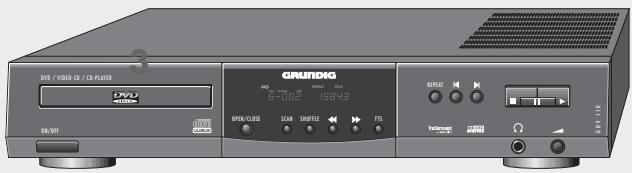
DVD player GDV 110
2 Remote control
3 2 batteries, 1.5V- Mignon type
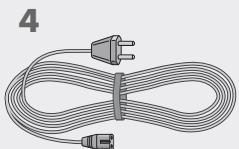
4 Mains cable
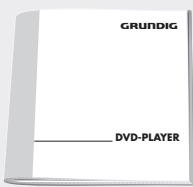
5 User manual
INSTALLATION AND SAFETY
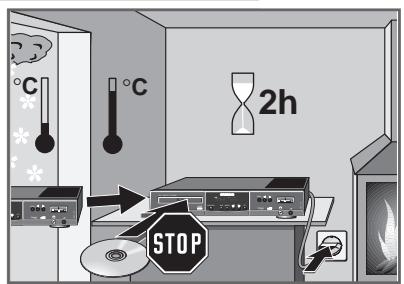
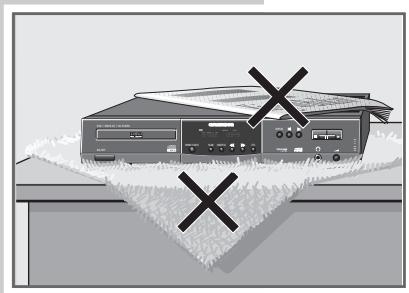
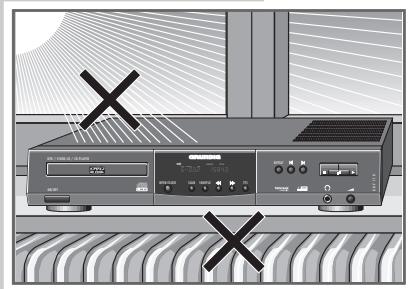
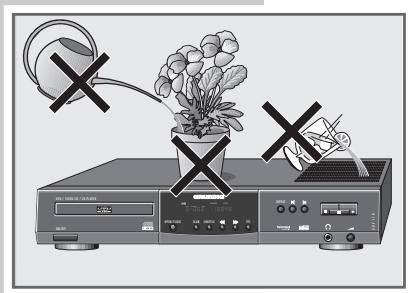
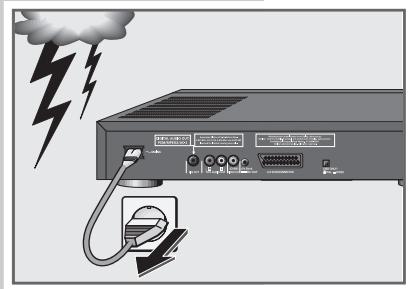
In order that you may enjoy this high-quality and comfortable DVD player for a long time, it is very important that you observe the following points when installing the player.
This DVD player is intended for the playback of picture and sound signals of compact discs (DVDs and CDs).
Any other application is expressly prohibited.
If the DVD player is exposed to drastic temperature changes, for example when taking it from a cold to a warm place, connect it to the mains supply and let it stand at the new place for at least two hours without a DVD inserted.
The DVD player is intended for use in dry rooms. If you wish to operate it in the open air, make absolutely sure that it is protected against moisture (rain, splashes of water).
Place the DVD player on a flat and hard surface. Do not place any objects (e.g. newspapers) on the DVD player, or small tableclothes or similar below the DVD player.
Do not place the DVD player in the immediate vicinity of a heat source or in direct sunlight as this would prevent appropriate cooling.
Do not place any foreign bodies in the DVD player's CD compartment.
Do not open the DVD player under any circumstance. The manufacturer will offer no guarantee for damage resulting from unqualified tampering.
Do not place vessels filled with fluid (vases or similar things) on the DVD player. The vessel can tip over and any fluid getting into the device can duly affect the electrical safety.
Thunderstorms are a danger for any electrical appliance. Even when switched off, the DVD player might be damaged by lightning striking the mains supply lead. During a thunderstorm you must always disconnect the mains plug.
If the DVD player cannot correctly read DVDs or CDs, use a commercially available cleaning CD to clean the laser lens. Other cleaning methods could destroy the laser lens system. Always keep the drawer of the DVD player closed to prevent dust from accumulating on the laser lens.
For this DVD player, technology and ecology form a convincing overall idea. Only ecologically high-grade materials are used. The batteries supplied are free of mercury and cadmium.
To enable a high-grade recycling after use, the number of plastic parts has consequently been reduced. All large plastic parts are marked.
To facilitate service and for optimum recycling, this DVD player has been designed in a specially disassembly-friendly and recycling-friendly way.
The front side of the DVD player
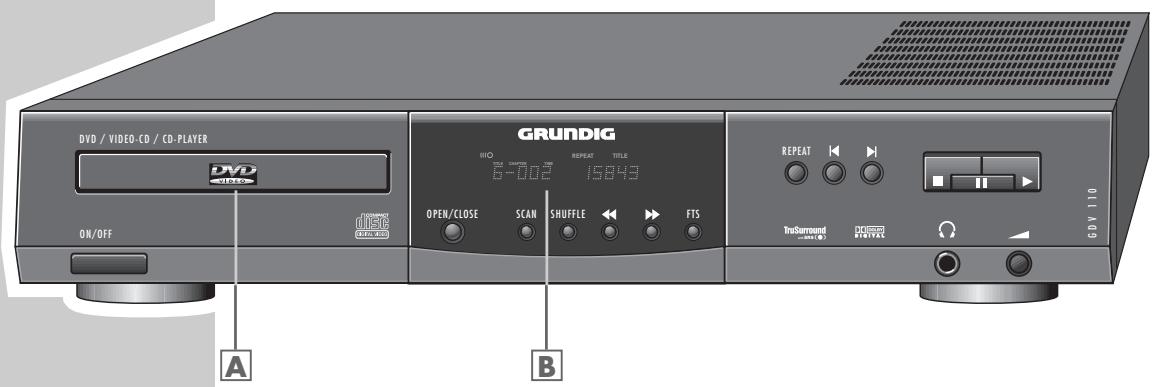
ON/OFF Switches the DVD player on and off. The DVD player is not completely separated from the mains.
DVD/CD compartment.
B Display
OPEN/CLOSE For opening and closing the DVD/CD compartment.
SCAN For playing briefly the beginning of all DVD/CD titles.
SHUFFLE For playing all DVD/CD titles in random order.
During playback: switches to reverse picture search with different speeds.
During playback: switches to forward picture search with different speeds.
FTS Activates the "Favourite Track Selection" function, which means you can compile your own favourite title tracks.
REPEAT During playback: repeats the selected DVD/CD, track (title) or section (chapter).
During playback: selects the previous track or chapter.
During playback: selects the next track or chapter.
Interrupts every drive mechanism function, switches to "STOP".
Pause/Still picture during playback.
Starts playback.
Headphones socket for connecting stereo headphones with 6.3 mm jack.
Volume control for headphones connected to the socket.
The rear side of the DVD player
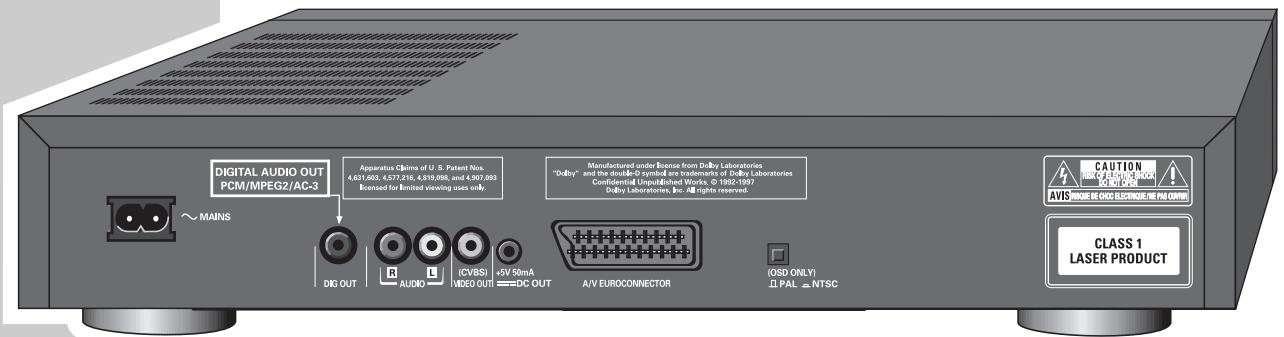
MAINS
Mains socket for mains cable.
DIGITAL AUDIO OUT (PCM/MPEG2/AC3)
Audio output socket, for connecting a digital hifi system.
R AUDIO L
Audio output sockets (left/right channel) for connecting a hifi system.
VIDEO OUT (CVBS)
Video output socket for connecting a TV set.
DC OUT (+5V/50mA)
No function.
A/V EURO-CONNECTOR (RGB)
Euro-AV socket for connecting a TV set.
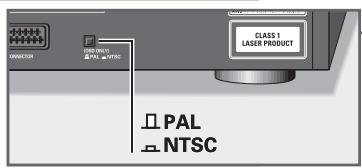
PAL/NTSC
Colour norm switch.
Attention!
Do not connect equipment when the DVD player is switched on.
Additional Information for Units sold in Great Britain
Units sold in GB are suitable for operation from a 240 V AC, 50 Hz mains supply. In case this appliance is supplied with a Safety Standard Approved mains lead fitted with a non-rewireable 13 Amp mains plug which, if unsuitable for your socket, should be cut off and an appropriate plug fitted by a qualified electrician. The fuse and fuse holder must be removed from the plug as accidental insertion of the redundant plug into a 13 Amp socket is likely to cause an electrical hazard.
Note:
The severed plug must be destroyed to avoid a possible shock hazard should it be inserted into a 13 Amp socket elsewhere.
If it is necessary to change the fuse in the non-rewireable plug, the correct type and rating (5 Amp ASTA or BSI approved BS 1362) must be used and the fuse cover must be refitted. If the fuse cover is lost or damaged the lead and plug must not be used until a replacement is obtained. Replacement fuse covers should be obtained from your dealer.
If a non-rewireable plug or a rewireable 13 Amp (BS 1363) plug is used, it must be fitted with a 5 Amp ASTA or BSI approved BS 1362 fuse. If any other type of plug is used it must be protected by a 5 Amp fuse either in the plug or at the distribution board.
Important:
The wires in the mains lead are coloured in accordance with the following code:
BLUE-NEUTRAL
BROWN-LIVE
As the colours of the wires in the mains lead of your appliance may not correspond with the coloured marking identifying the terminals in your plug, proceed as follows:
Connect the BLUE coloured wire to plug terminal marked with the letter "N" or coloured black.
Connect the BROWN coloured wire to the plug terminal marked with a letter "L" or coloured red.
In no circumstance must any of the wires be connected to the terminal marked with a letter "E", earth symbol 1一 coloured green or green and yellow.
Replacement mains lead can be obtained from your dealer, or by contacting Grundig Consumer Relations on 01788 570056.
The remote control
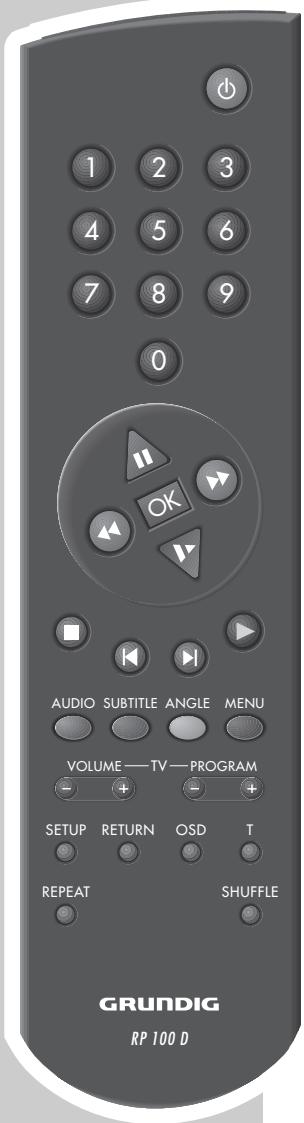
Switches the DVD player off (stand-by). Switch on again with any button.
1 ... 0 Digit buttons for various entries.
Still picture with DVDs and video CDs; Pause with audio CDs; selects various functions in the menus.
During playback: reverse picture search with various speeds; selects various functions in the menus.
OK Confirms entries in the menus.
During playback: forward picture search with various speeds; selects various functions in the menus.
Switches to slow motion with DVDs and video-CDs; selects various functions in the menus.
Ends all functions, switches the DVD player to STOP.
During playback: selects the previous title or chapter.
During playback: selects the next title or chapter.
Starts playback; double-pressure: activates the "Resume" function.
AUDIO During playback: switches over between the original and synchronized language on a DVD.
SUBTITLE During playback: displays the subtitles on DVDs.
ANGLE During playback: selects various camera angles (camera locations) of certain scenes or sequences on DVDs.
MENU During playback: displays the table of contents of the inserted DVD.
-
VOLUME + TV Volume down/up with GRUNDIG TV sets with remote control TP 590 or later.
-
PROGRAM + TV Programme selection up/down with GRUNDIG TV sets with remote control TP 590 or later.
SETUP Displays the "Settings" menu of the DVD player (in STOP mode).
RETURN Displays the previous menu of the DVD player.
OSD During playback: switches on and off the on-screen displays (status indication).
T Preselects individual titles.
REPEAT During playback: repeats chapters, titles or entire DVDs/CDs.
SHUFFLE Playback of all titles on a DVD/CD in random order.
CONNECTION AND PREPARATION
Connecting to a TV set…
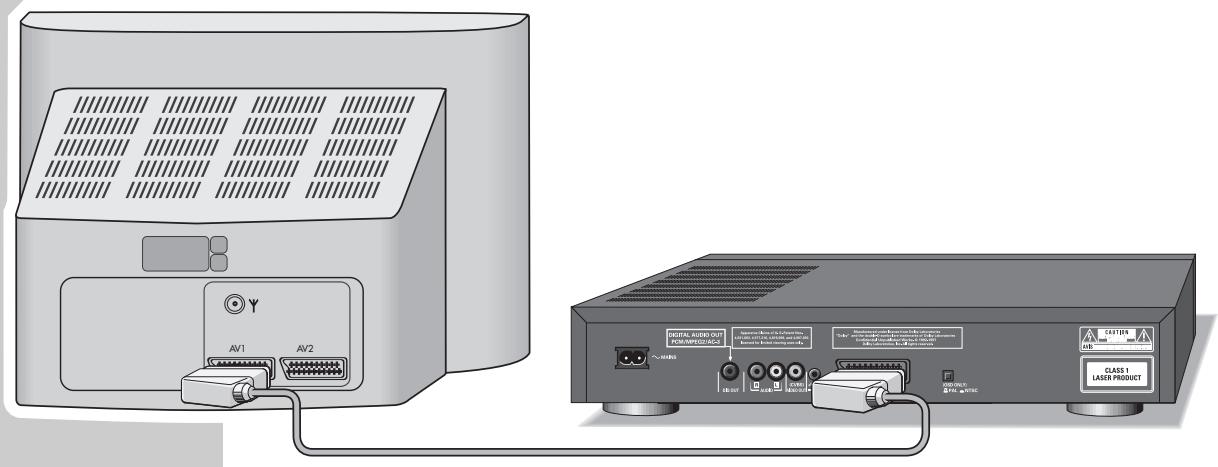
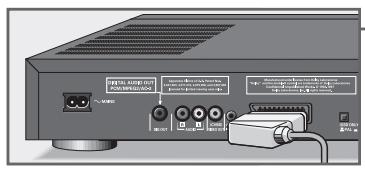
... using a EURO-AV cable
1 Connect a commercially available EURO-AV cable with the «AV EURO-CONNECTOR« on the DVD player and the corresponding socket (AV 1) on the TV set.
or
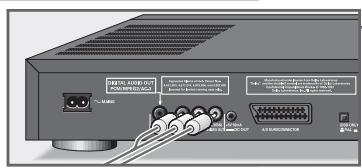
… using a phono AV cable
1 Connect a commercially available phono cable with the «VIDEO OUT« socket on the DVD player and the corresponding socket (VIDEO IN) on the TV set.
2 Connect a commercially available phono cable with the «R AUDIO L« socket on the DVD player and the corresponding sockets (AUDIO IN) on the TV set.
Note:
If the DVD player is connected to a TV set with the 16:9 format, then please observe the setting described in the chapter "Setting the picture format of the TV set" on page 11.
The format (colour norm) of the on-screen displays of the DVD player must be adjusted to the picture format of the TV set.
Connecting to a hifi system
The sound can also be reproduced via a hifi system.
1 Connect a commercially available phono cable with the «R AUDIO L« sockets on the DVD player and the corresponding sockets on the hifi system.
Attention!
Do not connect the «R AUDIO L« sockets of the DVD player to the PHONO input sockets (record player input) of the hifi system.
Note:
The «R AUDIO L« sockets can also be used for the connection of a Pro Logic audio/video receiver.
Connecting to a hifi system with digital audio input
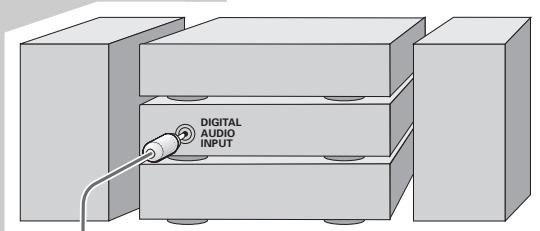
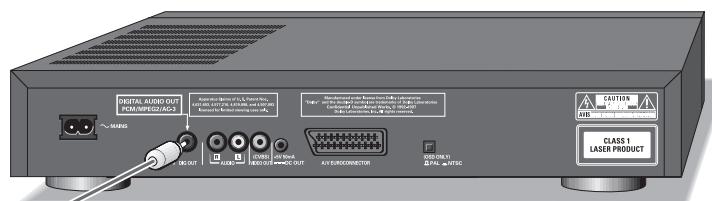
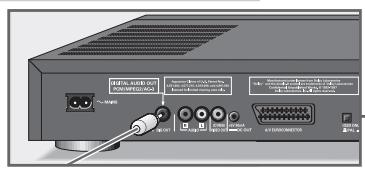
If you own a hifi system with digital audio input, then the best possible stereo sound quality will be attained via this connection.
1 Connect a commercially available phono cable with the DIGITAL AUDIO OUT socket on the DVD player and the corresponding socket on the hifi system.
Connecting to a digital multi-channel audio/video receiver
The digital multi-channel sound on the DVD can be optimally decoded and reproduced when connecting the DVD player to a multi-channel audio/video receiver (MPEG 2 multi-channel decoder or Dolby* digital decoder).
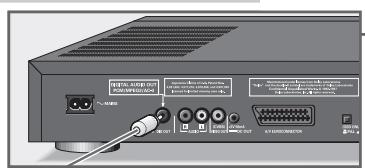
1 Connect a commercially available phono cable with the DIGITAL AUDIO OUT socket on the DVD player and the corresponding socket on the digital multi-channel receiver.
- Manufactured under license from Dolby Laboratories Licensing Corporation. "Dolby", "Dolby Pro Logic", "AC 3" and the double-D symbol "D0" are trademarks of the Dolby Laboratories Licensing Corporation. Copyright 1992 Dolby Laboratories, Inc. All rights reserved.
Note:
At the DVD player, the digital output must be activated and the correct digital output format (MPEG oder AC3) must be set, see page 12, chapter "Adjusting the DVD player to a multi-channel audio/video receiver".
When playing a DVD with a DTS audio signal the audio/video receiver must be able to process this DTS audio signal. If this is not the case, you will not be able to hear the sound on the DVD.
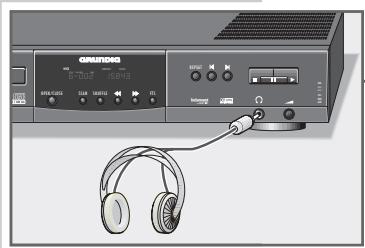
Connecting headphones
1 Connect the headphones jack with the « « socket on the DVD player.
Note:
Adjust the volume for the headphones with the « control.
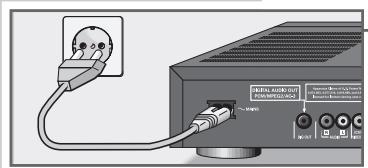
Connecting the mains power cable
1 Insert the small plug of the mains power cable supplied into the MAINS socket on the DVD player.
2 Connect the large plug of the mains power cable with a wall outlet.
- The video recorder is now in stand-by mode.
Caution!
The DVD player can only be separated from the mains by pulling the mains plug.
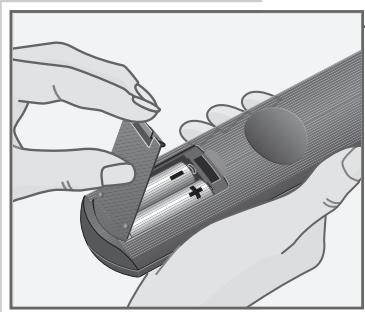
Inserting batteries into the remote control
Press the catch of the battery compartment cover and remove the cover.
2 Insert the batteries (Mignon type, e.g. UM-3 or AA, 2 × 1.5V ) observing correct polarity indicated at the bottom of the battery compartment.
Note:
If your DVD player does not react to the remote control commands correctly, then the batteries could be used up. Remove the used batteries immediately. There is no liability for damages arising through dead batteries.
Environmental protection
Do not throw dead batteries into the household waste, even if they do not contain heavy metals. Dispose of old batteries at special collecting points.
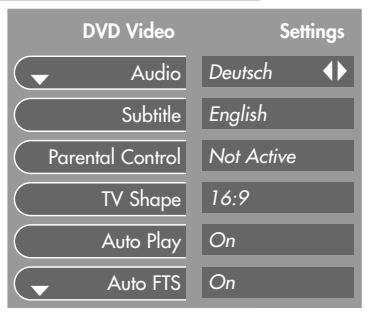
The on-screen menus of the DVD player
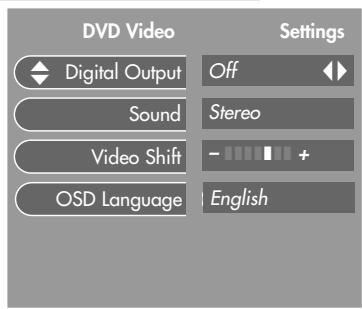
With the help of the user guide provided by the on-screen menus of the DVD player you can make all settings required for adjusting the DVD player to the TV set and the hifi system, and select functions for its operation.
The options:
- select the sound synchronization language;
- select the language of the subitles for DVDs;
- activate the parental control;
- set the picture format of the TV set;
- select automatic playback;
- select automatic playback of your music programme;
- adjust the DVD player to a digital multi-channel audio/video receiver;
- activate the 3D sound;
- adjust the picture position;
- select the language of the on-screen menus of the DVD player.
Settings in the on-screen menus
1 Display the menu by pressing the button and then the SETUP button.
2 Use the cursor buttons to select the various functions.
3 Use the cursor buttons to select the desired settings.
Note:
If you select the on-screen menu when you are in playback mode, pressing the button once selects the beginning of the title, pressing the button twice selects the position inside the title where playback has been interrupted.
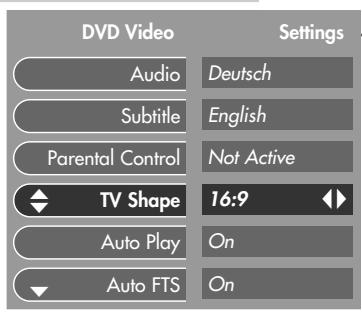
Setting the picture format of the TV set
If your TV set has the 16:9 format, this setting needs not be carried out; the 16:9 setting is preset at the factory.
If you possess a conventional TV set (with 4:3 picture format), you can select the following settings:
- 4:3 Letterbox for wide-screen playback with a black bar on the upper and lower edge of the picture screen,
or
- 4:3 Pan Scan for wide-screen playback enlarged to full screen height, in which the right and left edge of the screen is cut.
1 Switch the TV set on and select the programme position for the DVD player.
2 Switch the DVD player on using the ON/OFF button.
3 Display the menu by pressing the button and then the SETUP button.
4 Select the TV Shape line using the / button.
5 Select the picture format 16:9 or 4:3 Pan Scan or 4:3 Letterbox using the button.
6 Press the SETUP button to switch the menu off.
Adjusting the DVD player to a digital multi-channel audio/video receiver
With the factory setting Off no sound signal is emitted via the digital output of the DVD player.
If you use a digital multi-channel audio/video player, you must select the setting «All« (MPEG, AC 3 and PCM) or «PCM« (normal stereo sound) depending on the receiver connected.
1 Switch the TV set on and select the programme position for the DVD player.
2 Switch the DVD player on using the ON/OFF button.
3 Display the menu by pressing the button and then the SETUP button.
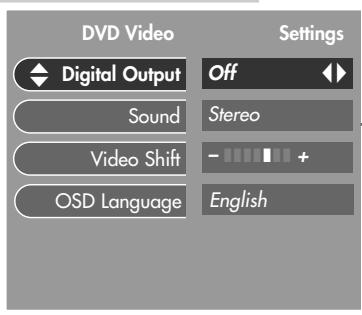
4 Select the Digital Output line using the / buttons.
5 Select the setting Off or PCM or All using the or button.
6 Press the SETUP button to switch the menu off.
Selecting the on-screen menu language of the DVD player
Switch the TV set on and select the programme position for the DVD player.
2 Switch the DVD player on using the ON/OFF button.
3 Display the menu by pressing the button and then the SETUP button.
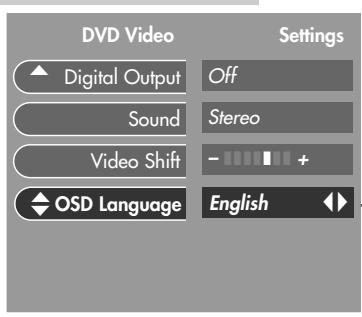
4 Select the OSD Language line using the / buttons.
5 Select the desired language using the or button.
6 Press the SETUP button to switch the menu off.
CONVENIENCE SETTINGS
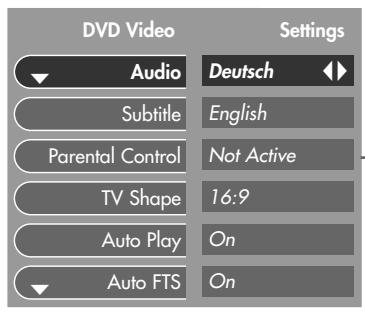
You can select your personal setting for certain playback functions with the help of the on-screen menu of the DVD player.
Displaying the menu
Switch the TV set on and select the programme position for the DVD player.
2 Switch the DVD player on using the ON/OFF ^次 button.
3 Display the menu by pressing the button and then the SETUP button.
4 Select the desired function in the «Settings« menu. For the steps to follow see the following chapters, starting with point 1.
Selecting the sound synchronization language
If several languages are available on the DVD, you can select the desired language for playback.
If the language selected is not available on the DVD, the DVD player switches to the first synchronization language.
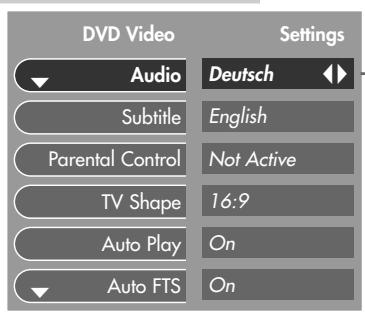
1 Select the Audio line using the / buttons.
2 Select the desired synchronization language using the button.
3 Press the SETUP button to switch the menu off.
Selecting the subtitles language
If subtitles are available in several languages on the DVD, the subtitles are displayed in the selected language.
If the selected language is not available on the DVD, the DVD player switches to the first subtitles language on the DVD.
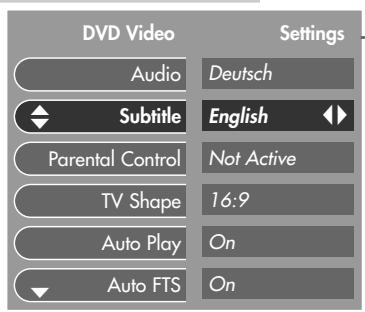
1 Select the Subtitle line using the / buttons.
2 Select the desired language using the or button.
3 Press the SETUP button to switch the menu off.
Note:
You can switch the subtitles on and off during playback by pressing the SUBTITLE button.
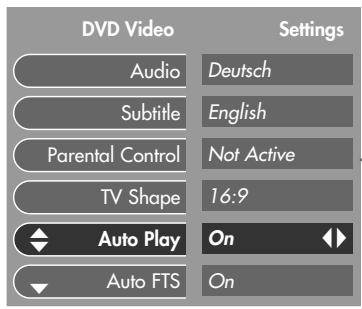
Automatic playback
This function is preset at the factory. Playback is started automatically as soon as you insert a DVD/CD.
You can switch this function off if you wish to start playback manually.
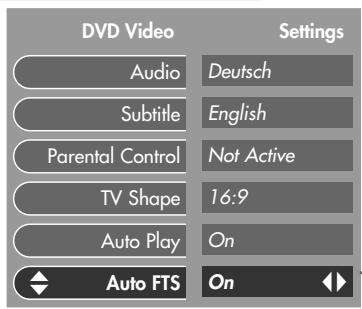
1 Select the «Auto Play« line using the « / « buttons.
2 Switch autplay on or off using the button.
3 Press the SETUP button to switch the menu off.
Automatic playback of your music programme
This function is switched on ex-works, which means that the playback of an FTS programme automatically starts when an audio CD, for which an FTS music programme has been compiled, is inserted (see page 23, chapter "Compile your own music programme").
You can switch this function off should you wish to control the FTS programme function manually.
1 Select the Auto FTS line using the / buttons.
2 Switch automatic playback on or off using the « or » « button.
3 Press the SETUP button to switch the menu off.
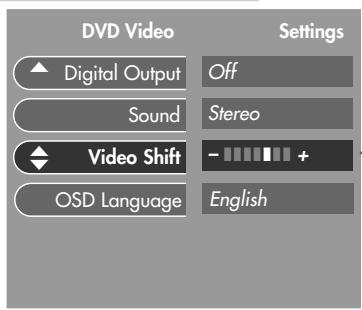
Adjusting the picture position
With the factory setting, the picture is centered on the picture screen. Use this setting function to adjust the picture position to your personal taste by moving it to the left or to the right.
1 Select the Video Shift line using the / buttons.
2 Shift the picture using the or button.
3 Press the SETUP button to switch the menu off.
3D sound
Using this function, you can simulate a 3D sound via the stereo loudspeakers of the hifi system or the loudspeakers of the TV set if no Dolby Surround system is connected to the DVD player.
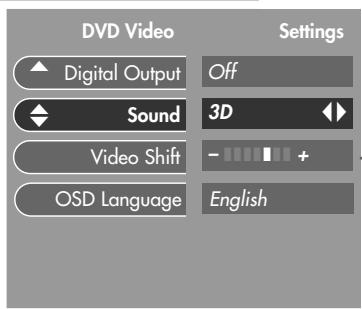
1 Select the Sound line using the / buttons.
2 Select 3D using the or button.
3 Press the SETUP button to switch the menu off.
DVDs are recognizable by their logos.
They can have one or more titles depending on the contents of the DVDs (films, videoclips, television series etc.).
Every title can contain one or more chapters. One can not only easily and simply switch over between titles but between chapters as well.
Playback of these DVDs can be monitored and controlled via the OSD-menu on the TV screen.
Certain DVDs contain several titles and sequences which have been sorted by the manufacturer in a fixed order. However, it also possible to select individual titles and sequences for playing. Play is stopped at the end of every title.
Certain functions of the DVD player such as slow motion, still picture or autplay can also be controlled by the DVD. For this reason it may happen that the still picture function, for example, cannot be selected for certain sequences.
Because films are normally released at differing times in different places throughout the world, all DVD players worldwide have a regional code given to them. This DVD player is released for regional code 2
DVDs can also be given an additional regional code. If you insert a DVD with a differing regional code into the DVD player, you will be become aware of a note on the TV screen indicating the regional code. In this case, the DVD can not be played.
DVDs show in a title menu an overview or the titles and/or the chapters of the titles.
On many DVDs the sound tracks contain up to 8 languages.
With such a DVD, you can select the desired language.
Many DVDs contain subtitles in several languages. You can select the subtitles in up to 32 languages.
Prior to playing back
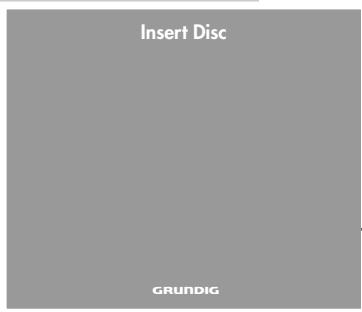
Preparation
1 Switch the TV set on and select the programme position for the DVD player.
2 Switch the hifif system on and select the input for the DVD player.
3 Switch the DVD player on using the ON/OFF button.
- >NO dISC « appears in the display of the DVD player.
- After a short time the DVD player prompts you to insert a DVD.
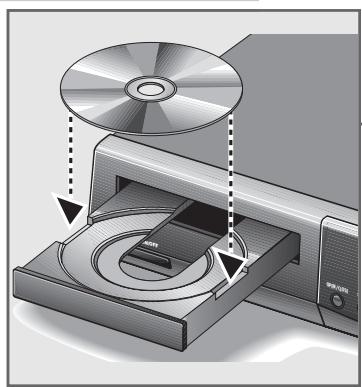
Inserting a DVD into the DVD player
1 Press the OPEN/CLOSE button on the DVD player. - The CD drawer is opened.
2 Insert the desired DVD with the label facing upwards into the drawer.
3 Press the OPEN/CLOSE button, or slightly press on the front side of the drawer. - The drawer is closed automatically. - After a short time a menu with information about the DVD is displayed.
Note:
If the "Autplay" function is activated, play is started immediately. The total playing time of the DVD appears in the display of the DVD player. Information about how to switch the "Autplay" function on and off is to be found in the "Convenience Settings" chapter on page 14. Certain DVDs contain their own autoplay command and start playaback automatically.
Basic playback functions
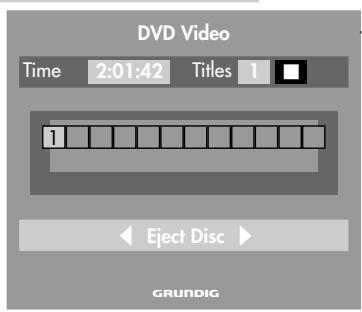
Displaying the contents of a DVD
1 Display the contents of the DVD using the button.
2 If the selection options are numbered, select the corresponding titles and chapters using the 1 ... 0 buttons.
3 If the selection options are not numbered, select the titles and chapters using the or button.
Displaying the selection menu of the DVD
The selection menu of the DVD may contain different options for viewing angle, synchronized languages and subtitles.
1 Display the selection menu of the DVD by pressing the MENU button during playback.
- If the DVD contains a selection menu, this is displayed.
2 Press the MENU button to switch the selection menu off.
Displaying the title menu of the DVD
The title menu of the DVD may contain options for titles, chapters or sequences.
1 Display the title menu of the DVD by pressing the T and MENU button. - If the DVD contains a title menu, this is displayed.
2 Press the MENU button to switch the title menu off.
Playing back a title
1 Start playback using the button.
2 Press the 11 button to switch to playback-pause (still picture).
3 End playback by pressing the button.
Note:
During playback of the DVD the display of the DVD player indicates the current title, the chapter and the elapsed playing time.
Displaying functions (status display)
It is possible to display every function (e.g. the playing time or the current title) on the picture screen.
1 The functions are briefly displayed by pressing the OSD button. - The functions are displayed for about 10 seconds.
2 To display the functions permanently, press the OSD button a longer time.
3 Press the OSD button to switch off the functions display.
TITLE
2
TITLE
1
TITLE
5
Selecting another title
If a DVD includes several titles, you can select these.
1 Select the next title during playback by pressing the button and then briefly the button.
2 To select the beginning of the current title, press the button and then briefly the button.
To select the previous title, briefly press the button once again.
3 To select the desired title directly, press the T button then enter the number of the title with one or two digits using the 1 0 buttons.
Selecting another chapter
If a title on the DVD contains several chapters (this will be shown on the display of the DVD player), these can be selectd as follows:
CHAPTER
002
1 Select the next chapter by briefly pressing the button.
2 Select the beginning of the current chapter by briefly presing the button.
Select the previous chapter by briefly pressing the button once again.
CHAPTER
005
3 If you wish to select the desired chapter directly, enter the number of the chapter with one or two digits using the 1 ... 0 buttons.
Interrupting playback (resume)
Playback of a DVD can be interrupted at any position then resumed at the same position.
This function can be used for the last 4 played DVDs.
Interrupt playback using the button.
2 Resume playback where it has been interrupted by pressing the button twice.

Ending playback
Playback of the DVD is automatically ended at the end of a title.
It is possible to end playback at any time by pressing the button.
Removing a DVD
1 Press the OPEN/CLOSE button to open the CD drawer.
Additional playback functions
Slow motion
You can chose between three different playback speeds.
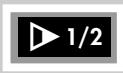
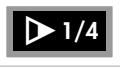

1 To select slow motion playback, repeatedly press the button during playback until the desired playback speed is reached.
- The respective playback speed is displayed for approximately 10 seconds on the picture screen of the TV set.
2 Press the button to return to normal playback.
Switching still pictures step by step

During still picture mode (playback-pause) press the button repeatedly.
2 Press the button to return to normal playback.

Picture search


1 During playback, press the button (for 4-fold forward speed) or the button (for 4-fold reverse speed).


2 During playback, press a longer time on the button (for 32-fold forward speed) or the button (for 32-fold reverse speed).

3 Press the button to return to normal playback.
Note:
With the functions "Slow motion", "Still picture" and "Picture search", the sound is muted.
Quickly "flip through" all titles (Scan)
With this function, the beginning of every title is played for approximately 10 seconds.
1 During playback, press the SCAN button on the DVD player.
- SCAN appears in the DVD player's display.
2 Press the button to resume playback of the current title.
Playing all chapters of a title (Shuffle)
With this function, the chapters of a title are played in random sequence if the title includes several chapters.
1 During playback, press the SHUFFLE button.
- >SHUFFLE CHAPTER« appears in the DVD player's display.
- Every time a new chapter is played, the corresponding number disappears in the display of the DVD player.
2 Press the SHUFFLE button again to switch back to normal play.



Repeating a chapter, a title or a DVD (Repeat)
With these functions, the currently running chapter, or the currently running title, or the total contents of the DVD is repeated.
1 During playback, press the REPEAT button once, twice or three times.
- REPEAT CHAPTER, or REPEAT TITLE, or REPEAT (contents of the DVD) appears in the display of the DVD player.
2 Press the REPEAT button a fourth time to end the function.
Setting the viewing angle of certain sequences
Many DVDs contain sequences which have been repeatedly filmed from varying camera locations (differing viewing angles).
You can select these viewing angles.
With DVDs providing this function, the 7 « symbol appears on the picture screen of the TV set. This symbol indicates how many different viewing angles (7 in the example) are to be found on the DVD, as well as the currently set viewing angle (5 in the example).

1 Start playback by pressing the button.
2 Select the desired viewing angle using the ANGLE button.
- The 7 symbol on the picture screen of the TV set indicates the viewing angle, 3 in the example.

3 To select another viewing angle directly, enter the number of the viewing angle using the 1 ... 0 buttons.
4 Press the OSD button to switch the function off.
- The 7 « symbol goes out.

1 de

2 en

off
Press the SUBTITLE button during playback until the subtitles are displayed on the picture screen of the TV set.
2 To select the desired language, press the SUBTITLE « button repeatedly until the subtitles are displayed in the desired language.
3 To switch the subtitles off, press a longer time the SUBTITLE button.
MPEG
2 ch
AC 3
6 ch
Changing the synchronized language
With this function you can change the preset synchronized language if alternative languages are available on the DVD.
1 Press the AUDIO button during playback.
- The symbols for synchronized language and sound reproduction appear for 10 seconds on the picture screen of the TV set.
2 Press the AUDIO button repeatedly to select the desired language. Every pressure selects another language.
Note:
If the sound reproduction mode is changed (e.g. from Dolby Surround Sound into Stereo), this will also be shown.

Audio CDs
Audio CDs are recognizable by their logos.
Audio CDs only include music recordings. They can be played back as usual via your hifi system.
With the help of the on-screen menus of the DVD player you can create your personal music archive by selecting and rejecting certain titles.
Video CDs
Video CDs are recognizable by their logos.
They can contain one or several titles depending on the contents (films, video clips, television series, etc.).
Every title can contain one or several chapters. It is possible to switch between titles and chapters in an easy and simple way.
Playback of the video CDs can be checked and controlled via the menus of the DVD displayed on the picture screen of the TV set (OSD menus).
Certain CDs may be programmed at the factory with a fixed playback sequence.
Note:
Video CD and audio CD playback works in the same way as DVD playback. Some functions may not be available, depending on the system.
ARRANGING YOUR OWN MUSIC PROGRAMME
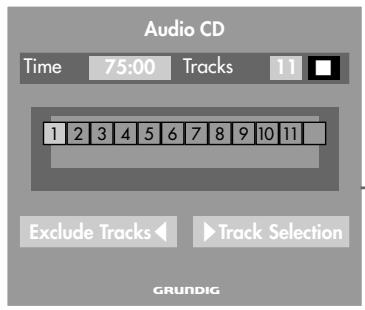
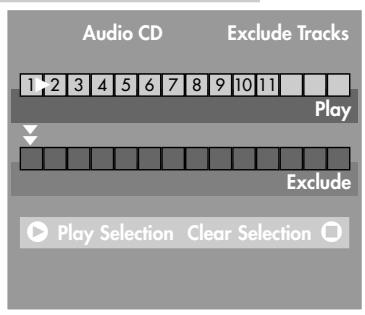
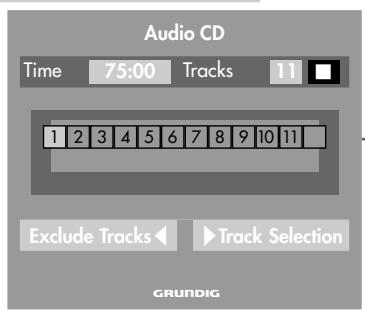
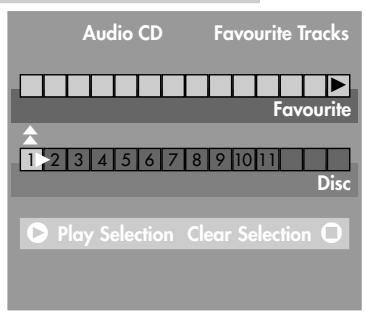
With this function you can compile your favourite titles from various audio CDs.
You can either select the desired titles (select title), or
ignore the titles you do not want to play (reject title).
You can compile your own music programmes for up to 100 audio CDs.
If you compile more than 100 music programmes, the less frequently used music programmes are automatically deleted.
Rejecting titles
1 Open the drawer, insert the desired CD then close the drawer.
2 Switch the DVD player to "Stop" using the button.
3 Display the Exclude Tracks menu by pressing the button.
4 Select the first title using the or button.
5 Reject the title using the button.
6 Repeat the steps 4 and 5 to reject further titles.
Note:
If you want to add a rejected title to the title selection again, you must reselect the title then activate it with the button.
If you want to add all titles to the title selection again, press the button.
7 Press the RETURN button to end programming.
- Your music programme is automatically stored in memory.
Selecting titles
1 Open the CD drawer, insert the desired CD then close the drawer.
2 Switch the DVD player to "Stop" using the button.
3 Display the Favourite Tracks menu using the button.
4 Select the first title using the or button.
5 Select the title by pressing the button.
6 Repeat the steps 4 and 5 to selected further titles.
Note:
If you wish to delete a selected title in the title selection, you must reselect the title then delete it with the » button.
If you want to delete the entire selection and repeat programming, then press the button.
7 Press the RETURN< button to end programming.
- Your music programme is automatically stored in memory.
Playing a music programme
1 Open the CD drawer, insert the desired CD then close the drawer.
Note:
If the "Auto FTS" function has been activated in chapter "Convenience Settings" (page 14), playback of the music programme is started automatically.
2 To start the music programme manually, press the button and then the FTS button on the DVD player.
3 Start playback of the music programme by pressing the button.
4 End playback of the music programme by pressing the FTS button on the DVD player.
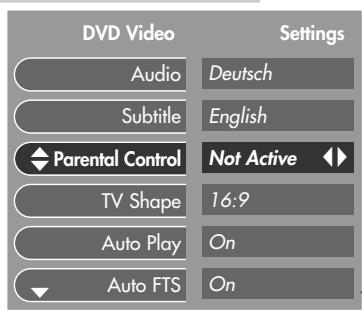
You can lock the playback of DVDs or CDs by activating the parental lock.
The parental lock can be activated in such a way that all DVDs or CDs are locked, or
that for certain age groups the DVDs or CDs are authorized by your release.
Activating and deactivating the parental control
Switch the DVD player on using the button.
2 Press the SETUP button to display the OSD menu. - The Audio menu line is highlighted.
3 Select the Parental Control menu line using the / buttons.
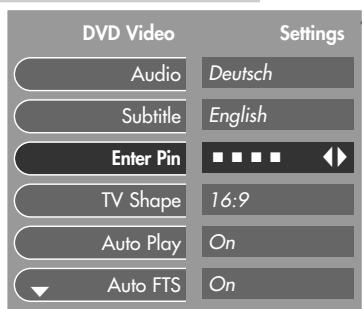
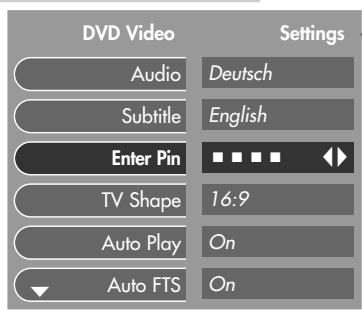
4 Select the Enter Pin option using the or button. - The menu prompts you to enter a 4-digit PIN number.
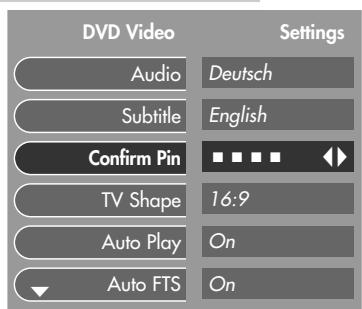
5 Enter your 4-digit PIN number using the 1 0 buttons. - The message Confirm Pin appears.
6 Confirm the 4-digit PIN number by entering it again using the 1 0 buttons.
- The DVD player is locked.
Note:
If you wish to deactivate the parental control, repeat the steps 1 to 6. The DVD player is unlocked.
Should you forget or misplace the PIN number, then please read more about this in the chapter "Rectifying malfunctions" on page 26.
The 4-digit PIN number must be entered before each DVD/CD playback using the digit buttons 1 0 unless you released (authorized) the DVD/CD in question for certain age groups beforehand.
Releasing DVDs/CDs
You can release DVDs/CDs for certain age groups.
You can release up to 50 DVDs/CDs. If you release more than 50 DVDs/CDs, the less frequently used are automatically locked.
1 Open the CD drawer, insert the desired DVD/CD then close the CD drawer again.
- The menu requests you to enter your PIN number.
2 Enter your 4-digit PIN number using the 1 0 buttons then confirm it with the button.
3 Press the button to activate the Parental control function.
- The menu requests you to enter your PIN number.
4 Enter your 4-digit PIN number using the 1 0 buttons.
- The DVD/CD is released and can be played without entering the PIN number.
Note:
To lock the DVDs/CDs again, repeat the steps 3 to 4.
Rectifying malfunctions
Not every picture and sound disturbance need be referred back to a defect in your DVD player. Connecting cables accidentally pulled out, damaged DVDs/CDs and used batteries in the remote control can lead to functional defects.
Should the measures stated below not provide a satisfactory answer, then please consult a specialist!
| Malfunction | Reason/correction |
| No return to start-up screen when the DVD/CD is removed. | Switch the DVD player on and off. |
| Check to see if another DVD/CD should be inserted for that programme. | |
| Device does not react to remote control commands. | Point the remote control directly at the DVD player. |
| Move all obstacles out of the way which could hinder the signal beam of the remote control. | |
| Check or replace the batteries. | |
| No picture. | Check the programme position for the DVD player on the TV set. |
| Check the video connection. | |
| Fuzzy picture. | Make sure no finger prints are on the DVD/CD, observe the cleaning hints on this page. |
| Very fuzzy picture in OSD menus. | NTSC/PAL switch is not set correctly for this DVD/CD. |
| No colour on the OSD menus. | NTSC/PAL switch is not set correctly for this DVD/CD. |
| DVD/CD does not play. | Check that the DVD/CD label is facing upwards. |
| Clean the DVD/CD. | |
| Check for damage to the DVD/CD by trying out another DVD/CD. | |
| No sound. | Check the audio connections. |
| Test another audio source. | |
| Distorted sound from hifif system. | Make sure that the audio connections are not leading to the phono input on the amplifier. |
| Parental control is set, the 4-digit PIN number is not known. | Cancel parental control: instead of entering the PIN number, press the » □ « button four times. |
Cleaning of DVDs/CDs
Clean the dirty DVD/CD with a cloth using a straight-lined movement from the middle to the edge.
Do not use solvents such as petrol, diluting agents, commercially available cleaning agents or antistatic spray for analog records.

Technical data
This DVD player complies with the safety regulations in accordance with the DIN EN 60065 (VDE 0860) (Association of German Electrical Engineers) and consequently with the international safety regulations IEC 60065 bzw. CEE 1.
Do not open the DVD player under any circumstance. The manufacturer will offer no guarantee for damage resulting from unqualified tampering.
| Mains voltage: 198 V - 264 V ~, 50 Hz | Video format | ||
| Weight: approx. 4 kg | Signal: Digital compression: MPEG2 for DVD/ MPEG1 for VCD | ||
| DVD | 50 Hz | 60 Hz | |
| Power requirement: approx. 20 W | Horiz. resolution: 720 Pixel | 720 Pixel | |
| Vert. resolution: 576 lines | 480 lines | ||
| VCD | 50 Hz | 60 Hz | |
| - Stand-by: approx. 5 W | Horiz. resolution: 352 Pixel | 352 Pixel | |
| Vert. resolution: 288 lines | 240 lines | ||
| Dimensions in mm (w × h × d): 435 × 85 × 305 | Audio format | ||
| Operating position: horizontal | Digital: MPEG/AC-3 Compressed Digital PCM 16, 20, 24 bit 48/96 kHz | ||
| Ambient temperature: +10°C to +35°C | Analog: Stereo sound and Dolby Pro Logic (with VCDs: multi-channel-sound with down mix) | ||
| Relative air humidity: up to 80% | Audio performance | ||
| Playback norm: PAL, 50 Hz, 625 lines/NTSC, 60 Hz, 525 lines | Signal: Analog | ||
| DVD: fs 96 kHz | 4Hz-44 kHz | ||
| fs 48 kHz | 4Hz-22 kHz | ||
| Playback system: DVD-Video, Video-CD, Audio-CD/Multi-standard PAL/NTSC, CD-R, CD-RW | VCD: fs 44.1 kHz | 4Hz-20 kHz | |
| CD: fs 44.1 kHz | 4Hz-20 kHz | ||
| DVD disc format: Diameter ø 12 cm and ø 8 cm | Signal-to-noise-ratio (at 1 kHz): 100 dB | ||
| Dynamic range (at 1 kHz): 096 dB | |||
| * Playing time (ø 12cm) one layer, one-sided: approx. 2:13 hrs; one layer, two-sided: approx. 4:01 hrs two layers, one-sided: approx. 4:26 hrs; two layers, two-sided: approx. 8:02 hrs. | |||
CLASS 1 LASER PRODUCT

General Notes for Devices with Laser
A mark with this sign can be found at the rear side of your device.
CLASS 1 LASER PRODUCT means that the laser is intrinsically safe due to its technical construction, ensuring that the maximum radiation value can not, under any circumstance, be exceeded.
Caution!
Dangerous radiation exposure can occur if other operating devices than those specified here are used or other measures of procedure are carried out
LASER
| Type | Semiconductor laser GaAlAs |
| Wave lenght | 650 nm (DVD) |
| 780 nm (VCD/CD) | |
| Output Power | 7 mW (DVD) |
| 10 mW (VCD/CD) | |
| Beam divergence | 60 degree. |
This unit employs a laser. Only a qualified service person should remove the cover or attempt to service this device, due to possible eye injury.
Use of controls or adjustments OR PERFORMANCE OF PROCEDURES other than those specified herein may result in hazardous radiation exposure.
TRUSURROUND, SRS, and symbol ()^ are trademarks of SRS Labs, Inc.
TRUSURROUND technology is manufactured under license from SRS Labs, Inc.
This product incorporates copyright protection technology that is protected by method claims of certain U.S. patents and other intellectual property rights owned by Macrovision Corporation and other rights owners. Use of this copyright protection technology must be authorized by Macrovision Corporation, and is intended for home and other limited viewing uses only unless otherwise authorized by Macrovision Corporation. Reverse engineering or disassembly is prohibited.
Manufactured under license from Dolby Laboratories. "Dolby" and the double-D symbol , "are trademarks of Dolby Laboratories. Confidential Unpublished Works. ©1992-1997 Dolby Laboratories, Inc. All rights reserved.
GRUNDIG AFTER-SALES SERVICE POINTS
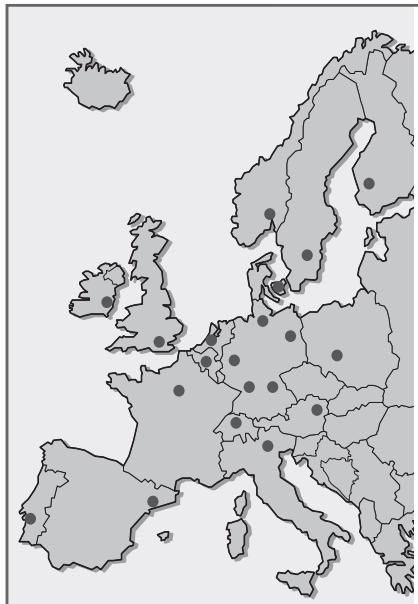
Technical Service
Unit 35, Woodside Park, Wood
Street
Rugby, Warwickshire, CV21
2NP
Großbritannien/Great Britain
+44/178-8570088
GRUNDIG NORGE A.S.
Glynitveien 25, Postboks 234
N-1401 Ski
+47/64878200
- Installation and Safety
- At a Glance
- Connections and Preparation
- Settings
- Convenience Settings
- Playing Back a DVD
- Playing Back an Audio/Video CD
- Arranging your own music programme
- Parental Control
- Informationen
- Special features of your DVD player
- Contents of delivey
- INSTALLATION AND SAFETY
- The front side of the DVD player
- MAINS
- DIGITAL AUDIO OUT (PCM/MPEG2/AC3)
- R AUDIO L
- VIDEO OUT (CVBS)
- DC OUT (+5V/50mA)
- A/V EURO-CONNECTOR (RGB)
- PAL/NTSC
- Attention!
- Additional Information for Units sold in Great Britain
- Note:
- Important:
- BLUE-NEUTRAL
- BROWN-LIVE
- The remote control
- CONNECTION AND PREPARATION
- Connecting to a TV set…
- ... using a EURO-AV cable
- … using a phono AV cable
- Connecting to a hifi system
- Connecting to a hifi system with digital audio input
- Connecting to a digital multi-channel audio/video receiver
- Connecting headphones
- Connecting the mains power cable
- Caution!
- Inserting batteries into the remote control
- Environmental protection
- The on-screen menus of the DVD player
- Settings in the on-screen menus
- Setting the picture format of the TV set
- Adjusting the DVD player to a digital multi-channel audio/video receiver
- Selecting the on-screen menu language of the DVD player
- CONVENIENCE SETTINGS
- Displaying the menu
- Selecting the sound synchronization language
- Selecting the subtitles language
- Automatic playback
- Automatic playback of your music programme
- Adjusting the picture position
- 3D sound
- Prior to playing back
- Preparation
- Inserting a DVD into the DVD player
- Basic playback functions
- Displaying the contents of a DVD
- Displaying the selection menu of the DVD
- Displaying the title menu of the DVD
- Playing back a title
- Displaying functions (status display)
- Selecting another title
- Selecting another chapter
- Interrupting playback (resume)
- Ending playback
- Removing a DVD
- Additional playback functions
- Slow motion
- Switching still pictures step by step
- Picture search
- Quickly "flip through" all titles (Scan)
- Playing all chapters of a title (Shuffle)
- Repeating a chapter, a title or a DVD (Repeat)
- Setting the viewing angle of certain sequences
- Changing the synchronized language
- Audio CDs
- Video CDs
- ARRANGING YOUR OWN MUSIC PROGRAMME
- Rejecting titles
- Selecting titles
- Playing a music programme
- Activating and deactivating the parental control
- Releasing DVDs/CDs
- Rectifying malfunctions
- Cleaning of DVDs/CDs
- Technical data
- General Notes for Devices with Laser
- LASER
- GRUNDIG AFTER-SALES SERVICE POINTS
Brand : GRUNDIG
Model : GDV 110
Category : VCR