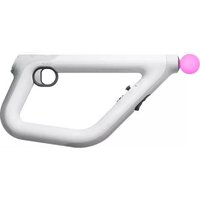
Playstation VR Aim Controller - Game controller SONY - Free user manual and instructions
Find the device manual for free Playstation VR Aim Controller SONY in PDF.


| Type | Controller |
| Brand | Sony |
| Model | PlayStation VR Aim Controller |
| Compatibility | PlayStation 4, PlayStation VR |
| Dimensions (approx.) | 30 x 15 x 5 cm |
| Weight (approx.) | 300 g |
| Power Source | Micro-USB cable (not included) |
| Battery | Internal rechargeable lithium-ion |
| Battery Life (approx.) | 10 hours continuous use |
| Key Features | Motion tracking, analog stick, trigger button, action buttons, vibration feedback |
| Connection | Bluetooth 3.0 wireless |
| Cleaning Instructions | Wipe with a soft, dry cloth; do not use liquids |
| Safety Warnings | Keep away from liquids, avoid dropping, do not disassemble |
| Warranty | 1 year limited warranty |
| Country of Origin | China |
Frequently Asked Questions - Playstation VR Aim Controller SONY
User questions about Playstation VR Aim Controller SONY
0 question about this device. Answer the ones you know or ask your own.
Ask a new question about this device
Download the instructions for your Game controller in PDF format for free! Find your manual Playstation VR Aim Controller - SONY and take your electronic device back in hand. On this page are published all the documents necessary for the use of your device. Playstation VR Aim Controller by SONY.
USER MANUAL Playstation VR Aim Controller SONY
PlayStation®VR Aim Controller
Instruction Manual
Before use
- Carefully read this manual and any manuals for compatible hardware. Retain instructions for future reference.
- Always update your system to the latest version of the system software.
Precautions
Safety
- Avoid prolonged use of this product. Take a 15-minute break during each hour of play.
- Stop using this product immediately if you begin to feel tired or if you experience discomfort or pain in your hands or arms during use. If the condition persists, consult a doctor.
- If you experience any of the following health problems, discontinue use of the system immediately. If symptoms persist, consult a doctor.
– Dizziness, nausea, fatigue or symptoms similar to motion sickness.
- Discomfort or pain in a part of the body, such as eyes, ears, hands or arms.
- The product is intended for use with the hands only. Use both hands to grip the controller.
- The vibration function of this product can aggravate injuries. Do not use the vibration function if you have any ailment or injury to the bones, joints, or muscles of your hands or arms. You can turn on or turn off the vibration function from Settings) on the function screen.
- Keep the product out of the reach of small children. Young children might damage the product causing it to malfunction, swallow small parts, wrap the cables around themselves or accidentally injure themselves or others.
Use and handling
- When using the controller, be aware of the following points.
– Before use, make sure that there is plenty of space around you.
- Firmly grip your controller to prevent it from slipping out of your grasp and causing damage or injury.
- When using your controller with a USB cable, ensure that the cable cannot hit a person or any object, and do not pull the cable out of the PS4™ system whilst playing.
- Do not squeeze the sphere, hold it tightly or place objects on top of it, as doing so may cause it to become misshapen.
- Do not allow liquid or small particles to get into the product.
-
Do not touch the product with wet hands.
-
Do not throw or drop the product or subject it to strong physical shock.
- Do not put heavy objects on the product.
- Do not touch the inside of the USB connector or insert foreign objects.
- Never disassemble or modify the product.
Exterior protection
Follow the instructions below to help prevent the product exterior from deteriorating or becoming discoloured.
- Do not place any rubber or vinyl materials on the product exterior for an extended period of time.
- Use a soft, dry cloth to clean the product. Do not use solvents or other chemicals. Do not wipe with a chemically-treated cleaning cloth.
Storage conditions
- Do not expose this controller to high temperatures, high humidity or direct sunlight.
- Do not expose the product to dust, smoke or steam.
Part names
Side view
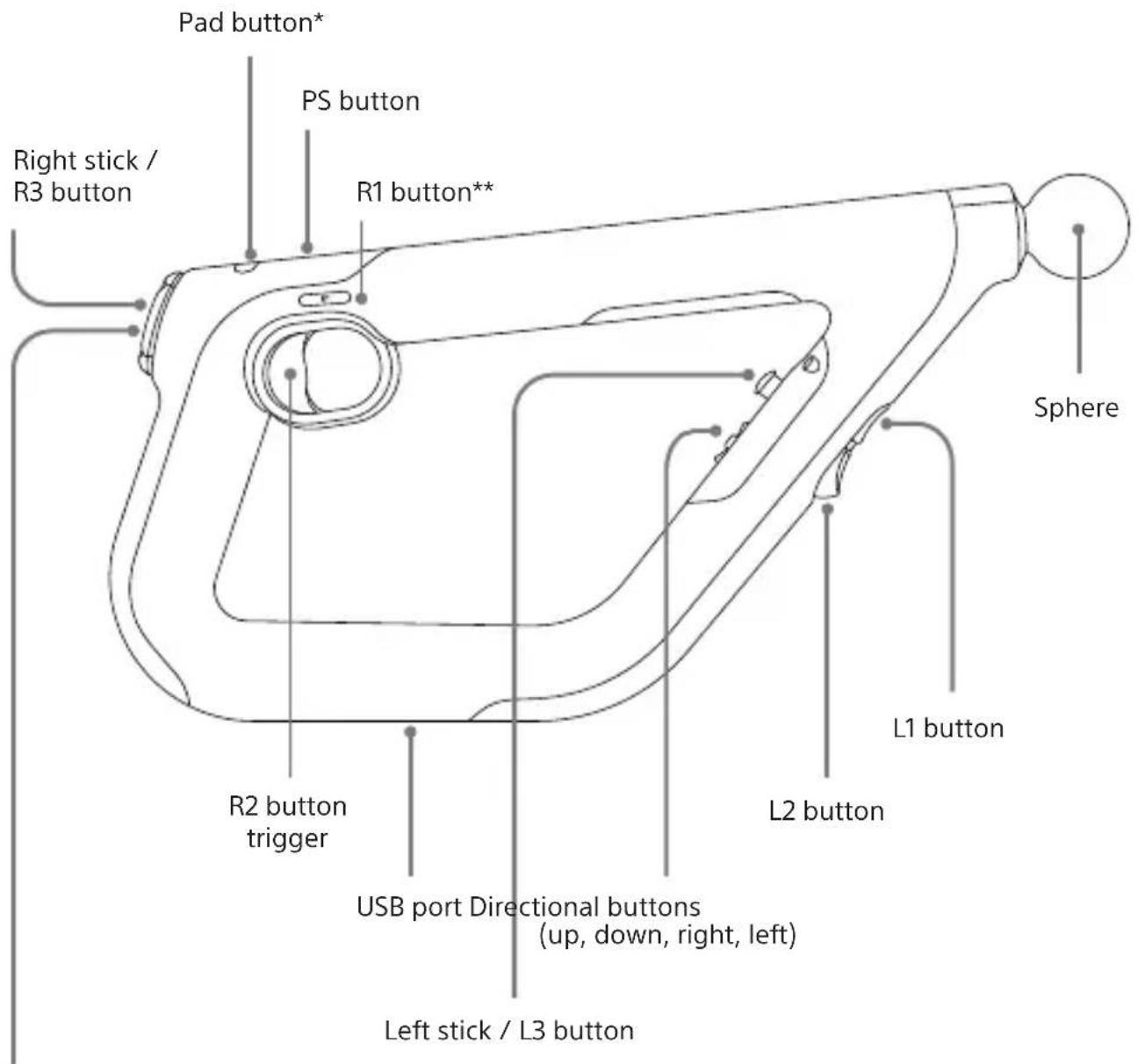
Action buttons Ⓞ Ⓓ × □
* Click only; other touch pad functions are not available.
** The PS VR Aim Controller has two R1 buttons, one on either side above the R2 button trigger. This enables you to use the PS VR Aim Controller with either a left-handed or right-handed grip, depending on your preference.
Rear view

Pair your controller
You'll need to pair your controller when you use it for the first time and when you use it with another PS4 ^TM system.
With your PS4™ system either on or in rest mode, connect your controller using a USB cable, and then press the ▶ (PS) button. Your controller pairs with the system and turns on. After you've paired your controller, you can disconnect the USB cable and use your controller wirelessly.
Charge your controller
Make sure your controller is charged and ready to go before you start playing.
With your PS4 ^™ system either on or in rest mode, connect your controller to your system using a USB cable.
To charge your controller while your system is in rest mode, select an option other than [Off] in 📄 (Settings) > [Power Save Settings] > [Set Features Available in Rest Mode] > [Supply Power to USB Ports].
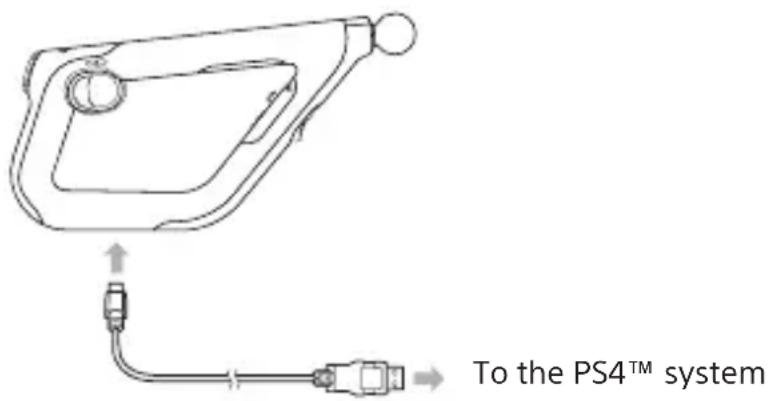
The sphere flashes slowly when charging, and stops flashing when charging is complete.
Hint
Use a USB cable that complies with the USB standard. You might not be able to charge the controller on some devices.
Battery
Caution – using the built-in battery:
- This product contains a lithium-ion rechargeable battery.
- Before using this product, read all instructions for handling and charging the battery and follow them carefully.
- Take extra care when handling the battery. Misuse can cause fire and burns.
-
Never attempt to open, crush, heat or set fire to the battery.
-
Do not leave the battery charging for a prolonged period of time when the product is not in use.
- Always dispose of used batteries in accordance with local laws or requirements.
- Do not handle the damaged or leaking battery.
- If the internal battery fluid leaks, stop using the product immediately and contact technical support for assistance. If the fluid gets on to your clothes, skin or into your eyes, immediately rinse the affected area with clean water and consult your doctor. The battery fluid can cause blindness.
Battery life and duration
- The battery has a limited lifespan. Battery charge duration gradually decreases with repeated usage and age. Battery life also varies depending on the storage method, usage state, environment and other factors.
- Charge in an environment where the temperature range is between 10^ - 30^ . Charging may not be as effective when performed in other environments.
- Battery duration may vary depending on the usage condition and environmental factors.
- When the battery level on the controller is low, a notification appears on-screen.
Basic operation
Power
Press the ▶ (PS) button to turn on your controller. Your controller will turn off automatically when it's not in use.
Controls
The PS VR Aim Controller duplicates nearly all of the controls and functions of a DUALSHOCK®4 wireless controller, as adapted to use with PS VR games.
Refer to the PlayStation®4 User's Guide for more information on basic button operations.
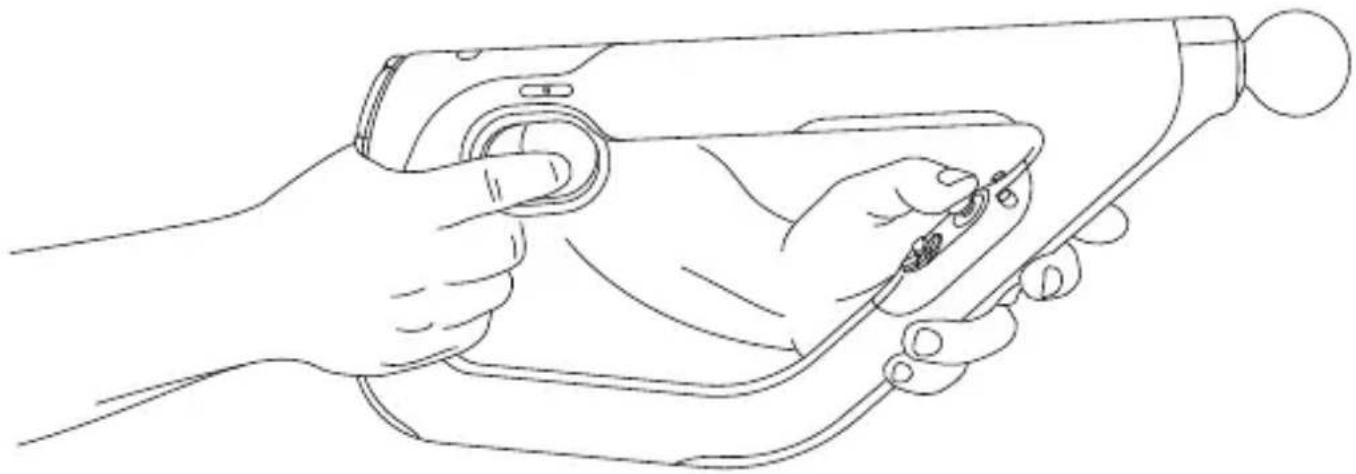
Recommended grip
Note
Use both hands to grip the controller. A typical right-handed grip is shown here. If you're left handed simply grip the controller with your hands the other way around.
natural_image
Line drawing of a hand holding a handheld device with a bulb (no text or symbols)Play Area
Limit your use of your controller and PS VR to within the Play Area. The height of the Play Area depends on the range captured by the PlayStation®Camera. See PS VR documentation for more information about the Play Area.
Tracking
The PlayStation®Camera tracks the sphere on your controller for PS VR gameplay. Make sure the sphere is visible to the camera when playing.
Specifications
Input power rating DC 5 V 800 mA
Battery type Built-in rechargeable Lithium-Ion battery
Voltage DC 3.65 V
Battery capacity 1000 mAh
Operating temperature 5 °C - 35 °C
Mass Approx. 490g
Country of production China
Design and specifications are subject to change without notice.
GUARANTEE
This product is covered for 12 months from date of purchase by the manufacturer's guarantee. Please refer to the guarantee supplied in the PS4™ package for full details.
This product is manufactured for Sony Interactive Entertainment Europe Limited, 10 Great Marlborough Street, London, W1F 7LP, United Kingdom.
Imported into Europe and Distributed by Sony Interactive Entertainment Europe Limited, 10 Great Marlborough Street, London, W1F 7LP, United Kingdom.
The Authorised Representative for issuing and holding Declarations of Conformity is Sony Interactive Entertainment Europe Limited, 10 Great Marlborough Street, London, W1F 7LP, United Kingdom.
For customers in Europe and Turkey.
RE Directive "Informal DoC" statement
Hereby, Sony Interactive Entertainment Inc., declares that this product is in compliance with the essential requirements and other relevant provisions of Directive 2014/53/EU. For details, please access the following URL: eu.playstation.com/support
The frequencies used by the wireless networking feature of this product are the 2.4 GHz (Bluetooth®) range.
Wireless frequency band and maximum output power:
- Bluetooth®2.4 GHz: less than 2.5mW
natural_image
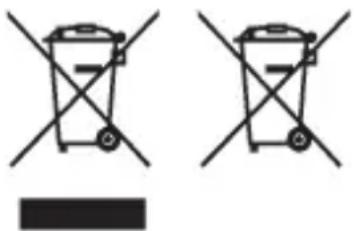
Two identical diagrams of a trash bin with cross-bracing and a blank rectangular base (no text or symbols)Where you see either symbol on any of our electrical products, batteries or packaging, it indicates that the relevant electrical product or battery should not be disposed of as general household waste in Europe and Turkey. To ensure correct waste treatment, please dispose of them via an authorised collection facility, in accordance with any applicable laws or requirements. Waste electrical products and batteries may also be disposed of free of charge via retailers when buying a new products of the same type. Furthermore, within EU countries larger retailers may accept small waste electronic products free of charge. Please ask your local retailer if this service is available for the products you wish to dispose of. In so doing, you will help to conserve natural resources and improve standards of environmental protection in treatment and disposal of electrical waste.
This symbol may be used on batteries in combination with additional chemical symbols. The chemical symbols for mercury (Hg) or lead (Pb) will appear if the battery contains more than 0.0005% mercury or more than 0.004% lead.
This product contains a battery which is permanently built-in for safety, performance or data integrity reasons. The battery should not need to be replaced during the lifetime of the product and should only be removed by skilled service personnel. To ensure the correct waste treatment of the battery, please dispose of this product as electrical waste.
“”, “PlayStation”, “DUALSHOCK” and “△○×□” are registered trademarks or trademarks of Sony Interactive Entertainment Inc.
"Sorry, " is a registered trademark or trademark of Sony Corporation.

Sony Interactive Entertainment
eu.playstation.com/ps4

- PlayStation®VR Aim Controller
- Before use
- Precautions
- Safety
- Use and handling
- Exterior protection
- Storage conditions
- Part names
- Rear view
- Pair your controller
- Charge your controller
- Hint
- Battery
- Caution – using the built-in battery:
- Battery life and duration
- Basic operation
- Power
- Controls
- Recommended grip
- Note
- Play Area
- Tracking
- Specifications
- GUARANTEE
- For customers in Europe and Turkey.
- RE Directive "Informal DoC" statement
Brand : SONY
Model : Playstation VR Aim Controller
Category : Game controller