BT 100 NC - Earplug Phiaton - Free user manual and instructions
Find the device manual for free BT 100 NC Phiaton in PDF.


| Product Type | Wireless Noise-Cancelling Earplugs |
| Brand | Phiaton |
| Model | BT 100 NC |
| Color | Black |
| Dimensions (Earbud) | 2.2 x 1.5 x 1.0 cm |
| Weight (Earbud) | 5 g each |
| Driver Size | 6 mm |
| Bluetooth Version | 5.0 |
| Active Noise Cancellation | Yes, Hybrid ANC |
| Battery Life (ANC On) | Up to 8 hours |
| Battery Life (ANC Off) | Up to 12 hours |
| Charging Case Battery | 400 mAh, additional 24 hours |
| Charging Time | 1.5 hours (earbuds), 2 hours (case) |
| Water Resistance | IPX5 |
| Microphones | Dual microphones with cVc 8.0 |
| Controls | Touch controls on earbuds |
| Ear Tips Included | S, M, L silicone tips |
| Charging Port | USB-C |
| Maintenance | Clean with dry, soft cloth. Do not use liquids. |
| Safety Warning | Do not use while driving or operating machinery. |
| Spare Parts | Replacement ear tips available. Contact Phiaton support. |
Frequently Asked Questions - BT 100 NC Phiaton
User questions about BT 100 NC Phiaton
0 question about this device. Answer the ones you know or ask your own.
Ask a new question about this device
Download the instructions for your Earplug in PDF format for free! Find your manual BT 100 NC - Phiaton and take your electronic device back in hand. On this page are published all the documents necessary for the use of your device. BT 100 NC by Phiaton.
USER MANUAL BT 100 NC Phiaton
WIRELESS EARPHONES with ACTIVE NOISE CANCELLING
Thank you for purchasing PHIATON BT 100 NC
- Please follow the directions, and read the guidelines carefully before use. Please keep the owner's guide for future reference.
- Some functions of the BT 100 NC may not be available when it is paired with certain devices.
- The specifications are subject to change without prior notice for quality improvement.
Contents
- SAFETY AND GENERAL INFORMATION
- COMPONENTS & FEATURES
- HOW TO WEAR EARPHONES
- CHARGING
- POWER ON/OFF AND EARPHONE CONNECTION WAITING MODE
- PAIRING WITH A 'BLUETOOTH DEVICE'
- PAIRING WITH NFC
- MULTIPOINT CONNECTION
- USING NOISE CANCELLING FEATURE
- MONITOR FEATURE
- LISTENING TO MUSIC (PLAY & CONTROL)
- ACCEPTING / MAKING A CALL WHILE PLAYING MUSIC
- USING THE CALL FUNCTION
- CHANGING SOUND MODE
- OUT OF COMMUNICATION RANGE
- MISCELLANEOUS FEATURES
- CONNECTING AND USING THE AUDIO CABLE
- SPECIFICATIONS
- PRODUCT SYMPTOMS AND TROUBLESHOOTING
- FCC COMPLIANCE INFORMATION
- IC COMPLIANCE INFORMATION
- CE COMPLIANCE INFORMATION
1. SAFETY AND GENERAL INFORMATION
1) Use a standard USB charging cable (included), with or without a charging adaptor. (5V, over 500mA)
* Adapter Not Included
2) Lower the volume prior to listening to audio to prevent potential damage to eardrums caused by sudden loud sound.
3) Listening to loud music for extended periods of time may cause hearing damage.
4) Do not store the device in places with a temperature higher than 113 °F/45 °C.
5) This product is sweat and water resistant. Do not get the product completely wet. If the device becomes wet, turn the power off, dry the device with a dry towel and contact Phiaton Customer Service for an inspection.
(For more information, refer to the contact us page within our website – phiaton.com)
6) Do not attempt to disassemble, modify or repair the device.
7) Do not cause shock to the device.
8) Keep out of the reach of children and pets.
9) Do not tug on cords or touch power plugs with wet hands.
10) Do not use the device nearby microwave ovens or wireless LAN adaptors.
11) When the product is not being used, set the device power switch to 'OFF'.
12) When cleaning the device, use a clean dry cloth to wipe the device clean. (Do not use solvents)
13) Remove the ear tips from the earphones, wash them with warm water, dry completely and check for any debris before reattaching.
14) Replacement ear tips can be purchased from Phiaton Customer Service.
15) Use while driving or walking will prevent outside noise, such as signals or alarms, from being heard and may be dangerous to yourself and others. Heed caution during use.
16) The radio waves of this device may affect electronic medical devices. If you use an electronic medical device, consult your doctor or medical device company before you use this device. ※ Use the BT 100 NC only for its intended purposes.
※ This device cannot be used for purposes related to human safety as it may cause radio interference during operation.
2. COMPONENTS & FEATURES
1) COMPONENTS
- BT 100 NC
- USB Charging Cable
- Audio Cable
- 4 Sizes of Silicon Ear Tips
- Stoppers
- Quick Guide
- Warranty Card
2) FEATURES

3. HOW TO WEAR EARPHONES
1) Hold the earphone body with wire dropping down.
2) Gently insert the ear tip into the ear canal.
3) Let the ear tip set comfortably in your ear.

4. CHARGING
The device may not be charged upon purchase and must first be charged before use.
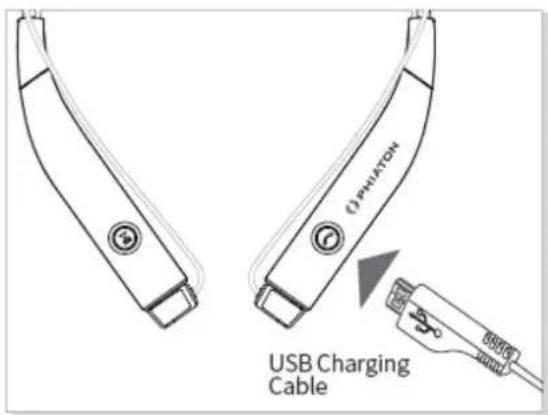
1) Open the USB cover on BT 100 NC and connect the provided USB charging cable.
2) Connect the provided USB charging cable with a computer (laptop) or you may also use a separately purchased USB adaptor (rating: 5V/over 500mA) to begin charging.
| Operation LED | Indicator |
| Charging Red light | |
| Charging complete | Blue light |
5. POWER ON/OFF AND EARPHONE CONNECTION WAITING MODE
1) Power ON/OFF

- Press and hold the [CALL/POWER] Button for 2 seconds to turn the power on.
- When turning the power off, press and hold the [CALL/POWER] Button for 2.5 seconds to turn off. (While on an incoming call, you cannot power off the device.)
- When turning power on/off, there is a vibration notification that rings.
| Status | Operation | LED Indicator | Vibration Notification |
| ON | Press and hold the CALL/POWER button for 2 seconds | Purple light turns on for 1 second | Vibrates once for 0.3 second |
| OFF | Press and hold the CALL/POWER button for 2.5 seconds | Red light blinks 5 times | Vibrates twice for 0.3 second |
※ Pairing mode will start once the power is turned on for the first time after purchase.
※ When the BT 100 NC is not in use, ensure the NC function is switched OFF. If left in the ON position, this will cause the battery to run out.
2) Connection Waiting Mode
- When power is turned on, 'Connection Waiting Mode' will start if 'Pairing Mode' cannot be entered or the earphones cannot connect with 'Bluetooth Device'.
- If the 'Bluetooth Device' is not connected within 5 minutes in 'Connection Waiting Mode', the earphones will automatically turn off.
| Status LED Indicator | |
| Connection Waiting Mode | Blue light blinks twice in 6 second intervals |
6. PAIRING WITH A 'BLUETOOTH DEVICE'
1) Pairing
- Turn on the Bluetooth feature with the 'Bluetooth Device' you want to connect with the BT 100 NC.
- Place the BT 100 NC within 3 feet of the 'Bluetooth Device' you want to connect.
- Press and hold the PLAY Button for over 2.5 seconds with the BT 100 NC power on to enter Pairing Mode.
| Status LED | Indicator Voice Guidance | |
| Pairing Mode | Blue and Red lightalternately blinks | Pairing Mode activated |
- Within the 'Bluetooth Device' you want to connect, search/select 'BT 100 NC'.

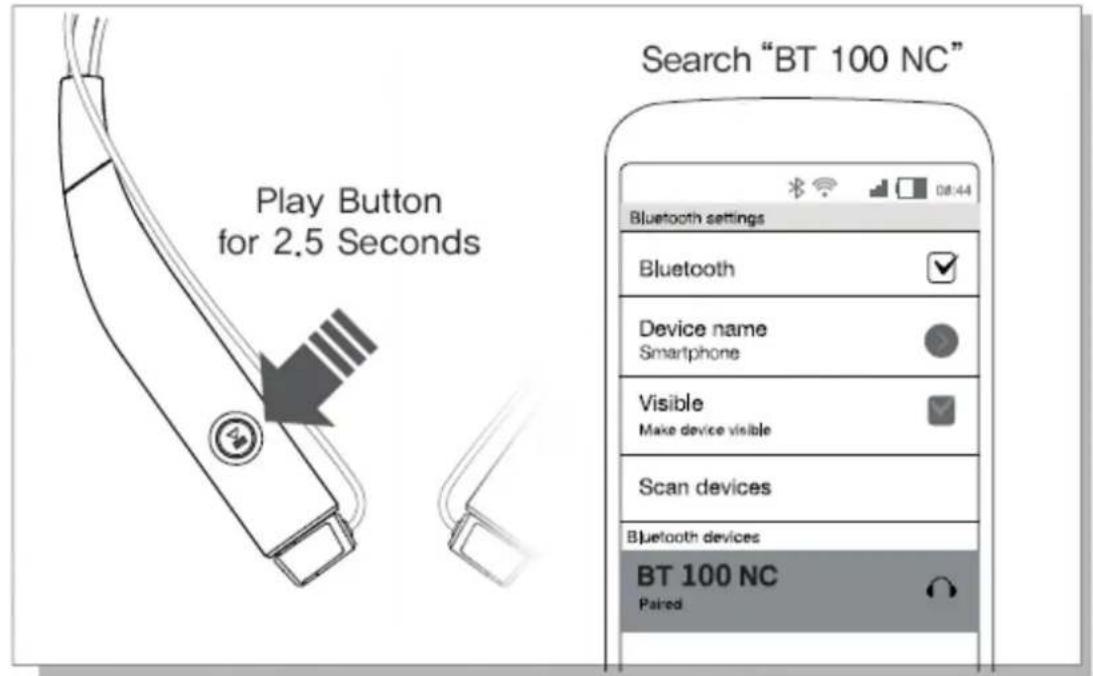
※ If the 'Bluetooth Device' requires a PIN CODE or password, enter '0000'.
- Use the earphones to play music or connect a call.
| Operation LED Indicator | Voice Guidance | |
| Connection success | After Purple light blinks twice, blue light blinks once in 6 second intervals. | Device connected |
2) Re-connecting a Disconnected Device
① Auto Connection
- Once the device has been paired with a 'Bluetooth Device', it will automatically be connected to a previously connected device once the BT 100 NC power is turned on.
- If Bluetooth becomes disconnected as the discover range between the 'Bluetooth Device' and the BT 100 NC is exceeded, then Bluetooth will not be automatically re-connected.
When you are back within the discover range (33 feet), you must then connect manually.
② Manual Connection
- When having entered 'Connection Waiting Mode' during connection
- Press the CALL/POWER Button or the PLAY Button on the earphone to connect.
- The BT 100 NC will also be connected if you select 'BT 100 NC' from the device search list within your 'Bluetooth Device'.
3) Checkpoints Upon Pairing
- Check to see whether the Bluetooth feature is activated within the 'Bluetooth Device' you want to connect.
- When selecting the connection device, connect by selecting stereo headset device.
Music cannot be played when connected through mono headset.
※ In order to properly use the Bluetooth feature of this device, the profile (A2DP, HSP, HFP and AVRCP) of the 'Bluetooth Device' you are trying to connect must support the profile of this device.
* A2DP—"Advanced Audio Distribution Profile", HSP—"Headset Profile", HFP—"Hands Free Profile". AVRCP—"Audio/Video Remote Control Profile"
※ The device will not operate properly if the profiles are not supported equally. Even when the profiles are supported equally, some features may not properly operate depending on the 'Bluetooth Device' specifications.
To check the detail specifications of this earphone's profile, refer to '18. SPECIFICATIONS'.
For more information, please visit phiaton.com or contact Phiaton customer service.
7. PAIRING WITH NFC
1) You can easily pair the BT 100 NC with a 'Bluetooth Device' that has NFC capability.
2) Pairing with NFC
- Activate NFC function on your 'Bluetooth Device'.
- Contact the right front side of the BT 100 NC to the section of 'Bluetooth Device' where the 'NFC Antenna' is located. (When you open the BT 100 NC retail package, there is a label indicating 'NFC Antenna' location on the right front side.)
- When the 'Bluetooth Device' asks "Yes" or "No" to connect, click "Yes".
* For the 'NFC Antenna' location of 'Bluetooth Device', refer to the device manual or contact the device manufacturer.

8. MULTIPOINT CONNECTION
1) What is 'Multipoint Connection'?
This is a feature where BT 100 NC's user can simultaneously connect two Bluetooth devices.
2) Multipoint Connecting
- Turn on the Bluetooth feature within the two 'Bluetooth Devices' you want to connect with BT 100 NC.
- Refer to '6. PAIRING WITH A 'BLUETOOTH DEVICE" to pair the first device with the BT 100 NC.
- Press and hold the PLAY Button again for 2.5 seconds to enter 'Pairing Mode'. (Here, the first device becomes disconnected.)
- Once 'Pairing Mode' has been entered, pair the second device.
- Within the first 'Bluetooth Device' you want to connect, select 'BT 100 NC' again.
- Now, both of the 'Bluetooth Devices' will be connected simultaneously, and now the 'BT 100 NC' will control the secondly paired device.
※ Sleep Mode will be entered when devices are not connected within two minutes. When trying to connect a device while in Sleep Mode, pressing any button will re-enter 'Connection Waiting Mode' where connection is possible.
※ When the BT 100 NC power is turned off and back on, only the second paired device will automatically be connected. When the first paired device is reconnected, then both of the devices will remain connected.
![graph LR A["earphone with earphones"] --> B["Mobile phone ①"] B --> C["Mobile phone ②"] C --> D["Mobile phone ①"] D --> E["Mobile phone ②"] E --> F["Mobile phone ①"] F --> G["Mobile phone ②"]](/content/2026/06/1343740/images/afa69be0bbc8c4c8d3ae98e7135c77b880a164ba3c70aed07f17ad86668d3a10.jpg)
3) What is 'Auto Mode'?
This is a mode used to automatically reconnect both previously connected 'Bluetooth Devices' when the POWER is turned off and back on.
4) Using 'Auto Mode'
- Within Pairing Mode, press the (+) Button for 2.5 seconds to turn on Auto Mode.
- If you press the (+) Button for 2.5 seconds again, then Auto Mode will turn off and switch to Manual Mode.
※ Upon Multipoint Connection, the features operated within BT 100 NC usually operate within the second paired device. (When using the first paired device, it is possible to operate the device from BT 100 NC.)
※ When using Multipoint Connection, the order of the paired devices may change. To change the order, re-connect the device you usually use.
9. USING NOISE CANCELLING FEATURE
1) What is 'Noise Cancelling'?
Noise Cancelling refers to a technology that reduces noise from mid/low pitched sounds under 1 kHz.
2) Turning Noise Cancelling Feature ON/OFF
- Pushing the NC Button towards ON direction will turn Noise Cancelling ON and pushing the Button towards OFF will discontinue Noise Cancelling.

3) Cautions upon using Noise Cancelling Feature
- Noise Cancelling cannot be used when the battery is completely drained.
- Use while driving or walking will prevent outside noise, such as signals or alarms, from being heard and may be dangerous to yourself and others. Heed caution during use.
- Noise Cancelling is optimized for mechanical noises from airplanes, buses, and subway trains and is not required for use within quiet interior environments.
10. MONITOR FEATURE
1) The monitor feature allows you to mute your music and noise cancelling so you can hear the surrounding sounds without removing the ear buds.
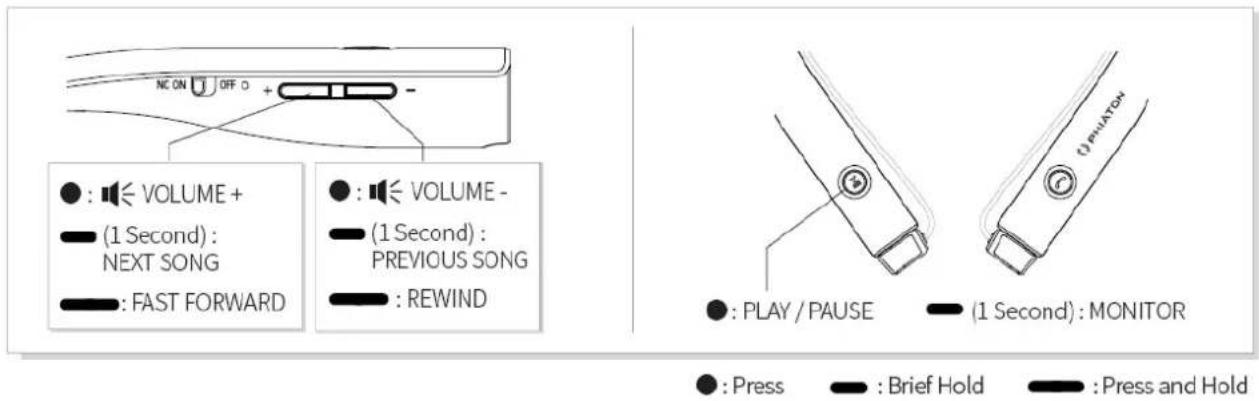
2) Press the PLAY/PAUSE Button for about 1 second when you want to hear the sounds around you when the Noise Cancelling feature is ON.
3) Monitor is continued for 30 seconds unless you press any key to stop the monitor feature quicker.

11. LISTENING TO MUSIC (PLAY & CONTROL)
1) Playing Music
- Shortly press the PLAY Button once to play music from the 'Bluetooth Device'.
- While music is playing, shortly press the PLAY Button to pause the playing music. The music will be played from the paused point when playing music again.
| Status LED Indicator | |
| While music is playing (Connection with aptX) | Purple Light slowly blinks every 6 seconds |
| While music is playing (Connection with SBC) | Blue Light slowly blinks every 6 seconds |
* SBC(Sub Band Codec) is default audio codec installed for any 'Bluetooth Device'.
* aptX is high quality audio codec supported by CSR.
2) Controlling Volume and Using Seek
- Press the (+)/(-) Button to control the volume.
- Press and hold the (+)/(-) Button for about 1 second to go to the next / previous song.
After 1 second, the 'beep' signal tone is provided.
- Press and hold the (+)/(-) Button continuously to fast-forward / rewind the current song.
※ Music can be listened to through BT 100 NC by directly operating your 'Bluetooth Device'.
※ When the battery is completely drained, you can connect the provided audio cable to continue listening.
12. ACCEPTING / MAKING A CALL WHILE PLAYING MUSIC
1) Accepting a Call while Playing Music
- When the incoming call tone is heard through the earphones or the incoming call vibration is ringing, press the CALL/POWER Button. The music will be paused and the call is connected.
- Once the call has ended, press the CALL/POWER Button to terminate the call. Once the call is terminated, the paused music will play again.
2) Making a Call while Playing Music
- While playing music, press and hold the CALL/POWER Button for about 1 second to pause the music and connect with the most recent number.
※ This feature may slightly differ depending on your 'Bluetooth Device'.

13. USING THE CALL FUNCTION
1) Accepting a Call
- When the incoming call tone is heard through the earphones or the incoming call vibration is ringing, press the CALL/POWER Button. (Adjusting Call Volume: to control the call volume, press the (+)/(-) Button.)
2) Ending a Call
- While on a call, shortly pressing the CALL/POWER Button to end the call.
3) Rejecting a Call
- When the incoming call tone is heard through the earphones or the incoming call vibration is ringing, press and holds the CALL/POWER Button for about 1 second. (After providing the 'beep' signal tone, the incoming call is rejected and the 'Call Ignored' voice guidance is heard.)
4) Turning Mute On/Off
- While on a call, press the (-) Button for about 1 second to mute microphone. To turn back on, press the (-) Button again for about 1 second.

5) Making a Call
- Press and hold the CALL/POWER Button for about 1 second. The 'Redialing' voice guidance is provided and a call is connected with the most recent number. When making a call, the vibration notification rings twice for 0.6 second.
※ This feature may slightly differ depending on your 'Bluetooth Device'.
6) Call Waiting
- When there is another incoming call while on a call. (Supported only when having applied for this service with your telecom provider.)
- Press and hold the CALL/POWER Button for about 1 second to place the current call on call waiting and connect the second call. (Press the CALL/POWER Button again for about 1 second to switch between the waiting call and connected call.)
- Shortly press the CALL/POWER Button to end the current call and connect the second call.
7) Calling by Voice
(Supported within mobile phones that support the voice command feature).
- While waiting, shortly press the CALL/POWER Button.
8) Switching between the Device and Mobile Phone
- To switch the call from mobile phone to the headphone, press the CALL Button for 1 second.
| Status LED Indicator | |
| Incoming Bell/Outgoing Bell | Purple light blinks in 1.5 second intervals |
| During Call | Blue light slowly blinks every 6 seconds |
| When there are two calls connected | Purple light slowly blinks every 6 seconds |
9) Stopping Incoming Call Vibration
- During on incoming call, press the (-) Button for about 1 second to stop vibration feature. You will then only hear the incoming call tone.
14. CHANGING SOUND MODE
1) When the BT 100 NC connects with the aptX high quality sound compatible 'Bluetooth Device', it connects in aptX mode automatically. (If the 'Bluetooth Device' can not support aptX mode, it will be connected with SBC mode.)
2) You can switch to SBC only mode which is less draining on the battery.
- Press the CALL/POWER Button with (+) Button for 2 seconds when the device power on.

| Status Operation LED Indicator | ||
| aptX / SBC mode | Press the CALL/POWER Button for 2 seconds when the device power on | Purple light turns on for 1 second |
| SBC only mode | Press the CALL/POWER Button and (+) Button for 2 seconds when the device power on | Blue light turns on for 1 second |
* SBC(Sub Band Codec) is default audio codec installed for any 'Bluetooth Device'.
* aptX is high quality audio codec supported by CSR.
※ Battery use time
| Classification | Noise Cancelling OFF | Noise Cancelling ON | |
| Continuous Talk Time | Max 11 hours | Max 7 hours | |
| Continuous Music Play Time | aptX High Quality Sound Mode | Max 10 hours Max 6 hours | |
| SBC Mode | Max 12 hours | Max 7.5 hours | |
| Stand by Time | Max 220 hours | Max 15 hours | |
| Full Charge Time | About 2 hours | ||
※ The above times may differ depending on the environment in which it is used.
15. OUT OF COMMUNICATION RANGE
1) The BT 100 NC vibrates when you are out of communication range (about 10 m/33 ft.) from the 'Bluetooth Device'.
2) The vibration rings for 2 seconds, and is repeated 3 times in 20 second intervals.
3) If you move back into communication range before the vibration notification completes the third interval, you will stay connected to your 'Bluetooth Device'.
4) If you do not move back into communication range until after the vibration notification has ended, you will need to manually reconnect to Bluetooth.
16. MISCELLANEOUS FEATURES
1) Checking Remaining Battery
- With the power on, shortly press the CALL/POWER button twice to display the remaining battery indicator (LED).

| Remaining Battery | LED Indicator | Voice Guidance |
| Over 80% | Blue light lights up for 1 second | Battery is full |
| 80% ~ 30% | Purple light lights up for 1 second | Battery is moderate |
| Under 30% | Red light lights up for 1 second | Battery is low |
| Under 3% | Red light lights up for 1 second and the alarm will sound | Please recharge |
- For Apple iOS version 5 or above, the remaining battery is displayed at the top right side of the screen.
* The Battery Check feature will not operate while the battery is being charged.
* When the battery charge is under 3%, the alarm will sound.
If use is continued for several minutes the battery will be completely drained, the 'Power Off' voice guidance is provided and the power will automatically turn off.
2) Activating/Deactivating the LED Indicator
- BT 100 NC is equipped with an indicator that shows operating features to provide information on operating status.
- Press the (-) Button and (+) Button simultaneously for about 2.5 seconds to deactivate the indicator (LED) that shows operating status. To activate again, press the (-) Button and (+) Button simultaneously for about 2.5 seconds.
| Operation LED | Indicator Voice Guidance |
| Activate LED | Display LED activated |
| Deactivate Blank | LED deactivated |
3) Enabling/Disabling Voice Guidance
- Within 'Pairing Mode', pressing the (-) Button for about 2.5 seconds will enable voice guidance and provide guidance when starting various features via voice. (This feature may not be supported immediately after ending/connecting a call.)
- Within 'Pairing Mode', again press the (-) Button for about 2.5 seconds to disable voice guidance.
* Upon factory shipment, the voice guidance feature is enabled by default.
4) Vibration Notification
- Within 'Pairing Mode', pressing the Play Button for about 2.5 seconds will activate vibration notification.
- Within 'Pairing Mode', again press the Play Button for about 2.5 seconds to deactivate the vibration notification.
* Upon factory shipment, the vibration notification feature is enabled by default.
5) Resetting the Device
- To reset to factory settings, press the CALL/POWER Button and (+) Button for 5 seconds simultaneously while in the 'Pairing Mode.'
| Operation | LED Indicator | Voice Guidance |
| Factory Settings | Purple light lights up twice | After ‘beep’ signal tone twice, “POWER ON, Pairing Mode activated” |
17. CONNECTING AND USING THE AUDIO CABLE
1) BT 100 NC can also be used with the audio cable connected as shown in the figure.
※ When connected to a device with the provided audio cable, the Bluetooth remote features are disabled and you must use the device you are connected to answer calls and play music.

18. SPECIFICATIONS
1) Main Body
- Communication Network: Bluetooth 4.0
- Output Power: Power Class 2
- Max. Communication Range: Discoverable within 10 m / 33 ft.
- Full Charging Time: 2 Hours
- Call Time (NC ON / OFF): 7 Hours / 11 Hours
- Music Play Time (NC ON / OFF): 7.5 Hours / 12 Hours
- Standby Time (NC ON / OFF): 15 Hours / 220 Hours
- Bluetooth Profile Support: HFP v1.6 / HSP v1.2 / A2DP v1.3 / AVRCP v1.5
- Audio Codec: SBC, aptX
- Battery: Lithium Polymer DC 3.7 V / 195 mAh
- Microphone Frequency Range: 50 \~ 4,000 Hz
- Microphone Sensitivity: -42 dB
- Support Echo Cancellation and Talk Noise: CVC Solution
- Operating Temperature: -20 \~ 45 °C
- Size: 180 (H) x 140(W) x 23(D) mm / 9.5(H) x 27.5(W) x 5.6(D) inch
- Weight: 34.8 g (0.076 lb)
2) Earphones
- Type: Φ13.5 mm Driver Units
- Sensitivity: 100 dB
- Frequency Response: 10 Hz \~ 27 kHz
- Impedance: 24 Ω
- Weight: 7.2 g (0.015 lb)
- Mic. for Noise Cancelling
19. PRODUCT SYMPTOMS AND TROUBLESHOOTING
1) The power does not turn on:
-
Charge the device. If the power does not turn on even after charging, contact Phiaton Customer Service.
2) The device does not charge: -
Check whether the USB charging cable has been properly connected with the device.
- Check whether the PC power is on and that it has been properly connected.
-
When using a separately purchased USB AC adaptor, check to see that it has been properly connected.
3) The device does not pair: -
Check whether the power of the 'Bluetooth Device' you want to connect is on.
- Check whether the Bluetooth feature within the 'Bluetooth Device' you want to connect is enabled.
- Check whether the 'Bluetooth Device' you want to connect is within the supported range. (Pairing is supported only when within 3 feet.)
- Check whether the Bluetooth profile within the 'Bluetooth Device' is compatible.
4) Music cannot be played:
- Check whether the power of the device and 'Bluetooth Device' is on.
- Check whether music is being played within the connected 'Bluetooth Device'.
- Check whether the volume within the connected 'Bluetooth Device' is low.
- When using an extension cord, check to see that the plug is properly connected.
5) Noise is heard or the sound lags:
- Check whether there is an electronic device using the 2.4 GHz frequency band nearby the device and connected 'Bluetooth Device'.
- Check whether the connected 'Bluetooth Device' is far away from this device. (Maximum communication range: within 33 feet.)
6) The music sound quality is low:
- If the 'Bluetooth Device' you are trying to connect with this device is accessed to HSP, change the access to A2DP.
7) The other party can not be heard while on a call:
- Check whether the power of the 'Bluetooth Device' you want to connect is on.
- Access Bluetooth through HFP or HSP.
- Check whether the volume within the connected 'Bluetooth Device' is low.
8) Outside noise is too high or not reduced:
- Check whether Noise Cancelling is turned On.
- Check whether the right size ear tips are chosen.
(Noise will not be properly reduced if the ear tips are not properly inserted or the right size ear tips are not chosen.)
9) The LED Indicator does not operate:
- Check whether the LED Indicator feature has been activated.
(The LED Indicator feature can be activated by simultaneously pressing the (+) Button and (-) Button for 2.5 seconds.)
10) Product does not operate or operation has stopped:
- Shortly press the CALL/POWER Button and (-) Button simultaneously.
- Power will turn off once the buttons are pressed.
- Pairing information is not deleted even when the device is reset.
11) The device is paired with PC/Laptop but does not work:
- PC/Laptop is equipped with various Bluetooth drivers depending on the manufacturer and it is possible it does not support BT 100 NC.
- Please contact to PC/Laptop manufacturer to download the latest software driver or for further assistance in connecting to a 'Bluetooth Device'.
20. FCC COMPLIANCE INFORMATION
FCC ID: V2R-BT100NC
This device complies with part 15 of FCC Rules. Operation is subject to the following two conditions: (1) This device may not cause harmful interference, and (2) this device must accept any interference received, including interference that may cause undesired operation.
Information to the user:
NOTE: This equipment has been tested and found to comply with limits for a Class B digital device, pursuant to part 15 of the FCC Rules. These limits are designed to provide reasonable protection against harmful interference in a residential installation. This equipment generates, use and can radiate radio frequency energy and, if not installed and used in accordance with the instructions, may cause harmful interference to radio communications. However there is no guarantee that interference will not occur in a particular installation, If this equipment does cause harmful interference to radio or television reception, which can be determined by turning the equipment off and on, the user is encouraged to try the correct interference by one or more of the following measures:
- Reorient or relocate the receiving antenna.
- Increase the separation between the equipment and receiver.
- Connect the equipment into an outlet on a circuit different from that to which the receiver is connected.
- Consult the dealer or an experienced radio/TV technician for help.
CAUTION TO USER: Changes or modifications not expressly approved by the party reasonable for compliance could void the user's authority to operate the equipment.
21. IC COMPLIANCE INFORMATION
This device complies with Industry Canada license-except RSS standard(s). Operation is subject to the following two conditions:
(1) This device may not cause interference, and (2) this device must accept any interference, including interference that may cause undesired operation of the device.
This equipment complies with IC radiation exposure limits set forth for an uncontrolled environment and meets RSS-102 of the IC Radio Frequency (RF) Exposure rules. This equipment has very low levels of RF energy that are deemed to comply without testing of specific absorption ratio (SAR).
22. CE COMPLIANCE INFORMATION
Phiaton, hereby declares that this BT 100 NC is in compliance with the essential requirements and other relevant provisions of directive 1999/5/EC.
- WIRELESS EARPHONES WITH ACTIVE NOISE CANCELLING
- CONTENTS
- SAFETY AND GENERAL INFORMATION
- COMPONENTS & FEATURES
- COMPONENTS
- FEATURES
- HOW TO WEAR EARPHONES
- CHARGING
- POWER ON/OFF AND EARPHONE CONNECTION WAITING MODE
- PAIRING WITH A 'BLUETOOTH DEVICE
- PAIRING WITH NFC
- MULTIPOINT CONNECTION
- USING NOISE CANCELLING FEATURE
- MONITOR FEATURE
- LISTENING TO MUSIC (PLAY & CONTROL)
- ACCEPTING / MAKING A CALL WHILE PLAYING MUSIC
- USING THE CALL FUNCTION
- CHANGING SOUND MODE
- OUT OF COMMUNICATION RANGE
- MISCELLANEOUS FEATURES
- CONNECTING AND USING THE AUDIO CABLE
- SPECIFICATIONS
- PRODUCT SYMPTOMS AND TROUBLESHOOTING
- FCC COMPLIANCE INFORMATION
- IC COMPLIANCE INFORMATION
- CE COMPLIANCE INFORMATION
Brand : Phiaton
Model : BT 100 NC
Category : Earplug