
1000 Duo Plus - Powerline Adapter DEVOLO - Free user manual and instructions
Find the device manual for free 1000 Duo Plus DEVOLO in PDF.


| Product Type | Powerline Adapter |
| Brand | Devolo |
| Model | 1000 Duo Plus |
| Powerline Speed | Up to 1000 Mbps |
| Ethernet Ports | 2 x Gigabit Ethernet |
| Wi-Fi | Not included |
| Plug Type | EU (Type F) |
| Dimensions | 130 x 60 x 40 mm |
| Weight | 150 g each |
| Power Supply | 100–240 V AC, 50/60 Hz |
| Power Consumption | < 8 W (active), < 0.5 W (standby) |
| Security | 128-bit AES encryption |
| Pairing Method | Physical security button |
| LED Indicators | Power, Network, Data |
| Operating Temperature | 0 °C to 40 °C |
| Storage Temperature | -20 °C to 70 °C |
| Humidity | 10% to 90% (non-condensing) |
| Standards | HomePlug AV2 |
| Certifications | CE, RoHS |
| Package Contents | 2 adapters, 2 Ethernet cables, quick guide |
| Warranty | 3 years |
| Maintenance | Wipe with a soft dry cloth; unplug before cleaning |
| Safety | Do not expose to water or moisture; keep away from children |
| Spare Parts Availability | Contact Devolo support; not sold separately |
| Repairability | Not user-serviceable; refer to qualified personnel |
Frequently Asked Questions - 1000 Duo Plus DEVOLO
User questions about 1000 Duo Plus DEVOLO
0 question about this device. Answer the ones you know or ask your own.
Ask a new question about this device
Download the instructions for your Powerline Adapter in PDF format for free! Find your manual 1000 Duo Plus - DEVOLO and take your electronic device back in hand. On this page are published all the documents necessary for the use of your device. 1000 Duo Plus by DEVOLO.
USER MANUAL 1000 Duo Plus DEVOLO
dLAN ® 1000 duo +

natural_image
White hard drive adapter device with network ports and power socket (no visible text or symbols)Manual
devolo
The Network Innovation
devolo dLAN ® 1000 duo+
© 2017 devolo AG Aachen (Germany)
While the information in this manual has been compiled with great care, it may not be deemed an assurance of product characteristics. devolo shall be liable only to the degree specified in the terms of sale and delivery.
The reproduction and distribution of the documentation and software supplied with this product and the use of its contents is subject to written authorisation from devolo. We reserve the right to make any alterations that arise as the result of technical development.
Trademarks
Android TM is a registered trademark of the Open Handset Alliance.
Linux ® is a registered trademark of Linus Torvalds.
Ubuntu ® is a registered trademark of Canonical Ltd.
Mac ® and Mac OS X ® are registered trademarks of Apple Computer, Inc.
iPhone ® , iPad ® and iPod ® are registered trademarks of Apple Computer, Inc.
Windows ® and Microsoft ® are registered trademarks of Microsoft Corp.
Wi-Fi ® , Wi-Fi Protected Access TM , WPA TM , WPA2 TM and Wi-Fi Protected Setup TM are registered trademarks of the Wi-Fi Alliance ® .
devolo, dLAN ® , Vianect ® and the devolo logo are registered trademarks of devolo AG.
All other names mentioned may be trademarks or registered trademarks of their respective owners. Subject to change without notice. No liability for technical errors or omissions.
devolo AG
Charlottenburger Allee 67
52068 Aachen
Germany
www.devolo.com
Aachen, September 2017
Version: 1.1
Contents
1 Preface 5
1.1 About this manual 5
1.1.1 Intended use 7
1.1.2 CE conformity 7
1.1.3 Safety notes 7
1.2 devolo on the Internet 8
2 Introduction 9
2.1 What exactly is dLAN? 9
2.2 The dLAN 1000 duo+ 10
2.2.1 Encryption button 10
2.2.2 Network jacks 11
2.2.3 Integrated electrical socket 11
3 Initial use 12
3.1 Package contents 12
3.2 System requirements 12
3.3 Connecting the dLAN 1000 duo+ 13
3.3.1 Starter Kit — Setting up a new dLAN network ..... 13
3.3.2 Addition – Expanding an additional network ..... 14
3.4 Removing a dLAN 1000 duo+ from the network 15
4 Network configuration 16
4.1 Security in the dLAN 16
4.2 dLAN network encryption at the touch of a button 16
4.3 devolo Cockpit 18
4.4 Installation of devolo software 19
4.5 Activate encryption by means of devolo Cockpit 22
Contents
5 Annex 24
5.1 Technical data 24
5.2 Bandwidth optimisation 24
5.3 Disposal of old devices 25
5.4 Warranty conditions 26
1 Preface
Thank you for placing your trust in this devolo product.
In just a few easy steps, you can set up your own network with the dLAN 1000 duo+. devolo dLAN adapters transmit the Internet data over the household electrical wiring, making every electrical socket a network access point.
1.1 About this manual
Carefully read all safety and operating instructions before setting up the device and store the manual and installation guide for later reference.
After a brief introduction to the dLAN® topic and an introduction to the dLAN 1000 duo+ in Chapter 2, Chapter 3 will teach you how to start using the adapter effectively in your network. Chapter 4 describes the configuration options for the integrated configuration interface in detail. Tips for bandwidth optimisation, information about product safety and environmental compatibility of the device, as well as our warranty terms, can be found in Chapter 5 at the end of the manual.
Icons
This section contains a brief description of the icons used in this manual and/or on the rating plate, the device connector, as well as the icons used on the package:
| Icon Description | |
 | Very important safety symbol that warns you of imminent electrical voltage which if not observed can result in serious injury or death. |
 | An important safety symbol that warns you of a potentially dangerous situation involving a burn hazard which can result in injuries or damage to property. |
 | An important note that should be observed which can potentially lead to material damages. |
 | The device may only be used indoors in dry conditions. |
| The device is a Class I product. All electrically conductive (made of metal) housing parts where a voltage can be applied during operation or maintenance in the event of an error must be continuously connected to the earth wire. | |
| CE | The manufacturer/distributing company uses the CE marking to declare that the product meets all applicable European regulations and has been subjected to the prescribed conformity assessment procedures. |
| Icon Description | |
| It is used to prevent the occurrence of waste electrical and electronic equipment and to reduce this type of waste through reuse, recycling and other forms of utilisation. The European Community WEEE Directive establishes minimum standards for handling waste electrical and electronic equipment in the EU. | |
| i | Additional information, background material and configuration tips for your device. |
| √ | Indicates a completed course of action |
1.1.1 Intended use
Use the adapter as described in these instructions to prevent damage and injuries.

DANGER! Electric shock caused by electricity
Device must be plugged into a power socket with a connected earth wire

CAUTION! Damage to the device caused by ambient conditions
Only use device indoors in dry conditions
1.1.2 CE conformity

The product conforms to the basic requirements of directives 2014/35/EU, 2014/30/EU, 2011/65/EU and 2009/125/EC.
The product is intended for operation in the EU, Switzerland and Norway.
The product is a Class B device.

A printout of the simplified CE declaration is included with the product. You can also find it online at www.devolo.com.
1.1.3 Safety notes
It is essential to have read and understood all safety and operating instructions before the devolo device is used for the first time; keep them safe for future reference.

DANGER! Electrical shock caused by electricity
Do not reach into the electrical socket, do not open the device and do not insert any objects into the electrical socket or into the ventilation openings
Users do not need to carry out any maintenance on devolo devices. In the event of damage, disconnect the devolo device from the mains supply by pulling it or its plug out of the electrical socket. Then contact qualified specialist personnel (after-sales service) exclusively.
Damage is deemed to have occurred, for example,
- if the power plug is damaged.
- if the devolo device has been showered with liquid (such as rain or other water).
- if the devolo device is inoperable.
- if the housing of the devolo device is damaged.
Do not plug devolo devices directly into each other. Devices that are plugged into each other can experience a decrease in transmission rate.

DANGER! Electric shock caused by electricity
Device must be plugged into a power socket with a connected earth wire
devolo devices may be operated only on a mains power supply as described on the rating plate.
To disconnect devolo devices from the mains supply, unplug the device from the electrical socket.
The power socket and all connected network devices should be easily accessible so that you can pull the power plug quickly if needed.

CAUTION! Heat development during operation
Certain housing components can become very hot in certain situations. Attach device so that it is touch-proof, observing optimal positioning
devolo devices should only be installed at locations that guarantee adequate ventilation. Slots and openings on the housing are used for ventilation:
- Do not cover devolo devices during operation.
Do not place any objects on devolo devices. - Do not insert any objects into the openings of devolo devices.
● devolo devices must not be placed directly next to a naked flame (such as fire or candles).
● devolo devices must not be exposed to direct heat radiation (e.g. radiator, direct sunlight).

CAUTION! Damage to housing from cleaning agents containing solvents Clean only electroless and with dry cloth
1.2 devolo on the Internet
For detailed information on our products and dLAN, visit www.devolo.com. The Powerline area not only contains product descriptions and documentation, but also updates of devolo software and your device's firmware.
If you have any further ideas or suggestions related to our products, please don't hesitate to contact us at support@devolo.com!
2 Introduction
dLAN is an intelligent, secure technology that lets you set up a home network easily, quickly and economically via your household electrical wiring, without the need for complex and expensive dedicated cabling.

natural_image
Interior view of a multi-level smart home with room layouts and connectivity indicators (no text or symbols)Fig. 1 devolo dLAN throughout the home
2.1 What exactly is dLAN?
The dLAN (direct Local Area Network) uses the household power grid to transfer data between computers and other network components equipped with suitable adapters. As a result, any electrical socket can be used as a network access point. The data is modulated prior to transfer and sent as a signal via household power lines. State-of-the-art technology ensures that the power and data networks do not interfere with one another. Networking via dLAN is fast and secure. The data is encrypted using a key to prevent interception by third parties.
2.2 The dLAN 1000 duo+
The dLAN 1000 duo+ is equipped with
- two fast ethernet connectors,
• one dLAN indicator light,
The LED status display can be deactivated with the devolo Cockpit-Software (see 4.3 devolo Cockpit).
- an encryption button with reset function (next to the network connectors),
● One integrated electrical socket.

natural_image
Exterior view of a white hard drive with network ports and ports (no visible text or symbols)Fig. 2 dLAN 1000 duo+ with country-specific connector and corresponding electrical socket
2.2.1 Encryption button
This button has the following functions:
Encrypting the dLAN network
To encrypt your dLAN network individually, press each encryption button on the connected devices within 2 minutes, for approximately 1 second each.
To remove a dLAN device from your network, press the encryption button on the corresponding device and hold for at least 10 seconds.
Reading the dLAN indicator light
The integrated indicator light (LED) shows the dLAN status for the dLAN 1000 duo+ by illuminating and/or flashing:
Check whether the adapter is connected to the mains supply correctly and whether the encryption process has been carried out successfully. For more information about this, refer to 3.3 Connecting the dLAN 1000 duo+.
Flashing behaviour of the dLAN LED
| LED | Flashing behaviour | Meaning |
| Red LED Flashes at intervals of 0.5 sec.(on/off) | No dLAN connection exists | |
| Red LED Flashes at intervals of 2 sec.(on/off) | Data transmission rate not in optimum range * | |
| White LED | Lights up steady | An encrypted dLAN connection exists and the adapter is ready to operate |
| White LED | Flashes at intervals of 0.5 sec.(on/off) | dLAN encryption being established |
| LED | Flashing behaviour | Meaning |
| White LED | Flashing at intervals of 0.5/50-60 sec. (On/off) | Adapter is in PowerSave mode |
* For information on improving transmission rate, refer to Chapter 5.2 Bandwidth optimisation.
2.2.2 Network jacks
Using the two network connectors of the dLAN 1000 duo+, you can connect a computer and your television to the dLAN 1000 duo+ using a commercially available network cable.
2.2.3 Integrated electrical socket
To connect other network devices to your mains supply, use the electrical socket of the dLAN 1000 duo+. The mains filter integrated into the dLAN 1000 duo+ eliminates any noise of connected devices and significantly improves data transmission in the network.
3 Initial use
This chapter tells you everything you need to know to set up and use your dLAN 1000 duo+. We describe how to connect the adapter and briefly describe the devolo software. Further, detailed information is available at www.devolo.com.
3.1 Package contents
Please ensure that the delivery is complete before beginning with the installation of your dLAN 1000 duo+.
Starter Kit:
○Two dLAN 1000 duo+
○Two network cables
○Hard copy of installation guide
○CE declaration
or
Extension:
○dLAN 1000 duo+
○Network cable
○Hard copy of installation guide
○CE declaration
devolo AG reserves the right to change the package contents without prior notice.
3.2 System requirements
● Supported operating systems of the devolo Cockpit: Windows 7 (32 bit/64 bit), Windows 8 (32 bit/64 bit), Windows 8 Pro (32 bit/64 bit), Windows 10 (32 bit/64 bit), Windows 10 P (32 bit/64 bit), Ubuntu Linux (32 bit/64 bit), Mac (from OS X 10.6)
Network connection
Please note that your computer or other device must have a network adapter with a network port.
To set up a dLAN network, you need at least two dLAN devices (200 Mbps, 500 Mbps, 600 Mbps, 1000 Mbps or 1200 Mbps).
3.3 Connecting the dLAN 1000 duo+

CAUTION! Damage to the device caused by ambient conditions
Only use device indoors in dry conditions
In the following sections we describe how to connect the dLAN 1000 duo+ and integrate it into the network. We clarify the exact procedures based on potential network scenarios.

For the permitted voltage range for operating the device and the power consumption, refer to the label on the rear of the device. For additional technical information on our products, refer to the Service Centre area at www.devolo.com.
3.3.1 Starter Kit – Setting up a new dLAN network
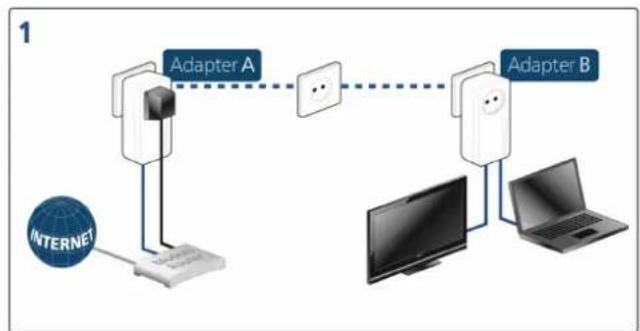
①Connect the dLAN 1000 duo+ to your Internet access device's network jack (e.g. WiFi router).

CAUTION! Tripping hazard
Lay the network cable in a barrier-free manner and ensure that the electrical socket and the connected network devices are easily accessible
②Plug the dLAN 1000 duo+ into a wall socket. As soon as the LED indicator light flashes red at regular intervals of 0.5 sec., the adapter is ready to operate but not yet integrated into the dLAN network.
Connecting the dLAN 1000 duo+ and dLAN 1000 duo+ to a dLAN network
Before you can use the adapter in a dLAN network, first you have to connect it as a network. This is accomplished by using a shared dLAN password. This forms a delimited dLAN network. Shared use of the dLAN password serves both as access control to the dLAN network as well as the encryption, and thereby the interception protection, of the transmitted data.
The dLAN password can be set in different ways:
③
dLAN network encryption:
- dLAN network encryption: at the touch of a button: First press the encryption button of the dLAN 1000 duo+ for approx. 1 second, and then within 2 minutes press the encryption button of the dLAN 1000 duo+ for approx.1 second.
or
- dLAN network encryption by entering the dLAN password in the devolo Cockpit: More information can be found in Chapter 4.3 devolo Cockpit.

As soon as the white LED lights up steady on both devices, your dLAN network is set up and protected from unauthorised access.
3.3.2 Addition – Expanding an additional network
①Plug the dLAN 1000 duo+ into a wall socket. As soon as the LED indicator light flashes red at regular intervals of 0.5 sec., the adapter is ready to operate but not yet integrated into the dLAN network.
Integrating the dLAN 1000 duo+ into an existing dLAN network
Before you can use the dLAN 1000 duo+ in your dLAN network, first you have to connect it to your existing dLAN devices as a network. This is accomplished by using a shared dLAN password. The dLAN password can be set in different ways:
②
dLAN network encryption:
- dLAN network encryption: at the touch of a button: First press the encryption button on a device in your existing network for approx. 1 second and within 2 minutes, press the encryption button of the new dLAN 1000 duo+ for approx. 1 second.
or
- dLAN network encryption by entering the dLAN password in the devolo Cockpit: More information can be found in Chapter 4.3 devolo Cockpit.

As soon as the white LED lights up steady, the new dLAN 1000 duo+ is integrated into your existing, encrypted dLAN network.
3.4 Removing a dLAN 1000 duo+ from the network
To remove a dLAN 1000 duo+ adapter from an existing network, press the encryption button on the corresponding adapter for at least 10 seconds. The adapter will automatically be assigned a new randomly generated password and will thus no longer be able to access the network. To integrate the device into a different network after this, follow the steps described in Chapter 3.3 Connecting the dLAN 1000 duo+, depending on whether you are setting up a new network or adding the device to an existing one.
4 Network configuration
4.1 Security in the dLAN
Before you can use the dLAN 1000 duo+ in your dLAN network, you must first connect it to other dLAN devices as a network. Two specific pieces of information are especially important for this:
● The joint use of the dLAN password is for access control purposes; it results in a delimited dLAN network.
● The joint use of the dLAN password is for network encryption purposes, protecting against interception of the transmitted data.
The dLAN password can be specified automatically by means of the encryption button or manually using the devolo Cockpit program. Please note the following basic principle when choosing your encryption method:
- For dLAN networks in which all associated dLAN devices are equipped with an encryption button, a dLAN password can be easily generated at the touch of a button.
- For dLAN networks that include a combination of devices with and without encryption but-
tons, the password must be specified with the devolo Cockpit.
4.2 dLAN network encryption at the touch of a button
To encrypt a dLAN network in which all associated devices are equipped with an encryption button, simply press the encryption button located on the device. Pressing this button will encrypt your dLAN network with a randomly generated password.

natural_image
White wireless router device with ports and a blue button labeled 'U' (no readable text or symbols beyond branding)Fig. 3 dLAN encryption by means of an encryption button
17 Network configuration
flowchart
graph TD
    A["Router"] -->|Internet| B["Client"]
    A --> C["Router"]
    C --> D["Laptop"]
    style A fill:#f9f,stroke:#333
    style B fill:#ccf,stroke:#333
    style C fill:#cfc,stroke:#333


Fig. 4 Setting up dLAN encryption by means of the encryption button
4.3 devolo Cockpit
devolo Cockpit is a program that displays all accessible dLAN devices in your home network and combines them into one secure network.

flowchart
graph TD
    A["Open 1000 bus"] --> B["Open"]
    A --> C["Open 1000 bus"]
    A --> D["Open 1000 bus"]
    A --> E["Open 1000 bus"]
    A --> F["Open 1000 bus"]
    A --> G["Open 1000 bus"]
    A --> H["Open 1000 bus"]
    A --> I["Open 1000 bus"]
    A --> J["Open 1000 bus"]
    A --> K["Open 1000 bus"]
    A --> L["Open 1000 bus"]
    A --> M["Open 1000 bus"]
    A --> N["Open 1000 bus"]
    A --> O["Open 1000 bus"]
    A --> P["Open 1000 bus"]
    A --> Q["Open 1000 bus"]
    A --> R["Open 1000 bus"]
    A --> S["Open 1000 bus"]
    A --> T["Open 1000 bus"]
    A --> U["Open 1000 bus"]
    A --> V["Open 1000 bus"]
    A --> W["Open 1000 bus"]
    A --> X["Open 1000 bus"]
    A --> Y["Open 1000 bus"]
    A --> Z["Open 1000 bus"]
Fig. 5 The devolo Cockpit in action
4.4 Installation of devolo software
Installing devolo Cockpit software
devolo Cockpit finds all accessible dLAN adapters in your dLAN network, displays information about these devices and encrypts your dLAN network individually. For WiFi devices, the software takes you to the configuration interface to configure your WiFi network on a computer.
devolo Cockpit is available at www.devolo.com/cockpit for the following operating systems:
● Windows (from Win 7, 32 bit/64 bit)
Mac (from OS X 10.6)
- Ubuntu Linux (32 bit/64 bit)
You can find more information about the devolo Cockpit software online at www.devo-lo.com/cockpit.
Downloading my devolo App
The my devolo App is devolo's free app also for checking and configuring WiFi, dLAN and LAN connections for the dLAN 1000 duo+ (via smartphone or tablet). The smartphone or tablet connects to the dLAN 1000 duo+ at home via WiFi.
① Download the my devolo App to your smartphone or tablet computer from the corresponding store.
The quickest way to find the app is by clicking the magnifying glass in the store and searching directly for devolo.
② my devolo App is placed in your smartphone's or tablet's app list as usual. Tapping on the my devolo App icon brings you to the start menu.
You can find more information about my devolo App online at www.devolo.co.uk/service/my-devolo-app/.
Starting devolo Cockpit
All accessible dLAN devices in your home network appear after starting devolo Cockpit. This may take a moment.
All adapters found in the network appear as an icon with a corresponding product name. The adapter displayed in the middle of the dLAN network symbolises the devices connected to the computer. devolo Cockpit also offers you the option to centre the display of the adapter connected to the router. If you have multiple dLAN devices connected, you can switch between them. Clicking an adapter icon highlights the corresponding dLAN device.
The coloured connecting lines between the adapters illustrate the current transmission quality:
● Green: the network connection is suitable for HD video streaming.
Orange: the network connection is suitable for SD video streaming and online gaming.
- Red: the network connection is suitable for simple data transfer and Internet access.
If data transmission from one adapter to another is in fact taking place, the outgoing data rate from the centred adapter is displayed. If a different adapter is selected, the data rate outgoing from this adapter is displayed.
Settings and functions
You can configure settings for the respectively highlighted device or for the network via
the buttons at the lower edge of the screen (Network settings)
and
- using the tabs positioned on the side of each adapter (Adapter settings).
devolo Cockpit setting options on the lower edge of the screen:

You can add a new dLAN adapter to your present network using Add adapter. Follow the instructions on the screen to connect the dLAN adapters to each other.

You can replace the default password with your own password using Change password. This is valid for your entire dLAN network. In addition, you can also generate a secure password here.

The newly integrated dLAN adapter will be detected by means of Refresh and displayed in the Cockpit interface.

You can use Options to select whether you would like the transmission capacity of the connected dLAN adapter to be recorded and sent to devolo. Here, you can also disable all future updates for your adapter and reset the entire dLAN network to the factory defaults. A troubleshooting guide provides remedies for bandwidth problems. The option to centre the devolo Cockpit on the dLAN adapter that is connected to the router results in a clearer arrangement of all dLAN adapters.

The data sent to devolo pertains only to the performance values of your dLAN devices. The information is anonymised, statistically evaluated and used exclusively for the improvement of our products.

The devolo Cockpit checks if a new firmware version is available for the integrated dLAN adapter using Updates. These can then be installed automatically.

Newsletter takes you to the devolo website, where you can sign up to receive our free newsletter.
Configuration options on the tabs positioned on the side:

The FAQ display button takes you to the devolo website. Here you can find useful information, as well as some tips and tricks related to the product.

You can find out device information, such as the firmware version used and the specific MAC address, using the Display Options button.
Furthermore, other options are available, such as the following:
Turn off LEDs,
● Disable data communication,
● Activate/ deactivate power saving mode,
- Assign device names,
- Reset device to factory defaults and
• View manual for the dLAN device

The selected dLAN adapter can be removed from the available dLAN network using Remove Device.

The above-mentioned setting options vary depending on the function and features of your device.
Error states of the adapter are displayed even though the LED is switched off.
4.5 Activate encryption by means of devolo Cockpit
If you are using dLAN devices without encryption buttons, encryption can only take place through devolo Cockpit.
Before the networking procedure, note the security IDs of all dLAN adapters. This unique identifier of each dLAN device can be found on the rating plate on the housing. It consists of 4 x 4 letters separated by dashes (e.g. ANJR-KMOR-KSHT-QRUV). Ensure that all dLAN adapters are connected to the mains supply and computers or other network components as appropriate.
Scan for local adapter
After devolo Cockpit is started, it starts by searching for the dLAN adapter connected directly to your computer.
Adding an adapter
Add all the dLAN devices you want to your dLAN network by selecting the Add button. You will need the 16 digit security ID of the adapter, which can be found on the label on the rear side of the housing. Enter it now into the Security ID field and confirm with OK. If a security ID is correct and the device can
be reached in the dLAN network, it will be added to your network and displayed in the program.
Changing the network password
After you have added all desired dLAN devices to your dLAN network, select the Change Password button to assign a new joint network password. All adapters present in your dLAN network are updated with the new password automatically.
You can choose between your own password or a random password. To define your own password, enter it into the Network password text field (8 character minimum). Alternatively, you can have a randomly selected and highly secure password assigned using the Generate secure password button. All present adapters in your dLAN network will receive the new password automatically.
The entered or automatically created password can be shown in the text field in readable form by activating the option "Show characters".
If devolo Cockpit is called up again later after a successful initial installation, for example to integrate a new adapter into a network, the application finds the devices that were entered earlier. Enter the new device as described in the Adding an adapter section.
5 Annex
5.1 Technical data
| Security | 128 Bit AES |
| Max. power output to integrated socket | Plug-Type E: 16 A / 3500 WPlug-Type F: 16 A / 3600 WPlug-Type G: 13 A / 3000 WPlug-Type J: 10 A / 2300 W |
| Device port 2x Ethernet RJ45 | |
| Power consumption | M a x iTypical: 3,3 WStand-by: 0,9 W |
| Power supply internal | 196-250 V AC50 Hz |
| Attenuation filter 2 – 68 MHz | |
| Filter characteristics -22 db | to -45 db |
| Temperature (Storage/Operating | -25°C to 70 °C / 0°C to 40°C |
| Dimensions (in mm, without plug) | 130x65x40 (HxWxD) |
| Ambient conditions 10-90% Humidity, non-condensing | |
| Certifications CE Class B (EU, CH, NO) | |
5.2 Bandwidth optimisation
To significantly improve the transmission capacity of the network, we recommend that you comply with the following "connection rules":
- Plug the dLAN 1000 duo+ directly into a wall socket. Avoid using power strips. This may impair the transmission of the dLAN signals.
- If there are several sockets in the wall directly next to each other, they behave like a power strip. Individual sockets are optimal.

natural_image
Simple line drawing of a smiling face with a document and tie, no text or symbols present

natural_image
Illustration of a computer setup with monitor, keyboard, and cable connections (no text or symbols)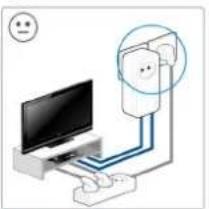
natural_image
Illustration of a computer monitor connected to a wall-mounted device with a magnified inset showing a close-up of its screen (no text or symbols present)Fig. 6 dLAN bandwidth optimisation
5.3 Disposal of old devices
To be used in the countries of the European Union and other European countries with a separate collecting system:

The icon with crossed-out wastebasket on the device means that this product is an electrical or electronic device that falls within the scope of application of the European Community WEEE Directive. These types of devices may no longer be disposed of with household waste. Rather they can be given to a municipal collection point free of charge. Contact your municipal government to find out the address and hours of the nearest collection point.
5.4 Warranty conditions
The devolo AG warranty is given to purchasers of devolo products in addition to the warranty conditions provided by law and in accordance with the following conditions:
1 Warranty coverage
a) The warranty covers the equipment delivered and all its parts. Parts will, at devolo's sole discretion, be replaced or repaired free of charge if, despite proven proper handling and adherence to the operating instructions, these parts became defective due to fabrication and/or material defects. Alternatively, devolo reserves the right to replace the defective product with a comparable product with the same specifications and features. Operating manuals and possibly supplied software are excluded from the warranty.
b) Material and service charges shall be covered by devolo, but not shipping and handling costs involved in transport from the buyer to the service station and/or to devolo.
c) Replaced parts become property of devolo.
d) devolo is authorized to carry out technical changes (e.g. firmware updates) beyond repair and replacement of defective parts in order to bring the equipment up to the current technical state. This does not result in any additional charge for the customer. A legal claim to this service does not exist.
2 Warranty period
The warranty period for this devolo product is three years. This period begins at the day of delivery from the devolo dealer. Warranty services carried out by devolo do not result in an extension of the warranty period nor do they initiate a new warranty period. The warranty period for installed replacement parts ends with the warranty period of the device as a whole.
3 W a r r a n t
a) If defects appear during the warranty period, the warranty claims must be made immediately, at the latest within a period of 7 days.
b) In the case of any externally visible damage arising from transport (e.g. damage to the housing), the person carrying out the transportation and the sender should be informed immediately. On discovery of damage which is not externally visible, the transport company and the sender are to be immediately informed in writing, at the latest within 3 days of delivery.
c) Transport to and from the location where the warranty claim is accepted and/or the repaired device is exchanged, is at the purchaser's own risk and cost.
d) Warranty claims are only valid if a copy of the original purchase receipt is returned with the device. devolo reserves the right to require the submission of the original purchase receipt.
4 Suspension of the warranty
All warranty claims will be deemed invalid
a) if the label with the serial number has been removed from the device,
b) if the device is damaged or destroyed as a result of acts of nature or by environmental influences (moisture, electric shock, dust, etc.).
c) if the device was stored or operated under conditions not in compliance with the technical specifications,
d) if the damage occurred due to incorrect handling, especially to non-observance of the system description and the operating instructions,
e) if the device was opened, repaired or modified by persons not contracted by devolo,
f) if the device shows any kind of mechanical damage, or
g) if the warranty claim has not been reported in accordance with 3a) or 3b).
27 Annex
5 0 p e r a t i n g m i s t a
If it becomes apparent that the reported malfunction of the device has been caused by unsuitable hardware, software, installation or operation, devolo reserves the right to charge the purchaser for the resulting testing costs.
6 Additional regulations
The above conditions define the complete scope of devolo's legal liability.
a) The warranty gives no entitlement to additional claims, such as any refund in full or in part. Compensation claims, regardless of the legal basis, are excluded. This does not apply if e.g. injury to persons or damage to private property are specifically covered by the product liability law, or in cases of intentional act or culpable negligence.
b) Claims for compensation of lost profits, indirect or consequential detriments, are excluded.
c) devolo is not liable for lost data or retrieval of lost data in cases of slight and ordinary negligence.
d) In the case that the intentional or culpable negligence of devolo employees has caused a loss of data, devolo will be liable for those costs typical to the recovery of data where periodic security data back-ups have been made.
e) The warranty is valid only for the first purchaser and is not transferable.
f) The court of jurisdiction is located in Aachen, Germany in the case that the purchaser is a merchant. If the purchaser does not have a court of jurisdiction in the Federal Republic of Germany or if he moves his domicile out of Germany after conclusion of the contract, devolo's court of jurisdiction applies. This is also applicable if the purchaser's domicile is not known at the time of institution of proceedings.
g) The law of the Federal Republic of Germany is applicable. The UN commercial law does not apply to dealings between devolo and the purchaser.
Index
C
CE 7
D
dLAN 9
dLAN network 16
dLAN password 16
G
Generating a secure password 23
|
Integrating the new adapter into the network 23
L
LAN (network connection) 11
LED status display 10
N
Network password 23
P
Package contents 12
S
Safety notes 7
Security ID 22
System requirements 12


- dLAN ® 1000 duo +
- Manual
- © 2017 devolo AG Aachen (Germany)
- Trademarks
- devolo AG
- Contents
- Preface 5
- Introduction 9
- Initial use 12
- Network configuration 16
- Annex 24
- Preface
- About this manual
- Icons
- Intended use
- CE conformity
- The product is intended for operation in the EU, Switzerland and Norway.
- Safety notes
- DANGER! Electric shock caused by electricity
- CAUTION! Heat development during operation
- devolo on the Internet
- Introduction
- What exactly is dLAN?
- The dLAN 1000 duo+
- Encryption button
- Encrypting the dLAN network
- Reading the dLAN indicator light
- Network jacks
- Integrated electrical socket
- Initial use
- Package contents
- Starter Kit:
- Extension:
- System requirements
- Connecting the dLAN 1000 duo+
- Starter Kit – Setting up a new dLAN network
- Connecting the dLAN 1000 duo+ and dLAN 1000 duo+ to a dLAN network
- dLAN network encryption:
- Addition – Expanding an additional network
- Integrating the dLAN 1000 duo+ into an existing dLAN network
- Removing a dLAN 1000 duo+ from the network
- Network configuration
- Security in the dLAN
- dLAN network encryption at the touch of a button
- Network configuration
- devolo Cockpit
- Installation of devolo software
- Installing devolo Cockpit software
- Downloading my devolo App
- Starting devolo Cockpit
- Settings and functions
- devolo Cockpit setting options on the lower edge of the screen:
- Configuration options on the tabs positioned on the side:
- Activate encryption by means of devolo Cockpit
- Scan for local adapter
- Adding an adapter
- Changing the network password
- Annex
- Technical data
- Bandwidth optimisation
- Disposal of old devices
- Warranty conditions
- Warranty coverage
- Warranty period
- Suspension of the warranty
- Annex
- Additional regulations
- Index
Brand : DEVOLO
Model : 1000 Duo Plus
Category : Powerline Adapter