
PlayStation Portable Go - Consoles SONY - Free user manual and instructions
Find the device manual for free PlayStation Portable Go SONY in PDF.


| Product Type | Handheld Game Console |
| Dimensions (W x H x D) | 128 x 69 x 16.5 mm (5.0 x 2.7 x 0.65 in) |
| Weight (with battery) | 158 g (5.6 oz) |
| Battery | Built-in rechargeable lithium-ion, 1200 mAh |
| Screen | 3.8-inch TFT LCD, 480 x 272 pixels |
| Internal Storage | 16 GB flash memory |
| Expandable Storage | Memory Stick Micro (M2) slot (up to 16 GB) |
| Processor | MIPS R4000 (333 MHz) |
| Connectivity | Wi-Fi 802.11b/g, Bluetooth 2.0+EDR, USB 2.0 |
| Audio | Built-in stereo speakers, 3.5 mm headphone jack |
| Power Supply | DC 5V, AC adapter (included) |
| Functions | Play PSP games, music, video, photos, web browsing, Skype, Remote Play |
| Maintenance | Wipe with soft dry cloth; avoid liquids and extreme temperatures |
| Safety | Not for children under 3; small parts; use only specified charger |
| Spare Parts Available | Battery, AC adapter, memory sticks, carrying case |
| Repairability | User-replaceable battery; other repairs by qualified technician |
Frequently Asked Questions - PlayStation Portable Go SONY
User questions about PlayStation Portable Go SONY
0 question about this device. Answer the ones you know or ask your own.
Ask a new question about this device
Download the instructions for your Consoles in PDF format for free! Find your manual PlayStation Portable Go - SONY and take your electronic device back in hand. On this page are published all the documents necessary for the use of your device. PlayStation Portable Go by SONY.
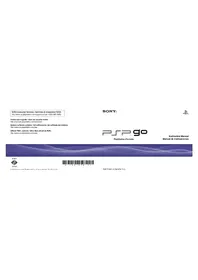
USER MANUAL PlayStation Portable Go SONY
http://www.us.playstation.com/psp
http://www.us.playstation.com/psp
SONY®

PlayStation®Portable
Instruction Manual
© 2009 Sony Computer Entertainment Inc. All rights reserved. Printed in China

PSP-N1001 4-152-678-11(1)
WARNING
To avoid electrical shock, do not open the cabinet. Refer servicing to qualified personnel only.
For your safety, use only a licensed or genuine Sony AC adaptor for the PSP® system. Other types may cause fire, electrical shocks or a malfunction.
This equipment complies with FCC/IC radiation exposure limits set forth for uncontrolled equipment and meets the FCC radio frequency (RF) Exposure Guidelines in Supplement C to OET65 and RSS-102 of the IC radio frequency (RF) Exposure rules. This equipment has very low levels of RF energy that are deemed to comply without testing of specific absorption ratio (SAR). This transmitter must not be co-located or operated in conjunction with any other antenna or transmitter.
This Class B digital apparatus complies with Canadian ICES-003.
NOTE:
This equipment has been tested and found to comply with the limits for a Class B digital device, pursuant to Part 15 of the FCC rules. These limits are designed to provide reasonable protection against harmful interference in a residential installation. This equipment generates, uses, and can radiate radio frequency energy and, if not installed and used in accordance with the instructions, may cause harmful interference to radio communications.
However, there is no guarantee that interference will not occur in a particular installation. If this equipment does cause harmful interference to radio or television reception, which can be determined by turning the equipment off and on, the user is encouraged to try to correct the interference by one or more of the following measures:
– Reorient or relocate the receiving antenna. - Increase the separation between the equipment and receiver. - Connect the equipment into an outlet on a circuit different from that to which the receiver is connected. - Consult the dealer or an experienced radio/TV technician for help.
You are cautioned that any changes or modifications not expressly approved by the party responsible for compliance could void the user's authority to operate the equipment.
If you have questions about this product, contact SCEA
Consumer Services (see back cover) or write to:
Sony Computer Entertainment America Inc.
Consumer Services/Technical Support
PO Box 5888, San Mateo, CA 94402-0888 U.S.A.
Declaration of Conformity
Trade Name: SONY
Model No.: PSP-N1001
Responsible Party: Sony Electronics Inc.
Address: 16530 Via Esprillo
San Diego, CA 92127 U.S.A.
Telephone No.: 858-942-2230
This device complies with Part 15 of the FCC Rules and RSSGen of IC Rules. Operation is subject to the following two conditions: (1) this device may not cause harmful interference, and (2) this device must accept any interference received, including interference that may cause undesired operation of this device.
Photosensitivity/Epilepsy/Seizures
A very small percentage of individuals may experience epileptic seizures or blackouts when exposed to certain light patterns or flashing lights. Exposure to certain patterns or backgrounds on a screen or when playing video games may trigger epileptic seizures or blackouts in these individuals. These conditions may trigger previously undetected epileptic symptoms or seizures in persons who have no history of prior seizures or epilepsy. If you, or anyone in your family, has an epileptic condition or has had seizures of any kind, consult your physician before playing.
IMMEDIATELY DISCONTINUE use and consult your physician before resuming gameplay if you or your child experience any of the following health problems or symptoms:
- dizziness,
- altered vision,
- eye or muscle twitches,
- loss of awareness,
- disorientation,
- seizures, or
- any involuntary movement or convulsion.
RESUME GAMEPLAY ONLY ON APPROVAL OF YOUR PHYSICIAN.
Use and handling of video games to reduce the likelihood of a seizure
- Use in a well-lit area and keep the screen a safe distance from your face.
- Avoid prolonged use of the PSP® system. Take a 15-minute break during each hour of play.
- Avoid playing when you are tired or need sleep.
WARNING
Radio waves
Radio waves may affect electronic equipment or medical devices (for example, pacemakers), which may cause malfunctions and possible injuries.
- If you use a pacemaker or other medical device, consult your physician or the manufacturer of your medical device before using the wireless networking feature (Bluetooth® and wireless LAN).
- Do not use the wireless networking feature in the following locations:
– Areas where wireless network use is prohibited, such as in hospitals. Abide by medical institution regulations when using the system on their premises. - Areas near fire alarms, automatic doors and other types of automated equipment.
System software
The system software included within this product is subject to a limited license from Sony Computer Entertainment Inc. Refer to http://www.scei.co.jp/psp-eula/ for further details.
About national export control
This product may fall within the scope of national export control legislation. You must comply fully with the requirements of such legislation and of all other applicable laws of any jurisdiction in relation to this product.
Notice about U.S. Export Administration Regulations
This product contains software that is subject to certain restrictions under the U.S. Export Administration Regulations, and may not be exported or re-exported to U.S. embargoed destinations. In addition this product may not be exported or re-exported to persons and entities prohibited by the U.S. Export Administration Regulations.
US
WARNING
Table of contents
WARNING....2
Precautions 8
Checking the package contents 12
Things you can do with the PSP® system .... 14
Preparation
Part names and functions 16
Charging the battery 20
Turning the system on and off 23
Basic operations
Using the XMB™ (XrossMediaBar) menu .... 24
Using the on-screen keyboard 26
Games
Playing games 28
Step1 Install Media Go™ 30
Step2 Start Media Go™ 31
Step 3: Download (purchase) a game …… 32
Step 4: Start the game 37
Downloading games using the PSP® system or PS3™ system 39
Network
Using the wireless networking feature …… 40
Updating the system software 41
Support
Before requesting service 42
LIMITED HARDWARE WARRANTY AND LIABILITY.... 48
Additional information
Parental control 50
Before disposing of or transferring the PSP® system.... 53
Specifications.... 56
Copyright and trademarks 58
Information about system functionality and images published in this document may vary from those for your PSP® system, depending on the system software version in use.
PSP® system documentation
You can find information about the PSP® system in this manual as well as online.
• Instruction Manual (this document)
This manual explains hardware features and provides basic information about how to set up and operate the PSP® system, including instructions on how to download and start playing games. The manual also includes warnings and precautions for the safe and proper use of the system.
- User's Guide
This online guide contains detailed information about using PSP® system features. You can access the guide in the following ways:
Viewing on a PC
You can view the online user's guide using a PC Web browser.
http://manuals.playstation.net/document/
Viewing on the PSP® system
To view the guide on the PSP® system, select (Network) → (Online Instruction Manuals), and then press the button.
Table of contents
Precautions
Before using this product, carefully read this manual and retain it for future reference.
Accessory compatibility
Do not use accessories or peripherals that are intended for another model of the PSP® system, as these accessories/peripherals may not be compatible with your system. For details, contact SCEA Consumer Services (see back cover).
Safety
This product has been designed with the highest concern for safety. However, any electrical device, if used improperly, has the potential for causing fire, electrical shock or personal injury. To help ensure accident-free operation, follow these guidelines:
- Observe all warnings, precautions and instructions.
- Regularly inspect the AC adaptor and AC power cord.
- Stop use, unplug the AC power cord from the electrical outlet and disconnect any other cables immediately if the device functions in an abnormal manner, produces unusual sounds or smells or becomes too hot to touch, or has become misshapen.
- Contact SCEA Consumer Services (see back cover) if the device does not operate properly.
Use and handling
- Use in a well-lit area and keep the screen a safe distance from your face.
- Avoid prolonged use of the PSP® system. To help prevent eyestrain, take a break of about 15 minutes during every hour of play.
- If you experience any of the following health problems, discontinue use of the system immediately. If symptoms persist, consult with your physician.
– Dizziness, nausea, fatigue or symptoms similar to motion sickness
- Discomfort or pain in a part of the body, such as eyes, ears, hands or arms
- Permanent hearing loss may occur if earphones or headphones (sold separately) are used at high volume. Set the volume to a safe level. Over time, increasingly loud audio may start to sound normal but can actually be damaging your hearing. If you experience ringing in your ears or muffled speech, stop listening and have your hearing checked. The louder the volume, the sooner your hearing could be affected. To protect your hearing:
- Limit the amount of time you use earphones or headphones at high volume.
- Avoid raising the volume to block out noisy surroundings. – Lower the volume if you can't hear people speaking near you.
- Keep the system and accessories out of the reach of small children. Small children may swallow the Memory Stick Micro™ media or wrap the cables/straps around themselves, which may inflict injury or cause an accident or a malfunction.
- Do not use the system while driving or riding a bicycle.
- Take extra care when using the system while walking.
- Handle the display panel with care when opening and closing.
- Be careful not to pinch your fingers when closing the display panel.
- Do not use the system or accessories near water.
- Use only attachments/accessories specified by the manufacturer.
- Do not expose the system or accessories to high temperatures, high humidity, or direct sunlight.
- Do not leave the system or accessories in a car with the windows closed (particularly in summer).
- Do not expose the system or accessories to dust, smoke or steam.
- Do not allow liquid or small particles to get into the system or accessories.
- Do not place the system or accessories on surfaces that are tilted, unstable or subject to vibration.
- Do not throw, drop or step on the system or accessories, and do not subject the devices to strong physical shock. Sitting down with the PSP® system in a pocket or placing the system in the bottom of a backpack along with heavy objects may cause damage to the system.
- Do not forcibly twist the PSP® system or expose the system to strong physical shock during gameplay, as doing so can damage the system.
- Handle the analog stick with care.
- Do not put heavy objects on the system or accessories.
- Do not touch or insert foreign objects into the connectors of the system or accessories.
- Do not place the system close to items with a magnetic strip, such as credit cards.
- Depending on the conditions of use, the system or AC adaptor may reach temperatures of 40°C / 104°F or more. Do not touch the system or AC adaptor for an extended period of time under these conditions. Extended contact under these conditions may cause low-temperature burns*.
* Low-temperature burns are burns that occur when the skin is in contact with objects of relatively low temperatures (40°C/104°F or more) for an extended period of time.
- When connecting the system to a plasma or projection* TV, do not leave a still image on the TV screen for an extended period of time, as this may leave a faint image permanently on the screen.
* Except LCD screen types
AC adaptor and AC power cord use
- For your safety, use only a licensed or genuine Sony AC adaptor. Other types may cause fire, electrical shocks or a malfunction.
- Do not touch the plug of the AC power cord with wet hands.
- Do not touch the AC power cord, AC adaptor or the system, if connected to an electrical outlet, during an electrical storm.
- Unplug the AC power cord from the electrical outlet and disconnect any other cables from the system before cleaning or when you do not intend to use the system for an extended period of time.
- Protect the AC power cord from being walked on or pinched particularly at plugs, convenience receptacles and the point where they exit from the system.
- When disconnecting the AC power cord, hold it by the plug and pull straight out from the electrical outlet. Never pull by the cord and do not pull at an angle.
Precautions
- Do not use the system to play games or video when the system is covered with any type of fabric. If you want to pause or temporarily store the system while playing games or video, put the system in sleep mode before placing it in the case or covering. Also do not use the AC adaptor when covered with fabric to help avoid overheating.
- Do not connect the AC power cord to a voltage transformer or inverter. Connecting the AC power cord to a voltage transformer for overseas travel or an inverter for use in an automobile may cause heat to build up in the AC adaptor and may cause burns or a malfunction.
LCD screen
- The LCD screen is made of glass and may crack if subjected to excessive force.
- Pixels that are not lit or are continuously lit may appear in certain locations on the LCD screen. The appearance of such spots is a normal occurrence associated with LCD screens and is not a sign of a system malfunction. LCD screens are made using highly precise technology. However, a very small number of dark pixels or continuously lit pixels exist on each screen. Also, a distorted image may remain on the screen for several seconds after the system has been turned off.
- Direct exposure to sunlight may damage the system's LCD screen. Be careful when using the system outdoors or near a window.
- When using the system in a cold environment, you may notice shadows on the graphics or the screen may appear darker than usual. This is not a malfunction, and the screen will return to normal when the temperature goes up.
- Do not leave still images displayed on the screen for an extended period of time, as doing so may cause a faint image to be left permanently on the screen.
Recorded data
Do not use the Memory Stick Micro™ media in the following ways, as doing so may result in data loss or corruption:
- Removing the Memory Stick Micro™ media or turning off the system while it is loading or saving data or being formatted.
- Using it in a location that is exposed to static electricity or electrical interference.
If, for any reason, software or data loss or corruption occurs, it is usually not possible to recover the software or data. It is recommended that you regularly back up software and data. Sony Computer Entertainment Inc. and its subsidiaries and affiliates will not be held liable for any damages or injury in the case of software or data loss or corruption.
In accordance with copyright law, no recorded data may be used for purposes other than personal enjoyment without permission from the copyright holder.
Never disassemble the system or accessories.
Use the PSP® system and accessories according to the instructions in this manual. No authorization for the analysis or modification of the system, or the analysis and use of its circuit configurations, is provided. Disassembling will void the system warranty.
Additionally, there is a risk of fire, electrical shock or malfunction. The LCD screen, in particular, contains dangerous, high-voltage parts.
Using an access point
When using the PSP® system's search function to select a wireless network access point, access points that are not intended for public use may be displayed. Only connect to a personal access point that you are authorized to use, or one that is available through a commercial wireless network or hotspot service. User is responsible for all fees associated with wireless network access.
Use in other countries
Depending on the country, there are limitations on the use of certain types of radio waves. In some cases, use of the PSP® system may lead to a fine or other penalty.
Handling and care of exterior surfaces
Follow the guidelines listed below to help avoid deterioration or discoloration of the PSP® system.
- Do not use solvents or other chemicals to clean the exterior surface.
- Do not allow the system to remain in direct contact with rubber or vinyl products for an extended period of time.
- Do not use a chemically-treated cleaning cloth to wipe off the system.
Before using the analog stick
- Do not attempt to remove the analog stick from the system front, as doing so will damage the system and may result in injury.
- For best results, go to (Settings) → (System Settings), and then with the [System Information] screen displayed, rotate the analog stick in a circular motion to adjust the analog stick's range of movement.
Cleaning
For safety reasons, unplug the AC power cord from the electrical outlet and disconnect any other cables before cleaning the system.
Cleaning the exterior surface and LCD screen
Wipe gently with a soft cloth.
Cleaning the connectors
If the connectors on the PSP® system or on the USB cable become dirty, signals may not be sent or received properly. Also, if the connector on the headphones becomes dirty, you may experience noise or interruptions in sound. Wipe the connectors with a dry, soft cloth to keep in clean condition.
Checking the package contents
Check that you have all of the following items.
If any items are missing, visit www.us.playstation.com/support or contact SCEA Consumer Services (--back cover) for assistance. Additional items may be included with certain models of this product. Please check against the contents listed on the product package.
□ PSP® (PlayStation®Portable) system

□ AC adaptor

□ USB cable

□ AC power cord

□ CD-ROM
□ Printed materials
Various accessories for the PSP® system are mentioned throughout this documentation. Note, however, that the accessories supplied with your system depend on the product purchased. See the product package for a list of included accessories.
Checking the package contents
US
Checking the package contents
Things you can do with the PSP® system

Equipped with system storage
You can use the built-in system storage to save games, music, photos and other types of content.
Wireless networking feature
Using the wireless networking feature, you can connect to the Internet to access PlayStation®Store and use the Internet browser.

Bluetooth® wireless technology
You can establish a wireless connection between the PSP® system and the controller for the PS3™ system or other Bluetooth® devices.

Download and play games
You can download (purchase) games from PlayStation®Store.
PlayStation®Store


page 28
Update the system software
You can add new features by updating the system software.


Listen to music
Listen to music, such as music files that have been imported from audio CDs to your PC.

Watch video
Watch video that has been imported to your PC.

Browse photos
Browse photos from a digital camera or from other sources.

Connect to a network
Browse Web pages on the Internet or listen to Internet radio.

For details about using these and other features, refer to the online user's guide:
http://manuals.playstation.net/document/
Part names and functions
With the display panel closed

System bottom

1 L button
2 Display button
Press and release
Each time you press the display button, the display changes among three levels of screen brightness. The highest level (level 4) can be selected only while the PSP® system is plugged in using the AC adaptor.
Press for more than one second
The backlight turns off and the screen goes blank. To turn the backlight on again, press any of the PSP® system buttons.
Press for more than five seconds
The system switches to video output mode. Video output mode is available only when a video output cable is connected (see page 38).
3 Volume - button
4 Volume + button
5 Sound button
Press and release
Each time you press the sound button, the tone changes among HEAVY → POPS JAZZ → UNIQUE → OFF.
The tone can be changed only when using headphones. Furthermore, the tone setting is temporarily set to [OFF] during gameplay.
Press for more than one second
The sound is muted. To clear muting, press the sound button again.
Press for more than five seconds
While the Bluetooth® indicator is lit solid or flashing blue, audio from the system is output to the Bluetooth® audio device that is registered, or paired, with the system. To stop output to the Bluetooth® audio device, press the sound button again for more than five seconds.
6 LCD screen
7 R button
8 Bluetooth® indicator
Shows the status of the Bluetooth® connection
Solid blue Connected
Flashing blue Connecting
● Light off Not connected
9 POWER indicator
Solid green
Power on
Solid orange
Charging
Flashing green
Charge level low
● Light off
Power off/In sleep mode
10 POWER/HOLD switch Slide up
Turn the system on and off (→ page 23).
Slide down
Lock the system buttons.
11 Headset connector
12 Multi-use connector
Connect cables of various types including a USB cable (supplied) or a video output cable (sold separately).
With the display panel open
Opening the display panel
Slide the display panel upward to open the panel.

1 WLAN access indicator: Lights up when the wireless networking feature is in use. 2 Speakers. 3 PS button. 4 Memory Stick Micro™ (M2™) slot.

Front side
Open the slot cover, and then gently press the Memory Stick Micro™ media in the direction of the arrow until fully inserted.
To remove the Memory Stick Micro™ media, press it once in the direction of the arrow.
5 Memory Stick Micro™ (M2™) access indicator
Lights up when data is being read from or written to Memory Stick Micro™ media.
Notice
When the Memory Stick Micro™ (M2™) access indicator is lit, do not eject the Memory Stick Micro™ media, turn off the system, or put the system into sleep mode, as doing so may cause data loss or corruption.
6 WIRELESS switch
Use this switch for wireless network and Bluetooth® features.

WIRELESS switch
7 Strap holder
Attach a strap (sold separately) as shown below.

8 Directional buttons
9 Analog stick
For use with games that support analog stick operation
10 Microphone
For use with software that supports the microphone. For details, refer to the instructions supplied with the software.
11 START button 12 SELECT button 13 button, button, button, button
Charging the battery
Before using the PSP® system for the first time after purchase, or when the battery charge level is low, follow the steps below to charge the battery.

Caution
- Stop use, unplug the AC power cord from the electrical outlet and disconnect any other cables immediately if the device functions in an abnormal manner, produces unusual sounds or smells or becomes too hot to touch, or has become misshapen.
- Do not plug the AC power cord for the PSP® system into an electrical outlet until you have made all other connections.
1 Plug the USB cable into the AC adaptor. 2 Plug the AC power cord into the AC adaptor. 3 Connect the USB cable to the multi-use connector on the bottom of the system.
4 Plug the AC power cord into an electrical outlet.
The power indicator lights up in orange, indicating that charging has begun. The power indicator turns off when the battery is fully charged.

Information about the battery charge
Checking the battery charge level
You can check the battery charge level by the icon displayed in the upper right corner of the screen. The icon shows when it is time to charge the battery.

When there is little battery charge left, the icon is displayed and the power indicator flashes green. If this happens, charge the battery.
Hint
Depending on usage conditions and environmental factors, the charge level may not reflect the exact charge level.
Estimating the battery charge time*
| Charging with the AC adaptor | Approximately 2 hours 20 minutes |
| Charging with a USB device | Approximately 4 hours |
* When charging a battery with no charge remaining
Hint
It is recommended that you charge the battery in an environment with a temperature of 10° C to 30° C ( 50° F to 86° F). Charging in other environments may not be as effective and may lead to less than optimal battery performance.
Estimated battery duration
| Gameplay Approximately | 3 - 6 hours* | 1 |
| Video playback Approximately | ately 3 - 5 hours* | 2 |
*1 Based on tests conducted with the system in single player mode, with headphones in use, and with wireless networking and Bluetooth® features not in use.
*2 Based on tests conducted using variables of system speakers versus headphones, volume level and screen brightness level.
Hint
Battery duration may vary depending on the type of content being played, conditions of use such as screen brightness, and environmental factors. Battery duration will decrease with repeated usage and age.
Battery life
The built-in battery has a limited life span. Battery duration will decrease with repeated usage and age. When battery duration becomes noticeably short, contact SCEA Consumer Services (back cover).
Hint
Battery life span varies depending on how the battery is stored and the conditions of use, including long-term environmental factors such as temperature.
Charging methods
Charging with an AC adaptor
The system's battery can be charged using an AC adaptor. Connect the USB cable to the AC adaptor, and then connect the AC power cord to an electrical outlet. For details, see "Charging the battery" (page 20).
Charging with a USB device
When you turn on the PSP® system and then connect it to a device equipped with a USB connector (such as a PC), the system's battery will begin charging. While the battery is charging, the POWER indicator will be lit in orange and [USB Mode] will be displayed on the screen.

Hints
- You cannot charge the PSP® system using a USB device while playing a game or performing other operations. Use the AC adaptor to charge the battery in such situations.
- To switch to USB mode manually, select 📋 (Settings) → ⬇…(USB Connection).
- Charging may take longer when the system is turned on during charging or when a USB device is used for charging.
- You may not be able to charge the battery if the USB device or the USB hub does not provide enough power for charging. Try connecting to a different USB device or a different USB connector on the device.
Turning the system on and off
Turning the system on
1 Slide the POWER/HOLD switch up.

The POWER indicator lights up in green.
Hints
- When you turn the system on for the first time after purchase, the initial setup screen is displayed. Follow the on-screen instructions to adjust the initial settings.
- The system can also be turned on by opening the display panel.
Turning the system off
1 Slide up and hold the POWER/HOLD switch for more than three seconds.
The POWER indicator turns off.
Hint
The system cannot be turned off by closing the display panel.
Putting the system in sleep mode
You can pause the system while playing games or other content. Playback begins from the point where the system entered sleep mode.
1 Slide the POWER/HOLD switch up.
The POWER indicator turns off and the system enters sleep mode.
Clearing sleep mode
Slide the POWER/HOLD switch up.
Hints
- Some software may prevent the system from entering sleep mode.
- While in sleep mode, the PSP® system will still consume power at a reduced rate, until no charge remains in the battery.
Turning the system on and off
Using the XMB™ (XrossMediaBar) menu
The PSP® system includes a user interface called XMB™ (XrossMediaBar).
1 Select a category using the left or right button. 2 Select an item using the up or down button. 3 Press the button to confirm a selected item.
Hints
- You can cancel an operation by pressing the @ button.
- The busy icon is displayed only while the system is communicating over a network or reading data.
Icons displayed on the screen vary depending on the system software version.

Using the options menu
Select an icon, and then press the ⏻ button to display the options menu.

Using the control panel
While playing content, press the @ button to display the control panel.

Categories

PlayStation®Network
Use PlayStation®Network services

Network
Connect to the Internet

Game
Play games

Video
Watch video

Music
Listen to music

Photo
View photos

Settings
Adjust PSP® system settings
Using the on-screen keyboard

List of keys
Keys that are displayed vary depending on the input mode in use and other conditions.
| keys Explanation | |
| Space | Inserts a space |
 | When entering text in the Internet browser address field, previously entered addresses are displayed. Addresses are displayed only when input mode is set to Web address shortcuts. |
 | Confirms characters that have been typed but not entered, and then closes the keyboard |
 | Cancels characters that have been typed but not entered, and then closes the keyboard |
 | Moves the cursor |
| [04ZW] | Deletes the character to the left of the cursor |
 | Displays a diagram showing the system buttons and their usage |
 | Switches between uppercase and lowercase letters |
 | Inserts a line break |
Switching the input mode
The number of input modes available varies depending on the language selected. Each time you press the SELECT button, the input mode changes to the options shown in the table below.
| Input mode display | Input mode Examples of characters you can enter |
| Letters and numbers a b c d e | |
| Letters and numbers (with accented letters) éíócñ | |
| Numbers only 1 2 3 4 5 | |
| Web address shortcuts .com .ne .html .gif |
Hint
The language for the on-screen keyboard is linked to the system language. You can set the system language by going to (Settings) → (System Settings) [System Language]. For example, if [System Language] is set to [Français], you can enter text in French.
Entering characters
The following steps explain how to enter text using the word "FUN" as an example.
1 Select [DEF3], and then press the button several times until "F" is displayed. Each time you press the button, the character that is entered in the text entry field is switched.
2 Select [TUV8], and then press the button several times until "U" is displayed.
3 Select [MNO6], and then press the button several times until "N" is displayed.
4 Select [Enter], and then press the button.
The characters you entered are confirmed. (You can also press the PSP® system's R button to confirm a character.) Select [Enter] again, and then press the button to exit the keyboard.
Hint
If you select the a/A key while entering characters, you can switch between uppercase and lowercase letters.
Playing games

Games for use on the PSP® system are downloaded from PlayStation®Store.
PlayStation®Store is an online shop where you can download (purchase) products such as games or video content.
You can download games in the following ways.
Using a PC
Using the wireless networking feature
Using a PlayStation®3 system
Downloading games using a PC

Step1 Install Media Go™
Step2 Start Media Go™
Step3 Download (purchase) a game
Step4 Start the game
All methods described here require an Internet connection.
Step1 Install Media Go™
To download games using your PC, you must install the Media Go™ application on the PC.
What is Media Go™?
Media Go™ is a PC application that you can use to do the following:
- Download (purchase) games from PlayStation Store
- Import tracks from an audio CD
- Manage music, photo and video files
- Transfer content (Media Go™ PSP® system)
- Back up game data and saved data
1 Insert the supplied CD-ROM into your PC.

The installer application starts automatically, and the setup screen is displayed.
2 Click [Install Media Go™].
3 Follow the on-screen instructions to complete the installation.
During installation, you may be prompted to install additional software. If prompted, follow the on-screen instructions to install the software.
After the installation has completed, Media Go™ will start automatically.
Hint
The installer for Media Go™ can be downloaded from the Internet. For details, visit http://store.playstation.com/.
Step 2 Start Media Go™
Follow the step below to start the Media Go™ application.
If you installed the application by following Step 1 (→ page 30), the application will start automatically. Proceed to "Step 3 Download (purchase) a game" (→ page 32).
1 Double-click the (Media Go) icon on your PC desktop.
The Media Go™ application starts.

Hints
- For details about the features of Media Go™, including information about use of the features, refer to the help file that is supplied with the application.
- You can also start Media Go™ by selecting [All Programs] → [Sony] → [Media Go] → [Media Go] from the start menu on your PC.
Step 3 Download (purchase) a game
Using Media Go™, you can download (purchase) games from PlayStation®Store. To use PlayStation®Store, you need to connect your PC to the Internet.
To access PlayStation®Store
Click (PlayStation®Store) in the library navigation pane located on the left side of the Media Go™ window on your PC.
Steps to download games
To download games from PlayStation®Store, you must perform the following steps.
Create a PlayStation®Network account (sign up)

Sign in

Add funds to your online wallet

Download a game
Creating a PlayStation® Network account (sign up)
To download games from PlayStation®Store, you must have a PlayStation®Network account and accept a user agreement.
If you are already using PlayStation®Store and have a PlayStation®Network account that is associated with another PSP® system or PS3™ system, you can use that account. Skip to the next section, "Signing in" (page 34).
1 From the Media Go™ window on your PC, click Sign In) [Create a New Account (New Users)].
Follow the on-screen instructions to create an account.
Hint
Visit http://www.us.playstation.com/support/useragreements to view the PlayStation®Network Terms of Service and User Agreement.
PlayStation®Network accounts
After you have created a PlayStation®Network account, you can shop online at PlayStation®Store.
To create an account, you must enter personal information such as your name and address. You may also choose to add and save billing information, which can then be used when purchasing products from PlayStation Store.
Account types
Master account
A master account is the standard account for using PlayStation®Network. Only a registered user of a specified age or older can create a master account.
Sub account
Users who do not meet the eligibility requirements for a master account in their region can only use a sub account. Only a master account holder can create a sub account for a minor. A sub account holder does not have his or her own online wallet for PlayStationNetwork but can make use of the wallet for the associated master account to pay for products and services. A user can create a sub account only if there is an associated master account.
Signing in
Using your PlayStation®Network account, you can sign in and access PlayStation®Store.
1 From the Media Go™ window on your PC, click [Sign In].
2 Enter your sign-in ID (e-mail address) and password.
Enter the sign-in ID (e-mail address) and password for your account.
3 Click [Sign In].
To sign out
Click [Sign Out] to exit PlayStation®Store.
Adding funds to your online wallet
Use the online wallet for PlayStation®Network to purchase products that are for sale in PlayStation®Store. You must add funds to the wallet before making purchases using funding options such as a credit card or a PlayStation®Network Card.
1 From the Media Go™ window on your PC, click [Account Management].
2 Click [Transaction Management], and then click [Add Funds: Credit Card] or [Redeem PlayStation®Network Card or Promotion Code].
Follow the on-screen instructions to add funds to your wallet.
Wallet usage by sub account holders
A sub account holder cannot create an online wallet but can make use of the wallet for the associated master account to pay for products and services.
Downloading a game
Notice
Do not turn off the system or unplug the USB cable while downloading.
1 Turn on your PSP® system, and then connect the system to a PC using a USB cable.
The PSP® system is set to USB mode automatically. If the system does not set to USB mode automatically, select (Settings) → (USB Connection) on the system.

2 Select the game that you want to download from PlayStation®Store.
Detailed information about the game is displayed.
3 Click [Add to Cart].
The selected game is added to the shopping cart.
4 Click [View Cart].
Check that the game is in your shopping cart.
5 Click [Proceed to Checkout].
The purchase confirmation page is displayed.
6 Click [Confirm Purchase].
The purchase amount is removed from your wallet and the purchase is completed. A confirmation message is then sent to the e-mail address you used as your sign-in ID when you created your account.
7 Download the game.
The downloaded game is saved in the system storage of the PSP® system.
8 After checking that the download is completed, press the Ⓧ button on the PSP® system.
The USB mode setting is cleared. You can now start the downloaded game.
Hint
Games that are downloaded to the PSP® system storage can be copied to Memory Stick Micro™ media. For details, refer to the online user's guide (page 7).
Backing up data
Using Media Go™, you can back up game data or saved data to your PC. For details about backing up data, refer to the help file that is supplied with the Media Go™ application.
Activating the PSP® system
To play the downloaded game on the PSP® system, you must be signed in to PlayStation® Network and the system must be activated. You can usually perform these operations automatically using Media Go™.
Hints
- System activation is a process that is required to protect the digital rights of the content.
- If your system cannot be activated, contact SCEA Consumer Services (see back cover) for assistance.
Step 4: Start the game
1. On your PSP® system, select (Game) > (System Storage), and then press the button.

2. Select the game that you want to start, and then press the button.
To quit the game
1. Press the PS button on the PSP® system.

2. Select [Quit Game], and then press the button.
To pause the game
If you select [Pause Game] in Step 2 above, you can save data for your current status in the game and then leave the game.
If you want to restart playing the game using the paused game data, select (Game) > [Resume Game], and then press the button.
Hint
You can only save data for your status in one game at a time using [Pause Game].
Outputting video from a game to a TV
You can output game video to a TV using a video output cable* (sold separately). Select an appropriate video output cable for the TV in use.
For details, refer to the online user's guide (see page 7).
* Use a video output cable that is compatible with this model of the PSP® system. Video output cables designed for use with the PSP-2000/3000 series systems are not compatible with this model of the system.
Downloading games using the PSP® system or PS3™ system
You can download games (as a purchase or for free) using the methods described below.
To use PlayStation®Store, you must connect the PSP® system to the Internet.
Using the wireless networking feature on the PSP® system
① On the PSP® system, select (PlayStation®Network) → (PlayStation®Store). ② Download a game.
For details, refer to the online user's guide for the PSP® system (page 7).
Using the PS3™ system![graph LR A["Download"] --> B["Device"] C["Copy"] --> B B --> D["USB cable"]](/content/2026/06/1314843/images/3c7eaa11da0a116a177c5c86e2beaac8c9d516b1bed4b199f10e867cadd0dddb.jpg)
① On the PS3™ system, select (PlayStation®Network) → (PlayStation®Store). ② Download a game that is compatible with the PSP® system. ③ Copy the game from the PS3™ system to the PSP® system.
For details, refer to the online user's guide for the PS3™ system (http://manuals.playstation.net/document/).
To download a game from PlayStation®Store, you must first sign up for PlayStation®Network and create an account (→ page 33). If you already have a PlayStation®Network account, you can use that account to download games (as a purchase or for free).
Using the wireless networking feature
You can perform the following operations using the wireless networking feature on the PSP® system.

Download games and other content from PlayStation®Store (page 39)

Browse Web pages on the Internet

Listen to Internet Radio

Get news and other information using RSS Channel
Hint
For details about other features and operations that are available using the wireless networking feature, refer to the online user's guide for the PSP® system (page 7).
Example of a network configuration
The following items are required to connect the system to the Internet.
1 Network gateway device such as a DSL modem 2 Wireless router (access point)

To the Internet line
Hint
To connect the system to the Internet, you must select (Settings) → (Network Settings) and adjust wireless network settings. For details, refer to the online user's guide for the PSP® system (page 7).
Updating the system software
Software updates may include security patches, new or revised settings and features, and other items, which will change your current operating system. It is recommended that you always maintain your system to use the latest version of the system software.
System software updates
For the latest information on updates, visit the following website: http://www.us.playstation.com/psp
Notice
Do not turn off the system during an update. If an update is cancelled before completion, the system software may become damaged, and the system may require servicing or exchange.
Hints
- After you have updated the system software, you cannot go back to an earlier version.
- Before starting an update, check that the battery is charged. You may not be able to start an update if the battery charge level is low.
Checking the system software version
If you select Settings) (System Settings) [System Information], the current system software version will be displayed in the [System Software] field.
Update methods
You can perform an update in either of the following ways.
System Update
Perform a network update using the PSP® system's wireless networking feature to connect to the Internet. Select Settings) (System Update).
Update using a PC
Update using a PC to download update data from the Internet. For detailed instructions, visit the following website: http://www.us.playstation.com/psp
Before requesting service
Go through this section if you experience difficulty in operating the PSP® system. For additional troubleshooting information, visit www.us.playstation.com/support. Should any problem persist, contact SCEA Consumer Services (• back cover) for assistance.
Power, battery and charging issues
The PSP® system does not turn on.
→ The battery charge may have run out. Charge the battery.
The battery does not charge, or does not fully recharge.
→ When using the AC adaptor to charge the battery, check the following: - The AC power cord is fully inserted into the AC adaptor and the electrical outlet. - The USB cable is fully inserted into the system and the AC adaptor. - The correct AC adaptor for this product is being used. When using a USB device connected to the system to charge the battery, check or make note of the following: - The USB cable is fully inserted into the system and the USB device. - The USB device is turned on.
- The system is set to USB mode. If [USB Mode] is not displayed on the screen, select (Settings) → (USB Connection).
- Some USB devices cannot be used to charge the battery. For details, see "Charging methods" (→ page 22). – During gameplay and other operations, the battery cannot be charged using a USB device. The battery may not charge efficiently or charging may take longer depending on the usage conditions and environmental factors. For details, see "Information about the battery charge" (→ page 21). → Check that the multi-use connector on the bottom of the system is free of dust. In addition, check that the AC adaptor and USB cable connectors are clean. If the connectors are dirty, wipe them with a soft, dry cloth.
The battery charge doesn't last long.
The charge may run out sooner depending on the storage method, usage conditions or environment factors. For details, see "Information about the battery charge" (→ page 21).
The PSP® system is misshapen.
The battery inside the PSP® system may bulge as the battery ages. Contact SCEA Consumer Services (→ back cover) for assistance.
Picture
The screen suddenly turns dark.
If (Power Save Settings) [Backlight Auto-Off] has been set, the LCD screen's backlight will automatically turn off if the system is left inactive for the set amount of time. If (Power Save Settings) [Auto Sleep] has been set, the system will automatically enter sleep mode if left inactive for the set amount of time.
The screen is dark and hard to see.
→ Use the display button on the system top to adjust the brightness.
Pixels that are not lit or are continuously lit on the screen do not disappear.
→ LCD screens are made with highly precise technology, but in some cases, pixels that are not lit or are continuously lit may appear on the screen. This is not a system malfunction. For details, see "Precautions" (→ page 8).
The color of the screen does not look right.
The background color may be set to change automatically at the beginning of each month. You can adjust this setting under 📄 (Theme Settings).
Video cannot be output to the TV.
→ Check that the video output cable is fully inserted into the system and the TV.
→ Some TVs may not be able to output video from the PSP® system.
When video is output to a TV, black bars are displayed on the sides (or top and bottom) of the image.
Because the size of the video image output to the TV for games or Internet browser screens is predetermined, horizontal or vertical black bars may be displayed at the edges of the image.
When the PSP® system is connected to a TV, the PSP® system screen suddenly goes dark.
If ☐ (Connected Display Settings) - [Screensaver] has been set, the screensaver will be automatically activated if no operations are performed for a certain period of time.
Sound
There is no sound.
→ Check that the volume on the system is not set to zero. Try raising the volume by pressing the volume + button on the top of the system. → Check that the mute setting on the system is not on. Press the sound button on the top of the system to clear the mute setting. When headphones or a video output cable is connected, no sound is output from the PSP® system speakers. A Bluetooth device may be connected and set to output audio. If you want audio to be output from the system speakers or wired headphones, press the sound button on the top of the system for more than five seconds.
Before requesting service
The volume does not turn up.
→ If ⚙ (Sound Settings) [AVLS] is set to [On], the maximum volume level is restricted. When video is set to output to a TV, use the TV's volume controls to adjust the volume. The volume cannot be changed using the PSP® system's volume buttons.
The headphones do not emit sound or the sound contains noise.
→ Check that the headphones are fully inserted.
The PSP® system's internal microphone does not pick up sound.
When a headset (sold separately) is connected, the PSP® system receives sound through the headset's microphone. The internal microphone is not used.
Memory Stick Micro™
The Memory Stick Micro™ media cannot be inserted.
Set the Memory Stick Micro™ media in the proper direction when inserting (→ page 19). → Check that media of a type that can be used with this model of the PSP® system is inserted. For details, see "Compatible media" (▶ page 57).
The system does not recognize the Memory Stick Micro™ media.
If Memory Stick Micro™ media is formatted using a PC, it may not be recognized by the PSP® system. If this happens, copy any data you want to keep on the PC, and then go to (System Settings) [Format Memory Stick™] and reformat the media. → Check that the Memory Stick Micro™ media is properly inserted. Try taking out the Memory Stick Micro™ media and reinserting it.
The system can't save or load data.
There may be a problem with the Memory Stick Micro™ media. Try using another Memory Stick Micro™ media, if available.
Video
Videos do not play.
→ Some types of data may not be able to be played.
The system does not recognize a video file.
→ Video data of types that are not compatible with the PSP® system will not be recognized. If the file name or folder name is changed, or if the file or folder is moved to another location using a PC, the system may not recognize it.
Music
Music does not play.
The playback methods may be limited for some music data that is distributed through the Internet. In such cases, the data may not be able to be played on the PSP® system.
The system does not recognize a music file.
→ Check that the music data is saved in the correct folder. For details, refer to the online user's guide (page 7). → Music data of types that are not compatible with the PSP® system will not be recognized. To play WMA format data, you must first activate (System Settings) → [Enable WMA Playback].
Photo
Images do not display.
→ Depending on the image data size, certain images may not be viewable. → If images are edited using a PC, they may not be viewable.
The system does not recognize an image file.
→ Check that the data is saved in the correct folder. For details, refer to the online user's guide (page 7). If the file name or folder name is changed, the system may not recognize it. Images that are not compatible with the PSP® system will not be recognized.
Network
A connection to the network cannot be established.
Check that the WIRELESS switch on the left side of the system is turned on. If (Power Save Settings) [WLAN Power Save] is set to [On], you may not be able to transmit data correctly. There may be too much distance between the system and the access point or, when in ad hoc mode, between the system and the other player's system. Check that the network settings are correct. Refer to the instructions supplied with the network equipment and by your Internet service provider to make the correct network settings. Depending on the access point setting, you may need to enter the system's MAC address. You can check the MAC address under (System Settings) [System Information]. When communicating with another system in ad hoc mode, both systems must be set to the same channel. You can check the currently set channel under (Network Settings) → [Ad Hoc Mode]. If a device that causes radio interference such as a microwave oven is nearby, system communications may not work properly.
The Web page does not display properly.
Certain content, such as content that requires specialized software, may not display properly on some Web pages.
Bluetooth®
The Bluetooth® device cannot be registered, or paired, with the PSP® system.
There may be too much distance between the system and the Bluetooth® device. The Bluetooth® device may not be compatible with the profiles that are supported by the system. The maximum number of Bluetooth® devices that can be paired is eight. Try deleting a registered device to pair a new device.
A connection cannot be established between the Bluetooth® device and the PSP® system.
Check that the Bluetooth® device is paired with the system. If it is not paired, go to (Bluetooth® Device Settings) → [Manage Bluetooth® Devices] → [Register New Device] to pair the device. Check that the Bluetooth® device is turned on. If the Bluetooth® device has been reset, you must pair it with the system again.
There is no sound from the Bluetooth® device.
Check that the Bluetooth® device is not set in mute mode. Try adjusting the volume on either the Bluetooth® device or the PSP® system.
There is noise. The sound is not continuous.
If there are obstacles such as walls between the PSP® system and the Bluetooth® device, change the location of the devices and then connect the Bluetooth® device again. If a device that causes radio interference such as a microwave oven or an induction cook top or appliance is nearby, communication with the system may not work properly.
There is a delay in the audio.
Due to the characteristics of Bluetooth® technology, there may be a delay in the audio. If you feel the lag in the audio is a problem, use wired headphones instead.
Other issues
The system or AC adaptor is warm.
→ During use, the system or AC adaptor may become warm. This is not a malfunction. When the communication function is being used, the system may become warmer than during normal use. This is not a malfunction.
The system is turned on, but does not operate.
→ Check that the system is not in hold mode. If it is, slide the POWER/HOLD switch up to clear hold mode.
The system does not function properly.
→ Slide the POWER/HOLD switch up and hold it for at least three seconds until the POWER indicator turns off. After the system is completely turned off, turn it on again. If the PSP® system is brought directly from a cold location to a warm one, moisture may condense inside the system. Should this occur, the system may not operate properly. Turn off and unplug the system, and then leave it unused for several hours. If the system still does not operate properly, contact SCEA Consumer Services (see back cover) for assistance.
The date and time are reset.
If the system is left unused after the battery charge runs out, the system date and time settings may be reset. Follow the on-screen instructions to set the time and date.
The PSP® system is not recognized by the PC when connected using a USB cable.
→ Check that your PSP® system is set to USB mode. If it is not, select (Settings) → (USB Connection). → Check that an operating system that supports USB mass storage class is installed in your PC in use. When using a USB hub or other devices, depending on the operating environment of the PC, the system may not be recognized by the PC. Try connecting the system directly to the PC using a USB cable. If (System Settings) [USB Charge] is set to [On], the device may not be recognized.
The connected USB device is not recognized by the PSP® system.
→ Check that the multi-use connector on the bottom of the system is clean. Try wiping it with a soft, dry cloth.
You forgot your password.
If you restore default settings under (System Settings) [Restore Default Settings], the system password will be reset to "0000". For details, refer to the online user's guide (see page 7). Note that if you restore default settings, settings you have adjusted for options other than the system password will also be cleared. Once cleared, these custom settings cannot be restored by the system.
The analog stick does not function properly.
At a scene where the symptoms appear, move the analog stick in a circular motion to help you determine the optimum operating range.
LIMITED HARDWARE WARRANTY AND LIABILITY
Sony Computer Entertainment America Inc. (SCEA) warrants to the original purchaser that each of the constituent products of this PSP® system shall be free from defects in material and workmanship for a period of one (1) year from the date of purchase (the "Warranty Period"). If one or more of the above-identified products is determined to be defective during the Warranty Period, SCEA's liability shall be limited to the repair or replacement of this product with a new or factory recertified product at SCEA's option. For the purpose of this Limited Warranty, "factory recertified" means a product that has been returned to its original specifications. You must visit http://www.us.playstation.com/support or call 1-800-345-7669 to receive a return authorization and shipping instructions.
THIS WARRANTY SHALL NOT APPLY IF THIS PRODUCT: (a) IS USED WITH PRODUCTS NOT SOLD OR LICENSED BY SCEA (INCLUDING, BUT NOT LIMITED TO, NON-LICENSED GAME ENHANCEMENT DEVICES, CONTROLLERS, ADAPTORS AND POWER SUPPLY DEVICES) OR OTHERWISE NOT COMPATIBLE WITH THIS
PRODUCT; (b) IS USED FOR COMMERCIAL PURPOSES (INCLUDING RENTAL) OR IS MODIFIED OR TAMPERED WITH; (c) IS DAMAGED BY ACTS OF GOD, MISUSE, ABUSE, NEGLIGENCE, ACCIDENT, WEAR AND TEAR, UNREASONABLE USE, OR BY OTHER CAUSES UNRELATED TO DEFECTIVE MATERIALS OR WORKMANSHIP; (d) HAS HAD THE SERIAL NUMBER ALTERED, DEFACED OR REMOVED; (e) HAS HAD THE WARRANTY SEAL ON THE SYSTEM ALTERED, DEFACED OR REMOVED; OR (f) IF AN UNAUTHORIZED PROGRAM IS USED TO ALTER THE SYSTEM SOFTWARE. THIS WARRANTY DOES NOT COVER PRODUCTS SOLD AS IS OR WITH ALL FAULTS, OR CONSUMABLES (SUCH AS BATTERIES). PROOF OF PURCHASE IN THE FORM OF A BILL OF SALE OR RECEIPTED INVOICE WHICH IS EVIDENCE THAT THE UNIT IS WITHIN THE WARRANTY PERIOD MUST BE PRESENTED TO OBTAIN WARRANTY SERVICE.
REPAIR OR REPLACEMENT AS PROVIDED UNDER THIS WARRANTY IS THE EXCLUSIVE REMEDY OF THE CONSUMER. ANY APPLICABLE IMPLIED
WARRANTIES, INCLUDING WARRANTIES OF MERCHANTABILITY AND FITNESS FOR A PARTICULAR PURPOSE, ARE LIMITED IN DURATION TO THE DURATION OF THIS WARRANTY. IN NO EVENT SHALL SCEA BE LIABLE FOR CONSEQUENTIAL OR INCIDENTAL DAMAGES FOR BREACH OF ANY EXPRESS OR IMPLIED WARRANTY ON THIS PRODUCT. SOME STATES OR PROVINCES DO NOT ALLOW LIMITATION ON HOW LONG AN IMPLIED WARRANTY LASTS AND SOME STATES DO NOT ALLOW THE EXCLUSION OR LIMITATIONS OF CONSEQUENTIAL OR INCIDENTAL DAMAGES, SO THE ABOVE LIMITATIONS OR EXCLUSION MAY NOT APPLY TO YOU.
This warranty gives you specific legal rights, and you may also have other rights which vary from state to state or province to province. This warranty is valid only in the United States and Canada.
The warranty offered by Sony Computer Entertainment America Inc. on your PSP® system is the same whether or not you register your product.
Service policy
SCEA's policy with regards to product servicing is as follows:
The following measures may be taken during the product service process. By submitting for product servicing you agree to accept these measures.
- The PSP® system software will be updated.
- Protective stickers or seals that have been placed on the system by customers may be removed.
- PSP® system settings may be changed.
Parental control
The PSP® system includes a parental control feature. You can use this feature to set a password and limit the playback of content (games, videos and other content) based on the parental control level on the system. By setting the parental control level, you can prevent the playback of restricted content by children. For more details about parental control levels, see "Information about parental control levels" (page 51).
A 4-digit password is required to allow playback of the restricted content and to change the parental control level. The default password is "0000" and can be reset. If you have already set a password and need to adjust the parental control level, see "To set the parental control level" in this section.
To reset the password
1 Select (Settings) (Security Settings) → [Change Password], and then press the Ⓧ button.
Follow the on-screen instructions to set the password.
To set the parental control level
1 Select (Settings) (Security Settings) → [Parental Control Level], and then press the ⏻ button. The password entry screen is displayed.
2 Using the directional buttons, enter the 4-digit password, and then press the ✗ button.
3 Select a parental control level for the PSP® system (•page 51), and then press the button.
The parental control level is set.
Information about parental control levels
The playback of content is restricted using a combination of the parental control levels of both the PSP® system and the content.

For example, if you want to restrict playback of content that is set with parental control level "5", adjust the parental control level on the PSP® system to [4].
For details on parental control levels assigned to content, see "Parental control levels on content" in this section.
Parental control levels on the PSP® system
The parental control level on the system can be turned off or set to one of 11 levels. The default setting is [9].
| Off Parental control is turned off. | |
| 11-1 | Set the restriction level on the system. A setting of [1] is the most restrictive; [11] is the least restrictive. |
Parental control levels on content
Games
Most game packages display a symbol to indicate the age group that is appropriate to play the game. The symbol corresponds to the parental control level set on the game as shown below.
| Age group | ||||||
| Game parental control level | 234 | 5910 |
Based on information at time of publication. For information about games and related ESRB ratings, visit our website at www.us.playstation.com/psp. For the latest information about the ESRB rating system, visit www.esrb.org.
Video
Parental control levels set on video content vary depending on the content. You can check the parental control level under [Information] in the options menu.
Hints
- Content that has been restricted by the parental control feature is displayed as ☐ (Restricted Content).
- Adults Only or AO ratings are rare. PlayStation® does not publish Adults Only games.
Parental control for the Internet browser
Under ⚙(Security Settings), you can restrict the ability to start the Internet browser. If you set this restriction, the screen to enter the 4-digit password will be displayed before the Internet browser starts.
1 Select (Settings) (Security Settings) → [Internet Browser Start Control], and then press the button.
The password entry screen is displayed.
2 Using the directional buttons, enter the 4-digit password, and then press the ✗ button. 3 Select [On], and then press the button.
Parental control for PlayStation®Network
For sub accounts, you can apply parental control settings that restrict chat, restrict content based on age, and set spending limits for PlayStation®Store. For more information, visit http://www.us.playstation.com/support.
Before disposing of or transferring the PSP® system
Before transferring the system to another person
Before giving your PSP® system to another person for any reason, including return (where permitted), delete all the data and restore the default settings on the system. This will help prevent unauthorized access to or use of your credit card or other personal information.
1 Select (Settings) (System Settings) → [Restore Default Settings] to go back to the settings at the time of purchase.
2 Select (Settings) (System Settings) → [Format System Storage] to delete all the data saved in the system storage.
Notice
SCEA shall not be liable for any direct and indirect, consequential, or special damages, including any damages that may arise from unauthorized access to or use of the data.
Before disposing of the system
Delete all data
Before disposing of your PSP® system, delete all the data and restore the default settings on the system. For details about deleting the data on the system, see "Before transferring the system to another person".
Remove the battery
The battery inside the PSP® system is recyclable. When disposing of the system, remove the battery and follow local regulations for the proper disposal of lithium-ion batteries.
Caution
When removing the battery, be sure to do the following: - Remove the battery in a location out of the reach of small children to help prevent accidental swallowing of small parts such as the screws. - Be careful not to hurt your nails or fingers when removing the system casing.
Notice
Other than when disposing of the system, never remove the screws and never remove the battery from the system. Tampering with the system will void the warranty and result in refusal of service from SCEA. For details, see "LIMITED HARDWARE WARRANTY AND LIABILITY" page 48)
1 Slide up and hold the POWER/HOLD switch for more than three seconds to turn off the system. 2 Disconnect any cables that are connected to the system. 3 Using a crosshead screwdriver, remove the screws (6 places).

4 Remove the casing (2 pieces).

5 Remove the battery.
① Remove the warranty seal. ② Remove the battery, and then disconnect it from the connector.

Recycling Lithium-Ion Batteries
Lithium-Ion batteries are recyclable. You can help preserve our environment by returning your used rechargeable batteries to the collection and recycling location nearest you.

For more information regarding recycling of rechargeable batteries, call toll free 1-800-822-8837, or visit http://www.rbrc.org/

Caution
Do not handle damaged or leaking Lithium-Ion batteries.
Proper disposal of the system after removing the battery
The system and its parts are made from metal and plastic materials. When disposing of the system, follow local regulations for the proper disposal of such materials.
Specifications
Design and specifications are subject to change without notice.
PSP® (PlayStation®Portable) system
| LCD screen | 3.8 inches (16:9) full-transparent type, TFT driveApprox. 16,770,000 colors displayed | |
| Sound Stereo speakers | ||
| System storage capacity 16 GB* | ||
| Interface | Multi-use connectorHeadset connectorHi-Speed USB (USB 2.0 compliant)Memory Stick MicroTM (M2TM) slotWireless LAN (IEEE 802.11b)MicrophoneBluetooth® 2.0 (EDR) | |
| Networking | IEEE 802.11b | |
| Bluetooth® 2.0 (EDR) | ||
| Power source | AC adaptor DC 5.0 V | |
| Battery | Type: Built-in, rechargeableLithium-ion batteryPower rating: DC 3.7 V 930 mAh | |
| Maximum power consumption | Approx. 3 W (when charging) |
| External dimensions (excludes largest projection) | Approx. 128 × 16.5 × 69 mm/ 5.1 × 0.7 × 2.7 in (width × height × depth) |
| Weight Approx. 158 g / 5.6 oz | |
| Operating environment temperature | 5 ° C - 35 ° C/41 ° F - 95 ° F |
| Compatible codecs | For details, refer to the online user's guide ( page 7). |
* A portion of the system storage is the system partition that is reserved for use by the system. The remaining portion of the system storage is available for the user.
AC adaptor
| Input AC 100-240 V, 50/60 Hz | |
| Output DC 5 V, 1500 mA (1.5 A) | |
| External dimensions(excludes largest projection) | Approx. 36 × 22 × 100.5 mm / 1.4 × 0.9 × 4.0 in (width × height × ddepth) |
| Weight Approx. 52 g / 1.8 oz | |
Compatible media
This model of the PSP® system supports use of Memory Stick Micro™ (M2™) media only.
Notices about Memory Stick Micro™ media

- Compatible with MagicGate™*.
- The specification of the file system used on Memory Stick Micro™ media limits the size of files that can be recorded or played to less than 4 GB per file.
* MagicGate™ is a term of copyright-protection technology developed by Sony Corporation.
Hints
- Memory Stick Duo™ and standard-size Memory Stick™ media cannot be used with the system.
- Performance of all Memory Stick™ media is not guaranteed.
- The PSP® system supports 4-bit parallel data transfer. However, the time required for reading/writing may vary depending on the media in use.
- If the Memory Stick Micro™ media is formatted in a device other than the PSP® system, such as a PC, it is possible that the system will not recognize it. If this happens, go to 2 (System Settings) → [Format Memory Stick™] and reformat the Memory Stick Micro™ media.
Copyright and trademarks
" "PlayStation" and " " are registered trademarks of Sony Computer Entertainment Inc. Also, "PS3" and " " are trademarks of the same company.
"XMB" and "xross media bar" are trademarks of Sony Corporation and Sony Computer Entertainment Inc.
"SONY" and "◆" are registered trademarks of Sony Corporation. Also, "Memory Stick", "Memory Stick Duo", "Memory Stick Micro", "M2", "Logic Gate" and "MagicGate" are trademarks of the same company.

"Media Go" is a trademark of Sony Media Software and Services, Inc. or its affiliates in the United States and other countries.
This product contains NetFront Internet browser software of ACCESS Co., Ltd. Copyright © 1996-2008 ACCESS Co., Ltd.
NetFront is a trademark or registered trademark of ACCESS Co., Ltd. in Japan and other countries.
Contains Macromedia® Flash® Player technology by Adobe Copyright © 1995-2008 Adobe Systems Incorporated. All rights reserved.
Flash, Macromedia, and Macromedia Flash are either trademarks or registered trademarks of Adobe Systems Incorporated in the United States and/or other countries.
The Bluetooth® word mark and logos are owned by the Bluetooth SIG, Inc. and any use of such marks by Sony Computer Entertainment Inc. is under license. Other trademarks and trade names are those of their respective owners.

U.S. and foreign patents licensed from Dolby Laboratories.
The ratings icons are trademarks of the Entertainment Software Association.
ATOK is a registered trademark of JUSTSYSTEM CORP. in Japan and other countries.

This product incorporates copyright protection technology that is protected by U.S. patents and other intellectual property rights. Use of this copyright protection technology must be authorized by Macrovision, and is intended for home and other limited viewing uses only unless otherwise authorized by Macrovision. Reverse engineering or disassembly is prohibited.
This product is protected by certain intellectual property rights of Microsoft Corporation. Use or distribution of such technology outside of this product is prohibited without a license from Microsoft or an authorized Microsoft subsidiary.
Software developed by the NetBSD Foundation, Inc. and its contributors is used for the communication functions of this product. For more information, see http://www.scei.co.jp/psp-license/pspnet.txt
This product includes RSA BSAFE® Cryptographic software from RSA Security Inc. RSA, BSAFE are either registered trademarks or trademarks of RSA Security Inc. in the United States and/or other countries. RSA Security Inc. All rights reserved.
This product adopts S3TC texture compression technology under license from S3 Graphics, Co., Ltd.
MPEG Layer-3 audio coding technology and patents licensed from Fraunhofer IIS and Thomson.
The PSP® system's RSS Channel feature uses RSS (Really Simple Syndication) 2.0 technology. For details on RSS 2.0, visit http://blogs.law.harvard.edu/tech/rss
This software is based in part on the work of the Independent JPEG Group.
Copyright © 1988-1997 Sam Leffler Copyright © 1991-1997 Silicon Graphics, Inc.
Permission to use, copy, modify, distribute, and sell this software and its documentation for any purpose is hereby granted without fee, provided that (i) the above copyright notices and this permission notice appear in all copies of the software and related documentation, and (ii) the names of Sam Leffler and Silicon Graphics may not be used in any advertising or publicity relating to the software without the specific, prior written permission of Sam Leffler and Silicon Graphics.
THE SOFTWARE IS PROVIDED "AS-IS" AND WITHOUT WARRANTY OF ANY KIND, EXPRESS, IMPLIED OR OTHERWISE, INCLUDING WITHOUT LIMITATION, ANY WARRANTY OF MERCHANTABILITY OR FITNESS FOR A PARTICULAR PURPOSE.
IN NO EVENT SHALL SAM LEFFLER OR SILICON GRAPHICS BE LIABLE FOR ANY SPECIAL, INCIDENTAL, INDIRECT OR CONSEQUENTIAL DAMAGES OF ANY KIND, OR ANY DAMAGES WHATSOEVER RESULTING FROM LOSS OF USE, DATA OR PROFITS, WHETHER OR NOT ADVISED OF THE POSSIBILITY OF DAMAGE, AND ON ANY THEORY OF LIABILITY, ARISING OUT OF OR IN CONNECTION WITH THE USE OR PERFORMANCE OF THIS SOFTWARE.
All other trademarks are the properties of their respective owners.
Copyright and trademarks
WARNING
□ AC adapter

□ USB cable

□ CD-ROM

page 88
WIRELESS switch (wireless network)
- Strap holder
Notes
Categories

PlayStation®Network
Internet connection
Note
"Media Go" is a trademark of Sony Media Software and Services, Inc. or its affiliates in the United States and other countries.
This product contains NetFront Internet browser software of ACCESS Co., Ltd. Copyright © 1996-2008 ACCESS Co., Ltd. NetFront is a trademark or registered trademark of ACCESS Co., Ltd. in Japan and other countries.
Contains Macromedia® Flash® Player technology by Adobe Copyright © 1995-2008 Adobe Systems Incorporated. All rights reserved. Flash, Macromedia, and Macromedia Flash are either trademarks or registered trademarks of Adobe Systems Incorporated in the United States and/or other countries.
The Bluetooth® word mark and logos are owned by the Bluetooth SIG, Inc. and any use of such marks by Sony Computer Entertainment Inc. is under license. Other trademarks and trade names are those of their respective owners.

U.S. and foreign patents licensed from Dolby Laboratories.
ATOK is a registered trademark of JUSTSYSTEM CORP. in Japan and other countries.

This product incorporates copyright protection technology that is protected by U.S. patents and other intellectual property rights. Use of this copyright protection technology must be authorized by Macrovision, and is intended for home and other limited viewing uses only unless otherwise authorized by Macrovision. Reverse engineering or disassembly is prohibited.
This product is protected by certain intellectual property rights of Microsoft Corporation. Use or distribution of such technology outside of this product is prohibited without a license from Microsoft or an authorized Microsoft subsidiary.
Software developed by the NetBSD Foundation, Inc. and its contributors is used for the communication functions of this product. For more information, see http://www.scei.co.jp/psp-license/pspnet.txt
This product includes RSA BSAFE® Cryptographic software from RSA Security Inc. RSA, BSAFE are either registered trademarks or trademarks of RSA Security Inc. in the United States and/or other countries. RSA Security Inc. All rights reserved.
This product adopts S3TC texture compression technology under license from S3 Graphics, Co., Ltd.
MPEG Layer-3 audio coding technology and patents licensed from Fraunhofer IIS and Thomson.
The PSP® system's RSS Channel feature uses RSS (Really Simple Syndication) 2.0 technology. For details on RSS 2.0, visit http://blogs.law.harvard.edu/tech/rss
This software is based in part on the work of the Independent JPEG Group.
Copyright © 1988-1997 Sam Leffler Copyright © 1991-1997 Silicon Graphics, Inc.
Permission to use, copy, modify, distribute, and sell this software and its documentation for any purpose is hereby granted without fee, provided that (i) the above copyright notices and this permission notice appear in all copies of the software and related documentation, and (ii) the names of Sam Leffler and Silicon Graphics may not be used in any advertising or publicity relating to the software without the specific, prior written permission of Sam Leffler and Silicon Graphics.
THE SOFTWARE IS PROVIDED "AS-IS" AND WITHOUT WARRANTY OF ANY KIND, EXPRESS, IMPLIED OR OTHERWISE, INCLUDING WITHOUT LIMITATION, ANY WARRANTY OF MERCHANTABILITY OR FITNESS FOR A PARTICULAR PURPOSE.
IN NO EVENT SHALL SAM LEFFLER OR SILICON GRAPHICS BE LIABLE FOR ANY SPECIAL, INCIDENTAL, INDIRECT OR CONSEQUENTIAL DAMAGES OF ANY KIND, OR ANY DAMAGES WHATSOEVER RESULTING FROM LOSS OF USE, DATA OR PROFITS, WHETHER OR NOT ADVISED OF THE POSSIBILITY OF DAMAGE, AND ON ANY THEORY OF LIABILITY, ARISING OUT OF OR IN CONNECTION WITH THE USE OR PERFORMANCE OF THIS SOFTWARE.
- WARNING
- NOTE
- DECLARATION OF CONFORMITY
- PHOTOSENSITIVITY/EPILEPSY/SEIZURES
- RESUME GAMEPLAY ONLY ON APPROVAL OF YOUR PHYSICIAN
- USE AND HANDLING OF VIDEO GAMES TO REDUCE THE LIKELIHOOD OF A SEIZURE
- RADIO WAVES
- SYSTEM SOFTWARE
- ABOUT NATIONAL EXPORT CONTROL
- NOTICE ABOUT U.S. EXPORT ADMINISTRATION REGULATIONS
- TABLE OF CONTENTS
- PREPARATION
- BASIC OPERATIONS
- GAMES
- NETWORK
- SUPPORT
- ADDITIONAL INFORMATION
- PSP® SYSTEM DOCUMENTATION
- INSTRUCTION MANUAL (THIS DOCUMENT)
- USER'S GUIDE
- VIEWING ON A PC
- VIEWING ON THE PSP® SYSTEM
- PRECAUTIONS
- ACCESSORY COMPATIBILITY
- SAFETY
- USE AND HANDLING
- AC ADAPTOR AND AC POWER CORD USE
- LCD SCREEN
- RECORDED DATA
- NEVER DISASSEMBLE THE SYSTEM OR ACCESSORIES
- USING AN ACCESS POINT
- USE IN OTHER COUNTRIES
- HANDLING AND CARE OF EXTERIOR SURFACES
- BEFORE USING THE ANALOG STICK
- CLEANING
- CLEANING THE EXTERIOR SURFACE AND LCD SCREEN
- CLEANING THE CONNECTORS
- CHECKING THE PACKAGE CONTENTS
- THINGS YOU CAN DO WITH THE PSP® SYSTEM
- EQUIPPED WITH SYSTEM STORAGE
- WIRELESS NETWORKING FEATURE
- BLUETOOTH® WIRELESS TECHNOLOGY
- DOWNLOAD AND PLAY GAMES
- UPDATE THE SYSTEM SOFTWARE
- LISTEN TO MUSIC
- WATCH VIDEO
- BROWSE PHOTOS
- CONNECT TO A NETWORK
- PART NAMES AND FUNCTIONS
- OPENING THE DISPLAY PANEL
- NOTICE
- CHARGING THE BATTERY
- CAUTION
- PLUG THE AC POWER CORD INTO AN ELECTRICAL OUTLET
- INFORMATION ABOUT THE BATTERY CHARGE
- CHECKING THE BATTERY CHARGE LEVEL
- HINT
- BATTERY LIFE
- CHARGING METHODS
- CHARGING WITH AN AC ADAPTOR
- CHARGING WITH A USB DEVICE
- HINTS
- TURNING THE SYSTEM ON AND OFF
- TURNING THE SYSTEM ON
- SLIDE THE POWER/HOLD SWITCH UP
- TURNING THE SYSTEM OFF
- SLIDE UP AND HOLD THE POWER/HOLD SWITCH FOR MORE THAN THREE SECONDS
- PUTTING THE SYSTEM IN SLEEP MODE
- CLEARING SLEEP MODE
- USING THE XMB™ (XROSSMEDIABAR) MENU
- USING THE OPTIONS MENU
- USING THE CONTROL PANEL
- CATEGORIES
- PLAYSTATION®NETWORK
- GAME
- VIDEO
- MUSIC
- PHOTO
- SETTINGS
- USING THE ON-SCREEN KEYBOARD
- LIST OF KEYS
- SWITCHING THE INPUT MODE
- ENTERING CHARACTERS
- PLAYING GAMES
- GAMES FOR USE ON THE PSP® SYSTEM ARE DOWNLOADED FROM PLAYSTATION®STORE
- YOU CAN DOWNLOAD GAMES IN THE FOLLOWING WAYS
- DOWNLOADING GAMES USING A PC
- STEP1 INSTALL MEDIA GO™
- WHAT IS MEDIA GO™
- INSERT THE SUPPLIED CD-ROM INTO YOUR PC
- CLICK [INSTALL MEDIA GO™]
- FOLLOW THE ON-SCREEN INSTRUCTIONS TO COMPLETE THE INSTALLATION
- STEP 2 START MEDIA GO™
- DOUBLE-CLICK THE (MEDIA GO) ICON ON YOUR PC DESKTOP
- STEP 3 DOWNLOAD (PURCHASE) A GAME
- TO ACCESS PLAYSTATION®STORE
- STEPS TO DOWNLOAD GAMES
- CREATING A PLAYSTATION® NETWORK ACCOUNT (SIGN UP)
- PLAYSTATION®NETWORK ACCOUNTS
- ACCOUNT TYPES
- MASTER ACCOUNT
- SUB ACCOUNT
- SIGNING IN
- ADDING FUNDS TO YOUR ONLINE WALLET
- WALLET USAGE BY SUB ACCOUNT HOLDERS
- DOWNLOADING A GAME
- TURN ON YOUR PSP® SYSTEM, AND THEN CONNECT THE SYSTEM TO A PC USING A USB CABLE
- SELECT THE GAME THAT YOU WANT TO DOWNLOAD FROM PLAYSTATION®STORE
- CLICK [ADD TO CART]
- CLICK [VIEW CART]
- CLICK [PROCEED TO CHECKOUT]
- CLICK [CONFIRM PURCHASE]
- DOWNLOAD THE GAME
- AFTER CHECKING THAT THE DOWNLOAD IS COMPLETED, PRESS THE Ⓧ BUTTON ON THE PSP® SYSTEM
- BACKING UP DATA
- ACTIVATING THE PSP® SYSTEM
- STEP 4: START THE GAME
- TO QUIT THE GAME
- TO PAUSE THE GAME
- OUTPUTTING VIDEO FROM A GAME TO A TV
- DOWNLOADING GAMES USING THE PSP® SYSTEM OR PS3™ SYSTEM
- USING THE WIRELESS NETWORKING FEATURE
- EXAMPLE OF A NETWORK CONFIGURATION
- UPDATING THE SYSTEM SOFTWARE
- SYSTEM SOFTWARE UPDATES
- CHECKING THE SYSTEM SOFTWARE VERSION
- UPDATE METHODS
- SYSTEM UPDATE
- UPDATE USING A PC
- BEFORE REQUESTING SERVICE
- POWER, BATTERY AND CHARGING ISSUES
- THE PSP® SYSTEM DOES NOT TURN ON
- THE BATTERY DOES NOT CHARGE, OR DOES NOT FULLY RECHARGE
- THE BATTERY CHARGE DOESN'T LAST LONG
- THE PSP® SYSTEM IS MISSHAPEN
- PICTURE
- THE SCREEN SUDDENLY TURNS DARK
- THE SCREEN IS DARK AND HARD TO SEE
- PIXELS THAT ARE NOT LIT OR ARE CONTINUOUSLY LIT ON THE SCREEN DO NOT DISAPPEAR
- THE COLOR OF THE SCREEN DOES NOT LOOK RIGHT
- VIDEO CANNOT BE OUTPUT TO THE TV
- WHEN VIDEO IS OUTPUT TO A TV, BLACK BARS ARE DISPLAYED ON THE SIDES (OR TOP AND BOTTOM) OF THE IMAGE
- WHEN THE PSP® SYSTEM IS CONNECTED TO A TV, THE PSP® SYSTEM SCREEN SUDDENLY GOES DARK
- SOUND
- THERE IS NO SOUND
- THE VOLUME DOES NOT TURN UP
- THE HEADPHONES DO NOT EMIT SOUND OR THE SOUND CONTAINS NOISE
- THE PSP® SYSTEM'S INTERNAL MICROPHONE DOES NOT PICK UP SOUND
- MEMORY STICK MICRO™
- THE MEMORY STICK MICRO™ MEDIA CANNOT BE INSERTED
- THE SYSTEM DOES NOT RECOGNIZE THE MEMORY STICK MICRO™ MEDIA
- THE SYSTEM CAN'T SAVE OR LOAD DATA
- VIDEOS DO NOT PLAY
- THE SYSTEM DOES NOT RECOGNIZE A VIDEO FILE
- MUSIC DOES NOT PLAY
- THE SYSTEM DOES NOT RECOGNIZE A MUSIC FILE
- IMAGES DO NOT DISPLAY
- THE SYSTEM DOES NOT RECOGNIZE AN IMAGE FILE
- A CONNECTION TO THE NETWORK CANNOT BE ESTABLISHED
- THE WEB PAGE DOES NOT DISPLAY PROPERLY
- BLUETOOTH®
- OTHER ISSUES
- THE SYSTEM DOES NOT FUNCTION PROPERLY
- THE DATE AND TIME ARE RESET
- THE PSP® SYSTEM IS NOT RECOGNIZED BY THE PC WHEN CONNECTED USING A USB CABLE
- THE CONNECTED USB DEVICE IS NOT RECOGNIZED BY THE PSP® SYSTEM
- YOU FORGOT YOUR PASSWORD
- THE ANALOG STICK DOES NOT FUNCTION PROPERLY
- LIMITED HARDWARE WARRANTY AND LIABILITY
- SERVICE POLICY
- PARENTAL CONTROL
- TO RESET THE PASSWORD
- TO SET THE PARENTAL CONTROL LEVEL
- INFORMATION ABOUT PARENTAL CONTROL LEVELS
- PARENTAL CONTROL LEVELS ON THE PSP® SYSTEM
- PARENTAL CONTROL LEVELS ON CONTENT
- PARENTAL CONTROL FOR THE INTERNET BROWSER
- PARENTAL CONTROL FOR PLAYSTATION®NETWORK
- BEFORE DISPOSING OF OR TRANSFERRING THE PSP® SYSTEM
- BEFORE TRANSFERRING THE SYSTEM TO ANOTHER PERSON
- BEFORE DISPOSING OF THE SYSTEM
- DELETE ALL DATA
- REMOVE THE BATTERY
- REMOVE THE CASING (2 PIECES)
- RECYCLING LITHIUM-ION BATTERIES
- PROPER DISPOSAL OF THE SYSTEM AFTER REMOVING THE BATTERY
- SPECIFICATIONS
- COMPATIBLE MEDIA
- NOTICES ABOUT MEMORY STICK MICRO™ MEDIA
- COPYRIGHT AND TRADEMARKS
- NOTES
Brand : SONY
Model : PlayStation Portable Go
Category : Consoles