
Liquid Z150 Duo Essential - Smartphone ACER - Free user manual and instructions
Find the device manual for free Liquid Z150 Duo Essential ACER in PDF.
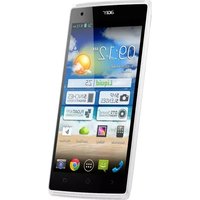


| Product Type | Smartphone |
| Brand | Acer |
| Model | Liquid Z150 Duo Essential |
| Dimensions | 124 x 64 x 10.5 mm |
| Weight | 120 g |
| Display | 4.0 inch TFT, 480 x 800 pixels |
| Processor | 1 GHz dual-core |
| RAM | 512 MB |
| Internal Storage | 4 GB (expandable via microSD up to 32 GB) |
| Rear Camera | 2 MP |
| Front Camera | VGA |
| Battery | 1300 mAh, removable |
| Operating System | Android 4.2 Jelly Bean |
| Connectivity | Wi-Fi 802.11 b/g/n, Bluetooth 4.0, GPS, micro USB 2.0, 3.5 mm audio jack |
| SIM | Dual SIM (GSM, standard SIM) |
| Sensors | Accelerometer, proximity |
| Power | Li-Ion 1300 mAh battery, charging via micro USB |
| Maintenance & Cleaning | Wipe with soft dry cloth; avoid liquids and abrasive cleaners |
| Safety | Do not disassemble; use only approved chargers; avoid extreme temperatures |
| Spare Parts & Repairability | Battery and SIM/microSD covers user-replaceable; other repairs by authorized service |
Frequently Asked Questions - Liquid Z150 Duo Essential ACER
User questions about Liquid Z150 Duo Essential ACER
0 question about this device. Answer the ones you know or ask your own.
Ask a new question about this device
Download the instructions for your Smartphone in PDF format for free! Find your manual Liquid Z150 Duo Essential - ACER and take your electronic device back in hand. On this page are published all the documents necessary for the use of your device. Liquid Z150 Duo Essential by ACER.
USER MANUAL Liquid Z150 Duo Essential ACER
Acer Liquid Z5 Duo User's Manual
Model: Z150
This revision: 12/2013
Acer Liquid Z5 Duo Smartphone
Model number: ____
Serial number: ____
Date of purchase: ____
Place of purchase: ____
Table of contents 3
Setting up - 5
Unpacking your smartphone 5
Getting to know your smartphone 5
Installing a SIM or microSD card 6
Using your smartphone 9
Turning on for the first time 9
Locking your smartphone 9
Navigating through menus and options 10
Using the touchscreen.... 11
The Home screen 13
Multitasking 18
Acer shortcuts....19
Acer Float 19
AcerRAPID 20
Managing contacts 21
Managing your contacts 21
Making calls 22
Before making a call 22
Making a call....22
The voice call screen. 24
Answering or declining a call 24
Ending a call 24
Messaging 26
Creating a new message....26
Replying to a message 27
MMS messages. 27
Going online- 29
Browsing the internet. 29
Setting up your Google email 30
Composing an email 30
Setting up Email 30
Maps, Navigation, Places and Latitude 32
Using the Camera- 33
Camera icons and indicators....33
Taking a photo. 35
Shooting a video 35
Viewing photos and videos 36
Geotagging 36
Advanced settings 37
Changing modes with Quick Mode ....37
Putting your smartphone in Airplane mode ....38
Restarting your phone 38
Adjusting settings 38
Connecting to a PC 43
Data usage wizard....44
FM radio 45
Multimedia playback 45
Restoring to factory settings 46
Accessories and tips 47
Using the headset 47
Using a Bluetooth headset 47
Creating a new access point 47
Inserting a microSD card ....47
Managing your SIM cards 48
Appendix 51
FAQ and troubleshooting....51
Other sources of help 52
Warnings and precautions....52
Emergency calls 54
Taking care of your smartphone 55
Specifications 56
Safety 58
Regulatory information 59
End User License Agreement 64
Unpacking your smartphone
Your new smartphone comes packed in a protective box. Carefully unpack the box and remove the contents. If any of the following items is missing or damaged, contact your dealer immediately:
- Acer Liquid Z5 smartphone
- Battery
- Quick Guide
- USB cable
- AC adapter
- Headset

Note: In-box content varies depending on country and region.
Getting to know your smartphone
Views
No. Item Description
1 Dual SIM cover Insert a SIM and/or micro SIM into the slots.
2 3.5 mm headphone jack Connects to stereo headphones.
| No. | Item | Description |
| 3 | Power button Press to turn the screen on/off or enter sleep mode; press and hold to turn the smartphone on or off. | |
| 4 | Proximity sensor Detects proximity to automatically adjust screen brightness or turn the screen on/off. | |
| 5 | Phone speakers Emits audio from your smartphone; suitable for holding to your ear. | |
| 6 | Front-facing camera Useful for taking self portrait images. | |
| 7 | Touchscreen 5-inch, 854 x 480 pixel capacitive touchscreen to display data, phone content and enter information. | |
| 8 | Micro USB connector Connects to a USB cable/charger. | |
| 9 | microSD card slot Insert a microSD card into the slot. | |
| 10 | Volume up/down buttons Increases or decreases the phone volume. | |
| 11 | Flash | LED flash for camera. |
| 12 | Camera | 5 MP camera for taking high-resolution images. |
| 13 | Microphone | Internal microphone. |
| 14 | AcerRAPID button | Shortcut button to answer incoming calls and end calls. Long press to launch the camera app; short press to launch a designated app (default app is Google Play Music). |
Installing a SIM or microSD card
To take full advantage of your smartphone's telephony capabilities, you must install a SIM card. The SIM card holder is located at the top of the battery bay.
Your new phone has two SIM card holders, you may install one or two SIM cards.
Additionally, you may wish to increase your smartphone's storage by inserting a microSD card into the slot provided.
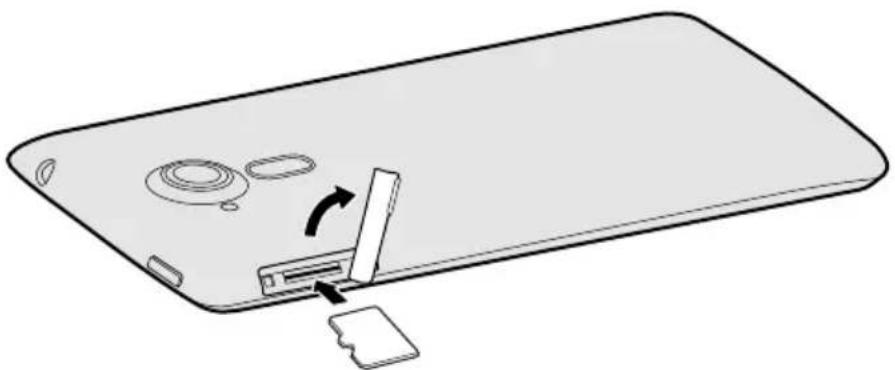
- Insert your fingernail and flip the microSD card cover open and insert the microSD card as illustrated.

- Ensure that the microSD card is inserted all the way into the card slot and secure the microSD card cover.

- Insert your fingernail and flip the SIM cover up. Insert the SIM card and/or micro SIM card into the appropriate slots as illustrated.

- Ensure that the SIM card and/or micro SIM card are inserted all the way and secure the SIM cover.
SIM card lock
Your smartphone may come with a SIM card lock, i.e., you will only be able to use the SIM card provided by your network operator. To cancel the SIM lock, contact your network provider.
Charging the battery
For initial use, you need to charge your smartphone for eight hours. After that, you can recharge the battery as needed. Connect the AC adapter cord to the micro USB connector on your smartphone.

Turning on for the first time
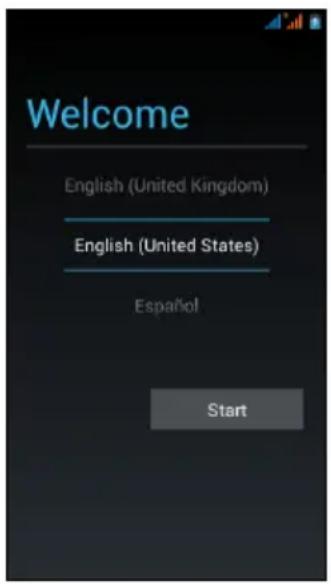
To turn on your smartphone for the first time, press and hold the Power button until the screen turns on. You will then be asked to configure some settings before you can use your smartphone.
Follow the onscreen instructions to complete setup.
Sign in to or create a Google account
If you have internet access, your smartphone allows you to synchronize information with a Google account.
During the start-up process, you may create or sign in to your account, which will be used to synchronize your contact list, email, calendar and other information. If you do not yet have internet access, or do not want to use this feature, then tap Skip.
Creating multiple Google accounts
You can create and easily access multiple Google accounts. Open the Application menu and then tap Settings > Add account.
Entering your PIN
When you install a SIM card for the first time, you may need to enter a PIN using the onscreen number pad.

Important: Depending on your settings, you may be required to enter your PIN each time you switch on the phone function.
Activating a new SIM card
If you are using your SIM card for the first time, it may require activation. Contact your network operator for details on how to do this.
Locking your smartphone
If you will not use your smartphone for a while, press the Power button to lock access. This saves power and ensures your smartphone does not unintentionally use any services. Your smartphone will lock automatically if it is not used for one minute.
Waking your smartphone
If the screen is off and the smartphone does not react to any taps on the screen or front panel buttons, then it has been locked and is in sleep mode.
Press the Power button to wake your smartphone. Unlock your smartphone by sliding your finger horizontally across the screen (it works both ways).
The lock screen extends to either side of the screen, giving you room to add widgets for quick access. To view the extended lock screen, swipe in from the edge of the display.


Note: If you access the extended lock screen by accident while trying to unlock the screen, you can disable it by tapping the lock icon at the bottom of the screen. Then, unlock your smartphone as described above.
For additional security, you may set an unlock pattern, a set of dots that must be touched in the correct order to access the phone. Open the Application menu and then tap Settings > Security > Screen lock.

Note: If you forget your unlock pattern, please refer to "Unlock pattern" on page 52.
Navigating through menus and options
To navigate through menus and options, there are three buttons beneath the screen.


Back
Back Home Recent
Tap this button to go to the previous page, hide the keyboard, or to go up one level in a menu.
Home
Tap this button to go directly to the Home screen. Tap and hold this button to open the Search function. You can also get the Google Now app by tapping Get Google Now.

Note: For information on Google Now, you may wish to view the Wikipedia page for the app at http://en.wikipedia.org/wiki/Google_Now.
Recent
Tap this button to see recently opened apps. Tap an app to open it, or tap anywhere on the screen to return to the Home screen. See "Multitasking" on page 18. Tap
and hold this button to display a list of functions enabling you to adjust certain settings.
Using the touchscreen
Your smartphone uses a touchscreen for selecting items and entering information. Use your finger to tap the screen.
Tap: Touch the screen once to open items and select options.
Drag: Hold your finger on the screen and drag across the screen to select text and images.
Tap and hold: Tap and hold an item to see a list of actions available for that item. On the pop-up menu that appears, tap the action you want to perform.
Scroll: To scroll up or down the screen, simply drag your finger up or down the screen in the direction that you want to scroll.
Google keyboard
This is a standard onscreen QWERTY keyboard that allows you to enter text. Tap and hold a key with numbers at the top to select alternative characters, such as letters with accents.
Tap the 7k3 to see numbers and special characters, and then tap =1c to see even more.
You can choose another input language and change Google keyboard settings by tapping and holding the microphone key. Alternatively, open the Application menu and then tap Settings > Language & input. Then tap the Settings icon next to Android keyboard > Input languages. The keyboard layout changes according to the selected language.
After setting up more than one language, the language being used will be identified on the space bar. Tap and hold the space bar to toggle between multiple input languages.


Text assistance
The Google keyboard has various features that assist you to enter correct text. In the Application menu, tap
Settings > Language & input and then tap the Settings icon to the right of Google keyboard. From here you can enable or disable several keyboard-related settings.
Changing the text input method
To change the input method, in the Application menu tap Settings > Language & input > Default and then select your preferred input method.
Swype
Swype is a fast way to enter text. It allows you to type with one continuous motion across the screen keyboard; you create a word by drawing through letters.
Put your finger on the first letter of the word and draw a path from letter to letter, lifting up only after the last letter. Swype will insert spaces where necessary.
Swype will usually add a double letter in a word when needed, but you can help Swype recognize you want a double letter by scribbling slightly or making a loop on the letter. For example, to get the "ll" in "hello", scribble (or make a loop) on the "l" key.
When there are multiple suggestions for the word you want to enter, Swype displays a Word Choice List. To accept the default word in the Word Choice List, just keep Swyping. Otherwise, scroll through the list by dragging your finger, and tap the word you want.


Press and hold the Swype key to access settings, features, updates, preferences, and help.

Tap the +! = key to see numbers and special characters; tap the page (shift) key to see even more.
Additional keys vary depending on the type of text you enter, e.g. a key to add a smiley is available when typing a text message. Like other keys, tap and hold for additional options.
To change the input method, open the Notification area (see "Status and notification area" on page 16) and tap Choose input method.
Text assistance
The Swype keyboard has various features that assist you to enter correct text. In the Application menu, tap Settings > Language & input and then tap the Settings
icon to the right of Swype. You can also tap and hold the Swype key. From here you can enable or disable the following:
Function Description
Settings Change your text input preferences.
My Words Adjust settings and check words added to your personal dictionary.
Languages Set the language used by the keyboard.
Gestures: A list and description of the various Swype gestures.
Help: Learn how to use the Swype keyboard.
Updates: Check for application and dictionary updates.
Predictive text
Both Swype and Google keyboards provide predictive text input for the browser. As you tap the letters of a word, a selection of words is displayed above the keyboard that continues the sequence of letters tapped, or is a close match allowing for errors. The word list changes after every key press. If the word you need is displayed, you can tap on it to insert it into your text.
The Home screen
After booting, your smartphone will display the home screen. This screen gives you quick access to information and simple controls with widgets or shortcuts. These display information such as the time and weather, or provide additional controls and direct access to apps and other frequently used features of your smartphone.

At the bottom of the screen is the Application dock which displays default apps (see "Changing application dock icons" on page 15 to change these icons). Tap an icon to open the app. Tap the Application menu icon in the middle of the Application dock to view your apps (see "The Application menu" on page 16 for more information). To change apps, see "Changing application dock icons" on page 15.
Search
To search for apps, files, or for information on the internet, tap the Google icon. Simply enter the text you want to find and tap, or tap one of the suggestions, apps, or files shown in the list. You can also choose what Search searches for. Within Search, tap the Back button to hide the keyboard. Then tap the Menu icon > Settings > Phone search. Select the apps you want Search to search.

Note: In order to search or browse the internet, you must be connected to a cellular data (if available) or wireless network. See "Going online" on page 29.
Voice search
If voice search is available, tap the microphone and speak your search request. See "Voice search" on page 29.
The extended Home screen
The Home screen extends to either side of the screen, giving you more room to add icons, widgets, or features. To view the extended screen, slide your finger to the left or right.

Personalizing the Home screen
You may personalize your Home screen by adding or removing application shortcuts or widgets, and by changing the wallpaper.
Adding and removing shortcuts and widgets
To add shortcuts or widgets, tap the Application menu icon in the bottom-center of the Home screen.
Tap APPS to see a list of shortcuts to apps you can drag to a Home screen.
Tap DOWNLOADS to see a list of apps you have downloaded.
Tap WIDGETS to see apps and links (such as custom shortcuts, contacts or bookmarks) that you can add to a Home screen. Widgets are apps that display constantly-updated information or quick shortcuts to apps or special functions.
To move an app or widget to the Home screen, tap and hold an item until it is selected. The Home screen will open. Drag the item to any free area on the screen. To view information about the app or widget, drag it to the icon at the top of the screen.
To move the item to a different Home screen, drag it to the side of the screen, the Home screen will switch to the screen in that direction. Release the item when it is positioned correctly.
To remove a shortcut or widget from the Home screen, tap and drag it to Remove at the top of the screen.
Adding or removing folders
You can also add folders to your Home screen. To create a new folder drag and drop an application icon onto another application icon in the Home screen. This will create an Unnamed Folder. Tap the folder icon and then tap the name of the folder to rename it.
![graph LR A["Location Map"] --> B["Map"] B --> C["Map Folder"] C --> D["Local Map"] D --> E["Unmanaged Folder"]](/content/2026/06/1292667/images/6f2db92bb36386d330a61803c79a953fbf35416d989cf928ece8da1e69ec8b7b.jpg)
To delete an application shortcut from a folder, tap on the folder icon to display the apps inside and then tap and hold the application icon that you want to remove. Drag and drop the icon on Remove that will appear at the top of the screen.
To delete a folder, tap and hold on the folder and then drag and drop the folder on Remove that will appear at the top of the screen.
Changing application dock icons
You can set icons for installed apps in the Application dock. Open the Application menu and find the app you want to add. Tap and hold the icon, then drag it to any open position in the dock. Dragging the new app to an existing dock icon will create a folder for both icons.
To remove an icon from the dock, tap and hold the icon to select it. Either drag the icon to a different location outside the dock or to Remove at the top of the screen.
Changing the wallpaper
Tap and hold any open area on the Home screen. Tap Wallpaper to change the lock screen and home wallpaper. You can choose from images stored in the Gallery, standard wallpapers, Live Wallpapers featuring animated or interactive backgrounds, or Video Wallpapers enabling you to use videos as your background.
Managing the lock screen
Tap and hold any open area on the Home screen. Use the various settings to personalize the lock screen by enabling/disabling notifications on the lock screen and setting wallpaper images.

Changing home screen settings
Tap and hold any open area on the Home screen. Use the various settings to personalize the home screen such as changing the transition effect when scrolling to different screens.
The Application menu

Note: All images are for reference only. The apps installed on your device can be different from the apps shown in illustrations.
To access the Application menu, tap the grid icon in the center of the dock on the Home screen. Apps are displayed in alphabetical order. Swipe the page to the left or right to see more apps. When you are on the last page of apps, swipe to the left to see downloaded apps on your phone, or tap DOWNLOADS at the top of the page. Swipe to the left to see widgets available on your phone, or tap WIDGETS at the top of the page.
To quickly jump to apps or widgets, tap APPS, DOWNLOADS or WIDGETS at the top of the Application menu.
Tap the Play Store icon to open Google Play to view and purchase apps and/or digital media.

Status and notification area
The Notification area is at the top of the screen.

This area contains a variety of icons that inform you about your phone's status. The left side of the Notification area displays event icons that indicate a new event (such as a new message).
Drag the Notification area down the screen to view more information about new events.
Tap to clear the notification area.
Tap to adjust commonly used settings.

Connection icons

Note: Connection icons appear in different colors if you have two SIMs inserted.
The icons on the right side indicate signal strength, connection, battery status, and the time.
| Icon Description Icon Description | |||
| G | Connected to GPRS mobile network | R | Roaming |
| E | Connected to EDGE mobile network | Cellular signal strength | |
| 3G | Connected to 3G mobile network Mobile data transferring | ||
| H | Connected to HSDPA network Connected to a wireless network | ||
 | Bluetooth is on No signal |  | |
 | Bluetooth connected Airplane mod | [Vireless connectivity disconnected.Please disable airplane mode before trying to make a call.) | |
 | USB and wireless tethering are activated |  | USB tethering is activated |
 | Wireless tethering is activated | ||
Battery icons
Icon Description Icon Description
| Battery is very low Battery is partially drained | |
| Battery is low Battery is full | |
| Battery is charging |
Notification icons

Note: Notification icons appear in different colors if you have two SIMs inserted.
Icon Description Icon Description
Alarm is set SIM card is invalid or r  ---- ---- | installed | |
 | Speakerphone is on Vibrate mode  |
Icon Description Icon Description
| New Gmail message Ringer is silenced | ||
| New/unread SMS/MMS Phone microphone is off | ||
| Problem with sending SMS/MMS Application update available | ||
| New Google Hangouts message System update available | ||
| New voicemail Missed call | ||
| Upcoming event Song is playing | ||
| Syncing data More notifications | ||
| Warning, open the notification area for more information | GPS is on | |
| SD card or USB storage is full Receiving location data from GPS | ||
| An open wireless network is available | Uploading data | |
| Phone is connected to PC via USB | Downloading data | |
| Carrier data use threshold exceeded | Download finished | |
| Connected to or disconnected from virtual private network (VPN) | ||
Multitasking
You can have multiple apps open at the same time. Tap the Recent button to see recently opened apps. To open a new app, tap the Home button to return to the Home screen, then start the new app.
To prolong battery life, it is better to close an app when you've finished using it. You can do this three ways:
- Press the Back key until the app is closed
- Tap the Menu icon and select Exit (if available)
- Press the Recent button and swipe the icon off the screen.

Acer shortcuts
Tap and hold the Recent button to launch a shortcut list to your favorite apps. To add an existing app to the shortcut list, tap and tap on an empty slot to open the Choose an app shortcut list. To remove a shortcut app, drag the app to Remove.


Acer Float
Tap and hold the Recent button to launch the Acer Float application list. Acer Float allows you to open the camera app, maps app, calculator app or notes app as a "floating" window. The "floating" windows can be moved around in the display.


Note: Only one Acer Float app can be open at a time. If a second Acer Float app is opened, the first Acer Float app will close.
AcerRAPID
The AcerRAPID button is located directly below the camera.
Long press the AcerRAPID button to launch the camera app. While the camera app is open, push the AcerRAPID button to take a picture. Long press to take four continuous pictures.
Short press the AcerRAPID button to launch the Google Play Music app. To change the app for the short press function, open the Application menu and tap Settings > AcerRAPID > Short press and choose an app.
The AcerRAPID button also allows you to answer incoming calls and end calls quickly without needing to touch the screen. To accept an incoming call, press the AcerRAPID button. When finished, press the AcerRAPID button to end the call.


Note: Only the short press function can be changed. The long press function is fixed as the camera app and can't be changed.
Managing your contacts
Your smartphone features an address book that allows you to save contacts to your phone's internal memory, either one of your SIM cards, or your Google account.
From the Home screen tap Phone 📞 and tap 📞 to view your contacts. If you don't have any contacts stored on your phone, you can import contacts from your Google account, SIM, or SD card.
You can also add a new contact by tapping to add a
contact, 🔒 to search for a contact, or tap the Menu icon to open the menu.
Adding a contact
Tap add a new contact. If you have a barcode scanner app, you may also scan a person's profile barcode to add the person to your contact list or group.
To create a contact, first choose where you want to store the contact's information. You will then be asked to enter the contact's information, such as name, address, and phone number.
You may scroll down the page and tap Add another field to add things such as:
- IM addresses
- Add any personal notes about the contact
- Phonetic name
- Link a website
To assign an image to your contact, tap the silhouette and select whether to take a photo or select an image from your smartphone's picture gallery. When done, click Done at the top of the screen. Tapping on the contacts name will bring
up their profile. Tap while viewing a contact's profile for a variety of options related to that contact.


Tip: You may also create a contact from an already dialed or received number, see "Saving a dialed number to contacts" on page 25.
This chapter shows you how to make phone calls, and the various options available to you during your call.
Before making a call
Check that the phone function is on before you make a call. You can confirm the phone status from the Notification area.

Note: Status and notification icon colors may vary.
Icon Description
| Not connected to the network: You are unable to make a call. | |
| Connected to the network: You may make a call. | |
| Airplane mode: Wireless connectivity disconnected (Wi-Fi, Bluetooth, 2G and 3G). Please disable airplane mode before trying to make a call. |
Making a call

Note: The phone function needs to be enabled before the call can be connected (see "Before making a call" on page 22).

Note: When two SIMs are inserted and their Voice call settings are set to Always ask (see "Managing your SIM cards" on page 48), you must choose which SIM to use each time before making a call by tapping on the carrier name.
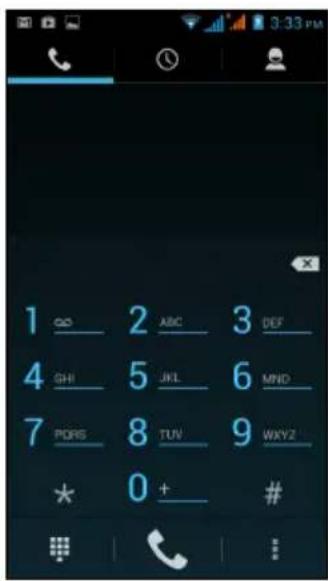
- From the Home screen tap Phone already visible, search for the phone Application menu. s not
- Enter the number you wish to dial. If the contact you need is displayed, simply tap the contact name to make a call.
- Tap at the bottom of the screen to make the call.
- To end the call, tap


Dialing a number from Call log
Your call history can be viewed by tapping the Call log tab at the top of the screen. It displays recent received, dialed, and missed calls.
Tap the phone icon next to a contact to redial. To view details of the call, tap the number or contact's name. While viewing the details of a call, tap the trash icon to remove that call from the call log or tap the Menu icon for other options to edit number before making a call.
Viewing missed calls
Missed call notifications are displayed in the following three areas:
- The Notification area with the missed call icon 📋. Open the Notification area and tap the missed call notification to display the missed call details.
- By the Phone icon 📋 (the number in the box is the number of missed calls). Tap Phone from either the Home screen or the Application menu to directly display the missed call details.
- In the Call log, tap the missed calls tab ↙ to display the missed call details.


Making a call to one of your contacts
Calling a contact from the People tab
- Tap the People tab at the top of the screen to view your contacts.
- Tap on a contact to call them.
Dialing an international number
When dialing international numbers, there is no need to enter the international direct dialing prefix ('00' etc.) before the country code. Simply tap and hold 0+ on the onscreen number pad until + appears onscreen.

Warning: International call rates can vary greatly depending on the country you are calling and your network provider. We suggest you check all call
rates with your network provider, to avoid excessive phone bills. If you are using your smartphone abroad, roaming charges will apply. Consult your network provider for roaming rates specific to the country you are visiting before you leave.
The voice call screen
The voice call screen displays after you have dialed a phone number and after you have accepted a phone call. The screen displays the number/contact you are talking to, the call duration and voice call options. You can minimize the call window to appear as a small movable box instead of a whole screen by tapping the 📋 icon. You can set this "floating" dialog box as the default voice call screen. To do so, open the Notification area, tap
and then tap the FLOAT CALLER button

Answering or declining a call
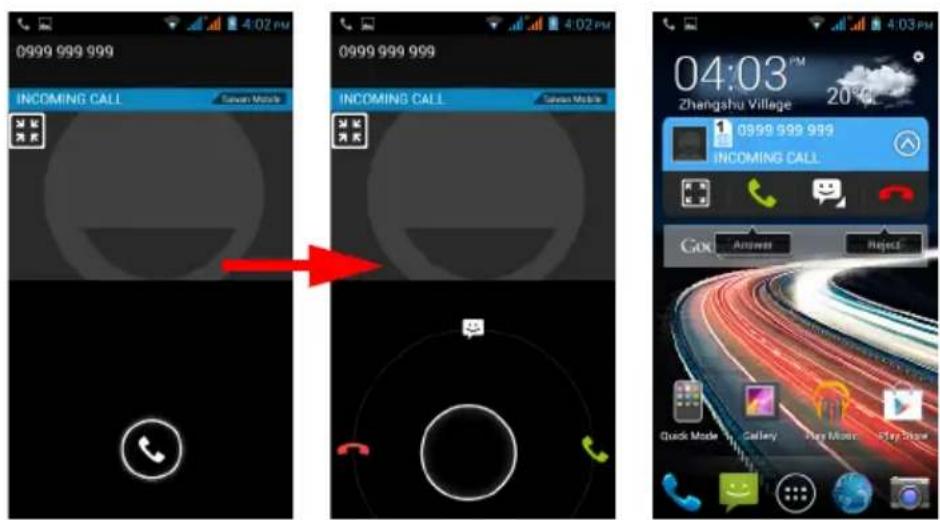
When you have an incoming call, the number will be shown on the screen. Tap and slide your finger across the screen to answer or reject the call. To reject the call with a text message, slide your finger up to the 🤘 icon and select a message. If the Float Caller option is enabled, the number will be shown as a "floating window". To answer or reject a call with Float Caller, tap the appropriate icon.
Ending a call
To end a call, tap from the voice call screen.
Icon Description

Access the keypad while a call is in progress.

Speakerphone.

Mute a call.

Place the call on hold.

Add another call.
Saving a dialed number to contacts
You can save a number you have dialed to your contacts for future use.
- Select the number from the Call log tab, and tap on the contact 📄. You will then be asked if you want to add the number to your contacts.
- Tap OK.
- Tap Create new contact and select how to complete the action. See "Adding a contact" on page 21.
Conference calls
If you have one call on hold and another on line, you can combine both calls to create a conference call.
After the first call is established, tap □ and tap Add call to start the conference call.
This chapter shows you how to set up and use the Phone messages, Social messages and Social events functions of your smartphone.
All SMS and MMS messages are accessed via Messaging. Messaging automatically arranges received and sent messages into threads.
To access Messaging tap on the Home screen.

Note: When two SIMs are inserted and their Messaging settings are set to Always ask (see "Managing your SIM cards" on page 48), you must choose which SIM to use each time before sending the message by tapping on the carrier name.
Creating a new message
You can use your phone to compose Phone (SMS and MMS) messages.
Tap □ to compose a new message.
Tap the Type name or number field and enter the recipient's phone number or name. Suggested contacts will be displayed in a drop-down list below the text field. To select a suggested contact, tap the contact's name. To add several contacts, tap 📋 to display your People list. Once you've selected the desired contacts, tap OK.
Enter your message in Type text message field. When finished, tap ▶ to send.


Note: SMS messages may be up to 160 characters long. If your message is longer than 160 characters, it will be sent as multiple linked messages. Most phones will automatically join the linked messages to present the recipient with a single long message, however, some older phones do not have this ability.
Tap the Menu icon to see what options are available when creating a new message. The options change depending on the status of the message.
Option Description
Insert quick text: Insert pre-defined text content.
Insert contact: Add a contact to the recipients list.
Add subject: Add a subject to the message.
Discard: Discard the message.
Replying to a message
When a new text message arrives, a message screen displays showing you the message and enabling you to quickly reply. To reply later, tap Close. To view the message and all previous messages from the sender, tap View.
Message notifications appear in two places: the Notification area and the message icon at the bottom of the phone displays the number of unread text messages.
Tap Messaging on the Home screen to view the message list or open the Notification area to see a summary of the message. Tap the summary to open the message list.
To reply to an SMS or MMS message, open the message from the message list. Enter your text in the text box labeled Type text message. Tap the Menu icon to see available options.
Option Description
Select message: Perform various actions to multiple messages from this contact.
Add shortcut: Puts a link on the Home screen to that contact's messages.
Insert quick text: Insert pre-defined text content.
Insert contact: Add a contact to the recipients list.
Add subject: Add a subject to the message.
Add to contacts: Add the other contact to your contacts list.
Chat settings: Modify various messaging settings.
MMS messages
MMS messages are similar to text messages but also allow you to attach multimedia files such as pictures, audio, or video clips. Each MMS message can be up to 300 KB in size.

Note: You need to set up an MMS profile before you can send MMS messages. Normally, your smartphone will set up the profile for you based on information retrieved from your provider.

Tip: Ask your network provider for the necessary information if you need to manually set up the MMS profile.
Receiving MMS messages
When a new MMS message arrives, a message icon appears at the top of the screen and a notification message is displayed.

Note: Downloads can take a long time, depending on your connection quality. If you reply or open another application, the download will be stopped.

Important: You may be charged to download message content, especially if you are roaming. Please contact your provider if you have any questions.
- Open Messaging to view a summary of the message.
- Tap the message to view the content.
- Tap Download to download the message content.
- To reply to the message, enter your text in the text box labeled Type text message and tap the Send icon. Simple text replies will be sent as SMS messages. If you wish to attach multimedia and/or other content, tap the attachment icon. You will be presented with a menu of options.
- When you have finished composing the message, tap the Send icon.

Browsing the internet
In order to browse the internet with your smartphone, you must be connected to a data or wireless network.
Using the browser
To start browsing, open the Application menu and tap Chrome. To open a new website, tap the address box at the top of the page. Enter the address using the keyboard and tap Go. You can zoom in or out of pages by pinching or reverse pinching.
To navigate forward and backward in your browser's history, view your bookmarks, adjust browser settings, and perform other tasks, tap the Menu icon.
Chrome enables you to open multiple
pages. Tap the tab icon at the top of any webpage to display all of your open tabs (tap again to close). Tap a tab from the list to open it. To open a new tab, tap New tab. The number in the icon represents the number of open tabs.

Note: Voice search is available only in some regions.
With voice actions, you can send text messages, place calls, send emails, find directions to establishments, automatically call establishments, search the internet and even send a note to yourself using your voice. Open
Voice Search from the Application menu, or tap the voice search icon from the Home screen.

Setting up your Google email
- Make sure your smartphone is connected to a data or Wi-Fi connection.
- From the Application menu, tap Gmail.
If you did not enter your Gmail account address and password when you first started your phone, follow the onscreen instructions.
Composing an email
- Make sure your smartphone is connected to a data or Wi-Fi connection.
- From the Application menu, tap Gmail.
- Tap the Menu icon and then Compose.
- Enter the recipient's email address, the subject, and message.
- When you are finished composing your message, tap ▶
Setting up Email
Your smartphone enables you to access your email. Most popular ISPs can be set up in two steps. In the Application menu, tap Email to start setting up your email account.

If necessary, enter your email address and tap Manual setup to enter the parameters manually. Tap Next to finish the setup process.
Google Play

Note: Google Play may not be available in all countries and regions.

Note: You must activate a Google account before using Google Play. The first time you access Google Play, you will need to read and accept the Terms of Service.
Tap Play Store from the Application menu to open Google Play. Here you can obtain a variety of add-on programs and apps to enhance the functionality of your smartphone.

Note: The contents and design of Google Play vary by region. For example, in some regions, you can also browse for and purchase movies, books, magazines, or music. Updates may add new categories or change how to navigate Google Play at any time.
You can browse the store by category or tap the search icon to search for a specific app.


Once you have selected an app, tap the Install button to download and install the app. You will be told which services (contact information, wireless access, GPS, etc.) the app requires access in order to function correctly. If none of these services seem unusual, tap Accept & download to proceed with the installation.
You may keep track of the download progress from both the app's page and the smartphone's Notification area.


Important: Some apps may require payment before you can download them. You will need to have a Google Checkout account in order to pay for these apps, or a credit card number associated with your Google account.
Using downloaded apps
Once you've downloaded and installed an app, you may find it in the APPS, DOWNLOADS or WIDGETS sections of the Application menu.
Certain apps provide both an application icon and widget, or only provide a widget (with no application icon). See "Personalizing the Home screen" on page 14.
Uninstalling downloaded apps
To uninstall an app, go to Settings from the Application menu and select Apps. Tap the app you wish to uninstall, tap Uninstall and confirm.
Maps, Navigation, Places and Latitude
Get easy-to-follow directions using Google Maps, view real-time traffic condition and navigate by using spoken, turn-by-turn driving instructions with Navigation, view where your friends are and places of interest and local businesses on Google Maps using Places and Latitude.

Important: Google Maps does not have information about every location.
Using the map
Tap Maps in the Applications menu. Drag the map with your finger to move the map around.
To zoom in or out:
- Double tap a location on the map to zoom in on the location, and tap once to zoom out, or
- Touch an area with two fingers at once and spread them apart to zoom in, and pinch them together to zoom out.

Important: Not all zoom levels are available for all locations.
Your smartphone features a digital camera mounted on the rear. This section will take you through all the steps in taking photos and videos with your smartphone.
To activate the camera, tap Camera on the Home screen, or open the Applications menu and tap Camera.
Camera icons and indicators
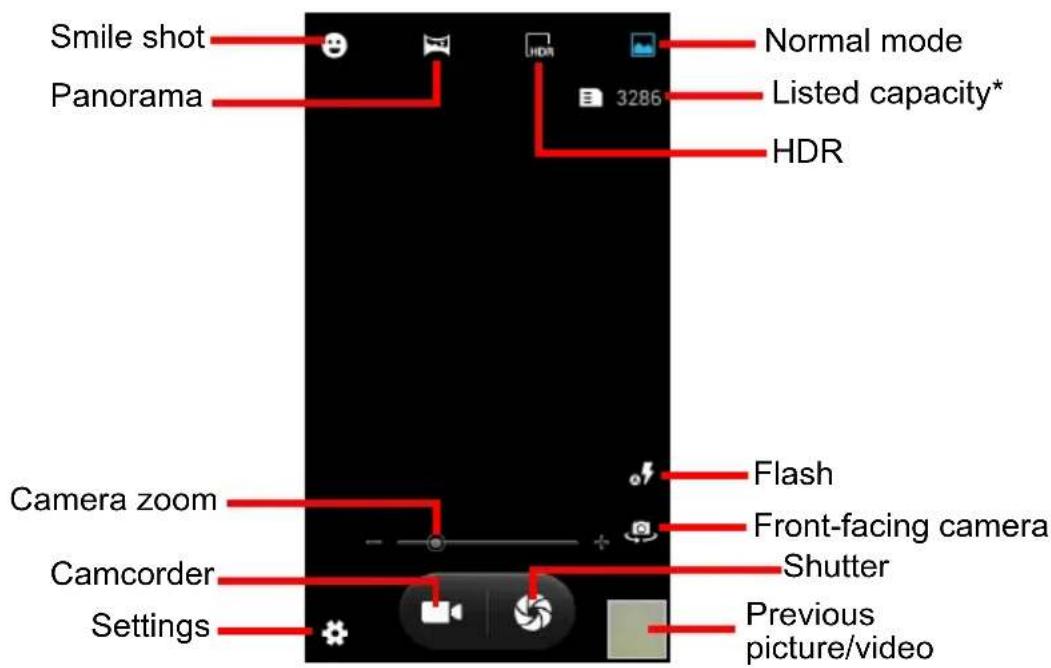
* The listed capacity is the approximate number of images that can be taken at the current resolution.
The camera window provides controls on either side of the image. Pinch the screen to zoom in and reverse pinch to zoom out.
Tap the camera icon to take a picture. Tap the Previous picture/video thumbnail to open the gallery. Tap the settings icon to open the Settings menu.

Settings menus
General
You may adjust the following:
- Turn GPS info on or off: Stores GPS information in the image information.
- Exposure: Over- or under-exposes the image. • Color effect: Applies a color effect to the image.
- None • Negative
- Mono • Sepia Blue
- Sepia
- Scene mode: Adjusts photo parameters for a particular environment.
• Auto • Night - Portrait • Landscape - Sports • Sunset
- White balance: Compensates for different lighting environments.
- Auto • Fluorescent
- Incandescent • Cloudy
- Daylight • Tungsten
• Image properties: Adjusts the Saturation, Brightness, and Contrast. - Anti-flicker: Set the anti-flicker to Off, 50 Hz, or 60 Hz.
Camera
You may adjust the following:
- Turn Zero shutter delay on or off: Takes the photo immediately when you tap the shutter icon.
- Turn Face detection on or off: The camera automatically detects faces and focuses on them.
- Set the Self timer: Options are Off, 2 seconds or 10 seconds.
- Continuous shot: Set the maximum number of photos taken in a single burst.
- Picture size: Set the picture resolution.
Camcorder
You may adjust the following: - Turn the Microphone on or off. - Set the Audio mode. - Set the Time lapse interval.
- Set the Video quality.
Taking a photo
- Ensure you have adjusted the settings described above.
- Frame your subject and steady your smartphone.
- Zoom in or out as needed.
- Tap 📋 to take a picture.
Taking a panoramic photo
Panoramic mode allows you to take a series of up to nine photos that the camera application will ‘stitch’ together to make a single extended image.
- To take a panoramic photo, select panoramic capture mode
- Align the camera to take a photo of one end of the panoramic scene (the furthest left, right, top or bottom).
- Tap the Shutter icon to take the first image; then smoothly turn the camera to the left or right to take the next image of the scene.
- Keep the blue arrow aligned with the dotted arrow as you move the camera. Your smartphone will automatically capture an image along the length of your shot.


Note: If your photo needs fewer than nine images, tap the tick icon to stop the selection process and process the captured images.
The camera application will process the images and save a single extended image to your smartphone's gallery.

Note: Panoramic images work best with static outdoor scenes. Objects too close to the camera or with large straight edges may confuse the detection process.
Shooting a video
- Frame your subject and steady your smartphone and zoom in or out as needed.
- Tap to start taking a video. The icon will turn red to indicate that recording is in progress. Tap the icon again to stop recording.
Supported formats
Type Formats
Image JPEG, GIF, PNG, BMP
Video MPEG-4, H.263, H.264
Viewing photos and videos
After you have taken your photo or video, it is automatically saved. Once you have taken a photo or video, you can view it in Gallery by tapping the Previous picture/video thumbnail. Alternatively, open the Applications menu and tap Gallery. From Gallery you can share the file directly using various services.

Note: Share options vary depending on the file type.
You may also edit photos you have taken by tapping the menu icon in the upper right-hand corner, then tap Edit.
Geotagging
Geotagging allows you to store the location where a photo or video was taken right in the photo or video itself.
For the geotag to display, pictures must be taken with GPS location info turned on.
Changing modes with Quick Mode
Your smartphone contains an app called Quick Mode that makes adjusting the user experience for different people very easy. From the Home screen, tap Quick Mode.

The first time you enter Quick Mode, you'll need to enter a PIN.

Note: The default PIN is "1111".
Several user mode options will display. Follow the onscreen instructions to display your new easy-to-use mode.
![graph LR A["Basic Mode"] --> B["Senior Mode"] B --> C["Keypad Mode"] C --> D["Classic Mode"] D --> E["Default Mode"] E --> F["Change PIN number"] G["Personal"] --> H["Camera"] H --> I["Info C..."] J["Utilities"] --> K["My Ap..."] L["Settings"] --> M["Social"] N["Media"] --> O["Internet"]](/content/2026/06/1292667/images/595383224e72be398e1564dbdb20742acd2f51204ae7c87a2203c0e74671e789.jpg)
To change modes or revert back to default mode, tap Settings (in some modes simply represented by the gear icon). Enter your PIN number. Navigate to and tap Mode Switcher. To revert back to the phone's default mode, tap Default Mode; otherwise, choose another mode to use.
Putting your smartphone in Airplane mode
You can enter Airplane mode (also known as flight mode) to turn off telephone, wireless, and Bluetooth functions and use your smartphone as a handheld device during a flight. Check with your airline to make sure this is permitted onboard.
Switch your smartphone off during takeoff and landing as it may interfere with aircraft electronic systems.
Turning Airplane mode on or off
- Open the Notification area.
- Tap and then tap AIRPLANE MODE.
-OR-
- Press and hold the Power button until you get the phone options menu.
- Tap Airplane mode to switch it ON or OFF.

Note: When Airplane mode is active, the Notification area.


icon will be displayed in the
Restarting your phone
You can restart (reboot) your phone if you find apps are not responding.
- Press and hold the Power button until you get the phone options menu.
- Tap Restart.

Note: If the phone is no longer responding, press and hold the power button and the volume button simultaneously for 10 seconds to restart the phone.
Adjusting settings
This section will show you how to adjust detailed settings for your phone, data, Wi-Fi and Bluetooth connections.
Activating or deactivating connections
Open the Application menu and tap Settings to manage your connection settings.
Item Description
| SIM management Under SIM INFORMATION, both SIM cards are listed. Tap the SIM card name to display basic settings and tap on or off to activate or deactivate the SIM, respectively. |
| Voice call: Use one SIM card for all phone calls or select which SIM card to use every call. |
| Messaging: Use one SIM card for all messages or select which SIM card to use every message. |
| Data connection: Use one SIM card for all data connections or select which SIM card to use every time you connect. |
| 3G service: Select the SIM card that uses a 3G connection and the network mode. |
| Roaming: Set options for your phone when outside your normal network. |
| Contact binding: Displays and enables you to add which contacts are associated with (not necessarily saved to) a particular SIM card when calling or messaging. |
| Set a default SIM for particular functions (such as voice calling or messaging), turn the data connection on or off, set roaming preferences and associate contacts with a SIM. |
Wi-Fi Turn the Wi-Fi function on or off.
Bluetooth Turn the Bluetooth function on or off.
Data usage View an estimate of the mobile data used on each SIM.
Call Settings Change voice call related settings, internet call related settings, enable or disable Float Caller, enable or disable the proximity sensor and other settings.
More... Access additional connection settings:
Airplane mode: Disable all wireless connections so you can safely use this device onboard an aircraft.
VPN: Set up and manage Virtual Private Networks.
Tethering & portable hotspot: Share your phone's mobile data connection via USB or as a portable Wi-Fi hotspot.
Mobile networks: Set your options for connecting to mobile networks.
USB Internet: Share and connect to the internet through a Windows PC via USB cable.
Important: If your phone is in Airplane mode, the option to turn Bluetooth on will be disabled. Please refer to "Putting your smartphone in Airplane mode" on page 38 for instructions on turning Airplane mode on or off.
Adjusting Bluetooth settings
You can use Bluetooth to exchange information between your smartphone and other mobile devices.
Bluetooth connections
For all Bluetooth settings, open the Application menu and tap Settings > Bluetooth. Here you can switch Bluetooth on or off, set a device name and discoverability. After turning it on, tap SEARCH FOR DEVICES to scan for available devices.
To connect to a device, tap the device in the list of available devices. You may be asked to enter a PIN on both devices to establish the connection.
To simply turn on or off Bluetooth, open the Notification area, tap and tap BLUETOOTH.
Internet sharing
Tethering via USB
If you wish to share your mobile internet connection with a computer, you can connect your phone to a PC using the supplied USB cable.
- Plug the USB sync cable into the micro USB connector on your smartphone.
- Plug the USB client connector into an available USB port on your computer.
- Open the Application menu and then tap Settings > More.. > Tethering & portable hotspot > USB tethering.
Wi-Fi hotspot
You can turn your smartphone into a portable Wi-Fi hotspot to share your mobile internet connection with up to eight clients.
- Open the Application menu and then tap Settings > More... > Tethering & portable hotspot. Turn Wi-Fi hotspot ON. Tap Wi-Fi hotspot > Set up Wi-Fi hotspot.
- Set the Network SSID and adjust security between None, WPA PSK, and WPA2 PSK. Tap Save to finish.

Note: When your smartphone is serving as a Wi-Fi hotspot, you can't use your phone's applications to access the internet via its Wi-Fi connection.
Phone network settings
Open the Application menu and tap Settings > More... > Mobile networks to adjust your network settings. You can turn data connection on or off when roaming,
choose a preferred network mode, specify a network operator and define access point names.
Selecting a network
Your phone will automatically detect your carrier/network settings when you insert a new SIM card. However, you may prefer to manually select a network. This may be a good idea when roaming.
Open the Application menu and tap Settings > More... > Mobile networks > Network operators and select which SIM card to use.

Tip: When you are traveling, manually selecting a network may help to reduce your roaming charges. Check with your home service provider for the network offering the most competitive rates at your destination.

Note: Contact your service provider should you have any problems obtaining voice mail and the text message service center numbers.
Data usage control settings
Data usage controls let you monitor total usage by network type and application and then set limits if needed.
To access the Data usage settings, from the Application menu tap Settings > Data usage.

Note: To set a data limit, Wi-Fi or Mobile data must be enabled.
Phone settings
Many phone settings are automatically configured by your smartphone when you insert a SIM card. The device will communicate with your provider and automatically obtain all necessary settings, such as network name, voice mail and text message center numbers.
You can also view and modify these settings manually through the Call settings screen.
Tap Phone from the Home screen. Tap the Menu icon > Settings.
Sound
To adjust your phone's sound settings, in the Application menu tap Settings > Sound.
Item Description
Vibrate: Vibrates the device for incoming calls.
Volumes: Adjust the Ringtone, Notifications, Alarm volumes.
Item Description
| SIM1 ringtone Sets the default voice calls ringtone for SIM 1. To see which SIM card slot is SIM 1, see "SIM card lock" on page 8. | |
| SIM2 ringtone (optional) | Sets the default voice calls ringtone for SIM 2. To see which SIM card slot is SIM 2, see "SIM card lock" on page 8. |
| Default notification sound | Set your phone's default notification sound. |
| Dial pad touch tones Play tones when using dial pad. | |
| Touch sounds Play sounds when touching certain UI elements. | |
| Screen lock sound Play sound when locking and unlocking the screen. | |
| Vibrate on touch Vibrate when pressing soft keys and on certain UI interactions. | |
Audio profiles
To choose between four predefined profiles, in the Application menu tap Settings > Audio profiles and choose one.
Item Description
| General Ring and vibrate |
| Silent Silent only |
| Meeting Vibrate only |
| Outdoor Loudest ring and vibrate |
DTS Sound
To adjust your phone's DTS audio settings, in the Application menu tap Settings > DTS Sound. Tap DTS Sound to enable and adjust the Treble, Bass, Music EQ and Video EQ. Tap DTS Sound to uncheck and disable.

Display
To adjust your phone's display settings, in the Application menu tap Settings > Display.
Item Description
| Lock screen notifications | Enables notifications to display on the lock screen. |
Item Description
Wallpaper: Change the Home screen's wallpaper.
Auto-rotate screen: Enable rotation of the screen when the device is tilted.
Brightness: Adjust screen brightness.
Daydream: Choose various screen saver visuals for when the phone is docked, charging, or both.
Font size: Change the default font size for the UI.
Sleep: Adjust the delay before the screen automatically turns off.
Connecting to a PC
If you wish to transfer information between your phone and your computer, you can connect your phone to a PC using the supplied USB cable. Plug the USB sync cable into the micro USB connector on your smartphone. Plug the USB client connector into an available USB port on your computer.
Open the Notification area, and tap Connected as media device to configure the USB options.
You will now be able to see your phone as a drive in your computer's file explorer.


Note: After turning on USB storage, you will not be able to access the files in applications such as Gallery or Music.
Synchronization
You can sync your calendar, email, and contacts on your phone and never worry about losing them again. Sync in real time or adjust it as you please. In the Application menu, tap Settings. Under ACCOUNTS, tap the appropriate account and again under ACCOUNTS tap that account's email address to access the synchronization settings.
To add a new account, tap Add account. Select the type of account (Corporate, Email, Facebook, or Google) and then follow the onscreen instructions.
Google Sync
In Google, you can set synchronization for Browser, Calendar, Contacts, Gmail, and Google Photos. In your Google account's synchronization settings menu, tap the checkmark next to the item you would like to have auto-sync. Tap again to uncheck any for manual synchronization.

To manually synchronize an item, make sure the item is checked, tap the Menu icon and then tap Sync now.

Note: You need a Google account to sync your calendar and appointments.
Data usage wizard
The Data usage wizard monitors and logs all of your data usage and data consumption. You can access the Data usage by tapping on the Data usage wizard from the Home screen. By checking the Data usage, you can determine which apps were used and how much data was used on any given day.

FM radio
The FM radio allows you to listen to your favorite stations while on the move. Headphones must be inserted to the 3.5 mm jack as it functions as an antenna.
You can access the radio by tapping FM Radio from the Application menu.
Tap the back icon to turn the radio off.
Multimedia playback
Your smartphone comes supplied with a variety of programs that you can use to enjoy multimedia content.
Adjusting the volume

Adjust the volume of your phone using the Volume button on the side of the phone. Alternatively, you can set the Ringtone, Notifications, and Alarms volume by opening the Application menu and tapping Settings > Sound > Volumes.
Setting the date and time
To set the date and time, open the Application menu and tap Settings > Date & time.

Tip: If you travel frequently or live in an area that uses daylight saving time, activate Automatic date & time from this menu. This will enable your smartphone to set the date and time based on information it receives from the network.
Setting alarms
There are two predefined alarms on your phone by default. Tap Clock in the Application menu, and then tap the alarm icon in the bottom-left to edit alarm settings. You may:
- Turn the alarm on or off.
- Set the alarm time.
- Set which days to repeat the alarm.
- Set a ringtone.
- Enable or disable vibrate.
- Give it a label.
Changing language and text options
Set your location and language input preferences by opening the Application menu and going to Settings > Language & input.
Closing an application
To close an active app, in the Application menu tap Settings > Apps. Swipe over to the Running tab, then tap the program you wish to close. Tap Stop to close the program.
Uninstalling an app
You can remove programs installed on your smartphone to free up extra storage memory.
- In the Application menu tap Settings > Apps.
- Swipe over to the Downloaded tab.
- Find the app in the list and tap on it.
- Tap the Uninstall button and then tap OK

Warning! You should only remove programs if you are familiar with the Android operating system.
Restoring to factory settings
You may perform a clean boot to restore your smartphone to the factory settings.

Note: Before performing a clean boot, ensure that your smartphone is not locked. Press any key or tap the screen to see if the phone responds.

Warning! You should only perform a clean boot when all other options have failed to restore your smartphone to an operational state.

Warning! This will erase all your personal information, any contacts stored on your phone and any programs you installed.
If your phone is responding to screen input, then open Settings from the Application menu. Tap Backup & reset > Factory data reset > Reset phone and then Erase everything to format your phone.
This chapter shows you how to use accessories with your smartphone, as well as provide useful tips for when you are using your smartphone.
Using the headset
Your smartphone is compatible with headsets with built-in microphone for handsfree use when making calls.
To use the headset, plug it into the 3.5 mm headphone jack at the top of the phone.
When the headset is plugged in, all audio is routed to the headset, and the speakers are turned off.
- To answer an incoming call, press the button on the microphone.
- Adjust the volume using the volume up/down button on the smartphone. • End the call by pressing the button again.
Using a Bluetooth headset
Your smartphone's Bluetooth functions make it fully compatible with all Bluetooth headsets. This allows you to use the unit handsfree when making calls, without the inconvenience of wires.
Creating a new access point
When you need to add another GPRS/3G/EDGE connection on your phone, obtain the access point name and settings (including username and password if required) from your wireless service provider.
- Open the Application menu and tap Settings > More... > Mobile networks > Access Point Names, and select an operator.
- Tap the Menu icon and then tap New APN.
- Enter the APN settings. Tap an item to adjust it.
- When you have finished, tap the Menu icon and then tap Save.

Important: Some providers and countries do not allow the use of a smartphone as a modem over HSDPA. Please check with your provider before attempting to do so.
Inserting a microSD card
Your smartphone features a memory expansion slot that accepts a microSD card to expand memory and storage capacity.
Please refer to "SIM card lock" on page 8 for instructions on installing a microSD card.
If your phone detects a new SIM card, you will be asked to confirm the preferred SIM to use for each action.
It indicates the following information:
- The color used for each SIM card and its network name.
- The preferred SIM for outgoing calls.
- The preferred SIM for sending messages.
- The preferred SIM for 3G data.
Tap Change to edit these settings from the SIM Management screen. You can also access the SIM Management functions by opening the Application menu and tapping Settings > SIM management.
SIM management
Open the Application menu and tap Settings > SIM management. From this screen, you can:
- Enable or disable each SIM.
- Configure each SIM's name, phone number, display numbers, and assign a color to each SIM (allowing you to quickly and easily recognize which SIM is active).
- Set the default SIM for voice calls, messaging, and data connection.
- General settings for each SIM.


Selecting which SIM to use when making a call
If you have set Voice call to Always ask, you will be asked which SIM to use each time you make a call. Enter the number, then tap 📞. A dialog opens; tap the SIM you want to use.


Selecting which SIM to use when sending a text message
If you have set Messaging to Always ask, you will be asked which SIM to use each time you send a text message. Enter the message and recipient information, then tap Send. A dialog opens; tap the SIM to use and the message will be sent.


Identifying calls
Whenever you receive a call, the caller's number will be shown using the color defined for the SIM that the call is being received on. You will also be shown the name of the SIM receiving the call.
In the call log, the name of the SIM will be shown beneath the number of the call -- whether the call was missed, answered or was an outgoing call -- in the color you defined for that SIM.
Limitations when using two SIMs
When SIM1 is: SIM2 cannot:
| In a call | Dial out |
| Ringing | Receive a call (caller will get a "number not available" message) |
| Sending or receiving a message | Send or receive a message |
| Using a data connection • Use a data connection | |

Note: If you are using data on one SIM and you make or receive a call, or send or receive a text message on the other SIM, the first SIM's data connection will be temporarily halted.
FAQ and troubleshooting
This section lists frequently asked questions that may arise during the use of your smartphone, and gives easy answers and solutions to these questions.
| Aspect Question Answer | ||
| Audio Why is there no sound coming from the device? | If the headset is plugged into the device, the speaker is automatically shut off.Disconnect the headset.Check that the device volume setting is not muted.Check that the volume control is not at its lowest setting. | |
| Multimedia files Why can’t I view my video files? | You may be trying to view a video that is not supported. Refer to "Multimedia" on page 56. | |
| Why can’t I play my music files? | ||
| System information and performance | How do I check the OS version of my device? | Tap Settings > About phone to check the OS version (Build number) and other hardware and software information. |
| Power I can’t turn on the device. | The battery power may be depleted.Recharge the device. Refer to "SIM card lock" on page 8 for more information. | |
| RAM / ROM How do I check the RAM and ROM memory status? | To check the ROM status, tap Settings > Storage.To check RAM status, tap Settings > Apps > RUNNING. | |
| Internal storage My device’s available internal storage is full or almost full. | Uninstall apps to increase available storage. See "Uninstalling an app" on page 46. | |
Aspect Question Answer
| Unlock pattern I forgot my unlock pattern. | After a certain number of wrong entries, you will be presented with an option to reset your pattern. Tap Forgot pattern? and enter your google account username and password.Note: You must have an active Google account on the smartphone.Alternatively, you restore your smartphone to factory settings. See "Restoring to factory settings" on page 46. |
| Heat The phone heats up when charging or making long duration calls. | It is normal for the phone to heat up when charging. When charging is complete, it will return to its normal temperature.It is also normal for the phone to heat up during long periods of use, such as watching a video or a long phone conversation. |
Other sources of help
For information on: Refer to:
| Up-to-date information regarding your smartphone | www.acer.commobile.acer.com |
| Service enquiries www.acer.com/support | port |
Warnings and precautions
- Do not use this product near water.
- Do not place this product on an unstable cart, stand or table. If the product falls, it could be seriously damaged.
- Slots and openings are provided for ventilation to ensure reliable operation of the product and to protect it from overheating. These openings must not be blocked or covered. The openings should never be blocked by placing the product on a bed, sofa, rug or other similar surface. This product should never be placed near or over a radiator or heat register, or in a built-in installation unless proper ventilation is provided.
- Never push objects of any kind into this product through cabinet slots as they may touch dangerous voltage points or short-out parts that could result in a fire or electric shock. Never spill liquid of any kind onto or into the product.
- To avoid damage of internal components and to prevent battery leakage, do not place the product on a vibrating surface.
- Never use this product when engaging in sporting activities, exercising, or in any vibrating environment which may cause a short circuit or damage, and even a risk of explosion from the battery pack.
CAUTION when listening to music
To protect your hearing, follow these instructions.
- Increase the volume gradually until you can hear clearly and comfortably.
- Do not increase the volume level after your ears have adjusted.
- Do not listen to music at high volumes for extended periods.
- Do not increase the volume to block out noisy surroundings.
- Decrease the volume if you can't hear people speaking near you.
Additional safety information
Your device and its enhancements may contain small parts. Keep them out of the reach of small children.
Operating environment

Warning! For safety reasons, turn off all wireless or radio transmitting devices when using your smartphone device under the following conditions. These devices may include, but are not limited to: wireless LAN (WLAN), Bluetooth and/or 3G.
Remember to follow any special regulations in force in any area, and always switch off your device when its use is prohibited or when it may cause interference or danger. Use the device only in its normal operating positions. To successfully transmit data files or messages, this device requires a good quality connection to the network. In some cases, transmission of data files or messages may be delayed until such a connection is available. Ensure that the above separation distance instructions are followed until the transmission is completed. Parts of the device are magnetic. Metallic materials may be attracted to the device, and persons with hearing aids should not hold the device to the ear with the hearing aid. Do not place credit cards or other magnetic storage media near the device, because information stored on them may be erased.
Medical devices
Operation of any radio transmitting equipment, including wireless phones, may interfere with the functionality of inadequately protected medical devices. Consult a physician or the manufacturer of the medical device to determine if they are adequately shielded from external RF energy or if you have any questions. Switch off your device in health care facilities when any regulations posted in these areas instruct you to do so. Hospitals or health care facilities may be using equipment that could be sensitive to external RF transmissions.
Pacemakers. Pacemaker manufacturers recommend that a minimum separation of 15.3 cm (6") be maintained between wireless devices and a pacemaker to avoid potential interference with the pacemaker. These recommendations are consistent with the independent research by and recommendations of Wireless Technology Research. Persons with pacemakers should do the following:
- Always keep the device more than 15.3 cm (6") from the pacemaker.
- Not carry the device near your pacemaker when the device is switched on. If you suspect interference, switch off your device, and move it.
Hearing aids. Some digital wireless devices may interfere with some hearing aids. If interference occurs, consult your service provider.
Vehicles
RF signals may affect improperly installed or inadequately shielded electronic systems in motor vehicles such as electronic fuel injection systems, electronic anti-skid (anti-lock) braking systems, electronic speed control systems, and air bag systems. For more information, check with the manufacturer, or its representative, of your vehicle or any equipment that has been added. Only qualified personnel should service the device, or install the device in a vehicle. Faulty installation or service may be dangerous and may invalidate any warranty that may apply to the device. Check regularly that all wireless equipment in your vehicle is mounted and operating properly. Do not store or carry flammable liquids, gases, or explosive materials in the same compartment as the device, its parts, or enhancements. For vehicles equipped with an air bag, remember that air bags inflate with great force. Do not place objects, including installed or portable wireless equipment in the area over the air bag or in the air bag deployment area. If in-vehicle wireless equipment is improperly installed, and the air bag inflates, serious injury could result. Using your device while flying in aircraft is prohibited. Switch off your device before boarding an aircraft. The use of wireless teledevices in an aircraft may be dangerous to the operation of the aircraft, disrupt the wireless telephone network, and may be illegal.
Potentially explosive environments
Switch off your device when in any area with a potentially explosive atmosphere and obey all signs and instructions. Potentially explosive atmospheres include areas where you would normally be advised to turn off your vehicle engine. Sparks in such areas could cause an explosion or fire resulting in bodily injury or even death. Switch off the device at refueling points such as near gas pumps at service stations. Observe restrictions on the use of radio equipment in fuel depots, storage, and distribution areas; chemical plants; or where blasting operations are in progress. Areas with a potentially explosive atmospheres are often, but not always, clearly marked. They include below deck on boats, chemical transfer or storage facilities, vehicles using liquefied petroleum gas (such as propane or butane), and areas where the air contains chemicals or particles such as grain, dust or metal powders.
Follow any restrictions. Do not use the device where blasting is in progress.
Emergency calls
Important: Wireless phones, including this device, operate using radio signals, wireless networks, landline networks, and user-programmed functions. Because of this, connections in all conditions cannot be guaranteed. You should never rely solely on any wireless device for essential communications like medical emergencies.
If certain features are in use, you may first need to turn those features off before you can make an emergency call. Consult this guide or your service provider for more information.
When making an emergency call, give all the necessary information as accurately as possible. Your wireless device may be the only means of communication at the scene of an accident. Do not end the call until given permission to do so.
Taking care of your smartphone
- DO take care not to scratch the screen of your smartphone. Keep the screen clean. When working with your smartphone, use your finger or fingernail. Never use an actual pen or pencil or other sharp object on the screen surface.
- DO NOT expose your smartphone to rain or moisture. Do not let water enter the circuitry through the front panel buttons or expansion slots. In general, treat your smartphone as you would a mobile phone or other small electronic device.
- DO be careful not to drop your smartphone or subject it to any strong impact. Do not place your smartphone in your back pocket.
- DO NOT expose your smartphone to extreme temperatures. For example, do not leave your smartphone on the dashboard of a car on a hot day or when temperatures are below freezing point. Also, keep it away from heaters and other sources of heat.
- DO NOT use or store your smartphone in any location that is dusty, damp or wet.
- DO use a soft, damp cloth to clean your smartphone. If the surface of the screen becomes soiled, clean it with a soft cloth moistened with diluted window-cleaning solution.
- DO NOT press down on the screen with force, otherwise you may crack the screen.
Specifications
Performance
• MT6572 1.3 GHz dual-core processor - System memory: • 512 MB or 1 GB (optional) of RAM - 4 GB of ROM - Android operating system
Display
- 5" FWVGA LCD, capacitive touchscreen
- 854 x 480 resolution
Multimedia
Formats supported:
Type Formats
| Audio playback MP3, AMR, WMA |
| Ringtone MP3, MIDI, iMelody, WAVE, WMA |
| Video recording 3GP, MPEG-4, H.263, H.264 |
| Video playback 3GP, MPEG-4, H.263, H.264, WMV |
USB connector
- Micro USB connector
- USB client • DC power-in (5 V, 1 A)
Connectivity
- Bluetooth 4.0 with EDR
- IEEE Wi-Fi 802.11b/g/n • GSM 850 / 900 / 1800 / 1900 MHz • UMTS 900 / 2100 MHz • HSUPA / HSDPA / GPRS / EDGE • GPS • aGPS
Camera
• Auto-focus 5 MP rear camera with LED flash • Fixed-focus 0.3 MP front camera

Note: Specification varies depending on region and configuration.
Expansion
- microSD memory card slot (up to 32 GB)
Battery
- Rechargeable / non-replaceable Li-polymer battery

Note: Length of battery operation will depend on power consumption which is based on system resource use. For example, constantly using the backlight or using power-demanding applications will shorten battery life between charges.
Dimensions
| Height 145.5 mm |
| Width 73.5 mm |
| Thickness 8.8 mm |
| Weight 147 g (with battery) |
Safety
Battery information
Do not use this product in a humid, wet and/or corrosive environment. Do not put, store or leave your product in or near a heat source, in a high temperature location, in strong direct sunlight, in a microwave oven or in a pressurized container, and do not expose it to temperatures over 60 °C (140 °F). Failure to follow these guidelines may cause the battery to leak acid, become hot, explode or ignite and cause injury and/or damage. Do not pierce, open or disassemble the battery. If the battery leaks and you come into contact with the leaked fluids, rinse thoroughly with water and seek medical attention immediately. For safety reasons, and to prolong the lifetime of the battery, charging will not occur at low (below 0 °C/32 °F) or high (over 45 °C/113 °F) temperatures.
The full performance of a new battery is achieved only after two or three complete charge and discharge cycles. The battery can be charged and discharged hundreds of times, but it will eventually wear out. When the talk and standby times are noticeably shorter than normal, buy a new battery. Use only manufacturer approved batteries, and recharge your battery only with manufacturer approved chargers designated for this device.
Unplug the charger from the electrical plug and the device when not in use. Do not leave a fully charged battery connected to the AC charger, since overcharging may shorten its lifetime. If left unused, a fully charged battery will lose its charge over time. If the battery is completely discharged, it may take a few minutes before the charging indicator appears on the display or before any calls can be made.
Use the battery only for its intended purpose. Never use any charger or battery that is damaged.
Do not short-circuit the battery. Accidental short-circuiting can occur when a metallic object such as a coin, clip, or pen causes direct connection of the positive (+) and negative (-) terminals of the battery. These look like metal strips on the battery. This might happen, for example, when you carry a spare battery in your pocket or purse. Short-circuiting the terminals may damage the battery or the connecting object.
Leaving the battery in hot or cold places, such as in a closed car in summer or winter conditions, will reduce the capacity and lifetime of the battery. Always try to keep the battery between 15 °C and 25 °C (59 °F and 77 °F). A device with a hot or cold battery may not work temporarily, even when the battery is fully charged. Battery performance is particularly limited in temperatures well below freezing.
Do not dispose of batteries in a fire as they may explode. Batteries may also explode if damaged. Dispose of batteries according to local regulations. Please recycle when possible. Do not dispose as household waste.
Disposal and recycling information

Do not throw this electronic device into the trash when discarding.
To minimize pollution and ensure utmost protection of the global environment, please recycle. For more information on the Waste from
Electrical and Electronics Equipment (WEEE) regulations, visit www.acer-group.com/public/Sustainability
It is compliant with EEE regulations.
Regulatory information
RoHS compliance
This product is in compliance with Directive 2011/65/EU of the European Parliament and of the Council of 8 June 2011, on the restriction of the use of certain hazardous substances (RoHS) in electrical and electronic equipment and its amendments.
Prevention of hearing loss

Note: For France, mobile headphones or earphones for this device have been tested to comply with the Sound Pressure requirement laid down in the applicable NF EN 50332-1:2000 and/or NF EN 50332-2:2003 standards as required by French Article L. 5232-1.


Caution: Permanent hearing loss may occur if earphones or headphones are used at high volume for prolonged periods of time.
Wireless operation channels for different domains
N. America 2.412-2.462 GHz Ch01 through Ch11
Japan 2.412-2.484 GHz Ch01 through Ch14
Europe ETSI 2.412-2.472 GHz Ch01 through Ch13
List of National Codes
This equipment may be operated in the following countries:
| Country | ISO 31662 letter code | Country | ISO 31662 letter code |
| Austria | AT | Malta | MT |
| Belgium | BE | Netherlands | NL |
| Cyprus | CY | Poland | PL |
| Czech Republic | CZ | Portugal | PT |
| Denmark | DK | Slovakia | SK |
| Estonia | EE | Slovenia | SI |
| Finland | FI | Spain | ES |
| France | FR | Sweden | SE |
| Germany | DE | United Kingdom | GB |
| Greece | GR | Iceland | IS |
| Hungary | HU | Liechtenstein | LI |
| Ireland | IE | Norway | NO |
| Italy | IT | Switzerland | CH |
| Latvia | LV | Bulgaria | BG |
| Lithuania | LT | Romania | RO |
| Luxembourg | LU | Turkey | TR |
Certificate Information (SAR)
This device meets the EU requirements (1999/519/EC) on the limitation of exposure of the general public to electromagnetic fields by way of health protection.
The limits are part of extensive recommendations for the protection of the general public. These recommendations have been developed and checked by independent scientific organizations through regular and thorough evaluations of scientific studies. To guarantee the safety of all persons, regardless of age and health, the limits include a significant safety buffer.
Before radio devices can be put in circulation, their agreement with European laws or limits must be confirmed; only then may the CE symbol be applied.
The unit of measurement for the European Council's recommended limit for mobile telephones is the "Specific Absorption Rate" (SAR). This SAR limit is 2.0 W/kg, averaged over 10 g of body tissue. It meets the requirements of the International Commission on Non-Ionizing Radiation Protection (ICNIRP) and was included in the European Standard EN 50360 for mobile radio devices. The SAR regulation for mobile telephones is in line with European Standard EN 62209-1. The maximum SAR value is calculated at the highest output level in all frequency bands of the mobile telephone.
For body worn operation, this phone (EU model) has been tested and meets the ICNIRP exposure guidelines, and was included in the European Standard EN 62311 and EN 62209-2 for use with accessories that contain no metal and that position the handset a minimum of 1.5 cm from the body. Use of other accessories may not ensure compliance with ICNIRP exposure guidelines. If you do not use a body-worn accessory and are not holding the phone at the ear, position the handset a minimum of 1.5 cm from your body when the phone is switched on.
During use, the actual SAR level is usually much lower than the maximum value, because the mobile telephone works in different output levels. It only transmits with as much output as is required to reach the network. In general the following applies: The closer you are to a base station, the lower the transmission output of your mobile telephone. The tested SAR of this device is as follows:
| NCC CE | ||
| Head(W/kg) | Head(W/kg) | Body(W/kg) |
| 0.303 0.3 | 03 0.367 | |
Certification logos
To view the certification logos on your device: tap Settings > About phone > Legal information > Certification logo.

Declaration of Conformity
We, Acer Incorporated,
of 8F., No. 88, Sec. 1, Xintai 5th Rd., Xizhi Dist, New Taipei City, 22181, Taiwan
Declare under sole responsibility that the product:
Model: Z150
Description: Smart Handheld
To which this declaration relates, is in conformity with the following standards and/or other normative documents:
• EN 301 511 V9.0.2 • EN 301 908-1 V5.2.1; EN 301 908-2 V5.2.1 • EN 300 328 V1.7.1 • EN 300 440-1 V1.6.1; EN 300 440-2 V1.4.1 • EN 301 489-1 V1.9.2; EN 301 489-3 V1.4.1; EN 301 489-7 V1.3.1 • EN 301 489-17 V2.2.1; EN 301 489-24 V1.5.1 • EN 55022:2010/AC:2011 Class B; EN 55024:2010 • EN 55013:2001/A1:2003/A2:2006; EN 55020:2007/A11:2011 • EN 60950-1:2006+A11:2009+A1:2010+A12:2011 • EN 50332-1:2000; EN 50332-2:2003 • EN 50581:2012
• EN 50360:2001/A1:2012; EN 62311:2008; EN 62209-1:2006; EN 62209-2:2010; EN 62479:2010
We hereby declare that the above named product is in conformance to all the essential requirements of the RoHS Directive 2011/65/EU and R&TTE Directive (1999/5/EC) issued by the Commission of the European Community.
The conformity assessment procedure referred to in Article 10 and detailed in Annex [IV] of directive 1999/5/EC has been followed related to Articles:
• R&TTE Article 3.1 (a) Health and Safety • R&TTE Article 3.1 (b) EMC • R&TTE Article 3.2 Spectrum Usage
with the involvement of the following Notified Body:
CETECOM, Untertuerkheimer Str. 6 - 10 66117 Saarbruecken
Identification mark: 0682 (Notified Body) CE
The technical documentation relevant to the above equipment will be held at:
Acer Incorporated
8F., No. 88, Sec. 1, Xintai 5th Rd., Xizhi Dist, New Taipei City, 22181, Taiwan
Authorized person:

Name: Harriot SL Lee
For the addresses/telephone numbers of Acer service centers, please refer to the warranty card.
IMPORTANT - READ CAREFULLY: THIS END USER LICENSE AGREEMENT ("AGREEMENT") IS A LEGAL AGREEMENT BETWEEN YOU (EITHER AN INDIVIDUAL OR A SINGLE ENTITY), AND ACER INC. INCLUDING ITS SUBSIDIARIES ("ACER") FOR THE SOFTWARE (WHETHER PROVIDED BY ACER OR BY ACER'S LICENSORS OR SUPPLIERS) THAT ACCOMPANIES THIS AGREEMENT, INCLUDING ANY ASSOCIATED MEDIA, PRINTED MATERIALS AND RELATED USER ELECTRONIC DOCUMENTATION WHICH MAY BE BRANDED "ACER" ("SOFTWARE"). AGREEMENTS RELATING TO ANY OTHER PRODUCT OR TOPIC ARE NEITHER INTENDED NOR SHOULD THEY BE IMPLIED. BY INSTALLING THE ACCOMPANYING SOFTWARE OR ANY PORTION THEREOF, YOU AGREE TO BE BOUND BY THE TERMS AND CONDITIONS OF THIS AGREEMENT. IF YOU DO NOT AGREE TO ALL OF THE TERMS AND CONDITIONS OF THIS AGREEMENT, DO NOT CONTINUE THE INSTALLATION PROCESS AND IMMEDIATELY DELETE ALL INSTALLED FILES, IF ANY, OF THE ACCOMPANYING SOFTWARE FROM YOUR PHONE.
IF YOU DO NOT HAVE A VALIDLY-LICENSED COPY OF THE APPLICABLE SOFTWARE, YOU ARE NOT AUTHORIZED TO INSTALL, COPY OR OTHERWISE USE THE SOFTWARE, AND HAVE NO RIGHTS UNDER THIS AGREEMENT.
The Software is protected by U.S. and international copyright laws and conventions as well as other intellectual property laws and treaties. The Software is licensed, not sold.
GRANT OF LICENSE
Acer grants to you the following non-exclusive and non-transferable rights with respect to the Software. Under this Agreement, you may:
- Install and use the Software only on a single designated phone. A separate license is required for each phone on which the Software will be used;
- Make one copy of the Software solely for backup or archival purposes;
- Make one hardcopy of any electronic documents included in the Software, provided that you receive the documents electronically.
RESTRICTIONS
You may NOT:
- Use or copy the Software except as provided in this Agreement;
- Rent or lease the Software to any third party;
- Modify, adapt, or translate the Software in whole or in part;
- Reverse engineer, decompile, or disassemble the Software or create derivative works based upon the Software;
- Merge the Software with any other program or modify the Software, except for your personal use; and
- Sublicense or otherwise make the Software available to third parties, except that you may, after prior written notification to Acer, transfer the Software as a whole to a third party so long as you do not retain any copies of the Software and such third party accepts the terms of this Agreement.
- Transfer your rights under this Agreement to any third parties.
- Export the Software in contravention of applicable export laws and regulations, or (i) sell, export, re-export, transfer, divert, disclose technical data, or dispose of, any Software to any prohibited person, entity, or destination including, without limitation, Cuba, Iran, North Korea, Sudan and Syria; or (ii) use any Software for any use prohibited by the laws or regulations of the United States.
SUPPORT SERVICES
Acer is not obligated to provide technical or other support for the Software.
ACER LIVE UPDATE
Certain of the software contains elements that enable the use of the Acer Live Update service, which allows for updates for such software to be automatically downloaded and installed on your phone. By installing the software, you hereby agree and consent that Acer (or its licensors) may automatically check the version of such software that you are using on your phone and may provide upgrades to such software that may be automatically downloaded on to your phone.
OWNERSHIP AND COPYRIGHT
Title, ownership rights and intellectual property rights in and to the Software and all copies thereof shall remain with Acer or Acer's licensors or suppliers (as applicable). You do not have or shall not gain any proprietary interest in the Software (including any modifications or copies made by or for you) or any related intellectual property rights. Title and related rights in the content accessed through the Software is the property of the applicable content owner and may be protected by applicable law. This license gives you no rights to such contents. You hereby agree
- Not to remove any copyright or other proprietary notices from the Software;
- To reproduce all such notices on any authorized copies you make; and
- To use best efforts to prevent any unauthorized copying of the Software.
TRADEMARKS
This Agreement does not grant to you any rights in connection with any trademarks or service marks of Acer or of Acer's licensors or suppliers.
DISCLAIMER OF WARRANTIES
TO THE MAXIMUM EXTENT PERMITTED BY APPLICABLE LAW, ACER, ITS SUPPLIERS, AND ITS LICENSORS, PROVIDE THE SOFTWARE "AS IS" AND WITH ALL FAULTS, AND HEREBY DISCLAIM ALL OTHER WARRANTIES AND CONDITIONS, EITHER EXPRESS, IMPLIED OR STATUTORY, INCLUDING, BUT NOT LIMITED TO, ANY IMPLIED WARRANTIES, DUTIES OR CONDITIONS OF MERCHANTABILITY, OF FITNESS FOR A PARTICULAR PURPOSE, OF ACCURACY OR COMPLETENESS OF RESPONSES, OF RESULTS, OF WORKMANLIKE EFFORT, OF LACK OF VIRUSES, AND OF LACK OF NEGLIGENCE, ALL WITH REGARD TO THE SOFTWARE AND THE PROVISION OF OR FAILURE TO PROVIDE SUPPORT
SERVICES. ALSO, THERE IS NO WARRANTY OR CONDITION OF TITLE, QUIET ENJOYMENT, QUIET POSSESSION, CORRESPONDENCE TO DESCRIPTION OR NON-INFRINGEMENT WITH REGARD TO THE SOFTWARE.
EXCLUSION OF INCIDENTAL, CONSEQUENTIAL AND CERTAIN OTHER DAMAGES
TO THE MAXIMUM EXTENT PERMITTED BY APPLICABLE LAW, IN NO EVENT SHALL ACER, ACER'S SUPPLIERS, OR ACER'S LICENSORS, BE LIABLE FOR ANY SPECIAL, INCIDENTAL, INDIRECT, PUNITIVE, OR CONSEQUENTIAL DAMAGES WHATSOEVER (INCLUDING, BUT NOT LIMITED TO, DAMAGES FOR LOSS OF PROFITS OR CONFIDENTIAL OR OTHER INFORMATION, FOR BUSINESS INTERRUPTION, FOR PERSONAL INJURY, FOR LOSS OF PRIVACY, FOR FAILURE TO MEET ANY DUTY INCLUDING OF GOOD FAITH OR OF REASONABLE CARE, FOR NEGLIGENCE, AND FOR ANY OTHER PECUNIARY OR OTHER LOSS WHATSOEVER) ARISING OUT OF OR IN ANY WAY RELATED TO THE USE OF OR INABILITY TO USE THE SOFTWARE, THE PROVISION OF OR FAILURE TO PROVIDE SUPPORT SERVICES, OR OTHERWISE UNDER OR IN CONNECTION WITH ANY PROVISION OF THIS AGREEMENT, EVEN IN THE EVENT OF THE FAULT, TORT (INCLUDING NEGLIGENCE), STRICT LIABILITY, BREACH OF CONTRACT OR BREACH OF WARRANTY OF ACER OR ITS SUPPLIERS OR LICENSORS, AND EVEN IF ACER AND ITS SUPPLIERS AND LICENSORS HAVE BEEN ADVISED OF THE POSSIBILITY OF SUCH DAMAGES.
LIMITATION OF LIABILITY AND REMEDIES
NOTWITHSTANDING ANY DAMAGES THAT YOU MIGHT INCUR FOR ANY REASON WHATSOEVER (INCLUDING, WITHOUT LIMITATION, ALL DAMAGES REFERENCED ABOVE AND ALL DIRECT OR GENERAL DAMAGES), THE ENTIRE LIABILITY OF ACER, ITS SUPPLIERS, AND ITS LICENSORS, UNDER ANY PROVISION OF THIS AGREEMENT, AND YOUR EXCLUSIVE REMEDY FOR ALL OF THE FOREGOING, SHALL BE LIMITED TO THE AGGREGATE AMOUNT PAID BY YOU FOR THE SOFTWARE. THE FOREGOING LIMITATIONS, EXCLUSIONS AND DISCLAIMERS (INCLUDING DISCLAIMER OF WARRANTIES AND EXCLUSION OF INCIDENTAL, CONSEQUENTIAL AND CERTAIN OTHER DAMAGES ABOVE) SHALL APPLY TO THE MAXIMUM EXTENT PERMITTED BY APPLICABLE LAW, EVEN IF ANY REMEDY FAILS ITS ESSENTIAL PURPOSE; PROVIDED, HOWEVER, THAT BECAUSE SOME JURISDICTIONS DO NOT ALLOW THE EXCLUSION OR LIMITATION OR LIABILITY FOR CONSEQUENTIAL OR INCIDENTAL DAMAGES, THE ABOVE LIMITATION MAY NOT APPLY TO YOU.
TERMINATION
Without prejudice to any other rights, Acer may immediately terminate this Agreement without notice if you fail to comply with any terms and conditions of this Agreement.
In such event, you must:
- Cease all use of the Software;
- Destroy or return to Acer the original and all copies of the Software; and
- Delete the Software from all phones on which it was resident.
All disclaimers of warranties and limitation of liability set forth in this Agreement shall survive termination of this Agreement.
GENERAL
This Agreement represents the complete agreement between you and Acer relating to this license for the Software and supersedes all prior agreements, communications, proposals and representations between the parties and prevails over any conflicting or additional terms of any quote, order, acknowledgement or similar communication. This Agreement may only be modified by a written document signed by both parties. If any provision of this Agreement is held by a court of competent jurisdiction to be contrary to law that provision will be enforced to the maximum extent permissible and the remaining provisions of this Agreement will remain in full force and effect.
ADDITIONAL PROVISIONS APPLICABLE TO THIRD PARTY SOFTWARE AND SERVICES
Software provided hereunder by Acer's licensors or suppliers ("Third Party Software") is made available to you for your personal, non-commercial use only. You may not use the Third Party Software in any manner that could damage, disable, overburden, or impair the services provided by Acer's licensors or suppliers hereunder ("Third Party Services"). Furthermore, you may not use the Third Party Software in any manner that could interfere with any other party's use and enjoyment of the Third Party Services, or the services and products of Acer's licensors' or suppliers' third party licensors. Your use of the Third Party Software and Third Party Services is also subject to additional terms and conditions and policies which can be accessed through our global website.
Privacy policy
During registration you will be asked to submit some information to Acer. Please refer to Acer's privacy policy at www.acer.com or your local Acer website.
Trademark information
DTS Sound™

For DTS patents, see http://patents.dts.com. Manufactured under license from DTS Licensing Limited. DTS, the Symbol, & DTS and the Symbol together are registered trademarks, and DTS Sound is a trademark of DTS, Inc. © DTS, Inc. All Rights Reserved.

- TABLE OF CONTENTS
- SETTING UP
- USING YOUR SMARTPHONE
- MANAGING CONTACTS
- MAKING CALLS
- MESSAGING
- GOING ONLINE
- USING THE CAMERA
- ADVANCED SETTINGS
- ACCESSORIES AND TIPS
- MANAGING YOUR SIM CARDS
- APPENDIX
- END USER LICENSE AGREEMENT
- UNPACKING YOUR SMARTPHONE
- GETTING TO KNOW YOUR SMARTPHONE
- NO. ITEM DESCRIPTION
- INSTALLING A SIM OR MICROSD CARD
- SIM CARD LOCK
- CHARGING THE BATTERY
- TURNING ON FOR THE FIRST TIME
- SIGN IN TO OR CREATE A GOOGLE ACCOUNT
- CREATING MULTIPLE GOOGLE ACCOUNTS
- ENTERING YOUR PIN
- ACTIVATING A NEW SIM CARD
- LOCKING YOUR SMARTPHONE
- WAKING YOUR SMARTPHONE
- NAVIGATING THROUGH MENUS AND OPTIONS
- BACK
- HOME
- RECENT
- USING THE TOUCHSCREEN
- GOOGLE KEYBOARD
- TEXT ASSISTANCE
- CHANGING THE TEXT INPUT METHOD
- SWYPE
- FUNCTION DESCRIPTION
- PREDICTIVE TEXT
- THE HOME SCREEN
- SEARCH
- VOICE SEARCH
- THE EXTENDED HOME SCREEN
- PERSONALIZING THE HOME SCREEN
- ADDING AND REMOVING SHORTCUTS AND WIDGETS
- ADDING OR REMOVING FOLDERS
- CHANGING APPLICATION DOCK ICONS
- CHANGING THE WALLPAPER
- MANAGING THE LOCK SCREEN
- CHANGING HOME SCREEN SETTINGS
- THE APPLICATION MENU
- STATUS AND NOTIFICATION AREA
- CONNECTION ICONS
- BATTERY ICONS
- NOTIFICATION ICONS
- MULTITASKING
- ACER SHORTCUTS
- ACER FLOAT
- ACERRAPID
- MANAGING YOUR CONTACTS
- ADDING A CONTACT
- BEFORE MAKING A CALL
- MAKING A CALL
- DIALING A NUMBER FROM CALL LOG
- VIEWING MISSED CALLS
- MAKING A CALL TO ONE OF YOUR CONTACTS
- CALLING A CONTACT FROM THE PEOPLE TAB
- DIALING AN INTERNATIONAL NUMBER
- THE VOICE CALL SCREEN
- ANSWERING OR DECLINING A CALL
- ENDING A CALL
- ICON DESCRIPTION
- SAVING A DIALED NUMBER TO CONTACTS
- CONFERENCE CALLS
- CREATING A NEW MESSAGE
- OPTION DESCRIPTION
- REPLYING TO A MESSAGE
- MMS MESSAGES
- RECEIVING MMS MESSAGES
- BROWSING THE INTERNET
- USING THE BROWSER
- SETTING UP YOUR GOOGLE EMAIL
- COMPOSING AN EMAIL
- SETTING UP EMAIL
- GOOGLE PLAY
- USING DOWNLOADED APPS
- UNINSTALLING DOWNLOADED APPS
- MAPS, NAVIGATION, PLACES AND LATITUDE
- USING THE MAP
- CAMERA ICONS AND INDICATORS
- SETTINGS MENUS
- GENERAL
- CAMERA
- CAMCORDER
- TAKING A PHOTO
- TAKING A PANORAMIC PHOTO
- SHOOTING A VIDEO
- SUPPORTED FORMATS
- TYPE FORMATS
- VIEWING PHOTOS AND VIDEOS
- GEOTAGGING
- CHANGING MODES WITH QUICK MODE
- PUTTING YOUR SMARTPHONE IN AIRPLANE MODE
- TURNING AIRPLANE MODE ON OR OFF
- RESTARTING YOUR PHONE
- ADJUSTING SETTINGS
- ACTIVATING OR DEACTIVATING CONNECTIONS
- ADJUSTING BLUETOOTH SETTINGS
- BLUETOOTH CONNECTIONS
- INTERNET SHARING
- TETHERING VIA USB
- WI-FI HOTSPOT
- PHONE NETWORK SETTINGS
- SELECTING A NETWORK
- DATA USAGE CONTROL SETTINGS
- PHONE SETTINGS
- SOUND
- ITEM DESCRIPTION
- AUDIO PROFILES
- DTS SOUND
- DISPLAY
- CONNECTING TO A PC
- SYNCHRONIZATION
- GOOGLE SYNC
- DATA USAGE WIZARD
- FM RADIO
- MULTIMEDIA PLAYBACK
- ADJUSTING THE VOLUME
- SETTING THE DATE AND TIME
- SETTING ALARMS
- CHANGING LANGUAGE AND TEXT OPTIONS
- CLOSING AN APPLICATION
- UNINSTALLING AN APP
- RESTORING TO FACTORY SETTINGS
- USING THE HEADSET
- USING A BLUETOOTH HEADSET
- CREATING A NEW ACCESS POINT
- INSERTING A MICROSD CARD
- SIM MANAGEMENT
- SELECTING WHICH SIM TO USE WHEN MAKING A CALL
- SELECTING WHICH SIM TO USE WHEN SENDING A TEXT MESSAGE
- IDENTIFYING CALLS
- LIMITATIONS WHEN USING TWO SIMS
- FAQ AND TROUBLESHOOTING
- OTHER SOURCES OF HELP
- WARNINGS AND PRECAUTIONS
- CAUTION WHEN LISTENING TO MUSIC
- ADDITIONAL SAFETY INFORMATION
- OPERATING ENVIRONMENT
- MEDICAL DEVICES
- VEHICLES
- POTENTIALLY EXPLOSIVE ENVIRONMENTS
- EMERGENCY CALLS
- TAKING CARE OF YOUR SMARTPHONE
- SPECIFICATIONS
- PERFORMANCE
- MULTIMEDIA
- USB CONNECTOR
- CONNECTIVITY
- EXPANSION
- BATTERY
- SAFETY
- BATTERY INFORMATION
- DISPOSAL AND RECYCLING INFORMATION
- REGULATORY INFORMATION
- ROHS COMPLIANCE
- PREVENTION OF HEARING LOSS
- LIST OF NATIONAL CODES
- CERTIFICATE INFORMATION (SAR)
- CERTIFICATION LOGOS
- DECLARATION OF CONFORMITY
- GRANT OF LICENSE
- RESTRICTIONS
- SUPPORT SERVICES
- ACER LIVE UPDATE
- OWNERSHIP AND COPYRIGHT
- TRADEMARKS
- DISCLAIMER OF WARRANTIES
- TERMINATION
- PRIVACY POLICY
- TRADEMARK INFORMATION
Brand : ACER
Model : Liquid Z150 Duo Essential
Category : Smartphone